A+ Guide to IT Technical Support, 9th
Edition
Chapter 15
Supporting Network Hardware
Ā© Cengage Learning 2017
A+ Guide to IT Technical Support, 9th Edition 2
Objectives
• Describe network types and the Internet
connections they use
• Identify, compare, and contrast hardware used to
build local networks
• Set up and troubleshoot the wiring in a small
network
Ā© Cengage Learning 2017
Network Types and the Internet
Connections They Use
• Networks can be categorized by technology used
and size of the network
– Personal Area Network (PAN): consists of personal
devices such as a cell phone and laptop
– Local Area Network (LAN): covers a small local area
such as a home, office, or other building
– Wireless LAN: covers a limited geographic area and
is popular in places where cables are difficult to install
– Metropolitan Area Network (MAN): covers a large
campus or city
– Wide Area Network (WAN): covers a large
geographic area and is made up of small networks
A+ Guide to IT Technical Support, 9th Edition 3
Ā© Cengage Learning 2017
Network Technologies Used for
Internet Connections
• Internet Service Provider (ISP): used to connect to
the Internet
– Most common type of connections are DSL and cable
Internet (cable modem)
• Bandwidth: measure of the maximum data
transmission rate
• Data throughput: actual network transmission speed
• Latency: delays in network transmissions
– Measured by the round-trip time it takes for a data
packet to travel from source to destination and back
A+ Guide to IT Technical Support, 9th Edition 4
Ā© Cengage Learning 2017
Network Technologies Used for
Internet Connections
• Cable Internet (cable modem)
– Uses existing TV cable lines
– Always connected (always up)
– TV signals and PC data signals share same coax
cable
– Cable modem converts PC’s digital signals to analog
• And converts incoming analog data to digital
A+ Guide to IT Technical Support, 9th Edition 5
Ā© Cengage Learning 2017
Network Technologies Used for
Internet Connections
• DSL (Digital Subscriber Line)
– Group of broadband technologies
• Wide range of speeds
– Uses ordinary copper phone lines and unused voice
frequencies
– Always connected
• Some DSL services offer connect on demand
– Can use the same phone line for voice and DSL at
the same time
A+ Guide to IT Technical Support, 9th Edition 6
Ā© Cengage Learning 2017
Network Technologies Used for
Internet Connections
• Cable Internet vs. DSL
– Both can sometimes be purchased on a sliding scale
– Cable modem shares TV cable infrastructure with
neighbors
• Service may become degraded
– DSL uses dedicated phone line
• Must filter phone line static
– Similar setup for both
– Installation completed by provider or user
A+ Guide to IT Technical Support, 9th Edition 7
Ā© Cengage Learning 2017
Network Technologies Used for
Internet Connections
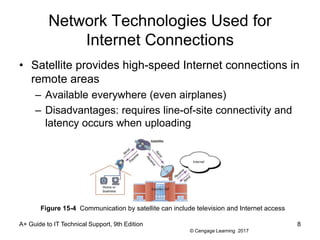
• Satellite provides high-speed Internet connections in
remote areas
– Available everywhere (even airplanes)
– Disadvantages: requires line-of-site connectivity and
latency occurs when uploading
A+ Guide to IT Technical Support, 9th Edition 8
Figure 15-4 Communication by satellite can include television and Internet access
Ā© Cengage Learning 2017
Network Technologies Used for
Internet Connections
• Fiber optic - dedicated point-to-point (PTP)
– No line sharing
– Broadband fiber-optic cable
• Television, Internet data, voice communication
– Verizon technology: Fiber Optic Service (FiOS)
– Upstream and downstream speeds and prices vary
A+ Guide to IT Technical Support, 9th Edition 9
Ā© Cengage Learning 2017
Network Technologies Used for
Internet Connections
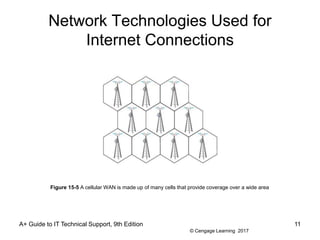
• Cellular WAN covers a wide area
– Made up of cells created by base stations
– Base station might include more than one transceiver
and antenna on the same tower
• To support multiple technologies (LTE and GSM)
– Laptop or tablet might have embedded cellular
adapter
• If not, use a USB broadband modem to make
connection
– Some mobile devices can create a mobile hotspot
• Other mobile devices can connect by Wi-Fi
A+ Guide to IT Technical Support, 9th Edition 10
Ā© Cengage Learning 2017
Network Technologies Used for
Internet Connections
A+ Guide to IT Technical Support, 9th Edition 11
Figure 15-5 A cellular WAN is made up of many cells that provide coverage over a wide area
Ā© Cengage Learning 2017
Hardware Used By Local Networks
• In this section you will learn about:
– Desktop and laptop devices
– Hubs
– Switches
– Bridges
– Other network devices
– Cables and connectors these devices use
A+ Guide to IT Technical Support, 9th Edition 12
Ā© Cengage Learning 2017
Dial-Up Modems
• POTS (Plain Old Telephone Service) or Dial-up
– Least expensive, slowest Internet connection
– Uses: travel, broadband down, saving money
– Desktop computers modem cards provide two phone
jacks (RJ-11 jacks)
– Twisted-pair cabling is used
• Pairs of wires are twisted together to reduce crosstalk
– Last modem standard: V.92
A+ Guide to IT Technical Support, 9th Edition 13
Ā© Cengage Learning 2017
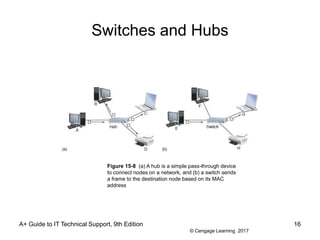
Switches and Hubs
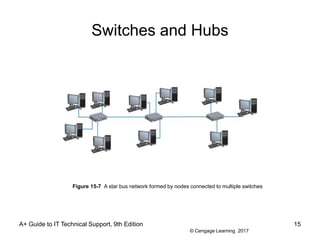
• Most wired networks use a star bus topology: nodes
connected to a centralized hub or switch
• Hub: pass-through device (outdated technology)
– No regard for data or frame’s destination
• Switch: keeps a table of all devices connected to it
– When a frame is received, switch searches its MAC
address table for the destination MAC address and
sends frame only to the device with that address
– If destination MAC address is not in table, switch
sends frame out all ports (except receiving port)
A+ Guide to IT Technical Support, 9th Edition 14
Ā© Cengage Learning 2017
Switches and Hubs
A+ Guide to IT Technical Support, 9th Edition 15
Figure 15-7 A star bus network formed by nodes connected to multiple switches
Ā© Cengage Learning 2017
Switches and Hubs
A+ Guide to IT Technical Support, 9th Edition 16
Figure 15-8 (a) A hub is a simple pass-through device
to connect nodes on a network, and (b) a switch sends
a frame to the destination node based on its MAC
address
Ā© Cengage Learning 2017
Wireless Access Points and Bridges
• Allows wireless device connection to LAN
– Devices communicate through access point
– May double as a router
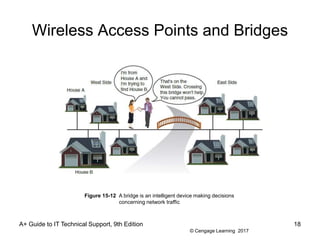
– Can also be a bridge
• A bridge is a device that stands between two segments
of a network and manages network traffic between
them
• Keeps a table of MAC addresses just like a switch
A+ Guide to IT Technical Support, 9th Edition 17
Ā© Cengage Learning 2017
Wireless Access Points and Bridges
A+ Guide to IT Technical Support, 9th Edition 18
Figure 15-12 A bridge is an intelligent device making decisions
concerning network traffic
Ā© Cengage Learning 2017
Ethernet Cables and Connectors
• Types of Ethernet cabling:
– Twisted-pair – most popular cabling for local networks
• Unshielded (UTP) and shielded twisted pair (STP)
• UTP cable is least expensive and most common
• Rated by category: CAT3 through CAT7
• Consists of four pairs of twisted wires (8 wires total)
• STP cable uses a covering or shield around each pair
of wires
– Protects it from EMI
– Costs more than UTP
A+ Guide to IT Technical Support, 9th Edition 19
Ā© Cengage Learning 2017
Ethernet Cables and Connectors
• Types of Ethernet cabling (cont’d):
– Coaxial cable: single copper wire with braided shield
• No longer used for networking
• RG-6 is used for cable TV and uses an F connector
– Fiber-optic: glass strands inside protective tubing
• Transmit signals as pulses of light
• Two types: single-mode and multimode
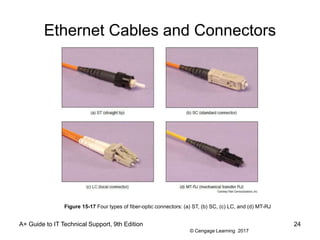
• Four types of connectors:
– ST (straight tip), SC (subscriber connector), LC (local
connector), and MT-RJ (mechanical transfer registered
jack)
A+ Guide to IT Technical Support, 9th Edition 20
Ā© Cengage Learning 2017
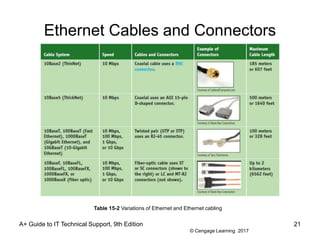
Ethernet Cables and Connectors
A+ Guide to IT Technical Support, 9th Edition 21
Table 15-2 Variations of Ethernet and Ethernet cabling
Ā© Cengage Learning 2017
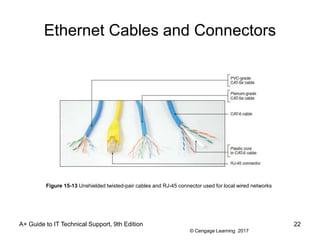
Ethernet Cables and Connectors
A+ Guide to IT Technical Support, 9th Edition 22
Figure 15-13 Unshielded twisted-pair cables and RJ-45 connector used for local wired networks
Ā© Cengage Learning 2017
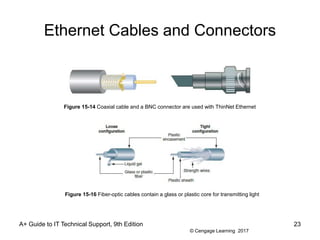
Ethernet Cables and Connectors
A+ Guide to IT Technical Support, 9th Edition 23
Figure 15-14 Coaxial cable and a BNC connector are used with ThinNet Ethernet
Figure 15-16 Fiber-optic cables contain a glass or plastic core for transmitting light
Ā© Cengage Learning 2017
Ethernet Cables and Connectors
A+ Guide to IT Technical Support, 9th Edition 24
Figure 15-17 Four types of fiber-optic connectors: (a) ST, (b) SC, (c) LC, and (d) MT-RJ
Ā© Cengage Learning 2017
Ethernet Cables and Connectors
• Ethernet Standards (categorized by speed):
– 10-Mbps Ethernet – invented by Xerox in 1970s
– 100-Mbps Ethernet (also known as Fast Ethernet or
100BaseT)
• Uses STP or UTP cabling rated CAT-5 or higher
• 100BaseFX uses fiber-optic cable
– 1000-Mbps Ethernet (also known as Gigabit Ethernet)
• Becoming most popular choice for LAN technology
• Uses same cabling and connectors as Fast Ethernet
– 10-Gigabit Ethernet
• Uses fiber-optic cable
A+ Guide to IT Technical Support, 9th Edition 25
Ā© Cengage Learning 2017
Powerline Networking or Ethernet over
Power (EoP)
• Powerline networking (or EoP) uses the power lines
in a building to transmit data
– Simple to setup, inexpensive, and can run at Gigabit
speeds
– If a building is sharing a phase (electrical signal) with
another building
• Data might leak and be intercepted by a neighbor
– Powerline adapters offer encryption (128-bit AES)
that is activated by pairing the adapters to each other
• To use powerline networking, you need at least two
powerline adapters
A+ Guide to IT Technical Support, 9th Edition 26
Ā© Cengage Learning 2017
Powerline Networking or Ethernet over
Power (EoP)
• Powerline networking issues:
– Powerline adapters must be plugged directly into a
wall outlet
– Powerline adapters might be large and cover both
outlets on a single wall plate
– Sometimes people forget to use the encryption
options
• End up with an unsecured network
– Distance degrades quality
A+ Guide to IT Technical Support, 9th Edition 27
Ā© Cengage Learning 2017
Powerline Networking or Ethernet over
Power (EoP)
• When shopping for powerline adapters, consider:
– Make sure adapter is Homeplug certified
– Make sure adapter is rated for the latest Homeplug
AV2 speed standard for Gigabit-class data transfers
– If you have limited wall outlets, you might need a
powerline adapter that offers a pass-through outlet
A+ Guide to IT Technical Support, 9th Edition 28
Ā© Cengage Learning 2017
Power Over Ethernet (PoE)
• Power over Ethernet (PoE) – a feature offered on
some high-end network adapters to allow power to
be transmitted over Ethernet cable
– Used to place a device in a position in a building
where you don’t have a electrical outlet
– If your NIC doesn’t offer PoE, you can add it using a
PoE injector
– When setting up a device to receive power by PoE:
• Make sure device sending the power, the splitter , and
the device receiving the power are all compatible
A+ Guide to IT Technical Support, 9th Edition 29
Ā© Cengage Learning 2017
Setting Up and Troubleshooting
Network Wiring
• To set up a small network, you will need:
– Computers, switches, network cables, a router, and a
device that provides Internet access (cable modem)
• Regarding cabling, be sure:
– Cables are out of the way and not a trip hazard
– Cables don’t exceed the recommended length (100
meters for twisted pair)
– Use cables rated at CAT-5e or higher
• Uses switches rated at the same speed as your
router and network adapters
A+ Guide to IT Technical Support, 9th Edition 30
Ā© Cengage Learning 2017
Setting Up and Troubleshooting
Network Wiring
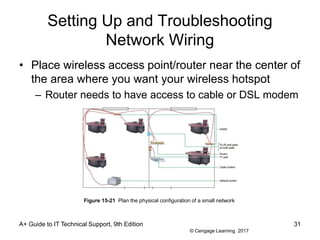
• Place wireless access point/router near the center of
the area where you want your wireless hotspot
– Router needs to have access to cable or DSL modem
A+ Guide to IT Technical Support, 9th Edition 31
Figure 15-21 Plan the physical configuration of a small network
Ā© Cengage Learning 2017
Tools Used By Network Technicians
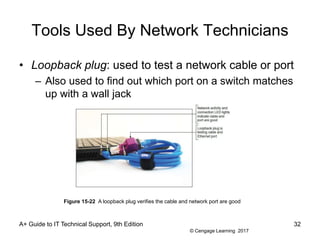
• Loopback plug: used to test a network cable or port
– Also used to find out which port on a switch matches
up with a wall jack
A+ Guide to IT Technical Support, 9th Edition 32
Figure 15-22 A loopback plug verifies the cable and network port are good
Ā© Cengage Learning 2017
Tools Used By Network Technicians
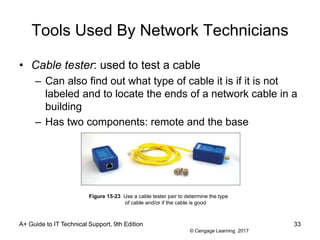
• Cable tester: used to test a cable
– Can also find out what type of cable it is if it is not
labeled and to locate the ends of a network cable in a
building
– Has two components: remote and the base
A+ Guide to IT Technical Support, 9th Edition 33
Figure 15-23 Use a cable tester pair to determine the type
of cable and/or if the cable is good
Ā© Cengage Learning 2017
Tools Used By Network Technicians
• Network multimeter: can test cables, ports, and
network adapters
– Can detect Ethernet speed, duplex status, default
router on a network, length of a cable, voltage levels
of PoE, and other network statistics
– Many can document test results and upload results to
a PC
A+ Guide to IT Technical Support, 9th Edition 34
Ā© Cengage Learning 2017
Tools Used By Network Technicians
• Wi-Fi analyzer: software that can:
– Find Wi-Fi networks
– Determine signal strengths
– Help optimize Wi-Fi signal settings
– Help identify Wi-Fi security threats
• A smart phone can be turned into a Wi-Fi analyzer
by installing a free or inexpensive app
A+ Guide to IT Technical Support, 9th Edition 35
Ā© Cengage Learning 2017
Tools Used By Network Technicians
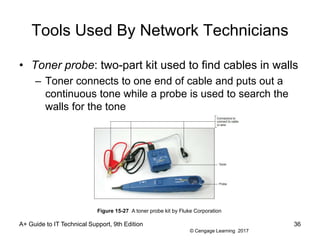
• Toner probe: two-part kit used to find cables in walls
– Toner connects to one end of cable and puts out a
continuous tone while a probe is used to search the
walls for the tone
A+ Guide to IT Technical Support, 9th Edition 36
Figure 15-27 A toner probe kit by Fluke Corporation
Ā© Cengage Learning 2017
Tools Used By Network Technicians
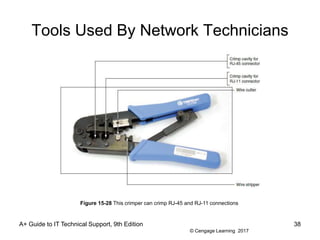
• Wire stripper: used to build your own network cable
– Cuts away the plastic jacket or coating around wires
• Crimper: used to attach a terminator or connector to
the end of a cable
– Can serve double-duty as a wire cutter and stripper
A+ Guide to IT Technical Support, 9th Edition 37
Ā© Cengage Learning 2017
Tools Used By Network Technicians
A+ Guide to IT Technical Support, 9th Edition 38
Figure 15-28 This crimper can crimp RJ-45 and RJ-11 connections
Ā© Cengage Learning 2017
Tools Used By Network Technicians
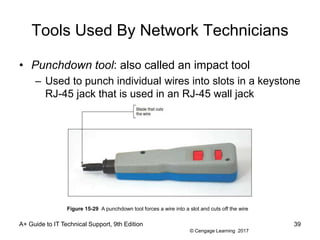
• Punchdown tool: also called an impact tool
– Used to punch individual wires into slots in a keystone
RJ-45 jack that is used in an RJ-45 wall jack
A+ Guide to IT Technical Support, 9th Edition 39
Figure 15-29 A punchdown tool forces a wire into a slot and cuts off the wire
Ā© Cengage Learning 2017
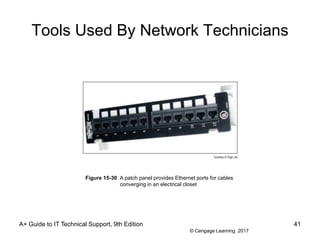
Tools Used By Network Technicians
• Patch panel: provides multiple network ports for
cables that converge in one location
– Each port is numbered on the front of the panel
– Keystone jacks are color-coded for the wires to be
inserted on the back of the panel
– Punchdown tool is used to terminate
A+ Guide to IT Technical Support, 9th Edition 40
Ā© Cengage Learning 2017
Tools Used By Network Technicians
A+ Guide to IT Technical Support, 9th Edition 41
Figure 15-30 A patch panel provides Ethernet ports for cables
converging in an electrical closet
Ā© Cengage Learning 2017
How Twisted-Pair Cables and
Connectors Are Wired
• Straight-through cable: used to connect a
computer to a switch or other network device
– Also called a patch cable
• Crossover cable: used to connect two like devices
such as a hub to a hub or a PC to a PC
– Transmit and receive lines are reversed
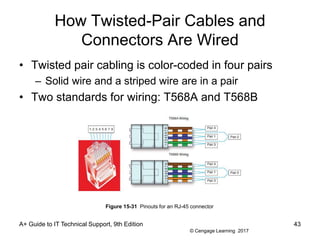
• RJ-45 connector has eight pins
– 10BaseT and 100BaseT Ethernet use only four pins
– Gigabit Ethernet uses all eight pins
A+ Guide to IT Technical Support, 9th Edition 42
Ā© Cengage Learning 2017
How Twisted-Pair Cables and
Connectors Are Wired
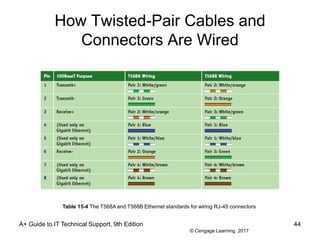
• Twisted pair cabling is color-coded in four pairs
– Solid wire and a striped wire are in a pair
• Two standards for wiring: T568A and T568B
A+ Guide to IT Technical Support, 9th Edition 43
Figure 15-31 Pinouts for an RJ-45 connector
Ā© Cengage Learning 2017
How Twisted-Pair Cables and
Connectors Are Wired
A+ Guide to IT Technical Support, 9th Edition 44
Table 15-4 The T568A and T568B Ethernet standards for wiring RJ-45 connectors
Ā© Cengage Learning 2017
How Twisted-Pair Cables and
Connectors Are Wired
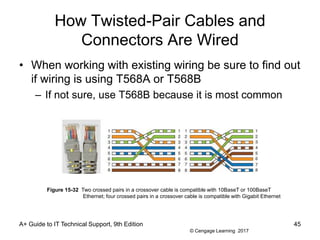
• When working with existing wiring be sure to find out
if wiring is using T568A or T568B
– If not sure, use T568B because it is most common
A+ Guide to IT Technical Support, 9th Edition 45
Figure 15-32 Two crossed pairs in a crossover cable is compatible with 10BaseT or 100BaseT
Ethernet; four crossed pairs in a crossover cable is compatible with Gigabit Ethernet
Ā© Cengage Learning 2017
How Twisted-Pair Cables and
Connectors Are Wired
A+ Guide to IT Technical Support, 9th Edition 46
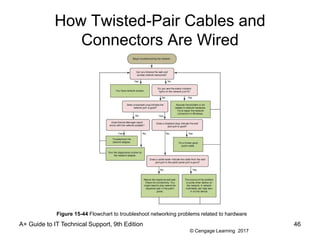
Figure 15-44 Flowchart to troubleshoot networking problems related to hardware
Ā© Cengage Learning 2017
TCP/IP Utilities Used For
Troubleshooting
• Ping [-a] [-t] [TargetName]
– Tests connectivity by sending an echo request to a
remote computer
A+ Guide to Managing & Maintaining Your PC, 8th
Edition
47
Table 15-2 Examples of the ping command
Ā© Cengage Learning 2017
TCP/IP Utilities Used For
Troubleshooting
• Ipconfig [/all] [/release] [/renew] [/displaydns]
[/flushdns]
– Can display TCP/IP configuration
A+ Guide to Managing & Maintaining Your PC, 8th
Edition
48
Table 15-6 Examples of ipconfig command
Ā© Cengage Learning 2017
TCP/IP Utilities Used For
Troubleshooting
• Ifconfig [/a] [/interface] [/up] [/down]
– Similar to ipconfig and is used on Unix, Linux, and
Mac OS X operating systems
A+ Guide to Managing & Maintaining Your PC, 8th
Edition
49
Table 15-7 Examples of ifconfig command
Ā© Cengage Learning 2017
TCP/IP Utilities Used For
Troubleshooting
• Nslookup [ComputerName]
– Lets you read information from the Internet name
space by requesting information about domain name
resolutions from the DNS server’s zone data
– A reverse lookup is when you use the nslookup
command to find the host name when you know the
IP address
A+ Guide to Managing & Maintaining Your PC, 8th
Edition
50
Ā© Cengage Learning 2017
TCP/IP Utilities Used For
Troubleshooting
• Tracert [TargetName]
– Sends a series of requests to the destination
computer and displays each hop to the destination
• A hop happens when a packet moves from one router
to another
– A packet is assigned a Time To Live (TTL), which is
the number of hop counts it can make before a router
drops the packet and sends an ICMP message back
to the host that sent packet
A+ Guide to Managing & Maintaining Your PC, 8th
Edition
51
Ā© Cengage Learning 2017
TCP/IP Utilities Used For
Troubleshooting
• The Net Commands
– Net command is several commands in one
• Most require an elevated command prompt window
– Net use command
• Connects or disconnects a computer from a shared
resource
– Net user command
• Manages user accounts
A+ Guide to Managing & Maintaining Your PC, 8th
Edition
52
Ā© Cengage Learning 2017
TCP/IP Utilities Used For
Troubleshooting
• Nbtstat [-n] [-r] [-RR]
– Used to display statistics about the NetBT (NetBIOS
over TCP/IP) protocol
• NetBIOS is an older network protocol suite used before
TCP/IP
A+ Guide to Managing & Maintaining Your PC, 8th
Edition
53
Table 15-8 Nbtstat commands
Ā© Cengage Learning 2017
TCP/IP Utilities Used For
Troubleshooting
• Netstat [-a] [-b] [-o]
– Gives statistics about TCP/IP and network activity
A+ Guide to Managing & Maintaining Your PC, 8th
Edition
54
Table 15-9 Netstat commands
Ā© Cengage Learning 2017
TCP/IP Utilities Used For
Troubleshooting
• Netdom [add] [move] [resetpwd] [verify]
– Allows administrators to manage Active Directory
domains and trust relationships for Windows Server
A+ Guide to Managing & Maintaining Your PC, 8th
Edition
55
Table 15-10 Netdom commands
Ā© Cengage Learning 2017
Strategies For Troubleshooting
Network Connections
• Check for local connectivity
– Use Windows Explorer to try to access shared folders
on the network
• Determine whether other computers on network are
having trouble with their connections
• If some resources can be accessed, but not all:
– Might be caused by cables or a switch on the network
• Test for Internet access by opening a browser
• Use ipconfig command to check IP addressing
– Computer assigns itself an address starting with
169.254 if it was unable to lease an IP address
A+ Guide to Managing & Maintaining Your PC, 8th
Edition
56
Ā© Cengage Learning 2017
Problems With No Connectivity or
Intermittent Connectivity
• Begin by checking hardware and then move on to
checking Windows network settings
• Check status indicator lights on the NIC or Ethernet
port
– Steady light indicates connectivity and blinking light
indicates activity
• Check the network cable connection at both ends
• For wireless networking, make sure wireless switch
on a laptop is turned on
– May need to move laptop to a new position in the
hotspot
A+ Guide to Managing & Maintaining Your PC, 8th
Edition
57
Ā© Cengage Learning 2017
Problems With No Connectivity or
Intermittent Connectivity
• After checking hardware, try one of the following
Windows methods:
– In an elevated command prompt, use ipconfig
/release followed by ipconfig /renew
– In the Network and Sharing Center, click
Troubleshoot problems to access a Windows network
connectivity diagnostic tool
– Go to Network and Sharing Center, click Change
adapter settings, right-click the connection, and click
Disable (then right-click connection and click Enable)
A+ Guide to Managing & Maintaining Your PC, 8th
Edition
58
Ā© Cengage Learning 2017
Problems With No Connectivity or
Intermittent Connectivity
• If problem is still not resolved, check NIC drivers:
– Check for adapter in Device Manager
– If errors are reported with adapter in Device Manager,
try updating drivers
• If errors still occur, check the manufacturer web site for
diagnostic software
– Try running antivirus software and updating Windows
• Try installing a ferrite clamp to eliminate EMI
A+ Guide to Managing & Maintaining Your PC, 8th
Edition
59
Ā© Cengage Learning 2017
Problems with Internet Connectivity
• If you have local connectivity, but not Internet
access:
– Try recycling the connection to the ISP
• Unplug power source to the cable modem or other
device used to connect to ISP to restart
• Use Network and Sharing Center, on any computer, to
repair the connection
– For a cable modem, make sure your TV works
– To eliminate router, connect one computer directly to
the broadband modem
• If you can access the Internet, you have proven router
is the problem
A+ Guide to Managing & Maintaining Your PC, 8th
Edition
60
Ā© Cengage Learning 2017
Problems with Internet Connectivity
• No Internet connectivity: (cont’d)
– To eliminate DNS as the problem
• Substitute a domain name for an IP address in a ping
command (If ping works, DNS works)
• Ping your DNS server
– If having problems reaching a particular website, try
using the tracert command
• Example: tracert www.cengage.com
– If one computer cannot access Internet but other can,
make sure MAC address filtering is disabled
A+ Guide to Managing & Maintaining Your PC, 8th
Edition
61
Ā© Cengage Learning 2017
Problems with Internet Connectivity
• No Internet connectivity: (cont’d)
– Verify router firewall or Windows firewall settings
– Contact your ISP
A+ Guide to Managing & Maintaining Your PC, 8th
Edition
62
Ā© Cengage Learning 2017
Use TCP/IP Utilities to Solve
Connectivity Problems
• Follow these steps to verify the local computer is
communicating over the network:
– 1. Try to release the current IP address and lease a
new address
– 2. Ping another computer on the network
• Ping a computer on the Internet using its host address
– 3. Enter ipconfig /all at a command prompt to verify
IP information
– 4. Ping the loopback address (127.0.0.1)
– 5. Use the netstat –b command to find out if the
program to access the network is actually running
A+ Guide to Managing & Maintaining Your PC, 8th
Edition
63
Ā© Cengage Learning 2017
Use TCP/IP Utilities to Solve
Connectivity Problems
• Follow these steps to verify the local computer is
communicating over the network: (cont’d)
– 6. Verify firewall settings are correct
– 7. Use the following command to verify that no
computers have the same computer name:
• net view computername
– 8. Try using remote computer’s IP address:
• net view 192.168.1.102
– 9. If having problems getting a network drive map to
work:
• net use z:computernamefolder
A+ Guide to Managing & Maintaining Your PC, 8th
Edition
64
Ā© Cengage Learning 2017
No Wireless Connectivity
• Try the following:
– Make sure you are within range of the access point
– Click your wireless icon in the system tray
• Turn off; then turn back on again after a few seconds
– Use Network and Sharing Center to disable and then
enable the wireless network adapter
– Reboot the computer
– Update the device driver for the wireless card
– Replace the wireless card
A+ Guide to IT Technical Support, 9th Edition 65
Ā© Cengage Learning 2017
Wi-Fi Network Not Found
• Computers typically find the SSID of a Wi-Fi network
and connect after entering the security key
– If SSID is not detected, SSID might be hidden
– If you know the SSID name and the security key:
• Open Network and Sharing Center
• Click Set up a new connection or network, select
Manually connect to a wireless network, click Next
• Enter network name, choose security type, and enter
security key, click Next
• Wireless network is set up and you should be
connected, click Close
A+ Guide to IT Technical Support, 9th Edition 66
Ā© Cengage Learning 2017
No Bluetooth Connectivity
• Having troubles with Bluetooth, try the following:
– Make sure Bluetooth is turned on
– Verify that Windows sees Bluetooth enabled
– Be sure you have downloaded all Windows updates
– Look in Device Manager to make sure the Bluetooth
component is recognized with no errors
– Make sure the other device has Bluetooth turned on
– Try uninstalling and reinstalling the Bluetooth drivers
that come bundled with laptop
– Uninstall and reinstall drivers for Bluetooth device
A+ Guide to IT Technical Support, 9th Edition 67
Ā© Cengage Learning 2017
GPS Not Functioning
• Global Positioning System (GPS) allows a laptop to
be used as a navigation device with mapping
software
– Advantage: larger screen with more detailed routing
• If GPS is not working:
– Try using a short USB extension cable that is usually
included with the GPS receiver
– A clear view of the sky is necessary for the GPS
receiver to lock signal with the satellite
A+ Guide to IT Technical Support, 9th Edition 68
Ā© Cengage Learning 2017
Summary
• Networks are categorized in size as a PAN, LAN,
Wireless LAN, MAN, or WAN
• Network performance is measured in bandwidth and
latency
• Two most popular ways to connect to the Internet
are cable Internet and DSL
• Networking hardware includes: network adapters,
dial-up modems, hubs, switches, routers, wireless
APs, bridges, cables, and connectors
• Most popular Ethernet cable is twisted pair using
RJ-45 connectors
A+ Guide to IT Technical Support, 9th Edition 69
Ā© Cengage Learning 2017
Summary
• Switches and older hubs are used as a centralized
connection point for devices
• Twisted pair cabling is rated by category: CAT-3,
CAT-5, CAT-5e, CAT-6, CAT-6a, and CAT-7
• Fiber-optic cables can use one of four connectors
• Powerline networking sends Ethernet transmissions
over power lines of a building or house
• Networking tools include: loopback plug, cable
tester, multimeter, tone probe, wire stripper, crimper,
and punchdown tool
• RJ-45 connector has eight pins
A+ Guide to IT Technical Support, 9th Edition 70
Ā© Cengage Learning 2017
Summary
• Two standards used to wire network cables are
T568A and T568B
• Two types of network cables are straight through
and crossover cables
• Useful Windows TCP/IP utilities are ping, ipconfig,
nslookup, tracert, net use, nbtstat, netstat, and
netdom
• When troubleshooting network problems, check
hardware, device drivers, Windows, and
client/server applications, in that order
A+ Guide to IT Technical Support, 9th Edition 71

ppt ch15

  • 1.
    A+ Guide toIT Technical Support, 9th Edition Chapter 15 Supporting Network Hardware
  • 2.
    Ā© Cengage Learning2017 A+ Guide to IT Technical Support, 9th Edition 2 Objectives • Describe network types and the Internet connections they use • Identify, compare, and contrast hardware used to build local networks • Set up and troubleshoot the wiring in a small network
  • 3.
    Ā© Cengage Learning2017 Network Types and the Internet Connections They Use • Networks can be categorized by technology used and size of the network – Personal Area Network (PAN): consists of personal devices such as a cell phone and laptop – Local Area Network (LAN): covers a small local area such as a home, office, or other building – Wireless LAN: covers a limited geographic area and is popular in places where cables are difficult to install – Metropolitan Area Network (MAN): covers a large campus or city – Wide Area Network (WAN): covers a large geographic area and is made up of small networks A+ Guide to IT Technical Support, 9th Edition 3
  • 4.
    Ā© Cengage Learning2017 Network Technologies Used for Internet Connections • Internet Service Provider (ISP): used to connect to the Internet – Most common type of connections are DSL and cable Internet (cable modem) • Bandwidth: measure of the maximum data transmission rate • Data throughput: actual network transmission speed • Latency: delays in network transmissions – Measured by the round-trip time it takes for a data packet to travel from source to destination and back A+ Guide to IT Technical Support, 9th Edition 4
  • 5.
    Ā© Cengage Learning2017 Network Technologies Used for Internet Connections • Cable Internet (cable modem) – Uses existing TV cable lines – Always connected (always up) – TV signals and PC data signals share same coax cable – Cable modem converts PC’s digital signals to analog • And converts incoming analog data to digital A+ Guide to IT Technical Support, 9th Edition 5
  • 6.
    Ā© Cengage Learning2017 Network Technologies Used for Internet Connections • DSL (Digital Subscriber Line) – Group of broadband technologies • Wide range of speeds – Uses ordinary copper phone lines and unused voice frequencies – Always connected • Some DSL services offer connect on demand – Can use the same phone line for voice and DSL at the same time A+ Guide to IT Technical Support, 9th Edition 6
  • 7.
    Ā© Cengage Learning2017 Network Technologies Used for Internet Connections • Cable Internet vs. DSL – Both can sometimes be purchased on a sliding scale – Cable modem shares TV cable infrastructure with neighbors • Service may become degraded – DSL uses dedicated phone line • Must filter phone line static – Similar setup for both – Installation completed by provider or user A+ Guide to IT Technical Support, 9th Edition 7
  • 8.
    Ā© Cengage Learning2017 Network Technologies Used for Internet Connections • Satellite provides high-speed Internet connections in remote areas – Available everywhere (even airplanes) – Disadvantages: requires line-of-site connectivity and latency occurs when uploading A+ Guide to IT Technical Support, 9th Edition 8 Figure 15-4 Communication by satellite can include television and Internet access
  • 9.
    Ā© Cengage Learning2017 Network Technologies Used for Internet Connections • Fiber optic - dedicated point-to-point (PTP) – No line sharing – Broadband fiber-optic cable • Television, Internet data, voice communication – Verizon technology: Fiber Optic Service (FiOS) – Upstream and downstream speeds and prices vary A+ Guide to IT Technical Support, 9th Edition 9
  • 10.
    Ā© Cengage Learning2017 Network Technologies Used for Internet Connections • Cellular WAN covers a wide area – Made up of cells created by base stations – Base station might include more than one transceiver and antenna on the same tower • To support multiple technologies (LTE and GSM) – Laptop or tablet might have embedded cellular adapter • If not, use a USB broadband modem to make connection – Some mobile devices can create a mobile hotspot • Other mobile devices can connect by Wi-Fi A+ Guide to IT Technical Support, 9th Edition 10
  • 11.
    Ā© Cengage Learning2017 Network Technologies Used for Internet Connections A+ Guide to IT Technical Support, 9th Edition 11 Figure 15-5 A cellular WAN is made up of many cells that provide coverage over a wide area
  • 12.
    Ā© Cengage Learning2017 Hardware Used By Local Networks • In this section you will learn about: – Desktop and laptop devices – Hubs – Switches – Bridges – Other network devices – Cables and connectors these devices use A+ Guide to IT Technical Support, 9th Edition 12
  • 13.
    Ā© Cengage Learning2017 Dial-Up Modems • POTS (Plain Old Telephone Service) or Dial-up – Least expensive, slowest Internet connection – Uses: travel, broadband down, saving money – Desktop computers modem cards provide two phone jacks (RJ-11 jacks) – Twisted-pair cabling is used • Pairs of wires are twisted together to reduce crosstalk – Last modem standard: V.92 A+ Guide to IT Technical Support, 9th Edition 13
  • 14.
    Ā© Cengage Learning2017 Switches and Hubs • Most wired networks use a star bus topology: nodes connected to a centralized hub or switch • Hub: pass-through device (outdated technology) – No regard for data or frame’s destination • Switch: keeps a table of all devices connected to it – When a frame is received, switch searches its MAC address table for the destination MAC address and sends frame only to the device with that address – If destination MAC address is not in table, switch sends frame out all ports (except receiving port) A+ Guide to IT Technical Support, 9th Edition 14
  • 15.
    Ā© Cengage Learning2017 Switches and Hubs A+ Guide to IT Technical Support, 9th Edition 15 Figure 15-7 A star bus network formed by nodes connected to multiple switches
  • 16.
    Ā© Cengage Learning2017 Switches and Hubs A+ Guide to IT Technical Support, 9th Edition 16 Figure 15-8 (a) A hub is a simple pass-through device to connect nodes on a network, and (b) a switch sends a frame to the destination node based on its MAC address
  • 17.
    Ā© Cengage Learning2017 Wireless Access Points and Bridges • Allows wireless device connection to LAN – Devices communicate through access point – May double as a router – Can also be a bridge • A bridge is a device that stands between two segments of a network and manages network traffic between them • Keeps a table of MAC addresses just like a switch A+ Guide to IT Technical Support, 9th Edition 17
  • 18.
    Ā© Cengage Learning2017 Wireless Access Points and Bridges A+ Guide to IT Technical Support, 9th Edition 18 Figure 15-12 A bridge is an intelligent device making decisions concerning network traffic
  • 19.
    Ā© Cengage Learning2017 Ethernet Cables and Connectors • Types of Ethernet cabling: – Twisted-pair – most popular cabling for local networks • Unshielded (UTP) and shielded twisted pair (STP) • UTP cable is least expensive and most common • Rated by category: CAT3 through CAT7 • Consists of four pairs of twisted wires (8 wires total) • STP cable uses a covering or shield around each pair of wires – Protects it from EMI – Costs more than UTP A+ Guide to IT Technical Support, 9th Edition 19
  • 20.
    Ā© Cengage Learning2017 Ethernet Cables and Connectors • Types of Ethernet cabling (cont’d): – Coaxial cable: single copper wire with braided shield • No longer used for networking • RG-6 is used for cable TV and uses an F connector – Fiber-optic: glass strands inside protective tubing • Transmit signals as pulses of light • Two types: single-mode and multimode • Four types of connectors: – ST (straight tip), SC (subscriber connector), LC (local connector), and MT-RJ (mechanical transfer registered jack) A+ Guide to IT Technical Support, 9th Edition 20
  • 21.
    Ā© Cengage Learning2017 Ethernet Cables and Connectors A+ Guide to IT Technical Support, 9th Edition 21 Table 15-2 Variations of Ethernet and Ethernet cabling
  • 22.
    Ā© Cengage Learning2017 Ethernet Cables and Connectors A+ Guide to IT Technical Support, 9th Edition 22 Figure 15-13 Unshielded twisted-pair cables and RJ-45 connector used for local wired networks
  • 23.
    Ā© Cengage Learning2017 Ethernet Cables and Connectors A+ Guide to IT Technical Support, 9th Edition 23 Figure 15-14 Coaxial cable and a BNC connector are used with ThinNet Ethernet Figure 15-16 Fiber-optic cables contain a glass or plastic core for transmitting light
  • 24.
    Ā© Cengage Learning2017 Ethernet Cables and Connectors A+ Guide to IT Technical Support, 9th Edition 24 Figure 15-17 Four types of fiber-optic connectors: (a) ST, (b) SC, (c) LC, and (d) MT-RJ
  • 25.
    Ā© Cengage Learning2017 Ethernet Cables and Connectors • Ethernet Standards (categorized by speed): – 10-Mbps Ethernet – invented by Xerox in 1970s – 100-Mbps Ethernet (also known as Fast Ethernet or 100BaseT) • Uses STP or UTP cabling rated CAT-5 or higher • 100BaseFX uses fiber-optic cable – 1000-Mbps Ethernet (also known as Gigabit Ethernet) • Becoming most popular choice for LAN technology • Uses same cabling and connectors as Fast Ethernet – 10-Gigabit Ethernet • Uses fiber-optic cable A+ Guide to IT Technical Support, 9th Edition 25
  • 26.
    Ā© Cengage Learning2017 Powerline Networking or Ethernet over Power (EoP) • Powerline networking (or EoP) uses the power lines in a building to transmit data – Simple to setup, inexpensive, and can run at Gigabit speeds – If a building is sharing a phase (electrical signal) with another building • Data might leak and be intercepted by a neighbor – Powerline adapters offer encryption (128-bit AES) that is activated by pairing the adapters to each other • To use powerline networking, you need at least two powerline adapters A+ Guide to IT Technical Support, 9th Edition 26
  • 27.
    Ā© Cengage Learning2017 Powerline Networking or Ethernet over Power (EoP) • Powerline networking issues: – Powerline adapters must be plugged directly into a wall outlet – Powerline adapters might be large and cover both outlets on a single wall plate – Sometimes people forget to use the encryption options • End up with an unsecured network – Distance degrades quality A+ Guide to IT Technical Support, 9th Edition 27
  • 28.
    Ā© Cengage Learning2017 Powerline Networking or Ethernet over Power (EoP) • When shopping for powerline adapters, consider: – Make sure adapter is Homeplug certified – Make sure adapter is rated for the latest Homeplug AV2 speed standard for Gigabit-class data transfers – If you have limited wall outlets, you might need a powerline adapter that offers a pass-through outlet A+ Guide to IT Technical Support, 9th Edition 28
  • 29.
    Ā© Cengage Learning2017 Power Over Ethernet (PoE) • Power over Ethernet (PoE) – a feature offered on some high-end network adapters to allow power to be transmitted over Ethernet cable – Used to place a device in a position in a building where you don’t have a electrical outlet – If your NIC doesn’t offer PoE, you can add it using a PoE injector – When setting up a device to receive power by PoE: • Make sure device sending the power, the splitter , and the device receiving the power are all compatible A+ Guide to IT Technical Support, 9th Edition 29
  • 30.
    Ā© Cengage Learning2017 Setting Up and Troubleshooting Network Wiring • To set up a small network, you will need: – Computers, switches, network cables, a router, and a device that provides Internet access (cable modem) • Regarding cabling, be sure: – Cables are out of the way and not a trip hazard – Cables don’t exceed the recommended length (100 meters for twisted pair) – Use cables rated at CAT-5e or higher • Uses switches rated at the same speed as your router and network adapters A+ Guide to IT Technical Support, 9th Edition 30
  • 31.
    Ā© Cengage Learning2017 Setting Up and Troubleshooting Network Wiring • Place wireless access point/router near the center of the area where you want your wireless hotspot – Router needs to have access to cable or DSL modem A+ Guide to IT Technical Support, 9th Edition 31 Figure 15-21 Plan the physical configuration of a small network
  • 32.
    Ā© Cengage Learning2017 Tools Used By Network Technicians • Loopback plug: used to test a network cable or port – Also used to find out which port on a switch matches up with a wall jack A+ Guide to IT Technical Support, 9th Edition 32 Figure 15-22 A loopback plug verifies the cable and network port are good
  • 33.
    Ā© Cengage Learning2017 Tools Used By Network Technicians • Cable tester: used to test a cable – Can also find out what type of cable it is if it is not labeled and to locate the ends of a network cable in a building – Has two components: remote and the base A+ Guide to IT Technical Support, 9th Edition 33 Figure 15-23 Use a cable tester pair to determine the type of cable and/or if the cable is good
  • 34.
    Ā© Cengage Learning2017 Tools Used By Network Technicians • Network multimeter: can test cables, ports, and network adapters – Can detect Ethernet speed, duplex status, default router on a network, length of a cable, voltage levels of PoE, and other network statistics – Many can document test results and upload results to a PC A+ Guide to IT Technical Support, 9th Edition 34
  • 35.
    Ā© Cengage Learning2017 Tools Used By Network Technicians • Wi-Fi analyzer: software that can: – Find Wi-Fi networks – Determine signal strengths – Help optimize Wi-Fi signal settings – Help identify Wi-Fi security threats • A smart phone can be turned into a Wi-Fi analyzer by installing a free or inexpensive app A+ Guide to IT Technical Support, 9th Edition 35
  • 36.
    Ā© Cengage Learning2017 Tools Used By Network Technicians • Toner probe: two-part kit used to find cables in walls – Toner connects to one end of cable and puts out a continuous tone while a probe is used to search the walls for the tone A+ Guide to IT Technical Support, 9th Edition 36 Figure 15-27 A toner probe kit by Fluke Corporation
  • 37.
    Ā© Cengage Learning2017 Tools Used By Network Technicians • Wire stripper: used to build your own network cable – Cuts away the plastic jacket or coating around wires • Crimper: used to attach a terminator or connector to the end of a cable – Can serve double-duty as a wire cutter and stripper A+ Guide to IT Technical Support, 9th Edition 37
  • 38.
    Ā© Cengage Learning2017 Tools Used By Network Technicians A+ Guide to IT Technical Support, 9th Edition 38 Figure 15-28 This crimper can crimp RJ-45 and RJ-11 connections
  • 39.
    Ā© Cengage Learning2017 Tools Used By Network Technicians • Punchdown tool: also called an impact tool – Used to punch individual wires into slots in a keystone RJ-45 jack that is used in an RJ-45 wall jack A+ Guide to IT Technical Support, 9th Edition 39 Figure 15-29 A punchdown tool forces a wire into a slot and cuts off the wire
  • 40.
    Ā© Cengage Learning2017 Tools Used By Network Technicians • Patch panel: provides multiple network ports for cables that converge in one location – Each port is numbered on the front of the panel – Keystone jacks are color-coded for the wires to be inserted on the back of the panel – Punchdown tool is used to terminate A+ Guide to IT Technical Support, 9th Edition 40
  • 41.
    Ā© Cengage Learning2017 Tools Used By Network Technicians A+ Guide to IT Technical Support, 9th Edition 41 Figure 15-30 A patch panel provides Ethernet ports for cables converging in an electrical closet
  • 42.
    Ā© Cengage Learning2017 How Twisted-Pair Cables and Connectors Are Wired • Straight-through cable: used to connect a computer to a switch or other network device – Also called a patch cable • Crossover cable: used to connect two like devices such as a hub to a hub or a PC to a PC – Transmit and receive lines are reversed • RJ-45 connector has eight pins – 10BaseT and 100BaseT Ethernet use only four pins – Gigabit Ethernet uses all eight pins A+ Guide to IT Technical Support, 9th Edition 42
  • 43.
    Ā© Cengage Learning2017 How Twisted-Pair Cables and Connectors Are Wired • Twisted pair cabling is color-coded in four pairs – Solid wire and a striped wire are in a pair • Two standards for wiring: T568A and T568B A+ Guide to IT Technical Support, 9th Edition 43 Figure 15-31 Pinouts for an RJ-45 connector
  • 44.
    Ā© Cengage Learning2017 How Twisted-Pair Cables and Connectors Are Wired A+ Guide to IT Technical Support, 9th Edition 44 Table 15-4 The T568A and T568B Ethernet standards for wiring RJ-45 connectors
  • 45.
    Ā© Cengage Learning2017 How Twisted-Pair Cables and Connectors Are Wired • When working with existing wiring be sure to find out if wiring is using T568A or T568B – If not sure, use T568B because it is most common A+ Guide to IT Technical Support, 9th Edition 45 Figure 15-32 Two crossed pairs in a crossover cable is compatible with 10BaseT or 100BaseT Ethernet; four crossed pairs in a crossover cable is compatible with Gigabit Ethernet
  • 46.
    Ā© Cengage Learning2017 How Twisted-Pair Cables and Connectors Are Wired A+ Guide to IT Technical Support, 9th Edition 46 Figure 15-44 Flowchart to troubleshoot networking problems related to hardware
  • 47.
    Ā© Cengage Learning2017 TCP/IP Utilities Used For Troubleshooting • Ping [-a] [-t] [TargetName] – Tests connectivity by sending an echo request to a remote computer A+ Guide to Managing & Maintaining Your PC, 8th Edition 47 Table 15-2 Examples of the ping command
  • 48.
    Ā© Cengage Learning2017 TCP/IP Utilities Used For Troubleshooting • Ipconfig [/all] [/release] [/renew] [/displaydns] [/flushdns] – Can display TCP/IP configuration A+ Guide to Managing & Maintaining Your PC, 8th Edition 48 Table 15-6 Examples of ipconfig command
  • 49.
    Ā© Cengage Learning2017 TCP/IP Utilities Used For Troubleshooting • Ifconfig [/a] [/interface] [/up] [/down] – Similar to ipconfig and is used on Unix, Linux, and Mac OS X operating systems A+ Guide to Managing & Maintaining Your PC, 8th Edition 49 Table 15-7 Examples of ifconfig command
  • 50.
    Ā© Cengage Learning2017 TCP/IP Utilities Used For Troubleshooting • Nslookup [ComputerName] – Lets you read information from the Internet name space by requesting information about domain name resolutions from the DNS server’s zone data – A reverse lookup is when you use the nslookup command to find the host name when you know the IP address A+ Guide to Managing & Maintaining Your PC, 8th Edition 50
  • 51.
    Ā© Cengage Learning2017 TCP/IP Utilities Used For Troubleshooting • Tracert [TargetName] – Sends a series of requests to the destination computer and displays each hop to the destination • A hop happens when a packet moves from one router to another – A packet is assigned a Time To Live (TTL), which is the number of hop counts it can make before a router drops the packet and sends an ICMP message back to the host that sent packet A+ Guide to Managing & Maintaining Your PC, 8th Edition 51
  • 52.
    Ā© Cengage Learning2017 TCP/IP Utilities Used For Troubleshooting • The Net Commands – Net command is several commands in one • Most require an elevated command prompt window – Net use command • Connects or disconnects a computer from a shared resource – Net user command • Manages user accounts A+ Guide to Managing & Maintaining Your PC, 8th Edition 52
  • 53.
    Ā© Cengage Learning2017 TCP/IP Utilities Used For Troubleshooting • Nbtstat [-n] [-r] [-RR] – Used to display statistics about the NetBT (NetBIOS over TCP/IP) protocol • NetBIOS is an older network protocol suite used before TCP/IP A+ Guide to Managing & Maintaining Your PC, 8th Edition 53 Table 15-8 Nbtstat commands
  • 54.
    Ā© Cengage Learning2017 TCP/IP Utilities Used For Troubleshooting • Netstat [-a] [-b] [-o] – Gives statistics about TCP/IP and network activity A+ Guide to Managing & Maintaining Your PC, 8th Edition 54 Table 15-9 Netstat commands
  • 55.
    Ā© Cengage Learning2017 TCP/IP Utilities Used For Troubleshooting • Netdom [add] [move] [resetpwd] [verify] – Allows administrators to manage Active Directory domains and trust relationships for Windows Server A+ Guide to Managing & Maintaining Your PC, 8th Edition 55 Table 15-10 Netdom commands
  • 56.
    Ā© Cengage Learning2017 Strategies For Troubleshooting Network Connections • Check for local connectivity – Use Windows Explorer to try to access shared folders on the network • Determine whether other computers on network are having trouble with their connections • If some resources can be accessed, but not all: – Might be caused by cables or a switch on the network • Test for Internet access by opening a browser • Use ipconfig command to check IP addressing – Computer assigns itself an address starting with 169.254 if it was unable to lease an IP address A+ Guide to Managing & Maintaining Your PC, 8th Edition 56
  • 57.
    Ā© Cengage Learning2017 Problems With No Connectivity or Intermittent Connectivity • Begin by checking hardware and then move on to checking Windows network settings • Check status indicator lights on the NIC or Ethernet port – Steady light indicates connectivity and blinking light indicates activity • Check the network cable connection at both ends • For wireless networking, make sure wireless switch on a laptop is turned on – May need to move laptop to a new position in the hotspot A+ Guide to Managing & Maintaining Your PC, 8th Edition 57
  • 58.
    Ā© Cengage Learning2017 Problems With No Connectivity or Intermittent Connectivity • After checking hardware, try one of the following Windows methods: – In an elevated command prompt, use ipconfig /release followed by ipconfig /renew – In the Network and Sharing Center, click Troubleshoot problems to access a Windows network connectivity diagnostic tool – Go to Network and Sharing Center, click Change adapter settings, right-click the connection, and click Disable (then right-click connection and click Enable) A+ Guide to Managing & Maintaining Your PC, 8th Edition 58
  • 59.
    Ā© Cengage Learning2017 Problems With No Connectivity or Intermittent Connectivity • If problem is still not resolved, check NIC drivers: – Check for adapter in Device Manager – If errors are reported with adapter in Device Manager, try updating drivers • If errors still occur, check the manufacturer web site for diagnostic software – Try running antivirus software and updating Windows • Try installing a ferrite clamp to eliminate EMI A+ Guide to Managing & Maintaining Your PC, 8th Edition 59
  • 60.
    Ā© Cengage Learning2017 Problems with Internet Connectivity • If you have local connectivity, but not Internet access: – Try recycling the connection to the ISP • Unplug power source to the cable modem or other device used to connect to ISP to restart • Use Network and Sharing Center, on any computer, to repair the connection – For a cable modem, make sure your TV works – To eliminate router, connect one computer directly to the broadband modem • If you can access the Internet, you have proven router is the problem A+ Guide to Managing & Maintaining Your PC, 8th Edition 60
  • 61.
    Ā© Cengage Learning2017 Problems with Internet Connectivity • No Internet connectivity: (cont’d) – To eliminate DNS as the problem • Substitute a domain name for an IP address in a ping command (If ping works, DNS works) • Ping your DNS server – If having problems reaching a particular website, try using the tracert command • Example: tracert www.cengage.com – If one computer cannot access Internet but other can, make sure MAC address filtering is disabled A+ Guide to Managing & Maintaining Your PC, 8th Edition 61
  • 62.
    Ā© Cengage Learning2017 Problems with Internet Connectivity • No Internet connectivity: (cont’d) – Verify router firewall or Windows firewall settings – Contact your ISP A+ Guide to Managing & Maintaining Your PC, 8th Edition 62
  • 63.
    Ā© Cengage Learning2017 Use TCP/IP Utilities to Solve Connectivity Problems • Follow these steps to verify the local computer is communicating over the network: – 1. Try to release the current IP address and lease a new address – 2. Ping another computer on the network • Ping a computer on the Internet using its host address – 3. Enter ipconfig /all at a command prompt to verify IP information – 4. Ping the loopback address (127.0.0.1) – 5. Use the netstat –b command to find out if the program to access the network is actually running A+ Guide to Managing & Maintaining Your PC, 8th Edition 63
  • 64.
    Ā© Cengage Learning2017 Use TCP/IP Utilities to Solve Connectivity Problems • Follow these steps to verify the local computer is communicating over the network: (cont’d) – 6. Verify firewall settings are correct – 7. Use the following command to verify that no computers have the same computer name: • net view computername – 8. Try using remote computer’s IP address: • net view 192.168.1.102 – 9. If having problems getting a network drive map to work: • net use z:computernamefolder A+ Guide to Managing & Maintaining Your PC, 8th Edition 64
  • 65.
    Ā© Cengage Learning2017 No Wireless Connectivity • Try the following: – Make sure you are within range of the access point – Click your wireless icon in the system tray • Turn off; then turn back on again after a few seconds – Use Network and Sharing Center to disable and then enable the wireless network adapter – Reboot the computer – Update the device driver for the wireless card – Replace the wireless card A+ Guide to IT Technical Support, 9th Edition 65
  • 66.
    Ā© Cengage Learning2017 Wi-Fi Network Not Found • Computers typically find the SSID of a Wi-Fi network and connect after entering the security key – If SSID is not detected, SSID might be hidden – If you know the SSID name and the security key: • Open Network and Sharing Center • Click Set up a new connection or network, select Manually connect to a wireless network, click Next • Enter network name, choose security type, and enter security key, click Next • Wireless network is set up and you should be connected, click Close A+ Guide to IT Technical Support, 9th Edition 66
  • 67.
    Ā© Cengage Learning2017 No Bluetooth Connectivity • Having troubles with Bluetooth, try the following: – Make sure Bluetooth is turned on – Verify that Windows sees Bluetooth enabled – Be sure you have downloaded all Windows updates – Look in Device Manager to make sure the Bluetooth component is recognized with no errors – Make sure the other device has Bluetooth turned on – Try uninstalling and reinstalling the Bluetooth drivers that come bundled with laptop – Uninstall and reinstall drivers for Bluetooth device A+ Guide to IT Technical Support, 9th Edition 67
  • 68.
    Ā© Cengage Learning2017 GPS Not Functioning • Global Positioning System (GPS) allows a laptop to be used as a navigation device with mapping software – Advantage: larger screen with more detailed routing • If GPS is not working: – Try using a short USB extension cable that is usually included with the GPS receiver – A clear view of the sky is necessary for the GPS receiver to lock signal with the satellite A+ Guide to IT Technical Support, 9th Edition 68
  • 69.
    Ā© Cengage Learning2017 Summary • Networks are categorized in size as a PAN, LAN, Wireless LAN, MAN, or WAN • Network performance is measured in bandwidth and latency • Two most popular ways to connect to the Internet are cable Internet and DSL • Networking hardware includes: network adapters, dial-up modems, hubs, switches, routers, wireless APs, bridges, cables, and connectors • Most popular Ethernet cable is twisted pair using RJ-45 connectors A+ Guide to IT Technical Support, 9th Edition 69
  • 70.
    Ā© Cengage Learning2017 Summary • Switches and older hubs are used as a centralized connection point for devices • Twisted pair cabling is rated by category: CAT-3, CAT-5, CAT-5e, CAT-6, CAT-6a, and CAT-7 • Fiber-optic cables can use one of four connectors • Powerline networking sends Ethernet transmissions over power lines of a building or house • Networking tools include: loopback plug, cable tester, multimeter, tone probe, wire stripper, crimper, and punchdown tool • RJ-45 connector has eight pins A+ Guide to IT Technical Support, 9th Edition 70
  • 71.
    Ā© Cengage Learning2017 Summary • Two standards used to wire network cables are T568A and T568B • Two types of network cables are straight through and crossover cables • Useful Windows TCP/IP utilities are ping, ipconfig, nslookup, tracert, net use, nbtstat, netstat, and netdom • When troubleshooting network problems, check hardware, device drivers, Windows, and client/server applications, in that order A+ Guide to IT Technical Support, 9th Edition 71