Extreme Makeover:
PowerPoint Edition
Amy Harris
Jenny Dale
Text-heavy slides: Before
• There is nothing worse when you’re presenting than a
wordy slide.
• There are two reasons for this. First of all, it is nearly
impossible for your audience to read so much text
(especially if you’re in a large room)
• Secondly, putting entire sentences on your PowerPoint
slides encourages you to read directly from the slide,
which means you are facing your PowerPoint and not
your audience. Your audience is also less likely to pay
attention to you talking because they can read what
you’re going to say (if they can read it, that is).
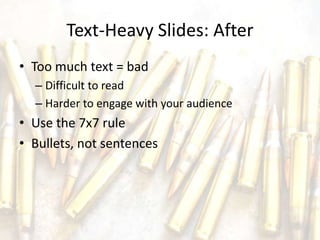
Text-Heavy Slides: After
• Too much text = bad
– Difficult to read
– Harder to engage with your audience
• Use the 7x7 rule
• Bullets, not sentences
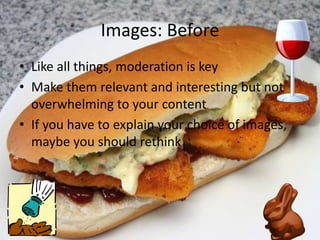
Images: Before
• Like all things, moderation is key
• Make them relevant and interesting but not
overwhelming to your content
• If you have to explain your choice of images,
maybe you should rethink
Images: After
• Like salt, images are great in moderation
• Watermarking is your friend
• So is Flickr (advanced searching)
• Some text + well-chosen images is ideal
http://www.flickr.com/photos/peacockmodern/4501127980/ [by-nc-nd/2.0]
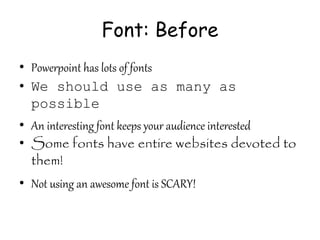
Font: Before
• Powerpoint has lots of fonts
• We should use as many as
possible
• An interesting font keeps your audience interested
• Some fonts have entire websites devoted to
them!
• Not using an awesome font is SCARY!
Font: After
• KISS
• Sans serif is easier to read online
• Let the geniuses at Microsoft help you!
• Font size should be no less than 24
http://www.flickr.com/photos/lwr/52770741/ [by-nc-sa 2.0]
Animations: Before
• Animations are awesome
• PowerPoint has lots of them
• So we’re obligated to use them all
RIGHT??
Animations: After
• Moderation is key (again)
• Good for revealing one point at a time
• Stick with one motif
To incorporate animation, use the animation tab
in PPT and choose “Animate” or “Custom
Animation”
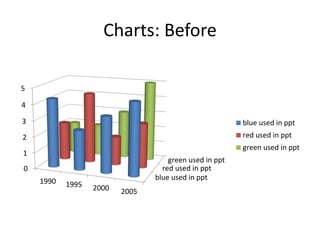
Charts: Before
blue used in ppt
red used in ppt
green used in ppt
0
1
2
3
4
5
1990 1995 2000 2005
blue used in ppt
red used in ppt
green used in ppt
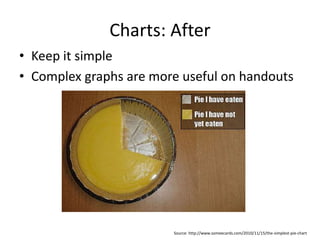
Charts: After
• Keep it simple
• Complex graphs are more useful on handouts
Source: http://www.someecards.com/2010/11/15/the-simplest-pie-chart
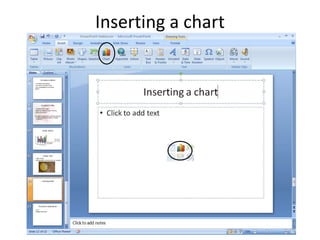
Inserting a chart
Other Uses for PPT
• Quizzes (Jeopardy!)
• Clickers
• Embedding (Slideshare)
PowerPoint alternatives
• Prezi
• Google Presentation
*
Questions?
• Always include a “Questions?” slide
– With your contact information
• Amy Harris a_harri2@uncg.edu
• Jenny Dale jedale2@uncg.edu
– And a link to your presentation if available

PowerPoint Makeover

  • 1.
  • 2.
    Text-heavy slides: Before •There is nothing worse when you’re presenting than a wordy slide. • There are two reasons for this. First of all, it is nearly impossible for your audience to read so much text (especially if you’re in a large room) • Secondly, putting entire sentences on your PowerPoint slides encourages you to read directly from the slide, which means you are facing your PowerPoint and not your audience. Your audience is also less likely to pay attention to you talking because they can read what you’re going to say (if they can read it, that is).
  • 3.
    Text-Heavy Slides: After •Too much text = bad – Difficult to read – Harder to engage with your audience • Use the 7x7 rule • Bullets, not sentences
  • 4.
    Images: Before • Likeall things, moderation is key • Make them relevant and interesting but not overwhelming to your content • If you have to explain your choice of images, maybe you should rethink
  • 5.
    Images: After • Likesalt, images are great in moderation • Watermarking is your friend • So is Flickr (advanced searching) • Some text + well-chosen images is ideal http://www.flickr.com/photos/peacockmodern/4501127980/ [by-nc-nd/2.0]
  • 6.
    Font: Before • Powerpointhas lots of fonts • We should use as many as possible • An interesting font keeps your audience interested • Some fonts have entire websites devoted to them! • Not using an awesome font is SCARY!
  • 7.
    Font: After • KISS •Sans serif is easier to read online • Let the geniuses at Microsoft help you! • Font size should be no less than 24 http://www.flickr.com/photos/lwr/52770741/ [by-nc-sa 2.0]
  • 8.
    Animations: Before • Animationsare awesome • PowerPoint has lots of them • So we’re obligated to use them all RIGHT??
  • 9.
    Animations: After • Moderationis key (again) • Good for revealing one point at a time • Stick with one motif To incorporate animation, use the animation tab in PPT and choose “Animate” or “Custom Animation”
  • 10.
    Charts: Before blue usedin ppt red used in ppt green used in ppt 0 1 2 3 4 5 1990 1995 2000 2005 blue used in ppt red used in ppt green used in ppt
  • 11.
    Charts: After • Keepit simple • Complex graphs are more useful on handouts Source: http://www.someecards.com/2010/11/15/the-simplest-pie-chart
  • 12.
  • 13.
    Other Uses forPPT • Quizzes (Jeopardy!) • Clickers • Embedding (Slideshare)
  • 14.
  • 15.
    Questions? • Always includea “Questions?” slide – With your contact information • Amy Harris a_harri2@uncg.edu • Jenny Dale jedale2@uncg.edu – And a link to your presentation if available