Mrs. Bond, GTSD Library Media Specialist


PowerPoint
Creating an Effective Visual
Aid for Your Presentation
Mrs. Bond, GTSD Library Media Specialist


Presentation Basics
 Know your content
 Know your audience


 Know   your teacher’s expectations
Mrs. Bond, GTSD Library Media Specialist


A Good Visual Aid…
 enhances   the presentation
 gives the audience a visual that is directly
  related to what you are saying
 presents the biggest and most important
  ideas, the things the audience should
  remember
 shows images, video, audio that helps the
  audience better understand the content
Mrs. Bond, GTSD Library Media Specialist


Begin with the title
 Keep it short
 Accurately introduce the presentation
Mrs. Bond, GTSD Library Media Specialist


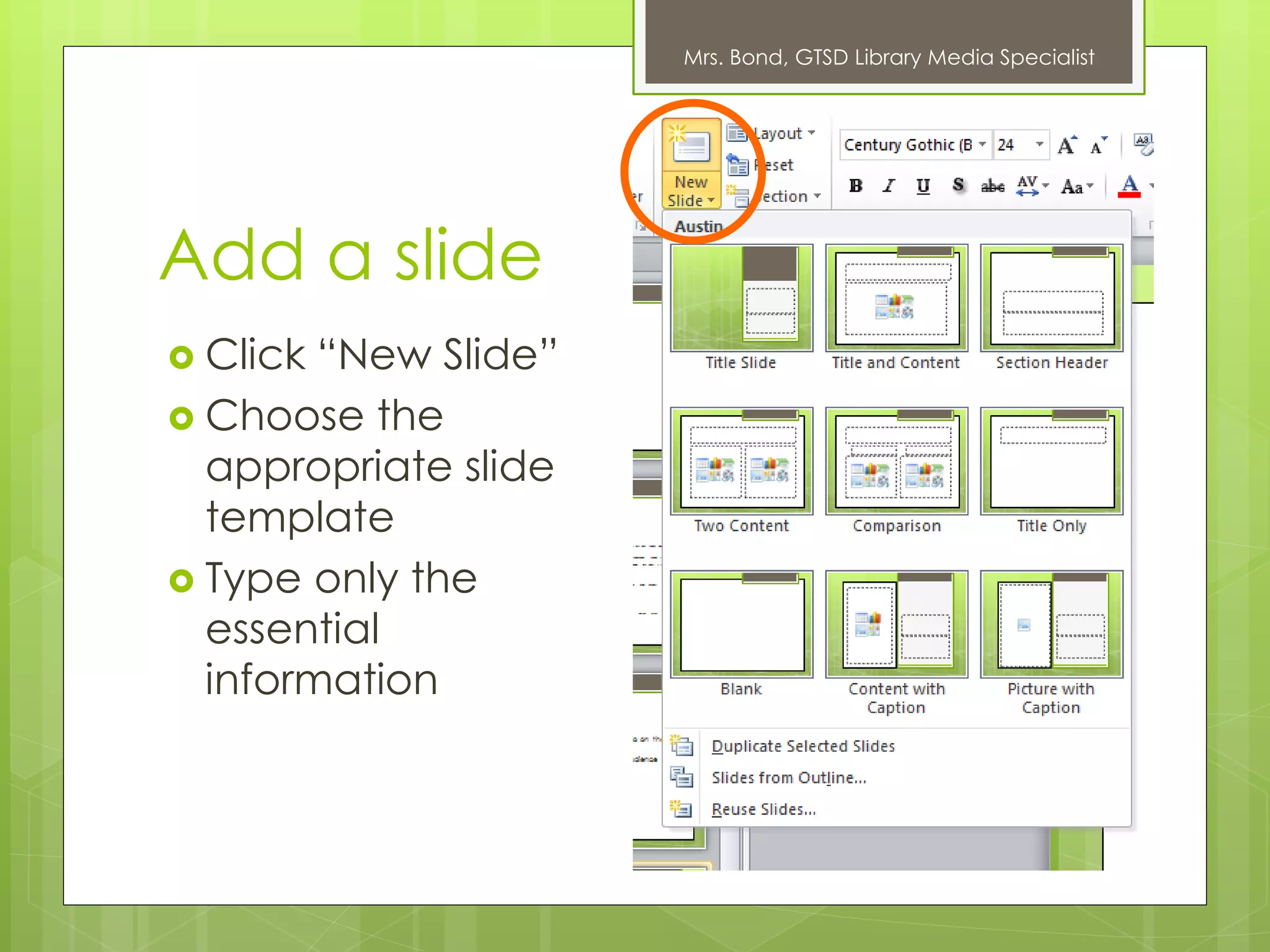
Add a slide
 Click “New Slide”
 Choose the
  appropriate slide
  template
 Type only the
  essential
  information
Mrs. Bond, GTSD Library Media Specialist


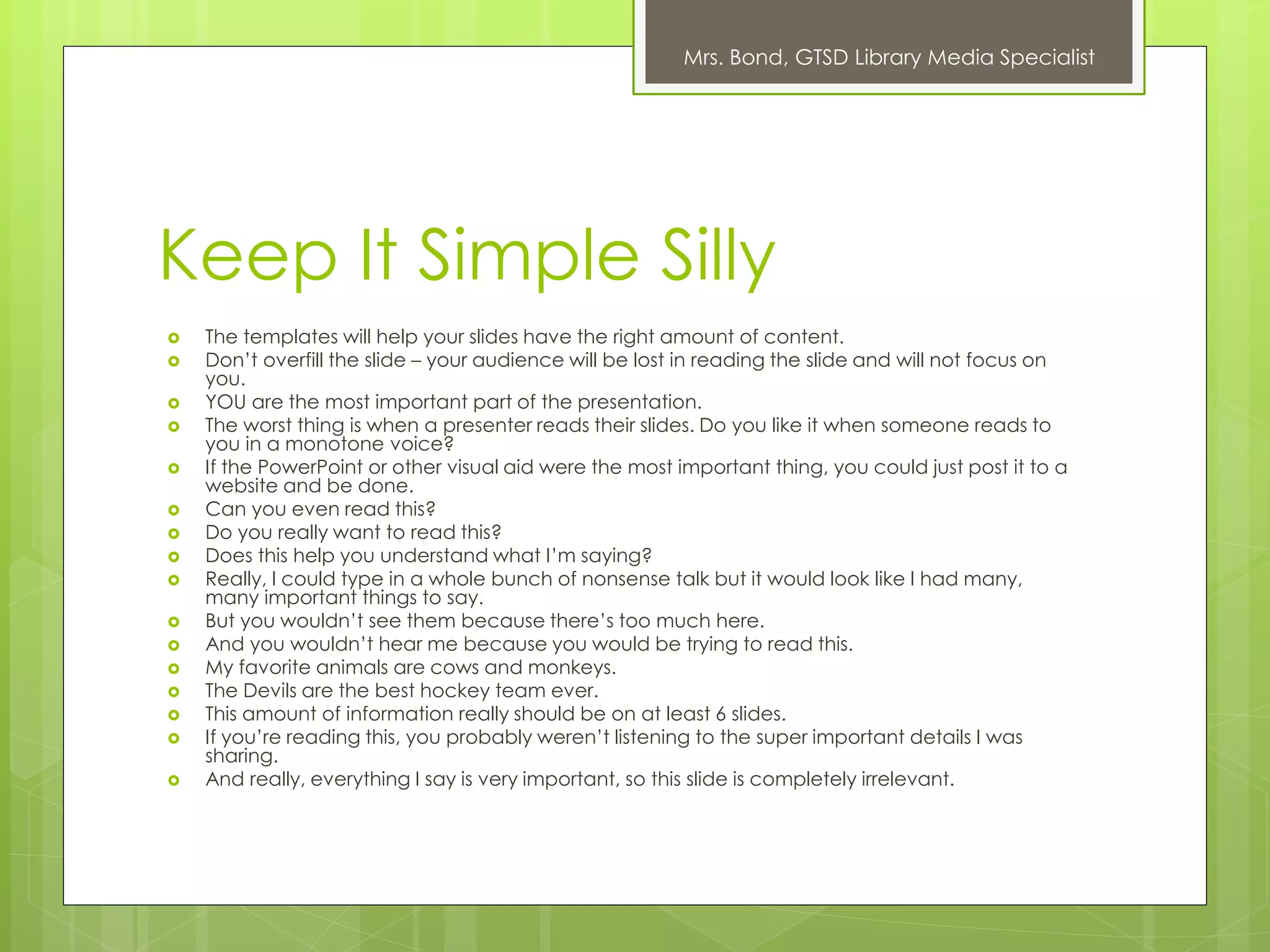
Keep It Simple Silly
   The templates will help your slides have the right amount of content.
   Don’t overfill the slide – your audience will be lost in reading the slide and will not focus on
    you.
   YOU are the most important part of the presentation.
   The worst thing is when a presenter reads their slides. Do you like it when someone reads to
    you in a monotone voice?
   If the PowerPoint or other visual aid were the most important thing, you could just post it to a
    website and be done.
   Can you even read this?
   Do you really want to read this?
   Does this help you understand what I’m saying?
   Really, I could type in a whole bunch of nonsense talk but it would look like I had many,
    many important things to say.
   But you wouldn’t see them because there’s too much here.
   And you wouldn’t hear me because you would be trying to read this.
   My favorite animals are cows and monkeys.
   The Devils are the best hockey team ever.
   This amount of information really should be on at least 6 slides.
   If you’re reading this, you probably weren’t listening to the super important details I was
    sharing.
   And really, everything I say is very important, so this slide is completely irrelevant.
Mrs. Bond, GTSD Library Media Specialist


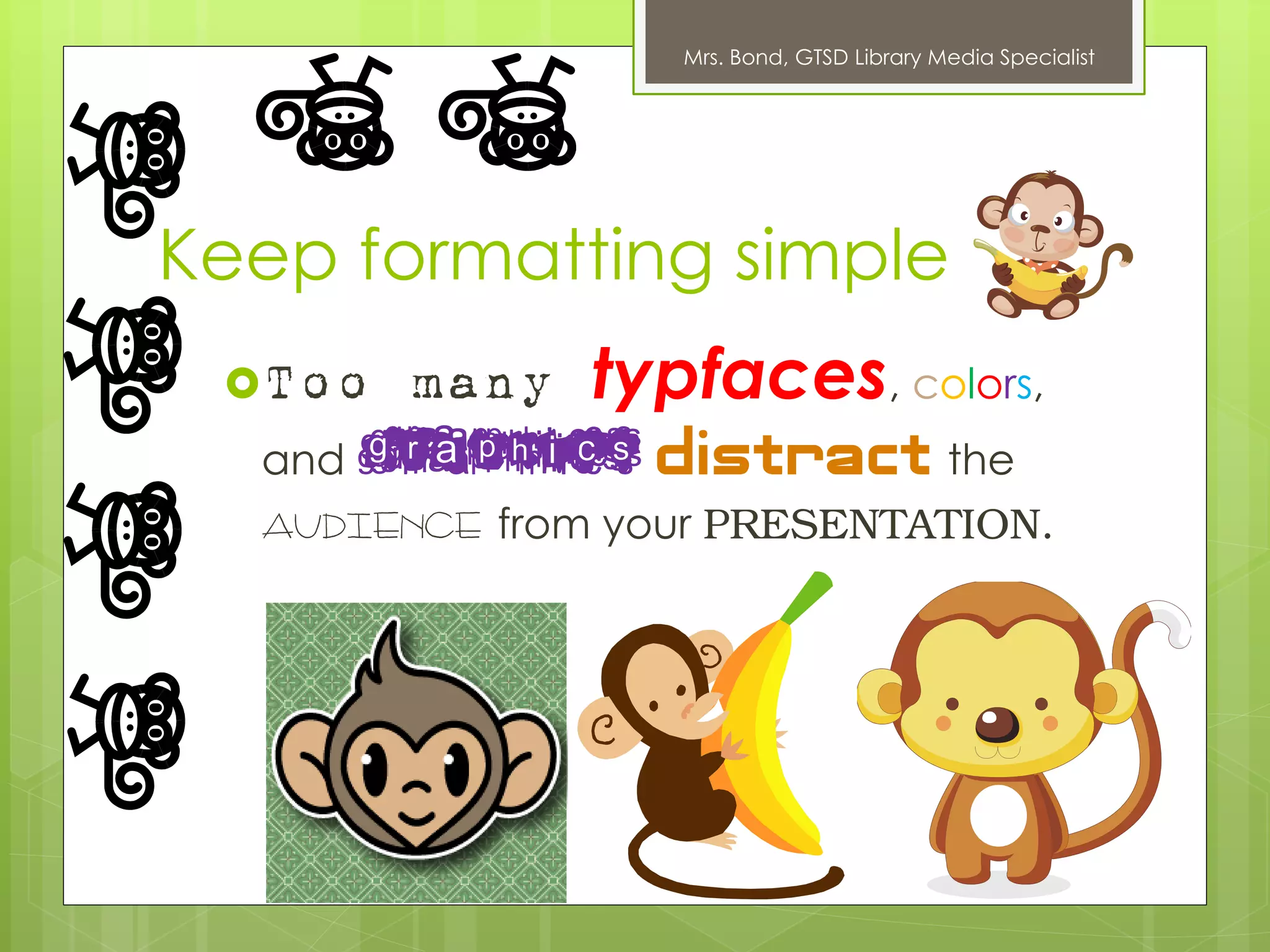
Keep formatting simple
 Too   many typfaces, colors,
  and GRAPHICS distract the
  audience from your PRESENTATION.
Mrs. Bond, GTSD Library Media Specialist


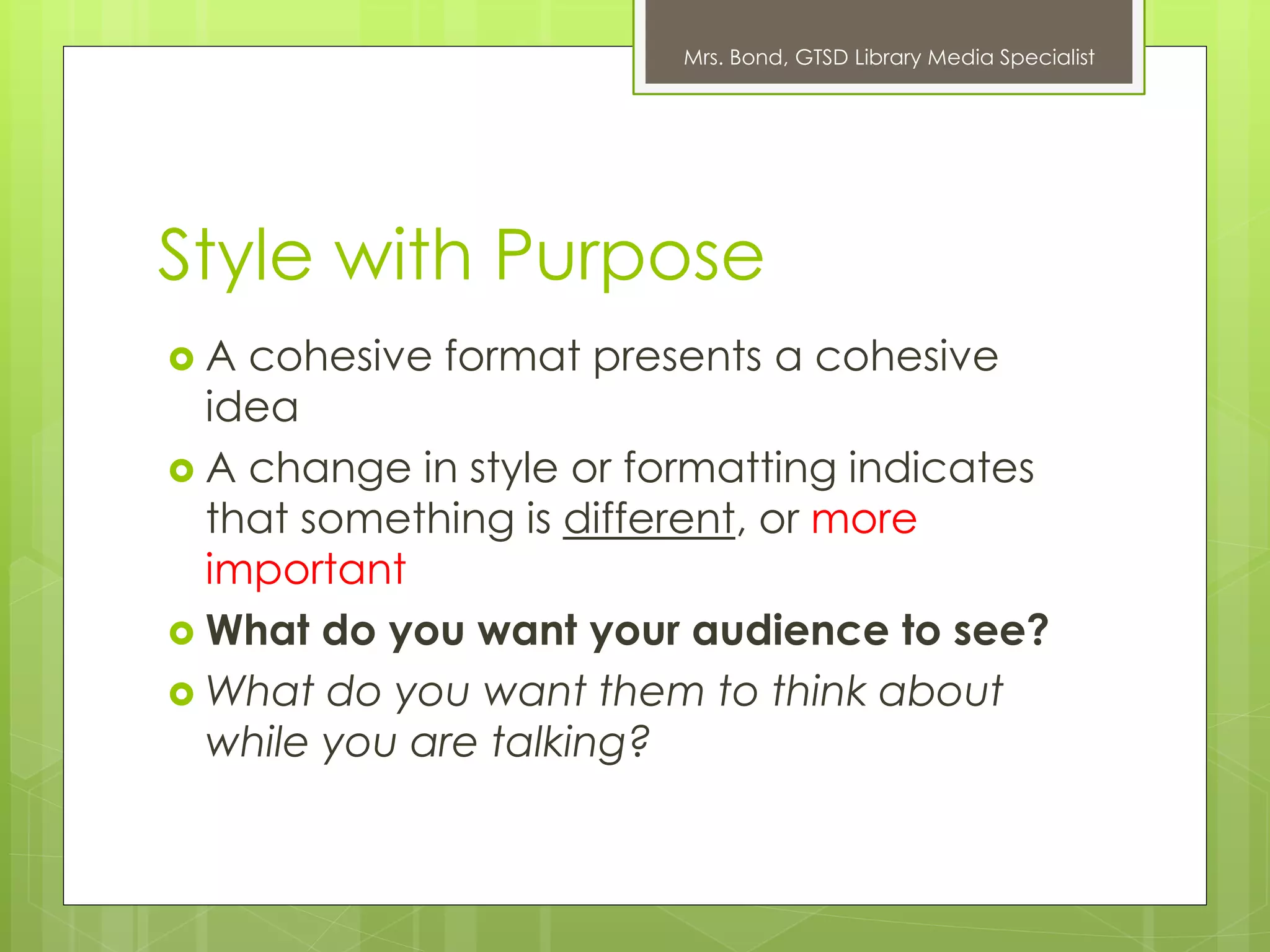
Style with Purpose
A  cohesive format presents a cohesive
  idea
 A change in style or formatting indicates
  that something is different, or more
  important
 What do you want your audience to see?
 What do you want them to think about
  while you are talking?
Mrs. Bond, GTSD Library Media Specialist


Slides vs. Notes
 Essential   content and big ideas go on the
  slide
 The information you want your audience
  to remember goes on the slide
 Everything else goes in the notes.
Mrs. Bond, GTSD Library Media Specialist


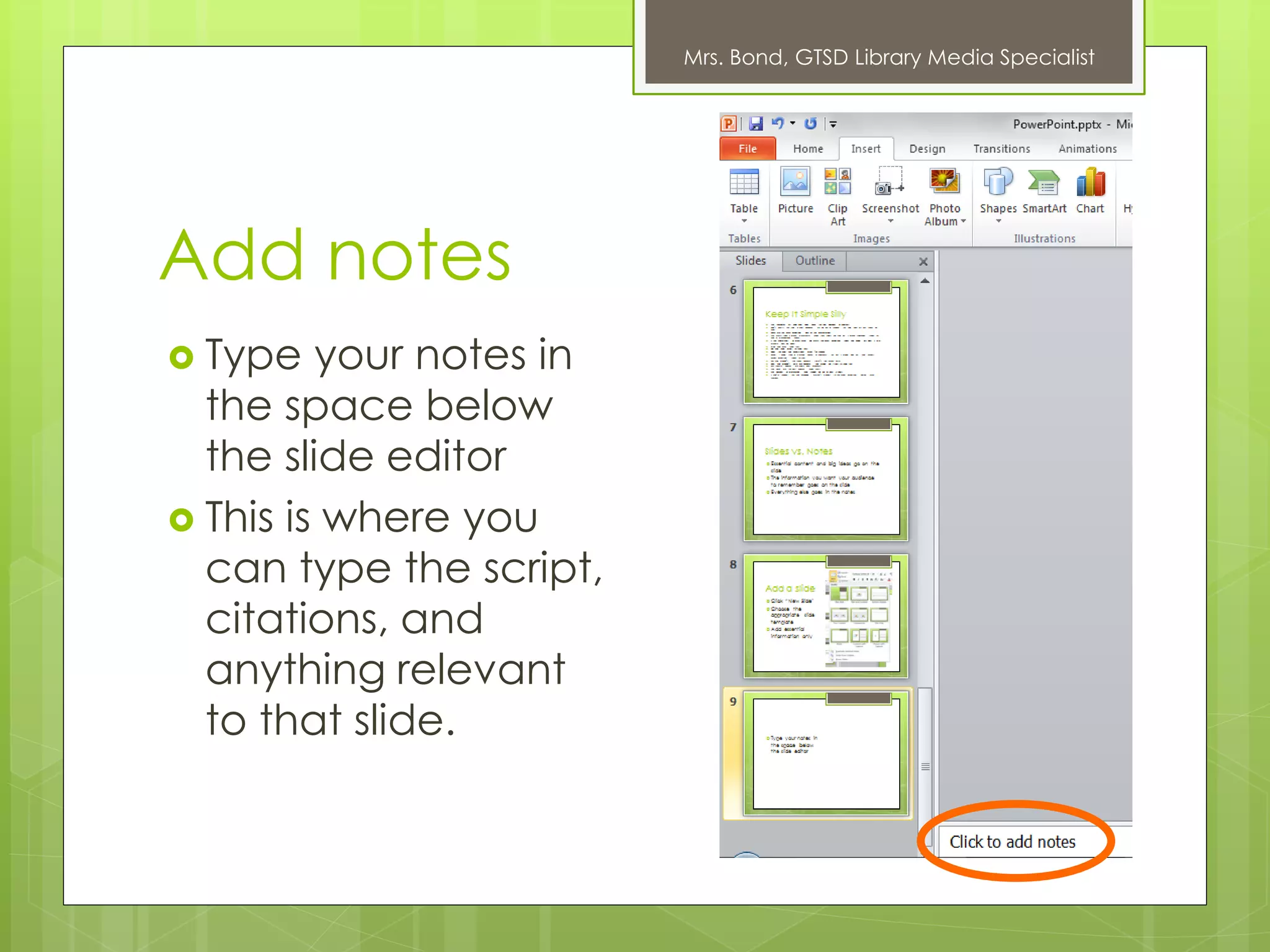
Add notes
 Type   your notes in
  the space below
  the slide editor
 This is where you
  can type the script,
  citations, and
  anything relevant
  to that slide.
Mrs. Bond, GTSD Library Media Specialist


Review
 Know   your content.
 Know your audience.
 Keep It Simple Silly.
 Style with purpose.
 Use the notes field.
 Proofread each slide. Do it again.

PowerPoint Intro

  • 1.
    Mrs. Bond, GTSDLibrary Media Specialist PowerPoint Creating an Effective Visual Aid for Your Presentation
  • 2.
    Mrs. Bond, GTSDLibrary Media Specialist Presentation Basics  Know your content  Know your audience  Know your teacher’s expectations
  • 3.
    Mrs. Bond, GTSDLibrary Media Specialist A Good Visual Aid…  enhances the presentation  gives the audience a visual that is directly related to what you are saying  presents the biggest and most important ideas, the things the audience should remember  shows images, video, audio that helps the audience better understand the content
  • 4.
    Mrs. Bond, GTSDLibrary Media Specialist Begin with the title  Keep it short  Accurately introduce the presentation
  • 5.
    Mrs. Bond, GTSDLibrary Media Specialist Add a slide  Click “New Slide”  Choose the appropriate slide template  Type only the essential information
  • 6.
    Mrs. Bond, GTSDLibrary Media Specialist Keep It Simple Silly  The templates will help your slides have the right amount of content.  Don’t overfill the slide – your audience will be lost in reading the slide and will not focus on you.  YOU are the most important part of the presentation.  The worst thing is when a presenter reads their slides. Do you like it when someone reads to you in a monotone voice?  If the PowerPoint or other visual aid were the most important thing, you could just post it to a website and be done.  Can you even read this?  Do you really want to read this?  Does this help you understand what I’m saying?  Really, I could type in a whole bunch of nonsense talk but it would look like I had many, many important things to say.  But you wouldn’t see them because there’s too much here.  And you wouldn’t hear me because you would be trying to read this.  My favorite animals are cows and monkeys.  The Devils are the best hockey team ever.  This amount of information really should be on at least 6 slides.  If you’re reading this, you probably weren’t listening to the super important details I was sharing.  And really, everything I say is very important, so this slide is completely irrelevant.
  • 7.
    Mrs. Bond, GTSDLibrary Media Specialist Keep formatting simple Too many typfaces, colors, and GRAPHICS distract the audience from your PRESENTATION.
  • 8.
    Mrs. Bond, GTSDLibrary Media Specialist Style with Purpose A cohesive format presents a cohesive idea  A change in style or formatting indicates that something is different, or more important  What do you want your audience to see?  What do you want them to think about while you are talking?
  • 9.
    Mrs. Bond, GTSDLibrary Media Specialist Slides vs. Notes  Essential content and big ideas go on the slide  The information you want your audience to remember goes on the slide  Everything else goes in the notes.
  • 10.
    Mrs. Bond, GTSDLibrary Media Specialist Add notes  Type your notes in the space below the slide editor  This is where you can type the script, citations, and anything relevant to that slide.
  • 11.
    Mrs. Bond, GTSDLibrary Media Specialist Review  Know your content.  Know your audience.  Keep It Simple Silly.  Style with purpose.  Use the notes field.  Proofread each slide. Do it again.