EFFECTIVE USE OF

 POWERPOINT AS A

PRESENTATION TOOL
Microsoft PowerPoint

is the name of a propriertary commercial presentation
progam developed by Microsoft. It was officially
launched on May 22, 1990 as a part of the Microsoft
Office suite, and runs on Microsoft
windows and Apple's Mac OS X operating system.
PowerPoint is one of the simplest computer
    programs to learn. It is the number
      1 program used worldwide for
presentations. Anyone can create stunning
   presentations that look like they were
        designed by a professional.

        http://eglobiotraining.com/
PowerPoint presentations can be made into photo
albums, complete with music narrations, to distribute
on CDs or DVDs. If you are in the sales field, it
involves just a few simple clicks to add anillustrative
chart of data or an organizational chart of your
company's structure. Make your presentation into
a web page for e-mailing purposes or as a promotion
displayed on your company's website.

              http://eglobiotraining.com/
.WHAT IS MICROSOFT POWERPOINT
           USED FOR?

 The main purpose of MS PowerPoint is to enable the user
  to create dynamic, informational slides through the use of
text, graphics, and animation. Slide presentations created with
    the software are often displayed on projection screens
for business, training, or educational presentations, although
they can be distributed as stand-alone files. Additionally, the
  slides can be arranged and printed to PDF handouts for
                          reference.
NEW FEATURES
      IN POWERPOINT 2010

  With Microsoft PowerPoint, you can make charts,
tables, and macros, and insert images, audio, video, and
    other multimedia files. With the new release of
 Microsoft Office 2010, many advanced features were
  added in PowerPoint 2010. Below list several new
   features in PowerPoint 2010 for your reference.
EMBED AND EDIT VIDEO
     FROM WITHIN
     POWERPOINT
Now you can add fades, formatting effects, bookmark
 scenes, and trim videos to give your presentations a
 professional multimedia experience. And since the
 embedded videos become part of your PowerPoint
presentation, you don’t have to manage additional files
              when sharing with others.
USE NEW AND IMPROVED
  PICTURE EDITING TOOLS

 You can use picture editing tools including versatile
  artistic effects and advanced correction, color, and
   cropping tools, to fine-tune every picture in your
presentation to look its absolute best. Even, dynamic 3-
D slide transitions and more realistic animation effects
    can be added to grab your audience’s attention.
WORK TOGETHER MORE
      SUCCESSFULLY
If you are one of the many people who work with others
 on presentations and projects, PowerPoint 2010 is the
   perfect tool for you. The new added co-authoring
capabilities to edit the same presentation allows you to
work with people in different locations at the same time.
You can even communicate as you work, directly from
                      PowerPoint
AC C E S S A N D S H A R E YO U R
C O N T E N T F RO M M O R E P L AC E S

Your ideas, deadlines, projects, and work emergencies
 don’t always occur conveniently when you are at your
desk. Fortunately, you now have the power to get things
done when and where you need to, from the Web with
 Microsoft PowerPoint Web App or even from your
   smartphone with Microsoft PowerPoint Mobile.
CREATE A SLIDE SHOW
When beginning a new slide show, PowerPoint provides an array of
templates to choose from. Experienced users with a specific look in mind can
start with a blank presentation for setting attributes, such as colors and fonts,
to their own specifications. After creating the initial file, the next step is to
create a slide, which can be done by using an auto layout, or a blank screen
in order to add components manually. You can then choose to add a
combination of text and graphics to suit the needs of the presentation, and
apply animation to either of these elements to create a dynamic effect. You
can add as many slides and make them as content-rich as your system can
handle; there are no limits imposed in the software itself.
HOW TO MAKE A
   PERFECT
 POWERPOINT
PRESENTATION
" S E L E C T O R C R E AT E YO U R
              OW N T H E M E "
   Themes are the evolution of design templates in
 PowerPoint, but they're also much more than that. A
theme is a coordinated set of fonts, colors, and graphic
effects that you can apply to your entire document with
just a click. In PowerPoint, the theme also includes the
            slide master and slide layouts.
"USE VIDEO AND AUDIO TO
    CONVEY YOUR MESSAGE
     MORE EFFECTIVELY"
  Dynamic content, such as a brief video that illustrates an
important point, is a great way to engage your audience. Using
audio that helps convey your message can also help you keep
  your slides clean and approachable. In PowerPoint 2010,
video you insert from your files is now embedded by default,
so you don't have to include multiple files when sharing your
                 presentation electronically.
"USE GRAPHICS TO
 EMPHASIZE KEY POINTS"

A well-chosen chart or diagram can often convey much
   more to your audience than boring bulleted text.
Fortunately, creating charts and graphics has never been
   easier. In Office 2010, Office graphics coordinate
automatically with the active theme in your presentation
"USE ANIMATIONS AND
   TRANSITIONS WISELY"

   Animation effects in PowerPoint 2010 are improved to
 provide more realistic movement. You can also trigger the
  animation of an object to begin when you reach a specific
point in the playback of audio or video content on your slide.
  Customize, preview, and apply animations directly from
          the Animations tab in PowerPoint 2010
"USE MASTERS AND LAYOUTS
  TO SAVE TIME AND GET
     BETTER RESULTS"

The slide master is one of the most important tools in
  PowerPoint for creating easy-to-use, great-looking
presentations. The master gives you a central place to
add content and formatting that you want to appear on
             all (or most) of your slides.
"USE NOTES PAGES AND
       HANDOUTS TO HELP
      DELIVER THE STORY"
 Use the Notes pane that appears below the slide in Normal
  view to write notes to yourself for your presentation or to
  create notes that you can print for your viewers instead of
crowding your slides with too much text. You can also format
 and print handouts that contain up to nine slides per page.
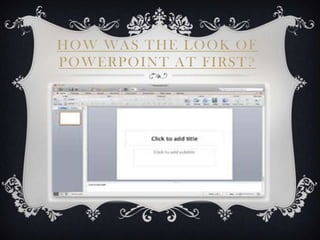
HOW WAS THE LOOK OF
POWERPOINT AT FIRST?
RESPECTFULLY
SUBMITTED TO:

PROF. ERWIN M.
 GLOBIO, MSIT

Powerpoint activity 1

  • 1.
    EFFECTIVE USE OF POWERPOINT AS A PRESENTATION TOOL
  • 2.
    Microsoft PowerPoint is thename of a propriertary commercial presentation progam developed by Microsoft. It was officially launched on May 22, 1990 as a part of the Microsoft Office suite, and runs on Microsoft windows and Apple's Mac OS X operating system.
  • 3.
    PowerPoint is oneof the simplest computer programs to learn. It is the number 1 program used worldwide for presentations. Anyone can create stunning presentations that look like they were designed by a professional. http://eglobiotraining.com/
  • 4.
    PowerPoint presentations canbe made into photo albums, complete with music narrations, to distribute on CDs or DVDs. If you are in the sales field, it involves just a few simple clicks to add anillustrative chart of data or an organizational chart of your company's structure. Make your presentation into a web page for e-mailing purposes or as a promotion displayed on your company's website. http://eglobiotraining.com/
  • 5.
    .WHAT IS MICROSOFTPOWERPOINT USED FOR? The main purpose of MS PowerPoint is to enable the user to create dynamic, informational slides through the use of text, graphics, and animation. Slide presentations created with the software are often displayed on projection screens for business, training, or educational presentations, although they can be distributed as stand-alone files. Additionally, the slides can be arranged and printed to PDF handouts for reference.
  • 6.
    NEW FEATURES IN POWERPOINT 2010 With Microsoft PowerPoint, you can make charts, tables, and macros, and insert images, audio, video, and other multimedia files. With the new release of Microsoft Office 2010, many advanced features were added in PowerPoint 2010. Below list several new features in PowerPoint 2010 for your reference.
  • 7.
    EMBED AND EDITVIDEO FROM WITHIN POWERPOINT Now you can add fades, formatting effects, bookmark scenes, and trim videos to give your presentations a professional multimedia experience. And since the embedded videos become part of your PowerPoint presentation, you don’t have to manage additional files when sharing with others.
  • 8.
    USE NEW ANDIMPROVED PICTURE EDITING TOOLS You can use picture editing tools including versatile artistic effects and advanced correction, color, and cropping tools, to fine-tune every picture in your presentation to look its absolute best. Even, dynamic 3- D slide transitions and more realistic animation effects can be added to grab your audience’s attention.
  • 9.
    WORK TOGETHER MORE SUCCESSFULLY If you are one of the many people who work with others on presentations and projects, PowerPoint 2010 is the perfect tool for you. The new added co-authoring capabilities to edit the same presentation allows you to work with people in different locations at the same time. You can even communicate as you work, directly from PowerPoint
  • 10.
    AC C ES S A N D S H A R E YO U R C O N T E N T F RO M M O R E P L AC E S Your ideas, deadlines, projects, and work emergencies don’t always occur conveniently when you are at your desk. Fortunately, you now have the power to get things done when and where you need to, from the Web with Microsoft PowerPoint Web App or even from your smartphone with Microsoft PowerPoint Mobile.
  • 11.
    CREATE A SLIDESHOW When beginning a new slide show, PowerPoint provides an array of templates to choose from. Experienced users with a specific look in mind can start with a blank presentation for setting attributes, such as colors and fonts, to their own specifications. After creating the initial file, the next step is to create a slide, which can be done by using an auto layout, or a blank screen in order to add components manually. You can then choose to add a combination of text and graphics to suit the needs of the presentation, and apply animation to either of these elements to create a dynamic effect. You can add as many slides and make them as content-rich as your system can handle; there are no limits imposed in the software itself.
  • 12.
    HOW TO MAKEA PERFECT POWERPOINT PRESENTATION
  • 13.
    " S EL E C T O R C R E AT E YO U R OW N T H E M E " Themes are the evolution of design templates in PowerPoint, but they're also much more than that. A theme is a coordinated set of fonts, colors, and graphic effects that you can apply to your entire document with just a click. In PowerPoint, the theme also includes the slide master and slide layouts.
  • 14.
    "USE VIDEO ANDAUDIO TO CONVEY YOUR MESSAGE MORE EFFECTIVELY" Dynamic content, such as a brief video that illustrates an important point, is a great way to engage your audience. Using audio that helps convey your message can also help you keep your slides clean and approachable. In PowerPoint 2010, video you insert from your files is now embedded by default, so you don't have to include multiple files when sharing your presentation electronically.
  • 15.
    "USE GRAPHICS TO EMPHASIZE KEY POINTS" A well-chosen chart or diagram can often convey much more to your audience than boring bulleted text. Fortunately, creating charts and graphics has never been easier. In Office 2010, Office graphics coordinate automatically with the active theme in your presentation
  • 16.
    "USE ANIMATIONS AND TRANSITIONS WISELY" Animation effects in PowerPoint 2010 are improved to provide more realistic movement. You can also trigger the animation of an object to begin when you reach a specific point in the playback of audio or video content on your slide. Customize, preview, and apply animations directly from the Animations tab in PowerPoint 2010
  • 17.
    "USE MASTERS ANDLAYOUTS TO SAVE TIME AND GET BETTER RESULTS" The slide master is one of the most important tools in PowerPoint for creating easy-to-use, great-looking presentations. The master gives you a central place to add content and formatting that you want to appear on all (or most) of your slides.
  • 18.
    "USE NOTES PAGESAND HANDOUTS TO HELP DELIVER THE STORY" Use the Notes pane that appears below the slide in Normal view to write notes to yourself for your presentation or to create notes that you can print for your viewers instead of crowding your slides with too much text. You can also format and print handouts that contain up to nine slides per page.
  • 19.
    HOW WAS THELOOK OF POWERPOINT AT FIRST?
  • 20.