BI Team Skill Upgrade
Prepared by: Deepak Kumar(Deepak.Kum@hcl.com)
Power BI Topics
Basic and Advanced
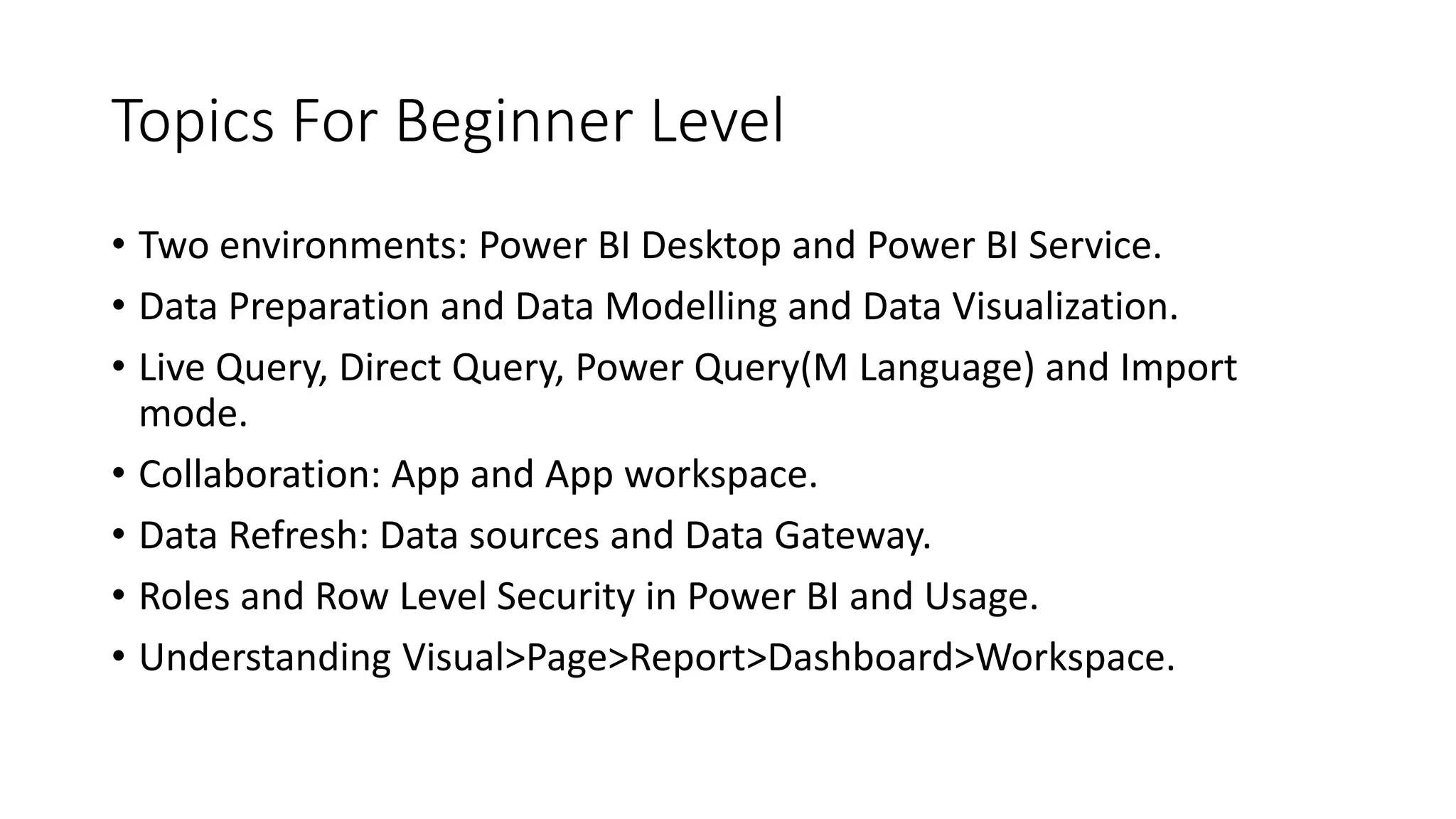
Topics For Beginner Level
• Two environments: Power BI Desktop and Power BI Service.
• Data Preparation and Data Modelling and Data Visualization.
• Live Query, Direct Query, Power Query(M Language) and Import
mode.
• Collaboration: App and App workspace.
• Data Refresh: Data sources and Data Gateway.
• Roles and Row Level Security in Power BI and Usage.
• Understanding Visual>Page>Report>Dashboard>Workspace.
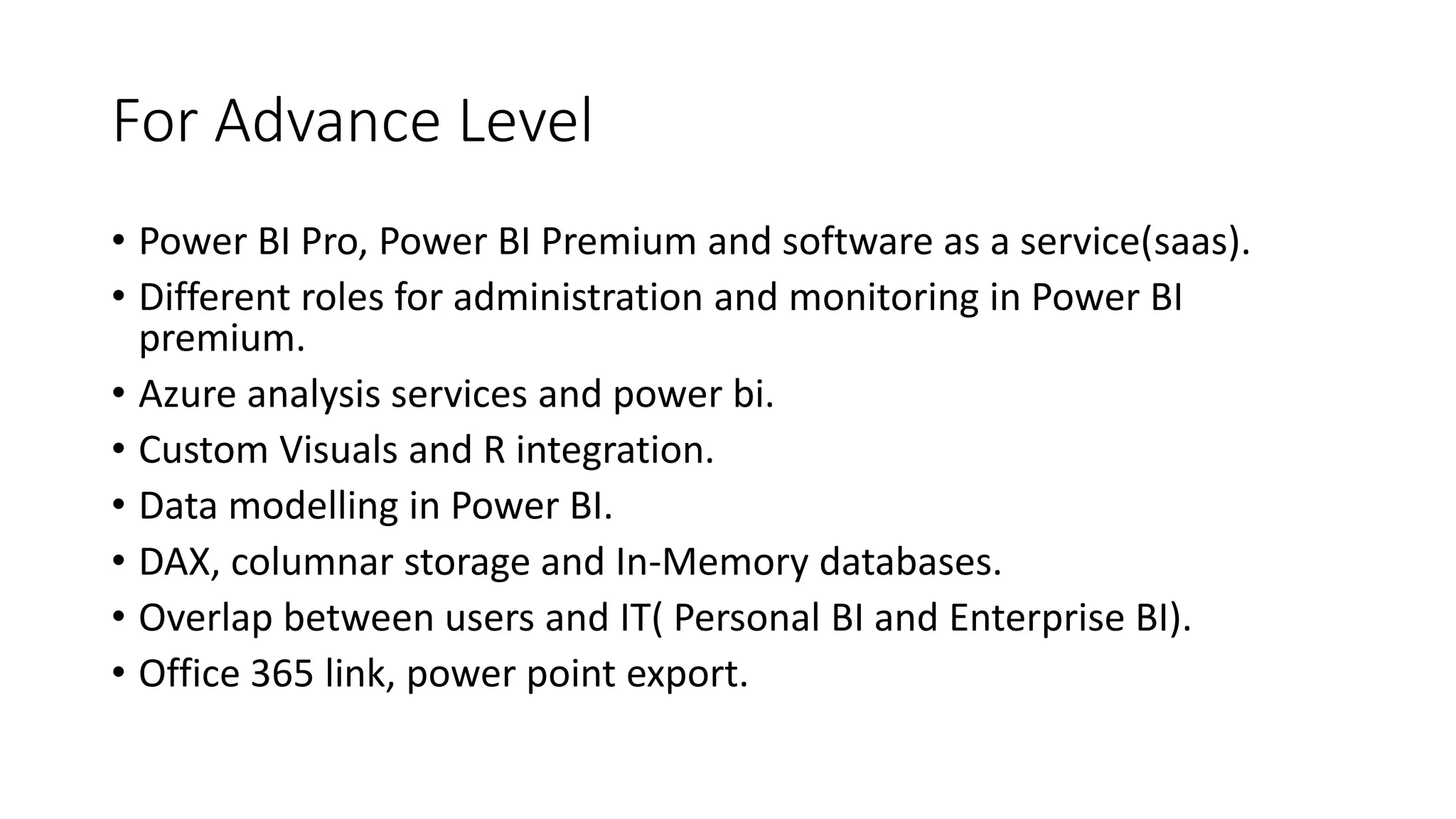
For Advance Level
• Power BI Pro, Power BI Premium and software as a service(saas).
• Different roles for administration and monitoring in Power BI
premium.
• Azure analysis services and power bi.
• Custom Visuals and R integration.
• Data modelling in Power BI.
• DAX, columnar storage and In-Memory databases.
• Overlap between users and IT( Personal BI and Enterprise BI).
• Office 365 link, power point export.
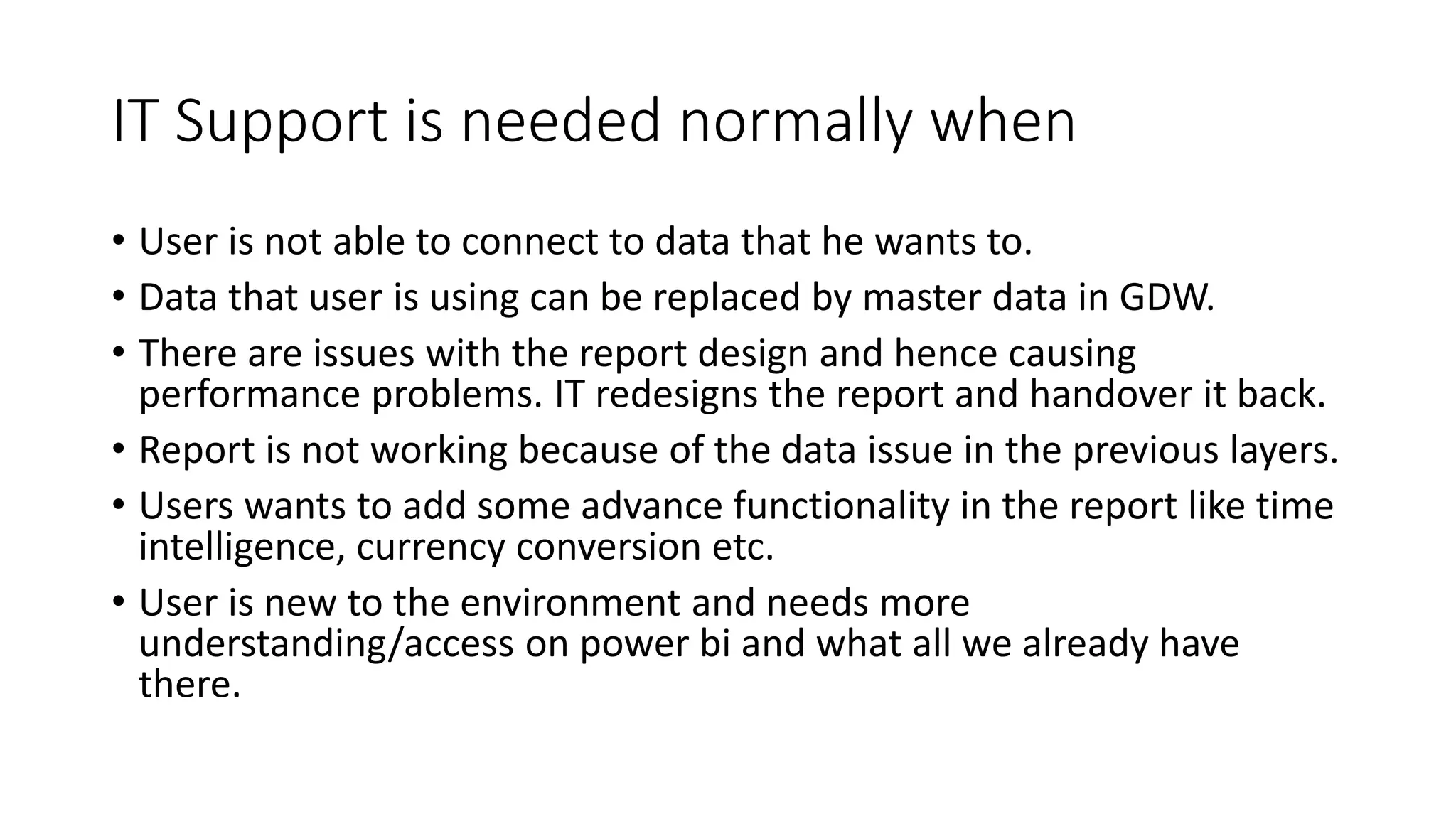
IT Support is needed normally when
• User is not able to connect to data that he wants to.
• Data that user is using can be replaced by master data in GDW.
• There are issues with the report design and hence causing
performance problems. IT redesigns the report and handover it back.
• Report is not working because of the data issue in the previous layers.
• Users wants to add some advance functionality in the report like time
intelligence, currency conversion etc.
• User is new to the environment and needs more
understanding/access on power bi and what all we already have
there.
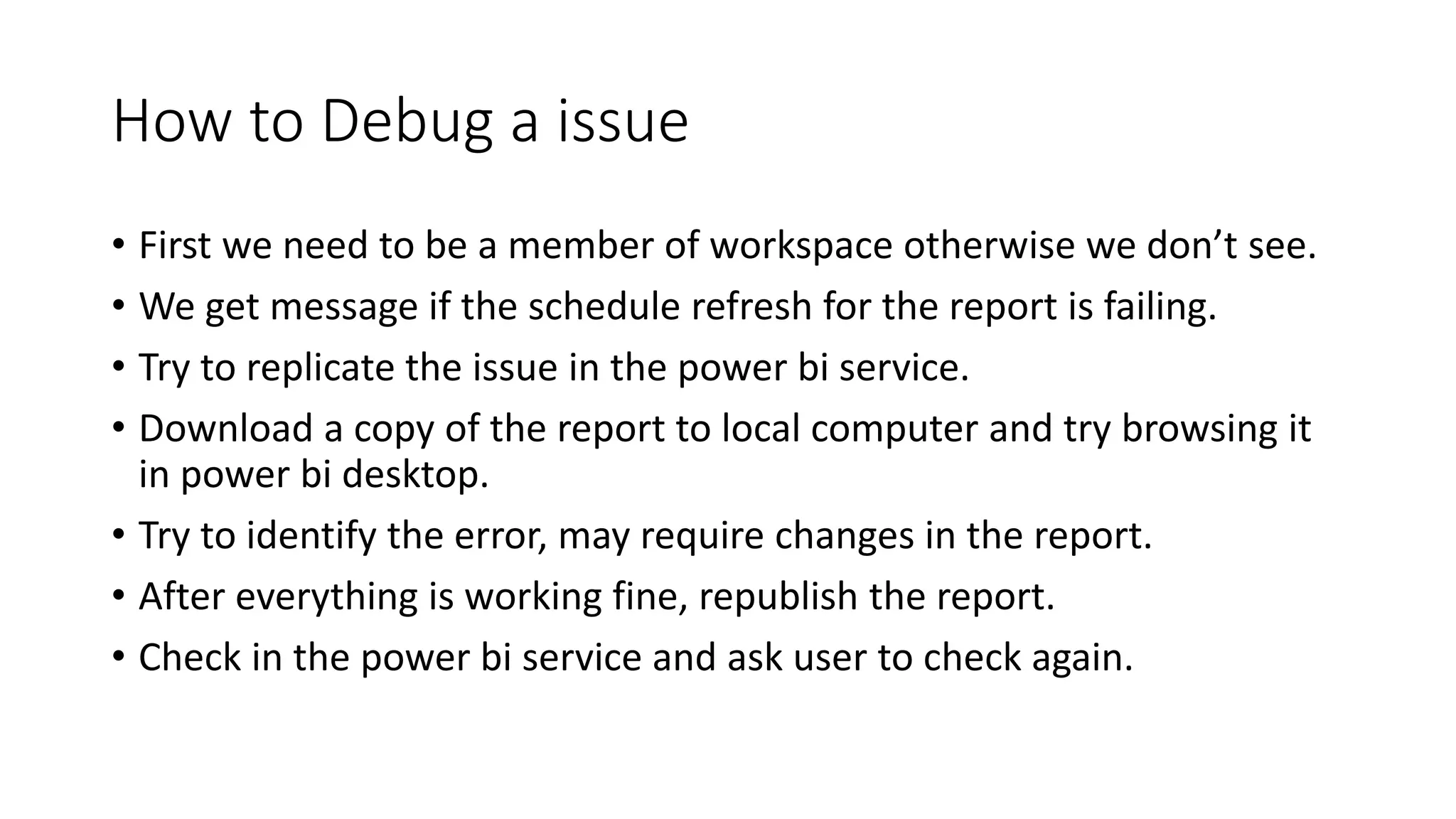
How to Debug a issue
• First we need to be a member of workspace otherwise we don’t see.
• We get message if the schedule refresh for the report is failing.
• Try to replicate the issue in the power bi service.
• Download a copy of the report to local computer and try browsing it
in power bi desktop.
• Try to identify the error, may require changes in the report.
• After everything is working fine, republish the report.
• Check in the power bi service and ask user to check again.
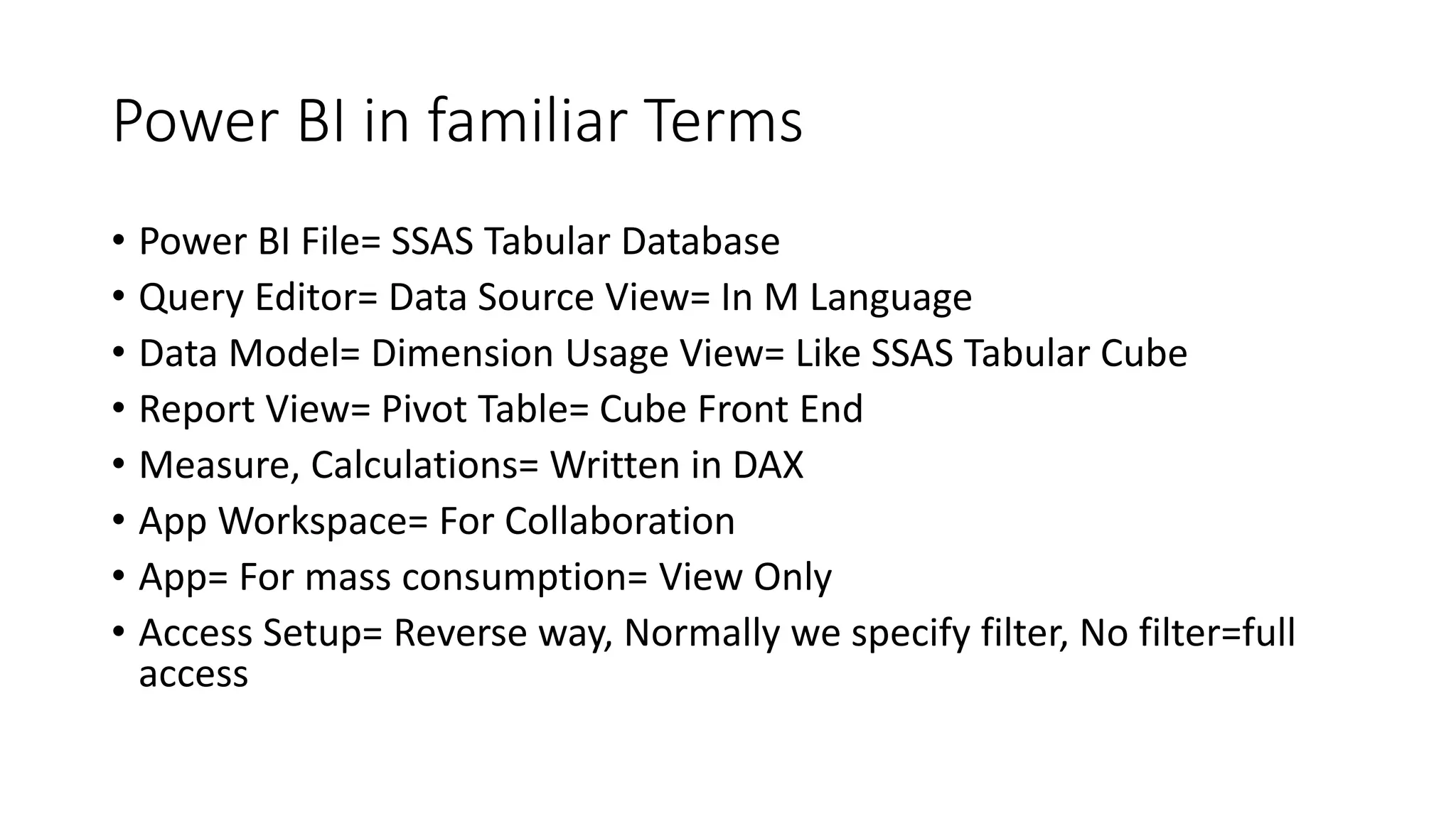
Power BI in familiar Terms
• Power BI File= SSAS Tabular Database
• Query Editor= Data Source View= In M Language
• Data Model= Dimension Usage View= Like SSAS Tabular Cube
• Report View= Pivot Table= Cube Front End
• Measure, Calculations= Written in DAX
• App Workspace= For Collaboration
• App= For mass consumption= View Only
• Access Setup= Reverse way, Normally we specify filter, No filter=full
access
Thank You
Feedback is appreciated

Power BI Topics

  • 1.
    BI Team SkillUpgrade Prepared by: Deepak Kumar(Deepak.Kum@hcl.com)
  • 2.
  • 3.
    Topics For BeginnerLevel • Two environments: Power BI Desktop and Power BI Service. • Data Preparation and Data Modelling and Data Visualization. • Live Query, Direct Query, Power Query(M Language) and Import mode. • Collaboration: App and App workspace. • Data Refresh: Data sources and Data Gateway. • Roles and Row Level Security in Power BI and Usage. • Understanding Visual>Page>Report>Dashboard>Workspace.
  • 4.
    For Advance Level •Power BI Pro, Power BI Premium and software as a service(saas). • Different roles for administration and monitoring in Power BI premium. • Azure analysis services and power bi. • Custom Visuals and R integration. • Data modelling in Power BI. • DAX, columnar storage and In-Memory databases. • Overlap between users and IT( Personal BI and Enterprise BI). • Office 365 link, power point export.
  • 5.
    IT Support isneeded normally when • User is not able to connect to data that he wants to. • Data that user is using can be replaced by master data in GDW. • There are issues with the report design and hence causing performance problems. IT redesigns the report and handover it back. • Report is not working because of the data issue in the previous layers. • Users wants to add some advance functionality in the report like time intelligence, currency conversion etc. • User is new to the environment and needs more understanding/access on power bi and what all we already have there.
  • 6.
    How to Debuga issue • First we need to be a member of workspace otherwise we don’t see. • We get message if the schedule refresh for the report is failing. • Try to replicate the issue in the power bi service. • Download a copy of the report to local computer and try browsing it in power bi desktop. • Try to identify the error, may require changes in the report. • After everything is working fine, republish the report. • Check in the power bi service and ask user to check again.
  • 7.
    Power BI infamiliar Terms • Power BI File= SSAS Tabular Database • Query Editor= Data Source View= In M Language • Data Model= Dimension Usage View= Like SSAS Tabular Cube • Report View= Pivot Table= Cube Front End • Measure, Calculations= Written in DAX • App Workspace= For Collaboration • App= For mass consumption= View Only • Access Setup= Reverse way, Normally we specify filter, No filter=full access
  • 8.