Photography By: Kenneth Villanueva Using Photoshop to Enhance
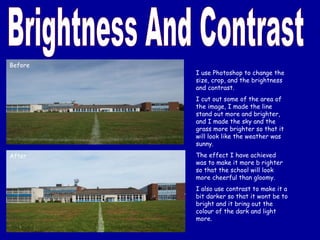
Brightness And Contrast  Before After I use Photoshop to change the size, crop, and the brightness and contrast.  I cut out some of the area of the image, I made the line stand out more and brighter, and I made the sky and the grass more brighter so that it will look like the weather was sunny. The effect I have achieved was to make it more b righter so that the school will look more cheerful than gloomy.  I also use contrast to make it a bit darker so that it wont be to bright and it bring out the colour of the dark and light more.
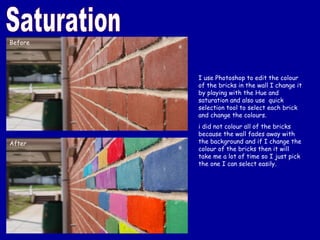
Saturation I use Photoshop to edit the colour of the bricks in the wall I change it by playing with the Hue and saturation and also use  quick selection tool to select each brick and change the colours. i did not colour all of the bricks because the wall fades away with the background and if I change the colour of the bricks then it will take me a lot of time so I just pick the one I can select easily. Before After
After Before Burning I use burning from Photoshop to make the font colour standout more and just left the background as it is because if I make it darker than the words wont stand out more. When looking at the edited version I quickly notice the words more than the background.
After Before Dodging Dodging is a tool in Photoshop to make an image more brighter and it also allows certain part of the image. so I use dodging to make the image more brighter i made certain parts of the image stand out more because it looks more better and it creates a sunny atmosphere and the shaddows make the image also more better.
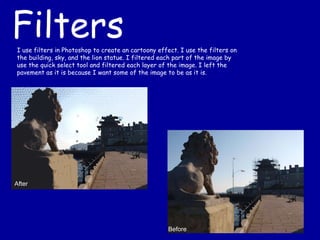
After Before Filters I use filters in Photoshop to create an cartoony effect. I use the filters on the building, sky, and the lion statue. I filtered each part of the image by use the quick select tool and filtered each layer of the image. I left the pavement as it is because I want some of the image to be as it is.

Playin photoshop

  • 1.
    Photography By: KennethVillanueva Using Photoshop to Enhance
  • 2.
    Brightness And Contrast Before After I use Photoshop to change the size, crop, and the brightness and contrast. I cut out some of the area of the image, I made the line stand out more and brighter, and I made the sky and the grass more brighter so that it will look like the weather was sunny. The effect I have achieved was to make it more b righter so that the school will look more cheerful than gloomy. I also use contrast to make it a bit darker so that it wont be to bright and it bring out the colour of the dark and light more.
  • 3.
    Saturation I usePhotoshop to edit the colour of the bricks in the wall I change it by playing with the Hue and saturation and also use quick selection tool to select each brick and change the colours. i did not colour all of the bricks because the wall fades away with the background and if I change the colour of the bricks then it will take me a lot of time so I just pick the one I can select easily. Before After
  • 4.
    After Before BurningI use burning from Photoshop to make the font colour standout more and just left the background as it is because if I make it darker than the words wont stand out more. When looking at the edited version I quickly notice the words more than the background.
  • 5.
    After Before DodgingDodging is a tool in Photoshop to make an image more brighter and it also allows certain part of the image. so I use dodging to make the image more brighter i made certain parts of the image stand out more because it looks more better and it creates a sunny atmosphere and the shaddows make the image also more better.
  • 6.
    After Before FiltersI use filters in Photoshop to create an cartoony effect. I use the filters on the building, sky, and the lion statue. I filtered each part of the image by use the quick select tool and filtered each layer of the image. I left the pavement as it is because I want some of the image to be as it is.