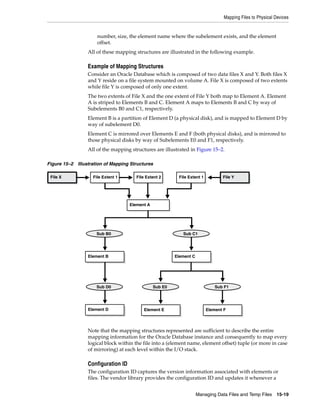
Oracle® Database
Administrator's Guide
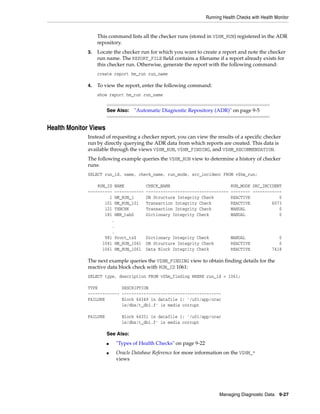
11g Release 2 (11.2)
E25494-05
January 2014
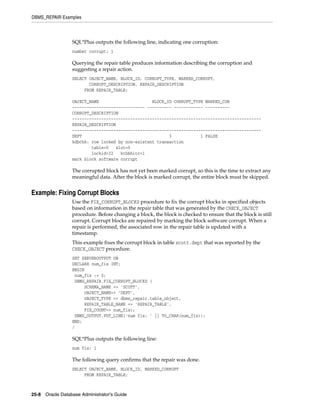
Oracle Database Administrator's Guide, 11g Release 2 (11.2)
E25494-05
Copyright © 2001, 2014, Oracle and/or its affiliates. All rights reserved.
Primary Author: Steve Fogel
Contributing Author: Caroline Johnston, Sheila Moore, Tony Morales, Padmaja Potineni, Randy Urbano,
Lance Ashdown, Janis Greenberg
Contributors: D. Austin, B. Baddepudi, H. Baer, C. Baird, M. Bauer, E. Belden, A. Chaudhry, J. Creighton,
S. Datta, M. Dilman, J. Draaijer, M. Fallen, A. Ganesh, GP Gongloor, V. Goorah, S. Gupta, W. Hodak, P. Huey,
C. Iyer, B. Khaladkar, B. Krishnan, V. Krishnaswamy, B. Kuchibhotla, S. Kumar, V. Kumar, P. Lane, A. Lee, B.
Lee, S. K. Lee, C. Lei, Y. Li, I. Listvinsky, B. Llewellyn, B. Lundhild, S. Lynn, R. Mani, V. Marwah, C.
McGregor, M. Minhas, K. Mohan, V. Moore, N. Mukherjee, S. Muthulingam, G. Ngai, A. Raghavan, M.
Ramacher, R. Ramkissoon, Y. Sarig, S. Shankar, B. Sinha, V. Srihari, D. Steiner, J. Stern, M. Stewart, M.
Subramaniam, A. Tran, A. Tsukerman, K. Umamageswaran, E. Voss, D. M. Wong, P. Youn, W. Zhang
This software and related documentation are provided under a license agreement containing restrictions on
use and disclosure and are protected by intellectual property laws. Except as expressly permitted in your
license agreement or allowed by law, you may not use, copy, reproduce, translate, broadcast, modify, license,
transmit, distribute, exhibit, perform, publish, or display any part, in any form, or by any means. Reverse
engineering, disassembly, or decompilation of this software, unless required by law for interoperability, is
prohibited.
The information contained herein is subject to change without notice and is not warranted to be error-free. If
you find any errors, please report them to us in writing.
If this is software or related documentation that is delivered to the U.S. Government or anyone licensing it
on behalf of the U.S. Government, the following notice is applicable:
U.S. GOVERNMENT END USERS: Oracle programs, including any operating system, integrated software,
any programs installed on the hardware, and/or documentation, delivered to U.S. Government end users
are "commercial computer software" pursuant to the applicable Federal Acquisition Regulation and
agency-specific supplemental regulations. As such, use, duplication, disclosure, modification, and
adaptation of the programs, including any operating system, integrated software, any programs installed on
the hardware, and/or documentation, shall be subject to license terms and license restrictions applicable to
the programs. No other rights are granted to the U.S. Government.
This software or hardware is developed for general use in a variety of information management
applications. It is not developed or intended for use in any inherently dangerous applications, including
applications that may create a risk of personal injury. If you use this software or hardware in dangerous
applications, then you shall be responsible to take all appropriate fail-safe, backup, redundancy, and other
measures to ensure its safe use. Oracle Corporation and its affiliates disclaim any liability for any damages
caused by use of this software or hardware in dangerous applications.
Oracle and Java are registered trademarks of Oracle and/or its affiliates. Other names may be trademarks of
their respective owners.
Intel and Intel Xeon are trademarks or registered trademarks of Intel Corporation. All SPARC trademarks
are used under license and are trademarks or registered trademarks of SPARC International, Inc. AMD,
Opteron, the AMD logo, and the AMD Opteron logo are trademarks or registered trademarks of Advanced
Micro Devices. UNIX is a registered trademark of The Open Group.
This software or hardware and documentation may provide access to or information on content, products,
and services from third parties. Oracle Corporation and its affiliates are not responsible for and expressly
disclaim all warranties of any kind with respect to third-party content, products, and services. Oracle
Corporation and its affiliates will not be responsible for any loss, costs, or damages incurred due to your
access to or use of third-party content, products, or services.
iii
Contents
Preface........................................................................................................................................................... xxxv
Audience................................................................................................................................................. xxxv
Documentation Accessibility............................................................................................................... xxxv
Related Documents ............................................................................................................................... xxxvi
Conventions ........................................................................................................................................... xxxvi
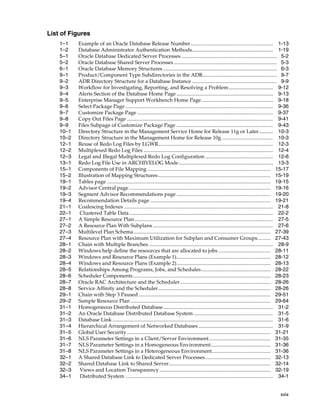
What's New in Oracle Database Administrator's Guide?.............................................. xxxvii
Oracle Database 11g Release 2 (11.2.0.3) New Features in the Administrator's Guide.............. xxxvii
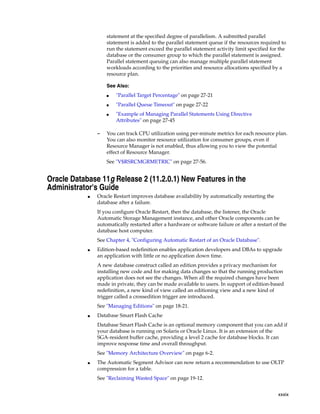
Oracle Database 11g Release 2 (11.2.0.2) New Features in the Administrator's Guide.............. xxxvii
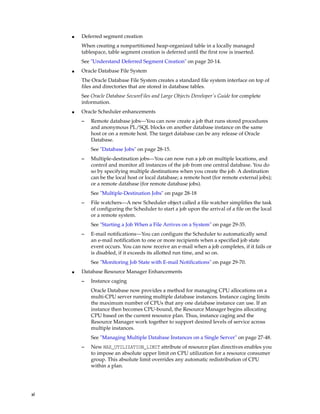
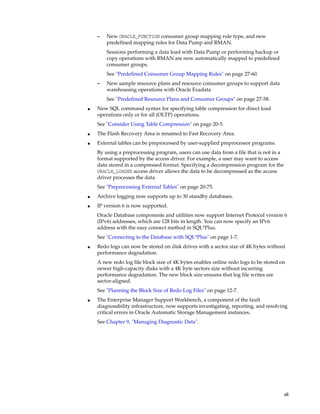
Oracle Database 11g Release 2 (11.2.0.1) New Features in the Administrator's Guide............... xxxix
Part I Basic Database Administration
1 Getting Started with Database Administration
Types of Oracle Database Users............................................................................................................ 1-1
Database Administrators .................................................................................................................. 1-1
Security Officers ................................................................................................................................. 1-2
Network Administrators................................................................................................................... 1-2
Application Developers..................................................................................................................... 1-2
Application Administrators.............................................................................................................. 1-2
Database Users ................................................................................................................................... 1-3
Tasks of a Database Administrator....................................................................................................... 1-3
Task 1: Evaluate the Database Server Hardware .......................................................................... 1-3
Task 2: Install the Oracle Database Software ................................................................................. 1-3
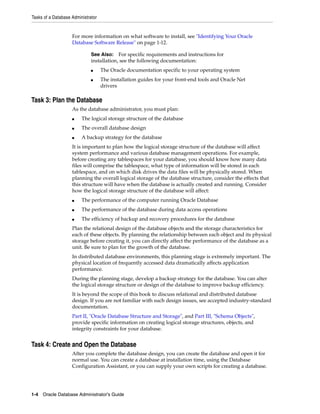
Task 3: Plan the Database.................................................................................................................. 1-4
Task 4: Create and Open the Database ........................................................................................... 1-4
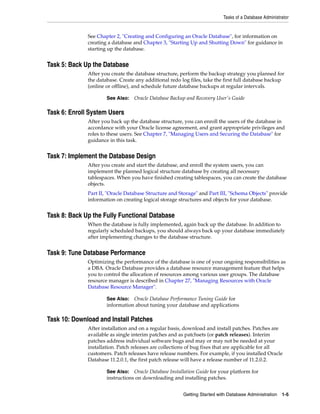
Task 5: Back Up the Database........................................................................................................... 1-5
Task 6: Enroll System Users.............................................................................................................. 1-5
Task 7: Implement the Database Design......................................................................................... 1-5
Task 8: Back Up the Fully Functional Database ............................................................................ 1-5
Task 9: Tune Database Performance ............................................................................................... 1-5
Task 10: Download and Install Patches .......................................................................................... 1-5
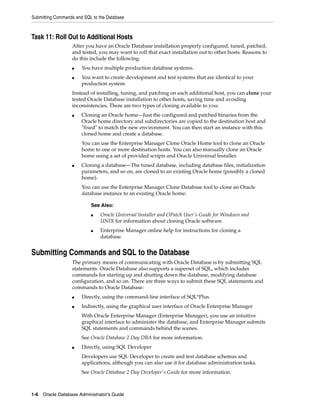
Task 11: Roll Out to Additional Hosts ............................................................................................ 1-6
Submitting Commands and SQL to the Database............................................................................. 1-6
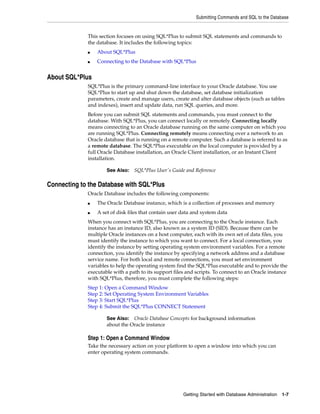
About SQL*Plus.................................................................................................................................. 1-7
iv
Connecting to the Database with SQL*Plus................................................................................... 1-7
Identifying Your Oracle Database Software Release..................................................................... 1-12
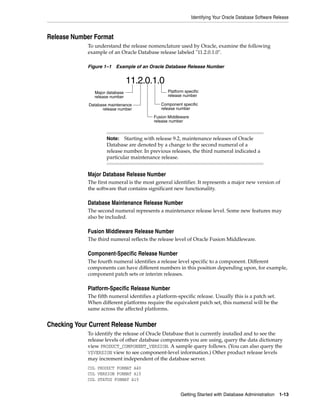
Release Number Format................................................................................................................. 1-13
Checking Your Current Release Number.................................................................................... 1-13
About Database Administrator Security and Privileges ............................................................... 1-14
The Database Administrator's Operating System Account ...................................................... 1-14
Administrative User Accounts...................................................................................................... 1-14
Database Administrator Authentication .......................................................................................... 1-16
Administrative Privileges .............................................................................................................. 1-16
Selecting an Authentication Method for Database Administrators ........................................ 1-18
Using Operating System Authentication..................................................................................... 1-20
Using Password File Authentication............................................................................................ 1-21
Creating and Maintaining a Password File...................................................................................... 1-22
Creating a Password File with ORAPWD................................................................................... 1-23
Sharing and Disabling the Password File.................................................................................... 1-24
Adding Users to a Password File.................................................................................................. 1-26
Maintaining a Password File......................................................................................................... 1-27
Data Utilities .......................................................................................................................................... 1-28
2 Creating and Configuring an Oracle Database
About Creating an Oracle Database ..................................................................................................... 2-1
Considerations Before Creating the Database ............................................................................... 2-2
Creating a Database with DBCA........................................................................................................... 2-5
Creating a Database with Interactive DBCA.................................................................................. 2-5
Creating a Database with Noninteractive/Silent DBCA.............................................................. 2-5
Creating a Database with the CREATE DATABASE Statement .................................................... 2-6
Step 1: Specify an Instance Identifier (SID) .................................................................................... 2-7
Step 2: Ensure That the Required Environment Variables Are Set............................................. 2-7
Step 3: Choose a Database Administrator Authentication Method............................................ 2-7
Step 4: Create the Initialization Parameter File.............................................................................. 2-8
Step 5: (Windows Only) Create an Instance................................................................................... 2-9
Step 6: Connect to the Instance......................................................................................................... 2-9
Step 7: Create a Server Parameter File ......................................................................................... 2-10
Step 8: Start the Instance ............................................................................................................... 2-10
Step 9: Issue the CREATE DATABASE Statement..................................................................... 2-11
Step 10: Create Additional Tablespaces....................................................................................... 2-14
Step 11: Run Scripts to Build Data Dictionary Views ............................................................... 2-14
Step 12: (Optional) Run Scripts to Install Additional Options ................................................. 2-15
Step 13: Back Up the Database. ..................................................................................................... 2-15
Step 14: (Optional) Enable Automatic Instance Startup............................................................ 2-15
Specifying CREATE DATABASE Statement Clauses ................................................................... 2-16
Protecting Your Database: Specifying Passwords for Users SYS and SYSTEM .................... 2-16
Creating a Locally Managed SYSTEM Tablespace..................................................................... 2-17
About the SYSAUX Tablespace..................................................................................................... 2-17
Using Automatic Undo Management: Creating an Undo Tablespace.................................... 2-18
Creating a Default Permanent Tablespace .................................................................................. 2-18
Creating a Default Temporary Tablespace.................................................................................. 2-19
v
Specifying Oracle Managed Files at Database Creation............................................................ 2-19
Supporting Bigfile Tablespaces During Database Creation...................................................... 2-20
Specifying the Database Time Zone and Time Zone File.......................................................... 2-22
Specifying FORCE LOGGING Mode........................................................................................... 2-23
Specifying Initialization Parameters................................................................................................. 2-24
About Initialization Parameters and Initialization Parameter Files ........................................ 2-24
Determining the Global Database Name..................................................................................... 2-27
Specifying a Fast Recovery Area................................................................................................... 2-27
Specifying Control Files ................................................................................................................ 2-28
Specifying Database Block Sizes ................................................................................................... 2-28
Specifying the Maximum Number of Processes......................................................................... 2-30
Specifying the DDL Lock Timeout ............................................................................................... 2-30
Specifying the Method of Undo Space Management ................................................................ 2-30
About The COMPATIBLE Initialization Parameter .................................................................. 2-31
Setting the License Parameter ....................................................................................................... 2-32
Managing Initialization Parameters Using a Server Parameter File........................................... 2-32
What Is a Server Parameter File? .................................................................................................. 2-32
Migrating to a Server Parameter File ........................................................................................... 2-33
Creating a Server Parameter File .................................................................................................. 2-34
The SPFILE Initialization Parameter ............................................................................................ 2-35
Changing Initialization Parameter Values .................................................................................. 2-35
Clearing Initialization Parameter Values..................................................................................... 2-37
Exporting the Server Parameter File ............................................................................................ 2-37
Backing Up the Server Parameter File ......................................................................................... 2-38
Recovering a Lost or Damaged Server Parameter File.............................................................. 2-38
Viewing Parameter Settings .......................................................................................................... 2-39
Managing Application Workloads with Database Services ........................................................ 2-39
About Database Services ............................................................................................................... 2-39
Creating Database Services............................................................................................................ 2-41
Database Service Data Dictionary Views..................................................................................... 2-42
Considerations After Creating a Database....................................................................................... 2-42
Some Security Considerations....................................................................................................... 2-43
Enabling Transparent Data Encryption ....................................................................................... 2-43
Creating a Secure External Password Store ................................................................................ 2-44
Installing the Oracle Database Sample Schemas ........................................................................ 2-44
Cloning a Database with CloneDB.................................................................................................... 2-44
About Cloning a Database with CloneDB................................................................................... 2-45
Cloning a Database with CloneDB ............................................................................................... 2-45
After Cloning a Database with CloneDB..................................................................................... 2-50
Dropping a Database............................................................................................................................ 2-51
Database Data Dictionary Views ....................................................................................................... 2-51
3 Starting Up and Shutting Down
Starting Up a Database............................................................................................................................ 3-1
About Database Startup Options..................................................................................................... 3-1
Specifying Initialization Parameters at Startup............................................................................. 3-2
About Automatic Startup of Database Services ............................................................................ 3-5
vi
Preparing to Start Up an Instance.................................................................................................... 3-5
Starting Up an Instance ..................................................................................................................... 3-6
Altering Database Availability.............................................................................................................. 3-9
Mounting a Database to an Instance ............................................................................................... 3-9
Opening a Closed Database........................................................................................................... 3-10
Opening a Database in Read-Only Mode.................................................................................... 3-10
Restricting Access to an Open Database...................................................................................... 3-11
Shutting Down a Database.................................................................................................................. 3-11
Shutting Down with the Normal Mode....................................................................................... 3-12
Shutting Down with the Immediate Mode ................................................................................. 3-12
Shutting Down with the Transactional Mode............................................................................. 3-13
Shutting Down with the Abort Mode .......................................................................................... 3-13
Shutdown Timeout ......................................................................................................................... 3-14
Quiescing a Database ........................................................................................................................... 3-14
Placing a Database into a Quiesced State .................................................................................... 3-14
Restoring the System to Normal Operation................................................................................ 3-15
Viewing the Quiesce State of an Instance.................................................................................... 3-16
Suspending and Resuming a Database ............................................................................................ 3-16
4 Configuring Automatic Restart of an Oracle Database
About Oracle Restart ............................................................................................................................... 4-1
Oracle Restart Overview................................................................................................................... 4-1
About Startup Dependencies ........................................................................................................... 4-2
About Starting and Stopping Components with Oracle Restart................................................. 4-3
About Starting and Stopping Oracle Restart.................................................................................. 4-3
Oracle Restart Configuration............................................................................................................ 4-4
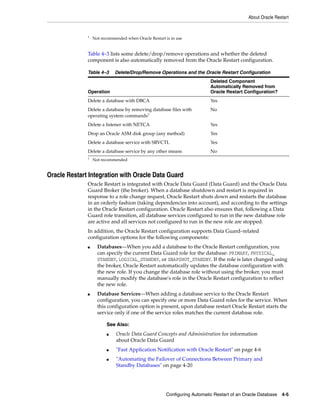
Oracle Restart Integration with Oracle Data Guard ..................................................................... 4-5
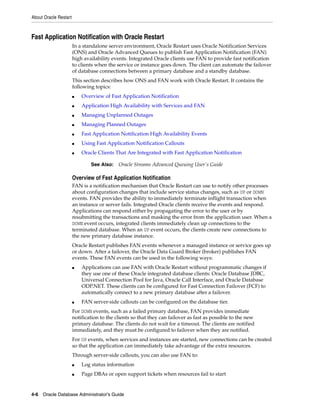
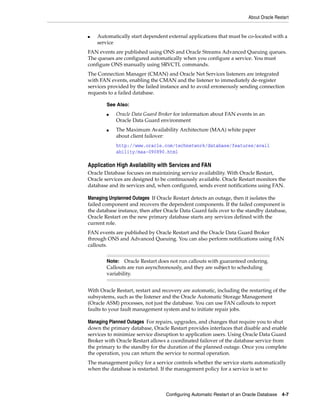
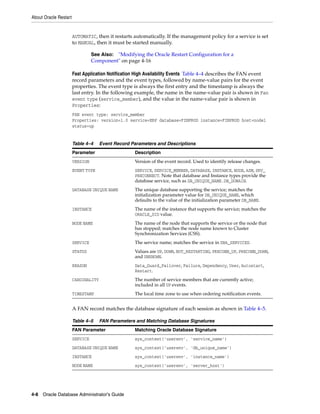
Fast Application Notification with Oracle Restart........................................................................ 4-6
Configuring Oracle Restart .................................................................................................................... 4-9
Preparing to Run SRVCTL............................................................................................................. 4-10
Obtaining Help for SRVCTL.......................................................................................................... 4-11
Adding Components to the Oracle Restart Configuration ....................................................... 4-11
Removing Components from the Oracle Restart Configuration ............................................. 4-14
Disabling and Enabling Oracle Restart Management for a Component ................................ 4-14
Viewing Component Status........................................................................................................... 4-15
Viewing the Oracle Restart Configuration for a Component................................................... 4-16
Modifying the Oracle Restart Configuration for a Component............................................... 4-16
Managing Environment Variables in the Oracle Restart Configuration................................. 4-17
Creating and Deleting Database Services with SRVCTL .......................................................... 4-19
Enabling FAN Events in an Oracle Restart Environment......................................................... 4-19
Automating the Failover of Connections Between Primary and Standby Databases........... 4-20
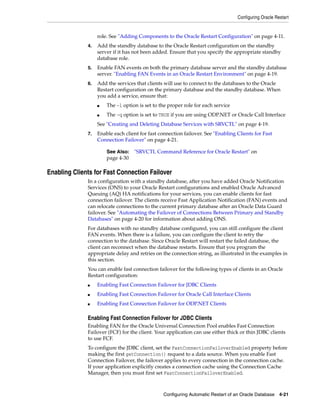
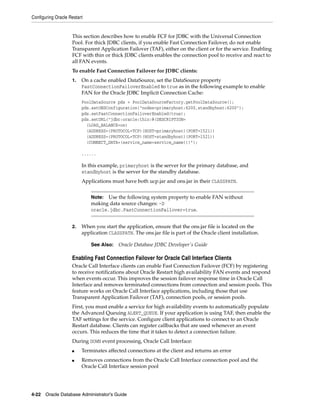
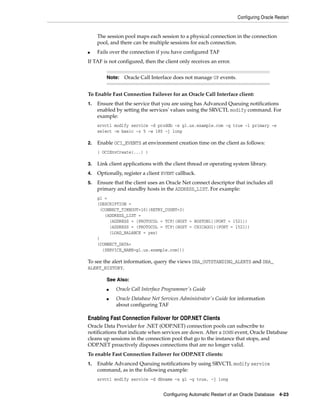
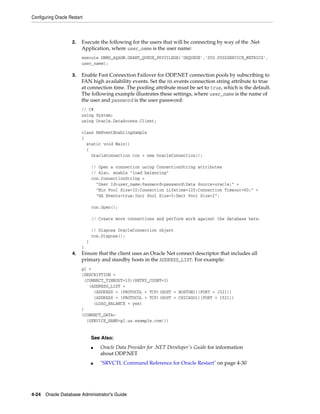
Enabling Clients for Fast Connection Failover ........................................................................... 4-21
Starting and Stopping Components Managed by Oracle Restart ............................................... 4-25
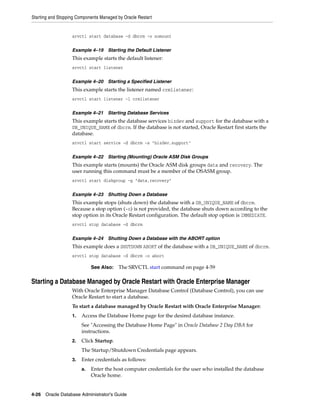
Starting and Stopping Components Managed by Oracle Restart with SRVCTL .................. 4-25
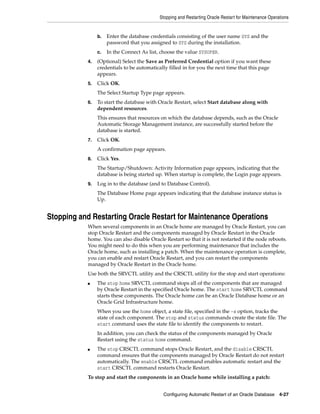
Starting a Database Managed by Oracle Restart with Oracle Enterprise Manager .............. 4-26
Stopping and Restarting Oracle Restart for Maintenance Operations....................................... 4-27
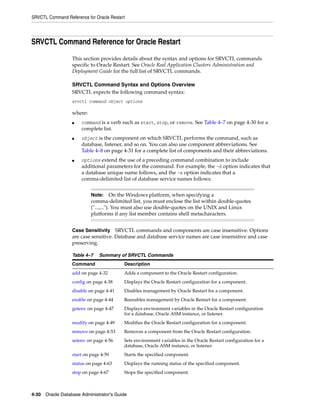
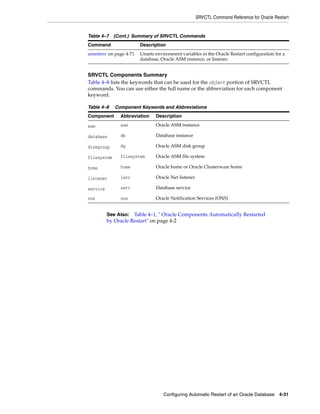
SRVCTL Command Reference for Oracle Restart.......................................................................... 4-30
vii
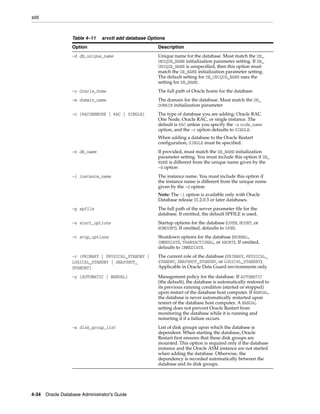
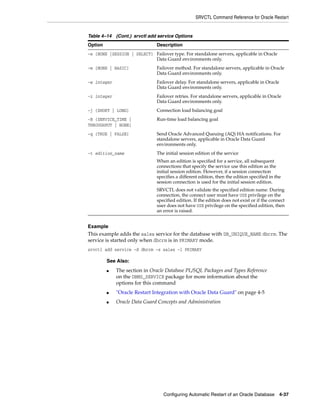
add..................................................................................................................................................... 4-32
config................................................................................................................................................. 4-38
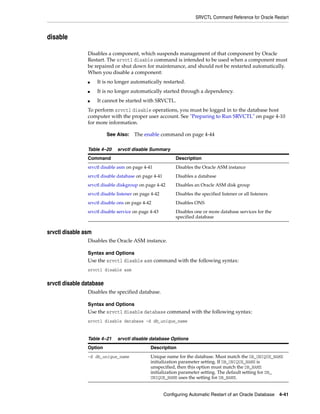
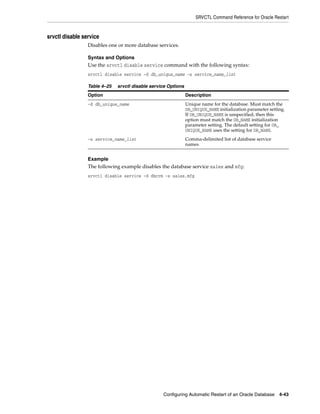
disable............................................................................................................................................... 4-41
enable ................................................................................................................................................ 4-44
getenv................................................................................................................................................ 4-47
modify............................................................................................................................................... 4-49
remove .............................................................................................................................................. 4-53
setenv ................................................................................................................................................ 4-56
start.................................................................................................................................................... 4-59
status ................................................................................................................................................. 4-63
stop.................................................................................................................................................... 4-67
unsetenv............................................................................................................................................ 4-71
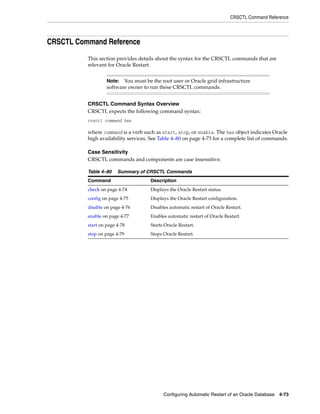
CRSCTL Command Reference ........................................................................................................... 4-73
check.................................................................................................................................................. 4-74
config................................................................................................................................................. 4-75
disable............................................................................................................................................... 4-76
enable ................................................................................................................................................ 4-77
start.................................................................................................................................................... 4-78
stop.................................................................................................................................................... 4-79
5 Managing Processes
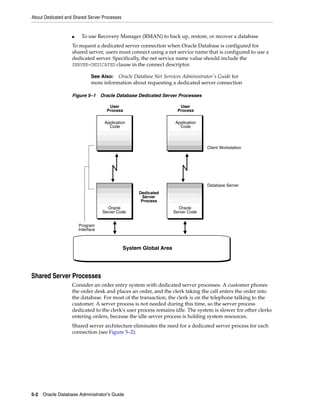
About Dedicated and Shared Server Processes.................................................................................. 5-1
Dedicated Server Processes .............................................................................................................. 5-1
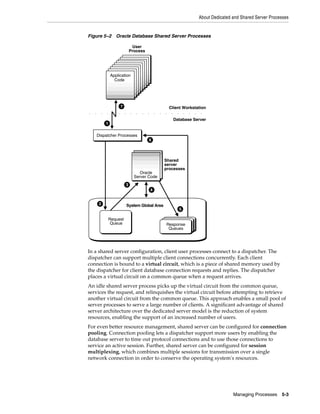
Shared Server Processes.................................................................................................................... 5-2
About Database Resident Connection Pooling.................................................................................. 5-4
Comparing DRCP to Dedicated Server and Shared Server......................................................... 5-5
Restrictions on Using Database Resident Connection Pooling ................................................... 5-6
Configuring Oracle Database for Shared Server ............................................................................... 5-6
Initialization Parameters for Shared Server ................................................................................... 5-6
Memory Management for Shared Server ....................................................................................... 5-7
Enabling Shared Server..................................................................................................................... 5-7
Configuring Dispatchers................................................................................................................ 5-10
Disabling Shared Server................................................................................................................. 5-14
Shared Server Data Dictionary Views.......................................................................................... 5-15
Configuring Database Resident Connection Pooling.................................................................... 5-15
Enabling Database Resident Connection Pooling ...................................................................... 5-16
Configuring the Connection Pool for Database Resident Connection Pooling ..................... 5-17
Data Dictionary Views for Database Resident Connection Pooling........................................ 5-19
About Oracle Database Background Processes............................................................................... 5-19
Managing Processes for Parallel SQL Execution ............................................................................ 5-20
About Parallel Execution Servers ................................................................................................. 5-21
Altering Parallel Execution for a Session..................................................................................... 5-21
Managing Processes for External Procedures .................................................................................. 5-22
About External Procedures............................................................................................................ 5-22
DBA Tasks to Enable External Procedure Calls.......................................................................... 5-23
Terminating Sessions ........................................................................................................................... 5-23
Identifying Which Session to Terminate...................................................................................... 5-24
viii
Terminating an Active Session...................................................................................................... 5-24
Terminating an Inactive Session ................................................................................................... 5-25
Process and Session Data Dictionary Views.................................................................................... 5-25
6 Managing Memory
About Memory Management................................................................................................................. 6-1
Memory Architecture Overview............................................................................................................ 6-2
Using Automatic Memory Management ............................................................................................. 6-3
About Automatic Memory Management ....................................................................................... 6-4
Enabling Automatic Memory Management .................................................................................. 6-4
Monitoring and Tuning Automatic Memory Management ........................................................ 6-6
Configuring Memory Manually............................................................................................................ 6-7
Using Automatic Shared Memory Management .......................................................................... 6-8
Using Manual Shared Memory Management............................................................................. 6-14
Using Automatic PGA Memory Management ........................................................................... 6-20
Using Manual PGA Memory Management ................................................................................ 6-21
Configuring Database Smart Flash Cache........................................................................................ 6-21
When to Configure the Flash Cache............................................................................................. 6-21
Sizing the Flash Cache.................................................................................................................... 6-22
Tuning Memory for the Flash Cache............................................................................................ 6-22
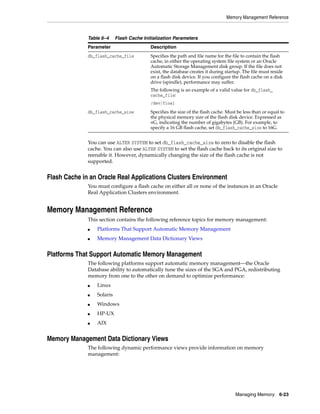
Flash Cache Initialization Parameters.......................................................................................... 6-22
Flash Cache in an Oracle Real Applications Clusters Environment........................................ 6-23
Memory Management Reference....................................................................................................... 6-23
Platforms That Support Automatic Memory Management...................................................... 6-23
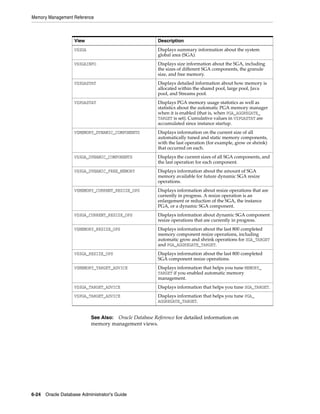
Memory Management Data Dictionary Views........................................................................... 6-23
7 Managing Users and Securing the Database
The Importance of Establishing a Security Policy for Your Database........................................... 7-1
Managing Users and Resources............................................................................................................. 7-1
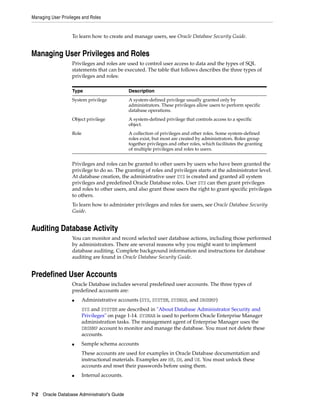
Managing User Privileges and Roles ................................................................................................... 7-2
Auditing Database Activity.................................................................................................................... 7-2
Predefined User Accounts ...................................................................................................................... 7-2
8 Monitoring Database Operations
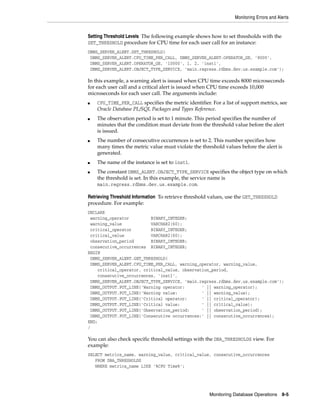
Monitoring Errors and Alerts................................................................................................................. 8-1
Monitoring Errors with Trace Files and the Alert Log ................................................................. 8-1
Monitoring Database Operations with Server-Generated Alerts ............................................... 8-4
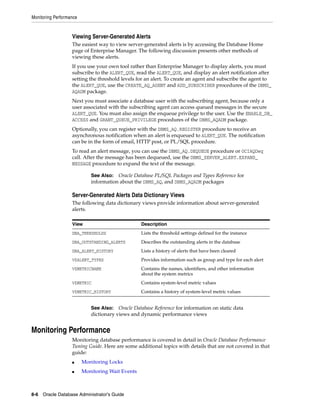
Monitoring Performance......................................................................................................................... 8-6
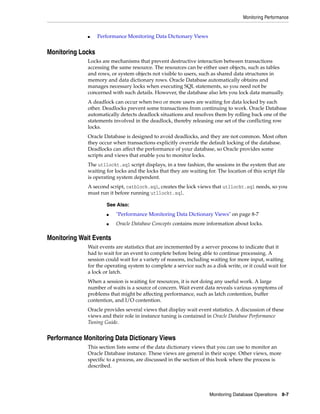
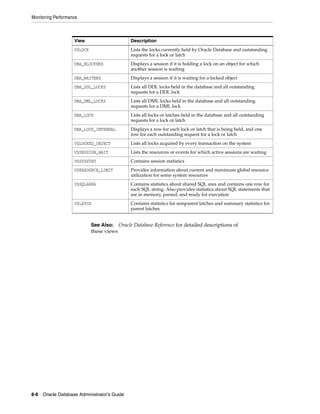
Monitoring Locks ............................................................................................................................... 8-7
Monitoring Wait Events.................................................................................................................... 8-7
Performance Monitoring Data Dictionary Views.......................................................................... 8-7
9 Managing Diagnostic Data
About the Oracle Database Fault Diagnosability Infrastructure.................................................... 9-1
Fault Diagnosability Infrastructure Overview............................................................................... 9-1
About Incidents and Problems......................................................................................................... 9-3
ix
Fault Diagnosability Infrastructure Components ......................................................................... 9-5
Structure, Contents, and Location of the Automatic Diagnostic Repository ............................ 9-7
Investigating, Reporting, and Resolving a Problem ...................................................................... 9-11
Roadmap—Investigating, Reporting, and Resolving a Problem............................................. 9-11
Task 1: View Critical Error Alerts in Enterprise Manager ........................................................ 9-13
Task 2: View Problem Details........................................................................................................ 9-14
Task 3: (Optional) Gather Additional Diagnostic Information ................................................ 9-14
Task 4: (Optional) Create a Service Request................................................................................ 9-14
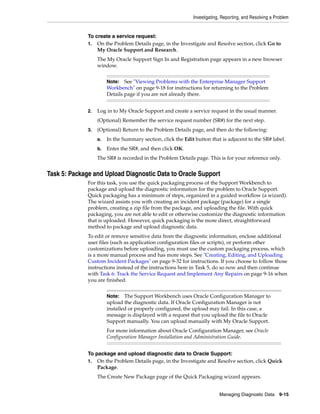
Task 5: Package and Upload Diagnostic Data to Oracle Support............................................ 9-15
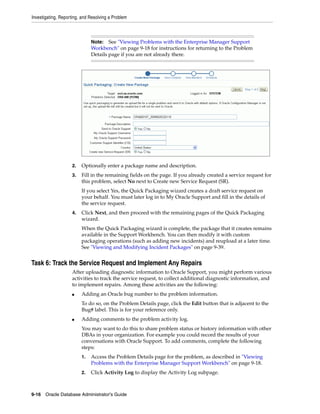
Task 6: Track the Service Request and Implement Any Repairs.............................................. 9-16
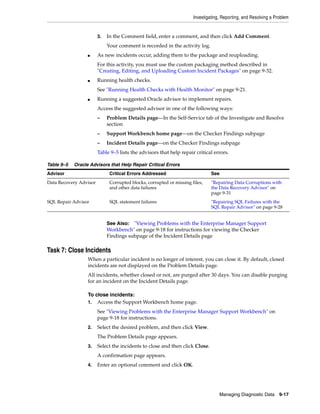
Task 7: Close Incidents ................................................................................................................... 9-17
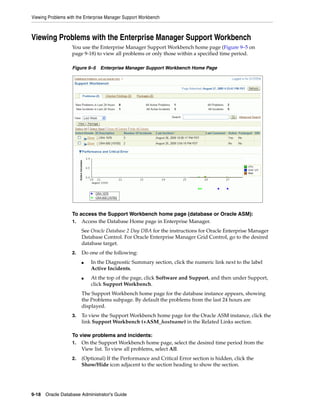
Viewing Problems with the Enterprise Manager Support Workbench ..................................... 9-18
Creating a User-Reported Problem.................................................................................................... 9-19
Viewing the Alert Log .......................................................................................................................... 9-20
Finding Trace Files................................................................................................................................ 9-21
Running Health Checks with Health Monitor................................................................................ 9-21
About Health Monitor.................................................................................................................... 9-22
Running Health Checks Manually ............................................................................................... 9-23
Viewing Checker Reports .............................................................................................................. 9-24
Health Monitor Views .................................................................................................................... 9-27
Health Check Parameters Reference ............................................................................................ 9-28
Repairing SQL Failures with the SQL Repair Advisor ................................................................. 9-28
About the SQL Repair Advisor..................................................................................................... 9-29
Running the SQL Repair Advisor................................................................................................. 9-29
Viewing, Disabling, or Removing a SQL Patch.......................................................................... 9-30
Repairing Data Corruptions with the Data Recovery Advisor .................................................... 9-31
Creating, Editing, and Uploading Custom Incident Packages..................................................... 9-32
About Incident Packages................................................................................................................ 9-33
Packaging and Uploading Problems with Custom Packaging ................................................ 9-35
Viewing and Modifying Incident Packages ................................................................................ 9-39
Creating, Editing, and Uploading Correlated Packages ........................................................... 9-45
Deleting Correlated Packages ....................................................................................................... 9-45
Setting Incident Packaging Preferences....................................................................................... 9-46
10 Managing Oracle Enterprise Manager Database Control
Database Control Overview................................................................................................................ 10-1
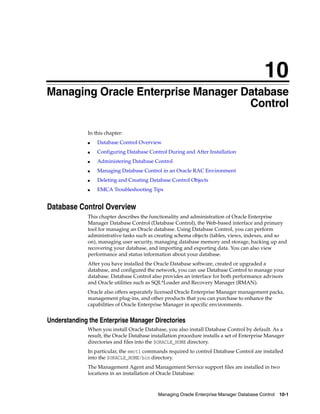
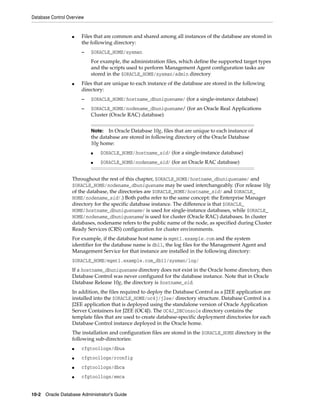
Understanding the Enterprise Manager Directories.................................................................. 10-1
Configuring Database Control During and After Installation .................................................... 10-3
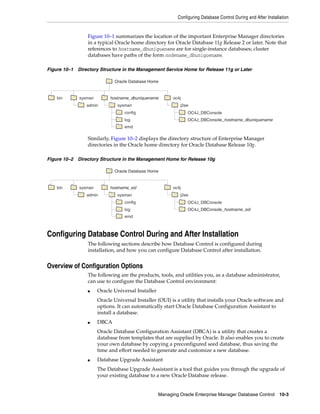
Overview of Configuration Options ............................................................................................ 10-3
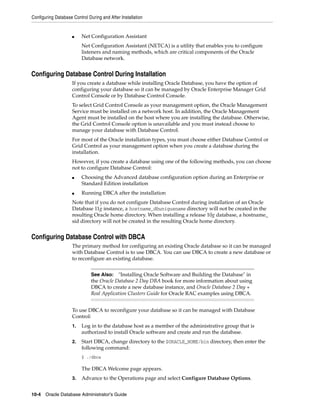
Configuring Database Control During Installation ................................................................... 10-4
Configuring Database Control with DBCA ................................................................................ 10-4
Configuring Database Control Using EMCA ............................................................................. 10-5
Using an Input File for EMCA Parameters ............................................................................... 10-10
Specifying the Ports Used by Database Control....................................................................... 10-11
Using EMCA With Oracle RAC.................................................................................................. 10-11
Administering Database Control ..................................................................................................... 10-15
Starting and Stopping the Database Control Process .............................................................. 10-15
x
Accessing the Database Home Page........................................................................................... 10-16
Creating Database Control Administrative Users.................................................................... 10-17
Granting Access to Database Control for Non-Administrative Users .................................. 10-18
Setting Database Control Preferences ........................................................................................ 10-18
Managing Database Control in an Oracle RAC Environment ................................................... 10-20
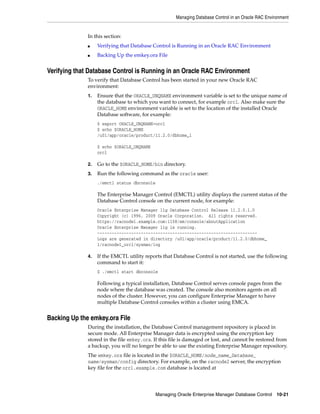
Verifying that Database Control is Running in an Oracle RAC Environment .................... 10-21
Backing Up the emkey.ora File ................................................................................................... 10-21
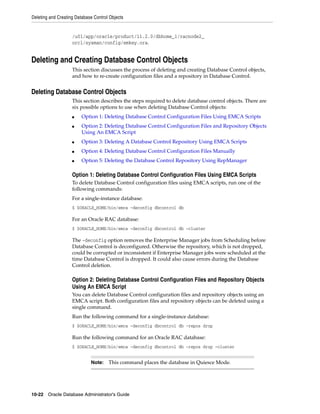
Deleting and Creating Database Control Objects ........................................................................ 10-22
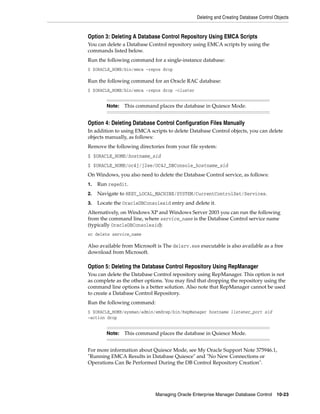
Deleting Database Control Objects............................................................................................. 10-22
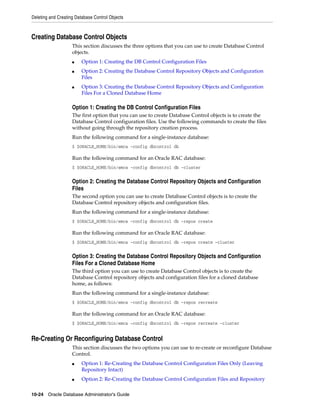
Creating Database Control Objects............................................................................................. 10-24
Re-Creating Or Reconfiguring Database Control..................................................................... 10-24
EMCA Troubleshooting Tips............................................................................................................ 10-25
Using EMCA After Changing the Database Listener Port...................................................... 10-25
Upgrading 11g Release 2 Grid Control Agents......................................................................... 10-25
Using EMCA When the Database Host Name or IP Address Changes................................ 10-26
Using EMCA When the TNS Configuration Is Changed........................................................ 10-26
Using EMCA for Desktop Class Installations........................................................................... 10-26
Handling EMCA Error Messages ............................................................................................... 10-26
Part II Oracle Database Structure and Storage
11 Managing Control Files
What Is a Control File? ......................................................................................................................... 11-1
Guidelines for Control Files ............................................................................................................... 11-2
Provide Filenames for the Control Files ...................................................................................... 11-2
Multiplex Control Files on Different Disks ................................................................................. 11-2
Back Up Control Files..................................................................................................................... 11-3
Manage the Size of Control Files .................................................................................................. 11-3
Creating Control Files .......................................................................................................................... 11-3
Creating Initial Control Files ......................................................................................................... 11-3
Creating Additional Copies, Renaming, and Relocating Control Files ................................. 11-4
Creating New Control Files........................................................................................................... 11-4
Troubleshooting After Creating Control Files ................................................................................ 11-7
Checking for Missing or Extra Files ............................................................................................. 11-7
Handling Errors During CREATE CONTROLFILE .................................................................. 11-7
Backing Up Control Files..................................................................................................................... 11-8
Recovering a Control File Using a Current Copy ........................................................................... 11-8
Recovering from Control File Corruption Using a Control File Copy.................................... 11-8
Recovering from Permanent Media Failure Using a Control File Copy................................. 11-8
Dropping Control Files ........................................................................................................................ 11-9
Control Files Data Dictionary Views ................................................................................................ 11-9
12 Managing the Redo Log
What Is the Redo Log?.......................................................................................................................... 12-1
Redo Threads................................................................................................................................... 12-1
Redo Log Contents.......................................................................................................................... 12-2
xi
How Oracle Database Writes to the Redo Log ........................................................................... 12-2
Planning the Redo Log......................................................................................................................... 12-4
Multiplexing Redo Log Files ......................................................................................................... 12-4
Placing Redo Log Members on Different Disks.......................................................................... 12-6
Planning the Size of Redo Log Files ............................................................................................. 12-7
Planning the Block Size of Redo Log Files .................................................................................. 12-7
Choosing the Number of Redo Log Files .................................................................................... 12-8
Controlling Archive Lag ............................................................................................................... 12-9
Creating Redo Log Groups and Members...................................................................................... 12-10
Creating Redo Log Groups.......................................................................................................... 12-10
Creating Redo Log Members....................................................................................................... 12-11
Relocating and Renaming Redo Log Members ............................................................................ 12-11
Dropping Redo Log Groups and Members ................................................................................... 12-12
Dropping Log Groups .................................................................................................................. 12-13
Dropping Redo Log Members..................................................................................................... 12-13
Forcing Log Switches.......................................................................................................................... 12-14
Verifying Blocks in Redo Log Files................................................................................................. 12-14
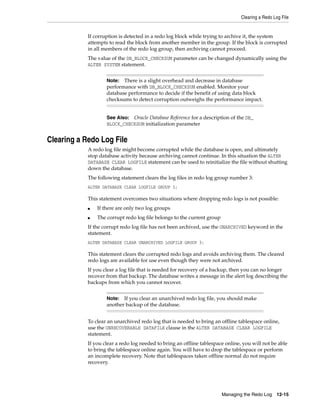
Clearing a Redo Log File.................................................................................................................... 12-15
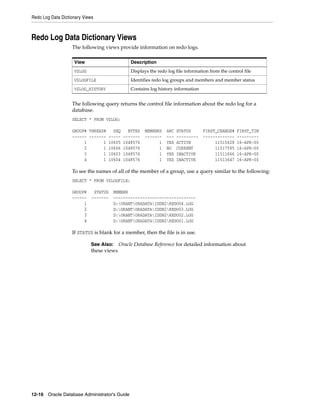
Redo Log Data Dictionary Views .................................................................................................... 12-16
13 Managing Archived Redo Logs
What Is the Archived Redo Log?........................................................................................................ 13-1
Choosing Between NOARCHIVELOG and ARCHIVELOG Mode ........................................... 13-2
Running a Database in NOARCHIVELOG Mode ..................................................................... 13-2
Running a Database in ARCHIVELOG Mode............................................................................ 13-3
Controlling Archiving .......................................................................................................................... 13-4
Setting the Initial Database Archiving Mode.............................................................................. 13-4
Changing the Database Archiving Mode ................................................................................... 13-4
Performing Manual Archiving...................................................................................................... 13-5
Adjusting the Number of Archiver Processes ............................................................................ 13-5
Specifying Archive Destinations ....................................................................................................... 13-6
Setting Initialization Parameters for Archive Destinations ...................................................... 13-6
Understanding Archive Destination Status ................................................................................ 13-9
Specifying Alternate Destinations ................................................................................................ 13-9
About Log Transmission Modes ...................................................................................................... 13-10
Normal Transmission Mode........................................................................................................ 13-10
Standby Transmission Mode ...................................................................................................... 13-10
Managing Archive Destination Failure .......................................................................................... 13-10
Specifying the Minimum Number of Successful Destinations............................................... 13-11
Rearchiving to a Failed Destination ........................................................................................... 13-12
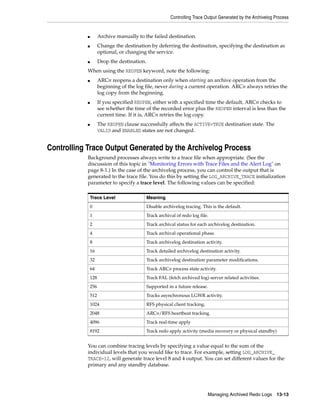
Controlling Trace Output Generated by the Archivelog Process.............................................. 13-13
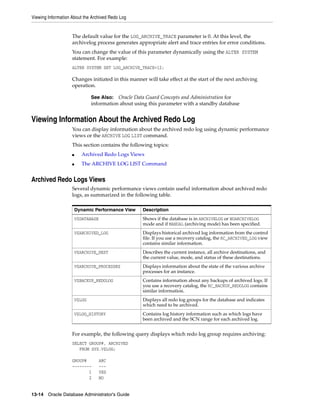
Viewing Information About the Archived Redo Log .................................................................. 13-14
Archived Redo Logs Views ......................................................................................................... 13-14
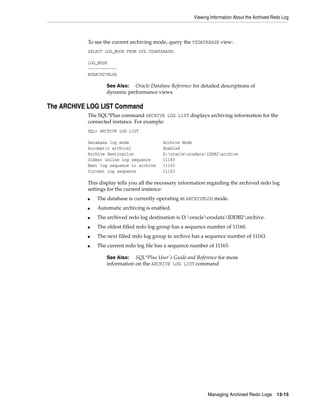
The ARCHIVE LOG LIST Command......................................................................................... 13-15
xii
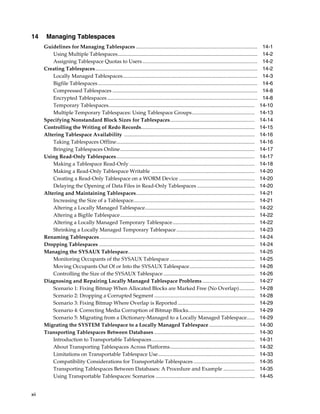
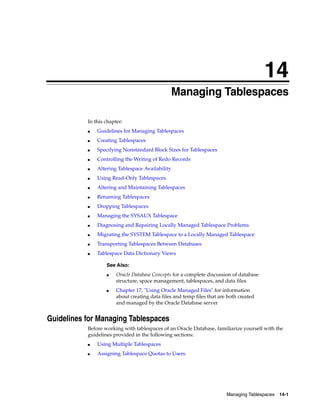
14 Managing Tablespaces
Guidelines for Managing Tablespaces ............................................................................................. 14-1
Using Multiple Tablespaces........................................................................................................... 14-2
Assigning Tablespace Quotas to Users........................................................................................ 14-2
Creating Tablespaces............................................................................................................................ 14-2
Locally Managed Tablespaces....................................................................................................... 14-3
Bigfile Tablespaces.......................................................................................................................... 14-6
Compressed Tablespaces ............................................................................................................... 14-8
Encrypted Tablespaces................................................................................................................... 14-8
Temporary Tablespaces................................................................................................................ 14-10
Multiple Temporary Tablespaces: Using Tablespace Groups................................................ 14-13
Specifying Nonstandard Block Sizes for Tablespaces................................................................. 14-14
Controlling the Writing of Redo Records....................................................................................... 14-15
Altering Tablespace Availability .................................................................................................... 14-16
Taking Tablespaces Offline.......................................................................................................... 14-16
Bringing Tablespaces Online....................................................................................................... 14-17
Using Read-Only Tablespaces.......................................................................................................... 14-17
Making a Tablespace Read-Only ................................................................................................ 14-18
Making a Read-Only Tablespace Writable ............................................................................... 14-20
Creating a Read-Only Tablespace on a WORM Device .......................................................... 14-20
Delaying the Opening of Data Files in Read-Only Tablespaces ............................................ 14-20
Altering and Maintaining Tablespaces........................................................................................... 14-21
Increasing the Size of a Tablespace............................................................................................. 14-21
Altering a Locally Managed Tablespace.................................................................................... 14-22
Altering a Bigfile Tablespace....................................................................................................... 14-22
Altering a Locally Managed Temporary Tablespace............................................................... 14-22
Shrinking a Locally Managed Temporary Tablespace ............................................................ 14-23
Renaming Tablespaces....................................................................................................................... 14-24
Dropping Tablespaces ....................................................................................................................... 14-24
Managing the SYSAUX Tablespace................................................................................................. 14-25
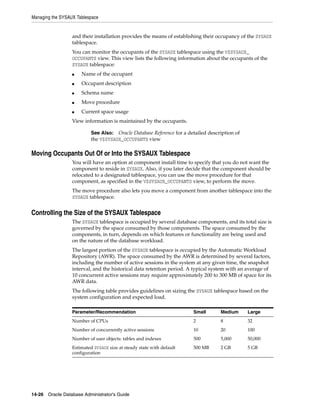
Monitoring Occupants of the SYSAUX Tablespace ................................................................. 14-25
Moving Occupants Out Of or Into the SYSAUX Tablespace.................................................. 14-26
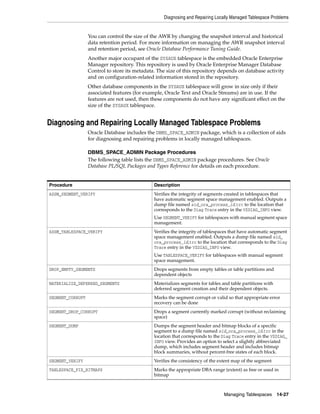
Controlling the Size of the SYSAUX Tablespace ...................................................................... 14-26
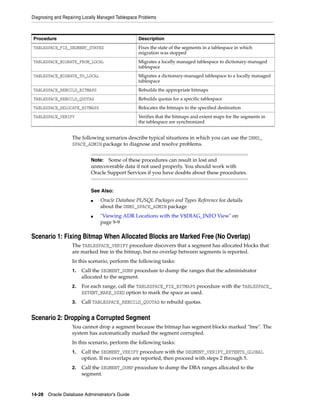
Diagnosing and Repairing Locally Managed Tablespace Problems ........................................ 14-27
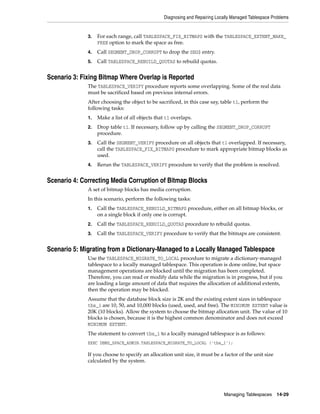
Scenario 1: Fixing Bitmap When Allocated Blocks are Marked Free (No Overlap)............ 14-28
Scenario 2: Dropping a Corrupted Segment ............................................................................. 14-28
Scenario 3: Fixing Bitmap Where Overlap is Reported ........................................................... 14-29
Scenario 4: Correcting Media Corruption of Bitmap Blocks................................................... 14-29
Scenario 5: Migrating from a Dictionary-Managed to a Locally Managed Tablespace...... 14-29
Migrating the SYSTEM Tablespace to a Locally Managed Tablespace ................................... 14-30
Transporting Tablespaces Between Databases ............................................................................. 14-30
Introduction to Transportable Tablespaces............................................................................... 14-31
About Transporting Tablespaces Across Platforms................................................................. 14-32
Limitations on Transportable Tablespace Use.......................................................................... 14-33
Compatibility Considerations for Transportable Tablespaces............................................... 14-35
Transporting Tablespaces Between Databases: A Procedure and Example ........................ 14-35
Using Transportable Tablespaces: Scenarios ............................................................................ 14-45
xiii
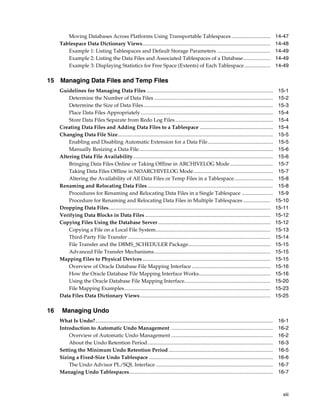
Moving Databases Across Platforms Using Transportable Tablespaces.............................. 14-47
Tablespace Data Dictionary Views.................................................................................................. 14-48
Example 1: Listing Tablespaces and Default Storage Parameters ......................................... 14-49
Example 2: Listing the Data Files and Associated Tablespaces of a Database..................... 14-49
Example 3: Displaying Statistics for Free Space (Extents) of Each Tablespace.................... 14-49
15 Managing Data Files and Temp Files
Guidelines for Managing Data Files ................................................................................................. 15-1
Determine the Number of Data Files ........................................................................................... 15-2
Determine the Size of Data Files ................................................................................................... 15-3
Place Data Files Appropriately ..................................................................................................... 15-4
Store Data Files Separate from Redo Log Files........................................................................... 15-4
Creating Data Files and Adding Data Files to a Tablespace ........................................................ 15-4
Changing Data File Size....................................................................................................................... 15-5
Enabling and Disabling Automatic Extension for a Data File.................................................. 15-5
Manually Resizing a Data File....................................................................................................... 15-6
Altering Data File Availability........................................................................................................... 15-6
Bringing Data Files Online or Taking Offline in ARCHIVELOG Mode................................. 15-7
Taking Data Files Offline in NOARCHIVELOG Mode............................................................. 15-7
Altering the Availability of All Data Files or Temp Files in a Tablespace.............................. 15-8
Renaming and Relocating Data Files ................................................................................................ 15-8
Procedures for Renaming and Relocating Data Files in a Single Tablespace ........................ 15-9
Procedure for Renaming and Relocating Data Files in Multiple Tablespaces..................... 15-10
Dropping Data Files............................................................................................................................ 15-11
Verifying Data Blocks in Data Files ................................................................................................ 15-12
Copying Files Using the Database Server...................................................................................... 15-12
Copying a File on a Local File System........................................................................................ 15-13
Third-Party File Transfer ............................................................................................................. 15-14
File Transfer and the DBMS_SCHEDULER Package............................................................... 15-15
Advanced File Transfer Mechanisms......................................................................................... 15-15
Mapping Files to Physical Devices.................................................................................................. 15-15
Overview of Oracle Database File Mapping Interface ............................................................ 15-16
How the Oracle Database File Mapping Interface Works....................................................... 15-16
Using the Oracle Database File Mapping Interface.................................................................. 15-20
File Mapping Examples................................................................................................................ 15-23
Data Files Data Dictionary Views.................................................................................................... 15-25
16 Managing Undo
What Is Undo?........................................................................................................................................ 16-1
Introduction to Automatic Undo Management .............................................................................. 16-2
Overview of Automatic Undo Management .............................................................................. 16-2
About the Undo Retention Period................................................................................................ 16-3
Setting the Minimum Undo Retention Period ................................................................................ 16-5
Sizing a Fixed-Size Undo Tablespace ............................................................................................... 16-6
The Undo Advisor PL/SQL Interface.......................................................................................... 16-7
Managing Undo Tablespaces.............................................................................................................. 16-7
xiv
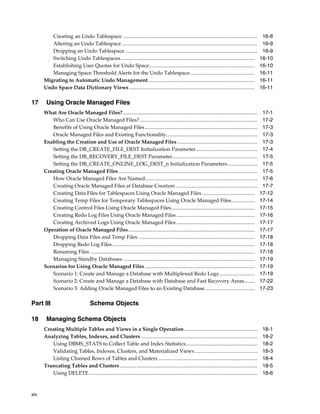
Creating an Undo Tablespace ....................................................................................................... 16-8
Altering an Undo Tablespace........................................................................................................ 16-9
Dropping an Undo Tablespace ..................................................................................................... 16-9
Switching Undo Tablespaces....................................................................................................... 16-10
Establishing User Quotas for Undo Space................................................................................. 16-10
Managing Space Threshold Alerts for the Undo Tablespace ................................................. 16-11
Migrating to Automatic Undo Management.................................................................................. 16-11
Undo Space Data Dictionary Views ................................................................................................ 16-11
17 Using Oracle Managed Files
What Are Oracle Managed Files?....................................................................................................... 17-1
Who Can Use Oracle Managed Files?.......................................................................................... 17-2
Benefits of Using Oracle Managed Files...................................................................................... 17-3
Oracle Managed Files and Existing Functionality...................................................................... 17-3
Enabling the Creation and Use of Oracle Managed Files ............................................................. 17-3
Setting the DB_CREATE_FILE_DEST Initialization Parameter............................................... 17-4
Setting the DB_RECOVERY_FILE_DEST Parameter................................................................. 17-5
Setting the DB_CREATE_ONLINE_LOG_DEST_n Initialization Parameters....................... 17-5
Creating Oracle Managed Files .......................................................................................................... 17-5
How Oracle Managed Files Are Named...................................................................................... 17-6
Creating Oracle Managed Files at Database Creation............................................................... 17-7
Creating Data Files for Tablespaces Using Oracle Managed Files ........................................ 17-12
Creating Temp Files for Temporary Tablespaces Using Oracle Managed Files.................. 17-14
Creating Control Files Using Oracle Managed Files................................................................ 17-15
Creating Redo Log Files Using Oracle Managed Files ............................................................ 17-16
Creating Archived Logs Using Oracle Managed Files ............................................................ 17-17
Operation of Oracle Managed Files................................................................................................. 17-17
Dropping Data Files and Temp Files ......................................................................................... 17-18
Dropping Redo Log Files............................................................................................................. 17-18
Renaming Files .............................................................................................................................. 17-18
Managing Standby Databases .................................................................................................... 17-19
Scenarios for Using Oracle Managed Files .................................................................................... 17-19
Scenario 1: Create and Manage a Database with Multiplexed Redo Logs ........................... 17-19
Scenario 2: Create and Manage a Database with Database and Fast Recovery Areas........ 17-22
Scenario 3: Adding Oracle Managed Files to an Existing Database...................................... 17-23
Part III Schema Objects
18 Managing Schema Objects
Creating Multiple Tables and Views in a Single Operation........................................................ 18-1
Analyzing Tables, Indexes, and Clusters ......................................................................................... 18-2
Using DBMS_STATS to Collect Table and Index Statistics....................................................... 18-2
Validating Tables, Indexes, Clusters, and Materialized Views................................................ 18-3
Listing Chained Rows of Tables and Clusters ............................................................................ 18-4
Truncating Tables and Clusters ......................................................................................................... 18-5
Using DELETE................................................................................................................................. 18-6
xv
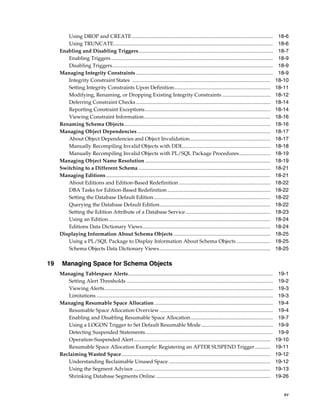
Using DROP and CREATE............................................................................................................ 18-6
Using TRUNCATE.......................................................................................................................... 18-6
Enabling and Disabling Triggers....................................................................................................... 18-7
Enabling Triggers............................................................................................................................ 18-9
Disabling Triggers........................................................................................................................... 18-9
Managing Integrity Constraints ......................................................................................................... 18-9
Integrity Constraint States .......................................................................................................... 18-10
Setting Integrity Constraints Upon Definition.......................................................................... 18-11
Modifying, Renaming, or Dropping Existing Integrity Constraints ..................................... 18-12
Deferring Constraint Checks....................................................................................................... 18-14
Reporting Constraint Exceptions................................................................................................ 18-14
Viewing Constraint Information................................................................................................. 18-16
Renaming Schema Objects................................................................................................................ 18-16
Managing Object Dependencies...................................................................................................... 18-17
About Object Dependencies and Object Invalidation.............................................................. 18-17
Manually Recompiling Invalid Objects with DDL................................................................... 18-18
Manually Recompiling Invalid Objects with PL/SQL Package Procedures........................ 18-19
Managing Object Name Resolution ................................................................................................ 18-19
Switching to a Different Schema ..................................................................................................... 18-21
Managing Editions.............................................................................................................................. 18-21
About Editions and Edition-Based Redefinition ...................................................................... 18-22
DBA Tasks for Edition-Based Redefinition............................................................................... 18-22
Setting the Database Default Edition ......................................................................................... 18-22
Querying the Database Default Edition..................................................................................... 18-22
Setting the Edition Attribute of a Database Service................................................................. 18-23
Using an Edition............................................................................................................................ 18-24
Editions Data Dictionary Views.................................................................................................. 18-24
Displaying Information About Schema Objects .......................................................................... 18-25
Using a PL/SQL Package to Display Information About Schema Objects .......................... 18-25
Schema Objects Data Dictionary Views..................................................................................... 18-25
19 Managing Space for Schema Objects
Managing Tablespace Alerts............................................................................................................... 19-1
Setting Alert Thresholds ................................................................................................................ 19-2
Viewing Alerts................................................................................................................................. 19-3
Limitations ....................................................................................................................................... 19-3
Managing Resumable Space Allocation........................................................................................... 19-4
Resumable Space Allocation Overview....................................................................................... 19-4
Enabling and Disabling Resumable Space Allocation............................................................... 19-7
Using a LOGON Trigger to Set Default Resumable Mode....................................................... 19-9
Detecting Suspended Statements.................................................................................................. 19-9
Operation-Suspended Alert......................................................................................................... 19-10
Resumable Space Allocation Example: Registering an AFTER SUSPEND Trigger............ 19-11
Reclaiming Wasted Space.................................................................................................................. 19-12
Understanding Reclaimable Unused Space .............................................................................. 19-12
Using the Segment Advisor......................................................................................................... 19-13
Shrinking Database Segments Online........................................................................................ 19-26
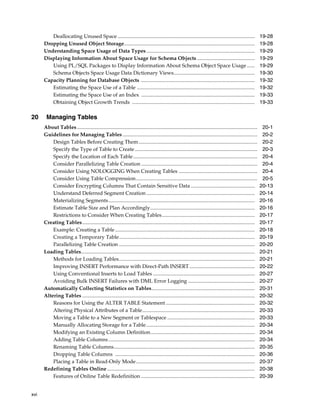
xvi
Deallocating Unused Space ......................................................................................................... 19-28
Dropping Unused Object Storage.................................................................................................... 19-28
Understanding Space Usage of Data Types................................................................................... 19-29
Displaying Information About Space Usage for Schema Objects ............................................ 19-29
Using PL/SQL Packages to Display Information About Schema Object Space Usage ...... 19-29
Schema Objects Space Usage Data Dictionary Views.............................................................. 19-30
Capacity Planning for Database Objects ....................................................................................... 19-32
Estimating the Space Use of a Table .......................................................................................... 19-32
Estimating the Space Use of an Index ....................................................................................... 19-33
Obtaining Object Growth Trends .............................................................................................. 19-33
20 Managing Tables
About Tables .......................................................................................................................................... 20-1
Guidelines for Managing Tables ....................................................................................................... 20-2
Design Tables Before Creating Them........................................................................................... 20-2
Specify the Type of Table to Create.............................................................................................. 20-3
Specify the Location of Each Table............................................................................................... 20-4
Consider Parallelizing Table Creation ......................................................................................... 20-4
Consider Using NOLOGGING When Creating Tables ............................................................ 20-4
Consider Using Table Compression............................................................................................. 20-5
Consider Encrypting Columns That Contain Sensitive Data ................................................. 20-13
Understand Deferred Segment Creation ................................................................................... 20-14
Materializing Segments................................................................................................................ 20-16
Estimate Table Size and Plan Accordingly................................................................................ 20-16
Restrictions to Consider When Creating Tables....................................................................... 20-17
Creating Tables.................................................................................................................................... 20-17
Example: Creating a Table........................................................................................................... 20-18
Creating a Temporary Table........................................................................................................ 20-19
Parallelizing Table Creation ........................................................................................................ 20-20
Loading Tables..................................................................................................................................... 20-21
Methods for Loading Tables........................................................................................................ 20-21
Improving INSERT Performance with Direct-Path INSERT.................................................. 20-22
Using Conventional Inserts to Load Tables .............................................................................. 20-27
Avoiding Bulk INSERT Failures with DML Error Logging ................................................... 20-27
Automatically Collecting Statistics on Tables............................................................................... 20-31
Altering Tables .................................................................................................................................... 20-32
Reasons for Using the ALTER TABLE Statement .................................................................... 20-32
Altering Physical Attributes of a Table...................................................................................... 20-33
Moving a Table to a New Segment or Tablespace ................................................................... 20-33
Manually Allocating Storage for a Table................................................................................... 20-34
Modifying an Existing Column Definition................................................................................ 20-34
Adding Table Columns................................................................................................................ 20-34
Renaming Table Columns............................................................................................................ 20-35
Dropping Table Columns ........................................................................................................... 20-36
Placing a Table in Read-Only Mode........................................................................................... 20-37
Redefining Tables Online ................................................................................................................. 20-38
Features of Online Table Redefinition ....................................................................................... 20-39
xvii
Performing Online Redefinition with DBMS_REDEFINITION............................................. 20-40
Results of the Redefinition Process............................................................................................. 20-44
Performing Intermediate Synchronization................................................................................ 20-44
Aborting Online Table Redefinition and Cleaning Up After Errors ..................................... 20-45
Restrictions for Online Redefinition of Tables.......................................................................... 20-45
Online Redefinition of a Single Partition................................................................................... 20-46
Online Table Redefinition Examples.......................................................................................... 20-48
Privileges Required for the DBMS_REDEFINITION Package............................................... 20-54
Researching and Reversing Erroneous Table Changes ............................................................... 20-54
Recovering Tables Using Oracle Flashback Table ....................................................................... 20-55
Dropping Tables.................................................................................................................................. 20-55
Using Flashback Drop and Managing the Recycle Bin ............................................................... 20-56
What Is the Recycle Bin? .............................................................................................................. 20-57
Enabling and Disabling the Recycle Bin.................................................................................... 20-58
Viewing and Querying Objects in the Recycle Bin .................................................................. 20-58
Purging Objects in the Recycle Bin............................................................................................. 20-59
Restoring Tables from the Recycle Bin....................................................................................... 20-60
Managing Index-Organized Tables ................................................................................................ 20-61
What Are Index-Organized Tables?........................................................................................... 20-61
Creating Index-Organized Tables............................................................................................... 20-62
Maintaining Index-Organized Tables ........................................................................................ 20-66
Creating Secondary Indexes on Index-Organized Tables....................................................... 20-68
Analyzing Index-Organized Tables ........................................................................................... 20-69
Using the ORDER BY Clause with Index-Organized Tables.................................................. 20-70
Converting Index-Organized Tables to Regular Tables.......................................................... 20-70
Managing External Tables................................................................................................................. 20-70
About External Tables .................................................................................................................. 20-71
Creating External Tables.............................................................................................................. 20-72
Altering External Tables............................................................................................................... 20-75
Preprocessing External Tables..................................................................................................... 20-75
Dropping External Tables............................................................................................................ 20-76
System and Object Privileges for External Tables.................................................................... 20-76
Tables Data Dictionary Views ......................................................................................................... 20-77
21 Managing Indexes
About Indexes ........................................................................................................................................ 21-1
Guidelines for Managing Indexes ..................................................................................................... 21-2
Create Indexes After Inserting Table Data .................................................................................. 21-2
Index the Correct Tables and Columns ....................................................................................... 21-3
Order Index Columns for Performance ....................................................................................... 21-4
Limit the Number of Indexes for Each Table.............................................................................. 21-4
Drop Indexes That Are No Longer Required ............................................................................ 21-4
Indexes and Deferred Segment Creation..................................................................................... 21-4
Estimate Index Size and Set Storage Parameters........................................................................ 21-4
Specify the Tablespace for Each Index......................................................................................... 21-5
Consider Parallelizing Index Creation......................................................................................... 21-5
Consider Creating Indexes with NOLOGGING ........................................................................ 21-5
xviii
Understand When to Use Unusable or Invisible Indexes ......................................................... 21-6
Consider Costs and Benefits of Coalescing or Rebuilding Indexes......................................... 21-7
Consider Cost Before Disabling or Dropping Constraints........................................................ 21-8
Creating Indexes.................................................................................................................................... 21-8
Creating an Index Explicitly.......................................................................................................... 21-9
Creating a Unique Index Explicitly .............................................................................................. 21-9
Creating an Index Associated with a Constraint........................................................................ 21-9
Creating a Large Index................................................................................................................. 21-11
Creating an Index Online............................................................................................................. 21-11
Creating a Function-Based Index................................................................................................ 21-11
Creating a Key-Compressed Index............................................................................................. 21-12
Creating an Unusable Index........................................................................................................ 21-13
Creating an Invisible Index.......................................................................................................... 21-14
Altering Indexes .................................................................................................................................. 21-15
Altering Storage Characteristics of an Index............................................................................. 21-15
Rebuilding an Existing Index ...................................................................................................... 21-16
Making an Index Unusable.......................................................................................................... 21-17
Making an Index Invisible ........................................................................................................... 21-18
Renaming an Index ....................................................................................................................... 21-19
Monitoring Index Usage .............................................................................................................. 21-19
Monitoring Space Use of Indexes .................................................................................................... 21-19
Dropping Indexes................................................................................................................................ 21-20
Indexes Data Dictionary Views........................................................................................................ 21-21
22 Managing Clusters
About Clusters ....................................................................................................................................... 22-1
Guidelines for Managing Clusters .................................................................................................... 22-2
Choose Appropriate Tables for the Cluster ................................................................................ 22-3
Choose Appropriate Columns for the Cluster Key.................................................................... 22-3
Specify the Space Required by an Average Cluster Key and Its Associated Rows .............. 22-3
Specify the Location of Each Cluster and Cluster Index Rows ................................................ 22-4
Estimate Cluster Size and Set Storage Parameters..................................................................... 22-4
Creating Clusters................................................................................................................................... 22-4
Creating Clustered Tables.............................................................................................................. 22-5
Creating Cluster Indexes................................................................................................................ 22-5
Altering Clusters ................................................................................................................................... 22-6
Altering Clustered Tables .............................................................................................................. 22-6
Altering Cluster Indexes ................................................................................................................ 22-7
Dropping Clusters................................................................................................................................. 22-7
Dropping Clustered Tables............................................................................................................ 22-8
Dropping Cluster Indexes.............................................................................................................. 22-8
Clusters Data Dictionary Views......................................................................................................... 22-8
23 Managing Hash Clusters
About Hash Clusters............................................................................................................................. 23-1
When to Use Hash Clusters................................................................................................................. 23-2
Situations Where Hashing Is Useful............................................................................................. 23-2
xix
Situations Where Hashing Is Not Advantageous ...................................................................... 23-2
Creating Hash Clusters ........................................................................................................................ 23-2
Creating a Sorted Hash Cluster..................................................................................................... 23-3
Creating Single-Table Hash Clusters ........................................................................................... 23-6
Controlling Space Use Within a Hash Cluster............................................................................ 23-6
Estimating Size Required by Hash Clusters................................................................................ 23-8
Altering Hash Clusters......................................................................................................................... 23-9
Dropping Hash Clusters ...................................................................................................................... 23-9
Hash Clusters Data Dictionary Views .............................................................................................. 23-9
24 Managing Views, Sequences, and Synonyms
Managing Views.................................................................................................................................... 24-1
About Views .................................................................................................................................... 24-1
Creating Views ................................................................................................................................ 24-2
Replacing Views.............................................................................................................................. 24-4
Using Views in Queries ................................................................................................................. 24-4
Updating a Join View ..................................................................................................................... 24-6
Altering Views............................................................................................................................... 24-12
Dropping Views ............................................................................................................................ 24-12
Managing Sequences.......................................................................................................................... 24-12
About Sequences ........................................................................................................................... 24-12
Creating Sequences....................................................................................................................... 24-13
Altering Sequences........................................................................................................................ 24-13
Using Sequences............................................................................................................................ 24-14
Dropping Sequences..................................................................................................................... 24-16
Managing Synonyms.......................................................................................................................... 24-17
About Synonyms........................................................................................................................... 24-17
Creating Synonyms....................................................................................................................... 24-17
Using Synonyms in DML Statements ....................................................................................... 24-18
Dropping Synonyms..................................................................................................................... 24-18
Views, Synonyms, and Sequences Data Dictionary Views........................................................ 24-18
25 Repairing Corrupted Data
Options for Repairing Data Block Corruption................................................................................ 25-1
About the DBMS_REPAIR Package.................................................................................................. 25-2
DBMS_REPAIR Procedures........................................................................................................... 25-2
Limitations and Restrictions.......................................................................................................... 25-2
Using the DBMS_REPAIR Package................................................................................................... 25-2
Task 1: Detect and Report Corruptions ....................................................................................... 25-3
Task 2: Evaluate the Costs and Benefits of Using DBMS_REPAIR.......................................... 25-4
Task 3: Make Objects Usable ......................................................................................................... 25-5
Task 4: Repair Corruptions and Rebuild Lost Data ................................................................... 25-5
DBMS_REPAIR Examples................................................................................................................... 25-5
Examples: Building a Repair Table or Orphan Key Table ........................................................ 25-6
Example: Detecting Corruption .................................................................................................... 25-7
Example: Fixing Corrupt Blocks ................................................................................................... 25-8
xx
Example: Finding Index Entries Pointing to Corrupt Data Blocks.......................................... 25-9
Example: Skipping Corrupt Blocks .............................................................................................. 25-9
Part IV Database Resource Management and Task Scheduling
26 Managing Automated Database Maintenance Tasks
About Automated Maintenance Tasks ............................................................................................. 26-1
About Maintenance Windows ........................................................................................................... 26-2
Configuring Automated Maintenance Tasks .................................................................................. 26-3
Enabling and Disabling Maintenance Tasks for all Maintenance Windows.......................... 26-3
Enabling and Disabling Maintenance Tasks for Specific Maintenance Windows ................ 26-4
Configuring Maintenance Windows................................................................................................. 26-4
Modifying a Maintenance Window.............................................................................................. 26-4
Creating a New Maintenance Window ....................................................................................... 26-4
Removing a Maintenance Window .............................................................................................. 26-5
Configuring Resource Allocations for Automated Maintenance Tasks .................................... 26-5
About Resource Allocations for Automated Maintenance Tasks............................................ 26-6
Changing Resource Allocations for Automated Maintenance Tasks...................................... 26-6
Automated Maintenance Tasks Reference....................................................................................... 26-7
Predefined Maintenance Windows .............................................................................................. 26-7
Automated Maintenance Tasks Database Dictionary Views.................................................... 26-7
27 Managing Resources with Oracle Database Resource Manager
About Oracle Database Resource Manager...................................................................................... 27-1
What Solutions Does the Resource Manager Provide for Workload Management? ............ 27-2
Elements of the Resource Manager .............................................................................................. 27-3
About Resource Manager Administration Privileges................................................................ 27-6
Assigning Sessions to Resource Consumer Groups....................................................................... 27-7
Overview of Assigning Sessions to Resource Consumer Groups ........................................... 27-8
Assigning an Initial Resource Consumer Group........................................................................ 27-8
Specifying Session-to–Consumer Group Mapping Rules......................................................... 27-8
Switching Resource Consumer Groups..................................................................................... 27-12
Specifying Automatic Resource Consumer Group Switching ............................................... 27-14
Granting and Revoking the Switch Privilege............................................................................ 27-16
The Types of Resources Managed by the Resource Manager.................................................... 27-17
CPU ................................................................................................................................................. 27-18
Degree of Parallelism Limit ......................................................................................................... 27-20
Parallel Target Percentage ........................................................................................................... 27-21
Parallel Queue Timeout................................................................................................................ 27-22
Active Session Pool with Queuing ............................................................................................. 27-23
Automatic Consumer Group Switching.................................................................................... 27-23
Canceling SQL and Terminating Sessions................................................................................. 27-23
Execution Time Limit ................................................................................................................... 27-24
Undo Pool....................................................................................................................................... 27-24
Idle Time Limit .............................................................................................................................. 27-24
Creating a Simple Resource Plan .................................................................................................... 27-24
xxi
Creating a Complex Resource Plan.................................................................................................. 27-25
About the Pending Area .............................................................................................................. 27-26
Creating a Pending Area.............................................................................................................. 27-27
Creating Resource Consumer Groups ...................................................................................... 27-27
Creating a Resource Plan ............................................................................................................. 27-28
Creating Resource Plan Directives ............................................................................................ 27-29
Validating the Pending Area....................................................................................................... 27-33
Submitting the Pending Area...................................................................................................... 27-35
Clearing the Pending Area .......................................................................................................... 27-35
Enabling Oracle Database Resource Manager and Switching Plans........................................ 27-35
Putting It All Together: Oracle Database Resource Manager Examples.................................. 27-37
Multilevel Plan Example.............................................................................................................. 27-37
Examples of Using the Maximum Utilization Limit Attribute............................................... 27-39
Example of Using Several Resource Allocation Methods....................................................... 27-45
Example of Managing Parallel Statements Using Directive Attributes................................ 27-45
An Oracle-Supplied Mixed Workload Plan .............................................................................. 27-47
Managing Multiple Database Instances on a Single Server....................................................... 27-48
About Instance Caging................................................................................................................. 27-48
Enabling Instance Caging ............................................................................................................ 27-49
Maintaining Consumer Groups, Plans, and Directives............................................................... 27-49
Updating a Consumer Group...................................................................................................... 27-50
Deleting a Consumer Group ....................................................................................................... 27-50
Updating a Plan............................................................................................................................. 27-50
Deleting a Plan............................................................................................................................... 27-50
Updating a Resource Plan Directive .......................................................................................... 27-51
Deleting a Resource Plan Directive ............................................................................................ 27-51
Viewing Database Resource Manager Configuration and Status............................................. 27-51
Viewing Consumer Groups Granted to Users or Roles .......................................................... 27-52
Viewing Plan Information ........................................................................................................... 27-52
Viewing Current Consumer Groups for Sessions.................................................................... 27-52
Viewing the Currently Active Plans........................................................................................... 27-53
Monitoring Oracle Database Resource Manager.......................................................................... 27-53
Interacting with Operating-System Resource Control ................................................................ 27-57
Guidelines for Using Operating-System Resource Control.................................................... 27-57
Oracle Database Resource Manager Reference............................................................................. 27-58
Predefined Resource Plans and Consumer Groups................................................................. 27-58
Predefined Consumer Group Mapping Rules.......................................................................... 27-60
Resource Manager Data Dictionary Views ............................................................................... 27-60
28 Oracle Scheduler Concepts
Overview of Oracle Scheduler............................................................................................................ 28-1
About Jobs and Supporting Scheduler Objects.............................................................................. 28-3
Programs .......................................................................................................................................... 28-4
Schedules.......................................................................................................................................... 28-4
Jobs .................................................................................................................................................... 28-5
Destinations ..................................................................................................................................... 28-6
File Watchers.................................................................................................................................... 28-7
xxii
Credentials ....................................................................................................................................... 28-7
Chains ............................................................................................................................................... 28-8
Job Classes...................................................................................................................................... 28-10
Windows......................................................................................................................................... 28-11
Groups ............................................................................................................................................ 28-14
More About Jobs.................................................................................................................................. 28-15
Job Categories ................................................................................................................................ 28-15
Job Instances................................................................................................................................... 28-21
Job Arguments............................................................................................................................... 28-22
How Programs, Jobs, and Schedules are Related..................................................................... 28-22
Scheduler Architecture....................................................................................................................... 28-23
The Job Table.................................................................................................................................. 28-23
The Job Coordinator ..................................................................................................................... 28-23
How Jobs Execute.......................................................................................................................... 28-24
After Jobs Complete...................................................................................................................... 28-25
Using the Scheduler in Real Application Clusters Environments......................................... 28-25
Scheduler Support for Oracle Data Guard..................................................................................... 28-27
Oracle Scheduler and Editions ......................................................................................................... 28-27
29 Scheduling Jobs with Oracle Scheduler
About Scheduler Objects and Their Naming .................................................................................. 29-1
Creating, Running, and Managing Jobs ........................................................................................... 29-2
Job Tasks and Their Procedures.................................................................................................... 29-2
Creating Jobs.................................................................................................................................... 29-2
Altering Jobs .................................................................................................................................. 29-15
Running Jobs.................................................................................................................................. 29-15
Stopping Jobs ................................................................................................................................. 29-16
Dropping Jobs................................................................................................................................ 29-17
Disabling Jobs ................................................................................................................................ 29-19
Enabling Jobs ................................................................................................................................. 29-20
Copying Jobs.................................................................................................................................. 29-20
Viewing stdout and stderr for External Jobs............................................................................. 29-20
Creating and Managing Programs to Define Jobs........................................................................ 29-21
Program Tasks and Their Procedures........................................................................................ 29-21
Creating Programs ........................................................................................................................ 29-21
Altering Programs......................................................................................................................... 29-23
Dropping Programs...................................................................................................................... 29-23
Disabling Programs ...................................................................................................................... 29-24
Enabling Programs........................................................................................................................ 29-24
Creating and Managing Schedules to Define Jobs....................................................................... 29-24
Schedule Tasks and Their Procedures ....................................................................................... 29-25
Creating Schedules........................................................................................................................ 29-25
Altering Schedules ........................................................................................................................ 29-25
Dropping Schedules...................................................................................................................... 29-26
Setting the Repeat Interval........................................................................................................... 29-26
Using Events to Start Jobs ................................................................................................................. 29-30
About Events.................................................................................................................................. 29-30
xxiii
Starting Jobs with Events Raised by Your Application........................................................... 29-31
Starting a Job When a File Arrives on a System ....................................................................... 29-35
Creating and Managing Job Chains ................................................................................................ 29-41
Chain Tasks and Their Procedures............................................................................................. 29-42
Creating Chains............................................................................................................................. 29-42
Defining Chain Steps.................................................................................................................... 29-43
Adding Rules to a Chain.............................................................................................................. 29-44
Enabling Chains ............................................................................................................................ 29-47
Creating Jobs for Chains .............................................................................................................. 29-48
Dropping Chains........................................................................................................................... 29-48
Running Chains............................................................................................................................. 29-49
Dropping Chain Rules.................................................................................................................. 29-49
Disabling Chains ........................................................................................................................... 29-50
Dropping Chain Steps .................................................................................................................. 29-50
Stopping Chains ............................................................................................................................ 29-50
Stopping Individual Chain Steps................................................................................................ 29-50
Pausing Chains.............................................................................................................................. 29-51
Skipping Chain Steps.................................................................................................................... 29-52
Running Part of a Chain............................................................................................................... 29-52
Monitoring Running Chains........................................................................................................ 29-52
Handling Stalled Chains .............................................................................................................. 29-53
Prioritizing Jobs................................................................................................................................... 29-53
Managing Job Priorities with Job Classes.................................................................................. 29-53
Setting Relative Job Priorities Within a Job Class..................................................................... 29-55
Managing Job Scheduling and Job Priorities with Windows................................................. 29-55
Managing Job Scheduling and Job Priorities with Window Groups .................................... 29-60
Allocating Resources Among Jobs Using Resource Manager................................................ 29-63
Example of Resource Allocation for Jobs................................................................................... 29-64
Monitoring Jobs................................................................................................................................... 29-64
Viewing the Job Log...................................................................................................................... 29-65
Monitoring Multiple Destination Jobs ....................................................................................... 29-67
Monitoring Job State with Events Raised by the Scheduler ................................................... 29-68
Monitoring Job State with E-mail Notifications ....................................................................... 29-70
30 Administering Oracle Scheduler
Configuring Oracle Scheduler............................................................................................................ 30-1
Setting Oracle Scheduler Privileges.............................................................................................. 30-1
Setting Scheduler Preferences ....................................................................................................... 30-2
Using the Oracle Scheduler Agent to Run Remote Jobs............................................................ 30-4
Monitoring and Managing the Scheduler...................................................................................... 30-10
Viewing the Currently Active Window and Resource Plan................................................... 30-10
Finding Information About Currently Running Jobs.............................................................. 30-10
Monitoring and Managing Window and Job Logs .................................................................. 30-11
Managing Scheduler Security...................................................................................................... 30-14
Import/Export and the Scheduler..................................................................................................... 30-14
Troubleshooting the Scheduler........................................................................................................ 30-14
A Job Does Not Run...................................................................................................................... 30-15
xxiv
A Program Becomes Disabled..................................................................................................... 30-17
A Window Fails to Take Effect.................................................................................................... 30-17
Examples of Using the Scheduler .................................................................................................... 30-17
Examples of Creating Job Classes............................................................................................... 30-17
Examples of Setting Attributes.................................................................................................... 30-18
Examples of Creating Chains ...................................................................................................... 30-19
Examples of Creating Jobs and Schedules Based on Events................................................... 30-21
Example of Creating a Job In an Oracle Data Guard Environment....................................... 30-22
Scheduler Reference ........................................................................................................................... 30-23
Scheduler Privileges...................................................................................................................... 30-23
Scheduler Data Dictionary Views............................................................................................... 30-24
Part V Distributed Database Management
31 Distributed Database Concepts
Distributed Database Architecture.................................................................................................... 31-1
Homogenous Distributed Database Systems.............................................................................. 31-1
Heterogeneous Distributed Database Systems........................................................................... 31-3
Client/Server Database Architecture........................................................................................... 31-4
Database Links....................................................................................................................................... 31-5
What Are Database Links?............................................................................................................. 31-6
What Are Shared Database Links? ............................................................................................... 31-7
Why Use Database Links?.............................................................................................................. 31-8
Global Database Names in Database Links................................................................................. 31-8
Names for Database Links........................................................................................................... 31-10
Types of Database Links .............................................................................................................. 31-10
Users of Database Links............................................................................................................... 31-11
Creation of Database Links: Examples....................................................................................... 31-14
Schema Objects and Database Links .......................................................................................... 31-14
Database Link Restrictions........................................................................................................... 31-16
Distributed Database Administration ............................................................................................ 31-17
Site Autonomy............................................................................................................................... 31-17
Distributed Database Security..................................................................................................... 31-17
Auditing Database Links ............................................................................................................. 31-22
Administration Tools.................................................................................................................... 31-23
Transaction Processing in a Distributed System .......................................................................... 31-24
Remote SQL Statements............................................................................................................... 31-24
Distributed SQL Statements ........................................................................................................ 31-24
Shared SQL for Remote and Distributed Statements .............................................................. 31-25
Remote Transactions..................................................................................................................... 31-25
Distributed Transactions.............................................................................................................. 31-25
Two-Phase Commit Mechanism................................................................................................. 31-26
Database Link Name Resolution ................................................................................................ 31-26
Schema Object Name Resolution................................................................................................ 31-28
Global Name Resolution in Views, Synonyms, and Procedures .......................................... 31-30
Distributed Database Application Development......................................................................... 31-32
Transparency in a Distributed Database System...................................................................... 31-32
xxv
Remote Procedure Calls (RPCs).................................................................................................. 31-33
Distributed Query Optimization ................................................................................................ 31-34
Character Set Support for Distributed Environments ................................................................. 31-34
Client/Server Environment......................................................................................................... 31-35
Homogeneous Distributed Environment.................................................................................. 31-35
Heterogeneous Distributed Environment ................................................................................. 31-36
32 Managing a Distributed Database
Managing Global Names in a Distributed System ........................................................................ 32-1
Understanding How Global Database Names Are Formed..................................................... 32-1
Determining Whether Global Naming Is Enforced ................................................................... 32-2
Viewing a Global Database Name................................................................................................ 32-3
Changing the Domain in a Global Database Name ................................................................... 32-3
Changing a Global Database Name: Scenario ............................................................................ 32-3
Creating Database Links...................................................................................................................... 32-6
Obtaining Privileges Necessary for Creating Database Links.................................................. 32-6
Specifying Link Types .................................................................................................................... 32-7
Specifying Link Users..................................................................................................................... 32-8
Using Connection Qualifiers to Specify Service Names Within Link Names...................... 32-10
Using Shared Database Links........................................................................................................... 32-10
Determining Whether to Use Shared Database Links............................................................. 32-11
Creating Shared Database Links................................................................................................. 32-12
Configuring Shared Database Links .......................................................................................... 32-12
Managing Database Links................................................................................................................. 32-14
Closing Database Links................................................................................................................ 32-14
Dropping Database Links ............................................................................................................ 32-15
Limiting the Number of Active Database Link Connections ................................................. 32-16
Viewing Information About Database Links................................................................................ 32-16
Determining Which Links Are in the Database........................................................................ 32-16
Determining Which Link Connections Are Open.................................................................... 32-17
Creating Location Transparency ...................................................................................................... 32-18
Using Views to Create Location Transparency ........................................................................ 32-19
Using Synonyms to Create Location Transparency................................................................. 32-20
Using Procedures to Create Location Transparency ............................................................. 32-21
Managing Statement Transparency................................................................................................. 32-23
Managing a Distributed Database: Examples ............................................................................... 32-24
Example 1: Creating a Public Fixed User Database Link ........................................................ 32-25
Example 2: Creating a Public Fixed User Shared Database Link........................................... 32-25
Example 3: Creating a Public Connected User Database Link............................................... 32-25
Example 4: Creating a Public Connected User Shared Database Link.................................. 32-26
Example 5: Creating a Public Current User Database Link.................................................... 32-26
33 Developing Applications for a Distributed Database System
Managing the Distribution of Application Data ............................................................................ 33-1
Controlling Connections Established by Database Links ............................................................ 33-1
Maintaining Referential Integrity in a Distributed System ......................................................... 33-2
xxvi
Tuning Distributed Queries................................................................................................................ 33-2
Using Collocated Inline Views...................................................................................................... 33-3
Using Cost-Based Optimization.................................................................................................... 33-3
Using Hints ...................................................................................................................................... 33-5
Analyzing the Execution Plan....................................................................................................... 33-6
Handling Errors in Remote Procedures ............................................................................................ 33-8
34 Distributed Transactions Concepts
What Are Distributed Transactions?................................................................................................. 34-1
DML and DDL Transactions ......................................................................................................... 34-2
Transaction Control Statements.................................................................................................... 34-2
Session Trees for Distributed Transactions..................................................................................... 34-3
Clients .............................................................................................................................................. 34-4
Database Servers ............................................................................................................................. 34-4
Local Coordinators ......................................................................................................................... 34-4
Global Coordinator ......................................................................................................................... 34-4
Commit Point Site .......................................................................................................................... 34-5
Two-Phase Commit Mechanism ....................................................................................................... 34-7
Prepare Phase................................................................................................................................... 34-8
Commit Phase................................................................................................................................ 34-10
Forget Phase................................................................................................................................... 34-11
In-Doubt Transactions ....................................................................................................................... 34-11
Automatic Resolution of In-Doubt Transactions...................................................................... 34-12
Manual Resolution of In-Doubt Transactions........................................................................... 34-13
Relevance of System Change Numbers for In-Doubt Transactions ...................................... 34-14
Distributed Transaction Processing: Case Study.......................................................................... 34-14
Stage 1: Client Application Issues DML Statements................................................................ 34-14
Stage 2: Oracle Database Determines Commit Point Site ....................................................... 34-15
Stage 3: Global Coordinator Sends Prepare Response ............................................................ 34-16
Stage 4: Commit Point Site Commits ......................................................................................... 34-17
Stage 5: Commit Point Site Informs Global Coordinator of Commit.................................... 34-17
Stage 6: Global and Local Coordinators Tell All Nodes to Commit...................................... 34-17
Stage 7: Global Coordinator and Commit Point Site Complete the Commit....................... 34-18
35 Managing Distributed Transactions
Specifying the Commit Point Strength of a Node .......................................................................... 35-1
Naming Transactions............................................................................................................................ 35-2
Viewing Information About Distributed Transactions................................................................. 35-2
Determining the ID Number and Status of Prepared Transactions ........................................ 35-2
Tracing the Session Tree of In-Doubt Transactions ................................................................... 35-4
Deciding How to Handle In-Doubt Transactions........................................................................... 35-5
Discovering Problems with a Two-Phase Commit .................................................................... 35-6
Determining Whether to Perform a Manual Override.............................................................. 35-6
Analyzing the Transaction Data ................................................................................................... 35-7
Manually Overriding In-Doubt Transactions ................................................................................. 35-8
Manually Committing an In-Doubt Transaction........................................................................ 35-8
Manually Rolling Back an In-Doubt Transaction....................................................................... 35-9
xxvii
Purging Pending Rows from the Data Dictionary.......................................................................... 35-9
Executing the PURGE_LOST_DB_ENTRY Procedure ............................................................ 35-10
Determining When to Use DBMS_TRANSACTION............................................................... 35-10
Manually Committing an In-Doubt Transaction: Example........................................................ 35-11
Step 1: Record User Feedback ..................................................................................................... 35-11
Step 2: Query DBA_2PC_PENDING.......................................................................................... 35-11
Step 3: Query DBA_2PC_NEIGHBORS on Local Node.......................................................... 35-13
Step 4: Querying Data Dictionary Views on All Nodes .......................................................... 35-14
Step 5: Commit the In-Doubt Transaction................................................................................. 35-16
Step 6: Check for Mixed Outcome Using DBA_2PC_PENDING........................................... 35-16
Data Access Failures Due to Locks .................................................................................................. 35-17
Transaction Timeouts ................................................................................................................... 35-17
Locks from In-Doubt Transactions............................................................................................. 35-17
Simulating Distributed Transaction Failure.................................................................................. 35-17
Forcing a Distributed Transaction to Fail.................................................................................. 35-18
Disabling and Enabling RECO.................................................................................................... 35-18
Managing Read Consistency............................................................................................................. 35-19
Part VI Appendixes
A Support for DBMS_JOB in Oracle Database 11g Release 2
About DBMS_JOB .................................................................................................................................. A-1
Configuring DBMS_JOB................................................................................................................... A-1
Using Both DBMS_JOB and Oracle Scheduler.............................................................................. A-1
Moving from DBMS_JOB to Oracle Scheduler................................................................................. A-2
Creating a Job..................................................................................................................................... A-2
Altering a Job ..................................................................................................................................... A-2
Removing a Job from the Job Queue.............................................................................................. A-3
Index
xxviii
xxix
List of Figures
1–1 Example of an Oracle Database Release Number............................................................... 1-13
1–2 Database Administrator Authentication Methods.............................................................. 1-19
5–1 Oracle Database Dedicated Server Processes ......................................................................... 5-2
5–2 Oracle Database Shared Server Processes............................................................................... 5-3
6–1 Oracle Database Memory Structures ....................................................................................... 6-3
9–1 Product/Component Type Subdirectories in the ADR......................................................... 9-7
9–2 ADR Directory Structure for a Database Instance ................................................................. 9-9
9–3 Workflow for Investigating, Reporting, and Resolving a Problem.................................. 9-12
9–4 Alerts Section of the Database Home Page .......................................................................... 9-13
9–5 Enterprise Manager Support Workbench Home Page....................................................... 9-18
9–6 Select Package Page ................................................................................................................. 9-36
9–7 Customize Package Page ........................................................................................................ 9-37
9–8 Copy Out Files Page ................................................................................................................ 9-41
9–9 Files Subpage of Customize Package Page .......................................................................... 9-43
10–1 Directory Structure in the Management Service Home for Release 11g or Later........... 10-3
10–2 Directory Structure in the Management Home for Release 10g ....................................... 10-3
12–1 Reuse of Redo Log Files by LGWR........................................................................................ 12-3
12–2 Multiplexed Redo Log Files ................................................................................................... 12-4
12–3 Legal and Illegal Multiplexed Redo Log Configuration .................................................... 12-6
13–1 Redo Log File Use in ARCHIVELOG Mode ........................................................................ 13-3
15–1 Components of File Mapping .............................................................................................. 15-17
15–2 Illustration of Mapping Structures...................................................................................... 15-19
19–1 Tables page ............................................................................................................................. 19-15
19–2 Advisor Central page ............................................................................................................ 19-16
19–3 Segment Advisor Recommendations page ........................................................................ 19-20
19–4 Recommendation Details page ............................................................................................ 19-21
21–1 Coalescing Indexes .................................................................................................................. 21-8
22–1 Clustered Table Data.............................................................................................................. 22-2
27–1 A Simple Resource Plan.......................................................................................................... 27-5
27–2 A Resource Plan With Subplans ............................................................................................ 27-6
27–3 Multilevel Plan Schema......................................................................................................... 27-39
27–4 Resource Plan with Maximum Utilization for Subplan and Consumer Groups.......... 27-43
28–1 Chain with Multiple Branches ............................................................................................... 28-9
28–2 Windows help define the resources that are allocated to jobs ........................................ 28-11
28–3 Windows and Resource Plans (Example 1)........................................................................ 28-12
28–4 Windows and Resource Plans (Example 2)........................................................................ 28-13
28–5 Relationships Among Programs, Jobs, and Schedules..................................................... 28-22
28–6 Scheduler Components ......................................................................................................... 28-23
28–7 Oracle RAC Architecture and the Scheduler ..................................................................... 28-26
28–8 Service Affinity and the Scheduler...................................................................................... 28-26
29–1 Chain with Step 3 Paused..................................................................................................... 29-51
29–2 Sample Resource Plan ........................................................................................................... 29-64
31–1 Homogeneous Distributed Database.................................................................................... 31-2
31–2 An Oracle Database Distributed Database System............................................................. 31-5
31–3 Database Link........................................................................................................................... 31-6
31–4 Hierarchical Arrangement of Networked Databases ......................................................... 31-9
31–5 Global User Security.............................................................................................................. 31-21
31–6 NLS Parameter Settings in a Client/Server Environment............................................... 31-35
31–7 NLS Parameter Settings in a Homogeneous Environment.............................................. 31-36
31–8 NLS Parameter Settings in a Heterogeneous Environment............................................. 31-36
32–1 A Shared Database Link to Dedicated Server Processes.................................................. 32-13
32–2 Shared Database Link to Shared Server.............................................................................. 32-14
32–3 Views and Location Transparency..................................................................................... 32-19
34–1 Distributed System ................................................................................................................. 34-1
xxx
34–2 Example of a Session Tree ...................................................................................................... 34-3
34–3 Commit Point Site................................................................................................................... 34-5
34–4 Commit Point Strengths and Determination of the Commit Point Site.......................... 34-6
34–5 Failure During Prepare Phase............................................................................................. 34-12
34–6 Failure During Commit Phase ............................................................................................. 34-13
34–7 Defining the Session Tree ..................................................................................................... 34-15
34–8 Determining the Commit Point Site................................................................................... 34-16
34–9 Sending and Acknowledging the Prepare Message ........................................................ 34-17
34–10 Instructing Nodes to Commit ............................................................................................. 34-18
35–1 Example of an In-Doubt Distributed Transaction............................................................ 35-11
xxxi
xxxii
List of Tables
1–1 Required Password File Name and Location on UNIX, Linux, and Windows............. 1-24
2–1 Database Planning Tasks .......................................................................................................... 2-2
2–2 Recommended Minimum Initialization Parameters ............................................................ 2-8
2–3 PFILE and SPFILE Default Names and Locations on UNIX, LInux, and Windows..... 2-35
4–1 Oracle Components Automatically Restarted by Oracle Restart........................................ 4-2
4–2 Create Operations and the Oracle Restart Configuration.................................................... 4-4
4–3 Delete/Drop/Remove Operations and the Oracle Restart Configuration ....................... 4-5
4–4 Event Record Parameters and Descriptions........................................................................... 4-8
4–5 FAN Parameters and Matching Database Signatures .......................................................... 4-8
4–6 Determining the Oracle Home from which to Start SRVCTL.......................................... 4-10
4–7 Summary of SRVCTL Commands........................................................................................ 4-30
4–8 Component Keywords and Abbreviations ......................................................................... 4-31
4–9 srvctl add Summary ............................................................................................................... 4-32
4–10 srvctl add asm Options .......................................................................................................... 4-32
4–11 srvctl add database Options.................................................................................................. 4-34
4–12 srvctl add listener Options..................................................................................................... 4-35
4–13 srvctl add ons Options ........................................................................................................... 4-36
4–14 srvctl add service Options ..................................................................................................... 4-36
4–15 srvctl config Summary ........................................................................................................... 4-38
4–16 srvctl config asm Options ...................................................................................................... 4-38
4–17 srvctl config database Options.............................................................................................. 4-39
4–18 srvctl config listener Options ................................................................................................ 4-39
4–19 srvctl config service Options ................................................................................................. 4-40
4–20 srvctl disable Summary.......................................................................................................... 4-41
4–21 srvctl disable database Options ............................................................................................ 4-41
4–22 srvctl disable diskgroup Options.......................................................................................... 4-42
4–23 srvctl disable listener Options............................................................................................... 4-42
4–24 srvctl disable ons Options...................................................................................................... 4-42
4–25 srvctl disable service Options................................................................................................ 4-43
4–26 srvctl enable Summary........................................................................................................... 4-44
4–27 srvctl enable database Options ............................................................................................. 4-45
4–28 srvctl enable diskgroup Options........................................................................................... 4-45
4–29 srvctl enable listener Options................................................................................................ 4-45
4–30 srvctl enable ons Options....................................................................................................... 4-46
4–31 srvctl enable service Options................................................................................................. 4-46
4–32 srvctl getenv Summary .......................................................................................................... 4-47
4–33 srvctl getenv asm Options ..................................................................................................... 4-47
4–34 srvctl getenv database Options............................................................................................. 4-48
4–35 srvctl getenv listener Options ............................................................................................... 4-48
4–36 srvctl modify Summary ......................................................................................................... 4-49
4–37 srvctl modify asm Options .................................................................................................... 4-49
4–38 srvctl modify database Options............................................................................................ 4-50
4–39 srvctl modify listener Options............................................................................................... 4-50
4–40 srvctl modify ons Options ..................................................................................................... 4-51
4–41 srvctl modify service Options ............................................................................................... 4-51
4–42 srvctl remove Summary......................................................................................................... 4-53
4–43 srvctl remove asm Options.................................................................................................... 4-53
4–44 srvctl remove database Options............................................................................................ 4-54
4–45 srvctl remove diskgroup Options......................................................................................... 4-54
4–46 srvctl remove listener Options.............................................................................................. 4-54
4–47 srvctl remove ons Options..................................................................................................... 4-55
4–48 srvctl remove service Options............................................................................................... 4-55
4–49 srvctl setenv and unsetenv Summary.................................................................................. 4-56
xxxiii
4–50 srvctl setenv database Options ............................................................................................. 4-56
4–51 srvctl setenv database Options ............................................................................................. 4-57
4–52 srvctl setenv listener Options................................................................................................ 4-57
4–53 srvctl start Summary .............................................................................................................. 4-59
4–54 srvctl start asm Option........................................................................................................... 4-59
4–55 srvctl start database Options................................................................................................. 4-60
4–56 srvctl start diskgroup Options .............................................................................................. 4-60
4–57 srvctl start home Options....................................................................................................... 4-61
4–58 srvctl start listener Options.................................................................................................... 4-61
4–59 srvctl start ons Options .......................................................................................................... 4-62
4–60 srvctl start service Options .................................................................................................... 4-62
4–61 srvctl status Summary............................................................................................................ 4-63
4–62 srvctl status asm Options....................................................................................................... 4-63
4–63 srvctl status database Options .............................................................................................. 4-64
4–64 srvctl status diskgroup Options............................................................................................ 4-64
4–65 srvctl status home Options.................................................................................................... 4-64
4–66 srvctl status listener Options................................................................................................. 4-65
4–67 srvctl status service Options.................................................................................................. 4-65
4–68 srvctl stop Summary............................................................................................................... 4-67
4–69 srvctl stop asm Option ........................................................................................................... 4-67
4–70 srvctl stop database Options ................................................................................................. 4-68
4–71 srvctl stop diskgroup Options............................................................................................... 4-68
4–72 srvctl stop home Options....................................................................................................... 4-69
4–73 srvctl stop listener Options.................................................................................................... 4-69
4–74 srvctl stop ons Options........................................................................................................... 4-70
4–75 srvctl stop service Options..................................................................................................... 4-70
4–76 srvctl unsetenv Command Summary .................................................................................. 4-71
4–77 srvctl unsetenv asm Options................................................................................................. 4-71
4–78 srvctl unsetenv database Options......................................................................................... 4-72
4–79 srvctl unsetenv listener Options ........................................................................................... 4-72
4–80 Summary of CRSCTL Commands........................................................................................ 4-73
4–81 crsctl stop has Options ........................................................................................................... 4-79
5–1 Dedicated Servers, Shared Servers, and Database Resident Connection Pooling ........... 5-5
5–2 Configuration Parameters for Database Resident Connection Pooling.......................... 5-17
5–3 Data Dictionary Views for Database Resident Connection Pooling ............................... 5-19
5–4 Oracle Database Background Processes .............................................................................. 5-20
6–1 Granule Size................................................................................................................................ 6-8
6–2 Automatically Sized SGA Components and Corresponding Parameters...................... 6-10
6–3 Manually Sized SGA Components that Use SGA_TARGET Space ................................ 6-10
6–4 Flash Cache Initialization Parameters.................................................................................. 6-23
9–1 ADR Home Path Components for Oracle Database............................................................. 9-8
9–2 ADR Home Subdirectories ....................................................................................................... 9-8
9–3 Data in the V$DIAG_INFO View ......................................................................................... 9-10
9–4 Data in the V$DIAG_CRITICAL_ERROR View................................................................. 9-10
9–5 Oracle Advisors that Help Repair Critical Errors .............................................................. 9-17
9–6 Parameters for Data Block Integrity Check......................................................................... 9-28
9–7 Parameters for Redo Integrity Check................................................................................... 9-28
9–8 Parameters for Undo Segment Integrity Check.................................................................. 9-28
9–9 Parameters for Transaction Integrity Check ....................................................................... 9-28
9–10 Parameters for Dictionary Integrity Check ......................................................................... 9-28
10–1 EMCA Command-Line Operations...................................................................................... 10-6
10–2 EMCA Command-Line Flags................................................................................................ 10-8
10–3 EMCA Command-Line Parameters ..................................................................................... 10-9
13–1 LOG_ARCHIVE_MIN_SUCCEED_DEST Values for Scenario 1................................... 13-11
13–2 LOG_ARCHIVE_MIN_SUCCEED_DEST Values for Scenario 2................................... 13-12
xxxiv
14–1 Minimum Compatibility Requirements ............................................................................ 14-35
18–1 DBA Tasks for Edition-Based Redefinition....................................................................... 18-22
19–1 DBMS_ADVISOR package procedures relevant to the Segment Advisor................... 19-17
19–2 Input for DBMS_ADVISOR.CREATE_OBJECT ............................................................... 19-17
19–3 Input for DBMS_ADVISOR.SET_TASK_PARAMETER ................................................. 19-17
19–4 Segment Advisor Result Types.......................................................................................... 19-19
19–5 Segment Advisor Outcomes: Summary ............................................................................ 19-23
20–1 Table Compression Methods................................................................................................. 20-5
20–2 Table Compression Characteristics...................................................................................... 20-6
20–3 Mandatory Error Description Columns ............................................................................ 20-29
20–4 Error Logging Table Column Data Types......................................................................... 20-29
20–5 ALTER TABLE Clauses for External Tables ..................................................................... 20-75
21–1 Costs and Benefits of Coalescing or Rebuilding Indexes.................................................. 21-7
25–1 Comparison of Corruption Detection Methods ................................................................. 25-3
26–1 Predefined Maintenance Windows...................................................................................... 26-7
26–2 Automated Maintenance Tasks Database Dictionary Views ........................................... 26-7
27–1 A Simple Three-Level Resource Plan................................................................................. 27-19
27–2 A Three-Level Resource Plan with Maximum Utilization Limits ................................. 27-20
27–3 Resource Plan with Parallel Statement Directives ........................................................... 27-46
27–4 Predefined Resource Plans .................................................................................................. 27-59
27–5 Predefined Resource Consumer Groups........................................................................... 27-59
27–6 Predefined Consumer Group Mapping Rules.................................................................. 27-60
27–7 Resource Manager Data Dictionary Views ....................................................................... 27-61
28–1 Default Credentials for Local External Jobs...................................................................... 28-17
29–1 Job Tasks and Their Procedures............................................................................................ 29-2
29–2 Credential and Destination Tasks and Their Procedures ................................................. 29-6
29–3 Program Tasks and Their Procedures................................................................................ 29-21
29–4 Schedule Tasks and Their Procedures ............................................................................... 29-25
29–5 Event Tasks and Their Procedures for Events Raised by an Application .................... 29-32
29–6 Chain Tasks and Their Procedures..................................................................................... 29-42
29–7 Values for the State Attribute of a Chain Step.................................................................. 29-45
29–8 Job Class Tasks and Their Procedures ............................................................................... 29-54
29–9 Window Tasks and Their Procedures................................................................................ 29-56
29–10 Window Group Tasks and Their Procedures ................................................................... 29-61
29–11 Job Logging Levels................................................................................................................ 29-65
29–12 Scheduler Data Dictionary View Contents for Multiple-Destination Jobs................... 29-67
29–13 Job State Event Types Raised by the Scheduler................................................................ 29-68
30–1 schagent options...................................................................................................................... 30-8
30–2 Job States ................................................................................................................................ 30-11
30–3 Scheduler System Privileges................................................................................................ 30-23
30–4 Scheduler Object Privileges................................................................................................. 30-24
30–5 Scheduler Views.................................................................................................................... 30-25
35–1 DBA_2PC_PENDING............................................................................................................. 35-3
35–2 DBA_2PC_NEIGHBORS........................................................................................................ 35-4
xxxv
Preface
This document describes how to create, configure, and administer an Oracle database.
This preface contains the following topics:
■ Audience
■ Documentation Accessibility
■ Related Documents
■ Conventions
Audience
This document is intended for database administrators who perform the following
tasks:
■ Create and configure one or more Oracle databases
■ Monitor and tune Oracle databases
■ Oversee routine maintenance operations for Oracle databases
■ Create and maintain schema objects, such as tables, indexes, and views
■ Schedule system and user jobs
■ Diagnose, repair, and report problems
To use this document, you should be familiar with relational database concepts. You
should also be familiar with the operating system environment under which you are
running Oracle Database.
Documentation Accessibility
For information about Oracle's commitment to accessibility, visit the Oracle
Accessibility Program website at
http://www.oracle.com/pls/topic/lookup?ctx=acc&id=docacc.
Access to Oracle Support
Oracle customers have access to electronic support through My Oracle Support. For
information, visit http://www.oracle.com/pls/topic/lookup?ctx=acc&id=info or
visit http://www.oracle.com/pls/topic/lookup?ctx=acc&id=trs if you are hearing
impaired.
xxxvi
Related Documents
For more information, see these Oracle resources:
■ Oracle Database 2 Day DBA
■ Oracle Database Concepts
■ Oracle Database SQL Language Reference
■ Oracle Database Reference
■ Oracle Database PL/SQL Packages and Types Reference
■ Oracle Automatic Storage Management Administrator's Guide
■ Oracle Database VLDB and Partitioning Guide
■ Oracle Database Error Messages
■ Oracle Database Net Services Administrator's Guide
■ Oracle Database Backup and Recovery User's Guide
■ Oracle Database Performance Tuning Guide
■ Oracle Database Advanced Application Developer's Guide
■ Oracle Database PL/SQL Language Reference
■ SQL*Plus User's Guide and Reference
Many of the examples in this book use the sample schemas, which are installed by
default when you select the Basic Installation option with an Oracle Database
installation. See Oracle Database Sample Schemas for information on how these schemas
were created and how you can use them yourself.
Conventions
The following text conventions are used in this document:
Convention Meaning
boldface Boldface type indicates graphical user interface elements associated
with an action, or terms defined in text or the glossary.
italic Italic type indicates book titles, emphasis, or placeholder variables for
which you supply particular values.
monospace Monospace type indicates commands within a paragraph, URLs, code
in examples, text that appears on the screen, or text that you enter.
xxxvii
What's New in Oracle Database
Administrator's Guide?
This section describes new features of Oracle Database 11g Release 2 that are
documented in this guide, and provides pointers to additional information.
This section contains the following topics:
■ Oracle Database 11g Release 2 (11.2.0.3) New Features in the Administrator's
Guide
■ Oracle Database 11g Release 2 (11.2.0.2) New Features in the Administrator's
Guide
■ Oracle Database 11g Release 2 (11.2.0.1) New Features in the Administrator's
Guide
Oracle Database 11g Release 2 (11.2.0.3) New Features in the
Administrator's Guide
■ Copy-on-write cloning of a database with CloneDB
When cloning a database with CloneDB, Oracle Database can create the files in a
CloneDB database based on copy-on-write technology, so that only the blocks that
are modified in the CloneDB database require additional storage on disk.
See "Cloning a Database with CloneDB" on page 2-44.
■ Hybrid Columnar Compression
Hybrid Columnar Compression offers higher compression levels for direct path
loaded data. This new compression capability is recommended for data that is not
updated frequently. You can specify Hybrid Columnar Compression at the
partition, table, and tablespace level. You can also specify the desired level of
compression to achieve the proper trade-off between disk usage and CPU
overhead. You can use the compression advisor to help you determine the proper
compression levels for your application.
See "Consider Using Table Compression" on page 20-5.
Oracle Database 11g Release 2 (11.2.0.2) New Features in the
Administrator's Guide
■ Deferred segment creation for partitioned objects
xxxviii
– Deferred segment creation now applies to partitioned objects as well as
nonpartitioned objects.
See "Understand Deferred Segment Creation" on page 20-14.
– You can drop segments from empty tables that were migrated from previous
releases, using the DBMS_SPACE_ADMIN.DROP_EMPTY_SEGMENTS procedure.
See "Dropping Unused Object Storage" on page 19-28.
– The DROP ALL STORAGE clause of the TRUNCATE statement enables you to
deallocate segments for a table.
See "Using TRUNCATE" on page 18-6.
– You can materialize segments for tables, partitions, and dependent objects for
which segment creation was deferred, using the DBMS_SPACE_
ADMIN.MATERIALIZE_DEFERRED_SEGMENTS procedure.
See "Materializing Segments" on page 20-16.
■ New default first extent size for partitioned tables improves performance
The default size of the first extent of any new segment for a partitioned table is
now 8 MB instead of 64 KB. This helps improve performance of inserts and queries
on partitioned tables. Although partitioned tables will start with a larger initial
size, once sufficient data is inserted, the space consumption will be the same as in
previous releases. You can override this default by setting the INITIAL size in the
storage clause for the table. This new default only applies to table partitions and
LOB partitions.
■ New initialization parameter to improve the performance of NOLOGGING direct-path
inserts
You can now significantly improve the performance of unrecoverable direct path
inserts by disabling the periodic update of the control files. You do so by setting
the new initialization parameter DB_UNRECOVERABLE_SCN_TRACKING to FALSE.
However, if you perform an unrecoverable direct path insert with these control file
updates disabled, you will no longer be able to accurately query the database to
determine if any data files are currently unrecoverable.
See "Direct-Path INSERT without Logging" on page 20-25
■ Improved e-mail notification capabilities in Oracle Scheduler
Oracle Scheduler e-mail notification preferences now include options to specify
authentication and SSL or TLS protocols for the designated SMTP Server.
See "Setting Scheduler Preferences" on page 30-2.
■ Edition attributes of database services
You can set the edition attribute of a database service when you create the service,
or you can modify an existing database service to set its edition attribute.
See "Setting the Edition Attribute of a Database Service" on page 18-23.
■ Enhancements to Oracle Database Resource Manager
– You can optimize the performance of parallel statements by limiting the
parallel statement activity per consumer group, prioritizing parallel
statements in the parallel statement queue, and limiting the wait time for
parallel statement in the parallel statement queue.
Parallel statement queuing enables efficient management of parallel
statements when the database does not have sufficient resources to run a
xxxix
statement at the specified degree of parallelism. A submitted parallel
statement is added to the parallel statement queue if the resources required to
run the statement exceed the parallel statement activity limit specified for the
database or the consumer group to which the parallel statement is assigned.
Parallel statement queuing can also manage multiple parallel statement
workloads according to the priorities and resource allocations specified by a
resource plan.
– You can track CPU utilization using per-minute metrics for each resource plan.
You can also monitor resource utilization for consumer groups, even if
Resource Manager is not enabled, thus allowing you to view the potential
effect of Resource Manager.
See "V$RSRCMGRMETRIC" on page 27-56.
Oracle Database 11g Release 2 (11.2.0.1) New Features in the
Administrator's Guide
■ Oracle Restart improves database availability by automatically restarting the
database after a failure.
If you configure Oracle Restart, then the database, the listener, the Oracle
Automatic Storage Management instance, and other Oracle components can be
automatically restarted after a hardware or software failure or after a restart of the
database host computer.
See Chapter 4, "Configuring Automatic Restart of an Oracle Database".
■ Edition-based redefinition enables application developers and DBAs to upgrade
an application with little or no application down time.
A new database construct called an edition provides a privacy mechanism for
installing new code and for making data changes so that the running production
application does not see the changes. When all the required changes have been
made in private, they can be made available to users. In support of edition-based
redefinition, a new kind of view called an editioning view and a new kind of
trigger called a crossedition trigger are introduced.
See "Managing Editions" on page 18-21.
■ Database Smart Flash Cache
Database Smart Flash Cache is an optional memory component that you can add if
your database is running on Solaris or Oracle Linux. It is an extension of the
SGA-resident buffer cache, providing a level 2 cache for database blocks. It can
improve response time and overall throughput.
See "Memory Architecture Overview" on page 6-2.
■ The Automatic Segment Advisor can now return a recommendation to use OLTP
compression for a table.
See "Reclaiming Wasted Space" on page 19-12.
See Also:
■ "Parallel Target Percentage" on page 27-21
■ "Parallel Queue Timeout" on page 27-22
■ "Example of Managing Parallel Statements Using Directive
Attributes" on page 27-45
xl
■ Deferred segment creation
When creating a nonpartitioned heap-organized table in a locally managed
tablespace, table segment creation is deferred until the first row is inserted.
See "Understand Deferred Segment Creation" on page 20-14.
■ Oracle Database File System
The Oracle Database File System creates a standard file system interface on top of
files and directories that are stored in database tables.
See Oracle Database SecureFiles and Large Objects Developer's Guide for complete
information.
■ Oracle Scheduler enhancements
– Remote database jobs—You can now create a job that runs stored procedures
and anonymous PL/SQL blocks on another database instance on the same
host or on a remote host. The target database can be any release of Oracle
Database.
See "Database Jobs" on page 28-15.
– Multiple-destination jobs—You can now run a job on multiple locations, and
control and monitor all instances of the job from one central database. You do
so by specifying multiple destinations when you create the job. A destination
can be the local host or local database; a remote host (for remote external jobs);
or a remote database (for remote database jobs).
See "Multiple-Destination Jobs" on page 28-18
– File watchers—A new Scheduler object called a file watcher simplifies the task
of configuring the Scheduler to start a job upon the arrival of a file on the local
or a remote system.
See "Starting a Job When a File Arrives on a System" on page 29-35.
– E-mail notifications—You can configure the Scheduler to automatically send
an e-mail notification to one or more recipients when a specified job state
event occurs. You can now receive an e-mail when a job completes, if it fails or
is disabled, if it exceeds its allotted run time, and so on.
See "Monitoring Job State with E-mail Notifications" on page 29-70.
■ Database Resource Manager Enhancements
– Instance caging
Oracle Database now provides a method for managing CPU allocations on a
multi-CPU server running multiple database instances. Instance caging limits
the maximum number of CPUs that any one database instance can use. If an
instance then becomes CPU-bound, the Resource Manager begins allocating
CPU based on the current resource plan. Thus, instance caging and the
Resource Manager work together to support desired levels of service across
multiple instances.
See "Managing Multiple Database Instances on a Single Server" on page 27-48.
– New MAX_UTILIZATION_LIMIT attribute of resource plan directives enables you
to impose an absolute upper limit on CPU utilization for a resource consumer
group. This absolute limit overrides any automatic redistribution of CPU
within a plan.
xli
– New ORACLE_FUNCTION consumer group mapping rule type, and new
predefined mapping rules for Data Pump and RMAN.
Sessions performing a data load with Data Pump or performing backup or
copy operations with RMAN are now automatically mapped to predefined
consumer groups.
See "Predefined Consumer Group Mapping Rules" on page 27-60.
– New sample resource plans and resource consumer groups to support data
warehousing operations with Oracle Exadata
See "Predefined Resource Plans and Consumer Groups" on page 27-58.
■ New SQL command syntax for specifying table compression for direct load
operations only or for all (OLTP) operations.
See "Consider Using Table Compression" on page 20-5.
■ The Flash Recovery Area is renamed to Fast Recovery Area.
■ External tables can be preprocessed by user-supplied preprocessor programs.
By using a preprocessing program, users can use data from a file that is not in a
format supported by the access driver. For example, a user may want to access
data stored in a compressed format. Specifying a decompression program for the
ORACLE_LOADER access driver allows the data to be decompressed as the access
driver processes the data.
See "Preprocessing External Tables" on page 20-75.
■ Archive logging now supports up to 30 standby databases.
■ IP version 6 is now supported.
Oracle Database components and utilities now support Internet Protocol version 6
(IPv6) addresses, which are 128 bits in length. You can now specify an IPv6
address with the easy connect method in SQL*Plus.
See "Connecting to the Database with SQL*Plus" on page 1-7.
■ Redo logs can now be stored on disk drives with a sector size of 4K bytes without
performance degradation.
A new redo log file block size of 4K bytes enables online redo logs to be stored on
newer high-capacity disks with a 4K byte sectors size without incurring
performance degradation. The new block size ensures that log file writes are
sector-aligned.
See "Planning the Block Size of Redo Log Files" on page 12-7.
■ The Enterprise Manager Support Workbench, a component of the fault
diagnosability infrastructure, now supports investigating, reporting, and resolving
critical errors in Oracle Automatic Storage Management instances.
See Chapter 9, "Managing Diagnostic Data".
xlii
Part I
Part I Basic Database Administration
Part I provides an overview of the responsibilities of a database administrator, and
describes how to accomplish basic database administration tasks. It contains the
following chapters:
■ Chapter 1, "Getting Started with Database Administration"
■ Chapter 2, "Creating and Configuring an Oracle Database"
■ Chapter 3, "Starting Up and Shutting Down"
■ Chapter 4, "Configuring Automatic Restart of an Oracle Database"
■ Chapter 5, "Managing Processes"
■ Chapter 6, "Managing Memory"
■ Chapter 7, "Managing Users and Securing the Database"
■ Chapter 8, "Monitoring Database Operations"
■ Chapter 9, "Managing Diagnostic Data"
■ Chapter 10, "Managing Oracle Enterprise Manager Database Control"
1
Getting Started with Database Administration 1-1
1 Getting Started with Database Administration
In this chapter:
■ Types of Oracle Database Users
■ Tasks of a Database Administrator
■ Submitting Commands and SQL to the Database
■ Identifying Your Oracle Database Software Release
■ About Database Administrator Security and Privileges
■ Database Administrator Authentication
■ Creating and Maintaining a Password File
■ Data Utilities
Types of Oracle Database Users
The types of users and their roles and responsibilities depend on the database site. A
small site can have one database administrator who administers the database for
application developers and users. A very large site can find it necessary to divide the
duties of a database administrator among several people and among several areas of
specialization.
Database Administrators
Each database requires at least one database administrator (DBA). An Oracle Database
system can be large and can have many users. Therefore, database administration is
sometimes not a one-person job, but a job for a group of DBAs who share
responsibility.
A database administrator's responsibilities can include the following tasks:
■ Installing and upgrading the Oracle Database server and application tools
■ Allocating system storage and planning future storage requirements for the
database system
■ Creating primary database storage structures (tablespaces) after application
developers have designed an application
■ Creating primary objects (tables, views, indexes) once application developers have
designed an application
■ Modifying the database structure, as necessary, from information given by
application developers
Types of Oracle Database Users
1-2 Oracle Database Administrator's Guide
■ Enrolling users and maintaining system security
■ Ensuring compliance with Oracle license agreements
■ Controlling and monitoring user access to the database
■ Monitoring and optimizing the performance of the database
■ Planning for backup and recovery of database information
■ Maintaining archived data on tape
■ Backing up and restoring the database
■ Contacting Oracle for technical support
Security Officers
In some cases, a site assigns one or more security officers to a database. A security
officer enrolls users, controls and monitors user access to the database, and maintains
system security. As a DBA, you might not be responsible for these duties if your site
has a separate security officer. See Oracle Database Security Guide for information about
the duties of security officers.
Network Administrators
Some sites have one or more network administrators. A network administrator, for
example, administers Oracle networking products, such as Oracle Net Services. See
Oracle Database Net Services Administrator's Guide for information about the duties of
network administrators.
Application Developers
Application developers design and implement database applications. Their
responsibilities include the following tasks:
■ Designing and developing the database application
■ Designing the database structure for an application
■ Estimating storage requirements for an application
■ Specifying modifications of the database structure for an application
■ Relaying this information to a database administrator
■ Tuning the application during development
■ Establishing security measures for an application during development
Application developers can perform some of these tasks in collaboration with DBAs.
See Oracle Database Advanced Application Developer's Guide for information about
application development tasks.
Application Administrators
An Oracle Database site can assign one or more application administrators to
administer a particular application. Each application can have its own administrator.
See Also: Part V, "Distributed Database Management", for
information on network administration in a distributed
environment
Tasks of a Database Administrator
Getting Started with Database Administration 1-3
Database Users
Database users interact with the database through applications or utilities. A typical
user's responsibilities include the following tasks:
■ Entering, modifying, and deleting data, where permitted
■ Generating reports from the data
Tasks of a Database Administrator
The following tasks present a prioritized approach for designing, implementing, and
maintaining an Oracle Database:
Task 1: Evaluate the Database Server Hardware
Task 2: Install the Oracle Database Software
Task 3: Plan the Database
Task 4: Create and Open the Database
Task 5: Back Up the Database
Task 6: Enroll System Users
Task 7: Implement the Database Design
Task 8: Back Up the Fully Functional Database
Task 9: Tune Database Performance
Task 10: Download and Install Patches
Task 11: Roll Out to Additional Hosts
These tasks are discussed in the sections that follow.
Task 1: Evaluate the Database Server Hardware
Evaluate how Oracle Database and its applications can best use the available computer
resources. This evaluation should reveal the following information:
■ How many disk drives are available to the Oracle products
■ How many, if any, dedicated tape drives are available to Oracle products
■ How much memory is available to the instances of Oracle Database you will run
(see your system configuration documentation)
Task 2: Install the Oracle Database Software
As the database administrator, you install the Oracle Database server software and any
front-end tools and database applications that access the database. In some distributed
processing installations, the database is controlled by a central computer (database
server) and the database tools and applications are executed on remote computers
(clients). In this case, you must also install the Oracle Net components necessary to
connect the remote systems to the computer that executes Oracle Database.
Note: When upgrading to a new release, back up your existing
production environment, both software and database, before
installation. For information on preserving your existing
production database, see Oracle Database Upgrade Guide.
Tasks of a Database Administrator
1-4 Oracle Database Administrator's Guide
For more information on what software to install, see "Identifying Your Oracle
Database Software Release" on page 1-12.
Task 3: Plan the Database
As the database administrator, you must plan:
■ The logical storage structure of the database
■ The overall database design
■ A backup strategy for the database
It is important to plan how the logical storage structure of the database will affect
system performance and various database management operations. For example,
before creating any tablespaces for your database, you should know how many data
files will comprise the tablespace, what type of information will be stored in each
tablespace, and on which disk drives the data files will be physically stored. When
planning the overall logical storage of the database structure, consider the effects that
this structure will have when the database is actually created and running. Consider
how the logical storage structure of the database will affect:
■ The performance of the computer running Oracle Database
■ The performance of the database during data access operations
■ The efficiency of backup and recovery procedures for the database
Plan the relational design of the database objects and the storage characteristics for
each of these objects. By planning the relationship between each object and its physical
storage before creating it, you can directly affect the performance of the database as a
unit. Be sure to plan for the growth of the database.
In distributed database environments, this planning stage is extremely important. The
physical location of frequently accessed data dramatically affects application
performance.
During the planning stage, develop a backup strategy for the database. You can alter
the logical storage structure or design of the database to improve backup efficiency.
It is beyond the scope of this book to discuss relational and distributed database
design. If you are not familiar with such design issues, see accepted industry-standard
documentation.
Part II, "Oracle Database Structure and Storage", and Part III, "Schema Objects",
provide specific information on creating logical storage structures, objects, and
integrity constraints for your database.
Task 4: Create and Open the Database
After you complete the database design, you can create the database and open it for
normal use. You can create a database at installation time, using the Database
Configuration Assistant, or you can supply your own scripts for creating a database.
See Also: For specific requirements and instructions for
installation, see the following documentation:
■ The Oracle documentation specific to your operating system
■ The installation guides for your front-end tools and Oracle Net
drivers
Tasks of a Database Administrator
Getting Started with Database Administration 1-5
See Chapter 2, "Creating and Configuring an Oracle Database", for information on
creating a database and Chapter 3, "Starting Up and Shutting Down" for guidance in
starting up the database.
Task 5: Back Up the Database
After you create the database structure, perform the backup strategy you planned for
the database. Create any additional redo log files, take the first full database backup
(online or offline), and schedule future database backups at regular intervals.
Task 6: Enroll System Users
After you back up the database structure, you can enroll the users of the database in
accordance with your Oracle license agreement, and grant appropriate privileges and
roles to these users. See Chapter 7, "Managing Users and Securing the Database" for
guidance in this task.
Task 7: Implement the Database Design
After you create and start the database, and enroll the system users, you can
implement the planned logical structure database by creating all necessary
tablespaces. When you have finished creating tablespaces, you can create the database
objects.
Part II, "Oracle Database Structure and Storage" and Part III, "Schema Objects" provide
information on creating logical storage structures and objects for your database.
Task 8: Back Up the Fully Functional Database
When the database is fully implemented, again back up the database. In addition to
regularly scheduled backups, you should always back up your database immediately
after implementing changes to the database structure.
Task 9: Tune Database Performance
Optimizing the performance of the database is one of your ongoing responsibilities as
a DBA. Oracle Database provides a database resource management feature that helps
you to control the allocation of resources among various user groups. The database
resource manager is described in Chapter 27, "Managing Resources with Oracle
Database Resource Manager".
Task 10: Download and Install Patches
After installation and on a regular basis, download and install patches. Patches are
available as single interim patches and as patchsets (or patch releases). Interim
patches address individual software bugs and may or may not be needed at your
installation. Patch releases are collections of bug fixes that are applicable for all
customers. Patch releases have release numbers. For example, if you installed Oracle
Database 11.2.0.1, the first patch release will have a release number of 11.2.0.2.
See Also: Oracle Database Backup and Recovery User's Guide
See Also: Oracle Database Performance Tuning Guide for
information about tuning your database and applications
See Also: Oracle Database Installation Guide for your platform for
instructions on downloading and installing patches.
Submitting Commands and SQL to the Database
1-6 Oracle Database Administrator's Guide
Task 11: Roll Out to Additional Hosts
After you have an Oracle Database installation properly configured, tuned, patched,
and tested, you may want to roll that exact installation out to other hosts. Reasons to
do this include the following:
■ You have multiple production database systems.
■ You want to create development and test systems that are identical to your
production system.
Instead of installing, tuning, and patching on each additional host, you can clone your
tested Oracle Database installation to other hosts, saving time and avoiding
inconsistencies. There are two types of cloning available to you:
■ Cloning an Oracle home—Just the configured and patched binaries from the
Oracle home directory and subdirectories are copied to the destination host and
"fixed" to match the new environment. You can then start an instance with this
cloned home and create a database.
You can use the Enterprise Manager Clone Oracle Home tool to clone an Oracle
home to one or more destination hosts. You can also manually clone an Oracle
home using a set of provided scripts and Oracle Universal Installer.
■ Cloning a database—The tuned database, including database files, initialization
parameters, and so on, are cloned to an existing Oracle home (possibly a cloned
home).
You can use the Enterprise Manager Clone Database tool to clone an Oracle
database instance to an existing Oracle home.
Submitting Commands and SQL to the Database
The primary means of communicating with Oracle Database is by submitting SQL
statements. Oracle Database also supports a superset of SQL, which includes
commands for starting up and shutting down the database, modifying database
configuration, and so on. There are three ways to submit these SQL statements and
commands to Oracle Database:
■ Directly, using the command-line interface of SQL*Plus
■ Indirectly, using the graphical user interface of Oracle Enterprise Manager
With Oracle Enterprise Manager (Enterprise Manager), you use an intuitive
graphical interface to administer the database, and Enterprise Manager submits
SQL statements and commands behind the scenes.
See Oracle Database 2 Day DBA for more information.
■ Directly, using SQL Developer
Developers use SQL Developer to create and test database schemas and
applications, although you can also use it for database administration tasks.
See Oracle Database 2 Day Developer's Guide for more information.
See Also:
■ Oracle Universal Installer and OPatch User's Guide for Windows and
UNIX for information about cloning Oracle software.
■ Enterprise Manager online help for instructions for cloning a
database.
Submitting Commands and SQL to the Database
Getting Started with Database Administration 1-7
This section focuses on using SQL*Plus to submit SQL statements and commands to
the database. It includes the following topics:
■ About SQL*Plus
■ Connecting to the Database with SQL*Plus
About SQL*Plus
SQL*Plus is the primary command-line interface to your Oracle database. You use
SQL*Plus to start up and shut down the database, set database initialization
parameters, create and manage users, create and alter database objects (such as tables
and indexes), insert and update data, run SQL queries, and more.
Before you can submit SQL statements and commands, you must connect to the
database. With SQL*Plus, you can connect locally or remotely. Connecting locally
means connecting to an Oracle database running on the same computer on which you
are running SQL*Plus. Connecting remotely means connecting over a network to an
Oracle database that is running on a remote computer. Such a database is referred to as
a remote database. The SQL*Plus executable on the local computer is provided by a
full Oracle Database installation, an Oracle Client installation, or an Instant Client
installation.
Connecting to the Database with SQL*Plus
Oracle Database includes the following components:
■ The Oracle Database instance, which is a collection of processes and memory
■ A set of disk files that contain user data and system data
When you connect with SQL*Plus, you are connecting to the Oracle instance. Each
instance has an instance ID, also known as a system ID (SID). Because there can be
multiple Oracle instances on a host computer, each with its own set of data files, you
must identify the instance to which you want to connect. For a local connection, you
identify the instance by setting operating system environment variables. For a remote
connection, you identify the instance by specifying a network address and a database
service name. For both local and remote connections, you must set environment
variables to help the operating system find the SQL*Plus executable and to provide the
executable with a path to its support files and scripts. To connect to an Oracle instance
with SQL*Plus, therefore, you must complete the following steps:
Step 1: Open a Command Window
Step 2: Set Operating System Environment Variables
Step 3: Start SQL*Plus
Step 4: Submit the SQL*Plus CONNECT Statement
Step 1: Open a Command Window
Take the necessary action on your platform to open a window into which you can
enter operating system commands.
See Also: SQL*Plus User's Guide and Reference
See Also: Oracle Database Concepts for background information
about the Oracle instance
Submitting Commands and SQL to the Database
1-8 Oracle Database Administrator's Guide
Step 2: Set Operating System Environment Variables
Depending on your platform, you may have to set environment variables before
starting SQL*Plus, or at least verify that they are set properly.
For example, on most platforms, ORACLE_SID and ORACLE_HOME must be set. In
addition, it is advisable to set the PATH environment variable to include the ORACLE_
HOME/bin directory. Some platforms may require additional environment variables:
■ On the UNIX and Linux platforms, you must set environment variables by
entering operating system commands.
■ On the Windows platform, Oracle Universal Installer (OUI) automatically assigns
values to ORACLE_HOME and ORACLE_SID in the Windows registry.
If you did not create a database upon installation, OUI does not set ORACLE_SID in the
registry; after you create your database at a later time, you must set the ORACLE_SID
environment variable from a command window.
UNIX and Linux installations come with two scripts, oraenv and coraenv, that you can
use to easily set environment variables. For more information, see Administrator's
Reference for UNIX Systems.
For all platforms, when switching between instances with different Oracle homes, you
must change the ORACLE_HOME environment variable. If multiple instances share the
same Oracle home, you must change only ORACLE_SID when switching instances.
See the Oracle Database Installation Guide or administration guide for your operating
system for details on environment variables and for information on switching
instances.
Example 1–1 Setting Environment Variables in UNIX (C Shell)
setenv ORACLE_SID orcl
setenv ORACLE_HOME /u01/app/oracle/product/11.2.0/db_1
setenv LD_LIBRARY_PATH $ORACLE_HOME/lib:/usr/lib:/usr/dt/lib:/usr/openwin/lib:/usr/ccs/lib
Example 1–2 Setting Environment Variables in Windows
SET ORACLE_SID=orawin2
Example 1–2 assumes that ORACLE_HOME and ORACLE_SID are set in the registry but that
you want to override the registry value of ORACLE_SID to connect to a different
instance.
On Windows, environment variable values that you set in a command prompt
window override the values in the registry.
Step 3: Start SQL*Plus
To start SQL*Plus:
1. Do one of the following:
■ Ensure that the PATH environment variable contains ORACLE_HOME/bin.
■ Change directory to ORACLE_HOME/bin.
2. Enter the following command (case-sensitive on UNIX and Linux):
sqlplus /nolog
Submitting Commands and SQL to the Database
Getting Started with Database Administration 1-9
Step 4: Submit the SQL*Plus CONNECT Statement
You submit the SQL*Plus CONNECT statement to initially connect to the Oracle instance
or at any time to reconnect as a different user. The syntax of the CONNECT statement is
as follows:
CONN[ECT] [logon] [AS {SYSOPER | SYSDBA}]
The syntax of logon is as follows:
{username | /}[@connect_identifier] [edition={edition_name | DATABASE_DEFAULT}]
When you provide username, SQL*Plus prompts for a password. The password is not
echoed as you type it.
The following table describes the syntax components of the CONNECT statement.
Syntax Component Description
/ Calls for external authentication of the connection request. A
database password is not used in this type of authentication.
The most common form of external authentication is operating
system authentication, where the database user is
authenticated by having logged in to the host operating
system with a certain host user account. External
authentication can also be performed with an Oracle wallet or
by a network service. See Oracle Database Security Guide for
more information. See also "Using Operating System
Authentication" on page 1-20.
AS {SYSOPER | SYSDBA} Indicates that the database user is connecting with either the
SYSOPER or SYSDBA system privilege. Only certain predefined
administrative users or users who have been added to the
password file may connect with these privileges. See
"Administrative Privileges" on page 1-16 for more information.
username A valid database user name. The database authenticates the
connection request by matching username against the data
dictionary and prompting for a user password.
connect_identifier (1) An Oracle Net connect identifier, for a remote connection. The
exact syntax depends on the Oracle Net configuration. If
omitted, SQL*Plus attempts connection to a local instance.
A common connect identifier is a net service name. This is an
alias for an Oracle Net connect descriptor (network address
and database service name). The alias is typically resolved in
the tnsnames.ora file on the local computer, but can be
resolved in other ways.
See Oracle Database Net Services Administrator's Guide for more
information on connect identifiers.
Submitting Commands and SQL to the Database
1-10 Oracle Database Administrator's Guide
connect_identifier (2) As an alternative, a connect identifier can use easy connect
syntax. Easy connect provides out-of-the-box TCP/IP
connectivity for remote databases without having to configure
Oracle Net Services on the client (local) computer.
Easy connect syntax for the connect identifier is as follows (the
enclosing double-quotes must be included):
"host[:port][/service_name][:server][/instance_name]"
where:
■ host is the host name or IP address of the computer
hosting the remote database.
Both IP version 4 (IPv4) and IP version 6 (IPv6) addresses
are supported. IPv6 addresses must be enclosed in square
brackets. See Oracle Database Net Services Administrator's
Guide for information about IPv6 addressing.
■ port is the TCP port on which the Oracle Net listener on
host listens for database connections. If omitted, 1521 is
assumed.
■ service_name is the database service name to which to
connect. Can be omitted if the Net Services listener
configuration on the remote host designates a default
service. If no default service is configured, service_name
must be supplied. Each database typically offers a
standard service with a name equal to the global database
name, which is made up of the DB_NAME and DB_DOMAIN
initialization parameters as follows:
DB_NAME.DB_DOMAIN
If DB_DOMAIN is null, then the standard service name is just
the DB_NAME. For example, if DB_NAME is orcl and DB_
DOMAIN is us.example.com, then the standard service name
is orcl.us.example.com.
See "Managing Application Workloads with Database
Services" on page 2-39 for more information.
■ server is the type of service handler. Acceptable values
are dedicated, shared, and pooled. If omitted, the default
type of server is chosen by the listener: shared server if
configured, otherwise dedicated server.
■ instance_name is the instance to which to connect. You
can specify both service name and instance name, which
you would typically do only for Oracle Real Application
Clusters (Oracle RAC) environments. For Oracle RAC or
single instance environments, if you specify only instance
name, you connect to the default database service. If there
is no default service configured in the listener.ora file,
an error is generated.You can obtain the instance name
from the instance_name initialization parameter.
See Oracle Database Net Services Administrator's Guide for more
information on easy connect.
edition={edition_name |
DATABASE_DEFAULT}
Specifies the edition in which the new database session starts.
If you specify an edition, it must exist and you must have the
USE privilege on it. If this clause is not specified, the database
default edition is used for the session.
See Oracle Database Advanced Application Developer's Guide for
information on editions and edition-based redefinition.
Syntax Component Description
Submitting Commands and SQL to the Database
Getting Started with Database Administration 1-11
Example 1–3
This simple example connects to a local database as user SYSTEM. SQL*Plus prompts
for the SYSTEM user password.
connect system
Example 1–4
This example connects to a local database as user SYS with the SYSDBA privilege.
SQL*Plus prompts for the SYS user password.
connect sys as sysdba
When connecting as user SYS, you must connect AS SYSDBA.
Example 1–5
This example connects locally with the SYSDBA privilege with operating system
authentication.
connect / as sysdba
Example 1–6
This example uses easy connect syntax to connect as user salesadmin to a remote
database running on the host dbhost.example.com. The Oracle Net listener (the
listener) is listening on the default port (1521). The database service is
sales.example.com. SQL*Plus prompts for the salesadmin user password.
connect salesadmin@"dbhost.example.com/sales.example.com"
Example 1–7
This example is identical to Example 1–6, except that the service handler type is
indicated.
connect salesadmin@"dbhost.example.com/sales.example.com:dedicated"
Example 1–8
This example is identical to Example 1–6, except that the listener is listening on the
nondefault port number 1522.
connect salesadmin@"dbhost.example.com:1522/sales.example.com"
Example 1–9
This example is identical to Example 1–6, except that the host IP address is substituted
for the host name.
connect salesadmin@"192.0.2.5/sales.example.com"
Example 1–10
This example connects using an IPv6 address. Note the enclosing square brackets.
connect salesadmin@"[2001:0DB8:0:0::200C:417A]/sales.example.com"
Example 1–11
This example specifies the instance to which to connect and omits the database service
name. A default database service must have been specified, otherwise an error is
Identifying Your Oracle Database Software Release
1-12 Oracle Database Administrator's Guide
generated. Note that when you specify the instance only, you cannot specify the
service handler type.
connect salesadmin@"dbhost.example.com//orcl"
Example 1–12
This example connects remotely as user salesadmin to the database service designated
by the net service name sales1. SQL*Plus prompts for the salesadmin user password.
connect salesadmin@sales1
Example 1–13
This example connects remotely with external authentication to the database service
designated by the net service name sales1.
connect /@sales1
Example 1–14
This example connects remotely with the SYSDBA privilege and with external
authentication to the database service designated by the net service name sales1.
connect /@sales1 as sysdba
Example 1–15
This example connects remotely as user salesadmin to the database service designated
by the net service name sales1. The database session starts in the rev21 edition.
SQL*Plus prompts for the salesadmin user password.
connect salesadmin@sales1 edition=rev21
Identifying Your Oracle Database Software Release
Because Oracle Database continues to evolve and can require maintenance, Oracle
periodically produces new releases. Not all customers initially subscribe to a new
release or require specific maintenance for their existing release. As a result, multiple
releases of the product exist simultaneously.
As many as five numbers may be required to fully identify a release. The significance
of these numbers is discussed in the sections that follow.
See Also:
■ "Using Operating System Authentication" on page 1-20
■ "Managing Application Workloads with Database Services" on
page 2-39 for information about database services
■ SQL*Plus User's Guide and Reference for more information on the
CONNECT statement
■ Oracle Database Net Services Administrator's Guide for more
information on net service names
■ Oracle Database Net Services Reference for information on how to
define the default service in listener.ora
Identifying Your Oracle Database Software Release
Getting Started with Database Administration 1-13
Release Number Format
To understand the release nomenclature used by Oracle, examine the following
example of an Oracle Database release labeled "11.2.0.1.0".
Figure 1–1 Example of an Oracle Database Release Number
Major Database Release Number
The first numeral is the most general identifier. It represents a major new version of
the software that contains significant new functionality.
Database Maintenance Release Number
The second numeral represents a maintenance release level. Some new features may
also be included.
Fusion Middleware Release Number
The third numeral reflects the release level of Oracle Fusion Middleware.
Component-Specific Release Number
The fourth numeral identifies a release level specific to a component. Different
components can have different numbers in this position depending upon, for example,
component patch sets or interim releases.
Platform-Specific Release Number
The fifth numeral identifies a platform-specific release. Usually this is a patch set.
When different platforms require the equivalent patch set, this numeral will be the
same across the affected platforms.
Checking Your Current Release Number
To identify the release of Oracle Database that is currently installed and to see the
release levels of other database components you are using, query the data dictionary
view PRODUCT_COMPONENT_VERSION. A sample query follows. (You can also query the
V$VERSION view to see component-level information.) Other product release levels
may increment independent of the database server.
COL PRODUCT FORMAT A40
COL VERSION FORMAT A15
COL STATUS FORMAT A15
Note: Starting with release 9.2, maintenance releases of Oracle
Database are denoted by a change to the second numeral of a
release number. In previous releases, the third numeral indicated a
particular maintenance release.
11.2.0.1.0
Major database
release number
Database maintenance
release number
Fusion Middleware
release number
Component specific
release number
Platform specific
release number
About Database Administrator Security and Privileges
1-14 Oracle Database Administrator's Guide
SELECT * FROM PRODUCT_COMPONENT_VERSION;
PRODUCT VERSION STATUS
---------------------------------------- ----------- -----------
NLSRTL 11.2.0.0.1 Production
Oracle Database 11g Enterprise Edition 11.2.0.0.1 Production
PL/SQL 11.2.0.0.1 Production
...
It is important to convey to Oracle the results of this query when you report problems
with the software.
About Database Administrator Security and Privileges
To perform the administrative tasks of an Oracle Database DBA, you need specific
privileges within the database and possibly in the operating system of the server on
which the database runs. Access to a database administrator's account should be
tightly controlled.
This section contains the following topics:
■ The Database Administrator's Operating System Account
■ Administrative User Accounts
The Database Administrator's Operating System Account
To perform many of the administrative duties for a database, you must be able to
execute operating system commands. Depending on the operating system on which
Oracle Database is running, you might need an operating system account or ID to gain
access to the operating system. If so, your operating system account might require
operating system privileges or access rights that other database users do not require
(for example, to perform Oracle Database software installation). Although you do not
need the Oracle Database files to be stored in your account, you should have access to
them.
Administrative User Accounts
Two administrative user accounts are automatically created when Oracle Database is
installed:
■ SYS (default password: CHANGE_ON_INSTALL)
■ SYSTEM (default password: MANAGER)
See Also: Your operating system-specific Oracle documentation.
The method of creating the account of the database administrator is
specific to the operating system.
About Database Administrator Security and Privileges
Getting Started with Database Administration 1-15
Create at least one additional administrative user and grant to that user an appropriate
administrative role to use when performing daily administrative tasks. Do not use SYS
and SYSTEM for these purposes.
SYS
When you create an Oracle database, the user SYS is automatically created and granted
the DBA role.
All of the base tables and views for the database data dictionary are stored in the
schema SYS. These base tables and views are critical for the operation of Oracle
Database. To maintain the integrity of the data dictionary, tables in the SYS schema are
manipulated only by the database. They should never be modified by any user or
database administrator, and no one should create any tables in the schema of user SYS.
(However, you can change the storage parameters of the data dictionary settings if
necessary.)
Ensure that most database users are never able to connect to Oracle Database using the
SYS account.
SYSTEM
When you create an Oracle Database, the user SYSTEM is also automatically created and
granted the DBA role.
The SYSTEM user name is used to create additional tables and views that display
administrative information, and internal tables and views used by various Oracle
Database options and tools. Never use the SYSTEM schema to store tables of interest to
non-administrative users.
The DBA Role
A predefined DBA role is automatically created with every Oracle Database installation.
This role contains most database system privileges. Therefore, the DBA role should be
granted only to actual database administrators.
Note: Both Oracle Universal Installer (OUI) and Database
Configuration Assistant (DBCA) now prompt for SYS and SYSTEM
passwords and do not accept the default passwords "change_on_
install" or "manager", respectively.
If you create the database manually, Oracle strongly recommends
that you specify passwords for SYS and SYSTEM at database creation
time, rather than using these default passwords. See "Protecting
Your Database: Specifying Passwords for Users SYS and SYSTEM"
on page 2-16 for more information.
Note Regarding Security Enhancements: In this release of Oracle
Database and in subsequent releases, several enhancements are
being made to ensure the security of default database user
accounts. You can find a security checklist for this release in Oracle
Database Security Guide. Oracle recommends that you read this
checklist and configure your database accordingly.
Database Administrator Authentication
1-16 Oracle Database Administrator's Guide
Database Administrator Authentication
As a DBA, you often perform special operations such as shutting down or starting up
a database. Because only a DBA should perform these operations, the database
administrator usernames require a secure authentication scheme.
This section contains the following topics:
■ Administrative Privileges
■ Selecting an Authentication Method for Database Administrators
■ Using Operating System Authentication
■ Using Password File Authentication
Administrative Privileges
Administrative privileges that are required for an administrator to perform basic
database operations are granted through two special system privileges, SYSDBA and
SYSOPER. You must have one of these privileges granted to you, depending upon the
level of authorization you require.
SYSDBA and SYSOPER
The following operations are authorized by the SYSDBA and SYSOPER system privileges:
Note: The DBA role does not include the SYSDBA or SYSOPER
system privileges. These are special administrative privileges that
allow an administrator to perform basic database administration
tasks, such as creating the database and instance startup and
shutdown. These system privileges are discussed in
"Administrative Privileges" on page 1-16.
Note: The SYSDBA and SYSOPER system privileges allow access to a
database instance even when the database is not open. Control of
these privileges is totally outside of the database itself.
The SYSDBA and SYSOPER privileges can also be thought of as types
of connections that enable you to perform certain database
operations for which privileges cannot be granted in any other
fashion. For example, if you have the SYSDBA privilege, you can
connect to the database by specifying CONNECT AS SYSDBA.
Database Administrator Authentication
Getting Started with Database Administration 1-17
The manner in which you are authorized to use these privileges depends upon the
method of authentication that you use.
When you connect with SYSDBA or SYSOPER privileges, you connect with a default
schema, not with the schema that is generally associated with your username. For
SYSDBA this schema is SYS; for SYSOPER the schema is PUBLIC.
Connecting with Administrative Privileges: Example
This example illustrates that a user is assigned another schema (SYS) when connecting
with the SYSDBA system privilege. Assume that the sample user oe has been granted
the SYSDBA system privilege and has issued the following statements:
CONNECT oe
CREATE TABLE admin_test(name VARCHAR2(20));
Later, user oe issues these statements:
CONNECT oe AS SYSDBA
SELECT * FROM admin_test;
User oe now receives the following error:
ORA-00942: table or view does not exist
Having connected as SYSDBA, user oe now references the SYS schema, but the table was
created in the oe schema.
System Privilege Operations Authorized
SYSDBA ■ Perform STARTUP and SHUTDOWN operations
■ ALTER DATABASE: open, mount, back up, or change character set
■ CREATE DATABASE
■ DROP DATABASE
■ CREATE SPFILE
■ ALTER DATABASE ARCHIVELOG
■ ALTER DATABASE RECOVER
■ Includes the RESTRICTED SESSION privilege
Effectively, this system privilege allows a user to connect as user SYS.
SYSOPER ■ Perform STARTUP and SHUTDOWN operations
■ CREATE SPFILE
■ ALTER DATABASE OPEN/MOUNT/BACKUP
■ ALTER DATABASE ARCHIVELOG
■ ALTER DATABASE RECOVER (Complete recovery only. Any form of
incomplete recovery, such as UNTIL
TIME|CHANGE|CANCEL|CONTROLFILE requires connecting as
SYSDBA.)
■ Includes the RESTRICTED SESSION privilege
This privilege allows a user to perform basic operational tasks, but
without the ability to look at user data.
See Also:
■ "Using Operating System Authentication" on page 1-20
■ "Using Password File Authentication" on page 1-21
Database Administrator Authentication
1-18 Oracle Database Administrator's Guide
Selecting an Authentication Method for Database Administrators
Database Administrators can authenticate database administrators through the data
dictionary, (using an account password) like other users. Keep in mind that beginning
with Oracle Database 11g Release 1, database passwords are case-sensitive. (You can
disable case sensitivity and return to pre–Release 11g behavior by setting the SEC_
CASE_SENSITIVE_LOGON initialization parameter to FALSE.)
In addition to normal data dictionary authentication, the following methods are
available for authenticating database administrators with the SYSDBA or SYSOPER
privilege:
■ Operating system (OS) authentication
■ Password files
■ Strong authentication with a network-based authentication service, such as Oracle
Internet Directory
These methods are required to authenticate a database administrator when the
database is not started or otherwise unavailable. (They can also be used when the
database is available.)
The remainder of this section focuses on operating system authentication and
password file authentication. See Oracle Database Security Guide for information about
authenticating database administrators with network-based authentication services.
Your choice will be influenced by whether you intend to administer your database
locally on the same system where the database resides, or whether you intend to
administer many different databases from a single remote client. Figure 1–2 illustrates
the choices you have for database administrator authentication schemes.
Notes:
■ These methods replace the CONNECT INTERNAL syntax provided
with earlier versions of Oracle Database. CONNECT INTERNAL is
no longer supported.
■ Operating system authentication takes precedence over
password file authentication. If you meet the requirements for
operating system authentication, then even if you use a
password file, you will be authenticated by operating system
authentication.
Database Administrator Authentication
Getting Started with Database Administration 1-19
Figure 1–2 Database Administrator Authentication Methods
If you are performing remote database administration, consult your Oracle Net
documentation to determine whether you are using a secure connection. Most popular
connection protocols, such as TCP/IP and DECnet, are not secure.
Nonsecure Remote Connections
To connect to Oracle Database as a privileged user over a nonsecure connection, you
must be authenticated by a password file. When using password file authentication,
the database uses a password file to keep track of database user names that have been
granted the SYSDBA or SYSOPER system privilege. This form of authentication is
discussed in "Using Password File Authentication" on page 1-21.
Local Connections and Secure Remote Connections
You can connect to Oracle Database as a privileged user over a local connection or a
secure remote connection in two ways:
■ If the database has a password file and you have been granted the SYSDBA or
SYSOPER system privilege, then you can connect and be authenticated by a
password file.
■ If the server is not using a password file, or if you have not been granted SYSDBA or
SYSOPER privileges and are therefore not in the password file, you can use
operating system authentication. On most operating systems, authentication for
database administrators involves placing the operating system username of the
database administrator in a special group, generically referred to as OSDBA. Users
in that group are granted SYSDBA privileges. A similar group, OSOPER, is used to
grant SYSOPER privileges to users.
See Also:
■ Oracle Database Security Guide for information about
authenticating database administrators with network-based
authentication services.
■ Oracle Database Net Services Administrator's Guide
Remote Database
Administration
Local Database
Administration
Yes Yes
No No
Use OS
authentication
Use a
password file
Do you
have a secure
connection?
Do you
want to use OS
authentication?
Database Administrator Authentication
1-20 Oracle Database Administrator's Guide
Using Operating System Authentication
This section describes how to authenticate an administrator using the operating
system.
OSDBA and OSOPER
Membership in one of two special operating system groups enables a DBA to
authenticate to the database through the operating system rather than with a database
user name and password. This is known as operating system authentication. These
operating system groups are generically referred to as OSDBA and OSOPER. The
groups are created and assigned specific names as part of the database installation
process. The default names vary depending upon your operating system, and are
listed in the following table:
Oracle Universal Installer uses these default names, but you can override them. One
reason to override them is if you have multiple instances running on the same host
computer. If each instance is to have a different person as the principal DBA, you can
improve the security of each instance by creating a different OSDBA group for each
instance. For example, for two instances on the same host, the OSDBA group for the
first instance could be named dba1, and OSDBA for the second instance could be
named dba2. The first DBA would be a member of dba1 only, and the second DBA
would be a member of dba2 only. Thus, when using operating system authentication,
each DBA would be able to connect only to his assigned instance.
Membership in the OSDBA or OSOPER group affects your connection to the database
in the following ways:
■ If you are a member of the OSDBA group and you specify AS SYSDBA when you
connect to the database, then you connect to the database with the SYSDBA system
privilege.
■ If you are a member of the OSOPER group and you specify AS SYSOPER when you
connect to the database, then you connect to the database with the SYSOPER system
privilege.
■ If you are not a member of either of these operating system groups and you
attempt to connect as SYSDBA or SYSOPER, the CONNECT command fails.
Preparing to Use Operating System Authentication
To enable operating system authentication of an administrative user:
1. Create an operating system account for the user.
2. Add the account to the OSDBA or OSOPER operating system defined groups.
Connecting Using Operating System Authentication
A user can be authenticated, enabled as an administrative user, and connected to a
local database by typing one of the following SQL*Plus commands:
Operating System Group UNIX User Group Windows User Group
OSDBA dba ORA_DBA
OSOPER oper ORA_OPER
See Also: Your operating system specific Oracle documentation
for information about creating the OSDBA and OSOPER groups
Database Administrator Authentication
Getting Started with Database Administration 1-21
CONNECT / AS SYSDBA
CONNECT / AS SYSOPER
For the Windows platform only, remote operating system authentication over a secure
connection is supported. You must specify the net service name for the remote
database:
CONNECT /@net_service_name AS SYSDBA
CONNECT /@net_service_name AS SYSOPER
Both the client computer and database host computer must be on a Windows domain.
Using Password File Authentication
This section describes how to authenticate an administrative user using password file
authentication.
Preparing to Use Password File Authentication
To enable authentication of an administrative user using password file authentication
you must do the following:
1. If not already created, create the password file using the ORAPWD utility:
ORAPWD FILE=filename ENTRIES=max_users
See "Creating and Maintaining a Password File" on page 1-22 for details.
2. Set the REMOTE_LOGIN_PASSWORDFILE initialization parameter to EXCLUSIVE. (This is
the default).
3. Connect to the database as user SYS (or as another user with the administrative
privileges).
4. If the user does not already exist in the database, create the user and assign a
password.
Keep in mind that beginning with Oracle Database 11g Release 1, database
passwords are case-sensitive. (You can disable case sensitivity and return to
See Also:
■ "Connecting to the Database with SQL*Plus" on page 1-7
■ SQL*Plus User's Guide and Reference for syntax of the CONNECT
command
Notes:
■ When you invoke Database Configuration Assistant (DBCA) as
part of the Oracle Database installation process, DBCA creates a
password file.
■ Beginning with Oracle Database 11g Release 1, passwords in the
password file are case-sensitive unless you include the
IGNORECASE = Y command-line argument.
Note: REMOTE_LOGIN_PASSWORDFILE is a static initialization parameter
and therefore cannot be changed without restarting the database.
Creating and Maintaining a Password File
1-22 Oracle Database Administrator's Guide
pre–Release 11g behavior by setting the SEC_CASE_SENSITIVE_LOGON initialization
parameter to FALSE.)
5. Grant the SYSDBA or SYSOPER system privilege to the user:
GRANT SYSDBA to oe;
This statement adds the user to the password file, thereby enabling connection AS
SYSDBA.
Connecting Using Password File Authentication
Administrative users can be connected and authenticated to a local or remote database
by using the SQL*Plus CONNECT command. They must connect using their username
and password and the AS SYSDBA or AS SYSOPER clause. Note that beginning with
Oracle Database 11g Release 1, passwords are case-sensitive unless the password file
was created with the IGNORECASE = Y option.
For example, user oe has been granted the SYSDBA privilege, so oe can connect as
follows:
CONNECT oe AS SYSDBA
However, user oe has not been granted the SYSOPER privilege, so the following
command will fail:
CONNECT oe AS SYSOPER
Creating and Maintaining a Password File
You can create a password file using the password file creation utility, ORAPWD. For
some operating systems, you can create this file as part of your standard installation.
This section contains the following topics:
■ Creating a Password File with ORAPWD
■ Sharing and Disabling the Password File
See Also: "Creating and Maintaining a Password File" on
page 1-22 for instructions for creating and maintaining a password
file.
Note: Operating system authentication takes precedence over
password file authentication. Specifically, if you are a member of
the OSDBA or OSOPER group for the operating system, and you
connect as SYSDBA or SYSOPER, you will be connected with
associated administrative privileges regardless of the
username/password that you specify.
If you are not in the OSDBA or OSOPER groups, and you are not in
the password file, then attempting to connect as SYSDBA or as
SYSOPER fails.
See Also:
■ "Connecting to the Database with SQL*Plus" on page 1-7
■ SQL*Plus User's Guide and Reference for syntax of the CONNECT
command
Creating and Maintaining a Password File
Getting Started with Database Administration 1-23
■ Adding Users to a Password File
■ Maintaining a Password File
Creating a Password File with ORAPWD
The syntax of the ORAPWD command is as follows:
ORAPWD FILE=filename [ENTRIES=numusers] [FORCE={Y|N}] [IGNORECASE={Y|N}]
Command arguments are summarized in the following table.
There are no spaces permitted around the equal-to (=) character.
The command prompts for the SYS password and stores the password in the created
password file.
Example
The following command creates a password file named orapworcl that allows up to 30
privileged users with different passwords.
orapwd FILE=orapworcl ENTRIES=30
ORAPWD Command Line Argument Descriptions
The following sections describe the ORAPWD command line arguments.
FILE
This argument sets the name of the password file being created. You must specify the
full path name for the file. This argument is mandatory.
The file name required for the password file is operating system specific. Some
operating systems require the password file to adhere to a specific format and be
located in a specific directory. Other operating systems allow the use of environment
variables to specify the name and location of the password file.
Table 1–1 lists the required name and location for the password file on the UNIX,
Linux, and Windows platforms. For other platforms, consult your platform-specific
documentation.
See Also:
■ "Using Password File Authentication" on page 1-21
■ "Selecting an Authentication Method for Database
Administrators" on page 1-18
Argument Description
FILE Name to assign to the password file. You must supply a complete path. If
you supply only a file name, the file is written to the current directory.
ENTRIES (Optional) Maximum number of entries (user accounts) to permit in the file.
FORCE (Optional) If y, permits overwriting an existing password file.
IGNORECASE (Optional) If y, passwords are treated as case-insensitive.
Creating and Maintaining a Password File
1-24 Oracle Database Administrator's Guide
For example, for a database instance with the SID orcldw, the password file must be
named orapworcldw on Linux and PWDorcldw.ora on Windows.
In an Oracle Real Application Clusters environment on a platform that requires an
environment variable to be set to the path of the password file, the environment
variable for each instance must point to the same password file.
ENTRIES
This argument specifies the number of entries that you require the password file to
accept. This number corresponds to the number of distinct users allowed to connect to
the database as SYSDBA or SYSOPER. The actual number of allowable entries can be
higher than the number of users, because the ORAPWD utility continues to assign
password entries until an operating system block is filled. For example, if your
operating system block size is 512 bytes, it holds four password entries. The number of
password entries allocated is always a multiple of four.
Entries can be reused as users are added to and removed from the password file. If
you intend to specify REMOTE_LOGIN_PASSWORDFILE=EXCLUSIVE, and to allow the
granting of SYSDBA and SYSOPER privileges to users, this argument is required.
FORCE
This argument, if set to Y, enables you to overwrite an existing password file. An error
is returned if a password file of the same name already exists and this argument is
omitted or set to N.
IGNORECASE
If this argument is set to y, passwords are case-insensitive. That is, case is ignored
when comparing the password that the user supplies during login with the password
in the password file.
Sharing and Disabling the Password File
You use the initialization parameter REMOTE_LOGIN_PASSWORDFILE to control whether a
password file is shared among multiple Oracle Database instances. You can also use
Table 1–1 Required Password File Name and Location on UNIX, Linux, and Windows
Platform Required Name Required Location)
UNIX and
Linux
orapwORACLE_SID ORACLE_HOME/dbs
Windows PWDORACLE_SID.ora ORACLE_HOMEdatabase
Caution: It is critically important to the security of your system
that you protect your password file and the environment variables
that identify the location of the password file. Any user with access
to these could potentially compromise the security of the
connection.
Caution: When you exceed the allocated number of password
entries, you must create a new password file. To avoid this
necessity, allocate more entries than you think you will ever need.
See Also: Oracle Database Security Guide for more information about
case-sensitivity in passwords.
Creating and Maintaining a Password File
Getting Started with Database Administration 1-25
this parameter to disable password file authentication. The values recognized for
REMOTE_LOGIN_PASSWORDFILE are:
■ NONE: Setting this parameter to NONE causes Oracle Database to behave as if the
password file does not exist. That is, no privileged connections are allowed over
nonsecure connections.
■ EXCLUSIVE: (The default) An EXCLUSIVE password file can be used with only one
instance of one database. Only an EXCLUSIVE file can be modified. Using an
EXCLUSIVE password file enables you to add, modify, and delete users. It also
enables you to change the SYS password with the ALTER USER command.
■ SHARED: A SHARED password file can be used by multiple databases running on the
same server, or multiple instances of an Oracle Real Application Clusters (Oracle
RAC) database. A SHARED password file cannot be modified. Therefore, you cannot
add users to a SHARED password file. Any attempt to do so or to change the
password of SYS or other users with the SYSDBA or SYSOPER privileges generates an
error. All users needing SYSDBA or SYSOPER system privileges must be added to the
password file when REMOTE_LOGIN_PASSWORDFILE is set to EXCLUSIVE. After all
users are added, you can change REMOTE_LOGIN_PASSWORDFILE to SHARED, and then
share the file.
This option is useful if you are administering multiple databases or an Oracle RAC
database.
If REMOTE_LOGIN_PASSWORDFILE is set to EXCLUSIVE or SHARED and the password file is
missing, this is equivalent to setting REMOTE_LOGIN_PASSWORDFILE to NONE.
Keeping Administrator Passwords Synchronized with the Data Dictionary
If you change the REMOTE_LOGIN_PASSWORDFILE initialization parameter from NONE to
EXCLUSIVE or SHARED, or if you re-create the password file with a different SYS
password, then you must ensure that the passwords in the data dictionary and
password file for the SYS user are the same.
To synchronize the SYS passwords, use the ALTER USER statement to change the SYS
password. The ALTER USER statement updates and synchronizes both the dictionary
and password file passwords.
To synchronize the passwords for non-SYS users who log in using the SYSDBA or
SYSOPER privilege, you must revoke and then regrant the privilege to the user, as
follows:
1. Find all users who have been granted the SYSDBA privilege.
SELECT USERNAME FROM V$PWFILE_USERS WHERE USERNAME != 'SYS' AND SYSDBA='TRUE';
2. Revoke and then re-grant the SYSDBA privilege to these users.
REVOKE SYSDBA FROM non-SYS-user;
GRANT SYSDBA TO non-SYS-user;
3. Find all users who have been granted the SYSOPER privilege.
SELECT USERNAME FROM V$PWFILE_USERS WHERE USERNAME != 'SYS' AND SYSOPER='TRUE';
4. Revoke and regrant the SYSOPER privilege to these users.
Note: You cannot change the password for SYS if REMOTE_LOGIN_
PASSWORDFILE is set to SHARED. An error message is issued if you
attempt to do so.
Creating and Maintaining a Password File
1-26 Oracle Database Administrator's Guide
REVOKE SYSOPER FROM non-SYS-user;
GRANT SYSOPER TO non-SYS-user;
Adding Users to a Password File
When you grant SYSDBA or SYSOPER privileges to a user, that user's name and privilege
information are added to the password file. If the server does not have an EXCLUSIVE
password file (that is, if the initialization parameter REMOTE_LOGIN_PASSWORDFILE is
NONE or SHARED, or the password file is missing), Oracle Database issues an error if you
attempt to grant these privileges.
A user's name remains in the password file only as long as that user has at least one of
these two privileges. If you revoke both of these privileges, Oracle Database removes
the user from the password file.
Creating a Password File and Adding New Users to It
Use the following procedure to create a password and add new users to it:
1. Follow the instructions for creating a password file as explained in "Creating a
Password File with ORAPWD" on page 1-23.
2. Set the REMOTE_LOGIN_PASSWORDFILE initialization parameter to EXCLUSIVE. (This is
the default.)
3. Connect with SYSDBA privileges as shown in the following example, and enter the
SYS password when prompted:
CONNECT SYS AS SYSDBA
4. Start up the instance and create the database if necessary, or mount and open an
existing database.
5. Create users as necessary. Grant SYSDBA or SYSOPER privileges to yourself and
other users as appropriate. See "Granting and Revoking SYSDBA and SYSOPER
Privileges", later in this section.
Granting and Revoking SYSDBA and SYSOPER Privileges
If your server is using an EXCLUSIVE password file, use the GRANT statement to grant
the SYSDBA or SYSOPER system privilege to a user, as shown in the following example:
GRANT SYSDBA TO oe;
Use the REVOKE statement to revoke the SYSDBA or SYSOPER system privilege from a
user, as shown in the following example:
REVOKE SYSDBA FROM oe;
Because SYSDBA and SYSOPER are the most powerful database privileges, the WITH
ADMIN OPTION is not used in the GRANT statement. That is, the grantee cannot in turn
grant the SYSDBA or SYSOPER privilege to another user. Only a user currently connected
as SYSDBA can grant or revoke another user's SYSDBA or SYSOPER system privileges.
These privileges cannot be granted to roles, because roles are available only after
Note: REMOTE_LOGIN_PASSWORDFILE is a static initialization parameter
and therefore cannot be changed without restarting the database.
Creating and Maintaining a Password File
Getting Started with Database Administration 1-27
database startup. Do not confuse the SYSDBA and SYSOPER database privileges with
operating system roles.
Viewing Password File Members
Use the V$PWFILE_USERS view to see the users who have been granted the SYSDBA,
SYSOPER, or SYSASM system privileges. The columns displayed by this view are as
follows:
Maintaining a Password File
This section describes how to:
■ Expand the number of password file users if the password file becomes full
■ Remove the password file
Expanding the Number of Password File Users
If you receive an error when you try to grant SYSDBA or SYSOPER system privileges to a
user because the file is full, then you must create a larger password file and regrant the
privileges to the users.
Replacing a Password File
Use the following procedure to replace a password file:
1. Identify the users who have SYSDBA or SYSOPER privileges by querying the
V$PWFILE_USERS view.
2. Delete the existing password file.
3. Follow the instructions for creating a new password file using the ORAPWD utility in
"Creating a Password File with ORAPWD" on page 1-23. Ensure that the ENTRIES
parameter is set to a number larger than you think you will ever need.
4. Follow the instructions in "Adding Users to a Password File" on page 1-26.
Removing a Password File
If you determine that you no longer require a password file to authenticate users, you
can delete the password file and then optionally reset the REMOTE_LOGIN_PASSWORDFILE
See Also: Oracle Database Security Guide for more information on
system privileges
Column Description
USERNAME This column contains the name of the user that is recognized by the
password file.
SYSDBA If the value of this column is TRUE, then the user can log on with the
SYSDBA system privileges.
SYSOPER If the value of this column is TRUE, then the user can log on with the
SYSOPER system privileges.
SYSASM If the value of this column is TRUE, then the user can log on with the
SYSASM system privileges.
Note: SYSASM is valid only for Oracle Automatic Storage
Management instances.
Data Utilities
1-28 Oracle Database Administrator's Guide
initialization parameter to NONE. After you remove this file, only those users who can
be authenticated by the operating system can perform SYSDBA or SYSOPER database
administration operations.
Data Utilities
Oracle utilities are available to help you maintain the data in your Oracle Database.
SQL*Loader
SQL*Loader is used both by database administrators and by other users of Oracle
Database. It loads data from standard operating system files (such as, files in text or C
data format) into database tables.
Export and Import Utilities
The Data Pump utility enables you to archive data and to move data between one
Oracle Database and another. Also available are the original Import (IMP) and Export
(EXP) utilities for importing and exporting data from and to earlier releases.
See Also: Oracle Database Utilities for detailed information about
these utilities
2
Creating and Configuring an Oracle Database 2-1
2 Creating and Configuring an Oracle Database
In this chapter:
■ About Creating an Oracle Database
■ Creating a Database with DBCA
■ Creating a Database with the CREATE DATABASE Statement
■ Specifying CREATE DATABASE Statement Clauses
■ Specifying Initialization Parameters
■ Managing Initialization Parameters Using a Server Parameter File
■ Managing Application Workloads with Database Services
■ Considerations After Creating a Database
■ Cloning a Database with CloneDB
■ Dropping a Database
■ Database Data Dictionary Views
About Creating an Oracle Database
After you plan your database using some of the guidelines presented in this section,
you can create the database with a graphical tool or a SQL command. You typically
create a database during Oracle Database software installation. However, you can also
create a database after installation. Reasons to create a database after installation are as
follows:
■ You used Oracle Universal Installer (OUI) to install software only, and did not
create a database.
■ You want to create another database (and database instance) on the same host
computer as an existing Oracle database. In this case, this chapter assumes that the
See Also:
■ Chapter 17, "Using Oracle Managed Files" for information
about creating a database whose underlying operating system
files are automatically created and managed by the Oracle
Database server
■ Your platform-specific Oracle Real Application Clusters (Oracle
RAC) installation guide for information about creating a
database in an Oracle RAC environment
About Creating an Oracle Database
2-2 Oracle Database Administrator's Guide
new database uses the same Oracle home as the existing database. You can also
create the database in a new Oracle home by running OUI again.
■ You want to make a copy of (clone) a database.
The specific methods for creating a database are:
■ With Database Configuration Assistant (DBCA), a graphical tool.
See "Creating a Database with DBCA" on page 2-5
■ With the CREATE DATABASE SQL statement.
See "Creating a Database with the CREATE DATABASE Statement" on page 2-6
Considerations Before Creating the Database
Database creation prepares several operating system files to work together as an
Oracle Database. You only need to create a database once, regardless of how many
data files it has or how many instances access it. You can create a database to erase
information in an existing database and create a new database with the same name
and physical structure.
The following topics can help prepare you for database creation.
■ Planning for Database Creation
■ Meeting Creation Prerequisites
Planning for Database Creation
Prepare to create the database by research and careful planning. Table 2–1 lists some
recommended actions:
Table 2–1 Database Planning Tasks
Action Additional Information
Plan the database tables and indexes and estimate the amount of
space they will require.
Part II, "Oracle Database
Structure and Storage"
Part III, "Schema Objects"
Plan the layout of the underlying operating system files your
database will comprise. Proper distribution of files can improve
database performance dramatically by distributing the I/O during
file access. You can distribute I/O in several ways when you install
Oracle software and create your database. For example, you can
place redo log files on separate disks or use striping. You can situate
data files to reduce contention. And you can control data density
(number of rows to a data block). If you create a Fast Recovery
Area, Oracle recommends that you place it on a storage device that
is different from that of the data files.
To greatly simplify this planning task, consider using Oracle
Managed Files and Automatic Storage Management to create and
manage the operating system files that comprise your database
storage.
Chapter 17, "Using
Oracle Managed Files"
Oracle Automatic Storage
Management
Administrator's Guide
Oracle Database
Performance Tuning Guide
Oracle Database Backup
and Recovery User's Guide
Your Oracle operating
system–specific
documentation,
including the
appropriate Oracle
Database installation
guide.
Select the global database name, which is the name and location of
the database within the network structure. Create the global
database name by setting both the DB_NAME and DB_DOMAIN
initialization parameters.
"Determining the Global
Database Name" on
page 2-27
About Creating an Oracle Database
Creating and Configuring an Oracle Database 2-3
Selecting a Character Set Oracle recommends AL32UTF8 as the database character set.
AL32UTF8 is Oracle's name for the UTF-8 encoding of the Unicode standard. The
Unicode standard is the universal character set that supports most of the currently
Familiarize yourself with the initialization parameters contained in
the initialization parameter file. Become familiar with the concept
and operation of a server parameter file. A server parameter file
lets you store and manage your initialization parameters
persistently in a server-side disk file.
"About Initialization
Parameters and
Initialization Parameter
Files" on page 2-24
"What Is a Server
Parameter File?" on
page 2-32
Oracle Database Reference
Select the database character set.
All character data, including data in the data dictionary, is stored in
the database character set. You specify the database character set
when you create the database.
See "Selecting a Character Set" on page 2-3 for details.
Oracle Database
Globalization Support
Guide
Consider what time zones your database must support.
Oracle Database uses one of two time zone files as the source of
valid time zones. The default time zone file is timezlrg_11.dat. It
contains more time zones than the smaller time zone file, timezone_
11.dat.
"Specifying the Database
Time Zone File" on
page 2-22
Select the standard database block size. This is specified at database
creation by the DB_BLOCK_SIZE initialization parameter and cannot
be changed after the database is created.
The SYSTEM tablespace and most other tablespaces use the standard
block size. Additionally, you can specify up to four nonstandard
block sizes when creating tablespaces.
"Specifying Database
Block Sizes" on page 2-28
If you plan to store online redo log files on disks with a 4K byte
sector size, determine whether you must manually specify redo log
block size.
"Planning the Block Size
of Redo Log Files" on
page 12-7
Determine the appropriate initial sizing for the SYSAUX tablespace. "About the SYSAUX
Tablespace" on page 2-17
Plan to use a default tablespace for non-SYSTEM users to prevent
inadvertently saving database objects in the SYSTEM tablespace.
"Creating a Default
Permanent Tablespace"
on page 2-18
Plan to use an undo tablespace to manage your undo data. Chapter 16, "Managing
Undo"
Develop a backup and recovery strategy to protect the database
from failure. It is important to protect the control file by
multiplexing, to choose the appropriate backup mode, and to
manage the online and archived redo logs.
Chapter 12, "Managing
the Redo Log"
Chapter 13, "Managing
Archived Redo Logs"
Chapter 11, "Managing
Control Files"
Oracle Database Backup
and Recovery User's Guide
Familiarize yourself with the principles and options of starting up
and shutting down an instance and mounting and opening a
database.
Chapter 3, "Starting Up
and Shutting Down"
Table 2–1 (Cont.) Database Planning Tasks
Action Additional Information
About Creating an Oracle Database
2-4 Oracle Database Administrator's Guide
spoken languages of the world. The use of the Unicode standard is indispensable for
any multilingual technology, including database processing.
After a database is created and accumulates production data, changing the database
character set is a time consuming and complex project. Therefore, it is very important
to select the right character set at installation time. Even if the database does not
currently store multilingual data but is expected to store multilingual data within a
few years, the choice of AL32UTF8 for the database character set is usually the only
good decision.
Even so, the default character set used by Oracle Universal Installer (OUI) and
Database Configuration Assistant (DBCA) for the UNIX, Linux, and Microsoft
Windows platforms is not AL32UTF8, but a Microsoft Windows character set known
as an ANSI code page. The particular character set is selected based on the current
language (locale) of the operating system session that started OUI or DBCA. If the
language is American English or one of the Western European languages, the default
character set is WE8MSWIN1252. Each Microsoft Windows ANSI Code Page is capable
of storing data only from one language or a limited group of languages, such as only
Western European, or only Eastern European, or only Japanese.
A Microsoft Windows character set is the default even for databases created on UNIX
and Linux platforms because Microsoft Windows is the prevalent platform for client
workstations. Oracle Client libraries automatically perform the necessary character set
conversion between the database character set and the character sets used by
non-Windows client applications.
You may also choose to use any other character set from the presented list of character
sets. You can use this option to select a particular character set required by an
application vendor, or choose a particular character set that is the common character
set used by all clients connecting to this database.
As AL32UTF8 is a multibyte character set, database operations on character data may
be slightly slower when compared to single-byte database character sets, such as
WE8MSWIN1252. Storage space requirements for text in most languages that use
characters outside of the ASCII repertoire are higher in AL32UTF8 compared to legacy
character sets supporting the language. The increase in storage space concerns only
character data and only data that is not in English. The universality and flexibility of
Unicode usually outweighs these additional costs.
Meeting Creation Prerequisites
Before you can create a new database, the following prerequisites must be met:
■ The desired Oracle software must be installed. This includes setting various
environment variables unique to your operating system and establishing the
directory structure for software and database files.
■ Sufficient memory must be available to start the Oracle Database instance.
Caution: Do not use the character set named UTF8 as the database
character set unless required for compatibility with Oracle Database
clients and servers in version 8.1.7 and earlier, or unless explicitly
requested by your application vendor. Despite having a very similar
name, UTF8 is not a proper implementation of the Unicode encoding
UTF-8. If the UTF8 character set is used where UTF-8 processing is
expected, data loss and security issues may occur. This is especially
true for Web related data, such as XML and URL addresses.
Creating a Database with DBCA
Creating and Configuring an Oracle Database 2-5
■ Sufficient disk storage space must be available for the planned database on the
computer that runs Oracle Database.
All of these are discussed in the Oracle Database Installation Guide specific to your
operating system. If you use the Oracle Universal Installer, it will guide you through
your installation and provide help in setting environment variables and establishing
directory structure and authorizations.
Creating a Database with DBCA
Database Configuration Assistant (DBCA) is the preferred way to create a database,
because it is a more automated approach, and your database is ready to use when
DBCA completes. DBCA can be launched by the Oracle Universal Installer (OUI),
depending upon the type of install that you select. You can also launch DBCA as a
standalone tool at any time after Oracle Database installation.
You can run DBCA in interactive mode or noninteractive/silent mode. Interactive
mode provides a graphical interface and guided workflow for creating and
configuring a database. Noninteractive/silent mode enables you to script database
creation. You can run DBCA in noninteractive/silent mode by specifying
command-line arguments, a response file, or both.
Creating a Database with Interactive DBCA
See Oracle Database 2 Day DBA for detailed information about creating a database
interactively with DBCA.
Creating a Database with Noninteractive/Silent DBCA
See Appendix A of the installation guide for your platform for details on using the
noninteractive/silent mode of DBCA.
The following example creates a database by passing command-line arguments to
DBCA:
dbca -silent -createDatabase -templateName General_Purpose.dbc
-gdbname ora11g -sid ora11g -responseFile NO_VALUE -characterSet AL32UTF8
-memoryPercentage 30 -emConfiguration LOCAL
Enter SYSTEM user password:
password
Enter SYS user password:
password
Copying database files
1% complete
3% complete
...
To ensure completely silent operation, you can redirect stdout to a file. In this case,
however, you must supply passwords for the administrative accounts in
command-line arguments or the response file.
To view brief help for DBCA command-line arguments, enter the following command:
dbca -help
For more detailed argument information, including defaults, view the response file
template found on your distribution media. Appendix A of your platform installation
guide provides the name and location of this file.
Creating a Database with the CREATE DATABASE Statement
2-6 Oracle Database Administrator's Guide
Creating a Database with the CREATE DATABASE Statement
Using the CREATE DATABASE SQL statement is a more manual approach to creating a
database. One advantage of using this statement over using DBCA is that you can
create databases from within scripts.
If you use the CREATE DATABASE statement, you must complete additional actions
before you have an operational database. These actions include building views on the
data dictionary tables and installing standard PL/SQL packages. You perform these
actions by running the supplied scripts.
If you have existing scripts for creating your database, consider editing those scripts to
take advantage of new Oracle Database features.
The instructions in this section apply to single-instance installations only. See the Oracle
Real Application Clusters (Oracle RAC) installation guide for your platform for
instructions for creating an Oracle RAC database.
Complete the following steps to create a database with the CREATE DATABASE statement.
The examples create a database named mynewdb.
Step 1: Specify an Instance Identifier (SID)
Step 2: Ensure That the Required Environment Variables Are Set
Step 3: Choose a Database Administrator Authentication Method
Step 4: Create the Initialization Parameter File
Step 5: (Windows Only) Create an Instance
Step 6: Connect to the Instance
Step 7: Create a Server Parameter File
Step 8: Start the Instance
Step 9: Issue the CREATE DATABASE Statement
Step 10: Create Additional Tablespaces
Step 11: Run Scripts to Build Data Dictionary Views
Step 12: (Optional) Run Scripts to Install Additional Options
Step 13: Back Up the Database.
Step 14: (Optional) Enable Automatic Instance Startup
Note: Single-instance does not mean that only one Oracle instance can
reside on a single host computer. In fact, multiple Oracle instances
(and their associated databases) can run on a single host computer. A
single-instance database is a database that is accessed by only one
Oracle instance, as opposed to an Oracle RAC database, which is
accessed concurrently by multiple Oracle instances on multiple nodes.
See Oracle Real Application Clusters Administration and Deployment
Guide for more information on Oracle RAC.
Tip: If you are using Oracle Automatic Storage Management (Oracle
ASM) to manage your disk storage, you must start the Oracle ASM
instance and configure your disk groups before performing these
steps. For information about Automatic Storage Management, see
Oracle Automatic Storage Management Administrator's Guide.
Creating a Database with the CREATE DATABASE Statement
Creating and Configuring an Oracle Database 2-7
Step 1: Specify an Instance Identifier (SID)
Decide on a unique Oracle system identifier (SID) for your instance, open a command
window, and set the ORACLE_SID environment variable. Use this command window for
the subsequent steps.
ORACLE_SID is used to distinguish this instance from other Oracle Database instances
that you may create later and run concurrently on the same host computer.
Restrictions related to the valid characters in an ORACLE_SID are platform-specific. On
some platforms, the SID is case-sensitive.
The following example for UNIX and Linux operating systems sets the SID for the
instance that you will connect to in Step 6: Connect to the Instance:
■ Bourne, Bash, or Korn shell:
ORACLE_SID=mynewdb
export ORACLE_SID
■ C shell:
setenv ORACLE_SID mynewdb
The following example sets the SID for the Windows operating system:
set ORACLE_SID=mynewdb
Step 2: Ensure That the Required Environment Variables Are Set
Depending on your platform, before you can start SQL*Plus (as required in Step 6:
Connect to the Instance), you may have to set environment variables, or at least verify
that they are set properly.
For example, on most platforms, ORACLE_SID and ORACLE_HOME must be set. In
addition, it is advisable to set the PATH variable to include the ORACLE_HOME/bin
directory. On the UNIX and Linux platforms, you must set these environment
variables manually. On the Windows platform, OUI automatically assigns values to
ORACLE_HOME and ORACLE_SID in the Windows registry. If you did not create a database
upon installation, OUI does not set ORACLE_SID in the registry, and you will have to set
the ORACLE_SID environment variable when you create your database later.
Step 3: Choose a Database Administrator Authentication Method
You must be authenticated and granted appropriate system privileges in order to
create a database. You can be authenticated as an administrator with the required
privileges in the following ways:
■ With a password file
■ With operating system authentication
In this step, you decide on an authentication method.
Note: It is common practice to set the SID to be equal to the database
name. The maximum number of characters for the database name is
eight. For more information, see the discussion of the DB_NAME
initialization parameter in Oracle Database Reference.
See Also: Oracle Database Concepts for background information
about the Oracle instance
Creating a Database with the CREATE DATABASE Statement
2-8 Oracle Database Administrator's Guide
To be authenticated with a password file, create the password file as described in
"Creating and Maintaining a Password File" on page 1-22. To be authenticated with
operating system authentication, ensure that you log in to the host computer with a
user account that is a member of the appropriate operating system user group. On the
UNIX and Linux platforms, for example, this is typically the dba user group. On the
Windows platform, the user installing the Oracle software is automatically placed in
the required user group.
Step 4: Create the Initialization Parameter File
When an Oracle instance starts, it reads an initialization parameter file. This file can be
a text file, which can be created and modified with a text editor, or a binary file, which
is created and dynamically modified by the database. The binary file, which is
preferred, is called a server parameter file. In this step, you create a text initialization
parameter file. In a later step, you create a server parameter file from the text file.
One way to create the text initialization parameter file is to edit the sample presented
in "Sample Initialization Parameter File" on page 2-26.
If you create the initialization parameter file manually, ensure that it contains at least
the parameters listed in Table 2–2. All other parameters not listed have default values.
For convenience, store your initialization parameter file in the Oracle Database default
location, using the default file name. Then when you start your database, it will not be
necessary to specify the PFILE clause of the STARTUP command, because Oracle
Database automatically looks in the default location for the initialization parameter
file.
For more information about initialization parameters and the initialization parameter
file, including the default name and location of the initialization parameter file for
your platform, see "About Initialization Parameters and Initialization Parameter Files"
on page 2-24.
See Also:
■ "About Database Administrator Security and Privileges" on
page 1-14
■ "Database Administrator Authentication" on page 1-16 for
information about password files and operating system
authentication
Table 2–2 Recommended Minimum Initialization Parameters
Parameter Name Mandatory Notes
DB_NAME Yes Database identifier. Must correspond to the value used in
the CREATE DATABASE statement. Maximum 8 characters.
CONTROL_FILES No Strongly recommended. If not provided, then the database
instance creates one control file in the same location as the
initialization parameter file. Providing this parameter
enables you to multiplex control files. See "Creating Initial
Control Files" on page 11-3 for more information.
MEMORY_TARGET No Sets the total amount of memory used by the instance and
enables automatic memory management. You can choose
other initialization parameters instead of this one for more
manual control of memory usage. See "Configuring
Memory Manually" on page 6-7.
Creating a Database with the CREATE DATABASE Statement
Creating and Configuring an Oracle Database 2-9
Step 5: (Windows Only) Create an Instance
On the Windows platform, before you can connect to an instance, you must manually
create it if it does not already exist. The ORADIM command creates an Oracle instance by
creating a new Windows service.
To create an instance:
■ Enter the following command at a Windows command prompt:
oradim -NEW -SID sid -STARTMODE MANUAL -PFILE pfile
where sid is the desired SID (for example mynewdb) and pfile is the full path to
the text initialization parameter file. This command creates the instance but does
not start it.
See the section "Using ORADIM to Administer an Oracle Database Instance" in Oracle
Database Platform Guide for Microsoft Windows for more information on the ORADIM
command.
Step 6: Connect to the Instance
Start SQL*Plus and connect to your Oracle Database instance with the SYSDBA system
privilege.
■ To authenticate with a password file, enter the following commands, and then
enter the SYS password when prompted:
$ sqlplus /nolog
SQL> CONNECT SYS AS SYSDBA
■ To authenticate with operating system authentication, enter the following
commands:
$ sqlplus /nolog
SQL> CONNECT / AS SYSDBA
SQL*Plus outputs the following message:
Connected to an idle instance.
See Also:
■ "Specifying Initialization Parameters" on page 2-24
■ Oracle Database Reference for details on all initialization parameters
Caution: Do not set the -STARTMODE argument to AUTO at this point,
because this causes the new instance to start and attempt to mount the
database, which does not exist yet. You can change this parameter to
AUTO, if desired, in Step 14.
Creating a Database with the CREATE DATABASE Statement
2-10 Oracle Database Administrator's Guide
Step 7: Create a Server Parameter File
The server parameter file enables you to change initialization parameters with the
ALTER SYSTEM command and persist the changes across a database shutdown and
startup. You create the server parameter file from your edited text initialization file.
The following SQL*Plus command reads the text initialization parameter file (PFILE)
with the default name from the default location, creates a server parameter file
(SPFILE) from the text initialization parameter file, and writes the SPFILE to the
default location with the default SPFILE name.
CREATE SPFILE FROM PFILE;
You can also supply the file name and path for both the PFILE and SPFILE if you are
not using default names and locations.
Step 8: Start the Instance
Start an instance without mounting a database. Typically, you do this only during
database creation or while performing maintenance on the database. Use the STARTUP
command with the NOMOUNT clause. In this example, because the initialization
Note: SQL*Plus may output a message similar to the following:
Connected to:
Oracle Database 11g Enterprise Edition Release 11.2.0.1.0 - Production
With the Partitioning, OLAP and Data Mining options
If so, the instance is already started. You may have connected to the wrong
instance. Exit SQL*Plus with the EXIT command, check that ORACLE_SID is
set properly, and repeat this step.
Tip: The database must be restarted before the server parameter file
takes effect.
Note: Although creating a server parameter file is optional at this
point, it is recommended. If you do not create a server parameter file,
the instance continues to read the text initialization parameter file
whenever it starts.
Important—If you are using Oracle Managed Files and your
initialization parameter file does not contain the CONTROL_FILES
parameter, then you must create a server parameter file now so the
database can save the names and location of the control files that it
creates during the CREATE DATABASE statement. See "Specifying Oracle
Managed Files at Database Creation" on page 2-19 for more
information.
See Also:
■ "Managing Initialization Parameters Using a Server Parameter
File" on page 2-32
■ Oracle Database SQL Language Reference for more information on
the CREATE SPFILE command
Creating a Database with the CREATE DATABASE Statement
Creating and Configuring an Oracle Database 2-11
parameter file or server parameter file is stored in the default location, you are not
required to specify the PFILE clause:
STARTUP NOMOUNT
At this point, the instance memory is allocated and its processes are started. The
database itself does not yet exist.
Step 9: Issue the CREATE DATABASE Statement
To create the new database, use the CREATE DATABASE statement.
Example 1
The following statement creates database mynewdb. This database name must agree
with the DB_NAME parameter in the initialization parameter file. This example assumes
the following:
■ The initialization parameter file specifies the number and location of control files
with the CONTROL_FILES parameter.
■ The directory /u01/app/oracle/oradata/mynewdb exists.
■ The directories /u01/logs/my and /u02/logs/my exist.
CREATE DATABASE mynewdb
USER SYS IDENTIFIED BY sys_password
USER SYSTEM IDENTIFIED BY system_password
LOGFILE GROUP 1 ('/u01/logs/my/redo01a.log','/u02/logs/my/redo01b.log') SIZE 100M BLOCKSIZE 512,
GROUP 2 ('/u01/logs/my/redo02a.log','/u02/logs/my/redo02b.log') SIZE 100M BLOCKSIZE 512,
GROUP 3 ('/u01/logs/my/redo03a.log','/u02/logs/my/redo03b.log') SIZE 100M BLOCKSIZE 512
MAXLOGFILES 5
MAXLOGMEMBERS 5
MAXLOGHISTORY 1
MAXDATAFILES 100
CHARACTER SET AL32UTF8
NATIONAL CHARACTER SET AL16UTF16
EXTENT MANAGEMENT LOCAL
DATAFILE '/u01/app/oracle/oradata/mynewdb/system01.dbf' SIZE 325M REUSE
SYSAUX DATAFILE '/u01/app/oracle/oradata/mynewdb/sysaux01.dbf' SIZE 325M REUSE
DEFAULT TABLESPACE users
DATAFILE '/u01/app/oracle/oradata/mynewdb/users01.dbf'
SIZE 500M REUSE AUTOEXTEND ON MAXSIZE UNLIMITED
DEFAULT TEMPORARY TABLESPACE tempts1
TEMPFILE '/u01/app/oracle/oradata/mynewdb/temp01.dbf'
SIZE 20M REUSE
UNDO TABLESPACE undotbs
DATAFILE '/u01/app/oracle/oradata/mynewdb/undotbs01.dbf'
SIZE 200M REUSE AUTOEXTEND ON MAXSIZE UNLIMITED;
A database is created with the following characteristics:
■ The database is named mynewdb. Its global database name is
mynewdb.us.example.com, where the domain portion (us.example.com) is taken
See Also:
■ Chapter 3, "Starting Up and Shutting Down", to learn how to
use the STARTUP command
■ "Managing Initialization Parameters Using a Server Parameter
File" on page 2-32
Creating a Database with the CREATE DATABASE Statement
2-12 Oracle Database Administrator's Guide
from the initialization parameter file. See "Determining the Global Database
Name" on page 2-27.
■ Three control files are created as specified by the CONTROL_FILES initialization
parameter, which was set before database creation in the initialization parameter
file. See "Sample Initialization Parameter File" on page 2-26 and "Specifying
Control Files" on page 2-28.
■ The passwords for user accounts SYS and SYSTEM are set to the values that you
specified. Beginning with Release 11g, the passwords are case-sensitive. The two
clauses that specify the passwords for SYS and SYSTEM are not mandatory in this
release of Oracle Database. However, if you specify either clause, then you must
specify both clauses. For further information about the use of these clauses, see
"Protecting Your Database: Specifying Passwords for Users SYS and SYSTEM" on
page 2-16.
■ The new database has three redo log file groups, each with two members, as
specified in the LOGFILE clause. MAXLOGFILES, MAXLOGMEMBERS, and MAXLOGHISTORY
define limits for the redo log. See "Choosing the Number of Redo Log Files" on
page 12-8. The block size for the redo logs is set to 512 bytes, the same size as
physical sectors on disk. The BLOCKSIZE clause is optional if block size is to be the
same as physical sector size (the default). Typical sector size and thus typical block
size is 512. Permissible values for BLOCKSIZE are 512, 1024, and 4096. For newer
disks with a 4K sector size, optionally specify BLOCKSIZE as 4096. See "Planning the
Block Size of Redo Log Files" on page 12-7 for more information.
■ MAXDATAFILES specifies the maximum number of data files that can be open in the
database. This number affects the initial sizing of the control file.
■ The AL32UTF8 character set is used to store data in this database.
■ The AL16UTF16 character set is specified as the NATIONAL CHARACTER SET, used to
store data in columns specifically defined as NCHAR, NCLOB, or NVARCHAR2.
■ The SYSTEM tablespace, consisting of the operating system file
/u01/app/oracle/oradata/mynewdb/system01.dbf is created as specified by the
DATAFILE clause. If a file with that name already exists, then it is overwritten.
■ The SYSTEM tablespace is created as a locally managed tablespace. See "Creating a
Locally Managed SYSTEM Tablespace" on page 2-17.
■ A SYSAUX tablespace is created, consisting of the operating system file
/u01/app/oracle/oradata/mynewdb/sysaux01.dbf as specified in the SYSAUX
DATAFILE clause. See "About the SYSAUX Tablespace" on page 2-17.
Note: You can set several limits during database creation. Some of
these limits are limited by and affected by operating system limits.
For example, if you set MAXDATAFILES, Oracle Database allocates
enough space in the control file to store MAXDATAFILES filenames,
even if the database has only one data file initially. However,
because the maximum control file size is limited and operating
system dependent, you might not be able to set all CREATE
DATABASE parameters at their theoretical maximums.
For more information about setting limits during database creation,
see the Oracle Database SQL Language Reference and your operating
system–specific Oracle documentation.
Creating a Database with the CREATE DATABASE Statement
Creating and Configuring an Oracle Database 2-13
■ The DEFAULT TABLESPACE clause creates and names a default permanent tablespace
for this database.
■ The DEFAULT TEMPORARY TABLESPACE clause creates and names a default
temporary tablespace for this database. See "Creating a Default Temporary
Tablespace" on page 2-19.
■ The UNDO TABLESPACE clause creates and names an undo tablespace that is used to
store undo data for this database if you have specified UNDO_MANAGEMENT=AUTO in
the initialization parameter file. If you omit this parameter, it defaults to AUTO. See
"Using Automatic Undo Management: Creating an Undo Tablespace" on
page 2-18.
■ Redo log files will not initially be archived, because the ARCHIVELOG clause is not
specified in this CREATE DATABASE statement. This is customary during database
creation. You can later use an ALTER DATABASE statement to switch to ARCHIVELOG
mode. The initialization parameters in the initialization parameter file for mynewdb
relating to archiving are LOG_ARCHIVE_DEST_1 and LOG_ARCHIVE_FORMAT. See
Chapter 13, "Managing Archived Redo Logs".
Example 2
This example illustrates creating a database with Oracle Managed Files, which enables
you to use a much simpler CREATE DATABASE statement. To use Oracle Managed Files,
the initialization parameter DB_CREATE_FILE_DEST must be set. This parameter defines
the base directory for the various database files that the database creates and
automatically names. The following statement is an example of setting this parameter
in the initialization parameter file:
DB_CREATE_FILE_DEST='/u01/app/oracle/oradata'
With Oracle Managed Files and the following CREATE DATABASE statement, the
database creates the SYSTEM and SYSAUX tablespaces, creates the additional tablespaces
specified in the statement, and chooses default sizes and properties for all data files,
control files, and redo log files. Note that these properties and the other default
database properties set by this method may not be suitable for your production
environment, so it is recommended that you examine the resulting configuration and
modify it if necessary.
CREATE DATABASE mynewdb
USER SYS IDENTIFIED BY sys_password
Tips:
■ Ensure that all directories used in the CREATE DATABASE statement
exist. The CREATE DATABASE statement does not create directories.
■ If you are not using Oracle Managed Files, then every tablespace
clause must include a DATAFILE or TEMPFILE clause.
■ If database creation fails, then you can look at the alert log to
determine the reason for the failure and to determine corrective
actions. See "Viewing the Alert Log" on page 9-20. If you receive
an error message that contains a process number, then examine
the trace file for that process. Look for the trace file that contains
the process number in the trace file name. See "Finding Trace
Files" on page 9-21 for more information.
■ To resubmit the CREATE DATABASE statement after a failure, you
must first shut down the instance and delete any files created by
the previous CREATE DATABASE statement.
Creating a Database with the CREATE DATABASE Statement
2-14 Oracle Database Administrator's Guide
USER SYSTEM IDENTIFIED BY system_password
EXTENT MANAGEMENT LOCAL
DEFAULT TEMPORARY TABLESPACE temp
UNDO TABLESPACE undotbs1
DEFAULT TABLESPACE users;
Step 10: Create Additional Tablespaces
To make the database functional, you must create additional tablespaces for your
application data. The following sample script creates some additional tablespaces:
CREATE TABLESPACE apps_tbs LOGGING
DATAFILE '/u01/app/oracle/oradata/mynewdb/apps01.dbf'
SIZE 500M REUSE AUTOEXTEND ON NEXT 1280K MAXSIZE UNLIMITED
EXTENT MANAGEMENT LOCAL;
-- create a tablespace for indexes, separate from user tablespace (optional)
CREATE TABLESPACE indx_tbs LOGGING
DATAFILE '/u01/app/oracle/oradata/mynewdb/indx01.dbf'
SIZE 100M REUSE AUTOEXTEND ON NEXT 1280K MAXSIZE UNLIMITED
EXTENT MANAGEMENT LOCAL;
For information about creating tablespaces, see Chapter 14, "Managing Tablespaces".
Step 11: Run Scripts to Build Data Dictionary Views
Run the scripts necessary to build data dictionary views, synonyms, and PL/SQL
packages, and to support proper functioning of SQL*Plus.
In SQL*Plus, connect to your Oracle Database instance with the SYSDBA administrative
privilege:
@?/rdbms/admin/catalog.sql
@?/rdbms/admin/catproc.sql
In SQL*Plus, connect to your Oracle Database instance as SYSTEM user:
Tip: If your CREATE DATABASE statement fails, and if you did not
complete Step 7, then ensure that there is not a pre-existing server
parameter file (SPFILE) for this instance that is setting initialization
parameters in an unexpected way. For example, an SPFILE contains a
setting for the complete path to all control files, and the CREATE
DATABASE statement fails if those control files do not exist. Ensure that
you shut down and restart the instance (with STARTUP NOMOUNT) after
removing an unwanted SPFILE. See "Managing Initialization
Parameters Using a Server Parameter File" on page 2-32 for more
information.
See Also:
■ "Specifying CREATE DATABASE Statement Clauses" on
page 2-16
■ "Specifying Oracle Managed Files at Database Creation" on
page 2-19
■ Chapter 17, "Using Oracle Managed Files"
■ Oracle Database SQL Language Reference for more information
about specifying the clauses and parameter values for the
CREATE DATABASE statement
Creating a Database with the CREATE DATABASE Statement
Creating and Configuring an Oracle Database 2-15
@?/sqlplus/admin/pupbld.sql
The at-sign (@) is shorthand for the command that runs a SQL*Plus script. The question
mark (?) is a SQL*Plus variable indicating the Oracle home directory. The following
table contains descriptions of the scripts:
Step 12: (Optional) Run Scripts to Install Additional Options
You may want to run other scripts. The scripts that you run are determined by the
features and options you choose to use or install. Many of the scripts available to you
are described in the Oracle Database Reference.
If you plan to install other Oracle products to work with this database, then see the
installation instructions for those products. Some products require you to create
additional data dictionary tables. Usually, command files are provided to create and
load these tables into the database data dictionary.
See your Oracle documentation for the specific products that you plan to install for
installation and administration instructions.
Step 13: Back Up the Database.
Take a full backup of the database to ensure that you have a complete set of files from
which to recover if a media failure occurs. For information on backing up a database,
see Oracle Database Backup and Recovery User's Guide.
Step 14: (Optional) Enable Automatic Instance Startup
You might want to configure the Oracle instance to start automatically when its host
computer restarts. See your operating system documentation for instructions. For
example, on Windows, use the following command to configure the database service
to start the instance upon computer restart:
ORADIM -EDIT -SID sid -STARTMODE AUTO -SRVCSTART SYSTEM [-SPFILE]
You must use the -SPFILE argument if you want the instance to read an SPFILE upon
automatic restart.
Script Description
CATALOG.SQL Creates the views of the data dictionary tables, the dynamic
performance views, and public synonyms for many of the views.
Grants PUBLIC access to the synonyms.
CATPROC.SQL Runs all scripts required for or used with PL/SQL.
PUPBLD.SQL Required for SQL*Plus. Enables SQL*Plus to disable commands by
user.
See Also:
■ Chapter 4, "Configuring Automatic Restart of an Oracle Database"
■ The section "Using ORADIM to Administer an Oracle Database
Instance" in Oracle Database Platform Guide for Microsoft Windows
for more information on the ORADIM command.
Specifying CREATE DATABASE Statement Clauses
2-16 Oracle Database Administrator's Guide
Specifying CREATE DATABASE Statement Clauses
When you execute a CREATE DATABASE statement, Oracle Database performs several
operations. The actual operations performed depend on the clauses that you specify in
the CREATE DATABASE statement and the initialization parameters that you have set.
Oracle Database performs at least these operations:
■ Creates the data files for the database
■ Creates the control files for the database
■ Creates the redo log files for the database and establishes the ARCHIVELOG mode
■ Creates the SYSTEM tablespace
■ Creates the SYSAUX tablespace
■ Creates the data dictionary
■ Sets the character set that stores data in the database
■ Sets the database time zone
■ Mounts and opens the database for use
This section discusses several of the clauses of the CREATE DATABASE statement. It
expands upon some of the clauses discussed in "Step 9: Issue the CREATE DATABASE
Statement" on page 2-11 and introduces additional ones. Many of the CREATE DATABASE
clauses discussed here can be used to simplify the creation and management of your
database.
The following topics are contained in this section:
■ Protecting Your Database: Specifying Passwords for Users SYS and SYSTEM
■ Creating a Locally Managed SYSTEM Tablespace
■ About the SYSAUX Tablespace
■ Using Automatic Undo Management: Creating an Undo Tablespace
■ Creating a Default Temporary Tablespace
■ Specifying Oracle Managed Files at Database Creation
■ Supporting Bigfile Tablespaces During Database Creation
■ Specifying the Database Time Zone and Time Zone File
■ Specifying FORCE LOGGING Mode
Protecting Your Database: Specifying Passwords for Users SYS and SYSTEM
The clauses of the CREATE DATABASE statement used for specifying the passwords for
users SYS and SYSTEM are:
■ USER SYS IDENTIFIED BY password
■ USER SYSTEM IDENTIFIED BY password
If you omit these clauses, then these users are assigned the default passwords change_
on_install and manager, respectively. A record is written to the alert log indicating
that the default passwords were used. To protect your database, you must change
these passwords using the ALTER USER statement immediately after database creation.
Oracle strongly recommends that you specify these clauses, even though they are
optional in this release of Oracle Database. The default passwords are commonly
Specifying CREATE DATABASE Statement Clauses
Creating and Configuring an Oracle Database 2-17
known, and if you neglect to change them later, then you leave database vulnerable to
attack by malicious users.
When choosing a password, keep in mind that beginning in Release 11g, passwords
are case-sensitive. Also, there may be password formatting requirements for your
database. See the section entitled "How Oracle Database Checks the Complexity of
Passwords" in Oracle Database Security Guide for more information.
Creating a Locally Managed SYSTEM Tablespace
Specify the EXTENT MANAGEMENT LOCAL clause in the CREATE DATABASE statement to
create a locally managed SYSTEM tablespace. The COMPATIBLE initialization parameter
must be set to 10.0.0 or higher for this statement to be successful. If you do not specify
the EXTENT MANAGEMENT LOCAL clause, then by default the database creates a
dictionary-managed SYSTEM tablespace. Dictionary-managed tablespaces are
deprecated.
If you create your database with a locally managed SYSTEM tablespace, and if you are
not using Oracle Managed Files, then ensure that the following conditions are met:
■ You specify the DEFAULT TEMPORARY TABLESPACE clause in the CREATE DATABASE
statement.
■ You include the UNDO TABLESPACE clause in the CREATE DATABASE statement.
About the SYSAUX Tablespace
The SYSAUX tablespace is always created at database creation. The SYSAUX tablespace
serves as an auxiliary tablespace to the SYSTEM tablespace. Because it is the default
tablespace for many Oracle Database features and products that previously required
their own tablespaces, it reduces the number of tablespaces required by the database.
It also reduces the load on the SYSTEM tablespace.
You can specify only data file attributes for the SYSAUX tablespace, using the SYSAUX
DATAFILE clause in the CREATE DATABASE statement. Mandatory attributes of the SYSAUX
tablespace are set by Oracle Database and include:
■ PERMANENT
■ READ WRITE
■ EXTENT MANAGMENT LOCAL
■ SEGMENT SPACE MANAGMENT AUTO
You cannot alter these attributes with an ALTER TABLESPACE statement, and any attempt
to do so will result in an error. You cannot drop or rename the SYSAUX tablespace.
See Also: "Some Security Considerations" on page 2-43
See Also:
■ Oracle Database SQL Language Reference for more specific
information about the use of the DEFAULT TEMPORARY
TABLESPACE and UNDO TABLESPACE clauses when EXTENT
MANAGEMENT LOCAL is specified for the SYSTEM tablespace
■ "Locally Managed Tablespaces" on page 14-3
■ "Migrating the SYSTEM Tablespace to a Locally Managed
Tablespace" on page 14-30
Specifying CREATE DATABASE Statement Clauses
2-18 Oracle Database Administrator's Guide
The size of the SYSAUX tablespace is determined by the size of the database
components that occupy SYSAUX. You can view a list of these components by querying
the V$SYSAUX_OCCUPANTS view. Based on the initial sizes of these components, the
SYSAUX tablespace must be at least 400 MB at the time of database creation. The space
requirements of the SYSAUX tablespace will increase after the database is fully
deployed, depending on the nature of its use and workload. For more information on
how to manage the space consumption of the SYSAUX tablespace on an ongoing basis,
see the "Managing the SYSAUX Tablespace" on page 14-25.
If you include a DATAFILE clause for the SYSTEM tablespace, then you must specify the
SYSAUX DATAFILE clause as well, or the CREATE DATABASE statement will fail. This
requirement does not exist if the Oracle Managed Files feature is enabled (see
"Specifying Oracle Managed Files at Database Creation" on page 2-19).
The SYSAUX tablespace has the same security attributes as the SYSTEM tablespace.
Using Automatic Undo Management: Creating an Undo Tablespace
Automatic undo management uses an undo tablespace. To enable automatic undo
management, set the UNDO_MANAGEMENT initialization parameter to AUTO in your
initialization parameter file. Or, omit this parameter, and the database defaults to
automatic undo management. In this mode, undo data is stored in an undo tablespace
and is managed by Oracle Database. To define and name the undo tablespace yourself,
you must include the UNDO TABLESPACE clause in the CREATE DATABASE statement at
database creation time. If you omit this clause, and automatic undo management is
enabled, then the database creates a default undo tablespace named SYS_UNDOTBS.
Creating a Default Permanent Tablespace
The DEFAULT TABLESPACE clause of the CREATE DATABASE statement specifies a default
permanent tablespace for the database. Oracle Database assigns to this tablespace any
non-SYSTEM users for whom you do not explicitly specify a different permanent
tablespace. If you do not specify this clause, then the SYSTEM tablespace is the default
permanent tablespace for non-SYSTEM users. Oracle strongly recommends that you
create a default permanent tablespace.
Note: This documentation discusses the creation of the SYSAUX
database at database creation. When upgrading from a release of
Oracle Database that did not require the SYSAUX tablespace, you
must create the SYSAUX tablespace as part of the upgrade process.
This is discussed in Oracle Database Upgrade Guide.
See Also: "Managing the SYSAUX Tablespace" on page 14-25
See Also:
■ "Specifying the Method of Undo Space Management" on
page 2-30
■ Chapter 16, "Managing Undo", for information about the
creation and use of undo tablespaces
See Also: Oracle Database SQL Language Reference for the syntax of
the DEFAULT TABLESPACE clause of CREATE DATABASE and ALTER
DATABASE
Specifying CREATE DATABASE Statement Clauses
Creating and Configuring an Oracle Database 2-19
Creating a Default Temporary Tablespace
The DEFAULT TEMPORARY TABLESPACE clause of the CREATE DATABASE statement creates
a default temporary tablespace for the database. Oracle Database assigns this
tablespace as the temporary tablespace for users who are not explicitly assigned a
temporary tablespace.
You can explicitly assign a temporary tablespace or tablespace group to a user in the
CREATE USER statement. However, if you do not do so, and if no default temporary
tablespace has been specified for the database, then by default these users are assigned
the SYSTEM tablespace as their temporary tablespace. It is not good practice to store
temporary data in the SYSTEM tablespace, and it is cumbersome to assign every user a
temporary tablespace individually. Therefore, Oracle recommends that you use the
DEFAULT TEMPORARY TABLESPACE clause of CREATE DATABASE.
Specifying Oracle Managed Files at Database Creation
You can minimize the number of clauses and parameters that you specify in your
CREATE DATABASE statement by using the Oracle Managed Files feature. You do this by
specifying either a directory or Oracle Automatic Storage Management (Oracle ASM)
disk group in which your files are created and managed by Oracle Database.
By including any of the initialization parameters DB_CREATE_FILE_DEST, DB_CREATE_
ONLINE_LOG_DEST_n, or DB_RECOVERY_FILE_DEST in your initialization parameter file,
you instruct Oracle Database to create and manage the underlying operating system
files of your database. Oracle Database will automatically create and manage the
operating system files for the following database structures, depending on which
initialization parameters you specify and how you specify clauses in your CREATE
DATABASE statement:
■ Tablespaces and their data files
■ Temporary tablespaces and their temp files
■ Control files
■ Redo log files
■ Archived redo log files
■ Flashback logs
Note: When you specify a locally managed SYSTEM tablespace, the
SYSTEM tablespace cannot be used as a temporary tablespace. In this
case you must create a default temporary tablespace. This behavior
is explained in "Creating a Locally Managed SYSTEM Tablespace"
on page 2-17.
See Also:
■ Oracle Database SQL Language Reference for the syntax of the
DEFAULT TEMPORARY TABLESPACE clause of CREATE DATABASE
and ALTER DATABASE
■ "Temporary Tablespaces" on page 14-10 for information about
creating and using temporary tablespaces
■ "Multiple Temporary Tablespaces: Using Tablespace Groups"
on page 14-13 for information about creating and using
temporary tablespace groups
Specifying CREATE DATABASE Statement Clauses
2-20 Oracle Database Administrator's Guide
■ Block change tracking files
■ RMAN backups
The following CREATE DATABASE statement shows briefly how the Oracle Managed Files
feature works, assuming you have specified required initialization parameters:
CREATE DATABASE mynewdb
USER SYS IDENTIFIED BY sys_password
USER SYSTEM IDENTIFIED BY system_password
EXTENT MANAGEMENT LOCAL
UNDO TABLESPACE undotbs
DEFAULT TEMPORARY TABLESPACE tempts1
DEFAULT TABLESPACE users;
■ The SYSTEM tablespace is created as a locally managed tablespace. Without the
EXTENT MANAGEMENT LOCAL clause, the SYSTEM tablespace is created as dictionary
managed, which is not recommended.
■ No DATAFILE clause is specified, so the database creates an Oracle managed data
file for the SYSTEM tablespace.
■ No LOGFILE clauses are included, so the database creates two Oracle managed
redo log file groups.
■ No SYSAUX DATAFILE is included, so the database creates an Oracle managed data
file for the SYSAUX tablespace.
■ No DATAFILE subclause is specified for the UNDO TABLESPACE and DEFAULT
TABLESPACE clauses, so the database creates an Oracle managed data file for each
of these tablespaces.
■ No TEMPFILE subclause is specified for the DEFAULT TEMPORARY TABLESPACE clause,
so the database creates an Oracle managed temp file.
■ If no CONTROL_FILES initialization parameter is specified in the initialization
parameter file, then the database also creates an Oracle managed control file.
■ If you are using a server parameter file (see "Managing Initialization Parameters
Using a Server Parameter File" on page 2-32), then the database automatically sets
the appropriate initialization parameters.
Supporting Bigfile Tablespaces During Database Creation
Oracle Database simplifies management of tablespaces and enables support for
ultra-large databases by letting you create bigfile tablespaces. Bigfile tablespaces can
contain only one file, but that file can have up to 4G blocks. The maximum number of
data files in an Oracle Database is limited (usually to 64K files). Therefore, bigfile
tablespaces can significantly enhance the storage capacity of an Oracle Database.
See Also: "Specifying a Fast Recovery Area" on page 2-27 for
information about setting initialization parameters that create a
Fast Recovery Area
See Also:
■ Chapter 17, "Using Oracle Managed Files", for information
about the Oracle Managed Files feature and how to use it
■ Oracle Automatic Storage Management Administrator's Guide. for
information about Automatic Storage Management
Specifying CREATE DATABASE Statement Clauses
Creating and Configuring an Oracle Database 2-21
This section discusses the clauses of the CREATE DATABASE statement that let you
include support for bigfile tablespaces.
Specifying the Default Tablespace Type
The SET DEFAULT...TABLESPACE clause of the CREATE DATABASE statement determines
the default type of tablespace for this database in subsequent CREATE TABLESPACE
statements. Specify either SET DEFAULT BIGFILE TABLESPACE or SET DEFAULT
SMALLFILE TABLESPACE. If you omit this clause, then the default is a smallfile
tablespace, which is the traditional type of Oracle Database tablespace. A smallfile
tablespace can contain up to 1022 files with up to 4M blocks each.
The use of bigfile tablespaces further enhances the Oracle Managed Files feature,
because bigfile tablespaces make data files completely transparent for users. SQL
syntax for the ALTER TABLESPACE statement has been extended to allow you to perform
operations on tablespaces, rather than the underlying data files.
The CREATE DATABASE statement shown in "Specifying Oracle Managed Files at
Database Creation" on page 2-19 can be modified as follows to specify that the default
type of tablespace is a bigfile tablespace:
CREATE DATABASE mynewdb
USER SYS IDENTIFIED BY sys_password
USER SYSTEM IDENTIFIED BY system_password
SET DEFAULT BIGFILE TABLESPACE
UNDO TABLESPACE undotbs
DEFAULT TEMPORARY TABLESPACE tempts1;
To dynamically change the default tablespace type after database creation, use the SET
DEFAULT TABLESPACE clause of the ALTER DATABASE statement:
ALTER DATABASE SET DEFAULT BIGFILE TABLESPACE;
You can determine the current default tablespace type for the database by querying the
DATABASE_PROPERTIES data dictionary view as follows:
SELECT PROPERTY_VALUE FROM DATABASE_PROPERTIES
WHERE PROPERTY_NAME = 'DEFAULT_TBS_TYPE';
Overriding the Default Tablespace Type
The SYSTEM and SYSAUX tablespaces are always created with the default tablespace
type. However, you can explicitly override the default tablespace type for the UNDO and
DEFAULT TEMPORARY tablespace during the CREATE DATABASE operation.
For example, you can create a bigfile UNDO tablespace in a database with the default
tablespace type of smallfile as follows:
CREATE DATABASE mynewdb
...
BIGFILE UNDO TABLESPACE undotbs
DATAFILE '/u01/oracle/oradata/mynewdb/undotbs01.dbf'
SIZE 200M REUSE AUTOEXTEND ON MAXSIZE UNLIMITED;
You can create a smallfile DEFAULT TEMPORARY tablespace in a database with the default
tablespace type of bigfile as follows:
CREATE DATABASE mynewdb
SET DEFAULT BIGFILE TABLESPACE
See Also: "Bigfile Tablespaces" on page 14-6 for more information
about bigfile tablespaces
Specifying CREATE DATABASE Statement Clauses
2-22 Oracle Database Administrator's Guide
...
SMALLFILE DEFAULT TEMPORARY TABLESPACE tempts1
TEMPFILE '/u01/oracle/oradata/mynewdb/temp01.dbf'
SIZE 20M REUSE
...
Specifying the Database Time Zone and Time Zone File
This section contains:
■ Setting the Database Time Zone
■ About the Database Time Zone Files
■ Specifying the Database Time Zone File
Setting the Database Time Zone
Set the database time zone when the database is created by using the SET TIME_ZONE
clause of the CREATE DATABASE statement. If you do not set the database time zone,
then it defaults to the time zone of the host operating system.
You can change the database time zone for a session by using the SET TIME_ZONE
clause of the ALTER SESSION statement.
About the Database Time Zone Files
Two time zone files are included in a subdirectory of the Oracle home directory. The
time zone files contain the valid time zone names. The following information is also
included for each time zone:
■ Offset from Coordinated Universal Time (UTC)
■ Transition times for Daylight Saving Time
■ Abbreviations for standard time and Daylight Saving Time
The default time zone file is ORACLE_HOME/oracore/zoneinfo/timezlrg_11.dat. A
smaller time zone file with fewer time zones can be found in ORACLE_
HOME/oracore/zoneinfo/timezone_11.dat.
To view the time zone names in the file being used by your database, use the following
query:
SELECT * FROM V$TIMEZONE_NAMES;
Specifying the Database Time Zone File
All databases that share information must use the same time zone data file.
The database server always uses the large time zone file by default. If you would like
to use the small time zone file on the client and know that all your data will refer only
to regions in the small file, you can set the ORA_TZFILE environment variable on the
client to the full path name of the timezone_version.dat file on the client, where
version matches the time zone file version that is being used by the database server.
See Also: Oracle Database Globalization Support Guide for more
information about setting the database time zone
See Also: Oracle Database Globalization Support Guide for more
information about managing and selecting time zone files
Specifying CREATE DATABASE Statement Clauses
Creating and Configuring an Oracle Database 2-23
If you are already using the default larger time zone file on the client, then it is not
practical to change to the smaller time zone file, because the database may contain
data with time zones that are not part of the smaller file.
Specifying FORCE LOGGING Mode
Some data definition language statements (such as CREATE TABLE) allow the NOLOGGING
clause, which causes some database operations not to generate redo records in the
database redo log. The NOLOGGING setting can speed up operations that can be easily
recovered outside of the database recovery mechanisms, but it can negatively affect
media recovery and standby databases.
Oracle Database lets you force the writing of redo records even when NOLOGGING has
been specified in DDL statements. The database never generates redo records for
temporary tablespaces and temporary segments, so forced logging has no affect for
objects.
Using the FORCE LOGGING Clause
To put the database into FORCE LOGGING mode, use the FORCE LOGGING clause in the
CREATE DATABASE statement. If you do not specify this clause, the database is not
placed into FORCE LOGGING mode.
Use the ALTER DATABASE statement to place the database into FORCE LOGGING mode
after database creation. This statement can take a considerable time for completion,
because it waits for all unlogged direct writes to complete.
You can cancel FORCE LOGGING mode using the following SQL statement:
ALTER DATABASE NO FORCE LOGGING;
Independent of specifying FORCE LOGGING for the database, you can selectively specify
FORCE LOGGING or NO FORCE LOGGING at the tablespace level. However, if FORCE
LOGGING mode is in effect for the database, it takes precedence over the tablespace
setting. If it is not in effect for the database, then the individual tablespace settings are
enforced. Oracle recommends that either the entire database is placed into FORCE
LOGGING mode, or individual tablespaces be placed into FORCE LOGGING mode, but not
both.
The FORCE LOGGING mode is a persistent attribute of the database. That is, if the
database is shut down and restarted, it remains in the same logging mode. However, if
you re-create the control file, the database is not restarted in the FORCE LOGGING mode
unless you specify the FORCE LOGGING clause in the CREATE CONTROL FILE statement.
Performance Considerations of FORCE LOGGING Mode
FORCE LOGGING mode results in some performance degradation. If the primary reason
for specifying FORCE LOGGING is to ensure complete media recovery, and there is no
standby database active, then consider the following:
■ How many media failures are likely to happen?
■ How serious is the damage if unlogged direct writes cannot be recovered?
See Also: Oracle Database SQL Language Reference for information
about operations that can be done in NOLOGGING mode
See Also: "Controlling the Writing of Redo Records" on
page 14-15 for information about using the FORCE LOGGING clause
for tablespace creation.
Specifying Initialization Parameters
2-24 Oracle Database Administrator's Guide
■ Is the performance degradation caused by forced logging tolerable?
If the database is running in NOARCHIVELOG mode, then generally there is no benefit to
placing the database in FORCE LOGGING mode. Media recovery is not possible in
NOARCHIVELOG mode, so if you combine it with FORCE LOGGING, the result may be
performance degradation with little benefit.
Specifying Initialization Parameters
This section introduces you to some of the basic initialization parameters you can add
or edit before you create your new database. The following topics are covered:
■ About Initialization Parameters and Initialization Parameter Files
■ Determining the Global Database Name
■ Specifying a Fast Recovery Area
■ Specifying Control Files
■ Specifying Database Block Sizes
■ Specifying the Maximum Number of Processes
■ Specifying the DDL Lock Timeout
■ Specifying the Method of Undo Space Management
■ About The COMPATIBLE Initialization Parameter
■ Setting the License Parameter
About Initialization Parameters and Initialization Parameter Files
When an Oracle instance starts, it reads initialization parameters from an initialization
parameter file. This file must at a minimum specify the DB_NAME parameter. All other
parameters have default values.
The initialization parameter file can be either a read-only text file, a PFILE, or a
read/write binary file.
The binary file is called a server parameter file. A server parameter file enables you to
change initialization parameters with ALTER SYSTEM commands and to persist the
changes across a shutdown and startup. It also provides a basis for self-tuning by
Oracle Database. For these reasons, it is recommended that you use a server parameter
file. You can create one manually from your edited text initialization file, or
automatically by using Database Configuration Assistant (DBCA) to create your
database.
Before you manually create a server parameter file, you can start an instance with a
text initialization parameter file. Upon startup, the Oracle instance first searches for a
server parameter file in a default location, and if it does not find one, searches for a
text initialization parameter file. You can also override an existing server parameter
file by naming a text initialization parameter file as an argument of the STARTUP
command.
See Also:
■ Oracle Database Reference for descriptions of all initialization
parameters including their default settings
■ Chapter 6, "Managing Memory" for a discussion of the
initialization parameters that pertain to memory management
Specifying Initialization Parameters
Creating and Configuring an Oracle Database 2-25
Default file names and locations for the text initialization parameter file are shown in
the following table:
If you are creating an Oracle database for the first time, Oracle suggests that you
minimize the number of parameter values that you alter. As you become more familiar
with your database and environment, you can dynamically tune many initialization
parameters using the ALTER SYSTEM statement. If you are using a text initialization
parameter file, then your changes are effective only for the current instance. To make
them permanent, you must update them manually in the initialization parameter file,
or they will be lost over the next shutdown and startup of the database. If you are
using a server parameter file, then initialization parameter file changes made by the
ALTER SYSTEM statement can persist across shutdown and startup.
Text Initialization Parameter File Format
The text initialization parameter file (PFILE) must contain name/value pairs in one of
the following forms:
■ For parameters that accept only a single value:
parameter_name=value
■ For parameters that accept one or more values (such as the CONTROL_FILES
parameter):
parameter_name=(value[,value] ...)
Parameter values of type string must be enclosed in single quotes ('). Case (upper or
lower) in filenames is significant only if case is significant on the host operating
system.
For parameters that accept multiple values, to enable you to easily copy and paste
name/value pairs from the alert log, you can repeat a parameter on multiple lines,
where each line contains a different value.
control_files='/u01/app/oracle/oradata/orcl/control01.ctl'
control_files='/u01/app/oracle/oradata/orcl/control02.ctl'
control_files='/u01/app/oracle/oradata/orcl/control03.ctl'
Platform Default Name Default Location
UNIX
and
Linux
initORACLE_SID.ora
For example, the
initialization parameter file
for the mynewdb database is
named:
initmynewdb.ora
ORACLE_HOME/dbs
Windows initORACLE_SID.ora ORACLE_HOMEdatabase
See Also:
■ "Determining the Global Database Name" on page 2-27 for
information about the DB_NAME parameter
■ "Managing Initialization Parameters Using a Server Parameter
File" on page 2-32
■ "About Initialization Parameter Files and Startup" on page 3-3
Specifying Initialization Parameters
2-26 Oracle Database Administrator's Guide
If you repeat a parameter that does not accept multiple values, then only the last value
specified takes effect.
Sample Initialization Parameter File
Oracle Database provides generally appropriate values in a sample text initialization
parameter file. You can edit these Oracle-supplied initialization parameters and add
others, depending upon your configuration and options and how you plan to tune the
database.
The sample text initialization parameter file is named init.ora and is found in the
following location on most platforms:
ORACLE_HOME/dbs
The following is the content of the sample file:
##############################################################################
# Example INIT.ORA file
#
# This file is provided by Oracle Corporation to help you start by providing
# a starting point to customize your RDBMS installation for your site.
#
# NOTE: The values that are used in this file are only intended to be used
# as a starting point. You may want to adjust/tune those values to your
# specific hardware and needs. You may also consider using Database
# Configuration Assistant tool (DBCA) to create INIT file and to size your
# initial set of tablespaces based on the user input.
###############################################################################
# Change '<ORACLE_BASE>' to point to the oracle base (the one you specify at
# install time)
db_name='ORCL'
memory_target=1G
processes = 150
audit_file_dest='<ORACLE_BASE>/admin/orcl/adump'
audit_trail ='db'
db_block_size=8192
db_domain=''
db_recovery_file_dest='<ORACLE_BASE>/flash_recovery_area'
db_recovery_file_dest_size=2G
diagnostic_dest='<ORACLE_BASE>'
dispatchers='(PROTOCOL=TCP) (SERVICE=ORCLXDB)'
open_cursors=300
remote_login_passwordfile='EXCLUSIVE'
undo_tablespace='UNDOTBS1'
# You may want to ensure that control files are created on separate physical
# devices
control_files = (ora_control1, ora_control2)
compatible ='11.2.0'
See Also:
■ Oracle Database Reference for more information about the content
and syntax of the text initialization parameter file
■ "Alert Log" on page 9-5
Specifying Initialization Parameters
Creating and Configuring an Oracle Database 2-27
Determining the Global Database Name
The global database name consists of the user-specified local database name and the
location of the database within a network structure. The DB_NAME initialization
parameter determines the local name component of the database name, and the DB_
DOMAIN parameter, which is optional, indicates the domain (logical location) within a
network structure. The combination of the settings for these two parameters must
form a database name that is unique within a network.
For example, to create a database with a global database name of
test.us.example.com, edit the parameters of the new parameter file as follows:
DB_NAME = test
DB_DOMAIN = us.example.com
You can rename the GLOBAL_NAME of your database using the ALTER DATABASE RENAME
GLOBAL_NAME statement. However, you must also shut down and restart the database
after first changing the DB_NAME and DB_DOMAIN initialization parameters and
re-creating the control files. Re-creating the control files is easily accomplished with
the command ALTER DATABASE BACKUP CONTROLFILE TO TRACE. See Oracle Database
Backup and Recovery User's Guide for more information.
DB_NAME Initialization Parameter
DB_NAME must be set to a text string of no more than eight characters. During database
creation, the name provided for DB_NAME is recorded in the data files, redo log files, and
control file of the database. If during database instance startup the value of the DB_
NAME parameter (in the parameter file) and the database name in the control file are
different, the database does not start.
DB_DOMAIN Initialization Parameter
DB_DOMAIN is a text string that specifies the network domain where the database is
created. If the database you are about to create will ever be part of a distributed
database system, then give special attention to this initialization parameter before
database creation. This parameter is optional.
Specifying a Fast Recovery Area
The Fast Recovery Area is a location in which Oracle Database can store and manage
files related to backup and recovery. It is distinct from the database area, which is a
location for the current database files (data files, control files, and online redo logs).
You specify the Fast Recovery Area with the following initialization parameters:
■ DB_RECOVERY_FILE_DEST: Location of the Fast Recovery Area. This can be a
directory, file system, or Automatic Storage Management (Oracle ASM) disk
group. It cannot be a raw file system.
In an Oracle Real Application Clusters (Oracle RAC) environment, this location
must be on a cluster file system, Oracle ASM disk group, or a shared directory
configured through NFS.
See Also: Oracle Database Utilities for information about using the
DBNEWID utility, which is another means of changing a database
name
See Also: Part V, "Distributed Database Management" for more
information about distributed databases
Specifying Initialization Parameters
2-28 Oracle Database Administrator's Guide
■ DB_RECOVERY_FILE_DEST_SIZE: Specifies the maximum total bytes to be used by
the Fast Recovery Area. This initialization parameter must be specified before DB_
RECOVERY_FILE_DEST is enabled.
In an Oracle RAC environment, the settings for these two parameters must be the
same on all instances.
You cannot enable these parameters if you have set values for the LOG_ARCHIVE_DEST
and LOG_ARCHIVE_DUPLEX_DEST parameters. You must disable those parameters before
setting up the Fast Recovery Area. You can instead set values for the LOG_ARCHIVE_
DEST_n parameters. The LOG_ARCHIVE_DEST_1 parameter is implicitly set to point to the
Fast Recovery Area if a local archiving location has not been configured and LOG_
ARCHIVE_DEST_1 value has not been set.
Oracle recommends using a Fast Recovery Area, because it can simplify backup and
recovery operations for your database.
Specifying Control Files
The CONTROL_FILES initialization parameter specifies one or more control filenames for
the database. When you execute the CREATE DATABASE statement, the control files listed
in the CONTROL_FILES parameter are created.
If you do not include CONTROL_FILES in the initialization parameter file, then Oracle
Database creates a control file in the same directory as the initialization parameter file,
using a default operating system–dependent filename. If you have enabled Oracle
Managed Files, the database creates Oracle managed control files.
If you want the database to create new operating system files when creating database
control files, the filenames listed in the CONTROL_FILES parameter must not match any
filenames that currently exist on your system. If you want the database to reuse or
overwrite existing files when creating database control files, ensure that the filenames
listed in the CONTROL_FILES parameter match the filenames that are to be reused, and
include a CONTROLFILE REUSE clause in the CREATE DATABASE statement.
Oracle strongly recommends you use at least two control files stored on separate
physical disk drives for each database.
Specifying Database Block Sizes
The DB_BLOCK_SIZE initialization parameter specifies the standard block size for the
database. This block size is used for the SYSTEM tablespace and by default in other
tablespaces. Oracle Database can support up to four additional nonstandard block
sizes.
DB_BLOCK_SIZE Initialization Parameter
The most commonly used block size should be picked as the standard block size. In
many cases, this is the only block size that you must specify. Typically, DB_BLOCK_SIZE
See Also: Oracle Database Backup and Recovery User's Guide to
learn how to create and use a Fast Recovery Area
See Also:
■ Chapter 11, "Managing Control Files"
■ "Specifying Oracle Managed Files at Database Creation" on
page 2-19
Specifying Initialization Parameters
Creating and Configuring an Oracle Database 2-29
is set to either 4K or 8K. If you do not set a value for this parameter, then the default
data block size is operating system specific, which is generally adequate.
You cannot change the block size after database creation except by re-creating the
database. If the database block size is different from the operating system block size,
then ensure that the database block size is a multiple of the operating system block
size. For example, if your operating system block size is 2K (2048 bytes), the following
setting for the DB_BLOCK_SIZE initialization parameter is valid:
DB_BLOCK_SIZE=4096
A larger data block size provides greater efficiency in disk and memory I/O (access
and storage of data). Therefore, consider specifying a block size larger than your
operating system block size if the following conditions exist:
■ Oracle Database is on a large computer system with a large amount of memory
and fast disk drives. For example, databases controlled by mainframe computers
with vast hardware resources typically use a data block size of 4K or greater.
■ The operating system that runs Oracle Database uses a small operating system
block size. For example, if the operating system block size is 1K and the default
data block size matches this, the database may be performing an excessive amount
of disk I/O during normal operation. For best performance in this case, a database
block should consist of multiple operating system blocks.
Nonstandard Block Sizes
Tablespaces of nonstandard block sizes can be created using the CREATE TABLESPACE
statement and specifying the BLOCKSIZE clause. These nonstandard block sizes can
have any of the following power-of-two values: 2K, 4K, 8K, 16K or 32K.
Platform-specific restrictions regarding the maximum block size apply, so some of
these sizes may not be allowed on some platforms.
To use nonstandard block sizes, you must configure subcaches within the buffer cache
area of the SGA memory for all of the nonstandard block sizes that you intend to use.
The initialization parameters used for configuring these subcaches are described in
"Using Automatic Shared Memory Management" on page 6-8.
The ability to specify multiple block sizes for your database is especially useful if you
are transporting tablespaces between databases. You can, for example, transport a
tablespace that uses a 4K block size from an OLTP environment to a data warehouse
environment that uses a standard block size of 8K.
See Also: Your operating system specific Oracle documentation
for details about the default block size.
Note: A 32K block size is valid only on 64-bit platforms.
Caution: Oracle recommends against specifying a 2K block size
when 4K sector size disks are in use, because performance
degradation can occur. For an explanation, see "Planning the Block
Size of Redo Log Files" on page 12-7.
See Also:
■ "Creating Tablespaces" on page 14-2
■ "Transporting Tablespaces Between Databases" on page 14-30
Specifying Initialization Parameters
2-30 Oracle Database Administrator's Guide
Specifying the Maximum Number of Processes
The PROCESSES initialization parameter determines the maximum number of operating
system processes that can be connected to Oracle Database concurrently. The value of
this parameter must be a minimum of one for each background process plus one for
each user process. The number of background processes will vary according the
database features that you are using. For example, if you are using Advanced Queuing
or the file mapping feature, then you will have additional background processes. If
you are using Automatic Storage Management, then add three additional processes for
the database instance.
If you plan on running 50 user processes, a good estimate would be to set the
PROCESSES initialization parameter to 70.
Specifying the DDL Lock Timeout
Data definition language (DDL) statements require exclusive locks on internal
structures. If these locks are unavailable when a DDL statement runs, then the DDL
statement fails, though it might have succeeded if it had been executed subseconds
later.
To enable DDL statements to wait for locks, specify a DDL lock timeout—the number
of seconds a DDL command waits for its required locks before failing.
To specify a DDL lock timeout, use the DDL_LOCK_TIMEOUT parameter. The permissible
range of values for DDL_LOCK_TIMEOUT is 0 to 1,000,000. The default is 0.
You can set DDL_LOCK_TIMEOUT at the system level, or at the session level with an ALTER
SESSION statement.
Specifying the Method of Undo Space Management
Every Oracle Database must have a method of maintaining information that is used to
undo changes to the database. Such information consists of records of the actions of
transactions, primarily before they are committed. Collectively these records are called
undo data. This section provides instructions for setting up an environment for
automatic undo management using an undo tablespace.
UNDO_MANAGEMENT Initialization Parameter
The UNDO_MANAGEMENT initialization parameter determines whether an instance starts
in automatic undo management mode, which stores undo in an undo tablespace. Set
this parameter to AUTO to enable automatic undo management mode. Beginning with
Release 11g, AUTO is the default if the parameter is omitted or is null.
UNDO_TABLESPACE Initialization Parameter
When an instance starts up in automatic undo management mode, it attempts to select
an undo tablespace for storage of undo data. If the database was created in automatic
undo management mode, then the default undo tablespace (either the system-created
SYS_UNDOTBS tablespace or the user-specified undo tablespace) is the undo tablespace
used at instance startup. You can override this default for the instance by specifying a
value for the UNDO_TABLESPACE initialization parameter. This parameter is especially
useful for assigning a particular undo tablespace to an instance in an Oracle Real
Application Clusters environment.
See Also: Chapter 16, "Managing Undo"
Specifying Initialization Parameters
Creating and Configuring an Oracle Database 2-31
If no undo tablespace is specified by the UNDO_TABLESPACE initialization parameter,
then the first available undo tablespace in the database is chosen. If no undo
tablespace is available, then the instance starts without an undo tablespace, and undo
data is written to the SYSTEM tablespace. You should avoid running in this mode.
About The COMPATIBLE Initialization Parameter
The COMPATIBLE initialization parameter enables or disables the use of features in the
database that affect file format on disk. For example, if you create an Oracle Database
11g Release 2 (11.2) database, but specify COMPATIBLE=10.0.0 in the initialization
parameter file, then features that require 11.2 compatibility generate an error if you try
to use them. Such a database is said to be at the 10.0.0 compatibility level.
You can advance the compatibility level of your database by changing the COMPATIBLE
initialization parameter. If you do, there is no way to start the database using a lower
compatibility level setting, except by doing a point-in-time recovery to a time before
the compatibility was advanced.
The default value for the COMPATIBLE parameter is the release number of the most
recent major release.
Note: When using the CREATE DATABASE statement to create a
database, do not include an UNDO_TABLESPACE parameter in the
initialization parameter file. Instead, include an UNDO TABLESPACE
clause in the CREATE DATABASE statement.
Note:
■ For Oracle Database 11g Release 2 (11.2), the default value of
the COMPATIBLE parameter is 11.2.0.0.0. The minimum value is
10.0.0. If you create an Oracle Database using the default value,
you can immediately use all the new features in this release,
and you can never downgrade the database.
■ When you set this parameter in a server parameter file
(SPFILE) using the ALTER SYSTEM statement, you must specify
SCOPE=SPFILE, and you must restart the database for the
change to take effect.
See Also:
■ Oracle Database Upgrade Guide for a detailed discussion of
database compatibility and the COMPATIBLE initialization
parameter
■ Oracle Database Reference
■ Oracle Database Backup and Recovery User's Guide for information
about point-in-time recovery of your database
Managing Initialization Parameters Using a Server Parameter File
2-32 Oracle Database Administrator's Guide
Setting the License Parameter
If you use named user licensing, Oracle Database can help you enforce this form of
licensing. You can set a limit on the number of users created in the database. Once this
limit is reached, you cannot create more users.
To limit the number of users created in a database, set the LICENSE_MAX_USERS
initialization parameter in the database initialization parameter file, as shown in the
following example:
LICENSE_MAX_USERS = 200
Managing Initialization Parameters Using a Server Parameter File
Initialization parameters for the Oracle Database have traditionally been stored in a
text initialization parameter file. For better manageability, you can choose to maintain
initialization parameters in a binary server parameter file that is persistent across
database startup and shutdown. This section introduces the server parameter file, and
explains how to manage initialization parameters using either method of storing the
parameters. The following topics are contained in this section.
■ What Is a Server Parameter File?
■ Migrating to a Server Parameter File
■ Creating a Server Parameter File
■ The SPFILE Initialization Parameter
■ Changing Initialization Parameter Values
■ Clearing Initialization Parameter Values
■ Exporting the Server Parameter File
■ Backing Up the Server Parameter File
■ Recovering a Lost or Damaged Server Parameter File
■ Viewing Parameter Settings
What Is a Server Parameter File?
A server parameter file can be thought of as a repository for initialization parameters
that is maintained on the system running the Oracle Database server. It is, by design, a
server-side initialization parameter file. Initialization parameters stored in a server
parameter file are persistent, in that any changes made to the parameters while an
Note: Oracle no longer offers licensing by the number of
concurrent sessions. Therefore the LICENSE_MAX_SESSIONS and
LICENSE_SESSIONS_WARNING initialization parameters are no longer
needed and have been deprecated.
Note: This mechanism assumes that each person accessing the
database has a unique user name and that no people share a user
name. Therefore, so that named user licensing can help you ensure
compliance with your Oracle license agreement, do not allow
multiple users to log in using the same user name.
Managing Initialization Parameters Using a Server Parameter File
Creating and Configuring an Oracle Database 2-33
instance is running can persist across instance shutdown and startup. This
arrangement eliminates the need to manually update initialization parameters to make
persistent any changes effected by ALTER SYSTEM statements. It also provides a basis
for self-tuning by the Oracle Database server.
A server parameter file is initially built from a text initialization parameter file using
the CREATE SPFILE statement. (It can also be created directly by the Database
Configuration Assistant.) The server parameter file is a binary file that cannot be
edited using a text editor. Oracle Database provides other interfaces for viewing and
modifying parameter settings in a server parameter file.
When you issue a STARTUP command with no PFILE clause, the Oracle instance
searches an operating system–specific default location for a server parameter file from
which to read initialization parameter settings. If no server parameter file is found, the
instance searches for a text initialization parameter file. If a server parameter file exists
but you want to override it with settings in a text initialization parameter file, you
must specify the PFILE clause when issuing the STARTUP command. Instructions for
starting an instance using a server parameter file are contained in "Starting Up a
Database" on page 3-1.
Migrating to a Server Parameter File
If you are currently using a text initialization parameter file, then use the following
steps to migrate to a server parameter file.
1. If the initialization parameter file is located on a client system, then transfer the file
(for example, FTP) from the client system to the server system.
2. Create a server parameter file in the default location using the CREATE SPFILE
FROM PFILE statement. See "Creating a Server Parameter File" on page 2-34 for
instructions.
This statement reads the text initialization parameter file to create a server
parameter file. The database does not have to be started to issue a CREATE SPFILE
statement.
3. Start up or restart the instance.
The instance finds the new SPFILE in the default location and starts up with it.
Caution: Although you can open the binary server parameter file
with a text editor and view its text, do not manually edit it. Doing so
will corrupt the file. You will not be able to start your instance, and
if the instance is running, it could fail.
Note: If you are migrating to a server parameter file in an Oracle
Real Application Clusters environment, you must combine all of
your instance-specific initialization parameter files into a single
initialization parameter file. Instructions for doing this and other
actions unique to using a server parameter file for instances that are
part of an Oracle Real Application Clusters installation are
discussed in Oracle Real Application Clusters Administration and
Deployment Guide and in your platform-specific Oracle Real
Application Clusters Installation Guide.
Managing Initialization Parameters Using a Server Parameter File
2-34 Oracle Database Administrator's Guide
Creating a Server Parameter File
You use the CREATE SPFILE statement to create a server parameter file. You must have
the SYSDBA or the SYSOPER system privilege to execute this statement.
The CREATE SPFILE statement can be executed before or after instance startup.
However, if the instance has been started using a server parameter file, an error is
raised if you attempt to re-create the same server parameter file that is currently being
used by the instance.
You can create a server parameter file (SPFILE) from an existing text initialization
parameter file or from memory. Creating the SPFILE from memory means copying the
current values of initialization parameters in the running instance to the SPFILE.
The following example creates a server parameter file from text initialization
parameter file /u01/oracle/dbs/init.ora. In this example no SPFILE name is
specified, so the file is created with the platform-specific default name and location
shown in Table 2–3 on page 2-35.
CREATE SPFILE FROM PFILE='/u01/oracle/dbs/init.ora';
The next example illustrates creating a server parameter file and supplying a name
and location.
CREATE SPFILE='/u01/oracle/dbs/test_spfile.ora'
FROM PFILE='/u01/oracle/dbs/test_init.ora';
The next example illustrates creating a server parameter file in the default location
from the current values of the initialization parameters in memory.
CREATE SPFILE FROM MEMORY;
Whether you use the default SPFILE name and default location or specify an SPFILE
name and location, if an SPFILE of the same name already exists in the location, it is
overwritten without a warning message.
When you create an SPFILE from a text initialization parameter file, comments
specified on the same lines as a parameter setting in the initialization parameter file
are maintained in the SPFILE. All other comments are ignored.
Oracle recommends that you allow the database to give the SPFILE the default name
and store it in the default location. This eases administration of your database. For
example, the STARTUP command assumes this default location to read the SPFILE.
Table 2–3 shows the default name and location for both the text initialization
parameter file (PFILE) and server parameter file (SPFILE) for the UNIX, Linux, and
Windows platforms, both with and without the presence of Oracle Automatic Storage
Management (Oracle ASM). The table assumes that the SPFILE is a file. If it is a raw
device, the default name could be a logical volume name or partition device name, and
the default location could differ.
Note: When you use the Database Configuration Assistant to create
a database, it automatically creates a server parameter file for you.
Managing Initialization Parameters Using a Server Parameter File
Creating and Configuring an Oracle Database 2-35
If you create an SPFILE in a location other than the default location, you must create in
the default PFILE location a "stub" PFILE that points to the server parameter file. For
more information, see "Starting Up a Database" on page 3-1.
When you create the database with DBCA when Oracle ASM is present, DBCA places
the SPFILE in an Oracle ASM disk group, and also causes this stub PFILE to be
created.
The SPFILE Initialization Parameter
The SPFILE initialization parameter contains the name of the current server parameter
file. When the default server parameter file is used by the database—that is, you issue
a STARTUP command and do not specify a PFILE parameter—the value of SPFILE is
internally set by the server. The SQL*Plus command SHOW PARAMETERS SPFILE (or any
other method of querying the value of a parameter) displays the name of the server
parameter file that is currently in use.
Changing Initialization Parameter Values
The ALTER SYSTEM statement enables you to set, change, or restore to default the values
of initialization parameters. If you are using a text initialization parameter file, the
ALTER SYSTEM statement changes the value of a parameter only for the current
instance, because there is no mechanism for automatically updating text initialization
parameters on disk. You must update them manually to be passed to a future instance.
Using a server parameter file overcomes this limitation.
There are two kinds of initialization parameters:
■ Dynamic initialization parameters can be changed for the current Oracle
Database instance. The changes take effect immediately.
Table 2–3 PFILE and SPFILE Default Names and Locations on UNIX, LInux, and Windows
Platform PFILE Default Name SPFILE Default Name PFILE Default Location SPFILE Default Location
UNIX and
Linux
initORACLE_SID.ora spfileORACLE_SID.ora OH/dbs or the same
location as the data files1
1
OH represents the Oracle home directory
Without Oracle ASM:
OH/dbs or the same location
as the data files1
When Oracle ASM is present:
In the same disk group as the
data files2
2
Assumes database created with DBCA
Windows initORACLE_SID.ora spfileORACLE_SID.ora OHdatabase Without Oracle ASM:
OHdatabase
When Oracle ASM is present:
In the same disk group as the
data files2
Note: Upon startup, the instance first searches for an SPFILE named
spfileORACLE_SID.ora, and if not found, searches for spfile.ora.
Using spfile.ora enables all Real Application Cluster (Oracle RAC)
instances to use the same server parameter file.
If neither SPFILE is found, the instance searches for the text
initialization parameter file initORACLE_SID.ora.
Managing Initialization Parameters Using a Server Parameter File
2-36 Oracle Database Administrator's Guide
■ Static initialization parameters cannot be changed for the current instance. You
must change these parameters in the text initialization file or server parameter file
and then restart the database before changes take effect.
Setting or Changing Initialization Parameter Values
Use the SET clause of the ALTER SYSTEM statement to set or change initialization
parameter values. The optional SCOPE clause specifies the scope of a change as
described in the following table:
It is an error to specify SCOPE=SPFILE or SCOPE=BOTH if the instance did not start up
with a server parameter file. The default is SCOPE=BOTH if a server parameter file was
used to start up the instance, and MEMORY if a text initialization parameter file was used
to start up the instance.
For dynamic parameters, you can also specify the DEFERRED keyword. When specified,
the change is effective only for future sessions.
When you specify SCOPE as SPFILE or BOTH, an optional COMMENT clause lets you
associate a text string with the parameter update. The comment is written to the server
parameter file.
The following statement changes the maximum number of failed login attempts before
the connection is dropped. It includes a comment, and explicitly states that the change
is to be made only in the server parameter file.
ALTER SYSTEM SET SEC_MAX_FAILED_LOGIN_ATTEMPTS=3
COMMENT='Reduce from 10 for tighter security.'
SCOPE=SPFILE;
The next example sets a complex initialization parameter that takes a list of attributes.
Specifically, the parameter value being set is the LOG_ARCHIVE_DEST_n initialization
parameter. This statement could change an existing setting for this parameter or create
a new archive destination.
SCOPE Clause Description
SCOPE = SPFILE The change is applied in the server parameter file only. The effect is
as follows:
■ No change is made to the current instance.
■ For both dynamic and static parameters, the change is effective
at the next startup and is persistent.
This is the only SCOPE specification allowed for static parameters.
SCOPE = MEMORY The change is applied in memory only. The effect is as follows:
■ The change is made to the current instance and is effective
immediately.
■ For dynamic parameters, the effect is immediate, but it is not
persistent because the server parameter file is not updated.
For static parameters, this specification is not allowed.
SCOPE = BOTH The change is applied in both the server parameter file and
memory. The effect is as follows:
■ The change is made to the current instance and is effective
immediately.
■ For dynamic parameters, the effect is persistent because the
server parameter file is updated.
For static parameters, this specification is not allowed.
Managing Initialization Parameters Using a Server Parameter File
Creating and Configuring an Oracle Database 2-37
ALTER SYSTEM
SET LOG_ARCHIVE_DEST_4='LOCATION=/u02/oracle/rbdb1/',MANDATORY,'REOPEN=2'
COMMENT='Add new destination on Nov 29'
SCOPE=SPFILE;
When a value consists of a list of parameters, you cannot edit individual attributes by
the position or ordinal number. You must specify the complete list of values each time
the parameter is updated, and the new list completely replaces the old list.
Clearing Initialization Parameter Values
You can use the ALTER SYSTEM RESET command to clear (remove) the setting of any
initialization parameter in the SPFILE that was used to start the instance. Neither
SCOPE=MEMORY nor SCOPE=BOTH are allowed. The SCOPE = SPFILE clause is not required,
but can be included.
You may want to clear a parameter in the SPFILE so that upon the next database
startup a default value is used.
Exporting the Server Parameter File
You can use the CREATE PFILE statement to export a server parameter file (SPFILE) to a
text initialization parameter file. Doing so might be necessary for several reasons:
■ For diagnostic purposes, listing all of the parameter values currently used by an
instance. This is analogous to the SQL*Plus SHOW PARAMETERS command or
selecting from the V$PARAMETER or V$PARAMETER2 views.
■ To modify the server parameter file by first exporting it, editing the resulting text
file, and then re-creating it using the CREATE SPFILE statement
The exported file can also be used to start up an instance using the PFILE clause.
You must have the SYSDBA or the SYSOPER system privilege to execute the CREATE
PFILE statement. The exported file is created on the database server system. It contains
any comments associated with the parameter in the same line as the parameter setting.
The following example creates a text initialization parameter file from the SPFILE:
CREATE PFILE FROM SPFILE;
Because no names were specified for the files, the database creates an initialization
parameter file with a platform-specific name, and it is created from the
platform-specific default server parameter file.
The following example creates a text initialization parameter file from a server
parameter file, but in this example the names of the files are specified:
CREATE PFILE='/u01/oracle/dbs/test_init.ora'
FROM SPFILE='/u01/oracle/dbs/test_spfile.ora';
See Also: Oracle Database SQL Language Reference for information
about the ALTER SYSTEM command
Note: An alternative is to create a PFILE from the current values of
the initialization parameters in memory. The following is an example
of the required command:
CREATE PFILE='/u01/oracle/dbs/test_init.ora' FROM MEMORY;
Managing Initialization Parameters Using a Server Parameter File
2-38 Oracle Database Administrator's Guide
Backing Up the Server Parameter File
You can create a backup of your server parameter file (SPFILE) by exporting it, as
described in "Exporting the Server Parameter File". If the backup and recovery strategy
for your database is implemented using Recovery Manager (RMAN), then you can use
RMAN to create a backup of the SPFILE. The SPFILE is backed up automatically by
RMAN when you back up your database, but RMAN also enables you to specifically
create a backup of the currently active SPFILE.
Recovering a Lost or Damaged Server Parameter File
If your server parameter file (SPFILE) becomes lost or corrupted, the current instance
may fail, or the next attempt at starting the database instance may fail. There are
several ways to recover the SPFILE:
■ If the instance is running, issue the following command to re-create the SPFILE
from the current values of initialization parameters in memory:
CREATE SPFILE FROM MEMORY;
This command creates the SPFILE with the default name and in the default
location. You can also create the SPFILE with a new name or in a specified
location. See "Creating a Server Parameter File" on page 2-34 for examples.
■ If you have a valid text initialization parameter file (PFILE), re-create the SPFILE
from the PFILE with the following command:
CREATE SPFILE FROM PFILE;
This command assumes that the PFILE is in the default location and has the
default name. See "Creating a Server Parameter File" on page 2-34 for the
command syntax to use when the PFILE is not in the default location or has a
nondefault name.
■ Restore the SPFILE from backup.
See "Backing Up the Server Parameter File" on page 2-38 for more information.
■ If none of the previous methods are possible in your situation, perform these steps:
1. Create a text initialization parameter file (PFILE) from the parameter value
listings in the alert log.
When an instance starts up, the initialization parameters used for startup are
written to the alert log. You can copy and paste this section from the text
version of the alert log (without XML tags) into a new PFILE.
See "Viewing the Alert Log" on page 9-20 for more information.
2. Create the SPFILE from the PFILE.
See "Creating a Server Parameter File" on page 2-34 for instructions.
Read/Write Errors During a Parameter Update
If an error occurs while reading or writing the server parameter file during a
parameter update, the error is reported in the alert log and all subsequent parameter
updates to the server parameter file are ignored. At this point, you can take one of the
following actions:
■ Shut down the instance, recover the server parameter file and described earlier in
this section, and then restart the instance.
See Also: Oracle Database Backup and Recovery User's Guide
Managing Application Workloads with Database Services
Creating and Configuring an Oracle Database 2-39
■ Continue to run the database if you do not care that subsequent parameter
updates will not be persistent.
Viewing Parameter Settings
You can view parameter settings in several ways, as shown in the following table.
Managing Application Workloads with Database Services
This section contains:
■ About Database Services
■ Creating Database Services
■ Database Service Data Dictionary Views
About Database Services
Database services (services) are logical abstractions for managing workloads in Oracle
Database. Services divide workloads into mutually disjoint groupings. Each service
represents a workload with common attributes, service-level thresholds, and priorities.
The grouping is based on attributes of work that might include the application
function to be used, the priority of execution for the application function, the job class
to be managed, or the data range used in the application function or job class. For
example, the Oracle E-Business suite defines a service for each responsibility, such as
Method Description
SHOW PARAMETERS This SQL*Plus command displays the values of initialization
parameters in effect for the current session.
SHOW SPPARAMETERS This SQL*Plus command displays the values of initialization
parameters in the server parameter file (SPFILE).
CREATE PFILE This SQL statement creates a text initialization parameter file
(PFILE) from the SPFILE or from the current in-memory settings.
You can then view the PFILE with any text editor.
V$PARAMETER This view displays the values of initialization parameters in
effect for the current session.
V$PARAMETER2 This view displays the values of initialization parameters in
effect for the current session. It is easier to distinguish list
parameter values in this view because each list parameter value
appears in a separate row.
V$SYSTEM_PARAMETER This view displays the values of initialization parameters in
effect for the instance. A new session inherits parameter values
from the instance-wide values.
V$SYSTEM_PARAMETER2 This view displays the values of initialization parameters in
effect for the instance. A new session inherits parameter values
from the instance-wide values. It is easier to distinguish list
parameter values in this view because each list parameter value
appears in a separate row.
V$SPPARAMETER This view displays the current contents of the SPFILE. The view
returns FALSE values in the ISSPECIFIED column if an SPFILE is
not being used by the instance.
See Also: Oracle Database Reference for a complete description of
views
Managing Application Workloads with Database Services
2-40 Oracle Database Administrator's Guide
general ledger, accounts receivable, order entry, and so on. When you configure
database services, you give each service a unique global name, associated performance
goals, and associated importance. The services are tightly integrated with Oracle
Database and are maintained in the data dictionary.
Connection requests can include a database service name. Thus, middle-tier
applications and client/server applications use a service by specifying the service as
part of the connection in TNS connect data. If no service name is included and the Net
Services file listener.ora designates a default service, the connection uses the default
service.
Services enable you to configure a workload, administer it, enable and disable it, and
measure the workload as a single entity. You can do this using standard tools such as
the Database Configuration Assistant (DBCA), Net Configuration Assistant (NetCA),
and Oracle Enterprise Manager. Enterprise Manager supports viewing and operating
services as a whole, with drill down to the instance-level when needed.
In an Oracle Real Application Clusters (Oracle RAC) environment, a service can span
one or more instances and facilitate workload balancing based on transaction
performance. This provides end-to-end unattended recovery, rolling changes by
workload, and full location transparency. Oracle RAC also enables you to manage
several service features with Enterprise Manager, the DBCA, and the Server Control
utility (SRVCTL).
Services also offer an extra dimension in performance tuning. Tuning by "service and
SQL" can replace tuning by "session and SQL" in the majority of systems where all
sessions are anonymous and shared. With services, workloads are visible and
measurable. Resource consumption and waits are attributable by application.
Additionally, resources assigned to services can be augmented when loads increase or
decrease. This dynamic resource allocation enables a cost-effective solution for
meeting demands as they occur. For example, services are measured automatically and
the performance is compared to service-level thresholds. Performance violations are
reported to Enterprise Manager, enabling the execution of automatic or scheduled
solutions.
Several Oracle Database features support services. The Automatic Workload
Repository (AWR) manages the performance of services. AWR records service
performance, including execution times, wait classes, and resources consumed by
service. AWR alerts warn when service response time thresholds are exceeded. The
dynamic views report current service performance metrics with one hour of history.
Each service has quality-of-service thresholds for response time and CPU
consumption.
In addition, the Database Resource Manager can map services to consumer groups.
Therefore, you can automatically manage the priority of one service relative to others.
You can use consumer groups to define relative priority in terms of either ratios or
resource consumption. For more information, see Chapter 27, "Managing Resources
with Oracle Database Resource Manager," and specifically in "Specifying
Session-to–Consumer Group Mapping Rules" on page 27-8.
You also can specify an edition attribute for a service. Editions make it possible to have
two or more versions of the same objects in the database. When you specify an edition
attribute for a service, all subsequent connections that specify the service use this
edition as the initial session edition. This is described in more detail in "Setting the
Edition Attribute of a Database Service" on page 18-23.
Specifying an edition as a service attribute can make it easier to manage resource
usage. For example, services associated with an edition can be placed on a separate
instance in an Oracle RAC environment, and the Database Resource Manager can
Managing Application Workloads with Database Services
Creating and Configuring an Oracle Database 2-41
manage resources used by different editions by associating resource plans with the
corresponding services.
Services describe applications, application functions, and data ranges as either
functional services or data-dependent services. Functional services are the most
common mapping of workloads. Sessions using a particular function are grouped
together. In contrast, data-dependent routing routes sessions to services based on data
keys. The mapping of work requests to services occurs in the object relational mapping
layer for application servers and TP monitors. For example, in Oracle RAC, these
ranges can be completely dynamic and based on demand because the database is
shared.
You can also define preconnect application services in Oracle RAC databases.
Preconnect services span instances to support a service in the event of a failure. The
preconnect service supports TAF preconnect mode and is managed transparently
when using Oracle RAC.
In addition to services to be used by applications, Oracle Database also supports two
internal services: SYS$BACKGROUND is used by the background processes only and
SYS$USERS is the default service for user sessions that are not associated with services.
Using services requires no changes to your application code. Client-side work can
connect to a named service. Server-side work, such as Oracle Scheduler, parallel
execution, and Oracle Streams Advanced Queuing, set the service name as part of the
workload definition. Work requests executing under a service inherit the performance
thresholds for the service and are measured as part of the service.
For Oracle Scheduler, you optionally assign a service when you create a job class.
During execution, jobs are assigned to job classes, and job classes can run within
services. Using services with job classes ensures that the work executed by the job
scheduler is identified for workload management and performance tuning.
For parallel query and parallel DML, the query coordinator connects to a service just
like any other client. The parallel query processes inherit the service for the duration of
the execution. At the end of query execution, the parallel execution processes revert to
the default service.
Creating Database Services
There are a few ways to create database services, depending on your database
configuration.
To create a database service:
■ If your single-instance database is being managed by Oracle Restart, use the
SRVCTL utility to create the database service.
srvctl add service -d db_unique_name -s service_name
See Also:
■ Chapter 29, "Scheduling Jobs with Oracle Scheduler" for more
information about the Oracle Scheduler
■ Oracle Real Application Clusters Administration and Deployment
Guide for information about using services in an Oracle RAC
environment
■ Oracle Database Net Services Administrator's Guide for information
on connecting to a service
Considerations After Creating a Database
2-42 Oracle Database Administrator's Guide
■ If your single-instance database is not being managed by Oracle Restart, do one of
the following:
■ Append the desired service name to the SERVICE_NAMES parameter.
■ Call the DBMS_SERVICE.CREATE_SERVICE package procedure.
■ (Optional) Define service attributes with Oracle Enterprise Manager or with DBMS_
SERVICE.MODIFY_SERVICE.
Database Service Data Dictionary Views
You can find service information in the following service-specific views:
■ DBA_SERVICES
■ ALL_SERVICES or V$SERVICES
■ V$ACTIVE_SERVICES
■ V$SERVICE_STATS
■ V$SERVICE_EVENT
■ V$SERVICE_WAIT_CLASSES
■ V$SERV_MOD_ACT_STATS
■ V$SERVICE_METRICS
■ V$SERVICE_METRICS_HISTORY
The following additional views also contain some information about services:
■ V$SESSION
■ V$ACTIVE_SESSION_HISTORY
■ DBA_RSRC_GROUP_MAPPINGS
■ DBA_SCHEDULER_JOB_CLASSES
■ DBA_THRESHOLDS
Considerations After Creating a Database
After you create a database as described in "Creating a Database with DBCA" on
page 2-5 or "Creating a Database with the CREATE DATABASE Statement" on
page 2-6, the instance is left running, and the database is open and available for
normal database use. You may want to perform other actions, some of which are
discussed in this section.
See Also:
■ Chapter 4, "Configuring Automatic Restart of an Oracle Database"
for information about Oracle Restart
■ Oracle Database PL/SQL Packages and Types Reference for
information about the DBMS_SERVICE package
■ Oracle Real Application Clusters Administration and Deployment
Guide for information about creating a service in an Oracle RAC
environment.
See Also: Oracle Database Reference for detailed information about
these views
Considerations After Creating a Database
Creating and Configuring an Oracle Database 2-43
Some Security Considerations
In this release of Oracle Database, several enhancements were made to ensure the
security your database. You can find security guidelines for this release in Oracle
Database Security Guide. Oracle recommends that you read these guidelines and
configure your database accordingly.
After the database is created, you can configure it to take advantage of Oracle Identity
Management. For information on how to do this, see Oracle Database Enterprise User
Security Administrator's Guide.
A newly created database has at least three user accounts that are important for
administering your database: SYS, SYSTEM, and SYSMAN. Additional administrative
accounts are provided that should be used only by authorized users. To protect these
accounts from being used by unauthorized users familiar with their Oracle-supplied
passwords, these accounts are initially locked with their passwords expired. As the
database administrator, you are responsible for the unlocking and resetting of these
accounts.
See Oracle Database 2 Day + Security Guide for a complete list of predefined user
accounts created with each new Oracle Database installation.
Enabling Transparent Data Encryption
Transparent data encryption is a feature that enables encryption of individual database
columns before storing them in the data file, or enables encryption of entire
tablespaces. If users attempt to circumvent the database access control mechanisms by
looking inside data files directly with operating system tools, transparent data
encryption prevents such users from viewing sensitive information.
Users who have the CREATE TABLE privilege can choose one or more columns in a table
to be encrypted. The data is encrypted in the data files and in the audit logs (if audit is
turned on). Database users with appropriate privileges can view the data in
unencrypted format. For information on enabling transparent data encryption, see
Oracle Database Advanced Security Administrator's Guide.
Caution: To prevent unauthorized access and protect the integrity
of your database, it is important that new passwords for user
accounts SYS and SYSTEM be specified when the database is created.
This is accomplished by specifying the following CREATE DATABASE
clauses when manually creating you database, or by using DBCA to
create the database:
■ USER SYS IDENTIFIED BY
■ USER SYSTEM IDENTIFIED BY
See Also:
■ "Administrative User Accounts" on page 1-14 for more
information about the users SYS and SYSTEM
■ Oracle Database Security Guide to learn how to add new users
and change passwords
■ Oracle Database SQL Language Reference for the syntax of the
ALTER USER statement used for unlocking user accounts
Cloning a Database with CloneDB
2-44 Oracle Database Administrator's Guide
Creating a Secure External Password Store
For large-scale deployments where applications use password credentials to connect to
databases, it is possible to store such credentials in a client-side Oracle wallet. An
Oracle wallet is a secure software container that is used to store authentication and
signing credentials.
Storing database password credentials in a client-side Oracle wallet eliminates the
need to embed usernames and passwords in application code, batch jobs, or scripts.
This reduces the risk of exposing passwords in the clear in scripts and application
code, and simplifies maintenance because you need not change your code each time
usernames and passwords change. In addition, not having to change application code
also makes it easier to enforce password management policies for these user accounts.
When you configure a client to use the external password store, applications can use
the following syntax to connect to databases that use password authentication:
CONNECT /@database_alias
Note that you need not specify database login credentials in this CONNECT statement.
Instead your system looks for database login credentials in the client wallet.
Installing the Oracle Database Sample Schemas
The Oracle Database distribution media includes various SQL files that let you
experiment with the system, learn SQL, or create additional tables, views, or
synonyms.
Oracle Database includes sample schemas that help you to become familiar with
Oracle Database functionality. All Oracle Database documentation and training
materials are being converted to the Sample Schemas environment as those materials
are updated.
The Sample Schemas can be installed automatically by the Database Configuration
Assistant, or you can install them manually. The schemas and installation instructions
are described in detail in Oracle Database Sample Schemas.
Cloning a Database with CloneDB
This section contains the following topics:
■ About Cloning a Database with CloneDB
■ Cloning a Database with CloneDB
■ After Cloning a Database with CloneDB
See Also:
■ "Consider Encrypting Columns That Contain Sensitive Data" on
page 20-13
■ "Encrypted Tablespaces" on page 14-8
See Also:
■ Oracle Database Security Guide
■ Oracle Database Advanced Security Administrator's Guide
Cloning a Database with CloneDB
Creating and Configuring an Oracle Database 2-45
About Cloning a Database with CloneDB
It is often necessary to clone a production database for testing purposes or other
purposes. Common reasons to clone a production database include the following:
■ Deployment of a new application, or an update of an existing application, that
uses the database
■ A planned operating system upgrade on the system that runs the database
■ New storage for the database installation
■ Reporting
■ Analysis of older data
Before deploying a new application, performing an operating system upgrade, or
using new storage, thorough testing is required to ensure that the database works
properly under the new conditions. Cloning can be achieved by making copies of the
production data files in one or more test environments, but these copies typically
require large amounts of storage space to be allocated and managed.
With CloneDB, you can clone a database multiple times without copying the data files
into several different locations. Instead, Oracle Database creates the files in the
CloneDB database using copy-on-write technology, so that only the blocks that are
modified in the CloneDB database require additional storage on disk.
Cloning a database in this way provides the following advantages:
■ It reduces the amount of storage required for testing purposes.
■ It enables the rapid creation of multiple database clones for various purposes.
The CloneDB databases use the data files of a database backup. Using the backup data
files ensures that the production data files are not accessed by the CloneDB instances
and that the CloneDB instances do not compete for the production database’s
resources, such as CPU and I/O resources.
Cloning a Database with CloneDB
Before cloning a database, the following prerequisites must be met:
■ Each CloneDB database must use Direct NFS Client, and the backup of the
production database must be located on an NFS volume.
Direct NFS Client enables an Oracle database to access network attached storage
(NAS) devices directly, rather than using the operating system kernel NFS client.
This CloneDB database feature is available on platforms that support Direct NFS
Client.
See Oracle Grid Infrastructure Installation Guide for your operating system for
information about Direct NFS Client.
■ At least 2 MB of additional System Global Area (SGA) memory is required to track
the modified blocks in a CloneDB database.
See Chapter 6, "Managing Memory".
Note:
■ The CloneDB feature is supported starting with Oracle Database
11g Release 2 (11.2.0.3).
■ The CloneDB feature is not intended for performance testing.
Cloning a Database with CloneDB
2-46 Oracle Database Administrator's Guide
■ Storage for the database backup and for the changed blocks in each CloneDB
database is required.
The storage required for the database backup depends on the method used to
perform the backup. A single full RMAN backup requires the most storage.
Storage snapshots carried out using the features of a storage appliance adhere to
the requirements of the storage appliance. A single backup can support multiple
CloneDB databases.
The amount of storage required for each CloneDB database depends on the write
activity in that database. Every block that is modified requires an available block
of storage. Therefore, the total storage requirement depends on the number of
blocks modified in the CloneDB database over time.
This section describes the steps required to create one CloneDB database and uses
these sample databases and directories:
■ The Oracle home for the production database PROD1 is /u01/prod1/oracle.
■ The files for the database backup are in /u02/oracle/backup/prod1.
■ The Oracle home for CloneDB database CLONE1 is /u03/clone1/oracle.
To clone a database with CloneDB:
1. Create a backup of your production database. You have the following backup
options:
■ An online backup
If you perform an online backup, then ensure that your production database is
in ARCHIVELOG mode and that all of the necessary archived redo log files are
saved and accessible to the CloneDB database environment.
■ A full offline backup

If you perform a full offline backup, then ensure that the backup files are
accessible to the CloneDB database environment.
■ A backup that copies the database files
If you specify BACKUP AS COPY in RMAN, then RMAN copies each file as an
image copy, which is a bit-for-bit copy of a database file created on disk. Image
copies are identical to copies created with operating system commands such
as cp on Linux or COPY on Windows, but are recorded in the RMAN repository
and so are usable by RMAN. You can use RMAN to make image copies while
the database is open. Ensure that the copied database files are accessible to the
CloneDB database environment.
See Oracle Database Backup and Recovery User's Guide for information about backing
up a database.
2. Create a text initialization parameter file (PFILE) if one does not exist.
If you are using a server parameter file (SPFILE), then run the following statement
on the production database to create a PFILE:
CREATE PFILE FROM SPFILE;
3. Create SQL scripts for cloning the production database.
You will use one or more SQL scripts to create a CloneDB database in a later step.
To create the SQL scripts, you can either use an Oracle-supplied Perl script called
clonedb.pl, or you can create a SQL script manually.
Cloning a Database with CloneDB
Creating and Configuring an Oracle Database 2-47
To use the clonedb.pl Perl script, complete the following steps:
a. Set the following environment variables at an operating system prompt:
MASTER_COPY_DIR - Specify the directory that contains the backup created in
Step 1. Ensure that this directory contains only the backup of the data files of
the production database.
CLONE_FILE_CREATE_DEST - Specify the directory where CloneDB database files
will be created, including data files, log files, control files.
CLONEDB_NAME - Specify the name of the CloneDB database.
S7000_TARGET - If the NFS host providing the file system for the backup and
the CloneDB database is a Sun Storage 7000, then specify the name of the host.
Otherwise, do not set this environment variable. Set this environment variable
only if cloning must be done using storage snapshots. You can use S7000
storage arrays for Direct NFS Client without setting this variable.
b. Run the clonedb.pl Perl script.
For an Oracle Database 11g Release 2 (11.2.0.4) or later database, the script is in
the $ORACLE_HOME/rdbms/install directory.
For an Oracle Database 11g Release 2 (11.2.0.3) database, you can download
the script from the My Oracle Support Note 1210656.1 ("Clone your dNFS
Production Database for Testing") at
https://support.oracle.com/CSP/main/article?cmd=show&type=NOT&id=12
10656.1.
The clonedb.pl Perl script has the following syntax:
perl clonedb.pl prod_db_pfile [sql_script1] [sql_script2]
Specify the following options:
prod_db_pfile - Specify the full path of the production database’s PFILE.
sql_script1 - Specify a name for the first SQL script generated by clonedb.pl.
The default is crtdb.sql.
sql_script2 - Specify a name for the second SQL script generated by
clonedb.pl. The default is dbren.sql.
The clonedb.pl script copies the production database’s PFILE to the CloneDB
database’s directory. It also creates two SQL scripts that you will use to create
the CloneDB database.
c. Check the two SQL scripts that were generated by the clonedb.pl Perl script,
and make changes if necessary.
d. Modify the initialization parameters for the CloneDB database environment,
and save the file.
Change any initialization parameter that is specific to the CloneDB database
environment, such as parameters that control SGA size, PGA target, the
number of CPUs, and so on. The CLONEDB parameter must be set to TRUE, and
the initialization parameter file includes this parameter. See Oracle Database
Reference for information about initialization parameters.
e. In SQL*Plus, connect to the CloneDB database with SYSDBA administrative
privilege.
f. Run the SQL scripts generated by the clonedb.pl Perl script.
Cloning a Database with CloneDB
2-48 Oracle Database Administrator's Guide
For example, if the scripts use the default names, then run the following
scripts at the SQL prompt:
crtdb.sql
dbren.sql
To create a SQL script manually, complete the following steps:
a. Connect to the database with SYSDBA or SYSBACKUP administrative privilege.
See "Connecting to the Database with SQL*Plus" on page 1-7.
b. Generate a backup control file script from your production database by
completing the following steps:
Run the following SQL statement:
ALTER DATABASE BACKUP CONTROLFILE TO TRACE;
This statement generates a trace file that contains the SQL statements that
create the control file. The trace file containing the CREATE CONTROLFILE
statement is stored in a directory determined by the DIAGNOSTIC_DEST
initialization parameter. Check the database alert log for the name and
location of this trace file.
c. Open the trace file generated in Step b, and copy the STARTUP NOMOUNT and
CREATE CONTROLFILE statements in the trace file to a new SQL script.
d. Edit the new SQL script you created in Step c in the following ways:
Change the name of the database to the name of the CloneDB database you are
creating. For example, change PROD1 to CLONE1.
Change the locations of the log files to a directory in the CloneDB database
environment. For example, change/u01/prod1/oracle/dbs/t_log1.f to
/u03/clone1/oracle/dbs/t_log1.f.
Change the locations of the data files to the backup location. For example,
change /u01/prod1/oracle/dbs/t_db1.f to /u02/oracle/backup/prod1/t_
db1.f.
The following is an example of the original statements generated by the ALTER
DATABASE BACKUP CONTROLFILE TO TRACE statement:
STARTUP NOMOUNT
CREATE CONTROLFILE REUSE DATABASE "PROD1" NORESETLOGS ARCHIVELOG
MAXLOGFILES 32
MAXLOGMEMBERS 2
MAXDATAFILES 32
MAXINSTANCES 1
MAXLOGHISTORY 292
LOGFILE
GROUP 1 '/u01/prod1/oracle/dbs/t_log1.f' SIZE 25M BLOCKSIZE 512,
GROUP 2 '/u01/prod1/oracle/dbs/t_log2.f' SIZE 25M BLOCKSIZE 512
-- STANDBY LOGFILE
DATAFILE
'/u01/prod1/oracle/dbs/t_db1.f',
'/u01/prod1/oracle/dbs/t_ax1.f',
'/u01/prod1/oracle/dbs/t_undo1.f',
'/u01/prod1/oracle/dbs/t_xdb1.f',
'/u01/prod1/oracle/dbs/undots.dbf'
CHARACTER SET WE8ISO8859P1
;
Cloning a Database with CloneDB
Creating and Configuring an Oracle Database 2-49
The following is an example of the modified statements in the new SQL script:
STARTUP NOMOUNT PFILE=/u03/clone1/oracle/dbs/clone1.ora
CREATE CONTROLFILE REUSE DATABASE "CLONE1" RESETLOGS ARCHIVELOG
MAXLOGFILES 32
MAXLOGMEMBERS 2
MAXDATAFILES 32
MAXINSTANCES 1
MAXLOGHISTORY 292
LOGFILE
GROUP 1 '/u03/clone1/oracle/dbs/t_log1.f' SIZE 25M BLOCKSIZE 512,
GROUP 2 '/u03/clone1/oracle/dbs/t_log2.f' SIZE 25M BLOCKSIZE 512
-- STANDBY LOGFILE
DATAFILE
'/u02/oracle/backup/prod1/t_db1.f',
'/u02/oracle/backup/prod1/t_ax1.f',
'/u02/oracle/backup/prod1/t_undo1.f',
'/u02/oracle/backup/prod1/t_xdb1.f',
'/u02/oracle/backup/prod1/undots.dbf'
CHARACTER SET WE8ISO8859P1
;
If you have a storage level snapshot taken on a data file, then you can replace
the RMAN backup file names with the storage snapshot names.
e. After you edit the SQL script, save it to a location that is accessible to the
CloneDB database environment.
Make a note of the name and location of the new SQL script. You will run the
script in a subsequent step. In this example, assume the name of the script is
create_clonedb1.sql
f. Copy the text initialization parameter file (PFILE) from the production
database environment to the CloneDB database environment.
For example, copy the text initialization parameter file from
/u01/prod1/oracle/dbs to /u03/clone1/oracle/dbs. The name and location
of the file must match the name and location specified in the STARTUP NOMOUNT
command in the modified SQL script. In the example in Step d, the file is
/u03/clone1/oracle/dbs/clone1.ora.
g. Modify the initialization parameters for the CloneDB database environment,
and save the file.
Add the CLONEDB parameter, and ensure that this parameter is set to TRUE.
Change any other initialization parameter that is specific to the CloneDB
database environment, such as parameters that control SGA size, PGA target,
the number of CPUs, and so on. See Oracle Database Reference for information
about initialization parameters.
h. In SQL*Plus, connect to the CloneDB database with SYSDBA administrative
privilege.
i. Run the SQL script you saved in Step e.
For example, enter the following in SQL*Plus:
@create_clonedb1.sql
j. For each data file in the backup location, run the CLONEDB_RENAMEFILE
procedure in the DBMS_DNFS package and specify the appropriate location in
the CloneDB database environment.
Cloning a Database with CloneDB
2-50 Oracle Database Administrator's Guide
For example, run the following procedure if the backup data file is
/u02/oracle/backup/prod1/t_db1.f and the CloneDB database data file is
/u03/clone1/oracle/dbs/t_db1.f:
BEGIN
DBMS_DNFS.CLONEDB_RENAMEFILE(
srcfile => '/u02/oracle/backup/prod1/t_db1.f',
destfile => '/u03/clone1/oracle/dbs/t_db1.f');
END;
/
See Oracle Database PL/SQL Packages and Types Reference for more information
about the DBMS_DNFS package.
4. If you created your CloneDB database from an online backup, then recover the
CloneDB database. This step is not required if you performed a full offline backup
or a BACKUP AS COPY backup.
For example, run the following SQL statement on the CloneDB database:
RECOVER DATABASE USING BACKUP CONTROLFILE UNTIL CANCEL;
This statement prompts for the archived redo log files for the period when the
backup was performed.
5. Open the database by running the following SQL statement:
ALTER DATABASE OPEN RESETLOGS;
The CloneDB database is ready for use.
To create additional CloneDB databases of the production database, repeat Steps 3 - 5
for each CloneDB database.
After Cloning a Database with CloneDB
After a CloneDB database is created, you can use it in almost any way you use your
production database. Initially, a CloneDB database uses a minimal amount of storage
for each data file. Changes to rows in a CloneDB database cause storage space to be
allocated on demand.
You can use the same backup files to create multiple CloneDB databases. This backup
can be taken either by RMAN or by storage level snapshots. If you have a storage level
snapshot taken on a data file, then you can replace the RMAN backup file names with
the storage snapshot names.
You can use the V$CLONEDFILE view to show information about the each data file in the
CloneDB database. This information includes the data file name in the backup, the
corresponding data file name in the CloneDB database, the number of blocks read
from the backup file, and the number of requests issued against the backup file.
Because CloneDB databases use the backup files as their backend storage, the backup
files must be available to each CloneDB database for it to run. If the backup files
become unavailable, then the CloneDB databases return errors.
When your use of a CloneDB database is complete, you can destroy the CloneDB
database environment. You can delete all of the files in the CloneDB database
environment without affecting the production database environment or the backup
environment.
See Also: Oracle Database Reference for more information about the
V$CLONEDFILE view
Database Data Dictionary Views
Creating and Configuring an Oracle Database 2-51
Dropping a Database
Dropping a database involves removing its data files, redo log files, control files, and
initialization parameter files.
To drop a database:
■ Submit the following statement:
DROP DATABASE;
The DROP DATABASE statement first deletes all control files and all other database files
listed in the control file. It then shuts down the database instance.
To use the DROP DATABASE statement successfully, the database must be mounted in
exclusive and restricted mode.
The DROP DATABASE statement has no effect on archived log files, nor does it have any
effect on copies or backups of the database. It is best to use RMAN to delete such files.
If the database is on raw disks, the actual raw disk special files are not deleted.
If you used the Database Configuration Assistant to create your database, you can use
that tool to delete (drop) your database and remove the files.
Database Data Dictionary Views
In addition to the views listed previously in "Viewing Parameter Settings", you can
view information about your database content and structure using the following
views:
WARNING: Dropping a database deletes all data in the database.
See Also: "Altering Database Availability" on page 3-9
View Description
DATABASE_PROPERTIES Displays permanent database properties
GLOBAL_NAME Displays the global database name
V$DATABASE Contains database information from the control file
Database Data Dictionary Views
2-52 Oracle Database Administrator's Guide
3
Starting Up and Shutting Down 3-1
3 Starting Up and Shutting Down
In this chapter:
■ Starting Up a Database
■ Altering Database Availability
■ Shutting Down a Database
■ Quiescing a Database
■ Suspending and Resuming a Database
Starting Up a Database
When you start up a database, you create an instance of that database and you
determine the state of the database. Normally, you start up an instance by mounting
and opening the database. Doing so makes the database available for any valid user to
connect to and perform typical data access operations. Other options exist, and these
are also discussed in this section.
This section contains the following topics relating to starting up an instance of a
database:
■ About Database Startup Options
■ About Initialization Parameter Files and Startup
■ About Automatic Startup of Database Services
■ Preparing to Start Up an Instance
■ Starting Up an Instance
About Database Startup Options
When Oracle Restart is not in use, you can start up a database instance with SQL*Plus,
Recovery Manager, or Enterprise Manager. If your database is being managed by
Oracle Restart, the recommended way to start the database is with SRVCTL.
See Chapter 4, "Configuring Automatic Restart of an Oracle Database" for information
about Oracle Restart.
See Also: Oracle Real Application Clusters Administration and
Deployment Guide for additional information specific to an Oracle
Real Application Clusters environment
Starting Up a Database
3-2 Oracle Database Administrator's Guide
Starting Up a Database Using SQL*Plus
You can start a SQL*Plus session, connect to Oracle Database with administrator
privileges, and then issue the STARTUP command. Using SQL*Plus in this way is the
only method described in detail in this book.
Starting Up a Database Using Recovery Manager
You can also use Recovery Manager (RMAN) to execute STARTUP and SHUTDOWN
commands. You may prefer to do this if your are within the RMAN environment and
do not want to invoke SQL*Plus.
Starting Up a Database Using Oracle Enterprise Manager
You can use Oracle Enterprise Manager to administer your database, including
starting it up and shutting it down. Enterprise Manager combines a GUI console,
agents, common services, and tools to provide an integrated and comprehensive
systems management platform for managing Oracle products. Enterprise Manager
Database Control, which is the portion of Enterprise Manager that is dedicated to
administering an Oracle database, enables you to perform the functions discussed in
this book using a GUI interface, rather than command line operations.
The remainder of this section describes using SQL*Plus to start up a database instance.
Starting Up a Database Using SRVCTL
When Oracle Restart is installed and configured for your database, Oracle
recommends that you use SRVCTL to start the database. This ensures that:
■ Any components on which the database depends (such as Oracle Automatic
Storage Management and the Oracle Net listener) are automatically started first,
and in the proper order.
■ The database is started according to the settings in its Oracle Restart configuration.
An example of such a setting is the server parameter file location.
■ Environment variables stored in the Oracle Restart configuration for the database
are set before starting the instance.
See "srvctl start database" on page 4-59 and "Starting and Stopping Components
Managed by Oracle Restart" on page 4-25 for details.
Specifying Initialization Parameters at Startup
To start an instance, the database must read instance configuration parameters (the
initialization parameters) from either a server parameter file (SPFILE) or a text
initialization parameter file (PFILE).
The database looks for these files in a default location. You can specify nondefault
locations for these files, and the method for doing so depends on whether you start the
database with SQL*Plus (when Oracle Restart is not in use) or with SRVCTL (when the
database is being managed with Oracle Restart).
See Also: Oracle Database Backup and Recovery Reference for
information about the RMAN STARTUP command
See Also:
■ Oracle Enterprise Manager Concepts
■ Oracle Database 2 Day DBA
Starting Up a Database
Starting Up and Shutting Down 3-3
The following sections provide details:
■ About Initialization Parameter Files and Startup
■ Starting Up with SQL*Plus with a Nondefault Server Parameter File
■ Starting Up with SRVCTL with a Nondefault Server Parameter File
About Initialization Parameter Files and Startup
When you start the database instance, it attempts to read the initialization parameters
from an SPFILE in a platform-specific default location. If it finds no SPFILE, it searches
for a text initialization parameter file.
Table 2–3 on page 2-35 lists PFILE and SPFILE default names and locations.
In the platform-specific default location, Oracle Database locates your initialization
parameter file by examining file names in the following order:
1. spfileORACLE_SID.ora
2. spfile.ora
3. initORACLE_SID.ora
The first two files are SPFILEs and the third is a text initialization parameter file. If
DBCA created the SPFILE in an Oracle Automatic Storage Management disk group,
the database searches for the SPFILE in the disk group.
If you (or the Database Configuration Assistant) created a server parameter file, but
you want to override it with a text initialization parameter file, you can do so with
SQL*Plus, specifying the PFILE clause of the STARTUP command to identify the
initialization parameter file:
STARTUP PFILE = /u01/oracle/dbs/init.ora
Nondefault Server Parameter Files A nondefault server parameter file (SPFILE) is an
SPFILE that is in a location other than the default location. It is not usually necessary to
start an instance with a nondefault SPFILE. However, should such a need arise, both
SRVCTL (with Oracle Restart) and SQL*Plus provide ways to do so. These are
described later in this section.
Initialization Files and Oracle Automatic Storage Management A database that uses
Oracle Automatic Storage Management (Oracle ASM) usually has a nondefault
SPFILE. If you use the Database Configuration Assistant (DBCA) to configure a
database to use Oracle ASM, DBCA creates an SPFILE for the database instance in an
See Also: Chapter 2, "Creating and Configuring an Oracle
Database", for more information about initialization parameters,
initialization parameter files, and server parameter files
Note: The spfile.ora file is included in this search path because
in an Oracle Real Application Clusters environment one server
parameter file is used to store the initialization parameter settings
for all instances. There is no instance-specific location for storing a
server parameter file.
For more information about the server parameter file for an Oracle
Real Application Clusters environment, see Oracle Real Application
Clusters Administration and Deployment Guide.
Starting Up a Database
3-4 Oracle Database Administrator's Guide
Oracle ASM disk group, and then causes a text initialization parameter file (PFILE) to
be created in the default location in the local file system to point to the SPFILE, as
explained in the next section.
Starting Up with SQL*Plus with a Nondefault Server Parameter File
With SQL*Plus you can use the PFILE clause to start an instance with a nondefault
server parameter file.
To start up with SQL*Plus with a nondefault server parameter file:
1. Create a one-line text initialization parameter file that contains only the SPFILE
parameter. The value of the parameter is the nondefault server parameter file
location.
For example, create a text initialization parameter file /u01/oracle/dbs/spf_
init.ora that contains only the following parameter:
SPFILE = /u01/oracle/dbs/test_spfile.ora
2. Start up the instance pointing to this initialization parameter file.
STARTUP PFILE = /u01/oracle/dbs/spf_init.ora
The SPFILE must reside on the database host computer. Therefore, the preceding
method also provides a means for a client system to start a database that uses an
SPFILE. It also eliminates the need for a client system to maintain a client-side
initialization parameter file. When the client system reads the initialization parameter
file containing the SPFILE parameter, it passes the value to the server where the
specified SPFILE is read.
Starting Up with SRVCTL with a Nondefault Server Parameter File
If your database is being managed by Oracle Restart, you can specify the location of a
nondefault SPFILE by setting or modifying the SPFILE location option in the Oracle
Restart configuration for the database.
To start up with SRVCTL with a nondefault server parameter file:
1. Prepare to run SRVCTL as described in "Preparing to Run SRVCTL" on page 4-10.
2. Enter the following command:
srvctl modify database -d db_unique_name -p spfile_path
where db_unique_name must match the DB_UNIQUE_NAME initialization parameter
setting for the database.
3. Enter the following command:
srvctl start database -d db_unique_name [options]
See "SRVCTL Command Reference for Oracle Restart" on page 4-30 for more
information.
Note: You cannot use the IFILE initialization parameter within a
text initialization parameter file to point to a server parameter file.
In this context, you must use the SPFILE initialization parameter.
Starting Up a Database
Starting Up and Shutting Down 3-5
About Automatic Startup of Database Services
When your database is managed by Oracle Restart, you can configure startup options
for each individual database service (service). If you set the management policy for a
service to AUTOMATIC (the default), the service starts automatically when you start the
database with SRVCTL. If you set the management policy to MANUAL, the service does
not automatically start, and you must manually start it with SRVCTL. A MANUAL setting
does not prevent Oracle Restart from monitoring the service when it is running and
restarting it if a failure occurs.
In an Oracle Data Guard (Data Guard) environment in which databases are managed
by Oracle Restart, you can additionally control automatic startup of services by
assigning Data Guard roles to the services in their Oracle Restart configurations. A
service automatically starts upon manual database startup only if the management
policy of the service is AUTOMATIC and if one of its assigned roles matches the current
role of the database.
See "srvctl add service" on page 4-36 and "srvctl modify service" on page 4-51 for the
syntax for setting the management policy of and Data Guard roles for a service.
Preparing to Start Up an Instance
You must perform some preliminary steps before attempting to start an instance of
your database using SQL*Plus.
1. Ensure that any Oracle components on which the database depends are started.
For example, if the database stores data in Oracle Automatic Storage Management
(Oracle ASM) disk groups, ensure that the Oracle ASM instance is running and the
required disk groups are mounted. Also, it is preferable to start the Oracle Net
listener before starting the database.
2. If you intend to use operating system authentication, log in to the database host
computer as a member of the OSDBA group.
See "Using Operating System Authentication" on page 1-20 for more information.
3. Ensure that environment variables are set so that you connect to the desired Oracle
instance. For details, see "Submitting Commands and SQL to the Database" on
page 1-6.
4. Start SQL*Plus without connecting to the database:
SQLPLUS /NOLOG
5. Connect to Oracle Database as SYSDBA:
CONNECT username AS SYSDBA
—or—
Note: When using Oracle Restart, Oracle strongly recommends that
you use SRVCTL to create database services.
Note: The following instructions are for installations where Oracle
Restart is not in use. If your database is being managed by Oracle
Restart, follow the instructions in "Starting and Stopping Components
Managed by Oracle Restart" on page 4-25.
Starting Up a Database
3-6 Oracle Database Administrator's Guide
CONNECT / AS SYSDBA
Now you are connected to the database and ready to start up an instance of your
database.
Starting Up an Instance
When Oracle Restart is not in use, you use the SQL*Plus STARTUP command to start up
an Oracle Database instance. If your database is being managed by Oracle Restart,
Oracle recommends that you use the srvctl start database command.
In either case, you can start an instance in various modes:
■ NOMOUNT—Start the instance without mounting a database. This does not allow
access to the database and usually would be done only for database creation or the
re-creation of control files.
■ MOUNT—Start the instance and mount the database, but leave it closed. This state
allows for certain DBA activities, but does not allow general access to the
database.
■ OPEN—Start the instance, and mount and open the database. This can be done in
unrestricted mode, allowing access to all users, or in restricted mode, allowing
access for database administrators only.
■ FORCE—Force the instance to start after a startup or shutdown problem.
■ OPEN RECOVER—Start the instance and have complete media recovery begin
immediately.
The following scenarios describe and illustrate the various states in which you can
start up an instance. Some restrictions apply when combining clauses of the STARTUP
command or combining startup options for the srvctl start database command.
See Also: SQL*Plus User's Guide and Reference for descriptions and
syntax for the CONNECT, STARTUP, and SHUTDOWN commands.
Note: You cannot start a database instance if you are connected to
the database through a shared server process.
Note: It is possible to encounter problems starting up an instance
if control files, database files, or redo log files are not available. If
one or more of the files specified by the CONTROL_FILES
initialization parameter does not exist or cannot be opened when
you attempt to mount a database, Oracle Database returns a
warning message and does not mount the database. If one or more
of the data files or redo log files is not available or cannot be
opened when attempting to open a database, the database returns a
warning message and does not open the database.
Starting Up a Database
Starting Up and Shutting Down 3-7
Starting an Instance, and Mounting and Opening a Database
Normal database operation means that an instance is started and the database is
mounted and open. This mode allows any valid user to connect to the database and
perform data access operations.
The following command starts an instance, reads the initialization parameters from the
default location, and then mounts and opens the database.
where db_unique_name matches the DB_UNIQUE_NAME initialization parameter.
Starting an Instance Without Mounting a Database
You can start an instance without mounting a database. Typically, you do so only
during database creation. Use one of the following commands:
Starting an Instance and Mounting a Database
You can start an instance and mount a database without opening it, allowing you to
perform specific maintenance operations. For example, the database must be mounted
but not open during the following tasks:
■ Enabling and disabling redo log archiving options. For more information, see
Chapter 13, "Managing Archived Redo Logs".
■ Performing full database recovery. For more information, see Oracle Database
Backup and Recovery User's Guide
The following command starts an instance and mounts the database, but leaves the
database closed:
Restricting Access to an Instance at Startup
You can start an instance, and optionally mount and open a database, in restricted
mode so that the instance is available only to administrative personnel (not general
database users). Use this mode of instance startup when you must accomplish one of
the following tasks:
■ Perform an export or import of data
See Also:
■ SQL*Plus User's Guide and Reference for details on the STARTUP
command syntax
■ "Starting and Stopping Components Managed by Oracle
Restart" on page 4-25 for instructions for starting a database
that is managed by Oracle Restart.
SQL*Plus SRVCTL (When Oracle Restart Is In Use)
STARTUP srvctl start database -d db_unique_name
SQL*Plus SRVCTL (When Oracle Restart Is In Use)
STARTUP NOMOUNT srvctl start database -d db_unique_name -o nomount
SQL*Plus SRVCTL (When Oracle Restart Is In Use)
STARTUP MOUNT srvctl start database -d db_unique_name -o mount
Starting Up a Database
3-8 Oracle Database Administrator's Guide
■ Perform a data load (with SQL*Loader)
■ Temporarily prevent typical users from using data
■ Perform certain migration or upgrade operations
Typically, all users with the CREATE SESSION system privilege can connect to an open
database. Opening a database in restricted mode allows database access only to users
with both the CREATE SESSION and RESTRICTED SESSION system privilege. Only
database administrators should have the RESTRICTED SESSION system privilege.
Further, when the instance is in restricted mode, a database administrator cannot
access the instance remotely through an Oracle Net listener, but can only access the
instance locally from the system that the instance is running on.
The following command starts an instance (and mounts and opens the database) in
restricted mode:
You can use the restrict mode in combination with the mount, nomount, and open
modes.
Later, use the ALTER SYSTEM statement to disable the RESTRICTED SESSION feature:
ALTER SYSTEM DISABLE RESTRICTED SESSION;
If you open the database in nonrestricted mode and later find that you must restrict
access, you can use the ALTER SYSTEM statement to do so, as described in "Restricting
Access to an Open Database" on page 3-11.
Forcing an Instance to Start
In unusual circumstances, you might experience problems when attempting to start a
database instance. You should not force a database to start unless you are faced with
the following:
■ You cannot shut down the current instance with the SHUTDOWN NORMAL, SHUTDOWN
IMMEDIATE, or SHUTDOWN TRANSACTIONAL commands.
■ You experience problems when starting an instance.
If one of these situations arises, you can usually solve the problem by starting a new
instance (and optionally mounting and opening the database) using one of these
commands:
If an instance is running, the force mode shuts it down with mode ABORT before
restarting it. In this case, the alert log shows the message "Shutting down instance
(abort)" followed by "Starting ORACLE instance (normal)."
SQL*Plus SRVCTL (When Oracle Restart Is In Use)
STARTUP RESTRICT srvctl start database -d db_unique_name -o restrict
See Also: Oracle Database SQL Language Reference for more
information on the ALTER SYSTEM statement
SQL*Plus SRVCTL (When Oracle Restart Is In Use)
STARTUP FORCE srvctl start database -d db_unique_name -o force
See Also: "Shutting Down with the Abort Mode" on page 3-13 to
understand the side effects of aborting the current instance
Altering Database Availability
Starting Up and Shutting Down 3-9
Starting an Instance, Mounting a Database, and Starting Complete Media Recovery
If you know that media recovery is required, you can start an instance, mount a
database to the instance, and have the recovery process automatically start by using
one of these commands:
If you attempt to perform recovery when no recovery is required, Oracle Database
issues an error message.
Automatic Database Startup at Operating System Start
Many sites use procedures to enable automatic startup of one or more Oracle Database
instances and databases immediately following a system start. The procedures for
performing this task are specific to each operating system. For information about
automatic startup, see your operating system specific Oracle documentation.
Beginning with Oracle Database 11g Release 2, the preferred (and
platform-independent) method of configuring automatic startup of a database is
Oracle Restart. See Chapter 4, "Configuring Automatic Restart of an Oracle Database"
for details.
Starting Remote Instances
If your local Oracle Database server is part of a distributed database, you might want
to start a remote instance and database. Procedures for starting and stopping remote
instances vary widely depending on communication protocol and operating system.
Altering Database Availability
You can alter the availability of a database. You may want to do this in order to restrict
access for maintenance reasons or to make the database read only. The following
sections explain how to alter the availability of a database:
■ Mounting a Database to an Instance
■ Opening a Closed Database
■ Opening a Database in Read-Only Mode
■ Restricting Access to an Open Database
Mounting a Database to an Instance
When you perform specific administrative operations, the database must be started
and mounted to an instance, but closed. You can achieve this scenario by starting the
instance and mounting the database.
To mount a database to a previously started, but not opened instance, use the SQL
statement ALTER DATABASE with the MOUNT clause as follows:
ALTER DATABASE MOUNT;
SQL*Plus SRVCTL (When Oracle Restart Is In Use)
STARTUP OPEN RECOVER srvctl start database -d db_unique_name -o "open,recover"
See Also: "Starting an Instance and Mounting a Database" on
page 3-7 for a list of operations that require the database to be
mounted and closed (and procedures to start an instance and
mount a database in one step)
Altering Database Availability
3-10 Oracle Database Administrator's Guide
Opening a Closed Database
You can make a mounted but closed database available for general use by opening the
database. To open a mounted database, use the ALTER DATABASE SQL statement with
the OPEN clause:
ALTER DATABASE OPEN;
After executing this statement, any valid Oracle Database user with the CREATE
SESSION system privilege can connect to the database.
Opening a Database in Read-Only Mode
Opening a database in read-only mode enables you to query an open database while
eliminating any potential for online data content changes. While opening a database in
read-only mode guarantees that data file and redo log files are not written to, it does
not restrict database recovery or operations that change the state of the database
without generating redo. For example, you can take data files offline or bring them
online since these operations do not affect data content.
If a query against a database in read-only mode uses temporary tablespace, for
example to do disk sorts, then the issuer of the query must have a locally managed
tablespace assigned as the default temporary tablespace. Otherwise, the query will fail.
This is explained in "Creating a Locally Managed Temporary Tablespace" on
page 14-12.
The following statement opens a database in read-only mode:
ALTER DATABASE OPEN READ ONLY;
You can also open a database in read/write mode as follows:
ALTER DATABASE OPEN READ WRITE;
However, read/write is the default mode.
Limitations of a Read-only Database
■ An application must not write database objects while executing against a
read-only database. For example, an application writes database objects when it
inserts, deletes, updates, or merges rows in a database table, including a global
temporary table. An application writes database objects when it manipulates a
database sequence. An application writes database objects when it locks rows,
when it runs EXPLAIN PLAN, or when it executes DDL. Many of the functions and
procedures in Oracle-supplied PL/SQL packages, such as DBMS_SCHEDULER, write
database objects. If your application calls any of these functions and procedures, or
if it performs any of the preceding operations, your application writes database
objects and hence is not read-only.
■ When executing on a read-only database, you must commit or roll back any
in-progress transaction that involves one database link before you use another
database link. This is true even if you execute a generic SELECT statement on the
first database link and the transaction is currently read-only.
■ You cannot compile or recompile PL/SQL stored procedures on a read-only
database. To minimize PL/SQL invalidation because of remote procedure calls,
Note: You cannot use the RESETLOGS clause with a READ ONLY
clause.
Shutting Down a Database
Starting Up and Shutting Down 3-11
use REMOTE_DEPENDENCIES_MODE=SIGNATURE in any session that does remote
procedure calls on a read-only database.
■ You cannot invoke a remote procedure (even a read-only remote procedure) from
a read-only database if the remote procedure has never been called on the
database. This limitation applies to remote procedure calls in anonymous PL/SQL
blocks and in SQL statements. You can either put the remote procedure call in a
stored procedure, or you can invoke the remote procedure in the database prior to
it becoming read only.
Restricting Access to an Open Database
To place an already running instance in restricted mode, use the SQL statement ALTER
SYSTEM with the ENABLE RESTRICTED SESSION clause. After this statement successfully
completes, only users with the RESTRICTED SESSION privilege can initiate new
connections. Users connecting as SYSDBA or connecting with the DBA role have this
privilege.
When you place a running instance in restricted mode, no user sessions are terminated
or otherwise affected. Therefore, after placing an instance in restricted mode, consider
killing (terminating) all current user sessions before performing administrative tasks.
To lift an instance from restricted mode, use ALTER SYSTEM with the DISABLE
RESTRICTED SESSION clause.
Shutting Down a Database
When Oracle Restart is not in use, you can shut down a database instance with
SQL*Plus by connecting as SYSOPER or SYSDBA and issuing the SHUTDOWN command. If
your database is being managed by Oracle Restart, the recommended way to shut
down the database is with the srvctl stop database command.
Control is not returned to the session that initiates a database shutdown until
shutdown is complete. Users who attempt connections while a shutdown is in
progress receive a message like the following:
ORA-01090: shutdown in progress - connection is not permitted
There are several modes for shutting down a database: normal, immediate,
transactional, and abort. Some shutdown modes wait for certain events to occur (such
as transactions completing or users disconnecting) before actually bringing down the
database. There is a one-hour timeout period for these events.
Details are provided in the following sections:
See Also: Oracle Database SQL Language Reference for more
information about the ALTER DATABASE statement
See Also:
■ "Terminating Sessions" on page 5-23 for directions for killing
user sessions
■ "Restricting Access to an Instance at Startup" on page 3-7 to
learn some reasons for placing an instance in restricted mode
Note: You cannot shut down a database if you are connected to
the database through a shared server process.
Shutting Down a Database
3-12 Oracle Database Administrator's Guide
■ Shutting Down with the Normal Mode
■ Shutting Down with the Immediate Mode
■ Shutting Down with the Transactional Mode
■ Shutting Down with the Abort Mode
■ Shutdown Timeout
Shutting Down with the Normal Mode
To shut down a database in normal situations, use one of these commands:
The NORMAL clause of the SQL*Plus SHUTDOWN command is optional because this is the
default shutdown method. For SRVCTL, if the -o option is omitted, the shutdown
operation proceeds according to the stop options stored in the Oracle Restart
configuration for the database. The default stop option is immediate.
Normal database shutdown proceeds with the following conditions:
■ No new connections are allowed after the statement is issued.
■ Before the database is shut down, the database waits for all currently connected
users to disconnect from the database.
The next startup of the database will not require any instance recovery procedures.
Shutting Down with the Immediate Mode
Use immediate database shutdown only in the following situations:
■ To initiate an automated and unattended backup
■ When a power shutdown is going to occur soon
■ When the database or one of its applications is functioning irregularly and you
cannot contact users to ask them to log off or they are unable to log off
To shut down a database immediately, use one of the following commands:
Immediate database shutdown proceeds with the following conditions:
■ No new connections are allowed, nor are new transactions allowed to be started,
after the statement is issued.
■ Any uncommitted transactions are rolled back. (If long uncommitted transactions
exist, this method of shutdown might not complete quickly, despite its name.)
■ Oracle Database does not wait for users currently connected to the database to
disconnect. The database implicitly rolls back active transactions and disconnects
all connected users.
See Also: Chapter 4, "Configuring Automatic Restart of an Oracle
Database" for information about Oracle Restart.
SQL*Plus SRVCTL (When Oracle Restart Is In Use)
SHUTDOWN [NORMAL] srvctl stop database -d db_unique_name -o normal
SQL*Plus SRVCTL (When Oracle Restart Is In Use)
SHUTDOWN IMMEDIATE srvctl stop database -d db_unique_name -o immediate
Shutting Down a Database
Starting Up and Shutting Down 3-13
The next startup of the database will not require any instance recovery procedures.
Shutting Down with the Transactional Mode
When you want to perform a planned shutdown of an instance while allowing active
transactions to complete first, use one of the following commands:
Transactional database shutdown proceeds with the following conditions:
■ No new connections are allowed, nor are new transactions allowed to be started,
after the statement is issued.
■ After all transactions have completed, any client still connected to the instance is
disconnected.
■ At this point, the instance shuts down just as it would when a SHUTDOWN
IMMEDIATE statement is submitted.
The next startup of the database will not require any instance recovery procedures.
A transactional shutdown prevents clients from losing work, and at the same time,
does not require all users to log off.
Shutting Down with the Abort Mode
You can shut down a database instantaneously by aborting the database instance. If
possible, perform this type of shutdown only in the following situations:
The database or one of its applications is functioning irregularly and none of the other
types of shutdown works.
■ You must shut down the database instantaneously (for example, if you know a
power shutdown is going to occur in one minute).
■ You experience problems when starting a database instance.
When you must do a database shutdown by aborting transactions and user
connections, use one of the following commands:
An aborted database shutdown proceeds with the following conditions:
■ No new connections are allowed, nor are new transactions allowed to be started,
after the statement is issued.
■ Current client SQL statements being processed by Oracle Database are
immediately terminated.
■ Uncommitted transactions are not rolled back.
■ Oracle Database does not wait for users currently connected to the database to
disconnect. The database implicitly disconnects all connected users.
The next startup of the database will require automatic instance recovery procedures.
SQL*Plus SRVCTL (When Oracle Restart Is In Use)
SHUTDOWN TRANSACTIONAL srvctl stop database -d db_unique_name -o transactional
SQL*Plus SRVCTL (When Oracle Restart Is In Use)
SHUTDOWN ABORT srvctl stop database -d db_unique_name -o abort
Quiescing a Database
3-14 Oracle Database Administrator's Guide
Shutdown Timeout
Shutdown modes that wait for users to disconnect or for transactions to complete have
a limit on the amount of time that they wait. If all events blocking the shutdown do
not occur within one hour, the shutdown operation aborts with the following message:
ORA-01013: user requested cancel of current operation. This message is also
displayed if you interrupt the shutdown process, for example by pressing CTRL-C.
Oracle recommends that you do not attempt to interrupt an instance shutdown.
Instead, allow the shutdown process to complete, and then restart the instance.
After ORA-01013 occurs, you must consider the instance to be in an unpredictable state.
You must therefore continue the shutdown process by resubmitting a SHUTDOWN
command. If subsequent SHUTDOWN commands continue to fail, you must submit a
SHUTDOWN ABORT command to bring down the instance. You can then restart the
instance.
Quiescing a Database
Occasionally you might want to put a database in a state that allows only DBA
transactions, queries, fetches, or PL/SQL statements. Such a state is referred to as a
quiesced state, in the sense that no ongoing non-DBA transactions, queries, fetches, or
PL/SQL statements are running in the system.
The quiesced state lets administrators perform actions that cannot safely be done
otherwise. These actions include:
■ Actions that fail if concurrent user transactions access the same object--for
example, changing the schema of a database table or adding a column to an
existing table where a no-wait lock is required.
■ Actions whose undesirable intermediate effect can be seen by concurrent user
transactions--for example, a multistep procedure for reorganizing a table when the
table is first exported, then dropped, and finally imported. A concurrent user who
attempts to access the table after it was dropped, but before import, would not
have an accurate view of the situation.
Without the ability to quiesce the database, you would need to shut down the database
and reopen it in restricted mode. This is a serious restriction, especially for systems
requiring 24 x 7 availability. Quiescing a database is much a smaller restriction,
because it eliminates the disruption to users and the downtime associated with
shutting down and restarting the database.
When the database is in the quiesced state, it is through the facilities of the Database
Resource Manager that non-DBA sessions are prevented from becoming active.
Therefore, while this statement is in effect, any attempt to change the current resource
plan will be queued until after the system is unquiesced. See Chapter 27, "Managing
Resources with Oracle Database Resource Manager" for more information about the
Database Resource Manager.
Placing a Database into a Quiesced State
To place a database into a quiesced state, issue the following SQL statement:
Note: In this discussion of quiesce database, a DBA is defined as
user SYS or SYSTEM. Other users, including those with the DBA role,
are not allowed to issue the ALTER SYSTEM QUIESCE DATABASE
statement or proceed after the database is quiesced.
Quiescing a Database
Starting Up and Shutting Down 3-15
ALTER SYSTEM QUIESCE RESTRICTED;
Non-DBA active sessions will continue until they become inactive. An active session is
one that is currently inside of a transaction, a query, a fetch, or a PL/SQL statement; or
a session that is currently holding any shared resources (for example, enqueues). No
inactive sessions are allowed to become active. For example, If a user issues a SQL
query in an attempt to force an inactive session to become active, the query will appear
to be hung. When the database is later unquiesced, the session is resumed, and the
blocked action is processed.
Once all non-DBA sessions become inactive, the ALTER SYSTEM QUIESCE RESTRICTED
statement completes, and the database is in a quiesced state. In an Oracle Real
Application Clusters environment, this statement affects all instances, not just the one
that issues the statement.
The ALTER SYSTEM QUIESCE RESTRICTED statement may wait a long time for active
sessions to become inactive. You can determine the sessions that are blocking the
quiesce operation by querying the V$BLOCKING_QUIESCE view. This view returns only a
single column: SID (Session ID). You can join it with V$SESSION to get more
information about the session, as shown in the following example:
select bl.sid, user, osuser, type, program
from v$blocking_quiesce bl, v$session se
where bl.sid = se.sid;
See Oracle Database Reference for details on these view.
If you interrupt the request to quiesce the database, or if your session terminates
abnormally before all active sessions are quiesced, then Oracle Database automatically
reverses any partial effects of the statement.
For queries that are carried out by successive multiple Oracle Call Interface (OCI)
fetches, the ALTER SYSTEM QUIESCE RESTRICTED statement does not wait for all fetches
to finish. It only waits for the current fetch to finish.
For both dedicated and shared server connections, all non-DBA logins after this
statement is issued are queued by the Database Resource Manager, and are not
allowed to proceed. To the user, it appears as if the login is hung. The login will
resume when the database is unquiesced.
The database remains in the quiesced state even if the session that issued the statement
exits. A DBA must log in to the database to issue the statement that specifically
unquiesces the database.
Restoring the System to Normal Operation
The following statement restores the database to normal operation:
ALTER SYSTEM UNQUIESCE;
Note: You cannot perform a cold backup when the database is in
the quiesced state, because Oracle Database background processes
may still perform updates for internal purposes even while the
database is quiesced. In addition, the file headers of online data
files continue to appear to be accessible. They do not look the same
as if a clean shutdown had been performed. However, you can still
take online backups while the database is in a quiesced state.
Suspending and Resuming a Database
3-16 Oracle Database Administrator's Guide
All non-DBA activity is allowed to proceed. In an Oracle Real Application Clusters
environment, this statement is not required to be issued from the same session, or even
the same instance, as that which quiesced the database. If the session issuing the ALTER
SYSTEM UNQUIESCE statement terminates abnormally, then the Oracle Database server
ensures that the unquiesce operation completes.
Viewing the Quiesce State of an Instance
You can query the ACTIVE_STATE column of the V$INSTANCE view to see the current
state of an instance. The column values has one of these values:
■ NORMAL: Normal unquiesced state.
■ QUIESCING: Being quiesced, but some non-DBA sessions are still active.
■ QUIESCED: Quiesced; no non-DBA sessions are active or allowed.
Suspending and Resuming a Database
The ALTER SYSTEM SUSPEND statement halts all input and output (I/O) to data files (file
header and file data) and control files. The suspended state lets you back up a
database without I/O interference. When the database is suspended all preexisting
I/O operations are allowed to complete and any new database accesses are placed in a
queued state.
The suspend command is not specific to an instance. In an Oracle Real Application
Clusters environment, when you issue the suspend command on one system, internal
locking mechanisms propagate the halt request across instances, thereby quiescing all
active instances in a given cluster. However, if a new instance is started while another
instance is being suspended, then the new instance is not suspended.
Use the ALTER SYSTEM RESUME statement to resume normal database operations. The
SUSPEND and RESUME commands can be issued from different instances. For example, if
instances 1, 2, and 3 are running, and you issue an ALTER SYSTEM SUSPEND statement
from instance 1, then you can issue a RESUME statement from instance 1, 2, or 3 with the
same effect.
The suspend/resume feature is useful in systems that allow you to mirror a disk or file
and then split the mirror, providing an alternative backup and restore solution. If you
use a system that cannot split a mirrored disk from an existing database while writes
are occurring, then you can use the suspend/resume feature to facilitate the split.
The suspend/resume feature is not a suitable substitute for normal shutdown
operations, because copies of a suspended database can contain uncommitted updates.
The following statements illustrate ALTER SYSTEM SUSPEND/RESUME usage. The
V$INSTANCE view is queried to confirm database status.
SQL> ALTER SYSTEM SUSPEND;
System altered
SQL> SELECT DATABASE_STATUS FROM V$INSTANCE;
DATABASE_STATUS
---------
Caution: Do not use the ALTER SYSTEM SUSPEND statement as a
substitute for placing a tablespace in hot backup mode. Precede any
database suspend operation by an ALTER TABLESPACE BEGIN
BACKUP statement.
Suspending and Resuming a Database
Starting Up and Shutting Down 3-17
SUSPENDED
SQL> ALTER SYSTEM RESUME;
System altered
SQL> SELECT DATABASE_STATUS FROM V$INSTANCE;
DATABASE_STATUS
---------
ACTIVE
See Also: Oracle Database Backup and Recovery User's Guide for
details about backing up a database using the database
suspend/resume feature
Suspending and Resuming a Database
3-18 Oracle Database Administrator's Guide
4
Configuring Automatic Restart of an Oracle Database 4-1
4 Configuring Automatic Restart of an Oracle
Database
Configure your Oracle database with the Oracle Restart feature to automatically restart
the database, the listener, and other Oracle components after a hardware or software
failure or whenever your database host computer restarts.
This chapter contains:
■ About Oracle Restart
■ Configuring Oracle Restart
■ Starting and Stopping Components Managed by Oracle Restart
■ Stopping and Restarting Oracle Restart for Maintenance Operations
■ SRVCTL Command Reference for Oracle Restart
■ CRSCTL Command Reference
About Oracle Restart
This section contains:
■ Oracle Restart Overview
■ About Startup Dependencies
■ About Starting and Stopping Components with Oracle Restart
■ About Starting and Stopping Oracle Restart
■ Oracle Restart Configuration
■ Oracle Restart Integration with Oracle Data Guard
■ Fast Application Notification with Oracle Restart
Oracle Restart Overview
Oracle Restart improves the availability of your Oracle database. When you install
Oracle Restart, various Oracle components can be automatically restarted after a
hardware or software failure or whenever your database host computer restarts.
Table 4–1 lists these components.
About Oracle Restart
4-2 Oracle Database Administrator's Guide
Oracle Restart runs periodic check operations to monitor the health of these
components. If a check operation fails for a component, the component is shut down
and restarted.
Oracle Restart is used in standalone server (non-clustered) environments only. For
Oracle Real Application Clusters (Oracle RAC) environments, the functionality to
automatically restart components is provided by Oracle Clusterware.
Oracle Restart runs out of the Oracle Grid Infrastructure home, which you install
separately from Oracle Database homes. See the Oracle Database Installation Guide for
your platform for information about installing the Oracle Grid Infrastructure home.
About Startup Dependencies
Oracle Restart ensures that Oracle components are started in the proper order, in
accordance with component dependencies. For example, if database files are stored in
Oracle ASM disk groups, then before starting the database instance, Oracle Restart
ensures that the Oracle ASM instance is started and the required disk groups are
mounted. Likewise, if a component must be shut down, Oracle Restart ensures that
dependent components are cleanly shut down first.
Oracle Restart also manages the weak dependency between database instances and the
Oracle Net listener (the listener): When a database instance is started, Oracle Restart
attempts to start the listener. If the listener startup fails, then the database is still
started. If the listener later fails, Oracle Restart does not shut down and restart any
database instances.
Table 4–1 Oracle Components Automatically Restarted by Oracle Restart
Component Notes
Database instance Oracle Restart can accommodate multiple databases on a
single host computer.
Oracle Net listener -
Database services Does not include the default service created upon installation
because it is automatically managed by Oracle Database, and
does not include any default services created during database
creation.
Oracle Automatic Storage
Management (Oracle ASM)
instance
-
Oracle ASM disk groups Restarting a disk group means mounting it.
Oracle Notification Services
(ONS)
In a standalone server environment, ONS can be used in
Oracle Data Guard installations for automating failover of
connections between primary and standby database through
Fast Application Notification (FAN). ONS is a service for
sending FAN events to integrated clients upon failover.
See Also:
■ "Configuring Oracle Restart" on page 4-9
■ Oracle Automatic Storage Management Administrator's Guide for
information about Oracle Automatic Storage Management
About Oracle Restart
Configuring Automatic Restart of an Oracle Database 4-3
About Starting and Stopping Components with Oracle Restart
Oracle Restart automatically restarts various Oracle components when required, and
automatically stops Oracle components in an orderly fashion when you manually shut
down your system. There may be times, however, when you want to manually start or
stop individual Oracle components. Oracle Restart includes the Server Control
(SRVCTL) utility that you use to manually start and stop Oracle Restart–managed
components. When Oracle Restart is in use, Oracle strongly recommends that you use
SRVCTL to manually start and stop components.
After you stop a component with SRVCTL, Oracle Restart does not automatically
restart that component if a failure occurs. If you then start the component with
SRVCTL, that component is again available for automatic restart.
Oracle utilities such as SQL*Plus, the Listener Control utility (LSNRCTL), and ASMCMD are
integrated with Oracle Restart. If you shut down the database with SQL*Plus, Oracle
Restart does not interpret this as a database failure and does not attempt to restart the
database. Similarly, if you shut down the Oracle ASM instance with SQL*Plus or
ASMCMD, Oracle Restart does not attempt to restart it.
An important difference between starting a component with SRVCTL and starting it
with SQL*Plus (or another utility) is the following:
■ When you start a component with SRVCTL, any components on which this
component depends are automatically started first, and in the proper order.
■ When you start a component with SQL*Plus (or another utility), other components
in the dependency chain are not automatically started; you must ensure that any
components on which this component depends are started.
In addition, Oracle Restart enables you to start and stop all of the components
managed by Oracle Restart in a specified Oracle home using a single command. The
Oracle home can be an Oracle Database home or an Oracle Grid Infrastructure home.
This capability is useful when you are installing a patch.
About Starting and Stopping Oracle Restart
The CRSCTL utility starts and stops Oracle Restart. You can also use the CRSCTL
utility to enable or disable Oracle high availability services. Oracle Restart uses Oracle
high availability services to start and stop automatically the components managed by
Oracle Restart. For example, Oracle high availability services daemons automatically
start databases, listeners, and Oracle ASM instances. When Oracle high availability
services are disabled, none of the components managed by Oracle Restart are started
when a node is rebooted.
Typically, you use the CRSCTL utility when you must stop all of the running Oracle
software in an Oracle installation. For example, you might need to stop Oracle Restart
when you are installing a patch or performing operating system maintenance. When
the maintenance is complete, you use the CRSCTL utility to start Oracle Restart.
See Also: "Starting and Stopping Components Managed by Oracle
Restart" on page 4-25
See Also: "Stopping and Restarting Oracle Restart for Maintenance
Operations" on page 4-27 for information about using the CRSCTL
utility
About Oracle Restart
4-4 Oracle Database Administrator's Guide
Oracle Restart Configuration
Oracle Restart maintains a list of all the Oracle components that it manages, and
maintains configuration information for each component. All of this information is
collectively known as the Oracle Restart configuration. When Oracle Restart starts a
component, it starts the component according to the configuration information for that
component. For example, the Oracle Restart configuration includes the location of the
server parameter file (SPFILE) for databases, and the TCP port to listen on for
listeners.
If you install Oracle Restart and then create your database with Database
Configuration Assistant (DBCA), DBCA automatically adds the database to the Oracle
Restart configuration. When DBCA then starts the database, the required
dependencies between the database and other components (for example disk groups
in which the database stores data) are established, and Oracle Restart begins to
manage the database.
You can manually add and remove components from the Oracle Restart configuration
with SRVCTL commands. For example, if you install Oracle Restart onto a host on
which a database is already running, you can use SRVCTL to add that database to the
Oracle Restart configuration. When you manually add a component to the Oracle
Restart configuration and then start it with SRVCTL, Oracle Restart begins to manage
the component, restarting it when required.
Other SRVCTL commands enable you to view the status and configuration of Oracle
Restart–managed components, temporarily disable and then reenable management for
components, and more.
When Oracle Restart is installed, many operations that create Oracle components
automatically add the components to the Oracle Restart configuration. Table 4–2 lists
some create operations and whether the created component is automatically added.
Note: Adding a component to the Oracle Restart configuration is
also referred to as "registering a component with Oracle Restart."
Table 4–2 Create Operations and the Oracle Restart Configuration
Create Operation
Created Component
Automatically Added to Oracle
Restart Configuration?
Create a database with OUI or DBCA Yes
Create a database with the CREATE DATABASE SQL
statement
No
Create an Oracle ASM instance with OUI, DBCA, or
ASMCA
Yes
Create a disk group (any method) Yes
Add a listener with NETCA Yes
Create a database service with SRVCTL Yes
Create a database service by modifying the SERVICE_
NAMES initialization parameter1
No
Create a database service with DBMS_SERVICE.CREATE_
SERVICE
No
Create a standby database No
About Oracle Restart
Configuring Automatic Restart of an Oracle Database 4-5
Table 4–3 lists some delete/drop/remove operations and whether the deleted
component is also automatically removed from the Oracle Restart configuration.
Oracle Restart Integration with Oracle Data Guard
Oracle Restart is integrated with Oracle Data Guard (Data Guard) and the Oracle Data
Guard Broker (the broker). When a database shutdown and restart is required in
response to a role change request, Oracle Restart shuts down and restarts the database
in an orderly fashion (taking dependencies into account), and according to the settings
in the Oracle Restart configuration. Oracle Restart also ensures that, following a Data
Guard role transition, all database services configured to run in the new database role
are active and all services not configured to run in the new role are stopped.
In addition, the Oracle Restart configuration supports Data Guard–related
configuration options for the following components:
■ Databases—When you add a database to the Oracle Restart configuration, you
can specify the current Data Guard role for the database: PRIMARY, PHYSICAL_
STANDBY, LOGICAL_STANDBY, or SNAPSHOT_STANDBY. If the role is later changed using
the broker, Oracle Restart automatically updates the database configuration with
the new role. If you change the database role without using the broker, you must
manually modify the database's role in the Oracle Restart configuration to reflect
the new role.
■ Database Services—When adding a database service to the Oracle Restart
configuration, you can specify one or more Data Guard roles for the service. When
this configuration option is present, upon database restart Oracle Restart starts the
service only if one of the service roles matches the current database role.
1
Not recommended when Oracle Restart is in use
Table 4–3 Delete/Drop/Remove Operations and the Oracle Restart Configuration
Operation
Deleted Component
Automatically Removed from
Oracle Restart Configuration?
Delete a database with DBCA Yes
Delete a database by removing database files with
operating system commands1
1
Not recommended
No
Delete a listener with NETCA Yes
Drop an Oracle ASM disk group (any method) Yes
Delete a database service with SRVCTL Yes
Delete a database service by any other means No
See Also:
■ Oracle Data Guard Concepts and Administration for information
about Oracle Data Guard
■ "Fast Application Notification with Oracle Restart" on page 4-6
■ "Automating the Failover of Connections Between Primary and
Standby Databases" on page 4-20
About Oracle Restart
4-6 Oracle Database Administrator's Guide
Fast Application Notification with Oracle Restart
In a standalone server environment, Oracle Restart uses Oracle Notification Services
(ONS) and Oracle Advanced Queues to publish Fast Application Notification (FAN)
high availability events. Integrated Oracle clients use FAN to provide fast notification
to clients when the service or instance goes down. The client can automate the failover
of database connections between a primary database and a standby database.
This section describes how ONS and FAN work with Oracle Restart. It contains the
following topics:
■ Overview of Fast Application Notification
■ Application High Availability with Services and FAN
■ Managing Unplanned Outages
■ Managing Planned Outages
■ Fast Application Notification High Availability Events
■ Using Fast Application Notification Callouts
■ Oracle Clients That Are Integrated with Fast Application Notification
Overview of Fast Application Notification
FAN is a notification mechanism that Oracle Restart can use to notify other processes
about configuration changes that include service status changes, such as UP or DOWN
events. FAN provides the ability to immediately terminate inflight transaction when
an instance or server fails. Integrated Oracle clients receive the events and respond.
Applications can respond either by propagating the error to the user or by
resubmitting the transactions and masking the error from the application user. When a
DOWN event occurs, integrated clients immediately clean up connections to the
terminated database. When an UP event occurs, the clients create new connections to
the new primary database instance.
Oracle Restart publishes FAN events whenever a managed instance or service goes up
or down. After a failover, the Oracle Data Guard Broker (broker) publishes FAN
events. These FAN events can be used in the following ways:
■ Applications can use FAN with Oracle Restart without programmatic changes if
they use one of these Oracle integrated database clients: Oracle Database JDBC,
Universal Connection Pool for Java, Oracle Call Interface, and Oracle Database
ODP.NET. These clients can be configured for Fast Connection Failover (FCF) to
automatically connect to a new primary database after a failover.
■ FAN server-side callouts can be configured on the database tier.
For DOWN events, such as a failed primary database, FAN provides immediate
notification to the clients so that they can failover as fast as possible to the new
primary database. The clients do not wait for a timeout. The clients are notified
immediately, and they must be configured to failover when they are notified.
For UP events, when services and instances are started, new connections can be created
so that the application can immediately take advantage of the extra resources.
Through server-side callouts, you can also use FAN to:
■ Log status information
■ Page DBAs or open support tickets when resources fail to start
See Also: Oracle Streams Advanced Queuing User's Guide
About Oracle Restart
Configuring Automatic Restart of an Oracle Database 4-7
■ Automatically start dependent external applications that must be co-located with a
service
FAN events are published using ONS and Oracle Streams Advanced Queuing queues.
The queues are configured automatically when you configure a service. You must
configure ONS manually using SRVCTL commands.
The Connection Manager (CMAN) and Oracle Net Services listeners are integrated
with FAN events, enabling the CMAN and the listener to immediately de-register
services provided by the failed instance and to avoid erroneously sending connection
requests to a failed database.
Application High Availability with Services and FAN
Oracle Database focuses on maintaining service availability. With Oracle Restart,
Oracle services are designed to be continuously available. Oracle Restart monitors the
database and its services and, when configured, sends event notifications using FAN.
Managing Unplanned Outages If Oracle Restart detects an outage, then it isolates the
failed component and recovers the dependent components. If the failed component is
the database instance, then after Oracle Data Guard fails over to the standby database,
Oracle Restart on the new primary database starts any services defined with the
current role.
FAN events are published by Oracle Restart and the Oracle Data Guard Broker
through ONS and Advanced Queuing. You can also perform notifications using FAN
callouts.
With Oracle Restart, restart and recovery are automatic, including the restarting of the
subsystems, such as the listener and the Oracle Automatic Storage Management
(Oracle ASM) processes, not just the database. You can use FAN callouts to report
faults to your fault management system and to initiate repair jobs.
Managing Planned Outages For repairs, upgrades, and changes that require you to shut
down the primary database, Oracle Restart provides interfaces that disable and enable
services to minimize service disruption to application users. Using Oracle Data Guard
Broker with Oracle Restart allows a coordinated failover of the database service from
the primary to the standby for the duration of the planned outage. Once you complete
the operation, you can return the service to normal operation.
The management policy for a service controls whether the service starts automatically
when the database is restarted. If the management policy for a service is set to
See Also:
■ Oracle Data Guard Broker for information about FAN events in an
Oracle Data Guard environment
■ The Maximum Availability Architecture (MAA) white paper
about client failover:
http://www.oracle.com/technetwork/database/features/avail
ability/maa-090890.html
Note: Oracle Restart does not run callouts with guaranteed ordering.
Callouts are run asynchronously, and they are subject to scheduling
variability.
About Oracle Restart
4-8 Oracle Database Administrator's Guide
AUTOMATIC, then it restarts automatically. If the management policy for a service is set
to MANUAL, then it must be started manually.
Fast Application Notification High Availability Events Table 4–4 describes the FAN event
record parameters and the event types, followed by name-value pairs for the event
properties. The event type is always the first entry and the timestamp is always the
last entry. In the following example, the name in the name-value pair is shown in Fan
event type (service_member), and the value in the name-value pair is shown in
Properties:
FAN event type: service_member
Properties: version=1.0 service=ERP database=FINPROD instance=FINPROD host=node1
status=up
A FAN record matches the database signature of each session as shown in Table 4–5.
See Also: "Modifying the Oracle Restart Configuration for a
Component" on page 4-16
Table 4–4 Event Record Parameters and Descriptions
Parameter Description
VERSION Version of the event record. Used to identify release changes.
EVENT TYPE SERVICE, SERVICE_MEMBER, DATABASE, INSTANCE, NODE, ASM, SRV_
PRECONNECT. Note that database and Instance types provide the
database service, such as DB_UNIQUE_NAME.DB_DOMAIN.
DATABASE UNIQUE NAME The unique database supporting the service; matches the
initialization parameter value for DB_UNIQUE_NAME, which
defaults to the value of the initialization parameter DB_NAME.
INSTANCE The name of the instance that supports the service; matches the
ORACLE_SID value.
NODE NAME The name of the node that supports the service or the node that
has stopped; matches the node name known to Cluster
Synchronization Services (CSS).
SERVICE The service name; matches the service in DBA_SERVICES.
STATUS Values are UP, DOWN, NOT_RESTARTING, PRECONN_UP, PRECONN_DOWN,
and UNKNOWN.
REASON Data_Guard_Failover, Failure, Dependency, User, Autostart,
Restart.
CARDINALITY The number of service members that are currently active;
included in all UP events.
TIMESTAMP The local time zone to use when ordering notification events.
Table 4–5 FAN Parameters and Matching Database Signatures
FAN Parameter Matching Oracle Database Signature
SERVICE sys_context('userenv', 'service_name')
DATABASE UNIQUE NAME sys_context('userenv', 'db_unique_name')
INSTANCE sys_context('userenv', 'instance_name')
NODE NAME sys_context('userenv', 'server_host')
Configuring Oracle Restart
Configuring Automatic Restart of an Oracle Database 4-9
Using Fast Application Notification Callouts FAN callouts are server-side executables that
Oracle Restart executes immediately when high availability events occur. You can use
FAN callouts to automate the following activities when events occur, such as:
■ Opening fault tracking tickets
■ Sending messages to pagers
■ Sending e-mail
■ Starting and stopping server-side applications
■ Maintaining an uptime log by logging each event as it occurs
To use FAN callouts, place an executable in the directory grid_home/racg/usrco on
both the primary and the standby database servers. If you are using scripts, then set
the shell as the first line of the executable. The following is an example file for the
grid_home/racg/usrco/callout.sh callout:
#! /bin/ksh
FAN_LOGFILE= [your path name]/admin/log/`hostname`_uptime.log
echo $* "reported="`date` >> $FAN_LOGFILE &
The following output is from the previous example:
NODE VERSION=1.0 host=sun880-2 status=nodedown reason=
timestamp=08-Oct-2004 04:02:14 reported=Fri Oct 8 04:02:14 PDT 2004
A FAN record matches the database signature of each session, as shown in Table 4–5.
Use this information to take actions on sessions that match the FAN event data.
Oracle Clients That Are Integrated with Fast Application Notification Oracle has integrated
FAN with many of the common Oracle client drivers that are used to connect to Oracle
Restart databases. Therefore, the easiest way to use FAN is to use an integrated Oracle
Client.
You can use the CMAN session pools, Oracle Call Interface, Universal Connection
Pool for Java, JDBC simplefan API, and ODP.NET connection pools. The overall goal is
to enable applications to consistently obtain connections to the available primary
database at anytime.
Configuring Oracle Restart
If you install Oracle Restart by installing the Oracle Grid Infrastructure for a
standalone server and then create your database, the database is automatically added
to the Oracle Restart configuration, and is then automatically restarted when required.
However, if you install Oracle Restart on a host computer on which a database already
exists, you must manually add the database, the listener, the Oracle Automatic Storage
Management (Oracle ASM) instance, and possibly other components to the Oracle
Restart configuration.
After configuring Oracle Restart to manage your database, you may want to:
■ Add additional components to the Oracle Restart configuration.
■ Remove components from the Oracle Restart configuration.
See Also: Table 4–4 on page 4-8 for information about the callout
and event details
See Also: "Automating the Failover of Connections Between
Primary and Standby Databases" on page 4-20
Configuring Oracle Restart
4-10 Oracle Database Administrator's Guide
■ Temporarily suspend Oracle Restart management for one or more components.
■ Modify the Oracle Restart configuration options for an individual component.
This section describes the SRVCTL commands that you use to accomplish these and
other tasks. It contains the following topics:
■ Preparing to Run SRVCTL
■ Obtaining Help for SRVCTL
■ Adding Components to the Oracle Restart Configuration
■ Removing Components from the Oracle Restart Configuration
■ Disabling and Enabling Oracle Restart Management for a Component
■ Viewing Component Status
■ Viewing the Oracle Restart Configuration for a Component
■ Modifying the Oracle Restart Configuration for a Component
■ Managing Environment Variables in the Oracle Restart Configuration
■ Creating and Deleting Database Services with SRVCTL
■ Enabling FAN Events in an Oracle Restart Environment
■ Automating the Failover of Connections Between Primary and Standby Databases
■ Enabling Clients for Fast Connection Failover
Preparing to Run SRVCTL
The tasks in the following sections require that you run the SRVCTL utility. You must
ensure that you run SRVCTL from the correct Oracle home, and that you log in to the
host computer with the correct user account. Table 4–6 lists the components that you
can configure with SRVCTL, and for each component, lists the Oracle home from
which you must run SRVCTL.
To prepare to run SRVCTL:
1. Use Table 4–6 to determine the Oracle home from which you must run SRVCTL.
2. If you intend to run a SRVCTL command that modifies the Oracle Restart
configuration (add, remove, enable, disable, and so on), then do one of the
following:
■ On UNIX and Linux, log in to the database host computer as the user who
installed the Oracle home that you determined in Step 1.
■ On Windows, log in as an Administrator.
See Also: "About Oracle Restart" on page 4-1
Table 4–6 Determining the Oracle Home from which to Start SRVCTL
Component Being Configured Oracle Home from which to Start SRVCTL
Database, database service Database home
Oracle ASM instance, disk group,
listener1
, ONS
1
Assumes the listener was started from the Oracle Grid Infrastructure home. If you installed Oracle
Restart for an existing database, the listener may have been started from the database home, in
which case you start SRVCTL from the database home.
Oracle Grid Infrastructure home
Configuring Oracle Restart
Configuring Automatic Restart of an Oracle Database 4-11
Otherwise, log in to the host computer as any user.
3. Open the command window that you will use to enter the SRVCTL commands.
To enter commands, you might need to ensure that the SRVCTL program is in
your PATH environment variable. Otherwise, you can enter the absolute path to the
program.
Obtaining Help for SRVCTL
Online help is available for the SRVCTL utility.
To obtain help for SRVCTL:
1. Prepare to run SRVCTL as described in "Preparing to Run SRVCTL" on page 4-10.
2. Enter the following command:
srvctl
For more detailed help, enter the following command:
srvctl -h
For detailed help on a particular command, enter:
srvctl command -h
For example, to obtain help for the add command and the different options for each
component type, enter:
srvctl add -h
For detailed help on a particular command for a particular component type, enter:
srvctl command object -h
For example, to obtain help about adding a database service, enter the following
command:
srvctl add service -h
See Table 4–7 on page 4-30 for a list of SRVCTL commands and Table 4–8 on page 4-31
for a list of components.
Adding Components to the Oracle Restart Configuration
In most cases, creating an Oracle component on a host that is running Oracle Restart
automatically adds the component to the Oracle Restart configuration. (See Table 4–2
on page 4-4.) The component is then automatically restarted when required.
The following are occasions when you must manually add components to the Oracle
Restart configuration with SRVCTL:
■ You install Oracle Restart after creating the database.
■ You create an additional Oracle database on the same host computer using the
CREATE DATABASE SQL statement.
■ You create a database service with DBMS_SERVICE.CREATE_SERVICE package
procedure. (The recommended way is to use SRVCTL.)
Configuring Oracle Restart
4-12 Oracle Database Administrator's Guide
Adding a component to the Oracle Restart configuration does not start that
component. You must use a srvctl start command to start it.
You can also use Oracle Enterprise Manager Database Control (Database Control) to
add a database or listener to the Oracle Restart configuration. Both the SRVCTL and
Database Control methods are described in the following sections:
■ Adding Components with SRVCTL
■ Adding Components with Oracle Enterprise Manager Database Control
Adding Components with SRVCTL
When you add a component to the Oracle Restart configuration with SRVCTL, you can
specify optional configuration settings for the component.
To add a component to the Oracle Restart configuration with SRVCTL:
1. Prepare to run SRVCTL as described in "Preparing to Run SRVCTL" on page 4-10.
2. Enter the following command:
srvctl add object options
where object is one of the components listed in Table 4–8 on page 4-31. See the
SRVCTL add command on page 4-32 for available options for each component.
Example 4–1 Adding a Database
This example adds a database with a DB_UNIQUE_NAME of dbcrm. The mandatory -o
option specifies the Oracle home location. The -c option specifies a single-instance
database.
srvctl add database -d dbcrm -o /u01/app/oracle/product/11.2.0/dbhome_1 -c SINGLE
Example 4–2 Adding a Database Service
For the database with the DB_UNIQUE_NAME of dbcrm, this example both creates a new
database service named crmbatch and adds it to the Oracle Restart configuration.
Note: Adding a component to the Oracle Restart configuration is
also referred to as "registering a component with Oracle Restart."
Note: When you manually add a database to the Oracle Restart
configuration, you must also add the Oracle grid infrastructure
software owner as a member of the OSDBA group of that database.
This is because the grid infrastructure components must be able to
connect to the database as SYSDBA to start and stop the database.
For example, if the host user who installed the grid infrastructure
home is named grid and the OSDBA group of the new database is
named dba, then user grid must be a member of the dba group.
See Also:
■ "Starting and Stopping Components Managed by Oracle Restart"
on page 4-25
■ "OSDBA and OSOPER" on page 1-20
Configuring Oracle Restart
Configuring Automatic Restart of an Oracle Database 4-13
srvctl add service -d dbcrm -s crmbatch
See "Creating and Deleting Database Services with SRVCTL" on page 4-19 for more
examples.
Example 4–3 Adding the Default Listener
This example adds the default listener to the Oracle Restart configuration.
srvctl add listener
Adding Components with Oracle Enterprise Manager Database Control
With Oracle Enterprise Manager Database Control (Database Control), you can add
only database instances and listeners to the Oracle Restart configuration.
To add a database instance with Database Control:
1. Access the Database Home page for the desired database instance.
See "Accessing the Database Home Page" in Oracle Database 2 Day DBA for
instructions.
2. In the High Availability section, next to the Oracle Restart label, click the Disabled
link.
3. If prompted for host credentials, enter credentials for the user who installed the
database Oracle home, and then click Login.
4. On the confirmation page, click Continue.
To add a listener with Database Control:
1. Access the Database Home page for the desired database instance.
See "Accessing the Database Home Page" in Oracle Database 2 Day DBA for
instructions.
2. In the General section, click the link next to the Listener label.
3. in the High Availability section, next to the Oracle Restart label, click the Disabled
link.
See Also: "SRVCTL Command Reference for Oracle Restart" on
page 4-30
Note: If the Oracle Restart label shows "Enabled," then the database
is already being managed by Oracle Restart, and there is no need to
continue.
Configuring Oracle Restart
4-14 Oracle Database Administrator's Guide
4. On the confirmation page, click Continue.
Removing Components from the Oracle Restart Configuration
When you use an Oracle-recommended method to delete an Oracle component, the
component is also automatically removed from the Oracle Restart configuration. For
example, if you use Database Configuration Assistant (DBCA) to delete a database,
DBCA removes the database from the Oracle Restart configuration. Likewise, if you
use Oracle Net Configuration Assistant (NETCA) to delete a listener, NETCA removes
the listener from the Oracle Restart configuration. See Table 4–3 on page 4-5 for more
examples. If you use a non-recommended or manual method to delete an Oracle
component, you must first use SRVCTL to remove the component from the Oracle
Restart configuration. Failing to do so could result in an error.
To remove a component from the Oracle Restart configuration:
1. Prepare to run SRVCTL as described in "Preparing to Run SRVCTL" on page 4-10.
2. Enter the following command:
srvctl remove object [options]
where object is one of the components listed in Table 4–8 on page 4-31. See the
SRVCTL remove command on page 4-53 for available options for each component.
Example 4–4 Removing a Database
This example removes a database with a DB_UNIQUE_NAME of dbcrm.
srvctl remove database -d dbcrm
Disabling and Enabling Oracle Restart Management for a Component
You can temporarily disable Oracle Restart management for a component. One reason
to do this is when you are performing maintenance on the component. For example, if
a component must be repaired, then you might not want it to be automatically
restarted if it fails or if the host computer is restarted.
When maintenance is complete, you can reenable management for the component.
When you disable a component:
■ It is no longer automatically restarted.
■ It is no longer automatically started through a dependency.
■ It cannot be started with SRVCTL.
■ Any component dependent on this resource is no longer automatically started or
restarted.
To disable or enable automatic restart for a component:
1. Prepare to run SRVCTL, as described in "Preparing to Run SRVCTL" on page 4-10.
Note: If the Oracle Restart label shows "Enabled," then the listener is
already being managed by Oracle Restart and there is no need to
continue.
See Also: "SRVCTL Command Reference for Oracle Restart" on
page 4-30
Configuring Oracle Restart
Configuring Automatic Restart of an Oracle Database 4-15
2. Do one of the following:
■ To disable a component, enter the following command:
srvctl disable object [options]
■ To enable a component, enter the following command:
srvctl enable object [options]
Replace object with one of the components listed in Table 4–8 on page 4-31. See
the SRVCTL disable command on page 4-41 and the enable command on
page 4-44 for available options for each component.
Example 4–5 Disabling Automatic Restart for a Database
This example disables automatic restart for a database with a DB_UNIQUE_NAME of
dbcrm.
srvctl disable database -d dbcrm
Example 4–6 Disabling Automatic Restart for an Oracle ASM Disk Group
This example disables automatic restart for the Oracle ASM disk group named
recovery.
srvctl disable diskgroup -g recovery
Example 4–7 Enabling Automatic Restart for an Oracle ASM Disk Group
This example reenables automatic restart for the disk group recovery.
srvctl enable diskgroup -g recovery
Viewing Component Status
You can use SRVCTL to view the running status (running or not running) for any
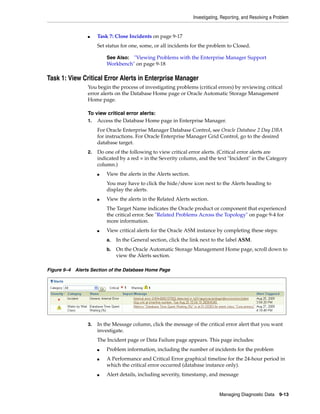
component managed by Oracle Restart. For some components, additional information
is also displayed.
To view component status:
1. Prepare to run SRVCTL as described in "Preparing to Run SRVCTL" on page 4-10.
2. Enter the following command:
srvctl status object [options]
where object is one of the components listed in Table 4–8 on page 4-31. See the
SRVCTL status command on page 4-63 for available options for each component.
Example 4–8 Viewing Status of a Database
This example displays the status of the database with a DB_UNIQUE_NAME of dbcrm.
srvctl status database -d dbcrm
Database is running.
See Also: "SRVCTL Command Reference for Oracle Restart" on
page 4-30
See Also: "SRVCTL Command Reference for Oracle Restart" on
page 4-30
Configuring Oracle Restart
4-16 Oracle Database Administrator's Guide
Viewing the Oracle Restart Configuration for a Component
You can use SRVCTL to view the Oracle Restart configuration for any component.
Oracle Restart maintains different configuration information for each component type.
In one form of the SRVCTL command, you can obtain a list of components managed
by Oracle Restart.
To view component configuration:
1. Prepare to run SRVCTL as described in "Preparing to Run SRVCTL" on page 4-10.
2. Enter the following command:
srvctl config object options
where object is one of the components listed in Table 4–8 on page 4-31. See the
SRVCTL config command on page 4-38 for available options for each component.
Example 4–9 Viewing a List of All Databases Managed by Oracle Restart
srvctl config database
dbcrm
orcl
Example 4–10 Viewing the Configuration of a Particular Database
This example displays the configuration of the database with a DB_UNIQUE_NAME of
orcl.
srvctl config database -d orcl
Database unique name: orcl
Database name: orcl
Oracle home: /u01/app/oracle/product/11.2.0/dbhome_1
Oracle user: oracle
Spfile: +DATA/orcl/spfileorcl.ora
Domain: us.example.com
Start options: open
Stop options: immediate
Database role:
Management policy: automatic
Disk Groups: DATA
Services: mfg,sales
Modifying the Oracle Restart Configuration for a Component
You can use SRVCTL to modify the Oracle Restart configuration of a component. For
example, you can modify the port number that a listener listens on when Oracle
Restart starts it, or the server parameter file (SPFILE) that Oracle Restart points to
when it starts a database.
To modify the Oracle Restart configuration for a component:
1. Prepare to run SRVCTL as described in "Preparing to Run SRVCTL" on page 4-10.
2. Enter the following command:
srvctl modify object options
See Also: "SRVCTL Command Reference for Oracle Restart" on
page 4-30
Configuring Oracle Restart
Configuring Automatic Restart of an Oracle Database 4-17
where object is one of the components listed in Table 4–8 on page 4-31. See the
SRVCTL modify command on page 4-49 for available options for each component.
Example 4–11 Modifying the Oracle Restart Configuration for a Database
For the database with a DB_UNIQUE_NAME of dbcrm, the following command changes the
management policy to MANUAL and the start option to NOMOUNT.
srvctl modify database -d dbcrm -y MANUAL -s NOMOUNT
With a MANUAL management policy, the database is never automatically started when
the database host computer is restarted. However, Oracle Restart continues to monitor
the database and restarts it if a failure occurs.
Managing Environment Variables in the Oracle Restart Configuration
The Oracle Restart configuration can store name/value pairs for environment
variables. If you typically set environment variables (other than ORACLE_HOME and
ORACLE_SID) prior to starting your Oracle database, you can set these environment
variable values in the Oracle Restart configuration. You can store any number
environment variables in the individual configurations of the following components:
■ Database instance
■ Listener
■ Oracle ASM instance
When Oracle Restart starts one of these components, it first sets environment variables
for that component to the values stored in the component configuration. Although you
can set environment variables that are used by Oracle components in this manner, this
capability is primarily intended for operating system environment variables.
The following sections provide instructions for setting, unsetting, and viewing
environment variables:
■ Setting and Unsetting Environment Variables
■ Viewing Environment Variables
Setting and Unsetting Environment Variables
You use SRVCTL to set and unset environment variable values in the Oracle Restart
configuration for a component.
To set or unset environment variables in the configuration:
1. Prepare to run SRVCTL as described in "Preparing to Run SRVCTL" on page 4-10.
2. Do one of the following:
See Also:
■ "Viewing the Oracle Restart Configuration for a Component" on
page 4-16
■ "SRVCTL Command Reference for Oracle Restart" on page 4-30
Note: Do not use this facility to set standard environment variables
like ORACLE_HOME and ORACLE_SID; these are set automatically by
Oracle Restart.
Configuring Oracle Restart
4-18 Oracle Database Administrator's Guide
■ To set an environment variable in the configuration, enter the following
command:
srvctl setenv {asm|database|listener} options
■ To remove an environment variable from the configuration, enter the
following command:
srvctl unsetenv {asm|database|listener} options
See the SRVCTL setenv command on page 4-56 and the unsetenv command on
page 4-71 for available options for each component.
Example 4–12 Setting Database Environment Variables
This example sets the NLS_LANG and the AIX AIXTHREAD_SCOPE environment variables
in the Oracle Restart configuration for the database with a DB_UNIQUE_NAME of dbcrm:
srvctl setenv database -d dbcrm -t "NLS_LANG=AMERICAN_AMERICA.AL32UTF8,
AIXTHREAD_SCOPE=S"
Viewing Environment Variables
You use SRVCTL to view the values of environment variables in the Oracle Restart
configuration for a component.
To view environment variable values in the configuration:
1. Prepare to run SRVCTL as described in "Preparing to Run SRVCTL" on page 4-10.
2. Enter the following command:
srvctl getenv {database|listener|asm} options
See the SRVCTL getenv command on page 4-47 for available options for each
component.
Example 4–13 Viewing All Environment Variables for a Database
This example gets and displays the environment variables in the Oracle Restart
configuration for the database with a DB_UNIQUE_NAME of dbcrm:
srvctl getenv database -d dbcrm
dbcrm:
NLS_LANG=AMERICAN_AMERICA
AIXTHREAD_SCOPE=S
GCONF_LOCAL_LOCKS=1
Example 4–14 Viewing Specific Environment Variables for a Database
This example gets and displays the NLS_LANG and AIXTHREAD_SCOPE environment
variables from the Oracle Restart configuration for the same database:
srvctl getenv database -d dbcrm -t "NLS_LANG,AIXTHREAD_SCOPE"
dbcrm:
NLS_LANG=AMERICAN_AMERICA
AIXTHREAD_SCOPE=S
See Also: "SRVCTL Command Reference for Oracle Restart" on
page 4-30
Configuring Oracle Restart
Configuring Automatic Restart of an Oracle Database 4-19
Creating and Deleting Database Services with SRVCTL
When managing a database with Oracle Restart, Oracle recommends that you use
SRVCTL to create and delete database services. When you use SRVCTL to add a
database service, the service is automatically added to the Oracle Restart configuration
and a dependency between the service and the database is established. Thus, if you
start the service, Oracle Restart first starts the database if it is not started.
When you use SRVCTL to delete a database service, the service is also removed from
the Oracle Restart configuration.
To create a database service with SRVCTL:
1. Prepare to run SRVCTL as described in "Preparing to Run SRVCTL" on page 4-10.
2. Enter the following command:
srvctl add service -d db_unique_name -s service_name [options]
The database service is created and added to the Oracle Restart configuration. See
the srvctl add service command on page 4-36 for available options.
Example 4–15 Creating a Database Service
For the database with the DB_UNIQUE_NAME of dbcrm, this example creates a new
database service named crmbatch.
srvctl add service -d dbcrm -s crmbatch
Example 4–16 Creating a Role-Based Database Service
This example creates the crmbatch database service and assigns it the Data Guard role
of PHYSICAL_STANDBY. The service is automatically started only if the current role of the
dbcrm database is physical standby.
srvctl add service -d dbcrm -s crmbatch -l PHYSICAL_STANDBY
To delete a database service with SRVCTL:
1. Prepare to run SRVCTL as described in "Preparing to Run SRVCTL" on page 4-10.
2. Enter the following command:
srvctl remove service -d db_unique_name -s service_name [-f]
The database service is removed from the Oracle Restart configuration. If the -f
(force) flag is present, the service is removed even if it is still running. Without this
flag, an error occurs if the service is running.
Enabling FAN Events in an Oracle Restart Environment
To enable Oracle Restart to publish Fast Application Notification (FAN) events, you
must create an Oracle Notification Services (ONS) network that includes the Oracle
Restart servers and the integrated clients. These clients can include Oracle Connection
Manager (CMAN), Java Database Connectivity (JDBC), and Universal Connection
Pool (UCP) clients. If you are using Oracle Call Interface or ODP.NET clients, then you
See Also: "SRVCTL Command Reference for Oracle Restart" on
page 4-30
See Also: "SRVCTL Command Reference for Oracle Restart" on
page 4-30
Configuring Oracle Restart
4-20 Oracle Database Administrator's Guide
must enable Oracle Advanced Queuing (AQ) HA notifications for your services. In
addition, ONS must be running on the server.
To enable FAN events in an Oracle Restart environment:
1. Prepare to run SRVCTL as described in "Preparing to Run SRVCTL" on page 4-10.
2. Add the database to the Oracle Restart Configuration if it is not already managed
by Oracle Restart. See "Adding Components to the Oracle Restart Configuration"
on page 4-11.
3. Add ONS to the configuration:
srvctl add ons
ONS is disabled when it is added.
4. Enable ONS:
srvctl enable ons
5. Start ONS:
srvctl start ons
6. Add the service to the Oracle Restart Configuration.
For Oracle Call Interface and ODP.NET clients, ensure that the -q option is set to
TRUE to enable the database queue.
See "Creating and Deleting Database Services with SRVCTL" on page 4-19.
7. Enable each client for fast connection failover. See "Enabling Clients for Fast
Connection Failover" on page 4-21.
Automating the Failover of Connections Between Primary and Standby Databases
In a configuration that uses Oracle Restart and Oracle Data Guard primary and
standby databases, the database services fail over automatically from the primary to
the standby during either a switchover or failover. You can use Oracle Notification
Services (ONS) to immediately notify clients of the failover of services between the
primary and standby databases. The Oracle Data Guard Broker uses Fast Application
Notification (FAN) to send notifications to clients when a failover occurs. Integrated
Oracle clients automatically failover connections and applications can mask the failure
from end-users.
To automate connection failover, you must create an ONS network that includes the
Oracle Restart servers and the integrated clients (CMAN, listener, JDBC, and UCP). If
you are using Oracle Call Interface or ODP.NET clients, you must enable the Oracle
Advanced Queuing queue. The database and the services must be managed by Oracle
Restart and the Oracle Data Guard Broker to automate the failover of services.
To automate the failover of services between primary and standby databases:
1. Configure the primary and standby database with the Oracle Data Guard Broker.
See Oracle Data Guard Broker.
2. Prepare to run SRVCTL as described in "Preparing to Run SRVCTL" on page 4-10.
3. Add the primary database to the Oracle Restart configuration on the primary
server if it has not been added. Ensure that you specify PRIMARY for the database
See Also: "SRVCTL Command Reference for Oracle Restart" on
page 4-30
Configuring Oracle Restart
Configuring Automatic Restart of an Oracle Database 4-21
role. See "Adding Components to the Oracle Restart Configuration" on page 4-11.
4. Add the standby database to the Oracle Restart configuration on the standby
server if it has not been added. Ensure that you specify the appropriate standby
database role.
5. Enable FAN events on both the primary database server and the standby database
server. "Enabling FAN Events in an Oracle Restart Environment" on page 4-19.
6. Add the services that clients will use to connect to the databases to the Oracle
Restart configuration on the primary database and the standby database. When
you add a service, ensure that:
■ The -l option is set to the proper role for each service
■ The -q option is set to TRUE if you are using ODP.NET or Oracle Call Interface
See "Creating and Deleting Database Services with SRVCTL" on page 4-19.
7. Enable each client for fast connection failover. See "Enabling Clients for Fast
Connection Failover" on page 4-21.
Enabling Clients for Fast Connection Failover
In a configuration with a standby database, after you have added Oracle Notification
Services (ONS) to your Oracle Restart configurations and enabled Oracle Advanced
Queuing (AQ) HA notifications for your services, you can enable clients for fast
connection failover. The clients receive Fast Application Notification (FAN) events and
can relocate connections to the current primary database after an Oracle Data Guard
failover. See "Automating the Failover of Connections Between Primary and Standby
Databases" on page 4-20 for information about adding ONS.
For databases with no standby database configured, you can still configure the client
FAN events. When there is a failure, you can configure the client to retry the
connection to the database. Since Oracle Restart will restart the failed database, the
client can reconnect when the database restarts. Ensure that you program the
appropriate delay and retries on the connection string, as illustrated in the examples in
this section.
You can enable fast connection failover for the following types of clients in an Oracle
Restart configuration:
■ Enabling Fast Connection Failover for JDBC Clients
■ Enabling Fast Connection Failover for Oracle Call Interface Clients
■ Enabling Fast Connection Failover for ODP.NET Clients
Enabling Fast Connection Failover for JDBC Clients
Enabling FAN for the Oracle Universal Connection Pool enables Fast Connection
Failover (FCF) for the client. Your application can use either thick or thin JDBC clients
to use FCF.
To configure the JDBC client, set the FastConnectionFailoverEnabled property before
making the first getConnection() request to a data source. When you enable Fast
Connection Failover, the failover applies to every connection in the connection cache.
If your application explicitly creates a connection cache using the Connection Cache
Manager, then you must first set FastConnectionFailoverEnabled.
See Also: "SRVCTL Command Reference for Oracle Restart" on
page 4-30
Configuring Oracle Restart
4-22 Oracle Database Administrator's Guide
This section describes how to enable FCF for JDBC with the Universal Connection
Pool. For thick JDBC clients, if you enable Fast Connection Failover, do not enable
Transparent Application Failover (TAF), either on the client or for the service. Enabling
FCF with thin or thick JDBC clients enables the connection pool to receive and react to
all FAN events.
To enable Fast Connection Failover for JDBC clients:
1. On a cache enabled DataSource, set the DataSource property
FastConnectionFailoverEnabled to true as in the following example to enable
FAN for the Oracle JDBC Implicit Connection Cache:
PoolDataSource pds = PoolDataSourceFactory.getPoolDataSource();
pds.setONSConfiguration("nodes=primaryhost:6200,standbyhost:6200");
pds.setFastConnectionFailoverEnabled(true);
pds.setURL("jdbc:oracle:thin:@(DESCRIPTION=
(LOAD_BALANCE=on)
(ADDRESS=(PROTOCOL=TCP)(HOST=primaryhost)(PORT=1521))
(ADDRESS=(PROTOCOL=TCP)(HOST=standbyhost)(PORT=1521))
(CONNECT_DATA=(service_name=service_name)))");
......
In this example, primaryhost is the server for the primary database, and
standbyhost is the server for the standby database.
Applications must have both ucp.jar and ons.jar in their CLASSPATH.
2. When you start the application, ensure that the ons.jar file is located on the
application CLASSPATH. The ons.jar file is part of the Oracle client installation.
Enabling Fast Connection Failover for Oracle Call Interface Clients
Oracle Call Interface clients can enable Fast Connection Failover (FCF) by registering
to receive notifications about Oracle Restart high availability FAN events and respond
when events occur. This improves the session failover response time in Oracle Call
Interface and removes terminated connections from connection and session pools. This
feature works on Oracle Call Interface applications, including those that use
Transparent Application Failover (TAF), connection pools, or session pools.
First, you must enable a service for high availability events to automatically populate
the Advanced Queuing ALERT_QUEUE. If your application is using TAF, then enable the
TAF settings for the service. Configure client applications to connect to an Oracle
Restart database. Clients can register callbacks that are used whenever an event
occurs. This reduces the time that it takes to detect a connection failure.
During DOWN event processing, Oracle Call Interface:
■ Terminates affected connections at the client and returns an error
■ Removes connections from the Oracle Call Interface connection pool and the
Oracle Call Interface session pool
Note: Use the following system property to enable FAN without
making data source changes: -D
oracle.jdbc.FastConnectionFailover=true.
See Also: Oracle Database JDBC Developer's Guide
Configuring Oracle Restart
Configuring Automatic Restart of an Oracle Database 4-23
The session pool maps each session to a physical connection in the connection
pool, and there can be multiple sessions for each connection.
■ Fails over the connection if you have configured TAF
If TAF is not configured, then the client only receives an error.
To Enable Fast Connection Failover for an Oracle Call Interface client:
1. Ensure that the service that you are using has Advanced Queuing notifications
enabled by setting the services' values using the SRVCTL modify command. For
example:
srvctl modify service -d proddb -s gl.us.example.com -q true -l primary -e
select -m basic -z 5 -w 180 -j long
2. Enable OCI_EVENTS at environment creation time on the client as follows:
( OCIEnvCreate(...) )
3. Link client applications with the client thread or operating system library.
4. Optionally, register a client EVENT callback.
5. Ensure that the client uses an Oracle Net connect descriptor that includes all
primary and standby hosts in the ADDRESS_LIST. For example:
gl =
(DESCRIPTION =
(CONNECT_TIMEOUT=10)(RETRY_COUNT=3)
(ADDRESS_LIST =
(ADDRESS = (PROTOCOL = TCP)(HOST = BOSTON1)(PORT = 1521))
(ADDRESS = (PROTOCOL = TCP)(HOST = CHICAGO1)(PORT = 1521))
(LOAD_BALANCE = yes)
)
(CONNECT_DATA=
(SERVICE_NAME=gl.us.example.com)))
To see the alert information, query the views DBA_OUTSTANDING_ALERTS and DBA_
ALERT_HISTORY.
Enabling Fast Connection Failover for ODP.NET Clients
Oracle Data Provider for .NET (ODP.NET) connection pools can subscribe to
notifications that indicate when services are down. After a DOWN event, Oracle Database
cleans up sessions in the connection pool that go to the instance that stops, and
ODP.NET proactively disposes connections that are no longer valid.
To enable Fast Connection Failover for ODP.NET clients:
1. Enable Advanced Queuing notifications by using SRVCTL modify service
command, as in the following example:
srvctl modify service –d dbname –s gl –q true, -j long
Note: Oracle Call Interface does not manage UP events.
See Also:
■ Oracle Call Interface Programmer's Guide
■ Oracle Database Net Services Administrator's Guide for information
about configuring TAF
Configuring Oracle Restart
4-24 Oracle Database Administrator's Guide
2. Execute the following for the users that will be connecting by way of the .Net
Application, where user_name is the user name:
execute DBMS_AQADM.GRANT_QUEUE_PRIVILEGE('DEQUEUE','SYS.SYS$SERVICE_METRICS',
user_name);
3. Enable Fast Connection Failover for ODP.NET connection pools by subscribing to
FAN high availability events. Set the HA events connection string attribute to true
at connection time. The pooling attribute must be set to true, which is the default.
The following example illustrates these settings, where user_name is the name of
the user and password is the user password:
// C#
using System;
using Oracle.DataAccess.Client;
class HAEventEnablingSample
{
static void Main()
{
OracleConnection con = new OracleConnection();
// Open a connection using ConnectionString attributes
// Also, enable "load balancing"
con.ConnectionString =
"User Id=user_name;Password=password;Data Source=oracle;" +
"Min Pool Size=10;Connection Lifetime=120;Connection Timeout=60;" +
"HA Events=true;Incr Pool Size=5;Decr Pool Size=2";
con.Open();
// Create more connections and perform work against the database here.
// Dispose OracleConnection object
con.Dispose();
}
}
4. Ensure that the client uses an Oracle Net connect descriptor that includes all
primary and standby hosts in the ADDRESS_LIST. For example:
gl =
(DESCRIPTION =
(CONNECT_TIMEOUT=10)(RETRY_COUNT=3)
(ADDRESS_LIST =
(ADDRESS = (PROTOCOL = TCP)(HOST = BOSTON1)(PORT = 1521))
(ADDRESS = (PROTOCOL = TCP)(HOST = CHICAGO1)(PORT = 1521))
(LOAD_BALANCE = yes)
)
(CONNECT_DATA=
(SERVICE_NAME=gl.us.example.com)))
See Also:
■ Oracle Data Provider for .NET Developer's Guide for information
about ODP.NET
■ "SRVCTL Command Reference for Oracle Restart" on page 4-30
Starting and Stopping Components Managed by Oracle Restart
Configuring Automatic Restart of an Oracle Database 4-25
Starting and Stopping Components Managed by Oracle Restart
When Oracle Restart is in use, Oracle strongly recommends that you use the SRVCTL
utility to start and stop components, for the following reasons:
■ When starting a component with SRVCTL, Oracle Restart can first start any
components on which this component depends. When stopping a component with
SRVCTL, Oracle Restart can stop any dependent components first.
■ SRVCTL always starts a component according to its Oracle Restart configuration.
Starting a component by other means may not.
For example, if you specified a server parameter file (SPFILE) location when you
added a database to the Oracle Restart configuration, and that location is not the
default location for SPFILEs, if you start the database with SQL*Plus, the SPFILE
specified in the configuration may not be used.
See the srvctl add database command on page 4-33 for a table of configuration
options for a database instance.
■ When you start a component with SRVCTL, environment variables stored in the
Oracle Restart configuration for the component are set.
See "Managing Environment Variables in the Oracle Restart Configuration" on
page 4-17 for more information.
You can also use Oracle Enterprise Manager Database Control (Database Control) to
start a database managed by Oracle Restart. Both the SRVCTL and Database Control
methods are described in the following sections:
■ Starting and Stopping Components Managed by Oracle Restart with SRVCTL
■ Starting a Database Managed by Oracle Restart with Oracle Enterprise Manager
Starting and Stopping Components Managed by Oracle Restart with SRVCTL
You can start and stop any component managed by Oracle Restart with SRVCTL.
To start or stop a component managed by Oracle Restart with SRVCTL:
1. Prepare to run SRVCTL as described in "Preparing to Run SRVCTL" on page 4-10.
2. Do one of the following:
■ To start a component, enter the following command:
srvctl start object [options]
■ To stop a component, enter the following command:
srvctl stop object [options]
where object is one of the components listed in Table 4–8 on page 4-31. See the
SRVCTL start command on page 4-59 and the stop command on page 4-67 for
available options for each component.
Example 4–17 Starting a Database
This example starts the database with a DB_UNIQUE_NAME of dbcrm:
srvctl start database -d dbcrm
Example 4–18 Starting a Database NOMOUNT
This example starts the database instance without mounting the database:
Starting and Stopping Components Managed by Oracle Restart
4-26 Oracle Database Administrator's Guide
srvctl start database -d dbcrm -o nomount
Example 4–19 Starting the Default Listener
This example starts the default listener:
srvctl start listener
Example 4–20 Starting a Specified Listener
This example starts the listener named crmlistener:
srvctl start listener -l crmlistener
Example 4–21 Starting Database Services
This example starts the database services bizdev and support for the database with a
DB_UNIQUE_NAME of dbcrm. If the database is not started, Oracle Restart first starts the
database.
srvctl start service -d dbcrm -s "bizdev,support"
Example 4–22 Starting (Mounting) Oracle ASM Disk Groups
This example starts (mounts) the Oracle ASM disk groups data and recovery. The
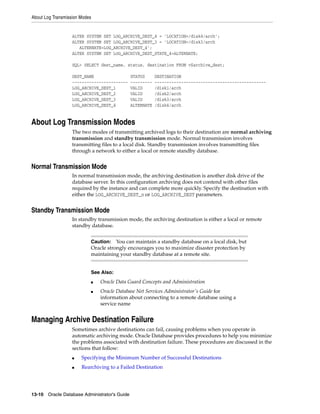
user running this command must be a member of the OSASM group.
srvctl start diskgroup -g "data,recovery"
Example 4–23 Shutting Down a Database
This example stops (shuts down) the database with a DB_UNIQUE_NAME of dbcrm.
Because a stop option (-o) is not provided, the database shuts down according to the
stop option in its Oracle Restart configuration. The default stop option is IMMEDIATE.
srvctl stop database -d dbcrm
Example 4–24 Shutting Down a Database with the ABORT option
This example does a SHUTDOWN ABORT of the database with a DB_UNIQUE_NAME of dbcrm.
srvctl stop database -d dbcrm -o abort
Starting a Database Managed by Oracle Restart with Oracle Enterprise Manager
With Oracle Enterprise Manager Database Control (Database Control), you can use
Oracle Restart to start a database.
To start a database managed by Oracle Restart with Oracle Enterprise Manager:
1. Access the Database Home page for the desired database instance.
See "Accessing the Database Home Page" in Oracle Database 2 Day DBA for
instructions.
2. Click Startup.
The Startup/Shutdown Credentials page appears.
3. Enter credentials as follows:
a. Enter the host computer credentials for the user who installed the database
Oracle home.
See Also: The SRVCTL start command on page 4-59
Stopping and Restarting Oracle Restart for Maintenance Operations
Configuring Automatic Restart of an Oracle Database 4-27
b. Enter the database credentials consisting of the user name SYS and the
password that you assigned to SYS during the installation.
c. In the Connect As list, choose the value SYSOPER.
4. (Optional) Select the Save as Preferred Credential option if you want these
credentials to be automatically filled in for you the next time that this page
appears.
5. Click OK.
The Select Startup Type page appears.
6. To start the database with Oracle Restart, select Start database along with
dependent resources.
This ensures that resources on which the database depends, such as the Oracle
Automatic Storage Management instance, are successfully started before the
database is started.
7. Click OK.
A confirmation page appears.
8. Click Yes.
The Startup/Shutdown: Activity Information page appears, indicating that the
database is being started up. When startup is complete, the Login page appears.
9. Log in to the database (and to Database Control).
The Database Home page appears indicating that the database instance status is
Up.
Stopping and Restarting Oracle Restart for Maintenance Operations
When several components in an Oracle home are managed by Oracle Restart, you can
stop Oracle Restart and the components managed by Oracle Restart in the Oracle
home. You can also disable Oracle Restart so that it is not restarted if the node reboots.
You might need to do this when you are performing maintenance that includes the
Oracle home, such as installing a patch. When the maintenance operation is complete,
you can enable and restart Oracle Restart, and you can restart the components
managed by Oracle Restart in the Oracle home.
Use both the SRVCTL utility and the CRSCTL utility for the stop and start operations:
■ The stop home SRVCTL command stops all of the components that are managed
by Oracle Restart in the specified Oracle home. The start home SRVCTL command
starts these components. The Oracle home can be an Oracle Database home or an
Oracle Grid Infrastructure home.
When you use the home object, a state file, specified in the -s option, tracks the
state of each component. The stop and status commands create the state file. The
start command uses the state file to identify the components to restart.
In addition, you can check the status of the components managed by Oracle
Restart using the status home command.
■ The stop CRSCTL command stops Oracle Restart, and the disable CRSCTL
command ensures that the components managed by Oracle Restart do not restart
automatically. The enable CRSCTL command enables automatic restart and the
start CRSCTL command restarts Oracle Restart.
To stop and start the components in an Oracle home while installing a patch:
Stopping and Restarting Oracle Restart for Maintenance Operations
4-28 Oracle Database Administrator's Guide
1. Prepare to run SRVCTL as described in "Preparing to Run SRVCTL" on page 4-10.
2. Use the SRVCTL utility to stop the components managed by Oracle Restart in an
Oracle home:
srvctl stop home -o oracle_home -s state_file [-t stop_options] [-f]
where oracle_home is the complete path of the Oracle home and state_file is the
complete path to the state file. State information for the Oracle home is recorded in
the specified state file. Make a note of the state file location because it must be
specified in Step 7.
Before stopping the components in an Oracle Grid Infrastructure home, ensure
that you first stop the components in a dependent Oracle Database home.
3. If you are patching an Oracle Grid Infrastructure home, then disable and stop
Oracle Restart. Otherwise, go to Step 4.
To disable and stop Oracle Restart, use the CRSCTL utility to run the following
commands:
crsctl disable has
crsctl stop has
4. Perform the maintenance operation.
5. Use the CRSCTL utility to enable automatic restart of the components managed by
Oracle Restart:
crsctl enable has
6. Use the CRSCTL utility to start Oracle Restart:
crsctl start has
7. Use the SRVCTL utility to start the components that were stopped in Step 2:
srvctl start home -o oracle_home -s state_file
The state file must match the state file specified in Step 2.
8. Optionally, use the SRVCTL utility to check the status of the components managed
by Oracle Restart in the Oracle home:
srvctl status home -o oracle_home -s state_file
Example 4–25 Stopping Components Managed by Oracle Restart in an Oracle Home
srvctl stop home -o /u01/app/oracle/product/11.2.0/dbhome_1 -s /usr1/or_state
Example 4–26 Starting Components Managed by Oracle Restart in an Oracle Home
srvctl start home -o /u01/app/oracle/product/11.2.0/dbhome_1 -s /usr1/or_state
Example 4–27 Displaying the Status of Components Managed by Oracle Restart in an
Oracle Home
srvctl status home -o /u01/app/oracle/product/11.2.0/dbhome_1 -s /usr1/or_state
Stopping and Restarting Oracle Restart for Maintenance Operations
Configuring Automatic Restart of an Oracle Database 4-29
See Also:
■ The srvctl stop home command on page 4-68
■ The srvctl status home command on page 4-64
■ The srvctl start home command on page 4-61
■ "CRSCTL Command Reference" on page 4-73
SRVCTL Command Reference for Oracle Restart
4-30 Oracle Database Administrator's Guide
SRVCTL Command Reference for Oracle Restart
This section provides details about the syntax and options for SRVCTL commands
specific to Oracle Restart. See Oracle Real Application Clusters Administration and
Deployment Guide for the full list of SRVCTL commands.
SRVCTL Command Syntax and Options Overview
SRVCTL expects the following command syntax:
srvctl command object options
where:
■ command is a verb such as start, stop, or remove. See Table 4–7 on page 4-30 for a
complete list.
■ object is the component on which SRVCTL performs the command, such as
database, listener, and so on. You can also use component abbreviations. See
Table 4–8 on page 4-31 for a complete list of components and their abbreviations.
■ options extend the use of a preceding command combination to include
additional parameters for the command. For example, the -d option indicates that
a database unique name follows, and the -s option indicates that a
comma-delimited list of database service names follows.
Case Sensitivity SRVCTL commands and components are case insensitive. Options
are case sensitive. Database and database service names are case insensitive and case
preserving.
Note: On the Windows platform, when specifying a
comma-delimited list, you must enclose the list within double-quotes
("...,..."). You must also use double-quotes on the UNIX and Linux
platforms if any list member contains shell metacharacters.
Table 4–7 Summary of SRVCTL Commands
Command Description
add on page 4-32 Adds a component to the Oracle Restart configuration.
config on page 4-38 Displays the Oracle Restart configuration for a component.
disable on page 4-41 Disables management by Oracle Restart for a component.
enable on page 4-44 Reenables management by Oracle Restart for a component.
getenv on page 4-47 Displays environment variables in the Oracle Restart configuration
for a database, Oracle ASM instance, or listener.
modify on page 4-49 Modifies the Oracle Restart configuration for a component.
remove on page 4-53 Removes a component from the Oracle Restart configuration.
setenv on page 4-56 Sets environment variables in the Oracle Restart configuration for a
database, Oracle ASM instance, or listener.
start on page 4-59 Starts the specified component.
status on page 4-63 Displays the running status of the specified component.
stop on page 4-67 Stops the specified component.
SRVCTL Command Reference for Oracle Restart
Configuring Automatic Restart of an Oracle Database 4-31
SRVCTL Components Summary
Table 4–8 lists the keywords that can be used for the object portion of SRVCTL
commands. You can use either the full name or the abbreviation for each component
keyword.
unsetenv on page 4-71 Unsets environment variables in the Oracle Restart configuration for a
database, Oracle ASM instance, or listener.
Table 4–8 Component Keywords and Abbreviations
Component Abbreviation Description
asm asm Oracle ASM instance
database db Database instance
diskgroup dg Oracle ASM disk group
filesystem filesystem Oracle ASM file system
home home Oracle home or Oracle Clusterware home
listener lsnr Oracle Net listener
service serv Database service
ons ons Oracle Notification Services (ONS)
See Also: Table 4–1, " Oracle Components Automatically Restarted
by Oracle Restart" on page 4-2
Table 4–7 (Cont.) Summary of SRVCTL Commands
Command Description
add
4-32 Oracle Database Administrator's Guide
add
The srvctl add command adds the specified component to the Oracle Restart
configuration, and optionally sets Oracle Restart configuration parameters for the
component. After a component is added, Oracle Restart begins to manage it, restarting
it when required.
To perform srvctl add operations, you must be logged in to the database host
computer with the proper user account. See "Preparing to Run SRVCTL" on page 4-10
for more information.
srvctl add asm
Adds an Oracle ASM instance to the Oracle Restart configuration.
Syntax and Options
Use the srvctl add asm command with the following syntax:
srvctl add asm [-l listener_name [-p spfile] [-d asm_diskstring]
]
Table 4–9 srvctl add Summary
Command Description
srvctl add asm on page 4-32 Adds an Oracle ASM instance.
srvctl add database on page 4-33 Adds a database.
srvctl add listener on page 4-35 Adds a listener.
srvctl add ons on page 4-35 Adds an ONS (used by Oracle Data Guard
configurations with Oracle Data Guard Broker).
srvctl add service on page 4-36 Adds a database service managed by Oracle
Restart.
Note: There is no srvctl add command for Oracle ASM disk groups.
Disk groups are automatically added to the Oracle Restart
configuration when they are first mounted. If you remove a disk
group from the Oracle Restart configuration and later want to add it
back, connect to the Oracle ASM instance with SQL*Plus and use an
ALTER DISKGROUP ... MOUNT command.
Table 4–10 srvctl add asm Options
Option Description
-l listener_name Name of the listener with which Oracle ASM should register.
A weak dependency is established with this listener. (Before
starting the Oracle ASM instance, Oracle Restart attempts to
start the listener. If the listener does not start, the Oracle ASM
instance is still started. If the listener later fails, Oracle Restart
does not restart Oracle ASM.)
If omitted, defaults to the listener named listener.
-p spfile The full path of the server parameter file for the database. If
omitted, the default SPFILE is used.
SRVCTL Command Reference for Oracle Restart
Configuring Automatic Restart of an Oracle Database 4-33
Example
An example of this command is:
srvctl add asm -l crmlistener
srvctl add database
Adds a database to the Oracle Restart configuration.
After adding a database to the Oracle Restart configuration, if the database then
accesses data in an Oracle ASM disk group, a dependency between the database that
disk group is created. Oracle Restart then ensures that the disk group is mounted
before attempting to start the database.
However, if the database and Oracle ASM instance are not running when you add the
database to the Oracle Restart configuration, you must manually establish the
dependency between the database and its disk groups by specifying the -a option in
the SRVCTL command. See the example later in this section.
Syntax and Options
Use the srvctl add database command with the following syntax:
srvctl add database -d db_unique_name -o oracle_home [-m domain_name]
[-c {RACONENODE | RAC | SINGLE}] [-n db_name] [-i instance_name]
[-p spfile] [-s start_options] [-t stop_options]
[-r {PRIMARY | PHYSICAL_STANDBY | LOGICAL_STANDBY | SNAPSHOT_STANDBY}]
[-y {automatic | manual}] [-a disk_group_list]
-d asm_diskstring Oracle ASM disk group discovery string. An Oracle ASM
discovery string is a comma-delimited list of strings that limits
the set of disks that an Oracle ASM instance discovers. The
discovery strings can include wildcard characters. Only disks
that match one of the strings are discovered.
See Also: Oracle Automatic Storage Management Administrator's Guide
for more information about Oracle ASM disk group discovery strings
Note: When you manually add a database to the Oracle Restart
configuration, you must also add the Oracle grid infrastructure
software owner as a member of the OSDBA group of that database.
This is because the grid infrastructure components must be able to
connect to the database as SYSDBA to start and stop the database.
For example, if the host user who installed the grid infrastructure
home is named grid and the OSDBA group of the new database is
named dba, then user grid must be a member of the dba group.
Table 4–10 (Cont.) srvctl add asm Options
Option Description
add
4-34 Oracle Database Administrator's Guide
Table 4–11 srvctl add database Options
Option Description
-d db_unique_name Unique name for the database. Must match the DB_
UNIQUE_NAME initialization parameter setting. If DB_
UNIQUE_NAME is unspecified, then this option must
match the DB_NAME initialization parameter setting.
The default setting for DB_UNIQUE_NAME uses the
setting for DB_NAME.
-o Oracle_home The full path of Oracle home for the database.
-m domain_name The domain for the database. Must match the DB_
DOMAIN initialization parameter
-c {RACONENODE | RAC | SINGLE} The type of database you are adding: Oracle RAC
One Node, Oracle RAC, or single instance. The
default is RAC unless you specify the -x node_name
option, and the -c option defaults to SINGLE.
When adding a database to the Oracle Restart
configuration, SINGLE must be specified.
-n db_name If provided, must match the DB_NAME initialization
parameter setting. You must include this option if DB_
NAME is different from the unique name given by the
-d option
-i instance_name The instance name. You must include this option if
the instance name is different from the unique name
given by the -d option
Note: The -i option is available only with Oracle
Database release 11.2.0.3 or later databases.
-p spfile The full path of the server parameter file for the
database. If omitted, the default SPFILE is used.
-s start_options Startup options for the database (OPEN, MOUNT, or
NOMOUNT). If omitted, defaults to OPEN.
-t stop_options Shutdown options for the database (NORMAL,
IMMEDIATE, TRANSACTIONAL, or ABORT). If omitted,
defaults to IMMEDIATE.
-r {PRIMARY | PHYSICAL_STANDBY |
LOGICAL_STANDBY | SNAPSHOT_
STANDBY}
The current role of the database (PRIMARY, PHYSICAL_
STANDBY, SNAPSHOT_STANDBY, or LOGICAL_STANDBY).
Applicable in Oracle Data Guard environments only.
-y {AUTOMATIC | MANUAL} Management policy for the database. If AUTOMATIC
(the default), the database is automatically restored to
its previous running condition (started or stopped)
upon restart of the database host computer. If MANUAL,
the database is never automatically restarted upon
restart of the database host computer. A MANUAL
setting does not prevent Oracle Restart from
monitoring the database while it is running and
restarting it if a failure occurs.
-a disk_group_list List of disk groups upon which the database is
dependent. When starting the database, Oracle
Restart first ensures that these disk groups are
mounted. This option is required only if the database
instance and the Oracle ASM instance are not started
when adding the database. Otherwise, the
dependency is recorded automatically between the
database and its disk groups.
SRVCTL Command Reference for Oracle Restart
Configuring Automatic Restart of an Oracle Database 4-35
Examples
This example adds the database with the DB_UNIQUE_NAME dbcrm:
srvctl add database -d dbcrm -o /u01/app/oracle/product/11.2.0/dbhome_1
This example adds the same database and also establishes a dependency between the
database and the disk groups DATA and RECOVERY.
srvctl add database -d dbcrm -o /u01/app/oracle/product/11.2.0/dbhome_1
-a "DATA,RECOVERY"
srvctl add listener
Adds a listener to the Oracle Restart configuration.
Syntax and Options
Use the srvctl add listener command with the following syntax:
srvctl add listener [-l listener_name] [-p endpoints] [-s] [-o Oracle_home]
Example
The following command adds a listener (named LISTENER) running out of the database
Oracle home and listening on TCP port 1522:
srvctl add listener -p TCP:1522 -o /u01/app/oracle/product/11.2.0/dbhome_1
srvctl add ons
Adds an ONS to an Oracle Restart configuration.
ONS must be added to an Oracle Restart configuration to enable the sending of Fast
Application Notification (FAN) events after an Oracle Data Guard failover.
When ONS is added to an Oracle Restart configuration, it is initially disabled. You can
enable it with the srvctl enable ons command.
Syntax and Options
Use the srvctl add ons command with the following syntax:
See Also:
■ "Oracle Restart Integration with Oracle Data Guard" on page 4-5
■ Oracle Data Guard Concepts and Administration
Table 4–12 srvctl add listener Options
Option Description
-l listener_name Listener name. If omitted, defaults to LISTENER
-p endpoints Comma separated TCP ports or listener endpoints. If omitted,
defaults to TCP:1521. endpoints syntax is:
"[TCP:]port[, ...] [/IPC:key] [/NMP:pipe_name]
[/TCPS:s_port] [/SDP:port]"
-s Skip checking for port conflicts with the supplied endpoints
-o Oracle_home Oracle home for the listener. If omitted, the Oracle Grid
Infrastructure home is assumed.
See Also: "srvctl enable ons" on page 4-45
add
4-36 Oracle Database Administrator's Guide
srvctl add ons [-e em_port] [-l ons_local_port] [-r ons_remote_port] [-t
host[:port],[host[:port]...]] [-v]
srvctl add service
Adds a database service to the Oracle Restart configuration. Creates the database
service if it does not exist. This method of creating a service is preferred over using the
DBMS_SERVICE PL/SQL package.
Syntax and Options
Use the srvctl add service command with the following syntax:
srvctl add service -d db_unique_name -s service_name
[-l [PRIMARY][,PHYSICAL_STANDBY][,LOGICAL_STANDBY][,SNAPSHOT_STANDBY]]
[-y {AUTOMATIC | MANUAL}] [-e {NONE | SESSION | SELECT}] [-m {NONE | BASIC}]
[-w integer] [-z integer] [-j {SHORT | LONG}]
[-B {SERVICE_TIME | THROUGHPUT | NONE}] [-q {TRUE | FALSE}] -t edition_name
Table 4–13 srvctl add ons Options
Option Description
-e em_port ONS listening port for Oracle Enterprise Manager. The default is
2016.
-l ons_local_port ONS listening port for local client connections. The default is
6100.
-r ons_remote_port ONS listening port for connections from remote hosts. The
default is 6200.
-t
host[:port],[host[:port]
,...
A list of host:port pairs of remote hosts that are part of the ONS
network
Note: If port is not specified for a remote host, then ons_remote_
port is used.
-v Verbose output
Table 4–14 srvctl add service Options
Option Description
-d db_unique_name Unique name for the database. Must match the DB_UNIQUE_
NAME initialization parameter setting. If DB_UNIQUE_NAME is
unspecified, then this option must match the DB_NAME
initialization parameter setting. The default setting for DB_
UNIQUE_NAME uses the setting for DB_NAME.
-s service_name The database service name
-l [PRIMARY][,PHYSICAL_
STANDBY][,LOGICAL_
STANDBY][,SNAPSHOT_STANDBY]
A list of service roles. Applicable in Oracle Data Guard
environments only. When this option is present, upon
database startup, the service is started only when one of its
service roles matches the current database role.
-y {AUTOMATIC | MANUAL} Management policy for the service. If AUTOMATIC (the default),
the service is automatically started upon restart of the
database, either by a planned restart (with SRVCTL) or after a
failure. Automatic restart is also subject to the service role,
however (the -l option). If MANUAL, the service is never
automatically restarted upon planned restart of the database
(with SRVCTL). A MANUAL setting does not prevent Oracle
Restart from monitoring the service when it is running and
restarting it if a failure occurs.
SRVCTL Command Reference for Oracle Restart
Configuring Automatic Restart of an Oracle Database 4-37
Example
This example adds the sales service for the database with DB_UNIQUE_NAME dbcrm. The
service is started only when dbcrm is in PRIMARY mode.
srvctl add service -d dbcrm -s sales -l PRIMARY
-e {NONE |SESSION | SELECT} Failover type. For standalone servers, applicable in Oracle
Data Guard environments only.
-m {NONE | BASIC} Failover method. For standalone servers, applicable in Oracle
Data Guard environments only.
-w integer Failover delay. For standalone servers, applicable in Oracle
Data Guard environments only.
-z integer Failover retries. For standalone servers, applicable in Oracle
Data Guard environments only.
-j {SHORT | LONG} Connection load balancing goal
-B {SERVICE_TIME |
THROUGHPUT | NONE}
Run-time load balancing goal
-q {TRUE | FALSE} Send Oracle Advanced Queuing (AQ) HA notifications. For
standalone servers, applicable in Oracle Data Guard
environments only.
-t edition_name The initial session edition of the service
When an edition is specified for a service, all subsequent
connections that specify the service use this edition as the
initial session edition. However, if a session connection
specifies a different edition, then the edition specified in the
session connection is used for the initial session edition.
SRVCTL does not validate the specified edition name. During
connection, the connect user must have USE privilege on the
specified edition. If the edition does not exist or if the connect
user does not have USE privilege on the specified edition, then
an error is raised.
See Also:
■ The section in Oracle Database PL/SQL Packages and Types Reference
on the DBMS_SERVICE package for more information about the
options for this command
■ "Oracle Restart Integration with Oracle Data Guard" on page 4-5
■ Oracle Data Guard Concepts and Administration
Table 4–14 (Cont.) srvctl add service Options
Option Description
config
4-38 Oracle Database Administrator's Guide
config
The srvctl config command displays the Oracle Restart configuration of the specified
component or set of components.
srvctl config asm
Displays the Oracle Restart configuration information for the Oracle ASM instance.
Syntax and Options
Use the srvctl config asm command with the following syntax:
srvctl config asm [-a]
Example
An example of this command is:
srvctl config asm -a
asm home: /u01/app/oracle/product/11.2.0/grid
ASM is enabled.
srvctl config database
Displays the Oracle Restart configuration information for the specified database, or
lists all databases managed by Oracle Restart.
Syntax and Options
Use the srvctl config database command with the following syntax:
srvctl config database [-d db_unique_name [-a]]
Table 4–15 srvctl config Summary
Command Description
srvctl config asm on page 4-38 Displays the Oracle Restart configuration information
for the Oracle ASM instance
srvctl config database on page 4-38 Displays the Oracle Restart configuration information
for the specified database, or lists all databases managed
by Oracle Restart
srvctl config listener on page 4-39 Displays the Oracle Restart configuration information
for all listeners or for the specified listener
srvctl config ons on page 4-40 Displays the current configuration information for ONS.
srvctl config service on page 4-40 For the specified database, displays the Oracle Restart
configuration information for the specified database
service or for all database services
Table 4–16 srvctl config asm Options
Option Description
-a Display enabled/disabled status also
SRVCTL Command Reference for Oracle Restart
Configuring Automatic Restart of an Oracle Database 4-39
Examples
An example of this command to list all Oracle Restart–managed databases is:
srvctl config database
dbcrm
orcl
An example of this command to display configuration and enabled/disabled status for
the database with the DB_UNIQUE_ID orcl is:
srvctl config database -d orcl -a
Database unique name: orcl
Database name: orcl
Oracle home: /u01/app/oracle/product/11.2.0/dbhome_1
Oracle user: oracle
Spfile: +DATA/orcl/spfileorcl.ora
Domain: us.example.com
Start options: open
Stop options: immediate
Database role:
Management policy: automatic
Disk Groups: DATA
Services: mfg,sales
Database is enabled
srvctl config listener
Displays the Oracle Restart configuration information for all Oracle Restart–managed
listeners or for the specified listener.
Syntax and Options
Use the srvctl config listener command with the following syntax:
srvctl config listener [-l listener_name]
Example
This example displays the configuration information and enabled/disabled status for
the default listener:
srvctl config listener
Table 4–17 srvctl config database Options
Option Description
-d db_unique_name Unique name for the database. Must match the DB_UNIQUE_NAME
initialization parameter setting. If DB_UNIQUE_NAME is unspecified,
then this option must match the DB_NAME initialization parameter
setting. The default setting for DB_UNIQUE_NAME uses the setting for
DB_NAME.
-a Display enabled/disabled status also
Table 4–18 srvctl config listener Options
Option Description
-l listener_name Listener name. If omitted, configuration information for all Oracle
Restart–managed listeners is displayed.
config
4-40 Oracle Database Administrator's Guide
Name: LISTENER
Home: /u01/app/oracle/product/11.2.0/dbhome_1
End points: TCP:1521
Listener is enabled.
srvctl config ons
Displays the current configuration information for ONS.
Syntax and Options
Use the srvctl config ons command with the following syntax:
srvctl config ons
srvctl config service
For the specified database, displays the Oracle Restart configuration information for
the specified database service or for all Oracle Restart–managed database services.
Syntax and Options
Use the srvctl config service command with the following syntax:
srvctl config service -d db_unique_name [-s service_name] [-a]
Example
An example of this command is:
srvctl config service -d dbcrm -s sales
Service name: sales
Service is enabled
Cardinality: SINGLETON
Disconnect: true
Service role: PRIMARY
Management policy: automatic
DTP transaction: false
AQ HA notifications: false
Failover type: NONE
Failover method: NONE
TAF failover retries: 0
TAF failover delay: 0
Connection Load Balancing Goal: NONE
Runtime Load Balancing Goal: NONE
TAF policy specification: NONE
Edition: e2
Table 4–19 srvctl config service Options
Option Description
-d db_unique_name Unique name for the database. Must match the DB_UNIQUE_NAME
initialization parameter setting. If DB_UNIQUE_NAME is unspecified,
then this option must match the DB_NAME initialization parameter
setting. The default setting for DB_UNIQUE_NAME uses the setting for
DB_NAME.
-s service_name Database service name. If omitted, SRVCTL displays configuration
information for all Oracle Restart–managed services for the
database
-a Display detailed configuration information
SRVCTL Command Reference for Oracle Restart
Configuring Automatic Restart of an Oracle Database 4-41
disable
Disables a component, which suspends management of that component by Oracle
Restart. The srvctl disable command is intended to be used when a component must
be repaired or shut down for maintenance, and should not be restarted automatically.
When you disable a component:
■ It is no longer automatically restarted.
■ It is no longer automatically started through a dependency.
■ It cannot be started with SRVCTL.
To perform srvctl disable operations, you must be logged in to the database host
computer with the proper user account. See "Preparing to Run SRVCTL" on page 4-10
for more information.
srvctl disable asm
Disables the Oracle ASM instance.
Syntax and Options
Use the srvctl disable asm command with the following syntax:
srvctl disable asm
srvctl disable database
Disables the specified database.
Syntax and Options
Use the srvctl disable database command with the following syntax:
srvctl disable database -d db_unique_name
See Also: The enable command on page 4-44
Table 4–20 srvctl disable Summary
Command Description
srvctl disable asm on page 4-41 Disables the Oracle ASM instance
srvctl disable database on page 4-41 Disables a database
srvctl disable diskgroup on page 4-42 Disables an Oracle ASM disk group
srvctl disable listener on page 4-42 Disables the specified listener or all listeners
srvctl disable ons on page 4-42 Disables ONS
srvctl disable service on page 4-43 Disables one or more database services for the
specified database
Table 4–21 srvctl disable database Options
Option Description
-d db_unique_name Unique name for the database. Must match the DB_UNIQUE_NAME
initialization parameter setting. If DB_UNIQUE_NAME is
unspecified, then this option must match the DB_NAME
initialization parameter setting. The default setting for DB_
UNIQUE_NAME uses the setting for DB_NAME.
disable
4-42 Oracle Database Administrator's Guide
Example
An example of this command is:
srvctl disable database -d dbcrm
srvctl disable diskgroup
Disables an Oracle ASM disk group.
Syntax and Options
Use the srvctl disable diskgroup command with the following syntax:
srvctl disable diskgroup -g diskgroup_name
Example
An example of this command is:
srvctl disable diskgroup -g DATA
srvctl disable listener
Disables the specified listener or all listeners.
Syntax and Options
Use the srvctl disable listener command with the following syntax:
srvctl disable listener [-l listener_name]
Example
An example of this command is:
srvctl disable listener -l crmlistener
srvctl disable ons
Disables ONS.
Syntax and Options
Use the srvctl disable ons command with the following syntax:
srvctl disable ons -v
Table 4–22 srvctl disable diskgroup Options
Option Description
-g diskgroup_name Disk group name
Table 4–23 srvctl disable listener Options
Option Description
-l listener_name Listener name. If omitted, all listeners are disabled.
Table 4–24 srvctl disable ons Options
Option Description
-v Verbose output
SRVCTL Command Reference for Oracle Restart
Configuring Automatic Restart of an Oracle Database 4-43
srvctl disable service
Disables one or more database services.
Syntax and Options
Use the srvctl disable service command with the following syntax:
srvctl disable service -d db_unique_name -s service_name_list
Example
The following example disables the database service sales and mfg:
srvctl disable service -d dbcrm -s sales,mfg
Table 4–25 srvctl disable service Options
Option Description
-d db_unique_name Unique name for the database. Must match the
DB_UNIQUE_NAME initialization parameter setting.
If DB_UNIQUE_NAME is unspecified, then this
option must match the DB_NAME initialization
parameter setting. The default setting for DB_
UNIQUE_NAME uses the setting for DB_NAME.
-s service_name_list Comma-delimited list of database service
names
enable
4-44 Oracle Database Administrator's Guide
enable
The srvctl enable command reenables the specified disabled component so that:
■ Oracle Restart can automatically restart it.
■ It can be automatically started through a dependency.
■ You can start it manually with SRVCTL.
If the component is already enabled, then the command is ignored.
When you add a component to the Oracle Restart configuration, it is enabled by
default.
To perform srvctl enable operations, you must be logged in to the database host
computer with the proper user account. See "Preparing to Run SRVCTL" on page 4-10
for more information.
srvctl enable asm
Enables an Oracle ASM instance.
Syntax and Options
Use the srvctl enable asm command with the following syntax:
srvctl enable asm
srvctl enable database
Enables the specified database.
Syntax and Options
Use the srvctl enable database command with the following syntax:
srvctl enable database -d db_unique_name
Table 4–26 srvctl enable Summary
Command Description
srvctl enable asm on page 4-44 Enables an Oracle ASM instance.
srvctl enable database on page 4-44 Enables a database.
srvctl enable diskgroup on page 4-45 Enables an Oracle ASM disk group.
srvctl enable listener on page 4-45 Enables the specified listener or all listeners.
srvctl enable ons on page 4-45 Enables ONS.
srvctl enable service on page 4-46 Enables one or more database services for the specified
database.
See Also: The disable command on page 4-41
SRVCTL Command Reference for Oracle Restart
Configuring Automatic Restart of an Oracle Database 4-45
Example
An example of this command is:
srvctl enable database -d dbcrm
srvctl enable diskgroup
Enables an Oracle ASM disk group.
Syntax and Options
Use the srvctl enable diskgroup command with the following syntax:
srvctl enable diskgroup -g diskgroup_name
Example
An example of this command is:
srvctl enable diskgroup -g DATA
srvctl enable listener
Enables the specified listener or all listeners.
Syntax and Options
Use the srvctl enable listener command with the following syntax:
srvctl enable listener [-l listener_name]
Example
An example of this command is:
srvctl enable listener -l crmlistener
srvctl enable ons
Enables ONS.
Syntax and Options
Use the srvctl enable ons command with the following syntax:
Table 4–27 srvctl enable database Options
Option Description
-d db_unique_name Unique name for the database. Must match the DB_UNIQUE_NAME
initialization parameter setting. If DB_UNIQUE_NAME is
unspecified, then this option must match the DB_NAME
initialization parameter setting. The default setting for DB_
UNIQUE_NAME uses the setting for DB_NAME.
Table 4–28 srvctl enable diskgroup Options
Option Description
-g diskgroup_name Disk group name
Table 4–29 srvctl enable listener Options
Option Description
-l listener_name Listener name. If omitted, all listeners are enabled.
enable
4-46 Oracle Database Administrator's Guide
srvctl enable ons -v
srvctl enable service
Enables one or more database services for the specified database.
Syntax and Options
Use the srvctl enable service command with the following syntax:
srvctl enable service -d db_unique_name -s service_name_list
Examples
The following example enables the database services sales and mfg in the database
with DB_UNIQUE_NAME dbcrm:
srvctl enable service -d dbcrm -s "sales,mfg"
Table 4–30 srvctl enable ons Options
Option Description
-v Verbose output
Table 4–31 srvctl enable service Options
Option Description
-d db_unique_name Unique name for the database. Must match the DB_UNIQUE_
NAME initialization parameter setting. If DB_UNIQUE_NAME is
unspecified, then this option must match the DB_NAME
initialization parameter setting. The default setting for DB_
UNIQUE_NAME uses the setting for DB_NAME.
-s service_name_list Comma-delimited list of database service names
SRVCTL Command Reference for Oracle Restart
Configuring Automatic Restart of an Oracle Database 4-47
getenv
Gets and displays environment variables and their values from the Oracle Restart
configuration for a database, listener, or Oracle ASM instance.
srvctl getenv asm
Displays the configured environment variables for the Oracle ASM instance.
Syntax and Options
Use the srvctl getenv asm command with the following syntax:
srvctl getenv asm [-t name_list]
Example
The following example displays all configured environment variables for the Oracle
ASM instance:
srvctl getenv asm
srvctl getenv database
Displays the configured environment variables for the specified database.
Syntax and Options
Use the srvctl getenv database command with the following syntax:
srvctl getenv database -d db_unique_name [-t name_list]
Table 4–32 srvctl getenv Summary
Command Description
srvctl getenv asm on page 4-47 Displays the configured environment variables for
the Oracle ASM instance
srvctl getenv database on page 4-47 Displays the configured environment variables for
the specified database instance
srvctl getenv listener on page 4-48 Displays the configured environment variables for
the specified listener
See Also:
■ setenv command on page 4-56
■ unsetenv command on page 4-71
■ "Managing Environment Variables in the Oracle Restart
Configuration" on page 4-17
Table 4–33 srvctl getenv asm Options
Options Description
-t name_list Comma-delimited list of names of environment variables to
display. If omitted, SRVCTL displays all configured environment
variables for Oracle ASM.
getenv
4-48 Oracle Database Administrator's Guide
Example
The following example displays all configured environment variables for the database
with DB_UNIQUE_NAME dbcrm:
srvctl getenv database -d dbcrm
srvctl getenv listener
Displays the configured environment variables for the specified listener.
Syntax and Options
Use the srvctl getenv listener command with the following syntax:
srvctl getenv listener [-l listener_name] [-t name_list]
Example
The following example displays all configured environment variables for the listener
named crmlistener:
srvctl getenv listener -l crmlistener
Table 4–34 srvctl getenv database Options
Options Description
-d db_unique_name Unique name for the database. Must match the DB_UNIQUE_NAME
initialization parameter setting. If DB_UNIQUE_NAME is unspecified,
then this option must match the DB_NAME initialization parameter
setting. The default setting for DB_UNIQUE_NAME uses the setting for
DB_NAME.
-t name_list Comma-delimited list of names of environment variables to
display. If omitted, SRVCTL displays all configured environment
variables.
Table 4–35 srvctl getenv listener Options
Options Description
-l listener_name Listener name. If omitted, SRVCTL lists environment variables for
all listeners.
-t name_list Comma-delimited list of names of environment variables to
display. If omitted, SRVCTL displays all configured environment
variables.
SRVCTL Command Reference for Oracle Restart
Configuring Automatic Restart of an Oracle Database 4-49
modify
Modifies the Oracle Restart configuration of a component. The change takes effect
when the component is next restarted.
To perform srvctl modify operations, you must be logged in to the database host
computer with the proper user account. See "Preparing to Run SRVCTL" on page 4-10
for more information.
srvctl modify asm
Modifies the Oracle Restart configuration for the Oracle ASM instance.
Syntax and Options
Use the srvctl modify asm command with the following syntax:
srvctl modify asm [-l listener_name] [-p spfile] [-d asm_diskstring]
Example
An example of this command is:
srvctl modify asm -l crmlistener
srvctl modify database
Modifies the Oracle Restart configuration for a database.
Table 4–36 srvctl modify Summary
Command Description
srvctl modify asm on page 4-49 Modifies the configuration for Oracle ASM
srvctl modify database on page 4-49 Modifies the configuration for a database
srvctl modify listener on page 4-50 Modifies the configuration for the specified listener or
all listeners
srvctl modify ons on page 4-51 Modifies ONS
srvctl modify service on page 4-51 Modifies the configuration for a database service
Table 4–37 srvctl modify asm Options
Option Description
-l listener_name Name of the listener with which Oracle ASM must register. A
weak dependency is established with this listener. (Before Oracle
ASM is started, Oracle Restart ensures that this listener is
started.)
-p spfile The full path of the server parameter file for the database. If
omitted, the default SPFILE is used.
-d asm_diskstring Oracle ASM disk group discovery string. An Oracle ASM
discovery string is a comma-delimited list of strings that limits
the set of disks that an Oracle ASM instance discovers. The
discovery strings can include wildcard characters. Only disks
that match one of the strings are discovered.
See Also: Oracle Automatic Storage Management Administrator's Guide
for more information about Oracle ASM disk group discovery strings
modify
4-50 Oracle Database Administrator's Guide
Syntax and Options
Use the srvctl modify database command with the following syntax:
srvctl modify database -d db_unique_name [-o oracle_home] [-u oracle_user]
[-m domain_name] [-n db_name] [-i instance_name]
[-p spfile] [-s start_options]
[-t stop_options] [-r {PRIMARY | PHYSICAL_STANDBY | LOGICAL_STANDBY |
SNAPSHOT_STANDBY}] [-y {automatic | manual}] [-a disk_group_list] [-z]
Example
The following example changes the role of the database with DB_UNIQUE_NAME dbcrm to
LOGICAL_STANDBY:
srvctl modify database -d dbcrm -r logical_standby
srvctl modify listener
Modifies the Oracle Restart configuration for the specified listener or all listeners.
Syntax and Options
Use the srvctl modify listener command with the following syntax:
srvctl modify listener [-l listener_name] [-p endpoints] [-o Oracle_home]
Example
This example modifies the TCP port on which the listener named crmlistener listens:
srvctl modify listener -l crmlistener -p TCP:1522
Table 4–38 srvctl modify database Options
Option Description
-d db_unique_name Unique name for the database. Must match the DB_UNIQUE_NAME
initialization parameter setting. If DB_UNIQUE_NAME is unspecified,
then this option must match the DB_NAME initialization parameter
setting. The default setting for DB_UNIQUE_NAME uses the setting
for DB_NAME.
-u oracle_user Name of the Oracle user who owns the Oracle home directory
-z Remove the database's dependency on Oracle ASM disk groups
(Other options) See Table 4–11 on page 4-34
See Also:
■ "Oracle Restart Integration with Oracle Data Guard" on page 4-5
■ Oracle Data Guard Concepts and Administration
Table 4–39 srvctl modify listener Options
Option Description
-l listener_name Listener name. If omitted, all listener configurations are
modified.
-p endpoints Comma separated TCP ports or listener endpoints. endpoints
syntax is:
"[TCP:]port[, ...] [/IPC:key] [/NMP:pipe_name]
[/TCPS:s_port] [/SDP:port]"
-o Oracle_home New Oracle home for the listener
SRVCTL Command Reference for Oracle Restart
Configuring Automatic Restart of an Oracle Database 4-51
srvctl modify ons
Modifies ONS.
Syntax and Options
Use the srvctl modify ons command with the following syntax:
srvctl modify ons [-e em_port] [-l ons_local_port] [-r ons_remote_port] [-t
host[:port],[host[:port]...]] [-v]
srvctl modify service
Modifies the Oracle Restart configuration of a database service.
Syntax and Options
Use the srvctl modify service command with the following syntax:
srvctl modify service -d db_unique_name -s service_name]
[-l [PRIMARY][,PHYSICAL_STANDBY][,LOGICAL_STANDBY][,SNAPSHOT_STANDBY]]
[-y {AUTOMATIC | MANUAL}] [-e {NONE | SESSION | SELECT}] [-m {NONE | BASIC}]
[-w integer] [-z integer] [-j {SHORT | LONG}]
[-B {SERVICE_TIME | THROUGHPUT | NONE}] [-q {TRUE | FALSE}] -t edition_name
Table 4–40 srvctl modify ons Options
Option Description
-e em_port ONS listening port for Oracle Enterprise Manager. The default is
2016.
-l ons_local_port ONS listening port for local client connections
-r ons_remote_port ONS listening port for connections from remote hosts
-t
host[:port],[host[:port]
,...
A list of host:port pairs of remote hosts that are part of the ONS
network
Note: If port is not specified for a remote host, then ons_remote_
port is used.
-v Verbose output
Note: Oracle recommends that you limit configuration changes to
the minimum requirement and that you not perform other service
operations while the online service modification is in progress.
Table 4–41 srvctl modify service Options
Option Description
-d db_unique_name Unique name for the database. Must match the DB_UNIQUE_
NAME initialization parameter setting. If DB_UNIQUE_NAME is
unspecified, then this option must match the DB_NAME
initialization parameter setting. The default setting for DB_
UNIQUE_NAME uses the setting for DB_NAME.
-s service_name Service name
modify
4-52 Oracle Database Administrator's Guide
Example
For the database with a DB_UNIQUE_NAME of dbcrm, the following command changes the
Oracle Data Guard role of the database service named support to standby:
srvctl modify service -d dbcrm -s support -l standby
-t edition_name The initial session edition of the service
If this option is not specified, then the edition is not modified
for the service.
If this option is specified but edition_name is empty, then the
edition is set to NULL. A NULL edition has no effect.
When an edition is specified for a service, all subsequent
connections that specify the service use this edition as the
initial session edition. However, if a session connection
specifies a different edition, then the edition specified in the
session connection is used for the initial session edition.
SRVCTL does not validate the specified edition name. During
connection, the connect user must have USE privilege on the
specified edition. If the edition does not exist or if the connect
user does not have USE privilege on the specified edition, then
an error is raised.
(other options) See Table 4–14 on page 4-36
Table 4–41 (Cont.) srvctl modify service Options
Option Description
SRVCTL Command Reference for Oracle Restart
Configuring Automatic Restart of an Oracle Database 4-53
remove
Removes the specified component from the Oracle Restart configuration. Oracle
Restart no longer manages the component. Any environment variable settings for the
component are also removed.
Before you remove a component from the Oracle Restart configuration, you must use
SRVCTL to stop it. Oracle recommends that you disable the component before
removing it, but this is not required.
To perform srvctl remove operations, you must be logged in to the database host
computer with the proper user account. See "Preparing to Run SRVCTL" on page 4-10
for more information.
srvctl remove asm
Removes an Oracle ASM instance.
Syntax and Options
Use the srvctl remove asm command with the following syntax:
srvctl remove asm [-f]
Example
An example of this command is:
srvctl remove asm
srvctl remove database
Removes a database. Prompts for confirmation first.
Syntax and Options
Use the srvctl remove database command with the following syntax:
Table 4–42 srvctl remove Summary
Command Description
srvctl remove asm on page 4-53 Removes the Oracle ASM instance
srvctl remove database on page 4-53 Removes a database
srvctl remove diskgroup on page 4-54 Removes an Oracle ASM disk group
srvctl remove listener on page 4-54 Removes a listener
srvctl remove ons on page 4-55 Removes an ONS
srvctl remove service on page 4-55 Removes one or more database services
See Also:
■ stop command on page 4-67
■ disable command on page 4-41
Table 4–43 srvctl remove asm Options
Options Description
-f Force remove, even when disk groups and databases that use
Oracle ASM exist or when the Oracle ASM instance is running.
remove
4-54 Oracle Database Administrator's Guide
srvctl remove database -d db_unique_name [-f] [-y] [-v]
Example
An example of this command is:
srvctl remove database -d dbcrm
srvctl remove diskgroup
Removes an Oracle ASM disk group.
Syntax and Options
Use the srvctl remove diskgroup command with the following syntax:
srvctl remove diskgroup -g diskgroup_name [-f]
Examples
This example removes the disk group named DATA. An error is returned if files are
open on this disk group.
srvctl remove diskgroup -g DATA
srvctl remove listener
Removes the specified listener or all listeners.
Syntax and Options
Use the srvctl remove listener command with the following syntax:
srvctl remove listener [-l listener_name] [-a] [-f]
Table 4–44 srvctl remove database Options
Options Description
-d db_unique_name Unique name for the database. Must match the DB_UNIQUE_
NAME initialization parameter setting. If DB_UNIQUE_NAME is
unspecified, then this option must match the DB_NAME
initialization parameter setting. The default setting for DB_
UNIQUE_NAME uses the setting for DB_NAME.
-f Force. Removes the database even if it is running.
-y Suppresses the confirmation prompt and removes immediately
-v Verbose output. A success or failure message is displayed.
Table 4–45 srvctl remove diskgroup Options
Option Description
-g diskgroup_name Disk group name
-f Force. Removes the disk group even if files are open on it.
Table 4–46 srvctl remove listener Options
Options Description
-l listener_name Name of the listener that you want to remove. If omitted, then
the default is LISTENER.
-a Remove all listeners
-f Force. Removes the listener even if databases are using it.
SRVCTL Command Reference for Oracle Restart
Configuring Automatic Restart of an Oracle Database 4-55
Example
The following command removes the listener lsnr01:
srvctl remove listener -l lsnr01
srvctl remove ons
Removes ONS.
Syntax and Options
Use the srvctl remove ons command as follows:
srvctl remove ons -f -v
srvctl remove service
Removes the specified database service.
Syntax and Options
Use the srvctl remove service command as follows:
srvctl remove service -d db_unique_name -s service_name]
Example
An example of this command is:
srvctl remove service -d dbcrm -s sales
Table 4–47 srvctl remove ons Options
Options Description
-f Force. Removes ONS even if it is enabled.
-v Verbose output
Table 4–48 srvctl remove service Options
Options Description
-d db_unique_name Unique name for the database. Must match the DB_UNIQUE_
NAME initialization parameter setting. If DB_UNIQUE_NAME is
unspecified, then this option must match the DB_NAME
initialization parameter setting. The default setting for DB_
UNIQUE_NAME uses the setting for DB_NAME.
-s service_name Service name
setenv
4-56 Oracle Database Administrator's Guide
setenv
The setenv command sets values of environment variables in the Oracle Restart
configuration for a database, a listener, or the Oracle ASM instance.
To perform srvctl setenv operations, you must be logged in to the database host
computer with the proper user account. See "Preparing to Run SRVCTL" on page 4-10
for more information.
srvctl setenv asm
Sets the values of environment variables in the Oracle Restart configuration for the
Oracle ASM instance. Before starting the instance, Oracle Restart sets environment
variables to the values stored in the configuration.
Syntax and Options
Use the srvctl setenv asm command with the following syntax:
srvctl setenv asm {-t name=val[,name=val,...] | -T name=val}
Example
The following example sets the AIX operating system environment variable
AIXTHREAD_SCOPE in the Oracle ASM instance configuration:
srvctl setenv asm -t AIXTHREAD_SCOPE=S
Table 4–49 srvctl setenv and unsetenv Summary
Command Description
srvctl setenv asm on
page 4-56
Sets environment variables in the Oracle Restart configuration for
an Oracle ASM instance
srvctl setenv database on
page 4-57
Sets environment variables in the Oracle Restart configuration for a
database instance
srvctl setenv listener on
page 4-57
Sets environment variables in the Oracle Restart configuration for
the specified listener or all listeners
See Also:
■ getenv command on page 4-47
■ unsetenv command on page 4-71
■ "Managing Environment Variables in the Oracle Restart
Configuration" on page 4-17
Table 4–50 srvctl setenv database Options
Options Description
-t name=val[,name=val,...] Comma-delimited list of name/value pairs of environment
variables
-T name=val Enables single environment variable to be set to a value
that contains commas or other special characters
SRVCTL Command Reference for Oracle Restart
Configuring Automatic Restart of an Oracle Database 4-57
srvctl setenv database
Sets the values of environment variables in the Oracle Restart configuration for a
database instance. Before starting the instance, Oracle Restart sets environment
variables to the values stored in the configuration.
Syntax and Options
Use the srvctl setenv database command with the following syntax:
srvctl setenv database -d db_unique_name {-t name=val[,name=val,...] |
-T name=val}
Example
The following example sets the LANG environment variable in the configuration of the
database with a DB_UNIQUE_NAME of dbcrm:
srvctl setenv database -d dbcrm -t LANG=en
srvctl setenv listener
Sets the values of environment variables in the Oracle Restart configuration for a
listener. Before starting the listener, Oracle Restart sets environment variables to the
values stored in the configuration.
Syntax and Options
Use the srvctl setenv listener command with the following syntax:
srvctl setenv listener [-l listener_name] {-t name=val[,name=val,...] |
-T name=val}
Example
The following example sets the AIX operating system environment variable
AIXTHREAD_SCOPE in the configuration of the listener named crmlistener:
Table 4–51 srvctl setenv database Options
Options Description
-d db_unique_name Unique name for the database. Must match the DB_UNIQUE_
NAME initialization parameter setting. If DB_UNIQUE_NAME is
unspecified, then this option must match the DB_NAME
initialization parameter setting. The default setting for DB_
UNIQUE_NAME uses the setting for DB_NAME.
-t name=val[,name=val,...] Comma-delimited list of name/value pairs of environment
variables
-T name=val Enables single environment variable to be set to a value
that contains commas or other special characters
Table 4–52 srvctl setenv listener Options
Options Description
-l listener_name Listener name. If omitted, sets the specified environment
variables in all listener configurations.
-t name=val[,name=val,...] Comma-delimited list of name/value pairs of environment
variables
-T name=val Enables single environment variable to be set to a value
that contains commas or other special characters
setenv
4-58 Oracle Database Administrator's Guide
srvctl setenv listener -l crmlistener -t AIXTHREAD_SCOPE=S
SRVCTL Command Reference for Oracle Restart
Configuring Automatic Restart of an Oracle Database 4-59
start
Starts the specified component or components.
srvctl start asm
Starts the Oracle ASM instance.
For this command, SRVCTL connects "/ as sysasm" to perform the operation. To run
such operations, the owner of the executables in the Oracle Grid Infrastructure home
must be a member of the OSASM group, and users running the commands must also
be in the OSASM group.
Syntax and Options
Use the srvctl start asm command with the following syntax:
srvctl start asm [-o start_options]
Examples
This example starts the Oracle ASM instance, which then mounts any disk groups
named in the ASM_DISKGROUPS initialization parameter:
srvctl start asm
This example starts the Oracle ASM instance without mounting any disk groups:
srvctl start asm -o nomount
srvctl start database
Starts the specified database instance.
Table 4–53 srvctl start Summary
Command Description
srvctl start asm on page 4-59 Starts the Oracle ASM instance
srvctl start database on page 4-59 Starts the specified database
srvctl start diskgroup on page 4-60 Starts (mounts) the specified Oracle ASM disk
group
srvctl start home on page 4-61 Starts all of the components managed by Oracle
Restart in the specified Oracle home
srvctl start listener on page 4-61 Starts the specified listener or all Oracle
Restart–managed listeners
srvctl start ons on page 4-61 Starts ONS
srvctl start service on page 4-62 Starts the specified database service or services
See Also: "Starting and Stopping Components Managed by Oracle
Restart" on page 4-25
Table 4–54 srvctl start asm Option
Option Description
-o start_options Comma-delimited list of options for the startup command (OPEN,
MOUNT, NOMOUNT, or FORCE). If omitted, defaults to normal startup
(OPEN).
start
4-60 Oracle Database Administrator's Guide
For this command, SRVCTL connects "/ as sysdba" to perform the operation. To run
such operations, the owner of the Oracle executables in the database Oracle home
must be a member of the OSDBA group (for example, the dba group on UNIX and
Linux), and users running the commands must also be in the OSDBA group.
Syntax and Options
Use the srvctl start database command with the following syntax:
srvctl start database -d db_unique_name [-o start_options]
Example
An example of this command is:
srvctl start database -d dbcrm -o nomount
srvctl start diskgroup
Starts (mounts) an Oracle ASM disk group.
Syntax and Options
Use the srvctl start diskgroup command with the following syntax:
srvctl start diskgroup -g diskgroup_name
Example
An example of this command is:
srvctl start diskgroup -g DATA
Table 4–55 srvctl start database Options
Option Description
-d db_unique_name Unique name for the database. Must match the DB_UNIQUE_NAME
initialization parameter setting. If DB_UNIQUE_NAME is
unspecified, then this option must match the DB_NAME
initialization parameter setting. The default setting for DB_
UNIQUE_NAME uses the setting for DB_NAME.
-o start_options Comma-delimited list of options for the startup command (for
example: OPEN, MOUNT, NOMOUNT, RESTRICT, and so on)
Notes:
■ This command parameter does not support the PFILE option
or the QUIET option, but it supports all other database
startup options.
■ For multi-word startup options, such as read only and read
write, separate the words with a space and enclose in single
quotation marks (''). For example, 'read only'.
See Also: SQL*Plus User's Guide and Reference for more
information about startup options
Table 4–56 srvctl start diskgroup Options
Option Description
-g diskgroup_name Disk group name
SRVCTL Command Reference for Oracle Restart
Configuring Automatic Restart of an Oracle Database 4-61
srvctl start home
Starts all of the components that are managed by Oracle Restart in the specified Oracle
home. The Oracle home can be an Oracle Database home or an Oracle Grid
Infrastructure home.
This command starts the components that were stopped by a srvctl stop home. This
command uses the information in the specified state file to identify the components to
start.
Syntax and Options
Use the srvctl start home command with the following syntax:
srvctl start home -o oracle_home -s state_file
srvctl start listener
Starts the specified listener or all listeners.
Syntax and Options
Use the srvctl start listener command with the following syntax:
srvctl start listener [-l listener_name]
Example
An example of this command is:
srvctl start listener -l listener
srvctl start ons
Starts ONS.
Syntax and Options
Use the srvctl start ons command with the following syntax:
srvctl start ons -v
Note: Use this command to restart components after you install a
patch in an Oracle home.
Table 4–57 srvctl start home Options
Option Description
-o Complete path of the Oracle home
-s Complete path of the state file. The state file contains the current
state information for the components in the Oracle home and is
created when the srvctl stop home command or the srvctl
status home command is run.
Table 4–58 srvctl start listener Options
Option Description
-l listener_name Listener name. If omitted, all Oracle Restart–managed listeners
are started.
start
4-62 Oracle Database Administrator's Guide
srvctl start service
Starts the specified database service or services.
Syntax and Options
Use the srvctl start service command with the following syntax:
srvctl start service -d db_unique_name [-s service_name_list] [-o start_options]
Example
For the database with a DB_UNIQUE_NAME of dbcrm, the following example starts the
sales database service:
srvctl start service -d dbcrm -s sales
Table 4–59 srvctl start ons Options
Option Description
-v Verbose output
Table 4–60 srvctl start service Options
Option Description
-d db_unique_name Unique name for the database. Must match the DB_UNIQUE_NAME
initialization parameter setting. If DB_UNIQUE_NAME is unspecified,
then this option must match the DB_NAME initialization parameter
setting. The default setting for DB_UNIQUE_NAME uses the setting for
DB_NAME.
-s service_name_list Comma-delimited list of service names. The service name list is
optional and if not provided, SRVCTL starts all of the database's
services
-o start_options Options for database startup (for example: OPEN, MOUNT, NOMOUNT
and so on) if the database must be started first
SRVCTL Command Reference for Oracle Restart
Configuring Automatic Restart of an Oracle Database 4-63
status
Displays the running status of the specified component or set of components.
srvctl status asm
Displays the running status of the Oracle ASM instance.
Syntax and Options
Use the srvctl status asm command with the following syntax:
srvctl status asm [-a]
Example
An example of this command is:
srvctl status asm
ASM is running on dbhost
srvctl status database
Displays the running status of the specified database.
Syntax and Options
Use the srvctl status database command with the following syntax:
srvctl status database -d db_unique_name [-f] [-v]
Table 4–61 srvctl status Summary
Command Description
srvctl status asm on page 4-63 Displays the running status of the Oracle ASM
instance
srvctl status database on page 4-63 Displays the running status of a database
srvctl status diskgroup on page 4-64 Displays the running status of an Oracle ASM disk
group
srvctl status home on page 4-64 Displays the running status of all of the components
that are managed by Oracle Restart in the specified
Oracle home
srvctl status listener on page 4-65 Displays the running status of the specified listener
or all Oracle Restart–managed listeners
srvctl status ons on page 4-65 Displays the running status of ONS
srvctl status service on page 4-65 Displays the running status of one or more services
Table 4–62 srvctl status asm Options
Option Description
-a Display enabled/disabled status also
status
4-64 Oracle Database Administrator's Guide
Example
An example of this command is:
srvctl status database -d dbcrm -v
Database dbcrm is running with online services mfg,sales
srvctl status diskgroup
Displays the running status of an Oracle ASM disk group.
Syntax and Options
Use the srvctl status diskgroup command with the following syntax:
srvctl status diskgroup -g diskgroup_name [-a]
Example
An example of this command is:
srvctl status diskgroup -g DATA
Disk Group DATA is running on dbhost
srvctl status home
Displays the running status of all of the components that are managed by Oracle
Restart in the specified Oracle home. The Oracle home can be an Oracle Database
home or an Oracle Grid Infrastructure home.
This command writes the current status of the components to the specified state file.
Syntax and Options
Use the srvctl status home command with the following syntax:
srvctl status home -o oracle_home -s state_file
Table 4–63 srvctl status database Options
Option Description
-d db_unique_name Unique name for the database. Must match the DB_UNIQUE_NAME
initialization parameter setting. If DB_UNIQUE_NAME is
unspecified, then this option must match the DB_NAME
initialization parameter setting. The default setting for DB_
UNIQUE_NAME uses the setting for DB_NAME.
-f Display a message if the database is disabled
-v Verbose output. Lists the database services that are running.
Table 4–64 srvctl status diskgroup Options
Option Description
-g diskgroup_name Disk group name
-a Display enabled/disabled status also
Table 4–65 srvctl status home Options
Option Description
-o Complete path of the Oracle home
SRVCTL Command Reference for Oracle Restart
Configuring Automatic Restart of an Oracle Database 4-65
srvctl status listener
Displays the running status of the specified listener or of all Oracle Restart–managed
listeners.
Syntax and Options
Use the srvctl status listener command with the following syntax:
srvctl status listener -l listener_name
Example
An example of this command is:
srvctl status listener -l crmlistener
Listener CRMLISTENER is running on dbhost
srvctl status ons
Displays the running status of ONS.
Syntax and Options
Use the srvctl status ons command with the following syntax:
srvctl status ons
srvctl status service
Displays the running status of one or more database services.
Syntax and Options
Use the srvctl status service command with the following syntax:
srvctl status service -d db_unique_name [-s service_name_list] [-f] [-v]
-s Complete path of the state file
Table 4–66 srvctl status listener Options
Option Description
-l listener_name Listener name. If omitted, the status of all listeners is displayed.
Table 4–67 srvctl status service Options
Option Description
-d db_unique_name Unique name for the database. Must match the DB_UNIQUE_
NAME initialization parameter setting. If DB_UNIQUE_NAME is
unspecified, then this option must match the DB_NAME
initialization parameter setting. The default setting for DB_
UNIQUE_NAME uses the setting for DB_NAME.
-s service_name_list Comma-delimited list of service names. If omitted, status is
listed for all database services for the designated database.
-f Display a message if a service is disabled
-v Verbose output
Table 4–65 (Cont.) srvctl status home Options
Option Description
status
4-66 Oracle Database Administrator's Guide
Example
For the database with the DB_UNIQUE_NAME of dbcrm, the following example displays
the running status of the service sales:
srvctl status service -d dbcrm -s sales
Service sales is running on dbhost
SRVCTL Command Reference for Oracle Restart
Configuring Automatic Restart of an Oracle Database 4-67
stop
Stops the specified component or components.
If you want a component to remain stopped after you issue a srvctl stop command,
disable the component. See the disable command on page 4-41.
srvctl stop asm
Stops the Oracle ASM instance.
Syntax and Options
Use the srvctl stop asm command with the following syntax:
srvctl stop asm [-o stop_options] [-f]
Example
An example of this command is:
srvctl stop asm -o abort -f
Note: If a component is stopped and is not disabled, it could
restart as a result of another planned operation. That is, although a
stopped component will not restart as a result of a failure, it might
be started if a dependent component is started with a srvctl start
command.
Table 4–68 srvctl stop Summary
Command Description
srvctl stop asm on page 4-67 Stops the Oracle ASM instance
srvctl stop database on page 4-68 Stops the specified database instance
srvctl stop diskgroup on page 4-68 Stops (dismounts) the specified Oracle ASM disk group
srvctl stop home on page 4-68 Stops all of the components managed by Oracle Restart
in the specified Oracle home
srvctl stop listener on page 4-69 Stops the specified listener or all listeners
srvctl stop ons on page 4-69 Stops ONS
srvctl stop service on page 4-70 Stops the specified database service or services
See Also: "Starting and Stopping Components Managed by Oracle
Restart" on page 4-25
Table 4–69 srvctl stop asm Option
Option Description
-o stop_options Options for the shutdown operation, for example, NORMAL,
TRANSACTIONAL, IMMEDIATE, or ABORT
-f Force. Must be present if disk groups are currently started
(mounted). This option enables SRVCTL to stop the disk groups
before stopping Oracle ASM. Each dependent database instance is
also stopped according to its stop options, or with the ABORT option
if the configured stop options fail.
stop
4-68 Oracle Database Administrator's Guide
srvctl stop database
Stops a database.
Syntax and Options
Use the srvctl stop database command with the following syntax:
srvctl stop database -d db_unique_name [-o stop_options] [-f]
Example
An example of this command is:
srvctl stop database -d dbcrm
srvctl stop diskgroup
Stops (dismounts) an Oracle ASM disk group.
Syntax and Options
Use the srvctl stop diskgroup command with the following syntax:
srvctl stop diskgroup -g diskgroup_name [-f]
Examples
This example stops the disk group named DATA. An error is returned if files are open
on this disk group.
srvctl stop diskgroup -g DATA
srvctl stop home
Stops all of the components that are managed by Oracle Restart in the specified Oracle
home. The Oracle home can be an Oracle Database home or an Oracle Grid
Infrastructure home.
This command identifies the components that it stopped in the specified state file.
Table 4–70 srvctl stop database Options
Option Description
-d db_unique_name Unique name for the database. Must match the DB_UNIQUE_NAME
initialization parameter setting. If DB_UNIQUE_NAME is
unspecified, then this option must match the DB_NAME
initialization parameter setting. The default setting for DB_
UNIQUE_NAME uses the setting for DB_NAME.
-o stop_options SHUTDOWN command options (for example: NORMAL,
TRANSACTIONAL, IMMEDIATE, or ABORT). Default is IMMEDIATE.
-f Force. Performs a SHUTDOWN ABORT of the database.
Table 4–71 srvctl stop diskgroup Options
Option Description
-g diskgroup_name Disk group name
-f Force. Dismount the disk group even if some files in the disk
group are open.
SRVCTL Command Reference for Oracle Restart
Configuring Automatic Restart of an Oracle Database 4-69
Syntax and Options
Use the srvctl stop home command with the following syntax:
srvctl stop home -o oracle_home -s state_file [-t stop_options] [-f]
srvctl stop listener
Stops the designated listener or all Oracle Restart–managed listeners. Stopping a
listener does not cause databases that are registered with the listener to be stopped.
Syntax and Options
Use the srvctl stop listener command with the following syntax:
srvctl stop listener [-l listener_name] [-f]
Example
An example of this command is:
srvctl stop listener -l crmlistener
srvctl stop ons
Stops ONS.
Syntax and Options
Use the srvctl stop ons command with the following syntax:
Note:
■ Before stopping the components in an Oracle Grid Infrastructure
home, stop the components in a dependent Oracle Database
home.
■ Use this command to stop components before you install a patch
in an Oracle home.
Table 4–72 srvctl stop home Options
Option Description
-o Complete path of the Oracle home
-s Complete path of the state file
-t stop_options SHUTDOWN command options for the database (for example:
NORMAL, TRANSACTIONAL, IMMEDIATE, or ABORT). Default is
IMMEDIATE.
-f Force stop each component
Table 4–73 srvctl stop listener Options
Option Description
-l listener_name Listener name. If omitted, all Oracle Restart–managed listeners
are stopped.
-f Force. Passes the stop command with the -f option to Oracle
Clusterware. See Oracle Clusterware Administration and
Deployment Guide for more information about the Oracle
Clusterware -f option.
stop
4-70 Oracle Database Administrator's Guide
srvctl stop ons -v
srvctl stop service
Stops one or more database services.
Syntax and Options
Use the srvctl stop service command with the following syntax:
srvctl stop service -d db_unique_name [-s service_name_list] [-f]
Examples
The following example stops the sales database service on the database with a DB_
UNIQUE_NAME of dbcrm:
srvctl stop service -d dbcrm -s sales
Table 4–74 srvctl stop ons Options
Option Description
-v Verbose output
Table 4–75 srvctl stop service Options
Option Description
-d db_unique_name Unique name for the database. Must match the DB_UNIQUE_NAME
initialization parameter setting. If DB_UNIQUE_NAME is
unspecified, then this option must match the DB_NAME
initialization parameter setting. The default setting for DB_
UNIQUE_NAME uses the setting for DB_NAME.
-s service_name_list Comma-delimited list of database service names. If you do not
provide a service name list, then SRVCTL stops all services on
the database
-f Force. This option disconnects all of the stopped services'
sessions immediately. Uncommitted transactions are rolled back.
If this option is omitted, active sessions remain connected to the
services, but no further connections to the services can be made.
SRVCTL Command Reference for Oracle Restart
Configuring Automatic Restart of an Oracle Database 4-71
unsetenv
The unsetenv command deletes one or more environment variables from the Oracle
Restart configuration for a database, a listener, or an Oracle ASM instance.
To perform srvctl unsetenv operations, you must be logged in to the database host
computer with the proper user account. See "Preparing to Run SRVCTL" on page 4-10
for more information.
srvctl unsetenv asm
Removes the specified environment variables from the Oracle Restart configuration for
the Oracle ASM instance.
Syntax and Options
Use the srvctl unsetenv asm command with the following syntax:
srvctl unsetenv asm -t name_list
Example
The following example removes the AIX operating system environment variable
AIXTHREAD_SCOPE from the Oracle ASM instance configuration:
srvctl unsetenv asm -t AIXTHREAD_SCOPE
srvctl unsetenv database
Removes the specified environment variables from the Oracle Restart configuration for
the specified database.
Table 4–76 srvctl unsetenv Command Summary
Command Description
srvctl unsetenv asm on page 4-71 Removes the specified environment variables from
the Oracle Restart configuration for the Oracle ASM
instance
srvctl unsetenv database on page 4-71 Removes the specified environment variables from
the Oracle Restart configuration for a database
srvctl unsetenv listener on page 4-72 Removes the specified environment variables from
the Oracle Restart configuration for a listener or all
listeners
See Also:
■ setenv command on page 4-56
■ getenv command on page 4-47
■ "Managing Environment Variables in the Oracle Restart
Configuration" on page 4-17
Table 4–77 srvctl unsetenv asm Options
Options Description
-t name_list Comma-delimited list of environment variables to remove
unsetenv
4-72 Oracle Database Administrator's Guide
Syntax and Options
Use the srvctl unsetenv database command as follows:
srvctl unsetenv database -d db_unique_name -t name_list
Example
The following example deletes the AIXTHREAD_SCOPE environment variable from the
Oracle Restart configuration for the database with a DB_UNIQUE_NAME of dbcrm:
srvctl unsetenv database -d dbcrm -t AIXTHREAD_SCOPE
srvctl unsetenv listener
Removes the specified environment variables from the Oracle Restart configuration for
the specified listener or all listeners.
Syntax and Options
Use the srvctl unsetenv listener command with the following syntax:
srvctl unsetenv listener [-l listener_name] -t name_list
Example
The following example removes the AIX operating system environment variable
AIXTHREAD_SCOPE from the listener configuration for the listener named crmlistener:
srvctl unsetenv listener -l crmlistener -t AIXTHREAD_SCOPE
Table 4–78 srvctl unsetenv database Options
Options Description
-d db_unique_name Unique name for the database. Must match the DB_UNIQUE_NAME
initialization parameter setting. If DB_UNIQUE_NAME is
unspecified, then this option must match the DB_NAME
initialization parameter setting. The default setting for DB_
UNIQUE_NAME uses the setting for DB_NAME.
-t name_list Comma-delimited list of environment variables to remove
Table 4–79 srvctl unsetenv listener Options
Options Description
-l listener_name Listener name. If omitted, the specified environment
variables are removed from the configurations of all
listeners.
-t name_list Comma-delimited list of environment variables to remove
CRSCTL Command Reference
Configuring Automatic Restart of an Oracle Database 4-73
CRSCTL Command Reference
This section provides details about the syntax for the CRSCTL commands that are
relevant for Oracle Restart.
CRSCTL Command Syntax Overview
CRSCTL expects the following command syntax:
crsctl command has
where command is a verb such as start, stop, or enable. The has object indicates Oracle
high availability services. See Table 4–80 on page 4-73 for a complete list of commands.
Case Sensitivity
CRSCTL commands and components are case insensitive.
Note: You must be the root user or Oracle grid infrastructure
software owner to run these CRSCTL commands.
Table 4–80 Summary of CRSCTL Commands
Command Description
check on page 4-74 Displays the Oracle Restart status.
config on page 4-75 Displays the Oracle Restart configuration.
disable on page 4-76 Disables automatic restart of Oracle Restart.
enable on page 4-77 Enables automatic restart of Oracle Restart.
start on page 4-78 Starts Oracle Restart.
stop on page 4-79 Stops Oracle Restart.
check
4-74 Oracle Database Administrator's Guide
check
Displays the Oracle Restart status.
4Syntax and Options
crsctl check has
CRSCTL Command Reference
Configuring Automatic Restart of an Oracle Database 4-75
config
Displays the Oracle Restart configuration.
4Syntax and Options
crsctl config has
disable
4-76 Oracle Database Administrator's Guide
disable
Disables automatic restart of Oracle Restart.
4Syntax and Options
crsctl disable has
CRSCTL Command Reference
Configuring Automatic Restart of an Oracle Database 4-77
enable
Enables automatic restart of Oracle Restart.
4Syntax and Options
crsctl enable has
start
4-78 Oracle Database Administrator's Guide
start
Starts Oracle Restart.
4Syntax and Options
crsctl start has
CRSCTL Command Reference
Configuring Automatic Restart of an Oracle Database 4-79
stop
Stops Oracle Restart.
4Syntax and Options
crsctl stop has [-f]
Table 4–81 crsctl stop has Options
Options Description
-f Force. If any resources that are managed by Oracle Restart are
still running, then try to stop these resources gracefully. If a
resource cannot be stopped gracefully, then try to force the
resource to stop.
For example, if an Oracle ASM instance is running, then
SHUTDOWN IMMEDIATE attempts to stop the Oracle ASM instance
gracefully, while SHUTDOWN ABORT attempts to force the Oracle
ASM instance to stop.
When the -f option is not specified, this command tries to stop
resources managed by Oracle Restart gracefully but does not try
to force them to stop.
stop
4-80 Oracle Database Administrator's Guide
5
Managing Processes 5-1
5 Managing Processes
In this chapter:
■ About Dedicated and Shared Server Processes
■ About Database Resident Connection Pooling
■ Configuring Oracle Database for Shared Server
■ Configuring Database Resident Connection Pooling
■ About Oracle Database Background Processes
■ Managing Processes for Parallel SQL Execution
■ Managing Processes for External Procedures
■ Terminating Sessions
■ Process and Session Data Dictionary Views
About Dedicated and Shared Server Processes
Oracle Database creates server processes to handle the requests of user processes
connected to an instance. A server process can be either of the following:
■ A dedicated server process, which services only one user process
■ A shared server process, which can service multiple user processes
Your database is always enabled to allow dedicated server processes, but you must
specifically configure and enable shared server by setting one or more initialization
parameters.
Dedicated Server Processes
Figure 5–1, "Oracle Database Dedicated Server Processes" illustrates how dedicated
server processes work. In this diagram two user processes are connected to the
database through dedicated server processes.
In general, it is better to be connected through a dispatcher and use a shared server
process. This is illustrated in Figure 5–2, "Oracle Database Shared Server Processes". A
shared server process can be more efficient because it keeps the number of processes
required for the running instance low.
In the following situations, however, users and administrators should explicitly
connect to an instance using a dedicated server process:
■ To submit a batch job (for example, when a job can allow little or no idle time for
the server process)
About Dedicated and Shared Server Processes
5-2 Oracle Database Administrator's Guide
■ To use Recovery Manager (RMAN) to back up, restore, or recover a database
To request a dedicated server connection when Oracle Database is configured for
shared server, users must connect using a net service name that is configured to use a
dedicated server. Specifically, the net service name value should include the
SERVER=DEDICATED clause in the connect descriptor.
Figure 5–1 Oracle Database Dedicated Server Processes
Shared Server Processes
Consider an order entry system with dedicated server processes. A customer phones
the order desk and places an order, and the clerk taking the call enters the order into
the database. For most of the transaction, the clerk is on the telephone talking to the
customer. A server process is not needed during this time, so the server process
dedicated to the clerk's user process remains idle. The system is slower for other clerks
entering orders, because the idle server process is holding system resources.
Shared server architecture eliminates the need for a dedicated server process for each
connection (see Figure 5–2).
See Also: Oracle Database Net Services Administrator's Guide for
more information about requesting a dedicated server connection
User
Process
Application
Code
System Global Area
User
Process
Application
Code
Oracle
Server Code
Program
Interface
Database Server
Client Workstation
Dedicated
Server
Process
Oracle
Server Code
About Dedicated and Shared Server Processes
Managing Processes 5-3
Figure 5–2 Oracle Database Shared Server Processes
In a shared server configuration, client user processes connect to a dispatcher. The
dispatcher can support multiple client connections concurrently. Each client
connection is bound to a virtual circuit, which is a piece of shared memory used by
the dispatcher for client database connection requests and replies. The dispatcher
places a virtual circuit on a common queue when a request arrives.
An idle shared server process picks up the virtual circuit from the common queue,
services the request, and relinquishes the virtual circuit before attempting to retrieve
another virtual circuit from the common queue. This approach enables a small pool of
server processes to serve a large number of clients. A significant advantage of shared
server architecture over the dedicated server model is the reduction of system
resources, enabling the support of an increased number of users.
For even better resource management, shared server can be configured for connection
pooling. Connection pooling lets a dispatcher support more users by enabling the
database server to time out protocol connections and to use those connections to
service an active session. Further, shared server can be configured for session
multiplexing, which combines multiple sessions for transmission over a single
network connection in order to conserve the operating system's resources.
System Global Area
CodeCodeCodeCodeCodeCode
User
Process
Database Server
Client Workstation
CodeCode
Application
Code
Dispatcher Processes
Shared
server
processes
1
2
3
4
5
6
7
Response
Oracle
ServerCodeOracle
ServerCode
Oracle
ServerCodeOracle
Server Code
Request
Queue
Queues
About Database Resident Connection Pooling
5-4 Oracle Database Administrator's Guide
Shared server architecture requires Oracle Net Services. User processes targeting the
shared server must connect through Oracle Net Services, even if they are on the same
system as the Oracle Database instance.
About Database Resident Connection Pooling
Database Resident Connection Pooling (DRCP) provides a connection pool in the
database server for typical Web application usage scenarios where the application
acquires a database connection, works on it for a relatively short duration, and then
releases it. DRCP pools "dedicated" servers. A pooled server is the equivalent of a
server foreground process and a database session combined.
DRCP complements middle-tier connection pools that share connections between
threads in a middle-tier process. In addition, DRCP enables sharing of database
connections across middle-tier processes on the same middle-tier host and even across
middle-tier hosts. This results in significant reduction in key database resources
needed to support a large number of client connections, thereby reducing the database
tier memory footprint and boosting the scalability of both middle-tier and database
tiers. Having a pool of readily available servers also has the additional benefit of
reducing the cost of creating and tearing down client connections.
DRCP is especially relevant for architectures with multi-process single threaded
application servers (such as PHP/Apache) that cannot perform middle-tier connection
pooling. The database can still scale to tens of thousands of simultaneous connections
with DRCP.
When To Use Database Resident Connection Pooling
Database resident connection pooling is useful when multiple clients access the
database and when any of the following apply:
■ A large number of client connections need to be supported with minimum
memory usage.
■ The client applications are similar and can share or reuse sessions.
Applications are similar if they connect with the same database credentials and
use the same schema.
■ The client applications acquire a database connection, work on it for a relatively
short duration, and then release it.
■ Session affinity is not required across client requests.
■ There are multiple processes and multiple hosts on the client side.
Advantages of Database Resident Connection Pooling
Using database resident connection pooling provides the following advantages:
See Also: Oracle Database Net Services Administrator's Guide for
more detailed information about shared server, including features
such as connection pooling and session multiplexing
See Also:
■ Oracle Database Concepts for more details on DRCP
■ Oracle Call Interface Programmer's Guide for information about
options that are available when obtaining a DRCP session
About Database Resident Connection Pooling
Managing Processes 5-5
■ Enables resource sharing among multiple middle-tier client applications.
■ Improves scalability of databases and applications by reducing resource usage.
Database Resident Connection Pooling and LOGON/LOGOFF Triggers
LOGON triggers fire for every authentication and every time a new session is created in
DRCP.
LOGOFF triggers fire on every log off and every time a session is released in DRCP.
Therefore, a LOGOFF trigger fires when a session is terminated due to an idle time limit.
Comparing DRCP to Dedicated Server and Shared Server
Table 5–1 lists the differences between dedicated server, shared server, and database
resident connection pooling.
Example of Memory Usage for Dedicated Server, Shared Server, and Database
Resident Connection Pooling
Consider an application in which the memory required for each session is 400 KB and
the memory required for each server process is 4 MB. The pool size is 100 and the
number of shared servers used is 100.
If there are 5000 client connections, the memory used by each configuration is as
follows:
■ Dedicated Server
Memory used = 5000 X (400 KB + 4 MB) = 22 GB
See Also:
■ Oracle Database PL/SQL Language Reference
■ Oracle Database Security Guide
Table 5–1 Dedicated Servers, Shared Servers, and Database Resident Connection Pooling
Dedicated Server Shared Server
Database Resident Connection
Pooling
When a client request is received, a
new server process and a session are
created for the client.
When the first request is received
from a client, the Dispatcher process
places this request on a common
queue. The request is picked up by
an available shared server process.
The Dispatcher process then
manages the communication
between the client and the shared
server process.
When the first request is received
from a client, the Connection Broker
picks an available pooled server and
hands off the client connection to
the pooled server.
If no pooled servers are available,
the Connection Broker creates one.
If the pool has reached its maximum
size, the client request is placed on
the wait queue until a pooled server
is available.
Releasing database resources
involves terminating the session
and server process.
Releasing database resources
involves terminating the session.
Releasing database resources
involves releasing the pooled server
to the pool.
Memory requirement is
proportional to the number of
server processes and sessions. There
is one server and one session for
each client.
Memory requirement is
proportional to the sum of the
shared servers and sessions. There
is one session for each client.
Memory requirement is
proportional to the number of
pooled servers and their sessions.
There is one session for each pooled
server.
Session memory is allocated from
the PGA.
Session memory is allocated from
the SGA.
Session memory is allocated from
the PGA.
Configuring Oracle Database for Shared Server
5-6 Oracle Database Administrator's Guide
■ Shared Server
Memory used = 5000 X 400 KB + 100 X 4 MB = 2.5 GB
Out of the 2.5 GB, 2 GB is allocated from the SGA.
■ Database Resident Connection Pooling
Memory used = 100 X (400 KB + 4 MB) + (5000 X 35KB)= 615 MB
The cost of each connection to the broker is approximately 35 KB.
Restrictions on Using Database Resident Connection Pooling
You cannot perform the following activities when connected with pooled servers:
■ Shut down the database
■ Stop the database resident connection pool
■ Change the password for the connected user
■ Use shared database links to connect to a database resident connection pool
■ Use Advanced Security Option (ASO) options such as encryption, certificates, and
so on
■ Use migratable sessions on the server side directly by using the OCI_MIGRATE
option or indirectly through OCIConnectionPool
DDL statements that pertain to database users in the pool need to be performed
carefully, as the pre-DDL sessions in the pool can still be given to clients post-DDL. For
example, while dropping users, ensure that there are no sessions of that user in the
pool and no connections to the Broker that were authenticated as that user.
Sessions with explicit roles enabled, that are released to the pool, can be later handed
out to connections (of the same user) that need the default logon role. Avoid releasing
sessions with explicit roles, and instead terminate them.
Configuring Oracle Database for Shared Server
This section discusses how to enable shared server and how to set or alter shared
server initialization parameters. It contains the following topics:
■ Initialization Parameters for Shared Server
■ Memory Management for Shared Server
■ Enabling Shared Server
■ Configuring Dispatchers
■ Disabling Shared Server
■ Shared Server Data Dictionary Views
Initialization Parameters for Shared Server
The following initialization parameters control shared server operation:
See Also:
■ "About Dedicated and Shared Server Processes" on page 5-1
■ Oracle Database SQL Language Reference for further information
about the ALTER SYSTEM statement
Configuring Oracle Database for Shared Server
Managing Processes 5-7
■ SHARED_SERVERS: Specifies the initial number of shared servers to start and the
minimum number of shared servers to keep. This is the only required parameter
for using shared servers.
■ MAX_SHARED_SERVERS: Specifies the maximum number of shared servers that can
run simultaneously.
■ SHARED_SERVER_SESSIONS: Specifies the total number of shared server user
sessions that can run simultaneously. Setting this parameter enables you to reserve
user sessions for dedicated servers.
■ DISPATCHERS: Configures dispatcher processes in the shared server architecture.
■ MAX_DISPATCHERS: Specifies the maximum number of dispatcher processes that can
run simultaneously. This parameter can be ignored for now. It will only be useful
in a future release when the number of dispatchers is auto-tuned according to the
number of concurrent connections.
■ CIRCUITS: Specifies the total number of virtual circuits that are available for
inbound and outbound network sessions.
Memory Management for Shared Server
Shared server requires some user global area (UGA) in either the shared pool or large
pool. For installations with a small number of simultaneous sessions, the default sizes
for these system global area (SGA) components are generally sufficient. However, if
you expect a large number of sessions for your installation, you may have to tune
memory to support shared server.
See the "Configuring and Using Memory" section of Oracle Database Performance Tuning
Guide for guidelines.
Enabling Shared Server
Shared server is enabled by setting the SHARED_SERVERS initialization parameter to a
value greater than 0. The other shared server initialization parameters need not be set.
Because shared server requires at least one dispatcher in order to work, a dispatcher is
brought up even if no dispatcher has been configured. Dispatchers are discussed in
"Configuring Dispatchers" on page 5-10.
Shared server can be started dynamically by setting the SHARED_SERVERS parameter to
a nonzero value with the ALTER SYSTEM statement, or SHARED_SERVERS can be included
at database startup in the initialization parameter file. If SHARED_SERVERS is not
included in the initialization parameter file, or is included but is set to 0, then shared
server is not enabled at database startup.
See Also: Oracle Database Reference for more information about
these initialization parameters
Note: If SHARED_SERVERS is not included in the initialization
parameter file at database startup, but DISPATCHERS is included and
it specifies at least one dispatcher, shared server is enabled. In this
case, the default for SHARED_SERVERS is 1.
If neither SHARED_SERVERS nor DISPATCHERS is included in the
initialization file, you cannot start shared server after the instance is
brought up by just altering the DISPATCHERS parameter. You must
specifically alter SHARED_SERVERS to a nonzero value to start shared
server.
Configuring Oracle Database for Shared Server
5-8 Oracle Database Administrator's Guide
Determining a Value for SHARED_SERVERS
The SHARED_SERVERS initialization parameter specifies the minimum number of shared
servers that you want created when the instance is started. After instance startup,
Oracle Database can dynamically adjust the number of shared servers based on how
busy existing shared servers are and the length of the request queue.
In typical systems, the number of shared servers stabilizes at a ratio of one shared
server for every ten connections. For OLTP applications, when the rate of requests is
low, or when the ratio of server usage to request is low, the connections-to-servers
ratio could be higher. In contrast, in applications where the rate of requests is high or
the server usage-to-request ratio is high, the connections-to-server ratio could be
lower.
The PMON (process monitor) background process cannot terminate shared servers
below the value specified by SHARED_SERVERS. Therefore, you can use this parameter to
stabilize the load and minimize strain on the system by preventing PMON from
terminating and then restarting shared servers because of coincidental fluctuations in
load.
If you know the average load on your system, you can set SHARED_SERVERS to an
optimal value. The following example shows how you can use this parameter:
Assume a database is being used by a telemarketing center staffed by 1000 agents. On
average, each agent spends 90% of the time talking to customers and only 10% of the
time looking up and updating records. To keep the shared servers from being
terminated as agents talk to customers and then spawned again as agents access the
database, a DBA specifies that the optimal number of shared servers is 100.
However, not all work shifts are staffed at the same level. On the night shift, only 200
agents are needed. Since SHARED_SERVERS is a dynamic parameter, a DBA reduces the
number of shared servers to 20 at night, thus allowing resources to be freed up for
other tasks such as batch jobs.
Decreasing the Number of Shared Server Processes
You can decrease the minimum number of shared servers that must be kept active by
dynamically setting the SHARED_SERVERS parameter to a lower value. Thereafter, until
the number of shared servers is decreased to the value of the SHARED_SERVERS
parameter, any shared servers that become inactive are marked by PMON for
termination.
The following statement reduces the number of shared servers:
ALTER SYSTEM SET SHARED_SERVERS = 5;
Note: If you create your Oracle database with Database
Configuration Assistant (DBCA), DBCA configures a dispatcher for
Oracle XML DB (XDB). This is because XDB protocols like HTTP and
FTP require shared server. This results in a SHARED_SERVER value of 1.
Although shared server is enabled, this configuration permits only
sessions that connect to the XDB service to use shared server. To
enable shared server for regular database sessions (for submitting SQL
statements), you must add an additional dispatcher configuration, or
replace the existing configuration with one that is not specific to XDB.
See "Configuring Dispatchers" on page 5-10 for instructions.
Configuring Oracle Database for Shared Server
Managing Processes 5-9
Setting SHARED_SERVERS to 0 disables shared server. For more information, see
"Disabling Shared Server" on page 5-14.
Limiting the Number of Shared Server Processes
The MAX_SHARED_SERVERS parameter specifies the maximum number of shared servers
that can be automatically created by PMON. It has no default value. If no value is
specified, then PMON starts as many shared servers as is required by the load, subject
to these limitations:
■ The process limit (set by the PROCESSES initialization parameter)
■ A minimum number of free process slots (at least one-eighth of the total process
slots, or two slots if PROCESSES is set to less than 24)
■ System resources
The value of SHARED_SERVERS overrides the value of MAX_SHARED_SERVERS. Therefore,
you can force PMON to start more shared servers than the MAX_SHARED_SERVERS value
by setting SHARED_SERVERS to a value higher than MAX_SHARED_SERVERS. You can
subsequently place a new upper limit on the number of shared servers by dynamically
altering the MAX_SHARED_SERVERS to a value higher than SHARED_SERVERS.
The primary reason to limit the number of shared servers is to reserve resources, such
as memory and CPU time, for other processes. For example, consider the case of the
telemarketing center discussed previously:
The DBA wants to reserve two thirds of the resources for batch jobs at night. He sets
MAX_SHARED_SERVERS to less than one third of the maximum number of processes
(PROCESSES). By doing so, the DBA ensures that even if all agents happen to access the
database at the same time, batch jobs can connect to dedicated servers without having
to wait for the shared servers to be brought down after processing agents' requests.
Another reason to limit the number of shared servers is to prevent the concurrent run
of too many server processes from slowing down the system due to heavy swapping,
although PROCESSES can serve as the upper bound for this rather than MAX_SHARED_
SERVERS.
Still other reasons to limit the number of shared servers are testing, debugging,
performance analysis, and tuning. For example, to see how many shared servers are
needed to efficiently support a certain user community, you can vary MAX_SHARED_
SERVERS from a very small number upward until no delay in response time is noticed
by the users.
Limiting the Number of Shared Server Sessions
The SHARED_SERVER_SESSIONS initialization parameter specifies the maximum number
of concurrent shared server user sessions. Setting this parameter, which is a dynamic
parameter, lets you reserve database sessions for dedicated servers. This in turn
ensures that administrative tasks that require dedicated servers, such as backing up or
recovering the database, are not preempted by shared server sessions.
This parameter has no default value. If it is not specified, the system can create shared
server sessions as needed, limited by the SESSIONS initialization parameter.
Note: On Windows NT, take care when setting MAX_SHARED_
SERVERS to a high value, because each server is a thread in a
common process.
Configuring Oracle Database for Shared Server
5-10 Oracle Database Administrator's Guide
Protecting Shared Memory
The CIRCUITS parameter sets a maximum limit on the number of virtual circuits that
can be created in shared memory. This parameter has no default. If it is not specified,
then the system can create circuits as needed, limited by the DISPATCHERS initialization
parameter and system resources.
Configuring Dispatchers
The DISPATCHERS initialization parameter configures dispatcher processes in the
shared server architecture. At least one dispatcher process is required for shared server
to work.If you do not specify a dispatcher, but you enable shared server by setting
SHARED_SERVER to a nonzero value, then by default Oracle Database creates one
dispatcher for the TCP protocol. The equivalent DISPATCHERS explicit setting of the
initialization parameter for this configuration is:
dispatchers="(PROTOCOL=tcp)"
You can configure more dispatchers, using the DISPATCHERS initialization parameter, if
either of the following conditions apply:
■ You must configure a protocol other than TCP/IP. You configure a protocol
address with one of the following attributes of the DISPATCHERS parameter:
– ADDRESS
– DESCRIPTION
– PROTOCOL
■ You want to configure one or more of the optional dispatcher attributes:
– DISPATCHERS
– CONNECTIONS
– SESSIONS
– TICKS
– LISTENER
– MULTIPLEX
– POOL
– SERVICE
DISPATCHERS Initialization Parameter Attributes
This section provides brief descriptions of the attributes that can be specified with the
DISPATCHERS initialization parameter.
A protocol address is required and is specified using one or more of the following
attributes:
Note: Database Configuration Assistant helps you configure this
parameter.
Attribute Description
ADDRESS Specify the network protocol address of the endpoint on which
the dispatchers listen.
Configuring Oracle Database for Shared Server
Managing Processes 5-11
The following attribute specifies how many dispatchers this configuration should
have. It is optional and defaults to 1.
The following attributes tell the instance about the network attributes of each
dispatcher of this configuration. They are all optional.
You can specify either an entire attribute name a substring consisting of at least the
first three characters. For example, you can specify SESSIONS=3, SES=3, SESS=3, or
SESSI=3, and so forth.
Determining the Number of Dispatchers
Once you know the number of possible connections for each process for the operating
system, calculate the initial number of dispatchers to create during instance startup,
for each network protocol, using the following formula:
Number of dispatchers =
DESCRIPTION Specify the network description of the endpoint on which the
dispatchers listen, including the network protocol address. The
syntax is as follows:
(DESCRIPTION=(ADDRESS=...))
PROTOCOL Specify the network protocol for which the dispatcher
generates a listening endpoint. For example:
(PROTOCOL=tcp)
See the Oracle Database Net Services Reference for further
information about protocol address syntax.
Attribute Description
DISPATCHERS Specify the initial number of dispatchers to start.
Attribute Description
CONNECTIONS Specify the maximum number of network connections to allow
for each dispatcher.
SESSIONS Specify the maximum number of network sessions to allow for
each dispatcher.
TICKS Specify the duration of a TICK in seconds. A TICK is a unit of
time in terms of which the connection pool timeout can be
specified. Used for connection pooling.
LISTENER Specify an alias name for the listeners with which the PMON
process registers dispatcher information. Set the alias to a name
that is resolved through a naming method.
MULTIPLEX Used to enable the Oracle Connection Manager session
multiplexing feature.
POOL Used to enable connection pooling.
SERVICE Specify the service names the dispatchers register with the
listeners.
See Also: Oracle Database Reference for more detailed descriptions
of the attributes of the DISPATCHERS initialization parameter
Attribute Description
Configuring Oracle Database for Shared Server
5-12 Oracle Database Administrator's Guide
CEIL ( max. concurrent sessions / connections for each dispatcher )
CEIL returns the result roundest up to the next whole integer.
For example, assume a system that can support 970 connections for each process, and
that has:
■ A maximum of 4000 sessions concurrently connected through TCP/IP and
■ A maximum of 2,500 sessions concurrently connected through TCP/IP with SSL
The DISPATCHERS attribute for TCP/IP should be set to a minimum of five dispatchers
(4000 / 970), and for TCP/IP with SSL three dispatchers (2500 / 970:
DISPATCHERS='(PROT=tcp)(DISP=5)', '(PROT=tcps)(DISP=3)'
Depending on performance, you may need to adjust the number of dispatchers.
Setting the Initial Number of Dispatchers
You can specify multiple dispatcher configurations by setting DISPATCHERS to a comma
separated list of strings, or by specifying multiple DISPATCHERS parameters in the
initialization file. If you specify DISPATCHERS multiple times, the lines must be adjacent
to each other in the initialization parameter file. Internally, Oracle Database assigns an
INDEX value (beginning with zero) to each DISPATCHERS parameter. You can later refer
to that DISPATCHERS parameter in an ALTER SYSTEM statement by its index number.
Some examples of setting the DISPATCHERS initialization parameter follow.
Example: Typical This is a typical example of setting the DISPATCHERS initialization
parameter.
DISPATCHERS="(PROTOCOL=TCP)(DISPATCHERS=2)"
Example: Forcing the IP Address Used for Dispatchers The following hypothetical
example will create two dispatchers that will listen on the specified IP address. The
address must be a valid IP address for the host that the instance is on. (The host may
be configured with multiple IP addresses.)
DISPATCHERS="(ADDRESS=(PROTOCOL=TCP)(HOST=144.25.16.201))(DISPATCHERS=2)"
Example: Forcing the Port Used by Dispatchers To force the dispatchers to use a
specific port as the listening endpoint, add the PORT attribute as follows:
DISPATCHERS="(ADDRESS=(PROTOCOL=TCP)(PORT=5000))"
DISPATCHERS="(ADDRESS=(PROTOCOL=TCP)(PORT=5001))"
Altering the Number of Dispatchers
You can control the number of dispatcher processes in the instance. Unlike the number
of shared servers, the number of dispatchers does not change automatically. You
change the number of dispatchers explicitly with the ALTER SYSTEM statement. In this
release of Oracle Database, you can increase the number of dispatchers to more than
the limit specified by the MAX_DISPATCHERS parameter. It is planned that MAX_
DISPATCHERS will be taken into consideration in a future release.
Monitor the following views to determine the load on the dispatcher processes:
■ V$QUEUE
■ V$DISPATCHER
■ V$DISPATCHER_RATE
Configuring Oracle Database for Shared Server
Managing Processes 5-13
If these views indicate that the load on the dispatcher processes is consistently high,
then performance may be improved by starting additional dispatcher processes to
route user requests. In contrast, if the load on dispatchers is consistently low, reducing
the number of dispatchers may improve performance.
To dynamically alter the number of dispatchers when the instance is running, use the
ALTER SYSTEM statement to modify the DISPATCHERS attribute setting for an existing
dispatcher configuration. You can also add new dispatcher configurations to start
dispatchers with different network attributes.
When you reduce the number of dispatchers for a particular dispatcher configuration,
the dispatchers are not immediately removed. Rather, as users disconnect, Oracle
Database terminates dispatchers down to the limit you specify in DISPATCHERS,
For example, suppose the instance was started with this DISPATCHERS setting in the
initialization parameter file:
DISPATCHERS='(PROT=tcp)(DISP=2)', '(PROT=tcps)(DISP=2)'
To increase the number of dispatchers for the TCP/IP protocol from 2 to 3, and
decrease the number of dispatchers for the TCP/IP with SSL protocol from 2 to 1, you
can issue the following statement:
ALTER SYSTEM SET DISPATCHERS = '(INDEX=0)(DISP=3)', '(INDEX=1)(DISP=1)';
or
ALTER SYSTEM SET DISPATCHERS = '(PROT=tcp)(DISP=3)', '(PROT=tcps)(DISP=1)';
If fewer than three dispatcher processes currently exist for TCP/IP, the database
creates new ones. If multiple dispatcher processes currently exist for TCP/IP with SSL,
then the database terminates the extra ones as the connected users disconnect.
Suppose that instead of changing the number of dispatcher processes for the TCP/IP
protocol, you want to add another TCP/IP dispatcher that supports connection
pooling. You can do so by entering the following statement:
ALTER SYSTEM SET DISPATCHERS = '(INDEX=2)(PROT=tcp)(POOL=on)';
The INDEX attribute is needed to add the new dispatcher configuration. If you omit
(INDEX=2) in the preceding statement, then the TCP/IP dispatcher configuration at
INDEX 0 will be changed to support connection pooling, and the number of
dispatchers for that configuration will be reduced to 1, which is the default when the
number of dispatchers (attribute DISPATCHERS) is not specified.
Notes on Altering Dispatchers
■ The INDEX keyword can be used to identify which dispatcher configuration to
modify. If you do not specify INDEX, then the first dispatcher configuration
matching the DESCRIPTION, ADDRESS, or PROTOCOL specified will be modified. If no
match is found among the existing dispatcher configurations, then a new
dispatcher will be added.
See Also: Oracle Database Performance Tuning Guide for
information about monitoring these views to determine dispatcher
load and performance
Note: You need not specify (DISP=1). It is optional because 1 is the
default value for the DISPATCHERS parameter.
Configuring Oracle Database for Shared Server
5-14 Oracle Database Administrator's Guide
■ The INDEX value can range from 0 to n-1, where n is the current number of
dispatcher configurations. If your ALTER SYSTEM statement specifies an INDEX
value equal to n, where n is the current number of dispatcher configurations, a
new dispatcher configuration will be added.
■ To see the values of the current dispatcher configurations--that is, the number of
dispatchers, whether connection pooling is on, and so forth--query the
V$DISPATCHER_CONFIG dynamic performance view. To see which dispatcher
configuration a dispatcher is associated with, query the CONF_INDX column of the
V$DISPATCHER view.
■ When you change the DESCRIPTION, ADDRESS, PROTOCOL, CONNECTIONS, TICKS,
MULTIPLEX, and POOL attributes of a dispatcher configuration, the change does not
take effect for existing dispatchers but only for new dispatchers. Therefore, in
order for the change to be effective for all dispatchers associated with a
configuration, you must forcibly terminate existing dispatchers after altering the
DISPATCHERS parameter, and let the database start new ones in their place with the
newly specified properties.
The attributes LISTENER and SERVICES are not subject to the same constraint. They
apply to existing dispatchers associated with the modified configuration. Attribute
SESSIONS applies to existing dispatchers only if its value is reduced. However, if its
value is increased, it is applied only to newly started dispatchers.
Shutting Down Specific Dispatcher Processes
With the ALTER SYSTEM statement, you leave it up to the database to determine which
dispatchers to shut down to reduce the number of dispatchers. Alternatively, it is
possible to shut down specific dispatcher processes. To identify the name of the
specific dispatcher process to shut down, use the V$DISPATCHER dynamic performance
view.
SELECT NAME, NETWORK FROM V$DISPATCHER;
Each dispatcher is uniquely identified by a name of the form Dnnn.
To shut down dispatcher D002, issue the following statement:
ALTER SYSTEM SHUTDOWN IMMEDIATE 'D002';
The IMMEDIATE keyword stops the dispatcher from accepting new connections and the
database immediately terminates all existing connections through that dispatcher.
After all sessions are cleaned up, the dispatcher process shuts down. If IMMEDIATE
were not specified, the dispatcher would wait until all of its users disconnected and all
of its connections terminated before shutting down.
Disabling Shared Server
You disable shared server by setting SHARED_SERVERS to 0. You can do this dynamically
with the ALTER SYSTEM statement. When you disable shared server, no new clients can
connect in shared mode. However, Oracle Database retains some shared servers until
all shared server connections are closed. The number of shared servers retained is
either the number specified by the preceding setting of SHARED_SERVERS or the value of
the MAX_SHARED_SERVERS parameter, whichever is smaller. If both SHARED_SERVERS and
MAX_SHARED_SERVERS are set to 0, then all shared servers will terminate and requests
from remaining shared server clients will be queued until the value of SHARED_SERVERS
or MAX_SHARED_SERVERS is raised again.
To terminate dispatchers once all shared server clients disconnect, enter this statement:
Configuring Database Resident Connection Pooling
Managing Processes 5-15
ALTER SYSTEM SET DISPATCHERS = '';
Shared Server Data Dictionary Views
The following views are useful for obtaining information about your shared server
configuration and for monitoring performance.
Configuring Database Resident Connection Pooling
The database server is preconfigured to allow database resident connection pooling.
However, you must explicitly enable this feature by starting the connection pool.
This section contains the following topics:
■ Enabling Database Resident Connection Pooling
■ Configuring the Connection Pool for Database Resident Connection Pooling
■ Data Dictionary Views for Database Resident Connection Pooling
View Description
V$DISPATCHER Provides information on the dispatcher processes,
including name, network address, status, various usage
statistics, and index number.
V$DISPATCHER_CONFIG Provides configuration information about the dispatchers.
V$DISPATCHER_RATE Provides rate statistics for the dispatcher processes.
V$QUEUE Contains information on the shared server message
queues.
V$SHARED_SERVER Contains information on the shared servers.
V$CIRCUIT Contains information about virtual circuits, which are
user connections to the database through dispatchers and
servers.
V$SHARED_SERVER_MONITOR Contains information for tuning shared server.
V$SGA Contains size information about various system global
area (SGA) groups. May be useful when tuning shared
server.
V$SGASTAT Contains detailed statistical information about the SGA,
useful for tuning.
V$SHARED_POOL_RESERVED Lists statistics to help tune the reserved pool and space
within the shared pool.
See Also:
■ Oracle Database Reference for detailed descriptions of these
views
■ Oracle Database Performance Tuning Guide for specific
information about monitoring and tuning shared server
See Also: "About Database Resident Connection Pooling" on
page 5-4
Configuring Database Resident Connection Pooling
5-16 Oracle Database Administrator's Guide
Enabling Database Resident Connection Pooling
Oracle Database includes a default connection pool called SYS_DEFAULT_CONNECTION_
POOL. By default, this pool is created, but not started. To enable database resident
connection pooling, you must explicitly start the connection pool.
To enable database resident connection pooling:
1. Start the database resident connection pool, as described in "Starting the Database
Resident Connection Pool" on page 5-16.
2. Route the client connection requests to the connection pool, as described in
"Routing Client Connection Requests to the Connection Pool" on page 5-16.
Starting the Database Resident Connection Pool
To start the connection pool, use the following steps:
1. Start SQL*Plus and connect to the database as the SYS user.
2. Issue the following command:
SQL> EXECUTE DBMS_CONNECTION_POOL.START_POOL();
Once started, the connection pool remains in this state until it is explicitly stopped. The
connection pool is automatically restarted when the database instance is restarted if
the pool was active at the time of instance shutdown.
In an Oracle Real Application Clusters (Oracle RAC) environment, you can use any
instance to manage the connection pool. Any changes you make to the pool
configuration are applicable on all Oracle RAC instances.
Routing Client Connection Requests to the Connection Pool
In the client application, the connect string must specify the connect type as POOLED.
The following example shows an easy connect string that enables clients to connect to
a database resident connection pool:
examplehost.company.com:1521/books.company.com:POOLED
The following example shows a TNS connect descriptor that enables clients to connect
to a database resident connection pool:
(DESCRIPTION=(ADDRESS=(PROTOCOL=tcp) (HOST=myhost)
(PORT=1521))(CONNECT_DATA=(SERVICE_NAME=sales)
(SERVER=POOLED)))
Disabling Database Resident Connection Pooling
To disable database resident connection pooling, you must explicitly stop the
connection pool. Use the following steps:
1. Start SQL*Plus and connect to the database as the SYS user.
2. Issue the following command:
SQL> EXECUTE DBMS_CONNECTION_POOL.STOP_POOL();
See Also: Oracle Database PL/SQL Packages and Types Reference for
more information on the DBMS_CONNECTION_POOL package.
Configuring Database Resident Connection Pooling
Managing Processes 5-17
Configuring the Connection Pool for Database Resident Connection Pooling
The connection pool is configured using default parameter values. You can use the
procedures in the DBMS_CONNECTION_POOL package to configure the connection pool
according to your usage. In an Oracle Real Application Clusters (Oracle RAC)
environment, the configuration parameters are applicable to each Oracle RAC
instance.
Table 5–2 lists the parameters that you can configure for the connection pool.
Note: The operation of disabling the database resident connection
pool can be completed only when all client requests that have been
handed off to a server are completed.
Table 5–2 Configuration Parameters for Database Resident Connection Pooling
Parameter Name Description
MINSIZE The minimum number of pooled servers in the pool. The
default value is 4.
MAXSIZE The maximum number of pooled servers in the pool. The
default value is 40.
The connection pool reserves 5% of the pooled servers for
authentication, and at least one pooled server is always
reserved for authentication. When setting this parameter,
ensure that there are enough pooled servers for both
authentication and connections.
INCRSIZE The number of pooled servers by which the pool is
incremented if servers are unavailable when a client
application request is received. The default value is 2.
SESSION_CACHED_CURSORS The number of session cursors to cache in each pooled server
session. The default value is 20.
INACTIVITY_TIMEOUT The maximum time, in seconds, the pooled server can stay idle
in the pool. After this time, the server is terminated. The
default value is 300.
This parameter does not apply if the pool is at MINSIZE.
MAX_THINK_TIME The maximum time of inactivity, in seconds, for a client after it
obtains a pooled server from the pool. After obtaining a pooled
server from the pool, if the client application does not issue a
database call for the time specified by MAX_THINK_TIME, the
pooled server is freed and the client connection is terminated.
The default value is 120.
MAX_USE_SESSION The number of times a pooled server can be taken and released
to the pool. The default value is 500000.
MAX_LIFETIME_SESSION The time, in seconds, to live for a pooled server in the pool.
The default value is 86400.
NUM_CBROK The number of Connection Brokers that are created to handle
client requests. The default value is 1.
Creating multiple Connection Broker processes helps
distribute the load of client connection requests if there are a
large number of client applications.
Configuring Database Resident Connection Pooling
5-18 Oracle Database Administrator's Guide
Using the CONFIGURE_POOL Procedure
The CONFIGURE_POOL procedure of the DBMS_CONNECTION_POOL package enables you to
configure the connection pool with advanced options. This procedure is usually used
when you must modify all the parameters of the connection pool.
Using the ALTER_PARAM Procedure
The ALTER_PARAM procedure of the DBMS_CONNECTION_POOL package enables you to
alter a specific configuration parameter without affecting other parameters.
For example, the following command changes the minimum number of pooled servers
used:
SQL> EXECUTE DBMS_CONNECTION_POOL.ALTER_PARAM ('','MINSIZE','10');
The following example, changes the maximum number of connections that each
connection broker can handle to 50000.
SQL> EXECUTE DBMS_CONNECTION_POOL.ALTER_PARAM ('','MAXCONN_CBROK','50000');
Before you execute this command, ensure that the maximum number of connections
allowed by the platform on which your database is installed is not less than the value
you set for MAXCONN_CBROK.
For example, in Linux, the following entry in the /etc/security/limits.conf file
indicates that the maximum number of connections allowed for the user test_user is
30000.
test_user HARD NOFILE 30000
To set the maximum number of connections that each connection broker can allow to
50000, first change the value in the limits.conf file to a value not less than 50000.
Restoring the Connection Pool Default Settings
If you have made changes to the connection pool parameters, but you want to revert to
the default pool settings, use the RESTORE_DEFAULT procedure of the DBMS_CONNECTION_
POOL package. The command to restore the connection pool to its default settings is:
SQL> EXECUTE DBMS_CONNECTION_POOL.RESTORE_DEFAULTS();
MAXCONN_CBROK The maximum number of connections that each Connection
Broker can handle.
The default value is 40000. But if the maximum connections
allowed by the platform on which the database is installed is
lesser than the default value, this value overrides the value set
using MAXCONN_CBROK.
Set the per-process file descriptor limit of the operating system
sufficiently high so that it supports the number of connections
specified by MAXCONN_CBROK.
See Also: Oracle Database PL/SQL Packages and Types Reference for
more information on the DBMS_CONNECTION_POOL package.
Table 5–2 (Cont.) Configuration Parameters for Database Resident Connection Pooling
Parameter Name Description
About Oracle Database Background Processes
Managing Processes 5-19
Data Dictionary Views for Database Resident Connection Pooling
Table 5–3 lists the data dictionary views that provide information about database
resident connection pooling. Use these views to obtain information about your
connection pool and to monitor the performance of database resident connection
pooling.
About Oracle Database Background Processes
To maximize performance and accommodate many users, a multiprocess Oracle
Database system uses background processes. Background processes consolidate
functions that would otherwise be handled by multiple database programs running
for each user process. Background processes asynchronously perform I/O and
monitor other Oracle Database processes to provide increased parallelism for better
performance and reliability.
Table 5–4 describes the fundamental background processes, many of which are
discussed in more detail elsewhere in this book. The use of additional database
features or options can cause more background processes to be present. For example:
■ When you use Oracle Streams Advanced Queuing, the queue monitor (QMNn)
background process is present.
■ When you specify the FILE_MAPPING initialization parameter for mapping data
files to physical devices on a storage subsystem, then the FMON process is
present.
■ If you use Oracle Automatic Storage Management (Oracle ASM), then additional
Oracle ASM–specific background processes are present.
Table 5–3 Data Dictionary Views for Database Resident Connection Pooling
View Description
DBA_CPOOL_INFO Contains information about the connection pool such as the pool
status, the maximum and minimum number of connections, and
timeout for idle sessions.
V$CPOOL_CONN_INFO Contains information about each connection to the connection
broker.
V$CPOOL_STATS Contains pool statistics such as the number of session requests,
number of times a session that matches the request was found in
the pool, and total wait time for a session request.
V$CPOOL_CC_STATS Contains connection class level statistics for the pool.
See Also: Oracle Database Reference for more information about these
views.
Managing Processes for Parallel SQL Execution
5-20 Oracle Database Administrator's Guide
Managing Processes for Parallel SQL Execution
Table 5–4 Oracle Database Background Processes
Process Name Description
Database writer (DBWn) The database writer writes modified blocks from the database buffer cache to the data
files. Oracle Database allows a maximum of 36 database writer processes
(DBW0-DBW9 and DBWa-DBWj). The DB_WRITER_PROCESSES initialization parameter
specifies the number of DBWn processes. The database selects an appropriate default
setting for this initialization parameter or adjusts a user-specified setting based on the
number of CPUs and the number of processor groups.
For more information about setting the DB_WRITER_PROCESSES initialization
parameter, see the Oracle Database Performance Tuning Guide.
Log writer (LGWR) The log writer process writes redo log entries to disk. Redo log entries are generated
in the redo log buffer of the system global area (SGA). LGWR writes the redo log
entries sequentially into a redo log file. If the database has a multiplexed redo log,
then LGWR writes the redo log entries to a group of redo log files. See Chapter 12,
"Managing the Redo Log" for information about the log writer process.
Checkpoint (CKPT) At specific times, all modified database buffers in the system global area are written
to the data files by DBWn. This event is called a checkpoint. The checkpoint process is
responsible for signalling DBWn at checkpoints and updating all the data files and
control files of the database to indicate the most recent checkpoint.
System monitor (SMON) The system monitor performs recovery when a failed instance starts up again. In an
Oracle Real Application Clusters database, the SMON process of one instance can
perform instance recovery for other instances that have failed. SMON also cleans up
temporary segments that are no longer in use and recovers terminated transactions
skipped during system failure and instance recovery because of file-read or offline
errors. These transactions are eventually recovered by SMON when the tablespace or
file is brought back online.
Process monitor (PMON) The process monitor performs process recovery when a user process fails. PMON is
responsible for cleaning up the cache and freeing resources that the process was
using. PMON also checks on the dispatcher processes (described later in this table)
and server processes and restarts them if they have failed.
Archiver (ARCn) One or more archiver processes copy the redo log files to archival storage when they
are full or a log switch occurs. Archiver processes are the subject of Chapter 13,
"Managing Archived Redo Logs".
Recoverer (RECO) The recoverer process is used to resolve distributed transactions that are pending
because of a network or system failure in a distributed database. At timed intervals,
the local RECO attempts to connect to remote databases and automatically complete
the commit or rollback of the local portion of any pending distributed transactions.
For information about this process and how to start it, see Chapter 35, "Managing
Distributed Transactions".
Dispatcher (Dnnn) Dispatchers are optional background processes, present only when the shared server
configuration is used. Shared server was discussed previously in "Configuring Oracle
Database for Shared Server" on page 5-6.
See Also: Oracle Database Reference for a complete list of Oracle
Database background processes
Note: The parallel execution feature described in this section is
available with the Oracle Database Enterprise Edition.
Managing Processes for Parallel SQL Execution
Managing Processes 5-21
This section describes how to manage parallel processing of SQL statements. In this
configuration Oracle Database can divide the work of processing an SQL statement
among multiple parallel processes.
The execution of many SQL statements can be parallelized. The degree of parallelism
is the number of parallel execution servers that can be associated with a single
operation. The degree of parallelism is determined by any of the following:
■ A PARALLEL clause in a statement
■ For objects referred to in a query, the PARALLEL clause that was used when the
object was created or altered
■ A parallel hint inserted into the statement
■ A default determined by the database
An example of using parallel SQL execution is contained in "Parallelizing Table
Creation" on page 20-20.
The following topics are contained in this section:
■ About Parallel Execution Servers
■ Altering Parallel Execution for a Session
About Parallel Execution Servers
When an instance starts up, Oracle Database creates a pool of parallel execution
servers which are available for any parallel operation. A process called the parallel
execution coordinator dispatches the execution of a pool of parallel execution servers
and coordinates the sending of results from all of these parallel execution servers back
to the user.
The parallel execution servers are enabled by default, because by default the value for
PARALLEL_MAX_SERVERS initialization parameter is set >0. The processes are available
for use by the various Oracle Database features that are capable of exploiting
parallelism. Related initialization parameters are tuned by the database for the
majority of users, but you can alter them as needed to suit your environment. For ease
of tuning, some parameters can be altered dynamically.
Parallelism can be used by several features, including transaction recovery, replication,
and SQL execution. In the case of parallel SQL execution, the topic discussed in this
book, parallel server processes remain associated with a statement throughout its
execution phase. When the statement is completely processed, these processes become
available to process other statements.
Altering Parallel Execution for a Session
You control parallel SQL execution for a session using the ALTER SESSION statement.
See Also:
■ Oracle Database Performance Tuning Guide for information about
using parallel hints
See Also: Oracle Database VLDB and Partitioning Guide for more
information about using parallel execution
Managing Processes for External Procedures
5-22 Oracle Database Administrator's Guide
Disabling Parallel SQL Execution
You disable parallel SQL execution with an ALTER SESSION DISABLE PARALLEL
DML|DDL|QUERY statement. All subsequent DML (INSERT, UPDATE, DELETE), DDL
(CREATE, ALTER), or query (SELECT) operations are executed serially after such a
statement is issued. They will be executed serially regardless of any parallel attribute
associated with the table or indexes involved. However, statements with a PARALLEL
hint override the session settings.
The following statement disables parallel DDL operations:
ALTER SESSION DISABLE PARALLEL DDL;
Enabling Parallel SQL Execution
You enable parallel SQL execution with an ALTER SESSION ENABLE PARALLEL
DML|DDL|QUERY statement. Subsequently, when a PARALLEL clause or parallel hint is
associated with a statement, those DML, DDL, or query statements will execute in
parallel. By default, parallel execution is enabled for DDL and query statements.
A DML statement can be parallelized only if you specifically issue an ALTER SESSION
statement to enable parallel DML:
ALTER SESSION ENABLE PARALLEL DML;
Forcing Parallel SQL Execution
You can force parallel execution of all subsequent DML, DDL, or query statements for
which parallelization is possible with the ALTER SESSION FORCE PARALLEL
DML|DDL|QUERY statement. Additionally you can force a specific degree of parallelism
to be in effect, overriding any PARALLEL clause associated with subsequent statements.
If you do not specify a degree of parallelism in this statement, the default degree of
parallelism is used. Forcing parallel execution overrides any parallel hints in SQL
statements.
The following statement forces parallel execution of subsequent statements and sets
the overriding degree of parallelism to 5:
ALTER SESSION FORCE PARALLEL DDL PARALLEL 5;
Managing Processes for External Procedures
This section contains:
■ About External Procedures
■ DBA Tasks to Enable External Procedure Calls
About External Procedures
External procedures are procedures that are written in C, C++, Java, or other language,
compiled and stored outside the database, and then called by user sessions. For
example, a PL/SQL program unit could call one or more C routines that are required
to perform special-purpose processing.
These callable routines are stored in a dynamic link library (DLL), or a libunit in the
case of a Java class method, and are registered with the base language. Oracle
Database provides a special-purpose interface, the call specification (call spec), that
enables users to call external procedures in other languages.
When a user session calls an external procedure, the database starts an external
procedure agent on the database host computer. The default name of the agent is
Terminating Sessions
Managing Processes 5-23
extproc. Each session has its own dedicated agent. When a session terminates, the
database terminates its agent.
User applications pass to the external procedure agent the name of the DLL or libunit,
the name of the external procedure, and any relevant parameters. The external
procedure agent then loads the DLL or libunit, runs the external procedure, and passes
back to the application any values returned by the external procedure.
DBA Tasks to Enable External Procedure Calls
Enabling external procedure calls may involve the following DBA tasks:
■ Configuring the listener to start the extproc agent
By default, the database starts the extproc process. Under the following
circumstances, you must change this default configuration so that the listener
starts the extproc process:
– You want to use a multithreaded extproc agent
– The database is running in shared server mode on Windows
– An AGENT clause in the LIBRARY specification or an AGENT IN clause in the
PROCEDURE or FUNCTION specification redirects external procedures to a
different extproc agent
Instructions for changing the default configuration are found in the subsection
entitled "Set Up the Environment" in the chapter "Developing Applications with
Multiple Programming Languages" in Oracle Database Advanced Application
Developer's Guide.
■ Managing libraries or granting privileges related to managing libraries
The database requires DLLs to be accessed through a schema object called a
library. For security purposes, by default, only users with the DBA role can create
and manage libraries. Therefore, you may be asked to:
– Use the CREATE LIBRARY statement to create the library objects that the
developers need.
– Grant the following privileges to developers: CREATE LIBRARY, CREATE ANY
LIBRARY, ALTER ANY LIBRARY, EXECUTE ANY LIBRARY, and EXECUTE ON library_
name.
Only make an explicit grant of these privileges to trusted users, and never to the
PUBLIC role. If you plan to create PL/SQL interfaces to libraries, then only grant
the EXECUTE privilege to the PL/SQL interface. Do not grant EXECUTE on the
underlying library. You must have the EXECUTE object privilege on the library to
create the PL/SQL interface. However, users have this privilege automatically in
their own schemas. Explicit grants of EXECUTE object privilege on a library are
rarely required.
Terminating Sessions
Sometimes it is necessary to terminate current user sessions. For example, you might
want to perform an administrative operation and need to terminate all
See Also: Oracle Database Advanced Application Developer's Guide
for information about external procedures
See Also: Oracle Database PL/SQL Language Reference for information
about the CREATE LIBRARY statement
Terminating Sessions
5-24 Oracle Database Administrator's Guide
non-administrative sessions. This section describes the various aspects of terminating
sessions, and contains the following topics:
■ Identifying Which Session to Terminate
■ Terminating an Active Session
■ Terminating an Inactive Session
When a session is terminated, any active transactions of the session are rolled back,
and resources held by the session (such as locks and memory areas) are immediately
released and available to other sessions.
You terminate a current session using the SQL statement ALTER SYSTEM KILL SESSION.
The following statement terminates the session whose system identifier is 7 and serial
number is 15:
ALTER SYSTEM KILL SESSION '7,15';
Identifying Which Session to Terminate
To identify which session to terminate, specify the session index number and serial
number. To identify the system identifier (SID) and serial number of a session, query
the V$SESSION dynamic performance view. For example, the following query identifies
all sessions for the user jward:
SELECT SID, SERIAL#, STATUS
FROM V$SESSION
WHERE USERNAME = 'JWARD';
SID SERIAL# STATUS
----- --------- --------
7 15 ACTIVE
12 63 INACTIVE
A session is ACTIVE when it is making a SQL call to Oracle Database. A session is
INACTIVE if it is not making a SQL call to the database.
Terminating an Active Session
If a user session is processing a transaction (ACTIVE status) when you terminate the
session, the transaction is rolled back and the user immediately receives the following
message:
ORA-00028: your session has been killed
If, after receiving the ORA-00028 message, a user submits additional statements before
reconnecting to the database, Oracle Database returns the following message:
ORA-01012: not logged on
An active session cannot be interrupted when it is performing network I/O or rolling
back a transaction. Such a session cannot be terminated until the operation completes.
In this case, the session holds all resources until it is terminated. Additionally, the
session that issues the ALTER SYSTEM statement to terminate a session waits up to 60
seconds for the session to be terminated. If the operation that cannot be interrupted
continues past one minute, the issuer of the ALTER SYSTEM statement receives a
message indicating that the session has been marked to be terminated. A session
See Also: Oracle Database Reference for a description of the status
values for a session
Process and Session Data Dictionary Views
Managing Processes 5-25
marked to be terminated is indicated in V$SESSION with a status of KILLED and a server
that is something other than PSEUDO.
Terminating an Inactive Session
If the session is not making a SQL call to Oracle Database (is INACTIVE) when it is
terminated, the ORA-00028 message is not returned immediately. The message is not
returned until the user subsequently attempts to use the terminated session.
When an inactive session has been terminated, the STATUS of the session in the
V$SESSION view is KILLED. The row for the terminated session is removed from
V$SESSION after the user attempts to use the session again and receives the ORA-00028
message.
In the following example, an inactive session is terminated. First, V$SESSION is queried
to identify the SID and SERIAL# of the session, and then the session is terminated.
SELECT SID,SERIAL#,STATUS,SERVER
FROM V$SESSION
WHERE USERNAME = 'JWARD';
SID SERIAL# STATUS SERVER
----- -------- --------- ---------
7 15 INACTIVE DEDICATED
12 63 INACTIVE DEDICATED
2 rows selected.
ALTER SYSTEM KILL SESSION '7,15';
Statement processed.
SELECT SID, SERIAL#, STATUS, SERVER
FROM V$SESSION
WHERE USERNAME = 'JWARD';
SID SERIAL# STATUS SERVER
----- -------- --------- ---------
7 15 KILLED PSEUDO
12 63 INACTIVE DEDICATED
2 rows selected.
Process and Session Data Dictionary Views
The following are the data dictionary views that can help you manage processes and
sessions.
View Description
V$PROCESS Contains information about the currently active processes
V$SESSION Lists session information for each current session
V$SESS_IO Contains I/O statistics for each user session
V$SESSION_LONGOPS Displays the status of various operations that run for longer
than 6 seconds (in absolute time). These operations currently
include many backup and recovery functions, statistics
gathering, and query execution. More operations are added
for every Oracle Database release.
V$SESSION_WAIT Displays the current or last wait for each session
V$SESSION_WAIT_HISTORY Lists the last ten wait events for each active session
Process and Session Data Dictionary Views
5-26 Oracle Database Administrator's Guide
V$WAIT_CHAINS Displays information about blocked sessions
V$SESSTAT Contains session statistics
V$RESOURCE_LIMIT Provides information about current and maximum global
resource utilization for some system resources
V$SQLAREA Contains statistics about shared SQL areas. Contains one row
for each SQL string. Provides statistics about SQL statements
that are in memory, parsed, and ready for execution
View Description
6
Managing Memory 6-1
6 Managing Memory
In this chapter:
■ About Memory Management
■ Memory Architecture Overview
■ Using Automatic Memory Management
■ Configuring Memory Manually
■ Configuring Database Smart Flash Cache
■ Memory Management Reference
About Memory Management
Memory management involves maintaining optimal sizes for the Oracle Database
instance memory structures as demands on the database change. The memory
structures that must be managed are the system global area (SGA) and the instance
program global area (instance PGA).
Oracle Database supports various memory management methods, which are chosen
by initialization parameter settings. Oracle recommends that you enable the method
known as automatic memory management.
Automatic Memory Management
Beginning with Release 11g, Oracle Database can manage the SGA memory and
instance PGA memory completely automatically. You designate only the total memory
size to be used by the instance, and Oracle Database dynamically exchanges memory
between the SGA and the instance PGA as needed to meet processing demands. This
capability is referred to as automatic memory management. With this memory
management method, the database also dynamically tunes the sizes of the individual
SGA components and the sizes of the individual PGAs.
Manual Memory Management
If you prefer to exercise more direct control over the sizes of individual memory
components, you can disable automatic memory management and configure the
database for manual memory management. There are a few different methods
available for manual memory management. Some of these methods retain some
degree of automation. The methods therefore vary in the amount of effort and
knowledge required by the DBA. These methods are:
■ Automatic shared memory management - for the SGA
■ Manual shared memory management - for the SGA
Memory Architecture Overview
6-2 Oracle Database Administrator's Guide
■ Automatic PGA memory management - for the instance PGA
■ Manual PGA memory management - for the instance PGA
These memory management methods are described later in this chapter.
Memory Architecture Overview
The basic memory structures associated with Oracle Database include:
■ System Global Area (SGA)
The SGA is a group of shared memory structures, known as SGA components, that
contain data and control information for one Oracle Database instance. The SGA is
shared by all server and background processes. Examples of data stored in the
SGA include cached data blocks and shared SQL areas.
■ Program Global Area (PGA)
A PGA is a memory region that contains data and control information for a server
process. It is nonshared memory created by Oracle Database when a server
process is started. Access to the PGA is exclusive to the server process. There is
one PGA for each server process. Background processes also allocate their own
PGAs. The total PGA memory allocated for all background and server processes
attached to an Oracle Database instance is referred to as the total instance PGA
memory, and the collection of all individual PGAs is referred to as the total
instance PGA, or just instance PGA.
Figure 6–1 illustrates the relationships among these memory structures.
Note: The easiest way to manage memory is to use the graphical
user interface of Oracle Enterprise Manager.
To manage memory with Enterprise Manager:
1. Do one of the following:
- If you are using Oracle Enterprise Manager Database Control,
access the Database Home page. See Oracle Database 2 Day DBA
for instructions.
- If you are using Oracle Enterprise Manager Grid Control, go to
the desired database target. The Database Home page is
displayed.
2. At the top of the page, click Server to display the Server page.
3. In the Database Configuration section, click Memory Advisors.
See Also: Oracle Database Concepts for an introduction to the various
automatic and manual methods of managing memory.
Using Automatic Memory Management
Managing Memory 6-3
Figure 6–1 Oracle Database Memory Structures
If your database is running on Solaris or Oracle Linux, you can optionally add another
memory component: Database Smart Flash Cache (the flash cache). The flash cache is
an extension of the SGA-resident buffer cache, providing a level 2 cache for database
blocks. It can improve response time and overall throughput, especially for
read-intensive online transaction processing (OLTP) workloads. The flash cache
resides on one or more flash disk devices, which are solid state storage devices that use
flash memory.
The flash cache is typically more economical than additional main memory, and is an
order of magnitude faster than disk drives.
Using Automatic Memory Management
This section provides background information on the automatic memory management
feature of Oracle Database, and includes instructions for enabling this feature. The
following topics are covered:
■ About Automatic Memory Management
■ Enabling Automatic Memory Management
■ Monitoring and Tuning Automatic Memory Management
See Also:
■ Oracle Database Concepts for more information on memory
architecture in an Oracle Database instance
■ "Configuring Database Smart Flash Cache" on page 6-21
Background
Process
Background
Process
Server
Process 2
Server
Process 1
Server
Process 3
System Global Area
Flash
Cache
PGA PGA
PGAPGAPGA
Shared
Pool
Java
Pool
Redo
Buffer
Streams
Pool
Large
Pool
Buffer
Cache
Other
Components
Using Automatic Memory Management
6-4 Oracle Database Administrator's Guide
About Automatic Memory Management
The simplest way to manage instance memory is to allow the Oracle Database instance
to automatically manage and tune it for you. To do so (on most platforms), you set
only a target memory size initialization parameter (MEMORY_TARGET) and optionally a
maximum memory size initialization parameter (MEMORY_MAX_TARGET). The total
memory that the instance uses remains relatively constant, based on the value of
MEMORY_TARGET, and the instance automatically distributes memory between the
system global area (SGA) and the instance program global area (instance PGA). As
memory requirements change, the instance dynamically redistributes memory
between the SGA and instance PGA.
When automatic memory management is not enabled, you must size both the SGA
and instance PGA manually.
Because the MEMORY_TARGET initialization parameter is dynamic, you can change
MEMORY_TARGET at any time without restarting the database. MEMORY_MAX_TARGET,
which is not dynamic, serves as an upper limit so that you cannot accidentally set
MEMORY_TARGET too high, and so that enough memory is set aside for the database
instance in case you do want to increase total instance memory in the future. Because
certain SGA components either cannot easily shrink or must remain at a minimum
size, the instance also prevents you from setting MEMORY_TARGET too low.
If you create your database with Database Configuration Assistant (DBCA) and choose
the basic installation option, automatic memory management is enabled. If you choose
advanced installation, Database Configuration Assistant (DBCA) enables you to select
automatic memory management.
Enabling Automatic Memory Management
If you did not enable automatic memory management upon database creation (either
by selecting the proper options in DBCA or by setting the appropriate initialization
parameters for the CREATE DATABASE SQL statement), you can enable it at a later time.
Enabling automatic memory management involves a shutdown and restart of the
database.
To enable automatic memory management
1. Start SQL*Plus and connect to the database as SYSDBA.
See "Connecting to the Database with SQL*Plus" on page 1-7 and "Database
Administrator Authentication" on page 1-16 for instructions.
2. Calculate the minimum value for MEMORY_TARGET as follows:
a. Determine the current sizes of SGA_TARGET and PGA_AGGREGATE_TARGET by
entering the following SQL*Plus command:
SHOW PARAMETER TARGET
Note: You cannot enable automatic memory management if the
LOCK_SGA initialization parameter is TRUE. See Oracle Database Reference
for information about this parameter.
See Also:
■ "Platforms That Support Automatic Memory Management" on
page 6-23
Using Automatic Memory Management
Managing Memory 6-5
SQL*Plus displays the values of all initialization parameters with the string
TARGET in the parameter name.
NAME TYPE VALUE
------------------------------------ ----------- ----------------
archive_lag_target integer 0
db_flashback_retention_target integer 1440
fast_start_io_target integer 0
fast_start_mttr_target integer 0
memory_max_target big integer 0
memory_target big integer 0
parallel_servers_target integer 16
pga_aggregate_target big integer 90M
sga_target big integer 272M
b. Run the following query to determine the maximum instance PGA allocated
since the database was started:
select value from v$pgastat where name='maximum PGA allocated';
c. Compute the maximum value between the query result from step 2b and PGA_
AGGREGATE_TARGET. Add SGA_TARGET to this value.
memory_target = sga_target + max(pga_aggregate_target, maximum PGA
allocated)
For example, if SGA_TARGET is 272M and PGA_AGGREGATE_TARGET is 90M as shown
above, and if the maximum PGA allocated is determined to be 120M, then MEMORY_
TARGET should be at least 392M (272M + 120M).
3. Choose the value for MEMORY_TARGET that you want to use.
This can be the minimum value that you computed in step 2, or you can choose to
use a larger value if you have enough physical memory available.
4. For the MEMORY_MAX_TARGET initialization parameter, decide on a maximum
amount of memory that you would want to allocate to the database for the
foreseeable future. That is, determine the maximum value for the sum of the SGA
and instance PGA sizes. This number can be larger than or the same as the
MEMORY_TARGET value that you chose in the previous step.
5. Do one of the following:
■ If you started your Oracle Database instance with a server parameter file,
which is the default if you created the database with the Database
Configuration Assistant (DBCA), enter the following command:
ALTER SYSTEM SET MEMORY_MAX_TARGET = nM SCOPE = SPFILE;
where n is the value that you computed in Step 4.
The SCOPE = SPFILE clause sets the value only in the server parameter file, and
not for the running instance. You must include this SCOPE clause because
MEMORY_MAX_TARGET is not a dynamic initialization parameter.
■ If you started your instance with a text initialization parameter file, manually
edit the file so that it contains the following statements:
memory_max_target = nM
memory_target = mM
where n is the value that you determined in Step 4, and m is the value that you
determined in step 3.
Using Automatic Memory Management
6-6 Oracle Database Administrator's Guide
6. Shut down and restart the database.
See Chapter 3, "Starting Up and Shutting Down" on page 3-1 for instructions.
7. If you started your Oracle Database instance with a server parameter file, enter the
following commands:
ALTER SYSTEM SET MEMORY_TARGET = nM;
ALTER SYSTEM SET SGA_TARGET = 0;
ALTER SYSTEM SET PGA_AGGREGATE_TARGET = 0;
where n is the value that you determined in step 3.
Monitoring and Tuning Automatic Memory Management
The dynamic performance view V$MEMORY_DYNAMIC_COMPONENTS shows the current
sizes of all dynamically tuned memory components, including the total sizes of the
SGA and instance PGA.
The view V$MEMORY_TARGET_ADVICE provides tuning advice for the MEMORY_TARGET
initialization parameter.
SQL> select * from v$memory_target_advice order by memory_size;
MEMORY_SIZE MEMORY_SIZE_FACTOR ESTD_DB_TIME ESTD_DB_TIME_FACTOR VERSION
----------- ------------------ ------------ ------------------- ----------
180 .5 458 1.344 0
270 .75 367 1.0761 0
360 1 341 1 0
450 1.25 335 .9817 0
540 1.5 335 .9817 0
630 1.75 335 .9817 0
Note: In a text initialization parameter file, if you omit the line for
MEMORY_MAX_TARGET and include a value for MEMORY_TARGET, the
database automatically sets MEMORY_MAX_TARGET to the value of
MEMORY_TARGET. If you omit the line for MEMORY_TARGET and include a
value for MEMORY_MAX_TARGET, the MEMORY_TARGET parameter defaults
to zero. After startup, you can then dynamically change MEMORY_
TARGET to a nonzero value, provided that it does not exceed the value
of MEMORY_MAX_TARGET.
Note: The preceding steps instruct you to set SGA_TARGET and PGA_
AGGREGATE_TARGET to zero so that the sizes of the SGA and instance
PGA are tuned up and down as required, without restrictions. You can
omit the statements that set these parameter values to zero and leave
either or both of the values as positive numbers. In this case, the
values act as minimum values for the sizes of the SGA or instance
PGA.
See Also:
■ "About Automatic Memory Management" on page 6-4
■ "Memory Architecture Overview" on page 6-2
■ Oracle Database SQL Language Reference for information on the
ALTER SYSTEM SQL statement
Configuring Memory Manually
Managing Memory 6-7
720 2 335 .9817 0
The row with the MEMORY_SIZE_FACTOR of 1 shows the current size of memory, as set by
the MEMORY_TARGET initialization parameter, and the amount of DB time required to
complete the current workload. In previous and subsequent rows, the results show
several alternative MEMORY_TARGET sizes. For each alternative size, the database shows
the size factor (the multiple of the current size), and the estimated DB time to complete
the current workload if the MEMORY_TARGET parameter were changed to the alternative
size. Notice that for a total memory size smaller than the current MEMORY_TARGET size,
estimated DB time increases. Notice also that in this example, there is nothing to be
gained by increasing total memory size beyond 450MB. However, this situation might
change if a complete workload has not yet been run.
Enterprise Manager provides an easy-to-use graphical memory advisor to help you
select an optimal size for MEMORY_TARGET. See Oracle Database 2 Day DBA for details.
Configuring Memory Manually
If you prefer to exercise more direct control over the sizes of individual memory
components, you can disable automatic memory management and configure the
database for manual memory management. There are two different manual memory
management methods for the SGA, and two for the instance PGA.
The two manual memory management methods for the SGA vary in the amount of
effort and knowledge required by the DBA. With automatic shared memory management,
you set target and maximum sizes for the SGA. The database then sets the total size of
the SGA to your designated target, and dynamically tunes the sizes of many SGA
components. With manual shared memory management, you set the sizes of several
individual SGA components, thereby determining the overall SGA size. You then
manually tune these individual SGA components on an ongoing basis.
For the instance PGA, there is automatic PGA memory management, in which you set a
target size for the instance PGA. The database then sets the size of the instance PGA to
your target, and dynamically tunes the sizes of individual PGAs. There is also manual
PGA memory management, in which you set maximum work area size for each type of
SQL operator (such as sort or hash-join). This memory management method, although
supported, is not recommended.
The following sections provide details on all of these manual memory management
methods:
■ Using Automatic Shared Memory Management
■ Using Manual Shared Memory Management
■ Using Automatic PGA Memory Management
■ Using Manual PGA Memory Management
See Also:
■ Oracle Database Reference for more information about these
dynamic performance views
■ Oracle Database Performance Tuning Guide for a definition of DB
time.
See Also: Oracle Database Concepts for an overview of Oracle
Database memory management methods.
Configuring Memory Manually
6-8 Oracle Database Administrator's Guide
Using Automatic Shared Memory Management
This section contains the following topics:
■ About Automatic Shared Memory Management
■ Components and Granules in the SGA
■ Setting Maximum SGA Size
■ Setting SGA Target Size
■ Enabling Automatic Shared Memory Management
■ Automatic Shared Memory Management Advanced Topics
About Automatic Shared Memory Management
Automatic Shared Memory Management simplifies SGA memory management. You
specify the total amount of SGA memory available to an instance using the SGA_
TARGET initialization parameter and Oracle Database automatically distributes this
memory among the various SGA components to ensure the most effective memory
utilization.
When automatic shared memory management is enabled, the sizes of the different
SGA components are flexible and can adapt to the needs of a workload without
requiring any additional configuration. The database automatically distributes the
available memory among the various components as required, allowing the system to
maximize the use of all available SGA memory.
If you are using a server parameter file (SPFILE), the database remembers the sizes of
the automatically tuned SGA components across instance shutdowns. As a result, the
database instance does not need to learn the characteristics of the workload again each
time the instance is started. The instance can begin with information from the previous
instance and continue evaluating workload where it left off at the last shutdown.
Components and Granules in the SGA
The SGA comprises several memory components, which are pools of memory used to
satisfy a particular class of memory allocation requests. Examples of memory
components include the shared pool (used to allocate memory for SQL and PL/SQL
execution), the java pool (used for java objects and other java execution memory), and
the buffer cache (used for caching disk blocks). All SGA components allocate and
deallocate space in units of granules. Oracle Database tracks SGA memory use in
internal numbers of granules for each SGA component.
The memory for dynamic components in the SGA is allocated in the unit of granules.
The granule size is determined by the amount of SGA memory requested when the
instance starts. Specifically, the granule size is based on the value of the SGA_MAX_SIZE
initialization parameter. Table 6–1 shows the granule size for different amounts of SGA
memory.
See Also:
■ Oracle Database Performance Tuning Guide for information about
tuning the components of the SGA
Table 6–1 Granule Size
SGA Memory Amount Granule Size
Less than or equal to 1 GB 4 MB
Configuring Memory Manually
Managing Memory 6-9
Some platform dependencies may arise. Consult your operating system specific
documentation for more details.
You can query the V$SGAINFO view to see the granule size that is being used by an
instance. The same granule size is used for all components in the SGA.
If you specify a size for a component that is not a multiple of granule size, Oracle
Database rounds the specified size up to the nearest multiple. For example, if the
granule size is 4 MB and you specify DB_CACHE_SIZE as 10 MB, the database actually
allocates 12 MB.
Setting Maximum SGA Size
The SGA_MAX_SIZE initialization parameter specifies the maximum size of the System
Global Area for the lifetime of the instance. You can dynamically alter the initialization
parameters affecting the size of the buffer caches, shared pool, large pool, Java pool,
and streams pool but only to the extent that the sum of these sizes and the sizes of the
other components of the SGA (fixed SGA, variable SGA, and redo log buffers) does not
exceed the value specified by SGA_MAX_SIZE.
If you do not specify SGA_MAX_SIZE, then Oracle Database selects a default value that is
the sum of all components specified or defaulted at initialization time. If you do
specify SGA_MAX_SIZE, and at the time the database is initialized the value is less than
the sum of the memory allocated for all components, either explicitly in the parameter
file or by default, then the database ignores the setting for SGA_MAX_SIZE and chooses a
correct value for this parameter.
Setting SGA Target Size
You enable the automatic shared memory management feature by setting the SGA_
TARGET parameter to a nonzero value. This parameter sets the total size of the SGA. It
replaces the parameters that control the memory allocated for a specific set of
individual components, which are now automatically and dynamically resized (tuned)
as needed.
Table 6–2 lists the SGA components that are automatically sized when SGA_TARGET is
set. For each SGA component, its corresponding initialization parameter is listed.
Greater than 1 GB and less than or equal to 8 GB 16 MB
Greater than 8 GB and less than or equal to 16 GB 32 MB
Greater than 16 GB and less than or equal to 32 GB 64 MB
Greater than 32 GB and less than or equal to 64 GB 128 MB
Greater than 64 GB and less than or equal to 128 GB 256 MB
Greater than 128 GB 512 MB
See Also: Oracle Database Reference for more information about the
SGA_MAX_SIZE initialization parameter
Note: The STATISTICS_LEVEL initialization parameter must be set to
TYPICAL (the default) or ALL for automatic shared memory
management to function.
Table 6–1 (Cont.) Granule Size
SGA Memory Amount Granule Size
Configuring Memory Manually
6-10 Oracle Database Administrator's Guide
The manually sized parameters listed in Table 6–3, if they are set, take their memory
from SGA_TARGET, leaving what is available for the components listed in Table 6–2.
In addition to setting SGA_TARGET to a nonzero value, you must set to zero all
initialization parameters listed in Table 6–2 to enable full automatic tuning of the
automatically sized SGA components.
Alternatively, you can set one or more of the automatically sized SGA components to a
nonzero value, which is then used as the minimum setting for that component during
SGA tuning. This is discussed in detail later in this section.
SGA and Virtual Memory For optimal performance in most systems, the entire SGA
should fit in real memory. If it does not, and if virtual memory is used to store parts of
it, then overall database system performance can decrease dramatically. The reason for
this is that portions of the SGA are paged (written to and read from disk) by the
operating system.
See your operating system documentation for instructions for monitoring paging
activity. You can also view paging activity from the Performance property page of the
Host page of Enterprise Manager.
Monitoring and Tuning SGA Target Size The V$SGAINFO view provides information on the
current tuned sizes of various SGA components.
Table 6–2 Automatically Sized SGA Components and Corresponding Parameters
SGA Component Initialization Parameter
Fixed SGA and other internal allocations needed by the Oracle
Database instance
N/A
The shared pool SHARED_POOL_SIZE
The large pool LARGE_POOL_SIZE
The Java pool JAVA_POOL_SIZE
The buffer cache DB_CACHE_SIZE
The Streams pool STREAMS_POOL_SIZE
Table 6–3 Manually Sized SGA Components that Use SGA_TARGET Space
SGA Component Initialization Parameter
The log buffer LOG_BUFFER
The keep and recycle buffer caches DB_KEEP_CACHE_SIZE
DB_RECYCLE_CACHE_SIZE
Nonstandard block size buffer caches DB_nK_CACHE_SIZE
Note: An easier way to enable automatic shared memory
management is to use Oracle Enterprise Manager. When you enable
automatic shared memory management and set the Total SGA Size,
Enterprise Manager automatically generates the ALTER SYSTEM
statements to set SGA_TARGET to the specified size and to set all
automatically sized SGA components to zero.
If you use SQL*Plus to set SGA_TARGET, you must then set the
automatically sized SGA components to zero or to a minimum value.
Configuring Memory Manually
Managing Memory 6-11
The V$SGA_TARGET_ADVICE view provides information that helps you decide on a value
for SGA_TARGET.
SQL> select * from v$sga_target_advice order by sga_size;
SGA_SIZE SGA_SIZE_FACTOR ESTD_DB_TIME ESTD_DB_TIME_FACTOR ESTD_PHYSICAL_READS
---------- --------------- ------------ ------------------- -------------------
290 .5 448176 1.6578 1636103
435 .75 339336 1.2552 1636103
580 1 270344 1 1201780
725 1.25 239038 .8842 907584
870 1.5 211517 .7824 513881
1015 1.75 201866 .7467 513881
1160 2 200703 .7424 513881
The information in this view is similar to that provided in the V$MEMORY_TARGET_
ADVICE view for automatic memory management. See "Monitoring and Tuning
Automatic Memory Management" on page 6-6 for an explanation of that view.
Enterprise Manager provides an easy-to-use graphical memory advisor to help you
select an optimal size for SGA_TARGET. See Oracle Database 2 Day DBA for details.
Enabling Automatic Shared Memory Management
The procedure for enabling automatic shared memory management (ASMM) differs
depending on whether you are changing to ASMM from manual shared memory
management or from automatic memory management.
To change to ASMM from manual shared memory management:
1. Run the following query to obtain a value for SGA_TARGET:
SELECT (
(SELECT SUM(value) FROM V$SGA) -
(SELECT CURRENT_SIZE FROM V$SGA_DYNAMIC_FREE_MEMORY)
) "SGA_TARGET"
FROM DUAL;
2. Set the value of SGA_TARGET, either by editing the text initialization parameter file
and restarting the database, or by issuing the following statement:
ALTER SYSTEM SET SGA_TARGET=value [SCOPE={SPFILE|MEMORY|BOTH}]
where value is the value computed in step 1 or is some value between the sum of
all SGA component sizes and SGA_MAX_SIZE. For more information on the ALTER
SYSTEM statement and its SCOPE clause, see Oracle Database SQL Language Reference.
3. Do one of the following:
■ For more complete automatic tuning, set the values of the automatically sized
SGA components listed in Table 6–2 to zero. Do this by editing the text
initialization parameter file or by issuing ALTER SYSTEM statements.
■ To control the minimum size of one or more automatically sized SGA
components, set those component sizes to the desired value. (See the next
section for details.) Set the values of the other automatically sized SGA
components to zero. Do this by editing the text initialization parameter file or
by issuing ALTER SYSTEM statements.
See Also: Oracle Database Reference for more information about these
dynamic performance views
Configuring Memory Manually
6-12 Oracle Database Administrator's Guide
To change to ASMM from automatic memory management:
1. Set the MEMORY_TARGET initialization parameter to 0.
ALTER SYSTEM SET MEMORY_TARGET = 0;
The database sets SGA_TARGET based on current SGA memory allocation.
2. Do one of the following:
■ For more complete automatic tuning, set the sizes of the automatically sized
SGA components listed in Table 6–2 to zero. Do this by editing the text
initialization parameter file or by issuing ALTER SYSTEM statements.
■ To control the minimum size of one or more automatically sized SGA
components, set those component sizes to the desired value. (See the next
section for details.) Set the sizes of the other automatically sized SGA
components to zero. Do this by editing the text initialization parameter file or
by issuing ALTER SYSTEM statements.
Example For example, suppose you currently have the following configuration of
parameters for an instance configured for manual shared memory management and
with SGA_MAX_SIZE set to 1200M:
■ SHARED_POOL_SIZE = 200M
■ DB_CACHE_SIZE = 500M
■ LARGE_POOL_SIZE=200M
Also assume the following query results:
You can take advantage of automatic shared memory management by setting Total
SGA Size to 992M in Oracle Enterprise Manager, or by issuing the following
statements:
ALTER SYSTEM SET SGA_TARGET = 992M;
ALTER SYSTEM SET SHARED_POOL_SIZE = 0;
ALTER SYSTEM SET LARGE_POOL_SIZE = 0;
ALTER SYSTEM SET JAVA_POOL_SIZE = 0;
ALTER SYSTEM SET DB_CACHE_SIZE = 0;
ALTER SYSTEM SET STREAMS_POOL_SIZE = 0;
where 992M = 1200M minus 208M.
Automatic Shared Memory Management Advanced Topics
This section provides a closer look at automatic shared memory management. It
includes the following topics:
■ Setting Minimums for Automatically Sized SGA Components
■ Dynamic Modification of SGA_TARGET
■ Modifying Parameters for Automatically Sized Components
■ Modifying Parameters for Manually Sized Components
Query Result
SELECT SUM(value) FROM V$SGA 1200M
SELECT CURRENT_SIZE FROM V$SGA_DYNAMIC_FREE_MEMORY 208M
Configuring Memory Manually
Managing Memory 6-13
Setting Minimums for Automatically Sized SGA Components You can exercise some control
over the size of the automatically sized SGA components by specifying minimum
values for the parameters corresponding to these components. Doing so can be useful
if you know that an application cannot function properly without a minimum amount
of memory in specific components. You specify the minimum amount of SGA space
for a component by setting a value for its corresponding initialization parameter.
Manually limiting the minimum size of one or more automatically sized components
reduces the total amount of memory available for dynamic adjustment. This reduction
in turn limits the ability of the system to adapt to workload changes. Therefore, this
practice is not recommended except in exceptional cases. The default automatic
management behavior maximizes both system performance and the use of available
resources.
Dynamic Modification of SGA_TARGET The SGA_TARGET parameter can be dynamically
increased up to the value specified for the SGA_MAX_SIZE parameter, and it can also be
reduced. If you reduce the value of SGA_TARGET, the system identifies one or more
automatically tuned components for which to release memory. You can reduce SGA_
TARGET until one or more automatically tuned components reach their minimum size.
Oracle Database determines the minimum allowable value for SGA_TARGET taking into
account several factors, including values set for the automatically sized components,
manually sized components that use SGA_TARGET space, and number of CPUs.
The change in the amount of physical memory consumed when SGA_TARGET is
modified depends on the operating system. On some UNIX platforms that do not
support dynamic shared memory, the physical memory in use by the SGA is equal to
the value of the SGA_MAX_SIZE parameter. On such platforms, there is no real benefit in
setting SGA_TARGET to a value smaller than SGA_MAX_SIZE. Therefore, setting SGA_MAX_
SIZE on those platforms is not recommended.
On other platforms, such as Solaris and Windows, the physical memory consumed by
the SGA is equal to the value of SGA_TARGET.
For example, suppose you have an environment with the following configuration:
■ SGA_MAX_SIZE = 1024M
■ SGA_TARGET = 512M
■ DB_8K_CACHE_SIZE = 128M
In this example, the value of SGA_TARGET can be resized up to 1024M and can also be
reduced until one or more of the automatically sized components reaches its minimum
size. The exact value depends on environmental factors such as the number of CPUs
on the system. However, the value of DB_8K_CACHE_SIZE remains fixed at all times at
128M
Modifying Parameters for Automatically Sized Components When SGA_TARGET is not set, the
automatic shared memory management feature is not enabled. Therefore the rules
governing resize for all component parameters are the same as in earlier releases.
However, when automatic shared memory management is enabled, the manually
Note: When enabling automatic shared memory management, it is
best to set SGA_TARGET to the desired nonzero value before starting the
database. Dynamically modifying SGA_TARGET from zero to a nonzero
value may not achieve the desired results because the shared pool
may not be able to shrink. After startup, you can dynamically tune
SGA_TARGET up or down as required.
Configuring Memory Manually
6-14 Oracle Database Administrator's Guide
specified sizes of automatically sized components serve as a lower bound for the size
of the components. You can modify this limit dynamically by changing the values of
the corresponding parameters.
If the specified lower limit for the size of a given SGA component is less than its
current size, there is no immediate change in the size of that component. The new
setting only limits the automatic tuning algorithm to that reduced minimum size in the
future. For example, consider the following configuration:
■ SGA_TARGET = 512M
■ LARGE_POOL_SIZE = 256M
■ Current actual large pool size = 284M
In this example, if you increase the value of LARGE_POOL_SIZE to a value greater than
the actual current size of the component, the system expands the component to
accommodate the increased minimum size. For example, if you increase the value of
LARGE_POOL_SIZE to 300M, then the system increases the large pool incrementally until
it reaches 300M. This resizing occurs at the expense of one or more automatically
tuned components.
If you decrease the value of LARGE_POOL_SIZE to 200, there is no immediate change in
the size of that component. The new setting only limits the reduction of the large pool
size to 200 M in the future.
Modifying Parameters for Manually Sized Components Parameters for manually sized
components can be dynamically altered as well. However, rather than setting a
minimum size, the value of the parameter specifies the precise size of the
corresponding component. When you increase the size of a manually sized
component, extra memory is taken away from one or more automatically sized
components. When you decrease the size of a manually sized component, the memory
that is released is given to the automatically sized components.
For example, consider this configuration:
■ SGA_TARGET = 512M
■ DB_8K_CACHE_SIZE = 128M
In this example, increasing DB_8K_CACHE_SIZE by 16M to 144M means that the 16M is
taken away from the automatically sized components. Likewise, reducing DB_8K_
CACHE_SIZE by 16M to 112M means that the 16M is given to the automatically sized
components.
Using Manual Shared Memory Management
If you decide not to use automatic memory management or automatic shared memory
management, you must manually configure several SGA component sizes, and then
monitor and tune these sizes on an ongoing basis as the database workload changes.
This section provides guidelines on setting the parameters that control the sizes of
these SGA components.
If you create your database with DBCA and choose manual shared memory
management, DBCA provides fields where you must enter sizes for the buffer cache,
shared pool, large pool, and Java pool. It then sets the corresponding initialization
parameters in the server parameter file (SPFILE) that it creates. If you instead create the
database with the CREATE DATABASE SQL statement and a text initialization parameter
file, you can do one of the following:
■ Provide values for the initialization parameters that set SGA component sizes.
Configuring Memory Manually
Managing Memory 6-15
■ Omit SGA component size parameters from the text initialization file. Oracle
Database chooses reasonable defaults for any component whose size you do not
set.
This section contains the following topics:
■ Enabling Manual Shared Memory Management
■ Setting the Buffer Cache Initialization Parameters
■ Specifying the Shared Pool Size
■ Specifying the Large Pool Size
■ Specifying the Java Pool Size
■ Specifying the Streams Pool Size
■ Specifying the Result Cache Maximum Size
■ Specifying Miscellaneous SGA Initialization Parameters
Enabling Manual Shared Memory Management
There is no initialization parameter that in itself enables manual shared memory
management. You effectively enable manual shared memory management by
disabling both automatic memory management and automatic shared memory
management.
To enable manual shared memory management:
1. Set the MEMORY_TARGET initialization parameter to 0.
2. Set the SGA_TARGET initialization parameter to 0.
You must then set values for the various SGA components, as described in the
following sections.
Setting the Buffer Cache Initialization Parameters
The buffer cache initialization parameters determine the size of the buffer cache
component of the SGA. You use them to specify the sizes of caches for the various
block sizes used by the database. These initialization parameters are all dynamic.
The size of a buffer cache affects performance. Larger cache sizes generally reduce the
number of disk reads and writes. However, a large cache may take up too much
memory and induce memory paging or swapping.
Oracle Database supports multiple block sizes in a database. If you create tablespaces
with nonstandard block sizes, you must configure nonstandard block size buffers to
accommodate these tablespaces. The standard block size is used for the SYSTEM
tablespace. You specify the standard block size by setting the initialization parameter
DB_BLOCK_SIZE. Legitimate values are from 2K to 32K.
If you intend to use multiple block sizes in your database, you must have the DB_
CACHE_SIZE and at least one DB_nK_CACHE_SIZE parameter set. Oracle Database assigns
an appropriate default value to the DB_CACHE_SIZE parameter, but the DB_nK_CACHE_
SIZE parameters default to 0, and no additional block size caches are configured.
The sizes and numbers of nonstandard block size buffers are specified by the
following parameters:
DB_2K_CACHE_SIZE
DB_4K_CACHE_SIZE
DB_8K_CACHE_SIZE
Configuring Memory Manually
6-16 Oracle Database Administrator's Guide
DB_16K_CACHE_SIZE
DB_32K_CACHE_SIZE
Each parameter specifies the size of the cache for the corresponding block size.
Example of Setting Block and Cache Sizes
DB_BLOCK_SIZE=4096
DB_CACHE_SIZE=1024M
DB_2K_CACHE_SIZE=256M
DB_8K_CACHE_SIZE=512M
In the preceding example, the parameter DB_BLOCK_SIZE sets the standard block size of
the database to 4K. The size of the cache of standard block size buffers is 1024MB.
Additionally, 2K and 8K caches are also configured, with sizes of 256MB and 512MB,
respectively.
The cache has a limited size, so not all the data on disk can fit in the cache. When the
cache is full, subsequent cache misses cause Oracle Database to write dirty data
already in the cache to disk to make room for the new data. (If a buffer is not dirty, it
does not need to be written to disk before a new block can be read into the buffer.)
Subsequent access to any data that was written to disk and then overwritten results in
additional cache misses.
The size of the cache affects the likelihood that a request for data results in a cache hit.
If the cache is large, it is more likely to contain the data that is requested. Increasing
the size of a cache increases the percentage of data requests that result in cache hits.
You can change the size of the buffer cache while the instance is running, without
having to shut down the database. Do this with the ALTER SYSTEM statement.
Use the fixed view V$BUFFER_POOL to track the sizes of the different cache components
and any pending resize operations.
Multiple Buffer Pools You can configure the database buffer cache with separate buffer
pools that either keep data in the buffer cache or make the buffers available for new
data immediately after using the data blocks. Particular schema objects (tables,
clusters, indexes, and partitions) can then be assigned to the appropriate buffer pool to
control the way their data blocks age out of the cache.
Note:
■ Platform-specific restrictions regarding the maximum block size
apply, so some of these sizes might not be allowed on some
platforms.
■ A 32K block size is valid only on 64-bit platforms.
See Also: "Specifying Nonstandard Block Sizes for Tablespaces" on
page 14-14
Note: The DB_nK_CACHE_SIZE parameters cannot be used to size the
cache for the standard block size. If the value of DB_BLOCK_SIZE is nK,
it is invalid to set DB_nK_CACHE_SIZE. The size of the cache for the
standard block size is always determined from the value of DB_CACHE_
SIZE.
Configuring Memory Manually
Managing Memory 6-17
■ The KEEP buffer pool retains the schema object's data blocks in memory.
■ The RECYCLE buffer pool eliminates data blocks from memory as soon as they are
no longer needed.
■ The DEFAULT buffer pool contains data blocks from schema objects that are not
assigned to any buffer pool, as well as schema objects that are explicitly assigned
to the DEFAULT pool.
The initialization parameters that configure the KEEP and RECYCLE buffer pools are DB_
KEEP_CACHE_SIZE and DB_RECYCLE_CACHE_SIZE.
Specifying the Shared Pool Size
The SHARED_POOL_SIZE initialization parameter is a dynamic parameter that lets you
specify or adjust the size of the shared pool component of the SGA. Oracle Database
selects an appropriate default value.
In releases before Oracle Database 10g Release 1, the amount of shared pool memory
that was allocated was equal to the value of the SHARED_POOL_SIZE initialization
parameter plus the amount of internal SGA overhead computed during instance
startup. The internal SGA overhead refers to memory that is allocated by Oracle
Database during startup, based on the values of several other initialization parameters.
This memory is used to maintain state for different server components in the SGA. For
example, if the SHARED_POOL_SIZE parameter is set to 64MB and the internal SGA
overhead is computed to be 12MB, the real size of the shared pool is 64+12=76MB,
although the value of the SHARED_POOL_SIZE parameter is still displayed as 64MB.
Starting with Oracle Database 10g Release 1, the size of the internal SGA overhead is
included in the user-specified value of SHARED_POOL_SIZE. If you are not using
automatic memory management or automatic shared memory management, the
amount of shared pool memory that is allocated at startup is equal to the value of the
SHARED_POOL_SIZE initialization parameter, rounded up to a multiple of the granule
size. You must therefore set this parameter so that it includes the internal SGA
overhead in addition to the desired value for shared pool size. In the previous
example, if the SHARED_POOL_SIZE parameter is set to 64MB at startup, then the
available shared pool after startup is 64-12=52MB, assuming the value of internal SGA
overhead remains unchanged. In order to maintain an effective value of 64MB for
shared pool memory after startup, you must set the SHARED_POOL_SIZE parameter to
64+12=76MB.
When migrating from a release that is earlier than Oracle Database 10g Release 1, the
Oracle Database 11g migration utilities recommend a new value for this parameter
based on the value of internal SGA overhead in the pre-upgrade environment and
based on the old value of this parameter. Beginning with Oracle Database 10g, the
exact value of internal SGA overhead, also known as startup overhead in the shared
pool, can be queried from the V$SGAINFO view. Also, in manual shared memory
management mode, if the user-specified value of SHARED_POOL_SIZE is too small to
accommodate even the requirements of internal SGA overhead, then Oracle Database
Note: Multiple buffer pools are only available for the standard block
size. Nonstandard block size caches have a single DEFAULT pool.
See Also: Oracle Database Performance Tuning Guide for information
about tuning the buffer cache and for more information about
multiple buffer pools
Configuring Memory Manually
6-18 Oracle Database Administrator's Guide
generates an ORA-00371 error during startup, with a suggested value to use for the
SHARED_POOL_SIZE parameter.
When you use automatic shared memory management in Oracle Database 11g, the
shared pool is automatically tuned, and an ORA-00371 error would not be generated.
The Result Cache and Shared Pool Size The result cache takes its memory from the shared
pool. Therefore, if you expect to increase the maximum size of the result cache, take
this into consideration when sizing the shared pool.
Specifying the Large Pool Size
The LARGE_POOL_SIZE initialization parameter is a dynamic parameter that lets you
specify or adjust the size of the large pool component of the SGA. The large pool is an
optional component of the SGA. You must specifically set the LARGE_POOL_SIZE
parameter to create a large pool. Configuring the large pool is discussed in Oracle
Database Performance Tuning Guide.
Specifying the Java Pool Size
The JAVA_POOL_SIZE initialization parameter is a dynamic parameter that lets you
specify or adjust the size of the java pool component of the SGA. Oracle Database
selects an appropriate default value. Configuration of the java pool is discussed in
Oracle Database Java Developer's Guide.
Specifying the Streams Pool Size
The STREAMS_POOL_SIZE initialization parameter is a dynamic parameter that lets you
specify or adjust the size of the Streams Pool component of the SGA. If STREAMS_POOL_
SIZE is set to 0, then the Oracle Streams product transfers memory from the buffer
cache to the Streams Pool when it is needed. For details, see the discussion of the
Streams Pool in Oracle Streams Replication Administrator's Guide.
Specifying the Result Cache Maximum Size
The RESULT_CACHE_MAX_SIZE initialization parameter is a dynamic parameter that
enables you to specify the maximum size of the result cache component of the SGA.
Typically, there is no need to specify this parameter, because the default maximum size
is chosen by the database based on total memory available to the SGA and on the
memory management method currently in use. You can view the current default
maximum size by displaying the value of the RESULT_CACHE_MAX_SIZE parameter. To
change this maximum size, you can set RESULT_CACHE_MAX_SIZE with an ALTER SYSTEM
statement, or you can specify this parameter in the text initialization parameter file. In
each case, the value is rounded up to the nearest multiple of 32K.
If RESULT_CACHE_MAX_SIZE is 0 upon instance startup, the result cache is disabled. To
reenable it you must set RESULT_CACHE_MAX_SIZE to a nonzero value (or remove this
parameter from the text initialization parameter file to get the default maximum size)
and then restart the database.
Note that after starting the database with the result cache disabled, if you use an ALTER
SYSTEM statement to set RESULT_CACHE_MAX_SIZE to a nonzero value but do not restart
the database, querying the value of the RESULT_CACHE_MAX_SIZE parameter returns a
nonzero value even though the result cache is still disabled. The value of RESULT_
CACHE_MAX_SIZE is therefore not the most reliable way to determine if the result cache
is enabled. You can use the following query instead:
See Also: "Specifying the Result Cache Maximum Size" on page 6-18
Configuring Memory Manually
Managing Memory 6-19
SELECT dbms_result_cache.status() FROM dual;
DBMS_RESULT_CACHE.STATUS()
---------------------------------------------
ENABLED
The result cache takes its memory from the shared pool, so if you increase the
maximum result cache size, consider also increasing the shared pool size.
The view V$RESULT_CACHE_STATISTICS and the PL/SQL package procedure DBMS_
RESULT_CACHE.MEMORY_REPORT display information to help you determine the amount
of memory currently allocated to the result cache.
The PL/SQL package function DBMS_RESULT_CACHE.FLUSH clears the result cache and
releases all the memory back to the shared pool.
Specifying Miscellaneous SGA Initialization Parameters
You can set a few additional initialization parameters to control how the SGA uses
memory.
Physical Memory The LOCK_SGA parameter, when set to TRUE, locks the entire SGA into
physical memory. This parameter cannot be used with automatic memory
management or automatic shared memory management.
SGA Starting Address The SHARED_MEMORY_ADDRESS and HI_SHARED_MEMORY_ADDRESS
parameters specify the SGA's starting address at run time. These parameters are rarely
used. For 64-bit platforms, HI_SHARED_MEMORY_ADDRESS specifies the high order 32 bits
of the 64-bit address.
Extended Buffer Cache Mechanism The USE_INDIRECT_DATA_BUFFERS parameter enables
the use of the extended buffer cache mechanism for 32-bit platforms that can support
more than 4 GB of physical memory. On platforms that do not support this much
physical memory, this parameter is ignored. This parameter cannot be used with
automatic memory management or automatic shared memory management.
See Also:
■ Oracle Database Performance Tuning Guide for more information
about the result cache
■ Oracle Database PL/SQL Packages and Types Reference for more
information about the DBMS_RESULT_CACHE package procedures
and functions.
■ Oracle Database Reference for more information about the
V$RESULT_CACHE_STATISTICS view.
■ Oracle Real Application Clusters Administration and Deployment
Guide for information on setting RESULT_CACHE_MAX_SIZE for a
cluster database.
See Also:
■ Oracle Database Reference for more information on these
initialization parameters
■ "Using Automatic Memory Management" on page 6-3
■ "Using Automatic Shared Memory Management" on page 6-8
Configuring Memory Manually
6-20 Oracle Database Administrator's Guide
Using Automatic PGA Memory Management
By default, Oracle Database automatically and globally manages the total amount of
memory dedicated to the instance PGA. You can control this amount by setting the
initialization parameter PGA_AGGREGATE_TARGET. Oracle Database then tries to ensure
that the total amount of PGA memory allocated across all database server processes
and background processes never exceeds this target.
If you create your database with DBCA, you can specify a value for the total instance
PGA. DBCA then sets the PGA_AGGREGATE_TARGET initialization parameters in the
server parameter file (SPFILE) that it creates. If you do not specify the total instance
PGA, DBCA chooses a reasonable default.
If you create the database with the CREATE DATABASE SQL statement and a text
initialization parameter file, you can provide a value for PGA_AGGREGATE_TARGET. If you
omit this parameter, the database chooses a default value.
With automatic PGA memory management, sizing of SQL work areas for all dedicated
server sessions is automatic and all *_AREA_SIZE initialization parameters are ignored
for these sessions. At any given time, the total amount of PGA memory available to
active work areas on the instance is automatically derived from the parameter PGA_
AGGREGATE_TARGET. This amount is set to the value of PGA_AGGREGATE_TARGET minus
the PGA memory allocated for other purposes (for example, session memory). The
resulting PGA memory is then allotted to individual active work areas based on their
specific memory requirements.
There are dynamic performance views that provide PGA memory use statistics. Most
of these statistics are enabled when PGA_AGGREGATE_TARGET is set.
■ Statistics on allocation and use of work area memory can be viewed in the
following dynamic performance views:
V$SYSSTAT
V$SESSTAT
V$PGASTAT
V$SQL_WORKAREA
V$SQL_WORKAREA_ACTIVE
■ The following three columns in the V$PROCESS view report the PGA memory
allocated and used by an Oracle Database process:
PGA_USED_MEM
PGA_ALLOC_MEM
PGA_MAX_MEM
Note: The automatic PGA memory management method applies to
work areas allocated by both dedicated and shared server process. See
Oracle Database Concepts for information about PGA memory
allocation in dedicated and shared server modes.
See Also:
■ Oracle Database Reference for information about views mentioned
in this section
■ Oracle Database Performance Tuning Guide for information about
using these views
Configuring Database Smart Flash Cache
Managing Memory 6-21
Using Manual PGA Memory Management
Oracle Database supports manual PGA memory management, in which you manually
tune SQL work areas.
In releases earlier than Oracle Database 10g, the database administrator controlled the
maximum size of SQL work areas by setting the following parameters: SORT_AREA_
SIZE, HASH_AREA_SIZE, BITMAP_MERGE_AREA_SIZE and CREATE_BITMAP_AREA_SIZE.
Setting these parameters is difficult, because the maximum work area size is ideally
selected from the data input size and the total number of work areas active in the
system. These two factors vary greatly from one work area to another and from one
time to another. Thus, the various *_AREA_SIZE parameters are difficult to tune under
the best of circumstances.
For this reason, Oracle strongly recommends that you leave automatic PGA memory
management enabled.
If you decide to tune SQL work areas manually, you must set the WORKAREA_SIZE_
POLICY initialization parameter to MANUAL.
Configuring Database Smart Flash Cache
This section contains the following topics on configuring Database Smart Flash Cache
(the flash cache):
■ When to Configure the Flash Cache
■ Sizing the Flash Cache
■ Tuning Memory for the Flash Cache
■ Flash Cache Initialization Parameters
■ Flash Cache in an Oracle Real Applications Clusters Environment
When to Configure the Flash Cache
Consider adding the flash cache when all of the following are true:
■ Your database is running on the Solaris or Oracle Linux operating systems. The
flash cache is supported on these operating systems only.
■ The Buffer Pool Advisory section of your Automatic Workload Repository (AWR)
report or STATSPACK report indicates that doubling the size of the buffer cache
would be beneficial.
■ db file sequential read is a top wait event.
■ You have spare CPU.
Note: The initialization parameter WORKAREA_SIZE_POLICY is a
session- and system-level parameter that can take only two values:
MANUAL or AUTO. The default is AUTO. You can set PGA_AGGREGATE_
TARGET, and then switch back and forth from auto to manual memory
management mode. When WORKAREA_SIZE_POLICY is set to AUTO, your
settings for *_AREA_SIZE parameters are ignored.
See Also: "Memory Architecture Overview" on page 6-2 for a
description of the flash cache
Configuring Database Smart Flash Cache
6-22 Oracle Database Administrator's Guide
Sizing the Flash Cache
As a general rule, size the flash cache to be between 2 times and 10 times the size of the
buffer cache. Any multiplier less than two would not provide any benefit. If you are
using automatic shared memory management, make the flash cache between 2 times
and 10 times the size of SGA_TARGET. Using 80% of the size of SGA_TARGET instead of the
full size would also suffice for this calculation.
Tuning Memory for the Flash Cache
For each database block moved from the buffer cache to the flash cache, a small
amount of metadata about the block is kept in the buffer cache. For a single instance
database, the metadata consumes approximately 100 bytes. For an Oracle Real
Application Clusters (Oracle RAC) database, it is closer to 200 bytes. You must
therefore take this extra memory requirement into account when adding the flash
cache.
■ If you are managing memory manually, increase the size of the buffer cache by an
amount approximately equal to the number of database blocks that fit into the
flash cache multiplied by 100 (or 200 for Oracle RAC).
■ If you are using automatic memory management, increase the size of MEMORY_
TARGET using the algorithm described above. You may first have to increase the
size of MEMORY_MAX_TARGET.
■ If you are using automatic shared memory management, increase the size of SGA_
TARGET.
Also, for an Oracle RAC database that uses the flash cache, additional memory must
be allocated to the shared pool for Global Cache Service (GCS) resources. Each GCS
resource requires approximately 208 bytes in the shared pool.
Flash Cache Initialization Parameters
Table 6–4 describes the initialization parameters that you use to configure the flash
cache.
Note: You cannot share the flash cache among multiple instances.
Note: You can choose to not increase the buffer cache size to account
for the flash cache. In this case, the effective size of the buffer cache is
reduced. However, you can offset this loss by using a larger flash
cache.
See Also:
■ "About Memory Management" on page 6-1
■ Oracle Real Application Clusters Administration and Deployment
Guide
Memory Management Reference
Managing Memory 6-23
You can use ALTER SYSTEM to set db_flash_cache_size to zero to disable the flash
cache. You can also use ALTER SYSTEM to set the flash cache back to its original size to
reenable it. However, dynamically changing the size of the flash cache is not
supported.
Flash Cache in an Oracle Real Applications Clusters Environment
You must configure a flash cache on either all or none of the instances in an Oracle
Real Application Clusters environment.
Memory Management Reference
This section contains the following reference topics for memory management:
■ Platforms That Support Automatic Memory Management
■ Memory Management Data Dictionary Views
Platforms That Support Automatic Memory Management
The following platforms support automatic memory management—the Oracle
Database ability to automatically tune the sizes of the SGA and PGA, redistributing
memory from one to the other on demand to optimize performance:
■ Linux
■ Solaris
■ Windows
■ HP-UX
■ AIX
Memory Management Data Dictionary Views
The following dynamic performance views provide information on memory
management:
Table 6–4 Flash Cache Initialization Parameters
Parameter Description
db_flash_cache_file Specifies the path and file name for the file to contain the flash
cache, in either the operating system file system or an Oracle
Automatic Storage Management disk group. If the file does not
exist, the database creates it during startup. The file must reside
on a flash disk device. If you configure the flash cache on a disk
drive (spindle), performance may suffer.
The following is an example of a valid value for db_flash_
cache_file:
/dev/fioa1
db_flash_cache_size Specifies the size of the flash cache. Must be less than or equal to
the physical memory size of the flash disk device. Expressed as
nG, indicating the number of gigabytes (GB). For example, to
specify a 16 GB flash cache, set db_flash_cache_size to 16G.
Memory Management Reference
6-24 Oracle Database Administrator's Guide
View Description
V$SGA Displays summary information about the system
global area (SGA).
V$SGAINFO Displays size information about the SGA, including
the sizes of different SGA components, the granule
size, and free memory.
V$SGASTAT Displays detailed information about how memory is
allocated within the shared pool, large pool, Java
pool, and Streams pool.
V$PGASTAT Displays PGA memory usage statistics as well as
statistics about the automatic PGA memory manager
when it is enabled (that is, when PGA_AGGREGATE_
TARGET is set). Cumulative values in V$PGASTAT are
accumulated since instance startup.
V$MEMORY_DYNAMIC_COMPONENTS Displays information on the current size of all
automatically tuned and static memory components,
with the last operation (for example, grow or shrink)
that occurred on each.
V$SGA_DYNAMIC_COMPONENTS Displays the current sizes of all SGA components, and
the last operation for each component.
V$SGA_DYNAMIC_FREE_MEMORY Displays information about the amount of SGA
memory available for future dynamic SGA resize
operations.
V$MEMORY_CURRENT_RESIZE_OPS Displays information about resize operations that are
currently in progress. A resize operation is an
enlargement or reduction of the SGA, the instance
PGA, or a dynamic SGA component.
V$SGA_CURRENT_RESIZE_OPS Displays information about dynamic SGA component
resize operations that are currently in progress.
V$MEMORY_RESIZE_OPS Displays information about the last 800 completed
memory component resize operations, including
automatic grow and shrink operations for SGA_TARGET
and PGA_AGGREGATE_TARGET.
V$SGA_RESIZE_OPS Displays information about the last 800 completed
SGA component resize operations.
V$MEMORY_TARGET_ADVICE Displays information that helps you tune MEMORY_
TARGET if you enabled automatic memory
management.
V$SGA_TARGET_ADVICE Displays information that helps you tune SGA_TARGET.
V$PGA_TARGET_ADVICE Displays information that helps you tune PGA_
AGGREGATE_TARGET.
See Also: Oracle Database Reference for detailed information on
memory management views.
7
Managing Users and Securing the Database 7-1
7 Managing Users and Securing the Database
In this chapter:
■ The Importance of Establishing a Security Policy for Your Database
■ Managing Users and Resources
■ Managing User Privileges and Roles
■ Auditing Database Activity
■ Predefined User Accounts
The Importance of Establishing a Security Policy for Your Database
It is important to develop a security policy for every database. The security policy
establishes methods for protecting your database from accidental or malicious
destruction of data or damage to the database infrastructure.
Each database can have an administrator, referred to as the security administrator,
who is responsible for implementing and maintaining the database security policy If
the database system is small, the database administrator can have the responsibilities
of the security administrator. However, if the database system is large, a designated
person or group of people may have sole responsibility as security administrator.
For information about establishing security policies for your database, see Oracle
Database Security Guide.
Managing Users and Resources
To connect to the database, each user must specify a valid user name that has been
previously defined to the database. An account must have been established for the
user, with information about the user being stored in the data dictionary.
When you create a database user (account), you specify the following attributes of the
user:
■ User name
■ Authentication method
■ Default tablespace
■ Temporary tablespace
■ Other tablespaces and quotas
■ User profile
Managing User Privileges and Roles
7-2 Oracle Database Administrator's Guide
To learn how to create and manage users, see Oracle Database Security Guide.
Managing User Privileges and Roles
Privileges and roles are used to control user access to data and the types of SQL
statements that can be executed. The table that follows describes the three types of
privileges and roles:
Privileges and roles can be granted to other users by users who have been granted the
privilege to do so. The granting of roles and privileges starts at the administrator level.
At database creation, the administrative user SYS is created and granted all system
privileges and predefined Oracle Database roles. User SYS can then grant privileges
and roles to other users, and also grant those users the right to grant specific privileges
to others.
To learn how to administer privileges and roles for users, see Oracle Database Security
Guide.
Auditing Database Activity
You can monitor and record selected user database actions, including those performed
by administrators. There are several reasons why you might want to implement
database auditing. Complete background information and instructions for database
auditing are found in Oracle Database Security Guide.
Predefined User Accounts
Oracle Database includes several predefined user accounts. The three types of
predefined accounts are:
■ Administrative accounts (SYS, SYSTEM, SYSMAN, and DBSNMP)
SYS and SYSTEM are described in "About Database Administrator Security and
Privileges" on page 1-14. SYSMAN is used to perform Oracle Enterprise Manager
administration tasks. The management agent of Enterprise Manager uses the
DBSNMP account to monitor and manage the database. You must not delete these
accounts.
■ Sample schema accounts
These accounts are used for examples in Oracle Database documentation and
instructional materials. Examples are HR, SH, and OE. You must unlock these
accounts and reset their passwords before using them.
■ Internal accounts.
Type Description
System privilege A system-defined privilege usually granted only by
administrators. These privileges allow users to perform specific
database operations.
Object privilege A system-defined privilege that controls access to a specific
object.
Role A collection of privileges and other roles. Some system-defined
roles exist, but most are created by administrators. Roles group
together privileges and other roles, which facilitates the granting
of multiple privileges and roles to users.
Predefined User Accounts
Managing Users and Securing the Database 7-3
These accounts are created so that individual Oracle Database features or
components can have their own schemas. You must not delete internal accounts,
and you must not attempt to log in with them.
See Also: Oracle Database 2 Day + Security Guide for a table of
predefined accounts.
Predefined User Accounts
7-4 Oracle Database Administrator's Guide
8
Monitoring Database Operations 8-1
8 Monitoring Database Operations
It is important that you monitor the operation of your database on a regular basis.
Doing so not only informs you of errors that have not yet come to your attention but
also gives you a better understanding of the normal operation of your database. Being
familiar with normal behavior in turn helps you recognize when something is wrong.
In this chapter:
■ Monitoring Errors and Alerts
■ Monitoring Performance
Monitoring Errors and Alerts
The following sections explain how to monitor database errors and alerts. It contains
the following topics:
■ Monitoring Errors with Trace Files and the Alert Log
■ Monitoring Database Operations with Server-Generated Alerts
Monitoring Errors with Trace Files and the Alert Log
Each server and background process can write to an associated trace file. When an
internal error is detected by a process, it dumps information about the error to its trace
file. Some of the information written to a trace file is intended for the database
administrator, and other information is for Oracle Support Services. Trace file
information is also used to tune applications and instances.
The alert log is a chronological log of messages and errors, and includes the following
items:
Note: The easiest and best way to monitor the database for errors
and alerts is with the Database Home page in Enterprise Manager.
This section provides alternate methods for monitoring, using data
dictionary views, PL/SQL packages, and other command-line
facilities.
Note: Critical errors also create incidents and incident dumps in the
Automatic Diagnostic Repository. See Chapter 9, "Managing
Diagnostic Data" on page 9-1 for more information.
Monitoring Errors and Alerts
8-2 Oracle Database Administrator's Guide
■ All internal errors (ORA-00600), block corruption errors (ORA-01578), and deadlock
errors (ORA-00060) that occur
■ Administrative operations, such as CREATE, ALTER, and DROP statements and
STARTUP, SHUTDOWN, and ARCHIVELOG statements
■ Messages and errors relating to the functions of shared server and dispatcher
processes
■ Errors occurring during the automatic refresh of a materialized view
■ The values of all initialization parameters that had nondefault values at the time
the database and instance start
Oracle Database uses the alert log to record these operations as an alternative to
displaying the information on an operator's console (although some systems also
display information on the console). If an operation is successful, a "completed"
message is written in the alert log, along with a timestamp.
The alert log is maintained as both an XML-formatted file and a text-formatted file.
You can view either format of the alert log with any text editor or you can use the
ADRCI utility to view the XML-formatted version of the file with the XML tags
stripped.
Check the alert log and trace files of an instance periodically to learn whether the
background processes have encountered errors. For example, when the log writer
process (LGWR) cannot write to a member of a log group, an error message indicating
the nature of the problem is written to the LGWR trace file and the alert log. Such an
error message means that a media or I/O problem has occurred and should be
corrected immediately.
Oracle Database also writes values of initialization parameters to the alert log, in
addition to other important statistics.
The alert log and all trace files for background and server processes are written to the
Automatic Diagnostic Repository, the location of which is specified by the
DIAGNOSTIC_DEST initialization parameter. The names of trace files are operating
system specific, but each file usually includes the name of the process writing the file
(such as LGWR and RECO).
Controlling the Size of Trace Files
You can control the maximum size of all trace files (excluding the alert log) using the
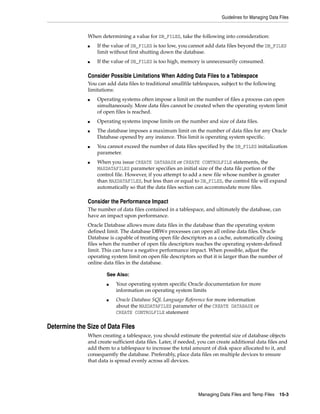
initialization parameter MAX_DUMP_FILE_SIZE, which limits the file to the specified
number of operating system blocks. To control the size of an alert log, you must
manually delete the file when you no longer need it. Otherwise the database continues
to append to the file.
See Also:
■ Chapter 9, "Managing Diagnostic Data" on page 9-1 for
information on the Automatic Diagnostic Repository.
■ "Alert Log" on page 9-5 for additional information about the
alert log.
■ "Viewing the Alert Log" on page 9-20
■ Oracle Database Utilities for information on the ADRCI utility.
■ Your operating system specific Oracle documentation for
information about the names of trace files
Monitoring Errors and Alerts
Monitoring Database Operations 8-3
You can safely delete the alert log while the instance is running, although you should
consider making an archived copy of it first. This archived copy could prove valuable
if you should have a future problem that requires investigating the history of an
instance.
Controlling When Oracle Database Writes to Trace Files
Background processes always write to a trace file when appropriate. In the case of the
ARCn background process, it is possible, through an initialization parameter, to
control the amount and type of trace information that is produced. This behavior is
described in "Controlling Trace Output Generated by the Archivelog Process" on
page 13-13. Other background processes do not have this flexibility.
Trace files are written on behalf of server processes whenever critical errors occur.
Additionally, setting the initialization parameter SQL_TRACE = TRUE causes the SQL
trace facility to generate performance statistics for the processing of all SQL statements
for an instance and write them to the Automatic Diagnostic Repository.
Optionally, you can request that trace files be generated for server processes.
Regardless of the current value of the SQL_TRACE initialization parameter, each session
can enable or disable trace logging on behalf of the associated server process by using
the SQL statement ALTER SESSION SET SQL_TRACE. This example enables the SQL
trace facility for a specific session:
ALTER SESSION SET SQL_TRACE TRUE;
Use the DBMS_SESSION or the DBMS_MONITOR packages to control SQL tracing for a
session.
Reading the Trace File for Shared Server Sessions
If shared server is enabled, each session using a dispatcher is routed to a shared server
process, and trace information is written to the server trace file only if the session has
enabled tracing (or if an error is encountered). Therefore, to track tracing for a specific
session that connects using a dispatcher, you might have to explore several shared
server trace files. To help you, Oracle provides a command line utility program,
trcsess, which consolidates all trace information pertaining to a user session in one
place and orders the information by time.
Caution: The SQL trace facility for server processes can cause
significant system overhead resulting in severe performance
impact, so you should enable this feature only when collecting
statistics.
See Also:
■ Chapter 9, "Managing Diagnostic Data" on page 9-1 for more
information on how the database handles critical errors,
otherwise known as "incidents."
See Also: Oracle Database Performance Tuning Guide for
information about using the SQL trace facility and using TKPROF
and trcsess to interpret the generated trace files
Monitoring Errors and Alerts
8-4 Oracle Database Administrator's Guide
Monitoring Database Operations with Server-Generated Alerts
A server-generated alert is a notification from the Oracle Database server of an
impending problem. The notification may contain suggestions for correcting the
problem. Notifications are also provided when the problem condition has been
cleared.
Alerts are automatically generated when a problem occurs or when data does not
match expected values for metrics, such as the following:
■ Physical Reads Per Second
■ User Commits Per Second
■ SQL Service Response Time
Server-generated alerts can be based on threshold levels or can issue simply because
an event has occurred. Threshold-based alerts can be triggered at both threshold
warning and critical levels. The value of these levels can be customer-defined or
internal values, and some alerts have default threshold levels which you can change if
appropriate. For example, by default a server-generated alert is generated for
tablespace space usage when the percentage of space usage exceeds either the 85%
warning or 97% critical threshold level. Examples of alerts not based on threshold
levels are:
■ Snapshot Too Old
■ Resumable Session Suspended
■ Recovery Area Space Usage
An alert message is sent to the predefined persistent queue ALERT_QUE owned by the
user SYS. Oracle Enterprise Manager reads this queue and provides notifications about
outstanding server alerts, and sometimes suggests actions for correcting the problem.
The alerts are displayed on the Enterprise Manager Database Home page and can be
configured to send email or pager notifications to selected administrators. If an alert
cannot be written to the alert queue, a message about the alert is written to the Oracle
Database alert log.
Background processes periodically flush the data to the Automatic Workload
Repository to capture a history of metric values. The alert history table and ALERT_QUE
are purged automatically by the system at regular intervals.
Setting and Retrieving Thresholds for Server-Generated Alerts
You can view and change threshold settings for the server alert metrics using the SET_
THRESHOLD and GET_THRESHOLD procedures of the DBMS_SERVER_ALERT PL/SQL
package. Examples of using these procedures are provided in the following sections:
■ Setting Threshold Levels
■ Retrieving Threshold Information
Note: The most convenient way to set and retrieve threshold values
is to use the graphical interface of Enterprise Manager. See Oracle
Database 2 Day DBA for instructions.
See Also: Oracle Database PL/SQL Packages and Types Reference for
information about the DBMS_SERVER_ALERT package
Monitoring Errors and Alerts
Monitoring Database Operations 8-5
Setting Threshold Levels The following example shows how to set thresholds with the
SET_THRESHOLD procedure for CPU time for each user call for an instance:
DBMS_SERVER_ALERT.SET_THRESHOLD(
DBMS_SERVER_ALERT.CPU_TIME_PER_CALL, DBMS_SERVER_ALERT.OPERATOR_GE, '8000',
DBMS_SERVER_ALERT.OPERATOR_GE, '10000', 1, 2, 'inst1',
DBMS_SERVER_ALERT.OBJECT_TYPE_SERVICE, 'main.regress.rdbms.dev.us.example.com');
In this example, a warning alert is issued when CPU time exceeds 8000 microseconds
for each user call and a critical alert is issued when CPU time exceeds 10,000
microseconds for each user call. The arguments include:
■ CPU_TIME_PER_CALL specifies the metric identifier. For a list of support metrics, see
Oracle Database PL/SQL Packages and Types Reference.
■ The observation period is set to 1 minute. This period specifies the number of
minutes that the condition must deviate from the threshold value before the alert
is issued.
■ The number of consecutive occurrences is set to 2. This number specifies how
many times the metric value must violate the threshold values before the alert is
generated.
■ The name of the instance is set to inst1.
■ The constant DBMS_ALERT.OBJECT_TYPE_SERVICE specifies the object type on which
the threshold is set. In this example, the service name is
main.regress.rdbms.dev.us.example.com.
Retrieving Threshold Information To retrieve threshold values, use the GET_THRESHOLD
procedure. For example:
DECLARE
warning_operator BINARY_INTEGER;
warning_value VARCHAR2(60);
critical_operator BINARY_INTEGER;
critical_value VARCHAR2(60);
observation_period BINARY_INTEGER;
consecutive_occurrences BINARY_INTEGER;
BEGIN
DBMS_SERVER_ALERT.GET_THRESHOLD(
DBMS_SERVER_ALERT.CPU_TIME_PER_CALL, warning_operator, warning_value,
critical_operator, critical_value, observation_period,
consecutive_occurrences, 'inst1',
DBMS_SERVER_ALERT.OBJECT_TYPE_SERVICE, 'main.regress.rdbms.dev.us.example.com');
DBMS_OUTPUT.PUT_LINE('Warning operator: ' || warning_operator);
DBMS_OUTPUT.PUT_LINE('Warning value: ' || warning_value);
DBMS_OUTPUT.PUT_LINE('Critical operator: ' || critical_operator);
DBMS_OUTPUT.PUT_LINE('Critical value: ' || critical_value);
DBMS_OUTPUT.PUT_LINE('Observation_period: ' || observation_period);
DBMS_OUTPUT.PUT_LINE('Consecutive occurrences:' || consecutive_occurrences);
END;
/
You can also check specific threshold settings with the DBA_THRESHOLDS view. For
example:
SELECT metrics_name, warning_value, critical_value, consecutive_occurrences
FROM DBA_THRESHOLDS
WHERE metrics_name LIKE '%CPU Time%';
Monitoring Performance
8-6 Oracle Database Administrator's Guide
Viewing Server-Generated Alerts
The easiest way to view server-generated alerts is by accessing the Database Home
page of Enterprise Manager. The following discussion presents other methods of
viewing these alerts.
If you use your own tool rather than Enterprise Manager to display alerts, you must
subscribe to the ALERT_QUE, read the ALERT_QUE, and display an alert notification after
setting the threshold levels for an alert. To create an agent and subscribe the agent to
the ALERT_QUE, use the CREATE_AQ_AGENT and ADD_SUBSCRIBER procedures of the DBMS_
AQADM package.
Next you must associate a database user with the subscribing agent, because only a
user associated with the subscribing agent can access queued messages in the secure
ALERT_QUE. You must also assign the enqueue privilege to the user. Use the ENABLE_DB_
ACCESS and GRANT_QUEUE_PRIVILEGE procedures of the DBMS_AQADM package.
Optionally, you can register with the DBMS_AQ.REGISTER procedure to receive an
asynchronous notification when an alert is enqueued to ALERT_QUE. The notification
can be in the form of email, HTTP post, or PL/SQL procedure.
To read an alert message, you can use the DBMS_AQ.DEQUEUE procedure or OCIAQDeq
call. After the message has been dequeued, use the DBMS_SERVER_ALERT.EXPAND_
MESSAGE procedure to expand the text of the message.
Server-Generated Alerts Data Dictionary Views
The following data dictionary views provide information about server-generated
alerts.
Monitoring Performance
Monitoring database performance is covered in detail in Oracle Database Performance
Tuning Guide. Here are some additional topics with details that are not covered in that
guide:
■ Monitoring Locks
■ Monitoring Wait Events
See Also: Oracle Database PL/SQL Packages and Types Reference for
information about the DBMS_AQ, and DBMS_AQADM packages
View Description
DBA_THRESHOLDS Lists the threshold settings defined for the instance
DBA_OUTSTANDING_ALERTS Describes the outstanding alerts in the database
DBA_ALERT_HISTORY Lists a history of alerts that have been cleared
V$ALERT_TYPES Provides information such as group and type for each alert
V$METRICNAME Contains the names, identifiers, and other information
about the system metrics
V$METRIC Contains system-level metric values
V$METRIC_HISTORY Contains a history of system-level metric values
See Also: Oracle Database Reference for information on static data
dictionary views and dynamic performance views
Monitoring Performance
Monitoring Database Operations 8-7
■ Performance Monitoring Data Dictionary Views
Monitoring Locks
Locks are mechanisms that prevent destructive interaction between transactions
accessing the same resource. The resources can be either user objects, such as tables
and rows, or system objects not visible to users, such as shared data structures in
memory and data dictionary rows. Oracle Database automatically obtains and
manages necessary locks when executing SQL statements, so you need not be
concerned with such details. However, the database also lets you lock data manually.
A deadlock can occur when two or more users are waiting for data locked by each
other. Deadlocks prevent some transactions from continuing to work. Oracle Database
automatically detects deadlock situations and resolves them by rolling back one of the
statements involved in the deadlock, thereby releasing one set of the conflicting row
locks.
Oracle Database is designed to avoid deadlocks, and they are not common. Most often
they occur when transactions explicitly override the default locking of the database.
Deadlocks can affect the performance of your database, so Oracle provides some
scripts and views that enable you to monitor locks.
The utllockt.sql script displays, in a tree fashion, the sessions in the system that are
waiting for locks and the locks that they are waiting for. The location of this script file
is operating system dependent.
A second script, catblock.sql, creates the lock views that utllockt.sql needs, so you
must run it before running utllockt.sql.
Monitoring Wait Events
Wait events are statistics that are incremented by a server process to indicate that it
had to wait for an event to complete before being able to continue processing. A
session could wait for a variety of reasons, including waiting for more input, waiting
for the operating system to complete a service such as a disk write, or it could wait for
a lock or latch.
When a session is waiting for resources, it is not doing any useful work. A large
number of waits is a source of concern. Wait event data reveals various symptoms of
problems that might be affecting performance, such as latch contention, buffer
contention, and I/O contention.
Oracle provides several views that display wait event statistics. A discussion of these
views and their role in instance tuning is contained in Oracle Database Performance
Tuning Guide.
Performance Monitoring Data Dictionary Views
This section lists some of the data dictionary views that you can use to monitor an
Oracle Database instance. These views are general in their scope. Other views, more
specific to a process, are discussed in the section of this book where the process is
described.
See Also:
■ "Performance Monitoring Data Dictionary Views" on page 8-7
■ Oracle Database Concepts contains more information about locks.
Monitoring Performance
8-8 Oracle Database Administrator's Guide
View Description
V$LOCK Lists the locks currently held by Oracle Database and outstanding
requests for a lock or latch
DBA_BLOCKERS Displays a session if it is holding a lock on an object for which
another session is waiting
DBA_WAITERS Displays a session if it is waiting for a locked object
DBA_DDL_LOCKS Lists all DDL locks held in the database and all outstanding
requests for a DDL lock
DBA_DML_LOCKS Lists all DML locks held in the database and all outstanding
requests for a DML lock
DBA_LOCK Lists all locks or latches held in the database and all outstanding
requests for a lock or latch
DBA_LOCK_INTERNAL Displays a row for each lock or latch that is being held, and one
row for each outstanding request for a lock or latch
V$LOCKED_OBJECT Lists all locks acquired by every transaction on the system
V$SESSION_WAIT Lists the resources or events for which active sessions are waiting
V$SYSSTAT Contains session statistics
V$RESOURCE_LIMIT Provides information about current and maximum global resource
utilization for some system resources
V$SQLAREA Contains statistics about shared SQL area and contains one row for
each SQL string. Also provides statistics about SQL statements that
are in memory, parsed, and ready for execution
V$LATCH Contains statistics for nonparent latches and summary statistics for
parent latches
See Also: Oracle Database Reference for detailed descriptions of
these views
9
Managing Diagnostic Data 9-1
9 Managing Diagnostic Data
Beginning with Release 11g, Oracle Database includes an advanced fault
diagnosability infrastructure for collecting and managing diagnostic data. Diagnostic
data includes the trace files, dumps, and core files that are also present in previous
releases, plus new types of diagnostic data that enable customers and Oracle Support
to identify, investigate, track, and resolve problems quickly and effectively.
In this chapter:
■ About the Oracle Database Fault Diagnosability Infrastructure
■ Investigating, Reporting, and Resolving a Problem
■ Viewing Problems with the Enterprise Manager Support Workbench
■ Creating a User-Reported Problem
■ Viewing the Alert Log
■ Finding Trace Files
■ Running Health Checks with Health Monitor
■ Repairing SQL Failures with the SQL Repair Advisor
■ Repairing Data Corruptions with the Data Recovery Advisor
■ Creating, Editing, and Uploading Custom Incident Packages
About the Oracle Database Fault Diagnosability Infrastructure
This section contains background information on the Oracle Database fault
diagnosability infrastructure. It contains the following topics:
■ Fault Diagnosability Infrastructure Overview
■ About Incidents and Problems
■ Fault Diagnosability Infrastructure Components
■ Structure, Contents, and Location of the Automatic Diagnostic Repository
Fault Diagnosability Infrastructure Overview
The fault diagnosability infrastructure aids in preventing, detecting, diagnosing, and
resolving problems. The problems that are targeted in particular are critical errors such
as those caused by code bugs, metadata corruption, and customer data corruption.
When a critical error occurs, it is assigned an incident number, and diagnostic data for
the error (such as trace files) are immediately captured and tagged with this number.
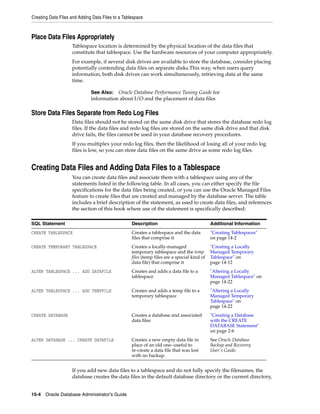
About the Oracle Database Fault Diagnosability Infrastructure
9-2 Oracle Database Administrator's Guide
The data is then stored in the Automatic Diagnostic Repository (ADR)—a file-based
repository outside the database—where it can later be retrieved by incident number
and analyzed.
The goals of the fault diagnosability infrastructure are the following:
■ First-failure diagnosis
■ Problem prevention
■ Limiting damage and interruptions after a problem is detected
■ Reducing problem diagnostic time
■ Reducing problem resolution time
■ Simplifying customer interaction with Oracle Support
The keys to achieving these goals are the following technologies:
■ Automatic capture of diagnostic data upon first failure—For critical errors, the
ability to capture error information at first-failure greatly increases the chance of a
quick problem resolution and reduced downtime. An always-on memory-based
tracing system proactively collects diagnostic data from many database
components, and can help isolate root causes of problems. Such proactive
diagnostic data is similar to the data collected by airplane "black box" flight
recorders. When a problem is detected, alerts are generated and the fault
diagnosability infrastructure is activated to capture and store diagnostic data. The
data is stored in a repository that is outside the database (and therefore available
when the database is down), and is easily accessible with command line utilities
and Enterprise Manager.
■ Standardized trace formats—Standardizing trace formats across all database
components enables DBAs and Oracle Support personnel to use a single set of
tools for problem analysis. Problems are more easily diagnosed, and downtime is
reduced.
■ Health checks—Upon detecting a critical error, the fault diagnosability
infrastructure can run one or more health checks to perform deeper analysis of a
critical error. Health check results are then added to the other diagnostic data
collected for the error. Individual health checks look for data block corruptions,
undo and redo corruption, data dictionary corruption, and more. As a DBA, you
can manually invoke these health checks, either on a regular basis or as required.
■ Incident packaging service (IPS) and incident packages—The IPS enables you to
automatically and easily gather the diagnostic data—traces, dumps, health check
reports, and more—pertaining to a critical error and package the data into a zip
file for transmission to Oracle Support. Because all diagnostic data relating to a
critical error are tagged with that error's incident number, you do not have to
search through trace files and other files to determine the files that are required for
analysis; the incident packaging service identifies the required files automatically
and adds them to the zip file. Before creating the zip file, the IPS first collects
diagnostic data into an intermediate logical structure called an incident package
(package). Packages are stored in the Automatic Diagnostic Repository. If you
choose to, you can access this intermediate logical structure, view and modify its
contents, add or remove additional diagnostic data at any time, and when you are
ready, create the zip file from the package. After these steps are completed, the zip
file is ready to be uploaded to Oracle Support.
■ Data Recovery Advisor—The Data Recovery Advisor integrates with database
health checks and RMAN to display data corruption problems, assess the extent of
each problem (critical, high priority, low priority), describe the impact of a
About the Oracle Database Fault Diagnosability Infrastructure
Managing Diagnostic Data 9-3
problem, recommend repair options, conduct a feasibility check of the
customer-chosen option, and automate the repair process.
■ SQL Test Case Builder—For many SQL-related problems, obtaining a
reproducible test case is an important factor in problem resolution speed. The SQL
Test Case Builder automates the sometimes difficult and time-consuming process
of gathering as much information as possible about the problem and the
environment in which it occurred. After quickly gathering this information, you
can upload it to Oracle Support to enable support personnel to easily and
accurately reproduce the problem.
About Incidents and Problems
To facilitate diagnosis and resolution of critical errors, the fault diagnosability
infrastructure introduces two concepts for Oracle Database: problems and incidents.
A problem is a critical error in a database instance, Oracle Automatic Storage
Management (Oracle ASM) instance, or other Oracle product or component. Critical
errors manifest as internal errors, such as ORA-00600, or other severe errors, such as
ORA-07445 (operating system exception) or ORA-04031 (out of memory in the shared
pool). Problems are tracked in the ADR. Each problem has a problem key, which is a text
string that describes the problem. It includes an error code (such as ORA 600) and in
some cases, one or more error parameters.
An incident is a single occurrence of a problem. When a problem (critical error) occurs
multiple times, an incident is created for each occurrence. Incidents are timestamped
and tracked in the Automatic Diagnostic Repository (ADR). Each incident is identified
by a numeric incident ID, which is unique within the ADR. When an incident occurs,
the database:
■ Makes an entry in the alert log.
■ Sends an incident alert to Oracle Enterprise Manager (Enterprise Manager).
■ Gathers first-failure diagnostic data about the incident in the form of dump files
(incident dumps).
■ Tags the incident dumps with the incident ID.
■ Stores the incident dumps in an ADR subdirectory created for that incident.
Diagnosis and resolution of a critical error usually starts with an incident alert.
Incident alerts are displayed on the Enterprise Manager Database Home page or
Oracle Automatic Storage Management Home page. The Database Home page also
displays in its Related Alerts section any critical alerts in the Oracle ASM instance or
other Oracle products or components. After viewing an alert, you can then view the
problem and its associated incidents with Enterprise Manager or with the ADRCI
command-line utility.
The following sections provide more information about incidents and problems:
■ Incident Flood Control
■ Related Problems Across the Topology
See Also:
■ Oracle Database Performance Tuning Guide for more information on
SQL Test Case Builder
About the Oracle Database Fault Diagnosability Infrastructure
9-4 Oracle Database Administrator's Guide
Incident Flood Control
It is conceivable that a problem could generate dozens or perhaps hundreds of
incidents in a short period of time. This would generate too much diagnostic data,
which would consume too much space in the ADR and could possibly slow down
your efforts to diagnose and resolve the problem. For these reasons, the fault
diagnosability infrastructure applies flood control to incident generation after certain
thresholds are reached. A flood-controlled incident is an incident that generates an
alert log entry, is recorded in the ADR, but does not generate incident dumps.
Flood-controlled incidents provide a way of informing you that a critical error is
ongoing, without overloading the system with diagnostic data. You can choose to view
or hide flood-controlled incidents when viewing incidents with Enterprise Manager or
the ADRCI command-line utility.
Threshold levels for incident flood control are predetermined and cannot be changed.
They are defined as follows:
■ After five incidents occur for the same problem key in one hour, subsequent
incidents for this problem key are flood-controlled. Normal (non-flood-controlled)
recording of incidents for that problem key begins again in the next hour.
■ After 25 incidents occur for the same problem key in one day, subsequent
incidents for this problem key are flood-controlled. Normal recording of incidents
for that problem key begins again on the next day.
In addition, after 50 incidents for the same problem key occur in one hour, or 250
incidents for the same problem key occur in one day, subsequent incidents for this
problem key are not recorded at all in the ADR. In these cases, the database writes a
message to the alert log indicating that no further incidents will be recorded. As long
as incidents continue to be generated for this problem key, this message is added to the
alert log every ten minutes until the hour or the day expires. Upon expiration of the
hour or day, normal recording of incidents for that problem key begins again.
Related Problems Across the Topology
For any problem identified in a database instance, the diagnosability framework can
identify related problems across the topology of your Oracle Database installation. In a
single instance environment, a related problem could be identified in the local Oracle
ASM instance. In an Oracle RAC environment, a related problem could be identified in
any database instance or Oracle ASM instance on any other node. When investigating
problems, you are able to view and gather information on any related problems.
A problem is related to the original problem if it occurs within a designated time
period or shares the same execution context identifier. An execution context identifier
(ECID) is a globally unique identifier used to tag and track a single call through the
Oracle software stack, for example, a call to Oracle Fusion Middleware that then calls
into Oracle Database to retrieve data. The ECID is typically generated in the middle
tier and is passed to the database as an Oracle Call Interface (OCI) attribute. When a
single call has failures on multiple tiers of the Oracle software stack, problems that are
generated are tagged with the same ECID so that they can be correlated. You can then
determine the tier on which the originating problem occurred.
See Also:
■ "Viewing Problems with the Enterprise Manager Support
Workbench" on page 9-18
■ "Investigating, Reporting, and Resolving a Problem" on page 9-11
■ "ADRCI Command-Line Utility" on page 9-7
About the Oracle Database Fault Diagnosability Infrastructure
Managing Diagnostic Data 9-5
Fault Diagnosability Infrastructure Components
The following are the key components of the fault diagnosability infrastructure:
■ Automatic Diagnostic Repository (ADR)
■ Alert Log
■ Trace Files, Dumps, and Core Files
■ Other ADR Contents
■ Enterprise Manager Support Workbench
■ ADRCI Command-Line Utility
Automatic Diagnostic Repository (ADR)
The ADR is a file-based repository for database diagnostic data such as traces, dumps,
the alert log, health monitor reports, and more. It has a unified directory structure
across multiple instances and multiple products. Beginning with Release 11g, the
database, Oracle Automatic Storage Management (Oracle ASM), the listener, and other
Oracle products or components store all diagnostic data in the ADR. Each instance of
each product stores diagnostic data underneath its own home directory within the
ADR. For example, in an Oracle Real Application Clusters environment with shared
storage and Oracle ASM, each database instance and each Oracle ASM instance has an
ADR home directory. ADR's unified directory structure, consistent diagnostic data
formats across products and instances, and a unified set of tools enable customers and
Oracle Support to correlate and analyze diagnostic data across multiple instances.
Alert Log
The alert log is an XML file that is a chronological log of database messages and errors.
It is stored in the ADR and includes messages about the following:
■ Critical errors (incidents)
■ Administrative operations, such as starting up or shutting down the database,
recovering the database, creating or dropping a tablespace, and others.
■ Errors during automatic refresh of a materialized view
■ Other database events
You can view the alert log in text format (with the XML tags stripped) with Enterprise
Manager and with the ADRCI utility. There is also a text-formatted version of the alert
log stored in the ADR for backward compatibility. However, Oracle recommends that
any parsing of the alert log contents be done with the XML-formatted version, because
the text format is unstructured and may change from release to release.
Note: Beginning with Release 11g of Oracle Database, because all
diagnostic data, including the alert log, are stored in the ADR, the
initialization parameters BACKGROUND_DUMP_DEST and USER_DUMP_DEST
are deprecated. They are replaced by the initialization parameter
DIAGNOSTIC_DEST, which identifies the location of the ADR.
See Also: "Structure, Contents, and Location of the Automatic
Diagnostic Repository" on page 9-7 for more information on the
DIAGNOSTIC_DEST parameter and on ADR homes.
About the Oracle Database Fault Diagnosability Infrastructure
9-6 Oracle Database Administrator's Guide
Trace Files, Dumps, and Core Files
Trace files, dumps, and core files contain diagnostic data that are used to investigate
problems. They are stored in the ADR.
Trace Files Each server and background process can write to an associated trace file.
Trace files are updated periodically over the life of the process and can contain
information on the process environment, status, activities, and errors. In addition,
when a process detects a critical error, it writes information about the error to its trace
file. The SQL trace facility also creates trace files, which provide performance
information on individual SQL statements. You can enable SQL tracing for a session or
an instance.
Trace file names are platform-dependent. Typically, database background process trace
file names contain the Oracle SID, the background process name, and the operating
system process number, while server process trace file names contain the Oracle SID,
the string "ora", and the operating system process number. The file extension is .trc.
An example of a server process trace file name is orcl_ora_344.trc. Trace files are
sometimes accompanied by corresponding trace map (.trm) files, which contain
structural information about trace files and are used for searching and navigation.
Oracle Database includes tools that help you analyze trace files. For more information
on application tracing, SQL tracing, and tracing tools, see Oracle Database Performance
Tuning Guide.
Dumps A dump is a specific type of trace file. A dump is typically a one-time output of
diagnostic data in response to an event (such as an incident), whereas a trace tends to
be continuous output of diagnostic data. When an incident occurs, the database writes
one or more dumps to the incident directory created for the incident. Incident dumps
also contain the incident number in the file name.
Core Files A core file contains a memory dump, in an all-binary, port-specific format.
Core file names include the string "core" and the operating system process ID. Core
files are useful to Oracle Support engineers only. Core files are not found on all
platforms.
Other ADR Contents
In addition to files mentioned in the previous sections, the ADR contains health
monitor reports, data repair records, SQL test cases, incident packages, and more.
These components are described later in the chapter.
Enterprise Manager Support Workbench
The Enterprise Manager Support Workbench (Support Workbench) is a facility that
enables you to investigate, report, and in some cases, repair problems (critical errors),
all with an easy-to-use graphical interface. The Support Workbench provides a
self-service means for you to gather first-failure diagnostic data, obtain a support
request number, and upload diagnostic data to Oracle Support with a minimum of
effort and in a very short time, thereby reducing time-to-resolution for problems. The
See Also:
■ "ADRCI Command-Line Utility" on page 9-7
■ "Viewing the Alert Log" on page 9-20
See Also: "Finding Trace Files" on page 9-21
About the Oracle Database Fault Diagnosability Infrastructure
Managing Diagnostic Data 9-7
Support Workbench also recommends and provides easy access to Oracle advisors that
help you repair SQL-related problems, data corruption problems, and more.
ADRCI Command-Line Utility
The ADR Command Interpreter (ADRCI) is a utility that enables you to investigate
problems, view health check reports, and package first-failure diagnostic data, all
within a command-line environment. You can then upload the package to Oracle
Support. ADRCI also enables you to view the names of the trace files in the ADR, and
to view the alert log with XML tags stripped, with and without content filtering.
For more information on ADRCI, see Oracle Database Utilities.
Structure, Contents, and Location of the Automatic Diagnostic Repository
The Automatic Diagnostic Repository (ADR) is a directory structure that is stored
outside of the database. It is therefore available for problem diagnosis when the
database is down.
The ADR root directory is known as ADR base. Its location is set by the DIAGNOSTIC_
DEST initialization parameter. If this parameter is omitted or left null, the database sets
DIAGNOSTIC_DEST upon startup as follows:
■ If environment variable ORACLE_BASE is set, DIAGNOSTIC_DEST is set to the directory
designated by ORACLE_BASE.
■ If environment variable ORACLE_BASE is not set, DIAGNOSTIC_DEST is set to
ORACLE_HOME/log.
Within ADR base, there can be multiple ADR homes, where each ADR home is the
root directory for all diagnostic data—traces, dumps, the alert log, and so on—for a
particular instance of a particular Oracle product or component. For example, in an
Oracle Real Application Clusters environment with Oracle ASM, each database
instance, Oracle ASM instance, and listener has an ADR home.
ADR homes reside in ADR base subdirectories that are named according to the
product or component type. Figure 9–1 illustrates these top-level subdirectories.
Figure 9–1 Product/Component Type Subdirectories in the ADR
Note: Additional subdirectories might be created in the ADR
depending on your configuration. Some products automatically purge
expired diagnostic data from ADR. For other products, you can use
the ADRCI utility PURGE command at regular intervals to purge
expired diagnostic data.
asm rdbms tnslsnr clients (others)
ADR
base
diag
About the Oracle Database Fault Diagnosability Infrastructure
9-8 Oracle Database Administrator's Guide
The location of each ADR home is given by the following path, which starts at the
ADR base directory:
diag/product_type/product_id/instance_id
As an example, Table 9–1 lists the values of the various path components for an Oracle
Database instance.
For example, for a database with a SID and database unique name both equal to
orclbi, the ADR home would be in the following location:
ADR_base/diag/rdbms/orclbi/orclbi/
Similarly, the ADR home path for the Oracle ASM instance in a single-instance
environment would be:
ADR_base/diag/asm/+asm/+asm/
ADR Home Subdirectories
Within each ADR home directory are subdirectories that contain the diagnostic data.
Table 9–2 lists some of these subdirectories and their contents.
Figure 9–2 illustrates the complete directory hierarchy of the ADR for a database
instance.
Table 9–1 ADR Home Path Components for Oracle Database
Path Component Value for Oracle Database
product_type rdbms
product_id DB_UNIQUE_NAME
instance_id SID
Table 9–2 ADR Home Subdirectories
Subdirectory Name Contents
alert The XML-formatted alert log
cdump Core files
incident Multiple subdirectories, where each subdirectory is
named for a particular incident, and where each contains
dumps pertaining only to that incident
trace Background and server process trace files, SQL trace
files, and the text-formatted alert log
(others) Other subdirectories of ADR home, which store incident
packages, health monitor reports, and other information
About the Oracle Database Fault Diagnosability Infrastructure
Managing Diagnostic Data 9-9
Figure 9–2 ADR Directory Structure for a Database Instance
ADR in an Oracle Real Application Clusters Environment
In an Oracle Real Application Clusters (Oracle RAC) environment, each node can have
ADR base on its own local storage, or ADR base can be set to a location on shared
storage. You can use ADRCI to view aggregated diagnostic data from all instances on a
single report.
ADR in Oracle Client
Each installation of Oracle Client includes an ADR for diagnostic data associated with
critical failures in any of the Oracle Client components. The ADRCI utility is installed
with Oracle Client so that you can examine diagnostic data and package it to enable it
for upload to Oracle Support.
Viewing ADR Locations with the V$DIAG_INFO View
The V$DIAG_INFO view lists all important ADR locations for the current Oracle
Database instance.
SELECT * FROM V$DIAG_INFO;
INST_ID NAME VALUE
------- --------------------- -------------------------------------------------------------
1 Diag Enabled TRUE
1 ADR Base /u01/oracle
1 ADR Home /u01/oracle/diag/rdbms/orclbi/orclbi
1 Diag Trace /u01/oracle/diag/rdbms/orclbi/orclbi/trace
1 Diag Alert /u01/oracle/diag/rdbms/orclbi/orclbi/alert
1 Diag Incident /u01/oracle/diag/rdbms/orclbi/orclbi/incident
1 Diag Cdump /u01/oracle/diag/rdbms/orclbi/orclbi/cdump
1 Health Monitor /u01/oracle/diag/rdbms/orclbi/orclbi/hm
1 Default Trace File /u01/oracle/diag/rdbms/orclbi/orclbi/trace/orcl_ora_22769.trc
1 Active Problem Count 8
1 Active Incident Count 20
The following table describes some of the information displayed by this view.
diag
rdbms
alert cdump incident trace (others)
ADR
base
ADR
home
DB_UNIQUE_NAME
SID
About the Oracle Database Fault Diagnosability Infrastructure
9-10 Oracle Database Administrator's Guide
Viewing Critical Errors with the V$DIAG_CRITICAL_ERROR View
The V$DIAG_CRITICAL_ERROR view lists all of the non-internal errors designated as
critical errors for the current Oracle Database release. The view does not list internal
errors because internal errors are always designated as critical errors.
The following example shows the output for the V$DIAG_CRITICAL_ERROR view in
Oracle Database 11g Release 2 (11.2.0.2):
SELECT * FROM V$DIAG_CRITICAL_ERROR;
FACILITY ERROR
---------- ----------------------------------------------------------------
ORA 7445
ORA 4030
ORA 4031
ORA 29740
ORA 255
ORA 355
ORA 356
ORA 239
ORA 240
ORA 494
ORA 3137
ORA 227
ORA 353
ORA 1578
ORA 32701
ORA 32703
ORA 29770
ORA 29771
ORA 445
ORA 25319
OCI 3106
OCI 3113
OCI 3135
The following table describes the information displayed by this view.
Table 9–3 Data in the V$DIAG_INFO View
Name Description
ADR Base Path of ADR base
ADR Home Path of ADR home for the current database instance
Diag Trace Location of background process trace files, server process trace files, SQL
trace files, and the text-formatted version of the alert log
Diag Alert Location of the XML-formatted version of the alert log
Default Trace File Path to the trace file for the current session
Table 9–4 Data in the V$DIAG_CRITICAL_ERROR View
Column Description
FACILITY The facility that can report the error, such as Oracle Database
(ORA) or Oracle Call Interface (OCI)
ERROR The error number
Investigating, Reporting, and Resolving a Problem
Managing Diagnostic Data 9-11
Investigating, Reporting, and Resolving a Problem
This section describes how to use the Enterprise Manager Support Workbench
(Support Workbench) to investigate and report a problem (critical error), and in some
cases, resolve the problem. The section begins with a "roadmap" that summarizes the
typical set of tasks that you must perform.
Roadmap—Investigating, Reporting, and Resolving a Problem
You can begin investigating a problem by starting from the Support Workbench home
page in Enterprise Manager. However, the more typical workflow begins with a
critical error alert on the Database Home page. This section provides an overview of
that workflow.
Figure 9–3 illustrates the tasks that you complete to investigate, report, and in some
cases, resolve a problem.
See Also: "About Incidents and Problems" on page 9-3 for more
information about internal errors
Note: The tasks described in this section are all Enterprise
Manager–based. You can also accomplish all of these tasks (or their
equivalents) with the ADRCI command-line utility, with PL/SQL
packages such as DBMS_HM and DBMS_SQLDIAG, and with other software
tools. See Oracle Database Utilities for more information on the ADRCI
utility, and see Oracle Database PL/SQL Packages and Types Reference for
information on PL/SQL packages.
See Also: "About the Oracle Database Fault Diagnosability
Infrastructure" on page 9-1 for more information on problems and
their diagnostic data
Investigating, Reporting, and Resolving a Problem
9-12 Oracle Database Administrator's Guide
Figure 9–3 Workflow for Investigating, Reporting, and Resolving a Problem
The following are task descriptions. Subsequent sections provide details for each task.
■ Task 1: View Critical Error Alerts in Enterprise Manager on page 9-13
Start by accessing the Database Home page in Enterprise Manager, and reviewing
critical error alerts. Select an alert for which to view details, and then go to the
Problem Details page.
■ Task 2: View Problem Details on page 9-14
Examine the problem details and view a list of all incidents that were recorded for
the problem. Display findings from any health checks that were automatically run.
■ Task 3: (Optional) Gather Additional Diagnostic Information on page 9-14
Optionally run additional health checks or other diagnostics. For SQL-related
errors, optionally invoke the SQL Test Case Builder, which gathers all required
data related to a SQL problem and packages the information in a way that enables
the problem to be reproduced at Oracle Support.
■ Task 4: (Optional) Create a Service Request on page 9-14
Optionally create a service request with My Oracle Support and record the service
request number with the problem information. If you skip this step, you can create
a service request later, or the Support Workbench can create one for you.
■ Task 5: Package and Upload Diagnostic Data to Oracle Support on page 9-15
Invoke a guided workflow (a wizard) that automatically packages the gathered
diagnostic data for a problem and uploads the data to Oracle Support.
■ Task 6: Track the Service Request and Implement Any Repairs on page 9-16
Optionally maintain an activity log for the service request in the Support
Workbench. Run Oracle advisors to help repair SQL failures or corrupted data.
Task 2
Task 3
View Problem Details
Gather additional
diagnostic
information
Task 4
Create a Service
Request
Task 5
Package and Upload
Diagnostic Data
to
Oracle Support
Task 6
Track the Service
Request and
Implement Any
Repairs
Task 7
Close incidents
Task 1
View Critical
Error Alerts in
Enterprise
Manager
Investigating, Reporting, and Resolving a Problem
Managing Diagnostic Data 9-13
■ Task 7: Close Incidents on page 9-17
Set status for one, some, or all incidents for the problem to Closed.
Task 1: View Critical Error Alerts in Enterprise Manager
You begin the process of investigating problems (critical errors) by reviewing critical
error alerts on the Database Home page or Oracle Automatic Storage Management
Home page.
To view critical error alerts:
1. Access the Database Home page in Enterprise Manager.
For Oracle Enterprise Manager Database Control, see Oracle Database 2 Day DBA
for instructions. For Oracle Enterprise Manager Grid Control, go to the desired
database target.
2. Do one of the following to view critical error alerts. (Critical error alerts are
indicated by a red × in the Severity column, and the text "Incident" in the Category
column.)
■ View the alerts in the Alerts section.
You may have to click the hide/show icon next to the Alerts heading to
display the alerts.
■ View the alerts in the Related Alerts section.
The Target Name indicates the Oracle product or component that experienced
the critical error. See "Related Problems Across the Topology" on page 9-4 for
more information.
■ View critical alerts for the Oracle ASM instance by completing these steps:
a. In the General section, click the link next to the label ASM.
b. On the Oracle Automatic Storage Management Home page, scroll down to
view the Alerts section.
Figure 9–4 Alerts Section of the Database Home Page
3. In the Message column, click the message of the critical error alert that you want
investigate.
The Incident page or Data Failure page appears. This page includes:
■ Problem information, including the number of incidents for the problem
■ A Performance and Critical Error graphical timeline for the 24-hour period in
which the critical error occurred (database instance only).
■ Alert details, including severity, timestamp, and message
See Also: "Viewing Problems with the Enterprise Manager Support
Workbench" on page 9-18
Investigating, Reporting, and Resolving a Problem
9-14 Oracle Database Administrator's Guide
■ Controls that enable you to clear the alert or record a comment about it.
4. Review the Performance and Critical Error graphical timeline if present, and note
any time correlation between performance issues and the critical error. Optionally
clear the alert or leave a comment about it.
Task 2: View Problem Details
You continue your investigation by viewing the Problem Details page.
To view problem details:
1. On the Incident page or Data Failure page, click View Problem Details.
The Problem Details page appears, showing the Incidents subpage.
2. (Optional) Do one or both of the following:
■ In the Investigate and Resolve section, on the Self Service tab, under Diagnose,
click Related Problems Across Topology.
A page appears showing any related problems in the local Oracle Automatic
Storage Management (Oracle ASM) instance, or in the database or Oracle ASM
instances on other nodes in an Oracle Real Application Clusters environment.
This step is recommended if any critical alerts appear in the Related Alerts
section on the Enterprise Manager Database Home page.
See "Related Problems Across the Topology" on page 9-4 for more information.
■ View incident details by completing these steps:
a. In the Incidents subpage, select an incident, and then click View.
b. (Optional) On the Incident Details page, click Checker Findings to view
the Checker Findings subpage.
This page displays findings from any health checks that were automati-
cally run when the critical error was detected.
See "Running Health Checks with Health Monitor" on page 9-21 for more
information.
Task 3: (Optional) Gather Additional Diagnostic Information
You can perform the following activities to gather additional diagnostic information
for a problem. This additional information is then automatically included in the
diagnostic data that is uploaded to Oracle Support. If you are unsure about
performing these activities, then check with your Oracle Support representative.
■ Manually invoke additional health checks
See "Running Health Checks with Health Monitor" on page 9-21
■ Invoke the SQL Test Case Builder
See Oracle Database Performance Tuning Guide for instructions.
Task 4: (Optional) Create a Service Request
At this point, you can create an Oracle Support service request and record the service
request number with the problem information. If you choose to skip this task, the
Support Workbench will automatically create a draft service request for you in Task 5.
Investigating, Reporting, and Resolving a Problem
Managing Diagnostic Data 9-15
To create a service request:
1. On the Problem Details page, in the Investigate and Resolve section, click Go to
My Oracle Support and Research.
The My Oracle Support Sign In and Registration page appears in a new browser
window.
2. Log in to My Oracle Support and create a service request in the usual manner.
(Optional) Remember the service request number (SR#) for the next step.
3. (Optional) Return to the Problem Details page, and then do the following:
a. In the Summary section, click the Edit button that is adjacent to the SR# label.
b. Enter the SR#, and then click OK.
The SR# is recorded in the Problem Details page. This is for your reference only.
Task 5: Package and Upload Diagnostic Data to Oracle Support
For this task, you use the quick packaging process of the Support Workbench to
package and upload the diagnostic information for the problem to Oracle Support.
Quick packaging has a minimum of steps, organized in a guided workflow (a wizard).
The wizard assists you with creating an incident package (package) for a single
problem, creating a zip file from the package, and uploading the file. With quick
packaging, you are not able to edit or otherwise customize the diagnostic information
that is uploaded. However, quick packaging is the more direct, straightforward
method to package and upload diagnostic data.
To edit or remove sensitive data from the diagnostic information, enclose additional
user files (such as application configuration files or scripts), or perform other
customizations before uploading, you must use the custom packaging process, which
is a more manual process and has more steps. See "Creating, Editing, and Uploading
Custom Incident Packages" on page 9-32 for instructions. If you choose to follow those
instructions instead of the instructions here in Task 5, do so now and then continue
with Task 6: Track the Service Request and Implement Any Repairs on page 9-16 when
you are finished.
To package and upload diagnostic data to Oracle Support:
1. On the Problem Details page, in the Investigate and Resolve section, click Quick
Package.
The Create New Package page of the Quick Packaging wizard appears.
Note: See "Viewing Problems with the Enterprise Manager Support
Workbench" on page 9-18 for instructions for returning to the Problem
Details page if you are not already there.
Note: The Support Workbench uses Oracle Configuration Manager to
upload the diagnostic data. If Oracle Configuration Manager is not
installed or properly configured, the upload may fail. In this case, a
message is displayed with a request that you upload the file to Oracle
Support manually. You can upload manually with My Oracle Support.
For more information about Oracle Configuration Manager, see Oracle
Configuration Manager Installation and Administration Guide.
Investigating, Reporting, and Resolving a Problem
9-16 Oracle Database Administrator's Guide
2. Optionally enter a package name and description.
3. Fill in the remaining fields on the page. If you already created a service request for
this problem, select No next to Create new Service Request (SR).
If you select Yes, the Quick Packaging wizard creates a draft service request on
your behalf. You must later log in to My Oracle Support and fill in the details of
the service request.
4. Click Next, and then proceed with the remaining pages of the Quick Packaging
wizard.
When the Quick Packaging wizard is complete, the package that it creates remains
available in the Support Workbench. You can then modify it with custom
packaging operations (such as adding new incidents) and reupload at a later time.
See "Viewing and Modifying Incident Packages" on page 9-39.
Task 6: Track the Service Request and Implement Any Repairs
After uploading diagnostic information to Oracle Support, you might perform various
activities to track the service request, to collect additional diagnostic information, and
to implement repairs. Among these activities are the following:
■ Adding an Oracle bug number to the problem information.
To do so, on the Problem Details page, click the Edit button that is adjacent to the
Bug# label. This is for your reference only.
■ Adding comments to the problem activity log.
You may want to do this to share problem status or history information with other
DBAs in your organization. For example you could record the results of your
conversations with Oracle Support. To add comments, complete the following
steps:
1. Access the Problem Details page for the problem, as described in "Viewing
Problems with the Enterprise Manager Support Workbench" on page 9-18.
2. Click Activity Log to display the Activity Log subpage.
Note: See "Viewing Problems with the Enterprise Manager Support
Workbench" on page 9-18 for instructions for returning to the Problem
Details page if you are not already there.
Investigating, Reporting, and Resolving a Problem
Managing Diagnostic Data 9-17
3. In the Comment field, enter a comment, and then click Add Comment.
Your comment is recorded in the activity log.
■ As new incidents occur, adding them to the package and reuploading.
For this activity, you must use the custom packaging method described in
"Creating, Editing, and Uploading Custom Incident Packages" on page 9-32.
■ Running health checks.
See "Running Health Checks with Health Monitor" on page 9-21.
■ Running a suggested Oracle advisor to implement repairs.
Access the suggested advisor in one of the following ways:
– Problem Details page—In the Self-Service tab of the Investigate and Resolve
section
– Support Workbench home page—on the Checker Findings subpage
– Incident Details page—on the Checker Findings subpage
Table 9–5 lists the advisors that help repair critical errors.
Task 7: Close Incidents
When a particular incident is no longer of interest, you can close it. By default, closed
incidents are not displayed on the Problem Details page.
All incidents, whether closed or not, are purged after 30 days. You can disable purging
for an incident on the Incident Details page.
To close incidents:
1. Access the Support Workbench home page.
See "Viewing Problems with the Enterprise Manager Support Workbench" on
page 9-18 for instructions.
2. Select the desired problem, and then click View.
The Problem Details page appears.
3. Select the incidents to close and then click Close.
A confirmation page appears.
4. Enter an optional comment and click OK.
Table 9–5 Oracle Advisors that Help Repair Critical Errors
Advisor Critical Errors Addressed See
Data Recovery Advisor Corrupted blocks, corrupted or missing files,
and other data failures
"Repairing Data Corruptions with
the Data Recovery Advisor" on
page 9-31
SQL Repair Advisor SQL statement failures "Repairing SQL Failures with the
SQL Repair Advisor" on page 9-28
See Also: "Viewing Problems with the Enterprise Manager Support
Workbench" on page 9-18 for instructions for viewing the Checker
Findings subpage of the Incident Details page
Viewing Problems with the Enterprise Manager Support Workbench
9-18 Oracle Database Administrator's Guide
Viewing Problems with the Enterprise Manager Support Workbench
You use the Enterprise Manager Support Workbench home page (Figure 9–5 on
page 9-18) to view all problems or only those within a specified time period.
Figure 9–5 Enterprise Manager Support Workbench Home Page
To access the Support Workbench home page (database or Oracle ASM):
1. Access the Database Home page in Enterprise Manager.
See Oracle Database 2 Day DBA for the instructions for Oracle Enterprise Manager
Database Control. For Oracle Enterprise Manager Grid Control, go to the desired
database target.
2. Do one of the following:
■ In the Diagnostic Summary section, click the numeric link next to the label
Active Incidents.
■ At the top of the page, click Software and Support, and then under Support,
click Support Workbench.
The Support Workbench home page for the database instance appears, showing
the Problems subpage. By default the problems from the last 24 hours are
displayed.
3. To view the Support Workbench home page for the Oracle ASM instance, click the
link Support Workbench (+ASM_hostname) in the Related Links section.
To view problems and incidents:
1. On the Support Workbench home page, select the desired time period from the
View list. To view all problems, select All.
2. (Optional) If the Performance and Critical Error section is hidden, click the
Show/Hide icon adjacent to the section heading to show the section.
Creating a User-Reported Problem
Managing Diagnostic Data 9-19
This section enables you to view any correlation between performance changes
and incident occurrences.
3. (Optional) Under the Details column, click Show to display a list of all incidents
for a problem, and then click an incident ID to display the Incident Details page.
To view details for a particular problem:
1. On the Support Workbench home page, select the problem, and then click View.
The Problem Details page appears, showing the Incidents subpage. The incidents
subpage shows all incidents that are open and that generated dumps—that is, that
were not flood-controlled.
2. (Optional) To view both open and closed incidents, select All Incidents in the
Status list. To view both normal and flood-controlled incidents, select All
Incidents in the Data Dumped list.
3. (Optional) To view details for an incident, select the incident, and then click View.
The Incident Details page appears.
4. (Optional) On the Incident Details page, to view checker findings for the incident,
click Checker Findings.
5. (Optional) On the Incident Details page, to view the user actions that are available
to you for the incident, click Additional Diagnostics. Each user action provides a
way for you to gather additional diagnostics for the incident or its problem.
Creating a User-Reported Problem
System-generated problems—critical errors generated internally to the database—are
automatically added to the Automatic Diagnostic Repository (ADR) and tracked in the
Support Workbench. From the Support Workbench, you can gather additional
diagnostic data on these problems, upload diagnostic data to Oracle Support, and in
some cases, resolve the problems, all with the easy-to-use workflow that is explained
in "Investigating, Reporting, and Resolving a Problem" on page 9-11.
There may be a situation in which you want to manually add a problem that you
noticed to the ADR so that you can put that problem through that same workflow. An
example of such a situation might be a global database performance problem that was
not diagnosed by Automatic Diagnostic Database Monitor (ADDM). The Support
Workbench includes a mechanism for you to create and work with such a
user-reported problem.
To create a user-reported problem:
1. Access the Support Workbench home page.
See "Viewing Problems with the Enterprise Manager Support Workbench" on
page 9-18 for instructions.
2. Under Related Links, click Create User-Reported Problem.
The Create User-Reported Problem page appears.
See Also: "Incident Flood Control" on page 9-4
Viewing the Alert Log
9-20 Oracle Database Administrator's Guide
3. If your problem matches one of the listed issue types, select the issue type, and
then click Run Recommended Advisor to attempt to solve the problem with an
Oracle advisor.
4. If the recommended advisor did not solve the problem, or if you did not run an
advisor, do one of the following:
■ If your problem matches one of the listed issue types, select the issue type, and
then click Continue with Creation of Problem.
■ If your problem does not match one of the listed issue types, select the issue
type None of the Above, enter a description, and then click Continue with
Creation of Problem.
The Problem Details page appears.
5. Follow the instructions on the Problem Details page.
See "Investigating, Reporting, and Resolving a Problem" on page 9-11 for more
information.
Viewing the Alert Log
You can view the alert log with a text editor, with Enterprise Manager, or with the
ADRCI utility.
To view the alert log with Enterprise Manager:
1. Access the Database Home page in Enterprise Manager.
For Oracle Enterprise Manager Database Control, see Oracle Database 2 Day DBA
for instructions. For Oracle Enterprise Manager Grid Control, go to the desired
database target.
2. Under Related Links, click Alert Log Contents.
The View Alert Log Contents page appears.
3. Select the number of entries to view, and then click Go.
To view the alert log with a text editor:
1. Connect to the database with SQL*Plus or another query tool, such as SQL
Developer.
2. Query the V$DIAG_INFO view as shown in "Viewing ADR Locations with the
V$DIAG_INFO View" on page 9-9.
See Also: "About the Oracle Database Fault Diagnosability
Infrastructure" on page 9-1 for more information on problems and the
ADR
Running Health Checks with Health Monitor
Managing Diagnostic Data 9-21
3. To view the text-only alert log, without the XML tags, complete these steps:
a. In the V$DIAG_INFO query results, note the path that corresponds to the Diag
Trace entry, and change directory to that path.
b. Open file alert_SID.log with a text editor.
4. To view the XML-formatted alert log, complete these steps:
a. In the V$DIAG_INFO query results, note the path that corresponds to the Diag
Alert entry, and change directory to that path.
b. Open the file log.xml with a text editor.
Finding Trace Files
Trace files are stored in the Automatic Diagnostic Repository (ADR), in the trace
directory under each ADR home. To help you locate individual trace files within this
directory, you can use data dictionary views. For example, you can find the path to
your current session's trace file or to the trace file for each Oracle Database process.
To find the trace file for your current session:
■ Submit the following query:
SELECT VALUE FROM V$DIAG_INFO WHERE NAME = 'Default Trace File';
The full path to the trace file is returned.
To find all trace files for the current instance:
■ Submit the following query:
SELECT VALUE FROM V$DIAG_INFO WHERE NAME = 'Diag Trace';
The path to the ADR trace directory for the current instance is returned.
To determine the trace file for each Oracle Database process:
■ Submit the following query:
SELECT PID, PROGRAM, TRACEFILE FROM V$PROCESS;
Running Health Checks with Health Monitor
This section describes the Health Monitor and includes instructions on how to use it.
The following topics are covered:
■ About Health Monitor
■ Running Health Checks Manually
■ Viewing Checker Reports
See Also: Oracle Database Utilities for information about using the
ADRCI utility to view a text version of the alert log (with XML tags
stripped) and to run queries against the alert log
See Also:
■ "Structure, Contents, and Location of the Automatic Diagnostic
Repository" on page 9-7
■ The ADRCI SHOW TRACEFILE command in Oracle Database Utilities
Running Health Checks with Health Monitor
9-22 Oracle Database Administrator's Guide
■ Health Monitor Views
■ Health Check Parameters Reference
About Health Monitor
Beginning with Release 11g, Oracle Database includes a framework called Health
Monitor for running diagnostic checks on the database.
About Health Monitor Checks
Health Monitor checks (also known as checkers, health checks, or checks) examine
various layers and components of the database. Health checks detect file corruptions,
physical and logical block corruptions, undo and redo corruptions, data dictionary
corruptions, and more. The health checks generate reports of their findings and, in
many cases, recommendations for resolving problems. Health checks can be run in
two ways:
■ Reactive—The fault diagnosability infrastructure can run health checks
automatically in response to a critical error.
■ Manual—As a DBA, you can manually run health checks using either the DBMS_HM
PL/SQL package or the Enterprise Manager interface. You can run checkers on a
regular basis if desired, or Oracle Support may ask you to run a checker while
working with you on a service request.
Health Monitor checks store findings, recommendations, and other information in the
Automatic Diagnostic Repository (ADR).
Health checks can run in two modes:
■ DB-online mode means the check can be run while the database is open (that is, in
OPEN mode or MOUNT mode).
■ DB-offline mode means the check can be run when the instance is available but
the database itself is closed (that is, in NOMOUNT mode).
All the health checks can be run in DB-online mode. Only the Redo Integrity Check
and the DB Structure Integrity Check can be used in DB-offline mode.
Types of Health Checks
Health monitor runs the following checks:
■ DB Structure Integrity Check—This check verifies the integrity of database files
and reports failures if these files are inaccessible, corrupt or inconsistent. If the
database is in mount or open mode, this check examines the log files and data files
listed in the control file. If the database is in NOMOUNT mode, only the control file is
checked.
■ Data Block Integrity Check—This check detects disk image block corruptions
such as checksum failures, head/tail mismatch, and logical inconsistencies within
the block. Most corruptions can be repaired using Block Media Recovery.
Corrupted block information is also captured in the V$DATABASE_BLOCK_
CORRUPTION view. This check does not detect inter-block or inter-segment
corruption.
See Also: "Automatic Diagnostic Repository (ADR)" on page 9-5
Running Health Checks with Health Monitor
Managing Diagnostic Data 9-23
■ Redo Integrity Check—This check scans the contents of the redo log for
accessibility and corruption, as well as the archive logs, if available. The Redo
Integrity Check reports failures such as archive log or redo corruption.
■ Undo Segment Integrity Check—This check finds logical undo corruptions. After
locating an undo corruption, this check uses PMON and SMON to try to recover
the corrupted transaction. If this recovery fails, then Health Monitor stores
information about the corruption in V$CORRUPT_XID_LIST. Most undo corruptions
can be resolved by forcing a commit.
■ Transaction Integrity Check—This check is identical to the Undo Segment
Integrity Check except that it checks only one specific transaction.
■ Dictionary Integrity Check—This check examines the integrity of core dictionary
objects, such as tab$ and col$. It performs the following operations:
– Verifies the contents of dictionary entries for each dictionary object.
– Performs a cross-row level check, which verifies that logical constraints on
rows in the dictionary are enforced.
– Performs an object relationship check, which verifies that parent-child
relationships between dictionary objects are enforced.
The Dictionary Integrity Check operates on the following dictionary objects:
tab$, clu$, fet$, uet$, seg$, undo$, ts$, file$, obj$, ind$, icol$, col$, user$,
con$, cdef$, ccol$, bootstrap$, objauth$, ugroup$, tsq$, syn$, view$, typed_
view$, superobj$, seq$, lob$, coltype$, subcoltype$, ntab$, refcon$, opqtype$,
dependency$, access$, viewcon$, icoldep$, dual$, sysauth$, objpriv$, defrole$,
and ecol$.
Running Health Checks Manually
Health Monitor provides two ways to run health checks manually:
■ By using the DBMS_HM PL/SQL package
■ By using the Enterprise Manager interface, found on the Checkers subpage of the
Advisor Central page
Running Health Checks Using the DBMS_HM PL/SQL Package
The DBMS_HM procedure for running a health check is called RUN_CHECK. To call RUN_
CHECK, supply the name of the check and a name for the run, as follows:
BEGIN
DBMS_HM.RUN_CHECK('Dictionary Integrity Check', 'my_run');
END;
/
To obtain a list of health check names, run the following query:
SELECT name FROM v$hm_check WHERE internal_check='N';
NAME
----------------------------------------------------------------
DB Structure Integrity Check
Data Block Integrity Check
Redo Integrity Check
Transaction Integrity Check
Undo Segment Integrity Check
Dictionary Integrity Check
Running Health Checks with Health Monitor
9-24 Oracle Database Administrator's Guide
Most health checks accept input parameters. You can view parameter names and
descriptions with the V$HM_CHECK_PARAM view. Some parameters are mandatory while
others are optional. If optional parameters are omitted, defaults are used. The
following query displays parameter information for all health checks:
SELECT c.name check_name, p.name parameter_name, p.type,
p.default_value, p.description
FROM v$hm_check_param p, v$hm_check c
WHERE p.check_id = c.id and c.internal_check = 'N'
ORDER BY c.name;
Input parameters are passed in the input_params argument as name/value pairs
separated by semicolons (;). The following example illustrates how to pass the
transaction ID as a parameter to the Transaction Integrity Check:
BEGIN
DBMS_HM.RUN_CHECK (
check_name => 'Transaction Integrity Check',
run_name => 'my_run',
input_params => 'TXN_ID=7.33.2');
END;
/
Running Health Checks Using Enterprise Manager
Enterprise Manager provides an interface for running Health Monitor checkers.
To run a Health Monitor Checker using Enterprise Manager:
1. On the Database Home page, in the Related Links section, click Advisor Central.
2. Click Checkers to view the Checkers subpage.
3. In the Checkers section, click the checker you want to run.
4. Enter values for input parameters or, for optional parameters, leave them blank to
accept the defaults.
5. Click Run, confirm your parameters, and click Run again.
Viewing Checker Reports
After a checker has run, you can view a report of its execution. The report contains
findings, recommendations, and other information. You can view reports using
Enterprise Manager, the ADRCI utility, or the DBMS_HM PL/SQL package. The
following table indicates the report formats available with each viewing method.
See Also:
■ "Health Check Parameters Reference" on page 9-28
■ Oracle Database PL/SQL Packages and Types Reference for more
examples of using DBMS_HM.
Report Viewing Method Report Formats Available
Enterprise Manager HTML
DBMS_HM PL/SQL package HTML, XML, and text
ADRCI utility XML
Running Health Checks with Health Monitor
Managing Diagnostic Data 9-25
Results of checker runs (findings, recommendations, and other information) are stored
in the ADR, but reports are not generated immediately. When you request a report
with the DBMS_HM PL/SQL package or with Enterprise Manager, if the report does not
yet exist, it is first generated from the checker run data in the ADR, stored as a report
file in XML format in the HM subdirectory of the ADR home for the current instance,
and then displayed. If the report file already exists, it is just displayed. When using the
ADRCI utility, you must first run a command to generate the report file if it does not
exist, and then run another command to display its contents.
The preferred method to view checker reports is with Enterprise Manager. The
following sections provide instructions for all methods:
■ Viewing Reports Using Enterprise Manager
■ Viewing Reports Using DBMS_HM
■ Viewing Reports Using the ADRCI Utility
Viewing Reports Using Enterprise Manager
You can also view Health Monitor reports and findings for a given checker run using
Enterprise Manager.
To view run findings using Enterprise Manager
1. Access the Database Home page.
For Oracle Enterprise Manager Database Control, see Oracle Database 2 Day DBA
for instructions. For Oracle Enterprise Manager Grid Control, go to the desired
database target.
2. In the Related Links section, click Advisor Central.
3. Click Checkers to view the Checkers subpage.
4. Click the run name for the checker run that you want to view.
The Run Detail page appears, showing the findings for that checker run.
5. Click Runs to display the Runs subpage.
Enterprise Manager displays more information about the checker run.
6. Click View Report to view the report for the checker run.
The report is displayed in a new browser window.
Viewing Reports Using DBMS_HM
You can view Health Monitor checker reports with the DBMS_HM package function GET_
RUN_REPORT. This function enables you to request HTML, XML, or text formatting. The
default format is text, as shown in the following SQL*Plus example:
SET LONG 100000
SET LONGCHUNKSIZE 1000
SET PAGESIZE 1000
SET LINESIZE 512
SELECT DBMS_HM.GET_RUN_REPORT('HM_RUN_1061') FROM DUAL;
DBMS_HM.GET_RUN_REPORT('HM_RUN_1061')
-----------------------------------------------------------------------
See Also: "Automatic Diagnostic Repository (ADR)" on page 9-5
Running Health Checks with Health Monitor
9-26 Oracle Database Administrator's Guide
Run Name : HM_RUN_1061
Run Id : 1061
Check Name : Data Block Integrity Check
Mode : REACTIVE
Status : COMPLETED
Start Time : 2007-05-12 22:11:02.032292 -07:00
End Time : 2007-05-12 22:11:20.835135 -07:00
Error Encountered : 0
Source Incident Id : 7418
Number of Incidents Created : 0
Input Paramters for the Run
BLC_DF_NUM=1
BLC_BL_NUM=64349
Run Findings And Recommendations
Finding
Finding Name : Media Block Corruption
Finding ID : 1065
Type : FAILURE
Status : OPEN
Priority : HIGH
Message : Block 64349 in datafile 1:
'/u01/app/oracle/dbs/t_db1.f' is media corrupt
Message : Object BMRTEST1 owned by SYS might be unavailable
Finding
Finding Name : Media Block Corruption
Finding ID : 1071
Type : FAILURE
Status : OPEN
Priority : HIGH
Message : Block 64351 in datafile 1:
'/u01/app/oracle/dbs/t_db1.f' is media corrupt
Message : Object BMRTEST2 owned by SYS might be unavailable
Viewing Reports Using the ADRCI Utility
You can create and view Health Monitor checker reports using the ADRCI utility.
To create and view a checker report using ADRCI:
1. Ensure that operating system environment variables (such as ORACLE_HOME) are set
properly, and then enter the following command at the operating system
command prompt:
ADRCI
The utility starts and displays the following prompt:
adrci>>
Optionally, you can change the current ADR home. Use the SHOW HOMES command
to list all ADR homes, and the SET HOMEPATH command to change the current ADR
home. See Oracle Database Utilities for more information.
2. Enter the following command:
show hm_run
See Also: Oracle Database PL/SQL Packages and Types Reference for
details on the DBMS_HM package.
Running Health Checks with Health Monitor
Managing Diagnostic Data 9-27
This command lists all the checker runs (stored in V$HM_RUN) registered in the ADR
repository.
3. Locate the checker run for which you want to create a report and note the checker
run name. The REPORT_FILE field contains a filename if a report already exists for
this checker run. Otherwise, generate the report with the following command:
create report hm_run run_name
4. To view the report, enter the following command:
show report hm_run run_name
Health Monitor Views
Instead of requesting a checker report, you can view the results of a specific checker
run by directly querying the ADR data from which reports are created. This data is
available through the views V$HM_RUN, V$HM_FINDING, and V$HM_RECOMMENDATION.
The following example queries the V$HM_RUN view to determine a history of checker
runs:
SELECT run_id, name, check_name, run_mode, src_incident FROM v$hm_run;
RUN_ID NAME CHECK_NAME RUN_MODE SRC_INCIDENT
---------- ------------ ---------------------------------- -------- ------------
1 HM_RUN_1 DB Structure Integrity Check REACTIVE 0
101 HM_RUN_101 Transaction Integrity Check REACTIVE 6073
121 TXNCHK Transaction Integrity Check MANUAL 0
181 HMR_tab$ Dictionary Integrity Check MANUAL 0
.
.
.
981 Proct_ts$ Dictionary Integrity Check MANUAL 0
1041 HM_RUN_1041 DB Structure Integrity Check REACTIVE 0
1061 HM_RUN_1061 Data Block Integrity Check REACTIVE 7418
The next example queries the V$HM_FINDING view to obtain finding details for the
reactive data block check with RUN_ID 1061:
SELECT type, description FROM v$hm_finding WHERE run_id = 1061;
TYPE DESCRIPTION
------------- -----------------------------------------
FAILURE Block 64349 in datafile 1: '/u01/app/orac
le/dbs/t_db1.f' is media corrupt
FAILURE Block 64351 in datafile 1: '/u01/app/orac
le/dbs/t_db1.f' is media corrupt
See Also: "Automatic Diagnostic Repository (ADR)" on page 9-5
See Also:
■ "Types of Health Checks" on page 9-22
■ Oracle Database Reference for more information on the V$HM_*
views
Repairing SQL Failures with the SQL Repair Advisor
9-28 Oracle Database Administrator's Guide
Health Check Parameters Reference
The following tables describe the parameters for those health checks that require them.
Parameters with a default value of (none) are mandatory.
Repairing SQL Failures with the SQL Repair Advisor
In the rare case that a SQL statement fails with a critical error, you can run the SQL
Repair Advisor to try to repair the failed statement.
This section covers the following topics:
■ About the SQL Repair Advisor
■ Running the SQL Repair Advisor
Table 9–6 Parameters for Data Block Integrity Check
Parameter Name Type Default Value Description
BLC_DF_NUM Number (none) Block data file number
BLC_BL_NUM Number (none) Data block number
Table 9–7 Parameters for Redo Integrity Check
Parameter Name Type Default Value Description
SCN_TEXT Text 0 SCN of the latest good redo (if known)
Table 9–8 Parameters for Undo Segment Integrity Check
Parameter Name Type Default Value Description
USN_NUMBER Text (none) Undo segment number
Table 9–9 Parameters for Transaction Integrity Check
Parameter Name Type Default Value Description
TXN_ID Text (none) Transaction ID
Table 9–10 Parameters for Dictionary Integrity Check
Parameter Name Type Default Value Description
CHECK_MASK Text ALL Possible values are:
■ COLUMN_CHECKS—Run column
checks only. Verify column-level
constraints in the core tables.
■ ROW_CHECKS—Run row checks only.
Verify row-level constraints in the
core tables.
■ REFERENTIAL_CHECKS—Run
referential checks only. Verify
referential constraints in the core
tables.
■ ALL—Run all checks.
TABLE_NAME Text ALL_CORE_TABLES Name of a single core table to check. If
omitted, all core tables are checked.
Repairing SQL Failures with the SQL Repair Advisor
Managing Diagnostic Data 9-29
■ Viewing, Disabling, or Removing a SQL Patch
About the SQL Repair Advisor
You run the SQL Repair Advisor after a SQL statement fails with a critical error. The
advisor analyzes the statement and in many cases recommends a patch to repair the
statement. If you implement the recommendation, the applied SQL patch circumvents
the failure by causing the query optimizer to choose an alternate execution plan for
future executions.
Running the SQL Repair Advisor
You run the SQL Repair Advisor from the Problem Details page of the Support
Workbench. The instructions in this section assume that you were already notified of a
critical error caused by your SQL statement and that you followed the workflow
described in "Investigating, Reporting, and Resolving a Problem" on page 9-11.
To run the SQL Repair Advisor:
1. Access the Problem Details page for the problem that pertains to the failed SQL
statement.
See "Viewing Problems with the Enterprise Manager Support Workbench" on
page 9-18 for instructions.
2. In the Investigate and Resolve section, under the Self Service tab, under the
Resolve heading, click SQL Repair Advisor.
3. On the SQL Repair Advisor page, complete these steps:
a. Modify the preset task name if desired, optionally enter a task description,
modify or clear the optional time limit for the advisor task, and adjust settings
to schedule the advisor to run either immediately or at a future date and time.
b. Click Submit.
A "Processing" page appears. After a short delay, the SQL Repair Results page
appears.
Repairing SQL Failures with the SQL Repair Advisor
9-30 Oracle Database Administrator's Guide
A check mark in the SQL Patch column indicates that a recommendation is
present. The absence of a check mark in this column means that the SQL Repair
Advisor was unable to devise a patch for the SQL statement.
4. If a recommendation is present (there is a check mark in the SQL Patch column),
click View to view the recommendation.
The Repair Recommendations page appears, showing the recommended patch for
the statement.
5. Click Implement.
The SQL Repair Results page returns, showing a confirmation message.
6. (Optional) Click Verify using SQL Worksheet to run the statement in the SQL
worksheet and verify that the patch successfully repaired the statement.
Viewing, Disabling, or Removing a SQL Patch
After you apply a SQL patch with the SQL Repair Advisor, you may want to view it to
confirm its presence, disable it, or remove it. One reason to remove a patch is if you
install a later release of Oracle Database that fixes the bug that caused the failure in the
patched SQL statement.
To view, disable, or remove a SQL patch:
1. Access the Database Home page in Enterprise Manager.
For Oracle Enterprise Manager Database Control, see Oracle Database 2 Day DBA
for instructions. For Oracle Enterprise Manager Grid Control, go to the desired
database target.
2. At the top of the page, click Server to display the Server page.
3. In the Query Optimizer section, click SQL Plan Control.
The SQL Plan Control page appears. See the online help for information about this
page.
4. At the top of the page, click SQL Patch to display the SQL Patch subpage.
The SQL Patch subpage displays all SQL patches in the database.
Note: If the SQL Repair Results page fails to appear, then complete
these steps to display it:
1. Go to the Database Home page.
2. Under Related Links, click Advisor Central.
3. On the Advisor Central page, in the Results list, locate the most recent
entry for the SQL Repair Advisor.
4. Select the entry and click View Result.
Repairing Data Corruptions with the Data Recovery Advisor
Managing Diagnostic Data 9-31
5. Locate the desired patch by examining the associated SQL text.
Click the SQL text to view the complete text of the statement.
6. To disable the patch, select it, and then click Disable.
A confirmation message appears, and the patch status changes to DISABLED. You
can later reenable the patch by selecting it and clicking Enable.
7. To remove the patch, select it, and then click Drop.
A confirmation message appears.
Repairing Data Corruptions with the Data Recovery Advisor
You use the Data Recovery Advisor to repair data block corruptions, undo
corruptions, data dictionary corruptions, and more. The Data Recovery Advisor
integrates with the Enterprise Manager Support Workbench (Support Workbench),
with the Health Monitor, and with the RMAN utility to display data corruption
problems, assess the extent of each problem (critical, high priority, low priority),
describe the impact of a problem, recommend repair options, conduct a feasibility
check of the customer-chosen option, and automate the repair process.
This section describes the various ways to access the advisor from the Support
Workbench. The Data Recovery Advisor is automatically recommended by and
accessible from the Support Workbench when you are viewing:
■ Problem details for a problem that is related to a data corruption or other data
failure.
■ Health checker findings that are related to a data corruption or other data failure.
The Data Recovery Advisor is also available from the Advisor Central page. A link to
this page can be found in the Related Links section of the Database Home page and of
the Performance page.
You access the Data Recovery Advisor from the Support Workbench in the following
ways:
■ From the Problem Details page
See Also: "About the SQL Repair Advisor" on page 9-29
Note: The Data Recovery Advisor is available only when you are
connected as SYSDBA.
Creating, Editing, and Uploading Custom Incident Packages
9-32 Oracle Database Administrator's Guide
Click the Data Recovery Advisor link in the Investigate and Resolve section.
See "Viewing Problems with the Enterprise Manager Support Workbench" on
page 9-18 for instructions on how to access this page.
■ From the Checker Findings subpage of the Support Workbench home page
Select one or more data corruption findings and then click Launch Recovery
Advisor.
See "Viewing Problems with the Enterprise Manager Support Workbench" on
page 9-18 for instructions on how to access the Support Workbench home page.
Creating, Editing, and Uploading Custom Incident Packages
Using the Enterprise Manager Support Workbench (Support Workbench), you can
create, edit, and upload custom incident packages. With custom incident packages,
you have fine control over the diagnostic data that you send to Oracle Support.
In this section:
See Also: Oracle Database 2 Day DBA and Oracle Database Backup and
Recovery User's Guide for more information about the Data Recovery
Advisor
Creating, Editing, and Uploading Custom Incident Packages
Managing Diagnostic Data 9-33
■ About Incident Packages
■ Packaging and Uploading Problems with Custom Packaging
■ Viewing and Modifying Incident Packages
■ Creating, Editing, and Uploading Correlated Packages
■ Deleting Correlated Packages
■ Setting Incident Packaging Preferences
About Incident Packages
For the customized approach to uploading diagnostic data to Oracle Support, you first
collect the data into an intermediate logical structure called an incident package
(package). A package is a collection of metadata that is stored in the Automatic
Diagnostic Repository (ADR) and that points to diagnostic data files and other files
both in and out of the ADR. When you create a package, you select one or more
problems to add to the package. The Support Workbench then automatically adds to
the package the problem information, incident information, and diagnostic data (such
as trace files and dumps) associated with the selected problems. Because a problem
can have many incidents (many occurrences of the same problem), by default only the
first three and last three incidents for each problem are added to the package,
excluding any incidents that are over 90 days old. You can change these default
numbers on the Incident Packaging Configuration page of the Support Workbench.
After the package is created, you can add any type of external file to the package,
remove selected files from the package, or edit selected files in the package to remove
sensitive data. As you add and remove package contents, only the package metadata is
modified.
When you are ready to upload the diagnostic data to Oracle Support, you first create a
zip file that contains all the files referenced by the package metadata. You then upload
the zip file through Oracle Configuration Manager.
More information about packages is presented in the following sections:
■ About Correlated Diagnostic Data in Incident Packages
■ About Quick Packaging and Custom Packaging
■ About Correlated Packages
See Also: "About the Oracle Database Fault Diagnosability
Infrastructure" on page 9-1
Note: If you do not have Oracle Configuration Manager installed and
properly configured, you must upload the zip file manually through My
Oracle Support.
For more information about Oracle Configuration Manager, see Oracle
Configuration Manager Installation and Administration Guide.
See Also:
■ "Packaging and Uploading Problems with Custom Packaging" on
page 9-35
■ "Viewing and Modifying Incident Packages" on page 9-39
Creating, Editing, and Uploading Custom Incident Packages
9-34 Oracle Database Administrator's Guide
About Correlated Diagnostic Data in Incident Packages
To diagnose problem, it is sometimes necessary to examine not only diagnostic data
that is directly related to the problem, but also diagnostic data that is correlated with
the directly related data. Diagnostic data can be correlated by time, by process ID, or
by other criteria. For example, when examining an incident, it may be helpful to also
examine an incident that occurred five minutes after the original incident. Similarly,
while it is clear that the diagnostic data for an incident should include the trace file for
the Oracle Database process that was running when the incident occurred, it might be
helpful to also include trace files for other processes that are related to the original
process.
Thus, when problems and their associated incidents are added to a package, any
correlated incidents are added at the same time, with their associated trace files.
During the process of creating the physical file for a package, the Support Workbench
calls upon the Incident Packaging Service to finalize the package. Finalizing means
adding to the package any additional trace files that are correlated by time to incidents
in the package, and adding other diagnostic information such as the alert log, health
checker reports, SQL test cases, configuration information, and so on. Therefore, the
number of files in the zip file may be greater than the number of files that the Support
Workbench had previously displayed as the package contents.
The Incident Packaging Service follows a set of rules to determine the trace files in the
ADR that are correlated to existing package data. You can modify some of those rules
in the Incident Packaging Configuration page in Enterprise Manager.
Because both initial package data and added correlated data may contain sensitive
information, it is important to have an opportunity to remove or edit files that contain
this information before uploading to Oracle Support. For this reason, the Support
Workbench enables you to run a command that finalizes the package as a separate
operation. After manually finalizing a package, you can examine the package contents,
remove or edit files, and then generate and upload a zip file.
About Quick Packaging and Custom Packaging
The Enterprise Manager Support Workbench provides two methods for creating and
uploading an incident package: the quick packaging method and the custom
packaging method.
Quick Packaging—This is the more automated method with a minimum of steps,
organized in a guided workflow (a wizard). You select a single problem, provide a
package name and description, and then schedule upload of the package contents,
either immediately or at a specified date and time. The Support Workbench
automatically places diagnostic data related to the problem into the package, finalizes
the package, creates the zip file, and then uploads the file. With this method, you do
not have the opportunity to add, edit, or remove package files or add other diagnostic
data such as SQL test cases. However, it is the simplest and quickest way to get
first-failure diagnostic data to Oracle Support. Quick packaging is the method used in
the workflow described in "Investigating, Reporting, and Resolving a Problem" on
page 9-11.
Note: Finalizing a package does not mean closing it to further
modifications. You can continue to add diagnostic data to a finalized
package. You can also finalize the same package multiple times. Each
time that you finalize, any new correlated data is added.
See Also: "Setting Incident Packaging Preferences" on page 9-46
Creating, Editing, and Uploading Custom Incident Packages
Managing Diagnostic Data 9-35
Note that when quick packaging is complete, the package that was created by the
wizard remains. You can then modify the package with custom packaging operations
at a later time and manually reupload.
Custom Packaging—This is the more manual method, with more steps. It is intended
for expert Support Workbench users who want more control over the packaging
process. With custom packaging, you can create a new package with one or more
problems, or you can add one or more problems to an existing package. You can then
perform a variety of operations on the new or updated package, including:
■ Adding or removing problems or incidents
■ Adding, editing, or removing trace files in the package
■ Adding or removing external files of any type
■ Adding other diagnostic data such as SQL test cases
■ Manually finalizing the package and then viewing package contents to determine
if you must edit or remove sensitive data or remove files to reduce package size.
You might conduct these operations over several days, before deciding that you have
enough diagnostic information to send to Oracle Support.
With custom packaging, you create the zip file and request upload to Oracle Support
as two separate steps. Each of these steps can be performed immediately or scheduled
for a future date and time.
About Correlated Packages
Correlated packages provide a means of packaging and uploading diagnostic data for
related problems. A database instance problem can have related problems in other
database instances or in Oracle Automatic Storage Management instances, as
described in "Related Problems Across the Topology" on page 9-4. After you create and
upload a package for one or more database instance problems (the "main package"),
you can create and upload one or more correlated packages, each with one or more
related problems. You can accomplish this only with the custom packaging workflow
in Enterprise Manager Support Workbench.
Packaging and Uploading Problems with Custom Packaging
You use Enterprise Manager Support Workbench (Support Workbench) to create and
upload custom incident packages (packages). Before uploading, you can manually
add, edit, and remove diagnostic data files from the package.
To package and upload problems with custom packaging:
1. Access the Support Workbench home page.
See "Viewing Problems with the Enterprise Manager Support Workbench" on
page 9-18 for instructions.
2. (Optional) For each problem that you want to include in the package, indicate the
service request number (SR#) associated with the problem, if any. To do so,
complete the following steps for each problem:
See Also: "Task 5: Package and Upload Diagnostic Data to Oracle
Support" on page 9-15 for instructions for the Quick Packaging
method
See Also: "Creating, Editing, and Uploading Correlated Packages"
on page 9-45
Creating, Editing, and Uploading Custom Incident Packages
9-36 Oracle Database Administrator's Guide
a. In the Problems subpage at the bottom of the Support Workbench home page,
select the problem, and then click View.
The Problem Details page appears.
b. Next to the SR# label, click Edit, enter a service request number, and then click
OK.
The service request number is displayed on the Problem Details page.
c. Return to the Support Workbench home page by clicking Support Workbench
in the locator links at the top of the page.
3. On the Support Workbench home page, select the problems that you want to
package, and then click Package.
The Select Packaging Mode page appears.
4. Select the Custom packaging option, and then click Continue.
The Select Package page appears.
Figure 9–6 Select Package Page
5. Do one of the following:
■ To create a new package, select the Create new package option, enter a
package name and description, and then click OK.
Note: If you do not see the desired problem in the list of problems, or
if there are too many problems to scroll through, select a time period
from the View list and click Go. You can then select the desired
problem and click View.
Note: The packaging process may automatically select additional
correlated problems to add to the package. An example of a correlated
problem is one that occurs within a few minutes of the selected
problem. See "About Correlated Diagnostic Data in Incident Packages"
on page 9-34 for more information.
Creating, Editing, and Uploading Custom Incident Packages
Managing Diagnostic Data 9-37
■ To add the selected problems to an existing package, select the Select from
existing packages option, select the package to update, and then click OK.
The Customize Package page appears. It displays the problems and incidents that
are contained in the package, plus a selection of packaging tasks to choose from.
You run these tasks against the new package or the updated existing package.
Figure 9–7 Customize Package Page
6. (Optional) In the Packaging Tasks section, click links to perform one or more
packaging tasks. Or, use other controls on the Customize Package page and its
subpages to manipulate the package. Return to the Customize Package page when
you are finished.
See "Viewing and Modifying Incident Packages" on page 9-39 for instructions for
some of the most common packaging tasks.
7. In the Packaging Tasks section of the Customize Package page, under the heading
Send to Oracle Support, click Finish Contents Preparation to finalize the package.
A list (or partial list) of files included in the package is displayed. (This may take a
while.) The list includes files that were determined to contain correlated diagnostic
information and added by the finalization process.
See "About Correlated Diagnostic Data in Incident Packages" on page 9-34 for a
definition of package finalization.
8. Click the Files link to view all the files in the package. Examine the list to see if
there are any files that might contain sensitive data that you do not want to
expose. If you find such files, exclude (remove) or edit them.
See "Editing Incident Package Files (Copying Out and In)" on page 9-40 and
"Removing Incident Package Files" on page 9-44 for instructions for editing and
removing files.
To view the contents of a file, click the eyeglasses icon in the rightmost column in
the table of files. Enter host credentials, if prompted.
Creating, Editing, and Uploading Custom Incident Packages
9-38 Oracle Database Administrator's Guide
9. Click Generate Upload File.
The Generate Upload File page appears.
10. Select the Full or Incremental option to generate a full package zip file or an
incremental package zip file.
For a full package zip file, all the contents of the package (original contents and all
correlated data) are always added to the zip file.
For an incremental package zip file, only the diagnostic information that is new or
modified since the last time that you created a zip file for the same package is
added to the zip file. For example, if trace information was appended to a trace file
since that file was last included in the generated physical file for a package, the
trace file is added to the incremental package zip file. Conversely, if no changes
were made to a trace file since it was last uploaded for a package, that trace file is
not included in the incremental package zip file.
11. Schedule file creation either immediately or at a future date and time (select
Immediately or Later), and then click Submit.
File creation can use significant system resources, so it may be advisable to
schedule it for a period of low system usage.
A Processing page appears, and creation of the zip file proceeds. A confirmation
page appears when processing is complete.
12. Click OK.
The Customize Package page returns.
13. Click Send to Oracle.
The View/Send Upload Files page appears.
14. (Optional) Click the Send Correlated Packages link to create correlated packages
and send them to Oracle.
See "Creating, Editing, and Uploading Correlated Packages" on page 9-45. When
you are finished working with correlated packages, return to the View/Send
Upload Files page by clicking the Package Details link at the top of the page,
clicking Customize Package, and then clicking Send to Oracle again.
15. Select the zip files to upload, and then click Send to Oracle.
The Send to Oracle page appears. The selected zip files are listed in a table.
16. Fill in the requested My Oracle Support information. Next to Create new Service
Request (SR), select Yes or No. If you select Yes, a draft service request is created
Note: Trace files are generally for Oracle internal use only.
Note: The Incremental option is dimmed (unavailable) if an upload
file was never created for the package.
Note: The package is automatically finalized when the zip file is
created.
Creating, Editing, and Uploading Custom Incident Packages
Managing Diagnostic Data 9-39
for you. You must later log in to My Oracle Support and fill in the service request
details. If you select No, enter an existing service request number.
17. Schedule the upload to take place immediately or at a future date and time, and
then click Submit.
A Processing page appears. If the upload is completed successfully, a confirmation
page appears. If the upload could not complete, an error page appears. The error
page may include a message that requests that you upload the zip file to Oracle
manually. If so, contact your Oracle Support representative for instructions.
18. Click OK.
The View/Send Upload Files page returns. Under the Time Sent column, check the
status of the files that you attempted to upload.
19. (Optional) Create and upload correlated packages.
See "Creating, Editing, and Uploading Correlated Packages" on page 9-45 for
instructions.
Viewing and Modifying Incident Packages
After creating an incident package with the custom packaging method, you can view
or modify the contents of the package before uploading the package to Oracle Support.
In addition, after using the quick packaging method to package and upload diagnostic
data, you can view or modify the contents of the package that the Support Workbench
created, and then reupload the package. To modify a package, you choose from among
a selection of packaging tasks, most of which are available from the Customize Package
page. (See Figure 9–7 on page 9-37.)
This section provides instructions for some of the most common packaging tasks. It
includes the following topics:
■ Editing Incident Package Files (Copying Out and In)
■ Adding an External File to an Incident Package
■ Removing Incident Package Files
■ Viewing and Updating the Incident Package Activity Log
Also included are the following topics, which explains how to view package details
and how to access the Customize Package page for a particular package:
Note: The Support Workbench uses Oracle Configuration Manager to
upload the physical files. If Oracle Configuration Manager is not installed
or properly configured, the upload may fail. In this case, a message is
displayed with a path to the package zip file and a request that you
upload the file to Oracle Support manually. You can upload manually
with My Oracle Support.
For more information about Oracle Configuration Manager, see Oracle
Configuration Manager Installation and Administration Guide.
See Also:
■ "About Incidents and Problems" on page 9-3
■ "About Incident Packages" on page 9-33
■ "About Quick Packaging and Custom Packaging" on page 9-34
Creating, Editing, and Uploading Custom Incident Packages
9-40 Oracle Database Administrator's Guide
■ Viewing Package Details
■ Accessing the Customize Package Page
Viewing Package Details
The Package Details page contains information about the incidents, trace files, and
other files in a package, and enables you to view and add to the package activity log.
To view package details:
1. Access the Support Workbench home page.
See "Viewing Problems with the Enterprise Manager Support Workbench" on
page 9-18 for instructions.
2. Click the Packages link to view the Packages subpage.
A list of packages that are currently in the Automatic Diagnostic Repository (ADR)
is displayed.
3. (Optional) To reduce the number of packages displayed, enter text into the Search
field above the list, and then click Go.
All packages that contain the search text anywhere in the package name are
displayed. To view the full list of packages, click the Packages link again.
4. Under the Package Name column, click the link for the desired package.
The Package Details page appears.
Accessing the Customize Package Page
The Customize Package page is used to perform various packaging tasks, such as
adding and removing problems; adding, removing, and scrubbing (editing) package
files; and generating and uploading the package zip file.
To access the Customize Package page:
1. Access the Package Details page for the desired package, as described in "Viewing
Package Details" on page 9-40.
2. Click Customize Package.
The Customize Package page appears. See Figure 9–7 on page 9-37.
Editing Incident Package Files (Copying Out and In)
The Support Workbench enables you to edit one or more files in an incident package.
You may want to do this to delete or overwrite sensitive data in the files. To edit
package files, you must first copy the files out of the package into a designated
directory, edit the files with a text editor or other utility, and then copy the files back
into the package, overwriting the original package files.
The following procedure assumes that the package is already created and contains
diagnostic data.
See Also:
■ "About Incident Packages" on page 9-33
■ "Packaging and Uploading Problems with Custom Packaging" on
page 9-35
Creating, Editing, and Uploading Custom Incident Packages
Managing Diagnostic Data 9-41
To edit incident package files:
1. Access the Customize Package page for the desired incident package.
See "Accessing the Customize Package Page" on page 9-40 for instructions.
2. In the Packaging Tasks section, under the Scrub User Data heading, click Copy out
Files to Edit contents.
The Copy Out Files page appears. It displays the name of the host to which you
can copy files.
Figure 9–8 Copy Out Files Page
3. Do one of the following to specify a destination directory for the files:
■ Enter a directory path in the Destination Folder field.
■ Click the flashlight icon next to the Destination Folder field, and then
complete the following steps:
a. If prompted for host credentials, enter credentials for the host to which
you want to copy out the files, and then click OK. (Select Save as
Preferred Credential to avoid the prompt for credentials next time.)
b. In the Browse and Select File or Directory window, click directory links to
move down the directory hierarchy, and click directory names next to the
Path label to move up the directory hierarchy, until you see the desired
destination directory.
Creating, Editing, and Uploading Custom Incident Packages
9-42 Oracle Database Administrator's Guide
To reduce the number of directories displayed in the list, enter search text
in the Search field and click Go. All directories that have the search text
anywhere in the directory name are displayed.
c. Select the desired destination directory, and then click Select.
The Browse and Select File or Directory window closes, and the path to
the selected directory appears in the Destination Folder field of the Copy
Out Files page.
4. Under Files to Copy Out, select the desired files, and then click OK.
The Customize Package page returns, displaying a confirmation message that lists
the files that were copied out.
5. Using a text editor or other utility, edit the files.
6. On the Customize Package page, in the Packaging Tasks section, under the Scrub
User Data heading, click Copy in Files to Replace Contents.
The Copy In Files page appears. It displays the files that you copied out.
7. Select the files to copy in, and then click OK.
The files are copied into the package, overwriting the existing files. The Customize
Package page returns, displaying a confirmation message that lists the files that
were copied in.
Adding an External File to an Incident Package
You can add any type of external file to an incident package.
To add an external file to an incident package:
1. Access the Customize Package page for the desired incident package.
See "Accessing the Customize Package Page" on page 9-40 for instructions.
2. Click the Files link to view the Files subpage.
Note: If you do not see the desired files, they may be on another
page. Click the Next link to view the next page. Continue clicking
Next, or select from the list of file numbers (to the left of the Next link)
until you see the desired files. You can then select the files and click
OK.
Creating, Editing, and Uploading Custom Incident Packages
Managing Diagnostic Data 9-43
Figure 9–9 Files Subpage of Customize Package Page
From this page, you can add and remove files to and from the package.
3. Click Add external files.
The Add External File page appears. It displays the host name from which you
may select a file.
4. Do one of the following to specify a file to add:
■ Enter the full path to the file in the File Name field.
■ Click the flashlight icon next to the File Name field, and then complete the
following steps:
a. If prompted for host credentials, enter credentials for the host on which
the external file resides, and then click OK. (Select Save as Preferred
Credential to avoid the prompt for credentials next time.)
b. In the Browse and Select File or Directory window, click directory links to
move down the directory hierarchy, and click directory names next to the
Path label to move up the directory hierarchy, until you see the desired
file.
To reduce the number of files or directories displayed in the list, enter
search text in the Search field and click Go. All files or directories that
have the search text anywhere in the file name or directory name are dis-
played.
c. In the Select column, click to select the desired file, and then click Select.
Creating, Editing, and Uploading Custom Incident Packages
9-44 Oracle Database Administrator's Guide
The Browse and Select window closes, and the path to the selected file
appears in the File Name field of the Add External File page.
5. Click OK.
The Customize Package page returns, displaying the Files subpage. The selected
file is now shown in the list of files.
Removing Incident Package Files
You can remove one or more files of any type from the incident package.
To remove incident package files:
1. Access the Customize Package page for the desired incident package.
See "Accessing the Customize Package Page" on page 9-40 for instructions.
2. Click the Files link to view the Files subpage.
A list of files in the package is displayed.
If you have not yet generated a physical file for this package, all package files are
displayed in the list. If you have already generated a physical file, a View list
appears above the files list. It enables you to choose between viewing only
incremental package contents or the full package contents. The default selection is
incremental package contents. This default selection displays only those package
files that were created or modified since the last time that a physical file was
generated for the package. Select Full package contents from the View list to view
all package files.
3. Select the files to remove, and then click Exclude.
Viewing and Updating the Incident Package Activity Log
The Support Workbench maintains an activity log for each incident package. Most
activities that you perform on a package, such as adding or removing files or creating
a package zip file, are recorded in the log. You can also add your own notes to the log.
This is especially useful if multiple database administrators are working with
packages.
To view and update the incident package activity log:
1. Access the Package Details page for the desired incident package.
See "Accessing the Customize Package Page" on page 9-40 for instructions.
2. Click the Activity Log link to view the Activity Log subpage.
The activity log is displayed.
3. To add your own note to the activity log, enter text into the Note field, and then
click Add Note.
Your note is timestamped and appended to the list.
Note: If you do not see the desired files, they may be on another
page. Click the Next link to view the next page. Continue clicking
Next, or select from the list of file numbers (to the left of the Next link)
until you see the desired files. You can then select the files and click
Remove.
Creating, Editing, and Uploading Custom Incident Packages
Managing Diagnostic Data 9-45
Creating, Editing, and Uploading Correlated Packages
After you upload a package to Oracle Support, you can create and upload one or more
correlated packages. This is recommended if critical alerts appeared in the Related
Alerts section of the Database Home page. The correlated packages are associated with
the original package, also known as the main package. The main package contains
problems that occurred in a database instance. Correlated packages contain problems
that occurred on other instances (Oracle ASM instances or other database instances)
and that are related problems for the problems in the main package. There can be only
one correlated package for each related instance.
To create, edit, and upload a correlated package:
1. View the Package Details page for the main package.
See "Viewing Package Details" on page 9-40 for instructions.
2. On the Package Details page, click Customize Package.
3. On the Customize Package page, in the Packaging Tasks section, under Additional
Diagnostic Data, click Create/Update Correlated Packages.
See Figure 9–7 on page 9-37.
4. On the Correlated Packages page, under Correlated Packages, select one or more
instances that have incidents and click Create.
A confirmation message appears, and the package IDs of the newly created
correlated packages appear in the ID column.
5. Select the instance on which you created the correlated package, and click Finish
Contents Preparation.
A confirmation message appears.
6. (Optional) View and edit a correlated package by completing these steps:
a. Click the package ID to view the package.
If prompted for credentials, enter them and click Login.
b. On the Package Details page, click Files to view the files in the package.
c. Click Customize Package and perform any desired customization tasks, as
described in "Viewing and Modifying Incident Packages" on page 9-39.
7. For each correlated package to upload, click Generate Upload File.
8. For each correlated package to send to Oracle, select the package and click Send to
Oracle.
Deleting Correlated Packages
You delete a correlated package with the Enterprise Manager Support Workbench for
the target for which you created the package. For example, if you created a correlated
Note: If Send to Oracle is unavailable (dimmed), there were no
correlated incidents for the instance.
See Also:
■ "About Correlated Packages" on page 9-35
■ "Related Problems Across the Topology" on page 9-4
Creating, Editing, and Uploading Custom Incident Packages
9-46 Oracle Database Administrator's Guide
package for an Oracle ASM instance target, access the Support Workbench for that
Oracle ASM instance.
To delete a correlated package:
1. Access the Support Workbench for the target on which you created the correlated
package.
2. Click Packages to view the Packages subpage.
3. Locate the correlated package in the list. Verify that it is a correlated package by
viewing the package description.
4. Select the package and click Delete.
5. On the confirmation page, click Yes.
Setting Incident Packaging Preferences
This section provides instructions for setting incident packaging preferences.
Examples of incident packaging preferences include the number of days to retain
incident information, and the number of leading and trailing incidents to include in a
package for each problem. (By default, if a problem has many incidents, only the first
three and last three incidents are packaged.) You can change these and other incident
packaging preferences with Enterprise Manager or with the ADRCI utility.
To set incident packaging preferences with Enterprise Manager:
1. Access the Support Workbench home page.
See "Viewing Problems with the Enterprise Manager Support Workbench" on
page 9-18 for instructions.
2. In the Related Links section at the bottom of the page, click Incident Packaging
Configuration.
The View Incident Packaging Configuration page appears. Click Help to view
descriptions of the settings on this page.
3. Click Edit.
The Edit Incident Packaging Configuration page appears.
4. Edit settings, and then click OK to apply changes.
Tip: See the Related Links section at the bottom of any Support
Workbench page. Or, see "Viewing Problems with the Enterprise
Manager Support Workbench" on page 9-18
See Also:
■ "About Correlated Packages" on page 9-35
■ "Related Problems Across the Topology" on page 9-4
Creating, Editing, and Uploading Custom Incident Packages
Managing Diagnostic Data 9-47
See Also:
■ "About Incident Packages" on page 9-33
■ "About Incidents and Problems" on page 9-3
■ "Task 5: Package and Upload Diagnostic Data to Oracle Support"
on page 9-15
■ Oracle Database Utilities for information on ADRCI
Creating, Editing, and Uploading Custom Incident Packages
9-48 Oracle Database Administrator's Guide
10
Managing Oracle Enterprise Manager Database Control 10-1
10Managing Oracle Enterprise Manager Database
Control
In this chapter:
■ Database Control Overview
■ Configuring Database Control During and After Installation
■ Administering Database Control
■ Managing Database Control in an Oracle RAC Environment
■ Deleting and Creating Database Control Objects
■ EMCA Troubleshooting Tips
Database Control Overview
This chapter describes the functionality and administration of Oracle Enterprise
Manager Database Control (Database Control), the Web-based interface and primary
tool for managing an Oracle database. Using Database Control, you can perform
administrative tasks such as creating schema objects (tables, views, indexes, and so
on), managing user security, managing database memory and storage, backing up and
recovering your database, and importing and exporting data. You can also view
performance and status information about your database.
After you have installed the Oracle Database software, created or upgraded a
database, and configured the network, you can use Database Control to manage your
database. Database Control also provides an interface for both performance advisors
and Oracle utilities such as SQL*Loader and Recovery Manager (RMAN).
Oracle also offers separately licensed Oracle Enterprise Manager management packs,
management plug-ins, and other products that you can purchase to enhance the
capabilities of Oracle Enterprise Manager in specific environments.
Understanding the Enterprise Manager Directories
When you install Oracle Database, you also install Database Control by default. As a
result, the Oracle Database installation procedure installs a set of Enterprise Manager
directories and files into the $ORACLE_HOME directory.
In particular, the emctl commands required to control Database Control are installed
into the $ORACLE_HOME/bin directory.
The Management Agent and Management Service support files are installed in two
locations in an installation of Oracle Database:
Database Control Overview
10-2 Oracle Database Administrator's Guide
■ Files that are common and shared among all instances of the database are stored in
the following directory:
– $ORACLE_HOME/sysman
For example, the administration files, which define the supported target types
and the scripts used to perform Management Agent configuration tasks are
stored in the $ORACLE_HOME/sysman/admin directory
■ Files that are unique to each instance of the database are stored in the following
directory:
– $ORACLE_HOME/hostname_dbuniquename/ (for a single-instance database)
– $ORACLE_HOME/nodename_dbuniquename/ (for an Oracle Real Applications
Cluster (Oracle RAC) database)
Throughout the rest of this chapter, $ORACLE_HOME/hostname_dbuniquename/ and
$ORACLE_HOME/nodename_dbuniquename may be used interchangeably. (For release 10g
of the database, the directories are $ORACLE_HOME/hostname_sid/ and $ORACLE_
HOME/nodename_sid/.) Both paths refer to the same concept: the Enterprise Manager
directory for the specific database instance. The difference is that $ORACLE_
HOME/hostname_dbuniquename/ is used for single-instance databases, while $ORACLE_
HOME/nodename_dbuniquename/ is used for cluster (Oracle RAC) databases. In cluster
databases, nodename refers to the public name of the node, as specified during Cluster
Ready Services (CRS) configuration for cluster environments.
For example, if the database host name is mgmt1.example.com and the system
identifier for the database name is db11, the log files for the Management Agent and
Management Service for that instance are installed in the following directory:
$ORACLE_HOME/mgmt1.example.com_db11/sysman/log/
If a hostname_dbuniquename directory does not exist in the Oracle home directory, then
Database Control was never configured for the database instance. Note that in Oracle
Database Release 10g, the directory is hostname_sid.
In addition, the files required to deploy the Database Control as a J2EE application are
installed into the $ORACLE_HOME/oc4j/j2ee/ directory structure. Database Control is a
J2EE application that is deployed using the standalone version of Oracle Application
Server Containers for J2EE (OC4J). The OC4J_DBConsole directory contains the
template files that are used to create database-specific deployment directories for each
Database Control instance deployed in the Oracle home.
The installation and configuration files are stored in the $ORACLE_HOME directory in the
following sub-directories:
■ cfgtoollogs/dbua
■ cfgtoollogs/rconfig
■ cfgtoollogs/dbca
■ cfgtoollogs/emca
Note: In Oracle Database 10g, files that are unique to each instance of
the database are stored in following directory of the Oracle Database
10g home:
■ $ORACLE_HOME/hostname_sid/ (for a single-instance database)
■ $ORACLE_HOME/nodename_sid/ (for an Oracle RAC database)
Configuring Database Control During and After Installation
Managing Oracle Enterprise Manager Database Control 10-3
Figure 10–1 summarizes the location of the important Enterprise Manager directories
in a typical Oracle home directory for Oracle Database 11g Release 2 or later. Note that
references to hostname_dbuniquename are for single-instance databases; cluster
databases have paths of the form nodename_dbuniquename.
Figure 10–1 Directory Structure in the Management Service Home for Release 11g or Later
Similarly, Figure 10–2 displays the directory structure of Enterprise Manager
directories in the Oracle home directory for Oracle Database Release 10g.
Figure 10–2 Directory Structure in the Management Home for Release 10g
Configuring Database Control During and After Installation
The following sections describe how Database Control is configured during
installation, and how you can configure Database Control after installation.
Overview of Configuration Options
The following are the products, tools, and utilities you, as a database administrator,
can use to configure the Database Control environment:
■ Oracle Universal Installer
Oracle Universal Installer (OUI) is a utility that installs your Oracle software and
options. It can automatically start Oracle Database Configuration Assistant to
install a database.
■ DBCA
Oracle Database Configuration Assistant (DBCA) is a utility that creates a
database from templates that are supplied by Oracle. It also enables you to create
your own database by copying a preconfigured seed database, thus saving the
time and effort needed to generate and customize a new database.
■ Database Upgrade Assistant
The Database Upgrade Assistant is a tool that guides you through the upgrade of
your existing database to a new Oracle Database release.
config
emd
log
OC4J_DBConsole
OC4J_DBConsole_hostname_dbuniquename
oc4j
j2ee
hostname_dbuniquename
sysman
sysman
admin
bin
Oracle Database Home
config
emd
log
OC4J_DBConsole
OC4J_DBConsole_hostname_sid
oc4j
j2ee
hostname_sid
sysman
sysman
admin
bin
Oracle Database Home
Configuring Database Control During and After Installation
10-4 Oracle Database Administrator's Guide
■ Net Configuration Assistant
Net Configuration Assistant (NETCA) is a utility that enables you to configure
listeners and naming methods, which are critical components of the Oracle
Database network.
Configuring Database Control During Installation
If you create a database while installing Oracle Database, you have the option of
configuring your database so it can be managed by Oracle Enterprise Manager Grid
Control Console or by Database Control Console.
To select Grid Control Console as your management option, the Oracle Management
Service must be installed on a network host. In addition, the Oracle Management
Agent must be installed on the host where you are installing the database. Otherwise,
the Grid Control Console option is unavailable and you must instead choose to
manage your database with Database Control.
For most of the Oracle installation types, you must choose either Database Control or
Grid Control as your management option when you create a database during the
installation.
However, if you create a database using one of the following methods, you can choose
not to configure Database Control:
■ Choosing the Advanced database configuration option during an Enterprise or
Standard Edition installation
■ Running DBCA after the installation
Note that if you do not configure Database Control during installation of an Oracle
Database 11g instance, a hostname_dbuniquename directory will not be created in the
resulting Oracle home directory. When installing a release 10g database, a hostname_
sid directory will not be created in the resulting Oracle home directory.
Configuring Database Control with DBCA
The primary method for configuring an existing Oracle database so it can be managed
with Database Control is to use DBCA. You can use DBCA to create a new database or
to reconfigure an existing database.
To use DBCA to reconfigure your database so it can be managed with Database
Control:
1. Log in to the database host as a member of the administrative group that is
authorized to install Oracle software and create and run the database.
2. Start DBCA, change directory to the $ORACLE_HOME/bin directory, then enter the
following command:
$ ./dbca
The DBCA Welcome page appears.
3. Advance to the Operations page and select Configure Database Options.
See Also: "Installing Oracle Software and Building the Database" in
the Oracle Database 2 Day DBA book for more information about using
DBCA to create a new database instance, and Oracle Database 2 Day +
Real Application Clusters Guide for Oracle RAC examples using DBCA.
Configuring Database Control During and After Installation
Managing Oracle Enterprise Manager Database Control 10-5
4. Advance to the Database page and select the database that you want to configure.
5. Advance to the Management Options page and select the following options:
– Configure the Database with Enterprise Manager
– Use Database Control for Database Management
6. Select any desired options for enabling e-mail notifications and enabling daily
backups.
For more information about Enterprise Manager notifications and daily backups,
click Help on the Management Options page.
7. Advance until the Finish button is available.
8. Click Finish to reconfigure the database to use Database Control.
After DBCA reconfigures the database, a new subdirectory appears in the Oracle
home. In release 11g of the database and later, this directory is named using the
following format and contains Database Control configuration and state files
specific to the database you just configured:
hostname_dbuniquename
Note that for cluster databases, the directories are named:
nodename_dbuniquename.
In Oracle Database 10g, the new subdirectory is named:
hostname_sid
Likewise in Oracle Database 10g, for cluster databases the directories are named:
nodename_sid
For example:
mycluster1.example.com_myNewDB
Configuring Database Control Using EMCA
When you use DBCA to configure Oracle 11g Release 2 (11.2), DBCA provides a
graphical user interface to help you select Database Control options and to configure
other aspects of your database.
However, to use the operating system command line to configure Database Control,
you can use the Enterprise Manager Configuration Assistant (EMCA).
To configure Database Control with EMCA:
1. Set the ORACLE_HOME environment variable to specify the Oracle home for the
database that you want to manage.
2. Change directory to the $ORACLE_HOME/bin directory.
3. Start EMCA by entering the following command with any of the optional
command-line arguments shown in Table 10–1, " EMCA Command-Line
Operations":
Caution: When you configure Database Control using EMCA, the
database may become unavailable and users may not be able to
connect to the database or perform operations on the database.
Configuring Database Control During and After Installation
10-6 Oracle Database Administrator's Guide
$ ./emca
Depending on the arguments that you include on the EMCA command line,
EMCA prompts you for the information required to configure Database Control.
For example, enter the following command to configure Database Control so that
it will perform automatic daily backups of your database:
$ ./emca -config dbcontrol db -backup
EMCA commands are in the following form:
emca [operation] [mode] [flags] [parameters]
Table 10–1 describes the valid execution operations and modes and lists the optional
parameters in brackets. Table 10–2 discusses the flags and their behavior and
Table 10–3 defines the optional parameters in detail. EMCA parameters are in the form
[-parameterName parameterValue]. Multiple parameters can be used in combination
at the command line.
Note: To configure Database Control for single-instance database
using Oracle Automatica Storage Management (ASM), no extra
parameters need to be passed along with the EMCA command. Run
the following command to configure the Database Control which will
automatically detect the Oracle ASM instance:
$ emca -config dbcontrol db -repos create
Table 10–1 EMCA Command-Line Operations
Command Description
emca -h | --h | -help |
--help
Use this option to display help messages for the EMCA utility.
The options described in Table 10–1, Table 10–2, and
Table 10–3, and the valid parameters you may include are
listed.
emca –version Prints the version information associated with EMCA.
emca -config dbcontrol db
[-repos (create |
recreate)] [-cluster]
[-silent] [-backup]
[parameters]
Configures Database Control for a database. Options include
creating (or re-creating) the Database Control repository,
configuring automatic backups, and performing these
operations on a cluster database.
emca -config centralAgent
(db | asm) [-cluster]
[-silent] [parameters]
Configures central agent management for a database or an
Oracle ASM instance. Options include performing this
operation on a cluster environment. This operation will
configure the database so that it can be centrally managed by
the Oracle Enterprise Manager Grid Control Console. To use
this option, you must have previously installed the Oracle
Management Service component of Enterprise Manager on a
network host. In addition, the Oracle Management Agent must
be installed on the host on which you are running the database.
emca -config all db
[-repos (create |
recreate)] [-cluster]
[-silent] [-backup]
[parameters]
Configures both Database Control and central agent
management for a database. The possible configuration options
are similar to those described above.
Configuring Database Control During and After Installation
Managing Oracle Enterprise Manager Database Control 10-7
emca -deconfig dbcontrol
db [-repos drop]
[-cluster] [-silent]
[parameters]
Deconfigures Database Control for a database. Options include
dropping the Database Control repository and performing
these operations on a cluster database. For example, you might
use this command to remove the Database Control
configuration from a database you are planning to delete. In
such a scenario, remove the Database Control configuration
before physically deleting the database. This operation does
not remove the actual database or its data files.
emca -deconfig
centralAgent (db | asm)
[-cluster] [-silent]
[parameters]
Deconfigures central agent management for a database or an
Oracle ASM instance. Options include performing this
operation on a cluster environment. For example, you might
use this command to remove the central agent management
configuration from a database you are planning to delete. In
such a scenario, remove the central agent management
configuration before physically deleting the database. This
operation does not remove the actual database or its data files.
emca -deconfig all db
[-repos drop] [-cluster]
[-silent] [parameters]
Deconfigures both Database Control and central agent
management for a database. The possible deconfiguration
options are similar to those described above.
emca -addNode (db | asm)
[-silent] [parameters]
Configures Enterprise Manager for a new cluster instance of a
database or ASM storage. For more information, see "Using
EMCA With Oracle RAC" on page 10-11. This option applies
only to Release 11g.
emca -deleteNode (db |
asm) [-silent]
[parameters]
Deconfigures Enterprise Manager for a node being deleted. For
more information, see "Using EMCA With Oracle RAC" on
page 10-11. This option applies only to Oracle Database Release
11g.
emca -addInst (db | asm)
[-silent] [parameters]
Configures Enterprise Manager for a newly added cluster
instance of an administrator-managed database or Oracle ASM
storage. This parameter takes a SID for the instance being
added. For more information, see "Using EMCA With Oracle
RAC" on page 10-11.
emca -deleteInst (db |
asm) [-silent]
[parameters]
Deconfigures Enterprise Manager for a newly deleted cluster
instance of an administrator-managed database or Oracle ASM
storage. This parameter takes a SID for the instance being
deleted. This is discussed further below, in "Using EMCA With
Oracle RAC" on page 10-11.
emca -reconfig ports
[-cluster] [parameters]
Explicitly reassigns Database Control ports. Options include
performing this operation on a cluster environment. For more
information, see "Specifying the Ports Used by Database
Control" on page 10-11.
emca -reconfig dbcontrol
-cluster [-silent]
[parameters]
Reconfigures Database Control deployment for a cluster
database. Note that this command must be used with the
-cluster option. For more information, see "Using EMCA
With Oracle RAC" on page 10-11.
emca -displayConfig
dbcontrol -cluster
[-silent] [parameters]
Displays information about the current deployment
configuration of Database Control in a cluster environment.
Note that this command must be used with the -cluster
option. For more information, see "Using EMCA With Oracle
RAC" on page 10-11.
Table 10–1 (Cont.) EMCA Command-Line Operations
Command Description
Configuring Database Control During and After Installation
10-8 Oracle Database Administrator's Guide
emca -upgrade (db | asm |
db_asm) [-cluster]
[-silent] [parameters]
Upgrades the configuration of an earlier release of Enterprise
Manager to the current release. This operation can be
performed for Oracle Database, Oracle ASM, or Oracle
Database and Oracle ASM instances together simultaneously.
This does not upgrade the actual database or Oracle ASM
instances, nor does it upgrade the Enterprise Manager
software. Instead, it upgrades the configuration files for the
specified instance so that they are compatible with the current
version of the Enterprise Manager software. EMCA will
attempt to upgrade all instances of the specified database or
Oracle ASM target, or both, on the host, across all Oracle
homes (because it is likely that certain target properties, such as
the listener port or Oracle home, have changed).
emca -restore (db | asm |
db_asm) [-cluster]
[-silent] [parameters]
Restores the current version of Enterprise Manager
configuration to an earlier version. This is the inverse of the
-upgrade option (and will reverse any changes that result from
this operation).
emca -migrate -from
dbcontrol -to
centralAgent [-repos
drop] [-cluster]
[-silent] [parameters]
Migrates the Enterprise Manager configuration from Database
Control to Central Agent.
Table 10–2 EMCA Command-Line Flags
Flag Description
db Performs the operation for a database (including cluster
databases). Use this option for databases that use Oracle ASM to
store the data files. If a database is using Oracle ASM, all the
configuration operations and modes described above (except for
-upgrade and -restore) will detect this automatically and apply
the changes to both the database and Oracle ASM instances.
asm Performs the operation for an Oracle ASM-only instance
(including cluster Oracle ASM instances).
db_asm This flag can only be used in -upgrade and -restore mode.
Performs the upgrade or restore operation for an Oracle
Database and an Oracle ASM instance together. Database and
Oracle ASM instances may be upgraded or restored separately
(that is, upgrading an Oracle ASM instance does not require
upgrading the database instances it services). Therefore, the
Enterprise Manager configuration can be upgraded or restored
separately for a database and its respective Oracle ASM instance.
-repos create Creates a new Database Control management repository.
-repos drop Drops the current Database Control management repository.
-repos recreate Drops the current Database Control management repository and
then re-creates a new one.
-cluster Performs the operation for a cluster database or Oracle ASM
instance.
-silent Performs the operation without prompting for additional
information. If this mode is specified, all the required
parameters must be entered at the command line or specified in
an input file using the –respFile argument. You can view a list
of the available parameters by entering emca -help at the
command line.
Table 10–1 (Cont.) EMCA Command-Line Operations
Command Description
Configuring Database Control During and After Installation
Managing Oracle Enterprise Manager Database Control 10-9
-backup Configures automatic backup for a database. EMCA will prompt
for daily automatic backup options. The default Enterprise
Manager settings will be used to backup the database files.
Note: If you use this option, EMCA will use the value of the db_
recovery_file_dest initialization parameter to identify the
flashback recovery area for the automated backups. If that
parameter is not set, EMCA will generate an error. You can
modify these settings later using the Maintenance page in
Database Control. For more information, see the Database
Control online help.
Table 10–3 EMCA Command-Line Parameters
Parameter Description
-respFile Specifies the path of an input file listing parameters for EMCA to
use while performing its configuration operation. For more
information, see "Using an Input File for EMCA Parameters" on
page 10-10.
-SID Database system identifier.
-PORT Port number for the listener servicing the database.
-ORACLE_HOME Database Oracle home, as an absolute path.
-ORACLE_HOSTNAME Local database hostname.
-LISTENER_OH Oracle home from which the listener is running. If the listener is
running from an Oracle home other than the one on which the
database is running, the parameter LISTENER_OH must be
specified.
-HOST_USER Host system user name (for automatic backup).
-HOST_USER_PWD Host system user password (for automatic backup).
-BACKUP_SCHEDULE Schedule in the form of "HH:MM" for daily automatic backups.
-EMAIL_ADDRESS E-mail address for notifications.
-MAIL_SERVER_NAME Outgoing Mail (SMTP) server for notifications.
-ASM_OH Oracle ASM Oracle home.
-ASM_SID System identifier for Oracle ASM instance.
-ASM_PORT Port number for the listener servicing the Oracle ASM instance.
-ASM_USER_ROLE User role for connecting to the Oracle ASM instance.
-ASM_USER_NAME User name for connecting to the Oracle ASM instance.
-ASM_USER_PWD Password for connecting to the Oracle ASM instance.
-DBSNMP_PWD Password for the DBSNMP user.
-SYSMAN_PWD Password for the SYSMAN user.
-SYS_PWD Password for the SYS user.
-SRC_OH Oracle home of the database with Enterprise Manager
configuration to be upgraded or restored.
-DBCONTROL_HTTP_PORT Use this parameter to specify the port you use to display the
Database Control Console in your Web browser. For more
information, see "Specifying the Ports Used by Database
Control" on page 10-11.
Table 10–2 (Cont.) EMCA Command-Line Flags
Flag Description
Configuring Database Control During and After Installation
10-10 Oracle Database Administrator's Guide
Using an Input File for EMCA Parameters
Instead of answering a series of prompts when you run EMCA, you can use the
-respFile argument to specify an input file. The input file you create must be in a
format similar to the following example:
PORT=1521
SID=DB
DBSNMP_PWD=xpE234D
SYSMAN_PWD=KDOdk432
After you create an EMCA input file, you can use it on the command line as follows:
$ ./emca -config dbcontrol db -respFile input_file_path
For example, to configure the Database Control to perform daily backups and create
the Database Control Management Repository, create an input file similar to the one
shown in Example 10–1 and enter the following command at the operating system
prompt:
$ ./emca -config dbcontrol db -repos create -backup -respFile input_file_path
Example 10–1 Sample EMCA Input File
PORT=1521
SID=DB
DBSNMP_PWD=dow3l224
SYSMAN_PWD=squN3243
HOST_USER=johnson
HOST_USER_PWD=diTf32of
SYS_PWD=qlKj4352
BACKUP_SCHEDULE=06:30
-AGENT_PORT Use this parameter to specify the Management Agent port for
Database Control. For more information, see "Specifying the
Ports Used by Database Control" on page 10-11.
-RMI_PORT Use this parameter to specify the RMI port for Database Control.
For more information, see "Specifying the Ports Used by
Database Control" on page 10-11.
-JMS_PORT Use this parameter to specify the JMS port for Database Control.
For more information, see "Specifying the Ports Used by
Database Control" on page 10-11.
-CLUSTER_NAME Cluster name (for cluster databases).
-DB_UNIQUE_NAME Database unique name (for cluster databases).
-SERVICE_NAME Database service name (for cluster databases).
-EM_NODE Node from which Database Control console is to be run (for
cluster databases). For more information, see "Using EMCA
With Oracle RAC" on page 10-11.
-EM_NODE_LIST Comma-delimited list of NODEs for agent-only configurations,
uploading data to -EM_NODE. For more information, see
"Using EMCA With Oracle RAC" on page 10-11.
-EM_SWLIB_STAGE_LOC Software library location.
-PORTS_FILE Path to a static file specifying the ports to use. The default value
is: ${ORACLE_HOME}/install/staticports.ini.
Table 10–3 (Cont.) EMCA Command-Line Parameters
Parameter Description
Configuring Database Control During and After Installation
Managing Oracle Enterprise Manager Database Control 10-11
Specifying the Ports Used by Database Control
When you initially install Oracle Database or configure Database Control with EMCA,
Database Control uses a set of default system ports. For example, by default, you
access Database Control using port 1158, as shown in the following example:
http://host.domain:1158/em
This is the default port assigned to Database Control by the Internet Assigned
Numbers Authority (IANA). Likewise, the default Database Control Agent port, as
assigned by the IANA, is 3938.
To use ports other than the default ports, use the following EMCA command-line
arguments when you initially configure the Database Control with EMCA.
Alternatively, you can explicitly assign ports after configuring Database Control using
the following command:
$ emca -reconfig ports [-cluster]
The following list summarizes the EMCA command-line arguments that control the
standard Database Control port assignments:
■ -DBCONTROL_HTTP_PORT port_number
This port is used in the Database Control Console URL. For example, if you set this
port to 5570, you can then use the following URL to display the Database Control
Console:
http://host.domain:5570/em
■ -RMI_PORT port_number
This port is used by the Remote Method Invocation (RMI) system, which is part of
the J2EE software required by Database Control. The default port can be changed
if you want to configure a specific port for Database Control. When a port other
than the default port (1521) is used, use the -RMI_PORT or -JMS_PORT options along
with the emca reconfig command.
■ -JMS_PORT port_number
This port is used by the OC4J Java Message Service (JMS), which is part of the
J2EE software required by Database Control. The default port can be changed if
the user wants to configure a specific port for Database Control. When a port other
than the default port (1521) is used, use the -RMI_PORT or -JMS_PORT options along
with the emca reconfig command.
■ -AGENT_PORT port_number
This port is used by the Database Control Management Agent, which is
monitoring and administering the database for the Database Control.
Using EMCA With Oracle RAC
Each EMCA command can be used in Oracle RAC environments, and certain
commands are only applicable in cluster setups. To perform cluster commands using
EMCA, use the cluster flag that is available in almost every EMCA operational mode.
Note: You can also use the following EMCA command-line
arguments to configure Database Control after you have installed and
configured Oracle Database.
Configuring Database Control During and After Installation
10-12 Oracle Database Administrator's Guide
When you use EMCA to configure Database Control for Oracle RAC, you configure
the Database Control for each instance in the cluster. However, by default the Database
Control Console will only start on the local node. On every other node of the cluster,
only the Enterprise Manager agent will start. This is because the Database Control
Console opens several connections to the database. If an instance of the console is
running on every host in the cluster, then you may easily exceed the maximum
number of permitted open connections on a 32-node or 64-node environment.
To remedy this situation, the Database Control is started only on the local node. On
every other node, the commands emctl start dbconsole and emctl stop dbconsole
only start and stop the agent. Each of the remote agents will upload their respective
data to the console running on the local node, from which you can monitor and
manage all the targets in the cluster. The following subdirectory is created on each
instance of the Oracle RAC database where nodename is the name of a node in the
cluster, and dbuniquename is the database instance name of the database for release 11g
and later:
$ORACLE_HOME/nodename_dbuniquename
For Oracle Database release 10g, nodename is the name of the node in the cluster and
sid is the database instance name:
$ORACLE_HOME/nodename_sid
However, note that if you upgrade an existing Oracle RAC database configured with
Database Control to the current release, then the existing Database Control
configuration is retained. The existing Database Control has a Database Control
running on each cluster node. The console will still be started on each individual node.
To modify the existing configuration in a release 11g and later database, use the
following command where nodename is the public name of the node and node_list is
a comma-delimited list of nodes where the database is configured:
$ emca -reconfig dbcontrol –cluster –EM_NODE nodename -EM_NODE_LIST node_list
To modify the existing configuration in a release 10g database, use the following
command where nodename is the public name of the node and SID_list is a
comma-delimited list of database system identifiers:
$ emca -reconfig dbcontrol –cluster –EM_NODE nodename -EM_SID_LIST SID_list
This command reconfigures the current Database Control setup and performs the
following actions in sequence:
1. Starts a Database Control Console on nodename, if one has not been started yet.
2. Redirects the agents monitoring the database instances in node_list (SID_list in
release 10g of the database) so that they upload their data to the console running
on nodename. Also, agents monitoring database instances on nodename will also
upload their data to the local console. Note that if you do not enter the command
Note: SCAN listener configuration is mandatory when configuring
Database Control in an Oracle RAC environment.
Note: Unless otherwise specified, all command options in the
following actions represent release 11g and later databases. Release
10g database differences are called out in the sequence.
Configuring Database Control During and After Installation
Managing Oracle Enterprise Manager Database Control 10-13
options -EM_NODE or -EM_NODE_LIST (-EM_SID_LIST for release 10g of the database)
at the command line, you will be prompted to enter them.
-EM_NODE defaults to the local node if it is not specified when prompted. If not
specified, -EM_NODE_LIST (-EM_SID_LIST for release 10g of the database) defaults to all
nodes where the database is configured.
You can use this command to start the console on multiple nodes. For instance, on an
8-node cluster with nodes node1, node2, node3, node4, node5, node6, node7, and node8,
you can run the following commands in succession:
$ emca -reconfig dbcontrol –cluster –EM_NODE node1 -EM_NODE_LIST node2,node3,node4
$ emca -reconfig dbcontrol –cluster –EM_NODE node5 -EM_NODE_LIST node6,node7,node8
For release 10g databases, run the following commands in succession:
$ emca -reconfig dbcontrol –cluster –EM_NODE node1 -EM_SID_LIST sid2,sid3,sid4
$ emca -reconfig dbcontrol –cluster –EM_NODE node5 -EM_SID_LIST sid6,sid7,sid8
In this scenario, there are two Database Control consoles running, one on node1 and
the other on node5. From either of these consoles, you can manage and monitor all
targets in the cluster.
For information about the current cluster configuration, run the following command:
$ emca -displayConfig dbcontrol –cluster
The preceding command prompts for the database unique name for the cluster
database. This will print the current configuration onto the screen, indicating the
nodes that have consoles running on them and the consoles where each agent is
uploading.
To configure Enterprise Manager for a newly added node of a cluster, enter the
following command:
$ emca -addNode db
To configure Enterprise Manager for a new cluster instance of an
administrator-managed database or Oracle ASM storage, enter the following
command:
$ emca -addInst db
For Oracle Database release 11g, on cluster policy managed databases another
common operation is the addition and deletion of cluster nodes. After you add a new
node, you can run EMCA to configure Database Control or central agent management
for that node using the command emca -addNode db. Running EMCA only configures
Enterprise Manager so that you can manage the instance in a way consistent with the
rest of the cluster database instances.
For Oracle Database releases 10g and 11, on cluster databases you can create and delete
database instances. After you create a new instance, you can run EMCA to configure
Database Control or central agent management for that instance using the command
emca -addInst db. Running EMCA does not create the actual database instance; it
only configures Enterprise Manager so that you can manage the instance in a way
consistent with the rest of the cluster database instances.
On release 11g and later, when configuring Enterprise Manager for a new node, run
the EMCA command only after you have added the node. Also, run the command
from a node in the cluster that already has Enterprise Manager configured for it,
because the Enterprise Manager configuration settings on the existing node are
propagated to the new node when you run the command. Because the -addNode
Configuring Database Control During and After Installation
10-14 Oracle Database Administrator's Guide
option can be used only in an Oracle RAC environment, you do not need to use the
-cluster option on the command line.
After running the command emca -addNode db, enter the node name and database
unique name for the node and database. For example:
Node name: node2
Database Unique Name: EM102
Similarly in releases 10g and 11g of the database, when configuring Enterprise
Manager for a new instance, run the EMCA command only after you have created the
instance. Also, run the command from a node in the cluster that already has Enterprise
Manager configured for its associated database instance, as these configuration
settings will be propagated to the new instance. Do not run this command from the
node on which the new instance was created. Note that this option can be used only in
an Oracle RAC environment so you do not need to use the -cluster option on the
command line. After running the command emca -addInst db, enter the following
information for the node and database:
Node name: node2
Database Unique Name: EM102
Database SID: EM1022
For release 11g and later, to deconfigure Enterprise Manager for a specific node you are
deleting from the cluster, log in to a different node from the one you plan to delete,
then use the command emca -deleteNode db. Running this command removes the
Enterprise Manager configuration so that you will no longer be able to manage the
instance with Enterprise Manager on that node. Ensure that you run the EMCA
command before you delete the actual cluster node. Because this option can be used
only in an Oracle RAC environment, you do not need to use the -cluster option on
the command line.
For Oracle Database release 10g, to deconfigure Enterprise Manager for a specific
database instance (typically before the database instance is deleted), use the inverse
command, emca -deleteInst db. Running EMCA does not delete the database
instance; it only removes the Enterprise Manager configuration so that you will no
longer be able to manage the instance with Enterprise Manager.
Ensure that you run the EMCA command before you delete the actual cluster database
instance. Also, ensure that you run the command from a different node and not from
the node on which the database instance will be deleted. Note that this option can be
used only in an Oracle RAC environment, so you do not need to use the -cluster
option on the command line.
For more information, see Table 10–1 which describes EMCA command line
operations.
Note: If you use the command emca -cluster to configure Database
Control for Oracle RAC, then check the TNS_ADMIN environment
variable on all cluster nodes. If you have a different TNS_ADMIN set
for each node, then the listener for the target cannot be configured
correctly. In this case, set the value of TNS_ADMIN the same on all
cluster nodes before running the emca -cluster command.
Administering Database Control
Managing Oracle Enterprise Manager Database Control 10-15
Administering Database Control
This section provides a brief description of the activities that you can perform while
administering your database using Database Control. The following sections describe
some of the tasks available for managing an Oracle database:
■ Starting and Stopping the Database Control Process
■ Accessing the Database Home Page
■ Creating Database Control Administrative Users
■ Granting Access to Database Control for Non-Administrative Users
■ Setting Database Control Preferences
Starting and Stopping the Database Control Process
To access Database Control from a browser, the Database Control console process
dbconsole must be running on the database host computer. The dbconsole process is
automatically started after installation. However, if the system must be restarted, you
can start the process manually at the command line or start it as a service in Windows.
You can also run commands to stop the process or view its status. If the process is
stopped, then it must be manually restarted before you use Database Control.
To start or stop the database or to view the status of the dbconsole process from the
command line:
1. Configure the operating system environment variables, as described in the
"Configuring the Operating System Environment Variables" chapter in the Oracle
Database 2 Day DBA guide.
2. Do one of the following:
– To start the process, run the following command:
$ ./emctl start dbconsole
– To stop the process, run the following command:
$ ./emctl stop dbconsole
– To view the status of the process, run the following command:
$ ./emctl status dbconsole
To start or stop Database Control as a service on Microsoft Windows:
1. Do one of the following:
– On Windows XP and Windows Server 2003, click Start, then select Control
Panel.
– On Windows 2000 Server, click Start, select Settings, then select Control
Panel.
The Control Panel window opens.
Note: If you are prompted to set the ORACLE_UNQNAME environment
variable, then set this variable and run the emctl command again. Set
the variable to the database unique name (the value of the DB_UNIQUE_
NAME database parameter). A typical value for DB_UNIQUE_NAME is orcl.
Administering Database Control
10-16 Oracle Database Administrator's Guide
2. Double-click the Administrative Tools icon, and then double-click the
Services icon.
The Services window opens.
Oracle Database services begin with Oracle. The service is listed as
OracleDBConsolesid, where sid is the system identifier (SID) for your
database instance. The status of the process is listed in the Status column.
3. Double-click the OracleDBConsolesid service (for Release 10g). Double-click
the OracleDBConsoledbuniquename service (for Release 11g).
The Service Properties window opens.
4. In the Startup Type list, ensure that either Manual or Automatic is selected.
5. Do one of the following:
– To start the service, click Start then click OK
– To stop the service, click Stop then click OK.
Accessing the Database Home Page
The Database Home page is the main database management page in Database Control.
To access the Database Home page:
1. Ensure that the dbconsole process is running on the database host computer.
See the "Starting and Stopping the Database Control Process" section on
page 10-15.
2. In your Web browser, enter the following URL:
https://hostname:portnumber/em
For example, if you installed the database on a host computer named
comp42.example.com, and the installer indicated that your Enterprise Manager
Console HTTP port number is 1158, then enter the following URL:
https://comp42.example.com:1158/em
If you have recently installed Oracle Database, you can determine the port number
for Database Control on Linux and UNIX systems by viewing the $ORACLE_
HOME/install/portlist.ini file. Otherwise, you can determine the port number
for Database Control by searching for REPOSITORY_URL in the ORACLE_
$HOME/Oracle_sid/sysman/config/emd.properties file, where Oracle_sid is the
system identifier (SID) for your database instance.
You must do the following to start the database:
a. Click Startup/Shutdown, enter the host login user name and password, then
enter the database login user name and password.
For the database user name and password, enter SYS and the password that
you specified during installation.
b. Click OK to start the database instance, then in the Confirmation page, click
Yes to start the database in open mode.
3. Log in to the database with a user account that is authorized to access Database
Control.
This user initially could be SYS or SYSTEM, with the password that you specified
during database installation.
Administering Database Control
Managing Oracle Enterprise Manager Database Control 10-17
While the SYSTEM account can be used to perform day-to-day administrative tasks,
Oracle strongly recommends creating named user accounts for administering the
Oracle database to enable monitoring of database activity. To back up, recover, or
upgrade the database, you must log in as a SYSDBA user.
Database Control displays the Database Home page.
The subpage links across the top of the page enable you to access performance,
availability, and other administration pages to manage your database. The features
provided by these pages are discussed in other sections of this documentation.
The various sections of the Database Home page provide information about the
environment and status of the database. For example, the Alerts and Diagnostic
Summary sections warn you of errors and performance problems that are impacting
the operation of your database. You can click the provided links to see more detail
about the problem areas, and, in some cases, to obtain recommendations for resolving
the problems. These topics are discussed in the 2 Day DBA guide, in the "Monitoring
and Tuning the Database" chapter.
Creating Database Control Administrative Users
When you log in to Database Control using the SYS, SYSTEM, or SYSMAN user accounts,
you are logging in as the Database Control super user. These are the only accounts that
are automatically granted the roles and privileges required to administer Database
Control itself. Examples of Database Control administration tasks include the
following:
■ Creating other Database Control administrators.
■ Configuring e-mail and other notification methods.
■ Setting alert thresholds for database metrics, such as tablespace space usage
percentage exceeded or SQL response time exceeded.
■ Selecting database policies to apply, so that Database Control can show alerts if a
policy is violated. (An example policy is "A nonsystem user cannot use the
SYSTEM or SYSAUX tablespace as its default tablespace.")
■ Defining blackouts, which are time periods in which database monitoring is
suspended so that maintenance operations do not skew monitoring data or
generate needless alerts.
You can create Database Control administrative users who have enough privileges to
administer Database Control itself, but lack the high-level database administration
privileges of the SYS and SYSTEM users. This practice enables you to assign the
minimum privileges required for other Database Control administrators to do their
jobs, which is a best practice for database security. You can also create a Database
Control administrative account for yourself, thus avoiding logging in as SYS or SYSTEM
until you must perform database administration tasks.
Using the following procedure, you can assign Database Control administrative
privileges to an existing database user or create a new Database Control
administrative user. When you create a new Database Control administrative user, a
user account is created for that user for the database. You must then decide which
system privileges, object privileges, or roles to grant the user, if any, to perform
database administration tasks.
To create a Database Control administrative user:
1. On any Database Control page, at the top of the page, click Setup.
Administering Database Control
10-18 Oracle Database Administrator's Guide
The Enterprise Manager Configuration page appears, showing the Overview of
Setup page.
2. In the left navigation bar, click Administrators.
The Administrators page appears.
3. Click Create.
The Create Administrator: Properties page appears.
4. In the Name field, enter the name of an existing database user, or click the
flashlight icon next to the field and select an existing database user.
5. Enter one or more e-mail addresses for this administrator only if you plan to set
up e-mail notifications for the database.
6. Click Review to view a page that summarizes the information that you entered.
7. Click Finish to configure the database user as a Database Control administrative
user.
The Administrators page appears, showing the new administrator in the list.
Granting Access to Database Control for Non-Administrative Users
As a database administrator, you can log in to Database Control with the SYS or SYSTEM
user account to perform administrative and other tasks. Non-administrative users may
also want to log in to Database Control. For example, application developers may
want to take advantage of the Database Control interface to create or modify tables,
indexes, views, and so on. You must grant access to Database Control to these users
before they can log in.
For non administrative users to have access to Database Control, they must be granted
the SELECT_CATALOG_ROLE role.
Setting Database Control Preferences
This section discusses setting user preferences for Database Control.
About Database Control Preferences
Database Control enables you to set user preferences in the following areas:
■ Notification
These settings enable Database Control to e-mail you alerts. Alerts are notifications
that the database is in an undesirable state and needs your attention. By default,
the Database Home page lists all alerts. However, setup is required for e-mail
notification. For more information about alerts and setting up notifications, see the
"Setting Up Direct Alert Notification" section in the "Monitoring and Tuning the
Database" chapter of the Oracle Database 2 Day DBA book.
■ Blackout Administration
During blackouts, Database Control does not collect database monitoring data or
send alerts. Blackouts enable you to perform scheduled maintenance on the
database without receiving needless alerts and without skewing the monitoring
data.
For example, you can stop data collections during a database backup or a
hardware upgrade. If you continue monitoring during these periods, then the
collected data shows trends and other monitoring information that is not the result
Administering Database Control
Managing Oracle Enterprise Manager Database Control 10-19
of typical day-to-day operations. To get a more accurate, long-term picture of
database performance, you can use blackouts to exclude these special-case
situations from data analysis. See the "Defining Blackout Periods" section in the
"Getting Started with Database Administration" chapter of the Oracle Database 2
Day DBA book for more information.
■ Preferred Credentials
Database Control can automatically execute many routine administrative tasks,
such as backups. You can use a job scheduling system that is built into Database
Control for these routine tasks. To keep your environment secure, setting up tasks
for automatic execution in Enterprise Manager requires you to provide login
information for the host computer and database. To avoid entering this
information every time you create or run a job or task, Database Control enables
you to save this information as preferred credentials. Preferred credentials are
stored in the database in encrypted mode to protect them from unauthorized use.
See the Setting Preferred Credentials section on page 10-15 for more information.
Defining Blackout Periods
You can define one or more one-time or repeating blackout periods where Database
Control does not collect database monitoring data or send alerts.
To define a blackout period:
1. On any Database Control page, at the top of the page, click Setup.
The Enterprise Manager Configuration page appears, showing the Overview of
Setup page.
2. In the left-hand pane, click Blackouts.
The Blackouts page appears.
3. Click Create to start the Create Blackout wizard.
The Create Blackout: Properties page appears.
4. If desired, replace the default blackout name with one of your choosing.
5. If desired, in the Comments field, enter text that describes the purpose of the
blackout.
6. In the Reason list, select the blackout reason that is most appropriate.
7. In the Available Targets section, in the Type list, select Database Instance.
The fully qualified name for your database instance appears in the Available
Targets list.
8. In the Available Targets list, select your instance then click the Move icon. You can
also double-click the instance name.
The instance name is moved from the Available Targets list to the Selected
Targets list.
9. Click Next.
The Create Blackout Schedule page appears.
10. On the Create Blackout Schedule page, do the following:
a. In the Start section, schedule the blackout either immediately or for a later
date and time.
b. In the Duration section, indicate the duration of the blackout.
Managing Database Control in an Oracle RAC Environment
10-20 Oracle Database Administrator's Guide
c. To repeat the blackout periodically, in the Repeating section, select a repeat
frequency from the Repeat list. Otherwise, use the default value of Do Not
Repeat.
11. Click Next.
The Review page appears.
Review what you have entered. You can click Back to change a setting.
12. Click Finish.
The Confirmation heading appears on the Blackouts page, and the new blackout
period is shown in the list.
Setting Preferred Credentials
When you set preferred credentials, Database Control automatically fills in host
computer and database login credentials for you at times when it usually prompts for
these credentials. Database Control also fills in these credentials when it is about to run
a job that requires credentials.
To set preferred credentials for the database:
1. From any Database Control page, at the top of the page, click Preferences.
The Preferences page appears.
2. Click Preferred Credentials in the left-hand pane.
The Preferred Credentials page appears, showing a table of targets.
3. In the table row for the Database Instance, click the icon under Set Credentials.
The Database Preferred Credentials page appears.
4. Enter the following credentials:
– Database credentials for Username/Password and SYSDBA
Username/SYSDBA Password
– Host credentials for Host Username/Host Password
For example, you might typically connect as the user SYSTEM, use the SYS account
for SYSDBA access, and use oracle for the host user name.
5. Click Test to test your credentials.
A confirmation message is displayed if your credentials can be verified.
6. Click Apply to apply the changes.
Managing Database Control in an Oracle RAC Environment
When you create an Oracle RAC database and choose Database Control for your
database management, Database Control is installed and configured automatically.
Note: The host user may require certain host privileges to run
background jobs such as database backups. For example, on UNIX
and Linux, the host user must belong to the OSDBA group (typically
dba). On Windows, the host user must be a member of the
Administrators group and must be granted the Log on as Batch Job
log in right. See your platform documentation for more information.
Managing Database Control in an Oracle RAC Environment
Managing Oracle Enterprise Manager Database Control 10-21
In this section:
■ Verifying that Database Control is Running in an Oracle RAC Environment
■ Backing Up the emkey.ora File
Verifying that Database Control is Running in an Oracle RAC Environment
To verify that Database Control has been started in your new Oracle RAC
environment:
1. Ensure that the ORACLE_UNQNAME environment variable is set to the unique name of
the database to which you want to connect, for example orcl. Also make sure the
ORACLE_HOME environment variable is set to the location of the installed Oracle
Database software, for example:
$ export ORACLE_UNQNAME=orcl
$ echo $ORACLE_HOME
/u01/app/oracle/product/11.2.0/dbhome_1
$ echo $ORACLE_UNQNAME
orcl
2. Go to the $ORACLE_HOME/bin directory.
3. Run the following command as the oracle user:
./emctl status dbconsole
The Enterprise Manager Control (EMCTL) utility displays the current status of the
Database Control console on the current node, for example:
Oracle Enterprise Manager 11g Database Control Release 11.2.0.1.0
Copyright (c) 1996, 2009 Oracle Corporation. All rights reserved.
https://racnode1.example.com:1158/em/console/aboutApplication
Oracle Enterprise Manager 11g is running.
------------------------------------------------------------------
Logs are generated in directory /u01/app/oracle/product/11.2.0/dbhome_
1/racnode1_orcl/sysman/log
4. If the EMCTL utility reports that Database Control is not started, use the following
command to start it:
$ ./emctl start dbconsole
Following a typical installation, Database Control serves console pages from the
node where the database was created. The console also monitors agents on all
nodes of the cluster. However, you can configure Enterprise Manager to have
multiple Database Control consoles within a cluster using EMCA.
Backing Up the emkey.ora File
During the installation, the Database Control management repository is placed in
secure mode. All Enterprise Manager data is encrypted using the encryption key
stored in the file emkey.ora. If this file is damaged or lost, and cannot be restored from
a backup, you will no longer be able to use the existing Enterprise Manager repository.
The emkey.ora file is located in the $ORACLE_HOME/node_name_Database_
name/sysman/config directory. For example, on the racnode2 server, the encryption
key file for the orcl.example.com database is located at
Deleting and Creating Database Control Objects
10-22 Oracle Database Administrator's Guide
/u01/app/oracle/product/11.2.0/dbhome_1/racnode2_
orcl/sysman/config/emkey.ora.
Deleting and Creating Database Control Objects
This section discusses the process of deleting and creating Database Control objects,
and how to re-create configuration files and a repository in Database Control.
Deleting Database Control Objects
This section describes the steps required to delete database control objects. There are
six possible options to use when deleting Database Control objects:
■ Option 1: Deleting Database Control Configuration Files Using EMCA Scripts
■ Option 2: Deleting Database Control Configuration Files and Repository Objects
Using An EMCA Script
■ Option 3: Deleting A Database Control Repository Using EMCA Scripts
■ Option 4: Deleting Database Control Configuration Files Manually
■ Option 5: Deleting the Database Control Repository Using RepManager
Option 1: Deleting Database Control Configuration Files Using EMCA Scripts
To delete Database Control configuration files using EMCA scripts, run one of the
following commands:
For a single-instance database:
$ $ORACLE_HOME/bin/emca -deconfig dbcontrol db
For an Oracle RAC database:
$ $ORACLE_HOME/bin/emca -deconfig dbcontrol db –cluster
The -deconfig option removes the Enterprise Manager jobs from Scheduling before
Database Control is deconfigured. Otherwise the repository, which is not dropped,
could be corrupted or inconsistent if Enterprise Manager jobs were scheduled at the
time Database Control is dropped. It could also cause errors during the Database
Control deletion.
Option 2: Deleting Database Control Configuration Files and Repository Objects
Using An EMCA Script
You can delete Database Control configuration files and repository objects using an
EMCA script. Both configuration files and repository objects can be deleted using a
single command.
Run the following command for a single-instance database:
$ $ORACLE_HOME/bin/emca -deconfig dbcontrol db -repos drop
Run the following command for an Oracle RAC database:
$ $ORACLE_HOME/bin/emca -deconfig dbcontrol db -repos drop –cluster
Note: This command places the database in Quiesce Mode.
Deleting and Creating Database Control Objects
Managing Oracle Enterprise Manager Database Control 10-23
Option 3: Deleting A Database Control Repository Using EMCA Scripts
You can delete a Database Control repository using EMCA scripts by using the
commands listed below.
Run the following command for a single-instance database:
$ $ORACLE_HOME/bin/emca –repos drop
Run the following command for an Oracle RAC database:
$ $ORACLE_HOME/bin/emca -repos drop -cluster
Option 4: Deleting Database Control Configuration Files Manually
In addition to using EMCA scripts to delete Database Control objects, you can delete
objects manually, as follows:
Remove the following directories from your file system:
$ $ORACLE_HOME/hostname_sid
$ $ORACLE_HOME/oc4j/j2ee/OC4J_DBConsole_hostname_sid
On Windows, you also need to delete the Database Control service, as follows:
1. Run regedit.
2. Navigate to HKEY_LOCAL_MACHINE/SYSTEM/CurrentControlSet/Services.
3. Locate the OracleDBConsolesid entry and delete it.
Alternatively, on Windows XP and Windows Server 2003 you can run the following
from the command line, where service_name is the Database Control service name
(typically OracleDBConsolesid):
sc delete service_name
Also available from Microsoft is The delsrv.exe executable is also available as a free
download from Microsoft.
Option 5: Deleting the Database Control Repository Using RepManager
You can delete the Database Control repository using RepManager. This option is not
as complete as the other options. You may find that dropping the repository using the
command line options is a better solution. Also note that RepManager cannot be used
to create a Database Control Repository.
Run the following command:
$ $ORACLE_HOME/sysman/admin/emdrep/bin/RepManager hostname listener_port sid
-action drop
For more information about Quiesce Mode, see My Oracle Support Note 375946.1,
"Running EMCA Results in Database Quiesce" and "No New Connections or
Operations Can Be Performed During the DB Control Repository Creation".
Note: This command places the database in Quiesce Mode.
Deleting and Creating Database Control Objects
10-24 Oracle Database Administrator's Guide
Creating Database Control Objects
This section discusses the three options that you can use to create Database Control
objects.
■ Option 1: Creating the DB Control Configuration Files
■ Option 2: Creating the Database Control Repository Objects and Configuration
Files
■ Option 3: Creating the Database Control Repository Objects and Configuration
Files For a Cloned Database Home
Option 1: Creating the DB Control Configuration Files
The first option that you can use to create Database Control objects is to create the
Database Control configuration files. Use the following commands to create the files
without going through the repository creation process.
Run the following command for a single-instance database:
$ $ORACLE_HOME/bin/emca -config dbcontrol db
Run the following command for an Oracle RAC database:
$ $ORACLE_HOME/bin/emca -config dbcontrol db -cluster
Option 2: Creating the Database Control Repository Objects and Configuration
Files
The second option you can use to create Database Control objects is to create the
Database Control repository objects and configuration files.
Run the following command for a single-instance database:
$ $ORACLE_HOME/bin/emca -config dbcontrol db -repos create
Run the following command for an Oracle RAC database:
$ $ORACLE_HOME/bin/emca -config dbcontrol db -repos create –cluster
Option 3: Creating the Database Control Repository Objects and Configuration
Files For a Cloned Database Home
The third option you can use to create Database Control objects is to create the
Database Control repository objects and configuration files for a cloned database
home, as follows:
Run the following command for a single-instance database:
$ $ORACLE_HOME/bin/emca -config dbcontrol db -repos recreate
Run the following command for an Oracle RAC database:
$ $ORACLE_HOME/bin/emca -config dbcontrol db -repos recreate -cluster
Re-Creating Or Reconfiguring Database Control
This section discusses the two options you can use to re-create or reconfigure Database
Control.
■ Option 1: Re-Creating the Database Control Configuration Files Only (Leaving
Repository Intact)
■ Option 2: Re-Creating the Database Control Configuration Files and Repository
EMCA Troubleshooting Tips
Managing Oracle Enterprise Manager Database Control 10-25
Option 1: Re-Creating the Database Control Configuration Files Only (Leaving
Repository Intact)
The first option you can use to re-create Database Control is to re-create only the
Database Control configuration files, as follows:
Run the following command for a single-instance database:
$ $ORACLE_HOME/bin/emca -config dbcontrol db
Run the following command for an Oracle RAC database:
$ $ORACLE_HOME/bin/emca -config dbcontrol db -cluster
Option 2: Re-Creating the Database Control Configuration Files and Repository
The second option you can use to re-create Database Control is to re-create the
Database Control configuration files and the repository.
Run the following command for a single-instance database:
$ $ORACLE_HOME/bin/emca -config dbcontrol db -repos recreate
Run the following command for an Oracle RAC database:
$ $ORACLE_HOME/bin/emca -config dbcontrol db -repos recreate -cluster
EMCA Troubleshooting Tips
The following sections describe troubleshooting tips to consider when using EMCA to
configure Database Control.
■ Using EMCA After Changing the Database Listener Port
■ Upgrading 11g Release 2 Grid Control Agents
■ Using EMCA When the Database Host Name or IP Address Changes
■ Using EMCA When the TNS Configuration Is Changed
■ Using EMCA for Desktop Class Installations
■ Handling EMCA Error Messages
Using EMCA After Changing the Database Listener Port
If you change the listener port of the database after you have configured Database
Control, the database status will appear as down. To reconfigure Database Control so it
uses the new listener port, run the EMCA command using the -config dbcontrol db
[-cluster] command-line arguments.
Upgrading 11g Release 2 Grid Control Agents
When upgrading an Oracle Database 11g Release 2 database or an Oracle ASM
instance that was configured for Oracle Enterprise Manager (either Database Control
or a Grid Control central agent) to an Oracle Database 11g Release 2 (11.2) database, all
Enterprise Manager targets on the relevant hosts referring to the upgraded instances
are updated automatically. This occurs because the upgrade involves altering the
instance Oracle home, port, or other target-associated properties. However, some of
Note: This command places the database in Quiesce Mode.
EMCA Troubleshooting Tips
10-26 Oracle Database Administrator's Guide
these targets on the hosts are not updated successfully during the upgrade if they are
managed by an Oracle Database 11g Release 2 (11.2) Grid Control Agent.
To update these targets, in the Home page for the upgraded database (or Oracle ASM)
target, click Monitoring Configuration. On the Monitoring Configuration page, you
can update properties such as Oracle home, listener port, and so on to the correct
values.
Using EMCA When the Database Host Name or IP Address Changes
When the database host name (including the domain name) or the IP address changes,
deconfigure and then reconfigure Database Control with the -repos recreate flag for
the emca command. For example, to re-create Database Control with a new host name,
complete the following steps:
1. Set ORACLE_HOSTNAME=old_hostname in the environment.
2. De-configure the old dbconsole by running the following command:
For a single-instance database:
$ $ORACLE_HOME/bin/emca -deconfig dbcontrol db
For Oracle RAC:
$ $ORACLE_HOME/bin/emca -deconfig dbcontrol db -cluster
3. Un-set ORACLE_HOSTNAME in the environment.
4. Configure a new dbconsole by running one of the following commands:
For a single-instance database, enter:
$ $ORACLE_HOME/bin/emca -config dbcontrol db -repos recreate
For Oracle RAC, enter:
$ $ORACLE_HOME/bin/emca -config dbcontrol db -repos recreate -cluster
Using EMCA When the TNS Configuration Is Changed
When the TNS configuration is changed, set the environment variable, then run the
following command:
$ emca -config dbcontrol db
Using EMCA for Desktop Class Installations
For Desktop class installation where hostname is localhost, set
ORACLE_HOSTNAME=localhost in the environment before you perform any EMCA or
emctl operations.
Handling EMCA Error Messages
The following are some EMCA error messages and instructions for handling them.
Failed To Allocate Port(s) In the Specified Range(s)
Check the following:
■ Free the ports if they are in use or use EMCA to provide free ports in command
line options.
EMCA Troubleshooting Tips
Managing Oracle Enterprise Manager Database Control 10-27
■ Open up the required ports in the firewall and re-run the emca -config
dbcontrol db [-cluster] command by specifying free ports in the command
line.
■ Check the /etc/hosts file. It should contain an entry for the physical host. Enter
the following command to determine the physical host name:
$ CMD>hostname
Set the environment variable:
$ set ORACLE_HOSTNAME=output of above command
Try to run the following command:
$ $ORACLE_HOME/bin/emca -config dbcontrol db
By completing these steps you are fixing the environment variable and then
running the –config dbcontrol db command again to re-attempt to allocate the
ports.
Listener Is Not Up or Database Service Is Not Registered With It
Check the following:
■ If the listener is not up on the specified port, then start it and rerun the EMCA
script.
■ Check whether the database service is registered with the listener. If not, then
register it and rerun the EMCA script.
■ If the listener is configured with a different host name than the physical host
name, configure Database Control as follows:
$ set ORACLE_HOSTNAME=listener host
$ $ORACLE_HOME/bin/emca -config dbcontrol db
If the listener port changes, then reconfigure Database Control by providing the
new listener port:
$ $ORACLE_HOME/bin/emca -config dbcontrol db
EMCA Troubleshooting Tips
10-28 Oracle Database Administrator's Guide
Part II
Part II Oracle Database Structure and Storage
Part II describes database structure in terms of storage components and explains how
to create and manage those components. It contains the following chapters:
■ Chapter 11, "Managing Control Files"
■ Chapter 12, "Managing the Redo Log"
■ Chapter 13, "Managing Archived Redo Logs"
■ Chapter 14, "Managing Tablespaces"
■ Chapter 15, "Managing Data Files and Temp Files"
■ Chapter 16, "Managing Undo"
■ Chapter 17, "Using Oracle Managed Files"
11
Managing Control Files 11-1
11Managing Control Files
In this chapter:
■ What Is a Control File?
■ Guidelines for Control Files
■ Creating Control Files
■ Troubleshooting After Creating Control Files
■ Backing Up Control Files
■ Recovering a Control File Using a Current Copy
■ Dropping Control Files
■ Control Files Data Dictionary Views
What Is a Control File?
Every Oracle Database has a control file, which is a small binary file that records the
physical structure of the database. The control file includes:
■ The database name
■ Names and locations of associated data files and redo log files
■ The timestamp of the database creation
■ The current log sequence number
■ Checkpoint information
The control file must be available for writing by the Oracle Database server whenever
the database is open. Without the control file, the database cannot be mounted and
recovery is difficult.
The control file of an Oracle Database is created at the same time as the database. By
default, at least one copy of the control file is created during database creation. On
some operating systems the default is to create multiple copies. You should create two
or more copies of the control file during database creation. You can also create control
See Also:
■ Oracle Database Concepts for an overview of control files
■ Chapter 17, "Using Oracle Managed Files" for information
about creating control files that are both created and managed
by the Oracle Database server
Guidelines for Control Files
11-2 Oracle Database Administrator's Guide
files later, if you lose control files or want to change particular settings in the control
files.
Guidelines for Control Files
This section describes guidelines you can use to manage the control files for a
database, and contains the following topics:
■ Provide Filenames for the Control Files
■ Multiplex Control Files on Different Disks
■ Back Up Control Files
■ Manage the Size of Control Files
Provide Filenames for the Control Files
You specify control file names using the CONTROL_FILES initialization parameter in the
database initialization parameter file (see "Creating Initial Control Files" on page 11-3).
The instance recognizes and opens all the listed file during startup, and the instance
writes to and maintains all listed control files during database operation.
If you do not specify files for CONTROL_FILES before database creation:
■ If you are not using Oracle Managed Files, then the database creates a control file
and uses a default filename. The default name is operating system specific.
■ If you are using Oracle Managed Files, then the initialization parameters you set to
enable that feature determine the name and location of the control files, as
described in Chapter 17, "Using Oracle Managed Files".
■ If you are using Oracle Automatic Storage Management (Oracle ASM), you can
place incomplete Oracle ASM filenames in the DB_CREATE_FILE_DEST and DB_
RECOVERY_FILE_DEST initialization parameters. Oracle ASM then automatically
creates control files in the appropriate places. See the sections "About Oracle ASM
Filenames" and "Creating a Database That Uses Oracle ASM" in Oracle Automatic
Storage Management Administrator's Guide for more information.
Multiplex Control Files on Different Disks
Every Oracle Database should have at least two control files, each stored on a different
physical disk. If a control file is damaged due to a disk failure, the associated instance
must be shut down. Once the disk drive is repaired, the damaged control file can be
restored using the intact copy of the control file from the other disk and the instance
can be restarted. In this case, no media recovery is required.
The behavior of multiplexed control files is this:
■ The database writes to all filenames listed for the initialization parameter
CONTROL_FILES in the database initialization parameter file.
■ The database reads only the first file listed in the CONTROL_FILES parameter during
database operation.
■ If any of the control files become unavailable during database operation, the
instance becomes inoperable and should be aborted.
Creating Control Files
Managing Control Files 11-3
One way to multiplex control files is to store a control file copy on every disk drive
that stores members of redo log groups, if the redo log is multiplexed. By storing
control files in these locations, you minimize the risk that all control files and all
groups of the redo log will be lost in a single disk failure.
Back Up Control Files
It is very important that you back up your control files. This is true initially, and every
time you change the physical structure of your database. Such structural changes
include:
■ Adding, dropping, or renaming data files
■ Adding or dropping a tablespace, or altering the read/write state of the tablespace
■ Adding or dropping redo log files or groups
The methods for backing up control files are discussed in "Backing Up Control Files"
on page 11-8.
Manage the Size of Control Files
The main determinants of the size of a control file are the values set for the
MAXDATAFILES, MAXLOGFILES, MAXLOGMEMBERS, MAXLOGHISTORY, and MAXINSTANCES
parameters in the CREATE DATABASE statement that created the associated database.
Increasing the values of these parameters increases the size of a control file of the
associated database.
Creating Control Files
This section describes ways to create control files, and contains the following topics:
■ Creating Initial Control Files
■ Creating Additional Copies, Renaming, and Relocating Control Files
■ Creating New Control Files
Creating Initial Control Files
The initial control files of an Oracle Database are created when you issue the CREATE
DATABASE statement. The names of the control files are specified by the CONTROL_FILES
parameter in the initialization parameter file used during database creation. The
filenames specified in CONTROL_FILES should be fully specified and are operating
system specific. The following is an example of a CONTROL_FILES initialization
parameter:
Note: Oracle strongly recommends that your database has a
minimum of two control files and that they are located on separate
physical disks.
See Also:
■ Your operating system specific Oracle documentation contains
more information about the maximum control file size.
■ Oracle Database SQL Language Reference for a description of the
CREATE DATABASE statement
Creating Control Files
11-4 Oracle Database Administrator's Guide
CONTROL_FILES = (/u01/oracle/prod/control01.ctl,
/u02/oracle/prod/control02.ctl,
/u03/oracle/prod/control03.ctl)
If files with the specified names currently exist at the time of database creation, you
must specify the CONTROLFILE REUSE clause in the CREATE DATABASE statement, or else
an error occurs. Also, if the size of the old control file differs from the SIZE parameter
of the new one, you cannot use the REUSE clause.
The size of the control file changes between some releases of Oracle Database, as well
as when the number of files specified in the control file changes. Configuration
parameters such as MAXLOGFILES, MAXLOGMEMBERS, MAXLOGHISTORY, MAXDATAFILES, and
MAXINSTANCES affect control file size.
You can subsequently change the value of the CONTROL_FILES initialization parameter
to add more control files or to change the names or locations of existing control files.
Creating Additional Copies, Renaming, and Relocating Control Files
You can create an additional control file copy for multiplexing by copying an existing
control file to a new location and adding the file name to the list of control files.
Similarly, you rename an existing control file by copying the file to its new name or
location, and changing the file name in the control file list. In both cases, to guarantee
that control files do not change during the procedure, shut down the database before
copying the control file.
To add a multiplexed copy of the current control file or to rename a control file:
1. Shut down the database.
2. Copy an existing control file to a new location, using operating system commands.
3. Edit the CONTROL_FILES parameter in the database initialization parameter file to
add the new control file name, or to change the existing control filename.
4. Restart the database.
Creating New Control Files
This section discusses when and how to create new control files.
When to Create New Control Files
It is necessary for you to create new control files in the following situations:
■ All control files for the database have been permanently damaged and you do not
have a control file backup.
■ You want to change the database name.
For example, you would change a database name if it conflicted with another
database name in a distributed environment.
See Also: Your operating system specific Oracle documentation
contains more information about specifying control files.
Note: You can change the database name and DBID (internal
database identifier) using the DBNEWID utility. See Oracle Database
Utilities for information about using this utility.
Creating Control Files
Managing Control Files 11-5
■ The compatibility level is set to a value that is earlier than 10.2.0, and you must
make a change to an area of database configuration that relates to any of the
following parameters from the CREATE DATABASE or CREATE CONTROLFILE
commands: MAXLOGFILES, MAXLOGMEMBERS, MAXLOGHISTORY, and MAXINSTANCES. If
compatibility is 10.2.0 or later, you do not have to create new control files when
you make such a change; the control files automatically expand, if necessary, to
accommodate the new configuration information.
For example, assume that when you created the database or re-created the control
files, you set MAXLOGFILES to 3. Suppose that now you want to add a fourth redo
log file group to the database with the ALTER DATABASE command. If compatibility
is set to 10.2.0 or later, you can do so and the control files automatically expand to
accommodate the new log file information. However, with compatibility set earlier
than 10.2.0, your ALTER DATABASE command would generate an error, and you
would have to first create new control files.
For information on compatibility level, see "About The COMPATIBLE
Initialization Parameter" on page 2-31.
The CREATE CONTROLFILE Statement
You can create a new control file for a database using the CREATE CONTROLFILE
statement. The following statement creates a new control file for the prod database (a
database that formerly used a different database name):
CREATE CONTROLFILE
SET DATABASE prod
LOGFILE GROUP 1 ('/u01/oracle/prod/redo01_01.log',
'/u01/oracle/prod/redo01_02.log'),
GROUP 2 ('/u01/oracle/prod/redo02_01.log',
'/u01/oracle/prod/redo02_02.log'),
GROUP 3 ('/u01/oracle/prod/redo03_01.log',
'/u01/oracle/prod/redo03_02.log')
RESETLOGS
DATAFILE '/u01/oracle/prod/system01.dbf' SIZE 3M,
'/u01/oracle/prod/rbs01.dbs' SIZE 5M,
'/u01/oracle/prod/users01.dbs' SIZE 5M,
'/u01/oracle/prod/temp01.dbs' SIZE 5M
MAXLOGFILES 50
MAXLOGMEMBERS 3
MAXLOGHISTORY 400
MAXDATAFILES 200
MAXINSTANCES 6
ARCHIVELOG;
Cautions:
■ The CREATE CONTROLFILE statement can potentially damage
specified data files and redo log files. Omitting a filename can
cause loss of the data in that file, or loss of access to the entire
database. Use caution when issuing this statement and be sure
to follow the instructions in "Steps for Creating New Control
Files".
■ If the database had forced logging enabled before creating the
new control file, and you want it to continue to be enabled,
then you must specify the FORCE LOGGING clause in the CREATE
CONTROLFILE statement. See "Specifying FORCE LOGGING
Mode" on page 2-23.
Creating Control Files
11-6 Oracle Database Administrator's Guide
Steps for Creating New Control Files
Complete the following steps to create a new control file.
1. Make a list of all data files and redo log files of the database.
If you follow recommendations for control file backups as discussed in "Backing
Up Control Files" on page 11-8, you will already have a list of data files and redo
log files that reflect the current structure of the database. However, if you have no
such list, executing the following statements will produce one.
SELECT MEMBER FROM V$LOGFILE;
SELECT NAME FROM V$DATAFILE;
SELECT VALUE FROM V$PARAMETER WHERE NAME = 'control_files';
If you have no such lists and your control file has been damaged so that the
database cannot be opened, try to locate all of the data files and redo log files that
constitute the database. Any files not specified in step 5 are not recoverable once a
new control file has been created. Moreover, if you omit any of the files that
comprise the SYSTEM tablespace, you might not be able to recover the database.
2. Shut down the database.
If the database is open, shut down the database normally if possible. Use the
IMMEDIATE or ABORT clauses only as a last resort.
3. Back up all data files and redo log files of the database.
4. Start up a new instance, but do not mount or open the database:
STARTUP NOMOUNT
5. Create a new control file for the database using the CREATE CONTROLFILE
statement.
When creating a new control file, specify the RESETLOGS clause if you have lost any
redo log groups in addition to control files. In this case, you will need to recover
from the loss of the redo logs (step 8). You must specify the RESETLOGS clause if
you have renamed the database. Otherwise, select the NORESETLOGS clause.
6. Store a backup of the new control file on an offline storage device. See "Backing Up
Control Files" on page 11-8 for instructions for creating a backup.
7. Edit the CONTROL_FILES initialization parameter for the database to indicate all of
the control files now part of your database as created in step 5 (not including the
backup control file). If you are renaming the database, edit the DB_NAME parameter
in your instance parameter file to specify the new name.
8. Recover the database if necessary. If you are not recovering the database, skip to
step 9.
If you are creating the control file as part of recovery, recover the database. If the
new control file was created using the NORESETLOGS clause (step 5), you can
recover the database with complete, closed database recovery.
If the new control file was created using the RESETLOGS clause, you must specify
USING BACKUP CONTROL FILE. If you have lost online or archived redo logs or data
files, use the procedures for recovering those files.
See Also: Oracle Database SQL Language Reference describes the
complete syntax of the CREATE CONTROLFILE statement
Troubleshooting After Creating Control Files
Managing Control Files 11-7
9. Open the database using one of the following methods:
■ If you did not perform recovery, or you performed complete, closed database
recovery in step 8, open the database normally.
ALTER DATABASE OPEN;
■ If you specified RESETLOGS when creating the control file, use the ALTER
DATABASE statement, indicating RESETLOGS.
ALTER DATABASE OPEN RESETLOGS;
The database is now open and available for use.
Troubleshooting After Creating Control Files
After issuing the CREATE CONTROLFILE statement, you may encounter some errors. This
section describes the most common control file errors:
■ Checking for Missing or Extra Files
■ Handling Errors During CREATE CONTROLFILE
Checking for Missing or Extra Files
After creating a new control file and using it to open the database, check the alert log
to see if the database has detected inconsistencies between the data dictionary and the
control file, such as a data file in the data dictionary includes that the control file does
not list.
If a data file exists in the data dictionary but not in the new control file, the database
creates a placeholder entry in the control file under the name MISSINGnnnn, where nnnn
is the file number in decimal. MISSINGnnnn is flagged in the control file as being offline
and requiring media recovery.
If the actual data file corresponding to MISSINGnnnn is read-only or offline normal,
then you can make the data file accessible by renaming MISSINGnnnn to the name of the
actual data file. If MISSINGnnnn corresponds to a data file that was not read-only or
offline normal, then you cannot use the rename operation to make the data file
accessible, because the data file requires media recovery that is precluded by the
results of RESETLOGS. In this case, you must drop the tablespace containing the data
file.
Conversely, if a data file listed in the control file is not present in the data dictionary,
then the database removes references to it from the new control file. In both cases, the
database includes an explanatory message in the alert log to let you know what was
found.
Handling Errors During CREATE CONTROLFILE
If Oracle Database sends you an error (usually error ORA-01173, ORA-01176, ORA-01177,
ORA-01215, or ORA-01216) when you attempt to mount and open the database after
creating a new control file, the most likely cause is that you omitted a file from the
CREATE CONTROLFILE statement or included one that should not have been listed. In
this case, you should restore the files you backed up in step 3 on page 11-6 and repeat
See Also: Oracle Database Backup and Recovery User's Guide for
information about recovering your database and methods of
recovering a lost control file
Backing Up Control Files
11-8 Oracle Database Administrator's Guide
the procedure from step 4, using the correct filenames.
Backing Up Control Files
Use the ALTER DATABASE BACKUP CONTROLFILE statement to back up your control files.
You have two options:
■ Back up the control file to a binary file (duplicate of existing control file) using the
following statement:
ALTER DATABASE BACKUP CONTROLFILE TO '/oracle/backup/control.bkp';
■ Produce SQL statements that can later be used to re-create your control file:
ALTER DATABASE BACKUP CONTROLFILE TO TRACE;
This command writes a SQL script to a trace file where it can be captured and
edited to reproduce the control file. View the alert log to determine the name and
location of the trace file.
Recovering a Control File Using a Current Copy
This section presents ways that you can recover your control file from a current
backup or from a multiplexed copy.
Recovering from Control File Corruption Using a Control File Copy
This procedure assumes that one of the control files specified in the CONTROL_FILES
parameter is corrupted, that the control file directory is still accessible, and that you
have a multiplexed copy of the control file.
1. With the instance shut down, use an operating system command to overwrite the
bad control file with a good copy:
% cp /u03/oracle/prod/control03.ctl /u02/oracle/prod/control02.ctl
2. Start SQL*Plus and open the database:
SQL> STARTUP
Recovering from Permanent Media Failure Using a Control File Copy
This procedure assumes that one of the control files specified in the CONTROL_FILES
parameter is inaccessible due to a permanent media failure and that you have a
multiplexed copy of the control file.
1. With the instance shut down, use an operating system command to copy the
current copy of the control file to a new, accessible location:
% cp /u01/oracle/prod/control01.ctl /u04/oracle/prod/control03.ctl
2. Edit the CONTROL_FILES parameter in the initialization parameter file to replace the
bad location with the new location:
See Also:
■ Oracle Database Backup and Recovery User's Guide for more
information on backing up your control files
■ "Viewing the Alert Log" on page 9-20
Control Files Data Dictionary Views
Managing Control Files 11-9
CONTROL_FILES = (/u01/oracle/prod/control01.ctl,
/u02/oracle/prod/control02.ctl,
/u04/oracle/prod/control03.ctl)
3. Start SQL*Plus and open the database:
SQL> STARTUP
If you have multiplexed control files, you can get the database started up quickly by
editing the CONTROL_FILES initialization parameter. Remove the bad control file from
CONTROL_FILES setting and you can restart the database immediately. Then you can
perform the reconstruction of the bad control file and at some later time shut down
and restart the database after editing the CONTROL_FILES initialization parameter to
include the recovered control file.
Dropping Control Files
You want to drop control files from the database, for example, if the location of a
control file is no longer appropriate. Remember that the database should have at least
two control files at all times.
1. Shut down the database.
2. Edit the CONTROL_FILES parameter in the database initialization parameter file to
delete the old control file name.
3. Restart the database.
Control Files Data Dictionary Views
The following views display information about control files:
This example lists the names of the control files.
SQL> SELECT NAME FROM V$CONTROLFILE;
NAME
-------------------------------------
/u01/oracle/prod/control01.ctl
/u02/oracle/prod/control02.ctl
/u03/oracle/prod/control03.ctl
Note: This operation does not physically delete the unwanted
control file from the disk. Use operating system commands to
delete the unnecessary file after you have dropped the control file
from the database.
View Description
V$DATABASE Displays database information from the control file
V$CONTROLFILE Lists the names of control files
V$CONTROLFILE_RECORD_SECTION Displays information about control file record
sections
V$PARAMETER Displays the names of control files as specified in
the CONTROL_FILES initialization parameter
Control Files Data Dictionary Views
11-10 Oracle Database Administrator's Guide
12
Managing the Redo Log 12-1
12 Managing the Redo Log
In this chapter:
■ What Is the Redo Log?
■ Planning the Redo Log
■ Creating Redo Log Groups and Members
■ Relocating and Renaming Redo Log Members
■ Dropping Redo Log Groups and Members
■ Forcing Log Switches
■ Verifying Blocks in Redo Log Files
■ Clearing a Redo Log File
■ Redo Log Data Dictionary Views
What Is the Redo Log?
The most crucial structure for recovery operations is the redo log, which consists of
two or more preallocated files that store all changes made to the database as they
occur. Every instance of an Oracle Database has an associated redo log to protect the
database in case of an instance failure.
Redo Threads
When speaking in the context of multiple database instances, the redo log for each
database instance is also referred to as a redo thread. In typical configurations, only one
database instance accesses an Oracle Database, so only one thread is present. In an
Oracle Real Application Clusters environment, however, two or more instances
concurrently access a single database and each instance has its own thread of redo. A
separate redo thread for each instance avoids contention for a single set of redo log
files, thereby eliminating a potential performance bottleneck.
This chapter describes how to configure and manage the redo log on a standard
single-instance Oracle Database. The thread number can be assumed to be 1 in all
discussions and examples of statements. For information about redo log groups in an
Oracle Real Application Clusters environment, see Oracle Real Application Clusters
Administration and Deployment Guide.
See Also: Chapter 17, "Using Oracle Managed Files" for
information about redo log files that are both created and managed
by the Oracle Database server
What Is the Redo Log?
12-2 Oracle Database Administrator's Guide
Redo Log Contents
Redo log files are filled with redo records. A redo record, also called a redo entry, is
made up of a group of change vectors, each of which is a description of a change made
to a single block in the database. For example, if you change a salary value in an
employee table, you generate a redo record containing change vectors that describe
changes to the data segment block for the table, the undo segment data block, and the
transaction table of the undo segments.
Redo entries record data that you can use to reconstruct all changes made to the
database, including the undo segments. Therefore, the redo log also protects rollback
data. When you recover the database using redo data, the database reads the change
vectors in the redo records and applies the changes to the relevant blocks.
Redo records are buffered in a circular fashion in the redo log buffer of the SGA (see
"How Oracle Database Writes to the Redo Log" on page 12-2) and are written to one of
the redo log files by the Log Writer (LGWR) database background process. Whenever a
transaction is committed, LGWR writes the transaction redo records from the redo log
buffer of the SGA to a redo log file, and assigns a system change number (SCN) to
identify the redo records for each committed transaction. Only when all redo records
associated with a given transaction are safely on disk in the online logs is the user
process notified that the transaction has been committed.
Redo records can also be written to a redo log file before the corresponding transaction
is committed. If the redo log buffer fills, or another transaction commits, LGWR
flushes all of the redo log entries in the redo log buffer to a redo log file, even though
some redo records may not be committed. If necessary, the database can roll back these
changes.
How Oracle Database Writes to the Redo Log
The redo log of a database consists of two or more redo log files. The database requires
a minimum of two files to guarantee that one is always available for writing while the
other is being archived (if the database is in ARCHIVELOG mode). See "Managing
Archived Redo Logs" on page 13-1 for more information.
LGWR writes to redo log files in a circular fashion. When the current redo log file fills,
LGWR begins writing to the next available redo log file. When the last available redo
log file is filled, LGWR returns to the first redo log file and writes to it, starting the
cycle again. Figure 12–1 illustrates the circular writing of the redo log file. The
numbers next to each line indicate the sequence in which LGWR writes to each redo
log file.
Filled redo log files are available to LGWR for reuse depending on whether archiving
is enabled.
■ If archiving is disabled (the database is in NOARCHIVELOG mode), a filled redo log
file is available after the changes recorded in it have been written to the data files.
■ If archiving is enabled (the database is in ARCHIVELOG mode), a filled redo log file is
available to LGWR after the changes recorded in it have been written to the data
files and the file has been archived.
What Is the Redo Log?
Managing the Redo Log 12-3
Figure 12–1 Reuse of Redo Log Files by LGWR
Active (Current) and Inactive Redo Log Files
Oracle Database uses only one redo log file at a time to store redo records written from
the redo log buffer. The redo log file that LGWR is actively writing to is called the
current redo log file.
Redo log files that are required for instance recovery are called active redo log files.
Redo log files that are no longer required for instance recovery are called inactive redo
log files.
If you have enabled archiving (the database is in ARCHIVELOG mode), then the database
cannot reuse or overwrite an active online log file until one of the archiver background
processes (ARCn) has archived its contents. If archiving is disabled (the database is in
NOARCHIVELOG mode), then when the last redo log file is full, LGWR continues by
overwriting the next log file in the sequence when it becomes inactive.
Log Switches and Log Sequence Numbers
A log switch is the point at which the database stops writing to one redo log file and
begins writing to another. Normally, a log switch occurs when the current redo log file
is completely filled and writing must continue to the next redo log file. However, you
can configure log switches to occur at regular intervals, regardless of whether the
current redo log file is completely filled. You can also force log switches manually.
Oracle Database assigns each redo log file a new log sequence number every time a
log switch occurs and LGWR begins writing to it. When the database archives redo log
files, the archived log retains its log sequence number. A redo log file that is cycled
back for use is given the next available log sequence number.
Each online or archived redo log file is uniquely identified by its log sequence number.
During crash, instance, or media recovery, the database properly applies redo log files
in ascending order by using the log sequence number of the necessary archived and
redo log files.
LGWR
1,4,7,...
3,6,9,...
2,5,8,...
Online redo
log file
#3
Online redo
log file
#2
Online redo
log file
#1
Planning the Redo Log
12-4 Oracle Database Administrator's Guide
Planning the Redo Log
This section provides guidelines you should consider when configuring a database
instance redo log and contains the following topics:
■ Multiplexing Redo Log Files
■ Placing Redo Log Members on Different Disks
■ Planning the Size of Redo Log Files
■ Planning the Block Size of Redo Log Files
■ Choosing the Number of Redo Log Files
■ Controlling Archive Lag
Multiplexing Redo Log Files
To protect against a failure involving the redo log itself, Oracle Database allows a
multiplexed redo log, meaning that two or more identical copies of the redo log can be
automatically maintained in separate locations. For the most benefit, these locations
should be on separate disks. Even if all copies of the redo log are on the same disk,
however, the redundancy can help protect against I/O errors, file corruption, and so
on. When redo log files are multiplexed, LGWR concurrently writes the same redo log
information to multiple identical redo log files, thereby eliminating a single point of
redo log failure.
Multiplexing is implemented by creating groups of redo log files. A group consists of a
redo log file and its multiplexed copies. Each identical copy is said to be a member of
the group. Each redo log group is defined by a number, such as group 1, group 2, and
so on.
Figure 12–2 Multiplexed Redo Log Files
In Figure 12–2, A_LOG1 and B_LOG1 are both members of Group 1, A_LOG2 and B_LOG2
are both members of Group 2, and so forth. Each member in a group must be the same
size.
Each member of a log file group is concurrently active—that is, concurrently written to
by LGWR—as indicated by the identical log sequence numbers assigned by LGWR. In
Figure 12–2, first LGWR writes concurrently to both A_LOG1 and B_LOG1. Then it writes
Disk BDisk A
1,3,5,...
2,4,6,...
Group 1
Group 2
B_LOG1
B_LOG2
A_LOG1
A_LOG2
LGWR
Group 1
Group 2
Planning the Redo Log
Managing the Redo Log 12-5
concurrently to both A_LOG2 and B_LOG2, and so on. LGWR never writes concurrently
to members of different groups (for example, to A_LOG1 and B_LOG2).
Responding to Redo Log Failure
Whenever LGWR cannot write to a member of a group, the database marks that
member as INVALID and writes an error message to the LGWR trace file and to the
database alert log to indicate the problem with the inaccessible files. The specific
reaction of LGWR when a redo log member is unavailable depends on the reason for
the lack of availability, as summarized in the table that follows.
Legal and Illegal Configurations
In most cases, a multiplexed redo log should be symmetrical: all groups of the redo log
should have the same number of members. However, the database does not require
that a multiplexed redo log be symmetrical. For example, one group can have only one
member, and other groups can have two members. This configuration protects against
disk failures that temporarily affect some redo log members but leave others intact.
The only requirement for an instance redo log is that it have at least two groups.
Figure 12–3 shows legal and illegal multiplexed redo log configurations. The second
configuration is illegal because it has only one group.
Note: Oracle recommends that you multiplex your redo log files.
The loss of the log file data can be catastrophic if recovery is
required. Note that when you multiplex the redo log, the database
must increase the amount of I/O that it performs. Depending on
your configuration, this may impact overall database performance.
Condition LGWR Action
LGWR can successfully write to at
least one member in a group
Writing proceeds as normal. LGWR writes to the
available members of a group and ignores the
unavailable members.
LGWR cannot access the next group at
a log switch because the group must
be archived
Database operation temporarily halts until the group
becomes available or until the group is archived.
All members of the next group are
inaccessible to LGWR at a log switch
because of media failure
Oracle Database returns an error, and the database
instance shuts down. In this case, you may need to
perform media recovery on the database from the
loss of a redo log file.
If the database checkpoint has moved beyond the lost
redo log, media recovery is not necessary, because the
database has saved the data recorded in the redo log
to the data files. You need only drop the inaccessible
redo log group. If the database did not archive the
bad log, use ALTER DATABASE CLEAR LOFGILE
UNARCHIVED to disable archiving before the log can be
dropped.
All members of a group suddenly
become inaccessible to LGWR while it
is writing to them
Oracle Database returns an error and the database
instance immediately shuts down. In this case, you
may need to perform media recovery. If the media
containing the log is not actually lost--for example, if
the drive for the log was inadvertently turned
off--media recovery may not be needed. In this case,
you need only turn the drive back on and let the
database perform automatic instance recovery.
Planning the Redo Log
12-6 Oracle Database Administrator's Guide
Figure 12–3 Legal and Illegal Multiplexed Redo Log Configuration
Placing Redo Log Members on Different Disks
When setting up a multiplexed redo log, place members of a group on different
physical disks. If a single disk fails, then only one member of a group becomes
unavailable to LGWR and other members remain accessible to LGWR, so the instance
can continue to function.
If you archive the redo log, spread redo log members across disks to eliminate
contention between the LGWR and ARCn background processes. For example, if you
have two groups of multiplexed redo log members (a duplexed redo log), place each
member on a different disk and set your archiving destination to a fifth disk. Doing so
will avoid contention between LGWR (writing to the members) and ARCn (reading
the members).
A_LOG3Group 3
Group 1
Group 2
Group 3
Group 1
Group 2
ILLEGAL
LEGAL
Disk A
A_LOG1
A_LOG2
B_LOG3
B_LOG2
Group 3
Group 1
Group 2
Disk A
A_LOG1
Disk B
B_LOG1
Disk B
B_LOG1
Planning the Redo Log
Managing the Redo Log 12-7
Data files should also be placed on different disks from redo log files to reduce
contention in writing data blocks and redo records.
Planning the Size of Redo Log Files
When setting the size of redo log files, consider whether you will be archiving the redo
log. Redo log files should be sized so that a filled group can be archived to a single
unit of offline storage media (such as a tape or disk), with the least amount of space on
the medium left unused. For example, suppose only one filled redo log group can fit
on a tape and 49% of the tape storage capacity remains unused. In this case, it is better
to decrease the size of the redo log files slightly, so that two log groups could be
archived on each tape.
All members of the same multiplexed redo log group must be the same size. Members
of different groups can have different sizes. However, there is no advantage in varying
file size between groups. If checkpoints are not set to occur between log switches,
make all groups the same size to guarantee that checkpoints occur at regular intervals.
The minimum size permitted for a redo log file is 4 MB.
Planning the Block Size of Redo Log Files
Unlike the database block size, which can be between 2K and 32K, redo log files
always default to a block size that is equal to the physical sector size of the disk.
Historically, this has typically been 512 bytes (512B).
Some newer high-capacity disk drives offer 4K byte (4K) sector sizes for both increased
ECC capability and improved format efficiency. Most Oracle Database platforms are
able to detect this larger sector size. The database then automatically creates redo log
files with a 4K block size on those disks.
However, with a block size of 4K, there is increased redo wastage. In fact, the amount
of redo wastage in 4K blocks versus 512B blocks is significant. You can determine the
amount of redo wastage by viewing the statistics stored in the V$SESSTAT and
V$SYSSTAT views.
SQL> SELECT name, value FROM v$sysstat WHERE name = 'redo wastage';
NAME VALUE
-------------------------------- ----------
redo wastage 17941684
To avoid the additional redo wastage, if you are using emulation-mode disks—4K
sector size disk drives that emulate a 512B sector size at the disk interface—you can
override the default 4K block size for redo logs by specifying a 512B block size or, for
some platforms, a 1K block size. However, you will incur a significant performance
degradation when a redo log write is not aligned with the beginning of the 4K physical
sector. Because seven out of eight 512B slots in a 4K physical sector are not aligned,
performance degradation typically does occur. Thus, you must evaluate the trade-off
between performance and disk wastage when planning the redo log block size on 4K
sector size emulation-mode disks.
Beginning with Oracle Database 11g Release 2, you can specify the block size of online
redo log files with the BLOCKSIZE keyword in the CREATE DATABASE, ALTER DATABASE,
and CREATE CONTROLFILE statements. The permissible block sizes are 512, 1024, and
4096.
See Also: Your operating system–specific Oracle documentation.
The default size of redo log files is operating system dependent.
Planning the Redo Log
12-8 Oracle Database Administrator's Guide
The following statement adds a redo log file group with a block size of 512B. The
BLOCKSIZE 512 clause is valid but not required for 512B sector size disks. For 4K sector
size emulation-mode disks, the BLOCKSIZE 512 clause overrides the default 4K size.
ALTER DATABASE orcl ADD LOGFILE
GROUP 4 ('/u01/logs/orcl/redo04a.log','/u01/logs/orcl/redo04b.log')
SIZE 100M BLOCKSIZE 512 REUSE;
To ascertain the redo log file block size, run the following query:
SQL> SELECT BLOCKSIZE FROM V$LOG;
BLOCKSIZE
---------
512
Choosing the Number of Redo Log Files
The best way to determine the appropriate number of redo log files for a database
instance is to test different configurations. The optimum configuration has the fewest
groups possible without hampering LGWR from writing redo log information.
In some cases, a database instance may require only two groups. In other situations, a
database instance may require additional groups to guarantee that a recycled group is
always available to LGWR. During testing, the easiest way to determine whether the
current redo log configuration is satisfactory is to examine the contents of the LGWR
trace file and the database alert log. If messages indicate that LGWR frequently has to
wait for a group because a checkpoint has not completed or a group has not been
archived, add groups.
Consider the parameters that can limit the number of redo log files before setting up or
altering the configuration of an instance redo log. The following parameters limit the
number of redo log files that you can add to a database:
■ The MAXLOGFILES parameter used in the CREATE DATABASE statement determines
the maximum number of groups of redo log files for each database. Group values
can range from 1 to MAXLOGFILES. When the compatibility level is set earlier than
10.2.0, the only way to override this upper limit is to re-create the database or its
control file. Therefore, it is important to consider this limit before creating a
database. When compatibility is set to 10.2.0 or later, you can exceed the
MAXLOGFILES limit, and the control files expand as needed. If MAXLOGFILES is not
specified for the CREATE DATABASE statement, then the database uses an operating
system specific default value.
■ The MAXLOGMEMBERS parameter used in the CREATE DATABASE statement determines
the maximum number of members for each group. As with MAXLOGFILES, the only
way to override this upper limit is to re-create the database or control file.
Therefore, it is important to consider this limit before creating a database. If no
MAXLOGMEMBERS parameter is specified for the CREATE DATABASE statement, then the
database uses an operating system default value.
See Also:
■ Oracle Database SQL Language Reference for information about the
ALTER DATABASE command.
■ Oracle Database Reference for information about the V$SESSTAT and
V$SYSSTAT views
Planning the Redo Log
Managing the Redo Log 12-9
Controlling Archive Lag
You can force all enabled redo log threads to switch their current logs at regular time
intervals. In a primary/standby database configuration, changes are made available to
the standby database by archiving redo logs at the primary site and then shipping
them to the standby database. The changes that are being applied by the standby
database can lag behind the changes that are occurring on the primary database,
because the standby database must wait for the changes in the primary database redo
log to be archived (into the archived redo log) and then shipped to it. To limit this lag,
you can set the ARCHIVE_LAG_TARGET initialization parameter. Setting this parameter
lets you specify in seconds how long that lag can be.
Setting the ARCHIVE_LAG_TARGET Initialization Parameter
When you set the ARCHIVE_LAG_TARGET initialization parameter, you cause the
database to examine the current redo log of the instance periodically. If the following
conditions are met, then the instance will switch the log:
■ The current log was created prior to n seconds ago, and the estimated archival
time for the current log is m seconds (proportional to the number of redo blocks
used in the current log), where n + m exceeds the value of the ARCHIVE_LAG_TARGET
initialization parameter.
■ The current log contains redo records.
In an Oracle Real Application Clusters environment, the instance also causes other
threads to switch and archive their logs if they are falling behind. This can be
particularly useful when one instance in the cluster is more idle than the other
instances (as when you are running a 2-node primary/secondary configuration of
Oracle Real Application Clusters).
The ARCHIVE_LAG_TARGET initialization parameter provides an upper limit for how
long (in seconds) the current log of the database can span. Because the estimated
archival time is also considered, this is not the exact log switch time.
The following initialization parameter setting sets the log switch interval to 30 minutes
(a typical value).
ARCHIVE_LAG_TARGET = 1800
A value of 0 disables this time-based log switching functionality. This is the default
setting.
You can set the ARCHIVE_LAG_TARGET initialization parameter even if there is no
standby database. For example, the ARCHIVE_LAG_TARGET parameter can be set
specifically to force logs to be switched and archived.
ARCHIVE_LAG_TARGET is a dynamic parameter and can be set with the ALTER SYSTEM
SET statement.
See Also:
■ Your operating system specific Oracle documentation for the
default and legal values of the MAXLOGFILES and MAXLOGMEMBERS
parameters
■ Oracle Database Performance Tuning Guide
Creating Redo Log Groups and Members
12-10 Oracle Database Administrator's Guide
Factors Affecting the Setting of ARCHIVE_LAG_TARGET
Consider the following factors when determining if you want to set the ARCHIVE_LAG_
TARGET parameter and in determining the value for this parameter.
■ Overhead of switching (as well as archiving) logs
■ How frequently normal log switches occur as a result of log full conditions
■ How much redo loss is tolerated in the standby database
Setting ARCHIVE_LAG_TARGET may not be very useful if natural log switches already
occur more frequently than the interval specified. However, in the case of irregularities
of redo generation speed, the interval does provide an upper limit for the time range
each current log covers.
If the ARCHIVE_LAG_TARGET initialization parameter is set to a very low value, there can
be a negative impact on performance. This can force frequent log switches. Set the
parameter to a reasonable value so as not to degrade the performance of the primary
database.
Creating Redo Log Groups and Members
Plan the redo log of a database and create all required groups and members of redo log
files during database creation. However, there are situations where you might want to
create additional groups or members. For example, adding groups to a redo log can
correct redo log group availability problems.
To create new redo log groups and members, you must have the ALTER DATABASE
system privilege. A database can have up to MAXLOGFILES groups.
Creating Redo Log Groups
To create a new group of redo log files, use the SQL statement ALTER DATABASE with
the ADD LOGFILE clause.
The following statement adds a new group of redo logs to the database:
ALTER DATABASE
ADD LOGFILE ('/oracle/dbs/log1c.rdo', '/oracle/dbs/log2c.rdo') SIZE 100M;
You can also specify the number that identifies the group using the GROUP clause:
ALTER DATABASE
ADD LOGFILE GROUP 10 ('/oracle/dbs/log1c.rdo', '/oracle/dbs/log2c.rdo')
SIZE 100M BLOCKSIZE 512;
Caution: The ARCHIVE_LAG_TARGET parameter must be set to the
same value in all instances of an Oracle Real Application Clusters
environment. Failing to do so results in unpredictable behavior.
See Also: Oracle Database SQL Language Reference for a complete
description of the ALTER DATABASE statement
Note: Provide full path names of new log members to specify
their location. Otherwise, the files are created in either the default
or current directory of the database server, depending upon your
operating system.
Relocating and Renaming Redo Log Members
Managing the Redo Log 12-11
Using group numbers can make administering redo log groups easier. However, the
group number must be between 1 and MAXLOGFILES. Do not skip redo log file group
numbers (that is, do not number your groups 10, 20, 30, and so on), or you will
consume unnecessary space in the control files of the database.
In the preceding statement, the BLOCKSIZE clause is optional. See "Planning the Block
Size of Redo Log Files" on page 12-7 for more information.
Creating Redo Log Members
In some cases, it might not be necessary to create a complete group of redo log files. A
group could already exist, but not be complete because one or more members of the
group were dropped (for example, because of a disk failure). In this case, you can add
new members to an existing group.
To create new redo log members for an existing group, use the SQL statement ALTER
DATABASE with the ADD LOGFILE MEMBER clause. The following statement adds a new
redo log member to redo log group number 2:
ALTER DATABASE ADD LOGFILE MEMBER '/oracle/dbs/log2b.rdo' TO GROUP 2;
Notice that filenames must be specified, but sizes need not be. The size of the new
members is determined from the size of the existing members of the group.
When using the ALTER DATABASE statement, you can alternatively identify the target
group by specifying all of the other members of the group in the TO clause, as shown in
the following example:
ALTER DATABASE ADD LOGFILE MEMBER '/oracle/dbs/log2c.rdo'
TO ('/oracle/dbs/log2a.rdo', '/oracle/dbs/log2b.rdo');
Relocating and Renaming Redo Log Members
You can use operating system commands to relocate redo logs, then use the ALTER
DATABASE statement to make their new names (locations) known to the database. This
procedure is necessary, for example, if the disk currently used for some redo log files is
going to be removed, or if data files and several redo log files are stored on the same
disk and should be separated to reduce contention.
To rename redo log members, you must have the ALTER DATABASE system privilege.
Additionally, you might also need operating system privileges to copy files to the
desired location and privileges to open and back up the database.
Before relocating your redo logs, or making any other structural changes to the
database, completely back up the database in case you experience problems while
performing the operation. As a precaution, after renaming or relocating a set of redo
log files, immediately back up the database control file.
Use the following steps for relocating redo logs. The example used to illustrate these
steps assumes:
Note: Fully specify the filenames of new log members to indicate
where the operating system files should be created. Otherwise, the
files will be created in either the default or current directory of the
database server, depending upon your operating system. You may
also note that the status of the new log member is shown as
INVALID. This is normal and it will change to active (blank) when it
is first used.
Dropping Redo Log Groups and Members
12-12 Oracle Database Administrator's Guide
■ The log files are located on two disks: diska and diskb.
■ The redo log is duplexed: one group consists of the members
/diska/logs/log1a.rdo and /diskb/logs/log1b.rdo, and the second group
consists of the members /diska/logs/log2a.rdo and /diskb/logs/log2b.rdo.
■ The redo log files located on diska must be relocated to diskc. The new filenames
will reflect the new location: /diskc/logs/log1c.rdo and
/diskc/logs/log2c.rdo.
Steps for Renaming Redo Log Members
1. Shut down the database.
SHUTDOWN
2. Copy the redo log files to the new location.
Operating system files, such as redo log members, must be copied using the
appropriate operating system commands. See your operating system specific
documentation for more information about copying files.
The following example uses operating system commands (UNIX) to move the
redo log members to a new location:
mv /diska/logs/log1a.rdo /diskc/logs/log1c.rdo
mv /diska/logs/log2a.rdo /diskc/logs/log2c.rdo
3. Startup the database, mount, but do not open it.
CONNECT / as SYSDBA
STARTUP MOUNT
4. Rename the redo log members.
Use the ALTER DATABASE statement with the RENAME FILE clause to rename the
database redo log files.
ALTER DATABASE
RENAME FILE '/diska/logs/log1a.rdo', '/diska/logs/log2a.rdo'
TO '/diskc/logs/log1c.rdo', '/diskc/logs/log2c.rdo';
5. Open the database for normal operation.
The redo log alterations take effect when the database is opened.
ALTER DATABASE OPEN;
Dropping Redo Log Groups and Members
In some cases, you may want to drop an entire group of redo log members. For
example, you want to reduce the number of groups in an instance redo log. In a
different case, you may want to drop one or more specific redo log members. For
example, if a disk failure occurs, you may need to drop all the redo log files on the
Note: You can execute an operating system command to copy a
file (or perform other operating system commands) without exiting
SQL*Plus by using the HOST command. Some operating systems
allow you to use a character in place of the word HOST. For example,
you can use an exclamation point (!) in UNIX.
Dropping Redo Log Groups and Members
Managing the Redo Log 12-13
failed disk so that the database does not try to write to the inaccessible files. In other
situations, particular redo log files become unnecessary. For example, a file might be
stored in an inappropriate location.
Dropping Log Groups
To drop a redo log group, you must have the ALTER DATABASE system privilege. Before
dropping a redo log group, consider the following restrictions and precautions:
■ An instance requires at least two groups of redo log files, regardless of the number
of members in the groups. (A group comprises one or more members.)
■ You can drop a redo log group only if it is inactive. If you must drop the current
group, then first force a log switch to occur.
■ Make sure a redo log group is archived (if archiving is enabled) before dropping it.
To see whether this has happened, use the V$LOG view.
SELECT GROUP#, ARCHIVED, STATUS FROM V$LOG;
GROUP# ARC STATUS
--------- --- ----------------
1 YES ACTIVE
2 NO CURRENT
3 YES INACTIVE
4 YES INACTIVE
Drop a redo log group with the SQL statement ALTER DATABASE with the DROP LOGFILE
clause.
The following statement drops redo log group number 3:
ALTER DATABASE DROP LOGFILE GROUP 3;
When a redo log group is dropped from the database, and you are not using the Oracle
Managed Files feature, the operating system files are not deleted from disk. Rather, the
control files of the associated database are updated to drop the members of the group
from the database structure. After dropping a redo log group, ensure that the drop
completed successfully, and then use the appropriate operating system command to
delete the dropped redo log files.
When using Oracle Managed Files, the cleanup of operating systems files is done
automatically for you.
Dropping Redo Log Members
To drop a redo log member, you must have the ALTER DATABASE system privilege.
Consider the following restrictions and precautions before dropping individual redo
log members:
■ It is permissible to drop redo log files so that a multiplexed redo log becomes
temporarily asymmetric. For example, if you use duplexed groups of redo log
files, you can drop one member of one group, even though all other groups have
two members each. However, you should rectify this situation immediately so that
all groups have at least two members, and thereby eliminate the single point of
failure possible for the redo log.
■ An instance always requires at least two valid groups of redo log files, regardless
of the number of members in the groups. (A group comprises one or more
members.) If the member you want to drop is the last valid member of the group,
you cannot drop the member until the other members become valid. To see a redo
Forcing Log Switches
12-14 Oracle Database Administrator's Guide
log file status, use the V$LOGFILE view. A redo log file becomes INVALID if the
database cannot access it. It becomes STALE if the database suspects that it is not
complete or correct. A stale log file becomes valid again the next time its group is
made the active group.
■ You can drop a redo log member only if it is not part of an active or current group.
To drop a member of an active group, first force a log switch to occur.
■ Make sure the group to which a redo log member belongs is archived (if archiving
is enabled) before dropping the member. To see whether this has happened, use
the V$LOG view.
To drop specific inactive redo log members, use the ALTER DATABASE statement with
the DROP LOGFILE MEMBER clause.
The following statement drops the redo log /oracle/dbs/log3c.rdo:
ALTER DATABASE DROP LOGFILE MEMBER '/oracle/dbs/log3c.rdo';
When a redo log member is dropped from the database, the operating system file is
not deleted from disk. Rather, the control files of the associated database are updated
to drop the member from the database structure. After dropping a redo log file, ensure
that the drop completed successfully, and then use the appropriate operating system
command to delete the dropped redo log file.
To drop a member of an active group, you must first force a log switch.
Forcing Log Switches
A log switch occurs when LGWR stops writing to one redo log group and starts
writing to another. By default, a log switch occurs automatically when the current redo
log file group fills.
You can force a log switch to make the currently active group inactive and available for
redo log maintenance operations. For example, you want to drop the currently active
group, but are not able to do so until the group is inactive. You may also want to force
a log switch if the currently active group must be archived at a specific time before the
members of the group are completely filled. This option is useful in configurations
with large redo log files that take a long time to fill.
To force a log switch, you must have the ALTER SYSTEM privilege. Use the ALTER
SYSTEM statement with the SWITCH LOGFILE clause.
The following statement forces a log switch:
ALTER SYSTEM SWITCH LOGFILE;
Verifying Blocks in Redo Log Files
You can configure the database to use checksums to verify blocks in the redo log files.
If you set the initialization parameter DB_BLOCK_CHECKSUM to TYPICAL (the default), the
database computes a checksum for each database block when it is written to disk,
including each redo log block as it is being written to the current log. The checksum is
stored the header of the block.
Oracle Database uses the checksum to detect corruption in a redo log block. The
database verifies the redo log block when the block is read from an archived log
during recovery and when it writes the block to an archive log file. An error is raised
and written to the alert log if corruption is detected.
Clearing a Redo Log File
Managing the Redo Log 12-15
If corruption is detected in a redo log block while trying to archive it, the system
attempts to read the block from another member in the group. If the block is corrupted
in all members of the redo log group, then archiving cannot proceed.
The value of the DB_BLOCK_CHECKSUM parameter can be changed dynamically using the
ALTER SYSTEM statement.
Clearing a Redo Log File
A redo log file might become corrupted while the database is open, and ultimately
stop database activity because archiving cannot continue. In this situation the ALTER
DATABASE CLEAR LOGFILE statement can be used to reinitialize the file without shutting
down the database.
The following statement clears the log files in redo log group number 3:
ALTER DATABASE CLEAR LOGFILE GROUP 3;
This statement overcomes two situations where dropping redo logs is not possible:
■ If there are only two log groups
■ The corrupt redo log file belongs to the current group
If the corrupt redo log file has not been archived, use the UNARCHIVED keyword in the
statement.
ALTER DATABASE CLEAR UNARCHIVED LOGFILE GROUP 3;
This statement clears the corrupted redo logs and avoids archiving them. The cleared
redo logs are available for use even though they were not archived.
If you clear a log file that is needed for recovery of a backup, then you can no longer
recover from that backup. The database writes a message in the alert log describing the
backups from which you cannot recover.
To clear an unarchived redo log that is needed to bring an offline tablespace online,
use the UNRECOVERABLE DATAFILE clause in the ALTER DATABASE CLEAR LOGFILE
statement.
If you clear a redo log needed to bring an offline tablespace online, you will not be able
to bring the tablespace online again. You will have to drop the tablespace or perform
an incomplete recovery. Note that tablespaces taken offline normal do not require
recovery.
Note: There is a slight overhead and decrease in database
performance with DB_BLOCK_CHECKSUM enabled. Monitor your
database performance to decide if the benefit of using data block
checksums to detect corruption outweighs the performance impact.
See Also: Oracle Database Reference for a description of the DB_
BLOCK_CHECKSUM initialization parameter
Note: If you clear an unarchived redo log file, you should make
another backup of the database.
Redo Log Data Dictionary Views
12-16 Oracle Database Administrator's Guide
Redo Log Data Dictionary Views
The following views provide information on redo logs.
The following query returns the control file information about the redo log for a
database.
SELECT * FROM V$LOG;
GROUP# THREAD# SEQ BYTES MEMBERS ARC STATUS FIRST_CHANGE# FIRST_TIM
------ ------- ----- ------- ------- --- --------- ------------- ---------
1 1 10605 1048576 1 YES ACTIVE 11515628 16-APR-00
2 1 10606 1048576 1 NO CURRENT 11517595 16-APR-00
3 1 10603 1048576 1 YES INACTIVE 11511666 16-APR-00
4 1 10604 1048576 1 YES INACTIVE 11513647 16-APR-00
To see the names of all of the member of a group, use a query similar to the following:
SELECT * FROM V$LOGFILE;
GROUP# STATUS MEMBER
------ ------- ----------------------------------
1 D:ORANTORADATAIDDB2REDO04.LOG
2 D:ORANTORADATAIDDB2REDO03.LOG
3 D:ORANTORADATAIDDB2REDO02.LOG
4 D:ORANTORADATAIDDB2REDO01.LOG
If STATUS is blank for a member, then the file is in use.
View Description
V$LOG Displays the redo log file information from the control file
V$LOGFILE Identifies redo log groups and members and member status
V$LOG_HISTORY Contains log history information
See Also: Oracle Database Reference for detailed information about
these views
13
Managing Archived Redo Logs 13-1
13 Managing Archived Redo Logs
In this chapter:
■ What Is the Archived Redo Log?
■ Choosing Between NOARCHIVELOG and ARCHIVELOG Mode
■ Controlling Archiving
■ Specifying Archive Destinations
■ About Log Transmission Modes
■ Managing Archive Destination Failure
■ Controlling Trace Output Generated by the Archivelog Process
■ Viewing Information About the Archived Redo Log
What Is the Archived Redo Log?
Oracle Database lets you save filled groups of redo log files to one or more offline
destinations, known collectively as the archived redo log. The process of turning redo
log files into archived redo log files is called archiving. This process is only possible if
the database is running in ARCHIVELOG mode. You can choose automatic or manual
archiving.
An archived redo log file is a copy of one of the filled members of a redo log group. It
includes the redo entries and the unique log sequence number of the identical member
of the redo log group. For example, if you are multiplexing your redo log, and if group
1 contains identical member files a_log1 and b_log1, then the archiver process (ARCn)
will archive one of these member files. Should a_log1 become corrupted, then ARCn
can still archive the identical b_log1. The archived redo log contains a copy of every
group created since you enabled archiving.
When the database is running in ARCHIVELOG mode, the log writer process (LGWR)
cannot reuse and hence overwrite a redo log group until it has been archived. The
background process ARCn automates archiving operations when automatic archiving
See Also:
■ Chapter 17, "Using Oracle Managed Files" for information
about creating an archived redo log that is both created and
managed by the Oracle Database server
■ Oracle Real Application Clusters Administration and Deployment
Guide for information specific to archiving in the Oracle Real
Application Clusters environment
Choosing Between NOARCHIVELOG and ARCHIVELOG Mode
13-2 Oracle Database Administrator's Guide
is enabled. The database starts multiple archiver processes as needed to ensure that the
archiving of filled redo logs does not fall behind.
You can use archived redo logs to:
■ Recover a database
■ Update a standby database
■ Get information about the history of a database using the LogMiner utility
Choosing Between NOARCHIVELOG and ARCHIVELOG Mode
This section describes the issues you must consider when choosing to run your
database in NOARCHIVELOG or ARCHIVELOG mode, and contains these topics:
■ Running a Database in NOARCHIVELOG Mode
■ Running a Database in ARCHIVELOG Mode
The choice of whether to enable the archiving of filled groups of redo log files depends
on the availability and reliability requirements of the application running on the
database. If you cannot afford to lose any data in your database in the event of a disk
failure, use ARCHIVELOG mode. The archiving of filled redo log files can require you to
perform extra administrative operations.
Running a Database in NOARCHIVELOG Mode
When you run your database in NOARCHIVELOG mode, you disable the archiving of the
redo log. The database control file indicates that filled groups are not required to be
archived. Therefore, when a filled group becomes inactive after a log switch, the group
is available for reuse by LGWR.
NOARCHIVELOG mode protects a database from instance failure but not from media
failure. Only the most recent changes made to the database, which are stored in the
online redo log groups, are available for instance recovery. If a media failure occurs
while the database is in NOARCHIVELOG mode, you can only restore the database to the
point of the most recent full database backup. You cannot recover transactions
subsequent to that backup.
In NOARCHIVELOG mode you cannot perform online tablespace backups, nor can you
use online tablespace backups taken earlier while the database was in ARCHIVELOG
mode. To restore a database operating in NOARCHIVELOG mode, you can use only whole
database backups taken while the database is closed. Therefore, if you decide to
operate a database in NOARCHIVELOG mode, take whole database backups at regular,
frequent intervals.
See Also: The following sources document the uses for archived
redo logs:
■ Oracle Database Backup and Recovery User's Guide
■ Oracle Data Guard Concepts and Administration discusses setting
up and maintaining a standby database
■ Oracle Database Utilities contains instructions for using the
LogMiner PL/SQL package
Choosing Between NOARCHIVELOG and ARCHIVELOG Mode
Managing Archived Redo Logs 13-3
Running a Database in ARCHIVELOG Mode
When you run a database in ARCHIVELOG mode, you enable the archiving of the redo
log. The database control file indicates that a group of filled redo log files cannot be
reused by LGWR until the group is archived. A filled group becomes available for
archiving immediately after a redo log switch occurs.
The archiving of filled groups has these advantages:
■ A database backup, together with online and archived redo log files, guarantees
that you can recover all committed transactions in the event of an operating
system or disk failure.
■ If you keep archived logs available, you can use a backup taken while the database
is open and in normal system use.
■ You can keep a standby database current with its original database by
continuously applying the original archived redo logs to the standby.
You can configure an instance to archive filled redo log files automatically, or you can
archive manually. For convenience and efficiency, automatic archiving is usually best.
Figure 13–1 illustrates how the archiver process (ARC0 in this illustration) writes filled
redo log files to the database archived redo log.
If all databases in a distributed database operate in ARCHIVELOG mode, you can
perform coordinated distributed database recovery. However, if any database in a
distributed database is in NOARCHIVELOG mode, recovery of a global distributed
database (to make all databases consistent) is limited by the last full backup of any
database operating in NOARCHIVELOG mode.
Figure 13–1 Redo Log File Use in ARCHIVELOG Mode
LGWR
ARC0 ARC0 ARC0
LGWR LGWR
0001
0002
0001
0002
0003
TIME
LGWR
Archived
Redo Log
Files
Online
Redo Log
Files
Log
0004
Log
0003
Log
0002
0001 0002
0001
0003
0002
0001
Log
0001
Controlling Archiving
13-4 Oracle Database Administrator's Guide
Controlling Archiving
This section describes how to set the archiving mode of the database and how to
control the archiving process. The following topics are discussed:
■ Setting the Initial Database Archiving Mode
■ Changing the Database Archiving Mode
■ Performing Manual Archiving
■ Adjusting the Number of Archiver Processes
Setting the Initial Database Archiving Mode
You set the initial archiving mode as part of database creation in the CREATE DATABASE
statement. Usually, you can use the default of NOARCHIVELOG mode at database creation
because there is no need to archive the redo information generated by that process.
After creating the database, decide whether to change the initial archiving mode.
If you specify ARCHIVELOG mode, you must have initialization parameters set that
specify the destinations for the archived redo log files (see "Setting Initialization
Parameters for Archive Destinations" on page 13-6).
Changing the Database Archiving Mode
To change the archiving mode of the database, use the ALTER DATABASE statement with
the ARCHIVELOG or NOARCHIVELOG clause. To change the archiving mode, you must be
connected to the database with administrator privileges (AS SYSDBA).
The following steps switch the database archiving mode from NOARCHIVELOG to
ARCHIVELOG:
1. Shut down the database instance.
SHUTDOWN IMMEDIATE
An open database must first be closed and any associated instances shut down
before you can switch the database archiving mode. You cannot change the mode
from ARCHIVELOG to NOARCHIVELOG if any data files need media recovery.
2. Back up the database.
Before making any major change to a database, always back up the database to
protect against any problems. This will be your final backup of the database in
NOARCHIVELOG mode and can be used if something goes wrong during the change
to ARCHIVELOG mode. See Oracle Database Backup and Recovery User's Guide for
information about taking database backups.
3. Edit the initialization parameter file to include the initialization parameters that
specify the destinations for the archived redo log files (see "Setting Initialization
Parameters for Archive Destinations" on page 13-6).
Tip: It is good practice to move archived redo log files and
corresponding database backups from the local disk to permanent
offline storage media such as tape. A primary value of archived logs is
database recovery, so you want to ensure that these logs are safe
should disaster strike your primary database.
See Also: your Oracle operating system specific documentation
for additional information on controlling archiving modes
Controlling Archiving
Managing Archived Redo Logs 13-5
4. Start a new instance and mount, but do not open, the database.
STARTUP MOUNT
To enable or disable archiving, the database must be mounted but not open.
5. Change the database archiving mode. Then open the database for normal
operations.
ALTER DATABASE ARCHIVELOG;
ALTER DATABASE OPEN;
6. Shut down the database.
SHUTDOWN IMMEDIATE
7. Back up the database.
Changing the database archiving mode updates the control file. After changing the
database archiving mode, you must back up all of your database files and control
file. Any previous backup is no longer usable because it was taken in
NOARCHIVELOG mode.
Performing Manual Archiving
As mentioned in "Running a Database in ARCHIVELOG Mode" on page 13-3, for
convenience and efficiency, automatic archiving is usually best. However, you can
configure your database for manual archiving only. To operate your database in
manual archiving mode, follow the procedure described in "Changing the Database
Archiving Mode" on page 13-4, but replace the ALTER DATABASE statement in step 5
with the following statement:
ALTER DATABASE ARCHIVELOG MANUAL;
When you operate your database in manual ARCHIVELOG mode, you must archive
inactive groups of filled redo log files or your database operation can be temporarily
suspended. To archive a filled redo log group manually, connect with administrator
privileges. Ensure that the database is either mounted or open. Use the ALTER SYSTEM
statement with the ARCHIVE LOG clause to manually archive filled redo log files. The
following statement archives all unarchived log files:
ALTER SYSTEM ARCHIVE LOG ALL;
When you use manual archiving mode, you cannot specify any standby databases in
the archiving destinations.
Even when automatic archiving is enabled, you can use manual archiving for such
actions as rearchiving an inactive group of filled redo log members to another location.
In this case, it is possible for the instance to reuse the redo log group before you have
finished manually archiving, and thereby overwrite the files. If this happens, the
database writes an error message to the alert log.
Adjusting the Number of Archiver Processes
The LOG_ARCHIVE_MAX_PROCESSES initialization parameter specifies the number of
ARCn processes that the database initially starts. The default is four processes. There is
usually no need to specify this initialization parameter or to change its default value,
See Also: Oracle Real Application Clusters Administration and
Deployment Guide for more information about switching the
archiving mode when using Real Application Clusters
Specifying Archive Destinations
13-6 Oracle Database Administrator's Guide
because the database starts additional archiver processes (ARCn) as needed to ensure
that the automatic processing of filled redo log files does not fall behind.
However, to avoid any run-time overhead of starting additional ARCn processes, you
can set the LOG_ARCHIVE_MAX_PROCESSES initialization parameter to specify that up to
30 ARCn processes be started at instance startup. The LOG_ARCHIVE_MAX_PROCESSES
parameter is dynamic, so you can change it using the ALTER SYSTEM statement.
The following statement configures the database to start six ARCn processes upon
startup:
ALTER SYSTEM SET LOG_ARCHIVE_MAX_PROCESSES=6;
The statement also has an immediate effect on the currently running instance. It
increases or decreases the current number of running ARCn processes to six.
Specifying Archive Destinations
Before you can archive redo logs, you must determine the destination to which you
will archive, and familiarize yourself with the various destination states. The dynamic
performance (V$) views, listed in "Viewing Information About the Archived Redo
Log" on page 13-14, provide all needed archive information.
This section contains:
■ Setting Initialization Parameters for Archive Destinations
■ Understanding Archive Destination Status
■ Specifying Alternate Destinations
Setting Initialization Parameters for Archive Destinations
You can choose to archive redo logs to a single destination or to multiple destinations.
Destinations can be local—within the local file system or an Oracle Automatic Storage
Management (Oracle ASM) disk group—or remote (on a standby database). When you
archive to multiple destinations, a copy of each filled redo log file is written to each
destination. These redundant copies help ensure that archived logs are always
available in the event of a failure at one of the destinations.
To archive to only a single destination, specify that destination using the LOG_ARCHIVE_
DEST initialization parameter. To archive to multiple destinations, you can choose to
archive to two or more locations using the LOG_ARCHIVE_DEST_n initialization
parameters, or to archive only to a primary and secondary destination using the LOG_
ARCHIVE_DEST and LOG_ARCHIVE_DUPLEX_DEST initialization parameters.
For local destinations, in addition to the local file system or an Oracle ASM disk group,
you can archive to the Fast Recovery Area. The database uses the Fast Recovery Area
to store and automatically manage disk space for a variety of files related to backup
and recovery. See Oracle Database Backup and Recovery User's Guide for details about the
Fast Recovery Area.
Typically, you determine archive log destinations during database planning, and you
set the initialization parameters for archive destinations during database installation.
However, you can use the ALTER SYSTEM command to dynamically add or change
archive destinations after your database is running. Any destination changes that you
make take effect at the next log switch (automatic or manual).
The following table summarizes the archive destination alternatives, which are further
described in the sections that follow.
Specifying Archive Destinations
Managing Archived Redo Logs 13-7
Method 1: Using the LOG_ARCHIVE_DEST_n Parameter
Use the LOG_ARCHIVE_DEST_n parameter (where n is an integer from 1 to 31) to specify
from one to 31 different destinations for archived logs. Each numerically suffixed
parameter uniquely identifies an individual destination.
You specify the location for LOG_ARCHIVE_DEST_n using the keywords explained in the
following table:
If you use the LOCATION keyword, specify one of the following:
■ A valid path name in your operating system's local file system
■ An Oracle ASM disk group
■ The keyword USE_DB_RECOVERY_FILE_DEST to indicate the Fast Recovery Area
If you specify SERVICE, supply a net service name that Oracle Net can resolve to a
connect descriptor for a standby database. The connect descriptor contains the
information necessary for connecting to the remote database.
Perform the following steps to set the destination for archived redo logs using the LOG_
ARCHIVE_DEST_n initialization parameter:
1. Set the LOG_ARCHIVE_DEST_n initialization parameter to specify from one to 31
archiving locations. For example, enter:
LOG_ARCHIVE_DEST_1 = 'LOCATION = /disk1/archive'
LOG_ARCHIVE_DEST_2 = 'LOCATION = /disk2/archive'
LOG_ARCHIVE_DEST_3 = 'LOCATION = +RECOVERY/orcl/arc_3'
If you are archiving to a standby database, then use the SERVICE keyword to
specify a valid net service name. For example, enter:
LOG_ARCHIVE_DEST_4 = 'SERVICE = standby1'
2. Optionally, set the LOG_ARCHIVE_FORMAT initialization parameter, using %t to
include the thread number as part of the file name, %s to include the log sequence
number, and %r to include the resetlogs ID (a timestamp value represented in ub4).
Use capital letters (%T, %S, and %R) to pad the file name to the left with zeroes.
Method Initialization Parameter Host Example
1 LOG_ARCHIVE_DEST_n
where:
n is an integer from 1 to 31. Archive
destinations 1 to 10 are available for
local or remote locations. Archive
destinations 11 to 31 are available
for remote locations only.
Local or
remote
LOG_ARCHIVE_DEST_1 = 'LOCATION=/disk1/arc'
LOG_ARCHIVE_DEST_2 = 'LOCATION=/disk2/arc'
LOG_ARCHIVE_DEST_3 = 'SERVICE=standby1'
2 LOG_ARCHIVE_DEST and
LOG_ARCHIVE_DUPLEX_DEST
Local only LOG_ARCHIVE_DEST = '/disk1/arc'
LOG_ARCHIVE_DUPLEX_DEST = '/disk2/arc'
Keyword Indicates Example
LOCATION A local file system
location or Oracle ASM
disk group
LOG_ARCHIVE_DEST_n = 'LOCATION=/disk1/arc'
LOG_ARCHIVE_DEST_n = 'LOCATION=+DGROUP1/orcl/arc_1'
LOCATION The Fast Recovery Area LOG_ARCHIVE_DEST_n = 'LOCATION=USE_DB_RECOVERY_FILE_DEST'
SERVICE Remote archival through
Oracle Net service
name.
LOG_ARCHIVE_DEST_n = 'SERVICE=standby1'
Specifying Archive Destinations
13-8 Oracle Database Administrator's Guide
The following example shows a setting of LOG_ARCHIVE_FORMAT:
LOG_ARCHIVE_FORMAT = arch_%t_%s_%r.arc
This setting will generate archived logs as follows for thread 1; log sequence
numbers 100, 101, and 102; resetlogs ID 509210197. The identical resetlogs ID
indicates that the files are all from the same database incarnation:
/disk1/archive/arch_1_100_509210197.arc,
/disk1/archive/arch_1_101_509210197.arc,
/disk1/archive/arch_1_102_509210197.arc
/disk2/archive/arch_1_100_509210197.arc,
/disk2/archive/arch_1_101_509210197.arc,
/disk2/archive/arch_1_102_509210197.arc
/disk3/archive/arch_1_100_509210197.arc,
/disk3/archive/arch_1_101_509210197.arc,
/disk3/archive/arch_1_102_509210197.arc
Method 2: Using LOG_ARCHIVE_DEST and LOG_ARCHIVE_DUPLEX_DEST
To specify a maximum of two locations, use the LOG_ARCHIVE_DEST parameter to
specify a primary archive destination and the LOG_ARCHIVE_DUPLEX_DEST to specify an
optional secondary archive destination. All locations must be local. Whenever the
database archives a redo log, it archives it to every destination specified by either set of
parameters.
Perform the following steps the use method 2:
1. Specify destinations for the LOG_ARCHIVE_DEST and LOG_ARCHIVE_DUPLEX_DEST
parameter (you can also specify LOG_ARCHIVE_DUPLEX_DEST dynamically using the
ALTER SYSTEM statement). For example, enter:
LOG_ARCHIVE_DEST = '/disk1/archive'
LOG_ARCHIVE_DUPLEX_DEST = '/disk2/archive'
2. Set the LOG_ARCHIVE_FORMAT initialization parameter as described in step 2 for
method 1.
Note: If the COMPATIBLE initialization parameter is set to 10.0.0 or
higher, the database requires the specification of resetlogs ID (%r)
when you include the LOG_ARCHIVE_FORMAT parameter. The default
for this parameter is operating system dependent.
The incarnation of a database changes when you open it with the
RESETLOGS option. Specifying %r causes the database to capture the
resetlogs ID in the archived redo log file name. See Oracle Database
Backup and Recovery User's Guide for more information about this
method of recovery.
Note: If you configure a Fast Recovery Area (by setting the DB_
RECOVERY_FILE_DEST and DB_RECOVERY_FILE_DEST_SIZE parameters)
and do not specify any local archive destinations, the database
automatically selects the Fast Recovery Area as a local archive
destination and sets LOG_ARCHIVE_DEST_1 to USE_DB_RECOVERY_FILE_
DEST.
Specifying Archive Destinations
Managing Archived Redo Logs 13-9
Understanding Archive Destination Status
Each archive destination has the following variable characteristics that determine its
status:
■ Valid/Invalid: indicates whether the disk location or service name information is
specified and valid
■ Enabled/Disabled: indicates the availability state of the location and whether the
database can use the destination
■ Active/Inactive: indicates whether there was a problem accessing the destination
Several combinations of these characteristics are possible. To obtain the current status
and other information about each destination for an instance, query the V$ARCHIVE_
DEST view.
The LOG_ARCHIVE_DEST_STATE_n (where n is an integer from 1 to 31) initialization
parameter lets you control the availability state of the specified destination (n).
■ ENABLE indicates that the database can use the destination.
■ DEFER indicates that the location is temporarily disabled.
■ ALTERNATE indicates that the destination is an alternate. The availability state of an
alternate destination is DEFER. If its parent destination fails, the availability state of
the alternate becomes ENABLE. ALTERNATE cannot be specified for destinations LOG_
ARCHIVE_DEST_11 to LOG_ARCHIVE_DEST_31.
Specifying Alternate Destinations
To specify that a location be an archive destination only in the event of a failure of
another destination, you can make it an alternate destination. Both local and remote
destinations can be alternates. The following example makes LOG_ARCHIVE_DEST_4 an
alternate for LOG_ARCHIVE_DEST_3:
WARNING: You must ensure that there is sufficient disk space at all
times for archive log destinations. If the database encounters a disk
full error as it attempts to archive a log file, a fatal error occurs and
the database stops responding. You can check the alert log for a disk
full message.
See Also:
■ Oracle Database Reference for additional information about the
initialization parameters used to control the archiving of redo
logs
■ Oracle Data Guard Concepts and Administration for information
about using the LOG_ARCHIVE_DEST_n initialization parameter
for specifying a standby destination. There are additional
keywords that can be specified with this initialization
parameter that are not discussed in this book.
■ Oracle Database Net Services Administrator's Guide for a
discussion of net service names and connect descriptors.
■ Oracle Database Backup and Recovery User's Guide for information
about the Fast Recovery Area
About Log Transmission Modes
13-10 Oracle Database Administrator's Guide
ALTER SYSTEM SET LOG_ARCHIVE_DEST_4 = 'LOCATION=/disk4/arch';
ALTER SYSTEM SET LOG_ARCHIVE_DEST_3 = 'LOCATION=/disk3/arch
ALTERNATE=LOG_ARCHIVE_DEST_4';
ALTER SYSTEM SET LOG_ARCHIVE_DEST_STATE_4=ALTERNATE;
SQL> SELECT dest_name, status, destination FROM v$archive_dest;
DEST_NAME STATUS DESTINATION
----------------------- --------- ----------------------------------------------
LOG_ARCHIVE_DEST_1 VALID /disk1/arch
LOG_ARCHIVE_DEST_2 VALID /disk2/arch
LOG_ARCHIVE_DEST_3 VALID /disk3/arch
LOG_ARCHIVE_DEST_4 ALTERNATE /disk4/arch
About Log Transmission Modes
The two modes of transmitting archived logs to their destination are normal archiving
transmission and standby transmission mode. Normal transmission involves
transmitting files to a local disk. Standby transmission involves transmitting files
through a network to either a local or remote standby database.
Normal Transmission Mode
In normal transmission mode, the archiving destination is another disk drive of the
database server. In this configuration archiving does not contend with other files
required by the instance and can complete more quickly. Specify the destination with
either the LOG_ARCHIVE_DEST_n or LOG_ARCHIVE_DEST parameters.
Standby Transmission Mode
In standby transmission mode, the archiving destination is either a local or remote
standby database.
Managing Archive Destination Failure
Sometimes archive destinations can fail, causing problems when you operate in
automatic archiving mode. Oracle Database provides procedures to help you minimize
the problems associated with destination failure. These procedures are discussed in the
sections that follow:
■ Specifying the Minimum Number of Successful Destinations
■ Rearchiving to a Failed Destination
Caution: You can maintain a standby database on a local disk, but
Oracle strongly encourages you to maximize disaster protection by
maintaining your standby database at a remote site.
See Also:
■ Oracle Data Guard Concepts and Administration
■ Oracle Database Net Services Administrator's Guide for
information about connecting to a remote database using a
service name
Managing Archive Destination Failure
Managing Archived Redo Logs 13-11
Specifying the Minimum Number of Successful Destinations
The optional initialization parameter LOG_ARCHIVE_MIN_SUCCEED_DEST=n determines
the minimum number of destinations to which the database must successfully archive
a redo log group before it can reuse online log files. The default value is 1. Valid values
for n are 1 to 2 if you are using duplexing, or 1 to 31 if you are multiplexing.
Specifying Mandatory and Optional Destinations
The LOG_ARCHIVE_DEST_n parameter lets you specify whether a destination is OPTIONAL
(the default) or MANDATORY. The LOG_ARCHIVE_MIN_SUCCEED_DEST=n parameter uses all
MANDATORY destinations plus some number of non-standby OPTIONAL destinations to
determine whether LGWR can overwrite the online log. The following rules apply:
■ Omitting the MANDATORY attribute for a destination is the same as specifying
OPTIONAL.
■ You must have at least one local destination, which you can declare OPTIONAL or
MANDATORY.
■ The MANDATORY attribute can only be specified for destinations LOG_ARCHIVE_DEST_
1 through LOG_ARCHIVE_DEST_10.
■ When you specify a value for LOG_ARCHIVE_MIN_SUCCEED_DEST=n, Oracle Database
will treat at least one local destination as MANDATORY, because the minimum value
for LOG_ARCHIVE_MIN_SUCCEED_DEST is 1.
■ The LOG_ARCHIVE_MIN_SUCCEED_DEST value cannot be greater than the number of
destinations, nor can it be greater than the number of MANDATORY destinations plus
the number of OPTIONAL local destinations.
■ If you DEFER a MANDATORY destination, and the database overwrites the online log
without transferring the archived log to the standby site, then you must transfer
the log to the standby manually.
If you are duplexing the archived logs, you can establish which destinations are
mandatory or optional by using the LOG_ARCHIVE_DEST and LOG_ARCHIVE_DUPLEX_DEST
parameters. The following rules apply:
■ Any destination declared by LOG_ARCHIVE_DEST is mandatory.
■ Any destination declared by LOG_ARCHIVE_DUPLEX_DEST is optional if LOG_
ARCHIVE_MIN_SUCCEED_DEST = 1 and mandatory if LOG_ARCHIVE_MIN_SUCCEED_
DEST = 2.
Specifying the Number of Successful Destinations: Scenarios
You can see the relationship between the LOG_ARCHIVE_DEST_n and LOG_ARCHIVE_MIN_
SUCCEED_DEST parameters most easily through sample scenarios.
Scenario for Archiving to Optional Local Destinations In this scenario, you archive to three
local destinations, each of which you declare as OPTIONAL. Table 13–1 illustrates the
possible values for LOG_ARCHIVE_MIN_SUCCEED_DEST=n in this case.
Table 13–1 LOG_ARCHIVE_MIN_SUCCEED_DEST Values for Scenario 1
Value Meaning
1 The database can reuse log files only if at least one of the OPTIONAL
destinations succeeds.
2 The database can reuse log files only if at least two of the OPTIONAL
destinations succeed.
Managing Archive Destination Failure
13-12 Oracle Database Administrator's Guide
This scenario shows that even though you do not explicitly set any of your
destinations to MANDATORY using the LOG_ARCHIVE_DEST_n parameter, the database
must successfully archive to one or more of these locations when LOG_ARCHIVE_MIN_
SUCCEED_DEST is set to 1, 2, or 3.
Scenario for Archiving to Both Mandatory and Optional Destinations Consider a case in which:
■ You specify two MANDATORY destinations.
■ You specify two OPTIONAL destinations.
■ No destination is a standby database.
Table 13–2 shows the possible values for LOG_ARCHIVE_MIN_SUCCEED_DEST=n.
This case shows that the database must archive to the destinations you specify as
MANDATORY, regardless of whether you set LOG_ARCHIVE_MIN_SUCCEED_DEST to archive
to a smaller number of destinations.
Rearchiving to a Failed Destination
Use the REOPEN attribute of the LOG_ARCHIVE_DEST_n parameter to specify whether and
when ARCn should attempt to rearchive to a failed destination following an error.
REOPEN applies to all errors, not just OPEN errors.
REOPEN=n sets the minimum number of seconds before ARCn should try to reopen a
failed destination. The default value for n is 300 seconds. A value of 0 is the same as
turning off the REOPEN attribute; ARCn will not attempt to archive after a failure. If you
do not specify the REOPEN keyword, ARCn will never reopen a destination following
an error.
You cannot use REOPEN to specify the number of attempts ARCn should make to
reconnect and transfer archived logs. The REOPEN attempt either succeeds or fails.
When you specify REOPEN for an OPTIONAL destination, the database can overwrite
online logs if there is an error. If you specify REOPEN for a MANDATORY destination, the
database stalls the production database when it cannot successfully archive. In this
situation, consider the following options:
3 The database can reuse log files only if all of the OPTIONAL destinations
succeed.
4 or greater ERROR: The value is greater than the number of destinations.
Table 13–2 LOG_ARCHIVE_MIN_SUCCEED_DEST Values for Scenario 2
Value Meaning
1 The database ignores the value and uses the number of MANDATORY
destinations (in this example, 2).
2 The database can reuse log files even if no OPTIONAL destination succeeds.
3 The database can reuse logs only if at least one OPTIONAL destination
succeeds.
4 The database can reuse logs only if both OPTIONAL destinations succeed.
5 or greater ERROR: The value is greater than the number of destinations.
Table 13–1 (Cont.) LOG_ARCHIVE_MIN_SUCCEED_DEST Values for Scenario 1
Value Meaning
Controlling Trace Output Generated by the Archivelog Process
Managing Archived Redo Logs 13-13
■ Archive manually to the failed destination.
■ Change the destination by deferring the destination, specifying the destination as
optional, or changing the service.
■ Drop the destination.
When using the REOPEN keyword, note the following:
■ ARCn reopens a destination only when starting an archive operation from the
beginning of the log file, never during a current operation. ARCn always retries the
log copy from the beginning.
■ If you specified REOPEN, either with a specified time the default, ARCn checks to
see whether the time of the recorded error plus the REOPEN interval is less than the
current time. If it is, ARCn retries the log copy.
■ The REOPEN clause successfully affects the ACTIVE=TRUE destination state. The
VALID and ENABLED states are not changed.
Controlling Trace Output Generated by the Archivelog Process
Background processes always write to a trace file when appropriate. (See the
discussion of this topic in "Monitoring Errors with Trace Files and the Alert Log" on
page 8-1.) In the case of the archivelog process, you can control the output that is
generated to the trace file. You do this by setting the LOG_ARCHIVE_TRACE initialization
parameter to specify a trace level. The following values can be specified:
You can combine tracing levels by specifying a value equal to the sum of the
individual levels that you would like to trace. For example, setting LOG_ARCHIVE_
TRACE=12, will generate trace level 8 and 4 output. You can set different values for the
primary and any standby database.
Trace Level Meaning
0 Disable archivelog tracing. This is the default.
1 Track archival of redo log file.
2 Track archival status for each archivelog destination.
4 Track archival operational phase.
8 Track archivelog destination activity.
16 Track detailed archivelog destination activity.
32 Track archivelog destination parameter modifications.
64 Track ARCn process state activity.
128 Track FAL (fetch archived log) server related activities.
256 Supported in a future release.
512 Tracks asynchronous LGWR activity.
1024 RFS physical client tracking.
2048 ARCn/RFS heartbeat tracking.
4096 Track real-time apply
8192 Track redo apply activity (media recovery or physical standby)
Viewing Information About the Archived Redo Log
13-14 Oracle Database Administrator's Guide
The default value for the LOG_ARCHIVE_TRACE parameter is 0. At this level, the
archivelog process generates appropriate alert and trace entries for error conditions.
You can change the value of this parameter dynamically using the ALTER SYSTEM
statement. For example:
ALTER SYSTEM SET LOG_ARCHIVE_TRACE=12;
Changes initiated in this manner will take effect at the start of the next archiving
operation.
Viewing Information About the Archived Redo Log
You can display information about the archived redo log using dynamic performance
views or the ARCHIVE LOG LIST command.
This section contains the following topics:
■ Archived Redo Logs Views
■ The ARCHIVE LOG LIST Command
Archived Redo Logs Views
Several dynamic performance views contain useful information about archived redo
logs, as summarized in the following table.
For example, the following query displays which redo log group requires archiving:
SELECT GROUP#, ARCHIVED
FROM SYS.V$LOG;
GROUP# ARC
-------- ---
1 YES
2 NO
See Also: Oracle Data Guard Concepts and Administration for
information about using this parameter with a standby database
Dynamic Performance View Description
V$DATABASE Shows if the database is in ARCHIVELOG or NOARCHIVELOG
mode and if MANUAL (archiving mode) has been specified.
V$ARCHIVED_LOG Displays historical archived log information from the control
file. If you use a recovery catalog, the RC_ARCHIVED_LOG view
contains similar information.
V$ARCHIVE_DEST Describes the current instance, all archive destinations, and
the current value, mode, and status of these destinations.
V$ARCHIVE_PROCESSES Displays information about the state of the various archive
processes for an instance.
V$BACKUP_REDOLOG Contains information about any backups of archived logs. If
you use a recovery catalog, the RC_BACKUP_REDOLOG contains
similar information.
V$LOG Displays all redo log groups for the database and indicates
which need to be archived.
V$LOG_HISTORY Contains log history information such as which logs have
been archived and the SCN range for each archived log.
Viewing Information About the Archived Redo Log
Managing Archived Redo Logs 13-15
To see the current archiving mode, query the V$DATABASE view:
SELECT LOG_MODE FROM SYS.V$DATABASE;
LOG_MODE
------------
NOARCHIVELOG
The ARCHIVE LOG LIST Command
The SQL*Plus command ARCHIVE LOG LIST displays archiving information for the
connected instance. For example:
SQL> ARCHIVE LOG LIST
Database log mode Archive Mode
Automatic archival Enabled
Archive destination D:oracleoradataIDDB2archive
Oldest online log sequence 11160
Next log sequence to archive 11163
Current log sequence 11163
This display tells you all the necessary information regarding the archived redo log
settings for the current instance:
■ The database is currently operating in ARCHIVELOG mode.
■ Automatic archiving is enabled.
■ The archived redo log destination is D:oracleoradataIDDB2archive.
■ The oldest filled redo log group has a sequence number of 11160.
■ The next filled redo log group to archive has a sequence number of 11163.
■ The current redo log file has a sequence number of 11163.
See Also: Oracle Database Reference for detailed descriptions of
dynamic performance views
See Also: SQL*Plus User's Guide and Reference for more
information on the ARCHIVE LOG LIST command
Viewing Information About the Archived Redo Log
13-16 Oracle Database Administrator's Guide
14
Managing Tablespaces 14-1
14 Managing Tablespaces
In this chapter:
■ Guidelines for Managing Tablespaces
■ Creating Tablespaces
■ Specifying Nonstandard Block Sizes for Tablespaces
■ Controlling the Writing of Redo Records
■ Altering Tablespace Availability
■ Using Read-Only Tablespaces
■ Altering and Maintaining Tablespaces
■ Renaming Tablespaces
■ Dropping Tablespaces
■ Managing the SYSAUX Tablespace
■ Diagnosing and Repairing Locally Managed Tablespace Problems
■ Migrating the SYSTEM Tablespace to a Locally Managed Tablespace
■ Transporting Tablespaces Between Databases
■ Tablespace Data Dictionary Views
Guidelines for Managing Tablespaces
Before working with tablespaces of an Oracle Database, familiarize yourself with the
guidelines provided in the following sections:
■ Using Multiple Tablespaces
■ Assigning Tablespace Quotas to Users
See Also:
■ Oracle Database Concepts for a complete discussion of database
structure, space management, tablespaces, and data files
■ Chapter 17, "Using Oracle Managed Files" for information
about creating data files and temp files that are both created
and managed by the Oracle Database server
Creating Tablespaces
14-2 Oracle Database Administrator's Guide
Using Multiple Tablespaces
Using multiple tablespaces allows you more flexibility in performing database
operations. When a database has multiple tablespaces, you can:
■ Separate user data from data dictionary data to reduce I/O contention.
■ Separate data of one application from the data of another to prevent multiple
applications from being affected if a tablespace must be taken offline.
■ Store the data files of different tablespaces on different disk drives to reduce I/O
contention.
■ Take individual tablespaces offline while others remain online, providing better
overall availability.
■ Optimizing tablespace use by reserving a tablespace for a particular type of
database use, such as high update activity, read-only activity, or temporary
segment storage.
■ Back up individual tablespaces.
Some operating systems set a limit on the number of files that can be open
simultaneously. Such limits can affect the number of tablespaces that can be
simultaneously online. To avoid exceeding your operating system limit, plan your
tablespaces efficiently. Create only enough tablespaces to fulfill your needs, and create
these tablespaces with as few files as possible. If you must increase the size of a
tablespace, then add one or two large data files, or create data files with autoextension
enabled, rather than creating many small data files.
Review your data in light of these factors and decide how many tablespaces you need
for your database design.
Assigning Tablespace Quotas to Users
Grant to users who will be creating tables, clusters, materialized views, indexes, and
other objects the privilege to create the object and a quota (space allowance or limit) in
the tablespace intended to hold the object segment.
Creating Tablespaces
Before you can create a tablespace, you must create a database to contain it. The
primary tablespace in any database is the SYSTEM tablespace, which contains
information basic to the functioning of the database server, such as the data dictionary
and the system rollback segment. The SYSTEM tablespace is the first tablespace created
at database creation. It is managed as any other tablespace, but requires a higher level
of privilege and is restricted in some ways. For example, you cannot rename or drop
the SYSTEM tablespace or take it offline.
The SYSAUX tablespace, which acts as an auxiliary tablespace to the SYSTEM tablespace,
is also always created when you create a database. It contains the schemas used by
various Oracle products and features, so that those products do not require their own
Note: For PL/SQL objects such as packages, procedures, and
functions, users only need the privileges to create the objects. No
explicit tablespace quota is required to create these PL/SQL objects.
See Also: Oracle Database Security Guide for information about
creating users and assigning tablespace quotas.
Creating Tablespaces
Managing Tablespaces 14-3
tablespaces. As for the SYSTEM tablespace, management of the SYSAUX tablespace
requires a higher level of security and you cannot rename or drop it. The management
of the SYSAUX tablespace is discussed separately in "Managing the SYSAUX
Tablespace" on page 14-25.
The steps for creating tablespaces vary by operating system, but the first step is always
to use your operating system to create a directory structure in which your data files
will be allocated. On most operating systems, you specify the size and fully specified
filenames of data files when you create a new tablespace or alter an existing tablespace
by adding data files. Whether you are creating a new tablespace or modifying an
existing one, the database automatically allocates and formats the data files as
specified.
To create a new tablespace, use the SQL statement CREATE TABLESPACE or CREATE
TEMPORARY TABLESPACE. You must have the CREATE TABLESPACE system privilege to
create a tablespace. Later, you can use the ALTER TABLESPACE or ALTER DATABASE
statements to alter the tablespace. You must have the ALTER TABLESPACE or ALTER
DATABASE system privilege, correspondingly.
You can also use the CREATE UNDO TABLESPACE statement to create a special type of
tablespace called an undo tablespace, which is specifically designed to contain undo
records. These are records generated by the database that are used to roll back, or
undo, changes to the database for recovery, read consistency, or as requested by a
ROLLBACK statement. Creating and managing undo tablespaces is the subject of
Chapter 16, "Managing Undo".
The creation and maintenance of permanent and temporary tablespaces are discussed
in the following sections:
■ Locally Managed Tablespaces
■ Bigfile Tablespaces
■ Compressed Tablespaces
■ Encrypted Tablespaces
■ Temporary Tablespaces
■ Multiple Temporary Tablespaces: Using Tablespace Groups
Locally Managed Tablespaces
Locally managed tablespaces track all extent information in the tablespace itself by
using bitmaps, resulting in the following benefits:
See Also:
■ Chapter 2, "Creating and Configuring an Oracle Database" and
your Oracle Database installation documentation for your
operating system for information about tablespaces that are
created at database creation
■ Oracle Database SQL Language Reference for more information
about the syntax and semantics of the CREATE TABLESPACE,
CREATE TEMPORARY TABLESPACE, ALTER TABLESPACE, and ALTER
DATABASE statements.
■ "Specifying Database Block Sizes" on page 2-28 for information
about initialization parameters necessary to create tablespaces
with nonstandard block sizes
Creating Tablespaces
14-4 Oracle Database Administrator's Guide
■ Fast, concurrent space operations. Space allocations and deallocations modify
locally managed resources (bitmaps stored in header files).
■ Enhanced performance
■ Readable standby databases are allowed, because locally managed temporary
tablespaces do not generate any undo or redo.
■ Space allocation is simplified, because when the AUTOALLOCATE clause is specified,
the database automatically selects the appropriate extent size.
■ User reliance on the data dictionary is reduced, because the necessary information
is stored in file headers and bitmap blocks.
■ Coalescing free extents is unnecessary for locally managed tablespaces.
All tablespaces, including the SYSTEM tablespace, can be locally managed.
The DBMS_SPACE_ADMIN package provides maintenance procedures for locally managed
tablespaces.
Creating a Locally Managed Tablespace
Create a locally managed tablespace by specifying LOCAL in the EXTENT MANAGEMENT
clause of the CREATE TABLESPACE statement. This is the default for new permanent
tablespaces, but you must specify the EXTENT MANAGEMENT LOCAL clause to specify either
the AUTOALLOCATE clause or the UNIFORM clause. You can have the database manage
extents for you automatically with the AUTOALLOCATE clause (the default), or you can
specify that the tablespace is managed with uniform extents of a specific size
(UNIFORM).
If you expect the tablespace to contain objects of varying sizes requiring many extents
with different extent sizes, then AUTOALLOCATE is the best choice. AUTOALLOCATE is also a
good choice if it is not important for you to have a lot of control over space allocation
and deallocation, because it simplifies tablespace management. Some space may be
wasted with this setting, but the benefit of having Oracle Database manage your space
most likely outweighs this drawback.
If you want exact control over unused space, and you can predict exactly the space to
be allocated for an object or objects and the number and size of extents, then UNIFORM
is a good choice. This setting ensures that you will never have unusable space in your
tablespace.
When you do not explicitly specify the type of extent management, Oracle Database
determines extent management as follows:
■ If the CREATE TABLESPACE statement omits the DEFAULT storage clause, then the
database creates a locally managed autoallocated tablespace.
See Also:
■ "Creating a Locally Managed SYSTEM Tablespace" on
page 2-17, "Migrating the SYSTEM Tablespace to a Locally
Managed Tablespace" on page 14-30, and "Diagnosing and
Repairing Locally Managed Tablespace Problems" on
page 14-27
■ "Bigfile Tablespaces" on page 14-6 for information about
creating another type of locally managed tablespace that
contains only a single data file or temp file.
■ Oracle Database PL/SQL Packages and Types Reference for
information on the DBMS_SPACE_ADMIN package
Creating Tablespaces
Managing Tablespaces 14-5
■ If the CREATE TABLESPACE statement includes a DEFAULT storage clause, then the
database considers the following:
– If you specified the MINIMUM EXTENT clause, the database evaluates whether
the values of MINIMUM EXTENT, INITIAL, and NEXT are equal and the value of
PCTINCREASE is 0. If so, the database creates a locally managed uniform
tablespace with extent size = INITIAL. If the MINIMUM EXTENT, INITIAL, and
NEXT parameters are not equal, or if PCTINCREASE is not 0, the database ignores
any extent storage parameters you may specify and creates a locally managed,
autoallocated tablespace.
– If you did not specify MINIMUM EXTENT clause, the database evaluates only
whether the storage values of INITIAL and NEXT are equal and PCTINCREASE is
0. If so, the tablespace is locally managed and uniform. Otherwise, the
tablespace is locally managed and autoallocated.
The following statement creates a locally managed tablespace named lmtbsb and
specifies AUTOALLOCATE:
CREATE TABLESPACE lmtbsb DATAFILE '/u02/oracle/data/lmtbsb01.dbf' SIZE 50M
EXTENT MANAGEMENT LOCAL AUTOALLOCATE;
AUTOALLOCATE causes the tablespace to be system managed with a minimum extent
size of 64K.
The alternative to AUTOALLOCATE is UNIFORM. which specifies that the tablespace is
managed with extents of uniform size. You can specify that size in the SIZE clause of
UNIFORM. If you omit SIZE, then the default size is 1M.
The following example creates a tablespace with uniform 128K extents. (In a database
with 2K blocks, each extent would be equivalent to 64 database blocks). Each 128K
extent is represented by a bit in the extent bitmap for this file.
CREATE TABLESPACE lmtbsb DATAFILE '/u02/oracle/data/lmtbsb01.dbf' SIZE 50M
EXTENT MANAGEMENT LOCAL UNIFORM SIZE 128K;
You cannot specify the DEFAULT storage clause, MINIMUM EXTENT, or TEMPORARY when
you explicitly specify EXTENT MANAGEMENT LOCAL. To create a temporary locally
managed tablespace, use the CREATE TEMPORARY TABLESPACE statement.
Specifying Segment Space Management in Locally Managed Tablespaces
In a locally managed tablespace, there are two methods that Oracle Database can use
to manage segment space: automatic and manual. Manual segment space management
uses linked lists called "freelists" to manage free space in the segment, while automatic
segment space management uses bitmaps. Automatic segment space management is
the more efficient method, and is the default for all new permanent, locally managed
tablespaces.
Note: When you allocate a data file for a locally managed
tablespace, you should allow space for metadata used for space
management (the extent bitmap or space header segment) which
are part of user space. For example, if you specify the UNIFORM
clause in the extent management clause but you omit the SIZE
parameter, then the default extent size is 1MB. In that case, the size
specified for the data file must be larger (at least one block plus
space for the bitmap) than 1MB.
Creating Tablespaces
14-6 Oracle Database Administrator's Guide
Automatic segment space management delivers better space utilization than manual
segment space management. It is also self-tuning, in that it scales with increasing
number of users or instances. In an Oracle Real Application Clusters environment,
automatic segment space management allows for a dynamic affinity of space to
instances. In addition, for many standard workloads, application performance with
automatic segment space management is better than the performance of a well-tuned
application using manual segment space management.
Although automatic segment space management is the default for all new permanent,
locally managed tablespaces, you can explicitly enable it with the SEGMENT SPACE
MANAGEMENT AUTO clause.
The following statement creates tablespace lmtbsb with automatic segment space
management:
CREATE TABLESPACE lmtbsb DATAFILE '/u02/oracle/data/lmtbsb01.dbf' SIZE 50M
EXTENT MANAGEMENT LOCAL
SEGMENT SPACE MANAGEMENT AUTO;
The SEGMENT SPACE MANAGEMENT MANUAL clause disables automatic segment space
management.
The segment space management that you specify at tablespace creation time applies to
all segments subsequently created in the tablespace. You cannot change the segment
space management mode of a tablespace.
Locally managed tablespaces using automatic segment space management can be
created as single-file or bigfile tablespaces, as described in "Bigfile Tablespaces" on
page 14-6.
Bigfile Tablespaces
A bigfile tablespace is a tablespace with a single, but potentially very large (up to 4G
blocks) data file. Traditional smallfile tablespaces, in contrast, can contain multiple
data files, but the files cannot be as large. The benefits of bigfile tablespaces are the
following:
■ A bigfile tablespace with 8K blocks can contain a 32 terabyte data file. A bigfile
tablespace with 32K blocks can contain a 128 terabyte data file. The maximum
number of data files in an Oracle Database is limited (usually to 64K files).
Therefore, bigfile tablespaces can significantly enhance the storage capacity of an
Oracle Database.
■ Bigfile tablespaces can reduce the number of data files needed for a database. An
additional benefit is that the DB_FILES initialization parameter and MAXDATAFILES
Notes:
■ If you set extent management to LOCAL UNIFORM, then you must
ensure that each extent contains at least 5 database blocks.
■ If you set extent management to LOCAL AUTOALLOCATE, and if the
database block size is 16K or greater, then Oracle manages
segment space by creating extents with a minimum size of 5
blocks rounded up to 64K.
■ You cannot specify automatic segment space management for
the SYSTEM tablespace.
Creating Tablespaces
Managing Tablespaces 14-7
parameter of the CREATE DATABASE and CREATE CONTROLFILE statements can be
adjusted to reduce the amount of SGA space required for data file information and
the size of the control file.
■ Bigfile tablespaces simplify database management by providing data file
transparency. SQL syntax for the ALTER TABLESPACE statement lets you perform
operations on tablespaces, rather than the underlying individual data files.
Bigfile tablespaces are supported only for locally managed tablespaces with automatic
segment space management, with three exceptions: locally managed undo tablespaces,
temporary tablespaces, and the SYSTEM tablespace.
Creating a Bigfile Tablespace
To create a bigfile tablespace, specify the BIGFILE keyword of the CREATE TABLESPACE
statement (CREATE BIGFILE TABLESPACE ...). Oracle Database automatically creates a
locally managed tablespace with automatic segment space management. You can, but
need not, specify EXTENT MANAGEMENT LOCAL and SEGMENT SPACE MANAGEMENT AUTO in this
statement. However, the database returns an error if you specify EXTENT MANAGEMENT
DICTIONARY or SEGMENT SPACE MANAGEMENT MANUAL. The remaining syntax of the
statement is the same as for the CREATE TABLESPACE statement, but you can only
specify one data file. For example:
CREATE BIGFILE TABLESPACE bigtbs
DATAFILE '/u02/oracle/data/bigtbs01.dbf' SIZE 50G
...
You can specify SIZE in kilobytes (K), megabytes (M), gigabytes (G), or terabytes (T).
If the default tablespace type was set to BIGFILE at database creation, you need not
specify the keyword BIGFILE in the CREATE TABLESPACE statement. A bigfile tablespace
is created by default.
If the default tablespace type was set to BIGFILE at database creation, but you want to
create a traditional (smallfile) tablespace, then specify a CREATE SMALLFILE TABLESPACE
statement to override the default tablespace type for the tablespace that you are
creating.
Notes:
■ Bigfile tablespaces are intended to be used with Automatic
Storage Management (Oracle ASM) or other logical volume
managers that supports striping or RAID, and dynamically
extensible logical volumes.
■ Avoid creating bigfile tablespaces on a system that does not
support striping because of negative implications for parallel
query execution and RMAN backup parallelization.
■ Using bigfile tablespaces on platforms that do not support large
file sizes is not recommended and can limit tablespace capacity.
See your operating system specific documentation for
information about maximum supported file sizes.
See Also: "Supporting Bigfile Tablespaces During Database
Creation" on page 2-20
Creating Tablespaces
14-8 Oracle Database Administrator's Guide
Identifying a Bigfile Tablespace
The following views contain a BIGFILE column that identifies a tablespace as a bigfile
tablespace:
■ DBA_TABLESPACES
■ USER_TABLESPACES
■ V$TABLESPACE
You can also identify a bigfile tablespace by the relative file number of its single data
file. That number is 1024 on most platforms, but 4096 on OS/390.
Compressed Tablespaces
You can specify that all tables created in a tablespace are compressed by default. You
specify the type of table compression using the DEFAULT keyword, followed by one of
the compression type clauses used when creating a table.
The following statement indicates that all tables created in the tablespace are to use
OLTP compression, unless otherwise specified:
CREATE TABLESPACE ... DEFAULT COMPRESS FOR OLTP ... ;
You can override the default tablespace compression specification when you create a
table in that tablespace.
Encrypted Tablespaces
You can encrypt any permanent tablespace to protect sensitive data. Tablespace
encryption is completely transparent to your applications, so no application
modification is necessary. Encrypted tablespaces primarily protect your data from
unauthorized access by means other than through the database. For example, when
encrypted tablespaces are written to backup media for travel from one Oracle database
to another or for travel to an off-site facility for storage, they remain encrypted. Also,
encrypted tablespaces protect data from users who try to circumvent the security
features of the database and access database files directly through the operating
system file system.
Tablespace encryption does not address all security issues. It does not, for example,
provide access control from within the database. Any user who is granted privileges
on objects stored in an encrypted tablespace can access those objects without
providing any kind of additional password or key.
When you encrypt a tablespace, all tablespace blocks are encrypted. All segment types
are supported for encryption, including tables, clusters, indexes, LOBs (BASICFILE and
SECUREFILE), table and index partitions, and so on.
See Also:
■ "Consider Using Table Compression" on page 20-5 for information
about the various types of table compression
■ Oracle Database SQL Language Reference for the exact syntax to use
when creating a tablespace with a default compression type
Note: There is no need to use LOB encryption on SECUREFILE LOBs
stored in an encrypted tablespace.
Creating Tablespaces
Managing Tablespaces 14-9
To maximize security, data from an encrypted tablespace is automatically encrypted
when written to the undo tablespace, to the redo logs, and to any temporary
tablespace. There is no need to explicitly create encrypted undo or temporary
tablespaces, and in fact, you cannot specify encryption for those tablespace types.
For partitioned tables and indexes that have different partitions in different
tablespaces, it is permitted to use both encrypted and non-encrypted tablespaces in the
same table or index.
Tablespace encryption uses the transparent data encryption feature of Oracle Database,
which requires that you create an Oracle wallet to store the master encryption key for
the database. The wallet must be open before you can create the encrypted tablespace
and before you can store or retrieve encrypted data. When you open the wallet, it is
available to all session, and it remains open until you explicitly close it or until the
database is shut down.
To encrypt a tablespace, you must open the database with the COMPATIBLE initialization
parameter set to 11.1.0 or higher. The default setting for COMPATIBLE for a new Oracle
Database 11g Release 2 installation is 11.2.0. Any user who can create a tablespace can
create an encrypted tablespace.
Transparent data encryption supports industry-standard encryption algorithms,
including the following Advanced Encryption Standard (AES) and Triple Data
Encryption Standard (3DES) algorithms:
■ AES256
■ AES192
■ AES128
■ 3DES168
The encryption key length is implied by the algorithm name. For example, the AES128
algorithm uses 128-bit keys. You specify the algorithm to use when you create the
tablespace, and different tablespaces can use different algorithms. Although longer
key lengths theoretically provide greater security, there is a trade-off in CPU overhead.
If you do not specify the algorithm in your CREATE TABLESPACE statement, AES128 is
the default. There is no disk space overhead for encrypting a tablespace.
Examples
The following statement creates an encrypted tablespace with the default encryption
algorithm:
CREATE TABLESPACE securespace
DATAFILE '/u01/app/oracle/oradata/orcl/secure01.dbf' SIZE 100M
ENCRYPTION
DEFAULT STORAGE(ENCRYPT);
The following statement creates the same tablespace with the AES256 algorithm:
CREATE TABLESPACE securespace
DATAFILE '/u01/app/oracle/oradata/orcl/secure01.dbf' SIZE 100M
ENCRYPTION USING 'AES256'
DEFAULT STORAGE(ENCRYPT);
Restrictions
The following are restrictions for encrypted tablespaces:
■ You cannot encrypt an existing tablespace with an ALTER TABLESPACE statement.
However, you can use Data Pump or SQL statements such as CREATE TABLE AS
Creating Tablespaces
14-10 Oracle Database Administrator's Guide
SELECT or ALTER TABLE MOVE to move existing table data into an encrypted
tablespace.
■ Encrypted tablespaces are subject to restrictions when transporting to another
database. See "Limitations on Transportable Tablespace Use" on page 14-33.
■ When recovering a database with encrypted tablespaces (for example after a
SHUTDOWN ABORT or a catastrophic error that brings down the database instance),
you must open the Oracle wallet after database mount and before database open,
so the recovery process can decrypt data blocks and redo.
In addition, see Oracle Database Advanced Security Administrator's Guide for general
restrictions for transparent data encryption.
Querying Tablespace Encryption Information
The DBA_TABLESPACES and USER_TABLESPACES data dictionary views include a column
named ENCRYPTED. This column contains YES for encrypted tablespaces.
The view V$ENCRYPTED_TABLESPACES lists all currently encrypted tablespaces. The
following query displays the name and encryption algorithm of encrypted tablespaces:
SELECT t.name, e.encryptionalg algorithm
FROM v$tablespace t, v$encrypted_tablespaces e
WHERE t.ts# = e.ts#;
NAME ALGORITHM
------------------------------ ---------
SECURESPACE AES256
Temporary Tablespaces
A temporary tablespace contains transient data that persists only for the duration of
the session. Temporary tablespaces can improve the concurrency of multiple sort
operations that do not fit in memory and can improve the efficiency of space
management operations during sorts.
Temporary tablespaces are used to store the following:
■ Intermediate sort results
■ Temporary tables and temporary indexes
■ Temporary LOBs
■ Temporary B-trees
See Also:
■ Oracle Database 2 Day + Security Guide for more information about
transparent data encryption and for instructions for creating and
opening wallets
■ "Consider Encrypting Columns That Contain Sensitive Data" on
page 20-13 for an alternative to encrypting an entire tablespace
■ Oracle Real Application Clusters Administration and Deployment
Guide for information on using an Oracle wallet in an Oracle Real
Application Clusters environment
■ Oracle Database SQL Language Reference for information about the
CREATE TABLESPACE statement
Creating Tablespaces
Managing Tablespaces 14-11
Within a temporary tablespace, all sort operations for a particular instance share a
single sort segment, and sort segments exist for every instance that performs sort
operations that require temporary space. A sort segment is created by the first
statement after startup that uses the temporary tablespace for sorting, and is released
only at shutdown.
By default, a single temporary tablespace named TEMP is created for each new Oracle
Database installation. You can create additional temporary tablespaces with the CREATE
TABLESPACE statement. You can assign a temporary tablespace to each database user
with the CREATE USER or ALTER USER statement. A single temporary tablespace can be
shared by multiple users.
You cannot explicitly create objects in a temporary tablespace.
Default Temporary Tablespace
Users who are not explicitly assigned a temporary tablespace use the database default
temporary tablespace, which for new installations is TEMP. You can change the default
temporary tablespace for the database with the following command:
ALTER DATABASE DEFAULT TEMPORARY TABLESPACE tablespace_name;
To determine the current default temporary tablespace for the database, run the
following query:
SELECT PROPERTY_NAME, PROPERTY_VALUE FROM DATABASE_PROPERTIES WHERE
PROPERTY_NAME='DEFAULT_TEMP_TABLESPACE';
PROPERTY_NAME PROPERTY_VALUE
-------------------------- ------------------------------
DEFAULT_TEMP_TABLESPACE TEMP
Space Allocation in a Temporary Tablespace
You can view the allocation and deallocation of space in a temporary tablespace sort
segment using the V$SORT_SEGMENT view. The V$TEMPSEG_USAGE view identifies the
current sort users in those segments.
When a sort operation that uses temporary space completes, allocated extents in the
sort segment are not deallocated; they are just marked as free and available for reuse.
The DBA_TEMP_FREE_SPACE view displays the total allocated and free space in each
temporary tablespace. See "Viewing Space Usage for Temporary Tablespaces" on
page 14-13 for more information. You can manually shrink a locally managed
temporary tablespace that has a large amount of unused space. See "Shrinking a
Locally Managed Temporary Tablespace" on page 14-23 for details.
Note: The exception to the preceding statement is a temporary table.
When you create a temporary table, its rows are stored in your default
temporary tablespace, unless you create the table in a new temporary
tablespace. See "Creating a Temporary Table" on page 20-19 for more
information.
Creating Tablespaces
14-12 Oracle Database Administrator's Guide
Creating a Locally Managed Temporary Tablespace
Because space management is much simpler and more efficient in locally managed
tablespaces, they are ideally suited for temporary tablespaces. Locally managed
temporary tablespaces use temp files, which do not modify data outside of the
temporary tablespace or generate any redo for temporary tablespace data. Because of
this, they enable you to perform on-disk sorting operations in a read-only or standby
database.
You also use different views for viewing information about temp files than you would
for data files. The V$TEMPFILE and DBA_TEMP_FILES views are analogous to the
V$DATAFILE and DBA_DATA_FILES views.
To create a locally managed temporary tablespace, you use the CREATE TEMPORARY
TABLESPACE statement, which requires that you have the CREATE TABLESPACE system
privilege.
The following statement creates a temporary tablespace in which each extent is 16M.
Each 16M extent (which is the equivalent of 8000 blocks when the standard block size
is 2K) is represented by a bit in the bitmap for the file.
CREATE TEMPORARY TABLESPACE lmtemp TEMPFILE '/u02/oracle/data/lmtemp01.dbf'
SIZE 20M REUSE
EXTENT MANAGEMENT LOCAL UNIFORM SIZE 16M;
The extent management clause is optional for temporary tablespaces because all
temporary tablespaces are created with locally managed extents of a uniform size. The
default for SIZE is 1M. To specify another value for SIZE, you can do so as shown in
the preceding statement.
Creating a Bigfile Temporary Tablespace
Just as for regular tablespaces, you can create single-file (bigfile) temporary
tablespaces. Use the CREATE BIGFILE TEMPORARY TABLESPACE statement to create a
single-temp file tablespace. See the sections "Creating a Bigfile Tablespace" on
page 14-7 and "Altering a Bigfile Tablespace" on page 14-22 for information about
See Also:
■ Oracle Database Security Guide for information about creating
users and assigning temporary tablespaces
■ Oracle Database Concepts for more information about the default
temporary tablespace
■ Oracle Database Reference for more information about the
V$SORT_SEGMENT, V$TEMPSEG_USAGE, and DBA_TEMP_FREE_SPACE
views
■ Oracle Database Performance Tuning Guide for a discussion on
tuning sorts
Note: On some operating systems, the database does not allocate
space for the temp file until the temp file blocks are actually
accessed. This delay in space allocation results in faster creation
and resizing of temp files, but it requires that sufficient disk space is
available when the temp files are later used. See your operating
system documentation to determine whether the database allocates
temp file space in this way on your system.
Creating Tablespaces
Managing Tablespaces 14-13
bigfile tablespaces, but consider that you are creating temporary tablespaces that use
temp files instead of data files.
Viewing Space Usage for Temporary Tablespaces
The DBA_TEMP_FREE_SPACE dictionary view contains information about space usage for
each temporary tablespace. The information includes the space allocated and the free
space. You can query this view for these statistics using the following command.
SELECT * from DBA_TEMP_FREE_SPACE;
TABLESPACE_NAME TABLESPACE_SIZE ALLOCATED_SPACE FREE_SPACE
----------------------------------- --------------- --------------- ----------
TEMP 250609664 250609664 249561088
Multiple Temporary Tablespaces: Using Tablespace Groups
A tablespace group enables a user to consume temporary space from multiple
tablespaces. Using a tablespace group, rather than a single temporary tablespace, can
alleviate problems caused where one tablespace is inadequate to hold the results of a
sort, particularly on a table that has many partitions. A tablespace group enables
parallel execution servers in a single parallel operation to use multiple temporary
tablespaces.
A tablespace group has the following characteristics:
■ It contains at least one tablespace. There is no explicit limit on the maximum
number of tablespaces that are contained in a group.
■ It shares the namespace of tablespaces, so its name cannot be the same as any
tablespace.
■ You can specify a tablespace group name wherever a tablespace name would
appear when you assign a default temporary tablespace for the database or a
temporary tablespace for a user.
You do not explicitly create a tablespace group. Rather, it is created implicitly when
you assign the first temporary tablespace to the group. The group is deleted when the
last temporary tablespace it contains is removed from it.
The view DBA_TABLESPACE_GROUPS lists tablespace groups and their member
tablespaces.
Creating a Tablespace Group
You create a tablespace group implicitly when you include the TABLESPACE GROUP
clause in the CREATE TEMPORARY TABLESPACE or ALTER TABLESPACE statement and the
specified tablespace group does not currently exist.
For example, if neither group1 nor group2 exists, then the following statements create
those groups, each of which has only the specified tablespace as a member:
CREATE TEMPORARY TABLESPACE lmtemp2 TEMPFILE '/u02/oracle/data/lmtemp201.dbf'
SIZE 50M
TABLESPACE GROUP group1;
ALTER TABLESPACE lmtemp TABLESPACE GROUP group2;
See Also: Oracle Database Security Guide for more information
about assigning a temporary tablespace or tablespace group to a
user
Specifying Nonstandard Block Sizes for Tablespaces
14-14 Oracle Database Administrator's Guide
Changing Members of a Tablespace Group
You can add a tablespace to an existing tablespace group by specifying the existing
group name in the TABLESPACE GROUP clause of the CREATE TEMPORARY TABLESPACE or
ALTER TABLESPACE statement.
The following statement adds a tablespace to an existing group. It creates and adds
tablespace lmtemp3 to group1, so that group1 contains tablespaces lmtemp2 and
lmtemp3.
CREATE TEMPORARY TABLESPACE lmtemp3 TEMPFILE '/u02/oracle/data/lmtemp301.dbf'
SIZE 25M
TABLESPACE GROUP group1;
The following statement also adds a tablespace to an existing group, but in this case
because tablespace lmtemp2 already belongs to group1, it is in effect moved from
group1 to group2:
ALTER TABLESPACE lmtemp2 TABLESPACE GROUP group2;
Now group2 contains both lmtemp and lmtemp2, while group1 consists of only tmtemp3.
You can remove a tablespace from a group as shown in the following statement:
ALTER TABLESPACE lmtemp3 TABLESPACE GROUP '';
Tablespace lmtemp3 no longer belongs to any group. Further, since there are no longer
any members of group1, this results in the implicit deletion of group1.
Assigning a Tablespace Group as the Default Temporary Tablespace
Use the ALTER DATABASE...DEFAULT TEMPORARY TABLESPACE statement to assign a
tablespace group as the default temporary tablespace for the database. For example:
ALTER DATABASE DEFAULT TEMPORARY TABLESPACE group2;
Any user who has not explicitly been assigned a temporary tablespace will now use
tablespaces lmtemp and lmtemp2.
If a tablespace group is specified as the default temporary tablespace, you cannot drop
any of its member tablespaces. You must first remove the tablespace from the
tablespace group. Likewise, you cannot drop a single temporary tablespace as long as
it is the default temporary tablespace.
Specifying Nonstandard Block Sizes for Tablespaces
You can create tablespaces with block sizes different from the standard database block
size, which is specified by the DB_BLOCK_SIZE initialization parameter. This feature lets
you transport tablespaces with unlike block sizes between databases.
Use the BLOCKSIZE clause of the CREATE TABLESPACE statement to create a tablespace
with a block size different from the database standard block size. In order for the
BLOCKSIZE clause to succeed, you must have already set the DB_CACHE_SIZE and at
least one DB_nK_CACHE_SIZE initialization parameter. Further, and the integer you
specify in the BLOCKSIZE clause must correspond with the setting of one DB_nK_CACHE_
SIZE parameter setting. Although redundant, specifying a BLOCKSIZE equal to the
standard block size, as specified by the DB_BLOCK_SIZE initialization parameter, is
allowed.
Controlling the Writing of Redo Records
Managing Tablespaces 14-15
The following statement creates tablespace lmtbsb, but specifies a block size that
differs from the standard database block size (as specified by the DB_BLOCK_SIZE
initialization parameter):
CREATE TABLESPACE lmtbsb DATAFILE '/u02/oracle/data/lmtbsb01.dbf' SIZE 50M
EXTENT MANAGEMENT LOCAL UNIFORM SIZE 128K
BLOCKSIZE 8K;
Controlling the Writing of Redo Records
For some database operations, you can control whether the database generates redo
records. Without redo, no media recovery is possible. However, suppressing redo
generation can improve performance, and may be appropriate for easily recoverable
operations. An example of such an operation is a CREATE TABLE...AS SELECT
statement, which can be repeated in case of database or instance failure.
Specify the NOLOGGING clause in the CREATE TABLESPACE statement to suppress redo
when these operations are performed for objects within the tablespace. If you do not
include this clause, or if you specify LOGGING instead, then the database generates redo
when changes are made to objects in the tablespace. Redo is never generated for
temporary segments or in temporary tablespaces, regardless of the logging attribute.
The logging attribute specified at the tablespace level is the default attribute for objects
created within the tablespace. You can override this default logging attribute by
specifying LOGGING or NOLOGGING at the schema object level--for example, in a CREATE
TABLE statement.
If you have a standby database, NOLOGGING mode causes problems with the availability
and accuracy of the standby database. To overcome this problem, you can specify
FORCE LOGGING mode. When you include the FORCE LOGGING clause in the CREATE
TABLESPACE statement, you force the generation of redo records for all operations that
make changes to objects in a tablespace. This overrides any specification made at the
object level.
If you transport a tablespace that is in FORCE LOGGING mode to another database, the
new tablespace will not maintain the FORCE LOGGING mode.
See Also:
■ "Specifying Database Block Sizes" on page 2-28
■ "Setting the Buffer Cache Initialization Parameters" on
page 6-15 for information about the DB_CACHE_SIZE and DB_nK_
CACHE_SIZE parameter settings
■ "Transporting Tablespaces Between Databases" on page 14-30
See Also:
■ Oracle Database SQL Language Reference for information about
operations that can be done in NOLOGGING mode
■ "Specifying FORCE LOGGING Mode" on page 2-23 for more
information about FORCE LOGGING mode and for information
about the effects of the FORCE LOGGING clause used with the
CREATE DATABASE statement
Altering Tablespace Availability
14-16 Oracle Database Administrator's Guide
Altering Tablespace Availability
You can take an online tablespace offline so that it is temporarily unavailable for
general use. The rest of the database remains open and available for users to access
data. Conversely, you can bring an offline tablespace online to make the schema
objects within the tablespace available to database users. The database must be open to
alter the availability of a tablespace.
To alter the availability of a tablespace, use the ALTER TABLESPACE statement. You must
have the ALTER TABLESPACE or MANAGE TABLESPACE system privilege.
Taking Tablespaces Offline
You may want to take a tablespace offline for any of the following reasons:
■ To make a portion of the database unavailable while allowing normal access to the
remainder of the database
■ To perform an offline tablespace backup (even though a tablespace can be backed
up while online and in use)
■ To make an application and its group of tables temporarily unavailable while
updating or maintaining the application
■ To rename or relocate tablespace data files
See "Renaming and Relocating Data Files" on page 15-8 for details.
When a tablespace is taken offline, the database takes all the associated files offline.
You cannot take the following tablespaces offline:
■ SYSTEM
■ The undo tablespace
■ Temporary tablespaces
Before taking a tablespace offline, consider altering the tablespace allocation of any
users who have been assigned the tablespace as a default tablespace. Doing so is
advisable because those users will not be able to access objects in the tablespace while
it is offline.
You can specify any of the following parameters as part of the ALTER
TABLESPACE...OFFLINE statement:
See Also: "Altering Data File Availability" on page 15-6 for
information about altering the availability of individual data files
within a tablespace
Clause Description
NORMAL A tablespace can be taken offline normally if no error conditions
exist for any of the data files of the tablespace. No data file in
the tablespace can be currently offline as the result of a write
error. When you specify OFFLINE NORMAL, the database takes a
checkpoint for all data files of the tablespace as it takes them
offline. NORMAL is the default.
Using Read-Only Tablespaces
Managing Tablespaces 14-17
Specify TEMPORARY only when you cannot take the tablespace offline normally. In this
case, only the files taken offline because of errors need to be recovered before the
tablespace can be brought online. Specify IMMEDIATE only after trying both the normal
and temporary settings.
The following example takes the users tablespace offline normally:
ALTER TABLESPACE users OFFLINE NORMAL;
Bringing Tablespaces Online
You can bring any tablespace in an Oracle Database online whenever the database is
open. A tablespace is normally online so that the data contained within it is available
to database users.
If a tablespace to be brought online was not taken offline "cleanly" (that is, using the
NORMAL clause of the ALTER TABLESPACE OFFLINE statement), you must first perform
media recovery on the tablespace before bringing it online. Otherwise, the database
returns an error and the tablespace remains offline.
The following statement brings the users tablespace online:
ALTER TABLESPACE users ONLINE;
Using Read-Only Tablespaces
Making a tablespace read-only prevents write operations on the data files in the
tablespace. The primary purpose of read-only tablespaces is to eliminate the need to
TEMPORARY A tablespace can be taken offline temporarily, even if there are
error conditions for one or more files of the tablespace. When
you specify OFFLINE TEMPORARY, the database takes offline the
data files that are not already offline, checkpointing them as it
does so.
If no files are offline, but you use the temporary clause, media
recovery is not required to bring the tablespace back online.
However, if one or more files of the tablespace are offline
because of write errors, and you take the tablespace offline
temporarily, the tablespace requires recovery before you can
bring it back online.
IMMEDIATE A tablespace can be taken offline immediately, without the
database taking a checkpoint on any of the data files. When you
specify OFFLINE IMMEDIATE, media recovery for the tablespace is
required before the tablespace can be brought online. You
cannot take a tablespace offline immediately if the database is
running in NOARCHIVELOG mode.
Caution: If you must take a tablespace offline, use the NORMAL
clause (the default) if possible. This setting guarantees that the
tablespace will not require recovery to come back online, even if
after incomplete recovery you reset the redo log sequence using an
ALTER DATABASE OPEN RESETLOGS statement.
See Also: Oracle Database Backup and Recovery User's Guide for
information about performing media recovery
Clause Description
Using Read-Only Tablespaces
14-18 Oracle Database Administrator's Guide
perform backup and recovery of large, static portions of a database. Read-only
tablespaces also provide a way to protecting historical data so that users cannot
modify it. Making a tablespace read-only prevents updates on all tables in the
tablespace, regardless of a user's update privilege level.
You can drop items, such as tables or indexes, from a read-only tablespace, but you
cannot create or alter objects in a read-only tablespace. You can execute statements that
update the file description in the data dictionary, such as ALTER TABLE...ADD or ALTER
TABLE...MODIFY, but you will not be able to use the new description until the
tablespace is made read/write.
Read-only tablespaces can be transported to other databases. And, since read-only
tablespaces can never be updated, they can reside on CD-ROM or WORM (Write
Once-Read Many) devices.
The following topics are discussed in this section:
■ Making a Tablespace Read-Only
■ Making a Read-Only Tablespace Writable
■ Creating a Read-Only Tablespace on a WORM Device
■ Delaying the Opening of Data Files in Read-Only Tablespaces
Making a Tablespace Read-Only
All tablespaces are initially created as read/write. Use the READ ONLY clause in the
ALTER TABLESPACE statement to change a tablespace to read-only. You must have the
ALTER TABLESPACE or MANAGE TABLESPACE system privilege.
Before you can make a tablespace read-only, the following conditions must be met.
■ The tablespace must be online. This is necessary to ensure that there is no undo
information that must be applied to the tablespace.
■ The tablespace cannot be the active undo tablespace or SYSTEM tablespace.
■ The tablespace must not currently be involved in an online backup, because the
end of a backup updates the header file of all data files in the tablespace.
■ The tablespace cannot be a temporary tablespace.
For better performance while accessing data in a read-only tablespace, you can issue a
query that accesses all of the blocks of the tables in the tablespace just before making it
read-only. A simple query, such as SELECT COUNT (*), executed against each table
ensures that the data blocks in the tablespace can be subsequently accessed most
efficiently. This eliminates the need for the database to check the status of the
transactions that most recently modified the blocks.
The following statement makes the flights tablespace read-only:
Note: Making a tablespace read-only cannot in itself be used to
satisfy archiving or data publishing requirements, because the
tablespace can only be brought online in the database in which it
was created. However, you can meet such requirements by using
the transportable tablespace feature, as described in "Transporting
Tablespaces Between Databases" on page 14-30.
See Also: "Transporting Tablespaces Between Databases" on
page 14-30
Using Read-Only Tablespaces
Managing Tablespaces 14-19
ALTER TABLESPACE flights READ ONLY;
You can issue the ALTER TABLESPACE...READ ONLY statement while the database is
processing transactions. After the statement is issued, the tablespace is put into a
transitional read-only state. No transactions are allowed to make further changes
(using DML statements) to the tablespace. If a transaction attempts further changes, it
is terminated and rolled back. However, transactions that already made changes and
that attempt no further changes are allowed to commit or roll back.
The ALTER TABLESPACE...READ ONLY statement waits for the following transactions to
either commit or roll back before returning: transactions that have pending or
uncommitted changes to the tablespace and that were started before you issued the
statement. If a transaction started before the statement remains active, but rolls back to
a savepoint, rolling back its changes to the tablespace, then the statement no longer
waits for this active transaction.
If you find it is taking a long time for the ALTER TABLESPACE statement to complete,
you can identify the transactions that are preventing the read-only state from taking
effect. You can then notify the owners of those transactions and decide whether to
terminate the transactions, if necessary.
The following example identifies the transaction entry for the ALTER
TABLESPACE...READ ONLY statement and displays its session address (saddr):
SELECT SQL_TEXT, SADDR
FROM V$SQLAREA,V$SESSION
WHERE V$SQLAREA.ADDRESS = V$SESSION.SQL_ADDRESS
AND SQL_TEXT LIKE 'alter tablespace%';
SQL_TEXT SADDR
---------------------------------------- --------
alter tablespace tbs1 read only 80034AF0
The start SCN of each active transaction is stored in the V$TRANSACTION view.
Displaying this view sorted by ascending start SCN lists the transactions in execution
order. From the preceding example, you already know the session address of the
transaction entry for the read-only statement, and you can now locate it in the
V$TRANSACTION view. All transactions with smaller start SCN, which indicates an
earlier execution, can potentially hold up the quiesce and subsequent read-only state
of the tablespace.
SELECT SES_ADDR, START_SCNB
FROM V$TRANSACTION
ORDER BY START_SCNB;
SES_ADDR START_SCNB
-------- ----------
800352A0 3621 --> waiting on this txn
80035A50 3623 --> waiting on this txn
80034AF0 3628 --> this is the ALTER TABLESPACE statement
80037910 3629 --> don't care about this txn
You can now find the owners of the blocking transactions.
SELECT T.SES_ADDR, S.USERNAME, S.MACHINE
FROM V$SESSION S, V$TRANSACTION T
WHERE T.SES_ADDR = S.SADDR
ORDER BY T.SES_ADDR
SES_ADDR USERNAME MACHINE
-------- -------------------- --------------------
Using Read-Only Tablespaces
14-20 Oracle Database Administrator's Guide
800352A0 DAVIDB DAVIDBLAP --> Contact this user
80035A50 MIKEL LAB61 --> Contact this user
80034AF0 DBA01 STEVEFLAP
80037910 NICKD NICKDLAP
After making the tablespace read-only, it is advisable to back it up immediately. As
long as the tablespace remains read-only, no further backups of the tablespace are
necessary, because no changes can be made to it.
Making a Read-Only Tablespace Writable
Use the READ WRITE keywords in the ALTER TABLESPACE statement to change a
tablespace to allow write operations. You must have the ALTER TABLESPACE or MANAGE
TABLESPACE system privilege.
A prerequisite to making the tablespace read/write is that all of the data files in the
tablespace, as well as the tablespace itself, must be online. Use the DATAFILE...ONLINE
clause of the ALTER DATABASE statement to bring a data file online. The V$DATAFILE
view lists the current status of data files.
The following statement makes the flights tablespace writable:
ALTER TABLESPACE flights READ WRITE;
Making a read-only tablespace writable updates the control file entry for the data files,
so that you can use the read-only version of the data files as a starting point for
recovery.
Creating a Read-Only Tablespace on a WORM Device
Follow these steps to create a read-only tablespace on a CD-ROM or WORM (Write
Once-Read Many) device.
1. Create a writable tablespace on another device. Create the objects that belong in
the tablespace and insert your data.
2. Alter the tablespace to make it read-only.
3. Copy the data files of the tablespace onto the WORM device. Use operating
system commands to copy the files.
4. Take the tablespace offline.
5. Rename the data files to coincide with the names of the data files you copied onto
your WORM device. Use ALTER TABLESPACE with the RENAME DATAFILE clause.
Renaming the data files changes their names in the control file.
6. Bring the tablespace back online.
Delaying the Opening of Data Files in Read-Only Tablespaces
When substantial portions of a very large database are stored in read-only tablespaces
that are located on slow-access devices or hierarchical storage, you should consider
setting the READ_ONLY_OPEN_DELAYED initialization parameter to TRUE. This speeds
certain operations, primarily opening the database, by causing data files in read-only
tablespaces to be accessed for the first time only when an attempt is made to read data
stored within them.
Setting READ_ONLY_OPEN_DELAYED=TRUE has the following side-effects:
See Also: Oracle Database Backup and Recovery User's Guide
Altering and Maintaining Tablespaces
Managing Tablespaces 14-21
■ A missing or bad read-only file is not detected at open time. It is only discovered
when there is an attempt to access it.
■ ALTER SYSTEM CHECK DATAFILES does not check read-only files.
■ ALTER TABLESPACE...ONLINE and ALTER DATABASE DATAFILE...ONLINE do not
check read-only files. They are checked only upon the first access.
■ V$RECOVER_FILE, V$BACKUP, and V$DATAFILE_HEADER do not access read-only files.
Read-only files are indicated in the results list with the error "DELAYED OPEN", with
zeroes for the values of other columns.
■ V$DATAFILE does not access read-only files. Read-only files have a size of "0" listed.
■ V$RECOVERY_LOG does not access read-only files. Logs they could need for recovery
are not added to the list.
■ ALTER DATABASE NOARCHIVELOG does not access read-only files.It proceeds even if
there is a read-only file that requires recovery.
Altering and Maintaining Tablespaces
This section covers various subjects that relate to altering and maintaining tablespaces.
This section covers the following topics:
■ Increasing the Size of a Tablespace
■ Altering a Locally Managed Tablespace
■ Altering a Bigfile Tablespace
■ Altering a Locally Managed Temporary Tablespace
■ Shrinking a Locally Managed Temporary Tablespace
Increasing the Size of a Tablespace
You can increase the size of a tablespace by either increasing the size of a data file in
the tablespace or adding one. See "Changing Data File Size" on page 15-5 and
"Creating Data Files and Adding Data Files to a Tablespace" on page 15-4 for more
information.
Additionally, you can enable automatic file extension (AUTOEXTEND) to data files and
bigfile tablespaces. See "Enabling and Disabling Automatic Extension for a Data File"
on page 15-5.
Notes:
■ RECOVER DATABASE and ALTER DATABASE OPEN RESETLOGS
continue to access all read-only data files regardless of the
parameter value. To avoid accessing read-only files for these
operations, take those files offline.
■ If a backup control file is used, the read-only status of some
files may be inaccurate. This can cause some of these operations
to return unexpected results. Care should be taken in this
situation.
Altering and Maintaining Tablespaces
14-22 Oracle Database Administrator's Guide
Altering a Locally Managed Tablespace
You cannot alter a locally managed tablespace to a locally managed temporary
tablespace, nor can you change its method of segment space management. Coalescing
free extents is unnecessary for locally managed tablespaces. However, you can use the
ALTER TABLESPACE statement on locally managed tablespaces for some operations,
including the following:
■ Adding a data file. For example:
ALTER TABLESPACE lmtbsb
ADD DATAFILE '/u02/oracle/data/lmtbsb02.dbf' SIZE 1M;
■ Altering tablespace availability (ONLINE/OFFLINE). See "Altering Tablespace
Availability" on page 14-16.
■ Making a tablespace read-only or read/write. See "Using Read-Only Tablespaces"
on page 14-17.
■ Renaming a data file, or enabling or disabling the autoextension of the size of a
data file in the tablespace. See Chapter 15, "Managing Data Files and Temp Files".
Altering a Bigfile Tablespace
Two clauses of the ALTER TABLESPACE statement support data file transparency when
you are using bigfile tablespaces:
■ RESIZE: The RESIZE clause lets you resize the single data file in a bigfile tablespace
to an absolute size, without referring to the data file. For example:
ALTER TABLESPACE bigtbs RESIZE 80G;
■ AUTOEXTEND (used outside of the ADD DATAFILE clause):
With a bigfile tablespace, you can use the AUTOEXTEND clause outside of the ADD
DATAFILE clause. For example:
ALTER TABLESPACE bigtbs AUTOEXTEND ON NEXT 20G;
An error is raised if you specify an ADD DATAFILE clause for a bigfile tablespace.
Altering a Locally Managed Temporary Tablespace
You can use ALTER TABLESPACE to add a temp file, take a temp file offline, or bring a
temp file online, as illustrated in the following examples:
ALTER TABLESPACE lmtemp
ADD TEMPFILE '/u02/oracle/data/lmtemp02.dbf' SIZE 18M REUSE;
ALTER TABLESPACE lmtemp TEMPFILE OFFLINE;
ALTER TABLESPACE lmtemp TEMPFILE ONLINE;
Note: You cannot use the ALTER TABLESPACE statement, with the
TEMPORARY keyword, to change a locally managed permanent
tablespace into a locally managed temporary tablespace. You must
use the CREATE TEMPORARY TABLESPACE statement to create a locally
managed temporary tablespace.
Altering and Maintaining Tablespaces
Managing Tablespaces 14-23
The ALTER DATABASE statement can be used to alter temp files.
The following statements take offline and bring online temp files. They behave
identically to the last two ALTER TABLESPACE statements in the previous example.
ALTER DATABASE TEMPFILE '/u02/oracle/data/lmtemp02.dbf' OFFLINE;
ALTER DATABASE TEMPFILE '/u02/oracle/data/lmtemp02.dbf' ONLINE;
The following statement resizes a temp file:
ALTER DATABASE TEMPFILE '/u02/oracle/data/lmtemp02.dbf' RESIZE 18M;
The following statement drops a temp file and deletes its operating system file:
ALTER DATABASE TEMPFILE '/u02/oracle/data/lmtemp02.dbf' DROP
INCLUDING DATAFILES;
The tablespace to which this temp file belonged remains. A message is written to the
alert log for the temp file that was deleted. If an operating system error prevents the
deletion of the file, the statement still succeeds, but a message describing the error is
written to the alert log.
It is also possible to use the ALTER DATABASE statement to enable or disable the
automatic extension of an existing temp file, and to rename a temp file. See Oracle
Database SQL Language Reference for the required syntax.
Shrinking a Locally Managed Temporary Tablespace
Large sort operations performed by the database may result in a temporary tablespace
growing and occupying a considerable amount of disk space. After the sort operation
completes, the extra space is not released; it is just marked as free and available for
reuse. Therefore, a single large sort operation might result in a large amount of
allocated temporary space that remains unused after the sort operation is complete.
For this reason, the database enables you to shrink locally managed temporary
tablespaces and release unused space.
You use the SHRINK SPACE clause of the ALTER TABLESPACE statement to shrink a
temporary tablespace, or the SHRINK TEMPFILE clause of the ALTER TABLESPACE
statement to shrink a specific temp file of a temporary tablespace. Shrinking frees as
much space as possible while maintaining the other attributes of the tablespace or
temp file. The optional KEEP clause defines a minimum size for the tablespace or temp
file.
Shrinking is an online operation, which means that user sessions can continue to
allocate sort extents if needed, and already-running queries are not affected.
The following example shrinks the locally managed temporary tablespace lmtmp1
while ensuring a minimum size of 20M.
Note: You cannot take a temporary tablespace offline. Instead, you
take its temp file offline. The view V$TEMPFILE displays online status
for a temp file.
Note: To rename a temp file, you take the temp file offline, use
operating system commands to rename or relocate the temp file, and
then use the ALTER DATABASE RENAME FILE command to update the
database control files.
Renaming Tablespaces
14-24 Oracle Database Administrator's Guide
ALTER TABLESPACE lmtemp1 SHRINK SPACE KEEP 20M;
The following example shrinks the temp file lmtemp02.dbf of the locally managed
temporary tablespace lmtmp2. Because the KEEP clause is omitted, the database
attempts to shrink the temp file to the minimum possible size.
ALTER TABLESPACE lmtemp2 SHRINK TEMPFILE '/u02/oracle/data/lmtemp02.dbf';
Renaming Tablespaces
Using the RENAME TO clause of the ALTER TABLESPACE, you can rename a permanent or
temporary tablespace. For example, the following statement renames the users
tablespace:
ALTER TABLESPACE users RENAME TO usersts;
When you rename a tablespace the database updates all references to the tablespace
name in the data dictionary, control file, and (online) data file headers. The database
does not change the tablespace ID so if this tablespace were, for example, the default
tablespace for a user, then the renamed tablespace would show as the default
tablespace for the user in the DBA_USERS view.
The following affect the operation of this statement:
■ The COMPATIBLE parameter must be set to 10.0.0 or higher.
■ If the tablespace being renamed is the SYSTEM tablespace or the SYSAUX tablespace,
then it will not be renamed and an error is raised.
■ If any data file in the tablespace is offline, or if the tablespace is offline, then the
tablespace is not renamed and an error is raised.
■ If the tablespace is read only, then data file headers are not updated. This should
not be regarded as corruption; instead, it causes a message to be written to the
alert log indicating that data file headers have not been renamed. The data
dictionary and control file are updated.
■ If the tablespace is the default temporary tablespace, then the corresponding entry
in the database properties table is updated and the DATABASE_PROPERTIES view
shows the new name.
■ If the tablespace is an undo tablespace and if the following conditions are met,
then the tablespace name is changed to the new tablespace name in the server
parameter file (SPFILE).
– The server parameter file was used to start up the database.
– The tablespace name is specified as the UNDO_TABLESPACE for any instance.
If a traditional initialization parameter file (PFILE) is being used then a message is
written to the alert log stating that the initialization parameter file must be
manually changed.
Dropping Tablespaces
You can drop a tablespace and its contents (the segments contained in the tablespace)
from the database if the tablespace and its contents are no longer required. You must
have the DROP TABLESPACE system privilege to drop a tablespace.
Managing the SYSAUX Tablespace
Managing Tablespaces 14-25
When you drop a tablespace, the file pointers in the control file of the associated
database are removed. You can optionally direct Oracle Database to delete the
operating system files (data files) that constituted the dropped tablespace. If you do
not direct the database to delete the data files at the same time that it deletes the
tablespace, you must later use the appropriate commands of your operating system to
delete them.
You cannot drop a tablespace that contains any active segments. For example, if a table
in the tablespace is currently being used or the tablespace contains undo data needed
to roll back uncommitted transactions, you cannot drop the tablespace. The tablespace
can be online or offline, but it is best to take the tablespace offline before dropping it.
To drop a tablespace, use the DROP TABLESPACE statement. The following statement
drops the users tablespace, including the segments in the tablespace:
DROP TABLESPACE users INCLUDING CONTENTS;
If the tablespace is empty (does not contain any tables, views, or other structures), you
do not need to specify the INCLUDING CONTENTS clause. Use the CASCADE CONSTRAINTS
clause to drop all referential integrity constraints from tables outside the tablespace
that refer to primary and unique keys of tables inside the tablespace.
To delete the data files associated with a tablespace at the same time that the
tablespace is dropped, use the INCLUDING CONTENTS AND DATAFILES clause. The
following statement drops the users tablespace and its associated data files:
DROP TABLESPACE users INCLUDING CONTENTS AND DATAFILES;
A message is written to the alert log for each data file that is deleted. If an operating
system error prevents the deletion of a file, the DROP TABLESPACE statement still
succeeds, but a message describing the error is written to the alert log.
Managing the SYSAUX Tablespace
The SYSAUX tablespace was installed as an auxiliary tablespace to the SYSTEM tablespace
when you created your database. Some database components that formerly created
and used separate tablespaces now occupy the SYSAUX tablespace.
If the SYSAUX tablespace becomes unavailable, core database functionality will remain
operational. The database features that use the SYSAUX tablespace could fail, or
function with limited capability.
Monitoring Occupants of the SYSAUX Tablespace
The list of registered occupants of the SYSAUX tablespace are discussed in "About the
SYSAUX Tablespace" on page 2-17. These components can use the SYSAUX tablespace,
Caution: Once a tablespace has been dropped, the data in the
tablespace is not recoverable. Therefore, ensure that all data
contained in a tablespace to be dropped will not be required in the
future. Also, immediately before and after dropping a tablespace
from a database, back up the database completely. This is strongly
recommended so that you can recover the database if you mistakenly
drop a tablespace, or if the database experiences a problem in the
future after the
E25494
E25494
E25494
E25494
E25494
E25494
E25494
E25494
E25494
E25494
E25494
E25494
E25494
E25494
E25494
E25494
E25494
E25494
E25494
E25494
E25494
E25494
E25494
E25494
E25494
E25494
E25494
E25494
E25494
E25494
E25494
E25494
E25494
E25494
E25494
E25494
E25494
E25494
E25494
E25494
E25494
E25494
E25494
E25494
E25494
E25494
E25494
E25494
E25494
E25494
E25494
E25494
E25494
E25494
E25494
E25494
E25494
E25494
E25494
E25494
E25494
E25494
E25494
E25494
E25494
E25494
E25494
E25494
E25494
E25494
E25494
E25494
E25494
E25494
E25494
E25494
E25494
E25494
E25494
E25494
E25494
E25494
E25494
E25494
E25494
E25494
E25494
E25494
E25494
E25494
E25494
E25494
E25494
E25494
E25494
E25494
E25494
E25494
E25494
E25494
E25494
E25494
E25494
E25494
E25494
E25494
E25494
E25494
E25494
E25494
E25494
E25494
E25494
E25494
E25494
E25494
E25494
E25494
E25494
E25494
E25494
E25494
E25494
E25494
E25494
E25494
E25494
E25494
E25494
E25494
E25494
E25494
E25494
E25494
E25494
E25494
E25494
E25494
E25494
E25494
E25494
E25494
E25494
E25494
E25494
E25494
E25494
E25494
E25494
E25494
E25494
E25494
E25494
E25494
E25494
E25494
E25494
E25494
E25494
E25494
E25494
E25494
E25494
E25494
E25494
E25494
E25494
E25494
E25494
E25494
E25494
E25494
E25494
E25494
E25494
E25494
E25494
E25494
E25494
E25494
E25494
E25494
E25494
E25494
E25494
E25494
E25494
E25494
E25494
E25494
E25494
E25494
E25494
E25494
E25494
E25494
E25494
E25494
E25494
E25494
E25494
E25494
E25494
E25494
E25494
E25494
E25494
E25494
E25494
E25494
E25494
E25494
E25494
E25494
E25494
E25494
E25494
E25494
E25494
E25494
E25494
E25494
E25494
E25494
E25494
E25494
E25494
E25494
E25494
E25494
E25494
E25494
E25494
E25494
E25494
E25494
E25494
E25494
E25494
E25494
E25494
E25494
E25494
E25494
E25494
E25494
E25494
E25494
E25494
E25494
E25494
E25494
E25494
E25494
E25494
E25494
E25494
E25494
E25494
E25494
E25494
E25494
E25494
E25494
E25494
E25494
E25494
E25494
E25494
E25494
E25494
E25494
E25494
E25494
E25494
E25494
E25494
E25494
E25494
E25494
E25494
E25494
E25494
E25494
E25494
E25494
E25494
E25494
E25494
E25494
E25494
E25494
E25494
E25494
E25494
E25494
E25494
E25494
E25494
E25494
E25494
E25494
E25494
E25494
E25494
E25494
E25494
E25494
E25494
E25494
E25494
E25494
E25494
E25494
E25494
E25494
E25494
E25494
E25494
E25494
E25494
E25494
E25494
E25494
E25494
E25494
E25494
E25494
E25494
E25494
E25494
E25494
E25494
E25494
E25494
E25494
E25494
E25494
E25494
E25494
E25494
E25494
E25494
E25494
E25494
E25494
E25494
E25494
E25494
E25494
E25494
E25494
E25494
E25494
E25494
E25494
E25494
E25494
E25494
E25494
E25494
E25494
E25494
E25494
E25494
E25494
E25494
E25494
E25494
E25494
E25494
E25494
E25494
E25494
E25494
E25494
E25494
E25494
E25494
E25494
E25494
E25494
E25494
E25494
E25494
E25494
E25494
E25494
E25494
E25494
E25494
E25494
E25494
E25494
E25494
E25494
E25494
E25494
E25494
E25494
E25494
E25494
E25494
E25494
E25494
E25494
E25494
E25494
E25494
E25494
E25494
E25494
E25494
E25494
E25494
E25494
E25494
E25494
E25494
E25494
E25494
E25494
E25494
E25494
E25494
E25494
E25494
E25494
E25494
E25494
E25494
E25494
E25494
E25494
E25494
E25494
E25494
E25494
E25494
E25494
E25494
E25494
E25494
E25494
E25494
E25494
E25494
E25494
E25494
E25494
E25494
E25494
E25494
E25494
E25494
E25494
E25494
E25494
E25494
E25494
E25494
E25494
E25494
E25494
E25494
E25494
E25494
E25494
E25494
E25494
E25494
E25494
E25494
E25494
E25494
E25494
E25494
E25494
E25494
E25494
E25494
E25494
E25494
E25494
E25494
E25494
E25494
E25494
E25494
E25494
E25494
E25494
E25494
E25494
E25494
E25494
E25494
E25494
E25494
E25494
E25494
E25494
E25494
E25494
E25494
E25494
E25494
E25494
E25494
E25494
E25494
E25494
E25494
E25494
E25494
E25494
E25494
E25494
E25494
E25494
E25494
E25494
E25494
E25494
E25494
E25494
E25494
E25494
E25494
E25494
E25494
E25494
E25494
E25494
E25494
E25494
E25494
E25494
E25494
E25494
E25494
E25494
E25494
E25494
E25494
E25494
E25494
E25494
E25494
E25494
E25494
E25494
E25494
E25494
E25494
E25494
E25494
E25494
E25494
E25494
E25494
E25494
E25494
E25494
E25494
E25494
E25494
E25494
E25494
E25494
E25494
E25494
E25494
E25494
E25494
E25494
E25494
E25494
E25494
E25494
E25494
E25494
E25494
E25494
E25494
E25494
E25494
E25494
E25494
E25494
E25494
E25494
E25494
E25494
E25494
E25494
E25494
E25494
E25494
E25494
E25494
E25494
E25494
E25494
E25494
E25494
E25494
E25494
E25494
E25494
E25494
E25494
E25494
E25494
E25494
E25494
E25494
E25494
E25494
E25494
E25494
E25494
E25494
E25494
E25494
E25494
E25494
E25494
E25494
E25494
E25494
E25494
E25494
E25494
E25494
E25494
E25494
E25494
E25494
E25494
E25494
E25494
E25494
E25494
E25494
E25494
E25494
E25494
E25494
E25494
E25494

E25494

  • 1.
    Oracle® Database Administrator's Guide 11gRelease 2 (11.2) E25494-05 January 2014
  • 2.
    Oracle Database Administrator'sGuide, 11g Release 2 (11.2) E25494-05 Copyright © 2001, 2014, Oracle and/or its affiliates. All rights reserved. Primary Author: Steve Fogel Contributing Author: Caroline Johnston, Sheila Moore, Tony Morales, Padmaja Potineni, Randy Urbano, Lance Ashdown, Janis Greenberg Contributors: D. Austin, B. Baddepudi, H. Baer, C. Baird, M. Bauer, E. Belden, A. Chaudhry, J. Creighton, S. Datta, M. Dilman, J. Draaijer, M. Fallen, A. Ganesh, GP Gongloor, V. Goorah, S. Gupta, W. Hodak, P. Huey, C. Iyer, B. Khaladkar, B. Krishnan, V. Krishnaswamy, B. Kuchibhotla, S. Kumar, V. Kumar, P. Lane, A. Lee, B. Lee, S. K. Lee, C. Lei, Y. Li, I. Listvinsky, B. Llewellyn, B. Lundhild, S. Lynn, R. Mani, V. Marwah, C. McGregor, M. Minhas, K. Mohan, V. Moore, N. Mukherjee, S. Muthulingam, G. Ngai, A. Raghavan, M. Ramacher, R. Ramkissoon, Y. Sarig, S. Shankar, B. Sinha, V. Srihari, D. Steiner, J. Stern, M. Stewart, M. Subramaniam, A. Tran, A. Tsukerman, K. Umamageswaran, E. Voss, D. M. Wong, P. Youn, W. Zhang This software and related documentation are provided under a license agreement containing restrictions on use and disclosure and are protected by intellectual property laws. Except as expressly permitted in your license agreement or allowed by law, you may not use, copy, reproduce, translate, broadcast, modify, license, transmit, distribute, exhibit, perform, publish, or display any part, in any form, or by any means. Reverse engineering, disassembly, or decompilation of this software, unless required by law for interoperability, is prohibited. The information contained herein is subject to change without notice and is not warranted to be error-free. If you find any errors, please report them to us in writing. If this is software or related documentation that is delivered to the U.S. Government or anyone licensing it on behalf of the U.S. Government, the following notice is applicable: U.S. GOVERNMENT END USERS: Oracle programs, including any operating system, integrated software, any programs installed on the hardware, and/or documentation, delivered to U.S. Government end users are "commercial computer software" pursuant to the applicable Federal Acquisition Regulation and agency-specific supplemental regulations. As such, use, duplication, disclosure, modification, and adaptation of the programs, including any operating system, integrated software, any programs installed on the hardware, and/or documentation, shall be subject to license terms and license restrictions applicable to the programs. No other rights are granted to the U.S. Government. This software or hardware is developed for general use in a variety of information management applications. It is not developed or intended for use in any inherently dangerous applications, including applications that may create a risk of personal injury. If you use this software or hardware in dangerous applications, then you shall be responsible to take all appropriate fail-safe, backup, redundancy, and other measures to ensure its safe use. Oracle Corporation and its affiliates disclaim any liability for any damages caused by use of this software or hardware in dangerous applications. Oracle and Java are registered trademarks of Oracle and/or its affiliates. Other names may be trademarks of their respective owners. Intel and Intel Xeon are trademarks or registered trademarks of Intel Corporation. All SPARC trademarks are used under license and are trademarks or registered trademarks of SPARC International, Inc. AMD, Opteron, the AMD logo, and the AMD Opteron logo are trademarks or registered trademarks of Advanced Micro Devices. UNIX is a registered trademark of The Open Group. This software or hardware and documentation may provide access to or information on content, products, and services from third parties. Oracle Corporation and its affiliates are not responsible for and expressly disclaim all warranties of any kind with respect to third-party content, products, and services. Oracle Corporation and its affiliates will not be responsible for any loss, costs, or damages incurred due to your access to or use of third-party content, products, or services.
  • 3.
    iii Contents Preface........................................................................................................................................................... xxxv Audience................................................................................................................................................. xxxv DocumentationAccessibility............................................................................................................... xxxv Related Documents ............................................................................................................................... xxxvi Conventions ........................................................................................................................................... xxxvi What's New in Oracle Database Administrator's Guide?.............................................. xxxvii Oracle Database 11g Release 2 (11.2.0.3) New Features in the Administrator's Guide.............. xxxvii Oracle Database 11g Release 2 (11.2.0.2) New Features in the Administrator's Guide.............. xxxvii Oracle Database 11g Release 2 (11.2.0.1) New Features in the Administrator's Guide............... xxxix Part I Basic Database Administration 1 Getting Started with Database Administration Types of Oracle Database Users............................................................................................................ 1-1 Database Administrators .................................................................................................................. 1-1 Security Officers ................................................................................................................................. 1-2 Network Administrators................................................................................................................... 1-2 Application Developers..................................................................................................................... 1-2 Application Administrators.............................................................................................................. 1-2 Database Users ................................................................................................................................... 1-3 Tasks of a Database Administrator....................................................................................................... 1-3 Task 1: Evaluate the Database Server Hardware .......................................................................... 1-3 Task 2: Install the Oracle Database Software ................................................................................. 1-3 Task 3: Plan the Database.................................................................................................................. 1-4 Task 4: Create and Open the Database ........................................................................................... 1-4 Task 5: Back Up the Database........................................................................................................... 1-5 Task 6: Enroll System Users.............................................................................................................. 1-5 Task 7: Implement the Database Design......................................................................................... 1-5 Task 8: Back Up the Fully Functional Database ............................................................................ 1-5 Task 9: Tune Database Performance ............................................................................................... 1-5 Task 10: Download and Install Patches .......................................................................................... 1-5 Task 11: Roll Out to Additional Hosts ............................................................................................ 1-6 Submitting Commands and SQL to the Database............................................................................. 1-6 About SQL*Plus.................................................................................................................................. 1-7
  • 4.
    iv Connecting to theDatabase with SQL*Plus................................................................................... 1-7 Identifying Your Oracle Database Software Release..................................................................... 1-12 Release Number Format................................................................................................................. 1-13 Checking Your Current Release Number.................................................................................... 1-13 About Database Administrator Security and Privileges ............................................................... 1-14 The Database Administrator's Operating System Account ...................................................... 1-14 Administrative User Accounts...................................................................................................... 1-14 Database Administrator Authentication .......................................................................................... 1-16 Administrative Privileges .............................................................................................................. 1-16 Selecting an Authentication Method for Database Administrators ........................................ 1-18 Using Operating System Authentication..................................................................................... 1-20 Using Password File Authentication............................................................................................ 1-21 Creating and Maintaining a Password File...................................................................................... 1-22 Creating a Password File with ORAPWD................................................................................... 1-23 Sharing and Disabling the Password File.................................................................................... 1-24 Adding Users to a Password File.................................................................................................. 1-26 Maintaining a Password File......................................................................................................... 1-27 Data Utilities .......................................................................................................................................... 1-28 2 Creating and Configuring an Oracle Database About Creating an Oracle Database ..................................................................................................... 2-1 Considerations Before Creating the Database ............................................................................... 2-2 Creating a Database with DBCA........................................................................................................... 2-5 Creating a Database with Interactive DBCA.................................................................................. 2-5 Creating a Database with Noninteractive/Silent DBCA.............................................................. 2-5 Creating a Database with the CREATE DATABASE Statement .................................................... 2-6 Step 1: Specify an Instance Identifier (SID) .................................................................................... 2-7 Step 2: Ensure That the Required Environment Variables Are Set............................................. 2-7 Step 3: Choose a Database Administrator Authentication Method............................................ 2-7 Step 4: Create the Initialization Parameter File.............................................................................. 2-8 Step 5: (Windows Only) Create an Instance................................................................................... 2-9 Step 6: Connect to the Instance......................................................................................................... 2-9 Step 7: Create a Server Parameter File ......................................................................................... 2-10 Step 8: Start the Instance ............................................................................................................... 2-10 Step 9: Issue the CREATE DATABASE Statement..................................................................... 2-11 Step 10: Create Additional Tablespaces....................................................................................... 2-14 Step 11: Run Scripts to Build Data Dictionary Views ............................................................... 2-14 Step 12: (Optional) Run Scripts to Install Additional Options ................................................. 2-15 Step 13: Back Up the Database. ..................................................................................................... 2-15 Step 14: (Optional) Enable Automatic Instance Startup............................................................ 2-15 Specifying CREATE DATABASE Statement Clauses ................................................................... 2-16 Protecting Your Database: Specifying Passwords for Users SYS and SYSTEM .................... 2-16 Creating a Locally Managed SYSTEM Tablespace..................................................................... 2-17 About the SYSAUX Tablespace..................................................................................................... 2-17 Using Automatic Undo Management: Creating an Undo Tablespace.................................... 2-18 Creating a Default Permanent Tablespace .................................................................................. 2-18 Creating a Default Temporary Tablespace.................................................................................. 2-19
  • 5.
    v Specifying Oracle ManagedFiles at Database Creation............................................................ 2-19 Supporting Bigfile Tablespaces During Database Creation...................................................... 2-20 Specifying the Database Time Zone and Time Zone File.......................................................... 2-22 Specifying FORCE LOGGING Mode........................................................................................... 2-23 Specifying Initialization Parameters................................................................................................. 2-24 About Initialization Parameters and Initialization Parameter Files ........................................ 2-24 Determining the Global Database Name..................................................................................... 2-27 Specifying a Fast Recovery Area................................................................................................... 2-27 Specifying Control Files ................................................................................................................ 2-28 Specifying Database Block Sizes ................................................................................................... 2-28 Specifying the Maximum Number of Processes......................................................................... 2-30 Specifying the DDL Lock Timeout ............................................................................................... 2-30 Specifying the Method of Undo Space Management ................................................................ 2-30 About The COMPATIBLE Initialization Parameter .................................................................. 2-31 Setting the License Parameter ....................................................................................................... 2-32 Managing Initialization Parameters Using a Server Parameter File........................................... 2-32 What Is a Server Parameter File? .................................................................................................. 2-32 Migrating to a Server Parameter File ........................................................................................... 2-33 Creating a Server Parameter File .................................................................................................. 2-34 The SPFILE Initialization Parameter ............................................................................................ 2-35 Changing Initialization Parameter Values .................................................................................. 2-35 Clearing Initialization Parameter Values..................................................................................... 2-37 Exporting the Server Parameter File ............................................................................................ 2-37 Backing Up the Server Parameter File ......................................................................................... 2-38 Recovering a Lost or Damaged Server Parameter File.............................................................. 2-38 Viewing Parameter Settings .......................................................................................................... 2-39 Managing Application Workloads with Database Services ........................................................ 2-39 About Database Services ............................................................................................................... 2-39 Creating Database Services............................................................................................................ 2-41 Database Service Data Dictionary Views..................................................................................... 2-42 Considerations After Creating a Database....................................................................................... 2-42 Some Security Considerations....................................................................................................... 2-43 Enabling Transparent Data Encryption ....................................................................................... 2-43 Creating a Secure External Password Store ................................................................................ 2-44 Installing the Oracle Database Sample Schemas ........................................................................ 2-44 Cloning a Database with CloneDB.................................................................................................... 2-44 About Cloning a Database with CloneDB................................................................................... 2-45 Cloning a Database with CloneDB ............................................................................................... 2-45 After Cloning a Database with CloneDB..................................................................................... 2-50 Dropping a Database............................................................................................................................ 2-51 Database Data Dictionary Views ....................................................................................................... 2-51 3 Starting Up and Shutting Down Starting Up a Database............................................................................................................................ 3-1 About Database Startup Options..................................................................................................... 3-1 Specifying Initialization Parameters at Startup............................................................................. 3-2 About Automatic Startup of Database Services ............................................................................ 3-5
  • 6.
    vi Preparing to StartUp an Instance.................................................................................................... 3-5 Starting Up an Instance ..................................................................................................................... 3-6 Altering Database Availability.............................................................................................................. 3-9 Mounting a Database to an Instance ............................................................................................... 3-9 Opening a Closed Database........................................................................................................... 3-10 Opening a Database in Read-Only Mode.................................................................................... 3-10 Restricting Access to an Open Database...................................................................................... 3-11 Shutting Down a Database.................................................................................................................. 3-11 Shutting Down with the Normal Mode....................................................................................... 3-12 Shutting Down with the Immediate Mode ................................................................................. 3-12 Shutting Down with the Transactional Mode............................................................................. 3-13 Shutting Down with the Abort Mode .......................................................................................... 3-13 Shutdown Timeout ......................................................................................................................... 3-14 Quiescing a Database ........................................................................................................................... 3-14 Placing a Database into a Quiesced State .................................................................................... 3-14 Restoring the System to Normal Operation................................................................................ 3-15 Viewing the Quiesce State of an Instance.................................................................................... 3-16 Suspending and Resuming a Database ............................................................................................ 3-16 4 Configuring Automatic Restart of an Oracle Database About Oracle Restart ............................................................................................................................... 4-1 Oracle Restart Overview................................................................................................................... 4-1 About Startup Dependencies ........................................................................................................... 4-2 About Starting and Stopping Components with Oracle Restart................................................. 4-3 About Starting and Stopping Oracle Restart.................................................................................. 4-3 Oracle Restart Configuration............................................................................................................ 4-4 Oracle Restart Integration with Oracle Data Guard ..................................................................... 4-5 Fast Application Notification with Oracle Restart........................................................................ 4-6 Configuring Oracle Restart .................................................................................................................... 4-9 Preparing to Run SRVCTL............................................................................................................. 4-10 Obtaining Help for SRVCTL.......................................................................................................... 4-11 Adding Components to the Oracle Restart Configuration ....................................................... 4-11 Removing Components from the Oracle Restart Configuration ............................................. 4-14 Disabling and Enabling Oracle Restart Management for a Component ................................ 4-14 Viewing Component Status........................................................................................................... 4-15 Viewing the Oracle Restart Configuration for a Component................................................... 4-16 Modifying the Oracle Restart Configuration for a Component............................................... 4-16 Managing Environment Variables in the Oracle Restart Configuration................................. 4-17 Creating and Deleting Database Services with SRVCTL .......................................................... 4-19 Enabling FAN Events in an Oracle Restart Environment......................................................... 4-19 Automating the Failover of Connections Between Primary and Standby Databases........... 4-20 Enabling Clients for Fast Connection Failover ........................................................................... 4-21 Starting and Stopping Components Managed by Oracle Restart ............................................... 4-25 Starting and Stopping Components Managed by Oracle Restart with SRVCTL .................. 4-25 Starting a Database Managed by Oracle Restart with Oracle Enterprise Manager .............. 4-26 Stopping and Restarting Oracle Restart for Maintenance Operations....................................... 4-27 SRVCTL Command Reference for Oracle Restart.......................................................................... 4-30
  • 7.
    vii add..................................................................................................................................................... 4-32 config................................................................................................................................................. 4-38 disable...............................................................................................................................................4-41 enable ................................................................................................................................................ 4-44 getenv................................................................................................................................................ 4-47 modify............................................................................................................................................... 4-49 remove .............................................................................................................................................. 4-53 setenv ................................................................................................................................................ 4-56 start.................................................................................................................................................... 4-59 status ................................................................................................................................................. 4-63 stop.................................................................................................................................................... 4-67 unsetenv............................................................................................................................................ 4-71 CRSCTL Command Reference ........................................................................................................... 4-73 check.................................................................................................................................................. 4-74 config................................................................................................................................................. 4-75 disable............................................................................................................................................... 4-76 enable ................................................................................................................................................ 4-77 start.................................................................................................................................................... 4-78 stop.................................................................................................................................................... 4-79 5 Managing Processes About Dedicated and Shared Server Processes.................................................................................. 5-1 Dedicated Server Processes .............................................................................................................. 5-1 Shared Server Processes.................................................................................................................... 5-2 About Database Resident Connection Pooling.................................................................................. 5-4 Comparing DRCP to Dedicated Server and Shared Server......................................................... 5-5 Restrictions on Using Database Resident Connection Pooling ................................................... 5-6 Configuring Oracle Database for Shared Server ............................................................................... 5-6 Initialization Parameters for Shared Server ................................................................................... 5-6 Memory Management for Shared Server ....................................................................................... 5-7 Enabling Shared Server..................................................................................................................... 5-7 Configuring Dispatchers................................................................................................................ 5-10 Disabling Shared Server................................................................................................................. 5-14 Shared Server Data Dictionary Views.......................................................................................... 5-15 Configuring Database Resident Connection Pooling.................................................................... 5-15 Enabling Database Resident Connection Pooling ...................................................................... 5-16 Configuring the Connection Pool for Database Resident Connection Pooling ..................... 5-17 Data Dictionary Views for Database Resident Connection Pooling........................................ 5-19 About Oracle Database Background Processes............................................................................... 5-19 Managing Processes for Parallel SQL Execution ............................................................................ 5-20 About Parallel Execution Servers ................................................................................................. 5-21 Altering Parallel Execution for a Session..................................................................................... 5-21 Managing Processes for External Procedures .................................................................................. 5-22 About External Procedures............................................................................................................ 5-22 DBA Tasks to Enable External Procedure Calls.......................................................................... 5-23 Terminating Sessions ........................................................................................................................... 5-23 Identifying Which Session to Terminate...................................................................................... 5-24
  • 8.
    viii Terminating an ActiveSession...................................................................................................... 5-24 Terminating an Inactive Session ................................................................................................... 5-25 Process and Session Data Dictionary Views.................................................................................... 5-25 6 Managing Memory About Memory Management................................................................................................................. 6-1 Memory Architecture Overview............................................................................................................ 6-2 Using Automatic Memory Management ............................................................................................. 6-3 About Automatic Memory Management ....................................................................................... 6-4 Enabling Automatic Memory Management .................................................................................. 6-4 Monitoring and Tuning Automatic Memory Management ........................................................ 6-6 Configuring Memory Manually............................................................................................................ 6-7 Using Automatic Shared Memory Management .......................................................................... 6-8 Using Manual Shared Memory Management............................................................................. 6-14 Using Automatic PGA Memory Management ........................................................................... 6-20 Using Manual PGA Memory Management ................................................................................ 6-21 Configuring Database Smart Flash Cache........................................................................................ 6-21 When to Configure the Flash Cache............................................................................................. 6-21 Sizing the Flash Cache.................................................................................................................... 6-22 Tuning Memory for the Flash Cache............................................................................................ 6-22 Flash Cache Initialization Parameters.......................................................................................... 6-22 Flash Cache in an Oracle Real Applications Clusters Environment........................................ 6-23 Memory Management Reference....................................................................................................... 6-23 Platforms That Support Automatic Memory Management...................................................... 6-23 Memory Management Data Dictionary Views........................................................................... 6-23 7 Managing Users and Securing the Database The Importance of Establishing a Security Policy for Your Database........................................... 7-1 Managing Users and Resources............................................................................................................. 7-1 Managing User Privileges and Roles ................................................................................................... 7-2 Auditing Database Activity.................................................................................................................... 7-2 Predefined User Accounts ...................................................................................................................... 7-2 8 Monitoring Database Operations Monitoring Errors and Alerts................................................................................................................. 8-1 Monitoring Errors with Trace Files and the Alert Log ................................................................. 8-1 Monitoring Database Operations with Server-Generated Alerts ............................................... 8-4 Monitoring Performance......................................................................................................................... 8-6 Monitoring Locks ............................................................................................................................... 8-7 Monitoring Wait Events.................................................................................................................... 8-7 Performance Monitoring Data Dictionary Views.......................................................................... 8-7 9 Managing Diagnostic Data About the Oracle Database Fault Diagnosability Infrastructure.................................................... 9-1 Fault Diagnosability Infrastructure Overview............................................................................... 9-1 About Incidents and Problems......................................................................................................... 9-3
  • 9.
    ix Fault Diagnosability InfrastructureComponents ......................................................................... 9-5 Structure, Contents, and Location of the Automatic Diagnostic Repository ............................ 9-7 Investigating, Reporting, and Resolving a Problem ...................................................................... 9-11 Roadmap—Investigating, Reporting, and Resolving a Problem............................................. 9-11 Task 1: View Critical Error Alerts in Enterprise Manager ........................................................ 9-13 Task 2: View Problem Details........................................................................................................ 9-14 Task 3: (Optional) Gather Additional Diagnostic Information ................................................ 9-14 Task 4: (Optional) Create a Service Request................................................................................ 9-14 Task 5: Package and Upload Diagnostic Data to Oracle Support............................................ 9-15 Task 6: Track the Service Request and Implement Any Repairs.............................................. 9-16 Task 7: Close Incidents ................................................................................................................... 9-17 Viewing Problems with the Enterprise Manager Support Workbench ..................................... 9-18 Creating a User-Reported Problem.................................................................................................... 9-19 Viewing the Alert Log .......................................................................................................................... 9-20 Finding Trace Files................................................................................................................................ 9-21 Running Health Checks with Health Monitor................................................................................ 9-21 About Health Monitor.................................................................................................................... 9-22 Running Health Checks Manually ............................................................................................... 9-23 Viewing Checker Reports .............................................................................................................. 9-24 Health Monitor Views .................................................................................................................... 9-27 Health Check Parameters Reference ............................................................................................ 9-28 Repairing SQL Failures with the SQL Repair Advisor ................................................................. 9-28 About the SQL Repair Advisor..................................................................................................... 9-29 Running the SQL Repair Advisor................................................................................................. 9-29 Viewing, Disabling, or Removing a SQL Patch.......................................................................... 9-30 Repairing Data Corruptions with the Data Recovery Advisor .................................................... 9-31 Creating, Editing, and Uploading Custom Incident Packages..................................................... 9-32 About Incident Packages................................................................................................................ 9-33 Packaging and Uploading Problems with Custom Packaging ................................................ 9-35 Viewing and Modifying Incident Packages ................................................................................ 9-39 Creating, Editing, and Uploading Correlated Packages ........................................................... 9-45 Deleting Correlated Packages ....................................................................................................... 9-45 Setting Incident Packaging Preferences....................................................................................... 9-46 10 Managing Oracle Enterprise Manager Database Control Database Control Overview................................................................................................................ 10-1 Understanding the Enterprise Manager Directories.................................................................. 10-1 Configuring Database Control During and After Installation .................................................... 10-3 Overview of Configuration Options ............................................................................................ 10-3 Configuring Database Control During Installation ................................................................... 10-4 Configuring Database Control with DBCA ................................................................................ 10-4 Configuring Database Control Using EMCA ............................................................................. 10-5 Using an Input File for EMCA Parameters ............................................................................... 10-10 Specifying the Ports Used by Database Control....................................................................... 10-11 Using EMCA With Oracle RAC.................................................................................................. 10-11 Administering Database Control ..................................................................................................... 10-15 Starting and Stopping the Database Control Process .............................................................. 10-15
  • 10.
    x Accessing the DatabaseHome Page........................................................................................... 10-16 Creating Database Control Administrative Users.................................................................... 10-17 Granting Access to Database Control for Non-Administrative Users .................................. 10-18 Setting Database Control Preferences ........................................................................................ 10-18 Managing Database Control in an Oracle RAC Environment ................................................... 10-20 Verifying that Database Control is Running in an Oracle RAC Environment .................... 10-21 Backing Up the emkey.ora File ................................................................................................... 10-21 Deleting and Creating Database Control Objects ........................................................................ 10-22 Deleting Database Control Objects............................................................................................. 10-22 Creating Database Control Objects............................................................................................. 10-24 Re-Creating Or Reconfiguring Database Control..................................................................... 10-24 EMCA Troubleshooting Tips............................................................................................................ 10-25 Using EMCA After Changing the Database Listener Port...................................................... 10-25 Upgrading 11g Release 2 Grid Control Agents......................................................................... 10-25 Using EMCA When the Database Host Name or IP Address Changes................................ 10-26 Using EMCA When the TNS Configuration Is Changed........................................................ 10-26 Using EMCA for Desktop Class Installations........................................................................... 10-26 Handling EMCA Error Messages ............................................................................................... 10-26 Part II Oracle Database Structure and Storage 11 Managing Control Files What Is a Control File? ......................................................................................................................... 11-1 Guidelines for Control Files ............................................................................................................... 11-2 Provide Filenames for the Control Files ...................................................................................... 11-2 Multiplex Control Files on Different Disks ................................................................................. 11-2 Back Up Control Files..................................................................................................................... 11-3 Manage the Size of Control Files .................................................................................................. 11-3 Creating Control Files .......................................................................................................................... 11-3 Creating Initial Control Files ......................................................................................................... 11-3 Creating Additional Copies, Renaming, and Relocating Control Files ................................. 11-4 Creating New Control Files........................................................................................................... 11-4 Troubleshooting After Creating Control Files ................................................................................ 11-7 Checking for Missing or Extra Files ............................................................................................. 11-7 Handling Errors During CREATE CONTROLFILE .................................................................. 11-7 Backing Up Control Files..................................................................................................................... 11-8 Recovering a Control File Using a Current Copy ........................................................................... 11-8 Recovering from Control File Corruption Using a Control File Copy.................................... 11-8 Recovering from Permanent Media Failure Using a Control File Copy................................. 11-8 Dropping Control Files ........................................................................................................................ 11-9 Control Files Data Dictionary Views ................................................................................................ 11-9 12 Managing the Redo Log What Is the Redo Log?.......................................................................................................................... 12-1 Redo Threads................................................................................................................................... 12-1 Redo Log Contents.......................................................................................................................... 12-2
  • 11.
    xi How Oracle DatabaseWrites to the Redo Log ........................................................................... 12-2 Planning the Redo Log......................................................................................................................... 12-4 Multiplexing Redo Log Files ......................................................................................................... 12-4 Placing Redo Log Members on Different Disks.......................................................................... 12-6 Planning the Size of Redo Log Files ............................................................................................. 12-7 Planning the Block Size of Redo Log Files .................................................................................. 12-7 Choosing the Number of Redo Log Files .................................................................................... 12-8 Controlling Archive Lag ............................................................................................................... 12-9 Creating Redo Log Groups and Members...................................................................................... 12-10 Creating Redo Log Groups.......................................................................................................... 12-10 Creating Redo Log Members....................................................................................................... 12-11 Relocating and Renaming Redo Log Members ............................................................................ 12-11 Dropping Redo Log Groups and Members ................................................................................... 12-12 Dropping Log Groups .................................................................................................................. 12-13 Dropping Redo Log Members..................................................................................................... 12-13 Forcing Log Switches.......................................................................................................................... 12-14 Verifying Blocks in Redo Log Files................................................................................................. 12-14 Clearing a Redo Log File.................................................................................................................... 12-15 Redo Log Data Dictionary Views .................................................................................................... 12-16 13 Managing Archived Redo Logs What Is the Archived Redo Log?........................................................................................................ 13-1 Choosing Between NOARCHIVELOG and ARCHIVELOG Mode ........................................... 13-2 Running a Database in NOARCHIVELOG Mode ..................................................................... 13-2 Running a Database in ARCHIVELOG Mode............................................................................ 13-3 Controlling Archiving .......................................................................................................................... 13-4 Setting the Initial Database Archiving Mode.............................................................................. 13-4 Changing the Database Archiving Mode ................................................................................... 13-4 Performing Manual Archiving...................................................................................................... 13-5 Adjusting the Number of Archiver Processes ............................................................................ 13-5 Specifying Archive Destinations ....................................................................................................... 13-6 Setting Initialization Parameters for Archive Destinations ...................................................... 13-6 Understanding Archive Destination Status ................................................................................ 13-9 Specifying Alternate Destinations ................................................................................................ 13-9 About Log Transmission Modes ...................................................................................................... 13-10 Normal Transmission Mode........................................................................................................ 13-10 Standby Transmission Mode ...................................................................................................... 13-10 Managing Archive Destination Failure .......................................................................................... 13-10 Specifying the Minimum Number of Successful Destinations............................................... 13-11 Rearchiving to a Failed Destination ........................................................................................... 13-12 Controlling Trace Output Generated by the Archivelog Process.............................................. 13-13 Viewing Information About the Archived Redo Log .................................................................. 13-14 Archived Redo Logs Views ......................................................................................................... 13-14 The ARCHIVE LOG LIST Command......................................................................................... 13-15
  • 12.
    xii 14 Managing Tablespaces Guidelinesfor Managing Tablespaces ............................................................................................. 14-1 Using Multiple Tablespaces........................................................................................................... 14-2 Assigning Tablespace Quotas to Users........................................................................................ 14-2 Creating Tablespaces............................................................................................................................ 14-2 Locally Managed Tablespaces....................................................................................................... 14-3 Bigfile Tablespaces.......................................................................................................................... 14-6 Compressed Tablespaces ............................................................................................................... 14-8 Encrypted Tablespaces................................................................................................................... 14-8 Temporary Tablespaces................................................................................................................ 14-10 Multiple Temporary Tablespaces: Using Tablespace Groups................................................ 14-13 Specifying Nonstandard Block Sizes for Tablespaces................................................................. 14-14 Controlling the Writing of Redo Records....................................................................................... 14-15 Altering Tablespace Availability .................................................................................................... 14-16 Taking Tablespaces Offline.......................................................................................................... 14-16 Bringing Tablespaces Online....................................................................................................... 14-17 Using Read-Only Tablespaces.......................................................................................................... 14-17 Making a Tablespace Read-Only ................................................................................................ 14-18 Making a Read-Only Tablespace Writable ............................................................................... 14-20 Creating a Read-Only Tablespace on a WORM Device .......................................................... 14-20 Delaying the Opening of Data Files in Read-Only Tablespaces ............................................ 14-20 Altering and Maintaining Tablespaces........................................................................................... 14-21 Increasing the Size of a Tablespace............................................................................................. 14-21 Altering a Locally Managed Tablespace.................................................................................... 14-22 Altering a Bigfile Tablespace....................................................................................................... 14-22 Altering a Locally Managed Temporary Tablespace............................................................... 14-22 Shrinking a Locally Managed Temporary Tablespace ............................................................ 14-23 Renaming Tablespaces....................................................................................................................... 14-24 Dropping Tablespaces ....................................................................................................................... 14-24 Managing the SYSAUX Tablespace................................................................................................. 14-25 Monitoring Occupants of the SYSAUX Tablespace ................................................................. 14-25 Moving Occupants Out Of or Into the SYSAUX Tablespace.................................................. 14-26 Controlling the Size of the SYSAUX Tablespace ...................................................................... 14-26 Diagnosing and Repairing Locally Managed Tablespace Problems ........................................ 14-27 Scenario 1: Fixing Bitmap When Allocated Blocks are Marked Free (No Overlap)............ 14-28 Scenario 2: Dropping a Corrupted Segment ............................................................................. 14-28 Scenario 3: Fixing Bitmap Where Overlap is Reported ........................................................... 14-29 Scenario 4: Correcting Media Corruption of Bitmap Blocks................................................... 14-29 Scenario 5: Migrating from a Dictionary-Managed to a Locally Managed Tablespace...... 14-29 Migrating the SYSTEM Tablespace to a Locally Managed Tablespace ................................... 14-30 Transporting Tablespaces Between Databases ............................................................................. 14-30 Introduction to Transportable Tablespaces............................................................................... 14-31 About Transporting Tablespaces Across Platforms................................................................. 14-32 Limitations on Transportable Tablespace Use.......................................................................... 14-33 Compatibility Considerations for Transportable Tablespaces............................................... 14-35 Transporting Tablespaces Between Databases: A Procedure and Example ........................ 14-35 Using Transportable Tablespaces: Scenarios ............................................................................ 14-45
  • 13.
    xiii Moving Databases AcrossPlatforms Using Transportable Tablespaces.............................. 14-47 Tablespace Data Dictionary Views.................................................................................................. 14-48 Example 1: Listing Tablespaces and Default Storage Parameters ......................................... 14-49 Example 2: Listing the Data Files and Associated Tablespaces of a Database..................... 14-49 Example 3: Displaying Statistics for Free Space (Extents) of Each Tablespace.................... 14-49 15 Managing Data Files and Temp Files Guidelines for Managing Data Files ................................................................................................. 15-1 Determine the Number of Data Files ........................................................................................... 15-2 Determine the Size of Data Files ................................................................................................... 15-3 Place Data Files Appropriately ..................................................................................................... 15-4 Store Data Files Separate from Redo Log Files........................................................................... 15-4 Creating Data Files and Adding Data Files to a Tablespace ........................................................ 15-4 Changing Data File Size....................................................................................................................... 15-5 Enabling and Disabling Automatic Extension for a Data File.................................................. 15-5 Manually Resizing a Data File....................................................................................................... 15-6 Altering Data File Availability........................................................................................................... 15-6 Bringing Data Files Online or Taking Offline in ARCHIVELOG Mode................................. 15-7 Taking Data Files Offline in NOARCHIVELOG Mode............................................................. 15-7 Altering the Availability of All Data Files or Temp Files in a Tablespace.............................. 15-8 Renaming and Relocating Data Files ................................................................................................ 15-8 Procedures for Renaming and Relocating Data Files in a Single Tablespace ........................ 15-9 Procedure for Renaming and Relocating Data Files in Multiple Tablespaces..................... 15-10 Dropping Data Files............................................................................................................................ 15-11 Verifying Data Blocks in Data Files ................................................................................................ 15-12 Copying Files Using the Database Server...................................................................................... 15-12 Copying a File on a Local File System........................................................................................ 15-13 Third-Party File Transfer ............................................................................................................. 15-14 File Transfer and the DBMS_SCHEDULER Package............................................................... 15-15 Advanced File Transfer Mechanisms......................................................................................... 15-15 Mapping Files to Physical Devices.................................................................................................. 15-15 Overview of Oracle Database File Mapping Interface ............................................................ 15-16 How the Oracle Database File Mapping Interface Works....................................................... 15-16 Using the Oracle Database File Mapping Interface.................................................................. 15-20 File Mapping Examples................................................................................................................ 15-23 Data Files Data Dictionary Views.................................................................................................... 15-25 16 Managing Undo What Is Undo?........................................................................................................................................ 16-1 Introduction to Automatic Undo Management .............................................................................. 16-2 Overview of Automatic Undo Management .............................................................................. 16-2 About the Undo Retention Period................................................................................................ 16-3 Setting the Minimum Undo Retention Period ................................................................................ 16-5 Sizing a Fixed-Size Undo Tablespace ............................................................................................... 16-6 The Undo Advisor PL/SQL Interface.......................................................................................... 16-7 Managing Undo Tablespaces.............................................................................................................. 16-7
  • 14.
    xiv Creating an UndoTablespace ....................................................................................................... 16-8 Altering an Undo Tablespace........................................................................................................ 16-9 Dropping an Undo Tablespace ..................................................................................................... 16-9 Switching Undo Tablespaces....................................................................................................... 16-10 Establishing User Quotas for Undo Space................................................................................. 16-10 Managing Space Threshold Alerts for the Undo Tablespace ................................................. 16-11 Migrating to Automatic Undo Management.................................................................................. 16-11 Undo Space Data Dictionary Views ................................................................................................ 16-11 17 Using Oracle Managed Files What Are Oracle Managed Files?....................................................................................................... 17-1 Who Can Use Oracle Managed Files?.......................................................................................... 17-2 Benefits of Using Oracle Managed Files...................................................................................... 17-3 Oracle Managed Files and Existing Functionality...................................................................... 17-3 Enabling the Creation and Use of Oracle Managed Files ............................................................. 17-3 Setting the DB_CREATE_FILE_DEST Initialization Parameter............................................... 17-4 Setting the DB_RECOVERY_FILE_DEST Parameter................................................................. 17-5 Setting the DB_CREATE_ONLINE_LOG_DEST_n Initialization Parameters....................... 17-5 Creating Oracle Managed Files .......................................................................................................... 17-5 How Oracle Managed Files Are Named...................................................................................... 17-6 Creating Oracle Managed Files at Database Creation............................................................... 17-7 Creating Data Files for Tablespaces Using Oracle Managed Files ........................................ 17-12 Creating Temp Files for Temporary Tablespaces Using Oracle Managed Files.................. 17-14 Creating Control Files Using Oracle Managed Files................................................................ 17-15 Creating Redo Log Files Using Oracle Managed Files ............................................................ 17-16 Creating Archived Logs Using Oracle Managed Files ............................................................ 17-17 Operation of Oracle Managed Files................................................................................................. 17-17 Dropping Data Files and Temp Files ......................................................................................... 17-18 Dropping Redo Log Files............................................................................................................. 17-18 Renaming Files .............................................................................................................................. 17-18 Managing Standby Databases .................................................................................................... 17-19 Scenarios for Using Oracle Managed Files .................................................................................... 17-19 Scenario 1: Create and Manage a Database with Multiplexed Redo Logs ........................... 17-19 Scenario 2: Create and Manage a Database with Database and Fast Recovery Areas........ 17-22 Scenario 3: Adding Oracle Managed Files to an Existing Database...................................... 17-23 Part III Schema Objects 18 Managing Schema Objects Creating Multiple Tables and Views in a Single Operation........................................................ 18-1 Analyzing Tables, Indexes, and Clusters ......................................................................................... 18-2 Using DBMS_STATS to Collect Table and Index Statistics....................................................... 18-2 Validating Tables, Indexes, Clusters, and Materialized Views................................................ 18-3 Listing Chained Rows of Tables and Clusters ............................................................................ 18-4 Truncating Tables and Clusters ......................................................................................................... 18-5 Using DELETE................................................................................................................................. 18-6
  • 15.
    xv Using DROP andCREATE............................................................................................................ 18-6 Using TRUNCATE.......................................................................................................................... 18-6 Enabling and Disabling Triggers....................................................................................................... 18-7 Enabling Triggers............................................................................................................................ 18-9 Disabling Triggers........................................................................................................................... 18-9 Managing Integrity Constraints ......................................................................................................... 18-9 Integrity Constraint States .......................................................................................................... 18-10 Setting Integrity Constraints Upon Definition.......................................................................... 18-11 Modifying, Renaming, or Dropping Existing Integrity Constraints ..................................... 18-12 Deferring Constraint Checks....................................................................................................... 18-14 Reporting Constraint Exceptions................................................................................................ 18-14 Viewing Constraint Information................................................................................................. 18-16 Renaming Schema Objects................................................................................................................ 18-16 Managing Object Dependencies...................................................................................................... 18-17 About Object Dependencies and Object Invalidation.............................................................. 18-17 Manually Recompiling Invalid Objects with DDL................................................................... 18-18 Manually Recompiling Invalid Objects with PL/SQL Package Procedures........................ 18-19 Managing Object Name Resolution ................................................................................................ 18-19 Switching to a Different Schema ..................................................................................................... 18-21 Managing Editions.............................................................................................................................. 18-21 About Editions and Edition-Based Redefinition ...................................................................... 18-22 DBA Tasks for Edition-Based Redefinition............................................................................... 18-22 Setting the Database Default Edition ......................................................................................... 18-22 Querying the Database Default Edition..................................................................................... 18-22 Setting the Edition Attribute of a Database Service................................................................. 18-23 Using an Edition............................................................................................................................ 18-24 Editions Data Dictionary Views.................................................................................................. 18-24 Displaying Information About Schema Objects .......................................................................... 18-25 Using a PL/SQL Package to Display Information About Schema Objects .......................... 18-25 Schema Objects Data Dictionary Views..................................................................................... 18-25 19 Managing Space for Schema Objects Managing Tablespace Alerts............................................................................................................... 19-1 Setting Alert Thresholds ................................................................................................................ 19-2 Viewing Alerts................................................................................................................................. 19-3 Limitations ....................................................................................................................................... 19-3 Managing Resumable Space Allocation........................................................................................... 19-4 Resumable Space Allocation Overview....................................................................................... 19-4 Enabling and Disabling Resumable Space Allocation............................................................... 19-7 Using a LOGON Trigger to Set Default Resumable Mode....................................................... 19-9 Detecting Suspended Statements.................................................................................................. 19-9 Operation-Suspended Alert......................................................................................................... 19-10 Resumable Space Allocation Example: Registering an AFTER SUSPEND Trigger............ 19-11 Reclaiming Wasted Space.................................................................................................................. 19-12 Understanding Reclaimable Unused Space .............................................................................. 19-12 Using the Segment Advisor......................................................................................................... 19-13 Shrinking Database Segments Online........................................................................................ 19-26
  • 16.
    xvi Deallocating Unused Space......................................................................................................... 19-28 Dropping Unused Object Storage.................................................................................................... 19-28 Understanding Space Usage of Data Types................................................................................... 19-29 Displaying Information About Space Usage for Schema Objects ............................................ 19-29 Using PL/SQL Packages to Display Information About Schema Object Space Usage ...... 19-29 Schema Objects Space Usage Data Dictionary Views.............................................................. 19-30 Capacity Planning for Database Objects ....................................................................................... 19-32 Estimating the Space Use of a Table .......................................................................................... 19-32 Estimating the Space Use of an Index ....................................................................................... 19-33 Obtaining Object Growth Trends .............................................................................................. 19-33 20 Managing Tables About Tables .......................................................................................................................................... 20-1 Guidelines for Managing Tables ....................................................................................................... 20-2 Design Tables Before Creating Them........................................................................................... 20-2 Specify the Type of Table to Create.............................................................................................. 20-3 Specify the Location of Each Table............................................................................................... 20-4 Consider Parallelizing Table Creation ......................................................................................... 20-4 Consider Using NOLOGGING When Creating Tables ............................................................ 20-4 Consider Using Table Compression............................................................................................. 20-5 Consider Encrypting Columns That Contain Sensitive Data ................................................. 20-13 Understand Deferred Segment Creation ................................................................................... 20-14 Materializing Segments................................................................................................................ 20-16 Estimate Table Size and Plan Accordingly................................................................................ 20-16 Restrictions to Consider When Creating Tables....................................................................... 20-17 Creating Tables.................................................................................................................................... 20-17 Example: Creating a Table........................................................................................................... 20-18 Creating a Temporary Table........................................................................................................ 20-19 Parallelizing Table Creation ........................................................................................................ 20-20 Loading Tables..................................................................................................................................... 20-21 Methods for Loading Tables........................................................................................................ 20-21 Improving INSERT Performance with Direct-Path INSERT.................................................. 20-22 Using Conventional Inserts to Load Tables .............................................................................. 20-27 Avoiding Bulk INSERT Failures with DML Error Logging ................................................... 20-27 Automatically Collecting Statistics on Tables............................................................................... 20-31 Altering Tables .................................................................................................................................... 20-32 Reasons for Using the ALTER TABLE Statement .................................................................... 20-32 Altering Physical Attributes of a Table...................................................................................... 20-33 Moving a Table to a New Segment or Tablespace ................................................................... 20-33 Manually Allocating Storage for a Table................................................................................... 20-34 Modifying an Existing Column Definition................................................................................ 20-34 Adding Table Columns................................................................................................................ 20-34 Renaming Table Columns............................................................................................................ 20-35 Dropping Table Columns ........................................................................................................... 20-36 Placing a Table in Read-Only Mode........................................................................................... 20-37 Redefining Tables Online ................................................................................................................. 20-38 Features of Online Table Redefinition ....................................................................................... 20-39
  • 17.
    xvii Performing Online Redefinitionwith DBMS_REDEFINITION............................................. 20-40 Results of the Redefinition Process............................................................................................. 20-44 Performing Intermediate Synchronization................................................................................ 20-44 Aborting Online Table Redefinition and Cleaning Up After Errors ..................................... 20-45 Restrictions for Online Redefinition of Tables.......................................................................... 20-45 Online Redefinition of a Single Partition................................................................................... 20-46 Online Table Redefinition Examples.......................................................................................... 20-48 Privileges Required for the DBMS_REDEFINITION Package............................................... 20-54 Researching and Reversing Erroneous Table Changes ............................................................... 20-54 Recovering Tables Using Oracle Flashback Table ....................................................................... 20-55 Dropping Tables.................................................................................................................................. 20-55 Using Flashback Drop and Managing the Recycle Bin ............................................................... 20-56 What Is the Recycle Bin? .............................................................................................................. 20-57 Enabling and Disabling the Recycle Bin.................................................................................... 20-58 Viewing and Querying Objects in the Recycle Bin .................................................................. 20-58 Purging Objects in the Recycle Bin............................................................................................. 20-59 Restoring Tables from the Recycle Bin....................................................................................... 20-60 Managing Index-Organized Tables ................................................................................................ 20-61 What Are Index-Organized Tables?........................................................................................... 20-61 Creating Index-Organized Tables............................................................................................... 20-62 Maintaining Index-Organized Tables ........................................................................................ 20-66 Creating Secondary Indexes on Index-Organized Tables....................................................... 20-68 Analyzing Index-Organized Tables ........................................................................................... 20-69 Using the ORDER BY Clause with Index-Organized Tables.................................................. 20-70 Converting Index-Organized Tables to Regular Tables.......................................................... 20-70 Managing External Tables................................................................................................................. 20-70 About External Tables .................................................................................................................. 20-71 Creating External Tables.............................................................................................................. 20-72 Altering External Tables............................................................................................................... 20-75 Preprocessing External Tables..................................................................................................... 20-75 Dropping External Tables............................................................................................................ 20-76 System and Object Privileges for External Tables.................................................................... 20-76 Tables Data Dictionary Views ......................................................................................................... 20-77 21 Managing Indexes About Indexes ........................................................................................................................................ 21-1 Guidelines for Managing Indexes ..................................................................................................... 21-2 Create Indexes After Inserting Table Data .................................................................................. 21-2 Index the Correct Tables and Columns ....................................................................................... 21-3 Order Index Columns for Performance ....................................................................................... 21-4 Limit the Number of Indexes for Each Table.............................................................................. 21-4 Drop Indexes That Are No Longer Required ............................................................................ 21-4 Indexes and Deferred Segment Creation..................................................................................... 21-4 Estimate Index Size and Set Storage Parameters........................................................................ 21-4 Specify the Tablespace for Each Index......................................................................................... 21-5 Consider Parallelizing Index Creation......................................................................................... 21-5 Consider Creating Indexes with NOLOGGING ........................................................................ 21-5
  • 18.
    xviii Understand When toUse Unusable or Invisible Indexes ......................................................... 21-6 Consider Costs and Benefits of Coalescing or Rebuilding Indexes......................................... 21-7 Consider Cost Before Disabling or Dropping Constraints........................................................ 21-8 Creating Indexes.................................................................................................................................... 21-8 Creating an Index Explicitly.......................................................................................................... 21-9 Creating a Unique Index Explicitly .............................................................................................. 21-9 Creating an Index Associated with a Constraint........................................................................ 21-9 Creating a Large Index................................................................................................................. 21-11 Creating an Index Online............................................................................................................. 21-11 Creating a Function-Based Index................................................................................................ 21-11 Creating a Key-Compressed Index............................................................................................. 21-12 Creating an Unusable Index........................................................................................................ 21-13 Creating an Invisible Index.......................................................................................................... 21-14 Altering Indexes .................................................................................................................................. 21-15 Altering Storage Characteristics of an Index............................................................................. 21-15 Rebuilding an Existing Index ...................................................................................................... 21-16 Making an Index Unusable.......................................................................................................... 21-17 Making an Index Invisible ........................................................................................................... 21-18 Renaming an Index ....................................................................................................................... 21-19 Monitoring Index Usage .............................................................................................................. 21-19 Monitoring Space Use of Indexes .................................................................................................... 21-19 Dropping Indexes................................................................................................................................ 21-20 Indexes Data Dictionary Views........................................................................................................ 21-21 22 Managing Clusters About Clusters ....................................................................................................................................... 22-1 Guidelines for Managing Clusters .................................................................................................... 22-2 Choose Appropriate Tables for the Cluster ................................................................................ 22-3 Choose Appropriate Columns for the Cluster Key.................................................................... 22-3 Specify the Space Required by an Average Cluster Key and Its Associated Rows .............. 22-3 Specify the Location of Each Cluster and Cluster Index Rows ................................................ 22-4 Estimate Cluster Size and Set Storage Parameters..................................................................... 22-4 Creating Clusters................................................................................................................................... 22-4 Creating Clustered Tables.............................................................................................................. 22-5 Creating Cluster Indexes................................................................................................................ 22-5 Altering Clusters ................................................................................................................................... 22-6 Altering Clustered Tables .............................................................................................................. 22-6 Altering Cluster Indexes ................................................................................................................ 22-7 Dropping Clusters................................................................................................................................. 22-7 Dropping Clustered Tables............................................................................................................ 22-8 Dropping Cluster Indexes.............................................................................................................. 22-8 Clusters Data Dictionary Views......................................................................................................... 22-8 23 Managing Hash Clusters About Hash Clusters............................................................................................................................. 23-1 When to Use Hash Clusters................................................................................................................. 23-2 Situations Where Hashing Is Useful............................................................................................. 23-2
  • 19.
    xix Situations Where HashingIs Not Advantageous ...................................................................... 23-2 Creating Hash Clusters ........................................................................................................................ 23-2 Creating a Sorted Hash Cluster..................................................................................................... 23-3 Creating Single-Table Hash Clusters ........................................................................................... 23-6 Controlling Space Use Within a Hash Cluster............................................................................ 23-6 Estimating Size Required by Hash Clusters................................................................................ 23-8 Altering Hash Clusters......................................................................................................................... 23-9 Dropping Hash Clusters ...................................................................................................................... 23-9 Hash Clusters Data Dictionary Views .............................................................................................. 23-9 24 Managing Views, Sequences, and Synonyms Managing Views.................................................................................................................................... 24-1 About Views .................................................................................................................................... 24-1 Creating Views ................................................................................................................................ 24-2 Replacing Views.............................................................................................................................. 24-4 Using Views in Queries ................................................................................................................. 24-4 Updating a Join View ..................................................................................................................... 24-6 Altering Views............................................................................................................................... 24-12 Dropping Views ............................................................................................................................ 24-12 Managing Sequences.......................................................................................................................... 24-12 About Sequences ........................................................................................................................... 24-12 Creating Sequences....................................................................................................................... 24-13 Altering Sequences........................................................................................................................ 24-13 Using Sequences............................................................................................................................ 24-14 Dropping Sequences..................................................................................................................... 24-16 Managing Synonyms.......................................................................................................................... 24-17 About Synonyms........................................................................................................................... 24-17 Creating Synonyms....................................................................................................................... 24-17 Using Synonyms in DML Statements ....................................................................................... 24-18 Dropping Synonyms..................................................................................................................... 24-18 Views, Synonyms, and Sequences Data Dictionary Views........................................................ 24-18 25 Repairing Corrupted Data Options for Repairing Data Block Corruption................................................................................ 25-1 About the DBMS_REPAIR Package.................................................................................................. 25-2 DBMS_REPAIR Procedures........................................................................................................... 25-2 Limitations and Restrictions.......................................................................................................... 25-2 Using the DBMS_REPAIR Package................................................................................................... 25-2 Task 1: Detect and Report Corruptions ....................................................................................... 25-3 Task 2: Evaluate the Costs and Benefits of Using DBMS_REPAIR.......................................... 25-4 Task 3: Make Objects Usable ......................................................................................................... 25-5 Task 4: Repair Corruptions and Rebuild Lost Data ................................................................... 25-5 DBMS_REPAIR Examples................................................................................................................... 25-5 Examples: Building a Repair Table or Orphan Key Table ........................................................ 25-6 Example: Detecting Corruption .................................................................................................... 25-7 Example: Fixing Corrupt Blocks ................................................................................................... 25-8
  • 20.
    xx Example: Finding IndexEntries Pointing to Corrupt Data Blocks.......................................... 25-9 Example: Skipping Corrupt Blocks .............................................................................................. 25-9 Part IV Database Resource Management and Task Scheduling 26 Managing Automated Database Maintenance Tasks About Automated Maintenance Tasks ............................................................................................. 26-1 About Maintenance Windows ........................................................................................................... 26-2 Configuring Automated Maintenance Tasks .................................................................................. 26-3 Enabling and Disabling Maintenance Tasks for all Maintenance Windows.......................... 26-3 Enabling and Disabling Maintenance Tasks for Specific Maintenance Windows ................ 26-4 Configuring Maintenance Windows................................................................................................. 26-4 Modifying a Maintenance Window.............................................................................................. 26-4 Creating a New Maintenance Window ....................................................................................... 26-4 Removing a Maintenance Window .............................................................................................. 26-5 Configuring Resource Allocations for Automated Maintenance Tasks .................................... 26-5 About Resource Allocations for Automated Maintenance Tasks............................................ 26-6 Changing Resource Allocations for Automated Maintenance Tasks...................................... 26-6 Automated Maintenance Tasks Reference....................................................................................... 26-7 Predefined Maintenance Windows .............................................................................................. 26-7 Automated Maintenance Tasks Database Dictionary Views.................................................... 26-7 27 Managing Resources with Oracle Database Resource Manager About Oracle Database Resource Manager...................................................................................... 27-1 What Solutions Does the Resource Manager Provide for Workload Management? ............ 27-2 Elements of the Resource Manager .............................................................................................. 27-3 About Resource Manager Administration Privileges................................................................ 27-6 Assigning Sessions to Resource Consumer Groups....................................................................... 27-7 Overview of Assigning Sessions to Resource Consumer Groups ........................................... 27-8 Assigning an Initial Resource Consumer Group........................................................................ 27-8 Specifying Session-to–Consumer Group Mapping Rules......................................................... 27-8 Switching Resource Consumer Groups..................................................................................... 27-12 Specifying Automatic Resource Consumer Group Switching ............................................... 27-14 Granting and Revoking the Switch Privilege............................................................................ 27-16 The Types of Resources Managed by the Resource Manager.................................................... 27-17 CPU ................................................................................................................................................. 27-18 Degree of Parallelism Limit ......................................................................................................... 27-20 Parallel Target Percentage ........................................................................................................... 27-21 Parallel Queue Timeout................................................................................................................ 27-22 Active Session Pool with Queuing ............................................................................................. 27-23 Automatic Consumer Group Switching.................................................................................... 27-23 Canceling SQL and Terminating Sessions................................................................................. 27-23 Execution Time Limit ................................................................................................................... 27-24 Undo Pool....................................................................................................................................... 27-24 Idle Time Limit .............................................................................................................................. 27-24 Creating a Simple Resource Plan .................................................................................................... 27-24
  • 21.
    xxi Creating a ComplexResource Plan.................................................................................................. 27-25 About the Pending Area .............................................................................................................. 27-26 Creating a Pending Area.............................................................................................................. 27-27 Creating Resource Consumer Groups ...................................................................................... 27-27 Creating a Resource Plan ............................................................................................................. 27-28 Creating Resource Plan Directives ............................................................................................ 27-29 Validating the Pending Area....................................................................................................... 27-33 Submitting the Pending Area...................................................................................................... 27-35 Clearing the Pending Area .......................................................................................................... 27-35 Enabling Oracle Database Resource Manager and Switching Plans........................................ 27-35 Putting It All Together: Oracle Database Resource Manager Examples.................................. 27-37 Multilevel Plan Example.............................................................................................................. 27-37 Examples of Using the Maximum Utilization Limit Attribute............................................... 27-39 Example of Using Several Resource Allocation Methods....................................................... 27-45 Example of Managing Parallel Statements Using Directive Attributes................................ 27-45 An Oracle-Supplied Mixed Workload Plan .............................................................................. 27-47 Managing Multiple Database Instances on a Single Server....................................................... 27-48 About Instance Caging................................................................................................................. 27-48 Enabling Instance Caging ............................................................................................................ 27-49 Maintaining Consumer Groups, Plans, and Directives............................................................... 27-49 Updating a Consumer Group...................................................................................................... 27-50 Deleting a Consumer Group ....................................................................................................... 27-50 Updating a Plan............................................................................................................................. 27-50 Deleting a Plan............................................................................................................................... 27-50 Updating a Resource Plan Directive .......................................................................................... 27-51 Deleting a Resource Plan Directive ............................................................................................ 27-51 Viewing Database Resource Manager Configuration and Status............................................. 27-51 Viewing Consumer Groups Granted to Users or Roles .......................................................... 27-52 Viewing Plan Information ........................................................................................................... 27-52 Viewing Current Consumer Groups for Sessions.................................................................... 27-52 Viewing the Currently Active Plans........................................................................................... 27-53 Monitoring Oracle Database Resource Manager.......................................................................... 27-53 Interacting with Operating-System Resource Control ................................................................ 27-57 Guidelines for Using Operating-System Resource Control.................................................... 27-57 Oracle Database Resource Manager Reference............................................................................. 27-58 Predefined Resource Plans and Consumer Groups................................................................. 27-58 Predefined Consumer Group Mapping Rules.......................................................................... 27-60 Resource Manager Data Dictionary Views ............................................................................... 27-60 28 Oracle Scheduler Concepts Overview of Oracle Scheduler............................................................................................................ 28-1 About Jobs and Supporting Scheduler Objects.............................................................................. 28-3 Programs .......................................................................................................................................... 28-4 Schedules.......................................................................................................................................... 28-4 Jobs .................................................................................................................................................... 28-5 Destinations ..................................................................................................................................... 28-6 File Watchers.................................................................................................................................... 28-7
  • 22.
    xxii Credentials ....................................................................................................................................... 28-7 Chains............................................................................................................................................... 28-8 Job Classes...................................................................................................................................... 28-10 Windows......................................................................................................................................... 28-11 Groups ............................................................................................................................................ 28-14 More About Jobs.................................................................................................................................. 28-15 Job Categories ................................................................................................................................ 28-15 Job Instances................................................................................................................................... 28-21 Job Arguments............................................................................................................................... 28-22 How Programs, Jobs, and Schedules are Related..................................................................... 28-22 Scheduler Architecture....................................................................................................................... 28-23 The Job Table.................................................................................................................................. 28-23 The Job Coordinator ..................................................................................................................... 28-23 How Jobs Execute.......................................................................................................................... 28-24 After Jobs Complete...................................................................................................................... 28-25 Using the Scheduler in Real Application Clusters Environments......................................... 28-25 Scheduler Support for Oracle Data Guard..................................................................................... 28-27 Oracle Scheduler and Editions ......................................................................................................... 28-27 29 Scheduling Jobs with Oracle Scheduler About Scheduler Objects and Their Naming .................................................................................. 29-1 Creating, Running, and Managing Jobs ........................................................................................... 29-2 Job Tasks and Their Procedures.................................................................................................... 29-2 Creating Jobs.................................................................................................................................... 29-2 Altering Jobs .................................................................................................................................. 29-15 Running Jobs.................................................................................................................................. 29-15 Stopping Jobs ................................................................................................................................. 29-16 Dropping Jobs................................................................................................................................ 29-17 Disabling Jobs ................................................................................................................................ 29-19 Enabling Jobs ................................................................................................................................. 29-20 Copying Jobs.................................................................................................................................. 29-20 Viewing stdout and stderr for External Jobs............................................................................. 29-20 Creating and Managing Programs to Define Jobs........................................................................ 29-21 Program Tasks and Their Procedures........................................................................................ 29-21 Creating Programs ........................................................................................................................ 29-21 Altering Programs......................................................................................................................... 29-23 Dropping Programs...................................................................................................................... 29-23 Disabling Programs ...................................................................................................................... 29-24 Enabling Programs........................................................................................................................ 29-24 Creating and Managing Schedules to Define Jobs....................................................................... 29-24 Schedule Tasks and Their Procedures ....................................................................................... 29-25 Creating Schedules........................................................................................................................ 29-25 Altering Schedules ........................................................................................................................ 29-25 Dropping Schedules...................................................................................................................... 29-26 Setting the Repeat Interval........................................................................................................... 29-26 Using Events to Start Jobs ................................................................................................................. 29-30 About Events.................................................................................................................................. 29-30
  • 23.
    xxiii Starting Jobs withEvents Raised by Your Application........................................................... 29-31 Starting a Job When a File Arrives on a System ....................................................................... 29-35 Creating and Managing Job Chains ................................................................................................ 29-41 Chain Tasks and Their Procedures............................................................................................. 29-42 Creating Chains............................................................................................................................. 29-42 Defining Chain Steps.................................................................................................................... 29-43 Adding Rules to a Chain.............................................................................................................. 29-44 Enabling Chains ............................................................................................................................ 29-47 Creating Jobs for Chains .............................................................................................................. 29-48 Dropping Chains........................................................................................................................... 29-48 Running Chains............................................................................................................................. 29-49 Dropping Chain Rules.................................................................................................................. 29-49 Disabling Chains ........................................................................................................................... 29-50 Dropping Chain Steps .................................................................................................................. 29-50 Stopping Chains ............................................................................................................................ 29-50 Stopping Individual Chain Steps................................................................................................ 29-50 Pausing Chains.............................................................................................................................. 29-51 Skipping Chain Steps.................................................................................................................... 29-52 Running Part of a Chain............................................................................................................... 29-52 Monitoring Running Chains........................................................................................................ 29-52 Handling Stalled Chains .............................................................................................................. 29-53 Prioritizing Jobs................................................................................................................................... 29-53 Managing Job Priorities with Job Classes.................................................................................. 29-53 Setting Relative Job Priorities Within a Job Class..................................................................... 29-55 Managing Job Scheduling and Job Priorities with Windows................................................. 29-55 Managing Job Scheduling and Job Priorities with Window Groups .................................... 29-60 Allocating Resources Among Jobs Using Resource Manager................................................ 29-63 Example of Resource Allocation for Jobs................................................................................... 29-64 Monitoring Jobs................................................................................................................................... 29-64 Viewing the Job Log...................................................................................................................... 29-65 Monitoring Multiple Destination Jobs ....................................................................................... 29-67 Monitoring Job State with Events Raised by the Scheduler ................................................... 29-68 Monitoring Job State with E-mail Notifications ....................................................................... 29-70 30 Administering Oracle Scheduler Configuring Oracle Scheduler............................................................................................................ 30-1 Setting Oracle Scheduler Privileges.............................................................................................. 30-1 Setting Scheduler Preferences ....................................................................................................... 30-2 Using the Oracle Scheduler Agent to Run Remote Jobs............................................................ 30-4 Monitoring and Managing the Scheduler...................................................................................... 30-10 Viewing the Currently Active Window and Resource Plan................................................... 30-10 Finding Information About Currently Running Jobs.............................................................. 30-10 Monitoring and Managing Window and Job Logs .................................................................. 30-11 Managing Scheduler Security...................................................................................................... 30-14 Import/Export and the Scheduler..................................................................................................... 30-14 Troubleshooting the Scheduler........................................................................................................ 30-14 A Job Does Not Run...................................................................................................................... 30-15
  • 24.
    xxiv A Program BecomesDisabled..................................................................................................... 30-17 A Window Fails to Take Effect.................................................................................................... 30-17 Examples of Using the Scheduler .................................................................................................... 30-17 Examples of Creating Job Classes............................................................................................... 30-17 Examples of Setting Attributes.................................................................................................... 30-18 Examples of Creating Chains ...................................................................................................... 30-19 Examples of Creating Jobs and Schedules Based on Events................................................... 30-21 Example of Creating a Job In an Oracle Data Guard Environment....................................... 30-22 Scheduler Reference ........................................................................................................................... 30-23 Scheduler Privileges...................................................................................................................... 30-23 Scheduler Data Dictionary Views............................................................................................... 30-24 Part V Distributed Database Management 31 Distributed Database Concepts Distributed Database Architecture.................................................................................................... 31-1 Homogenous Distributed Database Systems.............................................................................. 31-1 Heterogeneous Distributed Database Systems........................................................................... 31-3 Client/Server Database Architecture........................................................................................... 31-4 Database Links....................................................................................................................................... 31-5 What Are Database Links?............................................................................................................. 31-6 What Are Shared Database Links? ............................................................................................... 31-7 Why Use Database Links?.............................................................................................................. 31-8 Global Database Names in Database Links................................................................................. 31-8 Names for Database Links........................................................................................................... 31-10 Types of Database Links .............................................................................................................. 31-10 Users of Database Links............................................................................................................... 31-11 Creation of Database Links: Examples....................................................................................... 31-14 Schema Objects and Database Links .......................................................................................... 31-14 Database Link Restrictions........................................................................................................... 31-16 Distributed Database Administration ............................................................................................ 31-17 Site Autonomy............................................................................................................................... 31-17 Distributed Database Security..................................................................................................... 31-17 Auditing Database Links ............................................................................................................. 31-22 Administration Tools.................................................................................................................... 31-23 Transaction Processing in a Distributed System .......................................................................... 31-24 Remote SQL Statements............................................................................................................... 31-24 Distributed SQL Statements ........................................................................................................ 31-24 Shared SQL for Remote and Distributed Statements .............................................................. 31-25 Remote Transactions..................................................................................................................... 31-25 Distributed Transactions.............................................................................................................. 31-25 Two-Phase Commit Mechanism................................................................................................. 31-26 Database Link Name Resolution ................................................................................................ 31-26 Schema Object Name Resolution................................................................................................ 31-28 Global Name Resolution in Views, Synonyms, and Procedures .......................................... 31-30 Distributed Database Application Development......................................................................... 31-32 Transparency in a Distributed Database System...................................................................... 31-32
  • 25.
    xxv Remote Procedure Calls(RPCs).................................................................................................. 31-33 Distributed Query Optimization ................................................................................................ 31-34 Character Set Support for Distributed Environments ................................................................. 31-34 Client/Server Environment......................................................................................................... 31-35 Homogeneous Distributed Environment.................................................................................. 31-35 Heterogeneous Distributed Environment ................................................................................. 31-36 32 Managing a Distributed Database Managing Global Names in a Distributed System ........................................................................ 32-1 Understanding How Global Database Names Are Formed..................................................... 32-1 Determining Whether Global Naming Is Enforced ................................................................... 32-2 Viewing a Global Database Name................................................................................................ 32-3 Changing the Domain in a Global Database Name ................................................................... 32-3 Changing a Global Database Name: Scenario ............................................................................ 32-3 Creating Database Links...................................................................................................................... 32-6 Obtaining Privileges Necessary for Creating Database Links.................................................. 32-6 Specifying Link Types .................................................................................................................... 32-7 Specifying Link Users..................................................................................................................... 32-8 Using Connection Qualifiers to Specify Service Names Within Link Names...................... 32-10 Using Shared Database Links........................................................................................................... 32-10 Determining Whether to Use Shared Database Links............................................................. 32-11 Creating Shared Database Links................................................................................................. 32-12 Configuring Shared Database Links .......................................................................................... 32-12 Managing Database Links................................................................................................................. 32-14 Closing Database Links................................................................................................................ 32-14 Dropping Database Links ............................................................................................................ 32-15 Limiting the Number of Active Database Link Connections ................................................. 32-16 Viewing Information About Database Links................................................................................ 32-16 Determining Which Links Are in the Database........................................................................ 32-16 Determining Which Link Connections Are Open.................................................................... 32-17 Creating Location Transparency ...................................................................................................... 32-18 Using Views to Create Location Transparency ........................................................................ 32-19 Using Synonyms to Create Location Transparency................................................................. 32-20 Using Procedures to Create Location Transparency ............................................................. 32-21 Managing Statement Transparency................................................................................................. 32-23 Managing a Distributed Database: Examples ............................................................................... 32-24 Example 1: Creating a Public Fixed User Database Link ........................................................ 32-25 Example 2: Creating a Public Fixed User Shared Database Link........................................... 32-25 Example 3: Creating a Public Connected User Database Link............................................... 32-25 Example 4: Creating a Public Connected User Shared Database Link.................................. 32-26 Example 5: Creating a Public Current User Database Link.................................................... 32-26 33 Developing Applications for a Distributed Database System Managing the Distribution of Application Data ............................................................................ 33-1 Controlling Connections Established by Database Links ............................................................ 33-1 Maintaining Referential Integrity in a Distributed System ......................................................... 33-2
  • 26.
    xxvi Tuning Distributed Queries................................................................................................................33-2 Using Collocated Inline Views...................................................................................................... 33-3 Using Cost-Based Optimization.................................................................................................... 33-3 Using Hints ...................................................................................................................................... 33-5 Analyzing the Execution Plan....................................................................................................... 33-6 Handling Errors in Remote Procedures ............................................................................................ 33-8 34 Distributed Transactions Concepts What Are Distributed Transactions?................................................................................................. 34-1 DML and DDL Transactions ......................................................................................................... 34-2 Transaction Control Statements.................................................................................................... 34-2 Session Trees for Distributed Transactions..................................................................................... 34-3 Clients .............................................................................................................................................. 34-4 Database Servers ............................................................................................................................. 34-4 Local Coordinators ......................................................................................................................... 34-4 Global Coordinator ......................................................................................................................... 34-4 Commit Point Site .......................................................................................................................... 34-5 Two-Phase Commit Mechanism ....................................................................................................... 34-7 Prepare Phase................................................................................................................................... 34-8 Commit Phase................................................................................................................................ 34-10 Forget Phase................................................................................................................................... 34-11 In-Doubt Transactions ....................................................................................................................... 34-11 Automatic Resolution of In-Doubt Transactions...................................................................... 34-12 Manual Resolution of In-Doubt Transactions........................................................................... 34-13 Relevance of System Change Numbers for In-Doubt Transactions ...................................... 34-14 Distributed Transaction Processing: Case Study.......................................................................... 34-14 Stage 1: Client Application Issues DML Statements................................................................ 34-14 Stage 2: Oracle Database Determines Commit Point Site ....................................................... 34-15 Stage 3: Global Coordinator Sends Prepare Response ............................................................ 34-16 Stage 4: Commit Point Site Commits ......................................................................................... 34-17 Stage 5: Commit Point Site Informs Global Coordinator of Commit.................................... 34-17 Stage 6: Global and Local Coordinators Tell All Nodes to Commit...................................... 34-17 Stage 7: Global Coordinator and Commit Point Site Complete the Commit....................... 34-18 35 Managing Distributed Transactions Specifying the Commit Point Strength of a Node .......................................................................... 35-1 Naming Transactions............................................................................................................................ 35-2 Viewing Information About Distributed Transactions................................................................. 35-2 Determining the ID Number and Status of Prepared Transactions ........................................ 35-2 Tracing the Session Tree of In-Doubt Transactions ................................................................... 35-4 Deciding How to Handle In-Doubt Transactions........................................................................... 35-5 Discovering Problems with a Two-Phase Commit .................................................................... 35-6 Determining Whether to Perform a Manual Override.............................................................. 35-6 Analyzing the Transaction Data ................................................................................................... 35-7 Manually Overriding In-Doubt Transactions ................................................................................. 35-8 Manually Committing an In-Doubt Transaction........................................................................ 35-8 Manually Rolling Back an In-Doubt Transaction....................................................................... 35-9
  • 27.
    xxvii Purging Pending Rowsfrom the Data Dictionary.......................................................................... 35-9 Executing the PURGE_LOST_DB_ENTRY Procedure ............................................................ 35-10 Determining When to Use DBMS_TRANSACTION............................................................... 35-10 Manually Committing an In-Doubt Transaction: Example........................................................ 35-11 Step 1: Record User Feedback ..................................................................................................... 35-11 Step 2: Query DBA_2PC_PENDING.......................................................................................... 35-11 Step 3: Query DBA_2PC_NEIGHBORS on Local Node.......................................................... 35-13 Step 4: Querying Data Dictionary Views on All Nodes .......................................................... 35-14 Step 5: Commit the In-Doubt Transaction................................................................................. 35-16 Step 6: Check for Mixed Outcome Using DBA_2PC_PENDING........................................... 35-16 Data Access Failures Due to Locks .................................................................................................. 35-17 Transaction Timeouts ................................................................................................................... 35-17 Locks from In-Doubt Transactions............................................................................................. 35-17 Simulating Distributed Transaction Failure.................................................................................. 35-17 Forcing a Distributed Transaction to Fail.................................................................................. 35-18 Disabling and Enabling RECO.................................................................................................... 35-18 Managing Read Consistency............................................................................................................. 35-19 Part VI Appendixes A Support for DBMS_JOB in Oracle Database 11g Release 2 About DBMS_JOB .................................................................................................................................. A-1 Configuring DBMS_JOB................................................................................................................... A-1 Using Both DBMS_JOB and Oracle Scheduler.............................................................................. A-1 Moving from DBMS_JOB to Oracle Scheduler................................................................................. A-2 Creating a Job..................................................................................................................................... A-2 Altering a Job ..................................................................................................................................... A-2 Removing a Job from the Job Queue.............................................................................................. A-3 Index
  • 28.
  • 29.
    xxix List of Figures 1–1Example of an Oracle Database Release Number............................................................... 1-13 1–2 Database Administrator Authentication Methods.............................................................. 1-19 5–1 Oracle Database Dedicated Server Processes ......................................................................... 5-2 5–2 Oracle Database Shared Server Processes............................................................................... 5-3 6–1 Oracle Database Memory Structures ....................................................................................... 6-3 9–1 Product/Component Type Subdirectories in the ADR......................................................... 9-7 9–2 ADR Directory Structure for a Database Instance ................................................................. 9-9 9–3 Workflow for Investigating, Reporting, and Resolving a Problem.................................. 9-12 9–4 Alerts Section of the Database Home Page .......................................................................... 9-13 9–5 Enterprise Manager Support Workbench Home Page....................................................... 9-18 9–6 Select Package Page ................................................................................................................. 9-36 9–7 Customize Package Page ........................................................................................................ 9-37 9–8 Copy Out Files Page ................................................................................................................ 9-41 9–9 Files Subpage of Customize Package Page .......................................................................... 9-43 10–1 Directory Structure in the Management Service Home for Release 11g or Later........... 10-3 10–2 Directory Structure in the Management Home for Release 10g ....................................... 10-3 12–1 Reuse of Redo Log Files by LGWR........................................................................................ 12-3 12–2 Multiplexed Redo Log Files ................................................................................................... 12-4 12–3 Legal and Illegal Multiplexed Redo Log Configuration .................................................... 12-6 13–1 Redo Log File Use in ARCHIVELOG Mode ........................................................................ 13-3 15–1 Components of File Mapping .............................................................................................. 15-17 15–2 Illustration of Mapping Structures...................................................................................... 15-19 19–1 Tables page ............................................................................................................................. 19-15 19–2 Advisor Central page ............................................................................................................ 19-16 19–3 Segment Advisor Recommendations page ........................................................................ 19-20 19–4 Recommendation Details page ............................................................................................ 19-21 21–1 Coalescing Indexes .................................................................................................................. 21-8 22–1 Clustered Table Data.............................................................................................................. 22-2 27–1 A Simple Resource Plan.......................................................................................................... 27-5 27–2 A Resource Plan With Subplans ............................................................................................ 27-6 27–3 Multilevel Plan Schema......................................................................................................... 27-39 27–4 Resource Plan with Maximum Utilization for Subplan and Consumer Groups.......... 27-43 28–1 Chain with Multiple Branches ............................................................................................... 28-9 28–2 Windows help define the resources that are allocated to jobs ........................................ 28-11 28–3 Windows and Resource Plans (Example 1)........................................................................ 28-12 28–4 Windows and Resource Plans (Example 2)........................................................................ 28-13 28–5 Relationships Among Programs, Jobs, and Schedules..................................................... 28-22 28–6 Scheduler Components ......................................................................................................... 28-23 28–7 Oracle RAC Architecture and the Scheduler ..................................................................... 28-26 28–8 Service Affinity and the Scheduler...................................................................................... 28-26 29–1 Chain with Step 3 Paused..................................................................................................... 29-51 29–2 Sample Resource Plan ........................................................................................................... 29-64 31–1 Homogeneous Distributed Database.................................................................................... 31-2 31–2 An Oracle Database Distributed Database System............................................................. 31-5 31–3 Database Link........................................................................................................................... 31-6 31–4 Hierarchical Arrangement of Networked Databases ......................................................... 31-9 31–5 Global User Security.............................................................................................................. 31-21 31–6 NLS Parameter Settings in a Client/Server Environment............................................... 31-35 31–7 NLS Parameter Settings in a Homogeneous Environment.............................................. 31-36 31–8 NLS Parameter Settings in a Heterogeneous Environment............................................. 31-36 32–1 A Shared Database Link to Dedicated Server Processes.................................................. 32-13 32–2 Shared Database Link to Shared Server.............................................................................. 32-14 32–3 Views and Location Transparency..................................................................................... 32-19 34–1 Distributed System ................................................................................................................. 34-1
  • 30.
    xxx 34–2 Example ofa Session Tree ...................................................................................................... 34-3 34–3 Commit Point Site................................................................................................................... 34-5 34–4 Commit Point Strengths and Determination of the Commit Point Site.......................... 34-6 34–5 Failure During Prepare Phase............................................................................................. 34-12 34–6 Failure During Commit Phase ............................................................................................. 34-13 34–7 Defining the Session Tree ..................................................................................................... 34-15 34–8 Determining the Commit Point Site................................................................................... 34-16 34–9 Sending and Acknowledging the Prepare Message ........................................................ 34-17 34–10 Instructing Nodes to Commit ............................................................................................. 34-18 35–1 Example of an In-Doubt Distributed Transaction............................................................ 35-11
  • 31.
  • 32.
    xxxii List of Tables 1–1Required Password File Name and Location on UNIX, Linux, and Windows............. 1-24 2–1 Database Planning Tasks .......................................................................................................... 2-2 2–2 Recommended Minimum Initialization Parameters ............................................................ 2-8 2–3 PFILE and SPFILE Default Names and Locations on UNIX, LInux, and Windows..... 2-35 4–1 Oracle Components Automatically Restarted by Oracle Restart........................................ 4-2 4–2 Create Operations and the Oracle Restart Configuration.................................................... 4-4 4–3 Delete/Drop/Remove Operations and the Oracle Restart Configuration ....................... 4-5 4–4 Event Record Parameters and Descriptions........................................................................... 4-8 4–5 FAN Parameters and Matching Database Signatures .......................................................... 4-8 4–6 Determining the Oracle Home from which to Start SRVCTL.......................................... 4-10 4–7 Summary of SRVCTL Commands........................................................................................ 4-30 4–8 Component Keywords and Abbreviations ......................................................................... 4-31 4–9 srvctl add Summary ............................................................................................................... 4-32 4–10 srvctl add asm Options .......................................................................................................... 4-32 4–11 srvctl add database Options.................................................................................................. 4-34 4–12 srvctl add listener Options..................................................................................................... 4-35 4–13 srvctl add ons Options ........................................................................................................... 4-36 4–14 srvctl add service Options ..................................................................................................... 4-36 4–15 srvctl config Summary ........................................................................................................... 4-38 4–16 srvctl config asm Options ...................................................................................................... 4-38 4–17 srvctl config database Options.............................................................................................. 4-39 4–18 srvctl config listener Options ................................................................................................ 4-39 4–19 srvctl config service Options ................................................................................................. 4-40 4–20 srvctl disable Summary.......................................................................................................... 4-41 4–21 srvctl disable database Options ............................................................................................ 4-41 4–22 srvctl disable diskgroup Options.......................................................................................... 4-42 4–23 srvctl disable listener Options............................................................................................... 4-42 4–24 srvctl disable ons Options...................................................................................................... 4-42 4–25 srvctl disable service Options................................................................................................ 4-43 4–26 srvctl enable Summary........................................................................................................... 4-44 4–27 srvctl enable database Options ............................................................................................. 4-45 4–28 srvctl enable diskgroup Options........................................................................................... 4-45 4–29 srvctl enable listener Options................................................................................................ 4-45 4–30 srvctl enable ons Options....................................................................................................... 4-46 4–31 srvctl enable service Options................................................................................................. 4-46 4–32 srvctl getenv Summary .......................................................................................................... 4-47 4–33 srvctl getenv asm Options ..................................................................................................... 4-47 4–34 srvctl getenv database Options............................................................................................. 4-48 4–35 srvctl getenv listener Options ............................................................................................... 4-48 4–36 srvctl modify Summary ......................................................................................................... 4-49 4–37 srvctl modify asm Options .................................................................................................... 4-49 4–38 srvctl modify database Options............................................................................................ 4-50 4–39 srvctl modify listener Options............................................................................................... 4-50 4–40 srvctl modify ons Options ..................................................................................................... 4-51 4–41 srvctl modify service Options ............................................................................................... 4-51 4–42 srvctl remove Summary......................................................................................................... 4-53 4–43 srvctl remove asm Options.................................................................................................... 4-53 4–44 srvctl remove database Options............................................................................................ 4-54 4–45 srvctl remove diskgroup Options......................................................................................... 4-54 4–46 srvctl remove listener Options.............................................................................................. 4-54 4–47 srvctl remove ons Options..................................................................................................... 4-55 4–48 srvctl remove service Options............................................................................................... 4-55 4–49 srvctl setenv and unsetenv Summary.................................................................................. 4-56
  • 33.
    xxxiii 4–50 srvctl setenvdatabase Options ............................................................................................. 4-56 4–51 srvctl setenv database Options ............................................................................................. 4-57 4–52 srvctl setenv listener Options................................................................................................ 4-57 4–53 srvctl start Summary .............................................................................................................. 4-59 4–54 srvctl start asm Option........................................................................................................... 4-59 4–55 srvctl start database Options................................................................................................. 4-60 4–56 srvctl start diskgroup Options .............................................................................................. 4-60 4–57 srvctl start home Options....................................................................................................... 4-61 4–58 srvctl start listener Options.................................................................................................... 4-61 4–59 srvctl start ons Options .......................................................................................................... 4-62 4–60 srvctl start service Options .................................................................................................... 4-62 4–61 srvctl status Summary............................................................................................................ 4-63 4–62 srvctl status asm Options....................................................................................................... 4-63 4–63 srvctl status database Options .............................................................................................. 4-64 4–64 srvctl status diskgroup Options............................................................................................ 4-64 4–65 srvctl status home Options.................................................................................................... 4-64 4–66 srvctl status listener Options................................................................................................. 4-65 4–67 srvctl status service Options.................................................................................................. 4-65 4–68 srvctl stop Summary............................................................................................................... 4-67 4–69 srvctl stop asm Option ........................................................................................................... 4-67 4–70 srvctl stop database Options ................................................................................................. 4-68 4–71 srvctl stop diskgroup Options............................................................................................... 4-68 4–72 srvctl stop home Options....................................................................................................... 4-69 4–73 srvctl stop listener Options.................................................................................................... 4-69 4–74 srvctl stop ons Options........................................................................................................... 4-70 4–75 srvctl stop service Options..................................................................................................... 4-70 4–76 srvctl unsetenv Command Summary .................................................................................. 4-71 4–77 srvctl unsetenv asm Options................................................................................................. 4-71 4–78 srvctl unsetenv database Options......................................................................................... 4-72 4–79 srvctl unsetenv listener Options ........................................................................................... 4-72 4–80 Summary of CRSCTL Commands........................................................................................ 4-73 4–81 crsctl stop has Options ........................................................................................................... 4-79 5–1 Dedicated Servers, Shared Servers, and Database Resident Connection Pooling ........... 5-5 5–2 Configuration Parameters for Database Resident Connection Pooling.......................... 5-17 5–3 Data Dictionary Views for Database Resident Connection Pooling ............................... 5-19 5–4 Oracle Database Background Processes .............................................................................. 5-20 6–1 Granule Size................................................................................................................................ 6-8 6–2 Automatically Sized SGA Components and Corresponding Parameters...................... 6-10 6–3 Manually Sized SGA Components that Use SGA_TARGET Space ................................ 6-10 6–4 Flash Cache Initialization Parameters.................................................................................. 6-23 9–1 ADR Home Path Components for Oracle Database............................................................. 9-8 9–2 ADR Home Subdirectories ....................................................................................................... 9-8 9–3 Data in the V$DIAG_INFO View ......................................................................................... 9-10 9–4 Data in the V$DIAG_CRITICAL_ERROR View................................................................. 9-10 9–5 Oracle Advisors that Help Repair Critical Errors .............................................................. 9-17 9–6 Parameters for Data Block Integrity Check......................................................................... 9-28 9–7 Parameters for Redo Integrity Check................................................................................... 9-28 9–8 Parameters for Undo Segment Integrity Check.................................................................. 9-28 9–9 Parameters for Transaction Integrity Check ....................................................................... 9-28 9–10 Parameters for Dictionary Integrity Check ......................................................................... 9-28 10–1 EMCA Command-Line Operations...................................................................................... 10-6 10–2 EMCA Command-Line Flags................................................................................................ 10-8 10–3 EMCA Command-Line Parameters ..................................................................................... 10-9 13–1 LOG_ARCHIVE_MIN_SUCCEED_DEST Values for Scenario 1................................... 13-11 13–2 LOG_ARCHIVE_MIN_SUCCEED_DEST Values for Scenario 2................................... 13-12
  • 34.
    xxxiv 14–1 Minimum CompatibilityRequirements ............................................................................ 14-35 18–1 DBA Tasks for Edition-Based Redefinition....................................................................... 18-22 19–1 DBMS_ADVISOR package procedures relevant to the Segment Advisor................... 19-17 19–2 Input for DBMS_ADVISOR.CREATE_OBJECT ............................................................... 19-17 19–3 Input for DBMS_ADVISOR.SET_TASK_PARAMETER ................................................. 19-17 19–4 Segment Advisor Result Types.......................................................................................... 19-19 19–5 Segment Advisor Outcomes: Summary ............................................................................ 19-23 20–1 Table Compression Methods................................................................................................. 20-5 20–2 Table Compression Characteristics...................................................................................... 20-6 20–3 Mandatory Error Description Columns ............................................................................ 20-29 20–4 Error Logging Table Column Data Types......................................................................... 20-29 20–5 ALTER TABLE Clauses for External Tables ..................................................................... 20-75 21–1 Costs and Benefits of Coalescing or Rebuilding Indexes.................................................. 21-7 25–1 Comparison of Corruption Detection Methods ................................................................. 25-3 26–1 Predefined Maintenance Windows...................................................................................... 26-7 26–2 Automated Maintenance Tasks Database Dictionary Views ........................................... 26-7 27–1 A Simple Three-Level Resource Plan................................................................................. 27-19 27–2 A Three-Level Resource Plan with Maximum Utilization Limits ................................. 27-20 27–3 Resource Plan with Parallel Statement Directives ........................................................... 27-46 27–4 Predefined Resource Plans .................................................................................................. 27-59 27–5 Predefined Resource Consumer Groups........................................................................... 27-59 27–6 Predefined Consumer Group Mapping Rules.................................................................. 27-60 27–7 Resource Manager Data Dictionary Views ....................................................................... 27-61 28–1 Default Credentials for Local External Jobs...................................................................... 28-17 29–1 Job Tasks and Their Procedures............................................................................................ 29-2 29–2 Credential and Destination Tasks and Their Procedures ................................................. 29-6 29–3 Program Tasks and Their Procedures................................................................................ 29-21 29–4 Schedule Tasks and Their Procedures ............................................................................... 29-25 29–5 Event Tasks and Their Procedures for Events Raised by an Application .................... 29-32 29–6 Chain Tasks and Their Procedures..................................................................................... 29-42 29–7 Values for the State Attribute of a Chain Step.................................................................. 29-45 29–8 Job Class Tasks and Their Procedures ............................................................................... 29-54 29–9 Window Tasks and Their Procedures................................................................................ 29-56 29–10 Window Group Tasks and Their Procedures ................................................................... 29-61 29–11 Job Logging Levels................................................................................................................ 29-65 29–12 Scheduler Data Dictionary View Contents for Multiple-Destination Jobs................... 29-67 29–13 Job State Event Types Raised by the Scheduler................................................................ 29-68 30–1 schagent options...................................................................................................................... 30-8 30–2 Job States ................................................................................................................................ 30-11 30–3 Scheduler System Privileges................................................................................................ 30-23 30–4 Scheduler Object Privileges................................................................................................. 30-24 30–5 Scheduler Views.................................................................................................................... 30-25 35–1 DBA_2PC_PENDING............................................................................................................. 35-3 35–2 DBA_2PC_NEIGHBORS........................................................................................................ 35-4
  • 35.
    xxxv Preface This document describeshow to create, configure, and administer an Oracle database. This preface contains the following topics: ■ Audience ■ Documentation Accessibility ■ Related Documents ■ Conventions Audience This document is intended for database administrators who perform the following tasks: ■ Create and configure one or more Oracle databases ■ Monitor and tune Oracle databases ■ Oversee routine maintenance operations for Oracle databases ■ Create and maintain schema objects, such as tables, indexes, and views ■ Schedule system and user jobs ■ Diagnose, repair, and report problems To use this document, you should be familiar with relational database concepts. You should also be familiar with the operating system environment under which you are running Oracle Database. Documentation Accessibility For information about Oracle's commitment to accessibility, visit the Oracle Accessibility Program website at http://www.oracle.com/pls/topic/lookup?ctx=acc&id=docacc. Access to Oracle Support Oracle customers have access to electronic support through My Oracle Support. For information, visit http://www.oracle.com/pls/topic/lookup?ctx=acc&id=info or visit http://www.oracle.com/pls/topic/lookup?ctx=acc&id=trs if you are hearing impaired.
  • 36.
    xxxvi Related Documents For moreinformation, see these Oracle resources: ■ Oracle Database 2 Day DBA ■ Oracle Database Concepts ■ Oracle Database SQL Language Reference ■ Oracle Database Reference ■ Oracle Database PL/SQL Packages and Types Reference ■ Oracle Automatic Storage Management Administrator's Guide ■ Oracle Database VLDB and Partitioning Guide ■ Oracle Database Error Messages ■ Oracle Database Net Services Administrator's Guide ■ Oracle Database Backup and Recovery User's Guide ■ Oracle Database Performance Tuning Guide ■ Oracle Database Advanced Application Developer's Guide ■ Oracle Database PL/SQL Language Reference ■ SQL*Plus User's Guide and Reference Many of the examples in this book use the sample schemas, which are installed by default when you select the Basic Installation option with an Oracle Database installation. See Oracle Database Sample Schemas for information on how these schemas were created and how you can use them yourself. Conventions The following text conventions are used in this document: Convention Meaning boldface Boldface type indicates graphical user interface elements associated with an action, or terms defined in text or the glossary. italic Italic type indicates book titles, emphasis, or placeholder variables for which you supply particular values. monospace Monospace type indicates commands within a paragraph, URLs, code in examples, text that appears on the screen, or text that you enter.
  • 37.
    xxxvii What's New inOracle Database Administrator's Guide? This section describes new features of Oracle Database 11g Release 2 that are documented in this guide, and provides pointers to additional information. This section contains the following topics: ■ Oracle Database 11g Release 2 (11.2.0.3) New Features in the Administrator's Guide ■ Oracle Database 11g Release 2 (11.2.0.2) New Features in the Administrator's Guide ■ Oracle Database 11g Release 2 (11.2.0.1) New Features in the Administrator's Guide Oracle Database 11g Release 2 (11.2.0.3) New Features in the Administrator's Guide ■ Copy-on-write cloning of a database with CloneDB When cloning a database with CloneDB, Oracle Database can create the files in a CloneDB database based on copy-on-write technology, so that only the blocks that are modified in the CloneDB database require additional storage on disk. See "Cloning a Database with CloneDB" on page 2-44. ■ Hybrid Columnar Compression Hybrid Columnar Compression offers higher compression levels for direct path loaded data. This new compression capability is recommended for data that is not updated frequently. You can specify Hybrid Columnar Compression at the partition, table, and tablespace level. You can also specify the desired level of compression to achieve the proper trade-off between disk usage and CPU overhead. You can use the compression advisor to help you determine the proper compression levels for your application. See "Consider Using Table Compression" on page 20-5. Oracle Database 11g Release 2 (11.2.0.2) New Features in the Administrator's Guide ■ Deferred segment creation for partitioned objects
  • 38.
    xxxviii – Deferred segmentcreation now applies to partitioned objects as well as nonpartitioned objects. See "Understand Deferred Segment Creation" on page 20-14. – You can drop segments from empty tables that were migrated from previous releases, using the DBMS_SPACE_ADMIN.DROP_EMPTY_SEGMENTS procedure. See "Dropping Unused Object Storage" on page 19-28. – The DROP ALL STORAGE clause of the TRUNCATE statement enables you to deallocate segments for a table. See "Using TRUNCATE" on page 18-6. – You can materialize segments for tables, partitions, and dependent objects for which segment creation was deferred, using the DBMS_SPACE_ ADMIN.MATERIALIZE_DEFERRED_SEGMENTS procedure. See "Materializing Segments" on page 20-16. ■ New default first extent size for partitioned tables improves performance The default size of the first extent of any new segment for a partitioned table is now 8 MB instead of 64 KB. This helps improve performance of inserts and queries on partitioned tables. Although partitioned tables will start with a larger initial size, once sufficient data is inserted, the space consumption will be the same as in previous releases. You can override this default by setting the INITIAL size in the storage clause for the table. This new default only applies to table partitions and LOB partitions. ■ New initialization parameter to improve the performance of NOLOGGING direct-path inserts You can now significantly improve the performance of unrecoverable direct path inserts by disabling the periodic update of the control files. You do so by setting the new initialization parameter DB_UNRECOVERABLE_SCN_TRACKING to FALSE. However, if you perform an unrecoverable direct path insert with these control file updates disabled, you will no longer be able to accurately query the database to determine if any data files are currently unrecoverable. See "Direct-Path INSERT without Logging" on page 20-25 ■ Improved e-mail notification capabilities in Oracle Scheduler Oracle Scheduler e-mail notification preferences now include options to specify authentication and SSL or TLS protocols for the designated SMTP Server. See "Setting Scheduler Preferences" on page 30-2. ■ Edition attributes of database services You can set the edition attribute of a database service when you create the service, or you can modify an existing database service to set its edition attribute. See "Setting the Edition Attribute of a Database Service" on page 18-23. ■ Enhancements to Oracle Database Resource Manager – You can optimize the performance of parallel statements by limiting the parallel statement activity per consumer group, prioritizing parallel statements in the parallel statement queue, and limiting the wait time for parallel statement in the parallel statement queue. Parallel statement queuing enables efficient management of parallel statements when the database does not have sufficient resources to run a
  • 39.
    xxxix statement at thespecified degree of parallelism. A submitted parallel statement is added to the parallel statement queue if the resources required to run the statement exceed the parallel statement activity limit specified for the database or the consumer group to which the parallel statement is assigned. Parallel statement queuing can also manage multiple parallel statement workloads according to the priorities and resource allocations specified by a resource plan. – You can track CPU utilization using per-minute metrics for each resource plan. You can also monitor resource utilization for consumer groups, even if Resource Manager is not enabled, thus allowing you to view the potential effect of Resource Manager. See "V$RSRCMGRMETRIC" on page 27-56. Oracle Database 11g Release 2 (11.2.0.1) New Features in the Administrator's Guide ■ Oracle Restart improves database availability by automatically restarting the database after a failure. If you configure Oracle Restart, then the database, the listener, the Oracle Automatic Storage Management instance, and other Oracle components can be automatically restarted after a hardware or software failure or after a restart of the database host computer. See Chapter 4, "Configuring Automatic Restart of an Oracle Database". ■ Edition-based redefinition enables application developers and DBAs to upgrade an application with little or no application down time. A new database construct called an edition provides a privacy mechanism for installing new code and for making data changes so that the running production application does not see the changes. When all the required changes have been made in private, they can be made available to users. In support of edition-based redefinition, a new kind of view called an editioning view and a new kind of trigger called a crossedition trigger are introduced. See "Managing Editions" on page 18-21. ■ Database Smart Flash Cache Database Smart Flash Cache is an optional memory component that you can add if your database is running on Solaris or Oracle Linux. It is an extension of the SGA-resident buffer cache, providing a level 2 cache for database blocks. It can improve response time and overall throughput. See "Memory Architecture Overview" on page 6-2. ■ The Automatic Segment Advisor can now return a recommendation to use OLTP compression for a table. See "Reclaiming Wasted Space" on page 19-12. See Also: ■ "Parallel Target Percentage" on page 27-21 ■ "Parallel Queue Timeout" on page 27-22 ■ "Example of Managing Parallel Statements Using Directive Attributes" on page 27-45
  • 40.
    xl ■ Deferred segmentcreation When creating a nonpartitioned heap-organized table in a locally managed tablespace, table segment creation is deferred until the first row is inserted. See "Understand Deferred Segment Creation" on page 20-14. ■ Oracle Database File System The Oracle Database File System creates a standard file system interface on top of files and directories that are stored in database tables. See Oracle Database SecureFiles and Large Objects Developer's Guide for complete information. ■ Oracle Scheduler enhancements – Remote database jobs—You can now create a job that runs stored procedures and anonymous PL/SQL blocks on another database instance on the same host or on a remote host. The target database can be any release of Oracle Database. See "Database Jobs" on page 28-15. – Multiple-destination jobs—You can now run a job on multiple locations, and control and monitor all instances of the job from one central database. You do so by specifying multiple destinations when you create the job. A destination can be the local host or local database; a remote host (for remote external jobs); or a remote database (for remote database jobs). See "Multiple-Destination Jobs" on page 28-18 – File watchers—A new Scheduler object called a file watcher simplifies the task of configuring the Scheduler to start a job upon the arrival of a file on the local or a remote system. See "Starting a Job When a File Arrives on a System" on page 29-35. – E-mail notifications—You can configure the Scheduler to automatically send an e-mail notification to one or more recipients when a specified job state event occurs. You can now receive an e-mail when a job completes, if it fails or is disabled, if it exceeds its allotted run time, and so on. See "Monitoring Job State with E-mail Notifications" on page 29-70. ■ Database Resource Manager Enhancements – Instance caging Oracle Database now provides a method for managing CPU allocations on a multi-CPU server running multiple database instances. Instance caging limits the maximum number of CPUs that any one database instance can use. If an instance then becomes CPU-bound, the Resource Manager begins allocating CPU based on the current resource plan. Thus, instance caging and the Resource Manager work together to support desired levels of service across multiple instances. See "Managing Multiple Database Instances on a Single Server" on page 27-48. – New MAX_UTILIZATION_LIMIT attribute of resource plan directives enables you to impose an absolute upper limit on CPU utilization for a resource consumer group. This absolute limit overrides any automatic redistribution of CPU within a plan.
  • 41.
    xli – New ORACLE_FUNCTIONconsumer group mapping rule type, and new predefined mapping rules for Data Pump and RMAN. Sessions performing a data load with Data Pump or performing backup or copy operations with RMAN are now automatically mapped to predefined consumer groups. See "Predefined Consumer Group Mapping Rules" on page 27-60. – New sample resource plans and resource consumer groups to support data warehousing operations with Oracle Exadata See "Predefined Resource Plans and Consumer Groups" on page 27-58. ■ New SQL command syntax for specifying table compression for direct load operations only or for all (OLTP) operations. See "Consider Using Table Compression" on page 20-5. ■ The Flash Recovery Area is renamed to Fast Recovery Area. ■ External tables can be preprocessed by user-supplied preprocessor programs. By using a preprocessing program, users can use data from a file that is not in a format supported by the access driver. For example, a user may want to access data stored in a compressed format. Specifying a decompression program for the ORACLE_LOADER access driver allows the data to be decompressed as the access driver processes the data. See "Preprocessing External Tables" on page 20-75. ■ Archive logging now supports up to 30 standby databases. ■ IP version 6 is now supported. Oracle Database components and utilities now support Internet Protocol version 6 (IPv6) addresses, which are 128 bits in length. You can now specify an IPv6 address with the easy connect method in SQL*Plus. See "Connecting to the Database with SQL*Plus" on page 1-7. ■ Redo logs can now be stored on disk drives with a sector size of 4K bytes without performance degradation. A new redo log file block size of 4K bytes enables online redo logs to be stored on newer high-capacity disks with a 4K byte sectors size without incurring performance degradation. The new block size ensures that log file writes are sector-aligned. See "Planning the Block Size of Redo Log Files" on page 12-7. ■ The Enterprise Manager Support Workbench, a component of the fault diagnosability infrastructure, now supports investigating, reporting, and resolving critical errors in Oracle Automatic Storage Management instances. See Chapter 9, "Managing Diagnostic Data".
  • 42.
  • 43.
    Part I Part IBasic Database Administration Part I provides an overview of the responsibilities of a database administrator, and describes how to accomplish basic database administration tasks. It contains the following chapters: ■ Chapter 1, "Getting Started with Database Administration" ■ Chapter 2, "Creating and Configuring an Oracle Database" ■ Chapter 3, "Starting Up and Shutting Down" ■ Chapter 4, "Configuring Automatic Restart of an Oracle Database" ■ Chapter 5, "Managing Processes" ■ Chapter 6, "Managing Memory" ■ Chapter 7, "Managing Users and Securing the Database" ■ Chapter 8, "Monitoring Database Operations" ■ Chapter 9, "Managing Diagnostic Data" ■ Chapter 10, "Managing Oracle Enterprise Manager Database Control"
  • 45.
    1 Getting Started withDatabase Administration 1-1 1 Getting Started with Database Administration In this chapter: ■ Types of Oracle Database Users ■ Tasks of a Database Administrator ■ Submitting Commands and SQL to the Database ■ Identifying Your Oracle Database Software Release ■ About Database Administrator Security and Privileges ■ Database Administrator Authentication ■ Creating and Maintaining a Password File ■ Data Utilities Types of Oracle Database Users The types of users and their roles and responsibilities depend on the database site. A small site can have one database administrator who administers the database for application developers and users. A very large site can find it necessary to divide the duties of a database administrator among several people and among several areas of specialization. Database Administrators Each database requires at least one database administrator (DBA). An Oracle Database system can be large and can have many users. Therefore, database administration is sometimes not a one-person job, but a job for a group of DBAs who share responsibility. A database administrator's responsibilities can include the following tasks: ■ Installing and upgrading the Oracle Database server and application tools ■ Allocating system storage and planning future storage requirements for the database system ■ Creating primary database storage structures (tablespaces) after application developers have designed an application ■ Creating primary objects (tables, views, indexes) once application developers have designed an application ■ Modifying the database structure, as necessary, from information given by application developers
  • 46.
    Types of OracleDatabase Users 1-2 Oracle Database Administrator's Guide ■ Enrolling users and maintaining system security ■ Ensuring compliance with Oracle license agreements ■ Controlling and monitoring user access to the database ■ Monitoring and optimizing the performance of the database ■ Planning for backup and recovery of database information ■ Maintaining archived data on tape ■ Backing up and restoring the database ■ Contacting Oracle for technical support Security Officers In some cases, a site assigns one or more security officers to a database. A security officer enrolls users, controls and monitors user access to the database, and maintains system security. As a DBA, you might not be responsible for these duties if your site has a separate security officer. See Oracle Database Security Guide for information about the duties of security officers. Network Administrators Some sites have one or more network administrators. A network administrator, for example, administers Oracle networking products, such as Oracle Net Services. See Oracle Database Net Services Administrator's Guide for information about the duties of network administrators. Application Developers Application developers design and implement database applications. Their responsibilities include the following tasks: ■ Designing and developing the database application ■ Designing the database structure for an application ■ Estimating storage requirements for an application ■ Specifying modifications of the database structure for an application ■ Relaying this information to a database administrator ■ Tuning the application during development ■ Establishing security measures for an application during development Application developers can perform some of these tasks in collaboration with DBAs. See Oracle Database Advanced Application Developer's Guide for information about application development tasks. Application Administrators An Oracle Database site can assign one or more application administrators to administer a particular application. Each application can have its own administrator. See Also: Part V, "Distributed Database Management", for information on network administration in a distributed environment
  • 47.
    Tasks of aDatabase Administrator Getting Started with Database Administration 1-3 Database Users Database users interact with the database through applications or utilities. A typical user's responsibilities include the following tasks: ■ Entering, modifying, and deleting data, where permitted ■ Generating reports from the data Tasks of a Database Administrator The following tasks present a prioritized approach for designing, implementing, and maintaining an Oracle Database: Task 1: Evaluate the Database Server Hardware Task 2: Install the Oracle Database Software Task 3: Plan the Database Task 4: Create and Open the Database Task 5: Back Up the Database Task 6: Enroll System Users Task 7: Implement the Database Design Task 8: Back Up the Fully Functional Database Task 9: Tune Database Performance Task 10: Download and Install Patches Task 11: Roll Out to Additional Hosts These tasks are discussed in the sections that follow. Task 1: Evaluate the Database Server Hardware Evaluate how Oracle Database and its applications can best use the available computer resources. This evaluation should reveal the following information: ■ How many disk drives are available to the Oracle products ■ How many, if any, dedicated tape drives are available to Oracle products ■ How much memory is available to the instances of Oracle Database you will run (see your system configuration documentation) Task 2: Install the Oracle Database Software As the database administrator, you install the Oracle Database server software and any front-end tools and database applications that access the database. In some distributed processing installations, the database is controlled by a central computer (database server) and the database tools and applications are executed on remote computers (clients). In this case, you must also install the Oracle Net components necessary to connect the remote systems to the computer that executes Oracle Database. Note: When upgrading to a new release, back up your existing production environment, both software and database, before installation. For information on preserving your existing production database, see Oracle Database Upgrade Guide.
  • 48.
    Tasks of aDatabase Administrator 1-4 Oracle Database Administrator's Guide For more information on what software to install, see "Identifying Your Oracle Database Software Release" on page 1-12. Task 3: Plan the Database As the database administrator, you must plan: ■ The logical storage structure of the database ■ The overall database design ■ A backup strategy for the database It is important to plan how the logical storage structure of the database will affect system performance and various database management operations. For example, before creating any tablespaces for your database, you should know how many data files will comprise the tablespace, what type of information will be stored in each tablespace, and on which disk drives the data files will be physically stored. When planning the overall logical storage of the database structure, consider the effects that this structure will have when the database is actually created and running. Consider how the logical storage structure of the database will affect: ■ The performance of the computer running Oracle Database ■ The performance of the database during data access operations ■ The efficiency of backup and recovery procedures for the database Plan the relational design of the database objects and the storage characteristics for each of these objects. By planning the relationship between each object and its physical storage before creating it, you can directly affect the performance of the database as a unit. Be sure to plan for the growth of the database. In distributed database environments, this planning stage is extremely important. The physical location of frequently accessed data dramatically affects application performance. During the planning stage, develop a backup strategy for the database. You can alter the logical storage structure or design of the database to improve backup efficiency. It is beyond the scope of this book to discuss relational and distributed database design. If you are not familiar with such design issues, see accepted industry-standard documentation. Part II, "Oracle Database Structure and Storage", and Part III, "Schema Objects", provide specific information on creating logical storage structures, objects, and integrity constraints for your database. Task 4: Create and Open the Database After you complete the database design, you can create the database and open it for normal use. You can create a database at installation time, using the Database Configuration Assistant, or you can supply your own scripts for creating a database. See Also: For specific requirements and instructions for installation, see the following documentation: ■ The Oracle documentation specific to your operating system ■ The installation guides for your front-end tools and Oracle Net drivers
  • 49.
    Tasks of aDatabase Administrator Getting Started with Database Administration 1-5 See Chapter 2, "Creating and Configuring an Oracle Database", for information on creating a database and Chapter 3, "Starting Up and Shutting Down" for guidance in starting up the database. Task 5: Back Up the Database After you create the database structure, perform the backup strategy you planned for the database. Create any additional redo log files, take the first full database backup (online or offline), and schedule future database backups at regular intervals. Task 6: Enroll System Users After you back up the database structure, you can enroll the users of the database in accordance with your Oracle license agreement, and grant appropriate privileges and roles to these users. See Chapter 7, "Managing Users and Securing the Database" for guidance in this task. Task 7: Implement the Database Design After you create and start the database, and enroll the system users, you can implement the planned logical structure database by creating all necessary tablespaces. When you have finished creating tablespaces, you can create the database objects. Part II, "Oracle Database Structure and Storage" and Part III, "Schema Objects" provide information on creating logical storage structures and objects for your database. Task 8: Back Up the Fully Functional Database When the database is fully implemented, again back up the database. In addition to regularly scheduled backups, you should always back up your database immediately after implementing changes to the database structure. Task 9: Tune Database Performance Optimizing the performance of the database is one of your ongoing responsibilities as a DBA. Oracle Database provides a database resource management feature that helps you to control the allocation of resources among various user groups. The database resource manager is described in Chapter 27, "Managing Resources with Oracle Database Resource Manager". Task 10: Download and Install Patches After installation and on a regular basis, download and install patches. Patches are available as single interim patches and as patchsets (or patch releases). Interim patches address individual software bugs and may or may not be needed at your installation. Patch releases are collections of bug fixes that are applicable for all customers. Patch releases have release numbers. For example, if you installed Oracle Database 11.2.0.1, the first patch release will have a release number of 11.2.0.2. See Also: Oracle Database Backup and Recovery User's Guide See Also: Oracle Database Performance Tuning Guide for information about tuning your database and applications See Also: Oracle Database Installation Guide for your platform for instructions on downloading and installing patches.
  • 50.
    Submitting Commands andSQL to the Database 1-6 Oracle Database Administrator's Guide Task 11: Roll Out to Additional Hosts After you have an Oracle Database installation properly configured, tuned, patched, and tested, you may want to roll that exact installation out to other hosts. Reasons to do this include the following: ■ You have multiple production database systems. ■ You want to create development and test systems that are identical to your production system. Instead of installing, tuning, and patching on each additional host, you can clone your tested Oracle Database installation to other hosts, saving time and avoiding inconsistencies. There are two types of cloning available to you: ■ Cloning an Oracle home—Just the configured and patched binaries from the Oracle home directory and subdirectories are copied to the destination host and "fixed" to match the new environment. You can then start an instance with this cloned home and create a database. You can use the Enterprise Manager Clone Oracle Home tool to clone an Oracle home to one or more destination hosts. You can also manually clone an Oracle home using a set of provided scripts and Oracle Universal Installer. ■ Cloning a database—The tuned database, including database files, initialization parameters, and so on, are cloned to an existing Oracle home (possibly a cloned home). You can use the Enterprise Manager Clone Database tool to clone an Oracle database instance to an existing Oracle home. Submitting Commands and SQL to the Database The primary means of communicating with Oracle Database is by submitting SQL statements. Oracle Database also supports a superset of SQL, which includes commands for starting up and shutting down the database, modifying database configuration, and so on. There are three ways to submit these SQL statements and commands to Oracle Database: ■ Directly, using the command-line interface of SQL*Plus ■ Indirectly, using the graphical user interface of Oracle Enterprise Manager With Oracle Enterprise Manager (Enterprise Manager), you use an intuitive graphical interface to administer the database, and Enterprise Manager submits SQL statements and commands behind the scenes. See Oracle Database 2 Day DBA for more information. ■ Directly, using SQL Developer Developers use SQL Developer to create and test database schemas and applications, although you can also use it for database administration tasks. See Oracle Database 2 Day Developer's Guide for more information. See Also: ■ Oracle Universal Installer and OPatch User's Guide for Windows and UNIX for information about cloning Oracle software. ■ Enterprise Manager online help for instructions for cloning a database.
  • 51.
    Submitting Commands andSQL to the Database Getting Started with Database Administration 1-7 This section focuses on using SQL*Plus to submit SQL statements and commands to the database. It includes the following topics: ■ About SQL*Plus ■ Connecting to the Database with SQL*Plus About SQL*Plus SQL*Plus is the primary command-line interface to your Oracle database. You use SQL*Plus to start up and shut down the database, set database initialization parameters, create and manage users, create and alter database objects (such as tables and indexes), insert and update data, run SQL queries, and more. Before you can submit SQL statements and commands, you must connect to the database. With SQL*Plus, you can connect locally or remotely. Connecting locally means connecting to an Oracle database running on the same computer on which you are running SQL*Plus. Connecting remotely means connecting over a network to an Oracle database that is running on a remote computer. Such a database is referred to as a remote database. The SQL*Plus executable on the local computer is provided by a full Oracle Database installation, an Oracle Client installation, or an Instant Client installation. Connecting to the Database with SQL*Plus Oracle Database includes the following components: ■ The Oracle Database instance, which is a collection of processes and memory ■ A set of disk files that contain user data and system data When you connect with SQL*Plus, you are connecting to the Oracle instance. Each instance has an instance ID, also known as a system ID (SID). Because there can be multiple Oracle instances on a host computer, each with its own set of data files, you must identify the instance to which you want to connect. For a local connection, you identify the instance by setting operating system environment variables. For a remote connection, you identify the instance by specifying a network address and a database service name. For both local and remote connections, you must set environment variables to help the operating system find the SQL*Plus executable and to provide the executable with a path to its support files and scripts. To connect to an Oracle instance with SQL*Plus, therefore, you must complete the following steps: Step 1: Open a Command Window Step 2: Set Operating System Environment Variables Step 3: Start SQL*Plus Step 4: Submit the SQL*Plus CONNECT Statement Step 1: Open a Command Window Take the necessary action on your platform to open a window into which you can enter operating system commands. See Also: SQL*Plus User's Guide and Reference See Also: Oracle Database Concepts for background information about the Oracle instance
  • 52.
    Submitting Commands andSQL to the Database 1-8 Oracle Database Administrator's Guide Step 2: Set Operating System Environment Variables Depending on your platform, you may have to set environment variables before starting SQL*Plus, or at least verify that they are set properly. For example, on most platforms, ORACLE_SID and ORACLE_HOME must be set. In addition, it is advisable to set the PATH environment variable to include the ORACLE_ HOME/bin directory. Some platforms may require additional environment variables: ■ On the UNIX and Linux platforms, you must set environment variables by entering operating system commands. ■ On the Windows platform, Oracle Universal Installer (OUI) automatically assigns values to ORACLE_HOME and ORACLE_SID in the Windows registry. If you did not create a database upon installation, OUI does not set ORACLE_SID in the registry; after you create your database at a later time, you must set the ORACLE_SID environment variable from a command window. UNIX and Linux installations come with two scripts, oraenv and coraenv, that you can use to easily set environment variables. For more information, see Administrator's Reference for UNIX Systems. For all platforms, when switching between instances with different Oracle homes, you must change the ORACLE_HOME environment variable. If multiple instances share the same Oracle home, you must change only ORACLE_SID when switching instances. See the Oracle Database Installation Guide or administration guide for your operating system for details on environment variables and for information on switching instances. Example 1–1 Setting Environment Variables in UNIX (C Shell) setenv ORACLE_SID orcl setenv ORACLE_HOME /u01/app/oracle/product/11.2.0/db_1 setenv LD_LIBRARY_PATH $ORACLE_HOME/lib:/usr/lib:/usr/dt/lib:/usr/openwin/lib:/usr/ccs/lib Example 1–2 Setting Environment Variables in Windows SET ORACLE_SID=orawin2 Example 1–2 assumes that ORACLE_HOME and ORACLE_SID are set in the registry but that you want to override the registry value of ORACLE_SID to connect to a different instance. On Windows, environment variable values that you set in a command prompt window override the values in the registry. Step 3: Start SQL*Plus To start SQL*Plus: 1. Do one of the following: ■ Ensure that the PATH environment variable contains ORACLE_HOME/bin. ■ Change directory to ORACLE_HOME/bin. 2. Enter the following command (case-sensitive on UNIX and Linux): sqlplus /nolog
  • 53.
    Submitting Commands andSQL to the Database Getting Started with Database Administration 1-9 Step 4: Submit the SQL*Plus CONNECT Statement You submit the SQL*Plus CONNECT statement to initially connect to the Oracle instance or at any time to reconnect as a different user. The syntax of the CONNECT statement is as follows: CONN[ECT] [logon] [AS {SYSOPER | SYSDBA}] The syntax of logon is as follows: {username | /}[@connect_identifier] [edition={edition_name | DATABASE_DEFAULT}] When you provide username, SQL*Plus prompts for a password. The password is not echoed as you type it. The following table describes the syntax components of the CONNECT statement. Syntax Component Description / Calls for external authentication of the connection request. A database password is not used in this type of authentication. The most common form of external authentication is operating system authentication, where the database user is authenticated by having logged in to the host operating system with a certain host user account. External authentication can also be performed with an Oracle wallet or by a network service. See Oracle Database Security Guide for more information. See also "Using Operating System Authentication" on page 1-20. AS {SYSOPER | SYSDBA} Indicates that the database user is connecting with either the SYSOPER or SYSDBA system privilege. Only certain predefined administrative users or users who have been added to the password file may connect with these privileges. See "Administrative Privileges" on page 1-16 for more information. username A valid database user name. The database authenticates the connection request by matching username against the data dictionary and prompting for a user password. connect_identifier (1) An Oracle Net connect identifier, for a remote connection. The exact syntax depends on the Oracle Net configuration. If omitted, SQL*Plus attempts connection to a local instance. A common connect identifier is a net service name. This is an alias for an Oracle Net connect descriptor (network address and database service name). The alias is typically resolved in the tnsnames.ora file on the local computer, but can be resolved in other ways. See Oracle Database Net Services Administrator's Guide for more information on connect identifiers.
  • 54.
    Submitting Commands andSQL to the Database 1-10 Oracle Database Administrator's Guide connect_identifier (2) As an alternative, a connect identifier can use easy connect syntax. Easy connect provides out-of-the-box TCP/IP connectivity for remote databases without having to configure Oracle Net Services on the client (local) computer. Easy connect syntax for the connect identifier is as follows (the enclosing double-quotes must be included): "host[:port][/service_name][:server][/instance_name]" where: ■ host is the host name or IP address of the computer hosting the remote database. Both IP version 4 (IPv4) and IP version 6 (IPv6) addresses are supported. IPv6 addresses must be enclosed in square brackets. See Oracle Database Net Services Administrator's Guide for information about IPv6 addressing. ■ port is the TCP port on which the Oracle Net listener on host listens for database connections. If omitted, 1521 is assumed. ■ service_name is the database service name to which to connect. Can be omitted if the Net Services listener configuration on the remote host designates a default service. If no default service is configured, service_name must be supplied. Each database typically offers a standard service with a name equal to the global database name, which is made up of the DB_NAME and DB_DOMAIN initialization parameters as follows: DB_NAME.DB_DOMAIN If DB_DOMAIN is null, then the standard service name is just the DB_NAME. For example, if DB_NAME is orcl and DB_ DOMAIN is us.example.com, then the standard service name is orcl.us.example.com. See "Managing Application Workloads with Database Services" on page 2-39 for more information. ■ server is the type of service handler. Acceptable values are dedicated, shared, and pooled. If omitted, the default type of server is chosen by the listener: shared server if configured, otherwise dedicated server. ■ instance_name is the instance to which to connect. You can specify both service name and instance name, which you would typically do only for Oracle Real Application Clusters (Oracle RAC) environments. For Oracle RAC or single instance environments, if you specify only instance name, you connect to the default database service. If there is no default service configured in the listener.ora file, an error is generated.You can obtain the instance name from the instance_name initialization parameter. See Oracle Database Net Services Administrator's Guide for more information on easy connect. edition={edition_name | DATABASE_DEFAULT} Specifies the edition in which the new database session starts. If you specify an edition, it must exist and you must have the USE privilege on it. If this clause is not specified, the database default edition is used for the session. See Oracle Database Advanced Application Developer's Guide for information on editions and edition-based redefinition. Syntax Component Description
  • 55.
    Submitting Commands andSQL to the Database Getting Started with Database Administration 1-11 Example 1–3 This simple example connects to a local database as user SYSTEM. SQL*Plus prompts for the SYSTEM user password. connect system Example 1–4 This example connects to a local database as user SYS with the SYSDBA privilege. SQL*Plus prompts for the SYS user password. connect sys as sysdba When connecting as user SYS, you must connect AS SYSDBA. Example 1–5 This example connects locally with the SYSDBA privilege with operating system authentication. connect / as sysdba Example 1–6 This example uses easy connect syntax to connect as user salesadmin to a remote database running on the host dbhost.example.com. The Oracle Net listener (the listener) is listening on the default port (1521). The database service is sales.example.com. SQL*Plus prompts for the salesadmin user password. connect salesadmin@"dbhost.example.com/sales.example.com" Example 1–7 This example is identical to Example 1–6, except that the service handler type is indicated. connect salesadmin@"dbhost.example.com/sales.example.com:dedicated" Example 1–8 This example is identical to Example 1–6, except that the listener is listening on the nondefault port number 1522. connect salesadmin@"dbhost.example.com:1522/sales.example.com" Example 1–9 This example is identical to Example 1–6, except that the host IP address is substituted for the host name. connect salesadmin@"192.0.2.5/sales.example.com" Example 1–10 This example connects using an IPv6 address. Note the enclosing square brackets. connect salesadmin@"[2001:0DB8:0:0::200C:417A]/sales.example.com" Example 1–11 This example specifies the instance to which to connect and omits the database service name. A default database service must have been specified, otherwise an error is
  • 56.
    Identifying Your OracleDatabase Software Release 1-12 Oracle Database Administrator's Guide generated. Note that when you specify the instance only, you cannot specify the service handler type. connect salesadmin@"dbhost.example.com//orcl" Example 1–12 This example connects remotely as user salesadmin to the database service designated by the net service name sales1. SQL*Plus prompts for the salesadmin user password. connect salesadmin@sales1 Example 1–13 This example connects remotely with external authentication to the database service designated by the net service name sales1. connect /@sales1 Example 1–14 This example connects remotely with the SYSDBA privilege and with external authentication to the database service designated by the net service name sales1. connect /@sales1 as sysdba Example 1–15 This example connects remotely as user salesadmin to the database service designated by the net service name sales1. The database session starts in the rev21 edition. SQL*Plus prompts for the salesadmin user password. connect salesadmin@sales1 edition=rev21 Identifying Your Oracle Database Software Release Because Oracle Database continues to evolve and can require maintenance, Oracle periodically produces new releases. Not all customers initially subscribe to a new release or require specific maintenance for their existing release. As a result, multiple releases of the product exist simultaneously. As many as five numbers may be required to fully identify a release. The significance of these numbers is discussed in the sections that follow. See Also: ■ "Using Operating System Authentication" on page 1-20 ■ "Managing Application Workloads with Database Services" on page 2-39 for information about database services ■ SQL*Plus User's Guide and Reference for more information on the CONNECT statement ■ Oracle Database Net Services Administrator's Guide for more information on net service names ■ Oracle Database Net Services Reference for information on how to define the default service in listener.ora
  • 57.
    Identifying Your OracleDatabase Software Release Getting Started with Database Administration 1-13 Release Number Format To understand the release nomenclature used by Oracle, examine the following example of an Oracle Database release labeled "11.2.0.1.0". Figure 1–1 Example of an Oracle Database Release Number Major Database Release Number The first numeral is the most general identifier. It represents a major new version of the software that contains significant new functionality. Database Maintenance Release Number The second numeral represents a maintenance release level. Some new features may also be included. Fusion Middleware Release Number The third numeral reflects the release level of Oracle Fusion Middleware. Component-Specific Release Number The fourth numeral identifies a release level specific to a component. Different components can have different numbers in this position depending upon, for example, component patch sets or interim releases. Platform-Specific Release Number The fifth numeral identifies a platform-specific release. Usually this is a patch set. When different platforms require the equivalent patch set, this numeral will be the same across the affected platforms. Checking Your Current Release Number To identify the release of Oracle Database that is currently installed and to see the release levels of other database components you are using, query the data dictionary view PRODUCT_COMPONENT_VERSION. A sample query follows. (You can also query the V$VERSION view to see component-level information.) Other product release levels may increment independent of the database server. COL PRODUCT FORMAT A40 COL VERSION FORMAT A15 COL STATUS FORMAT A15 Note: Starting with release 9.2, maintenance releases of Oracle Database are denoted by a change to the second numeral of a release number. In previous releases, the third numeral indicated a particular maintenance release. 11.2.0.1.0 Major database release number Database maintenance release number Fusion Middleware release number Component specific release number Platform specific release number
  • 58.
    About Database AdministratorSecurity and Privileges 1-14 Oracle Database Administrator's Guide SELECT * FROM PRODUCT_COMPONENT_VERSION; PRODUCT VERSION STATUS ---------------------------------------- ----------- ----------- NLSRTL 11.2.0.0.1 Production Oracle Database 11g Enterprise Edition 11.2.0.0.1 Production PL/SQL 11.2.0.0.1 Production ... It is important to convey to Oracle the results of this query when you report problems with the software. About Database Administrator Security and Privileges To perform the administrative tasks of an Oracle Database DBA, you need specific privileges within the database and possibly in the operating system of the server on which the database runs. Access to a database administrator's account should be tightly controlled. This section contains the following topics: ■ The Database Administrator's Operating System Account ■ Administrative User Accounts The Database Administrator's Operating System Account To perform many of the administrative duties for a database, you must be able to execute operating system commands. Depending on the operating system on which Oracle Database is running, you might need an operating system account or ID to gain access to the operating system. If so, your operating system account might require operating system privileges or access rights that other database users do not require (for example, to perform Oracle Database software installation). Although you do not need the Oracle Database files to be stored in your account, you should have access to them. Administrative User Accounts Two administrative user accounts are automatically created when Oracle Database is installed: ■ SYS (default password: CHANGE_ON_INSTALL) ■ SYSTEM (default password: MANAGER) See Also: Your operating system-specific Oracle documentation. The method of creating the account of the database administrator is specific to the operating system.
  • 59.
    About Database AdministratorSecurity and Privileges Getting Started with Database Administration 1-15 Create at least one additional administrative user and grant to that user an appropriate administrative role to use when performing daily administrative tasks. Do not use SYS and SYSTEM for these purposes. SYS When you create an Oracle database, the user SYS is automatically created and granted the DBA role. All of the base tables and views for the database data dictionary are stored in the schema SYS. These base tables and views are critical for the operation of Oracle Database. To maintain the integrity of the data dictionary, tables in the SYS schema are manipulated only by the database. They should never be modified by any user or database administrator, and no one should create any tables in the schema of user SYS. (However, you can change the storage parameters of the data dictionary settings if necessary.) Ensure that most database users are never able to connect to Oracle Database using the SYS account. SYSTEM When you create an Oracle Database, the user SYSTEM is also automatically created and granted the DBA role. The SYSTEM user name is used to create additional tables and views that display administrative information, and internal tables and views used by various Oracle Database options and tools. Never use the SYSTEM schema to store tables of interest to non-administrative users. The DBA Role A predefined DBA role is automatically created with every Oracle Database installation. This role contains most database system privileges. Therefore, the DBA role should be granted only to actual database administrators. Note: Both Oracle Universal Installer (OUI) and Database Configuration Assistant (DBCA) now prompt for SYS and SYSTEM passwords and do not accept the default passwords "change_on_ install" or "manager", respectively. If you create the database manually, Oracle strongly recommends that you specify passwords for SYS and SYSTEM at database creation time, rather than using these default passwords. See "Protecting Your Database: Specifying Passwords for Users SYS and SYSTEM" on page 2-16 for more information. Note Regarding Security Enhancements: In this release of Oracle Database and in subsequent releases, several enhancements are being made to ensure the security of default database user accounts. You can find a security checklist for this release in Oracle Database Security Guide. Oracle recommends that you read this checklist and configure your database accordingly.
  • 60.
    Database Administrator Authentication 1-16Oracle Database Administrator's Guide Database Administrator Authentication As a DBA, you often perform special operations such as shutting down or starting up a database. Because only a DBA should perform these operations, the database administrator usernames require a secure authentication scheme. This section contains the following topics: ■ Administrative Privileges ■ Selecting an Authentication Method for Database Administrators ■ Using Operating System Authentication ■ Using Password File Authentication Administrative Privileges Administrative privileges that are required for an administrator to perform basic database operations are granted through two special system privileges, SYSDBA and SYSOPER. You must have one of these privileges granted to you, depending upon the level of authorization you require. SYSDBA and SYSOPER The following operations are authorized by the SYSDBA and SYSOPER system privileges: Note: The DBA role does not include the SYSDBA or SYSOPER system privileges. These are special administrative privileges that allow an administrator to perform basic database administration tasks, such as creating the database and instance startup and shutdown. These system privileges are discussed in "Administrative Privileges" on page 1-16. Note: The SYSDBA and SYSOPER system privileges allow access to a database instance even when the database is not open. Control of these privileges is totally outside of the database itself. The SYSDBA and SYSOPER privileges can also be thought of as types of connections that enable you to perform certain database operations for which privileges cannot be granted in any other fashion. For example, if you have the SYSDBA privilege, you can connect to the database by specifying CONNECT AS SYSDBA.
  • 61.
    Database Administrator Authentication GettingStarted with Database Administration 1-17 The manner in which you are authorized to use these privileges depends upon the method of authentication that you use. When you connect with SYSDBA or SYSOPER privileges, you connect with a default schema, not with the schema that is generally associated with your username. For SYSDBA this schema is SYS; for SYSOPER the schema is PUBLIC. Connecting with Administrative Privileges: Example This example illustrates that a user is assigned another schema (SYS) when connecting with the SYSDBA system privilege. Assume that the sample user oe has been granted the SYSDBA system privilege and has issued the following statements: CONNECT oe CREATE TABLE admin_test(name VARCHAR2(20)); Later, user oe issues these statements: CONNECT oe AS SYSDBA SELECT * FROM admin_test; User oe now receives the following error: ORA-00942: table or view does not exist Having connected as SYSDBA, user oe now references the SYS schema, but the table was created in the oe schema. System Privilege Operations Authorized SYSDBA ■ Perform STARTUP and SHUTDOWN operations ■ ALTER DATABASE: open, mount, back up, or change character set ■ CREATE DATABASE ■ DROP DATABASE ■ CREATE SPFILE ■ ALTER DATABASE ARCHIVELOG ■ ALTER DATABASE RECOVER ■ Includes the RESTRICTED SESSION privilege Effectively, this system privilege allows a user to connect as user SYS. SYSOPER ■ Perform STARTUP and SHUTDOWN operations ■ CREATE SPFILE ■ ALTER DATABASE OPEN/MOUNT/BACKUP ■ ALTER DATABASE ARCHIVELOG ■ ALTER DATABASE RECOVER (Complete recovery only. Any form of incomplete recovery, such as UNTIL TIME|CHANGE|CANCEL|CONTROLFILE requires connecting as SYSDBA.) ■ Includes the RESTRICTED SESSION privilege This privilege allows a user to perform basic operational tasks, but without the ability to look at user data. See Also: ■ "Using Operating System Authentication" on page 1-20 ■ "Using Password File Authentication" on page 1-21
  • 62.
    Database Administrator Authentication 1-18Oracle Database Administrator's Guide Selecting an Authentication Method for Database Administrators Database Administrators can authenticate database administrators through the data dictionary, (using an account password) like other users. Keep in mind that beginning with Oracle Database 11g Release 1, database passwords are case-sensitive. (You can disable case sensitivity and return to pre–Release 11g behavior by setting the SEC_ CASE_SENSITIVE_LOGON initialization parameter to FALSE.) In addition to normal data dictionary authentication, the following methods are available for authenticating database administrators with the SYSDBA or SYSOPER privilege: ■ Operating system (OS) authentication ■ Password files ■ Strong authentication with a network-based authentication service, such as Oracle Internet Directory These methods are required to authenticate a database administrator when the database is not started or otherwise unavailable. (They can also be used when the database is available.) The remainder of this section focuses on operating system authentication and password file authentication. See Oracle Database Security Guide for information about authenticating database administrators with network-based authentication services. Your choice will be influenced by whether you intend to administer your database locally on the same system where the database resides, or whether you intend to administer many different databases from a single remote client. Figure 1–2 illustrates the choices you have for database administrator authentication schemes. Notes: ■ These methods replace the CONNECT INTERNAL syntax provided with earlier versions of Oracle Database. CONNECT INTERNAL is no longer supported. ■ Operating system authentication takes precedence over password file authentication. If you meet the requirements for operating system authentication, then even if you use a password file, you will be authenticated by operating system authentication.
  • 63.
    Database Administrator Authentication GettingStarted with Database Administration 1-19 Figure 1–2 Database Administrator Authentication Methods If you are performing remote database administration, consult your Oracle Net documentation to determine whether you are using a secure connection. Most popular connection protocols, such as TCP/IP and DECnet, are not secure. Nonsecure Remote Connections To connect to Oracle Database as a privileged user over a nonsecure connection, you must be authenticated by a password file. When using password file authentication, the database uses a password file to keep track of database user names that have been granted the SYSDBA or SYSOPER system privilege. This form of authentication is discussed in "Using Password File Authentication" on page 1-21. Local Connections and Secure Remote Connections You can connect to Oracle Database as a privileged user over a local connection or a secure remote connection in two ways: ■ If the database has a password file and you have been granted the SYSDBA or SYSOPER system privilege, then you can connect and be authenticated by a password file. ■ If the server is not using a password file, or if you have not been granted SYSDBA or SYSOPER privileges and are therefore not in the password file, you can use operating system authentication. On most operating systems, authentication for database administrators involves placing the operating system username of the database administrator in a special group, generically referred to as OSDBA. Users in that group are granted SYSDBA privileges. A similar group, OSOPER, is used to grant SYSOPER privileges to users. See Also: ■ Oracle Database Security Guide for information about authenticating database administrators with network-based authentication services. ■ Oracle Database Net Services Administrator's Guide Remote Database Administration Local Database Administration Yes Yes No No Use OS authentication Use a password file Do you have a secure connection? Do you want to use OS authentication?
  • 64.
    Database Administrator Authentication 1-20Oracle Database Administrator's Guide Using Operating System Authentication This section describes how to authenticate an administrator using the operating system. OSDBA and OSOPER Membership in one of two special operating system groups enables a DBA to authenticate to the database through the operating system rather than with a database user name and password. This is known as operating system authentication. These operating system groups are generically referred to as OSDBA and OSOPER. The groups are created and assigned specific names as part of the database installation process. The default names vary depending upon your operating system, and are listed in the following table: Oracle Universal Installer uses these default names, but you can override them. One reason to override them is if you have multiple instances running on the same host computer. If each instance is to have a different person as the principal DBA, you can improve the security of each instance by creating a different OSDBA group for each instance. For example, for two instances on the same host, the OSDBA group for the first instance could be named dba1, and OSDBA for the second instance could be named dba2. The first DBA would be a member of dba1 only, and the second DBA would be a member of dba2 only. Thus, when using operating system authentication, each DBA would be able to connect only to his assigned instance. Membership in the OSDBA or OSOPER group affects your connection to the database in the following ways: ■ If you are a member of the OSDBA group and you specify AS SYSDBA when you connect to the database, then you connect to the database with the SYSDBA system privilege. ■ If you are a member of the OSOPER group and you specify AS SYSOPER when you connect to the database, then you connect to the database with the SYSOPER system privilege. ■ If you are not a member of either of these operating system groups and you attempt to connect as SYSDBA or SYSOPER, the CONNECT command fails. Preparing to Use Operating System Authentication To enable operating system authentication of an administrative user: 1. Create an operating system account for the user. 2. Add the account to the OSDBA or OSOPER operating system defined groups. Connecting Using Operating System Authentication A user can be authenticated, enabled as an administrative user, and connected to a local database by typing one of the following SQL*Plus commands: Operating System Group UNIX User Group Windows User Group OSDBA dba ORA_DBA OSOPER oper ORA_OPER See Also: Your operating system specific Oracle documentation for information about creating the OSDBA and OSOPER groups
  • 65.
    Database Administrator Authentication GettingStarted with Database Administration 1-21 CONNECT / AS SYSDBA CONNECT / AS SYSOPER For the Windows platform only, remote operating system authentication over a secure connection is supported. You must specify the net service name for the remote database: CONNECT /@net_service_name AS SYSDBA CONNECT /@net_service_name AS SYSOPER Both the client computer and database host computer must be on a Windows domain. Using Password File Authentication This section describes how to authenticate an administrative user using password file authentication. Preparing to Use Password File Authentication To enable authentication of an administrative user using password file authentication you must do the following: 1. If not already created, create the password file using the ORAPWD utility: ORAPWD FILE=filename ENTRIES=max_users See "Creating and Maintaining a Password File" on page 1-22 for details. 2. Set the REMOTE_LOGIN_PASSWORDFILE initialization parameter to EXCLUSIVE. (This is the default). 3. Connect to the database as user SYS (or as another user with the administrative privileges). 4. If the user does not already exist in the database, create the user and assign a password. Keep in mind that beginning with Oracle Database 11g Release 1, database passwords are case-sensitive. (You can disable case sensitivity and return to See Also: ■ "Connecting to the Database with SQL*Plus" on page 1-7 ■ SQL*Plus User's Guide and Reference for syntax of the CONNECT command Notes: ■ When you invoke Database Configuration Assistant (DBCA) as part of the Oracle Database installation process, DBCA creates a password file. ■ Beginning with Oracle Database 11g Release 1, passwords in the password file are case-sensitive unless you include the IGNORECASE = Y command-line argument. Note: REMOTE_LOGIN_PASSWORDFILE is a static initialization parameter and therefore cannot be changed without restarting the database.
  • 66.
    Creating and Maintaininga Password File 1-22 Oracle Database Administrator's Guide pre–Release 11g behavior by setting the SEC_CASE_SENSITIVE_LOGON initialization parameter to FALSE.) 5. Grant the SYSDBA or SYSOPER system privilege to the user: GRANT SYSDBA to oe; This statement adds the user to the password file, thereby enabling connection AS SYSDBA. Connecting Using Password File Authentication Administrative users can be connected and authenticated to a local or remote database by using the SQL*Plus CONNECT command. They must connect using their username and password and the AS SYSDBA or AS SYSOPER clause. Note that beginning with Oracle Database 11g Release 1, passwords are case-sensitive unless the password file was created with the IGNORECASE = Y option. For example, user oe has been granted the SYSDBA privilege, so oe can connect as follows: CONNECT oe AS SYSDBA However, user oe has not been granted the SYSOPER privilege, so the following command will fail: CONNECT oe AS SYSOPER Creating and Maintaining a Password File You can create a password file using the password file creation utility, ORAPWD. For some operating systems, you can create this file as part of your standard installation. This section contains the following topics: ■ Creating a Password File with ORAPWD ■ Sharing and Disabling the Password File See Also: "Creating and Maintaining a Password File" on page 1-22 for instructions for creating and maintaining a password file. Note: Operating system authentication takes precedence over password file authentication. Specifically, if you are a member of the OSDBA or OSOPER group for the operating system, and you connect as SYSDBA or SYSOPER, you will be connected with associated administrative privileges regardless of the username/password that you specify. If you are not in the OSDBA or OSOPER groups, and you are not in the password file, then attempting to connect as SYSDBA or as SYSOPER fails. See Also: ■ "Connecting to the Database with SQL*Plus" on page 1-7 ■ SQL*Plus User's Guide and Reference for syntax of the CONNECT command
  • 67.
    Creating and Maintaininga Password File Getting Started with Database Administration 1-23 ■ Adding Users to a Password File ■ Maintaining a Password File Creating a Password File with ORAPWD The syntax of the ORAPWD command is as follows: ORAPWD FILE=filename [ENTRIES=numusers] [FORCE={Y|N}] [IGNORECASE={Y|N}] Command arguments are summarized in the following table. There are no spaces permitted around the equal-to (=) character. The command prompts for the SYS password and stores the password in the created password file. Example The following command creates a password file named orapworcl that allows up to 30 privileged users with different passwords. orapwd FILE=orapworcl ENTRIES=30 ORAPWD Command Line Argument Descriptions The following sections describe the ORAPWD command line arguments. FILE This argument sets the name of the password file being created. You must specify the full path name for the file. This argument is mandatory. The file name required for the password file is operating system specific. Some operating systems require the password file to adhere to a specific format and be located in a specific directory. Other operating systems allow the use of environment variables to specify the name and location of the password file. Table 1–1 lists the required name and location for the password file on the UNIX, Linux, and Windows platforms. For other platforms, consult your platform-specific documentation. See Also: ■ "Using Password File Authentication" on page 1-21 ■ "Selecting an Authentication Method for Database Administrators" on page 1-18 Argument Description FILE Name to assign to the password file. You must supply a complete path. If you supply only a file name, the file is written to the current directory. ENTRIES (Optional) Maximum number of entries (user accounts) to permit in the file. FORCE (Optional) If y, permits overwriting an existing password file. IGNORECASE (Optional) If y, passwords are treated as case-insensitive.
  • 68.
    Creating and Maintaininga Password File 1-24 Oracle Database Administrator's Guide For example, for a database instance with the SID orcldw, the password file must be named orapworcldw on Linux and PWDorcldw.ora on Windows. In an Oracle Real Application Clusters environment on a platform that requires an environment variable to be set to the path of the password file, the environment variable for each instance must point to the same password file. ENTRIES This argument specifies the number of entries that you require the password file to accept. This number corresponds to the number of distinct users allowed to connect to the database as SYSDBA or SYSOPER. The actual number of allowable entries can be higher than the number of users, because the ORAPWD utility continues to assign password entries until an operating system block is filled. For example, if your operating system block size is 512 bytes, it holds four password entries. The number of password entries allocated is always a multiple of four. Entries can be reused as users are added to and removed from the password file. If you intend to specify REMOTE_LOGIN_PASSWORDFILE=EXCLUSIVE, and to allow the granting of SYSDBA and SYSOPER privileges to users, this argument is required. FORCE This argument, if set to Y, enables you to overwrite an existing password file. An error is returned if a password file of the same name already exists and this argument is omitted or set to N. IGNORECASE If this argument is set to y, passwords are case-insensitive. That is, case is ignored when comparing the password that the user supplies during login with the password in the password file. Sharing and Disabling the Password File You use the initialization parameter REMOTE_LOGIN_PASSWORDFILE to control whether a password file is shared among multiple Oracle Database instances. You can also use Table 1–1 Required Password File Name and Location on UNIX, Linux, and Windows Platform Required Name Required Location) UNIX and Linux orapwORACLE_SID ORACLE_HOME/dbs Windows PWDORACLE_SID.ora ORACLE_HOMEdatabase Caution: It is critically important to the security of your system that you protect your password file and the environment variables that identify the location of the password file. Any user with access to these could potentially compromise the security of the connection. Caution: When you exceed the allocated number of password entries, you must create a new password file. To avoid this necessity, allocate more entries than you think you will ever need. See Also: Oracle Database Security Guide for more information about case-sensitivity in passwords.
  • 69.
    Creating and Maintaininga Password File Getting Started with Database Administration 1-25 this parameter to disable password file authentication. The values recognized for REMOTE_LOGIN_PASSWORDFILE are: ■ NONE: Setting this parameter to NONE causes Oracle Database to behave as if the password file does not exist. That is, no privileged connections are allowed over nonsecure connections. ■ EXCLUSIVE: (The default) An EXCLUSIVE password file can be used with only one instance of one database. Only an EXCLUSIVE file can be modified. Using an EXCLUSIVE password file enables you to add, modify, and delete users. It also enables you to change the SYS password with the ALTER USER command. ■ SHARED: A SHARED password file can be used by multiple databases running on the same server, or multiple instances of an Oracle Real Application Clusters (Oracle RAC) database. A SHARED password file cannot be modified. Therefore, you cannot add users to a SHARED password file. Any attempt to do so or to change the password of SYS or other users with the SYSDBA or SYSOPER privileges generates an error. All users needing SYSDBA or SYSOPER system privileges must be added to the password file when REMOTE_LOGIN_PASSWORDFILE is set to EXCLUSIVE. After all users are added, you can change REMOTE_LOGIN_PASSWORDFILE to SHARED, and then share the file. This option is useful if you are administering multiple databases or an Oracle RAC database. If REMOTE_LOGIN_PASSWORDFILE is set to EXCLUSIVE or SHARED and the password file is missing, this is equivalent to setting REMOTE_LOGIN_PASSWORDFILE to NONE. Keeping Administrator Passwords Synchronized with the Data Dictionary If you change the REMOTE_LOGIN_PASSWORDFILE initialization parameter from NONE to EXCLUSIVE or SHARED, or if you re-create the password file with a different SYS password, then you must ensure that the passwords in the data dictionary and password file for the SYS user are the same. To synchronize the SYS passwords, use the ALTER USER statement to change the SYS password. The ALTER USER statement updates and synchronizes both the dictionary and password file passwords. To synchronize the passwords for non-SYS users who log in using the SYSDBA or SYSOPER privilege, you must revoke and then regrant the privilege to the user, as follows: 1. Find all users who have been granted the SYSDBA privilege. SELECT USERNAME FROM V$PWFILE_USERS WHERE USERNAME != 'SYS' AND SYSDBA='TRUE'; 2. Revoke and then re-grant the SYSDBA privilege to these users. REVOKE SYSDBA FROM non-SYS-user; GRANT SYSDBA TO non-SYS-user; 3. Find all users who have been granted the SYSOPER privilege. SELECT USERNAME FROM V$PWFILE_USERS WHERE USERNAME != 'SYS' AND SYSOPER='TRUE'; 4. Revoke and regrant the SYSOPER privilege to these users. Note: You cannot change the password for SYS if REMOTE_LOGIN_ PASSWORDFILE is set to SHARED. An error message is issued if you attempt to do so.
  • 70.
    Creating and Maintaininga Password File 1-26 Oracle Database Administrator's Guide REVOKE SYSOPER FROM non-SYS-user; GRANT SYSOPER TO non-SYS-user; Adding Users to a Password File When you grant SYSDBA or SYSOPER privileges to a user, that user's name and privilege information are added to the password file. If the server does not have an EXCLUSIVE password file (that is, if the initialization parameter REMOTE_LOGIN_PASSWORDFILE is NONE or SHARED, or the password file is missing), Oracle Database issues an error if you attempt to grant these privileges. A user's name remains in the password file only as long as that user has at least one of these two privileges. If you revoke both of these privileges, Oracle Database removes the user from the password file. Creating a Password File and Adding New Users to It Use the following procedure to create a password and add new users to it: 1. Follow the instructions for creating a password file as explained in "Creating a Password File with ORAPWD" on page 1-23. 2. Set the REMOTE_LOGIN_PASSWORDFILE initialization parameter to EXCLUSIVE. (This is the default.) 3. Connect with SYSDBA privileges as shown in the following example, and enter the SYS password when prompted: CONNECT SYS AS SYSDBA 4. Start up the instance and create the database if necessary, or mount and open an existing database. 5. Create users as necessary. Grant SYSDBA or SYSOPER privileges to yourself and other users as appropriate. See "Granting and Revoking SYSDBA and SYSOPER Privileges", later in this section. Granting and Revoking SYSDBA and SYSOPER Privileges If your server is using an EXCLUSIVE password file, use the GRANT statement to grant the SYSDBA or SYSOPER system privilege to a user, as shown in the following example: GRANT SYSDBA TO oe; Use the REVOKE statement to revoke the SYSDBA or SYSOPER system privilege from a user, as shown in the following example: REVOKE SYSDBA FROM oe; Because SYSDBA and SYSOPER are the most powerful database privileges, the WITH ADMIN OPTION is not used in the GRANT statement. That is, the grantee cannot in turn grant the SYSDBA or SYSOPER privilege to another user. Only a user currently connected as SYSDBA can grant or revoke another user's SYSDBA or SYSOPER system privileges. These privileges cannot be granted to roles, because roles are available only after Note: REMOTE_LOGIN_PASSWORDFILE is a static initialization parameter and therefore cannot be changed without restarting the database.
  • 71.
    Creating and Maintaininga Password File Getting Started with Database Administration 1-27 database startup. Do not confuse the SYSDBA and SYSOPER database privileges with operating system roles. Viewing Password File Members Use the V$PWFILE_USERS view to see the users who have been granted the SYSDBA, SYSOPER, or SYSASM system privileges. The columns displayed by this view are as follows: Maintaining a Password File This section describes how to: ■ Expand the number of password file users if the password file becomes full ■ Remove the password file Expanding the Number of Password File Users If you receive an error when you try to grant SYSDBA or SYSOPER system privileges to a user because the file is full, then you must create a larger password file and regrant the privileges to the users. Replacing a Password File Use the following procedure to replace a password file: 1. Identify the users who have SYSDBA or SYSOPER privileges by querying the V$PWFILE_USERS view. 2. Delete the existing password file. 3. Follow the instructions for creating a new password file using the ORAPWD utility in "Creating a Password File with ORAPWD" on page 1-23. Ensure that the ENTRIES parameter is set to a number larger than you think you will ever need. 4. Follow the instructions in "Adding Users to a Password File" on page 1-26. Removing a Password File If you determine that you no longer require a password file to authenticate users, you can delete the password file and then optionally reset the REMOTE_LOGIN_PASSWORDFILE See Also: Oracle Database Security Guide for more information on system privileges Column Description USERNAME This column contains the name of the user that is recognized by the password file. SYSDBA If the value of this column is TRUE, then the user can log on with the SYSDBA system privileges. SYSOPER If the value of this column is TRUE, then the user can log on with the SYSOPER system privileges. SYSASM If the value of this column is TRUE, then the user can log on with the SYSASM system privileges. Note: SYSASM is valid only for Oracle Automatic Storage Management instances.
  • 72.
    Data Utilities 1-28 OracleDatabase Administrator's Guide initialization parameter to NONE. After you remove this file, only those users who can be authenticated by the operating system can perform SYSDBA or SYSOPER database administration operations. Data Utilities Oracle utilities are available to help you maintain the data in your Oracle Database. SQL*Loader SQL*Loader is used both by database administrators and by other users of Oracle Database. It loads data from standard operating system files (such as, files in text or C data format) into database tables. Export and Import Utilities The Data Pump utility enables you to archive data and to move data between one Oracle Database and another. Also available are the original Import (IMP) and Export (EXP) utilities for importing and exporting data from and to earlier releases. See Also: Oracle Database Utilities for detailed information about these utilities
  • 73.
    2 Creating and Configuringan Oracle Database 2-1 2 Creating and Configuring an Oracle Database In this chapter: ■ About Creating an Oracle Database ■ Creating a Database with DBCA ■ Creating a Database with the CREATE DATABASE Statement ■ Specifying CREATE DATABASE Statement Clauses ■ Specifying Initialization Parameters ■ Managing Initialization Parameters Using a Server Parameter File ■ Managing Application Workloads with Database Services ■ Considerations After Creating a Database ■ Cloning a Database with CloneDB ■ Dropping a Database ■ Database Data Dictionary Views About Creating an Oracle Database After you plan your database using some of the guidelines presented in this section, you can create the database with a graphical tool or a SQL command. You typically create a database during Oracle Database software installation. However, you can also create a database after installation. Reasons to create a database after installation are as follows: ■ You used Oracle Universal Installer (OUI) to install software only, and did not create a database. ■ You want to create another database (and database instance) on the same host computer as an existing Oracle database. In this case, this chapter assumes that the See Also: ■ Chapter 17, "Using Oracle Managed Files" for information about creating a database whose underlying operating system files are automatically created and managed by the Oracle Database server ■ Your platform-specific Oracle Real Application Clusters (Oracle RAC) installation guide for information about creating a database in an Oracle RAC environment
  • 74.
    About Creating anOracle Database 2-2 Oracle Database Administrator's Guide new database uses the same Oracle home as the existing database. You can also create the database in a new Oracle home by running OUI again. ■ You want to make a copy of (clone) a database. The specific methods for creating a database are: ■ With Database Configuration Assistant (DBCA), a graphical tool. See "Creating a Database with DBCA" on page 2-5 ■ With the CREATE DATABASE SQL statement. See "Creating a Database with the CREATE DATABASE Statement" on page 2-6 Considerations Before Creating the Database Database creation prepares several operating system files to work together as an Oracle Database. You only need to create a database once, regardless of how many data files it has or how many instances access it. You can create a database to erase information in an existing database and create a new database with the same name and physical structure. The following topics can help prepare you for database creation. ■ Planning for Database Creation ■ Meeting Creation Prerequisites Planning for Database Creation Prepare to create the database by research and careful planning. Table 2–1 lists some recommended actions: Table 2–1 Database Planning Tasks Action Additional Information Plan the database tables and indexes and estimate the amount of space they will require. Part II, "Oracle Database Structure and Storage" Part III, "Schema Objects" Plan the layout of the underlying operating system files your database will comprise. Proper distribution of files can improve database performance dramatically by distributing the I/O during file access. You can distribute I/O in several ways when you install Oracle software and create your database. For example, you can place redo log files on separate disks or use striping. You can situate data files to reduce contention. And you can control data density (number of rows to a data block). If you create a Fast Recovery Area, Oracle recommends that you place it on a storage device that is different from that of the data files. To greatly simplify this planning task, consider using Oracle Managed Files and Automatic Storage Management to create and manage the operating system files that comprise your database storage. Chapter 17, "Using Oracle Managed Files" Oracle Automatic Storage Management Administrator's Guide Oracle Database Performance Tuning Guide Oracle Database Backup and Recovery User's Guide Your Oracle operating system–specific documentation, including the appropriate Oracle Database installation guide. Select the global database name, which is the name and location of the database within the network structure. Create the global database name by setting both the DB_NAME and DB_DOMAIN initialization parameters. "Determining the Global Database Name" on page 2-27
  • 75.
    About Creating anOracle Database Creating and Configuring an Oracle Database 2-3 Selecting a Character Set Oracle recommends AL32UTF8 as the database character set. AL32UTF8 is Oracle's name for the UTF-8 encoding of the Unicode standard. The Unicode standard is the universal character set that supports most of the currently Familiarize yourself with the initialization parameters contained in the initialization parameter file. Become familiar with the concept and operation of a server parameter file. A server parameter file lets you store and manage your initialization parameters persistently in a server-side disk file. "About Initialization Parameters and Initialization Parameter Files" on page 2-24 "What Is a Server Parameter File?" on page 2-32 Oracle Database Reference Select the database character set. All character data, including data in the data dictionary, is stored in the database character set. You specify the database character set when you create the database. See "Selecting a Character Set" on page 2-3 for details. Oracle Database Globalization Support Guide Consider what time zones your database must support. Oracle Database uses one of two time zone files as the source of valid time zones. The default time zone file is timezlrg_11.dat. It contains more time zones than the smaller time zone file, timezone_ 11.dat. "Specifying the Database Time Zone File" on page 2-22 Select the standard database block size. This is specified at database creation by the DB_BLOCK_SIZE initialization parameter and cannot be changed after the database is created. The SYSTEM tablespace and most other tablespaces use the standard block size. Additionally, you can specify up to four nonstandard block sizes when creating tablespaces. "Specifying Database Block Sizes" on page 2-28 If you plan to store online redo log files on disks with a 4K byte sector size, determine whether you must manually specify redo log block size. "Planning the Block Size of Redo Log Files" on page 12-7 Determine the appropriate initial sizing for the SYSAUX tablespace. "About the SYSAUX Tablespace" on page 2-17 Plan to use a default tablespace for non-SYSTEM users to prevent inadvertently saving database objects in the SYSTEM tablespace. "Creating a Default Permanent Tablespace" on page 2-18 Plan to use an undo tablespace to manage your undo data. Chapter 16, "Managing Undo" Develop a backup and recovery strategy to protect the database from failure. It is important to protect the control file by multiplexing, to choose the appropriate backup mode, and to manage the online and archived redo logs. Chapter 12, "Managing the Redo Log" Chapter 13, "Managing Archived Redo Logs" Chapter 11, "Managing Control Files" Oracle Database Backup and Recovery User's Guide Familiarize yourself with the principles and options of starting up and shutting down an instance and mounting and opening a database. Chapter 3, "Starting Up and Shutting Down" Table 2–1 (Cont.) Database Planning Tasks Action Additional Information
  • 76.
    About Creating anOracle Database 2-4 Oracle Database Administrator's Guide spoken languages of the world. The use of the Unicode standard is indispensable for any multilingual technology, including database processing. After a database is created and accumulates production data, changing the database character set is a time consuming and complex project. Therefore, it is very important to select the right character set at installation time. Even if the database does not currently store multilingual data but is expected to store multilingual data within a few years, the choice of AL32UTF8 for the database character set is usually the only good decision. Even so, the default character set used by Oracle Universal Installer (OUI) and Database Configuration Assistant (DBCA) for the UNIX, Linux, and Microsoft Windows platforms is not AL32UTF8, but a Microsoft Windows character set known as an ANSI code page. The particular character set is selected based on the current language (locale) of the operating system session that started OUI or DBCA. If the language is American English or one of the Western European languages, the default character set is WE8MSWIN1252. Each Microsoft Windows ANSI Code Page is capable of storing data only from one language or a limited group of languages, such as only Western European, or only Eastern European, or only Japanese. A Microsoft Windows character set is the default even for databases created on UNIX and Linux platforms because Microsoft Windows is the prevalent platform for client workstations. Oracle Client libraries automatically perform the necessary character set conversion between the database character set and the character sets used by non-Windows client applications. You may also choose to use any other character set from the presented list of character sets. You can use this option to select a particular character set required by an application vendor, or choose a particular character set that is the common character set used by all clients connecting to this database. As AL32UTF8 is a multibyte character set, database operations on character data may be slightly slower when compared to single-byte database character sets, such as WE8MSWIN1252. Storage space requirements for text in most languages that use characters outside of the ASCII repertoire are higher in AL32UTF8 compared to legacy character sets supporting the language. The increase in storage space concerns only character data and only data that is not in English. The universality and flexibility of Unicode usually outweighs these additional costs. Meeting Creation Prerequisites Before you can create a new database, the following prerequisites must be met: ■ The desired Oracle software must be installed. This includes setting various environment variables unique to your operating system and establishing the directory structure for software and database files. ■ Sufficient memory must be available to start the Oracle Database instance. Caution: Do not use the character set named UTF8 as the database character set unless required for compatibility with Oracle Database clients and servers in version 8.1.7 and earlier, or unless explicitly requested by your application vendor. Despite having a very similar name, UTF8 is not a proper implementation of the Unicode encoding UTF-8. If the UTF8 character set is used where UTF-8 processing is expected, data loss and security issues may occur. This is especially true for Web related data, such as XML and URL addresses.
  • 77.
    Creating a Databasewith DBCA Creating and Configuring an Oracle Database 2-5 ■ Sufficient disk storage space must be available for the planned database on the computer that runs Oracle Database. All of these are discussed in the Oracle Database Installation Guide specific to your operating system. If you use the Oracle Universal Installer, it will guide you through your installation and provide help in setting environment variables and establishing directory structure and authorizations. Creating a Database with DBCA Database Configuration Assistant (DBCA) is the preferred way to create a database, because it is a more automated approach, and your database is ready to use when DBCA completes. DBCA can be launched by the Oracle Universal Installer (OUI), depending upon the type of install that you select. You can also launch DBCA as a standalone tool at any time after Oracle Database installation. You can run DBCA in interactive mode or noninteractive/silent mode. Interactive mode provides a graphical interface and guided workflow for creating and configuring a database. Noninteractive/silent mode enables you to script database creation. You can run DBCA in noninteractive/silent mode by specifying command-line arguments, a response file, or both. Creating a Database with Interactive DBCA See Oracle Database 2 Day DBA for detailed information about creating a database interactively with DBCA. Creating a Database with Noninteractive/Silent DBCA See Appendix A of the installation guide for your platform for details on using the noninteractive/silent mode of DBCA. The following example creates a database by passing command-line arguments to DBCA: dbca -silent -createDatabase -templateName General_Purpose.dbc -gdbname ora11g -sid ora11g -responseFile NO_VALUE -characterSet AL32UTF8 -memoryPercentage 30 -emConfiguration LOCAL Enter SYSTEM user password: password Enter SYS user password: password Copying database files 1% complete 3% complete ... To ensure completely silent operation, you can redirect stdout to a file. In this case, however, you must supply passwords for the administrative accounts in command-line arguments or the response file. To view brief help for DBCA command-line arguments, enter the following command: dbca -help For more detailed argument information, including defaults, view the response file template found on your distribution media. Appendix A of your platform installation guide provides the name and location of this file.
  • 78.
    Creating a Databasewith the CREATE DATABASE Statement 2-6 Oracle Database Administrator's Guide Creating a Database with the CREATE DATABASE Statement Using the CREATE DATABASE SQL statement is a more manual approach to creating a database. One advantage of using this statement over using DBCA is that you can create databases from within scripts. If you use the CREATE DATABASE statement, you must complete additional actions before you have an operational database. These actions include building views on the data dictionary tables and installing standard PL/SQL packages. You perform these actions by running the supplied scripts. If you have existing scripts for creating your database, consider editing those scripts to take advantage of new Oracle Database features. The instructions in this section apply to single-instance installations only. See the Oracle Real Application Clusters (Oracle RAC) installation guide for your platform for instructions for creating an Oracle RAC database. Complete the following steps to create a database with the CREATE DATABASE statement. The examples create a database named mynewdb. Step 1: Specify an Instance Identifier (SID) Step 2: Ensure That the Required Environment Variables Are Set Step 3: Choose a Database Administrator Authentication Method Step 4: Create the Initialization Parameter File Step 5: (Windows Only) Create an Instance Step 6: Connect to the Instance Step 7: Create a Server Parameter File Step 8: Start the Instance Step 9: Issue the CREATE DATABASE Statement Step 10: Create Additional Tablespaces Step 11: Run Scripts to Build Data Dictionary Views Step 12: (Optional) Run Scripts to Install Additional Options Step 13: Back Up the Database. Step 14: (Optional) Enable Automatic Instance Startup Note: Single-instance does not mean that only one Oracle instance can reside on a single host computer. In fact, multiple Oracle instances (and their associated databases) can run on a single host computer. A single-instance database is a database that is accessed by only one Oracle instance, as opposed to an Oracle RAC database, which is accessed concurrently by multiple Oracle instances on multiple nodes. See Oracle Real Application Clusters Administration and Deployment Guide for more information on Oracle RAC. Tip: If you are using Oracle Automatic Storage Management (Oracle ASM) to manage your disk storage, you must start the Oracle ASM instance and configure your disk groups before performing these steps. For information about Automatic Storage Management, see Oracle Automatic Storage Management Administrator's Guide.
  • 79.
    Creating a Databasewith the CREATE DATABASE Statement Creating and Configuring an Oracle Database 2-7 Step 1: Specify an Instance Identifier (SID) Decide on a unique Oracle system identifier (SID) for your instance, open a command window, and set the ORACLE_SID environment variable. Use this command window for the subsequent steps. ORACLE_SID is used to distinguish this instance from other Oracle Database instances that you may create later and run concurrently on the same host computer. Restrictions related to the valid characters in an ORACLE_SID are platform-specific. On some platforms, the SID is case-sensitive. The following example for UNIX and Linux operating systems sets the SID for the instance that you will connect to in Step 6: Connect to the Instance: ■ Bourne, Bash, or Korn shell: ORACLE_SID=mynewdb export ORACLE_SID ■ C shell: setenv ORACLE_SID mynewdb The following example sets the SID for the Windows operating system: set ORACLE_SID=mynewdb Step 2: Ensure That the Required Environment Variables Are Set Depending on your platform, before you can start SQL*Plus (as required in Step 6: Connect to the Instance), you may have to set environment variables, or at least verify that they are set properly. For example, on most platforms, ORACLE_SID and ORACLE_HOME must be set. In addition, it is advisable to set the PATH variable to include the ORACLE_HOME/bin directory. On the UNIX and Linux platforms, you must set these environment variables manually. On the Windows platform, OUI automatically assigns values to ORACLE_HOME and ORACLE_SID in the Windows registry. If you did not create a database upon installation, OUI does not set ORACLE_SID in the registry, and you will have to set the ORACLE_SID environment variable when you create your database later. Step 3: Choose a Database Administrator Authentication Method You must be authenticated and granted appropriate system privileges in order to create a database. You can be authenticated as an administrator with the required privileges in the following ways: ■ With a password file ■ With operating system authentication In this step, you decide on an authentication method. Note: It is common practice to set the SID to be equal to the database name. The maximum number of characters for the database name is eight. For more information, see the discussion of the DB_NAME initialization parameter in Oracle Database Reference. See Also: Oracle Database Concepts for background information about the Oracle instance
  • 80.
    Creating a Databasewith the CREATE DATABASE Statement 2-8 Oracle Database Administrator's Guide To be authenticated with a password file, create the password file as described in "Creating and Maintaining a Password File" on page 1-22. To be authenticated with operating system authentication, ensure that you log in to the host computer with a user account that is a member of the appropriate operating system user group. On the UNIX and Linux platforms, for example, this is typically the dba user group. On the Windows platform, the user installing the Oracle software is automatically placed in the required user group. Step 4: Create the Initialization Parameter File When an Oracle instance starts, it reads an initialization parameter file. This file can be a text file, which can be created and modified with a text editor, or a binary file, which is created and dynamically modified by the database. The binary file, which is preferred, is called a server parameter file. In this step, you create a text initialization parameter file. In a later step, you create a server parameter file from the text file. One way to create the text initialization parameter file is to edit the sample presented in "Sample Initialization Parameter File" on page 2-26. If you create the initialization parameter file manually, ensure that it contains at least the parameters listed in Table 2–2. All other parameters not listed have default values. For convenience, store your initialization parameter file in the Oracle Database default location, using the default file name. Then when you start your database, it will not be necessary to specify the PFILE clause of the STARTUP command, because Oracle Database automatically looks in the default location for the initialization parameter file. For more information about initialization parameters and the initialization parameter file, including the default name and location of the initialization parameter file for your platform, see "About Initialization Parameters and Initialization Parameter Files" on page 2-24. See Also: ■ "About Database Administrator Security and Privileges" on page 1-14 ■ "Database Administrator Authentication" on page 1-16 for information about password files and operating system authentication Table 2–2 Recommended Minimum Initialization Parameters Parameter Name Mandatory Notes DB_NAME Yes Database identifier. Must correspond to the value used in the CREATE DATABASE statement. Maximum 8 characters. CONTROL_FILES No Strongly recommended. If not provided, then the database instance creates one control file in the same location as the initialization parameter file. Providing this parameter enables you to multiplex control files. See "Creating Initial Control Files" on page 11-3 for more information. MEMORY_TARGET No Sets the total amount of memory used by the instance and enables automatic memory management. You can choose other initialization parameters instead of this one for more manual control of memory usage. See "Configuring Memory Manually" on page 6-7.
  • 81.
    Creating a Databasewith the CREATE DATABASE Statement Creating and Configuring an Oracle Database 2-9 Step 5: (Windows Only) Create an Instance On the Windows platform, before you can connect to an instance, you must manually create it if it does not already exist. The ORADIM command creates an Oracle instance by creating a new Windows service. To create an instance: ■ Enter the following command at a Windows command prompt: oradim -NEW -SID sid -STARTMODE MANUAL -PFILE pfile where sid is the desired SID (for example mynewdb) and pfile is the full path to the text initialization parameter file. This command creates the instance but does not start it. See the section "Using ORADIM to Administer an Oracle Database Instance" in Oracle Database Platform Guide for Microsoft Windows for more information on the ORADIM command. Step 6: Connect to the Instance Start SQL*Plus and connect to your Oracle Database instance with the SYSDBA system privilege. ■ To authenticate with a password file, enter the following commands, and then enter the SYS password when prompted: $ sqlplus /nolog SQL> CONNECT SYS AS SYSDBA ■ To authenticate with operating system authentication, enter the following commands: $ sqlplus /nolog SQL> CONNECT / AS SYSDBA SQL*Plus outputs the following message: Connected to an idle instance. See Also: ■ "Specifying Initialization Parameters" on page 2-24 ■ Oracle Database Reference for details on all initialization parameters Caution: Do not set the -STARTMODE argument to AUTO at this point, because this causes the new instance to start and attempt to mount the database, which does not exist yet. You can change this parameter to AUTO, if desired, in Step 14.
  • 82.
    Creating a Databasewith the CREATE DATABASE Statement 2-10 Oracle Database Administrator's Guide Step 7: Create a Server Parameter File The server parameter file enables you to change initialization parameters with the ALTER SYSTEM command and persist the changes across a database shutdown and startup. You create the server parameter file from your edited text initialization file. The following SQL*Plus command reads the text initialization parameter file (PFILE) with the default name from the default location, creates a server parameter file (SPFILE) from the text initialization parameter file, and writes the SPFILE to the default location with the default SPFILE name. CREATE SPFILE FROM PFILE; You can also supply the file name and path for both the PFILE and SPFILE if you are not using default names and locations. Step 8: Start the Instance Start an instance without mounting a database. Typically, you do this only during database creation or while performing maintenance on the database. Use the STARTUP command with the NOMOUNT clause. In this example, because the initialization Note: SQL*Plus may output a message similar to the following: Connected to: Oracle Database 11g Enterprise Edition Release 11.2.0.1.0 - Production With the Partitioning, OLAP and Data Mining options If so, the instance is already started. You may have connected to the wrong instance. Exit SQL*Plus with the EXIT command, check that ORACLE_SID is set properly, and repeat this step. Tip: The database must be restarted before the server parameter file takes effect. Note: Although creating a server parameter file is optional at this point, it is recommended. If you do not create a server parameter file, the instance continues to read the text initialization parameter file whenever it starts. Important—If you are using Oracle Managed Files and your initialization parameter file does not contain the CONTROL_FILES parameter, then you must create a server parameter file now so the database can save the names and location of the control files that it creates during the CREATE DATABASE statement. See "Specifying Oracle Managed Files at Database Creation" on page 2-19 for more information. See Also: ■ "Managing Initialization Parameters Using a Server Parameter File" on page 2-32 ■ Oracle Database SQL Language Reference for more information on the CREATE SPFILE command
  • 83.
    Creating a Databasewith the CREATE DATABASE Statement Creating and Configuring an Oracle Database 2-11 parameter file or server parameter file is stored in the default location, you are not required to specify the PFILE clause: STARTUP NOMOUNT At this point, the instance memory is allocated and its processes are started. The database itself does not yet exist. Step 9: Issue the CREATE DATABASE Statement To create the new database, use the CREATE DATABASE statement. Example 1 The following statement creates database mynewdb. This database name must agree with the DB_NAME parameter in the initialization parameter file. This example assumes the following: ■ The initialization parameter file specifies the number and location of control files with the CONTROL_FILES parameter. ■ The directory /u01/app/oracle/oradata/mynewdb exists. ■ The directories /u01/logs/my and /u02/logs/my exist. CREATE DATABASE mynewdb USER SYS IDENTIFIED BY sys_password USER SYSTEM IDENTIFIED BY system_password LOGFILE GROUP 1 ('/u01/logs/my/redo01a.log','/u02/logs/my/redo01b.log') SIZE 100M BLOCKSIZE 512, GROUP 2 ('/u01/logs/my/redo02a.log','/u02/logs/my/redo02b.log') SIZE 100M BLOCKSIZE 512, GROUP 3 ('/u01/logs/my/redo03a.log','/u02/logs/my/redo03b.log') SIZE 100M BLOCKSIZE 512 MAXLOGFILES 5 MAXLOGMEMBERS 5 MAXLOGHISTORY 1 MAXDATAFILES 100 CHARACTER SET AL32UTF8 NATIONAL CHARACTER SET AL16UTF16 EXTENT MANAGEMENT LOCAL DATAFILE '/u01/app/oracle/oradata/mynewdb/system01.dbf' SIZE 325M REUSE SYSAUX DATAFILE '/u01/app/oracle/oradata/mynewdb/sysaux01.dbf' SIZE 325M REUSE DEFAULT TABLESPACE users DATAFILE '/u01/app/oracle/oradata/mynewdb/users01.dbf' SIZE 500M REUSE AUTOEXTEND ON MAXSIZE UNLIMITED DEFAULT TEMPORARY TABLESPACE tempts1 TEMPFILE '/u01/app/oracle/oradata/mynewdb/temp01.dbf' SIZE 20M REUSE UNDO TABLESPACE undotbs DATAFILE '/u01/app/oracle/oradata/mynewdb/undotbs01.dbf' SIZE 200M REUSE AUTOEXTEND ON MAXSIZE UNLIMITED; A database is created with the following characteristics: ■ The database is named mynewdb. Its global database name is mynewdb.us.example.com, where the domain portion (us.example.com) is taken See Also: ■ Chapter 3, "Starting Up and Shutting Down", to learn how to use the STARTUP command ■ "Managing Initialization Parameters Using a Server Parameter File" on page 2-32
  • 84.
    Creating a Databasewith the CREATE DATABASE Statement 2-12 Oracle Database Administrator's Guide from the initialization parameter file. See "Determining the Global Database Name" on page 2-27. ■ Three control files are created as specified by the CONTROL_FILES initialization parameter, which was set before database creation in the initialization parameter file. See "Sample Initialization Parameter File" on page 2-26 and "Specifying Control Files" on page 2-28. ■ The passwords for user accounts SYS and SYSTEM are set to the values that you specified. Beginning with Release 11g, the passwords are case-sensitive. The two clauses that specify the passwords for SYS and SYSTEM are not mandatory in this release of Oracle Database. However, if you specify either clause, then you must specify both clauses. For further information about the use of these clauses, see "Protecting Your Database: Specifying Passwords for Users SYS and SYSTEM" on page 2-16. ■ The new database has three redo log file groups, each with two members, as specified in the LOGFILE clause. MAXLOGFILES, MAXLOGMEMBERS, and MAXLOGHISTORY define limits for the redo log. See "Choosing the Number of Redo Log Files" on page 12-8. The block size for the redo logs is set to 512 bytes, the same size as physical sectors on disk. The BLOCKSIZE clause is optional if block size is to be the same as physical sector size (the default). Typical sector size and thus typical block size is 512. Permissible values for BLOCKSIZE are 512, 1024, and 4096. For newer disks with a 4K sector size, optionally specify BLOCKSIZE as 4096. See "Planning the Block Size of Redo Log Files" on page 12-7 for more information. ■ MAXDATAFILES specifies the maximum number of data files that can be open in the database. This number affects the initial sizing of the control file. ■ The AL32UTF8 character set is used to store data in this database. ■ The AL16UTF16 character set is specified as the NATIONAL CHARACTER SET, used to store data in columns specifically defined as NCHAR, NCLOB, or NVARCHAR2. ■ The SYSTEM tablespace, consisting of the operating system file /u01/app/oracle/oradata/mynewdb/system01.dbf is created as specified by the DATAFILE clause. If a file with that name already exists, then it is overwritten. ■ The SYSTEM tablespace is created as a locally managed tablespace. See "Creating a Locally Managed SYSTEM Tablespace" on page 2-17. ■ A SYSAUX tablespace is created, consisting of the operating system file /u01/app/oracle/oradata/mynewdb/sysaux01.dbf as specified in the SYSAUX DATAFILE clause. See "About the SYSAUX Tablespace" on page 2-17. Note: You can set several limits during database creation. Some of these limits are limited by and affected by operating system limits. For example, if you set MAXDATAFILES, Oracle Database allocates enough space in the control file to store MAXDATAFILES filenames, even if the database has only one data file initially. However, because the maximum control file size is limited and operating system dependent, you might not be able to set all CREATE DATABASE parameters at their theoretical maximums. For more information about setting limits during database creation, see the Oracle Database SQL Language Reference and your operating system–specific Oracle documentation.
  • 85.
    Creating a Databasewith the CREATE DATABASE Statement Creating and Configuring an Oracle Database 2-13 ■ The DEFAULT TABLESPACE clause creates and names a default permanent tablespace for this database. ■ The DEFAULT TEMPORARY TABLESPACE clause creates and names a default temporary tablespace for this database. See "Creating a Default Temporary Tablespace" on page 2-19. ■ The UNDO TABLESPACE clause creates and names an undo tablespace that is used to store undo data for this database if you have specified UNDO_MANAGEMENT=AUTO in the initialization parameter file. If you omit this parameter, it defaults to AUTO. See "Using Automatic Undo Management: Creating an Undo Tablespace" on page 2-18. ■ Redo log files will not initially be archived, because the ARCHIVELOG clause is not specified in this CREATE DATABASE statement. This is customary during database creation. You can later use an ALTER DATABASE statement to switch to ARCHIVELOG mode. The initialization parameters in the initialization parameter file for mynewdb relating to archiving are LOG_ARCHIVE_DEST_1 and LOG_ARCHIVE_FORMAT. See Chapter 13, "Managing Archived Redo Logs". Example 2 This example illustrates creating a database with Oracle Managed Files, which enables you to use a much simpler CREATE DATABASE statement. To use Oracle Managed Files, the initialization parameter DB_CREATE_FILE_DEST must be set. This parameter defines the base directory for the various database files that the database creates and automatically names. The following statement is an example of setting this parameter in the initialization parameter file: DB_CREATE_FILE_DEST='/u01/app/oracle/oradata' With Oracle Managed Files and the following CREATE DATABASE statement, the database creates the SYSTEM and SYSAUX tablespaces, creates the additional tablespaces specified in the statement, and chooses default sizes and properties for all data files, control files, and redo log files. Note that these properties and the other default database properties set by this method may not be suitable for your production environment, so it is recommended that you examine the resulting configuration and modify it if necessary. CREATE DATABASE mynewdb USER SYS IDENTIFIED BY sys_password Tips: ■ Ensure that all directories used in the CREATE DATABASE statement exist. The CREATE DATABASE statement does not create directories. ■ If you are not using Oracle Managed Files, then every tablespace clause must include a DATAFILE or TEMPFILE clause. ■ If database creation fails, then you can look at the alert log to determine the reason for the failure and to determine corrective actions. See "Viewing the Alert Log" on page 9-20. If you receive an error message that contains a process number, then examine the trace file for that process. Look for the trace file that contains the process number in the trace file name. See "Finding Trace Files" on page 9-21 for more information. ■ To resubmit the CREATE DATABASE statement after a failure, you must first shut down the instance and delete any files created by the previous CREATE DATABASE statement.
  • 86.
    Creating a Databasewith the CREATE DATABASE Statement 2-14 Oracle Database Administrator's Guide USER SYSTEM IDENTIFIED BY system_password EXTENT MANAGEMENT LOCAL DEFAULT TEMPORARY TABLESPACE temp UNDO TABLESPACE undotbs1 DEFAULT TABLESPACE users; Step 10: Create Additional Tablespaces To make the database functional, you must create additional tablespaces for your application data. The following sample script creates some additional tablespaces: CREATE TABLESPACE apps_tbs LOGGING DATAFILE '/u01/app/oracle/oradata/mynewdb/apps01.dbf' SIZE 500M REUSE AUTOEXTEND ON NEXT 1280K MAXSIZE UNLIMITED EXTENT MANAGEMENT LOCAL; -- create a tablespace for indexes, separate from user tablespace (optional) CREATE TABLESPACE indx_tbs LOGGING DATAFILE '/u01/app/oracle/oradata/mynewdb/indx01.dbf' SIZE 100M REUSE AUTOEXTEND ON NEXT 1280K MAXSIZE UNLIMITED EXTENT MANAGEMENT LOCAL; For information about creating tablespaces, see Chapter 14, "Managing Tablespaces". Step 11: Run Scripts to Build Data Dictionary Views Run the scripts necessary to build data dictionary views, synonyms, and PL/SQL packages, and to support proper functioning of SQL*Plus. In SQL*Plus, connect to your Oracle Database instance with the SYSDBA administrative privilege: @?/rdbms/admin/catalog.sql @?/rdbms/admin/catproc.sql In SQL*Plus, connect to your Oracle Database instance as SYSTEM user: Tip: If your CREATE DATABASE statement fails, and if you did not complete Step 7, then ensure that there is not a pre-existing server parameter file (SPFILE) for this instance that is setting initialization parameters in an unexpected way. For example, an SPFILE contains a setting for the complete path to all control files, and the CREATE DATABASE statement fails if those control files do not exist. Ensure that you shut down and restart the instance (with STARTUP NOMOUNT) after removing an unwanted SPFILE. See "Managing Initialization Parameters Using a Server Parameter File" on page 2-32 for more information. See Also: ■ "Specifying CREATE DATABASE Statement Clauses" on page 2-16 ■ "Specifying Oracle Managed Files at Database Creation" on page 2-19 ■ Chapter 17, "Using Oracle Managed Files" ■ Oracle Database SQL Language Reference for more information about specifying the clauses and parameter values for the CREATE DATABASE statement
  • 87.
    Creating a Databasewith the CREATE DATABASE Statement Creating and Configuring an Oracle Database 2-15 @?/sqlplus/admin/pupbld.sql The at-sign (@) is shorthand for the command that runs a SQL*Plus script. The question mark (?) is a SQL*Plus variable indicating the Oracle home directory. The following table contains descriptions of the scripts: Step 12: (Optional) Run Scripts to Install Additional Options You may want to run other scripts. The scripts that you run are determined by the features and options you choose to use or install. Many of the scripts available to you are described in the Oracle Database Reference. If you plan to install other Oracle products to work with this database, then see the installation instructions for those products. Some products require you to create additional data dictionary tables. Usually, command files are provided to create and load these tables into the database data dictionary. See your Oracle documentation for the specific products that you plan to install for installation and administration instructions. Step 13: Back Up the Database. Take a full backup of the database to ensure that you have a complete set of files from which to recover if a media failure occurs. For information on backing up a database, see Oracle Database Backup and Recovery User's Guide. Step 14: (Optional) Enable Automatic Instance Startup You might want to configure the Oracle instance to start automatically when its host computer restarts. See your operating system documentation for instructions. For example, on Windows, use the following command to configure the database service to start the instance upon computer restart: ORADIM -EDIT -SID sid -STARTMODE AUTO -SRVCSTART SYSTEM [-SPFILE] You must use the -SPFILE argument if you want the instance to read an SPFILE upon automatic restart. Script Description CATALOG.SQL Creates the views of the data dictionary tables, the dynamic performance views, and public synonyms for many of the views. Grants PUBLIC access to the synonyms. CATPROC.SQL Runs all scripts required for or used with PL/SQL. PUPBLD.SQL Required for SQL*Plus. Enables SQL*Plus to disable commands by user. See Also: ■ Chapter 4, "Configuring Automatic Restart of an Oracle Database" ■ The section "Using ORADIM to Administer an Oracle Database Instance" in Oracle Database Platform Guide for Microsoft Windows for more information on the ORADIM command.
  • 88.
    Specifying CREATE DATABASEStatement Clauses 2-16 Oracle Database Administrator's Guide Specifying CREATE DATABASE Statement Clauses When you execute a CREATE DATABASE statement, Oracle Database performs several operations. The actual operations performed depend on the clauses that you specify in the CREATE DATABASE statement and the initialization parameters that you have set. Oracle Database performs at least these operations: ■ Creates the data files for the database ■ Creates the control files for the database ■ Creates the redo log files for the database and establishes the ARCHIVELOG mode ■ Creates the SYSTEM tablespace ■ Creates the SYSAUX tablespace ■ Creates the data dictionary ■ Sets the character set that stores data in the database ■ Sets the database time zone ■ Mounts and opens the database for use This section discusses several of the clauses of the CREATE DATABASE statement. It expands upon some of the clauses discussed in "Step 9: Issue the CREATE DATABASE Statement" on page 2-11 and introduces additional ones. Many of the CREATE DATABASE clauses discussed here can be used to simplify the creation and management of your database. The following topics are contained in this section: ■ Protecting Your Database: Specifying Passwords for Users SYS and SYSTEM ■ Creating a Locally Managed SYSTEM Tablespace ■ About the SYSAUX Tablespace ■ Using Automatic Undo Management: Creating an Undo Tablespace ■ Creating a Default Temporary Tablespace ■ Specifying Oracle Managed Files at Database Creation ■ Supporting Bigfile Tablespaces During Database Creation ■ Specifying the Database Time Zone and Time Zone File ■ Specifying FORCE LOGGING Mode Protecting Your Database: Specifying Passwords for Users SYS and SYSTEM The clauses of the CREATE DATABASE statement used for specifying the passwords for users SYS and SYSTEM are: ■ USER SYS IDENTIFIED BY password ■ USER SYSTEM IDENTIFIED BY password If you omit these clauses, then these users are assigned the default passwords change_ on_install and manager, respectively. A record is written to the alert log indicating that the default passwords were used. To protect your database, you must change these passwords using the ALTER USER statement immediately after database creation. Oracle strongly recommends that you specify these clauses, even though they are optional in this release of Oracle Database. The default passwords are commonly
  • 89.
    Specifying CREATE DATABASEStatement Clauses Creating and Configuring an Oracle Database 2-17 known, and if you neglect to change them later, then you leave database vulnerable to attack by malicious users. When choosing a password, keep in mind that beginning in Release 11g, passwords are case-sensitive. Also, there may be password formatting requirements for your database. See the section entitled "How Oracle Database Checks the Complexity of Passwords" in Oracle Database Security Guide for more information. Creating a Locally Managed SYSTEM Tablespace Specify the EXTENT MANAGEMENT LOCAL clause in the CREATE DATABASE statement to create a locally managed SYSTEM tablespace. The COMPATIBLE initialization parameter must be set to 10.0.0 or higher for this statement to be successful. If you do not specify the EXTENT MANAGEMENT LOCAL clause, then by default the database creates a dictionary-managed SYSTEM tablespace. Dictionary-managed tablespaces are deprecated. If you create your database with a locally managed SYSTEM tablespace, and if you are not using Oracle Managed Files, then ensure that the following conditions are met: ■ You specify the DEFAULT TEMPORARY TABLESPACE clause in the CREATE DATABASE statement. ■ You include the UNDO TABLESPACE clause in the CREATE DATABASE statement. About the SYSAUX Tablespace The SYSAUX tablespace is always created at database creation. The SYSAUX tablespace serves as an auxiliary tablespace to the SYSTEM tablespace. Because it is the default tablespace for many Oracle Database features and products that previously required their own tablespaces, it reduces the number of tablespaces required by the database. It also reduces the load on the SYSTEM tablespace. You can specify only data file attributes for the SYSAUX tablespace, using the SYSAUX DATAFILE clause in the CREATE DATABASE statement. Mandatory attributes of the SYSAUX tablespace are set by Oracle Database and include: ■ PERMANENT ■ READ WRITE ■ EXTENT MANAGMENT LOCAL ■ SEGMENT SPACE MANAGMENT AUTO You cannot alter these attributes with an ALTER TABLESPACE statement, and any attempt to do so will result in an error. You cannot drop or rename the SYSAUX tablespace. See Also: "Some Security Considerations" on page 2-43 See Also: ■ Oracle Database SQL Language Reference for more specific information about the use of the DEFAULT TEMPORARY TABLESPACE and UNDO TABLESPACE clauses when EXTENT MANAGEMENT LOCAL is specified for the SYSTEM tablespace ■ "Locally Managed Tablespaces" on page 14-3 ■ "Migrating the SYSTEM Tablespace to a Locally Managed Tablespace" on page 14-30
  • 90.
    Specifying CREATE DATABASEStatement Clauses 2-18 Oracle Database Administrator's Guide The size of the SYSAUX tablespace is determined by the size of the database components that occupy SYSAUX. You can view a list of these components by querying the V$SYSAUX_OCCUPANTS view. Based on the initial sizes of these components, the SYSAUX tablespace must be at least 400 MB at the time of database creation. The space requirements of the SYSAUX tablespace will increase after the database is fully deployed, depending on the nature of its use and workload. For more information on how to manage the space consumption of the SYSAUX tablespace on an ongoing basis, see the "Managing the SYSAUX Tablespace" on page 14-25. If you include a DATAFILE clause for the SYSTEM tablespace, then you must specify the SYSAUX DATAFILE clause as well, or the CREATE DATABASE statement will fail. This requirement does not exist if the Oracle Managed Files feature is enabled (see "Specifying Oracle Managed Files at Database Creation" on page 2-19). The SYSAUX tablespace has the same security attributes as the SYSTEM tablespace. Using Automatic Undo Management: Creating an Undo Tablespace Automatic undo management uses an undo tablespace. To enable automatic undo management, set the UNDO_MANAGEMENT initialization parameter to AUTO in your initialization parameter file. Or, omit this parameter, and the database defaults to automatic undo management. In this mode, undo data is stored in an undo tablespace and is managed by Oracle Database. To define and name the undo tablespace yourself, you must include the UNDO TABLESPACE clause in the CREATE DATABASE statement at database creation time. If you omit this clause, and automatic undo management is enabled, then the database creates a default undo tablespace named SYS_UNDOTBS. Creating a Default Permanent Tablespace The DEFAULT TABLESPACE clause of the CREATE DATABASE statement specifies a default permanent tablespace for the database. Oracle Database assigns to this tablespace any non-SYSTEM users for whom you do not explicitly specify a different permanent tablespace. If you do not specify this clause, then the SYSTEM tablespace is the default permanent tablespace for non-SYSTEM users. Oracle strongly recommends that you create a default permanent tablespace. Note: This documentation discusses the creation of the SYSAUX database at database creation. When upgrading from a release of Oracle Database that did not require the SYSAUX tablespace, you must create the SYSAUX tablespace as part of the upgrade process. This is discussed in Oracle Database Upgrade Guide. See Also: "Managing the SYSAUX Tablespace" on page 14-25 See Also: ■ "Specifying the Method of Undo Space Management" on page 2-30 ■ Chapter 16, "Managing Undo", for information about the creation and use of undo tablespaces See Also: Oracle Database SQL Language Reference for the syntax of the DEFAULT TABLESPACE clause of CREATE DATABASE and ALTER DATABASE
  • 91.
    Specifying CREATE DATABASEStatement Clauses Creating and Configuring an Oracle Database 2-19 Creating a Default Temporary Tablespace The DEFAULT TEMPORARY TABLESPACE clause of the CREATE DATABASE statement creates a default temporary tablespace for the database. Oracle Database assigns this tablespace as the temporary tablespace for users who are not explicitly assigned a temporary tablespace. You can explicitly assign a temporary tablespace or tablespace group to a user in the CREATE USER statement. However, if you do not do so, and if no default temporary tablespace has been specified for the database, then by default these users are assigned the SYSTEM tablespace as their temporary tablespace. It is not good practice to store temporary data in the SYSTEM tablespace, and it is cumbersome to assign every user a temporary tablespace individually. Therefore, Oracle recommends that you use the DEFAULT TEMPORARY TABLESPACE clause of CREATE DATABASE. Specifying Oracle Managed Files at Database Creation You can minimize the number of clauses and parameters that you specify in your CREATE DATABASE statement by using the Oracle Managed Files feature. You do this by specifying either a directory or Oracle Automatic Storage Management (Oracle ASM) disk group in which your files are created and managed by Oracle Database. By including any of the initialization parameters DB_CREATE_FILE_DEST, DB_CREATE_ ONLINE_LOG_DEST_n, or DB_RECOVERY_FILE_DEST in your initialization parameter file, you instruct Oracle Database to create and manage the underlying operating system files of your database. Oracle Database will automatically create and manage the operating system files for the following database structures, depending on which initialization parameters you specify and how you specify clauses in your CREATE DATABASE statement: ■ Tablespaces and their data files ■ Temporary tablespaces and their temp files ■ Control files ■ Redo log files ■ Archived redo log files ■ Flashback logs Note: When you specify a locally managed SYSTEM tablespace, the SYSTEM tablespace cannot be used as a temporary tablespace. In this case you must create a default temporary tablespace. This behavior is explained in "Creating a Locally Managed SYSTEM Tablespace" on page 2-17. See Also: ■ Oracle Database SQL Language Reference for the syntax of the DEFAULT TEMPORARY TABLESPACE clause of CREATE DATABASE and ALTER DATABASE ■ "Temporary Tablespaces" on page 14-10 for information about creating and using temporary tablespaces ■ "Multiple Temporary Tablespaces: Using Tablespace Groups" on page 14-13 for information about creating and using temporary tablespace groups
  • 92.
    Specifying CREATE DATABASEStatement Clauses 2-20 Oracle Database Administrator's Guide ■ Block change tracking files ■ RMAN backups The following CREATE DATABASE statement shows briefly how the Oracle Managed Files feature works, assuming you have specified required initialization parameters: CREATE DATABASE mynewdb USER SYS IDENTIFIED BY sys_password USER SYSTEM IDENTIFIED BY system_password EXTENT MANAGEMENT LOCAL UNDO TABLESPACE undotbs DEFAULT TEMPORARY TABLESPACE tempts1 DEFAULT TABLESPACE users; ■ The SYSTEM tablespace is created as a locally managed tablespace. Without the EXTENT MANAGEMENT LOCAL clause, the SYSTEM tablespace is created as dictionary managed, which is not recommended. ■ No DATAFILE clause is specified, so the database creates an Oracle managed data file for the SYSTEM tablespace. ■ No LOGFILE clauses are included, so the database creates two Oracle managed redo log file groups. ■ No SYSAUX DATAFILE is included, so the database creates an Oracle managed data file for the SYSAUX tablespace. ■ No DATAFILE subclause is specified for the UNDO TABLESPACE and DEFAULT TABLESPACE clauses, so the database creates an Oracle managed data file for each of these tablespaces. ■ No TEMPFILE subclause is specified for the DEFAULT TEMPORARY TABLESPACE clause, so the database creates an Oracle managed temp file. ■ If no CONTROL_FILES initialization parameter is specified in the initialization parameter file, then the database also creates an Oracle managed control file. ■ If you are using a server parameter file (see "Managing Initialization Parameters Using a Server Parameter File" on page 2-32), then the database automatically sets the appropriate initialization parameters. Supporting Bigfile Tablespaces During Database Creation Oracle Database simplifies management of tablespaces and enables support for ultra-large databases by letting you create bigfile tablespaces. Bigfile tablespaces can contain only one file, but that file can have up to 4G blocks. The maximum number of data files in an Oracle Database is limited (usually to 64K files). Therefore, bigfile tablespaces can significantly enhance the storage capacity of an Oracle Database. See Also: "Specifying a Fast Recovery Area" on page 2-27 for information about setting initialization parameters that create a Fast Recovery Area See Also: ■ Chapter 17, "Using Oracle Managed Files", for information about the Oracle Managed Files feature and how to use it ■ Oracle Automatic Storage Management Administrator's Guide. for information about Automatic Storage Management
  • 93.
    Specifying CREATE DATABASEStatement Clauses Creating and Configuring an Oracle Database 2-21 This section discusses the clauses of the CREATE DATABASE statement that let you include support for bigfile tablespaces. Specifying the Default Tablespace Type The SET DEFAULT...TABLESPACE clause of the CREATE DATABASE statement determines the default type of tablespace for this database in subsequent CREATE TABLESPACE statements. Specify either SET DEFAULT BIGFILE TABLESPACE or SET DEFAULT SMALLFILE TABLESPACE. If you omit this clause, then the default is a smallfile tablespace, which is the traditional type of Oracle Database tablespace. A smallfile tablespace can contain up to 1022 files with up to 4M blocks each. The use of bigfile tablespaces further enhances the Oracle Managed Files feature, because bigfile tablespaces make data files completely transparent for users. SQL syntax for the ALTER TABLESPACE statement has been extended to allow you to perform operations on tablespaces, rather than the underlying data files. The CREATE DATABASE statement shown in "Specifying Oracle Managed Files at Database Creation" on page 2-19 can be modified as follows to specify that the default type of tablespace is a bigfile tablespace: CREATE DATABASE mynewdb USER SYS IDENTIFIED BY sys_password USER SYSTEM IDENTIFIED BY system_password SET DEFAULT BIGFILE TABLESPACE UNDO TABLESPACE undotbs DEFAULT TEMPORARY TABLESPACE tempts1; To dynamically change the default tablespace type after database creation, use the SET DEFAULT TABLESPACE clause of the ALTER DATABASE statement: ALTER DATABASE SET DEFAULT BIGFILE TABLESPACE; You can determine the current default tablespace type for the database by querying the DATABASE_PROPERTIES data dictionary view as follows: SELECT PROPERTY_VALUE FROM DATABASE_PROPERTIES WHERE PROPERTY_NAME = 'DEFAULT_TBS_TYPE'; Overriding the Default Tablespace Type The SYSTEM and SYSAUX tablespaces are always created with the default tablespace type. However, you can explicitly override the default tablespace type for the UNDO and DEFAULT TEMPORARY tablespace during the CREATE DATABASE operation. For example, you can create a bigfile UNDO tablespace in a database with the default tablespace type of smallfile as follows: CREATE DATABASE mynewdb ... BIGFILE UNDO TABLESPACE undotbs DATAFILE '/u01/oracle/oradata/mynewdb/undotbs01.dbf' SIZE 200M REUSE AUTOEXTEND ON MAXSIZE UNLIMITED; You can create a smallfile DEFAULT TEMPORARY tablespace in a database with the default tablespace type of bigfile as follows: CREATE DATABASE mynewdb SET DEFAULT BIGFILE TABLESPACE See Also: "Bigfile Tablespaces" on page 14-6 for more information about bigfile tablespaces
  • 94.
    Specifying CREATE DATABASEStatement Clauses 2-22 Oracle Database Administrator's Guide ... SMALLFILE DEFAULT TEMPORARY TABLESPACE tempts1 TEMPFILE '/u01/oracle/oradata/mynewdb/temp01.dbf' SIZE 20M REUSE ... Specifying the Database Time Zone and Time Zone File This section contains: ■ Setting the Database Time Zone ■ About the Database Time Zone Files ■ Specifying the Database Time Zone File Setting the Database Time Zone Set the database time zone when the database is created by using the SET TIME_ZONE clause of the CREATE DATABASE statement. If you do not set the database time zone, then it defaults to the time zone of the host operating system. You can change the database time zone for a session by using the SET TIME_ZONE clause of the ALTER SESSION statement. About the Database Time Zone Files Two time zone files are included in a subdirectory of the Oracle home directory. The time zone files contain the valid time zone names. The following information is also included for each time zone: ■ Offset from Coordinated Universal Time (UTC) ■ Transition times for Daylight Saving Time ■ Abbreviations for standard time and Daylight Saving Time The default time zone file is ORACLE_HOME/oracore/zoneinfo/timezlrg_11.dat. A smaller time zone file with fewer time zones can be found in ORACLE_ HOME/oracore/zoneinfo/timezone_11.dat. To view the time zone names in the file being used by your database, use the following query: SELECT * FROM V$TIMEZONE_NAMES; Specifying the Database Time Zone File All databases that share information must use the same time zone data file. The database server always uses the large time zone file by default. If you would like to use the small time zone file on the client and know that all your data will refer only to regions in the small file, you can set the ORA_TZFILE environment variable on the client to the full path name of the timezone_version.dat file on the client, where version matches the time zone file version that is being used by the database server. See Also: Oracle Database Globalization Support Guide for more information about setting the database time zone See Also: Oracle Database Globalization Support Guide for more information about managing and selecting time zone files
  • 95.
    Specifying CREATE DATABASEStatement Clauses Creating and Configuring an Oracle Database 2-23 If you are already using the default larger time zone file on the client, then it is not practical to change to the smaller time zone file, because the database may contain data with time zones that are not part of the smaller file. Specifying FORCE LOGGING Mode Some data definition language statements (such as CREATE TABLE) allow the NOLOGGING clause, which causes some database operations not to generate redo records in the database redo log. The NOLOGGING setting can speed up operations that can be easily recovered outside of the database recovery mechanisms, but it can negatively affect media recovery and standby databases. Oracle Database lets you force the writing of redo records even when NOLOGGING has been specified in DDL statements. The database never generates redo records for temporary tablespaces and temporary segments, so forced logging has no affect for objects. Using the FORCE LOGGING Clause To put the database into FORCE LOGGING mode, use the FORCE LOGGING clause in the CREATE DATABASE statement. If you do not specify this clause, the database is not placed into FORCE LOGGING mode. Use the ALTER DATABASE statement to place the database into FORCE LOGGING mode after database creation. This statement can take a considerable time for completion, because it waits for all unlogged direct writes to complete. You can cancel FORCE LOGGING mode using the following SQL statement: ALTER DATABASE NO FORCE LOGGING; Independent of specifying FORCE LOGGING for the database, you can selectively specify FORCE LOGGING or NO FORCE LOGGING at the tablespace level. However, if FORCE LOGGING mode is in effect for the database, it takes precedence over the tablespace setting. If it is not in effect for the database, then the individual tablespace settings are enforced. Oracle recommends that either the entire database is placed into FORCE LOGGING mode, or individual tablespaces be placed into FORCE LOGGING mode, but not both. The FORCE LOGGING mode is a persistent attribute of the database. That is, if the database is shut down and restarted, it remains in the same logging mode. However, if you re-create the control file, the database is not restarted in the FORCE LOGGING mode unless you specify the FORCE LOGGING clause in the CREATE CONTROL FILE statement. Performance Considerations of FORCE LOGGING Mode FORCE LOGGING mode results in some performance degradation. If the primary reason for specifying FORCE LOGGING is to ensure complete media recovery, and there is no standby database active, then consider the following: ■ How many media failures are likely to happen? ■ How serious is the damage if unlogged direct writes cannot be recovered? See Also: Oracle Database SQL Language Reference for information about operations that can be done in NOLOGGING mode See Also: "Controlling the Writing of Redo Records" on page 14-15 for information about using the FORCE LOGGING clause for tablespace creation.
  • 96.
    Specifying Initialization Parameters 2-24Oracle Database Administrator's Guide ■ Is the performance degradation caused by forced logging tolerable? If the database is running in NOARCHIVELOG mode, then generally there is no benefit to placing the database in FORCE LOGGING mode. Media recovery is not possible in NOARCHIVELOG mode, so if you combine it with FORCE LOGGING, the result may be performance degradation with little benefit. Specifying Initialization Parameters This section introduces you to some of the basic initialization parameters you can add or edit before you create your new database. The following topics are covered: ■ About Initialization Parameters and Initialization Parameter Files ■ Determining the Global Database Name ■ Specifying a Fast Recovery Area ■ Specifying Control Files ■ Specifying Database Block Sizes ■ Specifying the Maximum Number of Processes ■ Specifying the DDL Lock Timeout ■ Specifying the Method of Undo Space Management ■ About The COMPATIBLE Initialization Parameter ■ Setting the License Parameter About Initialization Parameters and Initialization Parameter Files When an Oracle instance starts, it reads initialization parameters from an initialization parameter file. This file must at a minimum specify the DB_NAME parameter. All other parameters have default values. The initialization parameter file can be either a read-only text file, a PFILE, or a read/write binary file. The binary file is called a server parameter file. A server parameter file enables you to change initialization parameters with ALTER SYSTEM commands and to persist the changes across a shutdown and startup. It also provides a basis for self-tuning by Oracle Database. For these reasons, it is recommended that you use a server parameter file. You can create one manually from your edited text initialization file, or automatically by using Database Configuration Assistant (DBCA) to create your database. Before you manually create a server parameter file, you can start an instance with a text initialization parameter file. Upon startup, the Oracle instance first searches for a server parameter file in a default location, and if it does not find one, searches for a text initialization parameter file. You can also override an existing server parameter file by naming a text initialization parameter file as an argument of the STARTUP command. See Also: ■ Oracle Database Reference for descriptions of all initialization parameters including their default settings ■ Chapter 6, "Managing Memory" for a discussion of the initialization parameters that pertain to memory management
  • 97.
    Specifying Initialization Parameters Creatingand Configuring an Oracle Database 2-25 Default file names and locations for the text initialization parameter file are shown in the following table: If you are creating an Oracle database for the first time, Oracle suggests that you minimize the number of parameter values that you alter. As you become more familiar with your database and environment, you can dynamically tune many initialization parameters using the ALTER SYSTEM statement. If you are using a text initialization parameter file, then your changes are effective only for the current instance. To make them permanent, you must update them manually in the initialization parameter file, or they will be lost over the next shutdown and startup of the database. If you are using a server parameter file, then initialization parameter file changes made by the ALTER SYSTEM statement can persist across shutdown and startup. Text Initialization Parameter File Format The text initialization parameter file (PFILE) must contain name/value pairs in one of the following forms: ■ For parameters that accept only a single value: parameter_name=value ■ For parameters that accept one or more values (such as the CONTROL_FILES parameter): parameter_name=(value[,value] ...) Parameter values of type string must be enclosed in single quotes ('). Case (upper or lower) in filenames is significant only if case is significant on the host operating system. For parameters that accept multiple values, to enable you to easily copy and paste name/value pairs from the alert log, you can repeat a parameter on multiple lines, where each line contains a different value. control_files='/u01/app/oracle/oradata/orcl/control01.ctl' control_files='/u01/app/oracle/oradata/orcl/control02.ctl' control_files='/u01/app/oracle/oradata/orcl/control03.ctl' Platform Default Name Default Location UNIX and Linux initORACLE_SID.ora For example, the initialization parameter file for the mynewdb database is named: initmynewdb.ora ORACLE_HOME/dbs Windows initORACLE_SID.ora ORACLE_HOMEdatabase See Also: ■ "Determining the Global Database Name" on page 2-27 for information about the DB_NAME parameter ■ "Managing Initialization Parameters Using a Server Parameter File" on page 2-32 ■ "About Initialization Parameter Files and Startup" on page 3-3
  • 98.
    Specifying Initialization Parameters 2-26Oracle Database Administrator's Guide If you repeat a parameter that does not accept multiple values, then only the last value specified takes effect. Sample Initialization Parameter File Oracle Database provides generally appropriate values in a sample text initialization parameter file. You can edit these Oracle-supplied initialization parameters and add others, depending upon your configuration and options and how you plan to tune the database. The sample text initialization parameter file is named init.ora and is found in the following location on most platforms: ORACLE_HOME/dbs The following is the content of the sample file: ############################################################################## # Example INIT.ORA file # # This file is provided by Oracle Corporation to help you start by providing # a starting point to customize your RDBMS installation for your site. # # NOTE: The values that are used in this file are only intended to be used # as a starting point. You may want to adjust/tune those values to your # specific hardware and needs. You may also consider using Database # Configuration Assistant tool (DBCA) to create INIT file and to size your # initial set of tablespaces based on the user input. ############################################################################### # Change '<ORACLE_BASE>' to point to the oracle base (the one you specify at # install time) db_name='ORCL' memory_target=1G processes = 150 audit_file_dest='<ORACLE_BASE>/admin/orcl/adump' audit_trail ='db' db_block_size=8192 db_domain='' db_recovery_file_dest='<ORACLE_BASE>/flash_recovery_area' db_recovery_file_dest_size=2G diagnostic_dest='<ORACLE_BASE>' dispatchers='(PROTOCOL=TCP) (SERVICE=ORCLXDB)' open_cursors=300 remote_login_passwordfile='EXCLUSIVE' undo_tablespace='UNDOTBS1' # You may want to ensure that control files are created on separate physical # devices control_files = (ora_control1, ora_control2) compatible ='11.2.0' See Also: ■ Oracle Database Reference for more information about the content and syntax of the text initialization parameter file ■ "Alert Log" on page 9-5
  • 99.
    Specifying Initialization Parameters Creatingand Configuring an Oracle Database 2-27 Determining the Global Database Name The global database name consists of the user-specified local database name and the location of the database within a network structure. The DB_NAME initialization parameter determines the local name component of the database name, and the DB_ DOMAIN parameter, which is optional, indicates the domain (logical location) within a network structure. The combination of the settings for these two parameters must form a database name that is unique within a network. For example, to create a database with a global database name of test.us.example.com, edit the parameters of the new parameter file as follows: DB_NAME = test DB_DOMAIN = us.example.com You can rename the GLOBAL_NAME of your database using the ALTER DATABASE RENAME GLOBAL_NAME statement. However, you must also shut down and restart the database after first changing the DB_NAME and DB_DOMAIN initialization parameters and re-creating the control files. Re-creating the control files is easily accomplished with the command ALTER DATABASE BACKUP CONTROLFILE TO TRACE. See Oracle Database Backup and Recovery User's Guide for more information. DB_NAME Initialization Parameter DB_NAME must be set to a text string of no more than eight characters. During database creation, the name provided for DB_NAME is recorded in the data files, redo log files, and control file of the database. If during database instance startup the value of the DB_ NAME parameter (in the parameter file) and the database name in the control file are different, the database does not start. DB_DOMAIN Initialization Parameter DB_DOMAIN is a text string that specifies the network domain where the database is created. If the database you are about to create will ever be part of a distributed database system, then give special attention to this initialization parameter before database creation. This parameter is optional. Specifying a Fast Recovery Area The Fast Recovery Area is a location in which Oracle Database can store and manage files related to backup and recovery. It is distinct from the database area, which is a location for the current database files (data files, control files, and online redo logs). You specify the Fast Recovery Area with the following initialization parameters: ■ DB_RECOVERY_FILE_DEST: Location of the Fast Recovery Area. This can be a directory, file system, or Automatic Storage Management (Oracle ASM) disk group. It cannot be a raw file system. In an Oracle Real Application Clusters (Oracle RAC) environment, this location must be on a cluster file system, Oracle ASM disk group, or a shared directory configured through NFS. See Also: Oracle Database Utilities for information about using the DBNEWID utility, which is another means of changing a database name See Also: Part V, "Distributed Database Management" for more information about distributed databases
  • 100.
    Specifying Initialization Parameters 2-28Oracle Database Administrator's Guide ■ DB_RECOVERY_FILE_DEST_SIZE: Specifies the maximum total bytes to be used by the Fast Recovery Area. This initialization parameter must be specified before DB_ RECOVERY_FILE_DEST is enabled. In an Oracle RAC environment, the settings for these two parameters must be the same on all instances. You cannot enable these parameters if you have set values for the LOG_ARCHIVE_DEST and LOG_ARCHIVE_DUPLEX_DEST parameters. You must disable those parameters before setting up the Fast Recovery Area. You can instead set values for the LOG_ARCHIVE_ DEST_n parameters. The LOG_ARCHIVE_DEST_1 parameter is implicitly set to point to the Fast Recovery Area if a local archiving location has not been configured and LOG_ ARCHIVE_DEST_1 value has not been set. Oracle recommends using a Fast Recovery Area, because it can simplify backup and recovery operations for your database. Specifying Control Files The CONTROL_FILES initialization parameter specifies one or more control filenames for the database. When you execute the CREATE DATABASE statement, the control files listed in the CONTROL_FILES parameter are created. If you do not include CONTROL_FILES in the initialization parameter file, then Oracle Database creates a control file in the same directory as the initialization parameter file, using a default operating system–dependent filename. If you have enabled Oracle Managed Files, the database creates Oracle managed control files. If you want the database to create new operating system files when creating database control files, the filenames listed in the CONTROL_FILES parameter must not match any filenames that currently exist on your system. If you want the database to reuse or overwrite existing files when creating database control files, ensure that the filenames listed in the CONTROL_FILES parameter match the filenames that are to be reused, and include a CONTROLFILE REUSE clause in the CREATE DATABASE statement. Oracle strongly recommends you use at least two control files stored on separate physical disk drives for each database. Specifying Database Block Sizes The DB_BLOCK_SIZE initialization parameter specifies the standard block size for the database. This block size is used for the SYSTEM tablespace and by default in other tablespaces. Oracle Database can support up to four additional nonstandard block sizes. DB_BLOCK_SIZE Initialization Parameter The most commonly used block size should be picked as the standard block size. In many cases, this is the only block size that you must specify. Typically, DB_BLOCK_SIZE See Also: Oracle Database Backup and Recovery User's Guide to learn how to create and use a Fast Recovery Area See Also: ■ Chapter 11, "Managing Control Files" ■ "Specifying Oracle Managed Files at Database Creation" on page 2-19
  • 101.
    Specifying Initialization Parameters Creatingand Configuring an Oracle Database 2-29 is set to either 4K or 8K. If you do not set a value for this parameter, then the default data block size is operating system specific, which is generally adequate. You cannot change the block size after database creation except by re-creating the database. If the database block size is different from the operating system block size, then ensure that the database block size is a multiple of the operating system block size. For example, if your operating system block size is 2K (2048 bytes), the following setting for the DB_BLOCK_SIZE initialization parameter is valid: DB_BLOCK_SIZE=4096 A larger data block size provides greater efficiency in disk and memory I/O (access and storage of data). Therefore, consider specifying a block size larger than your operating system block size if the following conditions exist: ■ Oracle Database is on a large computer system with a large amount of memory and fast disk drives. For example, databases controlled by mainframe computers with vast hardware resources typically use a data block size of 4K or greater. ■ The operating system that runs Oracle Database uses a small operating system block size. For example, if the operating system block size is 1K and the default data block size matches this, the database may be performing an excessive amount of disk I/O during normal operation. For best performance in this case, a database block should consist of multiple operating system blocks. Nonstandard Block Sizes Tablespaces of nonstandard block sizes can be created using the CREATE TABLESPACE statement and specifying the BLOCKSIZE clause. These nonstandard block sizes can have any of the following power-of-two values: 2K, 4K, 8K, 16K or 32K. Platform-specific restrictions regarding the maximum block size apply, so some of these sizes may not be allowed on some platforms. To use nonstandard block sizes, you must configure subcaches within the buffer cache area of the SGA memory for all of the nonstandard block sizes that you intend to use. The initialization parameters used for configuring these subcaches are described in "Using Automatic Shared Memory Management" on page 6-8. The ability to specify multiple block sizes for your database is especially useful if you are transporting tablespaces between databases. You can, for example, transport a tablespace that uses a 4K block size from an OLTP environment to a data warehouse environment that uses a standard block size of 8K. See Also: Your operating system specific Oracle documentation for details about the default block size. Note: A 32K block size is valid only on 64-bit platforms. Caution: Oracle recommends against specifying a 2K block size when 4K sector size disks are in use, because performance degradation can occur. For an explanation, see "Planning the Block Size of Redo Log Files" on page 12-7. See Also: ■ "Creating Tablespaces" on page 14-2 ■ "Transporting Tablespaces Between Databases" on page 14-30
  • 102.
    Specifying Initialization Parameters 2-30Oracle Database Administrator's Guide Specifying the Maximum Number of Processes The PROCESSES initialization parameter determines the maximum number of operating system processes that can be connected to Oracle Database concurrently. The value of this parameter must be a minimum of one for each background process plus one for each user process. The number of background processes will vary according the database features that you are using. For example, if you are using Advanced Queuing or the file mapping feature, then you will have additional background processes. If you are using Automatic Storage Management, then add three additional processes for the database instance. If you plan on running 50 user processes, a good estimate would be to set the PROCESSES initialization parameter to 70. Specifying the DDL Lock Timeout Data definition language (DDL) statements require exclusive locks on internal structures. If these locks are unavailable when a DDL statement runs, then the DDL statement fails, though it might have succeeded if it had been executed subseconds later. To enable DDL statements to wait for locks, specify a DDL lock timeout—the number of seconds a DDL command waits for its required locks before failing. To specify a DDL lock timeout, use the DDL_LOCK_TIMEOUT parameter. The permissible range of values for DDL_LOCK_TIMEOUT is 0 to 1,000,000. The default is 0. You can set DDL_LOCK_TIMEOUT at the system level, or at the session level with an ALTER SESSION statement. Specifying the Method of Undo Space Management Every Oracle Database must have a method of maintaining information that is used to undo changes to the database. Such information consists of records of the actions of transactions, primarily before they are committed. Collectively these records are called undo data. This section provides instructions for setting up an environment for automatic undo management using an undo tablespace. UNDO_MANAGEMENT Initialization Parameter The UNDO_MANAGEMENT initialization parameter determines whether an instance starts in automatic undo management mode, which stores undo in an undo tablespace. Set this parameter to AUTO to enable automatic undo management mode. Beginning with Release 11g, AUTO is the default if the parameter is omitted or is null. UNDO_TABLESPACE Initialization Parameter When an instance starts up in automatic undo management mode, it attempts to select an undo tablespace for storage of undo data. If the database was created in automatic undo management mode, then the default undo tablespace (either the system-created SYS_UNDOTBS tablespace or the user-specified undo tablespace) is the undo tablespace used at instance startup. You can override this default for the instance by specifying a value for the UNDO_TABLESPACE initialization parameter. This parameter is especially useful for assigning a particular undo tablespace to an instance in an Oracle Real Application Clusters environment. See Also: Chapter 16, "Managing Undo"
  • 103.
    Specifying Initialization Parameters Creatingand Configuring an Oracle Database 2-31 If no undo tablespace is specified by the UNDO_TABLESPACE initialization parameter, then the first available undo tablespace in the database is chosen. If no undo tablespace is available, then the instance starts without an undo tablespace, and undo data is written to the SYSTEM tablespace. You should avoid running in this mode. About The COMPATIBLE Initialization Parameter The COMPATIBLE initialization parameter enables or disables the use of features in the database that affect file format on disk. For example, if you create an Oracle Database 11g Release 2 (11.2) database, but specify COMPATIBLE=10.0.0 in the initialization parameter file, then features that require 11.2 compatibility generate an error if you try to use them. Such a database is said to be at the 10.0.0 compatibility level. You can advance the compatibility level of your database by changing the COMPATIBLE initialization parameter. If you do, there is no way to start the database using a lower compatibility level setting, except by doing a point-in-time recovery to a time before the compatibility was advanced. The default value for the COMPATIBLE parameter is the release number of the most recent major release. Note: When using the CREATE DATABASE statement to create a database, do not include an UNDO_TABLESPACE parameter in the initialization parameter file. Instead, include an UNDO TABLESPACE clause in the CREATE DATABASE statement. Note: ■ For Oracle Database 11g Release 2 (11.2), the default value of the COMPATIBLE parameter is 11.2.0.0.0. The minimum value is 10.0.0. If you create an Oracle Database using the default value, you can immediately use all the new features in this release, and you can never downgrade the database. ■ When you set this parameter in a server parameter file (SPFILE) using the ALTER SYSTEM statement, you must specify SCOPE=SPFILE, and you must restart the database for the change to take effect. See Also: ■ Oracle Database Upgrade Guide for a detailed discussion of database compatibility and the COMPATIBLE initialization parameter ■ Oracle Database Reference ■ Oracle Database Backup and Recovery User's Guide for information about point-in-time recovery of your database
  • 104.
    Managing Initialization ParametersUsing a Server Parameter File 2-32 Oracle Database Administrator's Guide Setting the License Parameter If you use named user licensing, Oracle Database can help you enforce this form of licensing. You can set a limit on the number of users created in the database. Once this limit is reached, you cannot create more users. To limit the number of users created in a database, set the LICENSE_MAX_USERS initialization parameter in the database initialization parameter file, as shown in the following example: LICENSE_MAX_USERS = 200 Managing Initialization Parameters Using a Server Parameter File Initialization parameters for the Oracle Database have traditionally been stored in a text initialization parameter file. For better manageability, you can choose to maintain initialization parameters in a binary server parameter file that is persistent across database startup and shutdown. This section introduces the server parameter file, and explains how to manage initialization parameters using either method of storing the parameters. The following topics are contained in this section. ■ What Is a Server Parameter File? ■ Migrating to a Server Parameter File ■ Creating a Server Parameter File ■ The SPFILE Initialization Parameter ■ Changing Initialization Parameter Values ■ Clearing Initialization Parameter Values ■ Exporting the Server Parameter File ■ Backing Up the Server Parameter File ■ Recovering a Lost or Damaged Server Parameter File ■ Viewing Parameter Settings What Is a Server Parameter File? A server parameter file can be thought of as a repository for initialization parameters that is maintained on the system running the Oracle Database server. It is, by design, a server-side initialization parameter file. Initialization parameters stored in a server parameter file are persistent, in that any changes made to the parameters while an Note: Oracle no longer offers licensing by the number of concurrent sessions. Therefore the LICENSE_MAX_SESSIONS and LICENSE_SESSIONS_WARNING initialization parameters are no longer needed and have been deprecated. Note: This mechanism assumes that each person accessing the database has a unique user name and that no people share a user name. Therefore, so that named user licensing can help you ensure compliance with your Oracle license agreement, do not allow multiple users to log in using the same user name.
  • 105.
    Managing Initialization ParametersUsing a Server Parameter File Creating and Configuring an Oracle Database 2-33 instance is running can persist across instance shutdown and startup. This arrangement eliminates the need to manually update initialization parameters to make persistent any changes effected by ALTER SYSTEM statements. It also provides a basis for self-tuning by the Oracle Database server. A server parameter file is initially built from a text initialization parameter file using the CREATE SPFILE statement. (It can also be created directly by the Database Configuration Assistant.) The server parameter file is a binary file that cannot be edited using a text editor. Oracle Database provides other interfaces for viewing and modifying parameter settings in a server parameter file. When you issue a STARTUP command with no PFILE clause, the Oracle instance searches an operating system–specific default location for a server parameter file from which to read initialization parameter settings. If no server parameter file is found, the instance searches for a text initialization parameter file. If a server parameter file exists but you want to override it with settings in a text initialization parameter file, you must specify the PFILE clause when issuing the STARTUP command. Instructions for starting an instance using a server parameter file are contained in "Starting Up a Database" on page 3-1. Migrating to a Server Parameter File If you are currently using a text initialization parameter file, then use the following steps to migrate to a server parameter file. 1. If the initialization parameter file is located on a client system, then transfer the file (for example, FTP) from the client system to the server system. 2. Create a server parameter file in the default location using the CREATE SPFILE FROM PFILE statement. See "Creating a Server Parameter File" on page 2-34 for instructions. This statement reads the text initialization parameter file to create a server parameter file. The database does not have to be started to issue a CREATE SPFILE statement. 3. Start up or restart the instance. The instance finds the new SPFILE in the default location and starts up with it. Caution: Although you can open the binary server parameter file with a text editor and view its text, do not manually edit it. Doing so will corrupt the file. You will not be able to start your instance, and if the instance is running, it could fail. Note: If you are migrating to a server parameter file in an Oracle Real Application Clusters environment, you must combine all of your instance-specific initialization parameter files into a single initialization parameter file. Instructions for doing this and other actions unique to using a server parameter file for instances that are part of an Oracle Real Application Clusters installation are discussed in Oracle Real Application Clusters Administration and Deployment Guide and in your platform-specific Oracle Real Application Clusters Installation Guide.
  • 106.
    Managing Initialization ParametersUsing a Server Parameter File 2-34 Oracle Database Administrator's Guide Creating a Server Parameter File You use the CREATE SPFILE statement to create a server parameter file. You must have the SYSDBA or the SYSOPER system privilege to execute this statement. The CREATE SPFILE statement can be executed before or after instance startup. However, if the instance has been started using a server parameter file, an error is raised if you attempt to re-create the same server parameter file that is currently being used by the instance. You can create a server parameter file (SPFILE) from an existing text initialization parameter file or from memory. Creating the SPFILE from memory means copying the current values of initialization parameters in the running instance to the SPFILE. The following example creates a server parameter file from text initialization parameter file /u01/oracle/dbs/init.ora. In this example no SPFILE name is specified, so the file is created with the platform-specific default name and location shown in Table 2–3 on page 2-35. CREATE SPFILE FROM PFILE='/u01/oracle/dbs/init.ora'; The next example illustrates creating a server parameter file and supplying a name and location. CREATE SPFILE='/u01/oracle/dbs/test_spfile.ora' FROM PFILE='/u01/oracle/dbs/test_init.ora'; The next example illustrates creating a server parameter file in the default location from the current values of the initialization parameters in memory. CREATE SPFILE FROM MEMORY; Whether you use the default SPFILE name and default location or specify an SPFILE name and location, if an SPFILE of the same name already exists in the location, it is overwritten without a warning message. When you create an SPFILE from a text initialization parameter file, comments specified on the same lines as a parameter setting in the initialization parameter file are maintained in the SPFILE. All other comments are ignored. Oracle recommends that you allow the database to give the SPFILE the default name and store it in the default location. This eases administration of your database. For example, the STARTUP command assumes this default location to read the SPFILE. Table 2–3 shows the default name and location for both the text initialization parameter file (PFILE) and server parameter file (SPFILE) for the UNIX, Linux, and Windows platforms, both with and without the presence of Oracle Automatic Storage Management (Oracle ASM). The table assumes that the SPFILE is a file. If it is a raw device, the default name could be a logical volume name or partition device name, and the default location could differ. Note: When you use the Database Configuration Assistant to create a database, it automatically creates a server parameter file for you.
  • 107.
    Managing Initialization ParametersUsing a Server Parameter File Creating and Configuring an Oracle Database 2-35 If you create an SPFILE in a location other than the default location, you must create in the default PFILE location a "stub" PFILE that points to the server parameter file. For more information, see "Starting Up a Database" on page 3-1. When you create the database with DBCA when Oracle ASM is present, DBCA places the SPFILE in an Oracle ASM disk group, and also causes this stub PFILE to be created. The SPFILE Initialization Parameter The SPFILE initialization parameter contains the name of the current server parameter file. When the default server parameter file is used by the database—that is, you issue a STARTUP command and do not specify a PFILE parameter—the value of SPFILE is internally set by the server. The SQL*Plus command SHOW PARAMETERS SPFILE (or any other method of querying the value of a parameter) displays the name of the server parameter file that is currently in use. Changing Initialization Parameter Values The ALTER SYSTEM statement enables you to set, change, or restore to default the values of initialization parameters. If you are using a text initialization parameter file, the ALTER SYSTEM statement changes the value of a parameter only for the current instance, because there is no mechanism for automatically updating text initialization parameters on disk. You must update them manually to be passed to a future instance. Using a server parameter file overcomes this limitation. There are two kinds of initialization parameters: ■ Dynamic initialization parameters can be changed for the current Oracle Database instance. The changes take effect immediately. Table 2–3 PFILE and SPFILE Default Names and Locations on UNIX, LInux, and Windows Platform PFILE Default Name SPFILE Default Name PFILE Default Location SPFILE Default Location UNIX and Linux initORACLE_SID.ora spfileORACLE_SID.ora OH/dbs or the same location as the data files1 1 OH represents the Oracle home directory Without Oracle ASM: OH/dbs or the same location as the data files1 When Oracle ASM is present: In the same disk group as the data files2 2 Assumes database created with DBCA Windows initORACLE_SID.ora spfileORACLE_SID.ora OHdatabase Without Oracle ASM: OHdatabase When Oracle ASM is present: In the same disk group as the data files2 Note: Upon startup, the instance first searches for an SPFILE named spfileORACLE_SID.ora, and if not found, searches for spfile.ora. Using spfile.ora enables all Real Application Cluster (Oracle RAC) instances to use the same server parameter file. If neither SPFILE is found, the instance searches for the text initialization parameter file initORACLE_SID.ora.
  • 108.
    Managing Initialization ParametersUsing a Server Parameter File 2-36 Oracle Database Administrator's Guide ■ Static initialization parameters cannot be changed for the current instance. You must change these parameters in the text initialization file or server parameter file and then restart the database before changes take effect. Setting or Changing Initialization Parameter Values Use the SET clause of the ALTER SYSTEM statement to set or change initialization parameter values. The optional SCOPE clause specifies the scope of a change as described in the following table: It is an error to specify SCOPE=SPFILE or SCOPE=BOTH if the instance did not start up with a server parameter file. The default is SCOPE=BOTH if a server parameter file was used to start up the instance, and MEMORY if a text initialization parameter file was used to start up the instance. For dynamic parameters, you can also specify the DEFERRED keyword. When specified, the change is effective only for future sessions. When you specify SCOPE as SPFILE or BOTH, an optional COMMENT clause lets you associate a text string with the parameter update. The comment is written to the server parameter file. The following statement changes the maximum number of failed login attempts before the connection is dropped. It includes a comment, and explicitly states that the change is to be made only in the server parameter file. ALTER SYSTEM SET SEC_MAX_FAILED_LOGIN_ATTEMPTS=3 COMMENT='Reduce from 10 for tighter security.' SCOPE=SPFILE; The next example sets a complex initialization parameter that takes a list of attributes. Specifically, the parameter value being set is the LOG_ARCHIVE_DEST_n initialization parameter. This statement could change an existing setting for this parameter or create a new archive destination. SCOPE Clause Description SCOPE = SPFILE The change is applied in the server parameter file only. The effect is as follows: ■ No change is made to the current instance. ■ For both dynamic and static parameters, the change is effective at the next startup and is persistent. This is the only SCOPE specification allowed for static parameters. SCOPE = MEMORY The change is applied in memory only. The effect is as follows: ■ The change is made to the current instance and is effective immediately. ■ For dynamic parameters, the effect is immediate, but it is not persistent because the server parameter file is not updated. For static parameters, this specification is not allowed. SCOPE = BOTH The change is applied in both the server parameter file and memory. The effect is as follows: ■ The change is made to the current instance and is effective immediately. ■ For dynamic parameters, the effect is persistent because the server parameter file is updated. For static parameters, this specification is not allowed.
  • 109.
    Managing Initialization ParametersUsing a Server Parameter File Creating and Configuring an Oracle Database 2-37 ALTER SYSTEM SET LOG_ARCHIVE_DEST_4='LOCATION=/u02/oracle/rbdb1/',MANDATORY,'REOPEN=2' COMMENT='Add new destination on Nov 29' SCOPE=SPFILE; When a value consists of a list of parameters, you cannot edit individual attributes by the position or ordinal number. You must specify the complete list of values each time the parameter is updated, and the new list completely replaces the old list. Clearing Initialization Parameter Values You can use the ALTER SYSTEM RESET command to clear (remove) the setting of any initialization parameter in the SPFILE that was used to start the instance. Neither SCOPE=MEMORY nor SCOPE=BOTH are allowed. The SCOPE = SPFILE clause is not required, but can be included. You may want to clear a parameter in the SPFILE so that upon the next database startup a default value is used. Exporting the Server Parameter File You can use the CREATE PFILE statement to export a server parameter file (SPFILE) to a text initialization parameter file. Doing so might be necessary for several reasons: ■ For diagnostic purposes, listing all of the parameter values currently used by an instance. This is analogous to the SQL*Plus SHOW PARAMETERS command or selecting from the V$PARAMETER or V$PARAMETER2 views. ■ To modify the server parameter file by first exporting it, editing the resulting text file, and then re-creating it using the CREATE SPFILE statement The exported file can also be used to start up an instance using the PFILE clause. You must have the SYSDBA or the SYSOPER system privilege to execute the CREATE PFILE statement. The exported file is created on the database server system. It contains any comments associated with the parameter in the same line as the parameter setting. The following example creates a text initialization parameter file from the SPFILE: CREATE PFILE FROM SPFILE; Because no names were specified for the files, the database creates an initialization parameter file with a platform-specific name, and it is created from the platform-specific default server parameter file. The following example creates a text initialization parameter file from a server parameter file, but in this example the names of the files are specified: CREATE PFILE='/u01/oracle/dbs/test_init.ora' FROM SPFILE='/u01/oracle/dbs/test_spfile.ora'; See Also: Oracle Database SQL Language Reference for information about the ALTER SYSTEM command Note: An alternative is to create a PFILE from the current values of the initialization parameters in memory. The following is an example of the required command: CREATE PFILE='/u01/oracle/dbs/test_init.ora' FROM MEMORY;
  • 110.
    Managing Initialization ParametersUsing a Server Parameter File 2-38 Oracle Database Administrator's Guide Backing Up the Server Parameter File You can create a backup of your server parameter file (SPFILE) by exporting it, as described in "Exporting the Server Parameter File". If the backup and recovery strategy for your database is implemented using Recovery Manager (RMAN), then you can use RMAN to create a backup of the SPFILE. The SPFILE is backed up automatically by RMAN when you back up your database, but RMAN also enables you to specifically create a backup of the currently active SPFILE. Recovering a Lost or Damaged Server Parameter File If your server parameter file (SPFILE) becomes lost or corrupted, the current instance may fail, or the next attempt at starting the database instance may fail. There are several ways to recover the SPFILE: ■ If the instance is running, issue the following command to re-create the SPFILE from the current values of initialization parameters in memory: CREATE SPFILE FROM MEMORY; This command creates the SPFILE with the default name and in the default location. You can also create the SPFILE with a new name or in a specified location. See "Creating a Server Parameter File" on page 2-34 for examples. ■ If you have a valid text initialization parameter file (PFILE), re-create the SPFILE from the PFILE with the following command: CREATE SPFILE FROM PFILE; This command assumes that the PFILE is in the default location and has the default name. See "Creating a Server Parameter File" on page 2-34 for the command syntax to use when the PFILE is not in the default location or has a nondefault name. ■ Restore the SPFILE from backup. See "Backing Up the Server Parameter File" on page 2-38 for more information. ■ If none of the previous methods are possible in your situation, perform these steps: 1. Create a text initialization parameter file (PFILE) from the parameter value listings in the alert log. When an instance starts up, the initialization parameters used for startup are written to the alert log. You can copy and paste this section from the text version of the alert log (without XML tags) into a new PFILE. See "Viewing the Alert Log" on page 9-20 for more information. 2. Create the SPFILE from the PFILE. See "Creating a Server Parameter File" on page 2-34 for instructions. Read/Write Errors During a Parameter Update If an error occurs while reading or writing the server parameter file during a parameter update, the error is reported in the alert log and all subsequent parameter updates to the server parameter file are ignored. At this point, you can take one of the following actions: ■ Shut down the instance, recover the server parameter file and described earlier in this section, and then restart the instance. See Also: Oracle Database Backup and Recovery User's Guide
  • 111.
    Managing Application Workloadswith Database Services Creating and Configuring an Oracle Database 2-39 ■ Continue to run the database if you do not care that subsequent parameter updates will not be persistent. Viewing Parameter Settings You can view parameter settings in several ways, as shown in the following table. Managing Application Workloads with Database Services This section contains: ■ About Database Services ■ Creating Database Services ■ Database Service Data Dictionary Views About Database Services Database services (services) are logical abstractions for managing workloads in Oracle Database. Services divide workloads into mutually disjoint groupings. Each service represents a workload with common attributes, service-level thresholds, and priorities. The grouping is based on attributes of work that might include the application function to be used, the priority of execution for the application function, the job class to be managed, or the data range used in the application function or job class. For example, the Oracle E-Business suite defines a service for each responsibility, such as Method Description SHOW PARAMETERS This SQL*Plus command displays the values of initialization parameters in effect for the current session. SHOW SPPARAMETERS This SQL*Plus command displays the values of initialization parameters in the server parameter file (SPFILE). CREATE PFILE This SQL statement creates a text initialization parameter file (PFILE) from the SPFILE or from the current in-memory settings. You can then view the PFILE with any text editor. V$PARAMETER This view displays the values of initialization parameters in effect for the current session. V$PARAMETER2 This view displays the values of initialization parameters in effect for the current session. It is easier to distinguish list parameter values in this view because each list parameter value appears in a separate row. V$SYSTEM_PARAMETER This view displays the values of initialization parameters in effect for the instance. A new session inherits parameter values from the instance-wide values. V$SYSTEM_PARAMETER2 This view displays the values of initialization parameters in effect for the instance. A new session inherits parameter values from the instance-wide values. It is easier to distinguish list parameter values in this view because each list parameter value appears in a separate row. V$SPPARAMETER This view displays the current contents of the SPFILE. The view returns FALSE values in the ISSPECIFIED column if an SPFILE is not being used by the instance. See Also: Oracle Database Reference for a complete description of views
  • 112.
    Managing Application Workloadswith Database Services 2-40 Oracle Database Administrator's Guide general ledger, accounts receivable, order entry, and so on. When you configure database services, you give each service a unique global name, associated performance goals, and associated importance. The services are tightly integrated with Oracle Database and are maintained in the data dictionary. Connection requests can include a database service name. Thus, middle-tier applications and client/server applications use a service by specifying the service as part of the connection in TNS connect data. If no service name is included and the Net Services file listener.ora designates a default service, the connection uses the default service. Services enable you to configure a workload, administer it, enable and disable it, and measure the workload as a single entity. You can do this using standard tools such as the Database Configuration Assistant (DBCA), Net Configuration Assistant (NetCA), and Oracle Enterprise Manager. Enterprise Manager supports viewing and operating services as a whole, with drill down to the instance-level when needed. In an Oracle Real Application Clusters (Oracle RAC) environment, a service can span one or more instances and facilitate workload balancing based on transaction performance. This provides end-to-end unattended recovery, rolling changes by workload, and full location transparency. Oracle RAC also enables you to manage several service features with Enterprise Manager, the DBCA, and the Server Control utility (SRVCTL). Services also offer an extra dimension in performance tuning. Tuning by "service and SQL" can replace tuning by "session and SQL" in the majority of systems where all sessions are anonymous and shared. With services, workloads are visible and measurable. Resource consumption and waits are attributable by application. Additionally, resources assigned to services can be augmented when loads increase or decrease. This dynamic resource allocation enables a cost-effective solution for meeting demands as they occur. For example, services are measured automatically and the performance is compared to service-level thresholds. Performance violations are reported to Enterprise Manager, enabling the execution of automatic or scheduled solutions. Several Oracle Database features support services. The Automatic Workload Repository (AWR) manages the performance of services. AWR records service performance, including execution times, wait classes, and resources consumed by service. AWR alerts warn when service response time thresholds are exceeded. The dynamic views report current service performance metrics with one hour of history. Each service has quality-of-service thresholds for response time and CPU consumption. In addition, the Database Resource Manager can map services to consumer groups. Therefore, you can automatically manage the priority of one service relative to others. You can use consumer groups to define relative priority in terms of either ratios or resource consumption. For more information, see Chapter 27, "Managing Resources with Oracle Database Resource Manager," and specifically in "Specifying Session-to–Consumer Group Mapping Rules" on page 27-8. You also can specify an edition attribute for a service. Editions make it possible to have two or more versions of the same objects in the database. When you specify an edition attribute for a service, all subsequent connections that specify the service use this edition as the initial session edition. This is described in more detail in "Setting the Edition Attribute of a Database Service" on page 18-23. Specifying an edition as a service attribute can make it easier to manage resource usage. For example, services associated with an edition can be placed on a separate instance in an Oracle RAC environment, and the Database Resource Manager can
  • 113.
    Managing Application Workloadswith Database Services Creating and Configuring an Oracle Database 2-41 manage resources used by different editions by associating resource plans with the corresponding services. Services describe applications, application functions, and data ranges as either functional services or data-dependent services. Functional services are the most common mapping of workloads. Sessions using a particular function are grouped together. In contrast, data-dependent routing routes sessions to services based on data keys. The mapping of work requests to services occurs in the object relational mapping layer for application servers and TP monitors. For example, in Oracle RAC, these ranges can be completely dynamic and based on demand because the database is shared. You can also define preconnect application services in Oracle RAC databases. Preconnect services span instances to support a service in the event of a failure. The preconnect service supports TAF preconnect mode and is managed transparently when using Oracle RAC. In addition to services to be used by applications, Oracle Database also supports two internal services: SYS$BACKGROUND is used by the background processes only and SYS$USERS is the default service for user sessions that are not associated with services. Using services requires no changes to your application code. Client-side work can connect to a named service. Server-side work, such as Oracle Scheduler, parallel execution, and Oracle Streams Advanced Queuing, set the service name as part of the workload definition. Work requests executing under a service inherit the performance thresholds for the service and are measured as part of the service. For Oracle Scheduler, you optionally assign a service when you create a job class. During execution, jobs are assigned to job classes, and job classes can run within services. Using services with job classes ensures that the work executed by the job scheduler is identified for workload management and performance tuning. For parallel query and parallel DML, the query coordinator connects to a service just like any other client. The parallel query processes inherit the service for the duration of the execution. At the end of query execution, the parallel execution processes revert to the default service. Creating Database Services There are a few ways to create database services, depending on your database configuration. To create a database service: ■ If your single-instance database is being managed by Oracle Restart, use the SRVCTL utility to create the database service. srvctl add service -d db_unique_name -s service_name See Also: ■ Chapter 29, "Scheduling Jobs with Oracle Scheduler" for more information about the Oracle Scheduler ■ Oracle Real Application Clusters Administration and Deployment Guide for information about using services in an Oracle RAC environment ■ Oracle Database Net Services Administrator's Guide for information on connecting to a service
  • 114.
    Considerations After Creatinga Database 2-42 Oracle Database Administrator's Guide ■ If your single-instance database is not being managed by Oracle Restart, do one of the following: ■ Append the desired service name to the SERVICE_NAMES parameter. ■ Call the DBMS_SERVICE.CREATE_SERVICE package procedure. ■ (Optional) Define service attributes with Oracle Enterprise Manager or with DBMS_ SERVICE.MODIFY_SERVICE. Database Service Data Dictionary Views You can find service information in the following service-specific views: ■ DBA_SERVICES ■ ALL_SERVICES or V$SERVICES ■ V$ACTIVE_SERVICES ■ V$SERVICE_STATS ■ V$SERVICE_EVENT ■ V$SERVICE_WAIT_CLASSES ■ V$SERV_MOD_ACT_STATS ■ V$SERVICE_METRICS ■ V$SERVICE_METRICS_HISTORY The following additional views also contain some information about services: ■ V$SESSION ■ V$ACTIVE_SESSION_HISTORY ■ DBA_RSRC_GROUP_MAPPINGS ■ DBA_SCHEDULER_JOB_CLASSES ■ DBA_THRESHOLDS Considerations After Creating a Database After you create a database as described in "Creating a Database with DBCA" on page 2-5 or "Creating a Database with the CREATE DATABASE Statement" on page 2-6, the instance is left running, and the database is open and available for normal database use. You may want to perform other actions, some of which are discussed in this section. See Also: ■ Chapter 4, "Configuring Automatic Restart of an Oracle Database" for information about Oracle Restart ■ Oracle Database PL/SQL Packages and Types Reference for information about the DBMS_SERVICE package ■ Oracle Real Application Clusters Administration and Deployment Guide for information about creating a service in an Oracle RAC environment. See Also: Oracle Database Reference for detailed information about these views
  • 115.
    Considerations After Creatinga Database Creating and Configuring an Oracle Database 2-43 Some Security Considerations In this release of Oracle Database, several enhancements were made to ensure the security your database. You can find security guidelines for this release in Oracle Database Security Guide. Oracle recommends that you read these guidelines and configure your database accordingly. After the database is created, you can configure it to take advantage of Oracle Identity Management. For information on how to do this, see Oracle Database Enterprise User Security Administrator's Guide. A newly created database has at least three user accounts that are important for administering your database: SYS, SYSTEM, and SYSMAN. Additional administrative accounts are provided that should be used only by authorized users. To protect these accounts from being used by unauthorized users familiar with their Oracle-supplied passwords, these accounts are initially locked with their passwords expired. As the database administrator, you are responsible for the unlocking and resetting of these accounts. See Oracle Database 2 Day + Security Guide for a complete list of predefined user accounts created with each new Oracle Database installation. Enabling Transparent Data Encryption Transparent data encryption is a feature that enables encryption of individual database columns before storing them in the data file, or enables encryption of entire tablespaces. If users attempt to circumvent the database access control mechanisms by looking inside data files directly with operating system tools, transparent data encryption prevents such users from viewing sensitive information. Users who have the CREATE TABLE privilege can choose one or more columns in a table to be encrypted. The data is encrypted in the data files and in the audit logs (if audit is turned on). Database users with appropriate privileges can view the data in unencrypted format. For information on enabling transparent data encryption, see Oracle Database Advanced Security Administrator's Guide. Caution: To prevent unauthorized access and protect the integrity of your database, it is important that new passwords for user accounts SYS and SYSTEM be specified when the database is created. This is accomplished by specifying the following CREATE DATABASE clauses when manually creating you database, or by using DBCA to create the database: ■ USER SYS IDENTIFIED BY ■ USER SYSTEM IDENTIFIED BY See Also: ■ "Administrative User Accounts" on page 1-14 for more information about the users SYS and SYSTEM ■ Oracle Database Security Guide to learn how to add new users and change passwords ■ Oracle Database SQL Language Reference for the syntax of the ALTER USER statement used for unlocking user accounts
  • 116.
    Cloning a Databasewith CloneDB 2-44 Oracle Database Administrator's Guide Creating a Secure External Password Store For large-scale deployments where applications use password credentials to connect to databases, it is possible to store such credentials in a client-side Oracle wallet. An Oracle wallet is a secure software container that is used to store authentication and signing credentials. Storing database password credentials in a client-side Oracle wallet eliminates the need to embed usernames and passwords in application code, batch jobs, or scripts. This reduces the risk of exposing passwords in the clear in scripts and application code, and simplifies maintenance because you need not change your code each time usernames and passwords change. In addition, not having to change application code also makes it easier to enforce password management policies for these user accounts. When you configure a client to use the external password store, applications can use the following syntax to connect to databases that use password authentication: CONNECT /@database_alias Note that you need not specify database login credentials in this CONNECT statement. Instead your system looks for database login credentials in the client wallet. Installing the Oracle Database Sample Schemas The Oracle Database distribution media includes various SQL files that let you experiment with the system, learn SQL, or create additional tables, views, or synonyms. Oracle Database includes sample schemas that help you to become familiar with Oracle Database functionality. All Oracle Database documentation and training materials are being converted to the Sample Schemas environment as those materials are updated. The Sample Schemas can be installed automatically by the Database Configuration Assistant, or you can install them manually. The schemas and installation instructions are described in detail in Oracle Database Sample Schemas. Cloning a Database with CloneDB This section contains the following topics: ■ About Cloning a Database with CloneDB ■ Cloning a Database with CloneDB ■ After Cloning a Database with CloneDB See Also: ■ "Consider Encrypting Columns That Contain Sensitive Data" on page 20-13 ■ "Encrypted Tablespaces" on page 14-8 See Also: ■ Oracle Database Security Guide ■ Oracle Database Advanced Security Administrator's Guide
  • 117.
    Cloning a Databasewith CloneDB Creating and Configuring an Oracle Database 2-45 About Cloning a Database with CloneDB It is often necessary to clone a production database for testing purposes or other purposes. Common reasons to clone a production database include the following: ■ Deployment of a new application, or an update of an existing application, that uses the database ■ A planned operating system upgrade on the system that runs the database ■ New storage for the database installation ■ Reporting ■ Analysis of older data Before deploying a new application, performing an operating system upgrade, or using new storage, thorough testing is required to ensure that the database works properly under the new conditions. Cloning can be achieved by making copies of the production data files in one or more test environments, but these copies typically require large amounts of storage space to be allocated and managed. With CloneDB, you can clone a database multiple times without copying the data files into several different locations. Instead, Oracle Database creates the files in the CloneDB database using copy-on-write technology, so that only the blocks that are modified in the CloneDB database require additional storage on disk. Cloning a database in this way provides the following advantages: ■ It reduces the amount of storage required for testing purposes. ■ It enables the rapid creation of multiple database clones for various purposes. The CloneDB databases use the data files of a database backup. Using the backup data files ensures that the production data files are not accessed by the CloneDB instances and that the CloneDB instances do not compete for the production database’s resources, such as CPU and I/O resources. Cloning a Database with CloneDB Before cloning a database, the following prerequisites must be met: ■ Each CloneDB database must use Direct NFS Client, and the backup of the production database must be located on an NFS volume. Direct NFS Client enables an Oracle database to access network attached storage (NAS) devices directly, rather than using the operating system kernel NFS client. This CloneDB database feature is available on platforms that support Direct NFS Client. See Oracle Grid Infrastructure Installation Guide for your operating system for information about Direct NFS Client. ■ At least 2 MB of additional System Global Area (SGA) memory is required to track the modified blocks in a CloneDB database. See Chapter 6, "Managing Memory". Note: ■ The CloneDB feature is supported starting with Oracle Database 11g Release 2 (11.2.0.3). ■ The CloneDB feature is not intended for performance testing.
  • 118.
    Cloning a Databasewith CloneDB 2-46 Oracle Database Administrator's Guide ■ Storage for the database backup and for the changed blocks in each CloneDB database is required. The storage required for the database backup depends on the method used to perform the backup. A single full RMAN backup requires the most storage. Storage snapshots carried out using the features of a storage appliance adhere to the requirements of the storage appliance. A single backup can support multiple CloneDB databases. The amount of storage required for each CloneDB database depends on the write activity in that database. Every block that is modified requires an available block of storage. Therefore, the total storage requirement depends on the number of blocks modified in the CloneDB database over time. This section describes the steps required to create one CloneDB database and uses these sample databases and directories: ■ The Oracle home for the production database PROD1 is /u01/prod1/oracle. ■ The files for the database backup are in /u02/oracle/backup/prod1. ■ The Oracle home for CloneDB database CLONE1 is /u03/clone1/oracle. To clone a database with CloneDB: 1. Create a backup of your production database. You have the following backup options: ■ An online backup If you perform an online backup, then ensure that your production database is in ARCHIVELOG mode and that all of the necessary archived redo log files are saved and accessible to the CloneDB database environment. ■ A full offline backup If you perform a full offline backup, then ensure that the backup files are accessible to the CloneDB database environment. ■ A backup that copies the database files If you specify BACKUP AS COPY in RMAN, then RMAN copies each file as an image copy, which is a bit-for-bit copy of a database file created on disk. Image copies are identical to copies created with operating system commands such as cp on Linux or COPY on Windows, but are recorded in the RMAN repository and so are usable by RMAN. You can use RMAN to make image copies while the database is open. Ensure that the copied database files are accessible to the CloneDB database environment. See Oracle Database Backup and Recovery User's Guide for information about backing up a database. 2. Create a text initialization parameter file (PFILE) if one does not exist. If you are using a server parameter file (SPFILE), then run the following statement on the production database to create a PFILE: CREATE PFILE FROM SPFILE; 3. Create SQL scripts for cloning the production database. You will use one or more SQL scripts to create a CloneDB database in a later step. To create the SQL scripts, you can either use an Oracle-supplied Perl script called clonedb.pl, or you can create a SQL script manually.
  • 119.
    Cloning a Databasewith CloneDB Creating and Configuring an Oracle Database 2-47 To use the clonedb.pl Perl script, complete the following steps: a. Set the following environment variables at an operating system prompt: MASTER_COPY_DIR - Specify the directory that contains the backup created in Step 1. Ensure that this directory contains only the backup of the data files of the production database. CLONE_FILE_CREATE_DEST - Specify the directory where CloneDB database files will be created, including data files, log files, control files. CLONEDB_NAME - Specify the name of the CloneDB database. S7000_TARGET - If the NFS host providing the file system for the backup and the CloneDB database is a Sun Storage 7000, then specify the name of the host. Otherwise, do not set this environment variable. Set this environment variable only if cloning must be done using storage snapshots. You can use S7000 storage arrays for Direct NFS Client without setting this variable. b. Run the clonedb.pl Perl script. For an Oracle Database 11g Release 2 (11.2.0.4) or later database, the script is in the $ORACLE_HOME/rdbms/install directory. For an Oracle Database 11g Release 2 (11.2.0.3) database, you can download the script from the My Oracle Support Note 1210656.1 ("Clone your dNFS Production Database for Testing") at https://support.oracle.com/CSP/main/article?cmd=show&type=NOT&id=12 10656.1. The clonedb.pl Perl script has the following syntax: perl clonedb.pl prod_db_pfile [sql_script1] [sql_script2] Specify the following options: prod_db_pfile - Specify the full path of the production database’s PFILE. sql_script1 - Specify a name for the first SQL script generated by clonedb.pl. The default is crtdb.sql. sql_script2 - Specify a name for the second SQL script generated by clonedb.pl. The default is dbren.sql. The clonedb.pl script copies the production database’s PFILE to the CloneDB database’s directory. It also creates two SQL scripts that you will use to create the CloneDB database. c. Check the two SQL scripts that were generated by the clonedb.pl Perl script, and make changes if necessary. d. Modify the initialization parameters for the CloneDB database environment, and save the file. Change any initialization parameter that is specific to the CloneDB database environment, such as parameters that control SGA size, PGA target, the number of CPUs, and so on. The CLONEDB parameter must be set to TRUE, and the initialization parameter file includes this parameter. See Oracle Database Reference for information about initialization parameters. e. In SQL*Plus, connect to the CloneDB database with SYSDBA administrative privilege. f. Run the SQL scripts generated by the clonedb.pl Perl script.
  • 120.
    Cloning a Databasewith CloneDB 2-48 Oracle Database Administrator's Guide For example, if the scripts use the default names, then run the following scripts at the SQL prompt: crtdb.sql dbren.sql To create a SQL script manually, complete the following steps: a. Connect to the database with SYSDBA or SYSBACKUP administrative privilege. See "Connecting to the Database with SQL*Plus" on page 1-7. b. Generate a backup control file script from your production database by completing the following steps: Run the following SQL statement: ALTER DATABASE BACKUP CONTROLFILE TO TRACE; This statement generates a trace file that contains the SQL statements that create the control file. The trace file containing the CREATE CONTROLFILE statement is stored in a directory determined by the DIAGNOSTIC_DEST initialization parameter. Check the database alert log for the name and location of this trace file. c. Open the trace file generated in Step b, and copy the STARTUP NOMOUNT and CREATE CONTROLFILE statements in the trace file to a new SQL script. d. Edit the new SQL script you created in Step c in the following ways: Change the name of the database to the name of the CloneDB database you are creating. For example, change PROD1 to CLONE1. Change the locations of the log files to a directory in the CloneDB database environment. For example, change/u01/prod1/oracle/dbs/t_log1.f to /u03/clone1/oracle/dbs/t_log1.f. Change the locations of the data files to the backup location. For example, change /u01/prod1/oracle/dbs/t_db1.f to /u02/oracle/backup/prod1/t_ db1.f. The following is an example of the original statements generated by the ALTER DATABASE BACKUP CONTROLFILE TO TRACE statement: STARTUP NOMOUNT CREATE CONTROLFILE REUSE DATABASE "PROD1" NORESETLOGS ARCHIVELOG MAXLOGFILES 32 MAXLOGMEMBERS 2 MAXDATAFILES 32 MAXINSTANCES 1 MAXLOGHISTORY 292 LOGFILE GROUP 1 '/u01/prod1/oracle/dbs/t_log1.f' SIZE 25M BLOCKSIZE 512, GROUP 2 '/u01/prod1/oracle/dbs/t_log2.f' SIZE 25M BLOCKSIZE 512 -- STANDBY LOGFILE DATAFILE '/u01/prod1/oracle/dbs/t_db1.f', '/u01/prod1/oracle/dbs/t_ax1.f', '/u01/prod1/oracle/dbs/t_undo1.f', '/u01/prod1/oracle/dbs/t_xdb1.f', '/u01/prod1/oracle/dbs/undots.dbf' CHARACTER SET WE8ISO8859P1 ;
  • 121.
    Cloning a Databasewith CloneDB Creating and Configuring an Oracle Database 2-49 The following is an example of the modified statements in the new SQL script: STARTUP NOMOUNT PFILE=/u03/clone1/oracle/dbs/clone1.ora CREATE CONTROLFILE REUSE DATABASE "CLONE1" RESETLOGS ARCHIVELOG MAXLOGFILES 32 MAXLOGMEMBERS 2 MAXDATAFILES 32 MAXINSTANCES 1 MAXLOGHISTORY 292 LOGFILE GROUP 1 '/u03/clone1/oracle/dbs/t_log1.f' SIZE 25M BLOCKSIZE 512, GROUP 2 '/u03/clone1/oracle/dbs/t_log2.f' SIZE 25M BLOCKSIZE 512 -- STANDBY LOGFILE DATAFILE '/u02/oracle/backup/prod1/t_db1.f', '/u02/oracle/backup/prod1/t_ax1.f', '/u02/oracle/backup/prod1/t_undo1.f', '/u02/oracle/backup/prod1/t_xdb1.f', '/u02/oracle/backup/prod1/undots.dbf' CHARACTER SET WE8ISO8859P1 ; If you have a storage level snapshot taken on a data file, then you can replace the RMAN backup file names with the storage snapshot names. e. After you edit the SQL script, save it to a location that is accessible to the CloneDB database environment. Make a note of the name and location of the new SQL script. You will run the script in a subsequent step. In this example, assume the name of the script is create_clonedb1.sql f. Copy the text initialization parameter file (PFILE) from the production database environment to the CloneDB database environment. For example, copy the text initialization parameter file from /u01/prod1/oracle/dbs to /u03/clone1/oracle/dbs. The name and location of the file must match the name and location specified in the STARTUP NOMOUNT command in the modified SQL script. In the example in Step d, the file is /u03/clone1/oracle/dbs/clone1.ora. g. Modify the initialization parameters for the CloneDB database environment, and save the file. Add the CLONEDB parameter, and ensure that this parameter is set to TRUE. Change any other initialization parameter that is specific to the CloneDB database environment, such as parameters that control SGA size, PGA target, the number of CPUs, and so on. See Oracle Database Reference for information about initialization parameters. h. In SQL*Plus, connect to the CloneDB database with SYSDBA administrative privilege. i. Run the SQL script you saved in Step e. For example, enter the following in SQL*Plus: @create_clonedb1.sql j. For each data file in the backup location, run the CLONEDB_RENAMEFILE procedure in the DBMS_DNFS package and specify the appropriate location in the CloneDB database environment.
  • 122.
    Cloning a Databasewith CloneDB 2-50 Oracle Database Administrator's Guide For example, run the following procedure if the backup data file is /u02/oracle/backup/prod1/t_db1.f and the CloneDB database data file is /u03/clone1/oracle/dbs/t_db1.f: BEGIN DBMS_DNFS.CLONEDB_RENAMEFILE( srcfile => '/u02/oracle/backup/prod1/t_db1.f', destfile => '/u03/clone1/oracle/dbs/t_db1.f'); END; / See Oracle Database PL/SQL Packages and Types Reference for more information about the DBMS_DNFS package. 4. If you created your CloneDB database from an online backup, then recover the CloneDB database. This step is not required if you performed a full offline backup or a BACKUP AS COPY backup. For example, run the following SQL statement on the CloneDB database: RECOVER DATABASE USING BACKUP CONTROLFILE UNTIL CANCEL; This statement prompts for the archived redo log files for the period when the backup was performed. 5. Open the database by running the following SQL statement: ALTER DATABASE OPEN RESETLOGS; The CloneDB database is ready for use. To create additional CloneDB databases of the production database, repeat Steps 3 - 5 for each CloneDB database. After Cloning a Database with CloneDB After a CloneDB database is created, you can use it in almost any way you use your production database. Initially, a CloneDB database uses a minimal amount of storage for each data file. Changes to rows in a CloneDB database cause storage space to be allocated on demand. You can use the same backup files to create multiple CloneDB databases. This backup can be taken either by RMAN or by storage level snapshots. If you have a storage level snapshot taken on a data file, then you can replace the RMAN backup file names with the storage snapshot names. You can use the V$CLONEDFILE view to show information about the each data file in the CloneDB database. This information includes the data file name in the backup, the corresponding data file name in the CloneDB database, the number of blocks read from the backup file, and the number of requests issued against the backup file. Because CloneDB databases use the backup files as their backend storage, the backup files must be available to each CloneDB database for it to run. If the backup files become unavailable, then the CloneDB databases return errors. When your use of a CloneDB database is complete, you can destroy the CloneDB database environment. You can delete all of the files in the CloneDB database environment without affecting the production database environment or the backup environment. See Also: Oracle Database Reference for more information about the V$CLONEDFILE view
  • 123.
    Database Data DictionaryViews Creating and Configuring an Oracle Database 2-51 Dropping a Database Dropping a database involves removing its data files, redo log files, control files, and initialization parameter files. To drop a database: ■ Submit the following statement: DROP DATABASE; The DROP DATABASE statement first deletes all control files and all other database files listed in the control file. It then shuts down the database instance. To use the DROP DATABASE statement successfully, the database must be mounted in exclusive and restricted mode. The DROP DATABASE statement has no effect on archived log files, nor does it have any effect on copies or backups of the database. It is best to use RMAN to delete such files. If the database is on raw disks, the actual raw disk special files are not deleted. If you used the Database Configuration Assistant to create your database, you can use that tool to delete (drop) your database and remove the files. Database Data Dictionary Views In addition to the views listed previously in "Viewing Parameter Settings", you can view information about your database content and structure using the following views: WARNING: Dropping a database deletes all data in the database. See Also: "Altering Database Availability" on page 3-9 View Description DATABASE_PROPERTIES Displays permanent database properties GLOBAL_NAME Displays the global database name V$DATABASE Contains database information from the control file
  • 124.
    Database Data DictionaryViews 2-52 Oracle Database Administrator's Guide
  • 125.
    3 Starting Up andShutting Down 3-1 3 Starting Up and Shutting Down In this chapter: ■ Starting Up a Database ■ Altering Database Availability ■ Shutting Down a Database ■ Quiescing a Database ■ Suspending and Resuming a Database Starting Up a Database When you start up a database, you create an instance of that database and you determine the state of the database. Normally, you start up an instance by mounting and opening the database. Doing so makes the database available for any valid user to connect to and perform typical data access operations. Other options exist, and these are also discussed in this section. This section contains the following topics relating to starting up an instance of a database: ■ About Database Startup Options ■ About Initialization Parameter Files and Startup ■ About Automatic Startup of Database Services ■ Preparing to Start Up an Instance ■ Starting Up an Instance About Database Startup Options When Oracle Restart is not in use, you can start up a database instance with SQL*Plus, Recovery Manager, or Enterprise Manager. If your database is being managed by Oracle Restart, the recommended way to start the database is with SRVCTL. See Chapter 4, "Configuring Automatic Restart of an Oracle Database" for information about Oracle Restart. See Also: Oracle Real Application Clusters Administration and Deployment Guide for additional information specific to an Oracle Real Application Clusters environment
  • 126.
    Starting Up aDatabase 3-2 Oracle Database Administrator's Guide Starting Up a Database Using SQL*Plus You can start a SQL*Plus session, connect to Oracle Database with administrator privileges, and then issue the STARTUP command. Using SQL*Plus in this way is the only method described in detail in this book. Starting Up a Database Using Recovery Manager You can also use Recovery Manager (RMAN) to execute STARTUP and SHUTDOWN commands. You may prefer to do this if your are within the RMAN environment and do not want to invoke SQL*Plus. Starting Up a Database Using Oracle Enterprise Manager You can use Oracle Enterprise Manager to administer your database, including starting it up and shutting it down. Enterprise Manager combines a GUI console, agents, common services, and tools to provide an integrated and comprehensive systems management platform for managing Oracle products. Enterprise Manager Database Control, which is the portion of Enterprise Manager that is dedicated to administering an Oracle database, enables you to perform the functions discussed in this book using a GUI interface, rather than command line operations. The remainder of this section describes using SQL*Plus to start up a database instance. Starting Up a Database Using SRVCTL When Oracle Restart is installed and configured for your database, Oracle recommends that you use SRVCTL to start the database. This ensures that: ■ Any components on which the database depends (such as Oracle Automatic Storage Management and the Oracle Net listener) are automatically started first, and in the proper order. ■ The database is started according to the settings in its Oracle Restart configuration. An example of such a setting is the server parameter file location. ■ Environment variables stored in the Oracle Restart configuration for the database are set before starting the instance. See "srvctl start database" on page 4-59 and "Starting and Stopping Components Managed by Oracle Restart" on page 4-25 for details. Specifying Initialization Parameters at Startup To start an instance, the database must read instance configuration parameters (the initialization parameters) from either a server parameter file (SPFILE) or a text initialization parameter file (PFILE). The database looks for these files in a default location. You can specify nondefault locations for these files, and the method for doing so depends on whether you start the database with SQL*Plus (when Oracle Restart is not in use) or with SRVCTL (when the database is being managed with Oracle Restart). See Also: Oracle Database Backup and Recovery Reference for information about the RMAN STARTUP command See Also: ■ Oracle Enterprise Manager Concepts ■ Oracle Database 2 Day DBA
  • 127.
    Starting Up aDatabase Starting Up and Shutting Down 3-3 The following sections provide details: ■ About Initialization Parameter Files and Startup ■ Starting Up with SQL*Plus with a Nondefault Server Parameter File ■ Starting Up with SRVCTL with a Nondefault Server Parameter File About Initialization Parameter Files and Startup When you start the database instance, it attempts to read the initialization parameters from an SPFILE in a platform-specific default location. If it finds no SPFILE, it searches for a text initialization parameter file. Table 2–3 on page 2-35 lists PFILE and SPFILE default names and locations. In the platform-specific default location, Oracle Database locates your initialization parameter file by examining file names in the following order: 1. spfileORACLE_SID.ora 2. spfile.ora 3. initORACLE_SID.ora The first two files are SPFILEs and the third is a text initialization parameter file. If DBCA created the SPFILE in an Oracle Automatic Storage Management disk group, the database searches for the SPFILE in the disk group. If you (or the Database Configuration Assistant) created a server parameter file, but you want to override it with a text initialization parameter file, you can do so with SQL*Plus, specifying the PFILE clause of the STARTUP command to identify the initialization parameter file: STARTUP PFILE = /u01/oracle/dbs/init.ora Nondefault Server Parameter Files A nondefault server parameter file (SPFILE) is an SPFILE that is in a location other than the default location. It is not usually necessary to start an instance with a nondefault SPFILE. However, should such a need arise, both SRVCTL (with Oracle Restart) and SQL*Plus provide ways to do so. These are described later in this section. Initialization Files and Oracle Automatic Storage Management A database that uses Oracle Automatic Storage Management (Oracle ASM) usually has a nondefault SPFILE. If you use the Database Configuration Assistant (DBCA) to configure a database to use Oracle ASM, DBCA creates an SPFILE for the database instance in an See Also: Chapter 2, "Creating and Configuring an Oracle Database", for more information about initialization parameters, initialization parameter files, and server parameter files Note: The spfile.ora file is included in this search path because in an Oracle Real Application Clusters environment one server parameter file is used to store the initialization parameter settings for all instances. There is no instance-specific location for storing a server parameter file. For more information about the server parameter file for an Oracle Real Application Clusters environment, see Oracle Real Application Clusters Administration and Deployment Guide.
  • 128.
    Starting Up aDatabase 3-4 Oracle Database Administrator's Guide Oracle ASM disk group, and then causes a text initialization parameter file (PFILE) to be created in the default location in the local file system to point to the SPFILE, as explained in the next section. Starting Up with SQL*Plus with a Nondefault Server Parameter File With SQL*Plus you can use the PFILE clause to start an instance with a nondefault server parameter file. To start up with SQL*Plus with a nondefault server parameter file: 1. Create a one-line text initialization parameter file that contains only the SPFILE parameter. The value of the parameter is the nondefault server parameter file location. For example, create a text initialization parameter file /u01/oracle/dbs/spf_ init.ora that contains only the following parameter: SPFILE = /u01/oracle/dbs/test_spfile.ora 2. Start up the instance pointing to this initialization parameter file. STARTUP PFILE = /u01/oracle/dbs/spf_init.ora The SPFILE must reside on the database host computer. Therefore, the preceding method also provides a means for a client system to start a database that uses an SPFILE. It also eliminates the need for a client system to maintain a client-side initialization parameter file. When the client system reads the initialization parameter file containing the SPFILE parameter, it passes the value to the server where the specified SPFILE is read. Starting Up with SRVCTL with a Nondefault Server Parameter File If your database is being managed by Oracle Restart, you can specify the location of a nondefault SPFILE by setting or modifying the SPFILE location option in the Oracle Restart configuration for the database. To start up with SRVCTL with a nondefault server parameter file: 1. Prepare to run SRVCTL as described in "Preparing to Run SRVCTL" on page 4-10. 2. Enter the following command: srvctl modify database -d db_unique_name -p spfile_path where db_unique_name must match the DB_UNIQUE_NAME initialization parameter setting for the database. 3. Enter the following command: srvctl start database -d db_unique_name [options] See "SRVCTL Command Reference for Oracle Restart" on page 4-30 for more information. Note: You cannot use the IFILE initialization parameter within a text initialization parameter file to point to a server parameter file. In this context, you must use the SPFILE initialization parameter.
  • 129.
    Starting Up aDatabase Starting Up and Shutting Down 3-5 About Automatic Startup of Database Services When your database is managed by Oracle Restart, you can configure startup options for each individual database service (service). If you set the management policy for a service to AUTOMATIC (the default), the service starts automatically when you start the database with SRVCTL. If you set the management policy to MANUAL, the service does not automatically start, and you must manually start it with SRVCTL. A MANUAL setting does not prevent Oracle Restart from monitoring the service when it is running and restarting it if a failure occurs. In an Oracle Data Guard (Data Guard) environment in which databases are managed by Oracle Restart, you can additionally control automatic startup of services by assigning Data Guard roles to the services in their Oracle Restart configurations. A service automatically starts upon manual database startup only if the management policy of the service is AUTOMATIC and if one of its assigned roles matches the current role of the database. See "srvctl add service" on page 4-36 and "srvctl modify service" on page 4-51 for the syntax for setting the management policy of and Data Guard roles for a service. Preparing to Start Up an Instance You must perform some preliminary steps before attempting to start an instance of your database using SQL*Plus. 1. Ensure that any Oracle components on which the database depends are started. For example, if the database stores data in Oracle Automatic Storage Management (Oracle ASM) disk groups, ensure that the Oracle ASM instance is running and the required disk groups are mounted. Also, it is preferable to start the Oracle Net listener before starting the database. 2. If you intend to use operating system authentication, log in to the database host computer as a member of the OSDBA group. See "Using Operating System Authentication" on page 1-20 for more information. 3. Ensure that environment variables are set so that you connect to the desired Oracle instance. For details, see "Submitting Commands and SQL to the Database" on page 1-6. 4. Start SQL*Plus without connecting to the database: SQLPLUS /NOLOG 5. Connect to Oracle Database as SYSDBA: CONNECT username AS SYSDBA —or— Note: When using Oracle Restart, Oracle strongly recommends that you use SRVCTL to create database services. Note: The following instructions are for installations where Oracle Restart is not in use. If your database is being managed by Oracle Restart, follow the instructions in "Starting and Stopping Components Managed by Oracle Restart" on page 4-25.
  • 130.
    Starting Up aDatabase 3-6 Oracle Database Administrator's Guide CONNECT / AS SYSDBA Now you are connected to the database and ready to start up an instance of your database. Starting Up an Instance When Oracle Restart is not in use, you use the SQL*Plus STARTUP command to start up an Oracle Database instance. If your database is being managed by Oracle Restart, Oracle recommends that you use the srvctl start database command. In either case, you can start an instance in various modes: ■ NOMOUNT—Start the instance without mounting a database. This does not allow access to the database and usually would be done only for database creation or the re-creation of control files. ■ MOUNT—Start the instance and mount the database, but leave it closed. This state allows for certain DBA activities, but does not allow general access to the database. ■ OPEN—Start the instance, and mount and open the database. This can be done in unrestricted mode, allowing access to all users, or in restricted mode, allowing access for database administrators only. ■ FORCE—Force the instance to start after a startup or shutdown problem. ■ OPEN RECOVER—Start the instance and have complete media recovery begin immediately. The following scenarios describe and illustrate the various states in which you can start up an instance. Some restrictions apply when combining clauses of the STARTUP command or combining startup options for the srvctl start database command. See Also: SQL*Plus User's Guide and Reference for descriptions and syntax for the CONNECT, STARTUP, and SHUTDOWN commands. Note: You cannot start a database instance if you are connected to the database through a shared server process. Note: It is possible to encounter problems starting up an instance if control files, database files, or redo log files are not available. If one or more of the files specified by the CONTROL_FILES initialization parameter does not exist or cannot be opened when you attempt to mount a database, Oracle Database returns a warning message and does not mount the database. If one or more of the data files or redo log files is not available or cannot be opened when attempting to open a database, the database returns a warning message and does not open the database.
  • 131.
    Starting Up aDatabase Starting Up and Shutting Down 3-7 Starting an Instance, and Mounting and Opening a Database Normal database operation means that an instance is started and the database is mounted and open. This mode allows any valid user to connect to the database and perform data access operations. The following command starts an instance, reads the initialization parameters from the default location, and then mounts and opens the database. where db_unique_name matches the DB_UNIQUE_NAME initialization parameter. Starting an Instance Without Mounting a Database You can start an instance without mounting a database. Typically, you do so only during database creation. Use one of the following commands: Starting an Instance and Mounting a Database You can start an instance and mount a database without opening it, allowing you to perform specific maintenance operations. For example, the database must be mounted but not open during the following tasks: ■ Enabling and disabling redo log archiving options. For more information, see Chapter 13, "Managing Archived Redo Logs". ■ Performing full database recovery. For more information, see Oracle Database Backup and Recovery User's Guide The following command starts an instance and mounts the database, but leaves the database closed: Restricting Access to an Instance at Startup You can start an instance, and optionally mount and open a database, in restricted mode so that the instance is available only to administrative personnel (not general database users). Use this mode of instance startup when you must accomplish one of the following tasks: ■ Perform an export or import of data See Also: ■ SQL*Plus User's Guide and Reference for details on the STARTUP command syntax ■ "Starting and Stopping Components Managed by Oracle Restart" on page 4-25 for instructions for starting a database that is managed by Oracle Restart. SQL*Plus SRVCTL (When Oracle Restart Is In Use) STARTUP srvctl start database -d db_unique_name SQL*Plus SRVCTL (When Oracle Restart Is In Use) STARTUP NOMOUNT srvctl start database -d db_unique_name -o nomount SQL*Plus SRVCTL (When Oracle Restart Is In Use) STARTUP MOUNT srvctl start database -d db_unique_name -o mount
  • 132.
    Starting Up aDatabase 3-8 Oracle Database Administrator's Guide ■ Perform a data load (with SQL*Loader) ■ Temporarily prevent typical users from using data ■ Perform certain migration or upgrade operations Typically, all users with the CREATE SESSION system privilege can connect to an open database. Opening a database in restricted mode allows database access only to users with both the CREATE SESSION and RESTRICTED SESSION system privilege. Only database administrators should have the RESTRICTED SESSION system privilege. Further, when the instance is in restricted mode, a database administrator cannot access the instance remotely through an Oracle Net listener, but can only access the instance locally from the system that the instance is running on. The following command starts an instance (and mounts and opens the database) in restricted mode: You can use the restrict mode in combination with the mount, nomount, and open modes. Later, use the ALTER SYSTEM statement to disable the RESTRICTED SESSION feature: ALTER SYSTEM DISABLE RESTRICTED SESSION; If you open the database in nonrestricted mode and later find that you must restrict access, you can use the ALTER SYSTEM statement to do so, as described in "Restricting Access to an Open Database" on page 3-11. Forcing an Instance to Start In unusual circumstances, you might experience problems when attempting to start a database instance. You should not force a database to start unless you are faced with the following: ■ You cannot shut down the current instance with the SHUTDOWN NORMAL, SHUTDOWN IMMEDIATE, or SHUTDOWN TRANSACTIONAL commands. ■ You experience problems when starting an instance. If one of these situations arises, you can usually solve the problem by starting a new instance (and optionally mounting and opening the database) using one of these commands: If an instance is running, the force mode shuts it down with mode ABORT before restarting it. In this case, the alert log shows the message "Shutting down instance (abort)" followed by "Starting ORACLE instance (normal)." SQL*Plus SRVCTL (When Oracle Restart Is In Use) STARTUP RESTRICT srvctl start database -d db_unique_name -o restrict See Also: Oracle Database SQL Language Reference for more information on the ALTER SYSTEM statement SQL*Plus SRVCTL (When Oracle Restart Is In Use) STARTUP FORCE srvctl start database -d db_unique_name -o force See Also: "Shutting Down with the Abort Mode" on page 3-13 to understand the side effects of aborting the current instance
  • 133.
    Altering Database Availability StartingUp and Shutting Down 3-9 Starting an Instance, Mounting a Database, and Starting Complete Media Recovery If you know that media recovery is required, you can start an instance, mount a database to the instance, and have the recovery process automatically start by using one of these commands: If you attempt to perform recovery when no recovery is required, Oracle Database issues an error message. Automatic Database Startup at Operating System Start Many sites use procedures to enable automatic startup of one or more Oracle Database instances and databases immediately following a system start. The procedures for performing this task are specific to each operating system. For information about automatic startup, see your operating system specific Oracle documentation. Beginning with Oracle Database 11g Release 2, the preferred (and platform-independent) method of configuring automatic startup of a database is Oracle Restart. See Chapter 4, "Configuring Automatic Restart of an Oracle Database" for details. Starting Remote Instances If your local Oracle Database server is part of a distributed database, you might want to start a remote instance and database. Procedures for starting and stopping remote instances vary widely depending on communication protocol and operating system. Altering Database Availability You can alter the availability of a database. You may want to do this in order to restrict access for maintenance reasons or to make the database read only. The following sections explain how to alter the availability of a database: ■ Mounting a Database to an Instance ■ Opening a Closed Database ■ Opening a Database in Read-Only Mode ■ Restricting Access to an Open Database Mounting a Database to an Instance When you perform specific administrative operations, the database must be started and mounted to an instance, but closed. You can achieve this scenario by starting the instance and mounting the database. To mount a database to a previously started, but not opened instance, use the SQL statement ALTER DATABASE with the MOUNT clause as follows: ALTER DATABASE MOUNT; SQL*Plus SRVCTL (When Oracle Restart Is In Use) STARTUP OPEN RECOVER srvctl start database -d db_unique_name -o "open,recover" See Also: "Starting an Instance and Mounting a Database" on page 3-7 for a list of operations that require the database to be mounted and closed (and procedures to start an instance and mount a database in one step)
  • 134.
    Altering Database Availability 3-10Oracle Database Administrator's Guide Opening a Closed Database You can make a mounted but closed database available for general use by opening the database. To open a mounted database, use the ALTER DATABASE SQL statement with the OPEN clause: ALTER DATABASE OPEN; After executing this statement, any valid Oracle Database user with the CREATE SESSION system privilege can connect to the database. Opening a Database in Read-Only Mode Opening a database in read-only mode enables you to query an open database while eliminating any potential for online data content changes. While opening a database in read-only mode guarantees that data file and redo log files are not written to, it does not restrict database recovery or operations that change the state of the database without generating redo. For example, you can take data files offline or bring them online since these operations do not affect data content. If a query against a database in read-only mode uses temporary tablespace, for example to do disk sorts, then the issuer of the query must have a locally managed tablespace assigned as the default temporary tablespace. Otherwise, the query will fail. This is explained in "Creating a Locally Managed Temporary Tablespace" on page 14-12. The following statement opens a database in read-only mode: ALTER DATABASE OPEN READ ONLY; You can also open a database in read/write mode as follows: ALTER DATABASE OPEN READ WRITE; However, read/write is the default mode. Limitations of a Read-only Database ■ An application must not write database objects while executing against a read-only database. For example, an application writes database objects when it inserts, deletes, updates, or merges rows in a database table, including a global temporary table. An application writes database objects when it manipulates a database sequence. An application writes database objects when it locks rows, when it runs EXPLAIN PLAN, or when it executes DDL. Many of the functions and procedures in Oracle-supplied PL/SQL packages, such as DBMS_SCHEDULER, write database objects. If your application calls any of these functions and procedures, or if it performs any of the preceding operations, your application writes database objects and hence is not read-only. ■ When executing on a read-only database, you must commit or roll back any in-progress transaction that involves one database link before you use another database link. This is true even if you execute a generic SELECT statement on the first database link and the transaction is currently read-only. ■ You cannot compile or recompile PL/SQL stored procedures on a read-only database. To minimize PL/SQL invalidation because of remote procedure calls, Note: You cannot use the RESETLOGS clause with a READ ONLY clause.
  • 135.
    Shutting Down aDatabase Starting Up and Shutting Down 3-11 use REMOTE_DEPENDENCIES_MODE=SIGNATURE in any session that does remote procedure calls on a read-only database. ■ You cannot invoke a remote procedure (even a read-only remote procedure) from a read-only database if the remote procedure has never been called on the database. This limitation applies to remote procedure calls in anonymous PL/SQL blocks and in SQL statements. You can either put the remote procedure call in a stored procedure, or you can invoke the remote procedure in the database prior to it becoming read only. Restricting Access to an Open Database To place an already running instance in restricted mode, use the SQL statement ALTER SYSTEM with the ENABLE RESTRICTED SESSION clause. After this statement successfully completes, only users with the RESTRICTED SESSION privilege can initiate new connections. Users connecting as SYSDBA or connecting with the DBA role have this privilege. When you place a running instance in restricted mode, no user sessions are terminated or otherwise affected. Therefore, after placing an instance in restricted mode, consider killing (terminating) all current user sessions before performing administrative tasks. To lift an instance from restricted mode, use ALTER SYSTEM with the DISABLE RESTRICTED SESSION clause. Shutting Down a Database When Oracle Restart is not in use, you can shut down a database instance with SQL*Plus by connecting as SYSOPER or SYSDBA and issuing the SHUTDOWN command. If your database is being managed by Oracle Restart, the recommended way to shut down the database is with the srvctl stop database command. Control is not returned to the session that initiates a database shutdown until shutdown is complete. Users who attempt connections while a shutdown is in progress receive a message like the following: ORA-01090: shutdown in progress - connection is not permitted There are several modes for shutting down a database: normal, immediate, transactional, and abort. Some shutdown modes wait for certain events to occur (such as transactions completing or users disconnecting) before actually bringing down the database. There is a one-hour timeout period for these events. Details are provided in the following sections: See Also: Oracle Database SQL Language Reference for more information about the ALTER DATABASE statement See Also: ■ "Terminating Sessions" on page 5-23 for directions for killing user sessions ■ "Restricting Access to an Instance at Startup" on page 3-7 to learn some reasons for placing an instance in restricted mode Note: You cannot shut down a database if you are connected to the database through a shared server process.
  • 136.
    Shutting Down aDatabase 3-12 Oracle Database Administrator's Guide ■ Shutting Down with the Normal Mode ■ Shutting Down with the Immediate Mode ■ Shutting Down with the Transactional Mode ■ Shutting Down with the Abort Mode ■ Shutdown Timeout Shutting Down with the Normal Mode To shut down a database in normal situations, use one of these commands: The NORMAL clause of the SQL*Plus SHUTDOWN command is optional because this is the default shutdown method. For SRVCTL, if the -o option is omitted, the shutdown operation proceeds according to the stop options stored in the Oracle Restart configuration for the database. The default stop option is immediate. Normal database shutdown proceeds with the following conditions: ■ No new connections are allowed after the statement is issued. ■ Before the database is shut down, the database waits for all currently connected users to disconnect from the database. The next startup of the database will not require any instance recovery procedures. Shutting Down with the Immediate Mode Use immediate database shutdown only in the following situations: ■ To initiate an automated and unattended backup ■ When a power shutdown is going to occur soon ■ When the database or one of its applications is functioning irregularly and you cannot contact users to ask them to log off or they are unable to log off To shut down a database immediately, use one of the following commands: Immediate database shutdown proceeds with the following conditions: ■ No new connections are allowed, nor are new transactions allowed to be started, after the statement is issued. ■ Any uncommitted transactions are rolled back. (If long uncommitted transactions exist, this method of shutdown might not complete quickly, despite its name.) ■ Oracle Database does not wait for users currently connected to the database to disconnect. The database implicitly rolls back active transactions and disconnects all connected users. See Also: Chapter 4, "Configuring Automatic Restart of an Oracle Database" for information about Oracle Restart. SQL*Plus SRVCTL (When Oracle Restart Is In Use) SHUTDOWN [NORMAL] srvctl stop database -d db_unique_name -o normal SQL*Plus SRVCTL (When Oracle Restart Is In Use) SHUTDOWN IMMEDIATE srvctl stop database -d db_unique_name -o immediate
  • 137.
    Shutting Down aDatabase Starting Up and Shutting Down 3-13 The next startup of the database will not require any instance recovery procedures. Shutting Down with the Transactional Mode When you want to perform a planned shutdown of an instance while allowing active transactions to complete first, use one of the following commands: Transactional database shutdown proceeds with the following conditions: ■ No new connections are allowed, nor are new transactions allowed to be started, after the statement is issued. ■ After all transactions have completed, any client still connected to the instance is disconnected. ■ At this point, the instance shuts down just as it would when a SHUTDOWN IMMEDIATE statement is submitted. The next startup of the database will not require any instance recovery procedures. A transactional shutdown prevents clients from losing work, and at the same time, does not require all users to log off. Shutting Down with the Abort Mode You can shut down a database instantaneously by aborting the database instance. If possible, perform this type of shutdown only in the following situations: The database or one of its applications is functioning irregularly and none of the other types of shutdown works. ■ You must shut down the database instantaneously (for example, if you know a power shutdown is going to occur in one minute). ■ You experience problems when starting a database instance. When you must do a database shutdown by aborting transactions and user connections, use one of the following commands: An aborted database shutdown proceeds with the following conditions: ■ No new connections are allowed, nor are new transactions allowed to be started, after the statement is issued. ■ Current client SQL statements being processed by Oracle Database are immediately terminated. ■ Uncommitted transactions are not rolled back. ■ Oracle Database does not wait for users currently connected to the database to disconnect. The database implicitly disconnects all connected users. The next startup of the database will require automatic instance recovery procedures. SQL*Plus SRVCTL (When Oracle Restart Is In Use) SHUTDOWN TRANSACTIONAL srvctl stop database -d db_unique_name -o transactional SQL*Plus SRVCTL (When Oracle Restart Is In Use) SHUTDOWN ABORT srvctl stop database -d db_unique_name -o abort
  • 138.
    Quiescing a Database 3-14Oracle Database Administrator's Guide Shutdown Timeout Shutdown modes that wait for users to disconnect or for transactions to complete have a limit on the amount of time that they wait. If all events blocking the shutdown do not occur within one hour, the shutdown operation aborts with the following message: ORA-01013: user requested cancel of current operation. This message is also displayed if you interrupt the shutdown process, for example by pressing CTRL-C. Oracle recommends that you do not attempt to interrupt an instance shutdown. Instead, allow the shutdown process to complete, and then restart the instance. After ORA-01013 occurs, you must consider the instance to be in an unpredictable state. You must therefore continue the shutdown process by resubmitting a SHUTDOWN command. If subsequent SHUTDOWN commands continue to fail, you must submit a SHUTDOWN ABORT command to bring down the instance. You can then restart the instance. Quiescing a Database Occasionally you might want to put a database in a state that allows only DBA transactions, queries, fetches, or PL/SQL statements. Such a state is referred to as a quiesced state, in the sense that no ongoing non-DBA transactions, queries, fetches, or PL/SQL statements are running in the system. The quiesced state lets administrators perform actions that cannot safely be done otherwise. These actions include: ■ Actions that fail if concurrent user transactions access the same object--for example, changing the schema of a database table or adding a column to an existing table where a no-wait lock is required. ■ Actions whose undesirable intermediate effect can be seen by concurrent user transactions--for example, a multistep procedure for reorganizing a table when the table is first exported, then dropped, and finally imported. A concurrent user who attempts to access the table after it was dropped, but before import, would not have an accurate view of the situation. Without the ability to quiesce the database, you would need to shut down the database and reopen it in restricted mode. This is a serious restriction, especially for systems requiring 24 x 7 availability. Quiescing a database is much a smaller restriction, because it eliminates the disruption to users and the downtime associated with shutting down and restarting the database. When the database is in the quiesced state, it is through the facilities of the Database Resource Manager that non-DBA sessions are prevented from becoming active. Therefore, while this statement is in effect, any attempt to change the current resource plan will be queued until after the system is unquiesced. See Chapter 27, "Managing Resources with Oracle Database Resource Manager" for more information about the Database Resource Manager. Placing a Database into a Quiesced State To place a database into a quiesced state, issue the following SQL statement: Note: In this discussion of quiesce database, a DBA is defined as user SYS or SYSTEM. Other users, including those with the DBA role, are not allowed to issue the ALTER SYSTEM QUIESCE DATABASE statement or proceed after the database is quiesced.
  • 139.
    Quiescing a Database StartingUp and Shutting Down 3-15 ALTER SYSTEM QUIESCE RESTRICTED; Non-DBA active sessions will continue until they become inactive. An active session is one that is currently inside of a transaction, a query, a fetch, or a PL/SQL statement; or a session that is currently holding any shared resources (for example, enqueues). No inactive sessions are allowed to become active. For example, If a user issues a SQL query in an attempt to force an inactive session to become active, the query will appear to be hung. When the database is later unquiesced, the session is resumed, and the blocked action is processed. Once all non-DBA sessions become inactive, the ALTER SYSTEM QUIESCE RESTRICTED statement completes, and the database is in a quiesced state. In an Oracle Real Application Clusters environment, this statement affects all instances, not just the one that issues the statement. The ALTER SYSTEM QUIESCE RESTRICTED statement may wait a long time for active sessions to become inactive. You can determine the sessions that are blocking the quiesce operation by querying the V$BLOCKING_QUIESCE view. This view returns only a single column: SID (Session ID). You can join it with V$SESSION to get more information about the session, as shown in the following example: select bl.sid, user, osuser, type, program from v$blocking_quiesce bl, v$session se where bl.sid = se.sid; See Oracle Database Reference for details on these view. If you interrupt the request to quiesce the database, or if your session terminates abnormally before all active sessions are quiesced, then Oracle Database automatically reverses any partial effects of the statement. For queries that are carried out by successive multiple Oracle Call Interface (OCI) fetches, the ALTER SYSTEM QUIESCE RESTRICTED statement does not wait for all fetches to finish. It only waits for the current fetch to finish. For both dedicated and shared server connections, all non-DBA logins after this statement is issued are queued by the Database Resource Manager, and are not allowed to proceed. To the user, it appears as if the login is hung. The login will resume when the database is unquiesced. The database remains in the quiesced state even if the session that issued the statement exits. A DBA must log in to the database to issue the statement that specifically unquiesces the database. Restoring the System to Normal Operation The following statement restores the database to normal operation: ALTER SYSTEM UNQUIESCE; Note: You cannot perform a cold backup when the database is in the quiesced state, because Oracle Database background processes may still perform updates for internal purposes even while the database is quiesced. In addition, the file headers of online data files continue to appear to be accessible. They do not look the same as if a clean shutdown had been performed. However, you can still take online backups while the database is in a quiesced state.
  • 140.
    Suspending and Resuminga Database 3-16 Oracle Database Administrator's Guide All non-DBA activity is allowed to proceed. In an Oracle Real Application Clusters environment, this statement is not required to be issued from the same session, or even the same instance, as that which quiesced the database. If the session issuing the ALTER SYSTEM UNQUIESCE statement terminates abnormally, then the Oracle Database server ensures that the unquiesce operation completes. Viewing the Quiesce State of an Instance You can query the ACTIVE_STATE column of the V$INSTANCE view to see the current state of an instance. The column values has one of these values: ■ NORMAL: Normal unquiesced state. ■ QUIESCING: Being quiesced, but some non-DBA sessions are still active. ■ QUIESCED: Quiesced; no non-DBA sessions are active or allowed. Suspending and Resuming a Database The ALTER SYSTEM SUSPEND statement halts all input and output (I/O) to data files (file header and file data) and control files. The suspended state lets you back up a database without I/O interference. When the database is suspended all preexisting I/O operations are allowed to complete and any new database accesses are placed in a queued state. The suspend command is not specific to an instance. In an Oracle Real Application Clusters environment, when you issue the suspend command on one system, internal locking mechanisms propagate the halt request across instances, thereby quiescing all active instances in a given cluster. However, if a new instance is started while another instance is being suspended, then the new instance is not suspended. Use the ALTER SYSTEM RESUME statement to resume normal database operations. The SUSPEND and RESUME commands can be issued from different instances. For example, if instances 1, 2, and 3 are running, and you issue an ALTER SYSTEM SUSPEND statement from instance 1, then you can issue a RESUME statement from instance 1, 2, or 3 with the same effect. The suspend/resume feature is useful in systems that allow you to mirror a disk or file and then split the mirror, providing an alternative backup and restore solution. If you use a system that cannot split a mirrored disk from an existing database while writes are occurring, then you can use the suspend/resume feature to facilitate the split. The suspend/resume feature is not a suitable substitute for normal shutdown operations, because copies of a suspended database can contain uncommitted updates. The following statements illustrate ALTER SYSTEM SUSPEND/RESUME usage. The V$INSTANCE view is queried to confirm database status. SQL> ALTER SYSTEM SUSPEND; System altered SQL> SELECT DATABASE_STATUS FROM V$INSTANCE; DATABASE_STATUS --------- Caution: Do not use the ALTER SYSTEM SUSPEND statement as a substitute for placing a tablespace in hot backup mode. Precede any database suspend operation by an ALTER TABLESPACE BEGIN BACKUP statement.
  • 141.
    Suspending and Resuminga Database Starting Up and Shutting Down 3-17 SUSPENDED SQL> ALTER SYSTEM RESUME; System altered SQL> SELECT DATABASE_STATUS FROM V$INSTANCE; DATABASE_STATUS --------- ACTIVE See Also: Oracle Database Backup and Recovery User's Guide for details about backing up a database using the database suspend/resume feature
  • 142.
    Suspending and Resuminga Database 3-18 Oracle Database Administrator's Guide
  • 143.
    4 Configuring Automatic Restartof an Oracle Database 4-1 4 Configuring Automatic Restart of an Oracle Database Configure your Oracle database with the Oracle Restart feature to automatically restart the database, the listener, and other Oracle components after a hardware or software failure or whenever your database host computer restarts. This chapter contains: ■ About Oracle Restart ■ Configuring Oracle Restart ■ Starting and Stopping Components Managed by Oracle Restart ■ Stopping and Restarting Oracle Restart for Maintenance Operations ■ SRVCTL Command Reference for Oracle Restart ■ CRSCTL Command Reference About Oracle Restart This section contains: ■ Oracle Restart Overview ■ About Startup Dependencies ■ About Starting and Stopping Components with Oracle Restart ■ About Starting and Stopping Oracle Restart ■ Oracle Restart Configuration ■ Oracle Restart Integration with Oracle Data Guard ■ Fast Application Notification with Oracle Restart Oracle Restart Overview Oracle Restart improves the availability of your Oracle database. When you install Oracle Restart, various Oracle components can be automatically restarted after a hardware or software failure or whenever your database host computer restarts. Table 4–1 lists these components.
  • 144.
    About Oracle Restart 4-2Oracle Database Administrator's Guide Oracle Restart runs periodic check operations to monitor the health of these components. If a check operation fails for a component, the component is shut down and restarted. Oracle Restart is used in standalone server (non-clustered) environments only. For Oracle Real Application Clusters (Oracle RAC) environments, the functionality to automatically restart components is provided by Oracle Clusterware. Oracle Restart runs out of the Oracle Grid Infrastructure home, which you install separately from Oracle Database homes. See the Oracle Database Installation Guide for your platform for information about installing the Oracle Grid Infrastructure home. About Startup Dependencies Oracle Restart ensures that Oracle components are started in the proper order, in accordance with component dependencies. For example, if database files are stored in Oracle ASM disk groups, then before starting the database instance, Oracle Restart ensures that the Oracle ASM instance is started and the required disk groups are mounted. Likewise, if a component must be shut down, Oracle Restart ensures that dependent components are cleanly shut down first. Oracle Restart also manages the weak dependency between database instances and the Oracle Net listener (the listener): When a database instance is started, Oracle Restart attempts to start the listener. If the listener startup fails, then the database is still started. If the listener later fails, Oracle Restart does not shut down and restart any database instances. Table 4–1 Oracle Components Automatically Restarted by Oracle Restart Component Notes Database instance Oracle Restart can accommodate multiple databases on a single host computer. Oracle Net listener - Database services Does not include the default service created upon installation because it is automatically managed by Oracle Database, and does not include any default services created during database creation. Oracle Automatic Storage Management (Oracle ASM) instance - Oracle ASM disk groups Restarting a disk group means mounting it. Oracle Notification Services (ONS) In a standalone server environment, ONS can be used in Oracle Data Guard installations for automating failover of connections between primary and standby database through Fast Application Notification (FAN). ONS is a service for sending FAN events to integrated clients upon failover. See Also: ■ "Configuring Oracle Restart" on page 4-9 ■ Oracle Automatic Storage Management Administrator's Guide for information about Oracle Automatic Storage Management
  • 145.
    About Oracle Restart ConfiguringAutomatic Restart of an Oracle Database 4-3 About Starting and Stopping Components with Oracle Restart Oracle Restart automatically restarts various Oracle components when required, and automatically stops Oracle components in an orderly fashion when you manually shut down your system. There may be times, however, when you want to manually start or stop individual Oracle components. Oracle Restart includes the Server Control (SRVCTL) utility that you use to manually start and stop Oracle Restart–managed components. When Oracle Restart is in use, Oracle strongly recommends that you use SRVCTL to manually start and stop components. After you stop a component with SRVCTL, Oracle Restart does not automatically restart that component if a failure occurs. If you then start the component with SRVCTL, that component is again available for automatic restart. Oracle utilities such as SQL*Plus, the Listener Control utility (LSNRCTL), and ASMCMD are integrated with Oracle Restart. If you shut down the database with SQL*Plus, Oracle Restart does not interpret this as a database failure and does not attempt to restart the database. Similarly, if you shut down the Oracle ASM instance with SQL*Plus or ASMCMD, Oracle Restart does not attempt to restart it. An important difference between starting a component with SRVCTL and starting it with SQL*Plus (or another utility) is the following: ■ When you start a component with SRVCTL, any components on which this component depends are automatically started first, and in the proper order. ■ When you start a component with SQL*Plus (or another utility), other components in the dependency chain are not automatically started; you must ensure that any components on which this component depends are started. In addition, Oracle Restart enables you to start and stop all of the components managed by Oracle Restart in a specified Oracle home using a single command. The Oracle home can be an Oracle Database home or an Oracle Grid Infrastructure home. This capability is useful when you are installing a patch. About Starting and Stopping Oracle Restart The CRSCTL utility starts and stops Oracle Restart. You can also use the CRSCTL utility to enable or disable Oracle high availability services. Oracle Restart uses Oracle high availability services to start and stop automatically the components managed by Oracle Restart. For example, Oracle high availability services daemons automatically start databases, listeners, and Oracle ASM instances. When Oracle high availability services are disabled, none of the components managed by Oracle Restart are started when a node is rebooted. Typically, you use the CRSCTL utility when you must stop all of the running Oracle software in an Oracle installation. For example, you might need to stop Oracle Restart when you are installing a patch or performing operating system maintenance. When the maintenance is complete, you use the CRSCTL utility to start Oracle Restart. See Also: "Starting and Stopping Components Managed by Oracle Restart" on page 4-25 See Also: "Stopping and Restarting Oracle Restart for Maintenance Operations" on page 4-27 for information about using the CRSCTL utility
  • 146.
    About Oracle Restart 4-4Oracle Database Administrator's Guide Oracle Restart Configuration Oracle Restart maintains a list of all the Oracle components that it manages, and maintains configuration information for each component. All of this information is collectively known as the Oracle Restart configuration. When Oracle Restart starts a component, it starts the component according to the configuration information for that component. For example, the Oracle Restart configuration includes the location of the server parameter file (SPFILE) for databases, and the TCP port to listen on for listeners. If you install Oracle Restart and then create your database with Database Configuration Assistant (DBCA), DBCA automatically adds the database to the Oracle Restart configuration. When DBCA then starts the database, the required dependencies between the database and other components (for example disk groups in which the database stores data) are established, and Oracle Restart begins to manage the database. You can manually add and remove components from the Oracle Restart configuration with SRVCTL commands. For example, if you install Oracle Restart onto a host on which a database is already running, you can use SRVCTL to add that database to the Oracle Restart configuration. When you manually add a component to the Oracle Restart configuration and then start it with SRVCTL, Oracle Restart begins to manage the component, restarting it when required. Other SRVCTL commands enable you to view the status and configuration of Oracle Restart–managed components, temporarily disable and then reenable management for components, and more. When Oracle Restart is installed, many operations that create Oracle components automatically add the components to the Oracle Restart configuration. Table 4–2 lists some create operations and whether the created component is automatically added. Note: Adding a component to the Oracle Restart configuration is also referred to as "registering a component with Oracle Restart." Table 4–2 Create Operations and the Oracle Restart Configuration Create Operation Created Component Automatically Added to Oracle Restart Configuration? Create a database with OUI or DBCA Yes Create a database with the CREATE DATABASE SQL statement No Create an Oracle ASM instance with OUI, DBCA, or ASMCA Yes Create a disk group (any method) Yes Add a listener with NETCA Yes Create a database service with SRVCTL Yes Create a database service by modifying the SERVICE_ NAMES initialization parameter1 No Create a database service with DBMS_SERVICE.CREATE_ SERVICE No Create a standby database No
  • 147.
    About Oracle Restart ConfiguringAutomatic Restart of an Oracle Database 4-5 Table 4–3 lists some delete/drop/remove operations and whether the deleted component is also automatically removed from the Oracle Restart configuration. Oracle Restart Integration with Oracle Data Guard Oracle Restart is integrated with Oracle Data Guard (Data Guard) and the Oracle Data Guard Broker (the broker). When a database shutdown and restart is required in response to a role change request, Oracle Restart shuts down and restarts the database in an orderly fashion (taking dependencies into account), and according to the settings in the Oracle Restart configuration. Oracle Restart also ensures that, following a Data Guard role transition, all database services configured to run in the new database role are active and all services not configured to run in the new role are stopped. In addition, the Oracle Restart configuration supports Data Guard–related configuration options for the following components: ■ Databases—When you add a database to the Oracle Restart configuration, you can specify the current Data Guard role for the database: PRIMARY, PHYSICAL_ STANDBY, LOGICAL_STANDBY, or SNAPSHOT_STANDBY. If the role is later changed using the broker, Oracle Restart automatically updates the database configuration with the new role. If you change the database role without using the broker, you must manually modify the database's role in the Oracle Restart configuration to reflect the new role. ■ Database Services—When adding a database service to the Oracle Restart configuration, you can specify one or more Data Guard roles for the service. When this configuration option is present, upon database restart Oracle Restart starts the service only if one of the service roles matches the current database role. 1 Not recommended when Oracle Restart is in use Table 4–3 Delete/Drop/Remove Operations and the Oracle Restart Configuration Operation Deleted Component Automatically Removed from Oracle Restart Configuration? Delete a database with DBCA Yes Delete a database by removing database files with operating system commands1 1 Not recommended No Delete a listener with NETCA Yes Drop an Oracle ASM disk group (any method) Yes Delete a database service with SRVCTL Yes Delete a database service by any other means No See Also: ■ Oracle Data Guard Concepts and Administration for information about Oracle Data Guard ■ "Fast Application Notification with Oracle Restart" on page 4-6 ■ "Automating the Failover of Connections Between Primary and Standby Databases" on page 4-20
  • 148.
    About Oracle Restart 4-6Oracle Database Administrator's Guide Fast Application Notification with Oracle Restart In a standalone server environment, Oracle Restart uses Oracle Notification Services (ONS) and Oracle Advanced Queues to publish Fast Application Notification (FAN) high availability events. Integrated Oracle clients use FAN to provide fast notification to clients when the service or instance goes down. The client can automate the failover of database connections between a primary database and a standby database. This section describes how ONS and FAN work with Oracle Restart. It contains the following topics: ■ Overview of Fast Application Notification ■ Application High Availability with Services and FAN ■ Managing Unplanned Outages ■ Managing Planned Outages ■ Fast Application Notification High Availability Events ■ Using Fast Application Notification Callouts ■ Oracle Clients That Are Integrated with Fast Application Notification Overview of Fast Application Notification FAN is a notification mechanism that Oracle Restart can use to notify other processes about configuration changes that include service status changes, such as UP or DOWN events. FAN provides the ability to immediately terminate inflight transaction when an instance or server fails. Integrated Oracle clients receive the events and respond. Applications can respond either by propagating the error to the user or by resubmitting the transactions and masking the error from the application user. When a DOWN event occurs, integrated clients immediately clean up connections to the terminated database. When an UP event occurs, the clients create new connections to the new primary database instance. Oracle Restart publishes FAN events whenever a managed instance or service goes up or down. After a failover, the Oracle Data Guard Broker (broker) publishes FAN events. These FAN events can be used in the following ways: ■ Applications can use FAN with Oracle Restart without programmatic changes if they use one of these Oracle integrated database clients: Oracle Database JDBC, Universal Connection Pool for Java, Oracle Call Interface, and Oracle Database ODP.NET. These clients can be configured for Fast Connection Failover (FCF) to automatically connect to a new primary database after a failover. ■ FAN server-side callouts can be configured on the database tier. For DOWN events, such as a failed primary database, FAN provides immediate notification to the clients so that they can failover as fast as possible to the new primary database. The clients do not wait for a timeout. The clients are notified immediately, and they must be configured to failover when they are notified. For UP events, when services and instances are started, new connections can be created so that the application can immediately take advantage of the extra resources. Through server-side callouts, you can also use FAN to: ■ Log status information ■ Page DBAs or open support tickets when resources fail to start See Also: Oracle Streams Advanced Queuing User's Guide
  • 149.
    About Oracle Restart ConfiguringAutomatic Restart of an Oracle Database 4-7 ■ Automatically start dependent external applications that must be co-located with a service FAN events are published using ONS and Oracle Streams Advanced Queuing queues. The queues are configured automatically when you configure a service. You must configure ONS manually using SRVCTL commands. The Connection Manager (CMAN) and Oracle Net Services listeners are integrated with FAN events, enabling the CMAN and the listener to immediately de-register services provided by the failed instance and to avoid erroneously sending connection requests to a failed database. Application High Availability with Services and FAN Oracle Database focuses on maintaining service availability. With Oracle Restart, Oracle services are designed to be continuously available. Oracle Restart monitors the database and its services and, when configured, sends event notifications using FAN. Managing Unplanned Outages If Oracle Restart detects an outage, then it isolates the failed component and recovers the dependent components. If the failed component is the database instance, then after Oracle Data Guard fails over to the standby database, Oracle Restart on the new primary database starts any services defined with the current role. FAN events are published by Oracle Restart and the Oracle Data Guard Broker through ONS and Advanced Queuing. You can also perform notifications using FAN callouts. With Oracle Restart, restart and recovery are automatic, including the restarting of the subsystems, such as the listener and the Oracle Automatic Storage Management (Oracle ASM) processes, not just the database. You can use FAN callouts to report faults to your fault management system and to initiate repair jobs. Managing Planned Outages For repairs, upgrades, and changes that require you to shut down the primary database, Oracle Restart provides interfaces that disable and enable services to minimize service disruption to application users. Using Oracle Data Guard Broker with Oracle Restart allows a coordinated failover of the database service from the primary to the standby for the duration of the planned outage. Once you complete the operation, you can return the service to normal operation. The management policy for a service controls whether the service starts automatically when the database is restarted. If the management policy for a service is set to See Also: ■ Oracle Data Guard Broker for information about FAN events in an Oracle Data Guard environment ■ The Maximum Availability Architecture (MAA) white paper about client failover: http://www.oracle.com/technetwork/database/features/avail ability/maa-090890.html Note: Oracle Restart does not run callouts with guaranteed ordering. Callouts are run asynchronously, and they are subject to scheduling variability.
  • 150.
    About Oracle Restart 4-8Oracle Database Administrator's Guide AUTOMATIC, then it restarts automatically. If the management policy for a service is set to MANUAL, then it must be started manually. Fast Application Notification High Availability Events Table 4–4 describes the FAN event record parameters and the event types, followed by name-value pairs for the event properties. The event type is always the first entry and the timestamp is always the last entry. In the following example, the name in the name-value pair is shown in Fan event type (service_member), and the value in the name-value pair is shown in Properties: FAN event type: service_member Properties: version=1.0 service=ERP database=FINPROD instance=FINPROD host=node1 status=up A FAN record matches the database signature of each session as shown in Table 4–5. See Also: "Modifying the Oracle Restart Configuration for a Component" on page 4-16 Table 4–4 Event Record Parameters and Descriptions Parameter Description VERSION Version of the event record. Used to identify release changes. EVENT TYPE SERVICE, SERVICE_MEMBER, DATABASE, INSTANCE, NODE, ASM, SRV_ PRECONNECT. Note that database and Instance types provide the database service, such as DB_UNIQUE_NAME.DB_DOMAIN. DATABASE UNIQUE NAME The unique database supporting the service; matches the initialization parameter value for DB_UNIQUE_NAME, which defaults to the value of the initialization parameter DB_NAME. INSTANCE The name of the instance that supports the service; matches the ORACLE_SID value. NODE NAME The name of the node that supports the service or the node that has stopped; matches the node name known to Cluster Synchronization Services (CSS). SERVICE The service name; matches the service in DBA_SERVICES. STATUS Values are UP, DOWN, NOT_RESTARTING, PRECONN_UP, PRECONN_DOWN, and UNKNOWN. REASON Data_Guard_Failover, Failure, Dependency, User, Autostart, Restart. CARDINALITY The number of service members that are currently active; included in all UP events. TIMESTAMP The local time zone to use when ordering notification events. Table 4–5 FAN Parameters and Matching Database Signatures FAN Parameter Matching Oracle Database Signature SERVICE sys_context('userenv', 'service_name') DATABASE UNIQUE NAME sys_context('userenv', 'db_unique_name') INSTANCE sys_context('userenv', 'instance_name') NODE NAME sys_context('userenv', 'server_host')
  • 151.
    Configuring Oracle Restart ConfiguringAutomatic Restart of an Oracle Database 4-9 Using Fast Application Notification Callouts FAN callouts are server-side executables that Oracle Restart executes immediately when high availability events occur. You can use FAN callouts to automate the following activities when events occur, such as: ■ Opening fault tracking tickets ■ Sending messages to pagers ■ Sending e-mail ■ Starting and stopping server-side applications ■ Maintaining an uptime log by logging each event as it occurs To use FAN callouts, place an executable in the directory grid_home/racg/usrco on both the primary and the standby database servers. If you are using scripts, then set the shell as the first line of the executable. The following is an example file for the grid_home/racg/usrco/callout.sh callout: #! /bin/ksh FAN_LOGFILE= [your path name]/admin/log/`hostname`_uptime.log echo $* "reported="`date` >> $FAN_LOGFILE & The following output is from the previous example: NODE VERSION=1.0 host=sun880-2 status=nodedown reason= timestamp=08-Oct-2004 04:02:14 reported=Fri Oct 8 04:02:14 PDT 2004 A FAN record matches the database signature of each session, as shown in Table 4–5. Use this information to take actions on sessions that match the FAN event data. Oracle Clients That Are Integrated with Fast Application Notification Oracle has integrated FAN with many of the common Oracle client drivers that are used to connect to Oracle Restart databases. Therefore, the easiest way to use FAN is to use an integrated Oracle Client. You can use the CMAN session pools, Oracle Call Interface, Universal Connection Pool for Java, JDBC simplefan API, and ODP.NET connection pools. The overall goal is to enable applications to consistently obtain connections to the available primary database at anytime. Configuring Oracle Restart If you install Oracle Restart by installing the Oracle Grid Infrastructure for a standalone server and then create your database, the database is automatically added to the Oracle Restart configuration, and is then automatically restarted when required. However, if you install Oracle Restart on a host computer on which a database already exists, you must manually add the database, the listener, the Oracle Automatic Storage Management (Oracle ASM) instance, and possibly other components to the Oracle Restart configuration. After configuring Oracle Restart to manage your database, you may want to: ■ Add additional components to the Oracle Restart configuration. ■ Remove components from the Oracle Restart configuration. See Also: Table 4–4 on page 4-8 for information about the callout and event details See Also: "Automating the Failover of Connections Between Primary and Standby Databases" on page 4-20
  • 152.
    Configuring Oracle Restart 4-10Oracle Database Administrator's Guide ■ Temporarily suspend Oracle Restart management for one or more components. ■ Modify the Oracle Restart configuration options for an individual component. This section describes the SRVCTL commands that you use to accomplish these and other tasks. It contains the following topics: ■ Preparing to Run SRVCTL ■ Obtaining Help for SRVCTL ■ Adding Components to the Oracle Restart Configuration ■ Removing Components from the Oracle Restart Configuration ■ Disabling and Enabling Oracle Restart Management for a Component ■ Viewing Component Status ■ Viewing the Oracle Restart Configuration for a Component ■ Modifying the Oracle Restart Configuration for a Component ■ Managing Environment Variables in the Oracle Restart Configuration ■ Creating and Deleting Database Services with SRVCTL ■ Enabling FAN Events in an Oracle Restart Environment ■ Automating the Failover of Connections Between Primary and Standby Databases ■ Enabling Clients for Fast Connection Failover Preparing to Run SRVCTL The tasks in the following sections require that you run the SRVCTL utility. You must ensure that you run SRVCTL from the correct Oracle home, and that you log in to the host computer with the correct user account. Table 4–6 lists the components that you can configure with SRVCTL, and for each component, lists the Oracle home from which you must run SRVCTL. To prepare to run SRVCTL: 1. Use Table 4–6 to determine the Oracle home from which you must run SRVCTL. 2. If you intend to run a SRVCTL command that modifies the Oracle Restart configuration (add, remove, enable, disable, and so on), then do one of the following: ■ On UNIX and Linux, log in to the database host computer as the user who installed the Oracle home that you determined in Step 1. ■ On Windows, log in as an Administrator. See Also: "About Oracle Restart" on page 4-1 Table 4–6 Determining the Oracle Home from which to Start SRVCTL Component Being Configured Oracle Home from which to Start SRVCTL Database, database service Database home Oracle ASM instance, disk group, listener1 , ONS 1 Assumes the listener was started from the Oracle Grid Infrastructure home. If you installed Oracle Restart for an existing database, the listener may have been started from the database home, in which case you start SRVCTL from the database home. Oracle Grid Infrastructure home
  • 153.
    Configuring Oracle Restart ConfiguringAutomatic Restart of an Oracle Database 4-11 Otherwise, log in to the host computer as any user. 3. Open the command window that you will use to enter the SRVCTL commands. To enter commands, you might need to ensure that the SRVCTL program is in your PATH environment variable. Otherwise, you can enter the absolute path to the program. Obtaining Help for SRVCTL Online help is available for the SRVCTL utility. To obtain help for SRVCTL: 1. Prepare to run SRVCTL as described in "Preparing to Run SRVCTL" on page 4-10. 2. Enter the following command: srvctl For more detailed help, enter the following command: srvctl -h For detailed help on a particular command, enter: srvctl command -h For example, to obtain help for the add command and the different options for each component type, enter: srvctl add -h For detailed help on a particular command for a particular component type, enter: srvctl command object -h For example, to obtain help about adding a database service, enter the following command: srvctl add service -h See Table 4–7 on page 4-30 for a list of SRVCTL commands and Table 4–8 on page 4-31 for a list of components. Adding Components to the Oracle Restart Configuration In most cases, creating an Oracle component on a host that is running Oracle Restart automatically adds the component to the Oracle Restart configuration. (See Table 4–2 on page 4-4.) The component is then automatically restarted when required. The following are occasions when you must manually add components to the Oracle Restart configuration with SRVCTL: ■ You install Oracle Restart after creating the database. ■ You create an additional Oracle database on the same host computer using the CREATE DATABASE SQL statement. ■ You create a database service with DBMS_SERVICE.CREATE_SERVICE package procedure. (The recommended way is to use SRVCTL.)
  • 154.
    Configuring Oracle Restart 4-12Oracle Database Administrator's Guide Adding a component to the Oracle Restart configuration does not start that component. You must use a srvctl start command to start it. You can also use Oracle Enterprise Manager Database Control (Database Control) to add a database or listener to the Oracle Restart configuration. Both the SRVCTL and Database Control methods are described in the following sections: ■ Adding Components with SRVCTL ■ Adding Components with Oracle Enterprise Manager Database Control Adding Components with SRVCTL When you add a component to the Oracle Restart configuration with SRVCTL, you can specify optional configuration settings for the component. To add a component to the Oracle Restart configuration with SRVCTL: 1. Prepare to run SRVCTL as described in "Preparing to Run SRVCTL" on page 4-10. 2. Enter the following command: srvctl add object options where object is one of the components listed in Table 4–8 on page 4-31. See the SRVCTL add command on page 4-32 for available options for each component. Example 4–1 Adding a Database This example adds a database with a DB_UNIQUE_NAME of dbcrm. The mandatory -o option specifies the Oracle home location. The -c option specifies a single-instance database. srvctl add database -d dbcrm -o /u01/app/oracle/product/11.2.0/dbhome_1 -c SINGLE Example 4–2 Adding a Database Service For the database with the DB_UNIQUE_NAME of dbcrm, this example both creates a new database service named crmbatch and adds it to the Oracle Restart configuration. Note: Adding a component to the Oracle Restart configuration is also referred to as "registering a component with Oracle Restart." Note: When you manually add a database to the Oracle Restart configuration, you must also add the Oracle grid infrastructure software owner as a member of the OSDBA group of that database. This is because the grid infrastructure components must be able to connect to the database as SYSDBA to start and stop the database. For example, if the host user who installed the grid infrastructure home is named grid and the OSDBA group of the new database is named dba, then user grid must be a member of the dba group. See Also: ■ "Starting and Stopping Components Managed by Oracle Restart" on page 4-25 ■ "OSDBA and OSOPER" on page 1-20
  • 155.
    Configuring Oracle Restart ConfiguringAutomatic Restart of an Oracle Database 4-13 srvctl add service -d dbcrm -s crmbatch See "Creating and Deleting Database Services with SRVCTL" on page 4-19 for more examples. Example 4–3 Adding the Default Listener This example adds the default listener to the Oracle Restart configuration. srvctl add listener Adding Components with Oracle Enterprise Manager Database Control With Oracle Enterprise Manager Database Control (Database Control), you can add only database instances and listeners to the Oracle Restart configuration. To add a database instance with Database Control: 1. Access the Database Home page for the desired database instance. See "Accessing the Database Home Page" in Oracle Database 2 Day DBA for instructions. 2. In the High Availability section, next to the Oracle Restart label, click the Disabled link. 3. If prompted for host credentials, enter credentials for the user who installed the database Oracle home, and then click Login. 4. On the confirmation page, click Continue. To add a listener with Database Control: 1. Access the Database Home page for the desired database instance. See "Accessing the Database Home Page" in Oracle Database 2 Day DBA for instructions. 2. In the General section, click the link next to the Listener label. 3. in the High Availability section, next to the Oracle Restart label, click the Disabled link. See Also: "SRVCTL Command Reference for Oracle Restart" on page 4-30 Note: If the Oracle Restart label shows "Enabled," then the database is already being managed by Oracle Restart, and there is no need to continue.
  • 156.
    Configuring Oracle Restart 4-14Oracle Database Administrator's Guide 4. On the confirmation page, click Continue. Removing Components from the Oracle Restart Configuration When you use an Oracle-recommended method to delete an Oracle component, the component is also automatically removed from the Oracle Restart configuration. For example, if you use Database Configuration Assistant (DBCA) to delete a database, DBCA removes the database from the Oracle Restart configuration. Likewise, if you use Oracle Net Configuration Assistant (NETCA) to delete a listener, NETCA removes the listener from the Oracle Restart configuration. See Table 4–3 on page 4-5 for more examples. If you use a non-recommended or manual method to delete an Oracle component, you must first use SRVCTL to remove the component from the Oracle Restart configuration. Failing to do so could result in an error. To remove a component from the Oracle Restart configuration: 1. Prepare to run SRVCTL as described in "Preparing to Run SRVCTL" on page 4-10. 2. Enter the following command: srvctl remove object [options] where object is one of the components listed in Table 4–8 on page 4-31. See the SRVCTL remove command on page 4-53 for available options for each component. Example 4–4 Removing a Database This example removes a database with a DB_UNIQUE_NAME of dbcrm. srvctl remove database -d dbcrm Disabling and Enabling Oracle Restart Management for a Component You can temporarily disable Oracle Restart management for a component. One reason to do this is when you are performing maintenance on the component. For example, if a component must be repaired, then you might not want it to be automatically restarted if it fails or if the host computer is restarted. When maintenance is complete, you can reenable management for the component. When you disable a component: ■ It is no longer automatically restarted. ■ It is no longer automatically started through a dependency. ■ It cannot be started with SRVCTL. ■ Any component dependent on this resource is no longer automatically started or restarted. To disable or enable automatic restart for a component: 1. Prepare to run SRVCTL, as described in "Preparing to Run SRVCTL" on page 4-10. Note: If the Oracle Restart label shows "Enabled," then the listener is already being managed by Oracle Restart and there is no need to continue. See Also: "SRVCTL Command Reference for Oracle Restart" on page 4-30
  • 157.
    Configuring Oracle Restart ConfiguringAutomatic Restart of an Oracle Database 4-15 2. Do one of the following: ■ To disable a component, enter the following command: srvctl disable object [options] ■ To enable a component, enter the following command: srvctl enable object [options] Replace object with one of the components listed in Table 4–8 on page 4-31. See the SRVCTL disable command on page 4-41 and the enable command on page 4-44 for available options for each component. Example 4–5 Disabling Automatic Restart for a Database This example disables automatic restart for a database with a DB_UNIQUE_NAME of dbcrm. srvctl disable database -d dbcrm Example 4–6 Disabling Automatic Restart for an Oracle ASM Disk Group This example disables automatic restart for the Oracle ASM disk group named recovery. srvctl disable diskgroup -g recovery Example 4–7 Enabling Automatic Restart for an Oracle ASM Disk Group This example reenables automatic restart for the disk group recovery. srvctl enable diskgroup -g recovery Viewing Component Status You can use SRVCTL to view the running status (running or not running) for any component managed by Oracle Restart. For some components, additional information is also displayed. To view component status: 1. Prepare to run SRVCTL as described in "Preparing to Run SRVCTL" on page 4-10. 2. Enter the following command: srvctl status object [options] where object is one of the components listed in Table 4–8 on page 4-31. See the SRVCTL status command on page 4-63 for available options for each component. Example 4–8 Viewing Status of a Database This example displays the status of the database with a DB_UNIQUE_NAME of dbcrm. srvctl status database -d dbcrm Database is running. See Also: "SRVCTL Command Reference for Oracle Restart" on page 4-30 See Also: "SRVCTL Command Reference for Oracle Restart" on page 4-30
  • 158.
    Configuring Oracle Restart 4-16Oracle Database Administrator's Guide Viewing the Oracle Restart Configuration for a Component You can use SRVCTL to view the Oracle Restart configuration for any component. Oracle Restart maintains different configuration information for each component type. In one form of the SRVCTL command, you can obtain a list of components managed by Oracle Restart. To view component configuration: 1. Prepare to run SRVCTL as described in "Preparing to Run SRVCTL" on page 4-10. 2. Enter the following command: srvctl config object options where object is one of the components listed in Table 4–8 on page 4-31. See the SRVCTL config command on page 4-38 for available options for each component. Example 4–9 Viewing a List of All Databases Managed by Oracle Restart srvctl config database dbcrm orcl Example 4–10 Viewing the Configuration of a Particular Database This example displays the configuration of the database with a DB_UNIQUE_NAME of orcl. srvctl config database -d orcl Database unique name: orcl Database name: orcl Oracle home: /u01/app/oracle/product/11.2.0/dbhome_1 Oracle user: oracle Spfile: +DATA/orcl/spfileorcl.ora Domain: us.example.com Start options: open Stop options: immediate Database role: Management policy: automatic Disk Groups: DATA Services: mfg,sales Modifying the Oracle Restart Configuration for a Component You can use SRVCTL to modify the Oracle Restart configuration of a component. For example, you can modify the port number that a listener listens on when Oracle Restart starts it, or the server parameter file (SPFILE) that Oracle Restart points to when it starts a database. To modify the Oracle Restart configuration for a component: 1. Prepare to run SRVCTL as described in "Preparing to Run SRVCTL" on page 4-10. 2. Enter the following command: srvctl modify object options See Also: "SRVCTL Command Reference for Oracle Restart" on page 4-30
  • 159.
    Configuring Oracle Restart ConfiguringAutomatic Restart of an Oracle Database 4-17 where object is one of the components listed in Table 4–8 on page 4-31. See the SRVCTL modify command on page 4-49 for available options for each component. Example 4–11 Modifying the Oracle Restart Configuration for a Database For the database with a DB_UNIQUE_NAME of dbcrm, the following command changes the management policy to MANUAL and the start option to NOMOUNT. srvctl modify database -d dbcrm -y MANUAL -s NOMOUNT With a MANUAL management policy, the database is never automatically started when the database host computer is restarted. However, Oracle Restart continues to monitor the database and restarts it if a failure occurs. Managing Environment Variables in the Oracle Restart Configuration The Oracle Restart configuration can store name/value pairs for environment variables. If you typically set environment variables (other than ORACLE_HOME and ORACLE_SID) prior to starting your Oracle database, you can set these environment variable values in the Oracle Restart configuration. You can store any number environment variables in the individual configurations of the following components: ■ Database instance ■ Listener ■ Oracle ASM instance When Oracle Restart starts one of these components, it first sets environment variables for that component to the values stored in the component configuration. Although you can set environment variables that are used by Oracle components in this manner, this capability is primarily intended for operating system environment variables. The following sections provide instructions for setting, unsetting, and viewing environment variables: ■ Setting and Unsetting Environment Variables ■ Viewing Environment Variables Setting and Unsetting Environment Variables You use SRVCTL to set and unset environment variable values in the Oracle Restart configuration for a component. To set or unset environment variables in the configuration: 1. Prepare to run SRVCTL as described in "Preparing to Run SRVCTL" on page 4-10. 2. Do one of the following: See Also: ■ "Viewing the Oracle Restart Configuration for a Component" on page 4-16 ■ "SRVCTL Command Reference for Oracle Restart" on page 4-30 Note: Do not use this facility to set standard environment variables like ORACLE_HOME and ORACLE_SID; these are set automatically by Oracle Restart.
  • 160.
    Configuring Oracle Restart 4-18Oracle Database Administrator's Guide ■ To set an environment variable in the configuration, enter the following command: srvctl setenv {asm|database|listener} options ■ To remove an environment variable from the configuration, enter the following command: srvctl unsetenv {asm|database|listener} options See the SRVCTL setenv command on page 4-56 and the unsetenv command on page 4-71 for available options for each component. Example 4–12 Setting Database Environment Variables This example sets the NLS_LANG and the AIX AIXTHREAD_SCOPE environment variables in the Oracle Restart configuration for the database with a DB_UNIQUE_NAME of dbcrm: srvctl setenv database -d dbcrm -t "NLS_LANG=AMERICAN_AMERICA.AL32UTF8, AIXTHREAD_SCOPE=S" Viewing Environment Variables You use SRVCTL to view the values of environment variables in the Oracle Restart configuration for a component. To view environment variable values in the configuration: 1. Prepare to run SRVCTL as described in "Preparing to Run SRVCTL" on page 4-10. 2. Enter the following command: srvctl getenv {database|listener|asm} options See the SRVCTL getenv command on page 4-47 for available options for each component. Example 4–13 Viewing All Environment Variables for a Database This example gets and displays the environment variables in the Oracle Restart configuration for the database with a DB_UNIQUE_NAME of dbcrm: srvctl getenv database -d dbcrm dbcrm: NLS_LANG=AMERICAN_AMERICA AIXTHREAD_SCOPE=S GCONF_LOCAL_LOCKS=1 Example 4–14 Viewing Specific Environment Variables for a Database This example gets and displays the NLS_LANG and AIXTHREAD_SCOPE environment variables from the Oracle Restart configuration for the same database: srvctl getenv database -d dbcrm -t "NLS_LANG,AIXTHREAD_SCOPE" dbcrm: NLS_LANG=AMERICAN_AMERICA AIXTHREAD_SCOPE=S See Also: "SRVCTL Command Reference for Oracle Restart" on page 4-30
  • 161.
    Configuring Oracle Restart ConfiguringAutomatic Restart of an Oracle Database 4-19 Creating and Deleting Database Services with SRVCTL When managing a database with Oracle Restart, Oracle recommends that you use SRVCTL to create and delete database services. When you use SRVCTL to add a database service, the service is automatically added to the Oracle Restart configuration and a dependency between the service and the database is established. Thus, if you start the service, Oracle Restart first starts the database if it is not started. When you use SRVCTL to delete a database service, the service is also removed from the Oracle Restart configuration. To create a database service with SRVCTL: 1. Prepare to run SRVCTL as described in "Preparing to Run SRVCTL" on page 4-10. 2. Enter the following command: srvctl add service -d db_unique_name -s service_name [options] The database service is created and added to the Oracle Restart configuration. See the srvctl add service command on page 4-36 for available options. Example 4–15 Creating a Database Service For the database with the DB_UNIQUE_NAME of dbcrm, this example creates a new database service named crmbatch. srvctl add service -d dbcrm -s crmbatch Example 4–16 Creating a Role-Based Database Service This example creates the crmbatch database service and assigns it the Data Guard role of PHYSICAL_STANDBY. The service is automatically started only if the current role of the dbcrm database is physical standby. srvctl add service -d dbcrm -s crmbatch -l PHYSICAL_STANDBY To delete a database service with SRVCTL: 1. Prepare to run SRVCTL as described in "Preparing to Run SRVCTL" on page 4-10. 2. Enter the following command: srvctl remove service -d db_unique_name -s service_name [-f] The database service is removed from the Oracle Restart configuration. If the -f (force) flag is present, the service is removed even if it is still running. Without this flag, an error occurs if the service is running. Enabling FAN Events in an Oracle Restart Environment To enable Oracle Restart to publish Fast Application Notification (FAN) events, you must create an Oracle Notification Services (ONS) network that includes the Oracle Restart servers and the integrated clients. These clients can include Oracle Connection Manager (CMAN), Java Database Connectivity (JDBC), and Universal Connection Pool (UCP) clients. If you are using Oracle Call Interface or ODP.NET clients, then you See Also: "SRVCTL Command Reference for Oracle Restart" on page 4-30 See Also: "SRVCTL Command Reference for Oracle Restart" on page 4-30
  • 162.
    Configuring Oracle Restart 4-20Oracle Database Administrator's Guide must enable Oracle Advanced Queuing (AQ) HA notifications for your services. In addition, ONS must be running on the server. To enable FAN events in an Oracle Restart environment: 1. Prepare to run SRVCTL as described in "Preparing to Run SRVCTL" on page 4-10. 2. Add the database to the Oracle Restart Configuration if it is not already managed by Oracle Restart. See "Adding Components to the Oracle Restart Configuration" on page 4-11. 3. Add ONS to the configuration: srvctl add ons ONS is disabled when it is added. 4. Enable ONS: srvctl enable ons 5. Start ONS: srvctl start ons 6. Add the service to the Oracle Restart Configuration. For Oracle Call Interface and ODP.NET clients, ensure that the -q option is set to TRUE to enable the database queue. See "Creating and Deleting Database Services with SRVCTL" on page 4-19. 7. Enable each client for fast connection failover. See "Enabling Clients for Fast Connection Failover" on page 4-21. Automating the Failover of Connections Between Primary and Standby Databases In a configuration that uses Oracle Restart and Oracle Data Guard primary and standby databases, the database services fail over automatically from the primary to the standby during either a switchover or failover. You can use Oracle Notification Services (ONS) to immediately notify clients of the failover of services between the primary and standby databases. The Oracle Data Guard Broker uses Fast Application Notification (FAN) to send notifications to clients when a failover occurs. Integrated Oracle clients automatically failover connections and applications can mask the failure from end-users. To automate connection failover, you must create an ONS network that includes the Oracle Restart servers and the integrated clients (CMAN, listener, JDBC, and UCP). If you are using Oracle Call Interface or ODP.NET clients, you must enable the Oracle Advanced Queuing queue. The database and the services must be managed by Oracle Restart and the Oracle Data Guard Broker to automate the failover of services. To automate the failover of services between primary and standby databases: 1. Configure the primary and standby database with the Oracle Data Guard Broker. See Oracle Data Guard Broker. 2. Prepare to run SRVCTL as described in "Preparing to Run SRVCTL" on page 4-10. 3. Add the primary database to the Oracle Restart configuration on the primary server if it has not been added. Ensure that you specify PRIMARY for the database See Also: "SRVCTL Command Reference for Oracle Restart" on page 4-30
  • 163.
    Configuring Oracle Restart ConfiguringAutomatic Restart of an Oracle Database 4-21 role. See "Adding Components to the Oracle Restart Configuration" on page 4-11. 4. Add the standby database to the Oracle Restart configuration on the standby server if it has not been added. Ensure that you specify the appropriate standby database role. 5. Enable FAN events on both the primary database server and the standby database server. "Enabling FAN Events in an Oracle Restart Environment" on page 4-19. 6. Add the services that clients will use to connect to the databases to the Oracle Restart configuration on the primary database and the standby database. When you add a service, ensure that: ■ The -l option is set to the proper role for each service ■ The -q option is set to TRUE if you are using ODP.NET or Oracle Call Interface See "Creating and Deleting Database Services with SRVCTL" on page 4-19. 7. Enable each client for fast connection failover. See "Enabling Clients for Fast Connection Failover" on page 4-21. Enabling Clients for Fast Connection Failover In a configuration with a standby database, after you have added Oracle Notification Services (ONS) to your Oracle Restart configurations and enabled Oracle Advanced Queuing (AQ) HA notifications for your services, you can enable clients for fast connection failover. The clients receive Fast Application Notification (FAN) events and can relocate connections to the current primary database after an Oracle Data Guard failover. See "Automating the Failover of Connections Between Primary and Standby Databases" on page 4-20 for information about adding ONS. For databases with no standby database configured, you can still configure the client FAN events. When there is a failure, you can configure the client to retry the connection to the database. Since Oracle Restart will restart the failed database, the client can reconnect when the database restarts. Ensure that you program the appropriate delay and retries on the connection string, as illustrated in the examples in this section. You can enable fast connection failover for the following types of clients in an Oracle Restart configuration: ■ Enabling Fast Connection Failover for JDBC Clients ■ Enabling Fast Connection Failover for Oracle Call Interface Clients ■ Enabling Fast Connection Failover for ODP.NET Clients Enabling Fast Connection Failover for JDBC Clients Enabling FAN for the Oracle Universal Connection Pool enables Fast Connection Failover (FCF) for the client. Your application can use either thick or thin JDBC clients to use FCF. To configure the JDBC client, set the FastConnectionFailoverEnabled property before making the first getConnection() request to a data source. When you enable Fast Connection Failover, the failover applies to every connection in the connection cache. If your application explicitly creates a connection cache using the Connection Cache Manager, then you must first set FastConnectionFailoverEnabled. See Also: "SRVCTL Command Reference for Oracle Restart" on page 4-30
  • 164.
    Configuring Oracle Restart 4-22Oracle Database Administrator's Guide This section describes how to enable FCF for JDBC with the Universal Connection Pool. For thick JDBC clients, if you enable Fast Connection Failover, do not enable Transparent Application Failover (TAF), either on the client or for the service. Enabling FCF with thin or thick JDBC clients enables the connection pool to receive and react to all FAN events. To enable Fast Connection Failover for JDBC clients: 1. On a cache enabled DataSource, set the DataSource property FastConnectionFailoverEnabled to true as in the following example to enable FAN for the Oracle JDBC Implicit Connection Cache: PoolDataSource pds = PoolDataSourceFactory.getPoolDataSource(); pds.setONSConfiguration("nodes=primaryhost:6200,standbyhost:6200"); pds.setFastConnectionFailoverEnabled(true); pds.setURL("jdbc:oracle:thin:@(DESCRIPTION= (LOAD_BALANCE=on) (ADDRESS=(PROTOCOL=TCP)(HOST=primaryhost)(PORT=1521)) (ADDRESS=(PROTOCOL=TCP)(HOST=standbyhost)(PORT=1521)) (CONNECT_DATA=(service_name=service_name)))"); ...... In this example, primaryhost is the server for the primary database, and standbyhost is the server for the standby database. Applications must have both ucp.jar and ons.jar in their CLASSPATH. 2. When you start the application, ensure that the ons.jar file is located on the application CLASSPATH. The ons.jar file is part of the Oracle client installation. Enabling Fast Connection Failover for Oracle Call Interface Clients Oracle Call Interface clients can enable Fast Connection Failover (FCF) by registering to receive notifications about Oracle Restart high availability FAN events and respond when events occur. This improves the session failover response time in Oracle Call Interface and removes terminated connections from connection and session pools. This feature works on Oracle Call Interface applications, including those that use Transparent Application Failover (TAF), connection pools, or session pools. First, you must enable a service for high availability events to automatically populate the Advanced Queuing ALERT_QUEUE. If your application is using TAF, then enable the TAF settings for the service. Configure client applications to connect to an Oracle Restart database. Clients can register callbacks that are used whenever an event occurs. This reduces the time that it takes to detect a connection failure. During DOWN event processing, Oracle Call Interface: ■ Terminates affected connections at the client and returns an error ■ Removes connections from the Oracle Call Interface connection pool and the Oracle Call Interface session pool Note: Use the following system property to enable FAN without making data source changes: -D oracle.jdbc.FastConnectionFailover=true. See Also: Oracle Database JDBC Developer's Guide
  • 165.
    Configuring Oracle Restart ConfiguringAutomatic Restart of an Oracle Database 4-23 The session pool maps each session to a physical connection in the connection pool, and there can be multiple sessions for each connection. ■ Fails over the connection if you have configured TAF If TAF is not configured, then the client only receives an error. To Enable Fast Connection Failover for an Oracle Call Interface client: 1. Ensure that the service that you are using has Advanced Queuing notifications enabled by setting the services' values using the SRVCTL modify command. For example: srvctl modify service -d proddb -s gl.us.example.com -q true -l primary -e select -m basic -z 5 -w 180 -j long 2. Enable OCI_EVENTS at environment creation time on the client as follows: ( OCIEnvCreate(...) ) 3. Link client applications with the client thread or operating system library. 4. Optionally, register a client EVENT callback. 5. Ensure that the client uses an Oracle Net connect descriptor that includes all primary and standby hosts in the ADDRESS_LIST. For example: gl = (DESCRIPTION = (CONNECT_TIMEOUT=10)(RETRY_COUNT=3) (ADDRESS_LIST = (ADDRESS = (PROTOCOL = TCP)(HOST = BOSTON1)(PORT = 1521)) (ADDRESS = (PROTOCOL = TCP)(HOST = CHICAGO1)(PORT = 1521)) (LOAD_BALANCE = yes) ) (CONNECT_DATA= (SERVICE_NAME=gl.us.example.com))) To see the alert information, query the views DBA_OUTSTANDING_ALERTS and DBA_ ALERT_HISTORY. Enabling Fast Connection Failover for ODP.NET Clients Oracle Data Provider for .NET (ODP.NET) connection pools can subscribe to notifications that indicate when services are down. After a DOWN event, Oracle Database cleans up sessions in the connection pool that go to the instance that stops, and ODP.NET proactively disposes connections that are no longer valid. To enable Fast Connection Failover for ODP.NET clients: 1. Enable Advanced Queuing notifications by using SRVCTL modify service command, as in the following example: srvctl modify service –d dbname –s gl –q true, -j long Note: Oracle Call Interface does not manage UP events. See Also: ■ Oracle Call Interface Programmer's Guide ■ Oracle Database Net Services Administrator's Guide for information about configuring TAF
  • 166.
    Configuring Oracle Restart 4-24Oracle Database Administrator's Guide 2. Execute the following for the users that will be connecting by way of the .Net Application, where user_name is the user name: execute DBMS_AQADM.GRANT_QUEUE_PRIVILEGE('DEQUEUE','SYS.SYS$SERVICE_METRICS', user_name); 3. Enable Fast Connection Failover for ODP.NET connection pools by subscribing to FAN high availability events. Set the HA events connection string attribute to true at connection time. The pooling attribute must be set to true, which is the default. The following example illustrates these settings, where user_name is the name of the user and password is the user password: // C# using System; using Oracle.DataAccess.Client; class HAEventEnablingSample { static void Main() { OracleConnection con = new OracleConnection(); // Open a connection using ConnectionString attributes // Also, enable "load balancing" con.ConnectionString = "User Id=user_name;Password=password;Data Source=oracle;" + "Min Pool Size=10;Connection Lifetime=120;Connection Timeout=60;" + "HA Events=true;Incr Pool Size=5;Decr Pool Size=2"; con.Open(); // Create more connections and perform work against the database here. // Dispose OracleConnection object con.Dispose(); } } 4. Ensure that the client uses an Oracle Net connect descriptor that includes all primary and standby hosts in the ADDRESS_LIST. For example: gl = (DESCRIPTION = (CONNECT_TIMEOUT=10)(RETRY_COUNT=3) (ADDRESS_LIST = (ADDRESS = (PROTOCOL = TCP)(HOST = BOSTON1)(PORT = 1521)) (ADDRESS = (PROTOCOL = TCP)(HOST = CHICAGO1)(PORT = 1521)) (LOAD_BALANCE = yes) ) (CONNECT_DATA= (SERVICE_NAME=gl.us.example.com))) See Also: ■ Oracle Data Provider for .NET Developer's Guide for information about ODP.NET ■ "SRVCTL Command Reference for Oracle Restart" on page 4-30
  • 167.
    Starting and StoppingComponents Managed by Oracle Restart Configuring Automatic Restart of an Oracle Database 4-25 Starting and Stopping Components Managed by Oracle Restart When Oracle Restart is in use, Oracle strongly recommends that you use the SRVCTL utility to start and stop components, for the following reasons: ■ When starting a component with SRVCTL, Oracle Restart can first start any components on which this component depends. When stopping a component with SRVCTL, Oracle Restart can stop any dependent components first. ■ SRVCTL always starts a component according to its Oracle Restart configuration. Starting a component by other means may not. For example, if you specified a server parameter file (SPFILE) location when you added a database to the Oracle Restart configuration, and that location is not the default location for SPFILEs, if you start the database with SQL*Plus, the SPFILE specified in the configuration may not be used. See the srvctl add database command on page 4-33 for a table of configuration options for a database instance. ■ When you start a component with SRVCTL, environment variables stored in the Oracle Restart configuration for the component are set. See "Managing Environment Variables in the Oracle Restart Configuration" on page 4-17 for more information. You can also use Oracle Enterprise Manager Database Control (Database Control) to start a database managed by Oracle Restart. Both the SRVCTL and Database Control methods are described in the following sections: ■ Starting and Stopping Components Managed by Oracle Restart with SRVCTL ■ Starting a Database Managed by Oracle Restart with Oracle Enterprise Manager Starting and Stopping Components Managed by Oracle Restart with SRVCTL You can start and stop any component managed by Oracle Restart with SRVCTL. To start or stop a component managed by Oracle Restart with SRVCTL: 1. Prepare to run SRVCTL as described in "Preparing to Run SRVCTL" on page 4-10. 2. Do one of the following: ■ To start a component, enter the following command: srvctl start object [options] ■ To stop a component, enter the following command: srvctl stop object [options] where object is one of the components listed in Table 4–8 on page 4-31. See the SRVCTL start command on page 4-59 and the stop command on page 4-67 for available options for each component. Example 4–17 Starting a Database This example starts the database with a DB_UNIQUE_NAME of dbcrm: srvctl start database -d dbcrm Example 4–18 Starting a Database NOMOUNT This example starts the database instance without mounting the database:
  • 168.
    Starting and StoppingComponents Managed by Oracle Restart 4-26 Oracle Database Administrator's Guide srvctl start database -d dbcrm -o nomount Example 4–19 Starting the Default Listener This example starts the default listener: srvctl start listener Example 4–20 Starting a Specified Listener This example starts the listener named crmlistener: srvctl start listener -l crmlistener Example 4–21 Starting Database Services This example starts the database services bizdev and support for the database with a DB_UNIQUE_NAME of dbcrm. If the database is not started, Oracle Restart first starts the database. srvctl start service -d dbcrm -s "bizdev,support" Example 4–22 Starting (Mounting) Oracle ASM Disk Groups This example starts (mounts) the Oracle ASM disk groups data and recovery. The user running this command must be a member of the OSASM group. srvctl start diskgroup -g "data,recovery" Example 4–23 Shutting Down a Database This example stops (shuts down) the database with a DB_UNIQUE_NAME of dbcrm. Because a stop option (-o) is not provided, the database shuts down according to the stop option in its Oracle Restart configuration. The default stop option is IMMEDIATE. srvctl stop database -d dbcrm Example 4–24 Shutting Down a Database with the ABORT option This example does a SHUTDOWN ABORT of the database with a DB_UNIQUE_NAME of dbcrm. srvctl stop database -d dbcrm -o abort Starting a Database Managed by Oracle Restart with Oracle Enterprise Manager With Oracle Enterprise Manager Database Control (Database Control), you can use Oracle Restart to start a database. To start a database managed by Oracle Restart with Oracle Enterprise Manager: 1. Access the Database Home page for the desired database instance. See "Accessing the Database Home Page" in Oracle Database 2 Day DBA for instructions. 2. Click Startup. The Startup/Shutdown Credentials page appears. 3. Enter credentials as follows: a. Enter the host computer credentials for the user who installed the database Oracle home. See Also: The SRVCTL start command on page 4-59
  • 169.
    Stopping and RestartingOracle Restart for Maintenance Operations Configuring Automatic Restart of an Oracle Database 4-27 b. Enter the database credentials consisting of the user name SYS and the password that you assigned to SYS during the installation. c. In the Connect As list, choose the value SYSOPER. 4. (Optional) Select the Save as Preferred Credential option if you want these credentials to be automatically filled in for you the next time that this page appears. 5. Click OK. The Select Startup Type page appears. 6. To start the database with Oracle Restart, select Start database along with dependent resources. This ensures that resources on which the database depends, such as the Oracle Automatic Storage Management instance, are successfully started before the database is started. 7. Click OK. A confirmation page appears. 8. Click Yes. The Startup/Shutdown: Activity Information page appears, indicating that the database is being started up. When startup is complete, the Login page appears. 9. Log in to the database (and to Database Control). The Database Home page appears indicating that the database instance status is Up. Stopping and Restarting Oracle Restart for Maintenance Operations When several components in an Oracle home are managed by Oracle Restart, you can stop Oracle Restart and the components managed by Oracle Restart in the Oracle home. You can also disable Oracle Restart so that it is not restarted if the node reboots. You might need to do this when you are performing maintenance that includes the Oracle home, such as installing a patch. When the maintenance operation is complete, you can enable and restart Oracle Restart, and you can restart the components managed by Oracle Restart in the Oracle home. Use both the SRVCTL utility and the CRSCTL utility for the stop and start operations: ■ The stop home SRVCTL command stops all of the components that are managed by Oracle Restart in the specified Oracle home. The start home SRVCTL command starts these components. The Oracle home can be an Oracle Database home or an Oracle Grid Infrastructure home. When you use the home object, a state file, specified in the -s option, tracks the state of each component. The stop and status commands create the state file. The start command uses the state file to identify the components to restart. In addition, you can check the status of the components managed by Oracle Restart using the status home command. ■ The stop CRSCTL command stops Oracle Restart, and the disable CRSCTL command ensures that the components managed by Oracle Restart do not restart automatically. The enable CRSCTL command enables automatic restart and the start CRSCTL command restarts Oracle Restart. To stop and start the components in an Oracle home while installing a patch:
  • 170.
    Stopping and RestartingOracle Restart for Maintenance Operations 4-28 Oracle Database Administrator's Guide 1. Prepare to run SRVCTL as described in "Preparing to Run SRVCTL" on page 4-10. 2. Use the SRVCTL utility to stop the components managed by Oracle Restart in an Oracle home: srvctl stop home -o oracle_home -s state_file [-t stop_options] [-f] where oracle_home is the complete path of the Oracle home and state_file is the complete path to the state file. State information for the Oracle home is recorded in the specified state file. Make a note of the state file location because it must be specified in Step 7. Before stopping the components in an Oracle Grid Infrastructure home, ensure that you first stop the components in a dependent Oracle Database home. 3. If you are patching an Oracle Grid Infrastructure home, then disable and stop Oracle Restart. Otherwise, go to Step 4. To disable and stop Oracle Restart, use the CRSCTL utility to run the following commands: crsctl disable has crsctl stop has 4. Perform the maintenance operation. 5. Use the CRSCTL utility to enable automatic restart of the components managed by Oracle Restart: crsctl enable has 6. Use the CRSCTL utility to start Oracle Restart: crsctl start has 7. Use the SRVCTL utility to start the components that were stopped in Step 2: srvctl start home -o oracle_home -s state_file The state file must match the state file specified in Step 2. 8. Optionally, use the SRVCTL utility to check the status of the components managed by Oracle Restart in the Oracle home: srvctl status home -o oracle_home -s state_file Example 4–25 Stopping Components Managed by Oracle Restart in an Oracle Home srvctl stop home -o /u01/app/oracle/product/11.2.0/dbhome_1 -s /usr1/or_state Example 4–26 Starting Components Managed by Oracle Restart in an Oracle Home srvctl start home -o /u01/app/oracle/product/11.2.0/dbhome_1 -s /usr1/or_state Example 4–27 Displaying the Status of Components Managed by Oracle Restart in an Oracle Home srvctl status home -o /u01/app/oracle/product/11.2.0/dbhome_1 -s /usr1/or_state
  • 171.
    Stopping and RestartingOracle Restart for Maintenance Operations Configuring Automatic Restart of an Oracle Database 4-29 See Also: ■ The srvctl stop home command on page 4-68 ■ The srvctl status home command on page 4-64 ■ The srvctl start home command on page 4-61 ■ "CRSCTL Command Reference" on page 4-73
  • 172.
    SRVCTL Command Referencefor Oracle Restart 4-30 Oracle Database Administrator's Guide SRVCTL Command Reference for Oracle Restart This section provides details about the syntax and options for SRVCTL commands specific to Oracle Restart. See Oracle Real Application Clusters Administration and Deployment Guide for the full list of SRVCTL commands. SRVCTL Command Syntax and Options Overview SRVCTL expects the following command syntax: srvctl command object options where: ■ command is a verb such as start, stop, or remove. See Table 4–7 on page 4-30 for a complete list. ■ object is the component on which SRVCTL performs the command, such as database, listener, and so on. You can also use component abbreviations. See Table 4–8 on page 4-31 for a complete list of components and their abbreviations. ■ options extend the use of a preceding command combination to include additional parameters for the command. For example, the -d option indicates that a database unique name follows, and the -s option indicates that a comma-delimited list of database service names follows. Case Sensitivity SRVCTL commands and components are case insensitive. Options are case sensitive. Database and database service names are case insensitive and case preserving. Note: On the Windows platform, when specifying a comma-delimited list, you must enclose the list within double-quotes ("...,..."). You must also use double-quotes on the UNIX and Linux platforms if any list member contains shell metacharacters. Table 4–7 Summary of SRVCTL Commands Command Description add on page 4-32 Adds a component to the Oracle Restart configuration. config on page 4-38 Displays the Oracle Restart configuration for a component. disable on page 4-41 Disables management by Oracle Restart for a component. enable on page 4-44 Reenables management by Oracle Restart for a component. getenv on page 4-47 Displays environment variables in the Oracle Restart configuration for a database, Oracle ASM instance, or listener. modify on page 4-49 Modifies the Oracle Restart configuration for a component. remove on page 4-53 Removes a component from the Oracle Restart configuration. setenv on page 4-56 Sets environment variables in the Oracle Restart configuration for a database, Oracle ASM instance, or listener. start on page 4-59 Starts the specified component. status on page 4-63 Displays the running status of the specified component. stop on page 4-67 Stops the specified component.
  • 173.
    SRVCTL Command Referencefor Oracle Restart Configuring Automatic Restart of an Oracle Database 4-31 SRVCTL Components Summary Table 4–8 lists the keywords that can be used for the object portion of SRVCTL commands. You can use either the full name or the abbreviation for each component keyword. unsetenv on page 4-71 Unsets environment variables in the Oracle Restart configuration for a database, Oracle ASM instance, or listener. Table 4–8 Component Keywords and Abbreviations Component Abbreviation Description asm asm Oracle ASM instance database db Database instance diskgroup dg Oracle ASM disk group filesystem filesystem Oracle ASM file system home home Oracle home or Oracle Clusterware home listener lsnr Oracle Net listener service serv Database service ons ons Oracle Notification Services (ONS) See Also: Table 4–1, " Oracle Components Automatically Restarted by Oracle Restart" on page 4-2 Table 4–7 (Cont.) Summary of SRVCTL Commands Command Description
  • 174.
    add 4-32 Oracle DatabaseAdministrator's Guide add The srvctl add command adds the specified component to the Oracle Restart configuration, and optionally sets Oracle Restart configuration parameters for the component. After a component is added, Oracle Restart begins to manage it, restarting it when required. To perform srvctl add operations, you must be logged in to the database host computer with the proper user account. See "Preparing to Run SRVCTL" on page 4-10 for more information. srvctl add asm Adds an Oracle ASM instance to the Oracle Restart configuration. Syntax and Options Use the srvctl add asm command with the following syntax: srvctl add asm [-l listener_name [-p spfile] [-d asm_diskstring] ] Table 4–9 srvctl add Summary Command Description srvctl add asm on page 4-32 Adds an Oracle ASM instance. srvctl add database on page 4-33 Adds a database. srvctl add listener on page 4-35 Adds a listener. srvctl add ons on page 4-35 Adds an ONS (used by Oracle Data Guard configurations with Oracle Data Guard Broker). srvctl add service on page 4-36 Adds a database service managed by Oracle Restart. Note: There is no srvctl add command for Oracle ASM disk groups. Disk groups are automatically added to the Oracle Restart configuration when they are first mounted. If you remove a disk group from the Oracle Restart configuration and later want to add it back, connect to the Oracle ASM instance with SQL*Plus and use an ALTER DISKGROUP ... MOUNT command. Table 4–10 srvctl add asm Options Option Description -l listener_name Name of the listener with which Oracle ASM should register. A weak dependency is established with this listener. (Before starting the Oracle ASM instance, Oracle Restart attempts to start the listener. If the listener does not start, the Oracle ASM instance is still started. If the listener later fails, Oracle Restart does not restart Oracle ASM.) If omitted, defaults to the listener named listener. -p spfile The full path of the server parameter file for the database. If omitted, the default SPFILE is used.
  • 175.
    SRVCTL Command Referencefor Oracle Restart Configuring Automatic Restart of an Oracle Database 4-33 Example An example of this command is: srvctl add asm -l crmlistener srvctl add database Adds a database to the Oracle Restart configuration. After adding a database to the Oracle Restart configuration, if the database then accesses data in an Oracle ASM disk group, a dependency between the database that disk group is created. Oracle Restart then ensures that the disk group is mounted before attempting to start the database. However, if the database and Oracle ASM instance are not running when you add the database to the Oracle Restart configuration, you must manually establish the dependency between the database and its disk groups by specifying the -a option in the SRVCTL command. See the example later in this section. Syntax and Options Use the srvctl add database command with the following syntax: srvctl add database -d db_unique_name -o oracle_home [-m domain_name] [-c {RACONENODE | RAC | SINGLE}] [-n db_name] [-i instance_name] [-p spfile] [-s start_options] [-t stop_options] [-r {PRIMARY | PHYSICAL_STANDBY | LOGICAL_STANDBY | SNAPSHOT_STANDBY}] [-y {automatic | manual}] [-a disk_group_list] -d asm_diskstring Oracle ASM disk group discovery string. An Oracle ASM discovery string is a comma-delimited list of strings that limits the set of disks that an Oracle ASM instance discovers. The discovery strings can include wildcard characters. Only disks that match one of the strings are discovered. See Also: Oracle Automatic Storage Management Administrator's Guide for more information about Oracle ASM disk group discovery strings Note: When you manually add a database to the Oracle Restart configuration, you must also add the Oracle grid infrastructure software owner as a member of the OSDBA group of that database. This is because the grid infrastructure components must be able to connect to the database as SYSDBA to start and stop the database. For example, if the host user who installed the grid infrastructure home is named grid and the OSDBA group of the new database is named dba, then user grid must be a member of the dba group. Table 4–10 (Cont.) srvctl add asm Options Option Description
  • 176.
    add 4-34 Oracle DatabaseAdministrator's Guide Table 4–11 srvctl add database Options Option Description -d db_unique_name Unique name for the database. Must match the DB_ UNIQUE_NAME initialization parameter setting. If DB_ UNIQUE_NAME is unspecified, then this option must match the DB_NAME initialization parameter setting. The default setting for DB_UNIQUE_NAME uses the setting for DB_NAME. -o Oracle_home The full path of Oracle home for the database. -m domain_name The domain for the database. Must match the DB_ DOMAIN initialization parameter -c {RACONENODE | RAC | SINGLE} The type of database you are adding: Oracle RAC One Node, Oracle RAC, or single instance. The default is RAC unless you specify the -x node_name option, and the -c option defaults to SINGLE. When adding a database to the Oracle Restart configuration, SINGLE must be specified. -n db_name If provided, must match the DB_NAME initialization parameter setting. You must include this option if DB_ NAME is different from the unique name given by the -d option -i instance_name The instance name. You must include this option if the instance name is different from the unique name given by the -d option Note: The -i option is available only with Oracle Database release 11.2.0.3 or later databases. -p spfile The full path of the server parameter file for the database. If omitted, the default SPFILE is used. -s start_options Startup options for the database (OPEN, MOUNT, or NOMOUNT). If omitted, defaults to OPEN. -t stop_options Shutdown options for the database (NORMAL, IMMEDIATE, TRANSACTIONAL, or ABORT). If omitted, defaults to IMMEDIATE. -r {PRIMARY | PHYSICAL_STANDBY | LOGICAL_STANDBY | SNAPSHOT_ STANDBY} The current role of the database (PRIMARY, PHYSICAL_ STANDBY, SNAPSHOT_STANDBY, or LOGICAL_STANDBY). Applicable in Oracle Data Guard environments only. -y {AUTOMATIC | MANUAL} Management policy for the database. If AUTOMATIC (the default), the database is automatically restored to its previous running condition (started or stopped) upon restart of the database host computer. If MANUAL, the database is never automatically restarted upon restart of the database host computer. A MANUAL setting does not prevent Oracle Restart from monitoring the database while it is running and restarting it if a failure occurs. -a disk_group_list List of disk groups upon which the database is dependent. When starting the database, Oracle Restart first ensures that these disk groups are mounted. This option is required only if the database instance and the Oracle ASM instance are not started when adding the database. Otherwise, the dependency is recorded automatically between the database and its disk groups.
  • 177.
    SRVCTL Command Referencefor Oracle Restart Configuring Automatic Restart of an Oracle Database 4-35 Examples This example adds the database with the DB_UNIQUE_NAME dbcrm: srvctl add database -d dbcrm -o /u01/app/oracle/product/11.2.0/dbhome_1 This example adds the same database and also establishes a dependency between the database and the disk groups DATA and RECOVERY. srvctl add database -d dbcrm -o /u01/app/oracle/product/11.2.0/dbhome_1 -a "DATA,RECOVERY" srvctl add listener Adds a listener to the Oracle Restart configuration. Syntax and Options Use the srvctl add listener command with the following syntax: srvctl add listener [-l listener_name] [-p endpoints] [-s] [-o Oracle_home] Example The following command adds a listener (named LISTENER) running out of the database Oracle home and listening on TCP port 1522: srvctl add listener -p TCP:1522 -o /u01/app/oracle/product/11.2.0/dbhome_1 srvctl add ons Adds an ONS to an Oracle Restart configuration. ONS must be added to an Oracle Restart configuration to enable the sending of Fast Application Notification (FAN) events after an Oracle Data Guard failover. When ONS is added to an Oracle Restart configuration, it is initially disabled. You can enable it with the srvctl enable ons command. Syntax and Options Use the srvctl add ons command with the following syntax: See Also: ■ "Oracle Restart Integration with Oracle Data Guard" on page 4-5 ■ Oracle Data Guard Concepts and Administration Table 4–12 srvctl add listener Options Option Description -l listener_name Listener name. If omitted, defaults to LISTENER -p endpoints Comma separated TCP ports or listener endpoints. If omitted, defaults to TCP:1521. endpoints syntax is: "[TCP:]port[, ...] [/IPC:key] [/NMP:pipe_name] [/TCPS:s_port] [/SDP:port]" -s Skip checking for port conflicts with the supplied endpoints -o Oracle_home Oracle home for the listener. If omitted, the Oracle Grid Infrastructure home is assumed. See Also: "srvctl enable ons" on page 4-45
  • 178.
    add 4-36 Oracle DatabaseAdministrator's Guide srvctl add ons [-e em_port] [-l ons_local_port] [-r ons_remote_port] [-t host[:port],[host[:port]...]] [-v] srvctl add service Adds a database service to the Oracle Restart configuration. Creates the database service if it does not exist. This method of creating a service is preferred over using the DBMS_SERVICE PL/SQL package. Syntax and Options Use the srvctl add service command with the following syntax: srvctl add service -d db_unique_name -s service_name [-l [PRIMARY][,PHYSICAL_STANDBY][,LOGICAL_STANDBY][,SNAPSHOT_STANDBY]] [-y {AUTOMATIC | MANUAL}] [-e {NONE | SESSION | SELECT}] [-m {NONE | BASIC}] [-w integer] [-z integer] [-j {SHORT | LONG}] [-B {SERVICE_TIME | THROUGHPUT | NONE}] [-q {TRUE | FALSE}] -t edition_name Table 4–13 srvctl add ons Options Option Description -e em_port ONS listening port for Oracle Enterprise Manager. The default is 2016. -l ons_local_port ONS listening port for local client connections. The default is 6100. -r ons_remote_port ONS listening port for connections from remote hosts. The default is 6200. -t host[:port],[host[:port] ,... A list of host:port pairs of remote hosts that are part of the ONS network Note: If port is not specified for a remote host, then ons_remote_ port is used. -v Verbose output Table 4–14 srvctl add service Options Option Description -d db_unique_name Unique name for the database. Must match the DB_UNIQUE_ NAME initialization parameter setting. If DB_UNIQUE_NAME is unspecified, then this option must match the DB_NAME initialization parameter setting. The default setting for DB_ UNIQUE_NAME uses the setting for DB_NAME. -s service_name The database service name -l [PRIMARY][,PHYSICAL_ STANDBY][,LOGICAL_ STANDBY][,SNAPSHOT_STANDBY] A list of service roles. Applicable in Oracle Data Guard environments only. When this option is present, upon database startup, the service is started only when one of its service roles matches the current database role. -y {AUTOMATIC | MANUAL} Management policy for the service. If AUTOMATIC (the default), the service is automatically started upon restart of the database, either by a planned restart (with SRVCTL) or after a failure. Automatic restart is also subject to the service role, however (the -l option). If MANUAL, the service is never automatically restarted upon planned restart of the database (with SRVCTL). A MANUAL setting does not prevent Oracle Restart from monitoring the service when it is running and restarting it if a failure occurs.
  • 179.
    SRVCTL Command Referencefor Oracle Restart Configuring Automatic Restart of an Oracle Database 4-37 Example This example adds the sales service for the database with DB_UNIQUE_NAME dbcrm. The service is started only when dbcrm is in PRIMARY mode. srvctl add service -d dbcrm -s sales -l PRIMARY -e {NONE |SESSION | SELECT} Failover type. For standalone servers, applicable in Oracle Data Guard environments only. -m {NONE | BASIC} Failover method. For standalone servers, applicable in Oracle Data Guard environments only. -w integer Failover delay. For standalone servers, applicable in Oracle Data Guard environments only. -z integer Failover retries. For standalone servers, applicable in Oracle Data Guard environments only. -j {SHORT | LONG} Connection load balancing goal -B {SERVICE_TIME | THROUGHPUT | NONE} Run-time load balancing goal -q {TRUE | FALSE} Send Oracle Advanced Queuing (AQ) HA notifications. For standalone servers, applicable in Oracle Data Guard environments only. -t edition_name The initial session edition of the service When an edition is specified for a service, all subsequent connections that specify the service use this edition as the initial session edition. However, if a session connection specifies a different edition, then the edition specified in the session connection is used for the initial session edition. SRVCTL does not validate the specified edition name. During connection, the connect user must have USE privilege on the specified edition. If the edition does not exist or if the connect user does not have USE privilege on the specified edition, then an error is raised. See Also: ■ The section in Oracle Database PL/SQL Packages and Types Reference on the DBMS_SERVICE package for more information about the options for this command ■ "Oracle Restart Integration with Oracle Data Guard" on page 4-5 ■ Oracle Data Guard Concepts and Administration Table 4–14 (Cont.) srvctl add service Options Option Description
  • 180.
    config 4-38 Oracle DatabaseAdministrator's Guide config The srvctl config command displays the Oracle Restart configuration of the specified component or set of components. srvctl config asm Displays the Oracle Restart configuration information for the Oracle ASM instance. Syntax and Options Use the srvctl config asm command with the following syntax: srvctl config asm [-a] Example An example of this command is: srvctl config asm -a asm home: /u01/app/oracle/product/11.2.0/grid ASM is enabled. srvctl config database Displays the Oracle Restart configuration information for the specified database, or lists all databases managed by Oracle Restart. Syntax and Options Use the srvctl config database command with the following syntax: srvctl config database [-d db_unique_name [-a]] Table 4–15 srvctl config Summary Command Description srvctl config asm on page 4-38 Displays the Oracle Restart configuration information for the Oracle ASM instance srvctl config database on page 4-38 Displays the Oracle Restart configuration information for the specified database, or lists all databases managed by Oracle Restart srvctl config listener on page 4-39 Displays the Oracle Restart configuration information for all listeners or for the specified listener srvctl config ons on page 4-40 Displays the current configuration information for ONS. srvctl config service on page 4-40 For the specified database, displays the Oracle Restart configuration information for the specified database service or for all database services Table 4–16 srvctl config asm Options Option Description -a Display enabled/disabled status also
  • 181.
    SRVCTL Command Referencefor Oracle Restart Configuring Automatic Restart of an Oracle Database 4-39 Examples An example of this command to list all Oracle Restart–managed databases is: srvctl config database dbcrm orcl An example of this command to display configuration and enabled/disabled status for the database with the DB_UNIQUE_ID orcl is: srvctl config database -d orcl -a Database unique name: orcl Database name: orcl Oracle home: /u01/app/oracle/product/11.2.0/dbhome_1 Oracle user: oracle Spfile: +DATA/orcl/spfileorcl.ora Domain: us.example.com Start options: open Stop options: immediate Database role: Management policy: automatic Disk Groups: DATA Services: mfg,sales Database is enabled srvctl config listener Displays the Oracle Restart configuration information for all Oracle Restart–managed listeners or for the specified listener. Syntax and Options Use the srvctl config listener command with the following syntax: srvctl config listener [-l listener_name] Example This example displays the configuration information and enabled/disabled status for the default listener: srvctl config listener Table 4–17 srvctl config database Options Option Description -d db_unique_name Unique name for the database. Must match the DB_UNIQUE_NAME initialization parameter setting. If DB_UNIQUE_NAME is unspecified, then this option must match the DB_NAME initialization parameter setting. The default setting for DB_UNIQUE_NAME uses the setting for DB_NAME. -a Display enabled/disabled status also Table 4–18 srvctl config listener Options Option Description -l listener_name Listener name. If omitted, configuration information for all Oracle Restart–managed listeners is displayed.
  • 182.
    config 4-40 Oracle DatabaseAdministrator's Guide Name: LISTENER Home: /u01/app/oracle/product/11.2.0/dbhome_1 End points: TCP:1521 Listener is enabled. srvctl config ons Displays the current configuration information for ONS. Syntax and Options Use the srvctl config ons command with the following syntax: srvctl config ons srvctl config service For the specified database, displays the Oracle Restart configuration information for the specified database service or for all Oracle Restart–managed database services. Syntax and Options Use the srvctl config service command with the following syntax: srvctl config service -d db_unique_name [-s service_name] [-a] Example An example of this command is: srvctl config service -d dbcrm -s sales Service name: sales Service is enabled Cardinality: SINGLETON Disconnect: true Service role: PRIMARY Management policy: automatic DTP transaction: false AQ HA notifications: false Failover type: NONE Failover method: NONE TAF failover retries: 0 TAF failover delay: 0 Connection Load Balancing Goal: NONE Runtime Load Balancing Goal: NONE TAF policy specification: NONE Edition: e2 Table 4–19 srvctl config service Options Option Description -d db_unique_name Unique name for the database. Must match the DB_UNIQUE_NAME initialization parameter setting. If DB_UNIQUE_NAME is unspecified, then this option must match the DB_NAME initialization parameter setting. The default setting for DB_UNIQUE_NAME uses the setting for DB_NAME. -s service_name Database service name. If omitted, SRVCTL displays configuration information for all Oracle Restart–managed services for the database -a Display detailed configuration information
  • 183.
    SRVCTL Command Referencefor Oracle Restart Configuring Automatic Restart of an Oracle Database 4-41 disable Disables a component, which suspends management of that component by Oracle Restart. The srvctl disable command is intended to be used when a component must be repaired or shut down for maintenance, and should not be restarted automatically. When you disable a component: ■ It is no longer automatically restarted. ■ It is no longer automatically started through a dependency. ■ It cannot be started with SRVCTL. To perform srvctl disable operations, you must be logged in to the database host computer with the proper user account. See "Preparing to Run SRVCTL" on page 4-10 for more information. srvctl disable asm Disables the Oracle ASM instance. Syntax and Options Use the srvctl disable asm command with the following syntax: srvctl disable asm srvctl disable database Disables the specified database. Syntax and Options Use the srvctl disable database command with the following syntax: srvctl disable database -d db_unique_name See Also: The enable command on page 4-44 Table 4–20 srvctl disable Summary Command Description srvctl disable asm on page 4-41 Disables the Oracle ASM instance srvctl disable database on page 4-41 Disables a database srvctl disable diskgroup on page 4-42 Disables an Oracle ASM disk group srvctl disable listener on page 4-42 Disables the specified listener or all listeners srvctl disable ons on page 4-42 Disables ONS srvctl disable service on page 4-43 Disables one or more database services for the specified database Table 4–21 srvctl disable database Options Option Description -d db_unique_name Unique name for the database. Must match the DB_UNIQUE_NAME initialization parameter setting. If DB_UNIQUE_NAME is unspecified, then this option must match the DB_NAME initialization parameter setting. The default setting for DB_ UNIQUE_NAME uses the setting for DB_NAME.
  • 184.
    disable 4-42 Oracle DatabaseAdministrator's Guide Example An example of this command is: srvctl disable database -d dbcrm srvctl disable diskgroup Disables an Oracle ASM disk group. Syntax and Options Use the srvctl disable diskgroup command with the following syntax: srvctl disable diskgroup -g diskgroup_name Example An example of this command is: srvctl disable diskgroup -g DATA srvctl disable listener Disables the specified listener or all listeners. Syntax and Options Use the srvctl disable listener command with the following syntax: srvctl disable listener [-l listener_name] Example An example of this command is: srvctl disable listener -l crmlistener srvctl disable ons Disables ONS. Syntax and Options Use the srvctl disable ons command with the following syntax: srvctl disable ons -v Table 4–22 srvctl disable diskgroup Options Option Description -g diskgroup_name Disk group name Table 4–23 srvctl disable listener Options Option Description -l listener_name Listener name. If omitted, all listeners are disabled. Table 4–24 srvctl disable ons Options Option Description -v Verbose output
  • 185.
    SRVCTL Command Referencefor Oracle Restart Configuring Automatic Restart of an Oracle Database 4-43 srvctl disable service Disables one or more database services. Syntax and Options Use the srvctl disable service command with the following syntax: srvctl disable service -d db_unique_name -s service_name_list Example The following example disables the database service sales and mfg: srvctl disable service -d dbcrm -s sales,mfg Table 4–25 srvctl disable service Options Option Description -d db_unique_name Unique name for the database. Must match the DB_UNIQUE_NAME initialization parameter setting. If DB_UNIQUE_NAME is unspecified, then this option must match the DB_NAME initialization parameter setting. The default setting for DB_ UNIQUE_NAME uses the setting for DB_NAME. -s service_name_list Comma-delimited list of database service names
  • 186.
    enable 4-44 Oracle DatabaseAdministrator's Guide enable The srvctl enable command reenables the specified disabled component so that: ■ Oracle Restart can automatically restart it. ■ It can be automatically started through a dependency. ■ You can start it manually with SRVCTL. If the component is already enabled, then the command is ignored. When you add a component to the Oracle Restart configuration, it is enabled by default. To perform srvctl enable operations, you must be logged in to the database host computer with the proper user account. See "Preparing to Run SRVCTL" on page 4-10 for more information. srvctl enable asm Enables an Oracle ASM instance. Syntax and Options Use the srvctl enable asm command with the following syntax: srvctl enable asm srvctl enable database Enables the specified database. Syntax and Options Use the srvctl enable database command with the following syntax: srvctl enable database -d db_unique_name Table 4–26 srvctl enable Summary Command Description srvctl enable asm on page 4-44 Enables an Oracle ASM instance. srvctl enable database on page 4-44 Enables a database. srvctl enable diskgroup on page 4-45 Enables an Oracle ASM disk group. srvctl enable listener on page 4-45 Enables the specified listener or all listeners. srvctl enable ons on page 4-45 Enables ONS. srvctl enable service on page 4-46 Enables one or more database services for the specified database. See Also: The disable command on page 4-41
  • 187.
    SRVCTL Command Referencefor Oracle Restart Configuring Automatic Restart of an Oracle Database 4-45 Example An example of this command is: srvctl enable database -d dbcrm srvctl enable diskgroup Enables an Oracle ASM disk group. Syntax and Options Use the srvctl enable diskgroup command with the following syntax: srvctl enable diskgroup -g diskgroup_name Example An example of this command is: srvctl enable diskgroup -g DATA srvctl enable listener Enables the specified listener or all listeners. Syntax and Options Use the srvctl enable listener command with the following syntax: srvctl enable listener [-l listener_name] Example An example of this command is: srvctl enable listener -l crmlistener srvctl enable ons Enables ONS. Syntax and Options Use the srvctl enable ons command with the following syntax: Table 4–27 srvctl enable database Options Option Description -d db_unique_name Unique name for the database. Must match the DB_UNIQUE_NAME initialization parameter setting. If DB_UNIQUE_NAME is unspecified, then this option must match the DB_NAME initialization parameter setting. The default setting for DB_ UNIQUE_NAME uses the setting for DB_NAME. Table 4–28 srvctl enable diskgroup Options Option Description -g diskgroup_name Disk group name Table 4–29 srvctl enable listener Options Option Description -l listener_name Listener name. If omitted, all listeners are enabled.
  • 188.
    enable 4-46 Oracle DatabaseAdministrator's Guide srvctl enable ons -v srvctl enable service Enables one or more database services for the specified database. Syntax and Options Use the srvctl enable service command with the following syntax: srvctl enable service -d db_unique_name -s service_name_list Examples The following example enables the database services sales and mfg in the database with DB_UNIQUE_NAME dbcrm: srvctl enable service -d dbcrm -s "sales,mfg" Table 4–30 srvctl enable ons Options Option Description -v Verbose output Table 4–31 srvctl enable service Options Option Description -d db_unique_name Unique name for the database. Must match the DB_UNIQUE_ NAME initialization parameter setting. If DB_UNIQUE_NAME is unspecified, then this option must match the DB_NAME initialization parameter setting. The default setting for DB_ UNIQUE_NAME uses the setting for DB_NAME. -s service_name_list Comma-delimited list of database service names
  • 189.
    SRVCTL Command Referencefor Oracle Restart Configuring Automatic Restart of an Oracle Database 4-47 getenv Gets and displays environment variables and their values from the Oracle Restart configuration for a database, listener, or Oracle ASM instance. srvctl getenv asm Displays the configured environment variables for the Oracle ASM instance. Syntax and Options Use the srvctl getenv asm command with the following syntax: srvctl getenv asm [-t name_list] Example The following example displays all configured environment variables for the Oracle ASM instance: srvctl getenv asm srvctl getenv database Displays the configured environment variables for the specified database. Syntax and Options Use the srvctl getenv database command with the following syntax: srvctl getenv database -d db_unique_name [-t name_list] Table 4–32 srvctl getenv Summary Command Description srvctl getenv asm on page 4-47 Displays the configured environment variables for the Oracle ASM instance srvctl getenv database on page 4-47 Displays the configured environment variables for the specified database instance srvctl getenv listener on page 4-48 Displays the configured environment variables for the specified listener See Also: ■ setenv command on page 4-56 ■ unsetenv command on page 4-71 ■ "Managing Environment Variables in the Oracle Restart Configuration" on page 4-17 Table 4–33 srvctl getenv asm Options Options Description -t name_list Comma-delimited list of names of environment variables to display. If omitted, SRVCTL displays all configured environment variables for Oracle ASM.
  • 190.
    getenv 4-48 Oracle DatabaseAdministrator's Guide Example The following example displays all configured environment variables for the database with DB_UNIQUE_NAME dbcrm: srvctl getenv database -d dbcrm srvctl getenv listener Displays the configured environment variables for the specified listener. Syntax and Options Use the srvctl getenv listener command with the following syntax: srvctl getenv listener [-l listener_name] [-t name_list] Example The following example displays all configured environment variables for the listener named crmlistener: srvctl getenv listener -l crmlistener Table 4–34 srvctl getenv database Options Options Description -d db_unique_name Unique name for the database. Must match the DB_UNIQUE_NAME initialization parameter setting. If DB_UNIQUE_NAME is unspecified, then this option must match the DB_NAME initialization parameter setting. The default setting for DB_UNIQUE_NAME uses the setting for DB_NAME. -t name_list Comma-delimited list of names of environment variables to display. If omitted, SRVCTL displays all configured environment variables. Table 4–35 srvctl getenv listener Options Options Description -l listener_name Listener name. If omitted, SRVCTL lists environment variables for all listeners. -t name_list Comma-delimited list of names of environment variables to display. If omitted, SRVCTL displays all configured environment variables.
  • 191.
    SRVCTL Command Referencefor Oracle Restart Configuring Automatic Restart of an Oracle Database 4-49 modify Modifies the Oracle Restart configuration of a component. The change takes effect when the component is next restarted. To perform srvctl modify operations, you must be logged in to the database host computer with the proper user account. See "Preparing to Run SRVCTL" on page 4-10 for more information. srvctl modify asm Modifies the Oracle Restart configuration for the Oracle ASM instance. Syntax and Options Use the srvctl modify asm command with the following syntax: srvctl modify asm [-l listener_name] [-p spfile] [-d asm_diskstring] Example An example of this command is: srvctl modify asm -l crmlistener srvctl modify database Modifies the Oracle Restart configuration for a database. Table 4–36 srvctl modify Summary Command Description srvctl modify asm on page 4-49 Modifies the configuration for Oracle ASM srvctl modify database on page 4-49 Modifies the configuration for a database srvctl modify listener on page 4-50 Modifies the configuration for the specified listener or all listeners srvctl modify ons on page 4-51 Modifies ONS srvctl modify service on page 4-51 Modifies the configuration for a database service Table 4–37 srvctl modify asm Options Option Description -l listener_name Name of the listener with which Oracle ASM must register. A weak dependency is established with this listener. (Before Oracle ASM is started, Oracle Restart ensures that this listener is started.) -p spfile The full path of the server parameter file for the database. If omitted, the default SPFILE is used. -d asm_diskstring Oracle ASM disk group discovery string. An Oracle ASM discovery string is a comma-delimited list of strings that limits the set of disks that an Oracle ASM instance discovers. The discovery strings can include wildcard characters. Only disks that match one of the strings are discovered. See Also: Oracle Automatic Storage Management Administrator's Guide for more information about Oracle ASM disk group discovery strings
  • 192.
    modify 4-50 Oracle DatabaseAdministrator's Guide Syntax and Options Use the srvctl modify database command with the following syntax: srvctl modify database -d db_unique_name [-o oracle_home] [-u oracle_user] [-m domain_name] [-n db_name] [-i instance_name] [-p spfile] [-s start_options] [-t stop_options] [-r {PRIMARY | PHYSICAL_STANDBY | LOGICAL_STANDBY | SNAPSHOT_STANDBY}] [-y {automatic | manual}] [-a disk_group_list] [-z] Example The following example changes the role of the database with DB_UNIQUE_NAME dbcrm to LOGICAL_STANDBY: srvctl modify database -d dbcrm -r logical_standby srvctl modify listener Modifies the Oracle Restart configuration for the specified listener or all listeners. Syntax and Options Use the srvctl modify listener command with the following syntax: srvctl modify listener [-l listener_name] [-p endpoints] [-o Oracle_home] Example This example modifies the TCP port on which the listener named crmlistener listens: srvctl modify listener -l crmlistener -p TCP:1522 Table 4–38 srvctl modify database Options Option Description -d db_unique_name Unique name for the database. Must match the DB_UNIQUE_NAME initialization parameter setting. If DB_UNIQUE_NAME is unspecified, then this option must match the DB_NAME initialization parameter setting. The default setting for DB_UNIQUE_NAME uses the setting for DB_NAME. -u oracle_user Name of the Oracle user who owns the Oracle home directory -z Remove the database's dependency on Oracle ASM disk groups (Other options) See Table 4–11 on page 4-34 See Also: ■ "Oracle Restart Integration with Oracle Data Guard" on page 4-5 ■ Oracle Data Guard Concepts and Administration Table 4–39 srvctl modify listener Options Option Description -l listener_name Listener name. If omitted, all listener configurations are modified. -p endpoints Comma separated TCP ports or listener endpoints. endpoints syntax is: "[TCP:]port[, ...] [/IPC:key] [/NMP:pipe_name] [/TCPS:s_port] [/SDP:port]" -o Oracle_home New Oracle home for the listener
  • 193.
    SRVCTL Command Referencefor Oracle Restart Configuring Automatic Restart of an Oracle Database 4-51 srvctl modify ons Modifies ONS. Syntax and Options Use the srvctl modify ons command with the following syntax: srvctl modify ons [-e em_port] [-l ons_local_port] [-r ons_remote_port] [-t host[:port],[host[:port]...]] [-v] srvctl modify service Modifies the Oracle Restart configuration of a database service. Syntax and Options Use the srvctl modify service command with the following syntax: srvctl modify service -d db_unique_name -s service_name] [-l [PRIMARY][,PHYSICAL_STANDBY][,LOGICAL_STANDBY][,SNAPSHOT_STANDBY]] [-y {AUTOMATIC | MANUAL}] [-e {NONE | SESSION | SELECT}] [-m {NONE | BASIC}] [-w integer] [-z integer] [-j {SHORT | LONG}] [-B {SERVICE_TIME | THROUGHPUT | NONE}] [-q {TRUE | FALSE}] -t edition_name Table 4–40 srvctl modify ons Options Option Description -e em_port ONS listening port for Oracle Enterprise Manager. The default is 2016. -l ons_local_port ONS listening port for local client connections -r ons_remote_port ONS listening port for connections from remote hosts -t host[:port],[host[:port] ,... A list of host:port pairs of remote hosts that are part of the ONS network Note: If port is not specified for a remote host, then ons_remote_ port is used. -v Verbose output Note: Oracle recommends that you limit configuration changes to the minimum requirement and that you not perform other service operations while the online service modification is in progress. Table 4–41 srvctl modify service Options Option Description -d db_unique_name Unique name for the database. Must match the DB_UNIQUE_ NAME initialization parameter setting. If DB_UNIQUE_NAME is unspecified, then this option must match the DB_NAME initialization parameter setting. The default setting for DB_ UNIQUE_NAME uses the setting for DB_NAME. -s service_name Service name
  • 194.
    modify 4-52 Oracle DatabaseAdministrator's Guide Example For the database with a DB_UNIQUE_NAME of dbcrm, the following command changes the Oracle Data Guard role of the database service named support to standby: srvctl modify service -d dbcrm -s support -l standby -t edition_name The initial session edition of the service If this option is not specified, then the edition is not modified for the service. If this option is specified but edition_name is empty, then the edition is set to NULL. A NULL edition has no effect. When an edition is specified for a service, all subsequent connections that specify the service use this edition as the initial session edition. However, if a session connection specifies a different edition, then the edition specified in the session connection is used for the initial session edition. SRVCTL does not validate the specified edition name. During connection, the connect user must have USE privilege on the specified edition. If the edition does not exist or if the connect user does not have USE privilege on the specified edition, then an error is raised. (other options) See Table 4–14 on page 4-36 Table 4–41 (Cont.) srvctl modify service Options Option Description
  • 195.
    SRVCTL Command Referencefor Oracle Restart Configuring Automatic Restart of an Oracle Database 4-53 remove Removes the specified component from the Oracle Restart configuration. Oracle Restart no longer manages the component. Any environment variable settings for the component are also removed. Before you remove a component from the Oracle Restart configuration, you must use SRVCTL to stop it. Oracle recommends that you disable the component before removing it, but this is not required. To perform srvctl remove operations, you must be logged in to the database host computer with the proper user account. See "Preparing to Run SRVCTL" on page 4-10 for more information. srvctl remove asm Removes an Oracle ASM instance. Syntax and Options Use the srvctl remove asm command with the following syntax: srvctl remove asm [-f] Example An example of this command is: srvctl remove asm srvctl remove database Removes a database. Prompts for confirmation first. Syntax and Options Use the srvctl remove database command with the following syntax: Table 4–42 srvctl remove Summary Command Description srvctl remove asm on page 4-53 Removes the Oracle ASM instance srvctl remove database on page 4-53 Removes a database srvctl remove diskgroup on page 4-54 Removes an Oracle ASM disk group srvctl remove listener on page 4-54 Removes a listener srvctl remove ons on page 4-55 Removes an ONS srvctl remove service on page 4-55 Removes one or more database services See Also: ■ stop command on page 4-67 ■ disable command on page 4-41 Table 4–43 srvctl remove asm Options Options Description -f Force remove, even when disk groups and databases that use Oracle ASM exist or when the Oracle ASM instance is running.
  • 196.
    remove 4-54 Oracle DatabaseAdministrator's Guide srvctl remove database -d db_unique_name [-f] [-y] [-v] Example An example of this command is: srvctl remove database -d dbcrm srvctl remove diskgroup Removes an Oracle ASM disk group. Syntax and Options Use the srvctl remove diskgroup command with the following syntax: srvctl remove diskgroup -g diskgroup_name [-f] Examples This example removes the disk group named DATA. An error is returned if files are open on this disk group. srvctl remove diskgroup -g DATA srvctl remove listener Removes the specified listener or all listeners. Syntax and Options Use the srvctl remove listener command with the following syntax: srvctl remove listener [-l listener_name] [-a] [-f] Table 4–44 srvctl remove database Options Options Description -d db_unique_name Unique name for the database. Must match the DB_UNIQUE_ NAME initialization parameter setting. If DB_UNIQUE_NAME is unspecified, then this option must match the DB_NAME initialization parameter setting. The default setting for DB_ UNIQUE_NAME uses the setting for DB_NAME. -f Force. Removes the database even if it is running. -y Suppresses the confirmation prompt and removes immediately -v Verbose output. A success or failure message is displayed. Table 4–45 srvctl remove diskgroup Options Option Description -g diskgroup_name Disk group name -f Force. Removes the disk group even if files are open on it. Table 4–46 srvctl remove listener Options Options Description -l listener_name Name of the listener that you want to remove. If omitted, then the default is LISTENER. -a Remove all listeners -f Force. Removes the listener even if databases are using it.
  • 197.
    SRVCTL Command Referencefor Oracle Restart Configuring Automatic Restart of an Oracle Database 4-55 Example The following command removes the listener lsnr01: srvctl remove listener -l lsnr01 srvctl remove ons Removes ONS. Syntax and Options Use the srvctl remove ons command as follows: srvctl remove ons -f -v srvctl remove service Removes the specified database service. Syntax and Options Use the srvctl remove service command as follows: srvctl remove service -d db_unique_name -s service_name] Example An example of this command is: srvctl remove service -d dbcrm -s sales Table 4–47 srvctl remove ons Options Options Description -f Force. Removes ONS even if it is enabled. -v Verbose output Table 4–48 srvctl remove service Options Options Description -d db_unique_name Unique name for the database. Must match the DB_UNIQUE_ NAME initialization parameter setting. If DB_UNIQUE_NAME is unspecified, then this option must match the DB_NAME initialization parameter setting. The default setting for DB_ UNIQUE_NAME uses the setting for DB_NAME. -s service_name Service name
  • 198.
    setenv 4-56 Oracle DatabaseAdministrator's Guide setenv The setenv command sets values of environment variables in the Oracle Restart configuration for a database, a listener, or the Oracle ASM instance. To perform srvctl setenv operations, you must be logged in to the database host computer with the proper user account. See "Preparing to Run SRVCTL" on page 4-10 for more information. srvctl setenv asm Sets the values of environment variables in the Oracle Restart configuration for the Oracle ASM instance. Before starting the instance, Oracle Restart sets environment variables to the values stored in the configuration. Syntax and Options Use the srvctl setenv asm command with the following syntax: srvctl setenv asm {-t name=val[,name=val,...] | -T name=val} Example The following example sets the AIX operating system environment variable AIXTHREAD_SCOPE in the Oracle ASM instance configuration: srvctl setenv asm -t AIXTHREAD_SCOPE=S Table 4–49 srvctl setenv and unsetenv Summary Command Description srvctl setenv asm on page 4-56 Sets environment variables in the Oracle Restart configuration for an Oracle ASM instance srvctl setenv database on page 4-57 Sets environment variables in the Oracle Restart configuration for a database instance srvctl setenv listener on page 4-57 Sets environment variables in the Oracle Restart configuration for the specified listener or all listeners See Also: ■ getenv command on page 4-47 ■ unsetenv command on page 4-71 ■ "Managing Environment Variables in the Oracle Restart Configuration" on page 4-17 Table 4–50 srvctl setenv database Options Options Description -t name=val[,name=val,...] Comma-delimited list of name/value pairs of environment variables -T name=val Enables single environment variable to be set to a value that contains commas or other special characters
  • 199.
    SRVCTL Command Referencefor Oracle Restart Configuring Automatic Restart of an Oracle Database 4-57 srvctl setenv database Sets the values of environment variables in the Oracle Restart configuration for a database instance. Before starting the instance, Oracle Restart sets environment variables to the values stored in the configuration. Syntax and Options Use the srvctl setenv database command with the following syntax: srvctl setenv database -d db_unique_name {-t name=val[,name=val,...] | -T name=val} Example The following example sets the LANG environment variable in the configuration of the database with a DB_UNIQUE_NAME of dbcrm: srvctl setenv database -d dbcrm -t LANG=en srvctl setenv listener Sets the values of environment variables in the Oracle Restart configuration for a listener. Before starting the listener, Oracle Restart sets environment variables to the values stored in the configuration. Syntax and Options Use the srvctl setenv listener command with the following syntax: srvctl setenv listener [-l listener_name] {-t name=val[,name=val,...] | -T name=val} Example The following example sets the AIX operating system environment variable AIXTHREAD_SCOPE in the configuration of the listener named crmlistener: Table 4–51 srvctl setenv database Options Options Description -d db_unique_name Unique name for the database. Must match the DB_UNIQUE_ NAME initialization parameter setting. If DB_UNIQUE_NAME is unspecified, then this option must match the DB_NAME initialization parameter setting. The default setting for DB_ UNIQUE_NAME uses the setting for DB_NAME. -t name=val[,name=val,...] Comma-delimited list of name/value pairs of environment variables -T name=val Enables single environment variable to be set to a value that contains commas or other special characters Table 4–52 srvctl setenv listener Options Options Description -l listener_name Listener name. If omitted, sets the specified environment variables in all listener configurations. -t name=val[,name=val,...] Comma-delimited list of name/value pairs of environment variables -T name=val Enables single environment variable to be set to a value that contains commas or other special characters
  • 200.
    setenv 4-58 Oracle DatabaseAdministrator's Guide srvctl setenv listener -l crmlistener -t AIXTHREAD_SCOPE=S
  • 201.
    SRVCTL Command Referencefor Oracle Restart Configuring Automatic Restart of an Oracle Database 4-59 start Starts the specified component or components. srvctl start asm Starts the Oracle ASM instance. For this command, SRVCTL connects "/ as sysasm" to perform the operation. To run such operations, the owner of the executables in the Oracle Grid Infrastructure home must be a member of the OSASM group, and users running the commands must also be in the OSASM group. Syntax and Options Use the srvctl start asm command with the following syntax: srvctl start asm [-o start_options] Examples This example starts the Oracle ASM instance, which then mounts any disk groups named in the ASM_DISKGROUPS initialization parameter: srvctl start asm This example starts the Oracle ASM instance without mounting any disk groups: srvctl start asm -o nomount srvctl start database Starts the specified database instance. Table 4–53 srvctl start Summary Command Description srvctl start asm on page 4-59 Starts the Oracle ASM instance srvctl start database on page 4-59 Starts the specified database srvctl start diskgroup on page 4-60 Starts (mounts) the specified Oracle ASM disk group srvctl start home on page 4-61 Starts all of the components managed by Oracle Restart in the specified Oracle home srvctl start listener on page 4-61 Starts the specified listener or all Oracle Restart–managed listeners srvctl start ons on page 4-61 Starts ONS srvctl start service on page 4-62 Starts the specified database service or services See Also: "Starting and Stopping Components Managed by Oracle Restart" on page 4-25 Table 4–54 srvctl start asm Option Option Description -o start_options Comma-delimited list of options for the startup command (OPEN, MOUNT, NOMOUNT, or FORCE). If omitted, defaults to normal startup (OPEN).
  • 202.
    start 4-60 Oracle DatabaseAdministrator's Guide For this command, SRVCTL connects "/ as sysdba" to perform the operation. To run such operations, the owner of the Oracle executables in the database Oracle home must be a member of the OSDBA group (for example, the dba group on UNIX and Linux), and users running the commands must also be in the OSDBA group. Syntax and Options Use the srvctl start database command with the following syntax: srvctl start database -d db_unique_name [-o start_options] Example An example of this command is: srvctl start database -d dbcrm -o nomount srvctl start diskgroup Starts (mounts) an Oracle ASM disk group. Syntax and Options Use the srvctl start diskgroup command with the following syntax: srvctl start diskgroup -g diskgroup_name Example An example of this command is: srvctl start diskgroup -g DATA Table 4–55 srvctl start database Options Option Description -d db_unique_name Unique name for the database. Must match the DB_UNIQUE_NAME initialization parameter setting. If DB_UNIQUE_NAME is unspecified, then this option must match the DB_NAME initialization parameter setting. The default setting for DB_ UNIQUE_NAME uses the setting for DB_NAME. -o start_options Comma-delimited list of options for the startup command (for example: OPEN, MOUNT, NOMOUNT, RESTRICT, and so on) Notes: ■ This command parameter does not support the PFILE option or the QUIET option, but it supports all other database startup options. ■ For multi-word startup options, such as read only and read write, separate the words with a space and enclose in single quotation marks (''). For example, 'read only'. See Also: SQL*Plus User's Guide and Reference for more information about startup options Table 4–56 srvctl start diskgroup Options Option Description -g diskgroup_name Disk group name
  • 203.
    SRVCTL Command Referencefor Oracle Restart Configuring Automatic Restart of an Oracle Database 4-61 srvctl start home Starts all of the components that are managed by Oracle Restart in the specified Oracle home. The Oracle home can be an Oracle Database home or an Oracle Grid Infrastructure home. This command starts the components that were stopped by a srvctl stop home. This command uses the information in the specified state file to identify the components to start. Syntax and Options Use the srvctl start home command with the following syntax: srvctl start home -o oracle_home -s state_file srvctl start listener Starts the specified listener or all listeners. Syntax and Options Use the srvctl start listener command with the following syntax: srvctl start listener [-l listener_name] Example An example of this command is: srvctl start listener -l listener srvctl start ons Starts ONS. Syntax and Options Use the srvctl start ons command with the following syntax: srvctl start ons -v Note: Use this command to restart components after you install a patch in an Oracle home. Table 4–57 srvctl start home Options Option Description -o Complete path of the Oracle home -s Complete path of the state file. The state file contains the current state information for the components in the Oracle home and is created when the srvctl stop home command or the srvctl status home command is run. Table 4–58 srvctl start listener Options Option Description -l listener_name Listener name. If omitted, all Oracle Restart–managed listeners are started.
  • 204.
    start 4-62 Oracle DatabaseAdministrator's Guide srvctl start service Starts the specified database service or services. Syntax and Options Use the srvctl start service command with the following syntax: srvctl start service -d db_unique_name [-s service_name_list] [-o start_options] Example For the database with a DB_UNIQUE_NAME of dbcrm, the following example starts the sales database service: srvctl start service -d dbcrm -s sales Table 4–59 srvctl start ons Options Option Description -v Verbose output Table 4–60 srvctl start service Options Option Description -d db_unique_name Unique name for the database. Must match the DB_UNIQUE_NAME initialization parameter setting. If DB_UNIQUE_NAME is unspecified, then this option must match the DB_NAME initialization parameter setting. The default setting for DB_UNIQUE_NAME uses the setting for DB_NAME. -s service_name_list Comma-delimited list of service names. The service name list is optional and if not provided, SRVCTL starts all of the database's services -o start_options Options for database startup (for example: OPEN, MOUNT, NOMOUNT and so on) if the database must be started first
  • 205.
    SRVCTL Command Referencefor Oracle Restart Configuring Automatic Restart of an Oracle Database 4-63 status Displays the running status of the specified component or set of components. srvctl status asm Displays the running status of the Oracle ASM instance. Syntax and Options Use the srvctl status asm command with the following syntax: srvctl status asm [-a] Example An example of this command is: srvctl status asm ASM is running on dbhost srvctl status database Displays the running status of the specified database. Syntax and Options Use the srvctl status database command with the following syntax: srvctl status database -d db_unique_name [-f] [-v] Table 4–61 srvctl status Summary Command Description srvctl status asm on page 4-63 Displays the running status of the Oracle ASM instance srvctl status database on page 4-63 Displays the running status of a database srvctl status diskgroup on page 4-64 Displays the running status of an Oracle ASM disk group srvctl status home on page 4-64 Displays the running status of all of the components that are managed by Oracle Restart in the specified Oracle home srvctl status listener on page 4-65 Displays the running status of the specified listener or all Oracle Restart–managed listeners srvctl status ons on page 4-65 Displays the running status of ONS srvctl status service on page 4-65 Displays the running status of one or more services Table 4–62 srvctl status asm Options Option Description -a Display enabled/disabled status also
  • 206.
    status 4-64 Oracle DatabaseAdministrator's Guide Example An example of this command is: srvctl status database -d dbcrm -v Database dbcrm is running with online services mfg,sales srvctl status diskgroup Displays the running status of an Oracle ASM disk group. Syntax and Options Use the srvctl status diskgroup command with the following syntax: srvctl status diskgroup -g diskgroup_name [-a] Example An example of this command is: srvctl status diskgroup -g DATA Disk Group DATA is running on dbhost srvctl status home Displays the running status of all of the components that are managed by Oracle Restart in the specified Oracle home. The Oracle home can be an Oracle Database home or an Oracle Grid Infrastructure home. This command writes the current status of the components to the specified state file. Syntax and Options Use the srvctl status home command with the following syntax: srvctl status home -o oracle_home -s state_file Table 4–63 srvctl status database Options Option Description -d db_unique_name Unique name for the database. Must match the DB_UNIQUE_NAME initialization parameter setting. If DB_UNIQUE_NAME is unspecified, then this option must match the DB_NAME initialization parameter setting. The default setting for DB_ UNIQUE_NAME uses the setting for DB_NAME. -f Display a message if the database is disabled -v Verbose output. Lists the database services that are running. Table 4–64 srvctl status diskgroup Options Option Description -g diskgroup_name Disk group name -a Display enabled/disabled status also Table 4–65 srvctl status home Options Option Description -o Complete path of the Oracle home
  • 207.
    SRVCTL Command Referencefor Oracle Restart Configuring Automatic Restart of an Oracle Database 4-65 srvctl status listener Displays the running status of the specified listener or of all Oracle Restart–managed listeners. Syntax and Options Use the srvctl status listener command with the following syntax: srvctl status listener -l listener_name Example An example of this command is: srvctl status listener -l crmlistener Listener CRMLISTENER is running on dbhost srvctl status ons Displays the running status of ONS. Syntax and Options Use the srvctl status ons command with the following syntax: srvctl status ons srvctl status service Displays the running status of one or more database services. Syntax and Options Use the srvctl status service command with the following syntax: srvctl status service -d db_unique_name [-s service_name_list] [-f] [-v] -s Complete path of the state file Table 4–66 srvctl status listener Options Option Description -l listener_name Listener name. If omitted, the status of all listeners is displayed. Table 4–67 srvctl status service Options Option Description -d db_unique_name Unique name for the database. Must match the DB_UNIQUE_ NAME initialization parameter setting. If DB_UNIQUE_NAME is unspecified, then this option must match the DB_NAME initialization parameter setting. The default setting for DB_ UNIQUE_NAME uses the setting for DB_NAME. -s service_name_list Comma-delimited list of service names. If omitted, status is listed for all database services for the designated database. -f Display a message if a service is disabled -v Verbose output Table 4–65 (Cont.) srvctl status home Options Option Description
  • 208.
    status 4-66 Oracle DatabaseAdministrator's Guide Example For the database with the DB_UNIQUE_NAME of dbcrm, the following example displays the running status of the service sales: srvctl status service -d dbcrm -s sales Service sales is running on dbhost
  • 209.
    SRVCTL Command Referencefor Oracle Restart Configuring Automatic Restart of an Oracle Database 4-67 stop Stops the specified component or components. If you want a component to remain stopped after you issue a srvctl stop command, disable the component. See the disable command on page 4-41. srvctl stop asm Stops the Oracle ASM instance. Syntax and Options Use the srvctl stop asm command with the following syntax: srvctl stop asm [-o stop_options] [-f] Example An example of this command is: srvctl stop asm -o abort -f Note: If a component is stopped and is not disabled, it could restart as a result of another planned operation. That is, although a stopped component will not restart as a result of a failure, it might be started if a dependent component is started with a srvctl start command. Table 4–68 srvctl stop Summary Command Description srvctl stop asm on page 4-67 Stops the Oracle ASM instance srvctl stop database on page 4-68 Stops the specified database instance srvctl stop diskgroup on page 4-68 Stops (dismounts) the specified Oracle ASM disk group srvctl stop home on page 4-68 Stops all of the components managed by Oracle Restart in the specified Oracle home srvctl stop listener on page 4-69 Stops the specified listener or all listeners srvctl stop ons on page 4-69 Stops ONS srvctl stop service on page 4-70 Stops the specified database service or services See Also: "Starting and Stopping Components Managed by Oracle Restart" on page 4-25 Table 4–69 srvctl stop asm Option Option Description -o stop_options Options for the shutdown operation, for example, NORMAL, TRANSACTIONAL, IMMEDIATE, or ABORT -f Force. Must be present if disk groups are currently started (mounted). This option enables SRVCTL to stop the disk groups before stopping Oracle ASM. Each dependent database instance is also stopped according to its stop options, or with the ABORT option if the configured stop options fail.
  • 210.
    stop 4-68 Oracle DatabaseAdministrator's Guide srvctl stop database Stops a database. Syntax and Options Use the srvctl stop database command with the following syntax: srvctl stop database -d db_unique_name [-o stop_options] [-f] Example An example of this command is: srvctl stop database -d dbcrm srvctl stop diskgroup Stops (dismounts) an Oracle ASM disk group. Syntax and Options Use the srvctl stop diskgroup command with the following syntax: srvctl stop diskgroup -g diskgroup_name [-f] Examples This example stops the disk group named DATA. An error is returned if files are open on this disk group. srvctl stop diskgroup -g DATA srvctl stop home Stops all of the components that are managed by Oracle Restart in the specified Oracle home. The Oracle home can be an Oracle Database home or an Oracle Grid Infrastructure home. This command identifies the components that it stopped in the specified state file. Table 4–70 srvctl stop database Options Option Description -d db_unique_name Unique name for the database. Must match the DB_UNIQUE_NAME initialization parameter setting. If DB_UNIQUE_NAME is unspecified, then this option must match the DB_NAME initialization parameter setting. The default setting for DB_ UNIQUE_NAME uses the setting for DB_NAME. -o stop_options SHUTDOWN command options (for example: NORMAL, TRANSACTIONAL, IMMEDIATE, or ABORT). Default is IMMEDIATE. -f Force. Performs a SHUTDOWN ABORT of the database. Table 4–71 srvctl stop diskgroup Options Option Description -g diskgroup_name Disk group name -f Force. Dismount the disk group even if some files in the disk group are open.
  • 211.
    SRVCTL Command Referencefor Oracle Restart Configuring Automatic Restart of an Oracle Database 4-69 Syntax and Options Use the srvctl stop home command with the following syntax: srvctl stop home -o oracle_home -s state_file [-t stop_options] [-f] srvctl stop listener Stops the designated listener or all Oracle Restart–managed listeners. Stopping a listener does not cause databases that are registered with the listener to be stopped. Syntax and Options Use the srvctl stop listener command with the following syntax: srvctl stop listener [-l listener_name] [-f] Example An example of this command is: srvctl stop listener -l crmlistener srvctl stop ons Stops ONS. Syntax and Options Use the srvctl stop ons command with the following syntax: Note: ■ Before stopping the components in an Oracle Grid Infrastructure home, stop the components in a dependent Oracle Database home. ■ Use this command to stop components before you install a patch in an Oracle home. Table 4–72 srvctl stop home Options Option Description -o Complete path of the Oracle home -s Complete path of the state file -t stop_options SHUTDOWN command options for the database (for example: NORMAL, TRANSACTIONAL, IMMEDIATE, or ABORT). Default is IMMEDIATE. -f Force stop each component Table 4–73 srvctl stop listener Options Option Description -l listener_name Listener name. If omitted, all Oracle Restart–managed listeners are stopped. -f Force. Passes the stop command with the -f option to Oracle Clusterware. See Oracle Clusterware Administration and Deployment Guide for more information about the Oracle Clusterware -f option.
  • 212.
    stop 4-70 Oracle DatabaseAdministrator's Guide srvctl stop ons -v srvctl stop service Stops one or more database services. Syntax and Options Use the srvctl stop service command with the following syntax: srvctl stop service -d db_unique_name [-s service_name_list] [-f] Examples The following example stops the sales database service on the database with a DB_ UNIQUE_NAME of dbcrm: srvctl stop service -d dbcrm -s sales Table 4–74 srvctl stop ons Options Option Description -v Verbose output Table 4–75 srvctl stop service Options Option Description -d db_unique_name Unique name for the database. Must match the DB_UNIQUE_NAME initialization parameter setting. If DB_UNIQUE_NAME is unspecified, then this option must match the DB_NAME initialization parameter setting. The default setting for DB_ UNIQUE_NAME uses the setting for DB_NAME. -s service_name_list Comma-delimited list of database service names. If you do not provide a service name list, then SRVCTL stops all services on the database -f Force. This option disconnects all of the stopped services' sessions immediately. Uncommitted transactions are rolled back. If this option is omitted, active sessions remain connected to the services, but no further connections to the services can be made.
  • 213.
    SRVCTL Command Referencefor Oracle Restart Configuring Automatic Restart of an Oracle Database 4-71 unsetenv The unsetenv command deletes one or more environment variables from the Oracle Restart configuration for a database, a listener, or an Oracle ASM instance. To perform srvctl unsetenv operations, you must be logged in to the database host computer with the proper user account. See "Preparing to Run SRVCTL" on page 4-10 for more information. srvctl unsetenv asm Removes the specified environment variables from the Oracle Restart configuration for the Oracle ASM instance. Syntax and Options Use the srvctl unsetenv asm command with the following syntax: srvctl unsetenv asm -t name_list Example The following example removes the AIX operating system environment variable AIXTHREAD_SCOPE from the Oracle ASM instance configuration: srvctl unsetenv asm -t AIXTHREAD_SCOPE srvctl unsetenv database Removes the specified environment variables from the Oracle Restart configuration for the specified database. Table 4–76 srvctl unsetenv Command Summary Command Description srvctl unsetenv asm on page 4-71 Removes the specified environment variables from the Oracle Restart configuration for the Oracle ASM instance srvctl unsetenv database on page 4-71 Removes the specified environment variables from the Oracle Restart configuration for a database srvctl unsetenv listener on page 4-72 Removes the specified environment variables from the Oracle Restart configuration for a listener or all listeners See Also: ■ setenv command on page 4-56 ■ getenv command on page 4-47 ■ "Managing Environment Variables in the Oracle Restart Configuration" on page 4-17 Table 4–77 srvctl unsetenv asm Options Options Description -t name_list Comma-delimited list of environment variables to remove
  • 214.
    unsetenv 4-72 Oracle DatabaseAdministrator's Guide Syntax and Options Use the srvctl unsetenv database command as follows: srvctl unsetenv database -d db_unique_name -t name_list Example The following example deletes the AIXTHREAD_SCOPE environment variable from the Oracle Restart configuration for the database with a DB_UNIQUE_NAME of dbcrm: srvctl unsetenv database -d dbcrm -t AIXTHREAD_SCOPE srvctl unsetenv listener Removes the specified environment variables from the Oracle Restart configuration for the specified listener or all listeners. Syntax and Options Use the srvctl unsetenv listener command with the following syntax: srvctl unsetenv listener [-l listener_name] -t name_list Example The following example removes the AIX operating system environment variable AIXTHREAD_SCOPE from the listener configuration for the listener named crmlistener: srvctl unsetenv listener -l crmlistener -t AIXTHREAD_SCOPE Table 4–78 srvctl unsetenv database Options Options Description -d db_unique_name Unique name for the database. Must match the DB_UNIQUE_NAME initialization parameter setting. If DB_UNIQUE_NAME is unspecified, then this option must match the DB_NAME initialization parameter setting. The default setting for DB_ UNIQUE_NAME uses the setting for DB_NAME. -t name_list Comma-delimited list of environment variables to remove Table 4–79 srvctl unsetenv listener Options Options Description -l listener_name Listener name. If omitted, the specified environment variables are removed from the configurations of all listeners. -t name_list Comma-delimited list of environment variables to remove
  • 215.
    CRSCTL Command Reference ConfiguringAutomatic Restart of an Oracle Database 4-73 CRSCTL Command Reference This section provides details about the syntax for the CRSCTL commands that are relevant for Oracle Restart. CRSCTL Command Syntax Overview CRSCTL expects the following command syntax: crsctl command has where command is a verb such as start, stop, or enable. The has object indicates Oracle high availability services. See Table 4–80 on page 4-73 for a complete list of commands. Case Sensitivity CRSCTL commands and components are case insensitive. Note: You must be the root user or Oracle grid infrastructure software owner to run these CRSCTL commands. Table 4–80 Summary of CRSCTL Commands Command Description check on page 4-74 Displays the Oracle Restart status. config on page 4-75 Displays the Oracle Restart configuration. disable on page 4-76 Disables automatic restart of Oracle Restart. enable on page 4-77 Enables automatic restart of Oracle Restart. start on page 4-78 Starts Oracle Restart. stop on page 4-79 Stops Oracle Restart.
  • 216.
    check 4-74 Oracle DatabaseAdministrator's Guide check Displays the Oracle Restart status. 4Syntax and Options crsctl check has
  • 217.
    CRSCTL Command Reference ConfiguringAutomatic Restart of an Oracle Database 4-75 config Displays the Oracle Restart configuration. 4Syntax and Options crsctl config has
  • 218.
    disable 4-76 Oracle DatabaseAdministrator's Guide disable Disables automatic restart of Oracle Restart. 4Syntax and Options crsctl disable has
  • 219.
    CRSCTL Command Reference ConfiguringAutomatic Restart of an Oracle Database 4-77 enable Enables automatic restart of Oracle Restart. 4Syntax and Options crsctl enable has
  • 220.
    start 4-78 Oracle DatabaseAdministrator's Guide start Starts Oracle Restart. 4Syntax and Options crsctl start has
  • 221.
    CRSCTL Command Reference ConfiguringAutomatic Restart of an Oracle Database 4-79 stop Stops Oracle Restart. 4Syntax and Options crsctl stop has [-f] Table 4–81 crsctl stop has Options Options Description -f Force. If any resources that are managed by Oracle Restart are still running, then try to stop these resources gracefully. If a resource cannot be stopped gracefully, then try to force the resource to stop. For example, if an Oracle ASM instance is running, then SHUTDOWN IMMEDIATE attempts to stop the Oracle ASM instance gracefully, while SHUTDOWN ABORT attempts to force the Oracle ASM instance to stop. When the -f option is not specified, this command tries to stop resources managed by Oracle Restart gracefully but does not try to force them to stop.
  • 222.
    stop 4-80 Oracle DatabaseAdministrator's Guide
  • 223.
    5 Managing Processes 5-1 5Managing Processes In this chapter: ■ About Dedicated and Shared Server Processes ■ About Database Resident Connection Pooling ■ Configuring Oracle Database for Shared Server ■ Configuring Database Resident Connection Pooling ■ About Oracle Database Background Processes ■ Managing Processes for Parallel SQL Execution ■ Managing Processes for External Procedures ■ Terminating Sessions ■ Process and Session Data Dictionary Views About Dedicated and Shared Server Processes Oracle Database creates server processes to handle the requests of user processes connected to an instance. A server process can be either of the following: ■ A dedicated server process, which services only one user process ■ A shared server process, which can service multiple user processes Your database is always enabled to allow dedicated server processes, but you must specifically configure and enable shared server by setting one or more initialization parameters. Dedicated Server Processes Figure 5–1, "Oracle Database Dedicated Server Processes" illustrates how dedicated server processes work. In this diagram two user processes are connected to the database through dedicated server processes. In general, it is better to be connected through a dispatcher and use a shared server process. This is illustrated in Figure 5–2, "Oracle Database Shared Server Processes". A shared server process can be more efficient because it keeps the number of processes required for the running instance low. In the following situations, however, users and administrators should explicitly connect to an instance using a dedicated server process: ■ To submit a batch job (for example, when a job can allow little or no idle time for the server process)
  • 224.
    About Dedicated andShared Server Processes 5-2 Oracle Database Administrator's Guide ■ To use Recovery Manager (RMAN) to back up, restore, or recover a database To request a dedicated server connection when Oracle Database is configured for shared server, users must connect using a net service name that is configured to use a dedicated server. Specifically, the net service name value should include the SERVER=DEDICATED clause in the connect descriptor. Figure 5–1 Oracle Database Dedicated Server Processes Shared Server Processes Consider an order entry system with dedicated server processes. A customer phones the order desk and places an order, and the clerk taking the call enters the order into the database. For most of the transaction, the clerk is on the telephone talking to the customer. A server process is not needed during this time, so the server process dedicated to the clerk's user process remains idle. The system is slower for other clerks entering orders, because the idle server process is holding system resources. Shared server architecture eliminates the need for a dedicated server process for each connection (see Figure 5–2). See Also: Oracle Database Net Services Administrator's Guide for more information about requesting a dedicated server connection User Process Application Code System Global Area User Process Application Code Oracle Server Code Program Interface Database Server Client Workstation Dedicated Server Process Oracle Server Code
  • 225.
    About Dedicated andShared Server Processes Managing Processes 5-3 Figure 5–2 Oracle Database Shared Server Processes In a shared server configuration, client user processes connect to a dispatcher. The dispatcher can support multiple client connections concurrently. Each client connection is bound to a virtual circuit, which is a piece of shared memory used by the dispatcher for client database connection requests and replies. The dispatcher places a virtual circuit on a common queue when a request arrives. An idle shared server process picks up the virtual circuit from the common queue, services the request, and relinquishes the virtual circuit before attempting to retrieve another virtual circuit from the common queue. This approach enables a small pool of server processes to serve a large number of clients. A significant advantage of shared server architecture over the dedicated server model is the reduction of system resources, enabling the support of an increased number of users. For even better resource management, shared server can be configured for connection pooling. Connection pooling lets a dispatcher support more users by enabling the database server to time out protocol connections and to use those connections to service an active session. Further, shared server can be configured for session multiplexing, which combines multiple sessions for transmission over a single network connection in order to conserve the operating system's resources. System Global Area CodeCodeCodeCodeCodeCode User Process Database Server Client Workstation CodeCode Application Code Dispatcher Processes Shared server processes 1 2 3 4 5 6 7 Response Oracle ServerCodeOracle ServerCode Oracle ServerCodeOracle Server Code Request Queue Queues
  • 226.
    About Database ResidentConnection Pooling 5-4 Oracle Database Administrator's Guide Shared server architecture requires Oracle Net Services. User processes targeting the shared server must connect through Oracle Net Services, even if they are on the same system as the Oracle Database instance. About Database Resident Connection Pooling Database Resident Connection Pooling (DRCP) provides a connection pool in the database server for typical Web application usage scenarios where the application acquires a database connection, works on it for a relatively short duration, and then releases it. DRCP pools "dedicated" servers. A pooled server is the equivalent of a server foreground process and a database session combined. DRCP complements middle-tier connection pools that share connections between threads in a middle-tier process. In addition, DRCP enables sharing of database connections across middle-tier processes on the same middle-tier host and even across middle-tier hosts. This results in significant reduction in key database resources needed to support a large number of client connections, thereby reducing the database tier memory footprint and boosting the scalability of both middle-tier and database tiers. Having a pool of readily available servers also has the additional benefit of reducing the cost of creating and tearing down client connections. DRCP is especially relevant for architectures with multi-process single threaded application servers (such as PHP/Apache) that cannot perform middle-tier connection pooling. The database can still scale to tens of thousands of simultaneous connections with DRCP. When To Use Database Resident Connection Pooling Database resident connection pooling is useful when multiple clients access the database and when any of the following apply: ■ A large number of client connections need to be supported with minimum memory usage. ■ The client applications are similar and can share or reuse sessions. Applications are similar if they connect with the same database credentials and use the same schema. ■ The client applications acquire a database connection, work on it for a relatively short duration, and then release it. ■ Session affinity is not required across client requests. ■ There are multiple processes and multiple hosts on the client side. Advantages of Database Resident Connection Pooling Using database resident connection pooling provides the following advantages: See Also: Oracle Database Net Services Administrator's Guide for more detailed information about shared server, including features such as connection pooling and session multiplexing See Also: ■ Oracle Database Concepts for more details on DRCP ■ Oracle Call Interface Programmer's Guide for information about options that are available when obtaining a DRCP session
  • 227.
    About Database ResidentConnection Pooling Managing Processes 5-5 ■ Enables resource sharing among multiple middle-tier client applications. ■ Improves scalability of databases and applications by reducing resource usage. Database Resident Connection Pooling and LOGON/LOGOFF Triggers LOGON triggers fire for every authentication and every time a new session is created in DRCP. LOGOFF triggers fire on every log off and every time a session is released in DRCP. Therefore, a LOGOFF trigger fires when a session is terminated due to an idle time limit. Comparing DRCP to Dedicated Server and Shared Server Table 5–1 lists the differences between dedicated server, shared server, and database resident connection pooling. Example of Memory Usage for Dedicated Server, Shared Server, and Database Resident Connection Pooling Consider an application in which the memory required for each session is 400 KB and the memory required for each server process is 4 MB. The pool size is 100 and the number of shared servers used is 100. If there are 5000 client connections, the memory used by each configuration is as follows: ■ Dedicated Server Memory used = 5000 X (400 KB + 4 MB) = 22 GB See Also: ■ Oracle Database PL/SQL Language Reference ■ Oracle Database Security Guide Table 5–1 Dedicated Servers, Shared Servers, and Database Resident Connection Pooling Dedicated Server Shared Server Database Resident Connection Pooling When a client request is received, a new server process and a session are created for the client. When the first request is received from a client, the Dispatcher process places this request on a common queue. The request is picked up by an available shared server process. The Dispatcher process then manages the communication between the client and the shared server process. When the first request is received from a client, the Connection Broker picks an available pooled server and hands off the client connection to the pooled server. If no pooled servers are available, the Connection Broker creates one. If the pool has reached its maximum size, the client request is placed on the wait queue until a pooled server is available. Releasing database resources involves terminating the session and server process. Releasing database resources involves terminating the session. Releasing database resources involves releasing the pooled server to the pool. Memory requirement is proportional to the number of server processes and sessions. There is one server and one session for each client. Memory requirement is proportional to the sum of the shared servers and sessions. There is one session for each client. Memory requirement is proportional to the number of pooled servers and their sessions. There is one session for each pooled server. Session memory is allocated from the PGA. Session memory is allocated from the SGA. Session memory is allocated from the PGA.
  • 228.
    Configuring Oracle Databasefor Shared Server 5-6 Oracle Database Administrator's Guide ■ Shared Server Memory used = 5000 X 400 KB + 100 X 4 MB = 2.5 GB Out of the 2.5 GB, 2 GB is allocated from the SGA. ■ Database Resident Connection Pooling Memory used = 100 X (400 KB + 4 MB) + (5000 X 35KB)= 615 MB The cost of each connection to the broker is approximately 35 KB. Restrictions on Using Database Resident Connection Pooling You cannot perform the following activities when connected with pooled servers: ■ Shut down the database ■ Stop the database resident connection pool ■ Change the password for the connected user ■ Use shared database links to connect to a database resident connection pool ■ Use Advanced Security Option (ASO) options such as encryption, certificates, and so on ■ Use migratable sessions on the server side directly by using the OCI_MIGRATE option or indirectly through OCIConnectionPool DDL statements that pertain to database users in the pool need to be performed carefully, as the pre-DDL sessions in the pool can still be given to clients post-DDL. For example, while dropping users, ensure that there are no sessions of that user in the pool and no connections to the Broker that were authenticated as that user. Sessions with explicit roles enabled, that are released to the pool, can be later handed out to connections (of the same user) that need the default logon role. Avoid releasing sessions with explicit roles, and instead terminate them. Configuring Oracle Database for Shared Server This section discusses how to enable shared server and how to set or alter shared server initialization parameters. It contains the following topics: ■ Initialization Parameters for Shared Server ■ Memory Management for Shared Server ■ Enabling Shared Server ■ Configuring Dispatchers ■ Disabling Shared Server ■ Shared Server Data Dictionary Views Initialization Parameters for Shared Server The following initialization parameters control shared server operation: See Also: ■ "About Dedicated and Shared Server Processes" on page 5-1 ■ Oracle Database SQL Language Reference for further information about the ALTER SYSTEM statement
  • 229.
    Configuring Oracle Databasefor Shared Server Managing Processes 5-7 ■ SHARED_SERVERS: Specifies the initial number of shared servers to start and the minimum number of shared servers to keep. This is the only required parameter for using shared servers. ■ MAX_SHARED_SERVERS: Specifies the maximum number of shared servers that can run simultaneously. ■ SHARED_SERVER_SESSIONS: Specifies the total number of shared server user sessions that can run simultaneously. Setting this parameter enables you to reserve user sessions for dedicated servers. ■ DISPATCHERS: Configures dispatcher processes in the shared server architecture. ■ MAX_DISPATCHERS: Specifies the maximum number of dispatcher processes that can run simultaneously. This parameter can be ignored for now. It will only be useful in a future release when the number of dispatchers is auto-tuned according to the number of concurrent connections. ■ CIRCUITS: Specifies the total number of virtual circuits that are available for inbound and outbound network sessions. Memory Management for Shared Server Shared server requires some user global area (UGA) in either the shared pool or large pool. For installations with a small number of simultaneous sessions, the default sizes for these system global area (SGA) components are generally sufficient. However, if you expect a large number of sessions for your installation, you may have to tune memory to support shared server. See the "Configuring and Using Memory" section of Oracle Database Performance Tuning Guide for guidelines. Enabling Shared Server Shared server is enabled by setting the SHARED_SERVERS initialization parameter to a value greater than 0. The other shared server initialization parameters need not be set. Because shared server requires at least one dispatcher in order to work, a dispatcher is brought up even if no dispatcher has been configured. Dispatchers are discussed in "Configuring Dispatchers" on page 5-10. Shared server can be started dynamically by setting the SHARED_SERVERS parameter to a nonzero value with the ALTER SYSTEM statement, or SHARED_SERVERS can be included at database startup in the initialization parameter file. If SHARED_SERVERS is not included in the initialization parameter file, or is included but is set to 0, then shared server is not enabled at database startup. See Also: Oracle Database Reference for more information about these initialization parameters Note: If SHARED_SERVERS is not included in the initialization parameter file at database startup, but DISPATCHERS is included and it specifies at least one dispatcher, shared server is enabled. In this case, the default for SHARED_SERVERS is 1. If neither SHARED_SERVERS nor DISPATCHERS is included in the initialization file, you cannot start shared server after the instance is brought up by just altering the DISPATCHERS parameter. You must specifically alter SHARED_SERVERS to a nonzero value to start shared server.
  • 230.
    Configuring Oracle Databasefor Shared Server 5-8 Oracle Database Administrator's Guide Determining a Value for SHARED_SERVERS The SHARED_SERVERS initialization parameter specifies the minimum number of shared servers that you want created when the instance is started. After instance startup, Oracle Database can dynamically adjust the number of shared servers based on how busy existing shared servers are and the length of the request queue. In typical systems, the number of shared servers stabilizes at a ratio of one shared server for every ten connections. For OLTP applications, when the rate of requests is low, or when the ratio of server usage to request is low, the connections-to-servers ratio could be higher. In contrast, in applications where the rate of requests is high or the server usage-to-request ratio is high, the connections-to-server ratio could be lower. The PMON (process monitor) background process cannot terminate shared servers below the value specified by SHARED_SERVERS. Therefore, you can use this parameter to stabilize the load and minimize strain on the system by preventing PMON from terminating and then restarting shared servers because of coincidental fluctuations in load. If you know the average load on your system, you can set SHARED_SERVERS to an optimal value. The following example shows how you can use this parameter: Assume a database is being used by a telemarketing center staffed by 1000 agents. On average, each agent spends 90% of the time talking to customers and only 10% of the time looking up and updating records. To keep the shared servers from being terminated as agents talk to customers and then spawned again as agents access the database, a DBA specifies that the optimal number of shared servers is 100. However, not all work shifts are staffed at the same level. On the night shift, only 200 agents are needed. Since SHARED_SERVERS is a dynamic parameter, a DBA reduces the number of shared servers to 20 at night, thus allowing resources to be freed up for other tasks such as batch jobs. Decreasing the Number of Shared Server Processes You can decrease the minimum number of shared servers that must be kept active by dynamically setting the SHARED_SERVERS parameter to a lower value. Thereafter, until the number of shared servers is decreased to the value of the SHARED_SERVERS parameter, any shared servers that become inactive are marked by PMON for termination. The following statement reduces the number of shared servers: ALTER SYSTEM SET SHARED_SERVERS = 5; Note: If you create your Oracle database with Database Configuration Assistant (DBCA), DBCA configures a dispatcher for Oracle XML DB (XDB). This is because XDB protocols like HTTP and FTP require shared server. This results in a SHARED_SERVER value of 1. Although shared server is enabled, this configuration permits only sessions that connect to the XDB service to use shared server. To enable shared server for regular database sessions (for submitting SQL statements), you must add an additional dispatcher configuration, or replace the existing configuration with one that is not specific to XDB. See "Configuring Dispatchers" on page 5-10 for instructions.
  • 231.
    Configuring Oracle Databasefor Shared Server Managing Processes 5-9 Setting SHARED_SERVERS to 0 disables shared server. For more information, see "Disabling Shared Server" on page 5-14. Limiting the Number of Shared Server Processes The MAX_SHARED_SERVERS parameter specifies the maximum number of shared servers that can be automatically created by PMON. It has no default value. If no value is specified, then PMON starts as many shared servers as is required by the load, subject to these limitations: ■ The process limit (set by the PROCESSES initialization parameter) ■ A minimum number of free process slots (at least one-eighth of the total process slots, or two slots if PROCESSES is set to less than 24) ■ System resources The value of SHARED_SERVERS overrides the value of MAX_SHARED_SERVERS. Therefore, you can force PMON to start more shared servers than the MAX_SHARED_SERVERS value by setting SHARED_SERVERS to a value higher than MAX_SHARED_SERVERS. You can subsequently place a new upper limit on the number of shared servers by dynamically altering the MAX_SHARED_SERVERS to a value higher than SHARED_SERVERS. The primary reason to limit the number of shared servers is to reserve resources, such as memory and CPU time, for other processes. For example, consider the case of the telemarketing center discussed previously: The DBA wants to reserve two thirds of the resources for batch jobs at night. He sets MAX_SHARED_SERVERS to less than one third of the maximum number of processes (PROCESSES). By doing so, the DBA ensures that even if all agents happen to access the database at the same time, batch jobs can connect to dedicated servers without having to wait for the shared servers to be brought down after processing agents' requests. Another reason to limit the number of shared servers is to prevent the concurrent run of too many server processes from slowing down the system due to heavy swapping, although PROCESSES can serve as the upper bound for this rather than MAX_SHARED_ SERVERS. Still other reasons to limit the number of shared servers are testing, debugging, performance analysis, and tuning. For example, to see how many shared servers are needed to efficiently support a certain user community, you can vary MAX_SHARED_ SERVERS from a very small number upward until no delay in response time is noticed by the users. Limiting the Number of Shared Server Sessions The SHARED_SERVER_SESSIONS initialization parameter specifies the maximum number of concurrent shared server user sessions. Setting this parameter, which is a dynamic parameter, lets you reserve database sessions for dedicated servers. This in turn ensures that administrative tasks that require dedicated servers, such as backing up or recovering the database, are not preempted by shared server sessions. This parameter has no default value. If it is not specified, the system can create shared server sessions as needed, limited by the SESSIONS initialization parameter. Note: On Windows NT, take care when setting MAX_SHARED_ SERVERS to a high value, because each server is a thread in a common process.
  • 232.
    Configuring Oracle Databasefor Shared Server 5-10 Oracle Database Administrator's Guide Protecting Shared Memory The CIRCUITS parameter sets a maximum limit on the number of virtual circuits that can be created in shared memory. This parameter has no default. If it is not specified, then the system can create circuits as needed, limited by the DISPATCHERS initialization parameter and system resources. Configuring Dispatchers The DISPATCHERS initialization parameter configures dispatcher processes in the shared server architecture. At least one dispatcher process is required for shared server to work.If you do not specify a dispatcher, but you enable shared server by setting SHARED_SERVER to a nonzero value, then by default Oracle Database creates one dispatcher for the TCP protocol. The equivalent DISPATCHERS explicit setting of the initialization parameter for this configuration is: dispatchers="(PROTOCOL=tcp)" You can configure more dispatchers, using the DISPATCHERS initialization parameter, if either of the following conditions apply: ■ You must configure a protocol other than TCP/IP. You configure a protocol address with one of the following attributes of the DISPATCHERS parameter: – ADDRESS – DESCRIPTION – PROTOCOL ■ You want to configure one or more of the optional dispatcher attributes: – DISPATCHERS – CONNECTIONS – SESSIONS – TICKS – LISTENER – MULTIPLEX – POOL – SERVICE DISPATCHERS Initialization Parameter Attributes This section provides brief descriptions of the attributes that can be specified with the DISPATCHERS initialization parameter. A protocol address is required and is specified using one or more of the following attributes: Note: Database Configuration Assistant helps you configure this parameter. Attribute Description ADDRESS Specify the network protocol address of the endpoint on which the dispatchers listen.
  • 233.
    Configuring Oracle Databasefor Shared Server Managing Processes 5-11 The following attribute specifies how many dispatchers this configuration should have. It is optional and defaults to 1. The following attributes tell the instance about the network attributes of each dispatcher of this configuration. They are all optional. You can specify either an entire attribute name a substring consisting of at least the first three characters. For example, you can specify SESSIONS=3, SES=3, SESS=3, or SESSI=3, and so forth. Determining the Number of Dispatchers Once you know the number of possible connections for each process for the operating system, calculate the initial number of dispatchers to create during instance startup, for each network protocol, using the following formula: Number of dispatchers = DESCRIPTION Specify the network description of the endpoint on which the dispatchers listen, including the network protocol address. The syntax is as follows: (DESCRIPTION=(ADDRESS=...)) PROTOCOL Specify the network protocol for which the dispatcher generates a listening endpoint. For example: (PROTOCOL=tcp) See the Oracle Database Net Services Reference for further information about protocol address syntax. Attribute Description DISPATCHERS Specify the initial number of dispatchers to start. Attribute Description CONNECTIONS Specify the maximum number of network connections to allow for each dispatcher. SESSIONS Specify the maximum number of network sessions to allow for each dispatcher. TICKS Specify the duration of a TICK in seconds. A TICK is a unit of time in terms of which the connection pool timeout can be specified. Used for connection pooling. LISTENER Specify an alias name for the listeners with which the PMON process registers dispatcher information. Set the alias to a name that is resolved through a naming method. MULTIPLEX Used to enable the Oracle Connection Manager session multiplexing feature. POOL Used to enable connection pooling. SERVICE Specify the service names the dispatchers register with the listeners. See Also: Oracle Database Reference for more detailed descriptions of the attributes of the DISPATCHERS initialization parameter Attribute Description
  • 234.
    Configuring Oracle Databasefor Shared Server 5-12 Oracle Database Administrator's Guide CEIL ( max. concurrent sessions / connections for each dispatcher ) CEIL returns the result roundest up to the next whole integer. For example, assume a system that can support 970 connections for each process, and that has: ■ A maximum of 4000 sessions concurrently connected through TCP/IP and ■ A maximum of 2,500 sessions concurrently connected through TCP/IP with SSL The DISPATCHERS attribute for TCP/IP should be set to a minimum of five dispatchers (4000 / 970), and for TCP/IP with SSL three dispatchers (2500 / 970: DISPATCHERS='(PROT=tcp)(DISP=5)', '(PROT=tcps)(DISP=3)' Depending on performance, you may need to adjust the number of dispatchers. Setting the Initial Number of Dispatchers You can specify multiple dispatcher configurations by setting DISPATCHERS to a comma separated list of strings, or by specifying multiple DISPATCHERS parameters in the initialization file. If you specify DISPATCHERS multiple times, the lines must be adjacent to each other in the initialization parameter file. Internally, Oracle Database assigns an INDEX value (beginning with zero) to each DISPATCHERS parameter. You can later refer to that DISPATCHERS parameter in an ALTER SYSTEM statement by its index number. Some examples of setting the DISPATCHERS initialization parameter follow. Example: Typical This is a typical example of setting the DISPATCHERS initialization parameter. DISPATCHERS="(PROTOCOL=TCP)(DISPATCHERS=2)" Example: Forcing the IP Address Used for Dispatchers The following hypothetical example will create two dispatchers that will listen on the specified IP address. The address must be a valid IP address for the host that the instance is on. (The host may be configured with multiple IP addresses.) DISPATCHERS="(ADDRESS=(PROTOCOL=TCP)(HOST=144.25.16.201))(DISPATCHERS=2)" Example: Forcing the Port Used by Dispatchers To force the dispatchers to use a specific port as the listening endpoint, add the PORT attribute as follows: DISPATCHERS="(ADDRESS=(PROTOCOL=TCP)(PORT=5000))" DISPATCHERS="(ADDRESS=(PROTOCOL=TCP)(PORT=5001))" Altering the Number of Dispatchers You can control the number of dispatcher processes in the instance. Unlike the number of shared servers, the number of dispatchers does not change automatically. You change the number of dispatchers explicitly with the ALTER SYSTEM statement. In this release of Oracle Database, you can increase the number of dispatchers to more than the limit specified by the MAX_DISPATCHERS parameter. It is planned that MAX_ DISPATCHERS will be taken into consideration in a future release. Monitor the following views to determine the load on the dispatcher processes: ■ V$QUEUE ■ V$DISPATCHER ■ V$DISPATCHER_RATE
  • 235.
    Configuring Oracle Databasefor Shared Server Managing Processes 5-13 If these views indicate that the load on the dispatcher processes is consistently high, then performance may be improved by starting additional dispatcher processes to route user requests. In contrast, if the load on dispatchers is consistently low, reducing the number of dispatchers may improve performance. To dynamically alter the number of dispatchers when the instance is running, use the ALTER SYSTEM statement to modify the DISPATCHERS attribute setting for an existing dispatcher configuration. You can also add new dispatcher configurations to start dispatchers with different network attributes. When you reduce the number of dispatchers for a particular dispatcher configuration, the dispatchers are not immediately removed. Rather, as users disconnect, Oracle Database terminates dispatchers down to the limit you specify in DISPATCHERS, For example, suppose the instance was started with this DISPATCHERS setting in the initialization parameter file: DISPATCHERS='(PROT=tcp)(DISP=2)', '(PROT=tcps)(DISP=2)' To increase the number of dispatchers for the TCP/IP protocol from 2 to 3, and decrease the number of dispatchers for the TCP/IP with SSL protocol from 2 to 1, you can issue the following statement: ALTER SYSTEM SET DISPATCHERS = '(INDEX=0)(DISP=3)', '(INDEX=1)(DISP=1)'; or ALTER SYSTEM SET DISPATCHERS = '(PROT=tcp)(DISP=3)', '(PROT=tcps)(DISP=1)'; If fewer than three dispatcher processes currently exist for TCP/IP, the database creates new ones. If multiple dispatcher processes currently exist for TCP/IP with SSL, then the database terminates the extra ones as the connected users disconnect. Suppose that instead of changing the number of dispatcher processes for the TCP/IP protocol, you want to add another TCP/IP dispatcher that supports connection pooling. You can do so by entering the following statement: ALTER SYSTEM SET DISPATCHERS = '(INDEX=2)(PROT=tcp)(POOL=on)'; The INDEX attribute is needed to add the new dispatcher configuration. If you omit (INDEX=2) in the preceding statement, then the TCP/IP dispatcher configuration at INDEX 0 will be changed to support connection pooling, and the number of dispatchers for that configuration will be reduced to 1, which is the default when the number of dispatchers (attribute DISPATCHERS) is not specified. Notes on Altering Dispatchers ■ The INDEX keyword can be used to identify which dispatcher configuration to modify. If you do not specify INDEX, then the first dispatcher configuration matching the DESCRIPTION, ADDRESS, or PROTOCOL specified will be modified. If no match is found among the existing dispatcher configurations, then a new dispatcher will be added. See Also: Oracle Database Performance Tuning Guide for information about monitoring these views to determine dispatcher load and performance Note: You need not specify (DISP=1). It is optional because 1 is the default value for the DISPATCHERS parameter.
  • 236.
    Configuring Oracle Databasefor Shared Server 5-14 Oracle Database Administrator's Guide ■ The INDEX value can range from 0 to n-1, where n is the current number of dispatcher configurations. If your ALTER SYSTEM statement specifies an INDEX value equal to n, where n is the current number of dispatcher configurations, a new dispatcher configuration will be added. ■ To see the values of the current dispatcher configurations--that is, the number of dispatchers, whether connection pooling is on, and so forth--query the V$DISPATCHER_CONFIG dynamic performance view. To see which dispatcher configuration a dispatcher is associated with, query the CONF_INDX column of the V$DISPATCHER view. ■ When you change the DESCRIPTION, ADDRESS, PROTOCOL, CONNECTIONS, TICKS, MULTIPLEX, and POOL attributes of a dispatcher configuration, the change does not take effect for existing dispatchers but only for new dispatchers. Therefore, in order for the change to be effective for all dispatchers associated with a configuration, you must forcibly terminate existing dispatchers after altering the DISPATCHERS parameter, and let the database start new ones in their place with the newly specified properties. The attributes LISTENER and SERVICES are not subject to the same constraint. They apply to existing dispatchers associated with the modified configuration. Attribute SESSIONS applies to existing dispatchers only if its value is reduced. However, if its value is increased, it is applied only to newly started dispatchers. Shutting Down Specific Dispatcher Processes With the ALTER SYSTEM statement, you leave it up to the database to determine which dispatchers to shut down to reduce the number of dispatchers. Alternatively, it is possible to shut down specific dispatcher processes. To identify the name of the specific dispatcher process to shut down, use the V$DISPATCHER dynamic performance view. SELECT NAME, NETWORK FROM V$DISPATCHER; Each dispatcher is uniquely identified by a name of the form Dnnn. To shut down dispatcher D002, issue the following statement: ALTER SYSTEM SHUTDOWN IMMEDIATE 'D002'; The IMMEDIATE keyword stops the dispatcher from accepting new connections and the database immediately terminates all existing connections through that dispatcher. After all sessions are cleaned up, the dispatcher process shuts down. If IMMEDIATE were not specified, the dispatcher would wait until all of its users disconnected and all of its connections terminated before shutting down. Disabling Shared Server You disable shared server by setting SHARED_SERVERS to 0. You can do this dynamically with the ALTER SYSTEM statement. When you disable shared server, no new clients can connect in shared mode. However, Oracle Database retains some shared servers until all shared server connections are closed. The number of shared servers retained is either the number specified by the preceding setting of SHARED_SERVERS or the value of the MAX_SHARED_SERVERS parameter, whichever is smaller. If both SHARED_SERVERS and MAX_SHARED_SERVERS are set to 0, then all shared servers will terminate and requests from remaining shared server clients will be queued until the value of SHARED_SERVERS or MAX_SHARED_SERVERS is raised again. To terminate dispatchers once all shared server clients disconnect, enter this statement:
  • 237.
    Configuring Database ResidentConnection Pooling Managing Processes 5-15 ALTER SYSTEM SET DISPATCHERS = ''; Shared Server Data Dictionary Views The following views are useful for obtaining information about your shared server configuration and for monitoring performance. Configuring Database Resident Connection Pooling The database server is preconfigured to allow database resident connection pooling. However, you must explicitly enable this feature by starting the connection pool. This section contains the following topics: ■ Enabling Database Resident Connection Pooling ■ Configuring the Connection Pool for Database Resident Connection Pooling ■ Data Dictionary Views for Database Resident Connection Pooling View Description V$DISPATCHER Provides information on the dispatcher processes, including name, network address, status, various usage statistics, and index number. V$DISPATCHER_CONFIG Provides configuration information about the dispatchers. V$DISPATCHER_RATE Provides rate statistics for the dispatcher processes. V$QUEUE Contains information on the shared server message queues. V$SHARED_SERVER Contains information on the shared servers. V$CIRCUIT Contains information about virtual circuits, which are user connections to the database through dispatchers and servers. V$SHARED_SERVER_MONITOR Contains information for tuning shared server. V$SGA Contains size information about various system global area (SGA) groups. May be useful when tuning shared server. V$SGASTAT Contains detailed statistical information about the SGA, useful for tuning. V$SHARED_POOL_RESERVED Lists statistics to help tune the reserved pool and space within the shared pool. See Also: ■ Oracle Database Reference for detailed descriptions of these views ■ Oracle Database Performance Tuning Guide for specific information about monitoring and tuning shared server See Also: "About Database Resident Connection Pooling" on page 5-4
  • 238.
    Configuring Database ResidentConnection Pooling 5-16 Oracle Database Administrator's Guide Enabling Database Resident Connection Pooling Oracle Database includes a default connection pool called SYS_DEFAULT_CONNECTION_ POOL. By default, this pool is created, but not started. To enable database resident connection pooling, you must explicitly start the connection pool. To enable database resident connection pooling: 1. Start the database resident connection pool, as described in "Starting the Database Resident Connection Pool" on page 5-16. 2. Route the client connection requests to the connection pool, as described in "Routing Client Connection Requests to the Connection Pool" on page 5-16. Starting the Database Resident Connection Pool To start the connection pool, use the following steps: 1. Start SQL*Plus and connect to the database as the SYS user. 2. Issue the following command: SQL> EXECUTE DBMS_CONNECTION_POOL.START_POOL(); Once started, the connection pool remains in this state until it is explicitly stopped. The connection pool is automatically restarted when the database instance is restarted if the pool was active at the time of instance shutdown. In an Oracle Real Application Clusters (Oracle RAC) environment, you can use any instance to manage the connection pool. Any changes you make to the pool configuration are applicable on all Oracle RAC instances. Routing Client Connection Requests to the Connection Pool In the client application, the connect string must specify the connect type as POOLED. The following example shows an easy connect string that enables clients to connect to a database resident connection pool: examplehost.company.com:1521/books.company.com:POOLED The following example shows a TNS connect descriptor that enables clients to connect to a database resident connection pool: (DESCRIPTION=(ADDRESS=(PROTOCOL=tcp) (HOST=myhost) (PORT=1521))(CONNECT_DATA=(SERVICE_NAME=sales) (SERVER=POOLED))) Disabling Database Resident Connection Pooling To disable database resident connection pooling, you must explicitly stop the connection pool. Use the following steps: 1. Start SQL*Plus and connect to the database as the SYS user. 2. Issue the following command: SQL> EXECUTE DBMS_CONNECTION_POOL.STOP_POOL(); See Also: Oracle Database PL/SQL Packages and Types Reference for more information on the DBMS_CONNECTION_POOL package.
  • 239.
    Configuring Database ResidentConnection Pooling Managing Processes 5-17 Configuring the Connection Pool for Database Resident Connection Pooling The connection pool is configured using default parameter values. You can use the procedures in the DBMS_CONNECTION_POOL package to configure the connection pool according to your usage. In an Oracle Real Application Clusters (Oracle RAC) environment, the configuration parameters are applicable to each Oracle RAC instance. Table 5–2 lists the parameters that you can configure for the connection pool. Note: The operation of disabling the database resident connection pool can be completed only when all client requests that have been handed off to a server are completed. Table 5–2 Configuration Parameters for Database Resident Connection Pooling Parameter Name Description MINSIZE The minimum number of pooled servers in the pool. The default value is 4. MAXSIZE The maximum number of pooled servers in the pool. The default value is 40. The connection pool reserves 5% of the pooled servers for authentication, and at least one pooled server is always reserved for authentication. When setting this parameter, ensure that there are enough pooled servers for both authentication and connections. INCRSIZE The number of pooled servers by which the pool is incremented if servers are unavailable when a client application request is received. The default value is 2. SESSION_CACHED_CURSORS The number of session cursors to cache in each pooled server session. The default value is 20. INACTIVITY_TIMEOUT The maximum time, in seconds, the pooled server can stay idle in the pool. After this time, the server is terminated. The default value is 300. This parameter does not apply if the pool is at MINSIZE. MAX_THINK_TIME The maximum time of inactivity, in seconds, for a client after it obtains a pooled server from the pool. After obtaining a pooled server from the pool, if the client application does not issue a database call for the time specified by MAX_THINK_TIME, the pooled server is freed and the client connection is terminated. The default value is 120. MAX_USE_SESSION The number of times a pooled server can be taken and released to the pool. The default value is 500000. MAX_LIFETIME_SESSION The time, in seconds, to live for a pooled server in the pool. The default value is 86400. NUM_CBROK The number of Connection Brokers that are created to handle client requests. The default value is 1. Creating multiple Connection Broker processes helps distribute the load of client connection requests if there are a large number of client applications.
  • 240.
    Configuring Database ResidentConnection Pooling 5-18 Oracle Database Administrator's Guide Using the CONFIGURE_POOL Procedure The CONFIGURE_POOL procedure of the DBMS_CONNECTION_POOL package enables you to configure the connection pool with advanced options. This procedure is usually used when you must modify all the parameters of the connection pool. Using the ALTER_PARAM Procedure The ALTER_PARAM procedure of the DBMS_CONNECTION_POOL package enables you to alter a specific configuration parameter without affecting other parameters. For example, the following command changes the minimum number of pooled servers used: SQL> EXECUTE DBMS_CONNECTION_POOL.ALTER_PARAM ('','MINSIZE','10'); The following example, changes the maximum number of connections that each connection broker can handle to 50000. SQL> EXECUTE DBMS_CONNECTION_POOL.ALTER_PARAM ('','MAXCONN_CBROK','50000'); Before you execute this command, ensure that the maximum number of connections allowed by the platform on which your database is installed is not less than the value you set for MAXCONN_CBROK. For example, in Linux, the following entry in the /etc/security/limits.conf file indicates that the maximum number of connections allowed for the user test_user is 30000. test_user HARD NOFILE 30000 To set the maximum number of connections that each connection broker can allow to 50000, first change the value in the limits.conf file to a value not less than 50000. Restoring the Connection Pool Default Settings If you have made changes to the connection pool parameters, but you want to revert to the default pool settings, use the RESTORE_DEFAULT procedure of the DBMS_CONNECTION_ POOL package. The command to restore the connection pool to its default settings is: SQL> EXECUTE DBMS_CONNECTION_POOL.RESTORE_DEFAULTS(); MAXCONN_CBROK The maximum number of connections that each Connection Broker can handle. The default value is 40000. But if the maximum connections allowed by the platform on which the database is installed is lesser than the default value, this value overrides the value set using MAXCONN_CBROK. Set the per-process file descriptor limit of the operating system sufficiently high so that it supports the number of connections specified by MAXCONN_CBROK. See Also: Oracle Database PL/SQL Packages and Types Reference for more information on the DBMS_CONNECTION_POOL package. Table 5–2 (Cont.) Configuration Parameters for Database Resident Connection Pooling Parameter Name Description
  • 241.
    About Oracle DatabaseBackground Processes Managing Processes 5-19 Data Dictionary Views for Database Resident Connection Pooling Table 5–3 lists the data dictionary views that provide information about database resident connection pooling. Use these views to obtain information about your connection pool and to monitor the performance of database resident connection pooling. About Oracle Database Background Processes To maximize performance and accommodate many users, a multiprocess Oracle Database system uses background processes. Background processes consolidate functions that would otherwise be handled by multiple database programs running for each user process. Background processes asynchronously perform I/O and monitor other Oracle Database processes to provide increased parallelism for better performance and reliability. Table 5–4 describes the fundamental background processes, many of which are discussed in more detail elsewhere in this book. The use of additional database features or options can cause more background processes to be present. For example: ■ When you use Oracle Streams Advanced Queuing, the queue monitor (QMNn) background process is present. ■ When you specify the FILE_MAPPING initialization parameter for mapping data files to physical devices on a storage subsystem, then the FMON process is present. ■ If you use Oracle Automatic Storage Management (Oracle ASM), then additional Oracle ASM–specific background processes are present. Table 5–3 Data Dictionary Views for Database Resident Connection Pooling View Description DBA_CPOOL_INFO Contains information about the connection pool such as the pool status, the maximum and minimum number of connections, and timeout for idle sessions. V$CPOOL_CONN_INFO Contains information about each connection to the connection broker. V$CPOOL_STATS Contains pool statistics such as the number of session requests, number of times a session that matches the request was found in the pool, and total wait time for a session request. V$CPOOL_CC_STATS Contains connection class level statistics for the pool. See Also: Oracle Database Reference for more information about these views.
  • 242.
    Managing Processes forParallel SQL Execution 5-20 Oracle Database Administrator's Guide Managing Processes for Parallel SQL Execution Table 5–4 Oracle Database Background Processes Process Name Description Database writer (DBWn) The database writer writes modified blocks from the database buffer cache to the data files. Oracle Database allows a maximum of 36 database writer processes (DBW0-DBW9 and DBWa-DBWj). The DB_WRITER_PROCESSES initialization parameter specifies the number of DBWn processes. The database selects an appropriate default setting for this initialization parameter or adjusts a user-specified setting based on the number of CPUs and the number of processor groups. For more information about setting the DB_WRITER_PROCESSES initialization parameter, see the Oracle Database Performance Tuning Guide. Log writer (LGWR) The log writer process writes redo log entries to disk. Redo log entries are generated in the redo log buffer of the system global area (SGA). LGWR writes the redo log entries sequentially into a redo log file. If the database has a multiplexed redo log, then LGWR writes the redo log entries to a group of redo log files. See Chapter 12, "Managing the Redo Log" for information about the log writer process. Checkpoint (CKPT) At specific times, all modified database buffers in the system global area are written to the data files by DBWn. This event is called a checkpoint. The checkpoint process is responsible for signalling DBWn at checkpoints and updating all the data files and control files of the database to indicate the most recent checkpoint. System monitor (SMON) The system monitor performs recovery when a failed instance starts up again. In an Oracle Real Application Clusters database, the SMON process of one instance can perform instance recovery for other instances that have failed. SMON also cleans up temporary segments that are no longer in use and recovers terminated transactions skipped during system failure and instance recovery because of file-read or offline errors. These transactions are eventually recovered by SMON when the tablespace or file is brought back online. Process monitor (PMON) The process monitor performs process recovery when a user process fails. PMON is responsible for cleaning up the cache and freeing resources that the process was using. PMON also checks on the dispatcher processes (described later in this table) and server processes and restarts them if they have failed. Archiver (ARCn) One or more archiver processes copy the redo log files to archival storage when they are full or a log switch occurs. Archiver processes are the subject of Chapter 13, "Managing Archived Redo Logs". Recoverer (RECO) The recoverer process is used to resolve distributed transactions that are pending because of a network or system failure in a distributed database. At timed intervals, the local RECO attempts to connect to remote databases and automatically complete the commit or rollback of the local portion of any pending distributed transactions. For information about this process and how to start it, see Chapter 35, "Managing Distributed Transactions". Dispatcher (Dnnn) Dispatchers are optional background processes, present only when the shared server configuration is used. Shared server was discussed previously in "Configuring Oracle Database for Shared Server" on page 5-6. See Also: Oracle Database Reference for a complete list of Oracle Database background processes Note: The parallel execution feature described in this section is available with the Oracle Database Enterprise Edition.
  • 243.
    Managing Processes forParallel SQL Execution Managing Processes 5-21 This section describes how to manage parallel processing of SQL statements. In this configuration Oracle Database can divide the work of processing an SQL statement among multiple parallel processes. The execution of many SQL statements can be parallelized. The degree of parallelism is the number of parallel execution servers that can be associated with a single operation. The degree of parallelism is determined by any of the following: ■ A PARALLEL clause in a statement ■ For objects referred to in a query, the PARALLEL clause that was used when the object was created or altered ■ A parallel hint inserted into the statement ■ A default determined by the database An example of using parallel SQL execution is contained in "Parallelizing Table Creation" on page 20-20. The following topics are contained in this section: ■ About Parallel Execution Servers ■ Altering Parallel Execution for a Session About Parallel Execution Servers When an instance starts up, Oracle Database creates a pool of parallel execution servers which are available for any parallel operation. A process called the parallel execution coordinator dispatches the execution of a pool of parallel execution servers and coordinates the sending of results from all of these parallel execution servers back to the user. The parallel execution servers are enabled by default, because by default the value for PARALLEL_MAX_SERVERS initialization parameter is set >0. The processes are available for use by the various Oracle Database features that are capable of exploiting parallelism. Related initialization parameters are tuned by the database for the majority of users, but you can alter them as needed to suit your environment. For ease of tuning, some parameters can be altered dynamically. Parallelism can be used by several features, including transaction recovery, replication, and SQL execution. In the case of parallel SQL execution, the topic discussed in this book, parallel server processes remain associated with a statement throughout its execution phase. When the statement is completely processed, these processes become available to process other statements. Altering Parallel Execution for a Session You control parallel SQL execution for a session using the ALTER SESSION statement. See Also: ■ Oracle Database Performance Tuning Guide for information about using parallel hints See Also: Oracle Database VLDB and Partitioning Guide for more information about using parallel execution
  • 244.
    Managing Processes forExternal Procedures 5-22 Oracle Database Administrator's Guide Disabling Parallel SQL Execution You disable parallel SQL execution with an ALTER SESSION DISABLE PARALLEL DML|DDL|QUERY statement. All subsequent DML (INSERT, UPDATE, DELETE), DDL (CREATE, ALTER), or query (SELECT) operations are executed serially after such a statement is issued. They will be executed serially regardless of any parallel attribute associated with the table or indexes involved. However, statements with a PARALLEL hint override the session settings. The following statement disables parallel DDL operations: ALTER SESSION DISABLE PARALLEL DDL; Enabling Parallel SQL Execution You enable parallel SQL execution with an ALTER SESSION ENABLE PARALLEL DML|DDL|QUERY statement. Subsequently, when a PARALLEL clause or parallel hint is associated with a statement, those DML, DDL, or query statements will execute in parallel. By default, parallel execution is enabled for DDL and query statements. A DML statement can be parallelized only if you specifically issue an ALTER SESSION statement to enable parallel DML: ALTER SESSION ENABLE PARALLEL DML; Forcing Parallel SQL Execution You can force parallel execution of all subsequent DML, DDL, or query statements for which parallelization is possible with the ALTER SESSION FORCE PARALLEL DML|DDL|QUERY statement. Additionally you can force a specific degree of parallelism to be in effect, overriding any PARALLEL clause associated with subsequent statements. If you do not specify a degree of parallelism in this statement, the default degree of parallelism is used. Forcing parallel execution overrides any parallel hints in SQL statements. The following statement forces parallel execution of subsequent statements and sets the overriding degree of parallelism to 5: ALTER SESSION FORCE PARALLEL DDL PARALLEL 5; Managing Processes for External Procedures This section contains: ■ About External Procedures ■ DBA Tasks to Enable External Procedure Calls About External Procedures External procedures are procedures that are written in C, C++, Java, or other language, compiled and stored outside the database, and then called by user sessions. For example, a PL/SQL program unit could call one or more C routines that are required to perform special-purpose processing. These callable routines are stored in a dynamic link library (DLL), or a libunit in the case of a Java class method, and are registered with the base language. Oracle Database provides a special-purpose interface, the call specification (call spec), that enables users to call external procedures in other languages. When a user session calls an external procedure, the database starts an external procedure agent on the database host computer. The default name of the agent is
  • 245.
    Terminating Sessions Managing Processes5-23 extproc. Each session has its own dedicated agent. When a session terminates, the database terminates its agent. User applications pass to the external procedure agent the name of the DLL or libunit, the name of the external procedure, and any relevant parameters. The external procedure agent then loads the DLL or libunit, runs the external procedure, and passes back to the application any values returned by the external procedure. DBA Tasks to Enable External Procedure Calls Enabling external procedure calls may involve the following DBA tasks: ■ Configuring the listener to start the extproc agent By default, the database starts the extproc process. Under the following circumstances, you must change this default configuration so that the listener starts the extproc process: – You want to use a multithreaded extproc agent – The database is running in shared server mode on Windows – An AGENT clause in the LIBRARY specification or an AGENT IN clause in the PROCEDURE or FUNCTION specification redirects external procedures to a different extproc agent Instructions for changing the default configuration are found in the subsection entitled "Set Up the Environment" in the chapter "Developing Applications with Multiple Programming Languages" in Oracle Database Advanced Application Developer's Guide. ■ Managing libraries or granting privileges related to managing libraries The database requires DLLs to be accessed through a schema object called a library. For security purposes, by default, only users with the DBA role can create and manage libraries. Therefore, you may be asked to: – Use the CREATE LIBRARY statement to create the library objects that the developers need. – Grant the following privileges to developers: CREATE LIBRARY, CREATE ANY LIBRARY, ALTER ANY LIBRARY, EXECUTE ANY LIBRARY, and EXECUTE ON library_ name. Only make an explicit grant of these privileges to trusted users, and never to the PUBLIC role. If you plan to create PL/SQL interfaces to libraries, then only grant the EXECUTE privilege to the PL/SQL interface. Do not grant EXECUTE on the underlying library. You must have the EXECUTE object privilege on the library to create the PL/SQL interface. However, users have this privilege automatically in their own schemas. Explicit grants of EXECUTE object privilege on a library are rarely required. Terminating Sessions Sometimes it is necessary to terminate current user sessions. For example, you might want to perform an administrative operation and need to terminate all See Also: Oracle Database Advanced Application Developer's Guide for information about external procedures See Also: Oracle Database PL/SQL Language Reference for information about the CREATE LIBRARY statement
  • 246.
    Terminating Sessions 5-24 OracleDatabase Administrator's Guide non-administrative sessions. This section describes the various aspects of terminating sessions, and contains the following topics: ■ Identifying Which Session to Terminate ■ Terminating an Active Session ■ Terminating an Inactive Session When a session is terminated, any active transactions of the session are rolled back, and resources held by the session (such as locks and memory areas) are immediately released and available to other sessions. You terminate a current session using the SQL statement ALTER SYSTEM KILL SESSION. The following statement terminates the session whose system identifier is 7 and serial number is 15: ALTER SYSTEM KILL SESSION '7,15'; Identifying Which Session to Terminate To identify which session to terminate, specify the session index number and serial number. To identify the system identifier (SID) and serial number of a session, query the V$SESSION dynamic performance view. For example, the following query identifies all sessions for the user jward: SELECT SID, SERIAL#, STATUS FROM V$SESSION WHERE USERNAME = 'JWARD'; SID SERIAL# STATUS ----- --------- -------- 7 15 ACTIVE 12 63 INACTIVE A session is ACTIVE when it is making a SQL call to Oracle Database. A session is INACTIVE if it is not making a SQL call to the database. Terminating an Active Session If a user session is processing a transaction (ACTIVE status) when you terminate the session, the transaction is rolled back and the user immediately receives the following message: ORA-00028: your session has been killed If, after receiving the ORA-00028 message, a user submits additional statements before reconnecting to the database, Oracle Database returns the following message: ORA-01012: not logged on An active session cannot be interrupted when it is performing network I/O or rolling back a transaction. Such a session cannot be terminated until the operation completes. In this case, the session holds all resources until it is terminated. Additionally, the session that issues the ALTER SYSTEM statement to terminate a session waits up to 60 seconds for the session to be terminated. If the operation that cannot be interrupted continues past one minute, the issuer of the ALTER SYSTEM statement receives a message indicating that the session has been marked to be terminated. A session See Also: Oracle Database Reference for a description of the status values for a session
  • 247.
    Process and SessionData Dictionary Views Managing Processes 5-25 marked to be terminated is indicated in V$SESSION with a status of KILLED and a server that is something other than PSEUDO. Terminating an Inactive Session If the session is not making a SQL call to Oracle Database (is INACTIVE) when it is terminated, the ORA-00028 message is not returned immediately. The message is not returned until the user subsequently attempts to use the terminated session. When an inactive session has been terminated, the STATUS of the session in the V$SESSION view is KILLED. The row for the terminated session is removed from V$SESSION after the user attempts to use the session again and receives the ORA-00028 message. In the following example, an inactive session is terminated. First, V$SESSION is queried to identify the SID and SERIAL# of the session, and then the session is terminated. SELECT SID,SERIAL#,STATUS,SERVER FROM V$SESSION WHERE USERNAME = 'JWARD'; SID SERIAL# STATUS SERVER ----- -------- --------- --------- 7 15 INACTIVE DEDICATED 12 63 INACTIVE DEDICATED 2 rows selected. ALTER SYSTEM KILL SESSION '7,15'; Statement processed. SELECT SID, SERIAL#, STATUS, SERVER FROM V$SESSION WHERE USERNAME = 'JWARD'; SID SERIAL# STATUS SERVER ----- -------- --------- --------- 7 15 KILLED PSEUDO 12 63 INACTIVE DEDICATED 2 rows selected. Process and Session Data Dictionary Views The following are the data dictionary views that can help you manage processes and sessions. View Description V$PROCESS Contains information about the currently active processes V$SESSION Lists session information for each current session V$SESS_IO Contains I/O statistics for each user session V$SESSION_LONGOPS Displays the status of various operations that run for longer than 6 seconds (in absolute time). These operations currently include many backup and recovery functions, statistics gathering, and query execution. More operations are added for every Oracle Database release. V$SESSION_WAIT Displays the current or last wait for each session V$SESSION_WAIT_HISTORY Lists the last ten wait events for each active session
  • 248.
    Process and SessionData Dictionary Views 5-26 Oracle Database Administrator's Guide V$WAIT_CHAINS Displays information about blocked sessions V$SESSTAT Contains session statistics V$RESOURCE_LIMIT Provides information about current and maximum global resource utilization for some system resources V$SQLAREA Contains statistics about shared SQL areas. Contains one row for each SQL string. Provides statistics about SQL statements that are in memory, parsed, and ready for execution View Description
  • 249.
    6 Managing Memory 6-1 6Managing Memory In this chapter: ■ About Memory Management ■ Memory Architecture Overview ■ Using Automatic Memory Management ■ Configuring Memory Manually ■ Configuring Database Smart Flash Cache ■ Memory Management Reference About Memory Management Memory management involves maintaining optimal sizes for the Oracle Database instance memory structures as demands on the database change. The memory structures that must be managed are the system global area (SGA) and the instance program global area (instance PGA). Oracle Database supports various memory management methods, which are chosen by initialization parameter settings. Oracle recommends that you enable the method known as automatic memory management. Automatic Memory Management Beginning with Release 11g, Oracle Database can manage the SGA memory and instance PGA memory completely automatically. You designate only the total memory size to be used by the instance, and Oracle Database dynamically exchanges memory between the SGA and the instance PGA as needed to meet processing demands. This capability is referred to as automatic memory management. With this memory management method, the database also dynamically tunes the sizes of the individual SGA components and the sizes of the individual PGAs. Manual Memory Management If you prefer to exercise more direct control over the sizes of individual memory components, you can disable automatic memory management and configure the database for manual memory management. There are a few different methods available for manual memory management. Some of these methods retain some degree of automation. The methods therefore vary in the amount of effort and knowledge required by the DBA. These methods are: ■ Automatic shared memory management - for the SGA ■ Manual shared memory management - for the SGA
  • 250.
    Memory Architecture Overview 6-2Oracle Database Administrator's Guide ■ Automatic PGA memory management - for the instance PGA ■ Manual PGA memory management - for the instance PGA These memory management methods are described later in this chapter. Memory Architecture Overview The basic memory structures associated with Oracle Database include: ■ System Global Area (SGA) The SGA is a group of shared memory structures, known as SGA components, that contain data and control information for one Oracle Database instance. The SGA is shared by all server and background processes. Examples of data stored in the SGA include cached data blocks and shared SQL areas. ■ Program Global Area (PGA) A PGA is a memory region that contains data and control information for a server process. It is nonshared memory created by Oracle Database when a server process is started. Access to the PGA is exclusive to the server process. There is one PGA for each server process. Background processes also allocate their own PGAs. The total PGA memory allocated for all background and server processes attached to an Oracle Database instance is referred to as the total instance PGA memory, and the collection of all individual PGAs is referred to as the total instance PGA, or just instance PGA. Figure 6–1 illustrates the relationships among these memory structures. Note: The easiest way to manage memory is to use the graphical user interface of Oracle Enterprise Manager. To manage memory with Enterprise Manager: 1. Do one of the following: - If you are using Oracle Enterprise Manager Database Control, access the Database Home page. See Oracle Database 2 Day DBA for instructions. - If you are using Oracle Enterprise Manager Grid Control, go to the desired database target. The Database Home page is displayed. 2. At the top of the page, click Server to display the Server page. 3. In the Database Configuration section, click Memory Advisors. See Also: Oracle Database Concepts for an introduction to the various automatic and manual methods of managing memory.
  • 251.
    Using Automatic MemoryManagement Managing Memory 6-3 Figure 6–1 Oracle Database Memory Structures If your database is running on Solaris or Oracle Linux, you can optionally add another memory component: Database Smart Flash Cache (the flash cache). The flash cache is an extension of the SGA-resident buffer cache, providing a level 2 cache for database blocks. It can improve response time and overall throughput, especially for read-intensive online transaction processing (OLTP) workloads. The flash cache resides on one or more flash disk devices, which are solid state storage devices that use flash memory. The flash cache is typically more economical than additional main memory, and is an order of magnitude faster than disk drives. Using Automatic Memory Management This section provides background information on the automatic memory management feature of Oracle Database, and includes instructions for enabling this feature. The following topics are covered: ■ About Automatic Memory Management ■ Enabling Automatic Memory Management ■ Monitoring and Tuning Automatic Memory Management See Also: ■ Oracle Database Concepts for more information on memory architecture in an Oracle Database instance ■ "Configuring Database Smart Flash Cache" on page 6-21 Background Process Background Process Server Process 2 Server Process 1 Server Process 3 System Global Area Flash Cache PGA PGA PGAPGAPGA Shared Pool Java Pool Redo Buffer Streams Pool Large Pool Buffer Cache Other Components
  • 252.
    Using Automatic MemoryManagement 6-4 Oracle Database Administrator's Guide About Automatic Memory Management The simplest way to manage instance memory is to allow the Oracle Database instance to automatically manage and tune it for you. To do so (on most platforms), you set only a target memory size initialization parameter (MEMORY_TARGET) and optionally a maximum memory size initialization parameter (MEMORY_MAX_TARGET). The total memory that the instance uses remains relatively constant, based on the value of MEMORY_TARGET, and the instance automatically distributes memory between the system global area (SGA) and the instance program global area (instance PGA). As memory requirements change, the instance dynamically redistributes memory between the SGA and instance PGA. When automatic memory management is not enabled, you must size both the SGA and instance PGA manually. Because the MEMORY_TARGET initialization parameter is dynamic, you can change MEMORY_TARGET at any time without restarting the database. MEMORY_MAX_TARGET, which is not dynamic, serves as an upper limit so that you cannot accidentally set MEMORY_TARGET too high, and so that enough memory is set aside for the database instance in case you do want to increase total instance memory in the future. Because certain SGA components either cannot easily shrink or must remain at a minimum size, the instance also prevents you from setting MEMORY_TARGET too low. If you create your database with Database Configuration Assistant (DBCA) and choose the basic installation option, automatic memory management is enabled. If you choose advanced installation, Database Configuration Assistant (DBCA) enables you to select automatic memory management. Enabling Automatic Memory Management If you did not enable automatic memory management upon database creation (either by selecting the proper options in DBCA or by setting the appropriate initialization parameters for the CREATE DATABASE SQL statement), you can enable it at a later time. Enabling automatic memory management involves a shutdown and restart of the database. To enable automatic memory management 1. Start SQL*Plus and connect to the database as SYSDBA. See "Connecting to the Database with SQL*Plus" on page 1-7 and "Database Administrator Authentication" on page 1-16 for instructions. 2. Calculate the minimum value for MEMORY_TARGET as follows: a. Determine the current sizes of SGA_TARGET and PGA_AGGREGATE_TARGET by entering the following SQL*Plus command: SHOW PARAMETER TARGET Note: You cannot enable automatic memory management if the LOCK_SGA initialization parameter is TRUE. See Oracle Database Reference for information about this parameter. See Also: ■ "Platforms That Support Automatic Memory Management" on page 6-23
  • 253.
    Using Automatic MemoryManagement Managing Memory 6-5 SQL*Plus displays the values of all initialization parameters with the string TARGET in the parameter name. NAME TYPE VALUE ------------------------------------ ----------- ---------------- archive_lag_target integer 0 db_flashback_retention_target integer 1440 fast_start_io_target integer 0 fast_start_mttr_target integer 0 memory_max_target big integer 0 memory_target big integer 0 parallel_servers_target integer 16 pga_aggregate_target big integer 90M sga_target big integer 272M b. Run the following query to determine the maximum instance PGA allocated since the database was started: select value from v$pgastat where name='maximum PGA allocated'; c. Compute the maximum value between the query result from step 2b and PGA_ AGGREGATE_TARGET. Add SGA_TARGET to this value. memory_target = sga_target + max(pga_aggregate_target, maximum PGA allocated) For example, if SGA_TARGET is 272M and PGA_AGGREGATE_TARGET is 90M as shown above, and if the maximum PGA allocated is determined to be 120M, then MEMORY_ TARGET should be at least 392M (272M + 120M). 3. Choose the value for MEMORY_TARGET that you want to use. This can be the minimum value that you computed in step 2, or you can choose to use a larger value if you have enough physical memory available. 4. For the MEMORY_MAX_TARGET initialization parameter, decide on a maximum amount of memory that you would want to allocate to the database for the foreseeable future. That is, determine the maximum value for the sum of the SGA and instance PGA sizes. This number can be larger than or the same as the MEMORY_TARGET value that you chose in the previous step. 5. Do one of the following: ■ If you started your Oracle Database instance with a server parameter file, which is the default if you created the database with the Database Configuration Assistant (DBCA), enter the following command: ALTER SYSTEM SET MEMORY_MAX_TARGET = nM SCOPE = SPFILE; where n is the value that you computed in Step 4. The SCOPE = SPFILE clause sets the value only in the server parameter file, and not for the running instance. You must include this SCOPE clause because MEMORY_MAX_TARGET is not a dynamic initialization parameter. ■ If you started your instance with a text initialization parameter file, manually edit the file so that it contains the following statements: memory_max_target = nM memory_target = mM where n is the value that you determined in Step 4, and m is the value that you determined in step 3.
  • 254.
    Using Automatic MemoryManagement 6-6 Oracle Database Administrator's Guide 6. Shut down and restart the database. See Chapter 3, "Starting Up and Shutting Down" on page 3-1 for instructions. 7. If you started your Oracle Database instance with a server parameter file, enter the following commands: ALTER SYSTEM SET MEMORY_TARGET = nM; ALTER SYSTEM SET SGA_TARGET = 0; ALTER SYSTEM SET PGA_AGGREGATE_TARGET = 0; where n is the value that you determined in step 3. Monitoring and Tuning Automatic Memory Management The dynamic performance view V$MEMORY_DYNAMIC_COMPONENTS shows the current sizes of all dynamically tuned memory components, including the total sizes of the SGA and instance PGA. The view V$MEMORY_TARGET_ADVICE provides tuning advice for the MEMORY_TARGET initialization parameter. SQL> select * from v$memory_target_advice order by memory_size; MEMORY_SIZE MEMORY_SIZE_FACTOR ESTD_DB_TIME ESTD_DB_TIME_FACTOR VERSION ----------- ------------------ ------------ ------------------- ---------- 180 .5 458 1.344 0 270 .75 367 1.0761 0 360 1 341 1 0 450 1.25 335 .9817 0 540 1.5 335 .9817 0 630 1.75 335 .9817 0 Note: In a text initialization parameter file, if you omit the line for MEMORY_MAX_TARGET and include a value for MEMORY_TARGET, the database automatically sets MEMORY_MAX_TARGET to the value of MEMORY_TARGET. If you omit the line for MEMORY_TARGET and include a value for MEMORY_MAX_TARGET, the MEMORY_TARGET parameter defaults to zero. After startup, you can then dynamically change MEMORY_ TARGET to a nonzero value, provided that it does not exceed the value of MEMORY_MAX_TARGET. Note: The preceding steps instruct you to set SGA_TARGET and PGA_ AGGREGATE_TARGET to zero so that the sizes of the SGA and instance PGA are tuned up and down as required, without restrictions. You can omit the statements that set these parameter values to zero and leave either or both of the values as positive numbers. In this case, the values act as minimum values for the sizes of the SGA or instance PGA. See Also: ■ "About Automatic Memory Management" on page 6-4 ■ "Memory Architecture Overview" on page 6-2 ■ Oracle Database SQL Language Reference for information on the ALTER SYSTEM SQL statement
  • 255.
    Configuring Memory Manually ManagingMemory 6-7 720 2 335 .9817 0 The row with the MEMORY_SIZE_FACTOR of 1 shows the current size of memory, as set by the MEMORY_TARGET initialization parameter, and the amount of DB time required to complete the current workload. In previous and subsequent rows, the results show several alternative MEMORY_TARGET sizes. For each alternative size, the database shows the size factor (the multiple of the current size), and the estimated DB time to complete the current workload if the MEMORY_TARGET parameter were changed to the alternative size. Notice that for a total memory size smaller than the current MEMORY_TARGET size, estimated DB time increases. Notice also that in this example, there is nothing to be gained by increasing total memory size beyond 450MB. However, this situation might change if a complete workload has not yet been run. Enterprise Manager provides an easy-to-use graphical memory advisor to help you select an optimal size for MEMORY_TARGET. See Oracle Database 2 Day DBA for details. Configuring Memory Manually If you prefer to exercise more direct control over the sizes of individual memory components, you can disable automatic memory management and configure the database for manual memory management. There are two different manual memory management methods for the SGA, and two for the instance PGA. The two manual memory management methods for the SGA vary in the amount of effort and knowledge required by the DBA. With automatic shared memory management, you set target and maximum sizes for the SGA. The database then sets the total size of the SGA to your designated target, and dynamically tunes the sizes of many SGA components. With manual shared memory management, you set the sizes of several individual SGA components, thereby determining the overall SGA size. You then manually tune these individual SGA components on an ongoing basis. For the instance PGA, there is automatic PGA memory management, in which you set a target size for the instance PGA. The database then sets the size of the instance PGA to your target, and dynamically tunes the sizes of individual PGAs. There is also manual PGA memory management, in which you set maximum work area size for each type of SQL operator (such as sort or hash-join). This memory management method, although supported, is not recommended. The following sections provide details on all of these manual memory management methods: ■ Using Automatic Shared Memory Management ■ Using Manual Shared Memory Management ■ Using Automatic PGA Memory Management ■ Using Manual PGA Memory Management See Also: ■ Oracle Database Reference for more information about these dynamic performance views ■ Oracle Database Performance Tuning Guide for a definition of DB time. See Also: Oracle Database Concepts for an overview of Oracle Database memory management methods.
  • 256.
    Configuring Memory Manually 6-8Oracle Database Administrator's Guide Using Automatic Shared Memory Management This section contains the following topics: ■ About Automatic Shared Memory Management ■ Components and Granules in the SGA ■ Setting Maximum SGA Size ■ Setting SGA Target Size ■ Enabling Automatic Shared Memory Management ■ Automatic Shared Memory Management Advanced Topics About Automatic Shared Memory Management Automatic Shared Memory Management simplifies SGA memory management. You specify the total amount of SGA memory available to an instance using the SGA_ TARGET initialization parameter and Oracle Database automatically distributes this memory among the various SGA components to ensure the most effective memory utilization. When automatic shared memory management is enabled, the sizes of the different SGA components are flexible and can adapt to the needs of a workload without requiring any additional configuration. The database automatically distributes the available memory among the various components as required, allowing the system to maximize the use of all available SGA memory. If you are using a server parameter file (SPFILE), the database remembers the sizes of the automatically tuned SGA components across instance shutdowns. As a result, the database instance does not need to learn the characteristics of the workload again each time the instance is started. The instance can begin with information from the previous instance and continue evaluating workload where it left off at the last shutdown. Components and Granules in the SGA The SGA comprises several memory components, which are pools of memory used to satisfy a particular class of memory allocation requests. Examples of memory components include the shared pool (used to allocate memory for SQL and PL/SQL execution), the java pool (used for java objects and other java execution memory), and the buffer cache (used for caching disk blocks). All SGA components allocate and deallocate space in units of granules. Oracle Database tracks SGA memory use in internal numbers of granules for each SGA component. The memory for dynamic components in the SGA is allocated in the unit of granules. The granule size is determined by the amount of SGA memory requested when the instance starts. Specifically, the granule size is based on the value of the SGA_MAX_SIZE initialization parameter. Table 6–1 shows the granule size for different amounts of SGA memory. See Also: ■ Oracle Database Performance Tuning Guide for information about tuning the components of the SGA Table 6–1 Granule Size SGA Memory Amount Granule Size Less than or equal to 1 GB 4 MB
  • 257.
    Configuring Memory Manually ManagingMemory 6-9 Some platform dependencies may arise. Consult your operating system specific documentation for more details. You can query the V$SGAINFO view to see the granule size that is being used by an instance. The same granule size is used for all components in the SGA. If you specify a size for a component that is not a multiple of granule size, Oracle Database rounds the specified size up to the nearest multiple. For example, if the granule size is 4 MB and you specify DB_CACHE_SIZE as 10 MB, the database actually allocates 12 MB. Setting Maximum SGA Size The SGA_MAX_SIZE initialization parameter specifies the maximum size of the System Global Area for the lifetime of the instance. You can dynamically alter the initialization parameters affecting the size of the buffer caches, shared pool, large pool, Java pool, and streams pool but only to the extent that the sum of these sizes and the sizes of the other components of the SGA (fixed SGA, variable SGA, and redo log buffers) does not exceed the value specified by SGA_MAX_SIZE. If you do not specify SGA_MAX_SIZE, then Oracle Database selects a default value that is the sum of all components specified or defaulted at initialization time. If you do specify SGA_MAX_SIZE, and at the time the database is initialized the value is less than the sum of the memory allocated for all components, either explicitly in the parameter file or by default, then the database ignores the setting for SGA_MAX_SIZE and chooses a correct value for this parameter. Setting SGA Target Size You enable the automatic shared memory management feature by setting the SGA_ TARGET parameter to a nonzero value. This parameter sets the total size of the SGA. It replaces the parameters that control the memory allocated for a specific set of individual components, which are now automatically and dynamically resized (tuned) as needed. Table 6–2 lists the SGA components that are automatically sized when SGA_TARGET is set. For each SGA component, its corresponding initialization parameter is listed. Greater than 1 GB and less than or equal to 8 GB 16 MB Greater than 8 GB and less than or equal to 16 GB 32 MB Greater than 16 GB and less than or equal to 32 GB 64 MB Greater than 32 GB and less than or equal to 64 GB 128 MB Greater than 64 GB and less than or equal to 128 GB 256 MB Greater than 128 GB 512 MB See Also: Oracle Database Reference for more information about the SGA_MAX_SIZE initialization parameter Note: The STATISTICS_LEVEL initialization parameter must be set to TYPICAL (the default) or ALL for automatic shared memory management to function. Table 6–1 (Cont.) Granule Size SGA Memory Amount Granule Size
  • 258.
    Configuring Memory Manually 6-10Oracle Database Administrator's Guide The manually sized parameters listed in Table 6–3, if they are set, take their memory from SGA_TARGET, leaving what is available for the components listed in Table 6–2. In addition to setting SGA_TARGET to a nonzero value, you must set to zero all initialization parameters listed in Table 6–2 to enable full automatic tuning of the automatically sized SGA components. Alternatively, you can set one or more of the automatically sized SGA components to a nonzero value, which is then used as the minimum setting for that component during SGA tuning. This is discussed in detail later in this section. SGA and Virtual Memory For optimal performance in most systems, the entire SGA should fit in real memory. If it does not, and if virtual memory is used to store parts of it, then overall database system performance can decrease dramatically. The reason for this is that portions of the SGA are paged (written to and read from disk) by the operating system. See your operating system documentation for instructions for monitoring paging activity. You can also view paging activity from the Performance property page of the Host page of Enterprise Manager. Monitoring and Tuning SGA Target Size The V$SGAINFO view provides information on the current tuned sizes of various SGA components. Table 6–2 Automatically Sized SGA Components and Corresponding Parameters SGA Component Initialization Parameter Fixed SGA and other internal allocations needed by the Oracle Database instance N/A The shared pool SHARED_POOL_SIZE The large pool LARGE_POOL_SIZE The Java pool JAVA_POOL_SIZE The buffer cache DB_CACHE_SIZE The Streams pool STREAMS_POOL_SIZE Table 6–3 Manually Sized SGA Components that Use SGA_TARGET Space SGA Component Initialization Parameter The log buffer LOG_BUFFER The keep and recycle buffer caches DB_KEEP_CACHE_SIZE DB_RECYCLE_CACHE_SIZE Nonstandard block size buffer caches DB_nK_CACHE_SIZE Note: An easier way to enable automatic shared memory management is to use Oracle Enterprise Manager. When you enable automatic shared memory management and set the Total SGA Size, Enterprise Manager automatically generates the ALTER SYSTEM statements to set SGA_TARGET to the specified size and to set all automatically sized SGA components to zero. If you use SQL*Plus to set SGA_TARGET, you must then set the automatically sized SGA components to zero or to a minimum value.
  • 259.
    Configuring Memory Manually ManagingMemory 6-11 The V$SGA_TARGET_ADVICE view provides information that helps you decide on a value for SGA_TARGET. SQL> select * from v$sga_target_advice order by sga_size; SGA_SIZE SGA_SIZE_FACTOR ESTD_DB_TIME ESTD_DB_TIME_FACTOR ESTD_PHYSICAL_READS ---------- --------------- ------------ ------------------- ------------------- 290 .5 448176 1.6578 1636103 435 .75 339336 1.2552 1636103 580 1 270344 1 1201780 725 1.25 239038 .8842 907584 870 1.5 211517 .7824 513881 1015 1.75 201866 .7467 513881 1160 2 200703 .7424 513881 The information in this view is similar to that provided in the V$MEMORY_TARGET_ ADVICE view for automatic memory management. See "Monitoring and Tuning Automatic Memory Management" on page 6-6 for an explanation of that view. Enterprise Manager provides an easy-to-use graphical memory advisor to help you select an optimal size for SGA_TARGET. See Oracle Database 2 Day DBA for details. Enabling Automatic Shared Memory Management The procedure for enabling automatic shared memory management (ASMM) differs depending on whether you are changing to ASMM from manual shared memory management or from automatic memory management. To change to ASMM from manual shared memory management: 1. Run the following query to obtain a value for SGA_TARGET: SELECT ( (SELECT SUM(value) FROM V$SGA) - (SELECT CURRENT_SIZE FROM V$SGA_DYNAMIC_FREE_MEMORY) ) "SGA_TARGET" FROM DUAL; 2. Set the value of SGA_TARGET, either by editing the text initialization parameter file and restarting the database, or by issuing the following statement: ALTER SYSTEM SET SGA_TARGET=value [SCOPE={SPFILE|MEMORY|BOTH}] where value is the value computed in step 1 or is some value between the sum of all SGA component sizes and SGA_MAX_SIZE. For more information on the ALTER SYSTEM statement and its SCOPE clause, see Oracle Database SQL Language Reference. 3. Do one of the following: ■ For more complete automatic tuning, set the values of the automatically sized SGA components listed in Table 6–2 to zero. Do this by editing the text initialization parameter file or by issuing ALTER SYSTEM statements. ■ To control the minimum size of one or more automatically sized SGA components, set those component sizes to the desired value. (See the next section for details.) Set the values of the other automatically sized SGA components to zero. Do this by editing the text initialization parameter file or by issuing ALTER SYSTEM statements. See Also: Oracle Database Reference for more information about these dynamic performance views
  • 260.
    Configuring Memory Manually 6-12Oracle Database Administrator's Guide To change to ASMM from automatic memory management: 1. Set the MEMORY_TARGET initialization parameter to 0. ALTER SYSTEM SET MEMORY_TARGET = 0; The database sets SGA_TARGET based on current SGA memory allocation. 2. Do one of the following: ■ For more complete automatic tuning, set the sizes of the automatically sized SGA components listed in Table 6–2 to zero. Do this by editing the text initialization parameter file or by issuing ALTER SYSTEM statements. ■ To control the minimum size of one or more automatically sized SGA components, set those component sizes to the desired value. (See the next section for details.) Set the sizes of the other automatically sized SGA components to zero. Do this by editing the text initialization parameter file or by issuing ALTER SYSTEM statements. Example For example, suppose you currently have the following configuration of parameters for an instance configured for manual shared memory management and with SGA_MAX_SIZE set to 1200M: ■ SHARED_POOL_SIZE = 200M ■ DB_CACHE_SIZE = 500M ■ LARGE_POOL_SIZE=200M Also assume the following query results: You can take advantage of automatic shared memory management by setting Total SGA Size to 992M in Oracle Enterprise Manager, or by issuing the following statements: ALTER SYSTEM SET SGA_TARGET = 992M; ALTER SYSTEM SET SHARED_POOL_SIZE = 0; ALTER SYSTEM SET LARGE_POOL_SIZE = 0; ALTER SYSTEM SET JAVA_POOL_SIZE = 0; ALTER SYSTEM SET DB_CACHE_SIZE = 0; ALTER SYSTEM SET STREAMS_POOL_SIZE = 0; where 992M = 1200M minus 208M. Automatic Shared Memory Management Advanced Topics This section provides a closer look at automatic shared memory management. It includes the following topics: ■ Setting Minimums for Automatically Sized SGA Components ■ Dynamic Modification of SGA_TARGET ■ Modifying Parameters for Automatically Sized Components ■ Modifying Parameters for Manually Sized Components Query Result SELECT SUM(value) FROM V$SGA 1200M SELECT CURRENT_SIZE FROM V$SGA_DYNAMIC_FREE_MEMORY 208M
  • 261.
    Configuring Memory Manually ManagingMemory 6-13 Setting Minimums for Automatically Sized SGA Components You can exercise some control over the size of the automatically sized SGA components by specifying minimum values for the parameters corresponding to these components. Doing so can be useful if you know that an application cannot function properly without a minimum amount of memory in specific components. You specify the minimum amount of SGA space for a component by setting a value for its corresponding initialization parameter. Manually limiting the minimum size of one or more automatically sized components reduces the total amount of memory available for dynamic adjustment. This reduction in turn limits the ability of the system to adapt to workload changes. Therefore, this practice is not recommended except in exceptional cases. The default automatic management behavior maximizes both system performance and the use of available resources. Dynamic Modification of SGA_TARGET The SGA_TARGET parameter can be dynamically increased up to the value specified for the SGA_MAX_SIZE parameter, and it can also be reduced. If you reduce the value of SGA_TARGET, the system identifies one or more automatically tuned components for which to release memory. You can reduce SGA_ TARGET until one or more automatically tuned components reach their minimum size. Oracle Database determines the minimum allowable value for SGA_TARGET taking into account several factors, including values set for the automatically sized components, manually sized components that use SGA_TARGET space, and number of CPUs. The change in the amount of physical memory consumed when SGA_TARGET is modified depends on the operating system. On some UNIX platforms that do not support dynamic shared memory, the physical memory in use by the SGA is equal to the value of the SGA_MAX_SIZE parameter. On such platforms, there is no real benefit in setting SGA_TARGET to a value smaller than SGA_MAX_SIZE. Therefore, setting SGA_MAX_ SIZE on those platforms is not recommended. On other platforms, such as Solaris and Windows, the physical memory consumed by the SGA is equal to the value of SGA_TARGET. For example, suppose you have an environment with the following configuration: ■ SGA_MAX_SIZE = 1024M ■ SGA_TARGET = 512M ■ DB_8K_CACHE_SIZE = 128M In this example, the value of SGA_TARGET can be resized up to 1024M and can also be reduced until one or more of the automatically sized components reaches its minimum size. The exact value depends on environmental factors such as the number of CPUs on the system. However, the value of DB_8K_CACHE_SIZE remains fixed at all times at 128M Modifying Parameters for Automatically Sized Components When SGA_TARGET is not set, the automatic shared memory management feature is not enabled. Therefore the rules governing resize for all component parameters are the same as in earlier releases. However, when automatic shared memory management is enabled, the manually Note: When enabling automatic shared memory management, it is best to set SGA_TARGET to the desired nonzero value before starting the database. Dynamically modifying SGA_TARGET from zero to a nonzero value may not achieve the desired results because the shared pool may not be able to shrink. After startup, you can dynamically tune SGA_TARGET up or down as required.
  • 262.
    Configuring Memory Manually 6-14Oracle Database Administrator's Guide specified sizes of automatically sized components serve as a lower bound for the size of the components. You can modify this limit dynamically by changing the values of the corresponding parameters. If the specified lower limit for the size of a given SGA component is less than its current size, there is no immediate change in the size of that component. The new setting only limits the automatic tuning algorithm to that reduced minimum size in the future. For example, consider the following configuration: ■ SGA_TARGET = 512M ■ LARGE_POOL_SIZE = 256M ■ Current actual large pool size = 284M In this example, if you increase the value of LARGE_POOL_SIZE to a value greater than the actual current size of the component, the system expands the component to accommodate the increased minimum size. For example, if you increase the value of LARGE_POOL_SIZE to 300M, then the system increases the large pool incrementally until it reaches 300M. This resizing occurs at the expense of one or more automatically tuned components. If you decrease the value of LARGE_POOL_SIZE to 200, there is no immediate change in the size of that component. The new setting only limits the reduction of the large pool size to 200 M in the future. Modifying Parameters for Manually Sized Components Parameters for manually sized components can be dynamically altered as well. However, rather than setting a minimum size, the value of the parameter specifies the precise size of the corresponding component. When you increase the size of a manually sized component, extra memory is taken away from one or more automatically sized components. When you decrease the size of a manually sized component, the memory that is released is given to the automatically sized components. For example, consider this configuration: ■ SGA_TARGET = 512M ■ DB_8K_CACHE_SIZE = 128M In this example, increasing DB_8K_CACHE_SIZE by 16M to 144M means that the 16M is taken away from the automatically sized components. Likewise, reducing DB_8K_ CACHE_SIZE by 16M to 112M means that the 16M is given to the automatically sized components. Using Manual Shared Memory Management If you decide not to use automatic memory management or automatic shared memory management, you must manually configure several SGA component sizes, and then monitor and tune these sizes on an ongoing basis as the database workload changes. This section provides guidelines on setting the parameters that control the sizes of these SGA components. If you create your database with DBCA and choose manual shared memory management, DBCA provides fields where you must enter sizes for the buffer cache, shared pool, large pool, and Java pool. It then sets the corresponding initialization parameters in the server parameter file (SPFILE) that it creates. If you instead create the database with the CREATE DATABASE SQL statement and a text initialization parameter file, you can do one of the following: ■ Provide values for the initialization parameters that set SGA component sizes.
  • 263.
    Configuring Memory Manually ManagingMemory 6-15 ■ Omit SGA component size parameters from the text initialization file. Oracle Database chooses reasonable defaults for any component whose size you do not set. This section contains the following topics: ■ Enabling Manual Shared Memory Management ■ Setting the Buffer Cache Initialization Parameters ■ Specifying the Shared Pool Size ■ Specifying the Large Pool Size ■ Specifying the Java Pool Size ■ Specifying the Streams Pool Size ■ Specifying the Result Cache Maximum Size ■ Specifying Miscellaneous SGA Initialization Parameters Enabling Manual Shared Memory Management There is no initialization parameter that in itself enables manual shared memory management. You effectively enable manual shared memory management by disabling both automatic memory management and automatic shared memory management. To enable manual shared memory management: 1. Set the MEMORY_TARGET initialization parameter to 0. 2. Set the SGA_TARGET initialization parameter to 0. You must then set values for the various SGA components, as described in the following sections. Setting the Buffer Cache Initialization Parameters The buffer cache initialization parameters determine the size of the buffer cache component of the SGA. You use them to specify the sizes of caches for the various block sizes used by the database. These initialization parameters are all dynamic. The size of a buffer cache affects performance. Larger cache sizes generally reduce the number of disk reads and writes. However, a large cache may take up too much memory and induce memory paging or swapping. Oracle Database supports multiple block sizes in a database. If you create tablespaces with nonstandard block sizes, you must configure nonstandard block size buffers to accommodate these tablespaces. The standard block size is used for the SYSTEM tablespace. You specify the standard block size by setting the initialization parameter DB_BLOCK_SIZE. Legitimate values are from 2K to 32K. If you intend to use multiple block sizes in your database, you must have the DB_ CACHE_SIZE and at least one DB_nK_CACHE_SIZE parameter set. Oracle Database assigns an appropriate default value to the DB_CACHE_SIZE parameter, but the DB_nK_CACHE_ SIZE parameters default to 0, and no additional block size caches are configured. The sizes and numbers of nonstandard block size buffers are specified by the following parameters: DB_2K_CACHE_SIZE DB_4K_CACHE_SIZE DB_8K_CACHE_SIZE
  • 264.
    Configuring Memory Manually 6-16Oracle Database Administrator's Guide DB_16K_CACHE_SIZE DB_32K_CACHE_SIZE Each parameter specifies the size of the cache for the corresponding block size. Example of Setting Block and Cache Sizes DB_BLOCK_SIZE=4096 DB_CACHE_SIZE=1024M DB_2K_CACHE_SIZE=256M DB_8K_CACHE_SIZE=512M In the preceding example, the parameter DB_BLOCK_SIZE sets the standard block size of the database to 4K. The size of the cache of standard block size buffers is 1024MB. Additionally, 2K and 8K caches are also configured, with sizes of 256MB and 512MB, respectively. The cache has a limited size, so not all the data on disk can fit in the cache. When the cache is full, subsequent cache misses cause Oracle Database to write dirty data already in the cache to disk to make room for the new data. (If a buffer is not dirty, it does not need to be written to disk before a new block can be read into the buffer.) Subsequent access to any data that was written to disk and then overwritten results in additional cache misses. The size of the cache affects the likelihood that a request for data results in a cache hit. If the cache is large, it is more likely to contain the data that is requested. Increasing the size of a cache increases the percentage of data requests that result in cache hits. You can change the size of the buffer cache while the instance is running, without having to shut down the database. Do this with the ALTER SYSTEM statement. Use the fixed view V$BUFFER_POOL to track the sizes of the different cache components and any pending resize operations. Multiple Buffer Pools You can configure the database buffer cache with separate buffer pools that either keep data in the buffer cache or make the buffers available for new data immediately after using the data blocks. Particular schema objects (tables, clusters, indexes, and partitions) can then be assigned to the appropriate buffer pool to control the way their data blocks age out of the cache. Note: ■ Platform-specific restrictions regarding the maximum block size apply, so some of these sizes might not be allowed on some platforms. ■ A 32K block size is valid only on 64-bit platforms. See Also: "Specifying Nonstandard Block Sizes for Tablespaces" on page 14-14 Note: The DB_nK_CACHE_SIZE parameters cannot be used to size the cache for the standard block size. If the value of DB_BLOCK_SIZE is nK, it is invalid to set DB_nK_CACHE_SIZE. The size of the cache for the standard block size is always determined from the value of DB_CACHE_ SIZE.
  • 265.
    Configuring Memory Manually ManagingMemory 6-17 ■ The KEEP buffer pool retains the schema object's data blocks in memory. ■ The RECYCLE buffer pool eliminates data blocks from memory as soon as they are no longer needed. ■ The DEFAULT buffer pool contains data blocks from schema objects that are not assigned to any buffer pool, as well as schema objects that are explicitly assigned to the DEFAULT pool. The initialization parameters that configure the KEEP and RECYCLE buffer pools are DB_ KEEP_CACHE_SIZE and DB_RECYCLE_CACHE_SIZE. Specifying the Shared Pool Size The SHARED_POOL_SIZE initialization parameter is a dynamic parameter that lets you specify or adjust the size of the shared pool component of the SGA. Oracle Database selects an appropriate default value. In releases before Oracle Database 10g Release 1, the amount of shared pool memory that was allocated was equal to the value of the SHARED_POOL_SIZE initialization parameter plus the amount of internal SGA overhead computed during instance startup. The internal SGA overhead refers to memory that is allocated by Oracle Database during startup, based on the values of several other initialization parameters. This memory is used to maintain state for different server components in the SGA. For example, if the SHARED_POOL_SIZE parameter is set to 64MB and the internal SGA overhead is computed to be 12MB, the real size of the shared pool is 64+12=76MB, although the value of the SHARED_POOL_SIZE parameter is still displayed as 64MB. Starting with Oracle Database 10g Release 1, the size of the internal SGA overhead is included in the user-specified value of SHARED_POOL_SIZE. If you are not using automatic memory management or automatic shared memory management, the amount of shared pool memory that is allocated at startup is equal to the value of the SHARED_POOL_SIZE initialization parameter, rounded up to a multiple of the granule size. You must therefore set this parameter so that it includes the internal SGA overhead in addition to the desired value for shared pool size. In the previous example, if the SHARED_POOL_SIZE parameter is set to 64MB at startup, then the available shared pool after startup is 64-12=52MB, assuming the value of internal SGA overhead remains unchanged. In order to maintain an effective value of 64MB for shared pool memory after startup, you must set the SHARED_POOL_SIZE parameter to 64+12=76MB. When migrating from a release that is earlier than Oracle Database 10g Release 1, the Oracle Database 11g migration utilities recommend a new value for this parameter based on the value of internal SGA overhead in the pre-upgrade environment and based on the old value of this parameter. Beginning with Oracle Database 10g, the exact value of internal SGA overhead, also known as startup overhead in the shared pool, can be queried from the V$SGAINFO view. Also, in manual shared memory management mode, if the user-specified value of SHARED_POOL_SIZE is too small to accommodate even the requirements of internal SGA overhead, then Oracle Database Note: Multiple buffer pools are only available for the standard block size. Nonstandard block size caches have a single DEFAULT pool. See Also: Oracle Database Performance Tuning Guide for information about tuning the buffer cache and for more information about multiple buffer pools
  • 266.
    Configuring Memory Manually 6-18Oracle Database Administrator's Guide generates an ORA-00371 error during startup, with a suggested value to use for the SHARED_POOL_SIZE parameter. When you use automatic shared memory management in Oracle Database 11g, the shared pool is automatically tuned, and an ORA-00371 error would not be generated. The Result Cache and Shared Pool Size The result cache takes its memory from the shared pool. Therefore, if you expect to increase the maximum size of the result cache, take this into consideration when sizing the shared pool. Specifying the Large Pool Size The LARGE_POOL_SIZE initialization parameter is a dynamic parameter that lets you specify or adjust the size of the large pool component of the SGA. The large pool is an optional component of the SGA. You must specifically set the LARGE_POOL_SIZE parameter to create a large pool. Configuring the large pool is discussed in Oracle Database Performance Tuning Guide. Specifying the Java Pool Size The JAVA_POOL_SIZE initialization parameter is a dynamic parameter that lets you specify or adjust the size of the java pool component of the SGA. Oracle Database selects an appropriate default value. Configuration of the java pool is discussed in Oracle Database Java Developer's Guide. Specifying the Streams Pool Size The STREAMS_POOL_SIZE initialization parameter is a dynamic parameter that lets you specify or adjust the size of the Streams Pool component of the SGA. If STREAMS_POOL_ SIZE is set to 0, then the Oracle Streams product transfers memory from the buffer cache to the Streams Pool when it is needed. For details, see the discussion of the Streams Pool in Oracle Streams Replication Administrator's Guide. Specifying the Result Cache Maximum Size The RESULT_CACHE_MAX_SIZE initialization parameter is a dynamic parameter that enables you to specify the maximum size of the result cache component of the SGA. Typically, there is no need to specify this parameter, because the default maximum size is chosen by the database based on total memory available to the SGA and on the memory management method currently in use. You can view the current default maximum size by displaying the value of the RESULT_CACHE_MAX_SIZE parameter. To change this maximum size, you can set RESULT_CACHE_MAX_SIZE with an ALTER SYSTEM statement, or you can specify this parameter in the text initialization parameter file. In each case, the value is rounded up to the nearest multiple of 32K. If RESULT_CACHE_MAX_SIZE is 0 upon instance startup, the result cache is disabled. To reenable it you must set RESULT_CACHE_MAX_SIZE to a nonzero value (or remove this parameter from the text initialization parameter file to get the default maximum size) and then restart the database. Note that after starting the database with the result cache disabled, if you use an ALTER SYSTEM statement to set RESULT_CACHE_MAX_SIZE to a nonzero value but do not restart the database, querying the value of the RESULT_CACHE_MAX_SIZE parameter returns a nonzero value even though the result cache is still disabled. The value of RESULT_ CACHE_MAX_SIZE is therefore not the most reliable way to determine if the result cache is enabled. You can use the following query instead: See Also: "Specifying the Result Cache Maximum Size" on page 6-18
  • 267.
    Configuring Memory Manually ManagingMemory 6-19 SELECT dbms_result_cache.status() FROM dual; DBMS_RESULT_CACHE.STATUS() --------------------------------------------- ENABLED The result cache takes its memory from the shared pool, so if you increase the maximum result cache size, consider also increasing the shared pool size. The view V$RESULT_CACHE_STATISTICS and the PL/SQL package procedure DBMS_ RESULT_CACHE.MEMORY_REPORT display information to help you determine the amount of memory currently allocated to the result cache. The PL/SQL package function DBMS_RESULT_CACHE.FLUSH clears the result cache and releases all the memory back to the shared pool. Specifying Miscellaneous SGA Initialization Parameters You can set a few additional initialization parameters to control how the SGA uses memory. Physical Memory The LOCK_SGA parameter, when set to TRUE, locks the entire SGA into physical memory. This parameter cannot be used with automatic memory management or automatic shared memory management. SGA Starting Address The SHARED_MEMORY_ADDRESS and HI_SHARED_MEMORY_ADDRESS parameters specify the SGA's starting address at run time. These parameters are rarely used. For 64-bit platforms, HI_SHARED_MEMORY_ADDRESS specifies the high order 32 bits of the 64-bit address. Extended Buffer Cache Mechanism The USE_INDIRECT_DATA_BUFFERS parameter enables the use of the extended buffer cache mechanism for 32-bit platforms that can support more than 4 GB of physical memory. On platforms that do not support this much physical memory, this parameter is ignored. This parameter cannot be used with automatic memory management or automatic shared memory management. See Also: ■ Oracle Database Performance Tuning Guide for more information about the result cache ■ Oracle Database PL/SQL Packages and Types Reference for more information about the DBMS_RESULT_CACHE package procedures and functions. ■ Oracle Database Reference for more information about the V$RESULT_CACHE_STATISTICS view. ■ Oracle Real Application Clusters Administration and Deployment Guide for information on setting RESULT_CACHE_MAX_SIZE for a cluster database. See Also: ■ Oracle Database Reference for more information on these initialization parameters ■ "Using Automatic Memory Management" on page 6-3 ■ "Using Automatic Shared Memory Management" on page 6-8
  • 268.
    Configuring Memory Manually 6-20Oracle Database Administrator's Guide Using Automatic PGA Memory Management By default, Oracle Database automatically and globally manages the total amount of memory dedicated to the instance PGA. You can control this amount by setting the initialization parameter PGA_AGGREGATE_TARGET. Oracle Database then tries to ensure that the total amount of PGA memory allocated across all database server processes and background processes never exceeds this target. If you create your database with DBCA, you can specify a value for the total instance PGA. DBCA then sets the PGA_AGGREGATE_TARGET initialization parameters in the server parameter file (SPFILE) that it creates. If you do not specify the total instance PGA, DBCA chooses a reasonable default. If you create the database with the CREATE DATABASE SQL statement and a text initialization parameter file, you can provide a value for PGA_AGGREGATE_TARGET. If you omit this parameter, the database chooses a default value. With automatic PGA memory management, sizing of SQL work areas for all dedicated server sessions is automatic and all *_AREA_SIZE initialization parameters are ignored for these sessions. At any given time, the total amount of PGA memory available to active work areas on the instance is automatically derived from the parameter PGA_ AGGREGATE_TARGET. This amount is set to the value of PGA_AGGREGATE_TARGET minus the PGA memory allocated for other purposes (for example, session memory). The resulting PGA memory is then allotted to individual active work areas based on their specific memory requirements. There are dynamic performance views that provide PGA memory use statistics. Most of these statistics are enabled when PGA_AGGREGATE_TARGET is set. ■ Statistics on allocation and use of work area memory can be viewed in the following dynamic performance views: V$SYSSTAT V$SESSTAT V$PGASTAT V$SQL_WORKAREA V$SQL_WORKAREA_ACTIVE ■ The following three columns in the V$PROCESS view report the PGA memory allocated and used by an Oracle Database process: PGA_USED_MEM PGA_ALLOC_MEM PGA_MAX_MEM Note: The automatic PGA memory management method applies to work areas allocated by both dedicated and shared server process. See Oracle Database Concepts for information about PGA memory allocation in dedicated and shared server modes. See Also: ■ Oracle Database Reference for information about views mentioned in this section ■ Oracle Database Performance Tuning Guide for information about using these views
  • 269.
    Configuring Database SmartFlash Cache Managing Memory 6-21 Using Manual PGA Memory Management Oracle Database supports manual PGA memory management, in which you manually tune SQL work areas. In releases earlier than Oracle Database 10g, the database administrator controlled the maximum size of SQL work areas by setting the following parameters: SORT_AREA_ SIZE, HASH_AREA_SIZE, BITMAP_MERGE_AREA_SIZE and CREATE_BITMAP_AREA_SIZE. Setting these parameters is difficult, because the maximum work area size is ideally selected from the data input size and the total number of work areas active in the system. These two factors vary greatly from one work area to another and from one time to another. Thus, the various *_AREA_SIZE parameters are difficult to tune under the best of circumstances. For this reason, Oracle strongly recommends that you leave automatic PGA memory management enabled. If you decide to tune SQL work areas manually, you must set the WORKAREA_SIZE_ POLICY initialization parameter to MANUAL. Configuring Database Smart Flash Cache This section contains the following topics on configuring Database Smart Flash Cache (the flash cache): ■ When to Configure the Flash Cache ■ Sizing the Flash Cache ■ Tuning Memory for the Flash Cache ■ Flash Cache Initialization Parameters ■ Flash Cache in an Oracle Real Applications Clusters Environment When to Configure the Flash Cache Consider adding the flash cache when all of the following are true: ■ Your database is running on the Solaris or Oracle Linux operating systems. The flash cache is supported on these operating systems only. ■ The Buffer Pool Advisory section of your Automatic Workload Repository (AWR) report or STATSPACK report indicates that doubling the size of the buffer cache would be beneficial. ■ db file sequential read is a top wait event. ■ You have spare CPU. Note: The initialization parameter WORKAREA_SIZE_POLICY is a session- and system-level parameter that can take only two values: MANUAL or AUTO. The default is AUTO. You can set PGA_AGGREGATE_ TARGET, and then switch back and forth from auto to manual memory management mode. When WORKAREA_SIZE_POLICY is set to AUTO, your settings for *_AREA_SIZE parameters are ignored. See Also: "Memory Architecture Overview" on page 6-2 for a description of the flash cache
  • 270.
    Configuring Database SmartFlash Cache 6-22 Oracle Database Administrator's Guide Sizing the Flash Cache As a general rule, size the flash cache to be between 2 times and 10 times the size of the buffer cache. Any multiplier less than two would not provide any benefit. If you are using automatic shared memory management, make the flash cache between 2 times and 10 times the size of SGA_TARGET. Using 80% of the size of SGA_TARGET instead of the full size would also suffice for this calculation. Tuning Memory for the Flash Cache For each database block moved from the buffer cache to the flash cache, a small amount of metadata about the block is kept in the buffer cache. For a single instance database, the metadata consumes approximately 100 bytes. For an Oracle Real Application Clusters (Oracle RAC) database, it is closer to 200 bytes. You must therefore take this extra memory requirement into account when adding the flash cache. ■ If you are managing memory manually, increase the size of the buffer cache by an amount approximately equal to the number of database blocks that fit into the flash cache multiplied by 100 (or 200 for Oracle RAC). ■ If you are using automatic memory management, increase the size of MEMORY_ TARGET using the algorithm described above. You may first have to increase the size of MEMORY_MAX_TARGET. ■ If you are using automatic shared memory management, increase the size of SGA_ TARGET. Also, for an Oracle RAC database that uses the flash cache, additional memory must be allocated to the shared pool for Global Cache Service (GCS) resources. Each GCS resource requires approximately 208 bytes in the shared pool. Flash Cache Initialization Parameters Table 6–4 describes the initialization parameters that you use to configure the flash cache. Note: You cannot share the flash cache among multiple instances. Note: You can choose to not increase the buffer cache size to account for the flash cache. In this case, the effective size of the buffer cache is reduced. However, you can offset this loss by using a larger flash cache. See Also: ■ "About Memory Management" on page 6-1 ■ Oracle Real Application Clusters Administration and Deployment Guide
  • 271.
    Memory Management Reference ManagingMemory 6-23 You can use ALTER SYSTEM to set db_flash_cache_size to zero to disable the flash cache. You can also use ALTER SYSTEM to set the flash cache back to its original size to reenable it. However, dynamically changing the size of the flash cache is not supported. Flash Cache in an Oracle Real Applications Clusters Environment You must configure a flash cache on either all or none of the instances in an Oracle Real Application Clusters environment. Memory Management Reference This section contains the following reference topics for memory management: ■ Platforms That Support Automatic Memory Management ■ Memory Management Data Dictionary Views Platforms That Support Automatic Memory Management The following platforms support automatic memory management—the Oracle Database ability to automatically tune the sizes of the SGA and PGA, redistributing memory from one to the other on demand to optimize performance: ■ Linux ■ Solaris ■ Windows ■ HP-UX ■ AIX Memory Management Data Dictionary Views The following dynamic performance views provide information on memory management: Table 6–4 Flash Cache Initialization Parameters Parameter Description db_flash_cache_file Specifies the path and file name for the file to contain the flash cache, in either the operating system file system or an Oracle Automatic Storage Management disk group. If the file does not exist, the database creates it during startup. The file must reside on a flash disk device. If you configure the flash cache on a disk drive (spindle), performance may suffer. The following is an example of a valid value for db_flash_ cache_file: /dev/fioa1 db_flash_cache_size Specifies the size of the flash cache. Must be less than or equal to the physical memory size of the flash disk device. Expressed as nG, indicating the number of gigabytes (GB). For example, to specify a 16 GB flash cache, set db_flash_cache_size to 16G.
  • 272.
    Memory Management Reference 6-24Oracle Database Administrator's Guide View Description V$SGA Displays summary information about the system global area (SGA). V$SGAINFO Displays size information about the SGA, including the sizes of different SGA components, the granule size, and free memory. V$SGASTAT Displays detailed information about how memory is allocated within the shared pool, large pool, Java pool, and Streams pool. V$PGASTAT Displays PGA memory usage statistics as well as statistics about the automatic PGA memory manager when it is enabled (that is, when PGA_AGGREGATE_ TARGET is set). Cumulative values in V$PGASTAT are accumulated since instance startup. V$MEMORY_DYNAMIC_COMPONENTS Displays information on the current size of all automatically tuned and static memory components, with the last operation (for example, grow or shrink) that occurred on each. V$SGA_DYNAMIC_COMPONENTS Displays the current sizes of all SGA components, and the last operation for each component. V$SGA_DYNAMIC_FREE_MEMORY Displays information about the amount of SGA memory available for future dynamic SGA resize operations. V$MEMORY_CURRENT_RESIZE_OPS Displays information about resize operations that are currently in progress. A resize operation is an enlargement or reduction of the SGA, the instance PGA, or a dynamic SGA component. V$SGA_CURRENT_RESIZE_OPS Displays information about dynamic SGA component resize operations that are currently in progress. V$MEMORY_RESIZE_OPS Displays information about the last 800 completed memory component resize operations, including automatic grow and shrink operations for SGA_TARGET and PGA_AGGREGATE_TARGET. V$SGA_RESIZE_OPS Displays information about the last 800 completed SGA component resize operations. V$MEMORY_TARGET_ADVICE Displays information that helps you tune MEMORY_ TARGET if you enabled automatic memory management. V$SGA_TARGET_ADVICE Displays information that helps you tune SGA_TARGET. V$PGA_TARGET_ADVICE Displays information that helps you tune PGA_ AGGREGATE_TARGET. See Also: Oracle Database Reference for detailed information on memory management views.
  • 273.
    7 Managing Users andSecuring the Database 7-1 7 Managing Users and Securing the Database In this chapter: ■ The Importance of Establishing a Security Policy for Your Database ■ Managing Users and Resources ■ Managing User Privileges and Roles ■ Auditing Database Activity ■ Predefined User Accounts The Importance of Establishing a Security Policy for Your Database It is important to develop a security policy for every database. The security policy establishes methods for protecting your database from accidental or malicious destruction of data or damage to the database infrastructure. Each database can have an administrator, referred to as the security administrator, who is responsible for implementing and maintaining the database security policy If the database system is small, the database administrator can have the responsibilities of the security administrator. However, if the database system is large, a designated person or group of people may have sole responsibility as security administrator. For information about establishing security policies for your database, see Oracle Database Security Guide. Managing Users and Resources To connect to the database, each user must specify a valid user name that has been previously defined to the database. An account must have been established for the user, with information about the user being stored in the data dictionary. When you create a database user (account), you specify the following attributes of the user: ■ User name ■ Authentication method ■ Default tablespace ■ Temporary tablespace ■ Other tablespaces and quotas ■ User profile
  • 274.
    Managing User Privilegesand Roles 7-2 Oracle Database Administrator's Guide To learn how to create and manage users, see Oracle Database Security Guide. Managing User Privileges and Roles Privileges and roles are used to control user access to data and the types of SQL statements that can be executed. The table that follows describes the three types of privileges and roles: Privileges and roles can be granted to other users by users who have been granted the privilege to do so. The granting of roles and privileges starts at the administrator level. At database creation, the administrative user SYS is created and granted all system privileges and predefined Oracle Database roles. User SYS can then grant privileges and roles to other users, and also grant those users the right to grant specific privileges to others. To learn how to administer privileges and roles for users, see Oracle Database Security Guide. Auditing Database Activity You can monitor and record selected user database actions, including those performed by administrators. There are several reasons why you might want to implement database auditing. Complete background information and instructions for database auditing are found in Oracle Database Security Guide. Predefined User Accounts Oracle Database includes several predefined user accounts. The three types of predefined accounts are: ■ Administrative accounts (SYS, SYSTEM, SYSMAN, and DBSNMP) SYS and SYSTEM are described in "About Database Administrator Security and Privileges" on page 1-14. SYSMAN is used to perform Oracle Enterprise Manager administration tasks. The management agent of Enterprise Manager uses the DBSNMP account to monitor and manage the database. You must not delete these accounts. ■ Sample schema accounts These accounts are used for examples in Oracle Database documentation and instructional materials. Examples are HR, SH, and OE. You must unlock these accounts and reset their passwords before using them. ■ Internal accounts. Type Description System privilege A system-defined privilege usually granted only by administrators. These privileges allow users to perform specific database operations. Object privilege A system-defined privilege that controls access to a specific object. Role A collection of privileges and other roles. Some system-defined roles exist, but most are created by administrators. Roles group together privileges and other roles, which facilitates the granting of multiple privileges and roles to users.
  • 275.
    Predefined User Accounts ManagingUsers and Securing the Database 7-3 These accounts are created so that individual Oracle Database features or components can have their own schemas. You must not delete internal accounts, and you must not attempt to log in with them. See Also: Oracle Database 2 Day + Security Guide for a table of predefined accounts.
  • 276.
    Predefined User Accounts 7-4Oracle Database Administrator's Guide
  • 277.
    8 Monitoring Database Operations8-1 8 Monitoring Database Operations It is important that you monitor the operation of your database on a regular basis. Doing so not only informs you of errors that have not yet come to your attention but also gives you a better understanding of the normal operation of your database. Being familiar with normal behavior in turn helps you recognize when something is wrong. In this chapter: ■ Monitoring Errors and Alerts ■ Monitoring Performance Monitoring Errors and Alerts The following sections explain how to monitor database errors and alerts. It contains the following topics: ■ Monitoring Errors with Trace Files and the Alert Log ■ Monitoring Database Operations with Server-Generated Alerts Monitoring Errors with Trace Files and the Alert Log Each server and background process can write to an associated trace file. When an internal error is detected by a process, it dumps information about the error to its trace file. Some of the information written to a trace file is intended for the database administrator, and other information is for Oracle Support Services. Trace file information is also used to tune applications and instances. The alert log is a chronological log of messages and errors, and includes the following items: Note: The easiest and best way to monitor the database for errors and alerts is with the Database Home page in Enterprise Manager. This section provides alternate methods for monitoring, using data dictionary views, PL/SQL packages, and other command-line facilities. Note: Critical errors also create incidents and incident dumps in the Automatic Diagnostic Repository. See Chapter 9, "Managing Diagnostic Data" on page 9-1 for more information.
  • 278.
    Monitoring Errors andAlerts 8-2 Oracle Database Administrator's Guide ■ All internal errors (ORA-00600), block corruption errors (ORA-01578), and deadlock errors (ORA-00060) that occur ■ Administrative operations, such as CREATE, ALTER, and DROP statements and STARTUP, SHUTDOWN, and ARCHIVELOG statements ■ Messages and errors relating to the functions of shared server and dispatcher processes ■ Errors occurring during the automatic refresh of a materialized view ■ The values of all initialization parameters that had nondefault values at the time the database and instance start Oracle Database uses the alert log to record these operations as an alternative to displaying the information on an operator's console (although some systems also display information on the console). If an operation is successful, a "completed" message is written in the alert log, along with a timestamp. The alert log is maintained as both an XML-formatted file and a text-formatted file. You can view either format of the alert log with any text editor or you can use the ADRCI utility to view the XML-formatted version of the file with the XML tags stripped. Check the alert log and trace files of an instance periodically to learn whether the background processes have encountered errors. For example, when the log writer process (LGWR) cannot write to a member of a log group, an error message indicating the nature of the problem is written to the LGWR trace file and the alert log. Such an error message means that a media or I/O problem has occurred and should be corrected immediately. Oracle Database also writes values of initialization parameters to the alert log, in addition to other important statistics. The alert log and all trace files for background and server processes are written to the Automatic Diagnostic Repository, the location of which is specified by the DIAGNOSTIC_DEST initialization parameter. The names of trace files are operating system specific, but each file usually includes the name of the process writing the file (such as LGWR and RECO). Controlling the Size of Trace Files You can control the maximum size of all trace files (excluding the alert log) using the initialization parameter MAX_DUMP_FILE_SIZE, which limits the file to the specified number of operating system blocks. To control the size of an alert log, you must manually delete the file when you no longer need it. Otherwise the database continues to append to the file. See Also: ■ Chapter 9, "Managing Diagnostic Data" on page 9-1 for information on the Automatic Diagnostic Repository. ■ "Alert Log" on page 9-5 for additional information about the alert log. ■ "Viewing the Alert Log" on page 9-20 ■ Oracle Database Utilities for information on the ADRCI utility. ■ Your operating system specific Oracle documentation for information about the names of trace files
  • 279.
    Monitoring Errors andAlerts Monitoring Database Operations 8-3 You can safely delete the alert log while the instance is running, although you should consider making an archived copy of it first. This archived copy could prove valuable if you should have a future problem that requires investigating the history of an instance. Controlling When Oracle Database Writes to Trace Files Background processes always write to a trace file when appropriate. In the case of the ARCn background process, it is possible, through an initialization parameter, to control the amount and type of trace information that is produced. This behavior is described in "Controlling Trace Output Generated by the Archivelog Process" on page 13-13. Other background processes do not have this flexibility. Trace files are written on behalf of server processes whenever critical errors occur. Additionally, setting the initialization parameter SQL_TRACE = TRUE causes the SQL trace facility to generate performance statistics for the processing of all SQL statements for an instance and write them to the Automatic Diagnostic Repository. Optionally, you can request that trace files be generated for server processes. Regardless of the current value of the SQL_TRACE initialization parameter, each session can enable or disable trace logging on behalf of the associated server process by using the SQL statement ALTER SESSION SET SQL_TRACE. This example enables the SQL trace facility for a specific session: ALTER SESSION SET SQL_TRACE TRUE; Use the DBMS_SESSION or the DBMS_MONITOR packages to control SQL tracing for a session. Reading the Trace File for Shared Server Sessions If shared server is enabled, each session using a dispatcher is routed to a shared server process, and trace information is written to the server trace file only if the session has enabled tracing (or if an error is encountered). Therefore, to track tracing for a specific session that connects using a dispatcher, you might have to explore several shared server trace files. To help you, Oracle provides a command line utility program, trcsess, which consolidates all trace information pertaining to a user session in one place and orders the information by time. Caution: The SQL trace facility for server processes can cause significant system overhead resulting in severe performance impact, so you should enable this feature only when collecting statistics. See Also: ■ Chapter 9, "Managing Diagnostic Data" on page 9-1 for more information on how the database handles critical errors, otherwise known as "incidents." See Also: Oracle Database Performance Tuning Guide for information about using the SQL trace facility and using TKPROF and trcsess to interpret the generated trace files
  • 280.
    Monitoring Errors andAlerts 8-4 Oracle Database Administrator's Guide Monitoring Database Operations with Server-Generated Alerts A server-generated alert is a notification from the Oracle Database server of an impending problem. The notification may contain suggestions for correcting the problem. Notifications are also provided when the problem condition has been cleared. Alerts are automatically generated when a problem occurs or when data does not match expected values for metrics, such as the following: ■ Physical Reads Per Second ■ User Commits Per Second ■ SQL Service Response Time Server-generated alerts can be based on threshold levels or can issue simply because an event has occurred. Threshold-based alerts can be triggered at both threshold warning and critical levels. The value of these levels can be customer-defined or internal values, and some alerts have default threshold levels which you can change if appropriate. For example, by default a server-generated alert is generated for tablespace space usage when the percentage of space usage exceeds either the 85% warning or 97% critical threshold level. Examples of alerts not based on threshold levels are: ■ Snapshot Too Old ■ Resumable Session Suspended ■ Recovery Area Space Usage An alert message is sent to the predefined persistent queue ALERT_QUE owned by the user SYS. Oracle Enterprise Manager reads this queue and provides notifications about outstanding server alerts, and sometimes suggests actions for correcting the problem. The alerts are displayed on the Enterprise Manager Database Home page and can be configured to send email or pager notifications to selected administrators. If an alert cannot be written to the alert queue, a message about the alert is written to the Oracle Database alert log. Background processes periodically flush the data to the Automatic Workload Repository to capture a history of metric values. The alert history table and ALERT_QUE are purged automatically by the system at regular intervals. Setting and Retrieving Thresholds for Server-Generated Alerts You can view and change threshold settings for the server alert metrics using the SET_ THRESHOLD and GET_THRESHOLD procedures of the DBMS_SERVER_ALERT PL/SQL package. Examples of using these procedures are provided in the following sections: ■ Setting Threshold Levels ■ Retrieving Threshold Information Note: The most convenient way to set and retrieve threshold values is to use the graphical interface of Enterprise Manager. See Oracle Database 2 Day DBA for instructions. See Also: Oracle Database PL/SQL Packages and Types Reference for information about the DBMS_SERVER_ALERT package
  • 281.
    Monitoring Errors andAlerts Monitoring Database Operations 8-5 Setting Threshold Levels The following example shows how to set thresholds with the SET_THRESHOLD procedure for CPU time for each user call for an instance: DBMS_SERVER_ALERT.SET_THRESHOLD( DBMS_SERVER_ALERT.CPU_TIME_PER_CALL, DBMS_SERVER_ALERT.OPERATOR_GE, '8000', DBMS_SERVER_ALERT.OPERATOR_GE, '10000', 1, 2, 'inst1', DBMS_SERVER_ALERT.OBJECT_TYPE_SERVICE, 'main.regress.rdbms.dev.us.example.com'); In this example, a warning alert is issued when CPU time exceeds 8000 microseconds for each user call and a critical alert is issued when CPU time exceeds 10,000 microseconds for each user call. The arguments include: ■ CPU_TIME_PER_CALL specifies the metric identifier. For a list of support metrics, see Oracle Database PL/SQL Packages and Types Reference. ■ The observation period is set to 1 minute. This period specifies the number of minutes that the condition must deviate from the threshold value before the alert is issued. ■ The number of consecutive occurrences is set to 2. This number specifies how many times the metric value must violate the threshold values before the alert is generated. ■ The name of the instance is set to inst1. ■ The constant DBMS_ALERT.OBJECT_TYPE_SERVICE specifies the object type on which the threshold is set. In this example, the service name is main.regress.rdbms.dev.us.example.com. Retrieving Threshold Information To retrieve threshold values, use the GET_THRESHOLD procedure. For example: DECLARE warning_operator BINARY_INTEGER; warning_value VARCHAR2(60); critical_operator BINARY_INTEGER; critical_value VARCHAR2(60); observation_period BINARY_INTEGER; consecutive_occurrences BINARY_INTEGER; BEGIN DBMS_SERVER_ALERT.GET_THRESHOLD( DBMS_SERVER_ALERT.CPU_TIME_PER_CALL, warning_operator, warning_value, critical_operator, critical_value, observation_period, consecutive_occurrences, 'inst1', DBMS_SERVER_ALERT.OBJECT_TYPE_SERVICE, 'main.regress.rdbms.dev.us.example.com'); DBMS_OUTPUT.PUT_LINE('Warning operator: ' || warning_operator); DBMS_OUTPUT.PUT_LINE('Warning value: ' || warning_value); DBMS_OUTPUT.PUT_LINE('Critical operator: ' || critical_operator); DBMS_OUTPUT.PUT_LINE('Critical value: ' || critical_value); DBMS_OUTPUT.PUT_LINE('Observation_period: ' || observation_period); DBMS_OUTPUT.PUT_LINE('Consecutive occurrences:' || consecutive_occurrences); END; / You can also check specific threshold settings with the DBA_THRESHOLDS view. For example: SELECT metrics_name, warning_value, critical_value, consecutive_occurrences FROM DBA_THRESHOLDS WHERE metrics_name LIKE '%CPU Time%';
  • 282.
    Monitoring Performance 8-6 OracleDatabase Administrator's Guide Viewing Server-Generated Alerts The easiest way to view server-generated alerts is by accessing the Database Home page of Enterprise Manager. The following discussion presents other methods of viewing these alerts. If you use your own tool rather than Enterprise Manager to display alerts, you must subscribe to the ALERT_QUE, read the ALERT_QUE, and display an alert notification after setting the threshold levels for an alert. To create an agent and subscribe the agent to the ALERT_QUE, use the CREATE_AQ_AGENT and ADD_SUBSCRIBER procedures of the DBMS_ AQADM package. Next you must associate a database user with the subscribing agent, because only a user associated with the subscribing agent can access queued messages in the secure ALERT_QUE. You must also assign the enqueue privilege to the user. Use the ENABLE_DB_ ACCESS and GRANT_QUEUE_PRIVILEGE procedures of the DBMS_AQADM package. Optionally, you can register with the DBMS_AQ.REGISTER procedure to receive an asynchronous notification when an alert is enqueued to ALERT_QUE. The notification can be in the form of email, HTTP post, or PL/SQL procedure. To read an alert message, you can use the DBMS_AQ.DEQUEUE procedure or OCIAQDeq call. After the message has been dequeued, use the DBMS_SERVER_ALERT.EXPAND_ MESSAGE procedure to expand the text of the message. Server-Generated Alerts Data Dictionary Views The following data dictionary views provide information about server-generated alerts. Monitoring Performance Monitoring database performance is covered in detail in Oracle Database Performance Tuning Guide. Here are some additional topics with details that are not covered in that guide: ■ Monitoring Locks ■ Monitoring Wait Events See Also: Oracle Database PL/SQL Packages and Types Reference for information about the DBMS_AQ, and DBMS_AQADM packages View Description DBA_THRESHOLDS Lists the threshold settings defined for the instance DBA_OUTSTANDING_ALERTS Describes the outstanding alerts in the database DBA_ALERT_HISTORY Lists a history of alerts that have been cleared V$ALERT_TYPES Provides information such as group and type for each alert V$METRICNAME Contains the names, identifiers, and other information about the system metrics V$METRIC Contains system-level metric values V$METRIC_HISTORY Contains a history of system-level metric values See Also: Oracle Database Reference for information on static data dictionary views and dynamic performance views
  • 283.
    Monitoring Performance Monitoring DatabaseOperations 8-7 ■ Performance Monitoring Data Dictionary Views Monitoring Locks Locks are mechanisms that prevent destructive interaction between transactions accessing the same resource. The resources can be either user objects, such as tables and rows, or system objects not visible to users, such as shared data structures in memory and data dictionary rows. Oracle Database automatically obtains and manages necessary locks when executing SQL statements, so you need not be concerned with such details. However, the database also lets you lock data manually. A deadlock can occur when two or more users are waiting for data locked by each other. Deadlocks prevent some transactions from continuing to work. Oracle Database automatically detects deadlock situations and resolves them by rolling back one of the statements involved in the deadlock, thereby releasing one set of the conflicting row locks. Oracle Database is designed to avoid deadlocks, and they are not common. Most often they occur when transactions explicitly override the default locking of the database. Deadlocks can affect the performance of your database, so Oracle provides some scripts and views that enable you to monitor locks. The utllockt.sql script displays, in a tree fashion, the sessions in the system that are waiting for locks and the locks that they are waiting for. The location of this script file is operating system dependent. A second script, catblock.sql, creates the lock views that utllockt.sql needs, so you must run it before running utllockt.sql. Monitoring Wait Events Wait events are statistics that are incremented by a server process to indicate that it had to wait for an event to complete before being able to continue processing. A session could wait for a variety of reasons, including waiting for more input, waiting for the operating system to complete a service such as a disk write, or it could wait for a lock or latch. When a session is waiting for resources, it is not doing any useful work. A large number of waits is a source of concern. Wait event data reveals various symptoms of problems that might be affecting performance, such as latch contention, buffer contention, and I/O contention. Oracle provides several views that display wait event statistics. A discussion of these views and their role in instance tuning is contained in Oracle Database Performance Tuning Guide. Performance Monitoring Data Dictionary Views This section lists some of the data dictionary views that you can use to monitor an Oracle Database instance. These views are general in their scope. Other views, more specific to a process, are discussed in the section of this book where the process is described. See Also: ■ "Performance Monitoring Data Dictionary Views" on page 8-7 ■ Oracle Database Concepts contains more information about locks.
  • 284.
    Monitoring Performance 8-8 OracleDatabase Administrator's Guide View Description V$LOCK Lists the locks currently held by Oracle Database and outstanding requests for a lock or latch DBA_BLOCKERS Displays a session if it is holding a lock on an object for which another session is waiting DBA_WAITERS Displays a session if it is waiting for a locked object DBA_DDL_LOCKS Lists all DDL locks held in the database and all outstanding requests for a DDL lock DBA_DML_LOCKS Lists all DML locks held in the database and all outstanding requests for a DML lock DBA_LOCK Lists all locks or latches held in the database and all outstanding requests for a lock or latch DBA_LOCK_INTERNAL Displays a row for each lock or latch that is being held, and one row for each outstanding request for a lock or latch V$LOCKED_OBJECT Lists all locks acquired by every transaction on the system V$SESSION_WAIT Lists the resources or events for which active sessions are waiting V$SYSSTAT Contains session statistics V$RESOURCE_LIMIT Provides information about current and maximum global resource utilization for some system resources V$SQLAREA Contains statistics about shared SQL area and contains one row for each SQL string. Also provides statistics about SQL statements that are in memory, parsed, and ready for execution V$LATCH Contains statistics for nonparent latches and summary statistics for parent latches See Also: Oracle Database Reference for detailed descriptions of these views
  • 285.
    9 Managing Diagnostic Data9-1 9 Managing Diagnostic Data Beginning with Release 11g, Oracle Database includes an advanced fault diagnosability infrastructure for collecting and managing diagnostic data. Diagnostic data includes the trace files, dumps, and core files that are also present in previous releases, plus new types of diagnostic data that enable customers and Oracle Support to identify, investigate, track, and resolve problems quickly and effectively. In this chapter: ■ About the Oracle Database Fault Diagnosability Infrastructure ■ Investigating, Reporting, and Resolving a Problem ■ Viewing Problems with the Enterprise Manager Support Workbench ■ Creating a User-Reported Problem ■ Viewing the Alert Log ■ Finding Trace Files ■ Running Health Checks with Health Monitor ■ Repairing SQL Failures with the SQL Repair Advisor ■ Repairing Data Corruptions with the Data Recovery Advisor ■ Creating, Editing, and Uploading Custom Incident Packages About the Oracle Database Fault Diagnosability Infrastructure This section contains background information on the Oracle Database fault diagnosability infrastructure. It contains the following topics: ■ Fault Diagnosability Infrastructure Overview ■ About Incidents and Problems ■ Fault Diagnosability Infrastructure Components ■ Structure, Contents, and Location of the Automatic Diagnostic Repository Fault Diagnosability Infrastructure Overview The fault diagnosability infrastructure aids in preventing, detecting, diagnosing, and resolving problems. The problems that are targeted in particular are critical errors such as those caused by code bugs, metadata corruption, and customer data corruption. When a critical error occurs, it is assigned an incident number, and diagnostic data for the error (such as trace files) are immediately captured and tagged with this number.
  • 286.
    About the OracleDatabase Fault Diagnosability Infrastructure 9-2 Oracle Database Administrator's Guide The data is then stored in the Automatic Diagnostic Repository (ADR)—a file-based repository outside the database—where it can later be retrieved by incident number and analyzed. The goals of the fault diagnosability infrastructure are the following: ■ First-failure diagnosis ■ Problem prevention ■ Limiting damage and interruptions after a problem is detected ■ Reducing problem diagnostic time ■ Reducing problem resolution time ■ Simplifying customer interaction with Oracle Support The keys to achieving these goals are the following technologies: ■ Automatic capture of diagnostic data upon first failure—For critical errors, the ability to capture error information at first-failure greatly increases the chance of a quick problem resolution and reduced downtime. An always-on memory-based tracing system proactively collects diagnostic data from many database components, and can help isolate root causes of problems. Such proactive diagnostic data is similar to the data collected by airplane "black box" flight recorders. When a problem is detected, alerts are generated and the fault diagnosability infrastructure is activated to capture and store diagnostic data. The data is stored in a repository that is outside the database (and therefore available when the database is down), and is easily accessible with command line utilities and Enterprise Manager. ■ Standardized trace formats—Standardizing trace formats across all database components enables DBAs and Oracle Support personnel to use a single set of tools for problem analysis. Problems are more easily diagnosed, and downtime is reduced. ■ Health checks—Upon detecting a critical error, the fault diagnosability infrastructure can run one or more health checks to perform deeper analysis of a critical error. Health check results are then added to the other diagnostic data collected for the error. Individual health checks look for data block corruptions, undo and redo corruption, data dictionary corruption, and more. As a DBA, you can manually invoke these health checks, either on a regular basis or as required. ■ Incident packaging service (IPS) and incident packages—The IPS enables you to automatically and easily gather the diagnostic data—traces, dumps, health check reports, and more—pertaining to a critical error and package the data into a zip file for transmission to Oracle Support. Because all diagnostic data relating to a critical error are tagged with that error's incident number, you do not have to search through trace files and other files to determine the files that are required for analysis; the incident packaging service identifies the required files automatically and adds them to the zip file. Before creating the zip file, the IPS first collects diagnostic data into an intermediate logical structure called an incident package (package). Packages are stored in the Automatic Diagnostic Repository. If you choose to, you can access this intermediate logical structure, view and modify its contents, add or remove additional diagnostic data at any time, and when you are ready, create the zip file from the package. After these steps are completed, the zip file is ready to be uploaded to Oracle Support. ■ Data Recovery Advisor—The Data Recovery Advisor integrates with database health checks and RMAN to display data corruption problems, assess the extent of each problem (critical, high priority, low priority), describe the impact of a
  • 287.
    About the OracleDatabase Fault Diagnosability Infrastructure Managing Diagnostic Data 9-3 problem, recommend repair options, conduct a feasibility check of the customer-chosen option, and automate the repair process. ■ SQL Test Case Builder—For many SQL-related problems, obtaining a reproducible test case is an important factor in problem resolution speed. The SQL Test Case Builder automates the sometimes difficult and time-consuming process of gathering as much information as possible about the problem and the environment in which it occurred. After quickly gathering this information, you can upload it to Oracle Support to enable support personnel to easily and accurately reproduce the problem. About Incidents and Problems To facilitate diagnosis and resolution of critical errors, the fault diagnosability infrastructure introduces two concepts for Oracle Database: problems and incidents. A problem is a critical error in a database instance, Oracle Automatic Storage Management (Oracle ASM) instance, or other Oracle product or component. Critical errors manifest as internal errors, such as ORA-00600, or other severe errors, such as ORA-07445 (operating system exception) or ORA-04031 (out of memory in the shared pool). Problems are tracked in the ADR. Each problem has a problem key, which is a text string that describes the problem. It includes an error code (such as ORA 600) and in some cases, one or more error parameters. An incident is a single occurrence of a problem. When a problem (critical error) occurs multiple times, an incident is created for each occurrence. Incidents are timestamped and tracked in the Automatic Diagnostic Repository (ADR). Each incident is identified by a numeric incident ID, which is unique within the ADR. When an incident occurs, the database: ■ Makes an entry in the alert log. ■ Sends an incident alert to Oracle Enterprise Manager (Enterprise Manager). ■ Gathers first-failure diagnostic data about the incident in the form of dump files (incident dumps). ■ Tags the incident dumps with the incident ID. ■ Stores the incident dumps in an ADR subdirectory created for that incident. Diagnosis and resolution of a critical error usually starts with an incident alert. Incident alerts are displayed on the Enterprise Manager Database Home page or Oracle Automatic Storage Management Home page. The Database Home page also displays in its Related Alerts section any critical alerts in the Oracle ASM instance or other Oracle products or components. After viewing an alert, you can then view the problem and its associated incidents with Enterprise Manager or with the ADRCI command-line utility. The following sections provide more information about incidents and problems: ■ Incident Flood Control ■ Related Problems Across the Topology See Also: ■ Oracle Database Performance Tuning Guide for more information on SQL Test Case Builder
  • 288.
    About the OracleDatabase Fault Diagnosability Infrastructure 9-4 Oracle Database Administrator's Guide Incident Flood Control It is conceivable that a problem could generate dozens or perhaps hundreds of incidents in a short period of time. This would generate too much diagnostic data, which would consume too much space in the ADR and could possibly slow down your efforts to diagnose and resolve the problem. For these reasons, the fault diagnosability infrastructure applies flood control to incident generation after certain thresholds are reached. A flood-controlled incident is an incident that generates an alert log entry, is recorded in the ADR, but does not generate incident dumps. Flood-controlled incidents provide a way of informing you that a critical error is ongoing, without overloading the system with diagnostic data. You can choose to view or hide flood-controlled incidents when viewing incidents with Enterprise Manager or the ADRCI command-line utility. Threshold levels for incident flood control are predetermined and cannot be changed. They are defined as follows: ■ After five incidents occur for the same problem key in one hour, subsequent incidents for this problem key are flood-controlled. Normal (non-flood-controlled) recording of incidents for that problem key begins again in the next hour. ■ After 25 incidents occur for the same problem key in one day, subsequent incidents for this problem key are flood-controlled. Normal recording of incidents for that problem key begins again on the next day. In addition, after 50 incidents for the same problem key occur in one hour, or 250 incidents for the same problem key occur in one day, subsequent incidents for this problem key are not recorded at all in the ADR. In these cases, the database writes a message to the alert log indicating that no further incidents will be recorded. As long as incidents continue to be generated for this problem key, this message is added to the alert log every ten minutes until the hour or the day expires. Upon expiration of the hour or day, normal recording of incidents for that problem key begins again. Related Problems Across the Topology For any problem identified in a database instance, the diagnosability framework can identify related problems across the topology of your Oracle Database installation. In a single instance environment, a related problem could be identified in the local Oracle ASM instance. In an Oracle RAC environment, a related problem could be identified in any database instance or Oracle ASM instance on any other node. When investigating problems, you are able to view and gather information on any related problems. A problem is related to the original problem if it occurs within a designated time period or shares the same execution context identifier. An execution context identifier (ECID) is a globally unique identifier used to tag and track a single call through the Oracle software stack, for example, a call to Oracle Fusion Middleware that then calls into Oracle Database to retrieve data. The ECID is typically generated in the middle tier and is passed to the database as an Oracle Call Interface (OCI) attribute. When a single call has failures on multiple tiers of the Oracle software stack, problems that are generated are tagged with the same ECID so that they can be correlated. You can then determine the tier on which the originating problem occurred. See Also: ■ "Viewing Problems with the Enterprise Manager Support Workbench" on page 9-18 ■ "Investigating, Reporting, and Resolving a Problem" on page 9-11 ■ "ADRCI Command-Line Utility" on page 9-7
  • 289.
    About the OracleDatabase Fault Diagnosability Infrastructure Managing Diagnostic Data 9-5 Fault Diagnosability Infrastructure Components The following are the key components of the fault diagnosability infrastructure: ■ Automatic Diagnostic Repository (ADR) ■ Alert Log ■ Trace Files, Dumps, and Core Files ■ Other ADR Contents ■ Enterprise Manager Support Workbench ■ ADRCI Command-Line Utility Automatic Diagnostic Repository (ADR) The ADR is a file-based repository for database diagnostic data such as traces, dumps, the alert log, health monitor reports, and more. It has a unified directory structure across multiple instances and multiple products. Beginning with Release 11g, the database, Oracle Automatic Storage Management (Oracle ASM), the listener, and other Oracle products or components store all diagnostic data in the ADR. Each instance of each product stores diagnostic data underneath its own home directory within the ADR. For example, in an Oracle Real Application Clusters environment with shared storage and Oracle ASM, each database instance and each Oracle ASM instance has an ADR home directory. ADR's unified directory structure, consistent diagnostic data formats across products and instances, and a unified set of tools enable customers and Oracle Support to correlate and analyze diagnostic data across multiple instances. Alert Log The alert log is an XML file that is a chronological log of database messages and errors. It is stored in the ADR and includes messages about the following: ■ Critical errors (incidents) ■ Administrative operations, such as starting up or shutting down the database, recovering the database, creating or dropping a tablespace, and others. ■ Errors during automatic refresh of a materialized view ■ Other database events You can view the alert log in text format (with the XML tags stripped) with Enterprise Manager and with the ADRCI utility. There is also a text-formatted version of the alert log stored in the ADR for backward compatibility. However, Oracle recommends that any parsing of the alert log contents be done with the XML-formatted version, because the text format is unstructured and may change from release to release. Note: Beginning with Release 11g of Oracle Database, because all diagnostic data, including the alert log, are stored in the ADR, the initialization parameters BACKGROUND_DUMP_DEST and USER_DUMP_DEST are deprecated. They are replaced by the initialization parameter DIAGNOSTIC_DEST, which identifies the location of the ADR. See Also: "Structure, Contents, and Location of the Automatic Diagnostic Repository" on page 9-7 for more information on the DIAGNOSTIC_DEST parameter and on ADR homes.
  • 290.
    About the OracleDatabase Fault Diagnosability Infrastructure 9-6 Oracle Database Administrator's Guide Trace Files, Dumps, and Core Files Trace files, dumps, and core files contain diagnostic data that are used to investigate problems. They are stored in the ADR. Trace Files Each server and background process can write to an associated trace file. Trace files are updated periodically over the life of the process and can contain information on the process environment, status, activities, and errors. In addition, when a process detects a critical error, it writes information about the error to its trace file. The SQL trace facility also creates trace files, which provide performance information on individual SQL statements. You can enable SQL tracing for a session or an instance. Trace file names are platform-dependent. Typically, database background process trace file names contain the Oracle SID, the background process name, and the operating system process number, while server process trace file names contain the Oracle SID, the string "ora", and the operating system process number. The file extension is .trc. An example of a server process trace file name is orcl_ora_344.trc. Trace files are sometimes accompanied by corresponding trace map (.trm) files, which contain structural information about trace files and are used for searching and navigation. Oracle Database includes tools that help you analyze trace files. For more information on application tracing, SQL tracing, and tracing tools, see Oracle Database Performance Tuning Guide. Dumps A dump is a specific type of trace file. A dump is typically a one-time output of diagnostic data in response to an event (such as an incident), whereas a trace tends to be continuous output of diagnostic data. When an incident occurs, the database writes one or more dumps to the incident directory created for the incident. Incident dumps also contain the incident number in the file name. Core Files A core file contains a memory dump, in an all-binary, port-specific format. Core file names include the string "core" and the operating system process ID. Core files are useful to Oracle Support engineers only. Core files are not found on all platforms. Other ADR Contents In addition to files mentioned in the previous sections, the ADR contains health monitor reports, data repair records, SQL test cases, incident packages, and more. These components are described later in the chapter. Enterprise Manager Support Workbench The Enterprise Manager Support Workbench (Support Workbench) is a facility that enables you to investigate, report, and in some cases, repair problems (critical errors), all with an easy-to-use graphical interface. The Support Workbench provides a self-service means for you to gather first-failure diagnostic data, obtain a support request number, and upload diagnostic data to Oracle Support with a minimum of effort and in a very short time, thereby reducing time-to-resolution for problems. The See Also: ■ "ADRCI Command-Line Utility" on page 9-7 ■ "Viewing the Alert Log" on page 9-20 See Also: "Finding Trace Files" on page 9-21
  • 291.
    About the OracleDatabase Fault Diagnosability Infrastructure Managing Diagnostic Data 9-7 Support Workbench also recommends and provides easy access to Oracle advisors that help you repair SQL-related problems, data corruption problems, and more. ADRCI Command-Line Utility The ADR Command Interpreter (ADRCI) is a utility that enables you to investigate problems, view health check reports, and package first-failure diagnostic data, all within a command-line environment. You can then upload the package to Oracle Support. ADRCI also enables you to view the names of the trace files in the ADR, and to view the alert log with XML tags stripped, with and without content filtering. For more information on ADRCI, see Oracle Database Utilities. Structure, Contents, and Location of the Automatic Diagnostic Repository The Automatic Diagnostic Repository (ADR) is a directory structure that is stored outside of the database. It is therefore available for problem diagnosis when the database is down. The ADR root directory is known as ADR base. Its location is set by the DIAGNOSTIC_ DEST initialization parameter. If this parameter is omitted or left null, the database sets DIAGNOSTIC_DEST upon startup as follows: ■ If environment variable ORACLE_BASE is set, DIAGNOSTIC_DEST is set to the directory designated by ORACLE_BASE. ■ If environment variable ORACLE_BASE is not set, DIAGNOSTIC_DEST is set to ORACLE_HOME/log. Within ADR base, there can be multiple ADR homes, where each ADR home is the root directory for all diagnostic data—traces, dumps, the alert log, and so on—for a particular instance of a particular Oracle product or component. For example, in an Oracle Real Application Clusters environment with Oracle ASM, each database instance, Oracle ASM instance, and listener has an ADR home. ADR homes reside in ADR base subdirectories that are named according to the product or component type. Figure 9–1 illustrates these top-level subdirectories. Figure 9–1 Product/Component Type Subdirectories in the ADR Note: Additional subdirectories might be created in the ADR depending on your configuration. Some products automatically purge expired diagnostic data from ADR. For other products, you can use the ADRCI utility PURGE command at regular intervals to purge expired diagnostic data. asm rdbms tnslsnr clients (others) ADR base diag
  • 292.
    About the OracleDatabase Fault Diagnosability Infrastructure 9-8 Oracle Database Administrator's Guide The location of each ADR home is given by the following path, which starts at the ADR base directory: diag/product_type/product_id/instance_id As an example, Table 9–1 lists the values of the various path components for an Oracle Database instance. For example, for a database with a SID and database unique name both equal to orclbi, the ADR home would be in the following location: ADR_base/diag/rdbms/orclbi/orclbi/ Similarly, the ADR home path for the Oracle ASM instance in a single-instance environment would be: ADR_base/diag/asm/+asm/+asm/ ADR Home Subdirectories Within each ADR home directory are subdirectories that contain the diagnostic data. Table 9–2 lists some of these subdirectories and their contents. Figure 9–2 illustrates the complete directory hierarchy of the ADR for a database instance. Table 9–1 ADR Home Path Components for Oracle Database Path Component Value for Oracle Database product_type rdbms product_id DB_UNIQUE_NAME instance_id SID Table 9–2 ADR Home Subdirectories Subdirectory Name Contents alert The XML-formatted alert log cdump Core files incident Multiple subdirectories, where each subdirectory is named for a particular incident, and where each contains dumps pertaining only to that incident trace Background and server process trace files, SQL trace files, and the text-formatted alert log (others) Other subdirectories of ADR home, which store incident packages, health monitor reports, and other information
  • 293.
    About the OracleDatabase Fault Diagnosability Infrastructure Managing Diagnostic Data 9-9 Figure 9–2 ADR Directory Structure for a Database Instance ADR in an Oracle Real Application Clusters Environment In an Oracle Real Application Clusters (Oracle RAC) environment, each node can have ADR base on its own local storage, or ADR base can be set to a location on shared storage. You can use ADRCI to view aggregated diagnostic data from all instances on a single report. ADR in Oracle Client Each installation of Oracle Client includes an ADR for diagnostic data associated with critical failures in any of the Oracle Client components. The ADRCI utility is installed with Oracle Client so that you can examine diagnostic data and package it to enable it for upload to Oracle Support. Viewing ADR Locations with the V$DIAG_INFO View The V$DIAG_INFO view lists all important ADR locations for the current Oracle Database instance. SELECT * FROM V$DIAG_INFO; INST_ID NAME VALUE ------- --------------------- ------------------------------------------------------------- 1 Diag Enabled TRUE 1 ADR Base /u01/oracle 1 ADR Home /u01/oracle/diag/rdbms/orclbi/orclbi 1 Diag Trace /u01/oracle/diag/rdbms/orclbi/orclbi/trace 1 Diag Alert /u01/oracle/diag/rdbms/orclbi/orclbi/alert 1 Diag Incident /u01/oracle/diag/rdbms/orclbi/orclbi/incident 1 Diag Cdump /u01/oracle/diag/rdbms/orclbi/orclbi/cdump 1 Health Monitor /u01/oracle/diag/rdbms/orclbi/orclbi/hm 1 Default Trace File /u01/oracle/diag/rdbms/orclbi/orclbi/trace/orcl_ora_22769.trc 1 Active Problem Count 8 1 Active Incident Count 20 The following table describes some of the information displayed by this view. diag rdbms alert cdump incident trace (others) ADR base ADR home DB_UNIQUE_NAME SID
  • 294.
    About the OracleDatabase Fault Diagnosability Infrastructure 9-10 Oracle Database Administrator's Guide Viewing Critical Errors with the V$DIAG_CRITICAL_ERROR View The V$DIAG_CRITICAL_ERROR view lists all of the non-internal errors designated as critical errors for the current Oracle Database release. The view does not list internal errors because internal errors are always designated as critical errors. The following example shows the output for the V$DIAG_CRITICAL_ERROR view in Oracle Database 11g Release 2 (11.2.0.2): SELECT * FROM V$DIAG_CRITICAL_ERROR; FACILITY ERROR ---------- ---------------------------------------------------------------- ORA 7445 ORA 4030 ORA 4031 ORA 29740 ORA 255 ORA 355 ORA 356 ORA 239 ORA 240 ORA 494 ORA 3137 ORA 227 ORA 353 ORA 1578 ORA 32701 ORA 32703 ORA 29770 ORA 29771 ORA 445 ORA 25319 OCI 3106 OCI 3113 OCI 3135 The following table describes the information displayed by this view. Table 9–3 Data in the V$DIAG_INFO View Name Description ADR Base Path of ADR base ADR Home Path of ADR home for the current database instance Diag Trace Location of background process trace files, server process trace files, SQL trace files, and the text-formatted version of the alert log Diag Alert Location of the XML-formatted version of the alert log Default Trace File Path to the trace file for the current session Table 9–4 Data in the V$DIAG_CRITICAL_ERROR View Column Description FACILITY The facility that can report the error, such as Oracle Database (ORA) or Oracle Call Interface (OCI) ERROR The error number
  • 295.
    Investigating, Reporting, andResolving a Problem Managing Diagnostic Data 9-11 Investigating, Reporting, and Resolving a Problem This section describes how to use the Enterprise Manager Support Workbench (Support Workbench) to investigate and report a problem (critical error), and in some cases, resolve the problem. The section begins with a "roadmap" that summarizes the typical set of tasks that you must perform. Roadmap—Investigating, Reporting, and Resolving a Problem You can begin investigating a problem by starting from the Support Workbench home page in Enterprise Manager. However, the more typical workflow begins with a critical error alert on the Database Home page. This section provides an overview of that workflow. Figure 9–3 illustrates the tasks that you complete to investigate, report, and in some cases, resolve a problem. See Also: "About Incidents and Problems" on page 9-3 for more information about internal errors Note: The tasks described in this section are all Enterprise Manager–based. You can also accomplish all of these tasks (or their equivalents) with the ADRCI command-line utility, with PL/SQL packages such as DBMS_HM and DBMS_SQLDIAG, and with other software tools. See Oracle Database Utilities for more information on the ADRCI utility, and see Oracle Database PL/SQL Packages and Types Reference for information on PL/SQL packages. See Also: "About the Oracle Database Fault Diagnosability Infrastructure" on page 9-1 for more information on problems and their diagnostic data
  • 296.
    Investigating, Reporting, andResolving a Problem 9-12 Oracle Database Administrator's Guide Figure 9–3 Workflow for Investigating, Reporting, and Resolving a Problem The following are task descriptions. Subsequent sections provide details for each task. ■ Task 1: View Critical Error Alerts in Enterprise Manager on page 9-13 Start by accessing the Database Home page in Enterprise Manager, and reviewing critical error alerts. Select an alert for which to view details, and then go to the Problem Details page. ■ Task 2: View Problem Details on page 9-14 Examine the problem details and view a list of all incidents that were recorded for the problem. Display findings from any health checks that were automatically run. ■ Task 3: (Optional) Gather Additional Diagnostic Information on page 9-14 Optionally run additional health checks or other diagnostics. For SQL-related errors, optionally invoke the SQL Test Case Builder, which gathers all required data related to a SQL problem and packages the information in a way that enables the problem to be reproduced at Oracle Support. ■ Task 4: (Optional) Create a Service Request on page 9-14 Optionally create a service request with My Oracle Support and record the service request number with the problem information. If you skip this step, you can create a service request later, or the Support Workbench can create one for you. ■ Task 5: Package and Upload Diagnostic Data to Oracle Support on page 9-15 Invoke a guided workflow (a wizard) that automatically packages the gathered diagnostic data for a problem and uploads the data to Oracle Support. ■ Task 6: Track the Service Request and Implement Any Repairs on page 9-16 Optionally maintain an activity log for the service request in the Support Workbench. Run Oracle advisors to help repair SQL failures or corrupted data. Task 2 Task 3 View Problem Details Gather additional diagnostic information Task 4 Create a Service Request Task 5 Package and Upload Diagnostic Data to Oracle Support Task 6 Track the Service Request and Implement Any Repairs Task 7 Close incidents Task 1 View Critical Error Alerts in Enterprise Manager
  • 297.
    Investigating, Reporting, andResolving a Problem Managing Diagnostic Data 9-13 ■ Task 7: Close Incidents on page 9-17 Set status for one, some, or all incidents for the problem to Closed. Task 1: View Critical Error Alerts in Enterprise Manager You begin the process of investigating problems (critical errors) by reviewing critical error alerts on the Database Home page or Oracle Automatic Storage Management Home page. To view critical error alerts: 1. Access the Database Home page in Enterprise Manager. For Oracle Enterprise Manager Database Control, see Oracle Database 2 Day DBA for instructions. For Oracle Enterprise Manager Grid Control, go to the desired database target. 2. Do one of the following to view critical error alerts. (Critical error alerts are indicated by a red × in the Severity column, and the text "Incident" in the Category column.) ■ View the alerts in the Alerts section. You may have to click the hide/show icon next to the Alerts heading to display the alerts. ■ View the alerts in the Related Alerts section. The Target Name indicates the Oracle product or component that experienced the critical error. See "Related Problems Across the Topology" on page 9-4 for more information. ■ View critical alerts for the Oracle ASM instance by completing these steps: a. In the General section, click the link next to the label ASM. b. On the Oracle Automatic Storage Management Home page, scroll down to view the Alerts section. Figure 9–4 Alerts Section of the Database Home Page 3. In the Message column, click the message of the critical error alert that you want investigate. The Incident page or Data Failure page appears. This page includes: ■ Problem information, including the number of incidents for the problem ■ A Performance and Critical Error graphical timeline for the 24-hour period in which the critical error occurred (database instance only). ■ Alert details, including severity, timestamp, and message See Also: "Viewing Problems with the Enterprise Manager Support Workbench" on page 9-18
  • 298.
    Investigating, Reporting, andResolving a Problem 9-14 Oracle Database Administrator's Guide ■ Controls that enable you to clear the alert or record a comment about it. 4. Review the Performance and Critical Error graphical timeline if present, and note any time correlation between performance issues and the critical error. Optionally clear the alert or leave a comment about it. Task 2: View Problem Details You continue your investigation by viewing the Problem Details page. To view problem details: 1. On the Incident page or Data Failure page, click View Problem Details. The Problem Details page appears, showing the Incidents subpage. 2. (Optional) Do one or both of the following: ■ In the Investigate and Resolve section, on the Self Service tab, under Diagnose, click Related Problems Across Topology. A page appears showing any related problems in the local Oracle Automatic Storage Management (Oracle ASM) instance, or in the database or Oracle ASM instances on other nodes in an Oracle Real Application Clusters environment. This step is recommended if any critical alerts appear in the Related Alerts section on the Enterprise Manager Database Home page. See "Related Problems Across the Topology" on page 9-4 for more information. ■ View incident details by completing these steps: a. In the Incidents subpage, select an incident, and then click View. b. (Optional) On the Incident Details page, click Checker Findings to view the Checker Findings subpage. This page displays findings from any health checks that were automati- cally run when the critical error was detected. See "Running Health Checks with Health Monitor" on page 9-21 for more information. Task 3: (Optional) Gather Additional Diagnostic Information You can perform the following activities to gather additional diagnostic information for a problem. This additional information is then automatically included in the diagnostic data that is uploaded to Oracle Support. If you are unsure about performing these activities, then check with your Oracle Support representative. ■ Manually invoke additional health checks See "Running Health Checks with Health Monitor" on page 9-21 ■ Invoke the SQL Test Case Builder See Oracle Database Performance Tuning Guide for instructions. Task 4: (Optional) Create a Service Request At this point, you can create an Oracle Support service request and record the service request number with the problem information. If you choose to skip this task, the Support Workbench will automatically create a draft service request for you in Task 5.
  • 299.
    Investigating, Reporting, andResolving a Problem Managing Diagnostic Data 9-15 To create a service request: 1. On the Problem Details page, in the Investigate and Resolve section, click Go to My Oracle Support and Research. The My Oracle Support Sign In and Registration page appears in a new browser window. 2. Log in to My Oracle Support and create a service request in the usual manner. (Optional) Remember the service request number (SR#) for the next step. 3. (Optional) Return to the Problem Details page, and then do the following: a. In the Summary section, click the Edit button that is adjacent to the SR# label. b. Enter the SR#, and then click OK. The SR# is recorded in the Problem Details page. This is for your reference only. Task 5: Package and Upload Diagnostic Data to Oracle Support For this task, you use the quick packaging process of the Support Workbench to package and upload the diagnostic information for the problem to Oracle Support. Quick packaging has a minimum of steps, organized in a guided workflow (a wizard). The wizard assists you with creating an incident package (package) for a single problem, creating a zip file from the package, and uploading the file. With quick packaging, you are not able to edit or otherwise customize the diagnostic information that is uploaded. However, quick packaging is the more direct, straightforward method to package and upload diagnostic data. To edit or remove sensitive data from the diagnostic information, enclose additional user files (such as application configuration files or scripts), or perform other customizations before uploading, you must use the custom packaging process, which is a more manual process and has more steps. See "Creating, Editing, and Uploading Custom Incident Packages" on page 9-32 for instructions. If you choose to follow those instructions instead of the instructions here in Task 5, do so now and then continue with Task 6: Track the Service Request and Implement Any Repairs on page 9-16 when you are finished. To package and upload diagnostic data to Oracle Support: 1. On the Problem Details page, in the Investigate and Resolve section, click Quick Package. The Create New Package page of the Quick Packaging wizard appears. Note: See "Viewing Problems with the Enterprise Manager Support Workbench" on page 9-18 for instructions for returning to the Problem Details page if you are not already there. Note: The Support Workbench uses Oracle Configuration Manager to upload the diagnostic data. If Oracle Configuration Manager is not installed or properly configured, the upload may fail. In this case, a message is displayed with a request that you upload the file to Oracle Support manually. You can upload manually with My Oracle Support. For more information about Oracle Configuration Manager, see Oracle Configuration Manager Installation and Administration Guide.
  • 300.
    Investigating, Reporting, andResolving a Problem 9-16 Oracle Database Administrator's Guide 2. Optionally enter a package name and description. 3. Fill in the remaining fields on the page. If you already created a service request for this problem, select No next to Create new Service Request (SR). If you select Yes, the Quick Packaging wizard creates a draft service request on your behalf. You must later log in to My Oracle Support and fill in the details of the service request. 4. Click Next, and then proceed with the remaining pages of the Quick Packaging wizard. When the Quick Packaging wizard is complete, the package that it creates remains available in the Support Workbench. You can then modify it with custom packaging operations (such as adding new incidents) and reupload at a later time. See "Viewing and Modifying Incident Packages" on page 9-39. Task 6: Track the Service Request and Implement Any Repairs After uploading diagnostic information to Oracle Support, you might perform various activities to track the service request, to collect additional diagnostic information, and to implement repairs. Among these activities are the following: ■ Adding an Oracle bug number to the problem information. To do so, on the Problem Details page, click the Edit button that is adjacent to the Bug# label. This is for your reference only. ■ Adding comments to the problem activity log. You may want to do this to share problem status or history information with other DBAs in your organization. For example you could record the results of your conversations with Oracle Support. To add comments, complete the following steps: 1. Access the Problem Details page for the problem, as described in "Viewing Problems with the Enterprise Manager Support Workbench" on page 9-18. 2. Click Activity Log to display the Activity Log subpage. Note: See "Viewing Problems with the Enterprise Manager Support Workbench" on page 9-18 for instructions for returning to the Problem Details page if you are not already there.
  • 301.
    Investigating, Reporting, andResolving a Problem Managing Diagnostic Data 9-17 3. In the Comment field, enter a comment, and then click Add Comment. Your comment is recorded in the activity log. ■ As new incidents occur, adding them to the package and reuploading. For this activity, you must use the custom packaging method described in "Creating, Editing, and Uploading Custom Incident Packages" on page 9-32. ■ Running health checks. See "Running Health Checks with Health Monitor" on page 9-21. ■ Running a suggested Oracle advisor to implement repairs. Access the suggested advisor in one of the following ways: – Problem Details page—In the Self-Service tab of the Investigate and Resolve section – Support Workbench home page—on the Checker Findings subpage – Incident Details page—on the Checker Findings subpage Table 9–5 lists the advisors that help repair critical errors. Task 7: Close Incidents When a particular incident is no longer of interest, you can close it. By default, closed incidents are not displayed on the Problem Details page. All incidents, whether closed or not, are purged after 30 days. You can disable purging for an incident on the Incident Details page. To close incidents: 1. Access the Support Workbench home page. See "Viewing Problems with the Enterprise Manager Support Workbench" on page 9-18 for instructions. 2. Select the desired problem, and then click View. The Problem Details page appears. 3. Select the incidents to close and then click Close. A confirmation page appears. 4. Enter an optional comment and click OK. Table 9–5 Oracle Advisors that Help Repair Critical Errors Advisor Critical Errors Addressed See Data Recovery Advisor Corrupted blocks, corrupted or missing files, and other data failures "Repairing Data Corruptions with the Data Recovery Advisor" on page 9-31 SQL Repair Advisor SQL statement failures "Repairing SQL Failures with the SQL Repair Advisor" on page 9-28 See Also: "Viewing Problems with the Enterprise Manager Support Workbench" on page 9-18 for instructions for viewing the Checker Findings subpage of the Incident Details page
  • 302.
    Viewing Problems withthe Enterprise Manager Support Workbench 9-18 Oracle Database Administrator's Guide Viewing Problems with the Enterprise Manager Support Workbench You use the Enterprise Manager Support Workbench home page (Figure 9–5 on page 9-18) to view all problems or only those within a specified time period. Figure 9–5 Enterprise Manager Support Workbench Home Page To access the Support Workbench home page (database or Oracle ASM): 1. Access the Database Home page in Enterprise Manager. See Oracle Database 2 Day DBA for the instructions for Oracle Enterprise Manager Database Control. For Oracle Enterprise Manager Grid Control, go to the desired database target. 2. Do one of the following: ■ In the Diagnostic Summary section, click the numeric link next to the label Active Incidents. ■ At the top of the page, click Software and Support, and then under Support, click Support Workbench. The Support Workbench home page for the database instance appears, showing the Problems subpage. By default the problems from the last 24 hours are displayed. 3. To view the Support Workbench home page for the Oracle ASM instance, click the link Support Workbench (+ASM_hostname) in the Related Links section. To view problems and incidents: 1. On the Support Workbench home page, select the desired time period from the View list. To view all problems, select All. 2. (Optional) If the Performance and Critical Error section is hidden, click the Show/Hide icon adjacent to the section heading to show the section.
  • 303.
    Creating a User-ReportedProblem Managing Diagnostic Data 9-19 This section enables you to view any correlation between performance changes and incident occurrences. 3. (Optional) Under the Details column, click Show to display a list of all incidents for a problem, and then click an incident ID to display the Incident Details page. To view details for a particular problem: 1. On the Support Workbench home page, select the problem, and then click View. The Problem Details page appears, showing the Incidents subpage. The incidents subpage shows all incidents that are open and that generated dumps—that is, that were not flood-controlled. 2. (Optional) To view both open and closed incidents, select All Incidents in the Status list. To view both normal and flood-controlled incidents, select All Incidents in the Data Dumped list. 3. (Optional) To view details for an incident, select the incident, and then click View. The Incident Details page appears. 4. (Optional) On the Incident Details page, to view checker findings for the incident, click Checker Findings. 5. (Optional) On the Incident Details page, to view the user actions that are available to you for the incident, click Additional Diagnostics. Each user action provides a way for you to gather additional diagnostics for the incident or its problem. Creating a User-Reported Problem System-generated problems—critical errors generated internally to the database—are automatically added to the Automatic Diagnostic Repository (ADR) and tracked in the Support Workbench. From the Support Workbench, you can gather additional diagnostic data on these problems, upload diagnostic data to Oracle Support, and in some cases, resolve the problems, all with the easy-to-use workflow that is explained in "Investigating, Reporting, and Resolving a Problem" on page 9-11. There may be a situation in which you want to manually add a problem that you noticed to the ADR so that you can put that problem through that same workflow. An example of such a situation might be a global database performance problem that was not diagnosed by Automatic Diagnostic Database Monitor (ADDM). The Support Workbench includes a mechanism for you to create and work with such a user-reported problem. To create a user-reported problem: 1. Access the Support Workbench home page. See "Viewing Problems with the Enterprise Manager Support Workbench" on page 9-18 for instructions. 2. Under Related Links, click Create User-Reported Problem. The Create User-Reported Problem page appears. See Also: "Incident Flood Control" on page 9-4
  • 304.
    Viewing the AlertLog 9-20 Oracle Database Administrator's Guide 3. If your problem matches one of the listed issue types, select the issue type, and then click Run Recommended Advisor to attempt to solve the problem with an Oracle advisor. 4. If the recommended advisor did not solve the problem, or if you did not run an advisor, do one of the following: ■ If your problem matches one of the listed issue types, select the issue type, and then click Continue with Creation of Problem. ■ If your problem does not match one of the listed issue types, select the issue type None of the Above, enter a description, and then click Continue with Creation of Problem. The Problem Details page appears. 5. Follow the instructions on the Problem Details page. See "Investigating, Reporting, and Resolving a Problem" on page 9-11 for more information. Viewing the Alert Log You can view the alert log with a text editor, with Enterprise Manager, or with the ADRCI utility. To view the alert log with Enterprise Manager: 1. Access the Database Home page in Enterprise Manager. For Oracle Enterprise Manager Database Control, see Oracle Database 2 Day DBA for instructions. For Oracle Enterprise Manager Grid Control, go to the desired database target. 2. Under Related Links, click Alert Log Contents. The View Alert Log Contents page appears. 3. Select the number of entries to view, and then click Go. To view the alert log with a text editor: 1. Connect to the database with SQL*Plus or another query tool, such as SQL Developer. 2. Query the V$DIAG_INFO view as shown in "Viewing ADR Locations with the V$DIAG_INFO View" on page 9-9. See Also: "About the Oracle Database Fault Diagnosability Infrastructure" on page 9-1 for more information on problems and the ADR
  • 305.
    Running Health Checkswith Health Monitor Managing Diagnostic Data 9-21 3. To view the text-only alert log, without the XML tags, complete these steps: a. In the V$DIAG_INFO query results, note the path that corresponds to the Diag Trace entry, and change directory to that path. b. Open file alert_SID.log with a text editor. 4. To view the XML-formatted alert log, complete these steps: a. In the V$DIAG_INFO query results, note the path that corresponds to the Diag Alert entry, and change directory to that path. b. Open the file log.xml with a text editor. Finding Trace Files Trace files are stored in the Automatic Diagnostic Repository (ADR), in the trace directory under each ADR home. To help you locate individual trace files within this directory, you can use data dictionary views. For example, you can find the path to your current session's trace file or to the trace file for each Oracle Database process. To find the trace file for your current session: ■ Submit the following query: SELECT VALUE FROM V$DIAG_INFO WHERE NAME = 'Default Trace File'; The full path to the trace file is returned. To find all trace files for the current instance: ■ Submit the following query: SELECT VALUE FROM V$DIAG_INFO WHERE NAME = 'Diag Trace'; The path to the ADR trace directory for the current instance is returned. To determine the trace file for each Oracle Database process: ■ Submit the following query: SELECT PID, PROGRAM, TRACEFILE FROM V$PROCESS; Running Health Checks with Health Monitor This section describes the Health Monitor and includes instructions on how to use it. The following topics are covered: ■ About Health Monitor ■ Running Health Checks Manually ■ Viewing Checker Reports See Also: Oracle Database Utilities for information about using the ADRCI utility to view a text version of the alert log (with XML tags stripped) and to run queries against the alert log See Also: ■ "Structure, Contents, and Location of the Automatic Diagnostic Repository" on page 9-7 ■ The ADRCI SHOW TRACEFILE command in Oracle Database Utilities
  • 306.
    Running Health Checkswith Health Monitor 9-22 Oracle Database Administrator's Guide ■ Health Monitor Views ■ Health Check Parameters Reference About Health Monitor Beginning with Release 11g, Oracle Database includes a framework called Health Monitor for running diagnostic checks on the database. About Health Monitor Checks Health Monitor checks (also known as checkers, health checks, or checks) examine various layers and components of the database. Health checks detect file corruptions, physical and logical block corruptions, undo and redo corruptions, data dictionary corruptions, and more. The health checks generate reports of their findings and, in many cases, recommendations for resolving problems. Health checks can be run in two ways: ■ Reactive—The fault diagnosability infrastructure can run health checks automatically in response to a critical error. ■ Manual—As a DBA, you can manually run health checks using either the DBMS_HM PL/SQL package or the Enterprise Manager interface. You can run checkers on a regular basis if desired, or Oracle Support may ask you to run a checker while working with you on a service request. Health Monitor checks store findings, recommendations, and other information in the Automatic Diagnostic Repository (ADR). Health checks can run in two modes: ■ DB-online mode means the check can be run while the database is open (that is, in OPEN mode or MOUNT mode). ■ DB-offline mode means the check can be run when the instance is available but the database itself is closed (that is, in NOMOUNT mode). All the health checks can be run in DB-online mode. Only the Redo Integrity Check and the DB Structure Integrity Check can be used in DB-offline mode. Types of Health Checks Health monitor runs the following checks: ■ DB Structure Integrity Check—This check verifies the integrity of database files and reports failures if these files are inaccessible, corrupt or inconsistent. If the database is in mount or open mode, this check examines the log files and data files listed in the control file. If the database is in NOMOUNT mode, only the control file is checked. ■ Data Block Integrity Check—This check detects disk image block corruptions such as checksum failures, head/tail mismatch, and logical inconsistencies within the block. Most corruptions can be repaired using Block Media Recovery. Corrupted block information is also captured in the V$DATABASE_BLOCK_ CORRUPTION view. This check does not detect inter-block or inter-segment corruption. See Also: "Automatic Diagnostic Repository (ADR)" on page 9-5
  • 307.
    Running Health Checkswith Health Monitor Managing Diagnostic Data 9-23 ■ Redo Integrity Check—This check scans the contents of the redo log for accessibility and corruption, as well as the archive logs, if available. The Redo Integrity Check reports failures such as archive log or redo corruption. ■ Undo Segment Integrity Check—This check finds logical undo corruptions. After locating an undo corruption, this check uses PMON and SMON to try to recover the corrupted transaction. If this recovery fails, then Health Monitor stores information about the corruption in V$CORRUPT_XID_LIST. Most undo corruptions can be resolved by forcing a commit. ■ Transaction Integrity Check—This check is identical to the Undo Segment Integrity Check except that it checks only one specific transaction. ■ Dictionary Integrity Check—This check examines the integrity of core dictionary objects, such as tab$ and col$. It performs the following operations: – Verifies the contents of dictionary entries for each dictionary object. – Performs a cross-row level check, which verifies that logical constraints on rows in the dictionary are enforced. – Performs an object relationship check, which verifies that parent-child relationships between dictionary objects are enforced. The Dictionary Integrity Check operates on the following dictionary objects: tab$, clu$, fet$, uet$, seg$, undo$, ts$, file$, obj$, ind$, icol$, col$, user$, con$, cdef$, ccol$, bootstrap$, objauth$, ugroup$, tsq$, syn$, view$, typed_ view$, superobj$, seq$, lob$, coltype$, subcoltype$, ntab$, refcon$, opqtype$, dependency$, access$, viewcon$, icoldep$, dual$, sysauth$, objpriv$, defrole$, and ecol$. Running Health Checks Manually Health Monitor provides two ways to run health checks manually: ■ By using the DBMS_HM PL/SQL package ■ By using the Enterprise Manager interface, found on the Checkers subpage of the Advisor Central page Running Health Checks Using the DBMS_HM PL/SQL Package The DBMS_HM procedure for running a health check is called RUN_CHECK. To call RUN_ CHECK, supply the name of the check and a name for the run, as follows: BEGIN DBMS_HM.RUN_CHECK('Dictionary Integrity Check', 'my_run'); END; / To obtain a list of health check names, run the following query: SELECT name FROM v$hm_check WHERE internal_check='N'; NAME ---------------------------------------------------------------- DB Structure Integrity Check Data Block Integrity Check Redo Integrity Check Transaction Integrity Check Undo Segment Integrity Check Dictionary Integrity Check
  • 308.
    Running Health Checkswith Health Monitor 9-24 Oracle Database Administrator's Guide Most health checks accept input parameters. You can view parameter names and descriptions with the V$HM_CHECK_PARAM view. Some parameters are mandatory while others are optional. If optional parameters are omitted, defaults are used. The following query displays parameter information for all health checks: SELECT c.name check_name, p.name parameter_name, p.type, p.default_value, p.description FROM v$hm_check_param p, v$hm_check c WHERE p.check_id = c.id and c.internal_check = 'N' ORDER BY c.name; Input parameters are passed in the input_params argument as name/value pairs separated by semicolons (;). The following example illustrates how to pass the transaction ID as a parameter to the Transaction Integrity Check: BEGIN DBMS_HM.RUN_CHECK ( check_name => 'Transaction Integrity Check', run_name => 'my_run', input_params => 'TXN_ID=7.33.2'); END; / Running Health Checks Using Enterprise Manager Enterprise Manager provides an interface for running Health Monitor checkers. To run a Health Monitor Checker using Enterprise Manager: 1. On the Database Home page, in the Related Links section, click Advisor Central. 2. Click Checkers to view the Checkers subpage. 3. In the Checkers section, click the checker you want to run. 4. Enter values for input parameters or, for optional parameters, leave them blank to accept the defaults. 5. Click Run, confirm your parameters, and click Run again. Viewing Checker Reports After a checker has run, you can view a report of its execution. The report contains findings, recommendations, and other information. You can view reports using Enterprise Manager, the ADRCI utility, or the DBMS_HM PL/SQL package. The following table indicates the report formats available with each viewing method. See Also: ■ "Health Check Parameters Reference" on page 9-28 ■ Oracle Database PL/SQL Packages and Types Reference for more examples of using DBMS_HM. Report Viewing Method Report Formats Available Enterprise Manager HTML DBMS_HM PL/SQL package HTML, XML, and text ADRCI utility XML
  • 309.
    Running Health Checkswith Health Monitor Managing Diagnostic Data 9-25 Results of checker runs (findings, recommendations, and other information) are stored in the ADR, but reports are not generated immediately. When you request a report with the DBMS_HM PL/SQL package or with Enterprise Manager, if the report does not yet exist, it is first generated from the checker run data in the ADR, stored as a report file in XML format in the HM subdirectory of the ADR home for the current instance, and then displayed. If the report file already exists, it is just displayed. When using the ADRCI utility, you must first run a command to generate the report file if it does not exist, and then run another command to display its contents. The preferred method to view checker reports is with Enterprise Manager. The following sections provide instructions for all methods: ■ Viewing Reports Using Enterprise Manager ■ Viewing Reports Using DBMS_HM ■ Viewing Reports Using the ADRCI Utility Viewing Reports Using Enterprise Manager You can also view Health Monitor reports and findings for a given checker run using Enterprise Manager. To view run findings using Enterprise Manager 1. Access the Database Home page. For Oracle Enterprise Manager Database Control, see Oracle Database 2 Day DBA for instructions. For Oracle Enterprise Manager Grid Control, go to the desired database target. 2. In the Related Links section, click Advisor Central. 3. Click Checkers to view the Checkers subpage. 4. Click the run name for the checker run that you want to view. The Run Detail page appears, showing the findings for that checker run. 5. Click Runs to display the Runs subpage. Enterprise Manager displays more information about the checker run. 6. Click View Report to view the report for the checker run. The report is displayed in a new browser window. Viewing Reports Using DBMS_HM You can view Health Monitor checker reports with the DBMS_HM package function GET_ RUN_REPORT. This function enables you to request HTML, XML, or text formatting. The default format is text, as shown in the following SQL*Plus example: SET LONG 100000 SET LONGCHUNKSIZE 1000 SET PAGESIZE 1000 SET LINESIZE 512 SELECT DBMS_HM.GET_RUN_REPORT('HM_RUN_1061') FROM DUAL; DBMS_HM.GET_RUN_REPORT('HM_RUN_1061') ----------------------------------------------------------------------- See Also: "Automatic Diagnostic Repository (ADR)" on page 9-5
  • 310.
    Running Health Checkswith Health Monitor 9-26 Oracle Database Administrator's Guide Run Name : HM_RUN_1061 Run Id : 1061 Check Name : Data Block Integrity Check Mode : REACTIVE Status : COMPLETED Start Time : 2007-05-12 22:11:02.032292 -07:00 End Time : 2007-05-12 22:11:20.835135 -07:00 Error Encountered : 0 Source Incident Id : 7418 Number of Incidents Created : 0 Input Paramters for the Run BLC_DF_NUM=1 BLC_BL_NUM=64349 Run Findings And Recommendations Finding Finding Name : Media Block Corruption Finding ID : 1065 Type : FAILURE Status : OPEN Priority : HIGH Message : Block 64349 in datafile 1: '/u01/app/oracle/dbs/t_db1.f' is media corrupt Message : Object BMRTEST1 owned by SYS might be unavailable Finding Finding Name : Media Block Corruption Finding ID : 1071 Type : FAILURE Status : OPEN Priority : HIGH Message : Block 64351 in datafile 1: '/u01/app/oracle/dbs/t_db1.f' is media corrupt Message : Object BMRTEST2 owned by SYS might be unavailable Viewing Reports Using the ADRCI Utility You can create and view Health Monitor checker reports using the ADRCI utility. To create and view a checker report using ADRCI: 1. Ensure that operating system environment variables (such as ORACLE_HOME) are set properly, and then enter the following command at the operating system command prompt: ADRCI The utility starts and displays the following prompt: adrci>> Optionally, you can change the current ADR home. Use the SHOW HOMES command to list all ADR homes, and the SET HOMEPATH command to change the current ADR home. See Oracle Database Utilities for more information. 2. Enter the following command: show hm_run See Also: Oracle Database PL/SQL Packages and Types Reference for details on the DBMS_HM package.
  • 311.
    Running Health Checkswith Health Monitor Managing Diagnostic Data 9-27 This command lists all the checker runs (stored in V$HM_RUN) registered in the ADR repository. 3. Locate the checker run for which you want to create a report and note the checker run name. The REPORT_FILE field contains a filename if a report already exists for this checker run. Otherwise, generate the report with the following command: create report hm_run run_name 4. To view the report, enter the following command: show report hm_run run_name Health Monitor Views Instead of requesting a checker report, you can view the results of a specific checker run by directly querying the ADR data from which reports are created. This data is available through the views V$HM_RUN, V$HM_FINDING, and V$HM_RECOMMENDATION. The following example queries the V$HM_RUN view to determine a history of checker runs: SELECT run_id, name, check_name, run_mode, src_incident FROM v$hm_run; RUN_ID NAME CHECK_NAME RUN_MODE SRC_INCIDENT ---------- ------------ ---------------------------------- -------- ------------ 1 HM_RUN_1 DB Structure Integrity Check REACTIVE 0 101 HM_RUN_101 Transaction Integrity Check REACTIVE 6073 121 TXNCHK Transaction Integrity Check MANUAL 0 181 HMR_tab$ Dictionary Integrity Check MANUAL 0 . . . 981 Proct_ts$ Dictionary Integrity Check MANUAL 0 1041 HM_RUN_1041 DB Structure Integrity Check REACTIVE 0 1061 HM_RUN_1061 Data Block Integrity Check REACTIVE 7418 The next example queries the V$HM_FINDING view to obtain finding details for the reactive data block check with RUN_ID 1061: SELECT type, description FROM v$hm_finding WHERE run_id = 1061; TYPE DESCRIPTION ------------- ----------------------------------------- FAILURE Block 64349 in datafile 1: '/u01/app/orac le/dbs/t_db1.f' is media corrupt FAILURE Block 64351 in datafile 1: '/u01/app/orac le/dbs/t_db1.f' is media corrupt See Also: "Automatic Diagnostic Repository (ADR)" on page 9-5 See Also: ■ "Types of Health Checks" on page 9-22 ■ Oracle Database Reference for more information on the V$HM_* views
  • 312.
    Repairing SQL Failureswith the SQL Repair Advisor 9-28 Oracle Database Administrator's Guide Health Check Parameters Reference The following tables describe the parameters for those health checks that require them. Parameters with a default value of (none) are mandatory. Repairing SQL Failures with the SQL Repair Advisor In the rare case that a SQL statement fails with a critical error, you can run the SQL Repair Advisor to try to repair the failed statement. This section covers the following topics: ■ About the SQL Repair Advisor ■ Running the SQL Repair Advisor Table 9–6 Parameters for Data Block Integrity Check Parameter Name Type Default Value Description BLC_DF_NUM Number (none) Block data file number BLC_BL_NUM Number (none) Data block number Table 9–7 Parameters for Redo Integrity Check Parameter Name Type Default Value Description SCN_TEXT Text 0 SCN of the latest good redo (if known) Table 9–8 Parameters for Undo Segment Integrity Check Parameter Name Type Default Value Description USN_NUMBER Text (none) Undo segment number Table 9–9 Parameters for Transaction Integrity Check Parameter Name Type Default Value Description TXN_ID Text (none) Transaction ID Table 9–10 Parameters for Dictionary Integrity Check Parameter Name Type Default Value Description CHECK_MASK Text ALL Possible values are: ■ COLUMN_CHECKS—Run column checks only. Verify column-level constraints in the core tables. ■ ROW_CHECKS—Run row checks only. Verify row-level constraints in the core tables. ■ REFERENTIAL_CHECKS—Run referential checks only. Verify referential constraints in the core tables. ■ ALL—Run all checks. TABLE_NAME Text ALL_CORE_TABLES Name of a single core table to check. If omitted, all core tables are checked.
  • 313.
    Repairing SQL Failureswith the SQL Repair Advisor Managing Diagnostic Data 9-29 ■ Viewing, Disabling, or Removing a SQL Patch About the SQL Repair Advisor You run the SQL Repair Advisor after a SQL statement fails with a critical error. The advisor analyzes the statement and in many cases recommends a patch to repair the statement. If you implement the recommendation, the applied SQL patch circumvents the failure by causing the query optimizer to choose an alternate execution plan for future executions. Running the SQL Repair Advisor You run the SQL Repair Advisor from the Problem Details page of the Support Workbench. The instructions in this section assume that you were already notified of a critical error caused by your SQL statement and that you followed the workflow described in "Investigating, Reporting, and Resolving a Problem" on page 9-11. To run the SQL Repair Advisor: 1. Access the Problem Details page for the problem that pertains to the failed SQL statement. See "Viewing Problems with the Enterprise Manager Support Workbench" on page 9-18 for instructions. 2. In the Investigate and Resolve section, under the Self Service tab, under the Resolve heading, click SQL Repair Advisor. 3. On the SQL Repair Advisor page, complete these steps: a. Modify the preset task name if desired, optionally enter a task description, modify or clear the optional time limit for the advisor task, and adjust settings to schedule the advisor to run either immediately or at a future date and time. b. Click Submit. A "Processing" page appears. After a short delay, the SQL Repair Results page appears.
  • 314.
    Repairing SQL Failureswith the SQL Repair Advisor 9-30 Oracle Database Administrator's Guide A check mark in the SQL Patch column indicates that a recommendation is present. The absence of a check mark in this column means that the SQL Repair Advisor was unable to devise a patch for the SQL statement. 4. If a recommendation is present (there is a check mark in the SQL Patch column), click View to view the recommendation. The Repair Recommendations page appears, showing the recommended patch for the statement. 5. Click Implement. The SQL Repair Results page returns, showing a confirmation message. 6. (Optional) Click Verify using SQL Worksheet to run the statement in the SQL worksheet and verify that the patch successfully repaired the statement. Viewing, Disabling, or Removing a SQL Patch After you apply a SQL patch with the SQL Repair Advisor, you may want to view it to confirm its presence, disable it, or remove it. One reason to remove a patch is if you install a later release of Oracle Database that fixes the bug that caused the failure in the patched SQL statement. To view, disable, or remove a SQL patch: 1. Access the Database Home page in Enterprise Manager. For Oracle Enterprise Manager Database Control, see Oracle Database 2 Day DBA for instructions. For Oracle Enterprise Manager Grid Control, go to the desired database target. 2. At the top of the page, click Server to display the Server page. 3. In the Query Optimizer section, click SQL Plan Control. The SQL Plan Control page appears. See the online help for information about this page. 4. At the top of the page, click SQL Patch to display the SQL Patch subpage. The SQL Patch subpage displays all SQL patches in the database. Note: If the SQL Repair Results page fails to appear, then complete these steps to display it: 1. Go to the Database Home page. 2. Under Related Links, click Advisor Central. 3. On the Advisor Central page, in the Results list, locate the most recent entry for the SQL Repair Advisor. 4. Select the entry and click View Result.
  • 315.
    Repairing Data Corruptionswith the Data Recovery Advisor Managing Diagnostic Data 9-31 5. Locate the desired patch by examining the associated SQL text. Click the SQL text to view the complete text of the statement. 6. To disable the patch, select it, and then click Disable. A confirmation message appears, and the patch status changes to DISABLED. You can later reenable the patch by selecting it and clicking Enable. 7. To remove the patch, select it, and then click Drop. A confirmation message appears. Repairing Data Corruptions with the Data Recovery Advisor You use the Data Recovery Advisor to repair data block corruptions, undo corruptions, data dictionary corruptions, and more. The Data Recovery Advisor integrates with the Enterprise Manager Support Workbench (Support Workbench), with the Health Monitor, and with the RMAN utility to display data corruption problems, assess the extent of each problem (critical, high priority, low priority), describe the impact of a problem, recommend repair options, conduct a feasibility check of the customer-chosen option, and automate the repair process. This section describes the various ways to access the advisor from the Support Workbench. The Data Recovery Advisor is automatically recommended by and accessible from the Support Workbench when you are viewing: ■ Problem details for a problem that is related to a data corruption or other data failure. ■ Health checker findings that are related to a data corruption or other data failure. The Data Recovery Advisor is also available from the Advisor Central page. A link to this page can be found in the Related Links section of the Database Home page and of the Performance page. You access the Data Recovery Advisor from the Support Workbench in the following ways: ■ From the Problem Details page See Also: "About the SQL Repair Advisor" on page 9-29 Note: The Data Recovery Advisor is available only when you are connected as SYSDBA.
  • 316.
    Creating, Editing, andUploading Custom Incident Packages 9-32 Oracle Database Administrator's Guide Click the Data Recovery Advisor link in the Investigate and Resolve section. See "Viewing Problems with the Enterprise Manager Support Workbench" on page 9-18 for instructions on how to access this page. ■ From the Checker Findings subpage of the Support Workbench home page Select one or more data corruption findings and then click Launch Recovery Advisor. See "Viewing Problems with the Enterprise Manager Support Workbench" on page 9-18 for instructions on how to access the Support Workbench home page. Creating, Editing, and Uploading Custom Incident Packages Using the Enterprise Manager Support Workbench (Support Workbench), you can create, edit, and upload custom incident packages. With custom incident packages, you have fine control over the diagnostic data that you send to Oracle Support. In this section: See Also: Oracle Database 2 Day DBA and Oracle Database Backup and Recovery User's Guide for more information about the Data Recovery Advisor
  • 317.
    Creating, Editing, andUploading Custom Incident Packages Managing Diagnostic Data 9-33 ■ About Incident Packages ■ Packaging and Uploading Problems with Custom Packaging ■ Viewing and Modifying Incident Packages ■ Creating, Editing, and Uploading Correlated Packages ■ Deleting Correlated Packages ■ Setting Incident Packaging Preferences About Incident Packages For the customized approach to uploading diagnostic data to Oracle Support, you first collect the data into an intermediate logical structure called an incident package (package). A package is a collection of metadata that is stored in the Automatic Diagnostic Repository (ADR) and that points to diagnostic data files and other files both in and out of the ADR. When you create a package, you select one or more problems to add to the package. The Support Workbench then automatically adds to the package the problem information, incident information, and diagnostic data (such as trace files and dumps) associated with the selected problems. Because a problem can have many incidents (many occurrences of the same problem), by default only the first three and last three incidents for each problem are added to the package, excluding any incidents that are over 90 days old. You can change these default numbers on the Incident Packaging Configuration page of the Support Workbench. After the package is created, you can add any type of external file to the package, remove selected files from the package, or edit selected files in the package to remove sensitive data. As you add and remove package contents, only the package metadata is modified. When you are ready to upload the diagnostic data to Oracle Support, you first create a zip file that contains all the files referenced by the package metadata. You then upload the zip file through Oracle Configuration Manager. More information about packages is presented in the following sections: ■ About Correlated Diagnostic Data in Incident Packages ■ About Quick Packaging and Custom Packaging ■ About Correlated Packages See Also: "About the Oracle Database Fault Diagnosability Infrastructure" on page 9-1 Note: If you do not have Oracle Configuration Manager installed and properly configured, you must upload the zip file manually through My Oracle Support. For more information about Oracle Configuration Manager, see Oracle Configuration Manager Installation and Administration Guide. See Also: ■ "Packaging and Uploading Problems with Custom Packaging" on page 9-35 ■ "Viewing and Modifying Incident Packages" on page 9-39
  • 318.
    Creating, Editing, andUploading Custom Incident Packages 9-34 Oracle Database Administrator's Guide About Correlated Diagnostic Data in Incident Packages To diagnose problem, it is sometimes necessary to examine not only diagnostic data that is directly related to the problem, but also diagnostic data that is correlated with the directly related data. Diagnostic data can be correlated by time, by process ID, or by other criteria. For example, when examining an incident, it may be helpful to also examine an incident that occurred five minutes after the original incident. Similarly, while it is clear that the diagnostic data for an incident should include the trace file for the Oracle Database process that was running when the incident occurred, it might be helpful to also include trace files for other processes that are related to the original process. Thus, when problems and their associated incidents are added to a package, any correlated incidents are added at the same time, with their associated trace files. During the process of creating the physical file for a package, the Support Workbench calls upon the Incident Packaging Service to finalize the package. Finalizing means adding to the package any additional trace files that are correlated by time to incidents in the package, and adding other diagnostic information such as the alert log, health checker reports, SQL test cases, configuration information, and so on. Therefore, the number of files in the zip file may be greater than the number of files that the Support Workbench had previously displayed as the package contents. The Incident Packaging Service follows a set of rules to determine the trace files in the ADR that are correlated to existing package data. You can modify some of those rules in the Incident Packaging Configuration page in Enterprise Manager. Because both initial package data and added correlated data may contain sensitive information, it is important to have an opportunity to remove or edit files that contain this information before uploading to Oracle Support. For this reason, the Support Workbench enables you to run a command that finalizes the package as a separate operation. After manually finalizing a package, you can examine the package contents, remove or edit files, and then generate and upload a zip file. About Quick Packaging and Custom Packaging The Enterprise Manager Support Workbench provides two methods for creating and uploading an incident package: the quick packaging method and the custom packaging method. Quick Packaging—This is the more automated method with a minimum of steps, organized in a guided workflow (a wizard). You select a single problem, provide a package name and description, and then schedule upload of the package contents, either immediately or at a specified date and time. The Support Workbench automatically places diagnostic data related to the problem into the package, finalizes the package, creates the zip file, and then uploads the file. With this method, you do not have the opportunity to add, edit, or remove package files or add other diagnostic data such as SQL test cases. However, it is the simplest and quickest way to get first-failure diagnostic data to Oracle Support. Quick packaging is the method used in the workflow described in "Investigating, Reporting, and Resolving a Problem" on page 9-11. Note: Finalizing a package does not mean closing it to further modifications. You can continue to add diagnostic data to a finalized package. You can also finalize the same package multiple times. Each time that you finalize, any new correlated data is added. See Also: "Setting Incident Packaging Preferences" on page 9-46
  • 319.
    Creating, Editing, andUploading Custom Incident Packages Managing Diagnostic Data 9-35 Note that when quick packaging is complete, the package that was created by the wizard remains. You can then modify the package with custom packaging operations at a later time and manually reupload. Custom Packaging—This is the more manual method, with more steps. It is intended for expert Support Workbench users who want more control over the packaging process. With custom packaging, you can create a new package with one or more problems, or you can add one or more problems to an existing package. You can then perform a variety of operations on the new or updated package, including: ■ Adding or removing problems or incidents ■ Adding, editing, or removing trace files in the package ■ Adding or removing external files of any type ■ Adding other diagnostic data such as SQL test cases ■ Manually finalizing the package and then viewing package contents to determine if you must edit or remove sensitive data or remove files to reduce package size. You might conduct these operations over several days, before deciding that you have enough diagnostic information to send to Oracle Support. With custom packaging, you create the zip file and request upload to Oracle Support as two separate steps. Each of these steps can be performed immediately or scheduled for a future date and time. About Correlated Packages Correlated packages provide a means of packaging and uploading diagnostic data for related problems. A database instance problem can have related problems in other database instances or in Oracle Automatic Storage Management instances, as described in "Related Problems Across the Topology" on page 9-4. After you create and upload a package for one or more database instance problems (the "main package"), you can create and upload one or more correlated packages, each with one or more related problems. You can accomplish this only with the custom packaging workflow in Enterprise Manager Support Workbench. Packaging and Uploading Problems with Custom Packaging You use Enterprise Manager Support Workbench (Support Workbench) to create and upload custom incident packages (packages). Before uploading, you can manually add, edit, and remove diagnostic data files from the package. To package and upload problems with custom packaging: 1. Access the Support Workbench home page. See "Viewing Problems with the Enterprise Manager Support Workbench" on page 9-18 for instructions. 2. (Optional) For each problem that you want to include in the package, indicate the service request number (SR#) associated with the problem, if any. To do so, complete the following steps for each problem: See Also: "Task 5: Package and Upload Diagnostic Data to Oracle Support" on page 9-15 for instructions for the Quick Packaging method See Also: "Creating, Editing, and Uploading Correlated Packages" on page 9-45
  • 320.
    Creating, Editing, andUploading Custom Incident Packages 9-36 Oracle Database Administrator's Guide a. In the Problems subpage at the bottom of the Support Workbench home page, select the problem, and then click View. The Problem Details page appears. b. Next to the SR# label, click Edit, enter a service request number, and then click OK. The service request number is displayed on the Problem Details page. c. Return to the Support Workbench home page by clicking Support Workbench in the locator links at the top of the page. 3. On the Support Workbench home page, select the problems that you want to package, and then click Package. The Select Packaging Mode page appears. 4. Select the Custom packaging option, and then click Continue. The Select Package page appears. Figure 9–6 Select Package Page 5. Do one of the following: ■ To create a new package, select the Create new package option, enter a package name and description, and then click OK. Note: If you do not see the desired problem in the list of problems, or if there are too many problems to scroll through, select a time period from the View list and click Go. You can then select the desired problem and click View. Note: The packaging process may automatically select additional correlated problems to add to the package. An example of a correlated problem is one that occurs within a few minutes of the selected problem. See "About Correlated Diagnostic Data in Incident Packages" on page 9-34 for more information.
  • 321.
    Creating, Editing, andUploading Custom Incident Packages Managing Diagnostic Data 9-37 ■ To add the selected problems to an existing package, select the Select from existing packages option, select the package to update, and then click OK. The Customize Package page appears. It displays the problems and incidents that are contained in the package, plus a selection of packaging tasks to choose from. You run these tasks against the new package or the updated existing package. Figure 9–7 Customize Package Page 6. (Optional) In the Packaging Tasks section, click links to perform one or more packaging tasks. Or, use other controls on the Customize Package page and its subpages to manipulate the package. Return to the Customize Package page when you are finished. See "Viewing and Modifying Incident Packages" on page 9-39 for instructions for some of the most common packaging tasks. 7. In the Packaging Tasks section of the Customize Package page, under the heading Send to Oracle Support, click Finish Contents Preparation to finalize the package. A list (or partial list) of files included in the package is displayed. (This may take a while.) The list includes files that were determined to contain correlated diagnostic information and added by the finalization process. See "About Correlated Diagnostic Data in Incident Packages" on page 9-34 for a definition of package finalization. 8. Click the Files link to view all the files in the package. Examine the list to see if there are any files that might contain sensitive data that you do not want to expose. If you find such files, exclude (remove) or edit them. See "Editing Incident Package Files (Copying Out and In)" on page 9-40 and "Removing Incident Package Files" on page 9-44 for instructions for editing and removing files. To view the contents of a file, click the eyeglasses icon in the rightmost column in the table of files. Enter host credentials, if prompted.
  • 322.
    Creating, Editing, andUploading Custom Incident Packages 9-38 Oracle Database Administrator's Guide 9. Click Generate Upload File. The Generate Upload File page appears. 10. Select the Full or Incremental option to generate a full package zip file or an incremental package zip file. For a full package zip file, all the contents of the package (original contents and all correlated data) are always added to the zip file. For an incremental package zip file, only the diagnostic information that is new or modified since the last time that you created a zip file for the same package is added to the zip file. For example, if trace information was appended to a trace file since that file was last included in the generated physical file for a package, the trace file is added to the incremental package zip file. Conversely, if no changes were made to a trace file since it was last uploaded for a package, that trace file is not included in the incremental package zip file. 11. Schedule file creation either immediately or at a future date and time (select Immediately or Later), and then click Submit. File creation can use significant system resources, so it may be advisable to schedule it for a period of low system usage. A Processing page appears, and creation of the zip file proceeds. A confirmation page appears when processing is complete. 12. Click OK. The Customize Package page returns. 13. Click Send to Oracle. The View/Send Upload Files page appears. 14. (Optional) Click the Send Correlated Packages link to create correlated packages and send them to Oracle. See "Creating, Editing, and Uploading Correlated Packages" on page 9-45. When you are finished working with correlated packages, return to the View/Send Upload Files page by clicking the Package Details link at the top of the page, clicking Customize Package, and then clicking Send to Oracle again. 15. Select the zip files to upload, and then click Send to Oracle. The Send to Oracle page appears. The selected zip files are listed in a table. 16. Fill in the requested My Oracle Support information. Next to Create new Service Request (SR), select Yes or No. If you select Yes, a draft service request is created Note: Trace files are generally for Oracle internal use only. Note: The Incremental option is dimmed (unavailable) if an upload file was never created for the package. Note: The package is automatically finalized when the zip file is created.
  • 323.
    Creating, Editing, andUploading Custom Incident Packages Managing Diagnostic Data 9-39 for you. You must later log in to My Oracle Support and fill in the service request details. If you select No, enter an existing service request number. 17. Schedule the upload to take place immediately or at a future date and time, and then click Submit. A Processing page appears. If the upload is completed successfully, a confirmation page appears. If the upload could not complete, an error page appears. The error page may include a message that requests that you upload the zip file to Oracle manually. If so, contact your Oracle Support representative for instructions. 18. Click OK. The View/Send Upload Files page returns. Under the Time Sent column, check the status of the files that you attempted to upload. 19. (Optional) Create and upload correlated packages. See "Creating, Editing, and Uploading Correlated Packages" on page 9-45 for instructions. Viewing and Modifying Incident Packages After creating an incident package with the custom packaging method, you can view or modify the contents of the package before uploading the package to Oracle Support. In addition, after using the quick packaging method to package and upload diagnostic data, you can view or modify the contents of the package that the Support Workbench created, and then reupload the package. To modify a package, you choose from among a selection of packaging tasks, most of which are available from the Customize Package page. (See Figure 9–7 on page 9-37.) This section provides instructions for some of the most common packaging tasks. It includes the following topics: ■ Editing Incident Package Files (Copying Out and In) ■ Adding an External File to an Incident Package ■ Removing Incident Package Files ■ Viewing and Updating the Incident Package Activity Log Also included are the following topics, which explains how to view package details and how to access the Customize Package page for a particular package: Note: The Support Workbench uses Oracle Configuration Manager to upload the physical files. If Oracle Configuration Manager is not installed or properly configured, the upload may fail. In this case, a message is displayed with a path to the package zip file and a request that you upload the file to Oracle Support manually. You can upload manually with My Oracle Support. For more information about Oracle Configuration Manager, see Oracle Configuration Manager Installation and Administration Guide. See Also: ■ "About Incidents and Problems" on page 9-3 ■ "About Incident Packages" on page 9-33 ■ "About Quick Packaging and Custom Packaging" on page 9-34
  • 324.
    Creating, Editing, andUploading Custom Incident Packages 9-40 Oracle Database Administrator's Guide ■ Viewing Package Details ■ Accessing the Customize Package Page Viewing Package Details The Package Details page contains information about the incidents, trace files, and other files in a package, and enables you to view and add to the package activity log. To view package details: 1. Access the Support Workbench home page. See "Viewing Problems with the Enterprise Manager Support Workbench" on page 9-18 for instructions. 2. Click the Packages link to view the Packages subpage. A list of packages that are currently in the Automatic Diagnostic Repository (ADR) is displayed. 3. (Optional) To reduce the number of packages displayed, enter text into the Search field above the list, and then click Go. All packages that contain the search text anywhere in the package name are displayed. To view the full list of packages, click the Packages link again. 4. Under the Package Name column, click the link for the desired package. The Package Details page appears. Accessing the Customize Package Page The Customize Package page is used to perform various packaging tasks, such as adding and removing problems; adding, removing, and scrubbing (editing) package files; and generating and uploading the package zip file. To access the Customize Package page: 1. Access the Package Details page for the desired package, as described in "Viewing Package Details" on page 9-40. 2. Click Customize Package. The Customize Package page appears. See Figure 9–7 on page 9-37. Editing Incident Package Files (Copying Out and In) The Support Workbench enables you to edit one or more files in an incident package. You may want to do this to delete or overwrite sensitive data in the files. To edit package files, you must first copy the files out of the package into a designated directory, edit the files with a text editor or other utility, and then copy the files back into the package, overwriting the original package files. The following procedure assumes that the package is already created and contains diagnostic data. See Also: ■ "About Incident Packages" on page 9-33 ■ "Packaging and Uploading Problems with Custom Packaging" on page 9-35
  • 325.
    Creating, Editing, andUploading Custom Incident Packages Managing Diagnostic Data 9-41 To edit incident package files: 1. Access the Customize Package page for the desired incident package. See "Accessing the Customize Package Page" on page 9-40 for instructions. 2. In the Packaging Tasks section, under the Scrub User Data heading, click Copy out Files to Edit contents. The Copy Out Files page appears. It displays the name of the host to which you can copy files. Figure 9–8 Copy Out Files Page 3. Do one of the following to specify a destination directory for the files: ■ Enter a directory path in the Destination Folder field. ■ Click the flashlight icon next to the Destination Folder field, and then complete the following steps: a. If prompted for host credentials, enter credentials for the host to which you want to copy out the files, and then click OK. (Select Save as Preferred Credential to avoid the prompt for credentials next time.) b. In the Browse and Select File or Directory window, click directory links to move down the directory hierarchy, and click directory names next to the Path label to move up the directory hierarchy, until you see the desired destination directory.
  • 326.
    Creating, Editing, andUploading Custom Incident Packages 9-42 Oracle Database Administrator's Guide To reduce the number of directories displayed in the list, enter search text in the Search field and click Go. All directories that have the search text anywhere in the directory name are displayed. c. Select the desired destination directory, and then click Select. The Browse and Select File or Directory window closes, and the path to the selected directory appears in the Destination Folder field of the Copy Out Files page. 4. Under Files to Copy Out, select the desired files, and then click OK. The Customize Package page returns, displaying a confirmation message that lists the files that were copied out. 5. Using a text editor or other utility, edit the files. 6. On the Customize Package page, in the Packaging Tasks section, under the Scrub User Data heading, click Copy in Files to Replace Contents. The Copy In Files page appears. It displays the files that you copied out. 7. Select the files to copy in, and then click OK. The files are copied into the package, overwriting the existing files. The Customize Package page returns, displaying a confirmation message that lists the files that were copied in. Adding an External File to an Incident Package You can add any type of external file to an incident package. To add an external file to an incident package: 1. Access the Customize Package page for the desired incident package. See "Accessing the Customize Package Page" on page 9-40 for instructions. 2. Click the Files link to view the Files subpage. Note: If you do not see the desired files, they may be on another page. Click the Next link to view the next page. Continue clicking Next, or select from the list of file numbers (to the left of the Next link) until you see the desired files. You can then select the files and click OK.
  • 327.
    Creating, Editing, andUploading Custom Incident Packages Managing Diagnostic Data 9-43 Figure 9–9 Files Subpage of Customize Package Page From this page, you can add and remove files to and from the package. 3. Click Add external files. The Add External File page appears. It displays the host name from which you may select a file. 4. Do one of the following to specify a file to add: ■ Enter the full path to the file in the File Name field. ■ Click the flashlight icon next to the File Name field, and then complete the following steps: a. If prompted for host credentials, enter credentials for the host on which the external file resides, and then click OK. (Select Save as Preferred Credential to avoid the prompt for credentials next time.) b. In the Browse and Select File or Directory window, click directory links to move down the directory hierarchy, and click directory names next to the Path label to move up the directory hierarchy, until you see the desired file. To reduce the number of files or directories displayed in the list, enter search text in the Search field and click Go. All files or directories that have the search text anywhere in the file name or directory name are dis- played. c. In the Select column, click to select the desired file, and then click Select.
  • 328.
    Creating, Editing, andUploading Custom Incident Packages 9-44 Oracle Database Administrator's Guide The Browse and Select window closes, and the path to the selected file appears in the File Name field of the Add External File page. 5. Click OK. The Customize Package page returns, displaying the Files subpage. The selected file is now shown in the list of files. Removing Incident Package Files You can remove one or more files of any type from the incident package. To remove incident package files: 1. Access the Customize Package page for the desired incident package. See "Accessing the Customize Package Page" on page 9-40 for instructions. 2. Click the Files link to view the Files subpage. A list of files in the package is displayed. If you have not yet generated a physical file for this package, all package files are displayed in the list. If you have already generated a physical file, a View list appears above the files list. It enables you to choose between viewing only incremental package contents or the full package contents. The default selection is incremental package contents. This default selection displays only those package files that were created or modified since the last time that a physical file was generated for the package. Select Full package contents from the View list to view all package files. 3. Select the files to remove, and then click Exclude. Viewing and Updating the Incident Package Activity Log The Support Workbench maintains an activity log for each incident package. Most activities that you perform on a package, such as adding or removing files or creating a package zip file, are recorded in the log. You can also add your own notes to the log. This is especially useful if multiple database administrators are working with packages. To view and update the incident package activity log: 1. Access the Package Details page for the desired incident package. See "Accessing the Customize Package Page" on page 9-40 for instructions. 2. Click the Activity Log link to view the Activity Log subpage. The activity log is displayed. 3. To add your own note to the activity log, enter text into the Note field, and then click Add Note. Your note is timestamped and appended to the list. Note: If you do not see the desired files, they may be on another page. Click the Next link to view the next page. Continue clicking Next, or select from the list of file numbers (to the left of the Next link) until you see the desired files. You can then select the files and click Remove.
  • 329.
    Creating, Editing, andUploading Custom Incident Packages Managing Diagnostic Data 9-45 Creating, Editing, and Uploading Correlated Packages After you upload a package to Oracle Support, you can create and upload one or more correlated packages. This is recommended if critical alerts appeared in the Related Alerts section of the Database Home page. The correlated packages are associated with the original package, also known as the main package. The main package contains problems that occurred in a database instance. Correlated packages contain problems that occurred on other instances (Oracle ASM instances or other database instances) and that are related problems for the problems in the main package. There can be only one correlated package for each related instance. To create, edit, and upload a correlated package: 1. View the Package Details page for the main package. See "Viewing Package Details" on page 9-40 for instructions. 2. On the Package Details page, click Customize Package. 3. On the Customize Package page, in the Packaging Tasks section, under Additional Diagnostic Data, click Create/Update Correlated Packages. See Figure 9–7 on page 9-37. 4. On the Correlated Packages page, under Correlated Packages, select one or more instances that have incidents and click Create. A confirmation message appears, and the package IDs of the newly created correlated packages appear in the ID column. 5. Select the instance on which you created the correlated package, and click Finish Contents Preparation. A confirmation message appears. 6. (Optional) View and edit a correlated package by completing these steps: a. Click the package ID to view the package. If prompted for credentials, enter them and click Login. b. On the Package Details page, click Files to view the files in the package. c. Click Customize Package and perform any desired customization tasks, as described in "Viewing and Modifying Incident Packages" on page 9-39. 7. For each correlated package to upload, click Generate Upload File. 8. For each correlated package to send to Oracle, select the package and click Send to Oracle. Deleting Correlated Packages You delete a correlated package with the Enterprise Manager Support Workbench for the target for which you created the package. For example, if you created a correlated Note: If Send to Oracle is unavailable (dimmed), there were no correlated incidents for the instance. See Also: ■ "About Correlated Packages" on page 9-35 ■ "Related Problems Across the Topology" on page 9-4
  • 330.
    Creating, Editing, andUploading Custom Incident Packages 9-46 Oracle Database Administrator's Guide package for an Oracle ASM instance target, access the Support Workbench for that Oracle ASM instance. To delete a correlated package: 1. Access the Support Workbench for the target on which you created the correlated package. 2. Click Packages to view the Packages subpage. 3. Locate the correlated package in the list. Verify that it is a correlated package by viewing the package description. 4. Select the package and click Delete. 5. On the confirmation page, click Yes. Setting Incident Packaging Preferences This section provides instructions for setting incident packaging preferences. Examples of incident packaging preferences include the number of days to retain incident information, and the number of leading and trailing incidents to include in a package for each problem. (By default, if a problem has many incidents, only the first three and last three incidents are packaged.) You can change these and other incident packaging preferences with Enterprise Manager or with the ADRCI utility. To set incident packaging preferences with Enterprise Manager: 1. Access the Support Workbench home page. See "Viewing Problems with the Enterprise Manager Support Workbench" on page 9-18 for instructions. 2. In the Related Links section at the bottom of the page, click Incident Packaging Configuration. The View Incident Packaging Configuration page appears. Click Help to view descriptions of the settings on this page. 3. Click Edit. The Edit Incident Packaging Configuration page appears. 4. Edit settings, and then click OK to apply changes. Tip: See the Related Links section at the bottom of any Support Workbench page. Or, see "Viewing Problems with the Enterprise Manager Support Workbench" on page 9-18 See Also: ■ "About Correlated Packages" on page 9-35 ■ "Related Problems Across the Topology" on page 9-4
  • 331.
    Creating, Editing, andUploading Custom Incident Packages Managing Diagnostic Data 9-47 See Also: ■ "About Incident Packages" on page 9-33 ■ "About Incidents and Problems" on page 9-3 ■ "Task 5: Package and Upload Diagnostic Data to Oracle Support" on page 9-15 ■ Oracle Database Utilities for information on ADRCI
  • 332.
    Creating, Editing, andUploading Custom Incident Packages 9-48 Oracle Database Administrator's Guide
  • 333.
    10 Managing Oracle EnterpriseManager Database Control 10-1 10Managing Oracle Enterprise Manager Database Control In this chapter: ■ Database Control Overview ■ Configuring Database Control During and After Installation ■ Administering Database Control ■ Managing Database Control in an Oracle RAC Environment ■ Deleting and Creating Database Control Objects ■ EMCA Troubleshooting Tips Database Control Overview This chapter describes the functionality and administration of Oracle Enterprise Manager Database Control (Database Control), the Web-based interface and primary tool for managing an Oracle database. Using Database Control, you can perform administrative tasks such as creating schema objects (tables, views, indexes, and so on), managing user security, managing database memory and storage, backing up and recovering your database, and importing and exporting data. You can also view performance and status information about your database. After you have installed the Oracle Database software, created or upgraded a database, and configured the network, you can use Database Control to manage your database. Database Control also provides an interface for both performance advisors and Oracle utilities such as SQL*Loader and Recovery Manager (RMAN). Oracle also offers separately licensed Oracle Enterprise Manager management packs, management plug-ins, and other products that you can purchase to enhance the capabilities of Oracle Enterprise Manager in specific environments. Understanding the Enterprise Manager Directories When you install Oracle Database, you also install Database Control by default. As a result, the Oracle Database installation procedure installs a set of Enterprise Manager directories and files into the $ORACLE_HOME directory. In particular, the emctl commands required to control Database Control are installed into the $ORACLE_HOME/bin directory. The Management Agent and Management Service support files are installed in two locations in an installation of Oracle Database:
  • 334.
    Database Control Overview 10-2Oracle Database Administrator's Guide ■ Files that are common and shared among all instances of the database are stored in the following directory: – $ORACLE_HOME/sysman For example, the administration files, which define the supported target types and the scripts used to perform Management Agent configuration tasks are stored in the $ORACLE_HOME/sysman/admin directory ■ Files that are unique to each instance of the database are stored in the following directory: – $ORACLE_HOME/hostname_dbuniquename/ (for a single-instance database) – $ORACLE_HOME/nodename_dbuniquename/ (for an Oracle Real Applications Cluster (Oracle RAC) database) Throughout the rest of this chapter, $ORACLE_HOME/hostname_dbuniquename/ and $ORACLE_HOME/nodename_dbuniquename may be used interchangeably. (For release 10g of the database, the directories are $ORACLE_HOME/hostname_sid/ and $ORACLE_ HOME/nodename_sid/.) Both paths refer to the same concept: the Enterprise Manager directory for the specific database instance. The difference is that $ORACLE_ HOME/hostname_dbuniquename/ is used for single-instance databases, while $ORACLE_ HOME/nodename_dbuniquename/ is used for cluster (Oracle RAC) databases. In cluster databases, nodename refers to the public name of the node, as specified during Cluster Ready Services (CRS) configuration for cluster environments. For example, if the database host name is mgmt1.example.com and the system identifier for the database name is db11, the log files for the Management Agent and Management Service for that instance are installed in the following directory: $ORACLE_HOME/mgmt1.example.com_db11/sysman/log/ If a hostname_dbuniquename directory does not exist in the Oracle home directory, then Database Control was never configured for the database instance. Note that in Oracle Database Release 10g, the directory is hostname_sid. In addition, the files required to deploy the Database Control as a J2EE application are installed into the $ORACLE_HOME/oc4j/j2ee/ directory structure. Database Control is a J2EE application that is deployed using the standalone version of Oracle Application Server Containers for J2EE (OC4J). The OC4J_DBConsole directory contains the template files that are used to create database-specific deployment directories for each Database Control instance deployed in the Oracle home. The installation and configuration files are stored in the $ORACLE_HOME directory in the following sub-directories: ■ cfgtoollogs/dbua ■ cfgtoollogs/rconfig ■ cfgtoollogs/dbca ■ cfgtoollogs/emca Note: In Oracle Database 10g, files that are unique to each instance of the database are stored in following directory of the Oracle Database 10g home: ■ $ORACLE_HOME/hostname_sid/ (for a single-instance database) ■ $ORACLE_HOME/nodename_sid/ (for an Oracle RAC database)
  • 335.
    Configuring Database ControlDuring and After Installation Managing Oracle Enterprise Manager Database Control 10-3 Figure 10–1 summarizes the location of the important Enterprise Manager directories in a typical Oracle home directory for Oracle Database 11g Release 2 or later. Note that references to hostname_dbuniquename are for single-instance databases; cluster databases have paths of the form nodename_dbuniquename. Figure 10–1 Directory Structure in the Management Service Home for Release 11g or Later Similarly, Figure 10–2 displays the directory structure of Enterprise Manager directories in the Oracle home directory for Oracle Database Release 10g. Figure 10–2 Directory Structure in the Management Home for Release 10g Configuring Database Control During and After Installation The following sections describe how Database Control is configured during installation, and how you can configure Database Control after installation. Overview of Configuration Options The following are the products, tools, and utilities you, as a database administrator, can use to configure the Database Control environment: ■ Oracle Universal Installer Oracle Universal Installer (OUI) is a utility that installs your Oracle software and options. It can automatically start Oracle Database Configuration Assistant to install a database. ■ DBCA Oracle Database Configuration Assistant (DBCA) is a utility that creates a database from templates that are supplied by Oracle. It also enables you to create your own database by copying a preconfigured seed database, thus saving the time and effort needed to generate and customize a new database. ■ Database Upgrade Assistant The Database Upgrade Assistant is a tool that guides you through the upgrade of your existing database to a new Oracle Database release. config emd log OC4J_DBConsole OC4J_DBConsole_hostname_dbuniquename oc4j j2ee hostname_dbuniquename sysman sysman admin bin Oracle Database Home config emd log OC4J_DBConsole OC4J_DBConsole_hostname_sid oc4j j2ee hostname_sid sysman sysman admin bin Oracle Database Home
  • 336.
    Configuring Database ControlDuring and After Installation 10-4 Oracle Database Administrator's Guide ■ Net Configuration Assistant Net Configuration Assistant (NETCA) is a utility that enables you to configure listeners and naming methods, which are critical components of the Oracle Database network. Configuring Database Control During Installation If you create a database while installing Oracle Database, you have the option of configuring your database so it can be managed by Oracle Enterprise Manager Grid Control Console or by Database Control Console. To select Grid Control Console as your management option, the Oracle Management Service must be installed on a network host. In addition, the Oracle Management Agent must be installed on the host where you are installing the database. Otherwise, the Grid Control Console option is unavailable and you must instead choose to manage your database with Database Control. For most of the Oracle installation types, you must choose either Database Control or Grid Control as your management option when you create a database during the installation. However, if you create a database using one of the following methods, you can choose not to configure Database Control: ■ Choosing the Advanced database configuration option during an Enterprise or Standard Edition installation ■ Running DBCA after the installation Note that if you do not configure Database Control during installation of an Oracle Database 11g instance, a hostname_dbuniquename directory will not be created in the resulting Oracle home directory. When installing a release 10g database, a hostname_ sid directory will not be created in the resulting Oracle home directory. Configuring Database Control with DBCA The primary method for configuring an existing Oracle database so it can be managed with Database Control is to use DBCA. You can use DBCA to create a new database or to reconfigure an existing database. To use DBCA to reconfigure your database so it can be managed with Database Control: 1. Log in to the database host as a member of the administrative group that is authorized to install Oracle software and create and run the database. 2. Start DBCA, change directory to the $ORACLE_HOME/bin directory, then enter the following command: $ ./dbca The DBCA Welcome page appears. 3. Advance to the Operations page and select Configure Database Options. See Also: "Installing Oracle Software and Building the Database" in the Oracle Database 2 Day DBA book for more information about using DBCA to create a new database instance, and Oracle Database 2 Day + Real Application Clusters Guide for Oracle RAC examples using DBCA.
  • 337.
    Configuring Database ControlDuring and After Installation Managing Oracle Enterprise Manager Database Control 10-5 4. Advance to the Database page and select the database that you want to configure. 5. Advance to the Management Options page and select the following options: – Configure the Database with Enterprise Manager – Use Database Control for Database Management 6. Select any desired options for enabling e-mail notifications and enabling daily backups. For more information about Enterprise Manager notifications and daily backups, click Help on the Management Options page. 7. Advance until the Finish button is available. 8. Click Finish to reconfigure the database to use Database Control. After DBCA reconfigures the database, a new subdirectory appears in the Oracle home. In release 11g of the database and later, this directory is named using the following format and contains Database Control configuration and state files specific to the database you just configured: hostname_dbuniquename Note that for cluster databases, the directories are named: nodename_dbuniquename. In Oracle Database 10g, the new subdirectory is named: hostname_sid Likewise in Oracle Database 10g, for cluster databases the directories are named: nodename_sid For example: mycluster1.example.com_myNewDB Configuring Database Control Using EMCA When you use DBCA to configure Oracle 11g Release 2 (11.2), DBCA provides a graphical user interface to help you select Database Control options and to configure other aspects of your database. However, to use the operating system command line to configure Database Control, you can use the Enterprise Manager Configuration Assistant (EMCA). To configure Database Control with EMCA: 1. Set the ORACLE_HOME environment variable to specify the Oracle home for the database that you want to manage. 2. Change directory to the $ORACLE_HOME/bin directory. 3. Start EMCA by entering the following command with any of the optional command-line arguments shown in Table 10–1, " EMCA Command-Line Operations": Caution: When you configure Database Control using EMCA, the database may become unavailable and users may not be able to connect to the database or perform operations on the database.
  • 338.
    Configuring Database ControlDuring and After Installation 10-6 Oracle Database Administrator's Guide $ ./emca Depending on the arguments that you include on the EMCA command line, EMCA prompts you for the information required to configure Database Control. For example, enter the following command to configure Database Control so that it will perform automatic daily backups of your database: $ ./emca -config dbcontrol db -backup EMCA commands are in the following form: emca [operation] [mode] [flags] [parameters] Table 10–1 describes the valid execution operations and modes and lists the optional parameters in brackets. Table 10–2 discusses the flags and their behavior and Table 10–3 defines the optional parameters in detail. EMCA parameters are in the form [-parameterName parameterValue]. Multiple parameters can be used in combination at the command line. Note: To configure Database Control for single-instance database using Oracle Automatica Storage Management (ASM), no extra parameters need to be passed along with the EMCA command. Run the following command to configure the Database Control which will automatically detect the Oracle ASM instance: $ emca -config dbcontrol db -repos create Table 10–1 EMCA Command-Line Operations Command Description emca -h | --h | -help | --help Use this option to display help messages for the EMCA utility. The options described in Table 10–1, Table 10–2, and Table 10–3, and the valid parameters you may include are listed. emca –version Prints the version information associated with EMCA. emca -config dbcontrol db [-repos (create | recreate)] [-cluster] [-silent] [-backup] [parameters] Configures Database Control for a database. Options include creating (or re-creating) the Database Control repository, configuring automatic backups, and performing these operations on a cluster database. emca -config centralAgent (db | asm) [-cluster] [-silent] [parameters] Configures central agent management for a database or an Oracle ASM instance. Options include performing this operation on a cluster environment. This operation will configure the database so that it can be centrally managed by the Oracle Enterprise Manager Grid Control Console. To use this option, you must have previously installed the Oracle Management Service component of Enterprise Manager on a network host. In addition, the Oracle Management Agent must be installed on the host on which you are running the database. emca -config all db [-repos (create | recreate)] [-cluster] [-silent] [-backup] [parameters] Configures both Database Control and central agent management for a database. The possible configuration options are similar to those described above.
  • 339.
    Configuring Database ControlDuring and After Installation Managing Oracle Enterprise Manager Database Control 10-7 emca -deconfig dbcontrol db [-repos drop] [-cluster] [-silent] [parameters] Deconfigures Database Control for a database. Options include dropping the Database Control repository and performing these operations on a cluster database. For example, you might use this command to remove the Database Control configuration from a database you are planning to delete. In such a scenario, remove the Database Control configuration before physically deleting the database. This operation does not remove the actual database or its data files. emca -deconfig centralAgent (db | asm) [-cluster] [-silent] [parameters] Deconfigures central agent management for a database or an Oracle ASM instance. Options include performing this operation on a cluster environment. For example, you might use this command to remove the central agent management configuration from a database you are planning to delete. In such a scenario, remove the central agent management configuration before physically deleting the database. This operation does not remove the actual database or its data files. emca -deconfig all db [-repos drop] [-cluster] [-silent] [parameters] Deconfigures both Database Control and central agent management for a database. The possible deconfiguration options are similar to those described above. emca -addNode (db | asm) [-silent] [parameters] Configures Enterprise Manager for a new cluster instance of a database or ASM storage. For more information, see "Using EMCA With Oracle RAC" on page 10-11. This option applies only to Release 11g. emca -deleteNode (db | asm) [-silent] [parameters] Deconfigures Enterprise Manager for a node being deleted. For more information, see "Using EMCA With Oracle RAC" on page 10-11. This option applies only to Oracle Database Release 11g. emca -addInst (db | asm) [-silent] [parameters] Configures Enterprise Manager for a newly added cluster instance of an administrator-managed database or Oracle ASM storage. This parameter takes a SID for the instance being added. For more information, see "Using EMCA With Oracle RAC" on page 10-11. emca -deleteInst (db | asm) [-silent] [parameters] Deconfigures Enterprise Manager for a newly deleted cluster instance of an administrator-managed database or Oracle ASM storage. This parameter takes a SID for the instance being deleted. This is discussed further below, in "Using EMCA With Oracle RAC" on page 10-11. emca -reconfig ports [-cluster] [parameters] Explicitly reassigns Database Control ports. Options include performing this operation on a cluster environment. For more information, see "Specifying the Ports Used by Database Control" on page 10-11. emca -reconfig dbcontrol -cluster [-silent] [parameters] Reconfigures Database Control deployment for a cluster database. Note that this command must be used with the -cluster option. For more information, see "Using EMCA With Oracle RAC" on page 10-11. emca -displayConfig dbcontrol -cluster [-silent] [parameters] Displays information about the current deployment configuration of Database Control in a cluster environment. Note that this command must be used with the -cluster option. For more information, see "Using EMCA With Oracle RAC" on page 10-11. Table 10–1 (Cont.) EMCA Command-Line Operations Command Description
  • 340.
    Configuring Database ControlDuring and After Installation 10-8 Oracle Database Administrator's Guide emca -upgrade (db | asm | db_asm) [-cluster] [-silent] [parameters] Upgrades the configuration of an earlier release of Enterprise Manager to the current release. This operation can be performed for Oracle Database, Oracle ASM, or Oracle Database and Oracle ASM instances together simultaneously. This does not upgrade the actual database or Oracle ASM instances, nor does it upgrade the Enterprise Manager software. Instead, it upgrades the configuration files for the specified instance so that they are compatible with the current version of the Enterprise Manager software. EMCA will attempt to upgrade all instances of the specified database or Oracle ASM target, or both, on the host, across all Oracle homes (because it is likely that certain target properties, such as the listener port or Oracle home, have changed). emca -restore (db | asm | db_asm) [-cluster] [-silent] [parameters] Restores the current version of Enterprise Manager configuration to an earlier version. This is the inverse of the -upgrade option (and will reverse any changes that result from this operation). emca -migrate -from dbcontrol -to centralAgent [-repos drop] [-cluster] [-silent] [parameters] Migrates the Enterprise Manager configuration from Database Control to Central Agent. Table 10–2 EMCA Command-Line Flags Flag Description db Performs the operation for a database (including cluster databases). Use this option for databases that use Oracle ASM to store the data files. If a database is using Oracle ASM, all the configuration operations and modes described above (except for -upgrade and -restore) will detect this automatically and apply the changes to both the database and Oracle ASM instances. asm Performs the operation for an Oracle ASM-only instance (including cluster Oracle ASM instances). db_asm This flag can only be used in -upgrade and -restore mode. Performs the upgrade or restore operation for an Oracle Database and an Oracle ASM instance together. Database and Oracle ASM instances may be upgraded or restored separately (that is, upgrading an Oracle ASM instance does not require upgrading the database instances it services). Therefore, the Enterprise Manager configuration can be upgraded or restored separately for a database and its respective Oracle ASM instance. -repos create Creates a new Database Control management repository. -repos drop Drops the current Database Control management repository. -repos recreate Drops the current Database Control management repository and then re-creates a new one. -cluster Performs the operation for a cluster database or Oracle ASM instance. -silent Performs the operation without prompting for additional information. If this mode is specified, all the required parameters must be entered at the command line or specified in an input file using the –respFile argument. You can view a list of the available parameters by entering emca -help at the command line. Table 10–1 (Cont.) EMCA Command-Line Operations Command Description
  • 341.
    Configuring Database ControlDuring and After Installation Managing Oracle Enterprise Manager Database Control 10-9 -backup Configures automatic backup for a database. EMCA will prompt for daily automatic backup options. The default Enterprise Manager settings will be used to backup the database files. Note: If you use this option, EMCA will use the value of the db_ recovery_file_dest initialization parameter to identify the flashback recovery area for the automated backups. If that parameter is not set, EMCA will generate an error. You can modify these settings later using the Maintenance page in Database Control. For more information, see the Database Control online help. Table 10–3 EMCA Command-Line Parameters Parameter Description -respFile Specifies the path of an input file listing parameters for EMCA to use while performing its configuration operation. For more information, see "Using an Input File for EMCA Parameters" on page 10-10. -SID Database system identifier. -PORT Port number for the listener servicing the database. -ORACLE_HOME Database Oracle home, as an absolute path. -ORACLE_HOSTNAME Local database hostname. -LISTENER_OH Oracle home from which the listener is running. If the listener is running from an Oracle home other than the one on which the database is running, the parameter LISTENER_OH must be specified. -HOST_USER Host system user name (for automatic backup). -HOST_USER_PWD Host system user password (for automatic backup). -BACKUP_SCHEDULE Schedule in the form of "HH:MM" for daily automatic backups. -EMAIL_ADDRESS E-mail address for notifications. -MAIL_SERVER_NAME Outgoing Mail (SMTP) server for notifications. -ASM_OH Oracle ASM Oracle home. -ASM_SID System identifier for Oracle ASM instance. -ASM_PORT Port number for the listener servicing the Oracle ASM instance. -ASM_USER_ROLE User role for connecting to the Oracle ASM instance. -ASM_USER_NAME User name for connecting to the Oracle ASM instance. -ASM_USER_PWD Password for connecting to the Oracle ASM instance. -DBSNMP_PWD Password for the DBSNMP user. -SYSMAN_PWD Password for the SYSMAN user. -SYS_PWD Password for the SYS user. -SRC_OH Oracle home of the database with Enterprise Manager configuration to be upgraded or restored. -DBCONTROL_HTTP_PORT Use this parameter to specify the port you use to display the Database Control Console in your Web browser. For more information, see "Specifying the Ports Used by Database Control" on page 10-11. Table 10–2 (Cont.) EMCA Command-Line Flags Flag Description
  • 342.
    Configuring Database ControlDuring and After Installation 10-10 Oracle Database Administrator's Guide Using an Input File for EMCA Parameters Instead of answering a series of prompts when you run EMCA, you can use the -respFile argument to specify an input file. The input file you create must be in a format similar to the following example: PORT=1521 SID=DB DBSNMP_PWD=xpE234D SYSMAN_PWD=KDOdk432 After you create an EMCA input file, you can use it on the command line as follows: $ ./emca -config dbcontrol db -respFile input_file_path For example, to configure the Database Control to perform daily backups and create the Database Control Management Repository, create an input file similar to the one shown in Example 10–1 and enter the following command at the operating system prompt: $ ./emca -config dbcontrol db -repos create -backup -respFile input_file_path Example 10–1 Sample EMCA Input File PORT=1521 SID=DB DBSNMP_PWD=dow3l224 SYSMAN_PWD=squN3243 HOST_USER=johnson HOST_USER_PWD=diTf32of SYS_PWD=qlKj4352 BACKUP_SCHEDULE=06:30 -AGENT_PORT Use this parameter to specify the Management Agent port for Database Control. For more information, see "Specifying the Ports Used by Database Control" on page 10-11. -RMI_PORT Use this parameter to specify the RMI port for Database Control. For more information, see "Specifying the Ports Used by Database Control" on page 10-11. -JMS_PORT Use this parameter to specify the JMS port for Database Control. For more information, see "Specifying the Ports Used by Database Control" on page 10-11. -CLUSTER_NAME Cluster name (for cluster databases). -DB_UNIQUE_NAME Database unique name (for cluster databases). -SERVICE_NAME Database service name (for cluster databases). -EM_NODE Node from which Database Control console is to be run (for cluster databases). For more information, see "Using EMCA With Oracle RAC" on page 10-11. -EM_NODE_LIST Comma-delimited list of NODEs for agent-only configurations, uploading data to -EM_NODE. For more information, see "Using EMCA With Oracle RAC" on page 10-11. -EM_SWLIB_STAGE_LOC Software library location. -PORTS_FILE Path to a static file specifying the ports to use. The default value is: ${ORACLE_HOME}/install/staticports.ini. Table 10–3 (Cont.) EMCA Command-Line Parameters Parameter Description
  • 343.
    Configuring Database ControlDuring and After Installation Managing Oracle Enterprise Manager Database Control 10-11 Specifying the Ports Used by Database Control When you initially install Oracle Database or configure Database Control with EMCA, Database Control uses a set of default system ports. For example, by default, you access Database Control using port 1158, as shown in the following example: http://host.domain:1158/em This is the default port assigned to Database Control by the Internet Assigned Numbers Authority (IANA). Likewise, the default Database Control Agent port, as assigned by the IANA, is 3938. To use ports other than the default ports, use the following EMCA command-line arguments when you initially configure the Database Control with EMCA. Alternatively, you can explicitly assign ports after configuring Database Control using the following command: $ emca -reconfig ports [-cluster] The following list summarizes the EMCA command-line arguments that control the standard Database Control port assignments: ■ -DBCONTROL_HTTP_PORT port_number This port is used in the Database Control Console URL. For example, if you set this port to 5570, you can then use the following URL to display the Database Control Console: http://host.domain:5570/em ■ -RMI_PORT port_number This port is used by the Remote Method Invocation (RMI) system, which is part of the J2EE software required by Database Control. The default port can be changed if you want to configure a specific port for Database Control. When a port other than the default port (1521) is used, use the -RMI_PORT or -JMS_PORT options along with the emca reconfig command. ■ -JMS_PORT port_number This port is used by the OC4J Java Message Service (JMS), which is part of the J2EE software required by Database Control. The default port can be changed if the user wants to configure a specific port for Database Control. When a port other than the default port (1521) is used, use the -RMI_PORT or -JMS_PORT options along with the emca reconfig command. ■ -AGENT_PORT port_number This port is used by the Database Control Management Agent, which is monitoring and administering the database for the Database Control. Using EMCA With Oracle RAC Each EMCA command can be used in Oracle RAC environments, and certain commands are only applicable in cluster setups. To perform cluster commands using EMCA, use the cluster flag that is available in almost every EMCA operational mode. Note: You can also use the following EMCA command-line arguments to configure Database Control after you have installed and configured Oracle Database.
  • 344.
    Configuring Database ControlDuring and After Installation 10-12 Oracle Database Administrator's Guide When you use EMCA to configure Database Control for Oracle RAC, you configure the Database Control for each instance in the cluster. However, by default the Database Control Console will only start on the local node. On every other node of the cluster, only the Enterprise Manager agent will start. This is because the Database Control Console opens several connections to the database. If an instance of the console is running on every host in the cluster, then you may easily exceed the maximum number of permitted open connections on a 32-node or 64-node environment. To remedy this situation, the Database Control is started only on the local node. On every other node, the commands emctl start dbconsole and emctl stop dbconsole only start and stop the agent. Each of the remote agents will upload their respective data to the console running on the local node, from which you can monitor and manage all the targets in the cluster. The following subdirectory is created on each instance of the Oracle RAC database where nodename is the name of a node in the cluster, and dbuniquename is the database instance name of the database for release 11g and later: $ORACLE_HOME/nodename_dbuniquename For Oracle Database release 10g, nodename is the name of the node in the cluster and sid is the database instance name: $ORACLE_HOME/nodename_sid However, note that if you upgrade an existing Oracle RAC database configured with Database Control to the current release, then the existing Database Control configuration is retained. The existing Database Control has a Database Control running on each cluster node. The console will still be started on each individual node. To modify the existing configuration in a release 11g and later database, use the following command where nodename is the public name of the node and node_list is a comma-delimited list of nodes where the database is configured: $ emca -reconfig dbcontrol –cluster –EM_NODE nodename -EM_NODE_LIST node_list To modify the existing configuration in a release 10g database, use the following command where nodename is the public name of the node and SID_list is a comma-delimited list of database system identifiers: $ emca -reconfig dbcontrol –cluster –EM_NODE nodename -EM_SID_LIST SID_list This command reconfigures the current Database Control setup and performs the following actions in sequence: 1. Starts a Database Control Console on nodename, if one has not been started yet. 2. Redirects the agents monitoring the database instances in node_list (SID_list in release 10g of the database) so that they upload their data to the console running on nodename. Also, agents monitoring database instances on nodename will also upload their data to the local console. Note that if you do not enter the command Note: SCAN listener configuration is mandatory when configuring Database Control in an Oracle RAC environment. Note: Unless otherwise specified, all command options in the following actions represent release 11g and later databases. Release 10g database differences are called out in the sequence.
  • 345.
    Configuring Database ControlDuring and After Installation Managing Oracle Enterprise Manager Database Control 10-13 options -EM_NODE or -EM_NODE_LIST (-EM_SID_LIST for release 10g of the database) at the command line, you will be prompted to enter them. -EM_NODE defaults to the local node if it is not specified when prompted. If not specified, -EM_NODE_LIST (-EM_SID_LIST for release 10g of the database) defaults to all nodes where the database is configured. You can use this command to start the console on multiple nodes. For instance, on an 8-node cluster with nodes node1, node2, node3, node4, node5, node6, node7, and node8, you can run the following commands in succession: $ emca -reconfig dbcontrol –cluster –EM_NODE node1 -EM_NODE_LIST node2,node3,node4 $ emca -reconfig dbcontrol –cluster –EM_NODE node5 -EM_NODE_LIST node6,node7,node8 For release 10g databases, run the following commands in succession: $ emca -reconfig dbcontrol –cluster –EM_NODE node1 -EM_SID_LIST sid2,sid3,sid4 $ emca -reconfig dbcontrol –cluster –EM_NODE node5 -EM_SID_LIST sid6,sid7,sid8 In this scenario, there are two Database Control consoles running, one on node1 and the other on node5. From either of these consoles, you can manage and monitor all targets in the cluster. For information about the current cluster configuration, run the following command: $ emca -displayConfig dbcontrol –cluster The preceding command prompts for the database unique name for the cluster database. This will print the current configuration onto the screen, indicating the nodes that have consoles running on them and the consoles where each agent is uploading. To configure Enterprise Manager for a newly added node of a cluster, enter the following command: $ emca -addNode db To configure Enterprise Manager for a new cluster instance of an administrator-managed database or Oracle ASM storage, enter the following command: $ emca -addInst db For Oracle Database release 11g, on cluster policy managed databases another common operation is the addition and deletion of cluster nodes. After you add a new node, you can run EMCA to configure Database Control or central agent management for that node using the command emca -addNode db. Running EMCA only configures Enterprise Manager so that you can manage the instance in a way consistent with the rest of the cluster database instances. For Oracle Database releases 10g and 11, on cluster databases you can create and delete database instances. After you create a new instance, you can run EMCA to configure Database Control or central agent management for that instance using the command emca -addInst db. Running EMCA does not create the actual database instance; it only configures Enterprise Manager so that you can manage the instance in a way consistent with the rest of the cluster database instances. On release 11g and later, when configuring Enterprise Manager for a new node, run the EMCA command only after you have added the node. Also, run the command from a node in the cluster that already has Enterprise Manager configured for it, because the Enterprise Manager configuration settings on the existing node are propagated to the new node when you run the command. Because the -addNode
  • 346.
    Configuring Database ControlDuring and After Installation 10-14 Oracle Database Administrator's Guide option can be used only in an Oracle RAC environment, you do not need to use the -cluster option on the command line. After running the command emca -addNode db, enter the node name and database unique name for the node and database. For example: Node name: node2 Database Unique Name: EM102 Similarly in releases 10g and 11g of the database, when configuring Enterprise Manager for a new instance, run the EMCA command only after you have created the instance. Also, run the command from a node in the cluster that already has Enterprise Manager configured for its associated database instance, as these configuration settings will be propagated to the new instance. Do not run this command from the node on which the new instance was created. Note that this option can be used only in an Oracle RAC environment so you do not need to use the -cluster option on the command line. After running the command emca -addInst db, enter the following information for the node and database: Node name: node2 Database Unique Name: EM102 Database SID: EM1022 For release 11g and later, to deconfigure Enterprise Manager for a specific node you are deleting from the cluster, log in to a different node from the one you plan to delete, then use the command emca -deleteNode db. Running this command removes the Enterprise Manager configuration so that you will no longer be able to manage the instance with Enterprise Manager on that node. Ensure that you run the EMCA command before you delete the actual cluster node. Because this option can be used only in an Oracle RAC environment, you do not need to use the -cluster option on the command line. For Oracle Database release 10g, to deconfigure Enterprise Manager for a specific database instance (typically before the database instance is deleted), use the inverse command, emca -deleteInst db. Running EMCA does not delete the database instance; it only removes the Enterprise Manager configuration so that you will no longer be able to manage the instance with Enterprise Manager. Ensure that you run the EMCA command before you delete the actual cluster database instance. Also, ensure that you run the command from a different node and not from the node on which the database instance will be deleted. Note that this option can be used only in an Oracle RAC environment, so you do not need to use the -cluster option on the command line. For more information, see Table 10–1 which describes EMCA command line operations. Note: If you use the command emca -cluster to configure Database Control for Oracle RAC, then check the TNS_ADMIN environment variable on all cluster nodes. If you have a different TNS_ADMIN set for each node, then the listener for the target cannot be configured correctly. In this case, set the value of TNS_ADMIN the same on all cluster nodes before running the emca -cluster command.
  • 347.
    Administering Database Control ManagingOracle Enterprise Manager Database Control 10-15 Administering Database Control This section provides a brief description of the activities that you can perform while administering your database using Database Control. The following sections describe some of the tasks available for managing an Oracle database: ■ Starting and Stopping the Database Control Process ■ Accessing the Database Home Page ■ Creating Database Control Administrative Users ■ Granting Access to Database Control for Non-Administrative Users ■ Setting Database Control Preferences Starting and Stopping the Database Control Process To access Database Control from a browser, the Database Control console process dbconsole must be running on the database host computer. The dbconsole process is automatically started after installation. However, if the system must be restarted, you can start the process manually at the command line or start it as a service in Windows. You can also run commands to stop the process or view its status. If the process is stopped, then it must be manually restarted before you use Database Control. To start or stop the database or to view the status of the dbconsole process from the command line: 1. Configure the operating system environment variables, as described in the "Configuring the Operating System Environment Variables" chapter in the Oracle Database 2 Day DBA guide. 2. Do one of the following: – To start the process, run the following command: $ ./emctl start dbconsole – To stop the process, run the following command: $ ./emctl stop dbconsole – To view the status of the process, run the following command: $ ./emctl status dbconsole To start or stop Database Control as a service on Microsoft Windows: 1. Do one of the following: – On Windows XP and Windows Server 2003, click Start, then select Control Panel. – On Windows 2000 Server, click Start, select Settings, then select Control Panel. The Control Panel window opens. Note: If you are prompted to set the ORACLE_UNQNAME environment variable, then set this variable and run the emctl command again. Set the variable to the database unique name (the value of the DB_UNIQUE_ NAME database parameter). A typical value for DB_UNIQUE_NAME is orcl.
  • 348.
    Administering Database Control 10-16Oracle Database Administrator's Guide 2. Double-click the Administrative Tools icon, and then double-click the Services icon. The Services window opens. Oracle Database services begin with Oracle. The service is listed as OracleDBConsolesid, where sid is the system identifier (SID) for your database instance. The status of the process is listed in the Status column. 3. Double-click the OracleDBConsolesid service (for Release 10g). Double-click the OracleDBConsoledbuniquename service (for Release 11g). The Service Properties window opens. 4. In the Startup Type list, ensure that either Manual or Automatic is selected. 5. Do one of the following: – To start the service, click Start then click OK – To stop the service, click Stop then click OK. Accessing the Database Home Page The Database Home page is the main database management page in Database Control. To access the Database Home page: 1. Ensure that the dbconsole process is running on the database host computer. See the "Starting and Stopping the Database Control Process" section on page 10-15. 2. In your Web browser, enter the following URL: https://hostname:portnumber/em For example, if you installed the database on a host computer named comp42.example.com, and the installer indicated that your Enterprise Manager Console HTTP port number is 1158, then enter the following URL: https://comp42.example.com:1158/em If you have recently installed Oracle Database, you can determine the port number for Database Control on Linux and UNIX systems by viewing the $ORACLE_ HOME/install/portlist.ini file. Otherwise, you can determine the port number for Database Control by searching for REPOSITORY_URL in the ORACLE_ $HOME/Oracle_sid/sysman/config/emd.properties file, where Oracle_sid is the system identifier (SID) for your database instance. You must do the following to start the database: a. Click Startup/Shutdown, enter the host login user name and password, then enter the database login user name and password. For the database user name and password, enter SYS and the password that you specified during installation. b. Click OK to start the database instance, then in the Confirmation page, click Yes to start the database in open mode. 3. Log in to the database with a user account that is authorized to access Database Control. This user initially could be SYS or SYSTEM, with the password that you specified during database installation.
  • 349.
    Administering Database Control ManagingOracle Enterprise Manager Database Control 10-17 While the SYSTEM account can be used to perform day-to-day administrative tasks, Oracle strongly recommends creating named user accounts for administering the Oracle database to enable monitoring of database activity. To back up, recover, or upgrade the database, you must log in as a SYSDBA user. Database Control displays the Database Home page. The subpage links across the top of the page enable you to access performance, availability, and other administration pages to manage your database. The features provided by these pages are discussed in other sections of this documentation. The various sections of the Database Home page provide information about the environment and status of the database. For example, the Alerts and Diagnostic Summary sections warn you of errors and performance problems that are impacting the operation of your database. You can click the provided links to see more detail about the problem areas, and, in some cases, to obtain recommendations for resolving the problems. These topics are discussed in the 2 Day DBA guide, in the "Monitoring and Tuning the Database" chapter. Creating Database Control Administrative Users When you log in to Database Control using the SYS, SYSTEM, or SYSMAN user accounts, you are logging in as the Database Control super user. These are the only accounts that are automatically granted the roles and privileges required to administer Database Control itself. Examples of Database Control administration tasks include the following: ■ Creating other Database Control administrators. ■ Configuring e-mail and other notification methods. ■ Setting alert thresholds for database metrics, such as tablespace space usage percentage exceeded or SQL response time exceeded. ■ Selecting database policies to apply, so that Database Control can show alerts if a policy is violated. (An example policy is "A nonsystem user cannot use the SYSTEM or SYSAUX tablespace as its default tablespace.") ■ Defining blackouts, which are time periods in which database monitoring is suspended so that maintenance operations do not skew monitoring data or generate needless alerts. You can create Database Control administrative users who have enough privileges to administer Database Control itself, but lack the high-level database administration privileges of the SYS and SYSTEM users. This practice enables you to assign the minimum privileges required for other Database Control administrators to do their jobs, which is a best practice for database security. You can also create a Database Control administrative account for yourself, thus avoiding logging in as SYS or SYSTEM until you must perform database administration tasks. Using the following procedure, you can assign Database Control administrative privileges to an existing database user or create a new Database Control administrative user. When you create a new Database Control administrative user, a user account is created for that user for the database. You must then decide which system privileges, object privileges, or roles to grant the user, if any, to perform database administration tasks. To create a Database Control administrative user: 1. On any Database Control page, at the top of the page, click Setup.
  • 350.
    Administering Database Control 10-18Oracle Database Administrator's Guide The Enterprise Manager Configuration page appears, showing the Overview of Setup page. 2. In the left navigation bar, click Administrators. The Administrators page appears. 3. Click Create. The Create Administrator: Properties page appears. 4. In the Name field, enter the name of an existing database user, or click the flashlight icon next to the field and select an existing database user. 5. Enter one or more e-mail addresses for this administrator only if you plan to set up e-mail notifications for the database. 6. Click Review to view a page that summarizes the information that you entered. 7. Click Finish to configure the database user as a Database Control administrative user. The Administrators page appears, showing the new administrator in the list. Granting Access to Database Control for Non-Administrative Users As a database administrator, you can log in to Database Control with the SYS or SYSTEM user account to perform administrative and other tasks. Non-administrative users may also want to log in to Database Control. For example, application developers may want to take advantage of the Database Control interface to create or modify tables, indexes, views, and so on. You must grant access to Database Control to these users before they can log in. For non administrative users to have access to Database Control, they must be granted the SELECT_CATALOG_ROLE role. Setting Database Control Preferences This section discusses setting user preferences for Database Control. About Database Control Preferences Database Control enables you to set user preferences in the following areas: ■ Notification These settings enable Database Control to e-mail you alerts. Alerts are notifications that the database is in an undesirable state and needs your attention. By default, the Database Home page lists all alerts. However, setup is required for e-mail notification. For more information about alerts and setting up notifications, see the "Setting Up Direct Alert Notification" section in the "Monitoring and Tuning the Database" chapter of the Oracle Database 2 Day DBA book. ■ Blackout Administration During blackouts, Database Control does not collect database monitoring data or send alerts. Blackouts enable you to perform scheduled maintenance on the database without receiving needless alerts and without skewing the monitoring data. For example, you can stop data collections during a database backup or a hardware upgrade. If you continue monitoring during these periods, then the collected data shows trends and other monitoring information that is not the result
  • 351.
    Administering Database Control ManagingOracle Enterprise Manager Database Control 10-19 of typical day-to-day operations. To get a more accurate, long-term picture of database performance, you can use blackouts to exclude these special-case situations from data analysis. See the "Defining Blackout Periods" section in the "Getting Started with Database Administration" chapter of the Oracle Database 2 Day DBA book for more information. ■ Preferred Credentials Database Control can automatically execute many routine administrative tasks, such as backups. You can use a job scheduling system that is built into Database Control for these routine tasks. To keep your environment secure, setting up tasks for automatic execution in Enterprise Manager requires you to provide login information for the host computer and database. To avoid entering this information every time you create or run a job or task, Database Control enables you to save this information as preferred credentials. Preferred credentials are stored in the database in encrypted mode to protect them from unauthorized use. See the Setting Preferred Credentials section on page 10-15 for more information. Defining Blackout Periods You can define one or more one-time or repeating blackout periods where Database Control does not collect database monitoring data or send alerts. To define a blackout period: 1. On any Database Control page, at the top of the page, click Setup. The Enterprise Manager Configuration page appears, showing the Overview of Setup page. 2. In the left-hand pane, click Blackouts. The Blackouts page appears. 3. Click Create to start the Create Blackout wizard. The Create Blackout: Properties page appears. 4. If desired, replace the default blackout name with one of your choosing. 5. If desired, in the Comments field, enter text that describes the purpose of the blackout. 6. In the Reason list, select the blackout reason that is most appropriate. 7. In the Available Targets section, in the Type list, select Database Instance. The fully qualified name for your database instance appears in the Available Targets list. 8. In the Available Targets list, select your instance then click the Move icon. You can also double-click the instance name. The instance name is moved from the Available Targets list to the Selected Targets list. 9. Click Next. The Create Blackout Schedule page appears. 10. On the Create Blackout Schedule page, do the following: a. In the Start section, schedule the blackout either immediately or for a later date and time. b. In the Duration section, indicate the duration of the blackout.
  • 352.
    Managing Database Controlin an Oracle RAC Environment 10-20 Oracle Database Administrator's Guide c. To repeat the blackout periodically, in the Repeating section, select a repeat frequency from the Repeat list. Otherwise, use the default value of Do Not Repeat. 11. Click Next. The Review page appears. Review what you have entered. You can click Back to change a setting. 12. Click Finish. The Confirmation heading appears on the Blackouts page, and the new blackout period is shown in the list. Setting Preferred Credentials When you set preferred credentials, Database Control automatically fills in host computer and database login credentials for you at times when it usually prompts for these credentials. Database Control also fills in these credentials when it is about to run a job that requires credentials. To set preferred credentials for the database: 1. From any Database Control page, at the top of the page, click Preferences. The Preferences page appears. 2. Click Preferred Credentials in the left-hand pane. The Preferred Credentials page appears, showing a table of targets. 3. In the table row for the Database Instance, click the icon under Set Credentials. The Database Preferred Credentials page appears. 4. Enter the following credentials: – Database credentials for Username/Password and SYSDBA Username/SYSDBA Password – Host credentials for Host Username/Host Password For example, you might typically connect as the user SYSTEM, use the SYS account for SYSDBA access, and use oracle for the host user name. 5. Click Test to test your credentials. A confirmation message is displayed if your credentials can be verified. 6. Click Apply to apply the changes. Managing Database Control in an Oracle RAC Environment When you create an Oracle RAC database and choose Database Control for your database management, Database Control is installed and configured automatically. Note: The host user may require certain host privileges to run background jobs such as database backups. For example, on UNIX and Linux, the host user must belong to the OSDBA group (typically dba). On Windows, the host user must be a member of the Administrators group and must be granted the Log on as Batch Job log in right. See your platform documentation for more information.
  • 353.
    Managing Database Controlin an Oracle RAC Environment Managing Oracle Enterprise Manager Database Control 10-21 In this section: ■ Verifying that Database Control is Running in an Oracle RAC Environment ■ Backing Up the emkey.ora File Verifying that Database Control is Running in an Oracle RAC Environment To verify that Database Control has been started in your new Oracle RAC environment: 1. Ensure that the ORACLE_UNQNAME environment variable is set to the unique name of the database to which you want to connect, for example orcl. Also make sure the ORACLE_HOME environment variable is set to the location of the installed Oracle Database software, for example: $ export ORACLE_UNQNAME=orcl $ echo $ORACLE_HOME /u01/app/oracle/product/11.2.0/dbhome_1 $ echo $ORACLE_UNQNAME orcl 2. Go to the $ORACLE_HOME/bin directory. 3. Run the following command as the oracle user: ./emctl status dbconsole The Enterprise Manager Control (EMCTL) utility displays the current status of the Database Control console on the current node, for example: Oracle Enterprise Manager 11g Database Control Release 11.2.0.1.0 Copyright (c) 1996, 2009 Oracle Corporation. All rights reserved. https://racnode1.example.com:1158/em/console/aboutApplication Oracle Enterprise Manager 11g is running. ------------------------------------------------------------------ Logs are generated in directory /u01/app/oracle/product/11.2.0/dbhome_ 1/racnode1_orcl/sysman/log 4. If the EMCTL utility reports that Database Control is not started, use the following command to start it: $ ./emctl start dbconsole Following a typical installation, Database Control serves console pages from the node where the database was created. The console also monitors agents on all nodes of the cluster. However, you can configure Enterprise Manager to have multiple Database Control consoles within a cluster using EMCA. Backing Up the emkey.ora File During the installation, the Database Control management repository is placed in secure mode. All Enterprise Manager data is encrypted using the encryption key stored in the file emkey.ora. If this file is damaged or lost, and cannot be restored from a backup, you will no longer be able to use the existing Enterprise Manager repository. The emkey.ora file is located in the $ORACLE_HOME/node_name_Database_ name/sysman/config directory. For example, on the racnode2 server, the encryption key file for the orcl.example.com database is located at
  • 354.
    Deleting and CreatingDatabase Control Objects 10-22 Oracle Database Administrator's Guide /u01/app/oracle/product/11.2.0/dbhome_1/racnode2_ orcl/sysman/config/emkey.ora. Deleting and Creating Database Control Objects This section discusses the process of deleting and creating Database Control objects, and how to re-create configuration files and a repository in Database Control. Deleting Database Control Objects This section describes the steps required to delete database control objects. There are six possible options to use when deleting Database Control objects: ■ Option 1: Deleting Database Control Configuration Files Using EMCA Scripts ■ Option 2: Deleting Database Control Configuration Files and Repository Objects Using An EMCA Script ■ Option 3: Deleting A Database Control Repository Using EMCA Scripts ■ Option 4: Deleting Database Control Configuration Files Manually ■ Option 5: Deleting the Database Control Repository Using RepManager Option 1: Deleting Database Control Configuration Files Using EMCA Scripts To delete Database Control configuration files using EMCA scripts, run one of the following commands: For a single-instance database: $ $ORACLE_HOME/bin/emca -deconfig dbcontrol db For an Oracle RAC database: $ $ORACLE_HOME/bin/emca -deconfig dbcontrol db –cluster The -deconfig option removes the Enterprise Manager jobs from Scheduling before Database Control is deconfigured. Otherwise the repository, which is not dropped, could be corrupted or inconsistent if Enterprise Manager jobs were scheduled at the time Database Control is dropped. It could also cause errors during the Database Control deletion. Option 2: Deleting Database Control Configuration Files and Repository Objects Using An EMCA Script You can delete Database Control configuration files and repository objects using an EMCA script. Both configuration files and repository objects can be deleted using a single command. Run the following command for a single-instance database: $ $ORACLE_HOME/bin/emca -deconfig dbcontrol db -repos drop Run the following command for an Oracle RAC database: $ $ORACLE_HOME/bin/emca -deconfig dbcontrol db -repos drop –cluster Note: This command places the database in Quiesce Mode.
  • 355.
    Deleting and CreatingDatabase Control Objects Managing Oracle Enterprise Manager Database Control 10-23 Option 3: Deleting A Database Control Repository Using EMCA Scripts You can delete a Database Control repository using EMCA scripts by using the commands listed below. Run the following command for a single-instance database: $ $ORACLE_HOME/bin/emca –repos drop Run the following command for an Oracle RAC database: $ $ORACLE_HOME/bin/emca -repos drop -cluster Option 4: Deleting Database Control Configuration Files Manually In addition to using EMCA scripts to delete Database Control objects, you can delete objects manually, as follows: Remove the following directories from your file system: $ $ORACLE_HOME/hostname_sid $ $ORACLE_HOME/oc4j/j2ee/OC4J_DBConsole_hostname_sid On Windows, you also need to delete the Database Control service, as follows: 1. Run regedit. 2. Navigate to HKEY_LOCAL_MACHINE/SYSTEM/CurrentControlSet/Services. 3. Locate the OracleDBConsolesid entry and delete it. Alternatively, on Windows XP and Windows Server 2003 you can run the following from the command line, where service_name is the Database Control service name (typically OracleDBConsolesid): sc delete service_name Also available from Microsoft is The delsrv.exe executable is also available as a free download from Microsoft. Option 5: Deleting the Database Control Repository Using RepManager You can delete the Database Control repository using RepManager. This option is not as complete as the other options. You may find that dropping the repository using the command line options is a better solution. Also note that RepManager cannot be used to create a Database Control Repository. Run the following command: $ $ORACLE_HOME/sysman/admin/emdrep/bin/RepManager hostname listener_port sid -action drop For more information about Quiesce Mode, see My Oracle Support Note 375946.1, "Running EMCA Results in Database Quiesce" and "No New Connections or Operations Can Be Performed During the DB Control Repository Creation". Note: This command places the database in Quiesce Mode. Note: This command places the database in Quiesce Mode.
  • 356.
    Deleting and CreatingDatabase Control Objects 10-24 Oracle Database Administrator's Guide Creating Database Control Objects This section discusses the three options that you can use to create Database Control objects. ■ Option 1: Creating the DB Control Configuration Files ■ Option 2: Creating the Database Control Repository Objects and Configuration Files ■ Option 3: Creating the Database Control Repository Objects and Configuration Files For a Cloned Database Home Option 1: Creating the DB Control Configuration Files The first option that you can use to create Database Control objects is to create the Database Control configuration files. Use the following commands to create the files without going through the repository creation process. Run the following command for a single-instance database: $ $ORACLE_HOME/bin/emca -config dbcontrol db Run the following command for an Oracle RAC database: $ $ORACLE_HOME/bin/emca -config dbcontrol db -cluster Option 2: Creating the Database Control Repository Objects and Configuration Files The second option you can use to create Database Control objects is to create the Database Control repository objects and configuration files. Run the following command for a single-instance database: $ $ORACLE_HOME/bin/emca -config dbcontrol db -repos create Run the following command for an Oracle RAC database: $ $ORACLE_HOME/bin/emca -config dbcontrol db -repos create –cluster Option 3: Creating the Database Control Repository Objects and Configuration Files For a Cloned Database Home The third option you can use to create Database Control objects is to create the Database Control repository objects and configuration files for a cloned database home, as follows: Run the following command for a single-instance database: $ $ORACLE_HOME/bin/emca -config dbcontrol db -repos recreate Run the following command for an Oracle RAC database: $ $ORACLE_HOME/bin/emca -config dbcontrol db -repos recreate -cluster Re-Creating Or Reconfiguring Database Control This section discusses the two options you can use to re-create or reconfigure Database Control. ■ Option 1: Re-Creating the Database Control Configuration Files Only (Leaving Repository Intact) ■ Option 2: Re-Creating the Database Control Configuration Files and Repository
  • 357.
    EMCA Troubleshooting Tips ManagingOracle Enterprise Manager Database Control 10-25 Option 1: Re-Creating the Database Control Configuration Files Only (Leaving Repository Intact) The first option you can use to re-create Database Control is to re-create only the Database Control configuration files, as follows: Run the following command for a single-instance database: $ $ORACLE_HOME/bin/emca -config dbcontrol db Run the following command for an Oracle RAC database: $ $ORACLE_HOME/bin/emca -config dbcontrol db -cluster Option 2: Re-Creating the Database Control Configuration Files and Repository The second option you can use to re-create Database Control is to re-create the Database Control configuration files and the repository. Run the following command for a single-instance database: $ $ORACLE_HOME/bin/emca -config dbcontrol db -repos recreate Run the following command for an Oracle RAC database: $ $ORACLE_HOME/bin/emca -config dbcontrol db -repos recreate -cluster EMCA Troubleshooting Tips The following sections describe troubleshooting tips to consider when using EMCA to configure Database Control. ■ Using EMCA After Changing the Database Listener Port ■ Upgrading 11g Release 2 Grid Control Agents ■ Using EMCA When the Database Host Name or IP Address Changes ■ Using EMCA When the TNS Configuration Is Changed ■ Using EMCA for Desktop Class Installations ■ Handling EMCA Error Messages Using EMCA After Changing the Database Listener Port If you change the listener port of the database after you have configured Database Control, the database status will appear as down. To reconfigure Database Control so it uses the new listener port, run the EMCA command using the -config dbcontrol db [-cluster] command-line arguments. Upgrading 11g Release 2 Grid Control Agents When upgrading an Oracle Database 11g Release 2 database or an Oracle ASM instance that was configured for Oracle Enterprise Manager (either Database Control or a Grid Control central agent) to an Oracle Database 11g Release 2 (11.2) database, all Enterprise Manager targets on the relevant hosts referring to the upgraded instances are updated automatically. This occurs because the upgrade involves altering the instance Oracle home, port, or other target-associated properties. However, some of Note: This command places the database in Quiesce Mode.
  • 358.
    EMCA Troubleshooting Tips 10-26Oracle Database Administrator's Guide these targets on the hosts are not updated successfully during the upgrade if they are managed by an Oracle Database 11g Release 2 (11.2) Grid Control Agent. To update these targets, in the Home page for the upgraded database (or Oracle ASM) target, click Monitoring Configuration. On the Monitoring Configuration page, you can update properties such as Oracle home, listener port, and so on to the correct values. Using EMCA When the Database Host Name or IP Address Changes When the database host name (including the domain name) or the IP address changes, deconfigure and then reconfigure Database Control with the -repos recreate flag for the emca command. For example, to re-create Database Control with a new host name, complete the following steps: 1. Set ORACLE_HOSTNAME=old_hostname in the environment. 2. De-configure the old dbconsole by running the following command: For a single-instance database: $ $ORACLE_HOME/bin/emca -deconfig dbcontrol db For Oracle RAC: $ $ORACLE_HOME/bin/emca -deconfig dbcontrol db -cluster 3. Un-set ORACLE_HOSTNAME in the environment. 4. Configure a new dbconsole by running one of the following commands: For a single-instance database, enter: $ $ORACLE_HOME/bin/emca -config dbcontrol db -repos recreate For Oracle RAC, enter: $ $ORACLE_HOME/bin/emca -config dbcontrol db -repos recreate -cluster Using EMCA When the TNS Configuration Is Changed When the TNS configuration is changed, set the environment variable, then run the following command: $ emca -config dbcontrol db Using EMCA for Desktop Class Installations For Desktop class installation where hostname is localhost, set ORACLE_HOSTNAME=localhost in the environment before you perform any EMCA or emctl operations. Handling EMCA Error Messages The following are some EMCA error messages and instructions for handling them. Failed To Allocate Port(s) In the Specified Range(s) Check the following: ■ Free the ports if they are in use or use EMCA to provide free ports in command line options.
  • 359.
    EMCA Troubleshooting Tips ManagingOracle Enterprise Manager Database Control 10-27 ■ Open up the required ports in the firewall and re-run the emca -config dbcontrol db [-cluster] command by specifying free ports in the command line. ■ Check the /etc/hosts file. It should contain an entry for the physical host. Enter the following command to determine the physical host name: $ CMD>hostname Set the environment variable: $ set ORACLE_HOSTNAME=output of above command Try to run the following command: $ $ORACLE_HOME/bin/emca -config dbcontrol db By completing these steps you are fixing the environment variable and then running the –config dbcontrol db command again to re-attempt to allocate the ports. Listener Is Not Up or Database Service Is Not Registered With It Check the following: ■ If the listener is not up on the specified port, then start it and rerun the EMCA script. ■ Check whether the database service is registered with the listener. If not, then register it and rerun the EMCA script. ■ If the listener is configured with a different host name than the physical host name, configure Database Control as follows: $ set ORACLE_HOSTNAME=listener host $ $ORACLE_HOME/bin/emca -config dbcontrol db If the listener port changes, then reconfigure Database Control by providing the new listener port: $ $ORACLE_HOME/bin/emca -config dbcontrol db
  • 360.
    EMCA Troubleshooting Tips 10-28Oracle Database Administrator's Guide
  • 361.
    Part II Part IIOracle Database Structure and Storage Part II describes database structure in terms of storage components and explains how to create and manage those components. It contains the following chapters: ■ Chapter 11, "Managing Control Files" ■ Chapter 12, "Managing the Redo Log" ■ Chapter 13, "Managing Archived Redo Logs" ■ Chapter 14, "Managing Tablespaces" ■ Chapter 15, "Managing Data Files and Temp Files" ■ Chapter 16, "Managing Undo" ■ Chapter 17, "Using Oracle Managed Files"
  • 363.
    11 Managing Control Files11-1 11Managing Control Files In this chapter: ■ What Is a Control File? ■ Guidelines for Control Files ■ Creating Control Files ■ Troubleshooting After Creating Control Files ■ Backing Up Control Files ■ Recovering a Control File Using a Current Copy ■ Dropping Control Files ■ Control Files Data Dictionary Views What Is a Control File? Every Oracle Database has a control file, which is a small binary file that records the physical structure of the database. The control file includes: ■ The database name ■ Names and locations of associated data files and redo log files ■ The timestamp of the database creation ■ The current log sequence number ■ Checkpoint information The control file must be available for writing by the Oracle Database server whenever the database is open. Without the control file, the database cannot be mounted and recovery is difficult. The control file of an Oracle Database is created at the same time as the database. By default, at least one copy of the control file is created during database creation. On some operating systems the default is to create multiple copies. You should create two or more copies of the control file during database creation. You can also create control See Also: ■ Oracle Database Concepts for an overview of control files ■ Chapter 17, "Using Oracle Managed Files" for information about creating control files that are both created and managed by the Oracle Database server
  • 364.
    Guidelines for ControlFiles 11-2 Oracle Database Administrator's Guide files later, if you lose control files or want to change particular settings in the control files. Guidelines for Control Files This section describes guidelines you can use to manage the control files for a database, and contains the following topics: ■ Provide Filenames for the Control Files ■ Multiplex Control Files on Different Disks ■ Back Up Control Files ■ Manage the Size of Control Files Provide Filenames for the Control Files You specify control file names using the CONTROL_FILES initialization parameter in the database initialization parameter file (see "Creating Initial Control Files" on page 11-3). The instance recognizes and opens all the listed file during startup, and the instance writes to and maintains all listed control files during database operation. If you do not specify files for CONTROL_FILES before database creation: ■ If you are not using Oracle Managed Files, then the database creates a control file and uses a default filename. The default name is operating system specific. ■ If you are using Oracle Managed Files, then the initialization parameters you set to enable that feature determine the name and location of the control files, as described in Chapter 17, "Using Oracle Managed Files". ■ If you are using Oracle Automatic Storage Management (Oracle ASM), you can place incomplete Oracle ASM filenames in the DB_CREATE_FILE_DEST and DB_ RECOVERY_FILE_DEST initialization parameters. Oracle ASM then automatically creates control files in the appropriate places. See the sections "About Oracle ASM Filenames" and "Creating a Database That Uses Oracle ASM" in Oracle Automatic Storage Management Administrator's Guide for more information. Multiplex Control Files on Different Disks Every Oracle Database should have at least two control files, each stored on a different physical disk. If a control file is damaged due to a disk failure, the associated instance must be shut down. Once the disk drive is repaired, the damaged control file can be restored using the intact copy of the control file from the other disk and the instance can be restarted. In this case, no media recovery is required. The behavior of multiplexed control files is this: ■ The database writes to all filenames listed for the initialization parameter CONTROL_FILES in the database initialization parameter file. ■ The database reads only the first file listed in the CONTROL_FILES parameter during database operation. ■ If any of the control files become unavailable during database operation, the instance becomes inoperable and should be aborted.
  • 365.
    Creating Control Files ManagingControl Files 11-3 One way to multiplex control files is to store a control file copy on every disk drive that stores members of redo log groups, if the redo log is multiplexed. By storing control files in these locations, you minimize the risk that all control files and all groups of the redo log will be lost in a single disk failure. Back Up Control Files It is very important that you back up your control files. This is true initially, and every time you change the physical structure of your database. Such structural changes include: ■ Adding, dropping, or renaming data files ■ Adding or dropping a tablespace, or altering the read/write state of the tablespace ■ Adding or dropping redo log files or groups The methods for backing up control files are discussed in "Backing Up Control Files" on page 11-8. Manage the Size of Control Files The main determinants of the size of a control file are the values set for the MAXDATAFILES, MAXLOGFILES, MAXLOGMEMBERS, MAXLOGHISTORY, and MAXINSTANCES parameters in the CREATE DATABASE statement that created the associated database. Increasing the values of these parameters increases the size of a control file of the associated database. Creating Control Files This section describes ways to create control files, and contains the following topics: ■ Creating Initial Control Files ■ Creating Additional Copies, Renaming, and Relocating Control Files ■ Creating New Control Files Creating Initial Control Files The initial control files of an Oracle Database are created when you issue the CREATE DATABASE statement. The names of the control files are specified by the CONTROL_FILES parameter in the initialization parameter file used during database creation. The filenames specified in CONTROL_FILES should be fully specified and are operating system specific. The following is an example of a CONTROL_FILES initialization parameter: Note: Oracle strongly recommends that your database has a minimum of two control files and that they are located on separate physical disks. See Also: ■ Your operating system specific Oracle documentation contains more information about the maximum control file size. ■ Oracle Database SQL Language Reference for a description of the CREATE DATABASE statement
  • 366.
    Creating Control Files 11-4Oracle Database Administrator's Guide CONTROL_FILES = (/u01/oracle/prod/control01.ctl, /u02/oracle/prod/control02.ctl, /u03/oracle/prod/control03.ctl) If files with the specified names currently exist at the time of database creation, you must specify the CONTROLFILE REUSE clause in the CREATE DATABASE statement, or else an error occurs. Also, if the size of the old control file differs from the SIZE parameter of the new one, you cannot use the REUSE clause. The size of the control file changes between some releases of Oracle Database, as well as when the number of files specified in the control file changes. Configuration parameters such as MAXLOGFILES, MAXLOGMEMBERS, MAXLOGHISTORY, MAXDATAFILES, and MAXINSTANCES affect control file size. You can subsequently change the value of the CONTROL_FILES initialization parameter to add more control files or to change the names or locations of existing control files. Creating Additional Copies, Renaming, and Relocating Control Files You can create an additional control file copy for multiplexing by copying an existing control file to a new location and adding the file name to the list of control files. Similarly, you rename an existing control file by copying the file to its new name or location, and changing the file name in the control file list. In both cases, to guarantee that control files do not change during the procedure, shut down the database before copying the control file. To add a multiplexed copy of the current control file or to rename a control file: 1. Shut down the database. 2. Copy an existing control file to a new location, using operating system commands. 3. Edit the CONTROL_FILES parameter in the database initialization parameter file to add the new control file name, or to change the existing control filename. 4. Restart the database. Creating New Control Files This section discusses when and how to create new control files. When to Create New Control Files It is necessary for you to create new control files in the following situations: ■ All control files for the database have been permanently damaged and you do not have a control file backup. ■ You want to change the database name. For example, you would change a database name if it conflicted with another database name in a distributed environment. See Also: Your operating system specific Oracle documentation contains more information about specifying control files. Note: You can change the database name and DBID (internal database identifier) using the DBNEWID utility. See Oracle Database Utilities for information about using this utility.
  • 367.
    Creating Control Files ManagingControl Files 11-5 ■ The compatibility level is set to a value that is earlier than 10.2.0, and you must make a change to an area of database configuration that relates to any of the following parameters from the CREATE DATABASE or CREATE CONTROLFILE commands: MAXLOGFILES, MAXLOGMEMBERS, MAXLOGHISTORY, and MAXINSTANCES. If compatibility is 10.2.0 or later, you do not have to create new control files when you make such a change; the control files automatically expand, if necessary, to accommodate the new configuration information. For example, assume that when you created the database or re-created the control files, you set MAXLOGFILES to 3. Suppose that now you want to add a fourth redo log file group to the database with the ALTER DATABASE command. If compatibility is set to 10.2.0 or later, you can do so and the control files automatically expand to accommodate the new log file information. However, with compatibility set earlier than 10.2.0, your ALTER DATABASE command would generate an error, and you would have to first create new control files. For information on compatibility level, see "About The COMPATIBLE Initialization Parameter" on page 2-31. The CREATE CONTROLFILE Statement You can create a new control file for a database using the CREATE CONTROLFILE statement. The following statement creates a new control file for the prod database (a database that formerly used a different database name): CREATE CONTROLFILE SET DATABASE prod LOGFILE GROUP 1 ('/u01/oracle/prod/redo01_01.log', '/u01/oracle/prod/redo01_02.log'), GROUP 2 ('/u01/oracle/prod/redo02_01.log', '/u01/oracle/prod/redo02_02.log'), GROUP 3 ('/u01/oracle/prod/redo03_01.log', '/u01/oracle/prod/redo03_02.log') RESETLOGS DATAFILE '/u01/oracle/prod/system01.dbf' SIZE 3M, '/u01/oracle/prod/rbs01.dbs' SIZE 5M, '/u01/oracle/prod/users01.dbs' SIZE 5M, '/u01/oracle/prod/temp01.dbs' SIZE 5M MAXLOGFILES 50 MAXLOGMEMBERS 3 MAXLOGHISTORY 400 MAXDATAFILES 200 MAXINSTANCES 6 ARCHIVELOG; Cautions: ■ The CREATE CONTROLFILE statement can potentially damage specified data files and redo log files. Omitting a filename can cause loss of the data in that file, or loss of access to the entire database. Use caution when issuing this statement and be sure to follow the instructions in "Steps for Creating New Control Files". ■ If the database had forced logging enabled before creating the new control file, and you want it to continue to be enabled, then you must specify the FORCE LOGGING clause in the CREATE CONTROLFILE statement. See "Specifying FORCE LOGGING Mode" on page 2-23.
  • 368.
    Creating Control Files 11-6Oracle Database Administrator's Guide Steps for Creating New Control Files Complete the following steps to create a new control file. 1. Make a list of all data files and redo log files of the database. If you follow recommendations for control file backups as discussed in "Backing Up Control Files" on page 11-8, you will already have a list of data files and redo log files that reflect the current structure of the database. However, if you have no such list, executing the following statements will produce one. SELECT MEMBER FROM V$LOGFILE; SELECT NAME FROM V$DATAFILE; SELECT VALUE FROM V$PARAMETER WHERE NAME = 'control_files'; If you have no such lists and your control file has been damaged so that the database cannot be opened, try to locate all of the data files and redo log files that constitute the database. Any files not specified in step 5 are not recoverable once a new control file has been created. Moreover, if you omit any of the files that comprise the SYSTEM tablespace, you might not be able to recover the database. 2. Shut down the database. If the database is open, shut down the database normally if possible. Use the IMMEDIATE or ABORT clauses only as a last resort. 3. Back up all data files and redo log files of the database. 4. Start up a new instance, but do not mount or open the database: STARTUP NOMOUNT 5. Create a new control file for the database using the CREATE CONTROLFILE statement. When creating a new control file, specify the RESETLOGS clause if you have lost any redo log groups in addition to control files. In this case, you will need to recover from the loss of the redo logs (step 8). You must specify the RESETLOGS clause if you have renamed the database. Otherwise, select the NORESETLOGS clause. 6. Store a backup of the new control file on an offline storage device. See "Backing Up Control Files" on page 11-8 for instructions for creating a backup. 7. Edit the CONTROL_FILES initialization parameter for the database to indicate all of the control files now part of your database as created in step 5 (not including the backup control file). If you are renaming the database, edit the DB_NAME parameter in your instance parameter file to specify the new name. 8. Recover the database if necessary. If you are not recovering the database, skip to step 9. If you are creating the control file as part of recovery, recover the database. If the new control file was created using the NORESETLOGS clause (step 5), you can recover the database with complete, closed database recovery. If the new control file was created using the RESETLOGS clause, you must specify USING BACKUP CONTROL FILE. If you have lost online or archived redo logs or data files, use the procedures for recovering those files. See Also: Oracle Database SQL Language Reference describes the complete syntax of the CREATE CONTROLFILE statement
  • 369.
    Troubleshooting After CreatingControl Files Managing Control Files 11-7 9. Open the database using one of the following methods: ■ If you did not perform recovery, or you performed complete, closed database recovery in step 8, open the database normally. ALTER DATABASE OPEN; ■ If you specified RESETLOGS when creating the control file, use the ALTER DATABASE statement, indicating RESETLOGS. ALTER DATABASE OPEN RESETLOGS; The database is now open and available for use. Troubleshooting After Creating Control Files After issuing the CREATE CONTROLFILE statement, you may encounter some errors. This section describes the most common control file errors: ■ Checking for Missing or Extra Files ■ Handling Errors During CREATE CONTROLFILE Checking for Missing or Extra Files After creating a new control file and using it to open the database, check the alert log to see if the database has detected inconsistencies between the data dictionary and the control file, such as a data file in the data dictionary includes that the control file does not list. If a data file exists in the data dictionary but not in the new control file, the database creates a placeholder entry in the control file under the name MISSINGnnnn, where nnnn is the file number in decimal. MISSINGnnnn is flagged in the control file as being offline and requiring media recovery. If the actual data file corresponding to MISSINGnnnn is read-only or offline normal, then you can make the data file accessible by renaming MISSINGnnnn to the name of the actual data file. If MISSINGnnnn corresponds to a data file that was not read-only or offline normal, then you cannot use the rename operation to make the data file accessible, because the data file requires media recovery that is precluded by the results of RESETLOGS. In this case, you must drop the tablespace containing the data file. Conversely, if a data file listed in the control file is not present in the data dictionary, then the database removes references to it from the new control file. In both cases, the database includes an explanatory message in the alert log to let you know what was found. Handling Errors During CREATE CONTROLFILE If Oracle Database sends you an error (usually error ORA-01173, ORA-01176, ORA-01177, ORA-01215, or ORA-01216) when you attempt to mount and open the database after creating a new control file, the most likely cause is that you omitted a file from the CREATE CONTROLFILE statement or included one that should not have been listed. In this case, you should restore the files you backed up in step 3 on page 11-6 and repeat See Also: Oracle Database Backup and Recovery User's Guide for information about recovering your database and methods of recovering a lost control file
  • 370.
    Backing Up ControlFiles 11-8 Oracle Database Administrator's Guide the procedure from step 4, using the correct filenames. Backing Up Control Files Use the ALTER DATABASE BACKUP CONTROLFILE statement to back up your control files. You have two options: ■ Back up the control file to a binary file (duplicate of existing control file) using the following statement: ALTER DATABASE BACKUP CONTROLFILE TO '/oracle/backup/control.bkp'; ■ Produce SQL statements that can later be used to re-create your control file: ALTER DATABASE BACKUP CONTROLFILE TO TRACE; This command writes a SQL script to a trace file where it can be captured and edited to reproduce the control file. View the alert log to determine the name and location of the trace file. Recovering a Control File Using a Current Copy This section presents ways that you can recover your control file from a current backup or from a multiplexed copy. Recovering from Control File Corruption Using a Control File Copy This procedure assumes that one of the control files specified in the CONTROL_FILES parameter is corrupted, that the control file directory is still accessible, and that you have a multiplexed copy of the control file. 1. With the instance shut down, use an operating system command to overwrite the bad control file with a good copy: % cp /u03/oracle/prod/control03.ctl /u02/oracle/prod/control02.ctl 2. Start SQL*Plus and open the database: SQL> STARTUP Recovering from Permanent Media Failure Using a Control File Copy This procedure assumes that one of the control files specified in the CONTROL_FILES parameter is inaccessible due to a permanent media failure and that you have a multiplexed copy of the control file. 1. With the instance shut down, use an operating system command to copy the current copy of the control file to a new, accessible location: % cp /u01/oracle/prod/control01.ctl /u04/oracle/prod/control03.ctl 2. Edit the CONTROL_FILES parameter in the initialization parameter file to replace the bad location with the new location: See Also: ■ Oracle Database Backup and Recovery User's Guide for more information on backing up your control files ■ "Viewing the Alert Log" on page 9-20
  • 371.
    Control Files DataDictionary Views Managing Control Files 11-9 CONTROL_FILES = (/u01/oracle/prod/control01.ctl, /u02/oracle/prod/control02.ctl, /u04/oracle/prod/control03.ctl) 3. Start SQL*Plus and open the database: SQL> STARTUP If you have multiplexed control files, you can get the database started up quickly by editing the CONTROL_FILES initialization parameter. Remove the bad control file from CONTROL_FILES setting and you can restart the database immediately. Then you can perform the reconstruction of the bad control file and at some later time shut down and restart the database after editing the CONTROL_FILES initialization parameter to include the recovered control file. Dropping Control Files You want to drop control files from the database, for example, if the location of a control file is no longer appropriate. Remember that the database should have at least two control files at all times. 1. Shut down the database. 2. Edit the CONTROL_FILES parameter in the database initialization parameter file to delete the old control file name. 3. Restart the database. Control Files Data Dictionary Views The following views display information about control files: This example lists the names of the control files. SQL> SELECT NAME FROM V$CONTROLFILE; NAME ------------------------------------- /u01/oracle/prod/control01.ctl /u02/oracle/prod/control02.ctl /u03/oracle/prod/control03.ctl Note: This operation does not physically delete the unwanted control file from the disk. Use operating system commands to delete the unnecessary file after you have dropped the control file from the database. View Description V$DATABASE Displays database information from the control file V$CONTROLFILE Lists the names of control files V$CONTROLFILE_RECORD_SECTION Displays information about control file record sections V$PARAMETER Displays the names of control files as specified in the CONTROL_FILES initialization parameter
  • 372.
    Control Files DataDictionary Views 11-10 Oracle Database Administrator's Guide
  • 373.
    12 Managing the RedoLog 12-1 12 Managing the Redo Log In this chapter: ■ What Is the Redo Log? ■ Planning the Redo Log ■ Creating Redo Log Groups and Members ■ Relocating and Renaming Redo Log Members ■ Dropping Redo Log Groups and Members ■ Forcing Log Switches ■ Verifying Blocks in Redo Log Files ■ Clearing a Redo Log File ■ Redo Log Data Dictionary Views What Is the Redo Log? The most crucial structure for recovery operations is the redo log, which consists of two or more preallocated files that store all changes made to the database as they occur. Every instance of an Oracle Database has an associated redo log to protect the database in case of an instance failure. Redo Threads When speaking in the context of multiple database instances, the redo log for each database instance is also referred to as a redo thread. In typical configurations, only one database instance accesses an Oracle Database, so only one thread is present. In an Oracle Real Application Clusters environment, however, two or more instances concurrently access a single database and each instance has its own thread of redo. A separate redo thread for each instance avoids contention for a single set of redo log files, thereby eliminating a potential performance bottleneck. This chapter describes how to configure and manage the redo log on a standard single-instance Oracle Database. The thread number can be assumed to be 1 in all discussions and examples of statements. For information about redo log groups in an Oracle Real Application Clusters environment, see Oracle Real Application Clusters Administration and Deployment Guide. See Also: Chapter 17, "Using Oracle Managed Files" for information about redo log files that are both created and managed by the Oracle Database server
  • 374.
    What Is theRedo Log? 12-2 Oracle Database Administrator's Guide Redo Log Contents Redo log files are filled with redo records. A redo record, also called a redo entry, is made up of a group of change vectors, each of which is a description of a change made to a single block in the database. For example, if you change a salary value in an employee table, you generate a redo record containing change vectors that describe changes to the data segment block for the table, the undo segment data block, and the transaction table of the undo segments. Redo entries record data that you can use to reconstruct all changes made to the database, including the undo segments. Therefore, the redo log also protects rollback data. When you recover the database using redo data, the database reads the change vectors in the redo records and applies the changes to the relevant blocks. Redo records are buffered in a circular fashion in the redo log buffer of the SGA (see "How Oracle Database Writes to the Redo Log" on page 12-2) and are written to one of the redo log files by the Log Writer (LGWR) database background process. Whenever a transaction is committed, LGWR writes the transaction redo records from the redo log buffer of the SGA to a redo log file, and assigns a system change number (SCN) to identify the redo records for each committed transaction. Only when all redo records associated with a given transaction are safely on disk in the online logs is the user process notified that the transaction has been committed. Redo records can also be written to a redo log file before the corresponding transaction is committed. If the redo log buffer fills, or another transaction commits, LGWR flushes all of the redo log entries in the redo log buffer to a redo log file, even though some redo records may not be committed. If necessary, the database can roll back these changes. How Oracle Database Writes to the Redo Log The redo log of a database consists of two or more redo log files. The database requires a minimum of two files to guarantee that one is always available for writing while the other is being archived (if the database is in ARCHIVELOG mode). See "Managing Archived Redo Logs" on page 13-1 for more information. LGWR writes to redo log files in a circular fashion. When the current redo log file fills, LGWR begins writing to the next available redo log file. When the last available redo log file is filled, LGWR returns to the first redo log file and writes to it, starting the cycle again. Figure 12–1 illustrates the circular writing of the redo log file. The numbers next to each line indicate the sequence in which LGWR writes to each redo log file. Filled redo log files are available to LGWR for reuse depending on whether archiving is enabled. ■ If archiving is disabled (the database is in NOARCHIVELOG mode), a filled redo log file is available after the changes recorded in it have been written to the data files. ■ If archiving is enabled (the database is in ARCHIVELOG mode), a filled redo log file is available to LGWR after the changes recorded in it have been written to the data files and the file has been archived.
  • 375.
    What Is theRedo Log? Managing the Redo Log 12-3 Figure 12–1 Reuse of Redo Log Files by LGWR Active (Current) and Inactive Redo Log Files Oracle Database uses only one redo log file at a time to store redo records written from the redo log buffer. The redo log file that LGWR is actively writing to is called the current redo log file. Redo log files that are required for instance recovery are called active redo log files. Redo log files that are no longer required for instance recovery are called inactive redo log files. If you have enabled archiving (the database is in ARCHIVELOG mode), then the database cannot reuse or overwrite an active online log file until one of the archiver background processes (ARCn) has archived its contents. If archiving is disabled (the database is in NOARCHIVELOG mode), then when the last redo log file is full, LGWR continues by overwriting the next log file in the sequence when it becomes inactive. Log Switches and Log Sequence Numbers A log switch is the point at which the database stops writing to one redo log file and begins writing to another. Normally, a log switch occurs when the current redo log file is completely filled and writing must continue to the next redo log file. However, you can configure log switches to occur at regular intervals, regardless of whether the current redo log file is completely filled. You can also force log switches manually. Oracle Database assigns each redo log file a new log sequence number every time a log switch occurs and LGWR begins writing to it. When the database archives redo log files, the archived log retains its log sequence number. A redo log file that is cycled back for use is given the next available log sequence number. Each online or archived redo log file is uniquely identified by its log sequence number. During crash, instance, or media recovery, the database properly applies redo log files in ascending order by using the log sequence number of the necessary archived and redo log files. LGWR 1,4,7,... 3,6,9,... 2,5,8,... Online redo log file #3 Online redo log file #2 Online redo log file #1
  • 376.
    Planning the RedoLog 12-4 Oracle Database Administrator's Guide Planning the Redo Log This section provides guidelines you should consider when configuring a database instance redo log and contains the following topics: ■ Multiplexing Redo Log Files ■ Placing Redo Log Members on Different Disks ■ Planning the Size of Redo Log Files ■ Planning the Block Size of Redo Log Files ■ Choosing the Number of Redo Log Files ■ Controlling Archive Lag Multiplexing Redo Log Files To protect against a failure involving the redo log itself, Oracle Database allows a multiplexed redo log, meaning that two or more identical copies of the redo log can be automatically maintained in separate locations. For the most benefit, these locations should be on separate disks. Even if all copies of the redo log are on the same disk, however, the redundancy can help protect against I/O errors, file corruption, and so on. When redo log files are multiplexed, LGWR concurrently writes the same redo log information to multiple identical redo log files, thereby eliminating a single point of redo log failure. Multiplexing is implemented by creating groups of redo log files. A group consists of a redo log file and its multiplexed copies. Each identical copy is said to be a member of the group. Each redo log group is defined by a number, such as group 1, group 2, and so on. Figure 12–2 Multiplexed Redo Log Files In Figure 12–2, A_LOG1 and B_LOG1 are both members of Group 1, A_LOG2 and B_LOG2 are both members of Group 2, and so forth. Each member in a group must be the same size. Each member of a log file group is concurrently active—that is, concurrently written to by LGWR—as indicated by the identical log sequence numbers assigned by LGWR. In Figure 12–2, first LGWR writes concurrently to both A_LOG1 and B_LOG1. Then it writes Disk BDisk A 1,3,5,... 2,4,6,... Group 1 Group 2 B_LOG1 B_LOG2 A_LOG1 A_LOG2 LGWR Group 1 Group 2
  • 377.
    Planning the RedoLog Managing the Redo Log 12-5 concurrently to both A_LOG2 and B_LOG2, and so on. LGWR never writes concurrently to members of different groups (for example, to A_LOG1 and B_LOG2). Responding to Redo Log Failure Whenever LGWR cannot write to a member of a group, the database marks that member as INVALID and writes an error message to the LGWR trace file and to the database alert log to indicate the problem with the inaccessible files. The specific reaction of LGWR when a redo log member is unavailable depends on the reason for the lack of availability, as summarized in the table that follows. Legal and Illegal Configurations In most cases, a multiplexed redo log should be symmetrical: all groups of the redo log should have the same number of members. However, the database does not require that a multiplexed redo log be symmetrical. For example, one group can have only one member, and other groups can have two members. This configuration protects against disk failures that temporarily affect some redo log members but leave others intact. The only requirement for an instance redo log is that it have at least two groups. Figure 12–3 shows legal and illegal multiplexed redo log configurations. The second configuration is illegal because it has only one group. Note: Oracle recommends that you multiplex your redo log files. The loss of the log file data can be catastrophic if recovery is required. Note that when you multiplex the redo log, the database must increase the amount of I/O that it performs. Depending on your configuration, this may impact overall database performance. Condition LGWR Action LGWR can successfully write to at least one member in a group Writing proceeds as normal. LGWR writes to the available members of a group and ignores the unavailable members. LGWR cannot access the next group at a log switch because the group must be archived Database operation temporarily halts until the group becomes available or until the group is archived. All members of the next group are inaccessible to LGWR at a log switch because of media failure Oracle Database returns an error, and the database instance shuts down. In this case, you may need to perform media recovery on the database from the loss of a redo log file. If the database checkpoint has moved beyond the lost redo log, media recovery is not necessary, because the database has saved the data recorded in the redo log to the data files. You need only drop the inaccessible redo log group. If the database did not archive the bad log, use ALTER DATABASE CLEAR LOFGILE UNARCHIVED to disable archiving before the log can be dropped. All members of a group suddenly become inaccessible to LGWR while it is writing to them Oracle Database returns an error and the database instance immediately shuts down. In this case, you may need to perform media recovery. If the media containing the log is not actually lost--for example, if the drive for the log was inadvertently turned off--media recovery may not be needed. In this case, you need only turn the drive back on and let the database perform automatic instance recovery.
  • 378.
    Planning the RedoLog 12-6 Oracle Database Administrator's Guide Figure 12–3 Legal and Illegal Multiplexed Redo Log Configuration Placing Redo Log Members on Different Disks When setting up a multiplexed redo log, place members of a group on different physical disks. If a single disk fails, then only one member of a group becomes unavailable to LGWR and other members remain accessible to LGWR, so the instance can continue to function. If you archive the redo log, spread redo log members across disks to eliminate contention between the LGWR and ARCn background processes. For example, if you have two groups of multiplexed redo log members (a duplexed redo log), place each member on a different disk and set your archiving destination to a fifth disk. Doing so will avoid contention between LGWR (writing to the members) and ARCn (reading the members). A_LOG3Group 3 Group 1 Group 2 Group 3 Group 1 Group 2 ILLEGAL LEGAL Disk A A_LOG1 A_LOG2 B_LOG3 B_LOG2 Group 3 Group 1 Group 2 Disk A A_LOG1 Disk B B_LOG1 Disk B B_LOG1
  • 379.
    Planning the RedoLog Managing the Redo Log 12-7 Data files should also be placed on different disks from redo log files to reduce contention in writing data blocks and redo records. Planning the Size of Redo Log Files When setting the size of redo log files, consider whether you will be archiving the redo log. Redo log files should be sized so that a filled group can be archived to a single unit of offline storage media (such as a tape or disk), with the least amount of space on the medium left unused. For example, suppose only one filled redo log group can fit on a tape and 49% of the tape storage capacity remains unused. In this case, it is better to decrease the size of the redo log files slightly, so that two log groups could be archived on each tape. All members of the same multiplexed redo log group must be the same size. Members of different groups can have different sizes. However, there is no advantage in varying file size between groups. If checkpoints are not set to occur between log switches, make all groups the same size to guarantee that checkpoints occur at regular intervals. The minimum size permitted for a redo log file is 4 MB. Planning the Block Size of Redo Log Files Unlike the database block size, which can be between 2K and 32K, redo log files always default to a block size that is equal to the physical sector size of the disk. Historically, this has typically been 512 bytes (512B). Some newer high-capacity disk drives offer 4K byte (4K) sector sizes for both increased ECC capability and improved format efficiency. Most Oracle Database platforms are able to detect this larger sector size. The database then automatically creates redo log files with a 4K block size on those disks. However, with a block size of 4K, there is increased redo wastage. In fact, the amount of redo wastage in 4K blocks versus 512B blocks is significant. You can determine the amount of redo wastage by viewing the statistics stored in the V$SESSTAT and V$SYSSTAT views. SQL> SELECT name, value FROM v$sysstat WHERE name = 'redo wastage'; NAME VALUE -------------------------------- ---------- redo wastage 17941684 To avoid the additional redo wastage, if you are using emulation-mode disks—4K sector size disk drives that emulate a 512B sector size at the disk interface—you can override the default 4K block size for redo logs by specifying a 512B block size or, for some platforms, a 1K block size. However, you will incur a significant performance degradation when a redo log write is not aligned with the beginning of the 4K physical sector. Because seven out of eight 512B slots in a 4K physical sector are not aligned, performance degradation typically does occur. Thus, you must evaluate the trade-off between performance and disk wastage when planning the redo log block size on 4K sector size emulation-mode disks. Beginning with Oracle Database 11g Release 2, you can specify the block size of online redo log files with the BLOCKSIZE keyword in the CREATE DATABASE, ALTER DATABASE, and CREATE CONTROLFILE statements. The permissible block sizes are 512, 1024, and 4096. See Also: Your operating system–specific Oracle documentation. The default size of redo log files is operating system dependent.
  • 380.
    Planning the RedoLog 12-8 Oracle Database Administrator's Guide The following statement adds a redo log file group with a block size of 512B. The BLOCKSIZE 512 clause is valid but not required for 512B sector size disks. For 4K sector size emulation-mode disks, the BLOCKSIZE 512 clause overrides the default 4K size. ALTER DATABASE orcl ADD LOGFILE GROUP 4 ('/u01/logs/orcl/redo04a.log','/u01/logs/orcl/redo04b.log') SIZE 100M BLOCKSIZE 512 REUSE; To ascertain the redo log file block size, run the following query: SQL> SELECT BLOCKSIZE FROM V$LOG; BLOCKSIZE --------- 512 Choosing the Number of Redo Log Files The best way to determine the appropriate number of redo log files for a database instance is to test different configurations. The optimum configuration has the fewest groups possible without hampering LGWR from writing redo log information. In some cases, a database instance may require only two groups. In other situations, a database instance may require additional groups to guarantee that a recycled group is always available to LGWR. During testing, the easiest way to determine whether the current redo log configuration is satisfactory is to examine the contents of the LGWR trace file and the database alert log. If messages indicate that LGWR frequently has to wait for a group because a checkpoint has not completed or a group has not been archived, add groups. Consider the parameters that can limit the number of redo log files before setting up or altering the configuration of an instance redo log. The following parameters limit the number of redo log files that you can add to a database: ■ The MAXLOGFILES parameter used in the CREATE DATABASE statement determines the maximum number of groups of redo log files for each database. Group values can range from 1 to MAXLOGFILES. When the compatibility level is set earlier than 10.2.0, the only way to override this upper limit is to re-create the database or its control file. Therefore, it is important to consider this limit before creating a database. When compatibility is set to 10.2.0 or later, you can exceed the MAXLOGFILES limit, and the control files expand as needed. If MAXLOGFILES is not specified for the CREATE DATABASE statement, then the database uses an operating system specific default value. ■ The MAXLOGMEMBERS parameter used in the CREATE DATABASE statement determines the maximum number of members for each group. As with MAXLOGFILES, the only way to override this upper limit is to re-create the database or control file. Therefore, it is important to consider this limit before creating a database. If no MAXLOGMEMBERS parameter is specified for the CREATE DATABASE statement, then the database uses an operating system default value. See Also: ■ Oracle Database SQL Language Reference for information about the ALTER DATABASE command. ■ Oracle Database Reference for information about the V$SESSTAT and V$SYSSTAT views
  • 381.
    Planning the RedoLog Managing the Redo Log 12-9 Controlling Archive Lag You can force all enabled redo log threads to switch their current logs at regular time intervals. In a primary/standby database configuration, changes are made available to the standby database by archiving redo logs at the primary site and then shipping them to the standby database. The changes that are being applied by the standby database can lag behind the changes that are occurring on the primary database, because the standby database must wait for the changes in the primary database redo log to be archived (into the archived redo log) and then shipped to it. To limit this lag, you can set the ARCHIVE_LAG_TARGET initialization parameter. Setting this parameter lets you specify in seconds how long that lag can be. Setting the ARCHIVE_LAG_TARGET Initialization Parameter When you set the ARCHIVE_LAG_TARGET initialization parameter, you cause the database to examine the current redo log of the instance periodically. If the following conditions are met, then the instance will switch the log: ■ The current log was created prior to n seconds ago, and the estimated archival time for the current log is m seconds (proportional to the number of redo blocks used in the current log), where n + m exceeds the value of the ARCHIVE_LAG_TARGET initialization parameter. ■ The current log contains redo records. In an Oracle Real Application Clusters environment, the instance also causes other threads to switch and archive their logs if they are falling behind. This can be particularly useful when one instance in the cluster is more idle than the other instances (as when you are running a 2-node primary/secondary configuration of Oracle Real Application Clusters). The ARCHIVE_LAG_TARGET initialization parameter provides an upper limit for how long (in seconds) the current log of the database can span. Because the estimated archival time is also considered, this is not the exact log switch time. The following initialization parameter setting sets the log switch interval to 30 minutes (a typical value). ARCHIVE_LAG_TARGET = 1800 A value of 0 disables this time-based log switching functionality. This is the default setting. You can set the ARCHIVE_LAG_TARGET initialization parameter even if there is no standby database. For example, the ARCHIVE_LAG_TARGET parameter can be set specifically to force logs to be switched and archived. ARCHIVE_LAG_TARGET is a dynamic parameter and can be set with the ALTER SYSTEM SET statement. See Also: ■ Your operating system specific Oracle documentation for the default and legal values of the MAXLOGFILES and MAXLOGMEMBERS parameters ■ Oracle Database Performance Tuning Guide
  • 382.
    Creating Redo LogGroups and Members 12-10 Oracle Database Administrator's Guide Factors Affecting the Setting of ARCHIVE_LAG_TARGET Consider the following factors when determining if you want to set the ARCHIVE_LAG_ TARGET parameter and in determining the value for this parameter. ■ Overhead of switching (as well as archiving) logs ■ How frequently normal log switches occur as a result of log full conditions ■ How much redo loss is tolerated in the standby database Setting ARCHIVE_LAG_TARGET may not be very useful if natural log switches already occur more frequently than the interval specified. However, in the case of irregularities of redo generation speed, the interval does provide an upper limit for the time range each current log covers. If the ARCHIVE_LAG_TARGET initialization parameter is set to a very low value, there can be a negative impact on performance. This can force frequent log switches. Set the parameter to a reasonable value so as not to degrade the performance of the primary database. Creating Redo Log Groups and Members Plan the redo log of a database and create all required groups and members of redo log files during database creation. However, there are situations where you might want to create additional groups or members. For example, adding groups to a redo log can correct redo log group availability problems. To create new redo log groups and members, you must have the ALTER DATABASE system privilege. A database can have up to MAXLOGFILES groups. Creating Redo Log Groups To create a new group of redo log files, use the SQL statement ALTER DATABASE with the ADD LOGFILE clause. The following statement adds a new group of redo logs to the database: ALTER DATABASE ADD LOGFILE ('/oracle/dbs/log1c.rdo', '/oracle/dbs/log2c.rdo') SIZE 100M; You can also specify the number that identifies the group using the GROUP clause: ALTER DATABASE ADD LOGFILE GROUP 10 ('/oracle/dbs/log1c.rdo', '/oracle/dbs/log2c.rdo') SIZE 100M BLOCKSIZE 512; Caution: The ARCHIVE_LAG_TARGET parameter must be set to the same value in all instances of an Oracle Real Application Clusters environment. Failing to do so results in unpredictable behavior. See Also: Oracle Database SQL Language Reference for a complete description of the ALTER DATABASE statement Note: Provide full path names of new log members to specify their location. Otherwise, the files are created in either the default or current directory of the database server, depending upon your operating system.
  • 383.
    Relocating and RenamingRedo Log Members Managing the Redo Log 12-11 Using group numbers can make administering redo log groups easier. However, the group number must be between 1 and MAXLOGFILES. Do not skip redo log file group numbers (that is, do not number your groups 10, 20, 30, and so on), or you will consume unnecessary space in the control files of the database. In the preceding statement, the BLOCKSIZE clause is optional. See "Planning the Block Size of Redo Log Files" on page 12-7 for more information. Creating Redo Log Members In some cases, it might not be necessary to create a complete group of redo log files. A group could already exist, but not be complete because one or more members of the group were dropped (for example, because of a disk failure). In this case, you can add new members to an existing group. To create new redo log members for an existing group, use the SQL statement ALTER DATABASE with the ADD LOGFILE MEMBER clause. The following statement adds a new redo log member to redo log group number 2: ALTER DATABASE ADD LOGFILE MEMBER '/oracle/dbs/log2b.rdo' TO GROUP 2; Notice that filenames must be specified, but sizes need not be. The size of the new members is determined from the size of the existing members of the group. When using the ALTER DATABASE statement, you can alternatively identify the target group by specifying all of the other members of the group in the TO clause, as shown in the following example: ALTER DATABASE ADD LOGFILE MEMBER '/oracle/dbs/log2c.rdo' TO ('/oracle/dbs/log2a.rdo', '/oracle/dbs/log2b.rdo'); Relocating and Renaming Redo Log Members You can use operating system commands to relocate redo logs, then use the ALTER DATABASE statement to make their new names (locations) known to the database. This procedure is necessary, for example, if the disk currently used for some redo log files is going to be removed, or if data files and several redo log files are stored on the same disk and should be separated to reduce contention. To rename redo log members, you must have the ALTER DATABASE system privilege. Additionally, you might also need operating system privileges to copy files to the desired location and privileges to open and back up the database. Before relocating your redo logs, or making any other structural changes to the database, completely back up the database in case you experience problems while performing the operation. As a precaution, after renaming or relocating a set of redo log files, immediately back up the database control file. Use the following steps for relocating redo logs. The example used to illustrate these steps assumes: Note: Fully specify the filenames of new log members to indicate where the operating system files should be created. Otherwise, the files will be created in either the default or current directory of the database server, depending upon your operating system. You may also note that the status of the new log member is shown as INVALID. This is normal and it will change to active (blank) when it is first used.
  • 384.
    Dropping Redo LogGroups and Members 12-12 Oracle Database Administrator's Guide ■ The log files are located on two disks: diska and diskb. ■ The redo log is duplexed: one group consists of the members /diska/logs/log1a.rdo and /diskb/logs/log1b.rdo, and the second group consists of the members /diska/logs/log2a.rdo and /diskb/logs/log2b.rdo. ■ The redo log files located on diska must be relocated to diskc. The new filenames will reflect the new location: /diskc/logs/log1c.rdo and /diskc/logs/log2c.rdo. Steps for Renaming Redo Log Members 1. Shut down the database. SHUTDOWN 2. Copy the redo log files to the new location. Operating system files, such as redo log members, must be copied using the appropriate operating system commands. See your operating system specific documentation for more information about copying files. The following example uses operating system commands (UNIX) to move the redo log members to a new location: mv /diska/logs/log1a.rdo /diskc/logs/log1c.rdo mv /diska/logs/log2a.rdo /diskc/logs/log2c.rdo 3. Startup the database, mount, but do not open it. CONNECT / as SYSDBA STARTUP MOUNT 4. Rename the redo log members. Use the ALTER DATABASE statement with the RENAME FILE clause to rename the database redo log files. ALTER DATABASE RENAME FILE '/diska/logs/log1a.rdo', '/diska/logs/log2a.rdo' TO '/diskc/logs/log1c.rdo', '/diskc/logs/log2c.rdo'; 5. Open the database for normal operation. The redo log alterations take effect when the database is opened. ALTER DATABASE OPEN; Dropping Redo Log Groups and Members In some cases, you may want to drop an entire group of redo log members. For example, you want to reduce the number of groups in an instance redo log. In a different case, you may want to drop one or more specific redo log members. For example, if a disk failure occurs, you may need to drop all the redo log files on the Note: You can execute an operating system command to copy a file (or perform other operating system commands) without exiting SQL*Plus by using the HOST command. Some operating systems allow you to use a character in place of the word HOST. For example, you can use an exclamation point (!) in UNIX.
  • 385.
    Dropping Redo LogGroups and Members Managing the Redo Log 12-13 failed disk so that the database does not try to write to the inaccessible files. In other situations, particular redo log files become unnecessary. For example, a file might be stored in an inappropriate location. Dropping Log Groups To drop a redo log group, you must have the ALTER DATABASE system privilege. Before dropping a redo log group, consider the following restrictions and precautions: ■ An instance requires at least two groups of redo log files, regardless of the number of members in the groups. (A group comprises one or more members.) ■ You can drop a redo log group only if it is inactive. If you must drop the current group, then first force a log switch to occur. ■ Make sure a redo log group is archived (if archiving is enabled) before dropping it. To see whether this has happened, use the V$LOG view. SELECT GROUP#, ARCHIVED, STATUS FROM V$LOG; GROUP# ARC STATUS --------- --- ---------------- 1 YES ACTIVE 2 NO CURRENT 3 YES INACTIVE 4 YES INACTIVE Drop a redo log group with the SQL statement ALTER DATABASE with the DROP LOGFILE clause. The following statement drops redo log group number 3: ALTER DATABASE DROP LOGFILE GROUP 3; When a redo log group is dropped from the database, and you are not using the Oracle Managed Files feature, the operating system files are not deleted from disk. Rather, the control files of the associated database are updated to drop the members of the group from the database structure. After dropping a redo log group, ensure that the drop completed successfully, and then use the appropriate operating system command to delete the dropped redo log files. When using Oracle Managed Files, the cleanup of operating systems files is done automatically for you. Dropping Redo Log Members To drop a redo log member, you must have the ALTER DATABASE system privilege. Consider the following restrictions and precautions before dropping individual redo log members: ■ It is permissible to drop redo log files so that a multiplexed redo log becomes temporarily asymmetric. For example, if you use duplexed groups of redo log files, you can drop one member of one group, even though all other groups have two members each. However, you should rectify this situation immediately so that all groups have at least two members, and thereby eliminate the single point of failure possible for the redo log. ■ An instance always requires at least two valid groups of redo log files, regardless of the number of members in the groups. (A group comprises one or more members.) If the member you want to drop is the last valid member of the group, you cannot drop the member until the other members become valid. To see a redo
  • 386.
    Forcing Log Switches 12-14Oracle Database Administrator's Guide log file status, use the V$LOGFILE view. A redo log file becomes INVALID if the database cannot access it. It becomes STALE if the database suspects that it is not complete or correct. A stale log file becomes valid again the next time its group is made the active group. ■ You can drop a redo log member only if it is not part of an active or current group. To drop a member of an active group, first force a log switch to occur. ■ Make sure the group to which a redo log member belongs is archived (if archiving is enabled) before dropping the member. To see whether this has happened, use the V$LOG view. To drop specific inactive redo log members, use the ALTER DATABASE statement with the DROP LOGFILE MEMBER clause. The following statement drops the redo log /oracle/dbs/log3c.rdo: ALTER DATABASE DROP LOGFILE MEMBER '/oracle/dbs/log3c.rdo'; When a redo log member is dropped from the database, the operating system file is not deleted from disk. Rather, the control files of the associated database are updated to drop the member from the database structure. After dropping a redo log file, ensure that the drop completed successfully, and then use the appropriate operating system command to delete the dropped redo log file. To drop a member of an active group, you must first force a log switch. Forcing Log Switches A log switch occurs when LGWR stops writing to one redo log group and starts writing to another. By default, a log switch occurs automatically when the current redo log file group fills. You can force a log switch to make the currently active group inactive and available for redo log maintenance operations. For example, you want to drop the currently active group, but are not able to do so until the group is inactive. You may also want to force a log switch if the currently active group must be archived at a specific time before the members of the group are completely filled. This option is useful in configurations with large redo log files that take a long time to fill. To force a log switch, you must have the ALTER SYSTEM privilege. Use the ALTER SYSTEM statement with the SWITCH LOGFILE clause. The following statement forces a log switch: ALTER SYSTEM SWITCH LOGFILE; Verifying Blocks in Redo Log Files You can configure the database to use checksums to verify blocks in the redo log files. If you set the initialization parameter DB_BLOCK_CHECKSUM to TYPICAL (the default), the database computes a checksum for each database block when it is written to disk, including each redo log block as it is being written to the current log. The checksum is stored the header of the block. Oracle Database uses the checksum to detect corruption in a redo log block. The database verifies the redo log block when the block is read from an archived log during recovery and when it writes the block to an archive log file. An error is raised and written to the alert log if corruption is detected.
  • 387.
    Clearing a RedoLog File Managing the Redo Log 12-15 If corruption is detected in a redo log block while trying to archive it, the system attempts to read the block from another member in the group. If the block is corrupted in all members of the redo log group, then archiving cannot proceed. The value of the DB_BLOCK_CHECKSUM parameter can be changed dynamically using the ALTER SYSTEM statement. Clearing a Redo Log File A redo log file might become corrupted while the database is open, and ultimately stop database activity because archiving cannot continue. In this situation the ALTER DATABASE CLEAR LOGFILE statement can be used to reinitialize the file without shutting down the database. The following statement clears the log files in redo log group number 3: ALTER DATABASE CLEAR LOGFILE GROUP 3; This statement overcomes two situations where dropping redo logs is not possible: ■ If there are only two log groups ■ The corrupt redo log file belongs to the current group If the corrupt redo log file has not been archived, use the UNARCHIVED keyword in the statement. ALTER DATABASE CLEAR UNARCHIVED LOGFILE GROUP 3; This statement clears the corrupted redo logs and avoids archiving them. The cleared redo logs are available for use even though they were not archived. If you clear a log file that is needed for recovery of a backup, then you can no longer recover from that backup. The database writes a message in the alert log describing the backups from which you cannot recover. To clear an unarchived redo log that is needed to bring an offline tablespace online, use the UNRECOVERABLE DATAFILE clause in the ALTER DATABASE CLEAR LOGFILE statement. If you clear a redo log needed to bring an offline tablespace online, you will not be able to bring the tablespace online again. You will have to drop the tablespace or perform an incomplete recovery. Note that tablespaces taken offline normal do not require recovery. Note: There is a slight overhead and decrease in database performance with DB_BLOCK_CHECKSUM enabled. Monitor your database performance to decide if the benefit of using data block checksums to detect corruption outweighs the performance impact. See Also: Oracle Database Reference for a description of the DB_ BLOCK_CHECKSUM initialization parameter Note: If you clear an unarchived redo log file, you should make another backup of the database.
  • 388.
    Redo Log DataDictionary Views 12-16 Oracle Database Administrator's Guide Redo Log Data Dictionary Views The following views provide information on redo logs. The following query returns the control file information about the redo log for a database. SELECT * FROM V$LOG; GROUP# THREAD# SEQ BYTES MEMBERS ARC STATUS FIRST_CHANGE# FIRST_TIM ------ ------- ----- ------- ------- --- --------- ------------- --------- 1 1 10605 1048576 1 YES ACTIVE 11515628 16-APR-00 2 1 10606 1048576 1 NO CURRENT 11517595 16-APR-00 3 1 10603 1048576 1 YES INACTIVE 11511666 16-APR-00 4 1 10604 1048576 1 YES INACTIVE 11513647 16-APR-00 To see the names of all of the member of a group, use a query similar to the following: SELECT * FROM V$LOGFILE; GROUP# STATUS MEMBER ------ ------- ---------------------------------- 1 D:ORANTORADATAIDDB2REDO04.LOG 2 D:ORANTORADATAIDDB2REDO03.LOG 3 D:ORANTORADATAIDDB2REDO02.LOG 4 D:ORANTORADATAIDDB2REDO01.LOG If STATUS is blank for a member, then the file is in use. View Description V$LOG Displays the redo log file information from the control file V$LOGFILE Identifies redo log groups and members and member status V$LOG_HISTORY Contains log history information See Also: Oracle Database Reference for detailed information about these views
  • 389.
    13 Managing Archived RedoLogs 13-1 13 Managing Archived Redo Logs In this chapter: ■ What Is the Archived Redo Log? ■ Choosing Between NOARCHIVELOG and ARCHIVELOG Mode ■ Controlling Archiving ■ Specifying Archive Destinations ■ About Log Transmission Modes ■ Managing Archive Destination Failure ■ Controlling Trace Output Generated by the Archivelog Process ■ Viewing Information About the Archived Redo Log What Is the Archived Redo Log? Oracle Database lets you save filled groups of redo log files to one or more offline destinations, known collectively as the archived redo log. The process of turning redo log files into archived redo log files is called archiving. This process is only possible if the database is running in ARCHIVELOG mode. You can choose automatic or manual archiving. An archived redo log file is a copy of one of the filled members of a redo log group. It includes the redo entries and the unique log sequence number of the identical member of the redo log group. For example, if you are multiplexing your redo log, and if group 1 contains identical member files a_log1 and b_log1, then the archiver process (ARCn) will archive one of these member files. Should a_log1 become corrupted, then ARCn can still archive the identical b_log1. The archived redo log contains a copy of every group created since you enabled archiving. When the database is running in ARCHIVELOG mode, the log writer process (LGWR) cannot reuse and hence overwrite a redo log group until it has been archived. The background process ARCn automates archiving operations when automatic archiving See Also: ■ Chapter 17, "Using Oracle Managed Files" for information about creating an archived redo log that is both created and managed by the Oracle Database server ■ Oracle Real Application Clusters Administration and Deployment Guide for information specific to archiving in the Oracle Real Application Clusters environment
  • 390.
    Choosing Between NOARCHIVELOGand ARCHIVELOG Mode 13-2 Oracle Database Administrator's Guide is enabled. The database starts multiple archiver processes as needed to ensure that the archiving of filled redo logs does not fall behind. You can use archived redo logs to: ■ Recover a database ■ Update a standby database ■ Get information about the history of a database using the LogMiner utility Choosing Between NOARCHIVELOG and ARCHIVELOG Mode This section describes the issues you must consider when choosing to run your database in NOARCHIVELOG or ARCHIVELOG mode, and contains these topics: ■ Running a Database in NOARCHIVELOG Mode ■ Running a Database in ARCHIVELOG Mode The choice of whether to enable the archiving of filled groups of redo log files depends on the availability and reliability requirements of the application running on the database. If you cannot afford to lose any data in your database in the event of a disk failure, use ARCHIVELOG mode. The archiving of filled redo log files can require you to perform extra administrative operations. Running a Database in NOARCHIVELOG Mode When you run your database in NOARCHIVELOG mode, you disable the archiving of the redo log. The database control file indicates that filled groups are not required to be archived. Therefore, when a filled group becomes inactive after a log switch, the group is available for reuse by LGWR. NOARCHIVELOG mode protects a database from instance failure but not from media failure. Only the most recent changes made to the database, which are stored in the online redo log groups, are available for instance recovery. If a media failure occurs while the database is in NOARCHIVELOG mode, you can only restore the database to the point of the most recent full database backup. You cannot recover transactions subsequent to that backup. In NOARCHIVELOG mode you cannot perform online tablespace backups, nor can you use online tablespace backups taken earlier while the database was in ARCHIVELOG mode. To restore a database operating in NOARCHIVELOG mode, you can use only whole database backups taken while the database is closed. Therefore, if you decide to operate a database in NOARCHIVELOG mode, take whole database backups at regular, frequent intervals. See Also: The following sources document the uses for archived redo logs: ■ Oracle Database Backup and Recovery User's Guide ■ Oracle Data Guard Concepts and Administration discusses setting up and maintaining a standby database ■ Oracle Database Utilities contains instructions for using the LogMiner PL/SQL package
  • 391.
    Choosing Between NOARCHIVELOGand ARCHIVELOG Mode Managing Archived Redo Logs 13-3 Running a Database in ARCHIVELOG Mode When you run a database in ARCHIVELOG mode, you enable the archiving of the redo log. The database control file indicates that a group of filled redo log files cannot be reused by LGWR until the group is archived. A filled group becomes available for archiving immediately after a redo log switch occurs. The archiving of filled groups has these advantages: ■ A database backup, together with online and archived redo log files, guarantees that you can recover all committed transactions in the event of an operating system or disk failure. ■ If you keep archived logs available, you can use a backup taken while the database is open and in normal system use. ■ You can keep a standby database current with its original database by continuously applying the original archived redo logs to the standby. You can configure an instance to archive filled redo log files automatically, or you can archive manually. For convenience and efficiency, automatic archiving is usually best. Figure 13–1 illustrates how the archiver process (ARC0 in this illustration) writes filled redo log files to the database archived redo log. If all databases in a distributed database operate in ARCHIVELOG mode, you can perform coordinated distributed database recovery. However, if any database in a distributed database is in NOARCHIVELOG mode, recovery of a global distributed database (to make all databases consistent) is limited by the last full backup of any database operating in NOARCHIVELOG mode. Figure 13–1 Redo Log File Use in ARCHIVELOG Mode LGWR ARC0 ARC0 ARC0 LGWR LGWR 0001 0002 0001 0002 0003 TIME LGWR Archived Redo Log Files Online Redo Log Files Log 0004 Log 0003 Log 0002 0001 0002 0001 0003 0002 0001 Log 0001
  • 392.
    Controlling Archiving 13-4 OracleDatabase Administrator's Guide Controlling Archiving This section describes how to set the archiving mode of the database and how to control the archiving process. The following topics are discussed: ■ Setting the Initial Database Archiving Mode ■ Changing the Database Archiving Mode ■ Performing Manual Archiving ■ Adjusting the Number of Archiver Processes Setting the Initial Database Archiving Mode You set the initial archiving mode as part of database creation in the CREATE DATABASE statement. Usually, you can use the default of NOARCHIVELOG mode at database creation because there is no need to archive the redo information generated by that process. After creating the database, decide whether to change the initial archiving mode. If you specify ARCHIVELOG mode, you must have initialization parameters set that specify the destinations for the archived redo log files (see "Setting Initialization Parameters for Archive Destinations" on page 13-6). Changing the Database Archiving Mode To change the archiving mode of the database, use the ALTER DATABASE statement with the ARCHIVELOG or NOARCHIVELOG clause. To change the archiving mode, you must be connected to the database with administrator privileges (AS SYSDBA). The following steps switch the database archiving mode from NOARCHIVELOG to ARCHIVELOG: 1. Shut down the database instance. SHUTDOWN IMMEDIATE An open database must first be closed and any associated instances shut down before you can switch the database archiving mode. You cannot change the mode from ARCHIVELOG to NOARCHIVELOG if any data files need media recovery. 2. Back up the database. Before making any major change to a database, always back up the database to protect against any problems. This will be your final backup of the database in NOARCHIVELOG mode and can be used if something goes wrong during the change to ARCHIVELOG mode. See Oracle Database Backup and Recovery User's Guide for information about taking database backups. 3. Edit the initialization parameter file to include the initialization parameters that specify the destinations for the archived redo log files (see "Setting Initialization Parameters for Archive Destinations" on page 13-6). Tip: It is good practice to move archived redo log files and corresponding database backups from the local disk to permanent offline storage media such as tape. A primary value of archived logs is database recovery, so you want to ensure that these logs are safe should disaster strike your primary database. See Also: your Oracle operating system specific documentation for additional information on controlling archiving modes
  • 393.
    Controlling Archiving Managing ArchivedRedo Logs 13-5 4. Start a new instance and mount, but do not open, the database. STARTUP MOUNT To enable or disable archiving, the database must be mounted but not open. 5. Change the database archiving mode. Then open the database for normal operations. ALTER DATABASE ARCHIVELOG; ALTER DATABASE OPEN; 6. Shut down the database. SHUTDOWN IMMEDIATE 7. Back up the database. Changing the database archiving mode updates the control file. After changing the database archiving mode, you must back up all of your database files and control file. Any previous backup is no longer usable because it was taken in NOARCHIVELOG mode. Performing Manual Archiving As mentioned in "Running a Database in ARCHIVELOG Mode" on page 13-3, for convenience and efficiency, automatic archiving is usually best. However, you can configure your database for manual archiving only. To operate your database in manual archiving mode, follow the procedure described in "Changing the Database Archiving Mode" on page 13-4, but replace the ALTER DATABASE statement in step 5 with the following statement: ALTER DATABASE ARCHIVELOG MANUAL; When you operate your database in manual ARCHIVELOG mode, you must archive inactive groups of filled redo log files or your database operation can be temporarily suspended. To archive a filled redo log group manually, connect with administrator privileges. Ensure that the database is either mounted or open. Use the ALTER SYSTEM statement with the ARCHIVE LOG clause to manually archive filled redo log files. The following statement archives all unarchived log files: ALTER SYSTEM ARCHIVE LOG ALL; When you use manual archiving mode, you cannot specify any standby databases in the archiving destinations. Even when automatic archiving is enabled, you can use manual archiving for such actions as rearchiving an inactive group of filled redo log members to another location. In this case, it is possible for the instance to reuse the redo log group before you have finished manually archiving, and thereby overwrite the files. If this happens, the database writes an error message to the alert log. Adjusting the Number of Archiver Processes The LOG_ARCHIVE_MAX_PROCESSES initialization parameter specifies the number of ARCn processes that the database initially starts. The default is four processes. There is usually no need to specify this initialization parameter or to change its default value, See Also: Oracle Real Application Clusters Administration and Deployment Guide for more information about switching the archiving mode when using Real Application Clusters
  • 394.
    Specifying Archive Destinations 13-6Oracle Database Administrator's Guide because the database starts additional archiver processes (ARCn) as needed to ensure that the automatic processing of filled redo log files does not fall behind. However, to avoid any run-time overhead of starting additional ARCn processes, you can set the LOG_ARCHIVE_MAX_PROCESSES initialization parameter to specify that up to 30 ARCn processes be started at instance startup. The LOG_ARCHIVE_MAX_PROCESSES parameter is dynamic, so you can change it using the ALTER SYSTEM statement. The following statement configures the database to start six ARCn processes upon startup: ALTER SYSTEM SET LOG_ARCHIVE_MAX_PROCESSES=6; The statement also has an immediate effect on the currently running instance. It increases or decreases the current number of running ARCn processes to six. Specifying Archive Destinations Before you can archive redo logs, you must determine the destination to which you will archive, and familiarize yourself with the various destination states. The dynamic performance (V$) views, listed in "Viewing Information About the Archived Redo Log" on page 13-14, provide all needed archive information. This section contains: ■ Setting Initialization Parameters for Archive Destinations ■ Understanding Archive Destination Status ■ Specifying Alternate Destinations Setting Initialization Parameters for Archive Destinations You can choose to archive redo logs to a single destination or to multiple destinations. Destinations can be local—within the local file system or an Oracle Automatic Storage Management (Oracle ASM) disk group—or remote (on a standby database). When you archive to multiple destinations, a copy of each filled redo log file is written to each destination. These redundant copies help ensure that archived logs are always available in the event of a failure at one of the destinations. To archive to only a single destination, specify that destination using the LOG_ARCHIVE_ DEST initialization parameter. To archive to multiple destinations, you can choose to archive to two or more locations using the LOG_ARCHIVE_DEST_n initialization parameters, or to archive only to a primary and secondary destination using the LOG_ ARCHIVE_DEST and LOG_ARCHIVE_DUPLEX_DEST initialization parameters. For local destinations, in addition to the local file system or an Oracle ASM disk group, you can archive to the Fast Recovery Area. The database uses the Fast Recovery Area to store and automatically manage disk space for a variety of files related to backup and recovery. See Oracle Database Backup and Recovery User's Guide for details about the Fast Recovery Area. Typically, you determine archive log destinations during database planning, and you set the initialization parameters for archive destinations during database installation. However, you can use the ALTER SYSTEM command to dynamically add or change archive destinations after your database is running. Any destination changes that you make take effect at the next log switch (automatic or manual). The following table summarizes the archive destination alternatives, which are further described in the sections that follow.
  • 395.
    Specifying Archive Destinations ManagingArchived Redo Logs 13-7 Method 1: Using the LOG_ARCHIVE_DEST_n Parameter Use the LOG_ARCHIVE_DEST_n parameter (where n is an integer from 1 to 31) to specify from one to 31 different destinations for archived logs. Each numerically suffixed parameter uniquely identifies an individual destination. You specify the location for LOG_ARCHIVE_DEST_n using the keywords explained in the following table: If you use the LOCATION keyword, specify one of the following: ■ A valid path name in your operating system's local file system ■ An Oracle ASM disk group ■ The keyword USE_DB_RECOVERY_FILE_DEST to indicate the Fast Recovery Area If you specify SERVICE, supply a net service name that Oracle Net can resolve to a connect descriptor for a standby database. The connect descriptor contains the information necessary for connecting to the remote database. Perform the following steps to set the destination for archived redo logs using the LOG_ ARCHIVE_DEST_n initialization parameter: 1. Set the LOG_ARCHIVE_DEST_n initialization parameter to specify from one to 31 archiving locations. For example, enter: LOG_ARCHIVE_DEST_1 = 'LOCATION = /disk1/archive' LOG_ARCHIVE_DEST_2 = 'LOCATION = /disk2/archive' LOG_ARCHIVE_DEST_3 = 'LOCATION = +RECOVERY/orcl/arc_3' If you are archiving to a standby database, then use the SERVICE keyword to specify a valid net service name. For example, enter: LOG_ARCHIVE_DEST_4 = 'SERVICE = standby1' 2. Optionally, set the LOG_ARCHIVE_FORMAT initialization parameter, using %t to include the thread number as part of the file name, %s to include the log sequence number, and %r to include the resetlogs ID (a timestamp value represented in ub4). Use capital letters (%T, %S, and %R) to pad the file name to the left with zeroes. Method Initialization Parameter Host Example 1 LOG_ARCHIVE_DEST_n where: n is an integer from 1 to 31. Archive destinations 1 to 10 are available for local or remote locations. Archive destinations 11 to 31 are available for remote locations only. Local or remote LOG_ARCHIVE_DEST_1 = 'LOCATION=/disk1/arc' LOG_ARCHIVE_DEST_2 = 'LOCATION=/disk2/arc' LOG_ARCHIVE_DEST_3 = 'SERVICE=standby1' 2 LOG_ARCHIVE_DEST and LOG_ARCHIVE_DUPLEX_DEST Local only LOG_ARCHIVE_DEST = '/disk1/arc' LOG_ARCHIVE_DUPLEX_DEST = '/disk2/arc' Keyword Indicates Example LOCATION A local file system location or Oracle ASM disk group LOG_ARCHIVE_DEST_n = 'LOCATION=/disk1/arc' LOG_ARCHIVE_DEST_n = 'LOCATION=+DGROUP1/orcl/arc_1' LOCATION The Fast Recovery Area LOG_ARCHIVE_DEST_n = 'LOCATION=USE_DB_RECOVERY_FILE_DEST' SERVICE Remote archival through Oracle Net service name. LOG_ARCHIVE_DEST_n = 'SERVICE=standby1'
  • 396.
    Specifying Archive Destinations 13-8Oracle Database Administrator's Guide The following example shows a setting of LOG_ARCHIVE_FORMAT: LOG_ARCHIVE_FORMAT = arch_%t_%s_%r.arc This setting will generate archived logs as follows for thread 1; log sequence numbers 100, 101, and 102; resetlogs ID 509210197. The identical resetlogs ID indicates that the files are all from the same database incarnation: /disk1/archive/arch_1_100_509210197.arc, /disk1/archive/arch_1_101_509210197.arc, /disk1/archive/arch_1_102_509210197.arc /disk2/archive/arch_1_100_509210197.arc, /disk2/archive/arch_1_101_509210197.arc, /disk2/archive/arch_1_102_509210197.arc /disk3/archive/arch_1_100_509210197.arc, /disk3/archive/arch_1_101_509210197.arc, /disk3/archive/arch_1_102_509210197.arc Method 2: Using LOG_ARCHIVE_DEST and LOG_ARCHIVE_DUPLEX_DEST To specify a maximum of two locations, use the LOG_ARCHIVE_DEST parameter to specify a primary archive destination and the LOG_ARCHIVE_DUPLEX_DEST to specify an optional secondary archive destination. All locations must be local. Whenever the database archives a redo log, it archives it to every destination specified by either set of parameters. Perform the following steps the use method 2: 1. Specify destinations for the LOG_ARCHIVE_DEST and LOG_ARCHIVE_DUPLEX_DEST parameter (you can also specify LOG_ARCHIVE_DUPLEX_DEST dynamically using the ALTER SYSTEM statement). For example, enter: LOG_ARCHIVE_DEST = '/disk1/archive' LOG_ARCHIVE_DUPLEX_DEST = '/disk2/archive' 2. Set the LOG_ARCHIVE_FORMAT initialization parameter as described in step 2 for method 1. Note: If the COMPATIBLE initialization parameter is set to 10.0.0 or higher, the database requires the specification of resetlogs ID (%r) when you include the LOG_ARCHIVE_FORMAT parameter. The default for this parameter is operating system dependent. The incarnation of a database changes when you open it with the RESETLOGS option. Specifying %r causes the database to capture the resetlogs ID in the archived redo log file name. See Oracle Database Backup and Recovery User's Guide for more information about this method of recovery. Note: If you configure a Fast Recovery Area (by setting the DB_ RECOVERY_FILE_DEST and DB_RECOVERY_FILE_DEST_SIZE parameters) and do not specify any local archive destinations, the database automatically selects the Fast Recovery Area as a local archive destination and sets LOG_ARCHIVE_DEST_1 to USE_DB_RECOVERY_FILE_ DEST.
  • 397.
    Specifying Archive Destinations ManagingArchived Redo Logs 13-9 Understanding Archive Destination Status Each archive destination has the following variable characteristics that determine its status: ■ Valid/Invalid: indicates whether the disk location or service name information is specified and valid ■ Enabled/Disabled: indicates the availability state of the location and whether the database can use the destination ■ Active/Inactive: indicates whether there was a problem accessing the destination Several combinations of these characteristics are possible. To obtain the current status and other information about each destination for an instance, query the V$ARCHIVE_ DEST view. The LOG_ARCHIVE_DEST_STATE_n (where n is an integer from 1 to 31) initialization parameter lets you control the availability state of the specified destination (n). ■ ENABLE indicates that the database can use the destination. ■ DEFER indicates that the location is temporarily disabled. ■ ALTERNATE indicates that the destination is an alternate. The availability state of an alternate destination is DEFER. If its parent destination fails, the availability state of the alternate becomes ENABLE. ALTERNATE cannot be specified for destinations LOG_ ARCHIVE_DEST_11 to LOG_ARCHIVE_DEST_31. Specifying Alternate Destinations To specify that a location be an archive destination only in the event of a failure of another destination, you can make it an alternate destination. Both local and remote destinations can be alternates. The following example makes LOG_ARCHIVE_DEST_4 an alternate for LOG_ARCHIVE_DEST_3: WARNING: You must ensure that there is sufficient disk space at all times for archive log destinations. If the database encounters a disk full error as it attempts to archive a log file, a fatal error occurs and the database stops responding. You can check the alert log for a disk full message. See Also: ■ Oracle Database Reference for additional information about the initialization parameters used to control the archiving of redo logs ■ Oracle Data Guard Concepts and Administration for information about using the LOG_ARCHIVE_DEST_n initialization parameter for specifying a standby destination. There are additional keywords that can be specified with this initialization parameter that are not discussed in this book. ■ Oracle Database Net Services Administrator's Guide for a discussion of net service names and connect descriptors. ■ Oracle Database Backup and Recovery User's Guide for information about the Fast Recovery Area
  • 398.
    About Log TransmissionModes 13-10 Oracle Database Administrator's Guide ALTER SYSTEM SET LOG_ARCHIVE_DEST_4 = 'LOCATION=/disk4/arch'; ALTER SYSTEM SET LOG_ARCHIVE_DEST_3 = 'LOCATION=/disk3/arch ALTERNATE=LOG_ARCHIVE_DEST_4'; ALTER SYSTEM SET LOG_ARCHIVE_DEST_STATE_4=ALTERNATE; SQL> SELECT dest_name, status, destination FROM v$archive_dest; DEST_NAME STATUS DESTINATION ----------------------- --------- ---------------------------------------------- LOG_ARCHIVE_DEST_1 VALID /disk1/arch LOG_ARCHIVE_DEST_2 VALID /disk2/arch LOG_ARCHIVE_DEST_3 VALID /disk3/arch LOG_ARCHIVE_DEST_4 ALTERNATE /disk4/arch About Log Transmission Modes The two modes of transmitting archived logs to their destination are normal archiving transmission and standby transmission mode. Normal transmission involves transmitting files to a local disk. Standby transmission involves transmitting files through a network to either a local or remote standby database. Normal Transmission Mode In normal transmission mode, the archiving destination is another disk drive of the database server. In this configuration archiving does not contend with other files required by the instance and can complete more quickly. Specify the destination with either the LOG_ARCHIVE_DEST_n or LOG_ARCHIVE_DEST parameters. Standby Transmission Mode In standby transmission mode, the archiving destination is either a local or remote standby database. Managing Archive Destination Failure Sometimes archive destinations can fail, causing problems when you operate in automatic archiving mode. Oracle Database provides procedures to help you minimize the problems associated with destination failure. These procedures are discussed in the sections that follow: ■ Specifying the Minimum Number of Successful Destinations ■ Rearchiving to a Failed Destination Caution: You can maintain a standby database on a local disk, but Oracle strongly encourages you to maximize disaster protection by maintaining your standby database at a remote site. See Also: ■ Oracle Data Guard Concepts and Administration ■ Oracle Database Net Services Administrator's Guide for information about connecting to a remote database using a service name
  • 399.
    Managing Archive DestinationFailure Managing Archived Redo Logs 13-11 Specifying the Minimum Number of Successful Destinations The optional initialization parameter LOG_ARCHIVE_MIN_SUCCEED_DEST=n determines the minimum number of destinations to which the database must successfully archive a redo log group before it can reuse online log files. The default value is 1. Valid values for n are 1 to 2 if you are using duplexing, or 1 to 31 if you are multiplexing. Specifying Mandatory and Optional Destinations The LOG_ARCHIVE_DEST_n parameter lets you specify whether a destination is OPTIONAL (the default) or MANDATORY. The LOG_ARCHIVE_MIN_SUCCEED_DEST=n parameter uses all MANDATORY destinations plus some number of non-standby OPTIONAL destinations to determine whether LGWR can overwrite the online log. The following rules apply: ■ Omitting the MANDATORY attribute for a destination is the same as specifying OPTIONAL. ■ You must have at least one local destination, which you can declare OPTIONAL or MANDATORY. ■ The MANDATORY attribute can only be specified for destinations LOG_ARCHIVE_DEST_ 1 through LOG_ARCHIVE_DEST_10. ■ When you specify a value for LOG_ARCHIVE_MIN_SUCCEED_DEST=n, Oracle Database will treat at least one local destination as MANDATORY, because the minimum value for LOG_ARCHIVE_MIN_SUCCEED_DEST is 1. ■ The LOG_ARCHIVE_MIN_SUCCEED_DEST value cannot be greater than the number of destinations, nor can it be greater than the number of MANDATORY destinations plus the number of OPTIONAL local destinations. ■ If you DEFER a MANDATORY destination, and the database overwrites the online log without transferring the archived log to the standby site, then you must transfer the log to the standby manually. If you are duplexing the archived logs, you can establish which destinations are mandatory or optional by using the LOG_ARCHIVE_DEST and LOG_ARCHIVE_DUPLEX_DEST parameters. The following rules apply: ■ Any destination declared by LOG_ARCHIVE_DEST is mandatory. ■ Any destination declared by LOG_ARCHIVE_DUPLEX_DEST is optional if LOG_ ARCHIVE_MIN_SUCCEED_DEST = 1 and mandatory if LOG_ARCHIVE_MIN_SUCCEED_ DEST = 2. Specifying the Number of Successful Destinations: Scenarios You can see the relationship between the LOG_ARCHIVE_DEST_n and LOG_ARCHIVE_MIN_ SUCCEED_DEST parameters most easily through sample scenarios. Scenario for Archiving to Optional Local Destinations In this scenario, you archive to three local destinations, each of which you declare as OPTIONAL. Table 13–1 illustrates the possible values for LOG_ARCHIVE_MIN_SUCCEED_DEST=n in this case. Table 13–1 LOG_ARCHIVE_MIN_SUCCEED_DEST Values for Scenario 1 Value Meaning 1 The database can reuse log files only if at least one of the OPTIONAL destinations succeeds. 2 The database can reuse log files only if at least two of the OPTIONAL destinations succeed.
  • 400.
    Managing Archive DestinationFailure 13-12 Oracle Database Administrator's Guide This scenario shows that even though you do not explicitly set any of your destinations to MANDATORY using the LOG_ARCHIVE_DEST_n parameter, the database must successfully archive to one or more of these locations when LOG_ARCHIVE_MIN_ SUCCEED_DEST is set to 1, 2, or 3. Scenario for Archiving to Both Mandatory and Optional Destinations Consider a case in which: ■ You specify two MANDATORY destinations. ■ You specify two OPTIONAL destinations. ■ No destination is a standby database. Table 13–2 shows the possible values for LOG_ARCHIVE_MIN_SUCCEED_DEST=n. This case shows that the database must archive to the destinations you specify as MANDATORY, regardless of whether you set LOG_ARCHIVE_MIN_SUCCEED_DEST to archive to a smaller number of destinations. Rearchiving to a Failed Destination Use the REOPEN attribute of the LOG_ARCHIVE_DEST_n parameter to specify whether and when ARCn should attempt to rearchive to a failed destination following an error. REOPEN applies to all errors, not just OPEN errors. REOPEN=n sets the minimum number of seconds before ARCn should try to reopen a failed destination. The default value for n is 300 seconds. A value of 0 is the same as turning off the REOPEN attribute; ARCn will not attempt to archive after a failure. If you do not specify the REOPEN keyword, ARCn will never reopen a destination following an error. You cannot use REOPEN to specify the number of attempts ARCn should make to reconnect and transfer archived logs. The REOPEN attempt either succeeds or fails. When you specify REOPEN for an OPTIONAL destination, the database can overwrite online logs if there is an error. If you specify REOPEN for a MANDATORY destination, the database stalls the production database when it cannot successfully archive. In this situation, consider the following options: 3 The database can reuse log files only if all of the OPTIONAL destinations succeed. 4 or greater ERROR: The value is greater than the number of destinations. Table 13–2 LOG_ARCHIVE_MIN_SUCCEED_DEST Values for Scenario 2 Value Meaning 1 The database ignores the value and uses the number of MANDATORY destinations (in this example, 2). 2 The database can reuse log files even if no OPTIONAL destination succeeds. 3 The database can reuse logs only if at least one OPTIONAL destination succeeds. 4 The database can reuse logs only if both OPTIONAL destinations succeed. 5 or greater ERROR: The value is greater than the number of destinations. Table 13–1 (Cont.) LOG_ARCHIVE_MIN_SUCCEED_DEST Values for Scenario 1 Value Meaning
  • 401.
    Controlling Trace OutputGenerated by the Archivelog Process Managing Archived Redo Logs 13-13 ■ Archive manually to the failed destination. ■ Change the destination by deferring the destination, specifying the destination as optional, or changing the service. ■ Drop the destination. When using the REOPEN keyword, note the following: ■ ARCn reopens a destination only when starting an archive operation from the beginning of the log file, never during a current operation. ARCn always retries the log copy from the beginning. ■ If you specified REOPEN, either with a specified time the default, ARCn checks to see whether the time of the recorded error plus the REOPEN interval is less than the current time. If it is, ARCn retries the log copy. ■ The REOPEN clause successfully affects the ACTIVE=TRUE destination state. The VALID and ENABLED states are not changed. Controlling Trace Output Generated by the Archivelog Process Background processes always write to a trace file when appropriate. (See the discussion of this topic in "Monitoring Errors with Trace Files and the Alert Log" on page 8-1.) In the case of the archivelog process, you can control the output that is generated to the trace file. You do this by setting the LOG_ARCHIVE_TRACE initialization parameter to specify a trace level. The following values can be specified: You can combine tracing levels by specifying a value equal to the sum of the individual levels that you would like to trace. For example, setting LOG_ARCHIVE_ TRACE=12, will generate trace level 8 and 4 output. You can set different values for the primary and any standby database. Trace Level Meaning 0 Disable archivelog tracing. This is the default. 1 Track archival of redo log file. 2 Track archival status for each archivelog destination. 4 Track archival operational phase. 8 Track archivelog destination activity. 16 Track detailed archivelog destination activity. 32 Track archivelog destination parameter modifications. 64 Track ARCn process state activity. 128 Track FAL (fetch archived log) server related activities. 256 Supported in a future release. 512 Tracks asynchronous LGWR activity. 1024 RFS physical client tracking. 2048 ARCn/RFS heartbeat tracking. 4096 Track real-time apply 8192 Track redo apply activity (media recovery or physical standby)
  • 402.
    Viewing Information Aboutthe Archived Redo Log 13-14 Oracle Database Administrator's Guide The default value for the LOG_ARCHIVE_TRACE parameter is 0. At this level, the archivelog process generates appropriate alert and trace entries for error conditions. You can change the value of this parameter dynamically using the ALTER SYSTEM statement. For example: ALTER SYSTEM SET LOG_ARCHIVE_TRACE=12; Changes initiated in this manner will take effect at the start of the next archiving operation. Viewing Information About the Archived Redo Log You can display information about the archived redo log using dynamic performance views or the ARCHIVE LOG LIST command. This section contains the following topics: ■ Archived Redo Logs Views ■ The ARCHIVE LOG LIST Command Archived Redo Logs Views Several dynamic performance views contain useful information about archived redo logs, as summarized in the following table. For example, the following query displays which redo log group requires archiving: SELECT GROUP#, ARCHIVED FROM SYS.V$LOG; GROUP# ARC -------- --- 1 YES 2 NO See Also: Oracle Data Guard Concepts and Administration for information about using this parameter with a standby database Dynamic Performance View Description V$DATABASE Shows if the database is in ARCHIVELOG or NOARCHIVELOG mode and if MANUAL (archiving mode) has been specified. V$ARCHIVED_LOG Displays historical archived log information from the control file. If you use a recovery catalog, the RC_ARCHIVED_LOG view contains similar information. V$ARCHIVE_DEST Describes the current instance, all archive destinations, and the current value, mode, and status of these destinations. V$ARCHIVE_PROCESSES Displays information about the state of the various archive processes for an instance. V$BACKUP_REDOLOG Contains information about any backups of archived logs. If you use a recovery catalog, the RC_BACKUP_REDOLOG contains similar information. V$LOG Displays all redo log groups for the database and indicates which need to be archived. V$LOG_HISTORY Contains log history information such as which logs have been archived and the SCN range for each archived log.
  • 403.
    Viewing Information Aboutthe Archived Redo Log Managing Archived Redo Logs 13-15 To see the current archiving mode, query the V$DATABASE view: SELECT LOG_MODE FROM SYS.V$DATABASE; LOG_MODE ------------ NOARCHIVELOG The ARCHIVE LOG LIST Command The SQL*Plus command ARCHIVE LOG LIST displays archiving information for the connected instance. For example: SQL> ARCHIVE LOG LIST Database log mode Archive Mode Automatic archival Enabled Archive destination D:oracleoradataIDDB2archive Oldest online log sequence 11160 Next log sequence to archive 11163 Current log sequence 11163 This display tells you all the necessary information regarding the archived redo log settings for the current instance: ■ The database is currently operating in ARCHIVELOG mode. ■ Automatic archiving is enabled. ■ The archived redo log destination is D:oracleoradataIDDB2archive. ■ The oldest filled redo log group has a sequence number of 11160. ■ The next filled redo log group to archive has a sequence number of 11163. ■ The current redo log file has a sequence number of 11163. See Also: Oracle Database Reference for detailed descriptions of dynamic performance views See Also: SQL*Plus User's Guide and Reference for more information on the ARCHIVE LOG LIST command
  • 404.
    Viewing Information Aboutthe Archived Redo Log 13-16 Oracle Database Administrator's Guide
  • 405.
    14 Managing Tablespaces 14-1 14Managing Tablespaces In this chapter: ■ Guidelines for Managing Tablespaces ■ Creating Tablespaces ■ Specifying Nonstandard Block Sizes for Tablespaces ■ Controlling the Writing of Redo Records ■ Altering Tablespace Availability ■ Using Read-Only Tablespaces ■ Altering and Maintaining Tablespaces ■ Renaming Tablespaces ■ Dropping Tablespaces ■ Managing the SYSAUX Tablespace ■ Diagnosing and Repairing Locally Managed Tablespace Problems ■ Migrating the SYSTEM Tablespace to a Locally Managed Tablespace ■ Transporting Tablespaces Between Databases ■ Tablespace Data Dictionary Views Guidelines for Managing Tablespaces Before working with tablespaces of an Oracle Database, familiarize yourself with the guidelines provided in the following sections: ■ Using Multiple Tablespaces ■ Assigning Tablespace Quotas to Users See Also: ■ Oracle Database Concepts for a complete discussion of database structure, space management, tablespaces, and data files ■ Chapter 17, "Using Oracle Managed Files" for information about creating data files and temp files that are both created and managed by the Oracle Database server
  • 406.
    Creating Tablespaces 14-2 OracleDatabase Administrator's Guide Using Multiple Tablespaces Using multiple tablespaces allows you more flexibility in performing database operations. When a database has multiple tablespaces, you can: ■ Separate user data from data dictionary data to reduce I/O contention. ■ Separate data of one application from the data of another to prevent multiple applications from being affected if a tablespace must be taken offline. ■ Store the data files of different tablespaces on different disk drives to reduce I/O contention. ■ Take individual tablespaces offline while others remain online, providing better overall availability. ■ Optimizing tablespace use by reserving a tablespace for a particular type of database use, such as high update activity, read-only activity, or temporary segment storage. ■ Back up individual tablespaces. Some operating systems set a limit on the number of files that can be open simultaneously. Such limits can affect the number of tablespaces that can be simultaneously online. To avoid exceeding your operating system limit, plan your tablespaces efficiently. Create only enough tablespaces to fulfill your needs, and create these tablespaces with as few files as possible. If you must increase the size of a tablespace, then add one or two large data files, or create data files with autoextension enabled, rather than creating many small data files. Review your data in light of these factors and decide how many tablespaces you need for your database design. Assigning Tablespace Quotas to Users Grant to users who will be creating tables, clusters, materialized views, indexes, and other objects the privilege to create the object and a quota (space allowance or limit) in the tablespace intended to hold the object segment. Creating Tablespaces Before you can create a tablespace, you must create a database to contain it. The primary tablespace in any database is the SYSTEM tablespace, which contains information basic to the functioning of the database server, such as the data dictionary and the system rollback segment. The SYSTEM tablespace is the first tablespace created at database creation. It is managed as any other tablespace, but requires a higher level of privilege and is restricted in some ways. For example, you cannot rename or drop the SYSTEM tablespace or take it offline. The SYSAUX tablespace, which acts as an auxiliary tablespace to the SYSTEM tablespace, is also always created when you create a database. It contains the schemas used by various Oracle products and features, so that those products do not require their own Note: For PL/SQL objects such as packages, procedures, and functions, users only need the privileges to create the objects. No explicit tablespace quota is required to create these PL/SQL objects. See Also: Oracle Database Security Guide for information about creating users and assigning tablespace quotas.
  • 407.
    Creating Tablespaces Managing Tablespaces14-3 tablespaces. As for the SYSTEM tablespace, management of the SYSAUX tablespace requires a higher level of security and you cannot rename or drop it. The management of the SYSAUX tablespace is discussed separately in "Managing the SYSAUX Tablespace" on page 14-25. The steps for creating tablespaces vary by operating system, but the first step is always to use your operating system to create a directory structure in which your data files will be allocated. On most operating systems, you specify the size and fully specified filenames of data files when you create a new tablespace or alter an existing tablespace by adding data files. Whether you are creating a new tablespace or modifying an existing one, the database automatically allocates and formats the data files as specified. To create a new tablespace, use the SQL statement CREATE TABLESPACE or CREATE TEMPORARY TABLESPACE. You must have the CREATE TABLESPACE system privilege to create a tablespace. Later, you can use the ALTER TABLESPACE or ALTER DATABASE statements to alter the tablespace. You must have the ALTER TABLESPACE or ALTER DATABASE system privilege, correspondingly. You can also use the CREATE UNDO TABLESPACE statement to create a special type of tablespace called an undo tablespace, which is specifically designed to contain undo records. These are records generated by the database that are used to roll back, or undo, changes to the database for recovery, read consistency, or as requested by a ROLLBACK statement. Creating and managing undo tablespaces is the subject of Chapter 16, "Managing Undo". The creation and maintenance of permanent and temporary tablespaces are discussed in the following sections: ■ Locally Managed Tablespaces ■ Bigfile Tablespaces ■ Compressed Tablespaces ■ Encrypted Tablespaces ■ Temporary Tablespaces ■ Multiple Temporary Tablespaces: Using Tablespace Groups Locally Managed Tablespaces Locally managed tablespaces track all extent information in the tablespace itself by using bitmaps, resulting in the following benefits: See Also: ■ Chapter 2, "Creating and Configuring an Oracle Database" and your Oracle Database installation documentation for your operating system for information about tablespaces that are created at database creation ■ Oracle Database SQL Language Reference for more information about the syntax and semantics of the CREATE TABLESPACE, CREATE TEMPORARY TABLESPACE, ALTER TABLESPACE, and ALTER DATABASE statements. ■ "Specifying Database Block Sizes" on page 2-28 for information about initialization parameters necessary to create tablespaces with nonstandard block sizes
  • 408.
    Creating Tablespaces 14-4 OracleDatabase Administrator's Guide ■ Fast, concurrent space operations. Space allocations and deallocations modify locally managed resources (bitmaps stored in header files). ■ Enhanced performance ■ Readable standby databases are allowed, because locally managed temporary tablespaces do not generate any undo or redo. ■ Space allocation is simplified, because when the AUTOALLOCATE clause is specified, the database automatically selects the appropriate extent size. ■ User reliance on the data dictionary is reduced, because the necessary information is stored in file headers and bitmap blocks. ■ Coalescing free extents is unnecessary for locally managed tablespaces. All tablespaces, including the SYSTEM tablespace, can be locally managed. The DBMS_SPACE_ADMIN package provides maintenance procedures for locally managed tablespaces. Creating a Locally Managed Tablespace Create a locally managed tablespace by specifying LOCAL in the EXTENT MANAGEMENT clause of the CREATE TABLESPACE statement. This is the default for new permanent tablespaces, but you must specify the EXTENT MANAGEMENT LOCAL clause to specify either the AUTOALLOCATE clause or the UNIFORM clause. You can have the database manage extents for you automatically with the AUTOALLOCATE clause (the default), or you can specify that the tablespace is managed with uniform extents of a specific size (UNIFORM). If you expect the tablespace to contain objects of varying sizes requiring many extents with different extent sizes, then AUTOALLOCATE is the best choice. AUTOALLOCATE is also a good choice if it is not important for you to have a lot of control over space allocation and deallocation, because it simplifies tablespace management. Some space may be wasted with this setting, but the benefit of having Oracle Database manage your space most likely outweighs this drawback. If you want exact control over unused space, and you can predict exactly the space to be allocated for an object or objects and the number and size of extents, then UNIFORM is a good choice. This setting ensures that you will never have unusable space in your tablespace. When you do not explicitly specify the type of extent management, Oracle Database determines extent management as follows: ■ If the CREATE TABLESPACE statement omits the DEFAULT storage clause, then the database creates a locally managed autoallocated tablespace. See Also: ■ "Creating a Locally Managed SYSTEM Tablespace" on page 2-17, "Migrating the SYSTEM Tablespace to a Locally Managed Tablespace" on page 14-30, and "Diagnosing and Repairing Locally Managed Tablespace Problems" on page 14-27 ■ "Bigfile Tablespaces" on page 14-6 for information about creating another type of locally managed tablespace that contains only a single data file or temp file. ■ Oracle Database PL/SQL Packages and Types Reference for information on the DBMS_SPACE_ADMIN package
  • 409.
    Creating Tablespaces Managing Tablespaces14-5 ■ If the CREATE TABLESPACE statement includes a DEFAULT storage clause, then the database considers the following: – If you specified the MINIMUM EXTENT clause, the database evaluates whether the values of MINIMUM EXTENT, INITIAL, and NEXT are equal and the value of PCTINCREASE is 0. If so, the database creates a locally managed uniform tablespace with extent size = INITIAL. If the MINIMUM EXTENT, INITIAL, and NEXT parameters are not equal, or if PCTINCREASE is not 0, the database ignores any extent storage parameters you may specify and creates a locally managed, autoallocated tablespace. – If you did not specify MINIMUM EXTENT clause, the database evaluates only whether the storage values of INITIAL and NEXT are equal and PCTINCREASE is 0. If so, the tablespace is locally managed and uniform. Otherwise, the tablespace is locally managed and autoallocated. The following statement creates a locally managed tablespace named lmtbsb and specifies AUTOALLOCATE: CREATE TABLESPACE lmtbsb DATAFILE '/u02/oracle/data/lmtbsb01.dbf' SIZE 50M EXTENT MANAGEMENT LOCAL AUTOALLOCATE; AUTOALLOCATE causes the tablespace to be system managed with a minimum extent size of 64K. The alternative to AUTOALLOCATE is UNIFORM. which specifies that the tablespace is managed with extents of uniform size. You can specify that size in the SIZE clause of UNIFORM. If you omit SIZE, then the default size is 1M. The following example creates a tablespace with uniform 128K extents. (In a database with 2K blocks, each extent would be equivalent to 64 database blocks). Each 128K extent is represented by a bit in the extent bitmap for this file. CREATE TABLESPACE lmtbsb DATAFILE '/u02/oracle/data/lmtbsb01.dbf' SIZE 50M EXTENT MANAGEMENT LOCAL UNIFORM SIZE 128K; You cannot specify the DEFAULT storage clause, MINIMUM EXTENT, or TEMPORARY when you explicitly specify EXTENT MANAGEMENT LOCAL. To create a temporary locally managed tablespace, use the CREATE TEMPORARY TABLESPACE statement. Specifying Segment Space Management in Locally Managed Tablespaces In a locally managed tablespace, there are two methods that Oracle Database can use to manage segment space: automatic and manual. Manual segment space management uses linked lists called "freelists" to manage free space in the segment, while automatic segment space management uses bitmaps. Automatic segment space management is the more efficient method, and is the default for all new permanent, locally managed tablespaces. Note: When you allocate a data file for a locally managed tablespace, you should allow space for metadata used for space management (the extent bitmap or space header segment) which are part of user space. For example, if you specify the UNIFORM clause in the extent management clause but you omit the SIZE parameter, then the default extent size is 1MB. In that case, the size specified for the data file must be larger (at least one block plus space for the bitmap) than 1MB.
  • 410.
    Creating Tablespaces 14-6 OracleDatabase Administrator's Guide Automatic segment space management delivers better space utilization than manual segment space management. It is also self-tuning, in that it scales with increasing number of users or instances. In an Oracle Real Application Clusters environment, automatic segment space management allows for a dynamic affinity of space to instances. In addition, for many standard workloads, application performance with automatic segment space management is better than the performance of a well-tuned application using manual segment space management. Although automatic segment space management is the default for all new permanent, locally managed tablespaces, you can explicitly enable it with the SEGMENT SPACE MANAGEMENT AUTO clause. The following statement creates tablespace lmtbsb with automatic segment space management: CREATE TABLESPACE lmtbsb DATAFILE '/u02/oracle/data/lmtbsb01.dbf' SIZE 50M EXTENT MANAGEMENT LOCAL SEGMENT SPACE MANAGEMENT AUTO; The SEGMENT SPACE MANAGEMENT MANUAL clause disables automatic segment space management. The segment space management that you specify at tablespace creation time applies to all segments subsequently created in the tablespace. You cannot change the segment space management mode of a tablespace. Locally managed tablespaces using automatic segment space management can be created as single-file or bigfile tablespaces, as described in "Bigfile Tablespaces" on page 14-6. Bigfile Tablespaces A bigfile tablespace is a tablespace with a single, but potentially very large (up to 4G blocks) data file. Traditional smallfile tablespaces, in contrast, can contain multiple data files, but the files cannot be as large. The benefits of bigfile tablespaces are the following: ■ A bigfile tablespace with 8K blocks can contain a 32 terabyte data file. A bigfile tablespace with 32K blocks can contain a 128 terabyte data file. The maximum number of data files in an Oracle Database is limited (usually to 64K files). Therefore, bigfile tablespaces can significantly enhance the storage capacity of an Oracle Database. ■ Bigfile tablespaces can reduce the number of data files needed for a database. An additional benefit is that the DB_FILES initialization parameter and MAXDATAFILES Notes: ■ If you set extent management to LOCAL UNIFORM, then you must ensure that each extent contains at least 5 database blocks. ■ If you set extent management to LOCAL AUTOALLOCATE, and if the database block size is 16K or greater, then Oracle manages segment space by creating extents with a minimum size of 5 blocks rounded up to 64K. ■ You cannot specify automatic segment space management for the SYSTEM tablespace.
  • 411.
    Creating Tablespaces Managing Tablespaces14-7 parameter of the CREATE DATABASE and CREATE CONTROLFILE statements can be adjusted to reduce the amount of SGA space required for data file information and the size of the control file. ■ Bigfile tablespaces simplify database management by providing data file transparency. SQL syntax for the ALTER TABLESPACE statement lets you perform operations on tablespaces, rather than the underlying individual data files. Bigfile tablespaces are supported only for locally managed tablespaces with automatic segment space management, with three exceptions: locally managed undo tablespaces, temporary tablespaces, and the SYSTEM tablespace. Creating a Bigfile Tablespace To create a bigfile tablespace, specify the BIGFILE keyword of the CREATE TABLESPACE statement (CREATE BIGFILE TABLESPACE ...). Oracle Database automatically creates a locally managed tablespace with automatic segment space management. You can, but need not, specify EXTENT MANAGEMENT LOCAL and SEGMENT SPACE MANAGEMENT AUTO in this statement. However, the database returns an error if you specify EXTENT MANAGEMENT DICTIONARY or SEGMENT SPACE MANAGEMENT MANUAL. The remaining syntax of the statement is the same as for the CREATE TABLESPACE statement, but you can only specify one data file. For example: CREATE BIGFILE TABLESPACE bigtbs DATAFILE '/u02/oracle/data/bigtbs01.dbf' SIZE 50G ... You can specify SIZE in kilobytes (K), megabytes (M), gigabytes (G), or terabytes (T). If the default tablespace type was set to BIGFILE at database creation, you need not specify the keyword BIGFILE in the CREATE TABLESPACE statement. A bigfile tablespace is created by default. If the default tablespace type was set to BIGFILE at database creation, but you want to create a traditional (smallfile) tablespace, then specify a CREATE SMALLFILE TABLESPACE statement to override the default tablespace type for the tablespace that you are creating. Notes: ■ Bigfile tablespaces are intended to be used with Automatic Storage Management (Oracle ASM) or other logical volume managers that supports striping or RAID, and dynamically extensible logical volumes. ■ Avoid creating bigfile tablespaces on a system that does not support striping because of negative implications for parallel query execution and RMAN backup parallelization. ■ Using bigfile tablespaces on platforms that do not support large file sizes is not recommended and can limit tablespace capacity. See your operating system specific documentation for information about maximum supported file sizes. See Also: "Supporting Bigfile Tablespaces During Database Creation" on page 2-20
  • 412.
    Creating Tablespaces 14-8 OracleDatabase Administrator's Guide Identifying a Bigfile Tablespace The following views contain a BIGFILE column that identifies a tablespace as a bigfile tablespace: ■ DBA_TABLESPACES ■ USER_TABLESPACES ■ V$TABLESPACE You can also identify a bigfile tablespace by the relative file number of its single data file. That number is 1024 on most platforms, but 4096 on OS/390. Compressed Tablespaces You can specify that all tables created in a tablespace are compressed by default. You specify the type of table compression using the DEFAULT keyword, followed by one of the compression type clauses used when creating a table. The following statement indicates that all tables created in the tablespace are to use OLTP compression, unless otherwise specified: CREATE TABLESPACE ... DEFAULT COMPRESS FOR OLTP ... ; You can override the default tablespace compression specification when you create a table in that tablespace. Encrypted Tablespaces You can encrypt any permanent tablespace to protect sensitive data. Tablespace encryption is completely transparent to your applications, so no application modification is necessary. Encrypted tablespaces primarily protect your data from unauthorized access by means other than through the database. For example, when encrypted tablespaces are written to backup media for travel from one Oracle database to another or for travel to an off-site facility for storage, they remain encrypted. Also, encrypted tablespaces protect data from users who try to circumvent the security features of the database and access database files directly through the operating system file system. Tablespace encryption does not address all security issues. It does not, for example, provide access control from within the database. Any user who is granted privileges on objects stored in an encrypted tablespace can access those objects without providing any kind of additional password or key. When you encrypt a tablespace, all tablespace blocks are encrypted. All segment types are supported for encryption, including tables, clusters, indexes, LOBs (BASICFILE and SECUREFILE), table and index partitions, and so on. See Also: ■ "Consider Using Table Compression" on page 20-5 for information about the various types of table compression ■ Oracle Database SQL Language Reference for the exact syntax to use when creating a tablespace with a default compression type Note: There is no need to use LOB encryption on SECUREFILE LOBs stored in an encrypted tablespace.
  • 413.
    Creating Tablespaces Managing Tablespaces14-9 To maximize security, data from an encrypted tablespace is automatically encrypted when written to the undo tablespace, to the redo logs, and to any temporary tablespace. There is no need to explicitly create encrypted undo or temporary tablespaces, and in fact, you cannot specify encryption for those tablespace types. For partitioned tables and indexes that have different partitions in different tablespaces, it is permitted to use both encrypted and non-encrypted tablespaces in the same table or index. Tablespace encryption uses the transparent data encryption feature of Oracle Database, which requires that you create an Oracle wallet to store the master encryption key for the database. The wallet must be open before you can create the encrypted tablespace and before you can store or retrieve encrypted data. When you open the wallet, it is available to all session, and it remains open until you explicitly close it or until the database is shut down. To encrypt a tablespace, you must open the database with the COMPATIBLE initialization parameter set to 11.1.0 or higher. The default setting for COMPATIBLE for a new Oracle Database 11g Release 2 installation is 11.2.0. Any user who can create a tablespace can create an encrypted tablespace. Transparent data encryption supports industry-standard encryption algorithms, including the following Advanced Encryption Standard (AES) and Triple Data Encryption Standard (3DES) algorithms: ■ AES256 ■ AES192 ■ AES128 ■ 3DES168 The encryption key length is implied by the algorithm name. For example, the AES128 algorithm uses 128-bit keys. You specify the algorithm to use when you create the tablespace, and different tablespaces can use different algorithms. Although longer key lengths theoretically provide greater security, there is a trade-off in CPU overhead. If you do not specify the algorithm in your CREATE TABLESPACE statement, AES128 is the default. There is no disk space overhead for encrypting a tablespace. Examples The following statement creates an encrypted tablespace with the default encryption algorithm: CREATE TABLESPACE securespace DATAFILE '/u01/app/oracle/oradata/orcl/secure01.dbf' SIZE 100M ENCRYPTION DEFAULT STORAGE(ENCRYPT); The following statement creates the same tablespace with the AES256 algorithm: CREATE TABLESPACE securespace DATAFILE '/u01/app/oracle/oradata/orcl/secure01.dbf' SIZE 100M ENCRYPTION USING 'AES256' DEFAULT STORAGE(ENCRYPT); Restrictions The following are restrictions for encrypted tablespaces: ■ You cannot encrypt an existing tablespace with an ALTER TABLESPACE statement. However, you can use Data Pump or SQL statements such as CREATE TABLE AS
  • 414.
    Creating Tablespaces 14-10 OracleDatabase Administrator's Guide SELECT or ALTER TABLE MOVE to move existing table data into an encrypted tablespace. ■ Encrypted tablespaces are subject to restrictions when transporting to another database. See "Limitations on Transportable Tablespace Use" on page 14-33. ■ When recovering a database with encrypted tablespaces (for example after a SHUTDOWN ABORT or a catastrophic error that brings down the database instance), you must open the Oracle wallet after database mount and before database open, so the recovery process can decrypt data blocks and redo. In addition, see Oracle Database Advanced Security Administrator's Guide for general restrictions for transparent data encryption. Querying Tablespace Encryption Information The DBA_TABLESPACES and USER_TABLESPACES data dictionary views include a column named ENCRYPTED. This column contains YES for encrypted tablespaces. The view V$ENCRYPTED_TABLESPACES lists all currently encrypted tablespaces. The following query displays the name and encryption algorithm of encrypted tablespaces: SELECT t.name, e.encryptionalg algorithm FROM v$tablespace t, v$encrypted_tablespaces e WHERE t.ts# = e.ts#; NAME ALGORITHM ------------------------------ --------- SECURESPACE AES256 Temporary Tablespaces A temporary tablespace contains transient data that persists only for the duration of the session. Temporary tablespaces can improve the concurrency of multiple sort operations that do not fit in memory and can improve the efficiency of space management operations during sorts. Temporary tablespaces are used to store the following: ■ Intermediate sort results ■ Temporary tables and temporary indexes ■ Temporary LOBs ■ Temporary B-trees See Also: ■ Oracle Database 2 Day + Security Guide for more information about transparent data encryption and for instructions for creating and opening wallets ■ "Consider Encrypting Columns That Contain Sensitive Data" on page 20-13 for an alternative to encrypting an entire tablespace ■ Oracle Real Application Clusters Administration and Deployment Guide for information on using an Oracle wallet in an Oracle Real Application Clusters environment ■ Oracle Database SQL Language Reference for information about the CREATE TABLESPACE statement
  • 415.
    Creating Tablespaces Managing Tablespaces14-11 Within a temporary tablespace, all sort operations for a particular instance share a single sort segment, and sort segments exist for every instance that performs sort operations that require temporary space. A sort segment is created by the first statement after startup that uses the temporary tablespace for sorting, and is released only at shutdown. By default, a single temporary tablespace named TEMP is created for each new Oracle Database installation. You can create additional temporary tablespaces with the CREATE TABLESPACE statement. You can assign a temporary tablespace to each database user with the CREATE USER or ALTER USER statement. A single temporary tablespace can be shared by multiple users. You cannot explicitly create objects in a temporary tablespace. Default Temporary Tablespace Users who are not explicitly assigned a temporary tablespace use the database default temporary tablespace, which for new installations is TEMP. You can change the default temporary tablespace for the database with the following command: ALTER DATABASE DEFAULT TEMPORARY TABLESPACE tablespace_name; To determine the current default temporary tablespace for the database, run the following query: SELECT PROPERTY_NAME, PROPERTY_VALUE FROM DATABASE_PROPERTIES WHERE PROPERTY_NAME='DEFAULT_TEMP_TABLESPACE'; PROPERTY_NAME PROPERTY_VALUE -------------------------- ------------------------------ DEFAULT_TEMP_TABLESPACE TEMP Space Allocation in a Temporary Tablespace You can view the allocation and deallocation of space in a temporary tablespace sort segment using the V$SORT_SEGMENT view. The V$TEMPSEG_USAGE view identifies the current sort users in those segments. When a sort operation that uses temporary space completes, allocated extents in the sort segment are not deallocated; they are just marked as free and available for reuse. The DBA_TEMP_FREE_SPACE view displays the total allocated and free space in each temporary tablespace. See "Viewing Space Usage for Temporary Tablespaces" on page 14-13 for more information. You can manually shrink a locally managed temporary tablespace that has a large amount of unused space. See "Shrinking a Locally Managed Temporary Tablespace" on page 14-23 for details. Note: The exception to the preceding statement is a temporary table. When you create a temporary table, its rows are stored in your default temporary tablespace, unless you create the table in a new temporary tablespace. See "Creating a Temporary Table" on page 20-19 for more information.
  • 416.
    Creating Tablespaces 14-12 OracleDatabase Administrator's Guide Creating a Locally Managed Temporary Tablespace Because space management is much simpler and more efficient in locally managed tablespaces, they are ideally suited for temporary tablespaces. Locally managed temporary tablespaces use temp files, which do not modify data outside of the temporary tablespace or generate any redo for temporary tablespace data. Because of this, they enable you to perform on-disk sorting operations in a read-only or standby database. You also use different views for viewing information about temp files than you would for data files. The V$TEMPFILE and DBA_TEMP_FILES views are analogous to the V$DATAFILE and DBA_DATA_FILES views. To create a locally managed temporary tablespace, you use the CREATE TEMPORARY TABLESPACE statement, which requires that you have the CREATE TABLESPACE system privilege. The following statement creates a temporary tablespace in which each extent is 16M. Each 16M extent (which is the equivalent of 8000 blocks when the standard block size is 2K) is represented by a bit in the bitmap for the file. CREATE TEMPORARY TABLESPACE lmtemp TEMPFILE '/u02/oracle/data/lmtemp01.dbf' SIZE 20M REUSE EXTENT MANAGEMENT LOCAL UNIFORM SIZE 16M; The extent management clause is optional for temporary tablespaces because all temporary tablespaces are created with locally managed extents of a uniform size. The default for SIZE is 1M. To specify another value for SIZE, you can do so as shown in the preceding statement. Creating a Bigfile Temporary Tablespace Just as for regular tablespaces, you can create single-file (bigfile) temporary tablespaces. Use the CREATE BIGFILE TEMPORARY TABLESPACE statement to create a single-temp file tablespace. See the sections "Creating a Bigfile Tablespace" on page 14-7 and "Altering a Bigfile Tablespace" on page 14-22 for information about See Also: ■ Oracle Database Security Guide for information about creating users and assigning temporary tablespaces ■ Oracle Database Concepts for more information about the default temporary tablespace ■ Oracle Database Reference for more information about the V$SORT_SEGMENT, V$TEMPSEG_USAGE, and DBA_TEMP_FREE_SPACE views ■ Oracle Database Performance Tuning Guide for a discussion on tuning sorts Note: On some operating systems, the database does not allocate space for the temp file until the temp file blocks are actually accessed. This delay in space allocation results in faster creation and resizing of temp files, but it requires that sufficient disk space is available when the temp files are later used. See your operating system documentation to determine whether the database allocates temp file space in this way on your system.
  • 417.
    Creating Tablespaces Managing Tablespaces14-13 bigfile tablespaces, but consider that you are creating temporary tablespaces that use temp files instead of data files. Viewing Space Usage for Temporary Tablespaces The DBA_TEMP_FREE_SPACE dictionary view contains information about space usage for each temporary tablespace. The information includes the space allocated and the free space. You can query this view for these statistics using the following command. SELECT * from DBA_TEMP_FREE_SPACE; TABLESPACE_NAME TABLESPACE_SIZE ALLOCATED_SPACE FREE_SPACE ----------------------------------- --------------- --------------- ---------- TEMP 250609664 250609664 249561088 Multiple Temporary Tablespaces: Using Tablespace Groups A tablespace group enables a user to consume temporary space from multiple tablespaces. Using a tablespace group, rather than a single temporary tablespace, can alleviate problems caused where one tablespace is inadequate to hold the results of a sort, particularly on a table that has many partitions. A tablespace group enables parallel execution servers in a single parallel operation to use multiple temporary tablespaces. A tablespace group has the following characteristics: ■ It contains at least one tablespace. There is no explicit limit on the maximum number of tablespaces that are contained in a group. ■ It shares the namespace of tablespaces, so its name cannot be the same as any tablespace. ■ You can specify a tablespace group name wherever a tablespace name would appear when you assign a default temporary tablespace for the database or a temporary tablespace for a user. You do not explicitly create a tablespace group. Rather, it is created implicitly when you assign the first temporary tablespace to the group. The group is deleted when the last temporary tablespace it contains is removed from it. The view DBA_TABLESPACE_GROUPS lists tablespace groups and their member tablespaces. Creating a Tablespace Group You create a tablespace group implicitly when you include the TABLESPACE GROUP clause in the CREATE TEMPORARY TABLESPACE or ALTER TABLESPACE statement and the specified tablespace group does not currently exist. For example, if neither group1 nor group2 exists, then the following statements create those groups, each of which has only the specified tablespace as a member: CREATE TEMPORARY TABLESPACE lmtemp2 TEMPFILE '/u02/oracle/data/lmtemp201.dbf' SIZE 50M TABLESPACE GROUP group1; ALTER TABLESPACE lmtemp TABLESPACE GROUP group2; See Also: Oracle Database Security Guide for more information about assigning a temporary tablespace or tablespace group to a user
  • 418.
    Specifying Nonstandard BlockSizes for Tablespaces 14-14 Oracle Database Administrator's Guide Changing Members of a Tablespace Group You can add a tablespace to an existing tablespace group by specifying the existing group name in the TABLESPACE GROUP clause of the CREATE TEMPORARY TABLESPACE or ALTER TABLESPACE statement. The following statement adds a tablespace to an existing group. It creates and adds tablespace lmtemp3 to group1, so that group1 contains tablespaces lmtemp2 and lmtemp3. CREATE TEMPORARY TABLESPACE lmtemp3 TEMPFILE '/u02/oracle/data/lmtemp301.dbf' SIZE 25M TABLESPACE GROUP group1; The following statement also adds a tablespace to an existing group, but in this case because tablespace lmtemp2 already belongs to group1, it is in effect moved from group1 to group2: ALTER TABLESPACE lmtemp2 TABLESPACE GROUP group2; Now group2 contains both lmtemp and lmtemp2, while group1 consists of only tmtemp3. You can remove a tablespace from a group as shown in the following statement: ALTER TABLESPACE lmtemp3 TABLESPACE GROUP ''; Tablespace lmtemp3 no longer belongs to any group. Further, since there are no longer any members of group1, this results in the implicit deletion of group1. Assigning a Tablespace Group as the Default Temporary Tablespace Use the ALTER DATABASE...DEFAULT TEMPORARY TABLESPACE statement to assign a tablespace group as the default temporary tablespace for the database. For example: ALTER DATABASE DEFAULT TEMPORARY TABLESPACE group2; Any user who has not explicitly been assigned a temporary tablespace will now use tablespaces lmtemp and lmtemp2. If a tablespace group is specified as the default temporary tablespace, you cannot drop any of its member tablespaces. You must first remove the tablespace from the tablespace group. Likewise, you cannot drop a single temporary tablespace as long as it is the default temporary tablespace. Specifying Nonstandard Block Sizes for Tablespaces You can create tablespaces with block sizes different from the standard database block size, which is specified by the DB_BLOCK_SIZE initialization parameter. This feature lets you transport tablespaces with unlike block sizes between databases. Use the BLOCKSIZE clause of the CREATE TABLESPACE statement to create a tablespace with a block size different from the database standard block size. In order for the BLOCKSIZE clause to succeed, you must have already set the DB_CACHE_SIZE and at least one DB_nK_CACHE_SIZE initialization parameter. Further, and the integer you specify in the BLOCKSIZE clause must correspond with the setting of one DB_nK_CACHE_ SIZE parameter setting. Although redundant, specifying a BLOCKSIZE equal to the standard block size, as specified by the DB_BLOCK_SIZE initialization parameter, is allowed.
  • 419.
    Controlling the Writingof Redo Records Managing Tablespaces 14-15 The following statement creates tablespace lmtbsb, but specifies a block size that differs from the standard database block size (as specified by the DB_BLOCK_SIZE initialization parameter): CREATE TABLESPACE lmtbsb DATAFILE '/u02/oracle/data/lmtbsb01.dbf' SIZE 50M EXTENT MANAGEMENT LOCAL UNIFORM SIZE 128K BLOCKSIZE 8K; Controlling the Writing of Redo Records For some database operations, you can control whether the database generates redo records. Without redo, no media recovery is possible. However, suppressing redo generation can improve performance, and may be appropriate for easily recoverable operations. An example of such an operation is a CREATE TABLE...AS SELECT statement, which can be repeated in case of database or instance failure. Specify the NOLOGGING clause in the CREATE TABLESPACE statement to suppress redo when these operations are performed for objects within the tablespace. If you do not include this clause, or if you specify LOGGING instead, then the database generates redo when changes are made to objects in the tablespace. Redo is never generated for temporary segments or in temporary tablespaces, regardless of the logging attribute. The logging attribute specified at the tablespace level is the default attribute for objects created within the tablespace. You can override this default logging attribute by specifying LOGGING or NOLOGGING at the schema object level--for example, in a CREATE TABLE statement. If you have a standby database, NOLOGGING mode causes problems with the availability and accuracy of the standby database. To overcome this problem, you can specify FORCE LOGGING mode. When you include the FORCE LOGGING clause in the CREATE TABLESPACE statement, you force the generation of redo records for all operations that make changes to objects in a tablespace. This overrides any specification made at the object level. If you transport a tablespace that is in FORCE LOGGING mode to another database, the new tablespace will not maintain the FORCE LOGGING mode. See Also: ■ "Specifying Database Block Sizes" on page 2-28 ■ "Setting the Buffer Cache Initialization Parameters" on page 6-15 for information about the DB_CACHE_SIZE and DB_nK_ CACHE_SIZE parameter settings ■ "Transporting Tablespaces Between Databases" on page 14-30 See Also: ■ Oracle Database SQL Language Reference for information about operations that can be done in NOLOGGING mode ■ "Specifying FORCE LOGGING Mode" on page 2-23 for more information about FORCE LOGGING mode and for information about the effects of the FORCE LOGGING clause used with the CREATE DATABASE statement
  • 420.
    Altering Tablespace Availability 14-16Oracle Database Administrator's Guide Altering Tablespace Availability You can take an online tablespace offline so that it is temporarily unavailable for general use. The rest of the database remains open and available for users to access data. Conversely, you can bring an offline tablespace online to make the schema objects within the tablespace available to database users. The database must be open to alter the availability of a tablespace. To alter the availability of a tablespace, use the ALTER TABLESPACE statement. You must have the ALTER TABLESPACE or MANAGE TABLESPACE system privilege. Taking Tablespaces Offline You may want to take a tablespace offline for any of the following reasons: ■ To make a portion of the database unavailable while allowing normal access to the remainder of the database ■ To perform an offline tablespace backup (even though a tablespace can be backed up while online and in use) ■ To make an application and its group of tables temporarily unavailable while updating or maintaining the application ■ To rename or relocate tablespace data files See "Renaming and Relocating Data Files" on page 15-8 for details. When a tablespace is taken offline, the database takes all the associated files offline. You cannot take the following tablespaces offline: ■ SYSTEM ■ The undo tablespace ■ Temporary tablespaces Before taking a tablespace offline, consider altering the tablespace allocation of any users who have been assigned the tablespace as a default tablespace. Doing so is advisable because those users will not be able to access objects in the tablespace while it is offline. You can specify any of the following parameters as part of the ALTER TABLESPACE...OFFLINE statement: See Also: "Altering Data File Availability" on page 15-6 for information about altering the availability of individual data files within a tablespace Clause Description NORMAL A tablespace can be taken offline normally if no error conditions exist for any of the data files of the tablespace. No data file in the tablespace can be currently offline as the result of a write error. When you specify OFFLINE NORMAL, the database takes a checkpoint for all data files of the tablespace as it takes them offline. NORMAL is the default.
  • 421.
    Using Read-Only Tablespaces ManagingTablespaces 14-17 Specify TEMPORARY only when you cannot take the tablespace offline normally. In this case, only the files taken offline because of errors need to be recovered before the tablespace can be brought online. Specify IMMEDIATE only after trying both the normal and temporary settings. The following example takes the users tablespace offline normally: ALTER TABLESPACE users OFFLINE NORMAL; Bringing Tablespaces Online You can bring any tablespace in an Oracle Database online whenever the database is open. A tablespace is normally online so that the data contained within it is available to database users. If a tablespace to be brought online was not taken offline "cleanly" (that is, using the NORMAL clause of the ALTER TABLESPACE OFFLINE statement), you must first perform media recovery on the tablespace before bringing it online. Otherwise, the database returns an error and the tablespace remains offline. The following statement brings the users tablespace online: ALTER TABLESPACE users ONLINE; Using Read-Only Tablespaces Making a tablespace read-only prevents write operations on the data files in the tablespace. The primary purpose of read-only tablespaces is to eliminate the need to TEMPORARY A tablespace can be taken offline temporarily, even if there are error conditions for one or more files of the tablespace. When you specify OFFLINE TEMPORARY, the database takes offline the data files that are not already offline, checkpointing them as it does so. If no files are offline, but you use the temporary clause, media recovery is not required to bring the tablespace back online. However, if one or more files of the tablespace are offline because of write errors, and you take the tablespace offline temporarily, the tablespace requires recovery before you can bring it back online. IMMEDIATE A tablespace can be taken offline immediately, without the database taking a checkpoint on any of the data files. When you specify OFFLINE IMMEDIATE, media recovery for the tablespace is required before the tablespace can be brought online. You cannot take a tablespace offline immediately if the database is running in NOARCHIVELOG mode. Caution: If you must take a tablespace offline, use the NORMAL clause (the default) if possible. This setting guarantees that the tablespace will not require recovery to come back online, even if after incomplete recovery you reset the redo log sequence using an ALTER DATABASE OPEN RESETLOGS statement. See Also: Oracle Database Backup and Recovery User's Guide for information about performing media recovery Clause Description
  • 422.
    Using Read-Only Tablespaces 14-18Oracle Database Administrator's Guide perform backup and recovery of large, static portions of a database. Read-only tablespaces also provide a way to protecting historical data so that users cannot modify it. Making a tablespace read-only prevents updates on all tables in the tablespace, regardless of a user's update privilege level. You can drop items, such as tables or indexes, from a read-only tablespace, but you cannot create or alter objects in a read-only tablespace. You can execute statements that update the file description in the data dictionary, such as ALTER TABLE...ADD or ALTER TABLE...MODIFY, but you will not be able to use the new description until the tablespace is made read/write. Read-only tablespaces can be transported to other databases. And, since read-only tablespaces can never be updated, they can reside on CD-ROM or WORM (Write Once-Read Many) devices. The following topics are discussed in this section: ■ Making a Tablespace Read-Only ■ Making a Read-Only Tablespace Writable ■ Creating a Read-Only Tablespace on a WORM Device ■ Delaying the Opening of Data Files in Read-Only Tablespaces Making a Tablespace Read-Only All tablespaces are initially created as read/write. Use the READ ONLY clause in the ALTER TABLESPACE statement to change a tablespace to read-only. You must have the ALTER TABLESPACE or MANAGE TABLESPACE system privilege. Before you can make a tablespace read-only, the following conditions must be met. ■ The tablespace must be online. This is necessary to ensure that there is no undo information that must be applied to the tablespace. ■ The tablespace cannot be the active undo tablespace or SYSTEM tablespace. ■ The tablespace must not currently be involved in an online backup, because the end of a backup updates the header file of all data files in the tablespace. ■ The tablespace cannot be a temporary tablespace. For better performance while accessing data in a read-only tablespace, you can issue a query that accesses all of the blocks of the tables in the tablespace just before making it read-only. A simple query, such as SELECT COUNT (*), executed against each table ensures that the data blocks in the tablespace can be subsequently accessed most efficiently. This eliminates the need for the database to check the status of the transactions that most recently modified the blocks. The following statement makes the flights tablespace read-only: Note: Making a tablespace read-only cannot in itself be used to satisfy archiving or data publishing requirements, because the tablespace can only be brought online in the database in which it was created. However, you can meet such requirements by using the transportable tablespace feature, as described in "Transporting Tablespaces Between Databases" on page 14-30. See Also: "Transporting Tablespaces Between Databases" on page 14-30
  • 423.
    Using Read-Only Tablespaces ManagingTablespaces 14-19 ALTER TABLESPACE flights READ ONLY; You can issue the ALTER TABLESPACE...READ ONLY statement while the database is processing transactions. After the statement is issued, the tablespace is put into a transitional read-only state. No transactions are allowed to make further changes (using DML statements) to the tablespace. If a transaction attempts further changes, it is terminated and rolled back. However, transactions that already made changes and that attempt no further changes are allowed to commit or roll back. The ALTER TABLESPACE...READ ONLY statement waits for the following transactions to either commit or roll back before returning: transactions that have pending or uncommitted changes to the tablespace and that were started before you issued the statement. If a transaction started before the statement remains active, but rolls back to a savepoint, rolling back its changes to the tablespace, then the statement no longer waits for this active transaction. If you find it is taking a long time for the ALTER TABLESPACE statement to complete, you can identify the transactions that are preventing the read-only state from taking effect. You can then notify the owners of those transactions and decide whether to terminate the transactions, if necessary. The following example identifies the transaction entry for the ALTER TABLESPACE...READ ONLY statement and displays its session address (saddr): SELECT SQL_TEXT, SADDR FROM V$SQLAREA,V$SESSION WHERE V$SQLAREA.ADDRESS = V$SESSION.SQL_ADDRESS AND SQL_TEXT LIKE 'alter tablespace%'; SQL_TEXT SADDR ---------------------------------------- -------- alter tablespace tbs1 read only 80034AF0 The start SCN of each active transaction is stored in the V$TRANSACTION view. Displaying this view sorted by ascending start SCN lists the transactions in execution order. From the preceding example, you already know the session address of the transaction entry for the read-only statement, and you can now locate it in the V$TRANSACTION view. All transactions with smaller start SCN, which indicates an earlier execution, can potentially hold up the quiesce and subsequent read-only state of the tablespace. SELECT SES_ADDR, START_SCNB FROM V$TRANSACTION ORDER BY START_SCNB; SES_ADDR START_SCNB -------- ---------- 800352A0 3621 --> waiting on this txn 80035A50 3623 --> waiting on this txn 80034AF0 3628 --> this is the ALTER TABLESPACE statement 80037910 3629 --> don't care about this txn You can now find the owners of the blocking transactions. SELECT T.SES_ADDR, S.USERNAME, S.MACHINE FROM V$SESSION S, V$TRANSACTION T WHERE T.SES_ADDR = S.SADDR ORDER BY T.SES_ADDR SES_ADDR USERNAME MACHINE -------- -------------------- --------------------
  • 424.
    Using Read-Only Tablespaces 14-20Oracle Database Administrator's Guide 800352A0 DAVIDB DAVIDBLAP --> Contact this user 80035A50 MIKEL LAB61 --> Contact this user 80034AF0 DBA01 STEVEFLAP 80037910 NICKD NICKDLAP After making the tablespace read-only, it is advisable to back it up immediately. As long as the tablespace remains read-only, no further backups of the tablespace are necessary, because no changes can be made to it. Making a Read-Only Tablespace Writable Use the READ WRITE keywords in the ALTER TABLESPACE statement to change a tablespace to allow write operations. You must have the ALTER TABLESPACE or MANAGE TABLESPACE system privilege. A prerequisite to making the tablespace read/write is that all of the data files in the tablespace, as well as the tablespace itself, must be online. Use the DATAFILE...ONLINE clause of the ALTER DATABASE statement to bring a data file online. The V$DATAFILE view lists the current status of data files. The following statement makes the flights tablespace writable: ALTER TABLESPACE flights READ WRITE; Making a read-only tablespace writable updates the control file entry for the data files, so that you can use the read-only version of the data files as a starting point for recovery. Creating a Read-Only Tablespace on a WORM Device Follow these steps to create a read-only tablespace on a CD-ROM or WORM (Write Once-Read Many) device. 1. Create a writable tablespace on another device. Create the objects that belong in the tablespace and insert your data. 2. Alter the tablespace to make it read-only. 3. Copy the data files of the tablespace onto the WORM device. Use operating system commands to copy the files. 4. Take the tablespace offline. 5. Rename the data files to coincide with the names of the data files you copied onto your WORM device. Use ALTER TABLESPACE with the RENAME DATAFILE clause. Renaming the data files changes their names in the control file. 6. Bring the tablespace back online. Delaying the Opening of Data Files in Read-Only Tablespaces When substantial portions of a very large database are stored in read-only tablespaces that are located on slow-access devices or hierarchical storage, you should consider setting the READ_ONLY_OPEN_DELAYED initialization parameter to TRUE. This speeds certain operations, primarily opening the database, by causing data files in read-only tablespaces to be accessed for the first time only when an attempt is made to read data stored within them. Setting READ_ONLY_OPEN_DELAYED=TRUE has the following side-effects: See Also: Oracle Database Backup and Recovery User's Guide
  • 425.
    Altering and MaintainingTablespaces Managing Tablespaces 14-21 ■ A missing or bad read-only file is not detected at open time. It is only discovered when there is an attempt to access it. ■ ALTER SYSTEM CHECK DATAFILES does not check read-only files. ■ ALTER TABLESPACE...ONLINE and ALTER DATABASE DATAFILE...ONLINE do not check read-only files. They are checked only upon the first access. ■ V$RECOVER_FILE, V$BACKUP, and V$DATAFILE_HEADER do not access read-only files. Read-only files are indicated in the results list with the error "DELAYED OPEN", with zeroes for the values of other columns. ■ V$DATAFILE does not access read-only files. Read-only files have a size of "0" listed. ■ V$RECOVERY_LOG does not access read-only files. Logs they could need for recovery are not added to the list. ■ ALTER DATABASE NOARCHIVELOG does not access read-only files.It proceeds even if there is a read-only file that requires recovery. Altering and Maintaining Tablespaces This section covers various subjects that relate to altering and maintaining tablespaces. This section covers the following topics: ■ Increasing the Size of a Tablespace ■ Altering a Locally Managed Tablespace ■ Altering a Bigfile Tablespace ■ Altering a Locally Managed Temporary Tablespace ■ Shrinking a Locally Managed Temporary Tablespace Increasing the Size of a Tablespace You can increase the size of a tablespace by either increasing the size of a data file in the tablespace or adding one. See "Changing Data File Size" on page 15-5 and "Creating Data Files and Adding Data Files to a Tablespace" on page 15-4 for more information. Additionally, you can enable automatic file extension (AUTOEXTEND) to data files and bigfile tablespaces. See "Enabling and Disabling Automatic Extension for a Data File" on page 15-5. Notes: ■ RECOVER DATABASE and ALTER DATABASE OPEN RESETLOGS continue to access all read-only data files regardless of the parameter value. To avoid accessing read-only files for these operations, take those files offline. ■ If a backup control file is used, the read-only status of some files may be inaccurate. This can cause some of these operations to return unexpected results. Care should be taken in this situation.
  • 426.
    Altering and MaintainingTablespaces 14-22 Oracle Database Administrator's Guide Altering a Locally Managed Tablespace You cannot alter a locally managed tablespace to a locally managed temporary tablespace, nor can you change its method of segment space management. Coalescing free extents is unnecessary for locally managed tablespaces. However, you can use the ALTER TABLESPACE statement on locally managed tablespaces for some operations, including the following: ■ Adding a data file. For example: ALTER TABLESPACE lmtbsb ADD DATAFILE '/u02/oracle/data/lmtbsb02.dbf' SIZE 1M; ■ Altering tablespace availability (ONLINE/OFFLINE). See "Altering Tablespace Availability" on page 14-16. ■ Making a tablespace read-only or read/write. See "Using Read-Only Tablespaces" on page 14-17. ■ Renaming a data file, or enabling or disabling the autoextension of the size of a data file in the tablespace. See Chapter 15, "Managing Data Files and Temp Files". Altering a Bigfile Tablespace Two clauses of the ALTER TABLESPACE statement support data file transparency when you are using bigfile tablespaces: ■ RESIZE: The RESIZE clause lets you resize the single data file in a bigfile tablespace to an absolute size, without referring to the data file. For example: ALTER TABLESPACE bigtbs RESIZE 80G; ■ AUTOEXTEND (used outside of the ADD DATAFILE clause): With a bigfile tablespace, you can use the AUTOEXTEND clause outside of the ADD DATAFILE clause. For example: ALTER TABLESPACE bigtbs AUTOEXTEND ON NEXT 20G; An error is raised if you specify an ADD DATAFILE clause for a bigfile tablespace. Altering a Locally Managed Temporary Tablespace You can use ALTER TABLESPACE to add a temp file, take a temp file offline, or bring a temp file online, as illustrated in the following examples: ALTER TABLESPACE lmtemp ADD TEMPFILE '/u02/oracle/data/lmtemp02.dbf' SIZE 18M REUSE; ALTER TABLESPACE lmtemp TEMPFILE OFFLINE; ALTER TABLESPACE lmtemp TEMPFILE ONLINE; Note: You cannot use the ALTER TABLESPACE statement, with the TEMPORARY keyword, to change a locally managed permanent tablespace into a locally managed temporary tablespace. You must use the CREATE TEMPORARY TABLESPACE statement to create a locally managed temporary tablespace.
  • 427.
    Altering and MaintainingTablespaces Managing Tablespaces 14-23 The ALTER DATABASE statement can be used to alter temp files. The following statements take offline and bring online temp files. They behave identically to the last two ALTER TABLESPACE statements in the previous example. ALTER DATABASE TEMPFILE '/u02/oracle/data/lmtemp02.dbf' OFFLINE; ALTER DATABASE TEMPFILE '/u02/oracle/data/lmtemp02.dbf' ONLINE; The following statement resizes a temp file: ALTER DATABASE TEMPFILE '/u02/oracle/data/lmtemp02.dbf' RESIZE 18M; The following statement drops a temp file and deletes its operating system file: ALTER DATABASE TEMPFILE '/u02/oracle/data/lmtemp02.dbf' DROP INCLUDING DATAFILES; The tablespace to which this temp file belonged remains. A message is written to the alert log for the temp file that was deleted. If an operating system error prevents the deletion of the file, the statement still succeeds, but a message describing the error is written to the alert log. It is also possible to use the ALTER DATABASE statement to enable or disable the automatic extension of an existing temp file, and to rename a temp file. See Oracle Database SQL Language Reference for the required syntax. Shrinking a Locally Managed Temporary Tablespace Large sort operations performed by the database may result in a temporary tablespace growing and occupying a considerable amount of disk space. After the sort operation completes, the extra space is not released; it is just marked as free and available for reuse. Therefore, a single large sort operation might result in a large amount of allocated temporary space that remains unused after the sort operation is complete. For this reason, the database enables you to shrink locally managed temporary tablespaces and release unused space. You use the SHRINK SPACE clause of the ALTER TABLESPACE statement to shrink a temporary tablespace, or the SHRINK TEMPFILE clause of the ALTER TABLESPACE statement to shrink a specific temp file of a temporary tablespace. Shrinking frees as much space as possible while maintaining the other attributes of the tablespace or temp file. The optional KEEP clause defines a minimum size for the tablespace or temp file. Shrinking is an online operation, which means that user sessions can continue to allocate sort extents if needed, and already-running queries are not affected. The following example shrinks the locally managed temporary tablespace lmtmp1 while ensuring a minimum size of 20M. Note: You cannot take a temporary tablespace offline. Instead, you take its temp file offline. The view V$TEMPFILE displays online status for a temp file. Note: To rename a temp file, you take the temp file offline, use operating system commands to rename or relocate the temp file, and then use the ALTER DATABASE RENAME FILE command to update the database control files.
  • 428.
    Renaming Tablespaces 14-24 OracleDatabase Administrator's Guide ALTER TABLESPACE lmtemp1 SHRINK SPACE KEEP 20M; The following example shrinks the temp file lmtemp02.dbf of the locally managed temporary tablespace lmtmp2. Because the KEEP clause is omitted, the database attempts to shrink the temp file to the minimum possible size. ALTER TABLESPACE lmtemp2 SHRINK TEMPFILE '/u02/oracle/data/lmtemp02.dbf'; Renaming Tablespaces Using the RENAME TO clause of the ALTER TABLESPACE, you can rename a permanent or temporary tablespace. For example, the following statement renames the users tablespace: ALTER TABLESPACE users RENAME TO usersts; When you rename a tablespace the database updates all references to the tablespace name in the data dictionary, control file, and (online) data file headers. The database does not change the tablespace ID so if this tablespace were, for example, the default tablespace for a user, then the renamed tablespace would show as the default tablespace for the user in the DBA_USERS view. The following affect the operation of this statement: ■ The COMPATIBLE parameter must be set to 10.0.0 or higher. ■ If the tablespace being renamed is the SYSTEM tablespace or the SYSAUX tablespace, then it will not be renamed and an error is raised. ■ If any data file in the tablespace is offline, or if the tablespace is offline, then the tablespace is not renamed and an error is raised. ■ If the tablespace is read only, then data file headers are not updated. This should not be regarded as corruption; instead, it causes a message to be written to the alert log indicating that data file headers have not been renamed. The data dictionary and control file are updated. ■ If the tablespace is the default temporary tablespace, then the corresponding entry in the database properties table is updated and the DATABASE_PROPERTIES view shows the new name. ■ If the tablespace is an undo tablespace and if the following conditions are met, then the tablespace name is changed to the new tablespace name in the server parameter file (SPFILE). – The server parameter file was used to start up the database. – The tablespace name is specified as the UNDO_TABLESPACE for any instance. If a traditional initialization parameter file (PFILE) is being used then a message is written to the alert log stating that the initialization parameter file must be manually changed. Dropping Tablespaces You can drop a tablespace and its contents (the segments contained in the tablespace) from the database if the tablespace and its contents are no longer required. You must have the DROP TABLESPACE system privilege to drop a tablespace.
  • 429.
    Managing the SYSAUXTablespace Managing Tablespaces 14-25 When you drop a tablespace, the file pointers in the control file of the associated database are removed. You can optionally direct Oracle Database to delete the operating system files (data files) that constituted the dropped tablespace. If you do not direct the database to delete the data files at the same time that it deletes the tablespace, you must later use the appropriate commands of your operating system to delete them. You cannot drop a tablespace that contains any active segments. For example, if a table in the tablespace is currently being used or the tablespace contains undo data needed to roll back uncommitted transactions, you cannot drop the tablespace. The tablespace can be online or offline, but it is best to take the tablespace offline before dropping it. To drop a tablespace, use the DROP TABLESPACE statement. The following statement drops the users tablespace, including the segments in the tablespace: DROP TABLESPACE users INCLUDING CONTENTS; If the tablespace is empty (does not contain any tables, views, or other structures), you do not need to specify the INCLUDING CONTENTS clause. Use the CASCADE CONSTRAINTS clause to drop all referential integrity constraints from tables outside the tablespace that refer to primary and unique keys of tables inside the tablespace. To delete the data files associated with a tablespace at the same time that the tablespace is dropped, use the INCLUDING CONTENTS AND DATAFILES clause. The following statement drops the users tablespace and its associated data files: DROP TABLESPACE users INCLUDING CONTENTS AND DATAFILES; A message is written to the alert log for each data file that is deleted. If an operating system error prevents the deletion of a file, the DROP TABLESPACE statement still succeeds, but a message describing the error is written to the alert log. Managing the SYSAUX Tablespace The SYSAUX tablespace was installed as an auxiliary tablespace to the SYSTEM tablespace when you created your database. Some database components that formerly created and used separate tablespaces now occupy the SYSAUX tablespace. If the SYSAUX tablespace becomes unavailable, core database functionality will remain operational. The database features that use the SYSAUX tablespace could fail, or function with limited capability. Monitoring Occupants of the SYSAUX Tablespace The list of registered occupants of the SYSAUX tablespace are discussed in "About the SYSAUX Tablespace" on page 2-17. These components can use the SYSAUX tablespace, Caution: Once a tablespace has been dropped, the data in the tablespace is not recoverable. Therefore, ensure that all data contained in a tablespace to be dropped will not be required in the future. Also, immediately before and after dropping a tablespace from a database, back up the database completely. This is strongly recommended so that you can recover the database if you mistakenly drop a tablespace, or if the database experiences a problem in the future after the