Pinpoint, Prepare, and
Perform with Web Analytics


                     Katie Vojtko
  Marketing Specialist, DonorPro by TowerCare Technologies
          kvojtko@towercare.com |     towercare.com
A Few Questions to Get Started
● What online tools does your nonprofit use
  (website, email, social media, etc.)?

● What are some of your challenges and
  issues with online analytics?

● What kind of tools/information are you
  looking to gain from this morning?
What to Expect:
1. Google Analytics (~1 hour)
2. Break (~15 minutes)
3. Email Analytics, Mail Chimp & Constant
   Contact (~30 minutes)
4. Social Media Analytics & Tools (~45
   minutes)

      Questions, Conversation, and Story/Advice
              Sharing are Encouraged!
Google Analytics, What is It?
Google Analytics is a powerful tool that
analyzes:

● Website Traffic
   ○ Where visitors come from
   ○ How they are navigating to your site
● Conversions
● E-commerce
● AdWords Performance
Basics:
Visits
Visits are the number of sessions that occur on
your website. A visit is, as close as possible,
one person who views one or more pages on

the site. If the same person comes back, that’s
two visits.
More visits to a site equates, basically, to more
“traffic” and, potentially, more people in general
seeing the site.
Basics:
Pageviews
Pageviews are the number of pages on your
site that were viewed. Generally, each link you
click takes you to a new page. If, in one month,
1,000 people went to the homepage, clicked on
an article, clicked on another article, and then
went elsewhere, that month would have 3,000
page views.
Basics:
Pages/visit
Dividing total page views by total visits gives
the average number of pages that are viewed
per visit. Blog-type sites typically have a
pages/visit number between 1.5 and 2.
An increasing pages/visit number shows that
visitors are clicking on more pages on the site
per visit.
Basics:
Bounce rate
The bounce rate is the percentage of people
who see one page and leave the site
(essentially “bouncing” off of a page).

Bounce rate is affected by the same things that
the pages/visit number is: site design, reader
engagement, availability of related content, etc.
Basics:
% New Visits
This is the percentage of the total visits that
came from new visitors.

Though potentially inaccurate, this is a number
whose trends are useful to watch. An increase
in % new visits could be an indication of
extended online influence while a decrease
could mean improved reader engagement.
Configurations
● Filters
● Adding Profiles
● Custom Segmentation
● Goals
● E-Commerce Tracking
My Most Used Filters
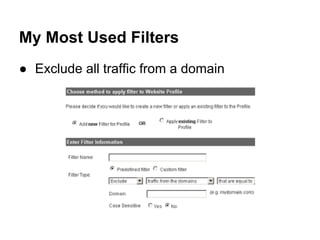
● Exclude all traffic from a domain
My Most Used Filters
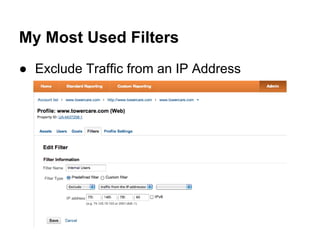
● Exclude Traffic from an IP Address
Configurations
● Filters
● Adding Profiles
● Custom Segmentation
● Goals
● E-Commerce Tracking
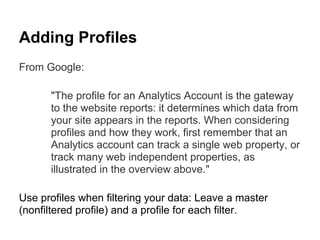
Adding Profiles
From Google:

      "The profile for an Analytics Account is the gateway
      to the website reports: it determines which data from
      your site appears in the reports. When considering
      profiles and how they work, first remember that an
      Analytics account can track a single web property, or
      track many web independent properties, as
      illustrated in the overview above."

Use profiles when filtering your data: Leave a master
(nonfiltered profile) and a profile for each filter.
Configurations
● Filters
● Adding Profiles
● Custom Segmentation
● Goals
● E-Commerce Tracking
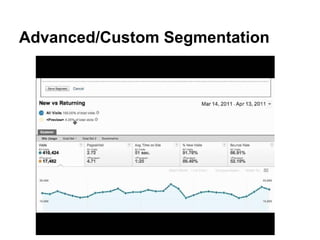
Advanced/Custom Segmentation
From Google:

     "Advanced Segments allow you to isolate and
     analyze specific kinds of traffic. For example, you
     might create a segment that only includes visits from
     purchasers. You can then browse through your
     Analytics reports, viewing data only for this segment
     or even comparing it side by side with data from
     other segments or data from all visits."
Custom Segmentation vs Filters
● Examine historical (ex: last month's) data for an
   advanced segment, even if created today. A filtered
   profile will only contain data from the date created.
● You can see and compare multiple advanced segments
   side by side in reports. In contrast, you can only view
   data for one filtered profile at a time.
● A filtered profile is usually the best choice if you want to
   always exclude a certain kind of traffic from your
   analysis.
● If you want to limit some users' access to only a subset
   of data, you should set up filtered profiles.
Advanced/Custom Segmentation
Configurations
● Filters
● Adding Profiles
● Custom Segmentation
● Goals
● E-Commerce Tracking
Kinds of Goals:
Goals and Funnels are a versatile way to
measure how well your site or app fulfills your
target objectives. Examples:

● Conversion Rate
● Reports
● "Thank You" Page
● Contact / Buy / Download / Register
Types of Goals:
● URL Destination: A specific location, like a web page,
   has loaded. For example, a Thank you for registering!
   web page may be a destination.
● Visit Duration: Visits that lasts a specific amount of
   time or longer. You could use this Goal to determine
   how many visitors stay longer than two minutes on a
   designated screen.
● Page/Visit: A visitor views a specific number of pages
   or screens in a visit.
● Event: A visitor triggers an action you’ve defined as an
   Event, like a social recommendation or an ad click.
Configurations
● Filters
● Adding Profiles
● Custom Segmentation
● Goals
● E-Commerce Tracking
Reporting and Settings
● Dashboard/Home
● Standard Reporting
● Custom Reporting
● Admin
● Help
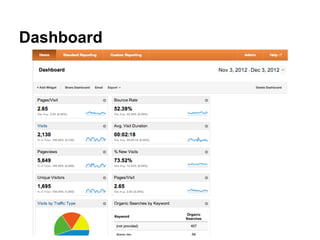
Dashboard
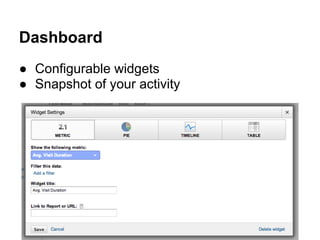
Dashboard
● Configurable widgets
● Snapshot of your activity
Reporting and Settings
● Dashboard/Home
● Standard Reporting
● Custom Reporting
● Admin
● Help
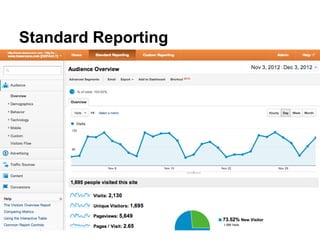
Standard Reporting
Reporting and Settings
● Dashboard/Home
● Standard Reporting
● Custom Reporting
● Admin
● Help
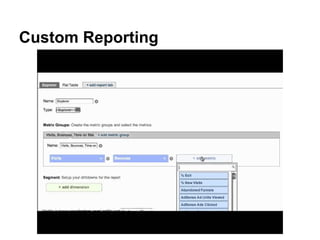
Custom Reporting
A custom report is a report that you create. You
pick the dimensions (City and Browser, for
example) and metrics (Visits, Pageviews, and
Bounce Rate, for example) and decide how
they should be displayed.
Custom Reporting
Reporting and Settings
● Dashboard/Home
● Standard Reporting
● Custom Reporting
● Admin
● Help
Use the Admin Tab to:
● Add users
● Access your tracking code
● Add goals, filters, segments
● Set up custom alerts
● Schedule email updates
Reporting and Settings
● Dashboard/Home
● Standard Reporting
● Custom Reporting
● Admin
● Help
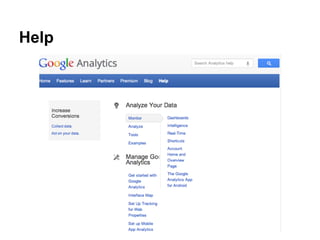
Help
Help
● Google Analytics provides a very
  comprehensive and up-to-date help section.
  Easy to navigate.

● YouTube is also a wealth of free video
  tutorials. *Be sure to check the date of the
  videos: you don't want to be learning from a
  2-3 year old tutorial!
Email Marketing Analytics
Key Email Marketing Metrics
1. Bounce Rate
  a. Soft Bounce: Server error or full inbox; message will
     eventually be received
  b. Hard Bounce: Undeliverable (bad email address)
2. Delivery Rate
  a. Indicator of a spam filter problem
3. Click Rate
  a. This tells you who your recipients are, and what they
     want from your emails in the future
4. Conversion Rate
  a. Rate of how many people completed an action
  b. This is the ultimate gauge as to how well your email
     performed
Social Media Analytics
Insights -- How you can better plan and tailor
your activity for the audience you're attempting
to reach.

Content Development -- Strategize your
content and voice to meet your audience

Measurement -- Identifying tools and
resources to help you measure your reach and
improve
Pinpoint -- #1 Don't Be Blind.
1. Understand your audience
2. Familiarize yourself with the culture and
standards of the network:
○   Information based vs Opinion/Thought based
○   Regular "RTs"
○   Conversational tone?
○   Mentions, credit, and #FF?


3. Know the influential people within your
network
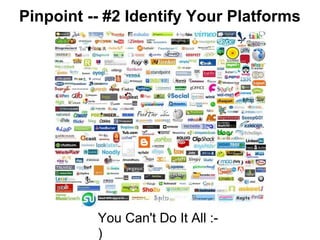
Pinpoint -- #2 Identify Your Platforms


          You Can't Do It All :-
          )
Pinpoint -- #3 Know Your Voice
My Advice:

Identify the main themes and topics that you
plan to consistently talk about. Of those topics,
80% of your social media activity should
convey YOUR BRAND.
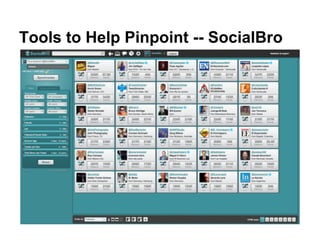
Tools to Help Pinpoint -- SocialBro
Preparation...


...isn't a one-time deal.

  It takes continued awareness and mindfulness
   about the voice, content, and personality that
            you're sharing with the world.
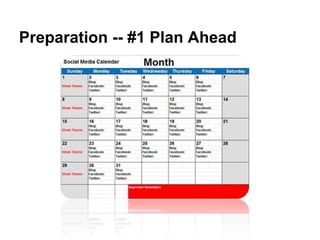
Preparation -- #1 Plan Ahead
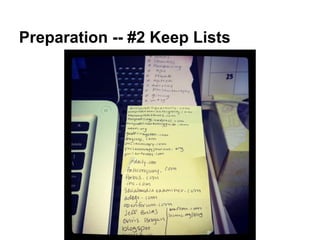
Preparation -- #2 Keep Lists
Preparation -- #3 Keep Current

Don't be left in the dust by not knowing
what's happening the world. Use email,
blogs, news sites, journalists, and authoritative
accounts to keep up with news in your industry.
Part III -- Perform
Perform -- Tip #1


Provide useful information that's related to your
brand, company, work, expertise, interests, etc.

Don't diverge too much - your followers may
become confused or frustrated by your clutter.
Perform -- Tip #2


               Post Regularly.

Decide what's right for you and your audience.

 DO NOT: Post irregularly or rarely (less than
              once a week).
Perform -- Tip #3
    Remember, everyone likes a laugh.
Perform -- Tip #4
     Get people thinking. Provide insight.
Spark a conversation. Make people feel good.
Perform -- Tip #5
Be helpful and responsive

This tip applies to both individuals and companies - reply to
         mentions, answer questions -- BE SOCIAL
Putting It All Together -- How to
Determine Your Success


   Want to stay relevant? Trusted? Useful?

 Use the following metrics to ensure that you
                stay on track:
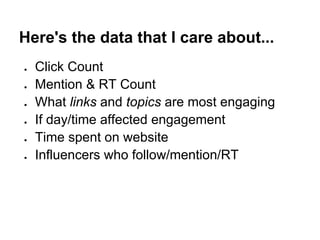
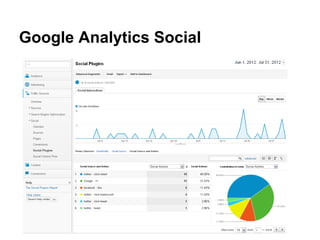
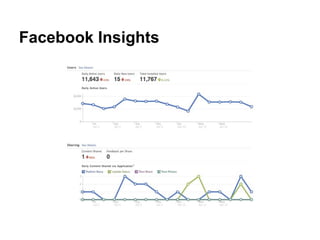
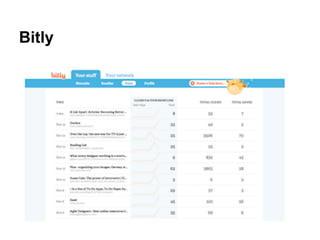
Here's the data that I care about...
●   Click Count
●   Mention & RT Count
●   What links and topics are most engaging
●   If day/time affected engagement
●   Time spent on website
●   Influencers who follow/mention/RT
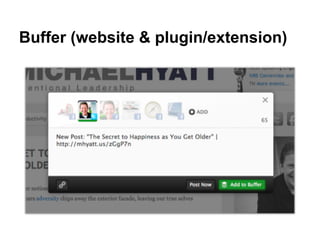
Buffer (website & plugin/extension)
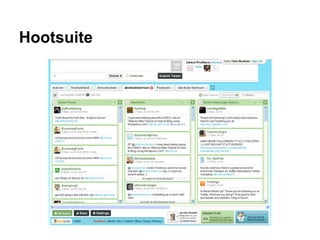
Hootsuite
Google Analytics Social
Facebook Insights
Bitly
RECAP:
Start : Understand your goals and purpose on
social media. Know what platforms make sense
(you can't do them all!).

Make it Happen : Develop a voice, follow
influential accounts, plan for regular posting.

Measure : Know what's working and what isn't.
Tweak and adjust (you'll have to often).
Pinpoint, Prepare, and
Perform with Web Analytics


                     Katie Vojtko
  Marketing Specialist, DonorPro by TowerCare Technologies
          kvojtko@towercare.com |     towercare.com

Pinpoint, Prepare, and Perform with Web Analytics

  • 1.
    Pinpoint, Prepare, and Performwith Web Analytics Katie Vojtko Marketing Specialist, DonorPro by TowerCare Technologies kvojtko@towercare.com | towercare.com
  • 2.
    A Few Questionsto Get Started ● What online tools does your nonprofit use (website, email, social media, etc.)? ● What are some of your challenges and issues with online analytics? ● What kind of tools/information are you looking to gain from this morning?
  • 3.
    What to Expect: 1.Google Analytics (~1 hour) 2. Break (~15 minutes) 3. Email Analytics, Mail Chimp & Constant Contact (~30 minutes) 4. Social Media Analytics & Tools (~45 minutes) Questions, Conversation, and Story/Advice Sharing are Encouraged!
  • 4.
    Google Analytics, Whatis It? Google Analytics is a powerful tool that analyzes: ● Website Traffic ○ Where visitors come from ○ How they are navigating to your site ● Conversions ● E-commerce ● AdWords Performance
  • 5.
    Basics: Visits Visits are thenumber of sessions that occur on your website. A visit is, as close as possible, one person who views one or more pages on the site. If the same person comes back, that’s two visits. More visits to a site equates, basically, to more “traffic” and, potentially, more people in general seeing the site.
  • 6.
    Basics: Pageviews Pageviews are thenumber of pages on your site that were viewed. Generally, each link you click takes you to a new page. If, in one month, 1,000 people went to the homepage, clicked on an article, clicked on another article, and then went elsewhere, that month would have 3,000 page views.
  • 7.
    Basics: Pages/visit Dividing total pageviews by total visits gives the average number of pages that are viewed per visit. Blog-type sites typically have a pages/visit number between 1.5 and 2. An increasing pages/visit number shows that visitors are clicking on more pages on the site per visit.
  • 8.
    Basics: Bounce rate The bouncerate is the percentage of people who see one page and leave the site (essentially “bouncing” off of a page). Bounce rate is affected by the same things that the pages/visit number is: site design, reader engagement, availability of related content, etc.
  • 9.
    Basics: % New Visits Thisis the percentage of the total visits that came from new visitors. Though potentially inaccurate, this is a number whose trends are useful to watch. An increase in % new visits could be an indication of extended online influence while a decrease could mean improved reader engagement.
  • 10.
    Configurations ● Filters ● AddingProfiles ● Custom Segmentation ● Goals ● E-Commerce Tracking
  • 11.
    My Most UsedFilters ● Exclude all traffic from a domain
  • 12.
    My Most UsedFilters ● Exclude Traffic from an IP Address
  • 13.
    Configurations ● Filters ● AddingProfiles ● Custom Segmentation ● Goals ● E-Commerce Tracking
  • 14.
    Adding Profiles From Google: "The profile for an Analytics Account is the gateway to the website reports: it determines which data from your site appears in the reports. When considering profiles and how they work, first remember that an Analytics account can track a single web property, or track many web independent properties, as illustrated in the overview above." Use profiles when filtering your data: Leave a master (nonfiltered profile) and a profile for each filter.
  • 15.
    Configurations ● Filters ● AddingProfiles ● Custom Segmentation ● Goals ● E-Commerce Tracking
  • 16.
    Advanced/Custom Segmentation From Google: "Advanced Segments allow you to isolate and analyze specific kinds of traffic. For example, you might create a segment that only includes visits from purchasers. You can then browse through your Analytics reports, viewing data only for this segment or even comparing it side by side with data from other segments or data from all visits."
  • 17.
    Custom Segmentation vsFilters ● Examine historical (ex: last month's) data for an advanced segment, even if created today. A filtered profile will only contain data from the date created. ● You can see and compare multiple advanced segments side by side in reports. In contrast, you can only view data for one filtered profile at a time. ● A filtered profile is usually the best choice if you want to always exclude a certain kind of traffic from your analysis. ● If you want to limit some users' access to only a subset of data, you should set up filtered profiles.
  • 18.
  • 19.
    Configurations ● Filters ● AddingProfiles ● Custom Segmentation ● Goals ● E-Commerce Tracking
  • 20.
    Kinds of Goals: Goalsand Funnels are a versatile way to measure how well your site or app fulfills your target objectives. Examples: ● Conversion Rate ● Reports ● "Thank You" Page ● Contact / Buy / Download / Register
  • 21.
    Types of Goals: ●URL Destination: A specific location, like a web page, has loaded. For example, a Thank you for registering! web page may be a destination. ● Visit Duration: Visits that lasts a specific amount of time or longer. You could use this Goal to determine how many visitors stay longer than two minutes on a designated screen. ● Page/Visit: A visitor views a specific number of pages or screens in a visit. ● Event: A visitor triggers an action you’ve defined as an Event, like a social recommendation or an ad click.
  • 22.
    Configurations ● Filters ● AddingProfiles ● Custom Segmentation ● Goals ● E-Commerce Tracking
  • 23.
    Reporting and Settings ●Dashboard/Home ● Standard Reporting ● Custom Reporting ● Admin ● Help
  • 24.
  • 25.
    Dashboard ● Configurable widgets ●Snapshot of your activity
  • 26.
    Reporting and Settings ●Dashboard/Home ● Standard Reporting ● Custom Reporting ● Admin ● Help
  • 27.
  • 28.
    Reporting and Settings ●Dashboard/Home ● Standard Reporting ● Custom Reporting ● Admin ● Help
  • 29.
    Custom Reporting A customreport is a report that you create. You pick the dimensions (City and Browser, for example) and metrics (Visits, Pageviews, and Bounce Rate, for example) and decide how they should be displayed.
  • 30.
  • 31.
    Reporting and Settings ●Dashboard/Home ● Standard Reporting ● Custom Reporting ● Admin ● Help
  • 32.
    Use the AdminTab to: ● Add users ● Access your tracking code ● Add goals, filters, segments ● Set up custom alerts ● Schedule email updates
  • 33.
    Reporting and Settings ●Dashboard/Home ● Standard Reporting ● Custom Reporting ● Admin ● Help
  • 34.
  • 35.
    Help ● Google Analyticsprovides a very comprehensive and up-to-date help section. Easy to navigate. ● YouTube is also a wealth of free video tutorials. *Be sure to check the date of the videos: you don't want to be learning from a 2-3 year old tutorial!
  • 37.
  • 38.
    Key Email MarketingMetrics 1. Bounce Rate a. Soft Bounce: Server error or full inbox; message will eventually be received b. Hard Bounce: Undeliverable (bad email address) 2. Delivery Rate a. Indicator of a spam filter problem 3. Click Rate a. This tells you who your recipients are, and what they want from your emails in the future 4. Conversion Rate a. Rate of how many people completed an action b. This is the ultimate gauge as to how well your email performed
  • 42.
    Social Media Analytics Insights-- How you can better plan and tailor your activity for the audience you're attempting to reach. Content Development -- Strategize your content and voice to meet your audience Measurement -- Identifying tools and resources to help you measure your reach and improve
  • 43.
    Pinpoint -- #1Don't Be Blind. 1. Understand your audience 2. Familiarize yourself with the culture and standards of the network: ○ Information based vs Opinion/Thought based ○ Regular "RTs" ○ Conversational tone? ○ Mentions, credit, and #FF? 3. Know the influential people within your network
  • 44.
    Pinpoint -- #2Identify Your Platforms You Can't Do It All :- )
  • 45.
    Pinpoint -- #3Know Your Voice My Advice: Identify the main themes and topics that you plan to consistently talk about. Of those topics, 80% of your social media activity should convey YOUR BRAND.
  • 46.
    Tools to HelpPinpoint -- SocialBro
  • 47.
    Preparation... ...isn't a one-timedeal. It takes continued awareness and mindfulness about the voice, content, and personality that you're sharing with the world.
  • 48.
  • 49.
  • 50.
    Preparation -- #3Keep Current Don't be left in the dust by not knowing what's happening the world. Use email, blogs, news sites, journalists, and authoritative accounts to keep up with news in your industry.
  • 51.
    Part III --Perform
  • 52.
    Perform -- Tip#1 Provide useful information that's related to your brand, company, work, expertise, interests, etc. Don't diverge too much - your followers may become confused or frustrated by your clutter.
  • 53.
    Perform -- Tip#2 Post Regularly. Decide what's right for you and your audience. DO NOT: Post irregularly or rarely (less than once a week).
  • 54.
    Perform -- Tip#3 Remember, everyone likes a laugh.
  • 55.
    Perform -- Tip#4 Get people thinking. Provide insight. Spark a conversation. Make people feel good.
  • 56.
    Perform -- Tip#5 Be helpful and responsive This tip applies to both individuals and companies - reply to mentions, answer questions -- BE SOCIAL
  • 57.
    Putting It AllTogether -- How to Determine Your Success Want to stay relevant? Trusted? Useful? Use the following metrics to ensure that you stay on track:
  • 58.
    Here's the datathat I care about... ● Click Count ● Mention & RT Count ● What links and topics are most engaging ● If day/time affected engagement ● Time spent on website ● Influencers who follow/mention/RT
  • 59.
    Buffer (website &plugin/extension)
  • 60.
  • 61.
  • 62.
  • 63.
  • 64.
    RECAP: Start : Understandyour goals and purpose on social media. Know what platforms make sense (you can't do them all!). Make it Happen : Develop a voice, follow influential accounts, plan for regular posting. Measure : Know what's working and what isn't. Tweak and adjust (you'll have to often).
  • 65.
    Pinpoint, Prepare, and Performwith Web Analytics Katie Vojtko Marketing Specialist, DonorPro by TowerCare Technologies kvojtko@towercare.com | towercare.com