Performance Management 
Reviews 
Training 
Positions
John Austin - Client Services Manager 
Robert Stokes - Performance Management 
Product Consultant 
Product 
Consultant 
Introduction 
Overview 
Agenda 
Demonstration 
Best Practices 
Configuration 
Tips 
Limitations FAQs
Product 
Consultant 
Introduction 
Overview 
Agenda 
Demonstration 
Best Practices 
Configuration 
Tips 
Limitations FAQs 
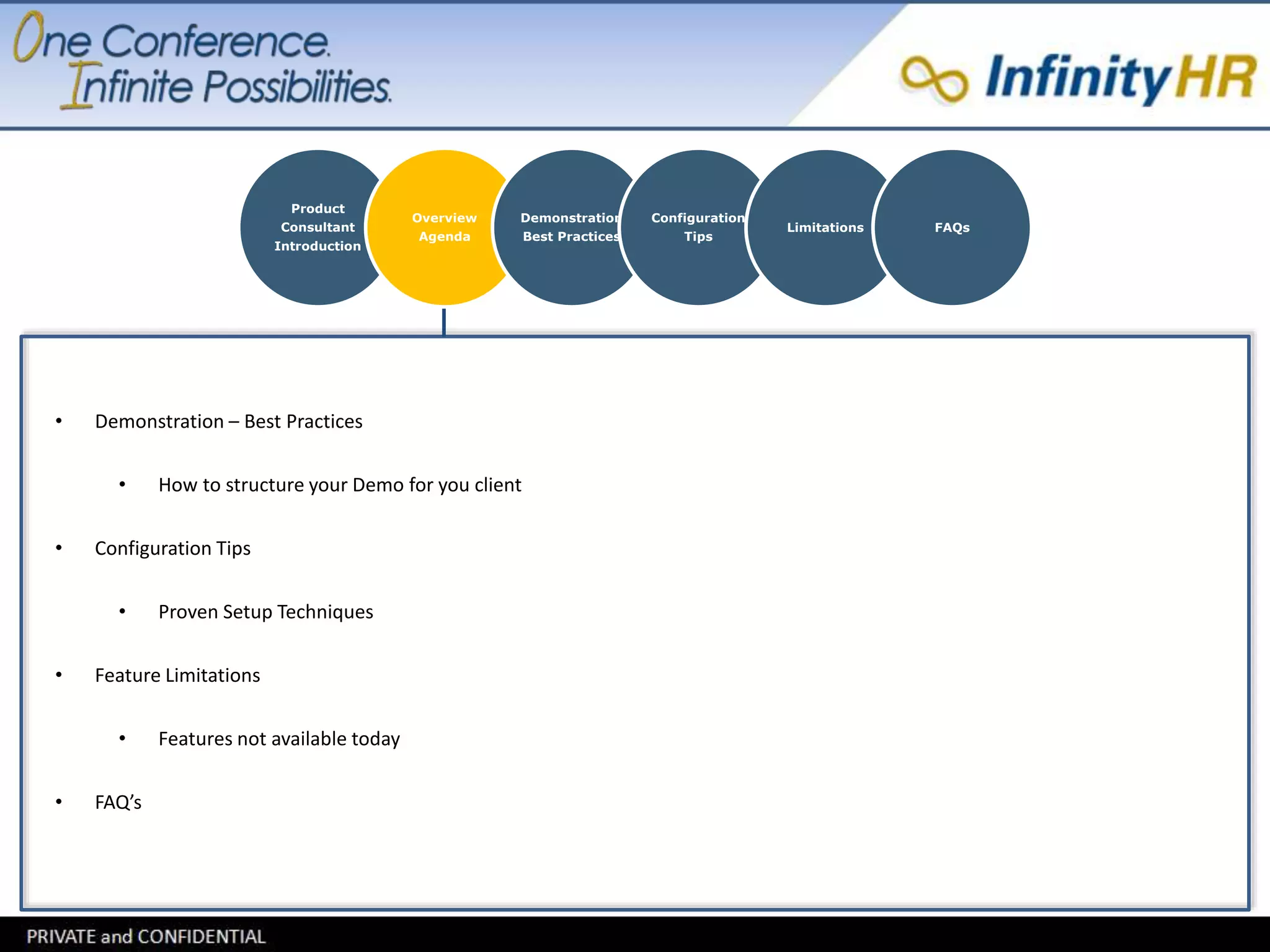
• Demonstration – Best Practices 
• How to structure your Demo for you client 
• Configuration Tips 
• Proven Setup Techniques 
• Feature Limitations 
• Features not available today 
• FAQ’s
Product 
Consultant 
Introduction 
Overview 
Agenda 
Demonstration/ 
Training 
Best Practices 
Configuration 
Tips 
Limitations FAQs 
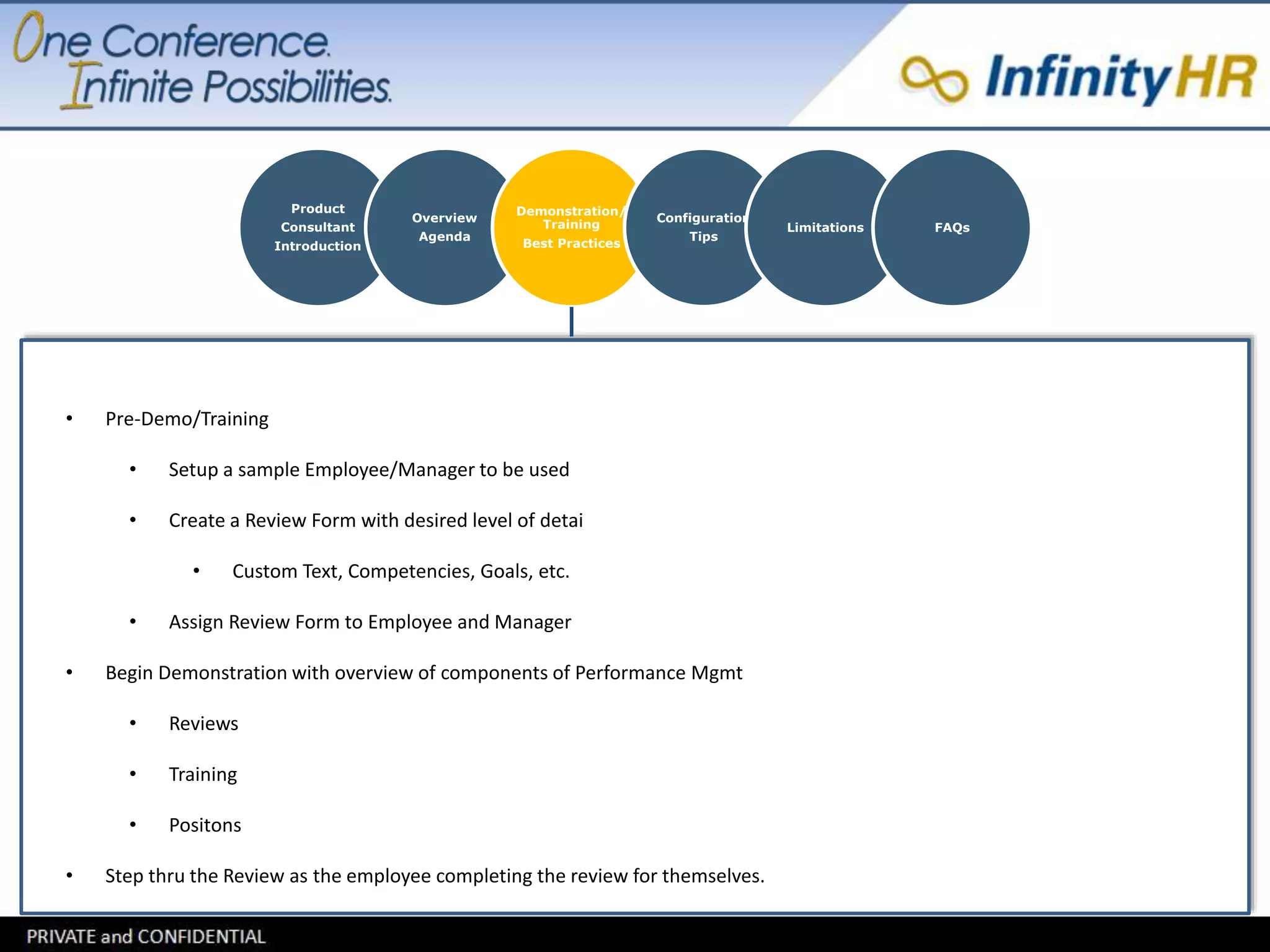
• Pre-Demo/Training 
• Setup a sample Employee/Manager to be used 
• Create a Review Form with desired level of detai 
• Custom Text, Competencies, Goals, etc. 
• Assign Review Form to Employee and Manager 
• Begin Demonstration with overview of components of Performance Mgmt 
• Reviews 
• Training 
• Positons 
• Step thru the Review as the employee completing the review for themselves.
Product 
Consultant 
Introduction 
Overview 
Agenda 
Demonstration/ 
Training 
Best Practices 
Configuration 
Tips 
Limitations FAQs 
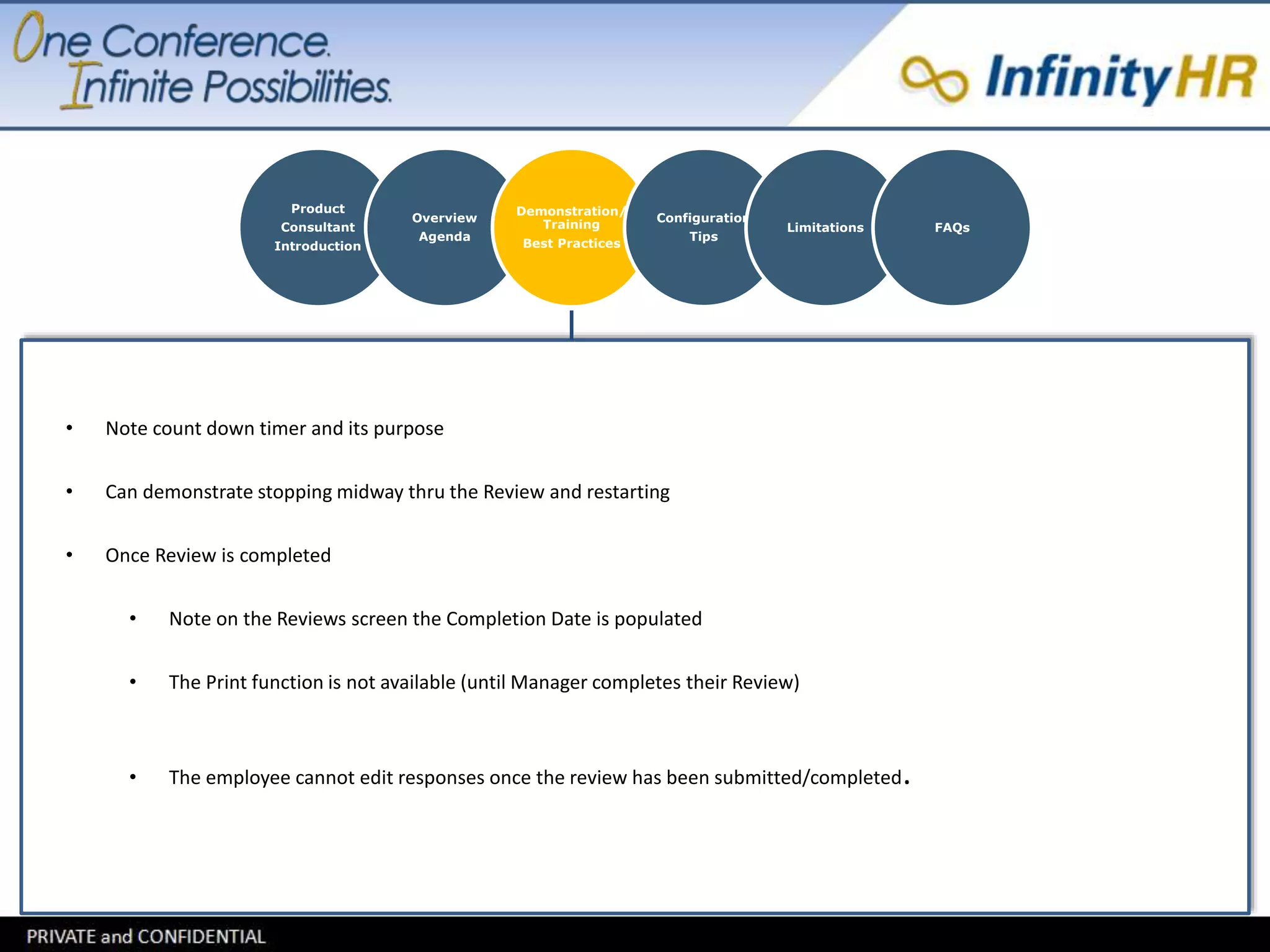
• Note count down timer and its purpose 
• Can demonstrate stopping midway thru the Review and restarting 
• Once Review is completed 
• Note on the Reviews screen the Completion Date is populated 
• The Print function is not available (until Manager completes their Review) 
• The employee cannot edit responses once the review has been submitted/completed.
Product 
Consultant 
Introduction 
Overview 
Agenda 
Demonstration 
Best Practices 
Configuration 
Tips 
Limitations FAQs 
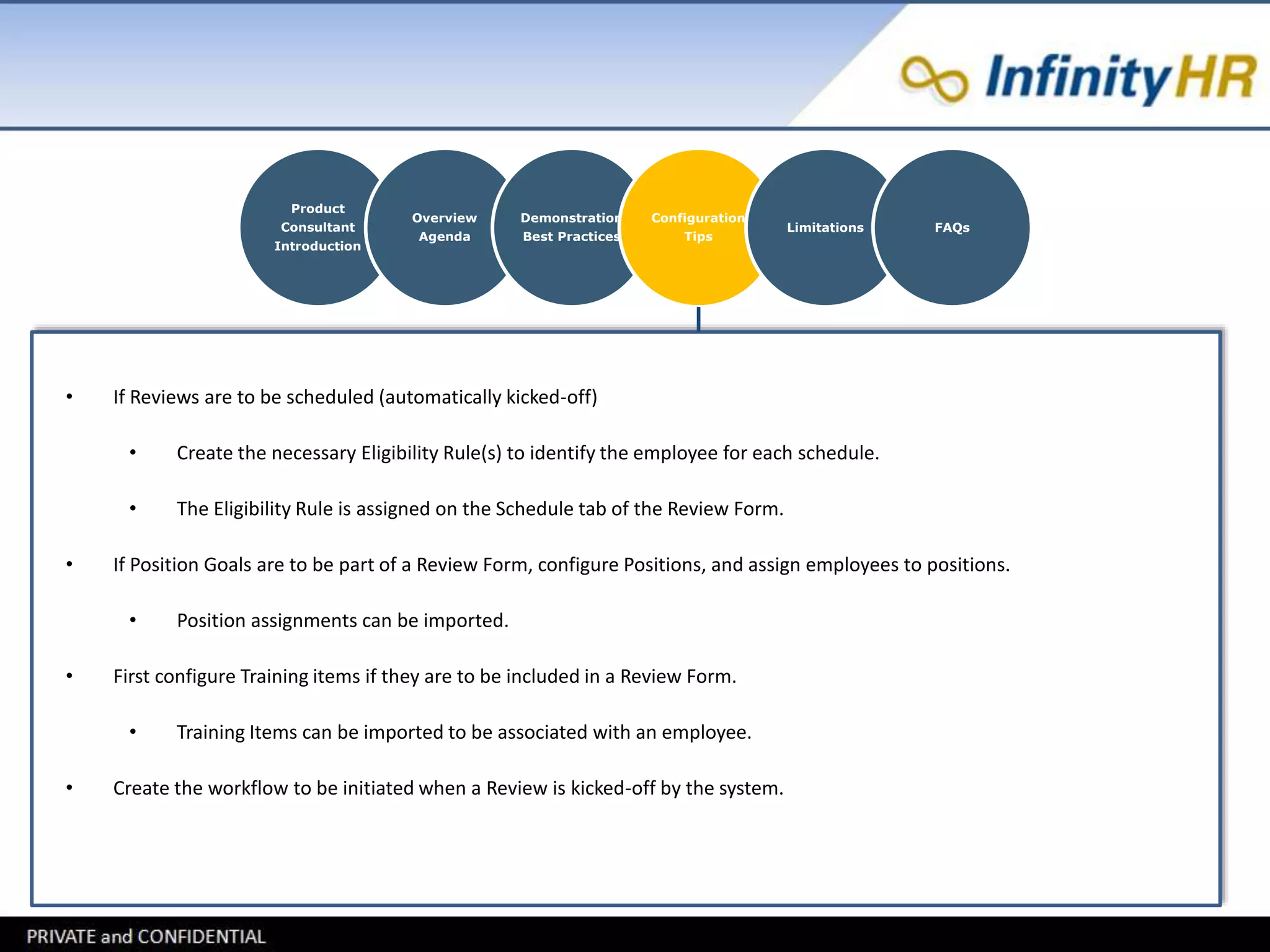
• If Reviews are to be scheduled (automatically kicked-off) 
• Create the necessary Eligibility Rule(s) to identify the employee for each schedule. 
• The Eligibility Rule is assigned on the Schedule tab of the Review Form. 
• If Position Goals are to be part of a Review Form, configure Positions, and assign employees to positions. 
• Position assignments can be imported. 
• First configure Training items if they are to be included in a Review Form. 
• Training Items can be imported to be associated with an employee. 
• Create the workflow to be initiated when a Review is kicked-off by the system.
Product 
Consultant 
Introduction 
Overview 
Agenda 
Demonstration 
Best Practices 
Configuration 
Tips 
Limitations FAQs 
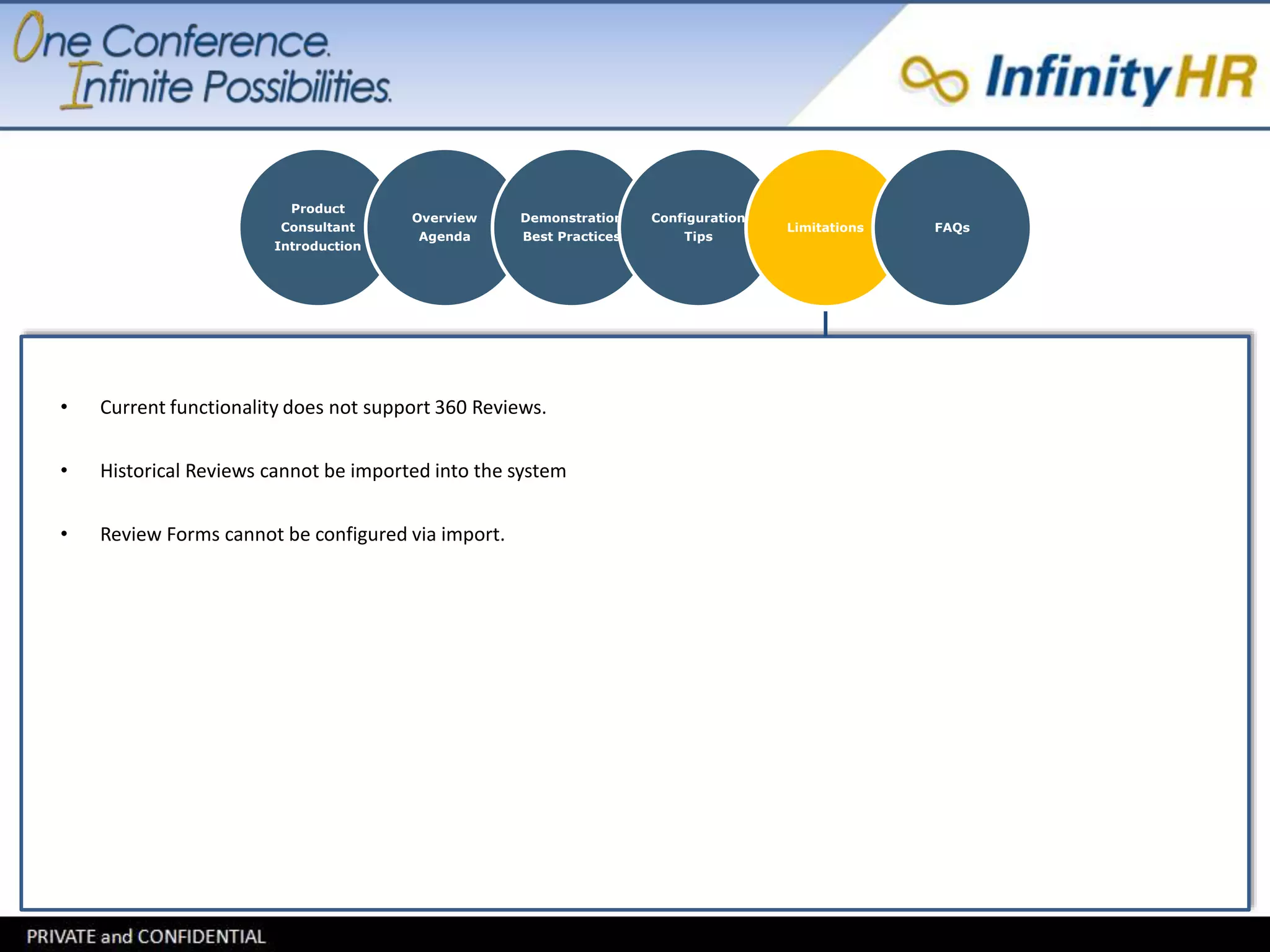
• Current functionality does not support 360 Reviews. 
• Historical Reviews cannot be imported into the system 
• Review Forms cannot be configured via import.
Product 
Consultant 
Introduction 
Overview 
Agenda 
Demonstration 
Best Practices 
Configuration 
Tips 
Limitations FAQs 
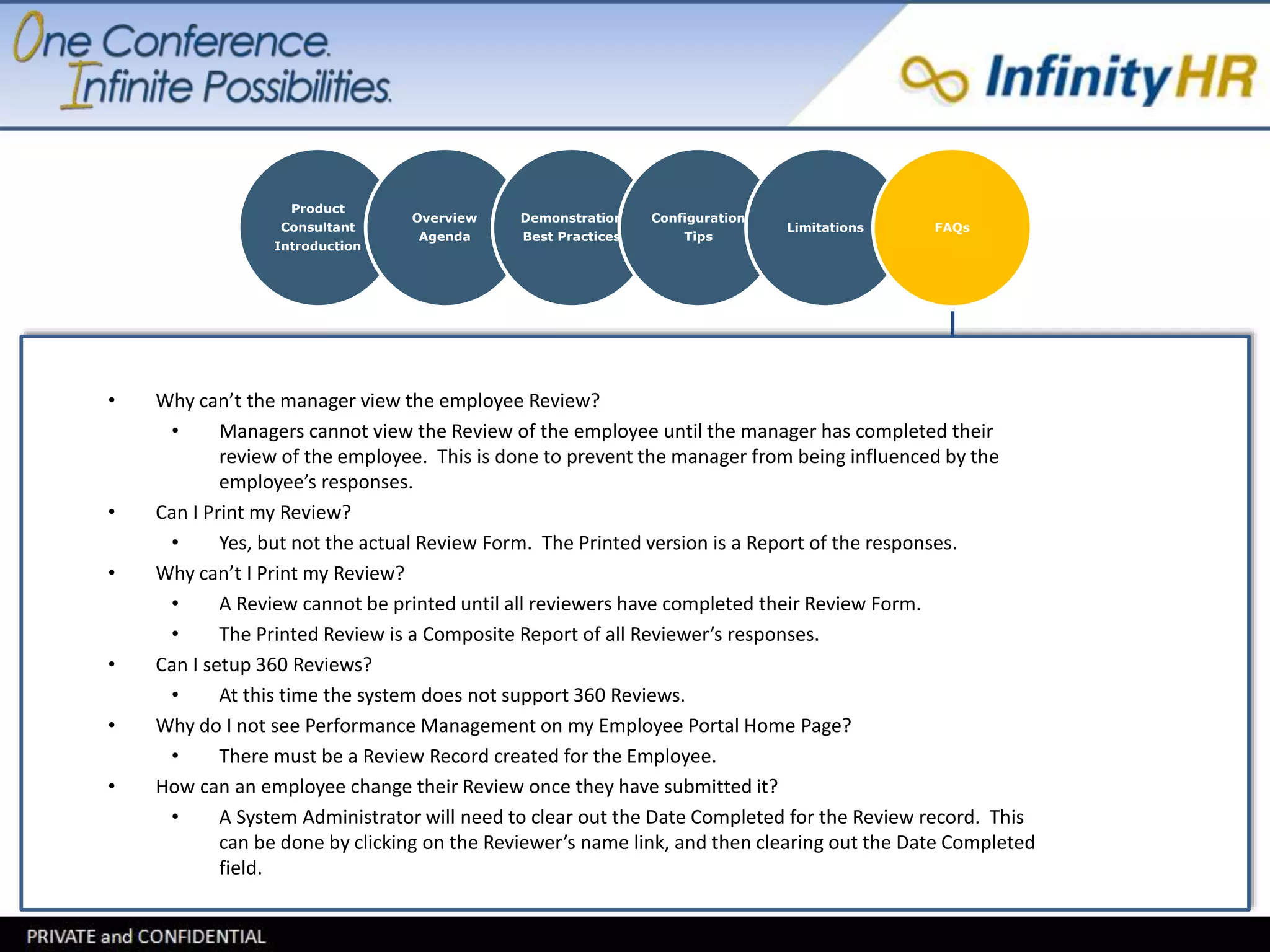
• Why can’t the manager view the employee Review? 
• Managers cannot view the Review of the employee until the manager has completed their 
review of the employee. This is done to prevent the manager from being influenced by the 
employee’s responses. 
• Can I Print my Review? 
• Yes, but not the actual Review Form. The Printed version is a Report of the responses. 
• Why can’t I Print my Review? 
• A Review cannot be printed until all reviewers have completed their Review Form. 
• The Printed Review is a Composite Report of all Reviewer’s responses. 
• Can I setup 360 Reviews? 
• At this time the system does not support 360 Reviews. 
• Why do I not see Performance Management on my Employee Portal Home Page? 
• There must be a Review Record created for the Employee. 
• How can an employee change their Review once they have submitted it? 
• A System Administrator will need to clear out the Date Completed for the Review record. This 
can be done by clicking on the Reviewer’s name link, and then clearing out the Date Completed 
field.
Product 
Consultant 
Introduction 
Overview 
Agenda 
Demonstration 
Best Practices 
Configuration 
Tips 
Limitations FAQs 
• Can I re-calculate all completed reviews if a scoring change is made to the Review Form? 
• Yes. From the Utilities menu, Click on the Review Score Recalculation tab. 
• Enter a start date that is 1 day prior to the Review start date that is to be recalculated. 
• Can I have the system created Review records for all employees, after a Review Form and schedule 
have been created? 
• Yes. From the Utilities tab, on the Review Form Scheduler tab. Enter the date range for Reviews 
to be created. 
• The Review Form must have a schedule record on the Schedule tab.

Performance mgmt best_practices (john austin)

  • 1.
    Performance Management Reviews Training Positions
  • 2.
    John Austin -Client Services Manager Robert Stokes - Performance Management Product Consultant Product Consultant Introduction Overview Agenda Demonstration Best Practices Configuration Tips Limitations FAQs
  • 3.
    Product Consultant Introduction Overview Agenda Demonstration Best Practices Configuration Tips Limitations FAQs • Demonstration – Best Practices • How to structure your Demo for you client • Configuration Tips • Proven Setup Techniques • Feature Limitations • Features not available today • FAQ’s
  • 4.
    Product Consultant Introduction Overview Agenda Demonstration/ Training Best Practices Configuration Tips Limitations FAQs • Pre-Demo/Training • Setup a sample Employee/Manager to be used • Create a Review Form with desired level of detai • Custom Text, Competencies, Goals, etc. • Assign Review Form to Employee and Manager • Begin Demonstration with overview of components of Performance Mgmt • Reviews • Training • Positons • Step thru the Review as the employee completing the review for themselves.
  • 5.
    Product Consultant Introduction Overview Agenda Demonstration/ Training Best Practices Configuration Tips Limitations FAQs • Note count down timer and its purpose • Can demonstrate stopping midway thru the Review and restarting • Once Review is completed • Note on the Reviews screen the Completion Date is populated • The Print function is not available (until Manager completes their Review) • The employee cannot edit responses once the review has been submitted/completed.
  • 6.
    Product Consultant Introduction Overview Agenda Demonstration Best Practices Configuration Tips Limitations FAQs • If Reviews are to be scheduled (automatically kicked-off) • Create the necessary Eligibility Rule(s) to identify the employee for each schedule. • The Eligibility Rule is assigned on the Schedule tab of the Review Form. • If Position Goals are to be part of a Review Form, configure Positions, and assign employees to positions. • Position assignments can be imported. • First configure Training items if they are to be included in a Review Form. • Training Items can be imported to be associated with an employee. • Create the workflow to be initiated when a Review is kicked-off by the system.
  • 7.
    Product Consultant Introduction Overview Agenda Demonstration Best Practices Configuration Tips Limitations FAQs • Current functionality does not support 360 Reviews. • Historical Reviews cannot be imported into the system • Review Forms cannot be configured via import.
  • 8.
    Product Consultant Introduction Overview Agenda Demonstration Best Practices Configuration Tips Limitations FAQs • Why can’t the manager view the employee Review? • Managers cannot view the Review of the employee until the manager has completed their review of the employee. This is done to prevent the manager from being influenced by the employee’s responses. • Can I Print my Review? • Yes, but not the actual Review Form. The Printed version is a Report of the responses. • Why can’t I Print my Review? • A Review cannot be printed until all reviewers have completed their Review Form. • The Printed Review is a Composite Report of all Reviewer’s responses. • Can I setup 360 Reviews? • At this time the system does not support 360 Reviews. • Why do I not see Performance Management on my Employee Portal Home Page? • There must be a Review Record created for the Employee. • How can an employee change their Review once they have submitted it? • A System Administrator will need to clear out the Date Completed for the Review record. This can be done by clicking on the Reviewer’s name link, and then clearing out the Date Completed field.
  • 9.
    Product Consultant Introduction Overview Agenda Demonstration Best Practices Configuration Tips Limitations FAQs • Can I re-calculate all completed reviews if a scoring change is made to the Review Form? • Yes. From the Utilities menu, Click on the Review Score Recalculation tab. • Enter a start date that is 1 day prior to the Review start date that is to be recalculated. • Can I have the system created Review records for all employees, after a Review Form and schedule have been created? • Yes. From the Utilities tab, on the Review Form Scheduler tab. Enter the date range for Reviews to be created. • The Review Form must have a schedule record on the Schedule tab.