PAL #8: Video
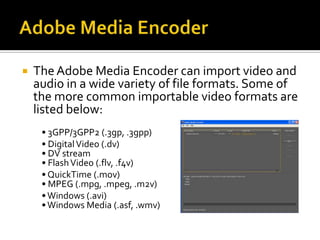
   The Adobe Media Encoder can import video and
    audio in a wide variety of file formats. Some of
    the more common importable video formats are
    listed below:
     • 3GPP/3GPP2 (.3gp, .3gpp)
     • Digital Video (.dv)
     • DV stream
     • Flash Video (.flv, .f4v)
     • QuickTime (.mov)
     • MPEG (.mpg, .mpeg, .m2v)
     • Windows (.avi)
     • Windows Media (.asf, .wmv)
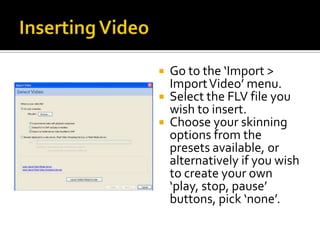
   Go to the ‘Import >
    Import Video’ menu.
   Select the FLV file you
    wish to insert.
   Choose your skinning
    options from the
    presets available, or
    alternatively if you wish
    to create your own
    ‘play, stop, pause’
    buttons, pick ‘none’.
   Find a suitable video
    online
    (http://archive.org/details
    /movies is a good source
    if you’re lost)
   Make sure it’s under 1
    minute long!
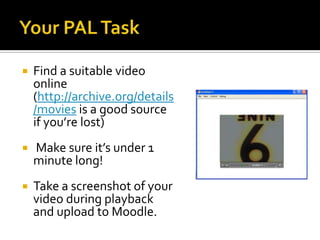
   Take a screenshot of your
    video during playback
    and upload to Moodle.

PAL #8: Video

  • 1.
  • 2.
    The Adobe Media Encoder can import video and audio in a wide variety of file formats. Some of the more common importable video formats are listed below: • 3GPP/3GPP2 (.3gp, .3gpp) • Digital Video (.dv) • DV stream • Flash Video (.flv, .f4v) • QuickTime (.mov) • MPEG (.mpg, .mpeg, .m2v) • Windows (.avi) • Windows Media (.asf, .wmv)
  • 3.
    Go to the ‘Import > Import Video’ menu.  Select the FLV file you wish to insert.  Choose your skinning options from the presets available, or alternatively if you wish to create your own ‘play, stop, pause’ buttons, pick ‘none’.
  • 4.
    Find a suitable video online (http://archive.org/details /movies is a good source if you’re lost)  Make sure it’s under 1 minute long!  Take a screenshot of your video during playback and upload to Moodle.