Unit 17: Website Production


Creating Pages

Adding a new page
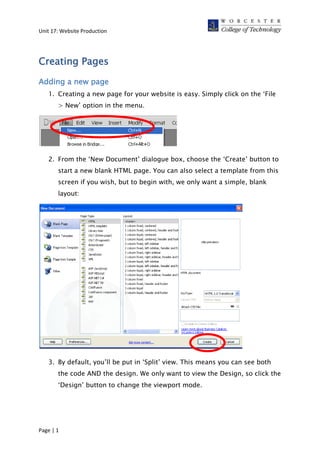
   1. Creating a new page for your website is easy. Simply click on the ‘File
       > New’ option in the menu.


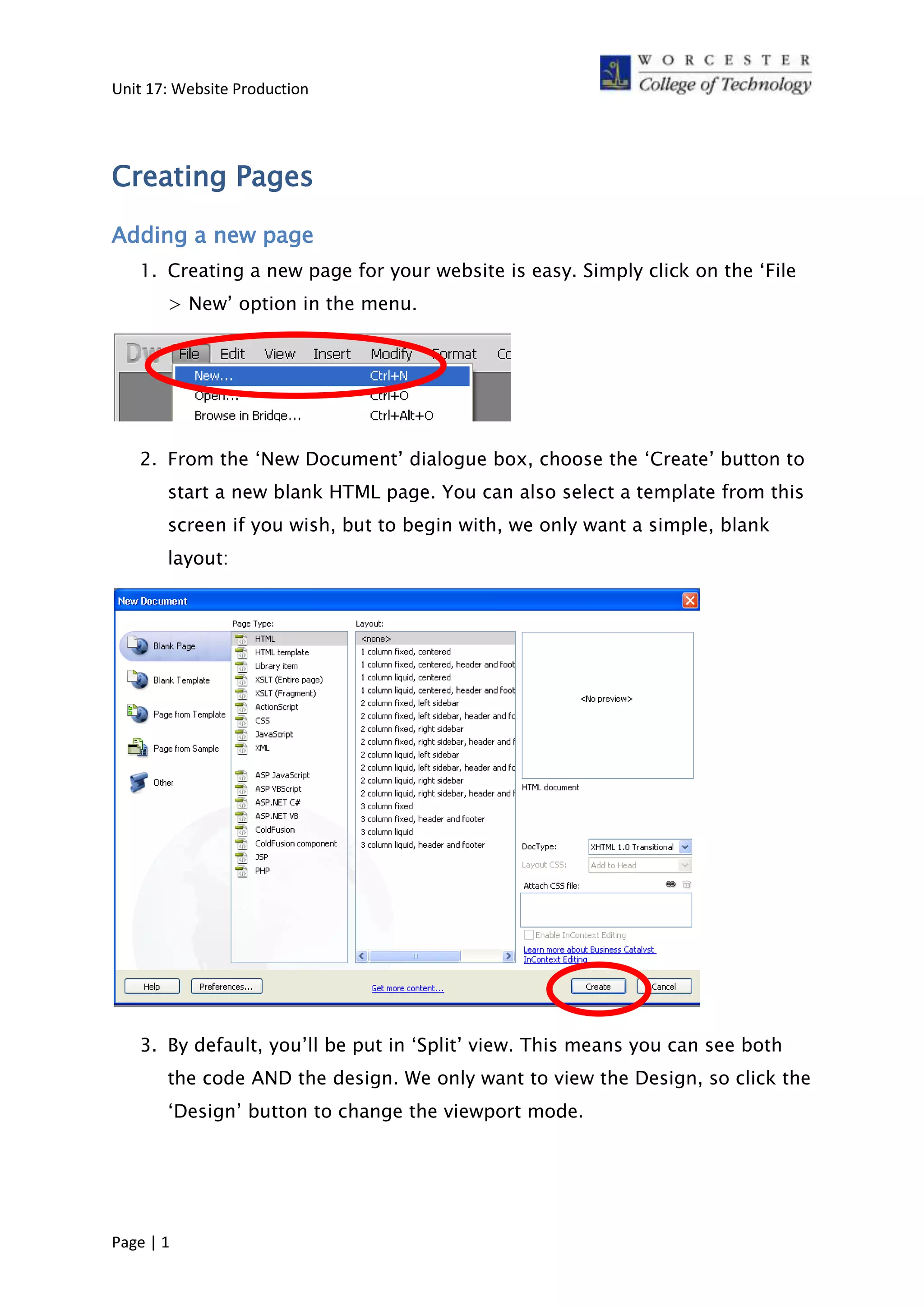
   2. From the ‘New Document’ dialogue box, choose the ‘Create’ button to
       start a new blank HTML page. You can also select a template from this
       screen if you wish, but to begin with, we only want a simple, blank
       layout:


   3. By default, you’ll be put in ‘Split’ view. This means you can see both
       the code AND the design. We only want to view the Design, so click the
       ‘Design’ button to change the viewport mode.


Page | 1
Unit 17: Website Production


Saving a new page
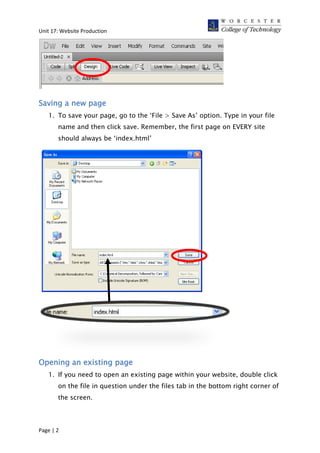
   1. To save your page, go to the ‘File > Save As’ option. Type in your file
       name and then click save. Remember, the first page on EVERY site
       should always be ‘index.html’


Opening an existing page
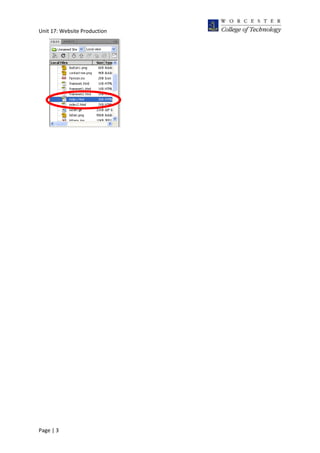
   1. If you need to open an existing page within your website, double click
       on the file in question under the files tab in the bottom right corner of
       the screen.


Page | 2
Unit 17: Website Production


Page | 3

Creating Pages

  • 1.
    Unit 17: WebsiteProduction Creating Pages Adding a new page 1. Creating a new page for your website is easy. Simply click on the ‘File > New’ option in the menu. 2. From the ‘New Document’ dialogue box, choose the ‘Create’ button to start a new blank HTML page. You can also select a template from this screen if you wish, but to begin with, we only want a simple, blank layout: 3. By default, you’ll be put in ‘Split’ view. This means you can see both the code AND the design. We only want to view the Design, so click the ‘Design’ button to change the viewport mode. Page | 1
  • 2.
    Unit 17: WebsiteProduction Saving a new page 1. To save your page, go to the ‘File > Save As’ option. Type in your file name and then click save. Remember, the first page on EVERY site should always be ‘index.html’ Opening an existing page 1. If you need to open an existing page within your website, double click on the file in question under the files tab in the bottom right corner of the screen. Page | 2
  • 3.
    Unit 17: WebsiteProduction Page | 3