PAGE
1
Using Microsoft Excel 2010 for Selected Tasks
(Throughout this document, a set of data refers to observations
of just one variable.)
(1) To portray as a bar chart a given frequency, relative
frequency, or percentage distribution of a set of qualitative
data, one may:
With the categories in one column and the counts or proportions
or percentages in another:
1. Select (by clicking-and-dragging) the counts or proportions
or percentages.
2. Choose (from upper menu) Insert, then Column (for vertical
bars) or Bar (for horizontal bars), then the first pictured sub-
type.
3. Right-click on a blank spot in the chart area, choose Select
Data…, choose (right of center) Edit, enter the location of the
categories, click OK, and click OK.
4. Choose (from upper menu) Layout, then Axis Titles to enter
appropriate labels for the horizontal and vertical axes, then
Chart Title to enter an appropriate title.
5. If you wish the counts or proportions or percentages to be
shown on the bars: Choose (from menu) Data Labels, then your
preferred position.
(2)To portray as a pie chart a given frequency, relative
frequency, or percentage distribution, one may:
With the categories or numeric classes in one column and the
counts or proportions or percentages in another:
1. Select (by clicking-and-dragging) the counts or proportions
or percentages.
2. Choose (from upper menu) Insert, then Pie, then the first
pictured sub-type.
3. Right-click on a blank spot in the chart area, choose Select
Data…, choose (right of center) Edit, enter the location of the
categories or numeric classes, click OK, and click OK.
4. (a) Choose (from upper menu) Layout, then Data Labels, then
More Data Label Options (which will by default cause each
“Value”--i.e, each count or proportion or percentage selected in
step 1.--to appear on or near a pie slice); (b) if you wish each
category or numeric class to appear on or near a pie slice, select
Category name, then your preferred position; (c) click on Close;
and (d) if the legend box is now superfluous, delete it.
5. Choose (from menu) Chart Title to enter an appropriate title.
(3) Counting the number of cells (within some range of cells)
satisfying a particular condition:
Examples:
· To count how many of the cells A1 through A100 contain the
word Agree, one may enter in some blank cell
=COUNTIF(A1:A100, “Agree”) Note: In lieu of typing in
“Agree”, one may click on a cell containing the word Agree.
· To count how many of the cells A1 through A100 contain the
number 89, one may enter in some blank cell
=COUNTIF(A1:A100, 89) Note: In lieu of typing in 89, one
may click on a cell containing the number 89.
· To count how many of the cells A1 through A100 contain a
number in the interval 10 to under 20, enter in some blank cell
=COUNTIF(A1:A100,”<20”)-COUNTIF(A1:A100,”<10”)
· Note: Each relative address A1:A100 above may be replaced
by the absolute address $A$1:$A$100. In lieu of typing in the
absolute address $A$1:$A$100, one may click and drag through
the cells A1 through A100, release the mouse, and press the F4
(“freeze for sure”) key.
(4) To portray a given set of time series data in a line graph,
one may:
With the time periods in one column and the data in another:
1. Select (by clicking-and-dragging) the data (but not the time
periods)
2. Choose (from upper menu) Insert, then Line, then the fourth
pictured sub-type.
3. Right-click on a blank spot in the chart area, choose Select
Data…, choose (right of center) Edit, enter the location of the
time periods, click OK, and click OK.
4. Choose (from upper menu) Layout, then Axis Titles to enter
appropriate labels for the horizontal and vertical axes, then
Chart Title to enter an appropriate title.
(5) To portray as a histogram a given frequency, relative
frequency, or percentage distribution of a set of quantitative
data, one may:
Working from a second copy (obtained via edit-copy-edit-paste-
values) of the distribution, with the numeric classes in one
column and the counts or proportions or percentages in another:
1. If the first numeric class has a lower boundary > 0 (or
comprises a number > 0): insert immediately above the first
numeric class a bogus numeric class comprising a blank cell and
insert immediately above the first count or proportion or
percentage a bogus count or proportion or percentage of 0.
Note: This insertion is necessary to end up with a space along
the x-axis between the origin and the first bar of the histogram.
2. Select (by clicking-and-dragging) the counts or proportions
or percentages (including, if present, the bogus 0).
3. Choose (from upper menu) Insert, then Column, then the first
pictured sub-type.
4. Right-click on a blank spot in the chart area, choose Select
Data…, choose (right of center) Edit, enter the location of the
numeric classes (including, if present, the bogus blank cell),
click OK, and click OK.
5. Choose (from upper menu) Layout, then Axis Titles to enter
appropriate labels for the horizontal and vertical axes, then
Chart Title to enter an appropriate title.
6. If you wish the counts or proportions or percentages to be
shown on the bars: Choose (from menu) Data Labels, then your
preferred position.
7. Remove the gaps between the bars as follows: right-click on
one of the bars, choose Format Data Series…, slide the Gap
Width indicator to No Gap, and click Close. Note: You can
alter the fill color and/or border color of the bars by right-
clicking on a bar and making the desired color selections.
8. If a break in the x-axis scale needs to be communicated:
Rely on (from upper menu) Insert/Shapes/Line twice to “draw
in” two diagonal hash marks
9. If the numeric classes are intervals of an [a,b) or (a,b] nature
and you want their boundaries (instead of the intervals
themselves) specified along the x-axis: (a) replace (via
“overwriting”) the column of numeric classes (including, if
present, the bogus blank) with—in ascending order—the
boundaries (excluding 0 if the first numeric class has a lower
boundary of 0); (b) right click on one of the boundaries in the
histogram; (c) select the right justify option; and (d) select
Format Axis…, then Alignment, and enter 5⁰ for the Custom
Angle .
(6) Using Excel statistical functions to obtain individual
summary measures for a set of quantitative data:
Summary measure
What you enter in some blank cell (assuming data resides in
cells A1:C10)
mean
=AVERAGE(A1:C10)
median
=MEDIAN(A1:C10)
mode
=MODE(A1:C10)
range
=MAX(A1:C10)-MIN(A1:C10)
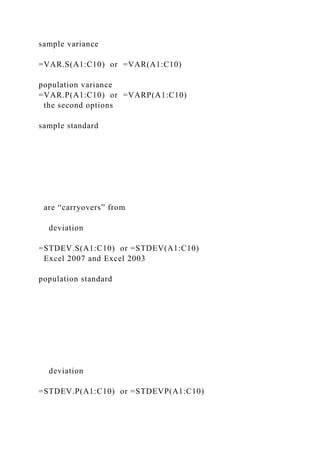
sample variance
=VAR.S(A1:C10) or =VAR(A1:C10)
population variance
=VAR.P(A1:C10) or =VARP(A1:C10)
the second options
sample standard
are “carryovers” from
deviation
=STDEV.S(A1:C10) or =STDEV(A1:C10)
Excel 2007 and Excel 2003
population standard
deviation
=STDEV.P(A1:C10) or =STDEVP(A1:C10)
(7) Using Excel’s Descriptive Statistics tool to obtain a list of
various summary measures for a set of quantitative data:
Note: The Descriptive Statistics tool (and a number of other
tools, several of which are relied upon in ECON 3300) is in the
Excel Add-In called Analysis ToolPak. If working from your
own computer, you will need to have the Analysis ToolPak
Add-In installed on your computer. You have ready access to
the Analysis ToolPak Add-In from any KSU classroom or
labroom computer. (Mac users: My understanding is that
StatPlus:mac, downloadable from
http://www.analystsoft.com/en/products/statplusmacle/,
provides Analysis ToolPak functionality, but the instructions
below are specific to users of Analysis ToolPak.)
With the data in one column, and a descriptive label (e.g.,
Annual Income if the data comprises annual incomes) at the
head of the column:
1. Choose (from upper menu) Data.
2. Choose (from right side of upper menu) Data Analysis…
[Note: If Data Analysis does not appear, you need to activate
the Analysis ToolPak Add-In, which you can accomplish by the
following series of clicks: (a) click on File (in upper menu); (b)
click on Options (on the left); (c) click on Add-Ins (on the left);
(d) click on Go (at the bottom); (e) click inside the empty box
next to Analysis ToolPak; and (f) click OK.]
3. Choose Descriptive Statistics.
4. Click OK.
5. Specify within the Input Range box (via a click-and-drag
operation or direct address entry) the location of your column
label/header and data.
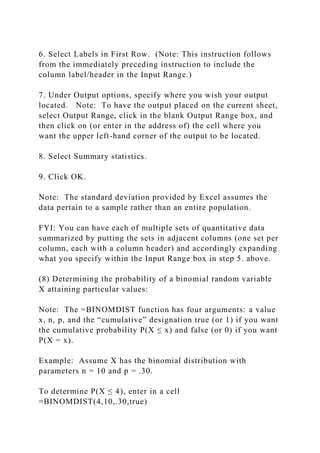
6. Select Labels in First Row. (Note: This instruction follows
from the immediately preceding instruction to include the
column label/header in the Input Range.)
7. Under Output options, specify where you wish your output
located. Note: To have the output placed on the current sheet,
select Output Range, click in the blank Output Range box, and
then click on (or enter in the address of) the cell where you
want the upper left-hand corner of the output to be located.
8. Select Summary statistics.
9. Click OK.
Note: The standard deviation provided by Excel assumes the
data pertain to a sample rather than an entire population.
FYI: You can have each of multiple sets of quantitative data
summarized by putting the sets in adjacent columns (one set per
column, each with a column header) and accordingly expanding
what you specify within the Input Range box in step 5. above.
(8) Determining the probability of a binomial random variable
X attaining particular values:
Note: The =BINOMDIST function has four arguments: a value
x, n, p, and the “cumulative” designation true (or 1) if you want
the cumulative probability P(X ≤ x) and false (or 0) if you want
P(X = x).
Example: Assume X has the binomial distribution with
parameters n = 10 and p = .30.
To determine P(X ≤ 4), enter in a cell
=BINOMDIST(4,10,.30,true)
To determine P(X = 5), enter in a cell
=BINOMDIST(5,10,.30,false)
Other desired probabilities can be obtained by recasting them in
terms of = or ≤ probabilities.
For example, P(X ≥ 7) is the same as P(not (X ≤ 6)) = 1 – P(X≤
6), so can be obtained by entering in a cell =1–
BINOMDIST(6,10,.30,true). For another example, P(X = 3 or
4) can be obtained by entering in a cell
=BINOMDIST(3,10,.30,false) + BINOMDIST(4,10,.30,false).
(9) Determining the probability of a normally distributed
random variable X attaining particular values:
Note: The =NORMDIST function has four arguments: a value
x, the mean, the standard deviation, and the “cumulative”
designation true (or 1) if you want the cumulative probability
P(X ≤ x), and false (or 0) if you want f(x) [which can be used to
graph a normal curve].
Example: Assume X has a normal distribution with mean 100
and standard deviation 10.
To determine P(X < 125) or P(X ( 125), enter in a cell:
=NORMDIST(125,100,10,true)
To determine P(X > 125) or P(X ( 125), enter in a cell: =1 -
NORMDIST(125,100,10,true)
To determine P(125 < X < 130) or P(125 ( X < 130) or P(125 <
X ( 130) or P(125 ( X ( 130), enter in a cell:
=NORMDIST(130,100,10,true) - NORMDIST(125,100,10,true)
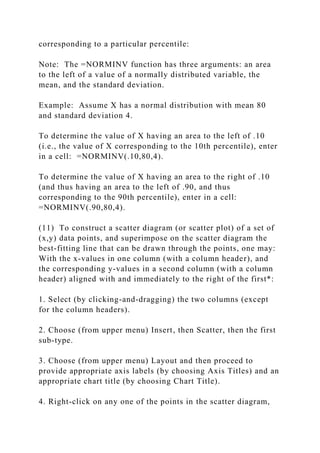
(10) Determining the value of a normally distributed variable X
corresponding to a particular area to the left or right, and thus
corresponding to a particular percentile:
Note: The =NORMINV function has three arguments: an area
to the left of a value of a normally distributed variable, the
mean, and the standard deviation.
Example: Assume X has a normal distribution with mean 80
and standard deviation 4.
To determine the value of X having an area to the left of .10
(i.e., the value of X corresponding to the 10th percentile), enter
in a cell: =NORMINV(.10,80,4).
To determine the value of X having an area to the right of .10
(and thus having an area to the left of .90, and thus
corresponding to the 90th percentile), enter in a cell:
=NORMINV(.90,80,4).
(11) To construct a scatter diagram (or scatter plot) of a set of
(x,y) data points, and superimpose on the scatter diagram the
best-fitting line that can be drawn through the points, one may:
With the x-values in one column (with a column header), and
the corresponding y-values in a second column (with a column
header) aligned with and immediately to the right of the first*:
1. Select (by clicking-and-dragging) the two columns (except
for the column headers).
2. Choose (from upper menu) Insert, then Scatter, then the first
sub-type.
3. Choose (from upper menu) Layout and then proceed to
provide appropriate axis labels (by choosing Axis Titles) and an
appropriate chart title (by choosing Chart Title).
4. Right-click on any one of the points in the scatter diagram,
choose Add Trendline…, and click on Close.
* Other positioning of the data can be accommodated, but would
require more elaborate instructions.
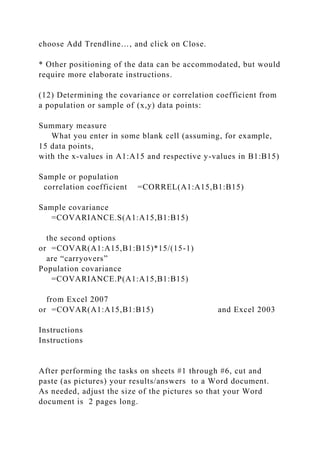
(12) Determining the covariance or correlation coefficient from
a population or sample of (x,y) data points:
Summary measure
What you enter in some blank cell (assuming, for example,
15 data points,
with the x-values in A1:A15 and respective y-values in B1:B15)
Sample or population
correlation coefficient =CORREL(A1:A15,B1:B15)
Sample covariance
=COVARIANCE.S(A1:A15,B1:B15)
the second options
or =COVAR(A1:A15,B1:B15)*15/(15-1)
are “carryovers”
Population covariance
=COVARIANCE.P(A1:A15,B1:B15)
from Excel 2007
or =COVAR(A1:A15,B1:B15) and Excel 2003
Instructions
Instructions
After performing the tasks on sheets #1 through #6, cut and
paste (as pictures) your results/answers to a Word document.
As needed, adjust the size of the pictures so that your Word
document is 2 pages long.
The printout of your Word document-- with the 2 pages on the
front and back of a single sheet of paper--is due at the
beginning of class on Monday, September 23.
This take-home portion is worth 24 points (4 points per task).
Friendly reminder: All bar charts, histograms, and line graphs
call for axis labels and a Chart Title. In addition, any break in a
histogram's x-axis scale should be indicated (e.g., by parallel
hashmarks).
#1Below, from the Bureau of Economic Analysis, are the
personal consumption expenditures on health care (in $
billions)in the U.S. for the years 1980 through 2012.Display the
annual expenditures in the form of a line graph, using as the
chart title U.S. Personal Consumption Expenditures on Health
Care (in $ billions), 1980-2012 (source: Bureau of Economic
Analysis).YearExpenditures (in $
billions)1980171.71981201.91982225.21983253.11984276.5198
5302.21986330.21987366.01988410.11989451.21990506.21991
555.81992612.81993648.81994680.51995719.91996752.119977
90.91998832.01999863.62000918.42001996.620021082.920031
154.620041240.120051322.320061394.220071481.820081556.5
20091556.520101627.420111690.720121767.820131847.6
#2A consultant developed an electronic billing system for a
trucking company.The frequency distribution below summarizes
the payment times (in days) for 65 invoices using the electronic
billing system.Display the frequency distribution in the form of
a histogram using as the chart title Payment Times (in days)
for 65 Invoices Using Electronic Billing System.Payment time
(in days)# of invoices10-12313-151416-182319-211222-24825-
27428-301
#3Below is the percentage distribution (by model) of the Jeeps
sold at Bill's Jeep Dealership in 2012.Jeep model% of jeeps
soldCommander27%Grand
Cherokee29%Liberty32%Wrangler12%Portray the percentage
distribution in the form of a bar chart, using as the chart title
Jeeps Sold at Bill's Jeep Dealership in 2012.
#4Below (in column A) are the water usage levels (in gallons)
on 9/13/2013 of the 120 condos in the Lark Complex.Summarize
the water usage levels in the form of a frequency distribution
(in table form), using as the numeric classes the intervals15 to
under 20, 20 to under 25, 25 to under 30, 30 to under 35, 35 to
under 40, 40 to under 45, 45 to under 50, and 50 to under
55.Water
usage22.828.029.146.530.530.031.126.232.627.047.332.445.246
.827.828.946.421.828.328.021.428.830.237.922.740.640.323.62
4.123.641.228.648.025.135.537.628.046.325.830.122.541.923.8
26.043.933.427.344.433.448.928.642.546.653.628.830.132.336.
822.431.531.227.844.022.415.128.223.329.024.721.336.433.522
.141.029.632.424.425.024.043.118.045.130.317.933.428.422.92
8.738.424.930.742.935.332.129.421.726.834.625.148.131.850.0
29.327.851.323.241.622.332.330.629.125.919.726.837.025.819.
421.639.216.8
#5Determine--relying on an Excel function--the probabilities
requested below.If 10% of adolescents in the U.S. have Type II
diabetes, what is the probability that,out of a random sample of
500 adolescents in the U.S.:(a) 75 or more have Type II
diabetes?(b) 45 or less have Type II diabetes?
#6A car manufacturer is assessing the mileage of its new
hybrid car model. Below are the mileages (in mpg) in city
driving for a sample of 40 cars of this
model.37.636.137.037.537.938.136.435.936.835.037.735.739.33
7.535.037.238.434.338.738.237.936.939.838.535.437.235.237.6
37.434.839.539.940.239.136.837.038.838.336.237.7Determine--
relying on Excel functions--each of the following measures for
the sample of cars. (a) mean mileage(b) median mileage(c)
variance in the mileages(d) standard deviation in the
mileages(e) range in the mileages
PAGE  1Using Microsoft Excel 2010 for Selected Tasks(Thr.docx

PAGE 1Using Microsoft Excel 2010 for Selected Tasks(Thr.docx

  • 1.
    PAGE 1 Using Microsoft Excel2010 for Selected Tasks (Throughout this document, a set of data refers to observations of just one variable.) (1) To portray as a bar chart a given frequency, relative frequency, or percentage distribution of a set of qualitative data, one may: With the categories in one column and the counts or proportions or percentages in another: 1. Select (by clicking-and-dragging) the counts or proportions or percentages. 2. Choose (from upper menu) Insert, then Column (for vertical bars) or Bar (for horizontal bars), then the first pictured sub- type. 3. Right-click on a blank spot in the chart area, choose Select Data…, choose (right of center) Edit, enter the location of the categories, click OK, and click OK. 4. Choose (from upper menu) Layout, then Axis Titles to enter appropriate labels for the horizontal and vertical axes, then Chart Title to enter an appropriate title. 5. If you wish the counts or proportions or percentages to be shown on the bars: Choose (from menu) Data Labels, then your preferred position. (2)To portray as a pie chart a given frequency, relative
  • 2.
    frequency, or percentagedistribution, one may: With the categories or numeric classes in one column and the counts or proportions or percentages in another: 1. Select (by clicking-and-dragging) the counts or proportions or percentages. 2. Choose (from upper menu) Insert, then Pie, then the first pictured sub-type. 3. Right-click on a blank spot in the chart area, choose Select Data…, choose (right of center) Edit, enter the location of the categories or numeric classes, click OK, and click OK. 4. (a) Choose (from upper menu) Layout, then Data Labels, then More Data Label Options (which will by default cause each “Value”--i.e, each count or proportion or percentage selected in step 1.--to appear on or near a pie slice); (b) if you wish each category or numeric class to appear on or near a pie slice, select Category name, then your preferred position; (c) click on Close; and (d) if the legend box is now superfluous, delete it. 5. Choose (from menu) Chart Title to enter an appropriate title. (3) Counting the number of cells (within some range of cells) satisfying a particular condition: Examples: · To count how many of the cells A1 through A100 contain the word Agree, one may enter in some blank cell =COUNTIF(A1:A100, “Agree”) Note: In lieu of typing in “Agree”, one may click on a cell containing the word Agree. · To count how many of the cells A1 through A100 contain the number 89, one may enter in some blank cell =COUNTIF(A1:A100, 89) Note: In lieu of typing in 89, one
  • 3.
    may click ona cell containing the number 89. · To count how many of the cells A1 through A100 contain a number in the interval 10 to under 20, enter in some blank cell =COUNTIF(A1:A100,”<20”)-COUNTIF(A1:A100,”<10”) · Note: Each relative address A1:A100 above may be replaced by the absolute address $A$1:$A$100. In lieu of typing in the absolute address $A$1:$A$100, one may click and drag through the cells A1 through A100, release the mouse, and press the F4 (“freeze for sure”) key. (4) To portray a given set of time series data in a line graph, one may: With the time periods in one column and the data in another: 1. Select (by clicking-and-dragging) the data (but not the time periods) 2. Choose (from upper menu) Insert, then Line, then the fourth pictured sub-type. 3. Right-click on a blank spot in the chart area, choose Select Data…, choose (right of center) Edit, enter the location of the time periods, click OK, and click OK. 4. Choose (from upper menu) Layout, then Axis Titles to enter appropriate labels for the horizontal and vertical axes, then Chart Title to enter an appropriate title. (5) To portray as a histogram a given frequency, relative frequency, or percentage distribution of a set of quantitative data, one may: Working from a second copy (obtained via edit-copy-edit-paste- values) of the distribution, with the numeric classes in one column and the counts or proportions or percentages in another:
  • 4.
    1. If thefirst numeric class has a lower boundary > 0 (or comprises a number > 0): insert immediately above the first numeric class a bogus numeric class comprising a blank cell and insert immediately above the first count or proportion or percentage a bogus count or proportion or percentage of 0. Note: This insertion is necessary to end up with a space along the x-axis between the origin and the first bar of the histogram. 2. Select (by clicking-and-dragging) the counts or proportions or percentages (including, if present, the bogus 0). 3. Choose (from upper menu) Insert, then Column, then the first pictured sub-type. 4. Right-click on a blank spot in the chart area, choose Select Data…, choose (right of center) Edit, enter the location of the numeric classes (including, if present, the bogus blank cell), click OK, and click OK. 5. Choose (from upper menu) Layout, then Axis Titles to enter appropriate labels for the horizontal and vertical axes, then Chart Title to enter an appropriate title. 6. If you wish the counts or proportions or percentages to be shown on the bars: Choose (from menu) Data Labels, then your preferred position. 7. Remove the gaps between the bars as follows: right-click on one of the bars, choose Format Data Series…, slide the Gap Width indicator to No Gap, and click Close. Note: You can alter the fill color and/or border color of the bars by right- clicking on a bar and making the desired color selections. 8. If a break in the x-axis scale needs to be communicated: Rely on (from upper menu) Insert/Shapes/Line twice to “draw in” two diagonal hash marks
  • 5.
    9. If thenumeric classes are intervals of an [a,b) or (a,b] nature and you want their boundaries (instead of the intervals themselves) specified along the x-axis: (a) replace (via “overwriting”) the column of numeric classes (including, if present, the bogus blank) with—in ascending order—the boundaries (excluding 0 if the first numeric class has a lower boundary of 0); (b) right click on one of the boundaries in the histogram; (c) select the right justify option; and (d) select Format Axis…, then Alignment, and enter 5⁰ for the Custom Angle . (6) Using Excel statistical functions to obtain individual summary measures for a set of quantitative data: Summary measure What you enter in some blank cell (assuming data resides in cells A1:C10) mean =AVERAGE(A1:C10) median =MEDIAN(A1:C10) mode =MODE(A1:C10) range =MAX(A1:C10)-MIN(A1:C10)
  • 6.
    sample variance =VAR.S(A1:C10) or=VAR(A1:C10) population variance =VAR.P(A1:C10) or =VARP(A1:C10) the second options sample standard are “carryovers” from deviation =STDEV.S(A1:C10) or =STDEV(A1:C10) Excel 2007 and Excel 2003 population standard deviation =STDEV.P(A1:C10) or =STDEVP(A1:C10)
  • 7.
    (7) Using Excel’sDescriptive Statistics tool to obtain a list of various summary measures for a set of quantitative data: Note: The Descriptive Statistics tool (and a number of other tools, several of which are relied upon in ECON 3300) is in the Excel Add-In called Analysis ToolPak. If working from your own computer, you will need to have the Analysis ToolPak Add-In installed on your computer. You have ready access to the Analysis ToolPak Add-In from any KSU classroom or labroom computer. (Mac users: My understanding is that StatPlus:mac, downloadable from http://www.analystsoft.com/en/products/statplusmacle/, provides Analysis ToolPak functionality, but the instructions below are specific to users of Analysis ToolPak.) With the data in one column, and a descriptive label (e.g., Annual Income if the data comprises annual incomes) at the head of the column: 1. Choose (from upper menu) Data. 2. Choose (from right side of upper menu) Data Analysis… [Note: If Data Analysis does not appear, you need to activate the Analysis ToolPak Add-In, which you can accomplish by the following series of clicks: (a) click on File (in upper menu); (b) click on Options (on the left); (c) click on Add-Ins (on the left); (d) click on Go (at the bottom); (e) click inside the empty box next to Analysis ToolPak; and (f) click OK.] 3. Choose Descriptive Statistics. 4. Click OK. 5. Specify within the Input Range box (via a click-and-drag operation or direct address entry) the location of your column label/header and data.
  • 8.
    6. Select Labelsin First Row. (Note: This instruction follows from the immediately preceding instruction to include the column label/header in the Input Range.) 7. Under Output options, specify where you wish your output located. Note: To have the output placed on the current sheet, select Output Range, click in the blank Output Range box, and then click on (or enter in the address of) the cell where you want the upper left-hand corner of the output to be located. 8. Select Summary statistics. 9. Click OK. Note: The standard deviation provided by Excel assumes the data pertain to a sample rather than an entire population. FYI: You can have each of multiple sets of quantitative data summarized by putting the sets in adjacent columns (one set per column, each with a column header) and accordingly expanding what you specify within the Input Range box in step 5. above. (8) Determining the probability of a binomial random variable X attaining particular values: Note: The =BINOMDIST function has four arguments: a value x, n, p, and the “cumulative” designation true (or 1) if you want the cumulative probability P(X ≤ x) and false (or 0) if you want P(X = x). Example: Assume X has the binomial distribution with parameters n = 10 and p = .30. To determine P(X ≤ 4), enter in a cell =BINOMDIST(4,10,.30,true)
  • 9.
    To determine P(X= 5), enter in a cell =BINOMDIST(5,10,.30,false) Other desired probabilities can be obtained by recasting them in terms of = or ≤ probabilities. For example, P(X ≥ 7) is the same as P(not (X ≤ 6)) = 1 – P(X≤ 6), so can be obtained by entering in a cell =1– BINOMDIST(6,10,.30,true). For another example, P(X = 3 or 4) can be obtained by entering in a cell =BINOMDIST(3,10,.30,false) + BINOMDIST(4,10,.30,false). (9) Determining the probability of a normally distributed random variable X attaining particular values: Note: The =NORMDIST function has four arguments: a value x, the mean, the standard deviation, and the “cumulative” designation true (or 1) if you want the cumulative probability P(X ≤ x), and false (or 0) if you want f(x) [which can be used to graph a normal curve]. Example: Assume X has a normal distribution with mean 100 and standard deviation 10. To determine P(X < 125) or P(X ( 125), enter in a cell: =NORMDIST(125,100,10,true) To determine P(X > 125) or P(X ( 125), enter in a cell: =1 - NORMDIST(125,100,10,true) To determine P(125 < X < 130) or P(125 ( X < 130) or P(125 < X ( 130) or P(125 ( X ( 130), enter in a cell: =NORMDIST(130,100,10,true) - NORMDIST(125,100,10,true) (10) Determining the value of a normally distributed variable X corresponding to a particular area to the left or right, and thus
  • 10.
    corresponding to aparticular percentile: Note: The =NORMINV function has three arguments: an area to the left of a value of a normally distributed variable, the mean, and the standard deviation. Example: Assume X has a normal distribution with mean 80 and standard deviation 4. To determine the value of X having an area to the left of .10 (i.e., the value of X corresponding to the 10th percentile), enter in a cell: =NORMINV(.10,80,4). To determine the value of X having an area to the right of .10 (and thus having an area to the left of .90, and thus corresponding to the 90th percentile), enter in a cell: =NORMINV(.90,80,4). (11) To construct a scatter diagram (or scatter plot) of a set of (x,y) data points, and superimpose on the scatter diagram the best-fitting line that can be drawn through the points, one may: With the x-values in one column (with a column header), and the corresponding y-values in a second column (with a column header) aligned with and immediately to the right of the first*: 1. Select (by clicking-and-dragging) the two columns (except for the column headers). 2. Choose (from upper menu) Insert, then Scatter, then the first sub-type. 3. Choose (from upper menu) Layout and then proceed to provide appropriate axis labels (by choosing Axis Titles) and an appropriate chart title (by choosing Chart Title). 4. Right-click on any one of the points in the scatter diagram,
  • 11.
    choose Add Trendline…,and click on Close. * Other positioning of the data can be accommodated, but would require more elaborate instructions. (12) Determining the covariance or correlation coefficient from a population or sample of (x,y) data points: Summary measure What you enter in some blank cell (assuming, for example, 15 data points, with the x-values in A1:A15 and respective y-values in B1:B15) Sample or population correlation coefficient =CORREL(A1:A15,B1:B15) Sample covariance =COVARIANCE.S(A1:A15,B1:B15) the second options or =COVAR(A1:A15,B1:B15)*15/(15-1) are “carryovers” Population covariance =COVARIANCE.P(A1:A15,B1:B15) from Excel 2007 or =COVAR(A1:A15,B1:B15) and Excel 2003 Instructions Instructions After performing the tasks on sheets #1 through #6, cut and paste (as pictures) your results/answers to a Word document. As needed, adjust the size of the pictures so that your Word document is 2 pages long.
  • 12.
    The printout ofyour Word document-- with the 2 pages on the front and back of a single sheet of paper--is due at the beginning of class on Monday, September 23. This take-home portion is worth 24 points (4 points per task). Friendly reminder: All bar charts, histograms, and line graphs call for axis labels and a Chart Title. In addition, any break in a histogram's x-axis scale should be indicated (e.g., by parallel hashmarks). #1Below, from the Bureau of Economic Analysis, are the personal consumption expenditures on health care (in $ billions)in the U.S. for the years 1980 through 2012.Display the annual expenditures in the form of a line graph, using as the chart title U.S. Personal Consumption Expenditures on Health Care (in $ billions), 1980-2012 (source: Bureau of Economic Analysis).YearExpenditures (in $ billions)1980171.71981201.91982225.21983253.11984276.5198 5302.21986330.21987366.01988410.11989451.21990506.21991 555.81992612.81993648.81994680.51995719.91996752.119977 90.91998832.01999863.62000918.42001996.620021082.920031 154.620041240.120051322.320061394.220071481.820081556.5 20091556.520101627.420111690.720121767.820131847.6 #2A consultant developed an electronic billing system for a trucking company.The frequency distribution below summarizes the payment times (in days) for 65 invoices using the electronic billing system.Display the frequency distribution in the form of a histogram using as the chart title Payment Times (in days) for 65 Invoices Using Electronic Billing System.Payment time (in days)# of invoices10-12313-151416-182319-211222-24825- 27428-301 #3Below is the percentage distribution (by model) of the Jeeps sold at Bill's Jeep Dealership in 2012.Jeep model% of jeeps soldCommander27%Grand Cherokee29%Liberty32%Wrangler12%Portray the percentage
  • 13.
    distribution in theform of a bar chart, using as the chart title Jeeps Sold at Bill's Jeep Dealership in 2012. #4Below (in column A) are the water usage levels (in gallons) on 9/13/2013 of the 120 condos in the Lark Complex.Summarize the water usage levels in the form of a frequency distribution (in table form), using as the numeric classes the intervals15 to under 20, 20 to under 25, 25 to under 30, 30 to under 35, 35 to under 40, 40 to under 45, 45 to under 50, and 50 to under 55.Water usage22.828.029.146.530.530.031.126.232.627.047.332.445.246 .827.828.946.421.828.328.021.428.830.237.922.740.640.323.62 4.123.641.228.648.025.135.537.628.046.325.830.122.541.923.8 26.043.933.427.344.433.448.928.642.546.653.628.830.132.336. 822.431.531.227.844.022.415.128.223.329.024.721.336.433.522 .141.029.632.424.425.024.043.118.045.130.317.933.428.422.92 8.738.424.930.742.935.332.129.421.726.834.625.148.131.850.0 29.327.851.323.241.622.332.330.629.125.919.726.837.025.819. 421.639.216.8 #5Determine--relying on an Excel function--the probabilities requested below.If 10% of adolescents in the U.S. have Type II diabetes, what is the probability that,out of a random sample of 500 adolescents in the U.S.:(a) 75 or more have Type II diabetes?(b) 45 or less have Type II diabetes? #6A car manufacturer is assessing the mileage of its new hybrid car model. Below are the mileages (in mpg) in city driving for a sample of 40 cars of this model.37.636.137.037.537.938.136.435.936.835.037.735.739.33 7.535.037.238.434.338.738.237.936.939.838.535.437.235.237.6 37.434.839.539.940.239.136.837.038.838.336.237.7Determine-- relying on Excel functions--each of the following measures for the sample of cars. (a) mean mileage(b) median mileage(c) variance in the mileages(d) standard deviation in the mileages(e) range in the mileages