Introduction
Prof. Dr. K.Adisesha
3
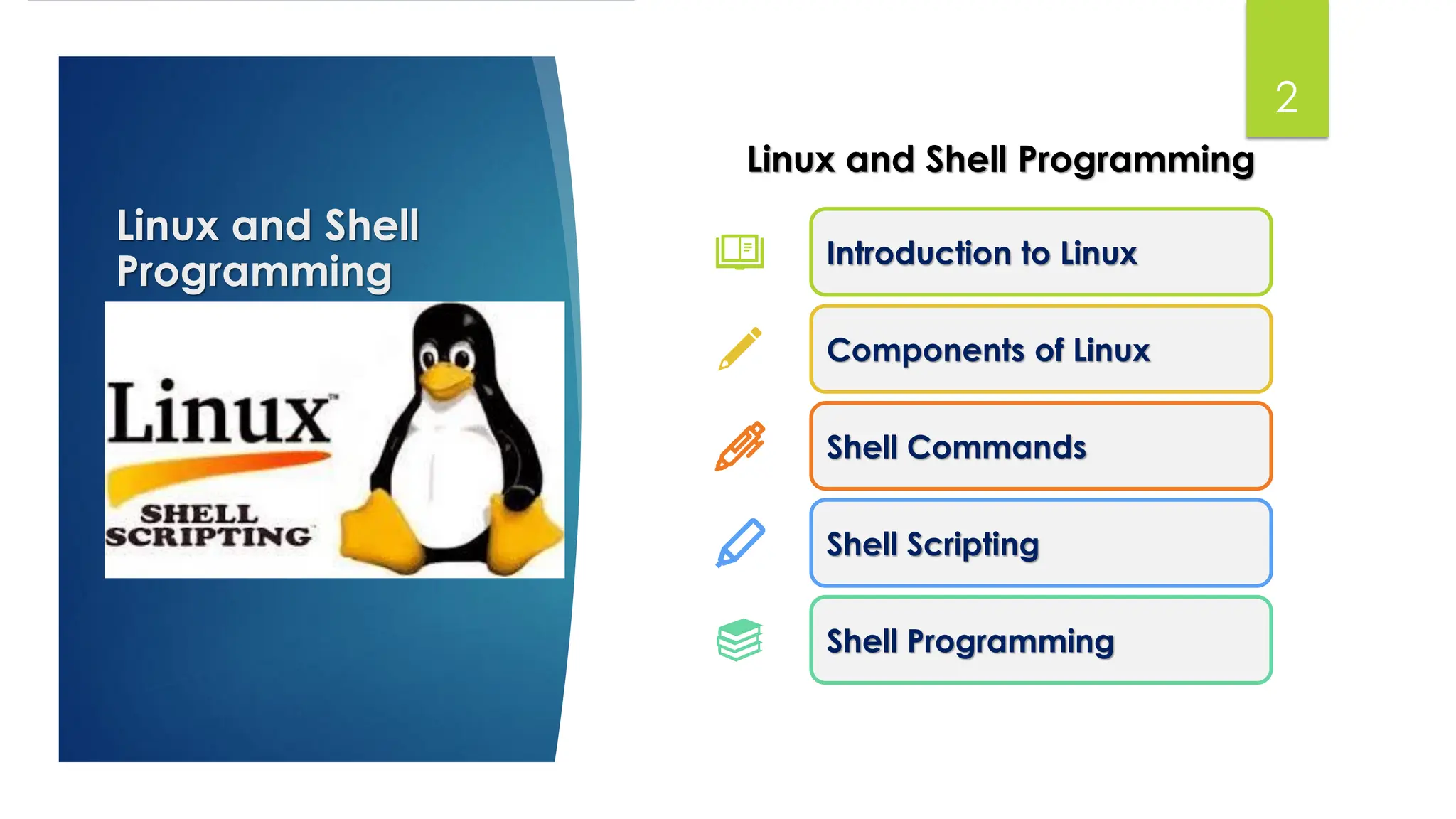
Introduction to LINUX OS:
Linux is based on the UNIX operating system. UNIX is a powerful, multi-user,
multitasking operating system originally developed in the 1970s at AT&T Bell Labs.
➢ Bell Laboratories was (1964–1968) involved on the development of a multi-user, time
sharing operating system called Multics.
➢ UNIX development was started in 1969 at Bell Laboratories in New Jersey.
➢ The first version of Unix was written in the low-level PDP-7, later rewritten in C, and
finally with the kernel itself in 1973.
➢ AT&T was developing its System V Unix.
➢ Berkeley took initiative on its own Unix.
➢ BSD In 1986, IBM developed AIX (Advanced Interactive eXecutive)
4.
Introduction
Prof. Dr. K.Adisesha
4
Features of LINUX OS:
Following are some of the important features of Linux Operating System.
➢ Portable − Portability means software can works on different types of hardware in same way.
➢ Open Source − Linux source code is freely available and it is community based development
project.
➢ Multi-User − Linux is a multiuser system means multiple users can access system resources
like memory/ ram/ application programs at same time.
➢ Multiprogramming − Linux is a multiprogramming system means multiple applications can
run at same time.
➢ Hierarchical File System − Linux provides a standard file structure in which system files/ user
files are arranged.
➢ Security − Linux provides user security using authentication features like password protection/
controlled access to specific files/ encryption of data.
5.
Introduction
Prof. Dr. K.Adisesha
5
LINUX OS Architecture:
The architecture of a Linux System consists of the following layers.
➢ Hardware layer − Hardware consists of all peripheral
devices (RAM/ HDD/ CPU etc).
➢ Kernel − It is the core component of Operating System,
interacts directly with hardware, provides low level
services to upper layer components.
➢ Shell − The shell takes commands from the user and
executes kernel's functions.
➢ Utilities − Utility programs that provide the user most of
the functionalities of an operating systems.
6.
Introduction
Prof. Dr. K.Adisesha
6
Components of Linux System:
Like any operating system, Linux consists of software, computer programs,
documentation, and hardware.
➢ Kernel: The core of the operating system that directly
interacts with the hardware to manage system resources
like memory, processes, and devices.
➢ System Libraries: A set of functions and code that allows
applications to access kernel features without needing
special privileges.
➢ System Utilities: Programs that perform specific, individual
tasks for the system and user. Include commands for
managing files and directories, such as ls and mkdir
7.
Introduction
Prof. Dr. K.Adisesha
7
Components of Linux System:
Other essential components
➢ Shell: A command-line interface that acts as an interpreter between the user and the
kernel. It accepts user commands and tells the kernel what action to perform.
➢ File System: The structure used by the operating system to organize, store, and retrieve
files on a storage device.
➢ Bootloader: A program that runs when the computer starts up to load the operating
system's kernel into memory.
➢ Display Server: A component, like the X Window System or Wayland, that is
responsible for displaying graphics on the screen and handling user input from a
mouse and keyboard.
➢ Applications: The software programs that users interact with to perform tasks, such as
8.
Components of LinuxSystem
Prof. Dr. K. Adisesha
8
Kernel:
Kernel is the main core component it is lies between the shell and the hardware. It
controls the activity of other hardware components.
➢ It visualizes the common hardware resources and provide each process with necessary
virtual resources.
➢ The kernel is responsible for:
❖ Memory management: Manages and allocates memory efficiently.
❖ Resource allocation: Distributes system resources to different processes.
❖ Device management: Controls input/output devices like printers and scanners.
❖ Process management: Manages process execution and scheduling.
❖ Application interaction: Bridges applications with system-level functions.
❖ Security: Provides essential system-level security.
9.
Components of LinuxSystem
Prof. Dr. K. Adisesha
9
Kernel:
Different of types of kernel.
➢ Monolithic Kernel: Is an operating system kernel where all concurrent processes run
simultaneously within the kernel itself, sharing the same memory resources.
➢ Micro kernel: In micro kernel user services and kernel services are executed in
separate address spaces. User services are kept in user address space and kernel
services are kept in kernel address space.
➢ Exo-kernel: Exo-kernel is designed to manage hardware resources at application level.
High level abstraction is used in this operating system to offer hardware resources
access to kernel.
➢ Hybrid kernel: It is the combination of both monolithic kernel and microkernel.
Windows uses a Hybrid Kernel.
10.
Components of LinuxSystem
Prof. Dr. K. Adisesha
10
System Library:
System libraries are some predefined functions by using which any application
programs or system utilities can access kernel's features.
➢ Some of the most common system libraries are:
❖ GNU C library: This is the C library that provides the most fundamental system for the
interface and execution of C programs.
❖ libpthread (POSIX Threads): This library plays important role for multithreading in
Linux, it allows users for creating and managing multiple threads.
❖ libdl (Dynamic Linker): This library is responsible for the loading and linking file at
the runtime.
❖ libm (Math Library): This library provides user with all kind of mathematical function
and their execution.
11.
Components of LinuxSystem
Prof. Dr. K. Adisesha
11
Shell:
The Shell is also software or It can be determined as the interface to the kernel. It takes
commands from the user and interprets them.
➢ The shell transmits these commands to the kernel, which then performs the requested
operations.
➢ Different types of shell:
❖ Bourne Shell (sh): The Bourne Shell was one of the first shells in Unix.
❖ C Shell (csh): The C Shell was made to feel more like the C programming language,
which many developers already knew.
❖ Korn Shell (ksh): The Korn Shell came later to improve on both the Bourne and C shells.
❖ Bash (Bourne Again Shell): Bash is the most popular shell today. It's like an upgraded
version of the Bourne Shell.
12.
Linux Shell Commands
Prof.Dr. K. Adisesha
12
Linux Commands:
Fundamental and frequently used Linux shell commands, categorized by their function:
➢ File and Directory Management.
❖ ls - List directory contents
❖ cd - Change the current directory
❖ echo - Display a line of text
❖ cat - Concatenate and display files
❖ cp - Copy files and directories
❖ mv - Move or rename files
❖ rm - Delete files or folders
❖ mkdir - Create a new folder
❖ touch - Create an empty file or update
its time
❖ pwd - Print the current working
directory
❖ head: Displays the beginning lines of a
file.
❖ tail: Displays the ending lines of a file.
13.
Linux Shell Commands
Prof.Dr. K. Adisesha
13
Linux Commands:
Fundamental and frequently used Linux shell commands, categorized by their
function:
➢ System Information and Monitoring:
❖ uname: Displays system information.
❖ top: Displays real-time system process information.
❖ ps: Reports on currently running processes.
❖ df: Displays disk space usage.
❖ du: Estimates file space usage.
❖ free: Displays information about free and used memory.
14.
Linux Shell Commands
Prof.Dr. K. Adisesha
14
Linux Commands:
Fundamental and frequently used Linux shell commands, categorized by their function:
➢ Text Processing and Utilities:
❖ grep: Searches for patterns in files.
❖ sort: Sorts lines of text files.
❖ wc: Counts lines, words, and characters in files.
❖ echo: Displays a line of text.
❖ man: Displays the manual pages for a command, providing detailed information
and usage instructions.
➢ Process Management:
❖ kill: Terminates processes by their process ID (PID).
15.
Linux Shell Commands
Prof.Dr. K. Adisesha
15
Linux Commands:
ls Command - List Directory Contents.
➢ The ls command can display files, directories, and information about them.
➢ The ls command has a variety of options to customize its output:
❖ -l - Long listing format
❖ -a - Include hidden files
❖ -t - Sort by modification time
❖ -r - Reverse order while sorting
❖ -R - List subdirectories recursively
❖ -S - Sort by file size
❖ -1 - List one file per line
❖ -d - List directories themselves, not their contents
Example:
User1$ ls -l
total 24232
-rw-r--r-- 1 user 197609 23777028 Jan 15 20:38 adi.pdf
drwxr-xr-x 1 user 197609 0 Apr 9 07:46 images/
-rw-r--r-- 1 user 197609 890 Apr 9 07:48 my_file.txt
-rw-r--r-- 1 user 197609 720974 Apr 9 07:47 Mov1.wav
16.
Linux Shell Commands
Prof.Dr. K. Adisesha
16
Linux Commands:
cd - Change Directory.
➢ The cd command is used to change the current working directory in the terminal.
➢ The cd command supports several useful options for navigating directories:
❖ cd ..: Move up one directory level
❖ cd ~: Change to the home directory
❖ cd -: Switch to the previous directory
❖ cd /: Change to the root directory
Example:
User1$ cd my_directory
pwd - Present working Directory Command
➢ The pwd command shows you the full path of the folder you're currently in.
❖ pwd -L: Display the logical current working directory
❖ pwd -P: Display the physical current working directory
Example:
User1$ pwd -L
/home/user/Adi
17.
Linux Shell Commands
Prof.Dr. K. Adisesha
17
echo Command - Display Text:
The echo command is used to show a line of text or a variable's value in the terminal.
➢ The echo command has several options to customize its output:
❖ -n - Don't add a new line at the end
❖ -e - Allow special characters like n for new lines
❖ -E - Don't allow special characters (default)
Example:
User1$ echo "Hello, World!"
Hello, World!
User1$ echo -n "Hello,";echo " World!"
Hello, World!
User1$ echo -e "HellonWorld!"
Hello
World!
18.
Linux Shell Commands
Prof.Dr. K. Adisesha
18
cat Command - Concatenate and Display Files:
The cat command is used to show the content of files in the terminal.
➢ The cat command has options to change how it shows text:
❖ -n - Add numbers to each line
❖ -b - Add numbers only to lines with text
❖ -s - Remove extra empty lines
Example: User1$ cat -n my_file.txt
1 Understanding Shells
2 A shell is a text-based interface that lets you talk to your computer.
3
4 There are different types of shells. Bash (Bourne Again SHell)
19.
Linux Shell Commands
Prof.Dr. K. Adisesha
19
cp - Copy Files and Directories:
The cp command is used to copy files and directories from one location to another. It's
like making a duplicate of your file or folder.
➢ The cp command has options to change how it works:
❖ -r - Copy all files and folders inside a directory
❖ -i - Ask before replacing files
❖ -u - Copy only if the source is newer
❖ -v - Verbose mode, show files being copied
Example:
User1$ cp source_file destination_file
User1$ cp –r my_file1.txt my_file2.txt
User1$ cp -v my_file1.txt my_file2.txt
'my_file1.txt -> 'my_file2.txt'
20.
Linux Shell Commands
Prof.Dr. K. Adisesha
20
mv Command - Move or Rename Files:
The mv command is used to move or rename files and directories. It's like changing
where a file is or what it's called.
➢ The mv command has several options to customize its behavior:
❖ -i - Ask before replacing files
❖ -u - Move only if the source is newer
❖ -v - Verbose mode, show files being moved
Example: mv source_file destination_directory
User1$ mv my_file.txt /path/to/destination/
To rename a file, use mv old_name new_name
User1$ mv old_name.txt new_name.txt
Using Wildcards *
User1$ mv *.txt /destination/
mv -i my_file.txt myfolder/
mv: overwrite 'myfolder/my_file.txt’?
mv -v file1.txt adi/new_dir/
renamed 'file.txt1' -> ‘adi/new_dir/file.txt'
21.
Linux Shell Commands
Prof.Dr. K. Adisesha
21
rm Command - Remove Files:
The rm command is used to remove files or directories. Be careful, as removed files
cannot be easily recovered.
➢ The rm command has options to change how it works:
❖ -r - Delete a folder and everything inside it
❖ -i - Ask before deleting each file
❖ -f - Force delete without asking
❖ -v - Verbose mode, show files being removed
Example: rm my_file.txt
User1$ rm -i my_file.txt
rm: remove regular file 'my_file.txt'?
rm -v my_new_file.txt
removed 'my_new_file.txt'
rm -f file.txt The -f option forces deletion without any prompts.
22.
Linux Shell Commands
Prof.Dr. K. Adisesha
22
touch Command - Change File Timestamps:
The touch command is used to change file timestamps or create an empty file if it
doesn't exist. It's often used to create placeholder files or update timestamps for build
systems.
➢ The touch command has options to change how it works:
❖ -a - Update only when the file was last read
❖ -m - Update only when the file was last changed
❖ -t - Set the timestamp to a specific time
❖ -c - Do not create any files
Example: To update the access and modification times of a file, use touch filename
User1$ touch file.txt
User1$ ls -l
-rw-r--r-- 1 user 197609 208 Oct 9 06:24 my_file.txt
User1$ touch -m my_file.txt
User1$ ls -l
-rw-r--r-- 1 user 197609 208 Oct 9 08:25 my_file.txt
23.
Linux Shell Commands
Prof.Dr. K. Adisesha
23
mkdir Command - Make Directories:
The mkdir command is used to create new directories. It's a simple way to organize
files into folders.
➢ The mkdir command has several options to customize its behavior:
❖ -p - Create parent directories as needed
❖ -v - Show a message for each created directory
❖ -m - Set file mode (permissions)
Example: The -p option lets you create parent directories as needed.
User1$ mkdir -p parent/child
The -m option allows you to set the file mode (permissions) for the new directories.
User1$ mkdir -m 755 new_directory
User1$ mkdir -v new_directory
mkdir: created directory 'new_directory'
24.
Linux Shell Commands
Prof.Dr. K. Adisesha
24
man Command - User Manual:
The man command is used to display the user manual of any command that can be run
on the terminal. It's a valuable resource for understanding command usage, options,
and examples.
➢ The man command is commonly used to:
❖ Learn about command options and usage.
❖ Understand command syntax and examples.
❖ Access detailed documentation for troubleshooting.
Example: Here are some examples of using the man command.
User1$ man ls
User1$ man grep
25.
Linux Shell Commands
Prof.Dr. K. Adisesha
25
grep Command - Search Text Using Patterns:
The grep command is used to search for text patterns within files. It's a powerful way to
find specific text in large files or across many files.
➢ The grep command has options to change how it works:
❖ -i - Search ignoring case differences (uppercase or lowercase)
❖ -r - Search through all files in a directory and its subdirectories
❖ -v - Find lines that do not match the pattern
Example: User1$ grep 'shell' file.txt
A shell is a text-based interface that lets you talk to your computer.
There are different types of shells. Bash (Bourne Again Shell)
grep 'pattern' filename
26.
Linux Shell Commands
Prof.Dr. K. Adisesha
26
awk - Pattern Scanning and Processing Language:
The awk command is used for pattern scanning and processing language. It's useful
for handling text files and used for data extraction and reporting.
➢ The awk command has options to change how it works:
❖ -F - Set what separates the data fields
❖ -v - Set a variable to be used in the script
❖ -f - Use a file as the source of the awk program
User1$ awk -F"," '{print $1}' file.txt
# Output: # Amount: Amount
# Amount: 100
# Amount: 200
# Amount: 150
awk -F"," '{print $1}' filename
Example: User1$ awk -F"," '{sum += $3} END {print sum}’f1.csv
# Output:
# 625
27.
Linux Shell Commands
Prof.Dr. K. Adisesha
27
sed Command - Stream Editor:
The sed command is a stream editor used to perform basic text transformations on an
input stream (a file or input from a pipeline). It's a powerful tool for making quick edits
to files or streams of data.
➢ The sed command has options to change how it works:
❖ -i - Edit files directly without needing to save separately
❖ -e - Add the script to the commands to be executed
❖ -n - Don't automatically print lines
❖ -r - Use extended regular expressions
❖ -f - Add script from a file
❖ -l - Specify line length for l command
User1$ ed 's/World/Bash/' example_text.txt
Hello Bash
Line 1
Line 2
Example: To replace the first occurrence of a pattern in a file, use
sed 's/old/new/' filename
28.
Linux Shell programming
Prof.Dr. K. Adisesha
28
Shell Scripts:
Shell programming remains popular because it provides a quick and easy way to
integrate command-line tools and filters to solve often complex problems.
➢ The simplest scripts of all are nothing more than lists of commands.
❖ Shell Keywords: if, else, break, etc.
❖ Shell Commands: cd, ls, echo, pwd, touch, etc.
❖ Functions: function f1()
❖ Control Flow: if..then..else, case, loops, etc.
➢ You can type this into a file called: first.sh
Execute your script as
syntax: #!/bin/sh
bash$ your-script-name
$ sh your-script-name
$ ./your-script-name
Example: Execute your script as: first.sh
syntax: $ first.sh
$ sh first
$ ./first
29.
Linux Shell programming
Prof.Dr. K. Adisesha
29
Shell Variables:
Programmer can give a unique name to this memory location/address called memory
variable or variable.
➢ In Linux (Shell), there are two types of variable:
❖ System variables - Created and maintained by Linux itself. This type of variable
defined in CAPITAL LETTERS.
❖ User defined variables (UDV) - Created and maintained by user. This type of variable
defined in lower letters.
Example: $ echo HOME
$ echo USERNAME
Example: $ no=10
$ echo $no
$ name=Adisesha
$ echo $name
30.
Linux Shell programming
Prof.Dr. K. Adisesha
30
Shell Variables:
Programmer can give a unique name to this memory location/address called memory
variable or variable.
➢ In Linux (Shell), there are two types of variable:
❖ System variables - Created and maintained by Linux itself. This type of variable
defined in CAPITAL LETTERS.
❖ User defined variables (UDV) - Created and maintained by user. This type of variable
defined in lower letters.
✓ Local Variables
✓ Global Variables or Environment Variables
Example: $ echo HOME
$ echo USERNAME
Example: $ no=10
$ echo $no
$ name=Adisesha
$ echo $name
31.
Linux Shell programming
Prof.Dr. K. Adisesha
31
Shell Basic Operators:
There are various operators supported by each shell. We will discuss in detail about
Bourne shell.
➢ We will now discuss the following operators −
➢ Arithmetic Operators
➢ Relational Operators
➢ Boolean Operators
➢ String Operators
➢ File Test Operators
32.
Linux Shell programming
Prof.Dr. K. Adisesha
32
Arithmetic Operators:
Use to perform arithmetic operations.
➢ Syntax: expr op1 math-operator op2
Example: $ expr 20 + 3
$ expr 20 - 3
$ expr 20 / 3
$ expr 20 % 3 Remainder read as 20 mod 3 and remainder is 2
$ expr 20 * 3 Multiplication use * and not * since its wild card.
$ echo `expr 6 + 3` # It will print 9
$ echo "expr 6 + 3" # It will print expr 6 + 3
$ echo ‘expr 6 + 3’ # It will print expr 6 + 3
33.
Linux Shell programming
Prof.Dr. K. Adisesha
33
Relational Operators:
Relational Operators: Relational operators are those operators which define the relation
between two operands. They give either true or false depending upon the relation.
➢ '==' Operator: Double equal to operator compares the two operands. Its returns true is they are equal
otherwise returns false.
➢ '!=' Operator: Not Equal to operator return true if the two operands are not equal otherwise it returns false.
➢ '<' Operator: Less than operator returns true if first operand is less than second operand otherwise returns
false.
➢ '<=' Operator: Less than or equal to operator returns true if first operand is less than or equal to second
operand otherwise returns false
➢ '>' Operator: Greater than operator return true if the first operand is greater than the second operand
otherwise return false.
➢ '>=' Operator: Greater than or equal to operator returns true if first operand is greater than or equal to
second operand otherwise returns false
34.
Linux Shell programming
Prof.Dr. K. Adisesha
34
Relational Operators:
Bourne Shell supports the following relational operators that are specific to numeric
values. These operators do not work for string values unless their value is numeric.
➢ Assume variable a holds 10 and variable b holds 20 then :
Operator Description Example
-eq Checks if the value of two operands are equal or not; if yes, then the condition becomes true. [ $a -eq $b ] is not true.
-ne Checks if the value of two operands are equal or not; if values are not equal, then the condition becomes true. [ $a -ne $b ] is true.
-gt
Checks if the value of left operand is greater than the value of right operand; if yes, then the condition becomes
true.
[ $a -gt $b ] is not true.
-lt Checks if the value of left operand is less than the value of right operand; if yes, then the condition becomes true. [ $a -lt $b ] is true.
-ge
Checks if the value of left operand is greater than or equal to the value of right operand; if yes, then the condition
becomes true.
[ $a -ge $b ] is not true.
-le
Checks if the value of left operand is less than or equal to the value of right operand; if yes, then the condition
becomes true.
[ $a -le $b ] is true.
35.
Linux Shell programming
Prof.Dr. K. Adisesha
35
Boolean Operators:
Bourne Shell supports the following Boolean operators.
➢ Assume variable a holds 10 and variable b holds 20 then :
Operator Description Example
!
This is logical negation. This inverts a true condition into false
and vice versa.
[ ! false ] is true.
-o
This is logical OR. If one of the operands is true, then the
condition becomes true.
[ $a -lt 20 -o $b -gt 100 ]
is true.
-a
This is logical AND. If both the operands are true, then the
condition becomes true otherwise false.
[ $a -lt 20 -a $b -gt 100 ]
is false.
36.
Linux Shell programming
Prof.Dr. K. Adisesha
36
Bitwise Operators:
A bitwise operator is an operator used to perform bitwise operations on bit patterns.
➢ Bitwise And (&): Bitwise & operator performs binary AND operation bit by bit on the
operands.
➢ Bitwise OR (|): Bitwise | operator performs binary OR operation bit by bit on the operands.
➢ Bitwise XOR (^): Bitwise ^ operator performs binary XOR operation bit by bit on the
operands.
➢ Bitwise complement (~): Bitwise ~ operator performs binary NOT operation bit by bit on the
operand.
➢ Left Shift (<<): This operator shifts the bits of the left operand to left by number of times
specified by right operand.
➢ Right Shift (>>): This operator shifts the bits of the left operand to right by number of times
specified by right operand.
37.
Operator Description Example
=
Checksif the value of two operands are equal or not; if yes, then the
condition becomes true.
[ $a = $b ] is not true.
!=
Checks if the value of two operands are equal or not; if values are not
equal then the condition becomes true.
[ $a != $b ] is true.
-z
Checks if the given string operand size is zero; if it is zero length, then
it returns true.
[ -z $a ] is not true.
-n
Checks if the given string operand size is non-zero; if it is nonzero
length, then it returns true.
[ -n $a ] is not false.
str Checks if str is not the empty string; if it is empty, then it returns false. [ $a ] is not false.
Linux Shell programming
Prof. Dr. K. Adisesha
37
String Operators:
The following string operators are supported by Bourne Shell.
➢ Assume variable a holds "abc" and variable b holds "efg" then :
38.
Operator Description Example
-bfile Checks if file is a block special file; if yes, then the condition becomes true. [ -b $file ] is false.
-c file Checks if file is a character special file; if yes, then the condition becomes true. [ -c $file ] is false.
-d file Checks if file is a directory; if yes, then the condition becomes true. [ -d $file ] is not true.
-r file Checks if file is readable; if yes, then the condition becomes true. [ -r $file ] is true.
-w file Checks if file is writable; if yes, then the condition becomes true. [ -w $file ] is true.
-x file Checks if file is executable; if yes, then the condition becomes true. [ -x $file ] is true.
-s file Checks if file has size greater than 0; if yes, then condition becomes true. [ -s $file ] is true.
-e file Checks if file exists; is true even if file is a directory but exists. [ -e $file ] is true.
Linux Shell programming
Prof. Dr. K. Adisesha
38
File Test Operators:
We have a few operators that can be used to test various properties associated with a
Unix file.
➢ Assume a variable file holds an existing file name "test" the size of which is 100 bytes
and has read, write and execute permission on
39.
Linux Shell programming
Prof.Dr. K. Adisesha
39
Shell Decision Making:
Unix Shell supports conditional statements which are used to perform different actions
based on different conditions.
➢ The if...else statements: If else statements are useful decision-making statements which
can be used to select an option from a given set of options.
❖ if...fi statement
❖ if...else...fi statement
❖ if...elif...else...fi statement
➢ The case...esac Statement: Unix Shell supports case...esac statement which handles
exactly this situation, and it does so more efficiently than repeated if...elif statements.
❖ case...esac statement
if [ expression ]
then
Statement(s) to be executed if expression is
true
fi
40.
Linux Shell programming
Prof.Dr. K. Adisesha
40
Syntax for if...else statements and case...esac statement:
➢ if [ condition ]; then
# Commands to execute if condition is true
fi
➢ if [ condition ]; then
# Commands to execute if condition is true
else
# Commands to execute if condition is false
fi
➢ if [ condition1 ]; then
# Commands if condition1 is true
elif [ condition2 ]; then
# Commands if condition2 is true
else
# Commands if no condition is true
fi
case variable in
pattern1)
# Commands for pattern1
;;
pattern2)
# Commands for pattern2
;;
*)
# Default commands if no
pattern matches
;;
esac
41.
Linux Shell programming
Prof.Dr. K. Adisesha
41
Conditions in Shell Scripts:
Conditions within if and elif statements are typically evaluated using square brackets [ ]
or double square brackets [[ ]]. These can include:
➢ String comparisons: == (equal), != (not equal), -z (empty string), -n (non-empty
string).
➢ Numeric comparisons: -eq (equal), -ne (not equal), -gt (greater than), -ge (greater
than or equal), -lt (less than), -le (less than or equal).
➢ File tests: -f (is a regular file), -d (is a directory), -e (exists), -r (readable), -w
(writable), -x (executable).
➢ Logical operators: ! (negation), && (logical AND), || (logical OR) can be used to
combine multiple conditions, especially within [[ ]].
42.
Linux Shell programming
Prof.Dr. K. Adisesha
42
Shell Loop Types:
A loop is a powerful programming tool that enables you to execute a set of commands
repeatedly.
➢ Types of loops available to shell programmers −
❖ The while loop
❖ The for loop
❖ The until loop
❖ The select loop
while command
do
Statement(s) to be executed if command is true
done
for var in word1 word2 ... wordN
do
Statement(s) to be executed for every word.
done
until command
do
Statement(s) to be executed until command is
true
done
Example:
a=0
until [ ! $a -lt 10 ]
do
echo $a
a=`expr $a + 1`
done
select var in word1 word2 ... wordN
do
Statement(s) to be executed for
every word.
done
43.
Linux Shell programming
Prof.Dr. K. Adisesha
43
Wild cards:
Filename Shorthand or meta Characters * ? […]
➢ Will show all files name beginning with letter a, b or c like
➢ Example:
$ ls /bin/[a-c]*
/bin/arch
/bin/awk
/bin/bsh
/bin/chmod
/bin/cp
44.
Linux Shell programming
Prof.Dr. K. Adisesha
44
Shell Script:
Shell Script to implement arithmetic operators
#!/bin/bash
# reading data from the user
read -r -p "Enter a: " a
read -r -p "Enter b: " b
add=$((a+b))
echo "Addition of a and b are: "${add}
sub=$((a-b))
echo "Subtraction of a and b are: "${sub}
mul=$((a*b))
echo "Multiplication of a and b are: "${mul}
div=$((a/b))
echo "Division of a and b are: "${div}
mod=$((a%b))
echo "Modulis of a and b are: "${mod}
((++a))
echo "Increment operator when applied on $a
results into a :" "${a}"
((--b))
echo "Decrement operator when applied on 'b'
results into b :" "${b}"
Linux Shell programming
Prof.Dr. K. Adisesha
46
Shell Script:
Shell Script to implement logical operators
#reading data from the user
read -p 'Enter a : ' a
read -p 'Enter b : ' b
if(( $a==$b ))
then
echo a is equal to b.
else
echo a is not equal to b.
fi
if(( $a!=$b ))
then
echo a is not equal to b.
else
echo a is equal to b.
fi
if(( $a<$b ))
then
echo a is less than b.
else
echo a is not less than b.
fi
if(( $a<=$b ))
then
echo a is less than or equal to b.
else
echo a is not less than or equal to b.
fi
if(( $a>$b ))
then
echo a is greater than b.
else
echo a is not greater than b.
fi
if(( $a>=$b ))
then
echo a is greater than or equal to b.
else
echo a is not greater than or equal to b.
fi
Linux Shell programming
Prof.Dr. K. Adisesha
48
Shell Script:
Shell Script to implement bitwise operators
#!/bin/bash
#reading data from the user
read -p 'Enter a : ' a
read -p 'Enter b : ' b
bitwiseAND=$(( a&b ))
echo Bitwise AND of a and b is $bitwiseAND
bitwiseOR=$(( a|b ))
echo Bitwise OR of a and b is $bitwiseOR
bitwiseXOR=$(( a^b ))
echo Bitwise XOR of a and b is $bitwiseXOR
bitiwiseComplement=$(( ~a ))
echo Bitwise Compliment of a is $bitiwiseComplement
leftshift=$(( a<<1 ))
echo Left Shift of a is $leftshift
rightshift=$(( b>>1 ))
echo Right Shift of b is $rightshift


![Linux Shell programming
Prof. Dr. K. Adisesha
34
Relational Operators:
Bourne Shell supports the following relational operators that are specific to numeric
values. These operators do not work for string values unless their value is numeric.
➢ Assume variable a holds 10 and variable b holds 20 then :
Operator Description Example
-eq Checks if the value of two operands are equal or not; if yes, then the condition becomes true. [ $a -eq $b ] is not true.
-ne Checks if the value of two operands are equal or not; if values are not equal, then the condition becomes true. [ $a -ne $b ] is true.
-gt
Checks if the value of left operand is greater than the value of right operand; if yes, then the condition becomes
true.
[ $a -gt $b ] is not true.
-lt Checks if the value of left operand is less than the value of right operand; if yes, then the condition becomes true. [ $a -lt $b ] is true.
-ge
Checks if the value of left operand is greater than or equal to the value of right operand; if yes, then the condition
becomes true.
[ $a -ge $b ] is not true.
-le
Checks if the value of left operand is less than or equal to the value of right operand; if yes, then the condition
becomes true.
[ $a -le $b ] is true.](https://image.slidesharecdn.com/operatingsystem-5byadi-251109145942-9492e7bb/75/Operating-System-Concepts-Linux-and-Shell-Programming-by-K-Adi-34-2048.jpg)
![Linux Shell programming
Prof. Dr. K. Adisesha
35
Boolean Operators:
Bourne Shell supports the following Boolean operators.
➢ Assume variable a holds 10 and variable b holds 20 then :
Operator Description Example
!
This is logical negation. This inverts a true condition into false
and vice versa.
[ ! false ] is true.
-o
This is logical OR. If one of the operands is true, then the
condition becomes true.
[ $a -lt 20 -o $b -gt 100 ]
is true.
-a
This is logical AND. If both the operands are true, then the
condition becomes true otherwise false.
[ $a -lt 20 -a $b -gt 100 ]
is false.](https://image.slidesharecdn.com/operatingsystem-5byadi-251109145942-9492e7bb/75/Operating-System-Concepts-Linux-and-Shell-Programming-by-K-Adi-35-2048.jpg)

![Operator Description Example
=
Checks if the value of two operands are equal or not; if yes, then the
condition becomes true.
[ $a = $b ] is not true.
!=
Checks if the value of two operands are equal or not; if values are not
equal then the condition becomes true.
[ $a != $b ] is true.
-z
Checks if the given string operand size is zero; if it is zero length, then
it returns true.
[ -z $a ] is not true.
-n
Checks if the given string operand size is non-zero; if it is nonzero
length, then it returns true.
[ -n $a ] is not false.
str Checks if str is not the empty string; if it is empty, then it returns false. [ $a ] is not false.
Linux Shell programming
Prof. Dr. K. Adisesha
37
String Operators:
The following string operators are supported by Bourne Shell.
➢ Assume variable a holds "abc" and variable b holds "efg" then :](https://image.slidesharecdn.com/operatingsystem-5byadi-251109145942-9492e7bb/75/Operating-System-Concepts-Linux-and-Shell-Programming-by-K-Adi-37-2048.jpg)
![Operator Description Example
-b file Checks if file is a block special file; if yes, then the condition becomes true. [ -b $file ] is false.
-c file Checks if file is a character special file; if yes, then the condition becomes true. [ -c $file ] is false.
-d file Checks if file is a directory; if yes, then the condition becomes true. [ -d $file ] is not true.
-r file Checks if file is readable; if yes, then the condition becomes true. [ -r $file ] is true.
-w file Checks if file is writable; if yes, then the condition becomes true. [ -w $file ] is true.
-x file Checks if file is executable; if yes, then the condition becomes true. [ -x $file ] is true.
-s file Checks if file has size greater than 0; if yes, then condition becomes true. [ -s $file ] is true.
-e file Checks if file exists; is true even if file is a directory but exists. [ -e $file ] is true.
Linux Shell programming
Prof. Dr. K. Adisesha
38
File Test Operators:
We have a few operators that can be used to test various properties associated with a
Unix file.
➢ Assume a variable file holds an existing file name "test" the size of which is 100 bytes
and has read, write and execute permission on](https://image.slidesharecdn.com/operatingsystem-5byadi-251109145942-9492e7bb/75/Operating-System-Concepts-Linux-and-Shell-Programming-by-K-Adi-38-2048.jpg)
![Linux Shell programming
Prof. Dr. K. Adisesha
39
Shell Decision Making:
Unix Shell supports conditional statements which are used to perform different actions
based on different conditions.
➢ The if...else statements: If else statements are useful decision-making statements which
can be used to select an option from a given set of options.
❖ if...fi statement
❖ if...else...fi statement
❖ if...elif...else...fi statement
➢ The case...esac Statement: Unix Shell supports case...esac statement which handles
exactly this situation, and it does so more efficiently than repeated if...elif statements.
❖ case...esac statement
if [ expression ]
then
Statement(s) to be executed if expression is
true
fi](https://image.slidesharecdn.com/operatingsystem-5byadi-251109145942-9492e7bb/75/Operating-System-Concepts-Linux-and-Shell-Programming-by-K-Adi-39-2048.jpg)
![Linux Shell programming
Prof. Dr. K. Adisesha
40
Syntax for if...else statements and case...esac statement:
➢ if [ condition ]; then
# Commands to execute if condition is true
fi
➢ if [ condition ]; then
# Commands to execute if condition is true
else
# Commands to execute if condition is false
fi
➢ if [ condition1 ]; then
# Commands if condition1 is true
elif [ condition2 ]; then
# Commands if condition2 is true
else
# Commands if no condition is true
fi
case variable in
pattern1)
# Commands for pattern1
;;
pattern2)
# Commands for pattern2
;;
*)
# Default commands if no
pattern matches
;;
esac](https://image.slidesharecdn.com/operatingsystem-5byadi-251109145942-9492e7bb/75/Operating-System-Concepts-Linux-and-Shell-Programming-by-K-Adi-40-2048.jpg)
![Linux Shell programming
Prof. Dr. K. Adisesha
41
Conditions in Shell Scripts:
Conditions within if and elif statements are typically evaluated using square brackets [ ]
or double square brackets [[ ]]. These can include:
➢ String comparisons: == (equal), != (not equal), -z (empty string), -n (non-empty
string).
➢ Numeric comparisons: -eq (equal), -ne (not equal), -gt (greater than), -ge (greater
than or equal), -lt (less than), -le (less than or equal).
➢ File tests: -f (is a regular file), -d (is a directory), -e (exists), -r (readable), -w
(writable), -x (executable).
➢ Logical operators: ! (negation), && (logical AND), || (logical OR) can be used to
combine multiple conditions, especially within [[ ]].](https://image.slidesharecdn.com/operatingsystem-5byadi-251109145942-9492e7bb/75/Operating-System-Concepts-Linux-and-Shell-Programming-by-K-Adi-41-2048.jpg)
![Linux Shell programming
Prof. Dr. K. Adisesha
42
Shell Loop Types:
A loop is a powerful programming tool that enables you to execute a set of commands
repeatedly.
➢ Types of loops available to shell programmers −
❖ The while loop
❖ The for loop
❖ The until loop
❖ The select loop
while command
do
Statement(s) to be executed if command is true
done
for var in word1 word2 ... wordN
do
Statement(s) to be executed for every word.
done
until command
do
Statement(s) to be executed until command is
true
done
Example:
a=0
until [ ! $a -lt 10 ]
do
echo $a
a=`expr $a + 1`
done
select var in word1 word2 ... wordN
do
Statement(s) to be executed for
every word.
done](https://image.slidesharecdn.com/operatingsystem-5byadi-251109145942-9492e7bb/75/Operating-System-Concepts-Linux-and-Shell-Programming-by-K-Adi-42-2048.jpg)
![Linux Shell programming
Prof. Dr. K. Adisesha
43
Wild cards:
Filename Shorthand or meta Characters * ? […]
➢ Will show all files name beginning with letter a, b or c like
➢ Example:
$ ls /bin/[a-c]*
/bin/arch
/bin/awk
/bin/bsh
/bin/chmod
/bin/cp](https://image.slidesharecdn.com/operatingsystem-5byadi-251109145942-9492e7bb/75/Operating-System-Concepts-Linux-and-Shell-Programming-by-K-Adi-43-2048.jpg)


