OpenCart
Booking & Reservation
via QR Code Plugin
With QR code, the admin can easily generate QR codes for orders, find orders from the list,
retrieve order details, and change order status.
● Through Opencart Booking & Reservation via QR Code, the admin can easily retrieve the
details of any order or change the order status by simply entering the order id of a product.
● The QR code is visible to a user in the Order page at the backend, in the Order Information
page in the frontend and in the mail which the user receives.
● Incorporating Quick Response codes or the QR codes with marketing strategies will amplify a
store’s brand image. It a modern way of executing a business.
● The QR codes help users fetch the details of a order easily and this saves a user’s time.
● It is a very interesting feature which will affect the sales conversions drastically.
Introduction
● Order Details - With this extension, customers can easily retrieve the order details using QR
codes.
● Complete The Order - Easily completion of orders simply by scanning the QR code using a
scanner.
● Products Supported - This extension helps to generate the QR codes only for the booking
products.
● Change Order Status - The admin can change the order status of the product to complete by
simply entering the order ID in the backend under Orders.
Benefits
● It is an add-on for Advance Booking and Reservation.
● It generates QR codes for booking products only.
● Users can easily retrieve the order details using QR codes.
● The admin can change the order status of the product to complete by simply entering the order
id in the backend under Orders.
● QR code is attached to the order mail which is sent to customers and store owners.
● The admin can complete the order by simply scanning the QR code using a scanner.
● This add-on works only with the booking products.
Features
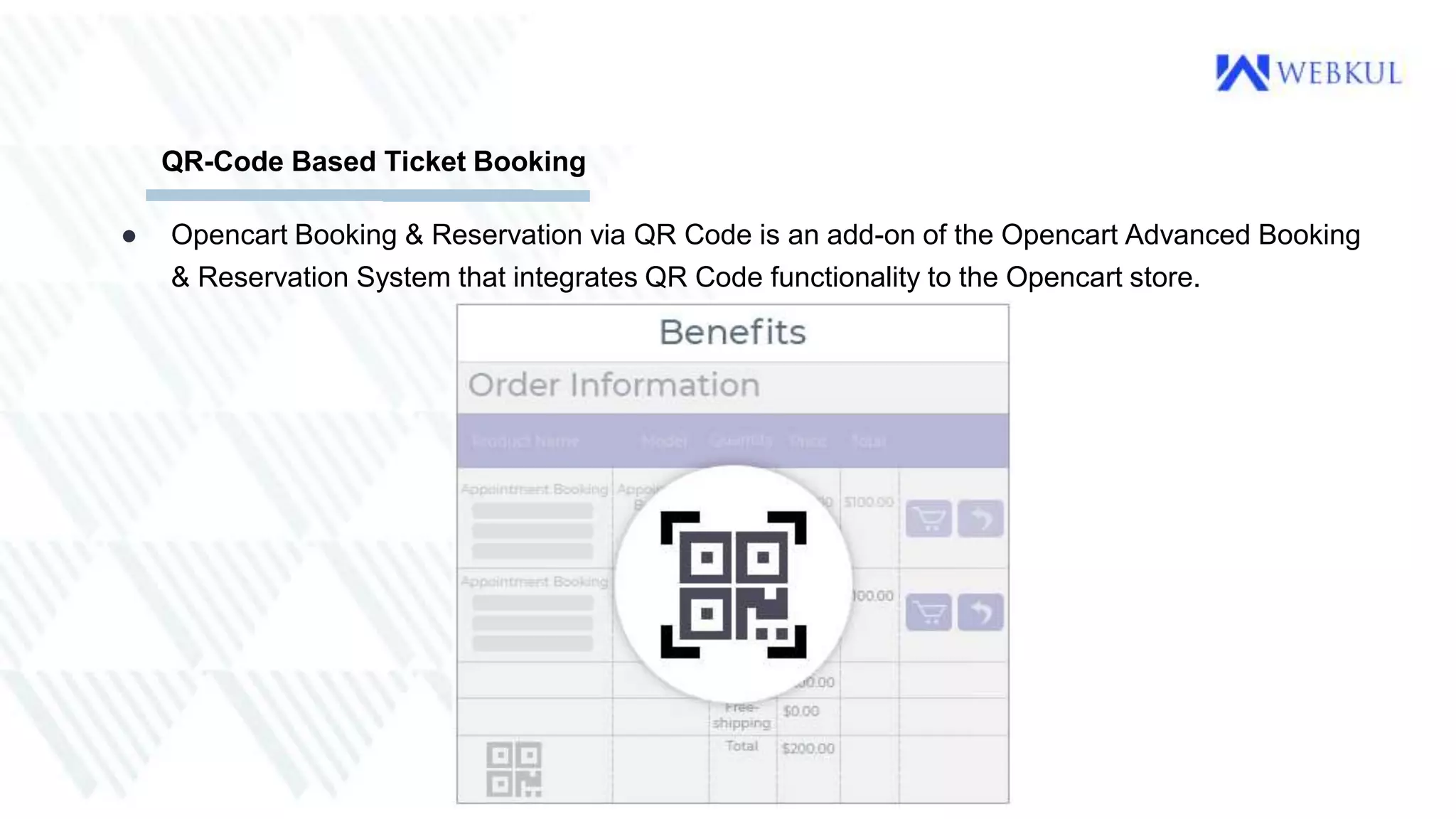
● Opencart Booking & Reservation via QR Code is an add-on of the Opencart Advanced Booking
& Reservation System that integrates QR Code functionality to the Opencart store.
QR-Code Based Ticket Booking
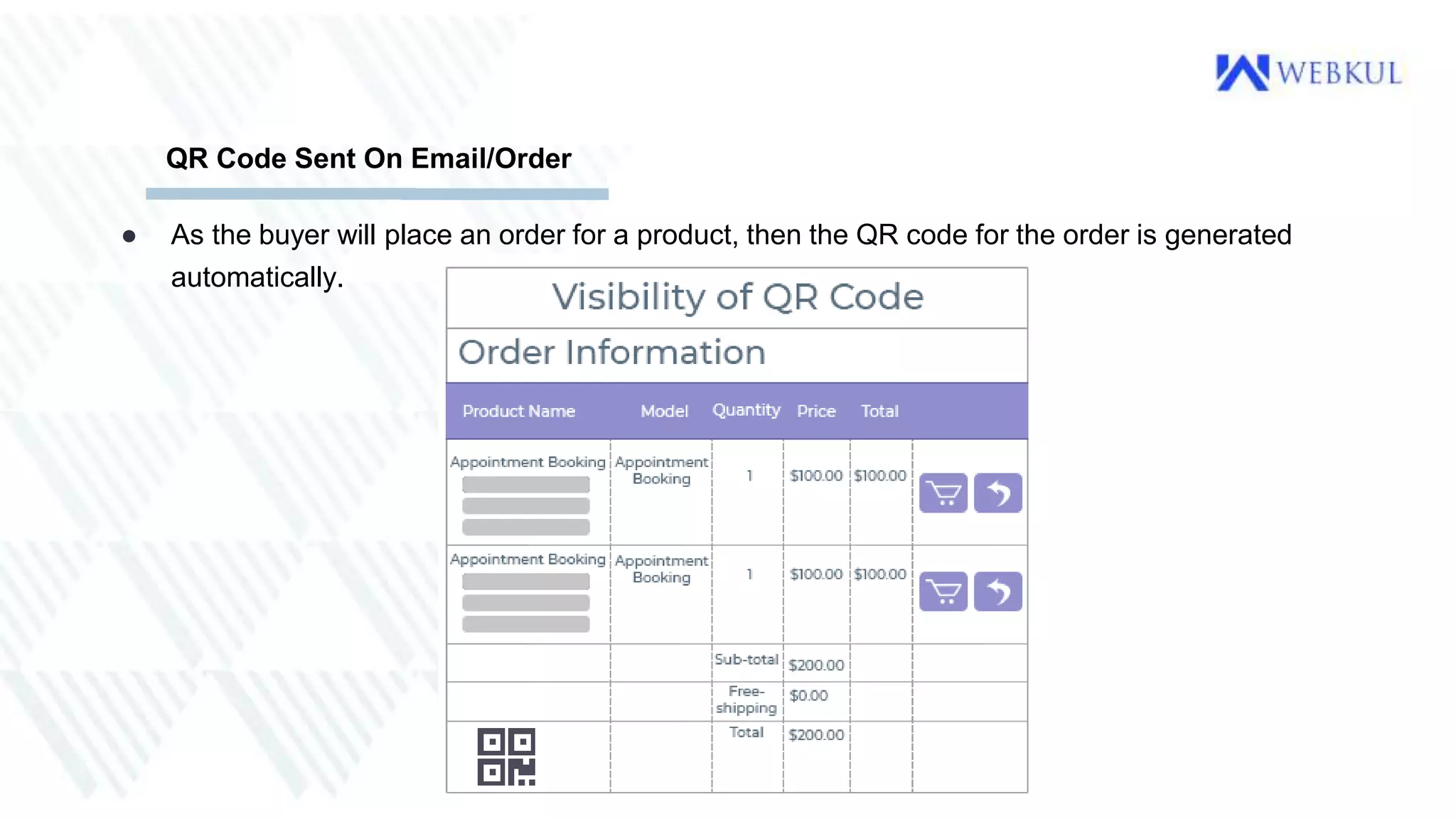
● As the buyer will place an order for a product, then the QR code for the order is generated
automatically.
QR Code Sent On Email/Order
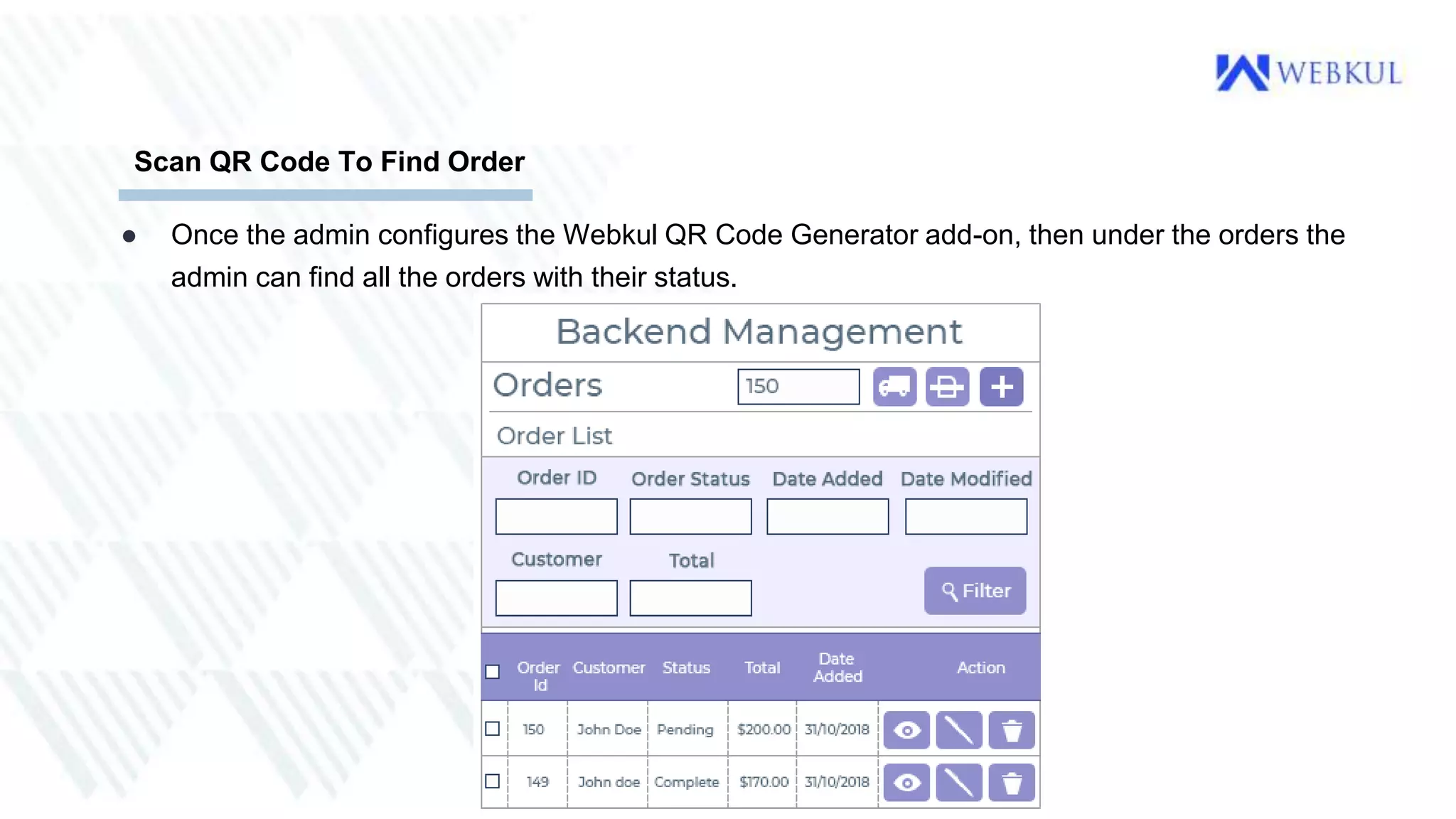
● Once the admin configures the Webkul QR Code Generator add-on, then under the orders the
admin can find all the orders with their status.
Scan QR Code To Find Order
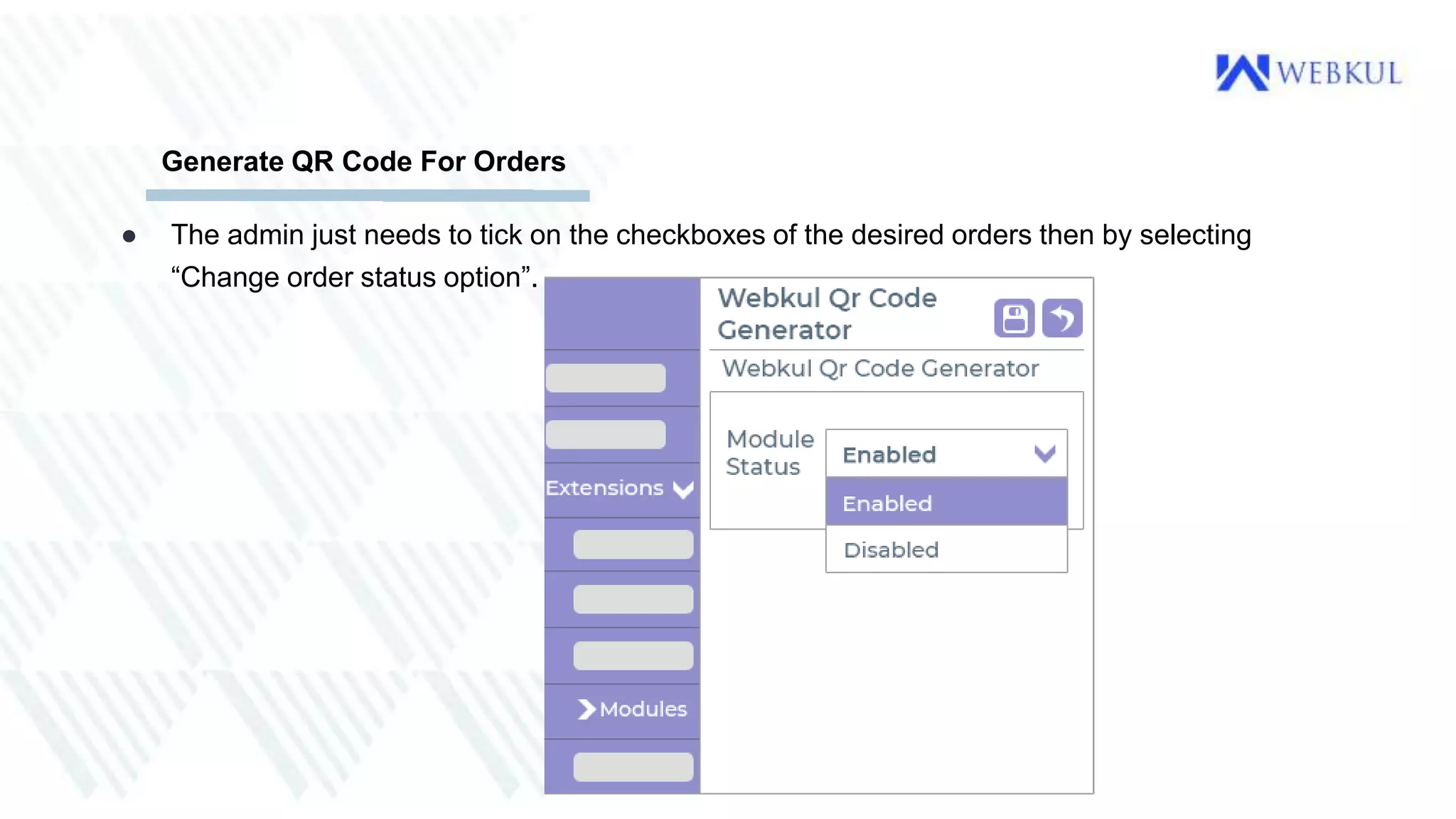
● The admin just needs to tick on the checkboxes of the desired orders then by selecting
“Change order status option”.
Generate QR Code For Orders
● Through Opencart Booking & Reservation via QR Code, the admin can easily retrieve the
details of any order or change the order status by simply entering the order id of a product.
● The QR code is visible to a user in the Order page at the backend, in the Order Information
page in the frontend and in the mail which the user receives.
● Incorporating Quick Response codes or the QR codes with marketing strategies will amplify a
store’s brand image. It a modern way of executing a business.
● The QR codes help users fetch the details of a order easily and this saves a user’s time.
● It is a very interesting feature which will affect the sales conversions drastically.
Conclusion
Contact Us
• 1. Store Link - [ https://store.webkul.com/opencart-booking-reservation-qr-code.html ].
2. User Guide - [ https://webkul.com/blog/opencart-qr-code-booking-reservation/ ].
3. Live Demo - [ https://opencart.webkul.com/Opencart-Booking-and-Reservation-via-QR-Code ].
• For further query requirements, please send an email to support@webkul.com
• You can also create a support ticket at- https://webkul.uvdesk.com/en/customer/create-ticket/
• Or reach out via Voice at - India - (+91)-9870284067 USA - (+1)-9143531684
THANK YOU

OpenCart Booking & Reservation Via QR Code Pugin

  • 1.
    OpenCart Booking & Reservation viaQR Code Plugin With QR code, the admin can easily generate QR codes for orders, find orders from the list, retrieve order details, and change order status.
  • 2.
    ● Through OpencartBooking & Reservation via QR Code, the admin can easily retrieve the details of any order or change the order status by simply entering the order id of a product. ● The QR code is visible to a user in the Order page at the backend, in the Order Information page in the frontend and in the mail which the user receives. ● Incorporating Quick Response codes or the QR codes with marketing strategies will amplify a store’s brand image. It a modern way of executing a business. ● The QR codes help users fetch the details of a order easily and this saves a user’s time. ● It is a very interesting feature which will affect the sales conversions drastically. Introduction
  • 3.
    ● Order Details- With this extension, customers can easily retrieve the order details using QR codes. ● Complete The Order - Easily completion of orders simply by scanning the QR code using a scanner. ● Products Supported - This extension helps to generate the QR codes only for the booking products. ● Change Order Status - The admin can change the order status of the product to complete by simply entering the order ID in the backend under Orders. Benefits
  • 4.
    ● It isan add-on for Advance Booking and Reservation. ● It generates QR codes for booking products only. ● Users can easily retrieve the order details using QR codes. ● The admin can change the order status of the product to complete by simply entering the order id in the backend under Orders. ● QR code is attached to the order mail which is sent to customers and store owners. ● The admin can complete the order by simply scanning the QR code using a scanner. ● This add-on works only with the booking products. Features
  • 5.
    ● Opencart Booking& Reservation via QR Code is an add-on of the Opencart Advanced Booking & Reservation System that integrates QR Code functionality to the Opencart store. QR-Code Based Ticket Booking
  • 6.
    ● As thebuyer will place an order for a product, then the QR code for the order is generated automatically. QR Code Sent On Email/Order
  • 7.
    ● Once theadmin configures the Webkul QR Code Generator add-on, then under the orders the admin can find all the orders with their status. Scan QR Code To Find Order
  • 8.
    ● The adminjust needs to tick on the checkboxes of the desired orders then by selecting “Change order status option”. Generate QR Code For Orders
  • 9.
    ● Through OpencartBooking & Reservation via QR Code, the admin can easily retrieve the details of any order or change the order status by simply entering the order id of a product. ● The QR code is visible to a user in the Order page at the backend, in the Order Information page in the frontend and in the mail which the user receives. ● Incorporating Quick Response codes or the QR codes with marketing strategies will amplify a store’s brand image. It a modern way of executing a business. ● The QR codes help users fetch the details of a order easily and this saves a user’s time. ● It is a very interesting feature which will affect the sales conversions drastically. Conclusion
  • 10.
    Contact Us • 1.Store Link - [ https://store.webkul.com/opencart-booking-reservation-qr-code.html ]. 2. User Guide - [ https://webkul.com/blog/opencart-qr-code-booking-reservation/ ]. 3. Live Demo - [ https://opencart.webkul.com/Opencart-Booking-and-Reservation-via-QR-Code ]. • For further query requirements, please send an email to support@webkul.com • You can also create a support ticket at- https://webkul.uvdesk.com/en/customer/create-ticket/ • Or reach out via Voice at - India - (+91)-9870284067 USA - (+1)-9143531684
  • 11.