NoodleTools
Create a Bibliography or Works
 Cited List (and prevent plagiarism by
           staying organized)
    Contra Costa College Library
               Fall 2012
What is NoodleTools

Organize, create, store, write
•   Save personal copies of sources
•   Begin a working bibliography
•   Copy-and-paste relevant quotes onto notecards
•   Paraphrase the author’s words
•   Analyze, question and add your own ideas
•   Tag and pile your notes – what emerges?
•   Create an outline, add piles – reorder and experiment!
•   Create [essay, speech, product…] with a bibliography
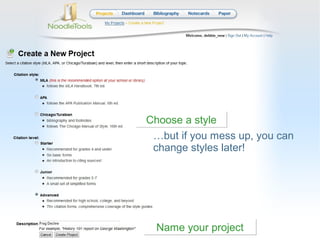
Choose a style
 …but if you mess up, you can
 change styles later!


  Name your project
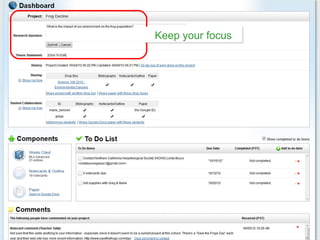
Keep your focus
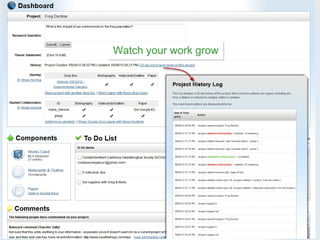
Watch your work grow
Share with
[teacher dropbox name—if
your teacher uses, it will be
    in syllabus or in an
       assignment]
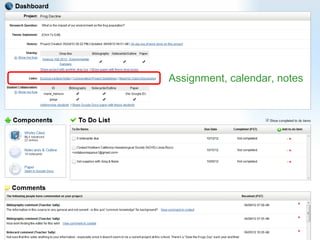
Assignment, calendar, notes
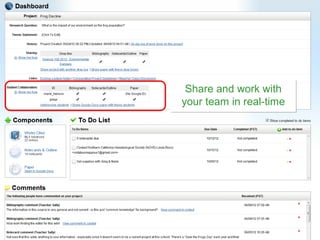
Share and work with
your team in real-time
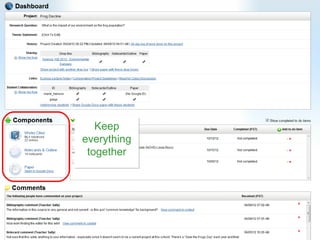
Keep
everything
 together
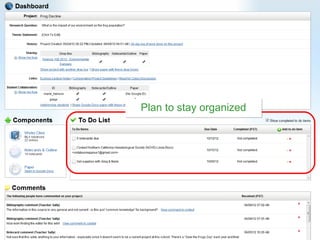
Plan to stay organized
Use feedback from [teachers’
names] to improve your work
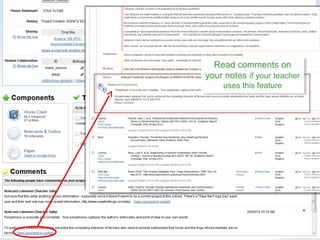
Read comments on
   Read comments on
your notes ififyour teacher
 your notes your teacher
    uses this feature
     uses this feature
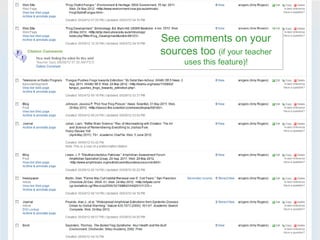
See comments on your
sources too (if your teacher
      uses this feature)!
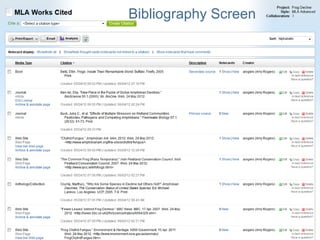
Bibliography Screen
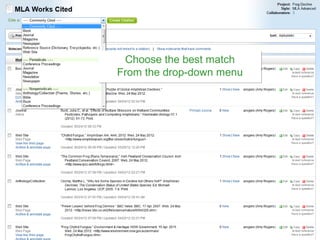
Choose the best match
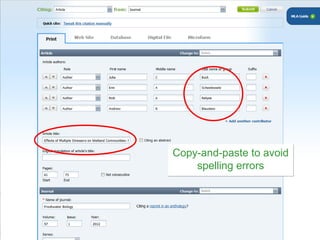
From the drop-down menu
Copy-and-paste to avoid
    spelling errors
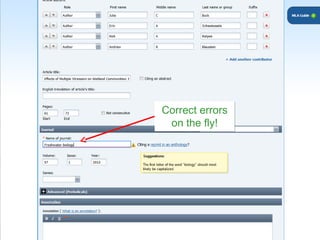
Correct errors
 on the fly!
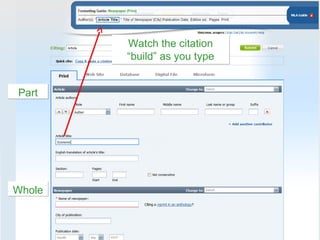
Watch the citation
        “build” as you type


Part


Whole
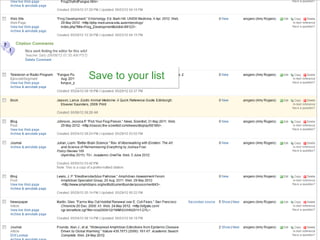
Save to your list
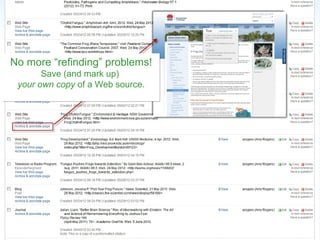
No more “refinding” problems!
       Save (and mark up)
 your own copy of a Web source.
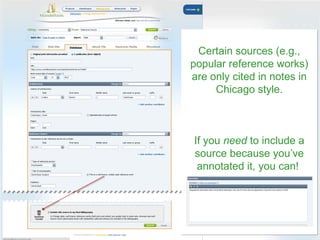
Certain sources (e.g.,
popular reference works)
are only cited in notes in
     Chicago style.


If you need to include a
source because you’ve
 annotated it, you can!
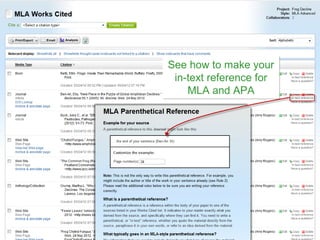
See how to make your
 in-text reference for
    MLA and APA
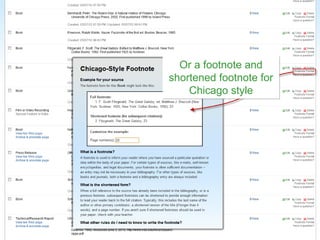
…or the full and and
  Or a footnote shortened
shortened footnote for
footnote for Chicago style
    Chicago style
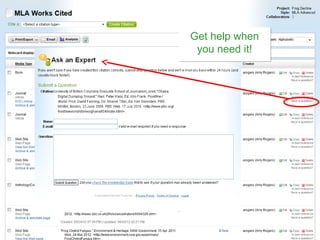
Get help when
 you need it!
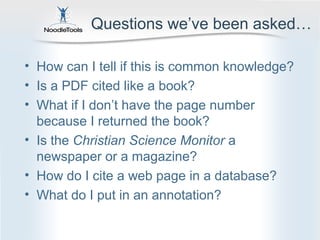
Questions we’ve been asked…

• How can I tell if this is common knowledge?
• Is a PDF cited like a book?
• What if I don’t have the page number
  because I returned the book?
• Is the Christian Science Monitor a
  newspaper or a magazine?
• How do I cite a web page in a database?
• What do I put in an annotation?
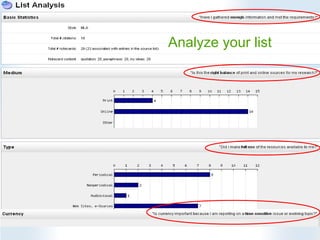
Analyze your list
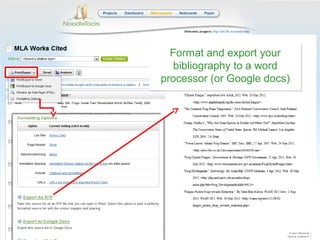
Format and export your
   bibliography to a word
processor (or Google docs)
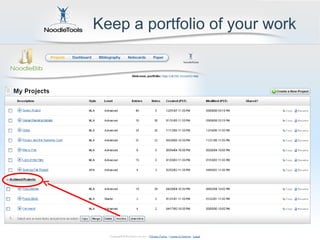
Keep a portfolio of your work
CREATING A FREE CCC
                 ACCOUNT…
• You must create your account ON CAMPUS or you
  will not have the full version of Noodletools.
• Go to www.noodletools.com –there should be a
  green box saying you are about to sign in to the
  CCC subscription
• Create your personal ID and password
   – Record these someplace you can easily find
• When you use NoodleTools after that, login only
  with your personal ID and password
Review…

Specifically for your essay, project…
• Use style your instructor requires [MLA, APA or
  Chicago/Turabian]. If in Library Studies, you must use
  MLA ADVANCED.
• Cite as you go (books, quality websites, database
  articles…)
• Add notes as you read, annotate to understand
• Organize notes in piles, add tags and reminders
• Build an outline, cluster your notes under headings
• Share your working list and notes with your instructor if
  specified
   – Get feedback as you go
• Create your project and works cited list!
NoodleTools
Start your research!


              For more teaching ideas:
              support [at] noodletools [dot] com

Noodletools citing

  • 1.
    NoodleTools Create a Bibliographyor Works Cited List (and prevent plagiarism by staying organized) Contra Costa College Library Fall 2012
  • 2.
    What is NoodleTools Organize,create, store, write • Save personal copies of sources • Begin a working bibliography • Copy-and-paste relevant quotes onto notecards • Paraphrase the author’s words • Analyze, question and add your own ideas • Tag and pile your notes – what emerges? • Create an outline, add piles – reorder and experiment! • Create [essay, speech, product…] with a bibliography
  • 3.
    Choose a style …but if you mess up, you can change styles later! Name your project
  • 4.
  • 5.
  • 6.
    Share with [teacher dropboxname—if your teacher uses, it will be in syllabus or in an assignment]
  • 7.
  • 8.
    Share and workwith your team in real-time
  • 9.
  • 10.
    Plan to stayorganized
  • 11.
    Use feedback from[teachers’ names] to improve your work
  • 12.
    Read comments on Read comments on your notes ififyour teacher your notes your teacher uses this feature uses this feature
  • 13.
    See comments onyour sources too (if your teacher uses this feature)!
  • 14.
  • 15.
    Choose the bestmatch From the drop-down menu
  • 16.
    Copy-and-paste to avoid spelling errors
  • 17.
  • 18.
    Watch the citation “build” as you type Part Whole
  • 19.
  • 20.
    No more “refinding”problems! Save (and mark up) your own copy of a Web source.
  • 21.
    Certain sources (e.g., popularreference works) are only cited in notes in Chicago style. If you need to include a source because you’ve annotated it, you can!
  • 22.
    See how tomake your in-text reference for MLA and APA
  • 23.
    …or the fulland and Or a footnote shortened shortened footnote for footnote for Chicago style Chicago style
  • 24.
    Get help when you need it!
  • 25.
    Questions we’ve beenasked… • How can I tell if this is common knowledge? • Is a PDF cited like a book? • What if I don’t have the page number because I returned the book? • Is the Christian Science Monitor a newspaper or a magazine? • How do I cite a web page in a database? • What do I put in an annotation?
  • 26.
  • 27.
    Format and exportyour bibliography to a word processor (or Google docs)
  • 28.
    Keep a portfolioof your work
  • 29.
    CREATING A FREECCC ACCOUNT… • You must create your account ON CAMPUS or you will not have the full version of Noodletools. • Go to www.noodletools.com –there should be a green box saying you are about to sign in to the CCC subscription • Create your personal ID and password – Record these someplace you can easily find • When you use NoodleTools after that, login only with your personal ID and password
  • 30.
    Review… Specifically for youressay, project… • Use style your instructor requires [MLA, APA or Chicago/Turabian]. If in Library Studies, you must use MLA ADVANCED. • Cite as you go (books, quality websites, database articles…) • Add notes as you read, annotate to understand • Organize notes in piles, add tags and reminders • Build an outline, cluster your notes under headings • Share your working list and notes with your instructor if specified – Get feedback as you go • Create your project and works cited list!
  • 31.
    NoodleTools Start your research! For more teaching ideas: support [at] noodletools [dot] com

Editor's Notes

  • #2 An integrated platform for citation , note-taking , outlining , document archiving and annotation , and collaborative research .
  • #3 Note: There are tutorials on notecards, tagging and other features of the Tabletop here: http://www.noodletools.com/helpdesk/index.php?action=downloads#category-3
  • #4 NoodleTools comes in 3 different levels corresponding roughly to novices (elementary), middle school and ESL, and high school/college All three levels are available for all three styles: MLA, APA and Chicago.
  • #6 On the Dashboard, students can review their own 30-day logs. The logs have been enhanced to clearly show when items in the project are added or deleted, plus it gives the total number of citations and notecards to that point in time. We will continue to add self-assessment features so that students gain a sense of ownership and responsibility for their work.
  • #7 Tutorial on sharing a project with a teacher ’s dropbox: http://www.noodletools.com/noodlebib/tutorials/share/
  • #9 Note: Tutorial on how to share a project with a team: http://www.noodletools.com/noodlebib/tutorials/collaboration/
  • #19 Always see the same format: Part on top Whole on bottom
  • #21 Exclusive partnership with iCyte to provide a way for students to permanently archive and annotate Web pages and PDFs that they use, so that they have a snapshot of the source from the time they actually cited or took notes on it. Teachers can also view this archived version when the project is shared. Useful for things like Wikis, Web pages, blogs, tweets Requires a bookmarklet to be added to the browser ’s toolbar.
  • #22 Checkbox and help text at the bottom of each form allowing student to omit particular citations from a final exported list. By default, we include a citation for every source in the student ’s bibliography. We give “traffic light” indicator (red, yellow, green) with help that explains when a particular source is usually, sometimes, or rarely included. For example, in Chicago style those history teachers want you to omit well-known reference works. But if the student was creating an annotated bibliography, she might NEED citations for all sources and this feature gives them that flexibility.