MICROSOFT EXCEL
BASICS
Z. Olirvel
Computer/Information Scientist
Pondicherry University
What it is?
 MS-Excel is an electronic spreadsheet
package which is used to maintain
the day-to-day activities of a small
office
Features
 Automatic recalculation
 Huge data storage
 Variety of built-in functions
 Charts
 Minimal Database capabilities
 What-if-analysis; Goal seek & Data Table
 Macros
 Pivot tables and charts
 Export and Import data from other
applications
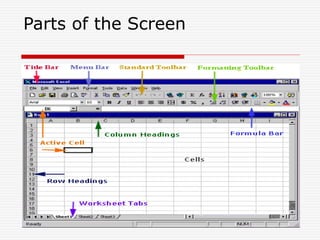
Parts of the Screen
Types of Data
 Label (String or group of characters)
 Example : ‘Pondicherry’, ‘A1’,etc
 Number
 Example : 100,99.87, 1.2E+10, etc
 Formula
 Basic formula
 Example : =a1+b1, =c1/(a1-b2), etc
 Function
 Example : =SUM (range), =PMT (attributes)
Editing features
 F2 – key to edit a cell
 Copy
 Move
 Insert/delete a row & column
 Change the width of a row & column
 Formatting the data in the cells
 Auto fill
 Merge and centre the title
 Insert/delete a sheet in a book
 Saving the content
Chart/Graph
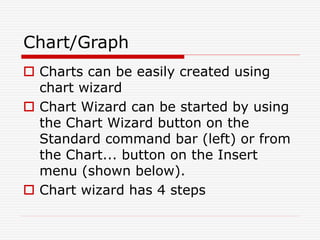
 Charts can be easily created using
chart wizard
 Chart Wizard can be started by using
the Chart Wizard button on the
Standard command bar (left) or from
the Chart... button on the Insert
menu (shown below).
 Chart wizard has 4 steps
Step 1 - Select a Chart Type
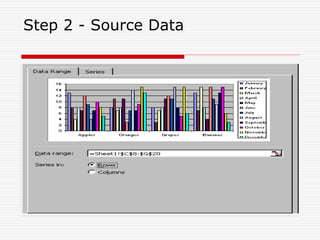
Step 2 - Source Data
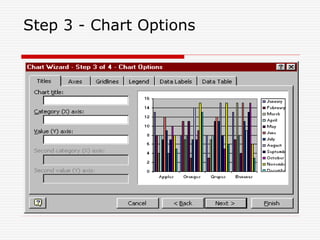
Step 3 - Chart Options
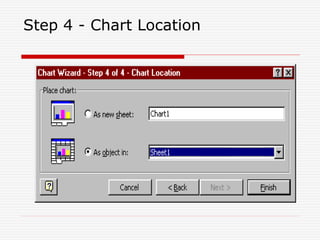
Step 4 - Chart Location
Sample Chart
Funds Allocation for the Last Five years
0
50
100
150
200
250
2000 2001 2002 2003 2004
Years
Rs.
in
Lakhs
PURCHASE
SALARY
MAINTENANCE
BUILDINGS
Applications of Excel
 Petty cash accounts
 Simple Balance sheet
 Income Tax calculation
 Comparative statement preparation
 Budget statement
 Monthly electricity consumption statement
for quarters occupants
 EMI calculation for Loans
‘Generally wherever there are simple
calculations, Excel could be used’
Questions
?

MS EXCEL.ppt

  • 1.
  • 2.
    What it is? MS-Excel is an electronic spreadsheet package which is used to maintain the day-to-day activities of a small office
  • 3.
    Features  Automatic recalculation Huge data storage  Variety of built-in functions  Charts  Minimal Database capabilities  What-if-analysis; Goal seek & Data Table  Macros  Pivot tables and charts  Export and Import data from other applications
  • 4.
  • 5.
    Types of Data Label (String or group of characters)  Example : ‘Pondicherry’, ‘A1’,etc  Number  Example : 100,99.87, 1.2E+10, etc  Formula  Basic formula  Example : =a1+b1, =c1/(a1-b2), etc  Function  Example : =SUM (range), =PMT (attributes)
  • 6.
    Editing features  F2– key to edit a cell  Copy  Move  Insert/delete a row & column  Change the width of a row & column  Formatting the data in the cells  Auto fill  Merge and centre the title  Insert/delete a sheet in a book  Saving the content
  • 7.
    Chart/Graph  Charts canbe easily created using chart wizard  Chart Wizard can be started by using the Chart Wizard button on the Standard command bar (left) or from the Chart... button on the Insert menu (shown below).  Chart wizard has 4 steps
  • 8.
    Step 1 -Select a Chart Type
  • 9.
    Step 2 -Source Data
  • 10.
    Step 3 -Chart Options
  • 11.
    Step 4 -Chart Location
  • 12.
    Sample Chart Funds Allocationfor the Last Five years 0 50 100 150 200 250 2000 2001 2002 2003 2004 Years Rs. in Lakhs PURCHASE SALARY MAINTENANCE BUILDINGS
  • 13.
    Applications of Excel Petty cash accounts  Simple Balance sheet  Income Tax calculation  Comparative statement preparation  Budget statement  Monthly electricity consumption statement for quarters occupants  EMI calculation for Loans ‘Generally wherever there are simple calculations, Excel could be used’
  • 14.