Most Important Mac
Keyboard Shortcuts
https://mightypccleaner.com/mac-keyboard-shortcuts/
Mac Keyboard Shortcuts
To use Mac Keyboard Shortcuts , or key combination, you press a modifier key
with a character key. For example, press the command key(the key that has a
⌘symbol) and the "c" key at the same time copies whatever is currently
selected (text, graphics, and so forth) into the Clipboard.
This is also known as the Command-C key combination (or keyboard shortcut).
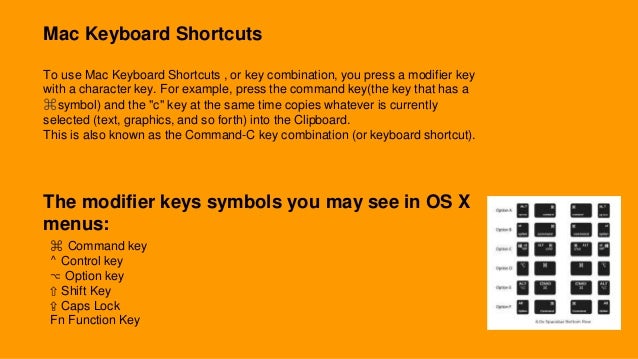
The modifier keys symbols you may see in OS X
menus:
⌘ Command key
⌃ Control key
⌥ Option key
⇧ Shift Key
⇪ Caps Lock
Fn Function Key
Mac Useful Keyboard Shortcuts
The possible Mac useful keyboard shortcuts available, here's a look at the most useful and
even the basic ones that definitely need your attention.
Command Action
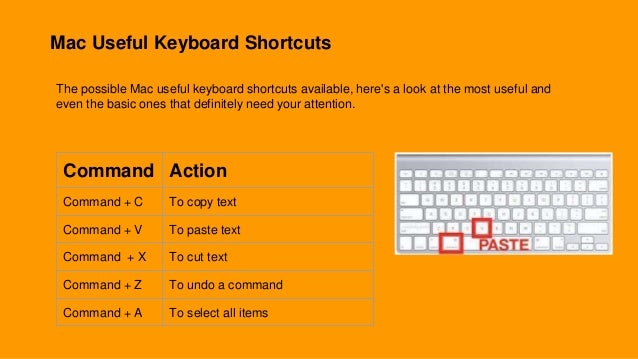
Command + C To copy text
Command + V To paste text
Command + X To cut text
Command + Z To undo a command
Command + A To select all items
Mac Startup Shortcuts
Command Action
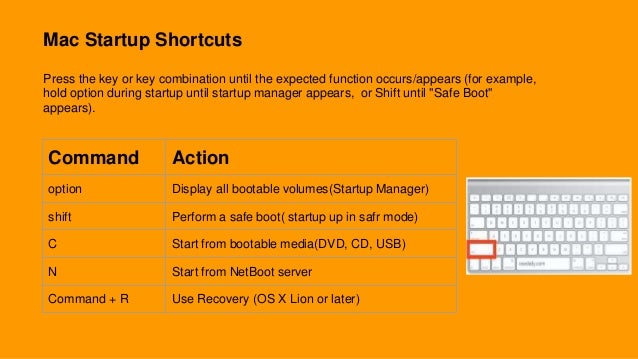
option Display all bootable volumes(Startup Manager)
shift Perform a safe boot( startup up in safr mode)
C Start from bootable media(DVD, CD, USB)
N Start from NetBoot server
Command + R Use Recovery (OS X Lion or later)
Press the key or key combination until the expected function occurs/appears (for example,
hold option during startup until startup manager appears, or Shift until "Safe Boot"
appears).
Mac Document Shortcuts
Mac documents keyboard shortcuts used more
for writing and documentation, these keyboard
shortcuts can prove really helpful to maintain the flow.
Command Action
Command + A Move to the beginning of the line or paragraph
Command + F Move one character forword
Command + K Add a web link
Command + N Move down a line
Command + T Show and hide the Fonts window
Mac Function Shortcuts
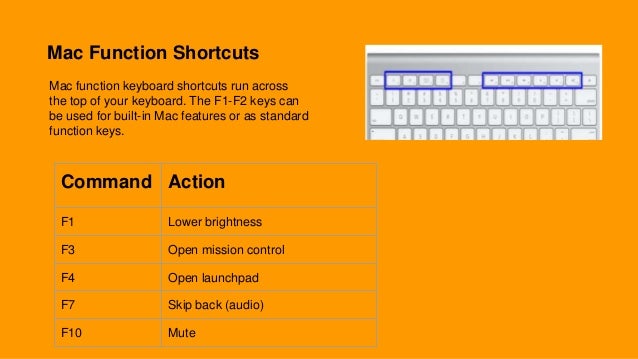
Mac function keyboard shortcuts run across
the top of your keyboard. The F1-F2 keys can
be used for built-in Mac features or as standard
function keys.
Command Action
F1 Lower brightness
F3 Open mission control
F4 Open launchpad
F7 Skip back (audio)
F10 Mute
Mac Combination Keyboard Shortcuts
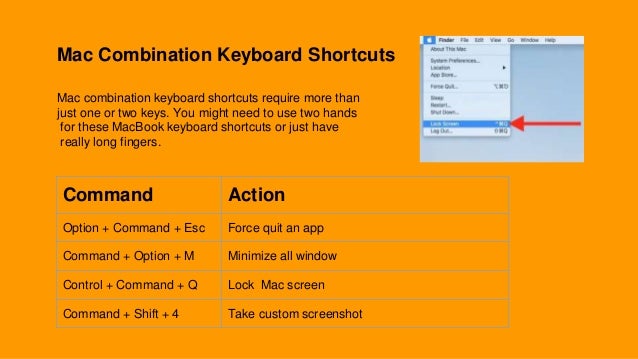
Mac combination keyboard shortcuts require more than
just one or two keys. You might need to use two hands
for these MacBook keyboard shortcuts or just have
really long fingers.
Command Action
Option + Command + Esc Force quit an app
Command + Option + M Minimize all window
Control + Command + Q Lock Mac screen
Command + Shift + 4 Take custom screenshot
Conclusion
The all Mac Keyboard Shortcuts time-saving and we assume that all above
keyboard shortcuts will help you a lot to use. You can get the most out of
them to get your work done faster.These will take some time and practice
to get into the groove of your workflow.
Thank you
For more information:-
contact@mightypccleaner.com
https://mightypccleaner.com/mac-keyboard-shortcuts/

Most Important Mac Keyboard Shortcuts

  • 1.
    Most Important Mac KeyboardShortcuts https://mightypccleaner.com/mac-keyboard-shortcuts/
  • 2.
    Mac Keyboard Shortcuts Touse Mac Keyboard Shortcuts , or key combination, you press a modifier key with a character key. For example, press the command key(the key that has a ⌘symbol) and the "c" key at the same time copies whatever is currently selected (text, graphics, and so forth) into the Clipboard. This is also known as the Command-C key combination (or keyboard shortcut). The modifier keys symbols you may see in OS X menus: ⌘ Command key ⌃ Control key ⌥ Option key ⇧ Shift Key ⇪ Caps Lock Fn Function Key
  • 3.
    Mac Useful KeyboardShortcuts The possible Mac useful keyboard shortcuts available, here's a look at the most useful and even the basic ones that definitely need your attention. Command Action Command + C To copy text Command + V To paste text Command + X To cut text Command + Z To undo a command Command + A To select all items
  • 4.
    Mac Startup Shortcuts CommandAction option Display all bootable volumes(Startup Manager) shift Perform a safe boot( startup up in safr mode) C Start from bootable media(DVD, CD, USB) N Start from NetBoot server Command + R Use Recovery (OS X Lion or later) Press the key or key combination until the expected function occurs/appears (for example, hold option during startup until startup manager appears, or Shift until "Safe Boot" appears).
  • 5.
    Mac Document Shortcuts Macdocuments keyboard shortcuts used more for writing and documentation, these keyboard shortcuts can prove really helpful to maintain the flow. Command Action Command + A Move to the beginning of the line or paragraph Command + F Move one character forword Command + K Add a web link Command + N Move down a line Command + T Show and hide the Fonts window
  • 6.
    Mac Function Shortcuts Macfunction keyboard shortcuts run across the top of your keyboard. The F1-F2 keys can be used for built-in Mac features or as standard function keys. Command Action F1 Lower brightness F3 Open mission control F4 Open launchpad F7 Skip back (audio) F10 Mute
  • 7.
    Mac Combination KeyboardShortcuts Mac combination keyboard shortcuts require more than just one or two keys. You might need to use two hands for these MacBook keyboard shortcuts or just have really long fingers. Command Action Option + Command + Esc Force quit an app Command + Option + M Minimize all window Control + Command + Q Lock Mac screen Command + Shift + 4 Take custom screenshot
  • 8.
    Conclusion The all MacKeyboard Shortcuts time-saving and we assume that all above keyboard shortcuts will help you a lot to use. You can get the most out of them to get your work done faster.These will take some time and practice to get into the groove of your workflow.
  • 9.
    Thank you For moreinformation:- contact@mightypccleaner.com https://mightypccleaner.com/mac-keyboard-shortcuts/