

Ma gi c Tricks A few Mac tips and tricks to make your lives easier (or possibly more complicated!?!)
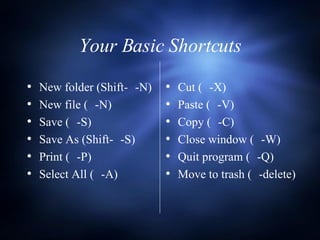
Your Basic Shortcuts New folder (Shift-  -N)  New file (  -N) Save (  -S) Save As (Shift-  -S) Print (  -P) Select All (  -A) Cut (  -X) Paste (  -V) Copy (  -C) Close window (  -W) Quit program (  -Q)  Move to trash (  -delete)
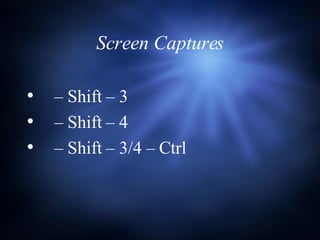
Screen Captures   –  Shift – 3   –  Shift – 4   –  Shift – 3/4 – Ctrl
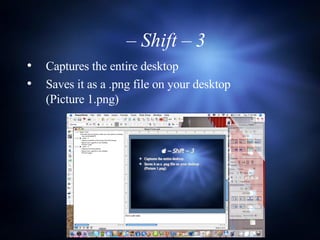
  –  Shift – 3  Captures the entire desktop Saves it as a .png file on your desktop  (Picture 1.png)
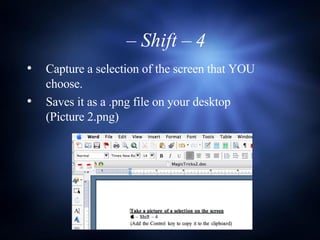
  –  Shift – 4  Capture a selection of the screen that YOU choose. Saves it as a .png file on your desktop  (Picture 2.png)
Captures the entire desktop (3) or a selection you choose (4). Saves it to the clipboard. As soon as you copy ANYTHING else (text, pictures, whatever) it is lost because the clipboard can only hold 1 thing at a time. Why use this?  If you are going to immediately paste (  -V) into a document.   –  Shift – 3/4 – Ctrl
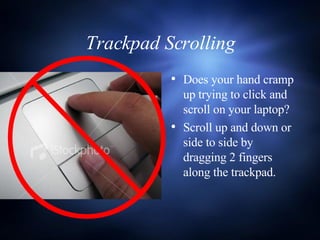
Trackpad Scrolling Does your hand cramp up trying to click and scroll on your laptop? Scroll up and down or side to side by dragging 2 fingers along the trackpad.
Zoom In and Out  First, you have to turn this feature on:  Option-  -8 Zoom in: Option-  -Plus (+) Zoom out: Option-  -Minus (-) ALTERNATIVELY : Hold down the Ctrl key and use either the mouse scroll wheel on your mouse or your two fingers on your laptop’s trackpad
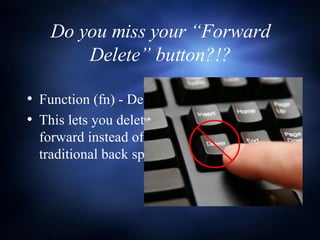
Do you miss your “Forward Delete” button?!? Function (fn) - Delete This lets you delete text forward instead of the traditional back space.
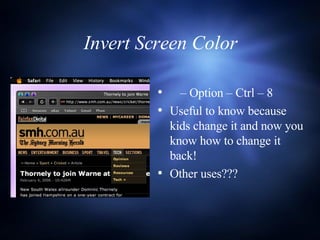
Invert Screen Color   –  Option – Ctrl – 8 Useful to know because kids change it and now you know how to change it back! Other uses???
Exposé Find the window you need! F9 - Shows all open windows F10 - Shows all open windows in a certain application F11 - Shows your desktop (without having to minimize all your windows!)
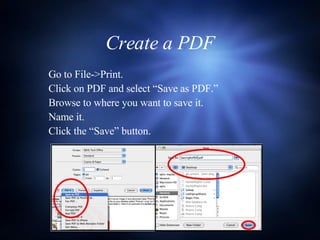
Create a PDF Go to File->Print. Click on PDF and select “Save as PDF.” Browse to where you want to save it. Name it. Click the “Save” button.
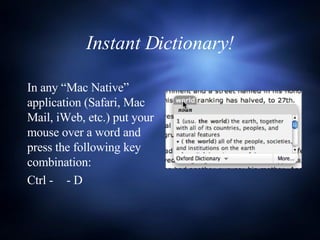
Instant Dictionary! In any “Mac Native” application (Safari, Mac Mail, iWeb, etc.) put your mouse over a word and press the following key combination: Ctrl -    - D
Slooooow Motion Hold the shift key down when you maximize or minimize a window. If you can figure out a reason Apple created this little “trick,” please let me know!
Ta da!

Magic Tricks

  • 1.
    Ma gi cTricks A few Mac tips and tricks to make your lives easier (or possibly more complicated!?!)
  • 2.
    Your Basic ShortcutsNew folder (Shift-  -N) New file (  -N) Save (  -S) Save As (Shift-  -S) Print (  -P) Select All (  -A) Cut (  -X) Paste (  -V) Copy (  -C) Close window (  -W) Quit program (  -Q) Move to trash (  -delete)
  • 3.
    Screen Captures  – Shift – 3  – Shift – 4  – Shift – 3/4 – Ctrl
  • 4.
     – Shift – 3 Captures the entire desktop Saves it as a .png file on your desktop (Picture 1.png)
  • 5.
     – Shift – 4 Capture a selection of the screen that YOU choose. Saves it as a .png file on your desktop (Picture 2.png)
  • 6.
    Captures the entiredesktop (3) or a selection you choose (4). Saves it to the clipboard. As soon as you copy ANYTHING else (text, pictures, whatever) it is lost because the clipboard can only hold 1 thing at a time. Why use this? If you are going to immediately paste (  -V) into a document.  – Shift – 3/4 – Ctrl
  • 7.
    Trackpad Scrolling Doesyour hand cramp up trying to click and scroll on your laptop? Scroll up and down or side to side by dragging 2 fingers along the trackpad.
  • 8.
    Zoom In andOut First, you have to turn this feature on: Option-  -8 Zoom in: Option-  -Plus (+) Zoom out: Option-  -Minus (-) ALTERNATIVELY : Hold down the Ctrl key and use either the mouse scroll wheel on your mouse or your two fingers on your laptop’s trackpad
  • 9.
    Do you missyour “Forward Delete” button?!? Function (fn) - Delete This lets you delete text forward instead of the traditional back space.
  • 10.
    Invert Screen Color – Option – Ctrl – 8 Useful to know because kids change it and now you know how to change it back! Other uses???
  • 11.
    Exposé Find thewindow you need! F9 - Shows all open windows F10 - Shows all open windows in a certain application F11 - Shows your desktop (without having to minimize all your windows!)
  • 12.
    Create a PDFGo to File->Print. Click on PDF and select “Save as PDF.” Browse to where you want to save it. Name it. Click the “Save” button.
  • 13.
    Instant Dictionary! Inany “Mac Native” application (Safari, Mac Mail, iWeb, etc.) put your mouse over a word and press the following key combination: Ctrl -  - D
  • 14.
    Slooooow Motion Holdthe shift key down when you maximize or minimize a window. If you can figure out a reason Apple created this little “trick,” please let me know!
  • 15.