https://mightypccleaner.com/mac-keyboard-shortcuts/
Most Useful Mac
Keyboard Shortcuts
Best Mac Keyboard Shortcuts
To use Best Mac keyboard shortcuts on a Mac require you to press
(and hold) at least one modifier key at once to trigger an action. For
example, to used Command-C (copy), press and hold the Command
key, then the C key, then release the both keys.
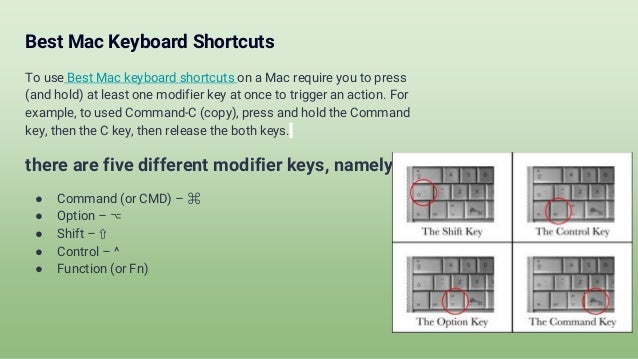
there are five different modifier keys, namely:
● Command (or CMD) – ⌘
● Option – ⌥
● Shift – ⇧
● Control – ^
● Function (or Fn)
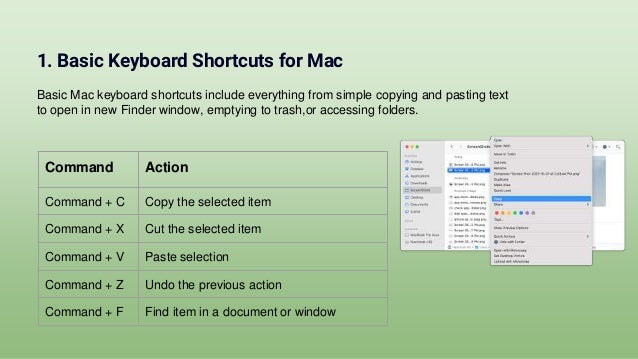
1. Basic Keyboard Shortcuts for Mac
Basic Mac keyboard shortcuts include everything from simple copying and pasting text
to open in new Finder window, emptying to trash,or accessing folders.
Command Action
Command + C Copy the selected item
Command + X Cut the selected item
Command + V Paste selection
Command + Z Undo the previous action
Command + F Find item in a document or window
2. MacOS Finder Keyboard Shortcuts
Finder helps you access and organize most of the important mac functions while you work.
Command Action
Command + D Duplicate the selected files
Command + E Eject the selected disk
Shift + Command + C Open the computer window
Shift + Command + D Open the desktop folder
Option + Command + N Create a new Smart Folder
Command + Delete Move the selected item to Trash
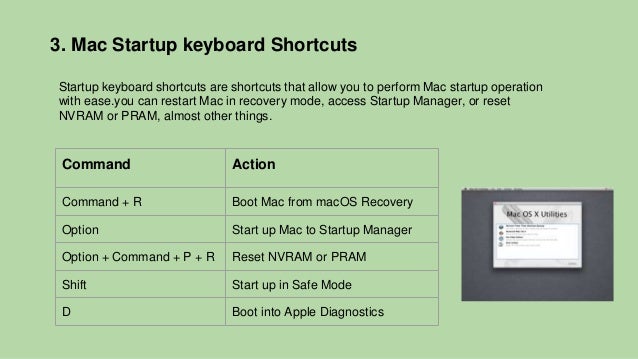
3. Mac Startup keyboard Shortcuts
Startup keyboard shortcuts are shortcuts that allow you to perform Mac startup operation
with ease.you can restart Mac in recovery mode, access Startup Manager, or reset
NVRAM or PRAM, almost other things.
Command Action
Command + R Boot Mac from macOS Recovery
Option Start up Mac to Startup Manager
Option + Command + P + R Reset NVRAM or PRAM
Shift Start up in Safe Mode
D Boot into Apple Diagnostics
4. Mac Document Keyboard Shortcuts
Document keyboard shortcuts work well with Apple’s suite of apps like TextEdit, Pages,
Numbers, etc.
Command Action
Command + B Boldface the elected text
Command + I Italicize the selected text
Fn + Left arrow Scroll to the beginning of a page
Control + A Move to the beginning of the line
Command + | Center align
Control + P Move up one line
Command + } Right
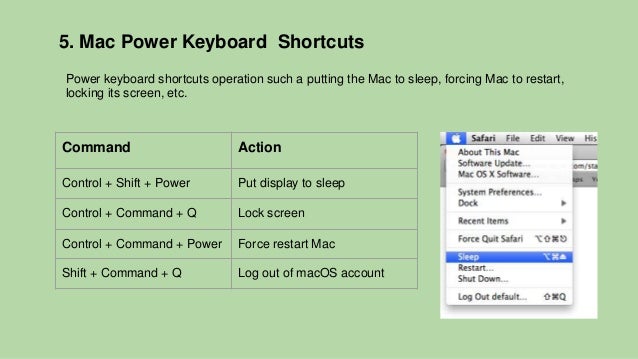
5. Mac Power Keyboard Shortcuts
Power keyboard shortcuts operation such a putting the Mac to sleep, forcing Mac to restart,
locking its screen, etc.
Command Action
Control + Shift + Power Put display to sleep
Control + Command + Q Lock screen
Control + Command + Power Force restart Mac
Shift + Command + Q Log out of macOS account
Conclusion
Now that you have got a ton of time saving Mac keyboard shortcuts at your disposal.we
assume that all the above Mac keyboard shortcuts will help you a lot to use. For those who
don’t know, these keyboard shortcuts work for the Macs supporting the latest macOS 12
Monterey, macOS Big Sur, macOS Cataline, etc.
Thank you
For more information:-
contact@mightypccleaner.com
https://mightypccleaner.com/mac-keyboard-shortcuts/

Most Useful Mac Keyboard Shortcuts

  • 1.
  • 2.
    Best Mac KeyboardShortcuts To use Best Mac keyboard shortcuts on a Mac require you to press (and hold) at least one modifier key at once to trigger an action. For example, to used Command-C (copy), press and hold the Command key, then the C key, then release the both keys. there are five different modifier keys, namely: ● Command (or CMD) – ⌘ ● Option – ⌥ ● Shift – ⇧ ● Control – ^ ● Function (or Fn)
  • 3.
    1. Basic KeyboardShortcuts for Mac Basic Mac keyboard shortcuts include everything from simple copying and pasting text to open in new Finder window, emptying to trash,or accessing folders. Command Action Command + C Copy the selected item Command + X Cut the selected item Command + V Paste selection Command + Z Undo the previous action Command + F Find item in a document or window
  • 4.
    2. MacOS FinderKeyboard Shortcuts Finder helps you access and organize most of the important mac functions while you work. Command Action Command + D Duplicate the selected files Command + E Eject the selected disk Shift + Command + C Open the computer window Shift + Command + D Open the desktop folder Option + Command + N Create a new Smart Folder Command + Delete Move the selected item to Trash
  • 5.
    3. Mac Startupkeyboard Shortcuts Startup keyboard shortcuts are shortcuts that allow you to perform Mac startup operation with ease.you can restart Mac in recovery mode, access Startup Manager, or reset NVRAM or PRAM, almost other things. Command Action Command + R Boot Mac from macOS Recovery Option Start up Mac to Startup Manager Option + Command + P + R Reset NVRAM or PRAM Shift Start up in Safe Mode D Boot into Apple Diagnostics
  • 6.
    4. Mac DocumentKeyboard Shortcuts Document keyboard shortcuts work well with Apple’s suite of apps like TextEdit, Pages, Numbers, etc. Command Action Command + B Boldface the elected text Command + I Italicize the selected text Fn + Left arrow Scroll to the beginning of a page Control + A Move to the beginning of the line Command + | Center align Control + P Move up one line Command + } Right
  • 7.
    5. Mac PowerKeyboard Shortcuts Power keyboard shortcuts operation such a putting the Mac to sleep, forcing Mac to restart, locking its screen, etc. Command Action Control + Shift + Power Put display to sleep Control + Command + Q Lock screen Control + Command + Power Force restart Mac Shift + Command + Q Log out of macOS account
  • 8.
    Conclusion Now that youhave got a ton of time saving Mac keyboard shortcuts at your disposal.we assume that all the above Mac keyboard shortcuts will help you a lot to use. For those who don’t know, these keyboard shortcuts work for the Macs supporting the latest macOS 12 Monterey, macOS Big Sur, macOS Cataline, etc.
  • 9.
    Thank you For moreinformation:- contact@mightypccleaner.com https://mightypccleaner.com/mac-keyboard-shortcuts/