Moodle
Introducing Moodle File Storage
• This will give you the ability to transfer files to
  and from school using Moodle.

• Hopefully it will make it easier to complete
  computer based tasks as homework.

• If you need to view this PowerPoint again it is
  saved on the R Drive in the Moodle folder
             R:Moodlemoodle_storage
Instructions to use File Storage
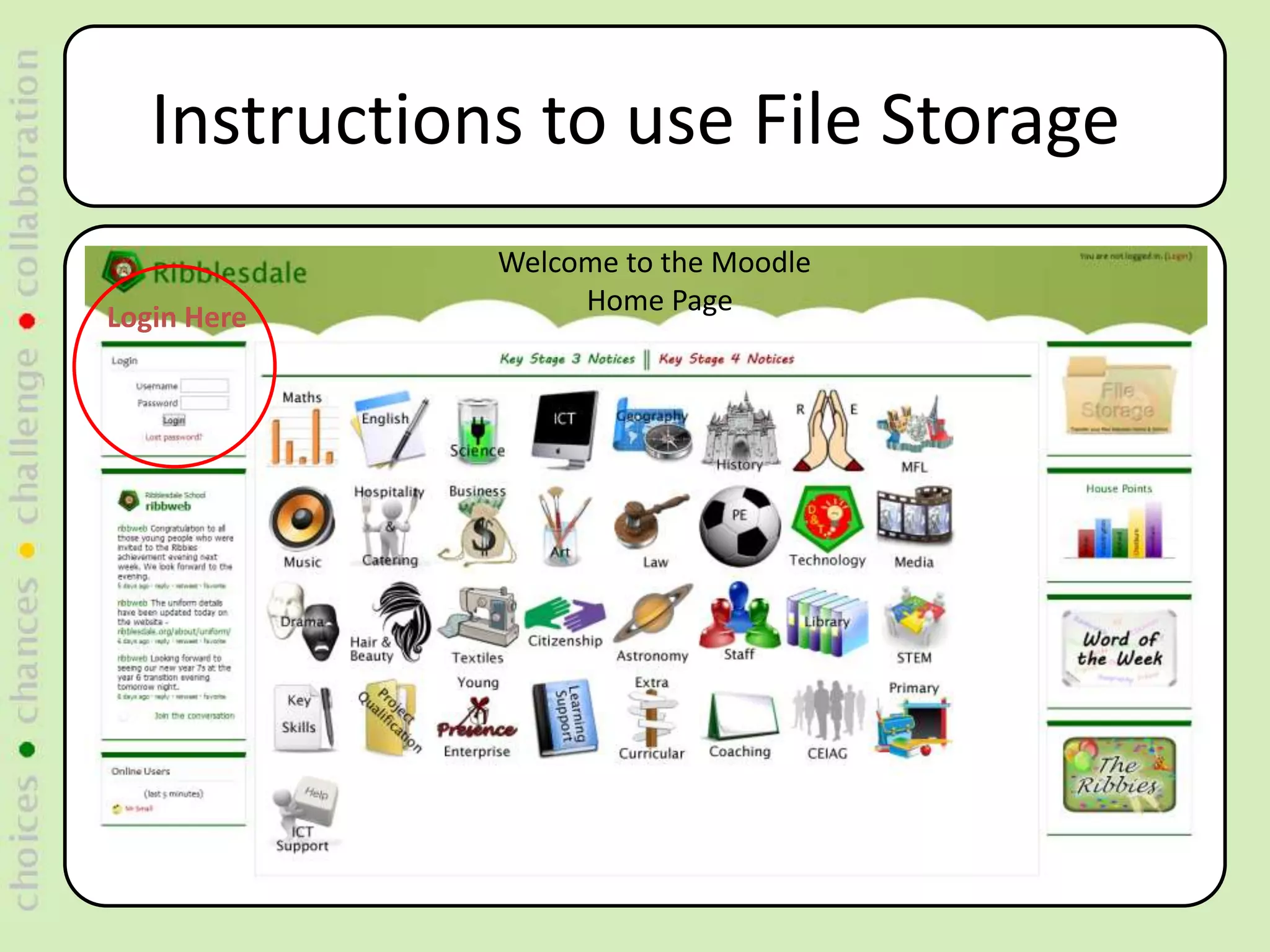
              Welcome to the Moodle
                   Home Page
Login Here
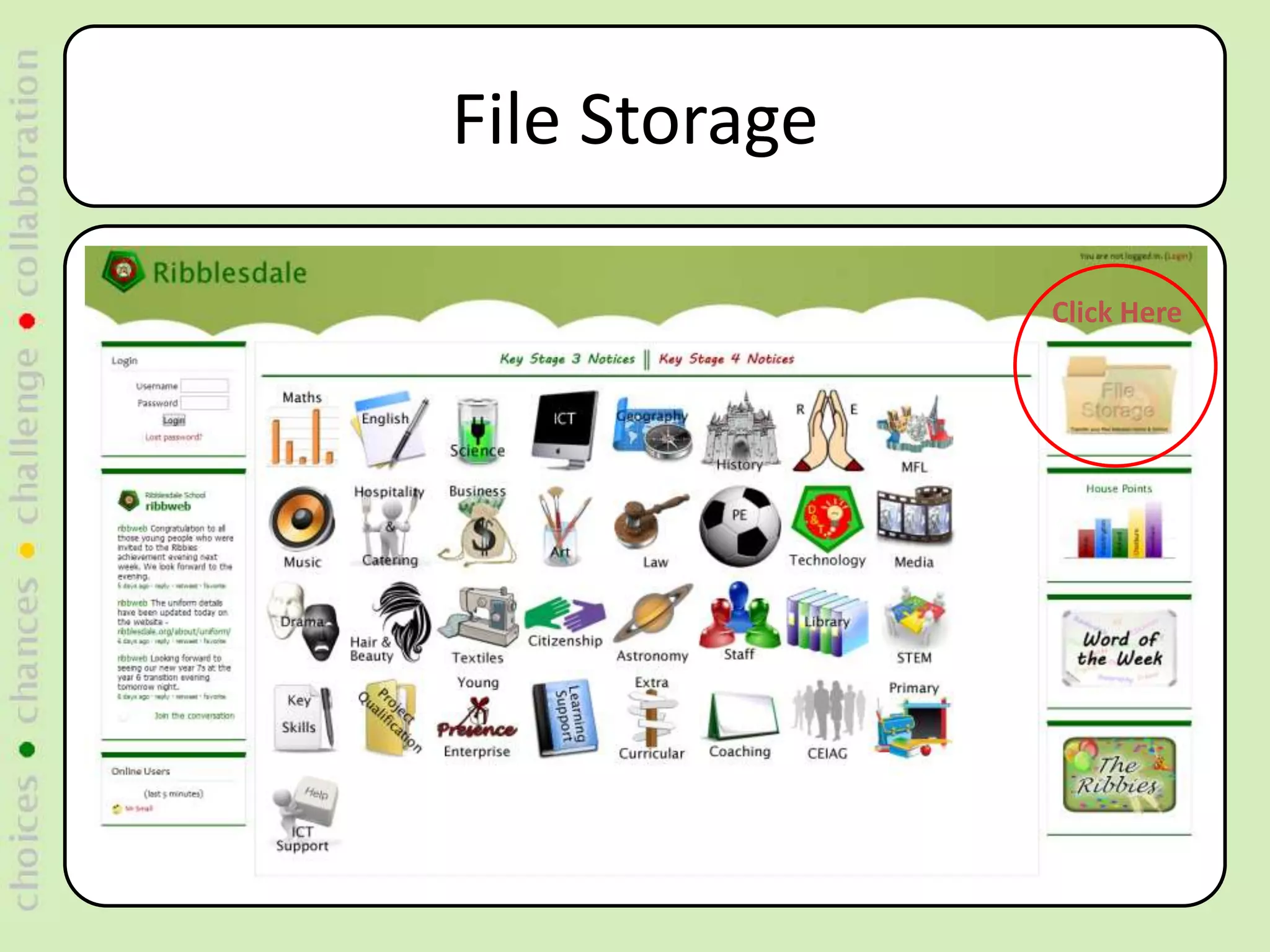
File Storage

               Click Here
Temp - File Storage
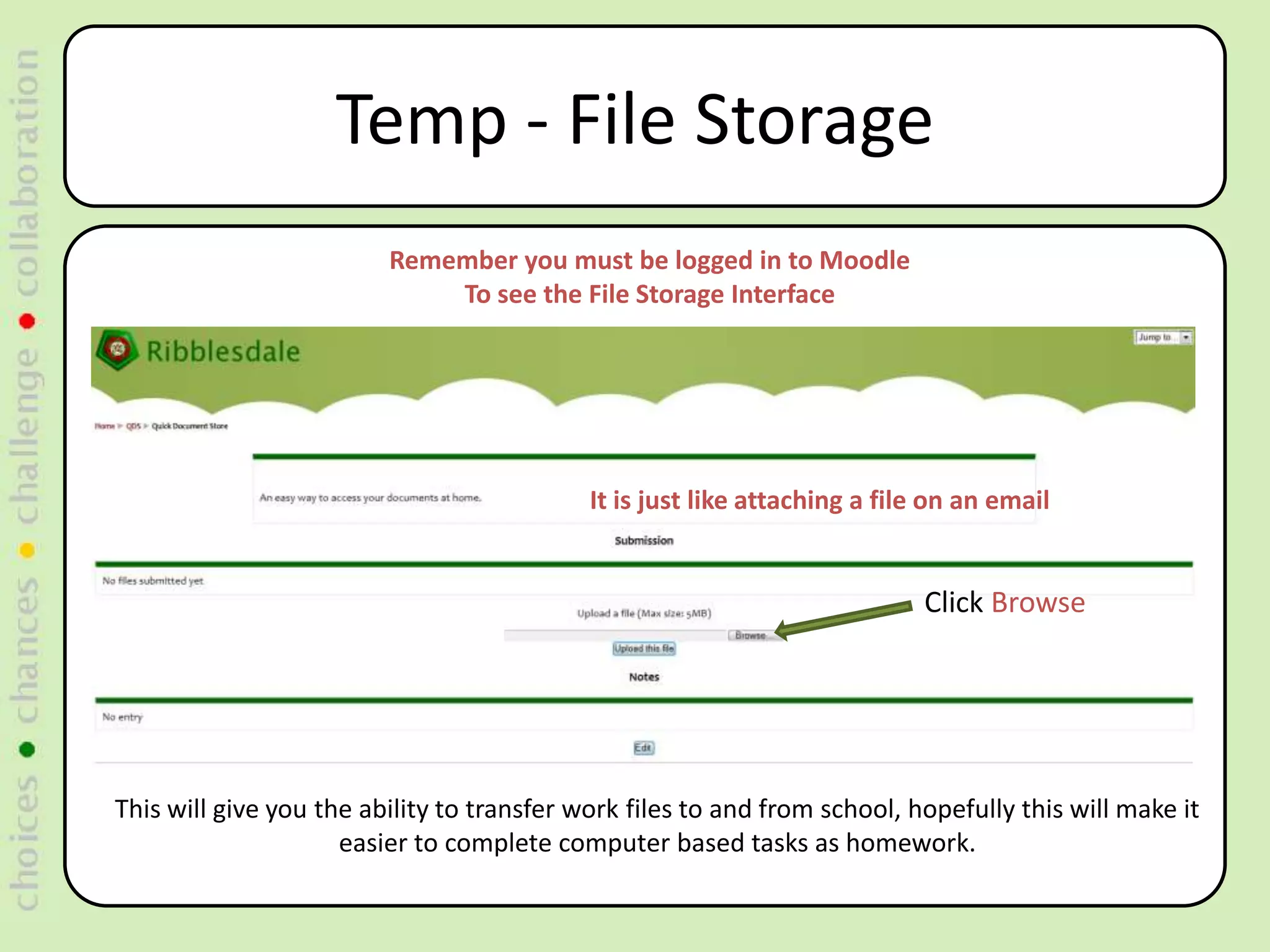
                         Remember you must be logged in to Moodle
                             To see the File Storage Interface


                                            It is just like attaching a file on an email


                                                                           Click Browse


This will give you the ability to transfer work files to and from school, hopefully this will make it
                     easier to complete computer based tasks as homework.
Uploading a File


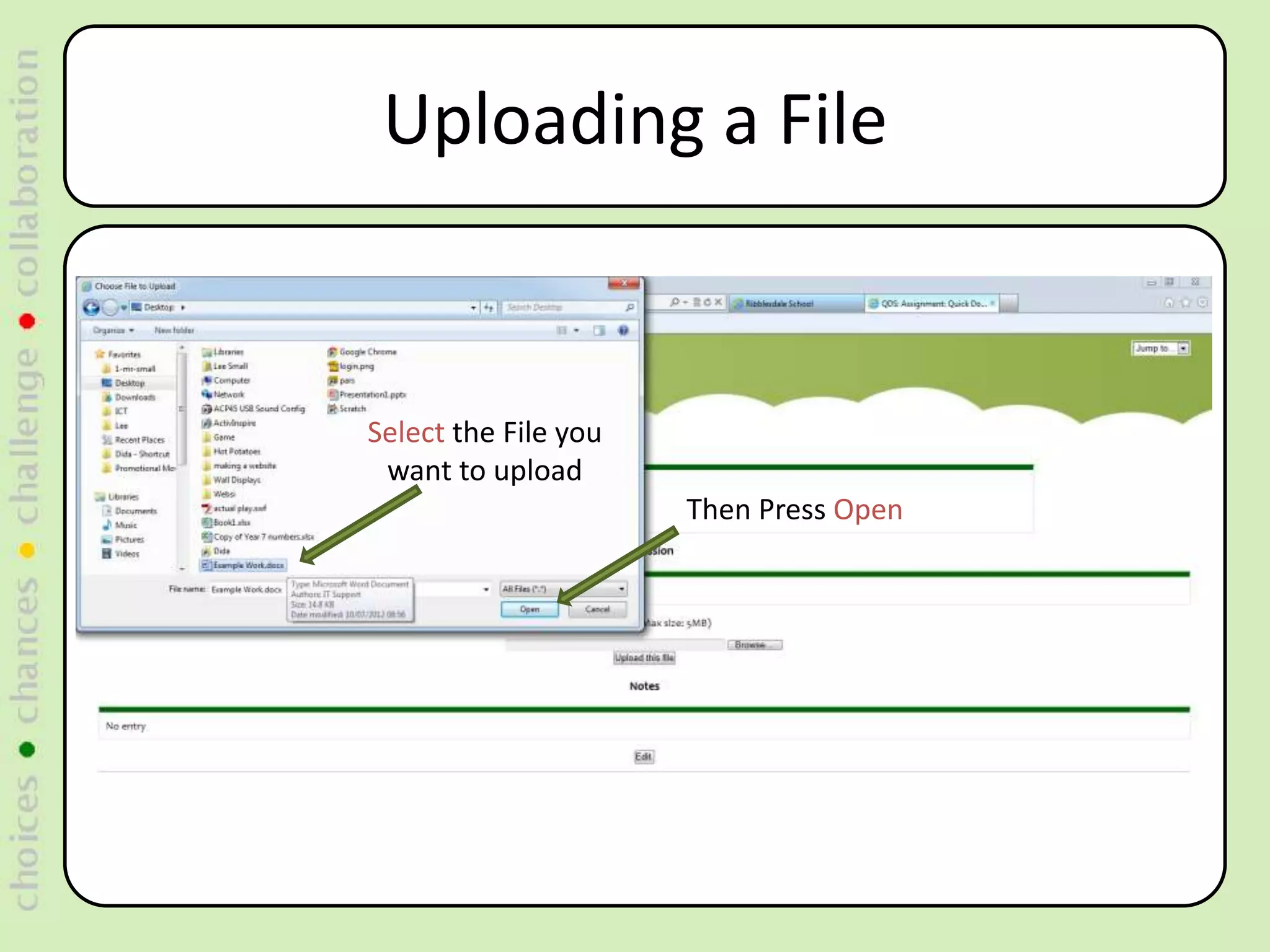
Select the File you
 want to upload
                      Then Press Open
Uploading a File


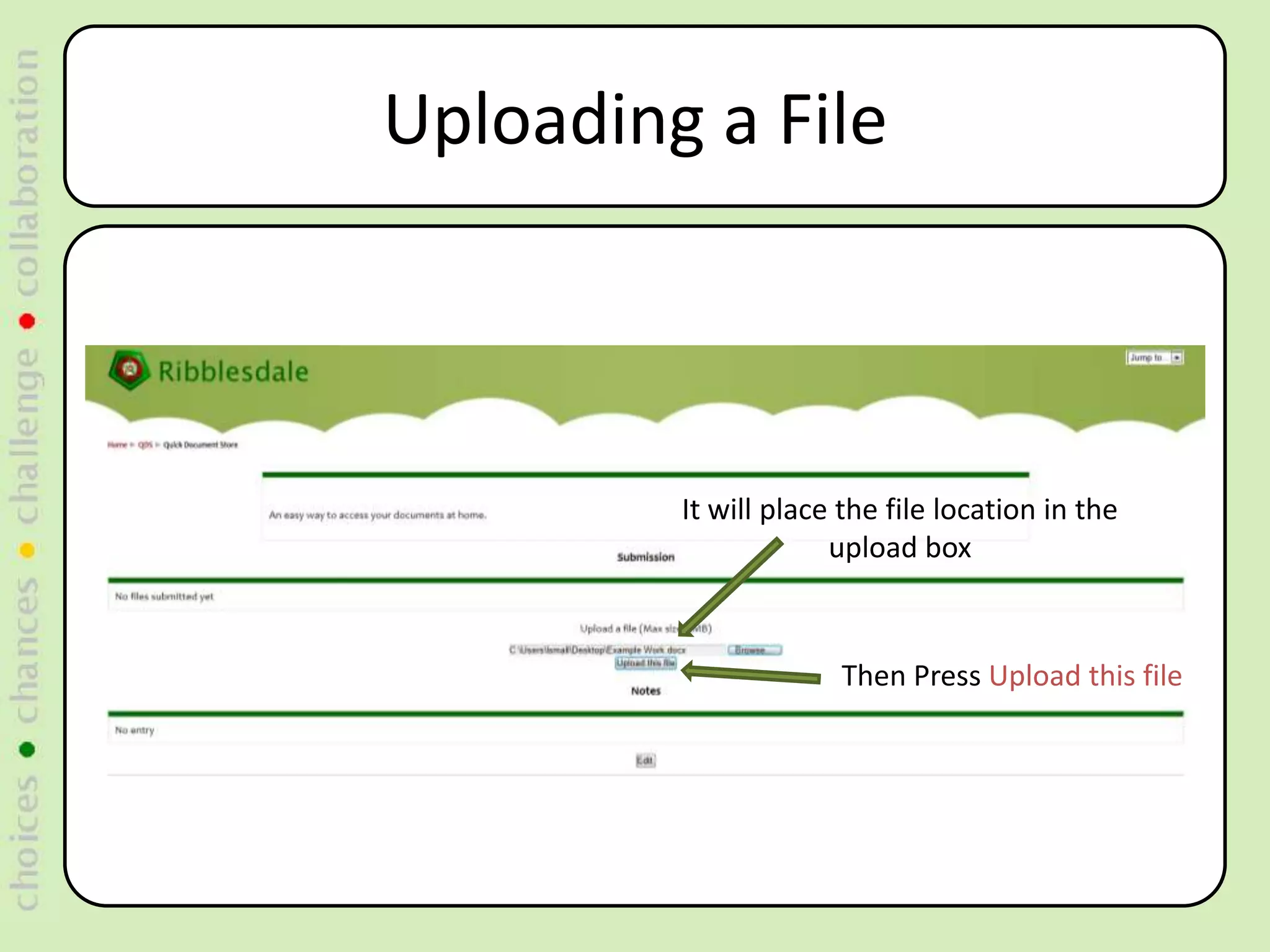
         It will place the file location in the
                      upload box


                      Then Press Upload this file
Uploading a File
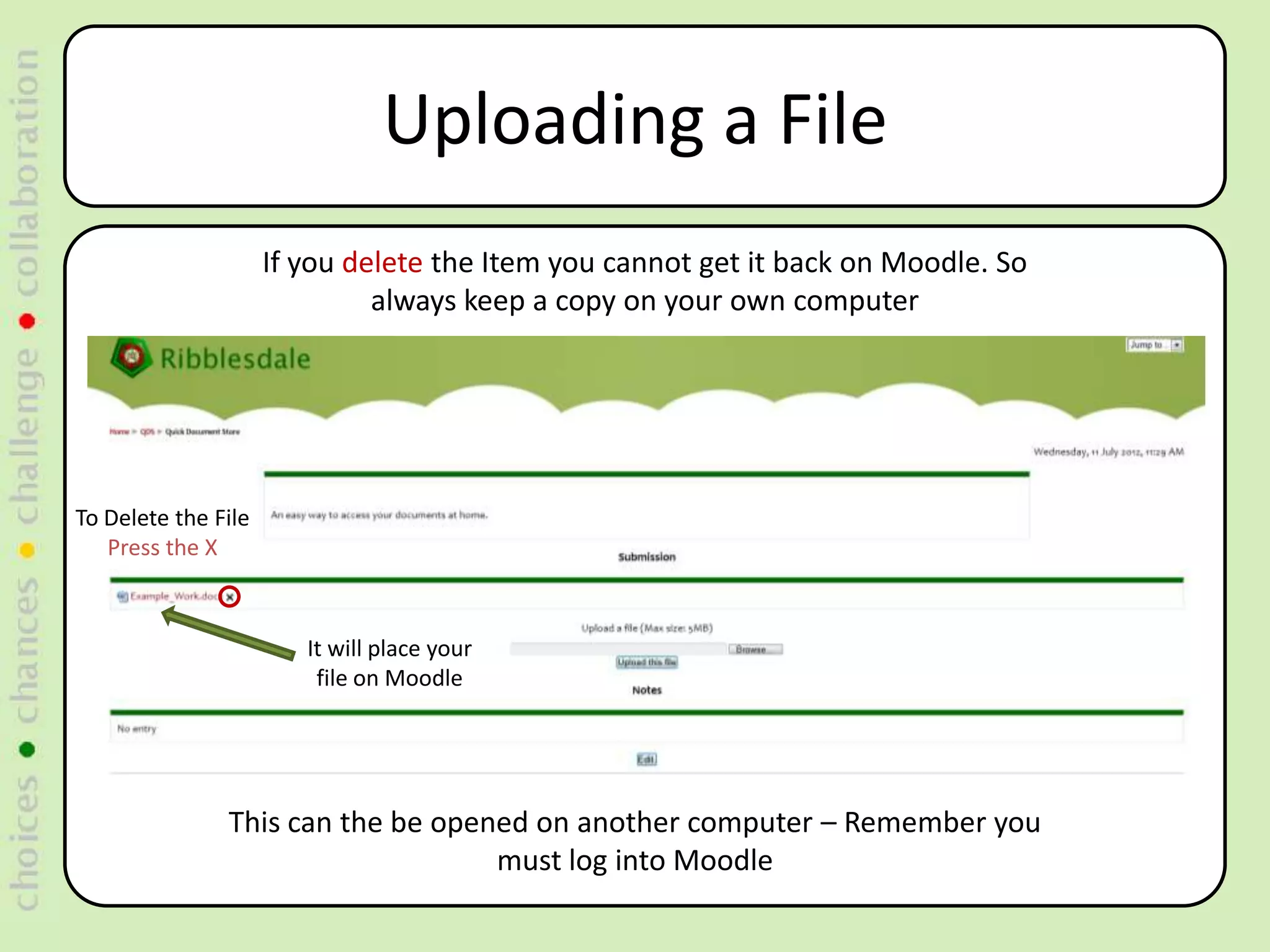
                     If you delete the Item you cannot get it back on Moodle. So
                              always keep a copy on your own computer


To Delete the File
   Press the X


                        It will place your
                         file on Moodle


               This can the be opened on another computer – Remember you
                                   must log into Moodle
Using Notes
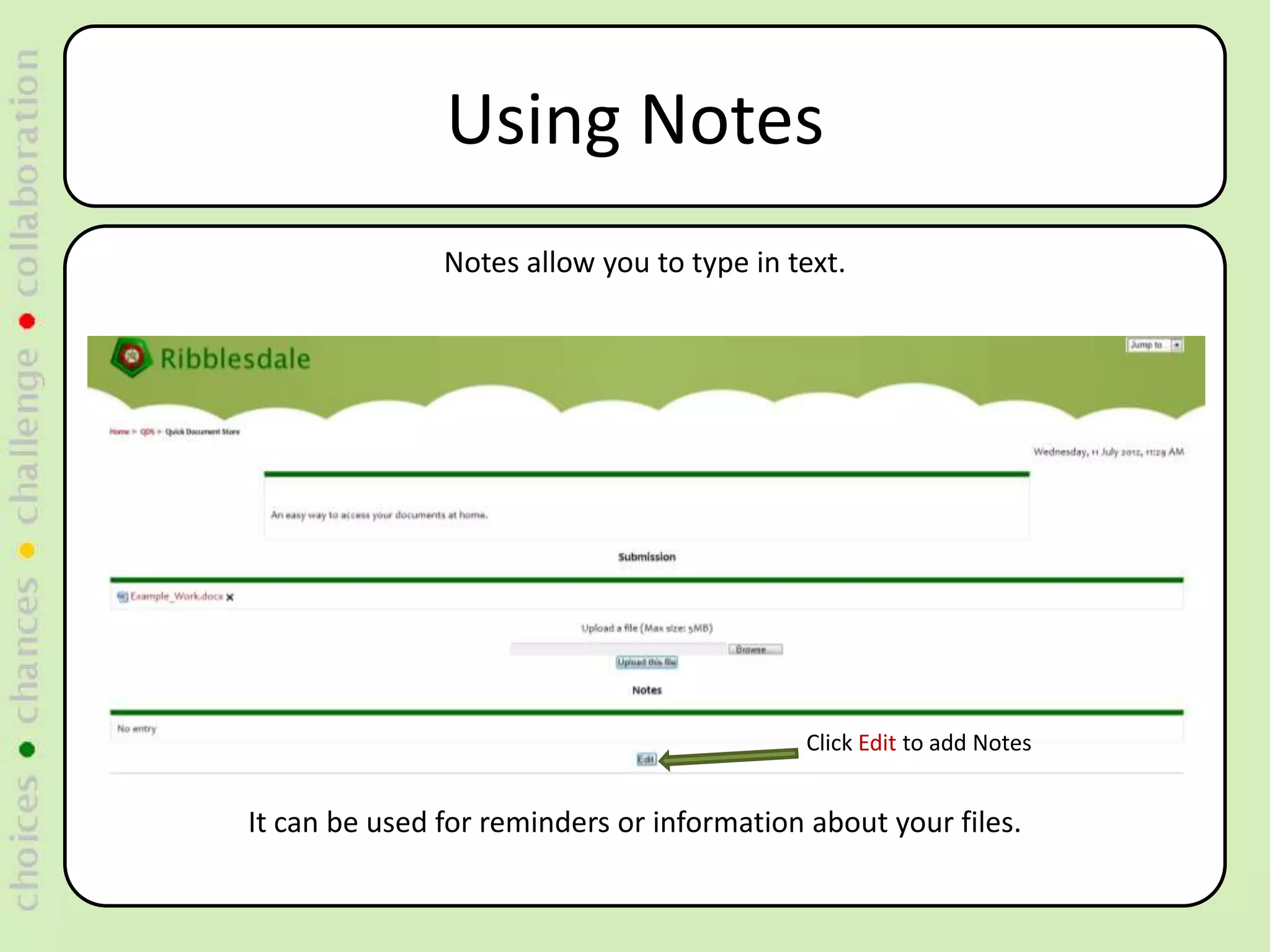
               Notes allow you to type in text.


                                            Click Edit to add Notes


It can be used for reminders or information about your files.
Using Notes


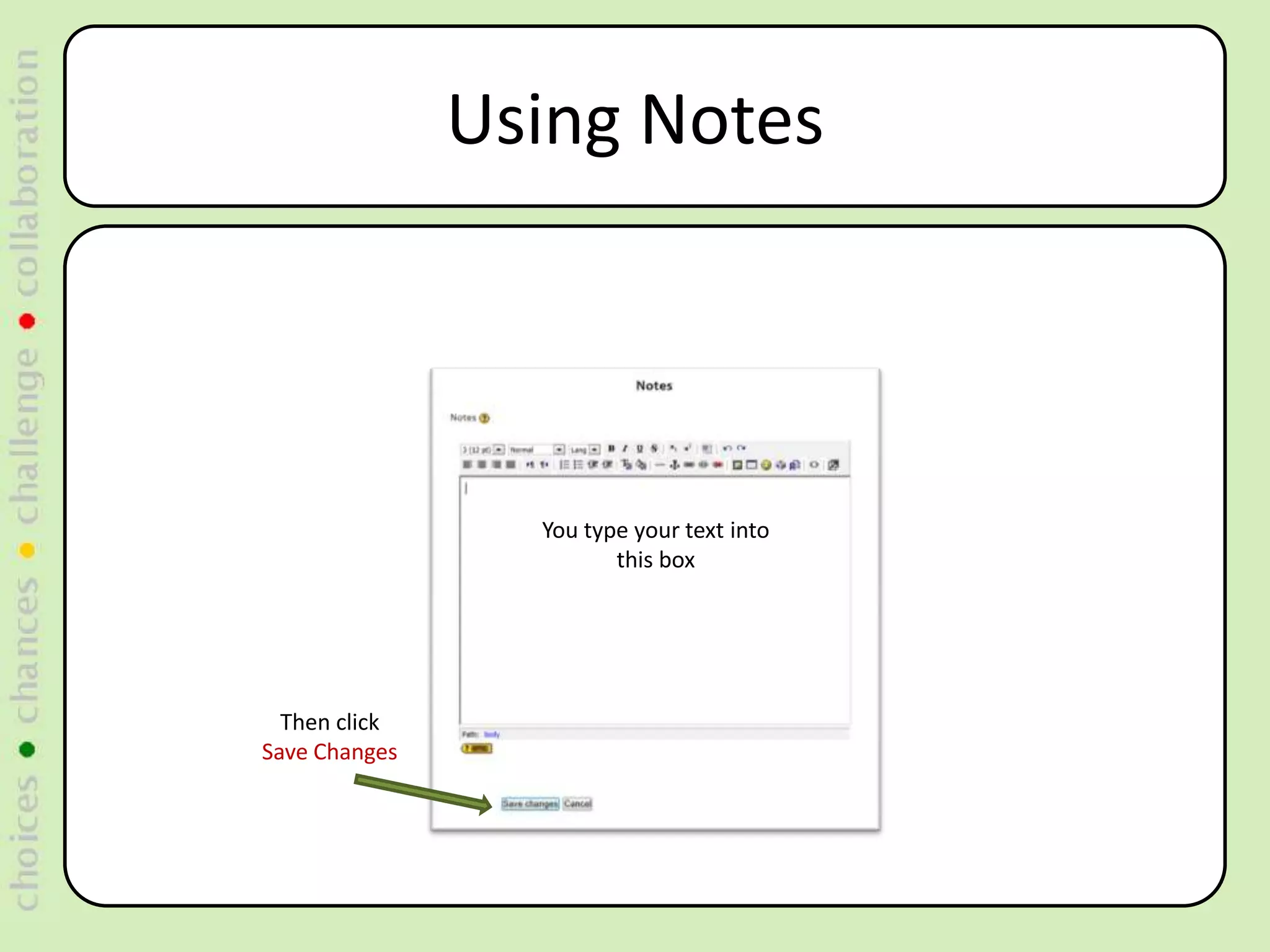
                 You type your text into
                        this box


  Then click
Save Changes
Using Notes


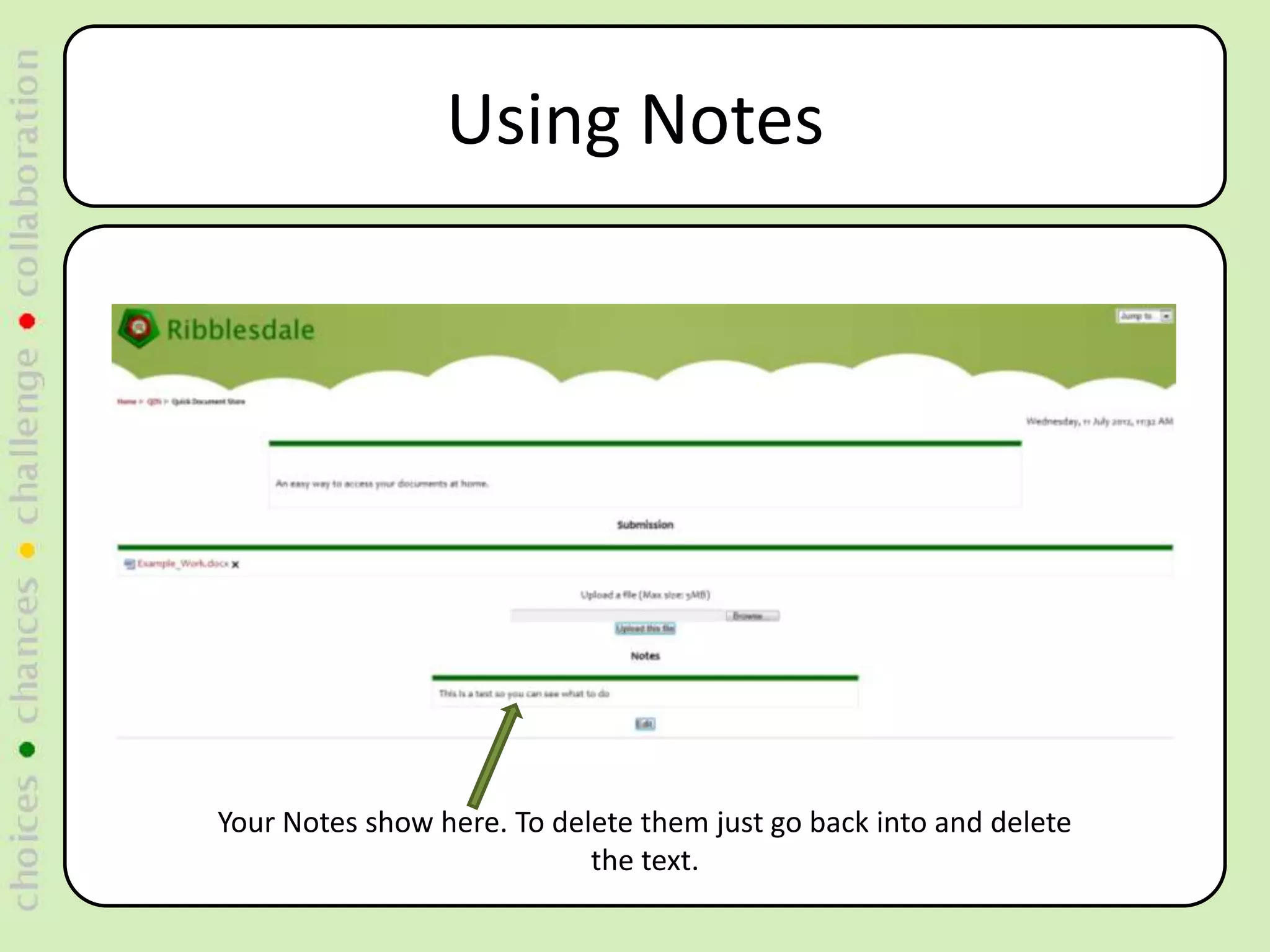
Your Notes show here. To delete them just go back into and delete
                            the text.
Rules and Regulations
• This can only be used to transfer work files to
  and from school.
  – Remember Moodle keeps a record of all actions
    performed
  – Misuse of the system will be investigated and will
    result in sanctions

• If you have any issues using the system come
  and see Mr Small (Top of H-block)

Moodle Storage

  • 1.
  • 2.
    Introducing Moodle FileStorage • This will give you the ability to transfer files to and from school using Moodle. • Hopefully it will make it easier to complete computer based tasks as homework. • If you need to view this PowerPoint again it is saved on the R Drive in the Moodle folder R:Moodlemoodle_storage
  • 3.
    Instructions to useFile Storage Welcome to the Moodle Home Page Login Here
  • 4.
    File Storage Click Here
  • 5.
    Temp - FileStorage Remember you must be logged in to Moodle To see the File Storage Interface It is just like attaching a file on an email Click Browse This will give you the ability to transfer work files to and from school, hopefully this will make it easier to complete computer based tasks as homework.
  • 6.
    Uploading a File Selectthe File you want to upload Then Press Open
  • 7.
    Uploading a File It will place the file location in the upload box Then Press Upload this file
  • 8.
    Uploading a File If you delete the Item you cannot get it back on Moodle. So always keep a copy on your own computer To Delete the File Press the X It will place your file on Moodle This can the be opened on another computer – Remember you must log into Moodle
  • 9.
    Using Notes Notes allow you to type in text. Click Edit to add Notes It can be used for reminders or information about your files.
  • 10.
    Using Notes You type your text into this box Then click Save Changes
  • 11.
    Using Notes Your Notesshow here. To delete them just go back into and delete the text.
  • 12.
    Rules and Regulations •This can only be used to transfer work files to and from school. – Remember Moodle keeps a record of all actions performed – Misuse of the system will be investigated and will result in sanctions • If you have any issues using the system come and see Mr Small (Top of H-block)