RI Moodle

Learning Management System @ RI


       "Teachers open the door, but you must enter by yourself," a
       Chinese proverb says. The same can be said about technology
       in the classroom. If used properly, technology merely opens the
       door.*
       d     *


                   *Joe Rowe August 2005
                   http://www.techsoup.org/learningcenter/internet/archives/page9155.cfm
Moodle Minutes 3….last week

> Adding Labels
> Adding Web Page
> Adding Text Page


> To view previous sessions – go to RI Resource Course
          p                   g
   – http://webconf.det.nsw.edu.au/p80313486/
Adding Images or Files to Moodle

> Moodle File Repository
   – All images and files uploaded are stored in course repository
   – Files upload before adding to an activity or resource
   – Files uploaded “on the fly” while creating a resource
                     on      fly
   – Manage files: delete, rename, upload, create folders
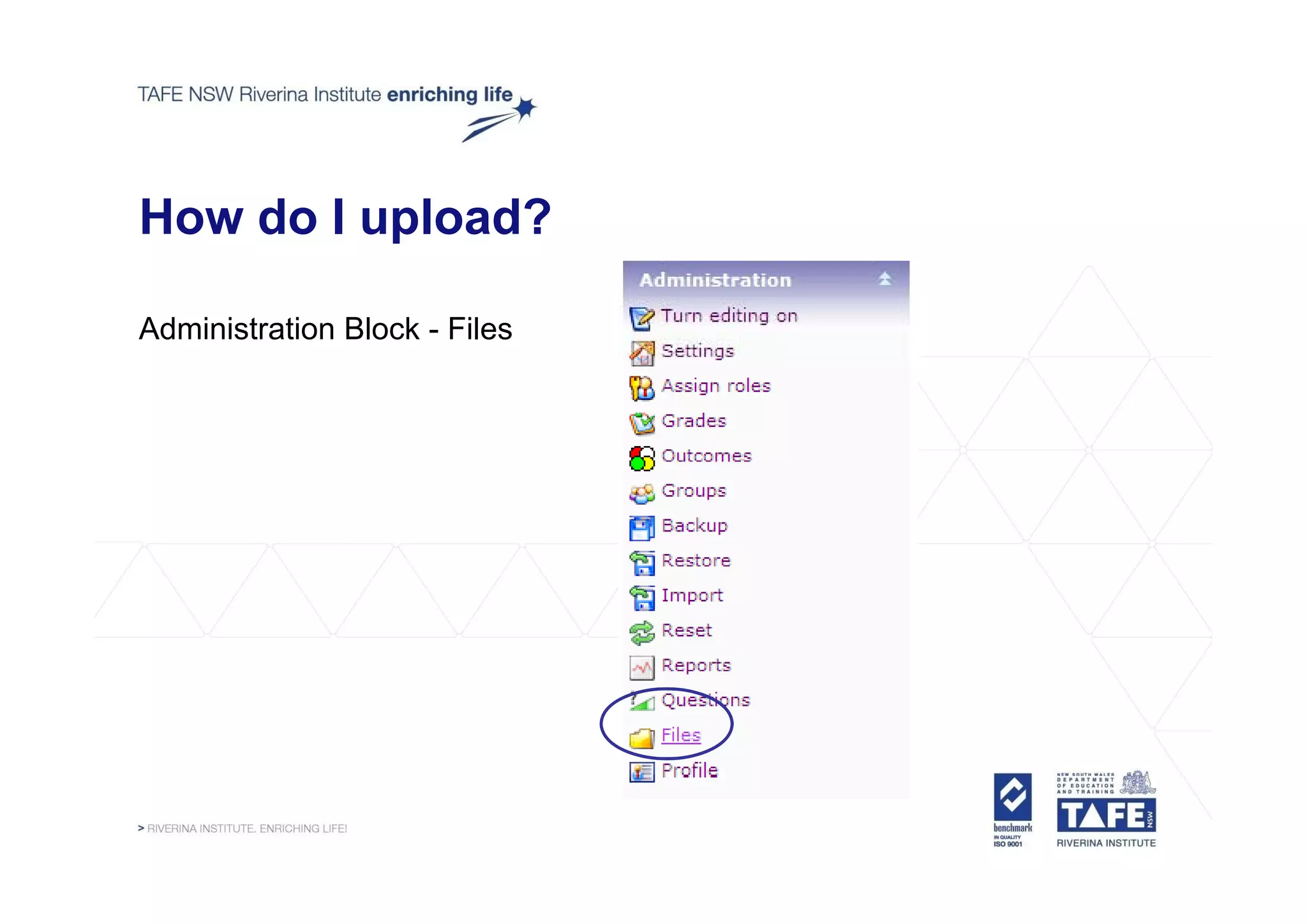
How do I upload?

Administration Block - Files
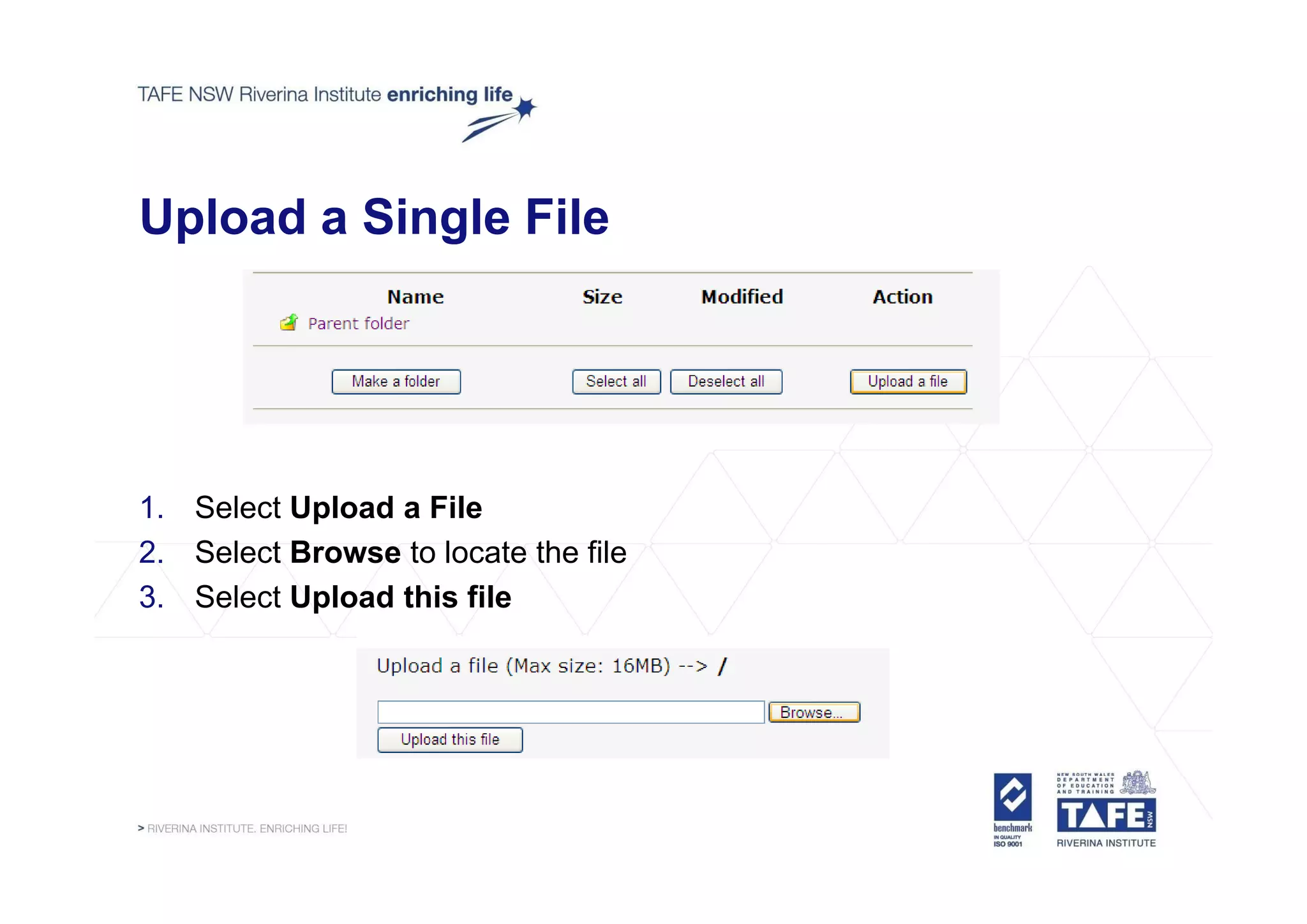
Upload a Single File


1. Select Upload a File
2. Select Browse to locate the file
3. Select Upload this file
Upload a single file

> Let’s look at it live....

> http://devlearnonline.rit.tafensw.edu.au/course/view.php?id=35
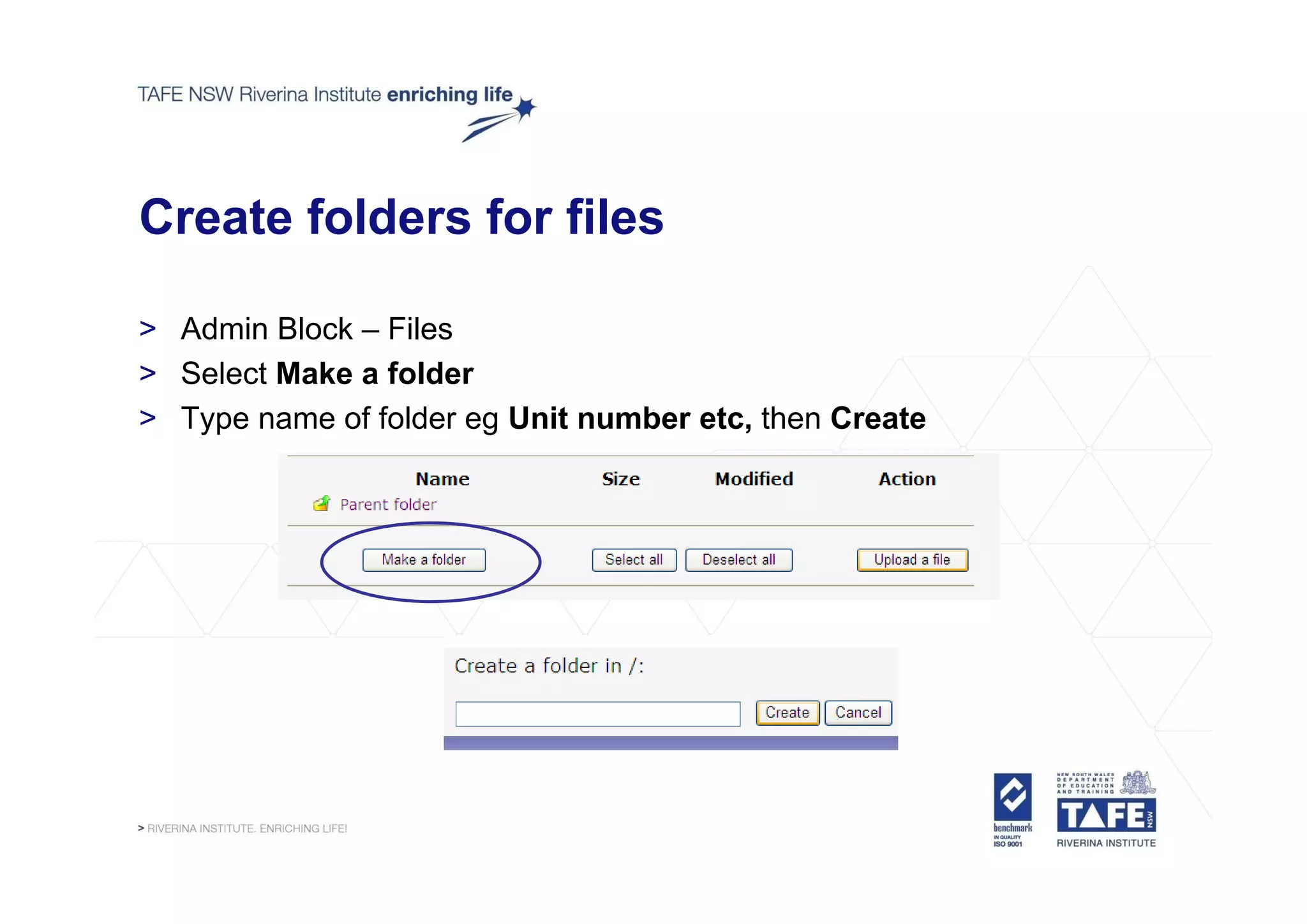
Create folders for files

> Admin Block – Files
> Select Make a folder
> Type name of folder eg Unit number etc, then Create
Create a folder

> Let’s look at it live....

> http://devlearnonline.rit.tafensw.edu.au/course/view.php?id=35
Upload Multiple files

To upload multiple files you need to zip them.
> Step 1: Using My Computer, Put your files to upload into one folder
> Step 2: Zip the files, select folder, right click, send to..., compressed
   (zip file)
> Step 3: Follow steps above to upload a file into Moodle
> Step 4: After the zip file is uploaded in the Moodle File Repository
   select unzip next to the file to unpack the compressed folder
Upload Multiple Files

> Let’s look at it live....

> http://devlearnonline.rit.tafensw.edu.au/course/view.php?id=35
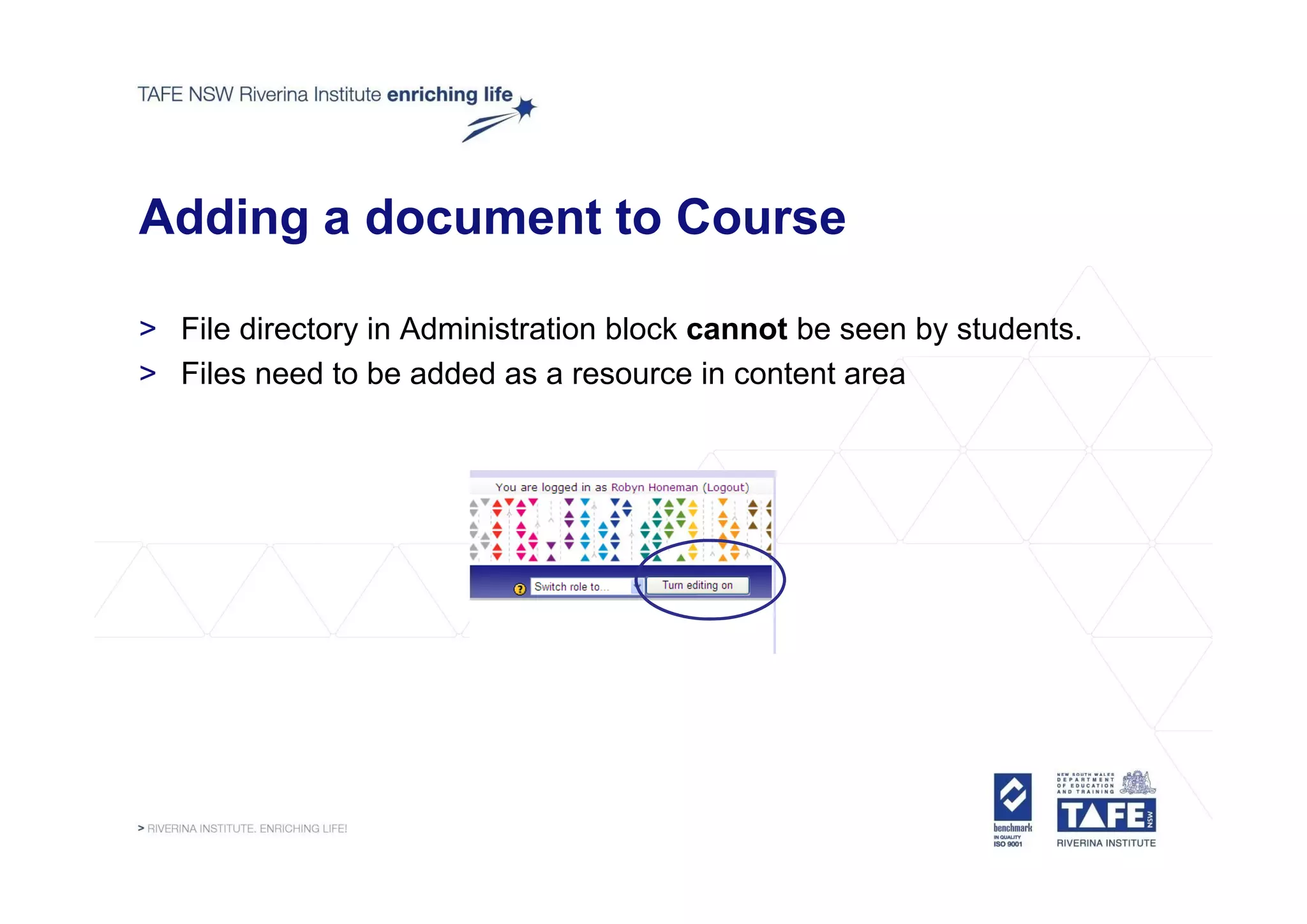
Adding a document to Course

> File directory in Administration block cannot be seen by students.
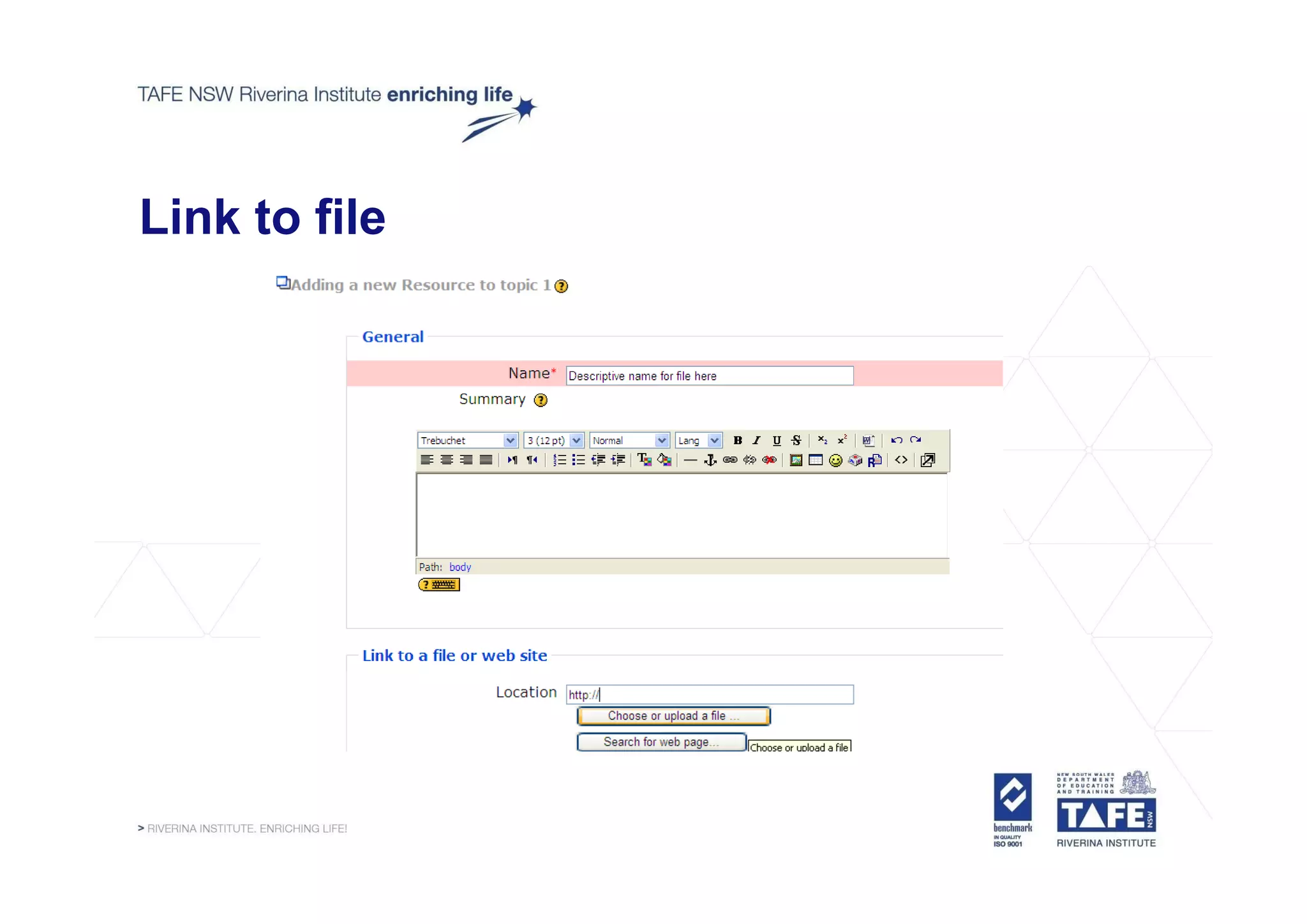
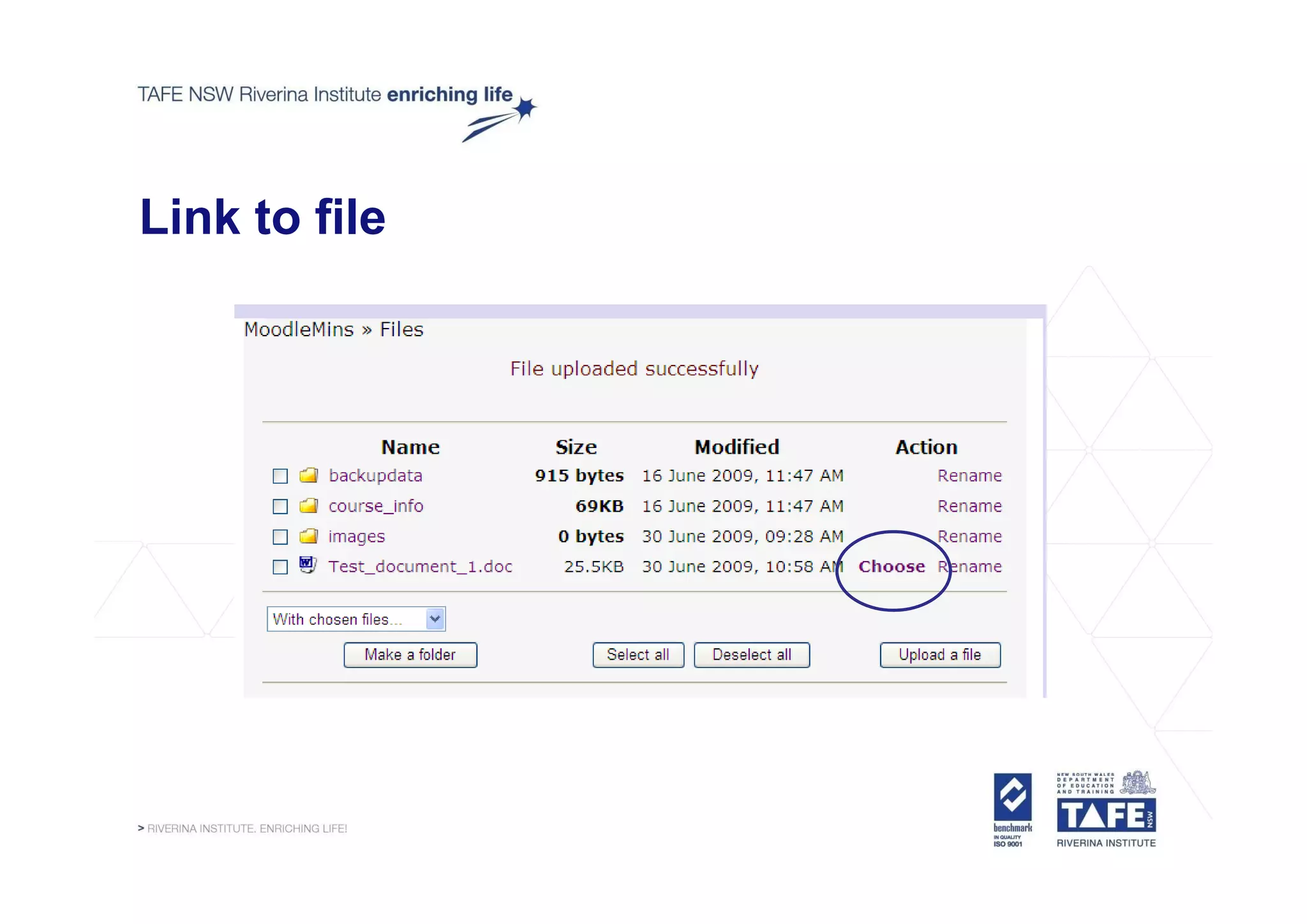
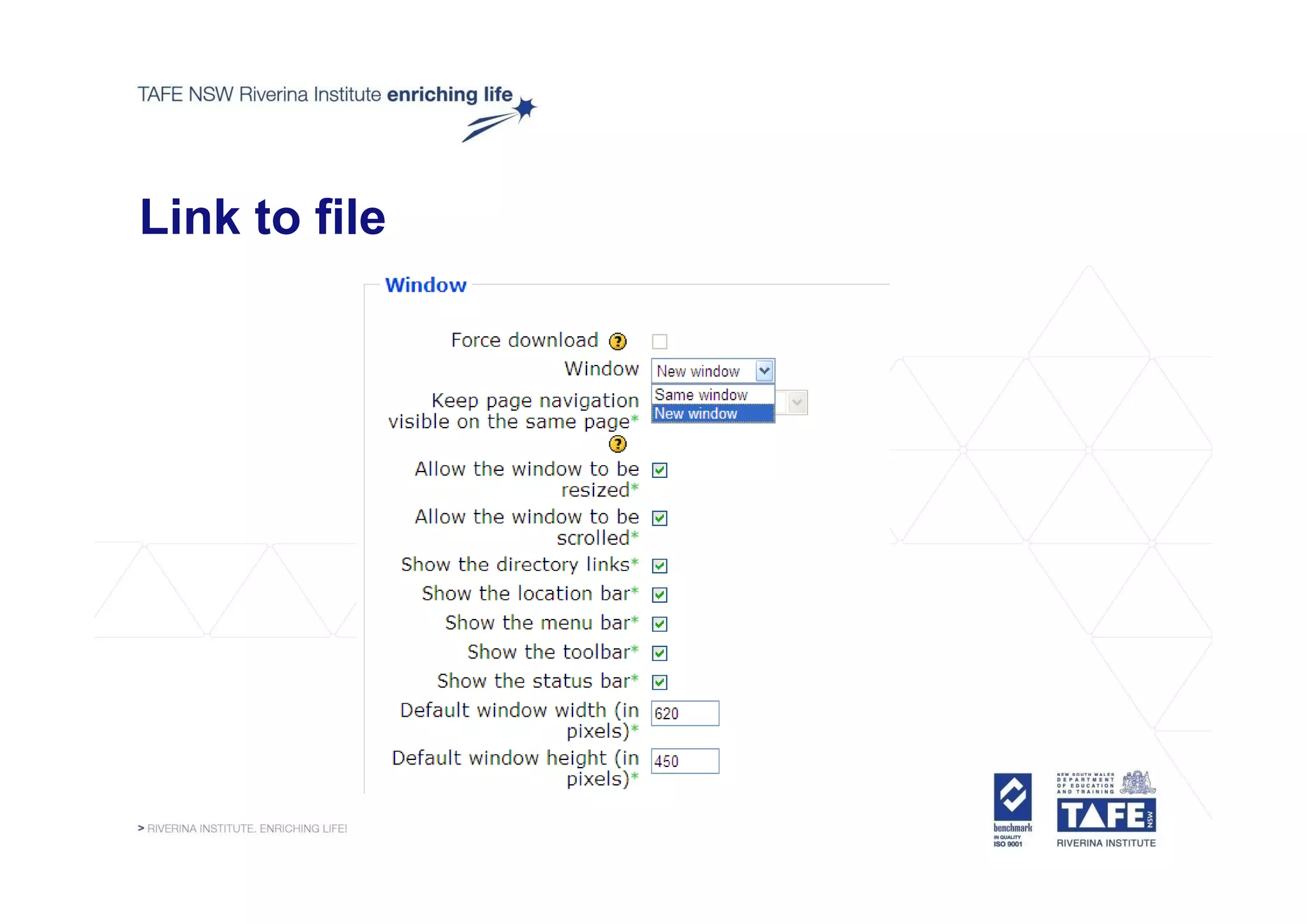
> Files need to be added as a resource in content area
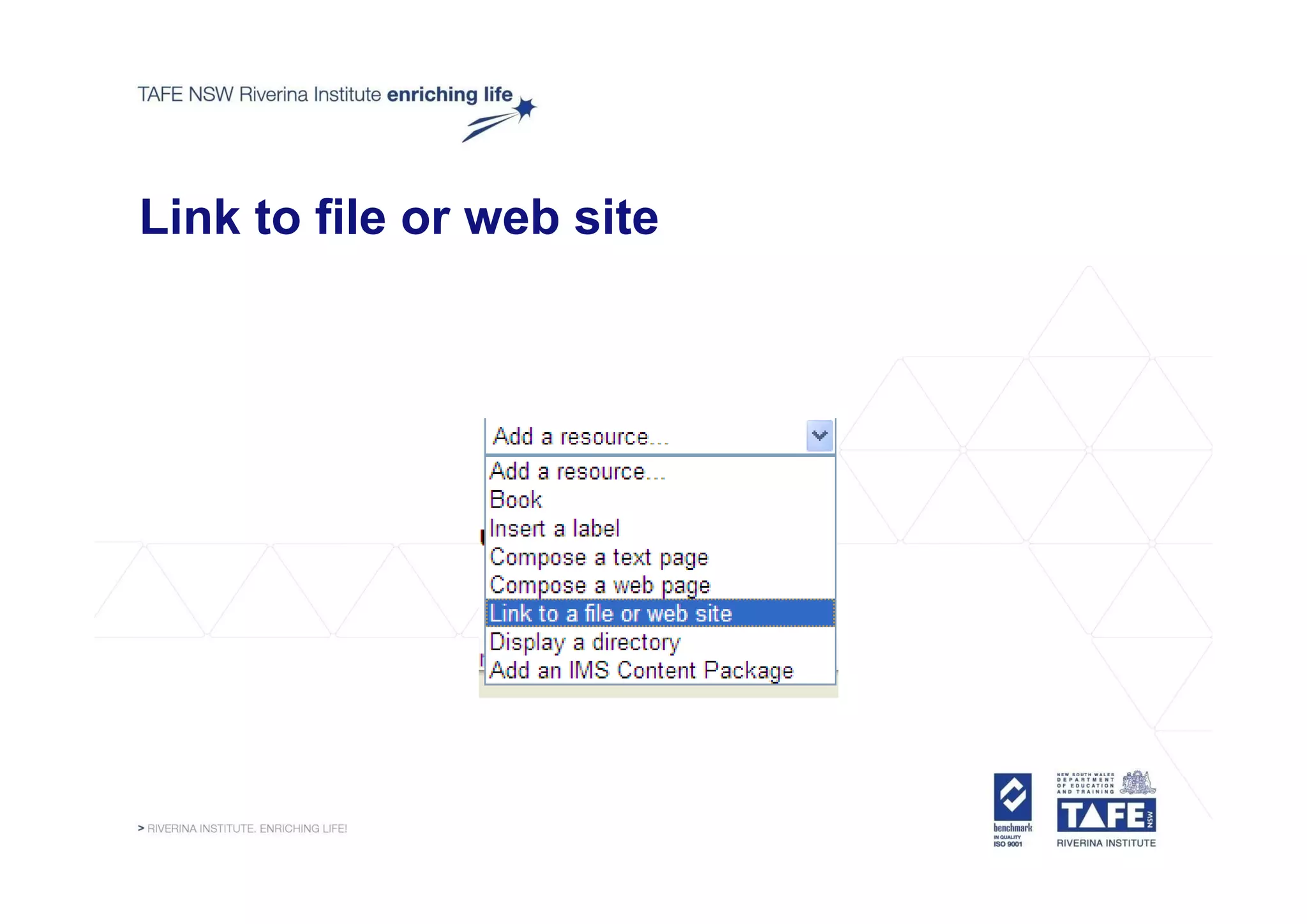
Link to file or web site
Link to file
Link to file
Link to file
Link to file

> Let’s look at it live....

> http://devlearnonline.rit.tafensw.edu.au/course/view.php?id=35
Adding a file to existing content

Turn editing on
Click on Update icon next to the resource or activity
Select the text (or type text) that names the document or shows link.
Link to file

> Let’s look at it live....

> http://devlearnonline.rit.tafensw.edu.au/course/view.php?id=35
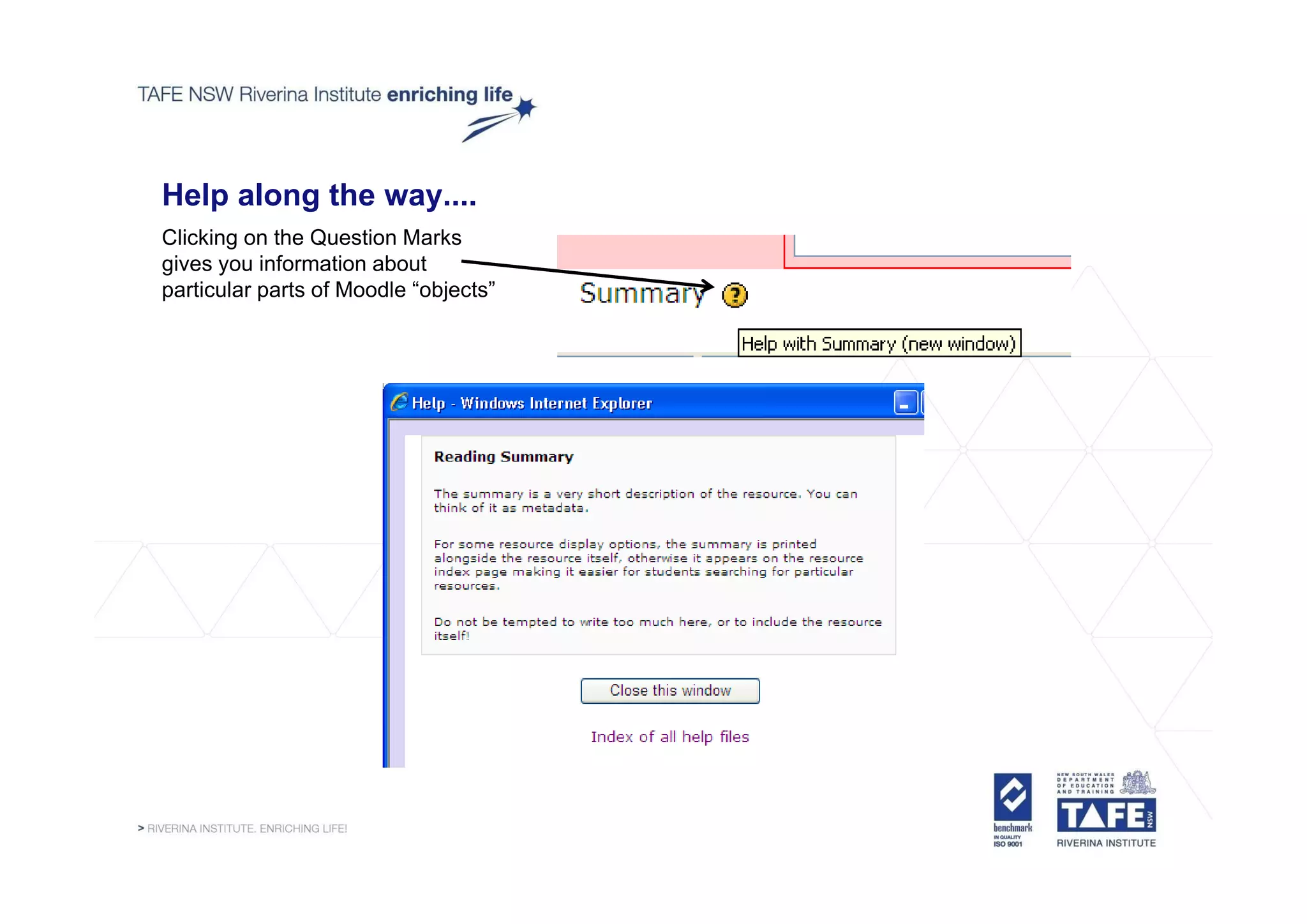
Help along the way....
Clicking on the Question Marks
gives you information about
particular parts of Moodle “objects”
Where to get more information.....

> RI Resource Course:
   – http://develearnonline.rit.tafensw.edu.au
   – Resources and Development
   – RI Resource Course

> What can I find there?
  – Quick Reference Guides
  – Recordings from Moodle Minutes
  – Policy and Procedure, Quality Assurance Checklist etc.
Next Session….Moodle Minutes 5

> Term 3, Semester 2, 2009


> HAVE A GREAT HOLIDAY ☺

Moodle minutes 4

  • 1.
    RI Moodle Learning ManagementSystem @ RI "Teachers open the door, but you must enter by yourself," a Chinese proverb says. The same can be said about technology in the classroom. If used properly, technology merely opens the door.* d * *Joe Rowe August 2005 http://www.techsoup.org/learningcenter/internet/archives/page9155.cfm
  • 2.
    Moodle Minutes 3….lastweek > Adding Labels > Adding Web Page > Adding Text Page > To view previous sessions – go to RI Resource Course p g – http://webconf.det.nsw.edu.au/p80313486/
  • 3.
    Adding Images orFiles to Moodle > Moodle File Repository – All images and files uploaded are stored in course repository – Files upload before adding to an activity or resource – Files uploaded “on the fly” while creating a resource on fly – Manage files: delete, rename, upload, create folders
  • 4.
    How do Iupload? Administration Block - Files
  • 5.
    Upload a SingleFile 1. Select Upload a File 2. Select Browse to locate the file 3. Select Upload this file
  • 6.
    Upload a singlefile > Let’s look at it live.... > http://devlearnonline.rit.tafensw.edu.au/course/view.php?id=35
  • 7.
    Create folders forfiles > Admin Block – Files > Select Make a folder > Type name of folder eg Unit number etc, then Create
  • 8.
    Create a folder >Let’s look at it live.... > http://devlearnonline.rit.tafensw.edu.au/course/view.php?id=35
  • 9.
    Upload Multiple files Toupload multiple files you need to zip them. > Step 1: Using My Computer, Put your files to upload into one folder > Step 2: Zip the files, select folder, right click, send to..., compressed (zip file) > Step 3: Follow steps above to upload a file into Moodle > Step 4: After the zip file is uploaded in the Moodle File Repository select unzip next to the file to unpack the compressed folder
  • 10.
    Upload Multiple Files >Let’s look at it live.... > http://devlearnonline.rit.tafensw.edu.au/course/view.php?id=35
  • 11.
    Adding a documentto Course > File directory in Administration block cannot be seen by students. > Files need to be added as a resource in content area
  • 12.
    Link to fileor web site
  • 13.
  • 14.
  • 15.
  • 16.
    Link to file >Let’s look at it live.... > http://devlearnonline.rit.tafensw.edu.au/course/view.php?id=35
  • 17.
    Adding a fileto existing content Turn editing on Click on Update icon next to the resource or activity Select the text (or type text) that names the document or shows link.
  • 18.
    Link to file >Let’s look at it live.... > http://devlearnonline.rit.tafensw.edu.au/course/view.php?id=35
  • 19.
    Help along theway.... Clicking on the Question Marks gives you information about particular parts of Moodle “objects”
  • 20.
    Where to getmore information..... > RI Resource Course: – http://develearnonline.rit.tafensw.edu.au – Resources and Development – RI Resource Course > What can I find there? – Quick Reference Guides – Recordings from Moodle Minutes – Policy and Procedure, Quality Assurance Checklist etc.
  • 21.
    Next Session….Moodle Minutes5 > Term 3, Semester 2, 2009 > HAVE A GREAT HOLIDAY ☺