Introduction To
Computer System
Created By: Rekha Thakral
Introduction to Computer
Computer is an advanced electronic device that takes raw
data as input from the user and processes these data under
the control of set of instructions (called program) and gives
the result (output) and saves output for the future use.
A computer is a combination of hardware and
software resources which integrate together and provides
various functionalities to the user. Hardware are the physical
components of a computer like the processor, memory
devices, monitor, keyboard etc. while software is the set of
programs or instructions that are required by the hardware
resources to perform various operations as per the
requirement of users.
Introduction to Computer
EVOLUTION OF COMPUTING DEVICE
First Generation (1940-56):
The first generation computers used vacuum tubes &
machine language was used for giving the instructions. These
computers were large in size & their programming was difficult task.
The electricity consumption was very high. Some computers of this
generation are ENIAC, EDVAC, EDSAC & UNIVAC-1.
In this generation, mainly batch processing
operating system was used. Punch cards, paper tape, and magnetic
tape was used as input and output devices. The computers in this
generation used machine code as the programming language.
Second Generation (1956-63):
In 2nd generation computers, vacuum tubes were replaced by
transistors. They required only 1/10 of power required by
tubes. This generation computers generated less heat & were
reliable. The first operating system developed in this
generation. IBM 1620, IBM 7094, CDC 1604 are the examples
of this generations computers.
In 2nd generation, magnetic cores were used
as the primary memory and magnetic tape and magnetic disks
as secondary storage devices.
In this generation, assembly language and high-level
programming languages like FORTRAN, COBOL were used. The
computers used batch processing and multiprogramming
operating system.
Third Generation (1964-71):
The 3rd generation computers replaced transistors with
Integrated circuit known as chip. From Small scale integrated
circuits which had 10 transistors per chip, technology
developed to MSI circuits with 100 transistors per chip. These
computers were smaller, faster & more reliable. High level
languages invented in this generation.
The IC was invented by Jack Kilby. This
development made computers smaller in size, reliable, and
efficient. In this generation remote processing, time-sharing,
multiprogramming operating system were used. High-level
languages (FORTRAN-II TO IV, COBOL, PASCAL PL/1, BASIC,
ALGOL-68 etc.) were used during this generation. IBM-360
series, Honeywell-6000 are some examples of computers in 3rd
generation. .
Fourth Generation (1972- 1980):
LSI & VLSI were used in this generation. As a result
microprocessors came into existence. The computers using this
technology known to be Micro Computer. High capacity hard
disk were invented. There is great development in data
communication.
Fourth generation computers became
more powerful, compact, reliable, and affordable. As a result, it
gave rise to Personal Computer (PC) revolution. In this
generation, time sharing, real time networks, distributed
operating system were used. All the high-level languages like
C, C++, DBASE etc., were used in this generation.
Fifth Generation (1980-Present & Beyond):
Fifth generation computing devices, based on artificial
intelligence, are still in development, though there are some
applications, such as voice recognition, that are being used
today. The use of parallel processing and superconductors is
helping to make artificial intelligence a reality. Quantum
computation and molecular and nanotechnology will radically
change the face of computers in years to come.
Some computer types of this generation are −
Desktop
Laptop
Note Book
Ultra Book
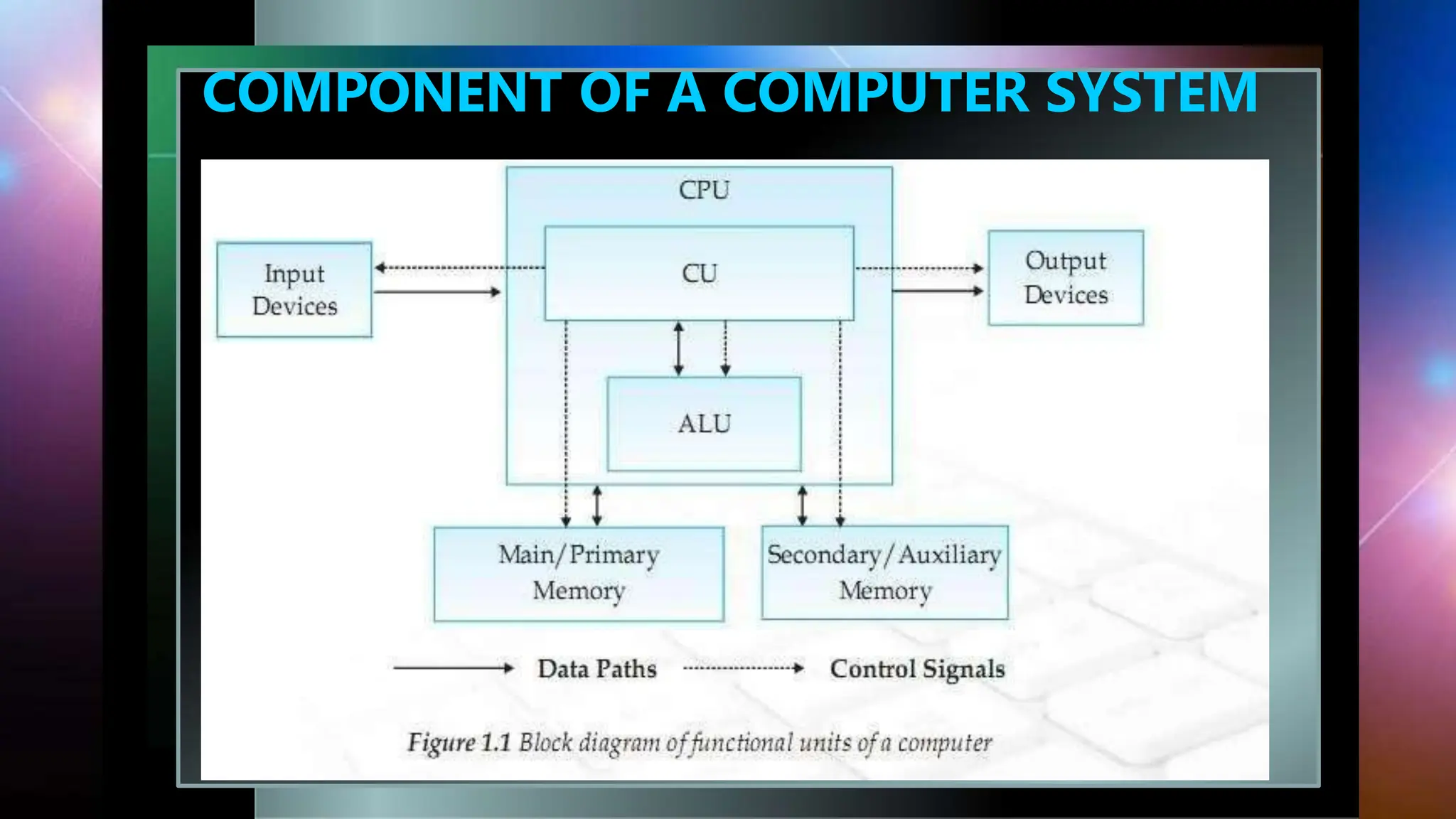
COMPONENT OF A COMPUTER SYSTEM
In the above diagram, both control (control unit or
CU) and arithmetic & logic unit (ALU) combinely called
as Central Processing Unit (CPU).
Let's describe about all the parts as included in the above
diagram one by one.
The Processor Unit (CPU)
It is the brain of the computer system. All major calculation
and comparisons are made inside the CPU and it is also
responsible for activation and controlling the operation of
other unit.
This unit consists of two major components, that are arithmetic
logic unit (ALU) and control unit (CU).
Arithmetic Logic Unit (ALU)
Arithmetic logic unit performs all arithmetic operations such as
addition, subtraction, multiplication and division. It also uses
logic operation for comparison like comparison or decision
making (>, <, <=, >=, = etc.).
Control Unit (CU)
The control unit of a CPU controls the entire operation of the
computer. It also controls all devices such as memory,
input/output devices connected to the CPU.
CU fetches instructions from memory, decodes the instruction,
interprets the instruction to know what the task are to be
performed and sends suitable control signals to the other
components to perform for the necessary steps to execute the
instruction.
Input/Output Unit
The input/output unit consists of devices used to transmit
information between the external world and computer
memory.
The information fed through the input unit is stored in
computer's memory for processing and the final result stored
in memory can be recorded or display on the output medium.
Memory unit
It is an essential component of a digital computer. It is where
all data intermediate and find results are stored. The data read
from the main storage or an input unit are transferred to
the computer's memory where they are available for
processing. This memory unit is used to hold the instructions
to be executed and data to be processes.
Primary Memory:
Primary memory has direct link with input unit and output
unit. It stores the input data, intermediate calculation, result.
Secondary Memory:
The primary storage is not able to store data permanently for
future use. So some other types of storage technology is
required to store the data permanently for long time, it is
called secondary or auxiliary memory.
Input & Output Device
Input Device:
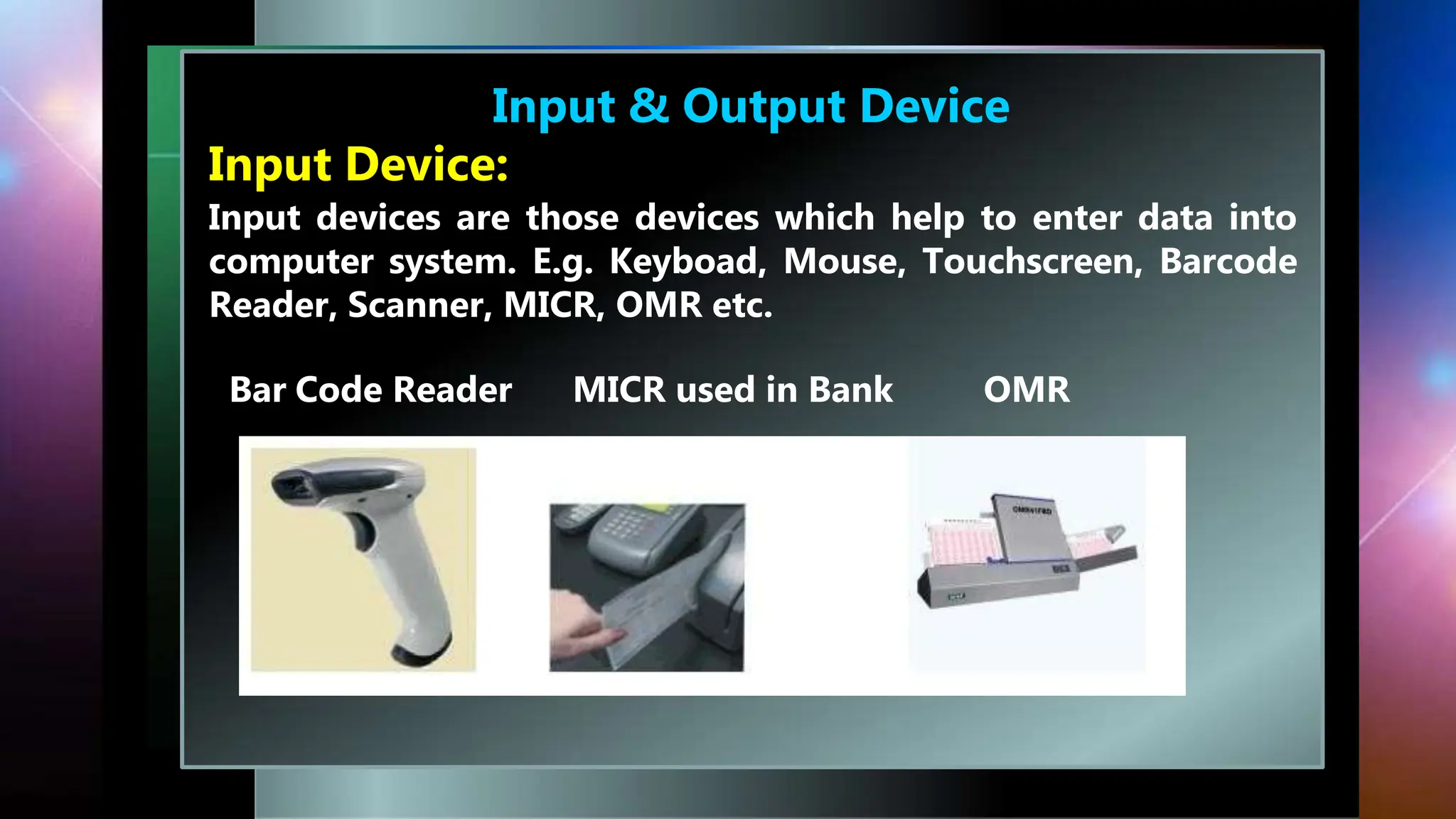
Input devices are those devices which help to enter data into
computer system. E.g. Keyboad, Mouse, Touchscreen, Barcode
Reader, Scanner, MICR, OMR etc.
Bar Code Reader MICR used in Bank OMR
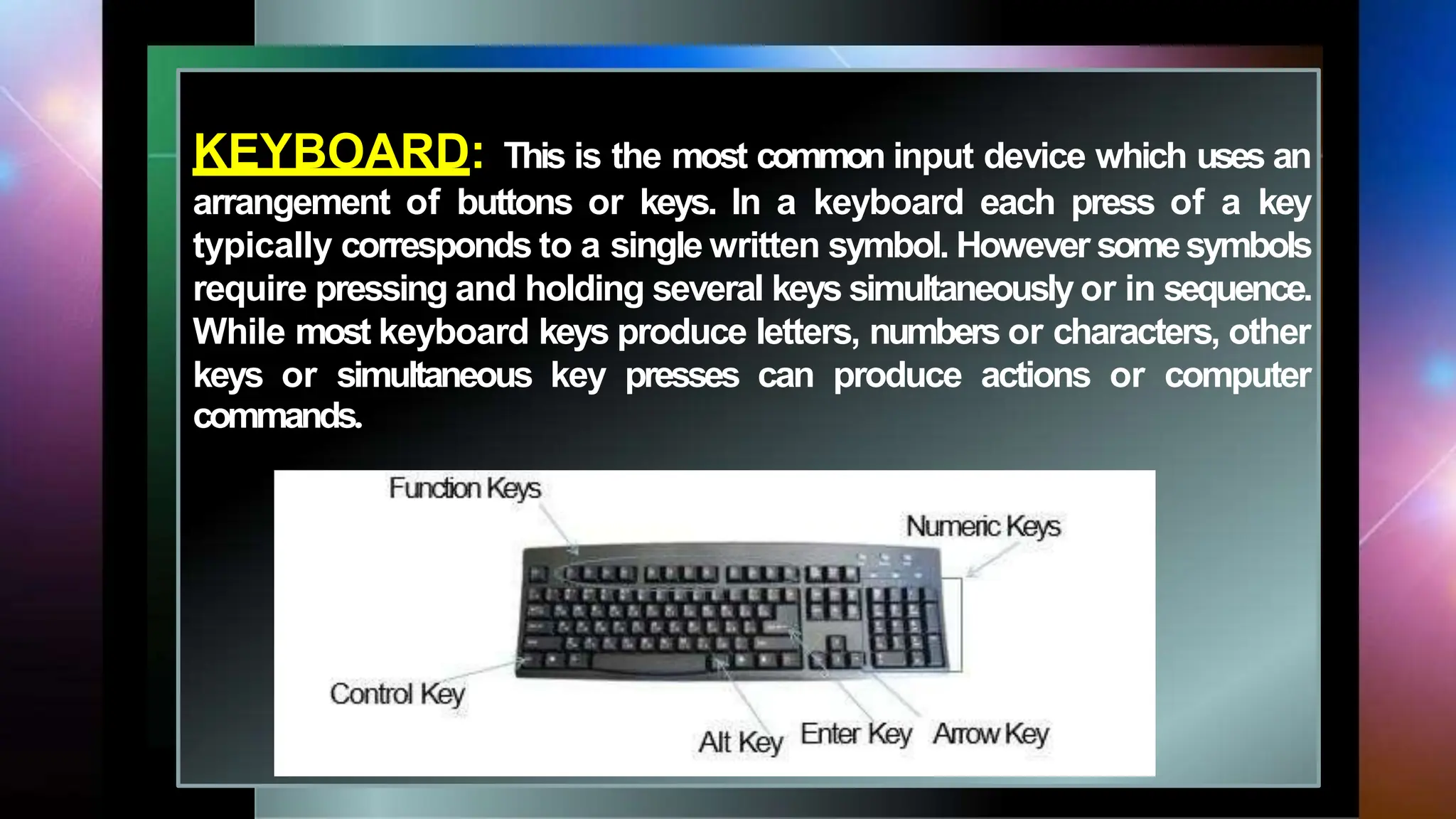
KEYBOARD: This is the most common input device which uses an
arrangement of buttons or keys. In a keyboard each press of a key
typically corresponds to a single written symbol. However somesymbols
require pressing and holding several keys simultaneously or in sequence.
While most keyboard keys produce letters, numbers or characters, other
keys or simultaneous key presses can produce actions or computer
commands.
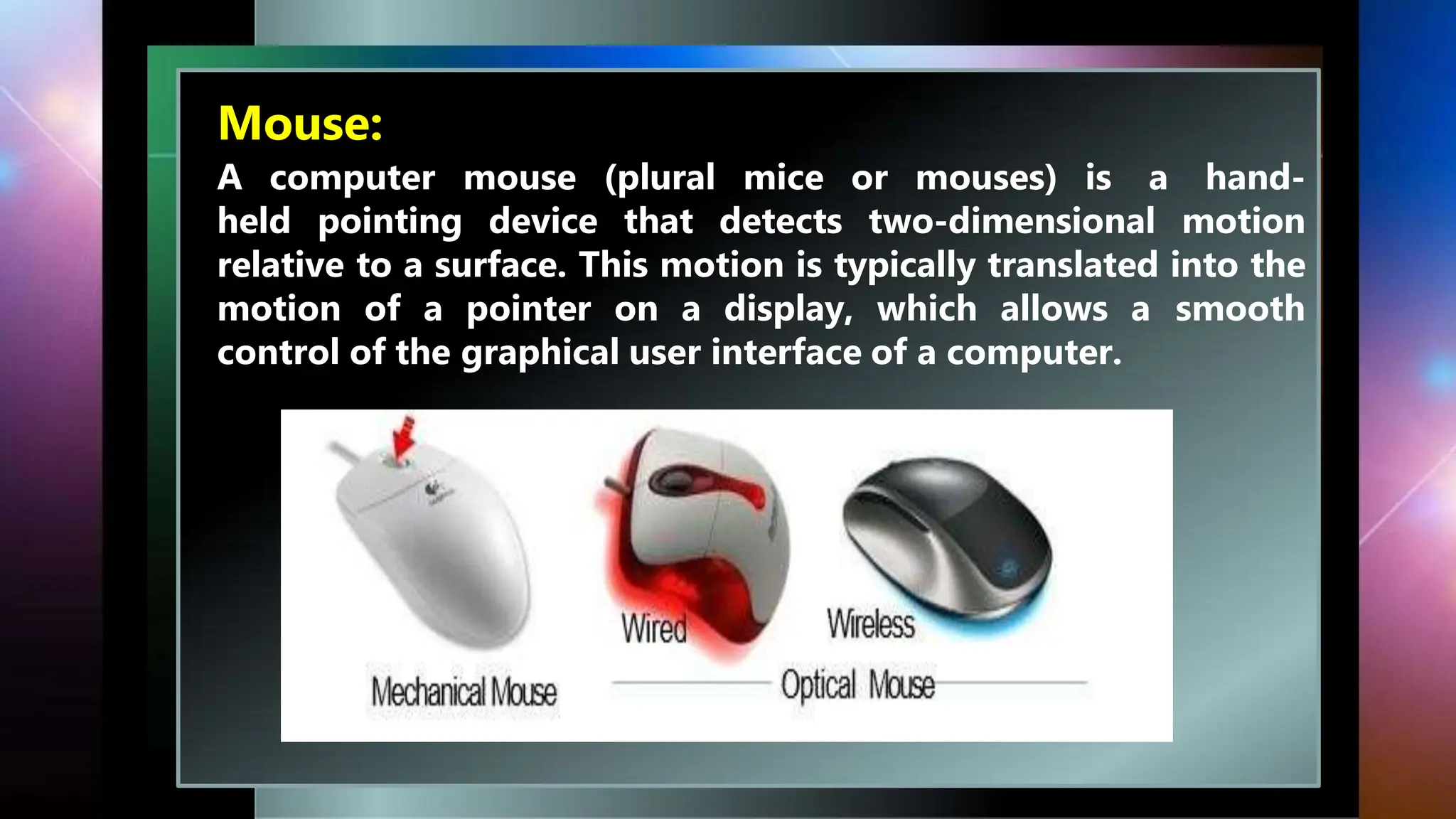
Mouse:
A computer mouse (plural mice or mouses) is a hand-
held pointing device that detects two-dimensional motion
relative to a surface. This motion is typically translated into the
motion of a pointer on a display, which allows a smooth
control of the graphical user interface of a computer.
Scanner:
Scannerisa devicethat optically scans
images, printed text, handwriting,or an
object, and convertsit to digital image.
JOYSTICK:
A joystick isan input device consistingof a stick
that pivots ona base and reports its angle or
direction to thedeviceit iscontrolling.
Manypeopleusejoysticksoncomputergamesinvolving flight suchas
flight simulator.
Joysticksare often usedto controlvideo games,andusuallyhaveone
or morepush-buttonswhosestatecanalsobe read by the computer
Output Device:
Output devices are those devices which help to display the
processed information. Eg. Monitor, Printer, Plotter, Projector
etc.
PRINTER:
 Printer producesresult on the paper.
 There are various types of printers available in the market:
DOT MATRIX PRINTER:
 Uses ribbonand hammer technology.
 Itsqualityisnotverygood.Itprintsbymakingthe objectusing
small dots.
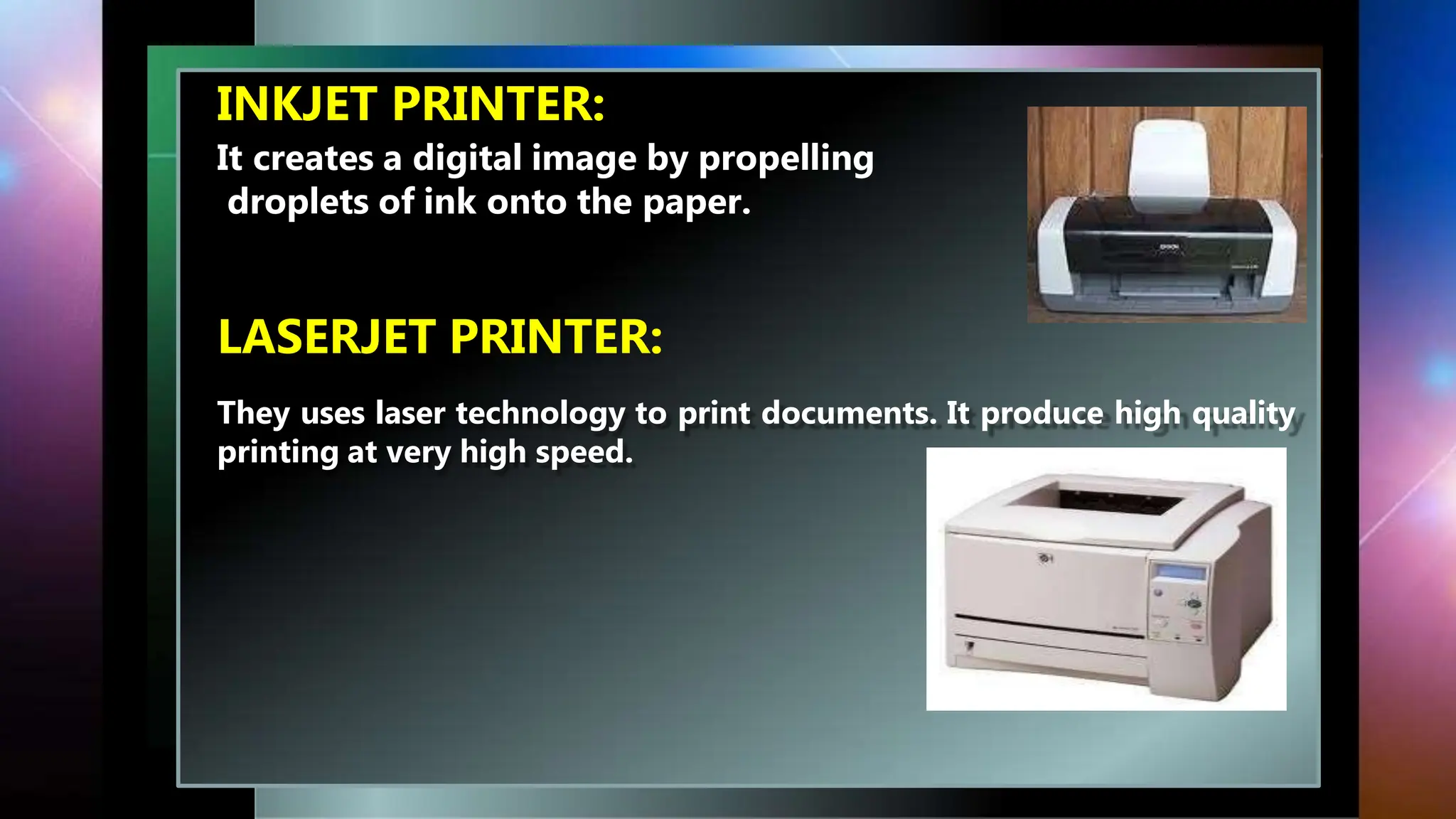
INKJET PRINTER:
It creates a digital image by propelling
droplets of ink onto the paper.
LASERJET PRINTER:
They uses laser technology to print documents. It produce high quality
printing at very high speed.
MONITOR
 It is the primary output device where we
see the output. It looks like TV.
 It is also known as VDU(Visual Display Unit).
 Its display may be in the form of CRT
LED, LCD.
1. CRT(CATHODE RAY TUBE)
2. LCD(LIQUID CRYSTAL DISPLAY)
3. LED(LIGHT EMITTING DIODE)
MEMORY UNITS: Memory is used to store the data for later
reference. The smallest unit is bit, which mean either 0 or 1.
 1 bit = 0 or 1
 1 Byte = 8 bits
 1 Nibble = 4 bits
 1 Kilo Byte = 1024 Byte= 210 Byte
 1 Mega Byte = 1024 KB= 210 KB
 1 Giga Byte = 1024 MB= 210 MB
 1 Tera Byte = 1024 GB= 210 GB
 1 Peta Byte =1024 TB= 210 TB
 1 Exa Byte =1024 PB= 210 PB
 1 Zetta Byte = 1024 EB= 210 EB
 1 Yotta Byte = 1024 ZB= 210 ZB
PRIMARY MEMORY
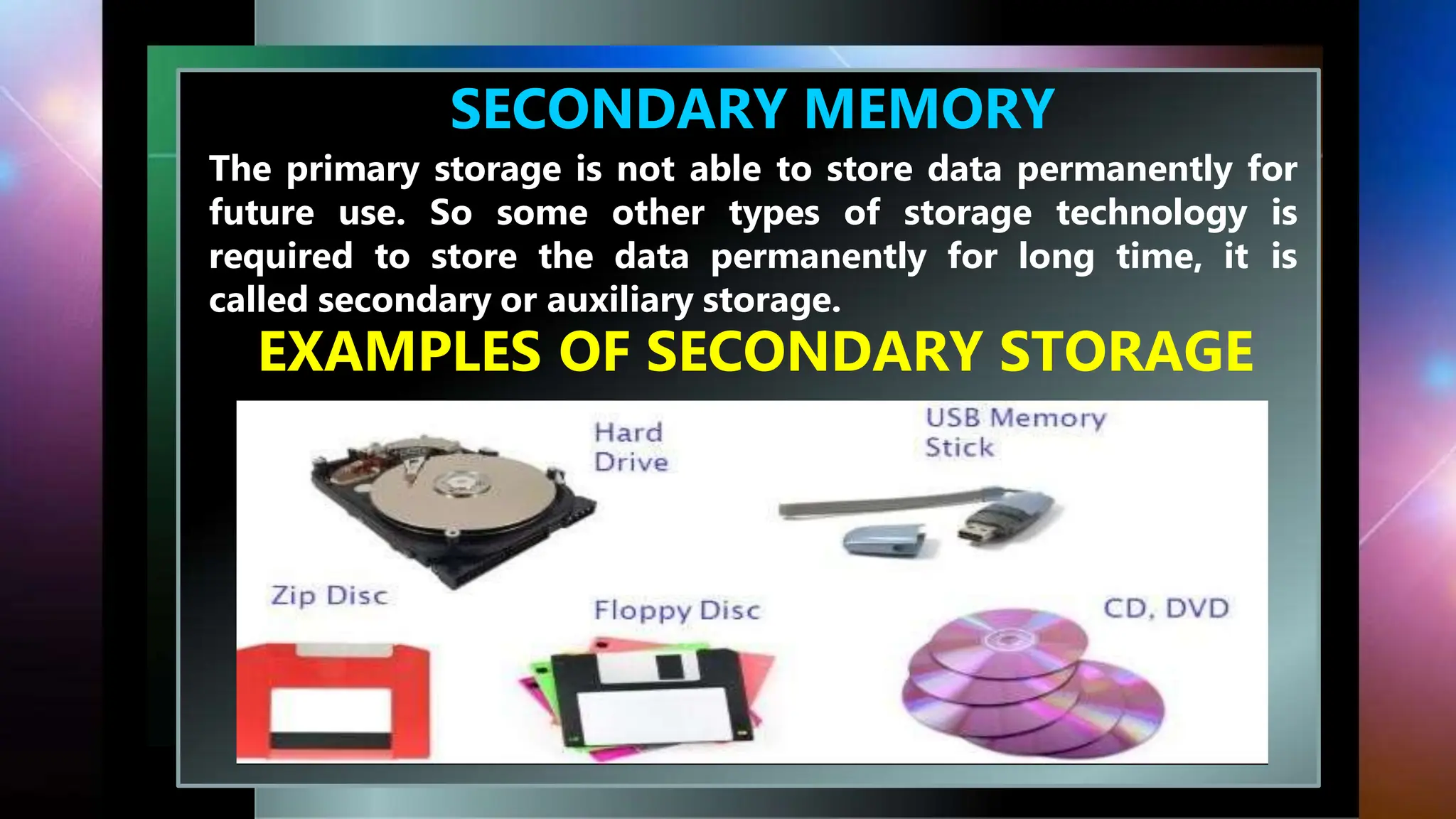
SECONDARY MEMORY
The primary storage is not able to store data permanently for
future use. So some other types of storage technology is
required to store the data permanently for long time, it is
called secondary or auxiliary storage.
EXAMPLES OF SECONDARY STORAGE
DATA DELETION AND ITS RECOVERY ,
SECURITY CONCERN
You can conveniently delete personal data stored in computer
system, survey responses, tickets, and contacts, no matter
where the data originated.
Examples of reasons for deleting the data are:
 Freeing the disk space
 Removing duplicate or unnecessary data to avoid confusion
 Making sensitive information unavailable to others
 Removing an operating system or blanking a hard drive
DATA RECOVERY
 in computing, data recovery is a process of salvaging
(retrieving) inaccessible, lost, corrupted, damaged or
formatted data from secondary storage and removable
media or files, when the data stored in them cannot be
accessed in a normal way.
 The most common data recovery scenario involves an
operating system failure, malfunction of a storage device,
logical failure of storage devices, accidental damage or
deletion, etc. (typically, on a single-drive, single-partition,
single-OS system), in which case the ultimate goal is simply
to copy all important files from the damaged media to
another new drive.
COMPUTER SECURITY
 It is also known as IT security, is the protection of
information systems from theft or damage to the hardware,
the software, and to the information on them, as well as
from disruption or misdirection of the services they provide.
 It includes controlling physical access to the hardware, as
well as protecting against harm that may come via network
access, data and code injection, and due to malpractice by
operators, whether intentional, accidental, or due to them
being tricked into deviating from secure procedures.
CONCERNS OF COMPUTER SECURITY
Computer Security is concerned with four main areas:
1.Confidentiality:- Only authorized users can access the data resources
and information.
2. Integrity:- Only authorized users should be able to modify the data
when needed.
3. Availability:- Data should be available to users when needed.
4. Authentication:- are you really communicating with whom you think
you are communicating with
SOFTWARE AND ITS TYPE
SOFTWARE: Software, simply are the computer programs. The
instructions given to the computer in the form of a program is
called Software. Software is the set of programs, which are
used for different purposes. All the programs used in computer
to perform specific task is called Software.
TYPES OF SOFTWARE
1. SYSTEM SOFTWARE
The system software is a collection of programs designed to
operate, control, and extend the processing capabilities of the
computer itself.
These software products comprise of programs
written in low-level languages, which interact with the
hardware at a very basic level. System software serves as the
interface between the hardware and the end users.
Some examples of system software are Operating
System, Compilers, Interpreter, Assemblers, etc.
OPERATING SYSTEM
OPERATING SYSTEM ARCHITECTURE
FUNCTIONS OF OPERATING SYSTEM
TYPES OF OPERATING SYSTEM
SINGLE USER OS: As the name implies, this operating
system is designed to manage the computer so that one user can
effectively do one thing at a time.
MULTI USER OS: A multi-user operating system (OS) is a
computer system that allows multiple users that are on different
computers to access a single system's OS resources
simultaneously.
MULTI TASKING OS: Multitasking, is an operating system,
that allows a user to perform more than one
computer task (such as the multiple operation of an application
program) at a time. The operating system is able to keep track
of where you are in these tasks and go from one to the other
without losing information.
MULTI PROCESSING OS: Multiprocessing is
sometimes used to refer to the execution
of multiple concurrent processes in a system. A program in
execution is called process.
EMBEDDED OS: Embedded Operating System is an
Embedded System’s Operating System. Embedded Systems
are a specially designed computer system that essentially
contains software and hardware for performing specific
tasks. Mobile Phones, Laptops, Cameras, Washing Machines,
ATMS, and Hair Straightener etc are examples of embedded
operating sytem.
REAL TIME OS: It is used to control machinery, industrial
systems, scientific instruments ,tasks where time deadlines may
be forced to execute a task.
LANGUAGE PROCESSOR
We generally write a computer program using a high-level
language. A high-level language is one that is understandable
by us, humans. This is called source code.
However, a computer does not understand
high-level language. It only understands the program written
in 0's and 1's in binary, called the machine code.
To convert source code into machine code, we use either
a compiler or an interpreter. Compiler, Interpreter are known
as language processor. Both compilers and interpreters are
used to convert a program written in a high-level language
into machine code understood by computers. However, there
are differences between how an interpreter and a compiler
works.
APPLICATION SOFTWARE
Application software products are designed to satisfy a
particular need of a particular environment. All software
prepared in the computer lab may come under the category of
Application software.
Examples of Application software are the following −
 Payroll Software
 Student Record Software
 Inventory Management Software
 Income Tax Software
 Railways Reservation Software
 Microsoft Office Suite Software
 Microsoft Word, Microsoft Excel
UTILITY SOFTWARE
Utility software is designed to aid in analyzing, optimizing,
configuring and maintaining a computer system. It supports
the computer infrastructure. This software focuses on how an
OS functions and then accordingly it decides its trajectory to
smoothen the functioning of the system. Software’s like
antiviruses, disk cleanup & management tools, compression
tools, defragmenters, etc are all utility tools. Some examples of
utility tools are:
K7 Antivirus, WinRAR, WinZip etc.
Data Entry and Keyboarding Skills
The most prevalent text-based input device is the keyboard. Computer
keyboards are just like typewriter keyboards, however, they have more
keys. There are usually more than 100 keys on a keyboard. A single symbol
is assigned to each key on a keyboard. Some symbols need the
simultaneous or sequential pressing and holding of many keys. It allows
you to type in alphabets, numbers.
The touch typing method is a typing method without using your sense of
sight to find the keys. No need to search for the key while typing, all you
have to do is move your finger to press a key.
Typing speed generally improves with practice. The typing speed is often
increased gradually and speeds of 60 WPM (words per minute)
Types of keys
• Alphanumeric keys: All of the alphabet (A-Z) and numbers (0-
9) on the keyboard.
• Punctuation keys: All of the keys associated with punctuation,
such as the comma (,), period (.),
semicolon (;), brackets ([]), and parenthesis ({ }) and so on.
Also, all of the mathematical operators
such as the plus sign (+), minus sign (-), and equal sign (=).
• Alt key: Short for Alternate, this key is like a second control
key.
• Arrow keys: There are four arrow keys to move the cursor (or
insertion point) up (↑), down (↓),
right (→), or left (←). Arrow keys can be used in conjunction
with the
• Shift or Alt keys: To move the cursor in more than one
position at a time.
Backspace key: Deletes the character just to the left of the
cursor (or insertion point) and moves
the cursor to that position.
• Caps Lock key: It is a toggle key, which when activated, causes
all alphabetic characters to be
uppercase.
• Ctrl key: The control key is used in conjunction with other
keys to produce control characters. The
meaning of each control character depends on which program
is running.
• Delete key: The Del key deletes the character at the current
cursor position, or the selected object,
but does not move the cursor. For graphics-based applications,
the delete key deletes the character
to the right of the insertion point.
keypad: It is normally located on the right-hand side of computer
keyboard. It contains
numbers 0 to 9, addition (+), subtraction (–), multiplication (*) and
division (/) symbols, a decimal
point (.) and Num Lock and Enter keys.
Home keys: Alphabets ASDF are home keys for the left hand and;
(semi-colon) LKJ for the right hand.
Guide keys: On a computer keyboard, keys ‘F’ and ‘J’ are called guide
keys for left and right hand,
respectively.
Typing capital letters: To type capital letters, switch ON the Caps Lock
by pressing the key before
typing.
Typing symbols: The Shift key is used to access the top symbols
that are one of the keys with two
characters.
Typing sentences: To get space between typed words, press the
space bar once and then type the
next word.
Creating new lines and spaces between paragraphs: The Enter
or return key is used to create new
lines and spaces between paragraphs.
Guide for typing: The cursor keys serve as a guide for typing.
They can be used to move the position
of the cursor.
Pointing devices
Instead of typing, directly some items can be selected from computer screen, for
example "print" or
"close" button. This can be done using point and draw devices, such as mouse.
Mouse
Mouse is a pointing device used to point a particular place on the screen and select
to perform one
or more actions
Mouse pointer
The mouse pointer allows to point on the screen. The pointer changes as shown
below.
The common mouse actions are as follows:
(a) Click or left click: It is used to select an item. Press down once on the left button
with your index
finger.
(b) Double click: It is used to start a program or open a file or
trigger an action.
(c) Right click: It is used to display a set of commands and
available options.
(d) Drag and drop: It allows to select and move an item from
one location to another.
(e) Scroll: Many applications provide scrollbars on right side of
screen if the page length is more than
the monitor/screen length.
(f) Blocking: Blocking is another way of selecting text. It is used
to select text that needs to be edited
or formatted.
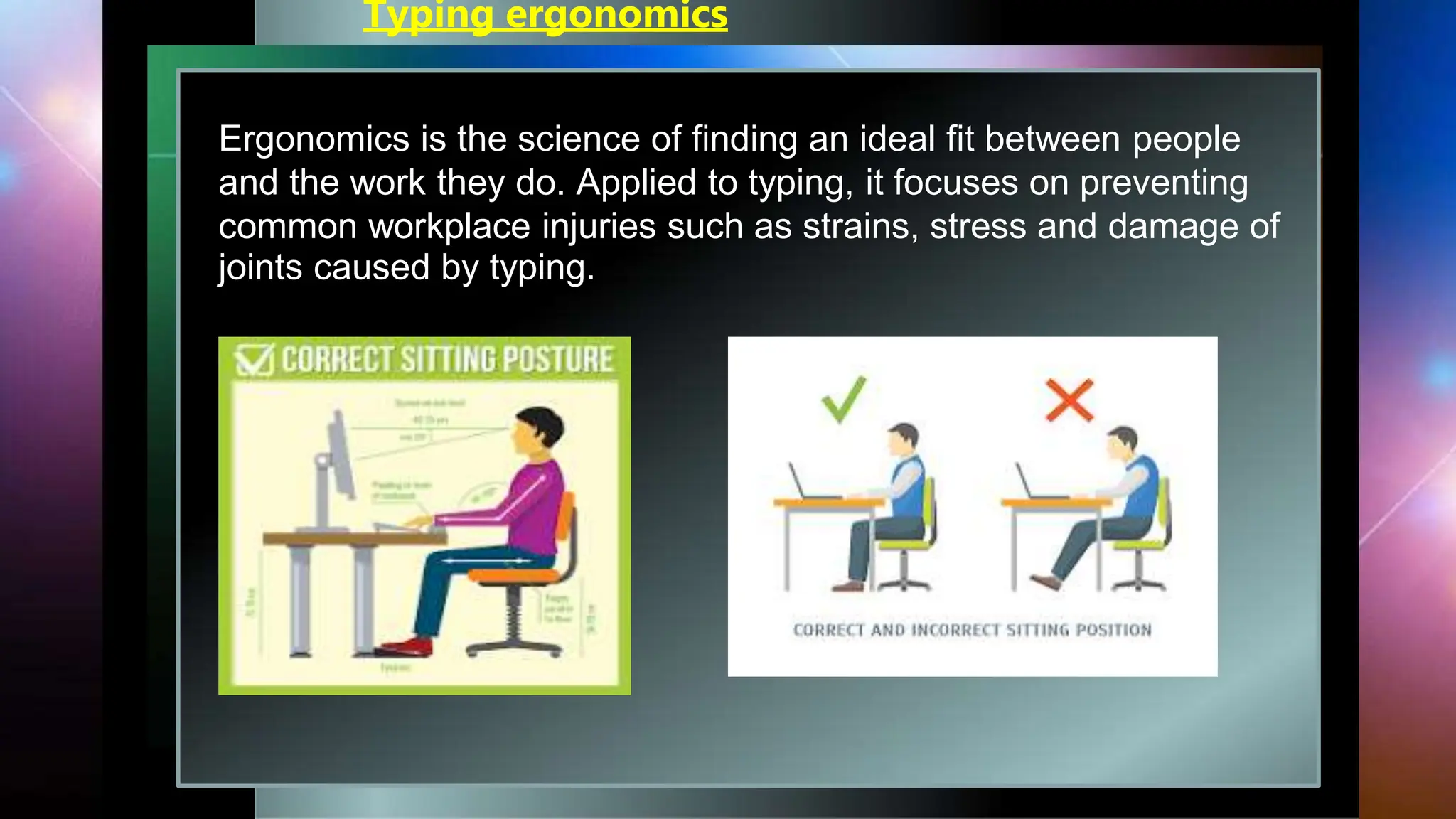
Typing ergonomics
Ergonomics is the science of finding an ideal fit between people
and the work they do. Applied to typing, it focuses on preventing
common workplace injuries such as strains, stress and damage of
joints caused by typing.
Monitor placement
Do not bend your neck while working on the monitor and keep the
upper border of screen at eye
level. The distance of screen from the user depends on the size of the
screen. Keep an approximate
distance of about 60–65 cms for 17 inches screen.
Mouse and keyboard placement
Keep the keyboard and mouse together at an approximate distance of
20 cms, which will help in
smooth and effortless operation of keyboard. Same height of keyboard,
mouse and elbows helps the users to work comfortably.
Chair and table placement
Adjust computer chair and table to an optimal height. The chair of the
computer user must be supportive to his/her lower back.
Positioning of fingers on the keyboard
Successful keyboarding tips
Press the keys with feather touch and do not put undue
pressure.
• Rest your fingers on Home row while typing.
• Allow your fingers to fall naturally on the keys so that each
rests on top of the next key along the
same horizontal row.
• While typing, release the key immediately as soon as you
press it. Holding the key for long time,
will repeatedly type the same character.
• Do not look at the keyboard while practicing.
• Press the keys with equal intervals of time in rhythm.
• Press the keys only with the fingers allotted for them.
• While pressing a key, say slowly pronounce the character on
the key.
Good typing speed
An average professional typist types usually in speeds of 50 to
80 wpm, while some positions can
require 80 to 95 and some advanced typists work at speeds
above 120 wpm.
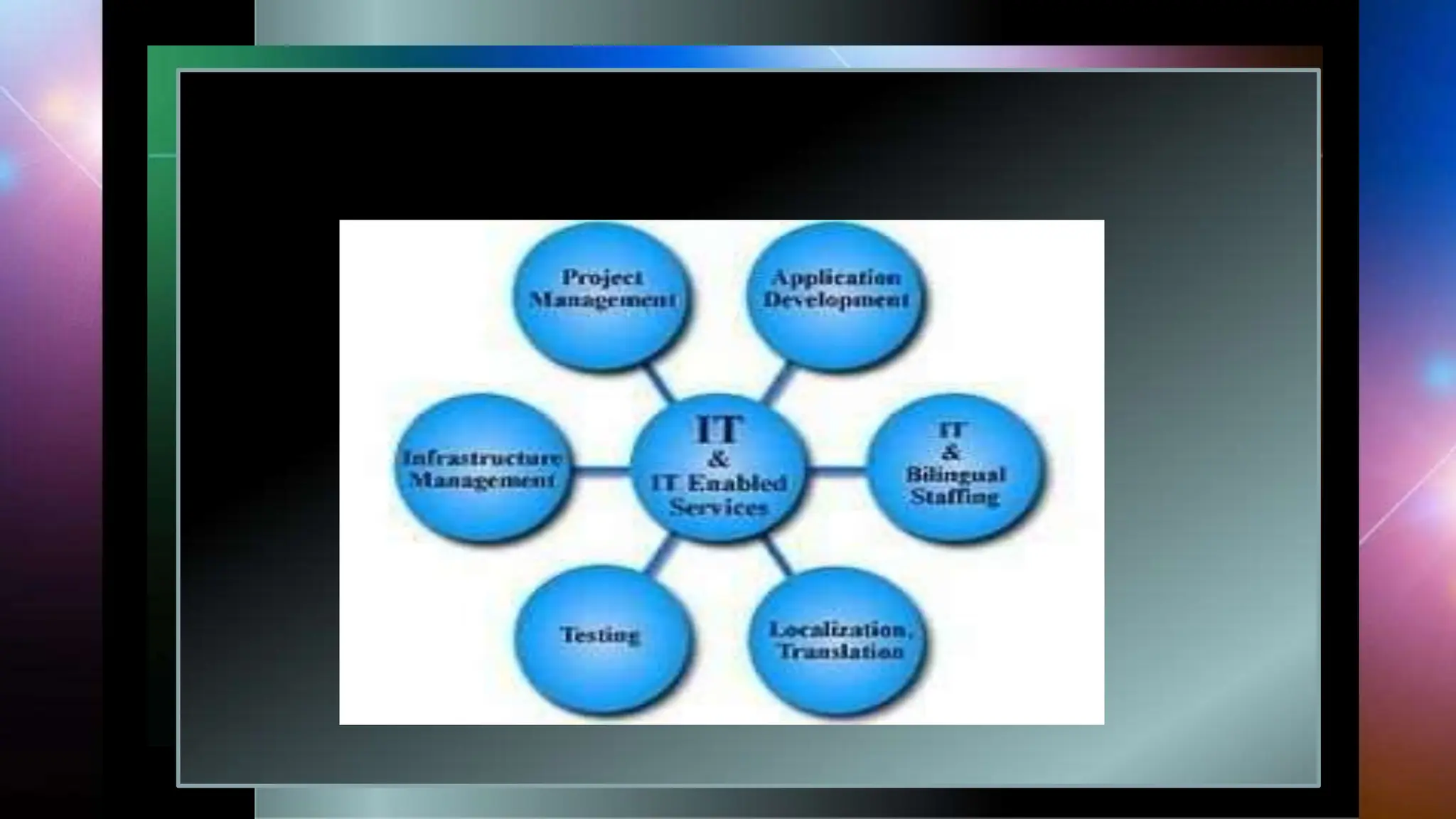
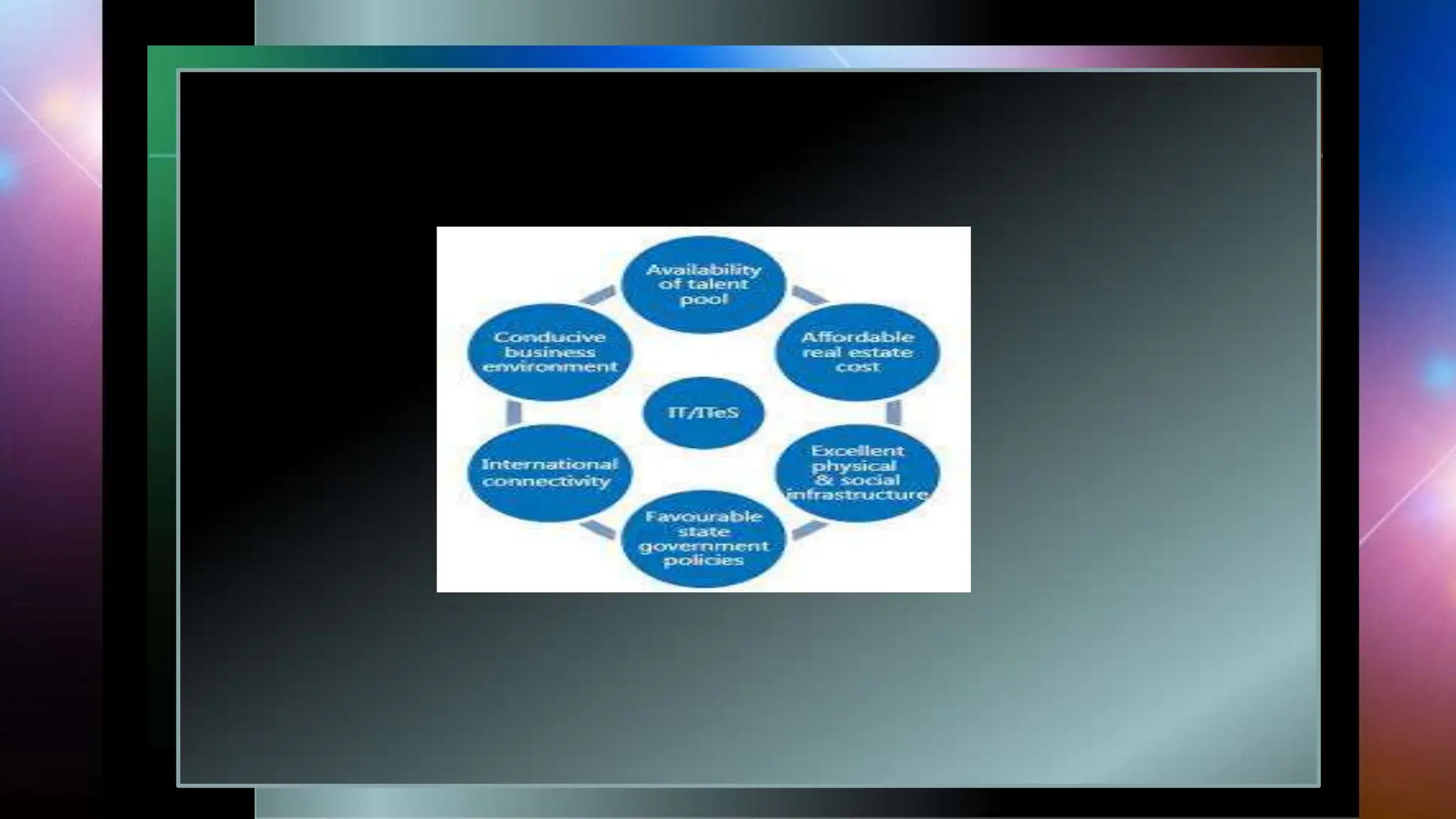
INTRODUCTION TO IT/ITES
ITES
What is basic definition of IT?
Information Technology means the use of hardware,
software, services, and supporting infrastructure to
manage and deliver information using voice, data, and
video.
ITeS: Information Technology that enables the business
by improving the quality of service is Information
Technology enabled Services (ITeS).
IT applications
IT in home computing
We use a PC (personal computer) at our home. The computer is used in our homes for
surfing the internet, making presentations, video, games, etc.
IT in everyday life
In our daily life, most of the equipment we are using is embedded with software.
Microwave has its own software to maintain the temperature and also washing
machines, the set-top box has software to interact with us and give us a good
experience.
IT in library
Nowadays managing books in the library is not such tough work. Libraries are now
computerised. To manage a lot of books barcodes can be associated with books which
makes the process easy to keep track of the list of available books and many more.
IT at workplace
all the offices are equipped with computers. Most of the work is now done on
computers. In offices computers and software makes their work very easy and fast.
IT in insurance
Insurance companies use a computer to store data of their clients. It manages their data and
gives them timely notifications for their premium. It allows the user to get a good knowledge
over their policy.
IT in marketing
The computer is very much needed in marketing. The computer is used to create sell
advertisements. It is used to monitor the performance of the product in the market. different
illustrations can be made to present the product in an effective and decorative way.
IT in health care
Our hospitals are now computerised a lot of healthcare activities are now monitored by
computers. Some of the high-level gadgets are made to serve in hospitals
.
Cardiac Screening Machine: This machine is used to detect the problems related to the
heart. It monitors the internal working of the heart.
Blood Sugar Testing Machine: This is used to check the sugar
level in blood.
(vii) Blood Pressure Measuring Machine: Blood pressure can be
checked digitally by the blood pressure measuring machine.

mix topic.pptx

  • 1.
  • 2.
    Introduction to Computer Computeris an advanced electronic device that takes raw data as input from the user and processes these data under the control of set of instructions (called program) and gives the result (output) and saves output for the future use. A computer is a combination of hardware and software resources which integrate together and provides various functionalities to the user. Hardware are the physical components of a computer like the processor, memory devices, monitor, keyboard etc. while software is the set of programs or instructions that are required by the hardware resources to perform various operations as per the requirement of users.
  • 3.
  • 4.
    EVOLUTION OF COMPUTINGDEVICE First Generation (1940-56): The first generation computers used vacuum tubes & machine language was used for giving the instructions. These computers were large in size & their programming was difficult task. The electricity consumption was very high. Some computers of this generation are ENIAC, EDVAC, EDSAC & UNIVAC-1. In this generation, mainly batch processing operating system was used. Punch cards, paper tape, and magnetic tape was used as input and output devices. The computers in this generation used machine code as the programming language.
  • 5.
    Second Generation (1956-63): In2nd generation computers, vacuum tubes were replaced by transistors. They required only 1/10 of power required by tubes. This generation computers generated less heat & were reliable. The first operating system developed in this generation. IBM 1620, IBM 7094, CDC 1604 are the examples of this generations computers. In 2nd generation, magnetic cores were used as the primary memory and magnetic tape and magnetic disks as secondary storage devices. In this generation, assembly language and high-level programming languages like FORTRAN, COBOL were used. The computers used batch processing and multiprogramming operating system.
  • 6.
    Third Generation (1964-71): The3rd generation computers replaced transistors with Integrated circuit known as chip. From Small scale integrated circuits which had 10 transistors per chip, technology developed to MSI circuits with 100 transistors per chip. These computers were smaller, faster & more reliable. High level languages invented in this generation. The IC was invented by Jack Kilby. This development made computers smaller in size, reliable, and efficient. In this generation remote processing, time-sharing, multiprogramming operating system were used. High-level languages (FORTRAN-II TO IV, COBOL, PASCAL PL/1, BASIC, ALGOL-68 etc.) were used during this generation. IBM-360 series, Honeywell-6000 are some examples of computers in 3rd generation. .
  • 7.
    Fourth Generation (1972-1980): LSI & VLSI were used in this generation. As a result microprocessors came into existence. The computers using this technology known to be Micro Computer. High capacity hard disk were invented. There is great development in data communication. Fourth generation computers became more powerful, compact, reliable, and affordable. As a result, it gave rise to Personal Computer (PC) revolution. In this generation, time sharing, real time networks, distributed operating system were used. All the high-level languages like C, C++, DBASE etc., were used in this generation.
  • 8.
    Fifth Generation (1980-Present& Beyond): Fifth generation computing devices, based on artificial intelligence, are still in development, though there are some applications, such as voice recognition, that are being used today. The use of parallel processing and superconductors is helping to make artificial intelligence a reality. Quantum computation and molecular and nanotechnology will radically change the face of computers in years to come. Some computer types of this generation are − Desktop Laptop Note Book Ultra Book
  • 9.
    COMPONENT OF ACOMPUTER SYSTEM
  • 10.
    In the abovediagram, both control (control unit or CU) and arithmetic & logic unit (ALU) combinely called as Central Processing Unit (CPU). Let's describe about all the parts as included in the above diagram one by one. The Processor Unit (CPU) It is the brain of the computer system. All major calculation and comparisons are made inside the CPU and it is also responsible for activation and controlling the operation of other unit. This unit consists of two major components, that are arithmetic logic unit (ALU) and control unit (CU).
  • 11.
    Arithmetic Logic Unit(ALU) Arithmetic logic unit performs all arithmetic operations such as addition, subtraction, multiplication and division. It also uses logic operation for comparison like comparison or decision making (>, <, <=, >=, = etc.). Control Unit (CU) The control unit of a CPU controls the entire operation of the computer. It also controls all devices such as memory, input/output devices connected to the CPU. CU fetches instructions from memory, decodes the instruction, interprets the instruction to know what the task are to be performed and sends suitable control signals to the other components to perform for the necessary steps to execute the instruction.
  • 12.
    Input/Output Unit The input/outputunit consists of devices used to transmit information between the external world and computer memory. The information fed through the input unit is stored in computer's memory for processing and the final result stored in memory can be recorded or display on the output medium. Memory unit It is an essential component of a digital computer. It is where all data intermediate and find results are stored. The data read from the main storage or an input unit are transferred to the computer's memory where they are available for processing. This memory unit is used to hold the instructions to be executed and data to be processes.
  • 13.
    Primary Memory: Primary memoryhas direct link with input unit and output unit. It stores the input data, intermediate calculation, result. Secondary Memory: The primary storage is not able to store data permanently for future use. So some other types of storage technology is required to store the data permanently for long time, it is called secondary or auxiliary memory.
  • 14.
    Input & OutputDevice Input Device: Input devices are those devices which help to enter data into computer system. E.g. Keyboad, Mouse, Touchscreen, Barcode Reader, Scanner, MICR, OMR etc. Bar Code Reader MICR used in Bank OMR
  • 15.
    KEYBOARD: This isthe most common input device which uses an arrangement of buttons or keys. In a keyboard each press of a key typically corresponds to a single written symbol. However somesymbols require pressing and holding several keys simultaneously or in sequence. While most keyboard keys produce letters, numbers or characters, other keys or simultaneous key presses can produce actions or computer commands.
  • 16.
    Mouse: A computer mouse(plural mice or mouses) is a hand- held pointing device that detects two-dimensional motion relative to a surface. This motion is typically translated into the motion of a pointer on a display, which allows a smooth control of the graphical user interface of a computer.
  • 17.
    Scanner: Scannerisa devicethat opticallyscans images, printed text, handwriting,or an object, and convertsit to digital image. JOYSTICK: A joystick isan input device consistingof a stick that pivots ona base and reports its angle or direction to thedeviceit iscontrolling. Manypeopleusejoysticksoncomputergamesinvolving flight suchas flight simulator. Joysticksare often usedto controlvideo games,andusuallyhaveone or morepush-buttonswhosestatecanalsobe read by the computer
  • 18.
    Output Device: Output devicesare those devices which help to display the processed information. Eg. Monitor, Printer, Plotter, Projector etc.
  • 19.
    PRINTER:  Printer producesresulton the paper.  There are various types of printers available in the market: DOT MATRIX PRINTER:  Uses ribbonand hammer technology.  Itsqualityisnotverygood.Itprintsbymakingthe objectusing small dots.
  • 20.
    INKJET PRINTER: It createsa digital image by propelling droplets of ink onto the paper. LASERJET PRINTER: They uses laser technology to print documents. It produce high quality printing at very high speed.
  • 21.
    MONITOR  It isthe primary output device where we see the output. It looks like TV.  It is also known as VDU(Visual Display Unit).  Its display may be in the form of CRT LED, LCD. 1. CRT(CATHODE RAY TUBE) 2. LCD(LIQUID CRYSTAL DISPLAY) 3. LED(LIGHT EMITTING DIODE)
  • 22.
    MEMORY UNITS: Memoryis used to store the data for later reference. The smallest unit is bit, which mean either 0 or 1.  1 bit = 0 or 1  1 Byte = 8 bits  1 Nibble = 4 bits  1 Kilo Byte = 1024 Byte= 210 Byte  1 Mega Byte = 1024 KB= 210 KB  1 Giga Byte = 1024 MB= 210 MB  1 Tera Byte = 1024 GB= 210 GB  1 Peta Byte =1024 TB= 210 TB  1 Exa Byte =1024 PB= 210 PB  1 Zetta Byte = 1024 EB= 210 EB  1 Yotta Byte = 1024 ZB= 210 ZB
  • 23.
  • 24.
    SECONDARY MEMORY The primarystorage is not able to store data permanently for future use. So some other types of storage technology is required to store the data permanently for long time, it is called secondary or auxiliary storage. EXAMPLES OF SECONDARY STORAGE
  • 25.
    DATA DELETION ANDITS RECOVERY , SECURITY CONCERN You can conveniently delete personal data stored in computer system, survey responses, tickets, and contacts, no matter where the data originated. Examples of reasons for deleting the data are:  Freeing the disk space  Removing duplicate or unnecessary data to avoid confusion  Making sensitive information unavailable to others  Removing an operating system or blanking a hard drive
  • 26.
    DATA RECOVERY  incomputing, data recovery is a process of salvaging (retrieving) inaccessible, lost, corrupted, damaged or formatted data from secondary storage and removable media or files, when the data stored in them cannot be accessed in a normal way.  The most common data recovery scenario involves an operating system failure, malfunction of a storage device, logical failure of storage devices, accidental damage or deletion, etc. (typically, on a single-drive, single-partition, single-OS system), in which case the ultimate goal is simply to copy all important files from the damaged media to another new drive.
  • 27.
    COMPUTER SECURITY  Itis also known as IT security, is the protection of information systems from theft or damage to the hardware, the software, and to the information on them, as well as from disruption or misdirection of the services they provide.  It includes controlling physical access to the hardware, as well as protecting against harm that may come via network access, data and code injection, and due to malpractice by operators, whether intentional, accidental, or due to them being tricked into deviating from secure procedures.
  • 28.
    CONCERNS OF COMPUTERSECURITY Computer Security is concerned with four main areas: 1.Confidentiality:- Only authorized users can access the data resources and information. 2. Integrity:- Only authorized users should be able to modify the data when needed. 3. Availability:- Data should be available to users when needed. 4. Authentication:- are you really communicating with whom you think you are communicating with
  • 29.
    SOFTWARE AND ITSTYPE SOFTWARE: Software, simply are the computer programs. The instructions given to the computer in the form of a program is called Software. Software is the set of programs, which are used for different purposes. All the programs used in computer to perform specific task is called Software.
  • 30.
  • 31.
    1. SYSTEM SOFTWARE Thesystem software is a collection of programs designed to operate, control, and extend the processing capabilities of the computer itself. These software products comprise of programs written in low-level languages, which interact with the hardware at a very basic level. System software serves as the interface between the hardware and the end users. Some examples of system software are Operating System, Compilers, Interpreter, Assemblers, etc.
  • 32.
  • 33.
  • 34.
  • 35.
  • 36.
    SINGLE USER OS:As the name implies, this operating system is designed to manage the computer so that one user can effectively do one thing at a time. MULTI USER OS: A multi-user operating system (OS) is a computer system that allows multiple users that are on different computers to access a single system's OS resources simultaneously. MULTI TASKING OS: Multitasking, is an operating system, that allows a user to perform more than one computer task (such as the multiple operation of an application program) at a time. The operating system is able to keep track of where you are in these tasks and go from one to the other without losing information.
  • 37.
    MULTI PROCESSING OS:Multiprocessing is sometimes used to refer to the execution of multiple concurrent processes in a system. A program in execution is called process. EMBEDDED OS: Embedded Operating System is an Embedded System’s Operating System. Embedded Systems are a specially designed computer system that essentially contains software and hardware for performing specific tasks. Mobile Phones, Laptops, Cameras, Washing Machines, ATMS, and Hair Straightener etc are examples of embedded operating sytem.
  • 38.
    REAL TIME OS:It is used to control machinery, industrial systems, scientific instruments ,tasks where time deadlines may be forced to execute a task.
  • 39.
    LANGUAGE PROCESSOR We generallywrite a computer program using a high-level language. A high-level language is one that is understandable by us, humans. This is called source code. However, a computer does not understand high-level language. It only understands the program written in 0's and 1's in binary, called the machine code. To convert source code into machine code, we use either a compiler or an interpreter. Compiler, Interpreter are known as language processor. Both compilers and interpreters are used to convert a program written in a high-level language into machine code understood by computers. However, there are differences between how an interpreter and a compiler works.
  • 41.
    APPLICATION SOFTWARE Application softwareproducts are designed to satisfy a particular need of a particular environment. All software prepared in the computer lab may come under the category of Application software. Examples of Application software are the following −  Payroll Software  Student Record Software  Inventory Management Software  Income Tax Software  Railways Reservation Software  Microsoft Office Suite Software  Microsoft Word, Microsoft Excel
  • 42.
    UTILITY SOFTWARE Utility softwareis designed to aid in analyzing, optimizing, configuring and maintaining a computer system. It supports the computer infrastructure. This software focuses on how an OS functions and then accordingly it decides its trajectory to smoothen the functioning of the system. Software’s like antiviruses, disk cleanup & management tools, compression tools, defragmenters, etc are all utility tools. Some examples of utility tools are: K7 Antivirus, WinRAR, WinZip etc.
  • 43.
    Data Entry andKeyboarding Skills The most prevalent text-based input device is the keyboard. Computer keyboards are just like typewriter keyboards, however, they have more keys. There are usually more than 100 keys on a keyboard. A single symbol is assigned to each key on a keyboard. Some symbols need the simultaneous or sequential pressing and holding of many keys. It allows you to type in alphabets, numbers. The touch typing method is a typing method without using your sense of sight to find the keys. No need to search for the key while typing, all you have to do is move your finger to press a key. Typing speed generally improves with practice. The typing speed is often increased gradually and speeds of 60 WPM (words per minute)
  • 45.
    Types of keys •Alphanumeric keys: All of the alphabet (A-Z) and numbers (0- 9) on the keyboard. • Punctuation keys: All of the keys associated with punctuation, such as the comma (,), period (.), semicolon (;), brackets ([]), and parenthesis ({ }) and so on. Also, all of the mathematical operators such as the plus sign (+), minus sign (-), and equal sign (=). • Alt key: Short for Alternate, this key is like a second control key. • Arrow keys: There are four arrow keys to move the cursor (or insertion point) up (↑), down (↓), right (→), or left (←). Arrow keys can be used in conjunction with the • Shift or Alt keys: To move the cursor in more than one position at a time.
  • 46.
    Backspace key: Deletesthe character just to the left of the cursor (or insertion point) and moves the cursor to that position. • Caps Lock key: It is a toggle key, which when activated, causes all alphabetic characters to be uppercase. • Ctrl key: The control key is used in conjunction with other keys to produce control characters. The meaning of each control character depends on which program is running. • Delete key: The Del key deletes the character at the current cursor position, or the selected object, but does not move the cursor. For graphics-based applications, the delete key deletes the character to the right of the insertion point.
  • 47.
    keypad: It isnormally located on the right-hand side of computer keyboard. It contains numbers 0 to 9, addition (+), subtraction (–), multiplication (*) and division (/) symbols, a decimal point (.) and Num Lock and Enter keys. Home keys: Alphabets ASDF are home keys for the left hand and; (semi-colon) LKJ for the right hand. Guide keys: On a computer keyboard, keys ‘F’ and ‘J’ are called guide keys for left and right hand, respectively. Typing capital letters: To type capital letters, switch ON the Caps Lock by pressing the key before typing.
  • 48.
    Typing symbols: TheShift key is used to access the top symbols that are one of the keys with two characters. Typing sentences: To get space between typed words, press the space bar once and then type the next word. Creating new lines and spaces between paragraphs: The Enter or return key is used to create new lines and spaces between paragraphs. Guide for typing: The cursor keys serve as a guide for typing. They can be used to move the position of the cursor.
  • 49.
    Pointing devices Instead oftyping, directly some items can be selected from computer screen, for example "print" or "close" button. This can be done using point and draw devices, such as mouse. Mouse Mouse is a pointing device used to point a particular place on the screen and select to perform one or more actions Mouse pointer The mouse pointer allows to point on the screen. The pointer changes as shown below. The common mouse actions are as follows: (a) Click or left click: It is used to select an item. Press down once on the left button with your index finger.
  • 50.
    (b) Double click:It is used to start a program or open a file or trigger an action. (c) Right click: It is used to display a set of commands and available options. (d) Drag and drop: It allows to select and move an item from one location to another. (e) Scroll: Many applications provide scrollbars on right side of screen if the page length is more than the monitor/screen length. (f) Blocking: Blocking is another way of selecting text. It is used to select text that needs to be edited or formatted.
  • 51.
    Typing ergonomics Ergonomics isthe science of finding an ideal fit between people and the work they do. Applied to typing, it focuses on preventing common workplace injuries such as strains, stress and damage of joints caused by typing.
  • 52.
    Monitor placement Do notbend your neck while working on the monitor and keep the upper border of screen at eye level. The distance of screen from the user depends on the size of the screen. Keep an approximate distance of about 60–65 cms for 17 inches screen. Mouse and keyboard placement Keep the keyboard and mouse together at an approximate distance of 20 cms, which will help in smooth and effortless operation of keyboard. Same height of keyboard, mouse and elbows helps the users to work comfortably. Chair and table placement Adjust computer chair and table to an optimal height. The chair of the computer user must be supportive to his/her lower back.
  • 53.
    Positioning of fingerson the keyboard
  • 54.
    Successful keyboarding tips Pressthe keys with feather touch and do not put undue pressure. • Rest your fingers on Home row while typing. • Allow your fingers to fall naturally on the keys so that each rests on top of the next key along the same horizontal row. • While typing, release the key immediately as soon as you press it. Holding the key for long time, will repeatedly type the same character. • Do not look at the keyboard while practicing. • Press the keys with equal intervals of time in rhythm. • Press the keys only with the fingers allotted for them. • While pressing a key, say slowly pronounce the character on the key.
  • 55.
    Good typing speed Anaverage professional typist types usually in speeds of 50 to 80 wpm, while some positions can require 80 to 95 and some advanced typists work at speeds above 120 wpm.
  • 56.
    INTRODUCTION TO IT/ITES ITES Whatis basic definition of IT? Information Technology means the use of hardware, software, services, and supporting infrastructure to manage and deliver information using voice, data, and video. ITeS: Information Technology that enables the business by improving the quality of service is Information Technology enabled Services (ITeS).
  • 59.
    IT applications IT inhome computing We use a PC (personal computer) at our home. The computer is used in our homes for surfing the internet, making presentations, video, games, etc. IT in everyday life In our daily life, most of the equipment we are using is embedded with software. Microwave has its own software to maintain the temperature and also washing machines, the set-top box has software to interact with us and give us a good experience. IT in library Nowadays managing books in the library is not such tough work. Libraries are now computerised. To manage a lot of books barcodes can be associated with books which makes the process easy to keep track of the list of available books and many more. IT at workplace all the offices are equipped with computers. Most of the work is now done on computers. In offices computers and software makes their work very easy and fast.
  • 60.
    IT in insurance Insurancecompanies use a computer to store data of their clients. It manages their data and gives them timely notifications for their premium. It allows the user to get a good knowledge over their policy. IT in marketing The computer is very much needed in marketing. The computer is used to create sell advertisements. It is used to monitor the performance of the product in the market. different illustrations can be made to present the product in an effective and decorative way. IT in health care Our hospitals are now computerised a lot of healthcare activities are now monitored by computers. Some of the high-level gadgets are made to serve in hospitals . Cardiac Screening Machine: This machine is used to detect the problems related to the heart. It monitors the internal working of the heart.
  • 61.
    Blood Sugar TestingMachine: This is used to check the sugar level in blood. (vii) Blood Pressure Measuring Machine: Blood pressure can be checked digitally by the blood pressure measuring machine.