[Your company name] presents:

                    ®
   Microsoft Office
          ®
SharePoint Server 2007
       Training
SharePoint document libraries III:
   Work with version history
Course contents
• Overview: The advantages of version history

• Lesson: Review and restore versions


The lesson concludes with a short set of questions to
test your understanding of the material.


                  SharePoint document libraries III:
                     Work with version history
Overview: The advantages of version history
        Does your company use a Microsoft
        Windows® SharePoint Services 3.0 site
        or Microsoft Office SharePoint Server
        2007?

        It’s possible that your libraries are set
        up to store previous versions, in which
        case, great advantages are available
        to you.

        Take this course to find out why.


               SharePoint document libraries III:
                  Work with version history
Course goals
• Discover whether your library stores previous versions for
  you.

• View the version history of a file.

• Restore a previous version of a file.

• Learn the difference between major and minor versions,
  and why you’d specify either one.


                     SharePoint document libraries III:
                        Work with version history
Lesson

Review and restore versions
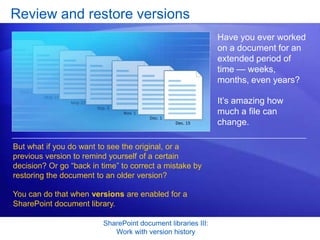
                                                              Have you ever worked
                                                              on a document for an
                                                              extended period of
                                                              time — weeks,
                                                              months, even years?

                                                              It’s amazing how
                                                              much a file can
                                                              change.

But what if you do want to see the original, or a
previous version to remind yourself of a certain
decision? Or go “back in time” to correct a mistake by
restoring the document to an older version?

You can do that when versions are enabled for a
SharePoint document library.

                         SharePoint document libraries III:
                            Work with version history
How to find out if versions are stored
                                                              How do you tell if your
                                                              library tracks
                                                              versions?


Place your mouse over a file, click the down arrow that
appears, and then look for the Version History
command.


                         SharePoint document libraries III:
                            Work with version history
What the history looks like
                                                              When you click
                                                              Version History for a
                                                              file, you see a list of
                                                              versions, each with a
                                                              version number and
                                                              the date and time of
                                                              the version.


You can also see who changed the file for each version.
The current version is listed at the very top.


                         SharePoint document libraries III:
                            Work with version history
How to look at older versions
                                                                      How do you actually
                                                                      open an older version
                                                                      of a file so that you
    [Author: .swf gets inserted here; delete this                     can refer to it?
       placeholder before inserting .swf file.]


Animation: Right-click, and click Play.


You click the version date and time. Keep in mind that
previous versions open as read-only files — they cannot
be edited.


                                 SharePoint document libraries III:
                                    Work with version history
How to look at older versions
                                                               How do you actually
                                                               open an older version
                                                               of a file so that you
                                                               can refer to it?


You click the version date and time. Keep in mind that
previous versions open as read-only files — they cannot
be edited.

To do that, start by clicking the Version History
command, as shown here.


                          SharePoint document libraries III:
                             Work with version history
When versions are created
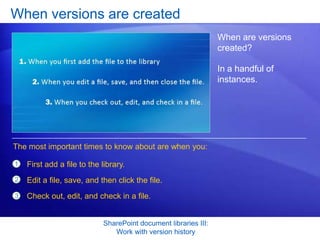
                                                                 When are versions
                                                                 created?

                                                                 In a handful of
                                                                 instances.


The most important times to know about are when you:

1   First add a file to the library.
2   Edit a file, save, and then click the file.
3   Check out, edit, and check in a file.


                            SharePoint document libraries III:
                               Work with version history
Capture your work as a version
                                                               If you want to use
                                                               comments to describe
                                                               the work you did for a
                                                               version, you’ll want to
                                                               check out the file, edit
                                                               it, save it, and then
                                                               check it in.


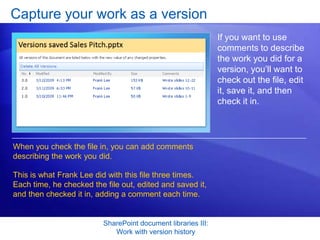
When you check the file in, you can add comments
describing the work you did.

This is what Frank Lee did with this file three times.
Each time, he checked the file out, edited and saved it,
and then checked it in, adding a comment each time.


                          SharePoint document libraries III:
                             Work with version history
Is there a limit on versions?
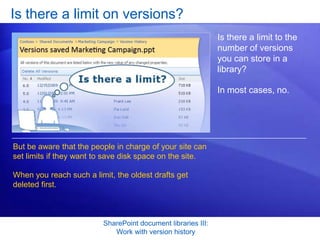
                                                              Is there a limit to the
                                                              number of versions
                                                              you can store in a
                                                              library?

                                                              In most cases, no.


But be aware that the people in charge of your site can
set limits if they want to save disk space on the site.

When you reach such a limit, the oldest drafts get
deleted first.


                         SharePoint document libraries III:
                            Work with version history
Is there a limit on versions?
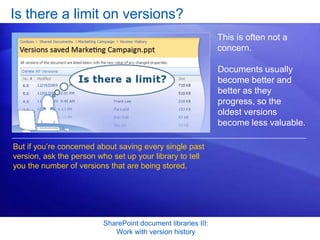
                                                              This is often not a
                                                              concern.

                                                              Documents usually
                                                              become better and
                                                              better as they
                                                              progress, so the
                                                              oldest versions
                                                              become less valuable.

But if you’re concerned about saving every single past
version, ask the person who set up your library to tell
you the number of versions that are being stored.


                         SharePoint document libraries III:
                            Work with version history
Major and minor versions
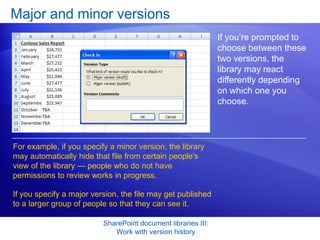
                                                               Some libraries are set
                                                               up to track two kinds
                                                               of versions: minor
                                                               versions and major
                                                               versions.
                                                               You’ll know this if you
                                                               check in a file and you
                                                               are asked to choose
                                                               between the two.
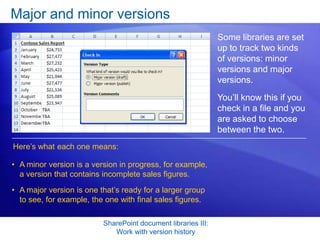
Here’s what each one means:

• A minor version is a version in progress, for example,
  a version that contains incomplete sales figures.
• A major version is one that’s ready for a larger group
  to see, for example, the one with final sales figures.

                          SharePoint document libraries III:
                             Work with version history
Major and minor versions
                                                               If you’re prompted to
                                                               choose between these
                                                               two versions, the
                                                               library may react
                                                               differently depending
                                                               on which one you
                                                               choose.


For example, if you specify a minor version, the library
may automatically hide that file from certain people's
view of the library — people who do not have
permissions to review works in progress.

If you specify a major version, the file may get published
to a larger group of people so that they can see it.

                          SharePoint document libraries III:
                             Work with version history
How to restore a file to a previous version
                                                                      What if you don’t like
                                                                      the current version of
                                                                      the file, and you want
    [Author: .swf gets inserted here; delete this                     to restore a previous
       placeholder before inserting .swf file.]                       version to be the
                                                                      current version?

                                                                      You can do that.


Animation: Right-click, and click Play.


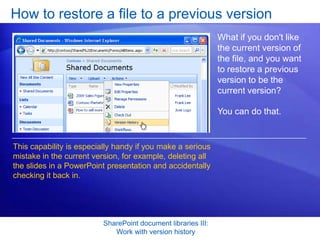
This capability is especially handy if you make a serious
mistake in the current version, for example, deleting all
the slides in a PowerPoint presentation and accidentally
checking it back in.


                                 SharePoint document libraries III:
                                    Work with version history
How to restore a file to a previous version
                                                               What if you don't like
                                                               the current version of
                                                               the file, and you want
                                                               to restore a previous
                                                               version to be the
                                                               current version?

                                                               You can do that.


This capability is especially handy if you make a serious
mistake in the current version, for example, deleting all
the slides in a PowerPoint presentation and accidentally
checking it back in.


                          SharePoint document libraries III:
                             Work with version history
How to restore a file to a previous version
                                                                What if you don't like
                                                                the current version of
                                                                the file, and you want
                                                                to restore a previous
                                                                version to be the
                                                                current version?

                                                                You can do that.


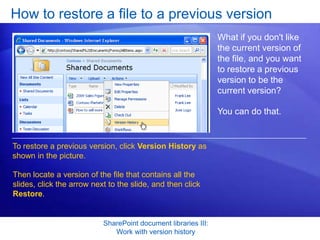
To restore a previous version, click Version History as
shown in the picture.

Then locate a version of the file that contains all the
slides, click the arrow next to the slide, and then click
Restore.


                           SharePoint document libraries III:
                              Work with version history
Test question 1
How can you find out if your library stores versions? (Pick
one answer.)


1. Place your mouse over the file, click the down arrow that
   appears, and then see if Minor and Major Versions is
   available.

2. Place your mouse over the file, click the down arrow that
   appears, and then see if Version History is available.

3. Place your mouse over the file, click the down arrow that
   appears, and then see if The History of Versions is available.

4. Place your mouse over the file, click the down arrow that
   appears, and then see if Manage Versions is available.


                       SharePoint document libraries III:
                          Work with version history
Test question 1: Answer
Place your mouse over the file, click the down arrow that appears, and
then see if Version History is available.


                      SharePoint document libraries III:
                         Work with version history
Test question 2
To view a past version of a file, you place your mouse over
the file, click the down arrow that appears, and then do which
of the following? (Pick one answer.)

1. Click Edit in Microsoft Word. When the file opens, scroll
   through the document to see each version date. Click a date,
   and the program will scroll to a separate page containing that
   version.

2. Click Version History. On the next page, click the top version
   date. You'll be asked which version to open. Click a date.

3. Click Version History. On the next page, click a version date
   in the past.

4. Click Historical Entities. On the next page, click Manage
   Copies, and then click a past date.

                       SharePoint document libraries III:
                          Work with version history
Test question 2: Answer
Click Version History. On the next page, click a version date in the
past.


                       SharePoint document libraries III:
                          Work with version history
Test question 3
Which of the following will NOT cause a version to be
created? (Pick one answer.)


1. Selecting Discard Check Out.

2. Clicking a file, selecting Edit and Check Out, saving the file,
   and then closing it.

3. Clicking a file, choosing Edit, saving the file, and then closing
   it.

4. Saving a file to a library.


                         SharePoint document libraries III:
                            Work with version history
Test question 3: Answer
Selecting Discard Check Out.


Doing so will get rid of the version you’re working on.


                        SharePoint document libraries III:
                           Work with version history
Quick Reference Card
For a summary of the tasks covered in this course, view the
Quick Reference Card.


                  SharePoint document libraries III:
                     Work with version history

Microsoft® Office

  • 1.
    [Your company name]presents: ® Microsoft Office ® SharePoint Server 2007 Training SharePoint document libraries III: Work with version history
  • 2.
    Course contents • Overview:The advantages of version history • Lesson: Review and restore versions The lesson concludes with a short set of questions to test your understanding of the material. SharePoint document libraries III: Work with version history
  • 3.
    Overview: The advantagesof version history Does your company use a Microsoft Windows® SharePoint Services 3.0 site or Microsoft Office SharePoint Server 2007? It’s possible that your libraries are set up to store previous versions, in which case, great advantages are available to you. Take this course to find out why. SharePoint document libraries III: Work with version history
  • 4.
    Course goals • Discoverwhether your library stores previous versions for you. • View the version history of a file. • Restore a previous version of a file. • Learn the difference between major and minor versions, and why you’d specify either one. SharePoint document libraries III: Work with version history
  • 5.
  • 6.
    Review and restoreversions Have you ever worked on a document for an extended period of time — weeks, months, even years? It’s amazing how much a file can change. But what if you do want to see the original, or a previous version to remind yourself of a certain decision? Or go “back in time” to correct a mistake by restoring the document to an older version? You can do that when versions are enabled for a SharePoint document library. SharePoint document libraries III: Work with version history
  • 7.
    How to findout if versions are stored How do you tell if your library tracks versions? Place your mouse over a file, click the down arrow that appears, and then look for the Version History command. SharePoint document libraries III: Work with version history
  • 8.
    What the historylooks like When you click Version History for a file, you see a list of versions, each with a version number and the date and time of the version. You can also see who changed the file for each version. The current version is listed at the very top. SharePoint document libraries III: Work with version history
  • 9.
    How to lookat older versions How do you actually open an older version of a file so that you [Author: .swf gets inserted here; delete this can refer to it? placeholder before inserting .swf file.] Animation: Right-click, and click Play. You click the version date and time. Keep in mind that previous versions open as read-only files — they cannot be edited. SharePoint document libraries III: Work with version history
  • 10.
    How to lookat older versions How do you actually open an older version of a file so that you can refer to it? You click the version date and time. Keep in mind that previous versions open as read-only files — they cannot be edited. To do that, start by clicking the Version History command, as shown here. SharePoint document libraries III: Work with version history
  • 11.
    When versions arecreated When are versions created? In a handful of instances. The most important times to know about are when you: 1 First add a file to the library. 2 Edit a file, save, and then click the file. 3 Check out, edit, and check in a file. SharePoint document libraries III: Work with version history
  • 12.
    Capture your workas a version If you want to use comments to describe the work you did for a version, you’ll want to check out the file, edit it, save it, and then check it in. When you check the file in, you can add comments describing the work you did. This is what Frank Lee did with this file three times. Each time, he checked the file out, edited and saved it, and then checked it in, adding a comment each time. SharePoint document libraries III: Work with version history
  • 13.
    Is there alimit on versions? Is there a limit to the number of versions you can store in a library? In most cases, no. But be aware that the people in charge of your site can set limits if they want to save disk space on the site. When you reach such a limit, the oldest drafts get deleted first. SharePoint document libraries III: Work with version history
  • 14.
    Is there alimit on versions? This is often not a concern. Documents usually become better and better as they progress, so the oldest versions become less valuable. But if you’re concerned about saving every single past version, ask the person who set up your library to tell you the number of versions that are being stored. SharePoint document libraries III: Work with version history
  • 15.
    Major and minorversions Some libraries are set up to track two kinds of versions: minor versions and major versions. You’ll know this if you check in a file and you are asked to choose between the two. Here’s what each one means: • A minor version is a version in progress, for example, a version that contains incomplete sales figures. • A major version is one that’s ready for a larger group to see, for example, the one with final sales figures. SharePoint document libraries III: Work with version history
  • 16.
    Major and minorversions If you’re prompted to choose between these two versions, the library may react differently depending on which one you choose. For example, if you specify a minor version, the library may automatically hide that file from certain people's view of the library — people who do not have permissions to review works in progress. If you specify a major version, the file may get published to a larger group of people so that they can see it. SharePoint document libraries III: Work with version history
  • 17.
    How to restorea file to a previous version What if you don’t like the current version of the file, and you want [Author: .swf gets inserted here; delete this to restore a previous placeholder before inserting .swf file.] version to be the current version? You can do that. Animation: Right-click, and click Play. This capability is especially handy if you make a serious mistake in the current version, for example, deleting all the slides in a PowerPoint presentation and accidentally checking it back in. SharePoint document libraries III: Work with version history
  • 18.
    How to restorea file to a previous version What if you don't like the current version of the file, and you want to restore a previous version to be the current version? You can do that. This capability is especially handy if you make a serious mistake in the current version, for example, deleting all the slides in a PowerPoint presentation and accidentally checking it back in. SharePoint document libraries III: Work with version history
  • 19.
    How to restorea file to a previous version What if you don't like the current version of the file, and you want to restore a previous version to be the current version? You can do that. To restore a previous version, click Version History as shown in the picture. Then locate a version of the file that contains all the slides, click the arrow next to the slide, and then click Restore. SharePoint document libraries III: Work with version history
  • 20.
    Test question 1 Howcan you find out if your library stores versions? (Pick one answer.) 1. Place your mouse over the file, click the down arrow that appears, and then see if Minor and Major Versions is available. 2. Place your mouse over the file, click the down arrow that appears, and then see if Version History is available. 3. Place your mouse over the file, click the down arrow that appears, and then see if The History of Versions is available. 4. Place your mouse over the file, click the down arrow that appears, and then see if Manage Versions is available. SharePoint document libraries III: Work with version history
  • 21.
    Test question 1:Answer Place your mouse over the file, click the down arrow that appears, and then see if Version History is available. SharePoint document libraries III: Work with version history
  • 22.
    Test question 2 Toview a past version of a file, you place your mouse over the file, click the down arrow that appears, and then do which of the following? (Pick one answer.) 1. Click Edit in Microsoft Word. When the file opens, scroll through the document to see each version date. Click a date, and the program will scroll to a separate page containing that version. 2. Click Version History. On the next page, click the top version date. You'll be asked which version to open. Click a date. 3. Click Version History. On the next page, click a version date in the past. 4. Click Historical Entities. On the next page, click Manage Copies, and then click a past date. SharePoint document libraries III: Work with version history
  • 23.
    Test question 2:Answer Click Version History. On the next page, click a version date in the past. SharePoint document libraries III: Work with version history
  • 24.
    Test question 3 Whichof the following will NOT cause a version to be created? (Pick one answer.) 1. Selecting Discard Check Out. 2. Clicking a file, selecting Edit and Check Out, saving the file, and then closing it. 3. Clicking a file, choosing Edit, saving the file, and then closing it. 4. Saving a file to a library. SharePoint document libraries III: Work with version history
  • 25.
    Test question 3:Answer Selecting Discard Check Out. Doing so will get rid of the version you’re working on. SharePoint document libraries III: Work with version history
  • 26.
    Quick Reference Card Fora summary of the tasks covered in this course, view the Quick Reference Card. SharePoint document libraries III: Work with version history