Created by:
Ms. Aeshwarya Chauhan
MS Excel Basic Concepts
Basic operations performed in MS Excel
Basic operations performed in MS Excel Worksheet is the actual
working area consisting of rows and columns. The worksheets are also
known as the spreadsheets. A workbook in MS Excel is a combination
of several worksheets. Each workbook of MS Excel contains three
worksheets by default.
The key operations that are performed in MS Excel include:
1. Creating a worksheet
2. Saving a worksheet
3. Modifying a worksheet
4. Renaming a worksheet
5. Deleting a worksheet
6. Moving a worksheet
7. Editing a worksheet
Creating a Worksheet
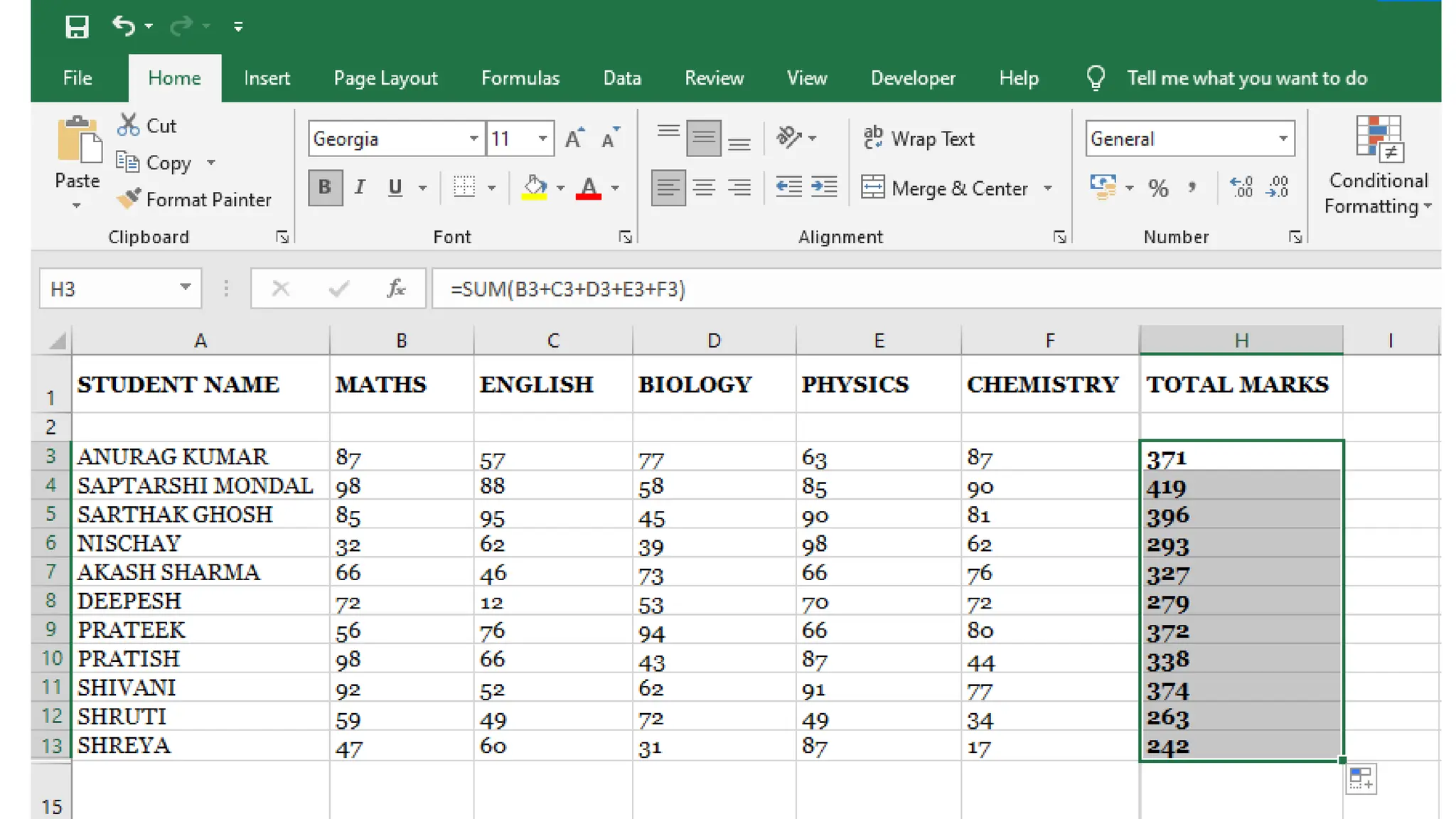
• We can create a worksheet in MS Excel by simply inserting the
data in the following steps.
• To create a worksheet, perform the following steps:
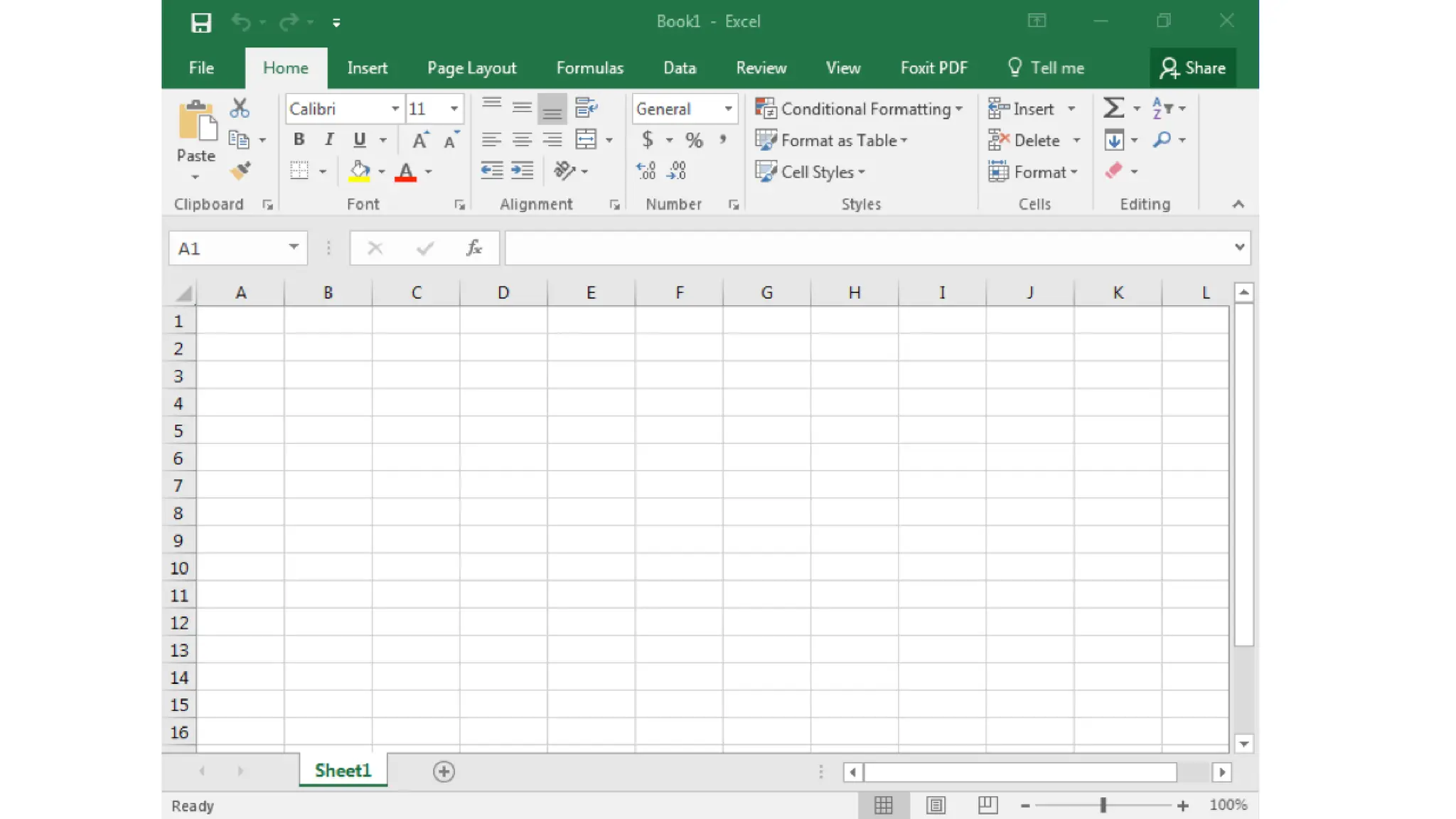
1. Open the Microsoft Excel-Book 1 window.
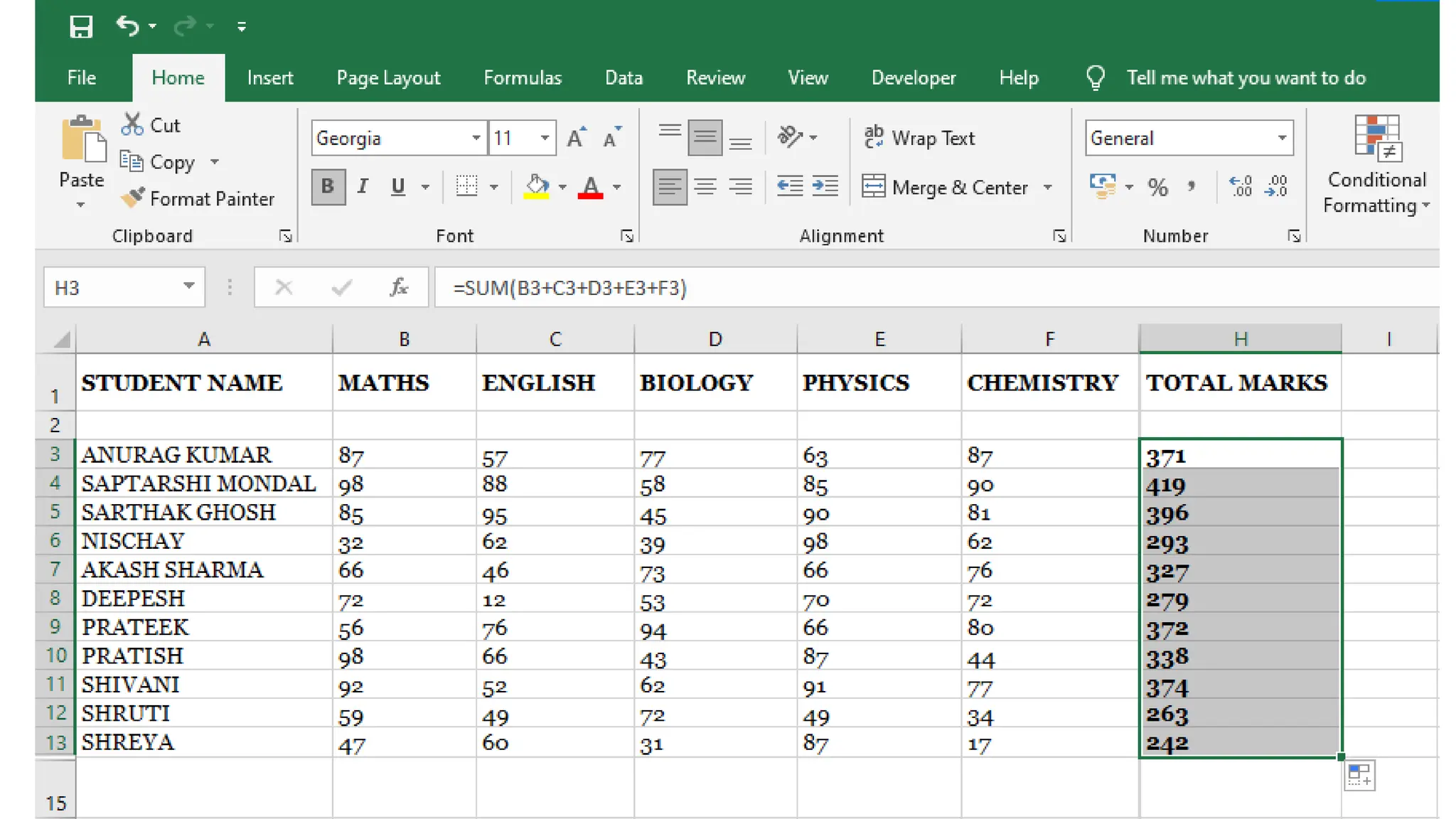
2. Insert the data into the cells according to the requirement.
Creating a Worksheet
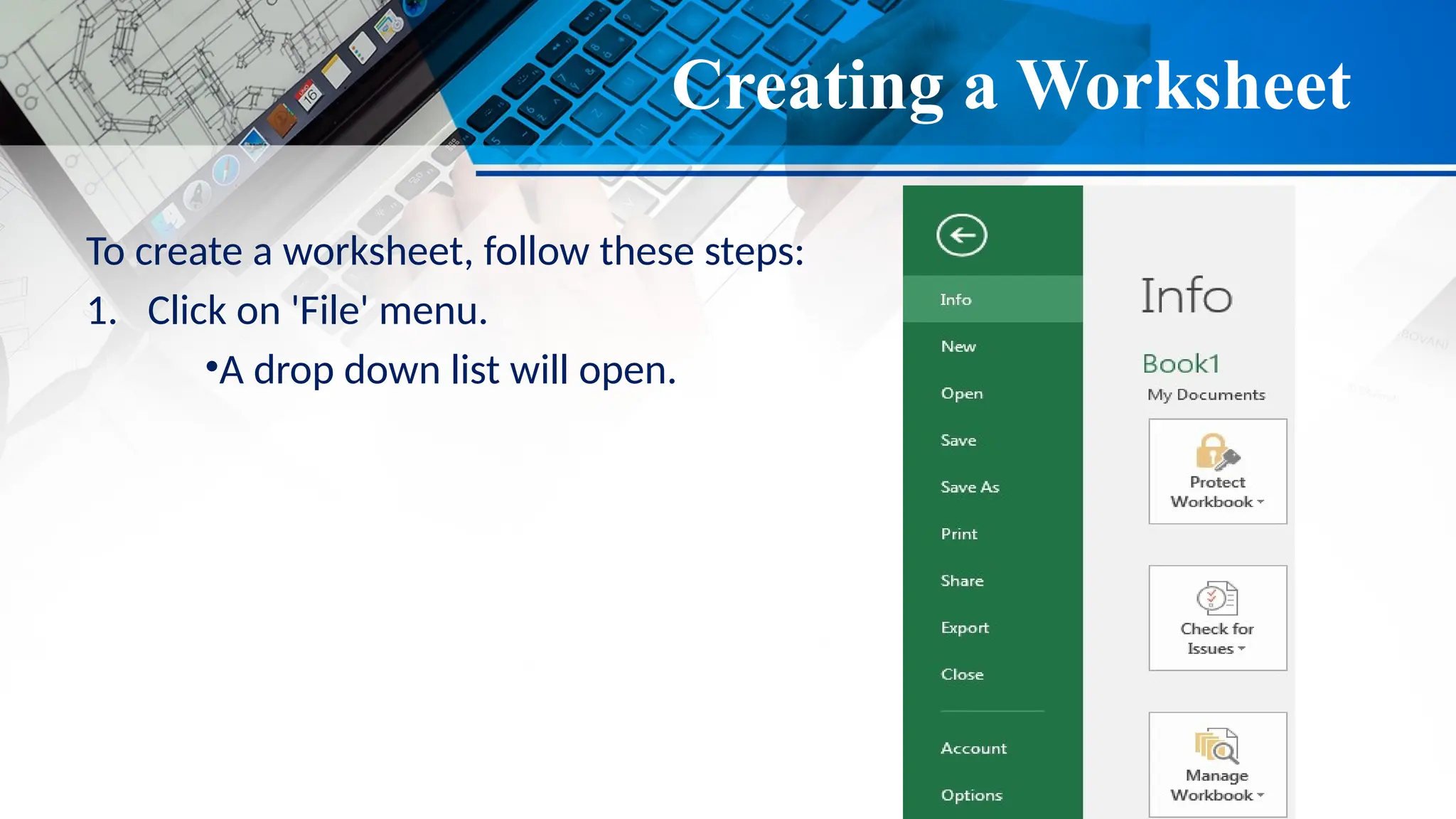
To create a worksheet, follow these steps:
1. Click on 'File' menu.
•A drop down list will open.
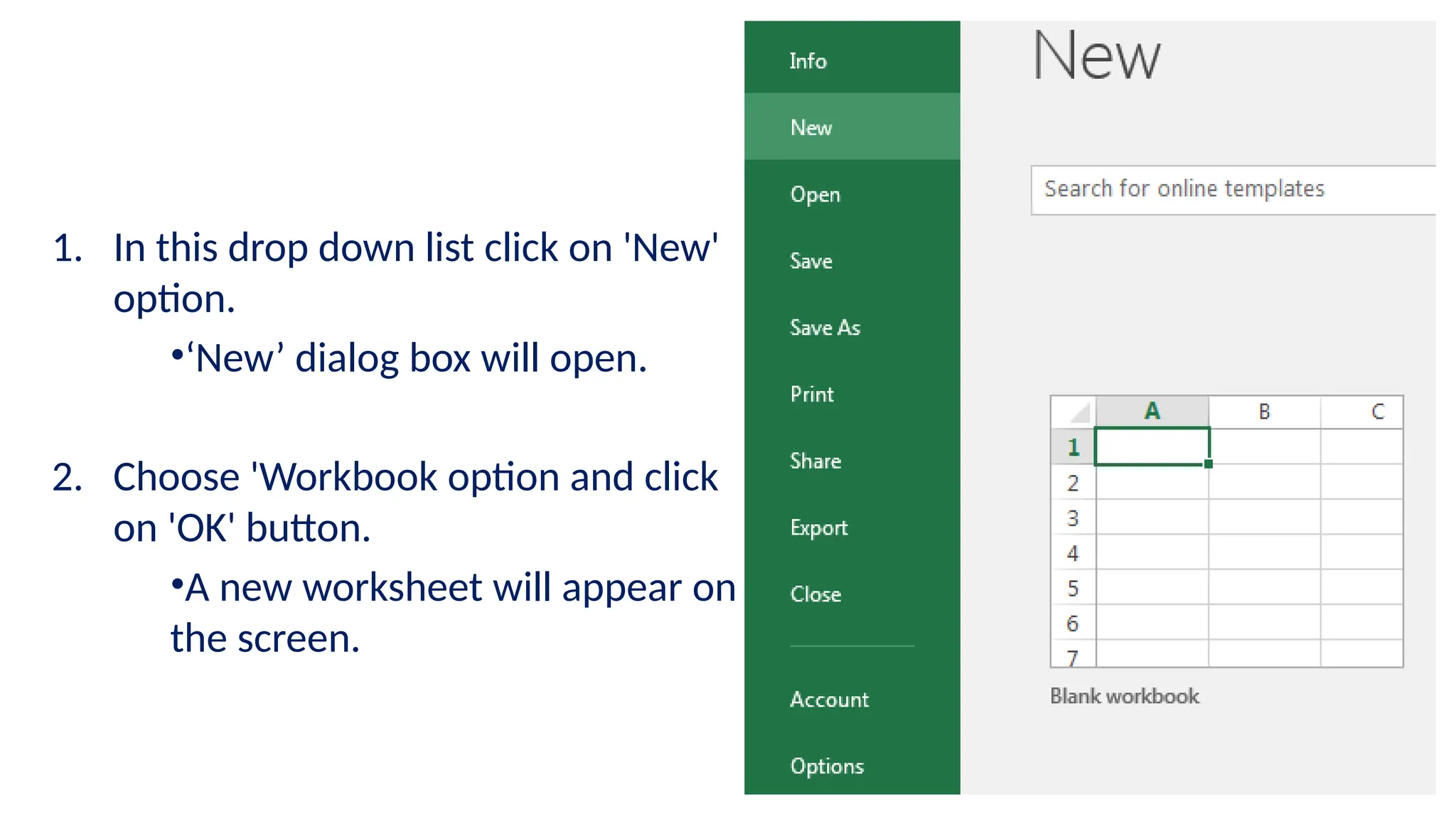
1. In this drop down list click on 'New'
option.
•‘New’ dialog box will open.
2. Choose 'Workbook option and click
on 'OK' button.
•A new worksheet will appear on
the screen.
Saving the Worksheet
• After entering the data in the worksheet, we need to save the
worksheet at the desired location in the computer system.
• To save a worksheet, perform the following steps:
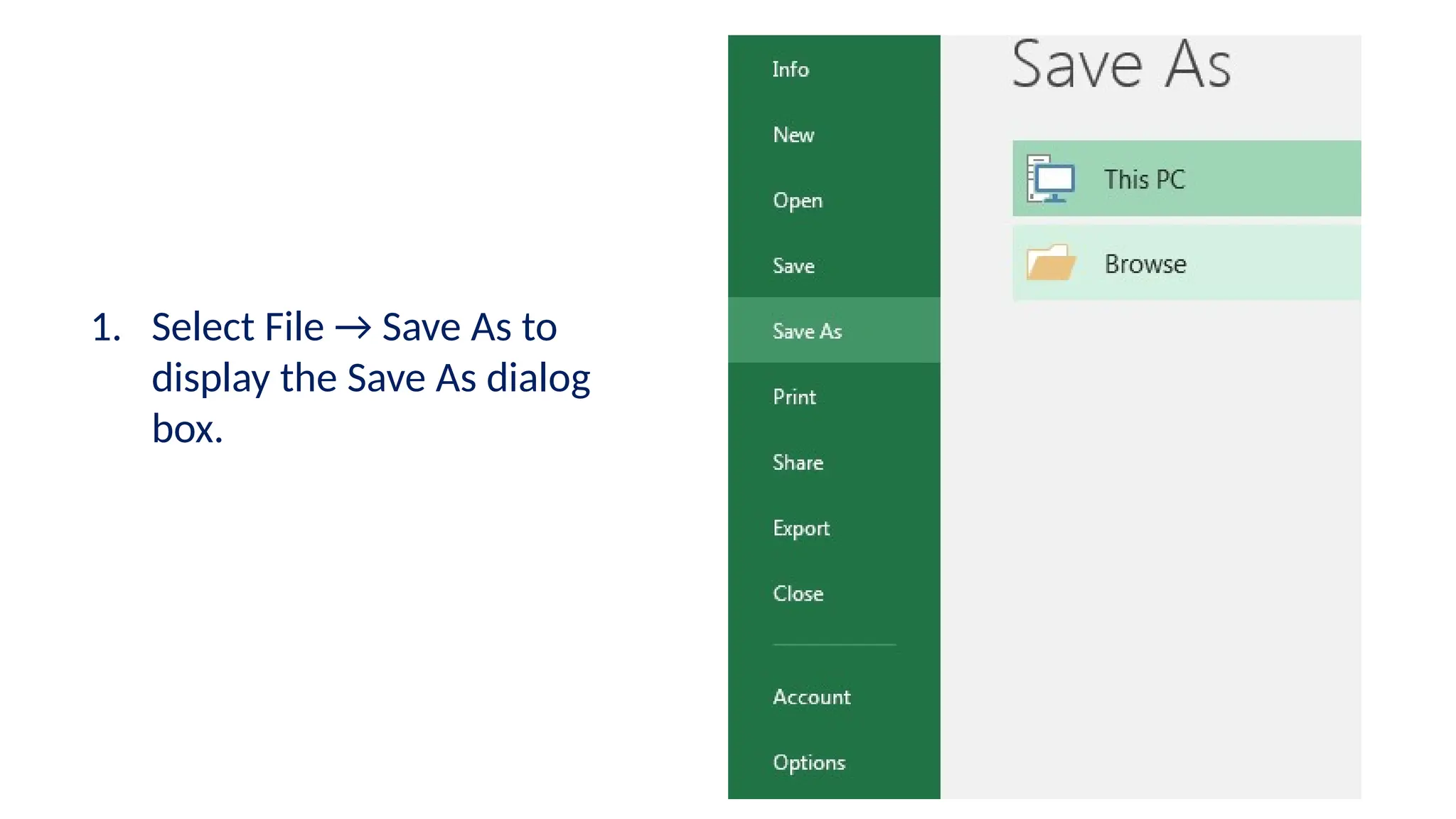
1. Select File → Save As to display the Save As dialog box.
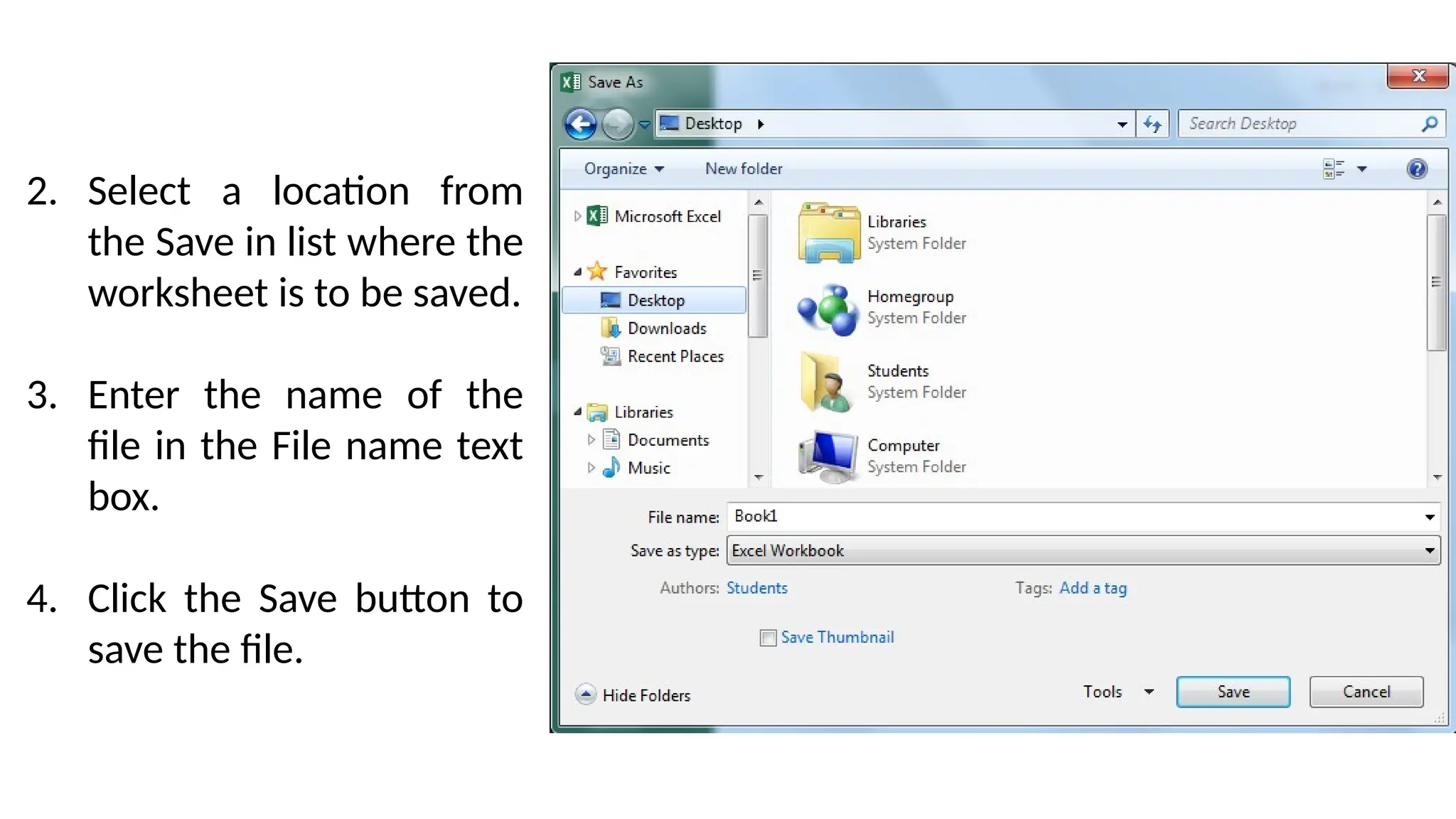
2. Select a location from the Save in list where the worksheet is to
be saved.
3. Enter the name of the file in the File name text box.
4. Click the Save button to save the file.
1. Select File → Save As to
display the Save As dialog
box.
2. Select a location from
the Save in list where the
worksheet is to be saved.
3. Enter the name of the
file in the File name text
box.
4. Click the Save button to
save the file.
Modifying the Worksheet
• A worksheet in MS Excel can be modified in the following two ways:
1. By inserting rows and columns in the existing worksheet.
2. By changing the width or height of rows and columns
Inserting rows and columns
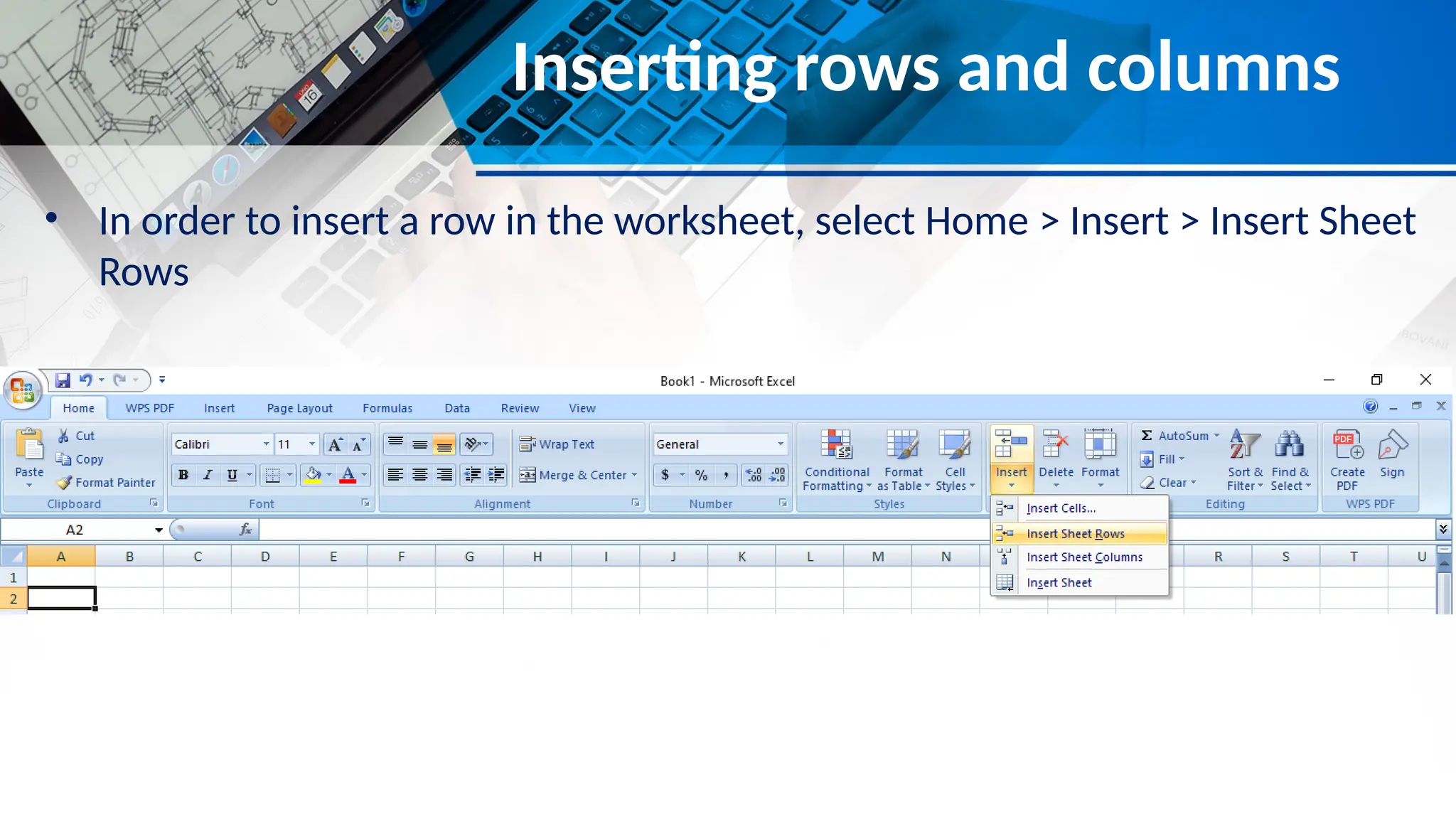
• In order to insert a row in the worksheet, select Home > Insert > Insert Sheet
Rows
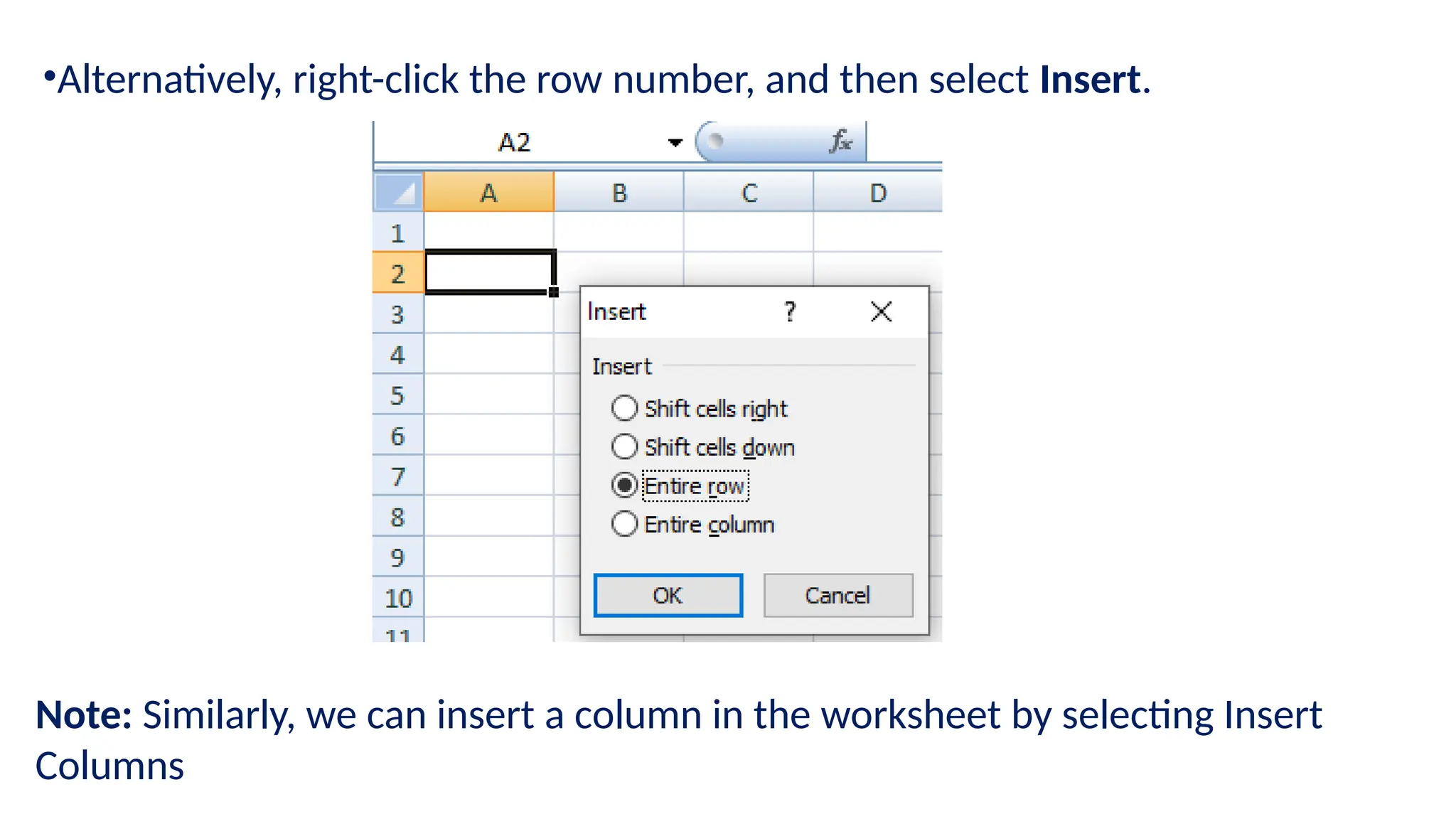
•Alternatively, right-click the row number, and then select Insert.
Note: Similarly, we can insert a column in the worksheet by selecting Insert
Columns
Changing the width or height of rows and
columns
In order to change the height of the rows in the worksheet, perform the
following steps:
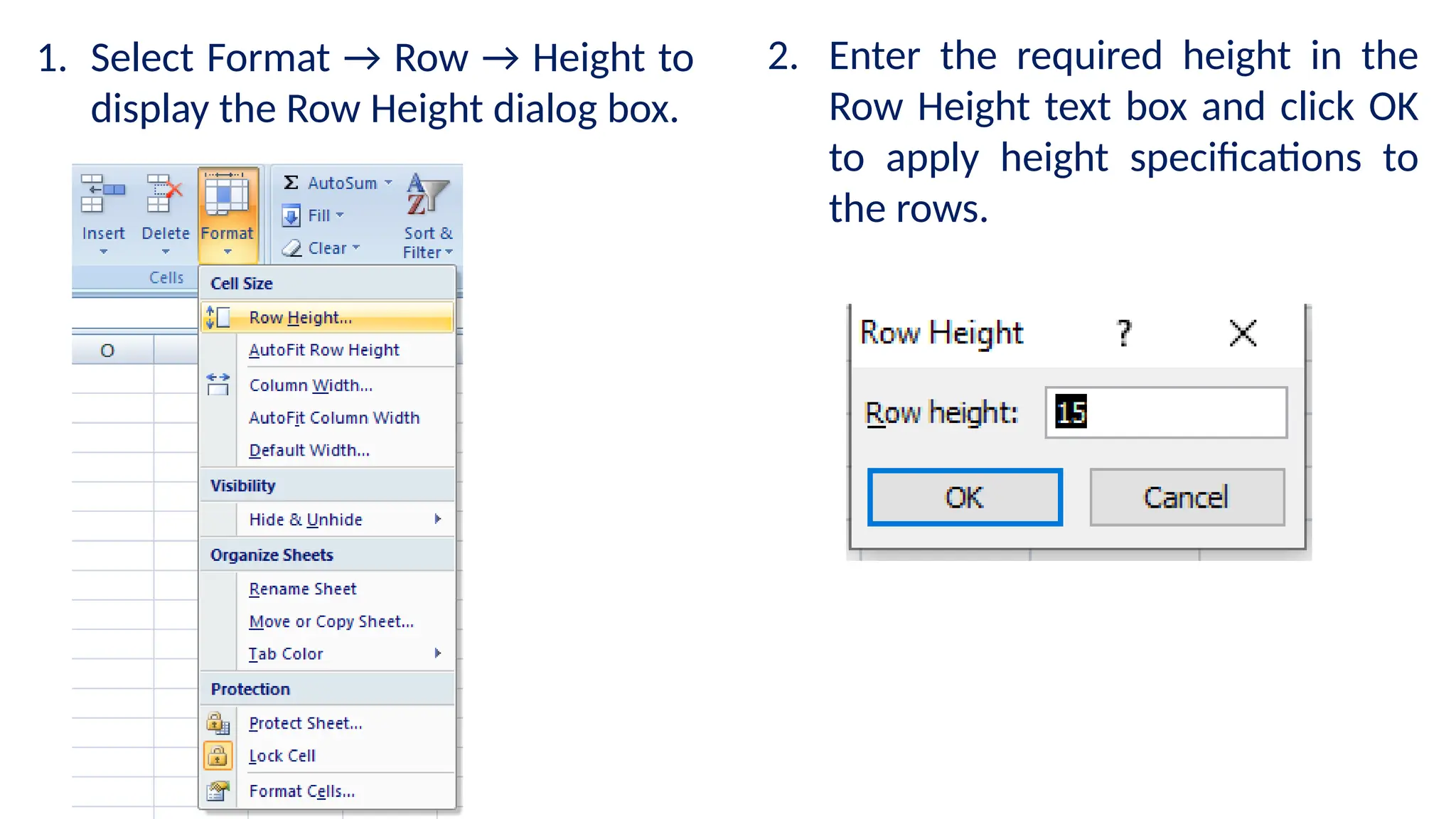
1. Select Format → Row → Height to display the Row Height dialog box.
2. Enter the required height in the Row Height text box and click OK to
apply height specifications to the rows.
1. Select Format → Row → Height to
display the Row Height dialog box.
2. Enter the required height in the
Row Height text box and click OK
to apply height specifications to
the rows.
Renaming a Worksheet
• Usually the default names of Sheet in MS Excel are
Sheet1, Sheet2, Sheet3 etc.,
• In order to rename the worksheet, we need to perform
the following steps:
1. Open the Microsoft Excel - Book1 window.
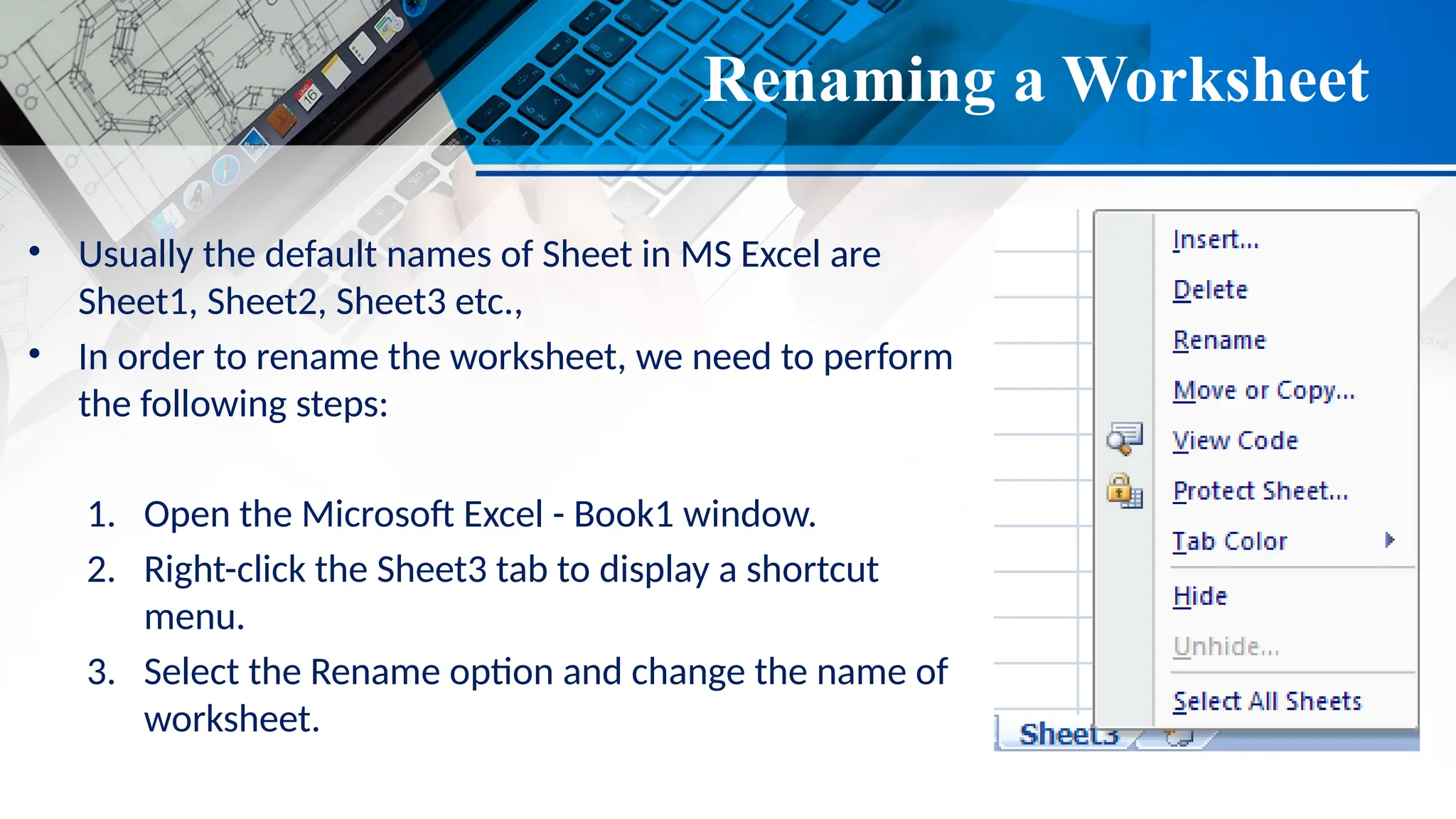
2. Right-click the Sheet3 tab to display a shortcut
menu.
3. Select the Rename option and change the name of
worksheet.
Deleting a Worksheet
In order to delete a worksheet from the workbook,
we need to performs the following steps:
1. Open the Microsoft Excel- Book1 window.
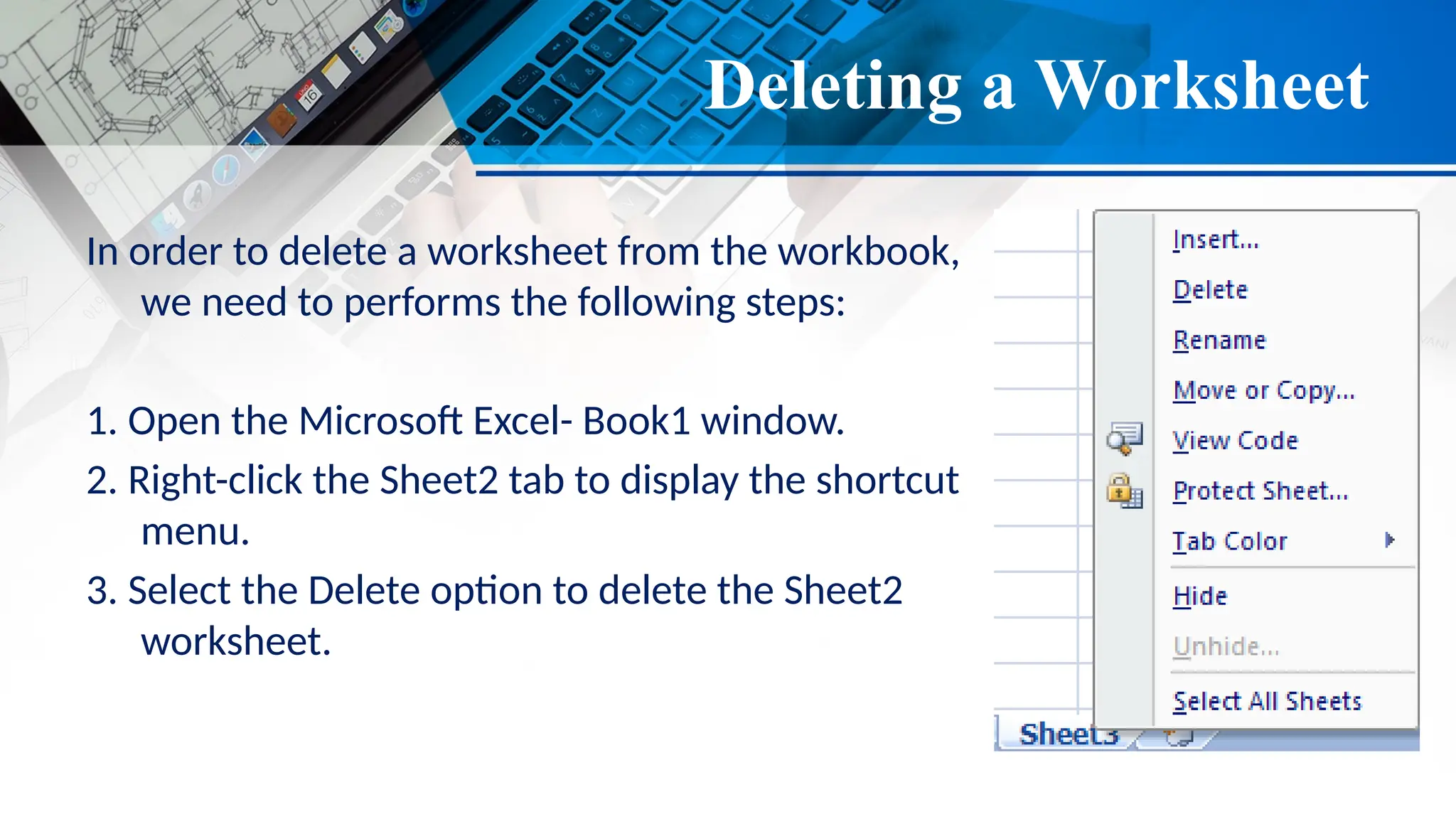
2. Right-click the Sheet2 tab to display the shortcut
menu.
3. Select the Delete option to delete the Sheet2
worksheet.
Moving a Worksheet
In order to move a worksheet from one location to another, we need to perform
the following steps:
1. Open the Microsoft Excel - Book1 window.
2. Right-click the Worksheet tab to display a
shortcut menu.
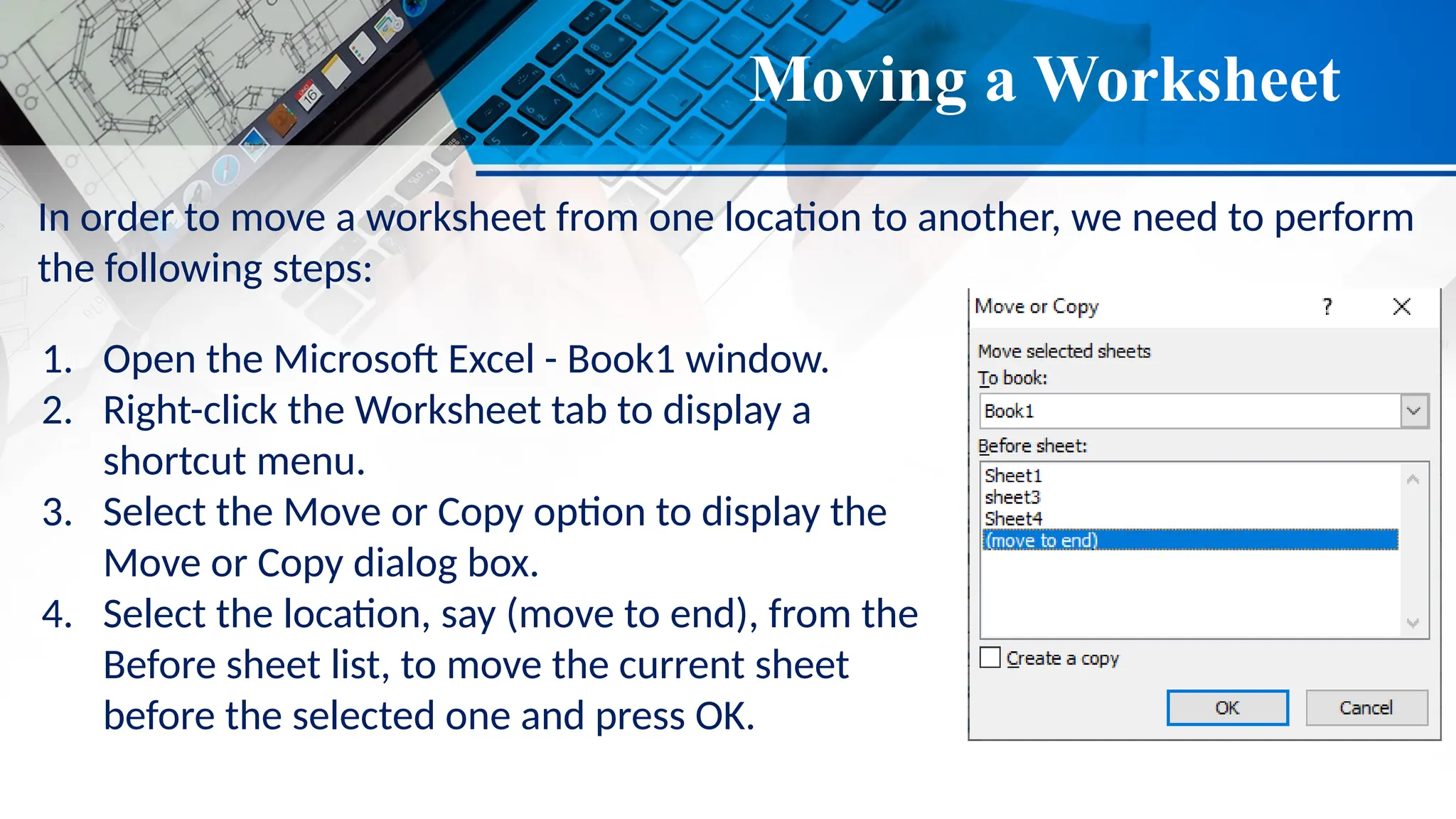
3. Select the Move or Copy option to display the
Move or Copy dialog box.
4. Select the location, say (move to end), from the
Before sheet list, to move the current sheet
before the selected one and press OK.
Editing the Worksheet
In order to edit a worksheet in the workbook, we need to perform the
following
1. Open the Microsoft Excel – Book1 window.
2. Double-click the cell in which we want to make the changes.
3. Enter the new data in the cell.

Mastering the Essentials: An Overview of MS Excel Fundamental Concepts

  • 1.
    Created by: Ms. AeshwaryaChauhan MS Excel Basic Concepts
  • 2.
    Basic operations performedin MS Excel Basic operations performed in MS Excel Worksheet is the actual working area consisting of rows and columns. The worksheets are also known as the spreadsheets. A workbook in MS Excel is a combination of several worksheets. Each workbook of MS Excel contains three worksheets by default.
  • 3.
    The key operationsthat are performed in MS Excel include: 1. Creating a worksheet 2. Saving a worksheet 3. Modifying a worksheet 4. Renaming a worksheet 5. Deleting a worksheet 6. Moving a worksheet 7. Editing a worksheet
  • 4.
    Creating a Worksheet •We can create a worksheet in MS Excel by simply inserting the data in the following steps. • To create a worksheet, perform the following steps: 1. Open the Microsoft Excel-Book 1 window. 2. Insert the data into the cells according to the requirement.
  • 6.
    Creating a Worksheet Tocreate a worksheet, follow these steps: 1. Click on 'File' menu. •A drop down list will open.
  • 7.
    1. In thisdrop down list click on 'New' option. •‘New’ dialog box will open. 2. Choose 'Workbook option and click on 'OK' button. •A new worksheet will appear on the screen.
  • 10.
    Saving the Worksheet •After entering the data in the worksheet, we need to save the worksheet at the desired location in the computer system.
  • 11.
    • To savea worksheet, perform the following steps: 1. Select File → Save As to display the Save As dialog box. 2. Select a location from the Save in list where the worksheet is to be saved. 3. Enter the name of the file in the File name text box. 4. Click the Save button to save the file.
  • 12.
    1. Select File→ Save As to display the Save As dialog box.
  • 13.
    2. Select alocation from the Save in list where the worksheet is to be saved. 3. Enter the name of the file in the File name text box. 4. Click the Save button to save the file.
  • 14.
    Modifying the Worksheet •A worksheet in MS Excel can be modified in the following two ways: 1. By inserting rows and columns in the existing worksheet. 2. By changing the width or height of rows and columns
  • 15.
    Inserting rows andcolumns • In order to insert a row in the worksheet, select Home > Insert > Insert Sheet Rows
  • 16.
    •Alternatively, right-click therow number, and then select Insert. Note: Similarly, we can insert a column in the worksheet by selecting Insert Columns
  • 17.
    Changing the widthor height of rows and columns In order to change the height of the rows in the worksheet, perform the following steps: 1. Select Format → Row → Height to display the Row Height dialog box. 2. Enter the required height in the Row Height text box and click OK to apply height specifications to the rows.
  • 18.
    1. Select Format→ Row → Height to display the Row Height dialog box. 2. Enter the required height in the Row Height text box and click OK to apply height specifications to the rows.
  • 19.
    Renaming a Worksheet •Usually the default names of Sheet in MS Excel are Sheet1, Sheet2, Sheet3 etc., • In order to rename the worksheet, we need to perform the following steps: 1. Open the Microsoft Excel - Book1 window. 2. Right-click the Sheet3 tab to display a shortcut menu. 3. Select the Rename option and change the name of worksheet.
  • 20.
    Deleting a Worksheet Inorder to delete a worksheet from the workbook, we need to performs the following steps: 1. Open the Microsoft Excel- Book1 window. 2. Right-click the Sheet2 tab to display the shortcut menu. 3. Select the Delete option to delete the Sheet2 worksheet.
  • 21.
    Moving a Worksheet Inorder to move a worksheet from one location to another, we need to perform the following steps: 1. Open the Microsoft Excel - Book1 window. 2. Right-click the Worksheet tab to display a shortcut menu. 3. Select the Move or Copy option to display the Move or Copy dialog box. 4. Select the location, say (move to end), from the Before sheet list, to move the current sheet before the selected one and press OK.
  • 22.
    Editing the Worksheet Inorder to edit a worksheet in the workbook, we need to perform the following 1. Open the Microsoft Excel – Book1 window. 2. Double-click the cell in which we want to make the changes. 3. Enter the new data in the cell.