SEC_SCS318 
1 Channel Z-Wave 7 Day Time 
Control and RF Room 
Thermostat 
Firmware Version : 0.0 
Quick Start 
A This devices are wireless Actors. SCS317: To confirm inclusion and exclusion do the following steps: 
2 x Enter to start menu; use right arrow key and open menu "Setup"; use right arrow key and open menu 
"Set up Z-Wave"; use right arrow key and select "Include node" or "Exclude node". 
SSR303: To confirm inclusion and exclusion push and hold the network button until the 'ON' LED starts 
flashing. 
Please refer to the chapters below for detailed information about all aspects of the products usage. 
Product description 
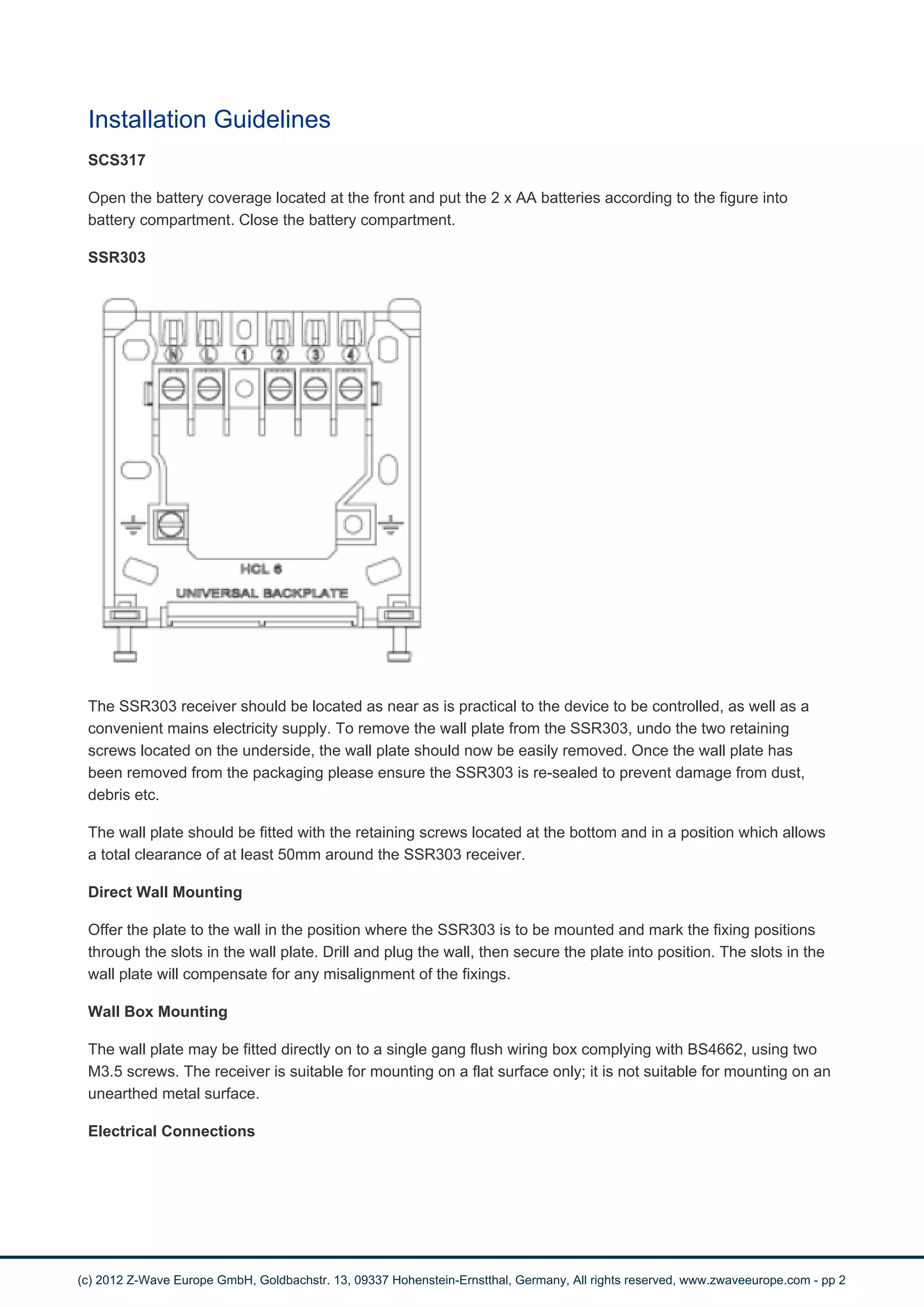
The SEC_SCS318 is a set which combines a programmable 7 day room thermostat with a wirelessly 
controlled relay switch used for controlling a central heating. Because of its TPI energy saving software the 
user can start to save up to 10% energy consumption. 
SCS317 
The SCS317 is a battery operated room thermostat capable controlling a central heating wirelessly via Z-Wave. 
It has a built in clock and calendar. This allows the user to adjust different time and temperature 
settings from the factory default settings. Up to six different time and temperature settings are available in 
each 24 hour period. This programmable room thermostat has a large display and intuitive user interface, 
making it easy to set up and use. 
SSR303 
The SSR303 is a wirelessly controlled Relay switch to operate loads up to 3 A / 230 V. It is used to control 
warm water boilers or magnet valves. The device can be operated locally using two buttons. A LED 
indicated the current switching status. The fashionable design of the device allows mounting it on visible 
positions in the home. 
(c) 2012 Z-Wave Europe GmbH, Goldbachstr. 13, 09337 Hohenstein-Ernstthal, Germany, All rights reserved, www.zwaveeurope.com - pp 1
Installation Guidelines 
SCS317 
Open the battery coverage located at the front and put the 2 x AA batteries according to the figure into 
battery compartment. Close the battery compartment. 
SSR303 
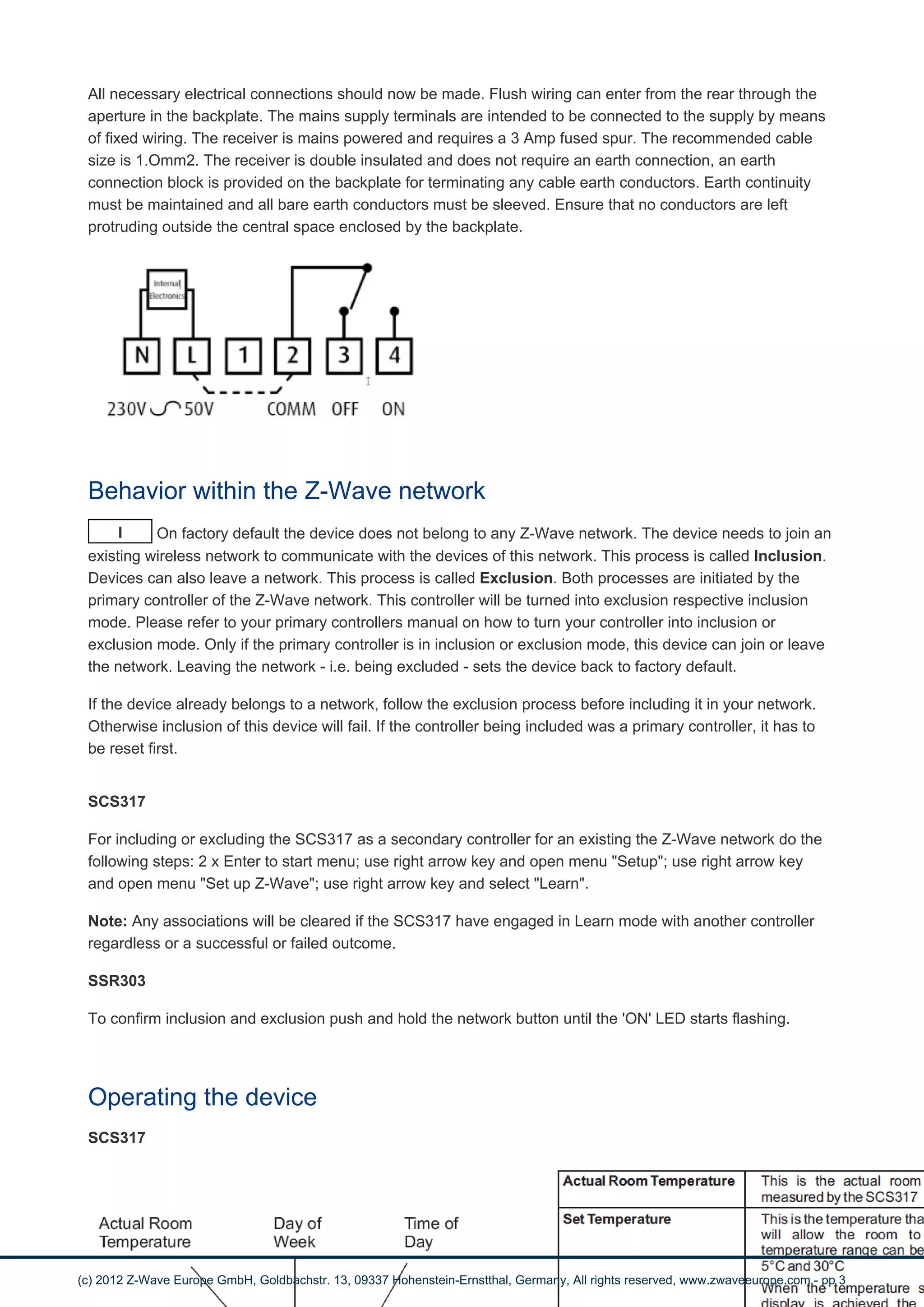
The SSR303 receiver should be located as near as is practical to the device to be controlled, as well as a 
convenient mains electricity supply. To remove the wall plate from the SSR303, undo the two retaining 
screws located on the underside, the wall plate should now be easily removed. Once the wall plate has 
been removed from the packaging please ensure the SSR303 is re-sealed to prevent damage from dust, 
debris etc. 
The wall plate should be fitted with the retaining screws located at the bottom and in a position which allows 
a total clearance of at least 50mm around the SSR303 receiver. 
Direct Wall Mounting 
Offer the plate to the wall in the position where the SSR303 is to be mounted and mark the fixing positions 
through the slots in the wall plate. Drill and plug the wall, then secure the plate into position. The slots in the 
wall plate will compensate for any misalignment of the fixings. 
Wall Box Mounting 
The wall plate may be fitted directly on to a single gang flush wiring box complying with BS4662, using two 
M3.5 screws. The receiver is suitable for mounting on a flat surface only; it is not suitable for mounting on an 
unearthed metal surface. 
Electrical Connections 
(c) 2012 Z-Wave Europe GmbH, Goldbachstr. 13, 09337 Hohenstein-Ernstthal, Germany, All rights reserved, www.zwaveeurope.com - pp 2
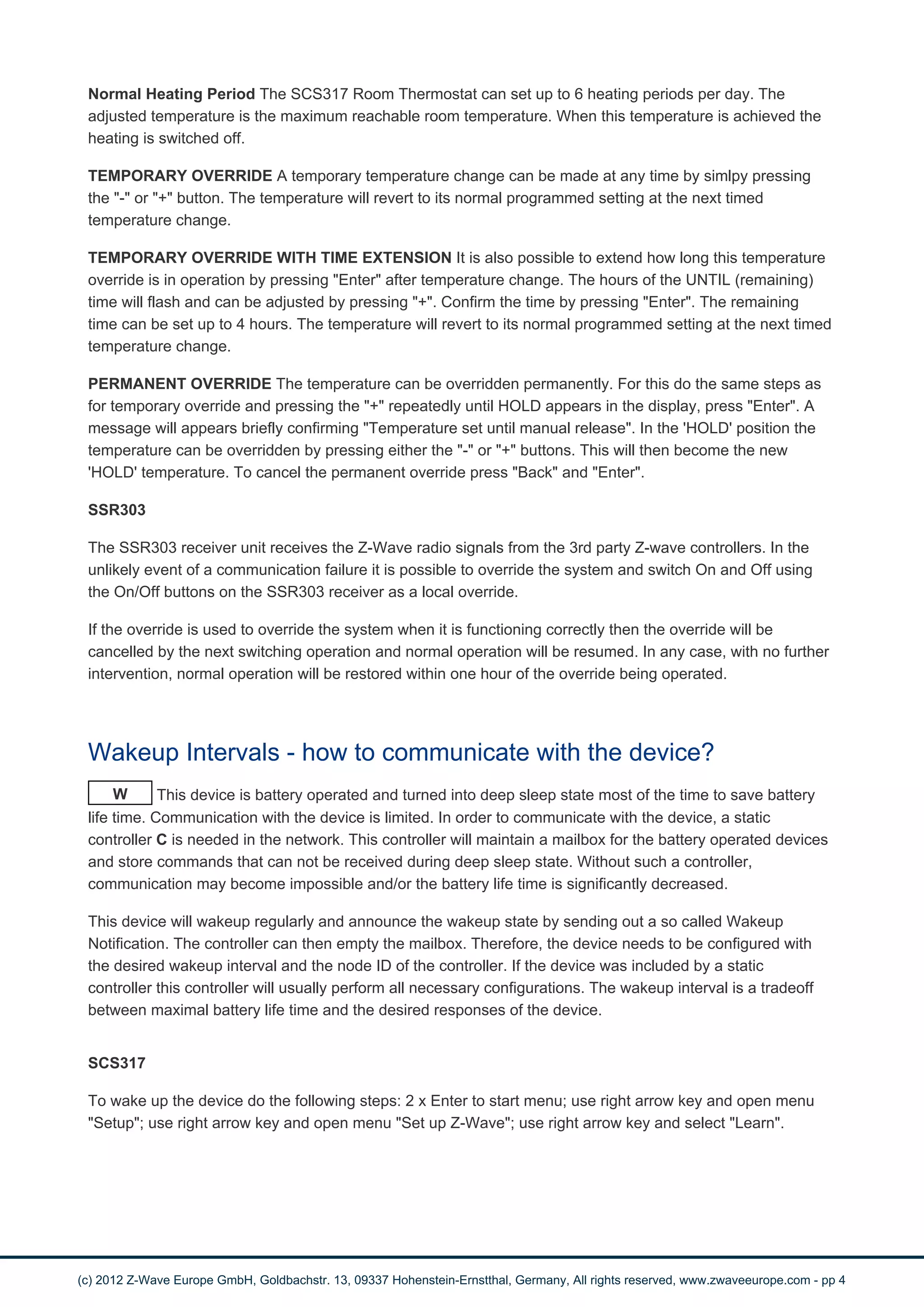
All necessary electrical connections should now be made. Flush wiring can enter from the rear through the 
aperture in the backplate. The mains supply terminals are intended to be connected to the supply by means 
of fixed wiring. The receiver is mains powered and requires a 3 Amp fused spur. The recommended cable 
size is 1.Omm2. The receiver is double insulated and does not require an earth connection, an earth 
connection block is provided on the backplate for terminating any cable earth conductors. Earth continuity 
must be maintained and all bare earth conductors must be sleeved. Ensure that no conductors are left 
protruding outside the central space enclosed by the backplate. 
Behavior within the Z-Wave network 
I On factory default the device does not belong to any Z-Wave network. The device needs to join an 
existing wireless network to communicate with the devices of this network. This process is called Inclusion. 
Devices can also leave a network. This process is called Exclusion. Both processes are initiated by the 
primary controller of the Z-Wave network. This controller will be turned into exclusion respective inclusion 
mode. Please refer to your primary controllers manual on how to turn your controller into inclusion or 
exclusion mode. Only if the primary controller is in inclusion or exclusion mode, this device can join or leave 
the network. Leaving the network - i.e. being excluded - sets the device back to factory default. 
If the device already belongs to a network, follow the exclusion process before including it in your network. 
Otherwise inclusion of this device will fail. If the controller being included was a primary controller, it has to 
be reset first. 
SCS317 
For including or excluding the SCS317 as a secondary controller for an existing the Z-Wave network do the 
following steps: 2 x Enter to start menu; use right arrow key and open menu "Setup"; use right arrow key 
and open menu "Set up Z-Wave"; use right arrow key and select "Learn". 
Note: Any associations will be cleared if the SCS317 have engaged in Learn mode with another controller 
regardless or a successful or failed outcome. 
SSR303 
To confirm inclusion and exclusion push and hold the network button until the 'ON' LED starts flashing. 
Operating the device 
SCS317 
(c) 2012 Z-Wave Europe GmbH, Goldbachstr. 13, 09337 Hohenstein-Ernstthal, Germany, All rights reserved, www.zwaveeurope.com - pp 3
Normal Heating Period The SCS317 Room Thermostat can set up to 6 heating periods per day. The 
adjusted temperature is the maximum reachable room temperature. When this temperature is achieved the 
heating is switched off. 
TEMPORARY OVERRIDE A temporary temperature change can be made at any time by simlpy pressing 
the "-" or "+" button. The temperature will revert to its normal programmed setting at the next timed 
temperature change. 
TEMPORARY OVERRIDE WITH TIME EXTENSION It is also possible to extend how long this temperature 
override is in operation by pressing "Enter" after temperature change. The hours of the UNTIL (remaining) 
time will flash and can be adjusted by pressing "+". Confirm the time by pressing "Enter". The remaining 
time can be set up to 4 hours. The temperature will revert to its normal programmed setting at the next timed 
temperature change. 
PERMANENT OVERRIDE The temperature can be overridden permanently. For this do the same steps as 
for temporary override and pressing the "+" repeatedly until HOLD appears in the display, press "Enter". A 
message will appears briefly confirming "Temperature set until manual release". In the 'HOLD' position the 
temperature can be overridden by pressing either the "-" or "+" buttons. This will then become the new 
'HOLD' temperature. To cancel the permanent override press "Back" and "Enter". 
SSR303 
The SSR303 receiver unit receives the Z-Wave radio signals from the 3rd party Z-wave controllers. In the 
unlikely event of a communication failure it is possible to override the system and switch On and Off using 
the On/Off buttons on the SSR303 receiver as a local override. 
If the override is used to override the system when it is functioning correctly then the override will be 
cancelled by the next switching operation and normal operation will be resumed. In any case, with no further 
intervention, normal operation will be restored within one hour of the override being operated. 
Wakeup Intervals - how to communicate with the device? 
W This device is battery operated and turned into deep sleep state most of the time to save battery 
life time. Communication with the device is limited. In order to communicate with the device, a static 
controller C is needed in the network. This controller will maintain a mailbox for the battery operated devices 
and store commands that can not be received during deep sleep state. Without such a controller, 
communication may become impossible and/or the battery life time is significantly decreased. 
This device will wakeup regularly and announce the wakeup state by sending out a so called Wakeup 
Notification. The controller can then empty the mailbox. Therefore, the device needs to be configured with 
the desired wakeup interval and the node ID of the controller. If the device was included by a static 
controller this controller will usually perform all necessary configurations. The wakeup interval is a tradeoff 
between maximal battery life time and the desired responses of the device. 
SCS317 
To wake up the device do the following steps: 2 x Enter to start menu; use right arrow key and open menu 
"Setup"; use right arrow key and open menu "Set up Z-Wave"; use right arrow key and select "Learn". 
(c) 2012 Z-Wave Europe GmbH, Goldbachstr. 13, 09337 Hohenstein-Ernstthal, Germany, All rights reserved, www.zwaveeurope.com - pp 4
It is possible to set the node ID to 255 to send wakeup notifications as broadcast. In this mode device takes more time to 
go to sleep and drains battery faster, but can notify all it's direct neighbors about a wakeup. 
Node Information Frame 
NI The Node Information Frame is the business card of a Z-Wave device. It contains information 
about the device type and the technical capabilities. The inclusion and exclusion of the device is confirmed 
by sending out a Node Information Frame. Beside this it may be needed for certain network operations to 
send out a Node Information Frame. 
To send out a Node Information Frame Press do the following steps: 2 x Enter to start menu; use right arrow 
key and open menu "Setup"; use right arrow key and open menu "Set up Z-Wave"; use right arrow key and 
select "Send NIF". 
Associations 
A Z-Wave devices control other Z-Wave devices. The relationship between one device controlling 
another device is called association. In order to control a different device, the controlling device needs to 
maintain a list of devices that will receive controlling commands. These lists are called association groups 
and they are always related to certain events (e.g. button pressed, sensor triggers, ...). In case the event 
happens all devices stored in the respective association group will receive a common wireless command. 
Association Groups: 
1 
This node receives unsolicited message from the following events: - Thermostat set point - 
Thermostat operating state - Schedule - Multilevel sensor - Battery - Binary switch (max. nodes in 
group: 1) 
2 
Central heating nodes. If thermostat mode Heat Mode is supported the control message will be sent 
as Thermostat Set HEAT and Thermostat mode Set Off, otherwise the device will be controlled by 
Basic set On and Off commands. (max. nodes in group: 4) 
Set and unset associations to actuators 
Associations can be assigned and remove either via Z-Wave commands or using the device itself. 
SA 
SCS317 
To manually associate devices to control do the following steps: 2 x Enter to start menu; use right arrow key 
and open menu "Setup"; use right arrow key and open menu "Set up Z-Wave"; use right arrow key and 
select "Associate node". Press the dedicated button on the target device for association. 
(c) 2012 Z-Wave Europe GmbH, Goldbachstr. 13, 09337 Hohenstein-Ernstthal, Germany, All rights reserved, www.zwaveeurope.com - pp 5
To clear the associations select "Disassociate node". Press the dedicated button on the target device for 
association. 
Special Functions as Z-Wave Controller 
As long as this device is not included into a Z-Wave network of a different controller it is able to manage its 
own Z-Wave network as primary controller. As a primary controller the device can include and exclude other 
devices in its own network, manage associations, and reorganize the network in case of problems. The 
following controller functions are supported: 
Include other device in own network 
CI Communication between two Z-Wave devices only works if both belong to the same wireless 
network. Joining a network is called inclusion and is initiated by a controller. The controller needs to be 
turned into the inclusion mode. Once in this inclusion mode the other device needs to confirm the inclusion - 
typically by pressing a button. 
SCS317 
For Inclusion of Z-Wave devices into the thermostats network do the following steps: 2 x Enter to start 
menu; use right arrow key and open menu "Setup"; use right arrow key and open menu "Set up Z-Wave"; 
use right arrow key and select "Include node/ receiver". Press the dedicated button on the target device to 
include it. You can include nodes or a secondary controller. 
Note: When including a device that supports Thermostat Mode HEAT, the SCS317 will automatically 
associate it to Group 2 (switch association group). 
If current primary controller in your network is in special SIS mode this and any other secondary controller can also 
include and exclude devices. 
To become primary a contoller have to be resetted and then include a device. 
Exclude device from network 
The primary controller can exclude devices from the Z-Wave network. During exclusion the relationship 
between the device and the network of this controller is terminated. No communication between the device 
and other devices still in the network can happen after a successful exclusion. The controller needs to be 
turned into the exclusion mode. Once in this exclusion mode the other device needs to confirm the 
exclusion - typically by pressing a button. 
Attention: Removing a device from the network means that it is turned back into factory default status. This 
process can also exclude devices from it's previous network. 
SCS317 
(c) 2012 Z-Wave Europe GmbH, Goldbachstr. 13, 09337 Hohenstein-Ernstthal, Germany, All rights reserved, www.zwaveeurope.com - pp 6
For Exclusion of Z-Wave devices from the thermostats network do the following steps: 2 x Enter to start 
menu; use right arrow key and open menu "Setup"; use right arrow key and open menu "Set up Z-Wave"; 
use right arrow key and select "Exclude node/ receiver". Press the dedicated button on the target device to 
exclude it. 
Note: If an associated node to SCS317 is excluded from the network, it will be removed from the 
Association Group it is stored in. 
Shift Primary Role to a different Controller 
The device can hand over its primary role to another controller and become secondary controller. 
SCS317 
Place the two controllers close to each other. 
Bring your primary controller in the dedicated mode for primary shift (or learning mode). 
2 x Enter to start menu. 
Use right arrow key and open menu "Setup". 
Use right arrow key and open menu "Set up Z-Wave". 
Use right arrow key and select "Controller Shift". 
Reset the Controller 
SCS317 
For reseting the SCS317 do the following steps: 2 x Enter to start menu; use right arrow key and open menu 
"Setup"; use right arrow key and open menu "Set up Z-Wave"; use right arrow key and select "Network 
Reset". 
Note: Reset provides a full protocol reset and a restoration of all network parameters to their defaults, and 
generates a new random home ID to operate on. A network reset does not change the heating schedules 
stored on the device. 
Configuration Parameters 
Z-Wave products are supposed to work out of the box after inclusion, however certain configuration can 
adapt the function better to user needs or unlock further enhanced features. 
IMPORTANT: Controllers may only allow to configure signed values. In order to set values in the range 128 
… 255 the value sent in the application shall be the desired value minus 256. For example: to set a 
parameter to 200? it may be needed to set a value of 200 minus 256 = minus 56. In case of two byte value 
the same logic applies: Values greater than 32768 may needed to be given as negative values too. 
(c) 2012 Z-Wave Europe GmbH, Goldbachstr. 13, 09337 Hohenstein-Ernstthal, Germany, All rights reserved, www.zwaveeurope.com - pp 7
Temperature unit selection (Parameter Number 1, Parameter Size 1) 
Value Description 
129 — 0 °C value (0/-127) 
1 — 127 °F value (128/-255) 
Lower temperature limit (Parameter Number 2, Parameter Size 1) 
Value Description 
5 — 30 (Default 5) 
Upper temperature limit (Parameter Number 3, Parameter Size 1) 
Value Description 
5 — 30 (Default 5) 
Delta T temperature change (Parameter Number 4, Parameter Size 1) (1?C = 10) change between 
temperature readings to trigger an temperature report 
Value Description 
1 — 50 1 or 0.1 (Default 5) 
Technical Data 
(c) 2012 Z-Wave Europe GmbH, Goldbachstr. 13, 09337 Hohenstein-Ernstthal, Germany, All rights reserved, www.zwaveeurope.com - pp 8
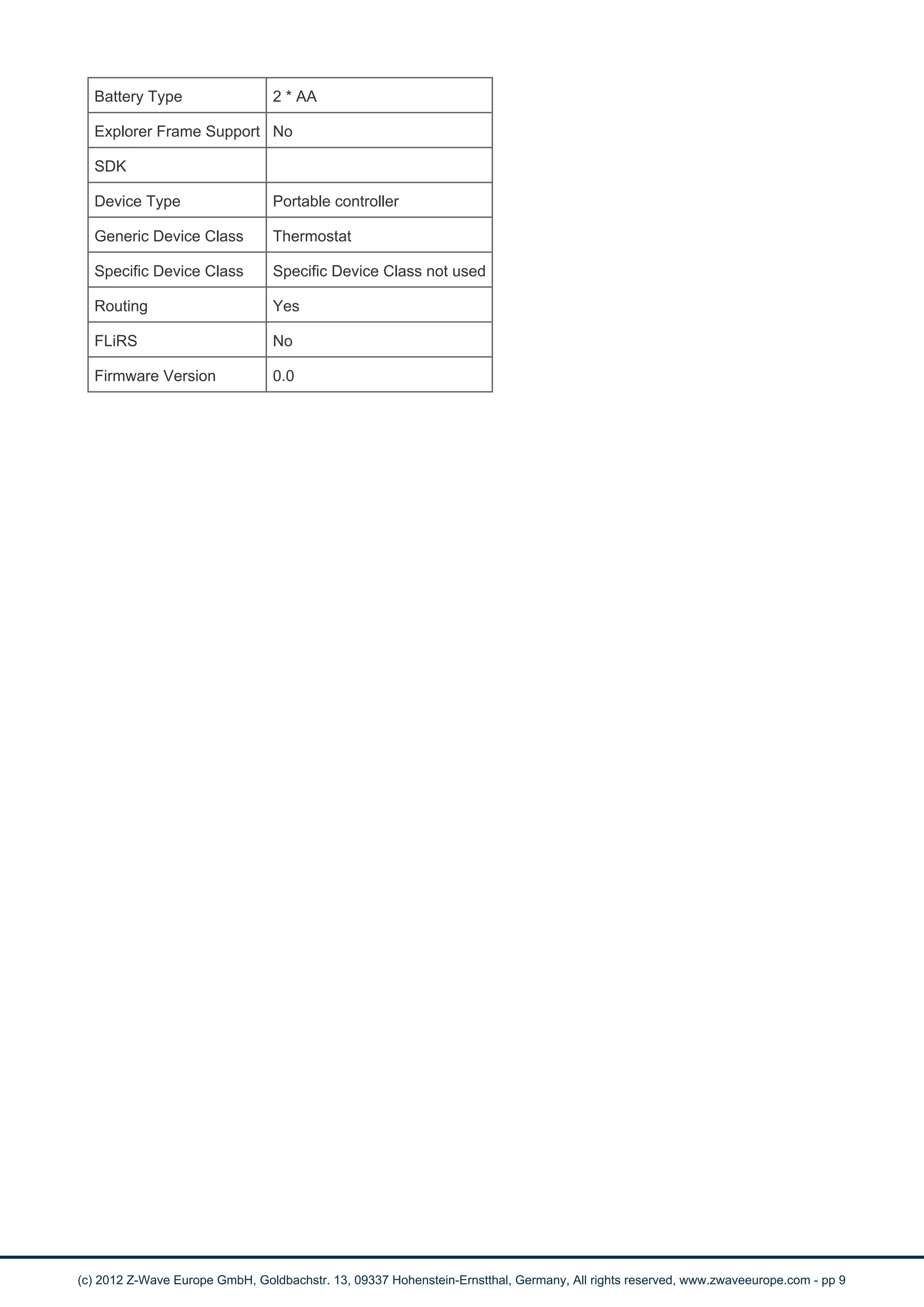
Battery Type 2 * AA 
Explorer Frame Support No 
SDK 
Device Type Portable controller 
Generic Device Class Thermostat 
Specific Device Class Specific Device Class not used 
Routing Yes 
FLiRS No 
Firmware Version 0.0 
(c) 2012 Z-Wave Europe GmbH, Goldbachstr. 13, 09337 Hohenstein-Ernstthal, Germany, All rights reserved, www.zwaveeurope.com - pp 9

Manual SEC_SCS318 secure

  • 1.
    SEC_SCS318 1 ChannelZ-Wave 7 Day Time Control and RF Room Thermostat Firmware Version : 0.0 Quick Start A This devices are wireless Actors. SCS317: To confirm inclusion and exclusion do the following steps: 2 x Enter to start menu; use right arrow key and open menu "Setup"; use right arrow key and open menu "Set up Z-Wave"; use right arrow key and select "Include node" or "Exclude node". SSR303: To confirm inclusion and exclusion push and hold the network button until the 'ON' LED starts flashing. Please refer to the chapters below for detailed information about all aspects of the products usage. Product description The SEC_SCS318 is a set which combines a programmable 7 day room thermostat with a wirelessly controlled relay switch used for controlling a central heating. Because of its TPI energy saving software the user can start to save up to 10% energy consumption. SCS317 The SCS317 is a battery operated room thermostat capable controlling a central heating wirelessly via Z-Wave. It has a built in clock and calendar. This allows the user to adjust different time and temperature settings from the factory default settings. Up to six different time and temperature settings are available in each 24 hour period. This programmable room thermostat has a large display and intuitive user interface, making it easy to set up and use. SSR303 The SSR303 is a wirelessly controlled Relay switch to operate loads up to 3 A / 230 V. It is used to control warm water boilers or magnet valves. The device can be operated locally using two buttons. A LED indicated the current switching status. The fashionable design of the device allows mounting it on visible positions in the home. (c) 2012 Z-Wave Europe GmbH, Goldbachstr. 13, 09337 Hohenstein-Ernstthal, Germany, All rights reserved, www.zwaveeurope.com - pp 1
  • 2.
    Installation Guidelines SCS317 Open the battery coverage located at the front and put the 2 x AA batteries according to the figure into battery compartment. Close the battery compartment. SSR303 The SSR303 receiver should be located as near as is practical to the device to be controlled, as well as a convenient mains electricity supply. To remove the wall plate from the SSR303, undo the two retaining screws located on the underside, the wall plate should now be easily removed. Once the wall plate has been removed from the packaging please ensure the SSR303 is re-sealed to prevent damage from dust, debris etc. The wall plate should be fitted with the retaining screws located at the bottom and in a position which allows a total clearance of at least 50mm around the SSR303 receiver. Direct Wall Mounting Offer the plate to the wall in the position where the SSR303 is to be mounted and mark the fixing positions through the slots in the wall plate. Drill and plug the wall, then secure the plate into position. The slots in the wall plate will compensate for any misalignment of the fixings. Wall Box Mounting The wall plate may be fitted directly on to a single gang flush wiring box complying with BS4662, using two M3.5 screws. The receiver is suitable for mounting on a flat surface only; it is not suitable for mounting on an unearthed metal surface. Electrical Connections (c) 2012 Z-Wave Europe GmbH, Goldbachstr. 13, 09337 Hohenstein-Ernstthal, Germany, All rights reserved, www.zwaveeurope.com - pp 2
  • 3.
    All necessary electricalconnections should now be made. Flush wiring can enter from the rear through the aperture in the backplate. The mains supply terminals are intended to be connected to the supply by means of fixed wiring. The receiver is mains powered and requires a 3 Amp fused spur. The recommended cable size is 1.Omm2. The receiver is double insulated and does not require an earth connection, an earth connection block is provided on the backplate for terminating any cable earth conductors. Earth continuity must be maintained and all bare earth conductors must be sleeved. Ensure that no conductors are left protruding outside the central space enclosed by the backplate. Behavior within the Z-Wave network I On factory default the device does not belong to any Z-Wave network. The device needs to join an existing wireless network to communicate with the devices of this network. This process is called Inclusion. Devices can also leave a network. This process is called Exclusion. Both processes are initiated by the primary controller of the Z-Wave network. This controller will be turned into exclusion respective inclusion mode. Please refer to your primary controllers manual on how to turn your controller into inclusion or exclusion mode. Only if the primary controller is in inclusion or exclusion mode, this device can join or leave the network. Leaving the network - i.e. being excluded - sets the device back to factory default. If the device already belongs to a network, follow the exclusion process before including it in your network. Otherwise inclusion of this device will fail. If the controller being included was a primary controller, it has to be reset first. SCS317 For including or excluding the SCS317 as a secondary controller for an existing the Z-Wave network do the following steps: 2 x Enter to start menu; use right arrow key and open menu "Setup"; use right arrow key and open menu "Set up Z-Wave"; use right arrow key and select "Learn". Note: Any associations will be cleared if the SCS317 have engaged in Learn mode with another controller regardless or a successful or failed outcome. SSR303 To confirm inclusion and exclusion push and hold the network button until the 'ON' LED starts flashing. Operating the device SCS317 (c) 2012 Z-Wave Europe GmbH, Goldbachstr. 13, 09337 Hohenstein-Ernstthal, Germany, All rights reserved, www.zwaveeurope.com - pp 3
  • 4.
    Normal Heating PeriodThe SCS317 Room Thermostat can set up to 6 heating periods per day. The adjusted temperature is the maximum reachable room temperature. When this temperature is achieved the heating is switched off. TEMPORARY OVERRIDE A temporary temperature change can be made at any time by simlpy pressing the "-" or "+" button. The temperature will revert to its normal programmed setting at the next timed temperature change. TEMPORARY OVERRIDE WITH TIME EXTENSION It is also possible to extend how long this temperature override is in operation by pressing "Enter" after temperature change. The hours of the UNTIL (remaining) time will flash and can be adjusted by pressing "+". Confirm the time by pressing "Enter". The remaining time can be set up to 4 hours. The temperature will revert to its normal programmed setting at the next timed temperature change. PERMANENT OVERRIDE The temperature can be overridden permanently. For this do the same steps as for temporary override and pressing the "+" repeatedly until HOLD appears in the display, press "Enter". A message will appears briefly confirming "Temperature set until manual release". In the 'HOLD' position the temperature can be overridden by pressing either the "-" or "+" buttons. This will then become the new 'HOLD' temperature. To cancel the permanent override press "Back" and "Enter". SSR303 The SSR303 receiver unit receives the Z-Wave radio signals from the 3rd party Z-wave controllers. In the unlikely event of a communication failure it is possible to override the system and switch On and Off using the On/Off buttons on the SSR303 receiver as a local override. If the override is used to override the system when it is functioning correctly then the override will be cancelled by the next switching operation and normal operation will be resumed. In any case, with no further intervention, normal operation will be restored within one hour of the override being operated. Wakeup Intervals - how to communicate with the device? W This device is battery operated and turned into deep sleep state most of the time to save battery life time. Communication with the device is limited. In order to communicate with the device, a static controller C is needed in the network. This controller will maintain a mailbox for the battery operated devices and store commands that can not be received during deep sleep state. Without such a controller, communication may become impossible and/or the battery life time is significantly decreased. This device will wakeup regularly and announce the wakeup state by sending out a so called Wakeup Notification. The controller can then empty the mailbox. Therefore, the device needs to be configured with the desired wakeup interval and the node ID of the controller. If the device was included by a static controller this controller will usually perform all necessary configurations. The wakeup interval is a tradeoff between maximal battery life time and the desired responses of the device. SCS317 To wake up the device do the following steps: 2 x Enter to start menu; use right arrow key and open menu "Setup"; use right arrow key and open menu "Set up Z-Wave"; use right arrow key and select "Learn". (c) 2012 Z-Wave Europe GmbH, Goldbachstr. 13, 09337 Hohenstein-Ernstthal, Germany, All rights reserved, www.zwaveeurope.com - pp 4
  • 5.
    It is possibleto set the node ID to 255 to send wakeup notifications as broadcast. In this mode device takes more time to go to sleep and drains battery faster, but can notify all it's direct neighbors about a wakeup. Node Information Frame NI The Node Information Frame is the business card of a Z-Wave device. It contains information about the device type and the technical capabilities. The inclusion and exclusion of the device is confirmed by sending out a Node Information Frame. Beside this it may be needed for certain network operations to send out a Node Information Frame. To send out a Node Information Frame Press do the following steps: 2 x Enter to start menu; use right arrow key and open menu "Setup"; use right arrow key and open menu "Set up Z-Wave"; use right arrow key and select "Send NIF". Associations A Z-Wave devices control other Z-Wave devices. The relationship between one device controlling another device is called association. In order to control a different device, the controlling device needs to maintain a list of devices that will receive controlling commands. These lists are called association groups and they are always related to certain events (e.g. button pressed, sensor triggers, ...). In case the event happens all devices stored in the respective association group will receive a common wireless command. Association Groups: 1 This node receives unsolicited message from the following events: - Thermostat set point - Thermostat operating state - Schedule - Multilevel sensor - Battery - Binary switch (max. nodes in group: 1) 2 Central heating nodes. If thermostat mode Heat Mode is supported the control message will be sent as Thermostat Set HEAT and Thermostat mode Set Off, otherwise the device will be controlled by Basic set On and Off commands. (max. nodes in group: 4) Set and unset associations to actuators Associations can be assigned and remove either via Z-Wave commands or using the device itself. SA SCS317 To manually associate devices to control do the following steps: 2 x Enter to start menu; use right arrow key and open menu "Setup"; use right arrow key and open menu "Set up Z-Wave"; use right arrow key and select "Associate node". Press the dedicated button on the target device for association. (c) 2012 Z-Wave Europe GmbH, Goldbachstr. 13, 09337 Hohenstein-Ernstthal, Germany, All rights reserved, www.zwaveeurope.com - pp 5
  • 6.
    To clear theassociations select "Disassociate node". Press the dedicated button on the target device for association. Special Functions as Z-Wave Controller As long as this device is not included into a Z-Wave network of a different controller it is able to manage its own Z-Wave network as primary controller. As a primary controller the device can include and exclude other devices in its own network, manage associations, and reorganize the network in case of problems. The following controller functions are supported: Include other device in own network CI Communication between two Z-Wave devices only works if both belong to the same wireless network. Joining a network is called inclusion and is initiated by a controller. The controller needs to be turned into the inclusion mode. Once in this inclusion mode the other device needs to confirm the inclusion - typically by pressing a button. SCS317 For Inclusion of Z-Wave devices into the thermostats network do the following steps: 2 x Enter to start menu; use right arrow key and open menu "Setup"; use right arrow key and open menu "Set up Z-Wave"; use right arrow key and select "Include node/ receiver". Press the dedicated button on the target device to include it. You can include nodes or a secondary controller. Note: When including a device that supports Thermostat Mode HEAT, the SCS317 will automatically associate it to Group 2 (switch association group). If current primary controller in your network is in special SIS mode this and any other secondary controller can also include and exclude devices. To become primary a contoller have to be resetted and then include a device. Exclude device from network The primary controller can exclude devices from the Z-Wave network. During exclusion the relationship between the device and the network of this controller is terminated. No communication between the device and other devices still in the network can happen after a successful exclusion. The controller needs to be turned into the exclusion mode. Once in this exclusion mode the other device needs to confirm the exclusion - typically by pressing a button. Attention: Removing a device from the network means that it is turned back into factory default status. This process can also exclude devices from it's previous network. SCS317 (c) 2012 Z-Wave Europe GmbH, Goldbachstr. 13, 09337 Hohenstein-Ernstthal, Germany, All rights reserved, www.zwaveeurope.com - pp 6
  • 7.
    For Exclusion ofZ-Wave devices from the thermostats network do the following steps: 2 x Enter to start menu; use right arrow key and open menu "Setup"; use right arrow key and open menu "Set up Z-Wave"; use right arrow key and select "Exclude node/ receiver". Press the dedicated button on the target device to exclude it. Note: If an associated node to SCS317 is excluded from the network, it will be removed from the Association Group it is stored in. Shift Primary Role to a different Controller The device can hand over its primary role to another controller and become secondary controller. SCS317 Place the two controllers close to each other. Bring your primary controller in the dedicated mode for primary shift (or learning mode). 2 x Enter to start menu. Use right arrow key and open menu "Setup". Use right arrow key and open menu "Set up Z-Wave". Use right arrow key and select "Controller Shift". Reset the Controller SCS317 For reseting the SCS317 do the following steps: 2 x Enter to start menu; use right arrow key and open menu "Setup"; use right arrow key and open menu "Set up Z-Wave"; use right arrow key and select "Network Reset". Note: Reset provides a full protocol reset and a restoration of all network parameters to their defaults, and generates a new random home ID to operate on. A network reset does not change the heating schedules stored on the device. Configuration Parameters Z-Wave products are supposed to work out of the box after inclusion, however certain configuration can adapt the function better to user needs or unlock further enhanced features. IMPORTANT: Controllers may only allow to configure signed values. In order to set values in the range 128 … 255 the value sent in the application shall be the desired value minus 256. For example: to set a parameter to 200? it may be needed to set a value of 200 minus 256 = minus 56. In case of two byte value the same logic applies: Values greater than 32768 may needed to be given as negative values too. (c) 2012 Z-Wave Europe GmbH, Goldbachstr. 13, 09337 Hohenstein-Ernstthal, Germany, All rights reserved, www.zwaveeurope.com - pp 7
  • 8.
    Temperature unit selection(Parameter Number 1, Parameter Size 1) Value Description 129 — 0 °C value (0/-127) 1 — 127 °F value (128/-255) Lower temperature limit (Parameter Number 2, Parameter Size 1) Value Description 5 — 30 (Default 5) Upper temperature limit (Parameter Number 3, Parameter Size 1) Value Description 5 — 30 (Default 5) Delta T temperature change (Parameter Number 4, Parameter Size 1) (1?C = 10) change between temperature readings to trigger an temperature report Value Description 1 — 50 1 or 0.1 (Default 5) Technical Data (c) 2012 Z-Wave Europe GmbH, Goldbachstr. 13, 09337 Hohenstein-Ernstthal, Germany, All rights reserved, www.zwaveeurope.com - pp 8
  • 9.
    Battery Type 2* AA Explorer Frame Support No SDK Device Type Portable controller Generic Device Class Thermostat Specific Device Class Specific Device Class not used Routing Yes FLiRS No Firmware Version 0.0 (c) 2012 Z-Wave Europe GmbH, Goldbachstr. 13, 09337 Hohenstein-Ernstthal, Germany, All rights reserved, www.zwaveeurope.com - pp 9