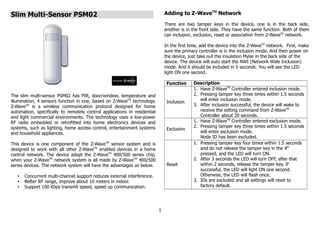
Slim Multi-Sensor PSM02
The slim multi-sensor PSM02 has PIR, door/window, temperature and
illumination, 4 sensors function in one, based on Z-WaveTM
technology.
Z-WaveTM
is a wireless communication protocol designed for home
automation, specifically to remotely control applications in residential
and light commercial environments. The technology uses a low-power
RF radio embedded or retrofitted into home electronics devices and
systems, such as lighting, home access control, entertainment systems
and household appliances.
This device is one component of the Z-WaveTM
sensor system and is
designed to work with all other Z-WaveTM
enabled devices in a home
control network. The device adopt the Z-WaveTM
400/500 series chip,
when your Z-WaveTM
network system is all made by Z-WaveTM
400/500
series devices. The network system will have the advantages as below.
• Concurrent multi-channel support reduces external interference.
• Better RF range, improve about 10 meters in indoor.
• Support 100 Kbps transmit speed, speed up communication.
Adding to Z-WaveTM
Network
There are two tamper keys in the device, one is in the back side,
another is in the front side. They have the same function. Both of them
can inclusion, exclusion, reset or association from Z-WaveTM
network.
In the first time, add the device into the Z-WaveTM
network. First, make
sure the primary controller is in the inclusion mode. And then power on
the device, just take out the insulation Mylar in the back side of the
device. The device will auto start the NWI (Network Wide Inclusion)
mode. And it should be included in 5 seconds. You will see the LED
light ON one second.
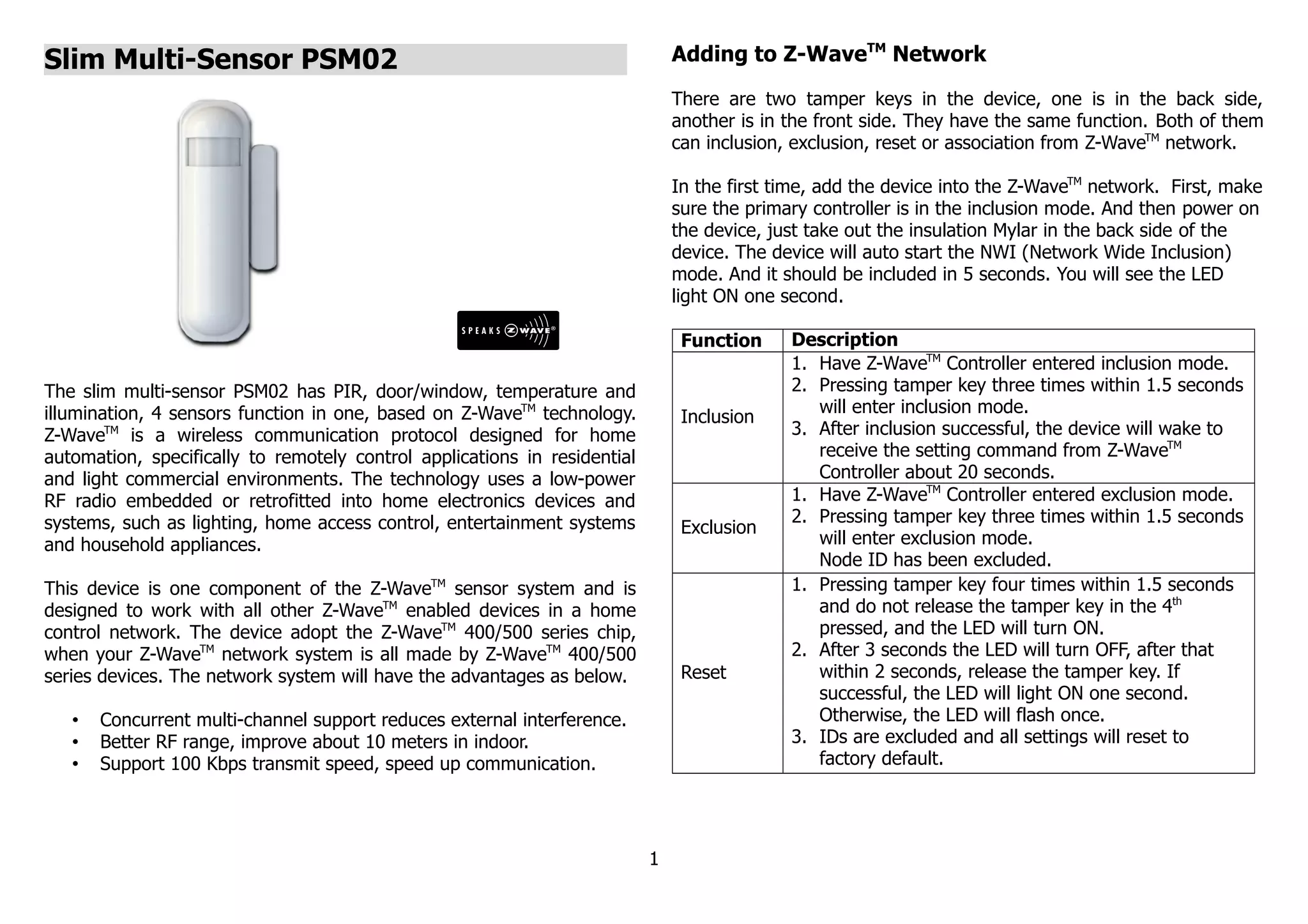
Function Description
Inclusion
1. Have Z-WaveTM
Controller entered inclusion mode.
2. Pressing tamper key three times within 1.5 seconds
will enter inclusion mode.
3. After inclusion successful, the device will wake to
receive the setting command from Z-WaveTM
Controller about 20 seconds.
Exclusion
1. Have Z-WaveTM
Controller entered exclusion mode.
2. Pressing tamper key three times within 1.5 seconds
will enter exclusion mode.
Node ID has been excluded.
Reset
1. Pressing tamper key four times within 1.5 seconds
and do not release the tamper key in the 4th
pressed, and the LED will turn ON.
2. After 3 seconds the LED will turn OFF, after that
within 2 seconds, release the tamper key. If
successful, the LED will light ON one second.
Otherwise, the LED will flash once.
3. IDs are excluded and all settings will reset to
factory default.
1
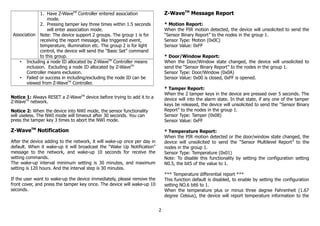
Association
1. Have Z-WaveTM
Controller entered association
mode.
2. Pressing tamper key three times within 1.5 seconds
will enter association mode.
Note: The device support 2 groups. The group 1 is for
receiving the report message, like triggered event,
temperature, illumination etc. The group 2 is for light
control, the device will send the “Basic Set” command
to this group.
• Including a node ID allocated by Z-WaveTM
Controller means
inclusion. Excluding a node ID allocated by Z-WaveTM
Controller means exclusion.
• Failed or success in including/excluding the node ID can be
viewed from Z-WaveTM
Controller.
Notice 1: Always RESET a Z-WaveTM
device before trying to add it to a
Z-WaveTM
network.
Notice 2: When the device into NWI mode, the sensor functionality
will useless. The NWI mode will timeout after 30 seconds. You can
press the tamper key 3 times to abort the NWI mode.
Z-WaveTM
Notification
After the device adding to the network, it will wake-up once per day in
default. When it wake-up it will broadcast the “Wake Up Notification”
message to the network, and wake-up 10 seconds for receive the
setting commands.
The wake-up interval minimum setting is 30 minutes, and maximum
setting is 120 hours. And the interval step is 30 minutes.
If the user want to wake-up the device immediately, please remove the
front cover, and press the tamper key once. The device will wake-up 10
seconds.
Z-WaveTM
Message Report
* Motion Report:
When the PIR motion detected, the device will unsolicited to send the
“Sensor Binary Report” to the nodes in the group 1.
Sensor Type: Motion (0x0C)
Sensor Value: 0xFF
* Door/Window Report:
When the Door/Window state changed, the device will unsolicited to
send the “Sensor Binary Report” to the nodes in the group 1.
Sensor Type: Door/Window (0x0A)
Sensor Value: 0x00 is closed, 0xFF is opened.
* Tamper Report:
When the 2 tamper keys in the device are pressed over 5 seconds. The
device will into the alarm state. In that state, if any one of the tamper
keys be released, the device will unsolicited to send the “Sensor Binary
Report” to the nodes in the group 1.
Sensor Type: Tamper (0x08)
Sensor Value: 0xFF
* Temperature Report:
When the PIR motion detected or the door/window state changed, the
device will unsolicited to send the “Sensor Multilevel Report” to the
nodes in the group 1.
Sensor Type: Temperature (0x01)
Note: To disable this functionality by setting the configuration setting
N0.5, the bit5 of the value to 1.
*** Temperature differential report ***
This function default is disabled, to enable by setting the configuration
setting NO.6 bit6 to 1.
When the temperature plus or minus three degree Fahrenheit (1.67
degree Celsius), the device will report temperature information to the
2
nodes in the group 1.
The device will measure the temperature in every 64 seconds. And if
the temperature is over 140 degree Fahrenheit (60 degree Celsius), the
device also report in each measurement.
* Illumination Report:
When the PIR motion detected or the door/window state changed, the
device will unsolicited to send the “Sensor Multilevel Report” to the
nodes in the group 1.
Sensor Type: Luminance (0x03)
Note: To disable this functionality by setting the configuration setting
N0.5, the bit4 of the value to 1.
* Timing Report:
Beside the event triggered could report message, the device also
support the timing unsolicited report of the status.
• Battery level report: Every 6 hours report once in default.
It could be changed by configuration setting NO. 10.
• Low battery report: When the battery level is too low, every 30
minutes will report once.
• Door/window state report: Every 6 hours report once in default.
It could be changed by configuration setting NO. 11.
• Illumination level report: Every 6 hours report once in default.
It could be changed by configuration setting NO. 12.
• Temperature report: Every 6 hours report once in default.
It could be changed by configuration setting NO. 13.
Power Up Procedure
* Battery Power Check
When the power up, the device will detect the power level of the
battery immediately. If the power level is too low, the LED will continue
flash about 5 seconds. Please change another new battery.
* PIR Warm Up
When the power on, the PIR need to warm up before operation. The
warm up time about 1 minute, the LED will flash in every 2 seconds.
After finish the procedure the LED will light ON three times.
* NWI
When the power on, the device will check is it already adding to the
network? If doesn't, it will auto start the NWI mode. The LED will flash
in every second and continue 30 seconds. Until timeout or the device
successful to inclusion by controller. You can press the tamper key 3
times to abort the NWI mode.
* Wake
When the power on, the device will wake about 20 seconds. In this
duration, the controller can communicate with the device. Normally the
device is always sleeping to save the battery energy.
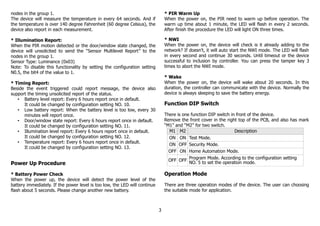
Function DIP Switch
There is one function DIP switch in front of the device.
Remove the front cover in the right top of the PCB, and also has mark
“M1” and “M2” for two switch.
M1 M2 Description
ON ON Test Mode.
ON OFF Security Mode.
OFF ON Home Automation Mode.
OFF OFF
Program Mode. According to the configuration setting
NO. 5 to set the operation mode.
Operation Mode
There are three operation modes of the device. The user can choosing
the suitable mode for application.
3
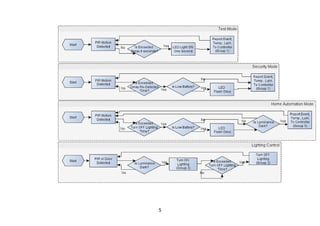
There are three modes “Test”, “Home Automation” and “Security”.
“Test Mode” is for the user test the sensor function when installation.
“Home Automation Mode” focus in automatic to control the lighting
equipment. For convenience and save energy.
“Security Mode” focus in surveillance, warning.
When the event triggered, normally the LED won't indicated, unless the
battery is in the low level, the LED will flash once. And in the “Test
Mode” the LED also will light ON one second.
When the event triggered, the device will report the messages to the
nodes in the group 1. The messages also include the temperature and
the illumination level. The user can switch the report by configuration
setting NO. 5. Caution: In the “Home Automation Mode” if the
environment luminance higher than the setting, the device won't report
the message.
When the event triggered, if the environment luminance is less than
the setting of the configuration setting NO. 4, the device will emit the
signal to turn ON the lighting equipment, those nodes in the group 2.
And delay a while to turn OFF the lighting equipment. The delay time is
setting by the configuration setting NO. 9.
The PIR motion re-detected interval, in the “Test Mode” fixed to 6
seconds. In the “Home Automation Mode”, will start detect before turn
OFF the lighting equipment. In the “Security Mode”, according to the
setting of configuration setting NO. 8.
Notice: When the tamper key of the back side is in the released state,
the device always in the “Test Mode”, no matter the DIP switch setting.
4
5
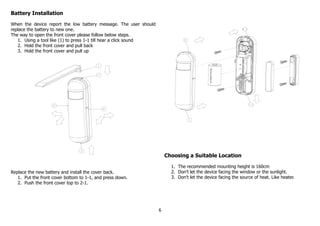
Battery Installation
When the device report the low battery message. The user should
replace the battery to new one.
The way to open the front cover please follow below steps.
1. Using a tool like (1) to press 1-1 till hear a click sound
2. Hold the front cover and pull back
3. Hold the front cover and pull up
Replace the new battery and install the cover back.
1. Put the front cover bottom to 1-1, and press down.
2. Push the front cover top to 2-1.
Choosing a Suitable Location
1. The recommended mounting height is 160cm
2. Don't let the device facing the window or the sunlight.
3. Don't let the device facing the source of heat. Like heater.
6
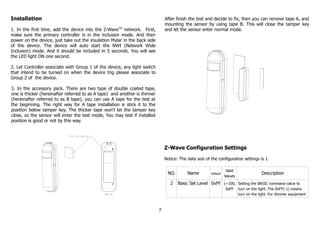
Installation
1. In the first time, add the device into the Z-WaveTM
network. First,
make sure the primary controller is in the inclusion mode. And then
power on the device, just take out the insulation Mylar in the back side
of the device. The device will auto start the NWI (Network Wide
Inclusion) mode. And it should be included in 5 seconds. You will see
the LED light ON one second.
2. Let Controller associate with Group 1 of the device, any light switch
that intend to be turned on when the device trig please associate to
Group 2 of the device.
3. In the accessory pack. There are two type of double coated tape,
one is thicker (hereinafter referred to as A tape) and another is thinner
(hereinafter referred to as B tape), you can use A tape for the test at
the beginning. The right way for A tape installation is stick it to the
position below tamper key. The thicker tape won't let the tamper key
close, so the sensor will enter the test mode, You may test if installed
position is good or not by this way.
After finish the test and decide to fix, then you can remove tape A, and
mounting the sensor by using tape B. This will close the tamper key
and let the sensor enter normal mode.
Z-Wave Configuration Settings
Notice: The data size of the configuration settings is 1.
NO. Name Default
Valid
Values
Description
2 Basic Set Level 0xFF 1~100,
0xFF
Setting the BASIC command value to
turn on the light. The 0xFF(-1) means
turn on the light. For dimmer equipment
7
1 to 100 means the light strength.
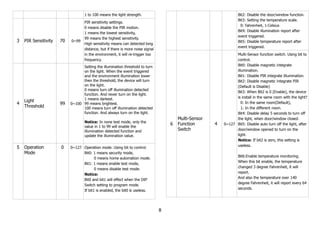
3 PIR Sensitivity 70 0~99
PIR sensitivity settings.
0 means disable the PIR motion.
1 means the lowest sensitivity,
99 means the highest sensitivity.
High sensitivity means can detected long
distance, but if there is more noise signal
in the environment, it will re-trigger too
frequency.
4
Light
Threshold
99 0~100
Setting the illumination threshold to turn
on the light. When the event triggered
and the environment illumination lower
then the threshold, the device will turn
on the light.
0 means turn off illumination detected
function. And never turn on the light.
1 means darkest.
99 means brightest.
100 means turn off illumination detected
function. And always turn on the light.
Notice: In none test mode, only the
value in 1 to 99 will enable the
illumination detected function and
update the illumination value.
5 Operation
Mode
0 0~127 Operation mode. Using bit to control.
Bit0: 1 means security mode,
0 means home automation mode.
Bit1: 1 means enable test mode,
0 means disable test mode.
Notice:
Bit0 and bit1 will effect when the DIP
Switch setting to program mode.
If bit1 is enabled, the bit0 is useless.
Bit2: Disable the door/window function.
Bit3: Setting the temperature scale.
0: Fahrenheit, 1:Celsius
Bit4: Disable illumination report after
event triggered.
Bit5: Disable temperature report after
event triggered.
6
Multi-Sensor
Function
Switch
4 0~127
Multi-Sensor function switch. Using bit to
control.
Bit0: Disable magnetic integrate
illumination.
Bit1: Disable PIR integrate Illumination.
Bit2: Disable magnetic integrate PIR
(Default is Disable)
Bit3: When Bit2 is 0 (Enable), the device
is install in the same room with the light?
0: In the same room(Default),
1: In the different room.
Bit4: Disable delay 5 seconds to turn off
the light, when door/window closed.
Bit5: Disable auto turn off the light, after
door/window opened to turn on the
light.
Notice: If bit2 is zero, this setting is
useless.
Bit6:Enable temperature monitoring.
When this bit enable, the temperature
changed 3 degree Fahrenheit, it will
report.
And also the temperature over 140
degree Fahrenheit, it will report every 64
seconds.
8
7
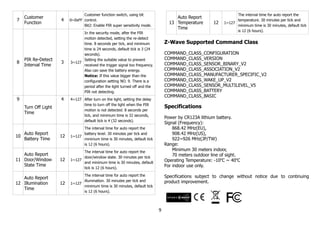
Customer
Function
4 0~0xFF
Customer function switch, using bit
control.
Bit2: Enable PIR super sensitivity mode.
8
PIR Re-Detect
Interval Time
3 3~127
In the security mode, after the PIR
motion detected, setting the re-detect
time. 8 seconds per tick, and minimum
time is 24 seconds, default tick is 3 (24
seconds).
Setting the suitable value to prevent
received the trigger signal too frequency.
Also can save the battery energy.
Notice: If this value bigger than the
configuration setting NO. 9. There is a
period after the light turned off and the
PIR not detecting.
9
Turn Off Light
Time
4 4~127 After turn on the light, setting the delay
time to turn off the light when the PIR
motion is not detected. 8 seconds per
tick, and minimum time is 32 seconds,
default tick is 4 (32 seconds).
10
Auto Report
Battery Time
12 1~127
The interval time for auto report the
battery level. 30 minutes per tick and
minimum time is 30 minutes, default tick
is 12 (6 hours).
11
Auto Report
Door/Window
State Time
12 1~127
The interval time for auto report the
door/window state. 30 minutes per tick
and minimum time is 30 minutes, default
tick is 12 (6 hours).
12
Auto Report
Illumination
Time
12 1~127
The interval time for auto report the
illumination. 30 minutes per tick and
minimum time is 30 minutes, default tick
is 12 (6 hours).
13
Auto Report
Temperature
Time
12 1~127
The interval time for auto report the
temperature. 30 minutes per tick and
minimum time is 30 minutes, default tick
is 12 (6 hours).
Z-Wave Supported Command Class
COMMAND_CLASS_CONFIGURATION
COMMAND_CLASS_VERSION
COMMAND_CLASS_SENSOR_BINARY_V2
COMMAND_CLASS_ASSOCIATION_V2
COMMAND_CLASS_MANUFACTURER_SPECIFIC_V2
COMMAND_CLASS_WAKE_UP_V2
COMMAND_CLASS_SENSOR_MULTILEVEL_V5
COMMAND_CLASS_BATTERY
COMMAND_CLASS_BASIC
Specifications
Power by CR123A lithium battery.
Signal (Frequency):
868.42 MHz(EU),
908.42 MHz(US),
922~926 MHz(JP/TW)
Range:
Minimum 30 meters indoor,
70 meters outdoor line of sight.
Operating Temperature: -10o
C ~ 40o
C
For indoor use only.
Specifications subject to change without notice due to continuing
product improvement.
9
FCC Interference Statement
This equipment has been tested and found to comply with the limits for
a Class B digital device, pursuant to Part 15 of the FCC Rules. These
limits are designed to provide reasonable protection against harmful
interference in a residential installation. This equipment generates, uses
and can radiate radio frequency energy and, if not installed and used in
accordance with the instructions, may cause harmful interference to
radio communications. However, there is no guarantee that
interference will not occur in a particular installation. If this equipment
does cause harmful interference to radio or television reception, which
can be determined by turning the equipment off and on, the user is
encouraged to try to correct the interference by one of the following
measures:
• Reorient or relocate the receiving antenna.
• Increase the separation between the equipment and receiver.
• Connect the equipment into an outlet on a circuit different from
that to which the receiver is connected.
• Consult the dealer or an experienced radio/TV technician for
help.
This device complies with Part 15 of the FCC Rules. Operation is subject
to the following two conditions:
(1) This device may not cause harmful interference, and
(2) This device must accept any interference received, including
interference that may cause undesired operation.
FCC Caution: Any changes or modifications not expressly approved by
the party responsible for compliance could void the user's authority to
operate this equipment.
This transmitter must not be co-located or operating in conjunction
with any other antenna or transmitter.
Warning
Do not dispose of electrical appliances as unsorted municipal waste,
use separate collection facilities. Contact your local government for
information regarding the collection systems available. If electrical
appliances are disposed of in landfills or dumps, hazardous substances
can leak into the groundwater and get into the food chain, damaging
your health and well-being.
When replacing old appliances with new once, the retailer is legally
obligated to take back your old appliance for disposal at least for free
of charge.
10

4 in 1 multi sensor Philio PSM02 (motion, door/window, temperature, lightness)

  • 1.
    Slim Multi-Sensor PSM02 Theslim multi-sensor PSM02 has PIR, door/window, temperature and illumination, 4 sensors function in one, based on Z-WaveTM technology. Z-WaveTM is a wireless communication protocol designed for home automation, specifically to remotely control applications in residential and light commercial environments. The technology uses a low-power RF radio embedded or retrofitted into home electronics devices and systems, such as lighting, home access control, entertainment systems and household appliances. This device is one component of the Z-WaveTM sensor system and is designed to work with all other Z-WaveTM enabled devices in a home control network. The device adopt the Z-WaveTM 400/500 series chip, when your Z-WaveTM network system is all made by Z-WaveTM 400/500 series devices. The network system will have the advantages as below. • Concurrent multi-channel support reduces external interference. • Better RF range, improve about 10 meters in indoor. • Support 100 Kbps transmit speed, speed up communication. Adding to Z-WaveTM Network There are two tamper keys in the device, one is in the back side, another is in the front side. They have the same function. Both of them can inclusion, exclusion, reset or association from Z-WaveTM network. In the first time, add the device into the Z-WaveTM network. First, make sure the primary controller is in the inclusion mode. And then power on the device, just take out the insulation Mylar in the back side of the device. The device will auto start the NWI (Network Wide Inclusion) mode. And it should be included in 5 seconds. You will see the LED light ON one second. Function Description Inclusion 1. Have Z-WaveTM Controller entered inclusion mode. 2. Pressing tamper key three times within 1.5 seconds will enter inclusion mode. 3. After inclusion successful, the device will wake to receive the setting command from Z-WaveTM Controller about 20 seconds. Exclusion 1. Have Z-WaveTM Controller entered exclusion mode. 2. Pressing tamper key three times within 1.5 seconds will enter exclusion mode. Node ID has been excluded. Reset 1. Pressing tamper key four times within 1.5 seconds and do not release the tamper key in the 4th pressed, and the LED will turn ON. 2. After 3 seconds the LED will turn OFF, after that within 2 seconds, release the tamper key. If successful, the LED will light ON one second. Otherwise, the LED will flash once. 3. IDs are excluded and all settings will reset to factory default. 1
  • 2.
    Association 1. Have Z-WaveTM Controllerentered association mode. 2. Pressing tamper key three times within 1.5 seconds will enter association mode. Note: The device support 2 groups. The group 1 is for receiving the report message, like triggered event, temperature, illumination etc. The group 2 is for light control, the device will send the “Basic Set” command to this group. • Including a node ID allocated by Z-WaveTM Controller means inclusion. Excluding a node ID allocated by Z-WaveTM Controller means exclusion. • Failed or success in including/excluding the node ID can be viewed from Z-WaveTM Controller. Notice 1: Always RESET a Z-WaveTM device before trying to add it to a Z-WaveTM network. Notice 2: When the device into NWI mode, the sensor functionality will useless. The NWI mode will timeout after 30 seconds. You can press the tamper key 3 times to abort the NWI mode. Z-WaveTM Notification After the device adding to the network, it will wake-up once per day in default. When it wake-up it will broadcast the “Wake Up Notification” message to the network, and wake-up 10 seconds for receive the setting commands. The wake-up interval minimum setting is 30 minutes, and maximum setting is 120 hours. And the interval step is 30 minutes. If the user want to wake-up the device immediately, please remove the front cover, and press the tamper key once. The device will wake-up 10 seconds. Z-WaveTM Message Report * Motion Report: When the PIR motion detected, the device will unsolicited to send the “Sensor Binary Report” to the nodes in the group 1. Sensor Type: Motion (0x0C) Sensor Value: 0xFF * Door/Window Report: When the Door/Window state changed, the device will unsolicited to send the “Sensor Binary Report” to the nodes in the group 1. Sensor Type: Door/Window (0x0A) Sensor Value: 0x00 is closed, 0xFF is opened. * Tamper Report: When the 2 tamper keys in the device are pressed over 5 seconds. The device will into the alarm state. In that state, if any one of the tamper keys be released, the device will unsolicited to send the “Sensor Binary Report” to the nodes in the group 1. Sensor Type: Tamper (0x08) Sensor Value: 0xFF * Temperature Report: When the PIR motion detected or the door/window state changed, the device will unsolicited to send the “Sensor Multilevel Report” to the nodes in the group 1. Sensor Type: Temperature (0x01) Note: To disable this functionality by setting the configuration setting N0.5, the bit5 of the value to 1. *** Temperature differential report *** This function default is disabled, to enable by setting the configuration setting NO.6 bit6 to 1. When the temperature plus or minus three degree Fahrenheit (1.67 degree Celsius), the device will report temperature information to the 2
  • 3.
    nodes in thegroup 1. The device will measure the temperature in every 64 seconds. And if the temperature is over 140 degree Fahrenheit (60 degree Celsius), the device also report in each measurement. * Illumination Report: When the PIR motion detected or the door/window state changed, the device will unsolicited to send the “Sensor Multilevel Report” to the nodes in the group 1. Sensor Type: Luminance (0x03) Note: To disable this functionality by setting the configuration setting N0.5, the bit4 of the value to 1. * Timing Report: Beside the event triggered could report message, the device also support the timing unsolicited report of the status. • Battery level report: Every 6 hours report once in default. It could be changed by configuration setting NO. 10. • Low battery report: When the battery level is too low, every 30 minutes will report once. • Door/window state report: Every 6 hours report once in default. It could be changed by configuration setting NO. 11. • Illumination level report: Every 6 hours report once in default. It could be changed by configuration setting NO. 12. • Temperature report: Every 6 hours report once in default. It could be changed by configuration setting NO. 13. Power Up Procedure * Battery Power Check When the power up, the device will detect the power level of the battery immediately. If the power level is too low, the LED will continue flash about 5 seconds. Please change another new battery. * PIR Warm Up When the power on, the PIR need to warm up before operation. The warm up time about 1 minute, the LED will flash in every 2 seconds. After finish the procedure the LED will light ON three times. * NWI When the power on, the device will check is it already adding to the network? If doesn't, it will auto start the NWI mode. The LED will flash in every second and continue 30 seconds. Until timeout or the device successful to inclusion by controller. You can press the tamper key 3 times to abort the NWI mode. * Wake When the power on, the device will wake about 20 seconds. In this duration, the controller can communicate with the device. Normally the device is always sleeping to save the battery energy. Function DIP Switch There is one function DIP switch in front of the device. Remove the front cover in the right top of the PCB, and also has mark “M1” and “M2” for two switch. M1 M2 Description ON ON Test Mode. ON OFF Security Mode. OFF ON Home Automation Mode. OFF OFF Program Mode. According to the configuration setting NO. 5 to set the operation mode. Operation Mode There are three operation modes of the device. The user can choosing the suitable mode for application. 3
  • 4.
    There are threemodes “Test”, “Home Automation” and “Security”. “Test Mode” is for the user test the sensor function when installation. “Home Automation Mode” focus in automatic to control the lighting equipment. For convenience and save energy. “Security Mode” focus in surveillance, warning. When the event triggered, normally the LED won't indicated, unless the battery is in the low level, the LED will flash once. And in the “Test Mode” the LED also will light ON one second. When the event triggered, the device will report the messages to the nodes in the group 1. The messages also include the temperature and the illumination level. The user can switch the report by configuration setting NO. 5. Caution: In the “Home Automation Mode” if the environment luminance higher than the setting, the device won't report the message. When the event triggered, if the environment luminance is less than the setting of the configuration setting NO. 4, the device will emit the signal to turn ON the lighting equipment, those nodes in the group 2. And delay a while to turn OFF the lighting equipment. The delay time is setting by the configuration setting NO. 9. The PIR motion re-detected interval, in the “Test Mode” fixed to 6 seconds. In the “Home Automation Mode”, will start detect before turn OFF the lighting equipment. In the “Security Mode”, according to the setting of configuration setting NO. 8. Notice: When the tamper key of the back side is in the released state, the device always in the “Test Mode”, no matter the DIP switch setting. 4
  • 5.
  • 6.
    Battery Installation When thedevice report the low battery message. The user should replace the battery to new one. The way to open the front cover please follow below steps. 1. Using a tool like (1) to press 1-1 till hear a click sound 2. Hold the front cover and pull back 3. Hold the front cover and pull up Replace the new battery and install the cover back. 1. Put the front cover bottom to 1-1, and press down. 2. Push the front cover top to 2-1. Choosing a Suitable Location 1. The recommended mounting height is 160cm 2. Don't let the device facing the window or the sunlight. 3. Don't let the device facing the source of heat. Like heater. 6
  • 7.
    Installation 1. In thefirst time, add the device into the Z-WaveTM network. First, make sure the primary controller is in the inclusion mode. And then power on the device, just take out the insulation Mylar in the back side of the device. The device will auto start the NWI (Network Wide Inclusion) mode. And it should be included in 5 seconds. You will see the LED light ON one second. 2. Let Controller associate with Group 1 of the device, any light switch that intend to be turned on when the device trig please associate to Group 2 of the device. 3. In the accessory pack. There are two type of double coated tape, one is thicker (hereinafter referred to as A tape) and another is thinner (hereinafter referred to as B tape), you can use A tape for the test at the beginning. The right way for A tape installation is stick it to the position below tamper key. The thicker tape won't let the tamper key close, so the sensor will enter the test mode, You may test if installed position is good or not by this way. After finish the test and decide to fix, then you can remove tape A, and mounting the sensor by using tape B. This will close the tamper key and let the sensor enter normal mode. Z-Wave Configuration Settings Notice: The data size of the configuration settings is 1. NO. Name Default Valid Values Description 2 Basic Set Level 0xFF 1~100, 0xFF Setting the BASIC command value to turn on the light. The 0xFF(-1) means turn on the light. For dimmer equipment 7
  • 8.
    1 to 100means the light strength. 3 PIR Sensitivity 70 0~99 PIR sensitivity settings. 0 means disable the PIR motion. 1 means the lowest sensitivity, 99 means the highest sensitivity. High sensitivity means can detected long distance, but if there is more noise signal in the environment, it will re-trigger too frequency. 4 Light Threshold 99 0~100 Setting the illumination threshold to turn on the light. When the event triggered and the environment illumination lower then the threshold, the device will turn on the light. 0 means turn off illumination detected function. And never turn on the light. 1 means darkest. 99 means brightest. 100 means turn off illumination detected function. And always turn on the light. Notice: In none test mode, only the value in 1 to 99 will enable the illumination detected function and update the illumination value. 5 Operation Mode 0 0~127 Operation mode. Using bit to control. Bit0: 1 means security mode, 0 means home automation mode. Bit1: 1 means enable test mode, 0 means disable test mode. Notice: Bit0 and bit1 will effect when the DIP Switch setting to program mode. If bit1 is enabled, the bit0 is useless. Bit2: Disable the door/window function. Bit3: Setting the temperature scale. 0: Fahrenheit, 1:Celsius Bit4: Disable illumination report after event triggered. Bit5: Disable temperature report after event triggered. 6 Multi-Sensor Function Switch 4 0~127 Multi-Sensor function switch. Using bit to control. Bit0: Disable magnetic integrate illumination. Bit1: Disable PIR integrate Illumination. Bit2: Disable magnetic integrate PIR (Default is Disable) Bit3: When Bit2 is 0 (Enable), the device is install in the same room with the light? 0: In the same room(Default), 1: In the different room. Bit4: Disable delay 5 seconds to turn off the light, when door/window closed. Bit5: Disable auto turn off the light, after door/window opened to turn on the light. Notice: If bit2 is zero, this setting is useless. Bit6:Enable temperature monitoring. When this bit enable, the temperature changed 3 degree Fahrenheit, it will report. And also the temperature over 140 degree Fahrenheit, it will report every 64 seconds. 8
  • 9.
    7 Customer Function 4 0~0xFF Customer functionswitch, using bit control. Bit2: Enable PIR super sensitivity mode. 8 PIR Re-Detect Interval Time 3 3~127 In the security mode, after the PIR motion detected, setting the re-detect time. 8 seconds per tick, and minimum time is 24 seconds, default tick is 3 (24 seconds). Setting the suitable value to prevent received the trigger signal too frequency. Also can save the battery energy. Notice: If this value bigger than the configuration setting NO. 9. There is a period after the light turned off and the PIR not detecting. 9 Turn Off Light Time 4 4~127 After turn on the light, setting the delay time to turn off the light when the PIR motion is not detected. 8 seconds per tick, and minimum time is 32 seconds, default tick is 4 (32 seconds). 10 Auto Report Battery Time 12 1~127 The interval time for auto report the battery level. 30 minutes per tick and minimum time is 30 minutes, default tick is 12 (6 hours). 11 Auto Report Door/Window State Time 12 1~127 The interval time for auto report the door/window state. 30 minutes per tick and minimum time is 30 minutes, default tick is 12 (6 hours). 12 Auto Report Illumination Time 12 1~127 The interval time for auto report the illumination. 30 minutes per tick and minimum time is 30 minutes, default tick is 12 (6 hours). 13 Auto Report Temperature Time 12 1~127 The interval time for auto report the temperature. 30 minutes per tick and minimum time is 30 minutes, default tick is 12 (6 hours). Z-Wave Supported Command Class COMMAND_CLASS_CONFIGURATION COMMAND_CLASS_VERSION COMMAND_CLASS_SENSOR_BINARY_V2 COMMAND_CLASS_ASSOCIATION_V2 COMMAND_CLASS_MANUFACTURER_SPECIFIC_V2 COMMAND_CLASS_WAKE_UP_V2 COMMAND_CLASS_SENSOR_MULTILEVEL_V5 COMMAND_CLASS_BATTERY COMMAND_CLASS_BASIC Specifications Power by CR123A lithium battery. Signal (Frequency): 868.42 MHz(EU), 908.42 MHz(US), 922~926 MHz(JP/TW) Range: Minimum 30 meters indoor, 70 meters outdoor line of sight. Operating Temperature: -10o C ~ 40o C For indoor use only. Specifications subject to change without notice due to continuing product improvement. 9
  • 10.
    FCC Interference Statement Thisequipment has been tested and found to comply with the limits for a Class B digital device, pursuant to Part 15 of the FCC Rules. These limits are designed to provide reasonable protection against harmful interference in a residential installation. This equipment generates, uses and can radiate radio frequency energy and, if not installed and used in accordance with the instructions, may cause harmful interference to radio communications. However, there is no guarantee that interference will not occur in a particular installation. If this equipment does cause harmful interference to radio or television reception, which can be determined by turning the equipment off and on, the user is encouraged to try to correct the interference by one of the following measures: • Reorient or relocate the receiving antenna. • Increase the separation between the equipment and receiver. • Connect the equipment into an outlet on a circuit different from that to which the receiver is connected. • Consult the dealer or an experienced radio/TV technician for help. This device complies with Part 15 of the FCC Rules. Operation is subject to the following two conditions: (1) This device may not cause harmful interference, and (2) This device must accept any interference received, including interference that may cause undesired operation. FCC Caution: Any changes or modifications not expressly approved by the party responsible for compliance could void the user's authority to operate this equipment. This transmitter must not be co-located or operating in conjunction with any other antenna or transmitter. Warning Do not dispose of electrical appliances as unsorted municipal waste, use separate collection facilities. Contact your local government for information regarding the collection systems available. If electrical appliances are disposed of in landfills or dumps, hazardous substances can leak into the groundwater and get into the food chain, damaging your health and well-being. When replacing old appliances with new once, the retailer is legally obligated to take back your old appliance for disposal at least for free of charge. 10