Learn how to manually change your
         optimized route


                     www.MyRouteOnline.com
Modify an existing route-plan result
           after the initial route-planning


There are 4 types of changes:

1.Move an address within a route (re-order).
2.Move an address between routes
(for multi-route planning).
3.Add a new address to your route.
4.Delete an address from your route.


                                        www.MyRouteOnline.com
1. Move an address within a route


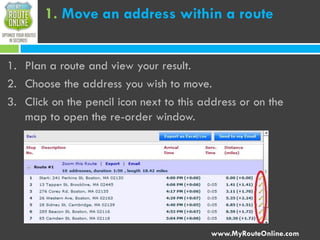
1. Plan a route and view your result.
2. Choose the address you wish to move.
3. Click on the pencil icon next to this address or on the
   map to open the re-order window.


                                          www.MyRouteOnline.com
1. Move an address within a route


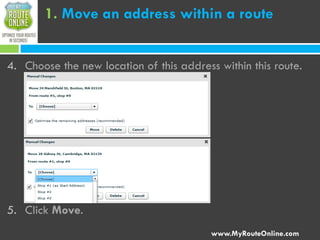
4. Choose the new location of this address within this route.


5. Click Move.
                                          www.MyRouteOnline.com
2. Move an address between routes


1. Plan more than one route and view your result.
2. Choose the address you wish to move.
3. Click on the pencil icon next to this address or on the
   map to open the re-order window.
4. Choose the target route for this address.


                                          www.MyRouteOnline.com
2. Move an address between routes


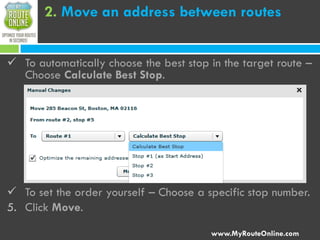
 To automatically choose the best stop in the target route –
  Choose Calculate Best Stop.


 To set the order yourself – Choose a specific stop number.
5. Click Move.

                                        www.MyRouteOnline.com
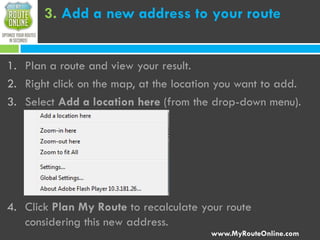
3. Add a new address to your route


1. Plan a route and view your result.
2. Right click on the map, at the location you want to add.
3. Select Add a location here (from the drop-down menu).


4. Click Plan My Route to recalculate your route
   considering this new address.
                                        www.MyRouteOnline.com
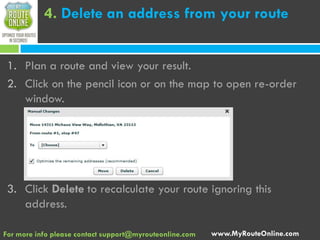
4. Delete an address from your route


 1. Plan a route and view your result.
 2. Click on the pencil icon or on the map to open re-order
    window.


 3. Click Delete to recalculate your route ignoring this
    address.

For more info please contact support@myrouteonline.com   www.MyRouteOnline.com

Manual changes-user-guide-MyRouteOnline

  • 1.
    Learn how tomanually change your optimized route www.MyRouteOnline.com
  • 2.
    Modify an existingroute-plan result after the initial route-planning There are 4 types of changes: 1.Move an address within a route (re-order). 2.Move an address between routes (for multi-route planning). 3.Add a new address to your route. 4.Delete an address from your route. www.MyRouteOnline.com
  • 3.
    1. Move anaddress within a route 1. Plan a route and view your result. 2. Choose the address you wish to move. 3. Click on the pencil icon next to this address or on the map to open the re-order window. www.MyRouteOnline.com
  • 4.
    1. Move anaddress within a route 4. Choose the new location of this address within this route. 5. Click Move. www.MyRouteOnline.com
  • 5.
    2. Move anaddress between routes 1. Plan more than one route and view your result. 2. Choose the address you wish to move. 3. Click on the pencil icon next to this address or on the map to open the re-order window. 4. Choose the target route for this address. www.MyRouteOnline.com
  • 6.
    2. Move anaddress between routes  To automatically choose the best stop in the target route – Choose Calculate Best Stop.  To set the order yourself – Choose a specific stop number. 5. Click Move. www.MyRouteOnline.com
  • 7.
    3. Add anew address to your route 1. Plan a route and view your result. 2. Right click on the map, at the location you want to add. 3. Select Add a location here (from the drop-down menu). 4. Click Plan My Route to recalculate your route considering this new address. www.MyRouteOnline.com
  • 8.
    4. Delete anaddress from your route 1. Plan a route and view your result. 2. Click on the pencil icon or on the map to open re-order window. 3. Click Delete to recalculate your route ignoring this address. For more info please contact support@myrouteonline.com www.MyRouteOnline.com