Learn how to import addresses to
MyRouteOnline
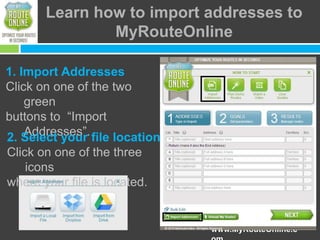
1. Import Addresses
Click on one of the two
green
buttons to “Import
Addresses”.
2. Select your file location

Click on one of the three
icons
where your file is located.

www.MyRouteOnline.c
Import Wizard
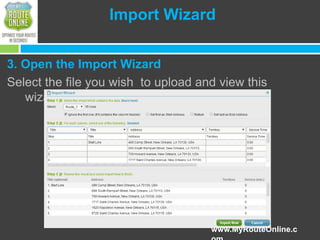
3. Open the Import Wizard
Select the file you wish to upload and view this
wizard.

www.MyRouteOnline.c
Import Your Excel/Text
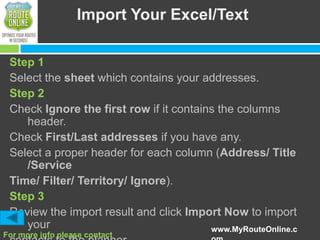
Step 1
Select the sheet which contains your addresses.
Step 2
Check Ignore the first row if it contains the columns
header.
Check First/Last addresses if you have any.
Select a proper header for each column (Address/ Title
/Service
Time/ Filter/ Territory/ Ignore).
Step 3
Review the import result and click Import Now to import
your
www.MyRouteOnline.c

For more info please contact

Import file-user-guide-my routeonline

  • 1.
    Learn how toimport addresses to MyRouteOnline 1. Import Addresses Click on one of the two green buttons to “Import Addresses”. 2. Select your file location Click on one of the three icons where your file is located. www.MyRouteOnline.c
  • 2.
    Import Wizard 3. Openthe Import Wizard Select the file you wish to upload and view this wizard. www.MyRouteOnline.c
  • 3.
    Import Your Excel/Text Step1 Select the sheet which contains your addresses. Step 2 Check Ignore the first row if it contains the columns header. Check First/Last addresses if you have any. Select a proper header for each column (Address/ Title /Service Time/ Filter/ Territory/ Ignore). Step 3 Review the import result and click Import Now to import your www.MyRouteOnline.c For more info please contact