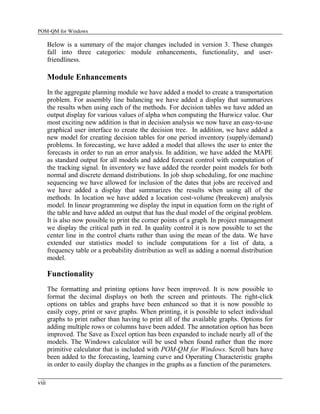
POM - QM FOR WINDOWS
Version 3
Software for Decision Sciences:
Quantitative Methods,
Production and Operations Management
Howard J. Weiss
www.prenhall.com/weiss
dsSoftware@prenhall.com
June 30, 2005
Copyright (c) 2006 by Pearson Education, Inc., Upper Saddle River, New Jersey, 07458.
Pearson Prentice Hall. All rights reserved.
Table of Contents
Chapter 1: Introduction
Overview...........................................................................1
Hardware and Software Requirements..............................3
Installing the Software.......................................................4
The Program Group...........................................................5
Starting the Program..........................................................6
The Main Screen...............................................................7
Chapter 2: A Sample Problem
Introduction.....................................................................12
Creating a New Problem.................................................13
The Data Screen..............................................................15
Entering and Editing Data...............................................15
The Solution Screen........................................................17
Chapter 3: The Main Menu
File..................................................................................19
Edit..................................................................................24
View................................................................................25
Module............................................................................26
Format.............................................................................27
Tools...............................................................................30
Window...........................................................................30
Help.................................................................................32
Chapter 4: Printing
The Print Setup Screen....................................................36
Information to Print.........................................................37
Page Header Information.................................................38
Page Layout.....................................................................39
Printer Options................................................................40
v
POM-QM for Windows
Chapter 5: Graphs
Introduction.....................................................................42
File Saving......................................................................43
Print.................................................................................43
Colors and Fonts.............................................................43
Chapter 6: Modules
Overview.........................................................................44
Aggregate (Production) Planning....................................45
Assembly Line Balancing................................................57
The Assignment Model...................................................65
Breakeven/Cost-Volume Analysis...................................67
Capital Investment...........................................................71
Decision Analysis............................................................73
Forecasting......................................................................84
Game Theory...................................................................99
Goal Programming........................................................102
Integer & Mixed Integer Programming..........................106
Inventory.......................................................................109
Job Shop Scheduling (Sequencing)................................117
Layout...........................................................................126
Learning (Experience) Curves.......................................130
Linear Programming......................................................133
Location........................................................................139
Lot Sizing......................................................................145
Markov Analysis...........................................................150
Material Requirements Planning...................................154
Networks.......................................................................161
Productivity...................................................................165
Project Scheduling.........................................................166
Quality Control..............................................................175
Reliability......................................................................182
Simulation.....................................................................185
Statistics........................................................................188
The Transportation Model.............................................193
Waiting Lines................................................................197
Work Measurement.......................................................206
Appendices
A. Customization due to textbook.........................................210
B. Useful hints for modules....................................................211
vi
Preface
It is hard to believe that POM-QM for Windows (formerly DS for Windows) has
been in existence, first as a DOS program and then as a Windows program, for
over 15 years. It seems like we have been using both minicomputers and Windows
forever but in fact large-scale Windows usage has been for less than a decade. At
the time that I finished the original DOS Version, few students had personal
computers or knew what an ISP was. Today, since a large majority of students
have their own computers this software is even more valuable than it has ever
been.
The original goal in developing software was to provide students with the most
user-friendly package available for production/operations management,
quantitative methods, management science, and operations research. We are

gratified by the response to the previous versions of POM-QM for Windows
indicating that we have clearly met our goal.
QM for Windows (Version 1.0) was first distributed in the summer of 1996 while a
separate but similar program, POM for Windows (Version 1.1) was first distributed
in the fall of 1996. DS for Windows, which contained all of the modules in both
POM and QM and also came with a printed manual was first distributed in 1997.
Version 2 of all three programs was created for Windows 95 and distributed in the
fall of 1999.
For this new version, version 3, we have collapsed the three former products into
one product named POM-QM for Windows. For consistency with past versions,
when using Prentice-Hall texts it is possible to install the program as POM for
Windows or QM for Windows and to display the POM for Windows or QM for
Windows module menu. Regardless of the name of the desktop icon all of the
modules are available to all users. We will refer to the product as POM-QM for
Windows throughout this manual.
This is a package that can be used to supplement any textbook in the broad area
known as Decision Sciences. This includes Production and Operations
Management, Quantitative Methods, Management Science, or Operations
Research.
vii
POM-QM for Windows
Below is a summary of the major changes included in version 3. These changes
fall into three categories: module enhancements, functionality, and user-
friendliness.
Module Enhancements
In the aggregate planning module we have added a model to create a transportation
problem. For assembly line balancing we have added a display that summarizes
the results when using each of the methods. For decision tables we have added an
output display for various values of alpha when computing the Hurwicz value. Our
most exciting new addition is that in decision analysis we now have an easy-to-use
graphical user interface to create the decision tree. In addition, we have added a
new model for creating decision tables for one period inventory (supply/demand)
problems. In forecasting, we have added a model that allows the user to enter the
forecasts in order to run an error analysis. In addition, we have added the MAPE
as standard output for all models and added forecast control with computation of
the tracking signal. In inventory we have added the reorder point models for both
normal and discrete demand distributions. In job shop scheduling, for one machine
sequencing we have allowed for inclusion of the dates that jobs are received and
we have added a display that summarizes the results when using all of the
methods. In location we have added a location cost-volume (breakeven) analysis
model. In linear programming we display the input in equation form on the right of
the table and have added an output that has the dual model of the original problem.
It is also now possible to print the corner points of a graph. In project management
we display the critical path in red. In quality control it is now possible to set the
center line in the control charts rather than using the mean of the data. We have
extended our statistics model to include computations for a list of data, a
frequency table or a probability distribution as well as adding a normal distribution
model.
Functionality
The formatting and printing options have been improved. It is now possible to
format the decimal displays on both the screen and printouts. The right-click
options on tables and graphs have been enhanced so that it is now possible to
easily copy, print or save graphs. When printing, it is possible to select individual
graphs to print rather than having to print all of the available graphs. Options for
adding multiple rows or columns have been added. The annotation option has been
improved. The Save as Excel option has been expanded to include nearly all of the
models. The Windows calculator will be used when found rather than the more
primitive calculator that is included with POM-QM for Windows. Scroll bars have
been added to the forecasting, learning curve and Operating Characteristic graphs
in order to easily display the changes in the graphs as a function of the parameters.
viii
User Friendliness
As mentioned above, we have combined all three packages into one package in
order that all models will be available to the students - especially students who
take both an Operations Management Course and a Quantitative Methods course.
We still allow for student choice of menu (POM, QM or both) to minimize
confusion. In addition, in order to improve the understanding of the models we
have added separators between models in the model submenu selection menu. We
have combined integer and mixed integer programming into one module. We have
added an overview tab to the problem creation screen to help describe the options
that are available. Manuals in both PDF format (this document) and Word format
have been added so that users may easily access the manual while running the
program or print pages from the manual. Tutorials which walk you through certain
operations step-by-step are included in the Help menu. The examples used in this
manual are included in the installation. More user customization options are
available in the User Information section under the Help menu.
To the students who use this software, I hope you find that this software
complements your text well. To the instructors who use this software, thank you
for choosing POM-QM for Windows. I welcome your comments, especially by e-
mail at dsSoftware@prenhall.com.
ix
POM-QM for Windows
Acknowledgments
The development of any large scale project such as POM-QM for Windows
requires the assistance of many people. I have been very fortunate in gaining the
support and advice of students and colleagues from around the globe. Without
their help, POM-QM for Windows would not have been as successful as it has
been.
In particular, though I would like to thank the students in Barry Render’s classes at
Rollins College and the students in my classes at Temple University. These
students have always been the first to see the new versions and over the years
several students have offered design features that were incorporated into the
software. Other design features were developed in response to comments sent to
me from users of Versions 1 and 2. I am extremely grateful for these comments
which have immensely helped the evolution and continuous improvement of
POM-QM for Windows.
Several changes in the software were put into place in Version 3 due to the
comments of Philip Entwistle, Northampton Business School. The original
version of the POM for Windows and QM for Windows software was reviewed by
Dave Pentico of Duquesne University; Laurence J. Moore of Virginia Polytechnic
Institute and State University; Raesh G. Soni of Indiana University of
Pennsylvania; Donald G. Sluti of the University of Nebraska at Kearney; Nagraj
Balachandran of Clemson University; Jack Powell of the University of South
Dakota; Sam Roy of Morehead State University; and Lee Volet of Troy State
University. Their comments were very influential in the design of the software that
was carried over to the new version.
In addition, other professors who have contributed to this software are Sri
Sridharan of Clemson University; Forrest (Fess) Green of Radford University;
John E. Nicolay Jr. of the University of Minnesota; Bill Smith of Troy State
University; Robert A. Donnel of Goldey-Beacom College; Dave Anstett of the
College of St. Scholastica; Leonard Yarbrough of Grand View College; and
Cheryl Dale and Steve Moss. Madeline Thinness of Utah State University
provided an extensive review of Version 2 for Windows.
Discussions with Fred Murphy and the late Carl Harris have been very useful to
me, especially in the mathematical programming and queueing modules.
There are several individuals at Prentice Hall to whom I must give special thanks.
Rich Wohl and Tom Tucker are the editors with whom I had worked on this
project for the first 6 versions. Not all editors have their keen understanding of
computers, software, texts, students, and professors. Without this understanding
and vision, POM-QM for Windows would still be a vision rather than a reality.
My current editors, Mark Pfaltzgraf and Alana Bradley have been instrumental in
getting this version to market. Fellow Prentice Hall authors including Barry
Render, Ralph Stair, Chuck Taylor, and Jay Heizer have helped me to make the
transition from the original DOS product to the current Windows products and to
improve the Windows product. I am grateful for their many suggestions and the
fact that they chose my software as the software to accompany their texts. The
support, encouragement, and help from all of these people are very much
appreciated. Nancy Welcher provides the support of the Prentice Hall web pages
that are maintained for these products. Finally, I would like to express my
appreciation to Debbie Clare who has been the marketing manager for my
software.
As always, I must express my appreciation and love to my wife, Lucia, for her
understanding and support during the many hours that continue to spend in front of
my PC. In addition, I am grateful for the valuable comments and suggestions
regarding the look and feel of the software from Lucia and my children, Ernie and
Lisa.
Chapter 1
Introduction
Overview
Welcome to Prentice-Hall’s Decision Science software package: POM-QM for
Windows (a.k.a. POM for Windows and QM for Windows). This package is the
most user-friendly software package available in the fields of production and
operations management, quantitative methods, management science, or operations
research. POM-QM for Windows has been designed to help you to better learn and
understand these fields. The software can be used either to solve problems or to
check answers that have been derived by hand. POM-QM for Windows contains a
large number of models, and most of the homework problems in POM textbooks
or QM textbooks can be solved or approached using POM-QM for Windows.
In this introduction and the next four chapters, we describe the general features of
the software. We encourage you to read them while running the software on your
computer. Chapter 6 contains the description of the specific models and
applications available in POM-QM for Windows.
You will find that the software is very user-friendly due to the following features:
Standardization
The graphical user interface for the software is a standard Windows
interface. Anyone familiar with any standard spreadsheet, word processor,
or presentation package in Windows will easily be able to use the software.
This standard interface includes the customary menu, toolbar, status bar,
and help files of Windows programs.
Even though the software contains 29 modules and more than 60
submodels, the screens for every module are consistent, so that after you
become accustomed to using one module you will have an easy time with
the other modules.
File storage and retrieval is simple. Files are opened and saved in the usual
Windows fashion and, in addition, files are named by module, which makes
it easy to find previously saved files.
1
POM-QM for Windows
Data and results, including graphs, can be easily copied and pasted between
this application and other Windows applications.
Flexibility
The screen components and the colors can be customized by the user. This
can be particularly effective on overhead data shows.
The user can select the desired output to print rather than having to print
everything. In addition, several print formatting options are available.
There are several preferences that the user can select from the Help, User
Information menu. For example, the software can be set to automatically
save a file after data has been entered and/or to automatically solve a
problem after data has been entered.
User-oriented design
The spreadsheet-type data editor makes data entry and editing extremely
easy. In addition, whenever data is to be entered, there is a clear instruction
given on the screen describing what is to be entered, and when data is
entered incorrectly a clear error message is displayed.
It is easy to change from one solution method to another in order to
compare methods and answers. In several cases, this is simply a one-click
operation. In addition, intermediate steps are generally available for display.
The display has been color coded so that answers will appear in a different
color from data.
Textbook customization
The software can be customized to Prentice-Hall textbooks in order that the
models, notation and displays will match the particular textbook.
2
User support
Updates are available on the Internet through the Prentice Hall Web site for
this book, http://www.prenhall.com/weiss, and, help is available by
contacting dsSoftware@prenhall.com.
What all of this means to you is that with a minimal investment of time in learning
the basics of POM-QM for Windows, you will have a very easy-to-use means for
solving problems or for checking your homework. Rather than being limited to
looking at the answers in the back of your textbook, you will be able to see the
solutions for most problems. In many cases, the intermediate steps are displayed in
order to help you check your work. In addition, you will have the capability to
perform sensitivity analysis on these problems or to solve bigger, more interesting
problems.
Hardware and Software Requirements
Computer
The software has minimal system requirements. It will run on any IBM PC
compatible Pentium machine with at least 8 MB RAM and operating Windows
2000, Windows NT, Windows ME or Windows XP.
Disk Drives/CD-ROM
The software is provided on a CD. This requires a CD-ROM drive.
Monitor
The software has no special monitor requirements. Different colors are used to
portray different items. All messages, output, data, etc. will show up on any
monitor. Regardless of the type of monitor that you are using, the software has the
capability that allows you to customize colors and/or fonts and font sizes in the
display to your liking. This is extremely useful when using an overhead projection
system. These options are explained in Chapter 3 in the section entitled Format.
Printer
A printer is not required to run the software but, of course, if you want a hard copy
(printout) then it is necessary to have a printer attached. The printing is standard so
that no special features, characters, or printers are required. It also is possible to
print to a file in order to import the printout into a word processor for further
editing.
Typographic Conventions in this Manual
3
POM-QM for Windows
When we use boldface, we are indicating something that you type or press.
When we use a bracket, [ ], we are naming a key on the keyboard or a command
button on the screen. For example [F1] means Function key F1, while [OK] means
the ‘Okay’ button on the screen.
We will use [Return], [Enter], or [Return/Enter] to mean the key on your
keyboard that has one of those names. The name of the key varies on different
keyboards and some even have both keys.
We will use boldface and capitalize only the first letter to refer to a Windows
menu command. For example, File refers to the menu command.
5. We will use all capitals to refer to a toolbar command such as SOLVE.
Installing the Software
We assume in the directions that follow that the hard drive is named C: and that
the CD-ROM is drive D:. The software is installed in the manner that most
programs designed for Windows are installed. For all Windows installations,
including this one, it is best to be certain that no programs are running while you
are installing a new one.
Insert the CD with POM-QM for Windows in drive D:. After a little while the
installation program should begin automatically. If it does not then:
From the Windows Start Button select, Run.
Browse the CD for D:setup.pomqmv3.exe (case does not matter).
Press [Enter] or click on [OK].
Follow the setup instructions on the screen. Generally speaking, it is simply
necessary to click [NEXT] each time that the installation asks a question.
Default values have been assigned in the setup program, but you may change them
if you like. The default folder is C:Program FilesPOMQMV3.
The setup program will ask you for registration information such as your name,
university, professor, and course. All items are optional except for the student/user
name that must be given. This name cannot be changed later! To change the other
information from within the program, use Help, User Information.
If you have the CD from the Operations Management, 8e textbook by Heizer and
Render the software will automatically be installed as POM for Windows and
customized to the textbook. In the future, if you have other Prentice-Hall Decision
Science textbooks then the software will be on the CD in the back of the textbook
4
and the program will be will be customized to the textbook. If you have the POM-
QM for Windows CD you can customize the software to the textbooks by using
Help, User Information.
One option that the installation will question you about is whether or not you want
to be able to run the program by double clicking on the file name in File Explorer.
If you say yes, then the program will associate the proper extensions with the
program name. This is generally very useful.
Please note that the software installs some files to the Windows System directory.
The installation will back up any files that are replaced if you select this option.
If you see a message saying that something is wrong during installation and you
have the option of ignoring, then choose this option. The program will likely
install properly anyway. The message usually indicates that you are running a
program or have run a program that shares a file with this software package. If you
have any installation or operation problems the first place to check is the
download page at www.prenhall.com/weiss.
Installing and Running on a Network
With the written permission of Prentice Hall, it is permissible to install the
software to a network only if each student has purchased an individual copy of
the software. That is, each student must possess his or her own licensed copy of
the CD in order to install the software on a network.
The Program Group
The installation will add a program group with four items to the Start Menu. The
names of the items (POM, QM or POM-QM) depend on whether the CD is from
the back of the textbook or is a stand-alone CD.
Help is available from within the program, but if you want to read some
information about the program without starting it first, use the POM-QM for
Windows 3 Help icon.
The program group contains one icon named Prentice Hall Web Site Gateway. If
you have an association for HTML files with a Web browser (e.g., Netscape or
Internet Explorer), this document will point you to program updates.
5
POM-QM for Windows
Finally, the software comes with a Normal Distribution Calculator. The calculator
is on the Tools menu of the program but also can be used as a stand alone program
without having to open POM-QM for Windows.
To uninstall the program use the usual Windows uninstall procedure (Start,
Settings, Control Panel, Add/Remove Programs). The programs will be
removed but the data files will not; they will have to be deleted using My
Computer or File Explorer if you wish to do so.
In addition to the Start Menu, the installation will place a shortcut to the program
on the desktop. The icon will be one of the three icons displayed below depending
on the exact CD being used. Whichever desktop icon has been installed is the icon
that can be used to easily begin the program.
Starting the Program
The easiest way to start the program is by double-clicking the program icon that is
on the desktop. Alternatively, you may use the standard Windows means for
starting the program. Click on Start, Programs, POM-QM for Windows 3,
POM-QM for Windows 3 in order to use the software. After starting the program,
a splash screen will appear as displayed on the next page.
Name
The name of the licensee will appear in the display. This should be your name if
you are running on a stand-alone computer or the network name if you are running
on a network.
6
Version Number
One important piece of information is the version number of the software. In the
example, the Version is 3.0 and this manual has been designed around that
number. While this is Version 3.0 there is also more detailed information about
the program version that can be found using Help, About (displayed at the very
end of Chapter 3). In particular, there is a build number. If you send e-mail asking
for technical support, you should include the build number with the e-mail.
NOTE: If the program has been registered as being in a public lab or on a network
then at this point the opening screen will change and give you the opportunity to
enter your name. This is useful when you print your results.
The program will start in a couple of seconds after the opening display appears.
The Main Screen
The second screen that appears is an empty main menu screen. The first time that
this screen appears, a Tip of the Day form will appear as displayed below. If you
don’t want the Tip of the Day to show up each time, then uncheck the box at the
lower left of the form. If you change your mind later and want to see the Tip of the
Day, then go to the Help menu.
7
POM-QM for Windows
Please notice the background in the middle of the screen. This is referred to as a
gradient. This gradient appears whenever the main screen is empty and it appears
on other screens in the software. You may customize the display of the gradient by
using Format, Colors as explained in Chapter 3.
After closing the Tip of the Day, or if you have chosen not to see the tips, the next
screen is the module selection screen (shown in Chapter 2). In order to display all
of the screen components, we have selected a module and loaded a data file.
8
The top of the screen is the standard Windows title bar for the window. At the
beginning the title is POM-QM for Windows (or POM for Windows or QM for
Windows). If you are using a Prentice Hall text then the names of the authors of
the texts should appear in this title bar at the beginning of the program as shown in
the figure on the previous page. (If not, go to Help, User Information.) The title
bar will change to include the name of the file when a file is loaded or saved as
shown above. On the left of the title bar is the standard Windows control box and
on the right are the standard minimize, maximize, and close buttons for the
window-sizing options.
Below the title bar is a bar that contains the Main Menu. The menu bar is very
conventional and should be easy to use. The details of the menu options of File,
Edit, View, Module, Format, Tools, Window, and Help are explained in Chapter
3. At the beginning of the program, the Edit option is not enabled, as there is no
data to edit. The Window option is also disabled, since this refers to results
windows and we have no results. While the menu appears in the standard
Windows position at the top of the screen, it can be moved if you like by clicking
on the handle on the left and dragging the mouse.
Below the menu is a standard toolbar (also called a button bar or ribbon). This
toolbar contains shortcuts for several of the most commonly used menu
commands. If you move the mouse over the tool for about two seconds, an
9
POM-QM for Windows
explanation of the tool (balloon help) will appear on the screen. As with most
software packages, the toolbar can be hidden if you so choose (right click on any
of the toolbars or use View, Toolbars, Customize). Hiding the toolbar, allows for
more room on the screen for the problems. As is the case with most toolbars, we
allow the toolbar to float. In order to reposition any of the toolbars, simply click
on the handle on the left and drag.
One very important tool on the standard toolbar is the SOLVE tool on the far
right of the toolbar. This is what you press after you have entered the data and you
are ready to solve the problem. Alternatively, you may use File, Solve or press the
[F9] key. Please note that after pressing the SOLVE tool, this tool will change to
an EDIT tool. This is how you go back and forth from entering data to viewing
the solution. For two modules, linear programming and transportation, there is one
more command that will appear on the standard toolbar. This is the STEP tool
(not displayed in the figure), and it enables you to step through the iterations,
displaying one iteration at a time.
Below the standard toolbar is a format toolbar. This toolbar is very similar to the
toolbars found in Excel, Word, and WordPerfect. It too can be customized, moved,
hidden, or floated.
There is one more toolbar, and its default location is at the bottom of the screen.
This bar is a utility bar and it contains six tools. The tool on the left is named
MODULE. A module list can appear in two ways - either by using this tool or the
Module option on the main menu. The next tool is named PRINT SCREEN, and it
is there to emulate the old print screen function in DOS. The next two tools will
load files in alphabetical order either forward or backwards. This is very useful
when reviewing a number of problems in one chapter such as the sample files that
accompany this manual. The two remaining tools allow files to be saved as Excel
or HTML files.
In the center are two areas, one of which is the main data table. The table contains
a heading or title and then simply rows and columns. The number of rows and
columns depends on the module, problem type, and specific problem. The large
10
area with no grid is the table background. The caption colors, table colors and
background color can be changed by using Format, Colors, as explained in
Chapter 3.
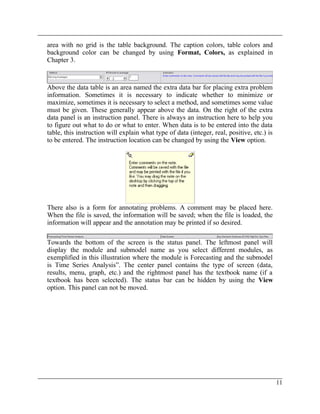
Above the data table is an area named the extra data bar for placing extra problem
information. Sometimes it is necessary to indicate whether to minimize or
maximize, sometimes it is necessary to select a method, and sometimes some value
must be given. These generally appear above the data. On the right of the extra
data panel is an instruction panel. There is always an instruction here to help you
to figure out what to do or what to enter. When data is to be entered into the data
table, this instruction will explain what type of data (integer, real, positive, etc.) is
to be entered. The instruction location can be changed by using the View option.
There also is a form for annotating problems. A comment may be placed here.
When the file is saved, the information will be saved; when the file is loaded, the
information will appear and the annotation may be printed if so desired.
Towards the bottom of the screen is the status panel. The leftmost panel will
display the module and submodel name as you select different modules, as
exemplified in this illustration where the module is Forecasting and the submodel
is Time Series Analysis”. The center panel contains the type of screen (data,
results, menu, graph, etc.) and the rightmost panel has the textbook name (if a
textbook has been selected). The status bar can be hidden by using the View
option. This panel can not be moved.
11
POM-QM for Windows
Chapter 2
A Sample Problem
Introduction
In this chapter, we will run through a sample problem from beginning to end in
order to demonstrate how to use the package. While not all problems or modules
are identical, there is enough similarity that seeing one example will make it very
easy to use any module in this software. As we mentioned in the introduction, the
first instruction is to select a module to begin the work.
In the above figure, we display the modules as they are listed when you use the
MODULE tool on the utility bar (as opposed to the Module option in the main
menu at the top). As you can see, there are 29 modules available. They are divided
into three groups. The models in the first group typically are included in all POM
and QM books, while the models in the second group typically appear only in
POM books and the models in the third group appears only in QM texts. The
models are divided in this fashion so that you will understand it is completely fine
to ignore POM only modules if you have a QM course and vice-versa.
If you choose the Module option from the Main Menu, you get the same modules
listed in a single list in alphabetical order. (This is displayed in Chapter 3.) You
Chapter 2: A Sample Problem
have the option on this menu to display only the POM modules or only the QM
modules.
Creating a New Problem
Generally, the first menu option that will be chosen is File, followed by either
New to create a new data set or Open to load a previously saved data set. In the
figure that follows, we show the creation screen that is used when a new problem
is started. Obviously, this is an option that will be chosen very often. The creation
screens are similar for all modules, but there are slight differences that you will
see from module to module.
The top line contains a text box into which the title of the problem can be entered.
The default title for problems is initially “(untitled)”. The default title can be
changed by pressing the button [Modify Default Title]. For example, if you
change the default title to “Homework Problem” then every time you start a new
problem the title will appear as Homework Problem, and you would simply need
to add the problem number to complete the title. If you want to change the title
after creating the problem, this can easily be done by using the Format, Title
option from the main menu bar or from the toolbar.
For many modules, it is necessary to enter the number of rows in the problem.
Rows will have different names depending on the module. For example, in linear
programming, rows are “constraints”, while in forecasting, rows are “past
periods”. At any rate, the number of rows can be chosen with either the scroll bar
or the text box. As is usually the case in Windows, they are connected. As you
move the scroll bar, the number in the text box changes; as you change the text,
the scroll bar moves. In general, the maximum number of rows in any module is
POM-QM for Windows
90. There are three ways to add or delete rows or columns after the problem has
been created. You may use the options in the Edit menu, you may right click on
the data table which will bring up both copy and insert/delete options or, to insert
a row or insert a column , you may use the tools on the toolbar.
This program has the capability to allow you different options for the default row
names. Select one of the six option buttons in order to indicate which style of
default naming should be used. In most modules, the row names are not used for
computations, but you should be careful because in some modules (most notably
Project Management and MRP) the names might be relevant to the computations.
In most modules, the row names can be changed by editing the data table.
Many modules require a number of columns. This is given in the same way as the
number of rows. The program gives you a choice of default values for column
names in the same fashion as row names but on the tab named Column Names.
We have added an overview tab to the creation screen in this version of the
software. The overview tab gives a brief description of the models that are
available and also gives any important information regarding the creation or data
entry for that module.
Some modules, such as the linear programming example displayed on the previous
page, will have an extra option box, such as for choosing minimize or maximize or
selecting whether distances are symmetric or not. Select one of these options. In
most cases, this option can be changed later on the data screen.
When you are satisfied with your choices, click on the [OK] button. At this point,
a blank data screen will appear as given in the following figure. Screens will differ
module by module but they will all resemble the screen on the following page.
Chapter 2: A Sample Problem
The Data Screen
The data screen was described briefly in Chapter 1. It has a data table and, for
many models, there is extra information that appears above the data table as shown
in the figure below.
Entering and Editing Data
After a new data set has been created or an existing one has been loaded, the data
can be entered or edited. Every entry is in a row and column position. You
navigate through the spreadsheet using the cursor movement keys (or the mouse).
These keys function in a regular way with one very useful exception - the [Enter]
key.
The [Enter] key takes you to the next cell in the table, first moving to the right and
then moving down. When a row is finished, the [Enter] key goes to the first cell in
the next row that contains data rather than a row name. For example, in the screen
above, if you are at the end of the row named “Source 1" and you press [Enter],
the cursor will move to the cell with a “0" in the next row. It is possible to set the
cursor to go to the first cell, the one with the name in it, by using Help, User
Information.
POM-QM for Windows
In addition, if you use the [Enter] key to enter the data, after you are done with
the last cell the program will automatically solve the problem (saving you the
trouble of clicking on the SOLVE tool). This behavior can be adjusted by using
Help, User Information and, in addition, if you want the program to
automatically prompt you to save the file when you are done entering data, this
too can be accomplished through Help, User Information.
The instruction frame on the screen will contain a brief instruction describing what
is to be done. There are essentially three types of cells in the data table.
One type is a regular data cell into which you enter either a name or a number.
When entering names and numbers, simply type the name or number; then press
the [Enter] key or one of the direction keys or click on another cell. If you type an
illegal character, a message box will be displayed indicating so.
A second type is a cell that cannot be edited. For example, the empty cell in the
upper left hand corner of the table can not be edited. (You actually could paste
into the cell.)
A third type is a cell that contains a drop-down box. For example, the signs in a
linear programming constraint are chosen from this type of box, as shown in the
following illustration. To see all of the options, press the arrow on the drop-down
box.
When you are finished entering the data, press the SOLVE tool on the toolbar or
use [F9] or File, Solve and a solution screen will appear as given in the following
illustration. The original data is in black and the solution is in a color. Of course,
these are only the default values, as all colors may be set by using Format,
Colors.
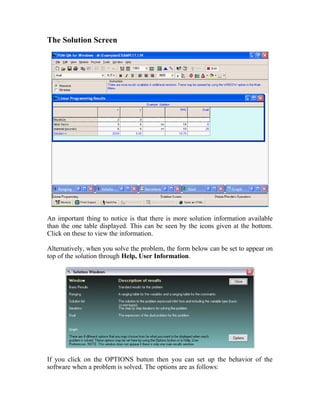
The Solution Screen
An important thing to notice is that there is more solution information available
than the one table displayed. This can be seen by the icons given at the bottom.
Click on these to view the information.
Alternatively, when you solve the problem, the form below can be set to appear on
top of the solution through Help, User Information.
If you click on the OPTIONS button then you can set up the behavior of the
software when a problem is solved. The options are as follows:
The first option will simply display the solution. The next three options are there
to remind you that more results may exist than the one window being displayed.
The second option will display the Solutions Window which contains a brief
description of each solution Window. The third option will automatically drop
down the Window menu. These options can be rest using Help, User
Information.
It is generally at this point that, after reviewing the solution, you would choose to
print both the problem and solution.
Now that we have examined the creation and solution of a problem, we explain all
of the options that are available in the Main Menu.
Chapter 3
The Main Menu
File
File contains the usual options that one finds in most Windows programs, as seen
in the figure that follows.
These options are now described.
New
As demonstrated in the sample problem, this option is chosen to begin a new
problem/file. In some cases, you will go directly to the problem creation screen,
while in other cases a pop-up menu will appear indicating the submodels that are
available. After selecting a submodel, you will go to the creation screen.
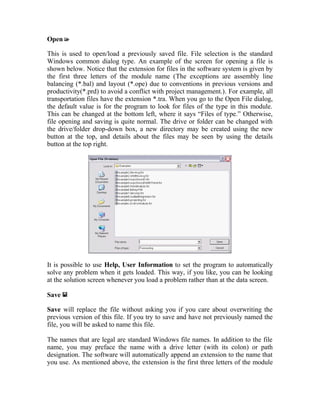
Open
This is used to open/load a previously saved file. File selection is the standard
Windows common dialog type. An example of the screen for opening a file is
shown below. Notice that the extension for files in the software system is given by
the first three letters of the module name (The exceptions are assembly line
balancing (*.bal) and layout (*.ope) due to conventions in previous versions and
productivity(*.prd) to avoid a conflict with project management.). For example, all
transportation files have the extension *.tra. When you go to the Open File dialog,
the default value is for the program to look for files of the type in this module.
This can be changed at the bottom left, where it says “Files of type.” Otherwise,
file opening and saving is quite normal. The drive or folder can be changed with
the drive/folder drop-down box, a new directory may be created using the new
button at the top, and details about the files may be seen by using the details
button at the top right.
It is possible to use Help, User Information to set the program to automatically
solve any problem when it gets loaded. This way, if you like, you can be looking
at the solution screen whenever you load a problem rather than at the data screen.
Save
Save will replace the file without asking you if you care about overwriting the
previous version of this file. If you try to save and have not previously named the
file, you will be asked to name this file.
The names that are legal are standard Windows file names. In addition to the file
name, you may preface the name with a drive letter (with its colon) or path
designation. The software will automatically append an extension to the name that
you use. As mentioned above, the extension is the first three letters of the module
name. You may type file names in as uppercase, lowercase, or mixed. Examples of
legal file names are
sample, sample.tra, c:myFile, c:myCoursetest, and myproblem.example.
If you enter sample.tra and the module is not transportation, then an extension will
be added. For example, if the module is linear programming, then the name under
which the file will be saved will be sample.tra.lin.
Save as
Save as will prompt you for a file name before saving. This option is very similar
to the option to load a data file. When you choose this option, the Windows
Common Dialog Box for Files will appear. It is essentially identical to the one
previously shown for opening files.
Save as Excel File
The software has an option that allows you to save most (but not all) of the
problems as Excel files. The data is transported to Excel and the spreadsheet is
filled with formulas for the solutions. In some cases, Excel’s Solver may be
required in order to get the solution.
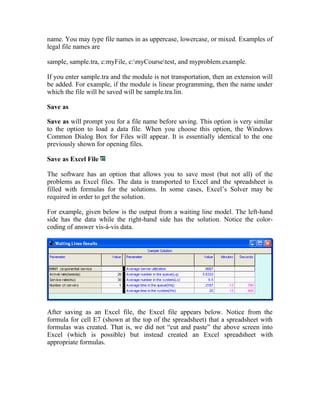
For example, given below is the output from a waiting line model. The left-hand
side has the data while the right-hand side has the solution. Notice the color-
coding of answer vis-à-vis data.
After saving as an Excel file, the Excel file appears below. Notice from the
formula for cell E7 (shown at the top of the spreadsheet) that a spreadsheet with
formulas was created. That is, we did not “cut and paste” the above screen into
Excel (which is possible) but instead created an Excel spreadsheet with
appropriate formulas.
Save as HTML File
Any table, either data or solution, may be saved as an HTML file, as shown below.
If more than one table is on the screen at the time that this option is selected, then
the active table is the one that is saved.
Print
Print will display a Print Setup screen. Printing options are described in Chapter
4. Both Save and Print will act slightly differently if a graph is being displayed at
the time that you use Print or Save.
Print Screen
This will print the screen as it appears. Different screen resolutions may affect the
printing. Printing the screen is more time consuming than a regular print. Use this
option if you need to demonstrate to your instructor exactly what was on the
screen at the time.
Solve
There are several ways to solve a problem. Clicking on File, Solve is probably the
least efficient way to solve the problem. The toolbar icon may be used, as well as
the [F9] key. Also, if the data is entered in order (top to bottom, left to right, using
[Enter]), the program will solve the problem automatically after the last cell.
After solving, the Solve option will change to an Edit option on both the menu
and the toolbar. This is the way to go back and forth between data and solutions.
Note that Help, User Information may be used to set the program to
automatically maximize the solution windows if so desired.
Exit
The next option on the File menu is Exit. This will exit the program. You will be
asked if you want to exit the program. You can eliminate this question by using
Help, User Information.
Last Four Files
The File menu contains a list of the last four files that you have used. Clicking on
one of these will load the file.
Edit
The commands under Edit can be seen in the following illustration. Their
purposes are threefold. The first six commands are used to insert or delete rows or
columns. The second type of command is useful for repeating entries in a column,
and the third type is for cutting and pasting between Windows applications. It is
also possible to enable the insert/delete and copy options by right clicking on the
data or solution table.
1Insert Row will insert a row after the current row, and Insert Column will
insert a column after the current column. Insert Rows(s) and Insert Columns(s)
enable you to insert multiple rows or columns. Delete Row will delete the current
row, and Delete Column will delete the current column.
Copy Entry Down Column
This command is used to copy an entry from one cell to all cells below it in the
column. This is not often useful, but it can save a great deal of work when it is.
Copy
Copy has five options available. It is possible to copy the entire table, the current
row, or the current column to the clipboard. It is possible to copy from the data
table or any of the solution tables. Whatever is copied can then be pasted into this
program or some other Windows program. (The copy tool in the toolbar copies
the entire table.) If you are at the solution stage, the copying will be for the table
that is active.
Copy Special will copy the entire table but enable you to limit the number of
decimals that are copied. Save as HTML will perform the HTML operation that
was previously described.
Paste
Paste is used to paste in the current contents of the clipboard. When pasting into
POM-QM for Windows, the pasting begins at the current cursor position. Thus, it
is possible to copy a column to a different column beginning in a different row.
This could be done to create a diagonal. It is not possible to paste into a solution
table, although, as indicated previously, it is possible to copy from a solution table.
1NOTE: Right-clicking on any table will bring up Copy options and if the table is
the data table it will also bring up the insert and delete options.
View
View has several options that enable you to customize the appearance of the
screen.
The Toolbars menu contains two options. The toolbar can be customized (as can
most Windows toolbars) or the toolbar can be reset to its original look.
The Instruction bar can be displayed at its default location in the extra data panel
or above the data, or below the data, or as a floating window, or not at all. The
Status Bar display can be toggled on or off.
Full Screen will turn all of the bars (toolbar, command bar, instruction, and
status bar) on or off.
Zoom will generate a small form allowing you to reduce or increase the size of the
columns. It is easier to use the zoom tool on the standard toolbar.
Colors can be set to Monochrome (black and white) or from this state to their
Original Colors. This formerly was very useful when overhead devices displayed
much better in monochrome than in color. Today, the projectors are so powerful
that monochrome is generally not required.
Module
A drop-down list with all of the modules in alphabetical order will appear. The
MODULE tool on the utility toolbar below the data area is a second way to get a
list of modules. At the bottom of the list are options for indicating whether you
want to display only the POM modules (as displayed), only the QM modules or all
of the modules.
Format
Format has several options for the display of data and solution tables, as can be
seen in the following illustration. In addition, there are some additional format
options available in the format toolbar.
Colors
The colors for all of the displays can be set. There are five tabs as shown below.
These options will create permanent changes whereas the foreground and
background tools on the format bar will change only the current table.
Furthermore, the color settings are for the entire table, while the format tools may
be used for either the entire table or for selected columns.
The first tab is for setting the colors in the data table, and the second tab is for
setting the colors in the solution tables. That is, it is possible to have the displays
of the data and the display of the results appear differently, which can be helpful.
For either the data or the results, you may set the background and foreground
colors for rows to alternate by using the odd and even options. This makes reading
long tables easier.
In order to set the colors, first select the table property that you want to set, then
select foreground or background if applicable, then select rows if applicable and
then click on the color. For example, click on Body, Foreground, Odd and then
click on the red color box and the foreground for every other row will become red.
The changes here will be maintained throughout until you return to this screen and
reset the colors. If you want to make changes in only one table for one problem,
then it may be easier to use the toolbar options for foreground and background
. Also, the foreground and background color selection tools, as well as the bold,
italic, and underline tools, may be used on individual columns if you select these
columns before pressing on the tool.
The third tab allows you to customize the colors in the panels (status, instruction).
The fourth tab can be used to set the gradient that appears on several of the screens
(problem creation, empty data screen), and the fifth tab allows you to reset the
colors to their original (factory) settings.
Other Format Options
The font type, style, and size for all tables can be set. Zeros can be set to display
as blanks rather than zeros in the data table. The grid line display can be set
to horizontal, vertical, both, or none. The problem title that appears in the data
table, and which was created at the creation screen, can be changed .
In order to give some idea of the extensive formatting capabilities available, we
display a sample of an overly formatted screen.
In order to create this screen we used Format, Colors and changed the
background and foreground colors of odd rows to give us the alternating rows. We
also went to the panels tab and changed the status panel background to a dark
color and the foreground to a light color. After this we selected the column named
“Cippy” and used the background tools on the toolbar to reset the colors for this
column only, then we selected “Bruce” and “Lauren” and used the Bold and Italic
tools on the toolbar respectively, and, finally, we selected “Brian” and used the
foreground tool.
Returning to the Format menu, observe that the table can be squeezed or
expanded . That is, the column widths can be decreased or increased. Each press
of the tool changes the column widths by 10 percent. This is very useful if (results)
tables are wider than the screen. The toolbar has the zoom option which may also
be used for resizing the column widths.
NOTE: All tables can have their column widths changed by clicking on the line
separating the columns and dragging the column divider left or right! Double
clicking on this line will not automatically adjust the column width as it does in
Excel.
The input can be checked or not. It is a good idea to always check the input, but
not checking allows you to put entries into cells that otherwise could not be put
there.
1Number of Decimals, Comma and Fixed are used to format the displayed or printed
output. The Comma option will display numbers greater than 999 with a comma. The
Number of decimals drop down box controls the maximum number of decimals
displayed. If you have it set to “00" then .333 would be displayed as .33 while 1.5 would
be displayed as 1.5. If you turn on the Fixed (decimal) option then all numbers would
have 2 decimals. Thus 1.5 would be displayed as 1.50 and line up with 1.33.
Tools
1The software should find the Windows calculator if you select the Calculator
option. If not, a calculator is available for simple calculations, including square
root. Numbers may be copied from the calculator and pasted into an individual
cell in the data table. A Normal Distribution Calculator is available for
performing calculations related to the normal distribution. This is particularly
useful for forecasting and project management. See the Help screen for
information on how to use the Normal Distribution Calculator, or use the happy
face on the calculator to get step-by-step instructions. An example of the Normal
Calculator appears in Chapter 6 in the section on project management. The same
computations can be done in the Statistics module but the calculator is a little more
intuitive to use.
There is an area available to Annotate problems. If you want to write a note to
yourself about the problem, select annotation. The note will be saved with the file
if you save the file. An example of annotation appears in Chapter 1. In order to
eliminate the annotation completely, the box must be blank (by deleting) and then
the file must be resaved. When you print, you have an option to print the note or
not.
Window
A sample of the Window options appears in the next illustration. This menu option
is enabled only at the solution screen. Notice that in this example there are six
different output screens that can be viewed. The number of windows depends on
the specific module and problem.
Below we are displaying the screen after using the Tile option from the Window
menu when the screen resolution was set to 1280 by 1024. With this resolution it
may be very useful to tile in order to see all of the available solution windows. In
fact, using Help, User Information you could set all solution windows to open up
for every problem. Obviously, the value of this option depends on your screen
resolution.
Help
The Help options are displayed next. The third option is the topic and will give a
description of the module, the data required for input, the output results, and the
options available in the module. It is worthwhile to look at this screen at least one
time in order to be certain that there are no unsuspected differences between your
assumptions and the assumptions of the program. If there is anything to be warned
about regarding the option, it will appear on the help screen as well as in Chapter 6
of this manual.
Tip of the Day
The Tip of the Day will be displayed. From this, it will be possible to set the tip to
display all of the time or not to display.
E-mail support
This will use your e-mail to set up a message to be sent to Prentice Hall. The first
step is to click on the main body of the message and then to paste (CTRL-V or
SHIFT-INS) the information that the program has created into the body of the
mail.
Program Update
This option points you to www.prenhall.com/weiss. Updates are on the download
page.
Manual
The program comes with this manual in both PDF form and as a Word document.
The PDF manual requires Adobe acrobat reader which is available free through
http://www.adobe.com/.
Tutorials
The program comes with tutorials that are Macromedia Flash displays (exe files)
which show you how to perform certain operations.
User Information
The user information form is shown below. The first tab can be used to change the
name of the course, instructor or school. The student name is set at the time of
installation of the software and cannot be changed.
The second tab is used to set several of the options that have been discussed to this
point.
The third tab is used to set the textbook. There are some differences between
displays, models available and computations for different textbooks.
About POM-QM for Windows
The last help option is a standard About display. Notice the build number (Build
20) after the version number. If you send e-mail requesting help, please be sure to
include this build number. Also, notice the Web site location -
www.prenhall.com/weiss. This site contains updates!
Chapter 4: Printing
Chapter 4
Printing
The Print Setup Screen
After selecting Print from the menu (or toolbar), the Print Setup screen will be
displayed as shown in the figure below. There are several options on this screen which
are divided over five tabs. The first tab is shown below.
Before examining the tabs please notice that the bottom of the form contains three frames
which, if clicked, will change the format between black/white and color, portrait and
landscape, and ASCII and grid style printing.
POM-QM for Windows
Chapter 4: Printing
Information to Print
The options in the frame depend on whether Print was selected from the data
screen or from the solution screen. From the data screen, the only option that will
appear is to print the data. However, from the solution screen there will be one
option for each screen of solution values.
For example, in the linear programming example above there are six different
output displays as well as a graph available and annotation since this file had a
note attached. You can select which of these will be printed. In general, the data is
printed when printing the output and, therefore, it is seldom necessary to print the
data, meaning that all printing can be performed after the problem is solved.
Tables vs. Equations
For the mathematical programming types of modules, there is an option available
about the style of printing. The problem can be printed in regular tabular form or
in equation form. We show an example of each next.
Tabular Form
Results----------
x y RHS Dual
Maximize 3 3
laborhours 3 4 <= 14 0.5
material(pounds) 6 4 <= 15 0.25
Equation Form
Results----------
OPTIMIZE:3x + 3y
laborhours:+ 3x + 4y <= 14
material(pounds):+ 6x + 4y <= 15
Printing Graphs
If you select to print the graphs, the software will allow you to select which graphs
should be printed. For example, Project Management results include three Gantt
charts and a precedence graph. You can select which graphs you would like from
the list that is presented as shown below.
Chapter 4: Printing
If all you want is one of the graphs, it is also possible to do your graph printing
from the graph screen (described in the next chapter) rather than from the results
screen. Furthermore, if you want to control the size of the printed graph, use the
options in the next chapter.
Page Header Information
The tab for the page header information is displayed below. There are six pieces of
information that can be chosen to appear on the header. The first three options will
appear on the first header line, and the second three will appear on the second
header line. If the software is registered as being on a network or lab then the
student name will include the name of the lab followed by the name of the student
that was entered when the program was started. To make permanent changes to the
course name or instructor name, use Help,
User Information
Page Layout
POM-QM for Windows
Chapter 4: Printing
The tab for page layout is shown below.
Print as
There are two styles of printing that may be used. The most common and fastest
way to print is as ASCII (plain text). In addition, you may also print it as a grid
similar to the one that appears on the screen. Thus, you may format the grid and
then go to the print option and print a highly formatted grid. The formatted grids
take longer to print than the plain text printing.
Paper Orientation
The paper can be printed in regular fashion (portrait) or it can be printed sideways
(landscape).
Answers
Answers can be bold, italic, color, or any combination of the three. Do not look for
color if you do not have a color printer. In fact, if you set the printing to use color
on a black/white printer, the color answers generally appear lighter! This is usually
not the desired characteristic.
Spacing
The printing may be single-spaced (highly suggested) or double-spaced.
Chapter 4: Printing
Margins
The left, right, top, and bottom margins can be set from zero to 1 inch in
increments of .1 inches. The margin is above or beyond any natural margin that the
printer itself has. Margins of zero allow for the most printing across the page.
Maximum Column Widths
The maximum widths of the columns (in characters) can be set. The leftmost
column which is usually names, can be set separately from the other columns. This
is useful if you want to compress tables.
Printer Options
The tab for the printer options appears below.
Print to and If the File Already Exists
It is possible to print to the printer or to print to a file. If you print to a file you will
be asked for a file name. Any name can be given. You also have the option of
adding the printing to a file that was already there (appending) or erasing the file
before printing (replace file).
Print Timing
Printing can occur each time that you use Print or it can wait until the end, when
everything will be printed at once. Printing each time is generally preferable, but
there are some situations where you want to wait until the end because this may
save paper or minimize the number of trips to a network printer.
POM-QM for Windows
Chapter 4: Printing
Change Default Printer
If you have more than one printer, you may change the printer using this option.
This changes the Windows default printer and may affect other programs! If you
print as a grid, the printer selected is always the Windows default printer
regardless of what you select in this window.
POM-QM for Windows
Chapter 5
Graphs
Introduction
Many of the modules have the capability to display graphs or charts
as one of the output options. Some of the modules have more than
one graph associated with them. For example, as shown in the figure
below, four different project management graphs are available. The
graph to be displayed is chosen using the tab. There are several
options that you have when a graph appears, and we explain those
options in this chapter.
Chapter 5: Graphs
When a graph is opened, two things will occur. The first is that the graph
will be displayed covering the entire area below the extra data; the second
is that some of the menu options will change or execute differently.
File Saving
The file save option both under File on the main menu and on the
toolbar will save the (active) graph rather than saving the file. The file may
still be saved by using File, Save as or by going to a results window other
than the graph window.
Print
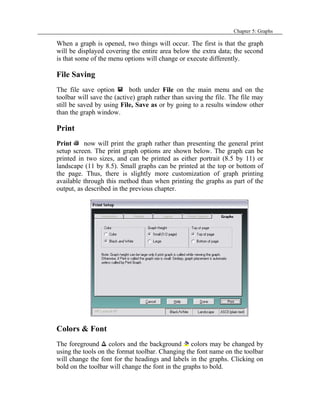
Print now will print the graph rather than presenting the general print
setup screen. The print graph options are shown below. The graph can be
printed in two sizes, and can be printed as either portrait (8.5 by 11) or
landscape (11 by 8.5). Small graphs can be printed at the top or bottom of
the page. Thus, there is slightly more customization of graph printing
available through this method than when printing the graphs as part of the
output, as described in the previous chapter.
Colors & Font
The foreground colors and the background colors may be changed by
using the tools on the format toolbar. Changing the font name on the toolbar
will change the font for the headings and labels in the graphs. Clicking on
bold on the toolbar will change the font in the graphs to bold.
POM-QM for Windows
Chapter 6: Modules
Chapter 6
Modules
Overview
In this chapter, we detail each of the 29 modules. We explain the input required for each
module, the options available for modeling and solving, and the different output screens
and reports that can be seen and printed. Recall that the menu can be set to display only
POM modules, only QM modules or all modules. For modules that are in both the POM
and QM menus we display the POM-QM for Windows icon,
in this manual. For all modules that are in the POM only menu, we display the POM for
Windows icon,
while for all modules that are in the QM only menu we display the QM for Windows icon,
.
For example, in the first module, aggregate planning, which appears on the next page, we
see the POM icon since aggregate planning appears in the POM only menu but not in the
QM only menu. Finally, the examples used in this manual have been installed in the
Examples folder in the POM-QM for Windows folder (Program FilesPOMQMV3).
Aggregate (Production) Planning
45
POM-QM for Windows
Production planning is the means by which we prepare our production quantities
for the medium term (generally one year). Aggregate planning refers to the fact
that the production planning is usually carried out across product lines. We will
use the terms aggregate planning and production planning interchangeably. The
main planning difficulty is that demands vary from month to month. We want to
keep production as stable as possible yet maintain minimum inventory and
experience a minimum of shortages. We must balance the costs of production,
overtime, subcontracting, inventory, shortages, and changes in production levels.
In some cases, aggregate planning problems might require the use of the
transportation or linear programming modules. The second submodel in the
aggregate planning module creates and solves a transportation model of aggregate
planning for cases where all of the costs are identical. The transportation model is
also available as one of the methods for the first submodel.
The Aggregate Planning Model
Production planning problems are characterized by a demand schedule, a set of
capacities, various costs and a method for handling shortages. Consider the
following example.
Example 1 - Smooth Production
Consider a situation where demands in the next four periods are for 1200, 1500,
1900, and 1400 units. Current inventory is 0 units. Suppose that regular time
capacity is 2000 units per month and that overtime and subcontracting are not a
consideration. The costs are $8 for each unit produced during regular time, $3 for
each unit held per period, $4 for each period that we are short a unit, $5 for each
unit by which we increase production from the previous period, and $6 for each
unit by which we reduce production from the previous period. The screen for this
example is displayed below.
Above the data, we have two considerations - shortage handling and the method to
use for performing the planning.
Shortage handling. In production planning there are two models for handling
shortages. In one model, shortages are backordered. That is, demands can
accumulate and be met in later periods. In another model, the shortages become
lost sales. That is, if you cannot satisfy the demand in the period in which it is
requested, the demand disappears. This option is above the data table.
46
Chapter 6: Modules
Methods.
Five methods are available, which we will demonstrate. Please note that smooth
production accounts for two methods.
Smooth production will have equal production in every period. This can be
set according to the gross demand or the net demand (gross demand minus
initial inventory).
Produce to demand will create a production schedule that is identical to the
demand schedule.
Constant regular time production, followed by overtime and subcontracting
if necessary. The lesser cost method will be selected first.
Any production schedule: in which case the user must enter the amounts to
be produced in each period.
The transportation model
Quantities
Demand. The demands are the driving force of aggregate planning and these are to
be given in one column.
Capacities - regular time, overtime, and subcontracting. The program allows for
three types of production - regular time, overtime, and subcontracting, and
capacities for these are to be given in the next three columns. If the method
selected is the user-defined method, then these are not viewed as capacities but
rather as production quantities. When deciding whether to use overtime or
subcontracting, the program will always first select the one that is less expensive.
47
POM-QM for Windows
Costs
The costs for the problem are all placed in the far right column of the data screen.
Production costs - regular time, overtime, and subcontracting. These are the per-
unit production costs depending on when and how the unit is made.
Inventory (holding) cost. This is the amount charged for holding one unit for one
period. The total holding cost is charged against the ending inventory. Be careful,
because while most textbooks charge against the ending inventory, some textbooks
charge against average inventory during the period.
Shortage cost. This is the amount charged for each unit that is short in a given
period. Whether it is assumed that the shortages are backlogged and satisfied as
soon as stock becomes available in a future month or are lost sales is indicated by
the option box above the data table. Shortage costs are charged against end-of-
month levels.
Cost to increase production. This is the cost due to having changes in the
production schedule. It is given on a per-unit basis. The cost for increasing
production entails hiring costs. It is charged against the changes in the amount of
regular time production but not charged against any overtime or subcontracting
production volume changes. If the initial production level is zero, then there will
be no charge for increasing production in the first period.
Cost to decrease production. This is similar to the cost of increasing production
and is also given on a per-unit basis. However, this is the cost for reducing
production. It is charged only against regular time production volume changes.
Other Considerations
Initial inventory. Oftentimes we have a starting inventory from the end of the
previous month. The starting inventory is placed in the far right column towards
the bottom.
Units last period. Since some of the costs are for changes in production quantities
from period to period, it is necessary to include the production in the period prior
to the start of the problem. These units appear in the far right column at the
bottom.
The Solution
48
Chapter 6: Modules
In the first example, shown below, we have chosen the smooth production method
and backorders. The demands are 1200, 1500, 1900, and 1400, and the regular
time capacity of 2000 exceeds this demand. There is no initial inventory. The
numbers represent the production amounts. The costs can be seen toward the
bottom of the columns. The screen contains information on both a period-by-
period basis and summary basis. Notice the color coding of the data (black),
intermediate computations (magenta) and results (blue).
Regular time production. The amount to be produced in regular time is listed in
the “Regular time production” column. This amount is determined by the program
for all options except User Defined. In this example, because the gross (or net)
demand is 6000, there are 1500 units produced in regular time in each of the 4
periods. If the total demand is not an even multiple of the number of periods, then
extra units will be produced in as many periods as necessary in order to meet the
demand. For example, had the total demand been 6002, the production schedule
would have been 1501 in the first and second periods and 1500 in the other two
periods.
The ending inventory is represented by one of two columns -either “Inventory” or
“Shortage.”
Inventory (holding). The accumulated inventory appears in this column if it is
positive. In the example, there is a positive inventory of 300 units in periods 1 and
2, no inventory (actually a shortage) in period 3, and neither any inventory nor
shortage at the end of period 4.
Shortages. If there is a shortage, the amount of the shortage appears in this
column. In the example, the 100 in the shortage column for period 3 means that
49
POM-QM for Windows
100 units of demand have not been met. Because we have chosen the backlog
option, the demands are met as soon as possible, which is in the last period.
No increase or decrease from month to month occurs, so these columns do not
appear in this display.
Total. The total numbers of units demanded, produced, in inventory, short, or in
increased and decreased production are computed. In the example, 6000 units were
demanded and 6000 units were produced and there was a total of 600 unit-months
of inventory, 100 unit-months of shortage, and 0 increased or decreased
production unit-months.
Costs. The totals of the columns are multiplied by the appropriate costs, yielding
the total cost for each of the cost components. For example, the 600 units in
inventory have been multiplied by $3 per unit, yielding a total inventory cost of
$1800, as displayed.
Total cost. The overall total cost is computed and displayed. For this strategy, the
total cost is $50,200.
Graph
Two graphs are available in this module.
50
Chapter 6: Modules
It is possible to display a bar graph of production in each period (not shown) and it
is also possible to display a graph of the cumulative production versus the
cumulative demand (shown above).
Example 2: Starting inventory and previous production
We have made two modifications to the previous example. These modifications
can be seen in the following screen. In the “Initial Inventory” location, we have
placed 100. In addition, we have changed the method to use the net demand.
Examining the “Regular time production” column in the output that follows
indicates that the total production is 5900 rather than the 6000 from the previous
example due to the initial inventory. Thus we need only produce 1475 per month.
51
Example 3: Using overtime and subcontracting
In the next example shown in the following screen, we take our original example
(without starting inventory) and reduce the capacity to 1000 for regular time. We
have included capacities of 100 for overtime and 900 for subcontracting, and we
have included unit costs for overtime and subcontracting of $9 and $11,
respectively. This can be seen as follows.
Because there is not enough regular time capacity, the program looks to overtime
and subcontracting. It first chooses the one that is less expensive. Therefore, in this
example, the program first makes 1000 units on regular time, then 100 units on
overtime ($9/unit), then 400 units (of the 900 available) on subcontracting
$11/unit).
Example 4: When subcontracting is less expensive than overtime
In the following screen, we show a case where subcontracting is less expensive
than overtime. That is, the only change we have made from the previous screen is
to make the overtime cost $13 rather than $9. This time, the program first chooses
subcontracting and, since there is sufficient capacity, overtime is not used at all.
Example 5: Lost sales - case 1
We have taken the previous example and we have changed from backorders to lost
sales, as can be seen below.
The output shows a shortage of 100 units at the end of period 3. In the next period,
we produce 1500 units even though we need only 1400 units. These extra 100
units are not used to satisfy the period 3 shortage, since these have become lost
sales. The 100 units go into inventory, as can be seen from the inventory column
in period 4. It does not make sense to use the smooth production model and have
lost sales. In the end, the total demand is not really 6000, since 100 of the sales
were lost.
Example 6: The produce to demand (no inventory) strategy
We have taken our first example and toggled the method to display the following
produce to demand or chase strategy.
Notice that the program has set the “Regular time production” column equal to the
demand column. The inventory is not displayed because it is always 0 under this
option. With production equal to demand and no starting inventory, there will be
neither changes in inventory nor any shortages. The production rates will increase
and/or decrease. In this example, production in period 1 was 1200 and production
in period 2 was 1500. Therefore, the increase column has a 300 in it for period 2.
The program will not list any increase in period 1 if no initial production is given.
The total increases have been 700; decreases 500.
Increase. The change in production from the previous period to this period occurs
in this column if the change represents an increase. Notice that the program
assumes that no change takes place in the first period in this example. In this
example, there is no change in other periods because production is constant under
the smooth production option.
Decrease. If production decreases, this decrease appears in this column.
Example 7: Increase and decrease charging
The previous example had increases and decreases in production. These increases
and decreases are accounted for by regular time production. In the following
screen, we have reduced the regular time capacity in order to force production
through regular time and overtime.
Notice that the increase column only has a value in it in the second period when
regular time production went from 1200 to 1500 units. The regular time
production remains at 1500; even though overtime increases, this does not show
up in the increase columns. We do not charge against such increases.
The Transportation Model of Aggregate Planning
The transportation model of aggregate planning contains data which is nearly
identical to the models just examined. The only difference is that the
transportation model does not consider changes in production levels so there is no
data entry allowed for increase and decrease costs or for units last period. The
creation screen will ask for the number of periods and whether shortages are
allowed or not. The similarity to the previous screens can be seen below. Notice
that there is only one entry for each of the costs. Thus, this model can not be used
for situations where the costs change from period to period. You must formulate
these problems yourself using the transportation model from the Module menu
rather than this transportation submodel of aggregate planning.
1NOTE: The transportation model that is the second submodel in the New menu
can also be accessed as the last method in the first submodel,
The solution screen is displayed below. The window on the left contains the
production quantities as expressed in transportation form. The window on the right
summarizes the production quantities, unit-months of holding (and shortage if
applicable) and the costs.
It is even more obvious that this is a transportation problem if we examine the
second window of output which is the transportation model itself.
The large numbers (9999) have been entered in order to preclude the program from
backordering. If you like, this table could be copied; you could then open the
Transportation model, create a new, empty table that is 13 by 4 and paste this data
in to that table.
Assembly Line Balancing
This model is used to balance workloads on an assembly line. Five heuristic rules
can be used for performing the balance. The cycle time can be given explicitly or
the production rate can be given and the program will compute the cycle time.
This model will not split tasks. Task splitting is discussed in more detail in a later
section.
The Model
The general framework for assembly line balancing is dictated by the number of
tasks that are to be balanced. These tasks are partially ordered, as shown, for
example in the precedence diagram that follows.
Method. The five heuristic rules that can be chosen are:
1. Longest operation time
2. Most following tasks
3. Ranked positional weight
4. Shortest operation time
5. Least number of following tasks
NOTE: Ties are broken in an arbitrary fashion if two tasks have the same priority
based on the rule given. Note that tie-breaking can affect the final results.
The remaining parameters are:
Cycle time. The cycle time can be given in one of two ways. One way is when the
cycle time is given directly as shown above. While this is the easiest method, it is
more common to determine the cycle time from the demand rate. The cycle time is
converted into the same units as the times for the tasks. (See Example 2).
Task time unit. The time unit for the tasks is given by this drop-down box. You
must choose seconds, hours, or minutes. Notice that the column heading for the
task times will change as you select different time units.
Task names. The task names are essential for assembly line balancing since they
determine the precedences. Case does not matter.
Task times. The task times are given.
Precedences. Enter the precedences, one per cell. If there are two precedences
they must be entered in two cells. Do not enter “a, b”. In fact, a comma will not be
accepted. Notice that in the precedence list in the screen above we have typed both
a and A. As mentioned previously, the case of the letters is irrelevant.
Example 1
In this example we have six tasks named a through f. The precedence diagram for
this problem appears above. The time to perform each task is above the task. Also,
note that the tasks that are ready at the beginning of the balance are tasks a and b.
Finally, in this first example, we use a cycle time of 10.
Solution
1The following screen contains the solution to our first example. The solution
screen consists of two windows as shown below. The window on the left gives the
complete results for the method chosen while the window on the right gives the
number of stations required (not the theoretical number) when using each
balancing rule. The solution screen will always have the same appearance and
contain the same information regardless of the rule that is chosen for the balance.
Also, as shown in the summary window on the right, in this case each rule leads to
3 stations. This is not always the case as will be demonstrated later in this section.
Station numbers. The station numbers appear in the far left column. They are
displayed only for the first task that is loaded into each station. In this example,
three stations are required.
Task names. The tasks that are loaded into the station are listed in the second
column. In this example, tasks b, e, and a are in station one; tasks d and c are in
station two; and task f is in station 3.
Task times. The length of time for each task appears in this column.
Time left. The length of time that remains at the station is listed in this column.
The last number at each station is, of course, the idle time at that station. The idle
times are colored in red. For example, there is one second of idle time at station 1,
one second at station 2, and two seconds at station 3, for a total of four seconds of
idle time per cycle.
Ready tasks. The tasks that are ready appear here. A ready task is any task that has
had its precedences met. We emphasize this because some books do not list a task
as ready if its time exceeds the time remaining at the station. Also, if the number
of characters in the ready task list is very long, you might want to widen that
column.
Cycle time. The cycle time that was used appears below the balance. This cycle
time was either given directly or computed. In this example, the cycle time was
given directly as 10 seconds.
Time allocated. The total time allocated for making each unit is displayed. This
time is the product of the number of stations and the cycle time at each station. In
this example we have three stations, each with a cycle time of 10 seconds, for a
total work time of 30 station-seconds.
The time needed to make one unit. This is simply the sum of the task times. In the
example we have 1 + 5 + 2 + 7 + 3 + 8 = 26 seconds.
Idle time. This is the time needed subtracted from the time allocated. This example
has 30 - 26 = 4, which matches the 4 seconds of the three tasks with idle times
displayed in red.
Efficiency. Efficiency is defined as the time needed divided by the time allocated.
In this example, the efficiency is computed as 26/30, which is .8667.
Balance delay. The balance delay is the percentage of wasted time or 100 percent
minus the efficiency. In this example, it is 4 (the idle time)/30 or .1333, which is
also determined by 1-.8667.
Minimum theoretical number of stations. This is the total time to make one unit
divided by the cycle time and rounded up to the nearest integer. In this example,
we have 26 seconds required to make one unit divided by a 10-second cycle time
for an answer of 2.6, which we round up to 3 stations.
In addition, a second window opens that displays the number of stations required
using each of the different balancing rules. In this particular case, each rule led to
the same number of stations, 3. This is not always the case as shown in Example 4.
The precedence graph can be displayed (see the end of this section), as well as a
bar graph indicating how much time was used at each station. These are shown at
the end of this section. In addition, if there is idle time at every station, a note will
appear at the top indicating that the balance can be improved by reducing the cycle
time. For example, since there are idle times of 1, 1 and 2 seconds at the three
stations, we could reduce the cycle time by 1 second.
Example 2: Computing the cycle time
Suppose that for the same data we require a production of 2250 units in 7.5 hours.
We assume full minutes and hours and compute the cycle time as:
(7.5 hrs/2,250units)(60 min/hr)(60 sec/min) = 27,000/2,250 = 12 seconds.
The solution screen follows.
Other Rules
We mention the other rules that may be used although we do not display the
results.
Please note that this is one of the modules where if you change the method (using
the drop-down box) from the solution screen, the problem will immediately be
resolved. That is, you don’t need to use the EDIT button and return to the data.
Most Following Tasks
A common way to choose tasks is by using the task with the most following tasks.
Notice from the diagram that a has three tasks following it, and b has two tasks
following it. Therefore, the first task scheduled is task a when using this rule. The
results display indicates the number of following tasks in the column named
“ready tasks.” This is displayed in the results screen for Example 4.
Ranked positional weight method
The ranked positional weight computes the sum of the task and all tasks that
follow. For example, for task a the ranked positional weight is 1 + 2 + 7 + 8 = 18,
while for task b the weight is 5 + 3 + 8 = 16. The task with the largest weight is
scheduled first (if it will fit in the remaining time). Notice that e has a higher
ranked positional weight than c. The results display indicates the ranked positional
weight in the column named “ready tasks.”
Shortest Operation Time
Another rule that is used sometimes is to give priority to the task that takes the
least amount of time.
Least Number of Followers
The last rule that is available is the least number of followers.
Example 3: What to do if longest operation time will not fit
Some books and some software do not apply the longest operation time rule
properly. If the task with the longest time will not fit into the station, the task with
the second longest time should be placed in the station if it will fit.
In the following screen we present data for eight tasks. Notice that tasks b, c, e,
and f immediately follow task a.
The balance appears below for a cycle time of 5 seconds. After task a is
completed, tasks b, c, d, and e are ready. Task b is longest but will not fit in the 4
seconds that remain at station 1. Therefore, task c is inserted into the balance. We
caution you that if the answer in your book differs from the program, you should
check if the book has neglected to put in the task with the longest operation time
that will fit.
Example 4: Splitting tasks
If the cycle time is less than the amount of time to perform a specific task, there is
a problem. We perform what is termed task splitting but which in reality is
actually duplication. For example, suppose that the cycle time is 2 minutes and a
task takes 5 minutes. Then we have the task performed 3 times (by three people at
three machines independent of one another). The effect is that 3 units will be done
every 5 minutes, which is equivalent to one unit every 1.33 minutes, which fits
into the 2 minute cycle.
Now, the actual way that the three people work may vary. While other programs
will split tasks, the assumptions vary from program to program. Rather than
making assumptions, we leave it to you to split the tasks by dividing the task time
appropriately.
Suppose that in Example 1 we wanted to use a cycle time of 5 seconds. Then it is
necessary to replicate both tasks d and f since they will not fit in the cycle time.
The approach to use is to solve the problem by dividing the task times by 2, since
this replication is needed. We present the results in the following screen. Notice
that different rules lead to different minimum number of stations!
Graphs
Two different graphs are available. The first is a precedence graph, as shown in
the figure below. Please note that there may be several different ways to draw a
precedence graph.
The second graph (not displayed here) is of time used at each station. In a perfect
world these would all be the same (a perfect balance).
The Assignment Model
The assignment model is used to solve the traditional one-to-one assignment
problem of assigning employees to jobs, employees to machines, machines to jobs,
etc. The model is a special case of the transportation method. In order to generate
an assignment problem, it is necessary to provide the number of jobs and machines
and to indicate whether the problem is a minimization or maximization problem.
The number of jobs and number of machines do not have to be equal but usually
they are.
Objective function. The objective can be to minimize or to maximize. This is set at
the creation screen but can be changed in the data screen.
Example
The table below shows data for a 7-by-7 assignment problem. Our goal is to assign
each salesperson to a territory at minimum total cost. There must be exactly one
salesperson per territory and exactly one territory per salesperson.
Mort Cippy Bruce Beth Lauren Eddie Brian
Pennsylvania
New Jersey
New York
Florida
Canada
Mexico
Europe
12
33
12
15
42
40
12
54
45
54
37
32
71
34
*
87
76
37
18
78
65
87
27
23
65
77
76
23
54
34
87
26
23
82
44
89
76
44
96
55
90
23
98
65
62
23
87
44
12
* Bruce is not allowed to work in the state of Pennsylvania.
The data structure is nearly identical to the structure for the transportation model.
The basic difference is that the assignment model does not display supplies and
demands since they are all equal to one.
NOTE: To try to preclude an assignment from being made, such as Bruce to
Pennsylvania in this example, enter a very large cost. If you type ‘x’, the program
will place a cost of 9,999 for minimization problems or a profit of -9,999 for
maximization problems in that cell.
The Solution
Assignments. The “Assigns” in the main body of the table are the assignments that
are to be made. In the example, Mort is to be assigned to Pennsylvania, Cippy to
Florida, Bruce to Canada, Beth to New York, Lauren to New Jersey, Eddie to
Europe, and Brian to Mexico.
Total cost. The total cost appears in the upper left cell, $191 in this example.
The assignments can also be given in list form, as shown in the screen below.
The marginal costs can be displayed also. For example, if we want to assign Mort
to New Jersey, the total will increase by $30 to $221.
Breakeven/Cost-Volume Analysis
Cost-volume analysis is used in several different areas of POM and QM,
especially capacity planning and location analysis. Cost-volume analysis is used to
find the point of indifference between two options based on fixed and variable
costs. A breakeven point is computed in terms of units or dollars. Breakeven is
simply a special case of cost-volume analysis where there is one fixed cost, one
variable cost, and revenue- per-unit.
Cost-Volume Analysis
In cost-volume analysis we compare two or more options to determine what option
is least costly at any volume. The costs consist of two types - fixed costs and
variable costs, but there may be several individual costs that comprise the fixed
costs or the variable costs. In the example that follows, we are indicating that there
are five different individual costs and two options.
Data
Cost type. Each type of cost must be identified as either a fixed cost or a variable
cost. The default is that the first cost in the list is fixed and that all other costs are
variable. These values can be changed by using the drop-down box in that cell.
Costs. The specific cost for each option gets listed in the two columns in the table.
Volume. If a volume analysis is desired, enter the volume at which this analysis
should be performed. The volume analysis will compute the total cost (revenue) at
the chosen volume. If the volume is 0, no volume analysis will be performed other
than for the breakeven point. We have asked for a volume analysis at 250 units.
Solution
The solution screen is very straightforward. In the preceding screen there are five
costs with some fixed and some variable. The program displays the following
results:
Total fixed costs. For each of the two options, the program takes the fixed costs,
sums them, and lists them below the table. In this example, the total fixed costs for
Option 1 are $1300 (800+500), while the total fixed costs for Option 2 are $900
(700+200).
Total variable costs. The program identifies the variable costs, sums them up, and
lists them. In this example, the total variable costs for Option 1 are $10 per unit,
while for Option 2 they are $12 per unit.
Breakeven point in units. The breakeven point is the difference between the fixed
costs divided by the difference between the variable costs, and this is displayed in
units. In the example, it is 200 units.
Breakeven point in dollars. The breakeven point can also be expressed in dollars.
A volume analysis has been performed for a volume of 250 units. The total fixed
costs and total variable costs have been computed for each option and these have
been summed to yield the total cost for each option.
A graph is available, as follows.
Example 2: Breakeven analysis
One standard type of breakeven analysis has revenue versus costs.
Data entry for this option is slightly different in that the program creates a column
for costs and a column for revenues. The fixed and variable costs get entered in the
cost column and the revenue-per-unit is placed in the revenue column.
This model requires exactly 3 inputs. The first is for the fixed cost of $10,000, the
second for the variable cost of $20 per unit, and the third for the (variable) revenue
of $25 per unit. The program will compute a breakeven volume of 2000 units or
$50,000 (not shown).
This example could also have been solved by using the cost-volume submodel.
Select two options and let one be the costs and one be the revenues. Place the
fixed costs and variable costs in their obvious cells, use no fixed cost for the
revenue and use the revenue per unit as a variable cost. We display this below.
Example 3: Breakeven point with more than two options
The breakeven module can perform a breakeven analysis for up to five options. In
the following we demonstrate the output for a three-option breakeven. The
solution screen below is indicating three breakeven points as it makes comparisons
for Computer 1 vs. Computer 2, Computer 1 vs. Computer 3, and Computer 2 vs.
Computer 3. Of course, while there are three breakeven points, only two of them
are relevant.
This is seen a little more easily by looking at the breakeven graph given below.
The breakeven point at 40,000 units does not matter since at 40,000 units the two
computers that breakeven have higher costs than the Computer 2 option.
Capital Investment
This module can be used for finding the net present value of a cash flow or for
finding the internal rate of return of a cash flow. The data for this example consist
of a stream of inflows and a stream of outflows. In addition, for finding the net
present value an interest rate must be given.
Net Present Value
Consider the following example. A company is going to purchase new equipment
that costs $100,000. Because of the use of the new equipment the company will
experience savings over the next 6 years of $22,000; $25,000; $22,000; $21,000;
$19,000; and $18,000. At the end of six years the company anticipates being able
to salvage the machine for $25,000. The company would like to know the net
present value using an interest rate of 10 percent. The data screen appears below:
The screen has two columns for data. One column is labeled inflow and the other
column is labeled outflow. We had indicated at the time of problem creation that
this was a six-period problem and the data table includes the six periods plus the
current period (0). The purchase cost of $100,000 is an outflow that occurs at the
beginning of the problem, so this is placed in the outflow for period 0. The six
savings in the list above are inflows, and they are placed in the inflow column for
Periods 1 through 6. The salvage value could be handled two ways, and we have
chosen the way that we think gives a better display. We could have added the
salvage value of $25,000 to the inflow in Period 6. Instead, we chose to represent
it as a negative outflow. This keeps the meaning of the numbers clearer. The last
item to be entered is the interest rate in the text box above the data. The results
appear below:
A column has been created that gives the present value factors for single
payments. To the right of this, the inflows and outflows are multiplied by these
present value factors, and the far right column contains the present values for the
net inflow (inflow-outflow) on a period-by-period basis. The bottom row gives the
totals for each column and the solution to our problem is a net present value of
$7603.25.
Internal Rate of Return
The computation of the internal rate of return is very simple. The data is set up the
same way but the method box is changed from net present value to internal rate of
return. The results appear below where you can see that the internal rate of return
for the same data is 12.38 percent and, of course, the net present value (bottom
right) when using this rate is $0.
Decision Analysis
There are two very basic models used for decision analysis - decision tables and
decision trees. This module contains a model for a general decision table; a model
for entering a decision tree in tabular form; an exciting, new model with a
graphical user interface for decision trees; and a model for creating a decision
table for demand/supply or one period inventory situations.
The Decision Table Model
The decision table can be used to find the expected value, the maximin (minimax)
and/or the maximax (minimin) when several decision options are available and
there are several scenarios that might occur. Also, the expected value under
certainty, the expected value of perfect information, and the regret (opportunity
cost can be computed.
The general framework for decision tables is given by the number of options (or
alternatives) that are available to the decision maker and the number of scenarios
(or states of nature) that might occur. In addition, we must choose whether the
objective is to maximize profits or to minimize costs.
Scenario probabilities. For each scenario it is possible (but not required) to enter a
probability. The expected value measures (expected monetary value, expected
value under certainty, and expected value of perfect information) require
probabilities, while the maximin (minimax) and maximax (minimin) do not.
NOTE: If the probabilities are identical then simply enter an “=” in one of the
probability cells and the program will set them all equal.
Profits or costs. The profit (cost) for each combination of options and scenarios is
to be given.
Hurwicz alpha. Above the data is a scrollbar/textbox combination for entering the
value for the Hurwicz alpha. The Hurwicz value is used to give a weighted average
of the best and worst outcomes for each strategy (row). This is not in every
textbook.
Example 1: A Decision Table
The following example presents three decision options which are to subcontract, to
use overtime, or to use part-time help. The possible scenarios (states of nature) are
that demand will be low, normal, or high; or that there will be a strike or a work
slowdown. The table contains profits as indicated. The first row in the table
represents the probability that each of these states will occur. The remaining three
rows represent the profit that we accrue if we make that decision and the state of
nature occurs. For example, if we select to use overtime and there is high demand,
our profit will be 180.
Solution
The results screen that follows contains both the data and the results for this
example.
Expected values. The expected values for the options have been computed and
appear in a column labeled “EMV” (expected monetary value), which has been
appended to the right-hand side of the data table.
Row minimum. For each row, the minimum element has been found and listed.
This element is used to find the maximin or minimin.
Row maximum. For each row, the maximum element in the row has been found
and listed. This number is used for determining the maximax or minimax.
Hurwicz. These represent 40 percent multiplied by the best outcome plus 60
percent multiplied by the worst outcome for each row. For example, for
subcontracting the Hurwicz is:
.4 * 140 + .6 * 100 = 116.
Maximum expected value. Because this is a profit problem we are interested in
finding the maximum values. The maximum expected value is the largest number
in the expected value column, which in this example is 124.5.
Maximin. The maximin is the largest (MAXImum) number in the MINimum
column. In this example, the maximin is 100.
Maximax. The maximax is the largest value in the table or the largest value in the
maximum column. In this example, it is 190.
Perfect Information
A second screen of results presents the computations for the expected value of
perfect information as shown below.
Perfect information. An extra row labeled “Perfect Information” has been added
below the original data. In this row, we have listed the best outcome for each
column. For example, for the low demand scenario the best outcome is the 120
given by using overtime.
Perfect*probability (Expected value under certainty). The expected value under
certainty is computed as the sum of the products of the probabilities multiplied by
the best outcomes. In the example, this is:
EV(Certainty)= .2*120 + .3*150 + .25*190 + .15*120 + .1*130 = 147.50
The row displays the individual multiplications in the equation above (24, 45,
47.5, 18, and 13) and the sum (147.5) displayed on the right hand side of both the
equation and the row.
Expected value of perfect information. The expected value of perfect information
(EVPI) is the difference between the best expected value (124.5) and the expected
value under certainty (147.5), which in this example is 23.
Regret/Opportunity Loss
A third available output display is that of regret or opportunity loss as displayed
below.
Table values. The values in the table are for each column computed as the cell
value subtracted from the best value in the column in the data. For example, under
low demand the best outcome is 120. If we subcontract and get 100 then our regret
is 20 while if we use part time help our regret is 120-105 =15. The two columns
on the right yield two sets of results. In the column labeled maximum regret, we
determine the worst (highest) regret for each decision and then find the minimax
regret (50) by looking at the best (lowest) of these regrets. In the column labeled
Expected Regret, we simply multiply the regrets in each row by the probabilities.
There also is a window (not displayed in this manual) that yields Hurwicz values
for alpha ranging from 0 to 1 by .01 for each decision option.
Decision Trees
Decision trees are used when sequences of decisions are to be made. The trees
consist of branches that connect either decision points, points representing chance,
or final outcomes. The probabilities and profits or costs are entered and the
decisions that should be made and the values of each node are computed. All
decision tables can be put in the form of a decision tree. The converse is not true.
Note: Version 3 of the software includes two different input styles for decision
trees. The first model has tabular data entry while the second model is easier to
use because it has graphical data entry. The first model has been maintained in the
software for consistency with previous versions.
Example 2 - A Decision Tree - non graphical
The general framework for decision trees is given by the number of branches or
the number of nodes in the tree. The number of branches is always one less than
the number of nodes. Each node always has exactly one branch going into it. The
number of branches going out of any node can be 0, 1 or 2; the nodes are of three
types. There are decision nodes, chance nodes, and final nodes. Typically, the
decision nodes are represented by rectangles, and the chance nodes are represented
by circles. Our example is given by a typical decision tree diagram. The figure has
12 branches. Profits are to the right of the terminal nodes. Notice that there is a
$100 cost in the middle for selecting a certain (market research) branch.
In order to use the decision tree module, two things must occur. First, nodes must
be added to the right of the ending branches. (Technically, it is illegal to draw a
tree that ends with branches rather than nodes.) Second, the nodes must be
numbered. The figure that follows shows the added nodes and the fact that all
nodes have been given numbers. The most convenient way to number the nodes is
from left to right and top to bottom.
The initial data screen is generated by answering that there are 12 branches and
those we wish to maximize profits. The following screen contains both the data
and the solution.
Start and end node. Branches are characterized by their start and end nodes. An
added branch named “Start” appears in order to represent the final outcome. The
node values are shown in the far right column. In this example, the value of the
decision tree is $465.
Branching probabilities. These occur in column 4 and are the probability of going
from the start node on the branch to the end node. The probabilities out of an
individual chance branch should sum to 1.
Profits or costs. The profit (cost) for each ending node that is terminal is to be
entered. In addition, it is possible to enter a profit or cost for any branch. For
example, notice that in branch 10 (node 6 to 11) we have entered a cost of $100 by
placing -100 in that cell.
The Decision Tree Solution
The solution data are:
Branch use. For those branches that are decision branches and should always be
chosen, an “Always” is displayed. In our example, we should choose (1-3) rather
than (1-2). For those branches that we should choose if we get there, we display
“Possibly.” For example, if we get to node 6 we should select (6-9) rather than (6-
8). However, there is no guarantee that we will get to node 6 due to the
probabilistic nature of the decision tree. The last type of branch is one that we
should select if we get there, but we should not get there. These are marked as
“Backwards.” Look at branch 7 (node 4 to node 8). If we get to node 8, we should
use this branch. However, since we will select 1 to 3 at the beginning, we should
not end up at node 4.
Ending node. The ending node is repeated to make the output easier to read.
Ending node type. For each ending node, the program identifies it as either a final
node, a decision node, or a chance node.
Expected value. The expected value for each node is listed. For final nodes, the
expected value is identical to the input. For chance nodes, the expected value is
the weighted combination of the values of the nodes that follow. For decision
nodes, the expected value is the best value available from that branch. Both chance
nodes and decision nodes will have any costs subtracted from the node values. For
example, the value of node 11 is $550. However, the value of node 6 is $450 due
to the $100 cost of going from node 6 to node 9.
A graph of the tree structure can be displayed by the program.
Example 3 - A Decision Tree - Graphical User Interface
One of the models allows for decision trees to be entered graphically rather than in
the table as given above. We will use this model to examine the same example just
completed.
After selecting the model, the interface will appear as displayed below. This is the
only model in the software that has an input interface that is not the usual data
table interface.
The graph is displayed in the large area on the left and created using the tools on
the right. In the beginning there is only one node. The next step is to add two event
nodes to node 1. The tool on the right is set to node 1. The default for node 1 is
that it is a decision node as we need in this case. A button is available to change
the node if this becomes necessary. Since the default number of branches to add is
2, the first step is to click on the “Add n branches” button. Our new tree appears as
follows.
Notice that two branches have been added. The current node is node 2 which is
indicated by both the fact that the node number in the upper right is node 2 but
also by the fact that the branch to node 2 is highlighted in a different color. Notice
that the branches have been given default names of “Decision 1" and “Decision 2".
These can be changed by using the branch information area at the bottom of the
input tool area.
At this point we need to add two branches to node 2. The default is to add decision
branches to events and vice-versa. The type of node can always be changed later.
Click on “Add n branches”, then enter the probabilities for both new nodes and
enter the profit of $400 for the second node. Then add two branches to node 3 and
fill in the probabilities and the $500 profit. This yields the following.
NOTE: Nodes may be selected by either clicking on them or using the
scrollbar/textbox combination at the top of the tools section on the right.
Complete the data input by adding decision branches and data at nodes 4 and 6
and an event at node 11. Also, include the $100 cost at decision 6 (nodes 6-11).
After all data has been entered, click on the Solve button on the toolbar. The data
is in black and the solution is in blue as usual. Notice that branches that should be
used are indicated in blue.
Example 4 - Single period inventory
This model can be used to create a decision table for single period inventory
(supply/demand) situations. Consider the following example. In the past, an airline
has observed a demand for meals that are sold on the plane as given in the table
below. Each meal costs the airline $4 and sells for $10. If the airline is short a
meal, they give the passengers a voucher worth $5 for food at the airport of arrival.
How many meals should the airplane stock per flight?
Meals Probability
10
15
20
25
30
.1
.2
.5
.15
.05
Begin, by creating a table with 5 demands.
The program is requesting three profits as well as the obvious demands and
probabilities.
Profit per unit. This is the normal profit for units bought and sold. In this case the
profit is, $10-$4=$6.
Profit per unit excess is the profit for units that are overordered. In some cases,
where there is a salvage value that exceeds the cost of the unit this will be a profit
while in other cases this will be a loss. In this case there is a loss which is equal to
the cost of an unsold meal or -$4.
Profit per unit short. This is the profit for units when we don’t order enough. It
will be a profit if we can purchase units to sell after the fact at a cost less than the
selling price. Otherwise it will be a 0 or possibly a loss. In this case, because we
give a voucher we have a loss equal to the cost of the voucher, -$5. If we did not
give the voucher there would be no profit or loss for units for which we could not
satisfy the demand.
Demands and probabilities. Enter the list of demands and their associated
probabilities.
The solution is below. The airline should order 20 meals to maximize its expected
profit. The value of the expected profit is $93.75.
Forecasting
Forecasting models are divided into four submodels. The first type of model is when we
use past data (sales) to predict the future (demand). This is termed time series analysis,
which includes the naive method, moving averages, weighted moving averages,
exponential smoothing, exponential smoothing with trend, trend analysis, linear
regression, multiplicative decomposition, and additive decomposition.
The second model is for situations where one variable (demand) is a function of one or
more other variables. This is termed (multiple) regression. There is overlap between the
two models in that simple (one independent variable) linear regression can be performed
with either of the two submodels.
In addition, this package contains a third model which enables us to create forecasts given
a particular regression model and a fourth model which enables us to compute errors
given demands and forecasts.
Time Series
The input to time series analysis is a series of numbers representing data over the most
recent n time periods. While the major result is always the forecast for the next period,
additional results presented vary according to the technique that is chosen. For every
technique, the output includes the sequence of “forecasts” that are made on past data and
the forecast for the next period. When using trend analysis or seasonal decomposition,
forecasts can be made for more than one period into the future.
The summary measures include the traditional error measures of bias (average error),
mean squared error, standard error, mean absolute deviation (MAD) and mean absolute
percent error (MAPE).
NOTE: Different authors compute the standard error in slightly different ways. That is,
the denominator in the square root is given by –2 by some authors and –1 by others.
POM-QM for Windows uses –2 in the denominator for simple cases and always displays
the denominator in the output.
The Time Series Data Screen
Suppose that we have data as given in the following table and wish to forecast the
demand for the week of February 14 (and maybe February 21, February 28 ...).
Week Sales
January 3
January 10
January 17
January 24
January 31
February 7
100
120
110
105
110
120
The general framework for time series forecasting is given by indicating the
number of past data points. The preceding example has past data for the last six
periods (weeks), and we wish to forecast for the next period - period 7 (February
14).
Forecasting method. The drop-down method box contains the eight methods that
were named at the top of this module plus a method for users to enter their own
forecasts in order to perform an error analysis. Of course, the results depend on the
forecasting method chosen. A moving average is shown above.
Number of periods in the moving average, n. To use the moving average or
weighted moving average, the number of periods in the average must be given.
This is some integer between 1 and the number of time periods of data. In the
preceding example, 2 periods were chosen, as seen in the extra data area.
Values for dependent (y) variable. These are the most important numbers because
they represent the data. In most cases, these will simply be the past sales or
demands. The data is in the demand column given by 100, 120, 110, 105, 110, and
120.
Solution
The solution screens are all similar, but the exact output depends on the method
chosen. For the smoothing techniques of moving averages (weighted or
unweighted) and single exponential smoothing, there is one set of output, while for
exponential smoothing with trend, there is a slightly different output display. For
the regression models, there is another set of output. The first available method is
the Naive method which simply uses the data for the most recent period as the
forecast for the next period. This is a special case of a moving average with n=1 or
exponential smoothing with = 1 so we do not display the naive method here. We
begin with the moving averages.
Example 1: Moving averages
We are using a two-week (n = 2) moving average. The main output is a summary
table of results.
The computations for all of these results can be seen on the details window
displayed below.
Forecasts. The first column of output data is the set of forecasts that would be
made when using the technique. Notice that since this is a two-week moving
average, the first forecast cannot be made until the third week. This value is the
110, which appears as the first entry in the “Forecast” column. The 110 is
computed as (100+120)/2. The following three numbers - 115, 107.5, and 107.5 -
represent the “forecasts” of the old data; the last number in the column, 115, is
marked as the forecast for the next period - period number 7.
Next period forecast. As mentioned in the previous paragraph, the last forecast is
below the data and is the forecast for the next period; it is marked as such on the
screen. In the example, it is 115.
Error. This column begins the error analysis. The difference between the forecast
and the demand appears in this column. The first row to have an entry is the row
in which the first forecast takes place. In this example, the first forecast occurs on
Jan. 17 (row 3) and the forecast was for 110, which means that the error was 0. In
the next week the forecast was for 115, but the demand was only 105, so the error
was -10 (minus 10).
Absolute value of the error. This column contains the absolute value of the error
and is used to compute the MAD, or total absolute deviation. Notice that the -10 in
the error column has become a (plain, unsigned, positive) 10 in this column.
Error squared. This column contains the square of each error in order to compute
the mean squared error and standard error. The 10 has been squared and is listed
as 100. We caution that because we are squaring numbers it is quite possible that
the numbers will become large here and that the display will become a little
messy. This is especially true when printing.
Absolute Percentage Error. This column contains the absolute value of the error
divided by the demand. If the demand is 0 then the software will issue a warning
regarding the MAPE.
Totals. The total for the demand and each of the four error columns appears in this
row. This row will contain the answers to problems in books that rely on the total
absolute deviation rather than the mean absolute deviation. Books using total
instead of mean should caution students about unfair comparisons when there are
different numbers of periods in the error computation.
Averages. The averages for each of the four errors appear in this row. The average
error is termed the bias and many books neglect this very useful error measure.
The average absolute error is termed the MAD and appears in nearly every book
due to its computational ease. The average squared error is termed the mean
squared error (MSE) and is typically associated with regression/least squares. The
average of the absolute percentage errors is termed the mean absolute percentage
error (MAPE). These four names are indicated on the screen as Bias, MAD, MSE
and MAPE underneath their values. In this example, the bias is 1.25, the MAD is
6.25, the MSE is 65.625 and the MAPE is 5.55%.
Standard error. One more error measure is important. This is the standard error.
Different books have different formulas for the standard error. That is, some use n
–1 in the denominator, and some use n–2. This program uses n–2. The
denominator is displayed in the summary output as shown above. In this example,
the standard error is 11.4564.
NOTE: The Normal distribution calculator can be used to find confidence
intervals and address other probabilistic questions related to forecasting.
One more screen is available for all of these methods. It is a screen that gives the
forecast control (tracking signals) results.
For moving averages there is a summary screen of error measures versus the ‘n’ in
the moving average.
1One of the output displays (not shown in this manual) presents error measures as
a function of n. Also, the moving average graph has a scroll bar which enables you
to easily see how the forecasts change as ν varies.
Example 2: Weighted moving averages
If the weighted moving average method is chosen, two new columns will appear
on the data table as shown in the following screen. The far right column is where
the weights are to be placed. The weights may be fractions that sum to one as in
this example (.6 and .4), but they do not have to sum to 1. If they do not, they will
be rescaled. For example, weights of 2 and 1 will be converted to 2/3 and 1/3. In
this example, weights of .6 and .4 have been used to perform the forecasting. For
example, the forecast for week 7 is .6*120 + .4*110 = 116.
A (secondary) solution screen appears below. As before, the errors and the error
measures are computed.
Example 3: Exponential smoothing
Alpha for exponential smoothing. In order to use exponential smoothing, a value
for the smoothing constant, alpha, must be entered. This number is between 0 and
1. At the top of the screen a scrollbar/text box combination will appear, enabling
you to enter the value for the smoothing constant, alpha as shown in the following
screen. The smoothing constant alpha is .5 in this example.
NOTE: If you select alpha = 0, the software will find the best (lowest MAD)
value for alpha!
A starting forecast for exponential smoothing. In order to perform exponential
smoothing, a starting forecast is necessary. When exponential smoothing is
selected, the column label “forecast” will appear on the screen. Underneath will be
a blank column. If you want, you may enter one number in this column as the
forecast. If you enter no number, the starting forecast is taken as the starting
demand.
The results screen has the same columns and appearance as the previous two
methods, as shown next.
One of the output displays (not shown in this manual) presents error measures as a
function of alpha. Also, the graph for exponential has a scroll bar which enables
you to easily see how the forecasts change as varies.
Example 4: Exponential smoothing with trend
Exponential smoothing with trend requires two smoothing constants. A smoothing
constant, beta, for the trend is added to the model.
Beta, for exponential smoothing. In order to perform exponential smoothing with
trend, a smoothing constant must be given (in addition to alpha). If beta is 0, single
exponential smoothing is performed. If beta is positive, exponential smoothing
with trend is performed as shown.
Initial trend. In this model, the trend will be set to 0 unless it is initialized. It
should be set for the same time period as the initial forecast.
The solution screen for this technique is different from the screens for the
previously described techniques. The forecast computations appear in the column
labeled “unadjusted forecast.” These numbers are the same as in the previous
example (because we used the same value for alpha). The trend forecasts appear in
the column labeled “trend.” The trend is the difference between the doubly
smoothed forecasts from period to period (weighted by beta). The forecasts appear
in the column marked “adjusted forecast.”
Note: Unfortunately, there are several different exponential smoothing with trend
methods. While they are all similar, the results will vary. Therefore, it is possible
that the results given by POM-QM for Windows will not match the results of your
text. This is very unfortunate but unavoidable. If you are using a Prentice Hall
text, be certain that the software is registered (Help, User Information) for that
text in order to get the matching results.
Example 5: Trend analysis
As mentioned previously, the solution screen for regression differs from the
solution screens for the other forecasting techniques. A sample summary output
using regression for the same data appears below.
Values for independent (x) variable. For time-series regression, the default values
are set to 1 through n and cannot be changed. For paired regression, the actual
values of the dependent variable need to be entered (see Example 6).
The screen is set up in order that the computations made for finding the slope and
the intercept will be apparent. In order to find these values it is necessary to
compute the sum of the x2
and the sum of the xy. These two columns are presented.
Depending on the book, either the sum of these columns or the average of these
columns, as well as the first two columns, will be used to generate the regression
line. The line is given by the slope and the intercept, which are listed at the bottom
left of the screen. In this example, the line that fits the data best is given by:
Y = 104.33 + 1.857*X
which is read as “Sales has a base of 104 with an increase of 1.857 per week.”
If the data is sequential, the next period forecast is displayed. This is given by
inserting one more than the number of periods into the regression line. In the
example, we would insert 7 into the preceding equation, yielding 117.33, as shown
on the screen at the bottom of the forecast column.
The standard error is computed and shown as with all other methods. In this
example, it is 8.0696, which is better than any other method seen yet. Also notice
that the mean squared error is displayed (43.41 in this example). The bias is, of
course, 0, as linear regression is unbiased. We display the summary screen as
follows.
Notice that the correlation coefficient and r-squared (r^2) coefficient are displayed
as output. In the summary are the forecasts for the next several periods, since this
was a trend analysis (time series regression).
The trend analysis graph has scrollbars which make it very easy to modify the
slope and intercept of the line.
Example 6: Non time series regression
Regression can be used on data that is causal. In the next screen, we present the
sales of umbrellas as a function of the number of inches of rain in the last four
quarters of the year. The interpretation of the solution screen is that the line that
best fits this data is given by umbrella sales = 49.93 + 27.43 * number of inches of
rain.
Above the data is a textbox that enables us to place in a value for x to enter into
the regression equation. The solution appears in the summary table (not
displayed). In our example, if x=10, then the summary table indicates that y=324.
Example 7: Decomposition and Deseasonalization
The following screen displays an example with seasonal data. As can be seen in
the screen, there are 12 data points.
You must enter the number of seasons such as 4 quarters or 12 months or 5 or 7
days. In addition, you must enter the basis for smoothing. You may use either the
centered moving average (which is common) or the average of all of the data. In
addition, you can have the software scale the seasonal factors if you like.
The solution screen contains several columns.
Centered moving average. The data is smoothed using a moving average that is as
long as the time period - 4 seasons. Because the number of seasons is even, the
weighted moving average consists of one-half of the end periods and all of the
three middle periods. For example, for summer 1996, the weighted average is:
{.5(96) + 68 + 95 + 94 + .5(93)}/4 = 87.875
This average cannot be taken for the first n/2 periods and begins in period 3.
Demand to moving average ratio. For all of the data points that have moving
averages computed, the ratio of the actual data to the moving average is computed.
For example, for summer 2002, the ratio is 95/87.875 = 1.0811.
Seasonal factors. The seasonal factors are computed as the average of all of the
ratios. For example, the summer seasonal factor is the average of 1.0811 (summer
2002) and .997167 (summer 2003), which yields 1.0391, as shown for summer
2002, summer 2003, and summer 2004.
Seasonal Factor Scaling. The four seasonal factors are 1.0667, .8132, 1.0391 and
1.1046 which sum to 4.0236 (rather than 4). If we select the option in the area
above the data to scale the factors then our seasonal factors will be rescaled
(multiplied by 4/4.0236) and become 1.0604, .8084, 1.033 and 1.0982,
respectively.
Smoothed data. The original data is divided by its seasonal factor in order to take
out the seasonal effects and compute the smoothed data.
Unadjusted forecast. After smoothing the data the software finds the trend line for
the smoothed data. This column represents the ‘forecasts’ using this trend line.
The trend line itself can be found on the summary results screen.
Adjusted forecast. The final column (before the error analysis) takes the forecasts
from the trend line and then multiplies them by the appropriate seasonal factors.
The errors are based on these adjusted forecasts versus the original data.
The summary table contains the forecasts for the coming periods.
Additive Decomposition
We do not display the output here. The additive model uses differences rather than
ratios to determine the seasonal factors that are additive rather than multiplicative.
1Additive Decomposition
The last method available is user-defined. This allows you to enter the forecasts
and let the software perform the error analysis. The same module is available as
the fourth submodel when New is selected.
Multiple Regression
As noted earlier, the forecasting module can perform multiple regression. There
are two inputs to the data. The number of periods of data must be given; in
addition, the number of independent variables must be given. In this first example,
we will extend the regression problem in Example 6. Note that for simple
regression (one independent variable) there are two submodels that can be used to
solve the problem. Either time-series analysis using the regression method or the
regression submodel.
Example 8: Multiple Regression
In this example, we have used two independent variables and therefore multiple
regression must be used. We have entered 4 for the number of periods and 2 for
the number of independent variables.
We have filled in the data, and the solution screen appears next. The input has four
columns: one for the name of the time period; one for the dependent variable,
umbrellas; one for the independent variable, rain; and one for the independent
variable, time (1 through 4). The output display is somewhat different from before.
The computations are not shown. The regression equation is not shown explicitly
on this screen but can be found by looking at the beta coefficients below the table.
That is, the equation is Umbrella sales = 98.2381 + 26.5238 * Rain -11.9381*time.
This is shown explicitly on the summary screen that we do not display.
Projecting
The third model in forecasting allows us to take a regression equation and project
it. Consider the example below.
When we set up the problem, we indicated that there were five independent
variables and that we wanted to create three forecasts. The regression line is given
by the first column (Y= 80 + 3x1 + 7x2 +21x3 - 6x4 + 2x5). The three columns
contain the data for x1 through x5 for each of the three forecasts to be made. Row 1
contains a 1 since this is for the intercept. Finally, the bottom row contains the
forecasts which are 942, 1018 and 1085 for the three scenarios.
1Error analysis
1The last model can be used to enter both forecasts and data in order to perform a
complete error analysis. The error analysis is identical to the ones displayed
before. The difference is that the software allows the user to enter the forecast
column rather than relying on one of the available methods.
Chapter 6: Modules
Game Theory
A zero sum game is given by a table that gives the payoff to the row player (player
1) from the column player (player 2). The game table has one row for each of the
row player’s strategies and one column for each of the column player’s strategies.
Consider the two player game given by the following table:
Row/Column Strategy 1 Strategy 2 Strategy 3 Strategy 4 Strategy 5
Strategy 1
Strategy 2
10
38
-12
57
34
96
75
28
67
-33
If the row player selects strategy (row) 1 and the column player selects strategy
(column) 1, the column player pays the row player 10. If the row player selects
strategy 1 and the column player selects strategy 2, the column player pays -12 or,
in other words, the column player receives 12 from the row player. Row and
column must each choose a strategy without knowing what the opponent has
selected.
Sometimes the solution is for the players to always select one strategy (termed a
pure strategy) and sometimes the solution is for the players to select their
strategies randomly (termed a mixed strategy). In either case, this can be
determined.
Solution to the Example
The solution for this example is displayed next.
Row should play the first strategy 53.25 percent of the time and the second
strategy 46.75 percent of the time. Column should play the second strategy 59.17
percent of the time and the fifth strategy 40.83 percent of the time and never play
99
POM-QM for Windows
strategies 1, 3, or 4. If they follow these mixes, the (expected) value of the game is
that column will pay row 20.2544. That is, if they played this game a large number
of times following their optimal mixes, the payoffs would be -12, 67, 57, and -33,
and would average 20.2544.
Maximin and Minimax
When examining games, we usually begin by finding the maximin and minimax.
To find the maximin for the row player, examine each row and find the worst
(minimum) outcome. These appear in the column labeled “row minimum” as -12
and -33 in the following table. Then find the best of these, -12, which is the
maximum of the minima or the maximin.
To find the minimax for the column player examine each column and find the
worst (maximum since column is paying) payoff. These appear in the row named
“Column Maximum” and are 38, 57, 96, 75, and 67. The minimax is the best
(lowest) of these, or 38. The value of the game is between the maximin and
minimax as appears in this game, with a value of 20.2544, which is between -12
and 38.
Expected Values for Row
The table below displays the computations (multiplications) expected value for
each of row’s strategies. Since row should use both strategies, the expected values
are the same and match the expected value of the game.
100
Chapter 6: Modules
Expected Values for Column
Similarly, if column plays column 2 or 5, column will achieve the value of the
game. However, if column selects column 1, 3, or 4, then he or she will pay more
than the value of the game as shown by the expected values in the table below.
Graphs are available if either or both players have at most two strategies.
101
Goal Programming
Goal programming models are very similar to linear programming models, but
whereas linear programs have one objective, goal programs can have several
objectives. Consider the following example.
Suppose that a company manufactures two products (x1 and x2). The resource
requirements and profit are provided in the table below
Product 1 (x1) Product 2 (x2) Available
Profit per unit
Labor hours per unit
Material per unit
16
3
2
12
6
1
72
30
In addition, the company has the following goals:
1. The total profit should be at least 250.
2. It takes time to set up production for Product 2, so we like to produce in batches
of at least 5.
3. The current demand for Product 1 is 14. Therefore, we would like to produce
exactly 14.
This problem appears similar to a linear program, but now we have three goals
rather than one objective.
Data
Any goal program is defined by the number of variables and the number of
constraints or goals. Do not count the non-negativity restrictions as constraints.
Thus, in this example, we have two variables and five constraints/goals (two
constraints and three goals). The information is entered as shown in the following
screen:
Some of the information is identical to linear programming, but there are some
differences. First note that there is no objective function. Second, notice that there
are four extra columns at the beginning (left) of the table before the decision
variables. These extra columns are used for the goals and not for the constraints
(where you can see that they are zero).
Goals/Constraints. In each line of the table, we enter either a constraint or a goal.
The first two lines represent constraints. Since these are constraints, the first four
columns are not used (0s are entered). The constraints are entered in the usual
fashion.
The next three lines represent goals, and there are two aspects to these goals. Since
these are goals, notice that the sign in the row is “=”. The values under x1 and x2
serve to create the goal in conjunction with the variables d+ and d-, indicating by
how much we overachieve or underachieve the goal. For example, line 3 in the
table stands for:
x1 - (d1+) + (d1-) = 14.
If x1 is below 14, d1- represents the amount below, but if x1 is above 14, d1+
represents the amount by which we go over.
Similarly, the next line (goal 4) represents:
16x1 + 12x2 - (d2+) + (d2-) = 270
Thus, d2+ and d2- represent the amount of profit beyond 270 and below 270,
respectively.
Mathematically, the goals are d1+, d1-, d2+, d2-, d3+, d3-. The question is: How
do we want to order or weight these goals? That is, how do we contrast the
importance of each of these six goals?
We do this using the priorities and weights on the line.
Priorities and weights: First, there are six goals ( d1+, d1-, d2+, d2-, d3+, d3-) in
this example, but we do not care if we overachieve our profit goal of 270, nor do
we care if we produce more than five units of Product 2. Therefore, both the
weights and priorities of these two goals have been set to 0. The priorities for the
other four goals range from 1 to 3. The meaning of different priorities is the order
in which the goals are satisfied. In other words, goals with priority 1 must be
satisfied before goals with priority 2, which must be satisfied before goals with
priority 3, and so on. In this example, we first want to make exactly 14 units of
Product 1, then we want to guarantee our minimum profit level of 270, then we
want to try to guarantee our minimum batch level of five for Product 2.
Within each priority, it is possible to assign different weights to the goals. This is
shown in the next example.
The constraint sign. This is a drop-down box that can be used to change the
constraint type from “less than or equal to” to “equal to” to “greater than or equal
to.” As stated above, goals must have the sign “=”.
Right-hand side coefficients. The values on the right hand side of the constraints
are entered here. For constraints, these are the usual coefficients, while for goals,
these are the goals that are set.
The Solution
The following screen displays the summary solution (the simplex goal tableau is
also available for display, as is a graph for two-dimensional problems).
The optimal solution is to produce 14 units of Product 1 and 2 units of Product 2.
Priority 1 will be achieved (the nonachievement is 0), while we have failed to
achieve priorities 2 and 3. Remember, d+ is the amount by which we have
exceeded the goal, and d- is the amount by which we have come up short. The
constraint analysis indicates that we used 18 fewer hours than we had available,
exactly the amount of material that we had, reached goal 3 exactly, underachieved
profit (goal/constraint 4) by 22 and batch size 3 (goal/constraint 5) by 3. A graph
(not shown) is also available if the number of variables is two.
Example 2: Using weights
We have revised our goal priorities as shown in the following example. This time
we make meeting the profit level our highest goal and everything else is
secondary. However, we have given twice the weight to underachieving our five
units of Product 2, compared with missing our goal of 14 for Product 1.
The results follow. We should produce 12.5 units of Product 1 and 5 units of
Product 2. We will achieve our first priority but miss our second priority. (The 1.5
represents 14 - 12.5). Notice that we had only two priorities.
The goal/constraint analysis shows us that we have 4.5 labor hours left over, used
exactly the 30 pounds of material that we had, underachieved our Product 1
demand by 1.5, overachieved our profit goal by 10, and met the goal of making at
least 5 units of Product 2 exactly.
Integer and Mixed Integer Programming
Any integer or mixed integer linear program is defined by the number of variables
and the number of constraints. As with linear programming, do not count the non-
negativity restrictions as constraints. Most student linear programming packages
(except Excel’s Solver) assume that the variables must be non-negative.
Consider the following integer programming example:
maximize
subject to
350x1
x1
-x1
x1, x2
x1, x2
+ 500x2
+ 1.5x2
+ 4x2
>= 0
integer
<=
>=
15
0
The components and the data entry are nearly the same as for linear programming.
The difference is that the input screen has one extra row for identifying the type of
variable as either real, integer or 0/1.
Objective function. The choice of minimization or maximization is made in the
usual way at the time of problem creation, but it can be changed on the data screen
using the objective options above the data.
Objective function coefficients. The coefficients (typically referred to as cj) are
entered as numerical values.
Constraint coefficients. The main body of information contains the constraint
coefficients, which typically are called the aijs. These coefficients may be positive
or negative.
The constraint sign. This can be entered in one of two ways. It is permissible to
press the [<] key, the [>] key, or the [=] key. When you go to a cell with the
constraint sign, a drop-down arrow appears in the cell and can be used.
Right-hand side coefficients. The values on the right-hand side of the constraints
are entered here. These are also termed the bis. They must be non-negative.
The variable type. This is a drop-down box that will change the variable type from
“integer” to “real” to “0/1." You can change all variables at once by clicking on
the leftmost column. This is very useful for capital budgeting problems.
Maximum number of iterations and Maximum level (depth): If you receive a
message regarding the number of iterations or depth rather than a solution you may
increase these numbers
The Solution
The solution is given by a simple screen with the variables and their values.
Iterations
The iterations can be found in another screen. The LP solution to the original
problem (see iteration 1, level 0) had x1 and x2 both as nonintegers. We then
branched on x1 by adding the constraint x1<=10. The LP solution to this problem
had x1 as an integer but x2 was noninteger, so we branched on x2 by adding the
constraint (x2<=3). This yields an integer solution (iteration 3). We create the
other branch by adding (x2>=4) and this yields an even better integer solution. We
go back to the original node and create the branch x1>11, which yields an
infeasible solution. Therefore, we are done.
A graph (not shown) is available for this module.
Example of a mixed integer program
Consider the following example:
maximize 30x + 33y + 50z
subject to 23x+ 43y + 16z <= 1000
32x + 33y + 25z <= 2500
43x + 53y + 26z <= 1500
x, y, z >= 0
x integer,
z 0/1
Again, the components are identical to linear and integer programming except that
there is one extra row of information that needs to be given indicating the type of
each variable (real, integer, or 0/1).
The Solution
The variable types and their values are displayed.
NOTE: Linear program can be entered and solved as mixed integer programs but
the ranging table and linear programming iterations will not be available.
Inventory
These models use different variations of the economic order quantity (EOQ)
model in order to determine proper order or production quantities. Besides the
standard EOQ model, we include the economic production quantity (EPQ) model.
For both the EOQ and EPQ model, we allow shortages to be included. Finally, we
allow quantity discounts for the EOQ model.
A second type of model is ABC analysis.
The last two models are used for computing reorder points for Normal
distributions and discrete distributions.
EOQ-Type Models
The following screen contains an example that includes both the data and the
solution.
The Data
Demand rate. The rate of demand or usage is to be entered here. Typically, this
demand rate is an annual rate but it does not need to be. The time units for this
demand rate must match the time units for the holding cost.
Setup cost. This is the fixed cost of placing each order or making each production
run.
Holding cost rate. This is the cost of holding or carrying one unit of inventory for
one time period. This cost is either given as a particular dollar amount or given as
a percentage of the price of the item.
NOTE: If you want the holding cost to be a percentage of the unit cost, enter a
percent sign, “%”, after the number. For example, “20" means 20 dollars, but
“20%” means 20 percent of the unit cost. If the holding cost is a percentage of the
unit cost, you must enter the unit cost.
Unit cost. This is sometimes necessary, but many times, it is not because the EOQ
is independent of the unit cost.
Reorder point. The option box above the data enables us to calculate the reorder
point. Three lines of input are added in these cases. We must either enter a daily
demand rate or enter the number of days in the year so that the daily demand rate
can be computed from the annual demand rate. In addition, we must enter the
number of days for the lead time.
Order quantity. Above the data is a textbox/scroll bar combination that allows you
to enter a value for the order quantity. If you enter a number other than 0, then two
sets of results will be displayed. One column will be for the EOQ, while the other
column will be for the specified order quantity.
The Solution
The output screen appears in the preceding screen. In Example 1, we have solved a
standard EOQ model and, in addition, found results when using an order quantity
of 20 units. The model results are as follows:
Optimal order quantity. This is the most economical order quantity. If there is no
quantity discount, this is the EOQ. However, when a quantity discount is available
(as in Example 3), this is either the EOQ or a discount point above the EOQ. In
this example, the optimal order quantity is 16.33 units per order.
Maximum inventory level. It is useful to know the largest amount that will be in
inventory. In the standard EOQ model, this is simply the amount that is ordered; in
a production or shortage model, this is less. In this example, the inventory will
never exceed 16.33 units when using the EOQ or 20 units if 20 is the order
quantity.
Average inventory level. If there are no backorders, the average inventory is half of
the maximum inventory. Annual holding costs are based on the average inventory.
Orders per year. The assumed time period is one year, and the number of orders is
displayed. In this example, it is 12.25 for the EOQ and 10 for an order quantity of
20 units.
Unit costs. This is the total cost for ordering the units. In many instances, the
individual unit cost will be 0, and, therefore, the total unit costs will be 0.
Total costs. This is the total cost of both the inventory costs and the unit costs.
This figure is useful for checking work on problems with discounts.
Reorder point. This is the product of the daily demand rate and the number of
leadtime days. In this example, we have a daily demand rate of .8 units and a lead
time of 5 days, which yields a reorder point of 4 units.
A graph of cost versus inventory is displayed next.
Example 2: Inventory with production
In the following example, we display data for a problem with production. The data
includes the usual parameters of demand rate, setup cost, holding cost, and unit
cost. We also are displaying results for a policy of producing 300 units per run. In
this example we have set the holding cost to 20% of the unit price. In addition, in
this model, we are asked for a daily production rate and either a daily demand rate
or the number of days per year. Notice in this example that we have set the days
per year to 250. The program will compute the daily demand rate as 10,000/250.
Alternatively, we could have entered the daily demand rate to compute the days
per year.
The solution appears next. The daily demand rate has been found to be 40. The
remaining results are the same as in the first example. Notice that the holding cost
has been computed as $18 based on 20% of the $90 unit cost.
Example 3: Quantity discounts
A screen for quantity discounts appears in the following illustration. The usual
information is placed at the top. In addition, the number of price ranges must be
given at the time of problem creation..
A detailed analysis of the order quantities and costs at each price range is
available, as shown below:
Backorder Models
The software also has the capability to compute the EOQ or the production model
with backorders. These models do not appear in all textbooks, so we do not
display them in this manual. If you have the software set for one of the Render
texts, then these models will not show up in the model submenu.
ABC Analysis
The goal of ABC analysis is to identify the most important items that are kept in
inventory. Importance is measured by dollar volume. An example appears below
for a problem with six items.
For each item, the information to be entered is:
Item name. As usual, a name can be entered on each line.
Demand. The demand rate for each item is to be given.
Item price. The cost or price of each item is to be given
Percentage of A and B items. In the example, we want 20 percent of the items to
be A items and 30 percent to be B items. After the program sorts the items by
dollar volume, the first 20 percent of 6 items (.6 items rounded to 1) will be
classified as an A item and then 30 percent of 6 (1.8 items rounded to 2) will be
classified as B items.
Notice that the items are sorted according to their dollar-volume percentages. That
is, they do not appear in the same order as on the original screen of input. The
output computed for each item is:
Dollar-volume. This is the demand multiplied by the price for each item
Dollar-volume percentage. This is the item dollar-volume divided by the/total
dollar volume.
Cumulative dollar-volume percentage. This is a running total of dollar volume
when the items are sorted from highest dollar volume to lowest dollar volume.
Category. This is the classification as explained above.
Reorder Points for the Normal distribution
Below is the solution screen for calculating the safety stock and reorder point for
the case where demand during lead time is given by a Normal distribution. The
solution screen includes the input on the left.
Daily demand. This is the daily demand rate during the lead time.
Demand standard deviation. This is the standard deviation for the daily demand
rate. If the daily demand rate is fixed enter a standard deviation of 0.
Service Level. This is the percentage of demands which should be met.
Lead time in days. This is the lead time in days.
Lead time standard deviation. This is the standard deviation of the lead time. If the
lead time is fixed enter 0 for the standard deviation.
NOTE: The display for Heizer/Render is based on a given lead time demand and
standard deviation and has only three inputs. In general, to use the display above,
if the problem has a given lead time demand and standard deviation then set the
lead time days to 1 and lead time standard deviation to 0.
Reorder Points for a Discrete distribution
Reorder point w/o safety stock. This is the reorder point prior to consideration of
safety stock. In this example, our initial plan is to reorder when the inventory falls
to 70. Thus, if the demand during the lead time does not exceed 70 we will not
have any stockouts. Since the maximum demand is 90 and our reorder point is 70
our maximum safety stock will be 20 units.
Carrying cost per year. This is the usual cost of carrying inventory. In this
example it is $7 per unit per year.
Stockout cost. This is the cost per unit of not being able to meet the demand. In
this case it is $18 each time that we are short a unit.
Orders per year. This is the number of times per year we perform the ordering
process. In this example we place orders twice a year.
Probability distribution. This is the column of lead time demands and their
associated probabilities.
The results are below, indicating that the minimal cost safety stock is 10 and thus
the revised reorder point is the original 70 plus the 10 for a total of 80 units.
Since our original reorder point is 50 and our lead time demands vary from70 to
110 we need a maximum of (90-70) 20 units as safety stock so the results are
given for values between 0 and 20 units. In each of these 3 cases, the carrying
costs, stockout costs and total costs are computed and displayed. Below the
computations are the summary results.
Job Shop Scheduling (Sequencing)
The job shop scheduling models are used to solve one-and two-machine job shop
problems. For the one-machine problem the available methods are shortest
processing time, first come first serve, due date scheduling, Moore’s method, slack
time, slack per operation, longest processing time, and critical ratio. For two-
machine scheduling, Johnson’s method is used to minimize the makespan.
One-Machine Scheduling
Consider the following one-machine scheduling problem. Five employees are to be
trained to operate different machines by a single trainer who can train only one
person at a time. The time to train each person varies and is given in the
accompanying table along with due dates and the number of operations involved.
Job Time Due Date Number of Operations
Janet
Barry
Alexis
Sammy
Lisa
Ernie
3 days
5
4
7
9
2
4
7
13
10
15
5
2
4
1
2
1
3
Both the data and a solution appear in the next screen.
Methods (priority rules). The rules available for scheduling include:
1. Shortest processing time (SPT)
2. First come first serve (FCFS)
3. Earliest due date (Due Date)
4. Slack time (Slack)
5. Slack per operation (Slack/op)
6. Moore’s method (Moore)
7. Longest processing time (LPT)
8. Critical ratio (Crit rat)
The data to be entered are:
Starting day number. An optional starting day number may be given. Example 2
will display the use of this option.
Date received. It is possible to list the date each job is received. This information
will be used in scheduling when First Come First Served is used. If receipt dates
are given then they will be used in the computation of the flow times (see example
2). The receipt days must be less than or equal to the starting day. That is, all jobs
must be received before the starting date.
Job names. Names can be entered for each job.
Machine name. The word “machine 1” at the top of the column can be changed to
give the name of the type of machine. In this example, the process has been
renamed “Training”.
Processing time. The amount of time that each job will take on each machine is
entered in the column labeled with the machine name.
Due date. In some instances, due dates are used. These are entered here.
Number of operations. In order to use the slack per operation rule, it is necessary
to give a positive number of operations. For any other method this column can be
ignored.
Example 1: Shortest processing time
The results depend on the rule that is chosen. In our first example, we have chosen
shortest processing time, but in going through the examples all of the information
that will be displayed is explained. The output for our first example is shown in
the preceding screen.
Job order. A column is displayed that shows when each person (job) will be
trained (processed). In Example 1, the column shows that Janet will be second,
Barry fourth, Alexis third, Sammy fifth, Lisa sixth, and Ernie will be first.
Sequence. The same sequence is displayed but in a different manner at the bottom
of the screen. In this example, the sequence is Ernie followed by Janet, Alexis,
Barry Sammy, and Lisa.
Flow time. The time at which each job ends is given in a column of flow times. In
the example, Ernie is the first one trained and ends after the processing time of 2
days. Janet is the second trained and ends after 3 more days at time 5. The last job
performed, Lisa, ends after 30 days.
Completion time. If the starting day is not 0, a column of completion times is given
that includes the starting day (see Example 8).
Tardiness or lateness. If due dates are given, the difference between the flow time
and the due date is displayed. (On the screen the display is in red.). This difference
will never be below 0. There is generally no such thing as early in scheduling.
Totals. For both the flow time and the lateness, the totals are computed and
displayed.
Averages. More relevant than the totals are the averages. The average flow time
represents the speed with which jobs leave the system after they have entered. The
average lateness (tardiness) represents how badly the schedule is performing with
respect to our promised due dates.
NOTE: The average lateness is computed based on all jobs, not just the jobs that
are late. In the example, it is 34/6, even though Ernie was trained on time.
Average number of jobs in the system. This is computed as the total flow time (on
or after the starting day) divided by the maximum flow time.
Gantt Chart
A Gantt chart illustrating the scheduling on the machine is available, as seen in the
following screen:
Summary
One of the output windows for one machine scheduling is a summary of results for
all methods as displayed below.
Example 2: First come first served
In this example, we have changed our rule to First Come First Served and in
addition we have placed receipt days for the jobs and a starting day of 100.
The results are below.
Since the first come first served (FCFS) option is selected, the program will
schedule the jobs according to the receipt day.
Notice that there is an extra column of results named “Completion time”. This is
the flow time plus the starting day minus 1. For example, Lisa’s job began at the
beginning of day 100, was worked on for 9 days and therefore was finished at the
end of day 108. Completion times are at the end of that day.
Example 3: Schedule according to slack
Slack is defined as the due date minus the time required to process a job. In order
to use slack, the due date must be given.
The slack column did not appear before but does now. It is the difference between
the due column and the “training” column. For example, Janet must be trained by
day 4 but it takes 3 days to train, so there is one day of slack. The jobs are
scheduled according to increasing order of slack. Janet has the least and is
scheduled first, while Alexis has the most (9) and is scheduled last. The solution
appears below.
Example 4: Slack time per operation
We have used the data in the number of operations column. The output (not
shown) contains a new column titled slack/op, which is generated by dividing the
slack by the number of operations. For example, the 1 day of slack for job 1 is
divided by the 2 operations, yielding a slack per operation value of .5. Jobs are
scheduled according to increasing order of slack per operation. Therefore, Janet is
first (.5) and Alexis is last (9). (Ties are broken arbitrarily.)
Example 5: Due date scheduling
Janet is the first one due and is scheduled first, while Lisa is the last one due and is
scheduled last.
Example 6: Moore’s method
Moore’s method minimizes the number of late jobs. In the example shown next,
Moore’s method leads to the sequence Janet, Ernie, Lisa, Sammy, Alexis, and
Barry, which has three jobs late. No schedule will have fewer than three jobs late
as can be seen in the summary table displayed at the end of example 1.
Example 7: Longest processing time
The LPT method schedules jobs from longest to shortest. This is typically the
worst way to perform scheduling. In the example (not shown), LPT yields the
sequence Lisa, Sammy, Barry, Alexis, Janet, Ernie, which is exactly opposite the
SPT schedule of course. This schedule has an average flow time of 21.5. No
schedule will have a larger average flow time. This schedule has 4.3 jobs in the
system on average. No schedule will have a larger average number of jobs in the
system.
Example 8: Critical ratio
The critical ratio is defined as (due date - today)/processing time. This is the first
example in which we have used the starting day number above the data. Jobs are
scheduled in ascending order of the critical ratio. In this example, the schedule is
Janet, Barry, Sammy, Ernie, Lisa, Alexis. Notice in the screen that there is an extra
column of output, completion time. Because jobs do not start at time 0, the flow
time and the completion time are different. For example, Janet is the first job done
and begins today on day 3. Since it takes 3 days, we work on Janet on days 3, 4,
and 5, which becomes the completion time. The job is one day late.
Two-Machine Scheduling
Consider the following problem. A typing center needs to type and print jobs for
seven customers. The length of time that each job requires for final corrections
(typing) and for printing is displayed in the following table. Each job must first
have the typing finished before it can be duplicated.
Customer Typing Duplicating
Harry
Deb
Leah
Dara
Art
Sharon
Rivka
20 minutes
43
37
62
80
12
25
19 minutes
27
38
11
52
36
41
In the next screen, we demonstrate the two-machine problem. Johnson’s method is
used, and the order and sequence are listed as follows.
In addition, the time at which each job ends on each machine is displayed. The
largest of all of these times is the makespan, or time at which all work is
completed; it is displayed at the bottom. In this example, it will take 290 minutes
to finish the work.
Johnson’s Method Steps
A secondary output for this submodel is the display of the order in which jobs
were chosen according to Johnson’s method. This is displayed in the following
screen.
The smallest time among the 14 times was 11 minutes for Dara on Duplicating.
Thus, Dara is scheduled last since duplicating is the second machine. The next
smallest time among all customers except Dara is 12 for Sharon on Typing. Since
Typing is the first process, Sharon is scheduled first. The method continues to find
the smallest time of all unscheduled customers and schedules the customer as soon
as possible if the time is on Typing and as late as possible if the time is on
Duplicating.
A two-machine Gantt chart can be displayed also as shown below. If the name of
the job is too long for the bar in the chart, then it will be truncated. For example,
see Sharon on machine 1.
Layout
The facility layout model is used to place departments in rooms in order to
minimize the total distance traveled as a function of the distances between the
rooms and the flow between departments. In some cases, it is necessary to fix
certain departments to be located in specific rooms. Distances between rooms may
or may not be symmetric. (Usually they are, but this is not required.)
Data
The framework for layout is given by the number of departments or the number of
rooms that we assume to be the same, since each department must be assigned to
one and only one room.
The data that follows essentially consists of two tables of numbers, one for the
flows and one for the distances.
Method. There are two methods available. The default method is explicit
enumeration. This is guaranteed to find the optimal solution. Unfortunately, if the
problem size is too large this method will take too much time. A second method,
pairwise comparison is available. Unfortunately, this method is not guaranteed to
always find the best layout.
Interdepartmental flows. The number of trips from one department to another is
indicated in a table termed the flow matrix.
Distance matrix. The distance between rooms is entered in this table. Typically the
distance matrix will be symmetric. The choice is made at the beginning of the
module. That is, the distance from room i to room j is the same distance as for
room j to room i.
A sample set of data appears in the preceding screen. Notice in this example that
the distances are symmetric.
Solution
The solution simply is to assign the departments to the appropriate rooms. The
total movement is also noted.
Room assignments. On the right of each department row will appear the room in
which the department should be placed. In our example Materials should be placed
in room 2, Welding in room 1, etc.
Total movement. The sum of the products of the number of trips multiplied by the
distance is listed at the top. This is what we are trying to minimize. Notice that for
our example the minimum total movement is 13,000.
It is possible to display the individual multiplications of room-to-room distances
by process-to-process flows. This is shown (partially) in the screen that follows.
In order to demonstrate pairwise comparison we have taken the same example but
changed the method and solved it. The results are displayed below. Notice
that, indeed, pairwise comparison did not find the optimal solution since the
movement under pairwise comparison, 15200, is larger than the movement
under explicit enumeration.
Fixing Departments in Specific Rooms
If the room name appears in the column labeled “Fixed Room,” that department
will be fixed in that room. Suppose that in our previous example we are required
to have Materials placed in room 1. Then, to accomplish this, we place “room 1"
in the row for Materials in the “Fixed Room” column using the drop-down box.
The solution follows. The room assignments are, of course, different, and the total
movement is, of course, greater than the optimal solution for the unrestricted
problem.
Learning (Experience) Curves
Two models are available for learning curves. In the first model, it is assumed that
the learning coefficient is known; in the second model, it is assumed that the
production time for two units is known, and that the learning curve coefficient is
computed based on these. In either case, we can find the production times for units
from 1 to a specified number and the cumulative production time for these units.
In addition, for either model the learning curve can be graphed.
The Data
Consider a situation in which unit 1 took 10 hours, the learning curve coefficient is
90 percent and we are interested in the first 20 units. Following is a screen that
contains both the data and the one line of primary output:
Unit number of base unit. This is usually 1 as in our example, but it can be set to
any number.
Time for base unit. This is the length of time that it takes to manufacture the unit
number as specified above. In our example, it is 10 hours.
Number of the last unit. This is the item number for the last unit which will be
displayed and/or used for computations. In the example, we are interested in unit
20 or the first 20 units.
Learning curve coefficient. This is a number between 0 and 1. It is the percentage
of the first unit’s time that it takes to make the second unit and also the percentage
of the second unit’s time that it takes to make the fourth unit. The learning curve
coefficient is only entered for the first model. The second model will determine
the learning curve coefficient based on the next data input item.
Time to make last unit. Not shown on this screen, but shown in the next example,
the last piece of information for the second model is the time it takes to produce
the last unit rather than the learning curve coefficient. Based on this piece of
information, the learning curve coefficient will be determined (see Example 2).
Example 1: Computing times and cumulative times
The sample problem appears in the preceding screen. The four lines of input data
indicate that the first unit (unit number 1) takes 10 minutes to manufacture, the last
unit is unit number 20, and the learning coefficient is 90 percent. That is, the
decrease in time is such that, with the doubling of the unit number, the time is 90
percent of the previous time.
The solution in the preceding screen is that the last unit (number 20) takes 6.34
minutes.
An additional table of times and cumulative times can be displayed. The output
consists of three columns.
Unit number. This runs from 1 to the last unit, which in our example is 20. The
two additional columns are as follows:
Time to produce a single unit (production time). This column contains the time to
produce a unit. For example, it takes 10 minutes to produce unit 1 (as specified by
the input), 9 minutes to produce unit 2 (as computed using the learning
coefficient), 8.1 minutes to produce unit 4 (90 percent of 9 minutes), 7.29 minutes
to produce unit 8, and so on. The interesting numbers are the ones that are not
powers of 2. For example, it takes 6.34 units to produce unit 20.
Cumulative time. The last column contains the amount of time to produce all of
the units up to and including that unit number. Obviously, it takes 10 minutes to
produce unit 1. It takes 19 minutes to produce units 1 and 2; 35.20 minutes to
produce the first four units; and 146.08 minutes to produce the first 20 units. A
graph of the unit production times can be displayed. The scrollbar can be used to
see the effects of the learning coefficient on the graph.
Example 2: Finding the learning curve coefficient
Following is the solution screen for an example of the second model. In this case,
we know that unit 4 took 73 minutes and unit 37 took 68 minutes. The program
has computed that, based on these two times, the learning curve coefficient is .
9781.
Linear Programming
Any linear program is defined by the number of variables and the number of
constraints. Do not count the non-negativity restrictions as constraints. Most linear
programming packages (but not Excel’s Solver) assume that unless told otherwise
the variables must be non-negative.
Consider the following example with two constraints and two variables:
maximize 3x + 3y
subject to 3x + 4y <= 14 (labor hours)
6x + 4y <= 15 (lbs material)
x, y >= 0
The data screen for this appears next. We show the entire screen so that we can
point out that a STEP tool now appears on the toolbar before the SOLVE tool.
Also, Step is enabled in the File menu.
Objective function. The choice of minimization or maximization is made in the
usual way at the time of problem creation, but it can be changed on the data screen
using the objective options above the data.
Objective function coefficients. The cost/profit coefficients (typically referred to as
cj) are entered as numerical values. These coefficients may be positive or negative.
Constraint coefficients. The main body of information contains the constraint
coefficients, which typically are called the aijs. These may be positive or negative.
Right-hand side (RHS) coefficients. The values on the right-hand side of the
constraints are entered here. These are also termed the bis. These must be non-
negative.
The constraint sign. This can be entered in one of two ways. It is permissible to
press the [<] key, the [>] key, or the [=] key. Alternatively, when you go to a cell
with the constraint sign, a drop-down arrow appears in the cell, as shown in the
following screen in constraint 2 in the column with the constraint signs.
You can click on the arrow bringing in a drop-down box as shown next:
Equation form. The column on the far right displays the equation form of the
constraint and can not be directly edited but changes as the coefficients, column
name, sign or right hand side change.
The Solution
Following is the solution to our example. Please note that the display varies
somewhat according to the textbook option selected in Help, User Information.
Optimal values for the variables. Underneath each column, the optimal values for
the variables are given. In this example, x should be .33 and y should be 3.25.
Optimal cost/profit. In the lower right hand corner of the table, the maximum
profit or the minimum cost is given. In this example, the maximum profit is
$10.75.
Shadow prices. The shadow (or dual) prices appear on the right of each constraint.
In this example, we would pay .5 more for one more unit of resource 1 and .25
more for one more unit of resource 2.
The graph
One of the other output displays is a graph as shown in the following screen. The
feasible region is shaded. On the right is a table of all of the feasible corner points
and the value of the objective function (Z) at those points. In addition, the
constraints and objective function can be highlighted in red by clicking on the
option buttons on the right under “Constraint Display.”
Table of Ranges
In addition to listing the values, we have provided additional information about the
variables. The interpretation of the additional information is left for your textbook.
In the example, you can see the reduced cost, original objective value coefficient,
and the lower and upper limit (the range) over which the solution will be the same.
That is, the variables will take on the same values of .333 and 3.25; only the
objective function value (profit or cost) will change.
NOTE: Some texts and other programs give the allowable decrease and increase
(from the original value) rather than the upper and lower limits on the ranges.
Iterations
The iterations can also be displayed. The tableau style varies according to the
textbook selected.
Solution List
It is also possible to display the solution in a list, as shown next:
The dual problem
Another window of results displays the dual problem.
Stepping
If you look at the first screen at the top of this section, you will notice that to the
left of the SOLVE tool a STEP tool appears.
While the iterations are available in the iteration output screen, it also is possible
to step through and see the iterations one at a time. The major advantage of
stepping is that you can select the entering variable. We have pressed STEP and
the screen appears as follows. (The display varies according to the text set in Help,
User Information.)
The software has created a simplex tableau adding two slack variables. The first
column is highlighted since it has the highest profit contribution. If you want this
column, press the STEP tool. If you want to change the pivot column, simply click
on a different column and then press STEP. 1After one iteration the screen appears
as below.
When the optimal solution is found, a message to that effect will appear in the
instruction bar as shown below. Since the software allows you to iterate even after
finding the optimal solution, when you are done you must press the FINISH tool.
Location
There are four facility location models. The first module is the standard
qualitative/subjective weighting system. Several factors are identified that are
considered to be important for the location decision. Weights are assigned to these
factors, and scores for these factors are determined for the various possible sites.
The program computes the weighted sum of the scores (and identifies the site with
the highest score).
The second and third methods are quantitative methods for location on a line (one
dimensional) or a plane (two dimensional). In the one-dimensional case, the
coordinate or street number must be given; in the two-dimensional case, both a
horizontal coordinate and a vertical coordinate must be given. In either case, the
program will have a default weight of 1 trip per location, but this may be changed
to reflect different numbers of trips or different weights of materials. The program
will find the median location and the mean location and total weighted and
unweighted distances from each location.
NOTE: Some of the location models called one- and two- dimensional location
are also known as “center of gravity” models in some textbooks
The last model is simply breakeven analysis applied to location problems.
The Qualitative (Weighting) Model
If the qualitative model is chosen, the general framework is given by the number
of factors and the number of potential sites. In the screen following, we show an
example with seven factors and three potential sites.
Factor weights. Weights should be given for each factor. The weights can be given
as whole numbers or fractions. Generally, weights sum to one or one hundred, but
this is not a requirement.
Scores. The score of each city on each factor should be given.
Example 1: Weighted location (qualitative) analysis
In the following screen, we display a filled-in sample, along with the solution.
Notice that the cities and the factors have been named.
The output is very straightforward and consists of the following:
Total weighted score. For each city, the weights are multiplied by the scores for
each factor and summed. The total is printed at the bottom of each column. For
example, the score for Philadelphia has been computed as:
10*90 + 30*80 + 5*60 + 15*90 + 20*50 + 10*40 + 5*30 = 6500
which is listed at the bottom of the Philadelphia column.
The weighted average (total score/total weight) is also displayed for each location.
One-Dimensional Siting
If one-dimensional siting is chosen, the general framework consists of a column of
weights or trips and a single coordinate or address column. The required
information in order to get started is the number of sites to be included in the
analysis.
The solution screen, which includes the data for a four-site analysis, is given in the
following screen.
The information to be filled in is:
Weight/trips. The weight or number of trips to and/or from each site. The default
value is 1 for each location. This is what should be used when all
customers/locations are considered to be equal. If more trips are made to one
customer than another, this can be included in the weight/trip column. If the
number of trips is the same but the weight of the materials differs, this should be
included.
x coordinate. The coordinate of the locations must be given. This can be expressed
in several different ways. These may be street addresses (on the same street since
this is one dimensional), they may be floors in a building (it is possible for the
dimension to go up instead of across), or they may be east-west or north-south
coordinates where a negative number means west and a positive number means
east or a negative number means south and a positive number means north.
Our sample problem with a solution appears above. The output again is very
straightforward.
Total weight or number of trips. In order to find the mean or median location, it is
necessary to determine the total number of trips or total weight. In the example,
there are 13 total trips so the middle trip is the seventh.
The mean location. This is the location that minimizes the sum of the squares of
the distances of the trips.
The median trip. The median trip is identified as trip number 7 and occurs from
the location at 2800.
In general, an interesting question is whether a manager should minimize total
distance or total distance squared. Notice in this example that one yields an answer
at block 2800 and the other yields an answer at block 3100-3200.
Two-Dimensional Siting
The information for two-dimensional siting is analogous to the information
required for one-dimensional siting. Again, the only set-up information is the
number of locations. The following screen contains the data and solution for a
two-dimensional siting problem. The only difference between the data for one-
and two-dimensional siting is the extra column that now appears for the second
coordinate data. Data is to be entered in the same way as for one dimensional
siting.
Example 3: Two-dimensional location
The solution screen for two-dimensional siting has a large amount of information
as exhibited in the preceding screen. Some of the information is the same as that of
one- dimensional siting and some is extra.
Weighted x-coordinate. This is simply the coordinate multiplied by the number of
trips. In the example, the number of trips is positive for each of the first five
locations but 0 for the last two. The multiplications by the weights can be seen.
Weighted y-Coordinate. This is identical to the previous column except that it is
the y coordinate that is multiplied. These weighted columns demonstrate the
computations that lead to the answers below the data. The averages of these
columns are the answers. Notice in this example that dividing by 7 yields the first
(unweighted) average and dividing by the sum of the weights, which is 320, yields
the second (weighted) average.
Median. The median trip is 160 (there is no 160.5) and the median x coordinate is
132 while the median y coordinate is 75.
Averages. The unweighted and weighted averages of the coordinates are displayed.
Table of Distances
Tables of distances from point to point can be displayed.
Total Distance. The row named “Total” contains the total distance from every site
to this site. The means for computing the distance depends on the table (air
distance vs. city block distance). The number 997.665 for raw material 1 means
that the site of raw material 1 at coordinates 132, 123 has a total distance of
997.67 from each of the other six sites. That is, if you made one trip from each of
the six sites to the site of raw material 1, it would cover a distance of 997.67.
Another way to view this column is to say that potential site 1 is more central than
potential site 2 because it has a distance of 921.71, which is smaller than the
1018.99 of potential site 2.
Weighted total. The numbers in the distance row do not take into account that
different numbers of trips are made between points or that different amounts of
material are moved between points. This column multiplies the distance times the
number of trips or amount of materials moved. Again, though, potential site 1
seems to have the advantage over potential site 2.
NOTE: It is possible, and maybe even useful, to solve the one-dimensional
problem by using the two-dimensional model with one coordinate equal to 0 for all
sites.
Break-even Analysis
One more model is available. This is simply a breakeven analysis model since
break-even is applied to location problem. An example appears below. The
crossover points will be found and a graph is available.
Lot Sizing
This model will perform lot sizing for determining total holding, setup, and
stockout costs when demands are not equal in each period. Standard methods
include the economic order quantity (EOQ), period order quantity (POQ), lot-for-
lot, part-period balancing method, and Wagner-Whitin which finds the optimal
schedule. Lot sizing is almost invariably discussed in association with MRP
systems.
The data
Consider the following example:
Week Demand
July 11
July 18
July 25
August 1
August 8
August 15
5
2
4
8
9
3
Holding costs $2 per unit per week and the cost to set up a production run is $21.
There is no initial inventory, nor is there a lead time.
A data screen for our problem appears next. The data to be given includes
demands on the left and costs and other information on the right of the table.
Six methods are available in the method box above the data.
1. Wagner-Whitin finds the production schedule which minimizes the total
costs (holding + setup).
2. Lot-for-lot is the traditional MRP way of ordering exactly what is needed
in every period. (This is optimal if setup costs are 0.)
3. The EOQ method computes the EOQ based on the average demand over
the period and orders in lots of this size. Enough lots are ordered to cover
the demand.
4. The period order quantity (POQ) translates the EOQ into time units
(number of periods) rather than an order quantity. The POQ is the length of
time an EOQ order will cover, rounded off to an integer. For example, if
the demand rate averages 100 units per period and the EOQ is 20 units per
order, the POQ is 100/20 = 5 periods.
5. Part-period balancing. This is a well-known, widely-used heuristic that is
covered in many books.
6. User defined. The user may define the production quantities.
Demands. The demands in each period are to be given. The demands are integers.
Produce. This column is used only for the user-defined option. Enter the number
of units to be produced. If an option other than user-defined is chosen, the program
will revise this column and display it as output.
The information on the right includes:
Holding cost. The cost of holding one unit for one period is to be entered here.
The holding cost is charged against the inventory at the end of the period.
Shortage cost. The cost of being short one unit for one period is to be entered here.
The shortage cost is charged against the inventory at the end of the period if the
inventory is negative. Due to lead time or under the user-defined option it is
possible for the inventory to be negative. (For example, the user could define
production to be 0 in every period).
NOTE: We generally assume that the holding and shortage costs are charged
against the inventory that is on hand at the end of the period.
Setup cost. This is the cost of each production run. It is charged only in the periods
that have positive production.
Initial inventory. It is possible to allow for a situation where there is beginning
inventory.
Lead time. This will offset the requirements and produce n periods earlier. (See
Example 3)
Example 1: A six-period lot sizing problem
The solution for our example is displayed in the preceding screen. The order
receipt column has been derived by the program. The extra columns that are
derived contain the following information:
Inventory. This is the amount of inventory on hand at the end of the period. In the
example, there are six units left after period 1, four units left after period 2, and
three units on hand after period 5. The holding cost is charged against these
amounts.
Holding cost. This is the cost of holding inventory at the end of this period. It is
simply the number of units on hand multiplied by the holding cost per unit, which
in this example is $2.
Setup cost. This is $0 if no production occurs or the setup cost if production occurs
during this period. In the example, setups occur in periods 1, 4, and 5, so the setup
cost of $21 is listed in these three periods but not in the other three periods.
Totals. The total inventory, holding costs, and setup costs are listed at the bottom
of each column. Thirteen units were held for one month at a cost of $26.00. Three
setups occurred at a total cost of $63.
Total cost. The sum of the setup and holding costs are displayed in the bottom left
hand corner. The total cost in this example is $89. Since we used Wagner-Whitin,
this solution is optimal.
Example 2: Using the EOQ
One of the options for placing orders is to use the economic order quantity. The
EOQ is computed based on the average demand over the periods. In the example,
the EOQ is based on the demand rate of 31 units per 6 periods (31/6 = 5.167).
Using the holding cost and setup cost with this demand generates an EOQ of 10
(after rounding), as shown near the bottom of the screen. The program will place
an order for 10 units every time that the inventory is insufficient to cover the
demand. For example, the first order for 10 units is placed in period 1. This covers
the demand in period 1 and the demand in period 2. In period 3, we need another
order of 10 units. Using this method in the example generates four orders (which
total 40 units, not 31 units) and a total cost of $142.
Note that the EOQ method will likely order more units than needed and therefore
have higher holding costs than necessary.
Example 3: Using the POQ
We have modified our previous two examples by adding an initial inventory of 6
units and a lead time of 1 week. We also have changed the method to the POQ.
One of the options for placing orders is to use the period order quantity. The POQ
is the EOQ but expressed in time rather than units. In our example, the POQ is the
10 units divided by the average demand rate and rounded off, which is two
periods, as seen in the following screen. The program will place an order to cover
every two periods.
Because there is a lead time, the results screen includes an extra column for the
order release. For example, the order due on July 18 must be released on July 11
due to this lead time. The order quantities are the same as without the lead time,
but the orders are released earlier due to the lead time. Notice that if we had used a
one week lead time but not added the initial inventory to cover the first period,
then there would have been an unavoidable shortage in period 1.
Example 4: Lot-for-lot ordering
Lot-for-lot ordering (not shown) is very straightforward and a common way for
MRP systems to operate. The exact amount demanded is always ordered. This is
optimal if there is no setup cost.
Markov Analysis
A Markov Chain is described by a transition matrix that gives the probability of
going from state to state. For example, consider the following:
From/To State 1 State 2 State 3
State 1
State 2
State 3
.7
.05
.05
.1
.85
.05
.2
.1
.9
If we are in state 1, there is a 70 percent chance that we will be in state 1 at the
next stage, a 10 percent chance that we move to state 2, and a 20 percent chance
that we move to state 3. There are essentially two types of questions that need to
be answered for Markov Chains. One is: Where will we be after a small number of
steps? The other is: Where will we be after a large number of steps? Often times
this depends on the state in which we start.
The data screen for this example is shown next. The first column (“initial”) is
indicating that we have an equal chance of starting in any of the three states. This
column does not have to contain probabilities as we show in Example 2. The extra
data above the data table (number of transitions) indicates that we want to look at
the results after 3 transitions.
Results
The results screen contains three different types of answers. The top 3-by-3 table
contains the three-step transition matrix (which is independent of the starting
state). The next row gives the probability that we end in state 1 or 2 or 3, which is
a function of the initial state probabilities. The last row gives the long-run
probability (steady state probability) or the percentage of time we spend in each
state.
The following screen displays the multiplications through three transitions (as
requested in the extra data box above the data).
Example 2: A complete analysis
Consider the Markov Chain that is displayed next. The chain consists of three
different types of states. State 1 is absorbing, states 3 and 4 together form a closed,
recurrent class, while state 2 is transient. Furthermore, we are indicating that at the
beginning of this problem there are 60, 80,100, and 60 (total = 300) items in states
1, 2, 3, and 4 respectively. As previously stated, the initial column does not have
to contain probabilities.
The first output table is, as before, describing long-run behavior. The top of the
table contains the long-run probabilities. The ending number row indicates the
expected number (in the statistical sense) of how many of the original 300 items
will end up in each state. In this example, we know that the 60 that started in state
1 will end in state 1 and the 160 that started in states 3 and 4 will end in those
states (divided evenly). Of the 80 that started in state 2, 28.57 percent (22.857)
will end up in state 1, while the others will be split evenly over states 3 and 4.
The bottom row of steady state probabilities all need to be interpreted as
conditional on the closed recurrent class that the states are in. For example, first
note that they do not sum to 1. These classes are identified in a second output
screen, as shown below:
Finally, there is one more output screen. This screen contains the usual Markov
matrices that are generated when performing a Markov Chain analysis. The top
matrix is a sorted version of the original Markov Chain. It is sorted so that all
states in the same recurrent class are adjacent (see states 3 and 4) and so that the
transient states are last (state 2).
The B matrix is the subset of the original matrix consisting of only the transient
states.
The F matrix is given by the equation:
F= (I-B)-1
where I is the identity matrix.
Finally, the FA matrix is the product of the F matrix and the matrix formed by
cells that represent going from a transient state to any nontransient state.
Material Requirements Planning
The material requirements planning (MRP) model is used to determine production
requirements for items which are dependent.
The Data
Consider the following example:
The numbers on the left of each item indicate the number of subcomponents that
must be used in the parent component. Lead times are 1 week, except for item b,
which has a 2-week lead time.
The framework for MRP is given by the number of lines in the indented bill of
materials and the number of time periods. In our screen, which follows,
representing the example above, we show a problem with 7 BOM lines and 8
periods, as seen at the top of the screen. 1(This is a good module to use the Do not
Disply Zero option from the toolbar or Format menu).
Item names. The item names are entered in this column. The same name will
appear in more than one row if the item is used by two parent items, such as item
e. Note that as a rule, names are unimportant, but in MRP names are extremely
important. Case (upper/lower) does not matter, but spaces matter very much.
Item level. The level in the indented BOM must be given here. The item can not be
placed at a level more than one below the item immediately above. Do not use low
level codes. Also, please note that it is permissible to have more than one item at
level 0 (more than one end item) as shown in Example 2.
Lead time. The lead time in order to get the item is entered here. The default is 1.
Number(#) per parent. The number of units of this subassembly needed for its
parent is entered here. The default is 1.
On-hand. The current inventory on-hand at the beginning of the problem is listed
here. If a subassembly is listed twice, it makes sense for the current inventory to
appear only one time. However, if it appears twice, the starting inventory will be
the sum of the listed amounts (see Example 2).
Lot size. The lot size can be specified here. A 0 or a 1 will perform lot-for-lot
ordering. If another number is placed here, all orders for that item will be in lots
that are integer multiples of that number (see Example 2).
Minimum Quantity. It is possible to specify minimum order sizes (see Example 2).
Demands (entered under period 1 through period 8). The demands are entered for
any level 0 item, in the week in which the items are demanded.
Scheduled receipts. If units are scheduled to be delivered in the future, they should
be listed in the appropriate time period (column) and item (row) (see Example 2).
Example 1: A simple MRP example
A sample data screen that expresses the problem appears in the preceding
illustration. The levels indicate that we have an item termed a, which has two
(level 1) subcomponents named b and c. Subcomponent b has two (level 2)
subcomponents named e and f. Subcomponent c has two subcomponents named d
and e. Notice that e is a subcomponent of both b and c.
The demand for the end item, a, is 120 units in week 7 and 140 units in week 8.
The number of subcomponents used is given in the number-per-parent column. For
example, end item a consists of two subcomponents - b, which in turn consists of
1 e and 2 fs. At the beginning of the problem, there are no units of any kind of
inventory on-hand.
MRP Product Tree Viewer
MRP has a product tree viewer, as shown below. An indented bill of materials is
displayed:
Results
A portion of the results is displayed in the following screen.
Total required. The total number of units required in each week is listed in the first
row. For the end item, this is the demand schedule that was input on the data
screen. For other items, this is computed.
On-hand. The number on-hand is listed here. This starts as given on the data
screen and is reduced according to needs. A later example will demonstrate on-
hand inventory.
Scheduled receipt. This is the amount that was scheduled in the original data
screen (see Example 2).
Net required. The net amount required is the amount needed after the on-hand
inventory is used. Again, component c illustrates the subtraction (see Example 2).
Planned receipt. This is the amount that will be received. It will be the same as the
net required many times, but it also may be larger due to minimum order size and
lot size requirements (see Example 2).
Order release. This is the net required but offset by the lead time.
Printing
We show a portion of the printout for the problem for one main reason. The
printout of the input is in slightly different form than the screen display. Notice
that the software prints an indented bill of materials.
Ernest Student Stat 802/MSOM 806 Howard Weiss
M:Examplesexample1.basic.mat 12-15-2004 13:32:20
Module/submodel: Material Requirements Planning
Problem title: Example 1
Indented BOM and Results ----------
Indented Bill of Materials
Item Number per On hand Lot Size
Minimum
ID Leadtime parent Inventory (if > 1)
quantity
a 1 1
b 2 2
e 1 1
f 1 2
c 1 3
d 1 5
e 1 4
Demands for level 0 items
Item Id = a
Period Demand
1 0
2 0
3 0
4 0
5 0
6 0
7 120
8 140
Scheduled receipts for all items which are not end (level 0) items (if any)
a(low level = 0)
<= pd 0 pd1 pd2 pd3 pd4 pd5 pd6 pd7 pd8
--------------------------------------------------------------------------------------------------
TOT.REQ. 120 140
SchdREC.
ON HAND
NET REQ 120 140
PlanREC. 120 140
ORD REL. 120 140
b(low level = 1)
<= pd 0 pd1 pd2 pd3 pd4 pd5 pd6 pd7 Pd8
--------------------------------------------------------------------------------------------------
TOT.REQ. 240 280
SchdREC.
ON HAND
NET REQ 240 280
PlanREC. 240 280
ORD REL. 240 280
Options
The next example will demonstrate some of the features of our MRP module. We
modify our previous example as shown next.
First, notice that we have changed the level for product d and the subcomponent e
below it. Item d is an end item with a demand of 65 in period 8. Thus e is at level
2 for a but level 1 for d. Second, we have given e an initial inventory of both 10
and 20. (We really should not have both but we want to demonstrate what
happens.) Third, we have a scheduled receipt of 800 units in period 2 for item c.
Fourth, item f must be bought or made in lots that are multiples of 144 units. Fifth,
item b must be purchased in quantities of 300 or more.
The results can be seen in the following printout display. (We have edited some of
the input data by eliminating some 0's.)
Lisa B. Ernest
P:ManualExamplesExample2.mat 02-20-1999 12:00:52
Module/submodel: Material Requirements Planning
Problem title: Example 2
Indented BOM and Results ----------
Indented Bill of Materials
Item Number per On hand
Lot Size Minimum
ID Lead time parent Inventory
(if not lot quantity
for lot)
a 1 1
b 2 2
300
e 1 1 10
f 1 2
144
c 1 3
d 1 5
e 1 4 20
Demands for level 0 items
Item Id = a
Period Demand
7 120
8 140
Item Id = d
Period Demand
8 65
Scheduled receipts for all items which are not end (level 0) items (if
any)
Item Id = c
Period Receipt
2 800
a(low level = 0)
<= pd 0 pd1 pd2 pd3 pd4 pd5 pd6 pd7
pd8
-------------------------------------------------------------------------
---------
TOT.REQ. 120
140
ON HAND
SchdREC.
NET REQ 120
140
PlanREC. 120
140
ORD REL. 120 140
d(low level = 0)
<= pd 0 pd1 pd2 pd3 pd4 pd5 pd6 pd7
pd8
-------------------------------------------------------------------------
---------
TOT.REQ.
65
ON HAND
SchdREC.
NET REQ
65
PlanREC.
65
ORD REL. 65
b(low level = 1)
<= pd 0 pd1 pd2 pd3 pd4 pd5 pd6 pd7
pd8
-------------------------------------------------------------------------
---------
TOT.REQ. 240 280
ON HAND 60
80
SchdREC.
NET REQ 240 220
PlanREC. 300 300
ORD REL. 300 300
c(low level = 1)
<= pd 0 pd1 pd2 pd3 pd4 pd5 pd6 pd7
pd8
-------------------------------------------------------------------------------
---
TOT.REQ. 360 420
ON HAND 800 800 800 800 440 20
SchdREC. 800
NET REQ
PlanREC.
ORD REL.
e(low level = 2)
<= pd 0 pd1 pd2 pd3 pd4 pd5 pd6 pd7
pd8
-------------------------------------------------------------------------------
---
TOT.REQ. 300 300 260
ON HAND 30 30 30 30 30
SchdREC.
NET REQ 270 300 260
PlanREC. 270 300 260
ORD REL. 270 300 260
f(low level = 2)
<= pd 0 pd1 pd2 pd3 pd4 pd5 pd6 pd7
pd8
-------------------------------------------------------------------------------
---
TOT.REQ. 600 600
ON HAND 120 96 96 96
SchdREC.
NET REQ 600 480
PlanREC. 720 576
ORD REL. 720 576
Notice the on-hand inventory for item e. It begins at 30 and remains until it is
needed. Notice that for item c, a scheduled delivery arrives in period 2 and then
goes into inventory until it is needed. Notice that for item f in period 4, 600 units
are needed, but the order is placed for 720 units because it must be a multiple of
144. Notice that for bin period 6, the amount required is 240, but 300 units are
ordered since this is the minimum order size.
POM-QM for Windows
Networks
Three models are available in this module: minimum spanning tree, shortest path,
and maximal flow. We will use the following diagram for each of our three
examples. In order to start any of the three submodels, it is necessary to indicate
the number of branches. In our example, there are 14 branches. In order to enter
each branch, its starting node and its ending node must be given.
Minimum Spanning Tree
In the minimum spanning tree, we try to connect n nodes to each other using –1 of
the available arcs. Arcs have costs, and the goal is to minimize the total cost. The
data and solution to our example appear in the following screen:
The data is the standard data of the arc or branch, expressed as from and to node
numbers and the cost of using the arc. Above the data is a box that enables the user
to specify the starting node number. If you leave it as 0, the lowest node number
162
Chapter 6: Modules
will be used. Of course, the total cost is independent of the starting node, but the
actual arcs used might vary in minimum spanning tree problems.
The eight branches that should be used are marked with a Y and the minimum cost
of connecting the nine nodes is 178. A table displaying the order in which the
branches were added can be displayed as illustrated in the following screen:
Shortest Path
A shortest path example is given below:
We want to find the shortest path and distance from one point to another. The data
screen is shown in the preceding illustration. Notice that it is possible to specify
the origin and destination. If you leave it at 0, the program will find the shortest
path from the minimum node number to the maximum node number (1 to 9) in this
example.
163
POM-QM for Windows
Above the data, the network can be set to be directed or undirected. If it is
undirected, the distance from node j to node i is set equal to the distance from
node i to node j. For example, the distance from node 2 to node 1 is set to 20.
The solution is as follows:
Four branches should be included in the shortest path, creating the path 1-3-6-8-9,
with a total distance of 113. In addition, the program computes the minimum total
distance from every node to every other node as follows. To see the path, set the
values for the start and end above the data.
Maximal Flow
In this situation, we want to maximize the flow from the beginning (source) to the
end (sink). The number along each arc represents its capacities and the second
number represents its reverse capacity (capacity in the opposite direction). At the
top, the source and sink can be set. If they are left at 0, the source is the node with
the lowest number, and the sink is the node with the highest number. Before
presenting our solution we remind you that oftentimes more than one solution
exists. Also, there may be more than one way to derive the solution. The maximal
flow is 61, and the flows along the branches can be seen in the figure.
164
Chapter 6: Modules
The iterations are given in the following screen. Please note that there are generally
several different iteration steps that could be taken to arrive at the same maximal
flow.
165
Productivity
Productivity is defined as the ratio of output to input. This software enables you to
compute the productivity for any number of inputs and for any number of time
periods. The software will compute both the productivity measures for each input
and also the changes in productivity from period to period for each input. In
addition, the software allows for creating a common denominator so that you will
end up with one productivity measure based on multiple inputs. A sample screen
that includes both the data and solution appears next. The initialization for this
problem requested three inputs (labor hours, materials and inspection hours) and
two time periods.
Data
$/Unit. This column is used to aggregate all of the inputs into one meaningful
measure. Thus, we will convert our basic inputs using rates of $8/hour for labor,
$2/lb for material, and $12/hour for inspection costs. For example, in period 1 the
aggregate measure is 8*4,000+2*5,000+12*1,000 = 54,000.
Period 1, 2. The output is entered in the first row, and the inputs are entered in the
remaining rows for each period.
Solution
Productivity. For each input, the ratio of output to input is displayed as the
productivity for each period. In addition, an aggregate measure is created using the
conversion factors in column 1. Thus, as mentioned above, the denominator for
period 1 is:
8*4000 + 2*5000 + 12*1000 = 54,000 which yields a productivity of 10,000/54,000 or .
1852.
Change. A column has been added that relates the change from period to period for
each of the productivity measures. For example, the aggregate productivity has
decreased by 7.19 percent from period 1 to period 2.
Project Scheduling
The project scheduling models are used to find the (expected) project completion
time for either a PERT (activity on arc, AOA) network or a CPM (activity on node,
AON) network. For both networks, either one- or three-time estimate problems can
be represented or problems with means and standard deviations for each activity
may be entered.
There are five models that are common. These models can be changed without
starting anew by using the method box.
Single Time Estimate and Triple Time Estimate PERT
Consider a small project given by the following precedence diagram and the table
of times that follows the graph.
Task Start Node End Node Optimistic Most Likely Pessimistic
A
B
C
D
E
1
2
3
3
4
2
3
4
6
6
2
4
10
3
4
12
5
23
5
7
25
6
28
7
9
Data
The following screen contains a triple-time estimate PERT data screen for our
example. In PERT representations, the network is defined by giving the starting
node and ending node for each task. The network type is given by the box on the
left above the data. In this first example, we are using the start node/end node
representation for activities.
The data consists of:
Activity name. Activities can be named. In PERT, the name is not used, while in
CPM (precedence list), the names are critical. In PERT, the “real” name of an
activity is given by its starting and ending node labels.
Starting node. The number of the node at which the activity starts is to be given
here. We remind you that the numbers in a PERT diagram serve as labels rather
than numerical values. The labeling is arbitrary. That is, the first node can be 1 or 2
or 90.
Ending node. The number of the node at which the activity ends is to be given here.
The number cannot be the same as the starting node number. Also, two activities
cannot have the same pair of starting and ending node numbers. Also, transitivity
must be obeyed. That is, an error will occur if laws of transitivity are violated, such
as by the pairs (1, 2; 2, 3; 3, 1).
Time estimate. In the single-time problem, it is necessary to give only one time
estimate for each task.
Optimistic time. This appears only in the three-time estimate option from the
submenu.
Most likely time. This time must be entered in either the one- or three-time estimate
version.
Pessimistic time. This appears only in the three-time estimate version.
The Solution
The exact solution screen depends on whether it is a one estimate or three estimate
problem. In the following screen, we present a sample three-estimate problem
because this contains all of the output information. The one-time estimate problem
has less information.
Time. If the three- time estimate version is used, a single time estimate is computed
and printed for each activity. The formula used is the traditional formula of
t = (a + 4b + c)/6,
where a is the optimistic time, b is the most likely time, and c is the pessimistic
time. For example, in the screen the time used for activity 1-2 is
(2 + 4*12 + 25)/6 = 75/6 = 12.5.
Early start (ES). For each activity, its early start is computed. For example, the
early start for activity 3-6 is 17.5. The column named “time” is used for this
computation.
Early finish (EF). For each activity, its early finish is computed. In the example, the
early finish for activity 3-6 is 22.5. The early finish is, of course, the early start plus
the activity time. For example, the early finish of 3-6 is its early start of 17.5 plus
the 5 from the time column.
Late start (LS). For each activity, its late start is computed. In the example, the late
start for activity 3-6 is 36.
Late finish (LF). For each activity, its late finish is computed.
Slack. For each activity, its slack (late start - early start or late finish - early finish)
is computed. In the example, the slack for activity 3-6 is:
41-22.5 = 18.5 or 36-17.5 = 18.5.
Standard deviation. For the three-time estimate model the standard deviation of
each activity is listed. The standard deviation is given by pessimistic-optimistic
divided by 6. In the example, the standard deviation of 3-6 is (7-3)/6=.67.
Project completion time. The (expected) time at which the project should be
completed is given. In the example, this time is 41.
Project standard deviation. If the three-time estimate module is chosen, the project
standard deviation is printed. It is computed as the square root of the project
variance, which is computed as the sum of the variances of all critical activities.
Note that in general there are problems in defining the variance of project
completion time. In addition, some books vary in the manner of computation. This
program will overestimate the standard deviation if there is more than one critical
path. Your text likely does not explain what to do when more than one critical path
exists.
There is available a table that displays the computations of the tasks’ times,
standard deviations, and variances, as illustrated in the following screen:
It is possible to display Gantt Charts for the project, as shown next:
CPM (Precedence list)
The critical path module has the data input in a fashion nearly identical to the
assembly line balancing module. Consider the example given in the following table:
Task Time Precedences
design
program
document
test
advertise
25
30
22
10
30
design
design
program
design
The initial data screen appears as given below:
Task names. Tasks can be given names. The usual naming conventions are true.
That is, upper and lowercase do not matter but spaces within a name do.
Task times. The task times are entered here.
Predecessors. The predecessors are listed here. Enter one predecessor per
spreadsheet cell with up to seven predecessors per activity. It is sufficient to enter
only the immediate predecessors.
Rather than displaying the solution to this problem, we show the precedence graph
that the software can display. 1On the screen, the critical path is displayed in red.
Crashing
Following is an example of project management with crashing. The four columns
of data are the standard columns for this type of problem - the normal time and
normal cost for each activity as well as the crash time and crash cost for each
activity. The crash time must be less than or equal to the normal time, and the crash
cost must be greater than or equal to the crash cost.
The results are as follows. The software finds the normal time of 16 days and the
minimum time of 12 days. For each activity the computer finds the cost of crashing
per period (crash cost-normal cost)/(normal time-crash time), which activities
should be crashed and by how much, and the prorated cost of crashing.
A day-by-day crash schedule is available.
Budgeting
The software has a model for determining the amount of money that will be spent
over a project’s lifetime. The data is the activity cost as shown next. An early-start
budget and a late-start budget can be computed.
The regular solution screen is given, but two others are also available. In the next
screen, we show a part of the early-start budget.
In addition, the graph contains the early-start and late-start budget for the entire
project.
Normal Distribution
Project management is an area where the normal distribution calculator is useful as
shown in the following screen. The mean and standard deviation from the project
(Example 1) are automatically filled in. We have several options in terms of what
we may want to compute. For example, we can compute the probability of finishing
within 50 days, or a 95% confidence interval for finishing the project.
Alternatively, we can compute how many days to allow to be 90 percent sure of
finishing within that time. We have chosen a 95% confidence interval.
After pressing the [Compute] button, the solution appears as shown below:
We are 95 percent confident that the project will be completed in 31 to 51 days.
Quality Control
This module can be used for the three major areas of statistical quality control -
acceptance sampling, control charts, and process capability. For acceptance
sampling, both attributes and variables plans can be developed. Attributes plans are
used when the measurement is a defective/nondefective type of measurement, while
variables plans are used for taking a numerical result rather than simply a yes/no. In
addition, the model can be used to compute the producer’s and consumer’s risk
under a given sampling plan and/or to make a crude plot of the operating
characteristic (OC) curve. For control charts, it is possible to develop p-charts for
the percentage defective, x-bar charts for the mean, or c-charts for the number of
defects. The screens for the first three options are similar, and the screens for the
control charts are also similar.
Acceptance Sampling
The exact elements in the data screen depend on whether an attributes sampling
plan or a variables sampling plan is selected. In either case, the types of data
screens are very similar. We begin with the description of the attributes data screen
and present the variables data screen later.
Attributes Sampling
A sample screen that includes both the data and solution appears next:
Data
AQL. For acceptance sampling, the Acceptable Quality Level must be given. The
AQL must be (strictly) greater than 0 and must be less than 1. The interpretation
of .01 is an AQL of 1 percent defective.
LTPD. The Lot Tolerance Percent Defective must be entered. This has
characteristics similar to the AQL. It must be between 0 and 1.
ALPHA-The producer’s risk. The probability of a type 1 error can be set using the
drop-down box to be either 1 percent or 5 percent in attributes sampling. For
variables sampling, this entry is numerical, with a maximum allowable value of .99.
BETA -The consumer’s risk. The probability of a type 2 error can be set to be 1
percent, 5 percent, or 10 percent for attributes sampling. This entry is numerical,
with a maximum value of .1 for variables sampling.
Solution
A sample problem and solution screen appears in the preceding screen. In this
example, we are trying to determine the appropriate sampling plan when the AQL
is specified at 1 percent, the LTPD is specified at 5 percent, alpha is 5 percent, and
beta is 10 percent.
The sample size. The minimum sample size that meets the requirements above is
determined and displayed. In this example, the appropriate size is 137.
The critical value. The maximum number of defective units (attributes sampling) or
the maximum variable average (variables sampling) is displayed. In this example,
the maximum allowable number of defects in the 82 units is 3.
Two additional output values appear on the right, indicating that the actual risks
differ from the specified risks. The program is designed to find the minimum
sample size that meets the requirements. The requirements can be more than met
due to the integer nature of the sample size and critical value.
NOTE: The computation of the actual risks is based on the binomial distribution.
Actual producer’s risk. The producer’s risk in the input is the upper level for the
allowable producer’s risk. The actual producer’s risk can be less and is displayed.
In this example, it happens to be .0495 which is nearly the same as the .05 that was
set as input.
Actual consumer’s risk. The consumer’s risk in the input is the upper level for the
allowable risk. The actual consumer’s risk can be less and is displayed. In this
example, it happens to be .0844, which is less than the setting of .1 that was entered
as input.
An Operating Characteristic (OC) Curve can be displayed as illustrated next:
An Average Outgoing Quality (AOQ) Curve is also available.
Example 2: Variables sampling
Next we present the data and output for a variables sampling plan. We want to
accept the lot if the mean is 200 pounds but reject the lot if the mean is 180 pounds.
The standard deviation of the items produced is 10 pounds. We are using 5 percent
and 10 percent for alpha and beta, respectively. For variables sampling, alpha and
beta are numerical rather than preset by the drop-down box. The next example will
illustrate this more clearly.
The output is very similar to the output for attributes sampling. In this example, we
should sample 3 items and weigh them. If the average weight is less than 189.8964
pounds, we should reject the lot.
Control Charts
The fourth, fifth, and sixth options from the submenu are used to develop control
charts. Option 4 is used when the percentage of defects is of interest, option 5 when
there is a variable measurement and an x-bar or range (R-Bar) chart is required. The
last option is for the number of defects (distributed as a Poisson random variable).
In any of these cases, it is necessary to indicate how many samples there are.
Example 3: A p-bar chart
The module begins by asking for the number of samples. In Example 3, which is
shown in the following screen, we filled in a column of data indicating the number
of defects in each of 10 samples. Also, we have asked for a 3-sigma control chart at
the top. The top indicates that the sample size for each of these samples was 150.
Finally, you can select the center line by using the scrollbar/textbox combination or
leave it at 0 in which case the software will use the mean.
The program has computed the average percentage of defects, which is displayed as
3.8 percent. The standard deviation of p-bar is shown at the upper right as .0156.
A control chart can also be displayed and is exhibited below:
Example 4 - an x-bar and range chart
After the number of samples is entered, there are two options. Either the raw data
can be entered or the mean and range for each sample can be entered. We will
display both. In the example, we display the data and output for the mean (x-bar)
and range (R-bar) charts. Six samples of five items have been taken and their
weights have been recorded. The first sample had an average weight of 561.9
pounds and a range of 25.3 pounds. The control charts are set up based on the
range. (Some authors set up control charts based on standard deviations rather than
ranges.) The mean and range chart on the right are based on three standard
deviations. Notice that rather than setting the center line of the mean chart
according to the overall mean we have set to a specification of 555 using the
scrollbar/textbox above the data.
Example 5: Using raw data in x bar and range charts
The following screen presents the data for an example with raw data:
The software computes the mean and range for each sample and then computes the
control charts.
Example 6: c-charts
The following screen contains a sample c-chart. The number of samples is entered
followed by the number of defects in each sample. The program computes and
displays the defect rate (4.4), its standard deviation (2.0976), and the control limits.
Process Capability
For process capability, the upper and lower tolerances for a process must be set.
Optionally, the mean may be set. If the mean is not set then the center point
between the upper and lower tolerances will be used. Finally, a standard deviation
must be given. Both an upper and lower index are computed, and process capability
is the minimum of these two indices.
Reliability
The reliability module will compute the reliability of simple systems. If it is used
repeatedly, complex systems can be developed. This module can easily be used to
determine the appropriate number of backup (standby) pieces of components. The
module has five submodels. The general framework for the first three is identical,
and the framework for the last two is identical.
Data
The general framework for reliability is given by the number of simple systems
that are in series and the maximum number of components in any simple system.
By a simple system, we mean that it is a set of parallel components without any
series. In the following example, we are setting up for a system with four simple
systems in series. The largest number of components in any of these four simple
systems is six. There is only one type data that needs to be entered.
Component reliability. The required information is the reliability of each
component. It is used for computing the reliability of the simple parallel series
represented by the column.
NOTE: This is a module where using the option to not display zeros will make
the data display more readable.
Solution
A sample solution screen that also contains the data is given next. Notice that the
row in which the probability is entered does not matter, as exemplified by the fact
that systems 1 and 2 each have the same reliability of 99 percent.
Simple system reliability. Below each parallel system (column), its reliability is
presented. The reliability, r, of n components in parallel is given by:
r = 1 - (1 - r1)(1 - r2)...(1 - rn)
where rj is the reliability of the jth
individual component. In the example, the first
parallel set has a reliability of its one component, which is .99; the same is true for
the second set; the third has an overall reliability of .999856, as listed at the
bottom of the third column; and the fourth has a reliability of .999872.
System reliability. The overall system reliability is given at the bottom. The overall
reliability is the product of the individual parallel series reliabilities. The example
has a system reliability of .979834.
Example 2: Determining the number of backups
It is possible to compute the number of backups required in order to ensure
specified system reliability for a parallel system. For example, suppose that the
reliability of an individual component is 50 percent and the desired system
reliability is 99 percent. Then, by creating a table with no backups, 1 backup, 2
backups, etc., the appropriate number of backups can be found. (This is an
enumeration method). For the reliabilities specified as 50 percent and 99 percent
we see from below that the appropriate number of components is seven (six
backups).
Identical Parallel or Identical Serial Components
Alternatively, a different submodel could be used. The fourth and fifth submodels
in the reliability module may be used for computing the reliability of parallel
systems with identical components or systems in series with identical components.
Below, we show a screen for identical parallel components. There are only two
items to be entered.
Number in parallel. In the extra data panel above the data table, there is a
scrollbar/textbox combination into which we place the number of components. In
this example, we are indicating that there are 10 identical components (one
original and nine backups).
Component reliability. The data table requires one piece of information. This is
the reliability of the components. In the example, we have placed a .5 indicating
that each of the 10 parallel components has a reliability of 50 percent.
Solution
The solution indicates that the overall reliability is .999023 which agrees with the
more detailed display in the previous screen in column 10.
Simulation
The simulation model is used to generate values from discrete probability
distributions or frequency tables. Up to ten categories can be simulated, and up to
10,000 numbers can be generated in each experiment. The number and percentage
of occurrences of each category are displayed, and the generation of the numbers
can be viewed on a step-by-step basis.
In order to generate a simulation problem, it is necessary to provide the number of
categories for the data. In the following screen, we show a screen with both the
data and solution for a simulation of 10 categories.
The elements of data are:
The number of trials. This is the number of random numbers to be generated. Up
to 10,000 trials can be generated.
Seed. When using simulation, a seed for the random number generator must be
given. The default seed for the computer is 0. If you use the same seed or row or
column two times, the same set of random numbers will be generated. In other
words, to run different experiments you must reset the random number generation
process by changing the seed.
NOTE: For Heizer/Render, Taylor or Render/Stair/Hanna users the following
random number generation method is available:
Random number generation method. There are two basic ways that the random
numbers can be generated. It is possible to have the software generate random
numbers and then convert them to the desired frequencies, or it is possible to use
the random numbers from a table in a book.
Value. The values for the variables are given here. In the example, they are 1
through 10, but they can be any set of values. They are used for the computation
of the expected value.
Category frequencies. The frequencies for each category are entered here. These
must be nonnegative but do not need to be integer, nor do they need to sum to
anything special (such as 1 or 100), since the program will total this column and
scale the results.
Example: Simulating a frequency table
In the preceding screen, we display a 10-category problem and its solution. At the
top, it can be seen that we asked for 50 trials, with the computer generating
random numbers and the seed being 3. The solution includes the following:
Total. This is the total of the frequency column, and as mentioned before, is used
for scaling. In this case, we will divide the frequencies by 39 in order to determine
the relative frequencies or probabilities.
Probability. This column represents the scaled frequency for each category given
by the frequency divided by the total frequency. For example, category 2 has a
relative frequency of 8 divided by 39, or 20.51 percent.
Cumulative. The cumulative probability is needed to convert the uniform random
number from the computer or book to the appropriate relative frequency. The
cumulative probability is simply the running sum of probabilities. For example, the
cumulative probability for category 3 is .0256 + .2051 + .0769 = .3077.
Value*frequency. This column is used to compute the weighted average or
expected value of the given frequency distribution. In this example, the column
total is 5.2051, which is the weighted average of the two columns or the expected
value of the distribution.
Occurrences. This is the count of the number of times this category was generated.
The individual occurrences can be seen by displaying the history. In this
experiment, category 4 was generated three times.
Percentages This is the occurrences divided by the total number of trials. For
example, the three occurrences of category 4 represent 6 percent of the total of 50
trials.
Occurrences*value. This column is used to compute the weighted average of the
simulated frequency distribution. In this example, the column total is 281, which
divided by the 50 runs yields a weighted average of 5.62.
A list of the 50 individual numbers can be displayed.
The first uniform number generated was .37 and this falls between .3077 and .
4103, the cumulative for category 4, so category 4 is chosen. The second random
number generated was .5337 and this falls between .4615 and .5897, so category 6
is designated.
Statistics
The statistics module is used to compute the mean or expected value or weighted
average and standard deviation of a sample or population or a frequency table or a
probability distribution. In addition, Normal distribution calculators may be done
using this module. The Normal distribution calculator tool, displayed in the Project
Management section performs the same calculations as this model. It has a slightly
better input design (because it is not restricted to being a table) but it can not save
files as this module can.
When creating a data set you will be asked in the lower left corner of the creation
screen about the type of data set that you want. We will show examples for each
of the types.
Example 1: Computing statistics on raw data
A sample screen that includes a list of 10 items and the solution appears below.
Value. The first column contains the numerical values (xi)
The next two columns display the computations that are used for the variance and
standard deviation. The last column displays the data in sorted order.
The results include the mean, median, mode, population (divide by n) and sample
(divide by –1) variances and standard deviations, the minimum, maximum and
range. There also is a graph available and a histogram which can be computed for
the data.
Example 2: Frequencies
In the example below, we have entered grouped data.
Midpoint or value. This is the value to be used for computations.
Frequency or probability. The frequencies for each category are entered here.
These must be nonnegative but do not need to be integer, nor do they need to sum
to anything special (such as 1 or 100), since the program will total this column and
scale the results.
Total. This is the total of the frequency column and, as mentioned before, is used
for scaling.
Percent. This column represents the scaled frequency for each category, given by
the frequency divided by the total frequency.
Value*frequency. This column is used to compute the weighted average or
expected value of the given frequency distribution. In this example, the column
total is 122,216 which we divide by the number of observations (1,508) to derive
the mean of 81.0451.
xi-xbar. In order to compute the standard deviation we need to compute the values
xi minus x bar.
xi-xbar^2. The previous value is squared.
(x-xbar^2)*fi. The squared values are weighted by the probabilities and summed.
Computing statistics for a probability distribution
Both the data and the results are on the results screen below.
Value. This is the value to be used for computations.
Probability. The probabilities for each category are entered here. These must be
nonnegative and must sum to 1.
Total. This is the total of the probability column and better be 1.
Cumulative. The cumulative probability is presented. The cumulative probability is
simply the running sum of probabilities. For example, the cumulative probability
for value 3 is .4 +.25 +.15 = .8.
Value*probability. This column is used to compute the weighted average or
expected value of the given frequency distribution. In this example, the column
total is 2.3, which is the weighted average of the two columns or the expected
value or mean of the distribution.
k-mu. In order to compute the standard deviation we need to compute the values xi
minus x bar.
k-mu^2. The previous value is squared.
(k-mu^2)*p(x). The squared values are weighted by the probabilities and summed.
The variance for this data is 2.11
The Normal Distribution
You need to indicate on the creation screen whether you want to compute cutoffs
given a probability or compute probabilities given a cutoff or cutoffs
In our project management example we computed cutoffs given a 95% probability
so in this example we will compute the probability given cutoffs. The data and the
results appear in the results screen.
Once again, a graph is available.
The Transportation Model
This module is used to solve transportation problems. Of course, this module can
be used to solve other problems such as assignment problems and production
planning problems.
NOTE: The Aggregate planning module contains a transportation model option.
Data
The transportation problem is structured according to the number of origins in the
problem and the number of destinations.
Objective function. While minimization is the usual objective in transportation,
either minimize or maximize can be chosen at the time that the data set is created
or, as usual at the edit screen, through the objective box above the data set.
Consider the following example. Our initial data screen for this 5-by-6 sample
problem follows:
Notice that a STEP button appears on the toolbar.
Objective. The objective function can be changed in the usual option method.
Shipping costs. The main body of information is the shipping cost from each origin
to each destination.
NOTE: If you enter an ‘x’ for a cell then a large shipping cost ($9999/unit) will be
placed in the cell which will effectively eliminate the cell from consideration in
the solution.
Supplies. The column on the far right contains the supply at each origin.
Demands. The demand row contains the demand at each destination.
Starting method. Four options are available in the method drop-down box. They
are:
1. Any method (the software actually uses Vogel’s approximation method)
2. Northwest corner method
3. Vogel’s approximation method
4. Minimum cost method. (Also known as the intuitive method)
The optimal cost is, of course, independent of the initial method, as is the optimal
shipping schedule when there are no alternative solutions.
Solution
A solution to the sample problem follows. The main solution screen shows the
shipments that are to be made and contains the total cost in the upper-left corner. If
a dummy row or column needs to be added, it will appear in this table.
Total cost or profit. The total cost or profit appears in the upper-left corner.
Marginal Costs
A table of marginal costs is available.
Stepping
We consider the same problem but change the solution method to Northwest
corner. The first table appears as below:
Notice that some of the numbers are enclosed in parentheses while others are not.
(On the screen the numbers also display in two different colors.) The numbers
without a sign represent the shipments, while the numbers with a sign represent
the marginal costs. The largest (absolute value) marginal cost is -98 in the cell
Jenkintown to Dummy (which is the current cell selected by the software). Also
notice that the total cost, which is $31,087, is displayed at the top of the table. You
do not have to use the entering cell suggested by the software. You can use the
direction keys to change the entering cell.
Repeating this process five more times brings us to the screen displayed next. In
this screen, there is a message after the cost indicating that the solution is optimal
and we need to press FINISH. Everything after this is as before if we press a key
one more time. That is, we can display the shipments, the marginal costs, or both
in one table.
Another optimal solution is given by stepping again.
Waiting Lines
There are many different waiting line situations that are described in POM and
QM textbooks. We consider standard models - that is, single-phase queueing
models that do not allow feedback, batch arrivals, batch service, balking or
reneging. Models of this type are described by a standard notation termed
Kendall’s notation, although many textbooks avoid this very common notation.
Some queueing models allow for the determination of the average cost of
operating a queueing system where the cost is the sum of the labor costs and the
waiting costs as charged against either the system time (number in system) or the
waiting time (number waiting).
Data
The framework for waiting lines depends on the specific model to be used. We
consider nine models, and each of these models can be used with or without costs.
In general, the exact data required will vary as the model changes. The models are
chosen at the beginning.
There are nine models available. Some models are special cases of other models.
In particular, all of the single-server models are special cases of the corresponding
multiple-server models. The models are listed below with their aliases. All models
assume a Poisson arrival process.
M/M/1 - exponential service times, 1 server (a.k.a. the single server model)
M/D/1 - constant service times, 1 server (a.k.a. the constant service model)
M/G/1 - general service times, 1 server
M/Ek/1 - Erlang-k service times, 1 server
M/M/s - exponential service times, 1 or more servers (a.k.a. the multiple
server model)
M/M/1 with a finite queue (or finite system) size
M/M/s with a finite queue (or finite system) size
M/M/1 with a finite population.
M/M/s with a finite population
The first parameter in the notation refers to the arrival process. The M stands for
Memorylessness, which means a Poisson arrival process. The second parameter
refers to the service process. The M again stands for memoryless which means that
the service times follow an exponential distribution. The D stands for
deterministic, which is used when service times are constant (always the same).
The G stands for general, and the Ek stands for Erlang-k distribution. The third
parameter is the number of servers (also called channels). Note that s can be set to
one in the M/M/s models to solve the M/M/1 model.
Data
A sample data screen appears next.
Arrival rate (lambda). Every queueing system must have a customer arrival rate.
This number is a rate, which means that a time unit (hour, day, etc.) is associated
with the arrival rate. This is critical because the time unit must match the time unit
of the next parameter.
Service rate (mu). The number to be entered is the rate at which individual servers
process customers. Note that this is a rate. That is, it is common to know the
service time. But this time must be converted to a rate and the time unit of this rate
must match the time unit of the arrival rate.
Number of servers. The minimum and default value for the number of servers is 1.
There are other input parameters for the other models which will be explained in
the examples.
Time unit. There is a drop-down box for the time unit. This serves two purposes.
One is to remind you that the arrival rate and service rate must both be based on
the same time unit. Second, if you select hours, then the output display will show
“minutes” and “seconds”. If not, the output display will show “60*times answer.”
Example 1: The M/M/1 model
Customers arrive at a rate of 26 per hour according to a Poisson arrival process.
There is one server who serves customers in an average time of 2 minutes
according to an exponential distribution.
The output screen for this system follows. Notice that the arrival rate is entered as
26, as given in the problem statement. The service time of 2 minutes must be
converted to a rate of 30 per hour.
Average server utilization. This is the percentage of time that each server is busy
on average. In the example, the one server is busy 87 percent of the time.
Average number in the queue (line). This is the average number of customers who
are in the system waiting for service. That is, they have not yet begun their service.
In the example, there are 5.63 customers waiting, on average.
Average number of customers in the system. This is the average number of
customers who are either in line or being served. In the example, there are 6.5
customers in the system, on average.
Average time in the queue (line). This is the average time that a customer spends
waiting before service begins. The time unit is the same as that of the arrival and
service rates. In the example, it is .2167 hours.
Average time in the system. This is the average time that a customer spends
waiting and being served. In the example it is .25 hours
Many times we want to convert the average waiting and system times from hours
to minutes or from minutes to seconds. The average times will be multiplied by 60
or 3600, and the answers will show beside the original averages. The numbers
there express the same time but with a unit of minutes, since the original times
were in hours.
We can list the probabilities (percentage of time) of exactly k customers in the
system, the cumulative probabilities of k or fewer customers being in the system
and the decumulative probability of strictly more than k customers in the system.
The screen will appear as follows. For example, the probability that exactly 3
customers are in the system is .0868, while the probability that 3 or fewer
customers are in the system is .4358. The probability that (strictly) more than 3
customers are in the system is .5642. Note that these probabilities are available for
all models that have exponential (memoryless) service times.
Example 2: The M/D/1 model.
We have left the data the same as the previous example but have changed the
model and solved the problem. The solution screen follows:
The output format is the same. Because the model has changed, some of the results
have changed. In particular, the number of customers in line is 2.8167 rather than
the 5.63 from the M/M/1 system. (The number in line and the time in line in an
M/D/1 system are always half of those in an M/M/1 system.) Probabilities are not
available since the service times are not exponential.
Example 3: The M/G/1 model
In this model, service times may have any distribution. The input to the routine is
not only the mean service rate but also the standard deviation of the service time.
The following screen contains all of the information for this example. Notice that
there is one extra row for the input. The output is the same. In the example, the
mean rate is still 30 customers per hour, as before, but the service time standard
deviation is .05 hours or 3 minutes.
All service distributions are a special case of the general distribution. A standard
deviation of 1/rate yields the exponential distribution. For example, since the
service rate is 30, if the service time standard deviation is 1/30 = .03333, the
model has an exponential service time distribution.
This is shown in the preceding screen. Notice that the answers are identical to
those in Example 1 except for roundoff (since we used .0333 rather than 1/30th
exactly).
A standard deviation of 0 will yield the constant service time (M/D/1) model. This
is displayed next. Compare the results with Example 2, which displayed the
M/D/1 model.
Example 4: The M/Ek/1 model.
Another available service time distribution is the Erlang-k distribution. The screen
below exhibits the M/Ek/1 model and solution. The only difference in the input is
that the value for k must be given (rather than no value or a standard deviation).
When k is one, as in the following screen, then we have an exponential
distribution. Compare the results with our first example.
Example 5: The M/M/s Queue
The most basic question in queueing is what will happen if the number of servers
is increased. In the screen below we show the output for the original situation
except with two servers. Waiting time is now .0077 hours rather than the .217
hours in the original description. To double check the original example, you can
use the M/M/s model and enter 1 server.
Example 6: The M/M/1 system with a finite queue
In this system, the number of waiting spaces is finite. The typical example is a
telephone system. The extra line of input to this model is the maximum allowable
system size. Notice that we said system not waiting. In the following example we
have indicated that at most two customers can be in the system. This means that no
more than one can be waiting with the second being served. (This is a single-line
phone with call waiting.) If there were two servers, it would mean that no one can
be waiting. Be careful when considering the system size versus the waiting area
size.
NOTE: The model is termed a finite queue but it is the system size, not the queue
size, which is entered into the program.
Because the system size is limited, it is possible that customers will arrive at the
system but be blocked from entering. Therefore, we define the effective arrival
rate as the actual number of customers who enter the store rather than arrive at the
store. Furthermore, the output displays the percentage of time (probability) that the
system is full.
In the example, only 71 percent of the customers who show up enter the system,
customers show up at a rate of 26 per hour but the effective arrival rate is 18.539
per hour. When we display the probabilities as follows, we see that 28.69 percent
of the time the system is full (k=2). That is, 28.69 percent of the time when a
phone call is made it receives a busy signal.
Example 7: The M/M/1 system with a finite population
Typically we assume that the population is infinite. In the following screen, we are
exhibiting a population of 13 potential customers, each arriving at a rate of 2 times
per hour (for a net potential arrival rate of 26, as in the previous examples). This is
the arrival rate when they are not in the system. However, from the output it can
be seen that each customer averages .088 hours each time he or she arrives. The
effective arrival rate is the 1 arrival per hour times the average number of the 13
who are not in the system. In this example, the effective arrival rate is only 22.1
customers per hour (rather than the potential of 26 arrivals per hour). If service
were better, then these customers could arrive more frequently. The screen
includes the probability that a customer waits. (This is not the probability that all
servers are busy, since arrival rates vary depending on the number in the system.)
NOTE: In this model, the arrival rate to be entered into the program is the arrival
rate FOR AN INDIVIDUAL CUSTOMER. In many textbooks, the time between
arrivals is given. This time must be converted to an arrival rate. For example, it
might be that each of 5 customers shows up on average every 30 minutes. This
must be converted to a rate of 60/30 = 2 per hour (per customer). The program will
automatically adjust for the number of customers. Notice that we enter the number
2 as the arrival rate. It is tempting to enter 2*5 =10, but this is incorrect!
Example 8: The M/M/s queue with costs
The next screen contains an example with costs. Customer costs can be charged
against either the time a customer spends in the system or charged against only the
time waiting. We charge $2 for each hour the customer waits. This yields a total
cost of $2*6.5 customers in the system plus the $4/ hour labor cost for a total
system cost of $17 per hour (bottom line in table). Alternatively, we might charge
against the time a customer waits. In this case, we have 5.633 customers waiting
on average multiplied by $2 for a subtotal of $11.26 to which we add the $4 server
charge yielding $15.27, as displayed in the second line from the bottom.
Work Measurement
This module can be used for the three major areas of work measurement: time
study, computation of sample size for time study, and work sampling
Time Study
A sample screen that includes the data appears next. Our process consists of three
elements and we have taken 5 observations of each.
Data
Performance rating. For each element, its performance rating must be given. The
normal time will be computed as the average time multiplied by the performance
rating.
Observations. The time observed for each element must be entered. In some cases,
observations will be bad (outliers). In order to exclude them from computations,
enter a 0, as in the case of observation 2 for element 2.
Allowance factor. The overall allowance factor is given. This allowance factor
adjusts the final time for the sum of all three normal times.
Solution
The solution screen for our example appears below.
Average. The average for each element is computed. Notice that the average for
elements 1 and 3 are taken over 5 values, but that the average for element 2 is
taken over 4 values since observation 2 was given as 0 and this is not included in
the averaging process.
Standard deviation. The standard deviation for each element is computed,
although it is not used for any further computations in this submodel.
Normal time. The normal time is computed by multiplying the average of the
observations by the performance rating for that element.
Normal processing time. The normal processing time is the sum of the normal
times.
Standard time. The standard time is computed in one of two ways depending on
the textbook. Some authors use:
Standard time = normal processing time * (1 + allowance factor)
while others use:
standard time = normal processing time /(1 - allowance factor)
If you are using a Prentice Hall textbook then the appropriate formula should be in
use. If not, please check Help, User Information to be certain that the software is
listed as using the correct textbook.
Example 2: Computing the sample size
We present the data for our second example below:
The input is similar to the time study above, but the goal is different. We want to
find the minimum sample size to be 99.45 percent confident of our results. The
input for this submodel is as follows:
Accuracy level. Within what percentage do we want our results to hold? For
example, for element 2 we want to be 95.45 percent confident that our results are
within 1 percent of the true time.
Observations. This is the same as above. The time observed for each element must
be entered. In some cases, observations will be bad (outliers). In order to exclude
them from computations, enter a 0, as in the case of observation 2 for element 2.
Confidence. Six options about the confidence level are presented in the drop-down
box above the data.
The output appears below. The sample sizes for the three elements are 20, 297,
and 3 respectively. Generally, this means that we use the largest and have 297
observations of each element.
Example 3: Work Sampling
An example of both the input and output for work sampling appears below:
Proportion. This is the estimated proportion of time being spent in the task.
Accuracy level. This is similar to the accuracy level above. Within what
percentage do we want our results to hold? For example, we want to be 99.73
percent confident that our results are within 5 percent of the true proportion.
Confidence. Six options about the confidence level are presented in the drop-down
box above the data
The result is simply the sample size. In this case, we must sample 756 time units.
Appendices
Appendix A. Customization due to textbook
Module Customization
Decision Analysis Row names
Hurwicz not included in all textbooks
Forecasting Inclusion of period 1 in error computation for
exponential smoothing methods
Computations for exponential smoothing with
trend model varies by textbook
Inventory EOQ with shortages model not included in all
textbooks
Safety stock model for Normal distribution varies
by textbook
Job shop scheduling Method names
Number of operations column not included in all
textbooks
Linear programming Simplex tableau display
Location Model names
Materials Requirements
Planning
Table display (order of rows)
Quality control Acceptance sampling model not included in all
textbooks
Simulation Random number table
Waiting Line Model availability and names
Notation
Work measurement Computation of standard time varies by textbook
Appendix B. Useful hints for modules
Module Helpful Hints
Aggregate Planning This is a model where it may be useful to use the
months as the row name option on the creation
screen, rather than the default names of 'period 1',
'period 2', etc. Also, the Copy down button is useful
for entering constant capacities. In order to use the
transportation submodel for aggregate planning the
costs can not vary from period to period. If the costs
do vary, you must set up the model yourself using the
transportation model.
Assembly Line
Balancing
Be sure the time unit for the tasks is set properly.
Assignment Enter 'x' to have a large cost (9999) placed in the cell
to preclude the assignment from being made.
Breakeven For problems with 2 options AND revenue simply
treat revenue as a third option.
Decision Tables Use "=" in the probability row to set all probabilities
to be equal for the decision tree. Note that in the 1
period inventory model, the profits on excess units or
shorted units can be negative, that is, a loss.
Forecasting The standard error is computed using n-2 in the
denominator.
Integer & mixed integer
programming
It is not necessary to include the nonnegativity
restrictions (e.g., x>= 0) when counting the number
of constraints. The bottom left cell has a drop down
box which can be used to set all variables to the same
type.
Inventory The holding cost in the EOQ based models can be
entered as a number or as a percent. The entry .30
means 30 cents while the entry 30% means 30% of
the unit cost.
Linear programming It is not necessary to include the nonnegativity
restrictions (e.g., x>= 0) when counting the number
of constraints. This is one of two modules where it is
possible to step through the solution procedure.
MRP Double-clicking on the data table will display the
MRP Product Tree. Also, the "do not display 0s'
button can be very useful in this module
Quality For control charts, you may use the average as the
center line or set the center line yourself.
Statistics This module includes a Normal Distribution
calculation submodel. The same calculations can be
performed with the Normal distribution tool (toolbar
or main menu TOOLS) which has a different (better)
user interface.
Transportation Enter 'x' to have a large cost (9999) placed in the cell
to preclude units being shipped from the original to
the destination. This is one of two modules where it
is possible to step through the solution procedure.
Waiting Both arrivals and service are given by RATEs rather
than TIMEs. Be sure that the time unit for the arrival
rate and service rate are the same.

Manual

  • 1.
    POM - QMFOR WINDOWS Version 3 Software for Decision Sciences: Quantitative Methods, Production and Operations Management Howard J. Weiss www.prenhall.com/weiss dsSoftware@prenhall.com June 30, 2005 Copyright (c) 2006 by Pearson Education, Inc., Upper Saddle River, New Jersey, 07458. Pearson Prentice Hall. All rights reserved.
  • 2.
    Table of Contents Chapter1: Introduction Overview...........................................................................1 Hardware and Software Requirements..............................3 Installing the Software.......................................................4 The Program Group...........................................................5 Starting the Program..........................................................6 The Main Screen...............................................................7 Chapter 2: A Sample Problem Introduction.....................................................................12 Creating a New Problem.................................................13 The Data Screen..............................................................15 Entering and Editing Data...............................................15 The Solution Screen........................................................17 Chapter 3: The Main Menu File..................................................................................19 Edit..................................................................................24 View................................................................................25 Module............................................................................26 Format.............................................................................27 Tools...............................................................................30 Window...........................................................................30 Help.................................................................................32 Chapter 4: Printing The Print Setup Screen....................................................36 Information to Print.........................................................37 Page Header Information.................................................38 Page Layout.....................................................................39 Printer Options................................................................40 v
  • 3.
    POM-QM for Windows Chapter5: Graphs Introduction.....................................................................42 File Saving......................................................................43 Print.................................................................................43 Colors and Fonts.............................................................43 Chapter 6: Modules Overview.........................................................................44 Aggregate (Production) Planning....................................45 Assembly Line Balancing................................................57 The Assignment Model...................................................65 Breakeven/Cost-Volume Analysis...................................67 Capital Investment...........................................................71 Decision Analysis............................................................73 Forecasting......................................................................84 Game Theory...................................................................99 Goal Programming........................................................102 Integer & Mixed Integer Programming..........................106 Inventory.......................................................................109 Job Shop Scheduling (Sequencing)................................117 Layout...........................................................................126 Learning (Experience) Curves.......................................130 Linear Programming......................................................133 Location........................................................................139 Lot Sizing......................................................................145 Markov Analysis...........................................................150 Material Requirements Planning...................................154 Networks.......................................................................161 Productivity...................................................................165 Project Scheduling.........................................................166 Quality Control..............................................................175 Reliability......................................................................182 Simulation.....................................................................185 Statistics........................................................................188 The Transportation Model.............................................193 Waiting Lines................................................................197 Work Measurement.......................................................206 Appendices A. Customization due to textbook.........................................210 B. Useful hints for modules....................................................211 vi
  • 4.
    Preface It is hardto believe that POM-QM for Windows (formerly DS for Windows) has been in existence, first as a DOS program and then as a Windows program, for over 15 years. It seems like we have been using both minicomputers and Windows forever but in fact large-scale Windows usage has been for less than a decade. At the time that I finished the original DOS Version, few students had personal computers or knew what an ISP was. Today, since a large majority of students have their own computers this software is even more valuable than it has ever been. The original goal in developing software was to provide students with the most user-friendly package available for production/operations management, quantitative methods, management science, and operations research. We are gratified by the response to the previous versions of POM-QM for Windows indicating that we have clearly met our goal. QM for Windows (Version 1.0) was first distributed in the summer of 1996 while a separate but similar program, POM for Windows (Version 1.1) was first distributed in the fall of 1996. DS for Windows, which contained all of the modules in both POM and QM and also came with a printed manual was first distributed in 1997. Version 2 of all three programs was created for Windows 95 and distributed in the fall of 1999. For this new version, version 3, we have collapsed the three former products into one product named POM-QM for Windows. For consistency with past versions, when using Prentice-Hall texts it is possible to install the program as POM for Windows or QM for Windows and to display the POM for Windows or QM for Windows module menu. Regardless of the name of the desktop icon all of the modules are available to all users. We will refer to the product as POM-QM for Windows throughout this manual. This is a package that can be used to supplement any textbook in the broad area known as Decision Sciences. This includes Production and Operations Management, Quantitative Methods, Management Science, or Operations Research. vii
  • 5.
    POM-QM for Windows Belowis a summary of the major changes included in version 3. These changes fall into three categories: module enhancements, functionality, and user- friendliness. Module Enhancements In the aggregate planning module we have added a model to create a transportation problem. For assembly line balancing we have added a display that summarizes the results when using each of the methods. For decision tables we have added an output display for various values of alpha when computing the Hurwicz value. Our most exciting new addition is that in decision analysis we now have an easy-to-use graphical user interface to create the decision tree. In addition, we have added a new model for creating decision tables for one period inventory (supply/demand) problems. In forecasting, we have added a model that allows the user to enter the forecasts in order to run an error analysis. In addition, we have added the MAPE as standard output for all models and added forecast control with computation of the tracking signal. In inventory we have added the reorder point models for both normal and discrete demand distributions. In job shop scheduling, for one machine sequencing we have allowed for inclusion of the dates that jobs are received and we have added a display that summarizes the results when using all of the methods. In location we have added a location cost-volume (breakeven) analysis model. In linear programming we display the input in equation form on the right of the table and have added an output that has the dual model of the original problem. It is also now possible to print the corner points of a graph. In project management we display the critical path in red. In quality control it is now possible to set the center line in the control charts rather than using the mean of the data. We have extended our statistics model to include computations for a list of data, a frequency table or a probability distribution as well as adding a normal distribution model. Functionality The formatting and printing options have been improved. It is now possible to format the decimal displays on both the screen and printouts. The right-click options on tables and graphs have been enhanced so that it is now possible to easily copy, print or save graphs. When printing, it is possible to select individual graphs to print rather than having to print all of the available graphs. Options for adding multiple rows or columns have been added. The annotation option has been improved. The Save as Excel option has been expanded to include nearly all of the models. The Windows calculator will be used when found rather than the more primitive calculator that is included with POM-QM for Windows. Scroll bars have been added to the forecasting, learning curve and Operating Characteristic graphs in order to easily display the changes in the graphs as a function of the parameters. viii
  • 6.
    User Friendliness As mentionedabove, we have combined all three packages into one package in order that all models will be available to the students - especially students who take both an Operations Management Course and a Quantitative Methods course. We still allow for student choice of menu (POM, QM or both) to minimize confusion. In addition, in order to improve the understanding of the models we have added separators between models in the model submenu selection menu. We have combined integer and mixed integer programming into one module. We have added an overview tab to the problem creation screen to help describe the options that are available. Manuals in both PDF format (this document) and Word format have been added so that users may easily access the manual while running the program or print pages from the manual. Tutorials which walk you through certain operations step-by-step are included in the Help menu. The examples used in this manual are included in the installation. More user customization options are available in the User Information section under the Help menu. To the students who use this software, I hope you find that this software complements your text well. To the instructors who use this software, thank you for choosing POM-QM for Windows. I welcome your comments, especially by e- mail at dsSoftware@prenhall.com. ix
  • 7.
    POM-QM for Windows Acknowledgments Thedevelopment of any large scale project such as POM-QM for Windows requires the assistance of many people. I have been very fortunate in gaining the support and advice of students and colleagues from around the globe. Without their help, POM-QM for Windows would not have been as successful as it has been. In particular, though I would like to thank the students in Barry Render’s classes at Rollins College and the students in my classes at Temple University. These students have always been the first to see the new versions and over the years several students have offered design features that were incorporated into the software. Other design features were developed in response to comments sent to me from users of Versions 1 and 2. I am extremely grateful for these comments which have immensely helped the evolution and continuous improvement of POM-QM for Windows. Several changes in the software were put into place in Version 3 due to the comments of Philip Entwistle, Northampton Business School. The original version of the POM for Windows and QM for Windows software was reviewed by Dave Pentico of Duquesne University; Laurence J. Moore of Virginia Polytechnic Institute and State University; Raesh G. Soni of Indiana University of Pennsylvania; Donald G. Sluti of the University of Nebraska at Kearney; Nagraj Balachandran of Clemson University; Jack Powell of the University of South Dakota; Sam Roy of Morehead State University; and Lee Volet of Troy State University. Their comments were very influential in the design of the software that was carried over to the new version. In addition, other professors who have contributed to this software are Sri Sridharan of Clemson University; Forrest (Fess) Green of Radford University; John E. Nicolay Jr. of the University of Minnesota; Bill Smith of Troy State University; Robert A. Donnel of Goldey-Beacom College; Dave Anstett of the College of St. Scholastica; Leonard Yarbrough of Grand View College; and Cheryl Dale and Steve Moss. Madeline Thinness of Utah State University provided an extensive review of Version 2 for Windows. Discussions with Fred Murphy and the late Carl Harris have been very useful to me, especially in the mathematical programming and queueing modules.
  • 8.
    There are severalindividuals at Prentice Hall to whom I must give special thanks. Rich Wohl and Tom Tucker are the editors with whom I had worked on this project for the first 6 versions. Not all editors have their keen understanding of computers, software, texts, students, and professors. Without this understanding and vision, POM-QM for Windows would still be a vision rather than a reality. My current editors, Mark Pfaltzgraf and Alana Bradley have been instrumental in getting this version to market. Fellow Prentice Hall authors including Barry Render, Ralph Stair, Chuck Taylor, and Jay Heizer have helped me to make the transition from the original DOS product to the current Windows products and to improve the Windows product. I am grateful for their many suggestions and the fact that they chose my software as the software to accompany their texts. The support, encouragement, and help from all of these people are very much appreciated. Nancy Welcher provides the support of the Prentice Hall web pages that are maintained for these products. Finally, I would like to express my appreciation to Debbie Clare who has been the marketing manager for my software. As always, I must express my appreciation and love to my wife, Lucia, for her understanding and support during the many hours that continue to spend in front of my PC. In addition, I am grateful for the valuable comments and suggestions regarding the look and feel of the software from Lucia and my children, Ernie and Lisa.
  • 9.
    Chapter 1 Introduction Overview Welcome toPrentice-Hall’s Decision Science software package: POM-QM for Windows (a.k.a. POM for Windows and QM for Windows). This package is the most user-friendly software package available in the fields of production and operations management, quantitative methods, management science, or operations research. POM-QM for Windows has been designed to help you to better learn and understand these fields. The software can be used either to solve problems or to check answers that have been derived by hand. POM-QM for Windows contains a large number of models, and most of the homework problems in POM textbooks or QM textbooks can be solved or approached using POM-QM for Windows. In this introduction and the next four chapters, we describe the general features of the software. We encourage you to read them while running the software on your computer. Chapter 6 contains the description of the specific models and applications available in POM-QM for Windows. You will find that the software is very user-friendly due to the following features: Standardization The graphical user interface for the software is a standard Windows interface. Anyone familiar with any standard spreadsheet, word processor, or presentation package in Windows will easily be able to use the software. This standard interface includes the customary menu, toolbar, status bar, and help files of Windows programs. Even though the software contains 29 modules and more than 60 submodels, the screens for every module are consistent, so that after you become accustomed to using one module you will have an easy time with the other modules. File storage and retrieval is simple. Files are opened and saved in the usual Windows fashion and, in addition, files are named by module, which makes it easy to find previously saved files. 1
  • 10.
    POM-QM for Windows Dataand results, including graphs, can be easily copied and pasted between this application and other Windows applications. Flexibility The screen components and the colors can be customized by the user. This can be particularly effective on overhead data shows. The user can select the desired output to print rather than having to print everything. In addition, several print formatting options are available. There are several preferences that the user can select from the Help, User Information menu. For example, the software can be set to automatically save a file after data has been entered and/or to automatically solve a problem after data has been entered. User-oriented design The spreadsheet-type data editor makes data entry and editing extremely easy. In addition, whenever data is to be entered, there is a clear instruction given on the screen describing what is to be entered, and when data is entered incorrectly a clear error message is displayed. It is easy to change from one solution method to another in order to compare methods and answers. In several cases, this is simply a one-click operation. In addition, intermediate steps are generally available for display. The display has been color coded so that answers will appear in a different color from data. Textbook customization The software can be customized to Prentice-Hall textbooks in order that the models, notation and displays will match the particular textbook. 2
  • 11.
    User support Updates areavailable on the Internet through the Prentice Hall Web site for this book, http://www.prenhall.com/weiss, and, help is available by contacting dsSoftware@prenhall.com. What all of this means to you is that with a minimal investment of time in learning the basics of POM-QM for Windows, you will have a very easy-to-use means for solving problems or for checking your homework. Rather than being limited to looking at the answers in the back of your textbook, you will be able to see the solutions for most problems. In many cases, the intermediate steps are displayed in order to help you check your work. In addition, you will have the capability to perform sensitivity analysis on these problems or to solve bigger, more interesting problems. Hardware and Software Requirements Computer The software has minimal system requirements. It will run on any IBM PC compatible Pentium machine with at least 8 MB RAM and operating Windows 2000, Windows NT, Windows ME or Windows XP. Disk Drives/CD-ROM The software is provided on a CD. This requires a CD-ROM drive. Monitor The software has no special monitor requirements. Different colors are used to portray different items. All messages, output, data, etc. will show up on any monitor. Regardless of the type of monitor that you are using, the software has the capability that allows you to customize colors and/or fonts and font sizes in the display to your liking. This is extremely useful when using an overhead projection system. These options are explained in Chapter 3 in the section entitled Format. Printer A printer is not required to run the software but, of course, if you want a hard copy (printout) then it is necessary to have a printer attached. The printing is standard so that no special features, characters, or printers are required. It also is possible to print to a file in order to import the printout into a word processor for further editing. Typographic Conventions in this Manual 3
  • 12.
    POM-QM for Windows Whenwe use boldface, we are indicating something that you type or press. When we use a bracket, [ ], we are naming a key on the keyboard or a command button on the screen. For example [F1] means Function key F1, while [OK] means the ‘Okay’ button on the screen. We will use [Return], [Enter], or [Return/Enter] to mean the key on your keyboard that has one of those names. The name of the key varies on different keyboards and some even have both keys. We will use boldface and capitalize only the first letter to refer to a Windows menu command. For example, File refers to the menu command. 5. We will use all capitals to refer to a toolbar command such as SOLVE. Installing the Software We assume in the directions that follow that the hard drive is named C: and that the CD-ROM is drive D:. The software is installed in the manner that most programs designed for Windows are installed. For all Windows installations, including this one, it is best to be certain that no programs are running while you are installing a new one. Insert the CD with POM-QM for Windows in drive D:. After a little while the installation program should begin automatically. If it does not then: From the Windows Start Button select, Run. Browse the CD for D:setup.pomqmv3.exe (case does not matter). Press [Enter] or click on [OK]. Follow the setup instructions on the screen. Generally speaking, it is simply necessary to click [NEXT] each time that the installation asks a question. Default values have been assigned in the setup program, but you may change them if you like. The default folder is C:Program FilesPOMQMV3. The setup program will ask you for registration information such as your name, university, professor, and course. All items are optional except for the student/user name that must be given. This name cannot be changed later! To change the other information from within the program, use Help, User Information. If you have the CD from the Operations Management, 8e textbook by Heizer and Render the software will automatically be installed as POM for Windows and customized to the textbook. In the future, if you have other Prentice-Hall Decision Science textbooks then the software will be on the CD in the back of the textbook 4
  • 13.
    and the programwill be will be customized to the textbook. If you have the POM- QM for Windows CD you can customize the software to the textbooks by using Help, User Information. One option that the installation will question you about is whether or not you want to be able to run the program by double clicking on the file name in File Explorer. If you say yes, then the program will associate the proper extensions with the program name. This is generally very useful. Please note that the software installs some files to the Windows System directory. The installation will back up any files that are replaced if you select this option. If you see a message saying that something is wrong during installation and you have the option of ignoring, then choose this option. The program will likely install properly anyway. The message usually indicates that you are running a program or have run a program that shares a file with this software package. If you have any installation or operation problems the first place to check is the download page at www.prenhall.com/weiss. Installing and Running on a Network With the written permission of Prentice Hall, it is permissible to install the software to a network only if each student has purchased an individual copy of the software. That is, each student must possess his or her own licensed copy of the CD in order to install the software on a network. The Program Group The installation will add a program group with four items to the Start Menu. The names of the items (POM, QM or POM-QM) depend on whether the CD is from the back of the textbook or is a stand-alone CD. Help is available from within the program, but if you want to read some information about the program without starting it first, use the POM-QM for Windows 3 Help icon. The program group contains one icon named Prentice Hall Web Site Gateway. If you have an association for HTML files with a Web browser (e.g., Netscape or Internet Explorer), this document will point you to program updates. 5
  • 14.
    POM-QM for Windows Finally,the software comes with a Normal Distribution Calculator. The calculator is on the Tools menu of the program but also can be used as a stand alone program without having to open POM-QM for Windows. To uninstall the program use the usual Windows uninstall procedure (Start, Settings, Control Panel, Add/Remove Programs). The programs will be removed but the data files will not; they will have to be deleted using My Computer or File Explorer if you wish to do so. In addition to the Start Menu, the installation will place a shortcut to the program on the desktop. The icon will be one of the three icons displayed below depending on the exact CD being used. Whichever desktop icon has been installed is the icon that can be used to easily begin the program. Starting the Program The easiest way to start the program is by double-clicking the program icon that is on the desktop. Alternatively, you may use the standard Windows means for starting the program. Click on Start, Programs, POM-QM for Windows 3, POM-QM for Windows 3 in order to use the software. After starting the program, a splash screen will appear as displayed on the next page. Name The name of the licensee will appear in the display. This should be your name if you are running on a stand-alone computer or the network name if you are running on a network. 6
  • 15.
    Version Number One importantpiece of information is the version number of the software. In the example, the Version is 3.0 and this manual has been designed around that number. While this is Version 3.0 there is also more detailed information about the program version that can be found using Help, About (displayed at the very end of Chapter 3). In particular, there is a build number. If you send e-mail asking for technical support, you should include the build number with the e-mail. NOTE: If the program has been registered as being in a public lab or on a network then at this point the opening screen will change and give you the opportunity to enter your name. This is useful when you print your results. The program will start in a couple of seconds after the opening display appears. The Main Screen The second screen that appears is an empty main menu screen. The first time that this screen appears, a Tip of the Day form will appear as displayed below. If you don’t want the Tip of the Day to show up each time, then uncheck the box at the lower left of the form. If you change your mind later and want to see the Tip of the Day, then go to the Help menu. 7
  • 16.
    POM-QM for Windows Pleasenotice the background in the middle of the screen. This is referred to as a gradient. This gradient appears whenever the main screen is empty and it appears on other screens in the software. You may customize the display of the gradient by using Format, Colors as explained in Chapter 3. After closing the Tip of the Day, or if you have chosen not to see the tips, the next screen is the module selection screen (shown in Chapter 2). In order to display all of the screen components, we have selected a module and loaded a data file. 8
  • 17.
    The top ofthe screen is the standard Windows title bar for the window. At the beginning the title is POM-QM for Windows (or POM for Windows or QM for Windows). If you are using a Prentice Hall text then the names of the authors of the texts should appear in this title bar at the beginning of the program as shown in the figure on the previous page. (If not, go to Help, User Information.) The title bar will change to include the name of the file when a file is loaded or saved as shown above. On the left of the title bar is the standard Windows control box and on the right are the standard minimize, maximize, and close buttons for the window-sizing options. Below the title bar is a bar that contains the Main Menu. The menu bar is very conventional and should be easy to use. The details of the menu options of File, Edit, View, Module, Format, Tools, Window, and Help are explained in Chapter 3. At the beginning of the program, the Edit option is not enabled, as there is no data to edit. The Window option is also disabled, since this refers to results windows and we have no results. While the menu appears in the standard Windows position at the top of the screen, it can be moved if you like by clicking on the handle on the left and dragging the mouse. Below the menu is a standard toolbar (also called a button bar or ribbon). This toolbar contains shortcuts for several of the most commonly used menu commands. If you move the mouse over the tool for about two seconds, an 9
  • 18.
    POM-QM for Windows explanationof the tool (balloon help) will appear on the screen. As with most software packages, the toolbar can be hidden if you so choose (right click on any of the toolbars or use View, Toolbars, Customize). Hiding the toolbar, allows for more room on the screen for the problems. As is the case with most toolbars, we allow the toolbar to float. In order to reposition any of the toolbars, simply click on the handle on the left and drag. One very important tool on the standard toolbar is the SOLVE tool on the far right of the toolbar. This is what you press after you have entered the data and you are ready to solve the problem. Alternatively, you may use File, Solve or press the [F9] key. Please note that after pressing the SOLVE tool, this tool will change to an EDIT tool. This is how you go back and forth from entering data to viewing the solution. For two modules, linear programming and transportation, there is one more command that will appear on the standard toolbar. This is the STEP tool (not displayed in the figure), and it enables you to step through the iterations, displaying one iteration at a time. Below the standard toolbar is a format toolbar. This toolbar is very similar to the toolbars found in Excel, Word, and WordPerfect. It too can be customized, moved, hidden, or floated. There is one more toolbar, and its default location is at the bottom of the screen. This bar is a utility bar and it contains six tools. The tool on the left is named MODULE. A module list can appear in two ways - either by using this tool or the Module option on the main menu. The next tool is named PRINT SCREEN, and it is there to emulate the old print screen function in DOS. The next two tools will load files in alphabetical order either forward or backwards. This is very useful when reviewing a number of problems in one chapter such as the sample files that accompany this manual. The two remaining tools allow files to be saved as Excel or HTML files. In the center are two areas, one of which is the main data table. The table contains a heading or title and then simply rows and columns. The number of rows and columns depends on the module, problem type, and specific problem. The large 10
  • 19.
    area with nogrid is the table background. The caption colors, table colors and background color can be changed by using Format, Colors, as explained in Chapter 3. Above the data table is an area named the extra data bar for placing extra problem information. Sometimes it is necessary to indicate whether to minimize or maximize, sometimes it is necessary to select a method, and sometimes some value must be given. These generally appear above the data. On the right of the extra data panel is an instruction panel. There is always an instruction here to help you to figure out what to do or what to enter. When data is to be entered into the data table, this instruction will explain what type of data (integer, real, positive, etc.) is to be entered. The instruction location can be changed by using the View option. There also is a form for annotating problems. A comment may be placed here. When the file is saved, the information will be saved; when the file is loaded, the information will appear and the annotation may be printed if so desired. Towards the bottom of the screen is the status panel. The leftmost panel will display the module and submodel name as you select different modules, as exemplified in this illustration where the module is Forecasting and the submodel is Time Series Analysis”. The center panel contains the type of screen (data, results, menu, graph, etc.) and the rightmost panel has the textbook name (if a textbook has been selected). The status bar can be hidden by using the View option. This panel can not be moved. 11
  • 20.
    POM-QM for Windows Chapter2 A Sample Problem Introduction In this chapter, we will run through a sample problem from beginning to end in order to demonstrate how to use the package. While not all problems or modules are identical, there is enough similarity that seeing one example will make it very easy to use any module in this software. As we mentioned in the introduction, the first instruction is to select a module to begin the work. In the above figure, we display the modules as they are listed when you use the MODULE tool on the utility bar (as opposed to the Module option in the main menu at the top). As you can see, there are 29 modules available. They are divided into three groups. The models in the first group typically are included in all POM and QM books, while the models in the second group typically appear only in POM books and the models in the third group appears only in QM texts. The models are divided in this fashion so that you will understand it is completely fine to ignore POM only modules if you have a QM course and vice-versa. If you choose the Module option from the Main Menu, you get the same modules listed in a single list in alphabetical order. (This is displayed in Chapter 3.) You
  • 21.
    Chapter 2: ASample Problem have the option on this menu to display only the POM modules or only the QM modules. Creating a New Problem Generally, the first menu option that will be chosen is File, followed by either New to create a new data set or Open to load a previously saved data set. In the figure that follows, we show the creation screen that is used when a new problem is started. Obviously, this is an option that will be chosen very often. The creation screens are similar for all modules, but there are slight differences that you will see from module to module. The top line contains a text box into which the title of the problem can be entered. The default title for problems is initially “(untitled)”. The default title can be changed by pressing the button [Modify Default Title]. For example, if you change the default title to “Homework Problem” then every time you start a new problem the title will appear as Homework Problem, and you would simply need to add the problem number to complete the title. If you want to change the title after creating the problem, this can easily be done by using the Format, Title option from the main menu bar or from the toolbar. For many modules, it is necessary to enter the number of rows in the problem. Rows will have different names depending on the module. For example, in linear programming, rows are “constraints”, while in forecasting, rows are “past periods”. At any rate, the number of rows can be chosen with either the scroll bar or the text box. As is usually the case in Windows, they are connected. As you move the scroll bar, the number in the text box changes; as you change the text, the scroll bar moves. In general, the maximum number of rows in any module is
  • 22.
    POM-QM for Windows 90.There are three ways to add or delete rows or columns after the problem has been created. You may use the options in the Edit menu, you may right click on the data table which will bring up both copy and insert/delete options or, to insert a row or insert a column , you may use the tools on the toolbar. This program has the capability to allow you different options for the default row names. Select one of the six option buttons in order to indicate which style of default naming should be used. In most modules, the row names are not used for computations, but you should be careful because in some modules (most notably Project Management and MRP) the names might be relevant to the computations. In most modules, the row names can be changed by editing the data table. Many modules require a number of columns. This is given in the same way as the number of rows. The program gives you a choice of default values for column names in the same fashion as row names but on the tab named Column Names. We have added an overview tab to the creation screen in this version of the software. The overview tab gives a brief description of the models that are available and also gives any important information regarding the creation or data entry for that module. Some modules, such as the linear programming example displayed on the previous page, will have an extra option box, such as for choosing minimize or maximize or selecting whether distances are symmetric or not. Select one of these options. In most cases, this option can be changed later on the data screen. When you are satisfied with your choices, click on the [OK] button. At this point, a blank data screen will appear as given in the following figure. Screens will differ module by module but they will all resemble the screen on the following page.
  • 23.
    Chapter 2: ASample Problem The Data Screen The data screen was described briefly in Chapter 1. It has a data table and, for many models, there is extra information that appears above the data table as shown in the figure below. Entering and Editing Data After a new data set has been created or an existing one has been loaded, the data can be entered or edited. Every entry is in a row and column position. You navigate through the spreadsheet using the cursor movement keys (or the mouse). These keys function in a regular way with one very useful exception - the [Enter] key. The [Enter] key takes you to the next cell in the table, first moving to the right and then moving down. When a row is finished, the [Enter] key goes to the first cell in the next row that contains data rather than a row name. For example, in the screen above, if you are at the end of the row named “Source 1" and you press [Enter], the cursor will move to the cell with a “0" in the next row. It is possible to set the cursor to go to the first cell, the one with the name in it, by using Help, User Information.
  • 24.
    POM-QM for Windows Inaddition, if you use the [Enter] key to enter the data, after you are done with the last cell the program will automatically solve the problem (saving you the trouble of clicking on the SOLVE tool). This behavior can be adjusted by using Help, User Information and, in addition, if you want the program to automatically prompt you to save the file when you are done entering data, this too can be accomplished through Help, User Information. The instruction frame on the screen will contain a brief instruction describing what is to be done. There are essentially three types of cells in the data table. One type is a regular data cell into which you enter either a name or a number. When entering names and numbers, simply type the name or number; then press the [Enter] key or one of the direction keys or click on another cell. If you type an illegal character, a message box will be displayed indicating so. A second type is a cell that cannot be edited. For example, the empty cell in the upper left hand corner of the table can not be edited. (You actually could paste into the cell.) A third type is a cell that contains a drop-down box. For example, the signs in a linear programming constraint are chosen from this type of box, as shown in the following illustration. To see all of the options, press the arrow on the drop-down box. When you are finished entering the data, press the SOLVE tool on the toolbar or use [F9] or File, Solve and a solution screen will appear as given in the following illustration. The original data is in black and the solution is in a color. Of course, these are only the default values, as all colors may be set by using Format, Colors.
  • 25.
    The Solution Screen Animportant thing to notice is that there is more solution information available than the one table displayed. This can be seen by the icons given at the bottom. Click on these to view the information. Alternatively, when you solve the problem, the form below can be set to appear on top of the solution through Help, User Information. If you click on the OPTIONS button then you can set up the behavior of the software when a problem is solved. The options are as follows:
  • 26.
    The first optionwill simply display the solution. The next three options are there to remind you that more results may exist than the one window being displayed. The second option will display the Solutions Window which contains a brief description of each solution Window. The third option will automatically drop down the Window menu. These options can be rest using Help, User Information. It is generally at this point that, after reviewing the solution, you would choose to print both the problem and solution. Now that we have examined the creation and solution of a problem, we explain all of the options that are available in the Main Menu.
  • 27.
    Chapter 3 The MainMenu File File contains the usual options that one finds in most Windows programs, as seen in the figure that follows. These options are now described. New As demonstrated in the sample problem, this option is chosen to begin a new problem/file. In some cases, you will go directly to the problem creation screen, while in other cases a pop-up menu will appear indicating the submodels that are available. After selecting a submodel, you will go to the creation screen.
  • 28.
    Open This is usedto open/load a previously saved file. File selection is the standard Windows common dialog type. An example of the screen for opening a file is shown below. Notice that the extension for files in the software system is given by the first three letters of the module name (The exceptions are assembly line balancing (*.bal) and layout (*.ope) due to conventions in previous versions and productivity(*.prd) to avoid a conflict with project management.). For example, all transportation files have the extension *.tra. When you go to the Open File dialog, the default value is for the program to look for files of the type in this module. This can be changed at the bottom left, where it says “Files of type.” Otherwise, file opening and saving is quite normal. The drive or folder can be changed with the drive/folder drop-down box, a new directory may be created using the new button at the top, and details about the files may be seen by using the details button at the top right. It is possible to use Help, User Information to set the program to automatically solve any problem when it gets loaded. This way, if you like, you can be looking at the solution screen whenever you load a problem rather than at the data screen. Save Save will replace the file without asking you if you care about overwriting the previous version of this file. If you try to save and have not previously named the file, you will be asked to name this file. The names that are legal are standard Windows file names. In addition to the file name, you may preface the name with a drive letter (with its colon) or path designation. The software will automatically append an extension to the name that you use. As mentioned above, the extension is the first three letters of the module
  • 29.
    name. You maytype file names in as uppercase, lowercase, or mixed. Examples of legal file names are sample, sample.tra, c:myFile, c:myCoursetest, and myproblem.example. If you enter sample.tra and the module is not transportation, then an extension will be added. For example, if the module is linear programming, then the name under which the file will be saved will be sample.tra.lin. Save as Save as will prompt you for a file name before saving. This option is very similar to the option to load a data file. When you choose this option, the Windows Common Dialog Box for Files will appear. It is essentially identical to the one previously shown for opening files. Save as Excel File The software has an option that allows you to save most (but not all) of the problems as Excel files. The data is transported to Excel and the spreadsheet is filled with formulas for the solutions. In some cases, Excel’s Solver may be required in order to get the solution. For example, given below is the output from a waiting line model. The left-hand side has the data while the right-hand side has the solution. Notice the color- coding of answer vis-à-vis data. After saving as an Excel file, the Excel file appears below. Notice from the formula for cell E7 (shown at the top of the spreadsheet) that a spreadsheet with formulas was created. That is, we did not “cut and paste” the above screen into Excel (which is possible) but instead created an Excel spreadsheet with appropriate formulas.
  • 30.
    Save as HTMLFile Any table, either data or solution, may be saved as an HTML file, as shown below. If more than one table is on the screen at the time that this option is selected, then the active table is the one that is saved. Print
  • 31.
    Print will displaya Print Setup screen. Printing options are described in Chapter 4. Both Save and Print will act slightly differently if a graph is being displayed at the time that you use Print or Save. Print Screen This will print the screen as it appears. Different screen resolutions may affect the printing. Printing the screen is more time consuming than a regular print. Use this option if you need to demonstrate to your instructor exactly what was on the screen at the time. Solve There are several ways to solve a problem. Clicking on File, Solve is probably the least efficient way to solve the problem. The toolbar icon may be used, as well as the [F9] key. Also, if the data is entered in order (top to bottom, left to right, using [Enter]), the program will solve the problem automatically after the last cell. After solving, the Solve option will change to an Edit option on both the menu and the toolbar. This is the way to go back and forth between data and solutions. Note that Help, User Information may be used to set the program to automatically maximize the solution windows if so desired. Exit The next option on the File menu is Exit. This will exit the program. You will be asked if you want to exit the program. You can eliminate this question by using Help, User Information. Last Four Files The File menu contains a list of the last four files that you have used. Clicking on one of these will load the file.
  • 32.
    Edit The commands underEdit can be seen in the following illustration. Their purposes are threefold. The first six commands are used to insert or delete rows or columns. The second type of command is useful for repeating entries in a column, and the third type is for cutting and pasting between Windows applications. It is also possible to enable the insert/delete and copy options by right clicking on the data or solution table. 1Insert Row will insert a row after the current row, and Insert Column will insert a column after the current column. Insert Rows(s) and Insert Columns(s) enable you to insert multiple rows or columns. Delete Row will delete the current row, and Delete Column will delete the current column. Copy Entry Down Column This command is used to copy an entry from one cell to all cells below it in the column. This is not often useful, but it can save a great deal of work when it is. Copy Copy has five options available. It is possible to copy the entire table, the current row, or the current column to the clipboard. It is possible to copy from the data table or any of the solution tables. Whatever is copied can then be pasted into this program or some other Windows program. (The copy tool in the toolbar copies the entire table.) If you are at the solution stage, the copying will be for the table that is active. Copy Special will copy the entire table but enable you to limit the number of decimals that are copied. Save as HTML will perform the HTML operation that was previously described.
  • 33.
    Paste Paste is usedto paste in the current contents of the clipboard. When pasting into POM-QM for Windows, the pasting begins at the current cursor position. Thus, it is possible to copy a column to a different column beginning in a different row. This could be done to create a diagonal. It is not possible to paste into a solution table, although, as indicated previously, it is possible to copy from a solution table. 1NOTE: Right-clicking on any table will bring up Copy options and if the table is the data table it will also bring up the insert and delete options. View View has several options that enable you to customize the appearance of the screen. The Toolbars menu contains two options. The toolbar can be customized (as can most Windows toolbars) or the toolbar can be reset to its original look. The Instruction bar can be displayed at its default location in the extra data panel or above the data, or below the data, or as a floating window, or not at all. The Status Bar display can be toggled on or off. Full Screen will turn all of the bars (toolbar, command bar, instruction, and status bar) on or off. Zoom will generate a small form allowing you to reduce or increase the size of the columns. It is easier to use the zoom tool on the standard toolbar. Colors can be set to Monochrome (black and white) or from this state to their Original Colors. This formerly was very useful when overhead devices displayed much better in monochrome than in color. Today, the projectors are so powerful that monochrome is generally not required. Module
  • 34.
    A drop-down listwith all of the modules in alphabetical order will appear. The MODULE tool on the utility toolbar below the data area is a second way to get a list of modules. At the bottom of the list are options for indicating whether you want to display only the POM modules (as displayed), only the QM modules or all of the modules.
  • 35.
    Format Format has severaloptions for the display of data and solution tables, as can be seen in the following illustration. In addition, there are some additional format options available in the format toolbar. Colors The colors for all of the displays can be set. There are five tabs as shown below. These options will create permanent changes whereas the foreground and background tools on the format bar will change only the current table. Furthermore, the color settings are for the entire table, while the format tools may be used for either the entire table or for selected columns. The first tab is for setting the colors in the data table, and the second tab is for setting the colors in the solution tables. That is, it is possible to have the displays of the data and the display of the results appear differently, which can be helpful. For either the data or the results, you may set the background and foreground colors for rows to alternate by using the odd and even options. This makes reading long tables easier.
  • 36.
    In order toset the colors, first select the table property that you want to set, then select foreground or background if applicable, then select rows if applicable and then click on the color. For example, click on Body, Foreground, Odd and then click on the red color box and the foreground for every other row will become red. The changes here will be maintained throughout until you return to this screen and reset the colors. If you want to make changes in only one table for one problem, then it may be easier to use the toolbar options for foreground and background . Also, the foreground and background color selection tools, as well as the bold, italic, and underline tools, may be used on individual columns if you select these columns before pressing on the tool. The third tab allows you to customize the colors in the panels (status, instruction). The fourth tab can be used to set the gradient that appears on several of the screens (problem creation, empty data screen), and the fifth tab allows you to reset the colors to their original (factory) settings. Other Format Options The font type, style, and size for all tables can be set. Zeros can be set to display as blanks rather than zeros in the data table. The grid line display can be set to horizontal, vertical, both, or none. The problem title that appears in the data table, and which was created at the creation screen, can be changed .
  • 37.
    In order togive some idea of the extensive formatting capabilities available, we display a sample of an overly formatted screen. In order to create this screen we used Format, Colors and changed the background and foreground colors of odd rows to give us the alternating rows. We also went to the panels tab and changed the status panel background to a dark color and the foreground to a light color. After this we selected the column named “Cippy” and used the background tools on the toolbar to reset the colors for this column only, then we selected “Bruce” and “Lauren” and used the Bold and Italic tools on the toolbar respectively, and, finally, we selected “Brian” and used the foreground tool. Returning to the Format menu, observe that the table can be squeezed or expanded . That is, the column widths can be decreased or increased. Each press of the tool changes the column widths by 10 percent. This is very useful if (results) tables are wider than the screen. The toolbar has the zoom option which may also be used for resizing the column widths. NOTE: All tables can have their column widths changed by clicking on the line separating the columns and dragging the column divider left or right! Double clicking on this line will not automatically adjust the column width as it does in Excel. The input can be checked or not. It is a good idea to always check the input, but not checking allows you to put entries into cells that otherwise could not be put there. 1Number of Decimals, Comma and Fixed are used to format the displayed or printed output. The Comma option will display numbers greater than 999 with a comma. The Number of decimals drop down box controls the maximum number of decimals displayed. If you have it set to “00" then .333 would be displayed as .33 while 1.5 would be displayed as 1.5. If you turn on the Fixed (decimal) option then all numbers would have 2 decimals. Thus 1.5 would be displayed as 1.50 and line up with 1.33.
  • 38.
    Tools 1The software shouldfind the Windows calculator if you select the Calculator option. If not, a calculator is available for simple calculations, including square root. Numbers may be copied from the calculator and pasted into an individual cell in the data table. A Normal Distribution Calculator is available for performing calculations related to the normal distribution. This is particularly useful for forecasting and project management. See the Help screen for information on how to use the Normal Distribution Calculator, or use the happy face on the calculator to get step-by-step instructions. An example of the Normal Calculator appears in Chapter 6 in the section on project management. The same computations can be done in the Statistics module but the calculator is a little more intuitive to use. There is an area available to Annotate problems. If you want to write a note to yourself about the problem, select annotation. The note will be saved with the file if you save the file. An example of annotation appears in Chapter 1. In order to eliminate the annotation completely, the box must be blank (by deleting) and then the file must be resaved. When you print, you have an option to print the note or not. Window A sample of the Window options appears in the next illustration. This menu option is enabled only at the solution screen. Notice that in this example there are six different output screens that can be viewed. The number of windows depends on the specific module and problem. Below we are displaying the screen after using the Tile option from the Window menu when the screen resolution was set to 1280 by 1024. With this resolution it
  • 39.
    may be veryuseful to tile in order to see all of the available solution windows. In fact, using Help, User Information you could set all solution windows to open up for every problem. Obviously, the value of this option depends on your screen resolution.
  • 40.
    Help The Help optionsare displayed next. The third option is the topic and will give a description of the module, the data required for input, the output results, and the options available in the module. It is worthwhile to look at this screen at least one time in order to be certain that there are no unsuspected differences between your assumptions and the assumptions of the program. If there is anything to be warned about regarding the option, it will appear on the help screen as well as in Chapter 6 of this manual. Tip of the Day The Tip of the Day will be displayed. From this, it will be possible to set the tip to display all of the time or not to display. E-mail support This will use your e-mail to set up a message to be sent to Prentice Hall. The first step is to click on the main body of the message and then to paste (CTRL-V or SHIFT-INS) the information that the program has created into the body of the mail. Program Update This option points you to www.prenhall.com/weiss. Updates are on the download page. Manual The program comes with this manual in both PDF form and as a Word document. The PDF manual requires Adobe acrobat reader which is available free through http://www.adobe.com/. Tutorials
  • 41.
    The program comeswith tutorials that are Macromedia Flash displays (exe files) which show you how to perform certain operations. User Information The user information form is shown below. The first tab can be used to change the name of the course, instructor or school. The student name is set at the time of installation of the software and cannot be changed.
  • 42.
    The second tabis used to set several of the options that have been discussed to this point. The third tab is used to set the textbook. There are some differences between displays, models available and computations for different textbooks.
  • 43.
    About POM-QM forWindows The last help option is a standard About display. Notice the build number (Build 20) after the version number. If you send e-mail requesting help, please be sure to include this build number. Also, notice the Web site location - www.prenhall.com/weiss. This site contains updates!
  • 44.
    Chapter 4: Printing Chapter4 Printing The Print Setup Screen After selecting Print from the menu (or toolbar), the Print Setup screen will be displayed as shown in the figure below. There are several options on this screen which are divided over five tabs. The first tab is shown below. Before examining the tabs please notice that the bottom of the form contains three frames which, if clicked, will change the format between black/white and color, portrait and landscape, and ASCII and grid style printing. POM-QM for Windows
  • 45.
    Chapter 4: Printing Informationto Print The options in the frame depend on whether Print was selected from the data screen or from the solution screen. From the data screen, the only option that will appear is to print the data. However, from the solution screen there will be one option for each screen of solution values. For example, in the linear programming example above there are six different output displays as well as a graph available and annotation since this file had a note attached. You can select which of these will be printed. In general, the data is printed when printing the output and, therefore, it is seldom necessary to print the data, meaning that all printing can be performed after the problem is solved. Tables vs. Equations For the mathematical programming types of modules, there is an option available about the style of printing. The problem can be printed in regular tabular form or in equation form. We show an example of each next. Tabular Form Results---------- x y RHS Dual Maximize 3 3 laborhours 3 4 <= 14 0.5 material(pounds) 6 4 <= 15 0.25 Equation Form Results---------- OPTIMIZE:3x + 3y laborhours:+ 3x + 4y <= 14 material(pounds):+ 6x + 4y <= 15 Printing Graphs If you select to print the graphs, the software will allow you to select which graphs should be printed. For example, Project Management results include three Gantt charts and a precedence graph. You can select which graphs you would like from the list that is presented as shown below.
  • 46.
    Chapter 4: Printing Ifall you want is one of the graphs, it is also possible to do your graph printing from the graph screen (described in the next chapter) rather than from the results screen. Furthermore, if you want to control the size of the printed graph, use the options in the next chapter. Page Header Information The tab for the page header information is displayed below. There are six pieces of information that can be chosen to appear on the header. The first three options will appear on the first header line, and the second three will appear on the second header line. If the software is registered as being on a network or lab then the student name will include the name of the lab followed by the name of the student that was entered when the program was started. To make permanent changes to the course name or instructor name, use Help, User Information Page Layout POM-QM for Windows
  • 47.
    Chapter 4: Printing Thetab for page layout is shown below. Print as There are two styles of printing that may be used. The most common and fastest way to print is as ASCII (plain text). In addition, you may also print it as a grid similar to the one that appears on the screen. Thus, you may format the grid and then go to the print option and print a highly formatted grid. The formatted grids take longer to print than the plain text printing. Paper Orientation The paper can be printed in regular fashion (portrait) or it can be printed sideways (landscape). Answers Answers can be bold, italic, color, or any combination of the three. Do not look for color if you do not have a color printer. In fact, if you set the printing to use color on a black/white printer, the color answers generally appear lighter! This is usually not the desired characteristic. Spacing The printing may be single-spaced (highly suggested) or double-spaced.
  • 48.
    Chapter 4: Printing Margins Theleft, right, top, and bottom margins can be set from zero to 1 inch in increments of .1 inches. The margin is above or beyond any natural margin that the printer itself has. Margins of zero allow for the most printing across the page. Maximum Column Widths The maximum widths of the columns (in characters) can be set. The leftmost column which is usually names, can be set separately from the other columns. This is useful if you want to compress tables. Printer Options The tab for the printer options appears below. Print to and If the File Already Exists It is possible to print to the printer or to print to a file. If you print to a file you will be asked for a file name. Any name can be given. You also have the option of adding the printing to a file that was already there (appending) or erasing the file before printing (replace file). Print Timing Printing can occur each time that you use Print or it can wait until the end, when everything will be printed at once. Printing each time is generally preferable, but there are some situations where you want to wait until the end because this may save paper or minimize the number of trips to a network printer. POM-QM for Windows
  • 49.
    Chapter 4: Printing ChangeDefault Printer If you have more than one printer, you may change the printer using this option. This changes the Windows default printer and may affect other programs! If you print as a grid, the printer selected is always the Windows default printer regardless of what you select in this window.
  • 50.
    POM-QM for Windows Chapter5 Graphs Introduction Many of the modules have the capability to display graphs or charts as one of the output options. Some of the modules have more than one graph associated with them. For example, as shown in the figure below, four different project management graphs are available. The graph to be displayed is chosen using the tab. There are several options that you have when a graph appears, and we explain those options in this chapter.
  • 51.
    Chapter 5: Graphs Whena graph is opened, two things will occur. The first is that the graph will be displayed covering the entire area below the extra data; the second is that some of the menu options will change or execute differently. File Saving The file save option both under File on the main menu and on the toolbar will save the (active) graph rather than saving the file. The file may still be saved by using File, Save as or by going to a results window other than the graph window. Print Print now will print the graph rather than presenting the general print setup screen. The print graph options are shown below. The graph can be printed in two sizes, and can be printed as either portrait (8.5 by 11) or landscape (11 by 8.5). Small graphs can be printed at the top or bottom of the page. Thus, there is slightly more customization of graph printing available through this method than when printing the graphs as part of the output, as described in the previous chapter. Colors & Font The foreground colors and the background colors may be changed by using the tools on the format toolbar. Changing the font name on the toolbar will change the font for the headings and labels in the graphs. Clicking on bold on the toolbar will change the font in the graphs to bold.
  • 52.
  • 53.
    Chapter 6: Modules Chapter6 Modules Overview In this chapter, we detail each of the 29 modules. We explain the input required for each module, the options available for modeling and solving, and the different output screens and reports that can be seen and printed. Recall that the menu can be set to display only POM modules, only QM modules or all modules. For modules that are in both the POM and QM menus we display the POM-QM for Windows icon, in this manual. For all modules that are in the POM only menu, we display the POM for Windows icon, while for all modules that are in the QM only menu we display the QM for Windows icon, . For example, in the first module, aggregate planning, which appears on the next page, we see the POM icon since aggregate planning appears in the POM only menu but not in the QM only menu. Finally, the examples used in this manual have been installed in the Examples folder in the POM-QM for Windows folder (Program FilesPOMQMV3). Aggregate (Production) Planning 45
  • 54.
    POM-QM for Windows Productionplanning is the means by which we prepare our production quantities for the medium term (generally one year). Aggregate planning refers to the fact that the production planning is usually carried out across product lines. We will use the terms aggregate planning and production planning interchangeably. The main planning difficulty is that demands vary from month to month. We want to keep production as stable as possible yet maintain minimum inventory and experience a minimum of shortages. We must balance the costs of production, overtime, subcontracting, inventory, shortages, and changes in production levels. In some cases, aggregate planning problems might require the use of the transportation or linear programming modules. The second submodel in the aggregate planning module creates and solves a transportation model of aggregate planning for cases where all of the costs are identical. The transportation model is also available as one of the methods for the first submodel. The Aggregate Planning Model Production planning problems are characterized by a demand schedule, a set of capacities, various costs and a method for handling shortages. Consider the following example. Example 1 - Smooth Production Consider a situation where demands in the next four periods are for 1200, 1500, 1900, and 1400 units. Current inventory is 0 units. Suppose that regular time capacity is 2000 units per month and that overtime and subcontracting are not a consideration. The costs are $8 for each unit produced during regular time, $3 for each unit held per period, $4 for each period that we are short a unit, $5 for each unit by which we increase production from the previous period, and $6 for each unit by which we reduce production from the previous period. The screen for this example is displayed below. Above the data, we have two considerations - shortage handling and the method to use for performing the planning. Shortage handling. In production planning there are two models for handling shortages. In one model, shortages are backordered. That is, demands can accumulate and be met in later periods. In another model, the shortages become lost sales. That is, if you cannot satisfy the demand in the period in which it is requested, the demand disappears. This option is above the data table. 46
  • 55.
    Chapter 6: Modules Methods. Fivemethods are available, which we will demonstrate. Please note that smooth production accounts for two methods. Smooth production will have equal production in every period. This can be set according to the gross demand or the net demand (gross demand minus initial inventory). Produce to demand will create a production schedule that is identical to the demand schedule. Constant regular time production, followed by overtime and subcontracting if necessary. The lesser cost method will be selected first. Any production schedule: in which case the user must enter the amounts to be produced in each period. The transportation model Quantities Demand. The demands are the driving force of aggregate planning and these are to be given in one column. Capacities - regular time, overtime, and subcontracting. The program allows for three types of production - regular time, overtime, and subcontracting, and capacities for these are to be given in the next three columns. If the method selected is the user-defined method, then these are not viewed as capacities but rather as production quantities. When deciding whether to use overtime or subcontracting, the program will always first select the one that is less expensive. 47
  • 56.
    POM-QM for Windows Costs Thecosts for the problem are all placed in the far right column of the data screen. Production costs - regular time, overtime, and subcontracting. These are the per- unit production costs depending on when and how the unit is made. Inventory (holding) cost. This is the amount charged for holding one unit for one period. The total holding cost is charged against the ending inventory. Be careful, because while most textbooks charge against the ending inventory, some textbooks charge against average inventory during the period. Shortage cost. This is the amount charged for each unit that is short in a given period. Whether it is assumed that the shortages are backlogged and satisfied as soon as stock becomes available in a future month or are lost sales is indicated by the option box above the data table. Shortage costs are charged against end-of- month levels. Cost to increase production. This is the cost due to having changes in the production schedule. It is given on a per-unit basis. The cost for increasing production entails hiring costs. It is charged against the changes in the amount of regular time production but not charged against any overtime or subcontracting production volume changes. If the initial production level is zero, then there will be no charge for increasing production in the first period. Cost to decrease production. This is similar to the cost of increasing production and is also given on a per-unit basis. However, this is the cost for reducing production. It is charged only against regular time production volume changes. Other Considerations Initial inventory. Oftentimes we have a starting inventory from the end of the previous month. The starting inventory is placed in the far right column towards the bottom. Units last period. Since some of the costs are for changes in production quantities from period to period, it is necessary to include the production in the period prior to the start of the problem. These units appear in the far right column at the bottom. The Solution 48
  • 57.
    Chapter 6: Modules Inthe first example, shown below, we have chosen the smooth production method and backorders. The demands are 1200, 1500, 1900, and 1400, and the regular time capacity of 2000 exceeds this demand. There is no initial inventory. The numbers represent the production amounts. The costs can be seen toward the bottom of the columns. The screen contains information on both a period-by- period basis and summary basis. Notice the color coding of the data (black), intermediate computations (magenta) and results (blue). Regular time production. The amount to be produced in regular time is listed in the “Regular time production” column. This amount is determined by the program for all options except User Defined. In this example, because the gross (or net) demand is 6000, there are 1500 units produced in regular time in each of the 4 periods. If the total demand is not an even multiple of the number of periods, then extra units will be produced in as many periods as necessary in order to meet the demand. For example, had the total demand been 6002, the production schedule would have been 1501 in the first and second periods and 1500 in the other two periods. The ending inventory is represented by one of two columns -either “Inventory” or “Shortage.” Inventory (holding). The accumulated inventory appears in this column if it is positive. In the example, there is a positive inventory of 300 units in periods 1 and 2, no inventory (actually a shortage) in period 3, and neither any inventory nor shortage at the end of period 4. Shortages. If there is a shortage, the amount of the shortage appears in this column. In the example, the 100 in the shortage column for period 3 means that 49
  • 58.
    POM-QM for Windows 100units of demand have not been met. Because we have chosen the backlog option, the demands are met as soon as possible, which is in the last period. No increase or decrease from month to month occurs, so these columns do not appear in this display. Total. The total numbers of units demanded, produced, in inventory, short, or in increased and decreased production are computed. In the example, 6000 units were demanded and 6000 units were produced and there was a total of 600 unit-months of inventory, 100 unit-months of shortage, and 0 increased or decreased production unit-months. Costs. The totals of the columns are multiplied by the appropriate costs, yielding the total cost for each of the cost components. For example, the 600 units in inventory have been multiplied by $3 per unit, yielding a total inventory cost of $1800, as displayed. Total cost. The overall total cost is computed and displayed. For this strategy, the total cost is $50,200. Graph Two graphs are available in this module. 50
  • 59.
    Chapter 6: Modules Itis possible to display a bar graph of production in each period (not shown) and it is also possible to display a graph of the cumulative production versus the cumulative demand (shown above). Example 2: Starting inventory and previous production We have made two modifications to the previous example. These modifications can be seen in the following screen. In the “Initial Inventory” location, we have placed 100. In addition, we have changed the method to use the net demand. Examining the “Regular time production” column in the output that follows indicates that the total production is 5900 rather than the 6000 from the previous example due to the initial inventory. Thus we need only produce 1475 per month. 51
  • 60.
    Example 3: Usingovertime and subcontracting In the next example shown in the following screen, we take our original example (without starting inventory) and reduce the capacity to 1000 for regular time. We have included capacities of 100 for overtime and 900 for subcontracting, and we have included unit costs for overtime and subcontracting of $9 and $11, respectively. This can be seen as follows. Because there is not enough regular time capacity, the program looks to overtime and subcontracting. It first chooses the one that is less expensive. Therefore, in this example, the program first makes 1000 units on regular time, then 100 units on overtime ($9/unit), then 400 units (of the 900 available) on subcontracting $11/unit). Example 4: When subcontracting is less expensive than overtime In the following screen, we show a case where subcontracting is less expensive than overtime. That is, the only change we have made from the previous screen is to make the overtime cost $13 rather than $9. This time, the program first chooses subcontracting and, since there is sufficient capacity, overtime is not used at all.
  • 61.
    Example 5: Lostsales - case 1 We have taken the previous example and we have changed from backorders to lost sales, as can be seen below. The output shows a shortage of 100 units at the end of period 3. In the next period, we produce 1500 units even though we need only 1400 units. These extra 100 units are not used to satisfy the period 3 shortage, since these have become lost sales. The 100 units go into inventory, as can be seen from the inventory column in period 4. It does not make sense to use the smooth production model and have lost sales. In the end, the total demand is not really 6000, since 100 of the sales were lost.
  • 62.
    Example 6: Theproduce to demand (no inventory) strategy We have taken our first example and toggled the method to display the following produce to demand or chase strategy. Notice that the program has set the “Regular time production” column equal to the demand column. The inventory is not displayed because it is always 0 under this option. With production equal to demand and no starting inventory, there will be neither changes in inventory nor any shortages. The production rates will increase and/or decrease. In this example, production in period 1 was 1200 and production in period 2 was 1500. Therefore, the increase column has a 300 in it for period 2. The program will not list any increase in period 1 if no initial production is given. The total increases have been 700; decreases 500. Increase. The change in production from the previous period to this period occurs in this column if the change represents an increase. Notice that the program assumes that no change takes place in the first period in this example. In this example, there is no change in other periods because production is constant under the smooth production option. Decrease. If production decreases, this decrease appears in this column. Example 7: Increase and decrease charging The previous example had increases and decreases in production. These increases and decreases are accounted for by regular time production. In the following screen, we have reduced the regular time capacity in order to force production through regular time and overtime.
  • 63.
    Notice that theincrease column only has a value in it in the second period when regular time production went from 1200 to 1500 units. The regular time production remains at 1500; even though overtime increases, this does not show up in the increase columns. We do not charge against such increases. The Transportation Model of Aggregate Planning The transportation model of aggregate planning contains data which is nearly identical to the models just examined. The only difference is that the transportation model does not consider changes in production levels so there is no data entry allowed for increase and decrease costs or for units last period. The creation screen will ask for the number of periods and whether shortages are allowed or not. The similarity to the previous screens can be seen below. Notice that there is only one entry for each of the costs. Thus, this model can not be used for situations where the costs change from period to period. You must formulate these problems yourself using the transportation model from the Module menu rather than this transportation submodel of aggregate planning. 1NOTE: The transportation model that is the second submodel in the New menu can also be accessed as the last method in the first submodel,
  • 64.
    The solution screenis displayed below. The window on the left contains the production quantities as expressed in transportation form. The window on the right summarizes the production quantities, unit-months of holding (and shortage if applicable) and the costs. It is even more obvious that this is a transportation problem if we examine the second window of output which is the transportation model itself. The large numbers (9999) have been entered in order to preclude the program from backordering. If you like, this table could be copied; you could then open the Transportation model, create a new, empty table that is 13 by 4 and paste this data in to that table.
  • 65.
    Assembly Line Balancing Thismodel is used to balance workloads on an assembly line. Five heuristic rules can be used for performing the balance. The cycle time can be given explicitly or the production rate can be given and the program will compute the cycle time. This model will not split tasks. Task splitting is discussed in more detail in a later section. The Model The general framework for assembly line balancing is dictated by the number of tasks that are to be balanced. These tasks are partially ordered, as shown, for example in the precedence diagram that follows. Method. The five heuristic rules that can be chosen are: 1. Longest operation time 2. Most following tasks 3. Ranked positional weight 4. Shortest operation time 5. Least number of following tasks
  • 66.
    NOTE: Ties arebroken in an arbitrary fashion if two tasks have the same priority based on the rule given. Note that tie-breaking can affect the final results. The remaining parameters are: Cycle time. The cycle time can be given in one of two ways. One way is when the cycle time is given directly as shown above. While this is the easiest method, it is more common to determine the cycle time from the demand rate. The cycle time is converted into the same units as the times for the tasks. (See Example 2). Task time unit. The time unit for the tasks is given by this drop-down box. You must choose seconds, hours, or minutes. Notice that the column heading for the task times will change as you select different time units. Task names. The task names are essential for assembly line balancing since they determine the precedences. Case does not matter. Task times. The task times are given. Precedences. Enter the precedences, one per cell. If there are two precedences they must be entered in two cells. Do not enter “a, b”. In fact, a comma will not be accepted. Notice that in the precedence list in the screen above we have typed both a and A. As mentioned previously, the case of the letters is irrelevant. Example 1 In this example we have six tasks named a through f. The precedence diagram for this problem appears above. The time to perform each task is above the task. Also, note that the tasks that are ready at the beginning of the balance are tasks a and b. Finally, in this first example, we use a cycle time of 10. Solution 1The following screen contains the solution to our first example. The solution screen consists of two windows as shown below. The window on the left gives the complete results for the method chosen while the window on the right gives the number of stations required (not the theoretical number) when using each balancing rule. The solution screen will always have the same appearance and contain the same information regardless of the rule that is chosen for the balance. Also, as shown in the summary window on the right, in this case each rule leads to 3 stations. This is not always the case as will be demonstrated later in this section. Station numbers. The station numbers appear in the far left column. They are displayed only for the first task that is loaded into each station. In this example, three stations are required.
  • 67.
    Task names. Thetasks that are loaded into the station are listed in the second column. In this example, tasks b, e, and a are in station one; tasks d and c are in station two; and task f is in station 3. Task times. The length of time for each task appears in this column. Time left. The length of time that remains at the station is listed in this column. The last number at each station is, of course, the idle time at that station. The idle times are colored in red. For example, there is one second of idle time at station 1, one second at station 2, and two seconds at station 3, for a total of four seconds of idle time per cycle. Ready tasks. The tasks that are ready appear here. A ready task is any task that has had its precedences met. We emphasize this because some books do not list a task as ready if its time exceeds the time remaining at the station. Also, if the number of characters in the ready task list is very long, you might want to widen that column. Cycle time. The cycle time that was used appears below the balance. This cycle time was either given directly or computed. In this example, the cycle time was given directly as 10 seconds. Time allocated. The total time allocated for making each unit is displayed. This time is the product of the number of stations and the cycle time at each station. In this example we have three stations, each with a cycle time of 10 seconds, for a total work time of 30 station-seconds. The time needed to make one unit. This is simply the sum of the task times. In the example we have 1 + 5 + 2 + 7 + 3 + 8 = 26 seconds.
  • 68.
    Idle time. Thisis the time needed subtracted from the time allocated. This example has 30 - 26 = 4, which matches the 4 seconds of the three tasks with idle times displayed in red. Efficiency. Efficiency is defined as the time needed divided by the time allocated. In this example, the efficiency is computed as 26/30, which is .8667. Balance delay. The balance delay is the percentage of wasted time or 100 percent minus the efficiency. In this example, it is 4 (the idle time)/30 or .1333, which is also determined by 1-.8667. Minimum theoretical number of stations. This is the total time to make one unit divided by the cycle time and rounded up to the nearest integer. In this example, we have 26 seconds required to make one unit divided by a 10-second cycle time for an answer of 2.6, which we round up to 3 stations. In addition, a second window opens that displays the number of stations required using each of the different balancing rules. In this particular case, each rule led to the same number of stations, 3. This is not always the case as shown in Example 4. The precedence graph can be displayed (see the end of this section), as well as a bar graph indicating how much time was used at each station. These are shown at the end of this section. In addition, if there is idle time at every station, a note will appear at the top indicating that the balance can be improved by reducing the cycle time. For example, since there are idle times of 1, 1 and 2 seconds at the three stations, we could reduce the cycle time by 1 second. Example 2: Computing the cycle time Suppose that for the same data we require a production of 2250 units in 7.5 hours.
  • 69.
    We assume fullminutes and hours and compute the cycle time as: (7.5 hrs/2,250units)(60 min/hr)(60 sec/min) = 27,000/2,250 = 12 seconds. The solution screen follows. Other Rules We mention the other rules that may be used although we do not display the results. Please note that this is one of the modules where if you change the method (using the drop-down box) from the solution screen, the problem will immediately be resolved. That is, you don’t need to use the EDIT button and return to the data. Most Following Tasks A common way to choose tasks is by using the task with the most following tasks. Notice from the diagram that a has three tasks following it, and b has two tasks following it. Therefore, the first task scheduled is task a when using this rule. The results display indicates the number of following tasks in the column named “ready tasks.” This is displayed in the results screen for Example 4. Ranked positional weight method The ranked positional weight computes the sum of the task and all tasks that follow. For example, for task a the ranked positional weight is 1 + 2 + 7 + 8 = 18, while for task b the weight is 5 + 3 + 8 = 16. The task with the largest weight is scheduled first (if it will fit in the remaining time). Notice that e has a higher
  • 70.
    ranked positional weightthan c. The results display indicates the ranked positional weight in the column named “ready tasks.” Shortest Operation Time Another rule that is used sometimes is to give priority to the task that takes the least amount of time. Least Number of Followers The last rule that is available is the least number of followers. Example 3: What to do if longest operation time will not fit Some books and some software do not apply the longest operation time rule properly. If the task with the longest time will not fit into the station, the task with the second longest time should be placed in the station if it will fit. In the following screen we present data for eight tasks. Notice that tasks b, c, e, and f immediately follow task a. The balance appears below for a cycle time of 5 seconds. After task a is completed, tasks b, c, d, and e are ready. Task b is longest but will not fit in the 4 seconds that remain at station 1. Therefore, task c is inserted into the balance. We caution you that if the answer in your book differs from the program, you should check if the book has neglected to put in the task with the longest operation time that will fit.
  • 71.
    Example 4: Splittingtasks If the cycle time is less than the amount of time to perform a specific task, there is a problem. We perform what is termed task splitting but which in reality is actually duplication. For example, suppose that the cycle time is 2 minutes and a task takes 5 minutes. Then we have the task performed 3 times (by three people at three machines independent of one another). The effect is that 3 units will be done every 5 minutes, which is equivalent to one unit every 1.33 minutes, which fits into the 2 minute cycle. Now, the actual way that the three people work may vary. While other programs will split tasks, the assumptions vary from program to program. Rather than making assumptions, we leave it to you to split the tasks by dividing the task time appropriately. Suppose that in Example 1 we wanted to use a cycle time of 5 seconds. Then it is necessary to replicate both tasks d and f since they will not fit in the cycle time. The approach to use is to solve the problem by dividing the task times by 2, since this replication is needed. We present the results in the following screen. Notice that different rules lead to different minimum number of stations!
  • 72.
    Graphs Two different graphsare available. The first is a precedence graph, as shown in the figure below. Please note that there may be several different ways to draw a precedence graph. The second graph (not displayed here) is of time used at each station. In a perfect world these would all be the same (a perfect balance).
  • 73.
    The Assignment Model Theassignment model is used to solve the traditional one-to-one assignment problem of assigning employees to jobs, employees to machines, machines to jobs, etc. The model is a special case of the transportation method. In order to generate an assignment problem, it is necessary to provide the number of jobs and machines and to indicate whether the problem is a minimization or maximization problem. The number of jobs and number of machines do not have to be equal but usually they are. Objective function. The objective can be to minimize or to maximize. This is set at the creation screen but can be changed in the data screen. Example The table below shows data for a 7-by-7 assignment problem. Our goal is to assign each salesperson to a territory at minimum total cost. There must be exactly one salesperson per territory and exactly one territory per salesperson. Mort Cippy Bruce Beth Lauren Eddie Brian Pennsylvania New Jersey New York Florida Canada Mexico Europe 12 33 12 15 42 40 12 54 45 54 37 32 71 34 * 87 76 37 18 78 65 87 27 23 65 77 76 23 54 34 87 26 23 82 44 89 76 44 96 55 90 23 98 65 62 23 87 44 12 * Bruce is not allowed to work in the state of Pennsylvania. The data structure is nearly identical to the structure for the transportation model. The basic difference is that the assignment model does not display supplies and demands since they are all equal to one. NOTE: To try to preclude an assignment from being made, such as Bruce to Pennsylvania in this example, enter a very large cost. If you type ‘x’, the program will place a cost of 9,999 for minimization problems or a profit of -9,999 for maximization problems in that cell.
  • 74.
    The Solution Assignments. The“Assigns” in the main body of the table are the assignments that are to be made. In the example, Mort is to be assigned to Pennsylvania, Cippy to Florida, Bruce to Canada, Beth to New York, Lauren to New Jersey, Eddie to Europe, and Brian to Mexico. Total cost. The total cost appears in the upper left cell, $191 in this example. The assignments can also be given in list form, as shown in the screen below. The marginal costs can be displayed also. For example, if we want to assign Mort to New Jersey, the total will increase by $30 to $221.
  • 75.
    Breakeven/Cost-Volume Analysis Cost-volume analysisis used in several different areas of POM and QM, especially capacity planning and location analysis. Cost-volume analysis is used to find the point of indifference between two options based on fixed and variable costs. A breakeven point is computed in terms of units or dollars. Breakeven is simply a special case of cost-volume analysis where there is one fixed cost, one variable cost, and revenue- per-unit. Cost-Volume Analysis In cost-volume analysis we compare two or more options to determine what option is least costly at any volume. The costs consist of two types - fixed costs and variable costs, but there may be several individual costs that comprise the fixed costs or the variable costs. In the example that follows, we are indicating that there are five different individual costs and two options. Data Cost type. Each type of cost must be identified as either a fixed cost or a variable cost. The default is that the first cost in the list is fixed and that all other costs are variable. These values can be changed by using the drop-down box in that cell. Costs. The specific cost for each option gets listed in the two columns in the table. Volume. If a volume analysis is desired, enter the volume at which this analysis should be performed. The volume analysis will compute the total cost (revenue) at the chosen volume. If the volume is 0, no volume analysis will be performed other than for the breakeven point. We have asked for a volume analysis at 250 units.
  • 76.
    Solution The solution screenis very straightforward. In the preceding screen there are five costs with some fixed and some variable. The program displays the following results: Total fixed costs. For each of the two options, the program takes the fixed costs, sums them, and lists them below the table. In this example, the total fixed costs for Option 1 are $1300 (800+500), while the total fixed costs for Option 2 are $900 (700+200). Total variable costs. The program identifies the variable costs, sums them up, and lists them. In this example, the total variable costs for Option 1 are $10 per unit, while for Option 2 they are $12 per unit. Breakeven point in units. The breakeven point is the difference between the fixed costs divided by the difference between the variable costs, and this is displayed in units. In the example, it is 200 units. Breakeven point in dollars. The breakeven point can also be expressed in dollars. A volume analysis has been performed for a volume of 250 units. The total fixed costs and total variable costs have been computed for each option and these have been summed to yield the total cost for each option. A graph is available, as follows.
  • 77.
    Example 2: Breakevenanalysis One standard type of breakeven analysis has revenue versus costs. Data entry for this option is slightly different in that the program creates a column for costs and a column for revenues. The fixed and variable costs get entered in the cost column and the revenue-per-unit is placed in the revenue column. This model requires exactly 3 inputs. The first is for the fixed cost of $10,000, the second for the variable cost of $20 per unit, and the third for the (variable) revenue of $25 per unit. The program will compute a breakeven volume of 2000 units or $50,000 (not shown). This example could also have been solved by using the cost-volume submodel. Select two options and let one be the costs and one be the revenues. Place the fixed costs and variable costs in their obvious cells, use no fixed cost for the revenue and use the revenue per unit as a variable cost. We display this below. Example 3: Breakeven point with more than two options
  • 78.
    The breakeven modulecan perform a breakeven analysis for up to five options. In the following we demonstrate the output for a three-option breakeven. The solution screen below is indicating three breakeven points as it makes comparisons for Computer 1 vs. Computer 2, Computer 1 vs. Computer 3, and Computer 2 vs. Computer 3. Of course, while there are three breakeven points, only two of them are relevant. This is seen a little more easily by looking at the breakeven graph given below. The breakeven point at 40,000 units does not matter since at 40,000 units the two computers that breakeven have higher costs than the Computer 2 option.
  • 79.
    Capital Investment This modulecan be used for finding the net present value of a cash flow or for finding the internal rate of return of a cash flow. The data for this example consist of a stream of inflows and a stream of outflows. In addition, for finding the net present value an interest rate must be given. Net Present Value Consider the following example. A company is going to purchase new equipment that costs $100,000. Because of the use of the new equipment the company will experience savings over the next 6 years of $22,000; $25,000; $22,000; $21,000; $19,000; and $18,000. At the end of six years the company anticipates being able to salvage the machine for $25,000. The company would like to know the net present value using an interest rate of 10 percent. The data screen appears below: The screen has two columns for data. One column is labeled inflow and the other column is labeled outflow. We had indicated at the time of problem creation that this was a six-period problem and the data table includes the six periods plus the current period (0). The purchase cost of $100,000 is an outflow that occurs at the beginning of the problem, so this is placed in the outflow for period 0. The six savings in the list above are inflows, and they are placed in the inflow column for Periods 1 through 6. The salvage value could be handled two ways, and we have chosen the way that we think gives a better display. We could have added the salvage value of $25,000 to the inflow in Period 6. Instead, we chose to represent it as a negative outflow. This keeps the meaning of the numbers clearer. The last item to be entered is the interest rate in the text box above the data. The results appear below:
  • 80.
    A column hasbeen created that gives the present value factors for single payments. To the right of this, the inflows and outflows are multiplied by these present value factors, and the far right column contains the present values for the net inflow (inflow-outflow) on a period-by-period basis. The bottom row gives the totals for each column and the solution to our problem is a net present value of $7603.25. Internal Rate of Return The computation of the internal rate of return is very simple. The data is set up the same way but the method box is changed from net present value to internal rate of return. The results appear below where you can see that the internal rate of return for the same data is 12.38 percent and, of course, the net present value (bottom right) when using this rate is $0.
  • 81.
    Decision Analysis There aretwo very basic models used for decision analysis - decision tables and decision trees. This module contains a model for a general decision table; a model for entering a decision tree in tabular form; an exciting, new model with a graphical user interface for decision trees; and a model for creating a decision table for demand/supply or one period inventory situations. The Decision Table Model The decision table can be used to find the expected value, the maximin (minimax) and/or the maximax (minimin) when several decision options are available and there are several scenarios that might occur. Also, the expected value under certainty, the expected value of perfect information, and the regret (opportunity cost can be computed. The general framework for decision tables is given by the number of options (or alternatives) that are available to the decision maker and the number of scenarios (or states of nature) that might occur. In addition, we must choose whether the objective is to maximize profits or to minimize costs. Scenario probabilities. For each scenario it is possible (but not required) to enter a probability. The expected value measures (expected monetary value, expected value under certainty, and expected value of perfect information) require probabilities, while the maximin (minimax) and maximax (minimin) do not. NOTE: If the probabilities are identical then simply enter an “=” in one of the probability cells and the program will set them all equal. Profits or costs. The profit (cost) for each combination of options and scenarios is to be given. Hurwicz alpha. Above the data is a scrollbar/textbox combination for entering the value for the Hurwicz alpha. The Hurwicz value is used to give a weighted average of the best and worst outcomes for each strategy (row). This is not in every textbook.
  • 82.
    Example 1: ADecision Table The following example presents three decision options which are to subcontract, to use overtime, or to use part-time help. The possible scenarios (states of nature) are that demand will be low, normal, or high; or that there will be a strike or a work slowdown. The table contains profits as indicated. The first row in the table represents the probability that each of these states will occur. The remaining three rows represent the profit that we accrue if we make that decision and the state of nature occurs. For example, if we select to use overtime and there is high demand, our profit will be 180. Solution The results screen that follows contains both the data and the results for this example. Expected values. The expected values for the options have been computed and appear in a column labeled “EMV” (expected monetary value), which has been appended to the right-hand side of the data table. Row minimum. For each row, the minimum element has been found and listed. This element is used to find the maximin or minimin. Row maximum. For each row, the maximum element in the row has been found and listed. This number is used for determining the maximax or minimax.
  • 83.
    Hurwicz. These represent40 percent multiplied by the best outcome plus 60 percent multiplied by the worst outcome for each row. For example, for subcontracting the Hurwicz is: .4 * 140 + .6 * 100 = 116. Maximum expected value. Because this is a profit problem we are interested in finding the maximum values. The maximum expected value is the largest number in the expected value column, which in this example is 124.5. Maximin. The maximin is the largest (MAXImum) number in the MINimum column. In this example, the maximin is 100. Maximax. The maximax is the largest value in the table or the largest value in the maximum column. In this example, it is 190. Perfect Information A second screen of results presents the computations for the expected value of perfect information as shown below. Perfect information. An extra row labeled “Perfect Information” has been added below the original data. In this row, we have listed the best outcome for each column. For example, for the low demand scenario the best outcome is the 120 given by using overtime. Perfect*probability (Expected value under certainty). The expected value under certainty is computed as the sum of the products of the probabilities multiplied by the best outcomes. In the example, this is: EV(Certainty)= .2*120 + .3*150 + .25*190 + .15*120 + .1*130 = 147.50 The row displays the individual multiplications in the equation above (24, 45, 47.5, 18, and 13) and the sum (147.5) displayed on the right hand side of both the equation and the row.
  • 84.
    Expected value ofperfect information. The expected value of perfect information (EVPI) is the difference between the best expected value (124.5) and the expected value under certainty (147.5), which in this example is 23. Regret/Opportunity Loss A third available output display is that of regret or opportunity loss as displayed below. Table values. The values in the table are for each column computed as the cell value subtracted from the best value in the column in the data. For example, under low demand the best outcome is 120. If we subcontract and get 100 then our regret is 20 while if we use part time help our regret is 120-105 =15. The two columns on the right yield two sets of results. In the column labeled maximum regret, we determine the worst (highest) regret for each decision and then find the minimax regret (50) by looking at the best (lowest) of these regrets. In the column labeled Expected Regret, we simply multiply the regrets in each row by the probabilities. There also is a window (not displayed in this manual) that yields Hurwicz values for alpha ranging from 0 to 1 by .01 for each decision option. Decision Trees Decision trees are used when sequences of decisions are to be made. The trees consist of branches that connect either decision points, points representing chance, or final outcomes. The probabilities and profits or costs are entered and the decisions that should be made and the values of each node are computed. All decision tables can be put in the form of a decision tree. The converse is not true. Note: Version 3 of the software includes two different input styles for decision trees. The first model has tabular data entry while the second model is easier to use because it has graphical data entry. The first model has been maintained in the software for consistency with previous versions. Example 2 - A Decision Tree - non graphical
  • 85.
    The general frameworkfor decision trees is given by the number of branches or the number of nodes in the tree. The number of branches is always one less than the number of nodes. Each node always has exactly one branch going into it. The number of branches going out of any node can be 0, 1 or 2; the nodes are of three types. There are decision nodes, chance nodes, and final nodes. Typically, the decision nodes are represented by rectangles, and the chance nodes are represented by circles. Our example is given by a typical decision tree diagram. The figure has 12 branches. Profits are to the right of the terminal nodes. Notice that there is a $100 cost in the middle for selecting a certain (market research) branch. In order to use the decision tree module, two things must occur. First, nodes must be added to the right of the ending branches. (Technically, it is illegal to draw a tree that ends with branches rather than nodes.) Second, the nodes must be numbered. The figure that follows shows the added nodes and the fact that all nodes have been given numbers. The most convenient way to number the nodes is from left to right and top to bottom. The initial data screen is generated by answering that there are 12 branches and those we wish to maximize profits. The following screen contains both the data and the solution.
  • 86.
    Start and endnode. Branches are characterized by their start and end nodes. An added branch named “Start” appears in order to represent the final outcome. The node values are shown in the far right column. In this example, the value of the decision tree is $465. Branching probabilities. These occur in column 4 and are the probability of going from the start node on the branch to the end node. The probabilities out of an individual chance branch should sum to 1. Profits or costs. The profit (cost) for each ending node that is terminal is to be entered. In addition, it is possible to enter a profit or cost for any branch. For example, notice that in branch 10 (node 6 to 11) we have entered a cost of $100 by placing -100 in that cell. The Decision Tree Solution The solution data are: Branch use. For those branches that are decision branches and should always be chosen, an “Always” is displayed. In our example, we should choose (1-3) rather than (1-2). For those branches that we should choose if we get there, we display “Possibly.” For example, if we get to node 6 we should select (6-9) rather than (6- 8). However, there is no guarantee that we will get to node 6 due to the probabilistic nature of the decision tree. The last type of branch is one that we should select if we get there, but we should not get there. These are marked as “Backwards.” Look at branch 7 (node 4 to node 8). If we get to node 8, we should use this branch. However, since we will select 1 to 3 at the beginning, we should not end up at node 4.
  • 87.
    Ending node. Theending node is repeated to make the output easier to read. Ending node type. For each ending node, the program identifies it as either a final node, a decision node, or a chance node. Expected value. The expected value for each node is listed. For final nodes, the expected value is identical to the input. For chance nodes, the expected value is the weighted combination of the values of the nodes that follow. For decision nodes, the expected value is the best value available from that branch. Both chance nodes and decision nodes will have any costs subtracted from the node values. For example, the value of node 11 is $550. However, the value of node 6 is $450 due to the $100 cost of going from node 6 to node 9. A graph of the tree structure can be displayed by the program. Example 3 - A Decision Tree - Graphical User Interface One of the models allows for decision trees to be entered graphically rather than in the table as given above. We will use this model to examine the same example just completed. After selecting the model, the interface will appear as displayed below. This is the only model in the software that has an input interface that is not the usual data table interface.
  • 88.
    The graph isdisplayed in the large area on the left and created using the tools on the right. In the beginning there is only one node. The next step is to add two event nodes to node 1. The tool on the right is set to node 1. The default for node 1 is that it is a decision node as we need in this case. A button is available to change the node if this becomes necessary. Since the default number of branches to add is 2, the first step is to click on the “Add n branches” button. Our new tree appears as follows. Notice that two branches have been added. The current node is node 2 which is indicated by both the fact that the node number in the upper right is node 2 but also by the fact that the branch to node 2 is highlighted in a different color. Notice that the branches have been given default names of “Decision 1" and “Decision 2". These can be changed by using the branch information area at the bottom of the input tool area.
  • 89.
    At this pointwe need to add two branches to node 2. The default is to add decision branches to events and vice-versa. The type of node can always be changed later. Click on “Add n branches”, then enter the probabilities for both new nodes and enter the profit of $400 for the second node. Then add two branches to node 3 and fill in the probabilities and the $500 profit. This yields the following. NOTE: Nodes may be selected by either clicking on them or using the scrollbar/textbox combination at the top of the tools section on the right. Complete the data input by adding decision branches and data at nodes 4 and 6 and an event at node 11. Also, include the $100 cost at decision 6 (nodes 6-11). After all data has been entered, click on the Solve button on the toolbar. The data is in black and the solution is in blue as usual. Notice that branches that should be used are indicated in blue. Example 4 - Single period inventory
  • 90.
    This model canbe used to create a decision table for single period inventory (supply/demand) situations. Consider the following example. In the past, an airline has observed a demand for meals that are sold on the plane as given in the table below. Each meal costs the airline $4 and sells for $10. If the airline is short a meal, they give the passengers a voucher worth $5 for food at the airport of arrival. How many meals should the airplane stock per flight? Meals Probability 10 15 20 25 30 .1 .2 .5 .15 .05 Begin, by creating a table with 5 demands. The program is requesting three profits as well as the obvious demands and probabilities. Profit per unit. This is the normal profit for units bought and sold. In this case the profit is, $10-$4=$6. Profit per unit excess is the profit for units that are overordered. In some cases, where there is a salvage value that exceeds the cost of the unit this will be a profit while in other cases this will be a loss. In this case there is a loss which is equal to the cost of an unsold meal or -$4. Profit per unit short. This is the profit for units when we don’t order enough. It will be a profit if we can purchase units to sell after the fact at a cost less than the selling price. Otherwise it will be a 0 or possibly a loss. In this case, because we give a voucher we have a loss equal to the cost of the voucher, -$5. If we did not give the voucher there would be no profit or loss for units for which we could not satisfy the demand.
  • 91.
    Demands and probabilities.Enter the list of demands and their associated probabilities. The solution is below. The airline should order 20 meals to maximize its expected profit. The value of the expected profit is $93.75.
  • 92.
    Forecasting Forecasting models aredivided into four submodels. The first type of model is when we use past data (sales) to predict the future (demand). This is termed time series analysis, which includes the naive method, moving averages, weighted moving averages, exponential smoothing, exponential smoothing with trend, trend analysis, linear regression, multiplicative decomposition, and additive decomposition. The second model is for situations where one variable (demand) is a function of one or more other variables. This is termed (multiple) regression. There is overlap between the two models in that simple (one independent variable) linear regression can be performed with either of the two submodels. In addition, this package contains a third model which enables us to create forecasts given a particular regression model and a fourth model which enables us to compute errors given demands and forecasts. Time Series The input to time series analysis is a series of numbers representing data over the most recent n time periods. While the major result is always the forecast for the next period, additional results presented vary according to the technique that is chosen. For every technique, the output includes the sequence of “forecasts” that are made on past data and the forecast for the next period. When using trend analysis or seasonal decomposition, forecasts can be made for more than one period into the future. The summary measures include the traditional error measures of bias (average error), mean squared error, standard error, mean absolute deviation (MAD) and mean absolute percent error (MAPE). NOTE: Different authors compute the standard error in slightly different ways. That is, the denominator in the square root is given by –2 by some authors and –1 by others. POM-QM for Windows uses –2 in the denominator for simple cases and always displays the denominator in the output. The Time Series Data Screen Suppose that we have data as given in the following table and wish to forecast the demand for the week of February 14 (and maybe February 21, February 28 ...).
  • 93.
    Week Sales January 3 January10 January 17 January 24 January 31 February 7 100 120 110 105 110 120 The general framework for time series forecasting is given by indicating the number of past data points. The preceding example has past data for the last six periods (weeks), and we wish to forecast for the next period - period 7 (February 14). Forecasting method. The drop-down method box contains the eight methods that were named at the top of this module plus a method for users to enter their own forecasts in order to perform an error analysis. Of course, the results depend on the forecasting method chosen. A moving average is shown above. Number of periods in the moving average, n. To use the moving average or weighted moving average, the number of periods in the average must be given. This is some integer between 1 and the number of time periods of data. In the preceding example, 2 periods were chosen, as seen in the extra data area. Values for dependent (y) variable. These are the most important numbers because they represent the data. In most cases, these will simply be the past sales or demands. The data is in the demand column given by 100, 120, 110, 105, 110, and 120. Solution The solution screens are all similar, but the exact output depends on the method chosen. For the smoothing techniques of moving averages (weighted or unweighted) and single exponential smoothing, there is one set of output, while for
  • 94.
    exponential smoothing withtrend, there is a slightly different output display. For the regression models, there is another set of output. The first available method is the Naive method which simply uses the data for the most recent period as the forecast for the next period. This is a special case of a moving average with n=1 or exponential smoothing with = 1 so we do not display the naive method here. We begin with the moving averages. Example 1: Moving averages We are using a two-week (n = 2) moving average. The main output is a summary table of results. The computations for all of these results can be seen on the details window displayed below. Forecasts. The first column of output data is the set of forecasts that would be made when using the technique. Notice that since this is a two-week moving average, the first forecast cannot be made until the third week. This value is the 110, which appears as the first entry in the “Forecast” column. The 110 is computed as (100+120)/2. The following three numbers - 115, 107.5, and 107.5 -
  • 95.
    represent the “forecasts”of the old data; the last number in the column, 115, is marked as the forecast for the next period - period number 7. Next period forecast. As mentioned in the previous paragraph, the last forecast is below the data and is the forecast for the next period; it is marked as such on the screen. In the example, it is 115. Error. This column begins the error analysis. The difference between the forecast and the demand appears in this column. The first row to have an entry is the row in which the first forecast takes place. In this example, the first forecast occurs on Jan. 17 (row 3) and the forecast was for 110, which means that the error was 0. In the next week the forecast was for 115, but the demand was only 105, so the error was -10 (minus 10). Absolute value of the error. This column contains the absolute value of the error and is used to compute the MAD, or total absolute deviation. Notice that the -10 in the error column has become a (plain, unsigned, positive) 10 in this column. Error squared. This column contains the square of each error in order to compute the mean squared error and standard error. The 10 has been squared and is listed as 100. We caution that because we are squaring numbers it is quite possible that the numbers will become large here and that the display will become a little messy. This is especially true when printing. Absolute Percentage Error. This column contains the absolute value of the error divided by the demand. If the demand is 0 then the software will issue a warning regarding the MAPE. Totals. The total for the demand and each of the four error columns appears in this row. This row will contain the answers to problems in books that rely on the total absolute deviation rather than the mean absolute deviation. Books using total instead of mean should caution students about unfair comparisons when there are different numbers of periods in the error computation. Averages. The averages for each of the four errors appear in this row. The average error is termed the bias and many books neglect this very useful error measure. The average absolute error is termed the MAD and appears in nearly every book due to its computational ease. The average squared error is termed the mean squared error (MSE) and is typically associated with regression/least squares. The average of the absolute percentage errors is termed the mean absolute percentage error (MAPE). These four names are indicated on the screen as Bias, MAD, MSE and MAPE underneath their values. In this example, the bias is 1.25, the MAD is 6.25, the MSE is 65.625 and the MAPE is 5.55%.
  • 96.
    Standard error. Onemore error measure is important. This is the standard error. Different books have different formulas for the standard error. That is, some use n –1 in the denominator, and some use n–2. This program uses n–2. The denominator is displayed in the summary output as shown above. In this example, the standard error is 11.4564. NOTE: The Normal distribution calculator can be used to find confidence intervals and address other probabilistic questions related to forecasting. One more screen is available for all of these methods. It is a screen that gives the forecast control (tracking signals) results. For moving averages there is a summary screen of error measures versus the ‘n’ in the moving average. 1One of the output displays (not shown in this manual) presents error measures as a function of n. Also, the moving average graph has a scroll bar which enables you to easily see how the forecasts change as ν varies.
  • 97.
    Example 2: Weightedmoving averages If the weighted moving average method is chosen, two new columns will appear on the data table as shown in the following screen. The far right column is where the weights are to be placed. The weights may be fractions that sum to one as in this example (.6 and .4), but they do not have to sum to 1. If they do not, they will be rescaled. For example, weights of 2 and 1 will be converted to 2/3 and 1/3. In this example, weights of .6 and .4 have been used to perform the forecasting. For example, the forecast for week 7 is .6*120 + .4*110 = 116. A (secondary) solution screen appears below. As before, the errors and the error measures are computed. Example 3: Exponential smoothing Alpha for exponential smoothing. In order to use exponential smoothing, a value for the smoothing constant, alpha, must be entered. This number is between 0 and 1. At the top of the screen a scrollbar/text box combination will appear, enabling you to enter the value for the smoothing constant, alpha as shown in the following screen. The smoothing constant alpha is .5 in this example.
  • 98.
    NOTE: If youselect alpha = 0, the software will find the best (lowest MAD) value for alpha! A starting forecast for exponential smoothing. In order to perform exponential smoothing, a starting forecast is necessary. When exponential smoothing is selected, the column label “forecast” will appear on the screen. Underneath will be a blank column. If you want, you may enter one number in this column as the forecast. If you enter no number, the starting forecast is taken as the starting demand. The results screen has the same columns and appearance as the previous two methods, as shown next. One of the output displays (not shown in this manual) presents error measures as a function of alpha. Also, the graph for exponential has a scroll bar which enables you to easily see how the forecasts change as varies. Example 4: Exponential smoothing with trend
  • 99.
    Exponential smoothing withtrend requires two smoothing constants. A smoothing constant, beta, for the trend is added to the model. Beta, for exponential smoothing. In order to perform exponential smoothing with trend, a smoothing constant must be given (in addition to alpha). If beta is 0, single exponential smoothing is performed. If beta is positive, exponential smoothing with trend is performed as shown. Initial trend. In this model, the trend will be set to 0 unless it is initialized. It should be set for the same time period as the initial forecast. The solution screen for this technique is different from the screens for the previously described techniques. The forecast computations appear in the column labeled “unadjusted forecast.” These numbers are the same as in the previous example (because we used the same value for alpha). The trend forecasts appear in the column labeled “trend.” The trend is the difference between the doubly smoothed forecasts from period to period (weighted by beta). The forecasts appear in the column marked “adjusted forecast.” Note: Unfortunately, there are several different exponential smoothing with trend methods. While they are all similar, the results will vary. Therefore, it is possible that the results given by POM-QM for Windows will not match the results of your text. This is very unfortunate but unavoidable. If you are using a Prentice Hall text, be certain that the software is registered (Help, User Information) for that text in order to get the matching results.
  • 100.
    Example 5: Trendanalysis As mentioned previously, the solution screen for regression differs from the solution screens for the other forecasting techniques. A sample summary output using regression for the same data appears below. Values for independent (x) variable. For time-series regression, the default values are set to 1 through n and cannot be changed. For paired regression, the actual values of the dependent variable need to be entered (see Example 6). The screen is set up in order that the computations made for finding the slope and the intercept will be apparent. In order to find these values it is necessary to compute the sum of the x2 and the sum of the xy. These two columns are presented. Depending on the book, either the sum of these columns or the average of these columns, as well as the first two columns, will be used to generate the regression line. The line is given by the slope and the intercept, which are listed at the bottom left of the screen. In this example, the line that fits the data best is given by: Y = 104.33 + 1.857*X which is read as “Sales has a base of 104 with an increase of 1.857 per week.” If the data is sequential, the next period forecast is displayed. This is given by inserting one more than the number of periods into the regression line. In the example, we would insert 7 into the preceding equation, yielding 117.33, as shown on the screen at the bottom of the forecast column. The standard error is computed and shown as with all other methods. In this example, it is 8.0696, which is better than any other method seen yet. Also notice that the mean squared error is displayed (43.41 in this example). The bias is, of course, 0, as linear regression is unbiased. We display the summary screen as follows.
  • 101.
    Notice that thecorrelation coefficient and r-squared (r^2) coefficient are displayed as output. In the summary are the forecasts for the next several periods, since this was a trend analysis (time series regression). The trend analysis graph has scrollbars which make it very easy to modify the slope and intercept of the line.
  • 102.
    Example 6: Nontime series regression Regression can be used on data that is causal. In the next screen, we present the sales of umbrellas as a function of the number of inches of rain in the last four quarters of the year. The interpretation of the solution screen is that the line that best fits this data is given by umbrella sales = 49.93 + 27.43 * number of inches of rain. Above the data is a textbox that enables us to place in a value for x to enter into the regression equation. The solution appears in the summary table (not displayed). In our example, if x=10, then the summary table indicates that y=324. Example 7: Decomposition and Deseasonalization The following screen displays an example with seasonal data. As can be seen in the screen, there are 12 data points. You must enter the number of seasons such as 4 quarters or 12 months or 5 or 7 days. In addition, you must enter the basis for smoothing. You may use either the centered moving average (which is common) or the average of all of the data. In addition, you can have the software scale the seasonal factors if you like. The solution screen contains several columns.
  • 103.
    Centered moving average.The data is smoothed using a moving average that is as long as the time period - 4 seasons. Because the number of seasons is even, the weighted moving average consists of one-half of the end periods and all of the three middle periods. For example, for summer 1996, the weighted average is: {.5(96) + 68 + 95 + 94 + .5(93)}/4 = 87.875 This average cannot be taken for the first n/2 periods and begins in period 3. Demand to moving average ratio. For all of the data points that have moving averages computed, the ratio of the actual data to the moving average is computed. For example, for summer 2002, the ratio is 95/87.875 = 1.0811. Seasonal factors. The seasonal factors are computed as the average of all of the ratios. For example, the summer seasonal factor is the average of 1.0811 (summer 2002) and .997167 (summer 2003), which yields 1.0391, as shown for summer 2002, summer 2003, and summer 2004. Seasonal Factor Scaling. The four seasonal factors are 1.0667, .8132, 1.0391 and 1.1046 which sum to 4.0236 (rather than 4). If we select the option in the area above the data to scale the factors then our seasonal factors will be rescaled (multiplied by 4/4.0236) and become 1.0604, .8084, 1.033 and 1.0982, respectively. Smoothed data. The original data is divided by its seasonal factor in order to take out the seasonal effects and compute the smoothed data. Unadjusted forecast. After smoothing the data the software finds the trend line for the smoothed data. This column represents the ‘forecasts’ using this trend line. The trend line itself can be found on the summary results screen.
  • 104.
    Adjusted forecast. Thefinal column (before the error analysis) takes the forecasts from the trend line and then multiplies them by the appropriate seasonal factors. The errors are based on these adjusted forecasts versus the original data. The summary table contains the forecasts for the coming periods. Additive Decomposition We do not display the output here. The additive model uses differences rather than ratios to determine the seasonal factors that are additive rather than multiplicative. 1Additive Decomposition The last method available is user-defined. This allows you to enter the forecasts and let the software perform the error analysis. The same module is available as the fourth submodel when New is selected.
  • 105.
    Multiple Regression As notedearlier, the forecasting module can perform multiple regression. There are two inputs to the data. The number of periods of data must be given; in addition, the number of independent variables must be given. In this first example, we will extend the regression problem in Example 6. Note that for simple regression (one independent variable) there are two submodels that can be used to solve the problem. Either time-series analysis using the regression method or the regression submodel. Example 8: Multiple Regression In this example, we have used two independent variables and therefore multiple regression must be used. We have entered 4 for the number of periods and 2 for the number of independent variables. We have filled in the data, and the solution screen appears next. The input has four columns: one for the name of the time period; one for the dependent variable, umbrellas; one for the independent variable, rain; and one for the independent variable, time (1 through 4). The output display is somewhat different from before. The computations are not shown. The regression equation is not shown explicitly on this screen but can be found by looking at the beta coefficients below the table. That is, the equation is Umbrella sales = 98.2381 + 26.5238 * Rain -11.9381*time. This is shown explicitly on the summary screen that we do not display. Projecting The third model in forecasting allows us to take a regression equation and project it. Consider the example below.
  • 106.
    When we setup the problem, we indicated that there were five independent variables and that we wanted to create three forecasts. The regression line is given by the first column (Y= 80 + 3x1 + 7x2 +21x3 - 6x4 + 2x5). The three columns contain the data for x1 through x5 for each of the three forecasts to be made. Row 1 contains a 1 since this is for the intercept. Finally, the bottom row contains the forecasts which are 942, 1018 and 1085 for the three scenarios. 1Error analysis 1The last model can be used to enter both forecasts and data in order to perform a complete error analysis. The error analysis is identical to the ones displayed before. The difference is that the software allows the user to enter the forecast column rather than relying on one of the available methods.
  • 107.
    Chapter 6: Modules GameTheory A zero sum game is given by a table that gives the payoff to the row player (player 1) from the column player (player 2). The game table has one row for each of the row player’s strategies and one column for each of the column player’s strategies. Consider the two player game given by the following table: Row/Column Strategy 1 Strategy 2 Strategy 3 Strategy 4 Strategy 5 Strategy 1 Strategy 2 10 38 -12 57 34 96 75 28 67 -33 If the row player selects strategy (row) 1 and the column player selects strategy (column) 1, the column player pays the row player 10. If the row player selects strategy 1 and the column player selects strategy 2, the column player pays -12 or, in other words, the column player receives 12 from the row player. Row and column must each choose a strategy without knowing what the opponent has selected. Sometimes the solution is for the players to always select one strategy (termed a pure strategy) and sometimes the solution is for the players to select their strategies randomly (termed a mixed strategy). In either case, this can be determined. Solution to the Example The solution for this example is displayed next. Row should play the first strategy 53.25 percent of the time and the second strategy 46.75 percent of the time. Column should play the second strategy 59.17 percent of the time and the fifth strategy 40.83 percent of the time and never play 99
  • 108.
    POM-QM for Windows strategies1, 3, or 4. If they follow these mixes, the (expected) value of the game is that column will pay row 20.2544. That is, if they played this game a large number of times following their optimal mixes, the payoffs would be -12, 67, 57, and -33, and would average 20.2544. Maximin and Minimax When examining games, we usually begin by finding the maximin and minimax. To find the maximin for the row player, examine each row and find the worst (minimum) outcome. These appear in the column labeled “row minimum” as -12 and -33 in the following table. Then find the best of these, -12, which is the maximum of the minima or the maximin. To find the minimax for the column player examine each column and find the worst (maximum since column is paying) payoff. These appear in the row named “Column Maximum” and are 38, 57, 96, 75, and 67. The minimax is the best (lowest) of these, or 38. The value of the game is between the maximin and minimax as appears in this game, with a value of 20.2544, which is between -12 and 38. Expected Values for Row The table below displays the computations (multiplications) expected value for each of row’s strategies. Since row should use both strategies, the expected values are the same and match the expected value of the game. 100
  • 109.
    Chapter 6: Modules ExpectedValues for Column Similarly, if column plays column 2 or 5, column will achieve the value of the game. However, if column selects column 1, 3, or 4, then he or she will pay more than the value of the game as shown by the expected values in the table below. Graphs are available if either or both players have at most two strategies. 101
  • 110.
    Goal Programming Goal programmingmodels are very similar to linear programming models, but whereas linear programs have one objective, goal programs can have several objectives. Consider the following example. Suppose that a company manufactures two products (x1 and x2). The resource requirements and profit are provided in the table below Product 1 (x1) Product 2 (x2) Available Profit per unit Labor hours per unit Material per unit 16 3 2 12 6 1 72 30 In addition, the company has the following goals: 1. The total profit should be at least 250. 2. It takes time to set up production for Product 2, so we like to produce in batches of at least 5. 3. The current demand for Product 1 is 14. Therefore, we would like to produce exactly 14. This problem appears similar to a linear program, but now we have three goals rather than one objective. Data Any goal program is defined by the number of variables and the number of constraints or goals. Do not count the non-negativity restrictions as constraints. Thus, in this example, we have two variables and five constraints/goals (two constraints and three goals). The information is entered as shown in the following screen: Some of the information is identical to linear programming, but there are some differences. First note that there is no objective function. Second, notice that there are four extra columns at the beginning (left) of the table before the decision
  • 111.
    variables. These extracolumns are used for the goals and not for the constraints (where you can see that they are zero). Goals/Constraints. In each line of the table, we enter either a constraint or a goal. The first two lines represent constraints. Since these are constraints, the first four columns are not used (0s are entered). The constraints are entered in the usual fashion. The next three lines represent goals, and there are two aspects to these goals. Since these are goals, notice that the sign in the row is “=”. The values under x1 and x2 serve to create the goal in conjunction with the variables d+ and d-, indicating by how much we overachieve or underachieve the goal. For example, line 3 in the table stands for: x1 - (d1+) + (d1-) = 14. If x1 is below 14, d1- represents the amount below, but if x1 is above 14, d1+ represents the amount by which we go over. Similarly, the next line (goal 4) represents: 16x1 + 12x2 - (d2+) + (d2-) = 270 Thus, d2+ and d2- represent the amount of profit beyond 270 and below 270, respectively. Mathematically, the goals are d1+, d1-, d2+, d2-, d3+, d3-. The question is: How do we want to order or weight these goals? That is, how do we contrast the importance of each of these six goals? We do this using the priorities and weights on the line. Priorities and weights: First, there are six goals ( d1+, d1-, d2+, d2-, d3+, d3-) in this example, but we do not care if we overachieve our profit goal of 270, nor do we care if we produce more than five units of Product 2. Therefore, both the weights and priorities of these two goals have been set to 0. The priorities for the other four goals range from 1 to 3. The meaning of different priorities is the order in which the goals are satisfied. In other words, goals with priority 1 must be satisfied before goals with priority 2, which must be satisfied before goals with priority 3, and so on. In this example, we first want to make exactly 14 units of Product 1, then we want to guarantee our minimum profit level of 270, then we want to try to guarantee our minimum batch level of five for Product 2. Within each priority, it is possible to assign different weights to the goals. This is shown in the next example.
  • 112.
    The constraint sign.This is a drop-down box that can be used to change the constraint type from “less than or equal to” to “equal to” to “greater than or equal to.” As stated above, goals must have the sign “=”. Right-hand side coefficients. The values on the right hand side of the constraints are entered here. For constraints, these are the usual coefficients, while for goals, these are the goals that are set. The Solution The following screen displays the summary solution (the simplex goal tableau is also available for display, as is a graph for two-dimensional problems). The optimal solution is to produce 14 units of Product 1 and 2 units of Product 2. Priority 1 will be achieved (the nonachievement is 0), while we have failed to achieve priorities 2 and 3. Remember, d+ is the amount by which we have exceeded the goal, and d- is the amount by which we have come up short. The constraint analysis indicates that we used 18 fewer hours than we had available, exactly the amount of material that we had, reached goal 3 exactly, underachieved profit (goal/constraint 4) by 22 and batch size 3 (goal/constraint 5) by 3. A graph (not shown) is also available if the number of variables is two.
  • 113.
    Example 2: Usingweights We have revised our goal priorities as shown in the following example. This time we make meeting the profit level our highest goal and everything else is secondary. However, we have given twice the weight to underachieving our five units of Product 2, compared with missing our goal of 14 for Product 1. The results follow. We should produce 12.5 units of Product 1 and 5 units of Product 2. We will achieve our first priority but miss our second priority. (The 1.5 represents 14 - 12.5). Notice that we had only two priorities. The goal/constraint analysis shows us that we have 4.5 labor hours left over, used exactly the 30 pounds of material that we had, underachieved our Product 1 demand by 1.5, overachieved our profit goal by 10, and met the goal of making at least 5 units of Product 2 exactly.
  • 114.
    Integer and MixedInteger Programming Any integer or mixed integer linear program is defined by the number of variables and the number of constraints. As with linear programming, do not count the non- negativity restrictions as constraints. Most student linear programming packages (except Excel’s Solver) assume that the variables must be non-negative. Consider the following integer programming example: maximize subject to 350x1 x1 -x1 x1, x2 x1, x2 + 500x2 + 1.5x2 + 4x2 >= 0 integer <= >= 15 0 The components and the data entry are nearly the same as for linear programming. The difference is that the input screen has one extra row for identifying the type of variable as either real, integer or 0/1. Objective function. The choice of minimization or maximization is made in the usual way at the time of problem creation, but it can be changed on the data screen using the objective options above the data. Objective function coefficients. The coefficients (typically referred to as cj) are entered as numerical values. Constraint coefficients. The main body of information contains the constraint coefficients, which typically are called the aijs. These coefficients may be positive or negative. The constraint sign. This can be entered in one of two ways. It is permissible to press the [<] key, the [>] key, or the [=] key. When you go to a cell with the constraint sign, a drop-down arrow appears in the cell and can be used. Right-hand side coefficients. The values on the right-hand side of the constraints are entered here. These are also termed the bis. They must be non-negative.
  • 115.
    The variable type.This is a drop-down box that will change the variable type from “integer” to “real” to “0/1." You can change all variables at once by clicking on the leftmost column. This is very useful for capital budgeting problems. Maximum number of iterations and Maximum level (depth): If you receive a message regarding the number of iterations or depth rather than a solution you may increase these numbers The Solution The solution is given by a simple screen with the variables and their values. Iterations The iterations can be found in another screen. The LP solution to the original problem (see iteration 1, level 0) had x1 and x2 both as nonintegers. We then branched on x1 by adding the constraint x1<=10. The LP solution to this problem had x1 as an integer but x2 was noninteger, so we branched on x2 by adding the constraint (x2<=3). This yields an integer solution (iteration 3). We create the other branch by adding (x2>=4) and this yields an even better integer solution. We go back to the original node and create the branch x1>11, which yields an infeasible solution. Therefore, we are done. A graph (not shown) is available for this module. Example of a mixed integer program
  • 116.
    Consider the followingexample: maximize 30x + 33y + 50z subject to 23x+ 43y + 16z <= 1000 32x + 33y + 25z <= 2500 43x + 53y + 26z <= 1500 x, y, z >= 0 x integer, z 0/1 Again, the components are identical to linear and integer programming except that there is one extra row of information that needs to be given indicating the type of each variable (real, integer, or 0/1). The Solution The variable types and their values are displayed. NOTE: Linear program can be entered and solved as mixed integer programs but the ranging table and linear programming iterations will not be available.
  • 117.
    Inventory These models usedifferent variations of the economic order quantity (EOQ) model in order to determine proper order or production quantities. Besides the standard EOQ model, we include the economic production quantity (EPQ) model. For both the EOQ and EPQ model, we allow shortages to be included. Finally, we allow quantity discounts for the EOQ model. A second type of model is ABC analysis. The last two models are used for computing reorder points for Normal distributions and discrete distributions. EOQ-Type Models The following screen contains an example that includes both the data and the solution. The Data Demand rate. The rate of demand or usage is to be entered here. Typically, this demand rate is an annual rate but it does not need to be. The time units for this demand rate must match the time units for the holding cost. Setup cost. This is the fixed cost of placing each order or making each production run.
  • 118.
    Holding cost rate.This is the cost of holding or carrying one unit of inventory for one time period. This cost is either given as a particular dollar amount or given as a percentage of the price of the item. NOTE: If you want the holding cost to be a percentage of the unit cost, enter a percent sign, “%”, after the number. For example, “20" means 20 dollars, but “20%” means 20 percent of the unit cost. If the holding cost is a percentage of the unit cost, you must enter the unit cost. Unit cost. This is sometimes necessary, but many times, it is not because the EOQ is independent of the unit cost. Reorder point. The option box above the data enables us to calculate the reorder point. Three lines of input are added in these cases. We must either enter a daily demand rate or enter the number of days in the year so that the daily demand rate can be computed from the annual demand rate. In addition, we must enter the number of days for the lead time. Order quantity. Above the data is a textbox/scroll bar combination that allows you to enter a value for the order quantity. If you enter a number other than 0, then two sets of results will be displayed. One column will be for the EOQ, while the other column will be for the specified order quantity. The Solution The output screen appears in the preceding screen. In Example 1, we have solved a standard EOQ model and, in addition, found results when using an order quantity of 20 units. The model results are as follows: Optimal order quantity. This is the most economical order quantity. If there is no quantity discount, this is the EOQ. However, when a quantity discount is available (as in Example 3), this is either the EOQ or a discount point above the EOQ. In this example, the optimal order quantity is 16.33 units per order. Maximum inventory level. It is useful to know the largest amount that will be in inventory. In the standard EOQ model, this is simply the amount that is ordered; in a production or shortage model, this is less. In this example, the inventory will never exceed 16.33 units when using the EOQ or 20 units if 20 is the order quantity. Average inventory level. If there are no backorders, the average inventory is half of the maximum inventory. Annual holding costs are based on the average inventory. Orders per year. The assumed time period is one year, and the number of orders is displayed. In this example, it is 12.25 for the EOQ and 10 for an order quantity of 20 units.
  • 119.
    Unit costs. Thisis the total cost for ordering the units. In many instances, the individual unit cost will be 0, and, therefore, the total unit costs will be 0. Total costs. This is the total cost of both the inventory costs and the unit costs. This figure is useful for checking work on problems with discounts. Reorder point. This is the product of the daily demand rate and the number of leadtime days. In this example, we have a daily demand rate of .8 units and a lead time of 5 days, which yields a reorder point of 4 units. A graph of cost versus inventory is displayed next. Example 2: Inventory with production In the following example, we display data for a problem with production. The data includes the usual parameters of demand rate, setup cost, holding cost, and unit cost. We also are displaying results for a policy of producing 300 units per run. In this example we have set the holding cost to 20% of the unit price. In addition, in this model, we are asked for a daily production rate and either a daily demand rate or the number of days per year. Notice in this example that we have set the days per year to 250. The program will compute the daily demand rate as 10,000/250. Alternatively, we could have entered the daily demand rate to compute the days per year.
  • 120.
    The solution appearsnext. The daily demand rate has been found to be 40. The remaining results are the same as in the first example. Notice that the holding cost has been computed as $18 based on 20% of the $90 unit cost. Example 3: Quantity discounts A screen for quantity discounts appears in the following illustration. The usual information is placed at the top. In addition, the number of price ranges must be given at the time of problem creation.. A detailed analysis of the order quantities and costs at each price range is available, as shown below:
  • 121.
    Backorder Models The softwarealso has the capability to compute the EOQ or the production model with backorders. These models do not appear in all textbooks, so we do not display them in this manual. If you have the software set for one of the Render texts, then these models will not show up in the model submenu. ABC Analysis The goal of ABC analysis is to identify the most important items that are kept in inventory. Importance is measured by dollar volume. An example appears below for a problem with six items. For each item, the information to be entered is: Item name. As usual, a name can be entered on each line. Demand. The demand rate for each item is to be given. Item price. The cost or price of each item is to be given Percentage of A and B items. In the example, we want 20 percent of the items to be A items and 30 percent to be B items. After the program sorts the items by dollar volume, the first 20 percent of 6 items (.6 items rounded to 1) will be classified as an A item and then 30 percent of 6 (1.8 items rounded to 2) will be classified as B items.
  • 122.
    Notice that theitems are sorted according to their dollar-volume percentages. That is, they do not appear in the same order as on the original screen of input. The output computed for each item is: Dollar-volume. This is the demand multiplied by the price for each item Dollar-volume percentage. This is the item dollar-volume divided by the/total dollar volume. Cumulative dollar-volume percentage. This is a running total of dollar volume when the items are sorted from highest dollar volume to lowest dollar volume. Category. This is the classification as explained above. Reorder Points for the Normal distribution Below is the solution screen for calculating the safety stock and reorder point for the case where demand during lead time is given by a Normal distribution. The solution screen includes the input on the left. Daily demand. This is the daily demand rate during the lead time.
  • 123.
    Demand standard deviation.This is the standard deviation for the daily demand rate. If the daily demand rate is fixed enter a standard deviation of 0. Service Level. This is the percentage of demands which should be met. Lead time in days. This is the lead time in days. Lead time standard deviation. This is the standard deviation of the lead time. If the lead time is fixed enter 0 for the standard deviation. NOTE: The display for Heizer/Render is based on a given lead time demand and standard deviation and has only three inputs. In general, to use the display above, if the problem has a given lead time demand and standard deviation then set the lead time days to 1 and lead time standard deviation to 0. Reorder Points for a Discrete distribution Reorder point w/o safety stock. This is the reorder point prior to consideration of safety stock. In this example, our initial plan is to reorder when the inventory falls to 70. Thus, if the demand during the lead time does not exceed 70 we will not have any stockouts. Since the maximum demand is 90 and our reorder point is 70 our maximum safety stock will be 20 units. Carrying cost per year. This is the usual cost of carrying inventory. In this example it is $7 per unit per year. Stockout cost. This is the cost per unit of not being able to meet the demand. In this case it is $18 each time that we are short a unit. Orders per year. This is the number of times per year we perform the ordering process. In this example we place orders twice a year.
  • 124.
    Probability distribution. Thisis the column of lead time demands and their associated probabilities. The results are below, indicating that the minimal cost safety stock is 10 and thus the revised reorder point is the original 70 plus the 10 for a total of 80 units. Since our original reorder point is 50 and our lead time demands vary from70 to 110 we need a maximum of (90-70) 20 units as safety stock so the results are given for values between 0 and 20 units. In each of these 3 cases, the carrying costs, stockout costs and total costs are computed and displayed. Below the computations are the summary results.
  • 125.
    Job Shop Scheduling(Sequencing) The job shop scheduling models are used to solve one-and two-machine job shop problems. For the one-machine problem the available methods are shortest processing time, first come first serve, due date scheduling, Moore’s method, slack time, slack per operation, longest processing time, and critical ratio. For two- machine scheduling, Johnson’s method is used to minimize the makespan. One-Machine Scheduling Consider the following one-machine scheduling problem. Five employees are to be trained to operate different machines by a single trainer who can train only one person at a time. The time to train each person varies and is given in the accompanying table along with due dates and the number of operations involved. Job Time Due Date Number of Operations Janet Barry Alexis Sammy Lisa Ernie 3 days 5 4 7 9 2 4 7 13 10 15 5 2 4 1 2 1 3 Both the data and a solution appear in the next screen. Methods (priority rules). The rules available for scheduling include: 1. Shortest processing time (SPT) 2. First come first serve (FCFS)
  • 126.
    3. Earliest duedate (Due Date) 4. Slack time (Slack) 5. Slack per operation (Slack/op) 6. Moore’s method (Moore) 7. Longest processing time (LPT) 8. Critical ratio (Crit rat) The data to be entered are: Starting day number. An optional starting day number may be given. Example 2 will display the use of this option. Date received. It is possible to list the date each job is received. This information will be used in scheduling when First Come First Served is used. If receipt dates are given then they will be used in the computation of the flow times (see example 2). The receipt days must be less than or equal to the starting day. That is, all jobs must be received before the starting date. Job names. Names can be entered for each job. Machine name. The word “machine 1” at the top of the column can be changed to give the name of the type of machine. In this example, the process has been renamed “Training”. Processing time. The amount of time that each job will take on each machine is entered in the column labeled with the machine name. Due date. In some instances, due dates are used. These are entered here. Number of operations. In order to use the slack per operation rule, it is necessary to give a positive number of operations. For any other method this column can be ignored. Example 1: Shortest processing time The results depend on the rule that is chosen. In our first example, we have chosen shortest processing time, but in going through the examples all of the information that will be displayed is explained. The output for our first example is shown in the preceding screen.
  • 127.
    Job order. Acolumn is displayed that shows when each person (job) will be trained (processed). In Example 1, the column shows that Janet will be second, Barry fourth, Alexis third, Sammy fifth, Lisa sixth, and Ernie will be first. Sequence. The same sequence is displayed but in a different manner at the bottom of the screen. In this example, the sequence is Ernie followed by Janet, Alexis, Barry Sammy, and Lisa. Flow time. The time at which each job ends is given in a column of flow times. In the example, Ernie is the first one trained and ends after the processing time of 2 days. Janet is the second trained and ends after 3 more days at time 5. The last job performed, Lisa, ends after 30 days. Completion time. If the starting day is not 0, a column of completion times is given that includes the starting day (see Example 8). Tardiness or lateness. If due dates are given, the difference between the flow time and the due date is displayed. (On the screen the display is in red.). This difference will never be below 0. There is generally no such thing as early in scheduling. Totals. For both the flow time and the lateness, the totals are computed and displayed. Averages. More relevant than the totals are the averages. The average flow time represents the speed with which jobs leave the system after they have entered. The average lateness (tardiness) represents how badly the schedule is performing with respect to our promised due dates. NOTE: The average lateness is computed based on all jobs, not just the jobs that are late. In the example, it is 34/6, even though Ernie was trained on time. Average number of jobs in the system. This is computed as the total flow time (on or after the starting day) divided by the maximum flow time. Gantt Chart A Gantt chart illustrating the scheduling on the machine is available, as seen in the following screen:
  • 128.
    Summary One of theoutput windows for one machine scheduling is a summary of results for all methods as displayed below. Example 2: First come first served In this example, we have changed our rule to First Come First Served and in addition we have placed receipt days for the jobs and a starting day of 100. The results are below.
  • 129.
    Since the firstcome first served (FCFS) option is selected, the program will schedule the jobs according to the receipt day. Notice that there is an extra column of results named “Completion time”. This is the flow time plus the starting day minus 1. For example, Lisa’s job began at the beginning of day 100, was worked on for 9 days and therefore was finished at the end of day 108. Completion times are at the end of that day. Example 3: Schedule according to slack Slack is defined as the due date minus the time required to process a job. In order to use slack, the due date must be given. The slack column did not appear before but does now. It is the difference between the due column and the “training” column. For example, Janet must be trained by day 4 but it takes 3 days to train, so there is one day of slack. The jobs are
  • 130.
    scheduled according toincreasing order of slack. Janet has the least and is scheduled first, while Alexis has the most (9) and is scheduled last. The solution appears below. Example 4: Slack time per operation We have used the data in the number of operations column. The output (not shown) contains a new column titled slack/op, which is generated by dividing the slack by the number of operations. For example, the 1 day of slack for job 1 is divided by the 2 operations, yielding a slack per operation value of .5. Jobs are scheduled according to increasing order of slack per operation. Therefore, Janet is first (.5) and Alexis is last (9). (Ties are broken arbitrarily.) Example 5: Due date scheduling Janet is the first one due and is scheduled first, while Lisa is the last one due and is scheduled last. Example 6: Moore’s method Moore’s method minimizes the number of late jobs. In the example shown next, Moore’s method leads to the sequence Janet, Ernie, Lisa, Sammy, Alexis, and Barry, which has three jobs late. No schedule will have fewer than three jobs late as can be seen in the summary table displayed at the end of example 1.
  • 131.
    Example 7: Longestprocessing time The LPT method schedules jobs from longest to shortest. This is typically the worst way to perform scheduling. In the example (not shown), LPT yields the sequence Lisa, Sammy, Barry, Alexis, Janet, Ernie, which is exactly opposite the SPT schedule of course. This schedule has an average flow time of 21.5. No schedule will have a larger average flow time. This schedule has 4.3 jobs in the system on average. No schedule will have a larger average number of jobs in the system. Example 8: Critical ratio The critical ratio is defined as (due date - today)/processing time. This is the first example in which we have used the starting day number above the data. Jobs are scheduled in ascending order of the critical ratio. In this example, the schedule is Janet, Barry, Sammy, Ernie, Lisa, Alexis. Notice in the screen that there is an extra column of output, completion time. Because jobs do not start at time 0, the flow time and the completion time are different. For example, Janet is the first job done and begins today on day 3. Since it takes 3 days, we work on Janet on days 3, 4, and 5, which becomes the completion time. The job is one day late.
  • 132.
    Two-Machine Scheduling Consider thefollowing problem. A typing center needs to type and print jobs for seven customers. The length of time that each job requires for final corrections (typing) and for printing is displayed in the following table. Each job must first have the typing finished before it can be duplicated. Customer Typing Duplicating Harry Deb Leah Dara Art Sharon Rivka 20 minutes 43 37 62 80 12 25 19 minutes 27 38 11 52 36 41 In the next screen, we demonstrate the two-machine problem. Johnson’s method is used, and the order and sequence are listed as follows. In addition, the time at which each job ends on each machine is displayed. The largest of all of these times is the makespan, or time at which all work is completed; it is displayed at the bottom. In this example, it will take 290 minutes to finish the work. Johnson’s Method Steps A secondary output for this submodel is the display of the order in which jobs were chosen according to Johnson’s method. This is displayed in the following screen.
  • 133.
    The smallest timeamong the 14 times was 11 minutes for Dara on Duplicating. Thus, Dara is scheduled last since duplicating is the second machine. The next smallest time among all customers except Dara is 12 for Sharon on Typing. Since Typing is the first process, Sharon is scheduled first. The method continues to find the smallest time of all unscheduled customers and schedules the customer as soon as possible if the time is on Typing and as late as possible if the time is on Duplicating. A two-machine Gantt chart can be displayed also as shown below. If the name of the job is too long for the bar in the chart, then it will be truncated. For example, see Sharon on machine 1.
  • 134.
    Layout The facility layoutmodel is used to place departments in rooms in order to minimize the total distance traveled as a function of the distances between the rooms and the flow between departments. In some cases, it is necessary to fix certain departments to be located in specific rooms. Distances between rooms may or may not be symmetric. (Usually they are, but this is not required.) Data The framework for layout is given by the number of departments or the number of rooms that we assume to be the same, since each department must be assigned to one and only one room. The data that follows essentially consists of two tables of numbers, one for the flows and one for the distances. Method. There are two methods available. The default method is explicit enumeration. This is guaranteed to find the optimal solution. Unfortunately, if the problem size is too large this method will take too much time. A second method, pairwise comparison is available. Unfortunately, this method is not guaranteed to always find the best layout. Interdepartmental flows. The number of trips from one department to another is indicated in a table termed the flow matrix. Distance matrix. The distance between rooms is entered in this table. Typically the distance matrix will be symmetric. The choice is made at the beginning of the module. That is, the distance from room i to room j is the same distance as for room j to room i.
  • 135.
    A sample setof data appears in the preceding screen. Notice in this example that the distances are symmetric. Solution The solution simply is to assign the departments to the appropriate rooms. The total movement is also noted. Room assignments. On the right of each department row will appear the room in which the department should be placed. In our example Materials should be placed in room 2, Welding in room 1, etc. Total movement. The sum of the products of the number of trips multiplied by the distance is listed at the top. This is what we are trying to minimize. Notice that for our example the minimum total movement is 13,000. It is possible to display the individual multiplications of room-to-room distances by process-to-process flows. This is shown (partially) in the screen that follows.
  • 136.
    In order todemonstrate pairwise comparison we have taken the same example but changed the method and solved it. The results are displayed below. Notice that, indeed, pairwise comparison did not find the optimal solution since the movement under pairwise comparison, 15200, is larger than the movement under explicit enumeration.
  • 137.
    Fixing Departments inSpecific Rooms If the room name appears in the column labeled “Fixed Room,” that department will be fixed in that room. Suppose that in our previous example we are required to have Materials placed in room 1. Then, to accomplish this, we place “room 1" in the row for Materials in the “Fixed Room” column using the drop-down box. The solution follows. The room assignments are, of course, different, and the total movement is, of course, greater than the optimal solution for the unrestricted problem.
  • 138.
    Learning (Experience) Curves Twomodels are available for learning curves. In the first model, it is assumed that the learning coefficient is known; in the second model, it is assumed that the production time for two units is known, and that the learning curve coefficient is computed based on these. In either case, we can find the production times for units from 1 to a specified number and the cumulative production time for these units. In addition, for either model the learning curve can be graphed. The Data Consider a situation in which unit 1 took 10 hours, the learning curve coefficient is 90 percent and we are interested in the first 20 units. Following is a screen that contains both the data and the one line of primary output: Unit number of base unit. This is usually 1 as in our example, but it can be set to any number. Time for base unit. This is the length of time that it takes to manufacture the unit number as specified above. In our example, it is 10 hours. Number of the last unit. This is the item number for the last unit which will be displayed and/or used for computations. In the example, we are interested in unit 20 or the first 20 units. Learning curve coefficient. This is a number between 0 and 1. It is the percentage of the first unit’s time that it takes to make the second unit and also the percentage of the second unit’s time that it takes to make the fourth unit. The learning curve coefficient is only entered for the first model. The second model will determine the learning curve coefficient based on the next data input item. Time to make last unit. Not shown on this screen, but shown in the next example, the last piece of information for the second model is the time it takes to produce the last unit rather than the learning curve coefficient. Based on this piece of information, the learning curve coefficient will be determined (see Example 2).
  • 139.
    Example 1: Computingtimes and cumulative times The sample problem appears in the preceding screen. The four lines of input data indicate that the first unit (unit number 1) takes 10 minutes to manufacture, the last unit is unit number 20, and the learning coefficient is 90 percent. That is, the decrease in time is such that, with the doubling of the unit number, the time is 90 percent of the previous time. The solution in the preceding screen is that the last unit (number 20) takes 6.34 minutes. An additional table of times and cumulative times can be displayed. The output consists of three columns. Unit number. This runs from 1 to the last unit, which in our example is 20. The two additional columns are as follows: Time to produce a single unit (production time). This column contains the time to produce a unit. For example, it takes 10 minutes to produce unit 1 (as specified by the input), 9 minutes to produce unit 2 (as computed using the learning coefficient), 8.1 minutes to produce unit 4 (90 percent of 9 minutes), 7.29 minutes to produce unit 8, and so on. The interesting numbers are the ones that are not powers of 2. For example, it takes 6.34 units to produce unit 20. Cumulative time. The last column contains the amount of time to produce all of the units up to and including that unit number. Obviously, it takes 10 minutes to produce unit 1. It takes 19 minutes to produce units 1 and 2; 35.20 minutes to
  • 140.
    produce the firstfour units; and 146.08 minutes to produce the first 20 units. A graph of the unit production times can be displayed. The scrollbar can be used to see the effects of the learning coefficient on the graph. Example 2: Finding the learning curve coefficient Following is the solution screen for an example of the second model. In this case, we know that unit 4 took 73 minutes and unit 37 took 68 minutes. The program has computed that, based on these two times, the learning curve coefficient is . 9781.
  • 141.
    Linear Programming Any linearprogram is defined by the number of variables and the number of constraints. Do not count the non-negativity restrictions as constraints. Most linear programming packages (but not Excel’s Solver) assume that unless told otherwise the variables must be non-negative. Consider the following example with two constraints and two variables: maximize 3x + 3y subject to 3x + 4y <= 14 (labor hours) 6x + 4y <= 15 (lbs material) x, y >= 0 The data screen for this appears next. We show the entire screen so that we can point out that a STEP tool now appears on the toolbar before the SOLVE tool. Also, Step is enabled in the File menu. Objective function. The choice of minimization or maximization is made in the usual way at the time of problem creation, but it can be changed on the data screen using the objective options above the data. Objective function coefficients. The cost/profit coefficients (typically referred to as cj) are entered as numerical values. These coefficients may be positive or negative. Constraint coefficients. The main body of information contains the constraint coefficients, which typically are called the aijs. These may be positive or negative. Right-hand side (RHS) coefficients. The values on the right-hand side of the constraints are entered here. These are also termed the bis. These must be non- negative.
  • 142.
    The constraint sign.This can be entered in one of two ways. It is permissible to press the [<] key, the [>] key, or the [=] key. Alternatively, when you go to a cell with the constraint sign, a drop-down arrow appears in the cell, as shown in the following screen in constraint 2 in the column with the constraint signs. You can click on the arrow bringing in a drop-down box as shown next: Equation form. The column on the far right displays the equation form of the constraint and can not be directly edited but changes as the coefficients, column name, sign or right hand side change. The Solution Following is the solution to our example. Please note that the display varies somewhat according to the textbook option selected in Help, User Information. Optimal values for the variables. Underneath each column, the optimal values for the variables are given. In this example, x should be .33 and y should be 3.25. Optimal cost/profit. In the lower right hand corner of the table, the maximum profit or the minimum cost is given. In this example, the maximum profit is $10.75.
  • 143.
    Shadow prices. Theshadow (or dual) prices appear on the right of each constraint. In this example, we would pay .5 more for one more unit of resource 1 and .25 more for one more unit of resource 2. The graph One of the other output displays is a graph as shown in the following screen. The feasible region is shaded. On the right is a table of all of the feasible corner points and the value of the objective function (Z) at those points. In addition, the constraints and objective function can be highlighted in red by clicking on the option buttons on the right under “Constraint Display.”
  • 144.
    Table of Ranges Inaddition to listing the values, we have provided additional information about the variables. The interpretation of the additional information is left for your textbook. In the example, you can see the reduced cost, original objective value coefficient, and the lower and upper limit (the range) over which the solution will be the same. That is, the variables will take on the same values of .333 and 3.25; only the objective function value (profit or cost) will change. NOTE: Some texts and other programs give the allowable decrease and increase (from the original value) rather than the upper and lower limits on the ranges. Iterations The iterations can also be displayed. The tableau style varies according to the textbook selected.
  • 145.
    Solution List It isalso possible to display the solution in a list, as shown next: The dual problem Another window of results displays the dual problem. Stepping If you look at the first screen at the top of this section, you will notice that to the left of the SOLVE tool a STEP tool appears. While the iterations are available in the iteration output screen, it also is possible to step through and see the iterations one at a time. The major advantage of stepping is that you can select the entering variable. We have pressed STEP and the screen appears as follows. (The display varies according to the text set in Help, User Information.)
  • 146.
    The software hascreated a simplex tableau adding two slack variables. The first column is highlighted since it has the highest profit contribution. If you want this column, press the STEP tool. If you want to change the pivot column, simply click on a different column and then press STEP. 1After one iteration the screen appears as below. When the optimal solution is found, a message to that effect will appear in the instruction bar as shown below. Since the software allows you to iterate even after finding the optimal solution, when you are done you must press the FINISH tool. Location
  • 147.
    There are fourfacility location models. The first module is the standard qualitative/subjective weighting system. Several factors are identified that are considered to be important for the location decision. Weights are assigned to these factors, and scores for these factors are determined for the various possible sites. The program computes the weighted sum of the scores (and identifies the site with the highest score). The second and third methods are quantitative methods for location on a line (one dimensional) or a plane (two dimensional). In the one-dimensional case, the coordinate or street number must be given; in the two-dimensional case, both a horizontal coordinate and a vertical coordinate must be given. In either case, the program will have a default weight of 1 trip per location, but this may be changed to reflect different numbers of trips or different weights of materials. The program will find the median location and the mean location and total weighted and unweighted distances from each location. NOTE: Some of the location models called one- and two- dimensional location are also known as “center of gravity” models in some textbooks The last model is simply breakeven analysis applied to location problems. The Qualitative (Weighting) Model If the qualitative model is chosen, the general framework is given by the number of factors and the number of potential sites. In the screen following, we show an example with seven factors and three potential sites. Factor weights. Weights should be given for each factor. The weights can be given as whole numbers or fractions. Generally, weights sum to one or one hundred, but this is not a requirement. Scores. The score of each city on each factor should be given.
  • 148.
    Example 1: Weightedlocation (qualitative) analysis In the following screen, we display a filled-in sample, along with the solution. Notice that the cities and the factors have been named. The output is very straightforward and consists of the following: Total weighted score. For each city, the weights are multiplied by the scores for each factor and summed. The total is printed at the bottom of each column. For example, the score for Philadelphia has been computed as: 10*90 + 30*80 + 5*60 + 15*90 + 20*50 + 10*40 + 5*30 = 6500 which is listed at the bottom of the Philadelphia column. The weighted average (total score/total weight) is also displayed for each location. One-Dimensional Siting If one-dimensional siting is chosen, the general framework consists of a column of weights or trips and a single coordinate or address column. The required information in order to get started is the number of sites to be included in the analysis. The solution screen, which includes the data for a four-site analysis, is given in the following screen. The information to be filled in is: Weight/trips. The weight or number of trips to and/or from each site. The default value is 1 for each location. This is what should be used when all
  • 149.
    customers/locations are consideredto be equal. If more trips are made to one customer than another, this can be included in the weight/trip column. If the number of trips is the same but the weight of the materials differs, this should be included. x coordinate. The coordinate of the locations must be given. This can be expressed in several different ways. These may be street addresses (on the same street since this is one dimensional), they may be floors in a building (it is possible for the dimension to go up instead of across), or they may be east-west or north-south coordinates where a negative number means west and a positive number means east or a negative number means south and a positive number means north. Our sample problem with a solution appears above. The output again is very straightforward. Total weight or number of trips. In order to find the mean or median location, it is necessary to determine the total number of trips or total weight. In the example, there are 13 total trips so the middle trip is the seventh. The mean location. This is the location that minimizes the sum of the squares of the distances of the trips. The median trip. The median trip is identified as trip number 7 and occurs from the location at 2800. In general, an interesting question is whether a manager should minimize total distance or total distance squared. Notice in this example that one yields an answer at block 2800 and the other yields an answer at block 3100-3200. Two-Dimensional Siting The information for two-dimensional siting is analogous to the information required for one-dimensional siting. Again, the only set-up information is the number of locations. The following screen contains the data and solution for a
  • 150.
    two-dimensional siting problem.The only difference between the data for one- and two-dimensional siting is the extra column that now appears for the second coordinate data. Data is to be entered in the same way as for one dimensional siting. Example 3: Two-dimensional location The solution screen for two-dimensional siting has a large amount of information as exhibited in the preceding screen. Some of the information is the same as that of one- dimensional siting and some is extra. Weighted x-coordinate. This is simply the coordinate multiplied by the number of trips. In the example, the number of trips is positive for each of the first five locations but 0 for the last two. The multiplications by the weights can be seen. Weighted y-Coordinate. This is identical to the previous column except that it is the y coordinate that is multiplied. These weighted columns demonstrate the computations that lead to the answers below the data. The averages of these columns are the answers. Notice in this example that dividing by 7 yields the first (unweighted) average and dividing by the sum of the weights, which is 320, yields the second (weighted) average. Median. The median trip is 160 (there is no 160.5) and the median x coordinate is 132 while the median y coordinate is 75. Averages. The unweighted and weighted averages of the coordinates are displayed. Table of Distances Tables of distances from point to point can be displayed.
  • 151.
    Total Distance. Therow named “Total” contains the total distance from every site to this site. The means for computing the distance depends on the table (air distance vs. city block distance). The number 997.665 for raw material 1 means that the site of raw material 1 at coordinates 132, 123 has a total distance of 997.67 from each of the other six sites. That is, if you made one trip from each of the six sites to the site of raw material 1, it would cover a distance of 997.67. Another way to view this column is to say that potential site 1 is more central than potential site 2 because it has a distance of 921.71, which is smaller than the 1018.99 of potential site 2. Weighted total. The numbers in the distance row do not take into account that different numbers of trips are made between points or that different amounts of material are moved between points. This column multiplies the distance times the number of trips or amount of materials moved. Again, though, potential site 1 seems to have the advantage over potential site 2. NOTE: It is possible, and maybe even useful, to solve the one-dimensional problem by using the two-dimensional model with one coordinate equal to 0 for all sites.
  • 152.
    Break-even Analysis One moremodel is available. This is simply a breakeven analysis model since break-even is applied to location problem. An example appears below. The crossover points will be found and a graph is available.
  • 153.
    Lot Sizing This modelwill perform lot sizing for determining total holding, setup, and stockout costs when demands are not equal in each period. Standard methods include the economic order quantity (EOQ), period order quantity (POQ), lot-for- lot, part-period balancing method, and Wagner-Whitin which finds the optimal schedule. Lot sizing is almost invariably discussed in association with MRP systems. The data Consider the following example: Week Demand July 11 July 18 July 25 August 1 August 8 August 15 5 2 4 8 9 3 Holding costs $2 per unit per week and the cost to set up a production run is $21. There is no initial inventory, nor is there a lead time. A data screen for our problem appears next. The data to be given includes demands on the left and costs and other information on the right of the table. Six methods are available in the method box above the data. 1. Wagner-Whitin finds the production schedule which minimizes the total costs (holding + setup). 2. Lot-for-lot is the traditional MRP way of ordering exactly what is needed in every period. (This is optimal if setup costs are 0.)
  • 154.
    3. The EOQmethod computes the EOQ based on the average demand over the period and orders in lots of this size. Enough lots are ordered to cover the demand. 4. The period order quantity (POQ) translates the EOQ into time units (number of periods) rather than an order quantity. The POQ is the length of time an EOQ order will cover, rounded off to an integer. For example, if the demand rate averages 100 units per period and the EOQ is 20 units per order, the POQ is 100/20 = 5 periods. 5. Part-period balancing. This is a well-known, widely-used heuristic that is covered in many books. 6. User defined. The user may define the production quantities. Demands. The demands in each period are to be given. The demands are integers. Produce. This column is used only for the user-defined option. Enter the number of units to be produced. If an option other than user-defined is chosen, the program will revise this column and display it as output. The information on the right includes: Holding cost. The cost of holding one unit for one period is to be entered here. The holding cost is charged against the inventory at the end of the period. Shortage cost. The cost of being short one unit for one period is to be entered here. The shortage cost is charged against the inventory at the end of the period if the inventory is negative. Due to lead time or under the user-defined option it is possible for the inventory to be negative. (For example, the user could define production to be 0 in every period). NOTE: We generally assume that the holding and shortage costs are charged against the inventory that is on hand at the end of the period. Setup cost. This is the cost of each production run. It is charged only in the periods that have positive production. Initial inventory. It is possible to allow for a situation where there is beginning inventory.
  • 155.
    Lead time. Thiswill offset the requirements and produce n periods earlier. (See Example 3) Example 1: A six-period lot sizing problem The solution for our example is displayed in the preceding screen. The order receipt column has been derived by the program. The extra columns that are derived contain the following information: Inventory. This is the amount of inventory on hand at the end of the period. In the example, there are six units left after period 1, four units left after period 2, and three units on hand after period 5. The holding cost is charged against these amounts. Holding cost. This is the cost of holding inventory at the end of this period. It is simply the number of units on hand multiplied by the holding cost per unit, which in this example is $2. Setup cost. This is $0 if no production occurs or the setup cost if production occurs during this period. In the example, setups occur in periods 1, 4, and 5, so the setup cost of $21 is listed in these three periods but not in the other three periods. Totals. The total inventory, holding costs, and setup costs are listed at the bottom of each column. Thirteen units were held for one month at a cost of $26.00. Three setups occurred at a total cost of $63. Total cost. The sum of the setup and holding costs are displayed in the bottom left hand corner. The total cost in this example is $89. Since we used Wagner-Whitin, this solution is optimal. Example 2: Using the EOQ
  • 156.
    One of theoptions for placing orders is to use the economic order quantity. The EOQ is computed based on the average demand over the periods. In the example, the EOQ is based on the demand rate of 31 units per 6 periods (31/6 = 5.167). Using the holding cost and setup cost with this demand generates an EOQ of 10 (after rounding), as shown near the bottom of the screen. The program will place an order for 10 units every time that the inventory is insufficient to cover the demand. For example, the first order for 10 units is placed in period 1. This covers the demand in period 1 and the demand in period 2. In period 3, we need another order of 10 units. Using this method in the example generates four orders (which total 40 units, not 31 units) and a total cost of $142. Note that the EOQ method will likely order more units than needed and therefore have higher holding costs than necessary. Example 3: Using the POQ We have modified our previous two examples by adding an initial inventory of 6 units and a lead time of 1 week. We also have changed the method to the POQ. One of the options for placing orders is to use the period order quantity. The POQ is the EOQ but expressed in time rather than units. In our example, the POQ is the 10 units divided by the average demand rate and rounded off, which is two periods, as seen in the following screen. The program will place an order to cover every two periods.
  • 157.
    Because there isa lead time, the results screen includes an extra column for the order release. For example, the order due on July 18 must be released on July 11 due to this lead time. The order quantities are the same as without the lead time, but the orders are released earlier due to the lead time. Notice that if we had used a one week lead time but not added the initial inventory to cover the first period, then there would have been an unavoidable shortage in period 1. Example 4: Lot-for-lot ordering Lot-for-lot ordering (not shown) is very straightforward and a common way for MRP systems to operate. The exact amount demanded is always ordered. This is optimal if there is no setup cost.
  • 158.
    Markov Analysis A MarkovChain is described by a transition matrix that gives the probability of going from state to state. For example, consider the following: From/To State 1 State 2 State 3 State 1 State 2 State 3 .7 .05 .05 .1 .85 .05 .2 .1 .9 If we are in state 1, there is a 70 percent chance that we will be in state 1 at the next stage, a 10 percent chance that we move to state 2, and a 20 percent chance that we move to state 3. There are essentially two types of questions that need to be answered for Markov Chains. One is: Where will we be after a small number of steps? The other is: Where will we be after a large number of steps? Often times this depends on the state in which we start. The data screen for this example is shown next. The first column (“initial”) is indicating that we have an equal chance of starting in any of the three states. This column does not have to contain probabilities as we show in Example 2. The extra data above the data table (number of transitions) indicates that we want to look at the results after 3 transitions. Results The results screen contains three different types of answers. The top 3-by-3 table contains the three-step transition matrix (which is independent of the starting state). The next row gives the probability that we end in state 1 or 2 or 3, which is a function of the initial state probabilities. The last row gives the long-run probability (steady state probability) or the percentage of time we spend in each state.
  • 159.
    The following screendisplays the multiplications through three transitions (as requested in the extra data box above the data). Example 2: A complete analysis Consider the Markov Chain that is displayed next. The chain consists of three different types of states. State 1 is absorbing, states 3 and 4 together form a closed, recurrent class, while state 2 is transient. Furthermore, we are indicating that at the beginning of this problem there are 60, 80,100, and 60 (total = 300) items in states 1, 2, 3, and 4 respectively. As previously stated, the initial column does not have to contain probabilities.
  • 160.
    The first outputtable is, as before, describing long-run behavior. The top of the table contains the long-run probabilities. The ending number row indicates the expected number (in the statistical sense) of how many of the original 300 items will end up in each state. In this example, we know that the 60 that started in state 1 will end in state 1 and the 160 that started in states 3 and 4 will end in those states (divided evenly). Of the 80 that started in state 2, 28.57 percent (22.857) will end up in state 1, while the others will be split evenly over states 3 and 4. The bottom row of steady state probabilities all need to be interpreted as conditional on the closed recurrent class that the states are in. For example, first note that they do not sum to 1. These classes are identified in a second output screen, as shown below: Finally, there is one more output screen. This screen contains the usual Markov matrices that are generated when performing a Markov Chain analysis. The top matrix is a sorted version of the original Markov Chain. It is sorted so that all states in the same recurrent class are adjacent (see states 3 and 4) and so that the transient states are last (state 2).
  • 161.
    The B matrixis the subset of the original matrix consisting of only the transient states. The F matrix is given by the equation: F= (I-B)-1 where I is the identity matrix. Finally, the FA matrix is the product of the F matrix and the matrix formed by cells that represent going from a transient state to any nontransient state.
  • 162.
    Material Requirements Planning Thematerial requirements planning (MRP) model is used to determine production requirements for items which are dependent. The Data Consider the following example: The numbers on the left of each item indicate the number of subcomponents that must be used in the parent component. Lead times are 1 week, except for item b, which has a 2-week lead time. The framework for MRP is given by the number of lines in the indented bill of materials and the number of time periods. In our screen, which follows, representing the example above, we show a problem with 7 BOM lines and 8 periods, as seen at the top of the screen. 1(This is a good module to use the Do not Disply Zero option from the toolbar or Format menu). Item names. The item names are entered in this column. The same name will appear in more than one row if the item is used by two parent items, such as item e. Note that as a rule, names are unimportant, but in MRP names are extremely important. Case (upper/lower) does not matter, but spaces matter very much. Item level. The level in the indented BOM must be given here. The item can not be placed at a level more than one below the item immediately above. Do not use low
  • 163.
    level codes. Also,please note that it is permissible to have more than one item at level 0 (more than one end item) as shown in Example 2. Lead time. The lead time in order to get the item is entered here. The default is 1. Number(#) per parent. The number of units of this subassembly needed for its parent is entered here. The default is 1. On-hand. The current inventory on-hand at the beginning of the problem is listed here. If a subassembly is listed twice, it makes sense for the current inventory to appear only one time. However, if it appears twice, the starting inventory will be the sum of the listed amounts (see Example 2). Lot size. The lot size can be specified here. A 0 or a 1 will perform lot-for-lot ordering. If another number is placed here, all orders for that item will be in lots that are integer multiples of that number (see Example 2). Minimum Quantity. It is possible to specify minimum order sizes (see Example 2). Demands (entered under period 1 through period 8). The demands are entered for any level 0 item, in the week in which the items are demanded. Scheduled receipts. If units are scheduled to be delivered in the future, they should be listed in the appropriate time period (column) and item (row) (see Example 2). Example 1: A simple MRP example A sample data screen that expresses the problem appears in the preceding illustration. The levels indicate that we have an item termed a, which has two (level 1) subcomponents named b and c. Subcomponent b has two (level 2) subcomponents named e and f. Subcomponent c has two subcomponents named d and e. Notice that e is a subcomponent of both b and c. The demand for the end item, a, is 120 units in week 7 and 140 units in week 8. The number of subcomponents used is given in the number-per-parent column. For example, end item a consists of two subcomponents - b, which in turn consists of 1 e and 2 fs. At the beginning of the problem, there are no units of any kind of inventory on-hand. MRP Product Tree Viewer
  • 164.
    MRP has aproduct tree viewer, as shown below. An indented bill of materials is displayed: Results A portion of the results is displayed in the following screen. Total required. The total number of units required in each week is listed in the first row. For the end item, this is the demand schedule that was input on the data screen. For other items, this is computed. On-hand. The number on-hand is listed here. This starts as given on the data screen and is reduced according to needs. A later example will demonstrate on- hand inventory. Scheduled receipt. This is the amount that was scheduled in the original data screen (see Example 2). Net required. The net amount required is the amount needed after the on-hand inventory is used. Again, component c illustrates the subtraction (see Example 2). Planned receipt. This is the amount that will be received. It will be the same as the net required many times, but it also may be larger due to minimum order size and lot size requirements (see Example 2). Order release. This is the net required but offset by the lead time.
  • 165.
    Printing We show aportion of the printout for the problem for one main reason. The printout of the input is in slightly different form than the screen display. Notice that the software prints an indented bill of materials. Ernest Student Stat 802/MSOM 806 Howard Weiss M:Examplesexample1.basic.mat 12-15-2004 13:32:20 Module/submodel: Material Requirements Planning Problem title: Example 1 Indented BOM and Results ---------- Indented Bill of Materials Item Number per On hand Lot Size Minimum ID Leadtime parent Inventory (if > 1) quantity a 1 1 b 2 2 e 1 1 f 1 2 c 1 3 d 1 5 e 1 4 Demands for level 0 items Item Id = a Period Demand 1 0 2 0 3 0 4 0 5 0
  • 166.
    6 0 7 120 8140 Scheduled receipts for all items which are not end (level 0) items (if any) a(low level = 0) <= pd 0 pd1 pd2 pd3 pd4 pd5 pd6 pd7 pd8 -------------------------------------------------------------------------------------------------- TOT.REQ. 120 140 SchdREC. ON HAND NET REQ 120 140 PlanREC. 120 140 ORD REL. 120 140 b(low level = 1) <= pd 0 pd1 pd2 pd3 pd4 pd5 pd6 pd7 Pd8 -------------------------------------------------------------------------------------------------- TOT.REQ. 240 280 SchdREC. ON HAND NET REQ 240 280 PlanREC. 240 280 ORD REL. 240 280 Options The next example will demonstrate some of the features of our MRP module. We modify our previous example as shown next. First, notice that we have changed the level for product d and the subcomponent e below it. Item d is an end item with a demand of 65 in period 8. Thus e is at level 2 for a but level 1 for d. Second, we have given e an initial inventory of both 10 and 20. (We really should not have both but we want to demonstrate what happens.) Third, we have a scheduled receipt of 800 units in period 2 for item c. Fourth, item f must be bought or made in lots that are multiples of 144 units. Fifth, item b must be purchased in quantities of 300 or more. The results can be seen in the following printout display. (We have edited some of the input data by eliminating some 0's.) Lisa B. Ernest P:ManualExamplesExample2.mat 02-20-1999 12:00:52 Module/submodel: Material Requirements Planning
  • 167.
    Problem title: Example2 Indented BOM and Results ---------- Indented Bill of Materials Item Number per On hand Lot Size Minimum ID Lead time parent Inventory (if not lot quantity for lot) a 1 1 b 2 2 300 e 1 1 10 f 1 2 144 c 1 3 d 1 5 e 1 4 20 Demands for level 0 items Item Id = a Period Demand 7 120 8 140 Item Id = d Period Demand 8 65 Scheduled receipts for all items which are not end (level 0) items (if any) Item Id = c Period Receipt 2 800 a(low level = 0) <= pd 0 pd1 pd2 pd3 pd4 pd5 pd6 pd7 pd8 ------------------------------------------------------------------------- --------- TOT.REQ. 120 140 ON HAND SchdREC. NET REQ 120 140 PlanREC. 120 140 ORD REL. 120 140 d(low level = 0) <= pd 0 pd1 pd2 pd3 pd4 pd5 pd6 pd7 pd8 ------------------------------------------------------------------------- ---------
  • 168.
    TOT.REQ. 65 ON HAND SchdREC. NET REQ 65 PlanREC. 65 ORDREL. 65 b(low level = 1) <= pd 0 pd1 pd2 pd3 pd4 pd5 pd6 pd7 pd8 ------------------------------------------------------------------------- --------- TOT.REQ. 240 280 ON HAND 60 80 SchdREC. NET REQ 240 220 PlanREC. 300 300 ORD REL. 300 300 c(low level = 1) <= pd 0 pd1 pd2 pd3 pd4 pd5 pd6 pd7 pd8 ------------------------------------------------------------------------------- --- TOT.REQ. 360 420 ON HAND 800 800 800 800 440 20 SchdREC. 800 NET REQ PlanREC. ORD REL. e(low level = 2) <= pd 0 pd1 pd2 pd3 pd4 pd5 pd6 pd7 pd8 ------------------------------------------------------------------------------- --- TOT.REQ. 300 300 260 ON HAND 30 30 30 30 30 SchdREC. NET REQ 270 300 260 PlanREC. 270 300 260 ORD REL. 270 300 260 f(low level = 2) <= pd 0 pd1 pd2 pd3 pd4 pd5 pd6 pd7 pd8 ------------------------------------------------------------------------------- --- TOT.REQ. 600 600 ON HAND 120 96 96 96 SchdREC. NET REQ 600 480 PlanREC. 720 576 ORD REL. 720 576
  • 169.
    Notice the on-handinventory for item e. It begins at 30 and remains until it is needed. Notice that for item c, a scheduled delivery arrives in period 2 and then goes into inventory until it is needed. Notice that for item f in period 4, 600 units are needed, but the order is placed for 720 units because it must be a multiple of 144. Notice that for bin period 6, the amount required is 240, but 300 units are ordered since this is the minimum order size.
  • 170.
    POM-QM for Windows Networks Threemodels are available in this module: minimum spanning tree, shortest path, and maximal flow. We will use the following diagram for each of our three examples. In order to start any of the three submodels, it is necessary to indicate the number of branches. In our example, there are 14 branches. In order to enter each branch, its starting node and its ending node must be given. Minimum Spanning Tree In the minimum spanning tree, we try to connect n nodes to each other using –1 of the available arcs. Arcs have costs, and the goal is to minimize the total cost. The data and solution to our example appear in the following screen: The data is the standard data of the arc or branch, expressed as from and to node numbers and the cost of using the arc. Above the data is a box that enables the user to specify the starting node number. If you leave it as 0, the lowest node number 162
  • 171.
    Chapter 6: Modules willbe used. Of course, the total cost is independent of the starting node, but the actual arcs used might vary in minimum spanning tree problems. The eight branches that should be used are marked with a Y and the minimum cost of connecting the nine nodes is 178. A table displaying the order in which the branches were added can be displayed as illustrated in the following screen: Shortest Path A shortest path example is given below: We want to find the shortest path and distance from one point to another. The data screen is shown in the preceding illustration. Notice that it is possible to specify the origin and destination. If you leave it at 0, the program will find the shortest path from the minimum node number to the maximum node number (1 to 9) in this example. 163
  • 172.
    POM-QM for Windows Abovethe data, the network can be set to be directed or undirected. If it is undirected, the distance from node j to node i is set equal to the distance from node i to node j. For example, the distance from node 2 to node 1 is set to 20. The solution is as follows: Four branches should be included in the shortest path, creating the path 1-3-6-8-9, with a total distance of 113. In addition, the program computes the minimum total distance from every node to every other node as follows. To see the path, set the values for the start and end above the data. Maximal Flow In this situation, we want to maximize the flow from the beginning (source) to the end (sink). The number along each arc represents its capacities and the second number represents its reverse capacity (capacity in the opposite direction). At the top, the source and sink can be set. If they are left at 0, the source is the node with the lowest number, and the sink is the node with the highest number. Before presenting our solution we remind you that oftentimes more than one solution exists. Also, there may be more than one way to derive the solution. The maximal flow is 61, and the flows along the branches can be seen in the figure. 164
  • 173.
    Chapter 6: Modules Theiterations are given in the following screen. Please note that there are generally several different iteration steps that could be taken to arrive at the same maximal flow. 165
  • 174.
    Productivity Productivity is definedas the ratio of output to input. This software enables you to compute the productivity for any number of inputs and for any number of time periods. The software will compute both the productivity measures for each input and also the changes in productivity from period to period for each input. In addition, the software allows for creating a common denominator so that you will end up with one productivity measure based on multiple inputs. A sample screen that includes both the data and solution appears next. The initialization for this problem requested three inputs (labor hours, materials and inspection hours) and two time periods. Data $/Unit. This column is used to aggregate all of the inputs into one meaningful measure. Thus, we will convert our basic inputs using rates of $8/hour for labor, $2/lb for material, and $12/hour for inspection costs. For example, in period 1 the aggregate measure is 8*4,000+2*5,000+12*1,000 = 54,000. Period 1, 2. The output is entered in the first row, and the inputs are entered in the remaining rows for each period. Solution Productivity. For each input, the ratio of output to input is displayed as the productivity for each period. In addition, an aggregate measure is created using the conversion factors in column 1. Thus, as mentioned above, the denominator for period 1 is: 8*4000 + 2*5000 + 12*1000 = 54,000 which yields a productivity of 10,000/54,000 or . 1852. Change. A column has been added that relates the change from period to period for each of the productivity measures. For example, the aggregate productivity has decreased by 7.19 percent from period 1 to period 2.
  • 175.
    Project Scheduling The projectscheduling models are used to find the (expected) project completion time for either a PERT (activity on arc, AOA) network or a CPM (activity on node, AON) network. For both networks, either one- or three-time estimate problems can be represented or problems with means and standard deviations for each activity may be entered. There are five models that are common. These models can be changed without starting anew by using the method box. Single Time Estimate and Triple Time Estimate PERT Consider a small project given by the following precedence diagram and the table of times that follows the graph. Task Start Node End Node Optimistic Most Likely Pessimistic A B C D E 1 2 3 3 4 2 3 4 6 6 2 4 10 3 4 12 5 23 5 7 25 6 28 7 9 Data The following screen contains a triple-time estimate PERT data screen for our example. In PERT representations, the network is defined by giving the starting node and ending node for each task. The network type is given by the box on the left above the data. In this first example, we are using the start node/end node representation for activities.
  • 176.
    The data consistsof: Activity name. Activities can be named. In PERT, the name is not used, while in CPM (precedence list), the names are critical. In PERT, the “real” name of an activity is given by its starting and ending node labels. Starting node. The number of the node at which the activity starts is to be given here. We remind you that the numbers in a PERT diagram serve as labels rather than numerical values. The labeling is arbitrary. That is, the first node can be 1 or 2 or 90. Ending node. The number of the node at which the activity ends is to be given here. The number cannot be the same as the starting node number. Also, two activities cannot have the same pair of starting and ending node numbers. Also, transitivity must be obeyed. That is, an error will occur if laws of transitivity are violated, such as by the pairs (1, 2; 2, 3; 3, 1). Time estimate. In the single-time problem, it is necessary to give only one time estimate for each task. Optimistic time. This appears only in the three-time estimate option from the submenu. Most likely time. This time must be entered in either the one- or three-time estimate version. Pessimistic time. This appears only in the three-time estimate version. The Solution The exact solution screen depends on whether it is a one estimate or three estimate problem. In the following screen, we present a sample three-estimate problem because this contains all of the output information. The one-time estimate problem has less information.
  • 177.
    Time. If thethree- time estimate version is used, a single time estimate is computed and printed for each activity. The formula used is the traditional formula of t = (a + 4b + c)/6, where a is the optimistic time, b is the most likely time, and c is the pessimistic time. For example, in the screen the time used for activity 1-2 is (2 + 4*12 + 25)/6 = 75/6 = 12.5. Early start (ES). For each activity, its early start is computed. For example, the early start for activity 3-6 is 17.5. The column named “time” is used for this computation. Early finish (EF). For each activity, its early finish is computed. In the example, the early finish for activity 3-6 is 22.5. The early finish is, of course, the early start plus the activity time. For example, the early finish of 3-6 is its early start of 17.5 plus the 5 from the time column. Late start (LS). For each activity, its late start is computed. In the example, the late start for activity 3-6 is 36. Late finish (LF). For each activity, its late finish is computed. Slack. For each activity, its slack (late start - early start or late finish - early finish) is computed. In the example, the slack for activity 3-6 is: 41-22.5 = 18.5 or 36-17.5 = 18.5. Standard deviation. For the three-time estimate model the standard deviation of each activity is listed. The standard deviation is given by pessimistic-optimistic divided by 6. In the example, the standard deviation of 3-6 is (7-3)/6=.67. Project completion time. The (expected) time at which the project should be completed is given. In the example, this time is 41.
  • 178.
    Project standard deviation.If the three-time estimate module is chosen, the project standard deviation is printed. It is computed as the square root of the project variance, which is computed as the sum of the variances of all critical activities. Note that in general there are problems in defining the variance of project completion time. In addition, some books vary in the manner of computation. This program will overestimate the standard deviation if there is more than one critical path. Your text likely does not explain what to do when more than one critical path exists. There is available a table that displays the computations of the tasks’ times, standard deviations, and variances, as illustrated in the following screen: It is possible to display Gantt Charts for the project, as shown next: CPM (Precedence list) The critical path module has the data input in a fashion nearly identical to the assembly line balancing module. Consider the example given in the following table:
  • 179.
    Task Time Precedences design program document test advertise 25 30 22 10 30 design design program design Theinitial data screen appears as given below: Task names. Tasks can be given names. The usual naming conventions are true. That is, upper and lowercase do not matter but spaces within a name do. Task times. The task times are entered here. Predecessors. The predecessors are listed here. Enter one predecessor per spreadsheet cell with up to seven predecessors per activity. It is sufficient to enter only the immediate predecessors. Rather than displaying the solution to this problem, we show the precedence graph that the software can display. 1On the screen, the critical path is displayed in red. Crashing
  • 180.
    Following is anexample of project management with crashing. The four columns of data are the standard columns for this type of problem - the normal time and normal cost for each activity as well as the crash time and crash cost for each activity. The crash time must be less than or equal to the normal time, and the crash cost must be greater than or equal to the crash cost. The results are as follows. The software finds the normal time of 16 days and the minimum time of 12 days. For each activity the computer finds the cost of crashing per period (crash cost-normal cost)/(normal time-crash time), which activities should be crashed and by how much, and the prorated cost of crashing. A day-by-day crash schedule is available.
  • 181.
    Budgeting The software hasa model for determining the amount of money that will be spent over a project’s lifetime. The data is the activity cost as shown next. An early-start budget and a late-start budget can be computed.
  • 182.
    The regular solutionscreen is given, but two others are also available. In the next screen, we show a part of the early-start budget. In addition, the graph contains the early-start and late-start budget for the entire project. Normal Distribution Project management is an area where the normal distribution calculator is useful as shown in the following screen. The mean and standard deviation from the project (Example 1) are automatically filled in. We have several options in terms of what we may want to compute. For example, we can compute the probability of finishing within 50 days, or a 95% confidence interval for finishing the project. Alternatively, we can compute how many days to allow to be 90 percent sure of finishing within that time. We have chosen a 95% confidence interval.
  • 183.
    After pressing the[Compute] button, the solution appears as shown below: We are 95 percent confident that the project will be completed in 31 to 51 days.
  • 184.
    Quality Control This modulecan be used for the three major areas of statistical quality control - acceptance sampling, control charts, and process capability. For acceptance sampling, both attributes and variables plans can be developed. Attributes plans are used when the measurement is a defective/nondefective type of measurement, while variables plans are used for taking a numerical result rather than simply a yes/no. In addition, the model can be used to compute the producer’s and consumer’s risk under a given sampling plan and/or to make a crude plot of the operating characteristic (OC) curve. For control charts, it is possible to develop p-charts for the percentage defective, x-bar charts for the mean, or c-charts for the number of defects. The screens for the first three options are similar, and the screens for the control charts are also similar. Acceptance Sampling The exact elements in the data screen depend on whether an attributes sampling plan or a variables sampling plan is selected. In either case, the types of data screens are very similar. We begin with the description of the attributes data screen and present the variables data screen later. Attributes Sampling A sample screen that includes both the data and solution appears next: Data AQL. For acceptance sampling, the Acceptable Quality Level must be given. The AQL must be (strictly) greater than 0 and must be less than 1. The interpretation of .01 is an AQL of 1 percent defective. LTPD. The Lot Tolerance Percent Defective must be entered. This has characteristics similar to the AQL. It must be between 0 and 1.
  • 185.
    ALPHA-The producer’s risk.The probability of a type 1 error can be set using the drop-down box to be either 1 percent or 5 percent in attributes sampling. For variables sampling, this entry is numerical, with a maximum allowable value of .99. BETA -The consumer’s risk. The probability of a type 2 error can be set to be 1 percent, 5 percent, or 10 percent for attributes sampling. This entry is numerical, with a maximum value of .1 for variables sampling. Solution A sample problem and solution screen appears in the preceding screen. In this example, we are trying to determine the appropriate sampling plan when the AQL is specified at 1 percent, the LTPD is specified at 5 percent, alpha is 5 percent, and beta is 10 percent. The sample size. The minimum sample size that meets the requirements above is determined and displayed. In this example, the appropriate size is 137. The critical value. The maximum number of defective units (attributes sampling) or the maximum variable average (variables sampling) is displayed. In this example, the maximum allowable number of defects in the 82 units is 3. Two additional output values appear on the right, indicating that the actual risks differ from the specified risks. The program is designed to find the minimum sample size that meets the requirements. The requirements can be more than met due to the integer nature of the sample size and critical value. NOTE: The computation of the actual risks is based on the binomial distribution. Actual producer’s risk. The producer’s risk in the input is the upper level for the allowable producer’s risk. The actual producer’s risk can be less and is displayed. In this example, it happens to be .0495 which is nearly the same as the .05 that was set as input. Actual consumer’s risk. The consumer’s risk in the input is the upper level for the allowable risk. The actual consumer’s risk can be less and is displayed. In this example, it happens to be .0844, which is less than the setting of .1 that was entered as input.
  • 186.
    An Operating Characteristic(OC) Curve can be displayed as illustrated next: An Average Outgoing Quality (AOQ) Curve is also available. Example 2: Variables sampling Next we present the data and output for a variables sampling plan. We want to accept the lot if the mean is 200 pounds but reject the lot if the mean is 180 pounds. The standard deviation of the items produced is 10 pounds. We are using 5 percent and 10 percent for alpha and beta, respectively. For variables sampling, alpha and beta are numerical rather than preset by the drop-down box. The next example will illustrate this more clearly.
  • 187.
    The output isvery similar to the output for attributes sampling. In this example, we should sample 3 items and weigh them. If the average weight is less than 189.8964 pounds, we should reject the lot. Control Charts The fourth, fifth, and sixth options from the submenu are used to develop control charts. Option 4 is used when the percentage of defects is of interest, option 5 when there is a variable measurement and an x-bar or range (R-Bar) chart is required. The last option is for the number of defects (distributed as a Poisson random variable). In any of these cases, it is necessary to indicate how many samples there are. Example 3: A p-bar chart The module begins by asking for the number of samples. In Example 3, which is shown in the following screen, we filled in a column of data indicating the number of defects in each of 10 samples. Also, we have asked for a 3-sigma control chart at the top. The top indicates that the sample size for each of these samples was 150. Finally, you can select the center line by using the scrollbar/textbox combination or leave it at 0 in which case the software will use the mean. The program has computed the average percentage of defects, which is displayed as 3.8 percent. The standard deviation of p-bar is shown at the upper right as .0156.
  • 188.
    A control chartcan also be displayed and is exhibited below: Example 4 - an x-bar and range chart After the number of samples is entered, there are two options. Either the raw data can be entered or the mean and range for each sample can be entered. We will display both. In the example, we display the data and output for the mean (x-bar) and range (R-bar) charts. Six samples of five items have been taken and their weights have been recorded. The first sample had an average weight of 561.9 pounds and a range of 25.3 pounds. The control charts are set up based on the range. (Some authors set up control charts based on standard deviations rather than ranges.) The mean and range chart on the right are based on three standard deviations. Notice that rather than setting the center line of the mean chart according to the overall mean we have set to a specification of 555 using the scrollbar/textbox above the data.
  • 189.
    Example 5: Usingraw data in x bar and range charts The following screen presents the data for an example with raw data: The software computes the mean and range for each sample and then computes the control charts. Example 6: c-charts The following screen contains a sample c-chart. The number of samples is entered followed by the number of defects in each sample. The program computes and displays the defect rate (4.4), its standard deviation (2.0976), and the control limits.
  • 190.
    Process Capability For processcapability, the upper and lower tolerances for a process must be set. Optionally, the mean may be set. If the mean is not set then the center point between the upper and lower tolerances will be used. Finally, a standard deviation must be given. Both an upper and lower index are computed, and process capability is the minimum of these two indices.
  • 191.
    Reliability The reliability modulewill compute the reliability of simple systems. If it is used repeatedly, complex systems can be developed. This module can easily be used to determine the appropriate number of backup (standby) pieces of components. The module has five submodels. The general framework for the first three is identical, and the framework for the last two is identical. Data The general framework for reliability is given by the number of simple systems that are in series and the maximum number of components in any simple system. By a simple system, we mean that it is a set of parallel components without any series. In the following example, we are setting up for a system with four simple systems in series. The largest number of components in any of these four simple systems is six. There is only one type data that needs to be entered. Component reliability. The required information is the reliability of each component. It is used for computing the reliability of the simple parallel series represented by the column. NOTE: This is a module where using the option to not display zeros will make the data display more readable. Solution A sample solution screen that also contains the data is given next. Notice that the row in which the probability is entered does not matter, as exemplified by the fact that systems 1 and 2 each have the same reliability of 99 percent. Simple system reliability. Below each parallel system (column), its reliability is presented. The reliability, r, of n components in parallel is given by:
  • 192.
    r = 1- (1 - r1)(1 - r2)...(1 - rn) where rj is the reliability of the jth individual component. In the example, the first parallel set has a reliability of its one component, which is .99; the same is true for the second set; the third has an overall reliability of .999856, as listed at the bottom of the third column; and the fourth has a reliability of .999872. System reliability. The overall system reliability is given at the bottom. The overall reliability is the product of the individual parallel series reliabilities. The example has a system reliability of .979834. Example 2: Determining the number of backups It is possible to compute the number of backups required in order to ensure specified system reliability for a parallel system. For example, suppose that the reliability of an individual component is 50 percent and the desired system reliability is 99 percent. Then, by creating a table with no backups, 1 backup, 2 backups, etc., the appropriate number of backups can be found. (This is an enumeration method). For the reliabilities specified as 50 percent and 99 percent we see from below that the appropriate number of components is seven (six backups).
  • 193.
    Identical Parallel orIdentical Serial Components Alternatively, a different submodel could be used. The fourth and fifth submodels in the reliability module may be used for computing the reliability of parallel systems with identical components or systems in series with identical components. Below, we show a screen for identical parallel components. There are only two items to be entered. Number in parallel. In the extra data panel above the data table, there is a scrollbar/textbox combination into which we place the number of components. In this example, we are indicating that there are 10 identical components (one original and nine backups). Component reliability. The data table requires one piece of information. This is the reliability of the components. In the example, we have placed a .5 indicating that each of the 10 parallel components has a reliability of 50 percent. Solution The solution indicates that the overall reliability is .999023 which agrees with the more detailed display in the previous screen in column 10.
  • 194.
    Simulation The simulation modelis used to generate values from discrete probability distributions or frequency tables. Up to ten categories can be simulated, and up to 10,000 numbers can be generated in each experiment. The number and percentage of occurrences of each category are displayed, and the generation of the numbers can be viewed on a step-by-step basis. In order to generate a simulation problem, it is necessary to provide the number of categories for the data. In the following screen, we show a screen with both the data and solution for a simulation of 10 categories. The elements of data are: The number of trials. This is the number of random numbers to be generated. Up to 10,000 trials can be generated. Seed. When using simulation, a seed for the random number generator must be given. The default seed for the computer is 0. If you use the same seed or row or column two times, the same set of random numbers will be generated. In other words, to run different experiments you must reset the random number generation process by changing the seed. NOTE: For Heizer/Render, Taylor or Render/Stair/Hanna users the following random number generation method is available: Random number generation method. There are two basic ways that the random numbers can be generated. It is possible to have the software generate random
  • 195.
    numbers and thenconvert them to the desired frequencies, or it is possible to use the random numbers from a table in a book. Value. The values for the variables are given here. In the example, they are 1 through 10, but they can be any set of values. They are used for the computation of the expected value. Category frequencies. The frequencies for each category are entered here. These must be nonnegative but do not need to be integer, nor do they need to sum to anything special (such as 1 or 100), since the program will total this column and scale the results. Example: Simulating a frequency table In the preceding screen, we display a 10-category problem and its solution. At the top, it can be seen that we asked for 50 trials, with the computer generating random numbers and the seed being 3. The solution includes the following: Total. This is the total of the frequency column, and as mentioned before, is used for scaling. In this case, we will divide the frequencies by 39 in order to determine the relative frequencies or probabilities. Probability. This column represents the scaled frequency for each category given by the frequency divided by the total frequency. For example, category 2 has a relative frequency of 8 divided by 39, or 20.51 percent. Cumulative. The cumulative probability is needed to convert the uniform random number from the computer or book to the appropriate relative frequency. The cumulative probability is simply the running sum of probabilities. For example, the cumulative probability for category 3 is .0256 + .2051 + .0769 = .3077. Value*frequency. This column is used to compute the weighted average or expected value of the given frequency distribution. In this example, the column total is 5.2051, which is the weighted average of the two columns or the expected value of the distribution. Occurrences. This is the count of the number of times this category was generated. The individual occurrences can be seen by displaying the history. In this experiment, category 4 was generated three times. Percentages This is the occurrences divided by the total number of trials. For example, the three occurrences of category 4 represent 6 percent of the total of 50 trials.
  • 196.
    Occurrences*value. This columnis used to compute the weighted average of the simulated frequency distribution. In this example, the column total is 281, which divided by the 50 runs yields a weighted average of 5.62. A list of the 50 individual numbers can be displayed. The first uniform number generated was .37 and this falls between .3077 and . 4103, the cumulative for category 4, so category 4 is chosen. The second random number generated was .5337 and this falls between .4615 and .5897, so category 6 is designated.
  • 197.
    Statistics The statistics moduleis used to compute the mean or expected value or weighted average and standard deviation of a sample or population or a frequency table or a probability distribution. In addition, Normal distribution calculators may be done using this module. The Normal distribution calculator tool, displayed in the Project Management section performs the same calculations as this model. It has a slightly better input design (because it is not restricted to being a table) but it can not save files as this module can. When creating a data set you will be asked in the lower left corner of the creation screen about the type of data set that you want. We will show examples for each of the types. Example 1: Computing statistics on raw data A sample screen that includes a list of 10 items and the solution appears below. Value. The first column contains the numerical values (xi) The next two columns display the computations that are used for the variance and standard deviation. The last column displays the data in sorted order. The results include the mean, median, mode, population (divide by n) and sample (divide by –1) variances and standard deviations, the minimum, maximum and range. There also is a graph available and a histogram which can be computed for the data.
  • 198.
    Example 2: Frequencies Inthe example below, we have entered grouped data. Midpoint or value. This is the value to be used for computations.
  • 199.
    Frequency or probability.The frequencies for each category are entered here. These must be nonnegative but do not need to be integer, nor do they need to sum to anything special (such as 1 or 100), since the program will total this column and scale the results. Total. This is the total of the frequency column and, as mentioned before, is used for scaling. Percent. This column represents the scaled frequency for each category, given by the frequency divided by the total frequency. Value*frequency. This column is used to compute the weighted average or expected value of the given frequency distribution. In this example, the column total is 122,216 which we divide by the number of observations (1,508) to derive the mean of 81.0451. xi-xbar. In order to compute the standard deviation we need to compute the values xi minus x bar. xi-xbar^2. The previous value is squared. (x-xbar^2)*fi. The squared values are weighted by the probabilities and summed. Computing statistics for a probability distribution Both the data and the results are on the results screen below. Value. This is the value to be used for computations.
  • 200.
    Probability. The probabilitiesfor each category are entered here. These must be nonnegative and must sum to 1. Total. This is the total of the probability column and better be 1. Cumulative. The cumulative probability is presented. The cumulative probability is simply the running sum of probabilities. For example, the cumulative probability for value 3 is .4 +.25 +.15 = .8. Value*probability. This column is used to compute the weighted average or expected value of the given frequency distribution. In this example, the column total is 2.3, which is the weighted average of the two columns or the expected value or mean of the distribution. k-mu. In order to compute the standard deviation we need to compute the values xi minus x bar. k-mu^2. The previous value is squared. (k-mu^2)*p(x). The squared values are weighted by the probabilities and summed. The variance for this data is 2.11 The Normal Distribution You need to indicate on the creation screen whether you want to compute cutoffs given a probability or compute probabilities given a cutoff or cutoffs In our project management example we computed cutoffs given a 95% probability so in this example we will compute the probability given cutoffs. The data and the results appear in the results screen.
  • 201.
    Once again, agraph is available.
  • 202.
    The Transportation Model Thismodule is used to solve transportation problems. Of course, this module can be used to solve other problems such as assignment problems and production planning problems. NOTE: The Aggregate planning module contains a transportation model option. Data The transportation problem is structured according to the number of origins in the problem and the number of destinations. Objective function. While minimization is the usual objective in transportation, either minimize or maximize can be chosen at the time that the data set is created or, as usual at the edit screen, through the objective box above the data set. Consider the following example. Our initial data screen for this 5-by-6 sample problem follows: Notice that a STEP button appears on the toolbar. Objective. The objective function can be changed in the usual option method. Shipping costs. The main body of information is the shipping cost from each origin to each destination. NOTE: If you enter an ‘x’ for a cell then a large shipping cost ($9999/unit) will be placed in the cell which will effectively eliminate the cell from consideration in the solution.
  • 203.
    Supplies. The columnon the far right contains the supply at each origin. Demands. The demand row contains the demand at each destination. Starting method. Four options are available in the method drop-down box. They are: 1. Any method (the software actually uses Vogel’s approximation method) 2. Northwest corner method 3. Vogel’s approximation method 4. Minimum cost method. (Also known as the intuitive method) The optimal cost is, of course, independent of the initial method, as is the optimal shipping schedule when there are no alternative solutions. Solution A solution to the sample problem follows. The main solution screen shows the shipments that are to be made and contains the total cost in the upper-left corner. If a dummy row or column needs to be added, it will appear in this table. Total cost or profit. The total cost or profit appears in the upper-left corner. Marginal Costs A table of marginal costs is available.
  • 204.
    Stepping We consider thesame problem but change the solution method to Northwest corner. The first table appears as below: Notice that some of the numbers are enclosed in parentheses while others are not. (On the screen the numbers also display in two different colors.) The numbers without a sign represent the shipments, while the numbers with a sign represent the marginal costs. The largest (absolute value) marginal cost is -98 in the cell Jenkintown to Dummy (which is the current cell selected by the software). Also notice that the total cost, which is $31,087, is displayed at the top of the table. You do not have to use the entering cell suggested by the software. You can use the direction keys to change the entering cell. Repeating this process five more times brings us to the screen displayed next. In this screen, there is a message after the cost indicating that the solution is optimal and we need to press FINISH. Everything after this is as before if we press a key one more time. That is, we can display the shipments, the marginal costs, or both in one table. Another optimal solution is given by stepping again.
  • 206.
    Waiting Lines There aremany different waiting line situations that are described in POM and QM textbooks. We consider standard models - that is, single-phase queueing models that do not allow feedback, batch arrivals, batch service, balking or reneging. Models of this type are described by a standard notation termed Kendall’s notation, although many textbooks avoid this very common notation. Some queueing models allow for the determination of the average cost of operating a queueing system where the cost is the sum of the labor costs and the waiting costs as charged against either the system time (number in system) or the waiting time (number waiting). Data The framework for waiting lines depends on the specific model to be used. We consider nine models, and each of these models can be used with or without costs. In general, the exact data required will vary as the model changes. The models are chosen at the beginning. There are nine models available. Some models are special cases of other models. In particular, all of the single-server models are special cases of the corresponding multiple-server models. The models are listed below with their aliases. All models assume a Poisson arrival process. M/M/1 - exponential service times, 1 server (a.k.a. the single server model) M/D/1 - constant service times, 1 server (a.k.a. the constant service model) M/G/1 - general service times, 1 server M/Ek/1 - Erlang-k service times, 1 server M/M/s - exponential service times, 1 or more servers (a.k.a. the multiple server model) M/M/1 with a finite queue (or finite system) size M/M/s with a finite queue (or finite system) size M/M/1 with a finite population. M/M/s with a finite population The first parameter in the notation refers to the arrival process. The M stands for Memorylessness, which means a Poisson arrival process. The second parameter refers to the service process. The M again stands for memoryless which means that the service times follow an exponential distribution. The D stands for deterministic, which is used when service times are constant (always the same). The G stands for general, and the Ek stands for Erlang-k distribution. The third parameter is the number of servers (also called channels). Note that s can be set to one in the M/M/s models to solve the M/M/1 model.
  • 207.
    Data A sample datascreen appears next. Arrival rate (lambda). Every queueing system must have a customer arrival rate. This number is a rate, which means that a time unit (hour, day, etc.) is associated with the arrival rate. This is critical because the time unit must match the time unit of the next parameter. Service rate (mu). The number to be entered is the rate at which individual servers process customers. Note that this is a rate. That is, it is common to know the service time. But this time must be converted to a rate and the time unit of this rate must match the time unit of the arrival rate. Number of servers. The minimum and default value for the number of servers is 1. There are other input parameters for the other models which will be explained in the examples. Time unit. There is a drop-down box for the time unit. This serves two purposes. One is to remind you that the arrival rate and service rate must both be based on the same time unit. Second, if you select hours, then the output display will show “minutes” and “seconds”. If not, the output display will show “60*times answer.” Example 1: The M/M/1 model Customers arrive at a rate of 26 per hour according to a Poisson arrival process. There is one server who serves customers in an average time of 2 minutes according to an exponential distribution. The output screen for this system follows. Notice that the arrival rate is entered as 26, as given in the problem statement. The service time of 2 minutes must be converted to a rate of 30 per hour.
  • 208.
    Average server utilization.This is the percentage of time that each server is busy on average. In the example, the one server is busy 87 percent of the time. Average number in the queue (line). This is the average number of customers who are in the system waiting for service. That is, they have not yet begun their service. In the example, there are 5.63 customers waiting, on average. Average number of customers in the system. This is the average number of customers who are either in line or being served. In the example, there are 6.5 customers in the system, on average. Average time in the queue (line). This is the average time that a customer spends waiting before service begins. The time unit is the same as that of the arrival and service rates. In the example, it is .2167 hours. Average time in the system. This is the average time that a customer spends waiting and being served. In the example it is .25 hours Many times we want to convert the average waiting and system times from hours to minutes or from minutes to seconds. The average times will be multiplied by 60 or 3600, and the answers will show beside the original averages. The numbers there express the same time but with a unit of minutes, since the original times were in hours. We can list the probabilities (percentage of time) of exactly k customers in the system, the cumulative probabilities of k or fewer customers being in the system and the decumulative probability of strictly more than k customers in the system. The screen will appear as follows. For example, the probability that exactly 3 customers are in the system is .0868, while the probability that 3 or fewer customers are in the system is .4358. The probability that (strictly) more than 3 customers are in the system is .5642. Note that these probabilities are available for all models that have exponential (memoryless) service times.
  • 209.
    Example 2: TheM/D/1 model. We have left the data the same as the previous example but have changed the model and solved the problem. The solution screen follows: The output format is the same. Because the model has changed, some of the results have changed. In particular, the number of customers in line is 2.8167 rather than the 5.63 from the M/M/1 system. (The number in line and the time in line in an M/D/1 system are always half of those in an M/M/1 system.) Probabilities are not available since the service times are not exponential. Example 3: The M/G/1 model In this model, service times may have any distribution. The input to the routine is not only the mean service rate but also the standard deviation of the service time. The following screen contains all of the information for this example. Notice that
  • 210.
    there is oneextra row for the input. The output is the same. In the example, the mean rate is still 30 customers per hour, as before, but the service time standard deviation is .05 hours or 3 minutes. All service distributions are a special case of the general distribution. A standard deviation of 1/rate yields the exponential distribution. For example, since the service rate is 30, if the service time standard deviation is 1/30 = .03333, the model has an exponential service time distribution. This is shown in the preceding screen. Notice that the answers are identical to those in Example 1 except for roundoff (since we used .0333 rather than 1/30th exactly). A standard deviation of 0 will yield the constant service time (M/D/1) model. This is displayed next. Compare the results with Example 2, which displayed the M/D/1 model. Example 4: The M/Ek/1 model.
  • 211.
    Another available servicetime distribution is the Erlang-k distribution. The screen below exhibits the M/Ek/1 model and solution. The only difference in the input is that the value for k must be given (rather than no value or a standard deviation). When k is one, as in the following screen, then we have an exponential distribution. Compare the results with our first example. Example 5: The M/M/s Queue The most basic question in queueing is what will happen if the number of servers is increased. In the screen below we show the output for the original situation except with two servers. Waiting time is now .0077 hours rather than the .217 hours in the original description. To double check the original example, you can use the M/M/s model and enter 1 server. Example 6: The M/M/1 system with a finite queue
  • 212.
    In this system,the number of waiting spaces is finite. The typical example is a telephone system. The extra line of input to this model is the maximum allowable system size. Notice that we said system not waiting. In the following example we have indicated that at most two customers can be in the system. This means that no more than one can be waiting with the second being served. (This is a single-line phone with call waiting.) If there were two servers, it would mean that no one can be waiting. Be careful when considering the system size versus the waiting area size. NOTE: The model is termed a finite queue but it is the system size, not the queue size, which is entered into the program. Because the system size is limited, it is possible that customers will arrive at the system but be blocked from entering. Therefore, we define the effective arrival rate as the actual number of customers who enter the store rather than arrive at the store. Furthermore, the output displays the percentage of time (probability) that the system is full. In the example, only 71 percent of the customers who show up enter the system, customers show up at a rate of 26 per hour but the effective arrival rate is 18.539 per hour. When we display the probabilities as follows, we see that 28.69 percent of the time the system is full (k=2). That is, 28.69 percent of the time when a phone call is made it receives a busy signal. Example 7: The M/M/1 system with a finite population
  • 213.
    Typically we assumethat the population is infinite. In the following screen, we are exhibiting a population of 13 potential customers, each arriving at a rate of 2 times per hour (for a net potential arrival rate of 26, as in the previous examples). This is the arrival rate when they are not in the system. However, from the output it can be seen that each customer averages .088 hours each time he or she arrives. The effective arrival rate is the 1 arrival per hour times the average number of the 13 who are not in the system. In this example, the effective arrival rate is only 22.1 customers per hour (rather than the potential of 26 arrivals per hour). If service were better, then these customers could arrive more frequently. The screen includes the probability that a customer waits. (This is not the probability that all servers are busy, since arrival rates vary depending on the number in the system.) NOTE: In this model, the arrival rate to be entered into the program is the arrival rate FOR AN INDIVIDUAL CUSTOMER. In many textbooks, the time between arrivals is given. This time must be converted to an arrival rate. For example, it might be that each of 5 customers shows up on average every 30 minutes. This must be converted to a rate of 60/30 = 2 per hour (per customer). The program will automatically adjust for the number of customers. Notice that we enter the number 2 as the arrival rate. It is tempting to enter 2*5 =10, but this is incorrect! Example 8: The M/M/s queue with costs The next screen contains an example with costs. Customer costs can be charged against either the time a customer spends in the system or charged against only the time waiting. We charge $2 for each hour the customer waits. This yields a total cost of $2*6.5 customers in the system plus the $4/ hour labor cost for a total system cost of $17 per hour (bottom line in table). Alternatively, we might charge against the time a customer waits. In this case, we have 5.633 customers waiting on average multiplied by $2 for a subtotal of $11.26 to which we add the $4 server charge yielding $15.27, as displayed in the second line from the bottom.
  • 215.
    Work Measurement This modulecan be used for the three major areas of work measurement: time study, computation of sample size for time study, and work sampling Time Study A sample screen that includes the data appears next. Our process consists of three elements and we have taken 5 observations of each. Data Performance rating. For each element, its performance rating must be given. The normal time will be computed as the average time multiplied by the performance rating. Observations. The time observed for each element must be entered. In some cases, observations will be bad (outliers). In order to exclude them from computations, enter a 0, as in the case of observation 2 for element 2. Allowance factor. The overall allowance factor is given. This allowance factor adjusts the final time for the sum of all three normal times. Solution The solution screen for our example appears below. Average. The average for each element is computed. Notice that the average for elements 1 and 3 are taken over 5 values, but that the average for element 2 is taken over 4 values since observation 2 was given as 0 and this is not included in the averaging process. Standard deviation. The standard deviation for each element is computed, although it is not used for any further computations in this submodel.
  • 216.
    Normal time. Thenormal time is computed by multiplying the average of the observations by the performance rating for that element. Normal processing time. The normal processing time is the sum of the normal times. Standard time. The standard time is computed in one of two ways depending on the textbook. Some authors use: Standard time = normal processing time * (1 + allowance factor) while others use: standard time = normal processing time /(1 - allowance factor) If you are using a Prentice Hall textbook then the appropriate formula should be in use. If not, please check Help, User Information to be certain that the software is listed as using the correct textbook. Example 2: Computing the sample size We present the data for our second example below: The input is similar to the time study above, but the goal is different. We want to find the minimum sample size to be 99.45 percent confident of our results. The input for this submodel is as follows:
  • 217.
    Accuracy level. Withinwhat percentage do we want our results to hold? For example, for element 2 we want to be 95.45 percent confident that our results are within 1 percent of the true time. Observations. This is the same as above. The time observed for each element must be entered. In some cases, observations will be bad (outliers). In order to exclude them from computations, enter a 0, as in the case of observation 2 for element 2. Confidence. Six options about the confidence level are presented in the drop-down box above the data. The output appears below. The sample sizes for the three elements are 20, 297, and 3 respectively. Generally, this means that we use the largest and have 297 observations of each element. Example 3: Work Sampling An example of both the input and output for work sampling appears below: Proportion. This is the estimated proportion of time being spent in the task. Accuracy level. This is similar to the accuracy level above. Within what percentage do we want our results to hold? For example, we want to be 99.73 percent confident that our results are within 5 percent of the true proportion. Confidence. Six options about the confidence level are presented in the drop-down box above the data The result is simply the sample size. In this case, we must sample 756 time units.
  • 218.
    Appendices Appendix A. Customizationdue to textbook Module Customization Decision Analysis Row names Hurwicz not included in all textbooks Forecasting Inclusion of period 1 in error computation for exponential smoothing methods Computations for exponential smoothing with trend model varies by textbook Inventory EOQ with shortages model not included in all textbooks Safety stock model for Normal distribution varies by textbook Job shop scheduling Method names Number of operations column not included in all textbooks Linear programming Simplex tableau display Location Model names Materials Requirements Planning Table display (order of rows) Quality control Acceptance sampling model not included in all textbooks Simulation Random number table Waiting Line Model availability and names Notation Work measurement Computation of standard time varies by textbook Appendix B. Useful hints for modules Module Helpful Hints
  • 219.
    Aggregate Planning Thisis a model where it may be useful to use the months as the row name option on the creation screen, rather than the default names of 'period 1', 'period 2', etc. Also, the Copy down button is useful for entering constant capacities. In order to use the transportation submodel for aggregate planning the costs can not vary from period to period. If the costs do vary, you must set up the model yourself using the transportation model. Assembly Line Balancing Be sure the time unit for the tasks is set properly. Assignment Enter 'x' to have a large cost (9999) placed in the cell to preclude the assignment from being made. Breakeven For problems with 2 options AND revenue simply treat revenue as a third option. Decision Tables Use "=" in the probability row to set all probabilities to be equal for the decision tree. Note that in the 1 period inventory model, the profits on excess units or shorted units can be negative, that is, a loss. Forecasting The standard error is computed using n-2 in the denominator. Integer & mixed integer programming It is not necessary to include the nonnegativity restrictions (e.g., x>= 0) when counting the number of constraints. The bottom left cell has a drop down box which can be used to set all variables to the same type. Inventory The holding cost in the EOQ based models can be entered as a number or as a percent. The entry .30 means 30 cents while the entry 30% means 30% of the unit cost. Linear programming It is not necessary to include the nonnegativity restrictions (e.g., x>= 0) when counting the number of constraints. This is one of two modules where it is possible to step through the solution procedure. MRP Double-clicking on the data table will display the MRP Product Tree. Also, the "do not display 0s' button can be very useful in this module Quality For control charts, you may use the average as the center line or set the center line yourself. Statistics This module includes a Normal Distribution calculation submodel. The same calculations can be performed with the Normal distribution tool (toolbar or main menu TOOLS) which has a different (better) user interface.
  • 220.
    Transportation Enter 'x'to have a large cost (9999) placed in the cell to preclude units being shipped from the original to the destination. This is one of two modules where it is possible to step through the solution procedure. Waiting Both arrivals and service are given by RATEs rather than TIMEs. Be sure that the time unit for the arrival rate and service rate are the same.