Windows 8  Windows Phone 8  Web  Mobile  … and more!
@shahedC
WakeUpAndCode.com
Getting Started
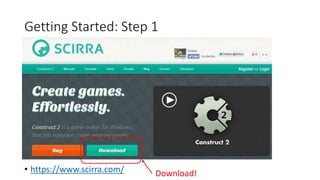
Getting Started: Step 1
• https://www.scirra.com/ Download!
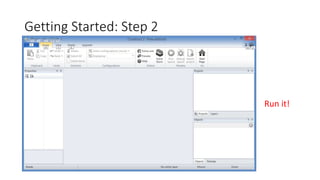
Getting Started: Step 2
Run it!
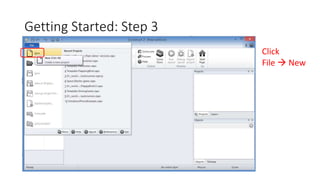
Getting Started: Step 3
Click
File  New
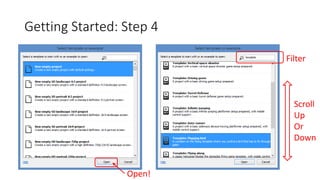
Getting Started: Step 4
Filter
Scroll
Up
Or
Down
Open!
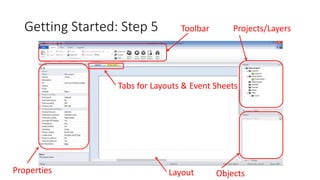
Getting Started: Step 5 Toolbar Projects/Layers
ObjectsLayoutProperties
Tabs for Layouts & Event Sheets
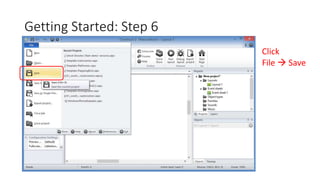
Getting Started: Step 6
Click
File  Save
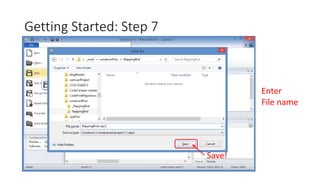
Getting Started: Step 7
Save!
Enter
File name
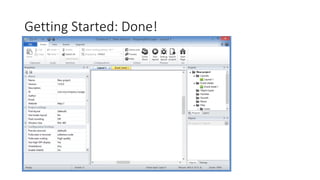
Getting Started: Done!
Prepare Your Layouts
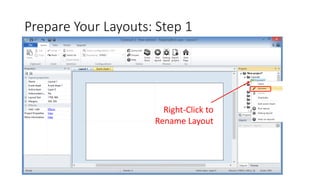
Prepare Your Layouts: Step 1
Right-Click to
Rename Layout
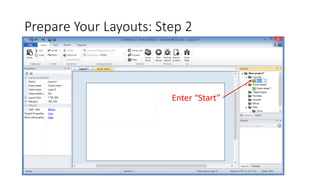
Prepare Your Layouts: Step 2
Enter “Start”
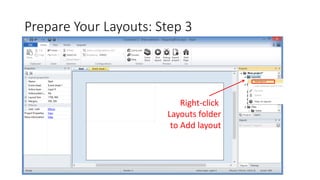
Prepare Your Layouts: Step 3
Right-click
Layouts folder
to Add layout
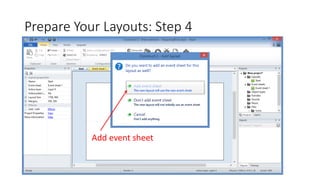
Prepare Your Layouts: Step 4
Add event sheet
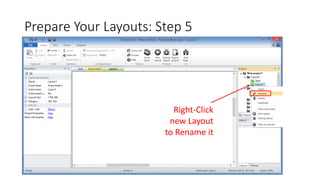
Prepare Your Layouts: Step 5
Right-Click
new Layout
to Rename it
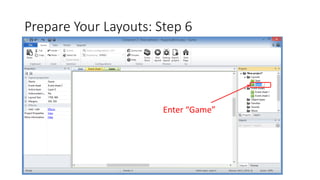
Prepare Your Layouts: Step 6
Enter “Game”
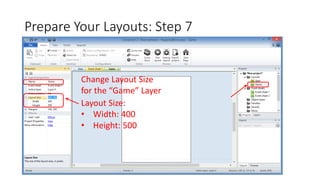
Prepare Your Layouts: Step 7
Change Layout Size
for the “Game” Layer
Layout Size:
• Width: 400
• Height: 500
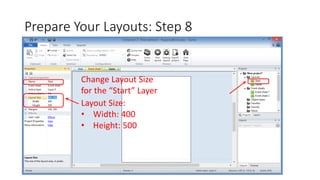
Prepare Your Layouts: Step 8
Change Layout Size
for the “Start” Layer
Layout Size:
• Width: 400
• Height: 500
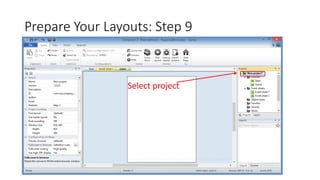
Prepare Your Layouts: Step 9
Select project
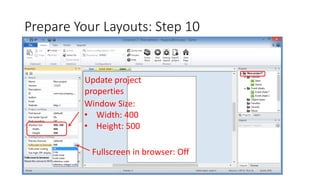
Prepare Your Layouts: Step 10
Update project
properties
Window Size:
• Width: 400
• Height: 500
Fullscreen in browser: Off
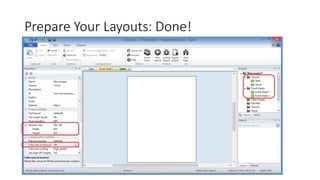
Prepare Your Layouts: Done!
Add Play Button
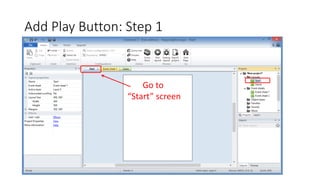
Add Play Button: Step 1
Go to
“Start” screen
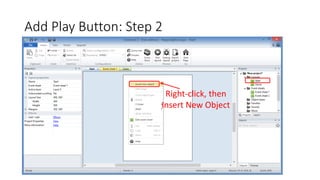
Add Play Button: Step 2
Right-click, then
Insert New Object
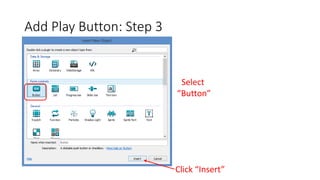
Add Play Button: Step 3
Select
“Button”
Click “Insert”
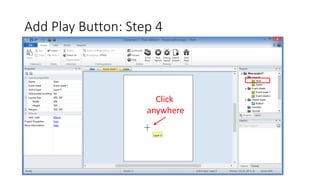
Add Play Button: Step 4
Click
anywhere
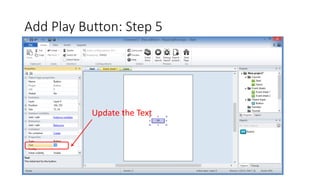
Add Play Button: Step 5
Update the Text
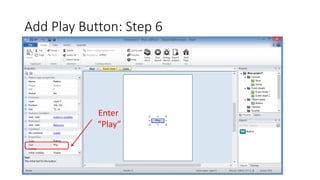
Add Play Button: Step 6
Enter
“Play”
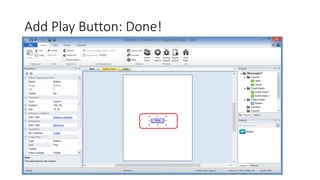
Add Play Button: Done!
Add Button Event
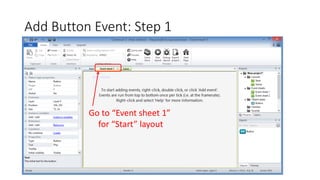
Add Button Event: Step 1
Go to “Event sheet 1”
for “Start” layout
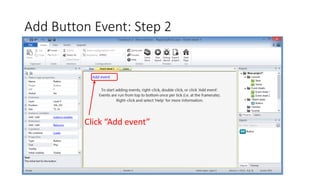
Add Button Event: Step 2
Click “Add event”
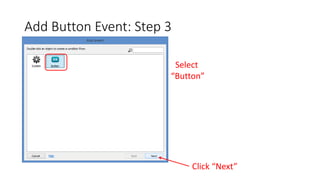
Add Button Event: Step 3
Select
“Button”
Click “Next”
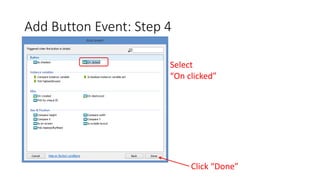
Add Button Event: Step 4
Select
“On clicked”
Click “Done”
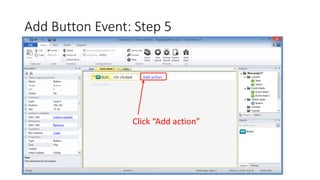
Add Button Event: Step 5
Click “Add action”
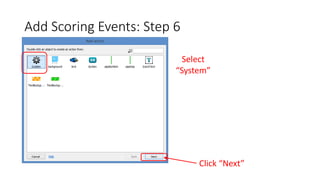
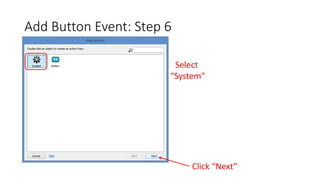
Add Button Event: Step 6
Select
“System”
Click “Next”
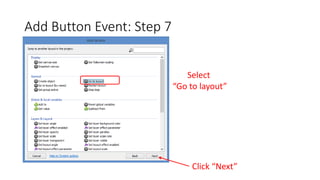
Add Button Event: Step 7
Select
“Go to layout”
Click “Next”
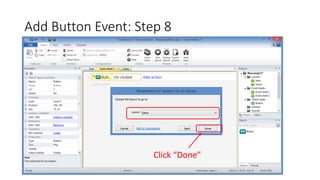
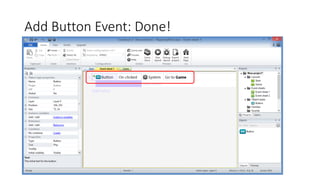
Add Button Event: Step 8
Click “Done”
Add Button Event: Done!
Add Game Graphics
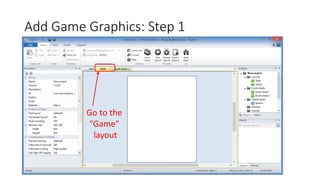
Add Game Graphics: Step 1
Go to the
“Game”
layout
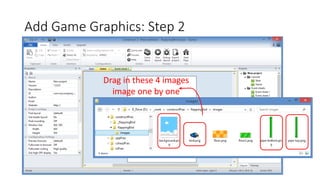
Add Game Graphics: Step 2
Drag in these 4 images
image one by one
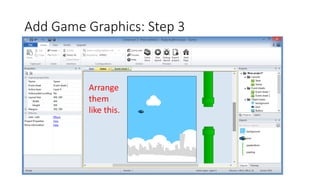
Add Game Graphics: Step 3
Arrange
them
like this.
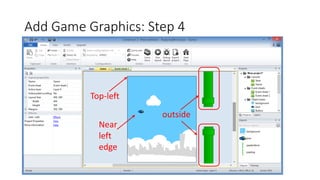
Add Game Graphics: Step 4
Top-left
outside
Near
left
edge
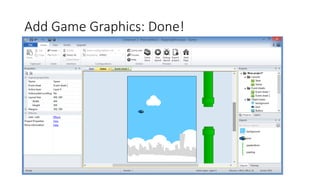
Add Game Graphics: Done!
Add Tiled Background
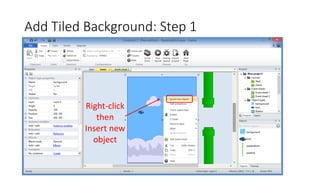
Add Tiled Background: Step 1
Right-click
then
Insert new
object
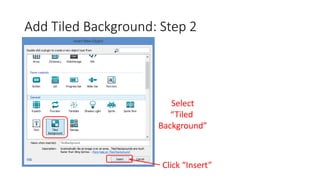
Add Tiled Background: Step 2
Select
“Tiled
Background”
Click “Insert”
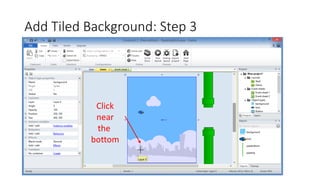
Add Tiled Background: Step 3
Click
near
the
bottom
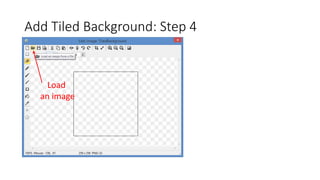
Add Tiled Background: Step 4
Load
an image
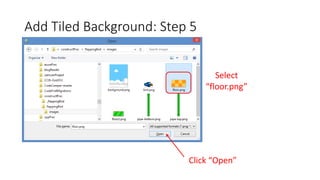
Add Tiled Background: Step 5
Click “Open”
Select
“floor.png”
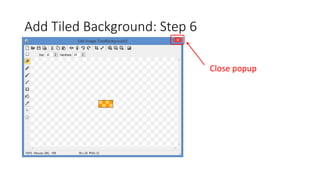
Add Tiled Background: Step 6
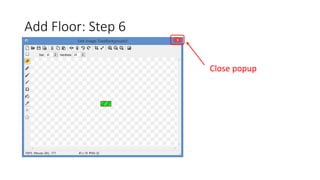
Close popup
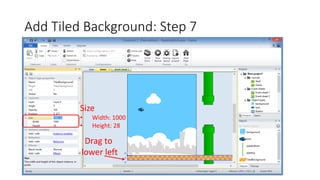
Add Tiled Background: Step 7
Drag to
lower left
Size
• Width: 1000
• Height: 28
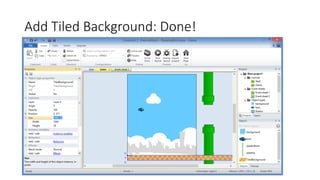
Add Tiled Background: Done!
Add Floor
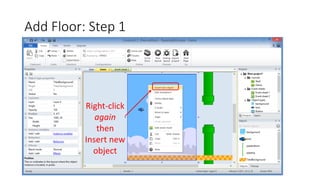
Add Floor: Step 1
Right-click
again
then
Insert new
object
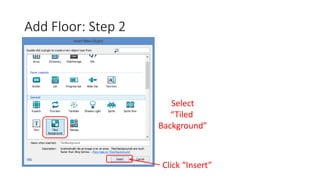
Add Floor: Step 2
Select
“Tiled
Background”
Click “Insert”
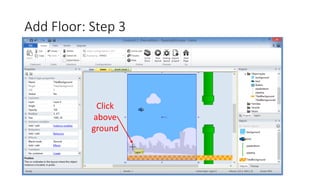
Add Floor: Step 3
Click
above
ground
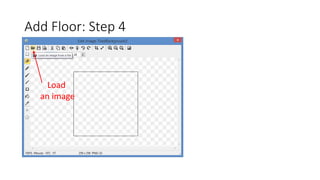
Add Floor: Step 4
Load
an image
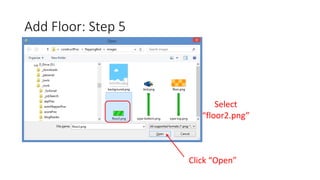
Add Floor: Step 5
Click “Open”
Select
“floor2.png”
Add Floor: Step 6
Close popup
Add Floor: Step 7
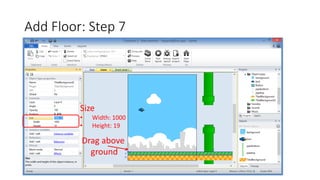
Drag above
ground
Size
• Width: 1000
• Height: 19
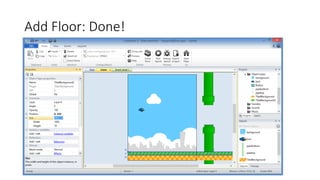
Add Floor: Done!
Add Movement
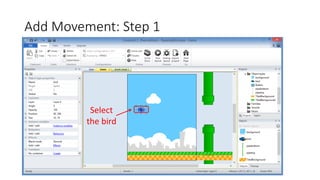
Add Movement: Step 1
Select
the bird
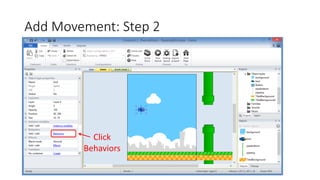
Add Movement: Step 2
Click
Behaviors
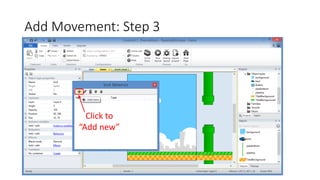
Add Movement: Step 3
Click to
“Add new”
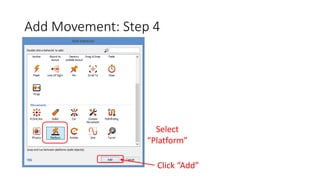
Add Movement: Step 4
Select
“Platform”
Click “Add”
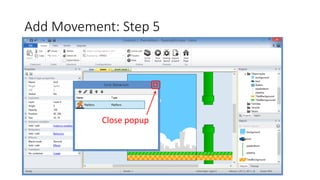
Add Movement: Step 5
Close popup
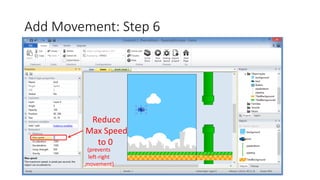
Add Movement: Step 6
Reduce
Max Speed
to 0
(prevents
left-right
movement)
Add Globals
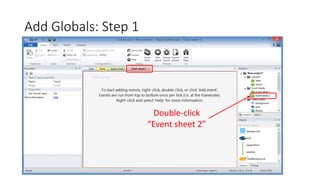
Add Globals: Step 1
Double-click
“Event sheet 2”
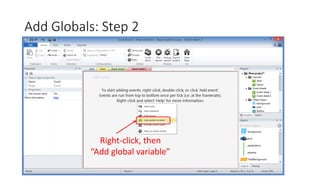
Add Globals: Step 2
Right-click, then
“Add global variable”
Add Globals: Step 3
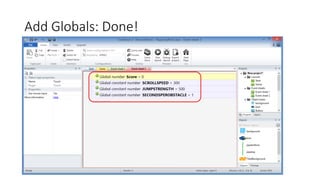
Add New Global Variable 3 times
• Name: SECONDSPEROBSTACLE
• Type: Number
• Initial Value: 1
• Constant: [checked]
• Name: JUMPSTRENGTH
• Type: Number
• Initial Value: 500
• Constant: [checked]
• Name: SCROLLSPEED
• Type: Number
• Initial Value: 300
• Constant: [checked]
Add Globals: Step 4
Also, add another global variable for Score
• Name: Score
• Type: Number
• Initial Value: 0
• Constant: [NOT checked]
Add Globals: Done!
Add Touch Support
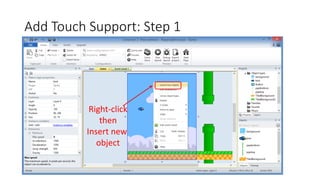
Add Touch Support: Step 1
Right-click
then
Insert new
object
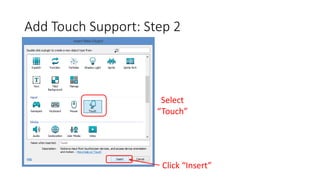
Add Touch Support: Step 2
Select
“Touch”
Click “Insert”
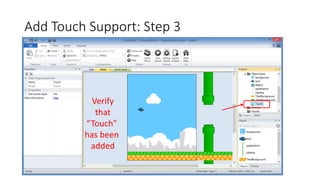
Add Touch Support: Step 3
Verify
that
“Touch”
has been
added
Add Touch Input
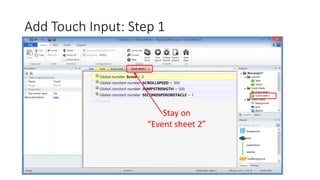
Add Touch Input: Step 1
Stay on
“Event sheet 2”
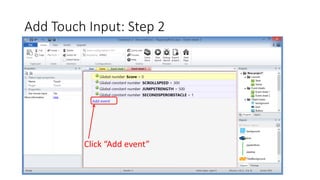
Add Touch Input: Step 2
Click “Add event”
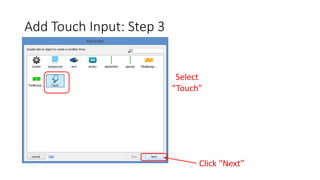
Add Touch Input: Step 3
Select
“Touch”
Click “Next”
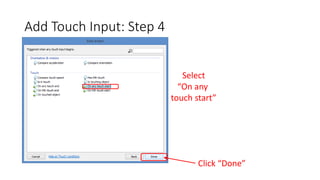
Add Touch Input: Step 4
Select
“On any
touch start”
Click “Done”
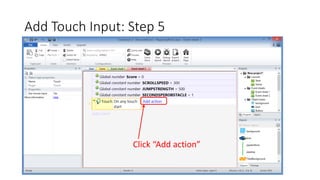
Add Touch Input: Step 5
Click “Add action”
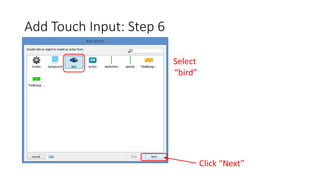
Add Touch Input: Step 6
Select
“bird”
Click “Next”
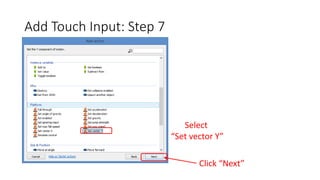
Add Touch Input: Step 7
Select
“Set vector Y”
Click “Next”
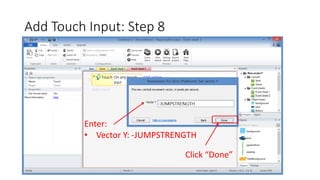
Add Touch Input: Step 8
Click “Done”
Enter:
• Vector Y: -JUMPSTRENGTH
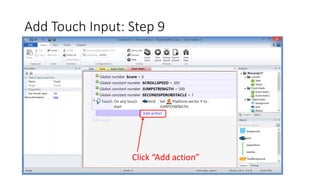
Add Touch Input: Step 9
Click “Add action”
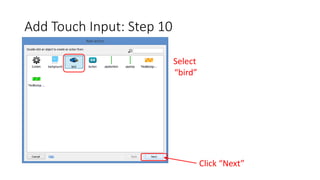
Add Touch Input: Step 10
Select
“bird”
Click “Next”
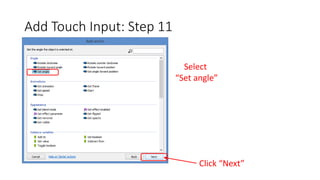
Add Touch Input: Step 11
Select
“Set angle”
Click “Next”
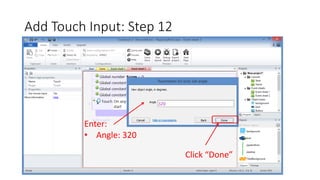
Add Touch Input: Step 12
Click “Done”
Enter:
• Angle: 320
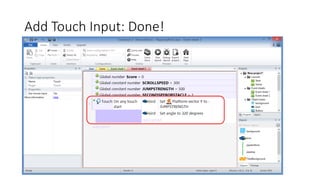
Add Touch Input: Done!
Rotate Bird
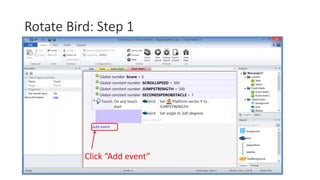
Rotate Bird: Step 1
Click “Add event”
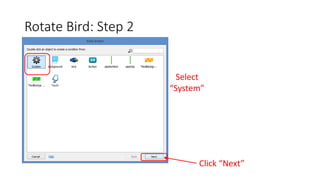
Rotate Bird: Step 2
Select
“System”
Click “Next”
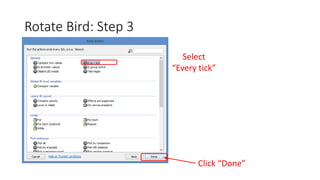
Rotate Bird: Step 3
Select
“Every tick”
Click “Done”
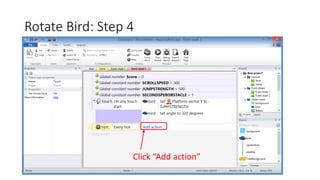
Rotate Bird: Step 4
Click “Add action”
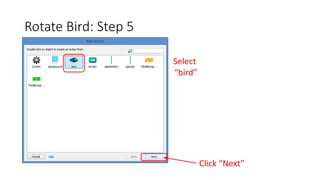
Rotate Bird: Step 5
Select
“bird”
Click “Next”
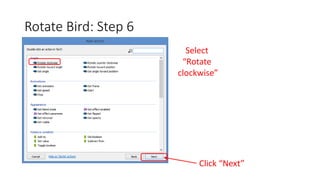
Rotate Bird: Step 6
Select
“Rotate
clockwise”
Click “Next”
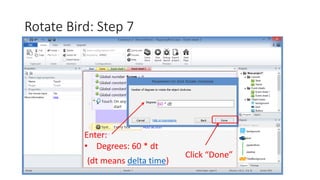
Rotate Bird: Step 7
Click “Done”
Enter:
• Degrees: 60 * dt
(dt means delta time)
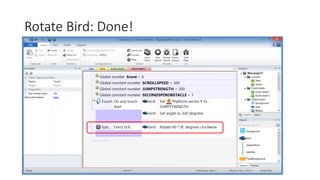
Rotate Bird: Done!
Add Collisions
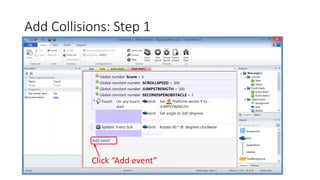
Add Collisions: Step 1
Click “Add event”
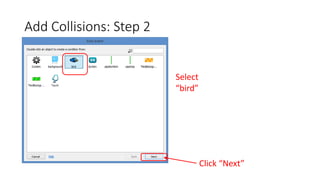
Add Collisions: Step 2
Select
“bird”
Click “Next”
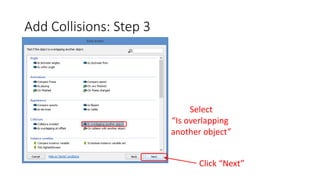
Add Collisions: Step 3
Select
“Is overlapping
another object”
Click “Next”
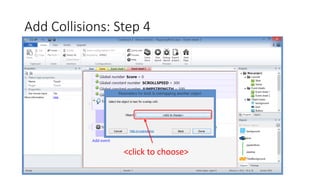
Add Collisions: Step 4
<click to choose>
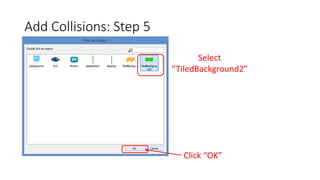
Add Collisions: Step 5
Select
“TiledBackground2”
Click “OK”
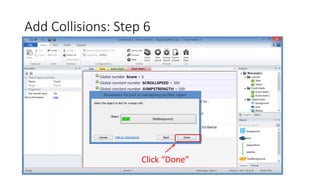
Add Collisions: Step 6
Click “Done”
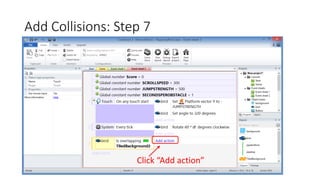
Add Collisions: Step 7
Click “Add action”
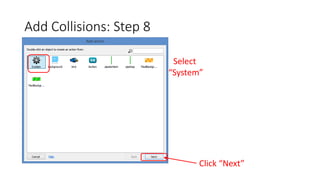
Add Collisions: Step 8
Select
“System”
Click “Next”
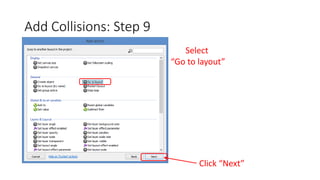
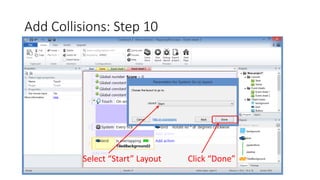
Add Collisions: Step 9
Select
“Go to layout”
Click “Next”
Add Collisions: Step 10
Click “Done”Select “Start” Layout
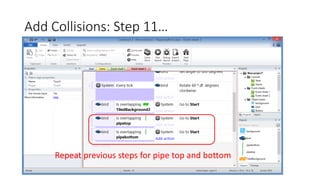
Add Collisions: Step 11…
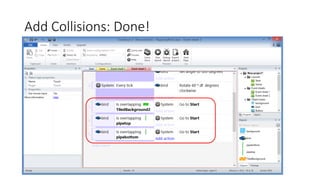
Repeat previous steps for pipe top and bottom
Add Collisions: Done!
Enforce Boundary
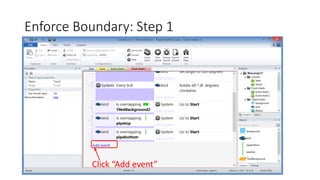
Enforce Boundary: Step 1
Click “Add event”
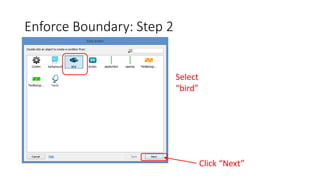
Enforce Boundary: Step 2
Select
“bird”
Click “Next”
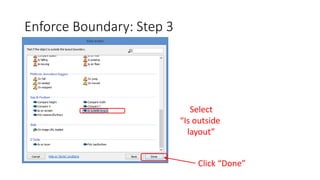
Enforce Boundary: Step 3
Select
“Is outside
layout”
Click “Done”
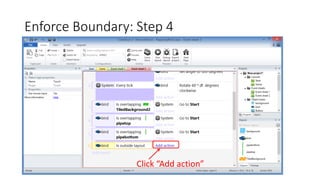
Enforce Boundary: Step 4
Click “Add action”
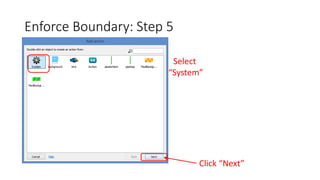
Enforce Boundary: Step 5
Select
“System”
Click “Next”
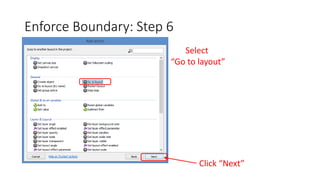
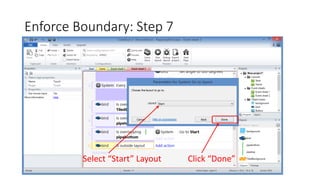
Enforce Boundary: Step 6
Select
“Go to layout”
Click “Next”
Enforce Boundary: Step 7
Click “Done”Select “Start” Layout
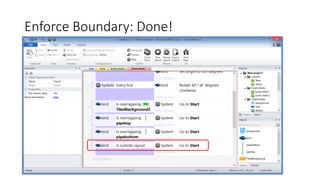
Enforce Boundary: Done!
Repeat Background
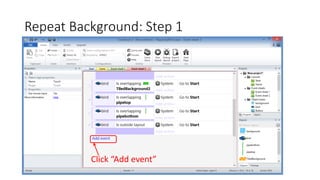
Repeat Background: Step 1
Click “Add event”
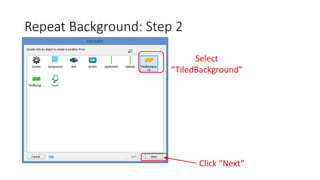
Repeat Background: Step 2
Select
“TiledBackground”
Click “Next”
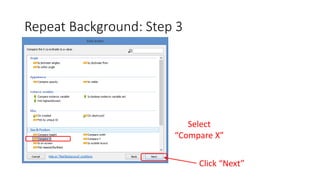
Repeat Background: Step 3
Select
“Compare X”
Click “Next”
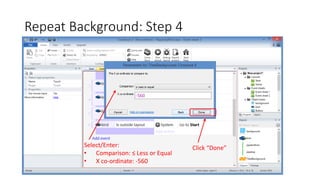
Repeat Background: Step 4
Click “Done”Select/Enter:
• Comparison: ≤ Less or Equal
• X co-ordinate: -560
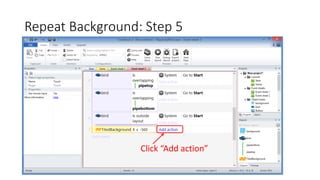
Repeat Background: Step 5
Click “Add action”
Repeat Background: Step 6
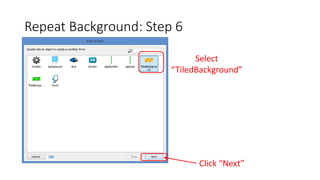
Select
“TiledBackground”
Click “Next”
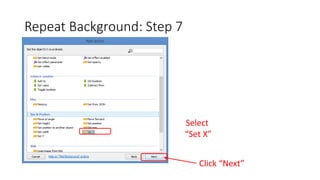
Repeat Background: Step 7
Select
“Set X”
Click “Next”
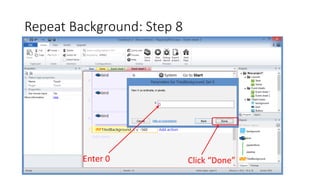
Repeat Background: Step 8
Click “Done”Enter 0
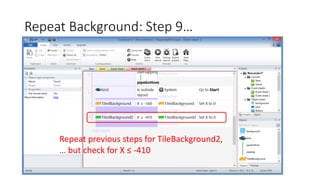
Repeat Background: Step 9…
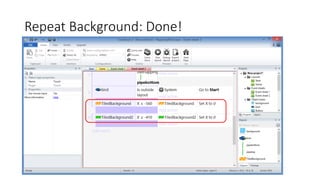
Repeat previous steps for TileBackground2,
… but check for X ≤ -410
Repeat Background: Done!
Scroll Background
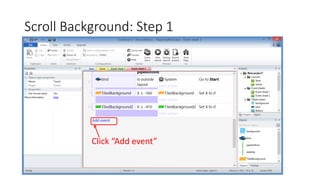
Scroll Background: Step 1
Click “Add event”
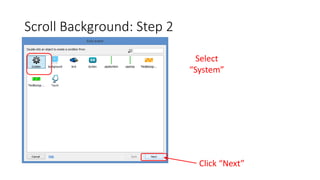
Scroll Background: Step 2
Select
“System”
Click “Next”
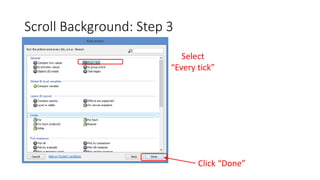
Scroll Background: Step 3
Select
“Every tick”
Click “Done”
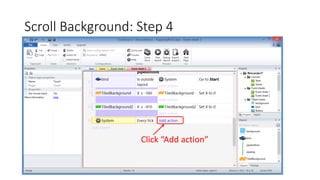
Scroll Background: Step 4
Click “Add action”
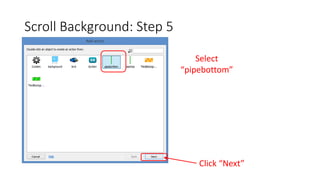
Scroll Background: Step 5
Select
“pipebottom”
Click “Next”
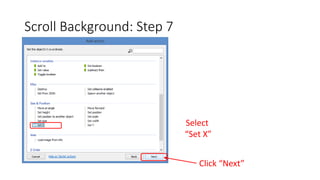
Scroll Background: Step 7
Select
“Set X”
Click “Next”
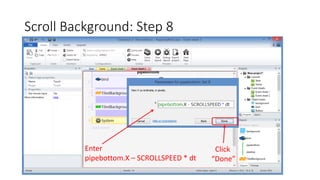
Scroll Background: Step 8
Click
“Done”
Enter
pipebottom.X – SCROLLSPEED * dt
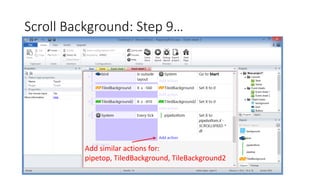
Scroll Background: Step 9…
Add similar actions for:
pipetop, TiledBackground, TileBackground2
Scroll Background: Done!
Hint: Set X to [object].X – SCROLLSPEED * dt
Create Pipes
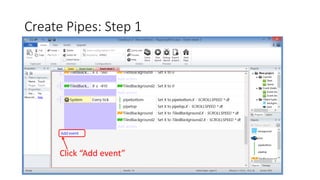
Create Pipes: Step 1
Click “Add event”
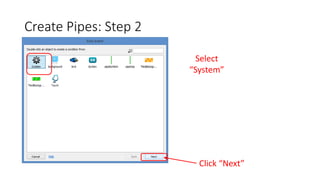
Create Pipes: Step 2
Select
“System”
Click “Next”
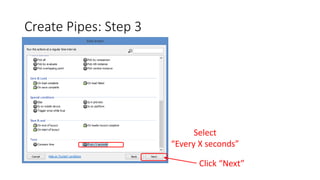
Create Pipes: Step 3
Select
“Every X seconds”
Click “Next”
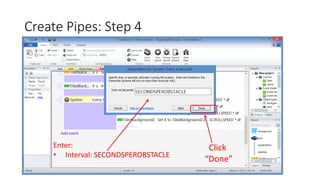
Create Pipes: Step 4
Click
“Done”
Enter:
• Interval: SECONDSPEROBSTACLE
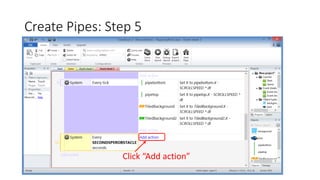
Create Pipes: Step 5
Click “Add action”
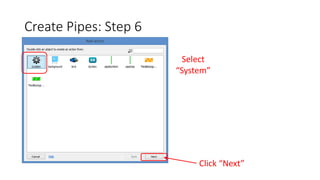
Create Pipes: Step 6
Select
“System”
Click “Next”
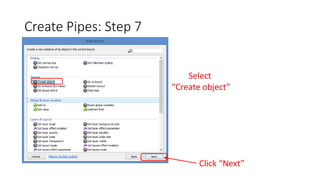
Create Pipes: Step 7
Select
“Create object”
Click “Next”
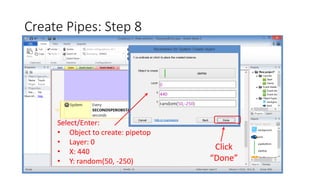
Create Pipes: Step 8
Click
“Done”
Select/Enter:
• Object to create: pipetop
• Layer: 0
• X: 440
• Y: random(50, -250)
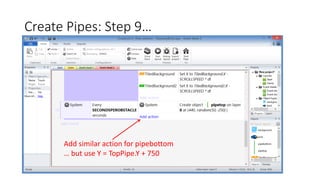
Create Pipes: Step 9…
Add similar action for pipebottom
… but use Y = TopPipe.Y + 750
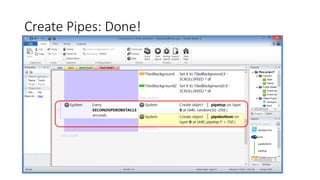
Create Pipes: Done!
Add Instance Variable
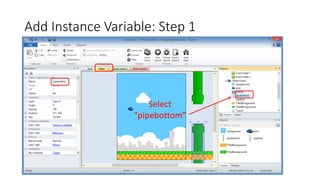
Add Instance Variable: Step 1
Select
“pipebottom”
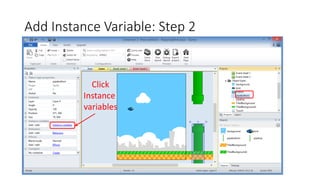
Add Instance Variable: Step 2
Click
Instance
variables
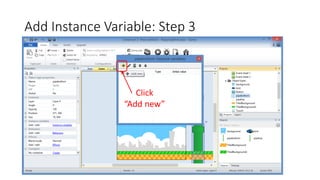
Add Instance Variable: Step 3
Click
“Add new”
Add Instance Variable: Step 4
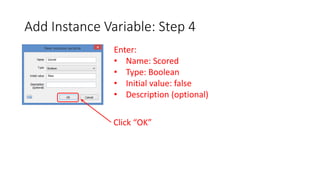
Enter:
• Name: Scored
• Type: Boolean
• Initial value: false
• Description (optional)
Click “OK”
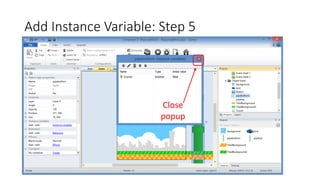
Add Instance Variable: Step 5
Close
popup
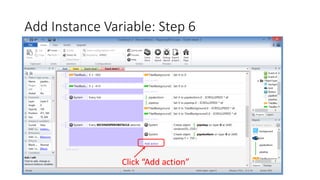
Add Instance Variable: Step 6
Click “Add action”
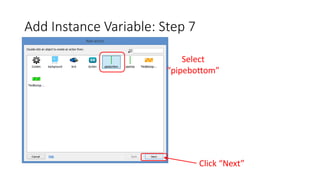
Add Instance Variable: Step 7
Select
“pipebottom”
Click “Next”
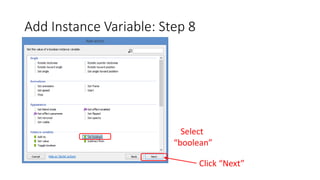
Add Instance Variable: Step 8
Select
“boolean”
Click “Next”
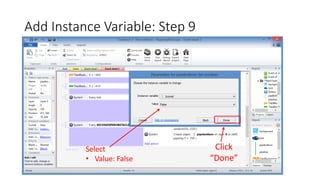
Add Instance Variable: Step 9
Click
“Done”
Select
• Value: False
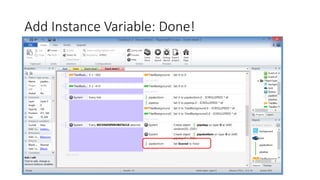
Add Instance Variable: Done!
Add Score TextBox
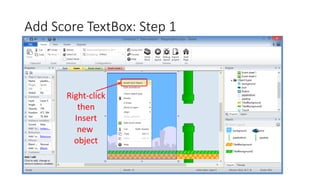
Add Score TextBox: Step 1
Right-click
then
Insert
new
object
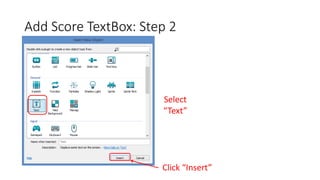
Add Score TextBox: Step 2
Click “Insert”
Select
“Text”
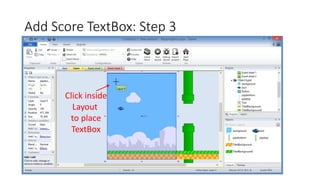
Add Score TextBox: Step 3
Click inside
Layout
to place
TextBox
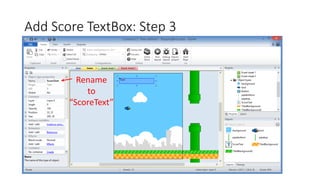
Add Score TextBox: Step 3
Rename
to
“ScoreText”
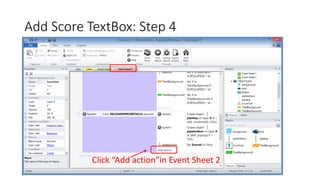
Add Score TextBox: Step 4
Click “Add action”in Event Sheet 2
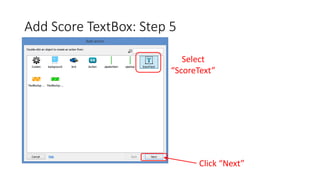
Add Score TextBox: Step 5
Select
“ScoreText”
Click “Next”
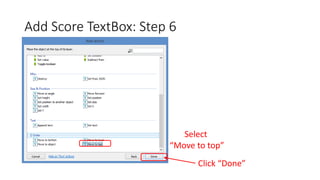
Add Score TextBox: Step 6
Select
“Move to top”
Click “Done”
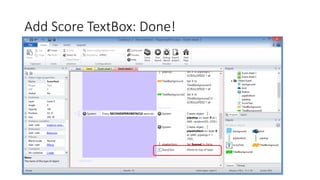
Add Score TextBox: Done!
Add OnStart Events
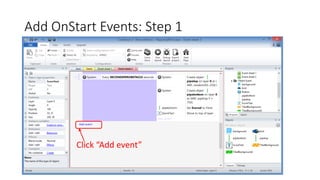
Add OnStart Events: Step 1
Click “Add event”
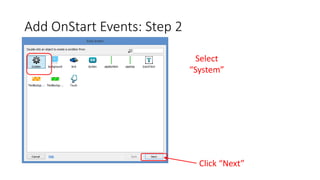
Add OnStart Events: Step 2
Select
“System”
Click “Next”
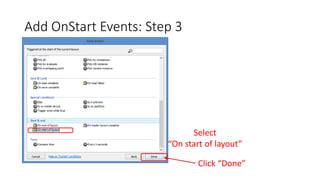
Add OnStart Events: Step 3
Select
“On start of layout”
Click “Done”
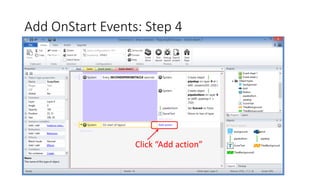
Add OnStart Events: Step 4
Click “Add action”
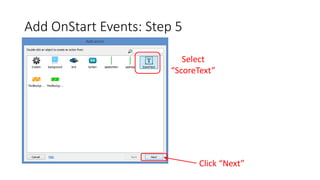
Add OnStart Events: Step 5
Select
“ScoreText”
Click “Next”
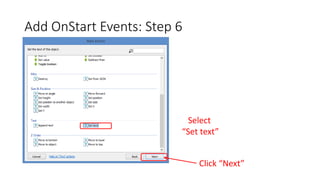
Add OnStart Events: Step 6
Select
“Set text”
Click “Next”
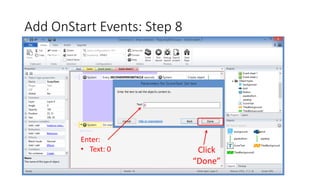
Add OnStart Events: Step 8
Click
“Done”
Enter:
• Text: 0
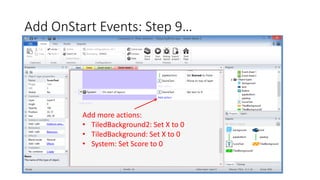
Add OnStart Events: Step 9…
Add more actions:
• TiledBackground2: Set X to 0
• TiledBackground: Set X to 0
• System: Set Score to 0
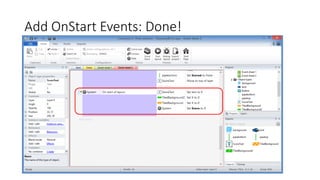
Add OnStart Events: Done!
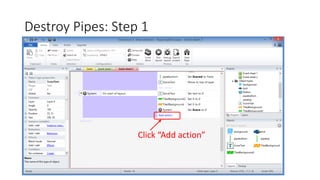
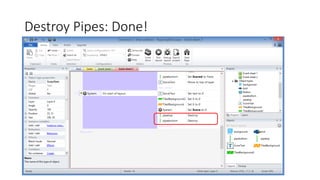
Destroy Pipes
Destroy Pipes: Step 1
Click “Add action”
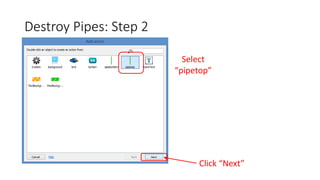
Destroy Pipes: Step 2
Select
“pipetop”
Click “Next”
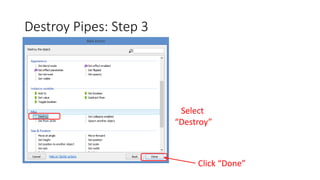
Destroy Pipes: Step 3
Select
“Destroy”
Click “Done”
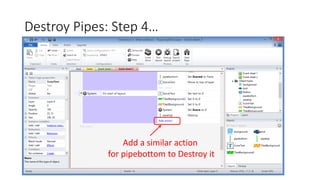
Destroy Pipes: Step 4…
Add a similar action
for pipebottom to Destroy it
Destroy Pipes: Done!
Initialize Bird
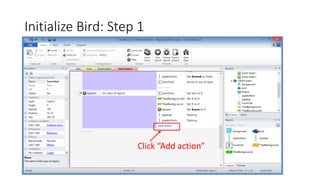
Initialize Bird: Step 1
Click “Add action”
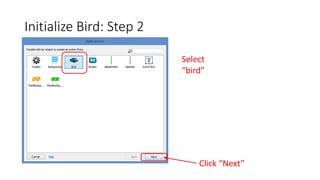
Initialize Bird: Step 2
Select
“bird”
Click “Next”
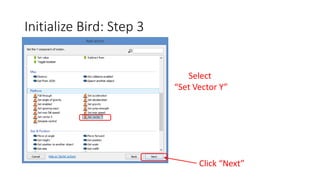
Initialize Bird: Step 3
Select
“Set Vector Y”
Click “Next”
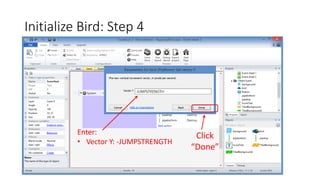
Initialize Bird: Step 4
Click
“Done”
Enter:
• Vector Y: -JUMPSTRENGTH
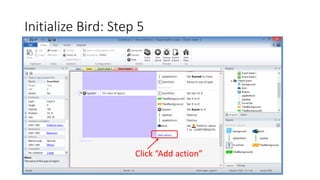
Initialize Bird: Step 5
Click “Add action”
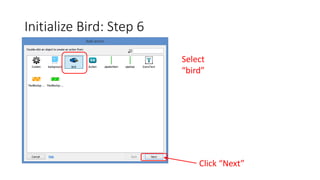
Initialize Bird: Step 6
Select
“bird”
Click “Next”
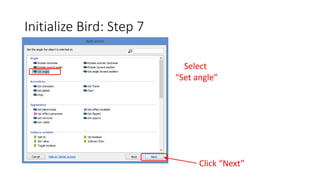
Initialize Bird: Step 7
Select
“Set angle”
Click “Next”
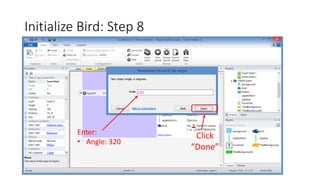
Initialize Bird: Step 8
Click
“Done”
Enter:
• Angle: 320
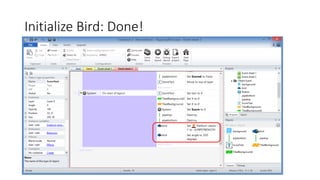
Initialize Bird: Done!
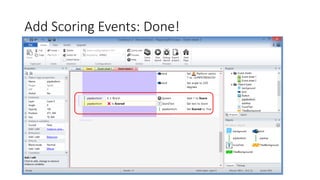
Add Scoring Events
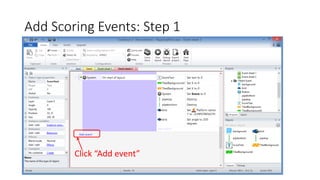
Add Scoring Events: Step 1
Click “Add event”
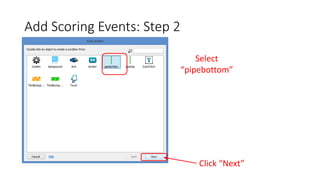
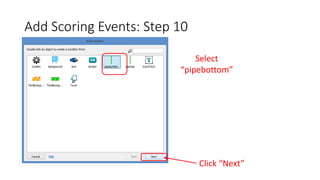
Add Scoring Events: Step 2
Select
“pipebottom”
Click “Next”
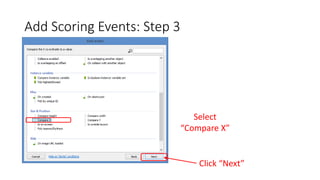
Add Scoring Events: Step 3
Select
“Compare X”
Click “Next”
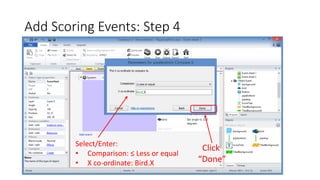
Add Scoring Events: Step 4
Click
“Done”
Select/Enter:
• Comparison: ≤ Less or equal
• X co-ordinate: Bird.X
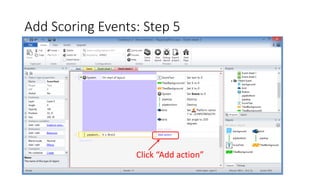
Add Scoring Events: Step 5
Click “Add action”
Add Scoring Events: Step 6
Select
“System”
Click “Next”
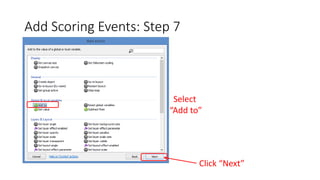
Add Scoring Events: Step 7
Select
“Add to”
Click “Next”
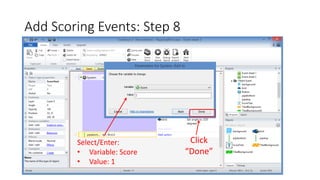
Add Scoring Events: Step 8
Click
“Done”
Select/Enter:
• Variable: Score
• Value: 1
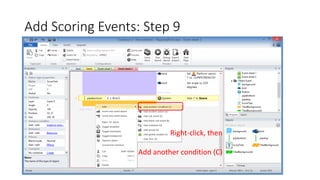
Add Scoring Events: Step 9
Right-click, then
Add another condition (C)
Add Scoring Events: Step 10
Select
“pipebottom”
Click “Next”
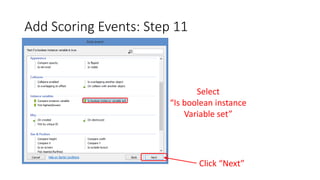
Add Scoring Events: Step 11
Select
“Is boolean instance
Variable set”
Click “Next”
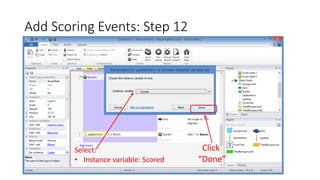
Add Scoring Events: Step 12
Click
“Done”
Select:
• Instance variable: Scored
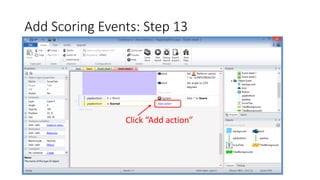
Add Scoring Events: Step 13
Click “Add action”
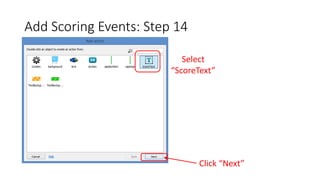
Add Scoring Events: Step 14
Select
“ScoreText”
Click “Next”
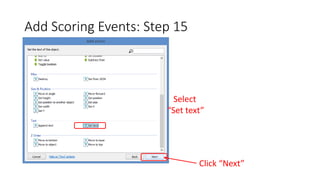
Add Scoring Events: Step 15
Select
“Set text”
Click “Next”
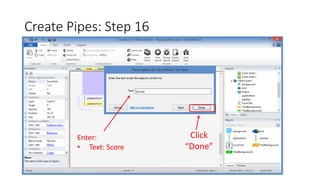
Create Pipes: Step 16
Click
“Done”
Enter:
• Text: Score
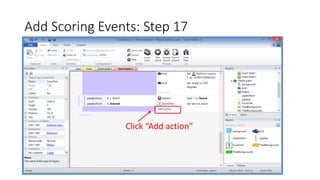
Add Scoring Events: Step 17
Click “Add action”
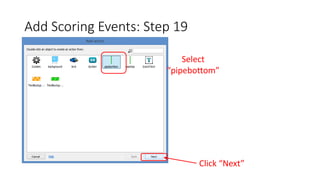
Add Scoring Events: Step 19
Select
“pipebottom”
Click “Next”
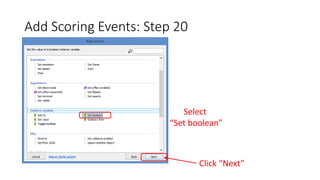
Add Scoring Events: Step 20
Select
“Set boolean”
Click “Next”
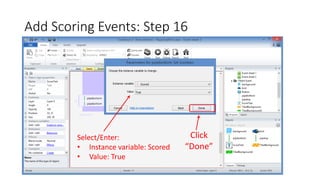
Add Scoring Events: Step 16
Click
“Done”
Select/Enter:
• Instance variable: Scored
• Value: True
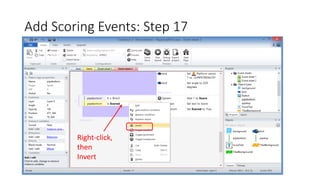
Add Scoring Events: Step 17
Right-click,
then
Invert
Add Scoring Events: Done!
(END of Flapping Bird tutorial)
• Derived from ‘Make your own "Flappy Bird" game in 10 minutes’
originally published by Tom
• Updated with enhancements from Flappy Bird template

Construct 2: Flapping Bird - Step by Step

Editor's Notes

  • #2 Title Page: Intro to Indie Game Development Windows  Web  Xbox  Mobile By Shahed Chowdhuri Technical Evangelist Blog: WakeUpAndCode.com Twitter: @shahedC