Making a Computer
James Colwell
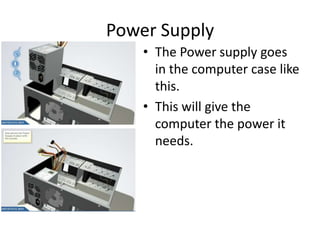
Power Supply
• The Power supply goes
in the computer case like
this.
• This will give the
computer the power it
needs.
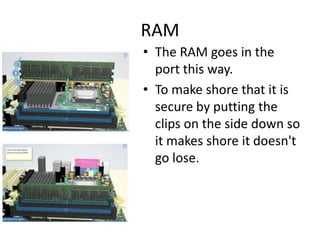
RAM
• The RAM goes in the
port this way.
• To make shore that it is
secure by putting the
clips on the side down so
it makes shore it doesn't
go lose.
CPU
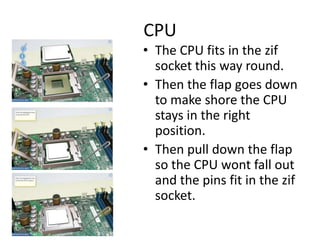
• The CPU fits in the zif
socket this way round.
• Then the flap goes down
to make shore the CPU
stays in the right
position.
• Then pull down the flap
so the CPU wont fall out
and the pins fit in the zif
socket.
Thermal Compound
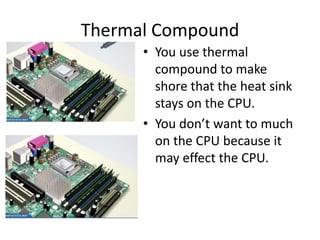
• You use thermal
compound to make
shore that the heat sink
stays on the CPU.
• You don’t want to much
on the CPU because it
may effect the CPU.
Heat Sink
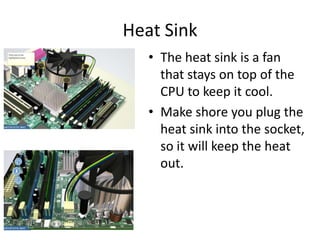
• The heat sink is a fan
that stays on top of the
CPU to keep it cool.
• Make shore you plug the
heat sink into the socket,
so it will keep the heat
out.
Mother Board
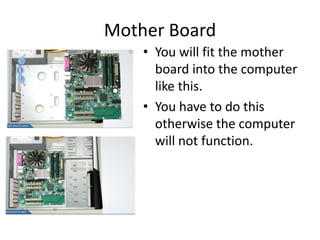
• You will fit the mother
board into the computer
like this.
• You have to do this
otherwise the computer
will not function.
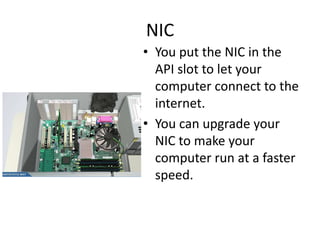
NIC
• You put the NIC in the
API slot to let your
computer connect to the
internet.
• You can upgrade your
NIC to make your
computer run at a faster
speed.
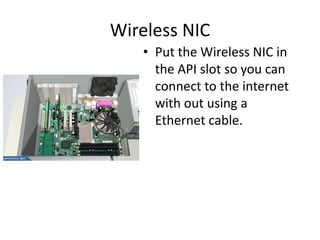
Wireless NIC
• Put the Wireless NIC in
the API slot so you can
connect to the internet
with out using a
Ethernet cable.
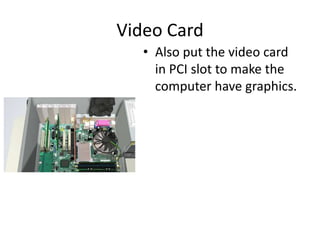
Video Card
• Also put the video card
in PCI slot to make the
computer have graphics.
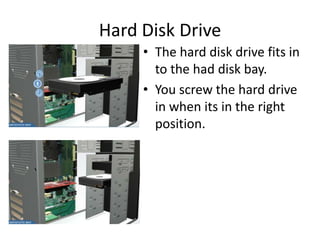
Hard Disk Drive
• The hard disk drive fits in
to the had disk bay.
• You screw the hard drive
in when its in the right
position.
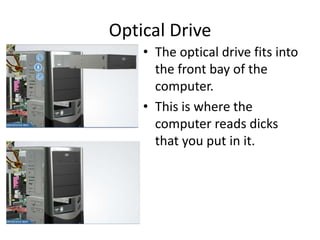
Optical Drive
• The optical drive fits into
the front bay of the
computer.
• This is where the
computer reads dicks
that you put in it.
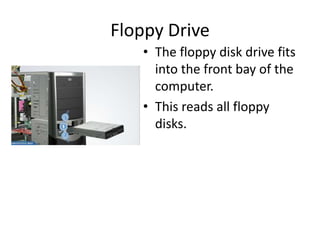
Floppy Drive
• The floppy disk drive fits
into the front bay of the
computer.
• This reads all floppy
disks.
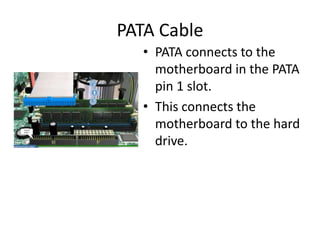
PATA Cable
• PATA connects to the
motherboard in the PATA
pin 1 slot.
• This connects the
motherboard to the hard
drive.
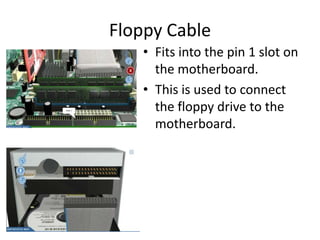
Floppy Cable
• Fits into the pin 1 slot on
the motherboard.
• This is used to connect
the floppy drive to the
motherboard.
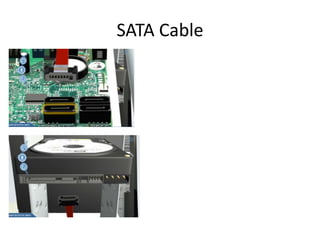
SATA Cable
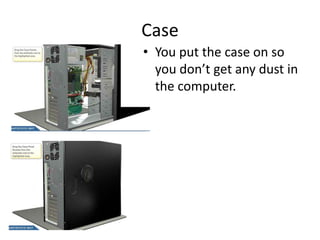
Case
• You put the case on so
you don’t get any dust in
the computer.
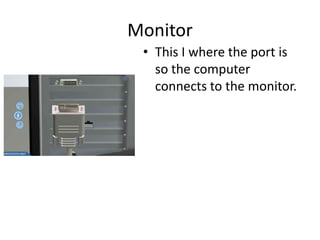
Monitor
• This I where the port is
so the computer
connects to the monitor.
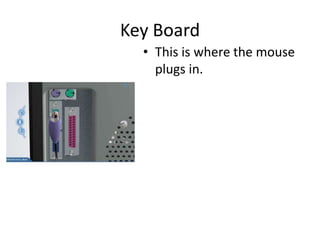
Key Board
• This is where the mouse
plugs in.
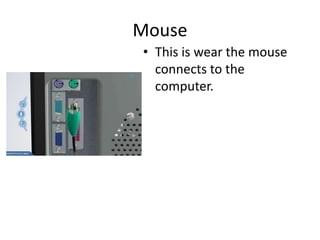
Mouse
• This is wear the mouse
connects to the
computer.
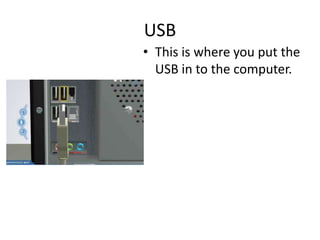
USB
• This is where you put the
USB in to the computer.
Ethernet cable
• This is wear you put the
Ethernet cable.
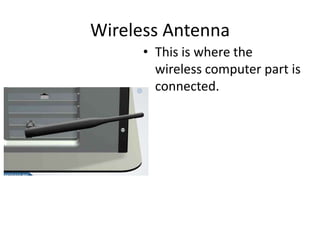
Wireless Antenna
• This is where the
wireless computer part is
connected.
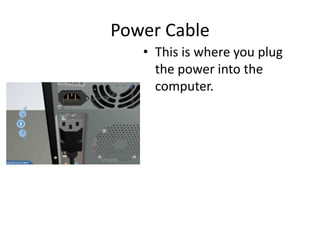
Power Cable
• This is where you plug
the power into the
computer.
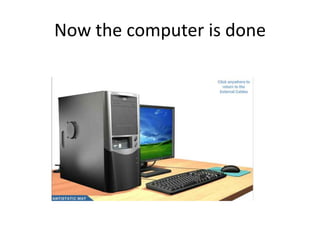
Now the computer is done
How to install Windows XP
James Colwell
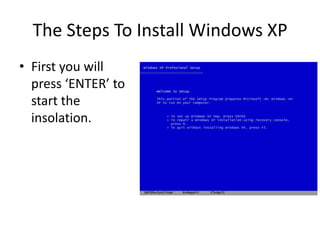
The Steps To Install Windows XP
• First you will
press ‘ENTER’ to
start the
insolation.
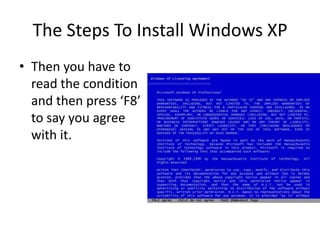
The Steps To Install Windows XP
• Then you have to
read the condition
and then press ‘F8’
to say you agree
with it.
The Steps To Install Windows XP
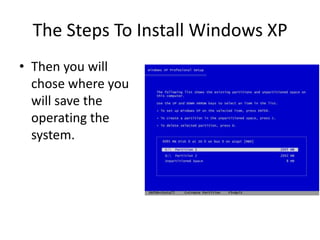
• Then you will
chose where you
will save the
operating the
system.
The Steps To Install Windows XP
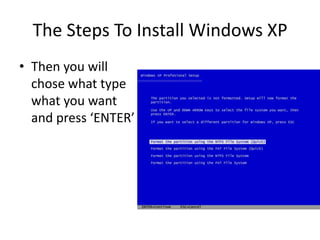
• Then you will
chose what type
what you want
and press ‘ENTER’
The Steps To Install Windows XP
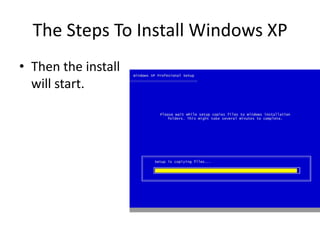
• Then the install
will start.
The Steps To Install Windows XP
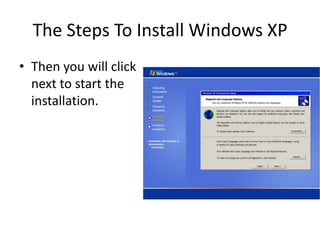
• Then you will click
next to start the
installation.
The Steps To Install Windows XP
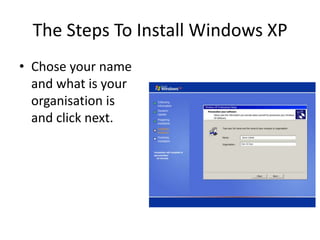
• Chose your name
and what is your
organisation is
and click next.
The Steps To Install Windows XP
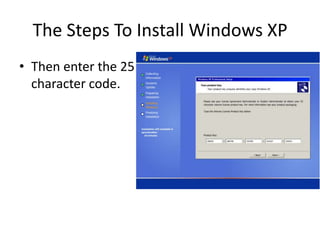
• Then enter the 25
character code.
The Steps To Install Windows XP
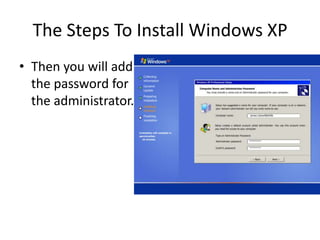
• Then you will add
the password for
the administrator.
The Steps To Install Windows XP
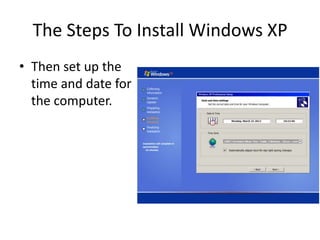
• Then set up the
time and date for
the computer.
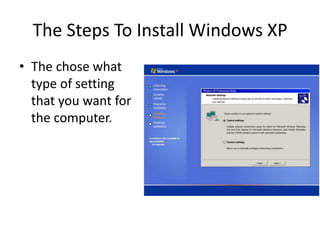
The Steps To Install Windows XP
• The chose what
type of setting
that you want for
the computer.
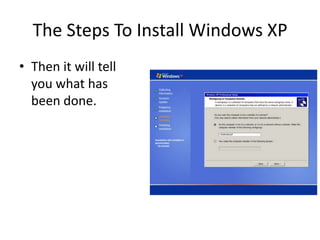
The Steps To Install Windows XP
• Then it will tell
you what has
been done.
The Steps To Install Windows XP
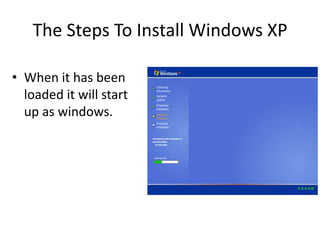
• When it has been
loaded it will start
up as windows.

Making A Computer

  • 1.
  • 2.
    Power Supply • ThePower supply goes in the computer case like this. • This will give the computer the power it needs.
  • 3.
    RAM • The RAMgoes in the port this way. • To make shore that it is secure by putting the clips on the side down so it makes shore it doesn't go lose.
  • 4.
    CPU • The CPUfits in the zif socket this way round. • Then the flap goes down to make shore the CPU stays in the right position. • Then pull down the flap so the CPU wont fall out and the pins fit in the zif socket.
  • 5.
    Thermal Compound • Youuse thermal compound to make shore that the heat sink stays on the CPU. • You don’t want to much on the CPU because it may effect the CPU.
  • 6.
    Heat Sink • Theheat sink is a fan that stays on top of the CPU to keep it cool. • Make shore you plug the heat sink into the socket, so it will keep the heat out.
  • 7.
    Mother Board • Youwill fit the mother board into the computer like this. • You have to do this otherwise the computer will not function.
  • 8.
    NIC • You putthe NIC in the API slot to let your computer connect to the internet. • You can upgrade your NIC to make your computer run at a faster speed.
  • 9.
    Wireless NIC • Putthe Wireless NIC in the API slot so you can connect to the internet with out using a Ethernet cable.
  • 10.
    Video Card • Alsoput the video card in PCI slot to make the computer have graphics.
  • 11.
    Hard Disk Drive •The hard disk drive fits in to the had disk bay. • You screw the hard drive in when its in the right position.
  • 12.
    Optical Drive • Theoptical drive fits into the front bay of the computer. • This is where the computer reads dicks that you put in it.
  • 13.
    Floppy Drive • Thefloppy disk drive fits into the front bay of the computer. • This reads all floppy disks.
  • 14.
    PATA Cable • PATAconnects to the motherboard in the PATA pin 1 slot. • This connects the motherboard to the hard drive.
  • 15.
    Floppy Cable • Fitsinto the pin 1 slot on the motherboard. • This is used to connect the floppy drive to the motherboard.
  • 16.
  • 17.
    Case • You putthe case on so you don’t get any dust in the computer.
  • 18.
    Monitor • This Iwhere the port is so the computer connects to the monitor.
  • 19.
    Key Board • Thisis where the mouse plugs in.
  • 20.
    Mouse • This iswear the mouse connects to the computer.
  • 21.
    USB • This iswhere you put the USB in to the computer.
  • 22.
    Ethernet cable • Thisis wear you put the Ethernet cable.
  • 23.
    Wireless Antenna • Thisis where the wireless computer part is connected.
  • 24.
    Power Cable • Thisis where you plug the power into the computer.
  • 25.
  • 26.
    How to installWindows XP James Colwell
  • 27.
    The Steps ToInstall Windows XP • First you will press ‘ENTER’ to start the insolation.
  • 28.
    The Steps ToInstall Windows XP • Then you have to read the condition and then press ‘F8’ to say you agree with it.
  • 29.
    The Steps ToInstall Windows XP • Then you will chose where you will save the operating the system.
  • 30.
    The Steps ToInstall Windows XP • Then you will chose what type what you want and press ‘ENTER’
  • 31.
    The Steps ToInstall Windows XP • Then the install will start.
  • 32.
    The Steps ToInstall Windows XP • Then you will click next to start the installation.
  • 33.
    The Steps ToInstall Windows XP • Chose your name and what is your organisation is and click next.
  • 34.
    The Steps ToInstall Windows XP • Then enter the 25 character code.
  • 35.
    The Steps ToInstall Windows XP • Then you will add the password for the administrator.
  • 36.
    The Steps ToInstall Windows XP • Then set up the time and date for the computer.
  • 37.
    The Steps ToInstall Windows XP • The chose what type of setting that you want for the computer.
  • 38.
    The Steps ToInstall Windows XP • Then it will tell you what has been done.
  • 39.
    The Steps ToInstall Windows XP • When it has been loaded it will start up as windows.