©Copyright Network Development Group 2013.
Chapter 1: Using the Shell
©Copyright Network Development Group 2013.
Three Main OS Components
• Kernel – manages the operation of the
computer
• Shell – provides for interaction between the
user and the computer
• Filesystem – provides a way to organize and
manage all information on the computer’s
disk(s)
©Copyright Network Development Group 2013.
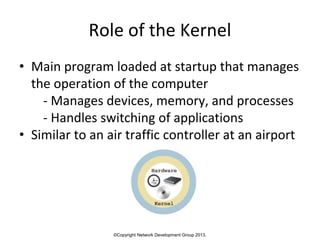
Role of the Kernel
• Main program loaded at startup that manages
the operation of the computer
- Manages devices, memory, and processes
- Handles switching of applications
• Similar to an air traffic controller at an airport
©Copyright Network Development Group 2013.
The Shell
• The shell is a program that allows the user to
type commands, options, and arguments
• Many shell programs exist
• Most popular shell is the “Bash” (Bourne
Again Shell)
• A user’s shell can be changed by the
usermod command by root
• User’s default shell stored in /etc/passwd
©Copyright Network Development Group 2013.
Accessing the Shell
• From a Graphical User Interface (GUI)
- Open a terminal program
• From a Command Line Interface (CLI)
- Provided automatically at login
©Copyright Network Development Group 2013.
What is a Command?
• A program executed on the command line
• Includes:
- Built-in shell commands
- Binary commands stored in files
- Aliases
- Functions
- Scripts
©Copyright Network Development Group 2013.
Basic Command Syntax
• Syntax: command [options…] [arguments…]
• Commands, options, and arguments are all
case sensitive
©Copyright Network Development Group 2013.
Specifying Options
• Short options are specified with a hyphen and
a single character such as -a or -x
• Short options can be combined: -ax
• Long options are specified with a double
hyphen and a “word”: --all
• Long options can not be combined
• Both short and long options can be used
together
©Copyright Network Development Group 2013.
Specifying Options
• The option “--”, by itself, means “no more
options”
• BSD*style options use no hyphen, just a
single character: i.e. “a”
•*Berkely Standard Distribution (UNIX)
©Copyright Network Development Group 2013.
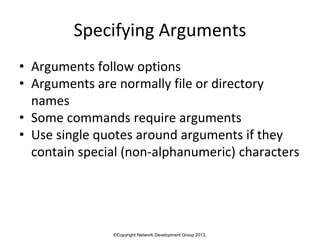
Specifying Arguments
• Arguments follow options
• Arguments are normally file or directory
names
• Some commands require arguments
• Use single quotes around arguments if they
contain special (non-alphanumeric) characters
©Copyright Network Development Group 2013.
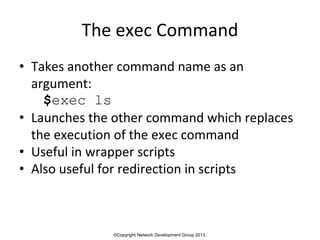
The exec Command
• Takes another command name as an
argument:
$exec ls
• Launches the other command which replaces
the execution of the exec command
• Useful in wrapper scripts
• Also useful for redirection in scripts
©Copyright Network Development Group 2013.
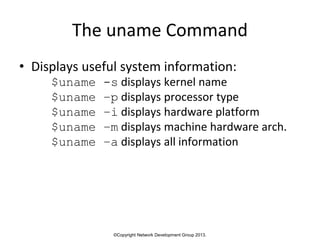
The uname Command
• Displays useful system information:
$uname -s displays kernel name
$uname –p displays processor type
$uname –i displays hardware platform
$uname –m displays machine hardware arch.
$uname –a displays all information
©Copyright Network Development Group 2013.
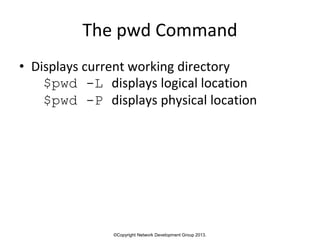
The pwd Command
• Displays current working directory
$pwd -L displays logical location
$pwd -P displays physical location
©Copyright Network Development Group 2013.
Command Completion
• Saves time typing large command names
• Start by typing part of command name and
then press the Tab key
• Will complete the rest of the command name
if what has been typed so far is unique
• If not unique, press the tab key a second time.
• Also works to complete file and directory
names when used as arguments

linuxtl01.pptx

  • 1.
    ©Copyright Network DevelopmentGroup 2013. Chapter 1: Using the Shell
  • 2.
    ©Copyright Network DevelopmentGroup 2013. Three Main OS Components • Kernel – manages the operation of the computer • Shell – provides for interaction between the user and the computer • Filesystem – provides a way to organize and manage all information on the computer’s disk(s)
  • 3.
    ©Copyright Network DevelopmentGroup 2013. Role of the Kernel • Main program loaded at startup that manages the operation of the computer - Manages devices, memory, and processes - Handles switching of applications • Similar to an air traffic controller at an airport
  • 4.
    ©Copyright Network DevelopmentGroup 2013. The Shell • The shell is a program that allows the user to type commands, options, and arguments • Many shell programs exist • Most popular shell is the “Bash” (Bourne Again Shell) • A user’s shell can be changed by the usermod command by root • User’s default shell stored in /etc/passwd
  • 5.
    ©Copyright Network DevelopmentGroup 2013. Accessing the Shell • From a Graphical User Interface (GUI) - Open a terminal program • From a Command Line Interface (CLI) - Provided automatically at login
  • 6.
    ©Copyright Network DevelopmentGroup 2013. What is a Command? • A program executed on the command line • Includes: - Built-in shell commands - Binary commands stored in files - Aliases - Functions - Scripts
  • 7.
    ©Copyright Network DevelopmentGroup 2013. Basic Command Syntax • Syntax: command [options…] [arguments…] • Commands, options, and arguments are all case sensitive
  • 8.
    ©Copyright Network DevelopmentGroup 2013. Specifying Options • Short options are specified with a hyphen and a single character such as -a or -x • Short options can be combined: -ax • Long options are specified with a double hyphen and a “word”: --all • Long options can not be combined • Both short and long options can be used together
  • 9.
    ©Copyright Network DevelopmentGroup 2013. Specifying Options • The option “--”, by itself, means “no more options” • BSD*style options use no hyphen, just a single character: i.e. “a” •*Berkely Standard Distribution (UNIX)
  • 10.
    ©Copyright Network DevelopmentGroup 2013. Specifying Arguments • Arguments follow options • Arguments are normally file or directory names • Some commands require arguments • Use single quotes around arguments if they contain special (non-alphanumeric) characters
  • 11.
    ©Copyright Network DevelopmentGroup 2013. The exec Command • Takes another command name as an argument: $exec ls • Launches the other command which replaces the execution of the exec command • Useful in wrapper scripts • Also useful for redirection in scripts
  • 12.
    ©Copyright Network DevelopmentGroup 2013. The uname Command • Displays useful system information: $uname -s displays kernel name $uname –p displays processor type $uname –i displays hardware platform $uname –m displays machine hardware arch. $uname –a displays all information
  • 13.
    ©Copyright Network DevelopmentGroup 2013. The pwd Command • Displays current working directory $pwd -L displays logical location $pwd -P displays physical location
  • 14.
    ©Copyright Network DevelopmentGroup 2013. Command Completion • Saves time typing large command names • Start by typing part of command name and then press the Tab key • Will complete the rest of the command name if what has been typed so far is unique • If not unique, press the tab key a second time. • Also works to complete file and directory names when used as arguments