Linux Command Line Multitasking
Amr Fawzy Mohammed
Outline
● Running process in the background
● Interacting with a backgrounded process
⚪ bg
⚪ fg
⚪ Jobs
● Manage virtual terminal sessions with Screen
● Tmux: Terminal Multiplexer
Running a process in the background
Bash and some other popular shells like zsh and ksh let us run a process in the
background.
The easiest way to have a task run in the background is to start it out there.
$ command &
The o/p will be the job number and the process id.
Running a process in the background (cont.)
If the process/application is already running and we want to send it back to
the background, then just press ctrl + z
The process will be stopped and sent to the background.
Interacting with a backgrounded process
List : is used to list the active jobs.
$ jobs
bg : is used to resume the backgrounded stopped process and let it run in the
background.
$ bg %job_number
fg : bring the backgrounded process to the foreground.
$ fg %job_number
Interacting with a backgrounded process (cont.)
Jobs are interactive processes running in the background.
lists process IDs in addition to the normal information.
$ jobs -l
Sending signals to jobs
$ kill -STOP process_ID or %job’s_number
$ kill -CONT process_ID or %job’s_number
Terminating jobs
$ kill %job’s_number
Interacting with a backgrounded process (cont.)
disown: is used to To removes a job from the table of active jobs.
$ disown job’s_number
Check :
$ jobs
The process is still running and can be found by running
$ ps aux | grep process’s_id
Manage virtual terminal sessions with Screen
GNU Screen is a tool which works with a terminal session to allow users to resume a session after
they have disconnected.
Screen creates virtual terminals that lives beyond the current session, so we can disconnect, come
back later and call the virtual terminal we were working on and the files we were working with will
still be open, and the processes we had running will still be active.
Screen Default keybinding / prefix is $ ctrl+a
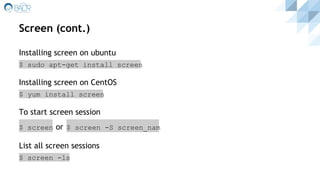
Screen (cont.)
Installing screen on ubuntu
$ sudo apt-get install screen
Installing screen on CentOS
$ yum install screen
To start screen session
$ screen or $ screen -S screen_nam
List all screen sessions
$ screen -ls
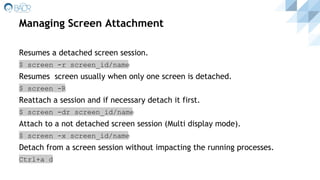
Managing Screen Attachment
Resumes a detached screen session.
$ screen -r screen_id/name
Resumes screen usually when only one screen is detached.
$ screen -R
Reattach a session and if necessary detach it first.
$ screen -dr screen_id/name
Attach to a not detached screen session (Multi display mode).
$ screen -x screen_id/name
Detach from a screen session without impacting the running processes.
Ctrl+a d
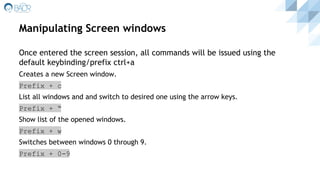
Manipulating Screen windows
Once entered the screen session, all commands will be issued using the
default keybinding/prefix ctrl+a
Creates a new Screen window.
Prefix + c
List all windows and and switch to desired one using the arrow keys.
Prefix + “
Show list of the opened windows.
Prefix + w
Switches between windows 0 through 9.
Prefix + 0-9
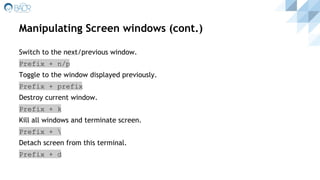
Manipulating Screen windows (cont.)
Switch to the next/previous window.
Prefix + n/p
Toggle to the window displayed previously.
Prefix + prefix
Destroy current window.
Prefix + k
Kill all windows and terminate screen.
Prefix + 
Detach screen from this terminal.
Prefix + d
Manipulating Screen windows (cont.)
Clear window.
Prefix + C
enter a name for the current window.
Prefix + A
Enter command line mode.
Prefix + :
Suspend the screen and go back to the original shell session
Prefix + z
Manipulating Screen windows (cont.)
Split the current region horizontally into two new ones.
Prefix + S
Split the current region vertically into two new ones.
Prefix + |
Switch the cursor to the next region.
Prefix + <tab>
Kill the current region.
Prefix + X
Tmux: Terminal Multiplexer
Tmux is a terminal multiplexer, It creates a host server on your remote
machine and connects to it with a client window.
If the client is disconnected, the server keeps running. When you reconnect to
your remote machine after rebooting your computer or losing your Internet
connection, you can reattach to the tmux session and the files you were
working with will still be open, and the processes you had running will still be
active.
Tmux (cont.)
Installing tmux on ubuntu
$ sudo apt-get install tmux
Installing tmux on CentOS
$ yum install tmux
To start tmux session
$ tmux or $ tmux new-session -s session_name
List all tmux sessions
$ tmux ls
Managing tmux Attachment
Attach to a tmux session
$ tmux attach -t session_name or $ tmux attach
Detach from a tmux session
$ tmux detach or prefix +d
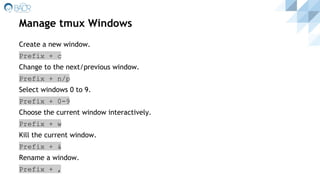
Manage tmux Windows
Create a new window.
Prefix + c
Change to the next/previous window.
Prefix + n/p
Select windows 0 to 9.
Prefix + 0-9
Choose the current window interactively.
Prefix + w
Kill the current window.
Prefix + &
Rename a window.
Prefix + ,
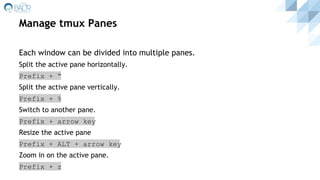
Manage tmux Panes
Each window can be divided into multiple panes.
Split the active pane horizontally.
Prefix + “
Split the active pane vertically.
Prefix + %
Switch to another pane.
Prefix + arrow key
Resize the active pane
Prefix + ALT + arrow key
Zoom in on the active pane.
Prefix + z
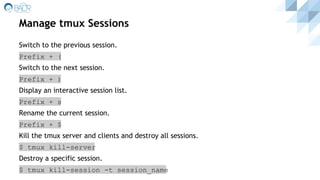
Manage tmux Sessions
Switch to the previous session.
Prefix + (
Switch to the next session.
Prefix + )
Display an interactive session list.
Prefix + s
Rename the current session.
Prefix + $
Kill the tmux server and clients and destroy all sessions.
$ tmux kill-server
Destroy a specific session.
$ tmux kill-session -t session_name
References
● Screen and Tmux man pages.
● Linode tmux and screen tutorials.
● Lynda “Linux: Multitasking at the Command Line” course.

Linux Command Line Multitasking

  • 2.
    Linux Command LineMultitasking Amr Fawzy Mohammed
  • 3.
    Outline ● Running processin the background ● Interacting with a backgrounded process ⚪ bg ⚪ fg ⚪ Jobs ● Manage virtual terminal sessions with Screen ● Tmux: Terminal Multiplexer
  • 4.
    Running a processin the background Bash and some other popular shells like zsh and ksh let us run a process in the background. The easiest way to have a task run in the background is to start it out there. $ command & The o/p will be the job number and the process id.
  • 5.
    Running a processin the background (cont.) If the process/application is already running and we want to send it back to the background, then just press ctrl + z The process will be stopped and sent to the background.
  • 6.
    Interacting with abackgrounded process List : is used to list the active jobs. $ jobs bg : is used to resume the backgrounded stopped process and let it run in the background. $ bg %job_number fg : bring the backgrounded process to the foreground. $ fg %job_number
  • 7.
    Interacting with abackgrounded process (cont.) Jobs are interactive processes running in the background. lists process IDs in addition to the normal information. $ jobs -l Sending signals to jobs $ kill -STOP process_ID or %job’s_number $ kill -CONT process_ID or %job’s_number Terminating jobs $ kill %job’s_number
  • 8.
    Interacting with abackgrounded process (cont.) disown: is used to To removes a job from the table of active jobs. $ disown job’s_number Check : $ jobs The process is still running and can be found by running $ ps aux | grep process’s_id
  • 9.
    Manage virtual terminalsessions with Screen GNU Screen is a tool which works with a terminal session to allow users to resume a session after they have disconnected. Screen creates virtual terminals that lives beyond the current session, so we can disconnect, come back later and call the virtual terminal we were working on and the files we were working with will still be open, and the processes we had running will still be active. Screen Default keybinding / prefix is $ ctrl+a
  • 10.
    Screen (cont.) Installing screenon ubuntu $ sudo apt-get install screen Installing screen on CentOS $ yum install screen To start screen session $ screen or $ screen -S screen_nam List all screen sessions $ screen -ls
  • 11.
    Managing Screen Attachment Resumesa detached screen session. $ screen -r screen_id/name Resumes screen usually when only one screen is detached. $ screen -R Reattach a session and if necessary detach it first. $ screen -dr screen_id/name Attach to a not detached screen session (Multi display mode). $ screen -x screen_id/name Detach from a screen session without impacting the running processes. Ctrl+a d
  • 12.
    Manipulating Screen windows Onceentered the screen session, all commands will be issued using the default keybinding/prefix ctrl+a Creates a new Screen window. Prefix + c List all windows and and switch to desired one using the arrow keys. Prefix + “ Show list of the opened windows. Prefix + w Switches between windows 0 through 9. Prefix + 0-9
  • 13.
    Manipulating Screen windows(cont.) Switch to the next/previous window. Prefix + n/p Toggle to the window displayed previously. Prefix + prefix Destroy current window. Prefix + k Kill all windows and terminate screen. Prefix + Detach screen from this terminal. Prefix + d
  • 14.
    Manipulating Screen windows(cont.) Clear window. Prefix + C enter a name for the current window. Prefix + A Enter command line mode. Prefix + : Suspend the screen and go back to the original shell session Prefix + z
  • 15.
    Manipulating Screen windows(cont.) Split the current region horizontally into two new ones. Prefix + S Split the current region vertically into two new ones. Prefix + | Switch the cursor to the next region. Prefix + <tab> Kill the current region. Prefix + X
  • 16.
    Tmux: Terminal Multiplexer Tmuxis a terminal multiplexer, It creates a host server on your remote machine and connects to it with a client window. If the client is disconnected, the server keeps running. When you reconnect to your remote machine after rebooting your computer or losing your Internet connection, you can reattach to the tmux session and the files you were working with will still be open, and the processes you had running will still be active.
  • 17.
    Tmux (cont.) Installing tmuxon ubuntu $ sudo apt-get install tmux Installing tmux on CentOS $ yum install tmux To start tmux session $ tmux or $ tmux new-session -s session_name List all tmux sessions $ tmux ls
  • 18.
    Managing tmux Attachment Attachto a tmux session $ tmux attach -t session_name or $ tmux attach Detach from a tmux session $ tmux detach or prefix +d
  • 19.
    Manage tmux Windows Createa new window. Prefix + c Change to the next/previous window. Prefix + n/p Select windows 0 to 9. Prefix + 0-9 Choose the current window interactively. Prefix + w Kill the current window. Prefix + & Rename a window. Prefix + ,
  • 20.
    Manage tmux Panes Eachwindow can be divided into multiple panes. Split the active pane horizontally. Prefix + “ Split the active pane vertically. Prefix + % Switch to another pane. Prefix + arrow key Resize the active pane Prefix + ALT + arrow key Zoom in on the active pane. Prefix + z
  • 21.
    Manage tmux Sessions Switchto the previous session. Prefix + ( Switch to the next session. Prefix + ) Display an interactive session list. Prefix + s Rename the current session. Prefix + $ Kill the tmux server and clients and destroy all sessions. $ tmux kill-server Destroy a specific session. $ tmux kill-session -t session_name
  • 22.
    References ● Screen andTmux man pages. ● Linode tmux and screen tutorials. ● Lynda “Linux: Multitasking at the Command Line” course.