The Shell Game, Part 1


          Kevin O'Brien
 Washtenaw Linux Users Group
    http://www.lugwash.org
What is a Shell?
“A shell is a program that provides the traditional,
text-only user interface for Linux and other Unix-
like operating systems. Its primary function is to
read commands that are typed into a console
(i.e., an all-text display mode) or terminal window
(an all-text window) in a GUI (graphical user
interface) and then execute (i.e., run) them.”
--http://www.linfo.org/shell.html
Why “Shell”?
●   At its most fundamental, the OS consists of a
    kernel, which is the heart of the OS
●   The kernel keeps track of different processes
    running, gives them CPU time as needed,
    handles interaction with peripheral devices,
    etc.
●   The Shell surrounds all of this, and creates a
    way to interact with it.
So what is a shell?
●   It is the basic way for a person to interact with
    a computer
●   This is done by typing in commands
●   If you open a terminal window, you are using
    the shell
●   If you cannot boot into a GUI interface, you
    can usually boot into a shell and fix things
Servers
●   Servers commonly do not even bother to
    install a GUI. Everything is done via the shell.
●   This saves on resources, since you do not
    have to devote RAM and CPU cycles to the
    GUI, and can instead devote them to serving
    files, or whatever.
Headless Servers
●   Sometimes a server is set up without a
    monitor even attached. This is called
    “Headless”.
●   Server administration is done via a terminal
    connection of some kind, commonly via ssh
ssh
●   Ssh stands for Secure Shell
●   This is the replacement for telnet, which was
    used in the old days
●   Telnet is not secure, that is why it was
    replaced
Server Administration
●   Pretty much all server administration in Linux
    or indeed any Unix-like operating system is
    done via the shell
●   This is not just because the shell saves on
    resources. It is also the case that the shell is
    more efficient, and more powerful, than any
    GUI.
Tip for new users
●   Buy a box of 3X5 index cards, and keep the
    box by your computer
●   Every time you find a useful command, write it
    down. You may want to use this command
    again at a later time.
●   Sometimes you will want to group related
    commands
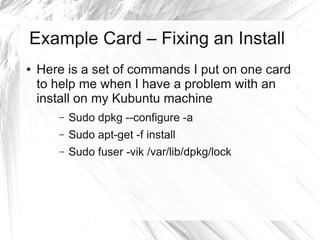
Example Card – Fixing an Install
●   Here is a set of commands I put on one card
    to help me when I have a problem with an
    install on my Kubuntu machine
       –   Sudo dpkg --configure -a
       –   Sudo apt-get -f install
       –   Sudo fuser -vik /var/lib/dpkg/lock
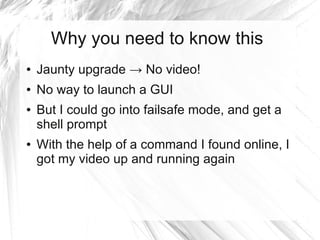
Why you need to know this
●   Jaunty upgrade → No video!
●   No way to launch a GUI
●   But I could go into failsafe mode, and get a
    shell prompt
●   With the help of a command I found online, I
    got my video up and running again
Coming attractions
●   This is the first in a series of short
    presentations designed for the newcomer to
    Linux
●   In future installments we will look at choices
    among shells, techniques for the most
    common shell (bash), and some tips and tricks
    to help move you to being an expert