Computer Applications 4
Lecture-01
Introduction to CAD/CAM
1
Dr. Dhafer Manea Hachim AL-HASNAWI
Assist Proof
Al-Furat Al-Awsat Technical University
Engineering Technical College / Najaf
email:coj.dfr@atu.edu.iq
Outlines
• Introduction to CAD/CAM
• Introduction to MASTERCAM
• 2D CAD using MASTERCAM
• Tool Path Planning in MASTERCAM
• Tool Path Optimization
Objectives
• To understand the need for CAD/CAM in Lean
Manufacturing.
• To be able to create 2D Geometries in
MASTERCAM
• To be able to create 2D toolpaths in
MASTERCAM
• To use MASTERCAM for identifying optimum
toolpaths
• To generate NC codes using MASTERCAM
CAD/CAM
• Computer-aided design (CAD) is the use of
computer systems to assist in the creation,
modification, analysis, or optimization of a
design.
• Computer-aided manufacturing (CAM) is the use
of computer systems to plan, manage, and
control the operations of a manufacturing plant
through direct or indirect computer interface with
plant’s resources.
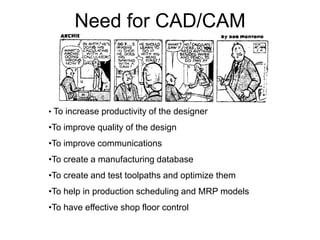
Need for CAD/CAM
• To increase productivity of the designer
•To improve quality of the design
•To improve communications
•To create a manufacturing database
•To create and test toolpaths and optimize them
•To help in production scheduling and MRP models
•To have effective shop floor control
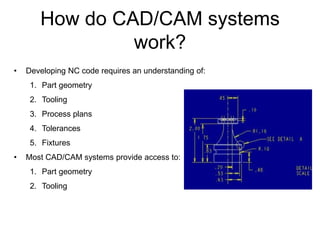
How do CAD/CAM systems
work?
• Developing NC code requires an understanding of:
1. Part geometry
2. Tooling
3. Process plans
4. Tolerances
5. Fixtures
• Most CAD/CAM systems provide access to:
1. Part geometry
2. Tooling
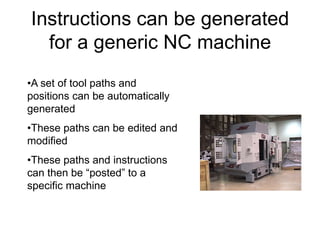
Instructions can be generated
for a generic NC machine
•A set of tool paths and
positions can be automatically
generated
•These paths can be edited and
modified
•These paths and instructions
can then be “posted” to a
specific machine
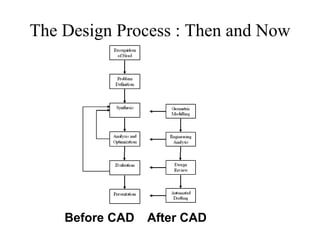
The Design Process : Then and Now
Before CAD After CAD
CAD/CAM and the new
Environment
Exercise (3-5 mins)
• Discuss how CAD/CAM helps in Lean
Manufacturing? Elaborate on any one
aspect.
• What advantages does CAD/CAM
approach offer in NC Programming?
CAD/CAM Support
• AutoCAD 200i
• Pro Engineer 2001
• MasterCAM
What do I need to begin
MasterCAM?
• Part geometry
– Draw or import
• Tooling
– Library or create
• Process plans
• Fixtures
– Define orientation and location
MasterCAM
• Mastercam is a three-dimensional
geometry creation engine along with
features to aid in tool path generation and
verification.
MasterCAM allows tool path planning and
NC code generation for a given part. This
part can either be drawn in MasterCAM or
imported from other CAD packages
MasterCAM Drawing
• Geometrical part drawing
– In-built CAD package
• Two-dimensional parts
• Three-dimensional parts
– Translators (include)
• IGES (international Graphics Exchange Standard)
• DXF (AutoCad)
• CADL (CADKey)
Tool Path Generation using
MasterCAM
• Tool path generation
– Extensive Tool library
– Machining parameter selection
– NC program generator
– Animation to visualize machining operations
Exercise (individual)
• Is it always good to use a CAD/CAM
package? Why?
• What are the advantages of using a
CAD/CAM system?
Exercise (Group)
• Develop a set of rules as to when to use a
CAD/CAM system.
• Create an economic model that can be
used to justify using MasterCAM or a
similar system.
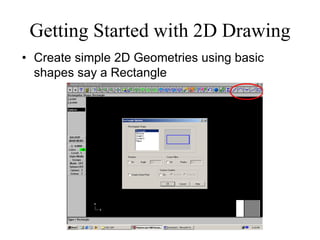
Getting Started with 2D Drawing
• Create simple 2D Geometries using basic
shapes say a Rectangle
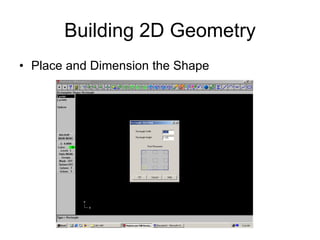
Building 2D Geometry
• Place and Dimension the Shape
Creating Shape with Lines and
Rectangles
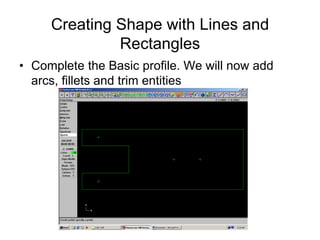
• Complete the Basic profile. We will now add
arcs, fillets and trim entities
Adding Arcs, Radius and Fillets
• Click on Main Menu [Create- Arc-pt dia cir] on to
dimension and place arcs/circles
• Click on Main Menu [Create-Fillets] to create Fillets.
Dimension them Suitably.
Completing our Mock Profile
• To Trim or Cut entities Main Menu [Modify-Trim-2
Entities] to get required profile.
Don’t forget to Save your file
Getting started with Toolpaths
• Click on Main Menu [Toolpaths]. MasterCAM lists
the different machining operations
Contouring Options
• By Selecting Contour the various Contouring Options are listed.
Select Chain and the geometry chains up and shows tool travel
direction
Defining Tool Parameters
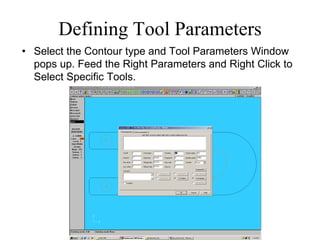
• Select the Contour type and Tool Parameters Window
pops up. Feed the Right Parameters and Right Click to
Select Specific Tools.
Selecting the Tools
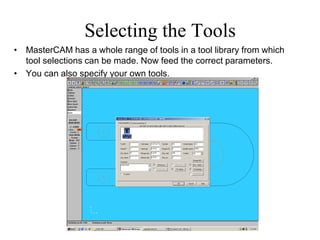
• MasterCAM has a whole range of tools in a tool library from which
tool selections can be made. Now feed the correct parameters.
• You can also specify your own tools.
Displaying Toolpaths
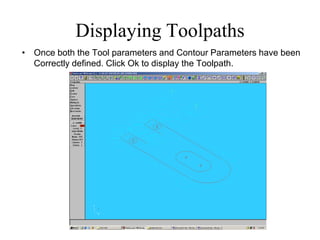
• Once both the Tool parameters and Contour Parameters have been
Correctly defined. Click Ok to display the Toolpath.
Toolpath Optimization?
• MASTERCAM does NOT give a minimum time
Toolpath. It gives the toolpath that has been
selected.
Exercise :
Try out different toolpaths from the toolpaths pallete for
the part in the tutorial. Which one is optimal? Why?

Lecture-01-Introduction-to-CADCAM.pdf

  • 1.
    Computer Applications 4 Lecture-01 Introductionto CAD/CAM 1 Dr. Dhafer Manea Hachim AL-HASNAWI Assist Proof Al-Furat Al-Awsat Technical University Engineering Technical College / Najaf email:coj.dfr@atu.edu.iq
  • 2.
    Outlines • Introduction toCAD/CAM • Introduction to MASTERCAM • 2D CAD using MASTERCAM • Tool Path Planning in MASTERCAM • Tool Path Optimization
  • 3.
    Objectives • To understandthe need for CAD/CAM in Lean Manufacturing. • To be able to create 2D Geometries in MASTERCAM • To be able to create 2D toolpaths in MASTERCAM • To use MASTERCAM for identifying optimum toolpaths • To generate NC codes using MASTERCAM
  • 4.
    CAD/CAM • Computer-aided design(CAD) is the use of computer systems to assist in the creation, modification, analysis, or optimization of a design. • Computer-aided manufacturing (CAM) is the use of computer systems to plan, manage, and control the operations of a manufacturing plant through direct or indirect computer interface with plant’s resources.
  • 5.
    Need for CAD/CAM •To increase productivity of the designer •To improve quality of the design •To improve communications •To create a manufacturing database •To create and test toolpaths and optimize them •To help in production scheduling and MRP models •To have effective shop floor control
  • 6.
    How do CAD/CAMsystems work? • Developing NC code requires an understanding of: 1. Part geometry 2. Tooling 3. Process plans 4. Tolerances 5. Fixtures • Most CAD/CAM systems provide access to: 1. Part geometry 2. Tooling
  • 7.
    Instructions can begenerated for a generic NC machine •A set of tool paths and positions can be automatically generated •These paths can be edited and modified •These paths and instructions can then be “posted” to a specific machine
  • 8.
    The Design Process: Then and Now Before CAD After CAD
  • 9.
    CAD/CAM and thenew Environment
  • 10.
    Exercise (3-5 mins) •Discuss how CAD/CAM helps in Lean Manufacturing? Elaborate on any one aspect. • What advantages does CAD/CAM approach offer in NC Programming?
  • 11.
    CAD/CAM Support • AutoCAD200i • Pro Engineer 2001 • MasterCAM
  • 12.
    What do Ineed to begin MasterCAM? • Part geometry – Draw or import • Tooling – Library or create • Process plans • Fixtures – Define orientation and location
  • 13.
    MasterCAM • Mastercam isa three-dimensional geometry creation engine along with features to aid in tool path generation and verification. MasterCAM allows tool path planning and NC code generation for a given part. This part can either be drawn in MasterCAM or imported from other CAD packages
  • 14.
    MasterCAM Drawing • Geometricalpart drawing – In-built CAD package • Two-dimensional parts • Three-dimensional parts – Translators (include) • IGES (international Graphics Exchange Standard) • DXF (AutoCad) • CADL (CADKey)
  • 15.
    Tool Path Generationusing MasterCAM • Tool path generation – Extensive Tool library – Machining parameter selection – NC program generator – Animation to visualize machining operations
  • 16.
    Exercise (individual) • Isit always good to use a CAD/CAM package? Why? • What are the advantages of using a CAD/CAM system?
  • 17.
    Exercise (Group) • Developa set of rules as to when to use a CAD/CAM system. • Create an economic model that can be used to justify using MasterCAM or a similar system.
  • 18.
    Getting Started with2D Drawing • Create simple 2D Geometries using basic shapes say a Rectangle
  • 19.
    Building 2D Geometry •Place and Dimension the Shape
  • 20.
    Creating Shape withLines and Rectangles • Complete the Basic profile. We will now add arcs, fillets and trim entities
  • 21.
    Adding Arcs, Radiusand Fillets • Click on Main Menu [Create- Arc-pt dia cir] on to dimension and place arcs/circles • Click on Main Menu [Create-Fillets] to create Fillets. Dimension them Suitably.
  • 22.
    Completing our MockProfile • To Trim or Cut entities Main Menu [Modify-Trim-2 Entities] to get required profile. Don’t forget to Save your file
  • 23.
    Getting started withToolpaths • Click on Main Menu [Toolpaths]. MasterCAM lists the different machining operations
  • 24.
    Contouring Options • BySelecting Contour the various Contouring Options are listed. Select Chain and the geometry chains up and shows tool travel direction
  • 25.
    Defining Tool Parameters •Select the Contour type and Tool Parameters Window pops up. Feed the Right Parameters and Right Click to Select Specific Tools.
  • 26.
    Selecting the Tools •MasterCAM has a whole range of tools in a tool library from which tool selections can be made. Now feed the correct parameters. • You can also specify your own tools.
  • 27.
    Displaying Toolpaths • Onceboth the Tool parameters and Contour Parameters have been Correctly defined. Click Ok to display the Toolpath.
  • 28.
    Toolpath Optimization? • MASTERCAMdoes NOT give a minimum time Toolpath. It gives the toolpath that has been selected. Exercise : Try out different toolpaths from the toolpaths pallete for the part in the tutorial. Which one is optimal? Why?