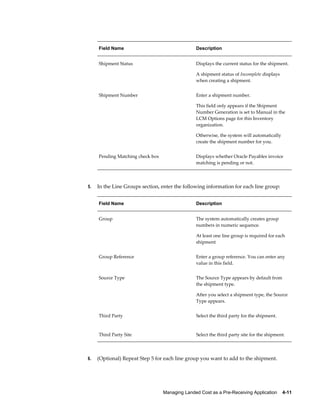
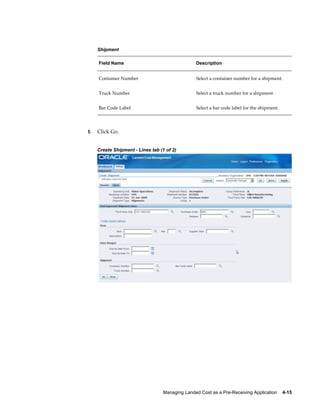
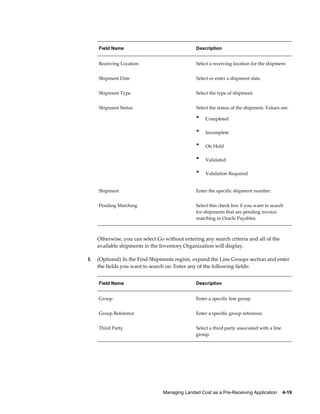
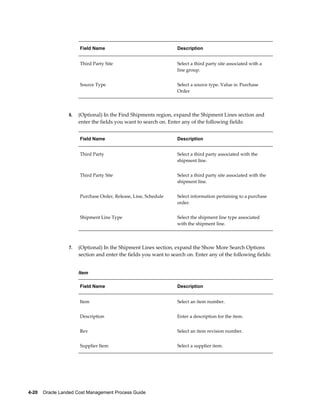
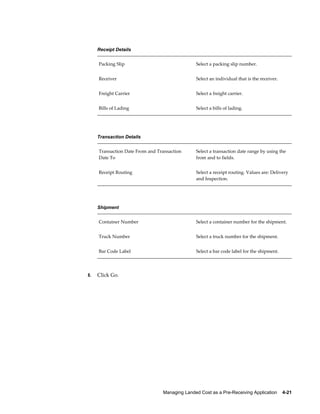
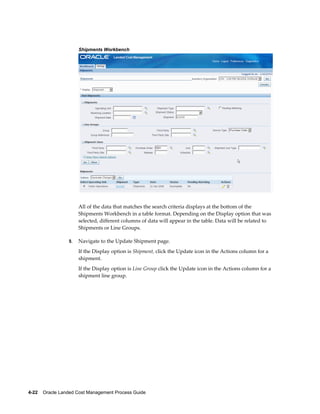
Oracle® Landed Cost Management
Process Guide
Release 12.1
Part No. E14299-04


August 2010
Oracle Landed Cost Management Process Guide, Release 12.1

Part No. E14299-04

Copyright © 2009, 2010, Oracle and/or its affiliates. All rights reserved.

Primary Author:     Jan Lineberry

Contributing Author:     Kelly Houston

Oracle is a registered trademark of Oracle Corporation and/or its affiliates. Other names may be trademarks
of their respective owners.

This software and related documentation are provided under a license agreement containing restrictions on
use and disclosure and are protected by intellectual property laws. Except as expressly permitted in your
license agreement or allowed by law, you may not use, copy, reproduce, translate, broadcast, modify, license,
transmit, distribute, exhibit, perform, publish or display any part, in any form, or by any means. Reverse
engineering, disassembly, or decompilation of this software, unless required by law for interoperability, is
prohibited.

The information contained herein is subject to change without notice and is not warranted to be error-free. If
you find any errors, please report them to us in writing.
If this software or related documentation is delivered to the U.S. Government or anyone licensing it on behalf
of the U.S. Government, the following notice is applicable:

U.S. GOVERNMENT RIGHTS
Programs, software, databases, and related documentation and technical data delivered to U.S. Government
customers are "commercial computer software" or "commercial technical data" pursuant to the applicable
Federal Acquisition Regulation and agency-specific supplemental regulations. As such, the use, duplication,
disclosure, modification, and adaptation shall be subject to the restrictions and license terms set forth in the
applicable Government contract, and, to the extent applicable by the terms of the Government contract, the
additional rights set forth in FAR 52.227-19, Commercial Computer Software License (December 2007). Oracle
USA, Inc., 500 Oracle Parkway, Redwood City, CA 94065.

This software is developed for general use in a variety of information management applications. It is not
developed or intended for use in any inherently dangerous applications, including applications which may
create a risk of personal injury. If you use this software in dangerous applications, then you shall be
responsible to take all appropriate fail-safe, backup, redundancy and other measures to ensure the safe use of
this software. Oracle Corporation and its affiliates disclaim any liability for any damages caused by use of this
software in dangerous applications.

This software and documentation may provide access to or information on content, products and services
from third parties. Oracle Corporation and its affiliates are not responsible for and expressly disclaim all
warranties of any kind with respect to third party content, products and services. Oracle Corporation and its
affiliates will not be responsible for any loss, costs, or damages incurred due to your access to or use of third
party content, products or services.
 
                                                                                                                   Contents


Send Us Your Comments

Preface


Part 1       Understanding Landed Cost Management

1   Understanding Landed Cost Management
    Oracle Landed Cost Management Overview............................................................................ 1-1
    Integration with Other Oracle Applications............................................................................ 1-4


Part 2       Setting Up Landed Cost Management

2   Setting Up Landed Cost Management
    Understanding the Landed Cost Management Setup Process................................................. 2-1
    Setting Up Inventory Organization Options............................................................................ 2-2
    Setting Up Receiving Options.................................................................................................. 2-4
    Setting Up Cost Factors............................................................................................................. 2-7
    Setting Up Advanced Pricing Profile Options......................................................................... 2-8
    Setting Up Landed Cost Management Options........................................................................2-9
    Maintaining Shipment Line Types......................................................................................... 2-11
    Maintaining Shipment Types................................................................................................. 2-13
    Setting Up Landed Cost Management Profile Options......................................................... 2-18


                                                                                                                                                   iii
Part 3        Managing Landed Cost

3    Understanding the Shipments Workbench
     Understanding the Shipments Workbench.............................................................................. 3-1
     Understanding the Shipment Status.......................................................................................3-16


4    Managing Landed Cost as a Pre-Receiving Application
     Understanding Landed Cost as a Pre-Receiving Application.................................................. 4-2
     Creating Landed Cost Management Shipments....................................................................... 4-8
     Entering Shipment Lines for the Shipment............................................................................4-12
     Updating Shipments............................................................................................................... 4-17
     Updating Shipment Lines....................................................................................................... 4-24
     Updating a Specific Shipment Line........................................................................................ 4-28
     Viewing Shipments................................................................................................................. 4-30
     Viewing Shipment Lines........................................................................................................ 4-32
     Viewing a Specific Shipment Line ........................................................................................ 4-33
     Generating Charges for the Shipment.................................................................................... 4-35
     Managing Charge Lines for the Shipment............................................................................. 4-36
     Viewing Charge Lines for the Shipment................................................................................ 4-41
     Managing Associations for the Shipment.............................................................................. 4-43
     Viewing Associations for the Shipment................................................................................. 4-46
     Validating the Shipment......................................................................................................... 4-48
     Calculating Estimated Landed Cost for the Shipment........................................................... 4-49
     Viewing Estimated Landed Cost for the Shipment................................................................ 4-51
     Submitting the Shipment to Receiving.................................................................................. 4-54
     Calculating and Importing Actual Landed Cost for the Shipment........................................4-56
     Viewing Actual Landed Cost for the Shipment..................................................................... 4-58


5    Managing Landed Cost as a Service
     Understanding Landed Cost as a Service................................................................................. 5-2
     Importing Estimated Landed Cost Information from Receiving............................................. 5-5
     Searching for Automatically Created Shipments..................................................................... 5-7
     Viewing Estimated Landed Cost for the Shipment................................................................ 5-11
     Calculating and Importing Actual Landed Cost for the Shipment........................................5-15
     Viewing Actual Landed Cost for the Shipment..................................................................... 5-16


6    Managing Simulated Landed Cost
     Understanding Simulated Landed Cost................................................................................... 6-1


iv
Creating a Landed Cost Simulation for a Purchase Order....................................................... 6-2
    Reviewing Existent Landed Cost Simulations......................................................................... 6-5
    Managing Existent Landed Cost Simulations.......................................................................... 6-8
    Managing Charges and Simulation Details........................................................................... 6-12
    Creating the Estimated Landed Cost Shipment..................................................................... 6-19


A   Windows/Pages and Navigation Paths
    Overview of Landed Cost Management Windows/Pages and Navigation Paths................... A-1
    Windows/Pages and Navigator Paths....................................................................................... A-1


B   Profile Options
    Overview of Profile Options.................................................................................................... B-1
    Landed Cost Management Profile Options.............................................................................. B-1


Index


                                                                                                                                              v
 
                                               Send Us Your Comments

Oracle Landed Cost Management Process Guide, Release 12.1
Part No. E14299-04


Oracle welcomes customers' comments and suggestions on the quality and usefulness of this document.
Your feedback is important, and helps us to best meet your needs as a user of our products. For example:
•   Are the implementation steps correct and complete?
•   Did you understand the context of the procedures?
•   Did you find any errors in the information?
•   Does the structure of the information help you with your tasks?
•   Do you need different information or graphics? If so, where, and in what format?
•   Are the examples correct? Do you need more examples?

If you find any errors or have any other suggestions for improvement, then please tell us your name, the
name of the company who has licensed our products, the title and part number of the documentation and
the chapter, section, and page number (if available).
Note: Before sending us your comments, you might like to check that you have the latest version of the
document and if any concerns are already addressed. To do this, access the new Oracle E-Business Suite
Release Online Documentation CD available on My Oracle Support and www.oracle.com. It contains the
most current Documentation Library plus all documents revised or released recently.
Send your comments to us using the electronic mail address: appsdoc_us@oracle.com
Please give your name, address, electronic mail address, and telephone number (optional).
If you need assistance with Oracle software, then please contact your support representative or Oracle
Support Services.
If you require training or instruction in using Oracle software, then please contact your Oracle local office
and inquire about our Oracle University offerings. A list of Oracle offices is available on our Web site at
www.oracle.com.


                                                                                                            vii
 
                                                                                 Preface


Intended Audience
           Welcome to Release 12.1 of the Oracle Landed Cost Management Process Guide.
           This guide is designed for users, administrators, and implementers, of the Oracle
           Landed Cost Management application. It assumes that you have a working knowledge
           of the principles and customary practices of the business area.
           See Related Information Sources on page x for more Oracle E-Business Suite product
           information.


Deaf/Hard of Hearing Access to Oracle Support Services
           To reach Oracle Support Services, use a telecommunications relay service (TRS) to call
           Oracle Support at 1.800.223.1711. An Oracle Support Services engineer will handle
           technical issues and provide customer support according to the Oracle service request
           process. Information about TRS is available at
           http://www.fcc.gov/cgb/consumerfacts/trs.html, and a list of phone numbers is
           available at http://www.fcc.gov/cgb/dro/trsphonebk.html.


Documentation Accessibility
           Our goal is to make Oracle products, services, and supporting documentation accessible
           to all users, including users that are disabled. To that end, our documentation includes
           features that make information available to users of assistive technology. This
           documentation is available in HTML format, and contains markup to facilitate access by
           the disabled community. Accessibility standards will continue to evolve over time, and
           Oracle is actively engaged with other market-leading technology vendors to address
           technical obstacles so that our documentation can be accessible to all of our customers.
           For more information, visit the Oracle Accessibility Program Web site at
           http://www.oracle.com/accessibility/.


                                                                                                   ix
Accessibility of Code Examples in Documentation
              Screen readers may not always correctly read the code examples in this document. The
              conventions for writing code require that closing braces should appear on an otherwise
              empty line; however, some screen readers may not always read a line of text that
              consists solely of a bracket or brace.


Accessibility of Links to External Web Sites in Documentation
              This documentation may contain links to Web sites of other companies or organizations
              that Oracle does not own or control. Oracle neither evaluates nor makes any
              representations regarding the accessibility of these Web sites.


Structure
              1  Understanding Landed Cost Management
              2  Setting Up Landed Cost Management
              3  Understanding the Shipments Workbench
              4  Managing Landed Cost as a Pre-Receiving Application
              5  Managing Landed Cost as a Service
              6  Managing Simulated Landed Cost
              A  Windows/Pages and Navigation Paths
              B  Profile Options


Related Information Sources
              Oracle Cost Management User's Guide
              Oracle Purchasing User's Guide
              Oracle iProcurement Implementation and Administration Guide
              Oracle Sourcing and Implementation Guide
              Oracle Payables User's Guide
              Oracle Inventory User's Guide
              Oracle Advanced Pricing User's Guide
              Oracle Process Manufacturing Cost Management User's Guide


Integration Repository
              The Oracle Integration Repository is a compilation of information about the service
              endpoints exposed by the Oracle E-Business Suite of applications. It provides a
              complete catalog of Oracle E-Business Suite's business service interfaces. The tool lets
              users easily discover and deploy the appropriate business service interface for
              integration with any system, application, or business partner.


x
The Oracle Integration Repository is shipped as part of the E-Business Suite. As your
           instance is patched, the repository is automatically updated with content appropriate
           for the precise revisions of interfaces in your environment.


Do Not Use Database Tools to Modify Oracle E-Business Suite Data
           Oracle STRONGLY RECOMMENDS that you never use SQL*Plus, Oracle Data
           Browser, database triggers, or any other tool to modify Oracle E-Business Suite data
           unless otherwise instructed.
           Oracle provides powerful tools you can use to create, store, change, retrieve, and
           maintain information in an Oracle database. But if you use Oracle tools such as
           SQL*Plus to modify Oracle E-Business Suite data, you risk destroying the integrity of
           your data and you lose the ability to audit changes to your data.
           Because Oracle E-Business Suite tables are interrelated, any change you make using an
           Oracle E-Business Suite form can update many tables at once. But when you modify
           Oracle E-Business Suite data using anything other than Oracle E-Business Suite, you
           may change a row in one table without making corresponding changes in related tables.
           If your tables get out of synchronization with each other, you risk retrieving erroneous
           information and you risk unpredictable results throughout Oracle E-Business Suite.
           When you use Oracle E-Business Suite to modify your data, Oracle E-Business Suite
           automatically checks that your changes are valid. Oracle E-Business Suite also keeps
           track of who changes information. If you enter information into database tables using
           database tools, you may store invalid information. You also lose the ability to track who
           has changed your information because SQL*Plus and other database tools do not keep a
           record of changes.


                                                                                                      xi
Part 1
Understanding Landed Cost Management
1
    Understanding Landed Cost Management

          This chapter covers the following topics:
          •   Oracle Landed Cost Management Overview
          •   Integration with Other Oracle Applications


Oracle Landed Cost Management Overview
          Oracle Landed Cost Management enables you to manage estimated and actual landed
          cost for an item purchased from a supplier. Using Oracle Landed Cost Management
          you can determine the "real" costs associated with acquiring items including insurance,
          transportation, handling, storage costs, container fees, and import or export charges.
          Knowledge and visibility into these trade costs help organizations better evaluate new
          product plans, price their items, and negotiate contracts with both suppliers and
          customers.
          Using Oracle Landed Cost Management you can first estimate the landed costs for the
          items and then you can update those costs with the actual landed costs as they become
          known. Oracle Landed Cost Management gives you the option to determine and
          calculate estimated landed costs before the receipt of the items into inventory (Landed
          Cost as a Pre-Receiving Application) or after the receipt of the item into inventory
          (Landed Cost Management as a Service). Then when you create and match invoices
          against those receipts this price information is used to calculate the actual landed costs
          for the item. Within Oracle Landed Cost Management you can view the estimated and
          actual landed costs for an item side by side. This gives you valuable information about
          the landed cost for an item and where cost improvement can made.
          During the processing of landed costs using Oracle Landed Cost Management,
          inventory valuations for various cost methods are maintained providing better visibility
          into individual items profitability and an organizations outstanding exposure. This data
          provides insight for item forecasting and budgeting and provides clear evidence of the
          detailed accumulation of expenses for regulatory requirements and reporting.
          For more detailed information on using Oracle Landed Cost Management, see
          Understanding Landed Cost as a Pre-Receiving Application, page 4-2 and


                                                         Understanding Landed Cost Management    1-1
Understanding Landed Cost as a Service, page 5-2.


Features of Landed Cost Management
                 Oracle Landed Cost Management provides several features. A few of the key features
                 are:
                 •   Charge Management
                     Oracle Landed Cost Management collects an unlimited number of estimated
                     charges and enables you to configure how theses charges are applied to a shipment
                     line, a group of lines within a shipment, or an entire shipment. It applies these
                     charges based on weight, volume, quantity, or the value of the items being traded.
                     These charges can be categorized by different cost factors which will ultimately
                     govern the behavior in how they are included in a total landed cost calculation.
                     Once actual amounts are received, Charge Management records the new value for
                     comparison with the earlier estimates.

                 •   Landed Cost Calculation
                     The Oracle Landed Cost Management Calculation process provides the ability to
                     calculate the estimated landed cost based on charges manually assigned and
                     automatically allocated based on the configuration of the charge lines. It also
                     calculates the actual landed costs by prorating the actual invoices and proportional
                     taxes to obtain the variances between what was estimated and what was charged.
                     Cost components summed in the calculation remain stored at the most granular
                     level for detailed tracking of charge amounts while variances are updated to the
                     appropriate accounts.

                 •   Shipments Workbench
                     It is common that the financial flows do not mirror the physical supply chain
                     transactional flows. Oracle Landed Cost Management helps to link these two flows
                     together and provides visibility and traceability from one to the other. With the
                     Landed Cost Management Shipment Workbench, companies can view the real time
                     accrual updates for a particular receipt or shipment. They can validate the accuracy
                     of a suppliers estimate by comparing estimated and actual costs and can view the
                     percentage of a particular cost component for a particular item. Additionally, you
                     can make use of all the flexible Oracle and E-Business Suite tools to meet your own
                     customized reporting requirements.


1-2    Oracle Landed Cost Management Process Guide
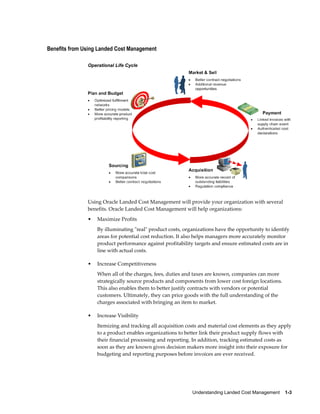
Benefits from Using Landed Cost Management

               Operational Life Cycle


               Using Oracle Landed Cost Management will provide your organization with several
               benefits. Oracle Landed Cost Management will help organizations:
               •   Maximize Profits
                   By illuminating "real" product costs, organizations have the opportunity to identify
                   areas for potential cost reduction. It also helps managers more accurately monitor
                   product performance against profitability targets and ensure estimated costs are in
                   line with actual costs.

               •   Increase Competitiveness
                   When all of the charges, fees, duties and taxes are known, companies can more
                   strategically source products and components from lower cost foreign locations.
                   This also enables them to better justify contracts with vendors or potential
                   customers. Ultimately, they can price goods with the full understanding of the
                   charges associated with bringing an item to market.

               •   Increase Visibility
                   Itemizing and tracking all acquisition costs and material cost elements as they apply
                   to a product enables organizations to better link their product supply flows with
                   their financial processing and reporting. In addition, tracking estimated costs as
                   soon as they are known gives decision makers more insight into their exposure for
                   budgeting and reporting purposes before invoices are ever received.


                                                            Understanding Landed Cost Management    1-3
•   Ensure Compliance
                     Companies can feel more confident in their financial reports and their cost
                     declarations. This includes accurately calculated taxes and consideration of those
                     taxes whose recovery should be excluded from total cost calculations. Additionally,
                     organizations will adhere to country specific requirements for product specific
                     profitability documentation and income tax calculations.


Integration with Other Oracle Applications

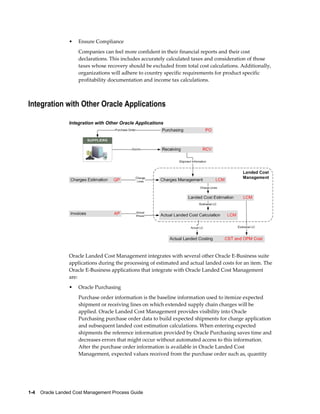
                 Integration with Other Oracle Applications


                 Oracle Landed Cost Management integrates with several other Oracle E-Business suite
                 applications during the processing of estimated and actual landed costs for an item. The
                 Oracle E-Business applications that integrate with Oracle Landed Cost Management
                 are:
                 •   Oracle Purchasing
                     Purchase order information is the baseline information used to itemize expected
                     shipment or receiving lines on which extended supply chain charges will be
                     applied. Oracle Landed Cost Management provides visibility into Oracle
                     Purchasing purchase order data to build expected shipments for charge application
                     and subsequent landed cost estimation calculations. When entering expected
                     shipments the reference information provided by Oracle Purchasing saves time and
                     decreases errors that might occur without automated access to this information.
                     After the purchase order information is available in Oracle Landed Cost
                     Management, expected values received from the purchase order such as, quantity


1-4    Oracle Landed Cost Management Process Guide
and price can be edited for estimated cost calculation purposes. Furthermore, all the
    necessary data is provided to help arrive at an accurate three way match after an
    invoice for a purchase order line or charge is entered into Oracle Payables.
    Additionally, Landed Cost Management recovers the tax lines associated to the
    purchase order that was originally calculated by EB-Tax, in order to include the
    non-recoverable amounts into the landed cost.

•   Oracle Purchasing (Receiving)
    Oracle Landed Cost Management integrates tightly with the Oracle Purchasing
    Receiving module. Landed Cost Management relies on the Receiving transactions to
    calculate the estimated landed costs for a Landed Cost Management shipment.
    These estimated landed costs are then forwarded to Oracle Cost Management to
    update inventory valuations and accounting.
•   Oracle Payables
    Invoices created in Oracle Payables provide the actual cost information that
    supports the actual landed cost calculations that occur in Landed Cost
    Management.
•   Oracle Cost Management and Oracle Process Manufacturing (OPM) Cost
    Management
    After actual values are received from invoices the actual landed cost is calculated in
    Oracle Landed Cost Management. The variances between the actual landed cost
    and the estimated landed cost are determined. Those variances are passed to Oracle
    Cost Management which in turn updates the proper accounts and valuation. If you
    are using Oracle Process Manufacturing than you must first run a concurrent
    program that will pass the variances to OPM Cost Management and that
    application will in turn update the proper accounts and valuation. Both process and
    discrete Costing applications follow similar flows: Landed Cost Management
    calculates the estimated and actual landed costs and the variances, which are used
    for costing valuation and accounting.
•   Oracle Advanced Pricing (Optional)
    Integration with Oracle Advanced Pricing enables you to set conditions for the
    automatic application of the required charges, fees, duties and taxes for a Landed
    Cost Management shipment. This means that estimated charges can be applied
    automatically to a shipment.


                                              Understanding Landed Cost Management    1-5
Part 2
Setting Up Landed Cost Management
2
               Setting Up Landed Cost Management


Understanding the Landed Cost Management Setup Process
               Before you can use the Landed Cost Management application you must set up the
               application. A part of the Landed Cost Management setup occurs in other Oracle
               E-Business applications and then some of the setup is performed within the Landed
               Cost Management application itself.
               Since Landed Cost Management integrates with several Oracle E-Business applications
               these applications need to be implemented and set up as well before you can
               successfully use the Landed Cost Management application. The other Oracle E-Business
               applications that need to be set up are:
               •   Oracle Inventory

               •   Oracle Purchasing

               •   Oracle Payables (required for actual landed cost calculation)

               •   (Conditionally Optional) Oracle Cost Management

               •   (Conditionally Optional) Oracle Process Manufacturing
                   The use of Oracle Landed Cost Management is optional for Oracle Discrete and
                   Process manufacturing implementations.

               Plus, Landed Cost Management can integrate with Oracle Advanced Pricing but it is
               not required. Oracle recommends that you integrate with Oracle Advanced Pricing so
               automatic charge calculation will occur in the processing of landed costs. Otherwise,
               you will have to enter all of the charge lines manually.


Setting Up Landed Cost Management
               Follow this high-level process flow to set up Landed Cost Management:


                                                                Setting Up Landed Cost Management    2-1
1.   Implement and set up all the other Oracle E-Business applications (Oracle
                      E-Business Inventory, Purchasing, Cost Management, Process Manufacturing,
                      Payables, and Advanced Pricing) that are integrating with Landed Cost
                      Management.
                      For more information on setting up these applications, see the specific
                      implementation guide and user guide for each application.

                 2.   Set up Inventory organization options.
                      For more information, see Setting Up Inventory Organization Options, page 2-2.

                 3.   Set up Receiving options.
                      For more information, see Setting Up Receiving Options, page 2-4.

                 4.   Set up cost factors.
                      For more information, see Setting Up Cost Factors, page 2-7.

                 5.   Set up Oracle Advanced Pricing profile options.
                      For more information, see Setting Up Advanced Pricing Profile Options, page 2-8.

                 6.   Set up Landed Cost Management Options.
                      For more information, see Setting Up Landed Cost Management Options, page 2-
                      9

                 7.   Set up shipment line types.
                      For more information, see Maintaining Shipment Line Types, page 2-11.

                 8.   Set up shipment types.
                      For more information, see Maintaining Shipment Types, page 2-13.

                 9.   Set up Landed Cost Management profile options.
                      For more information, see Setting Up Landed Cost Management Profile Options,
                      page 2-18.


Setting Up Inventory Organization Options
                 To use Oracle Landed Cost Management you must specify the inventory organizations
                 that you want to have use Landed Cost Management and you must specify the Landed
                 Cost Management variance account for that organization.
                 For more information on Inventory organization options, see the Inventory Structure
                 chapter in the Oracle Inventory User's Guide.
                 Use this procedure to set up Inventory organization options:


2-2    Oracle Landed Cost Management Process Guide
To Set Up Inventory Organization Options:
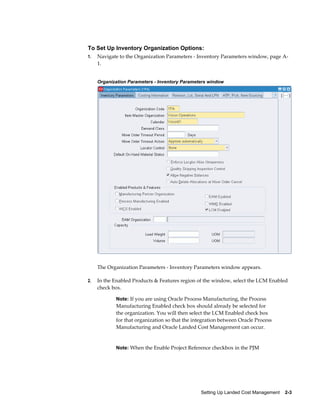
1.   Navigate to the Organization Parameters - Inventory Parameters window, page A-
     1.


     Organization Parameters - Inventory Parameters window


     The Organization Parameters - Inventory Parameters window appears.

2.   In the Enabled Products & Features region of the window, select the LCM Enabled
     check box.

            Note: If you are using Oracle Process Manufacturing, the Process
            Manufacturing Enabled check box should already be selected for
            the organization. You will then select the LCM Enabled check box
            for that organization so that the integration between Oracle Process
            Manufacturing and Oracle Landed Cost Management can occur.


            Note: When the Enable Project Reference checkbox in the PJM


                                                 Setting Up Landed Cost Management    2-3
Organization Parameters Form is checked, the LCM Enabled flag in
                              the Inventory Organization Parameters form cannot be checked.


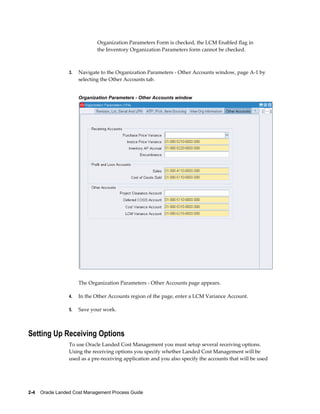
                 3.   Navigate to the Organization Parameters - Other Accounts window, page A-1 by
                      selecting the Other Accounts tab.


                      Organization Parameters - Other Accounts window


                      The Organization Parameters - Other Accounts page appears.

                 4.   In the Other Accounts region of the page, enter a LCM Variance Account.

                 5.   Save your work.


Setting Up Receiving Options
                 To use Oracle Landed Cost Management you must setup several receiving options.
                 Using the receiving options you specify whether Landed Cost Management will be
                 used as a pre-receiving application and you also specify the accounts that will be used


2-4    Oracle Landed Cost Management Process Guide
pertaining to Landed Cost Management in the accrual accounting process.
For more information on setting up receiving options, see the Setting Up chapter in the
Oracle Purchasing User's Guide.
Use the procedure to set up receiving options:


To Set Up Receiving Options:
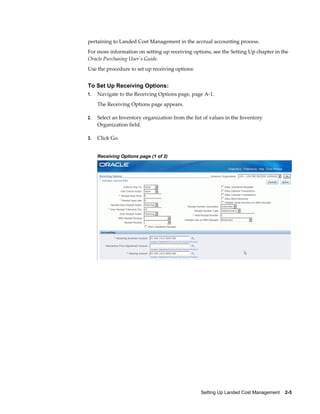
1.   Navigate to the Receiving Options page, page A-1.
     The Receiving Options page appears.

2.   Select an Inventory organization from the list of values in the Inventory
     Organization field.

3.   Click Go.


     Receiving Options page (1 of 2)


                                                  Setting Up Landed Cost Management    2-5
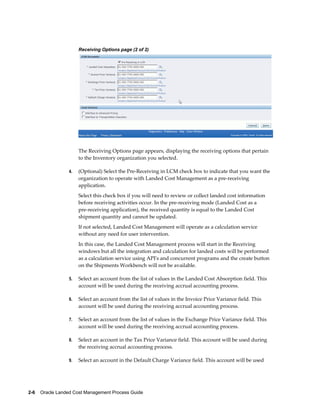
Receiving Options page (2 of 2)


                      The Receiving Options page appears, displaying the receiving options that pertain
                      to the Inventory organization you selected.

                 4.   (Optional) Select the Pre-Receiving in LCM check box to indicate that you want the
                      organization to operate with Landed Cost Management as a pre-receiving
                      application.
                      Select this check box if you will need to review or collect landed cost information
                      before receiving activities occur. In the pre-receiving mode (Landed Cost as a
                      pre-receiving application), the received quantity is equal to the Landed Cost
                      shipment quantity and cannot be updated.
                      If not selected, Landed Cost Management will operate as a calculation service
                      without any need for user intervention.
                      In this case, the Landed Cost Management process will start in the Receiving
                      windows but all the integration and calculation for landed costs will be performed
                      as a calculation service using API's and concurrent programs and the create button
                      on the Shipments Workbench will not be available.

                 5.   Select an account from the list of values in the Landed Cost Absorption field. This
                      account will be used during the receiving accrual accounting process.

                 6.   Select an account from the list of values in the Invoice Price Variance field. This
                      account will be used during the receiving accrual accounting process.

                 7.   Select an account from the list of values in the Exchange Price Variance field. This
                      account will be used during the receiving accrual accounting process.

                 8.   Select an account in the Tax Price Variance field. This account will be used during
                      the receiving accrual accounting process.

                 9.   Select an account in the Default Charge Variance field. This account will be used


2-6    Oracle Landed Cost Management Process Guide
during the receiving accrual accounting process.


Setting Up Cost Factors
            Oracle Landed Cost Management uses cost factors to define charge types. Charge types
            are used in Landed Cost Management when adding a new charge line in the Shipments
            Workbench.
            For more information on setting up cost factors, see the Oracle Sourcing Implementation
            and Administration Guide.
            Use this procedure to set up cost factors:


            To Set Up Cost Factors:
            1.   Navigate to the Cost Factors page, page A-1.
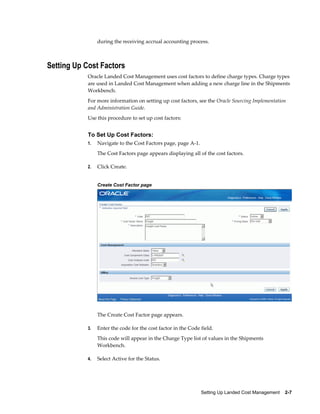
                 The Cost Factors page appears displaying all of the cost factors.

            2.   Click Create.


                 Create Cost Factor page


                 The Create Cost Factor page appears.

            3.   Enter the code for the cost factor in the Code field.
                 This code will appear in the Charge Type list of values in the Shipments
                 Workbench.

            4.   Select Active for the Status.


                                                                Setting Up Landed Cost Management    2-7
Landed Cost Management only uses cost factors with an active status for charge
                      line creation.

                 5.   Enter a name for the cost factor in the Cost Factor Name field.

                 6.   Select the basis for pricing using the Pricing Basis field.
                      Per-Unit appears by default for the pricing basis.

                 7.   Enter the description for the cost factor in the Description field.

                 8.   In the Cost Management region, select the Allocation Basis for the cost factor.
                      Options are:
                      •   Quantity

                      •   Value

                      •   Volume

                      •   Weight

                      Landed Cost Management supports all of these basisses for allocation. The
                      allocation basis is used to prorate the charge amounts to the items on the Landed
                      Cost Management shipment.

                              Note: If the Allocation Basis is blank, Landed Cost Management
                              defaults the allocation basis to Value.


Setting Up Advanced Pricing Profile Options
                 If you are using Oracle Advanced Pricing to integrate with Oracle Landed Cost
                 Management then you will want to define Advanced Pricing profile options in a
                 manner recognized by Landed Cost Management. The Advanced Pricing application is
                 required if you need automatic charge lines generation when using Landed Cost
                 Management.
                 Advanced Pricing has several profile options. The following table lists the Advanced
                 Pricing profile options and the profile value settings that must be entered to enable the
                 integration between Landed Cost Management and Advanced Pricing.

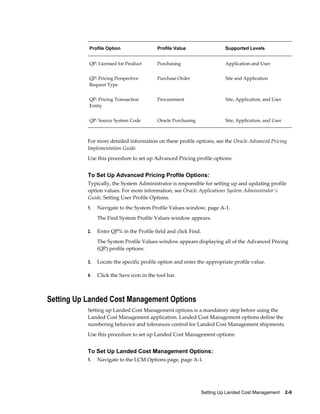
                  Profile Option                 Profile Value                      Supported Levels


                  QP: Blind Discount Option      Yes                                Site and Application


2-8    Oracle Landed Cost Management Process Guide
Profile Option                  Profile Value                   Supported Levels


           QP: Licensed for Product        Purchasing                      Application and User


           QP: Pricing Perspective         Purchase Order                  Site and Application
           Request Type


           QP: Pricing Transaction         Procurement                     Site, Application, and User
           Entity


           QP: Source System Code          Oracle Purchasing               Site, Application, and User


           For more detailed information on these profile options, see the Oracle Advanced Pricing
           Implementation Guide.
           Use this procedure to set up Advanced Pricing profile options:


           To Set Up Advanced Pricing Profile Options:
           Typically, the System Administrator is responsible for setting up and updating profile
           option values. For more information, see Oracle Applications System Administrator's
           Guide, Setting User Profile Options.
           1.   Navigate to the System Profile Values window, page A-1.
                The Find System Profile Values window appears.

           2.   Enter QP% in the Profile field and click Find.
                The System Profile Values window appears displaying all of the Advanced Pricing
                (QP) profile options.

           3.   Locate the specific profile option and enter the appropriate profile value.

           4.   Click the Save icon in the tool bar.


Setting Up Landed Cost Management Options
           Setting up Landed Cost Management options is a mandatory step before using the
           Landed Cost Management application. Landed Cost Management options define the
           numbering behavior and tolerances control for Landed Cost Management shipments.
           Use this procedure to set up Landed Cost Management options:


           To Set Up Landed Cost Management Options:
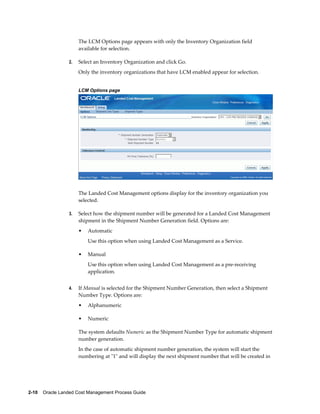
           1.   Navigate to the LCM Options page, page A-1.


                                                                 Setting Up Landed Cost Management    2-9
The LCM Options page appears with only the Inventory Organization field
                      available for selection.

                 2.   Select an Inventory Organization and click Go.
                      Only the inventory organizations that have LCM enabled appear for selection.


                      LCM Options page


                      The Landed Cost Management options display for the inventory organization you
                      selected.

                 3.   Select how the shipment number will be generated for a Landed Cost Management
                      shipment in the Shipment Number Generation field. Options are:
                      •   Automatic
                          Use this option when using Landed Cost Management as a Service.

                      •   Manual
                          Use this option when using Landed Cost Management as a pre-receiving
                          application.


                 4.   If Manual is selected for the Shipment Number Generation, then select a Shipment
                      Number Type. Options are:
                      •   Alphanumeric

                      •   Numeric

                      The system defaults Numeric as the Shipment Number Type for automatic shipment
                      number generation.
                      In the case of automatic shipment number generation, the system will start the
                      numbering at "1" and will display the next shipment number that will be created in


2-10    Oracle Landed Cost Management Process Guide
the Next Shipment Number field.

           5.   Enter a price tolerance percent in the PO Price Tolerance (%) field.
                Land Cost Management provides a consolidated tolerance control for the purchase
                price entered in Landed Cost Management (equivalent to the quantity tolerance for
                a receipt in Receiving). Prices out of the tolerance interval are rejected.

           6.   Click Apply to save your work.


Maintaining Shipment Line Types
           Setting up shipment line types is a mandatory step before you can use Landed Cost
           Management. Shipment line type is a mandatory attribute of all shipment lines on a
           Landed Cost Management shipment. It provides a shipment line categorization and
           also drives the landed cost calculation behavior.
           Use these procedures to maintain shipment line types:


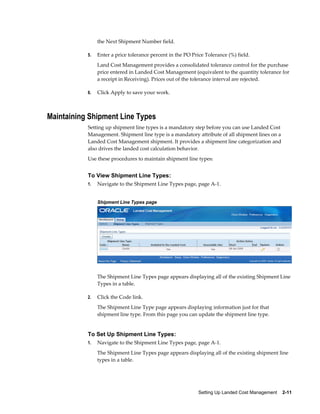
           To View Shipment Line Types:
           1.   Navigate to the Shipment Line Types page, page A-1.


                Shipment Line Types page


                The Shipment Line Types page appears displaying all of the existing Shipment Line
                Types in a table.

           2.   Click the Code link.
                The Shipment Line Type page appears displaying information just for that
                shipment line type. From this page you can update the shipment line type.


           To Set Up Shipment Line Types:
           1.   Navigate to the Shipment Line Types page, page A-1.
                The Shipment Line Types page appears displaying all of the existing shipment line
                types in a table.


                                                             Setting Up Landed Cost Management    2-11
2.   Click Create.


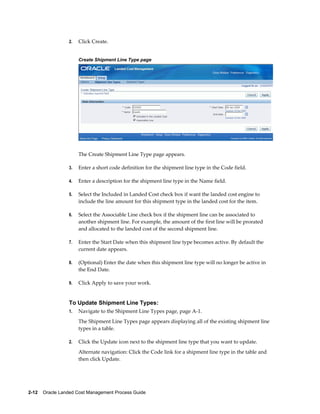
                      Create Shipment Line Type page


                      The Create Shipment Line Type page appears.

                 3.   Enter a short code definition for the shipment line type in the Code field.

                 4.   Enter a description for the shipment line type in the Name field.

                 5.   Select the Included in Landed Cost check box if want the landed cost engine to
                      include the line amount for this shipment type in the landed cost for the item.

                 6.   Select the Associable Line check box if the shipment line can be associated to
                      another shipment line. For example, the amount of the first line will be prorated
                      and allocated to the landed cost of the second shipment line.

                 7.   Enter the Start Date when this shipment line type becomes active. By default the
                      current date appears.

                 8.   (Optional) Enter the date when this shipment line type will no longer be active in
                      the End Date.

                 9.   Click Apply to save your work.


                 To Update Shipment Line Types:
                 1.   Navigate to the Shipment Line Types page, page A-1.
                      The Shipment Line Types page appears displaying all of the existing shipment line
                      types in a table.

                 2.   Click the Update icon next to the shipment line type that you want to update.
                      Alternate navigation: Click the Code link for a shipment line type in the table and
                      then click Update.


2-12    Oracle Landed Cost Management Process Guide
The Update Shipment Line Type page appears.

           3.   Change the information you want associated with the shipment line type.

           4.   Click Apply to save your work.


           To Delete a Shipment Line Type:
           1.   Navigate to the Shipment Line Types page, page A-1.
                The Shipment Line Types page appears displaying all of the existing shipment line
                types in a table.

           2.   Click the Delete icon next to the shipment line type that you want to delete.
                You will receive a warning message asking if you are sure you want to delete the
                shipment line type.

           3.   Click Yes.
                The Shipment Line Type is deleted.


Maintaining Shipment Types
           Before you can begin to use Landed Cost Management you must create shipment types.
           Shipment type determines the validations that will occur for a shipment.
           Use these procedures to maintain shipment types:


           To View Shipment Types:
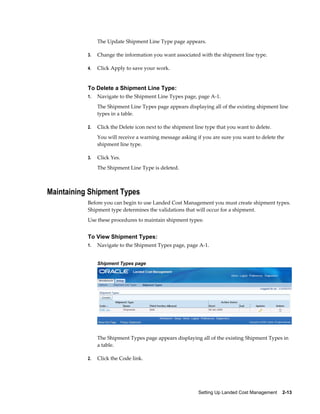
           1.   Navigate to the Shipment Types page, page A-1.


                Shipment Types page


                The Shipment Types page appears displaying all of the existing Shipment Types in
                a table.

           2.   Click the Code link.


                                                            Setting Up Landed Cost Management    2-13
The Shipment Type page appears displaying information just for that shipment
                      type. From this page you can update the shipment type.


                 To Set Up Shipment Types:
                 1.   Navigate to the Shipment Types page, page A-1.
                      The Shipment Types page appears displaying all of the existing shipment types in a
                      table.

                 2.   Click Create.


                      Create Shipment Type page


                      The Create Shipment Type page appears.

                 3.   In the Main region of the page, enter the following information:


                      Field Name                                 Description


                      Code                                       Enter a short code definition for the
                                                                 shipment type.


                      Name                                       Enter a description for the shipment type.


2-14    Oracle Landed Cost Management Process Guide
Field Name                                  Description


     Start Date                                  Enter the start date when the shipment type
                                                 becomes active. By default the current date
                                                 appears.


     (Optional) End Date                         Enter the date when the shipment type will
                                                 no longer be active.


4.   In the Controls region of the page, select the Third Parties Allowed option. Options
     are:
     •   Both: Both Domestic and Foreign

     •   Domestic

     •   Foreign


5.   Under the Shipment Line Types Allowed tab, select the shipment line types that can
     be used with this shipment type.

6.   Using the Select column, select the shipment line type that will be the default.

7.   (Optional) To add another row for additional shipment line types, click Add
     Another Row and then select another shipment line type.

8.   (Optional) To delete a shipment line type from the shipment type, click the Remove
     icon next to the shipment line type you wish to remove.

9.   Select the Party Types Allowed tab.


                                                  Setting Up Landed Cost Management    2-15
Party Types Allowed tab


                     The Party Types Allowed tab appears.

                 10. Select the Party Types that can be used with this shipment type.

                     The system restricts the parties that can be chosen by filtering parties that are
                     classified as one of the party types selected for the shipment type.
                     Party types are defined as part of the Trade Community Architecture (TCA) setup.

                 11. (Optional) To add another row for party types, click Add Another Row and then
                     select another party type.

                 12. (Optional) To delete a party type from the shipment type, click the Remove icon
                     next to the party type you wish to remove.

                 13. Select the Party Usages Allowed tab.


                     Party Usages Allowed tab


                     The Party Usages Allowed tab appears.

                 14. Select the Party Usages that can be used with this shipment type.

                     The system restricts the parties that can be chosen by filtering parties that have
                     party usage defined as one of the party usages selected for the shipment type. Party
                     usage is defined as part of the Trade Community Architecture (TCA) setup.


2-16    Oracle Landed Cost Management Process Guide
15. (Optional) To add another row for party usage, click Add Another Row and then
     select another party usage.

16. (Optional) To delete a party usage from the shipment type, click the Remove icon
     next to the party usage you wish to remove.

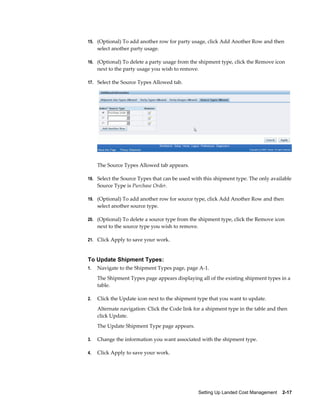
17. Select the Source Types Allowed tab.


     The Source Types Allowed tab appears.

18. Select the Source Types that can be used with this shipment type. The only available
     Source Type is Purchase Order.

19. (Optional) To add another row for source type, click Add Another Row and then
     select another source type.

20. (Optional) To delete a source type from the shipment type, click the Remove icon
     next to the source type you wish to remove.

21. Click Apply to save your work.


To Update Shipment Types:
1.   Navigate to the Shipment Types page, page A-1.
     The Shipment Types page appears displaying all of the existing shipment types in a
     table.

2.   Click the Update icon next to the shipment type that you want to update.
     Alternate navigation: Click the Code link for a shipment type in the table and then
     click Update.
     The Update Shipment Type page appears.

3.   Change the information you want associated with the shipment type.

4.   Click Apply to save your work.


                                                   Setting Up Landed Cost Management    2-17
To Delete Shipment Types:
                 1.   Navigate to the Shipment Types page, page A-1.
                      The Shipment Types page appears displaying all of the existing shipment line types
                      in a table.

                 2.   Click the Delete icon next to the shipment type that you want to delete.
                      You will receive a warning message asking if you are sure you want to delete the
                      shipment type.

                 3.   Click Yes.
                      The Shipment Line Type is deleted.


Setting Up Landed Cost Management Profile Options
                 Landed Cost Management has a few profile options. Two of the profile options are
                 related to the generate charges process that occurs in the Landed Cost Management
                 Shipments Workbench, three of the profiles are related to the cost factor UOM
                 conversions for the Generate Charges and Calculate process, and the other profile
                 option is related to the creation of a Landed Cost Management shipment when the
                 system creates the shipment automatically.
                 For more information on the Landed Cost Management Profile Options, see Overview
                 of Profile Options, page B-1 in the Profile Options appendix.
                 This table describes the profile options:


                  Profile Option                               Profile Option Description


                  INL: Default Currency Code for QP Charges    This profile option is used in Advanced
                  Generation                                   Pricing integration with Landed Cost
                                                               Management.

                                                               The system uses this profile option to
                                                               determine the base currency code when
                                                               integrating to Oracle Advanced Pricing. All of
                                                               the shipment line amounts will be converted
                                                               to the currency indicated in this profile option.

                                                               For more information see, Generating Charges
                                                               for the Shipment, page 4-35.


2-18    Oracle Landed Cost Management Process Guide
Profile Option                              Profile Option Description


INL: Default Currency Conversion Type for   This profile option is used in Advanced
QP Charges Generation                       Pricing integration with Landed Cost
                                            Management.

                                            The system uses this profile option to
                                            determine the currency conversion type when
                                            integrating to Oracle Advanced Pricing. All of
                                            the shipment line amounts will be converted
                                            to the currency conversion type indicated in
                                            this profile option.
                                            For more information see, Generating Charges
                                            for the Shipment, page 4-35.


INL: Default Shipment Type for Open         The system uses this profile option to
Interface                                   determine the Shipment Type the Landed
                                            Cost Management shipment headers will be
                                            created with, in the Managing Landed Cost as
                                            a Service flow, where Landed Cost
                                            Management shipments are automatically
                                            created for the receipts.

                                            For more information see, Understanding
                                            Landed Cost as a Service, page 5-2.


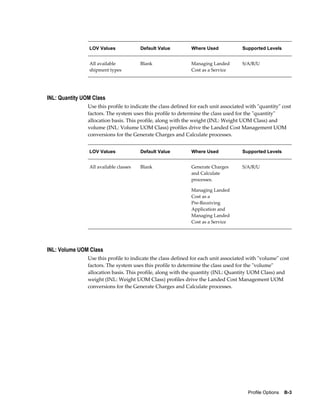
INL: Quantity UOM Class                     Use this profile to indicate the class defined
                                            for each unit associated with quantity cost
                                            factors.

                                            The system uses this profile option to drive
                                            the Landed Cost Management cost factor
                                            UOM conversions during the Generate
                                            Charges and Calculate processes.

                                            For more information see, Understanding
                                            Landed Cost as a Pre-Receiving Application,
                                            page 4-2 and Understanding Landed Cost as
                                            a Service, page 5-2.


                                               Setting Up Landed Cost Management    2-19
Profile Option                               Profile Option Description


                  INL: Volume UOM Class                        Use this profile to indicate the class defined
                                                               for each unit associated with volume cost
                                                               factors.

                                                               The system uses this profile option to drive
                                                               the Landed Cost Management cost factor
                                                               UOM conversions during the Generate
                                                               Charges and Calculate processes.

                                                               For more information see, Understanding
                                                               Landed Cost as a Pre-Receiving Application,
                                                               page 4-2 and Understanding Landed Cost as
                                                               a Service, page 5-2.


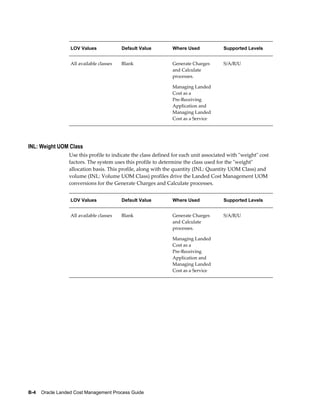
                  INL: Weight UOM Class                        Use this profile to indicate the class defined
                                                               for each unit associated with weight cost
                                                               factors.

                                                               The system uses this profile option to drive
                                                               the Landed Cost Management cost factor
                                                               UOM conversions during the Generate
                                                               Charges and Calculate processes.

                                                               For more information see, Understanding
                                                               Landed Cost as a Pre-Receiving Application,
                                                               page 4-2 and Understanding Landed Cost as
                                                               a Service, page 5-2.


                 Use this procedure to set up Landed Cost Management Profile Options:


Prerequisites
                 Ì Before you can define the INL: Default Shipment Type for Open Interface profile
                      option you must have already set up shipment types in Landed Cost Management.


                 To Set Up Landed Cost Management Profile Options:
                 Typically, the System Administrator is responsible for setting up and updating profile
                 option values. For more information, see Oracle Applications System Administrator's
                 Guide, Setting User Profile Options.
                 1.   Navigate to the System Profile Values window, page A-1.
                      The Find System Profile Values window appears.

                 2.   Enter INL% in the Profile field and click Find.


2-20    Oracle Landed Cost Management Process Guide
The System Profile Values window appears displaying all of the Landed Cost
     Management (INL) profile options.

3.   Locate the specific profile option and enter the appropriate profile value.

4.   Click the Save icon in the tool bar.


                                                  Setting Up Landed Cost Management    2-21
Part 3
Managing Landed Cost
3
    Understanding the Shipments Workbench

           This chapter covers the following topics:
           •   Understanding the Shipments Workbench
           •   Understanding the Shipment Status


Understanding the Shipments Workbench
           The Shipments Workbench provides the entry points for the Landed Cost Management
           application.


                                                       Understanding the Shipments Workbench    3-1
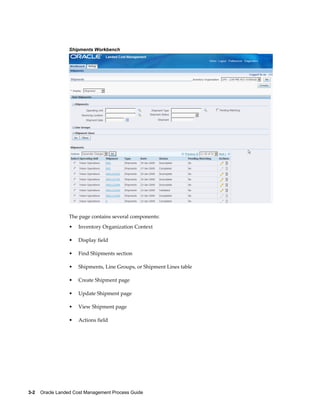
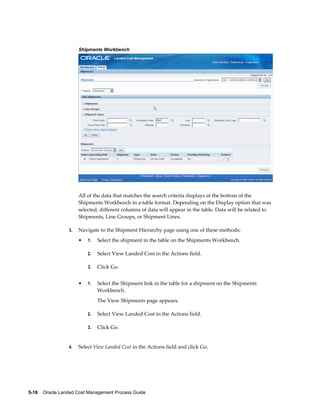
Shipments Workbench


                 The page contains several components:
                 •   Inventory Organization Context

                 •   Display field

                 •   Find Shipments section

                 •   Shipments, Line Groups, or Shipment Lines table

                 •   Create Shipment page

                 •   Update Shipment page

                 •   View Shipment page

                 •   Actions field


3-2    Oracle Landed Cost Management Process Guide
Inventory Organization Context

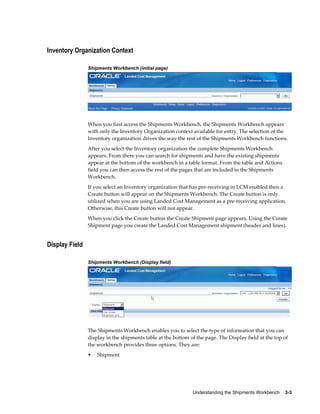
                Shipments Workbench (initial page)


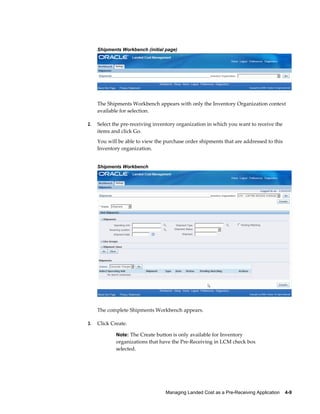
                When you first access the Shipments Workbench, the Shipments Workbench appears
                with only the Inventory Organization context available for entry. The selection of the
                Inventory organization drives the way the rest of the Shipments Workbench functions.
                After you select the Inventory organization the complete Shipments Workbench
                appears. From there you can search for shipments and have the existing shipments
                appear at the bottom of the workbench in a table format. From the table and Actions
                field you can then access the rest of the pages that are included in the Shipments
                Workbench.
                If you select an Inventory organization that has pre-receiving in LCM enabled then a
                Create button will appear on the Shipments Workbench. The Create button is only
                utilized when you are using Landed Cost Management as a pre-receiving application.
                Otherwise, this Create button will not appear.
                When you click the Create button the Create Shipment page appears. Using the Create
                Shipment page you create the Landed Cost Management shipment (header and lines).


Display Field

                Shipments Workbench (Display field)


                The Shipments Workbench enables you to select the type of information that you can
                display in the shipments table at the bottom of the page. The Display field at the top of
                the workbench provides three options. They are:
                •   Shipment


                                                              Understanding the Shipments Workbench    3-3
•   Line Group

                 •   Shipment Line


Shipment
                 When you select Shipment for the Display option, the table at the bottom of the page
                 appears and displays information related to shipments. That table is titled "Shipments"
                 with this display option.


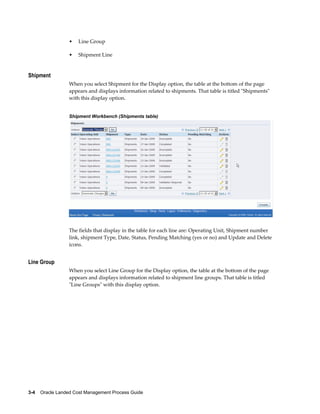
                 Shipment Workbench (Shipments table)


                 The fields that display in the table for each line are: Operating Unit, Shipment number
                 link, shipment Type, Date, Status, Pending Matching (yes or no) and Update and Delete
                 icons.


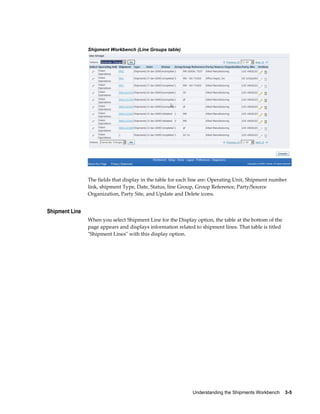
Line Group
                 When you select Line Group for the Display option, the table at the bottom of the page
                 appears and displays information related to shipment line groups. That table is titled
                 "Line Groups" with this display option.


3-4    Oracle Landed Cost Management Process Guide
Shipment Workbench (Line Groups table)


                The fields that display in the table for each line are: Operating Unit, Shipment number
                link, shipment Type, Date, Status, line Group, Group Reference, Party/Source
                Organization, Party Site, and Update and Delete icons.


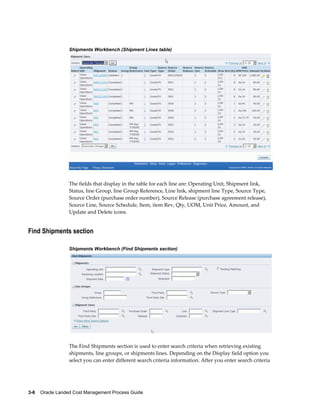
Shipment Line
                When you select Shipment Line for the Display option, the table at the bottom of the
                page appears and displays information related to shipment lines. That table is titled
                "Shipment Lines" with this display option.


                                                             Understanding the Shipments Workbench    3-5
Shipments Workbench (Shipment Lines table)


                 The fields that display in the table for each line are: Operating Unit, Shipment link,
                 Status, line Group, line Group Reference, Line link, shipment line Type, Source Type,
                 Source Order (purchase order number), Source Release (purchase agreement release),
                 Source Line, Source Schedule, Item, item Rev, Qty, UOM, Unit Price, Amount, and
                 Update and Delete icons.


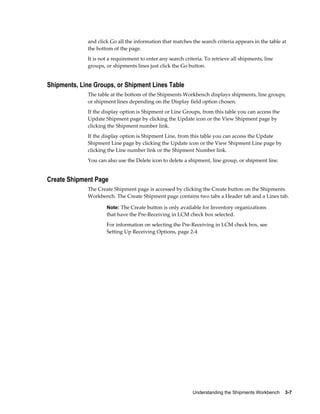
Find Shipments section

                 Shipments Workbench (Find Shipments section)


                 The Find Shipments section is used to enter search criteria when retrieving existing
                 shipments, line groups, or shipments lines. Depending on the Display field option you
                 select you can enter different search criteria information. After you enter search criteria


3-6    Oracle Landed Cost Management Process Guide
and click Go all the information that matches the search criteria appears in the table at
             the bottom of the page.
             It is not a requirement to enter any search criteria. To retrieve all shipments, line
             groups, or shipments lines just click the Go button.


Shipments, Line Groups, or Shipment Lines Table
             The table at the bottom of the Shipments Workbench displays shipments, line groups,
             or shipment lines depending on the Display field option chosen.
             If the display option is Shipment or Line Groups, from this table you can access the
             Update Shipment page by clicking the Update icon or the View Shipment page by
             clicking the Shipment number link.
             If the display option is Shipment Line, from this table you can access the Update
             Shipment Line page by clicking the Update icon or the View Shipment Line page by
             clicking the Line number link or the Shipment Number link.
             You can also use the Delete icon to delete a shipment, line group, or shipment line.


Create Shipment Page
             The Create Shipment page is accessed by clicking the Create button on the Shipments
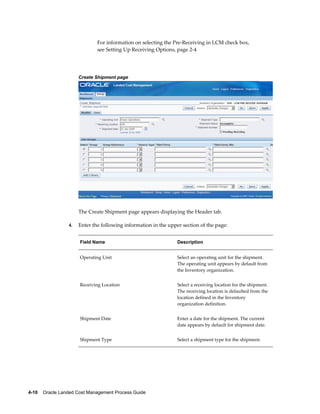
             Workbench. The Create Shipment page contains two tabs a Header tab and a Lines tab.

                     Note: The Create button is only available for Inventory organizations
                     that have the Pre-Receiving in LCM check box selected.
                     For information on selecting the Pre-Receiving in LCM check box, see
                     Setting Up Receiving Options, page 2-4


                                                             Understanding the Shipments Workbench    3-7
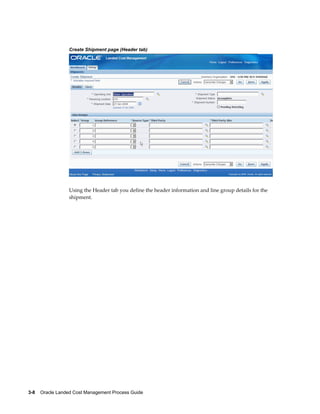
Create Shipment page (Header tab)


                 Using the Header tab you define the header information and line group details for the
                 shipment.


3-8    Oracle Landed Cost Management Process Guide
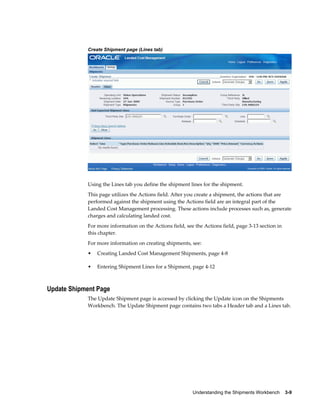
Create Shipment page (Lines tab)


            Using the Lines tab you define the shipment lines for the shipment.
            This page utilizes the Actions field. After you create a shipment, the actions that are
            performed against the shipment using the Actions field are an integral part of the
            Landed Cost Management processing. These actions include processes such as, generate
            charges and calculating landed cost.
            For more information on the Actions field, see the Actions field, page 3-13 section in
            this chapter.
            For more information on creating shipments, see:
            •   Creating Landed Cost Management Shipments, page 4-8

            •   Entering Shipment Lines for a Shipment, page 4-12


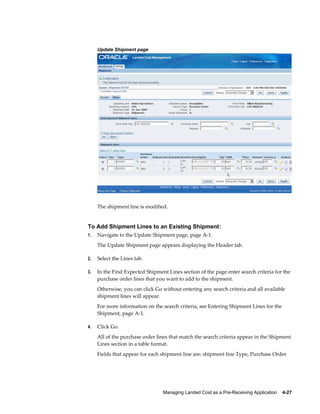
Update Shipment Page
            The Update Shipment page is accessed by clicking the Update icon on the Shipments
            Workbench. The Update Shipment page contains two tabs a Header tab and a Lines tab.


                                                          Understanding the Shipments Workbench    3-9
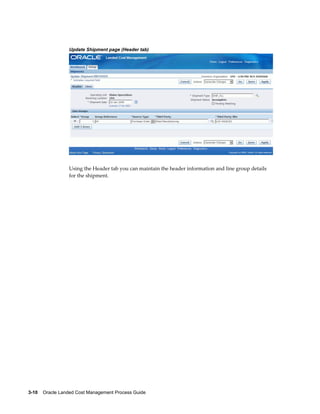
Update Shipment page (Header tab)


                 Using the Header tab you can maintain the header information and line group details
                 for the shipment.


3-10    Oracle Landed Cost Management Process Guide
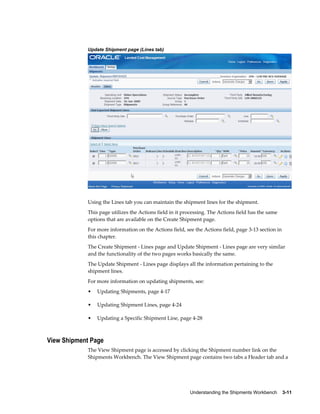
Update Shipment page (Lines tab)


            Using the Lines tab you can maintain the shipment lines for the shipment.
            This page utilizes the Actions field in it processing. The Actions field has the same
            options that are available on the Create Shipment page.
            For more information on the Actions field, see the Actions field, page 3-13 section in
            this chapter.
            The Create Shipment - Lines page and Update Shipment - Lines page are very similar
            and the functionality of the two pages works basically the same.
            The Update Shipment - Lines page displays all the information pertaining to the
            shipment lines.
            For more information on updating shipments, see:
            •   Updating Shipments, page 4-17

            •   Updating Shipment Lines, page 4-24

            •   Updating a Specific Shipment Line, page 4-28


View Shipment Page
            The View Shipment page is accessed by clicking the Shipment number link on the
            Shipments Workbench. The View Shipment page contains two tabs a Header tab and a


                                                         Understanding the Shipments Workbench    3-11
Lines tab.


                 View Shipment page (Header tab)


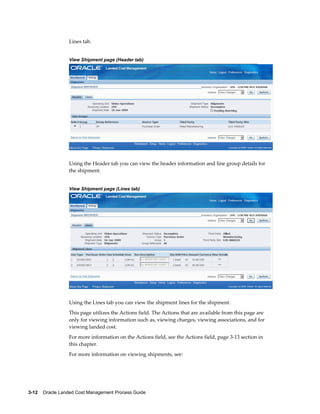
                 Using the Header tab you can view the header information and line group details for
                 the shipment.


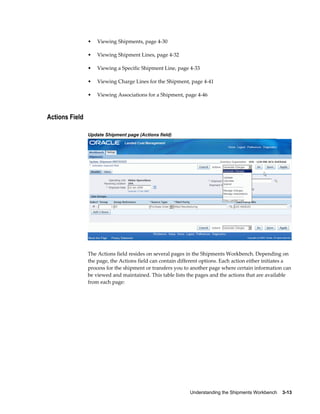
                 View Shipment page (Lines tab)


                 Using the Lines tab you can view the shipment lines for the shipment.
                 This page utilizes the Actions field. The Actions that are available from this page are
                 only for viewing information such as, viewing charges, viewing associations, and for
                 viewing landed cost.
                 For more information on the Actions field, see the Actions field, page 3-13 section in
                 this chapter.
                 For more information on viewing shipments, see:


3-12    Oracle Landed Cost Management Process Guide
•   Viewing Shipments, page 4-30

                •   Viewing Shipment Lines, page 4-32

                •   Viewing a Specific Shipment Line, page 4-33

                •   Viewing Charge Lines for the Shipment, page 4-41

                •   Viewing Associations for a Shipment, page 4-46


Actions Field

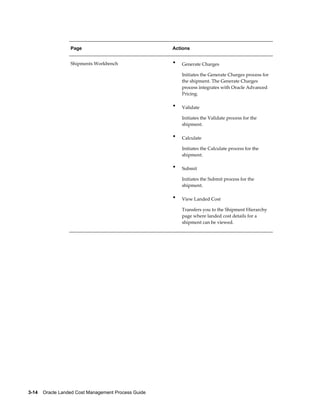
                Update Shipment page (Actions field)


                The Actions field resides on several pages in the Shipments Workbench. Depending on
                the page, the Actions field can contain different options. Each action either initiates a
                process for the shipment or transfers you to another page where certain information can
                be viewed and maintained. This table lists the pages and the actions that are available
                from each page:


                                                            Understanding the Shipments Workbench    3-13
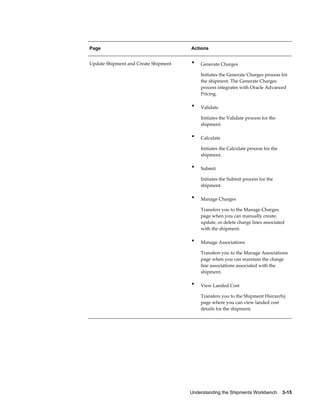
Page                                Actions


                  Shipments Workbench                 •   Generate Charges

                                                          Initiates the Generate Charges process for
                                                          the shipment. The Generate Charges
                                                          process integrates with Oracle Advanced
                                                          Pricing.

                                                      •   Validate

                                                          Initiates the Validate process for the
                                                          shipment.

                                                      •   Calculate

                                                          Initiates the Calculate process for the
                                                          shipment.

                                                      •   Submit

                                                          Initiates the Submit process for the
                                                          shipment.

                                                      •   View Landed Cost

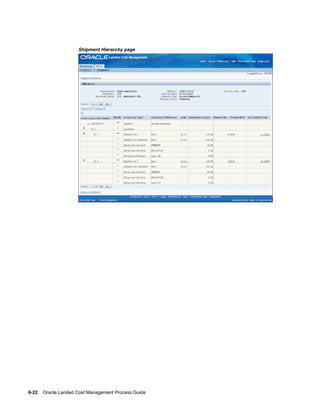
                                                          Transfers you to the Shipment Hierarchy
                                                          page where landed cost details for a
                                                          shipment can be viewed.


3-14    Oracle Landed Cost Management Process Guide
Page                                  Actions


Update Shipment and Create Shipment   •   Generate Charges

                                          Initiates the Generate Charges process for
                                          the shipment. The Generate Charges
                                          process integrates with Oracle Advanced
                                          Pricing.

                                      •   Validate

                                          Initiates the Validate process for the
                                          shipment.

                                      •   Calculate

                                          Initiates the Calculate process for the
                                          shipment.

                                      •   Submit

                                          Initiates the Submit process for the
                                          shipment.

                                      •   Manage Charges

                                          Transfers you to the Manage Charges
                                          page when you can manually create,
                                          update, or delete charge lines associated
                                          with the shipment.

                                      •   Manage Associations

                                          Transfers you to the Manage Associations
                                          page when you can maintain the charge
                                          line associations associated with the
                                          shipment.

                                      •   View Landed Cost

                                          Transfers you to the Shipment Hierarchy
                                          page where you can view landed cost
                                          details for the shipment.


                                      Understanding the Shipments Workbench    3-15
Page                                       Actions


                  View Shipment                              •   View Charges

                                                                 Transfers you to the View Manage
                                                                 Charges page where you can view charge
                                                                 lines for the shipment.

                                                             •   View Associations

                                                                 Transfers you to the View Manage
                                                                 Associations page where you can view
                                                                 charge line associations for the shipment.

                                                             •   View Landed Cost

                                                                 Transfers you to the Shipment Hierarchy
                                                                 page where you can view landed cost
                                                                 details for a shipment.


                 For more information on how to use each one of these actions, see:
                 •   Generating Charges for the Shipment, page 4-35

                 •   Managing Charge Lines for the Shipment, page 4-36

                 •   Managing Associations for the Shipment, page 4-43

                 •   Validating the Shipment, page 4-48

                 •   Calculating Estimated Land Cost for the Shipment, page 4-49

                 •   Submitting the Shipment to Receiving, page 4-54

                 •   Viewing Estimated Landed Cost for the Shipment, page 4-51

                 •   Viewing Actual Landed Cost for the Shipment, page 4-58

                 •   Viewing Charge Lines for the Shipment, page 4-41

                 •   Viewing Associations for a Shipment, page 4-46


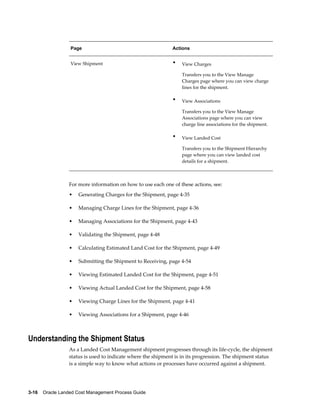
Understanding the Shipment Status
                 As a Landed Cost Management shipment progresses through its life-cycle, the shipment
                 status is used to indicate where the shipment is in its progression. The shipment status
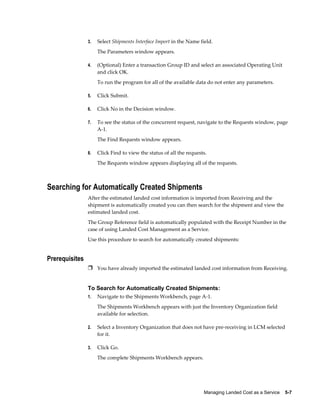
                 is a simple way to know what actions or processes have occurred against a shipment.


3-16    Oracle Landed Cost Management Process Guide
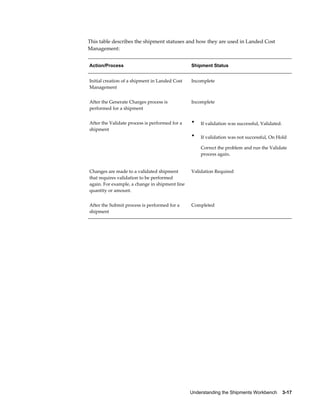
This table describes the shipment statuses and how they are used in Landed Cost
Management:


Action/Process                                  Shipment Status


Initial creation of a shipment in Landed Cost   Incomplete
Management


After the Generate Charges process is           Incomplete
performed for a shipment


After the Validate process is performed for a   •   If validation was successful, Validated.
shipment
                                                •   If validation was not successful, On Hold

                                                    Correct the problem and run the Validate
                                                    process again.


Changes are made to a validated shipment        Validation Required
that requires validation to be performed
again. For example, a change in shipment line
quantity or amount.


After the Submit process is performed for a     Completed
shipment


                                                Understanding the Shipments Workbench    3-17
4
Managing Landed Cost as a Pre-Receiving
                             Application

     This chapter covers the following topics:
     •   Understanding Landed Cost as a Pre-Receiving Application
     •   Creating Landed Cost Management Shipments
     •   Entering Shipment Lines for the Shipment
     •   Updating Shipments
     •   Updating Shipment Lines
     •   Updating a Specific Shipment Line
     •   Viewing Shipments
     •   Viewing Shipment Lines
     •   Viewing a Specific Shipment Line
     •   Generating Charges for the Shipment
     •   Managing Charge Lines for the Shipment
     •   Viewing Charge Lines for the Shipment
     •   Managing Associations for the Shipment
     •   Viewing Associations for the Shipment
     •   Validating the Shipment
     •   Calculating Estimated Landed Cost for the Shipment
     •   Viewing Estimated Landed Cost for the Shipment
     •   Submitting the Shipment to Receiving
     •   Calculating and Importing Actual Landed Cost for the Shipment
     •   Viewing Actual Landed Cost for the Shipment


                                       Managing Landed Cost as a Pre-Receiving Application    4-1
Understanding Landed Cost as a Pre-Receiving Application

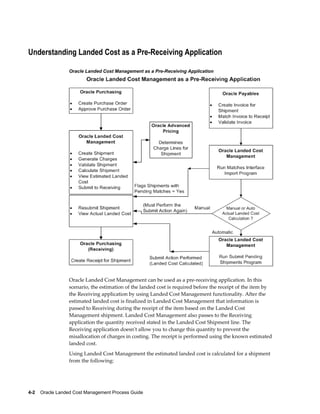
                 Oracle Landed Cost Management as a Pre-Receiving Application


                 Oracle Landed Cost Management can be used as a pre-receiving application. In this
                 scenario, the estimation of the landed cost is required before the receipt of the item by
                 the Receiving application by using Landed Cost Management functionality. After the
                 estimated landed cost is finalized in Landed Cost Management that information is
                 passed to Receiving during the receipt of the item based on the Landed Cost
                 Management shipment. Landed Cost Management also passes to the Receiving
                 application the quantity received stated in the Landed Cost Shipment line. The
                 Receiving application doesn't allow you to change this quantity to prevent the
                 misallocation of charges in costing. The receipt is performed using the known estimated
                 landed cost.
                 Using Landed Cost Management the estimated landed cost is calculated for a shipment
                 from the following:


4-2    Oracle Landed Cost Management Process Guide
•    Price and taxes for the item on the associated purchase order.

                •    Charges generated through the integration with Oracle Advanced Pricing or
                     manually entered in Landed Cost Management.

                After invoices are created and matched to the receipt of the item in Oracle Payables that
                actual price information is passed to Landed Cost Management using two concurrent
                programs (Matches Interface Import and Submit Pending Shipments). If you are using
                Oracle Process Manufacturing an additional concurrent program (Landed Cost
                Adjustments Import Process) needs to be performed so that Oracle Process
                Manufacturing can obtain the estimated and actual price information from Landed Cost
                Management for its processing.
                The Landed Cost Adjustments Import Process is a concurrent program that belongs to
                Oracle Process Manufacturing.
                Using Landed Cost Management pages the actual landed cost for the shipment can be
                viewed and analyzed with the estimated landed cost information.


Landed Cost Management as a Pre-Receiving Application High-Level Process Flow
                Following is a basic process flow when using Landed Cost Management as a
                pre-receiving application:
                1.   Create a purchase order for an item and select a ship-to organization that has
                     pre-receiving in LCM enabled using Oracle Purchasing.
                     Ensure that the Match Option field for each purchase order line is set to Receipt.
                     For information on creating a purchase order, see the Purchase Orders chapter in
                     the Oracle Purchasing User's Guide.
                     For information on selecting the pre-receiving in LCM check box for an Inventory
                     organization, see Setting Up Receiving Options, page 2-4.

                2.   Approve the purchase order.
                     For information on approving a purchase order, see the Approval, Security, and
                     Control chapter in the Oracle Purchasing User's Guide.

                3.   Create a shipment for the items referenced on the purchase order using the Landed
                     Cost Management Shipments Workbench.
                     For more information, see Creating Landed Cost Management Shipments, page 4-
                     8.

                4.   Create shipment lines for the items referenced on the purchase order using the
                     Landed Cost Management Shipments Workbench.
                     For more information, see Entering Shipment Lines for the Shipment, page 4-12.

                5.   (Optional) Generate charges for the shipment using the Landed Cost Management


                                                   Managing Landed Cost as a Pre-Receiving Application    4-3
Shipments Workbench.
                      For more information, see Generating Charges for the Shipment, page 4-35.

                 6.   (Optional) Manage charges for the shipment using the Landed Cost Management
                      Shipments Workbench.
                      View or change charges that were created through the generate charges process.
                      Add new charge lines for the shipment.
                      For more information, see Managing Charge Lines for the Shipment, page 4-36.

                 7.   (Optional) Manage associations for the shipment using the Landed Cost
                      Management Shipments Workbench.
                      For more information, see Managing Associations for the Shipment, page 4-43.

                 8.   (Optional) Validate the shipment (price tolerance and so on) using the Landed Cost
                      Management Shipments Workbench.
                      For more information, see Validating the Shipment, page 4-48.

                 9.   Calculate estimated landed cost for the shipment using the Landed Cost
                      Management Shipments Workbench.
                      The Calculate process performs the validation process during its processing. Hence,
                      the Validate process does not need to be run separately.
                      For more information, see Calculating Estimated Landed Cost for the Shipment,
                      page 4-49.

                 10. (Optional) View the estimated landed cost that was calculated using the Landed
                      Cost Management Shipments Workbench.
                      For more information, see Viewing Estimated Landed Cost for the Shipment, page
                      4-51.

                 11. (Optional) Repeat steps 6- 10 until the estimated landed cost is satisfactory for the
                      shipment.

                 12. Submit the estimated landed cost for the shipment using the Landed Cost
                      Management Shipments Workbench.
                      At this point you will no longer be able to modify the estimated landed cost for the
                      shipment.
                      For more information, see Submitting the Shipment to Receiving, page 4-54.

                 13. Create a receipt for the items on the Landed Cost Management shipment using the
                      Find Expected Receipts page in Oracle Purchasing.


4-4    Oracle Landed Cost Management Process Guide
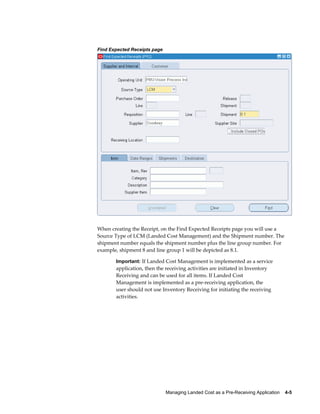
Find Expected Receipts page


When creating the Receipt, on the Find Expected Receipts page you will use a
Source Type of LCM (Landed Cost Management) and the Shipment number. The
shipment number equals the shipment number plus the line group number. For
example, shipment 8 and line group 1 will be depicted as 8.1.

       Important: If Landed Cost Management is implemented as a service
       application, then the receiving activities are initiated in Inventory
       Receiving and can be used for all items. If Landed Cost
       Management is implemented as a pre-receiving application, the
       user should not use Inventory Receiving for initiating the receiving
       activities.


                              Managing Landed Cost as a Pre-Receiving Application    4-5
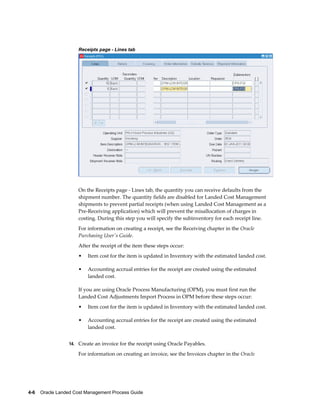
Receipts page - Lines tab


                     On the Receipts page - Lines tab, the quantity you can receive defaults from the
                     shipment number. The quantity fields are disabled for Landed Cost Management
                     shipments to prevent partial receipts (when using Landed Cost Management as a
                     Pre-Receiving application) which will prevent the misallocation of charges in
                     costing. During this step you will specify the subinventory for each receipt line.
                     For information on creating a receipt, see the Receiving chapter in the Oracle
                     Purchasing User's Guide.
                     After the receipt of the item these steps occur:
                     •   Item cost for the item is updated in Inventory with the estimated landed cost.

                     •   Accounting accrual entries for the receipt are created using the estimated
                         landed cost.

                     If you are using Oracle Process Manufacturing (OPM), you must first run the
                     Landed Cost Adjustments Import Process in OPM before these steps occur:
                     •   Item cost for the item is updated in Inventory with the estimated landed cost.

                     •   Accounting accrual entries for the receipt are created using the estimated
                         landed cost.


                 14. Create an invoice for the receipt using Oracle Payables.

                     For information on creating an invoice, see the Invoices chapter in the Oracle


4-6    Oracle Landed Cost Management Process Guide
Payables User's Guide.

15. Match the invoice to the receipts using Oracle Payables.

    For information on invoice matching to receipts option, see the Invoices chapter in
    the Oracle Payables User's Guide.

16. Validate the invoice. After invoice validation the actual invoice information is
    populated into the Landed Cost Management interfaces.
    For information on validating, see the Invoices chapter in the Oracle Payables User's
    Guide.

17. Repeat Steps 14-16 for all other invoices (freight, insurance and so on) that pertain
    to the shipment.

18. Run the Matches Interface Import concurrent program using Landed Cost
    Management.
    This program imports the matched information from the Landed Cost Management
    interface tables into definitive tables. This process also sets the Landed Cost
    Management shipments with Pending Matching field to Yes. At this time, the actual
    landed cost calculation has not been performed yet.
    Oracle recommends that this program be scheduled to run periodically in order to
    not require any user intervention.
    For more information, see Calculating and Importing Actual Landed Cost for the
    Shipment, page 4-56.

19. Run the Submit Pending Shipments concurrent program using Landed Cost
    Management.
    This program performs the submit process again and calculates the actual landed
    cost for the Landed Cost Management shipment. After this process completes
    successful you can view the actual landed cost using the Shipment Hierarchy and
    Landed Cost Detail pages in Landed Cost Management.
    Oracle recommends that this program be scheduled to run periodically in order to
    not require any user intervention.

            Important: Instead of performing Step 19, you can access the
            Shipments Workbench and manually perform the Submit action for
            the shipment. The Submit Pending Shipments program performs
            the same action in a back ground process.


    For more information, see Calculating and Importing Actual Landed Cost for the
    Shipment, page 4-56.
    After the actual estimated landed cost is calculated these steps occur:


                                  Managing Landed Cost as a Pre-Receiving Application    4-7
•   Item cost adjustments transactions are created in Oracle Cost Management
                          (difference between estimated and actual landed cost).

                      •   Accounting accrual adjustment entries are created (difference between
                          estimated and actual landed cost) by Oracle Cost Management.

                      If you are using Oracle Process Manufacturing (OPM), you must first run the
                      Landed Cost Adjustments Import Process in OPM before these steps occur:
                      •   Item cost adjustments transactions are created in Oracle Process Manufacturing
                          Cost Management (difference between estimated and actual landed cost).

                      •   Accounting accrual adjustment entries are created (difference between
                          estimated and actual landed cost) by Oracle Process Manufacturing Cost
                          Management.


                 20. View the actual landed cost information for the shipment and compare the
                      estimated landed cost to the actual landed cost for the shipment using the Landed
                      Cost Management Shipments Workbench.
                      For more information, see Viewing Actual Landed Cost for the Shipment, page 4-
                      58.


Creating Landed Cost Management Shipments
                 A Landed Cost Management shipment is an expected or actual delivery from a
                 purchase order or agreement along with its related charges. A Landed Cost
                 Management shipment contains a shipment header, line groups, and shipment lines.
                 The shipment header contains overall information for the shipment and defines the line
                 groups associated with the shipment. The shipment lines contain the shipment lines for
                 the shipment and match up with the delivery entity for the item. For example, a
                 shipment may contain a one to one relationship with a purchase order and the purchase
                 order lines.
                 Using the Create Shipment page you can create the shipment header and the shipment
                 lines.
                 Use this procedure to create a Landed Cost Management shipment:


Prerequisites
                 Ì A purchase order has already been created that is referencing a Landed Cost
                      Management pre-receiving organization.


                 To Create Landed Cost Management Shipments:
                 1.   Navigate to the Shipments Workbench, page A-1.


4-8    Oracle Landed Cost Management Process Guide
Shipments Workbench (initial page)


     The Shipments Workbench appears with only the Inventory Organization context
     available for selection.

2.   Select the pre-receiving inventory organization in which you want to receive the
     items and click Go.
     You will be able to view the purchase order shipments that are addressed to this
     Inventory organization.


     Shipments Workbench


     The complete Shipments Workbench appears.

3.   Click Create.

             Note: The Create button is only available for Inventory
             organizations that have the Pre-Receiving in LCM check box
             selected.


                                  Managing Landed Cost as a Pre-Receiving Application    4-9
For information on selecting the Pre-Receiving in LCM check box,
                              see Setting Up Receiving Options, page 2-4


                      Create Shipment page


                      The Create Shipment page appears displaying the Header tab.

                 4.   Enter the following information in the upper section of the page:


                      Field Name                                 Description


                      Operating Unit                             Select an operating unit for the shipment.
                                                                 The operating unit appears by default from
                                                                 the Inventory organization.


                      Receiving Location                         Select a receiving location for the shipment.
                                                                 The receiving location is defaulted from the
                                                                 location defined in the Inventory
                                                                 organization definition.


                      Shipment Date                              Enter a date for the shipment. The current
                                                                 date appears by default for shipment date.


                      Shipment Type                              Select a shipment type for the shipment.


4-10    Oracle Landed Cost Management Process Guide
Field Name                                  Description


     Shipment Status                             Displays the current status for the shipment.

                                                 A shipment status of Incomplete displays
                                                 when creating a shipment.


     Shipment Number                             Enter a shipment number.

                                                 This field only appears if the Shipment
                                                 Number Generation is set to Manual in the
                                                 LCM Options page for this Inventory
                                                 organization.

                                                 Otherwise, the system will automatically
                                                 create the shipment number for you.


     Pending Matching check box                  Displays whether Oracle Payables invoice
                                                 matching is pending or not.


5.   In the Line Groups section, enter the following information for each line group:


     Field Name                                  Description


     Group                                       The system automatically creates group
                                                 numbers in numeric sequence.

                                                 At least one line group is required for each
                                                 shipment


     Group Reference                             Enter a group reference. You can enter any
                                                 value in this field.


     Source Type                                 The Source Type appears by default from
                                                 the shipment type.

                                                 After you select a shipment type, the Source
                                                 Type appears.


     Third Party                                 Select the third party for the shipment.


     Third Party Site                            Select the third party site for the shipment.


6.   (Optional) Repeat Step 5 for each line group you want to add to the shipment.


                                  Managing Landed Cost as a Pre-Receiving Application    4-11
Click Add 5 Rows if you need additional rows for entering line groups.

                 7.   Save your work.
                      Click Save to save your work and stay on the page.
                      Click Apply to save your work and return to the page where this page was
                      accessed.


                      Create Shipment page


                      The shipment is created.


Entering Shipment Lines for the Shipment
                 After you create the shipment header you can then enter shipment lines for the
                 shipment.
                 You will also use the Create Shipment page to create shipment lines for the shipment.
                 Use this procedure to enter shipment lines for a shipment:


Prerequisites
                 Ì A shipment header has already been created.


                 To Enter Shipment Lines for a Shipment:
                 1.   Navigate to the Create Shipment page, page A-1.
                      After you create a shipment header you will want to stay on the Create Shipment


4-12    Oracle Landed Cost Management Process Guide
page and create the shipment lines. Otherwise, you will have to use the update
     functionality to enter the shipment lines.

2.   Select the Lines tab.


     Create Shipment - Lines tab


     The Create Shipment page appears displaying the Lines tab.

3.   In the Find Expected Shipment Lines section of the page enter search criteria for the
     purchase order lines that you want to add to the shipment. In the upper portion of
     the section, enter any of these fields:


     Field Name                                   Description


     Third Party Site                             Select a third party site. The site appears by
                                                  default from the line group.


     Purchase Order                               Select a purchase order.

                                                  If you select a standard purchase order, the
                                                  Release field will be unavailable for entry.

                                                  If you select a blanket purchase agreement
                                                  purchase order than the Release field is
                                                  available for entry.


     Release                                      Select a blanket purchase agreement release.


                                   Managing Landed Cost as a Pre-Receiving Application    4-13
Field Name                                 Description


                      Line                                       Select a purchase order line.


                      Schedule                                   Select a purchase order schedule.

                                                                 This field is not available for blanket
                                                                 purchase agreement purchase orders.


                      Otherwise, you can click Go without entering any search criteria and all available
                      shipment lines will appear.

                 4.   (Optional) Expand the Show More Search Options section and enter one or more of
                      these fields:


                      Item

                      Field Name                                 Description


                      Item                                       Select an item number.


                      Description                                Enter an item description.


                      Rev (revision)                             Select an item revision number


                      Supplier Item                              Select a supplier item number.


                      Date Ranges

                      Field Name                                 Description


                      Due By Date From and Due By Date To        Enter a due by date range by entering the
                                                                 from and to dates.


4-14    Oracle Landed Cost Management Process Guide
Shipment

     Field Name                                   Description


     Container Number                             Select a container number for a shipment.


     Truck Number                                 Select a truck number for a shipment.


     Bar Code Label                               Select a bar code label for the shipment.


5.   Click Go.


     Create Shipment - Lines tab (1 of 2)


                                   Managing Landed Cost as a Pre-Receiving Application    4-15
Create Shipment - Lines tab (2 of 2)


                      All of the purchase order lines that match the search criteria appear in the Shipment
                      Lines section in a table format.
                      Fields that appear for each shipment line are: shipment line Type, Purchase Order
                      number, Release, Line, Schedule, Item, item Rev, Description, Qty, UOM, Price,
                      Amount, Currency, Update icon, Duplicate icon, and Delete icon.

                 6.   Select the Shipment Lines you want to add to the Landed Cost Management
                      shipment by selecting the Select check box next to each line.

                 7.   (Optional) For the lines you select you can modify Qty, UOM, Price, and Currency.

                 8.   Repeat steps 2 through 7 for each purchase order line you want to add to the
                      shipment.

                 9.   (Optional) Click the Update icon next to a shipment line to update additional
                      shipment line details.
                      The Update Shipment Line page appears for just that shipment line.

                 10. (Optional) Modify the Main Information, Tax Determining Factors, or Tax
                      Attributes for the shipment line.

                 11. Click Apply

                      The Create Shipment page reappears to the Lines tab.

                 12. (Optional) Click the Duplicate icon next to a shipment line to duplicate that line.

                      The duplicate line appears in the shipment lines table.

                 13. Make the necessary modifications to the duplicate line.

                 14. (Optional) Click the Delete icon next to a shipment line.

                      The shipment line is deleted from the shipment lines table.

                 15. Save your work.


4-16    Oracle Landed Cost Management Process Guide
Click Save to save your work and stay on the page.
                Click Apply to save your work and return to the page where this page was
                accessed.


                Create Shipment - Lines tab


Updating Shipments
           Before a Landed Cost Management shipment is completed you can modify the
           shipment header and the shipment lines.
           Use the Update Shipment page to modify the shipment header or the shipment lines on
           the shipment.
           Use this procedure to update a shipment:


           To Update Shipments:
           1.   Navigate to the Shipments Workbench, page A-1.
                The Shipments Workbench appears with only the Inventory Organization context
                available for selection.

           2.   Select the pre-receiving inventory organization that pertains to the shipment that
                was previously created in the Inventory Organization field and click Go.


                                              Managing Landed Cost as a Pre-Receiving Application    4-17
Shipments Workbench


                      The complete Shipments Workbench appears.

                 3.   Select the type of information you want to display at the bottom of the Shipments
                      Workbench using the Display field. Values are:
                      •   Shipment

                      •   Line Group

                      •   Shipment Line

                      By default Shipment appears in the Display field. To update shipments you will
                      want to select a display option of Shipment or Line Group.
                      Depending on the Display selection, the information that appears at the bottom of
                      the Shipments Workbench will pertain to that display option. For example, if you
                      select Shipment then fields related to shipments will appear in the table.

                 4.   In the Find Shipments section, expand the Shipments section and enter the fields
                      you want to search on. Enter any of the following fields:


                      Field Name                                Description


                      Operating Unit                            Select an operating unit for the shipment.


4-18    Oracle Landed Cost Management Process Guide
Field Name                                 Description


     Receiving Location                         Select a receiving location for the shipment.


     Shipment Date                              Select or enter a shipment date.


     Shipment Type                              Select the type of shipment.


     Shipment Status                            Select the status of the shipment. Values are:

                                                •   Completed

                                                •   Incomplete

                                                •   On Hold

                                                •   Validated

                                                •   Validation Required


     Shipment                                   Enter the specific shipment number.


     Pending Matching                           Select this check box if you want to search
                                                for shipments that are pending invoice
                                                matching in Oracle Payables.


     Otherwise, you can select Go without entering any search criteria and all of the
     available shipments in the Inventory Organization will display.

5.   (Optional) In the Find Shipments region, expand the Line Groups section and enter
     the fields you want to search on. Enter any of the following fields:


     Field Name                                 Description


     Group                                      Enter a specific line group.


     Group Reference                            Enter a specific group reference.


     Third Party                                Select a third party associated with a line
                                                group.


                                 Managing Landed Cost as a Pre-Receiving Application    4-19
Field Name                                  Description


                      Third Party Site                            Select a third party site associated with a
                                                                  line group.


                      Source Type                                 Select a source type. Value is: Purchase
                                                                  Order


                 6.   (Optional) In the Find Shipments region, expand the Shipment Lines section and
                      enter the fields you want to search on. Enter any of the following fields:


                      Field Name                                  Description


                      Third Party                                 Select a third party associated with the
                                                                  shipment line.


                      Third Party Site                            Select a third party site associated with the
                                                                  shipment line.


                      Purchase Order, Release, Line, Schedule     Select information pertaining to a purchase
                                                                  order.


                      Shipment Line Type                          Select the shipment line type associated
                                                                  with the shipment line.


                 7.   (Optional) In the Shipment Lines section, expand the Show More Search Options
                      section and enter the fields you want to search on. Enter any of the following fields:


                      Item

                      Field Name                                  Description


                      Item                                        Select an item number.


                      Description                                 Enter a description for the item.


                      Rev                                         Select an item revision number.


                      Supplier Item                               Select a supplier item.


4-20    Oracle Landed Cost Management Process Guide
Receipt Details


     Packing Slip                               Select a packing slip number.


     Receiver                                   Select an individual that is the receiver.


     Freight Carrier                            Select a freight carrier.


     Bills of Lading                            Select a bills of lading.


     Transaction Details


     Transaction Date From and Transaction      Select a transaction date range by using the
     Date To                                    from and to fields.


     Receipt Routing                            Select a receipt routing. Values are: Delivery
                                                and Inspection.


     Shipment


     Container Number                           Select a container number for the shipment.


     Truck Number                               Select a truck number for the shipment.


     Bar Code Label                             Select a bar code label for the shipment.


8.   Click Go.


                                 Managing Landed Cost as a Pre-Receiving Application    4-21
Shipments Workbench


                      All of the data that matches the search criteria displays at the bottom of the
                      Shipments Workbench in a table format. Depending on the Display option that was
                      selected, different columns of data will appear in the table. Data will be related to
                      Shipments or Line Groups.

                 9.   Navigate to the Update Shipment page.
                      If the Display option is Shipment, click the Update icon in the Actions column for a
                      shipment.
                      If the Display option is Line Group click the Update icon in the Actions column for a
                      shipment line group.


4-22    Oracle Landed Cost Management Process Guide
Update Shipment page


   The Update Shipment page appears displaying the Header tab.

10. Modify the shipment header information as necessary.

   For information on the Header fields, see Creating Landed Cost Management
   Shipments, page 4-8.

11. Save your work.

   Click Save to save your work and stay on the page.
   Click Apply to save your work and return to the page where this page was
   accessed.


                               Managing Landed Cost as a Pre-Receiving Application    4-23
Update Shipment page


Updating Shipment Lines
                 Using the Update Shipment page you can also add, delete, or modify shipment lines
                 associated with a shipment.
                 Use these procedures to update shipment lines:


                 To Update Shipment Lines:
                 1.   Navigate to the Shipments Workbench, page A-1.
                      The Shipments Workbench appears with only the Inventory Organization field
                      available for selection.

                 2.   Select the pre-receiving inventory organization that pertains to the shipment that
                      was previously created in the Inventory Organization field and click Go.
                      The complete Shipments Workbench appears.

                 3.   Select the type of information you want to display at the bottom of the Shipments
                      Workbench using the Display field. Values are:
                      •   Shipment

                      •   Line Group

                      •   Shipment Line


4-24    Oracle Landed Cost Management Process Guide
By default Shipment appears in the Display field. To update shipment lines you
     will want to select a display option of Shipment or Line Group.
     Depending on the Display selection, the information that appears at the bottom of
     the Shipments Workbench will pertain to that display option. For example, if you
     select Shipment then fields related to shipments will appear in the table.

4.   Enter the search criteria for the shipment lines using the Find Shipments section of
     the page.
     For more information on the search criteria, see Updating Shipments, page 4-17.

5.   Click Go.


     Shipments Workbench


     All of the data that matches the search criteria displays at the bottom of the
     Shipments Workbench in a table format. Depending on the Display option that was
     selected, different columns of data will appear in the table. Data will be related to
     Shipments or Line Groups.

6.   Navigate to the Update Shipment page.
     If the Display option is Shipment, click the Update icon in the Actions column for a
     shipment.
     If the Display option is Line Group click the Update icon in the Actions column for a
     shipment line group.


                                  Managing Landed Cost as a Pre-Receiving Application    4-25
The Update Shipment page appears displaying the Header tab.

                 7.   Select the Lines tab.


                      Update Shipment page


                      The Update Shipment page appears displaying the Lines tab.

                 8.   Modify the shipment line information as necessary.

                 9.   (Optional) To delete a shipment line, click the Delete icon in the Actions column
                      next to a shipment line.

                 10. To duplicate a shipment line, click the Duplicate icon in the Actions column next to
                      a shipment line.

                 11. Save your work.

                      Click Save to save your work and stay on the page.
                      Click Apply to save your work and return to the page where this page was
                      accessed.


4-26    Oracle Landed Cost Management Process Guide
Update Shipment page


     The shipment line is modified.


To Add Shipment Lines to an Existing Shipment:
1.   Navigate to the Update Shipment page, page A-1.
     The Update Shipment page appears displaying the Header tab.

2.   Select the Lines tab.

3.   In the Find Expected Shipment Lines section of the page enter search criteria for the
     purchase order lines that you want to add to the shipment.
     Otherwise, you can click Go without entering any search criteria and all available
     shipment lines will appear.
     For more information on the search criteria, see Entering Shipment Lines for the
     Shipment, page A-1.

4.   Click Go.
     All of the purchase order lines that match the search criteria appear in the Shipment
     Lines section in a table format.
     Fields that appear for each shipment line are: shipment line Type, Purchase Order


                                 Managing Landed Cost as a Pre-Receiving Application    4-27
number, Release, Line, Schedule, Item, item Rev, Description, Qty, UOM, Price,
                      Amount, Currency, Update icon, Duplicate icon, and Delete icon.

                 5.   Select the Shipment Lines you want to add to the Landed Cost Management
                      shipment by selecting the Select check box next to each line.

                 6.   (Optional) For the lines you select you can modify Qty, UOM, Price, and Currency.

                 7.   Repeat steps 2 through 6 for each purchase order line you want to add to the
                      shipment.

                 8.   (Optional) Click the Update icon next to a shipment line to update additional
                      shipment line details.
                      The Update Shipment Line page appears for just that shipment line.

                 9.   (Optional) Modify the Main Information, Tax Determining Factors, or Tax
                      Attributes for the shipment line.

                 10. Click Apply

                      The Update Shipment page reappears to the Lines tab.

                 11. Save your work.

                      Click Save to save your work and stay on the page.
                      Click Apply to save your work and return to the page where this page was
                      accessed.


Updating a Specific Shipment Line
                 Using the Update Shipment Line page you can modify the details for a specific
                 shipment line.
                 Use this procedure to update a specific shipment line:


                 To Update a Specific Shipment Line:
                 1.   Navigate to the Shipments Workbench, page A-1.
                      The Shipments Workbench appears with only the Inventory Organization field
                      available for selection.

                 2.   Select the pre-receiving inventory organization that pertains to the shipment that
                      was previously created in the Inventory Organization field and click Go.
                      The complete Shipments Workbench appears.

                 3.   Select the type of information you want to display at the bottom of the Shipments


4-28    Oracle Landed Cost Management Process Guide
Workbench using the Display field. Values are:
     •    Shipment

     •    Line Group

     •    Shipment Line

     By default Shipment appears in the Display field.
     Depending on the Display selection, the information that appears at the bottom of
     the Shipments Workbench will pertain to that display option. For example, if you
     select Shipment then fields related to shipments will appear in the table.

4.   Enter the search criteria for the shipment lines using the Find Shipments section of
     the page.
     For more information on the search criteria, see Updating Shipments, page 4-17.

5.   Click Go.
     All of the data that matches the search criteria displays at the bottom of the
     Shipments Workbench in a table format. Depending on the Display option that was
     selected, different columns of data will appear in the table.

6.   Navigate to the Update Shipment Line page.
     If the Display option is Shipment or Line Group:
     1.   Click the Update icon in the Actions column next to a shipment or line group.

     2.   Select the Lines tab.

     3.   Click the Update icon in the Actions column next to a specific shipment line.

     If the Display option is Shipment Line, click the Update icon in the Actions column
     next to a specific shipment line.


                                  Managing Landed Cost as a Pre-Receiving Application    4-29
The Update Shipment Line page appears for a specific shipment line.

                 7.   Modify any of the fields in the Main Information section.

                 8.   Click Apply.
                      The specific shipment line information is updated and you are returned back to the
                      Shipments Workbench.


Viewing Shipments
                 Using the View Shipment page and all of its related view pages you can view all of the
                 information related to a shipment. The View Shipment page is very similar to the
                 Update Shipment and Create Shipment pages but it is only used for viewing purposes.
                 Use this procedure to view shipments:


                 To View Shipments:
                 1.   Navigate to the Shipments Workbench, page A-1.
                      The Shipments Workbench appears with only the Inventory Organization field
                      available for selection.

                 2.   Select the pre-receiving inventory organization that pertains to the shipment that
                      was previously created in the Inventory Organization field and click Go.
                      The complete Shipments Workbench appears.

                 3.   Select the type of information you want to display at the bottom of the Shipments
                      Workbench using the Display field. Values are:
                      •   Shipment


4-30    Oracle Landed Cost Management Process Guide
•   Line Group

     •   Shipment Line

     By default Shipment appears in the Display field.
     Depending on the Display selection, the information that appears at the bottom of
     the Shipments Workbench will pertain to that display option. For example, if you
     select Shipment then fields related to shipments will appear in the table.

4.   Enter the search criteria for the shipments using the Find Shipments section of the
     page.
     For more information on the search criteria, see Updating Shipments, page 4-17.

5.   Click Go.
     All of the data that matches the search criteria displays at the bottom of the
     Shipments Workbench in a table format. Depending on the Display option that was
     selected, different columns of data will appear in the table. Data will be related to
     Shipments, Line Groups, or Shipment Lines.

6.   Navigate to the View Shipment page.
     Click the Shipment link for a specific line in the table.


     View Shipment page


     The View Shipment page appears displaying the Header tab.
     The View Shipment is almost identical to the Update Shipment page but it is
     intended only for the purpose of viewing the information. In addition, the Actions
     field only has view functionality. The Actions in this page are:
     •   View Charges


                                   Managing Landed Cost as a Pre-Receiving Application    4-31
•   View Associations

                      •   View Landed Cost


                 7.   (Optional) Select a particular Action and click Go.

                 8.   (Optional) Click Update to update the shipment or shipment lines.


Viewing Shipment Lines
                 Using the View Shipment page and all of its related view pages you can view all of the
                 information related to a shipment. The View Shipment page is very similar to the
                 Update Shipment and Create Shipment pages but it is only used for viewing purposes.
                 Use this procedure to view shipment lines:


                 To View Shipments Lines:
                 1.   Navigate to the Shipments Workbench, page A-1.
                      The Shipments Workbench appears with only the Inventory Organization field
                      available for selection.

                 2.   Select the pre-receiving inventory organization that pertains to the shipment that
                      was previously created in the Inventory Organization field and click Go.
                      The complete Shipments Workbench appears.

                 3.   Select the type of information you want to display at the bottom of the Shipments
                      Workbench using the Display field. Values are:
                      •   Shipment

                      •   Line Group

                      •   Shipment Line

                      By default Shipment appears in the Display field.
                      Depending on the Display selection, the information that appears at the bottom of
                      the Shipments Workbench will pertain to that display option. For example, if you
                      select Shipment then fields related to shipments will appear in the table.

                 4.   Enter the search criteria for the shipment lines using the Find Shipments section of
                      the page.
                      For more information on the search criteria, see Updating Shipments, page 4-17.

                 5.   Click Go.


4-32    Oracle Landed Cost Management Process Guide
All of the data that matches the search criteria displays at the bottom of the
                Shipments Workbench in a table format. Depending on the Display option that was
                selected, different columns of data will appear in the table. Data will be related to
                Shipments, Line Groups, or Shipment Lines.

           6.   Navigate to the View Shipment page.
                Click the Shipment link for a specific line in the table.
                The View Shipment page appears displaying the Header tab.

           7.   Select the Lines tab.


                The View Shipment page appears displaying the Lines tab for the shipment.

           8.   (Optional) You can update the shipment line by clicking the Update icon.

           9.   (Optional) Click the View Details icon for a shipment line.
                The View Shipment Line appears displaying additional details for the line.

           10. (Optional) Click Update on the View Shipment Line page to update the shipment
                line details.


Viewing a Specific Shipment Line
           Using the View Shipment page and all of its related view pages you can view all of the
           information related to a shipment. The View Shipment page is very similar to the
           Update Shipment and Create Shipment pages but it is only used for viewing purposes.
           Use this procedure to view a specific shipment line:


                                              Managing Landed Cost as a Pre-Receiving Application    4-33
To View a Specific Shipment Line:
                 1.   Navigate to the Shipments Workbench, page A-1.
                      The Shipments Workbench appears with only the Inventory Organization field
                      available for selection.

                 2.   Select the pre-receiving inventory organization that pertains to the shipment that
                      was previously created in the Inventory Organization field and click Go.
                      The complete Shipments Workbench appears.

                 3.   Select the type of information you want to display at the bottom of the Shipments
                      Workbench using the Display field. Values are:
                      •    Shipment

                      •    Line Group

                      •    Shipment Line

                      By default Shipment appears in the Display field.
                      Depending on the Display selection, the information that appears at the bottom of
                      the Shipments Workbench will pertain to that display option. For example, if you
                      select Shipment then fields related to shipments will appear in the table.

                 4.   Enter the search criteria for the shipment lines using the Find Shipments section of
                      the page.
                      For more information on the search criteria, see Updating Shipments, page 4-17.

                 5.   Click Go.
                      All of the data that matches the search criteria displays at the bottom of the
                      Shipments Workbench in a table format. Depending on the Display option that was
                      selected, different columns of data will appear in the table. Data will be related to
                      Shipments, Line Groups, or Shipment Lines.

                 6.   Navigate to the View Shipment Line page.
                      If the Display option is Shipment or Line Group:
                      1.   Click the Shipment link next to a shipment or line group.

                      2.   Select the Lines tab.

                      3.   Click the View Details icon next to a specific shipment line.

                      If the Display option is Shipment Line use one of these methods to navigate:


4-34    Oracle Landed Cost Management Process Guide
•   Click the Line number link next to a shipment line.

                •   1.   Click the Shipment link next to a shipment line.

                    2.   Select the Lines tab.

                    3.   Click the View Details icon next to a specific shipment line.


                View Shipment Line page


                The View Shipment Line page appears displaying details for the specific shipment
                line.


Generating Charges for the Shipment
           The Generate Charges process integrates with Oracle Advanced Pricing and is initiated
           from the Shipments Workbench in Landed Cost Management. The running of this
           process is optional if you are not integrating with Oracle Advanced Pricing.
           The Generate Charges process is responsible for getting charges from Advanced Pricing
           and creating those charges in Landed Cost Management; in a way they can be
           associated to line groups or shipment lines, depending on the setup in Advanced
           Pricing. After the charge lines are generated you can manage those charges using the
           Manage Charges page in Landed Cost Management.
           Use this procedure to generate charges for the shipment:


           To Generate Charges for the Shipment:
           1.   Navigate to one of these pages:


                                                 Managing Landed Cost as a Pre-Receiving Application    4-35
•   Shipments Workbench, page A-1

                      •   Create Shipment, page A-1

                      •   Update Shipment, page A-1


                 2.   Select Generate Charges in the Actions field and click Go.


                      Update Shipment page


                      The Generate Charges process is initiated and after the process completes you will
                      receive a successful confirmation message at the top of the page.
                      The Shipment Status still reflects an Incomplete status.


Managing Charge Lines for the Shipment
                 Using the Manage Charges page you can maintain the charge lines for a shipment.
                 After you run the Generate Charges process, the Manage Charges page displays the
                 charge lines that were generated from the integration with Oracle Advanced Pricing.
                 The generated charge lines can be modified or removed.
                 You can also use the Manage Charges page to manually create charge lines for a
                 shipment.
                 If you update the charge lines using the Manage Charges page the Manage Associations


4-36    Oracle Landed Cost Management Process Guide
page is automatically updated and vice versa. These two pages are always in sync with
                each other.
                Use this procedure to manage charge lines for the shipment:


Prerequisites
                Ì Cost Factors have been created.

                Ì The Generate Charges process must have been performed for a shipment if you are
                     integrating with Oracle Advanced Pricing.


                To Manage Charge Lines for the Shipment:
                To Update Charge Lines for the Shipment
                1.   Navigate to one of these pages:
                     •   Create Shipment, page A-1

                     •   Update Shipment, page A-1


                2.   Navigate to the Manage Charges page by selecting Manage Charges in the Actions
                     field and click Go.


                                                 Managing Landed Cost as a Pre-Receiving Application    4-37
Manage Charges page


                      The Manage Charges page appears displaying all of the existing charge lines for the
                      shipment.

                 3.   Select a charge line and modify any of the fields that appear. You can also modify
                      the charge line associations.

                 4.   To update additional details for the charge line, click the Update icon next to a
                      charge line.

                              Note: For the charge lines generated by Advanced Pricing, you can
                              only update the ones with the "override" flag set to yes in the
                              Modifiers setup.


4-38    Oracle Landed Cost Management Process Guide
Update Charge Line


     The Update Charge Line page appears for the line you selected.

5.   Modify any of the fields that appear.

6.   Click Apply.
     The Manage Charges page reappears.


To Delete a Charge Line or Association
7.   To delete a charge line or association, click the Delete icon next to a charge line or
     association.

8.   Click Apply
     The charge lines are removed.


To Add a Charge Line
9.   Access a blank row in the Charge Lines table.
     Click Add 5 Rows to add additional rows to the Charge Lines table.

10. Select the blank row by selecting the Select option next to the charge line.

11. Enter the following information for the new charge line:


                                   Managing Landed Cost as a Pre-Receiving Application    4-39
Field Name                                 Description


                      Type                                       Select the type of charge line.

                                                                 The Type field lists all of the cost factors
                                                                 available.


                      Third Party                                Select the third party for this charge line.


                      Third Party Site                           Select the third party site for this charge
                                                                 line.


                      Amount                                     Enter the amount for the charge line.


                      Currency                                   Enter the currency for the charge line.


                      Allocation Basis                           Displays the allocation basis for the charge
                                                                 line. Allocation Basis appears by default
                                                                 from the cost factor.


                 12. Add an association for the charge line by clicking Add Another Row in the
                     Associations section of the page.
                     A row is added in the Associations section.

                 13. Select the Type of association for the charge line. Values are:

                     •   Shipment
                         Select Shipment if you want the charge line amount to be prorated to all
                         shipment lines that belong to the shipment.

                     •   Line Group
                         Select Line Group if you want the charge line amount to be prorated to all
                         shipment lines that belong to the specified shipment line group.

                     •   Shipment Line
                         Select Shipment Line if you want the charge line amount to be fully allocated to
                         the specified shipment line.

                     If you select Shipment, the shipment number appears in the Number field.
                     If you select Line Group or Shipment Line the Number field become available.

                 14. If you selected Line Group for the Type, select the line group in the Number field
                     that you want to associate the charge line to.


4-40    Oracle Landed Cost Management Process Guide
15. If you selected Shipment Line for the Type, select the shipment line in the Number
               field that you want to associate the charge line to.

           16. Click Apply.

               The new charge line is added.

           17. To update details for the charge line, click the Update icon next to the charge line.

               The Update Charge Line page appears.

           18. (Optional) Update the information for the charge line.

                       Note: You can create the charge line using this page or you can
                       create charge lines from the Manage Charges page.


           19. Indicate whether this charge line should be included in the landed cost by selecting
               the Included in the Landed Cost check box.
               This check box appears selected by default.

           20. Enter associations for the charge line.

               For information, see Steps 12 through 15.

                       Note: You can create the charge line associations using this page or
                       you can create associations from the Manage Charges page. The
                       Associations section works the same in both pages.


           21. Click Apply.

               The charge line information is added and you are returned to the Manage Charges
               page.

           22. Click Apply.

               The charge line is added and you are returned to the previous page. In addition, the
               Manage Associations page is updated to reflect the modifications.


Viewing Charge Lines for the Shipment
           Using the View Shipment page and all of its related view pages you can view all of the
           information related to a shipment. The View Shipment page is very similar to the
           Update Shipment and Create Shipment pages but it is only used for viewing purposes.
           Use this procedure to view charge lines for the shipment:


                                            Managing Landed Cost as a Pre-Receiving Application    4-41
To View Charge Lines for the Shipment:
                 1.   Navigate to the Shipments Workbench, page A-1.
                      The Shipments Workbench appears with only the Inventory Organization field
                      available for selection.

                 2.   Select the pre-receiving inventory organization that pertains to the shipment that
                      was previously created in the Inventory Organization field and click Go.
                      The complete Shipments Workbench appears.

                 3.   Select the type of information you want to display at the bottom of the Shipments
                      Workbench using the Display field. Values are:
                      •   Shipment

                      •   Line Group

                      •   Shipment Line

                      By default Shipment appears in the Display field.
                      Depending on the Display selection, the information that appears at the bottom of
                      the Shipments Workbench will pertain to that display option. For example, if you
                      select Shipment then fields related to shipments will appear in the table.

                 4.   Enter the search criteria for the shipments using the Find Shipments section of the
                      page.
                      For more information on the search criteria, see Updating Shipments, page 4-17.

                 5.   Click Go.
                      All of the data that matches the search criteria displays at the bottom of the
                      Shipments Workbench in a table format. Depending on the Display option that was
                      selected, different columns of data will appear in the table. Data will be related to
                      Shipments, Line Groups, or Shipment Lines.

                 6.   Navigate to the View Shipment page.
                      Click the Shipment link for a specific line in the table.
                      The View Shipment page appears displaying the Header tab.
                      This Workbench is almost identical to the Update Shipment page but it is intended
                      only for the purpose of viewing the information.

                 7.   Select View Charges in the Actions field and click Go.


4-42    Oracle Landed Cost Management Process Guide
View Manage Charges page


                The View Manage Charges page appears displaying all of the charge lines.

           8.   Select a specific charge line, and click the View Details icon.


                View Charge Line page


                The View Charge Line page appears for that specific charge line.


Managing Associations for the Shipment
           Using the Manage Associations page you can maintain the charge and item line
           associations of a shipment. The Manage Associations page displays the charge lines
           broken out by association. The charge lines display in a different association format


                                              Managing Landed Cost as a Pre-Receiving Application    4-43
than the Manage Charges page but they both still depict the charge line information.
                 The Associations link the charge lines to the shipment lines. The last ones will receive
                 the allocations calculated by the Landed Cost Management calculation engine.
                 Use this procedure to manage associations for the shipment.


Prerequisites
                 Ì The charge lines have been created for the Landed Cost Management shipment.


                 To Manage Associations for the Shipment:
                 To Update Associations for the Shipment
                 1.   Navigate to one of these pages:
                      •   Create Shipment, page A-1

                      •   Update Shipment, page A-1


                 2.   Navigate to the Manage Associations page by selecting Manage Associations in the
                      Actions field and click Go.


                      Manage Associations page


                      The Manage Associations page appears displaying all of the existing association
                      lines for the shipment.

                 3.   Modify any of the fields associated to an association line.

                 4.   To duplicate an existing association line, click the Duplicate icon next to the


4-44    Oracle Landed Cost Management Process Guide
association line.
     A duplicate line will be created in the Association Lines section of the page.

5.   To delete an existing association line, click the Delete icon next to the association
     line.
     The association line is removed from the Association Lines section of the page.

             Note: If you delete all the associations of a charge line, it will not
             appear in the Manage Charges page, because all the links to the
             shipment components will be lost and the charge line amount will
             not be considered by the Landed Cost calculation.


6.   Click Apply.
     The association line is updated and you are returned back to the previous page.
     At the top of the page you will receive a successful confirmation message.
     In addition, the Manage Charges page is updated to reflect the modifications.


To Add an Association Line to the Shipment
7.   Navigate to the Manage Associations page by selecting Manage Associations in the
     Actions field.
     The Manage Associations page appears displaying all of the existing association
     lines for the shipment.

8.   Access a blank row in the Association Lines table by clicking Add 5 Rows to create
     five new association line rows in the table.

9.   Enter the following information for an association line row:


     Field Name                                   Description


     From Component Type                          Select the from charge line type. Values are:
                                                  Shipment Line and Charge Line.


     From Component Number                        Select the from charge line number.


     To Component Type                            Select the type of charge line. Values are:
                                                  Shipment, Line Group, or Shipment Line.


                                   Managing Landed Cost as a Pre-Receiving Application    4-45
Field Name                                 Description


                      To Component Number                        Select the to component number that
                                                                 corresponds with the To Component Type.

                                                                 For example, if you enter Line Group as the
                                                                 To Component Type then you would enter
                                                                 one of the shipment line group numbers for
                                                                 the shipment here.

                                                                 If you select a To Component Type of
                                                                 Shipment, the To Component Number is
                                                                 automatically populated with the shipment
                                                                 number.


                      Allocation Basis                           Displays the charge line allocation basis.
                                                                 Values are: Qty, Value, Volume, and
                                                                 Weight.

                                                                 Allocations basis is automatically defaulted
                                                                 from the cost factors definition.


                 10. Click Apply.

                      The association line is added and you are returned back to the previous page.
                      At the top of the page you will receive a successful confirmation message.
                      In addition, the Manage Charges page is updated to reflect the modifications.


Viewing Associations for the Shipment
                 Using the View Shipment page and all of its related view pages you can view all of the
                 information related to a shipment. The View Shipment page is very similar to the
                 Update Shipment and Create Shipment pages but it is only used for viewing purposes.
                 Use this procedure to view associations for the shipment.


                 To View Associations for the Shipment:
                 1.   Navigate to the Shipments Workbench, page A-1.
                      The Shipments Workbench appears with only the Inventory Organization field
                      available for selection.

                 2.   Select the pre-receiving inventory organization that pertains to the shipment that
                      was previously created in the Inventory Organization field and click Go.
                      The complete Shipments Workbench appears.


4-46    Oracle Landed Cost Management Process Guide
3.   Select the type of information you want to display at the bottom of the Shipments
     Workbench using the Display field. Values are:
     •   Shipment

     •   Line Group

     •   Shipment Line

     By default Shipment appears in the Display field.
     Depending on the Display selection, the information that appears at the bottom of
     the Shipments Workbench will pertain to that display option. For example, if you
     select Shipment then fields related to shipments will appear in the table.

4.   Enter the search criteria for the shipments using the Find Shipments section of the
     page.
     For more information on the search criteria, seeUpdating Shipments, page 4-17.

5.   Click Go.
     All of the data that matches the search criteria displays at the bottom of the
     Shipments Workbench in a table format. Depending on the Display option that was
     selected, different columns of data will appear in the table. Data will be related to
     Shipments, Line Groups, or Shipment Lines.

6.   Navigate to the View Shipment page.
     Click the Shipment link for a specific line in the table.
     The View Shipment page appears displaying the Header tab.
     The View Shipment page is almost identical to the Update Shipment page but it is
     intended only for the purpose of viewing the information.

7.   Select View Associations in the Actions field and click Go.


                                   Managing Landed Cost as a Pre-Receiving Application    4-47
View Manage Associations page


                      The View Manage Associations page appears displaying all of the charge line
                      associations.


Validating the Shipment
                 The Validate process is responsible for validating a given Landed Cost Management
                 shipment and is initiated from the Shipments Workbench. The validations that are
                 performed against the shipment include:
                 •    Checking the purchase order quantity and price tolerance.

                 •    Checking whether the Inventory accounting period is open.

                 If a shipment does not pass validation, the Shipment Status is changed to On Hold. The
                 shipment will stay on hold until a user makes a correction. After the correction, the
                 shipment status for the shipment changes to Validation Required. One must then run the
                 Validation process again.
                 The Validation process can be initiated by itself but the process is also automatically
                 called when performing the Calculate process in Landed Cost Management.
                 Use the procedure to validate a shipment:


                 To Validate a Shipment:
                 1.   Navigate to one of these pages:
                      •   Shipments Workbench, page A-1

                      •   Create Shipment, page A-1

                      •   Update Shipment, page A-1


4-48    Oracle Landed Cost Management Process Guide
2.   Select Validate in the Actions field and click Go.


                Update Shipment page


                The Validate process is initiated and after the process completes you will receive a
                successful confirmation message at the top of the page.
                If the shipment passed validation the shipment status changes to Validated. If it did
                not pass validation the shipment status changes to On Hold.


Calculating Estimated Landed Cost for the Shipment
           The Calculate process performs the estimated landed cost calculation for the shipment.
           The process captures the item price and the amounts from the charge line and
           associations for a given Landed Cost Management shipment and prorates them down
           to the level of shipment lines generating the shipment line allocations. The shipment
           line allocations are the lowest level in which the landed cost is calculated and stored.
           The landed cost components are basically the item price, charges, and taxes.
           When you run the Calculate process the Validate process is automatically performed at
           the same time. So, depending on the situation you may not need to run the Validate
           process as a separate step.

                    Note: Landed Cost Management captures the non-recoverable tax
                    amount calculated by EB-Tax for the purchase order shipment lines.


           The estimated landed cost calculation process is initiated from the Shipments
           Workbench, Create Shipment page, or Update Shipment page using the Calculate
           action.
           Use this procedure to calculate estimated landed cost for the shipment:


                                              Managing Landed Cost as a Pre-Receiving Application    4-49
Prerequisites
                 Ì If integrating with Advanced Pricing, the Generate Charges process must have
                      already been performed for the shipment.
                      For information, see Generating Charges for the Shipment., page 4-35


                 To Calculate Estimated Landed Cost for the Shipment:
                 1.   Navigate to one of these pages:
                      •   Shipments Workbench, page A-1

                      •   Create Shipment, page A-1

                      •   Update Shipment, page A-1


                 2.   Select Calculate in the Actions field and click Go.


4-50    Oracle Landed Cost Management Process Guide
Create Shipment page


                    The Calculate process is initiated and after the process completes you will receive a
                    successful confirmation message at the top of the page.
                    The shipment status for the shipment is Validated after this process runs.
                    After the Calculate process is successful you can then view the estimated landed
                    cost for the shipment.


Viewing Estimated Landed Cost for the Shipment
                After the estimated landed cost is calculated you can then view the estimated landed
                cost for a shipment using the Shipment Hierarchy and Landed Cost Details pages.
                These pages itemize all of the allocation values that make up the total landed cost. Plus,
                you can view the proportion of each landed cost component making up the total landed
                cost in a Pie Chart or Bar Graph.
                Use this procedure to view estimated landed cost for the shipment:


Prerequisites
                Ì Estimated land cost must have already been calculated for the shipment.


                                                 Managing Landed Cost as a Pre-Receiving Application    4-51
To View Estimated Landed Cost for the Shipment:
                 1.   Navigate to one of these pages:
                      •    Shipments Workbench, page A-1

                      •    View Shipment, page A-1

                      •    Create Shipment, page A-1

                      •    Update Shipment, page A-1


                 2.   Select View Landed Cost in the Actions field and click Go.


                      Shipment Hierarchy page


                      The Shipment Hierarchy page appears displaying the estimated landed cost for
                      each shipment, line group, and line.
                      The hierarchy for the shipment is as follows:
                      1.   At the top of the hierarchy is the Shipment itself. Depicted with a Component
                           Number equal to the shipment number and a Component Type of shipment.

                      2.   Next is the line group for the shipment. Depicted with the Component Number
                           equal to the line group number and a Component Type of Line Group.

                      3.   After that is the shipment line. Depicted with the Component Number equal to


4-52    Oracle Landed Cost Management Process Guide
the shipment line number and a Component Type of Shipment Line. At this
          level the total estimated landed cost is displayed for the shipment line in the
          Estimated Amount column and the unit estimated landed cost is displayed in
          the Unit Landed Cost column. The Estimated Amount is the sum of all
          allocation amounts for a shipment line.

     4.   Finally, under each shipment line is the shipment line, charge line, and tax line
          allocations. Depicted with a Component Type equal to Shipment Line
          Allocation, Charge Line Allocation or Tax Line Allocation and the specific cost
          factor displayed in the Component Reference field.

              Note: The Billed Amount, Actual Amount, and Actual History
              columns do not appear on this page until after the invoice is
              received and matched in Oracle Payables.


3.   (Optional) To submit the landed cost to receiving, select Submit in the Actions field
     and click Go.
     For more information on submitting the landed cost, see Submitting the Shipment
     to Receiving, page 4-54.

4.   To view landed cost details, click the Unit Landed Cost link for a shipment line.


                                   Managing Landed Cost as a Pre-Receiving Application    4-53
Landed Cost Details page


                     The Landed Cost Details page appears displaying the break down for the total
                     estimated landed cost for the shipment and for the estimated unit landed cost. The
                     cost factor (analysis code and component class) display for each line in the break
                     down.
                     At the bottom of the page these charts display:
                     •   Pie Graph: The pie graph displays the total allocation percentage for each cost
                         that make up the shipment line.

                     •   Bar Graph: The bar graph displays the total allocation amount for each cost in
                         the shipment line.

                     •   Calculation History: This graph displays the landed cost adjustment calculation
                         history for the unit landed cost.
                         When only estimated landed cost has been calculated this chart will display just
                         as individual points on the graph. After actual landed cost is calculated, you
                         will be able to view lines in this graph that depict the calculation history.


Submitting the Shipment to Receiving
                 The Submit process performs all the tasks necessary to complete a Landed Cost
                 Management shipment related to estimated landed costs. When managing estimated
                 landed costs as a pre-receiving application the estimated landed cost must be submitted


4-54    Oracle Landed Cost Management Process Guide
for a shipment before the shipment can be received using the Receiving application.
                The Submit process is initiated from the Shipments Workbench, Create Shipment page,
                Update Shipment page, or the Shipment Hierarchy page using the Submit action.
                Use this procedure to submit the shipment to Receiving:


Prerequisites
                Ì The estimated landed cost calculation has already been performed for the shipment
                     and then reviewed and managed until it is reflecting the correct amounts for the
                     shipment.


                To Submit the Shipment to Receiving:
                1.   Navigate to one of these pages:
                     •   Shipments Workbench, page A-1

                     •   Create Shipment, page A-1

                     •   Update Shipment, page A-1

                     •   Shipment Hierarchy, page A-1 (viewing landed cost)


                2.   Select Submit in the Actions field and click Go.


                     View Shipment page


                     The Submit process is initiated and after the process completes you will be
                     transferred to the View Shipment page for that shipment.
                     Plus, the shipment status changes to Completed. After a shipment receives the
                     Completed status you can no longer modify the estimated landed cost for the
                     shipment.


                                                  Managing Landed Cost as a Pre-Receiving Application    4-55
Calculating and Importing Actual Landed Cost for the Shipment
                 Before you can view the actual landed cost for a shipment in Landed Cost Management
                 a couple of steps need to be performed. For automatic actual landed cost calculation
                 perform these steps:
                 1.   Enter and validate item and charge invoices in Oracle Payables.

                 2.   Run the Matches Interface Import concurrent program.

                 3.   Run the Submit Pending Shipments concurrent program.

                 For manual actual landed cost calculation perform these steps:
                 1.   Enter and validate item and charge invoices in Oracle Payables.

                 2.   Run the Matches Interface Import concurrent program.

                 3.   Access the Shipments Workbench and run the Submit process again for the
                      shipment.

                          Note: The item and charge invoices entered in Oracle Payables must
                          have the match on receipt option to enable the actual landed cost
                          calculation.


                 The Matches Interface Import program is responsible for importing the matched invoice
                 information from Oracle Payables into Landed Cost Management. During this program
                 execution, all shipments that need to be resubmitted that are being impacted by the
                 capture of actual amounts will be set as "Pending" shipments. Pending Landed Cost
                 Management Shipments must be resubmitted, so that a new landed cost can be figured
                 out as "actual landed cost" and the differences between estimated and actual landed
                 costs can be posted to Oracle Cost Management.
                 Pending Landed Cost Management shipments can be submitted either one by one,
                 through the Landed Cost Management Shipments Workbench, or in batch, through the
                 Submit Pending Shipments concurrent program. The Submit Pending Shipments
                 program calculates actual landed cost and then performs the submitting action again for
                 the shipment. In both cases, all the routines necessary to recalculate landed costs and
                 generate the Oracle Cost Management integration transactions are performed.
                 For more information on the Submit process through the Landed Cost Management
                 Workbench, see Submitting the Shipment to Receiving, page 4-54.
                 Use these procedures to calculate and import the actual landed cost:


4-56    Oracle Landed Cost Management Process Guide
Prerequisites
                Ì Invoices have already been created in Oracle Payables for the item and the other
                     costs (insurance, freight and so on) associated with the shipment. Plus, the invoices
                     have been matched and successfully validated.


                To Run the Matches Interface Import Program
                1.   Navigate to the Submit Request window, page A-1.
                     The Submit a New Request window appears asking for the type of request you
                     want to submit.

                2.   Select the Single Request option and click OK.
                     The Submit Request window appears.

                3.   Select Matches Interface Import in the Name field.

                4.   Click Submit.

                5.   Click No in the Decision window.

                6.   To see the status of the concurrent request, navigate to the Requests window, page
                     A-1.
                     The Find Requests window appears.

                7.   Click Find to view the status of all the requests.
                     The Requests window appears displaying all of the requests.


                To Run the Submit Pending Shipments Program
                8.   Navigate to the Submit Request window, page A-1.
                     The Submit a New Request window appears asking for the type of request you
                     want to submit.

                9.   Select the Single Request option and click OK.
                     The Submit Request window appears.

                10. Select Submit Pending Shipments in the Name field.

                     The Parameters window appears.

                11. (Optional) Enter an Inventory Organization or an Inventory Organization and a
                     Shipment Number and click Go.
                     To run the program for all of the available data do not enter any parameters.


                                                   Managing Landed Cost as a Pre-Receiving Application    4-57
12. Click Submit.

                 13. Click No in the Decision window.

                 14. To see the status of the concurrent request, navigate to the Requests window, page
                      A-1.
                      The Find Requests window appears.

                 15. Click Find to view the status of all the requests.

                      The Requests window appears displaying all of the requests.


                 To Resubmit the Shipment for Actual Landed Cost Calculation:
                 1.   Navigate to one of the Shipments Workbench, page A-1.

                              Note: The shipments that require resubmitting for actual landed
                              cost calculation will have the Pending Matching field set to Yes.
                              The Matches Interface Import program sets this field during its
                              processing.


                 2.   Select Submit in the Actions field and click Go.
                      The Submit process is initiated and after the process completes you will be able to
                      view the actual landed cost for the shipment.


Viewing Actual Landed Cost for the Shipment
                 Using the Shipment Hierarchy and Landed Cost Details pages you can view the actual
                 landed cost for a shipment. These pages itemize all of the allocation values that make
                 up the total landed cost.
                 Using the Actual Matching History page you can view the detailed invoicing history for
                 the shipment line.
                 Plus, you can view the proportion of each landed cost component making up the total
                 landed cost in a Pie Chart or Bar Graph and the unit landed cost calculations in the
                 Calculation History graph.
                 Use this procedure to view actual landed cost for the shipment:


Prerequisites
                 Ì Invoice information related to the Landed Cost Management shipment has been
                      imported from Oracle Payables.

                 Ì Actual landed cost has been calculated for the shipment.


4-58    Oracle Landed Cost Management Process Guide
To View Actual Landed Cost for the Shipment:
1.   Navigate to one of these pages:
     •    Shipments Workbench, page A-1

     •    View Shipment, page A-1


2.   Select View Landed Cost in the Actions field and click Go.


     Shipment Hierarchy page


     The Shipment Hierarchy page appears displaying the actual landed cost for each
     shipment, line group, and line.
     The Billed Amount, Actual Amount, and Actual History columns appear on this
     page after the invoice is received and matched in Oracle Payables and then the
     actual landed cost is calculated and imported to Landed Cost Management for the
     shipment. The actual amount columns are next to the Estimated Amount column so
     that the difference between the estimated and actual landed cost are easily viewed.
     The hierarchy for the shipment is as follows:
     1.   At the top of the hierarchy is the Shipment itself. Depicted with a Component
          Number equal to the shipment number and a Component Type of shipment.

     2.   Next is the line group for the shipment. Depicted with the Component Number


                                  Managing Landed Cost as a Pre-Receiving Application    4-59
equal to the line group number and a Component Type of Line Group.

                      3.   After that is the shipment line. Depicted with the Component Number equal to
                           the shipment line number and a Component Type of Shipment Line. At this
                           level the actual landed cost is displayed for the shipment line in the Actual
                           Amount column and the unit actual landed cost is displayed in the Unit Landed
                           Cost column. The Actual Amount is the sum of all allocation amounts for a
                           shipment line.

                      4.   Finally, under each shipment line is the shipment line, charge line, and tax line
                           allocations. Depicted with a Component Type equal to Shipment Line
                           Allocation, Charge Line Allocation, or Tax Line Allocation and the specific cost
                           factor displayed in the Component Reference field.


                 3.   To view the detailed invoicing history, click the View Actual History icon in the
                      Actual History column next to an allocation line.

                               Note: The Actual History icon is only available for each allocation
                               line. It is not available for the shipment, line group, or shipment
                               lines levels.


                      Actual Matching History page


                      The Actual Matching History page appears displaying the details for the invoice
                      history. The Actual Reference column displays the invoice number plus the
                      distribution number.

                 4.   To view landed cost details, click the Unit Landed Cost link for a shipment line.


4-60    Oracle Landed Cost Management Process Guide
Landed Cost Details page


     The Landed Cost Details page appears displaying the break down for the total
     actual landed cost for the shipment and for the actual unit landed cost. The cost
     factor (analysis code and component class) display for each line in the break down.
     The latest landed cost adjustment details appear by default.
     At the bottom of the page these charts display:
     •   Pie Graph: The pie graph displays the total allocation percentage for each cost
         that make up the shipment line.

     •   Bar Graph: The bar graph displays the total allocation amount for each cost in
         the shipment line.

     •   Calculation History: This graph displays the landed cost adjustment calculation
         history for the unit landed cost.


5.   (Optional) Select another cost adjustment using the Unit Landed Cost History field.
     The values that appear for the field are equal to the Adjustment Number from the
     shipment line plus the date it occurred.
     The system refreshes the page displaying the details for that cost adjustment. The
     Pie Chart and Bar Graph refresh with the new information but the Calculation
     History graph stays the same.


                                 Managing Landed Cost as a Pre-Receiving Application    4-61
5
    Managing Landed Cost as a Service

This chapter covers the following topics:
•   Understanding Landed Cost as a Service
•   Importing Estimated Landed Cost Information from Receiving
•   Searching for Automatically Created Shipments
•   Viewing Estimated Landed Cost for the Shipment
•   Calculating and Importing Actual Landed Cost for the Shipment
•   Viewing Actual Landed Cost for the Shipment


                                               Managing Landed Cost as a Service    5-1
Understanding Landed Cost as a Service

                 Oracle Landed Cost Management as a Service


                 Oracle Landed Cost Management can be used as a service. In this scenario, after the
                 receipt of items into inventory the Landed Cost Management shipment is automatically
                 created. The estimation of the item landed cost is also automatically calculated based on
                 the purchase documents price and the charge amounts given by Advanced Pricing.
                 All of the Landed Cost Management calculation and integration processes are
                 performed using two concurrent programs (Landed Cost Integration Manager and
                 Shipment Interfaces Import), which can be scheduled to run on a periodic basis in order
                 to not require user intervention. Landed cost users will only access Oracle Landed Cost
                 Management (Shipments Workbench) to view the estimated and actual landed costs for
                 a Landed Cost Management shipment.
                 The actual landed cost calculation is based on the information collected from Payables
                 invoices and is not changed in this scenario.
                 While viewing this cost information they can analyze and compare the difference
                 between the estimated and actual landed costs. This information provides valuable
                 insight into the costs of items.


5-2    Oracle Landed Cost Management Process Guide
Using the Shipments Workbench the estimated landed cost can be viewed for the
               shipment after the Landed Cost Integration Manager and Shipment Interfaces Import
               concurrent programs have completed successfully.
               Then, after invoices are created and matched for the receipt of the item in Oracle
               Payables that actual landed cost information is passed to Landed Cost Management
               using two concurrent programs (Matches Interface Import and Submit Pending
               Shipments).
               Finally, the Shipments Workbench can be accessed again to view the actual landed cost
               for the shipment after the Matches Interface Import and Submit Pending Shipments
               programs have completed successfully.


Landed Cost Management as a Service High-Level Process Flow
               Following is a basic process flow when using Landed Cost Management as a service:
               1.   Create a purchase order for an item referencing an Inventory organization that does
                    not have pre-receiving in LCM enabled using Oracle Purchasing.
                    Ensure that the Invoice Match Option field for each purchase order line is set to
                    Receipt.
                    For information on creating a purchase order, see the Purchase Orders chapter in
                    the Oracle Purchasing User's Guide.

               2.   Approve the purchase order.
                    For information on approving a purchase order, see the Approval, Security, and
                    Control chapter in the Oracle Purchasing User's Guide.

               3.   Create a receipt for the items on the purchase order using Oracle Purchasing.

                            Important: If Landed Cost Management is implemented as a service
                            application, then the receiving activities are initiated in Inventory
                            Receiving and can be used for all items. If Landed Cost
                            Management is implemented as a pre-receiving application, the
                            user should not use Inventory Receiving for initiating the receiving
                            activities.


                    For information on creating a receipt, see the Receiving chapter in the Oracle
                    Purchasing User's Guide.

               4.   Run the Landed Cost Integration Manager concurrent program using Oracle
                    Purchasing.
                    This program picks up purchase order receipt lines and sends them to the Landed
                    Cost Management shipment interface tables.
                    Oracle recommends that this program be scheduled to run in the back ground with


                                                                   Managing Landed Cost as a Service    5-3
no user intervention required.
                      For more information, see Importing Estimated Landed Cost Information from
                      Receiving, page 5-5.

                 5.   Run the Shipments Interface concurrent program using Landed Cost Management.
                      This program picks up the Landed Cost Management interface lines and processes
                      them into Landed Cost Management shipments. This concurrent program also calls
                      routines for charge calculation, recovering taxes calculated for the purchase order
                      lines, validation, landed cost calculation, and submission. This concurrent program
                      uses the same APIs as the Shipments Workbench.
                      Oracle recommends that this program be scheduled to run in the back ground with
                      no user intervention required.
                      For more information, see Importing Estimated Landed Cost Information from
                      Receiving, page 5-5.

                 6.   View the estimated landed cost that was calculated from the receipt information
                      using the Landed Cost Management Shipments Workbench.
                      For more information, see Viewing Estimated Landed Cost for the Shipment., page
                      5-11

                 7.   Create an invoice for the receipt using Oracle Payables.
                      For information on creating an invoice, see the Invoices chapter in the Oracle
                      Payables User's Guide.

                 8.   Match the invoice to the receipts using Oracle Payables.
                      For information on invoice matching to receipts option see, the Invoices chapter in
                      the Oracle Payables User's Guide.

                 9.   Validate the invoices. After validation the actual invoice information is interfaced to
                      the Landed Cost Management interface tables.
                      For information on validating see, the Invoices chapter in the Oracle Payables User's
                      Guide.

                 10. Repeat Steps 14-16 for all other invoices (freight, insurance and so on) that pertain
                      to the shipment.

                 11. Run the Matches Interface Import concurrent program using Landed Cost
                      Management.
                      This program moves the matched information from Oracle Payables into the
                      Landed Cost Management integration tables. This process also sets the Landed Cost
                      Management shipments with Pending Matching field to Yes. At this time, the actual
                      landed cost calculation has not been performed yet.


5-4    Oracle Landed Cost Management Process Guide
Oracle recommends that this program be scheduled to run in the back ground with
               no user intervention required.
               For more information see, Calculating and Importing Actual Landed Cost for the
               Shipment, page 5-15.

           12. Run the Submit Pending Shipments concurrent program using Landed Cost
               Management.
               This program performs the submit process again and calculates the actual landed
               cost for the Landed Cost Management shipment. After this process completes
               successful you can view the actual landed cost using the Shipment Hierarchy and
               Landed Cost Detail pages in Landed Cost Management.
               Oracle recommends that this program be scheduled to run in the back ground with
               no user intervention required.
               For more information see, Calculating and Importing Actual Landed Cost for the
               Shipment, page 5-15.
               After the actual estimated landed cost is calculated these steps occur:
               •   Item cost adjustments for the item are created in Oracle Cost Management
                   (difference between estimated and actual landed cost).

               •   Accounting adjustment entries are created (difference between estimated and
                   actual landed cost) by Oracle Cost Management.

               If you are using Oracle Process Manufacturing (OPM), you must first run the
               Landed Cost Adjustments Import Process in OPM before these steps occur:
               •   Item cost adjustments for the item are created in Oracle Process Manufacturing
                   Cost Management (difference between estimated and actual landed cost).

               •   Accounting adjustment entries are created (difference between estimated and
                   actual landed cost) by Oracle Process Manufacturing Cost Management.


           13. View the actual landed cost information for the shipment and compare the
               estimated landed cost to the actual landed cost for the shipment using the Landed
               Cost Management Shipments Workbench.
               For more information see, Viewing Actual Landed Cost for the Shipment, page 5-
               16.


Importing Estimated Landed Cost Information from Receiving
           In the Managing Landed Cost as Service flow the creation of landed cost shipments
           from purchase order receipts and the calculation of estimated landed cost for those
           shipments is performed by two concurrent programs (Landed Cost Integration
           Manager and Shipments Interface Import). These concurrent programs can be


                                                              Managing Landed Cost as a Service    5-5
scheduled to run automatically in the back ground without user intervention. The
                 Landed Cost Integration Manager program needs to be run first and then the Shipments
                 Interface Import Program.
                 The Landed Cost Integration Manager concurrent program picks up purchase order
                 receipt lines with a status of LC PENDING and sends them to the Landed Cost
                 Management shipment interface tables and changes the status from LC PENDING to
                 LC INTERFACED.
                 The Landed Cost Integration Manager concurrent program is owned by Oracle
                 Purchasing and should be run by the appropriate responsibility in that application.
                 For more information on the Landed Cost Integration Manager, see the Oracle
                 Purchasing User's Guide.
                 The Shipments Interface Import concurrent program picks up the pending Landed Cost
                 Management interface lines and processes them into Landed Cost Management
                 shipments. This concurrent program also calls routines for charges calculation,
                 recovering taxes calculated for the purchase order lines, validation, landed cost
                 calculation, and submission. This concurrent program uses the same APIs as the
                 Shipments Workbench.
                 By default, the records are created in the Landed Cost Management Shipments Header
                 interface table in a way that all tasks (get charges, get taxes, perform validation,
                 calculate landed cost, and submit) are automatically performed for the interfaced data.
                 If imported Landed Cost Management shipments do not pass the validation routine
                 you will need to fix them through the use of the Shipments Workbench.
                 For more information on re-validating a shipment that is on hold, see Validating a
                 Shipment.
                 The Shipments Interface Import concurrent program is owned by Oracle Landed Cost
                 Management and should be run by the appropriate responsibility in that application.


Prerequisites
                 Ì Receipts have been created for the items on a purchase order.

                 Ì The Landed Cost Integration Manager concurrent program has been run.


                 To Run the Shipments Interface Import Program:
                 1.   Navigate to the Submit Request window, page A-1.
                      The Submit a New Request window appears asking for the type of request you
                      want to submit.

                 2.   Select the Single Request option and click OK.
                      The Submit Request window appears.


5-6    Oracle Landed Cost Management Process Guide
3.   Select Shipments Interface Import in the Name field.
                     The Parameters window appears.

                4.   (Optional) Enter a transaction Group ID and select an associated Operating Unit
                     and click OK.
                     To run the program for all of the available data do not enter any parameters.

                5.   Click Submit.

                6.   Click No in the Decision window.

                7.   To see the status of the concurrent request, navigate to the Requests window, page
                     A-1.
                     The Find Requests window appears.

                8.   Click Find to view the status of all the requests.
                     The Requests window appears displaying all of the requests.


Searching for Automatically Created Shipments
                After the estimated landed cost information is imported from Receiving and the
                shipment is automatically created you can then search for the shipment and view the
                estimated landed cost.
                The Group Reference field is automatically populated with the Receipt Number in the
                case of using Landed Cost Management as a Service.
                Use this procedure to search for automatically created shipments:


Prerequisites
                Ì You have already imported the estimated landed cost information from Receiving.


                To Search for Automatically Created Shipments:
                1.   Navigate to the Shipments Workbench, page A-1.
                     The Shipments Workbench appears with just the Inventory Organization field
                     available for selection.

                2.   Select a Inventory Organization that does not have pre-receiving in LCM selected
                     for it.

                3.   Click Go.
                     The complete Shipments Workbench appears.


                                                                     Managing Landed Cost as a Service    5-7
4.   Select the type of information you want to display at the bottom of the Shipments
                      Workbench using the Display field. Values are:
                      •   Shipment

                      •   Line Group

                      •   Shipment Line

                      By default Shipment appears in the Display field.
                      Depending on the Display selection, the information that appears at the bottom of
                      the Shipments Workbench will pertain to that display option. For example, if you
                      select Shipment then fields related to shipments will appear in the table.

                 5.   In the Find Shipments region, expand the Shipments section and enter the fields
                      you want to search on. Enter any of the following fields:


                      Field Name                                Description


                      Operating Unit                            Select an operating unit for the shipment.


                      Receiving Location                        Select a receiving location for the shipment.


                      Shipment Date                             Select or enter a shipment date.


                      Shipment Type                             Select the type of shipment.


                      Shipment Status                           Select the status of the shipment. Values are:

                                                                •   Completed

                                                                •   Incomplete

                                                                •   On Hold

                                                                •   Validated

                                                                •   Validation Required


                      Shipment                                  Enter the specific shipment number.


                      Pending Matching                          Select this check box if you want to search
                                                                for shipments that are pending invoice
                                                                matching in Oracle Payables.


5-8    Oracle Landed Cost Management Process Guide
Otherwise, you can select Go without entering any search criteria and all of the
     available shipments in the Inventory Organization will display.

6.   In the Find Shipments region, expand the Line Groups section and enter the fields
     you want to search on. Enter any of the following fields:


     Field Name                                 Description


     Group                                      Enter a specific line group.


     Group Reference                            When using Landed Cost as Service, enter
                                                the receipt number.


     Third Party                                Select a third party associated with a line
                                                group.


     Third Party Site                           Select a third party site associated with a
                                                line group.


     Source Type                                Select a source type. Value is: Purchase
                                                Order


7.   In the Find Shipments region, expand the Shipment Lines section and enter the
     fields you want to search on. Enter any of the following fields:


     Field Name                                 Description


     Third Party                                Select a third party associated with the
                                                shipment line.


     Third Party Site                           Select a third party site associated with the
                                                shipment line.


     Purchase Order, Release, Line, Schedule    Select information pertaining to a purchase
                                                order.


     Shipment Line Type                         Select the shipment type for the line.


8.   In the Shipment Lines section, expand the Show More Search Options section and
     enter the fields you want to search on. Enter any of the following fields:


                                                   Managing Landed Cost as a Service    5-9
Item

                      Field Name                              Description


                      Item                                    Select an item number.


                      Description                             Enter a description for the item.


                      Rev                                     Select an item revision number.


                      Supplier Item                           Select a supplier item.


                     Receipt Details


                      Packing Slip                            Select a packing slip number.


                      Receiver                                Select an individual that is the receiver.


                      Freight Carrier                         Select a freight carrier.


                      Bills of Lading                         Select a bills of lading.


                     Transaction Details


                      Transaction Date From and Transaction   Select a transaction date range by using the
                      Date To                                 from and to fields.


                      Receipt Routing                         Select a receipt routing. Values are: Delivery
                                                              and Inspection.


                     Shipment


                      Container Number                        Select a container number for the shipment.


                      Truck Number                            Select a truck number for the shipment.


5-10    Oracle Landed Cost Management Process Guide
Bar Code Label                             Select a bar code label for the shipment.


           9.   Click Go.
                All of the data that matches the search criteria displays at the bottom of the
                Shipments Workbench in a table format. Depending on the Display option that was
                selected, different columns of data will appear in the table. Data will be related to
                Shipments, Line Groups, or Shipment Lines.


Viewing Estimated Landed Cost for the Shipment
           After the shipment is automatically created you can then go and view the estimated
           landed cost for the shipment.
           Use this procedure to view estimated landed cost:


           To View Estimated Landed Cost for the Shipment:
           1.   Navigate to the Shipments Workbench, page A-1.
                The Shipments Workbench appears.

           2.   Search for shipments that were automatically created.
                For more information, see Searching for Automatically Created Shipments, page 5-7
                .


                                                             Managing Landed Cost as a Service    5-11
Shipments Workbench


                      All of the data that matches the search criteria displays at the bottom of the
                      Shipments Workbench in a table format. Depending on the Display option that was
                      selected, different columns of data will appear in the table. Data will be related to
                      Shipments, Line Groups, or Shipment Lines.

                 3.   Navigate to the Shipment Hierarchy page using one of these methods:
                      •   1.   Select the shipment in the table on the Shipments Workbench.

                          2.   Select View Landed Cost in the Actions field.

                          3.   Click Go.


                      •   1.   Select the Shipment link in the table for a shipment on the Shipments
                               Workbench.
                               The View Shipments page appears.

                          2.   Select View Landed Cost in the Actions field.

                          3.   Click Go.


5-12    Oracle Landed Cost Management Process Guide
Shipment Hierarchy page


The Shipment Hierarchy page appears displaying the estimated landed cost for
each shipment, line group, and line.
The hierarchy for the shipment is as follows:
1.   At the top of the hierarchy is the Shipment itself. Depicted with a Component
     Number equal to the shipment number and a Component Type of shipment.

2.   Next is the line group for the shipment. Depicted with the Component Number
     equal to the line group number and a Component Type of Line Group.

3.   After that is the shipment line. Depicted with the Component Number equal to
     the shipment line number and a Component Type of Shipment Line. At this
     level the total estimated landed cost is displayed for the shipment line in the
     Estimated Amount column and the unit estimated landed cost is displayed in
     the Unit Landed Cost column. The Estimated Amount is the sum of all
     allocation amounts for a shipment line.

4.   Finally, under each shipment line is the shipment line, charge line, and tax line
     allocations. Depicted with a Component Type equal to Shipment Line
     Allocation, Charge Line Allocation, or Tax Line Allocation and the specific cost
     factor displayed in the Component Reference field.

         Note: The Billed Amount, Actual Amount, and Actual History


                                                Managing Landed Cost as a Service    5-13
columns do not appear on this page until after the invoice is
                              received and matched in Oracle Payables.


                 4.   To view landed cost details, click the Unit Landed Cost link for a shipment line.


                      Landed Cost Details page


                      The Landed Cost Details page appears displaying the break down for the total
                      estimated landed cost for the shipment and for the estimated unit landed cost. The
                      cost factor (analysis code and component class) display for each line in the break
                      down.
                      At the bottom of the page these charts display:
                      •   Pie Graph: The pie graph displays the total allocation percentage for each cost
                          that make up the shipment line.

                      •   Bar Graph: The bar graph displays the total allocation amount for each cost in
                          the shipment line.

                      •   Calculation History: This graph displays the landed cost adjustment calculation
                          history for the unit landed cost.
                          When only estimated landed cost has been calculated this chart will display just
                          as individual points on the graph. After actual landed cost is calculated, you
                          will be able to view lines in this graph that depict the calculation history.


5-14    Oracle Landed Cost Management Process Guide
Calculating and Importing Actual Landed Cost for the Shipment
                Before you can view the actual landed cost for a shipment in Landed Cost Management
                a couple of concurrent programs (Matches Interface Import and Submit Pending
                Shipments) need to be executed. When using Landed Cost Management as a Service,
                Oracle recommends that these programs be scheduled to run periodically without any
                user intervention.
                The Matches Interface Import program is responsible for importing the matched invoice
                information from Oracle Payables into Landed Cost Management. During this program
                execution, all shipments that need to be resubmitted that are being impacted by the
                capture of actual amounts will be set as "Pending" shipments. Pending Landed Cost
                Management Shipments must be resubmitted, so that a new landed cost can be figured
                out as "actual landed cost" and the differences between estimated and actual landed
                costs can be sent to Oracle Cost Management.
                Pending Landed Cost Management shipments can be submitted through the Submit
                Pending Shipments concurrent program. The Submit Pending Shipments program
                calculates actual landed cost and then performs the submitting action again for the
                shipment. All of the routines necessary to recalculate landed costs and generate the
                Oracle Cost Management integration transactions are performed.
                Use these procedures to calculate and import the actual landed cost:


Prerequisites
                Ì Invoices have already been created in Oracle Payables for the item and charges
                     (insurance, freight and so on) associated with the shipment. Plus, the invoices have
                     been matched and validated.


                To Run the Matches Interface Import Program
                1.   Navigate to the Submit Request window, page A-1.
                     The Submit a New Request window appears asking for the type of request you
                     want to submit.

                2.   Select the Single Request option and click OK.
                     The Submit Request window appears.

                3.   Select Matches Interface Import in the Name field.

                4.   Click Submit.

                5.   Click No in the Decision window.

                6.   To see the status of the concurrent request, navigate to the Requests window, page


                                                                   Managing Landed Cost as a Service    5-15
A-1.
                      The Find Requests window appears.

                 7.   Click Find to view the status of all the requests.
                      The Requests window appears displaying all of the requests.


                 To Run the Submit Pending Shipments Program
                 8.   Navigate to the Submit Request window, page A-1.
                      The Submit a New Request window appears asking for the type of request you
                      want to submit.

                 9.   Select the Single Request option and click OK.
                      The Submit Request window appears.

                 10. Select Submit Pending Shipments in the Name field.

                      The Parameters window appears.

                 11. (Optional) Enter an Inventory Organization or an Inventory Organization and a
                      Shipment Number and click Go.
                      To run the program for all of the available data do not enter any parameters.

                 12. Click Submit.

                 13. Click No in the Decision window.

                 14. To see the status of the concurrent request, navigate to the Requests window, page
                      A-1.
                      The Find Requests window appears.

                 15. Click Find to view the status of all the requests.

                      The Requests window appears displaying all of the requests.


Viewing Actual Landed Cost for the Shipment
                 Using the Shipment Hierarchy and Landed Cost Details pages you can view the actual
                 landed cost for a shipment. These pages itemize all of the allocation values that make
                 up the total landed cost.
                 Using the Actual Matching History page you can view the detailed invoicing history for
                 the shipment line.
                 Plus, you can view the proportion of each landed cost component making up the total
                 landed cost in a Pie Chart or Bar Graph and the unit landed cost calculations in the


5-16    Oracle Landed Cost Management Process Guide
Calculation History graph.
                Use this procedure to view actual landed cost for the shipment:


Prerequisites
                Ì Invoice information related to the Landed Cost Management shipment has been
                     imported from Oracle Payables.

                Ì Actual landed cost has been calculated for the shipment.


                To View Actual Landed Cost for the Shipment:
                1.   Navigate to the Shipments Workbench, page A-1.
                     The Shipments Workbench appears.

                2.   Search for shipments that were automatically created.
                     For more information, see Searching for Automatically Created Shipments, page 5-7
                     .


                                                                 Managing Landed Cost as a Service    5-17
Shipments Workbench


                      All of the data that matches the search criteria displays at the bottom of the
                      Shipments Workbench in a table format. Depending on the Display option that was
                      selected, different columns of data will appear in the table. Data will be related to
                      Shipments, Line Groups, or Shipment Lines.

                 3.   Navigate to the Shipment Hierarchy page using one of these methods:
                      •   1.   Select the shipment in the table on the Shipments Workbench.

                          2.   Select View Landed Cost in the Actions field.

                          3.   Click Go.


                      •   1.   Select the Shipment link in the table for a shipment on the Shipments
                               Workbench.
                               The View Shipments page appears.

                          2.   Select View Landed Cost in the Actions field.

                          3.   Click Go.


                 4.   Select View Landed Cost in the Actions field and click Go.


5-18    Oracle Landed Cost Management Process Guide
Shipment Hierarchy page


The Shipment Hierarchy page appears displaying the actual landed cost for each
shipment, line group, and line.
The Billed Amount, Actual Amount, and Actual History columns appear on this
page after the invoice is received and matched in Oracle Payables and then the
actual landed cost is calculated and imported to Landed Cost Management for the
shipment. The actual amount columns are next to the Estimated Amount column so
that the difference between the estimated and actual landed cost are easily viewed.
The hierarchy for the shipment is as follows:
1.   At the top of the hierarchy is the Shipment itself. Depicted with a Component
     Number equal to the shipment number and a Component Type of shipment.

2.   Next is the line group for the shipment. Depicted with the Component Number
     equal to the line group number and a Component Type of Line Group.

3.   After that is the shipment line. Depicted with the Component Number equal to
     the shipment line number and a Component Type of Shipment Line. At this
     level the actual landed cost is displayed for the shipment line in the Actual
     Amount column and the unit actual landed cost is displayed in the Unit Landed
     Cost column. The Actual Amount is the sum of all allocation amounts for a
     shipment line.

4.   Finally, under each shipment line is the shipment line, charge line, and tax line


                                                Managing Landed Cost as a Service    5-19
allocations. Depicted with a Component Type equal to Shipment Line
                          Allocation, Charge Line Allocation, or Tax Line Allocation and the specific cost
                          factor displayed in the Component Reference field.


                 5.   To view the detailed invoicing history, click the View Actual History icon in the
                      Actual History column next to an allocation line.

                              Note: The Actual History icon is only available for each allocation
                              line. It is not available for the shipment, line group, or shipment
                              lines levels.


                      Actual Matching History page


                      The Actual Matching History page appears displaying the details for the invoice
                      history. The Actual Reference column displays the invoice number plus the
                      distribution number.

                 6.   To view landed cost details, click the Unit Landed Cost link for a shipment line.


5-20    Oracle Landed Cost Management Process Guide
Landed Cost Details page


     The Landed Cost Details page appears displaying the break down for the total
     actual landed cost for the shipment and for the actual unit landed cost. The cost
     factor (analysis code and component class) display for each line in the break down.
     The latest landed cost adjustment details appear by default.
     At the bottom of the page these charts display:
     •   Pie Graph: The pie graph displays the total allocation percentage for each cost
         that make up the shipment line.

     •   Bar Graph: The bar graph displays the total allocation amount for each cost in
         the shipment line.

     •   Calculation History: This graph displays the landed cost adjustment calculation
         history for the unit landed cost.


7.   (Optional) Select another cost adjustment using the Unit Landed Cost History field.
     The values that appear for the field are equal to the Adjustment Number from the
     shipment line plus the date it occurred.
     The system refreshes the page displaying the details for that cost adjustment. The
     Pie Chart and Bar Graph refresh with the new information but the Calculation
     History graph stays the same.


                                                  Managing Landed Cost as a Service    5-21
6
                      Managing Simulated Landed Cost

           This chapter covers the following topics:
           •      Understanding Simulated Landed Cost
           •      Creating a Landed Cost Simulation for a Purchase Order
           •      Reviewing Existent Landed Cost Simulations
           •      Managing Existent Landed Cost Simulations
           •      Managing Charges and Simulation Details
           •      Creating the Estimated Landed Cost Shipment


Understanding Simulated Landed Cost
           Simulated Landed Cost functionality allows users to simulate the landed costs when
           creating a purchase order. This allows the buyer to perform better sourcing decisions by
           comparing the overall landed costs including all applicable charges instead of relying
           on the item price only. You can review the landed cost information simulations by
           editing the charges automatically calculated or create and delete new ones.
           Simulated Landed Cost functionality is available for standard purchase orders as well
           as blanket releases.
           See:
           •      Creating a Landed Cost Simulation for a Purchase Order, page 6-2

           •      Reviewing Existent Landed Cost Simulations, page 6-5

           •      Managing Existent Landed Cost Simulations, page 6-8

           •      Managing Charges and Simulation Details, page 6-12

           •      Creating the Estimated Landed Cost Shipment, page 6-19


                                                                Managing Simulated Landed Cost    6-1
Creating a Landed Cost Simulation for a Purchase Order
                 Using the Landed Cost Simulations page, you can search for a purchase order for which
                 to create a simulation.
                 Use this procedure to create a landed cost simulation:


                 To Create a Landed Cost Simulation:
                 1.   Navigate to the Create or Update Standard Purchase Order page for the desired PO.
                      Please refer to the Oracle Purchasing User's Guide for additional information on how
                      to create Purchase Orders.


                      Standard Purchase Order page


                 2.   From the Actions menu, select Manage Landed Costs and click Go to display the
                      Landed Cost Simulation page.


6-2    Oracle Landed Cost Management Process Guide
Standard Purchase Order page


3.   The Purchase Order information is automatically defaulted to the Landed Costs
     Simulations page.


     Landed Cost Simulations page


4.   Click the Simulate button. In the Simulations region, you can view the simulation
     information derived from the PO in the following columns:
     •   Operating Unit

     •   Third Party

     •   Third Party Site

     •   Freight Carrier


                                                     Managing Simulated Landed Cost    6-3
•   Source Order

                      •   Source Revision

                      •   Simulation Version Currency

                      •   Total Cost

                      •   Firmed

                      •   Actions


                      Landed Cost Simulations page


                 5.   Click the Show link in the Details column to display details of the purchase order.
                      The following columns are displayed for each line of the order:
                      •   Organization

                      •   Location

                      •   Shipment

                      •   Number

                      •   Status

                      •   Amount

                      •   Simulated


6-4    Oracle Landed Cost Management Process Guide
•   Update


                Landed Cost Simulations page


Reviewing Existent Landed Cost Simulations

           To review Existent LC simulations:
           1.   Navigate to the Simulation Version Details page. Click the Total Cost link. On this
                page, under the Summary tab, you can view simulated component amounts and
                charts representing simulated amount percentages (pie chart) and component
                amounts (bar graph).


                                                                Managing Simulated Landed Cost    6-5
Simulation Version Details page


                 2.   Click the Costs tab to view the Summarized Unit Landed Cost information.


                      Simulation Version Details page


                 3.   Click the Show icon for each Source Line to view details of the summarized landed
                      costs.
                      For each Source Line, the following information is displayed:
                      •   Source Price per Item

                      •   Quantity


6-6    Oracle Landed Cost Management Process Guide
•   Total Amount including all components (for example, freight, insurance, labor)

     •   Unit Landed Cost

     In the details row, the following information is displayed for each shipment line:
     •   Source Shipment Line Number

     •   Shipment Number

     •   Organization Name

     •   Organization Location

     •   Quantity

     •   Total Amount including all components (for example, freight, insurance, labor)

     •   Unit Landed Cost


     Simulation Version Details page


4.   Click the Update icon for a Shipment Line to display Landed Cost Details for this
     Shipment.


                                                      Managing Simulated Landed Cost    6-7
Landed Cost Details page


Managing Existent Landed Cost Simulations

                 To create a new Landed Cost simulation version:
                 You can create a new simulation version to display charges that would result from a
                 different supplier.
                 1.   Navigate to the Landed Cost Simulations page and click the Simulate button.


6-8    Oracle Landed Cost Management Process Guide
Landed Cost Simulations page


To copy the data from an existent Landed Cost simulation version into a
new one:
1.   From the Actions menu on the Simulation Version Details page, select Copy and
     Click Go.


                                                   Managing Simulated Landed Cost    6-9
Simulation Version Details page


                 2.   From the Version Menu, select Version 2 and click the Go button.


6-10    Oracle Landed Cost Management Process Guide
Simulation Version Details page


To update the simulation version information:
LCM allows you to modify the simulation version information such as third party and
freight carrier information in order to determine the most cost effective solution.
1.   On the Landed Cost Simulations page, in the Actions column for Version 2, click the
     Update icon.


                                                   Managing Simulated Landed Cost    6-11
Landed Cost Simulations page


                 2.   On the Update Simulation Version page, query the desired Third Party name and
                      click Apply.


                      Update Simulation Version page


Managing Charges and Simulation Details
                 LCM allows you to change the simulated shipment information and also the charge
                 information by using the same UI pages used by the shipments workbench in the
                 update mode.
                 Use the update button from the Landed Cost Detail page or the Update Icon from the
                 following pages:


6-12    Oracle Landed Cost Management Process Guide
•    Landed Cost Simulations (detail table row)

•    Landed Cost Version Details (costs tab)


To manage charges and simulation details:
1.   On the Landed Cost Details page, click the Update button to navigate to the Update
     Shipment page.


     Landed Cost Details page


2.   From the Actions menu, select Manage Charges and click the Go button to display
     the Manage Charges page in order to update the desired Charge Line information.
     Please refer to the Managing Charge Lines for the Shipment, page 4-36 section of
     this document for additional information on how to manage charges.


                                                   Managing Simulated Landed Cost    6-13
Manage Charges page


                 To generate charges from LC simulation version:
                 Whenever you modify the charge information from a Landed Cost simulated shipment,
                 you have to calculate the new landed costs in order to view the new information in the
                 simulation workbench pages.
                 Please refer to the Calculating Estimated Landed Cost for the Shipment, page 4-49.
                 section on this guide for additional information.
                 1.   On the Simulation Version Details page, select Generate Charges from the Actions
                      menu and click the Go button.


6-14    Oracle Landed Cost Management Process Guide
Simulation Version Details page


To calculate the landed costs for a Landed Cost simulation:
1.   Navigate to the Simulation Version Details page and click the Total Cost link for
     Version 2 to view the Simulation Version Details page.


     Landed Cost Simulations page


2.   From the Actions menu, select Calculate and click the Go button. When you
     calculate the simulated version, LCM will run the calculation engine for all the
     Landed Cost simulated shipments that belong to that simulated version.


                                                     Managing Simulated Landed Cost    6-15
Alternatively, you can run the calculation for each simulated shipment. To do so,
                      use the same navigation as you edit and use the actions list of value available there.
                      Please refer to the section Managing Landed Cost for additional information.


                      Simulation Version Details page


                 To firm the best Landed Cost simulation:
                 LCM allows you to reuse the charge information from firmed simulations when you are
                 creating the Landed Cost shipments at the time of receipt. To firm a simulation version,
                 you are required to complete, or submit it. When you submit the LC simulated version,
                 you are freezing it from updates and allowing it to be firmed. You should perform this
                 action when you are satisfied with the simulation results and don't want to update it
                 anymore.
                 1.   From the Actions menu on the Simulated Version Details page, select Submit and
                      click the Go button.


6-16    Oracle Landed Cost Management Process Guide
Simulation Version Details page


2.   You have the option to firm the simulation from 2 pages. You can select Firm from
     the Actions menu of the Simulation Version Details page:


     Simulation Version Details page


     Or you can click on the Firm icon in the Actions column on the Landed Cost
     Simulations page


                                                   Managing Simulated Landed Cost    6-17
Landed Cost Simulations page


                 3.   On the Landed Cost Simulations page, note that Simulation Version 1 is now
                      firmed.


                      Landed Cost Simulations page


                      During the firming process, LCM performs a synchronized validation between the
                      data from the simulation and the source document (e.g.: purchase order). When a
                      discrepancy is recognized by the system, a warning is displayed as follows:


6-18    Oracle Landed Cost Management Process Guide
Creating the Estimated Landed Cost Shipment
           Once the firmed PO has been approved, you can create the Estimated Landed Cost
           shipment at receiving time.


           To create the estimated Landed Cost shipment:
           The Landed Cost shipment creation process derives the charges from the firmed LC
           simulation as demonstrated in the following steps.
           For complete information on the Landed Cost shipment creation process, see: Creating
           Landed Cost Management Shipments, page 4-8.
           1.   On the Create Shipment page, enter the shipment header information and click the
                Lines tab.


                Create Shipment page


           2.   Search for the desired purchase order lines, save the shipment, select Generate
                Charges from the Action menu and click the Go button.


                                                               Managing Simulated Landed Cost    6-19
Create Shipment page


                 3.   From the Actions menu, select Calculate and click the Go button.


6-20    Oracle Landed Cost Management Process Guide
Create Shipment page


4.   From the Actions menu, select View Landed Cost and click the Go button to.


                                                  Managing Simulated Landed Cost    6-21
Shipment Hierarchy page


6-22    Oracle Landed Cost Management Process Guide
A
          Windows/Pages and Navigation Paths


Overview of Landed Cost Management Windows/Pages and Navigation
Paths
           The following table displays the default navigation path for each Oracle Landed Cost
           Management window or page.
           •   Text in brackets ([]) indicates a button.

           •   (I) indicates a icon.

           •   (T) indicates to select a tab.

           •   (M) indicates to select the menu option from the window.

           To assist with clarification, the responsibility may be listed ahead of the navigation path
           in the Navigator Menu Path column of the table. For example, System Administrator:
           System Profile Values. In this example, System Administrator is the responsibility.


Windows/Pages and Navigator Paths

           Oracle Landed Cost Management Windows/Pages and Navigation Paths

           Window/Page                                     Navigator Menu Path


           Actual Matching History                         Shipment Hierarchy > (I) View Actual History


           Approve Document                                Purchasing: Purchase Orders > Purchase
                                                           Orders > [Approve]


                                                              Windows/Pages and Navigation Paths    A-1
Window/Page                                Navigator Menu Path


                  Cost Factors                               Oracle Purchasing: Setup > Purchasing > Cost
                                                             Factors


                  Create Cost Factor                         Oracle Purchasing: Setup > Purchasing > Cost
                                                             Factors > [Create]


                  Create Shipment                            Workbench > Shipments > [Create]


                  Create Shipment Line Types                 Setup > Shipment Line Types > [Create]


                  Create Shipment Type                       Setup > Shipment Types > [Create]


                  Invoice Workbench                          Payables: Invoices > Entry > Invoices


                  Landed Cost Details                        Shipment Hierarchy > Unit Landed Cost link


                  LCM Options                                Setup > Options


                  Manage Associations                        •   Update Shipment > Manage Associations
                                                                 action

                                                             •   Create Shipment > Manage Associations
                                                                 action


                  Manage Charges                             •   Update Shipment > Manage Charges
                                                                 action

                                                             •   Create Shipment > Manage Charges
                                                                 action


                  Organization Parameters - Inventory        Inventory: Setup > Organizations > Parameters
                  Parameters                                 > (T) Inventory Parameters


                  Organization Parameters - Other Accounts   Inventory: Setup > Organizations > Parameters
                                                             > (T) Other Accounts


                  Personal Profile Values                    •   System Administrator: Profile > Personal

                                                             Other > Profile


A-2    Oracle Landed Cost Management Process Guide
Window/Page             Navigator Menu Path


Purchase Orders         Purchasing: Purchase Orders > Purchase
                        Orders


Receiving Options       Inventory: Setup > Organizations > Receiving
                        Parameters


Receipts                Inventory: Transactions > Receiving > Receipts


Requests                •   (M) View > Requests

                        •   Other > Concurrent


Shipment Hierarchy      •   Update Shipment > View Landed Cost
                            action

                        •   Create Shipment > View Landed Cost
                            action

                        •   Workbench > Shipments > View Landed
                            Cost action

                        •   View Shipments > View Landed Cost
                            action


Shipment Line Types     Setup > Shipment Line Types


Shipment Types          Setup > Shipment Types


Shipments               Purchasing: Purchase Orders > Purchase
                        Orders > [Shipments]


Shipments Workbench     Workbench > Shipments


Submit Requests         Other > Requests


System Profile Values   System Administrator: Profile > System


Update Charge Line      Manage Charges > (I) Update


                            Windows/Pages and Navigation Paths    A-3
Window/Page                        Navigator Menu Path


                  Update Shipment                    •   Workbench > Shipments > Shipment or
                                                         Line Group display > (I) Update

                                                     •   View Shipment > [Update]


                  Update Shipment Line               •   Create Shipment > (T) Lines > (I) Update

                                                     •   Update Shipment > (T) Lines > (I) Update

                                                     •   View Shipment > (T) Lines > (I) View
                                                         Details > [Update]

                                                     •   Workbench > Shipments > Shipment Line
                                                         display > (I) Update

                                                     •   Workbench > Shipments > Shipment Line
                                                         display > Line link > [Update]


                  Update Shipment Line Type          •   Setup > Shipment Line Types > (I) Update

                                                     •   Setup > Shipment Line Types > Click
                                                         Code link > [Update]


                  Update Shipment Type               •   Setup > Shipment Types > (I) Update

                                                     •   Setup > Shipment Types > Click Code link
                                                         > [Update]


                  View Charge Line                   View Manage Charges > (I) View Details


                  View Manage Associations           View Shipment > View Associations action


                  View Manage Charges                View Shipment > View Charges action


                  View Shipment                      Workbench > Shipments > Shipment link


A-4    Oracle Landed Cost Management Process Guide
Window/Page          Navigator Menu Path


View Shipment Line   •   Workbench > Shipments > Shipment link
                         > (T) Lines > (I) View Details

                     •   Workbench > Shipments > Shipment Line
                         display > Line link


                         Windows/Pages and Navigation Paths    A-5
B
                                                                      Profile Options

                This appendix covers the following topics:
                •   Overview of Profile Options
                •   Landed Cost Management Profile Options


Overview of Profile Options
                During implementation, you can set values for profile options at various levels to
                specify how the Oracle Landed Cost Management application controls access to and
                processes data. The system administrator sets and updates profile values. For more
                information see, Setting User Profile Options in the Oracle Applications System
                Administrator's - Maintenance Guide.
                The following profile options are unique to Oracle Landed Cost Management.


Landed Cost Management Profile Options
                You can set the profile options described in this section in any order and at any level as
                indicated in the profile option tables:
                •   Site (S)

                •   Application (A)

                •   Responsibility (R)

                •   User (U)

                In addition, most of the profile options have been provided with default values.


INL: Default Currency Code for QP Charges Generation
                This profile option is used in Advanced Pricing integration with Landed Cost


                                                                                       Profile Options    B-1
Management.
                 This profile option defines the base currency used when integrating to Oracle Advanced
                 Pricing. All the shipment line amounts are converted to this currency and the currency
                 conversion type indicated in the profile options.


                  LOV Values               Default Value    Where Used            Supported Levels


                  All available currency   Blank            Integration with      S/A/R/U
                  codes                                     Oracle Advanced
                                                            Pricing

                                                            Generate Charges
                                                            process


INL: Default Currency Conversion Type for QP Charges Generation
                 This profile option is used in Advanced Pricing integration with Landed Cost
                 Management.
                 This profile option defines the currency conversion type used when integrating to
                 Oracle Advanced Pricing. All the shipment line amounts are converted to this currency
                 and the currency conversion type indicated in the profile options.


                  LOV Values               Default Value    Where Used            Supported Levels


                  All available currency   Blank            Integration with      S/A/R/U
                  conversion types                          Oracle Advanced
                                                            Pricing

                                                            Generate Charges
                                                            process


INL: Default Shipment Type for Open Interface
                 The system uses this profile option to determine the Shipment Type the Landed Cost
                 Management shipment headers will be created with, in the Managing Landed Cost as a
                 Service flow, where Landed Cost Management shipments are automatically created for
                 the receipts.


B-2    Oracle Landed Cost Management Process Guide
LOV Values              Default Value         Where Used             Supported Levels


                All available           Blank                 Managing Landed        S/A/R/U
                shipment types                                Cost as a Service


INL: Quantity UOM Class
                Use this profile to indicate the class defined for each unit associated with "quantity" cost
                factors. The system uses this profile to determine the class used for the "quantity"
                allocation basis. This profile, along with the weight (INL: Weight UOM Class) and
                volume (INL: Volume UOM Class) profiles drive the Landed Cost Management UOM
                conversions for the Generate Charges and Calculate processes.


                LOV Values              Default Value         Where Used             Supported Levels


                All available classes   Blank                 Generate Charges       S/A/R/U
                                                              and Calculate
                                                              processes.

                                                              Managing Landed
                                                              Cost as a
                                                              Pre-Receiving
                                                              Application and
                                                              Managing Landed
                                                              Cost as a Service


INL: Volume UOM Class
                Use this profile to indicate the class defined for each unit associated with "volume" cost
                factors. The system uses this profile to determine the class used for the "volume"
                allocation basis. This profile, along with the quantity (INL: Quantity UOM Class) and
                weight (INL: Weight UOM Class) profiles drive the Landed Cost Management UOM
                conversions for the Generate Charges and Calculate processes.


                                                                                        Profile Options    B-3
LOV Values              Default Value        Where Used             Supported Levels


                  All available classes   Blank                Generate Charges       S/A/R/U
                                                               and Calculate
                                                               processes.

                                                               Managing Landed
                                                               Cost as a
                                                               Pre-Receiving
                                                               Application and
                                                               Managing Landed
                                                               Cost as a Service


INL: Weight UOM Class
                 Use this profile to indicate the class defined for each unit associated with "weight" cost
                 factors. The system uses this profile to determine the class used for the "weight"
                 allocation basis. This profile, along with the quantity (INL: Quantity UOM Class) and
                 volume (INL: Volume UOM Class) profiles drive the Landed Cost Management UOM
                 conversions for the Generate Charges and Calculate processes.


                  LOV Values              Default Value        Where Used             Supported Levels


                  All available classes   Blank                Generate Charges       S/A/R/U
                                                               and Calculate
                                                               processes.

                                                               Managing Landed
                                                               Cost as a
                                                               Pre-Receiving
                                                               Application and
                                                               Managing Landed
                                                               Cost as a Service


B-4    Oracle Landed Cost Management Process Guide
 
                                                                           Index

                                       Create Shipment page, 4-8, 4-12
A                                        understanding, 3-7
                                       Create Shipment Type page, 2-13
Actions field
   understanding, 3-13
actual landed cost                     D
   calculating, 4-56, 5-15             Display field
   importing, 4-56, 5-15                 understanding, 3-3
   viewing shipment
         as a service, 5-16            E
         pre-receiving, 4-58
                                       estimated landed cost
associations
                                          calculating
   managing, 4-43
                                               pre-receiving shipment, 4-49
   viewing shipment, 4-46
                                          viewing for landed cost as service, 5-11
automatically created shipments
                                          viewing for shipments (pre-receiving), 4-51
   searching, 5-7
                                       estimated landed cost information
                                          importing from Receiving, 5-5
B
benefits                               F
  using Landed Cost Management, 1-3
                                       Find Shipments section
                                          understanding, 3-6
C
Calculate process, 4-49                G
charge lines
                                       Generate Charges process, 4-35
   managing, 4-36
   viewing for shipment, 4-41
                                       I
charges
   generating for shipment, 4-35       Inventory organization context
cost factors                              understanding, 3-3
   setting up, 2-7                     inventory organization options
Cost Factors page, 2-7                    setting up, 2-2
Create Cost Factor page, 2-7
Create Shipment Line Type page, 2-11   L


                                                                                 Index-1
landed cost as a pre-receiving application         overview
   process flow, 4-3                                 integration other Oracle applications, 1-4
   understanding, 4-2
landed cost as a service                           P
   process flow, 5-3
                                                   pages
   understanding, 5-2
                                                     Cost Factors, 2-7
   viewing estimated landed cost, 5-11
                                                     Create Cost Factor, 2-7
Landed Cost Details page, 4-51, 4-58, 5-11, 5-16
                                                     Create Shipment, 4-8, 4-12
Landed Cost Management
                                                     Create Shipment Line Type, 2-11
   benefits, 1-3
                                                     Create Shipment Type, 2-13
   integration other Oracle applications, 1-4
                                                     Landed Cost Details, 4-51, 4-58, 5-16
   overview, 1-1
                                                           as a service, 5-11
   profile options, B-1
                                                     LCM Options, 2-9
   setting up profile options, 2-18
                                                     Manage Associations, 4-43
Landed Cost Management options
                                                     Manage Charges, 4-36
   setting up, 2-9
                                                     Organization Parameters - Inventory
Landed Cost Management setup process
                                                     Parameters, 2-2
   overview, 2-1
                                                     Organization Parameters - Other Accounts, 2-
Landed Cost Management variance account
                                                     2
   setting up, 2-2
                                                     Receiving Options, 2-4
landed cost shipment
                                                     Shipment Hierarchy, 4-51, 4-58, 5-16
   creating from a simulation, 6-19
                                                           as a service, 5-11
landed cost simulations
                                                     Shipment Line Types, 2-11
   creating shipments from, 6-19
                                                     Shipments Workbench, 5-7
   managing charges, 6-12
                                                     Shipment Types, 2-13
   managing existent, 6-8
                                                     Update Shipment, 4-17, 4-24
   managing simulation details, 6-12
                                                     Update Shipment Line, 4-28
   reviewing existing, 6-5
                                                     View Charge Line, 4-41
LCM Options page, 2-9
                                                     View Manage Associations, 4-46
                                                     View Manage Charges, 4-41
M                                                    View Shipment, 4-30, 4-32
Manage Associations page, 4-43                       View Shipment Line, 4-33
Manage Charges page, 4-36                          procedure
Matches Interface Import program, 4-56, 5-15         add a charge line, 4-39
                                                     add an association line to the shipment, 4-45
O                                                    add shipment lines to an existing shipment, 4-
                                                     27
options
                                                     calculate estimated landed cost for the
  setting up Landed Cost Management, 2-9
                                                     shipment, 4-50
Oracle Advanced Pricing
                                                     create Landed Cost Management shipments,
  setting profile options, 2-8
                                                     4-8
Organization Parameters - Inventory Parameters
                                                     delete a charge line or association, 4-39
window, 2-2
                                                     delete a shipment line type, 2-13
Organization Parameters - Other Accounts
                                                     delete shipment types, 2-18
window, 2-2
                                                     enter shipment lines for a shipment, 4-12
organizations
                                                     generating charges for the shipment, 4-35
  enabling for Landed Cost Management, 2-2


Index-2
resubmit the shipment for actual landed cost        Landed Cost Management as a pre-receiving
  calculation, 4-58                                   application, 4-3
  run the Matches Interface Import program, 4-        setting up Landed Cost Management, 2-1
  57, 5-15                                          profile options
  run the Shipments Interface Import program,         Advanced Pricing
  5-6                                                        set up for Landed Cost Management, 2-8
  run the Submit Pending Shipments program,           setting up Advanced Pricing, 2-8
  4-57, 5-16                                          setting up Landed Cost Management, 2-18
  search for automatically created shipments, 5-    programs
  7                                                   Matches Interface Import, 4-56, 5-15
  set up Advanced Pricing profile options, 2-9        Shipments Interface Import, 5-5
  set up cost factors, 2-7                            Submit Pending Shipments, 4-56, 5-15
  set up Inventory organization options, 2-3
  set up Landed Cost Management options, 2-9        R
  set up Landed Cost Management profile
                                                    receiving
  options, 2-20
                                                       setting up Landed Cost Management options,
  set up Receiving options, 2-5
                                                       2-4
  set up shipment line types, 2-11
                                                    receiving options
  set up shipment types, 2-14
                                                       setting up, 2-4
  submit the shipment to Receiving, 4-55
                                                    Receiving Options page, 2-4
  update a specific shipment line, 4-28
  update associations for the shipment, 4-44
                                                    S
  update charge lines for the shipment, 4-37
  update shipment lines, 4-24                       setting up Landed Cost Management
  update shipment line types, 2-12                     overview, 2-1
  update shipments, 4-17                               process flow, 2-1
  update shipment types, 2-17                       shipment
  validate a shipment, 4-48                            calculating estimated landed cost
  view actual landed cost for the shipment, 4-59,      (pre-receiving), 4-49
  5-17                                                 creating, 4-8
  view a specific shipment line, 4-34                  entering lines, 4-12
  view associations for the shipment, 4-46             generating charges, 4-35
  view charge lines for the shipment, 4-42             importing and calculating actual landed cost,
  view estimated landed cost for the shipment,         4-56, 5-15
  4-52                                                 managing associations, 4-43
        as a service, 5-11                             managing charge lines, 4-36
  view shipment lines, 4-32                            searching automatically created, 5-7
  view shipment line types, 2-11                       submitting, 4-54
  view shipments, 4-30                                 updating, 4-17
  view shipment types, 2-13                            validating, 4-48
processes                                              viewing, 4-30
  Calculate, 4-49                                      viewing actual landed cost
  Generate Charges, 4-35                                     as a service, 5-16
  Submit, 4-54                                               pre-receiving, 4-58
  Validate, 4-48                                       viewing associations, 4-46
process flow                                           viewing charge lines, 4-41
  landed cost as a service, 5-3                        viewing estimated landed cost


                                                                                              Index-3
pre-receiving, 4-51                      View Manage Associations page, 4-46
Shipment Hierarchy page, 4-51, 4-58, 5-11, 5-16   View Manage Charges page, 4-41
shipment line                                     View Shipment Line page, 4-33
   updating specific line, 4-28                   View Shipment page, 4-30, 4-32
   viewing specific, 4-33                           understanding, 3-11
shipment lines
   updating, 4-24
   viewing, 4-32
shipment line types
   maintaining, 2-11
Shipment Line Types page, 2-11
Shipments, Line Groups, or Shipment Lines table
   understanding, 3-7
Shipments Interface Import program, 5-5
shipment status
   understanding, 3-16
Shipments Workbench, 5-7
   Actions field, 3-13
   Create Shipment page, 3-7
   Display field, 3-3
   Find Shipments section, 3-6
   Inventory Organization context, 3-3
   Shipments, Line Groups, or Shipment Lines
   table, 3-7
   understanding, 3-1
   Update Shipment page, 3-9
   View Shipment page, 3-11
shipment types
   maintaining, 2-13
Shipment Types page, 2-13
simulated landed cost
   creating for a purchase order, 6-2
   understanding, 6-1
Submit Pending Shipments program, 4-56, 5-15
Submit process, 4-54

U
Update Shipment Line page, 4-28
Update Shipment page, 4-17, 4-24
  understanding, 3-9

V
Validate process, 4-48
variance account
  setting for Landed Cost Management, 2-2
View Charge Line page, 4-41


Index-4

Landed cost

  • 1.
    Oracle® Landed CostManagement Process Guide Release 12.1 Part No. E14299-04 August 2010
  • 2.
    Oracle Landed CostManagement Process Guide, Release 12.1 Part No. E14299-04 Copyright © 2009, 2010, Oracle and/or its affiliates. All rights reserved. Primary Author:     Jan Lineberry Contributing Author:     Kelly Houston Oracle is a registered trademark of Oracle Corporation and/or its affiliates. Other names may be trademarks of their respective owners. This software and related documentation are provided under a license agreement containing restrictions on use and disclosure and are protected by intellectual property laws. Except as expressly permitted in your license agreement or allowed by law, you may not use, copy, reproduce, translate, broadcast, modify, license, transmit, distribute, exhibit, perform, publish or display any part, in any form, or by any means. Reverse engineering, disassembly, or decompilation of this software, unless required by law for interoperability, is prohibited. The information contained herein is subject to change without notice and is not warranted to be error-free. If you find any errors, please report them to us in writing. If this software or related documentation is delivered to the U.S. Government or anyone licensing it on behalf of the U.S. Government, the following notice is applicable: U.S. GOVERNMENT RIGHTS Programs, software, databases, and related documentation and technical data delivered to U.S. Government customers are "commercial computer software" or "commercial technical data" pursuant to the applicable Federal Acquisition Regulation and agency-specific supplemental regulations. As such, the use, duplication, disclosure, modification, and adaptation shall be subject to the restrictions and license terms set forth in the applicable Government contract, and, to the extent applicable by the terms of the Government contract, the additional rights set forth in FAR 52.227-19, Commercial Computer Software License (December 2007). Oracle USA, Inc., 500 Oracle Parkway, Redwood City, CA 94065. This software is developed for general use in a variety of information management applications. It is not developed or intended for use in any inherently dangerous applications, including applications which may create a risk of personal injury. If you use this software in dangerous applications, then you shall be responsible to take all appropriate fail-safe, backup, redundancy and other measures to ensure the safe use of this software. Oracle Corporation and its affiliates disclaim any liability for any damages caused by use of this software in dangerous applications. This software and documentation may provide access to or information on content, products and services from third parties. Oracle Corporation and its affiliates are not responsible for and expressly disclaim all warranties of any kind with respect to third party content, products and services. Oracle Corporation and its affiliates will not be responsible for any loss, costs, or damages incurred due to your access to or use of third party content, products or services.
  • 3.
      Contents Send Us Your Comments Preface Part 1 Understanding Landed Cost Management 1 Understanding Landed Cost Management Oracle Landed Cost Management Overview............................................................................ 1-1 Integration with Other Oracle Applications............................................................................ 1-4 Part 2 Setting Up Landed Cost Management 2 Setting Up Landed Cost Management Understanding the Landed Cost Management Setup Process................................................. 2-1 Setting Up Inventory Organization Options............................................................................ 2-2 Setting Up Receiving Options.................................................................................................. 2-4 Setting Up Cost Factors............................................................................................................. 2-7 Setting Up Advanced Pricing Profile Options......................................................................... 2-8 Setting Up Landed Cost Management Options........................................................................2-9 Maintaining Shipment Line Types......................................................................................... 2-11 Maintaining Shipment Types................................................................................................. 2-13 Setting Up Landed Cost Management Profile Options......................................................... 2-18     iii
  • 4.
    Part 3 Managing Landed Cost 3 Understanding the Shipments Workbench Understanding the Shipments Workbench.............................................................................. 3-1 Understanding the Shipment Status.......................................................................................3-16 4 Managing Landed Cost as a Pre-Receiving Application Understanding Landed Cost as a Pre-Receiving Application.................................................. 4-2 Creating Landed Cost Management Shipments....................................................................... 4-8 Entering Shipment Lines for the Shipment............................................................................4-12 Updating Shipments............................................................................................................... 4-17 Updating Shipment Lines....................................................................................................... 4-24 Updating a Specific Shipment Line........................................................................................ 4-28 Viewing Shipments................................................................................................................. 4-30 Viewing Shipment Lines........................................................................................................ 4-32 Viewing a Specific Shipment Line ........................................................................................ 4-33 Generating Charges for the Shipment.................................................................................... 4-35 Managing Charge Lines for the Shipment............................................................................. 4-36 Viewing Charge Lines for the Shipment................................................................................ 4-41 Managing Associations for the Shipment.............................................................................. 4-43 Viewing Associations for the Shipment................................................................................. 4-46 Validating the Shipment......................................................................................................... 4-48 Calculating Estimated Landed Cost for the Shipment........................................................... 4-49 Viewing Estimated Landed Cost for the Shipment................................................................ 4-51 Submitting the Shipment to Receiving.................................................................................. 4-54 Calculating and Importing Actual Landed Cost for the Shipment........................................4-56 Viewing Actual Landed Cost for the Shipment..................................................................... 4-58 5 Managing Landed Cost as a Service Understanding Landed Cost as a Service................................................................................. 5-2 Importing Estimated Landed Cost Information from Receiving............................................. 5-5 Searching for Automatically Created Shipments..................................................................... 5-7 Viewing Estimated Landed Cost for the Shipment................................................................ 5-11 Calculating and Importing Actual Landed Cost for the Shipment........................................5-15 Viewing Actual Landed Cost for the Shipment..................................................................... 5-16 6 Managing Simulated Landed Cost Understanding Simulated Landed Cost................................................................................... 6-1 iv
  • 5.
    Creating a LandedCost Simulation for a Purchase Order....................................................... 6-2 Reviewing Existent Landed Cost Simulations......................................................................... 6-5 Managing Existent Landed Cost Simulations.......................................................................... 6-8 Managing Charges and Simulation Details........................................................................... 6-12 Creating the Estimated Landed Cost Shipment..................................................................... 6-19 A Windows/Pages and Navigation Paths Overview of Landed Cost Management Windows/Pages and Navigation Paths................... A-1 Windows/Pages and Navigator Paths....................................................................................... A-1 B Profile Options Overview of Profile Options.................................................................................................... B-1 Landed Cost Management Profile Options.............................................................................. B-1 Index     v
  • 7.
      Send Us Your Comments Oracle Landed Cost Management Process Guide, Release 12.1 Part No. E14299-04 Oracle welcomes customers' comments and suggestions on the quality and usefulness of this document. Your feedback is important, and helps us to best meet your needs as a user of our products. For example: • Are the implementation steps correct and complete? • Did you understand the context of the procedures? • Did you find any errors in the information? • Does the structure of the information help you with your tasks? • Do you need different information or graphics? If so, where, and in what format? • Are the examples correct? Do you need more examples? If you find any errors or have any other suggestions for improvement, then please tell us your name, the name of the company who has licensed our products, the title and part number of the documentation and the chapter, section, and page number (if available). Note: Before sending us your comments, you might like to check that you have the latest version of the document and if any concerns are already addressed. To do this, access the new Oracle E-Business Suite Release Online Documentation CD available on My Oracle Support and www.oracle.com. It contains the most current Documentation Library plus all documents revised or released recently. Send your comments to us using the electronic mail address: appsdoc_us@oracle.com Please give your name, address, electronic mail address, and telephone number (optional). If you need assistance with Oracle software, then please contact your support representative or Oracle Support Services. If you require training or instruction in using Oracle software, then please contact your Oracle local office and inquire about our Oracle University offerings. A list of Oracle offices is available on our Web site at www.oracle.com.     vii
  • 9.
      Preface Intended Audience Welcome to Release 12.1 of the Oracle Landed Cost Management Process Guide. This guide is designed for users, administrators, and implementers, of the Oracle Landed Cost Management application. It assumes that you have a working knowledge of the principles and customary practices of the business area. See Related Information Sources on page x for more Oracle E-Business Suite product information. Deaf/Hard of Hearing Access to Oracle Support Services To reach Oracle Support Services, use a telecommunications relay service (TRS) to call Oracle Support at 1.800.223.1711. An Oracle Support Services engineer will handle technical issues and provide customer support according to the Oracle service request process. Information about TRS is available at http://www.fcc.gov/cgb/consumerfacts/trs.html, and a list of phone numbers is available at http://www.fcc.gov/cgb/dro/trsphonebk.html. Documentation Accessibility Our goal is to make Oracle products, services, and supporting documentation accessible to all users, including users that are disabled. To that end, our documentation includes features that make information available to users of assistive technology. This documentation is available in HTML format, and contains markup to facilitate access by the disabled community. Accessibility standards will continue to evolve over time, and Oracle is actively engaged with other market-leading technology vendors to address technical obstacles so that our documentation can be accessible to all of our customers. For more information, visit the Oracle Accessibility Program Web site at http://www.oracle.com/accessibility/.     ix
  • 10.
    Accessibility of CodeExamples in Documentation Screen readers may not always correctly read the code examples in this document. The conventions for writing code require that closing braces should appear on an otherwise empty line; however, some screen readers may not always read a line of text that consists solely of a bracket or brace. Accessibility of Links to External Web Sites in Documentation This documentation may contain links to Web sites of other companies or organizations that Oracle does not own or control. Oracle neither evaluates nor makes any representations regarding the accessibility of these Web sites. Structure 1  Understanding Landed Cost Management 2  Setting Up Landed Cost Management 3  Understanding the Shipments Workbench 4  Managing Landed Cost as a Pre-Receiving Application 5  Managing Landed Cost as a Service 6  Managing Simulated Landed Cost A  Windows/Pages and Navigation Paths B  Profile Options Related Information Sources Oracle Cost Management User's Guide Oracle Purchasing User's Guide Oracle iProcurement Implementation and Administration Guide Oracle Sourcing and Implementation Guide Oracle Payables User's Guide Oracle Inventory User's Guide Oracle Advanced Pricing User's Guide Oracle Process Manufacturing Cost Management User's Guide Integration Repository The Oracle Integration Repository is a compilation of information about the service endpoints exposed by the Oracle E-Business Suite of applications. It provides a complete catalog of Oracle E-Business Suite's business service interfaces. The tool lets users easily discover and deploy the appropriate business service interface for integration with any system, application, or business partner. x
  • 11.
    The Oracle IntegrationRepository is shipped as part of the E-Business Suite. As your instance is patched, the repository is automatically updated with content appropriate for the precise revisions of interfaces in your environment. Do Not Use Database Tools to Modify Oracle E-Business Suite Data Oracle STRONGLY RECOMMENDS that you never use SQL*Plus, Oracle Data Browser, database triggers, or any other tool to modify Oracle E-Business Suite data unless otherwise instructed. Oracle provides powerful tools you can use to create, store, change, retrieve, and maintain information in an Oracle database. But if you use Oracle tools such as SQL*Plus to modify Oracle E-Business Suite data, you risk destroying the integrity of your data and you lose the ability to audit changes to your data. Because Oracle E-Business Suite tables are interrelated, any change you make using an Oracle E-Business Suite form can update many tables at once. But when you modify Oracle E-Business Suite data using anything other than Oracle E-Business Suite, you may change a row in one table without making corresponding changes in related tables. If your tables get out of synchronization with each other, you risk retrieving erroneous information and you risk unpredictable results throughout Oracle E-Business Suite. When you use Oracle E-Business Suite to modify your data, Oracle E-Business Suite automatically checks that your changes are valid. Oracle E-Business Suite also keeps track of who changes information. If you enter information into database tables using database tools, you may store invalid information. You also lose the ability to track who has changed your information because SQL*Plus and other database tools do not keep a record of changes.     xi
  • 13.
  • 15.
    1 Understanding Landed Cost Management This chapter covers the following topics: • Oracle Landed Cost Management Overview • Integration with Other Oracle Applications Oracle Landed Cost Management Overview Oracle Landed Cost Management enables you to manage estimated and actual landed cost for an item purchased from a supplier. Using Oracle Landed Cost Management you can determine the "real" costs associated with acquiring items including insurance, transportation, handling, storage costs, container fees, and import or export charges. Knowledge and visibility into these trade costs help organizations better evaluate new product plans, price their items, and negotiate contracts with both suppliers and customers. Using Oracle Landed Cost Management you can first estimate the landed costs for the items and then you can update those costs with the actual landed costs as they become known. Oracle Landed Cost Management gives you the option to determine and calculate estimated landed costs before the receipt of the items into inventory (Landed Cost as a Pre-Receiving Application) or after the receipt of the item into inventory (Landed Cost Management as a Service). Then when you create and match invoices against those receipts this price information is used to calculate the actual landed costs for the item. Within Oracle Landed Cost Management you can view the estimated and actual landed costs for an item side by side. This gives you valuable information about the landed cost for an item and where cost improvement can made. During the processing of landed costs using Oracle Landed Cost Management, inventory valuations for various cost methods are maintained providing better visibility into individual items profitability and an organizations outstanding exposure. This data provides insight for item forecasting and budgeting and provides clear evidence of the detailed accumulation of expenses for regulatory requirements and reporting. For more detailed information on using Oracle Landed Cost Management, see Understanding Landed Cost as a Pre-Receiving Application, page 4-2 and Understanding Landed Cost Management    1-1
  • 16.
    Understanding Landed Costas a Service, page 5-2. Features of Landed Cost Management Oracle Landed Cost Management provides several features. A few of the key features are: • Charge Management Oracle Landed Cost Management collects an unlimited number of estimated charges and enables you to configure how theses charges are applied to a shipment line, a group of lines within a shipment, or an entire shipment. It applies these charges based on weight, volume, quantity, or the value of the items being traded. These charges can be categorized by different cost factors which will ultimately govern the behavior in how they are included in a total landed cost calculation. Once actual amounts are received, Charge Management records the new value for comparison with the earlier estimates. • Landed Cost Calculation The Oracle Landed Cost Management Calculation process provides the ability to calculate the estimated landed cost based on charges manually assigned and automatically allocated based on the configuration of the charge lines. It also calculates the actual landed costs by prorating the actual invoices and proportional taxes to obtain the variances between what was estimated and what was charged. Cost components summed in the calculation remain stored at the most granular level for detailed tracking of charge amounts while variances are updated to the appropriate accounts. • Shipments Workbench It is common that the financial flows do not mirror the physical supply chain transactional flows. Oracle Landed Cost Management helps to link these two flows together and provides visibility and traceability from one to the other. With the Landed Cost Management Shipment Workbench, companies can view the real time accrual updates for a particular receipt or shipment. They can validate the accuracy of a suppliers estimate by comparing estimated and actual costs and can view the percentage of a particular cost component for a particular item. Additionally, you can make use of all the flexible Oracle and E-Business Suite tools to meet your own customized reporting requirements. 1-2    Oracle Landed Cost Management Process Guide
  • 17.
    Benefits from UsingLanded Cost Management Operational Life Cycle Using Oracle Landed Cost Management will provide your organization with several benefits. Oracle Landed Cost Management will help organizations: • Maximize Profits By illuminating "real" product costs, organizations have the opportunity to identify areas for potential cost reduction. It also helps managers more accurately monitor product performance against profitability targets and ensure estimated costs are in line with actual costs. • Increase Competitiveness When all of the charges, fees, duties and taxes are known, companies can more strategically source products and components from lower cost foreign locations. This also enables them to better justify contracts with vendors or potential customers. Ultimately, they can price goods with the full understanding of the charges associated with bringing an item to market. • Increase Visibility Itemizing and tracking all acquisition costs and material cost elements as they apply to a product enables organizations to better link their product supply flows with their financial processing and reporting. In addition, tracking estimated costs as soon as they are known gives decision makers more insight into their exposure for budgeting and reporting purposes before invoices are ever received. Understanding Landed Cost Management    1-3
  • 18.
    Ensure Compliance Companies can feel more confident in their financial reports and their cost declarations. This includes accurately calculated taxes and consideration of those taxes whose recovery should be excluded from total cost calculations. Additionally, organizations will adhere to country specific requirements for product specific profitability documentation and income tax calculations. Integration with Other Oracle Applications Integration with Other Oracle Applications Oracle Landed Cost Management integrates with several other Oracle E-Business suite applications during the processing of estimated and actual landed costs for an item. The Oracle E-Business applications that integrate with Oracle Landed Cost Management are: • Oracle Purchasing Purchase order information is the baseline information used to itemize expected shipment or receiving lines on which extended supply chain charges will be applied. Oracle Landed Cost Management provides visibility into Oracle Purchasing purchase order data to build expected shipments for charge application and subsequent landed cost estimation calculations. When entering expected shipments the reference information provided by Oracle Purchasing saves time and decreases errors that might occur without automated access to this information. After the purchase order information is available in Oracle Landed Cost Management, expected values received from the purchase order such as, quantity 1-4    Oracle Landed Cost Management Process Guide
  • 19.
    and price canbe edited for estimated cost calculation purposes. Furthermore, all the necessary data is provided to help arrive at an accurate three way match after an invoice for a purchase order line or charge is entered into Oracle Payables. Additionally, Landed Cost Management recovers the tax lines associated to the purchase order that was originally calculated by EB-Tax, in order to include the non-recoverable amounts into the landed cost. • Oracle Purchasing (Receiving) Oracle Landed Cost Management integrates tightly with the Oracle Purchasing Receiving module. Landed Cost Management relies on the Receiving transactions to calculate the estimated landed costs for a Landed Cost Management shipment. These estimated landed costs are then forwarded to Oracle Cost Management to update inventory valuations and accounting. • Oracle Payables Invoices created in Oracle Payables provide the actual cost information that supports the actual landed cost calculations that occur in Landed Cost Management. • Oracle Cost Management and Oracle Process Manufacturing (OPM) Cost Management After actual values are received from invoices the actual landed cost is calculated in Oracle Landed Cost Management. The variances between the actual landed cost and the estimated landed cost are determined. Those variances are passed to Oracle Cost Management which in turn updates the proper accounts and valuation. If you are using Oracle Process Manufacturing than you must first run a concurrent program that will pass the variances to OPM Cost Management and that application will in turn update the proper accounts and valuation. Both process and discrete Costing applications follow similar flows: Landed Cost Management calculates the estimated and actual landed costs and the variances, which are used for costing valuation and accounting. • Oracle Advanced Pricing (Optional) Integration with Oracle Advanced Pricing enables you to set conditions for the automatic application of the required charges, fees, duties and taxes for a Landed Cost Management shipment. This means that estimated charges can be applied automatically to a shipment. Understanding Landed Cost Management    1-5
  • 21.
    Part 2 Setting UpLanded Cost Management
  • 23.
    2 Setting Up Landed Cost Management Understanding the Landed Cost Management Setup Process Before you can use the Landed Cost Management application you must set up the application. A part of the Landed Cost Management setup occurs in other Oracle E-Business applications and then some of the setup is performed within the Landed Cost Management application itself. Since Landed Cost Management integrates with several Oracle E-Business applications these applications need to be implemented and set up as well before you can successfully use the Landed Cost Management application. The other Oracle E-Business applications that need to be set up are: • Oracle Inventory • Oracle Purchasing • Oracle Payables (required for actual landed cost calculation) • (Conditionally Optional) Oracle Cost Management • (Conditionally Optional) Oracle Process Manufacturing The use of Oracle Landed Cost Management is optional for Oracle Discrete and Process manufacturing implementations. Plus, Landed Cost Management can integrate with Oracle Advanced Pricing but it is not required. Oracle recommends that you integrate with Oracle Advanced Pricing so automatic charge calculation will occur in the processing of landed costs. Otherwise, you will have to enter all of the charge lines manually. Setting Up Landed Cost Management Follow this high-level process flow to set up Landed Cost Management: Setting Up Landed Cost Management    2-1
  • 24.
    1. Implement and set up all the other Oracle E-Business applications (Oracle E-Business Inventory, Purchasing, Cost Management, Process Manufacturing, Payables, and Advanced Pricing) that are integrating with Landed Cost Management. For more information on setting up these applications, see the specific implementation guide and user guide for each application. 2. Set up Inventory organization options. For more information, see Setting Up Inventory Organization Options, page 2-2. 3. Set up Receiving options. For more information, see Setting Up Receiving Options, page 2-4. 4. Set up cost factors. For more information, see Setting Up Cost Factors, page 2-7. 5. Set up Oracle Advanced Pricing profile options. For more information, see Setting Up Advanced Pricing Profile Options, page 2-8. 6. Set up Landed Cost Management Options. For more information, see Setting Up Landed Cost Management Options, page 2- 9 7. Set up shipment line types. For more information, see Maintaining Shipment Line Types, page 2-11. 8. Set up shipment types. For more information, see Maintaining Shipment Types, page 2-13. 9. Set up Landed Cost Management profile options. For more information, see Setting Up Landed Cost Management Profile Options, page 2-18. Setting Up Inventory Organization Options To use Oracle Landed Cost Management you must specify the inventory organizations that you want to have use Landed Cost Management and you must specify the Landed Cost Management variance account for that organization. For more information on Inventory organization options, see the Inventory Structure chapter in the Oracle Inventory User's Guide. Use this procedure to set up Inventory organization options: 2-2    Oracle Landed Cost Management Process Guide
  • 25.
    To Set UpInventory Organization Options: 1. Navigate to the Organization Parameters - Inventory Parameters window, page A- 1. Organization Parameters - Inventory Parameters window The Organization Parameters - Inventory Parameters window appears. 2. In the Enabled Products & Features region of the window, select the LCM Enabled check box. Note: If you are using Oracle Process Manufacturing, the Process Manufacturing Enabled check box should already be selected for the organization. You will then select the LCM Enabled check box for that organization so that the integration between Oracle Process Manufacturing and Oracle Landed Cost Management can occur. Note: When the Enable Project Reference checkbox in the PJM Setting Up Landed Cost Management    2-3
  • 26.
    Organization Parameters Formis checked, the LCM Enabled flag in the Inventory Organization Parameters form cannot be checked. 3. Navigate to the Organization Parameters - Other Accounts window, page A-1 by selecting the Other Accounts tab. Organization Parameters - Other Accounts window The Organization Parameters - Other Accounts page appears. 4. In the Other Accounts region of the page, enter a LCM Variance Account. 5. Save your work. Setting Up Receiving Options To use Oracle Landed Cost Management you must setup several receiving options. Using the receiving options you specify whether Landed Cost Management will be used as a pre-receiving application and you also specify the accounts that will be used 2-4    Oracle Landed Cost Management Process Guide
  • 27.
    pertaining to LandedCost Management in the accrual accounting process. For more information on setting up receiving options, see the Setting Up chapter in the Oracle Purchasing User's Guide. Use the procedure to set up receiving options: To Set Up Receiving Options: 1. Navigate to the Receiving Options page, page A-1. The Receiving Options page appears. 2. Select an Inventory organization from the list of values in the Inventory Organization field. 3. Click Go. Receiving Options page (1 of 2) Setting Up Landed Cost Management    2-5
  • 28.
    Receiving Options page(2 of 2) The Receiving Options page appears, displaying the receiving options that pertain to the Inventory organization you selected. 4. (Optional) Select the Pre-Receiving in LCM check box to indicate that you want the organization to operate with Landed Cost Management as a pre-receiving application. Select this check box if you will need to review or collect landed cost information before receiving activities occur. In the pre-receiving mode (Landed Cost as a pre-receiving application), the received quantity is equal to the Landed Cost shipment quantity and cannot be updated. If not selected, Landed Cost Management will operate as a calculation service without any need for user intervention. In this case, the Landed Cost Management process will start in the Receiving windows but all the integration and calculation for landed costs will be performed as a calculation service using API's and concurrent programs and the create button on the Shipments Workbench will not be available. 5. Select an account from the list of values in the Landed Cost Absorption field. This account will be used during the receiving accrual accounting process. 6. Select an account from the list of values in the Invoice Price Variance field. This account will be used during the receiving accrual accounting process. 7. Select an account from the list of values in the Exchange Price Variance field. This account will be used during the receiving accrual accounting process. 8. Select an account in the Tax Price Variance field. This account will be used during the receiving accrual accounting process. 9. Select an account in the Default Charge Variance field. This account will be used 2-6    Oracle Landed Cost Management Process Guide
  • 29.
    during the receivingaccrual accounting process. Setting Up Cost Factors Oracle Landed Cost Management uses cost factors to define charge types. Charge types are used in Landed Cost Management when adding a new charge line in the Shipments Workbench. For more information on setting up cost factors, see the Oracle Sourcing Implementation and Administration Guide. Use this procedure to set up cost factors: To Set Up Cost Factors: 1. Navigate to the Cost Factors page, page A-1. The Cost Factors page appears displaying all of the cost factors. 2. Click Create. Create Cost Factor page The Create Cost Factor page appears. 3. Enter the code for the cost factor in the Code field. This code will appear in the Charge Type list of values in the Shipments Workbench. 4. Select Active for the Status. Setting Up Landed Cost Management    2-7
  • 30.
    Landed Cost Managementonly uses cost factors with an active status for charge line creation. 5. Enter a name for the cost factor in the Cost Factor Name field. 6. Select the basis for pricing using the Pricing Basis field. Per-Unit appears by default for the pricing basis. 7. Enter the description for the cost factor in the Description field. 8. In the Cost Management region, select the Allocation Basis for the cost factor. Options are: • Quantity • Value • Volume • Weight Landed Cost Management supports all of these basisses for allocation. The allocation basis is used to prorate the charge amounts to the items on the Landed Cost Management shipment. Note: If the Allocation Basis is blank, Landed Cost Management defaults the allocation basis to Value. Setting Up Advanced Pricing Profile Options If you are using Oracle Advanced Pricing to integrate with Oracle Landed Cost Management then you will want to define Advanced Pricing profile options in a manner recognized by Landed Cost Management. The Advanced Pricing application is required if you need automatic charge lines generation when using Landed Cost Management. Advanced Pricing has several profile options. The following table lists the Advanced Pricing profile options and the profile value settings that must be entered to enable the integration between Landed Cost Management and Advanced Pricing. Profile Option Profile Value Supported Levels QP: Blind Discount Option Yes Site and Application 2-8    Oracle Landed Cost Management Process Guide
  • 31.
    Profile Option Profile Value Supported Levels QP: Licensed for Product Purchasing Application and User QP: Pricing Perspective Purchase Order Site and Application Request Type QP: Pricing Transaction Procurement Site, Application, and User Entity QP: Source System Code Oracle Purchasing Site, Application, and User For more detailed information on these profile options, see the Oracle Advanced Pricing Implementation Guide. Use this procedure to set up Advanced Pricing profile options: To Set Up Advanced Pricing Profile Options: Typically, the System Administrator is responsible for setting up and updating profile option values. For more information, see Oracle Applications System Administrator's Guide, Setting User Profile Options. 1. Navigate to the System Profile Values window, page A-1. The Find System Profile Values window appears. 2. Enter QP% in the Profile field and click Find. The System Profile Values window appears displaying all of the Advanced Pricing (QP) profile options. 3. Locate the specific profile option and enter the appropriate profile value. 4. Click the Save icon in the tool bar. Setting Up Landed Cost Management Options Setting up Landed Cost Management options is a mandatory step before using the Landed Cost Management application. Landed Cost Management options define the numbering behavior and tolerances control for Landed Cost Management shipments. Use this procedure to set up Landed Cost Management options: To Set Up Landed Cost Management Options: 1. Navigate to the LCM Options page, page A-1. Setting Up Landed Cost Management    2-9
  • 32.
    The LCM Optionspage appears with only the Inventory Organization field available for selection. 2. Select an Inventory Organization and click Go. Only the inventory organizations that have LCM enabled appear for selection. LCM Options page The Landed Cost Management options display for the inventory organization you selected. 3. Select how the shipment number will be generated for a Landed Cost Management shipment in the Shipment Number Generation field. Options are: • Automatic Use this option when using Landed Cost Management as a Service. • Manual Use this option when using Landed Cost Management as a pre-receiving application. 4. If Manual is selected for the Shipment Number Generation, then select a Shipment Number Type. Options are: • Alphanumeric • Numeric The system defaults Numeric as the Shipment Number Type for automatic shipment number generation. In the case of automatic shipment number generation, the system will start the numbering at "1" and will display the next shipment number that will be created in 2-10    Oracle Landed Cost Management Process Guide
  • 33.
    the Next ShipmentNumber field. 5. Enter a price tolerance percent in the PO Price Tolerance (%) field. Land Cost Management provides a consolidated tolerance control for the purchase price entered in Landed Cost Management (equivalent to the quantity tolerance for a receipt in Receiving). Prices out of the tolerance interval are rejected. 6. Click Apply to save your work. Maintaining Shipment Line Types Setting up shipment line types is a mandatory step before you can use Landed Cost Management. Shipment line type is a mandatory attribute of all shipment lines on a Landed Cost Management shipment. It provides a shipment line categorization and also drives the landed cost calculation behavior. Use these procedures to maintain shipment line types: To View Shipment Line Types: 1. Navigate to the Shipment Line Types page, page A-1. Shipment Line Types page The Shipment Line Types page appears displaying all of the existing Shipment Line Types in a table. 2. Click the Code link. The Shipment Line Type page appears displaying information just for that shipment line type. From this page you can update the shipment line type. To Set Up Shipment Line Types: 1. Navigate to the Shipment Line Types page, page A-1. The Shipment Line Types page appears displaying all of the existing shipment line types in a table. Setting Up Landed Cost Management    2-11
  • 34.
    2. Click Create. Create Shipment Line Type page The Create Shipment Line Type page appears. 3. Enter a short code definition for the shipment line type in the Code field. 4. Enter a description for the shipment line type in the Name field. 5. Select the Included in Landed Cost check box if want the landed cost engine to include the line amount for this shipment type in the landed cost for the item. 6. Select the Associable Line check box if the shipment line can be associated to another shipment line. For example, the amount of the first line will be prorated and allocated to the landed cost of the second shipment line. 7. Enter the Start Date when this shipment line type becomes active. By default the current date appears. 8. (Optional) Enter the date when this shipment line type will no longer be active in the End Date. 9. Click Apply to save your work. To Update Shipment Line Types: 1. Navigate to the Shipment Line Types page, page A-1. The Shipment Line Types page appears displaying all of the existing shipment line types in a table. 2. Click the Update icon next to the shipment line type that you want to update. Alternate navigation: Click the Code link for a shipment line type in the table and then click Update. 2-12    Oracle Landed Cost Management Process Guide
  • 35.
    The Update ShipmentLine Type page appears. 3. Change the information you want associated with the shipment line type. 4. Click Apply to save your work. To Delete a Shipment Line Type: 1. Navigate to the Shipment Line Types page, page A-1. The Shipment Line Types page appears displaying all of the existing shipment line types in a table. 2. Click the Delete icon next to the shipment line type that you want to delete. You will receive a warning message asking if you are sure you want to delete the shipment line type. 3. Click Yes. The Shipment Line Type is deleted. Maintaining Shipment Types Before you can begin to use Landed Cost Management you must create shipment types. Shipment type determines the validations that will occur for a shipment. Use these procedures to maintain shipment types: To View Shipment Types: 1. Navigate to the Shipment Types page, page A-1. Shipment Types page The Shipment Types page appears displaying all of the existing Shipment Types in a table. 2. Click the Code link. Setting Up Landed Cost Management    2-13
  • 36.
    The Shipment Typepage appears displaying information just for that shipment type. From this page you can update the shipment type. To Set Up Shipment Types: 1. Navigate to the Shipment Types page, page A-1. The Shipment Types page appears displaying all of the existing shipment types in a table. 2. Click Create. Create Shipment Type page The Create Shipment Type page appears. 3. In the Main region of the page, enter the following information: Field Name Description Code Enter a short code definition for the shipment type. Name Enter a description for the shipment type. 2-14    Oracle Landed Cost Management Process Guide
  • 37.
    Field Name Description Start Date Enter the start date when the shipment type becomes active. By default the current date appears. (Optional) End Date Enter the date when the shipment type will no longer be active. 4. In the Controls region of the page, select the Third Parties Allowed option. Options are: • Both: Both Domestic and Foreign • Domestic • Foreign 5. Under the Shipment Line Types Allowed tab, select the shipment line types that can be used with this shipment type. 6. Using the Select column, select the shipment line type that will be the default. 7. (Optional) To add another row for additional shipment line types, click Add Another Row and then select another shipment line type. 8. (Optional) To delete a shipment line type from the shipment type, click the Remove icon next to the shipment line type you wish to remove. 9. Select the Party Types Allowed tab. Setting Up Landed Cost Management    2-15
  • 38.
    Party Types Allowedtab The Party Types Allowed tab appears. 10. Select the Party Types that can be used with this shipment type. The system restricts the parties that can be chosen by filtering parties that are classified as one of the party types selected for the shipment type. Party types are defined as part of the Trade Community Architecture (TCA) setup. 11. (Optional) To add another row for party types, click Add Another Row and then select another party type. 12. (Optional) To delete a party type from the shipment type, click the Remove icon next to the party type you wish to remove. 13. Select the Party Usages Allowed tab. Party Usages Allowed tab The Party Usages Allowed tab appears. 14. Select the Party Usages that can be used with this shipment type. The system restricts the parties that can be chosen by filtering parties that have party usage defined as one of the party usages selected for the shipment type. Party usage is defined as part of the Trade Community Architecture (TCA) setup. 2-16    Oracle Landed Cost Management Process Guide
  • 39.
    15. (Optional) Toadd another row for party usage, click Add Another Row and then select another party usage. 16. (Optional) To delete a party usage from the shipment type, click the Remove icon next to the party usage you wish to remove. 17. Select the Source Types Allowed tab. The Source Types Allowed tab appears. 18. Select the Source Types that can be used with this shipment type. The only available Source Type is Purchase Order. 19. (Optional) To add another row for source type, click Add Another Row and then select another source type. 20. (Optional) To delete a source type from the shipment type, click the Remove icon next to the source type you wish to remove. 21. Click Apply to save your work. To Update Shipment Types: 1. Navigate to the Shipment Types page, page A-1. The Shipment Types page appears displaying all of the existing shipment types in a table. 2. Click the Update icon next to the shipment type that you want to update. Alternate navigation: Click the Code link for a shipment type in the table and then click Update. The Update Shipment Type page appears. 3. Change the information you want associated with the shipment type. 4. Click Apply to save your work. Setting Up Landed Cost Management    2-17
  • 40.
    To Delete ShipmentTypes: 1. Navigate to the Shipment Types page, page A-1. The Shipment Types page appears displaying all of the existing shipment line types in a table. 2. Click the Delete icon next to the shipment type that you want to delete. You will receive a warning message asking if you are sure you want to delete the shipment type. 3. Click Yes. The Shipment Line Type is deleted. Setting Up Landed Cost Management Profile Options Landed Cost Management has a few profile options. Two of the profile options are related to the generate charges process that occurs in the Landed Cost Management Shipments Workbench, three of the profiles are related to the cost factor UOM conversions for the Generate Charges and Calculate process, and the other profile option is related to the creation of a Landed Cost Management shipment when the system creates the shipment automatically. For more information on the Landed Cost Management Profile Options, see Overview of Profile Options, page B-1 in the Profile Options appendix. This table describes the profile options: Profile Option Profile Option Description INL: Default Currency Code for QP Charges This profile option is used in Advanced Generation Pricing integration with Landed Cost Management. The system uses this profile option to determine the base currency code when integrating to Oracle Advanced Pricing. All of the shipment line amounts will be converted to the currency indicated in this profile option. For more information see, Generating Charges for the Shipment, page 4-35. 2-18    Oracle Landed Cost Management Process Guide
  • 41.
    Profile Option Profile Option Description INL: Default Currency Conversion Type for This profile option is used in Advanced QP Charges Generation Pricing integration with Landed Cost Management. The system uses this profile option to determine the currency conversion type when integrating to Oracle Advanced Pricing. All of the shipment line amounts will be converted to the currency conversion type indicated in this profile option. For more information see, Generating Charges for the Shipment, page 4-35. INL: Default Shipment Type for Open The system uses this profile option to Interface determine the Shipment Type the Landed Cost Management shipment headers will be created with, in the Managing Landed Cost as a Service flow, where Landed Cost Management shipments are automatically created for the receipts. For more information see, Understanding Landed Cost as a Service, page 5-2. INL: Quantity UOM Class Use this profile to indicate the class defined for each unit associated with quantity cost factors. The system uses this profile option to drive the Landed Cost Management cost factor UOM conversions during the Generate Charges and Calculate processes. For more information see, Understanding Landed Cost as a Pre-Receiving Application, page 4-2 and Understanding Landed Cost as a Service, page 5-2. Setting Up Landed Cost Management    2-19
  • 42.
    Profile Option Profile Option Description INL: Volume UOM Class Use this profile to indicate the class defined for each unit associated with volume cost factors. The system uses this profile option to drive the Landed Cost Management cost factor UOM conversions during the Generate Charges and Calculate processes. For more information see, Understanding Landed Cost as a Pre-Receiving Application, page 4-2 and Understanding Landed Cost as a Service, page 5-2. INL: Weight UOM Class Use this profile to indicate the class defined for each unit associated with weight cost factors. The system uses this profile option to drive the Landed Cost Management cost factor UOM conversions during the Generate Charges and Calculate processes. For more information see, Understanding Landed Cost as a Pre-Receiving Application, page 4-2 and Understanding Landed Cost as a Service, page 5-2. Use this procedure to set up Landed Cost Management Profile Options: Prerequisites Ì Before you can define the INL: Default Shipment Type for Open Interface profile option you must have already set up shipment types in Landed Cost Management. To Set Up Landed Cost Management Profile Options: Typically, the System Administrator is responsible for setting up and updating profile option values. For more information, see Oracle Applications System Administrator's Guide, Setting User Profile Options. 1. Navigate to the System Profile Values window, page A-1. The Find System Profile Values window appears. 2. Enter INL% in the Profile field and click Find. 2-20    Oracle Landed Cost Management Process Guide
  • 43.
    The System ProfileValues window appears displaying all of the Landed Cost Management (INL) profile options. 3. Locate the specific profile option and enter the appropriate profile value. 4. Click the Save icon in the tool bar. Setting Up Landed Cost Management    2-21
  • 45.
  • 47.
    3 Understanding the Shipments Workbench This chapter covers the following topics: • Understanding the Shipments Workbench • Understanding the Shipment Status Understanding the Shipments Workbench The Shipments Workbench provides the entry points for the Landed Cost Management application. Understanding the Shipments Workbench    3-1
  • 48.
    Shipments Workbench The page contains several components: • Inventory Organization Context • Display field • Find Shipments section • Shipments, Line Groups, or Shipment Lines table • Create Shipment page • Update Shipment page • View Shipment page • Actions field 3-2    Oracle Landed Cost Management Process Guide
  • 49.
    Inventory Organization Context Shipments Workbench (initial page) When you first access the Shipments Workbench, the Shipments Workbench appears with only the Inventory Organization context available for entry. The selection of the Inventory organization drives the way the rest of the Shipments Workbench functions. After you select the Inventory organization the complete Shipments Workbench appears. From there you can search for shipments and have the existing shipments appear at the bottom of the workbench in a table format. From the table and Actions field you can then access the rest of the pages that are included in the Shipments Workbench. If you select an Inventory organization that has pre-receiving in LCM enabled then a Create button will appear on the Shipments Workbench. The Create button is only utilized when you are using Landed Cost Management as a pre-receiving application. Otherwise, this Create button will not appear. When you click the Create button the Create Shipment page appears. Using the Create Shipment page you create the Landed Cost Management shipment (header and lines). Display Field Shipments Workbench (Display field) The Shipments Workbench enables you to select the type of information that you can display in the shipments table at the bottom of the page. The Display field at the top of the workbench provides three options. They are: • Shipment Understanding the Shipments Workbench    3-3
  • 50.
    Line Group • Shipment Line Shipment When you select Shipment for the Display option, the table at the bottom of the page appears and displays information related to shipments. That table is titled "Shipments" with this display option. Shipment Workbench (Shipments table) The fields that display in the table for each line are: Operating Unit, Shipment number link, shipment Type, Date, Status, Pending Matching (yes or no) and Update and Delete icons. Line Group When you select Line Group for the Display option, the table at the bottom of the page appears and displays information related to shipment line groups. That table is titled "Line Groups" with this display option. 3-4    Oracle Landed Cost Management Process Guide
  • 51.
    Shipment Workbench (LineGroups table) The fields that display in the table for each line are: Operating Unit, Shipment number link, shipment Type, Date, Status, line Group, Group Reference, Party/Source Organization, Party Site, and Update and Delete icons. Shipment Line When you select Shipment Line for the Display option, the table at the bottom of the page appears and displays information related to shipment lines. That table is titled "Shipment Lines" with this display option. Understanding the Shipments Workbench    3-5
  • 52.
    Shipments Workbench (ShipmentLines table) The fields that display in the table for each line are: Operating Unit, Shipment link, Status, line Group, line Group Reference, Line link, shipment line Type, Source Type, Source Order (purchase order number), Source Release (purchase agreement release), Source Line, Source Schedule, Item, item Rev, Qty, UOM, Unit Price, Amount, and Update and Delete icons. Find Shipments section Shipments Workbench (Find Shipments section) The Find Shipments section is used to enter search criteria when retrieving existing shipments, line groups, or shipments lines. Depending on the Display field option you select you can enter different search criteria information. After you enter search criteria 3-6    Oracle Landed Cost Management Process Guide
  • 53.
    and click Goall the information that matches the search criteria appears in the table at the bottom of the page. It is not a requirement to enter any search criteria. To retrieve all shipments, line groups, or shipments lines just click the Go button. Shipments, Line Groups, or Shipment Lines Table The table at the bottom of the Shipments Workbench displays shipments, line groups, or shipment lines depending on the Display field option chosen. If the display option is Shipment or Line Groups, from this table you can access the Update Shipment page by clicking the Update icon or the View Shipment page by clicking the Shipment number link. If the display option is Shipment Line, from this table you can access the Update Shipment Line page by clicking the Update icon or the View Shipment Line page by clicking the Line number link or the Shipment Number link. You can also use the Delete icon to delete a shipment, line group, or shipment line. Create Shipment Page The Create Shipment page is accessed by clicking the Create button on the Shipments Workbench. The Create Shipment page contains two tabs a Header tab and a Lines tab. Note: The Create button is only available for Inventory organizations that have the Pre-Receiving in LCM check box selected. For information on selecting the Pre-Receiving in LCM check box, see Setting Up Receiving Options, page 2-4 Understanding the Shipments Workbench    3-7
  • 54.
    Create Shipment page(Header tab) Using the Header tab you define the header information and line group details for the shipment. 3-8    Oracle Landed Cost Management Process Guide
  • 55.
    Create Shipment page(Lines tab) Using the Lines tab you define the shipment lines for the shipment. This page utilizes the Actions field. After you create a shipment, the actions that are performed against the shipment using the Actions field are an integral part of the Landed Cost Management processing. These actions include processes such as, generate charges and calculating landed cost. For more information on the Actions field, see the Actions field, page 3-13 section in this chapter. For more information on creating shipments, see: • Creating Landed Cost Management Shipments, page 4-8 • Entering Shipment Lines for a Shipment, page 4-12 Update Shipment Page The Update Shipment page is accessed by clicking the Update icon on the Shipments Workbench. The Update Shipment page contains two tabs a Header tab and a Lines tab. Understanding the Shipments Workbench    3-9
  • 56.
    Update Shipment page(Header tab) Using the Header tab you can maintain the header information and line group details for the shipment. 3-10    Oracle Landed Cost Management Process Guide
  • 57.
    Update Shipment page(Lines tab) Using the Lines tab you can maintain the shipment lines for the shipment. This page utilizes the Actions field in it processing. The Actions field has the same options that are available on the Create Shipment page. For more information on the Actions field, see the Actions field, page 3-13 section in this chapter. The Create Shipment - Lines page and Update Shipment - Lines page are very similar and the functionality of the two pages works basically the same. The Update Shipment - Lines page displays all the information pertaining to the shipment lines. For more information on updating shipments, see: • Updating Shipments, page 4-17 • Updating Shipment Lines, page 4-24 • Updating a Specific Shipment Line, page 4-28 View Shipment Page The View Shipment page is accessed by clicking the Shipment number link on the Shipments Workbench. The View Shipment page contains two tabs a Header tab and a Understanding the Shipments Workbench    3-11
  • 58.
    Lines tab. View Shipment page (Header tab) Using the Header tab you can view the header information and line group details for the shipment. View Shipment page (Lines tab) Using the Lines tab you can view the shipment lines for the shipment. This page utilizes the Actions field. The Actions that are available from this page are only for viewing information such as, viewing charges, viewing associations, and for viewing landed cost. For more information on the Actions field, see the Actions field, page 3-13 section in this chapter. For more information on viewing shipments, see: 3-12    Oracle Landed Cost Management Process Guide
  • 59.
    Viewing Shipments, page 4-30 • Viewing Shipment Lines, page 4-32 • Viewing a Specific Shipment Line, page 4-33 • Viewing Charge Lines for the Shipment, page 4-41 • Viewing Associations for a Shipment, page 4-46 Actions Field Update Shipment page (Actions field) The Actions field resides on several pages in the Shipments Workbench. Depending on the page, the Actions field can contain different options. Each action either initiates a process for the shipment or transfers you to another page where certain information can be viewed and maintained. This table lists the pages and the actions that are available from each page: Understanding the Shipments Workbench    3-13
  • 60.
    Page Actions Shipments Workbench • Generate Charges Initiates the Generate Charges process for the shipment. The Generate Charges process integrates with Oracle Advanced Pricing. • Validate Initiates the Validate process for the shipment. • Calculate Initiates the Calculate process for the shipment. • Submit Initiates the Submit process for the shipment. • View Landed Cost Transfers you to the Shipment Hierarchy page where landed cost details for a shipment can be viewed. 3-14    Oracle Landed Cost Management Process Guide
  • 61.
    Page Actions Update Shipment and Create Shipment • Generate Charges Initiates the Generate Charges process for the shipment. The Generate Charges process integrates with Oracle Advanced Pricing. • Validate Initiates the Validate process for the shipment. • Calculate Initiates the Calculate process for the shipment. • Submit Initiates the Submit process for the shipment. • Manage Charges Transfers you to the Manage Charges page when you can manually create, update, or delete charge lines associated with the shipment. • Manage Associations Transfers you to the Manage Associations page when you can maintain the charge line associations associated with the shipment. • View Landed Cost Transfers you to the Shipment Hierarchy page where you can view landed cost details for the shipment. Understanding the Shipments Workbench    3-15
  • 62.
    Page Actions View Shipment • View Charges Transfers you to the View Manage Charges page where you can view charge lines for the shipment. • View Associations Transfers you to the View Manage Associations page where you can view charge line associations for the shipment. • View Landed Cost Transfers you to the Shipment Hierarchy page where you can view landed cost details for a shipment. For more information on how to use each one of these actions, see: • Generating Charges for the Shipment, page 4-35 • Managing Charge Lines for the Shipment, page 4-36 • Managing Associations for the Shipment, page 4-43 • Validating the Shipment, page 4-48 • Calculating Estimated Land Cost for the Shipment, page 4-49 • Submitting the Shipment to Receiving, page 4-54 • Viewing Estimated Landed Cost for the Shipment, page 4-51 • Viewing Actual Landed Cost for the Shipment, page 4-58 • Viewing Charge Lines for the Shipment, page 4-41 • Viewing Associations for a Shipment, page 4-46 Understanding the Shipment Status As a Landed Cost Management shipment progresses through its life-cycle, the shipment status is used to indicate where the shipment is in its progression. The shipment status is a simple way to know what actions or processes have occurred against a shipment. 3-16    Oracle Landed Cost Management Process Guide
  • 63.
    This table describesthe shipment statuses and how they are used in Landed Cost Management: Action/Process Shipment Status Initial creation of a shipment in Landed Cost Incomplete Management After the Generate Charges process is Incomplete performed for a shipment After the Validate process is performed for a • If validation was successful, Validated. shipment • If validation was not successful, On Hold Correct the problem and run the Validate process again. Changes are made to a validated shipment Validation Required that requires validation to be performed again. For example, a change in shipment line quantity or amount. After the Submit process is performed for a Completed shipment Understanding the Shipments Workbench    3-17
  • 65.
    4 Managing Landed Costas a Pre-Receiving Application This chapter covers the following topics: • Understanding Landed Cost as a Pre-Receiving Application • Creating Landed Cost Management Shipments • Entering Shipment Lines for the Shipment • Updating Shipments • Updating Shipment Lines • Updating a Specific Shipment Line • Viewing Shipments • Viewing Shipment Lines • Viewing a Specific Shipment Line • Generating Charges for the Shipment • Managing Charge Lines for the Shipment • Viewing Charge Lines for the Shipment • Managing Associations for the Shipment • Viewing Associations for the Shipment • Validating the Shipment • Calculating Estimated Landed Cost for the Shipment • Viewing Estimated Landed Cost for the Shipment • Submitting the Shipment to Receiving • Calculating and Importing Actual Landed Cost for the Shipment • Viewing Actual Landed Cost for the Shipment Managing Landed Cost as a Pre-Receiving Application    4-1
  • 66.
    Understanding Landed Costas a Pre-Receiving Application Oracle Landed Cost Management as a Pre-Receiving Application Oracle Landed Cost Management can be used as a pre-receiving application. In this scenario, the estimation of the landed cost is required before the receipt of the item by the Receiving application by using Landed Cost Management functionality. After the estimated landed cost is finalized in Landed Cost Management that information is passed to Receiving during the receipt of the item based on the Landed Cost Management shipment. Landed Cost Management also passes to the Receiving application the quantity received stated in the Landed Cost Shipment line. The Receiving application doesn't allow you to change this quantity to prevent the misallocation of charges in costing. The receipt is performed using the known estimated landed cost. Using Landed Cost Management the estimated landed cost is calculated for a shipment from the following: 4-2    Oracle Landed Cost Management Process Guide
  • 67.
    Price and taxes for the item on the associated purchase order. • Charges generated through the integration with Oracle Advanced Pricing or manually entered in Landed Cost Management. After invoices are created and matched to the receipt of the item in Oracle Payables that actual price information is passed to Landed Cost Management using two concurrent programs (Matches Interface Import and Submit Pending Shipments). If you are using Oracle Process Manufacturing an additional concurrent program (Landed Cost Adjustments Import Process) needs to be performed so that Oracle Process Manufacturing can obtain the estimated and actual price information from Landed Cost Management for its processing. The Landed Cost Adjustments Import Process is a concurrent program that belongs to Oracle Process Manufacturing. Using Landed Cost Management pages the actual landed cost for the shipment can be viewed and analyzed with the estimated landed cost information. Landed Cost Management as a Pre-Receiving Application High-Level Process Flow Following is a basic process flow when using Landed Cost Management as a pre-receiving application: 1. Create a purchase order for an item and select a ship-to organization that has pre-receiving in LCM enabled using Oracle Purchasing. Ensure that the Match Option field for each purchase order line is set to Receipt. For information on creating a purchase order, see the Purchase Orders chapter in the Oracle Purchasing User's Guide. For information on selecting the pre-receiving in LCM check box for an Inventory organization, see Setting Up Receiving Options, page 2-4. 2. Approve the purchase order. For information on approving a purchase order, see the Approval, Security, and Control chapter in the Oracle Purchasing User's Guide. 3. Create a shipment for the items referenced on the purchase order using the Landed Cost Management Shipments Workbench. For more information, see Creating Landed Cost Management Shipments, page 4- 8. 4. Create shipment lines for the items referenced on the purchase order using the Landed Cost Management Shipments Workbench. For more information, see Entering Shipment Lines for the Shipment, page 4-12. 5. (Optional) Generate charges for the shipment using the Landed Cost Management Managing Landed Cost as a Pre-Receiving Application    4-3
  • 68.
    Shipments Workbench. For more information, see Generating Charges for the Shipment, page 4-35. 6. (Optional) Manage charges for the shipment using the Landed Cost Management Shipments Workbench. View or change charges that were created through the generate charges process. Add new charge lines for the shipment. For more information, see Managing Charge Lines for the Shipment, page 4-36. 7. (Optional) Manage associations for the shipment using the Landed Cost Management Shipments Workbench. For more information, see Managing Associations for the Shipment, page 4-43. 8. (Optional) Validate the shipment (price tolerance and so on) using the Landed Cost Management Shipments Workbench. For more information, see Validating the Shipment, page 4-48. 9. Calculate estimated landed cost for the shipment using the Landed Cost Management Shipments Workbench. The Calculate process performs the validation process during its processing. Hence, the Validate process does not need to be run separately. For more information, see Calculating Estimated Landed Cost for the Shipment, page 4-49. 10. (Optional) View the estimated landed cost that was calculated using the Landed Cost Management Shipments Workbench. For more information, see Viewing Estimated Landed Cost for the Shipment, page 4-51. 11. (Optional) Repeat steps 6- 10 until the estimated landed cost is satisfactory for the shipment. 12. Submit the estimated landed cost for the shipment using the Landed Cost Management Shipments Workbench. At this point you will no longer be able to modify the estimated landed cost for the shipment. For more information, see Submitting the Shipment to Receiving, page 4-54. 13. Create a receipt for the items on the Landed Cost Management shipment using the Find Expected Receipts page in Oracle Purchasing. 4-4    Oracle Landed Cost Management Process Guide
  • 69.
    Find Expected Receiptspage When creating the Receipt, on the Find Expected Receipts page you will use a Source Type of LCM (Landed Cost Management) and the Shipment number. The shipment number equals the shipment number plus the line group number. For example, shipment 8 and line group 1 will be depicted as 8.1. Important: If Landed Cost Management is implemented as a service application, then the receiving activities are initiated in Inventory Receiving and can be used for all items. If Landed Cost Management is implemented as a pre-receiving application, the user should not use Inventory Receiving for initiating the receiving activities. Managing Landed Cost as a Pre-Receiving Application    4-5
  • 70.
    Receipts page -Lines tab On the Receipts page - Lines tab, the quantity you can receive defaults from the shipment number. The quantity fields are disabled for Landed Cost Management shipments to prevent partial receipts (when using Landed Cost Management as a Pre-Receiving application) which will prevent the misallocation of charges in costing. During this step you will specify the subinventory for each receipt line. For information on creating a receipt, see the Receiving chapter in the Oracle Purchasing User's Guide. After the receipt of the item these steps occur: • Item cost for the item is updated in Inventory with the estimated landed cost. • Accounting accrual entries for the receipt are created using the estimated landed cost. If you are using Oracle Process Manufacturing (OPM), you must first run the Landed Cost Adjustments Import Process in OPM before these steps occur: • Item cost for the item is updated in Inventory with the estimated landed cost. • Accounting accrual entries for the receipt are created using the estimated landed cost. 14. Create an invoice for the receipt using Oracle Payables. For information on creating an invoice, see the Invoices chapter in the Oracle 4-6    Oracle Landed Cost Management Process Guide
  • 71.
    Payables User's Guide. 15.Match the invoice to the receipts using Oracle Payables. For information on invoice matching to receipts option, see the Invoices chapter in the Oracle Payables User's Guide. 16. Validate the invoice. After invoice validation the actual invoice information is populated into the Landed Cost Management interfaces. For information on validating, see the Invoices chapter in the Oracle Payables User's Guide. 17. Repeat Steps 14-16 for all other invoices (freight, insurance and so on) that pertain to the shipment. 18. Run the Matches Interface Import concurrent program using Landed Cost Management. This program imports the matched information from the Landed Cost Management interface tables into definitive tables. This process also sets the Landed Cost Management shipments with Pending Matching field to Yes. At this time, the actual landed cost calculation has not been performed yet. Oracle recommends that this program be scheduled to run periodically in order to not require any user intervention. For more information, see Calculating and Importing Actual Landed Cost for the Shipment, page 4-56. 19. Run the Submit Pending Shipments concurrent program using Landed Cost Management. This program performs the submit process again and calculates the actual landed cost for the Landed Cost Management shipment. After this process completes successful you can view the actual landed cost using the Shipment Hierarchy and Landed Cost Detail pages in Landed Cost Management. Oracle recommends that this program be scheduled to run periodically in order to not require any user intervention. Important: Instead of performing Step 19, you can access the Shipments Workbench and manually perform the Submit action for the shipment. The Submit Pending Shipments program performs the same action in a back ground process. For more information, see Calculating and Importing Actual Landed Cost for the Shipment, page 4-56. After the actual estimated landed cost is calculated these steps occur: Managing Landed Cost as a Pre-Receiving Application    4-7
  • 72.
    Item cost adjustments transactions are created in Oracle Cost Management (difference between estimated and actual landed cost). • Accounting accrual adjustment entries are created (difference between estimated and actual landed cost) by Oracle Cost Management. If you are using Oracle Process Manufacturing (OPM), you must first run the Landed Cost Adjustments Import Process in OPM before these steps occur: • Item cost adjustments transactions are created in Oracle Process Manufacturing Cost Management (difference between estimated and actual landed cost). • Accounting accrual adjustment entries are created (difference between estimated and actual landed cost) by Oracle Process Manufacturing Cost Management. 20. View the actual landed cost information for the shipment and compare the estimated landed cost to the actual landed cost for the shipment using the Landed Cost Management Shipments Workbench. For more information, see Viewing Actual Landed Cost for the Shipment, page 4- 58. Creating Landed Cost Management Shipments A Landed Cost Management shipment is an expected or actual delivery from a purchase order or agreement along with its related charges. A Landed Cost Management shipment contains a shipment header, line groups, and shipment lines. The shipment header contains overall information for the shipment and defines the line groups associated with the shipment. The shipment lines contain the shipment lines for the shipment and match up with the delivery entity for the item. For example, a shipment may contain a one to one relationship with a purchase order and the purchase order lines. Using the Create Shipment page you can create the shipment header and the shipment lines. Use this procedure to create a Landed Cost Management shipment: Prerequisites Ì A purchase order has already been created that is referencing a Landed Cost Management pre-receiving organization. To Create Landed Cost Management Shipments: 1. Navigate to the Shipments Workbench, page A-1. 4-8    Oracle Landed Cost Management Process Guide
  • 73.
    Shipments Workbench (initialpage) The Shipments Workbench appears with only the Inventory Organization context available for selection. 2. Select the pre-receiving inventory organization in which you want to receive the items and click Go. You will be able to view the purchase order shipments that are addressed to this Inventory organization. Shipments Workbench The complete Shipments Workbench appears. 3. Click Create. Note: The Create button is only available for Inventory organizations that have the Pre-Receiving in LCM check box selected. Managing Landed Cost as a Pre-Receiving Application    4-9
  • 74.
    For information onselecting the Pre-Receiving in LCM check box, see Setting Up Receiving Options, page 2-4 Create Shipment page The Create Shipment page appears displaying the Header tab. 4. Enter the following information in the upper section of the page: Field Name Description Operating Unit Select an operating unit for the shipment. The operating unit appears by default from the Inventory organization. Receiving Location Select a receiving location for the shipment. The receiving location is defaulted from the location defined in the Inventory organization definition. Shipment Date Enter a date for the shipment. The current date appears by default for shipment date. Shipment Type Select a shipment type for the shipment. 4-10    Oracle Landed Cost Management Process Guide
  • 75.
    Field Name Description Shipment Status Displays the current status for the shipment. A shipment status of Incomplete displays when creating a shipment. Shipment Number Enter a shipment number. This field only appears if the Shipment Number Generation is set to Manual in the LCM Options page for this Inventory organization. Otherwise, the system will automatically create the shipment number for you. Pending Matching check box Displays whether Oracle Payables invoice matching is pending or not. 5. In the Line Groups section, enter the following information for each line group: Field Name Description Group The system automatically creates group numbers in numeric sequence. At least one line group is required for each shipment Group Reference Enter a group reference. You can enter any value in this field. Source Type The Source Type appears by default from the shipment type. After you select a shipment type, the Source Type appears. Third Party Select the third party for the shipment. Third Party Site Select the third party site for the shipment. 6. (Optional) Repeat Step 5 for each line group you want to add to the shipment. Managing Landed Cost as a Pre-Receiving Application    4-11
  • 76.
    Click Add 5Rows if you need additional rows for entering line groups. 7. Save your work. Click Save to save your work and stay on the page. Click Apply to save your work and return to the page where this page was accessed. Create Shipment page The shipment is created. Entering Shipment Lines for the Shipment After you create the shipment header you can then enter shipment lines for the shipment. You will also use the Create Shipment page to create shipment lines for the shipment. Use this procedure to enter shipment lines for a shipment: Prerequisites Ì A shipment header has already been created. To Enter Shipment Lines for a Shipment: 1. Navigate to the Create Shipment page, page A-1. After you create a shipment header you will want to stay on the Create Shipment 4-12    Oracle Landed Cost Management Process Guide
  • 77.
    page and createthe shipment lines. Otherwise, you will have to use the update functionality to enter the shipment lines. 2. Select the Lines tab. Create Shipment - Lines tab The Create Shipment page appears displaying the Lines tab. 3. In the Find Expected Shipment Lines section of the page enter search criteria for the purchase order lines that you want to add to the shipment. In the upper portion of the section, enter any of these fields: Field Name Description Third Party Site Select a third party site. The site appears by default from the line group. Purchase Order Select a purchase order. If you select a standard purchase order, the Release field will be unavailable for entry. If you select a blanket purchase agreement purchase order than the Release field is available for entry. Release Select a blanket purchase agreement release. Managing Landed Cost as a Pre-Receiving Application    4-13
  • 78.
    Field Name Description Line Select a purchase order line. Schedule Select a purchase order schedule. This field is not available for blanket purchase agreement purchase orders. Otherwise, you can click Go without entering any search criteria and all available shipment lines will appear. 4. (Optional) Expand the Show More Search Options section and enter one or more of these fields: Item Field Name Description Item Select an item number. Description Enter an item description. Rev (revision) Select an item revision number Supplier Item Select a supplier item number. Date Ranges Field Name Description Due By Date From and Due By Date To Enter a due by date range by entering the from and to dates. 4-14    Oracle Landed Cost Management Process Guide
  • 79.
    Shipment Field Name Description Container Number Select a container number for a shipment. Truck Number Select a truck number for a shipment. Bar Code Label Select a bar code label for the shipment. 5. Click Go. Create Shipment - Lines tab (1 of 2) Managing Landed Cost as a Pre-Receiving Application    4-15
  • 80.
    Create Shipment -Lines tab (2 of 2) All of the purchase order lines that match the search criteria appear in the Shipment Lines section in a table format. Fields that appear for each shipment line are: shipment line Type, Purchase Order number, Release, Line, Schedule, Item, item Rev, Description, Qty, UOM, Price, Amount, Currency, Update icon, Duplicate icon, and Delete icon. 6. Select the Shipment Lines you want to add to the Landed Cost Management shipment by selecting the Select check box next to each line. 7. (Optional) For the lines you select you can modify Qty, UOM, Price, and Currency. 8. Repeat steps 2 through 7 for each purchase order line you want to add to the shipment. 9. (Optional) Click the Update icon next to a shipment line to update additional shipment line details. The Update Shipment Line page appears for just that shipment line. 10. (Optional) Modify the Main Information, Tax Determining Factors, or Tax Attributes for the shipment line. 11. Click Apply The Create Shipment page reappears to the Lines tab. 12. (Optional) Click the Duplicate icon next to a shipment line to duplicate that line. The duplicate line appears in the shipment lines table. 13. Make the necessary modifications to the duplicate line. 14. (Optional) Click the Delete icon next to a shipment line. The shipment line is deleted from the shipment lines table. 15. Save your work. 4-16    Oracle Landed Cost Management Process Guide
  • 81.
    Click Save tosave your work and stay on the page. Click Apply to save your work and return to the page where this page was accessed. Create Shipment - Lines tab Updating Shipments Before a Landed Cost Management shipment is completed you can modify the shipment header and the shipment lines. Use the Update Shipment page to modify the shipment header or the shipment lines on the shipment. Use this procedure to update a shipment: To Update Shipments: 1. Navigate to the Shipments Workbench, page A-1. The Shipments Workbench appears with only the Inventory Organization context available for selection. 2. Select the pre-receiving inventory organization that pertains to the shipment that was previously created in the Inventory Organization field and click Go. Managing Landed Cost as a Pre-Receiving Application    4-17
  • 82.
    Shipments Workbench The complete Shipments Workbench appears. 3. Select the type of information you want to display at the bottom of the Shipments Workbench using the Display field. Values are: • Shipment • Line Group • Shipment Line By default Shipment appears in the Display field. To update shipments you will want to select a display option of Shipment or Line Group. Depending on the Display selection, the information that appears at the bottom of the Shipments Workbench will pertain to that display option. For example, if you select Shipment then fields related to shipments will appear in the table. 4. In the Find Shipments section, expand the Shipments section and enter the fields you want to search on. Enter any of the following fields: Field Name Description Operating Unit Select an operating unit for the shipment. 4-18    Oracle Landed Cost Management Process Guide
  • 83.
    Field Name Description Receiving Location Select a receiving location for the shipment. Shipment Date Select or enter a shipment date. Shipment Type Select the type of shipment. Shipment Status Select the status of the shipment. Values are: • Completed • Incomplete • On Hold • Validated • Validation Required Shipment Enter the specific shipment number. Pending Matching Select this check box if you want to search for shipments that are pending invoice matching in Oracle Payables. Otherwise, you can select Go without entering any search criteria and all of the available shipments in the Inventory Organization will display. 5. (Optional) In the Find Shipments region, expand the Line Groups section and enter the fields you want to search on. Enter any of the following fields: Field Name Description Group Enter a specific line group. Group Reference Enter a specific group reference. Third Party Select a third party associated with a line group. Managing Landed Cost as a Pre-Receiving Application    4-19
  • 84.
    Field Name Description Third Party Site Select a third party site associated with a line group. Source Type Select a source type. Value is: Purchase Order 6. (Optional) In the Find Shipments region, expand the Shipment Lines section and enter the fields you want to search on. Enter any of the following fields: Field Name Description Third Party Select a third party associated with the shipment line. Third Party Site Select a third party site associated with the shipment line. Purchase Order, Release, Line, Schedule Select information pertaining to a purchase order. Shipment Line Type Select the shipment line type associated with the shipment line. 7. (Optional) In the Shipment Lines section, expand the Show More Search Options section and enter the fields you want to search on. Enter any of the following fields: Item Field Name Description Item Select an item number. Description Enter a description for the item. Rev Select an item revision number. Supplier Item Select a supplier item. 4-20    Oracle Landed Cost Management Process Guide
  • 85.
    Receipt Details Packing Slip Select a packing slip number. Receiver Select an individual that is the receiver. Freight Carrier Select a freight carrier. Bills of Lading Select a bills of lading. Transaction Details Transaction Date From and Transaction Select a transaction date range by using the Date To from and to fields. Receipt Routing Select a receipt routing. Values are: Delivery and Inspection. Shipment Container Number Select a container number for the shipment. Truck Number Select a truck number for the shipment. Bar Code Label Select a bar code label for the shipment. 8. Click Go. Managing Landed Cost as a Pre-Receiving Application    4-21
  • 86.
    Shipments Workbench All of the data that matches the search criteria displays at the bottom of the Shipments Workbench in a table format. Depending on the Display option that was selected, different columns of data will appear in the table. Data will be related to Shipments or Line Groups. 9. Navigate to the Update Shipment page. If the Display option is Shipment, click the Update icon in the Actions column for a shipment. If the Display option is Line Group click the Update icon in the Actions column for a shipment line group. 4-22    Oracle Landed Cost Management Process Guide
  • 87.
    Update Shipment page The Update Shipment page appears displaying the Header tab. 10. Modify the shipment header information as necessary. For information on the Header fields, see Creating Landed Cost Management Shipments, page 4-8. 11. Save your work. Click Save to save your work and stay on the page. Click Apply to save your work and return to the page where this page was accessed. Managing Landed Cost as a Pre-Receiving Application    4-23
  • 88.
    Update Shipment page UpdatingShipment Lines Using the Update Shipment page you can also add, delete, or modify shipment lines associated with a shipment. Use these procedures to update shipment lines: To Update Shipment Lines: 1. Navigate to the Shipments Workbench, page A-1. The Shipments Workbench appears with only the Inventory Organization field available for selection. 2. Select the pre-receiving inventory organization that pertains to the shipment that was previously created in the Inventory Organization field and click Go. The complete Shipments Workbench appears. 3. Select the type of information you want to display at the bottom of the Shipments Workbench using the Display field. Values are: • Shipment • Line Group • Shipment Line 4-24    Oracle Landed Cost Management Process Guide
  • 89.
    By default Shipmentappears in the Display field. To update shipment lines you will want to select a display option of Shipment or Line Group. Depending on the Display selection, the information that appears at the bottom of the Shipments Workbench will pertain to that display option. For example, if you select Shipment then fields related to shipments will appear in the table. 4. Enter the search criteria for the shipment lines using the Find Shipments section of the page. For more information on the search criteria, see Updating Shipments, page 4-17. 5. Click Go. Shipments Workbench All of the data that matches the search criteria displays at the bottom of the Shipments Workbench in a table format. Depending on the Display option that was selected, different columns of data will appear in the table. Data will be related to Shipments or Line Groups. 6. Navigate to the Update Shipment page. If the Display option is Shipment, click the Update icon in the Actions column for a shipment. If the Display option is Line Group click the Update icon in the Actions column for a shipment line group. Managing Landed Cost as a Pre-Receiving Application    4-25
  • 90.
    The Update Shipmentpage appears displaying the Header tab. 7. Select the Lines tab. Update Shipment page The Update Shipment page appears displaying the Lines tab. 8. Modify the shipment line information as necessary. 9. (Optional) To delete a shipment line, click the Delete icon in the Actions column next to a shipment line. 10. To duplicate a shipment line, click the Duplicate icon in the Actions column next to a shipment line. 11. Save your work. Click Save to save your work and stay on the page. Click Apply to save your work and return to the page where this page was accessed. 4-26    Oracle Landed Cost Management Process Guide
  • 91.
    Update Shipment page The shipment line is modified. To Add Shipment Lines to an Existing Shipment: 1. Navigate to the Update Shipment page, page A-1. The Update Shipment page appears displaying the Header tab. 2. Select the Lines tab. 3. In the Find Expected Shipment Lines section of the page enter search criteria for the purchase order lines that you want to add to the shipment. Otherwise, you can click Go without entering any search criteria and all available shipment lines will appear. For more information on the search criteria, see Entering Shipment Lines for the Shipment, page A-1. 4. Click Go. All of the purchase order lines that match the search criteria appear in the Shipment Lines section in a table format. Fields that appear for each shipment line are: shipment line Type, Purchase Order Managing Landed Cost as a Pre-Receiving Application    4-27
  • 92.
    number, Release, Line,Schedule, Item, item Rev, Description, Qty, UOM, Price, Amount, Currency, Update icon, Duplicate icon, and Delete icon. 5. Select the Shipment Lines you want to add to the Landed Cost Management shipment by selecting the Select check box next to each line. 6. (Optional) For the lines you select you can modify Qty, UOM, Price, and Currency. 7. Repeat steps 2 through 6 for each purchase order line you want to add to the shipment. 8. (Optional) Click the Update icon next to a shipment line to update additional shipment line details. The Update Shipment Line page appears for just that shipment line. 9. (Optional) Modify the Main Information, Tax Determining Factors, or Tax Attributes for the shipment line. 10. Click Apply The Update Shipment page reappears to the Lines tab. 11. Save your work. Click Save to save your work and stay on the page. Click Apply to save your work and return to the page where this page was accessed. Updating a Specific Shipment Line Using the Update Shipment Line page you can modify the details for a specific shipment line. Use this procedure to update a specific shipment line: To Update a Specific Shipment Line: 1. Navigate to the Shipments Workbench, page A-1. The Shipments Workbench appears with only the Inventory Organization field available for selection. 2. Select the pre-receiving inventory organization that pertains to the shipment that was previously created in the Inventory Organization field and click Go. The complete Shipments Workbench appears. 3. Select the type of information you want to display at the bottom of the Shipments 4-28    Oracle Landed Cost Management Process Guide
  • 93.
    Workbench using theDisplay field. Values are: • Shipment • Line Group • Shipment Line By default Shipment appears in the Display field. Depending on the Display selection, the information that appears at the bottom of the Shipments Workbench will pertain to that display option. For example, if you select Shipment then fields related to shipments will appear in the table. 4. Enter the search criteria for the shipment lines using the Find Shipments section of the page. For more information on the search criteria, see Updating Shipments, page 4-17. 5. Click Go. All of the data that matches the search criteria displays at the bottom of the Shipments Workbench in a table format. Depending on the Display option that was selected, different columns of data will appear in the table. 6. Navigate to the Update Shipment Line page. If the Display option is Shipment or Line Group: 1. Click the Update icon in the Actions column next to a shipment or line group. 2. Select the Lines tab. 3. Click the Update icon in the Actions column next to a specific shipment line. If the Display option is Shipment Line, click the Update icon in the Actions column next to a specific shipment line. Managing Landed Cost as a Pre-Receiving Application    4-29
  • 94.
    The Update ShipmentLine page appears for a specific shipment line. 7. Modify any of the fields in the Main Information section. 8. Click Apply. The specific shipment line information is updated and you are returned back to the Shipments Workbench. Viewing Shipments Using the View Shipment page and all of its related view pages you can view all of the information related to a shipment. The View Shipment page is very similar to the Update Shipment and Create Shipment pages but it is only used for viewing purposes. Use this procedure to view shipments: To View Shipments: 1. Navigate to the Shipments Workbench, page A-1. The Shipments Workbench appears with only the Inventory Organization field available for selection. 2. Select the pre-receiving inventory organization that pertains to the shipment that was previously created in the Inventory Organization field and click Go. The complete Shipments Workbench appears. 3. Select the type of information you want to display at the bottom of the Shipments Workbench using the Display field. Values are: • Shipment 4-30    Oracle Landed Cost Management Process Guide
  • 95.
    Line Group • Shipment Line By default Shipment appears in the Display field. Depending on the Display selection, the information that appears at the bottom of the Shipments Workbench will pertain to that display option. For example, if you select Shipment then fields related to shipments will appear in the table. 4. Enter the search criteria for the shipments using the Find Shipments section of the page. For more information on the search criteria, see Updating Shipments, page 4-17. 5. Click Go. All of the data that matches the search criteria displays at the bottom of the Shipments Workbench in a table format. Depending on the Display option that was selected, different columns of data will appear in the table. Data will be related to Shipments, Line Groups, or Shipment Lines. 6. Navigate to the View Shipment page. Click the Shipment link for a specific line in the table. View Shipment page The View Shipment page appears displaying the Header tab. The View Shipment is almost identical to the Update Shipment page but it is intended only for the purpose of viewing the information. In addition, the Actions field only has view functionality. The Actions in this page are: • View Charges Managing Landed Cost as a Pre-Receiving Application    4-31
  • 96.
    View Associations • View Landed Cost 7. (Optional) Select a particular Action and click Go. 8. (Optional) Click Update to update the shipment or shipment lines. Viewing Shipment Lines Using the View Shipment page and all of its related view pages you can view all of the information related to a shipment. The View Shipment page is very similar to the Update Shipment and Create Shipment pages but it is only used for viewing purposes. Use this procedure to view shipment lines: To View Shipments Lines: 1. Navigate to the Shipments Workbench, page A-1. The Shipments Workbench appears with only the Inventory Organization field available for selection. 2. Select the pre-receiving inventory organization that pertains to the shipment that was previously created in the Inventory Organization field and click Go. The complete Shipments Workbench appears. 3. Select the type of information you want to display at the bottom of the Shipments Workbench using the Display field. Values are: • Shipment • Line Group • Shipment Line By default Shipment appears in the Display field. Depending on the Display selection, the information that appears at the bottom of the Shipments Workbench will pertain to that display option. For example, if you select Shipment then fields related to shipments will appear in the table. 4. Enter the search criteria for the shipment lines using the Find Shipments section of the page. For more information on the search criteria, see Updating Shipments, page 4-17. 5. Click Go. 4-32    Oracle Landed Cost Management Process Guide
  • 97.
    All of thedata that matches the search criteria displays at the bottom of the Shipments Workbench in a table format. Depending on the Display option that was selected, different columns of data will appear in the table. Data will be related to Shipments, Line Groups, or Shipment Lines. 6. Navigate to the View Shipment page. Click the Shipment link for a specific line in the table. The View Shipment page appears displaying the Header tab. 7. Select the Lines tab. The View Shipment page appears displaying the Lines tab for the shipment. 8. (Optional) You can update the shipment line by clicking the Update icon. 9. (Optional) Click the View Details icon for a shipment line. The View Shipment Line appears displaying additional details for the line. 10. (Optional) Click Update on the View Shipment Line page to update the shipment line details. Viewing a Specific Shipment Line Using the View Shipment page and all of its related view pages you can view all of the information related to a shipment. The View Shipment page is very similar to the Update Shipment and Create Shipment pages but it is only used for viewing purposes. Use this procedure to view a specific shipment line: Managing Landed Cost as a Pre-Receiving Application    4-33
  • 98.
    To View aSpecific Shipment Line: 1. Navigate to the Shipments Workbench, page A-1. The Shipments Workbench appears with only the Inventory Organization field available for selection. 2. Select the pre-receiving inventory organization that pertains to the shipment that was previously created in the Inventory Organization field and click Go. The complete Shipments Workbench appears. 3. Select the type of information you want to display at the bottom of the Shipments Workbench using the Display field. Values are: • Shipment • Line Group • Shipment Line By default Shipment appears in the Display field. Depending on the Display selection, the information that appears at the bottom of the Shipments Workbench will pertain to that display option. For example, if you select Shipment then fields related to shipments will appear in the table. 4. Enter the search criteria for the shipment lines using the Find Shipments section of the page. For more information on the search criteria, see Updating Shipments, page 4-17. 5. Click Go. All of the data that matches the search criteria displays at the bottom of the Shipments Workbench in a table format. Depending on the Display option that was selected, different columns of data will appear in the table. Data will be related to Shipments, Line Groups, or Shipment Lines. 6. Navigate to the View Shipment Line page. If the Display option is Shipment or Line Group: 1. Click the Shipment link next to a shipment or line group. 2. Select the Lines tab. 3. Click the View Details icon next to a specific shipment line. If the Display option is Shipment Line use one of these methods to navigate: 4-34    Oracle Landed Cost Management Process Guide
  • 99.
    Click the Line number link next to a shipment line. • 1. Click the Shipment link next to a shipment line. 2. Select the Lines tab. 3. Click the View Details icon next to a specific shipment line. View Shipment Line page The View Shipment Line page appears displaying details for the specific shipment line. Generating Charges for the Shipment The Generate Charges process integrates with Oracle Advanced Pricing and is initiated from the Shipments Workbench in Landed Cost Management. The running of this process is optional if you are not integrating with Oracle Advanced Pricing. The Generate Charges process is responsible for getting charges from Advanced Pricing and creating those charges in Landed Cost Management; in a way they can be associated to line groups or shipment lines, depending on the setup in Advanced Pricing. After the charge lines are generated you can manage those charges using the Manage Charges page in Landed Cost Management. Use this procedure to generate charges for the shipment: To Generate Charges for the Shipment: 1. Navigate to one of these pages: Managing Landed Cost as a Pre-Receiving Application    4-35
  • 100.
    Shipments Workbench, page A-1 • Create Shipment, page A-1 • Update Shipment, page A-1 2. Select Generate Charges in the Actions field and click Go. Update Shipment page The Generate Charges process is initiated and after the process completes you will receive a successful confirmation message at the top of the page. The Shipment Status still reflects an Incomplete status. Managing Charge Lines for the Shipment Using the Manage Charges page you can maintain the charge lines for a shipment. After you run the Generate Charges process, the Manage Charges page displays the charge lines that were generated from the integration with Oracle Advanced Pricing. The generated charge lines can be modified or removed. You can also use the Manage Charges page to manually create charge lines for a shipment. If you update the charge lines using the Manage Charges page the Manage Associations 4-36    Oracle Landed Cost Management Process Guide
  • 101.
    page is automaticallyupdated and vice versa. These two pages are always in sync with each other. Use this procedure to manage charge lines for the shipment: Prerequisites Ì Cost Factors have been created. Ì The Generate Charges process must have been performed for a shipment if you are integrating with Oracle Advanced Pricing. To Manage Charge Lines for the Shipment: To Update Charge Lines for the Shipment 1. Navigate to one of these pages: • Create Shipment, page A-1 • Update Shipment, page A-1 2. Navigate to the Manage Charges page by selecting Manage Charges in the Actions field and click Go. Managing Landed Cost as a Pre-Receiving Application    4-37
  • 102.
    Manage Charges page The Manage Charges page appears displaying all of the existing charge lines for the shipment. 3. Select a charge line and modify any of the fields that appear. You can also modify the charge line associations. 4. To update additional details for the charge line, click the Update icon next to a charge line. Note: For the charge lines generated by Advanced Pricing, you can only update the ones with the "override" flag set to yes in the Modifiers setup. 4-38    Oracle Landed Cost Management Process Guide
  • 103.
    Update Charge Line The Update Charge Line page appears for the line you selected. 5. Modify any of the fields that appear. 6. Click Apply. The Manage Charges page reappears. To Delete a Charge Line or Association 7. To delete a charge line or association, click the Delete icon next to a charge line or association. 8. Click Apply The charge lines are removed. To Add a Charge Line 9. Access a blank row in the Charge Lines table. Click Add 5 Rows to add additional rows to the Charge Lines table. 10. Select the blank row by selecting the Select option next to the charge line. 11. Enter the following information for the new charge line: Managing Landed Cost as a Pre-Receiving Application    4-39
  • 104.
    Field Name Description Type Select the type of charge line. The Type field lists all of the cost factors available. Third Party Select the third party for this charge line. Third Party Site Select the third party site for this charge line. Amount Enter the amount for the charge line. Currency Enter the currency for the charge line. Allocation Basis Displays the allocation basis for the charge line. Allocation Basis appears by default from the cost factor. 12. Add an association for the charge line by clicking Add Another Row in the Associations section of the page. A row is added in the Associations section. 13. Select the Type of association for the charge line. Values are: • Shipment Select Shipment if you want the charge line amount to be prorated to all shipment lines that belong to the shipment. • Line Group Select Line Group if you want the charge line amount to be prorated to all shipment lines that belong to the specified shipment line group. • Shipment Line Select Shipment Line if you want the charge line amount to be fully allocated to the specified shipment line. If you select Shipment, the shipment number appears in the Number field. If you select Line Group or Shipment Line the Number field become available. 14. If you selected Line Group for the Type, select the line group in the Number field that you want to associate the charge line to. 4-40    Oracle Landed Cost Management Process Guide
  • 105.
    15. If youselected Shipment Line for the Type, select the shipment line in the Number field that you want to associate the charge line to. 16. Click Apply. The new charge line is added. 17. To update details for the charge line, click the Update icon next to the charge line. The Update Charge Line page appears. 18. (Optional) Update the information for the charge line. Note: You can create the charge line using this page or you can create charge lines from the Manage Charges page. 19. Indicate whether this charge line should be included in the landed cost by selecting the Included in the Landed Cost check box. This check box appears selected by default. 20. Enter associations for the charge line. For information, see Steps 12 through 15. Note: You can create the charge line associations using this page or you can create associations from the Manage Charges page. The Associations section works the same in both pages. 21. Click Apply. The charge line information is added and you are returned to the Manage Charges page. 22. Click Apply. The charge line is added and you are returned to the previous page. In addition, the Manage Associations page is updated to reflect the modifications. Viewing Charge Lines for the Shipment Using the View Shipment page and all of its related view pages you can view all of the information related to a shipment. The View Shipment page is very similar to the Update Shipment and Create Shipment pages but it is only used for viewing purposes. Use this procedure to view charge lines for the shipment: Managing Landed Cost as a Pre-Receiving Application    4-41
  • 106.
    To View ChargeLines for the Shipment: 1. Navigate to the Shipments Workbench, page A-1. The Shipments Workbench appears with only the Inventory Organization field available for selection. 2. Select the pre-receiving inventory organization that pertains to the shipment that was previously created in the Inventory Organization field and click Go. The complete Shipments Workbench appears. 3. Select the type of information you want to display at the bottom of the Shipments Workbench using the Display field. Values are: • Shipment • Line Group • Shipment Line By default Shipment appears in the Display field. Depending on the Display selection, the information that appears at the bottom of the Shipments Workbench will pertain to that display option. For example, if you select Shipment then fields related to shipments will appear in the table. 4. Enter the search criteria for the shipments using the Find Shipments section of the page. For more information on the search criteria, see Updating Shipments, page 4-17. 5. Click Go. All of the data that matches the search criteria displays at the bottom of the Shipments Workbench in a table format. Depending on the Display option that was selected, different columns of data will appear in the table. Data will be related to Shipments, Line Groups, or Shipment Lines. 6. Navigate to the View Shipment page. Click the Shipment link for a specific line in the table. The View Shipment page appears displaying the Header tab. This Workbench is almost identical to the Update Shipment page but it is intended only for the purpose of viewing the information. 7. Select View Charges in the Actions field and click Go. 4-42    Oracle Landed Cost Management Process Guide
  • 107.
    View Manage Chargespage The View Manage Charges page appears displaying all of the charge lines. 8. Select a specific charge line, and click the View Details icon. View Charge Line page The View Charge Line page appears for that specific charge line. Managing Associations for the Shipment Using the Manage Associations page you can maintain the charge and item line associations of a shipment. The Manage Associations page displays the charge lines broken out by association. The charge lines display in a different association format Managing Landed Cost as a Pre-Receiving Application    4-43
  • 108.
    than the ManageCharges page but they both still depict the charge line information. The Associations link the charge lines to the shipment lines. The last ones will receive the allocations calculated by the Landed Cost Management calculation engine. Use this procedure to manage associations for the shipment. Prerequisites Ì The charge lines have been created for the Landed Cost Management shipment. To Manage Associations for the Shipment: To Update Associations for the Shipment 1. Navigate to one of these pages: • Create Shipment, page A-1 • Update Shipment, page A-1 2. Navigate to the Manage Associations page by selecting Manage Associations in the Actions field and click Go. Manage Associations page The Manage Associations page appears displaying all of the existing association lines for the shipment. 3. Modify any of the fields associated to an association line. 4. To duplicate an existing association line, click the Duplicate icon next to the 4-44    Oracle Landed Cost Management Process Guide
  • 109.
    association line. A duplicate line will be created in the Association Lines section of the page. 5. To delete an existing association line, click the Delete icon next to the association line. The association line is removed from the Association Lines section of the page. Note: If you delete all the associations of a charge line, it will not appear in the Manage Charges page, because all the links to the shipment components will be lost and the charge line amount will not be considered by the Landed Cost calculation. 6. Click Apply. The association line is updated and you are returned back to the previous page. At the top of the page you will receive a successful confirmation message. In addition, the Manage Charges page is updated to reflect the modifications. To Add an Association Line to the Shipment 7. Navigate to the Manage Associations page by selecting Manage Associations in the Actions field. The Manage Associations page appears displaying all of the existing association lines for the shipment. 8. Access a blank row in the Association Lines table by clicking Add 5 Rows to create five new association line rows in the table. 9. Enter the following information for an association line row: Field Name Description From Component Type Select the from charge line type. Values are: Shipment Line and Charge Line. From Component Number Select the from charge line number. To Component Type Select the type of charge line. Values are: Shipment, Line Group, or Shipment Line. Managing Landed Cost as a Pre-Receiving Application    4-45
  • 110.
    Field Name Description To Component Number Select the to component number that corresponds with the To Component Type. For example, if you enter Line Group as the To Component Type then you would enter one of the shipment line group numbers for the shipment here. If you select a To Component Type of Shipment, the To Component Number is automatically populated with the shipment number. Allocation Basis Displays the charge line allocation basis. Values are: Qty, Value, Volume, and Weight. Allocations basis is automatically defaulted from the cost factors definition. 10. Click Apply. The association line is added and you are returned back to the previous page. At the top of the page you will receive a successful confirmation message. In addition, the Manage Charges page is updated to reflect the modifications. Viewing Associations for the Shipment Using the View Shipment page and all of its related view pages you can view all of the information related to a shipment. The View Shipment page is very similar to the Update Shipment and Create Shipment pages but it is only used for viewing purposes. Use this procedure to view associations for the shipment. To View Associations for the Shipment: 1. Navigate to the Shipments Workbench, page A-1. The Shipments Workbench appears with only the Inventory Organization field available for selection. 2. Select the pre-receiving inventory organization that pertains to the shipment that was previously created in the Inventory Organization field and click Go. The complete Shipments Workbench appears. 4-46    Oracle Landed Cost Management Process Guide
  • 111.
    3. Select the type of information you want to display at the bottom of the Shipments Workbench using the Display field. Values are: • Shipment • Line Group • Shipment Line By default Shipment appears in the Display field. Depending on the Display selection, the information that appears at the bottom of the Shipments Workbench will pertain to that display option. For example, if you select Shipment then fields related to shipments will appear in the table. 4. Enter the search criteria for the shipments using the Find Shipments section of the page. For more information on the search criteria, seeUpdating Shipments, page 4-17. 5. Click Go. All of the data that matches the search criteria displays at the bottom of the Shipments Workbench in a table format. Depending on the Display option that was selected, different columns of data will appear in the table. Data will be related to Shipments, Line Groups, or Shipment Lines. 6. Navigate to the View Shipment page. Click the Shipment link for a specific line in the table. The View Shipment page appears displaying the Header tab. The View Shipment page is almost identical to the Update Shipment page but it is intended only for the purpose of viewing the information. 7. Select View Associations in the Actions field and click Go. Managing Landed Cost as a Pre-Receiving Application    4-47
  • 112.
    View Manage Associationspage The View Manage Associations page appears displaying all of the charge line associations. Validating the Shipment The Validate process is responsible for validating a given Landed Cost Management shipment and is initiated from the Shipments Workbench. The validations that are performed against the shipment include: • Checking the purchase order quantity and price tolerance. • Checking whether the Inventory accounting period is open. If a shipment does not pass validation, the Shipment Status is changed to On Hold. The shipment will stay on hold until a user makes a correction. After the correction, the shipment status for the shipment changes to Validation Required. One must then run the Validation process again. The Validation process can be initiated by itself but the process is also automatically called when performing the Calculate process in Landed Cost Management. Use the procedure to validate a shipment: To Validate a Shipment: 1. Navigate to one of these pages: • Shipments Workbench, page A-1 • Create Shipment, page A-1 • Update Shipment, page A-1 4-48    Oracle Landed Cost Management Process Guide
  • 113.
    2. Select Validate in the Actions field and click Go. Update Shipment page The Validate process is initiated and after the process completes you will receive a successful confirmation message at the top of the page. If the shipment passed validation the shipment status changes to Validated. If it did not pass validation the shipment status changes to On Hold. Calculating Estimated Landed Cost for the Shipment The Calculate process performs the estimated landed cost calculation for the shipment. The process captures the item price and the amounts from the charge line and associations for a given Landed Cost Management shipment and prorates them down to the level of shipment lines generating the shipment line allocations. The shipment line allocations are the lowest level in which the landed cost is calculated and stored. The landed cost components are basically the item price, charges, and taxes. When you run the Calculate process the Validate process is automatically performed at the same time. So, depending on the situation you may not need to run the Validate process as a separate step. Note: Landed Cost Management captures the non-recoverable tax amount calculated by EB-Tax for the purchase order shipment lines. The estimated landed cost calculation process is initiated from the Shipments Workbench, Create Shipment page, or Update Shipment page using the Calculate action. Use this procedure to calculate estimated landed cost for the shipment: Managing Landed Cost as a Pre-Receiving Application    4-49
  • 114.
    Prerequisites Ì If integrating with Advanced Pricing, the Generate Charges process must have already been performed for the shipment. For information, see Generating Charges for the Shipment., page 4-35 To Calculate Estimated Landed Cost for the Shipment: 1. Navigate to one of these pages: • Shipments Workbench, page A-1 • Create Shipment, page A-1 • Update Shipment, page A-1 2. Select Calculate in the Actions field and click Go. 4-50    Oracle Landed Cost Management Process Guide
  • 115.
    Create Shipment page The Calculate process is initiated and after the process completes you will receive a successful confirmation message at the top of the page. The shipment status for the shipment is Validated after this process runs. After the Calculate process is successful you can then view the estimated landed cost for the shipment. Viewing Estimated Landed Cost for the Shipment After the estimated landed cost is calculated you can then view the estimated landed cost for a shipment using the Shipment Hierarchy and Landed Cost Details pages. These pages itemize all of the allocation values that make up the total landed cost. Plus, you can view the proportion of each landed cost component making up the total landed cost in a Pie Chart or Bar Graph. Use this procedure to view estimated landed cost for the shipment: Prerequisites Ì Estimated land cost must have already been calculated for the shipment. Managing Landed Cost as a Pre-Receiving Application    4-51
  • 116.
    To View EstimatedLanded Cost for the Shipment: 1. Navigate to one of these pages: • Shipments Workbench, page A-1 • View Shipment, page A-1 • Create Shipment, page A-1 • Update Shipment, page A-1 2. Select View Landed Cost in the Actions field and click Go. Shipment Hierarchy page The Shipment Hierarchy page appears displaying the estimated landed cost for each shipment, line group, and line. The hierarchy for the shipment is as follows: 1. At the top of the hierarchy is the Shipment itself. Depicted with a Component Number equal to the shipment number and a Component Type of shipment. 2. Next is the line group for the shipment. Depicted with the Component Number equal to the line group number and a Component Type of Line Group. 3. After that is the shipment line. Depicted with the Component Number equal to 4-52    Oracle Landed Cost Management Process Guide
  • 117.
    the shipment linenumber and a Component Type of Shipment Line. At this level the total estimated landed cost is displayed for the shipment line in the Estimated Amount column and the unit estimated landed cost is displayed in the Unit Landed Cost column. The Estimated Amount is the sum of all allocation amounts for a shipment line. 4. Finally, under each shipment line is the shipment line, charge line, and tax line allocations. Depicted with a Component Type equal to Shipment Line Allocation, Charge Line Allocation or Tax Line Allocation and the specific cost factor displayed in the Component Reference field. Note: The Billed Amount, Actual Amount, and Actual History columns do not appear on this page until after the invoice is received and matched in Oracle Payables. 3. (Optional) To submit the landed cost to receiving, select Submit in the Actions field and click Go. For more information on submitting the landed cost, see Submitting the Shipment to Receiving, page 4-54. 4. To view landed cost details, click the Unit Landed Cost link for a shipment line. Managing Landed Cost as a Pre-Receiving Application    4-53
  • 118.
    Landed Cost Detailspage The Landed Cost Details page appears displaying the break down for the total estimated landed cost for the shipment and for the estimated unit landed cost. The cost factor (analysis code and component class) display for each line in the break down. At the bottom of the page these charts display: • Pie Graph: The pie graph displays the total allocation percentage for each cost that make up the shipment line. • Bar Graph: The bar graph displays the total allocation amount for each cost in the shipment line. • Calculation History: This graph displays the landed cost adjustment calculation history for the unit landed cost. When only estimated landed cost has been calculated this chart will display just as individual points on the graph. After actual landed cost is calculated, you will be able to view lines in this graph that depict the calculation history. Submitting the Shipment to Receiving The Submit process performs all the tasks necessary to complete a Landed Cost Management shipment related to estimated landed costs. When managing estimated landed costs as a pre-receiving application the estimated landed cost must be submitted 4-54    Oracle Landed Cost Management Process Guide
  • 119.
    for a shipmentbefore the shipment can be received using the Receiving application. The Submit process is initiated from the Shipments Workbench, Create Shipment page, Update Shipment page, or the Shipment Hierarchy page using the Submit action. Use this procedure to submit the shipment to Receiving: Prerequisites Ì The estimated landed cost calculation has already been performed for the shipment and then reviewed and managed until it is reflecting the correct amounts for the shipment. To Submit the Shipment to Receiving: 1. Navigate to one of these pages: • Shipments Workbench, page A-1 • Create Shipment, page A-1 • Update Shipment, page A-1 • Shipment Hierarchy, page A-1 (viewing landed cost) 2. Select Submit in the Actions field and click Go. View Shipment page The Submit process is initiated and after the process completes you will be transferred to the View Shipment page for that shipment. Plus, the shipment status changes to Completed. After a shipment receives the Completed status you can no longer modify the estimated landed cost for the shipment. Managing Landed Cost as a Pre-Receiving Application    4-55
  • 120.
    Calculating and ImportingActual Landed Cost for the Shipment Before you can view the actual landed cost for a shipment in Landed Cost Management a couple of steps need to be performed. For automatic actual landed cost calculation perform these steps: 1. Enter and validate item and charge invoices in Oracle Payables. 2. Run the Matches Interface Import concurrent program. 3. Run the Submit Pending Shipments concurrent program. For manual actual landed cost calculation perform these steps: 1. Enter and validate item and charge invoices in Oracle Payables. 2. Run the Matches Interface Import concurrent program. 3. Access the Shipments Workbench and run the Submit process again for the shipment. Note: The item and charge invoices entered in Oracle Payables must have the match on receipt option to enable the actual landed cost calculation. The Matches Interface Import program is responsible for importing the matched invoice information from Oracle Payables into Landed Cost Management. During this program execution, all shipments that need to be resubmitted that are being impacted by the capture of actual amounts will be set as "Pending" shipments. Pending Landed Cost Management Shipments must be resubmitted, so that a new landed cost can be figured out as "actual landed cost" and the differences between estimated and actual landed costs can be posted to Oracle Cost Management. Pending Landed Cost Management shipments can be submitted either one by one, through the Landed Cost Management Shipments Workbench, or in batch, through the Submit Pending Shipments concurrent program. The Submit Pending Shipments program calculates actual landed cost and then performs the submitting action again for the shipment. In both cases, all the routines necessary to recalculate landed costs and generate the Oracle Cost Management integration transactions are performed. For more information on the Submit process through the Landed Cost Management Workbench, see Submitting the Shipment to Receiving, page 4-54. Use these procedures to calculate and import the actual landed cost: 4-56    Oracle Landed Cost Management Process Guide
  • 121.
    Prerequisites Ì Invoices have already been created in Oracle Payables for the item and the other costs (insurance, freight and so on) associated with the shipment. Plus, the invoices have been matched and successfully validated. To Run the Matches Interface Import Program 1. Navigate to the Submit Request window, page A-1. The Submit a New Request window appears asking for the type of request you want to submit. 2. Select the Single Request option and click OK. The Submit Request window appears. 3. Select Matches Interface Import in the Name field. 4. Click Submit. 5. Click No in the Decision window. 6. To see the status of the concurrent request, navigate to the Requests window, page A-1. The Find Requests window appears. 7. Click Find to view the status of all the requests. The Requests window appears displaying all of the requests. To Run the Submit Pending Shipments Program 8. Navigate to the Submit Request window, page A-1. The Submit a New Request window appears asking for the type of request you want to submit. 9. Select the Single Request option and click OK. The Submit Request window appears. 10. Select Submit Pending Shipments in the Name field. The Parameters window appears. 11. (Optional) Enter an Inventory Organization or an Inventory Organization and a Shipment Number and click Go. To run the program for all of the available data do not enter any parameters. Managing Landed Cost as a Pre-Receiving Application    4-57
  • 122.
    12. Click Submit. 13. Click No in the Decision window. 14. To see the status of the concurrent request, navigate to the Requests window, page A-1. The Find Requests window appears. 15. Click Find to view the status of all the requests. The Requests window appears displaying all of the requests. To Resubmit the Shipment for Actual Landed Cost Calculation: 1. Navigate to one of the Shipments Workbench, page A-1. Note: The shipments that require resubmitting for actual landed cost calculation will have the Pending Matching field set to Yes. The Matches Interface Import program sets this field during its processing. 2. Select Submit in the Actions field and click Go. The Submit process is initiated and after the process completes you will be able to view the actual landed cost for the shipment. Viewing Actual Landed Cost for the Shipment Using the Shipment Hierarchy and Landed Cost Details pages you can view the actual landed cost for a shipment. These pages itemize all of the allocation values that make up the total landed cost. Using the Actual Matching History page you can view the detailed invoicing history for the shipment line. Plus, you can view the proportion of each landed cost component making up the total landed cost in a Pie Chart or Bar Graph and the unit landed cost calculations in the Calculation History graph. Use this procedure to view actual landed cost for the shipment: Prerequisites Ì Invoice information related to the Landed Cost Management shipment has been imported from Oracle Payables. Ì Actual landed cost has been calculated for the shipment. 4-58    Oracle Landed Cost Management Process Guide
  • 123.
    To View ActualLanded Cost for the Shipment: 1. Navigate to one of these pages: • Shipments Workbench, page A-1 • View Shipment, page A-1 2. Select View Landed Cost in the Actions field and click Go. Shipment Hierarchy page The Shipment Hierarchy page appears displaying the actual landed cost for each shipment, line group, and line. The Billed Amount, Actual Amount, and Actual History columns appear on this page after the invoice is received and matched in Oracle Payables and then the actual landed cost is calculated and imported to Landed Cost Management for the shipment. The actual amount columns are next to the Estimated Amount column so that the difference between the estimated and actual landed cost are easily viewed. The hierarchy for the shipment is as follows: 1. At the top of the hierarchy is the Shipment itself. Depicted with a Component Number equal to the shipment number and a Component Type of shipment. 2. Next is the line group for the shipment. Depicted with the Component Number Managing Landed Cost as a Pre-Receiving Application    4-59
  • 124.
    equal to theline group number and a Component Type of Line Group. 3. After that is the shipment line. Depicted with the Component Number equal to the shipment line number and a Component Type of Shipment Line. At this level the actual landed cost is displayed for the shipment line in the Actual Amount column and the unit actual landed cost is displayed in the Unit Landed Cost column. The Actual Amount is the sum of all allocation amounts for a shipment line. 4. Finally, under each shipment line is the shipment line, charge line, and tax line allocations. Depicted with a Component Type equal to Shipment Line Allocation, Charge Line Allocation, or Tax Line Allocation and the specific cost factor displayed in the Component Reference field. 3. To view the detailed invoicing history, click the View Actual History icon in the Actual History column next to an allocation line. Note: The Actual History icon is only available for each allocation line. It is not available for the shipment, line group, or shipment lines levels. Actual Matching History page The Actual Matching History page appears displaying the details for the invoice history. The Actual Reference column displays the invoice number plus the distribution number. 4. To view landed cost details, click the Unit Landed Cost link for a shipment line. 4-60    Oracle Landed Cost Management Process Guide
  • 125.
    Landed Cost Detailspage The Landed Cost Details page appears displaying the break down for the total actual landed cost for the shipment and for the actual unit landed cost. The cost factor (analysis code and component class) display for each line in the break down. The latest landed cost adjustment details appear by default. At the bottom of the page these charts display: • Pie Graph: The pie graph displays the total allocation percentage for each cost that make up the shipment line. • Bar Graph: The bar graph displays the total allocation amount for each cost in the shipment line. • Calculation History: This graph displays the landed cost adjustment calculation history for the unit landed cost. 5. (Optional) Select another cost adjustment using the Unit Landed Cost History field. The values that appear for the field are equal to the Adjustment Number from the shipment line plus the date it occurred. The system refreshes the page displaying the details for that cost adjustment. The Pie Chart and Bar Graph refresh with the new information but the Calculation History graph stays the same. Managing Landed Cost as a Pre-Receiving Application    4-61
  • 127.
    5 Managing Landed Cost as a Service This chapter covers the following topics: • Understanding Landed Cost as a Service • Importing Estimated Landed Cost Information from Receiving • Searching for Automatically Created Shipments • Viewing Estimated Landed Cost for the Shipment • Calculating and Importing Actual Landed Cost for the Shipment • Viewing Actual Landed Cost for the Shipment Managing Landed Cost as a Service    5-1
  • 128.
    Understanding Landed Costas a Service Oracle Landed Cost Management as a Service Oracle Landed Cost Management can be used as a service. In this scenario, after the receipt of items into inventory the Landed Cost Management shipment is automatically created. The estimation of the item landed cost is also automatically calculated based on the purchase documents price and the charge amounts given by Advanced Pricing. All of the Landed Cost Management calculation and integration processes are performed using two concurrent programs (Landed Cost Integration Manager and Shipment Interfaces Import), which can be scheduled to run on a periodic basis in order to not require user intervention. Landed cost users will only access Oracle Landed Cost Management (Shipments Workbench) to view the estimated and actual landed costs for a Landed Cost Management shipment. The actual landed cost calculation is based on the information collected from Payables invoices and is not changed in this scenario. While viewing this cost information they can analyze and compare the difference between the estimated and actual landed costs. This information provides valuable insight into the costs of items. 5-2    Oracle Landed Cost Management Process Guide
  • 129.
    Using the ShipmentsWorkbench the estimated landed cost can be viewed for the shipment after the Landed Cost Integration Manager and Shipment Interfaces Import concurrent programs have completed successfully. Then, after invoices are created and matched for the receipt of the item in Oracle Payables that actual landed cost information is passed to Landed Cost Management using two concurrent programs (Matches Interface Import and Submit Pending Shipments). Finally, the Shipments Workbench can be accessed again to view the actual landed cost for the shipment after the Matches Interface Import and Submit Pending Shipments programs have completed successfully. Landed Cost Management as a Service High-Level Process Flow Following is a basic process flow when using Landed Cost Management as a service: 1. Create a purchase order for an item referencing an Inventory organization that does not have pre-receiving in LCM enabled using Oracle Purchasing. Ensure that the Invoice Match Option field for each purchase order line is set to Receipt. For information on creating a purchase order, see the Purchase Orders chapter in the Oracle Purchasing User's Guide. 2. Approve the purchase order. For information on approving a purchase order, see the Approval, Security, and Control chapter in the Oracle Purchasing User's Guide. 3. Create a receipt for the items on the purchase order using Oracle Purchasing. Important: If Landed Cost Management is implemented as a service application, then the receiving activities are initiated in Inventory Receiving and can be used for all items. If Landed Cost Management is implemented as a pre-receiving application, the user should not use Inventory Receiving for initiating the receiving activities. For information on creating a receipt, see the Receiving chapter in the Oracle Purchasing User's Guide. 4. Run the Landed Cost Integration Manager concurrent program using Oracle Purchasing. This program picks up purchase order receipt lines and sends them to the Landed Cost Management shipment interface tables. Oracle recommends that this program be scheduled to run in the back ground with Managing Landed Cost as a Service    5-3
  • 130.
    no user interventionrequired. For more information, see Importing Estimated Landed Cost Information from Receiving, page 5-5. 5. Run the Shipments Interface concurrent program using Landed Cost Management. This program picks up the Landed Cost Management interface lines and processes them into Landed Cost Management shipments. This concurrent program also calls routines for charge calculation, recovering taxes calculated for the purchase order lines, validation, landed cost calculation, and submission. This concurrent program uses the same APIs as the Shipments Workbench. Oracle recommends that this program be scheduled to run in the back ground with no user intervention required. For more information, see Importing Estimated Landed Cost Information from Receiving, page 5-5. 6. View the estimated landed cost that was calculated from the receipt information using the Landed Cost Management Shipments Workbench. For more information, see Viewing Estimated Landed Cost for the Shipment., page 5-11 7. Create an invoice for the receipt using Oracle Payables. For information on creating an invoice, see the Invoices chapter in the Oracle Payables User's Guide. 8. Match the invoice to the receipts using Oracle Payables. For information on invoice matching to receipts option see, the Invoices chapter in the Oracle Payables User's Guide. 9. Validate the invoices. After validation the actual invoice information is interfaced to the Landed Cost Management interface tables. For information on validating see, the Invoices chapter in the Oracle Payables User's Guide. 10. Repeat Steps 14-16 for all other invoices (freight, insurance and so on) that pertain to the shipment. 11. Run the Matches Interface Import concurrent program using Landed Cost Management. This program moves the matched information from Oracle Payables into the Landed Cost Management integration tables. This process also sets the Landed Cost Management shipments with Pending Matching field to Yes. At this time, the actual landed cost calculation has not been performed yet. 5-4    Oracle Landed Cost Management Process Guide
  • 131.
    Oracle recommends thatthis program be scheduled to run in the back ground with no user intervention required. For more information see, Calculating and Importing Actual Landed Cost for the Shipment, page 5-15. 12. Run the Submit Pending Shipments concurrent program using Landed Cost Management. This program performs the submit process again and calculates the actual landed cost for the Landed Cost Management shipment. After this process completes successful you can view the actual landed cost using the Shipment Hierarchy and Landed Cost Detail pages in Landed Cost Management. Oracle recommends that this program be scheduled to run in the back ground with no user intervention required. For more information see, Calculating and Importing Actual Landed Cost for the Shipment, page 5-15. After the actual estimated landed cost is calculated these steps occur: • Item cost adjustments for the item are created in Oracle Cost Management (difference between estimated and actual landed cost). • Accounting adjustment entries are created (difference between estimated and actual landed cost) by Oracle Cost Management. If you are using Oracle Process Manufacturing (OPM), you must first run the Landed Cost Adjustments Import Process in OPM before these steps occur: • Item cost adjustments for the item are created in Oracle Process Manufacturing Cost Management (difference between estimated and actual landed cost). • Accounting adjustment entries are created (difference between estimated and actual landed cost) by Oracle Process Manufacturing Cost Management. 13. View the actual landed cost information for the shipment and compare the estimated landed cost to the actual landed cost for the shipment using the Landed Cost Management Shipments Workbench. For more information see, Viewing Actual Landed Cost for the Shipment, page 5- 16. Importing Estimated Landed Cost Information from Receiving In the Managing Landed Cost as Service flow the creation of landed cost shipments from purchase order receipts and the calculation of estimated landed cost for those shipments is performed by two concurrent programs (Landed Cost Integration Manager and Shipments Interface Import). These concurrent programs can be Managing Landed Cost as a Service    5-5
  • 132.
    scheduled to runautomatically in the back ground without user intervention. The Landed Cost Integration Manager program needs to be run first and then the Shipments Interface Import Program. The Landed Cost Integration Manager concurrent program picks up purchase order receipt lines with a status of LC PENDING and sends them to the Landed Cost Management shipment interface tables and changes the status from LC PENDING to LC INTERFACED. The Landed Cost Integration Manager concurrent program is owned by Oracle Purchasing and should be run by the appropriate responsibility in that application. For more information on the Landed Cost Integration Manager, see the Oracle Purchasing User's Guide. The Shipments Interface Import concurrent program picks up the pending Landed Cost Management interface lines and processes them into Landed Cost Management shipments. This concurrent program also calls routines for charges calculation, recovering taxes calculated for the purchase order lines, validation, landed cost calculation, and submission. This concurrent program uses the same APIs as the Shipments Workbench. By default, the records are created in the Landed Cost Management Shipments Header interface table in a way that all tasks (get charges, get taxes, perform validation, calculate landed cost, and submit) are automatically performed for the interfaced data. If imported Landed Cost Management shipments do not pass the validation routine you will need to fix them through the use of the Shipments Workbench. For more information on re-validating a shipment that is on hold, see Validating a Shipment. The Shipments Interface Import concurrent program is owned by Oracle Landed Cost Management and should be run by the appropriate responsibility in that application. Prerequisites Ì Receipts have been created for the items on a purchase order. Ì The Landed Cost Integration Manager concurrent program has been run. To Run the Shipments Interface Import Program: 1. Navigate to the Submit Request window, page A-1. The Submit a New Request window appears asking for the type of request you want to submit. 2. Select the Single Request option and click OK. The Submit Request window appears. 5-6    Oracle Landed Cost Management Process Guide
  • 133.
    3. Select Shipments Interface Import in the Name field. The Parameters window appears. 4. (Optional) Enter a transaction Group ID and select an associated Operating Unit and click OK. To run the program for all of the available data do not enter any parameters. 5. Click Submit. 6. Click No in the Decision window. 7. To see the status of the concurrent request, navigate to the Requests window, page A-1. The Find Requests window appears. 8. Click Find to view the status of all the requests. The Requests window appears displaying all of the requests. Searching for Automatically Created Shipments After the estimated landed cost information is imported from Receiving and the shipment is automatically created you can then search for the shipment and view the estimated landed cost. The Group Reference field is automatically populated with the Receipt Number in the case of using Landed Cost Management as a Service. Use this procedure to search for automatically created shipments: Prerequisites Ì You have already imported the estimated landed cost information from Receiving. To Search for Automatically Created Shipments: 1. Navigate to the Shipments Workbench, page A-1. The Shipments Workbench appears with just the Inventory Organization field available for selection. 2. Select a Inventory Organization that does not have pre-receiving in LCM selected for it. 3. Click Go. The complete Shipments Workbench appears. Managing Landed Cost as a Service    5-7
  • 134.
    4. Select the type of information you want to display at the bottom of the Shipments Workbench using the Display field. Values are: • Shipment • Line Group • Shipment Line By default Shipment appears in the Display field. Depending on the Display selection, the information that appears at the bottom of the Shipments Workbench will pertain to that display option. For example, if you select Shipment then fields related to shipments will appear in the table. 5. In the Find Shipments region, expand the Shipments section and enter the fields you want to search on. Enter any of the following fields: Field Name Description Operating Unit Select an operating unit for the shipment. Receiving Location Select a receiving location for the shipment. Shipment Date Select or enter a shipment date. Shipment Type Select the type of shipment. Shipment Status Select the status of the shipment. Values are: • Completed • Incomplete • On Hold • Validated • Validation Required Shipment Enter the specific shipment number. Pending Matching Select this check box if you want to search for shipments that are pending invoice matching in Oracle Payables. 5-8    Oracle Landed Cost Management Process Guide
  • 135.
    Otherwise, you canselect Go without entering any search criteria and all of the available shipments in the Inventory Organization will display. 6. In the Find Shipments region, expand the Line Groups section and enter the fields you want to search on. Enter any of the following fields: Field Name Description Group Enter a specific line group. Group Reference When using Landed Cost as Service, enter the receipt number. Third Party Select a third party associated with a line group. Third Party Site Select a third party site associated with a line group. Source Type Select a source type. Value is: Purchase Order 7. In the Find Shipments region, expand the Shipment Lines section and enter the fields you want to search on. Enter any of the following fields: Field Name Description Third Party Select a third party associated with the shipment line. Third Party Site Select a third party site associated with the shipment line. Purchase Order, Release, Line, Schedule Select information pertaining to a purchase order. Shipment Line Type Select the shipment type for the line. 8. In the Shipment Lines section, expand the Show More Search Options section and enter the fields you want to search on. Enter any of the following fields: Managing Landed Cost as a Service    5-9
  • 136.
    Item Field Name Description Item Select an item number. Description Enter a description for the item. Rev Select an item revision number. Supplier Item Select a supplier item. Receipt Details Packing Slip Select a packing slip number. Receiver Select an individual that is the receiver. Freight Carrier Select a freight carrier. Bills of Lading Select a bills of lading. Transaction Details Transaction Date From and Transaction Select a transaction date range by using the Date To from and to fields. Receipt Routing Select a receipt routing. Values are: Delivery and Inspection. Shipment Container Number Select a container number for the shipment. Truck Number Select a truck number for the shipment. 5-10    Oracle Landed Cost Management Process Guide
  • 137.
    Bar Code Label Select a bar code label for the shipment. 9. Click Go. All of the data that matches the search criteria displays at the bottom of the Shipments Workbench in a table format. Depending on the Display option that was selected, different columns of data will appear in the table. Data will be related to Shipments, Line Groups, or Shipment Lines. Viewing Estimated Landed Cost for the Shipment After the shipment is automatically created you can then go and view the estimated landed cost for the shipment. Use this procedure to view estimated landed cost: To View Estimated Landed Cost for the Shipment: 1. Navigate to the Shipments Workbench, page A-1. The Shipments Workbench appears. 2. Search for shipments that were automatically created. For more information, see Searching for Automatically Created Shipments, page 5-7 . Managing Landed Cost as a Service    5-11
  • 138.
    Shipments Workbench All of the data that matches the search criteria displays at the bottom of the Shipments Workbench in a table format. Depending on the Display option that was selected, different columns of data will appear in the table. Data will be related to Shipments, Line Groups, or Shipment Lines. 3. Navigate to the Shipment Hierarchy page using one of these methods: • 1. Select the shipment in the table on the Shipments Workbench. 2. Select View Landed Cost in the Actions field. 3. Click Go. • 1. Select the Shipment link in the table for a shipment on the Shipments Workbench. The View Shipments page appears. 2. Select View Landed Cost in the Actions field. 3. Click Go. 5-12    Oracle Landed Cost Management Process Guide
  • 139.
    Shipment Hierarchy page TheShipment Hierarchy page appears displaying the estimated landed cost for each shipment, line group, and line. The hierarchy for the shipment is as follows: 1. At the top of the hierarchy is the Shipment itself. Depicted with a Component Number equal to the shipment number and a Component Type of shipment. 2. Next is the line group for the shipment. Depicted with the Component Number equal to the line group number and a Component Type of Line Group. 3. After that is the shipment line. Depicted with the Component Number equal to the shipment line number and a Component Type of Shipment Line. At this level the total estimated landed cost is displayed for the shipment line in the Estimated Amount column and the unit estimated landed cost is displayed in the Unit Landed Cost column. The Estimated Amount is the sum of all allocation amounts for a shipment line. 4. Finally, under each shipment line is the shipment line, charge line, and tax line allocations. Depicted with a Component Type equal to Shipment Line Allocation, Charge Line Allocation, or Tax Line Allocation and the specific cost factor displayed in the Component Reference field. Note: The Billed Amount, Actual Amount, and Actual History Managing Landed Cost as a Service    5-13
  • 140.
    columns do notappear on this page until after the invoice is received and matched in Oracle Payables. 4. To view landed cost details, click the Unit Landed Cost link for a shipment line. Landed Cost Details page The Landed Cost Details page appears displaying the break down for the total estimated landed cost for the shipment and for the estimated unit landed cost. The cost factor (analysis code and component class) display for each line in the break down. At the bottom of the page these charts display: • Pie Graph: The pie graph displays the total allocation percentage for each cost that make up the shipment line. • Bar Graph: The bar graph displays the total allocation amount for each cost in the shipment line. • Calculation History: This graph displays the landed cost adjustment calculation history for the unit landed cost. When only estimated landed cost has been calculated this chart will display just as individual points on the graph. After actual landed cost is calculated, you will be able to view lines in this graph that depict the calculation history. 5-14    Oracle Landed Cost Management Process Guide
  • 141.
    Calculating and ImportingActual Landed Cost for the Shipment Before you can view the actual landed cost for a shipment in Landed Cost Management a couple of concurrent programs (Matches Interface Import and Submit Pending Shipments) need to be executed. When using Landed Cost Management as a Service, Oracle recommends that these programs be scheduled to run periodically without any user intervention. The Matches Interface Import program is responsible for importing the matched invoice information from Oracle Payables into Landed Cost Management. During this program execution, all shipments that need to be resubmitted that are being impacted by the capture of actual amounts will be set as "Pending" shipments. Pending Landed Cost Management Shipments must be resubmitted, so that a new landed cost can be figured out as "actual landed cost" and the differences between estimated and actual landed costs can be sent to Oracle Cost Management. Pending Landed Cost Management shipments can be submitted through the Submit Pending Shipments concurrent program. The Submit Pending Shipments program calculates actual landed cost and then performs the submitting action again for the shipment. All of the routines necessary to recalculate landed costs and generate the Oracle Cost Management integration transactions are performed. Use these procedures to calculate and import the actual landed cost: Prerequisites Ì Invoices have already been created in Oracle Payables for the item and charges (insurance, freight and so on) associated with the shipment. Plus, the invoices have been matched and validated. To Run the Matches Interface Import Program 1. Navigate to the Submit Request window, page A-1. The Submit a New Request window appears asking for the type of request you want to submit. 2. Select the Single Request option and click OK. The Submit Request window appears. 3. Select Matches Interface Import in the Name field. 4. Click Submit. 5. Click No in the Decision window. 6. To see the status of the concurrent request, navigate to the Requests window, page Managing Landed Cost as a Service    5-15
  • 142.
    A-1. The Find Requests window appears. 7. Click Find to view the status of all the requests. The Requests window appears displaying all of the requests. To Run the Submit Pending Shipments Program 8. Navigate to the Submit Request window, page A-1. The Submit a New Request window appears asking for the type of request you want to submit. 9. Select the Single Request option and click OK. The Submit Request window appears. 10. Select Submit Pending Shipments in the Name field. The Parameters window appears. 11. (Optional) Enter an Inventory Organization or an Inventory Organization and a Shipment Number and click Go. To run the program for all of the available data do not enter any parameters. 12. Click Submit. 13. Click No in the Decision window. 14. To see the status of the concurrent request, navigate to the Requests window, page A-1. The Find Requests window appears. 15. Click Find to view the status of all the requests. The Requests window appears displaying all of the requests. Viewing Actual Landed Cost for the Shipment Using the Shipment Hierarchy and Landed Cost Details pages you can view the actual landed cost for a shipment. These pages itemize all of the allocation values that make up the total landed cost. Using the Actual Matching History page you can view the detailed invoicing history for the shipment line. Plus, you can view the proportion of each landed cost component making up the total landed cost in a Pie Chart or Bar Graph and the unit landed cost calculations in the 5-16    Oracle Landed Cost Management Process Guide
  • 143.
    Calculation History graph. Use this procedure to view actual landed cost for the shipment: Prerequisites Ì Invoice information related to the Landed Cost Management shipment has been imported from Oracle Payables. Ì Actual landed cost has been calculated for the shipment. To View Actual Landed Cost for the Shipment: 1. Navigate to the Shipments Workbench, page A-1. The Shipments Workbench appears. 2. Search for shipments that were automatically created. For more information, see Searching for Automatically Created Shipments, page 5-7 . Managing Landed Cost as a Service    5-17
  • 144.
    Shipments Workbench All of the data that matches the search criteria displays at the bottom of the Shipments Workbench in a table format. Depending on the Display option that was selected, different columns of data will appear in the table. Data will be related to Shipments, Line Groups, or Shipment Lines. 3. Navigate to the Shipment Hierarchy page using one of these methods: • 1. Select the shipment in the table on the Shipments Workbench. 2. Select View Landed Cost in the Actions field. 3. Click Go. • 1. Select the Shipment link in the table for a shipment on the Shipments Workbench. The View Shipments page appears. 2. Select View Landed Cost in the Actions field. 3. Click Go. 4. Select View Landed Cost in the Actions field and click Go. 5-18    Oracle Landed Cost Management Process Guide
  • 145.
    Shipment Hierarchy page TheShipment Hierarchy page appears displaying the actual landed cost for each shipment, line group, and line. The Billed Amount, Actual Amount, and Actual History columns appear on this page after the invoice is received and matched in Oracle Payables and then the actual landed cost is calculated and imported to Landed Cost Management for the shipment. The actual amount columns are next to the Estimated Amount column so that the difference between the estimated and actual landed cost are easily viewed. The hierarchy for the shipment is as follows: 1. At the top of the hierarchy is the Shipment itself. Depicted with a Component Number equal to the shipment number and a Component Type of shipment. 2. Next is the line group for the shipment. Depicted with the Component Number equal to the line group number and a Component Type of Line Group. 3. After that is the shipment line. Depicted with the Component Number equal to the shipment line number and a Component Type of Shipment Line. At this level the actual landed cost is displayed for the shipment line in the Actual Amount column and the unit actual landed cost is displayed in the Unit Landed Cost column. The Actual Amount is the sum of all allocation amounts for a shipment line. 4. Finally, under each shipment line is the shipment line, charge line, and tax line Managing Landed Cost as a Service    5-19
  • 146.
    allocations. Depicted witha Component Type equal to Shipment Line Allocation, Charge Line Allocation, or Tax Line Allocation and the specific cost factor displayed in the Component Reference field. 5. To view the detailed invoicing history, click the View Actual History icon in the Actual History column next to an allocation line. Note: The Actual History icon is only available for each allocation line. It is not available for the shipment, line group, or shipment lines levels. Actual Matching History page The Actual Matching History page appears displaying the details for the invoice history. The Actual Reference column displays the invoice number plus the distribution number. 6. To view landed cost details, click the Unit Landed Cost link for a shipment line. 5-20    Oracle Landed Cost Management Process Guide
  • 147.
    Landed Cost Detailspage The Landed Cost Details page appears displaying the break down for the total actual landed cost for the shipment and for the actual unit landed cost. The cost factor (analysis code and component class) display for each line in the break down. The latest landed cost adjustment details appear by default. At the bottom of the page these charts display: • Pie Graph: The pie graph displays the total allocation percentage for each cost that make up the shipment line. • Bar Graph: The bar graph displays the total allocation amount for each cost in the shipment line. • Calculation History: This graph displays the landed cost adjustment calculation history for the unit landed cost. 7. (Optional) Select another cost adjustment using the Unit Landed Cost History field. The values that appear for the field are equal to the Adjustment Number from the shipment line plus the date it occurred. The system refreshes the page displaying the details for that cost adjustment. The Pie Chart and Bar Graph refresh with the new information but the Calculation History graph stays the same. Managing Landed Cost as a Service    5-21
  • 149.
    6 Managing Simulated Landed Cost This chapter covers the following topics: • Understanding Simulated Landed Cost • Creating a Landed Cost Simulation for a Purchase Order • Reviewing Existent Landed Cost Simulations • Managing Existent Landed Cost Simulations • Managing Charges and Simulation Details • Creating the Estimated Landed Cost Shipment Understanding Simulated Landed Cost Simulated Landed Cost functionality allows users to simulate the landed costs when creating a purchase order. This allows the buyer to perform better sourcing decisions by comparing the overall landed costs including all applicable charges instead of relying on the item price only. You can review the landed cost information simulations by editing the charges automatically calculated or create and delete new ones. Simulated Landed Cost functionality is available for standard purchase orders as well as blanket releases. See: • Creating a Landed Cost Simulation for a Purchase Order, page 6-2 • Reviewing Existent Landed Cost Simulations, page 6-5 • Managing Existent Landed Cost Simulations, page 6-8 • Managing Charges and Simulation Details, page 6-12 • Creating the Estimated Landed Cost Shipment, page 6-19 Managing Simulated Landed Cost    6-1
  • 150.
    Creating a LandedCost Simulation for a Purchase Order Using the Landed Cost Simulations page, you can search for a purchase order for which to create a simulation. Use this procedure to create a landed cost simulation: To Create a Landed Cost Simulation: 1. Navigate to the Create or Update Standard Purchase Order page for the desired PO. Please refer to the Oracle Purchasing User's Guide for additional information on how to create Purchase Orders. Standard Purchase Order page 2. From the Actions menu, select Manage Landed Costs and click Go to display the Landed Cost Simulation page. 6-2    Oracle Landed Cost Management Process Guide
  • 151.
    Standard Purchase Orderpage 3. The Purchase Order information is automatically defaulted to the Landed Costs Simulations page. Landed Cost Simulations page 4. Click the Simulate button. In the Simulations region, you can view the simulation information derived from the PO in the following columns: • Operating Unit • Third Party • Third Party Site • Freight Carrier Managing Simulated Landed Cost    6-3
  • 152.
    Source Order • Source Revision • Simulation Version Currency • Total Cost • Firmed • Actions Landed Cost Simulations page 5. Click the Show link in the Details column to display details of the purchase order. The following columns are displayed for each line of the order: • Organization • Location • Shipment • Number • Status • Amount • Simulated 6-4    Oracle Landed Cost Management Process Guide
  • 153.
    Update Landed Cost Simulations page Reviewing Existent Landed Cost Simulations To review Existent LC simulations: 1. Navigate to the Simulation Version Details page. Click the Total Cost link. On this page, under the Summary tab, you can view simulated component amounts and charts representing simulated amount percentages (pie chart) and component amounts (bar graph). Managing Simulated Landed Cost    6-5
  • 154.
    Simulation Version Detailspage 2. Click the Costs tab to view the Summarized Unit Landed Cost information. Simulation Version Details page 3. Click the Show icon for each Source Line to view details of the summarized landed costs. For each Source Line, the following information is displayed: • Source Price per Item • Quantity 6-6    Oracle Landed Cost Management Process Guide
  • 155.
    Total Amount including all components (for example, freight, insurance, labor) • Unit Landed Cost In the details row, the following information is displayed for each shipment line: • Source Shipment Line Number • Shipment Number • Organization Name • Organization Location • Quantity • Total Amount including all components (for example, freight, insurance, labor) • Unit Landed Cost Simulation Version Details page 4. Click the Update icon for a Shipment Line to display Landed Cost Details for this Shipment. Managing Simulated Landed Cost    6-7
  • 156.
    Landed Cost Detailspage Managing Existent Landed Cost Simulations To create a new Landed Cost simulation version: You can create a new simulation version to display charges that would result from a different supplier. 1. Navigate to the Landed Cost Simulations page and click the Simulate button. 6-8    Oracle Landed Cost Management Process Guide
  • 157.
    Landed Cost Simulationspage To copy the data from an existent Landed Cost simulation version into a new one: 1. From the Actions menu on the Simulation Version Details page, select Copy and Click Go. Managing Simulated Landed Cost    6-9
  • 158.
    Simulation Version Detailspage 2. From the Version Menu, select Version 2 and click the Go button. 6-10    Oracle Landed Cost Management Process Guide
  • 159.
    Simulation Version Detailspage To update the simulation version information: LCM allows you to modify the simulation version information such as third party and freight carrier information in order to determine the most cost effective solution. 1. On the Landed Cost Simulations page, in the Actions column for Version 2, click the Update icon. Managing Simulated Landed Cost    6-11
  • 160.
    Landed Cost Simulationspage 2. On the Update Simulation Version page, query the desired Third Party name and click Apply. Update Simulation Version page Managing Charges and Simulation Details LCM allows you to change the simulated shipment information and also the charge information by using the same UI pages used by the shipments workbench in the update mode. Use the update button from the Landed Cost Detail page or the Update Icon from the following pages: 6-12    Oracle Landed Cost Management Process Guide
  • 161.
    Landed Cost Simulations (detail table row) • Landed Cost Version Details (costs tab) To manage charges and simulation details: 1. On the Landed Cost Details page, click the Update button to navigate to the Update Shipment page. Landed Cost Details page 2. From the Actions menu, select Manage Charges and click the Go button to display the Manage Charges page in order to update the desired Charge Line information. Please refer to the Managing Charge Lines for the Shipment, page 4-36 section of this document for additional information on how to manage charges. Managing Simulated Landed Cost    6-13
  • 162.
    Manage Charges page To generate charges from LC simulation version: Whenever you modify the charge information from a Landed Cost simulated shipment, you have to calculate the new landed costs in order to view the new information in the simulation workbench pages. Please refer to the Calculating Estimated Landed Cost for the Shipment, page 4-49. section on this guide for additional information. 1. On the Simulation Version Details page, select Generate Charges from the Actions menu and click the Go button. 6-14    Oracle Landed Cost Management Process Guide
  • 163.
    Simulation Version Detailspage To calculate the landed costs for a Landed Cost simulation: 1. Navigate to the Simulation Version Details page and click the Total Cost link for Version 2 to view the Simulation Version Details page. Landed Cost Simulations page 2. From the Actions menu, select Calculate and click the Go button. When you calculate the simulated version, LCM will run the calculation engine for all the Landed Cost simulated shipments that belong to that simulated version. Managing Simulated Landed Cost    6-15
  • 164.
    Alternatively, you canrun the calculation for each simulated shipment. To do so, use the same navigation as you edit and use the actions list of value available there. Please refer to the section Managing Landed Cost for additional information. Simulation Version Details page To firm the best Landed Cost simulation: LCM allows you to reuse the charge information from firmed simulations when you are creating the Landed Cost shipments at the time of receipt. To firm a simulation version, you are required to complete, or submit it. When you submit the LC simulated version, you are freezing it from updates and allowing it to be firmed. You should perform this action when you are satisfied with the simulation results and don't want to update it anymore. 1. From the Actions menu on the Simulated Version Details page, select Submit and click the Go button. 6-16    Oracle Landed Cost Management Process Guide
  • 165.
    Simulation Version Detailspage 2. You have the option to firm the simulation from 2 pages. You can select Firm from the Actions menu of the Simulation Version Details page: Simulation Version Details page Or you can click on the Firm icon in the Actions column on the Landed Cost Simulations page Managing Simulated Landed Cost    6-17
  • 166.
    Landed Cost Simulationspage 3. On the Landed Cost Simulations page, note that Simulation Version 1 is now firmed. Landed Cost Simulations page During the firming process, LCM performs a synchronized validation between the data from the simulation and the source document (e.g.: purchase order). When a discrepancy is recognized by the system, a warning is displayed as follows: 6-18    Oracle Landed Cost Management Process Guide
  • 167.
    Creating the EstimatedLanded Cost Shipment Once the firmed PO has been approved, you can create the Estimated Landed Cost shipment at receiving time. To create the estimated Landed Cost shipment: The Landed Cost shipment creation process derives the charges from the firmed LC simulation as demonstrated in the following steps. For complete information on the Landed Cost shipment creation process, see: Creating Landed Cost Management Shipments, page 4-8. 1. On the Create Shipment page, enter the shipment header information and click the Lines tab. Create Shipment page 2. Search for the desired purchase order lines, save the shipment, select Generate Charges from the Action menu and click the Go button. Managing Simulated Landed Cost    6-19
  • 168.
    Create Shipment page 3. From the Actions menu, select Calculate and click the Go button. 6-20    Oracle Landed Cost Management Process Guide
  • 169.
    Create Shipment page 4. From the Actions menu, select View Landed Cost and click the Go button to. Managing Simulated Landed Cost    6-21
  • 170.
    Shipment Hierarchy page 6-22   Oracle Landed Cost Management Process Guide
  • 171.
    A Windows/Pages and Navigation Paths Overview of Landed Cost Management Windows/Pages and Navigation Paths The following table displays the default navigation path for each Oracle Landed Cost Management window or page. • Text in brackets ([]) indicates a button. • (I) indicates a icon. • (T) indicates to select a tab. • (M) indicates to select the menu option from the window. To assist with clarification, the responsibility may be listed ahead of the navigation path in the Navigator Menu Path column of the table. For example, System Administrator: System Profile Values. In this example, System Administrator is the responsibility. Windows/Pages and Navigator Paths Oracle Landed Cost Management Windows/Pages and Navigation Paths Window/Page Navigator Menu Path Actual Matching History Shipment Hierarchy > (I) View Actual History Approve Document Purchasing: Purchase Orders > Purchase Orders > [Approve] Windows/Pages and Navigation Paths    A-1
  • 172.
    Window/Page Navigator Menu Path Cost Factors Oracle Purchasing: Setup > Purchasing > Cost Factors Create Cost Factor Oracle Purchasing: Setup > Purchasing > Cost Factors > [Create] Create Shipment Workbench > Shipments > [Create] Create Shipment Line Types Setup > Shipment Line Types > [Create] Create Shipment Type Setup > Shipment Types > [Create] Invoice Workbench Payables: Invoices > Entry > Invoices Landed Cost Details Shipment Hierarchy > Unit Landed Cost link LCM Options Setup > Options Manage Associations • Update Shipment > Manage Associations action • Create Shipment > Manage Associations action Manage Charges • Update Shipment > Manage Charges action • Create Shipment > Manage Charges action Organization Parameters - Inventory Inventory: Setup > Organizations > Parameters Parameters > (T) Inventory Parameters Organization Parameters - Other Accounts Inventory: Setup > Organizations > Parameters > (T) Other Accounts Personal Profile Values • System Administrator: Profile > Personal Other > Profile A-2    Oracle Landed Cost Management Process Guide
  • 173.
    Window/Page Navigator Menu Path Purchase Orders Purchasing: Purchase Orders > Purchase Orders Receiving Options Inventory: Setup > Organizations > Receiving Parameters Receipts Inventory: Transactions > Receiving > Receipts Requests • (M) View > Requests • Other > Concurrent Shipment Hierarchy • Update Shipment > View Landed Cost action • Create Shipment > View Landed Cost action • Workbench > Shipments > View Landed Cost action • View Shipments > View Landed Cost action Shipment Line Types Setup > Shipment Line Types Shipment Types Setup > Shipment Types Shipments Purchasing: Purchase Orders > Purchase Orders > [Shipments] Shipments Workbench Workbench > Shipments Submit Requests Other > Requests System Profile Values System Administrator: Profile > System Update Charge Line Manage Charges > (I) Update Windows/Pages and Navigation Paths    A-3
  • 174.
    Window/Page Navigator Menu Path Update Shipment • Workbench > Shipments > Shipment or Line Group display > (I) Update • View Shipment > [Update] Update Shipment Line • Create Shipment > (T) Lines > (I) Update • Update Shipment > (T) Lines > (I) Update • View Shipment > (T) Lines > (I) View Details > [Update] • Workbench > Shipments > Shipment Line display > (I) Update • Workbench > Shipments > Shipment Line display > Line link > [Update] Update Shipment Line Type • Setup > Shipment Line Types > (I) Update • Setup > Shipment Line Types > Click Code link > [Update] Update Shipment Type • Setup > Shipment Types > (I) Update • Setup > Shipment Types > Click Code link > [Update] View Charge Line View Manage Charges > (I) View Details View Manage Associations View Shipment > View Associations action View Manage Charges View Shipment > View Charges action View Shipment Workbench > Shipments > Shipment link A-4    Oracle Landed Cost Management Process Guide
  • 175.
    Window/Page Navigator Menu Path View Shipment Line • Workbench > Shipments > Shipment link > (T) Lines > (I) View Details • Workbench > Shipments > Shipment Line display > Line link Windows/Pages and Navigation Paths    A-5
  • 177.
    B Profile Options This appendix covers the following topics: • Overview of Profile Options • Landed Cost Management Profile Options Overview of Profile Options During implementation, you can set values for profile options at various levels to specify how the Oracle Landed Cost Management application controls access to and processes data. The system administrator sets and updates profile values. For more information see, Setting User Profile Options in the Oracle Applications System Administrator's - Maintenance Guide. The following profile options are unique to Oracle Landed Cost Management. Landed Cost Management Profile Options You can set the profile options described in this section in any order and at any level as indicated in the profile option tables: • Site (S) • Application (A) • Responsibility (R) • User (U) In addition, most of the profile options have been provided with default values. INL: Default Currency Code for QP Charges Generation This profile option is used in Advanced Pricing integration with Landed Cost Profile Options    B-1
  • 178.
    Management. This profile option defines the base currency used when integrating to Oracle Advanced Pricing. All the shipment line amounts are converted to this currency and the currency conversion type indicated in the profile options. LOV Values Default Value Where Used Supported Levels All available currency Blank Integration with S/A/R/U codes Oracle Advanced Pricing Generate Charges process INL: Default Currency Conversion Type for QP Charges Generation This profile option is used in Advanced Pricing integration with Landed Cost Management. This profile option defines the currency conversion type used when integrating to Oracle Advanced Pricing. All the shipment line amounts are converted to this currency and the currency conversion type indicated in the profile options. LOV Values Default Value Where Used Supported Levels All available currency Blank Integration with S/A/R/U conversion types Oracle Advanced Pricing Generate Charges process INL: Default Shipment Type for Open Interface The system uses this profile option to determine the Shipment Type the Landed Cost Management shipment headers will be created with, in the Managing Landed Cost as a Service flow, where Landed Cost Management shipments are automatically created for the receipts. B-2    Oracle Landed Cost Management Process Guide
  • 179.
    LOV Values Default Value Where Used Supported Levels All available Blank Managing Landed S/A/R/U shipment types Cost as a Service INL: Quantity UOM Class Use this profile to indicate the class defined for each unit associated with "quantity" cost factors. The system uses this profile to determine the class used for the "quantity" allocation basis. This profile, along with the weight (INL: Weight UOM Class) and volume (INL: Volume UOM Class) profiles drive the Landed Cost Management UOM conversions for the Generate Charges and Calculate processes. LOV Values Default Value Where Used Supported Levels All available classes Blank Generate Charges S/A/R/U and Calculate processes. Managing Landed Cost as a Pre-Receiving Application and Managing Landed Cost as a Service INL: Volume UOM Class Use this profile to indicate the class defined for each unit associated with "volume" cost factors. The system uses this profile to determine the class used for the "volume" allocation basis. This profile, along with the quantity (INL: Quantity UOM Class) and weight (INL: Weight UOM Class) profiles drive the Landed Cost Management UOM conversions for the Generate Charges and Calculate processes. Profile Options    B-3
  • 180.
    LOV Values Default Value Where Used Supported Levels All available classes Blank Generate Charges S/A/R/U and Calculate processes. Managing Landed Cost as a Pre-Receiving Application and Managing Landed Cost as a Service INL: Weight UOM Class Use this profile to indicate the class defined for each unit associated with "weight" cost factors. The system uses this profile to determine the class used for the "weight" allocation basis. This profile, along with the quantity (INL: Quantity UOM Class) and volume (INL: Volume UOM Class) profiles drive the Landed Cost Management UOM conversions for the Generate Charges and Calculate processes. LOV Values Default Value Where Used Supported Levels All available classes Blank Generate Charges S/A/R/U and Calculate processes. Managing Landed Cost as a Pre-Receiving Application and Managing Landed Cost as a Service B-4    Oracle Landed Cost Management Process Guide
  • 181.
      Index Create Shipment page, 4-8, 4-12 A understanding, 3-7 Create Shipment Type page, 2-13 Actions field understanding, 3-13 actual landed cost D calculating, 4-56, 5-15 Display field importing, 4-56, 5-15 understanding, 3-3 viewing shipment as a service, 5-16 E pre-receiving, 4-58 estimated landed cost associations calculating managing, 4-43 pre-receiving shipment, 4-49 viewing shipment, 4-46 viewing for landed cost as service, 5-11 automatically created shipments viewing for shipments (pre-receiving), 4-51 searching, 5-7 estimated landed cost information importing from Receiving, 5-5 B benefits F using Landed Cost Management, 1-3 Find Shipments section understanding, 3-6 C Calculate process, 4-49 G charge lines Generate Charges process, 4-35 managing, 4-36 viewing for shipment, 4-41 I charges generating for shipment, 4-35 Inventory organization context cost factors understanding, 3-3 setting up, 2-7 inventory organization options Cost Factors page, 2-7 setting up, 2-2 Create Cost Factor page, 2-7 Create Shipment Line Type page, 2-11 L Index-1
  • 182.
    landed cost asa pre-receiving application overview process flow, 4-3 integration other Oracle applications, 1-4 understanding, 4-2 landed cost as a service P process flow, 5-3 pages understanding, 5-2 Cost Factors, 2-7 viewing estimated landed cost, 5-11 Create Cost Factor, 2-7 Landed Cost Details page, 4-51, 4-58, 5-11, 5-16 Create Shipment, 4-8, 4-12 Landed Cost Management Create Shipment Line Type, 2-11 benefits, 1-3 Create Shipment Type, 2-13 integration other Oracle applications, 1-4 Landed Cost Details, 4-51, 4-58, 5-16 overview, 1-1 as a service, 5-11 profile options, B-1 LCM Options, 2-9 setting up profile options, 2-18 Manage Associations, 4-43 Landed Cost Management options Manage Charges, 4-36 setting up, 2-9 Organization Parameters - Inventory Landed Cost Management setup process Parameters, 2-2 overview, 2-1 Organization Parameters - Other Accounts, 2- Landed Cost Management variance account 2 setting up, 2-2 Receiving Options, 2-4 landed cost shipment Shipment Hierarchy, 4-51, 4-58, 5-16 creating from a simulation, 6-19 as a service, 5-11 landed cost simulations Shipment Line Types, 2-11 creating shipments from, 6-19 Shipments Workbench, 5-7 managing charges, 6-12 Shipment Types, 2-13 managing existent, 6-8 Update Shipment, 4-17, 4-24 managing simulation details, 6-12 Update Shipment Line, 4-28 reviewing existing, 6-5 View Charge Line, 4-41 LCM Options page, 2-9 View Manage Associations, 4-46 View Manage Charges, 4-41 M View Shipment, 4-30, 4-32 Manage Associations page, 4-43 View Shipment Line, 4-33 Manage Charges page, 4-36 procedure Matches Interface Import program, 4-56, 5-15 add a charge line, 4-39 add an association line to the shipment, 4-45 O add shipment lines to an existing shipment, 4- 27 options calculate estimated landed cost for the setting up Landed Cost Management, 2-9 shipment, 4-50 Oracle Advanced Pricing create Landed Cost Management shipments, setting profile options, 2-8 4-8 Organization Parameters - Inventory Parameters delete a charge line or association, 4-39 window, 2-2 delete a shipment line type, 2-13 Organization Parameters - Other Accounts delete shipment types, 2-18 window, 2-2 enter shipment lines for a shipment, 4-12 organizations generating charges for the shipment, 4-35 enabling for Landed Cost Management, 2-2 Index-2
  • 183.
    resubmit the shipmentfor actual landed cost Landed Cost Management as a pre-receiving calculation, 4-58 application, 4-3 run the Matches Interface Import program, 4- setting up Landed Cost Management, 2-1 57, 5-15 profile options run the Shipments Interface Import program, Advanced Pricing 5-6 set up for Landed Cost Management, 2-8 run the Submit Pending Shipments program, setting up Advanced Pricing, 2-8 4-57, 5-16 setting up Landed Cost Management, 2-18 search for automatically created shipments, 5- programs 7 Matches Interface Import, 4-56, 5-15 set up Advanced Pricing profile options, 2-9 Shipments Interface Import, 5-5 set up cost factors, 2-7 Submit Pending Shipments, 4-56, 5-15 set up Inventory organization options, 2-3 set up Landed Cost Management options, 2-9 R set up Landed Cost Management profile receiving options, 2-20 setting up Landed Cost Management options, set up Receiving options, 2-5 2-4 set up shipment line types, 2-11 receiving options set up shipment types, 2-14 setting up, 2-4 submit the shipment to Receiving, 4-55 Receiving Options page, 2-4 update a specific shipment line, 4-28 update associations for the shipment, 4-44 S update charge lines for the shipment, 4-37 update shipment lines, 4-24 setting up Landed Cost Management update shipment line types, 2-12 overview, 2-1 update shipments, 4-17 process flow, 2-1 update shipment types, 2-17 shipment validate a shipment, 4-48 calculating estimated landed cost view actual landed cost for the shipment, 4-59, (pre-receiving), 4-49 5-17 creating, 4-8 view a specific shipment line, 4-34 entering lines, 4-12 view associations for the shipment, 4-46 generating charges, 4-35 view charge lines for the shipment, 4-42 importing and calculating actual landed cost, view estimated landed cost for the shipment, 4-56, 5-15 4-52 managing associations, 4-43 as a service, 5-11 managing charge lines, 4-36 view shipment lines, 4-32 searching automatically created, 5-7 view shipment line types, 2-11 submitting, 4-54 view shipments, 4-30 updating, 4-17 view shipment types, 2-13 validating, 4-48 processes viewing, 4-30 Calculate, 4-49 viewing actual landed cost Generate Charges, 4-35 as a service, 5-16 Submit, 4-54 pre-receiving, 4-58 Validate, 4-48 viewing associations, 4-46 process flow viewing charge lines, 4-41 landed cost as a service, 5-3 viewing estimated landed cost Index-3
  • 184.
    pre-receiving, 4-51 View Manage Associations page, 4-46 Shipment Hierarchy page, 4-51, 4-58, 5-11, 5-16 View Manage Charges page, 4-41 shipment line View Shipment Line page, 4-33 updating specific line, 4-28 View Shipment page, 4-30, 4-32 viewing specific, 4-33 understanding, 3-11 shipment lines updating, 4-24 viewing, 4-32 shipment line types maintaining, 2-11 Shipment Line Types page, 2-11 Shipments, Line Groups, or Shipment Lines table understanding, 3-7 Shipments Interface Import program, 5-5 shipment status understanding, 3-16 Shipments Workbench, 5-7 Actions field, 3-13 Create Shipment page, 3-7 Display field, 3-3 Find Shipments section, 3-6 Inventory Organization context, 3-3 Shipments, Line Groups, or Shipment Lines table, 3-7 understanding, 3-1 Update Shipment page, 3-9 View Shipment page, 3-11 shipment types maintaining, 2-13 Shipment Types page, 2-13 simulated landed cost creating for a purchase order, 6-2 understanding, 6-1 Submit Pending Shipments program, 4-56, 5-15 Submit process, 4-54 U Update Shipment Line page, 4-28 Update Shipment page, 4-17, 4-24 understanding, 3-9 V Validate process, 4-48 variance account setting for Landed Cost Management, 2-2 View Charge Line page, 4-41 Index-4