VMware Solution
Knowledge Transfer Workshop
Agenda
2
​
Introductions and Workshop Objectives
​
Conceptual Design
​
Solution Scope
​
Logical Design
​
Site Recovery Manager Design Session
​
Adoption for the Digital Workspace
<Process Type Name>
<Process Type Name>
<Process Type Name>
​
Next Steps
Consultant:
Before giving this presentation to a
customer, use the Delivery Reference
Guide to obtain the correct
Knowledge Transfer Content for this
engagement based upon the specific
products include in the Solution
Builder engagement file.
3
​
Participant introductions
• What experience do you have?
• Why are you attending this workshop?
• What do you expect to achieve?
​
Expectations of the workshop
• Outcomes expected of workshop
Introductions and Workshop Objectives
PS Consultant: Please fill out these bullet points to
provide scope and expectations of this workshop.
4
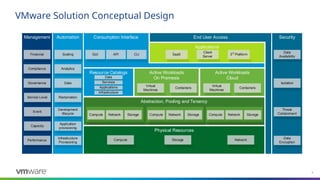
VMware Solution Conceptual Design
Consumption Interface
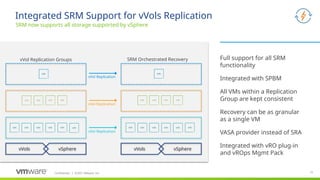
Physical Resources
Abstraction, Pooling and Tenancy
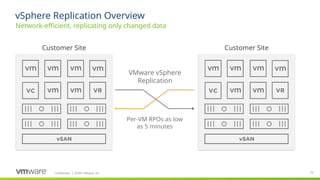
Resource Catalogs
Management Security
Active Workloads
On Premesis
Automation
Applications
Active Workloads
Cloud
End User Access
Storage
API
GUI CLI
Virtual
Machines
Containers
Financial
Network
Compute
Data
Availability
Isolation
Threat
Containment
Data
Encryption
Event
Capacity
Performance
Service Level Reclamation
Infrastructure
Provisioning
Analytics
Data
SaaS 3rd
Platform
Client
Server
Development
lifecycle
Application
provisioning
Virtual
Machines
Containers
Compute Network Storage
Infrastructure
Applications
Services
Compute Network Storage Compute Network Storage
Scaling
Compliance
Governance
Data
5
Logical Diagram
VMware Solution
PSO Consultant: Insert
appropriate logical diagrams
based on the current
solution.
6
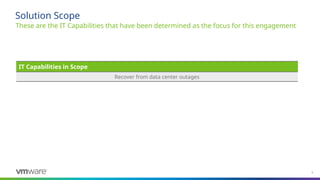
These are the IT Capabilities that have been determined as the focus for this engagement
Solution Scope
IT Capabilities in Scope
Recover from data center outages
7
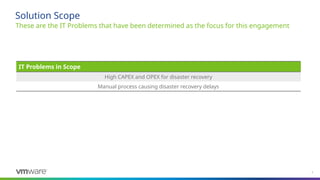
These are the IT Problems that have been determined as the focus for this engagement
Solution Scope
IT Problems in Scope
High CAPEX and OPEX for disaster recovery
Manual process causing disaster recovery delays
8
Logical Diagram
VMware Solution
PSO Consultant: Insert
appropriate logical diagrams
based on the current
solution. Review the
diagram, covering each
component and its function
9
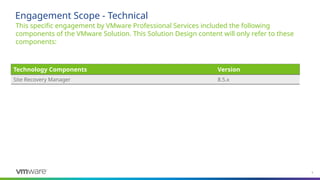
This specific engagement by VMware Professional Services included the following
components of the VMware Solution. This Solution Design content will only refer to these
components:
Engagement Scope - Technical
Technology Components Version
Site Recovery Manager 8.5.x
11
Confidential ©2021 VMware, Inc.
│ 11
VMware Site Recovery
Manager
12
Confidential ©2021 VMware, Inc.
│ 12
What’s New
VMware Site Recovery Manager 8.5.x
Confidential ©2021 VMware, Inc.
│ 14
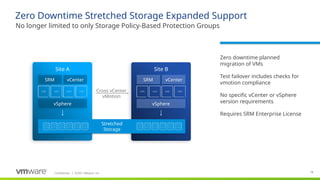
Site A Site B
vCenter
SRM
vSphere
vCenter
SRM
vSphere
Stretched
Storage
Zero Downtime Stretched Storage Expanded Support
No longer limited to only Storage Policy-Based Protection Groups
​
Zero downtime planned
migration of VMs
​
Test failover includes checks for
vmotion compliance
​
No specific vCenter or vSphere
version requirements
​
Requires SRM Enterprise License
Cross vCenter
vMotion
Confidential ©2021 VMware, Inc.
│ 15
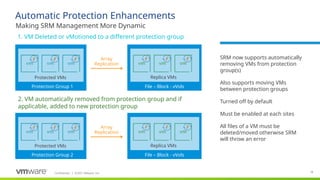
Automatic Protection Enhancements
Making SRM Management More Dynamic
1. VM Deleted or vMotioned to a different protection group
Protection Group 1 File – Block - vVols
Protected VMs Replica VMs
​
SRM now supports automatically
removing VMs from protection
group(s)
​
Also supports moving VMs
between protection groups
​
Turned off by default
​
Must be enabled at each sites
​
All files of a VM must be
deleted/moved otherwise SRM
will throw an error
Protection Group 2 File – Block - vVols
Array
Replication
Protected VMs Replica VMs
Array
Replication
2. VM automatically removed from protection group and if
applicable, added to new protection group
Confidential ©2021 VMware, Inc.
│ 16
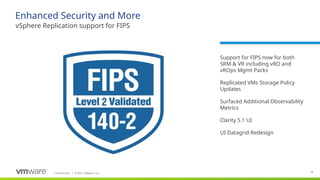
Enhanced Security and More
vSphere Replication support for FIPS
​
Support for FIPS now for both
SRM & VR including vRO and
vROps Mgmt Packs
​
Replicated VMs Storage Policy
Updates
​
Surfaced Additional Observability
Metrics
​
Clarity 5.1 UI
​
UI Datagrid Redesign
17
Confidential ©2021 VMware, Inc.
│ 17
Product Overview
VMware Site Recovery Manager 8.5.x
Confidential ©2021 VMware, Inc.
│ 18
18
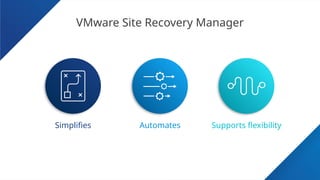
VMware Site Recovery Manager
​
Simplifies ​
Automates ​
Supports flexibility
Confidential ©2021 VMware, Inc.
│ 19
19
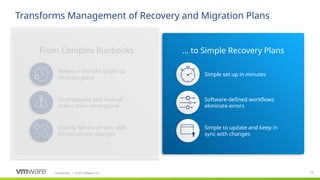
Transforms Management of Recovery and Migration Plans
​
… to Simple Recovery Plans
​
From Complex Runbooks
Simple set up in minutes
Software-defined workflows
eliminate errors
Quickly fall out of sync with
infrastructure changes
Weeks or months to set up
recovery plans
Unstructured and manual
makes them error-prone
Simple to update and keep in
sync with changes
Confidential ©2021 VMware, Inc.
│ 20
20
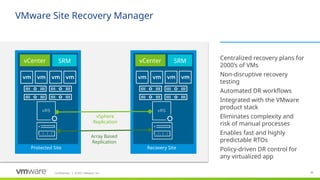
VMware Site Recovery Manager
​
Centralized recovery plans for
2000’s of VMs
​
Non-disruptive recovery
testing
​
Automated DR workflows
​
Integrated with the VMware
product stack
​
Eliminates complexity and
risk of manual processes
​
Enables fast and highly
predictable RTOs
​
Policy-driven DR control for
any virtualized app
Protected Site
Array Based
Replication
vSphere
Replication
vCenter SRM
Recovery Site
vCenter SRM
Confidential ©2021 VMware, Inc.
│ 21
21
​
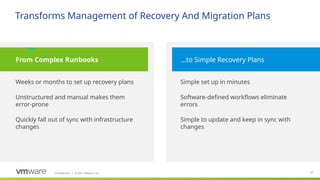
Weeks or months to set up recovery plans
Unstructured and manual makes them
error-prone
Quickly fall out of sync with infrastructure
changes
​
Simple set up in minutes
Software-defined workflows eliminate
errors
​
Simple to update and keep in sync with
changes
​
From Complex Runbooks ​
…to Simple Recovery Plans
Transforms Management of Recovery And Migration Plans
…
Confidential ©2021 VMware, Inc.
│
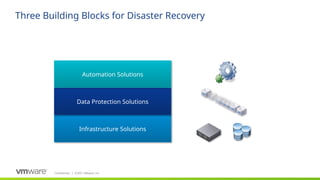
Three Building Blocks for Disaster Recovery
Infrastructure Solutions
Data Protection Solutions
Automation Solutions
Confidential ©2021 VMware, Inc.
│
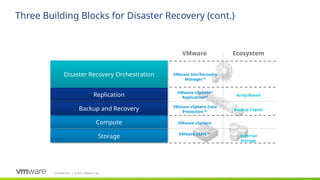
Three Building Blocks for Disaster Recovery (cont.)
VMware vSphere
VMware vSAN™
Ecosystem
VMware vSphere Data
Protection™
VMware vSphere®
Replication™
VMware Site Recovery
Manager™
VMware
Array-Based
Backup Copies
External
Storage
Storage
Compute
Backup and Recovery
Replication
Disaster Recovery Orchestration
Confidential ©2021 VMware, Inc.
│
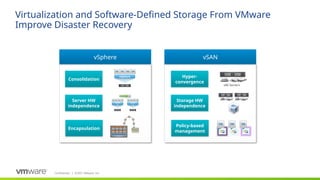
Virtualization and Software-Defined Storage From VMware
Improve Disaster Recovery
vSphere vSAN
Encapsulation
Consolidation
Server HW
independence
vSphere
vSpher
e
vSpher
e
Policy-based
management
Hyper-
convergence
Storage HW
independence
x86 Servers
Confidential ©2021 VMware, Inc.
│
Arra
y-
Base
d
Repli
catio
n
vSphere
Replication
vSphere Data Protection
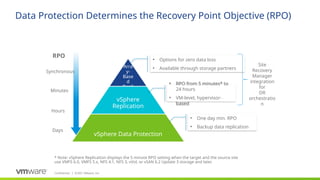
Data Protection Determines the Recovery Point Objective (RPO)
• Options for zero data loss
• Available through storage partners
RPO
Synchronous
Minutes
Hours
Days
• One day min. RPO
• Backup data replication
Site
Recovery
Manager
integration
for
DR
orchestratio
n
• RPO from 5 minutes* to
24 hours
• VM-level, hypervisor-
based
* Note: vSphere Replication displays the 5 minute RPO setting when the target and the source site
use VMFS 6.0, VMFS 5.x, NFS 4.1, NFS 3, vVol, or vSAN 6.2 Update 3 storage and later.
Confidential ©2021 VMware, Inc.
│ 26
26
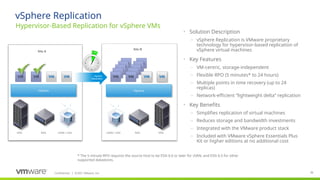
Hypervisor-Based Replication for vSphere VMs
vSphere Replication
vSphere
Site A
vSphere
vSphere
Replication
SAN NAS vSAN / vVol vSAN / vVol NAS SAN
Site B
• Solution Description
– vSphere Replication is VMware proprietary
technology for hypervisor-based replication of
vSphere virtual machines
• Key Features
– VM-centric, storage-independent
– Flexible RPO (5 minutes* to 24 hours)
– Multiple points in time recovery (up to 24
replicas)
– Network-efficient “lightweight delta” replication
• Key Benefits
– Simplifies replication of virtual machines
– Reduces storage and bandwidth investments
– Integrated with the VMware product stack
– Included with VMware vSphere Essentials Plus
Kit or higher editions at no additional cost
* The 5 minute RPO requires the source host to be ESXi 6.0 or later for vSAN, and ESXi 6.5 for other
supported datastores.
Confidential ©2021 VMware, Inc.
│ 27
27
​
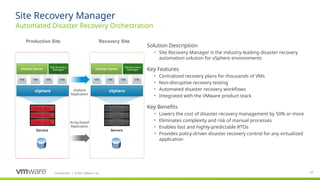
Solution Description
• Site Recovery Manager is the industry-leading disaster recovery
automation solution for vSphere environments
​
Key Features
• Centralized recovery plans for thousands of VMs
• Non-disruptive recovery testing
• Automated disaster recovery workflows
• Integrated with the VMware product stack
​
Key Benefits
• Lowers the cost of disaster recovery management by 50% or more
• Eliminates complexity and risk of manual processes
• Enables fast and highly-predictable RTOs
• Provides policy-driven disaster recovery control for any virtualized
application
Automated Disaster Recovery Orchestration
Site Recovery Manager
vSphere
vCenter Server
Site Recovery
Manager vCenter Server
Site Recovery
Manager
vSphere
Production Site Recovery Site
Servers Servers
Array-based
Replication
vSphere
Replication
Confidential ©2021 VMware, Inc.
│
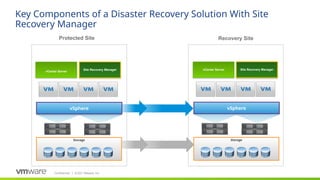
Key Components of a Disaster Recovery Solution With Site
Recovery Manager
vCenter Server
Site Recovery Manager
Protected Site Recovery Site
Storage
vCenter Server Site Recovery Manager
vSphere
vSphere
Storage
Confidential ©2021 VMware, Inc.
│
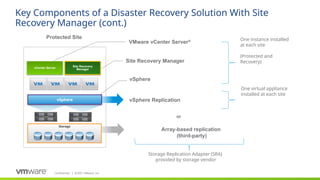
Key Components of a Disaster Recovery Solution With Site
Recovery Manager (cont.)
vSphere Replication
Array-based replication
(third-party)
Protected Site
Storage
Site Recovery Manager
vSphere
or
VMware vCenter Server® One instance installed
at each site
(Protected and
Recovery)
Storage Replication Adapter (SRA)
provided by storage vendor
One virtual appliance
installed at each site
vCenter Server
Site Recovery
Manager
vSphere
Confidential ©2021 VMware, Inc.
│ 30
30
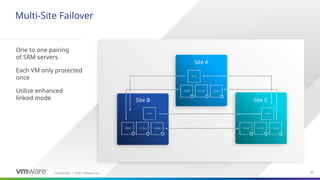
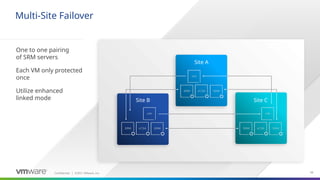
Multi-Site Failover
​
One to one pairing
of SRM servers
Each VM only protected
once
Utilize enhanced
linked mode
Site A
Site C
Site B
Confidential ©2021 VMware, Inc.
│ 31
31
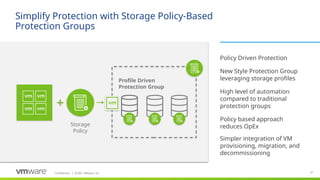
Simplify Protection with Storage Policy-Based
Protection Groups
​
Policy Driven Protection
​
New Style Protection Group
leveraging storage profiles
​
High level of automation
compared to traditional
protection groups
​
Policy based approach
reduces OpEx
​
Simpler integration of VM
provisioning, migration, and
decommissioning
Storage
Policy
Profile Driven
Protection Group
Confidential ©2021 VMware, Inc.
│ 32
32
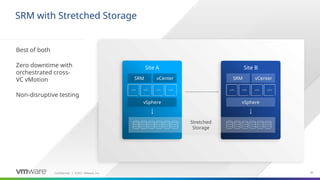
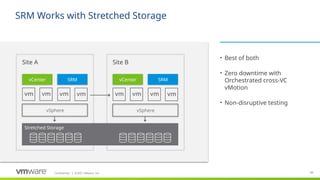
SRM with Stretched Storage
Best of both
Zero downtime with
orchestrated cross-
VC vMotion
Non-disruptive testing
Site A Site B
vCenter
SRM
vSphere
vCenter
SRM
vSphere
Stretched
Storage
Confidential ©2021 VMware, Inc.
│ 33
33
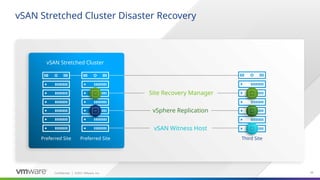
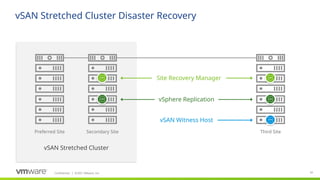
vSAN Stretched Cluster Disaster Recovery
Third Site
Site Recovery Manager
vSphere Replication
vSAN Witness Host
vSAN Stretched Cluster
Preferred Site Preferred Site
Confidential ©2021 VMware, Inc.
│ 34
34
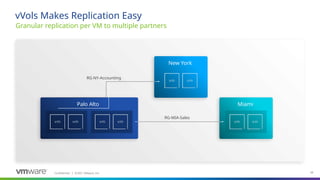
Granular replication per VM to multiple partners
vVols Makes Replication Easy
Palo Alto Miami
New York
RG-MIA-Sales
RG-NY-Accounting
Confidential ©2021 VMware, Inc.
│
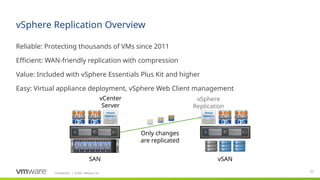
vSphere Replication Overview
​
Reliable: Protecting thousands of VMs since 2011
​
Efficient: WAN-friendly replication with compression
​
Value: Included with vSphere Essentials Plus Kit and higher
​
Easy: Virtual appliance deployment, vSphere Web Client management
35
OS
Da
ta
Ap
p OS
Da
ta
Ap
p
SAN vSAN
vCenter
Server
vSphere
Replication
Only changes
are replicated
OS
Da
ta
Ap
p
OS
Da
ta
Ap
p
Confidential ©2021 VMware, Inc.
│ 36
36
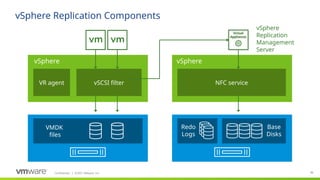
vSphere Replication Components
VR agent vSCSI filter
Base
Disks
Redo
Logs
vSphere
Replication
Management
Server
NFC service
VMDK
files
vSphere vSphere
Virtual
Appliances
Confidential ©2021 VMware, Inc.
│
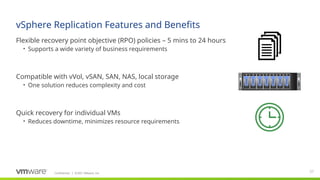
vSphere Replication Features and Benefits
​
Flexible recovery point objective (RPO) policies – 5 mins to 24 hours
• Supports a wide variety of business requirements
​
Compatible with vVol, vSAN, SAN, NAS, local storage
• One solution reduces complexity and cost
​
Quick recovery for individual VMs
• Reduces downtime, minimizes resource requirements
37
Confidential ©2021 VMware, Inc.
│
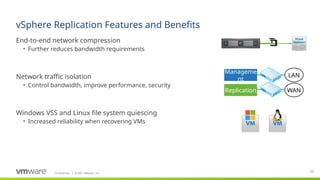
vSphere Replication Features and Benefits
​
End-to-end network compression
• Further reduces bandwidth requirements
​
Network traffic isolation
• Control bandwidth, improve performance, security
​
Windows VSS and Linux file system quiescing
• Increased reliability when recovering VMs
38
Manageme
nt
Replication WAN
LAN
Confidential ©2021 VMware, Inc.
│
vSphere Replication Typical Use Cases
​
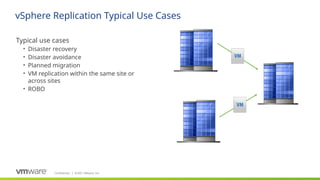
Typical use cases
• Disaster recovery
• Disaster avoidance
• Planned migration
• VM replication within the same site or
across sites
• ROBO
Confidential ©2021 VMware, Inc.
│ 40
​
5 Minutes RPO for vSAN
• vSphere Replication 6.5 and above support the 5 minute RPO when both source and target use
VMFS 6.0, VMFS 5.x, NFS 4.1, NFS 3, vVol, or vSAN 6.2 Update 3 storage and later
• Maximum of 100 VMs on VMFS 6.0, VMFS 5.x, NFS 4.1, NFS 3, and vSAN 6.2 Update 3 storage and
later.
• Maximum of 50 VMs for vVol datastore
• Requires the source host to be ESXi 6.0 or later for vSAN, and ESXi 6.5 for other supported
datastores
vSphere Replication
Confidential ©2021 VMware, Inc.
│
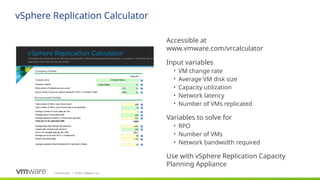
vSphere Replication Calculator
​
Accessible at
www.vmware.com/vrcalculator
​
Input variables
• VM change rate
• Average VM disk size
• Capacity utilization
• Network latency
• Number of VMs replicated
​
Variables to solve for
• RPO
• Number of VMs
• Network bandwidth required
​
Use with vSphere Replication Capacity
Planning Appliance
42
Confidential ©2021 VMware, Inc.
│ 42
Architecture
VMware Site Recovery Manager 8.5.x
Confidential ©2021 VMware, Inc.
│ 43
43
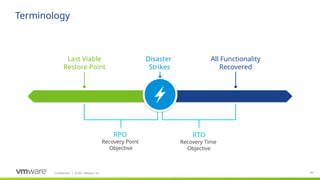
Terminology
RPO
Recovery Point
Objective
RTO
Recovery Time
Objective
Last Viable
Restore Point
All Functionality
Recovered
Disaster
Strikes
Confidential ©2021 VMware, Inc.
│ 44
44
Confidential ©2020 VMware, Inc.
│
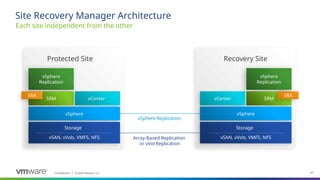
vSphere Replication
Site Recovery Manager Architecture
Each site independent from the other
vSphere
Replication
Protected Site
vSphere
Replication
Recovery Site
Array-Based Replication
or vVol Replication
SRM vCenter
SRA
vSphere
Storage
vSAN, vVols, VMFS, NFS
SRM
vCenter
SRA
vSphere
Storage
vSAN, vVols, VMFS, NFS
Confidential ©2021 VMware, Inc.
│ 45
45
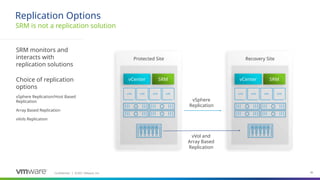
Recovery Site
vCenter SRM
SRM is not a replication solution
Replication Options
SRM monitors and
interacts with
replication solutions
Choice of replication
options
vSphere Replication/Host Based
Replication
Array Based Replication
vVols Replication
Protected Site
vVol and
Array Based
Replication
vSphere
Replication
vCenter SRM
Confidential ©2021 VMware, Inc.
│ 46
46
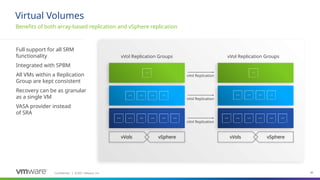
Full support for all SRM
functionality
Integrated with SPBM
All VMs within a Replication
Group are kept consistent
Recovery can be as granular
as a single VM
VASA provider instead
of SRA
Benefits of both array-based replication and vSphere replication
Virtual Volumes
vVols vSphere
vVol Replication Groups
vVols vSphere
vVol Replication
vVol Replication
vVol Replication Groups
vVol Replication
Confidential ©2021 VMware, Inc.
│ 47
47
Confidential ©2020 VMware, Inc.
│
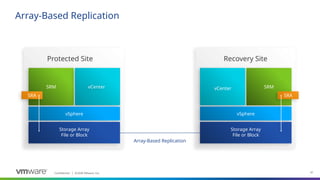
Array-Based Replication
Protected Site Recovery Site
Array-Based Replication
SRM vCenter
SRA
vSphere
Storage Array
File or Block
SRM
vCenter
SRA
vSphere
Storage Array
File or Block
Confidential ©2021 VMware, Inc.
│ 48
48
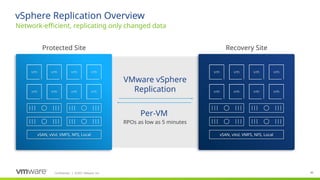
vSphere Replication Overview
Network-efficient, replicating only changed data
Protected Site
VMware vSphere
Replication
Per-VM
RPOs as low as 5 minutes
Recovery Site
vSAN, vVol, VMFS, NFS, Local vSAN, vVol, VMFS, NFS, Local
Confidential ©2021 VMware, Inc.
│ 49
49
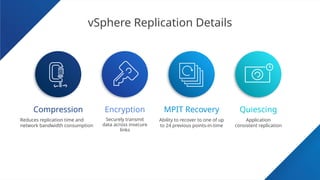
vSphere Replication Details
​
Compression ​
MPIT Recovery ​
Quiescing
​
Encryption
​
Reduces replication time and
network bandwidth consumption
​
Securely transmit
data across insecure
links
Ability to recover to one of up
to 24 previous points-in-time
Application
consistent replication
Confidential ©2021 VMware, Inc.
│ 50
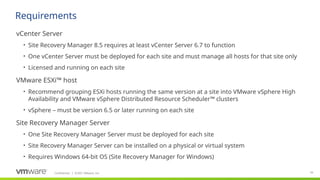
​
vCenter Server
• Site Recovery Manager 8.5 requires at least vCenter Server 6.7 to function
• One vCenter Server must be deployed for each site and must manage all hosts for that site only
• Licensed and running on each site
​
VMware ESXi™ host
• Recommend grouping ESXi hosts running the same version at a site into VMware vSphere High
Availability and VMware vSphere Distributed Resource Scheduler™ clusters
• vSphere – must be version 6.5 or later running on each site
​
Site Recovery Manager Server
• One Site Recovery Manager Server must be deployed for each site
• Site Recovery Manager Server can be installed on a physical or virtual system
• Requires Windows 64-bit OS (Site Recovery Manager for Windows)
Requirements
Confidential ©2021 VMware, Inc.
│ 51
​
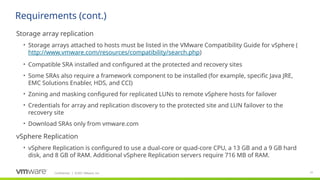
Storage array replication
• Storage arrays attached to hosts must be listed in the VMware Compatibility Guide for vSphere (
http://www.vmware.com/resources/compatibility/search.php)
• Compatible SRA installed and configured at the protected and recovery sites
• Some SRAs also require a framework component to be installed (for example, specific Java JRE,
EMC Solutions Enabler, HDS, and CCI)
• Zoning and masking configured for replicated LUNs to remote vSphere hosts for failover
• Credentials for array and replication discovery to the protected site and LUN failover to the
recovery site
• Download SRAs only from vmware.com
​
vSphere Replication
• vSphere Replication is configured to use a dual-core or quad-core CPU, a 13 GB and a 9 GB hard
disk, and 8 GB of RAM. Additional vSphere Replication servers require 716 MB of RAM.
Requirements (cont.)
Confidential ©2021 VMware, Inc.
│ 52
​
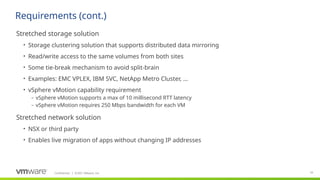
Stretched storage solution
• Storage clustering solution that supports distributed data mirroring
• Read/write access to the same volumes from both sites
• Some tie-break mechanism to avoid split-brain
• Examples: EMC VPLEX, IBM SVC, NetApp Metro Cluster, …
• vSphere vMotion capability requirement
– vSphere vMotion supports a max of 10 millisecond RTT latency
– vSphere vMotion requires 250 Mbps bandwidth for each VM
​
Stretched network solution
• NSX or third party
• Enables live migration of apps without changing IP addresses
Requirements (cont.)
Confidential ©2021 VMware, Inc.
│
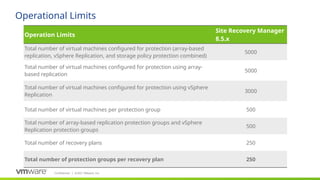
Operational Limits
Operation Limits
Site Recovery Manager
8.5.x
Total number of virtual machines configured for protection (array-based
replication, vSphere Replication, and storage policy protection combined)
5000
Total number of virtual machines configured for protection using array-
based replication
5000
Total number of virtual machines configured for protection using vSphere
Replication
3000
Total number of virtual machines per protection group 500
Total number of array-based replication protection groups and vSphere
Replication protection groups
500
Total number of recovery plans 250
Total number of protection groups per recovery plan 250
Confidential ©2021 VMware, Inc.
│
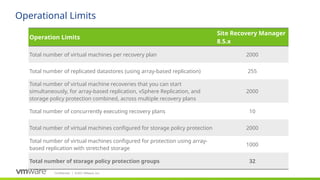
Operational Limits
Operation Limits
Site Recovery Manager
8.5.x
Total number of virtual machines per recovery plan 2000
Total number of replicated datastores (using array-based replication) 255
Total number of virtual machine recoveries that you can start
simultaneously, for array-based replication, vSphere Replication, and
storage policy protection combined, across multiple recovery plans
2000
Total number of concurrently executing recovery plans 10
Total number of virtual machines configured for storage policy protection 2000
Total number of virtual machines configured for protection using array-
based replication with stretched storage
1000
Total number of storage policy protection groups 32
55
Confidential ©2021 VMware, Inc.
│ 55
Technical Walk Through
VMware Site Recovery Manager 8.5.x
Confidential ©2021 VMware, Inc.
│ 56
56
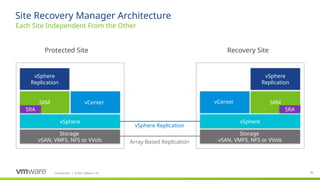
Each Site Independent From the Other
Site Recovery Manager Architecture
vSphere
Replication
SRM
vSphere
SRM
vSphere
Storage
vSAN, VMFS, NFS or VVols
vCenter
vSphere Replication
Protected Site
vCenter
vSphere
Replication
Storage
vSAN, VMFS, NFS or VVols
Recovery Site
Array-Based Replication
SRA
SRA
Confidential ©2021 VMware, Inc.
│ 57
57
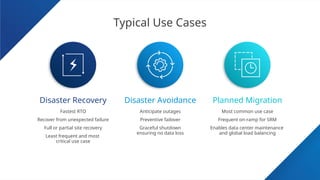
​
Fastest RTO
Recover from unexpected failure
​
Full or partial site recovery
​
Least frequent and most
critical use case
​
Anticipate outages
​
Preventive failover
​
Graceful shutdown
ensuring no data loss
​
Most common use case
​
Frequent on-ramp for SRM
​
Enables data center maintenance
and global load balancing
Typical Use Cases
​
Disaster Recovery ​
Disaster Avoidance ​
Planned Migration
Confidential ©2021 VMware, Inc.
│ 58
58
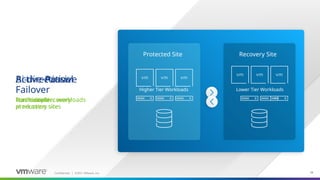
Protected Site Recovery Site
Active-Passive
Failover
Traditional recovery
Higher Tier Workloads Lower Tier Workloads
Active-Active
Failover
Run lower tier workloads
at recovery site
Bi-directional
Failover
For multiple
production sites
Confidential ©2021 VMware, Inc.
│ 59
59
Multi-Site Failover
​
One to one pairing
of SRM servers
Each VM only protected
once
Utilize enhanced
linked mode
Site A
Site C
Site B
Confidential ©2021 VMware, Inc.
│ 60
60
SRM Works with Stretched Storage
• Best of both
• Zero downtime with
Orchestrated cross-VC
vMotion
• Non-disruptive testing
Site A
Stretched Storage
Site B
SRM
vCenter
vSphere
SRM
vCenter
vSphere
Confidential ©2021 VMware, Inc.
│ 61
61
vSAN Stretched Cluster Disaster Recovery
vSAN Stretched Cluster
Preferred Site Secondary Site Third Site
Site Recovery Manager
vSphere Replication
vSAN Witness Host
62
Confidential ©2021 VMware, Inc.
│ 62
Deployment
Confidential ©2021 VMware, Inc.
│ 63
63
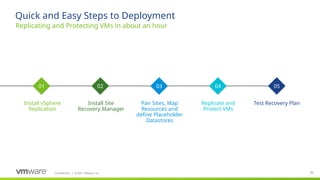
Replicating and Protecting VMs in about an hour
Quick and Easy Steps to Deployment
​
Install vSphere
Replication
​
Install Site
Recovery Manager
​
Pair Sites, Map
Resources and
define Placeholder
Datastores
​
Replicate and
Protect VMs
​
Test Recovery Plan
01 02 03 04 05
Confidential ©2021 VMware, Inc.
│ 64
64
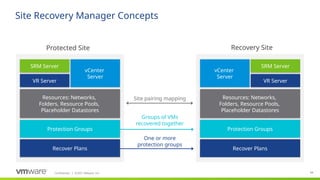
Site Recovery Manager Concepts
One or more
protection groups
Protected Site Recovery Site
Site pairing mapping
Protection Groups
Recover Plans
Resources: Networks,
Folders, Resource Pools,
Placeholder Datastores
Protection Groups
Recover Plans
Resources: Networks,
Folders, Resource Pools,
Placeholder Datastores
vCenter
Server
VR Server
SRM Server
vCenter
Server
VR Server
SRM Server
Groups of VMs
recovered together
Confidential ©2021 VMware, Inc.
│ 65
​
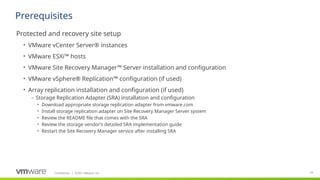
Protected and recovery site setup
• VMware vCenter Server® instances
• VMware ESXi™ hosts
• VMware Site Recovery Manager™ Server installation and configuration
• VMware vSphere® Replication™ configuration (if used)
• Array replication installation and configuration (if used)
– Storage Replication Adapter (SRA) installation and configuration
• Download appropriate storage replication adapter from vmware.com
• Install storage replication adapter on Site Recovery Manager Server system
• Review the README file that comes with the SRA
• Review the storage vendor’s detailed SRA implementation guide
• Restart the Site Recovery Manager service after installing SRA
Prerequisites
Confidential ©2021 VMware, Inc.
│ 66
​
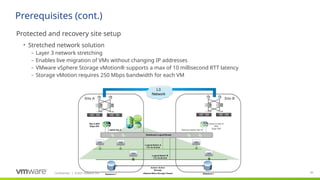
Protected and recovery site setup
• Stretched network solution
– Layer 3 network stretching
– Enables live migration of VMs without changing IP addresses
– VMware vSphere Storage vMotion® supports a max of 10 millisecond RTT latency
– Storage vMotion requires 250 Mbps bandwidth for each VM
Prerequisites (cont.)
Confidential ©2021 VMware, Inc.
│ 67
67
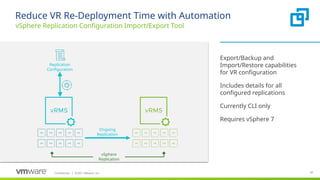
Reduce VR Re-Deployment Time with Automation
Export/Backup and
Import/Restore capabilities
for VR configuration
Includes details for all
configured replications
​
Currently CLI only
​
Requires vSphere 7
vSphere Replication Configuration Import/Export Tool
Replication
Configuration
vSphere
Replication
Ongoing
Replication
68
Confidential ©2021 VMware, Inc.
│ 68
Replication
Confidential ©2021 VMware, Inc.
│ 69
69
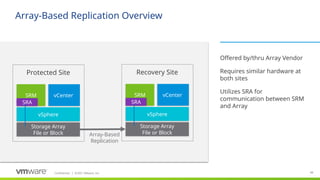
Array-Based Replication Overview
​
Offered by/thru Array Vendor
​
Requires similar hardware at
both sites
​
Utilizes SRA for
communication between SRM
and Array
SRM
vSphere
Storage Array
File or Block
vCenter
Protected Site
Array-Based
Replication
SRA
SRM
vSphere
Storage Array
File or Block
vCenter
Recovery Site
SRA
Confidential ©2021 VMware, Inc.
│ 70
70
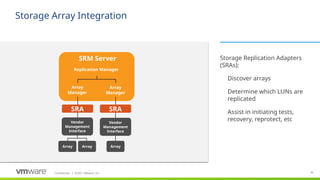
Storage Array Integration
​
Storage Replication Adapters
(SRAs):
​ Discover arrays
​ Determine which LUNs are
replicated
​ Assist in initiating tests,
recovery, reprotect, etc
SRM Server
SRA
Vendor
Management
Interface
Array
Manager
Array
Manager
Replication Manager
SRA
Vendor
Management
Interface
Array
Array Array
Confidential ©2021 VMware, Inc.
│ 71
71
Integrated SRM Support for vVols Replication
​
Full support for all SRM
functionality
Integrated with SPBM
​
All VMs within a Replication
Group are kept consistent
​
Recovery can be as granular
as a single VM
​
VASA provider instead of SRA
​
Integrated with vRO plug-in
and vROps Mgmt Pack
SRM now supports all storage supported by vSphere
vVols vSphere
vVol Replication Groups SRM Orchestrated Recovery
vVols vSphere
vVol Replication
vVol Replication
vVol Replication
Confidential ©2021 VMware, Inc.
│ 72
72
Network-efficient, replicating only changed data
vSphere Replication Overview
Customer Site
VMware vSphere
Replication
Per-VM RPOs as low
as 5 minutes
Customer Site
Confidential ©2021 VMware, Inc.
│ 73
73
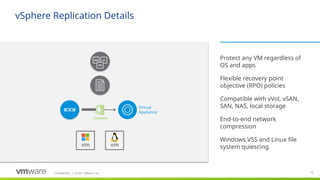
vSphere Replication Details
​
Protect any VM regardless of
OS and apps
​
Flexible recovery point
objective (RPO) policies
​
Compatible with vVol, vSAN,
SAN, NAS, local storage
​
End-to-end network
compression
​
Windows VSS and Linux file
system quiescing
DATA OS
APP
Virtual
Appliance
Compress
Confidential ©2021 VMware, Inc.
│ 74
​
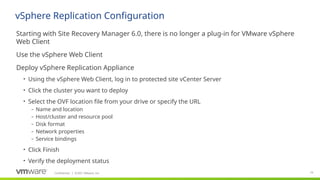
Starting with Site Recovery Manager 6.0, there is no longer a plug-in for VMware vSphere
Web Client
​
Use the vSphere Web Client
​
Deploy vSphere Replication Appliance
• Using the vSphere Web Client, log in to protected site vCenter Server
• Click the cluster you want to deploy
• Select the OVF location file from your drive or specify the URL
– Name and location
– Host/cluster and resource pool
– Disk format
– Network properties
– Service bindings
• Click Finish
• Verify the deployment status
vSphere Replication Configuration
Confidential ©2021 VMware, Inc.
│ 75
​
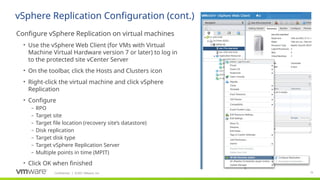
Configure vSphere Replication on virtual machines
• Use the vSphere Web Client (for VMs with Virtual
Machine Virtual Hardware version 7 or later) to log in
to the protected site vCenter Server
• On the toolbar, click the Hosts and Clusters icon
• Right-click the virtual machine and click vSphere
Replication
• Configure
– RPO
– Target site
– Target file location (recovery site’s datastore)
– Disk replication
– Target disk type
– Target vSphere Replication Server
– Multiple points in time (MPIT)
• Click OK when finished
vSphere Replication Configuration (cont.)
Confidential ©2021 VMware, Inc.
│ 76
​
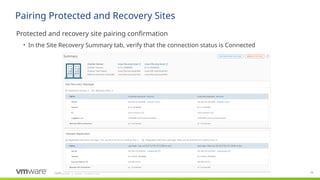
Protected and recovery site pairing confirmation
• In the Site Recovery Summary tab, verify that the connection status is Connected
Pairing Protected and Recovery Sites
Confidential ©2021 VMware, Inc.
│
Configuring Placeholder Storage
​
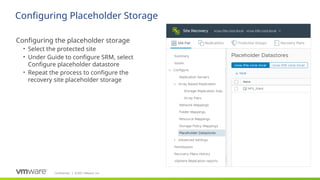
Configuring the placeholder storage
• Select the protected site
• Under Guide to configure SRM, select
Configure placeholder datastore
• Repeat the process to configure the
recovery site placeholder storage
Confidential ©2021 VMware, Inc.
│ 78
​
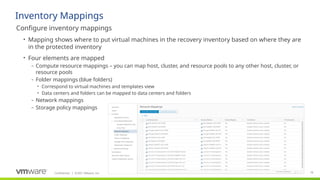
Configure inventory mappings
• Mapping shows where to put virtual machines in the recovery inventory based on where they are
in the protected inventory
• Four elements are mapped
– Compute resource mappings – you can map host, cluster, and resource pools to any other host, cluster, or
resource pools
– Folder mappings (blue folders)
• Correspond to virtual machines and templates view
• Data centers and folders can be mapped to data centers and folders
– Network mappings
– Storage policy mappings
Inventory Mappings
Confidential ©2021 VMware, Inc.
│ 79
79
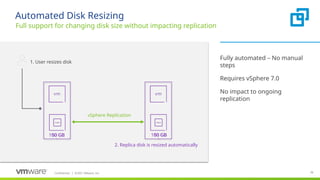
Automated Disk Resizing
​
Fully automated – No manual
steps
​
Requires vSphere 7.0
​
No impact to ongoing
replication
Full support for changing disk size without impacting replication
1. User resizes disk
vSphere Replication
50 GB
100 GB 50 GB
100 GB
2. Replica disk is resized automatically
Confidential ©2021 VMware, Inc.
│ 80
80
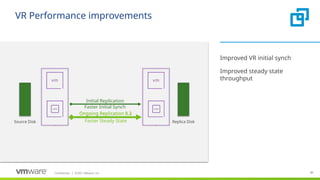
VR Performance improvements
​
Improved VR initial synch
​
Improved steady state
throughput
Ongoing Replication 8.2
Replica Disk
Source Disk
Ongoing Replication 8.3
Initial Replication
Faster Steady State
Faster Initial Synch
81
Confidential ©2021 VMware, Inc.
│ 81
Creating a Protection Group
Confidential ©2021 VMware, Inc.
│ 82
82
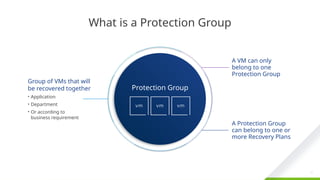
What is a Protection Group
82
Confidential ©2019 VMware, Inc.
│
​
A Protection Group
can belong to one or
more Recovery Plans
Group of VMs that will
be recovered together
• Application
• Department
• Or according to
business requirement
​
A VM can only
belong to one
Protection Group
Protection Group
Confidential ©2021 VMware, Inc.
│ 83
83
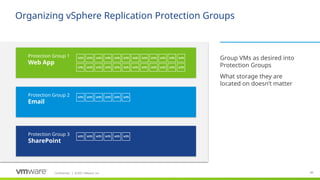
Organizing vSphere Replication Protection Groups
​
Group VMs as desired into
Protection Groups
​
What storage they are
located on doesn’t matter
Protection Group 1
Web App
Protection Group 2
Email
Protection Group 3
SharePoint
Confidential ©2021 VMware, Inc.
│ 84
84
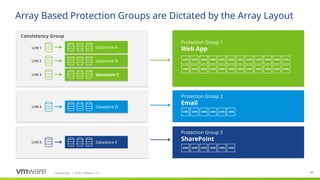
Array Based Protection Groups are Dictated by the Array Layout
Protection Group 1
Web App
Protection Group 2
Email
Protection Group 3
SharePoint
Datastore A
Datastore B
Datastore C
Datastore D
Consistency Group
LUN 1
LUN 2
LUN 3
LUN 4
LUN 5 Datastore E
Confidential ©2021 VMware, Inc.
│ 85
85
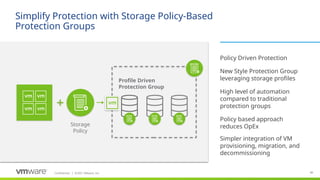
Simplify Protection with Storage Policy-Based
Protection Groups
​
Policy Driven Protection
​
New Style Protection Group
leveraging storage profiles
​
High level of automation
compared to traditional
protection groups
​
Policy based approach
reduces OpEx
​
Simpler integration of VM
provisioning, migration, and
decommissioning
Storage
Policy
Profile Driven
Protection Group
Confidential ©2021 VMware, Inc.
│ 86
86
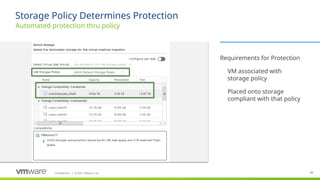
Storage Policy Determines Protection
​
Requirements for Protection
​ VM associated with
storage policy
​ Placed onto storage
compliant with that policy
Automated protection thru policy
Confidential ©2021 VMware, Inc.
│ 87
87
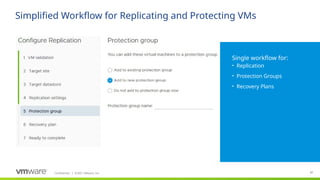
Simplified Workflow for Replicating and Protecting VMs
​
Single workflow for:
• Replication
• Protection Groups
• Recovery Plans
Confidential ©2021 VMware, Inc.
│ 88
​
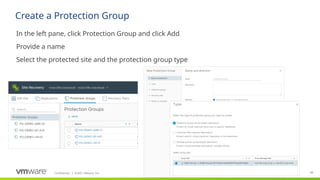
In the left pane, click Protection Group and click Add
​
Provide a name
​
Select the protected site and the protection group type
Create a Protection Group
Confidential ©2021 VMware, Inc.
│ 89
​
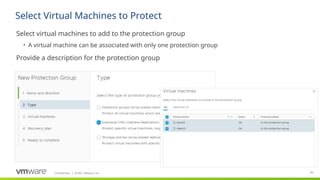
Select virtual machines to add to the protection group
• A virtual machine can be associated with only one protection group
​
Provide a description for the protection group
Select Virtual Machines to Protect
Confidential ©2021 VMware, Inc.
│ 90
​
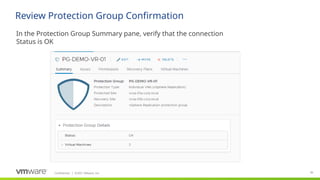
In the Protection Group Summary pane, verify that the connection
Status is OK
Review Protection Group Confirmation
Confidential ©2021 VMware, Inc.
│ 91
91
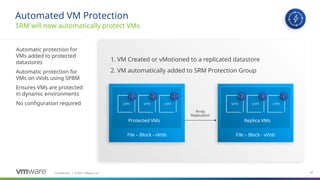
Automatic protection for
VMs added to protected
datastores
Automatic protection for
VMs on vVols using SPBM
Ensures VMs are protected
in dynamic environments
No configuration required
SRM will now automatically protect VMs
Automated VM Protection
2. VM automatically added to SRM Protection Group
File – Block - vVols File – Block - vVols
Array
Replication
Protected VMs Replica VMs
1. VM Created or vMotioned to a replicated datastore
92
Confidential ©2021 VMware, Inc.
│ 92
Creating a Recovery Plan
Confidential ©2021 VMware, Inc.
│ 93
​
A recovery plan is
• A script of how to recover a set of protection groups
• A list of steps for switching the operation of workloads from a protected site to the associated
recovery site
​
When creating recovery plans, consider the following
• You can have several plans for a single site
• Plans can overlap
• A plan can be run repeatedly
• The easiest method is to create one master plan
• You can create separate plans for different business units or according to recovery priority (for
special needs)
• You should include checkpoints for manual steps
• Plans must be integrated with physical recovery capabilities
Creating a Recovery Plan
Confidential ©2021 VMware, Inc.
│ 94
94
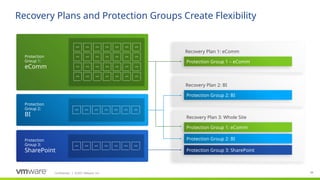
Recovery Plans and Protection Groups Create Flexibility
Recovery Plan 1: eComm
Protection Group 1 – eComm
Recovery Plan 2: BI
Protection Group 2: BI
Recovery Plan 3: Whole Site
Protection Group 1: eComm
Protection Group 2: BI
Protection Group 3: SharePoint
Protection
Group 1:
eComm
Protection
Group 2:
BI
Protection
Group 3:
SharePoint
Confidential ©2021 VMware, Inc.
│ 95
95
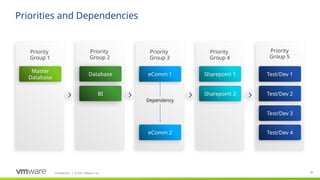
​ Priority
​ Group 2
Database
BI
​ Priority
​ Group 4
Sharepoint 1
Sharepoint 2
Priority
Group 5
Test/Dev 1
Test/Dev 2
Test/Dev 3
Test/Dev 4
​ Priority
​ Group 3
eComm 1
Priorities and Dependencies
​ Priority
​ Group 1
Master
Database
eComm 2
Dependency
Confidential ©2021 VMware, Inc.
│ 96
​
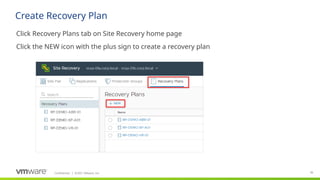
Click Recovery Plans tab on Site Recovery home page
​
Click the NEW icon with the plus sign to create a recovery plan
Create Recovery Plan
Confidential ©2021 VMware, Inc.
│ 97
​
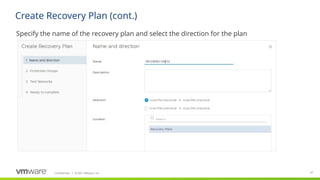
Specify the name of the recovery plan and select the direction for the plan
Create Recovery Plan (cont.)
Confidential ©2021 VMware, Inc.
│ 98
​
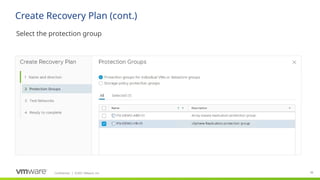
Select the protection group
Create Recovery Plan (cont.)
Confidential ©2021 VMware, Inc.
│ 99
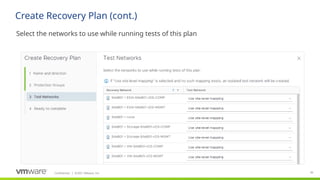
​
Select the networks to use while running tests of this plan
Create Recovery Plan (cont.)
Confidential ©2021 VMware, Inc.
│
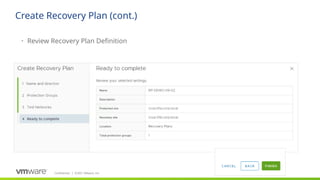
Create Recovery Plan (cont.)
• Review Recovery Plan Definition
Confidential ©2021 VMware, Inc.
│ 101
101
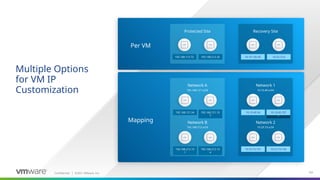
Recovery Site
Multiple Options
for VM IP
Customization
Per VM
Mapping
Network 1
10.10.40.x/24
Network 2
10.23.73.x/24
`
192.168.115.72 192.168.212.32
10.10.120.45 10.23.73.6
152.168.121.54 192.168.121.10
7
10.10.40.54 10.10.40.107
xxx xxx
10.23.73.101 10.23.73.134
Protected Site
192.168.115.72 192.168.212.32
Network A
192.168.121.x/24
Network B
192.168.212.x/24
192.168.121.54 192.168.121.10
7
192.168.212.10
1
192.168.212.13
4
Confidential ©2021 VMware, Inc.
│ 102
102
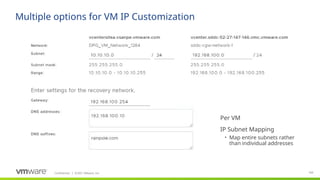
Multiple options for VM IP Customization
Per VM
IP Subnet Mapping
• Map entire subnets rather
than individual addresses
Confidential ©2021 VMware, Inc.
│ 103
103
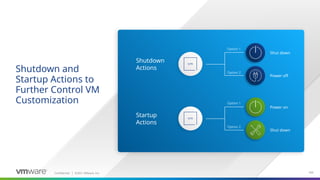
Shutdown and
Startup Actions to
Further Control VM
Customization
Shutdown
Actions
Startup
Actions
Shut down
Power off
Power on
Shut down
Option 1
Option 2
Option 1
Option 2
Confidential ©2021 VMware, Inc.
│ 104
104
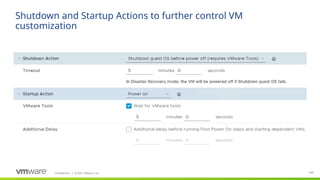
Shutdown and Startup Actions to further control VM
customization
Confidential ©2021 VMware, Inc.
│ 105
105
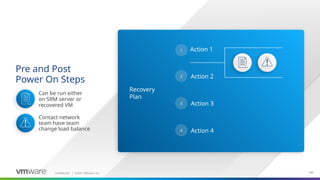
Pre and Post
Power On Steps
Recovery
Plan
1
2
3
4
Action 1
Action 2
Action 3
Action 4
Can be run either
on SRM server or
recovered VM
Contact network
team have team
change load balance
Confidential ©2021 VMware, Inc.
│
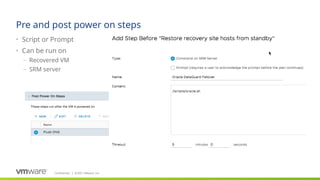
Pre and post power on steps
• Script or Prompt
• Can be run on
– Recovered VM
– SRM server
Confidential ©2021 VMware, Inc.
│ 107
107
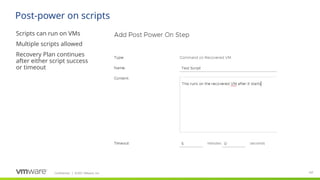
Post-power on scripts
Scripts can run on VMs
Multiple scripts allowed
Recovery Plan continues
after either script success
or timeout
108
Confidential ©2021 VMware, Inc.
│ 108
Executing a Test Failover
Confidential ©2021 VMware, Inc.
│ 109
​
Test goals
• Make tests similar to recovery so that if the test works, the recovery will not produce unexpected
results
• Try to reduce impact on the recovery site
​
Execution goals
• Suspended virtual machines will remain in the suspended state
• Virtual machines start up in parallel
– Each ESXi host boots a virtual machine
– If there are multiple hosts, a virtual machine boots on each host
– Boot order is by priority (high, normal, or low)
Executing Recovery Plans for Test
Confidential ©2021 VMware, Inc.
│ 110
​
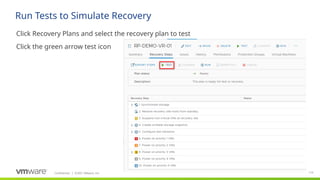
Click Recovery Plans and select the recovery plan to test
​
Click the green arrow test icon
Run Tests to Simulate Recovery
Confidential ©2021 VMware, Inc.
│ 111
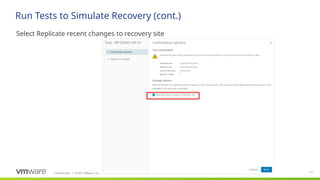
​
Select Replicate recent changes to recovery site
Run Tests to Simulate Recovery (cont.)
Confidential ©2021 VMware, Inc.
│ 112
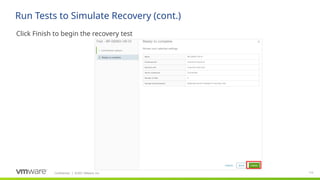
​
Click Finish to begin the recovery test
Run Tests to Simulate Recovery (cont.)
Confidential ©2021 VMware, Inc.
│ 113
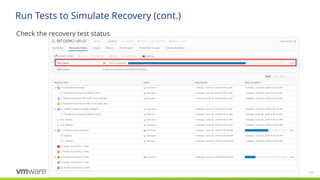
​
Check the recovery test status
Run Tests to Simulate Recovery (cont.)
Confidential ©2021 VMware, Inc.
│ 114
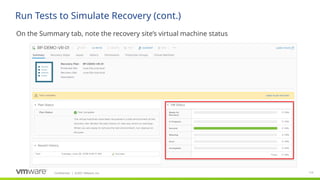
​
On the Summary tab, note the recovery site’s virtual machine status
Run Tests to Simulate Recovery (cont.)
Confidential ©2021 VMware, Inc.
│ 115
​
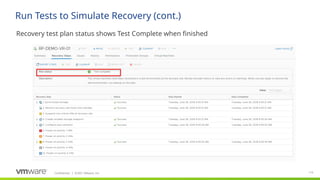
Recovery test plan status shows Test Complete when finished
Run Tests to Simulate Recovery (cont.)
Confidential ©2021 VMware, Inc.
│ 116
​
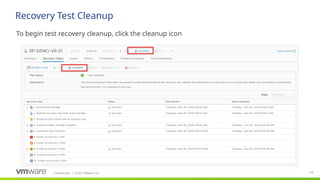
To begin test recovery cleanup, click the cleanup icon
Recovery Test Cleanup
Confidential ©2021 VMware, Inc.
│ 117
​
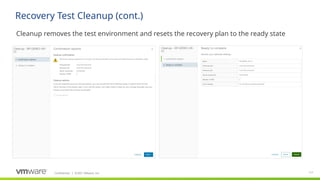
Cleanup removes the test environment and resets the recovery plan to the ready state
Recovery Test Cleanup (cont.)
Confidential ©2021 VMware, Inc.
│ 118
​
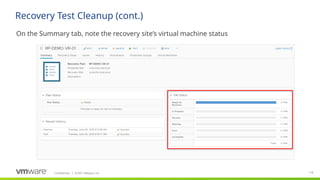
On the Summary tab, note the recovery site’s virtual machine status
Recovery Test Cleanup (cont.)
119
Confidential ©2021 VMware, Inc.
│ 119
Workflows
Confidential ©2021 VMware, Inc.
│ 120
120
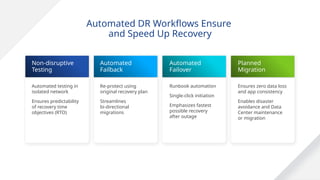
Automated DR Workflows Ensure
and Speed Up Recovery
Non-disruptive
Testing
​
Automated testing in
isolated network
​
Ensures predictability
of recovery time
objectives (RTO)
Automated
Failback
Re-protect using
original recovery plan
Streamlines
bi-directional
migrations
Automated
Failover
Runbook automation
Single-click initiation
Emphasizes fastest
possible recovery
after outage
Planned
Migration
Ensures zero data loss
and app consistency
Enables disaster
avoidance and Data
Center maintenance
or migration
Confidential ©2021 VMware, Inc.
│ 121
121
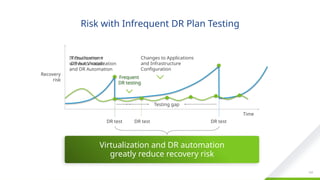
Risk with Infrequent DR Plan Testing
DR test
Recovery
risk
Time
Unproven
recoverability
DR test
Changes to Applications
and Infrastructure
Configuration
Testing gap
IT Environment
without Virtualization
and DR Automation
Virtualization +
DR Automation
Frequent
DR testing
DR test
Virtualization and DR automation
greatly reduce recovery risk
Confidential ©2021 VMware, Inc.
│ 122
122
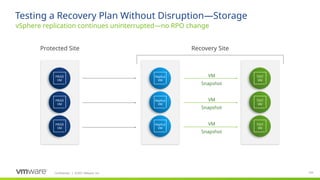
Testing a Recovery Plan Without Disruption—Storage
vSphere replication continues uninterrupted—no RPO change
VM
Snapshot
VM
Snapshot
VM
Snapshot
Protected Site Recovery Site
PROD
VM
PROD
VM
PROD
VM
Replica
VM
Replica
VM
Replica
VM
TEST
VM
TEST
VM
TEST
VM
Confidential ©2021 VMware, Inc.
│ 123
123
Replica
VM
Replica
VM
Replica
VM
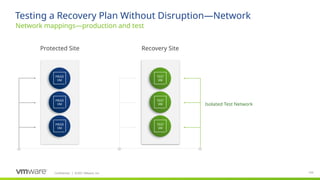
Testing a Recovery Plan Without Disruption—Network
Network mappings—production and test
Isolated Test Network
Protected Site Recovery Site
PROD
VM
PROD
VM
PROD
VM
TEST
VM
TEST
VM
TEST
VM
Confidential ©2021 VMware, Inc.
│ 124
124
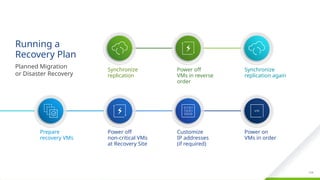
​
Synchronize
replication
​
Power off
VMs in reverse
order
​
Synchronize
replication again
​
Prepare
recovery VMs
​
Power off
non-critical VMs
at Recovery Site
​
Customize
IP addresses
(if required)
​
Power on
VMs in order
​
Running a
Recovery Plan
​
Planned Migration
or Disaster Recovery
Confidential ©2021 VMware, Inc.
│ 125
125
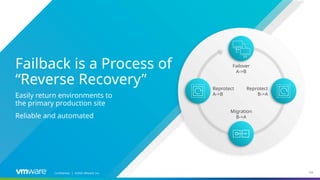
​
Failback is a Process of
“Reverse Recovery”
Easily return environments to
the primary production site
Reliable and automated
​
Failover
A->B
​
Reprotect
B->A
​
Reprotect
A->B
​
Migration
B->A
Confidential ©2020 VMware, Inc.
│
Confidential ©2021 VMware, Inc.
│ 126
126
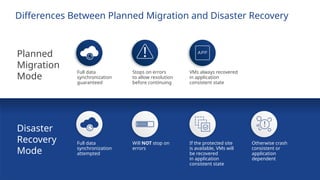
Differences Between Planned Migration and Disaster Recovery
​
Full data
synchronization
attempted
​
Will NOT stop on
errors
​
If the protected site
is available, VMs will
be recovered
in application
consistent state
​
Otherwise crash
consistent or
application
dependent
​
Planned
Migration
Mode
​
Disaster
Recovery
Mode
Full data
synchronization
guaranteed
Stops on errors
to allow resolution
before continuing
VMs always recovered
in application
consistent state
127
Confidential ©2021 VMware, Inc.
│ 127
Executing a Failover
Confidential ©2021 VMware, Inc.
│ 128
​
Recovery goals
• Recovery does not produce any unexpected results because the tests have already worked
• Planned migration
​
Execution goals
• Complete pre-synchronization of the virtual machines
• Shut down the virtual machines at the protected site
• Restore ESXi hosts from standby at the recovery site
• Prepare protected site virtual machines for migration
• Perform any post-synchronization of the virtual machines
• Power on the virtual machines at the recovery site
– Boot order is by priority (high, normal, low)
Executing Recovery Plans for Failover
Confidential ©2021 VMware, Inc.
│ 129
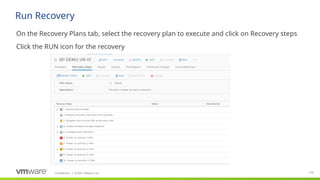
​
On the Recovery Plans tab, select the recovery plan to execute and click on Recovery steps
​
Click the RUN icon for the recovery
Run Recovery
Confidential ©2021 VMware, Inc.
│ 130
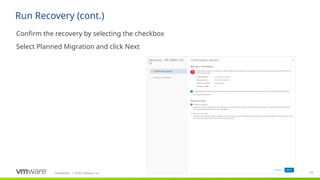
​
Confirm the recovery by selecting the checkbox
​
Select Planned Migration and click Next
Run Recovery (cont.)
Confidential ©2021 VMware, Inc.
│ 131
​
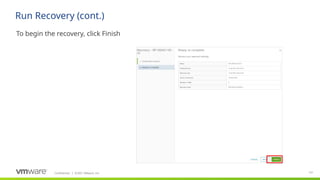
To begin the recovery, click Finish
Run Recovery (cont.)
132
Confidential ©2021 VMware, Inc.
│ 132
Executing a Failback
Confidential ©2021 VMware, Inc.
│ 133
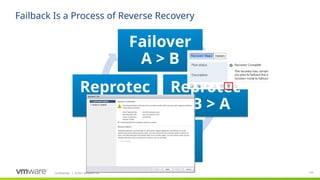
Failover
A > B
Reprotec
t B > A
Failover
B > A
Reprotec
t A > B
Failback Is a Process of Reverse Recovery
Confidential ©2021 VMware, Inc.
│
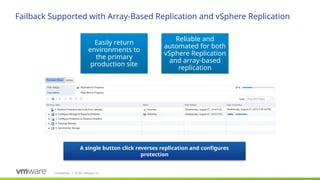
Failback Supported with Array-Based Replication and vSphere Replication
A single button click reverses replication and configures
protection
Easily return
environments to
the primary
production site
Reliable and
automated for both
vSphere Replication
and array-based
replication
Confidential ©2021 VMware, Inc.
│ 135
​
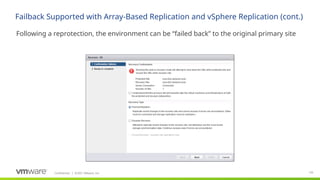
Following a reprotection, the environment can be “failed back” to the original primary site
Failback Supported with Array-Based Replication and vSphere Replication (cont.)
136
Confidential ©2021 VMware, Inc.
│ 136
Reporting
Confidential ©2021 VMware, Inc.
│ 137
137
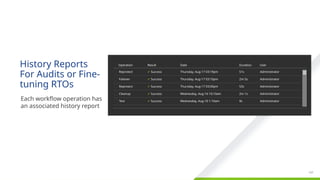
History Reports
For Audits or Fine-
tuning RTOs
​
Each workflow operation has
an associated history report
Operation
Reprotect
Failover
Reprotect
Cleanup
Test
Result
✔ Success
✔ Success
✔ Success
✔ Success
✔ Success
Date
Thursday, Aug-17 03:19pm
Thursday, Aug-17 03:10pm
Thursday, Aug-17 03:00pm
Wednesday, Aug-16 10:10am
Wednesday, Aug-16 1:10am
Duration
51s
2m 5s
53s
2m 1s
9s
User
Administrator
Administrator
Administrator
Administrator
Administrator
Confidential ©2021 VMware, Inc.
│ 138
138
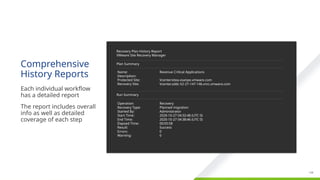
Comprehensive
History Reports
​
Each individual workflow
has a detailed report
​
The report includes overall
info as well as detailed
coverage of each step
Recovery Plan History Report
VMware Site Recovery Manager
Plan Summary
Name:
Description:
Protected Site:
Recovery Site:
Revenue Critical Applications
Vcentersitea.vsanpe.vmware.com
Vcenter.sddc-52-27-147-146.vmc.vmware.com
Run Summary
Operation:
Recovery Type:
Started By:
Start Time:
End Time:
Elapsed Time:
Result:
Errors:
Warning:
Recovery
Planned migration
Administrator
2020-10-27 04:32:48 (UTC 0)
2020-10-27 04:38:46 (UTC 0)
00:05:58
Success
0
0
Confidential ©2021 VMware, Inc.
│ 139
139
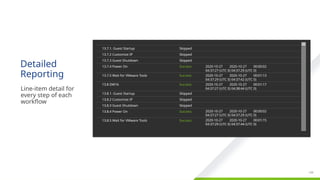
Detailed
Reporting
​
Line-item detail for
every step of each
workflow
Skipped
Skipped
Skipped
Success
Success
Success
Skipped
Skipped
Skipped
Success
Success
13.7.1. Guest Startup
13.7.2 Customize IP
13.7.3 Guest Shutdown
13.7.4 Power On
13.7.5 Wait for VMware Tools
13.8 DW16
13.8.1. Guest Startup
13.8.2 Customize IP
13.8.3 Guest Shutdown
13.8.4 Power On
13.8.5 Wait for VMware Tools
2020-10-27 2020-10-27 00:00:02
04:37:27 (UTC 0) 04:37:29 (UTC 0)
2020-10-27 2020-10-27 00:01:13
04:37:29 (UTC 0) 04:37:42 (UTC 0)
2020-10-27 2020-10-27 00:01:17
04:37:27 (UTC 0) 04:38:44 (UTC 0)
2020-10-27 2020-10-27 00:00:02
04:37:27 (UTC 0) 04:37:29 (UTC 0)
2020-10-27 2020-10-27 00:01:15
04:37:29 (UTC 0) 04:37:44 (UTC 0)
140
Confidential ©2021 VMware, Inc.
│ 140
Monitoring
Confidential ©2021 VMware, Inc.
│
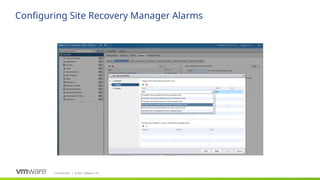
Configuring Site Recovery Manager Alarms
Confidential ©2021 VMware, Inc.
│ 142
​
Events generated by Site Recovery Manager are tied to vCenter Server alarms
​
These events perform the following
• Send email to the specified address
• Send SNMP traps to vCenter Server trap receivers
• Execute the specified command on the vCenter Server
Alarms
Confidential ©2021 VMware, Inc.
│ 143
​
A site failure generates events that can be associated with vCenter Server alarms
• Problems with local site (for example, resource constraints)
• Problems with remote site (for example, ping failure)
– Remote site failure is reflected in Site Recovery Manager events and does not automatically trigger a
recovery
– Recovery must be initiated manually
• Disk space is low
• Memory is low
• CPU usage exceeded the limit
• Remote site fails, or fails to respond
• Recovery test status
• Virtual machine recovery status
Monitoring Sites
144
Confidential ©2021 VMware, Inc.
│ 144
Upgrade Overview
Confidential ©2021 VMware, Inc.
│ 145
​
VMware Site Recovery Manager no longer supports the Windows version of the installer
and is available only as an appliance since 8.4.
​
Site Recovery Manager 8.5 support direct upgrade from Site Recovery Manager virtual
appliance 8.4 and 8.3.
• To upgrade the Site Recovery Manager 8.3.x for Windows instance to Site Recovery Manager 8.5,
you must first migrate the Site Recovery Manager 8.3.x instance from Windows to the Site
Recovery Manager Virtual Appliance.
​
Upgrading from Site Recovery Manager 6.x to Site Recovery Manager 8.5 is not supported.
​
See Upgrading Site Recovery Manager in the Site Recovery Manager 8.5 documentation for
information about upgrading to 8.5.
Upgrading Site Recovery Manager
Note: For information about supported upgrade paths, see Upgrade Path > VMware Site Recovery
Manager in the VMware Product Interoperability Matrixes at
http://partnerweb.vmware.com/comp_guide2/sim/interop_matrix.php? before you upgrade.
Confidential ©2021 VMware, Inc.
│ 146
​
In-place upgrade of Site Recovery Manager Server (Virtual Appliance only)
• The simplest upgrade path. This path involves upgrading the Platform Services Controller and
vCenter Server instances associated with Site Recovery Manager before upgrading Site Recovery
Manager Server. Run the new version of the Site Recovery Manager installer on the existing Site
Recovery Manager Server host machine, connecting to the existing database.
​
Upgrade Site Recovery Manager with migration
• This path involves upgrading the Platform Services Controller and vCenter Server instances
associated with Site Recovery Manager before upgrading Site Recovery Manager Server. To
migrate Site Recovery Manager to a different host or virtual machine as part of the Site Recovery
Manager upgrade, stop the existing Site Recovery Manager Windows Server.
Upgrade Site Recovery Manager 8.3/8.4 to Site Recovery Manager 8.5
Note: Site Recovery Manager 8.5 supports virtual appliance installer only, please migrate the Windows
instance to virtual appliance before upgrading the Site Recovery Manager 8.3 Windows instance to 8.5.
Confidential ©2021 VMware, Inc.
│ 147
​
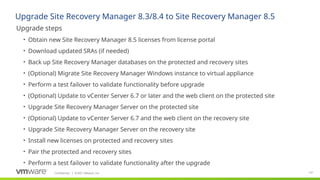
Upgrade steps
• Obtain new Site Recovery Manager 8.5 licenses from license portal
• Download updated SRAs (if needed)
• Back up Site Recovery Manager databases on the protected and recovery sites
• (Optional) Migrate Site Recovery Manager Windows instance to virtual appliance
• Perform a test failover to validate functionality before upgrade
• (Optional) Update to vCenter Server 6.7 or later and the web client on the protected site
• Upgrade Site Recovery Manager Server on the protected site
• (Optional) Update to vCenter Server 6.7 and the web client on the recovery site
• Upgrade Site Recovery Manager Server on the recovery site
• Install new licenses on protected and recovery sites
• Pair the protected and recovery sites
• Perform a test failover to validate functionality after the upgrade
Upgrade Site Recovery Manager 8.3/8.4 to Site Recovery Manager 8.5
Confidential ©2021 VMware, Inc.
│
Additional Resources
​
Cloud Platform Tech Zone - core.vmware.com
​
Hands on Lab
​
Site Recovery Technical Overview
​
Site Recovery Manager Evaluation Guide
​
VMware Product Documentation
​
Trial Licenses
​
VMTN Community Forums
​
Site Recovery Manager FAQ
​
Site Recovery Manager Best Practices
Confidential ©2021 VMware, Inc.
│
Thank You
150
Solution
Knowledge Transfer
Workshop
VMware, Inc.
3401 Hillview Ave
Palo Alto, CA 94304
Tel: 1-877-486-9273 or 650-427-5000
Fax: 650-427-5001

Knowledge Transfer Workshop VMware Solution

  • 1.
  • 2.
    Agenda 2 ​ Introductions and WorkshopObjectives ​ Conceptual Design ​ Solution Scope ​ Logical Design ​ Site Recovery Manager Design Session ​ Adoption for the Digital Workspace <Process Type Name> <Process Type Name> <Process Type Name> ​ Next Steps Consultant: Before giving this presentation to a customer, use the Delivery Reference Guide to obtain the correct Knowledge Transfer Content for this engagement based upon the specific products include in the Solution Builder engagement file.
  • 3.
    3 ​ Participant introductions • Whatexperience do you have? • Why are you attending this workshop? • What do you expect to achieve? ​ Expectations of the workshop • Outcomes expected of workshop Introductions and Workshop Objectives PS Consultant: Please fill out these bullet points to provide scope and expectations of this workshop.
  • 4.
    4 VMware Solution ConceptualDesign Consumption Interface Consumption Interface Physical Resources Abstraction, Pooling and Tenancy Resource Catalogs Management Security Active Workloads On Premesis Automation Applications Active Workloads Cloud End User Access Storage API GUI CLI Virtual Machines Containers Financial Network Compute Data Availability Isolation Threat Containment Data Encryption Event Capacity Performance Service Level Reclamation Infrastructure Provisioning Analytics Data SaaS 3rd Platform Client Server Development lifecycle Application provisioning Virtual Machines Containers Compute Network Storage Infrastructure Applications Services Compute Network Storage Compute Network Storage Scaling Compliance Governance Data
  • 5.
    5 Logical Diagram VMware Solution PSOConsultant: Insert appropriate logical diagrams based on the current solution.
  • 6.
    6 These are theIT Capabilities that have been determined as the focus for this engagement Solution Scope IT Capabilities in Scope Recover from data center outages
  • 7.
    7 These are theIT Problems that have been determined as the focus for this engagement Solution Scope IT Problems in Scope High CAPEX and OPEX for disaster recovery Manual process causing disaster recovery delays
  • 8.
    8 Logical Diagram VMware Solution PSOConsultant: Insert appropriate logical diagrams based on the current solution. Review the diagram, covering each component and its function
  • 9.
    9 This specific engagementby VMware Professional Services included the following components of the VMware Solution. This Solution Design content will only refer to these components: Engagement Scope - Technical Technology Components Version Site Recovery Manager 8.5.x
  • 10.
    11 Confidential ©2021 VMware,Inc. │ 11 VMware Site Recovery Manager
  • 11.
    12 Confidential ©2021 VMware,Inc. │ 12 What’s New VMware Site Recovery Manager 8.5.x
  • 12.
    Confidential ©2021 VMware,Inc. │ 14 Site A Site B vCenter SRM vSphere vCenter SRM vSphere Stretched Storage Zero Downtime Stretched Storage Expanded Support No longer limited to only Storage Policy-Based Protection Groups ​ Zero downtime planned migration of VMs ​ Test failover includes checks for vmotion compliance ​ No specific vCenter or vSphere version requirements ​ Requires SRM Enterprise License Cross vCenter vMotion
  • 13.
    Confidential ©2021 VMware,Inc. │ 15 Automatic Protection Enhancements Making SRM Management More Dynamic 1. VM Deleted or vMotioned to a different protection group Protection Group 1 File – Block - vVols Protected VMs Replica VMs ​ SRM now supports automatically removing VMs from protection group(s) ​ Also supports moving VMs between protection groups ​ Turned off by default ​ Must be enabled at each sites ​ All files of a VM must be deleted/moved otherwise SRM will throw an error Protection Group 2 File – Block - vVols Array Replication Protected VMs Replica VMs Array Replication 2. VM automatically removed from protection group and if applicable, added to new protection group
  • 14.
    Confidential ©2021 VMware,Inc. │ 16 Enhanced Security and More vSphere Replication support for FIPS ​ Support for FIPS now for both SRM & VR including vRO and vROps Mgmt Packs ​ Replicated VMs Storage Policy Updates ​ Surfaced Additional Observability Metrics ​ Clarity 5.1 UI ​ UI Datagrid Redesign
  • 15.
    17 Confidential ©2021 VMware,Inc. │ 17 Product Overview VMware Site Recovery Manager 8.5.x
  • 16.
    Confidential ©2021 VMware,Inc. │ 18 18 VMware Site Recovery Manager ​ Simplifies ​ Automates ​ Supports flexibility
  • 17.
    Confidential ©2021 VMware,Inc. │ 19 19 Transforms Management of Recovery and Migration Plans ​ … to Simple Recovery Plans ​ From Complex Runbooks Simple set up in minutes Software-defined workflows eliminate errors Quickly fall out of sync with infrastructure changes Weeks or months to set up recovery plans Unstructured and manual makes them error-prone Simple to update and keep in sync with changes
  • 18.
    Confidential ©2021 VMware,Inc. │ 20 20 VMware Site Recovery Manager ​ Centralized recovery plans for 2000’s of VMs ​ Non-disruptive recovery testing ​ Automated DR workflows ​ Integrated with the VMware product stack ​ Eliminates complexity and risk of manual processes ​ Enables fast and highly predictable RTOs ​ Policy-driven DR control for any virtualized app Protected Site Array Based Replication vSphere Replication vCenter SRM Recovery Site vCenter SRM
  • 19.
    Confidential ©2021 VMware,Inc. │ 21 21 ​ Weeks or months to set up recovery plans Unstructured and manual makes them error-prone Quickly fall out of sync with infrastructure changes ​ Simple set up in minutes Software-defined workflows eliminate errors ​ Simple to update and keep in sync with changes ​ From Complex Runbooks ​ …to Simple Recovery Plans Transforms Management of Recovery And Migration Plans …
  • 20.
    Confidential ©2021 VMware,Inc. │ Three Building Blocks for Disaster Recovery Infrastructure Solutions Data Protection Solutions Automation Solutions
  • 21.
    Confidential ©2021 VMware,Inc. │ Three Building Blocks for Disaster Recovery (cont.) VMware vSphere VMware vSAN™ Ecosystem VMware vSphere Data Protection™ VMware vSphere® Replication™ VMware Site Recovery Manager™ VMware Array-Based Backup Copies External Storage Storage Compute Backup and Recovery Replication Disaster Recovery Orchestration
  • 22.
    Confidential ©2021 VMware,Inc. │ Virtualization and Software-Defined Storage From VMware Improve Disaster Recovery vSphere vSAN Encapsulation Consolidation Server HW independence vSphere vSpher e vSpher e Policy-based management Hyper- convergence Storage HW independence x86 Servers
  • 23.
    Confidential ©2021 VMware,Inc. │ Arra y- Base d Repli catio n vSphere Replication vSphere Data Protection Data Protection Determines the Recovery Point Objective (RPO) • Options for zero data loss • Available through storage partners RPO Synchronous Minutes Hours Days • One day min. RPO • Backup data replication Site Recovery Manager integration for DR orchestratio n • RPO from 5 minutes* to 24 hours • VM-level, hypervisor- based * Note: vSphere Replication displays the 5 minute RPO setting when the target and the source site use VMFS 6.0, VMFS 5.x, NFS 4.1, NFS 3, vVol, or vSAN 6.2 Update 3 storage and later.
  • 24.
    Confidential ©2021 VMware,Inc. │ 26 26 Hypervisor-Based Replication for vSphere VMs vSphere Replication vSphere Site A vSphere vSphere Replication SAN NAS vSAN / vVol vSAN / vVol NAS SAN Site B • Solution Description – vSphere Replication is VMware proprietary technology for hypervisor-based replication of vSphere virtual machines • Key Features – VM-centric, storage-independent – Flexible RPO (5 minutes* to 24 hours) – Multiple points in time recovery (up to 24 replicas) – Network-efficient “lightweight delta” replication • Key Benefits – Simplifies replication of virtual machines – Reduces storage and bandwidth investments – Integrated with the VMware product stack – Included with VMware vSphere Essentials Plus Kit or higher editions at no additional cost * The 5 minute RPO requires the source host to be ESXi 6.0 or later for vSAN, and ESXi 6.5 for other supported datastores.
  • 25.
    Confidential ©2021 VMware,Inc. │ 27 27 ​ Solution Description • Site Recovery Manager is the industry-leading disaster recovery automation solution for vSphere environments ​ Key Features • Centralized recovery plans for thousands of VMs • Non-disruptive recovery testing • Automated disaster recovery workflows • Integrated with the VMware product stack ​ Key Benefits • Lowers the cost of disaster recovery management by 50% or more • Eliminates complexity and risk of manual processes • Enables fast and highly-predictable RTOs • Provides policy-driven disaster recovery control for any virtualized application Automated Disaster Recovery Orchestration Site Recovery Manager vSphere vCenter Server Site Recovery Manager vCenter Server Site Recovery Manager vSphere Production Site Recovery Site Servers Servers Array-based Replication vSphere Replication
  • 26.
    Confidential ©2021 VMware,Inc. │ Key Components of a Disaster Recovery Solution With Site Recovery Manager vCenter Server Site Recovery Manager Protected Site Recovery Site Storage vCenter Server Site Recovery Manager vSphere vSphere Storage
  • 27.
    Confidential ©2021 VMware,Inc. │ Key Components of a Disaster Recovery Solution With Site Recovery Manager (cont.) vSphere Replication Array-based replication (third-party) Protected Site Storage Site Recovery Manager vSphere or VMware vCenter Server® One instance installed at each site (Protected and Recovery) Storage Replication Adapter (SRA) provided by storage vendor One virtual appliance installed at each site vCenter Server Site Recovery Manager vSphere
  • 28.
    Confidential ©2021 VMware,Inc. │ 30 30 Multi-Site Failover ​ One to one pairing of SRM servers Each VM only protected once Utilize enhanced linked mode Site A Site C Site B
  • 29.
    Confidential ©2021 VMware,Inc. │ 31 31 Simplify Protection with Storage Policy-Based Protection Groups ​ Policy Driven Protection ​ New Style Protection Group leveraging storage profiles ​ High level of automation compared to traditional protection groups ​ Policy based approach reduces OpEx ​ Simpler integration of VM provisioning, migration, and decommissioning Storage Policy Profile Driven Protection Group
  • 30.
    Confidential ©2021 VMware,Inc. │ 32 32 SRM with Stretched Storage Best of both Zero downtime with orchestrated cross- VC vMotion Non-disruptive testing Site A Site B vCenter SRM vSphere vCenter SRM vSphere Stretched Storage
  • 31.
    Confidential ©2021 VMware,Inc. │ 33 33 vSAN Stretched Cluster Disaster Recovery Third Site Site Recovery Manager vSphere Replication vSAN Witness Host vSAN Stretched Cluster Preferred Site Preferred Site
  • 32.
    Confidential ©2021 VMware,Inc. │ 34 34 Granular replication per VM to multiple partners vVols Makes Replication Easy Palo Alto Miami New York RG-MIA-Sales RG-NY-Accounting
  • 33.
    Confidential ©2021 VMware,Inc. │ vSphere Replication Overview ​ Reliable: Protecting thousands of VMs since 2011 ​ Efficient: WAN-friendly replication with compression ​ Value: Included with vSphere Essentials Plus Kit and higher ​ Easy: Virtual appliance deployment, vSphere Web Client management 35 OS Da ta Ap p OS Da ta Ap p SAN vSAN vCenter Server vSphere Replication Only changes are replicated OS Da ta Ap p OS Da ta Ap p
  • 34.
    Confidential ©2021 VMware,Inc. │ 36 36 vSphere Replication Components VR agent vSCSI filter Base Disks Redo Logs vSphere Replication Management Server NFC service VMDK files vSphere vSphere Virtual Appliances
  • 35.
    Confidential ©2021 VMware,Inc. │ vSphere Replication Features and Benefits ​ Flexible recovery point objective (RPO) policies – 5 mins to 24 hours • Supports a wide variety of business requirements ​ Compatible with vVol, vSAN, SAN, NAS, local storage • One solution reduces complexity and cost ​ Quick recovery for individual VMs • Reduces downtime, minimizes resource requirements 37
  • 36.
    Confidential ©2021 VMware,Inc. │ vSphere Replication Features and Benefits ​ End-to-end network compression • Further reduces bandwidth requirements ​ Network traffic isolation • Control bandwidth, improve performance, security ​ Windows VSS and Linux file system quiescing • Increased reliability when recovering VMs 38 Manageme nt Replication WAN LAN
  • 37.
    Confidential ©2021 VMware,Inc. │ vSphere Replication Typical Use Cases ​ Typical use cases • Disaster recovery • Disaster avoidance • Planned migration • VM replication within the same site or across sites • ROBO
  • 38.
    Confidential ©2021 VMware,Inc. │ 40 ​ 5 Minutes RPO for vSAN • vSphere Replication 6.5 and above support the 5 minute RPO when both source and target use VMFS 6.0, VMFS 5.x, NFS 4.1, NFS 3, vVol, or vSAN 6.2 Update 3 storage and later • Maximum of 100 VMs on VMFS 6.0, VMFS 5.x, NFS 4.1, NFS 3, and vSAN 6.2 Update 3 storage and later. • Maximum of 50 VMs for vVol datastore • Requires the source host to be ESXi 6.0 or later for vSAN, and ESXi 6.5 for other supported datastores vSphere Replication
  • 39.
    Confidential ©2021 VMware,Inc. │ vSphere Replication Calculator ​ Accessible at www.vmware.com/vrcalculator ​ Input variables • VM change rate • Average VM disk size • Capacity utilization • Network latency • Number of VMs replicated ​ Variables to solve for • RPO • Number of VMs • Network bandwidth required ​ Use with vSphere Replication Capacity Planning Appliance
  • 40.
    42 Confidential ©2021 VMware,Inc. │ 42 Architecture VMware Site Recovery Manager 8.5.x
  • 41.
    Confidential ©2021 VMware,Inc. │ 43 43 Terminology RPO Recovery Point Objective RTO Recovery Time Objective Last Viable Restore Point All Functionality Recovered Disaster Strikes
  • 42.
    Confidential ©2021 VMware,Inc. │ 44 44 Confidential ©2020 VMware, Inc. │ vSphere Replication Site Recovery Manager Architecture Each site independent from the other vSphere Replication Protected Site vSphere Replication Recovery Site Array-Based Replication or vVol Replication SRM vCenter SRA vSphere Storage vSAN, vVols, VMFS, NFS SRM vCenter SRA vSphere Storage vSAN, vVols, VMFS, NFS
  • 43.
    Confidential ©2021 VMware,Inc. │ 45 45 Recovery Site vCenter SRM SRM is not a replication solution Replication Options SRM monitors and interacts with replication solutions Choice of replication options vSphere Replication/Host Based Replication Array Based Replication vVols Replication Protected Site vVol and Array Based Replication vSphere Replication vCenter SRM
  • 44.
    Confidential ©2021 VMware,Inc. │ 46 46 Full support for all SRM functionality Integrated with SPBM All VMs within a Replication Group are kept consistent Recovery can be as granular as a single VM VASA provider instead of SRA Benefits of both array-based replication and vSphere replication Virtual Volumes vVols vSphere vVol Replication Groups vVols vSphere vVol Replication vVol Replication vVol Replication Groups vVol Replication
  • 45.
    Confidential ©2021 VMware,Inc. │ 47 47 Confidential ©2020 VMware, Inc. │ Array-Based Replication Protected Site Recovery Site Array-Based Replication SRM vCenter SRA vSphere Storage Array File or Block SRM vCenter SRA vSphere Storage Array File or Block
  • 46.
    Confidential ©2021 VMware,Inc. │ 48 48 vSphere Replication Overview Network-efficient, replicating only changed data Protected Site VMware vSphere Replication Per-VM RPOs as low as 5 minutes Recovery Site vSAN, vVol, VMFS, NFS, Local vSAN, vVol, VMFS, NFS, Local
  • 47.
    Confidential ©2021 VMware,Inc. │ 49 49 vSphere Replication Details ​ Compression ​ MPIT Recovery ​ Quiescing ​ Encryption ​ Reduces replication time and network bandwidth consumption ​ Securely transmit data across insecure links Ability to recover to one of up to 24 previous points-in-time Application consistent replication
  • 48.
    Confidential ©2021 VMware,Inc. │ 50 ​ vCenter Server • Site Recovery Manager 8.5 requires at least vCenter Server 6.7 to function • One vCenter Server must be deployed for each site and must manage all hosts for that site only • Licensed and running on each site ​ VMware ESXi™ host • Recommend grouping ESXi hosts running the same version at a site into VMware vSphere High Availability and VMware vSphere Distributed Resource Scheduler™ clusters • vSphere – must be version 6.5 or later running on each site ​ Site Recovery Manager Server • One Site Recovery Manager Server must be deployed for each site • Site Recovery Manager Server can be installed on a physical or virtual system • Requires Windows 64-bit OS (Site Recovery Manager for Windows) Requirements
  • 49.
    Confidential ©2021 VMware,Inc. │ 51 ​ Storage array replication • Storage arrays attached to hosts must be listed in the VMware Compatibility Guide for vSphere ( http://www.vmware.com/resources/compatibility/search.php) • Compatible SRA installed and configured at the protected and recovery sites • Some SRAs also require a framework component to be installed (for example, specific Java JRE, EMC Solutions Enabler, HDS, and CCI) • Zoning and masking configured for replicated LUNs to remote vSphere hosts for failover • Credentials for array and replication discovery to the protected site and LUN failover to the recovery site • Download SRAs only from vmware.com ​ vSphere Replication • vSphere Replication is configured to use a dual-core or quad-core CPU, a 13 GB and a 9 GB hard disk, and 8 GB of RAM. Additional vSphere Replication servers require 716 MB of RAM. Requirements (cont.)
  • 50.
    Confidential ©2021 VMware,Inc. │ 52 ​ Stretched storage solution • Storage clustering solution that supports distributed data mirroring • Read/write access to the same volumes from both sites • Some tie-break mechanism to avoid split-brain • Examples: EMC VPLEX, IBM SVC, NetApp Metro Cluster, … • vSphere vMotion capability requirement – vSphere vMotion supports a max of 10 millisecond RTT latency – vSphere vMotion requires 250 Mbps bandwidth for each VM ​ Stretched network solution • NSX or third party • Enables live migration of apps without changing IP addresses Requirements (cont.)
  • 51.
    Confidential ©2021 VMware,Inc. │ Operational Limits Operation Limits Site Recovery Manager 8.5.x Total number of virtual machines configured for protection (array-based replication, vSphere Replication, and storage policy protection combined) 5000 Total number of virtual machines configured for protection using array- based replication 5000 Total number of virtual machines configured for protection using vSphere Replication 3000 Total number of virtual machines per protection group 500 Total number of array-based replication protection groups and vSphere Replication protection groups 500 Total number of recovery plans 250 Total number of protection groups per recovery plan 250
  • 52.
    Confidential ©2021 VMware,Inc. │ Operational Limits Operation Limits Site Recovery Manager 8.5.x Total number of virtual machines per recovery plan 2000 Total number of replicated datastores (using array-based replication) 255 Total number of virtual machine recoveries that you can start simultaneously, for array-based replication, vSphere Replication, and storage policy protection combined, across multiple recovery plans 2000 Total number of concurrently executing recovery plans 10 Total number of virtual machines configured for storage policy protection 2000 Total number of virtual machines configured for protection using array- based replication with stretched storage 1000 Total number of storage policy protection groups 32
  • 53.
    55 Confidential ©2021 VMware,Inc. │ 55 Technical Walk Through VMware Site Recovery Manager 8.5.x
  • 54.
    Confidential ©2021 VMware,Inc. │ 56 56 Each Site Independent From the Other Site Recovery Manager Architecture vSphere Replication SRM vSphere SRM vSphere Storage vSAN, VMFS, NFS or VVols vCenter vSphere Replication Protected Site vCenter vSphere Replication Storage vSAN, VMFS, NFS or VVols Recovery Site Array-Based Replication SRA SRA
  • 55.
    Confidential ©2021 VMware,Inc. │ 57 57 ​ Fastest RTO Recover from unexpected failure ​ Full or partial site recovery ​ Least frequent and most critical use case ​ Anticipate outages ​ Preventive failover ​ Graceful shutdown ensuring no data loss ​ Most common use case ​ Frequent on-ramp for SRM ​ Enables data center maintenance and global load balancing Typical Use Cases ​ Disaster Recovery ​ Disaster Avoidance ​ Planned Migration
  • 56.
    Confidential ©2021 VMware,Inc. │ 58 58 Protected Site Recovery Site Active-Passive Failover Traditional recovery Higher Tier Workloads Lower Tier Workloads Active-Active Failover Run lower tier workloads at recovery site Bi-directional Failover For multiple production sites
  • 57.
    Confidential ©2021 VMware,Inc. │ 59 59 Multi-Site Failover ​ One to one pairing of SRM servers Each VM only protected once Utilize enhanced linked mode Site A Site C Site B
  • 58.
    Confidential ©2021 VMware,Inc. │ 60 60 SRM Works with Stretched Storage • Best of both • Zero downtime with Orchestrated cross-VC vMotion • Non-disruptive testing Site A Stretched Storage Site B SRM vCenter vSphere SRM vCenter vSphere
  • 59.
    Confidential ©2021 VMware,Inc. │ 61 61 vSAN Stretched Cluster Disaster Recovery vSAN Stretched Cluster Preferred Site Secondary Site Third Site Site Recovery Manager vSphere Replication vSAN Witness Host
  • 60.
    62 Confidential ©2021 VMware,Inc. │ 62 Deployment
  • 61.
    Confidential ©2021 VMware,Inc. │ 63 63 Replicating and Protecting VMs in about an hour Quick and Easy Steps to Deployment ​ Install vSphere Replication ​ Install Site Recovery Manager ​ Pair Sites, Map Resources and define Placeholder Datastores ​ Replicate and Protect VMs ​ Test Recovery Plan 01 02 03 04 05
  • 62.
    Confidential ©2021 VMware,Inc. │ 64 64 Site Recovery Manager Concepts One or more protection groups Protected Site Recovery Site Site pairing mapping Protection Groups Recover Plans Resources: Networks, Folders, Resource Pools, Placeholder Datastores Protection Groups Recover Plans Resources: Networks, Folders, Resource Pools, Placeholder Datastores vCenter Server VR Server SRM Server vCenter Server VR Server SRM Server Groups of VMs recovered together
  • 63.
    Confidential ©2021 VMware,Inc. │ 65 ​ Protected and recovery site setup • VMware vCenter Server® instances • VMware ESXi™ hosts • VMware Site Recovery Manager™ Server installation and configuration • VMware vSphere® Replication™ configuration (if used) • Array replication installation and configuration (if used) – Storage Replication Adapter (SRA) installation and configuration • Download appropriate storage replication adapter from vmware.com • Install storage replication adapter on Site Recovery Manager Server system • Review the README file that comes with the SRA • Review the storage vendor’s detailed SRA implementation guide • Restart the Site Recovery Manager service after installing SRA Prerequisites
  • 64.
    Confidential ©2021 VMware,Inc. │ 66 ​ Protected and recovery site setup • Stretched network solution – Layer 3 network stretching – Enables live migration of VMs without changing IP addresses – VMware vSphere Storage vMotion® supports a max of 10 millisecond RTT latency – Storage vMotion requires 250 Mbps bandwidth for each VM Prerequisites (cont.)
  • 65.
    Confidential ©2021 VMware,Inc. │ 67 67 Reduce VR Re-Deployment Time with Automation Export/Backup and Import/Restore capabilities for VR configuration Includes details for all configured replications ​ Currently CLI only ​ Requires vSphere 7 vSphere Replication Configuration Import/Export Tool Replication Configuration vSphere Replication Ongoing Replication
  • 66.
    68 Confidential ©2021 VMware,Inc. │ 68 Replication
  • 67.
    Confidential ©2021 VMware,Inc. │ 69 69 Array-Based Replication Overview ​ Offered by/thru Array Vendor ​ Requires similar hardware at both sites ​ Utilizes SRA for communication between SRM and Array SRM vSphere Storage Array File or Block vCenter Protected Site Array-Based Replication SRA SRM vSphere Storage Array File or Block vCenter Recovery Site SRA
  • 68.
    Confidential ©2021 VMware,Inc. │ 70 70 Storage Array Integration ​ Storage Replication Adapters (SRAs): ​ Discover arrays ​ Determine which LUNs are replicated ​ Assist in initiating tests, recovery, reprotect, etc SRM Server SRA Vendor Management Interface Array Manager Array Manager Replication Manager SRA Vendor Management Interface Array Array Array
  • 69.
    Confidential ©2021 VMware,Inc. │ 71 71 Integrated SRM Support for vVols Replication ​ Full support for all SRM functionality Integrated with SPBM ​ All VMs within a Replication Group are kept consistent ​ Recovery can be as granular as a single VM ​ VASA provider instead of SRA ​ Integrated with vRO plug-in and vROps Mgmt Pack SRM now supports all storage supported by vSphere vVols vSphere vVol Replication Groups SRM Orchestrated Recovery vVols vSphere vVol Replication vVol Replication vVol Replication
  • 70.
    Confidential ©2021 VMware,Inc. │ 72 72 Network-efficient, replicating only changed data vSphere Replication Overview Customer Site VMware vSphere Replication Per-VM RPOs as low as 5 minutes Customer Site
  • 71.
    Confidential ©2021 VMware,Inc. │ 73 73 vSphere Replication Details ​ Protect any VM regardless of OS and apps ​ Flexible recovery point objective (RPO) policies ​ Compatible with vVol, vSAN, SAN, NAS, local storage ​ End-to-end network compression ​ Windows VSS and Linux file system quiescing DATA OS APP Virtual Appliance Compress
  • 72.
    Confidential ©2021 VMware,Inc. │ 74 ​ Starting with Site Recovery Manager 6.0, there is no longer a plug-in for VMware vSphere Web Client ​ Use the vSphere Web Client ​ Deploy vSphere Replication Appliance • Using the vSphere Web Client, log in to protected site vCenter Server • Click the cluster you want to deploy • Select the OVF location file from your drive or specify the URL – Name and location – Host/cluster and resource pool – Disk format – Network properties – Service bindings • Click Finish • Verify the deployment status vSphere Replication Configuration
  • 73.
    Confidential ©2021 VMware,Inc. │ 75 ​ Configure vSphere Replication on virtual machines • Use the vSphere Web Client (for VMs with Virtual Machine Virtual Hardware version 7 or later) to log in to the protected site vCenter Server • On the toolbar, click the Hosts and Clusters icon • Right-click the virtual machine and click vSphere Replication • Configure – RPO – Target site – Target file location (recovery site’s datastore) – Disk replication – Target disk type – Target vSphere Replication Server – Multiple points in time (MPIT) • Click OK when finished vSphere Replication Configuration (cont.)
  • 74.
    Confidential ©2021 VMware,Inc. │ 76 ​ Protected and recovery site pairing confirmation • In the Site Recovery Summary tab, verify that the connection status is Connected Pairing Protected and Recovery Sites
  • 75.
    Confidential ©2021 VMware,Inc. │ Configuring Placeholder Storage ​ Configuring the placeholder storage • Select the protected site • Under Guide to configure SRM, select Configure placeholder datastore • Repeat the process to configure the recovery site placeholder storage
  • 76.
    Confidential ©2021 VMware,Inc. │ 78 ​ Configure inventory mappings • Mapping shows where to put virtual machines in the recovery inventory based on where they are in the protected inventory • Four elements are mapped – Compute resource mappings – you can map host, cluster, and resource pools to any other host, cluster, or resource pools – Folder mappings (blue folders) • Correspond to virtual machines and templates view • Data centers and folders can be mapped to data centers and folders – Network mappings – Storage policy mappings Inventory Mappings
  • 77.
    Confidential ©2021 VMware,Inc. │ 79 79 Automated Disk Resizing ​ Fully automated – No manual steps ​ Requires vSphere 7.0 ​ No impact to ongoing replication Full support for changing disk size without impacting replication 1. User resizes disk vSphere Replication 50 GB 100 GB 50 GB 100 GB 2. Replica disk is resized automatically
  • 78.
    Confidential ©2021 VMware,Inc. │ 80 80 VR Performance improvements ​ Improved VR initial synch ​ Improved steady state throughput Ongoing Replication 8.2 Replica Disk Source Disk Ongoing Replication 8.3 Initial Replication Faster Steady State Faster Initial Synch
  • 79.
    81 Confidential ©2021 VMware,Inc. │ 81 Creating a Protection Group
  • 80.
    Confidential ©2021 VMware,Inc. │ 82 82 What is a Protection Group 82 Confidential ©2019 VMware, Inc. │ ​ A Protection Group can belong to one or more Recovery Plans Group of VMs that will be recovered together • Application • Department • Or according to business requirement ​ A VM can only belong to one Protection Group Protection Group
  • 81.
    Confidential ©2021 VMware,Inc. │ 83 83 Organizing vSphere Replication Protection Groups ​ Group VMs as desired into Protection Groups ​ What storage they are located on doesn’t matter Protection Group 1 Web App Protection Group 2 Email Protection Group 3 SharePoint
  • 82.
    Confidential ©2021 VMware,Inc. │ 84 84 Array Based Protection Groups are Dictated by the Array Layout Protection Group 1 Web App Protection Group 2 Email Protection Group 3 SharePoint Datastore A Datastore B Datastore C Datastore D Consistency Group LUN 1 LUN 2 LUN 3 LUN 4 LUN 5 Datastore E
  • 83.
    Confidential ©2021 VMware,Inc. │ 85 85 Simplify Protection with Storage Policy-Based Protection Groups ​ Policy Driven Protection ​ New Style Protection Group leveraging storage profiles ​ High level of automation compared to traditional protection groups ​ Policy based approach reduces OpEx ​ Simpler integration of VM provisioning, migration, and decommissioning Storage Policy Profile Driven Protection Group
  • 84.
    Confidential ©2021 VMware,Inc. │ 86 86 Storage Policy Determines Protection ​ Requirements for Protection ​ VM associated with storage policy ​ Placed onto storage compliant with that policy Automated protection thru policy
  • 85.
    Confidential ©2021 VMware,Inc. │ 87 87 Simplified Workflow for Replicating and Protecting VMs ​ Single workflow for: • Replication • Protection Groups • Recovery Plans
  • 86.
    Confidential ©2021 VMware,Inc. │ 88 ​ In the left pane, click Protection Group and click Add ​ Provide a name ​ Select the protected site and the protection group type Create a Protection Group
  • 87.
    Confidential ©2021 VMware,Inc. │ 89 ​ Select virtual machines to add to the protection group • A virtual machine can be associated with only one protection group ​ Provide a description for the protection group Select Virtual Machines to Protect
  • 88.
    Confidential ©2021 VMware,Inc. │ 90 ​ In the Protection Group Summary pane, verify that the connection Status is OK Review Protection Group Confirmation
  • 89.
    Confidential ©2021 VMware,Inc. │ 91 91 Automatic protection for VMs added to protected datastores Automatic protection for VMs on vVols using SPBM Ensures VMs are protected in dynamic environments No configuration required SRM will now automatically protect VMs Automated VM Protection 2. VM automatically added to SRM Protection Group File – Block - vVols File – Block - vVols Array Replication Protected VMs Replica VMs 1. VM Created or vMotioned to a replicated datastore
  • 90.
    92 Confidential ©2021 VMware,Inc. │ 92 Creating a Recovery Plan
  • 91.
    Confidential ©2021 VMware,Inc. │ 93 ​ A recovery plan is • A script of how to recover a set of protection groups • A list of steps for switching the operation of workloads from a protected site to the associated recovery site ​ When creating recovery plans, consider the following • You can have several plans for a single site • Plans can overlap • A plan can be run repeatedly • The easiest method is to create one master plan • You can create separate plans for different business units or according to recovery priority (for special needs) • You should include checkpoints for manual steps • Plans must be integrated with physical recovery capabilities Creating a Recovery Plan
  • 92.
    Confidential ©2021 VMware,Inc. │ 94 94 Recovery Plans and Protection Groups Create Flexibility Recovery Plan 1: eComm Protection Group 1 – eComm Recovery Plan 2: BI Protection Group 2: BI Recovery Plan 3: Whole Site Protection Group 1: eComm Protection Group 2: BI Protection Group 3: SharePoint Protection Group 1: eComm Protection Group 2: BI Protection Group 3: SharePoint
  • 93.
    Confidential ©2021 VMware,Inc. │ 95 95 ​ Priority ​ Group 2 Database BI ​ Priority ​ Group 4 Sharepoint 1 Sharepoint 2 Priority Group 5 Test/Dev 1 Test/Dev 2 Test/Dev 3 Test/Dev 4 ​ Priority ​ Group 3 eComm 1 Priorities and Dependencies ​ Priority ​ Group 1 Master Database eComm 2 Dependency
  • 94.
    Confidential ©2021 VMware,Inc. │ 96 ​ Click Recovery Plans tab on Site Recovery home page ​ Click the NEW icon with the plus sign to create a recovery plan Create Recovery Plan
  • 95.
    Confidential ©2021 VMware,Inc. │ 97 ​ Specify the name of the recovery plan and select the direction for the plan Create Recovery Plan (cont.)
  • 96.
    Confidential ©2021 VMware,Inc. │ 98 ​ Select the protection group Create Recovery Plan (cont.)
  • 97.
    Confidential ©2021 VMware,Inc. │ 99 ​ Select the networks to use while running tests of this plan Create Recovery Plan (cont.)
  • 98.
    Confidential ©2021 VMware,Inc. │ Create Recovery Plan (cont.) • Review Recovery Plan Definition
  • 99.
    Confidential ©2021 VMware,Inc. │ 101 101 Recovery Site Multiple Options for VM IP Customization Per VM Mapping Network 1 10.10.40.x/24 Network 2 10.23.73.x/24 ` 192.168.115.72 192.168.212.32 10.10.120.45 10.23.73.6 152.168.121.54 192.168.121.10 7 10.10.40.54 10.10.40.107 xxx xxx 10.23.73.101 10.23.73.134 Protected Site 192.168.115.72 192.168.212.32 Network A 192.168.121.x/24 Network B 192.168.212.x/24 192.168.121.54 192.168.121.10 7 192.168.212.10 1 192.168.212.13 4
  • 100.
    Confidential ©2021 VMware,Inc. │ 102 102 Multiple options for VM IP Customization Per VM IP Subnet Mapping • Map entire subnets rather than individual addresses
  • 101.
    Confidential ©2021 VMware,Inc. │ 103 103 Shutdown and Startup Actions to Further Control VM Customization Shutdown Actions Startup Actions Shut down Power off Power on Shut down Option 1 Option 2 Option 1 Option 2
  • 102.
    Confidential ©2021 VMware,Inc. │ 104 104 Shutdown and Startup Actions to further control VM customization
  • 103.
    Confidential ©2021 VMware,Inc. │ 105 105 Pre and Post Power On Steps Recovery Plan 1 2 3 4 Action 1 Action 2 Action 3 Action 4 Can be run either on SRM server or recovered VM Contact network team have team change load balance
  • 104.
    Confidential ©2021 VMware,Inc. │ Pre and post power on steps • Script or Prompt • Can be run on – Recovered VM – SRM server
  • 105.
    Confidential ©2021 VMware,Inc. │ 107 107 Post-power on scripts Scripts can run on VMs Multiple scripts allowed Recovery Plan continues after either script success or timeout
  • 106.
    108 Confidential ©2021 VMware,Inc. │ 108 Executing a Test Failover
  • 107.
    Confidential ©2021 VMware,Inc. │ 109 ​ Test goals • Make tests similar to recovery so that if the test works, the recovery will not produce unexpected results • Try to reduce impact on the recovery site ​ Execution goals • Suspended virtual machines will remain in the suspended state • Virtual machines start up in parallel – Each ESXi host boots a virtual machine – If there are multiple hosts, a virtual machine boots on each host – Boot order is by priority (high, normal, or low) Executing Recovery Plans for Test
  • 108.
    Confidential ©2021 VMware,Inc. │ 110 ​ Click Recovery Plans and select the recovery plan to test ​ Click the green arrow test icon Run Tests to Simulate Recovery
  • 109.
    Confidential ©2021 VMware,Inc. │ 111 ​ Select Replicate recent changes to recovery site Run Tests to Simulate Recovery (cont.)
  • 110.
    Confidential ©2021 VMware,Inc. │ 112 ​ Click Finish to begin the recovery test Run Tests to Simulate Recovery (cont.)
  • 111.
    Confidential ©2021 VMware,Inc. │ 113 ​ Check the recovery test status Run Tests to Simulate Recovery (cont.)
  • 112.
    Confidential ©2021 VMware,Inc. │ 114 ​ On the Summary tab, note the recovery site’s virtual machine status Run Tests to Simulate Recovery (cont.)
  • 113.
    Confidential ©2021 VMware,Inc. │ 115 ​ Recovery test plan status shows Test Complete when finished Run Tests to Simulate Recovery (cont.)
  • 114.
    Confidential ©2021 VMware,Inc. │ 116 ​ To begin test recovery cleanup, click the cleanup icon Recovery Test Cleanup
  • 115.
    Confidential ©2021 VMware,Inc. │ 117 ​ Cleanup removes the test environment and resets the recovery plan to the ready state Recovery Test Cleanup (cont.)
  • 116.
    Confidential ©2021 VMware,Inc. │ 118 ​ On the Summary tab, note the recovery site’s virtual machine status Recovery Test Cleanup (cont.)
  • 117.
    119 Confidential ©2021 VMware,Inc. │ 119 Workflows
  • 118.
    Confidential ©2021 VMware,Inc. │ 120 120 Automated DR Workflows Ensure and Speed Up Recovery Non-disruptive Testing ​ Automated testing in isolated network ​ Ensures predictability of recovery time objectives (RTO) Automated Failback Re-protect using original recovery plan Streamlines bi-directional migrations Automated Failover Runbook automation Single-click initiation Emphasizes fastest possible recovery after outage Planned Migration Ensures zero data loss and app consistency Enables disaster avoidance and Data Center maintenance or migration
  • 119.
    Confidential ©2021 VMware,Inc. │ 121 121 Risk with Infrequent DR Plan Testing DR test Recovery risk Time Unproven recoverability DR test Changes to Applications and Infrastructure Configuration Testing gap IT Environment without Virtualization and DR Automation Virtualization + DR Automation Frequent DR testing DR test Virtualization and DR automation greatly reduce recovery risk
  • 120.
    Confidential ©2021 VMware,Inc. │ 122 122 Testing a Recovery Plan Without Disruption—Storage vSphere replication continues uninterrupted—no RPO change VM Snapshot VM Snapshot VM Snapshot Protected Site Recovery Site PROD VM PROD VM PROD VM Replica VM Replica VM Replica VM TEST VM TEST VM TEST VM
  • 121.
    Confidential ©2021 VMware,Inc. │ 123 123 Replica VM Replica VM Replica VM Testing a Recovery Plan Without Disruption—Network Network mappings—production and test Isolated Test Network Protected Site Recovery Site PROD VM PROD VM PROD VM TEST VM TEST VM TEST VM
  • 122.
    Confidential ©2021 VMware,Inc. │ 124 124 ​ Synchronize replication ​ Power off VMs in reverse order ​ Synchronize replication again ​ Prepare recovery VMs ​ Power off non-critical VMs at Recovery Site ​ Customize IP addresses (if required) ​ Power on VMs in order ​ Running a Recovery Plan ​ Planned Migration or Disaster Recovery
  • 123.
    Confidential ©2021 VMware,Inc. │ 125 125 ​ Failback is a Process of “Reverse Recovery” Easily return environments to the primary production site Reliable and automated ​ Failover A->B ​ Reprotect B->A ​ Reprotect A->B ​ Migration B->A Confidential ©2020 VMware, Inc. │
  • 124.
    Confidential ©2021 VMware,Inc. │ 126 126 Differences Between Planned Migration and Disaster Recovery ​ Full data synchronization attempted ​ Will NOT stop on errors ​ If the protected site is available, VMs will be recovered in application consistent state ​ Otherwise crash consistent or application dependent ​ Planned Migration Mode ​ Disaster Recovery Mode Full data synchronization guaranteed Stops on errors to allow resolution before continuing VMs always recovered in application consistent state
  • 125.
    127 Confidential ©2021 VMware,Inc. │ 127 Executing a Failover
  • 126.
    Confidential ©2021 VMware,Inc. │ 128 ​ Recovery goals • Recovery does not produce any unexpected results because the tests have already worked • Planned migration ​ Execution goals • Complete pre-synchronization of the virtual machines • Shut down the virtual machines at the protected site • Restore ESXi hosts from standby at the recovery site • Prepare protected site virtual machines for migration • Perform any post-synchronization of the virtual machines • Power on the virtual machines at the recovery site – Boot order is by priority (high, normal, low) Executing Recovery Plans for Failover
  • 127.
    Confidential ©2021 VMware,Inc. │ 129 ​ On the Recovery Plans tab, select the recovery plan to execute and click on Recovery steps ​ Click the RUN icon for the recovery Run Recovery
  • 128.
    Confidential ©2021 VMware,Inc. │ 130 ​ Confirm the recovery by selecting the checkbox ​ Select Planned Migration and click Next Run Recovery (cont.)
  • 129.
    Confidential ©2021 VMware,Inc. │ 131 ​ To begin the recovery, click Finish Run Recovery (cont.)
  • 130.
    132 Confidential ©2021 VMware,Inc. │ 132 Executing a Failback
  • 131.
    Confidential ©2021 VMware,Inc. │ 133 Failover A > B Reprotec t B > A Failover B > A Reprotec t A > B Failback Is a Process of Reverse Recovery
  • 132.
    Confidential ©2021 VMware,Inc. │ Failback Supported with Array-Based Replication and vSphere Replication A single button click reverses replication and configures protection Easily return environments to the primary production site Reliable and automated for both vSphere Replication and array-based replication
  • 133.
    Confidential ©2021 VMware,Inc. │ 135 ​ Following a reprotection, the environment can be “failed back” to the original primary site Failback Supported with Array-Based Replication and vSphere Replication (cont.)
  • 134.
    136 Confidential ©2021 VMware,Inc. │ 136 Reporting
  • 135.
    Confidential ©2021 VMware,Inc. │ 137 137 History Reports For Audits or Fine- tuning RTOs ​ Each workflow operation has an associated history report Operation Reprotect Failover Reprotect Cleanup Test Result ✔ Success ✔ Success ✔ Success ✔ Success ✔ Success Date Thursday, Aug-17 03:19pm Thursday, Aug-17 03:10pm Thursday, Aug-17 03:00pm Wednesday, Aug-16 10:10am Wednesday, Aug-16 1:10am Duration 51s 2m 5s 53s 2m 1s 9s User Administrator Administrator Administrator Administrator Administrator
  • 136.
    Confidential ©2021 VMware,Inc. │ 138 138 Comprehensive History Reports ​ Each individual workflow has a detailed report ​ The report includes overall info as well as detailed coverage of each step Recovery Plan History Report VMware Site Recovery Manager Plan Summary Name: Description: Protected Site: Recovery Site: Revenue Critical Applications Vcentersitea.vsanpe.vmware.com Vcenter.sddc-52-27-147-146.vmc.vmware.com Run Summary Operation: Recovery Type: Started By: Start Time: End Time: Elapsed Time: Result: Errors: Warning: Recovery Planned migration Administrator 2020-10-27 04:32:48 (UTC 0) 2020-10-27 04:38:46 (UTC 0) 00:05:58 Success 0 0
  • 137.
    Confidential ©2021 VMware,Inc. │ 139 139 Detailed Reporting ​ Line-item detail for every step of each workflow Skipped Skipped Skipped Success Success Success Skipped Skipped Skipped Success Success 13.7.1. Guest Startup 13.7.2 Customize IP 13.7.3 Guest Shutdown 13.7.4 Power On 13.7.5 Wait for VMware Tools 13.8 DW16 13.8.1. Guest Startup 13.8.2 Customize IP 13.8.3 Guest Shutdown 13.8.4 Power On 13.8.5 Wait for VMware Tools 2020-10-27 2020-10-27 00:00:02 04:37:27 (UTC 0) 04:37:29 (UTC 0) 2020-10-27 2020-10-27 00:01:13 04:37:29 (UTC 0) 04:37:42 (UTC 0) 2020-10-27 2020-10-27 00:01:17 04:37:27 (UTC 0) 04:38:44 (UTC 0) 2020-10-27 2020-10-27 00:00:02 04:37:27 (UTC 0) 04:37:29 (UTC 0) 2020-10-27 2020-10-27 00:01:15 04:37:29 (UTC 0) 04:37:44 (UTC 0)
  • 138.
    140 Confidential ©2021 VMware,Inc. │ 140 Monitoring
  • 139.
    Confidential ©2021 VMware,Inc. │ Configuring Site Recovery Manager Alarms
  • 140.
    Confidential ©2021 VMware,Inc. │ 142 ​ Events generated by Site Recovery Manager are tied to vCenter Server alarms ​ These events perform the following • Send email to the specified address • Send SNMP traps to vCenter Server trap receivers • Execute the specified command on the vCenter Server Alarms
  • 141.
    Confidential ©2021 VMware,Inc. │ 143 ​ A site failure generates events that can be associated with vCenter Server alarms • Problems with local site (for example, resource constraints) • Problems with remote site (for example, ping failure) – Remote site failure is reflected in Site Recovery Manager events and does not automatically trigger a recovery – Recovery must be initiated manually • Disk space is low • Memory is low • CPU usage exceeded the limit • Remote site fails, or fails to respond • Recovery test status • Virtual machine recovery status Monitoring Sites
  • 142.
    144 Confidential ©2021 VMware,Inc. │ 144 Upgrade Overview
  • 143.
    Confidential ©2021 VMware,Inc. │ 145 ​ VMware Site Recovery Manager no longer supports the Windows version of the installer and is available only as an appliance since 8.4. ​ Site Recovery Manager 8.5 support direct upgrade from Site Recovery Manager virtual appliance 8.4 and 8.3. • To upgrade the Site Recovery Manager 8.3.x for Windows instance to Site Recovery Manager 8.5, you must first migrate the Site Recovery Manager 8.3.x instance from Windows to the Site Recovery Manager Virtual Appliance. ​ Upgrading from Site Recovery Manager 6.x to Site Recovery Manager 8.5 is not supported. ​ See Upgrading Site Recovery Manager in the Site Recovery Manager 8.5 documentation for information about upgrading to 8.5. Upgrading Site Recovery Manager Note: For information about supported upgrade paths, see Upgrade Path > VMware Site Recovery Manager in the VMware Product Interoperability Matrixes at http://partnerweb.vmware.com/comp_guide2/sim/interop_matrix.php? before you upgrade.
  • 144.
    Confidential ©2021 VMware,Inc. │ 146 ​ In-place upgrade of Site Recovery Manager Server (Virtual Appliance only) • The simplest upgrade path. This path involves upgrading the Platform Services Controller and vCenter Server instances associated with Site Recovery Manager before upgrading Site Recovery Manager Server. Run the new version of the Site Recovery Manager installer on the existing Site Recovery Manager Server host machine, connecting to the existing database. ​ Upgrade Site Recovery Manager with migration • This path involves upgrading the Platform Services Controller and vCenter Server instances associated with Site Recovery Manager before upgrading Site Recovery Manager Server. To migrate Site Recovery Manager to a different host or virtual machine as part of the Site Recovery Manager upgrade, stop the existing Site Recovery Manager Windows Server. Upgrade Site Recovery Manager 8.3/8.4 to Site Recovery Manager 8.5 Note: Site Recovery Manager 8.5 supports virtual appliance installer only, please migrate the Windows instance to virtual appliance before upgrading the Site Recovery Manager 8.3 Windows instance to 8.5.
  • 145.
    Confidential ©2021 VMware,Inc. │ 147 ​ Upgrade steps • Obtain new Site Recovery Manager 8.5 licenses from license portal • Download updated SRAs (if needed) • Back up Site Recovery Manager databases on the protected and recovery sites • (Optional) Migrate Site Recovery Manager Windows instance to virtual appliance • Perform a test failover to validate functionality before upgrade • (Optional) Update to vCenter Server 6.7 or later and the web client on the protected site • Upgrade Site Recovery Manager Server on the protected site • (Optional) Update to vCenter Server 6.7 and the web client on the recovery site • Upgrade Site Recovery Manager Server on the recovery site • Install new licenses on protected and recovery sites • Pair the protected and recovery sites • Perform a test failover to validate functionality after the upgrade Upgrade Site Recovery Manager 8.3/8.4 to Site Recovery Manager 8.5
  • 146.
    Confidential ©2021 VMware,Inc. │ Additional Resources ​ Cloud Platform Tech Zone - core.vmware.com ​ Hands on Lab ​ Site Recovery Technical Overview ​ Site Recovery Manager Evaluation Guide ​ VMware Product Documentation ​ Trial Licenses ​ VMTN Community Forums ​ Site Recovery Manager FAQ ​ Site Recovery Manager Best Practices
  • 147.
    Confidential ©2021 VMware,Inc. │ Thank You
  • 148.
    150 Solution Knowledge Transfer Workshop VMware, Inc. 3401Hillview Ave Palo Alto, CA 94304 Tel: 1-877-486-9273 or 650-427-5000 Fax: 650-427-5001

Editor's Notes

  • #14 Stretched storage support, which originally was made available in SRM 6.1 now supports regular VM Protection Groups, not just Storage Policy-Based Protection Groups. It utilizes stretched storage (storage that presents the same storage/LUN/datastore to both sites at the same time as read-write) and cross-VC vmotion to move VMs between sties with zero downtime Actual DR failovers will use SRM standard failover (vmotion isn’t possible if a site is down) Non-disruptive testing will include testing for vmotion compliance for all powered on VMs on the stretched storage consistency group – protected or not Dependencies can cause issues as vMotion VMs are done prior to other VMs VM1 is configured for vMotion VM2 is configure for regular failover This will cause an error - VM1 depends on VM2 – because VM2 would be started first (since it is a vmotion VM) There are some differences between SPPGs and VMPGs Reverse mappings are required (if no reverse mappings then reprotect will fail) Placeholder VMs are removed during planned migration (this could potentially cause an issue if there is a problem during the migration as if the placeholders are removed a subsequent migration will fail Make sure to read the release notes! Stretched datastores now appear in VMPG list xVC vMotion Test failover includes compliance checks for vmotion compliance Results included in test results Checks all VMs on stretched storage (same CG - protected or not) and powered on Differences to SPPGs Reverse mappings are required (if no reverse mappings reprotect will fail) Placeholder VMs are removed during planned migration vMotion steps are performed before regular failover VM1 is configured for vMotion VM2 is configure for regular failover VM1 depends on VM2 Read the release notes - device isolation No specific vSphere/vCenter requirements Requires enterprise licensing In the past there were Stretched cluster and SRM and it was really a choice between the two The reason is a Stretched cluster requires single VC while SRM requires two VC instances, it’s a two VC concept SRM now supports using Stretched Storage underneath SRM environment With Stretched Storage – I’m talking about two active-active arrays on both sites provided by storage vendors with certain requirements for metro distance, low latency etc. depending by the Storage vendor The biggest benefit – SRM now provides Zero downtime during planned migration from one site to another It uses cross-VC vMotion technology to migrate the VMs without Power Off/Power On operation And SRM can now non-disruptively test that Before, if you’d wanted to test failover with Stretched Cluster, you had to take down one of your site and see what would happen SRM lets you test this in an orchestration fashion – things will happen in the same order you defined. SRM will do vMotion compatibility checks for all VMs on the stretched devices. SRM now combines the benefits of SRM with the advantages of Stretched Storage - to achieve what was previously only possible with Stretched Clusters Planned maintenance and Disaster avoidance with Zero downtime If some VMs, due any reason, are not eligible for cross-VC vMotion, SRM is still compatible and will use the old fashioned way to migrate the VMs with power Off and power ON to the other side. === more details =============== Today customers who are looking for a disaster avoidance/recovery solution have to make a stark trade-off between two incompatible solutions: SRM or VMSC? Benefits from SRM Orchestrated DR Management resiliency (VC at each site) DR Testing Traditional benefits of vMSC now available with SRM 6.1 Downtime avoidance – cross-site vMotion Disaster avoidance – zero downtime (SRM could do DA but not zero downtime, though was orchestrated, vMSC is manual) Automatic failover – w/SRM 6.1 Failover can be triggered by third system witness via SRM API Requirements: Stretched Storage solution Storage clustering solution that supports distributed data mirroring Read/write access to the same volumes from both sites Some tie-break mechanism to avoid splitbrain Examples: EMC VPLEX, IBM SVC, NetApp MetroCluster, etc. Stretched Network solution VMware NSX or 3rd party Enables live migration of apps without changing IP addresses Notes/Warnings: Assumes VM IPs don’t change (can be changed if they are powered off, not for vMotion) Recovery Plan testing doesn’t do anything with vMotion Requires stretched storage and specific SRA (look for “supports stretched storage in SRA compatibility guide) Orchestrated vMotion is only used with Planned Migration mode vMotion in planned migration mode can be overridden for individual VMs or for the recovery plan (if vMotion would take too long, etc) Not all arrays/vendors will support Recovery Plan testing (don’t allow snapshots of stretched datastore)
  • #15 Automatic unprotection/protection removal and automatic move between groups Delete VM or move to unprotected = unprotection Steps   Move to other PG = move protection Auto unprotection automatically turned off by default (autoprotect is on by default) autoprotect.abrUnprotectEnabled autoprotect.vvolUnprotectEnabled These flags are per site (make sure to enable at both) All files of a VM must be deleted/moved otherwise SRM will throw an error autoprotect.username - name of a local account that SRM uses to check the local VC and SRM permissions when applying autoprotect - if left blank/default the SRM user is used   Demo Auto protect VMs (migrate VM to protected LUN, or register VM already there) Delete VM - show auto unprotect
  • #16 1. vSphere Replication and vRO and vROps mgmt packs now support FIPS (SRM did in 8.4) 2. Now when a replicated disks storage policy is changed when reconfiguring replication, the target replica’s storage will change as well 3. Additional metrics (Average disk read latency & Replication Network Latency) are now available through the vCenter reporting tool. Both at the VM and host level of the source. Additionally, there are other target site metrics available through the logs at the target site for now. More details here: https://confluence.eng.vmware.com/pages/viewpage.action?spaceKey=Replication&title=DataPath+Observability+Plan 4. 5. All UIs were upgraded to the latest version of Clarity 6. The datagrids in the UI have been redesigned to show more data with clusters with multiple datastores vSphere Replication and Site Recovery Manager both now interoperate with LWD (less than 4 hr RPO replication engine used by VCDR (DRaaS for VMC on AWS). If a VM is protected by VCDR SRM & VR will throw errors if it is protected/replicated
  • #18 Site Recovery Manager is a product specifically designed to leverage the capabilities of vSphere. SRM integrates tightly with vCenter Server to simplify DR management by automating the testing and orchestration of centralized recovery plans. SRM essentially does 3 things: 1 – SRM simplifies the setup and on-going management of recovery and migration plans. Customers can replace traditional, manual runbooks with centralized recovery plans, which reduces the time required for set up from weeks to minutes. 2 - SRM automates the orchestration of the failover process to the secondary site, as well as the failback to the production environment. Failover and failback automation eliminates errors inherent with manual processes and eliminates complexity. This level of automation also enables users to test their recovery plans non-disruptively as frequently as required, increasing the predictability of Recovery Time Objectives (RTOs) and ultimately the level of confidence in the recovery plan. 3 – Last, SRM provides support flexibility to choose from different replication solutions. SRM can leverage vSphere Replication, the industry’s first hypervisor-based replication, which is included with the vSphere platform. SRM also supports a very broad range of array-based replication products from major storage and replication vendors. Centralized recovery plans Non-disruptive recovery testing Automated DR workflows Integrated with the VMware products Eliminates complexity and risk Fast and highly predictable RTOs Policy-driven DR control
  • #19 One of the main aspects of the value proposition of SRM is simplifying the setup of recovery plans. Setting up manual runbooks in traditional DR scenarios can be incredibly complex. The runbooks have to document all the required manual recovery steps. They are typically very long and complicated documents. Even worse, they very quickly fall out of sync with on-going configuration changes at the recovery site. And they provide plenty of room for errors, since they are documenting manual processes. With SRM, recovery plans can be set up in minutes. Most of the recovery steps are automated and do not have to be actively managed by admins. Since the recovery plans are mostly automated, they are much more reliable than runbooks. And, they are much simpler to keep in sync with on-going configuration changes.
  • #20 vCenter Site Recovery Manager is a product specifically designed to leverage the capabilities of vSphere. SRM integrates tightly with vCenter Server to simplify DR management by automating the testing and orchestration of centralized recovery plans. SRM essentially does 3 things: 1 – SRM simplifies the setup and on-going management of recovery and migration plans. Customers can replace traditional, manual runbooks with centralized recovery plans, which reduces the time required for set up from weeks to minutes. 2 - SRM automates the orchestration of the failover process to the secondary site, as well as the failback to the production environment. Failover and failback automation eliminates errors inherent with manual processes and eliminates complexity. This level of automation also enables users to test their recovery plans non-disruptively as frequently as required, increasing the predictability of Recovery Time Objectives (RTOs) and ultimately the level of confidence in the recovery plan. 3 – Last, SRM provides support flexibility to choose from different replication solutions. SRM can leverage vSphere Replication, the industry’s first hypervisor-based replication, which is included with the vSphere platform. SRM also supports a very broad range of array-based replication products from major storage and replication vendors.
  • #21 One of the main aspects of the value proposition of SRM is simplifying the setup of recovery plans. Setting up manual runbooks in traditional DR scenarios can be incredibly complex. The runbooks have to document all the required manual recovery steps. They are typically very long and complicated documents. Even worse, they very quickly fall out of sync with on-going configuration changes at the recovery site. And they provide plenty of room for errors, since they are documenting manual processes. With SRM, recovery plans can be set up in minutes. Most of the recovery steps are automated and do not have to be actively managed by admins. Since the recovery plans are mostly automated, they are much more reliable than runbooks. And, they are much simpler to keep in sync with on-going configuration changes.
  • #25 RPO from 5 mins only when both source and target locations to be vSAN datastore else it reverts to 15 mins.
  • #26 RPO of 5 mins only when both source and target are vSAN datastore else it reverts to 15mins.
  • #30 From 5.8 on Multi-site doesn’t have to be configured up front 5.8 on made it easier to see what’s going on with multiple sites
  • #31  Introduced in SRM 6.1 Previously SRM required explicit management of contents of Protected Resources, including datastores and VMs Management is primarily via UI Limited management via API This leads to operational overhead or complex orchestration configuration whenever we want to: Protect/Unprotect VMs Add/Remove datastores from Protection Groups The existing operational overhead increases the cost to protect a VM. Leveraging Storage Profiles to identify protected resources reduces costs by removing the SRM operations required to: Protect/Unprotect VMs Add/Remove datastores from protection groups Configuration steps: Create Tag catagory Create Tag Tag replicated storage Create Storage Policy (tag based, using tag from previous) Place VM on replicated storage and associate with SP Customers managing at DR scale have been asking about automating the DR protection process using policies or integrations that step into VM creation workflow The idea is that there is likely a strong correlation between VMs being provisioned into higher tiers of storage and VMs that need DR protection. So a customer can tie these two policies together using this new construct called SPPG which allows SRM protection groups to associate directly with storage profiles. Any VMs getting provisioned onto corresponding datastores will be automatically added to SRM’s DR protection and recovery plans SRM will automatically discover and protect all corresponding datastores SRM will automatically discover and protect all associated VMs SPPGs support only array based replication Other new SRM 6.1 features require SPPGs FAQ Legacy VM-based protection groups are still fully supported Recovery Plans can either contain SPPGs or VM and/or ABR PGs, not both (SPPGs have to be in a RP by themselves, VM & datastore PGs can be in the same RP) No more placeholders MoRef no longer the same When a VM is associated with a storage profile, vCenter picks a datastore from the profile’s datastore set Association is per-VM and per-disk The user can override the datastore selection manually vCenter can perform a compliance check to ensure that VMs are still stored on the correct datastores
  • #32  One new topology introduced in SRM 6.1 – Stretched Storage In the past there were Stretched cluster and SRM and it was really a choice between the two The reason is a Stretched cluster requires single VC while SRM requires two VC instances, it’s a two VC concept SRM now supports using Stretched Storage underneath SRM environment With Stretched Storage – I’m talking about two active-active arrays on both sites provided by storage vendors with certain requirements for metro distance, low latency etc. depending by the Storage vendor The biggest benefit – SRM now provides Zero downtime during planned migration from one site to another It uses cross-VC vMotion technology to migrate the VMs without Power Off/Power On operation And SRM can now non-disruptively test that Before, if you’d wanted to test failover with Stretched Cluster, you had to take down one of your site and see what would happen SRM lets you test this in an orchestration fashion – things will happen in the same order you defined. SRM will do vMotion compatibility checks for all VMs on the stretched devices. SRM now combines the benefits of SRM with the advantages of Stretched Storage - to achieve what was previously only possible with Stretched Clusters Planned maintenance and Disaster avoidance with Zero downtime If some VMs, due any reason, are not eligible for cross-VC vMotion, SRM is still compatible and will use the old fashioned way to migrate the VMs with power Off and power ON to the other side. For more information about SS and Stretched clusters integration with SRM, there is a really good BLOG available publicly online === more details =============== Today customers who are looking for a disaster avoidance/recovery solution have to make a stark trade-off between two incompatible solutions: SRM or VMSC? Benefits from SRM Orchestrated DR Management resiliency (VC at each site) DR Testing Traditional benefits of vMSC now available with SRM 6.1 Downtime avoidance – cross-site vMotion Disaster avoidance – zero downtime (SRM could do DA but not zero downtime, though was orchestrated, vMSC is manual) Automatic failover – w/SRM 6.1 Failover can be triggered by third system witness via SRM API Requirements: Stretched Storage solution Storage clustering solution that supports distributed data mirroring Read/write access to the same volumes from both sites Some tie-break mechanism to avoid splitbrain Examples: EMC VPLEX, IBM SVC, NetApp MetroCluster, etc. Stretched Network solution VMware NSX or 3rd party Enables live migration of apps without changing IP addresses Notes/Warnings: This feature is only available when using SPPGs Assumes VM IPs don’t change (can be changed if they are powered off, not for vMotion) Recovery Plan testing doesn’t do anything with vMotion Requires stretched storage and specific SRA (currently only IBM and EMC VPLEX) Orchestrated vMotion is only used with Recovery Plan – Planned Migration mode vMotion in planned migration mode can be overridden for individual VMs or for the recovery plan (if vMotion would take too long, etc) Not all arrays/vendors will support Recovery Plan testing (don’t allow snapshots of stretched datastore)
  • #33  VMware Site Recovery Manager and vSphere Replication are compatible with standard vSAN clusters and vSAN stretched clusters. vSphere Replication is configured on a per-VM basis with RPOs as low as five minutes. It is simple to deploy using virtual appliances at both the source and target locations for bidirectional VM protection. Recovering a VM with vSphere Replication is a matter of just a few mouse clicks for each VM. To automate and scale the disaster recovery solution, Site Recovery Manager – or SRM – can be layered on top of vSphere Replication. SRM provides a number of orchestrated workflows including disaster recovery, planned migration, and recovery plan testing. SRM’s automation capabilities and scale make it possible to recover hundreds of virtual machines in just a few hours with the press of a button. Furthermore, since these are all VMware solutions, you only need to call one number to get support for the entire stack, if needed. This is especially beneficial in a high-stress, disaster recovery situation. In this diagram we see a vSAN stretched cluster across two sites on the left side of the slide. A third site – the disaster recovery site – is located on the right side. Note that the vSAN Witness Host is deployed at the disaster recovery site. There are two virtual machines running SRM – one running on the vSAN stretched cluster and one running at the third site. A vCenter Server Virtual Appliance – or VCSA – is running on the stretched cluster and at the third site. These are not shown in the diagram for simplicity. There is also vSphere Replication virtual appliances running on the stretched cluster and at the third site. To scale vSphere Replication, you can run multiple vSphere Replication virtual appliances – up to 10 per vCenter Server environment. Let’s take a closer look at vSphere Replication and SRM. We will then conclude with a demo that shows a vSAN stretched cluster, vSphere Replication, and SRM working together to minimize downtime when failures occur.
  • #34 Key Message/Talk track: vSphere Virtual Volumes introduces the concept of Replication Groups bringing more efficient, accurate, and responsive recovery of your virtual machines. A Replication Group is a group of replicated storage devices as defined by a storage administrator (perhaps acting on behalf of an application owner) to provide atomic failover for an application. In other words, a Replication Group is the minimum unit of failover. In vSphere 6.5, Replication Groups are created and managed by a storage administrator using the storage vendor’s tools or created on the fly(if the array supports so called "automatic" RG group selection). Replication Groups also define the set of vVols that are maintained in write-order fidelity where writes are replicated on the destination site in the exact same order they're generated at the source site to ensure at any time the destination site represents at least a crash-consistent version of the data on the source site. Overview: How it works: Vendor specific replication capabilities are advertised up to vSphere via VASA VI administrators create VM storage policies containing replication capabilities from the storage system Details: When VMs are being provisioned the user: 1. Selects a policy containing the replication capabilities 2. Chooses the compatible datastore 3. Chooses a replication group in which to place the VM (to support multi-VM consistency) 4. Completes the provisioning From on-slide: Replication is modeled as relationship (“Replication Group”) between “Fault Domains” Topology Discovery (Fault Domains, Replication Groups) through VASA APIs Replicate between multiple partners based on your requirements Reduced WAN traffic
  • #35 To summarize… vSphere Replication is used today to protect thousands of VMs. vSphere Replication has matured nicely since its introduction in 2011 with vCenter Site Recovery Manager (SRM). vSphere Replication transmits only the changes to a VM, which reduces the amount of network bandwidth required. Further efficiency is achieved through compression that is enabled optionally on a per-VM basis. vSphere Replication is included with vSphere Essentials Plus Kit and higher editions making it a very cost effective solution. vSphere Replication is can be deployed with as little as one virtual appliance and it is managed using the familiar vSphere Web Client user interface.
  • #36 This is a logical diagram showing the main components of vSphere Replication (VR). The replication components that are built into vSphere include the VR agent and VSCSI filter. VR agent: The agent provides the plugin for vSphere Replication and coordinates the schedule to achieve configured RPOs. VSCSI filter: The VSCSI filter is part of the vmkernel and intercepts I/O to the storage. The filter also tracks which regions of each disk have changes and records that information in memory. Disk consistency within a VM is coordinated by the VSCSI filter. Consistency across VMs is not currently supported. The VSCSI filer driver also transmits (replicates) changed data to a vSphere Replication (VR) appliance - specifically, to the vSphere Replication Server (VRS) component. There are two types of VR virtual appliances: vSphere Replication Management Server (VRMS): The first vSphere Replication (VR) virtual appliance deployed must be the appliance that contains the Management Server (VRMS) component and also the Server (VRS) component (which received replicated data - more on that in the next slide). One VRMS is deployed per vCenter Server environment. The VRMS maintains mappings between the source VM and its replica at the target location. VRMS also allocates storage, handles authentication, and provide the management interface for SRM. It also contains the vSphere Replication Server component (below). Only one VRMS is deployed per vCenter Server environment. In some cases, e.g. smaller environments, this is the only virtual appliance that must be deployed. This appliance also includes the vCloud Air tunneling agent (vCTA) that is used with the vCloud Air Disaster Recovery (DR) service. vSphere Replication Server (VRS): These are not required since the VRMS also contains this component, but up to 9 can be deployed in a vCenter Server environment (in addition to the VRMS for a total of 10 appliances). This facilitates scale (up to 2000 VMs total) and helps spread the replication workload across multiple appliances. VR uses vSphere’s Network File Copy protocol to move replicated data from an appliance to storage. The data is first written to redo logs and then, after all data has been received, the redo logs are committed to the base disks. This mechanism helps ensure the integrity of the replica and makes it possible to recovery a VM at any given moment (whether replication is in process or not). The vSphere Replication Server (VRS) appliance does not contain the VRMS component.
  • #37 vSphere Replication supports recovery point objectives (RPOs) from 5 minutes to 24 hours to address a wide variety of business requirements. Since it is a host-based replication solution, it works with vSAN, traditional SAN and NAS, VVol-enabled SAN and NAS, and local direct-attached storage. It is possible to replicate between different storage types, e.g. VSAN to SAN. Recovery is performed on a per-VM basis. Each recover takes only a few minutes to help minimize downtime.
  • #38 New to vSphere Replication 6.0 is the option to enable compression, which further minimizes network bandwidth consumption. Compression is enabled when configuring replication on a per-VM basis. It is disabled by default. Also new is the ability to isolate replication and management traffic. This makes it easier for administrators to control bandwidth and improve security since vSphere Replication traffic is not encrypted. vSphere Replication can optionally quiesce many Windows file systems and Microsoft Volume Shadow Copy Service (VSS) aware applications. A few recent distributions of Linux file systems can also be quiesced for replication. Quiescing file systems and applications increases the reliability of recovered workloads.
  • #39 There are multiple use cases that can be addressed with vSphere Replication. These range from local data protection. For example, keeping a second copy of a VM locally “just in case” - to disaster recovery by replicating VMs across geographically dispersed locations. vSphere Replication is also useful for data center migration - VMs can be replicated from the old site to the new site, power down the old VMs, and recover the new VMs with no data loss and minimal downtime. Use cases: Disaster Recovery – protection of a VM against unplanned outages, Disaster Avoidance – proactive replication and failover of VM workloads to secondary/target sites in the cases of upcoming natural disasters. Planned Migration – planned migration of VM workloads in the situation of site hardware maintenance, etc. VMware Site Recovery Manager is a disaster recovery orchestration solution that requires replication of VMs between sites. vSphere Replication works very well with Site Recovery Manager and enables selection of single VM, a few VMs, or many VMs to be included in a Site Recovery Manager recovery plan. This is especially useful with larger numbers of VMs where finer selection and control is desired. vSphere Replication can replicate VMs within the same site, across two sites, and ROBO environments. ROBO example: 8 remote sites all replicating VMs into a main data center site. vSphere Replication is also the replication engine for vCloud Air DR. For example, a customer with a single site needs DR protection, but does not want to invest in and manage a secondary DR site. This customer can simply subscribe to vCloud Air DR and use vSphere Replication to replicate the customer’s on-premise VMs to vCloud Air. If disaster recovery is needed, the VMs can easily be recovered and utilized in vCloud Air.
  • #41 To estimate the amount of bandwidth that vSphere Replication requires, VMware provides an unsupported tool, the vSphere Replication Capacity Planning Appliance, that you can download from http://labs.vmware.com/flings/vsphere-replication-capacity-planning-appliance. You can also use the vSphere Replication Calculator at http://www.vmware.com/vrcalculator for initial guidance.
  • #44 Key Message/Talk track: Site Recovery Manager is designed for the scenario that we see our customers most commonly implementing for disaster recovery—two datacenters. Site Recovery Manager supports both bi-directional failover as well as failover in a single direction. In addition, there is also support for multi-site configurations. The key elements that make up a Site Recovery Manager deployment: - vCenter at each site, hosts at each site, storage at each site. Each site is a mirror of the other so that there are no dependencies between them. Storage: Site Recovery Manager supports any storage supported by vSphere (see replication slides for more detail) VMware vSphere: Site Recovery Manager is designed for virtual-to-virtual disaster recovery. It works with many versions of ESX and ESXi (consult product documentation for more details). Site Recovery Manager requires that you have a vCenter Server management server at each site; these two vCenter Servers are independent, each managing its own site, but Site Recovery Manager makes them aware of the virtual machines that they will need to recover if a disaster occurs. Note that these vCenters can be different versions of and do not have to be the most current vCenter release Site Recovery Manager appliance (appliance only as of version 8.4): the Site Recovery Manager service is the disaster recovery brain of the deployment and takes care of managing, updating, and executing disaster recovery plans. Site Recovery Manager ties in very tightly with vCenter Server Storage-based (also called array-based) replication: Site Recovery Manager can utilize storage vendors’ array-based replication to get the important data from the protected site to the recovery site. Site Recovery Manager communicates with the replication via storage replication adapters (or through the VASA provider for vVols) that the storage vendor creates and certifies for Site Recovery Manager. vSphere Replication is host based per VM replication and has no restrictions on use of storage-type or adapters (it does have other restrictions, see VR slide). It supports any storage supported by vSphere.   Key Points: Site Recovery Manager is designed for virtual-to-virtual recovery for the VMware vSphere environment Built for two-site scenario but can protect bi-directionally. Can also protect multiple sites (N:1, 1:N and some other varients – see later in this deck for details) No physical-to-virtual recovery today Works with supported versions of vCenter Server, ESX, and ESXi. (Consult product documentation for specific versions that are supported/required). Site Recovery Manager is tightly integrated with VMware vCenter Server Site Recovery Manager integrates with third-party storage-based replication (also known as array-based replication) to move data to the remote site
  • #45 Key point – SRM is not a replication solution, it interoperates with them, it doesn’t handle replication itself You can use both vSphere Replication, Array Based Replication and vVol replication, just not for the same VM and VMs of the different protection types can’t be in the same protection group ABR must be on the compatibility list and support both replication (either sync or async) and snapshot or cloning to support running SRM Recovery Plan tests The next 3 slides cover these replication options in more detail
  • #46 Key Message/Talk track: SRM now supports VMs on vVols replicated with array-based replication (previously SRM only supported vVols with vSphere Replication). vVols provide many of the benefits of VR (granularity of protection, per-VM replication) with the benefits of array-based replication (multi-VM consistency groups, storage policy-based management, etc). vVols use the VASA provider instead of the SRA vVols enable automatic VM protection, just by associating a VM (that is already on a vVol) with a policy that includes replication, or by placing a VM onto a vVol and associating it with a replication policy, the VM will be automatically protected vVols are the future of storage at VMware and provide significant benefits to customers. For more details on vVols see the vVol tech overview deck ---------------------------------- Overview: vVols now supported with SRM Initially only Pure, 3Par and Nimble Internal: https://confluence.eng.vmware.com/pages/viewpage.action?spaceKey=SRM&title=VVol+support SRM now supports all storage supported by vSphere, local, block, file, vSAN and vVOL Simplify DR orchestration for all of your datastores – VMFS, NFS vVols, vSAN and local Easily extend VM protection to existing vVols replication policies Use with any VASA 3.0 and vVols 2.0 array
  • #47 Offered by/thru Array Vendor Requires similar hardware at both sites Utilizes SRA for communication between SRM and Array
  • #48  vSphere Replication is configured on a per-VM basis allowing fine control over which VMs are replicated. After the initial replication, only changes to the VM are replicated to minimize network bandwidth consumption. vSphere Replication is included with vSphere Essentials Plus Kit and higher editions Limitations - VR doesn’t support: Replicating anything other than VMs (templates, images, etc) Multi-VM consistency groups Multi-writer disks Physical mode RDMs
  • #49 Key Message/Talk track: End-to end network compression can be enabled when configuring replication for 1 or more VMs. It is disabled by default. Enabling this feature is very simple - a single checkbox. No knobs to tune. vSphere Replication uses FastLZ for faster/lower CPU overhead than other comparable compression algorithms, but with similar compression ratios. The ratio is typically from 1.6:1 to 1.8:1. Replicated data is compressed on the primary and stays compressed until they are written to storage at the target location. While reducing network bandwidth utilization, it does require additional CPU cycles at the source and target. This is usually not an issue as most vSphere environments have sufficient CPU capacity to handle the additional load. The amount of additional CPU cycles will of course depend on the number of VMs and amount of data being replicated. For example, a virtual machine containing 37GB of data took 52 minutes to replicate with compression off. With compression enabled, that same 37GB of data was compressed to 20GB and took only 29 minutes to replicate. ---------------------------------- Overview: •   ---------------------------------- Details: •   ---------------------------------- Internal: •
  • #52 vMotion requirement: vMotion supports a max of 10 millisecond RTT latency vMotion requires 250 Mbps bandwidth for each VM
  • #53 Scalability limits have changed significantly from 6.5, and are still not enforced. The limits, however, should be adhered to in order to ensure supportability. https://kb.vmware.com/kb/2102453.
  • #54 Scalability limits have changed significantly from 6.5, and are still not enforced. The limits, however, should be adhered to in order to ensure supportability. https://kb.vmware.com/kb/2102453.
  • #56 Key Message/Talk track: Site Recovery Manager is designed for the scenario that we see our customers most commonly implementing for disaster recovery—two datacenters. Site Recovery Manager supports both bi-directional failover as well as failover in a single direction. In addition, there is also support for multi-site configurations. The key elements that make up a Site Recovery Manager deployment: VMware vSphere: Site Recovery Manager is designed for virtual-to-virtual disaster recovery. It works with many versions of ESX and ESXi (consult product documentation for more details). Site Recovery Manager also requires that you have a vCenter Server management server at each site; these two vCenter Servers are independent, each managing its own site, but Site Recovery Manager makes them aware of the virtual machines that they will need to recover if a disaster occurs. Note that these vCenters can be different versions of and do not have to be the most current vCenter release (vCenter 6.0 U3, 6.5 or 6.7) Site Recovery Manager service: the Site Recovery Manager service is the disaster recovery brain of the deployment and takes care of managing, updating, and executing disaster recovery plans. Site Recovery Manager ties in very tightly with vCenter Server — in fact, Site Recovery Manager is managed via a vCenter Server plug-in. Storage: Site Recovery Manager requires iSCSI, FibreChannel, or NFS storage that supports replication at the block level. Storage-based (also called array-based) replication: Site Recovery Manager relies on storage vendors’ array-based replication to get the important data from the protected site to the recovery site. Site Recovery Manager communicates with the replication via storage replication adapters that the storage vendor creates and certifies for Site Recovery Manager. VMware is working with a broad range of storage partners to ensure that support for Site Recovery Manager will be available regardless of what storage a customer chooses, so expect the list to continue to grow. vSphere Replication has no such restrictions on use of storage-type or adapters. ---------------------------------- Overview: •   ---------------------------------- Details: •   ---------------------------------- Internal: • Highlight version flexibility Script: We start with our customer site. Note that we support vCenter running either version 6.0 U3 or 6.5 U1. Any underlying storage supported by VMware is supported. If using vSAN or VVOLs, policies can Next we add a VMC on AWS instance. Note that all components including components related to VSR are deployed, managed and maintained by VMware. No customer interaction is needed (or possible) in the management of vCenter, Hosts, vSAN, vSphere Replication or SRM Now we enable the Site Recovery add-on which automatically deploys vSphere Replication and the Site Recovery Manager server to our VMC on AWS instance Next the customer deploys vSphere Replication and Site Recovery Manger to their on prem environment, pairs the sites, maps resources and starts replicating and protecting VMs We start with our protected site and recovery site Then add in vCenter (and PSC/SSO), vSphere, Storage, and web client Next we add replication (can be either or) Lastly we add SRM, the SRM plugin and the SRA on top of that. The SRM architecture is now complete (see following notes) vCenter – must be 6.0 and licensed and running on each site (this and the SRM server run at each site so that if one site is down/unavailable we can still perform recovery) vSphere – must be 5 or later and running on each site SRM Server – Requires a Windows 64 bit OS Storage Replication – must be on our compatibility list, and have the snapshot or clone technology licensed for SRM tests SRA – Storage Replication Adapter is the connection between VMware and the storage environment VR Appliances – vSphere Replication Appliance VRS – vSphere Replication Server (Optional for scale) Key Points: Site Recovery Manager is designed for virtual-to-virtual recovery for the VMware vSphere environment Built for two-site scenario, but can protect bi-directionally. Can also protect multiple sites (N:1, 1:N and some other varients – see later in this deck for details) No physical-to-virtual recovery today Works with supported versions of vCenter Server, ESX, and ESXi. (Consult product documentation for specific versions that are supported/required). Site Recovery Manager is tightly integrated with VMware vCenter Server Site Recovery Manager integrates with third-party storage-based replication (also known as array-based replication) to move data to the remote site Script: Additional Notes: The Site Recovery Manager service can be installed on the same server (or VM) as the vCenter management server. It can also be installed in a virtual machine. Site Recovery Manager is not designed to be able to use 3rd party server-based or in-VM replication software. Customers should work with their storage vendor to ensure that replication adapters for that system’s replication software are available. VMware publish a compatibility list for storage and replication on vmware.com. New support for FC, iSCSI and NFS arrays can be added by VMware and partners asynchronously without waiting for a new release of Site Recovery Manager since the adapters are plug-ins to Site Recovery Manager. Current storage vendors who are currently working with VMware to provide replication adapters include over 95% of all deployments.
  • #57 Key Message/Talk track: ---------------------------------- Overview: •   ---------------------------------- Details: •   ---------------------------------- Internal: • Protect any VM regardless of OS and apps Flexible recovery point objective (RPO) policies Compatible with vSAN, SAN, NAS, local storage End-to-end network compression and encryption Windows VSS and Linux file system quiescing
  • #58  Active-Passive: Site Recovery Manager absolutely supports the traditional active-passive DR scenario, where a production site running applications is recovered at a second site that is idle until failover is required. Although the most common configuration, this scenario also means that you are paying a lot of money for a DR site that is idle most of the time. •Active-Active: To make better use of the recovery site, Site Recovery Manager also enables you to leverage your recovery site for other workloads when you aren’t using it for DR. Site Recovery Manager can be configured to automatically shutdown or suspend VMs at the recovery site as part of the failover process so that you can easily free up compute capacity for the workloads being recovered. Bidirectional: Site Recovery Manager can also provide bidirectional failover protection so that you can run active production workloads at both sites and failover to the other site in either direction. The spare capacity at the other site will be used to run the VMs that are failed over.
  • #59 From 5.8 on Multi-site doesn’t have to be configured up front 5.8 on made it easier to see what’s going on with multiple sites
  • #60  One new topology introduced in SRM 6.1 – Stretched Storage In the past there were Stretched cluster and SRM and it was really a choice between the two The reason is a Stretched cluster requires single VC while SRM requires two VC instances, it’s a two VC concept SRM now supports using Stretched Storage underneath SRM environment With Stretched Storage – I’m talking about two active-active arrays on both sites provided by storage vendors with certain requirements for metro distance, low latency etc. depending by the Storage vendor The biggest benefit – SRM now provides Zero downtime during planned migration from one site to another It uses cross-VC vMotion technology to migrate the VMs without Power Off/Power On operation And SRM can now non-disruptively test that Before, if you’d wanted to test failover with Stretched Cluster, you had to take down one of your site and see what would happen SRM lets you test this in an orchestration fashion – things will happen in the same order you defined. SRM will do vMotion compatibility checks for all VMs on the stretched devices. SRM now combines the benefits of SRM with the advantages of Stretched Storage - to achieve what was previously only possible with Stretched Clusters Planned maintenance and Disaster avoidance with Zero downtime If some VMs, due any reason, are not eligible for cross-VC vMotion, SRM is still compatible and will use the old fashioned way to migrate the VMs with power Off and power ON to the other side. For more information about SS and Stretched clusters integration with SRM, there is a really good BLOG available publicly online === more details =============== Today customers who are looking for a disaster avoidance/recovery solution have to make a stark trade-off between two incompatible solutions: SRM or VMSC? Benefits from SRM Orchestrated DR Management resiliency (VC at each site) DR Testing Traditional benefits of vMSC now available with SRM 6.1 Downtime avoidance – cross-site vMotion Disaster avoidance – zero downtime (SRM could do DA but not zero downtime, though was orchestrated, vMSC is manual) Automatic failover – w/SRM 6.1 Failover can be triggered by third system witness via SRM API Requirements: Stretched Storage solution Storage clustering solution that supports distributed data mirroring Read/write access to the same volumes from both sites Some tie-break mechanism to avoid splitbrain Examples: EMC VPLEX, IBM SVC, NetApp MetroCluster, etc. Stretched Network solution VMware NSX or 3rd party Enables live migration of apps without changing IP addresses Notes/Warnings: This feature is only available when using SPPGs Assumes VM IPs don’t change (can be changed if they are powered off, not for vMotion) Recovery Plan testing doesn’t do anything with vMotion Requires stretched storage and specific SRA (currently only IBM and EMC VPLEX) Orchestrated vMotion is only used with Recovery Plan – Planned Migration mode vMotion in planned migration mode can be overridden for individual VMs or for the recovery plan (if vMotion would take too long, etc) Not all arrays/vendors will support Recovery Plan testing (don’t allow snapshots of stretched datastore)
  • #61 Ken GS VMware Site Recovery Manager and vSphere Replication are compatible with standard vSAN clusters and vSAN stretched clusters. vSphere Replication is configured on a per-VM basis with RPOs as low as five minutes. It is simple to deploy using virtual appliances at both the source and target locations for bidirectional VM protection. Recovering a VM with vSphere Replication is a matter of just a few mouse clicks for each VM. To automate and scale the disaster recovery solution, Site Recovery Manager – or SRM – can be layered on top of vSphere Replication. SRM provides a number of orchestrated workflows including disaster recovery, planned migration, and recovery plan testing. SRM’s automation capabilities and scale make it possible to recover hundreds of virtual machines in just a few hours with the press of a button. Furthermore, since these are all VMware solutions, you only need to call one number to get support for the entire stack, if needed. This is especially beneficial in a high-stress, disaster recovery situation. In this diagram we see a vSAN stretched cluster across two sites on the left side of the slide. A third site – the disaster recovery site – is located on the right side. Note that the vSAN Witness Host is deployed at the disaster recovery site. There are two virtual machines running SRM – one running on the vSAN stretched cluster and one running at the third site. A vCenter Server Virtual Appliance – or VCSA – is running on the stretched cluster and at the third site. These are not shown in the diagram for simplicity. There is also vSphere Replication virtual appliances running on the stretched cluster and at the third site. To scale vSphere Replication, you can run multiple vSphere Replication virtual appliances – up to 10 per vCenter Server environment. Let’s take a closer look at vSphere Replication and SRM. We will then conclude with a demo that shows a vSAN stretched cluster, vSphere Replication, and SRM working together to minimize downtime when failures occur.
  • #63 Key Message/Talk track: Assuming you have your ---------------------------------- Overview: •   ---------------------------------- Details: •   ---------------------------------- Internal: •
  • #64 Key Message/Talk track: Installation/configuration Sequence: Pair sites Resource mappings Networks Folders (VMs & Templates) Resources (Hosts & Clusters) Storage policies (for SPPGs) Placeholder datastores Protection groups (technically used at protected site) Recovery plans (technically used at recovery site) – consist of 1 or more PGs ---------------------------------- Overview: •   ---------------------------------- Details: •   ---------------------------------- Internal: •
  • #67 Provides the capability to export and import the configuration for all replicated VMs. The details include the following for each replication - host folder information, compute resources, network and datastore information, datastore paths, RPO setting, multiple points in time (MPIT) setting, quiescing, network compression, encryption, etc. Requirements/Limitations: Currently CLI only. It is a separate download from the download page Requires Java 1.8 Before you can export a configuration, you must have a site pair with vSphere Replication up and running on both the protected and the recovery site. Import is supported in a clean vSphere Replication installation, registered to the same vCenter Server instance or to a vCenter Server instance which contains the same inventory.
  • #70 If using storage-based replication, integration with the arrays with vendor-specific replication and protection engines are a very fundamental. This integration is provided via code written by the array vendors themselves. SRAs were advanced in SRM 5, improving the integration with array-replication software for functionality like reprotect/replication reversal and failback. With SRM 5.1, the SRM process is now fully 64-bit. SRAs are rewritten and will require reinstallation and perhaps reconfiguration to be addressable by the new 64-bit process. While SRM 5.5 and higher work with vSAN, there is no SRA. As such vSAN will work only with vSphere Replication.
  • #71 Key Message/Talk track: SRM now supports VMs on vVols replicated with array-based replication (previously SRM only supported vVols with vSphere Replication). ---------------------------------- Overview: vVols now supported with SRM Initially only Pure, 3Par and Nimble ---------------------------------- Details: ---------------------------------- Additional Information: ---------------------------------- Internal: https://confluence.eng.vmware.com/pages/viewpage.action?spaceKey=SRM&title=VVol+support SRM now supports all storage supported by vSphere, local, block, file, vSAN and vVOL Simplify DR orchestration for all of your datastores – VMFS, NFS vVols, vSAN and local Easily extend VM protection to existing vVols replication policies Use with any VASA 3.0 and vVols 2.0 array Key Message/Talk track: vSphere Virtual Volumes introduces the concept of Replication Groups bringing more efficient, accurate, and responsive recovery of your virtual machines. A Replication Group is a group of replicated storage devices as defined by a storage administrator (perhaps acting on behalf of an application owner) to provide atomic failover for an application. In other words, a Replication Group is the minimum unit of failover. In vSphere 6.5, Replication Groups are created and managed by a storage administrator using the storage vendor’s tools or created on the fly(if the array supports so called "automatic" RG group selection). Replication Groups also define the set of vVols that are maintained in write-order fidelity where writes are replicated on the destination site in the exact same order they're generated at the source site to ensure at any time the destination site represents at least a crash-consistent version of the data on the source site. Overview: How it works: Vendor specific replication capabilities are advertised up to vSphere via VASA VI administrators create VM storage policies containing replication capabilities from the storage system Details: When VMs are being provisioned the user: 1. Selects a policy containing the replication capabilities 2. Chooses the compatible datastore 3. Chooses a replication group in which to place the VM (to support multi-VM consistency) 4. Completes the provisioning
  • #72 Key Message/Talk track: ---------------------------------- Overview: •   ---------------------------------- Details: •   ---------------------------------- Internal: • vSphere Replication is configured on a per-VM basis allowing fine control over which VMs are replicated. After the initial replication, only changes to the VM are replicated to minimize network bandwidth consumption. vSphere Replication is included with vSphere Essentials Plus Kit and higher editions, all editions of VSOM, and all editions of vCloud Suite.
  • #73 Key Message/Talk track: ---------------------------------- Overview: •   ---------------------------------- Details: •   ---------------------------------- Internal: •
  • #79 Re-sizing virtual machine disk files that are protected by vSphere Replication (VR) is no longer a manual process. If you replicate a VM with vSphere Replication, you can expand the source disk and vSphere Replication will detect the change and dynamically resize the destination. No re-configuration of replication is needed or user intervention. Limitations in VR 8.3 MPIT hierarchy will be lost. All available MPITs on the destination will be collapsed. But it will be possible after that to create new MPITs. support for vSphere 7.0 only, and future releases of vSphere. The problem – VR requires disks at source and target to be the same size but there is no mechanism to extend the replica disks of a replication because we use redo-log chains to encode points in time and the platform does not support extending disks with a snapshot chain. https://confluence.eng.vmware.com/pages/viewpage.action?spaceKey=Replication&title=Disk+Resize
  • #80 Improved steady state throughput Improved VR initial sync During initial sync what HBR does today is that even for newly configured replication, it compares the checksums, even though HMS just created an empty disk. This is inefficient as it performs lots of unnecessary read operations and if HBR can be "hinted" by HMS that this is brand new disk, HBR could skip the read operations and just transfer the replicated disk. While trying to reproduce the issues, I've also found that we currently open 2 threads per NFC connection. There is only one NFC connection per host now but in environments with lots of hosts this becomes an issue because the threads are dedicated and can't be reused if idle so we should convert them to the same model as hostd (i.e. schedule completions instead of using a thread to wait for the NFC replies). Upgrades supported from 8.1 or 8.2
  • #82 Key Message/Talk track: ---------------------------------- Overview: •   ---------------------------------- Details: •   ---------------------------------- Internal: • Protection groups are a way of grouping virtual machines that will be recovered together. In many cases, a protection group will consist of the virtual machines that support a service or application such as email or an accounting system. For example, an application might consist of a two-server database cluster, three application servers and four web servers. In most cases, it would not be beneficial to fail over part of this application, only two or three of the virtual machines in the example, so all nine virtual machines would be included in a single protection group. Creating a protection group for each application or service has the benefit of selective testing. Having a protection group for each application enables non-disruptive, low risk testing of individual applications allowing application owners to non-disruptively test disaster recovery plans as needed. A protection group contains virtual machines whose data has been replicated by either array-based replication or vSphere replication. Before a protection group can be created, replication must be configured. A protection group cannot contain virtual machines replicated by more than one replication solution (e.g. same virtual machine protected by both vSphere replication and array-based replication) and, a virtual machine can only belong to a single protection group.
  • #83 Key Message/Talk track: ---------------------------------- Overview: •   ---------------------------------- Details: •   ---------------------------------- Internal: • Recovery Plans are the runbook Recovery Plan can contain VR & ABR PGs or SPPGs only
  • #84 GS Ken ABR PGs are based on storage. VMs that are located on a LUN or Consistency group have to be protected together. It is not supported (or recommended) to have unprotected VMs on a replicated datastore as this can cause problems for SRM and the VM(s)
  • #85 GS Ken Introduced in SRM 6.1 Previously SRM required explicit management of contents of Protected Resources, including datastores and VMs Management is primarily via UI Limited management via API This leads to operational overhead or complex orchestration configuration whenever we want to: Protect/Unprotect VMs Add/Remove datastores from Protection Groups The existing operational overhead increases the cost to protect a VM. Leveraging Storage Profiles to identify protected resources reduces costs by removing the SRM operations required to: Protect/Unprotect VMs Add/Remove datastores from protection groups Configuration steps: Create Tag catagory Create Tag Tag replicated storage Create Storage Policy (tag based, using tag from previous) Place VM on replicated storage and associate with SP Customers managing at DR scale have been asking about automating the DR protection process using policies or integrations that step into VM creation workflow The idea is that there is likely a strong correlation between VMs being provisioned into higher tiers of storage and VMs that need DR protection. So a customer can tie these two policies together using this new construct called SPPG which allows SRM protection groups to associate directly with storage profiles. Any VMs getting provisioned onto corresponding datastores will be automatically added to SRM’s DR protection and recovery plans SRM will automatically discover and protect all corresponding datastores SRM will automatically discover and protect all associated VMs SPPGs support only array based replication Other new SRM 6.1 features require SPPGs FAQ Legacy VM-based protection groups are still fully supported Recovery Plans can either contain SPPGs or VM and/or ABR PGs, not both (SPPGs have to be in a RP by themselves, VM & datastore PGs can be in the same RP) No more placeholders MoRef no longer the same When a VM is associated with a storage profile, vCenter picks a datastore from the profile’s datastore set Association is per-VM and per-disk The user can override the datastore selection manually vCenter can perform a compliance check to ensure that VMs are still stored on the correct datastores
  • #86 GS
  • #87 Key Message/Talk track: ---------------------------------- Overview: •   ---------------------------------- Details: •   ---------------------------------- Internal: •
  • #91  Site Recovery Manager supports the automatic protection of virtual machines deployed in datastores part of an array-based replication. If you create a new virtual machine on a datastore that is replicated and protected in Site Recovery Manager, the virtual machine is automatically added to an existing protection group. Site Recovery Manager applies automatic protection to new or existing virtual machines for which the SPBM policy is changed to a vVols policy for replication and to a Replication group protected with Site Recovery Manager. Engineering confluence page: https://confluence.eng.vmware.com/display/SRM/Automatic+Protection+for+VMPGs Automatic protection of VMs (part of array based replication or vVol Replication). SCOPE * New VMs deployed in datastores/LUNs part of array based replication, that are protected in SRM. If a new VM is created on a datastore, that is replicated and protected in SRM, VM will be auto-protected. vVol - New or existing VMs, for which SPBM policy is changed and they are associated with vVol policy for replication and Replication groups that are protected in SRM. If I edit the Storage policy for the VM and associate it with Replication Group, that is already protected in SRM, VM will be auto protected. Out of scope: *Auto – unprotection is not covered. It doesn’t work when a VM is deleted in vCenter – it is not auto-unprotected from SRM. SRM will display errors and the VM should be deleted from protection. *vMotion is partially covered with array-based replication. If there are 2 datastores and they are in the same protection group, if I move a VM from one to another with vMotion, VM will be still auto-protected. If the 2 datastores are in different protection groups, and I move the VM from one to another, we go into the case of auto -unprotection and it doesn’t work. * vSphere Replication is out of scope. VR replicates VMs from one datastore to another and there is no use-case for auto-protection and un-protection.
  • #94 Key Message/Talk track: ---------------------------------- Overview: •   ---------------------------------- Details: •   ---------------------------------- Internal: • Recovery Plans are the runbook Recovery Plan can contain VR & ABR PGs or SPPGs only
  • #95 Key Message/Talk track: ---------------------------------- Overview: •   ---------------------------------- Details: •   ---------------------------------- Internal: • Build complex recovery matrices and interdependencies easily! In this case, the start sequence is as follows: Master Database Database/Exchange in parallel App Server 1 first, followed after successful startup by App Server 2 sequentially Apache/Apache/Mail Sync in parallel All desktops in parallel
  • #101 Key Message/Talk track: ---------------------------------- Overview: •   ---------------------------------- Details: •   ---------------------------------- Internal: • No need to manage IP address changes on an individual level anymore (though those options do remain if needed). These can now be mapped from one subnet to another and applied at the Site>Network Mapping level. There is the option of using both, eg. Subnet mapping for the subnet, and individual mapping for VMs within that subnet Can configure DNS, gateway, etc Note both sites can be configured – very important for doing regular failover/failback. Limitations: IPv4 only
  • #102 Key Message/Talk track: ---------------------------------- Overview: •   ---------------------------------- Details: •   ---------------------------------- Internal: • No need to manage IP address changes on an individual level anymore (though those options do remain if needed). These can now be mapped from one subnet to another and applied at the Site>Network Mapping level. There is the option of using both, eg. Subnet mapping for the subnet, and individual mapping for VMs within that subnet Can configure DNS, gateway, etc Note both sites can be configured – very important for doing regular failover/failback. Limitations: IPv4 only
  • #103 Key Message/Talk track: ---------------------------------- Overview: •   ---------------------------------- Details: •   ---------------------------------- Internal: • Shutdown actions are not used for Test workflow as VMs are not powered off for that workflow
  • #104 Key Message/Talk track: ---------------------------------- Overview: •   ---------------------------------- Details: •   ---------------------------------- Internal: • Shutdown actions are not used for Test workflow as VMs are not powered off for that workflow
  • #105 What languages are supported on the appliance? - Native scripting languages in the SRM appliance are Perl, Python and bash.
  • #107 Key Message/Talk track: ---------------------------------- Overview: •   ---------------------------------- Details: •   ---------------------------------- Internal: • No ability to run scripts from SRM server
  • #119 What can you “do” with your recovery plans
  • #120 Site Recovery Manager automates every aspect of executing a recovery plan, including testing, failover to the secondary site and failback to the production site, in order to accelerate recovery and eliminate the risks involved with manual processes. Non-disruptive testing With traditional DR, organizations often do not have much confidence that they will be able to meet their RTO objectives. This is mostly due to the ‘testing gap’ and configuration drift. Tests are typically only conducted once or twice a year, at great organizational cost, and between the tests organizations have very little visibility into their ability to meet the business requirements. Non-disruptive testing enables organizations to test as frequently as desired, whenever is convenient. Frequent testing provides organizations with great confidence that RTOs will be met. Any issues in recovery plans can be identified quickly and remediated. Automated failover With SRM, all you do is press the recovery button and recovery begins. Although SRM will provide notification when it loses contact with the primary site, it is important to note that you do need to hit the button. Your DR team declares that a disaster requiring recovery at the recovery site has occurred, and then Site Recovery Manager can begin executing the recovery process. During automated failover, SRM does the following: Stops replication at the primary site Shuts down or suspends any VM’s that you designated earlier as low priority at the recovery site Promotes the replicated copy of storage and attaches it to the ESX Servers at the recovery site Powers on virtual machines and changes IP addresses Generates reports about recovery process Automated failback Automated failback enables bi-directional migrations, so that VMs can automatically be migrated back to their original site with minimal user intervention. This is particularly useful to streamline frequent back-and-forth migrations between two sites. Automated failback consists of two steps. First, applications are ‘re-protected’ from the failover site to the original site by reversing replication. SRM automatically coordinates replication activities with the storage-array so that the user is shielded from manually having to initiate the reversal of replication. Second, SRM executes the original recovery plan in reverse direction. This eliminates the need to create a brand new recovery plan for failback.
  • #121 Parallel and cutover tests provide the best verification, but very resource intensive and time consuming. Cutover tests are disruptive, may take days to complete and leaves the business at risk Test often! SRM offers completely non-intrusive testing. The more often you test the better as you will have more reliable DR with less configuration drift between tests Multiple options when it comes to testing Normal SRM RP test Actual run
  • #122 Key Message/Talk track: ---------------------------------- Overview: •   ---------------------------------- Details: •   ---------------------------------- Internal: •
  • #123 Key Message/Talk track: ---------------------------------- Overview: •   ---------------------------------- Details: •   ---------------------------------- Internal: •
  • #124 Key Message/Talk track: ---------------------------------- Overview: •   ---------------------------------- Details: •   ---------------------------------- Internal: • Notice that during a recovery plan execution, replication is interrupted. The mirror image, or replication destination datastore, is now promoted and made read/write. The virtual machines in it are registerd in vCenter in place of the shadow VM placeholders. Important note – a number of vendors will do an automatic reversal of replication automatically at this point – sometimes without warning!
  • #125 Key Message/Talk track: ---------------------------------- Overview: •   ---------------------------------- Details: •   ---------------------------------- Internal: • Failback combines recovery plans and reprotect. “Failback” is the capability of running a recovery plan *after* an environment has been migrated or failed-over to a recovery site, to return the environment back to its starting site. After a failover has occurred, the environment can be reprotected back to the original environment once it is again safe. Following this reprotect the recovery plan can be run once more, moving the environment back to its initial primary site. Next it is imperative to reprotect once more, to ensure the environment is once again protected and ready to failover. With SRM 5 VMware introduced the “Reprotect” and failback workflows that allowed storage replication to be automatically reversed, protection of VMs to be automatically configured from the “failed over” site back to the “primary site” and thereby allowing a failover to be run that moved the environment back to the original site. After running a *planned failover only*, the SRM user can now reprotect back to the primary environment: Planned failover shuts down production VMs at the protected site cleanly, and disables their use via GUI. This ensures the VM is a static object and not powered on or running, which is why we have the requirement for planned migration to fully automate the process. The “Reprotect” button when used with VR will now issue a request to the VR Appliance (VRMS in SRM 5.0 terminology) to configure replication in opposite direction. When this takes place, VR will reuse the same settings that were configured for initial replication from the primary site (RPO, which directory, quiescence values, etc.) and will use the old production VMDK as seed target automatically. VR now begins to replicate replicate back to the primary disk file originally used as the production VM before failover. If things have gone wrong at the primary site and an automatic reprotect is not possible due to missing or bad data at the original site, VR can be manually configured, and when the “Reprotect” is issued SRM will automatically use the manually configured VR settings to update the protection group. Once the reprotect is complete a failback is simply the process of running the recovery plan that was used to failover initially.
  • #126 Key Message/Talk track: ---------------------------------- Overview: •   ---------------------------------- Details: •   ---------------------------------- Internal: • The difference between a Planned Migration and a Disaster Recovery is that a Planned Migration will automatically stop on errors and allow the administrator to fix the problem. A Planned Migration is designed to ensure maximum consistency of data and availability of the environment. A DR scenario is instead designed to return the environment to operation as rapidly as possible, regardless of errors.
  • #133 Failback combines recovery plans and reprotect. It is ability to run a recovery plan after an environment is migrated or failed over to a recovery site and return the environment back to its starting site. After a failover has occurred, the environment can be reprotected back to the original environment after it is safe again. Following this reprotect, the recovery plan can be run once more, moving the environment back to its initial primary site. Then, it is imperative to reprotect again so that the environment is again protected and ready to fail over.
  • #134 Reprotect and failback workflows allow storage replication to be automatically reversed and protection of virtual machines to be automatically configured from the “failed over” site back to the “primary site,” thereby moving the environment back to the original site. Users can perform automated reprotects and run failback workflows for recovery plans with any type of protection group, including vSphere Replication and array-based replication (ABR). After running a planned failover only, the Site Recovery Manager user can reprotect back to the primary environment: Planned failover shuts down production virtual machines at the protected site cleanly and disables their use through the graphical user interface. Thus, the virtual machine is a static object and not powered on or running. This is the reason that there is the requirement for planned migration to fully automate the process. The Reprotect button, when used with vSphere Replication, now issues a request to the vSphere Replication Appliance to configure replication in the opposite direction. When this takes place, vSphere Replication reuses the same settings that were configured for initial replication from the primary site (RPO, directory location, quiescence values, and the like) and uses the old production VMDK as a seed target automatically. vSphere Replication begins to replicate back to the primary disk file originally used as the production virtual machine before failover. If things have gone wrong at the primary site and an automatic reprotect is not possible due to missing or bad data at the original site, vSphere Replication can be manually configured. When the reprotect is issued, Site Recovery Manager automatically uses the manually-configured vSphere Replication settings to update the protection group. After the reprotect is complete, a failback is simply the process of running the recovery plan that was used to fail over initially.
  • #135 A failback is the process of running the same recovery plan that was used to migrate the environment to the recovery site initially. Users might “mix-and-match” the modes in which a recovery plan is run. For example, an initial crisis may have dictated that an environment be failed over in disaster recovery mode. After the risk to the primary site is fixed, the user might have reprotected the environment, reversing direction and replicating the virtual machines back to the primary site. When change management allowed for a failback, the same recovery plan might have been run again, although this time (because the direction of replication is reversed), the recovery plan moves the virtual machines in the protection group back to the primary site. In this scenario, the recovery plan for failback might have been run as a planned migration, making certain there is data consistency and availability of all applications, rather than as a disaster recovery designed for rapid recovery. Planned migration and failback in no way eliminate the need to do extensive testing of recovery plans. Even after a successful failover, there is no guarantee that the reprotect and failback will be as successful because the environment at the original site might have changed. It is important to test the failback process, just as it was important to test the original failover.
  • #137 Key Message/Talk track: ---------------------------------- Overview: •   ---------------------------------- Details: •   ---------------------------------- Internal: • You can see history reports here for an individual recovery plan Test, Cleanup, Reprotect, and Failover operations are listed and detailed in the history report. Individual reports, or the entire list, may be exported from the
  • #138 Key Message/Talk track: ---------------------------------- Overview: •   ---------------------------------- Details: •   ---------------------------------- Internal: • History reports now include “Started By” information, as well as information about storage synchronization. user interface.
  • #139 Key Message/Talk track: ---------------------------------- Overview: •   ---------------------------------- Details: •   ---------------------------------- Internal: •
  • #141 Reference http://pubs.vmware.com/srm-58/topic/com.vmware.srm.admin.doc/GUID-33E5966A-A8EA-4F61-8B16-D01E3B647D49.html
  • #146  In-place upgrade of Site Recovery Manager: The simplest upgrade path. This path involves upgrading the Platform Services Controller and vCenter Server instances associated with Site Recovery Manager before upgrading Site Recovery Manager Server. Run the new version of the Site Recovery Manager installer on the existing Site Recovery Manager Server host machine, connecting to the existing database. Upgrade Site Recovery Manager with migration: This path involves upgrading the Platform Services Controller and vCenter Server instances associated with Site Recovery Manager before upgrading Site Recovery Manager Server. To migrate Site Recovery Manager to a different host or virtual machine as part of the Site Recovery Manager upgrade, stop the existing Site Recovery Manager Server. Do not uninstall the previous release of Site Recovery Manager Server and make sure that you retain the database contents. Run the new version of the Site Recovery Manager installer on the new host or virtual machine, connecting to the existing Platform Services Controller and database.
  • #147 Important Upgrading from Site Recovery Manager 6.0.x to Site Recovery Manager 8.1 is not supported. Upgrade Site Recovery Manager to a Site Recovery Manager 6.1.x release before you upgrade to Site Recovery Manager 8.1. See Upgrading Site Recovery Manager in the Site Recovery Manager 6.1 documentation for information about upgrading to 6.1.x. If you use vSphere Replication with Site Recovery Manager 6.0.x, and you upgrade vSphere Replication from version 6.0.x to version 6.5 directly, when you attempt the interim upgrade of Site Recovery Manager from version 6.0.x to version 6.1.x, the Site Recovery Manager upgrade fails with an error because of an incompatible version of vSphere Replication. Upgrade vSphere Replication to version 6.1.x before you upgrade Site Recovery Manager from 6.0.x to 6.1.x.