
JDK
Installation
Prepared By: Chay Weei Jye
Email: wjchay88@yahoo.com
Document Creation Date: 22 June 2019
Last Update: 22 June 2019
Objectives &
Pre-requisites
Author: wjchay88@yahoo.com 2
• Target Oracle JDK Location: C:Program
FilesJavajdk-12.0.1
To download and install Oracle JDK.
• Reliable internet
• MS Windows 10
Pre-requisites:
Content
Author: wjchay88@yahoo.com 3
Composition of a Basic Java Dev Environment
Steps to Install Java Development Kit
Java Development Kit (JDK)
Oracle JDK 12.0.1 Installation
Configure Windows System Environment
Verify JDK Installation
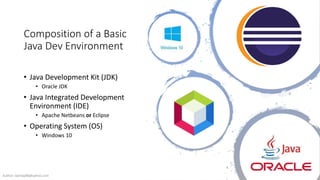
Composition of a Basic
Java Dev Environment
• Java Development Kit (JDK)
• Oracle JDK
• Java Integrated Development
Environment (IDE)
• Apache Netbeans or Eclipse
• Operating System (OS)
• Windows 10
Author: wjchay88@yahoo.com
4
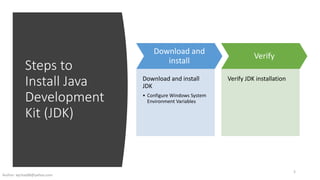
Steps to
Install Java
Development
Kit (JDK)
Author: wjchay88@yahoo.com
5
Download and
install
Download and install
JDK
• Configure Windows System
Environment Variables
Verify
Verify JDK installation
Java Development Kit
(JDK)
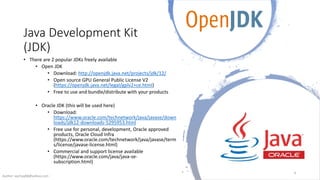
• There are 2 popular JDKs freely available
• Open JDK
• Download: http://openjdk.java.net/projects/jdk/12/
• Open source GPU General Public License V2
(https://openjdk.java.net/legal/gplv2+ce.html)
• Free to use and bundle/distribute with your products
• Oracle JDK (this will be used here)
• Download:
https://www.oracle.com/technetwork/java/javase/down
loads/jdk12-downloads-5295953.html
• Free use for personal, development, Oracle approved
products, Oracle Cloud Infra
(https://www.oracle.com/technetwork/java/javase/term
s/license/javase-license.html)
• Commercial and support license available
(https://www.oracle.com/java/java-se-
subscription.html)
Author: wjchay88@yahoo.com
6
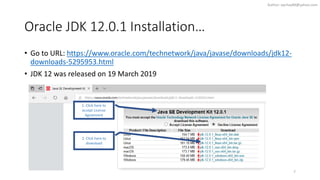
Oracle JDK 12.0.1 Installation…
• Go to URL: https://www.oracle.com/technetwork/java/javase/downloads/jdk12-
downloads-5295953.html
• JDK 12 was released on 19 March 2019
1. Click here to
accept License
Agreement
2. Click here to
download
7
Author: wjchay88@yahoo.com
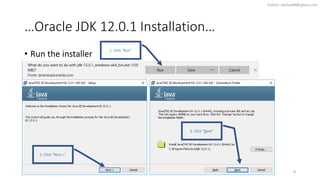
…Oracle JDK 12.0.1 Installation…
• Run the installer
2. Click “Next >”
1. Click “Run”
3. Click “Next”
8
Author: wjchay88@yahoo.com
…Oracle JDK 12.0.1 Installation
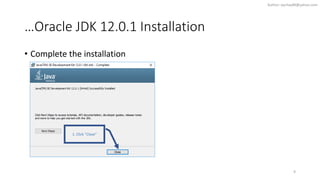
• Complete the installation
1. Click “Close”
9
Author: wjchay88@yahoo.com
Configure Windows System Environment…
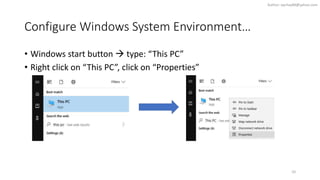
• Windows start button  type: “This PC”
• Right click on “This PC”, click on “Properties”
10
Author: wjchay88@yahoo.com
…Configure Windows System Environment…
• Click on “Advanced system settings”
• Click on “Environment Variables…”
1. Click here 2. Click here
11
Author: wjchay88@yahoo.com
…Configure Windows System Environment…
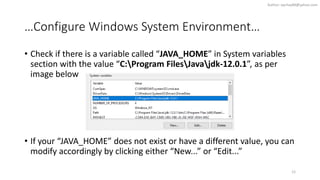
• Check if there is a variable called “JAVA_HOME” in System variables
section with the value “C:Program FilesJavajdk-12.0.1”, as per
image below
• If your “JAVA_HOME” does not exist or have a different value, you can
modify accordingly by clicking either “New...” or “Edit...”
12
Author: wjchay88@yahoo.com
…Configure Windows System Environment
• Check if there is a variable called “Path” in System variables section
with the value beginning with “C:Program FilesJavajdk-
12.0.1bin;”, as per image below
• If your “PATH” does not exist or have a different value, you can modify
accordingly by clicking either “New...” or “Edit...”
13
Author: wjchay88@yahoo.com
Verify JDK Installation
• Launch the Windows command prompt:
• Click on the Windows start button
• Type “cmd” and press “Enter”
• Type “java –version” and press “Enter”
• You should see your installed JDK version below
• Type “echo %JAVA_HOME%” and press “Enter”, you should see below:
C:Program FilesJavajdk-12.0.1
• Type “echo %PATH%” and press “Enter”, you will see your system path beginning
with: C:Program FilesJavajdk-12.0.1bin;...
java version "12.0.1" 2019-04-16
Java(TM) SE Runtime Environment (build 12.0.1+12)
Java HotSpot(TM) 64-Bit Server VM (build 12.0.1+12, mixed mode, sharing)
14
Author: wjchay88@yahoo.com

Jdk installation

  • 1.
    JDK Installation Prepared By: ChayWeei Jye Email: wjchay88@yahoo.com Document Creation Date: 22 June 2019 Last Update: 22 June 2019
  • 2.
    Objectives & Pre-requisites Author: wjchay88@yahoo.com2 • Target Oracle JDK Location: C:Program FilesJavajdk-12.0.1 To download and install Oracle JDK. • Reliable internet • MS Windows 10 Pre-requisites:
  • 3.
    Content Author: wjchay88@yahoo.com 3 Compositionof a Basic Java Dev Environment Steps to Install Java Development Kit Java Development Kit (JDK) Oracle JDK 12.0.1 Installation Configure Windows System Environment Verify JDK Installation
  • 4.
    Composition of aBasic Java Dev Environment • Java Development Kit (JDK) • Oracle JDK • Java Integrated Development Environment (IDE) • Apache Netbeans or Eclipse • Operating System (OS) • Windows 10 Author: wjchay88@yahoo.com 4
  • 5.
    Steps to Install Java Development Kit(JDK) Author: wjchay88@yahoo.com 5 Download and install Download and install JDK • Configure Windows System Environment Variables Verify Verify JDK installation
  • 6.
    Java Development Kit (JDK) •There are 2 popular JDKs freely available • Open JDK • Download: http://openjdk.java.net/projects/jdk/12/ • Open source GPU General Public License V2 (https://openjdk.java.net/legal/gplv2+ce.html) • Free to use and bundle/distribute with your products • Oracle JDK (this will be used here) • Download: https://www.oracle.com/technetwork/java/javase/down loads/jdk12-downloads-5295953.html • Free use for personal, development, Oracle approved products, Oracle Cloud Infra (https://www.oracle.com/technetwork/java/javase/term s/license/javase-license.html) • Commercial and support license available (https://www.oracle.com/java/java-se- subscription.html) Author: wjchay88@yahoo.com 6
  • 7.
    Oracle JDK 12.0.1Installation… • Go to URL: https://www.oracle.com/technetwork/java/javase/downloads/jdk12- downloads-5295953.html • JDK 12 was released on 19 March 2019 1. Click here to accept License Agreement 2. Click here to download 7 Author: wjchay88@yahoo.com
  • 8.
    …Oracle JDK 12.0.1Installation… • Run the installer 2. Click “Next >” 1. Click “Run” 3. Click “Next” 8 Author: wjchay88@yahoo.com
  • 9.
    …Oracle JDK 12.0.1Installation • Complete the installation 1. Click “Close” 9 Author: wjchay88@yahoo.com
  • 10.
    Configure Windows SystemEnvironment… • Windows start button  type: “This PC” • Right click on “This PC”, click on “Properties” 10 Author: wjchay88@yahoo.com
  • 11.
    …Configure Windows SystemEnvironment… • Click on “Advanced system settings” • Click on “Environment Variables…” 1. Click here 2. Click here 11 Author: wjchay88@yahoo.com
  • 12.
    …Configure Windows SystemEnvironment… • Check if there is a variable called “JAVA_HOME” in System variables section with the value “C:Program FilesJavajdk-12.0.1”, as per image below • If your “JAVA_HOME” does not exist or have a different value, you can modify accordingly by clicking either “New...” or “Edit...” 12 Author: wjchay88@yahoo.com
  • 13.
    …Configure Windows SystemEnvironment • Check if there is a variable called “Path” in System variables section with the value beginning with “C:Program FilesJavajdk- 12.0.1bin;”, as per image below • If your “PATH” does not exist or have a different value, you can modify accordingly by clicking either “New...” or “Edit...” 13 Author: wjchay88@yahoo.com
  • 14.
    Verify JDK Installation •Launch the Windows command prompt: • Click on the Windows start button • Type “cmd” and press “Enter” • Type “java –version” and press “Enter” • You should see your installed JDK version below • Type “echo %JAVA_HOME%” and press “Enter”, you should see below: C:Program FilesJavajdk-12.0.1 • Type “echo %PATH%” and press “Enter”, you will see your system path beginning with: C:Program FilesJavajdk-12.0.1bin;... java version "12.0.1" 2019-04-16 Java(TM) SE Runtime Environment (build 12.0.1+12) Java HotSpot(TM) 64-Bit Server VM (build 12.0.1+12, mixed mode, sharing) 14 Author: wjchay88@yahoo.com