

















It’s the arts!
Playing with the Android canvas
(or Let’s have a pretext to vandalize art)
Today
Introduction to canvas
Composing and transforming
Animations!
Today
Some art vandalization!
But first, setup things:
http://sergiandreplace.com/canvas
Introducing
The Canvas
How we paint things in Android?
Open GL
(too complex)
Renderscript
(using a hammer to crack a nut)
(and not really for drawing)
Canvas
(quick and dirty)
What is exactly a “canvas”?
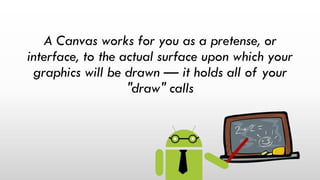
A Canvas works for you as a pretense, or
interface, to the actual surface upon which your
graphics will be drawn — it holds all of your
"draw" calls
Tl;dr: Canvas is the class that translates
drawing actions into a Bitmap
To draw something you need 4 components
(almost always)
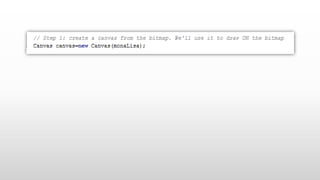
A Bitmap to hold the pixels
a Canvas to host the draw calls
(writing into the bitmap)
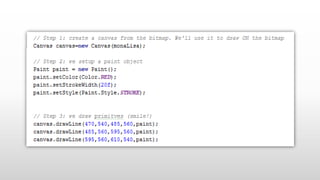
a drawing primitive
(e.g. Rect, Path, text, Bitmap)
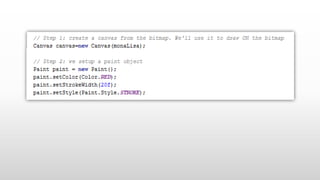
and a Paint
(to describe the colors and styles for the
drawing)
Tag 1_01_start
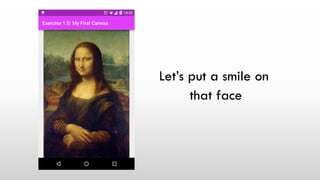
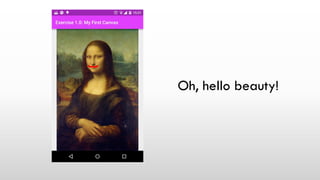
Let’s put a smile on
that face
Oh, hello beauty!
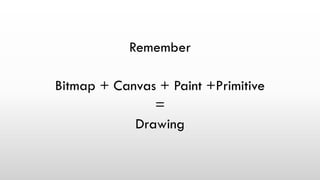
Remember
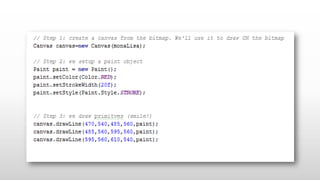
Bitmap + Canvas + Paint +Primitive
=
Drawing
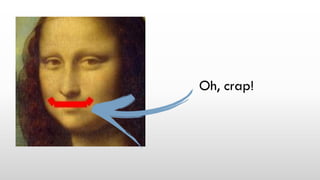
Oh, crap!
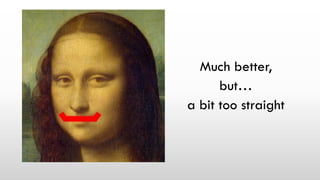
Let’s improve that smile
Much better,
but…
a bit too straight
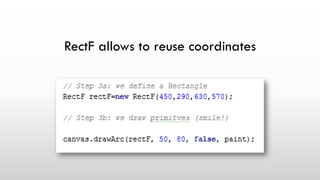
RectF allows to reuse coordinates
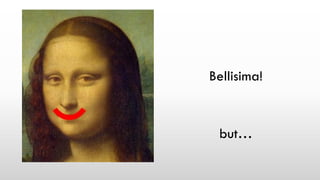
Bellisima!
but…
Tag start_1_02
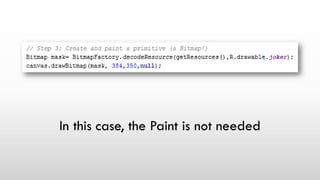
In this case, the Paint is not needed
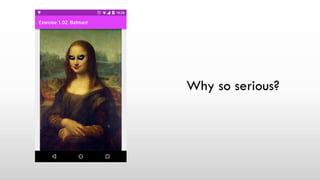
Why so serious?
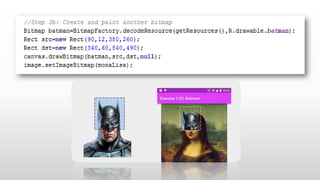
Here comes the cape crusader!
Let’s get crazy with the rects!
Let’s talk about Bitmaps
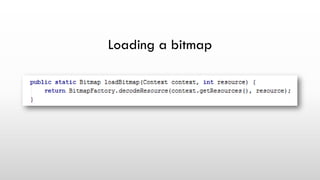
Loading a bitmap
But…
A loaded Bitmap is immutable
We can’t draw in it!
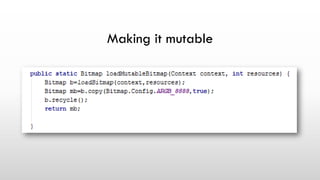
Making it mutable
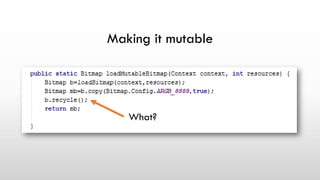
Making it mutable
What?
Bitmaps must be recycled
Recycle marks it as GCable
Still exists, but we can’t draw
Bitmaps are huge
Stored in memory with no compression
java.lang.OutOfMemoryError
(boo!)
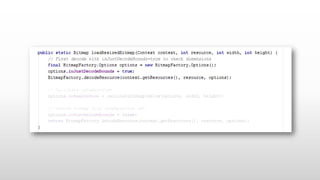
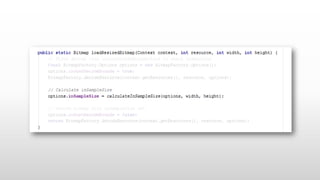
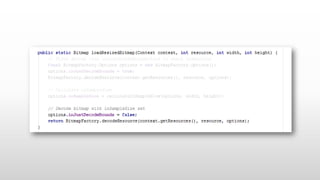
Why to load a huge bitmap
if target draw is small?
Branch 1_03_Bitmaps
Composing
&
Transforming
Painting on the activity is cool, but…
Painting views is cooler
Anatomy of a drawing view
1. Create needed objects
2. Measure
3. Draw accordingly
4. Repeat 2 & 3 when needed
The onDraw method
onDraw is executed everytime the view
needs to be redrawn
(or a part of it)
We can request a onDraw with invalidate()
(or postInvalidate if not in UI thread)
onDraw receives a ready-to-use-canvas
Tag 2_01_start
MyFirstDrawingView extends from ImageView
But it adds no behaviour. To work!
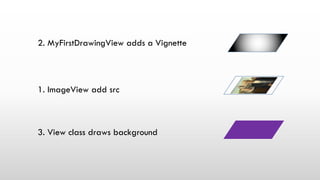
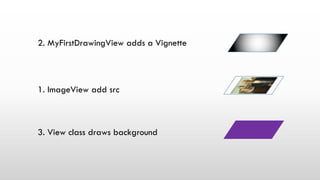
Understand drawing order
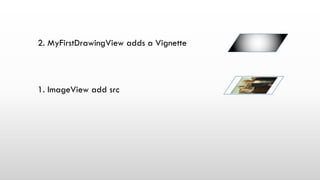
1. ImageView add src
2. MyFirstDrawingView adds a Vignette
3. View class draws background
1. ImageView add src
2. MyFirstDrawingView adds a Vignette
3. View class draws background
1. ImageView add src
2. MyFirstDrawingView adds a Vignette
Introducing Shaders
Basically, shaders modify the behaviour
of Paint object
BitmapShader
Allows to tile a Bitmap
LinearGradient
RadialGradient
SweepGradient
Guess what they do…
ComposeShader allows to mix two shaders
with an Xfermode
(a really crazy thing)
Paint.setShader(shader)
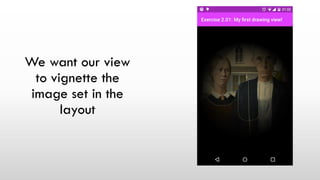
Let’s combine this!
We want our view
to vignette the
image set in the
layout
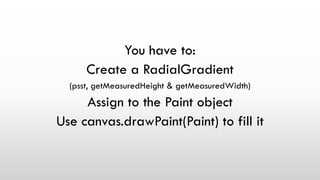
You have to:
Create a RadialGradient
(psst, getMeasuredHeight & getMeasuredWidth)
Assign to the Paint object
Use canvas.drawPaint(Paint) to fill it
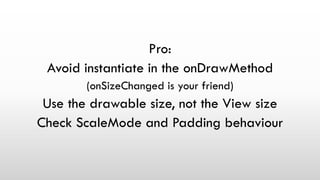
Pro:
Avoid instantiate in the onDrawMethod
(onSizeChanged is your friend)
Use the drawable size, not the View size
Check ScaleMode and Padding behaviour
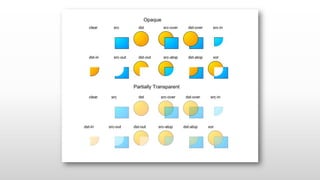
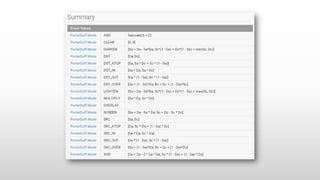
And now PorterDuffXMode
PorterDuffModes define images will blend
Don’t worry, trial and error
We could also save a layer
Saving layers allows us to make
transformations
Example
Save layer
Transform canvas 45º
Draw square
Restore canvas
More on transformations later on
We can setup a Paint on saving
It will be applied on restoring
Branch 2_03_apples_on_apples
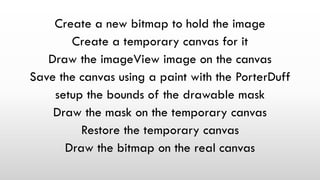
Create a new bitmap to hold the image
Create a temporary canvas for it
Draw the imageView image on the canvas
Save the canvas using a paint with the PorterDuff
setup the bounds of the drawable mask
Draw the mask on the temporary canvas
Restore the temporary canvas
Draw the bitmap on the real canvas
Pro:
Optimize it to avoid instatiation in the onDraw
Play around with ratios
Transformations
Mainly matrixes and camera
Stoping too obvious jokes before is too late
Remember matrixes from school?
Haha. Don’t worry
But remember
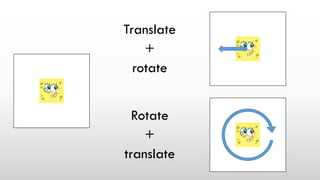
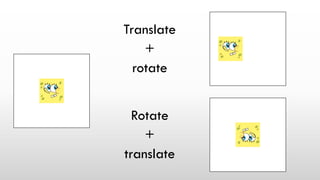
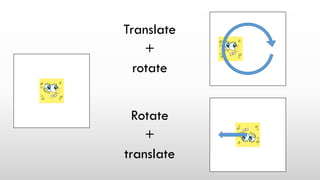
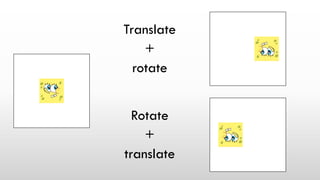
Operations order is important
Matrixes are used for
Translate
Rotate
Scale
Skew
But
Matrix.setRotate
Matrix.setScale
Only scales
We must use preOperation
and postOperation
to concatenat
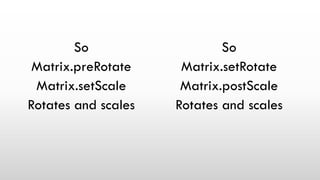
So
Matrix.preRotate
Matrix.setScale
Rotates and scales
So
Matrix.setRotate
Matrix.postScale
Rotates and scales
Canvas has unity matrix by default
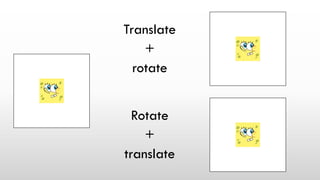
Be careful!
Translate
+
rotate
Rotate
+
translate
Translate
+
rotate
Rotate
+
translate
Translate
+
rotate
Rotate
+
translate
Translate
+
rotate
Rotate
+
translate
Translate
+
rotate
Rotate
+
translate
We can
Canvas.save()
Canvas.setMatrix(matrix)
Canvas.drawSomething()
Canvas.restore()
Or
DrawBitmap with matrix
Cameras allow us to create 3D matrixes
So 3D transformations
(axes x, y and z + perspective)
We perform transformations on camera
And then, we get the corresponding matrix
Tag 2_03_start
First part objective
Make an image turn
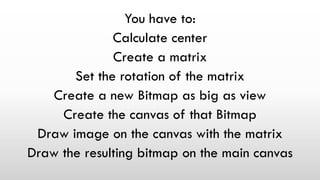
You have to:
Calculate center
Create a matrix
Set the rotation of the matrix
Create a new Bitmap as big as view
Create the canvas of that Bitmap
Draw image on the canvas with the matrix
Draw the resulting bitmap on the main canvas
Pro:
Connect a seekBar with the rotation (wow!)
Do it without and with optimization
(is it noticeable?)
Remember!
All these operations and stuff is cute
Combined are WOW!
Animations
We are not going to talk about
Animation or Animator class
But how to move all the things we learned
Basically, a onPaint calling invalidate()
Things to keep in mind
Speed
We want to achieve as FPS as possible
NO INSTATIATION!!
Flags everywhere!
Animating
Started
Folded
…
Create appropiate flags for the status
(boolean or enum, up to you)
Create controls methods
(start, stop, rewind, whatever)
Time between onDraw calls changes
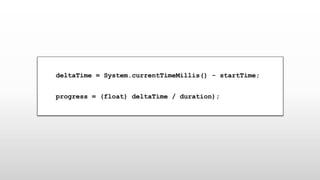
startTime
deltaTime
duration
System.currentTimeInMillis
deltaTime = System.currentTimeMillis() - startTime;
progress = (float) deltaTime / duration);
Animation pattern
(well, my pattern)
Make the methods setup the states
In the onDraw
If/else treating states
Keep in mind what to draw after
& before the animation
Cache, cache and cache
Include also animating states
Animating states should change flags
and/or call invalidate
Animating states must calculate progress
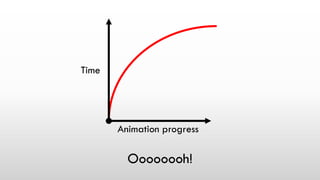
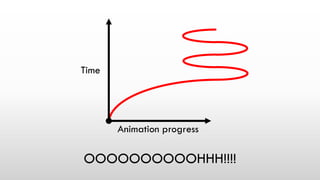
Interpolators
Used to add realism to the animations
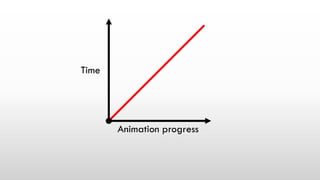
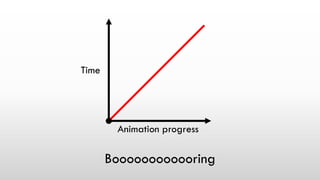
Time
Animation progress
Boooooooooooring
Time
Animation progress
Oooooooh!
Time
Animation progress
OOOOOOOOOOHHH!!!!
Time
Animation progress
So, interopolators are just functions
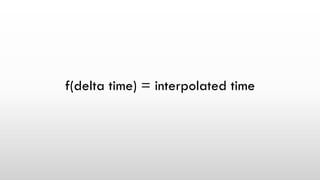
f(delta time) = interpolated time
deltaTime = System.currentTimeMillis() - startTime;
progress = (float) deltaTime / duration);
deltaTime = System.currentTimeMillis() - startTime;
interpolatedTime = interpolator.getInterpolation
((float) deltaTime / duration);
Tag 3_01_start
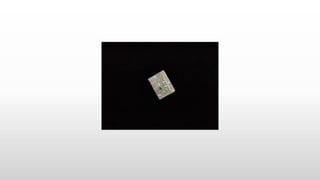
Newspaper effect!
Newspaper effect!
Follow the pattern and fill it up comments
Pro:
Make things parametized
Add stop/pause
Make real effect (add scale and alpha)
Did you finish the exercise?
So we are finished
There are many other things in Canvas
Believe me
Just check drawing text stuff
Whoever made the TextView is my hero
Whoever made EditText is my God
Hope you enjoyed
Willing to see the things you make with all this
Share them in the GDG group!
It's the arts! Playing around with the Android canvas

It's the arts! Playing around with the Android canvas