PTP LINKPlanner
    User Guide


                      Version 3.3.1


I
Accuracy

While reasonable efforts have been made to assure the accuracy of this document, Cambium Networks assumes no liability resulting from any

inaccuracies or omissions in this document, or from use of the information obtained herein. Cambium reserves the right to make changes to any

products described herein to improve reliability, function, or design, and reserves the right to revise this document and to make changes from time to

time in content hereof with no obligation to notify any person of revisions or changes. Cambium does not assume any liability arising out of the

application or use of any product, software, or circuit described herein; neither does it convey license under its patent rights or the rights of others. It

is possible that this publication may contain references to, or information about Cambium products (machines and programs), programming, or

services that are not announced in your country. Such references or information must not be construed to mean that Cambium intends to announce

such Cambium products, programming, or services in your country.


Copyrights

This document, Cambium products, and 3rd Party Software products described in this document may include or describe copyrighted Cambium and

other 3rd Party supplied computer programs stored in semiconductor memories or other media. Laws in the United States and other countries

preserve for Cambium, its licensors, and other 3rd Party supplied software certain exclusive rights for copyrighted material, including the exclusive

right to copy, reproduce in any form, distribute and make derivative works of the copyrighted material. Accordingly, any copyrighted material of

Cambium, its licensors, or the 3rd Party software supplied material contained in the Cambium products described in this document may not be copied,

reproduced, reverse engineered, distributed, merged or modified in any manner without the express written permission of Cambium. Furthermore, the

purchase of Cambium products shall not be deemed to grant either directly or by implication, estoppel, or otherwise, any license under the copyrights,

patents or patent applications of Cambium or other 3rd Party supplied software, except for the normal non-exclusive, royalty free license to use that

arises by operation of law in the sale of a product.


Restrictions

Software and documentation are copyrighted materials. Making unauthorized copies is prohibited by law. No part of the software or documentation

may be reproduced, transmitted, transcribed, stored in a retrieval system, or translated into any language or computer language, in any form or by

any means, without prior written permission of Cambium.


License Agreements

The software described in this document is the property of Cambium and its licensors. It is furnished by express license agreement only and may be

used only in accordance with the terms of such an agreement.


High Risk Materials

Components, units, or 3rd Party products used in the product described herein are NOT fault-tolerant and are NOT designed, manufactured, or

intended for use as on-line control equipment in the following hazardous environments requiring fail-safe controls: the operation of Nuclear Facilities,

Aircraft Navigation or Aircraft Communication Systems, Air Traffic Control, Life Support, or Weapons Systems (High Risk Activities). Cambium and its

supplier(s) specifically disclaim any expressed or implied warranty of fitness for such High Risk Activities.


Trademarks


All product or service names are the property of their respective owners.
Contents


   Contents . . . . . . . . . . . . . . . . . . . . . . . . . . . . . . . . . . . . . . . . . .                                               1
   List of figures . . . . . . . . . . . . . . . . . . . . . . . . . . . . . . . . . . . . . . .                                               4

1 About This User Guide                                                                                                                       5
  General Information . . . . . . . . . . . .        .   .   .   .   .   .   .   .   .   .   .   .   .   .   .   .   .   .   .   .   .   .    7
      Purpose . . . . . . . . . . . . . . . . .      .   .   .   .   .   .   .   .   .   .   .   .   .   .   .   .   .   .   .   .   .   .    7
  Contacting Cambium . . . . . . . . . . . .         .   .   .   .   .   .   .   .   .   .   .   .   .   .   .   .   .   .   .   .   .   .    8
      Feedback on PTP LINKPlanner . . .              .   .   .   .   .   .   .   .   .   .   .   .   .   .   .   .   .   .   .   .   .   .    8
      Cambium Networks Point-to-Point                .   .   .   .   .   .   .   .   .   .   .   .   .   .   .   .   .   .   .   .   .   .    8
      Reporting problems . . . . . . . . .           .   .   .   .   .   .   .   .   .   .   .   .   .   .   .   .   .   .   .   .   .   .    8
  Warnings, cautions and notes . . . . . .           .   .   .   .   .   .   .   .   .   .   .   .   .   .   .   .   .   .   .   .   .   .   10
      Warnings . . . . . . . . . . . . . . . .       .   .   .   .   .   .   .   .   .   .   .   .   .   .   .   .   .   .   .   .   .   .   10
      Cautions . . . . . . . . . . . . . . . . .     .   .   .   .   .   .   .   .   .   .   .   .   .   .   .   .   .   .   .   .   .   .   10
      Notes . . . . . . . . . . . . . . . . . . .    .   .   .   .   .   .   .   .   .   .   .   .   .   .   .   .   .   .   .   .   .   .   10

2 Getting started                                                                                                                            11
  LINKPlanner Concepts . . . . . . . . . . . . . . . . . . . . . . . . . . . . .                                             .   .   .   .   12
       NLoS and LoS . . . . . . . . . . . . . . . . . . . . . . . . . . . . . . .                                            .   .   .   .   12
       Architecture . . . . . . . . . . . . . . . . . . . . . . . . . . . . . . . .                                          .   .   .   .   12
       Inputs and Outputs . . . . . . . . . . . . . . . . . . . . . . . . . . . .                                            .   .   .   .   12
       User Interface . . . . . . . . . . . . . . . . . . . . . . . . . . . . . . .                                          .   .   .   .   13
  Installing PTP LINKPlanner . . . . . . . . . . . . . . . . . . . . . . . . . .                                             .   .   .   .   14
       Windows Installation . . . . . . . . . . . . . . . . . . . . . . . . . . .                                            .   .   .   .   14
       Mac Installation . . . . . . . . . . . . . . . . . . . . . . . . . . . . . .                                          .   .   .   .   14
  Quick Tutorial - Unlicensed Band . . . . . . . . . . . . . . . . . . . . . .                                               .   .   .   .   15
       Creating Project, Sites and Link (Unlicensed Band) . . . . . . .                                                      .   .   .   .   15
       Updating Profile with Obstructions (Unlicensed Band) . . . . .                                                         .   .   .   .   19
       Adjusting Configuration and Requirements (Unlicensed Band)                                                             .   .   .   .   20
  Quick Tutorial - Licensed Band . . . . . . . . . . . . . . . . . . . . . . . .                                             .   .   .   .   25
       Creating Project, Sites and Link (Licensed Band) . . . . . . . . .                                                    .   .   .   .   25
       Updating Profile with Obstructions (Licensed Band) . . . . . . .                                                       .   .   .   .   29
       Adjusting Configuration and Requirements (Licensed Band) .                                                             .   .   .   .   30

3 Using PTP LINKPlanner                                                                                                                      35


                                                                                                                                              i
Starting the Application . . . . . . . . . . . . . . . . . . . .         .   .   .   .   .   .   .   .   .   .   .   .    36
           Main Screen . . . . . . . . . . . . . . . . . . . . . . . .        .   .   .   .   .   .   .   .   .   .   .   .    36
           Options (Preferences) . . . . . . . . . . . . . . . . . .          .   .   .   .   .   .   .   .   .   .   .   .    37
           Project Navigation Tree . . . . . . . . . . . . . . . . .          .   .   .   .   .   .   .   .   .   .   .   .    40
     Projects . . . . . . . . . . . . . . . . . . . . . . . . . . . . . .     .   .   .   .   .   .   .   .   .   .   .   .    43
           Creating, Saving and Viewing Projects . . . . . . .                .   .   .   .   .   .   .   .   .   .   .   .    43
           Project Page . . . . . . . . . . . . . . . . . . . . . . . .       .   .   .   .   .   .   .   .   .   .   .   .    44
           Importing Path Data . . . . . . . . . . . . . . . . . . .          .   .   .   .   .   .   .   .   .   .   .   .    50
     Sites . . . . . . . . . . . . . . . . . . . . . . . . . . . . . . . .    .   .   .   .   .   .   .   .   .   .   .   .    52
           New Sites . . . . . . . . . . . . . . . . . . . . . . . . . .      .   .   .   .   .   .   .   .   .   .   .   .    52
           Sites List . . . . . . . . . . . . . . . . . . . . . . . . . . .   .   .   .   .   .   .   .   .   .   .   .   .    52
           Viewing and Updating Sites . . . . . . . . . . . . . .             .   .   .   .   .   .   .   .   .   .   .   .    52
           Copying or Importing Sites . . . . . . . . . . . . . . .           .   .   .   .   .   .   .   .   .   .   .   .    52
           Creating Sites . . . . . . . . . . . . . . . . . . . . . . .       .   .   .   .   .   .   .   .   .   .   .   .    55
           Displaying the Sites List . . . . . . . . . . . . . . . . .        .   .   .   .   .   .   .   .   .   .   .   .    56
           Site Page . . . . . . . . . . . . . . . . . . . . . . . . . .      .   .   .   .   .   .   .   .   .   .   .   .    58
     Links . . . . . . . . . . . . . . . . . . . . . . . . . . . . . . . .    .   .   .   .   .   .   .   .   .   .   .   .    60
           Importing Links from a Spreadsheet . . . . . . . . .               .   .   .   .   .   .   .   .   .   .   .   .    60
           Creating Links . . . . . . . . . . . . . . . . . . . . . . .       .   .   .   .   .   .   .   .   .   .   .   .    61
           Displaying Links . . . . . . . . . . . . . . . . . . . . . .       .   .   .   .   .   .   .   .   .   .   .   .    61
           Obtaining Link Profiles . . . . . . . . . . . . . . . . . .         .   .   .   .   .   .   .   .   .   .   .   .    64
     Link Page . . . . . . . . . . . . . . . . . . . . . . . . . . . . .      .   .   .   .   .   .   .   .   .   .   .   .    67
           Link Description and Equipment . . . . . . . . . . .               .   .   .   .   .   .   .   .   .   .   .   .    67
           Profile . . . . . . . . . . . . . . . . . . . . . . . . . . . .     .   .   .   .   .   .   .   .   .   .   .   .    70
           Configuration at Each End . . . . . . . . . . . . . . .             .   .   .   .   .   .   .   .   .   .   .   .    72
           Performance Summary . . . . . . . . . . . . . . . . .              .   .   .   .   .   .   .   .   .   .   .   .    75
           Performance Details . . . . . . . . . . . . . . . . . . .          .   .   .   .   .   .   .   .   .   .   .   .    83
           Bill of Materials for Link . . . . . . . . . . . . . . . . .       .   .   .   .   .   .   .   .   .   .   .   .    85
           Flags . . . . . . . . . . . . . . . . . . . . . . . . . . . . .    .   .   .   .   .   .   .   .   .   .   .   .    88
     Project Configuration . . . . . . . . . . . . . . . . . . . . . .         .   .   .   .   .   .   .   .   .   .   .   .    90
           Available Antennas . . . . . . . . . . . . . . . . . . . .         .   .   .   .   .   .   .   .   .   .   .   .    90
           TDD Synchronization List . . . . . . . . . . . . . . . .           .   .   .   .   .   .   .   .   .   .   .   .    91
           Link Formatting Rules . . . . . . . . . . . . . . . . . .          .   .   .   .   .   .   .   .   .   .   .   .    92
           Equipment Templates . . . . . . . . . . . . . . . . . .            .   .   .   .   .   .   .   .   .   .   .   .    95
     Bill of Materials for Project . . . . . . . . . . . . . . . . . .        .   .   .   .   .   .   .   .   .   .   .   .   100
           Viewing & saving the project BOM file in MS Excel                   .   .   .   .   .   .   .   .   .   .   .   .   101
     User Interface Tips . . . . . . . . . . . . . . . . . . . . . . .        .   .   .   .   .   .   .   .   .   .   .   .   102
           Advanced User Interface Features . . . . . . . . . .               .   .   .   .   .   .   .   .   .   .   .   .   102
     Advanced Features . . . . . . . . . . . . . . . . . . . . . . .          .   .   .   .   .   .   .   .   .   .   .   .   104
           Optimizing E1 or T1 Latency . . . . . . . . . . . . . .            .   .   .   .   .   .   .   .   .   .   .   .   104
           Setting TDD Synchronization . . . . . . . . . . . . .              .   .   .   .   .   .   .   .   .   .   .   .   105
           Setting Hot Standby Protection (1+1) . . . . . . . .               .   .   .   .   .   .   .   .   .   .   .   .   106
           Setting 2+0 Antenna Sharing . . . . . . . . . . . . .              .   .   .   .   .   .   .   .   .   .   .   .   114
           Long Waveguide . . . . . . . . . . . . . . . . . . . . . .         .   .   .   .   .   .   .   .   .   .   .   .   121
           Project Templates . . . . . . . . . . . . . . . . . . . . .        .   .   .   .   .   .   .   .   .   .   .   .   125
     Adjusting Link Profiles . . . . . . . . . . . . . . . . . . . . .         .   .   .   .   .   .   .   .   .   .   .   .   126
           Using Google Earth(TM) . . . . . . . . . . . . . . . . .           .   .   .   .   .   .   .   .   .   .   .   .   126
           Verifying Link Ends . . . . . . . . . . . . . . . . . . . .        .   .   .   .   .   .   .   .   .   .   .   .   128
           Verifying High Points . . . . . . . . . . . . . . . . . . .        .   .   .   .   .   .   .   .   .   .   .   .   129
           Updating Link Profiles . . . . . . . . . . . . . . . . . .          .   .   .   .   .   .   .   .   .   .   .   .   129
     Link Profile Adjustment Examples . . . . . . . . . . . . .                .   .   .   .   .   .   .   .   .   .   .   .   136


ii
Verifying a Link End Using a Map and Google Earth                               .   .   .   .   .   .   .   .   .   .   .   136
       Verifying a Link End Using a Survey . . . . . . . . . .                         .   .   .   .   .   .   .   .   .   .   .   139
       Verifying a High Point Using a Map . . . . . . . . . . .                        .   .   .   .   .   .   .   .   .   .   .   143
       Verifying a High Point Using a Survey . . . . . . . . .                         .   .   .   .   .   .   .   .   .   .   .   145
   Exporting and Reporting . . . . . . . . . . . . . . . . . . . .                     .   .   .   .   .   .   .   .   .   .   .   148
       Exporting Data . . . . . . . . . . . . . . . . . . . . . . . .                  .   .   .   .   .   .   .   .   .   .   .   148
       Creating Reports . . . . . . . . . . . . . . . . . . . . . .                    .   .   .   .   .   .   .   .   .   .   .   149

4 Background Information                                                                                                           150
  Availability . . . . . . . . . . . . . . . . . . . . . . .   .   .   .   .   .   .   .   .   .   .   .   .   .   .   .   .   .   151
       ITU-R P530-12 . . . . . . . . . . . . . . . . . .       .   .   .   .   .   .   .   .   .   .   .   .   .   .   .   .   .   151
       Vigants - Barnett . . . . . . . . . . . . . . . .       .   .   .   .   .   .   .   .   .   .   .   .   .   .   .   .   .   151
  Path Loss . . . . . . . . . . . . . . . . . . . . . . . .    .   .   .   .   .   .   .   .   .   .   .   .   .   .   .   .   .   152
       Free Space Path Loss . . . . . . . . . . . . . .        .   .   .   .   .   .   .   .   .   .   .   .   .   .   .   .   .   152
       Excess Path Loss . . . . . . . . . . . . . . . .        .   .   .   .   .   .   .   .   .   .   .   .   .   .   .   .   .   153
       Fade Margin . . . . . . . . . . . . . . . . . . .       .   .   .   .   .   .   .   .   .   .   .   .   .   .   .   .   .   153
       Fresnel Zone . . . . . . . . . . . . . . . . . . .      .   .   .   .   .   .   .   .   .   .   .   .   .   .   .   .   .   154
       Maximum Path Loss . . . . . . . . . . . . . .           .   .   .   .   .   .   .   .   .   .   .   .   .   .   .   .   .   155
       Paths Over Sea or Very Flat Ground . . . .              .   .   .   .   .   .   .   .   .   .   .   .   .   .   .   .   .   155
  Path Profiles . . . . . . . . . . . . . . . . . . . . . .     .   .   .   .   .   .   .   .   .   .   .   .   .   .   .   .   .   157
       PTP Path Profiler . . . . . . . . . . . . . . . . .      .   .   .   .   .   .   .   .   .   .   .   .   .   .   .   .   .   157
       SRTM Technical Guide . . . . . . . . . . . . .          .   .   .   .   .   .   .   .   .   .   .   .   .   .   .   .   .   158
  TDD Overview . . . . . . . . . . . . . . . . . . . . .       .   .   .   .   .   .   .   .   .   .   .   .   .   .   .   .   .   159
       TDM Mode . . . . . . . . . . . . . . . . . . . . .      .   .   .   .   .   .   .   .   .   .   .   .   .   .   .   .   .   160
       IP Mode . . . . . . . . . . . . . . . . . . . . . .     .   .   .   .   .   .   .   .   .   .   .   .   .   .   .   .   .   160
       Symmetry . . . . . . . . . . . . . . . . . . . . .      .   .   .   .   .   .   .   .   .   .   .   .   .   .   .   .   .   160
       Summary . . . . . . . . . . . . . . . . . . . . .       .   .   .   .   .   .   .   .   .   .   .   .   .   .   .   .   .   160
  TDD Synchronization Overview . . . . . . . . . .             .   .   .   .   .   .   .   .   .   .   .   .   .   .   .   .   .   162
       Unsynchronized Links . . . . . . . . . . . . .          .   .   .   .   .   .   .   .   .   .   .   .   .   .   .   .   .   163
       Synchronized Links . . . . . . . . . . . . . . .        .   .   .   .   .   .   .   .   .   .   .   .   .   .   .   .   .   164
  Import File Formats . . . . . . . . . . . . . . . . . .      .   .   .   .   .   .   .   .   .   .   .   .   .   .   .   .   .   167
       Path from Hydra - no Site Names (*.pth) .               .   .   .   .   .   .   .   .   .   .   .   .   .   .   .   .   .   167
       Path from Hydra - with Site Names (*.pth)               .   .   .   .   .   .   .   .   .   .   .   .   .   .   .   .   .   167
       Sites from CSV File . . . . . . . . . . . . . . .       .   .   .   .   .   .   .   .   .   .   .   .   .   .   .   .   .   167
       Path from CSV File . . . . . . . . . . . . . . .        .   .   .   .   .   .   .   .   .   .   .   .   .   .   .   .   .   167
       Path from Pathloss (*.txt) . . . . . . . . . . .        .   .   .   .   .   .   .   .   .   .   .   .   .   .   .   .   .   168

5 Legal Notices                                                                                                                    169
  Cambium Networks End User License              Agreement             .   .   .   .   .   .   .   .   .   .   .   .   .   .   .   170
     Definitions . . . . . . . . . . . . . .      . . . . . . . .       .   .   .   .   .   .   .   .   .   .   .   .   .   .   .   170
     Grant of License . . . . . . . . . . .      . . . . . . . .       .   .   .   .   .   .   .   .   .   .   .   .   .   .   .   170
     Conditions of Use . . . . . . . . . .       . . . . . . . .       .   .   .   .   .   .   .   .   .   .   .   .   .   .   .   170
     Title; Restrictions . . . . . . . . . .     . . . . . . . .       .   .   .   .   .   .   .   .   .   .   .   .   .   .   .   171
     Confidentiality . . . . . . . . . . . .      . . . . . . . .       .   .   .   .   .   .   .   .   .   .   .   .   .   .   .   171
     Right to Use Cambium’s Name .               . . . . . . . .       .   .   .   .   .   .   .   .   .   .   .   .   .   .   .   172
     Transfer . . . . . . . . . . . . . . . .    . . . . . . . .       .   .   .   .   .   .   .   .   .   .   .   .   .   .   .   172
     Updates . . . . . . . . . . . . . . . .     . . . . . . . .       .   .   .   .   .   .   .   .   .   .   .   .   .   .   .   172
     Maintenance . . . . . . . . . . . . .       . . . . . . . .       .   .   .   .   .   .   .   .   .   .   .   .   .   .   .   172
     Disclaimer . . . . . . . . . . . . . .      . . . . . . . .       .   .   .   .   .   .   .   .   .   .   .   .   .   .   .   173
     Limitation of Liability . . . . . . . .     . . . . . . . .       .   .   .   .   .   .   .   .   .   .   .   .   .   .   .   173
     U.S. Government . . . . . . . . . .         . . . . . . . .       .   .   .   .   .   .   .   .   .   .   .   .   .   .   .   173
     Term of License . . . . . . . . . . .       . . . . . . . .       .   .   .   .   .   .   .   .   .   .   .   .   .   .   .   173

                                                                                                                                    iii
Governing Law . . . . . . . . . . . . . .             .   .   .   .   .   .   .   .   .   .   .   .   .   .   .   .   .   .   .   .   .   174
          Assignment . . . . . . . . . . . . . . . .            .   .   .   .   .   .   .   .   .   .   .   .   .   .   .   .   .   .   .   .   .   174
          Survival of Provisions . . . . . . . . .              .   .   .   .   .   .   .   .   .   .   .   .   .   .   .   .   .   .   .   .   .   174
          Entire Agreement . . . . . . . . . . . .              .   .   .   .   .   .   .   .   .   .   .   .   .   .   .   .   .   .   .   .   .   174
     Third Party Software . . . . . . . . . . . . .             .   .   .   .   .   .   .   .   .   .   .   .   .   .   .   .   .   .   .   .   .   175
          Python License . . . . . . . . . . . . . .            .   .   .   .   .   .   .   .   .   .   .   .   .   .   .   .   .   .   .   .   .   175
          wxWidgets . . . . . . . . . . . . . . . .             .   .   .   .   .   .   .   .   .   .   .   .   .   .   .   .   .   .   .   .   .   175
          Genshi . . . . . . . . . . . . . . . . . . .          .   .   .   .   .   .   .   .   .   .   .   .   .   .   .   .   .   .   .   .   .   176
          FormEncode . . . . . . . . . . . . . . .              .   .   .   .   .   .   .   .   .   .   .   .   .   .   .   .   .   .   .   .   .   176
          Python for Windows Extensions . . .                   .   .   .   .   .   .   .   .   .   .   .   .   .   .   .   .   .   .   .   .   .   176
          matplotlib . . . . . . . . . . . . . . . . .          .   .   .   .   .   .   .   .   .   .   .   .   .   .   .   .   .   .   .   .   .   177
          NumPy . . . . . . . . . . . . . . . . . . .           .   .   .   .   .   .   .   .   .   .   .   .   .   .   .   .   .   .   .   .   .   177
          Universal Encoding Detector . . . . .                 .   .   .   .   .   .   .   .   .   .   .   .   .   .   .   .   .   .   .   .   .   178
          Profile Images in Google Earth(TM)                     .   .   .   .   .   .   .   .   .   .   .   .   .   .   .   .   .   .   .   .   .   178
          py2app . . . . . . . . . . . . . . . . . . .          .   .   .   .   .   .   .   .   .   .   .   .   .   .   .   .   .   .   .   .   .   178
          py2exe . . . . . . . . . . . . . . . . . . .          .   .   .   .   .   .   .   .   .   .   .   .   .   .   .   .   .   .   .   .   .   179
          ObjectListView . . . . . . . . . . . . . .            .   .   .   .   .   .   .   .   .   .   .   .   .   .   .   .   .   .   .   .   .   179
          PyYAML . . . . . . . . . . . . . . . . . .            .   .   .   .   .   .   .   .   .   .   .   .   .   .   .   .   .   .   .   .   .   179
          Reportlab . . . . . . . . . . . . . . . . .           .   .   .   .   .   .   .   .   .   .   .   .   .   .   .   .   .   .   .   .   .   180
          bbfreeze . . . . . . . . . . . . . . . . . .          .   .   .   .   .   .   .   .   .   .   .   .   .   .   .   .   .   .   .   .   .   181
     Limit of Liability . . . . . . . . . . . . . . . .         .   .   .   .   .   .   .   .   .   .   .   .   .   .   .   .   .   .   .   .   .   182

6 Changes to PTP LINKPlanner                                                                                                                        183
  Changes since version 2.0.0 . . . .           .   .   .   .   .   .   .   .   .   .   .   .   .   .   .   .   .   .   .   .   .   .   .   .   .   184
      Changes in version 3.3.1 . . .            .   .   .   .   .   .   .   .   .   .   .   .   .   .   .   .   .   .   .   .   .   .   .   .   .   184
      Changes in version 3.3.0 . . .            .   .   .   .   .   .   .   .   .   .   .   .   .   .   .   .   .   .   .   .   .   .   .   .   .   184
      Changes in version 3.2.2 . . .            .   .   .   .   .   .   .   .   .   .   .   .   .   .   .   .   .   .   .   .   .   .   .   .   .   185
      Changes in version 3.2.1 . . .            .   .   .   .   .   .   .   .   .   .   .   .   .   .   .   .   .   .   .   .   .   .   .   .   .   185
      Changes in version 3.2.0 . . .            .   .   .   .   .   .   .   .   .   .   .   .   .   .   .   .   .   .   .   .   .   .   .   .   .   185
      Changes in version 3.1.2 . . .            .   .   .   .   .   .   .   .   .   .   .   .   .   .   .   .   .   .   .   .   .   .   .   .   .   186
      Changes in version 3.1.1 . . .            .   .   .   .   .   .   .   .   .   .   .   .   .   .   .   .   .   .   .   .   .   .   .   .   .   186
      Changes in version 3.1.0 . . .            .   .   .   .   .   .   .   .   .   .   .   .   .   .   .   .   .   .   .   .   .   .   .   .   .   187
      Changes in version 3.0.0.rc2 .            .   .   .   .   .   .   .   .   .   .   .   .   .   .   .   .   .   .   .   .   .   .   .   .   .   187
      Changes in version 3.0.0 . . .            .   .   .   .   .   .   .   .   .   .   .   .   .   .   .   .   .   .   .   .   .   .   .   .   .   188
      Changes in version 2.7.0 . . .            .   .   .   .   .   .   .   .   .   .   .   .   .   .   .   .   .   .   .   .   .   .   .   .   .   189
      Changes in version 2.6.2 . . .            .   .   .   .   .   .   .   .   .   .   .   .   .   .   .   .   .   .   .   .   .   .   .   .   .   190
      Changes in version 2.6.1 . . .            .   .   .   .   .   .   .   .   .   .   .   .   .   .   .   .   .   .   .   .   .   .   .   .   .   190
      Changes in version 2.6.0 . . .            .   .   .   .   .   .   .   .   .   .   .   .   .   .   .   .   .   .   .   .   .   .   .   .   .   190
      Changes in version 2.5.2 . . .            .   .   .   .   .   .   .   .   .   .   .   .   .   .   .   .   .   .   .   .   .   .   .   .   .   191
      Changes in version 2.5.1 . . .            .   .   .   .   .   .   .   .   .   .   .   .   .   .   .   .   .   .   .   .   .   .   .   .   .   192
      Changes in version 2.5.0 . . .            .   .   .   .   .   .   .   .   .   .   .   .   .   .   .   .   .   .   .   .   .   .   .   .   .   192
      Changes in version 2.4.1 . . .            .   .   .   .   .   .   .   .   .   .   .   .   .   .   .   .   .   .   .   .   .   .   .   .   .   192
      Changes in version 2.4.0 . . .            .   .   .   .   .   .   .   .   .   .   .   .   .   .   .   .   .   .   .   .   .   .   .   .   .   193
      Changes in version 2.3.10 . .             .   .   .   .   .   .   .   .   .   .   .   .   .   .   .   .   .   .   .   .   .   .   .   .   .   193
      Changes in version 2.3.9 . . .            .   .   .   .   .   .   .   .   .   .   .   .   .   .   .   .   .   .   .   .   .   .   .   .   .   194
      Changes in version 2.3.8 . . .            .   .   .   .   .   .   .   .   .   .   .   .   .   .   .   .   .   .   .   .   .   .   .   .   .   194
      Changes in version 2.3.7 . . .            .   .   .   .   .   .   .   .   .   .   .   .   .   .   .   .   .   .   .   .   .   .   .   .   .   194
      Changes in version 2.3.6 . . .            .   .   .   .   .   .   .   .   .   .   .   .   .   .   .   .   .   .   .   .   .   .   .   .   .   195
      Changes in version 2.3.5 . . .            .   .   .   .   .   .   .   .   .   .   .   .   .   .   .   .   .   .   .   .   .   .   .   .   .   195
      Changes in version 2.3.4 . . .            .   .   .   .   .   .   .   .   .   .   .   .   .   .   .   .   .   .   .   .   .   .   .   .   .   195
      Changes in version 2.3.3 . . .            .   .   .   .   .   .   .   .   .   .   .   .   .   .   .   .   .   .   .   .   .   .   .   .   .   195


iv
Changes   in   version   2.3.2   .   .   .   .   .   .   .   .   .   .   .   .   .   .   .   .   .   .   .   .   .   .   .   .   .   .   .   .   196
        Changes   in   version   2.3.1   .   .   .   .   .   .   .   .   .   .   .   .   .   .   .   .   .   .   .   .   .   .   .   .   .   .   .   .   196
        Changes   in   version   2.3.0   .   .   .   .   .   .   .   .   .   .   .   .   .   .   .   .   .   .   .   .   .   .   .   .   .   .   .   .   196
        Changes   in   version   2.2.0   .   .   .   .   .   .   .   .   .   .   .   .   .   .   .   .   .   .   .   .   .   .   .   .   .   .   .   .   196
        Changes   in   version   2.1.0   .   .   .   .   .   .   .   .   .   .   .   .   .   .   .   .   .   .   .   .   .   .   .   .   .   .   .   .   197
        Changes   in   version   2.0.0   .   .   .   .   .   .   .   .   .   .   .   .   .   .   .   .   .   .   .   .   .   .   .   .   .   .   .   .   197

7 Glossary                                                                                                                                               198

8 Credits                                                                                                                                                200

Index                                                                                                                                                    201


                                                                                                                                                           v
vi
List of Figures


2.1    User Interface . . . . . . . . . . . . . . . . . . . . . . . . . . . . . .   .   .   .   .   13
2.2    Inserting Site 1 (Unlicensed) . . . . . . . . . . . . . . . . . . . . .      .   .   .   .   16
2.3    Inserting Site 2 (Unlicensed) . . . . . . . . . . . . . . . . . . . . .      .   .   .   .   16
2.4    Inserting Link (Unlicensed) . . . . . . . . . . . . . . . . . . . . . .      .   .   .   .   17
2.5    Requesting Profiles (Unlicensed) . . . . . . . . . . . . . . . . . .          .   .   .   .   18
2.6    Link Equipment (Unlicensed) . . . . . . . . . . . . . . . . . . . . .        .   .   .   .   19
2.7    Path Profile (Unlicensed) . . . . . . . . . . . . . . . . . . . . . . .       .   .   .   .   19
2.8    Profile Editor (Unlicensed) . . . . . . . . . . . . . . . . . . . . . .       .   .   .   .   20
2.9    Path Profile with Obstructions (Unlicensed) . . . . . . . . . . .             .   .   .   .   20
2.10   Adjust One End of Unlicensed Link . . . . . . . . . . . . . . . . .          .   .   .   .   21
2.11   Adjust Other End of Unlicensed Link . . . . . . . . . . . . . . . .          .   .   .   .   21
2.12   Performance Unacceptable at One End of Unlicensed Link .                     .   .   .   .   22
2.13   Performance Unacceptable at Other End of Unlicensed Link                     .   .   .   .   22
2.14   Adjust One End of Unlicensed Link Again . . . . . . . . . . . . .            .   .   .   .   23
2.15   Adjust Other End of Unlicensed Link Again . . . . . . . . . . . .            .   .   .   .   23
2.16   Performance Acceptable at One End of Unlicensed Link . . .                   .   .   .   .   24
2.17   Performance Acceptable at Other End of Unlicensed Link . .                   .   .   .   .   24
2.18   Inserting Site 1 (Licensed) . . . . . . . . . . . . . . . . . . . . . .      .   .   .   .   26
2.19   Inserting Site 2 (Licensed) . . . . . . . . . . . . . . . . . . . . . .      .   .   .   .   26
2.20   Inserting Link (Licensed) . . . . . . . . . . . . . . . . . . . . . . .      .   .   .   .   27
2.21   Requesting Profiles (Licensed) . . . . . . . . . . . . . . . . . . . .        .   .   .   .   28
2.22   Link Equipment (Licensed) . . . . . . . . . . . . . . . . . . . . . .        .   .   .   .   29
2.23   Path Profile (Licensed) . . . . . . . . . . . . . . . . . . . . . . . . .     .   .   .   .   29
2.24   Profile Editor (Licensed) . . . . . . . . . . . . . . . . . . . . . . . .     .   .   .   .   30
2.25   Path Profile with Obstructions (Licensed) . . . . . . . . . . . . .           .   .   .   .   30
2.26   Adjust One End of Licensed Link . . . . . . . . . . . . . . . . . .          .   .   .   .   31
2.27   Adjust Other End of Licensed Link . . . . . . . . . . . . . . . . .          .   .   .   .   31
2.28   Performance Unacceptable at One End of Licensed Link . . .                   .   .   .   .   32
2.29   Performance Unacceptable at Other End of Licensed Link . .                   .   .   .   .   32
2.30   Adjust One End of Licensed Link Again . . . . . . . . . . . . . .            .   .   .   .   33
2.31   Adjust Other End of Licensed Link Again . . . . . . . . . . . . .            .   .   .   .   33


                                                                                                     1
PTP LINKPlanner User Guide, Release 3.3.1


    2.32 Performance Acceptable at One End of Licensed Link . . . . . . . . .                                         34
    2.33 Performance Acceptable at Other End of Licensed Link . . . . . . .                                           34

    3.1    Main Screen . . . . . . . . . . . . . . . . . . . . . . . . . .        .   .   .   .   .   .   .   .   .   36
    3.2    Options (Preferences) Page . . . . . . . . . . . . . . . . .           .   .   .   .   .   .   .   .   .   37
    3.3    Templates Page . . . . . . . . . . . . . . . . . . . . . . . .         .   .   .   .   .   .   .   .   .   38
    3.4    Graphics Page . . . . . . . . . . . . . . . . . . . . . . . . .        .   .   .   .   .   .   .   .   .   40
    3.5    Navigation Tree . . . . . . . . . . . . . . . . . . . . . . . .        .   .   .   .   .   .   .   .   .   41
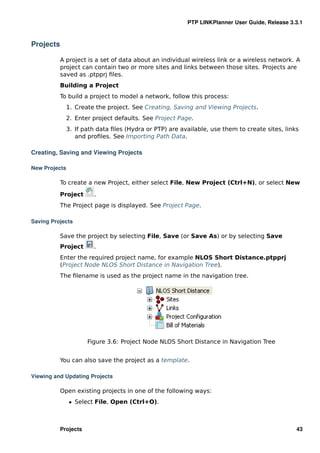
    3.6    Project Node NLOS Short Distance in Navigation Tree                    .   .   .   .   .   .   .   .   .   43
    3.7    General Information . . . . . . . . . . . . . . . . . . . . .          .   .   .   .   .   .   .   .   .   44
    3.8    Offline Map . . . . . . . . . . . . . . . . . . . . . . . . . . .       .   .   .   .   .   .   .   .   .   45
    3.9    Site Pop-up Menu . . . . . . . . . . . . . . . . . . . . . . .         .   .   .   .   .   .   .   .   .   46
    3.10   Site Properties Dialog . . . . . . . . . . . . . . . . . . . .         .   .   .   .   .   .   .   .   .   46
    3.11   Custom Icons and Label Positioning . . . . . . . . . . .               .   .   .   .   .   .   .   .   .   47
    3.12   Google Maps — . . . . . . . . . . . . . . . . . . . . . . . . .        .   .   .   .   .   .   .   .   .   48
    3.13   Google Earth — . . . . . . . . . . . . . . . . . . . . . . . . .       .   .   .   .   .   .   .   .   .   49
    3.14   Importing From a Spreadsheet Using Copy and Paste                      .   .   .   .   .   .   .   .   .   53
    3.15   Table Import Wizard . . . . . . . . . . . . . . . . . . . . .          .   .   .   .   .   .   .   .   .   54
    3.16   Selecting Columns to be Imported . . . . . . . . . . . .               .   .   .   .   .   .   .   .   .   54
    3.17   Value Cannot be Interpreted . . . . . . . . . . . . . . . .            .   .   .   .   .   .   .   .   .   55
    3.18   Map of Newly Imported Sites . . . . . . . . . . . . . . . .            .   .   .   .   .   .   .   .   .   55
    3.19   New Site Page . . . . . . . . . . . . . . . . . . . . . . . . .        .   .   .   .   .   .   .   .   .   56
    3.20   Sites List . . . . . . . . . . . . . . . . . . . . . . . . . . . . .   .   .   .   .   .   .   .   .   .   57
    3.21   Sites Pop-up Menu . . . . . . . . . . . . . . . . . . . . . .          .   .   .   .   .   .   .   .   .   57
    3.22   Details in Site Page . . . . . . . . . . . . . . . . . . . . . .       .   .   .   .   .   .   .   .   .   58
    3.23   Links in Site Page . . . . . . . . . . . . . . . . . . . . . . .       .   .   .   .   .   .   .   .   .   58
    3.24   Links Graph in Site Page . . . . . . . . . . . . . . . . . .           .   .   .   .   .   .   .   .   .   59
    3.25   Importing Links From a Spreadsheet . . . . . . . . . . .               .   .   .   .   .   .   .   .   .   60
    3.26   New Link Page . . . . . . . . . . . . . . . . . . . . . . . . .        .   .   .   .   .   .   .   .   .   61
    3.27   Links List . . . . . . . . . . . . . . . . . . . . . . . . . . . .     .   .   .   .   .   .   .   .   .   62
    3.28   Links Pop-up Menu . . . . . . . . . . . . . . . . . . . . . .          .   .   .   .   .   .   .   .   .   62
    3.29   Editing a Property for Multiple Links . . . . . . . . . . .            .   .   .   .   .   .   .   .   .   63
    3.30   Request Profiles Page . . . . . . . . . . . . . . . . . . . .           .   .   .   .   .   .   .   .   .   64
    3.31   Import.ptpdat Page . . . . . . . . . . . . . . . . . . . . . .         .   .   .   .   .   .   .   .   .   66
    3.32   Link Description . . . . . . . . . . . . . . . . . . . . . . . .       .   .   .   .   .   .   .   .   .   68
    3.33   Equipment (unlicensed bands) . . . . . . . . . . . . . .               .   .   .   .   .   .   .   .   .   68
    3.34   Equipment (licensed bands) . . . . . . . . . . . . . . . .             .   .   .   .   .   .   .   .   .   69
    3.35   Profile with Trees . . . . . . . . . . . . . . . . . . . . . . .        .   .   .   .   .   .   .   .   .   71
    3.36   Configuration at Each End (one end shown) . . . . . .                   .   .   .   .   .   .   .   .   .   72
    3.37   Additional Feeder Losses in Licensed Band . . . . . .                  .   .   .   .   .   .   .   .   .   74
    3.38   Select Transmit Frequencies . . . . . . . . . . . . . . . .            .   .   .   .   .   .   .   .   .   75
    3.39   Performance Summary . . . . . . . . . . . . . . . . . . .              .   .   .   .   .   .   .   .   .   76
    3.40   Operating Conditions for PTP 250 . . . . . . . . . . . . .             .   .   .   .   .   .   .   .   .   77
    3.41   Performance Summary with E1/T1 . . . . . . . . . . . .                 .   .   .   .   .   .   .   .   .   79
    3.42   Performance Summary with E1/T1 for PTP 810 . . . .                     .   .   .   .   .   .   .   .   .   80
    3.43   Detailed Availability Information (ITU Model) . . . . .                .   .   .   .   .   .   .   .   .   81
    3.44   Performance Charts . . . . . . . . . . . . . . . . . . . . .           .   .   .   .   .   .   .   .   .   83
    3.45   Performance Charts for Adaptive Symmetry . . . . . .                   .   .   .   .   .   .   .   .   .   84
    3.46   Performance Details . . . . . . . . . . . . . . . . . . . . .          .   .   .   .   .   .   .   .   .   84
    3.47   Bill of Materials for Link . . . . . . . . . . . . . . . . . . .       .   .   .   .   .   .   .   .   .   85
    3.48   Bill of Materials Icons . . . . . . . . . . . . . . . . . . . . .      .   .   .   .   .   .   .   .   .   86


2                                                                                                     List of Figures
PTP LINKPlanner User Guide, Release 3.3.1


   3.49   Bill of Materials Optional Extras . . . . . . . . . . . . . . . . . . . . . . .          87
   3.50   Flags . . . . . . . . . . . . . . . . . . . . . . . . . . . . . . . . . . . . . . . .    89
   3.51   Available Antennas . . . . . . . . . . . . . . . . . . . . . . . . . . . . . . .         90
   3.52   TDD Synchronization List . . . . . . . . . . . . . . . . . . . . . . . . . . .           91
   3.53   Link Formatting Page . . . . . . . . . . . . . . . . . . . . . . . . . . . . . .         92
   3.54   Rule Editor . . . . . . . . . . . . . . . . . . . . . . . . . . . . . . . . . . . .      93
   3.55   Rule Expression . . . . . . . . . . . . . . . . . . . . . . . . . . . . . . . . .        94
   3.56   Formatting Rules Pop-up Menu . . . . . . . . . . . . . . . . . . . . . . .               95
   3.57   Equipment Templates Page . . . . . . . . . . . . . . . . . . . . . . . . . .             96
   3.58   Equipment Template Editor . . . . . . . . . . . . . . . . . . . . . . . . . .            97
   3.59   Links Pop-up Menu . . . . . . . . . . . . . . . . . . . . . . . . . . . . . . .          98
   3.60   Equipment Templates Pop-up Menu . . . . . . . . . . . . . . . . . . . .                  99
   3.61   Bill of Materials for Project . . . . . . . . . . . . . . . . . . . . . . . . . .       101
   3.62   Smart Paste Dialog . . . . . . . . . . . . . . . . . . . . . . . . . . . . . . .        103
   3.63   Lowest Telecoms Mode . . . . . . . . . . . . . . . . . . . . . . . . . . . .            105
   3.64   TDD Synchronization Error Message . . . . . . . . . . . . . . . . . . . .               106
   3.65   TDD Synchronization . . . . . . . . . . . . . . . . . . . . . . . . . . . . . .         106
   3.66   Navigation Tree for Protected (1+1) link . . . . . . . . . . . . . . . . .              107
   3.67   Link Node Information for Protected (1+1) link . . . . . . . . . . . . .                107
   3.68   Detailed Reports Information Message . . . . . . . . . . . . . . . . . .                111
   3.69   Detailed Reports Selection . . . . . . . . . . . . . . . . . . . . . . . . . .          112
   3.70   Proposal Report Performance Information for Protected (1+1) Link                        113
   3.71   Navigation Tree for 2+0 Cross-Polar link . . . . . . . . . . . . . . . . .              115
   3.72   Navigation Tree for 2+0 Co-Polar link . . . . . . . . . . . . . . . . . . .             115
   3.73   Navigation Tree for 2+0 XPIC link . . . . . . . . . . . . . . . . . . . . . .           115
   3.74   Link Node Information for PTP 800 2+0 . . . . . . . . . . . . . . . . . .               116
   3.75   Link Node Information for PTP 810 2+0 . . . . . . . . . . . . . . . . . .               117
   3.76   Equipment (2+0) . . . . . . . . . . . . . . . . . . . . . . . . . . . . . . . .         118
   3.77   Configuration at Each End for 2+0 Cross-Polar . . . . . . . . . . . . .                  118
   3.78   Configuration at Each End for 2+0 Co-Polar . . . . . . . . . . . . . . .                 119
   3.79   Select Transmit Frequency 2+0 Co-Polar Adjacent Channel Error .                         120
   3.80   Link Equipment for Long Waveguide . . . . . . . . . . . . . . . . . . . .               121
   3.81   End Equipment for Long Waveguide . . . . . . . . . . . . . . . . . . . .                122
   3.82   Losses (Long Waveguide) . . . . . . . . . . . . . . . . . . . . . . . . . . .           123
   3.83   Losses (Long Waveguide for IRFU) . . . . . . . . . . . . . . . . . . . . .              124
   3.84   Choosing the template file type . . . . . . . . . . . . . . . . . . . . . . .            125
   3.85   Google Earth(TM) Aerial Photograph with Distances Shown . . . . .                       126
   3.86   Google Earth(TM) Aerial Photograph (Zoomed) . . . . . . . . . . . . .                   127
   3.87   Fresnel zone representation in Google Earth . . . . . . . . . . . . . .                 128
   3.88   Profile Vizualization Chart . . . . . . . . . . . . . . . . . . . . . . . . . . .        129
   3.89   Profile Editor . . . . . . . . . . . . . . . . . . . . . . . . . . . . . . . . . . .     130
   3.90   Profile Updated With Tree Obstructions (in green) . . . . . . . . . . .                  131
   3.91   Adding a Profile Point . . . . . . . . . . . . . . . . . . . . . . . . . . . . .         131
   3.92   Setting a Constant Gradient . . . . . . . . . . . . . . . . . . . . . . . . .           132
   3.93   Reflection Editor . . . . . . . . . . . . . . . . . . . . . . . . . . . . . . . . .      133
   3.94   Profile with Reflection Visible . . . . . . . . . . . . . . . . . . . . . . . .           133
   3.95   Profile with Reflection Obscured . . . . . . . . . . . . . . . . . . . . . . .            134
   3.96   Path Profile Units . . . . . . . . . . . . . . . . . . . . . . . . . . . . . . . .       135
   3.97   Original path profile . . . . . . . . . . . . . . . . . . . . . . . . . . . . . .        136
   3.98   Adjusted path profile . . . . . . . . . . . . . . . . . . . . . . . . . . . . . .        136
   3.99   Unadjusted profile near antenna site . . . . . . . . . . . . . . . . . . .               137


List of Figures                                                                                     3
PTP LINKPlanner User Guide, Release 3.3.1


    3.100 Map of Addislade . . . . . . . . . . . . . . . . . . . . . .     .   .   .   .   .   .   .   .   .   .   137
    3.101 Obstructions and higher ground near Addislade . .                .   .   .   .   .   .   .   .   .   .   138
    3.102 Profile Updated with Map and Google Earth Results                 .   .   .   .   .   .   .   .   .   .   139
    3.103 GPS Calibration Point . . . . . . . . . . . . . . . . . . . .    .   .   .   .   .   .   .   .   .   .   140
    3.104 Using a ruler to estimate height . . . . . . . . . . . .         .   .   .   .   .   .   .   .   .   .   141
    3.105 Results of site survey at Addislade . . . . . . . . . . .        .   .   .   .   .   .   .   .   .   .   142
    3.106 Profile updated with site survey results . . . . . . . .          .   .   .   .   .   .   .   .   .   .   143
    3.107 Unadjusted profile near high point . . . . . . . . . . .          .   .   .   .   .   .   .   .   .   .   144
    3.108 Map of Hp1 . . . . . . . . . . . . . . . . . . . . . . . . . .   .   .   .   .   .   .   .   .   .   .   144
    3.109 Estimated obstruction height near Hp1 . . . . . . . .            .   .   .   .   .   .   .   .   .   .   145
    3.110 GPS Calibration Point near Hp1 . . . . . . . . . . . . .         .   .   .   .   .   .   .   .   .   .   146
    3.111 Profile updated with Hp1 survey results . . . . . . .             .   .   .   .   .   .   .   .   .   .   146

    4.1    Free Space Path Loss at 5.8 GHz . . . . . . . . . . . . . . . . . . .                       .   .   .   153
    4.2    Fade Margin vs Excess Path Loss for 99.99% Link Availability .                              .   .   .   154
    4.3    Fresnel Zone . . . . . . . . . . . . . . . . . . . . . . . . . . . . . . . .                .   .   .   154
    4.4    Propagation Over The Sea . . . . . . . . . . . . . . . . . . . . . . .                      .   .   .   155
    4.5    Basic TDD Frame . . . . . . . . . . . . . . . . . . . . . . . . . . . . .                   .   .   .   159
    4.6    Interference Between ODUs . . . . . . . . . . . . . . . . . . . . . .                       .   .   .   162
    4.7    Separation of PTP 600 Units on a Mast . . . . . . . . . . . . . . .                         .   .   .   163
    4.8    Unsynchronized Frames . . . . . . . . . . . . . . . . . . . . . . . . .                     .   .   .   164
    4.9    Synchronized Frames . . . . . . . . . . . . . . . . . . . . . . . . . .                     .   .   .   166


4                                                                                                  List of Figures
CHAPTER 1


                                     About This User Guide


The purpose of this user guide is to describe how to install and use Cambium PTP
LINKPlanner.
Cambium Networks provides the PTP LINKPlanner application with the PTP 250,
PTP 300, PTP 400, PTP 500, PTP 600, PTP 800 and PTP 810 equipment. Use PTP
LINKPlanner to help predict where and how equipment will work. It allows the
network planner to answer these questions:
   ˆ Will each link transmit data fast enough for the user?
   ˆ Will each link be reliable enough for the user?
If any problems are experienced with PTP LINKPlanner, see Contacting Cambium
Getting started
   ˆ To understand the concepts of PTP LINKPlanner, see LINKPlanner Concepts
   ˆ If any problems are experienced with PTP LINKPlanner, see Contacting
     Cambium.
   ˆ To install or upgrade the software, see Installing PTP LINKPlanner.


How to use PTP LINKPlanner
To perform a quick test of the feasibility of a planned link, follow the procedure
described in:.
   ˆ Unlicensed Band Tutorial - for PTP 250, PTP 300, PTP 400, PTP 500 and PTP
     600 link planning.
   ˆ Licensed Band Tutorial - for PTP 800 and PTP 810 link planning.
If the resulting data throughput and link availability predictions look promising,
plan the link in greater detail as described in Using PTP LINKPlanner.
Supporting information
   ˆ For more information about link planning, such as path loss, path profiles and
     file formats, see Background Information.
   ˆ For licensing and third party information, see Legal Notices.


                                                                                     5
PTP LINKPlanner User Guide, Release 3.3.1


    ˆ For a history of LINKPlanner software changes, see Changes to PTP
      LINKPlanner.
    ˆ For definitions of common terms, see Glossary.


6                                                  Chapter 1. About This User Guide
PTP LINKPlanner User Guide, Release 3.3.1


General Information

Purpose

          Cambium Networks Point-To-Point documents are intended to instruct and assist
          personnel in the operation, installation and maintenance of the Cambium
          Point-To-Point equipment and ancillary devices. It is recommended that all
          personnel engaged in such activities be properly trained.
          Cambium Networks disclaims all liability whatsoever, implied or express, for any
          risk of damage, loss or reduction in system performance arising directly or
          indirectly out of the failure of the customer, or anyone acting on the customer’s
          behalf, to abide by the instructions, system parameters, or recommendations
          made in this document.


          General Information                                                                 7
PTP LINKPlanner User Guide, Release 3.3.1


Contacting Cambium

Feedback on PTP LINKPlanner

         We appreciate feedback from the users of our documents. This includes feedback
         on the structure, content, accuracy, or completeness of our documents. Send
         feedback to support@cambiumnetworks.com.
         You can receive help from the wider LINKPlanner community through the
         LINKPlanner forum:
         http://www.cambiumnetworks.com/forum/viewforum.php?f=47.

Cambium Networks Point-to-Point

         Support website: http://www.cambiumnetworks.com/support
         Main website: http://www.cambiumnetworks.com
         Sales enquires: solutions@cambiumnetworks.com
         Support enquires: support@cambiumnetworks.com
         Telephone number list: http://www.cambiumnetworks.com/contact.php
         Address:
               Cambium Networks Limited,
               Linhay Business Park,
               Eastern Road,
               Ashburton,
               Devon, UK,
               TQ13 7UP

Reporting problems

         If any problems are encountered when using PTP LINKPlanner, follow this
         procedure:
             1. Search this help document for a solution
                  ˆ In the Table of Contents
                  ˆ In the Index (Windows only)
                  ˆ In the Search (Windows only).
             2. Ensure that the latest version of LINKPlanner software is installed (available
                at http://www.cambiumnetworks.com/linkplanner)
             3. Search the release note for this version of the product (available at
                http://www.cambiumnetworks.com/linkplanner)
             4. Ask your Cambium products supplier to help.
             5. Escalate the problem to Cambium Networks Technical Support as follows:
                  ˆ Either: send an email to linkplanner.ptp@cambiumnetworks.com


         8                                                      Chapter 1. About This User Guide
PTP LINKPlanner User Guide, Release 3.3.1


      ˆ Or: Contact Cambium PTP Support at
        http://www.cambiumnetworks.com/contact.php


Contacting Cambium                                                           9
PTP LINKPlanner User Guide, Release 3.3.1


Warnings, cautions and notes

           The following describes how warnings and cautions are used in this document and
           in all documents of this Cambium document set.

Warnings

           Warnings precede instructions that contain potentially hazardous situations.
           Warnings are used to alert the reader to possible hazards that could cause loss of
           life or physical injury. A warning has the following format:


                Warning text and consequence for not following the
                instructions in the warning.

Cautions

           Cautions precede instructions and are used when there is a possibility of damage
           to systems, software, or individual items of equipment within a system. However,
           this damage presents no danger to personnel. A caution has the following format:


                Caution text and consequence for not following the instructions in the
                caution.

Notes

           A note means that there is a possibility of an undesirable situation or provides
           additional information to help the reader understand a topic or concept. A note
           has the following format:


                Note text.


           10                                                  Chapter 1. About This User Guide
CHAPTER 2


                                                    Getting started


This section describes the main concepts of PTP LINKPlanner and how to install
the software:
   ˆ LINKPlanner Concepts
   ˆ Installing PTP LINKPlanner
This section also contains quick tutorials for experienced Windows or Mac users.
They describe how to create a project to analyse the performance of a single link.
   ˆ Quick Tutorial - Unlicensed Band (for PTP 250, PTP 300, PTP 400, PTP 500 and
     PTP 600 links).
   ˆ Quick Tutorial - Licensed Band (for PTP 800 and PTP 810 links).


                                                                                 11
PTP LINKPlanner User Guide, Release 3.3.1


LINKPlanner Concepts

NLoS and LoS

         The Cambium Networks Series of point-to-point wireless Ethernet bridges are
         designed to operate in non-line-of-sight (NLoS) and line-of-sight (LoS)
         environments. Link planning and estimation enable a link of known quality to be
         installed. PTP LINKPlanner uses path profile data to predict the data rates and
         reliability over each link, through adjustment of antenna height and RF power.
         When the link is installed, the mean path loss can be checked to confirm these
         predictions.

Architecture

         The PTP LINKPlanner is an application that runs on Windows or Macintosh. It
         performs the calculations from the ITU recommendations ITU-R P.526-10 and ITU-R
         P.530-12 to predict NLoS and LoS paths for anywhere in the world. Path profile
         data can be obtained in a number of different ways depending upon global
         location. Cambium provides a method for obtaining path profile data; see Path
         Profiles. Trees and buildings (obstructions) can modify this profile, and often the
         path must be surveyed to establish the correct estimation.
         The main concepts of PTP LINKPlanner are:
               ˆ Project: a set of data about the sites and links in a wireless network.
               ˆ Site: the location of a PTP outdoor unit and its antenna.
               ˆ Link: a wireless connection between two sites.
               ˆ Path: an alternative wireless link between two units at different sites, when
                 each site has multiple units.

Inputs and Outputs

         The main inputs to LINKPlanner are:
               ˆ Site name, position and maximum antenna height (input by the user).
               ˆ Details of the PTP equipment and license restrictions (selected by the user).
               ˆ Required performance targets for each link (input by the user).
               ˆ Profile of the terrain along the path of each link (obtained using a Cambium
                 tool).
               ˆ Details of any obstructions or reflections that may affect the performance of
                 a link (obtained from maps, survey data and Google Earth(TM)).
         The main output from LINKPlanner is a performance summary that shows how well
         the link is predicted to perform in response to the selected combination of inputs.
         It shows predicted and required throughput performance and availability at each
         end of the link.


          12                                                            Chapter 2. Getting started
PTP LINKPlanner User Guide, Release 3.3.1


User Interface

         The following example shows the LINKPlanner User Interface for the “Tutorial”
         project, which models a PTP network linking three sites:


                                     Figure 2.1: User Interface


         LINKPlanner Concepts                                                             13
PTP LINKPlanner User Guide, Release 3.3.1


Installing PTP LINKPlanner

Windows Installation


               If PTP LINKPlanner is to be used with non-Roman character sets, then
               install one of these two fonts:
                   ˆ Arial Unicode MS. This is optionally installed as part of Microsoft
                     Office.
                   ˆ Bitstream Cyberbit.
          To install PTP LINKPlanner in Windows:
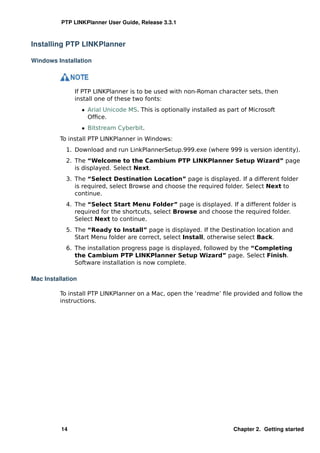
            1. Download and run LinkPlannerSetup.999.exe (where 999 is version identity).
            2. The “Welcome to the Cambium PTP LINKPlanner Setup Wizard” page
               is displayed. Select Next.
            3. The “Select Destination Location” page is displayed. If a different folder
               is required, select Browse and choose the required folder. Select Next to
               continue.
            4. The “Select Start Menu Folder” page is displayed. If a different folder is
               required for the shortcuts, select Browse and choose the required folder.
               Select Next to continue.
            5. The “Ready to Install” page is displayed. If the Destination location and
               Start Menu folder are correct, select Install, otherwise select Back.
            6. The installation progress page is displayed, followed by the “Completing
               the Cambium PTP LINKPlanner Setup Wizard” page. Select Finish.
               Software installation is now complete.

Mac Installation

          To install PTP LINKPlanner on a Mac, open the ‘readme’ file provided and follow the
          instructions.


          14                                                             Chapter 2. Getting started
PTP LINKPlanner User Guide, Release 3.3.1


Quick Tutorial - Unlicensed Band

         This section is a quick tutorial for experienced Windows or Mac users. It describes
         how to create a project to analyse the performance of a single link operating in an
         unlicensed frequency band (below 6 GHz) between two sites.
         Before starting this tutorial, complete the following steps:
           1. Install the software in the usual way. See Installing PTP LINKPlanner.
           2. Start the application.
           3. Enter the correct details in the Options (Preferences) page. Ensure that Email
              address and Network Settings are correct. See Options (Preferences).
         There are three parts to this tutorial:
           1. Create a project with two sites and one link. See Creating Project, Sites and
              Link (Unlicensed Band).
           2. Obtain the path profile for the link and update it with obstructions. See
              Updating Profile with Obstructions (Unlicensed Band).
           3. Adjust the antennas at both ends of the link and confirm that the selected
              equipment meets the performance requirements. See Adjusting
              Configuration and Requirements (Unlicensed Band).

Creating Project, Sites and Link (Unlicensed Band)

         To create a project with two sites and one link:

           1. Select New Project        .
              The Project Page is displayed
           2. Enter Customer Information and Default settings for new links.

              Select Save Project
              Save the project as Tutorial.ptpprj.

           3. Select New Site
              The Add New Site page is displayed. Enter this data:
              Name: North Middle School
              Maximum Height: 10 metres
              Latitude: 39.74828N
              Longitude: 104.84861W
              Description: Antenna mounted on school building


         Quick Tutorial - Unlicensed Band                                                   15
PTP LINKPlanner User Guide, Release 3.3.1


                      Figure 2.2: Inserting Site 1 (Unlicensed)


 4. Select New Site
     The Add New Site page is displayed. Enter this data:
     Name: Park Lane Elementary
     Maximum Height: 10 metres
     Latitude: 39.75914N
     Longitude: 104.83700W
     Description: Antenna mounted in school yard


                      Figure 2.3: Inserting Site 2 (Unlicensed)


 5. Select New Link
     The Add New Link page is displayed.
     Select the two sites to be linked: North Middle School and Park Lane
     Elementary.


16                                                          Chapter 2. Getting started
PTP LINKPlanner User Guide, Release 3.3.1


                        Figure 2.4: Inserting Link (Unlicensed)


  6. Select Project, Get Profiles.
     The Request Profiles page is displayed. Tick the link “North Middle School to
     Park Lane Elementary” (if not already ticked).


Quick Tutorial - Unlicensed Band                                                   17
PTP LINKPlanner User Guide, Release 3.3.1


                   Figure 2.5: Requesting Profiles (Unlicensed)


     The profile request is sent to the Cambium PTP Path Profiler. After about 5
     minutes, PTP Path Profiler will send an email containing the profile to your
     inbox.
 7. While waiting for the path profile email, configure the link equipment, see
    Equipment (unlicensed bands):
     Band: 5.8 GHz
     Product: PTP 58500 105Mbps
     Regulation: FCC
     Bandwidth: 15 MHz
     E1/T1: None
     Optimisation: TDM
     Sync: Disabled
     Symmetry: Symmetric
     Dual Payload: Enabled
     Master: North Middle School


18                                                         Chapter 2. Getting started
PTP LINKPlanner User Guide, Release 3.3.1


                               Figure 2.6: Link Equipment (Unlicensed)


           8. Select Save Project

Updating Profile with Obstructions (Unlicensed Band)

         Obtain the path profile for the link and update it with obstructions:
           1. Review your email inbox after about 5 minutes. If an email entitled
              Cambium PTP Path Profile Do Not Reply has been received, open it.
              Double-click on the attached file
              North_Middle_School_to_Park_Lane_Elementary.ptpdat and select
              Open.
              The profile in PTP LINKPlanner is automatically updated with the information
              from the .ptpdat file.
           2. Review the Profile.


                                  Figure 2.7: Path Profile (Unlicensed)


           3. Check that the profile is accurate and identify any obstructions that may
              affect signal quality.
              The profile can be verified using Google Earth(TM), maps, GPS data and site
              visits. It is particularly important to verify the antenna heights, to measure
              interference and to identify obstructions near both ends of the Fresnel zone.
              For more information, see Using Google Earth(TM).


         Quick Tutorial - Unlicensed Band                                                   19
PTP LINKPlanner User Guide, Release 3.3.1


           4. Double-click on the profile. The Profile Editor is displayed. Enter a 4 metre
              high Obstruction at Range 0.501 km and a 3.5 metre high Obstruction at
              Range 0.678 km.
              The + and - buttons may be used to add and remove points. For more
              information, see Updating Link Profiles.


                                Figure 2.8: Profile Editor (Unlicensed)


           5. Review the profile. Obstructions are shown in green.


                       Figure 2.9: Path Profile with Obstructions (Unlicensed)


           6. Select Save Project

Adjusting Configuration and Requirements (Unlicensed Band)

         Adjust the antennas at both ends of the link and confirm that the selected
         equipment meets the performance requirements:
           1. Adjust the Antenna Heights in the Link Page to given values and add
              Interference Density. Adjust the Interference Density to the required value.


         20                                                          Chapter 2. Getting started
PTP LINKPlanner User Guide, Release 3.3.1


                   Figure 2.10: Adjust One End of Unlicensed Link


                  Figure 2.11: Adjust Other End of Unlicensed Link


  2. Insert target values in the Link Page data rate boxes for Mean Throughput
     Required, Minimum Throughput Required and Minimum Throughput
     Availability Required.
     Observe that the predicted values are now red because they are less than
     required values.


Quick Tutorial - Unlicensed Band                                                  21
PTP LINKPlanner User Guide, Release 3.3.1


      Figure 2.12: Performance Unacceptable at One End of Unlicensed Link


     Figure 2.13: Performance Unacceptable at Other End of Unlicensed Link


 3. Select different antennas and change Antenna Heights in the Link Page.
    Adjust User limits if required.


22                                                      Chapter 2. Getting started
PTP LINKPlanner User Guide, Release 3.3.1


               Figure 2.14: Adjust One End of Unlicensed Link Again


               Figure 2.15: Adjust Other End of Unlicensed Link Again


  4. Confirm that the predicted values are no longer red.


Quick Tutorial - Unlicensed Band                                                  23
PTP LINKPlanner User Guide, Release 3.3.1


       Figure 2.16: Performance Acceptable at One End of Unlicensed Link


      Figure 2.17: Performance Acceptable at Other End of Unlicensed Link

      5. Select Save Project


24                                                      Chapter 2. Getting started
PTP LINKPlanner User Guide, Release 3.3.1


Quick Tutorial - Licensed Band

         This section is a quick tutorial for experienced Windows or Mac users. It describes
         how to create a project to analyse the performance of a single link operating in a
         licensed frequency band (6 GHz or greater) between two sites.
         Before starting this tutorial, complete the following steps:
           1. Install the software in the usual way. See Installing PTP LINKPlanner.
           2. Start the application.
           3. Enter the correct details in the Options (Preferences) page. Ensure that Email
              address and Network Settings are correct. See Options (Preferences).
         There are three parts to this tutorial:
           1. Create a project with two sites and one link. See Creating Project, Sites and
              Link (Licensed Band).
           2. Obtain the path profile for the link and update it with obstructions. See
              Updating Profile with Obstructions (Licensed Band).
           3. Adjust the antennas at both ends of the link and confirm that the selected
              equipment meets the performance requirements. See Adjusting
              Configuration and Requirements (Licensed Band).

Creating Project, Sites and Link (Licensed Band)

         To create a project with two sites and one link:

           1. Select New Project          .
              The Project Page is displayed
           2. Enter Customer Information and Default settings for new links.

              Select Save Project
              Save the project as Tutorial2.ptpprj.

           3. Select New Site
              The Add New Site page is displayed. Enter this data:
              Name: Wood Farm
              Maximum Height: 15 metres
              Latitude: 50.44138N
              Longitude: 003.77435W
              Description: Antenna mounted on roof


         Quick Tutorial - Licensed Band                                                     25
PTP LINKPlanner User Guide, Release 3.3.1


                      Figure 2.18: Inserting Site 1 (Licensed)


 4. Select New Site
     The Add New Site page is displayed. Enter this data:
     Name: West Tower
     Maximum Height: 15 metres
     Latitude: 50.44840N
     Longitude: 003.77415W
     Description: Antenna mounted on tower


                      Figure 2.19: Inserting Site 2 (Licensed)


 5. Select New Link
     The Add New Link page is displayed.
     Select the two sites to be linked: Wood Farm and West Tower.

26                                                          Chapter 2. Getting started
PTP LINKPlanner User Guide, Release 3.3.1


                        Figure 2.20: Inserting Link (Licensed)


  6. Select Project, Get Profiles.
     The Request Profiles page is displayed. Tick the link “Wood Farm to West
     Tower” (if not already ticked).


Quick Tutorial - Licensed Band                                                     27
PTP LINKPlanner User Guide, Release 3.3.1


                    Figure 2.21: Requesting Profiles (Licensed)


     The profile request is sent to the Cambium PTP Path Profiler. After about 5
     minutes, PTP Path Profiler will send an email containing the profile to your
     inbox.
 7. While waiting for the path profile email, configure the link equipment, see
    Equipment (licensed bands):
     Band: 26 GHz
     Product: PTP26800 with ODU-A
     Regulation: ETSI
     Link Type: 1+0
     T/R Spacing: Preset to 1008 MHz
     Bandwidth: 56 MHz
     Modulation Mode: Adaptive
     Maximum Mod Mode: 256QAM 0.91 (368.65 Mbps)
     Minimum Mod Mode: QPSK 0.80 (77.15 Mbps)
     Polarisation: Vertical
     ATPC: Disabled


28                                                         Chapter 2. Getting started
PTP LINKPlanner User Guide, Release 3.3.1


                                Figure 2.22: Link Equipment (Licensed)


           8. Select Save Project

Updating Profile with Obstructions (Licensed Band)

         Obtain the path profile for the link and update it with obstructions:
           1. Review your email inbox after about 5 minutes. If an email entitled
              Cambium PTP Path Profile Do Not Reply has been received, open it.
              Double-click on the attached file Wood_Farm_to_West_Tower.ptpdat and
              select Open.
              The profile in PTP LINKPlanner is automatically updated with the information
              from the .ptpdat file.
           2. Review the Profile.


                                   Figure 2.23: Path Profile (Licensed)


           3. Check that the profile is accurate and identify any obstructions that may
              affect signal quality.
              The profile can be verified using Google Earth(TM), maps, GPS data and site
              visits. It is particularly important to verify the antenna heights, to measure
              interference and to identify obstructions near both ends of the Fresnel zone.
              For more information, see Using Google Earth(TM).
           4. Double-click on the profile. The Profile Editor is displayed. Enter obstructions
              as shown below.
              The + and - buttons may be used to add and remove points. For more
              information, see Updating Link Profiles.

         Quick Tutorial - Licensed Band                                                     29
PTP LINKPlanner User Guide, Release 3.3.1


                                Figure 2.24: Profile Editor (Licensed)


           5. Review the profile. Obstructions are shown in green.


                        Figure 2.25: Path Profile with Obstructions (Licensed)


           6. Select Save Project

Adjusting Configuration and Requirements (Licensed Band)

         Adjust the antennas at both ends of the link and confirm that the selected
         equipment meets the performance requirements:
           1. Adjust the Antenna Heights in the Link Page to given values.


         30                                                         Chapter 2. Getting started
PTP LINKPlanner User Guide, Release 3.3.1


                    Figure 2.26: Adjust One End of Licensed Link


                   Figure 2.27: Adjust Other End of Licensed Link


  2. Insert target values in the Link Page data rate boxes for Mean IP Required.
     Observe that the predicted values are now red because they are less than
     required values.


Quick Tutorial - Licensed Band                                                     31
PTP LINKPlanner User Guide, Release 3.3.1


       Figure 2.28: Performance Unacceptable at One End of Licensed Link


      Figure 2.29: Performance Unacceptable at Other End of Licensed Link


 3. Select different antennas and change Antenna Heights in the Link Page.


32                                                      Chapter 2. Getting started
PTP LINKPlanner User Guide, Release 3.3.1


                 Figure 2.30: Adjust One End of Licensed Link Again


                Figure 2.31: Adjust Other End of Licensed Link Again


  4. Confirm that the predicted values are no longer red.


Quick Tutorial - Licensed Band                                                    33
PTP LINKPlanner User Guide, Release 3.3.1


        Figure 2.32: Performance Acceptable at One End of Licensed Link


       Figure 2.33: Performance Acceptable at Other End of Licensed Link


 5. Select Save Project


34                                                      Chapter 2. Getting started
CHAPTER 3


                                    Using PTP LINKPlanner


The goal of link planning is to ensure that each direction of the link will perform to
an acceptable level, measured by the Throughput and Availability values in the
Performance Summary section of the Link Page. To allow PTP LINKPlanner to
predict Throughput and Availability, the planner must enter the variables that
affect link performance, such as: band, region, equipment, antenna, height,
terrain, obstructions and reflection.
To achieve this goal, follow this process:
  1. Start the application and set options. See Starting the Application.
  2. Build a project to model a PTP link (or network). See Projects.
  3. Enter details of all sites in the project. See Sites.
  4. Define the links between sites, create profiles of those links and update the
     profiles with details of obstructions. See Links.
  5. Adjust the link profile to allow for terrain height variance, obstructions and
     reflection. See Adjusting Link Profiles.
  6. Confirm that the link will perform to an acceptable level, measured by the
     Throughput and Availability values in the Performance Summary section of
     the Link Page.
  7. Export and report project, site and link data. See Exporting and Reporting
  8. If TDD Synchronization is required, see Setting TDD Synchronization
  9. If Hot Standby Protection or Spatial Diversity is required, see Setting Hot
     Standby Protection (1+1)
10. If 2+0 Antenna Sharing is required, see Setting 2+0 Antenna Sharing
11. If ODUs are to be mounted indoors or at the base of the tower, see Long
    Waveguide


                                                                                     35
PTP LINKPlanner User Guide, Release 3.3.1


Starting the Application

        Start PTP LINKPlanner. The Main Screen is displayed.


                Before using the application, set options (preferences in Mac). See
                Options (Preferences).

Main Screen

        The Main Screen consist of two panels:
              ˆ The left hand panel contains the Project Navigation Tree. This panel is blank
                until one or more projects are opened. See Project Navigation Tree.
              ˆ The right hand panel is for viewing and editing projects, sites and links. This
                panel initially displays information about the application, with links for
                opening new and recent projects.


                                         Figure 3.1: Main Screen


         36                                                    Chapter 3. Using PTP LINKPlanner
PTP LINKPlanner User Guide, Release 3.3.1


Options (Preferences)

          Before using PTP LINKPlanner, use the Options page (Preferences in Mac) to enter
          personal information, select units and choose network settings.
          To open the Options/Preferences page:
             ˆ On Windows, select Tools, Options.
             ˆ On a Mac, open Preferences.


                                     Figure 3.2: Options (Preferences) Page


Personal Information

          Enter contact details for the person who prepares link plans on behalf of the
          customer. PTP LINKPlanner uses the email address to obtain Path Profiles (see
          Options (Preferences) Page).
          The Watermark can be used to insert additional watermark text on the path
          profile graph and the interactive map.


               The Request Profiles page will send information, including your contact
               details and path profile coordinates, to Cambium Networks. Cambium
               Networks stores this information on its servers so that we can provide


          Starting the Application                                                              37
PTP LINKPlanner User Guide, Release 3.3.1


                  the best possible customer service and sales support. Please see
                  http://www.cambiumnetworks.com/legal/terms_of_use.php for more
                  details.

Templates


                                         Figure 3.3: Templates Page


            Choose the directory that contains the LINKPlanner templates and then select the
            default template that will be used when creating a new project.
            If the ‘New project template’ is blank then new projects will use the in-built
            LINKPlanner template.
            See Project Templates for details on creating new templates.

Units & Prediction Model

            Select the required units for Height, Length, Latitude and Longitude. Set the
            prediction model that is used to calculate the link availability (see Availability).

Default Regions

            Select the priority order for the default licenses for each region.


            38                                                    Chapter 3. Using PTP LINKPlanner
PTP LINKPlanner User Guide, Release 3.3.1


Network Settings

           Select options for connecting to the network. The Get Profiles feature uses these
           settings, as described in Obtaining Link Profiles. PTP LINKPlanner obtains proxy
           settings automatically from computer system settings. If network connection does
           not work when using the default settings, then enter the correct settings.
           To test the settings, click on Test network settings. If the response is not “Network
           test succeeded!”, review and correct the network settings.


                The Proxy Password is not held or transmitted in a secure manner.

Reports

           Select the required font and page size for LINKPlanner reports.
           Select the option to generate detailed reports. This only applies to Hot Standby,
           where the detailed reports will give performance information for all paths. The
           standard reports will only provide information for the primary to primary path.

Graphics

           Select the default line style and colour for links and the default colour for sites in
           the Offline Map.


           Starting the Application                                                             39
PTP LINKPlanner User Guide, Release 3.3.1


                                         Figure 3.4: Graphics Page


Bill of Materials

           Select the default region option for power leads

Project Navigation Tree

           When one or more projects are open, navigate between sites and links using the
           tree in the left hand panel. The following example shows one open project
           (Navigation Tree):


            40                                                 Chapter 3. Using PTP LINKPlanner
PTP LINKPlanner User Guide, Release 3.3.1


                                          Figure 3.5: Navigation Tree


             Use the + and - boxes to open and close each level: project, site and link. Click on
             a node to open it for viewing and updating.
             The PTP 800 and PTP 810 products have different types of links which are
             differentiated using the link icon as follows:

                     Link Type = 1+0

                     Link Type = 1+1 Hot Standby

                     Link Type = 2+0 Cross-Polar

                     Link Type = 2+0 Co-Polar

                     Link Type = 2+0 XPIC (PTP 810 only)

Project Node

             To display the Project page, click on a project node, for example “NLOS Short
             Distance”. See Project Page. When a project name is displayed in bold in the
             navigation tree, it means that project details have been inserted or updated but
             not yet saved.

             To save a project, select File, Save (or Save As), or select Save Project     . All
             project, site and link data is saved. The project name reverts to normal typeface
             when saved.
             To see how many sites and links there are in a project hover the mouse over the
             project name in the navigation tree.

Sites Node

             To display the list of all sites within the project, click on the “Sites” node. See
             Displaying the Sites List.


             Starting the Application                                                              41
PTP LINKPlanner User Guide, Release 3.3.1


Individual Site Node

           To display the Site page, click on an individual site node, for example “North
           Middle School”. See Site Page.

Links Node

           To display the list of all links within the project, click on the “Links” node. See
           Displaying Links.

Individual Link Node

           To display the Link page, click on an individual link node, for example “North
           Middle School to Park Lane Elementary School”. See Link Page. If the link name is
           displayed in red, it means that the performance of the link is not acceptable.

Project Configuration Node

           To edit custom antennas, TDD synchronization parameters, custom fields, link
           formatting rules and equipment templates, click on the “Project Configuration”
           node. See Project Configuration.

Bill of Materials Node

           To view the Bill of Materials (BOM) for the whole project, click on the “Bill of
           Materials” node. For attribute descriptions, see Bill of Materials for Link.


             42                                                  Chapter 3. Using PTP LINKPlanner
PTP LINKPlanner User Guide, Release 3.3.1


Projects

           A project is a set of data about an individual wireless link or a wireless network. A
           project can contain two or more sites and links between those sites. Projects are
           saved as .ptpprj files.
           Building a Project
           To build a project to model a network, follow this process:
               1. Create the project. See Creating, Saving and Viewing Projects.
               2. Enter project defaults. See Project Page.
               3. If path data files (Hydra or PTP) are available, use them to create sites, links
                  and profiles. See Importing Path Data.

Creating, Saving and Viewing Projects

New Projects

           To create a new Project, either select File, New Project (Ctrl+N), or select New

           Project       .
           The Project page is displayed. See Project Page.

Saving Projects

           Save the project by selecting File, Save (or Save As) or by selecting Save
           Project      .
           Enter the required project name, for example NLOS Short Distance.ptpprj
           (Project Node NLOS Short Distance in Navigation Tree).
           The filename is used as the project name in the navigation tree.


                      Figure 3.6: Project Node NLOS Short Distance in Navigation Tree


           You can also save the project as a template.

Viewing and Updating Projects

           Open existing projects in one of the following ways:
               ˆ Select File, Open (Ctrl+O).


           Projects                                                                             43
PTP LINKPlanner User Guide, Release 3.3.1


               ˆ Select Open Project      .
               ˆ Select File, Recent Projects and select from the list.
          The Project page is displayed. See Project Page.
          Two or more projects can be open concurrently, if required.

Project Page

          Use this page to enter details of the project customer and view the sites and links
          on the project map.

General Information

          Enter details of the customer for whom this plan is being prepared. Enter a
          description of the project. This information is optional, and is included in the
          reports.


                                     Figure 3.7: General Information


Map

          There are potentially three types of map available, depending on the operating
          system and Internet access.
               ˆ Offline Map - available on all platforms


          44                                                   Chapter 3. Using PTP LINKPlanner
PTP LINKPlanner User Guide, Release 3.3.1


   ˆ Google Maps — - available on Windows providing that there is Internet
     access
   ˆ Google Earth — - available on Windows providing that there is Internet
     access
The maps can be enabled/disabled through the View menu.

Offline Map
  The Offline Map is a schematic plan of the sites and links that have been
entered in this project. See Map Icons for details on how to interact with the
project.


                              Figure 3.8: Offline Map


By default, link lines are colored to indicate whether or not their predicted
performance meets requirements: red means performance is not acceptable,
green means performance is acceptable. It is possible to alter the default colours
in the Graphics Page along with the default line style. Additional formatting
settings can be applied using Link Formatting Rules. The size of the link lines and
sites can be controlled using the sliders below the map. A circle is used as the
default site marker. To change the marker shape, right-click on the site and select
Properties from the pop-up menu. The Site Properties Dialog can then be used to
alter the shape or to set a custom icon (Custom Icons and Label Positioning).

           Custom icons are not displayed in reports or PDF exports.


Projects                                                                          45
PTP LINKPlanner User Guide, Release 3.3.1


The site pop-up menu (Site Pop-up Menu) can be used to create a link from the
current site or to create multiple links from the current site.


                           Figure 3.9: Site Pop-up Menu


                        Figure 3.10: Site Properties Dialog


The site labels can be repositioned if necessary. Drag the label to the required
location. To reset the label, drag it over the site marker.


46                                                  Chapter 3. Using PTP LINKPlanner
PTP LINKPlanner User Guide, Release 3.3.1


                 Figure 3.11: Custom Icons and Label Positioning


Google Maps
  The embedded Google Maps view is available when LINKPlanner is running on
Windows. The map can be used to view and edit the project. See Map Icons for
more information.

            Large projects may experience poor performance due to the time that
     it takes to refresh the map. If the project is large, you may wish to disable the
     Google Maps view in the Views menu.


Projects                                                                           47
PTP LINKPlanner User Guide, Release 3.3.1


                            Figure 3.12: Google Maps —


Google Earth
  The embedded Google Earth view is available when LINKPlanner is running on
Windows. The map can be used to view and edit the project. See Map Icons for
more information.

            Large projects may experience poor performance due to the time that
     it takes to refresh the map. If the project is large, you may wish to disable the
     Google Earth view in the Views menu.


48                                                   Chapter 3. Using PTP LINKPlanner
PTP LINKPlanner User Guide, Release 3.3.1


                         Figure 3.13: Google Earth —


Map Icons


           Icons appearance may depend on the operating system. Windows
     icons are shown.


Projects                                                                      49
PTP LINKPlanner User Guide, Release 3.3.1


           Icon       Description

                      Reset the zoom/pan for the map to fit the entire project

                      Select a link or site

                      Create a new site On the Google Maps and the Google Earth views
                      you must select the approximate location for the site before the new
                      site dialog (New Site Page) is displayed

                      Create a new link

                      Delete the selected link or site

                      Zoom in rectangle

                      Zoom out rectangle

                      Zoom in around the centre of the map

                      Zoom out around the centre of the map

                      Save the map to an image or PDF

                      Export the map to a full-page PDF

                      Copy the map to the clipboard

                      Display all of the sites, even those which do not have any links
                      associated with them

                      Display the site labels

                      Display the reason for error labels on links

                      Display the background grid
                      Plot datasets on the map (at present only the FCC Weather Radar sites
                      are available)

                      Display the buildings in Google Earth

                      Display the borders in Google Earth

Importing Path Data

         If path data is available in Hydra, PTP, csv or Pathloss files, it can be imported and
         used to populate a project with sites, links and profiles.
         Before importing path data, create the project and enter defaults. Path data can
         then be imported from Hydra, PTP, csv or Pathloss.


         50                                                    Chapter 3. Using PTP LINKPlanner
PTP LINKPlanner User Guide, Release 3.3.1


Hydra files (.pth)

           Hydra files contain data for sites, links, profiles and obstructions. Select File,
           Import, Path from Hydra (.pth).
           Hydra file formats are specified in Import File Formats.

PTP files (.ptpdat)

           PTP files contain data for sites, links and profiles. Select File, Import, PTP Path
           (.ptpdat).

CSV files (.csv)

           CSV files contain data for profiles and obstructions. Select File, Import, Path
           from csv.
           CSV file formats are specified in Import File Formats.

Pathloss files (.txt)

           Pathloss files contain data for sites, links, profiles and obstructions. Select File,
           Import, Path from Pathloss.
           Further information on Pathloss files can be found in Import File Formats.


           Projects                                                                              51
PTP LINKPlanner User Guide, Release 3.3.1


Sites

             Sites are points that must be connected via PTP links. A Project would normally
             contain at least two sites.
             Identify all sites in the project and obtain their latitude and longitude using the
             WGS84 frame of reference. Use tools such as:
                  ˆ GPS during a site survey.
                  ˆ Google Earth(TM): http://earth.google.com. This application must be
                    downloaded and installed.
                  ˆ Multimap: http://www.multimap.com/.


                    When potential Sites have been identified and entered in LINKPlanner,
                    the link profiles between those potential sites can be previewed in
                    Google Earth(TM) to see which links are definitely line of sight (and
                    therefore worth pursuing), or VERY non-line of sight (in which case they
                    may not be worth pursuing). See “Previewing Link Profiles” in Using
                    Google Earth(TM).

New Sites

             Import sites from external files as described in Copying or Importing Sites, or
             create them in PTP LINKPlanner as described in Creating Sites. It is also possible
             to create new sites and links by importing link data as described in Importing
             Links from a Spreadsheet.

Sites List

             Display the list of sites in the project, as described in Displaying the Sites List.

Viewing and Updating Sites

             When sites have been created, open them in the following ways:
                  ˆ Single-click the site node in the Navigation tree.
                  ˆ Double-click on the site in the Sites list.
             The Site page is displayed. See Site Page.

Copying or Importing Sites

             Site data can be brought into PTP LINKPlanner from Google Earth(TM) (.KML) or
             from comma-separated files (.CSV). Before copying or importing sites, ensure that
             the correct project is open in PTP LINKPlanner.


             52                                                     Chapter 3. Using PTP LINKPlanner
PTP LINKPlanner User Guide, Release 3.3.1


Copying or Importing Sites from Google Earth(TM) (.KML)

          Site details can be copied or imported from Google Earth(TM). Locate the sites in
          Google Earth(TM) using address or zip code, then insert placemarks.


                  When a site is located using address or zip code, Google Earth(TM)
                  inserts the placemark in the street adjacent to the building. To obtain
                  precise latitude and longitude, move the placemark to the building
                  where the antenna is mounted.
          In Google Earth, create a folder and add all required placemarks to that folder.
          There are two ways to import those placemarks into PTP LINKPlanner:
             ˆ Use copy and paste: Right-click on the folder (or if there is only one site,
               right-click on the placemark) and select Copy. In PTP LINKPlanner, select
               Edit, Paste Sites.
             ˆ Import from KML/KMZ file: Right-click on the folder and select Save Place As
               to save it as a .kml or .kmz file. In PTP LINKPlanner, select File, Import,
               Sites from KML/KMZ.

Importing Sites from a Spreadsheet

          Use this method when site information is in a spreadsheet. The required fields for
          each site are Name, Latitude and Longitude. The optional fields are Maximum
          Antenna Height and Description. The procedure is:
            1. Import the data either by copy and paste, or by importing from CSV.
                    ˆ To import by copy and paste (Importing From a Spreadsheet Using Copy
                      and Paste): select the data in the spreadsheet and select Edit, Copy;
                      then in PTP LINKPlanner, select Edit, Paste Sites.


                     Figure 3.14: Importing From a Spreadsheet Using Copy and Paste


                    ˆ To import from CSV: save the spreadsheet as a CSV (comma separated)
                      file; then in PTP LINKPlanner, select File, Import, Sites from CSV.
            2. Whichever method is used, the Table Import Wizard is presented:
                  PTP LINKPlanner attempts to detect the correct delimiter and encoding for
                  each CSV file, but it does not always succeed. If the data is not displayed in
                  the correct columns, specify a different delimiter or encoding.


          Sites                                                                                 53
PTP LINKPlanner User Guide, Release 3.3.1


                          Figure 3.15: Table Import Wizard


 3. Select the columns to be imported:
     If the first row contains column headings, tick Skip first row.
     For each column, select whether it should be used for the site Name,
     Latitude, Longitude, Maximum Antenna Height, or Description. Ensure that
     unwanted columns are ignored (Selecting Columns to be Imported). The
     Maximum Antenna Height may be specified in feet or meters. Select multiple
     Description columns if required, but select the other columns once only.


                  Figure 3.16: Selecting Columns to be Imported


 4. Correct any values that cannot be imported:
     If PTP LINKPlanner cannot interpret any of the values (for example, if a
     latitude or longitude is not formatted correctly), the cell is highlighted in red.
     Double-click in a red cell to edit it (Value Cannot be Interpreted).


54                                                    Chapter 3. Using PTP LINKPlanner
PTP LINKPlanner User Guide, Release 3.3.1


                                 Figure 3.17: Value Cannot be Interpreted


            5. Verify the map of newly imported sites:
                  The wizard displays a map of the new sites to confirm that the positions are
                  correct (Map of Newly Imported Sites). If they are correct, press Finish.


                                 Figure 3.18: Map of Newly Imported Sites


                  Use Google Earth(TM) to confirm the latitude and longitude from .csv
                  files.

Accessing Imported Sites

          When sites have been imported, access them from the Sites node in the
          navigation tree, as described in Project Navigation Tree.

Creating Sites

          If sites cannot be imported, create them using the New Site page.
          Locate the sites using Google Earth(TM) or Multimap. Copy the latitude and
          longitude of each site.
          To insert the site in PTP LINKPlanner, either select Project, New Site, or select
          New Site         . The New Site page is displayed.


          Sites                                                                               55
PTP LINKPlanner User Guide, Release 3.3.1


          The following is an example of a completed New Site Page page:


                                       Figure 3.19: New Site Page


          Name: Enter the site name.
          Maximum Height: Enter the maximum antenna height (above ground) allowed
          at the site. The units are set in the Options/Preferences page (feet or meters).
          Latitude and Longitude: The latitude and longitude must be in a format which
          can be understood and must use the WGS84 frame of reference. The following
          formats are supported:

                 Format                                                         Examples
                Decimal degrees prefixed by sign to indicate point of           +12.34567
                Compass:                                                       -12.34567
                + means North or East.
                - means South or West.
                Decimal degrees and point of Compass.                          12.34567N
                                                                               12.34567E
                Degrees, decimal minutes and point of compass.                 12:34.567S
                Degrees, minutes, decimal seconds and point of                 12:34:56.7W
                compass.
               WGS84 is used by Google Earth(TM) and all GPS equipment, but
               sometimes the GPS is set to some other frame of reference.
          Description: Enter the site description.

Displaying the Sites List

          When one or more sites have been created, they appear in the Sites List. To
          display this list, select the “Sites” node in the navigation tree. The Sites list is
          displayed in the right hand panel.


          56                                                    Chapter 3. Using PTP LINKPlanner
PTP LINKPlanner User Guide, Release 3.3.1


                                             Figure 3.20: Sites List


Customizing the Sites list

           The Sites list display can be customized in the following ways:
                 ˆ To change the column order, use click and drag on the column headings.
                 ˆ To sort the list by any column, click in the column header.
                 ˆ To select which fields are displayed in the list, right-click on the heading row
                   and tick or untick fields in the drop-down list.

Copying Sites

           Select one or more sites that you wish to copy:
                 ˆ On Windows, hold the Ctrl key when selecting.
                 ˆ On OSX, hold the Command key when selecting (on some Apple keyboards,
                   this key also has an Apple logo).
           Once you have selected the sites, right-click in the Sites list and choose Copy
           from the Sites Pop-up Menu.


                                        Figure 3.21: Sites Pop-up Menu


Deleting Sites

           The Sites list can be used to delete sites altogether. To delete a site, right-click
           over it and select Delete Sites from the Sites Pop-up Menu..


           Sites                                                                                  57
PTP LINKPlanner User Guide, Release 3.3.1


Editing Site details

            Site Name and Description can be edited directly in the Sites list. To edit any other
            Site attribute, double-click on the Site and update it in the Site Page.

Site Page

            Use this page to view and update the details of an existing site.

Details

            View and update the Name, Maximum Height, Latitude, Longitude and
            Description. For field definitions, see Creating Sites.


                                      Figure 3.22: Details in Site Page


Links

            This is a list of links that have been defined between this site and other sites in
            the project. To add or remove columns to the list, right click and tick or untick
            columns. If the link is displayed in red, it means that the predicted performance of
            the link is below requirements. Double-click on a link to open the Link page to
            evaluate the link, as described in Link Page.


                                       Figure 3.23: Links in Site Page


Links Graph

            This is a map of the sites and links in the project. Link lines are colored to indicate
            whether or not their predicted performance meets requirements: red means
            performance is not acceptable, green means performance is acceptable.


            58                                                    Chapter 3. Using PTP LINKPlanner
PTP LINKPlanner User Guide, Release 3.3.1


        Figure 3.24: Links Graph in Site Page


Sites                                                             59
PTP LINKPlanner User Guide, Release 3.3.1


Links

         Define the links between sites, obtain profiles of those links and enter link details.
         The process for each link is:
           1. Create a new link by either importing from a spreadsheet as described in
              Importing Links from a Spreadsheet or by connecting existing sites as
              described in Creating Links.
           2. Display the list of links in the project and open the new link, as described in
              Displaying Links.
           3. Obtain profiles of the link terrain as described in Obtaining Link Profiles.
           4. Enter the variables that affect performance, such as band, region,
              equipment, antenna and height. See Link Page.
         For more information on improving the performance of links, see Optimizing E1 or
         T1 Latency, Setting TDD Synchronization, Setting Hot Standby Protection (1+1),
         Setting 2+0 Antenna Sharing and Long Waveguide.

Importing Links from a Spreadsheet

         Use this method when link information is in a spreadsheet. The required fields for
         each link are Name, Description, Left Latitude and Longitude and Right Latitude
         and Longitude. The data does not need to contain any column headings and any
         invalid data is ignored.
         The procedure is:
           1. Import the data either by copying from either a tab-delimited file or from a
              spreadsheet.
                  ˆ To import from a spreadsheet, select the data and select Edit, Copy;
                    then in PTP LINKPlanner, select Edit, Paste Links.


                            Figure 3.25: Importing Links From a Spreadsheet


              ˆ Any invalid data will be ignored
              ˆ The end names will be created by splitting the link name on the word “to” if
                possible
              ˆ The coordinates are assumed to be a decimal number with negative values
                for South and West
              ˆ If any of the sites being pasted are within 10 metres of an existing site then
                the existing site will be used instead

         60                                                    Chapter 3. Using PTP LINKPlanner
PTP LINKPlanner User Guide, Release 3.3.1


Creating Links

         To create a new Link, either select Project, New Link (Ctrl-L), or select New
         Link      . The New Link page is displayed.
         This is an example of a completed New Link Page:


                                     Figure 3.26: New Link Page


         Two lists of the available sites to be connected are displayed. The search fields
         narrow the choice when there is a large number. Select one site from each list and
         hit OK. The link is made between those two locations and the Link page is
         displayed.
         Multiple links can be selected from the To list if the the From site is a hub.
            ˆ On Windows, hold the Ctrl key when selecting.
            ˆ On OSX, hold the Command key when selecting (on some Apple keyboards,
              this key also has an Apple logo).

Displaying Links

         When one or more links have been created, they appear in the Links list and can
         be opened in the Link Page. To display this list, select the “Links” node in the


         Links                                                                               61
PTP LINKPlanner User Guide, Release 3.3.1


          navigation tree.


                                            Figure 3.27: Links List


          By default, if the link is displayed in red, it means that the predicted performance
          of the link is below requirements. It is possible to alter the default colours in the
          Graphics Page. Additional formatting settings can be applied using Link
          Formatting Rules.

Customizing the Links list

          The Links list display can be customized in the following ways:
                ˆ To change the column order, use click and drag on the column headings.
                ˆ To sort the list by any column, click in the column header.
                ˆ To select which fields are displayed in the list, right-click on the heading row
                  and tick or untick fields in the drop-down list.

Copying Links

          Select one or more links that you wish to copy:
                ˆ On Windows, hold the Ctrl key when selecting.
                ˆ On OSX, hold the Command key when selecting (on some Apple keyboards,
                  this key also has an Apple logo).
          Once you have selected the links, right-click in the Links list and choose Copy
          from the Links Pop-up Menu.


                                       Figure 3.28: Links Pop-up Menu


           62                                                    Chapter 3. Using PTP LINKPlanner
PTP LINKPlanner User Guide, Release 3.3.1


Duplicating Links

           Select one or more links that you wish to duplicate and choose Duplicate from
           the Links Pop-up Menu. The new versions will have the same attributes as the
           original links.

Deleting Links

           The Links list can be used to delete links altogether. To delete a link, right-click
           over it and select Delete Links from the Links Pop-up Menu.

Editing Link details

           A number of link attributes can be edited in the Links list. To edit the link attribute,
           select the link in the list and right-click on the cell that you wish to change. The
           Links Pop-up Menu will appear. Choose Edit <attribute-name> (where the
           attribute name will be the name of the column heading).
           The same attribute can be edited for several links at the same time. If the new
           value is not valid for the other link settings (e.g. choosing a PTP250 product even
           though the band is set to 38 GHz) will result in a warning and the product value
           will not update.


                             Figure 3.29: Editing a Property for Multiple Links


           To edit any other Link attribute, open the link using one of the following methods:
              ˆ Single-click the link node in the Navigation tree.
              ˆ Double-click on the link in the Links list.
           The Link Page is displayed.


           Links                                                                                  63
PTP LINKPlanner User Guide, Release 3.3.1


Obtaining Link Profiles


              The Request Profiles page will send information, including your contact
              details and path profile coordinates, to Cambium Networks. Cambium
              Networks stores this information on its servers so that we can provide
              the best possible customer service and sales support. Please see
              http://www.cambiumnetworks.com/legal/terms_of_use.php for more
              details.
         To obtain profiles of the terrain between the two end points of each link, follow
         these steps:
           1. Select Project, Get Profiles:
              If PTP LINKPlanner cannot connect to the network, it responds to the Get
              Profiles request by displaying an “Internet configuration failed” message. If
              this happens, then review and update the HTTP Proxy settings, as described
              in Options (Preferences).
           2. The Request Profiles Page is displayed:
              The links that do not yet have profiles are ticked by default. The links that
              already have profiles are unticked by default. Tick them if the profiles require
              update.


                                 Figure 3.30: Request Profiles Page


           3. Select OK to obtain profiles:
              PTP LINKPlanner automatically sends the requests to the Cambium Networks
              Path Profile system. For background information, see Path Profiles.


         64                                                  Chapter 3. Using PTP LINKPlanner
PTP LINKPlanner User Guide, Release 3.3.1


        After about 5 minutes, check email inbox to see if there is a new message
        entitled “Cambium PTP Path Profile Do Not Reply”.


            Business servers may presume Path Profile emails to be spam and
            reject them. If the email is not received within an hour, contact the
            IT helpdesk.
  4. Open the email:
        Double-click on the attached file, for example
        “North_Middle_School_to_Park_Lane_Elementary.ptpdat” and select
        Open.
  5. Complete the import:
        If there is an existing profile for this link, the Import .ptpdat File page is
        displayed and the overwrite warning box must be checked before the
        existing profile may be overwritten.


Links                                                                                   65
PTP LINKPlanner User Guide, Release 3.3.1


                          Figure 3.31: Import.ptpdat Page


     Click OK to import the profile.
     The profile in PTP LINKPlanner is automatically updated with the information
     from the .ptpdat file.


66                                                 Chapter 3. Using PTP LINKPlanner
PTP LINKPlanner User Guide, Release 3.3.1


Link Page

          Use the Link page to evaluate the performance of a Link by selecting different
          combinations of the variables that affect performance, such as band, region,
          equipment, antenna and height. The results are displayed in the Performance
          Summary and Performance Details sections.
          Before using this page, ensure that the following requirements are defined for
          both ends of the link:
             ˆ Mean Throughput Required (Mbps).
             ˆ Minimum Throughput Required (Mbps).
             ˆ Minimum Throughput Availability Required (%).
          The Link page includes the following features:
             ˆ Each section begins with a blue title bar. Click on this bar to open or close the
               section.
             ˆ The numeric data entry fields can be incremented or decremented in steps
               by using the up and down arrow keys. Use this feature to evaluate the
               impact of step changes on link performance.
             ˆ If a field is highlighted in pink, its value is out of the permitted range.
          The Link page contains the following sections:
             ˆ Link Description and Equipment
             ˆ Profile
             ˆ Configuration at Each End
             ˆ Performance Summary
             ˆ Performance Details
             ˆ Bill of Materials for Link
             ˆ Flags

Link Description and Equipment

Link Description

          Enter the Name and Description of this link.


          Link Page                                                                           67
PTP LINKPlanner User Guide, Release 3.3.1


                                     Figure 3.32: Link Description


Equipment (unlicensed bands)

         Select the equipment, regulation and optimisation method for this link. The fields
         that are displayed in the “Equipment” box will change depending on the type of
         equipment selected. For example, when a PTP 600 is selected, the E1/T1 field is
         displayed.


                               Figure 3.33: Equipment (unlicensed bands)


         Region and equipment
               Band: Select the frequency band used by the link.
               Product: Select the PTP bridge product.
               Regulation: Select the regulation that applies to the region in which
               the link is located.
               Encryption: (PTP 250 only.) Select the encryption option for the link.
         Configuration
               Bandwidth: Select the channel bandwidth.
               E1/T1: (PTP 300, 500 and 600 only.) If the link is to carry telecoms
               traffic, select the number of E1 or T1 links required. For more
               information, see Optimizing E1 or T1 Latency.
               Optimisation: Select the optimisation for the link, either for IP Traffic or
               TDM Traffic. If TDM is enabled, the link is optimised automatically for
               TDM traffic/latency.
               Sync: Defaults to Disabled. If TDD Synchronization is required, select
               the required Sync option. For more information, see Setting TDD


          68                                                  Chapter 3. Using PTP LINKPlanner
PTP LINKPlanner User Guide, Release 3.3.1


               Synchronization and TDD Synchronization List.
               Symmetry: Select the link operation (Symmetric, 1:1 or 3:1).
               Dual Payload: Allow dual-payload modulation modes for better
               throughput.
               Lowest Telecoms Mode: When a link is configured for E1 or T1
               telecoms traffic, select the lowest modulation mode to achieve the
               required latency. For more information, see Optimizing E1 or T1 Latency.
               Modulation Mode: When using the PTP 250 product, select the
               modulation mode to be used by the equipment.
               Master: Select which site is the master.


                      When TDD synchronization is enabled for a link, the link will
                      show zero data rate until a valid set of global options are
                      selected in the TDD Synchronization List

Equipment (licensed bands)

          Select the equipment, regulation and configuration for this link.


                                 Figure 3.34: Equipment (licensed bands)


          Region and equipment
               Band: Select the frequency band used by the link.
               Product: Select the PTP bridge product using either ODU-A, ODU-B or
               IRFU where available. For further information on the two ODU types see
               PTP 800 Series User Guide or PTP 810 Series User Guide.
               Regulation: Select the regulation that applies to the region in which
               the link is located.
               Link Type
                       ˆ Defaults to 1+0 for a basic single link configuration.
                       ˆ If using Hot Standby or Spatial Diversity equipment select 1+1
                         Hot Standby, for more information, see Setting Hot Standby
                         Protection (1+1).
                       ˆ If using 2+0 Antenna Sharing select either 2+0 Cross Polar,
                         2+0 Co-Polar or 2+0 XPIC (only the Co-Polar variant is


          Link Page                                                                           69
PTP LINKPlanner User Guide, Release 3.3.1


                      available for the IRFU and XPIC is only available for PTP 810), for
                      more information, see Setting 2+0 Antenna Sharing.
              Capacity Key: (PTP 810 only) Select the capacity key for the link.
              When this is changed the list of available bandwidths and modulation
              modes may also change. For 2+0 links select the capacity required for
              the aggregate link, this will automatically be divided equally between
              the two individual links.
         Configuration
                  T/R Spacing: Select the difference between transmit and
                  receive frequencies (MHz).
                  Bandwidth: Select the channel bandwidth.
                  Modulation Mode: Select the modulation mode to be used by
                  the equipment. If Adaptive is selected then additional fields
                  are displayed (not available for PTP 810).
                  Maximum Mod Mode: Select the maximum modulation mode
                  that the equipment will use in adaptive mode. Only displayed
                  when Adaptive modulation is selected.
                  Minimum Mod Mode: Select the minimum modulation mode
                  that the equipment will use in adaptive mode. Only displayed
                  when Adaptive modulation is selected.
                  Polarisation: Select the antenna polarisation to be used
                  (Horizontal or Vertical).
                  E1 (or T1): (PTP 810 Only) Select the number of E1 or T1
                  circuits to be carried across the link. If the regulation is ETSI, E1
                  will be displayed, if the regulation is set to FCC or Canada, T1
                  will be displayed.
                  ATPC: Select whether the link will be configured with ATPC
                  enabled or disabled. In some bands and regulations it is
                  compulsory to use ATPC, in which case it will not be possible to
                  disable the function. For PTP 800 it is recommended to Enable
                  ATPC for shorter links to optimize the power control function.
                  For PTP 810 this option is called APC and it is recommended to
                  leave it disabled.

Profile

         This section contains a visualization of the path between the two sites (Profile with
         Trees).
         In this example, a 4m high tree at 0.5 km and and a 3.5 m high tree at 0.68 km
         enter the Fresnel zone and alter the slope.


         70                                                    Chapter 3. Using PTP LINKPlanner
PTP LINKPlanner User Guide, Release 3.3.1


                           Figure 3.35: Profile with Trees


Colour code used in the profile:
   ˆ Brown: terrain.
   ˆ Green: obstructions (such as trees or buildings).
   ˆ Red: line of site from the antennas to the largest obstruction (called “slope”).
   ˆ Blue: the Fresnel zone.
   ˆ Grey: the profile worst case which occurs up to 0.01% of the time.
     Sometimes known as Worst Earth curvature (Ke).
To update the profile to allow for terrain height, obstructions and water reflections,
see Adjusting Link Profiles.

To view the profile in Google Earth(TM), select the Google Earth toolbar icon       .
For more information, see Using Google Earth(TM).
An additional shortcut menu is available by right-clicking on the profile which will
give access to the following items:
Copy: selecting this option copies the profile information. It can then be pasted
into another link or into an Excel spreadsheet or text editor, see Updating Link
Profiles.
Paste: this option is only available if a profile has previously been copied either
from another profile or from a spreadsheet, see Updating Link Profiles.
Edit Profile: selecting this option displays the Profile Editor, see Updating Link
Profiles.
Edit Reflection Parameters: selecting this option displays the Reflection Editor,
see Updating Link Profiles.
Reverse Link: Selecting this option will reverse the ends on the link, for example
a link “End A to End B” will become “End B to End A”, with associated changes to
the Link Description and report titles. All properties associated with an end will
move with the end, for example antenna and power configurations and
Master/Slave or Hi/Lo settings.


Link Page                                                                            71
PTP LINKPlanner User Guide, Release 3.3.1


Configuration at Each End

         Use this section to evaluate different antenna configurations at each end of the
         link. Enter data about the antenna, transmission power and interference density
         (at both ends). In response, the Performance Summary section is updated
         automatically to show the effect upon the Mean Throughput, Minimum
         Throughput and Availability. The two ends are each divided into three parts:
              ˆ Data that affects both transmission and reception: Antenna, Diversity
                Spacing, Antenna Height and Cable Loss.
              ˆ Data that affects transmission only: Maximum EIRP, Maximum Power.
              ˆ Data that affects reception only: Interference Density.


                        Figure 3.36: Configuration at Each End (one end shown)


         Antenna: Select the required antenna from the drop-down list. The list can be
         sorted by any column by clicking the column heading. If operating in the
         unlicensed band and the required antenna is not in the list, select Other... and
         enter the details in the User Defined Antenna page. Antennas may also be
         viewed, created, edited and deleted from the Available Antennas page. Licensed
         band antennas may only be viewed, at present only Cambium supplied antennas
         are supported at these frequencies.
         Antenna Height (meters): This is the height of the antenna AGL, not the height
         above the building on which it is mounted. The Profile visualization is
         automatically updated in response to changes in Antenna Height.
         Diversity Spacing (meters): This field is only displayed if a single polar external
         antenna is selected with an unlicensed band product. For Spatial Diversity in the
         licensed band see Setting Hot Standby Protection (1+1)
         Cable Loss (dB): This field is not displayed for INTEGRATED antennas. If a
         non-integrated antenna is used, power may be lost in the cable connection
         between the radio and the antenna, therefore the Cable Loss must be estimated.

         72                                                    Chapter 3. Using PTP LINKPlanner
PTP LINKPlanner User Guide, Release 3.3.1


         To enter Cable Loss: either enter the estimated loss in the dB field; or tick the
         Calculate box, select the type of cable that connects the radio to the antenna
         (LMR400, LMR500 or LMR600), and enter the length. In response, the dB field is
         automatically updated.
         Maximum EIRP (dBm): The maximum available Equivalent Isotropic Radiated
         Power. The default value is determined by the Band, License, Product and
         Antenna. If a lower user-defined limit is required, tick the User Limit box and enter
         the value. In response, the default Maximum EIRP is automatically reset to the
         User Limit.
         Maximum Power (dBm): The maximum available transmission power. The
         default value is determined by the Band, License, Product and Antenna. If a lower
         user-defined limit is required, tick the User Limit box and enter the value. In
         response, the default Maximum Power is automatically reset to the User Limit.
         Interference (dBm): This is the amount of site noise in the selected channel
         bandwidth, expected at the antenna connector. This noise is assumed to be a
         constant power added to the thermal noise of the front end of the wireless. The
         bandwidth displayed depends on the bandwidth selected in the Equipment
         Settings box (in this example it is 15 MHz). To enter Interference, tick the box and
         update the default value. If the link has been set up and mean power
         measurements from DFS are available, then use these measurements.

Licensed bands

         For links operating in licensed bands, the following additional attributes are
         displayed:
         Feeder Loss: This replaces the Cable Loss field in the unlicensed band. The
         licensed band equipment uses a flexible waveguide, which is of a fixed length and
         the feeder loss is automatically entered when a non-integrated antenna is used.
         This field is also used to display the coupler loss in the Protected Hot Standby
         mode. When using a common non-integrated antenna in Hot Standby this field
         will show the sum of the feeder loss and coupler loss.
         To change the automatic feeder loss select Edit and enter any additional loss in
         the Other Losses field. The Flexible Waveguide Loss can be deselected, which
         will remove it from the loss calculation and will also remove the 3’ Flex Waveguide
         equipment item from the BOM. In a Hot Standby configuration any Coupler Loss
         cannot be edited by the user. Once any changes are made to the Losses panel,
         Feeder Loss will change to User Defined Feeder Loss. If an IRFU has been
         selected Feeder Loss will change to Maximum Feeder Loss and will show the
         maximum loss for either transmit or receive, this is usually the loss on receive at
         that end. The loss on transmit is incorporated into the Maximum EIRP value.


         Link Page                                                                          73
PTP LINKPlanner User Guide, Release 3.3.1


              Figure 3.37: Additional Feeder Losses in Licensed Band


     If ODUs are to be mounted indoors or at the base of the tower, or the
     IRFU has been selected, please see Long Waveguide, instead of using
     this Losses option.
Transmit Frequency: To change transmit frequencies at either end of the link,
click on Select.... The Select Transmit Frequencies dialog is displayed. The end of
the link with the highest frequency will automatically be designated Hi and the
other end Lo.
It may be necessary to unset the Transmit Frequency in order to change the BOM
to a non-specific ODU for the band. If this is required then press Clear Selection.


74                                                 Chapter 3. Using PTP LINKPlanner
PTP LINKPlanner User Guide, Release 3.3.1


                             Figure 3.38: Select Transmit Frequencies


        Tx Capacity Limit: (PTP 800 Only) Select the limit that must be applied to data
        throughput capacity at this end of the link (Mbps). When this is changed, the
        Throughput data in the Performance Summary section at the OTHER link end may
        change automatically.
        Link MMU Model: (PTP 810 only.) Select the type of MMU to use for the link. This
        parameter must be the same for both ends of the link and therefore when
        changed at one end of the link, the other end updates automatically. This
        selection will be limited to Standard only when the number of E1/T1’s selected
        exceeds 63, the maximum which can be supported on a GigE MMU.


Performance Summary

        This section shows how well the link is predicted to perform in response to the
        selected combination of the variables, such as band, region, equipment, antenna
        and height. It shows throughput performance at each end of the link.
        If the predicted Throughput and Availability values fall below the required values,
        they are displayed in red (Performance Summary). If they meet or exceed the
        required values, they are displayed in black. In the following example, the

        Link Page                                                                         75
PTP LINKPlanner User Guide, Release 3.3.1


          predicted values at North Middle School are displayed in red because they fall
          below requirements, but the predicted values at Park Lane Elementary School are
          displayed in black because they exceed requirements:


                                  Figure 3.39: Performance Summary


Performance to each Site

          This summary is a prediction of the Receive Power, Throughput and Availability at
          each end of the link, based on the equipment and performance data entered.
          Enter the required values in the data entry fields for comparison with the
          predicted data.
               Predicted Receive Power: The predicted receive power and
               associated tolerance level at this end of the link. The tolerance is the
               sum of two components, a fixed value which is dependent on the
               equipment performance over temperature and a variable value which is
               proportional to the amount of Excess Path Loss. When using adaptive
               modulation the receive power shown is the maximum for the link, which
               corresponds to the lowest selected modulation mode and Maximum
               Power. If the link is operating in a higher modulation mode, the normal
               operating receive power of the link may be lower, especially in the
               unlicensed band or when using the ODU-B in the licensed band.
               Operational Power: In licensed band when ATPC (APC) is set to
               Enabled the Receive Power displayed is the Operational Power. When
               ATPC (APC) is enabled the Maximum Power may be reduced depending
               on the link conditions, resulting in lower measured receive powers,
               which can vary over time. The value shown is a typical value at the high
               end of what may be achieved. The tolerance levels shown are the same
               as given for the Predicted Receive Power.
          Mean throughput of the planned link in one direction:
               Mean IP Predicted (Mbps): The mean Ethernet throughput capability,
               calculated from the data entered.
               Mean IP Required (Mbps): Enter the required mean Ethernet
               throughput capability.
               % of Required IP: IP Predicted expressed as a percentage of IP
               Required.
          Minimum throughput of the planned link in one direction:


          76                                                Chapter 3. Using PTP LINKPlanner
PTP LINKPlanner User Guide, Release 3.3.1


               Min IP Required (Mbps): Enter the required minimum Ethernet
               throughput capability.
               Min IP Availability Required (%): Enter the required minimum
               availability of the link.
               Min IP Availability Predicted (%): The minimum availability of the
               link, calculated from the data entered, for the lowest equipment data
               rate.


               The Min IP Availability Predicted (%) may be higher than the
               Lowest Mode Availability if the Min IP Availability Required is set
               to a value greater than the data rate supported by the Minimum Mod
               Mode.


               If PTP 250 or Adaptive Symmetry is selected the capacity achieved
               in each direction of the link is variable, depending on the load
               presented. Which direction of the link will take the maximum load is
               unknown therefore the values presented in the Performance to Each
               Site are those of the symmetrical case. Values for the peak throughput
               in a either direction can be found in Performance Details.

Operating Conditions

          This option is only available when the PTP 250 product is selected. The throughput
          of the PTP 250 product is more dependent upon frame size than the other PTP
          products and this option allows the user to select different frame sizes and view
          the impact on the throughput.


                            Figure 3.40: Operating Conditions for PTP 250


          Link Page                                                                        77
PTP LINKPlanner User Guide, Release 3.3.1


         The throughput displayed in the Performance Summary, as well as in the
         Performance Details, is for the frame size selected. The frame size options are the
         standard RFC2544 sizes of 64, 128, 256, 512, 1024 and 1518 bytes. There is also
         an option to select a pre-determined mixed traffic option called Tolly Mix, which is
         based on the following combination of packet sizes:
              ˆ 55% of packets at 64 bytes
              ˆ 5% of packets at 78 bytes
              ˆ 17% of packets at 576 bytes
              ˆ 23% of packets at 1518 bytes

Link Summary

         This summary highlights the Free Space Path Loss component and the Excess Path
         Loss based upon the diffraction loss over the obstacles that cut the Fresnel zone
         number 0.5. The Total Path Loss and System Gain Margin are also given.
               Aggregate Throughput (Mbps): The sum of the Mean IP Predicted at
               both ends.
               Lowest Mode Availability (dB): This is the availability of basic link
               operation. This is equivalent to the availability of the most robust
               modulation or better in both link directions.
               FCC 99.95%: This is only shown when using PTP 800 in either of the
               FCC regulations and adaptive modulation. It shows the modulation
               mode for the minimum payload capacity required by the FCC and the
               two-way availability at that mode. In order to meet FCC Part 101
               regulations the link must be planned to have an availability better than
               99.95% at the minimum payload when operating in adaptive mode.
               System Gain Margin (dB): This is the margin in dB above which the
               ratio of (mean wanted receive level) to (mean interference plus thermal
               noise), or “C to (I + N)”, for the worst link direction is above the level
               required for basic link operation for the most robust modulation.
               Free Space Path Loss (dB): The amount that the signal would be
               attenuated if travelling through a vaccuum.
               Mean Atmospheric Loss (dB): The amount of attenuation due to
               oxygen and water in the atmosphere.
               Excess Path Loss (dB): The amount of attenuation due to obstructions
               in the path. If the path is completely line-of-sight, this will be zero.
               Total Path Loss (dB): The sum of Free Space, Mean Atmospheric and
               Excess Path Loss.

         Performance Summary when E1/T1 is selected


         If the equipment is PTP 300, 500 or 600 and one or more E1 or T1 channels have
         been selected, then additional fields appear in the Performance Summary section
         (Performance Summary with E1/T1):


         78                                                   Chapter 3. Using PTP LINKPlanner
PTP LINKPlanner User Guide, Release 3.3.1


   ˆ E1/T1 Availability Predicted
   ˆ E1/T1 Availability Required
   ˆ E1/T1 Availability
   ˆ E1/T1 1-way latency
For more information, see Optimizing E1 or T1 Latency.


                  Figure 3.41: Performance Summary with E1/T1


If the equipment is PTP 810 then additional fields appear in the Performance
Summary section (Performance Summary with E1/T1 for PTP 810):
   ˆ E1 Carried
   ˆ E1 Availability Required
   ˆ E1 Availability Predicted
If the Regulation selected is either FCC or Canada, then E1 will be replaced by T1.
The Availability Required is used in the same way as the Min IP Availability
Required. The Availability Predicted is the two way availability of the link.


When operating with a fixed modulation mode the Availability Predicted for the E1
or T1 circuits will be the same as the Link Availability.


Link Page                                                                         79
PTP LINKPlanner User Guide, Release 3.3.1


            Figure 3.42: Performance Summary with E1/T1 for PTP 810


Link Summary additional information for PTP 800 / PTP 810


If the equipment is PTP 800 or PTP 810, additional information is available via the

      icon. Select the icon to view a new window showing the detailed breakdown
of the availability calculations, see Detailed Availability Information (ITU Model).
This allows the information to be viewed during planning without having to
produce a proposal report.


80                                                  Chapter 3. Using PTP LINKPlanner
PTP LINKPlanner User Guide, Release 3.3.1


             Figure 3.43: Detailed Availability Information (ITU Model)


This window shows detailed information for Link Availability when in fixed
modulation mode or for Lowest Mode Availability when Adaptive Modulation has
been selected. When the ITU prediction model has been selected, see Availability,
the parameters are as displayed in Detailed Availability Information (ITU Model)
and described below:
dN/dH not exceeded for 1% of time: Point refractivity gradient in the lowest
65m of the atmosphere not exceeded for 1% of an average year. This data is
provided in 1.5 deg grid form by the ITU and the value is a bilinear interpolation
for the mid point of the path.
Area roughness 110 x 110 km: the standard deviation of terrain heights (m)
within a 110 x 110 km area.
Geoclimatic Factor: Calculated from the point refractivity gradient and area
roughness according to ITU-R P530-12.

Link Page                                                                            81
PTP LINKPlanner User Guide, Release 3.3.1


Fade Occurrence Factor (P0): The intercept of the deep-fading distribution with
the percentage of time-axis for multipath fading. This parameter is dependent on
the Geoclimatic Factor, path length, path inclination, frequency and altitude of
lower antenna, calculated as given in ITU-R P530-12.
Path Inclination: Absolute difference in antenna height above mean sea level
(m) divided by path length (km), given in mrad.
SD Improvement Factor: Only visible if Spatial Diversity has been selected. The
improvement factor is based on the diversity spacing and calculated in
accordance with ITU-R P530-13. This factor is limited at 200, as the conditions
required to achieve a better improvement factor will already achieve 100%
availability.
0.01% Rain rate: Calculated using ITU-R P837-5, which uses a matrix of rain
values for the globe with a 1.25 degree resolution. These values are bi-linearly
interpolated for the Latitude and Longitude of the centre of the path.
Rain Availability: The availability of the given rain rate with the system gain
margin calculated using ITU-R P530-12.
Rain Unavailability: The amount of time the link is predicted to be unavailable
due to rain.
Annual 1-way Availability: The annual availability due to clear air multipath
effects in a single direction, shown for each end of the link. This also accounts for
any obstructions on the path.
Annual 2-way Availability: The sum of both 1-way unavailabilities, expressed
as availability.
Annual 2-way Unavailability: The amount of time the link is predicted to be
unavailable due to multipath effects.
Annual 2-way Availability Including Rain: The sum of the Rain Unavailability
and the Annual 2-way Unavailability, expressed as availability.
Annual 2-way Unavailability Including Rain: The total time the link is
predicted to be unavailable.
When using the Vigants - Barnett prediction model the first five parameters are
replaced by the following terms, for further information on the Vigants - Barnett
model see Availability :
Terrain Roughness: Standard deviation of terrain height along the path profile,
excluding the ends of the path.
Climatic Factor: Derived from the atmospheric conditions maps for the mid point
of the path.
C Factor: Calculated from the Terrain Roughness and the Climatic Factor.
Temperature: The temperature is taken from the ESATEMP data. This data is
provided in 1.5 deg grid form by the ITU and the value is a bilinear interpolation
for the mid point of the path.


82                                                   Chapter 3. Using PTP LINKPlanner
PTP LINKPlanner User Guide, Release 3.3.1


Performance Details

         This section contains more detail about the predicted performance of the link. The
         data can either be displayed in chart or tabular form.

Charts

         The following charts show the variability in percentage of time availability with
         capacity, for each direction in the link. When the cursor is moved over the chart
         the area is highlighted in blue and the chart is annotated with throughput,
         availability (given as a percentage) and unavailability (given as a unit of time).
         The throughput given is the maximum throughput at that availability.


                                  Figure 3.44: Performance Charts


         When Dual Payload is enabled the availability shown is the sum of Receive
         time in Mode for all single and dual payloads with a Max IP Throughput
         greater than or equal to the given capacity level.
         If PTP 250 is selected the capacity shown in both the charts and the table is for
         the given frame size selected.
         If PTP 250 or Adaptive Symmetry is selected the capacity achieved in each
         direction of the link is variable, depending on the load presented. The charts
         cannot predict the load for each direction of the link and therefore present data
         for two conditions, see Performance Charts for Adaptive Symmetry.
            ˆ When traffic is only being sent in one direction the other direction has no
              load on it and a peak throughput can be achieved in a single direction at a
              given time.
            ˆ When one direction of the link is saturated the maximum throughput in the
              other direction balances that load and provides a symmetrical throughput in
              each direction, for identical link conditions. In this case the values shown in
              the chart correlate with the values shown in the Performance Summary
              section.


         Link Page                                                                            83
PTP LINKPlanner User Guide, Release 3.3.1


                      Figure 3.45: Performance Charts for Adaptive Symmetry


                - high capacity, which can only be achieved in this direction assuming there
         is no load in the other direction.


                 - symmetrical capacity, which can be achieved assuming a saturated load
         in the other direction. This capacity can be achieved simultaneously with the
         equivalent load shown on the opposite direction of the link.

Table


                                  Figure 3.46: Performance Details


Common Details

         Mode: The modulation technique used.


         84                                                 Chapter 3. Using PTP LINKPlanner
PTP LINKPlanner User Guide, Release 3.3.1


          Code Rate: The code rate for the specified Mode.
          Payloads: Indicates whether the payload mode is Single or Dual.
          Max. Aggregate IP Throughput (Mbps): The maximum aggregate throughput
          achievable (sum of both directions). This field is automatically adjusted for the
          range of the link being studied.
          E1/T1 Carried: This row is only displayed if the equipment is PTP 600 and one or
          more E1 or T1 channels have been selected or if the equipment is PTP 810. It
          indicates the number of E1 or T1 channels supported in each modulation mode.
          For PTP 600 only it is set to “Timing” for those modulation modes that are below
          the Lowest Telecom Mode selected in the Equipment section, for more
          information, see Optimizing E1 or T1 Latency.

Performance to each end

          Max. IP Throughput (Mbps): The maximum user throughput achievable.
          Fade Margin (dB): The margin available to each end in the specified Mode.
          Mode Availability (%): The percentage of time that the data throughput rate
          shown for each end will be available.
          Receive Time in Mode (%):The percentage of time used to receive data in the
          specified Mode.
          When PTP 250 or Adaptive Symmetry is selected the values shown in the
          Performance to each end section of the table assume that there is no load in
          the opposite direction of the link.


Bill of Materials for Link

          LINKPlanner automatically calculates the Bill of Materials (BOM) for the required
          components of the planned link. The link BOM contains the list of part numbers
          and associated quantities for the link. Optional items can be added to the list. The
          link BOM can be saved as a CSV or Excel file by selecting View in Spreadsheet       .
          To view the link BOM, open the Link page and scroll down to the ” Bill of Materials
          for Link” section.


                                 Figure 3.47: Bill of Materials for Link


          Link Page                                                                         85
PTP LINKPlanner User Guide, Release 3.3.1


P/N: The Cambium part number. If the component is not supplied by Cambium,
this is set to ‘(no part number)’.
Description: Description of the components.
Qty: Quantity required.
Notes: By default this displays information about certain items, such as whether
they are obsolete, or to prompt for additional required information, such as
frequencies for the IRFU. This field can be edited to allow additional information to
be added to the item. The default text is returned if the edited text is deleted.
When information is displayed in the Notes field, items will only be aggregated at
the Project Level BOM if the Notes field contains identical information as well as
being the same part number.
A warning triangle is displayed on the far left of a line if additional information is
required in the Notes field or in the configuration. A star denotes optional extras
which have been added to the automatic BOM items and a star with a warning
triangle is an optional extra which requires additional information to be included in
the note.


                          Figure 3.48: Bill of Materials Icons


To add additional items to the BOM, select New Extra                   . A list of
optional extras for the given product will be displayed. The list of items will vary
depending upon the product selected. To add an item to the BOM highlight the
option required and select OK. The item will appear in the main list, where the
quantity can be adjusted by selecting the number in the Qty column and
adjusting as required. To delete an optional item from the BOM list, highlight the
item and select Delete Extra                     .


86                                                    Chapter 3. Using PTP LINKPlanner
PTP LINKPlanner User Guide, Release 3.3.1


                   Figure 3.49: Bill of Materials Optional Extras


The groups and extras will vary depending on the chosen product.
The individual items at the top of the list give quick access to the most popular
optional extras. To access more options, expand the list topics.
Accessories: Additional accessories.
Cable, Accessories & Spares: This allows items such as additional cable,
optical splitters, PTP Sync, E1/T1 splitters etc. to be added to the order.
Capacity Keys: PTP 810 capacity key licenses and upgrades.
Capacity Licenses: PTP 300 and PTP 500 license upgrades.
Comsearch: Allows FCC Frequency Coordination or Protection Services to be
added to the order
Installation & Mounting: Optional installation, grounding and mounting kits can
be included with the order.
IRFU: This option is only available for the PTP 800 series and allows upgrade kits


Link Page                                                                           87
PTP LINKPlanner User Guide, Release 3.3.1


          and field replaceable items to be specified for IRFU links.
          Lightning Protection: Lightning protection options.
          Link Protection: This option is only available for the PTP 800 series and allows
          the Optical-Y or Out-of-Band Splitter options to be specified for a 1+1 Protected
          Link.
          Long Waveguide: This option is only available for the PTP 800 series and allows
          additional options for the mounting components when using long feeder runs
          either for the Long Waveguide option or for IRFU.
          Modem Base Modules: PTP 810 base modules.
          Modem Spare Modules: PTP 810 spare modules.
          Modem Expansion I/O Modules: PTP 810 expansion modules.
          Power: This allows AC/DC power supplies and country specific mains leads and
          PIDU to be included with the order
          Security: There is a range of different encryption options available, depending
          upon the product selected.
          Switch: A range of switch options.
          Warranty & Support: Additional warranty options are available to extend the
          warranty by 1, 2 or 4 years. Also annual PTP software support contracts are
          available, depending upon the number of links required.
          To filter the list of optional extras, enter a part number or description in the Filter
          field.


                For instructions on how to view and save the BOM for the entire project,
                see Bill of Materials for Project.

Viewing & saving the link BOM file in MS Excel


          To view the link BOM in Excel, select View in Spreadsheet while viewing the link
          BOM. Once in the spreadsheet the file can be saved as normal. Use this option to
          save links which contain IRFU products.

Flags

          Use this section to add one or more flags to indicate the status of the link. For
          example, enter “Backbone”, “Spur” or “Unused”. Each Flag value is displayed as a
          column in the Links report.


           88                                                   Chapter 3. Using PTP LINKPlanner
PTP LINKPlanner User Guide, Release 3.3.1


            Figure 3.50: Flags


Link Page                                                    89
PTP LINKPlanner User Guide, Release 3.3.1


Project Configuration

         The Project Configuration node of the navigation tree contains the following:
              ˆ Antennas: Create, edit and delete custom antennas. See Available
                Antennas.
              ˆ TDD Sync: Manage the global parameters for TDD synchronisation.and
                assess the number of interferers. See TDD Synchronization List.
              ˆ Custom Fields: Insert, delete and view custom fields for a project, site, link
                or end. Custom fields are a way of adding functionality to LINKPlanner.
              ˆ Link Formatting: Insert, delete and edit link formatting rules for the project.
                The rules can be used to control the style and visibility of links when
                exporting to different formats or when viewing the project in the map. See
                Link Formatting Rules.
              ˆ Equipment Templates: Create, delete and edit the equipment templates.
                The templates are used to set the default configuration settings for new and
                existing links. See Equipment Templates.

Available Antennas

         This page enables the user to view, create, edit and delete custom antennas. To
         display this page, select the “Antennas” node in the navigation tree. The Available
         Antennas page is displayed in the right hand panel.


                                    Figure 3.51: Available Antennas


         If the required antenna is not in the list, select         and enter the details
         in the User Defined Antenna page. New antennas can only be added in the
         unlicensed band, at present the licensed band only supports Cambium antennas.

         To delete a new antenna, select                 , this feature is only available for
         new antennas created by the user.

         To edit antenna details, select            and change the details in the Edit
         Antenna page. This feature only applies to unlicensed band antennas.


         90                                                    Chapter 3. Using PTP LINKPlanner
PTP LINKPlanner User Guide, Release 3.3.1


TDD Synchronization List

         When TDD Syncnronization is enabled for one or more links in the project (as
         described in Link Description and Equipment), they appear in the TDD
         Synchronization List. To display this list, select the “TDD Sync” node in the
         navigation tree.


         The list is displayed in the right hand panel. If the TDD Sync node is selected
         when none of the links in the project are Sync enabled, the following message is
         displayed:
              This project has no synchronized links
         Use the TDD Sync list to adjust the Maximum Burst Duration and Frame Duration.
         Before a data rate can be considered accurate it needs to be valid. If the TDD
         synchronization settings are invalid, the link is displayed with a pink background
         and Aggregate Throughput is set to zero.


              In order to observe both the individual link and the TDD synchronization
              parameters together, try opening the TDD Synchronization List in a new
              window.


                                Figure 3.52: TDD Synchronization List


         The Maximum Burst Duration and Frame Duration possibilities are affected by the
         Bandwidth selected for each link. The number in the brackets for each of the drop
         down lists is the number of links NOT satisfied by the value selected:
         Maximum Burst Duration: Adjusting this value while reviewing the Burst
         Duration in the table will help to give a view on the RF efficiency of the link. If the
         Burst Duration in the table is not the same as the Maximum Burst Duration


         Project Configuration                                                                91
PTP LINKPlanner User Guide, Release 3.3.1


          (indicating poor RF Efficiency) either change the Maximum Burst Duration or
          change the bandwidth of the link on the Link page (as described in Link
          Description and Equipment).
          Frame Duration: Adjusting the frame duration to a large enough value to ensure
          that there are no same phase interfering paths is the most probable requirement.
          The number of interfering paths may take a few moments to calculate for large
          networks and thus the number is obscured by a progress bar during this
          recalculation. A larger value for Frame Duration reduces the number of interfering
          paths. These interfering paths only refer to the timing considerations and do not
          take into account any propagation factors of path length or obstructions.
          The TDD Synchronization list can be saved as a CSV or Excel file by selecting View
          in Spreadsheet      , see TDD Synchronization List.

Link Formatting Rules

          Link formatting rules are used to control the colour, style and visability of links in
          the project. They can also be used to exclude links from reports and project
          exports e.g. Google Earth (kmz/kml) files. Each rule is tested against the links in
          the project. If the rule evaluates to “true” for the link, then the rule actions are
          applied.
          The rules are applied in the order that they are defined in the Link Formatting List.
          To change the order of the items, drag and drop them at the new location.


                                    Figure 3.53: Link Formatting Page


Creating a Rule

          To create a new rule select the Link Formatting node in the Navigation Tree and
          then click on the              button. The Rule Editor will appear.


           92                                                   Chapter 3. Using PTP LINKPlanner
PTP LINKPlanner User Guide, Release 3.3.1


                              Figure 3.54: Rule Editor


Basic Rule Settings

  Option            Description
 Name              The rule name
 Description       A description of the rule behaviour (optional)
 Stop executing    If checked, then any rules that come after this rule in the
 when true?        formatting rules list will not be tested against the link
 Disable rule?     If checked then the rule is not tested against any links in the
                   project

Rule Groups and Expressions
  The rule can consist of a number of Expression Groups. Each group can
contain one or more Rule Expressions. Within a group you can choose to test
that:
   ˆ All of the expressions are successful (boolean AND)
   ˆ Any of the expressions are successful (boolean OR)
You can also choose to test that All or Any of the expression groups are
successful.
Click on the + or - buttons to add and remove the Rule Expressions and
Expression Groups.
The individual expressions are used to test properties of the link. The Rule
Expression consists of the link property a predicate and a value to test against.


Project Configuration                                                                 93
PTP LINKPlanner User Guide, Release 3.3.1


                                      Figure 3.55: Rule Expression


          The property list contains many of the link and site attributes that can be viewed
          in the Links panel (see Displaying Links). Where possible, the test value is
          converted to a number before the rule is evaluated. All text-based comparisons
          are case-sensitive.
          When the rule expressions are modified, the rule is tested against the links in the
          project. Any links that match the rule conditions are displayed in the Links
          affected by the rule list.
          Several different actions can be set for links that match the rule.

          Rule Actions

            Option                 Description
           Format link?           Apply additional formatting to the link
           Colour                 The colour of the link. If the colour is set to white then
                                  the default colour will be used.
           Line thickness         The thickness of the link line on the offline map. If left
                                  blank then the default line thickness will be used.
           Line style             The line style used when displaying the link in the offline
                                  map. If left blank then the default line style is used.
           Exclude link from      Links will not appear in the reports or in any export
           reports and            formats (e.g. Google Earth kml/kmz)
           exports?
           Hide link on map       Links will not appear in any of the maps
           views?

Copying Link Formatting Rules

          One or more formatting rules can be copied from the Link Formatting list. Select
          one or more rules that you wish to copy:
               ˆ On Windows, hold the Ctrl key when selecting.
               ˆ On OSX, hold the Command key when selecting (on some Apple keyboards,
                 this key also has an Apple logo).
          Once you have selected the rules, right-click in the Link Formatting list and choose
          Copy from the Formatting Rules Pop-up Menu.


          94                                                  Chapter 3. Using PTP LINKPlanner
PTP LINKPlanner User Guide, Release 3.3.1


                                 Figure 3.56: Formatting Rules Pop-up Menu


Pasting Link Formatting Rules

          If the clipboard contains any link formatting rules then the paste commands will
          be enabled. Click       or Edit - Paste to paste the formatting rules into the current
          project.

Equipment Templates

          The default Equipment Template will be used to configure each new link in the
          project. If the project does not contain a equipment template then a default
          template will be generated when a link is created. This will then become the
          default equipment template.
          A project can contain multiple equipment templates and, when combined with
          Project Templates, they make it very easy to create many links with a common
          starting configuration.
          Existing links can be configured with a template making it easy to quickly change
          the configuration of one or more links (see Applying an Equipment Template).


          Project Configuration                                                                95
PTP LINKPlanner User Guide, Release 3.3.1


                                Figure 3.57: Equipment Templates Page


Creating a Template

          To create a new equipment template select the Equipment Templates node in
          the Navigation Tree and then click on the New Template button. The Equipment
          Template Editor will appear.


          96                                               Chapter 3. Using PTP LINKPlanner
PTP LINKPlanner User Guide, Release 3.3.1


                                 Figure 3.58: Equipment Template Editor


          The equipment template can be configured in the same manner as a regular link.
          Note that only the Primary to Primary path or Link A can be configured for 1+1
          and 2+0 links.
          Optional extras can be added to the template. Any link that uses the template will
          then include the extras.

Setting the Default Equipment Template

          The default equipment template will be used to configure any new links. There are
          three ways to set the default equipment template.
          First, navigate to the Equipment Templates Page and select the appropriate


          Project Configuration                                                              97
PTP LINKPlanner User Guide, Release 3.3.1


          template in the equipment template list. Then follow one of the steps listed below:


                ˆ Click
                ˆ Edit the template and check Set as default
                ˆ Right-click on the template and choose Set as default from the Equipment
                  Templates Pop-up Menu

Creating a Template from an Existing Link

          An equipment template can be created using the settings of an existing link.
          Navigate to the Links page and select the appropriate link. Next, right-click and
          select Save as equipment template from the pop-up menu.

Applying an Equipment Template

          An existing equipment template can be applied to one or more links. To do this
          navigate to the Links page and then select the appropriate links. Right-click on
          one of the selections to display the Links Pop-up Menu. Select Apply equipment
          template and then choose the appropriate equipment template from the
          sub-menu.


                                      Figure 3.59: Links Pop-up Menu


Editing a Template

          To edit a template, either:
                ˆ Select the template in the list and then click Edit Template
                ˆ Double-click a template in the equipment template list

Deleting Templates

          One or more equipment templates can be removed from the project. Select one or
          more templates:
                ˆ On Windows, hold the Ctrl key when selecting.
                ˆ On OSX, hold the Command key when selecting (on some Apple keyboards,
                  this key also has an Apple logo).


           98                                                  Chapter 3. Using PTP LINKPlanner
PTP LINKPlanner User Guide, Release 3.3.1


         Once you have selected the templates, either click the Delete button or
         right-click in the Equipment Template list and choose Delete from the Equipment
         Templates Pop-up Menu.


                              Figure 3.60: Equipment Templates Pop-up Menu


Copying Equipment Templates

         One or more equipment templates can be copied from the Equipment Templates
         list. Select one or more templates that you wish to copy:
            ˆ On Windows, hold the Ctrl key when selecting.
            ˆ On OSX, hold the Command key when selecting (on some Apple keyboards,
              this key also has an Apple logo).
         Once you have selected the templates, right-click in the list and choose Copy
         from the Equipment Templates Pop-up Menu.

Pasting Equipment Templates

         If the clipboard contains any equipment templates then the paste commands will
         be enabled. Click       or Edit - Paste to paste the equipment templates into the
         current project.


         Project Configuration                                                                99
PTP LINKPlanner User Guide, Release 3.3.1


Bill of Materials for Project

         LINKPlanner automatically calculates the Bill of Materials (BOM) from the project
         configuration data. Optional items, for example the power supply unit and rack
         mount kit for PTP 800, can be added to the BOM at the individual link level, see
         Bill of Materials Optional Extras. The project BOM contains the list of part numbers
         and associated quantities for the complete project (Bill of Materials for Project). It
         includes all the main components required to install the project as configured in
         LINKPlanner, including antennas, ODUs, modems (PTP 800 or PTP 810 only),
         upgrade keys, cabling, lightning protection and GPS sync boxes (if required). It
         also includes all optional extras, which have been specified at the link level,
         cables, accessories and spares, comsearch, installation & mounting, link
         protection, long waveguide, power, security and warranty & support contract.


               When designing two links to run in parallel with a single dual polar
               antenna at each end, please use the 2+0 Cross-Polar option, otherwise
               the BOM lists two dual polar antennas, two waveguides, two RMKs and
               two ODUs for each link end. This results in the dual polar antennas
               being duplicated in the BOM; only one is required at each end.
         To view the project BOM, select “Bill of Materials” from the navigation tree:


         100                                                  Chapter 3. Using PTP LINKPlanner
PTP LINKPlanner User Guide, Release 3.3.1


                                   Figure 3.61: Bill of Materials for Project


         P/N: The Cambium part number. If the component is not supplied by Cambium,
         this is set to ‘(no part number)’.
         Description: Description of the components.
         Qty: Quantity required.
         Notes: Displays information about certain items, such as whether they are
         obsolete. This information can be edited at the individual link level.


               For instructions on how to view and save the BOM for an individual link,
               see Bill of Materials for Link.

Viewing & saving the project BOM file in MS Excel


         To view the project BOM in Excel, select View in Spreadsheet  while viewing the
         project BOM. Once in the spreadsheet the file can be saved as normal.


         Bill of Materials for Project                                                         101
PTP LINKPlanner User Guide, Release 3.3.1


User Interface Tips

         Pages may be detached from the main window to allow multiple pages to be
         opened concurrently. To detach the currently open page, select the tool bar icon
         Open in New Window           .

Advanced User Interface Features

            ˆ Copy and Paste
            ˆ Editing a Property for Multiple Links

Copy and Paste

         The following items can be copied:
            ˆ Links
            ˆ Sites
            ˆ Link Formatting Rules
            ˆ Path Profiles

         Copying Links and Sites
           Individual sites and links can be copied by selecting them in the Project

         Navigation Tree and then click either        or Edit - Copy
         Multiple sites can be copied in the Sites List.
         Multiple links can be copied in the Links List.
         Individual sites and links can also be copied in the Offline Map by right-clicking the
         item and then select Copy from the pop-up menu.

                      Custom antenna that are used by the link will be copied.

         Pasting Links and Sites
           The paste commands will be enabled when the clipboard contains LINKPlanner
         items and a project is active.

         Click     or Edit - Paste to paste the contents of the clipboard. When links and
         sites are pasted into LINKPlanner they are compared against the items that
         already exist in the active project. If the items are similar then the Smart Paste
         Dialog will appear.


          102                                                  Chapter 3. Using PTP LINKPlanner
PTP LINKPlanner User Guide, Release 3.3.1


                           Figure 3.62: Smart Paste Dialog


The Smart Paste Dialog is used to merge the items that are in the clipboard with
the existing project. Items in the left-hand lists will not be created in the project. If
items are in the right-hand list then new links or sites will be created, even if they
duplicate a site or link in the current project.
If you choose to create a new link, but use the existing sites, then the new link will
be attached to the sites that already exist in the project.

           Custom antenna that are used by the link will be automatically added
     to the destination project if they do not already exist.

                 TDD Sync settings will only be applied if the destination project
     does not already have links that support TDD Sync. Always review the TDD
     Sync settings after pasting.


User Interface Tips                                                                  103
PTP LINKPlanner User Guide, Release 3.3.1


Advanced Features

         To improve the performance of links additional features are available in certain
         PTP products.
         For PTP 300, 500 or 600
            ˆ Optimize E1 or T1 latency, see Optimizing E1 or T1 Latency
            ˆ Use TDD Synchronization, see Setting TDD Synchronization
         For PTP 800 or 810
            ˆ Enable Hot Standby Protection, including Spatial Diversity, see Setting Hot
              Standby Protection (1+1)
            ˆ Use 2+0 Antenna Sharing, see Setting 2+0 Antenna Sharing
         For PTP 800
            ˆ Installing ODUs indoor or at the base of the tower, see Long Waveguide

Optimizing E1 or T1 Latency

         When a number of E1 or T1 channels are selected in the Link Description and
         Equipment section, the LINKPlanner is able to predict the latency for those
         channels. The latency is displayed in the Link Summary section of the
         Performance Summary.
         The latency depends on a number of factors which may be out of the user’s
         control, such as the link range and radar detection requirements. It also depends
         on the number of telecoms channels selected, the channel Bandwidth, and the
         Lowest Telecoms Mode. By adjusting these values, it may be possible to improve
         the latency.
         On the PTP 600, the Lowest Telecoms Mode selection determines which
         modulation modes will be allowed to carry telecoms data. Lower modulation
         modes will only carry timing information. The PTP 600 will then optimize the
         latency for that modulation mode. For more information, see the section titled
         “Telecoms Circuits” in the PTP 600 Series User Guide, which can be downloaded
         from http://www.cambiumnetworks.com/support/ptp/software/index.php.
         In the LINKPlanner, the Lowest Telecoms Mode selection box lists the modulation
         modes and their ability to carry the selected telecoms payload. If the mode would
         be unable to carry that payload, it displays “Timing”. Otherwise it displays the
         selected channels.


         104                                                Chapter 3. Using PTP LINKPlanner
PTP LINKPlanner User Guide, Release 3.3.1


                                Figure 3.63: Lowest Telecoms Mode


         In this example, 16QAM 0.63 Sngl is the first modulation mode capable of
         carrying the 2 T1 channels - the lower modes can only carry timing information.
         However, by selecting a higher modulation mode, the latency may be reduced
         (potentially at the expense of the E1/T1 Availability, if the selected modulation
         mode does not have a high enough availability)
         When E1/T1 is selected, the Performance Details display will also gain an extra
         row which indicates whether the mode will be carrying E1/T1 payloads, or timing
         data only.

Setting TDD Synchronization

         TDD synchronization settings involve adjustment of an individual link in the
         Equipment Pane of a link and of the global parameters in the TDD Sync node in
         the navigation tree. For a more detailed understanding of TDD Synchronization,
         see TDD Synchronization Overview.


                  When TDD synchronization is enabled for a link, the link will
                  show zero data rate until a valid set of global options are
                  selected in the TDD Synchronization List and a warning will be
                  displayed in the TDD Synchonrization Sub-Panel


         Advanced Features                                                               105
PTP LINKPlanner User Guide, Release 3.3.1


                           Figure 3.64: TDD Synchronization Error Message


         The process for setting TDD synchronization is:
           1. Enable TDD synchronization in the Equipment section of the Link page, as
              described in Link Description and Equipment.
                The TDD Synchronization Sub-Panel is displayed. Use it to display and adjust
                the TDD settings for the individual link.


                                   Figure 3.65: TDD Synchronization


                Phase 1 End: In a hub and spoke arrangement there are several links
                emanating from one tower. Each link on that tower normally needs to be set
                to the same phase. In a simple network this will be setting each Phase 1 End
                to the hub end. If there is more than one hub in a network then it may be
                necessary to have some towers set for all of the links to be Phase 2 at the
                hub or Phase 1 at the outstations. This is achieved by setting the Phase 1
                end to the opposite ends of the links from the hub end.
           2. Set the Maximum Burst Duration and Frame Duration, as described in TDD
              Synchronization List.

Setting Hot Standby Protection (1+1)

         Hot Standby is available on PTP 800 and PTP 810 links and involves configuring
         two units at each end of the link to operate as primary and secondary (standby)
         units. For a more detailed understanding of 1+1 Hot Standby, see PTP 800 Series
         User Guide or PTP 810 Series User Guide.
         Hot Standby can be enabled as described in Link Description and Equipment.
         Once enabled, the Project Navigation Tree shows the link node and then the four
         paths as sub-headings to the main link, as shown in Navigation Tree for Protected
         (1+1) link.


          106                                                Chapter 3. Using PTP LINKPlanner
PTP LINKPlanner User Guide, Release 3.3.1


               Figure 3.66: Navigation Tree for Protected (1+1) link


The link node gives access only to the Link Description, Equipment Selection and
Bill of Materials aspects of the link configuration, see Link Node Information for
Protected (1+1) link. To access all other sections of the Link Page select one of the
four paths, e.g. Primary to Primary.


            Figure 3.67: Link Node Information for Protected (1+1) link


Advanced Features                                                                107
PTP LINKPlanner User Guide, Release 3.3.1


Hot Standby Configuration at Each End

          Select the required path for the protected link. In addition to the normal
          parameters as described in Link Description and Equipment, links operating Hot
          Standby have the following additional attribute displayed:
                Antenna Configuration: There are 4 options which can be selected to
                match the possible configurations for Hot Standby when using an ODU
                Product
                  ˆ Common Antenna - 1+1 Symmetric Coupling
                  ˆ Common Antenna - 1+1 Asymmetric Coupling - default setting
                  ˆ Redundant Antennas - PTP 800 Only
                  ˆ Spatial Diversity
                There are 5 options which can be selected to match the possible
                configurations for Hot Standby when using an IRFU product (PTP 800
                Only).
                  ˆ Equal Splitter - default setting
                  ˆ Equal Splitter MHSB Ready
                  ˆ Unequal Splitter
                  ˆ Unequal Splitter MHSB Ready
                  ˆ Spatial Diversity
          The primary and secondary parameters at each end can be configured as
          described in Configuration at Each End, by selecting the following paths:
             ˆ Primary to Primary
             ˆ Primary to Secondary
             ˆ Secondary to Primary
             ˆ Secondary to Secondary
          Although the parameters can be configured through either the primary or
          secondary interface, some parameters are common to both configurations at the
          same end of the link. Any changes made to either primary or secondary
          configuration will automatically be reflected in the other configuration at that end
          of the link.
                Antenna Type: If one of the common antenna protection options has
                been selected this value will be the same for both primary and
                secondary. If the redundant antennas or spatial diversity option have
                been selected then a different antenna can be chosen for primary and
                secondary. If an FCC or Canadian regulation and one of the lower
                frequency bands have been selected, additional antenna options are
                available for the secondary antenna, which can be used as a receive
                only diverse antenna. These antennas do not carry a compliance and
                must not be used for transmit, see PTP 800 Series User Guide or PTP 810
                Series User Guide for further details on the correct way to commission
                the PTP 800 and PTP 810 modems for use with these antennas.


          108                                                Chapter 3. Using PTP LINKPlanner
PTP LINKPlanner User Guide, Release 3.3.1


    Antenna Height: If one of the common antenna protection options has
    been selected this value will be the same for both primary and
    secondary. If the redundant antennas or spatial diversity option have
    been selected then a different antenna height can be chosen for
    primary and secondary.
    Diversity Spacing: This field is only shown when the Antenna
    Configuration is set to Spatial Diversity and it shows the difference
    in height between the Primary and Secondary antennas. Improvement
    in availability will only occur when this value is greater than zero.
    Feeder Loss: This field will incorporate the coupler loss in addition to
    any waveguide loss. Any User Defined additional loss which has been
    included will be the same for both primary and secondary remote
    antennas for any of the common antenna protection options, but can be
    different for primary and secondary if the redundant antennas or spatial
    diversity option have been selected. For the ODU the symmetric coupler
    will have the same loss for both primary and secondary (maximum 4
    dB), whereas the asymmetric coupler has a lower loss for the primary
    (maximum 2 dB) and higher loss for the secondary (maximum 7.4 dB).
    For the IRFU the losses will always be defined by the more complex
    Losses spreadsheet as described in Long Waveguide, as the losses are
    not the same for both transmit and receive.
    Maximum EIRP: The EIRP will often be different for the primary and
    secondary, in the majority of cases the primary will have the higher
    value. If the secondary has a higher value than the primary a warning
    will be shown on the display, as this might violate the terms of the
    license.


    The IRFU only transmits through the Primary Antenna and Feeder
    System, therefore for Spatial Diversity using an IRFU, the EIRP is
    calculated using the Primary Antenna Gain and Feeder Losses. The
    Secondary Maximum EIRP and Maximum Power will be the same as for
    the Primary and there are no separate User Limits for the Secondary.
    The receive path uses the Secondary Antenna Gain and Feeder Losses.
    Maximum Power: This field can be set independently for primary and
    secondary, unless using IRFU Spatial Diversity or PTP 810.


    PTP 810 only supports a single transmit power setting during
    installation. It also supports a setting for coupler loss, which when using
    a common antenna is the difference in coupler loss between the primary
    and secondary path. For Spatial Diversity the coupler loss is any
    additional loss due to lower antenna gain and feeder loss on the
    secondary path. The coupler loss is shown on the Installation Report.
    The Secondary Maximum EIRP and Maximum Power are calculated from
    the Primary Maximum Power and there are no separate User Limits for
    the Secondary.
    Tx Frequency: This value will always be the same for primary and


Advanced Features                                                                 109
PTP LINKPlanner User Guide, Release 3.3.1


                 secondary.
                 Tx Capacity Limit: PTP 800 Only. This field can be set independently
                 for primary and secondary.
                 Link MMU Model: PTP 810 Only. This value will always be the same for
                 primary and secondary.
                 Interference: This value will always be the same for primary and
                 secondary.

Hot Standby Bill of Materials

           The Bill of Materials is displayed at the link node level and shows the full set of
           equipment required for both the primary and secondary units. For PTP 800, Hot
           Standby can be operated with either in-band or out-of-band management. If
           out-of-band management is required then additional items may be required to
           make up a full set of equipment, which can be selected via the New Extras
                         icon, see Bill of Materials Optional Extras.

Hot Standby Performance Summary

           The performance summary information is shown separately for each path and can
           be accessed by selecting the appropriate path, for example Primary to
           Secondary, from the navigation tree. The required performance parameters can
           be set independently for each path and are defined in the usual way, see
           Performance Summary.
           If the predicted performance of the primary to primay path is below requirements,
           then the main link node will be displayed in red. If the performance of any of the
           other paths is below requirements then the associated sub-path in the navigation
           tree will be shown in red, but will not affect the annotation of the link node, the
           map display or the link table . If a particular path is not considered relevant to the
           performance of the link, it can be “switched off” by setting the following:
              ˆ Mean IP Required to 0.1 Mbps
              ˆ Min IP Availability Required to 0.0000%


           Spatial Diversity improvement is only applied to the lowest configured modulation
           mode, therefore it will always be included in the Link Summary parameter
           Lowest Mode Availability. It will usually also be included in the Min IP
           Availability Predicted, however if the Min IP Required is greater than that
           supported by the Minimum Mod Mode, there will be no spatial diversity
           improvement included in the Min IP Availability Predicted. If IRFU is selected
           with Spatial Diversity the Secondary to Secondary performance is not relevant
           as the transmit path is always through the primary antenna.

Hot Standby Reports

           There are two levels of report available in Hot Standby. By default a standard
           report is produced, which concentrates on the performance of the primary to

           110                                                   Chapter 3. Using PTP LINKPlanner
PTP LINKPlanner User Guide, Release 3.3.1


primary link or a detailed report can be produced which details all four paths.
When the protected link option is selected for the first time by a user the following
message is displayed allowing the user to choose the type of report.


                Figure 3.68: Detailed Reports Information Message


The type of reports can be changed at any time by selecting Tools, Options,
Reports and then selecting or deselecting the Generate detailed reports
option.


Advanced Features                                                                111
PTP LINKPlanner User Guide, Release 3.3.1


                      Figure 3.69: Detailed Reports Selection


The proposal and installation reports are created for a given link, not path, in the
usual way, see Creating Reports. The level of detail presented will depend upon
the detailed reports selection and whether the link is PTP 800 or PTP 810. The
standard reports only show performance information for the primary to primary
path. If a common antenna has been selected, or the link is PTP 810, only one set
of installation notes will be produced for each end of the link, any parameters
which might be different between the primary and secondary units will be clearly
specified. This includes the predicted receive power at both the primary and
secondary units at one end from the primary unit at the other end. If redundant
antennas or spatial diversity have been selected separate installation notes will
be produced for the primary and secondary units for PTP 800, as several
parameters are likely to be different. PTP 810 will still show a single section for
each end, but include all parameters which might be different.
The detailed reports contain both installation and performance information for
each of the path combinations, with the significant changes outlined in the
following sections.

Detailed Proposal Report


The throughput information for each end of the link and the link summary
information is shown for each of the paths.

112                                                 Chapter 3. Using PTP LINKPlanner
PTP LINKPlanner User Guide, Release 3.3.1


  Figure 3.70: Proposal Report Performance Information for Protected (1+1) Link


For both sets of performance information the primary to primary notation refers to
the left end to right end of the link, in this example Wood Farm to West Tower.
For the Performance to West Tower the information is shown for the perfomance
received at West Tower when:
  ˆ Primary to Primary - both Wood Farm and West Tower are set to primary.
  ˆ Primary to Secondary - Wood Farm is set to primary and West Tower is
    receiving a signal on its secondary unit.
  ˆ Secondary to Primary - Wood Farm is transmitting on its secondary unit,
    whilst West Tower is still receiving on its primary unit.
  ˆ Secondary to Secondary - both Wood Farm and West Tower are using their
    secondary units

Detailed Installation Report


Advanced Features                                                               113
PTP LINKPlanner User Guide, Release 3.3.1


         The initial sections of the report (link summary, path profile and link configuration)
         are shown for the primary to primary path. For PTP 800 the site installation notes
         are given for both the primary and secondary units at each end of the link,
         however for PTP 810 it is given as a single report for each end, showing any
         difference in primary and secondary parameters as required. The BNC Target
         Voltage and Predicted Receive Power are given for both the primary and
         secondary units with the other end of the link operating on primary.
         If the values are required to verify the secondary to secondary path, then the
         Predicted Receive Power can be estimated quite closely for the common
         antenna configuration. The BNC Target Voltage can be derived from the
         received signal level using the RSSI voltage table given in PTP 800 Series User
         Guide or PTP 810 Series User Guide. Assuming that the same power level is used
         for both primary and secondary then the impact will be as follows:
            ˆ Symmetric Couplers - no change in predicted receiver power
            ˆ Asymmetric Couplers - the predicted receive power will drop by 5.4 dB
              compared with the secondary receive power level.
         If the transmit powers are different for primary and secondary then the offset will
         have to be adjusted according to the difference. Equally if different antennas are
         used for primary and secondary the predicted receive power for the secondary to
         secondary path will be changed (with respect to the primary to primary path) by
         the sum of the difference in antenna gains at each end of the link.
         For both PTP 800 and PTP 810 the performance information is given for all four
         paths, in a similar manner to the detailed proposal report.

Setting 2+0 Antenna Sharing

         2+0 antenna sharing is available on PTP 800 and PTP 810 links and involves
         configuring two units at each end of the link to operate either through a common
         coupler to a single antenna or a dual polar antenna to provide two parallel links
         between two sites. The IRFU (PTP 800 Only) combines the two paths through an
         additional circulator to a single antenna, removing the additional loss of the
         coupler. For a more detailed understanding of 2+0 Antenna Sharing, see PTP 800
         Series User Guide or PTP 810 Series User Guide.
         2+0 Antenna Sharing can be enabled as described in Link Description and
         Equipment, for 2+0 Co-Polar, 2+0 Cross-Polar and 2+0 XPIC (PTP 810 Only). For
         the IRFU product the only option is 2+0 Co-Polar. Once enabled, the Project
         Navigation Tree expands to show a link node and its two associated links Link A
         and Link B. The 2+0 Cross-Polar is shown in Navigation Tree for 2+0 Cross-Polar
         link.


         114                                                 Chapter 3. Using PTP LINKPlanner
PTP LINKPlanner User Guide, Release 3.3.1


               Figure 3.71: Navigation Tree for 2+0 Cross-Polar link


It is differentiated from the 2+0 Co-Polar, which is shown in Navigation Tree for
2+0 Co-Polar link, by the ‘x’ between the parallel lines in the link icon.


                Figure 3.72: Navigation Tree for 2+0 Co-Polar link


The 2+0 XPIC configuration, which is shown in Navigation Tree for 2+0 XPIC link,
is differentiated by the ‘XPIC’ between the parallel lines in the link icon.


                    Figure 3.73: Navigation Tree for 2+0 XPIC link


For PTP 800 the link node gives access only to the Link Description, Region and
Equipment Selection and Bill of Materials aspects of the link configuration, see

Advanced Features                                                                   115
PTP LINKPlanner User Guide, Release 3.3.1


Link Node Information for PTP 800 2+0. PTP 810 also displays all Equipment
parameters, the Performance Summary and Performance Details for the
aggregated link, see Link Node Information for PTP 810 2+0. The number of E1 or
T1 circuits is the sum of the values configured for Link A and Link B and cannot be
changed at the aggregate level. Select either Link A or Link B to configure the
individual path settings.


               Figure 3.74: Link Node Information for PTP 800 2+0


116                                               Chapter 3. Using PTP LINKPlanner
PTP LINKPlanner User Guide, Release 3.3.1


                        Figure 3.75: Link Node Information for PTP 810 2+0


2+0 Equipment Configuration

         The Region and Equipment Selection information is repeated from the link node
         configuration for both PTP 800 and PTP 810. The Link Type cannot be changed at
         this level, however the other parameters can be changed and any changes will be
         reflected in the other link. For PTP 800 select either Link A or Link B to set up the
         product section of the equipment configuration, for PTP 810 this is also repeated
         from the link node configuration. For PTP 800 the product configuration settings
         can all be changed independently for Link A and Link B with the exception of the
         Polarisation, which is shared for the 2+0 Co_Polar option and is reversed from Link
         A to Link B when 2+0 Cross-Polar. For PTP 810 the product configuration
         information is all shared, with the following two exceptions:
            ˆ Polarisation, which operates the same as for PTP 800, also being reversed
              from Link A to Link B when 2+0 XPIC is selected.
            ˆ E1 or T1 circuits which are independent for each link
         2+0 XPIC only supports bandwidths of 28 MHz or greater and Fixed Modulation
         Modes of 64 QAM or higher.


         Advanced Features                                                                117
PTP LINKPlanner User Guide, Release 3.3.1


                                     Figure 3.76: Equipment (2+0)


2+0 Configuration at Each End

          The Configuration at Each End panel includes the following additional attribute for
          the ODU products:
          Antenna Configuration: There are 2 options which can be selected to match the
          possible configurations for 2+0 Cross-Polar and 2+0 XPIC
                 ˆ Common Dual Polar Antenna (Direct Mount) - default setting
                 ˆ Common Dual Polar Antenna (Remote Mount)


                      Figure 3.77: Configuration at Each End for 2+0 Cross-Polar


          There are also 2 options available for 2+0 Co-Polar with PTP 800. PTP 810 only sup-
          ports symmetric coupling and the Antenna Configuration selection is not shown.
                 ˆ Common Antenna - 1+1 Symmetric Coupling - default setting
                 ˆ Common Antenna - 1+1 Asymmetric Coupling


          118                                                Chapter 3. Using PTP LINKPlanner
PTP LINKPlanner User Guide, Release 3.3.1


             Figure 3.78: Configuration at Each End for 2+0 Co-Polar


The parameters at each end for each link can be configured as described in
Configuration at Each End. Although the parameters can be configured through
either Link A or Link B, some parameters are common to both links. Any changes
made to either link configuration will automatically be reflected in the other
configuration.
    Antenna Type: The antenna type will always be the same for both
    links.
    Antenna Height: The antenna height will always be the same for both
    links.
    Feeder Loss: This field will always be the same for both links. In the
    case of 2+0 Co-Polar this field will incorporate the coupler loss in
    addition to any waveguide loss, for an ODU. The symmetric coupler will
    have the same loss for both links (maximum 4 dB), whereas the
    asymmetric coupler has a lower loss for Link A (maximum 2 dB) and
    higher loss for Link B (maximum 7.4 dB). For an IRFU, Link B will only
    incorporate additional circulator losses of up to 0.7 dB compared to Link
    A.
    Maximum EIRP: This field can be set independently for the two links.
    Maximum Power: This field can be set independently for the two links.
    Tx Frequency: This field must be different for Link A and Link B for 2+0
    Co-Polar and 2+0 Cross-Polar. When using 2+0 Cross-Polar adjacent
    channels may be used. When using 2+0 Co-Polar adjacent channels
    may be selected but are not preferred and a warning will appear, see
    Select Transmit Frequency 2+0 Co-Polar Adjacent Channel Error. 2+0
    XPIC uses the same Tx Frequency for both links and hence the value will
    always be the same for both links.


Advanced Features                                                               119
PTP LINKPlanner User Guide, Release 3.3.1


               Figure 3.79: Select Transmit Frequency 2+0 Co-Polar Adjacent Channel Error


                  Tx Capacity Limit: This field can be set independently for the two
                  links. Not applicable for PTP 810.
                  Link MMU Model: PTP 810 Only. This field will always be the same for
                  both links.
                  Interference: This field can be set independently for the two links.

2+0 Bill of Materials

           The Bill of Materials is displayed at the link node level and shows the full set of
           equipment required for both Link A and Link B.

2+0 Performance Summary

           The performance summary information for each link is shown on the link page for
           Link A and Link B. For both PTP 800 and PTP 810 the required performance
           parameters can be set independently for each link and are defined in the usual
           way, see Performance Summary. For PTP 810 the aggregate performance
           summary is also available at the link node level, where the parameters are
           defined in the usual way. If the predicted performance of either link is below

            120                                                 Chapter 3. Using PTP LINKPlanner
PTP LINKPlanner User Guide, Release 3.3.1


         requirements, then the main link will be displayed in red. PTP 810 links will
         display the main link in red if the aggregated performance is below requirements,
         even if Link A and Link B satisfy their requirements.

2+0 Reports

         The reports for 2+0 configurations are created at the link node level in the usual
         way, see Creating Reports. PTP 800 reports contain the performance and
         installation information for both links. In the installation report, where the
         equipment is common to both Link A and Link B, the information in the installation
         notes is only given for Link A. PTP 810 reports contain the performance of the
         aggregate link and the installation information required for both links.

Long Waveguide

         In a PTP 800 system the ODUs are normally installed either directly to the back of
         the antenna or via a short length of flexible waveguide, however in some
         instances it is required to install the ODUs either indoors or at the base of the
         tower. Alternatively a purpose built indoor RF unit (IRFU) may be used. These
         types of installation require the use of long lengths of elliptical waveguide, which
         incurs additional loss.
         When using long waveguides performance degradations can occur due to
         mismatched components. LINKPlanner does not take into account such errors and
         care should be taken when planning this type of link. Please consult your
         Cambium Regional Technical Manager or Sales Representative for further guidance
         on planning and deploying these types of links. The performance impacts are
         more severe when using the ODU’s and hence there are also constraints on the
         modes of operation when using an ODU, which are not relevant to the IRFU.
         When selecting an IRFU product the use of long waveguide is automatically
         included for all product types and only restricts the antenna selection and
         provides the detailed losses form.
         When selecting an ODU product there is a specific long waveguide feature, which
         is enabled by selecting either 6 or 11 GHz bands, ODU-A and the FCC regulation,
         see Link Equipment for Long Waveguide. It is only available for 1+0 and 1+1 Link
         Types. The long waveguide option can be configured at either end individually or
         at both ends of a link, by selecting either the appropriate end or “both” in the
         Long Waveguide drop down menu.


                          Figure 3.80: Link Equipment for Long Waveguide


         Advanced Features                                                                121
PTP LINKPlanner User Guide, Release 3.3.1


         The use of adaptive modulation is not supported when using the long waveguide
         feature. The 10 MHz bandwidth supports fixed modulation modes up to 128 QAM
         and the 30 or 40 MHz bandwidths support fixed modulation modes up to 64 QAM.

Long Waveguide Configuration at Each End

         The long waveguide feature can only be used with remote high performance
         antennas which have a VSWR of 1.06 or lower. The list of available antennas is
         therefore reduced from that used in a normal installation.
         To adjust the amount of Feeder Loss click on Edit, see End Equipment for Long
         Waveguide.


                           Figure 3.81: End Equipment for Long Waveguide


         The Losses (Long Waveguide) dialog is displayed. Select the appropriate length of
         Flexible Waveguide from the drop down list. Enter lengths for each of the
         distances involved and LINKPlanner will calculate the total loss or set all the
         lengths to zero and enter the total loss of the waveguide run, or use a
         combination of the two calculations to account for the total loss in the feeder run.
         The installation excess is a value used to account for the required length of
         elliptical waveguide to be ordered, but is not used in the installed loss calculation.


          122                                                 Chapter 3. Using PTP LINKPlanner
PTP LINKPlanner User Guide, Release 3.3.1


                      Figure 3.82: Losses (Long Waveguide)


When using an IRFU a similar dialog is displayed Losses (Long Waveguide for
IRFU). The user definable parameters are all the same as for the ODU version,
however there are internal losses in the branching unit which are different for
transmit and receive and vary depending upon the product type. This results in
different amounts of loss in the transmit and receive directions which are shown
separately at the bottom of the dialog box.


Advanced Features                                                               123
PTP LINKPlanner User Guide, Release 3.3.1


                              Figure 3.83: Losses (Long Waveguide for IRFU)


Long Waveguide Bill of Materials

          The Bill of Materials for this type of installation contains a number of additional
          items to support a long run of elliptical waveguide, including a distribution
          manifold and dehydrator. A 2-port distribution manifold is included by default, to

           124                                                Chapter 3. Using PTP LINKPlanner
PTP LINKPlanner User Guide, Release 3.3.1


           include a 4-port version, select New Extras              and the Long
           Waveguide section, see Bill of Materials Optional Extras.

Project Templates

Overview

           A project template can contain all of the items that exist in a regular LINKPlanner
           project file, such as equipment templates, link formatting rules, sites, links and
           custom antennas. This means that when a new project is created from a template,
           all of these items already exist in the new file. This can be particularly useful
           when there are custom antennas that are required across multiple projects.

Saving a Project as a Template

           Create the project in the normal manner and then click File, Save As.... The
           “Save As” dialog will appear. Change the ‘Save as type’ to ‘PTP LINKPlanner
           Project Template’ (Choosing the template file type) (see and choose the
           destination and file name for the template.


                                 Figure 3.84: Choosing the template file type


Using a Project Template

           To use a project template you need to select the template in the
           Options/Preferences page. See Options (Preferences) for information on how to
           set the default template.


           Advanced Features                                                                 125
PTP LINKPlanner User Guide, Release 3.3.1


Adjusting Link Profiles

          Link planners need to verify and adjust link profiles for the following reasons:
             ˆ To enter accurate estimates of antenna heights.
             ˆ To correct the average terrain heights provided by PTP Path Profiler.
             ˆ To allow for obstructions in the link path (usually trees).
             ˆ To allow for the effect of reflection when the link path is over water.
          The process for each link is:
            1. View the link in the Google Earth(TM) aerial photograph (if it is available), as
               described in Using Google Earth(TM).
            2. Obtain the most accurate possible data at the two ends of the link, as
               described in Verifying Link Ends.
            3. Obtain the most accurate possible data at the high points, as described in
               Verifying High Points.
            4. Update the profiles as described in Updating Link Profiles.
          For examples of how Cambium link planners use a map, Google Earth and surveys
          to adjust link profiles, see Link Profile Adjustment Examples.

Using Google Earth(TM)

          The link profile can be viewed as a Google Earth(TM) aerial photograph (if it is
          available). Air photographs help the planner to identify potential obstructions and
          estimate their heights and positions.

Viewing Links and Sites in Google Earth(TM)

          To view a link, select the link in the PTP LINKPlanner navigation tree, then select
          Google Earth      .
          The aerial photograph is displayed, zoomed into and centered on that link, as
          shown in the following example (Google Earth(TM) Aerial Photograph with
          Distances Shown):


                Figure 3.85: Google Earth(TM) Aerial Photograph with Distances Shown


          To view a site, select the site in the PTP LINKPlanner navigation tree, then select
          Google Earth      .
          The aerial photograph is displayed, zoomed into and centered on that site, with
          links displayed.


          126                                                   Chapter 3. Using PTP LINKPlanner
PTP LINKPlanner User Guide, Release 3.3.1


Previewing Link Profiles

          To preview link profiles in Google Earth(TM), click on a Site (as represented by a
          yellow circle). A ‘bubble’ opens up which contains the link profiles to up to 10
          adjacent sites. This feature is useful when potential Sites have been identified and
          entered in LINKPlanner. The link profiles between those potential sites can be
          previewed in Google Earth(TM) to see which links are definitely line of sight (and
          therefore worth pursuing), or VERY non-line of sight (in which case they may not
          be worth pursuing).

Distance and Zoom in Aerial Photographs

          Zoom into areas of the photograph where obstructions may be present, as shown
          here (Google Earth(TM) Aerial Photograph (Zoomed)):


                      Figure 3.86: Google Earth(TM) Aerial Photograph (Zoomed)


          The distance along the line is displayed, negating the need for the ruler to be
          used. On long links the distance resolution increases or decreases with the zoom.
          The maximum resolution presented is 0.1 km or 0.1 miles depending upon the
          LINKPlanner Length preference/options set.

Colour Code in Aerial Photographs

          Magenta lines - LoS links: The magenta lines represent LoS links between sites.
          White lines - links with no profiles: The white lines represent LoS links for
          which PTP LINKPlanner has no profiles.
          Magenta transparent area - ground Fresnel zone: The magenta transparent
          area represents the projection of the Fresnel cigar shaped tube on the ground.
          Obstructions can be easily compared with this Ground Fresnel zone to establish
          their significance. The zoomed example photograph shows a tree at 0.26 miles
          (0.42 km) that is wider than the Fresnel zone and thus, if it is high enough, is of
          significance. The shadows and general size suggest that it may be 30 ft (9.2 m)
          high.
          Blue translucent area - vertical Fresnel zone: The blue translucent shaded
          area represents the Vertical Fresnel zone as seen from the air (Fresnel zone
          representation in Google Earth). It has no thickness and so may not be seen when
          the observer is immediately above the link.


          Adjusting Link Profiles                                                           127
PTP LINKPlanner User Guide, Release 3.3.1


                        Figure 3.87: Fresnel zone representation in Google Earth


High Points in Aerial Photographs

          Hp1-3 identify points which have the greatest significance to the excess path loss
          of the link. Hp1 has the greatest significance while Hp2 is the largest effect on the
          left hand side of the link and Hp3 is the largest effect on the right hand side of the
          link.
          When an obstruction is identified, with practice, the height of the obstruction can
          be estimated and quickly added to the profile using the range markers and the
          profile editor.

Verifying Link Ends

          As the Fresnel zone is smaller near the transceivers, obstructions near the ends of
          the link have a greater impact on performance than obstructions near the centre
          of the link. It is therefore vital to obtain the most accurate possible survey data at
          the two ends of the link. The planner needs to answer the following questions:
             ˆ Does the path profile (from PTP Path Profiler) show the correct ground height
               near the ends of the link path?
             ˆ Are there any obstructions near the ends of the link path?
             ˆ How high is the antenna?
          To obtain approximate answers, use a map and Google Earth(TM): an example is
          described in Verifying a Link End Using a Map and Google Earth.
          To obtain more reliable answers, visit the site and survey the end of the link: an
          example is described in Verifying a Link End Using a Survey.


           128                                                 Chapter 3. Using PTP LINKPlanner
PTP LINKPlanner User Guide, Release 3.3.1


Verifying High Points

          The Google Earth photograph displays high points on the link path as “Hp1”,
          “Hp2” and so on. These are points at which the link path is very close to the
          ground and so prone to obstruction. It is therefore vital to obtain the most
          accurate possible survey data at these high points. The planner needs to answer
          the following questions:
               ˆ Does the path profile (from PTP Path Profiler) show the correct ground height
                 near the high points?
               ˆ Are there any obstructions near the high points?
          To obtain approximate answers, use a map and Google Earth(TM): an example is
          described in Verifying a High Point Using a Map.
          To obtain more reliable answers, visit and survey the high point: an example is
          described in Verifying a High Point Using a Survey.

Updating Link Profiles

          When link profiles have been verified, they must be updated. To update a profile,
          select the link in the navigation tree to view the Link Page. The Profile
          Vizualization Chart must be updated to include obstructions and, if the path is
          over water, to allow for reflection.


                                   Figure 3.88: Profile Vizualization Chart


Obstructions

          Double-click on the Profile visualization chart. The Profile Editor page is displayed.
          Enter or update the Range or Obstruction height as required. For example, enter a
          4 metre high Obstruction at Range 0.501 km and a 3.5 metre high Obstruction at
          Range 0.678 km.
          If necessary, make allowances for forests and tall buildings:
               ˆ An obstruction of roughly constant height (for example a forest) may extend
                 over two or more points. To enter such an obstruction, select all the affected
                 Obstruction Height cells, type a value and press Enter. For example, if a
                 forest with 12 m high trees extends from Range 1 km to 1.2 km, select the
                 Obstruction Height cells for this range, type 12 and press Enter.

          Adjusting Link Profiles                                                             129
PTP LINKPlanner User Guide, Release 3.3.1


   ˆ If a tall building partially obstructs the Fresnel zone by cutting vertically into
     one side, treat it as though it cuts horizontally into the bottom of the Fresnel
     zone. For example, if it extends 3 metres into the right hand side of the zone,
     enter it as a 3 m high obstruction.


                              Figure 3.89: Profile Editor


The Profile is updated to represent the trees as green points above the terrain.


130                                                  Chapter 3. Using PTP LINKPlanner
PTP LINKPlanner User Guide, Release 3.3.1


                    Figure 3.90: Profile Updated With Tree Obstructions (in green)


Adding new points

         If you would like to add an obstruction in between two of the existing profile
         points, you can add a new point using the Add Point      button.


                                  Figure 3.91: Adding a Profile Point


         You need to specify the range along the path, the terrain height at that point, and
         the obstruction height. For either of the heights, you can press the Estimate
         height button to enter a height based on the points either side of the new one.

         Adjusting Link Profiles                                                           131
PTP LINKPlanner User Guide, Release 3.3.1


Deleting points

           You can remove points from the profile by selecting them and pressing the Delete
           Points     button. Any points except the first and last may be deleted.

Editing multiple points

           Some types of obstruction, for example forests, may extend for some distance
           along the path. These can be represented in the profile by editing multiple points.
           To set the same height for multiple points, select those points and type the new
           height. When you press Return, that height will be entered for all those points.
           To adjust the heights for multiple points so that there is a constant gradient, set
           the heights at either end of the range, then select the range and click the Straight
           Line button    .


                                Figure 3.92: Setting a Constant Gradient


           132                                                 Chapter 3. Using PTP LINKPlanner
PTP LINKPlanner User Guide, Release 3.3.1


Reflections

         If the path is over water, it is necessary to detect whether mitigation techniques
         are necessary, and if they are, to calculate the optimum vertical separation for the
         diversity antennas. To do this, select Link, Edit Reflection Parameters. Check
         the “Enable Reflection Mitigation” box (Reflection Editor) to enable the calculation
         and display a visualization of the reflection on the Profile chart. The Reflection
         Surface Height (blue line with gray ends) will normally be aligned with the height
         of the reflecting surface, if it isn’t adjust the Reflection Surface Height until the
         line aligns with the height of the reflecting surface.


              LINKPlanner does not adjust the reliability of the link based upon the
              possible reflection, but a link that suffers reflection can have very bad
              performance if the mitigation has not been applied.


                                     Figure 3.93: Reflection Editor


                              Figure 3.94: Profile with Reflection Visible


         The optimum spacing may be different for each end of the link, and a Multiplier
         may be chosen from the pull down list to give a suitable spacing to use in the last
         line of the editor. In the example above, the Multiplier is set to 5 to give a spacing
         of 4.17 meters, which is easily achievable without much cable loss.


         Adjusting Link Profiles                                                             133
PTP LINKPlanner User Guide, Release 3.3.1


          For unlicensed products set the Multiplier, then transfer the resulting Spacing
          value to the Configuration Diversity Spacing, as described in Configuration at
          Each End. Unlicensed products use both Tx and Rx diversity and therefore
          diversity should only be applied at one end of the link. If diversity is to be applied
          at both ends of the link, the Diversity Spacing at each end of the link should be
          entered as half the value given for each end by the Reflection Editor.
          Licensed band products only use Rx diversity and therefore diversity must be
          applied at both ends of the link using the full diversity spacing values given. If a
          Multiplier is to be used it should be calculated for each end of the link. The
          diversity spacing should be subtracted from the Primary antenna height to give
          the height required for the Secondary antenna.
          In this example, an alternative solution is to lower the Brixham antenna. This
          makes diversity spacing unnecessary for reflection mitigation, because the
          reflection path is obscured by the Brixham cliff edge (Profile with Reflection
          Obscured).


                              Figure 3.95: Profile with Reflection Obscured


          For more information about reflections, see Paths Over Sea or Very Flat Ground.

Copy a Path Profile

          There are two methods for copying a path profile:
             ˆ Right-click on the Profile Vizualization Chart and choose Copy from the
               pop-up menu

             ˆ Open the Profile Editor and click

Pasting a Path Profile

          There are two methods for pasting a path profile:
             ˆ Right-click on the Profile Vizualization Chart and choose Paste from the
               pop-up menu

             ˆ Open the Profile Editor and click


           134                                                 Chapter 3. Using PTP LINKPlanner
PTP LINKPlanner User Guide, Release 3.3.1


                LINKPlanner will use the units that are defined in the header row of the
                path profile data when a profile is pasted. If the header row is missing or
                if the units are not recognised then the preferred units will be used.


                                     Figure 3.96: Path Profile Units


Editing a Profile as a Spreadsheet


          Open the Profile Editor and click    . Once you have made the appropriate
          changes to the profile, copy the information and paste it back into LINKPlanner
          (see Pasting a Path Profile).


          Adjusting Link Profiles                                                            135
PTP LINKPlanner User Guide, Release 3.3.1


Link Profile Adjustment Examples

         These examples show how Cambium link planners use a map, Google Earth and
         surveys to adjust link profiles.
         The original path profile for the point-to-point link from Addislade Farm to Yelland
         Cross Farm is built using the PTP Path Profiler data:


                                  Figure 3.97: Original path profile


         We verify the link ends and the high points as described in the following examples:
            ˆ Verifying a Link End Using a Map and Google Earth
            ˆ Verifying a Link End Using a Survey
            ˆ Verifying a High Point Using a Map
            ˆ Verifying a High Point Using a Survey
         These methods are applied to both link ends and to all high points in the link path.
         The resulting path profile is shown here:


                                  Figure 3.98: Adjusted path profile


Verifying a Link End Using a Map and Google Earth

         This is an example to show how Cambium link planners use a map and Google
         Earth(TM) to estimate the height of the terrain and obstructions near one end of a
         test link. We use the following aids:

         136                                                 Chapter 3. Using PTP LINKPlanner
PTP LINKPlanner User Guide, Release 3.3.1


   ˆ PTP Path Profiler data imported into PTP LINKPlanner.
   ˆ PTP LINKPlanner, open at the Link Profile and Profile Editor.
   ˆ An accurate topographic map with contours at 10m intervals.
   ˆ The Google Earth aerial photograph zoomed in on the end of the link.
  1. PTP Path Profiler returned the following profile for the start of a link path:


                 Figure 3.99: Unadjusted profile near antenna site


     The first 0.1 km of this link must be examined in more detail.
  2. We examine the map of the site:


                          Figure 3.100: Map of Addislade


     The antenna site is just below the 160 m contour, so the path profile height
     156.9 m at range 0 km is probably correct. However, the 160 m contour


Link Profile Adjustment Examples                                                     137
PTP LINKPlanner User Guide, Release 3.3.1


      curves around and crosses the link path at two points in the first 0.1 km of
      the link. This means that the path profile height of 157.4 m at range 0.089
      km is too low. We estimate that the terrain height at this point is 162 m.
 3. We examine the Google Earth air photograph of the link end. This reveals
    some potential obstructions:
        ˆ Just in front of the antenna - a building and some bushes, estimated
          height 6 m.
        ˆ At 0.1 km from the antenna - a row of trees, estimated height 8 m.
        ˆ These obstructions and the higher ground are annotated in this Google
          Earth photograph:


           Figure 3.101: Obstructions and higher ground near Addislade


 4. We enter estimates for these obstructions and the higher ground in the
    Profile Editor:


138                                                 Chapter 3. Using PTP LINKPlanner
PTP LINKPlanner User Guide, Release 3.3.1


                  Figure 3.102: Profile Updated with Map and Google Earth Results


         Our conclusion is that the Fresnel zone may be severely obstructed at this site.
         This must be confirmed by conducting a survey, as described in Verifying a Link
         End Using a Survey.

Verifying a Link End Using a Survey

         This is an example to show how Cambium link planners use a site survey to refine
         their estimates of the terrain and obstructions near one end of a test link. This
         builds on the previous example Verifying a Link End Using a Map and Google
         Earth.
         We use the following survey aids:
            ˆ Map, path profile, Google Earth(TM) aerial photo
            ˆ Barometric GPS receiver
            ˆ Clear plastic ruler
            ˆ Surveyor’s tape measure
            ˆ Pocket calculator
            ˆ Binoculars
         We follow these steps:
           1. We use the barometric GPS receiver to verify terrain height.
              Because air pressure may change frequently, the GPS receiver must be
              recalibrated near every survey site, at a point with a known altitude. The
              map shows a suitable point for calibration, where the road crosses the 160m
              contour near the site, as annotated on this Google Earth photograph:


         Link Profile Adjustment Examples                                                 139
PTP LINKPlanner User Guide, Release 3.3.1


                         Figure 3.103: GPS Calibration Point


      We calibrate the GPS at this point.
 2. We go to the antenna site.
      Standing at the foot of the antenna (or of the building on which the antenna
      is mounted), we record the terrain height from the GPS: 155m.
 3. We estimate the height of the antenna above ground level. The antenna
    height used in LINKPlanner is to the center line of the antenna, therefore the
    radius of the antenna should be taken into account.
      The following height estimation methods can be used:
      Method 1: If it is safe (and permissible) to do so, go to the highest accessible
      point on the antenna and measure its height using the GPS receiver.
      Method 2: If the antenna is on a building, estimate the height of each storey
      and count the number of storeys from the ground to the antenna.
      Method 3: Ask a colleague to stand under the antenna and estimate the
      number of times the colleague’s height would be needed to reach the
      antenna height.
      Method 4: Stand a measured distance away from the antenna (d2), hold the
      ruler at eye level and arms length (d1), measure the height above ground of
      the antenna as viewed through the ruler (h1), then calculate the height of
      the antenna (h2) using this formula (see illustration):
          h2 = h1 * (d2/d1)


140                                                  Chapter 3. Using PTP LINKPlanner
PTP LINKPlanner User Guide, Release 3.3.1


                  Figure 3.104: Using a ruler to estimate height


     We record the estimated antenna height: 10m.


         This method can also be used to estimate the height of trees and
         other potential obstructions. If it is not possible to measure the
         distance d2, use the map to estimate it.
  4. We examine the potential obstructions and high points that were found on
     the air photograph:
     A building and some bushes immediately in front of the antenna: The
     building proves to be just clear of the link path and is not recorded as an
     obstruction. The bushes are on the link path, so we use the ruler method to
     estimate and record their height: 5 m.
     Higher ground at 0.089 km from the antenna: We go as near to this higher
     ground as we can and take the GPS reading: 161.4 m.
     A row of trees at 0.1 km from the antenna: This row of trees cuts through the
     link path. We identify the tree that is on the path and use the ruler method to
     estimate and record its height: 7 m.
     These obstructions and the higher ground are annotated in this Google Earth
     photograph:


Link Profile Adjustment Examples                                                  141
PTP LINKPlanner User Guide, Release 3.3.1


                 Figure 3.105: Results of site survey at Addislade


         Link planners must allow for the possibility that tree growth or new
         buildings may cause new obstructions in the future. If the potential
         obstructions are deciduous trees, allow for seasonal changes in
         foliage.
 5. When we return to the office, we update the profile with these results:


142                                                Chapter 3. Using PTP LINKPlanner
PTP LINKPlanner User Guide, Release 3.3.1


                        Figure 3.106: Profile updated with site survey results


         We now have a more accurate profile of the link end. This will help us to optimize
         the link and achieve acceptable data throughput.

Verifying a High Point Using a Map

         This is an example to show how Cambium link planners use a map and Google
         Earth(TM) to estimate the height of the terrain and obstructions near one high
         point of a test link. We use the following aids:
            ˆ PTP Path Profiler data imported into PTP LINKPlanner.
            ˆ PTP LINKPlanner, open at the Link Profile and Profile Editor.
            ˆ An accurate topographic map with contours at 10m intervals.
            ˆ The Google Earth aerial photograph zoomed in on the high point.
         We follow these steps:
           1. PTP Path Profiler returned the following profile for the high point at range
              1.071 km:


         Link Profile Adjustment Examples                                                   143
PTP LINKPlanner User Guide, Release 3.3.1


                 Figure 3.107: Unadjusted profile near high point


 2. We examine the map of the high point. This reveals that the link path is
    between the 150 m and 160 m contours:


                             Figure 3.108: Map of Hp1


      The path profile height 156.9 m at range 1.071 km is probably correct.
      However, the map shows a clump of trees surrounding the high point - a
      potential obstruction.
 3. We enter an estimate of 25 m for the height of the trees in the Profile Editor:


144                                               Chapter 3. Using PTP LINKPlanner
PTP LINKPlanner User Guide, Release 3.3.1


                        Figure 3.109: Estimated obstruction height near Hp1


         Our conclusion is that the Fresnel zone may be severely obstructed at this high
         point. This must be confirmed by conducting a high point survey, as described in
         Verifying a High Point Using a Survey.

Verifying a High Point Using a Survey

         This is an example to show how Cambium link planners use a high point survey to
         refine their estimates of the terrain and obstructions near high points. This builds
         on the previous example Verifying a High Point Using a Map.
         We use the following survey aids:
            ˆ Map, path profile, Google Earth(TM) aerial photo
            ˆ Barometric GPS receiver
            ˆ Clear plastic ruler
            ˆ Surveyor’s tape measure
            ˆ Pocket calculator
            ˆ Binoculars
         We follow these steps:
           1. We use the barometric GPS receiver to verify terrain height.
              Because air pressure may change frequently, the GPS receiver must be
              recalibrated near every high point, at a point with a known altitude. The map
              shows a suitable point for calibration, where the road crosses the 150 m
              contour near the high point, as annotated on this Google Earth photograph:


         Link Profile Adjustment Examples                                                 145
PTP LINKPlanner User Guide, Release 3.3.1


                    Figure 3.110: GPS Calibration Point near Hp1


      We calibrate the GPS at this point.
  2. We go to the high point (or as near to it as possible) and record the terrain
     height from the GPS: 156 m.
  3. We go to a place where we can observe the trees from a measured (or
     estimated) distance.
      We estimate the height of the highest trees in the clump using the ruler
      method, as described in Verifying a Link End Using a Survey. We record the
      height of the highest trees: 20 m. We also record the height of the trees at
      the edge of the clump: 15 m.
  4. When we return to the office, we update the profile with these results:


               Figure 3.111: Profile updated with Hp1 survey results


We now have a more accurate profile of the high point. This will help us to

146                                                 Chapter 3. Using PTP LINKPlanner
PTP LINKPlanner User Guide, Release 3.3.1


optimize the link and achieve acceptable data throughput.


Link Profile Adjustment Examples                                                147
PTP LINKPlanner User Guide, Release 3.3.1


Exporting and Reporting

           Site and Link data can be exported in CSV or KML format, as described in
           Exporting Data.
           Reports can be created in PDF format for the currently open and selected project,
           as described in Creating Reports.

Exporting Data

           Data can be exported in CSV or KML format for the currently open and selected
           project.

Links (CSV)

           To view the link details in Excel, select the “Links” node in the navigation tree and
           select View in Spreadsheet        .
           To export the link details to a CSV file, select File, Export, Links (csv). The CSV
           file can then be incorporated into a spreadsheet to enable further analysis and
           costing of the project.

Sites (CSV)

           To export details of all sites to a CSV file, select File, Export, Sites (csv).

Links from this site (CSV)

           To export details of all links from a single site to a CSV file, select File, Export,
           Links from this site (csv).

Google Earth(TM) (KML)

           To export details of a single site to a KMZ/KML file, select File, Export, Google
           Earth (kmz/kml). The KMZ/KML file can then be used to view the project sites in
           Google Earth(TM).

Performance Chart Data (csv)

           To export the data behind the performance charts to a csv file, select File,
           Export, Performance Chart Data (csv). This generates a four column table of
           Link Name, Site Name, Availability and Throughput, which can then be post
           processed as required.

FCC License Coordination

           To export the information required for submission to the FCC Licensing
           Coordination body, select File, Export, FCC License Coordination. The
           information will be exported to a CSV file, in the format required by Comsearch.


              148                                                Chapter 3. Using PTP LINKPlanner
PTP LINKPlanner User Guide, Release 3.3.1


Creating Reports

           Reports can be created in PDF format for the currently open and selected project.
           There are two categories of report:
              ˆ Proposal reports offer a general overview. Options are Project or Link.
              ˆ Installation reports contain detailed configuration and performance
                parameters. Options are Project, Links Table, Link or Site.


                Installation reports contain ordered lists of field settings. These are very
                useful when completing the Installation Wizard of the ODU web
                interface.

Proposal Reports

           To obtain a Proposal report, open the required page from the navigation tree
           (Project, or Link), then choose to preview or create the report:

              ˆ To preview, select Proposal Report PDF
              ˆ To create as a PDF, select File, Proposal Reports and one of Project or
                Link.
           The Project proposal report consists of a project summary (customer details,
           network map, list of links and BOM) and plans of each link (path profile,
           throughput, link summary, performance charts, climatic factors & losses and
           BOM).
           The Link proposal report consists of a path profile, throughput, link summary,
           performance charts, climatic factors & losses and BOM.

Installation Reports

           To obtain an Installation report, open the required page from the navigation tree
           (Project, Links list, Link or Site), then choose to preview or create the report:

              ˆ To preview, select Installation Report PDF
              ˆ To create as a PDF, select File, Installation Reports and one of Project,
                Links Table, Link or Site.
           The Project installation report consists of a project summary (customer details,
           network map, list of links and BOM) and details of each link (link summary, path
           profile, link configuration, site installation notes, detailed throughput data and
           regulatory conditions).
           The Links Table installation report is a reproduction of the Links List.
           The Link installation report consists of details of one link (link summary, path
           profile, link configuration, site installation notes, detailed throughput data,
           regulatory conditions and BOM).
           The Site installation report consists of details of one site (site summary, network
           map and summary of links to the site).

           Exporting and Reporting                                                            149
CHAPTER 4


                                 Background Information


The following background information is provided to help users of PTP
LINKPlanner:
  ˆ A description of availability models. See Availability.
  ˆ A description of path loss. See Path Loss.
  ˆ A description of the Cambium PTP Path Profiler. See Path Profiles.
  ˆ Specifications of import file formats. See Import File Formats.
  ˆ An overview of Time Division Duplex (TDD). See TDD Overview.
  ˆ An overview of TDD Synchronization. See TDD Synchronization Overview


150
PTP LINKPlanner User Guide, Release 3.3.1


Availability

          Availability is the amount of time that a link is predicted to be above a given
          threshold (the fade margin) and is usually expressed as a percentage of a year.
          LINKPlanner offers two different prediction models for calculating the availability.
             ˆ ITU-R P530-12 is the international standard from the ITU
             ˆ Vigants - Barnett, commonly used in the United States of America
          The ITU prediction model is the default within LINKPlanner. To change to the
          Vigants - Barnett model select Tools, Options (Preferences in Mac) and select
          Prediction Model and Units. See Options (Preferences).

ITU-R P530-12

          P530 is an international standard from the ITU and is continuously being reviewed
          and updated. Version 12 was last updated in 2007 and is the method currently
          used in LINKPlanner. The ITU model is fully defined and has no ambiguity in its
          implementation, hence all implementations should return the same results for a
          given configuration of a link.

Vigants - Barnett

          The Vigants - Barnett model is widely used in the United States of America. This
          model was defined in the 1970’s and the algorithms used are described in the
          following two references:
             ˆ Multipath Propagation at 4, 6 and 11 GHz, by W.T. Barnett, Bell System
               Technical Journal, Vol 51 Feb 1972 Number 2
             ˆ Space-Diversity Engineering, by A. Vigants, Bell System Technical Journal, Vol
               54 Jan 1975 Number 1
          These papers define the algorithms, but the implementation is open to
          interpretation. The following describes the implementation used within
          LINKPlanner:
             ˆ The Climatic Factor is automatically read from a database of the atmospheric
               conditions maps and is taken at the mid-point of the path.
             ˆ The terrain roughness is calculated for 50 evenly spaced points in the central
               80% of the path, using terrain height above mean sea level plus obstruction
               height as the reference height.
             ˆ The temperature used to convert from worst month to annual availability is
               taken for the mid-point of the path using the standard ESATEMP data file
               available from the ITU.


          Availability                                                                      151
PTP LINKPlanner User Guide, Release 3.3.1


Path Loss

         Path loss is the amount of attenuation a radio signal undergoes between the two
         ends of a link. Path loss comprises the sum of the attenuation of the path if there
         were no obstacles in the way (Free Space Path Loss) and the attenuation caused
         by obstacles (Excess Path Loss). It is also necessary to consider a margin to allow
         for possible fading of the radio signal (Fade Margin), and an allowance for the
         seasonal effects of foliage growth, to achieve a reliable link. This path loss must
         be lower than the equipment capability for the data rate required.
         PTP LINKPlanner uses the following equation to judge whether a particular link can
         be installed:
         Path Loss Equation:

                             LFreeSpce + LEcess + LFde + LSeson < LCpbty

           Where         Is                                 See also
          LFreeSpce    Free Space Path Loss (dB)          Free Space Path Loss
          LEcess       Excess Path Loss (dB)              Excess Path Loss
          LFde         Fade Margin Requirement (dB)       Fade Margin
          LSeson       Seasonal Fading (dB)
          LCpbty   Equipment Capability (dB)
         When the link has been installed, web pages provide information about the link
         loss currently measured by the equipment, both instantaneously and averaged.
         Adaptive modulation ensures that the highest possible throughput is achieved
         instantaneously, taking account of propagation and interference. See also:
            ˆ Free Space Path Loss
            ˆ Excess Path Loss
            ˆ Fade Margin
            ˆ Fresnel Zone
            ˆ Maximum Path Loss
            ˆ Paths Over Sea or Very Flat Ground

Free Space Path Loss

         Free Space Path Loss is the loss incurred along a line-of-sight path between the
         two end points of the radio link. The following graph shows the value in dB by
         range, at the frequency used by PTP 500 bridges:


         152                                                     Chapter 4. Background Information
PTP LINKPlanner User Guide, Release 3.3.1


                              Figure 4.1: Free Space Path Loss at 5.8 GHz


Excess Path Loss

        Excess Path Loss is the loss incurred due to obstacles between the two end points
        of the radio link. This loss is calculated by PTP LINKPlanner. Trees and foliage
        create a number of problems:
              ˆ They are often not marked on the path profiles, leading to optimistic results.
              ˆ They are not completely solid, leading to pessimistic results.
              ˆ They are responsible for seasonal variation.
        Identify trees and foliage as obstructions in PTP LINKPlanner, thus giving worst
        case results. When the link is installed, make an allowance for seasonal variations
        in the estimated mean path loss.

Fade Margin

        A Fade Margin needs to be applied to the link budget to take into account changes
        in the radio path caused by changes in objects surrounding or in the path, for
        example moving objects such as traffic or the changes in foliage brought on by
        seasonal change. The Fade Margin for NLoS links used in the calculation is a
        function of excess path loss, and is taken from the following graph:


        Path Loss                                                                           153
PTP LINKPlanner User Guide, Release 3.3.1


               Figure 4.2: Fade Margin vs Excess Path Loss for 99.99% Link Availability


         The Fade Margin for LoS links is a function of location, path length, antenna
         heights, and spatial diversity, and it is computed using ITU-R P.530-12. The
         estimation tool adds together the probabilities for the NLoS fading and the LoS
         fading.

Fresnel Zone

         There is a theoretical area around the line-of-sight of an antenna, called the
         Fresnel Zone. Objects that penetrate the Fresnel Zone block some of the signal
         travelling from transmitter to receiver, causing the path loss to increase. The
         Fresnel radius at a point along the path is defined in the following equation:
         Fresnel Zone Radius Equation

                                                                    d1 · d2
                          Fresnel Zone Radius (m) = 17.32 ·
                                                                  ƒ · (d1 + d2)

           Where      Is
          d1         distance from one end in meters
          d2         distance from the other end in meters
          f          frequency in MHz


                                       Figure 4.3: Fresnel Zone


         154                                                 Chapter 4. Background Information
PTP LINKPlanner User Guide, Release 3.3.1


         For a thorough understanding of the Fresnel Zone refer to ITU-R P.526.9.
         To view the Fresnel zone projected onto the ground, see Using Google Earth(TM).

Maximum Path Loss

         The Maximum Path Loss is the total path attenuation that the system can
         withstand and still maintain 99.99% availability. Due to different spectrum
         licensing conditions in different countries, the Maximum Path Loss varies from
         country to country due to allowable output power differences. Deployment
         considerations may limit the maximum power which is used. Also, there may be
         local interference sources from other users of the 5.8 GHz band.

Paths Over Sea or Very Flat Ground

         Paths over the sea are subject to a special problem due to the very strong
         reflection from the water. This reflection can add an anti-phase signal to the direct
         wave and cancel it out completely. This may not happen all of the time because
         the effective curvature of the earth changes depending upon the temperature
         gradient in the atmosphere. This gradient can change and in certain
         circumstances causes the signal to travel a long way in ducts. The following figure
         illustrates the problem and the solution, using a PTP 500 bridge:


                                Figure 4.4: Propagation Over The Sea


         The background of the diagram is shaded to illustrate the changing density and
         therefore refractive index. The upper antennas are in a signal inversion.
         The signals pass from one antenna to the other through two paths. One path is
         the direct path and the other is reflected from the sea. The mean path loss of the
         two components is almost identical. The graph adjacent to the mast illustrates the
         signal level that will occur as an antenna is moved vertically on the mast. In this
         case the x-axis illustrates the amplitude received while the y-axis illustrates the
         height.
         The polarization selected for the antennas are single V and H polarization on the
         left and a dual polarized antenna on the right. The two graphs on the right
         illustrate the signal received on each polarization while on the left the individual
         antennas will receive the same signal level independent of polarization but
         instead will only depend upon the height.


         Path Loss                                                                         155
PTP LINKPlanner User Guide, Release 3.3.1


There is an optimum vertical spacing of the two antennas on the left which is
found from the geometry of the two paths. The important parameters are the
length of the path, the height of the right single antenna and to a lesser extent
the height of the pair of antennas on the left. An allowance is made for the
apparent height of the middle of the path due to the mean radio curvature of the
earth (4/3).
The procedure for updating link profiles to allow for reflection is described in
Updating Link Profiles.


156                                                Chapter 4. Background Information
PTP LINKPlanner User Guide, Release 3.3.1


Path Profiles

         The accuracy of the PTP LINKPlanner results depends upon obtaining accurate
         path data. In the US this data is readily available from recent 1 arc second data
         (30m) obtained by NASA. In the rest of the world 30 arc second data (900m) is
         freely available but NASA has provided 3 arc second data (90m) for the world
         between Latitudes 60 north and 60 south. The vertical accuracy is claimed by
         NASA to be 10 meters RMS. It is noticeable that the middle resolution has less
         noise than the highest resolution and yet it comes from the same radar scans
         (February 2000 Shuttle Radar Topography Mission SRTM). This is because each
         data point is an average of 9 points from the highest resolution. The low
         resolution data was obtained from many different sources. (See SRTM Technical
         Guide). PTP LINKPlanner can also import from a number of other data sources.
         PTP LINKPlanner uses the following data sources:
            ˆ SRTM V2.1 (See SRTM Technical Guide)
            ˆ ASTER Version 1 (For more information, visit
              http://www.nasa.gov/centers/jpl/missions/aster.html)
            ˆ GeoBase (For more information, visit
              http://www.geobase.ca/geobase/en/index.html)
         Note that the SRTM and ASTER data collection methods generally map the top of
         the landscape including its land cover, which means that significant areas of land
         cover such as forest and urban areas may be incorporated into the terrain height.
         The SRTM data collection happened in February, a period of minimum leaf cover
         for northern latitude deciduous forests.
         Even with accurate path data, the losses over certain objects depend upon the
         curvature of the top of those objects. Nevertheless the tool gives a good idea of
         the performance to be expected, and by doing a what/if analysis, helps the user to
         understand the concept of non-line-of-sight.
         To obtain an accurate link estimate where the path impinges on the Fresnel zone,
         an accurate height profile of the path is required. Cambium provides the PTP Path
         Profiler web based utility for this purpose, as described in PTP Path Profiler. In
         some parts of the world this path profile can be obtained from other propagation
         prediction packages such as MicroPath, PathLoss, ATDI ICS Telecom, Softwright
         TAP and Radio Mobile.

PTP Path Profiler

         Cambium has produced the web based utility PTP Path Profiler to create path
         profiles, which can be directly imported into PTP LINKPlanner:


              The file output by PTP Path Profiler is complete in the sense that it
              includes the Latitude and Longitude. Most of the imports from other
              software do not address this problem and thus it is important to correct
              the Latitude and Longitude in the PTP LINKPlanner for translated files.


         Path Profiles                                                                    157
PTP LINKPlanner User Guide, Release 3.3.1


          PTP LINKPlanner automatically generates requests and sends them to PTP Path
          Profiler (from the menu options Project, Get Profiles). PTP Path Profiler sends the
          path profiles to the email address specified in the Options/Preferences Page. See
          Obtaining Link Profiles.
          When path profiles are loaded into PTP LINKPlanner, verify them as described in
          Adjusting Link Profiles. The following questions must be answered:
             ˆ Has PTP Path Profiler given the correct ground height at each end of the link?
             ˆ Has PTP Path Profiler given accurate data for any sections of the path that
               pass over water? The method of survey, which is radar on board a satellite,
               may cause inaccuracies over water. The ground return is dispersive in angle,
               ensuring that some power goes back to the satellite. A water return in calm
               conditions can be reflected in one direction away from the satellite,
               introducing potentially large errors.

Path Profile E-mail

          After submitting the link parameters to the path profiler server, the server
          generates detailed path profile data. The data is returned via an email. The email
          has one file attached:
             ˆ PTPDAT file: The PTPDAT file is a Cambium proprietary format file suitable for
               loading into the PTP LINKPlanner.

SRTM Technical Guide

          The Shuttle Radar Topography Mission (SRTM) obtained elevation data on a
          near-global scale to generate the most complete high-resolution digital
          topographic database of Earth. SRTM consisted of a specially modified radar
          system that flew onboard the Space Shuttle Endeavour during an 11-day mission
          in February of 2000.
          SRTM is an international project spearheaded by the National
          Geospatial-Intelligence Agency (NGA) and the National Aeronautics and Space
          Administration (NASA).
          For more information, visit:
             ˆ NASA Jet Propulsion Laboratory SRTM home page:
               http://www2.jpl.nasa.gov/srtm/
             ˆ Global Land Cover Facility (University of Maryland):
               http://www.landcover.org/data/srtm/


           158                                               Chapter 4. Background Information
PTP LINKPlanner User Guide, Release 3.3.1


TDD Overview

      Cambium PTP unlicensed band links consist of a Master unit and a Slave unit. The
      links use a duplexing scheme known as Time Division Duplex (TDD). To activate
      TDD Synchronization, see Setting TDD Synchronization.
      TDD operates by only allowing one end of the link to transmit at any one time.
      This allows both link directions to operate on the same radio frequency. This
      differs from Frequency Division Duplex (FDD), where each end can transmit and
      receive simultaneously but this requires the two directions to operate on different
      frequencies, thereby increasing the spectral requirements.
      TDD operates in a cyclic fashion, with the transmissions alternating between the
      two ends. The cycle of events is as follows:
        1. Master transmits a burst
        2. A delay occurs as the Master burst travels over the air
        3. Slave receives the burst
        4. A delay as the Slave processes the burst
        5. The slave transmits a burst
        6. A delay as the slave burst travels over the air
        7. Master receives the burst
        8. A delay as the Master processes the burst
        9. Master transmits a burst
      One cycle is called a Frame. The cycle period is called the Frame Duration. This is
      shown in Basic TDD Frame. For purposes of illustration, the delays in this diagram
      have been exaggerated.


                                 Figure 4.5: Basic TDD Frame


      The size of the burst depends on the configuration of TDM mode, IP mode and link
      symmetry.


      TDD Overview                                                                     159
PTP LINKPlanner User Guide, Release 3.3.1


TDM Mode

          If the PTP link is carrying TDM traffic (E1s or T1s), it is desirable to keep the burst
          as short as possible in order to minimize latency. However, with shorter bursts, a
          greater proportion of the frame is taken up by the radio propagation delay and the
          burst processing delay thus reducing throughput. So, in TDM mode, the PTP link
          reduces the burst size as far as possible whilst still maintaining the throughput
          required for the configured number of E1s and T1s. The result is that burst sizes
          are greater for longer links.

IP Mode

          If the PTP link is carrying IP traffic only, it is often desirable to increase throughput
          at the expense of latency. In IP mode therefore, the PTP 600 link maximizes burst
          size. This makes the propagation delay and processing delay proportionately
          smaller making the frame more efficient.

Symmetry

          The system can be configured to give more or less of the frame to a particular
          direction. Possible values are:
             ˆ Symmetric: Equal burst size for both link directions. Each link direction has
               the same maximum throughput.
             ˆ Adaptive: This mode is only available in IP mode. The size of the burst
               effectively adapts to the traffic being offered from the network and is
               independent of the size of the burst in the other link direction. As the offered
               traffic level increases in a given direction, the size of the burst increases in
               that direction in order to increase frame efficiency and therefore throughput.
               As the offered traffic level decreases in a given direction, so the size of the
               burst in that direction decreases. This allows the other link direction to take a
               greater proportion of the frame if required.
             ˆ 2:1 (PTP 600 only): Master Tx Burst is twice the size of Slave Tx Burst.
               Maximum throughput in the direction towards the Slave is twice the
               Maximum throughput in the direction towards the Master.
             ˆ 3:1 (PTP 500 only): Master Tx Burst is three times the size of Slave Tx
               Burst. Maximum throughput in the direction towards the Slave is three times
               the Maximum throughput in the direction towards the Master.
             ˆ 1:2 (PTP 600 only): Slave Tx Burst is twice the size of Master Tx Burst.
               Maximum throughput in the direction towards the Master is twice the
               Maximum throughput in the direction towards the Slave.
             ˆ 1:3 (PTP 500 only): Slave Tx Burst is three times the size of Master Tx
               Burst. Maximum throughput in the direction towards the Master is three
               times the Maximum throughput in the direction towards the Slave.

Summary

          The frame duration is dependent on:


           160                                                  Chapter 4. Background Information
PTP LINKPlanner User Guide, Release 3.3.1


  ˆ Burst size.
  ˆ Propagation delay (link length).
  ˆ System processing delays.
The burst size is dependent on configuration:
  ˆ In TDM mode, the burst sizes are minimized as far as possible in order to
    reduce latency.
  ˆ In IP mode, the burst sizes are maximized in order to increase throughput. As
    processing delay and propagation delay are fixed (for a given link length),
    larger bursts are more efficient as a greater proportion of the frame is being
    used to carry data.


TDD Overview                                                                    161
PTP LINKPlanner User Guide, Release 3.3.1


TDD Synchronization Overview

       The performance of any radio is dependent on the level of electromagnetic
       interference to which it is subjected. This is also the case for the PTP Outdoor
       Units (ODUs).
       PTP ODUs are installed as pairs to form a Point to Point radio link. In an ideal radio
       environment, any individual ODU will receive transmissions only from the paired
       ODU at the other end of the link. However, when multiple links are installed, an
       ODU may also be subjected to interference from the transmission of an ODU
       which is part of another link. This is depicted in Interference Between ODUs,
       which shows an example concentrating specifically on ODU A as an interferer.
       Both ODU C and ODU D are subjected to interference from ODU A.


                             Figure 4.6: Interference Between ODUs


       Interference between units on the same mast is the most problematic due to their
       close proximity. The problem becomes worse when the angular separation
       between links (see Separation of PTP 600 Units on a Mast) is small. This can be
       alleviated by using the following techniques:
          ˆ Increasing the separation between the victim’s receive frequency and the
            interferer’s transmit frequency. With limited spectrum, this becomes more
            difficult with increasing numbers of links.
          ˆ Increasing the physical separation between the interferer and the victim.
            Separation of PTP 600 Units on a Mast vertically separated on a mast.
          ˆ Reducing the transmit power of the interfering radio. However, this may
            affect the performance of the interferers own link in the direction away from
            the common mast.


       162                                                 Chapter 4. Background Information
PTP LINKPlanner User Guide, Release 3.3.1


                         Figure 4.7: Separation of PTP 600 Units on a Mast


        The techniques for minimizing interference on a common mast are described in
        documents PTP 600 Series Deploying Collocated Units and PTP 300/500 Series
        Planning Guide for Collocation. If these techniques do not reduce interference
        sufficiently, then TDD synchronization should be considered. Note however that
        only PTP 600 links support TDD synchronization.
        TDD synchronization works by aligning the frames of all PTP 600 links in the
        network thereby eliminating interference between those ODUs which are
        configured to operate on the same phase of the TDD cycle. To understand this, it
        is first useful to consider the TDD frames of the two links shown in Separation of
        PTP 600 Units on a Mast disabled.

Unsynchronized Links

        When the frames of two links are unsynchronized, the transmission from one ODU
        may overlap the receive frame of any another ODU. Unsynchronized Frames
        shows the frames of the two links “A to B” and “C to D”. The diagram focuses on
        ODU A as the interferer. It can be seen that the transmission from ODU A is
        overlapping the receive period of both ODU C and ODU D. As well as the frames
        not being aligned, the frame duration of link “C to D” is longer than that of link “A
        to B”. This is because the propagation delay of this link is longer. This means that
        the size of the overlap will vary from frame to frame. This is illustrated by the
        overlap period with ODU D Rx being longer in the first frame than in the second
        frame.


        TDD Synchronization Overview                                                      163
PTP LINKPlanner User Guide, Release 3.3.1


                                 Figure 4.8: Unsynchronized Frames


Synchronized Links

         The primary advantage of TDD synchronization is that the network can be
         configured such that the transmit burst of an ODU does not overlap the receive
         burst of a collocated ODU. This eliminates the most problematic interference
         mechanism.
         Taking the same example pair of links, Synchronized Frames shows the two links
         with TDD synchronization enabled. The start of each frame now occurs at the
         same point in time. This is achieved by the use of a GPS synchronization box
         which injects a pulse into the Master ODU every second. One GPS synchronization
         box is required for each Master ODU and the pulse occurs at the same point in
         time for every GPS synchronization unit in the network. The Master ODU then
         offsets the centre of its frame relative to the pulse by a configurable delay. The
         intention of this delay is to allow the Master to be configured to transmit on either
         Phase 1 (which is when the pulse aligns with the centre of the Master transmit
         burst) or Phase 2 (which is when the centre of the Master transmit burst is
         delayed by half the frame duration relative to the pulse). The default is for
         Masters to be on Phase 1 which is suited to the common case of collocating
         Master ODUs at “hub” sites.
         In Synchronized Frames, collocated ODUs A and C transmit on Phase 1, i.e. the 1
         pulse per second aligns with the centre of the transmit burst. The remote ODUs B
         and D transmit on Phase 2, 180 degrees out of phase with ODU A and C.
         The result of TDD synchronization is that the receive period of ODU C never
         overlaps with the transmission burst from the collocated ODU A - and vice versa.
         Also, the receive period of remote ODU B never overlaps with the transmission


         164                                                Chapter 4. Background Information
PTP LINKPlanner User Guide, Release 3.3.1


burst from remote ODU D - and vice versa. However, the receive period of the
remote ODU D still overlaps with the transmission from ODU A. In fact, they are
now perfectly aligned. This highlights the key result of TDD synchronization which
is that half of the network interference mechanisms are eliminated, or more
precisely, the interference between units operating on the same phase of the TDD
cycle is eliminated.
In order to eliminate interference between units which are on the same phase but
which are NOT collocated, the propagation delay of the victim link and the
interference path needs to be considered. This leads to the optimization of three
parameters:
   ˆ Burst Duration
   ˆ Frame Duration
   ˆ slaveTxRxGap
Burst Duration and Frame Duration are self explanatory and are shown in
Synchronized Frames. The parameter slaveRxTxGap is also shown in
Synchronized Frames and allows the frames of shorter links to stretch to that of
the longest link in order to keep a common network frame duration. This
highlights a key disadvantage of TDD synchronization in that the efficiency of
shorter links reduce to those of the longer links. Also note that adaptive frame
structures are no longer possible. In fact, only symmetrical frame structures are
supported when TDD synchronization is enabled.
Optimization of these parameters as well as the configuration of phase using Link
Planner is discussed in Setting TDD Synchronization.


TDD Synchronization Overview                                                    165
PTP LINKPlanner User Guide, Release 3.3.1


                         Figure 4.9: Synchronized Frames


166                                              Chapter 4. Background Information
PTP LINKPlanner User Guide, Release 3.3.1


Import File Formats

Path from Hydra - no Site Names (*.pth)

         Format of the path file exported by Motorola Hydra (without site names):
         40.047845833333334 -75.175095277777771
         40.042207222222224 -75.168060277777784
         50 TxHt(Meters)
         8 RxHt(Meters)
         5734 Freq(Mhz)
         0
         0 95 0 0
         0.76553904027639119 95 0 15
         1.5310780805527824 95 0 15
         2.2966171208291732 95 0 150.60,1712.7,,0.00


Path from Hydra - with Site Names (*.pth)

         Format of the path file exported by Motorola Hydra (with site names):
         SiteNames
         Big House
         Garage
         40.047845833333334 -75.175095277777771
         40.042207222222224 -75.168060277777784
         50 TxHt(Meters)
         8 RxHt(Meters)
         5734 Freq(Mhz)
         0
         0 95 0 0
         0.76553904027639119 95 0 15
         1.5310780805527824 95 0 15
         2.2966171208291732 95 0 15


Sites from CSV File

         Sites can be defined in a CSV (comma separated variable) file, created using Excel
         or a text editor. The first row contains titles. For example:
         Name, Latitude, Longitude, Maximum Height, Descripion
         Place1, 50.371N, 3.523W, 200, Desc of place 1
         Place2, 50.384N, 3.525W, 100, Desc of place 2


Path from CSV File

         Paths can be defined in a CSV (comma separated variable) file, created using
         Excel or a text editor. The first row contains the headings. To ensure that the path
         is imported correctly the units should be defined in the header. Range can take
         the units (km) or (mi.) and the height values can be in (m) or (ft). If the units are
         missing or not recognised then the preferred units will be used. The range value
         increments from zero at the local (left hand) end of the path to the maximum path
         length. For an example, see Path Profile Units.


         Import File Formats                                                              167
PTP LINKPlanner User Guide, Release 3.3.1


Path from Pathloss (*.txt)

          Paths can be imported from Pathloss text reports either just as the profile, using
          the Terrain profile listing which will give the name and co-ordinates of each site
          and the path profile including obstructions between the sites. If tower heights and
          antenna heights at each site are also required then the Transmission details
          also need to be exported.
          In Pathloss 5 the text report is built by selecting Operations, PL5 reports. In the
          Composite reports window either just select Terrain profile listing or select both
          Terrain profile listing and Transmission details, then select Print selected
          links. Save the resulting output as Text Format (*.TXT). Multiple sites can be
          included in the same file.
          LINKPlanner can only support path profiles from Pathloss with a Datum of World
          Geodetic System 1984 (WGS 1984) or North American 1983.


          168                                               Chapter 4. Background Information
CHAPTER 5


                                                      Legal Notices


Users of the PTP LINKPlanner application should read the following legal notices:
   ˆ Cambium Networks End User License Agreement
   ˆ Third Party Software
   ˆ Limit of Liability


                                                                               169
PTP LINKPlanner User Guide, Release 3.3.1


Cambium Networks End User License Agreement

         In connection with Cambium’s delivery of certain proprietary software or products
         containing embedded or pre-loaded proprietary software, or both, Cambium is
         willing to license this certain proprietary software and the accompanying
         documentation to you only on the condition that you accept all the terms in this
         End User License Agreement (“Agreement”).
         IF YOU DO NOT AGREE TO THE TERMS OF THIS AGREEMENT, DO NOT USE THE
         PRODUCT OR INSTALL THE SOFTWARE. INSTEAD, YOU MAY, FOR A FULL REFUND,
         RETURN THIS PRODUCT TO THE LOCATION WHERE YOU ACQUIRED IT OR PROVIDE
         WRITTEN VERIFICATION OF DELETION OF ALL COPIES OF THE SOFTWARE. ANY USE
         OF THE SOFTWARE, INCLUDING BUT NOT LIMITED TO USE ON THE PRODUCT, WILL
         CONSTITUTE YOUR ACCEPTANCE TO THE TERMS OF THIS AGREEMENT.

Definitions

         In this Agreement, the word “Software” refers to the set of instructions for
         computers, in executable form and in any media, (which may include diskette,
         CD-ROM, downloadable internet, hardware, or firmware) licensed to you. The word
         “Documentation” refers to electronic or printed manuals and accompanying
         instructional aids licensed to you. The word “Product” refers to Cambium’s fixed
         wireless broadband devices for which the Software and Documentation is licensed
         for use.

Grant of License

         Cambium Networks (“Cambium”) grants you (“Licensee” or “you”) a personal,
         nonexclusive, non-transferable license to use the Software and Documentation
         subject to the Conditions of Use set forth in Section 3 and the terms and
         conditions of this Agreement. Any terms or conditions relating to the Software and
         Documentation appearing on the face or reverse side of any purchase order,
         purchase order acknowledgment or other order document that are different from,
         or in addition to, the terms of this Agreement will not be binding on the parties,
         even if payment is accepted.

Conditions of Use

         Any use of the Software and Documentation outside of the conditions set forth in
         this Agreement is strictly prohibited and will be deemed a breach of this
         Agreement.
         1. Only you, your employees or agents may use the Software and Documentation.
         You will take all necessary steps to insure that your employees and agents abide
         by the terms of this Agreement.
         2. You will use the Software and Documentation (i) only for your internal business
         purposes; (ii) only as described in the Software and Documentation; and (iii) in
         strict accordance with this Agreement.
         3. You may use the Software and Documentation, provided that the use is in
         conformance with the terms set forth in this Agreement.


          170                                                        Chapter 5. Legal Notices
PTP LINKPlanner User Guide, Release 3.3.1


          4. Portions of the Software and Documentation are protected by United States
          copyright laws, international treaty provisions, and other applicable laws.
          Therefore, you must treat the Software like any other copyrighted material (e.g., a
          book or musical recording) except that you may either: (i) make 1 copy of the
          transportable part of the Software (which typically is supplied on diskette,
          CD-ROM, or downloadable internet), solely for back-up purposes; or (ii) copy the
          transportable part of the Software to a PC hard disk, provided you keep the
          original solely for back-up purposes. If the Documentation is in printed form, it
          may not be copied. If the Documentation is in electronic form, you may print out 1
          copy, which then may not be copied. With regard to the copy made for backup or
          archival purposes, you agree to reproduce any Cambium copyright notice, and
          other proprietary legends appearing thereon. Such copyright notice(s) may
          appear in any of several forms, including machine-readable form, and you agree
          to reproduce such notice in each form in which it appears, to the extent it is
          physically possible to do so. Unauthorized duplication of the Software or
          Documentation constitutes copyright infringement, and in the United States is
          punishable in federal court by fine and imprisonment.
          5. You will not transfer, directly or indirectly, any product, technical data or
          software to any country for which the United States Government requires an
          export license or other governmental approval without first obtaining such license
          or approval.

Title; Restrictions

          If you transfer possession of any copy of the Software and Documentation to
          another party outside of the terms of this agreement, your license is automatically
          terminated. Title and copyrights to the Software and Documentation and any
          copies made by you remain with Cambium and its licensors. You will not, and will
          not permit others to: (i) modify, translate, decompile, bootleg, reverse engineer,
          disassemble, or extract the inner workings of the Software or Documentation, (ii)
          copy the look-and-feel or functionality of the Software or Documentation; (iii)
          remove any proprietary notices, marks, labels, or logos from the Software or
          Documentation; (iv) rent or transfer all or some of the Software or Documentation
          to any other party without Cambium’s prior written consent; or (v) utilize any
          computer software or hardware which is designed to defeat any copy protection
          device, should the Software and Documentation be equipped with such a
          protection device. If the Software and Documentation is provided on multiple
          types of media (such as diskette, CD-ROM, downloadable internet), then you will
          only use the medium which best meets your specific needs, and will not loan,
          rent, lease, or transfer the other media contained in the package without
          Cambium’s written consent. Unauthorized copying of the Software or
          Documentation, or failure to comply with any of the provisions of this Agreement,
          will result in automatic termination of this license.

Confidentiality

          You acknowledge that all Software and Documentation contain valuable
          proprietary information and trade secrets and that unauthorized or improper use
          of the Software and Documentation will result in irreparable harm to Cambium for
          which monetary damages would be inadequate and for which Cambium will be


          Cambium Networks End User License Agreement                                     171
PTP LINKPlanner User Guide, Release 3.3.1


           entitled to immediate injunctive relief. If applicable, you will limit access to the
           Software and Documentation to those of your employees and agents who need to
           use the Software and Documentation for your internal business purposes, and you
           will take appropriate action with those employees and agents to preserve the
           confidentiality of the Software and Documentation, using the same degree of care
           to avoid unauthorized or improper disclosure as you use for the protection of your
           own proprietary software, but in no event less than reasonable care.
           You have no obligation to preserve the confidentiality of any proprietary
           information that: (i) was in the public domain at the time of disclosure; (ii) entered
           the public domain through no fault of yours; (iii) was given to you free of any
           obligation to keep it confidential; (iv) is independently developed by you; or (v) is
           disclosed as required by law provided that you notify Cambium prior to such
           disclosure and provide Cambium with a reasonable opportunity to respond.

Right to Use Cambium’s Name

           Except as required in “Conditions of Use”, you will not, during the term of this
           Agreement or thereafter, use any trademark of Cambium, or any word or symbol
           likely to be confused with any Cambium trademark, either alone or in any
           combination with another word or words.

Transfer

           The Software and Documentation may not be transferred to another party without
           the express written consent of Cambium, regardless of whether or not such
           transfer is accomplished by physical or electronic means. Cambium’s consent
           may be withheld at its discretion and may be conditioned upon transferee paying
           all applicable license fees and agreeing to be bound by this Agreement.

Updates

           During the first 12 months after purchase of a Product, or during the term of any
           executed Maintenance and Support Agreement for the Product, you are entitled to
           receive Updates. An “Update” means any code in any form which is a bug fix,
           patch, error correction, or minor enhancement, but excludes any major feature
           added to the Software. Updates are available for download at
           http://www.cambiumnetworks.com/linkplanner.
           Major features may be available from time to time for an additional license fee. If
           Cambium makes available to you major features and no other end user license
           agreement is provided, then the terms of this Agreement will apply.

Maintenance

           Except as provided in “Updates”, Cambium is not responsible for maintenance or
           field service of the Software under this Agreement.


           172                                                           Chapter 5. Legal Notices
PTP LINKPlanner User Guide, Release 3.3.1


Disclaimer

          CAMBIUM DISCLAIMS ALL WARRANTIES OF ANY KIND, WHETHER EXPRESS,
          IMPLIED, STATUTORY, OR IN ANY COMMUNICATION WITH YOU. CAMBIUM
          SPECIFICALLY DISCLAIMS ANY WARRANTY INCLUDING THE IMPLIED WARRANTIES
          OF MERCHANTABILTY, NONINFRINGEMENT, OR FITNESS FOR A PARTICULAR
          PURPOSE. THE SOFTWARE AND DOCUMENTATION ARE PROVIDED “AS IS.”
          CAMBIUM DOES NOT WARRANT THAT THE SOFTWARE WILL MEET YOUR
          REQUIREMENTS, OR THAT THE OPERATION OF THE SOFTWARE WILL BE
          UNINTERRUPTED OR ERROR FREE, OR THAT DEFECTS IN THE SOFTWARE WILL BE
          CORRECTED. CAMBIUM MAKES NO WARRANTY WITH RESPECT TO THE
          CORRECTNESS, ACCURACY, OR RELIABILITY OF THE SOFTWARE AND
          DOCUMENTATION. Some jurisdictions do not allow the exclusion of implied
          warranties, so this exclusion may not apply to you.

Limitation of Liability

          THE TOTAL LIABILITY OF CAMBIUM UNDER THIS AGREEMENT FOR DAMAGES WILL
          NOT EXCEED THE TOTAL AMOUNT PAID BY YOU FOR THE PRODUCT LICENSED
          UNDER THIS AGREEMENT. IN NO EVENT WILL CAMBIUM BE LIABLE IN ANY WAY
          FOR INCIDENTAL, CONSEQUENTIAL, INDIRECT, SPECIAL OR PUNITIVE DAMAGES OF
          ANY NATURE, INCLUDING WITHOUT LIMITATION, LOST BUSINESS PROFITS, OR
          LIABILITY OR INJURY TO THIRD PERSONS, WHETHER FORESEEABLE OR NOT,
          REGARDLESS OF WHETHER CAMBIUM HAS BEEN ADVISED OF THE POSSIBLITY OF
          SUCH DAMAGES. Some jurisdictions do not permit limitations of liability for
          incidental or consequential damages, so these exclusions may not apply to you.

U.S. Government

          If you are acquiring the Product on behalf of any unit or agency of the U.S.
          Government, the following applies. Use, duplication, or disclosure of the Software
          and Documentation is subject to the restrictions set forth in subparagraphs (c) (1)
          and (2) of the Commercial Computer Software - Restricted Rights clause at FAR
          52.227-19 (JUNE 1987), if applicable, unless being provided to the Department of
          Defense. If being provided to the Department of Defense, use, duplication, or
          disclosure of the Products is subject to the restricted rights set forth in
          subparagraph (c) (1) (ii) of the Rights in Technical Data and Computer Software
          clause at DFARS 252.227-7013 (OCT 1988), if applicable. Software and
          Documentation may or may not include a Restricted Rights notice, or other notice
          referring specifically to the terms and conditions of this Agreement. The terms
          and conditions of this Agreement will each continue to apply, but only to the
          extent that such terms and conditions are not inconsistent with the rights
          provided to you under the aforementioned provisions of the FAR and DFARS, as
          applicable to the particular procuring agency and procurement transaction.

Term of License

          Your right to use the Software will continue in perpetuity unless terminated as
          follows. Your right to use the Software will terminate immediately without notice
          upon a breach of this Agreement by you. Within 30 days after termination of this
          Agreement, you will certify to Cambium in writing that through your best efforts,

          Cambium Networks End User License Agreement                                     173
PTP LINKPlanner User Guide, Release 3.3.1


         and to the best of your knowledge, the original and all copies, in whole or in part,
         in any form, of the Software and all related material and Documentation, have
         been destroyed, except that, with prior written consent from Cambium, you may
         retain one copy for archival or backup purposes. You may not sublicense, assign
         or transfer the license or the Product, except as expressly provided in this
         Agreement. Any attempt to otherwise sublicense, assign or transfer any of the
         rights, duties or obligations hereunder is null and void.

Governing Law

         This Agreement is governed by the laws of the United States of America to the
         extent that they apply and otherwise by the laws of the State of Illinois.

Assignment

         This agreement may not be assigned by you without Cambium’s prior written
         consent.

Survival of Provisions

         The parties agree that where the context of any provision indicates an intent that
         it survives the term of this Agreement, then it will survive.

Entire Agreement

         This agreement contains the parties’ entire agreement regarding your use of the
         Software and may be amended only in writing signed by both parties, except that
         Cambium may modify this Agreement as necessary to comply with applicable
         laws.


          174                                                          Chapter 5. Legal Notices
PTP LINKPlanner User Guide, Release 3.3.1


Third Party Software

        The software may contain one or more items of Third-Party Software supplied by
        other third-party suppliers. The terms of this Agreement govern your use of any
        Third-Party Software UNLESS A SEPARATE THIRD-PARTY SOFTWARE LICENSE IS
        INCLUDED, IN WHICH CASE YOUR USE OF THE THIRD-PARTY SOFTWARE WILL THEN
        BE GOVERNED BY THE SEPARATE THIRD-PARTY LICENSE.
        To verify the full text of Third Party software licenses, follow the quoted URLs.

Python License

        (http://www.python.org/psf/license/):
        The Python license imposes very few restrictions on what you can do with Python.
        Most of the source code is copyrighted by the Python Software Foundation (PSF). A
        few files have a different copyright owner, but the same license applies to all of
        them.
        In layman’s language, here are the primary features of Python’s license. The
        following descriptions are not legal advice; read the full text of the license and
        consult qualified professional counsel for an interpretation of the license terms as
        they apply to you.
            ˆ Python is absolutely free, even for commercial use (including resale). You can
              sell a product written in Python or a product that embeds the Python
              interpreter. No licensing fees need to be paid for such usage.
            ˆ The Open Source Initiative has certified the Python license as Open Source,
              and includes it on their list of open source licenses.
            ˆ There is no GPL-like “copyleft”; restriction. Distributing binary-only versions
              of Python, modified or not, is allowed. There is no requirement to release any
              of your source code. You can also write extension modules for Python and
              provide them only in binary form.
            ˆ However, the Python license is compatible with the GPL, according to the
              Free Software Foundation.
            ˆ You cannot remove the PSF’s copyright notice from either the source code or
              the resulting binary.

wxWidgets

        (http://www.wxwidgets.org/about/newlicen.htm):
        wxWidgets is currently licensed under the “wxWindows Licence” pending approval
        of the “wxWidgets Licence” which will be identical apart from the name.
        The wxWindows Licence is essentially the L-GPL (Library General Public Licence),
        with an exception stating that derived works in binary form may be distributed on
        the user’s own terms. This is a solution that satisfies those who wish to produce
        GPL’ed software using wxWidgets, and also those producing proprietary software.
        Participants in the discussion that led to this decision include the folk from
        Abisource, Robert Roebling, Julian Smart, Markus Fleck, Karsten Ballueder, and


        Third Party Software                                                                175
PTP LINKPlanner User Guide, Release 3.3.1


         some advice from Richard Stallman. Richard has confirmed that the new licence is
         compatible with GPL’ed applications. However, there are no significant restrictions
         on proprietary applications.
         The wxWindows Licence has been approved by the Open Source Initiative, and
         you can find the licence on their site here.
         In August 2005, an ambiguity in Clause 2 was removed (replaced “the user’s” with
         “your”) and the version bumped to 3.1.

Genshi

         (http://genshi.edgewall.org/wiki/License):
         Copyright (c) 2006-2007 Edgewall Software. All rights reserved.
         Redistribution and use in source and binary forms, with or without modification,
         are permitted provided that the following conditions are met:
           1. Redistributions of source code must retain the above copyright notice, this
              list of conditions and the following disclaimer.
           2. Redistributions in binary form must reproduce the above copyright notice,
              this list of conditions and the following disclaimer in the documentation
              and/or other materials provided with the distribution.
           3. The name of the author may not be used to endorse or promote products
              derived from this software without specific prior written permission.
         THIS SOFTWARE IS PROVIDED BY THE AUTHOR “AS IS” AND ANY EXPRESS OR
         IMPLIED WARRANTIES, INCLUDING, BUT NOT LIMITED TO, THE IMPLIED
         WARRANTIES OF MERCHANTABILITY AND FITNESS FOR A PARTICULAR PURPOSE
         ARE DISCLAIMED. IN NO EVENT SHALL THE AUTHOR BE LIABLE FOR ANY DIRECT,
         INDIRECT, INCIDENTAL, SPECIAL, EXEMPLARY, OR CONSEQUENTIAL DAMAGES
         (INCLUDING, BUT NOT LIMITED TO, PROCUREMENT OF SUBSTITUTE GOODS OR
         SERVICES; LOSS OF USE, DATA, OR PROFITS; OR BUSINESS INTERRUPTION)
         HOWEVER CAUSED AND ON ANY THEORY OF LIABILITY, WHETHER IN CONTRACT,
         STRICT LIABILITY, OR TORT (INCLUDING NEGLIGENCE OR OTHERWISE) ARISING IN
         ANY WAY OUT OF THE USE OF THIS SOFTWARE, EVEN IF ADVISED OF THE
         POSSIBILITY OF SUCH DAMAGE.

FormEncode

         (http://pypi.python.org/pypi/FormEncode).
         Covered by the Python license.

Python for Windows Extensions

         (http://sourceforge.net/projects/pywin32).
         Covered by the Python license.


         176                                                         Chapter 5. Legal Notices
PTP LINKPlanner User Guide, Release 3.3.1


matplotlib

         (http://matplotlib.sourceforge.net):
         LICENSE AGREEMENT FOR MATPLOTLIB 0.91.2svn:
             1. This LICENSE AGREEMENT is between the John D. Hunter (“JDH”), and the
                Individual or Organization (“Licensee”) accessing and otherwise using
                matplotlib software in source or binary form and its associated
                documentation.
             2. Subject to the terms and conditions of this License Agreement, JDH hereby
                grants Licensee a nonexclusive, royalty-free, world-wide license to
                reproduce, analyze, test, perform and/or display publicly, prepare derivative
                works, distribute, and otherwise use matplotlib 0.91.2svn alone or in any
                derivative version, provided, however, that JDH’s License Agreement and
                JDH’s notice of copyright, i.e., “Copyright (c) 2002-2004 John D. Hunter; All
                Rights Reserved” are retained in matplotlib 0.91.2svn alone or in any
                derivative version prepared by Licensee.
             3. In the event Licensee prepares a derivative work that is based on or
                incorporates matplotlib 0.91.2svn or any part thereof, and wants to make the
                derivative work available to others as provided herein, then Licensee hereby
                agrees to include in any such work a brief summary of the changes made to
                matplotlib 0.91.2svn.
             4. JDH is making matplotlib 0.91.2svn available to Licensee on an “AS IS” basis.
                JDH MAKES NO REPRESENTATIONS OR WARRANTIES, EXPRESS OR IMPLIED.
                BY WAY OF EXAMPLE, BUT NOT LIMITATION, JDH MAKES NO AND DISCLAIMS
                ANY REPRESENTATION OR WARRANTY OF MERCHANTABILITY OR FITNESS FOR
                ANY PARTICULAR PURPOSE OR THAT THE USE OF MATPLOTLIB 0.91.2svn WILL
                NOT INFRINGE ANY THIRD PARTY RIGHTS.
             5. JDH SHALL NOT BE LIABLE TO LICENSEE OR ANY OTHER USERS OF
                MATPLOTLIB 0.91.2svn FOR ANY INCIDENTAL, SPECIAL, OR CONSEQUENTIAL
                DAMAGES OR LOSS AS A RESULT OF MODIFYING, DISTRIBUTING, OR
                OTHERWISE USING MATPLOTLIB 0.91.2svn, OR ANY DERIVATIVE THEREOF,
                EVEN IF ADVISED OF THE POSSIBILITY THEREOF.
             6. This License Agreement will automatically terminate upon a material breach
                of its terms and conditions.
             7. Nothing in this License Agreement shall be deemed to create any relationship
                of agency, partnership, or joint venture between JDH and Licensee. This
                License Agreement does not grant permission to use JDH trademarks or trade
                name in a trademark sense to endorse or promote products or services of
                Licensee, or any third party.
             8. By copying, installing or otherwise using matplotlib 0.91.2svn, Licensee
                agrees to be bound by the terms and conditions of this License Agreement.

NumPy

         (http://docs.scipy.org/doc/numpy/license.html).
         Copyright (c) 2005, NumPy Developers.


         Third Party Software                                                              177
PTP LINKPlanner User Guide, Release 3.3.1


          All rights reserved.
          Redistribution and use in source and binary forms, with or without modification,
          are permitted provided that the following conditions are met:
          Redistributions of source code must retain the above copyright notice, this list of
          conditions and the following disclaimer.
          Redistributions in binary form must reproduce the above copyright notice, this list
          of conditions and the following disclaimer in the documentation and/or other
          materials provided with the distribution.
          Neither the name of the NumPy Developers nor the names of any contributors
          may be used to endorse or promote products derived from this software without
          specific prior written permission.
          THIS SOFTWARE IS PROVIDED BY THE COPYRIGHT HOLDERS AND CONTRIBUTORS
          “AS IS” AND ANY EXPRESS OR IMPLIED WARRANTIES, INCLUDING, BUT NOT
          LIMITED TO, THE IMPLIED WARRANTIES OF MERCHANTABILITY AND FITNESS FOR A
          PARTICULAR PURPOSE ARE DISCLAIMED. IN NO EVENT SHALL THE COPYRIGHT
          OWNER OR CONTRIBUTORS BE LIABLE FOR ANY DIRECT, INDIRECT, INCIDENTAL,
          SPECIAL, EXEMPLARY, OR CONSEQUENTIAL DAMAGES (INCLUDING, BUT NOT
          LIMITED TO, PROCUREMENT OF SUBSTITUTE GOODS OR SERVICES; LOSS OF USE,
          DATA, OR PROFITS; OR BUSINESS INTERRUPTION) HOWEVER CAUSED AND ON ANY
          THEORY OF LIABILITY, WHETHER IN CONTRACT, STRICT LIABILITY, OR TORT
          (INCLUDING NEGLIGENCE OR OTHERWISE) ARISING IN ANY WAY OUT OF THE USE
          OF THIS SOFTWARE, EVEN IF ADVISED OF THE POSSIBILITY OF SUCH DAMAGE.

Universal Encoding Detector

          (http://chardet.feedparser.org/)
          The Universal Encoding Detector library is copyright (c) 2006-2008 Mark Pilgrim.
          All rights reserved.
          Portions copyright (c) 1998-2001 Netscape Communications Corporation. All
          rights reserved.
          Full License at http://chardet.feedparser.org/docs/license.html

Profile Images in Google Earth(TM)

          Profile images in Google Earth are Copyright 2008 Michael Kosowsky. All rights
          reserved. Used with permission.
          For more information visit http://www.heywhatsthat.com

py2app

          (http://undefined.org/python/#py2app and
          http://www.opensource.org/licenses/mit-license.php)

The MIT License

          Copyright (c) <year> <copyright holders>


          178                                                          Chapter 5. Legal Notices
PTP LINKPlanner User Guide, Release 3.3.1


         Permission is hereby granted, free of charge, to any person obtaining a copy of
         this software and associated documentation files (the “Software”), to deal in the
         Software without restriction, including without limitation the rights to use, copy,
         modify, merge, publish, distribute, sublicense, and/or sell copies of the Software,
         and to permit persons to whom the Software is furnished to do so, subject to the
         following conditions:
         The above copyright notice and this permission notice shall be included in all
         copies or substantial portions of the Software.
         THE SOFTWARE IS PROVIDED “AS IS”, WITHOUT WARRANTY OF ANY KIND,
         EXPRESS OR IMPLIED, INCLUDING BUT NOT LIMITED TO THE WARRANTIES OF
         MERCHANTABILITY, FITNESS FOR A PARTICULAR PURPOSE AND
         NONINFRINGEMENT. IN NO EVENT SHALL THE AUTHORS OR COPYRIGHT HOLDERS
         BE LIABLE FOR ANY CLAIM, DAMAGES OR OTHER LIABILITY, WHETHER IN AN
         ACTION OF CONTRACT, TORT OR OTHERWISE, ARISING FROM, OUT OF OR IN
         CONNECTION WITH THE SOFTWARE OR THE USE OR OTHER DEALINGS IN THE
         SOFTWARE.

py2exe

         (http://sourceforge.net/projects/py2exe/ and
         http://www.opensource.org/licenses/mit-license.php)

ObjectListView

         (http://objectlistview.sourceforge.net/python/)
         ObjectListView is currently licensed under the “wxWindows Licence” pending
         approval of the “ObjectListView Licence” which will be identical apart from the
         name.
         The wxWindows Licence is essentially the L-GPL (Library General Public Licence),
         with an exception stating that derived works in binary form may be distributed on
         the user’s own terms. This is a solution that satisfies those who wish to produce
         GPL’ed software using ObjectListView, and also those producing proprietary
         software.
         Participants in the discussion that led to this decision include the folk from
         Abisource, Robert Roebling, Julian Smart, Markus Fleck, Karsten Ballueder, and
         some advice from Richard Stallman. Richard has confirmed that the new licence is
         compatible with GPL’ed applications. However, there are no significant restrictions
         on proprietary applications.
         The wxWindows Licence has been approved by the Open Source Initiative, and
         you can find the licence on their site here.
         In August 2005, an ambiguity in Clause 2 was removed (replaced “the user’s” with
         “your”) and the version bumped to 3.1.

PyYAML

         (http://pyyaml.org/)


         Third Party Software                                                              179
PTP LINKPlanner User Guide, Release 3.3.1


            1. This LICENSE AGREEMENT is between Stephen S. Howell (“Author”), and the
            Individual or Organization (“Licensee”) accessing and otherwise using PyYaml
            software in source or binary form and its associated documentation.
            2. Subject to the terms and conditions of this License Agreement, Author hereby
            grants Licensee a nonexclusive, royalty-free, world-wide license to reproduce,
            analyze, test, perform and/or display publicly, prepare derivative works, distribute,
            and otherwise use PyYaml alone or in any derivative version, provided, however,
            that Author’s License Agreement and Author’s notice of copyright, i.e., “Copyright
            (c) 2001 Steve Howell and Friends; All Rights Reserved” are never removed from
            PyYaml, and are included in any derivative version prepared by Licensee.
            3. In the event Licensee prepares a derivative work that is based on or
            incorporates PyYaml or any part thereof, and wants to make the derivative work
            available to others as provided herein, then Licensee hereby agrees to include in
            any such work a brief summary of the changes made to PyYaml.
            4. Author is making PyYaml available to Licensee on an “AS IS” basis. Author
            MAKES NO REPRESENTATIONS OR WARRANTIES, EXPRESS OR IMPLIED. BY WAY OF
            EXAMPLE, BUT NOT LIMITATION, Author MAKES NO AND DISCLAIMS ANY
            REPRESENTATION OR WARRANTY OF MERCHANTABILITY OR FITNESS FOR ANY
            PARTICULAR PURPOSE OR THAT THE USE OF PyYaml WILL NOT INFRINGE ANY
            THIRD PARTY RIGHTS.
            5. Author SHALL NOT BE LIABLE TO LICENSEE OR ANY OTHER USERS OF PYTHON
            2.2 FOR ANY INCIDENTAL, SPECIAL, OR CONSEQUENTIAL DAMAGES OR LOSS AS A
            RESULT OF MODIFYING, DISTRIBUTING, OR OTHERWISE USING PYTHON 2.2, OR
            ANY DERIVATIVE THEREOF, EVEN IF ADVISED OF THE POSSIBILITY THEREOF.
            6. This License Agreement will automatically terminate upon a material breach of
            its terms and conditions.
            7. Nothing in this License Agreement shall be deemed to create any relationship
            of agency, partnership, or joint venture between Author and Licensee. This
            License Agreement does not grant permission to use Author trademarks or trade
            name in a trademark sense to endorse or promote products or services of
            Licensee, or any third party.
            8. By copying, installing or otherwise using PyYaml, Licensee agrees to be bound
            by the terms and conditions of this License Agreement.

Reportlab

            (http://www.reportlab.org/)
            Copyright (c) 2000-2008, ReportLab Inc.
            All rights reserved.
            Redistribution and use in source and binary forms, with or without modification,
            are permitted provided that the following conditions are met:
               ˆ Redistributions of source code must retain the above copyright notice, this
                 list of conditions and the following disclaimer.
               ˆ Redistributions in binary form must reproduce the above copyright notice,
                 this list of conditions and the following disclaimer in the documentation


            180                                                          Chapter 5. Legal Notices
PTP LINKPlanner User Guide, Release 3.3.1


                and/or other materials provided with the distribution.
              ˆ Neither the name of the company nor the names of its contributors may be
                used to endorse or promote products derived from this software without
                specific prior written permission.
           THIS SOFTWARE IS PROVIDED BY THE COPYRIGHT HOLDERS AND CONTRIBUTORS
           “AS IS” AND ANY EXPRESS OR IMPLIED WARRANTIES, INCLUDING, BUT NOT
           LIMITED TO, THE IMPLIED WARRANTIES OF MERCHANTABILITY AND FITNESS FOR A
           PARTICULAR PURPOSE ARE DISCLAIMED. IN NO EVENT SHALL THE OFFICERS OR
           CONTRIBUTORS BE LIABLE FOR ANY DIRECT, INDIRECT, INCIDENTAL, SPECIAL,
           EXEMPLARY, OR CONSEQUENTIAL DAMAGES (INCLUDING, BUT NOT LIMITED TO,
           PROCUREMENT OF SUBSTITUTE GOODS OR SERVICES; LOSS OF USE, DATA, OR
           PROFITS; OR BUSINESS INTERRUPTION) HOWEVER CAUSED AND ON ANY THEORY
           OF LIABILITY, WHETHER IN CONTRACT, STRICT LIABILITY, OR TORT (INCLUDING
           NEGLIGENCE OR OTHERWISE) ARISING IN ANY WAY OUT OF THE USE OF THIS
           SOFTWARE, EVEN IF ADVISED OF THE POSSIBILITY OF SUCH DAMAGE.

bbfreeze

           (http://pypi.python.org/pypi/bbfreeze/)
           bbfreeze contains a modified copy of modulegraph, which is distributed under the
           MIT license and is copyrighted by Bop Ippolito.
           bbfreeze contains a modified copy of getpath.c from the python distribution,
           which is distributed under the python software foundation license version 2 and
           copyrighted by the python software foundation.
           bbfreeze includes a module ‘bdist_bbfreeze.py’ which is
           Copyright 2008 by Hartmut Goebel <h.goebel@goebel-consult.de>
           The ‘bdist_bbfreeze’ module may be distributed under the same licence as
           bbfreeze itself.
           The remaining part is distributed under the zlib/libpng license:
           Copyright (c) 2007, 2008 brainbot technologies AG
           This software is provided ‘as-is’, without any express or implied warranty. In no
           event will the authors be held liable for any damages arising from the use of this
           software.
           Permission is granted to anyone to use this software for any purpose, including
           commercial applications, and to alter it and redistribute it freely, subject to the
           following restrictions:
             1. The origin of this software must not be misrepresented; you must not claim
                that you wrote the original software. If you use this software in a product, an
                acknowledgment in the product documentation would be appreciated but is
                not required.
             2. Altered source versions must be plainly marked as such, and must not be
                misrepresented as being the original software.
             3. This notice may not be removed or altered from any source distribution.


           Third Party Software                                                                  181
PTP LINKPlanner User Guide, Release 3.3.1


Limit of Liability

         IN NO EVENT SHALL CAMBIUM BE LIABLE TO YOU OR ANY OTHER PARTY FOR ANY
         DIRECT, INDIRECT, GENERAL, SPECIAL, INCIDENTAL, CONSEQUENTIAL, EXEMPLARY
         OR OTHER DAMAGE ARISING OUT OF THE USE OR INABILITY TO USE THE
         PRODUCT (INCLUDING, WITHOUT LIMITATION, DAMAGES FOR LOSS OF BUSINESS
         PROFITS, BUSINESS INTERRUPTION, LOSS OF BUSINESS INFORMATION OR ANY
         OTHER PECUNIARY LOSS, OR FROM ANY BREACH OF WARRANTY, EVEN IF
         CAMBIUM HAS BEEN ADVISED OF THE POSSIBILITY OF SUCH DAMAGES. (Some
         states do not allow the exclusion or limitation of incidental or consequential
         damages, so the above exclusion or limitation may not apply to you.) IN NO CASE
         SHALL CAMBIUM’S LIABILITY EXCEED THE AMOUNT YOU PAID FOR THE PRODUCT.


         182                                                      Chapter 5. Legal Notices
CHAPTER 6


                      Changes to PTP LINKPlanner


This is a list of the main changes that have been made to the PTP LINKPlanner
application since version 1.0.


                                                                                183
PTP LINKPlanner User Guide, Release 3.3.1


Changes since version 2.0.0

Changes in version 3.3.1

         Bug Fixes
            ˆ APC option must be disabled when the Link Type is 2+0 XPIC
            ˆ 2+0 XPIC is not available at 18 GHz/ETSI

Changes in version 3.3.0

         New or changed features
            ˆ Add E1/T1 support to PTP810
            ˆ Incorporated ETSI Minimum Rated Transmit Power
                 – Increases minimum transmit power level by 5 dB for ETSI regions, for
                   short links enable ATPC
            ˆ Introduce ATPC/APC selection, which increases maximum transmit power
              setting on short links to optimize fade margin
                 – Receive power levels at installation increased to a maximum of -20 dBm,
                   operational receive levels keep the same upper limits
            ˆ New 5.8 GHz licenses for PTP500/PTP600
                 – Finland, Greece, Iceland, Liechtenstein, Portugal, Serbia, Switzerland
            ˆ Added support for equipment templates
                 – Multiple equipment templates can be defined to control the
                   configuration of new links
                 – Equipment templates can now include BOM optional extras
                 – Replaces the default settings for new links
            ˆ Create links by pasting data from a spreadsheet
            ˆ MOL export no longer supported
            ˆ Removed Summit switches from optional extras
         Bug Fixes
            ˆ Fix the links to help file on OSX
            ˆ Fixed a problem which limited the available PTP810 modulation modes
            ˆ Project templates now load correctly
            ˆ If an error occurs when exporting a map to a PDF, LINKPlanner no longer tries
              to open the file
            ˆ Select the correct flex twist hanger in the BOM for 11 GHz
            ˆ Updated 11 GHz Dual Pol with OMK antennas to include FCC Cat B (2ft) and
              Canada 310.7B (4ft)


          184                                            Chapter 6. Changes to PTP LINKPlanner
PTP LINKPlanner User Guide, Release 3.3.1


Changes in version 3.2.2

         New or changed features
            ˆ Introduce PTP 810 2+0 with link aggregation, including 2+0 XPIC
            ˆ Introduce PTP 810 Capacity Keys
            ˆ Add automatic MMU selection to BOM for PTP 810
            ˆ Additional optional extras
            ˆ New unlicensed antennas
            ˆ New Encryption option in the equipment settings for PTP 250
            ˆ PTP 250 now uses the Cambium part numbers
            ˆ Rename PTP 800 Maximum Tx Capacity Limit to “400 Mbps”
         Bug Fixes
            ˆ Fix bug which prevented the project from being exported to Google Earth if a
              formatting rule excluded any of the links from the export
            ˆ Correct PTP 300/500 Capacity License Key descriptions

Changes in version 3.2.1

         New or changed features
            ˆ Change the antenna manufacturer to Cambium Networks
            ˆ Update 1ft and OMK antennas part numbers
            ˆ Remove preliminary status from PTP11800i with IRFU-HP
            ˆ Updated parts list for PTP 810
         Bug Fixes
            ˆ Update the BNC Voltage algorithm in line with the PTP 800 User Guide

Changes in version 3.2.0

         New or changed features
            ˆ Introduce Preliminary PTP 810 planning capability for 1+0 and 1+1
            ˆ Support System Release PTP 500-05-00 including consolidation of PTP 300
              with PTP 500
            ˆ Remove Preliminary Status from PTP 800 Spatial Diversity
            ˆ Remove Preliminary Status from 6 GHz IRFU
            ˆ Update 11 GHz 4ft antennas to support Canadian regulatory compliance
            ˆ Introduce the capability to display sales and support contact information in
              LINKPlanner
            ˆ Introduce the capability to display news information in the welcome page


         Changes since version 2.0.0                                                     185
PTP LINKPlanner User Guide, Release 3.3.1


            ˆ Updated Licensed Band Switch part numbers
         Bug Fixes
            ˆ Corrected FCC 7 GHz 25MHz bandwidth emission designator
            ˆ Fix bug in VB availability calculations for links with negative fade margins
            ˆ Fix project tree refresh bug in OSX
            ˆ Correct PTP28800 minimum power output at 16QAM and 32QAM.
            ˆ Correct PTP28800 noise figure
            ˆ Trap the exception that can occur if an empty project is opened
            ˆ Trap the exceptions that can occur when starting the Google Earth icon server

Changes in version 3.1.2

         New or changed features
            ˆ Updated PTP 250 FCC/IC Products to Cambium part numbers, added
              reference to Cambium part numbers for ETSI/RoW products
            ˆ Updated PTP 800 Long Waveguide parts to Cambium part numbers
            ˆ Updated PTP 800 installation reports
            ˆ Added antenna polarity to site installation section of licensed band reports
            ˆ Added 11 GHz 2 ft antennas to FCC regulation with Cat B compliance
         Bug Fixes
            ˆ Fixed a bug in IRFU Spatial Diversity to ensure that Secondary uses the same
              Maximum Power and EIRP as the Primary as they share the same antenna
              system, only affected Non-LOS paths to diverse antenna.
            ˆ Fixed a bug in 1+0 licensed band installation reports which prevented all the
              antenna information being provided
            ˆ Fixed a bug in link formatting rules when testing against negative reference
              levels
            ˆ Fixed error that occurred when the cursor moved over a hyperlink whilst
              creating a link in the interactive map
            ˆ Removed Motorola from Part Number header in BOM spreadsheets

Changes in version 3.1.1

         Bug Fixes
            ˆ Fix bug which prevents a project from being saved if the username contains
              non-ASCII characters
            ˆ Correct switch descriptions


          186                                           Chapter 6. Changes to PTP LINKPlanner
PTP LINKPlanner User Guide, Release 3.3.1


Changes in version 3.1.0

         New or changed features
            ˆ Introduce Preliminary Spatial Diversity capability for licensed
            ˆ Removed Preliminary Status from PTP 250 5.4 GHz licenses:
                 – Canada
                 – Guam
                 – Puerto Rico
                 – United States
                 – US Virgin Islands
            ˆ Added optional capability for users to define a watermark for path profile
              images
            ˆ Included FCC 99.95% minimum payload requirement to link error status
            ˆ FCC License Coordination report now reports Cambium Antenna part number,
              receive end signal level and fade margin
            ˆ Added Switch selection option as an Extras tab for licensed products in the
              BOM
         Bug Fixes
            ˆ Paste sites wasn’t importing tower heights correctly in all cases
            ˆ Ensure link error status updates automatically when prediction model is
              switched between ITU and Vigants - Barnett
            ˆ Ensure default equipment settings are used for new links when generated
              through the link icon on the map
            ˆ Fixed a bug in the 1+1 Redundant Antenna BOM creation which wasn’t
              generating correct feeder components for remote mount antennas.
            ˆ Fixed unpredictable behaviour when displaying a site or panning the view.

Changes in version 3.0.0.rc2

         Bug Fixes
            ˆ Paste sites from Google Earth has been fixed
            ˆ The map “PDF Export” functionality works when the project has not been
              saved
            ˆ Fixed the export error that occurred if the link name contained a ‘.’
            ˆ Select the correct file extension when saving in OSX
            ˆ Remove the embedded web browser that displays the Google Map on OSX
                 – This is a temporary measure until there is a suitable fix for a critical bug
                   that causes LINKPlanner to crash on OSX


         Changes since version 2.0.0                                                       187
PTP LINKPlanner User Guide, Release 3.3.1


            ˆ Flexible waveguide selections for long waveguide links are now stored
              correctly in the project file

Changes in version 3.0.0

         New or changed features
            ˆ Cambium rebranding
                 – All reports now carry the Cambium Networks branding
                 – New default installation location
                 – Previous LINKPlanner preferences are duplicated
                 – It is possible to run v3.0.0 and v2.7.0 at the same time
            ˆ Introduction of Vigants - Barnett Prediction Model
            ˆ Removed Preliminary Status from 2+0 Cross-Polar Common Dual Polar Direct
              Mount Antenna
            ˆ New interactive map and embedded Google Maps/Google Earth
                 – Interactive map features:
                     * Movable labels
                     * Create links from hub (right-click on site)
                     * Customisable colours and styles for links and sites
                     * Export to full-page PDF
                 – Embedded Google Map/Google Earth features:
                     * Google Maps work on Microsoft Windows and OSX
                     * Google Earth is only available on Microsoft Windows
                     * Create and edit sites and links in Google Maps
            ˆ Copy and paste link path profiles
                 – View and edit path profiles in a spreadsheet
            ˆ Multiple editing of links in the Links panel
                 – Edit attributes for one or more links at once
            ˆ Link formatting rules
                 – Create custom rules to control the visualisation properties of links
                 – Use rules to control which links are included in the map, reports or in
                   project export data
            ˆ Copy and paste links, sites and link formatting rules
                 – Smart merge for when existing sites or links are similar to the data that
                   is being pasted
                 – Quickly duplicate links in the Links panel


          188                                            Chapter 6. Changes to PTP LINKPlanner
PTP LINKPlanner User Guide, Release 3.3.1


            ˆ Project summary when you hover your mouse over the project name in the
              tree
                – Displays the number of sites and links in the project
            ˆ Display the reason for failure of a link in the map and on mouse-over the link
              in the tree
            ˆ Added detailed Feeder Loss fields to Links View
         Bug Fixes
            ˆ Corrected 11 GHz Flex Waveguide Loss value for IRFU

Changes in version 2.7.0

         New or changed features
            ˆ Introduce Preliminary IRFU PTP 800 planning capability
                – New FCC licenses at 7 GHz
            ˆ Updated capacity calculations for PTP-250-02-00
            ˆ New PTP 250 licenses:
                – Canada at 5.4 GHz (preliminary)
                – Guam at 5.4 GHz (preliminary)
                – Puerto Rico at 5.4 GHz (preliminary)
                – United States at 5.4 GHz (preliminary)
                – U.S. Virgin Islands at 5.4 GHz (preliminary)
                – Uganda at 5.8 GHz
            ˆ Minor changes to the PTP250 installation report
            ˆ Add ability for users to save a project as a .ptptemplate file
                – Templates can contain custom antenna information
            ˆ Add FCC Availability at Minimum Payload Capacity
            ˆ Update the available modulation modes for the FCC/adaptive in line with FCC
              regulation changes
            ˆ Changes to the BOM
                – Icons used to signify additional user input is required or that an item is
                  an optional extra
                – Notes field can be edited
            ˆ New PTP 800 4ft antenna part numbers available for all regions. Previous
              part numbers are now obsolete.
            ˆ New antennas available at 6 and 11 GHz for Canada
         Bug Fixes
            ˆ Distance ticks did not appear when displaying for 1+1 links in Google Earth


         Changes since version 2.0.0                                                       189
PTP LINKPlanner User Guide, Release 3.3.1


            ˆ Use the tropospheric fade margin when calculating the Annual 1-way
              Availability in the detailed Availability window
            ˆ Fixed a bug in the fade margin calculation for ODU-B products which was
              double counting the power offset in higher modulation modes, resulting in a
              degraded fade margin for modulation modes above lowest mode.

Changes in version 2.6.2

         New or changed features
            ˆ The path profile service has been updated to use the following data sources:
                 – SRTM v2.1
                 – ASTER
                 – GeoBase
            ˆ Add warning to link BOM panel reminding users not to order ODUs until the
              license has been granted
            ˆ New optional extras for PTP 600 UC-APL
         Bug Fixes
            ˆ Add BNC Target Voltage to PTP 300/500 installation reports
            ˆ Correct emission designator for FCC 80 MHz bandwidth

Changes in version 2.6.1

         Bug Fixes
            ˆ Update the part numbers for the 28 GHz ODU Coupler Mounting Kits
            ˆ Fix a bug that caused an error when generating a project level report if any of
              the links had a long waveguide

Changes in version 2.6.0

         New or changed features
            ˆ Support system release PTP800-04-00:
                 – 2+0 support
                 – Added NTIA regulation to 7 and 8 GHz
                 – ETSI 32 GHz is no longer preliminary
                 – Added ETSI 28 GHz
                 – Added support for ODU-B at 11, 18 and 23 GHz
                 – Introduce new part numbers for 1ft and 4ft antennas for PTP 800 in
                   EMEA region only (available through the grayed out selection area)
            ˆ Introduce User Defined Loss field for remote antennas for PTP 800
            ˆ Introduce Long Waveguide planning option for PTP 800 at 6 and 11 GHz


          190                                             Chapter 6. Changes to PTP LINKPlanner
PTP LINKPlanner User Guide, Release 3.3.1


            ˆ Introduce FCC (Extended) regulation to support all modulation modes for PTP
              800
            ˆ Introduce additional detailed availability information for PTP 800
            ˆ PTP 800 Link Summary Performance parameter Link Availability / Lowest
              Mode Availability now reports 2-way Availability plus Rain
            ˆ Added additional capacity information to Performance Charts when using
              Adaptive Symmetry (including PTP 250)
            ˆ Added Predicted Link Loss field to PTP 800 installation reports
            ˆ Updated regulatory information for Argentina, Ecuador, Lichtenstein, Norway,
              Peru and Venezuela for PTP 250
            ˆ Added Export function for Performance Chart data
            ˆ Changed project navigation tree for 1+1 to support a link node and four
              separate paths
            ˆ Improved icons in project navigation tree to distinguish different types of
              links
         Bug Fixes
            ˆ Updated Installation report to provide maximum value for Max EIRP rather
              than left end value
            ˆ Fix a bug that prevented certain KML files from being imported
            ˆ Restrict existing FCC regulation to meet FCC modulation mode capacity limits
              for PTP 800

Changes in version 2.5.2

         New or changed features
            ˆ Added spreadsheet export function to TDD Sync window
            ˆ Added antenna beamwidth to PTP 800 installation reports
            ˆ Added clarification to receive power for unlicensed band in the installation
              report to show it equates to transmit power during alignment
            ˆ Use neutral colours for the performance charts
         Bug Fixes
            ˆ Added coupler losses for Hot Standby into Common Loss field in FCC License
              Coordination report
            ˆ Removed obsolete tag from 2 ft antennas at 32 GHz
            ˆ Include 3 ft antennas for 15 GHz Mexico regulation
            ˆ Remove 3 ft antennas for 11 GHz Canada regulation
            ˆ TDD Sync warning no longer appears when the settings are valid


         Changes since version 2.0.0                                                        191
PTP LINKPlanner User Guide, Release 3.3.1


Changes in version 2.5.1

         New or changed features
            ˆ Updated regulatory information for China, India, Indonesia, Mauritius and
              South Korea for PTP 250
            ˆ Remove Preliminary status from PTP 800 Upper 6 GHz FCC regulation
            ˆ Incorporate Canada regulation into PTP 800 38 GHz
            ˆ Automatically include radome for 6 GHz 10 and 12 foot antennas in BOM and
              incorporate radome loss into performance calculations
            ˆ Add information note when first activating TDD-Sync to link to settings page
            ˆ Include additional installation items in BOM extras

Changes in version 2.5.0

         New or changed features
            ˆ Support for the PTP 250 unlicensed product in 5.4 GHz and 5.8 GHz bands
            ˆ Display Predicted Receive Power in Performance Summary section
            ˆ Change order of Product and Regulation selection in Equipment panel
            ˆ Change Path Length calculations from spheroid to ellipsoid
                Note: This results in slight changes to the path length (<0.5%) and may
                result in small changes to the Predicted Availability
            ˆ Added capability to export BOM to a spreadsheet at link level
            ˆ Added capability to order the default licenses for each band in
              Options/Preferences
            ˆ PTP 800 Installation Reports updated to include Hi/Lo ends
         Bug Fixes
            ˆ Change Maximum Receive Power limit to -35 dBm for PTP 800
            ˆ Updated “Max User IP Throughput in either Direction” on Installation Reports
              to show maximum rather than one end.

Changes in version 2.4.1

         New or changed features
            ˆ Support 322MHz T/R spacing at 15GHz for ETSI regulations
            ˆ Display data rates and availabilities in tooltips on performance charts
            ˆ Include performance charts in reports
            ˆ Add Full Power regions for OOBM variants of PTP600
         Bug Fixes
            ˆ Fix part numbers for Upper 6GHz ODUs for FCC regulations


          192                                          Chapter 6. Changes to PTP LINKPlanner
PTP LINKPlanner User Guide, Release 3.3.1


            ˆ Fix 2 bugs that prevented certain KML files from being imported
            ˆ Ensure that the main window doesn’t appear off-screen on startup
            ˆ Fix a bug that could cause the power limit warning to be displayed at the
              wrong time.

Changes in version 2.4.0

         New or changed features
            ˆ 1+1 Hot Standby support for PTP800
            ˆ ATEX/HAZLOC support for PTP600
            ˆ Import profiles from Pathloss
            ˆ Facility for modifying quantities and adding accessories to the Bill of
              Materials for a link
            ˆ Clearer warnings when a link is planned at 5.4GHz near a TDWR radar
              location. The warnings are also included in reports.
            ˆ Include PTP800 power supply (for converting 110/230V to 48V) by default in
              the Bill of Materials
              Note: You must select a region on the Options/Bill of Materials page in order
              to get the correct part number for the power cable.
            ˆ Support for FCC at Upper 6GHz, and increase the number of modulation
              modes available for FCC and Industry Canada at Lower 6GHz and 11GHz
            ˆ “Notes” column in the Bill of Materials that displays information about certain
              items (such as whether they are obsolete)
         Bug Fixes
            ˆ Fix bug during report generation when using 60MHz channel separation in
              ETSI Upper 6GHz
            ˆ Don’t allow 2ft antennas at 11GHz in FCC regulations
            ˆ Warn when trying to open a profile as a project, and vice-versa
            ˆ Fix a bug in the profile chart when reversing a link
         Please note that the contact address for link planner questions is now
         linkplanner.ptp@cambiumnetworks.com

Changes in version 2.3.10

         Bug Fixes
         Version 2.3.10 fixes 2 issues that were introduced in version 2.3.9
            ˆ Fix 3 antenna part numbers
            ˆ Fix an issue with using PTP 59600 in the 5.8GHz India regulation (region 19)


         Changes since version 2.0.0                                                      193
PTP LINKPlanner User Guide, Release 3.3.1


Changes in version 2.3.9

         New or changed features
            ˆ Introduce new 2 ft and 3 ft antennas for PTP 800, and retire older 2 ft and
              2.5f t antennas.
            ˆ Introduce new part numbers for PTP 300/500/600 in USA and Canada
            ˆ ETSI Upper 6 GHz is no longer preliminary
         Bug Fixes
            ˆ Prevent the link panel from getting unnecessarily wide on Mac OS X

Changes in version 2.3.8

         New or changed features
            ˆ Add Mexico as a supported region at 5.8 GHz and 5.4 GHz, using the Out Of
              Band Management variant of PTP 600

Changes in version 2.3.7

         New or changed features
            ˆ Support system release PTP 500-04-00:
                 – TDD Sync using PTP-SYNC
                 – New region code for Spain at 5.8 GHz
            ˆ Support system release PTP 800-02-04:
                 – 60 MHz channel separation in ETSI Upper 6 GHz
                 – FCC 26 GHz is no longer preliminary
                 – New 8 GHz channel pair at 311.32 MHz T/R spacing
            ˆ Include PTP 800 links using adaptive modulation in FCC Coordination output
            ˆ Include the FCC database of TDWR (weather radar) stations. A warning will
              be displayed for links operating at 5.4 GHz within 35 km of a TDWR station;
              steps must be taken by operators to ensure that they do not interfere with
              these radars.
            ˆ Include charts of throughput against availability in the Performance Details
         Bug Fixes
            ˆ PTP 800:
                 – 32QAM for 32 GHz at 7, 14 and 56 MHz bandwidths
                 – 7 and 14 MHz bandwidths for Upper 6 GHz
                 – Reduce power for 32QAM in Upper 6 GHz and 32 GHz
                 – Restore bandwidths which were removed in version 2.3.5


          194                                            Chapter 6. Changes to PTP LINKPlanner
PTP LINKPlanner User Guide, Release 3.3.1


Changes in version 2.3.6

         Bug Fixes
            ˆ Fix a bug which caused antenna gain on some links using PTP
              300/400/500/600 with integrated antennas to be calculated incorrectly
              (possibly as much as 5 dB low at each end)

Changes in version 2.3.5

         New or changed features
            ˆ Support system release PTP 800-02-02
                – Add regulation definition for Mexico at 15 GHz with 315 MHz and 644
                  MHz T/R spacings
                – 8 GHz FCC and 8 GHz ETSI are now officially supported regulations (they
                  are no longer preliminary)
         Bug Fixes
            ˆ 38 GHz ETSI QPSK max power increased by 1 dB
            ˆ 38 GHz/700 MHz (FCC) max power and sensitivity each reduced by 1 dB
            ˆ PTP 800 Bandwidths are now restricted based on T/R spacing, some
              previously available combinations were actually not supported and have now
              been removed
            ˆ All PTP 800 T/R spacings other than 252.04 MHz and 311.32 MHz must use
              frequencies that are multiples of 250 kHz. This was not always enforced in
              previous releases
            ˆ Removed the ability to select PTP 800 transmit frequencies that are not
              separated by the selected T/R spacing.

Changes in version 2.3.4

         New or changed features
            ˆ Add regulation definition for Spain at 5.8 GHz, which will be supported by PTP
              58600 in the upcoming 09-01 system release
            ˆ Enable 256QAM and 64QAM0.92 in 5MHz channels on PTP 48600 and PTP
              49600

Changes in version 2.3.3

         Bug Fixes
            ˆ Fix a bug that prevented creation of custom antennas introduced in version
              2.3.2


         Changes since version 2.0.0                                                     195
PTP LINKPlanner User Guide, Release 3.3.1


Changes in version 2.3.2

         New or changed features
            ˆ Support for PTP 800 system release 02-01
            ˆ ETSI region for 15 GHz and 13 GHz is no longer considered preliminary
            ˆ Added Single/Dual payload control for PTP 600
         Bug Fixes
            ˆ Do not display Spatial Diversity in reports for PTP 800
            ˆ Display a consistent antenna gain in reports even when no transmit
              frequency has been selected.

Changes in version 2.3.1

         Bug Fixes
            ˆ Fix a bug that could cause PTP-600 not to display any dual-payload
              modulation modes

Changes in version 2.3.0

         New or changed features
            ˆ Add support for Adaptive Modulation for PTP 800
            ˆ Allow multiple links between the same pair of sites
         Bug Fixes
            ˆ Include Link BOM rather than Project BOM in installation report
            ˆ Adjust tolerance of timing errors for PTP-SYNC
            ˆ Updated part number for 7/8 GHz waveguides
            ˆ Fix coordinates in FCC Coordination output file

Changes in version 2.2.0

         New or changed features
            ˆ Add support for PTP 800 in the following bands and licenses:
                 – 38 GHz: FCC, ETSI
                 – 32 GHz: ETSI
                 – 26 GHz: FCC
                 – 18 GHz: Brazil
                 – 15 GHz: ETSI
                 – 13 GHz: ETSI
                 – 8 GHz: ETSI


          196                                           Chapter 6. Changes to PTP LINKPlanner
PTP LINKPlanner User Guide, Release 3.3.1


                – 7 GHz: ETSI
                – Upper 6 GHz: ETSI
                – Lower 6 GHz: FCC, Canada, ETSI
              Some of these are marked as preliminary and will not be supported by PTP
              800 until a later date.
            ˆ Add PTP-SYNC as an alternative TDD Synchronization mechanism for PTP 600
            ˆ Add submenus in column chooser
            ˆ Fix problems with non-ASCII characters in report filenames
            ˆ Fix issue with rain calculation in very dry parts of the world (e.g. Egypt or
              Antarctica)

Changes in version 2.1.0

         New or changed features
            ˆ Support for the PTP 800 product range in ETSI at 11 GHz
            ˆ Fixed an error with the BoM for PTP 600 with E1/T1 selected
            ˆ Changed from Chmox to iChm as the recommended help reader for
              Macintosh
            ˆ Added the ability to reverse a link
            ˆ Removed the distance markers from links except for the selected link

Changes in version 2.0.0

         New or changed features
            ˆ Support for the PTP 800 product range in licensed bands.
            ˆ Calculate the effects of rain and atmospheric absorption (ITU-R P.530 and
              supporting standards).
            ˆ Display a Bill of Materials for a link and also for a project as a whole.


         Changes since version 2.0.0                                                          197
CHAPTER 7


                                                       Glossary


AGL Above Ground Level
AMSL Above Mean Sea Level
ASTER Advanced Spaceborne Thermal Emission and Reflection Radiometer
ATDI Advanced Topographic Development & Images Ltd.
BPSK Binary Phase Shift Keying
CD Compact Disc
CSV Comma Separated Variables
DFS Dynamic Frequency Selection
EIRP Equivalent Isotropic Radiated Power
ETSI European Telecommunications Standards Institute
FCC Federal Communications Commission
FEC Forward Error Correction
IRFU Indoor Radio Frequency Unit
ITU International Telecommunications Union
KML Keyhole Markup Language
LoS Line-of-Sight
MHSB Monitored Hot Standby
MIMO Multiple-Input Multiple-Output
NLoS non-Line-of-Sight
ODU Outdoor Unit
PTP Point-To-Point
QAM Quadrature Amplitude Modulation
QPSK Quadrature Phase Shift Keying
SD Spatial Diversity


198
PTP LINKPlanner User Guide, Release 3.3.1


SRTM Shuttle Radar Topography Mission
TDD Time Division Duplex
TDM Time Division Multiplexing
VSWR Voltage Standing Wave Ratio


                                                                             199
CHAPTER 8


                                                                  Credits


Additional icons provided by Yusuke Kamiyamane
[http://p.yusukekamiyamane.com/].
The icons are licensed under a Creative Commons Attribution 3.0 license.
http://creativecommons.org/licenses/by/3.0/


200
Index


Symbols                              BOM for project, 99
1-way Availability, 80               BOM Icons, 85
2+0, 69, 114                         BPSK, 198
2-Way Availability, 80               Building a Project, 42

A                                    C
Add field, 34, 101                    Cambium, 169
Add Point, 131                       Cambium Networks Path Profiler, 63
adjusting, 125                       Cambium Networks Technical Support,
Adjusting Configuration and                  5, 7
        Requirements, 20, 30         Cautions, 9
Adjusting profiles, 125               CD, 198
Advanced Features, 103               Changes to application, 182
Aerial Photographs, 127              Charts, 82
AGL, 198                             Climatic Factor, 80
All Indoor, 121                      Co-Polar, 114
Altitude, 139                        Concepts, 10, 11
AMSL, 198                            Conditions of Use, 170
Antenna, 128                         Configuration of Links, 20, 30, 71
Antenna height, 139                  Contact Details, 7
Antenna Protection, 106              Copy and paste, 102
Antenna Sharing, 114                 Copy formatting rule, 94
Antennas, 71, 89, 90                 Copy Link, 102
Applying an equipment template, 98   Copy link formatting rule, 94
Area Roughness, 80                   Copy Path Profile, 134
ASTER, 198                           Copy Site, 102
Asymmetric Coupling, 106             Copying, 52
ATDI, 198                            Copying Links, 62
Availability, 150                    Copying Sites, 52, 57
Available Antennas, 90               Creating, 55
                                     Creating a link, 60
B                                    Creating a Site, 55
bbfreeze, 181                        Creating a template, 96
Bill of Materials (BOM), 85, 99      Creating Links, 46, 60
Bill of Materials Settings, 39       Creating Project, Sites and Link, 15, 25
BOM, 85, 99                          Creating Reports, 148
BOM for link, 85                     Cross-Polar, 114


                                                                           201
PTP LINKPlanner User Guide, Release 3.3.1


CSV, 198                                    Exporting links (CSV file), 148
CSV files, 52, 148, 166                      Exporting links from a site (CSV file),
Custom Field, 34                                   148
Custom field, 34                             Exporting Performance Chart Data, 148
Custom Fields, 89                           Exporting sites (CSV file), 148
Customer Information, 44                    Expression Groups, 93
Customizing the Links list, 62
Customizing the Sites list, 57              F
                                            Fade Margin, 153
D                                           Fade Occurrence Factor, 80
DAT files, 50, 63, 157                       FCC, 198
Data, 148                                   FCC License Coordination, 148
Default equipment template, 97              Feature changes, 182
Default link settings, 95                   Features of PTP LINKPlanner, 5
Default region, 38                          FEC, 198
Delete Points, 131                          Feedback, 7
Deleting Links, 63                          File Formats, 166
Deleting Sites, 57                          Flags, 88
Deleting templates, 98                      Formatting rules, 92
Details, 58, 82                             FormEncode, 176
DFS, 198                                    Free Space Path Loss, 152
Displaying the Links List, 61               Fresnel Zone, 70, 154
Displaying the Sites List, 56
Duplicating Links, 62                       G
                                            General Information, 6
E                                           Genshi, 176
E1/T1, 67, 104                              Geoclimatic Factor, 80
Edit multiple links, 63                     Getting Link Profiles, 63
Edit Path Profile as a Spreadsheet, 135      Getting Started, 14, 24
Editing a template, 98                      Getting started, 5, 10
Editing Link details, 63                    Glossary, 197
Editing Profiles, 129                        Google Earth, 51, 52, 70, 126, 136, 148
Editing Projects, 43                        Google Earth (embedded), 48
Editing Site details, 57                    Google Maps (embedded), 47
EIRP, 198                                   GPS, 51, 139
Email, 158                                  Graphics Settings, 40
Enable Reflection Mitigation, 129            GUI, 35
Ends of Link, 71
Equal Spliiters, 106                        H
Equipment (licensed bands), 69              Height, 55
Equipment (unlicensed bands), 68            Help, 7
Equipment templates, 95                     High Points, 128, 136, 139
Errors fixed, 182                            Hot Standby, 69, 106
Ethernet bridges, 11                        Hot Standby Configuration at Each End,
ETSI, 198                                           107
Evaluating Performance, 66                  Hot Standby Performance Summary,
Examples, 135                                       110
Excess Path Loss, 153                       HTML Reports, 148
Exporting, 148                              HTTP Proxies, 38
Exporting a site (Google Earth(TM) KML      Hydra, 167
        file), 148                           Hydra Files, 50
Exporting Data, 148

202                                                                            Index
PTP LINKPlanner User Guide, Release 3.3.1


I                                       M
Import File Formats, 166                Mac, 13
Import Sites from CSV files, 167         Mac Installation, 14
Importing, 52, 60                       Main Screen, 35
Importing Links, 60                     Map, 44, 136
Importing Path Data, 50                 Marker Shape, 45
Importing Sites, 52                     matplotlib, 176
Importing sites from Google Earth, 52   Maximum, 155
Importing sites from Spreadsheets, 53   Maximum Path Loss, 155
Imprting DAT files, 63                   Meaning of Terms, 197
Installation, 13                        MHSB, 198
Interference, 71                        MIMO, 198
IP mode, 160                            MIT License, 178
IRFU, 198                               Multimap, 51
ITU, 198                                Multiple editing, 63
ITU P530-12, 80
ITU recommendations, 11                 N
ITU-R P530-12, 150                      NASA, 158
                                        Navigation Tree, 40
K                                       Network Settings, 38
KML, 198                                New Extra, 85
KML files, 52, 148                       New link, 60
                                        New Links, 59
L                                       New Projects, 43
Latency, 104                            New Site, 55
Latitude, 55                            New Sites, 52
Legal Notices, 169                      NGA, 158
Liability, 181                          NLoS, 11, 198
License Agreement, 169                  NLoS fading, 153
Licensed bands, 71                      Nodes, 40
Licenses, 174                           Notes, 9
Limit of Liability, 181                 NumPy, 177
Link, 60
Link Description, 67                    O
Link end, 136, 139                      ObjectListView, 179
Link Formatting, 45, 89                 Obstructions, 19, 29, 125, 128, 129,
Link formatting, 92                            136, 139
Link Page, 66                           Obtaining Link Profiles, 63
Link profile adjustment, 135             ODU, 198
Link Profiles, 59, 63, 70, 126, 129      Offline Map, 45
Link Status Flags, 88                   Open in New Window, 34
LINKPlanner, 13                         Opening links, 61
Links, 15, 25, 42, 59, 66               Opening the Application, 35
Links Graph, 58                         Optimizing E1/T1 Latency, 104
Links List, 59, 61                      Options, 36
List, 52                                Orthogonal Mount Coupler, 114, 121
List of Sites, 52
Long Waveguide, 121                     P
Longitude, 55                           Paste Path Profile, 134
LoS, 11, 198                            Pasting, 102
LoS Fading, 153                         Pasting Equipment Templates, 99


Index                                                                          203
PTP LINKPlanner User Guide, Release 3.3.1


Pasting formatting rules, 95                Reporting, 148
Pasting Links and Sites, 102                Reportlab, 180
Path Data, 50                               Reports, 148
Path Loss, 151–153                          Requesting Path Profiles, 158
Path Profile E-mail, 158                     Reverse Link, 70
Path Profiles, 19, 29, 63, 70, 126, 129      Rule Actions, 94
Paths over, 129                             Rule Expressions, 93
Paths over the Sea, 155                     Ruler, 139
Peformance Details, 82
Performance, 82                             S
Performance of Links, 66                    Saving Projects, 43
Personal Information, 37                    SD, 198
Points in Link Profiles, 129                 Sea, 155
Prediction Model, 38                        Settings, 36
Preferences, 36                             Setup EXE file, 13
Previewing Link Profiles, 51, 126            Site, 55
Problems, 7                                 Site Icon, 45
Profile Images in Google Earth(TM), 178      Site Marker Shape, 45
Profiles, 63, 70, 129, 135, 157              Site Page, 58
Project Configuration, 42                    Site Properties, 45
Project Map, 44                             Sites, 15, 25, 41, 51
Project Navigation Tree, 40                 Sites List, 56
Project Page, 44                            Software changes, 182
Project Templates, 125                      Software Updates, 169
Projects, 15, 25, 41, 42                    Spatial Diversity, 69, 106
Propagation Over the Sea, 155               Spreadsheets, 53
Protection, 106                             SRTM, 198
Proxies, 38                                 SRTM links, 158
PTH files, 50, 166                           Starting, 35
PTP, 198                                    Starting the Application, 35
PTP 500, 5                                  Straight Line, 129
PTP Files, 50                               Summary, 75
PTP LINKPlanner, 35                         Summary of Link Performance, 75
PTP Path Profiler, 63, 157                   Summary of Performance, 75
PTPPRJ files, 42                             Supporting information, 5
py2app, 178                                 Survey, 139
py2exe, 179                                 Survey Data, 158
Python, 175                                 Symmetric Coupling, 106
PyYAML, 179                                 Symmetry, 160

Q                                           T
QAM, 198                                    TDD, 199
QPSK, 198                                   TDD Overview, 158
Quick Tutorial, 14, 24                      TDD Sync, 89
                                            TDD Synchronization, 67, 90, 105, 161
R                                           TDM, 199
Radius of Fresnel Zone, 154                 TDM mode, 159
Rain, 80                                    Technical Support, 7
Reflections, 70, 125, 132, 155               Templates, 38, 125
Refractivity Gradient, 80                   Terms, 197
Region, 38                                  Terrain, 70
Report Settings, 39                         Terrain height, 128, 136, 139

204                                                                           Index
PTP LINKPlanner User Guide, Release 3.3.1


Terrain Roughness, 80
Third Party Software, 174
Throughput, 76
Throughput to Sites, 76
Tutorial, 14, 15, 19, 20, 24, 25, 29, 30

U
Unequal Splitters, 106
Units, 38
Universal encoding Detector, 178
University of Maryland, 158
Updates, 169
Updating Link Profiles, 129
Updating Profile, 19, 29
Updating Profile with Obstructions, 19,
        29
Updating Projects, 43
User Interface, 34
USGS, 158
Using PTP LINKPlanner, 34

V
Verifying, 126, 128
Verifying High Points, 128
Verifying Link Ends, 128
Verifying Link Profiles, 59
Viewing and Updating Links, 59
Viewing and Updating Projects, 43
Viewing and Updating Sites, 51
Viewing in Google Earth, 126
Vigants - Barnett, 80, 150
Visualisation Chart, 129
VSWR, 199

W
Warnings, 9
Water, 129, 155
Welcome, 5
WGS84, 51, 56
Windows, 13
Windows Extensions, 176
Windows Installation, 14
wxWidgets, 175


Index                                                                           205

Link planner userguide.3.3.1

  • 1.
    PTP LINKPlanner User Guide Version 3.3.1 I
  • 2.
    Accuracy While reasonable effortshave been made to assure the accuracy of this document, Cambium Networks assumes no liability resulting from any inaccuracies or omissions in this document, or from use of the information obtained herein. Cambium reserves the right to make changes to any products described herein to improve reliability, function, or design, and reserves the right to revise this document and to make changes from time to time in content hereof with no obligation to notify any person of revisions or changes. Cambium does not assume any liability arising out of the application or use of any product, software, or circuit described herein; neither does it convey license under its patent rights or the rights of others. It is possible that this publication may contain references to, or information about Cambium products (machines and programs), programming, or services that are not announced in your country. Such references or information must not be construed to mean that Cambium intends to announce such Cambium products, programming, or services in your country. Copyrights This document, Cambium products, and 3rd Party Software products described in this document may include or describe copyrighted Cambium and other 3rd Party supplied computer programs stored in semiconductor memories or other media. Laws in the United States and other countries preserve for Cambium, its licensors, and other 3rd Party supplied software certain exclusive rights for copyrighted material, including the exclusive right to copy, reproduce in any form, distribute and make derivative works of the copyrighted material. Accordingly, any copyrighted material of Cambium, its licensors, or the 3rd Party software supplied material contained in the Cambium products described in this document may not be copied, reproduced, reverse engineered, distributed, merged or modified in any manner without the express written permission of Cambium. Furthermore, the purchase of Cambium products shall not be deemed to grant either directly or by implication, estoppel, or otherwise, any license under the copyrights, patents or patent applications of Cambium or other 3rd Party supplied software, except for the normal non-exclusive, royalty free license to use that arises by operation of law in the sale of a product. Restrictions Software and documentation are copyrighted materials. Making unauthorized copies is prohibited by law. No part of the software or documentation may be reproduced, transmitted, transcribed, stored in a retrieval system, or translated into any language or computer language, in any form or by any means, without prior written permission of Cambium. License Agreements The software described in this document is the property of Cambium and its licensors. It is furnished by express license agreement only and may be used only in accordance with the terms of such an agreement. High Risk Materials Components, units, or 3rd Party products used in the product described herein are NOT fault-tolerant and are NOT designed, manufactured, or intended for use as on-line control equipment in the following hazardous environments requiring fail-safe controls: the operation of Nuclear Facilities, Aircraft Navigation or Aircraft Communication Systems, Air Traffic Control, Life Support, or Weapons Systems (High Risk Activities). Cambium and its supplier(s) specifically disclaim any expressed or implied warranty of fitness for such High Risk Activities. Trademarks All product or service names are the property of their respective owners.
  • 3.
    Contents Contents . . . . . . . . . . . . . . . . . . . . . . . . . . . . . . . . . . . . . . . . . . 1 List of figures . . . . . . . . . . . . . . . . . . . . . . . . . . . . . . . . . . . . . . . 4 1 About This User Guide 5 General Information . . . . . . . . . . . . . . . . . . . . . . . . . . . . . . . . . . 7 Purpose . . . . . . . . . . . . . . . . . . . . . . . . . . . . . . . . . . . . . . . 7 Contacting Cambium . . . . . . . . . . . . . . . . . . . . . . . . . . . . . . . . . . 8 Feedback on PTP LINKPlanner . . . . . . . . . . . . . . . . . . . . . . . . . 8 Cambium Networks Point-to-Point . . . . . . . . . . . . . . . . . . . . . . 8 Reporting problems . . . . . . . . . . . . . . . . . . . . . . . . . . . . . . . 8 Warnings, cautions and notes . . . . . . . . . . . . . . . . . . . . . . . . . . . . 10 Warnings . . . . . . . . . . . . . . . . . . . . . . . . . . . . . . . . . . . . . . 10 Cautions . . . . . . . . . . . . . . . . . . . . . . . . . . . . . . . . . . . . . . . 10 Notes . . . . . . . . . . . . . . . . . . . . . . . . . . . . . . . . . . . . . . . . . 10 2 Getting started 11 LINKPlanner Concepts . . . . . . . . . . . . . . . . . . . . . . . . . . . . . . . . . 12 NLoS and LoS . . . . . . . . . . . . . . . . . . . . . . . . . . . . . . . . . . . 12 Architecture . . . . . . . . . . . . . . . . . . . . . . . . . . . . . . . . . . . . 12 Inputs and Outputs . . . . . . . . . . . . . . . . . . . . . . . . . . . . . . . . 12 User Interface . . . . . . . . . . . . . . . . . . . . . . . . . . . . . . . . . . . 13 Installing PTP LINKPlanner . . . . . . . . . . . . . . . . . . . . . . . . . . . . . . 14 Windows Installation . . . . . . . . . . . . . . . . . . . . . . . . . . . . . . . 14 Mac Installation . . . . . . . . . . . . . . . . . . . . . . . . . . . . . . . . . . 14 Quick Tutorial - Unlicensed Band . . . . . . . . . . . . . . . . . . . . . . . . . . 15 Creating Project, Sites and Link (Unlicensed Band) . . . . . . . . . . . 15 Updating Profile with Obstructions (Unlicensed Band) . . . . . . . . . 19 Adjusting Configuration and Requirements (Unlicensed Band) . . . . 20 Quick Tutorial - Licensed Band . . . . . . . . . . . . . . . . . . . . . . . . . . . . 25 Creating Project, Sites and Link (Licensed Band) . . . . . . . . . . . . . 25 Updating Profile with Obstructions (Licensed Band) . . . . . . . . . . . 29 Adjusting Configuration and Requirements (Licensed Band) . . . . . 30 3 Using PTP LINKPlanner 35 i
  • 4.
    Starting the Application. . . . . . . . . . . . . . . . . . . . . . . . . . . . . . . . 36 Main Screen . . . . . . . . . . . . . . . . . . . . . . . . . . . . . . . . . . . . 36 Options (Preferences) . . . . . . . . . . . . . . . . . . . . . . . . . . . . . . 37 Project Navigation Tree . . . . . . . . . . . . . . . . . . . . . . . . . . . . . 40 Projects . . . . . . . . . . . . . . . . . . . . . . . . . . . . . . . . . . . . . . . . . . 43 Creating, Saving and Viewing Projects . . . . . . . . . . . . . . . . . . . 43 Project Page . . . . . . . . . . . . . . . . . . . . . . . . . . . . . . . . . . . . 44 Importing Path Data . . . . . . . . . . . . . . . . . . . . . . . . . . . . . . . 50 Sites . . . . . . . . . . . . . . . . . . . . . . . . . . . . . . . . . . . . . . . . . . . . 52 New Sites . . . . . . . . . . . . . . . . . . . . . . . . . . . . . . . . . . . . . . 52 Sites List . . . . . . . . . . . . . . . . . . . . . . . . . . . . . . . . . . . . . . . 52 Viewing and Updating Sites . . . . . . . . . . . . . . . . . . . . . . . . . . 52 Copying or Importing Sites . . . . . . . . . . . . . . . . . . . . . . . . . . . 52 Creating Sites . . . . . . . . . . . . . . . . . . . . . . . . . . . . . . . . . . . 55 Displaying the Sites List . . . . . . . . . . . . . . . . . . . . . . . . . . . . . 56 Site Page . . . . . . . . . . . . . . . . . . . . . . . . . . . . . . . . . . . . . . 58 Links . . . . . . . . . . . . . . . . . . . . . . . . . . . . . . . . . . . . . . . . . . . . 60 Importing Links from a Spreadsheet . . . . . . . . . . . . . . . . . . . . . 60 Creating Links . . . . . . . . . . . . . . . . . . . . . . . . . . . . . . . . . . . 61 Displaying Links . . . . . . . . . . . . . . . . . . . . . . . . . . . . . . . . . . 61 Obtaining Link Profiles . . . . . . . . . . . . . . . . . . . . . . . . . . . . . . 64 Link Page . . . . . . . . . . . . . . . . . . . . . . . . . . . . . . . . . . . . . . . . . 67 Link Description and Equipment . . . . . . . . . . . . . . . . . . . . . . . 67 Profile . . . . . . . . . . . . . . . . . . . . . . . . . . . . . . . . . . . . . . . . 70 Configuration at Each End . . . . . . . . . . . . . . . . . . . . . . . . . . . 72 Performance Summary . . . . . . . . . . . . . . . . . . . . . . . . . . . . . 75 Performance Details . . . . . . . . . . . . . . . . . . . . . . . . . . . . . . . 83 Bill of Materials for Link . . . . . . . . . . . . . . . . . . . . . . . . . . . . . 85 Flags . . . . . . . . . . . . . . . . . . . . . . . . . . . . . . . . . . . . . . . . . 88 Project Configuration . . . . . . . . . . . . . . . . . . . . . . . . . . . . . . . . . . 90 Available Antennas . . . . . . . . . . . . . . . . . . . . . . . . . . . . . . . . 90 TDD Synchronization List . . . . . . . . . . . . . . . . . . . . . . . . . . . . 91 Link Formatting Rules . . . . . . . . . . . . . . . . . . . . . . . . . . . . . . 92 Equipment Templates . . . . . . . . . . . . . . . . . . . . . . . . . . . . . . 95 Bill of Materials for Project . . . . . . . . . . . . . . . . . . . . . . . . . . . . . . 100 Viewing & saving the project BOM file in MS Excel . . . . . . . . . . . . 101 User Interface Tips . . . . . . . . . . . . . . . . . . . . . . . . . . . . . . . . . . . 102 Advanced User Interface Features . . . . . . . . . . . . . . . . . . . . . . 102 Advanced Features . . . . . . . . . . . . . . . . . . . . . . . . . . . . . . . . . . . 104 Optimizing E1 or T1 Latency . . . . . . . . . . . . . . . . . . . . . . . . . . 104 Setting TDD Synchronization . . . . . . . . . . . . . . . . . . . . . . . . . 105 Setting Hot Standby Protection (1+1) . . . . . . . . . . . . . . . . . . . . 106 Setting 2+0 Antenna Sharing . . . . . . . . . . . . . . . . . . . . . . . . . 114 Long Waveguide . . . . . . . . . . . . . . . . . . . . . . . . . . . . . . . . . . 121 Project Templates . . . . . . . . . . . . . . . . . . . . . . . . . . . . . . . . . 125 Adjusting Link Profiles . . . . . . . . . . . . . . . . . . . . . . . . . . . . . . . . . 126 Using Google Earth(TM) . . . . . . . . . . . . . . . . . . . . . . . . . . . . . 126 Verifying Link Ends . . . . . . . . . . . . . . . . . . . . . . . . . . . . . . . . 128 Verifying High Points . . . . . . . . . . . . . . . . . . . . . . . . . . . . . . . 129 Updating Link Profiles . . . . . . . . . . . . . . . . . . . . . . . . . . . . . . 129 Link Profile Adjustment Examples . . . . . . . . . . . . . . . . . . . . . . . . . 136 ii
  • 5.
    Verifying a LinkEnd Using a Map and Google Earth . . . . . . . . . . . 136 Verifying a Link End Using a Survey . . . . . . . . . . . . . . . . . . . . . 139 Verifying a High Point Using a Map . . . . . . . . . . . . . . . . . . . . . . 143 Verifying a High Point Using a Survey . . . . . . . . . . . . . . . . . . . . 145 Exporting and Reporting . . . . . . . . . . . . . . . . . . . . . . . . . . . . . . . 148 Exporting Data . . . . . . . . . . . . . . . . . . . . . . . . . . . . . . . . . . . 148 Creating Reports . . . . . . . . . . . . . . . . . . . . . . . . . . . . . . . . . 149 4 Background Information 150 Availability . . . . . . . . . . . . . . . . . . . . . . . . . . . . . . . . . . . . . . . . 151 ITU-R P530-12 . . . . . . . . . . . . . . . . . . . . . . . . . . . . . . . . . . . 151 Vigants - Barnett . . . . . . . . . . . . . . . . . . . . . . . . . . . . . . . . . 151 Path Loss . . . . . . . . . . . . . . . . . . . . . . . . . . . . . . . . . . . . . . . . . 152 Free Space Path Loss . . . . . . . . . . . . . . . . . . . . . . . . . . . . . . . 152 Excess Path Loss . . . . . . . . . . . . . . . . . . . . . . . . . . . . . . . . . 153 Fade Margin . . . . . . . . . . . . . . . . . . . . . . . . . . . . . . . . . . . . 153 Fresnel Zone . . . . . . . . . . . . . . . . . . . . . . . . . . . . . . . . . . . . 154 Maximum Path Loss . . . . . . . . . . . . . . . . . . . . . . . . . . . . . . . 155 Paths Over Sea or Very Flat Ground . . . . . . . . . . . . . . . . . . . . . 155 Path Profiles . . . . . . . . . . . . . . . . . . . . . . . . . . . . . . . . . . . . . . . 157 PTP Path Profiler . . . . . . . . . . . . . . . . . . . . . . . . . . . . . . . . . . 157 SRTM Technical Guide . . . . . . . . . . . . . . . . . . . . . . . . . . . . . . 158 TDD Overview . . . . . . . . . . . . . . . . . . . . . . . . . . . . . . . . . . . . . . 159 TDM Mode . . . . . . . . . . . . . . . . . . . . . . . . . . . . . . . . . . . . . . 160 IP Mode . . . . . . . . . . . . . . . . . . . . . . . . . . . . . . . . . . . . . . . 160 Symmetry . . . . . . . . . . . . . . . . . . . . . . . . . . . . . . . . . . . . . . 160 Summary . . . . . . . . . . . . . . . . . . . . . . . . . . . . . . . . . . . . . . 160 TDD Synchronization Overview . . . . . . . . . . . . . . . . . . . . . . . . . . . 162 Unsynchronized Links . . . . . . . . . . . . . . . . . . . . . . . . . . . . . . 163 Synchronized Links . . . . . . . . . . . . . . . . . . . . . . . . . . . . . . . . 164 Import File Formats . . . . . . . . . . . . . . . . . . . . . . . . . . . . . . . . . . . 167 Path from Hydra - no Site Names (*.pth) . . . . . . . . . . . . . . . . . . 167 Path from Hydra - with Site Names (*.pth) . . . . . . . . . . . . . . . . . 167 Sites from CSV File . . . . . . . . . . . . . . . . . . . . . . . . . . . . . . . . 167 Path from CSV File . . . . . . . . . . . . . . . . . . . . . . . . . . . . . . . . 167 Path from Pathloss (*.txt) . . . . . . . . . . . . . . . . . . . . . . . . . . . . 168 5 Legal Notices 169 Cambium Networks End User License Agreement . . . . . . . . . . . . . . . 170 Definitions . . . . . . . . . . . . . . . . . . . . . . . . . . . . . . . . . . . . . 170 Grant of License . . . . . . . . . . . . . . . . . . . . . . . . . . . . . . . . . . 170 Conditions of Use . . . . . . . . . . . . . . . . . . . . . . . . . . . . . . . . . 170 Title; Restrictions . . . . . . . . . . . . . . . . . . . . . . . . . . . . . . . . . 171 Confidentiality . . . . . . . . . . . . . . . . . . . . . . . . . . . . . . . . . . . 171 Right to Use Cambium’s Name . . . . . . . . . . . . . . . . . . . . . . . . 172 Transfer . . . . . . . . . . . . . . . . . . . . . . . . . . . . . . . . . . . . . . . 172 Updates . . . . . . . . . . . . . . . . . . . . . . . . . . . . . . . . . . . . . . . 172 Maintenance . . . . . . . . . . . . . . . . . . . . . . . . . . . . . . . . . . . . 172 Disclaimer . . . . . . . . . . . . . . . . . . . . . . . . . . . . . . . . . . . . . 173 Limitation of Liability . . . . . . . . . . . . . . . . . . . . . . . . . . . . . . . 173 U.S. Government . . . . . . . . . . . . . . . . . . . . . . . . . . . . . . . . . 173 Term of License . . . . . . . . . . . . . . . . . . . . . . . . . . . . . . . . . . 173 iii
  • 6.
    Governing Law .. . . . . . . . . . . . . . . . . . . . . . . . . . . . . . . . . . 174 Assignment . . . . . . . . . . . . . . . . . . . . . . . . . . . . . . . . . . . . . 174 Survival of Provisions . . . . . . . . . . . . . . . . . . . . . . . . . . . . . . 174 Entire Agreement . . . . . . . . . . . . . . . . . . . . . . . . . . . . . . . . . 174 Third Party Software . . . . . . . . . . . . . . . . . . . . . . . . . . . . . . . . . . 175 Python License . . . . . . . . . . . . . . . . . . . . . . . . . . . . . . . . . . . 175 wxWidgets . . . . . . . . . . . . . . . . . . . . . . . . . . . . . . . . . . . . . 175 Genshi . . . . . . . . . . . . . . . . . . . . . . . . . . . . . . . . . . . . . . . . 176 FormEncode . . . . . . . . . . . . . . . . . . . . . . . . . . . . . . . . . . . . 176 Python for Windows Extensions . . . . . . . . . . . . . . . . . . . . . . . . 176 matplotlib . . . . . . . . . . . . . . . . . . . . . . . . . . . . . . . . . . . . . . 177 NumPy . . . . . . . . . . . . . . . . . . . . . . . . . . . . . . . . . . . . . . . . 177 Universal Encoding Detector . . . . . . . . . . . . . . . . . . . . . . . . . . 178 Profile Images in Google Earth(TM) . . . . . . . . . . . . . . . . . . . . . 178 py2app . . . . . . . . . . . . . . . . . . . . . . . . . . . . . . . . . . . . . . . . 178 py2exe . . . . . . . . . . . . . . . . . . . . . . . . . . . . . . . . . . . . . . . . 179 ObjectListView . . . . . . . . . . . . . . . . . . . . . . . . . . . . . . . . . . . 179 PyYAML . . . . . . . . . . . . . . . . . . . . . . . . . . . . . . . . . . . . . . . 179 Reportlab . . . . . . . . . . . . . . . . . . . . . . . . . . . . . . . . . . . . . . 180 bbfreeze . . . . . . . . . . . . . . . . . . . . . . . . . . . . . . . . . . . . . . . 181 Limit of Liability . . . . . . . . . . . . . . . . . . . . . . . . . . . . . . . . . . . . . 182 6 Changes to PTP LINKPlanner 183 Changes since version 2.0.0 . . . . . . . . . . . . . . . . . . . . . . . . . . . . . 184 Changes in version 3.3.1 . . . . . . . . . . . . . . . . . . . . . . . . . . . . 184 Changes in version 3.3.0 . . . . . . . . . . . . . . . . . . . . . . . . . . . . 184 Changes in version 3.2.2 . . . . . . . . . . . . . . . . . . . . . . . . . . . . 185 Changes in version 3.2.1 . . . . . . . . . . . . . . . . . . . . . . . . . . . . 185 Changes in version 3.2.0 . . . . . . . . . . . . . . . . . . . . . . . . . . . . 185 Changes in version 3.1.2 . . . . . . . . . . . . . . . . . . . . . . . . . . . . 186 Changes in version 3.1.1 . . . . . . . . . . . . . . . . . . . . . . . . . . . . 186 Changes in version 3.1.0 . . . . . . . . . . . . . . . . . . . . . . . . . . . . 187 Changes in version 3.0.0.rc2 . . . . . . . . . . . . . . . . . . . . . . . . . . 187 Changes in version 3.0.0 . . . . . . . . . . . . . . . . . . . . . . . . . . . . 188 Changes in version 2.7.0 . . . . . . . . . . . . . . . . . . . . . . . . . . . . 189 Changes in version 2.6.2 . . . . . . . . . . . . . . . . . . . . . . . . . . . . 190 Changes in version 2.6.1 . . . . . . . . . . . . . . . . . . . . . . . . . . . . 190 Changes in version 2.6.0 . . . . . . . . . . . . . . . . . . . . . . . . . . . . 190 Changes in version 2.5.2 . . . . . . . . . . . . . . . . . . . . . . . . . . . . 191 Changes in version 2.5.1 . . . . . . . . . . . . . . . . . . . . . . . . . . . . 192 Changes in version 2.5.0 . . . . . . . . . . . . . . . . . . . . . . . . . . . . 192 Changes in version 2.4.1 . . . . . . . . . . . . . . . . . . . . . . . . . . . . 192 Changes in version 2.4.0 . . . . . . . . . . . . . . . . . . . . . . . . . . . . 193 Changes in version 2.3.10 . . . . . . . . . . . . . . . . . . . . . . . . . . . 193 Changes in version 2.3.9 . . . . . . . . . . . . . . . . . . . . . . . . . . . . 194 Changes in version 2.3.8 . . . . . . . . . . . . . . . . . . . . . . . . . . . . 194 Changes in version 2.3.7 . . . . . . . . . . . . . . . . . . . . . . . . . . . . 194 Changes in version 2.3.6 . . . . . . . . . . . . . . . . . . . . . . . . . . . . 195 Changes in version 2.3.5 . . . . . . . . . . . . . . . . . . . . . . . . . . . . 195 Changes in version 2.3.4 . . . . . . . . . . . . . . . . . . . . . . . . . . . . 195 Changes in version 2.3.3 . . . . . . . . . . . . . . . . . . . . . . . . . . . . 195 iv
  • 7.
    Changes in version 2.3.2 . . . . . . . . . . . . . . . . . . . . . . . . . . . . 196 Changes in version 2.3.1 . . . . . . . . . . . . . . . . . . . . . . . . . . . . 196 Changes in version 2.3.0 . . . . . . . . . . . . . . . . . . . . . . . . . . . . 196 Changes in version 2.2.0 . . . . . . . . . . . . . . . . . . . . . . . . . . . . 196 Changes in version 2.1.0 . . . . . . . . . . . . . . . . . . . . . . . . . . . . 197 Changes in version 2.0.0 . . . . . . . . . . . . . . . . . . . . . . . . . . . . 197 7 Glossary 198 8 Credits 200 Index 201 v
  • 8.
  • 9.
    List of Figures 2.1 User Interface . . . . . . . . . . . . . . . . . . . . . . . . . . . . . . . . . . 13 2.2 Inserting Site 1 (Unlicensed) . . . . . . . . . . . . . . . . . . . . . . . . . 16 2.3 Inserting Site 2 (Unlicensed) . . . . . . . . . . . . . . . . . . . . . . . . . 16 2.4 Inserting Link (Unlicensed) . . . . . . . . . . . . . . . . . . . . . . . . . . 17 2.5 Requesting Profiles (Unlicensed) . . . . . . . . . . . . . . . . . . . . . . 18 2.6 Link Equipment (Unlicensed) . . . . . . . . . . . . . . . . . . . . . . . . . 19 2.7 Path Profile (Unlicensed) . . . . . . . . . . . . . . . . . . . . . . . . . . . 19 2.8 Profile Editor (Unlicensed) . . . . . . . . . . . . . . . . . . . . . . . . . . 20 2.9 Path Profile with Obstructions (Unlicensed) . . . . . . . . . . . . . . . 20 2.10 Adjust One End of Unlicensed Link . . . . . . . . . . . . . . . . . . . . . 21 2.11 Adjust Other End of Unlicensed Link . . . . . . . . . . . . . . . . . . . . 21 2.12 Performance Unacceptable at One End of Unlicensed Link . . . . . 22 2.13 Performance Unacceptable at Other End of Unlicensed Link . . . . 22 2.14 Adjust One End of Unlicensed Link Again . . . . . . . . . . . . . . . . . 23 2.15 Adjust Other End of Unlicensed Link Again . . . . . . . . . . . . . . . . 23 2.16 Performance Acceptable at One End of Unlicensed Link . . . . . . . 24 2.17 Performance Acceptable at Other End of Unlicensed Link . . . . . . 24 2.18 Inserting Site 1 (Licensed) . . . . . . . . . . . . . . . . . . . . . . . . . . 26 2.19 Inserting Site 2 (Licensed) . . . . . . . . . . . . . . . . . . . . . . . . . . 26 2.20 Inserting Link (Licensed) . . . . . . . . . . . . . . . . . . . . . . . . . . . 27 2.21 Requesting Profiles (Licensed) . . . . . . . . . . . . . . . . . . . . . . . . 28 2.22 Link Equipment (Licensed) . . . . . . . . . . . . . . . . . . . . . . . . . . 29 2.23 Path Profile (Licensed) . . . . . . . . . . . . . . . . . . . . . . . . . . . . . 29 2.24 Profile Editor (Licensed) . . . . . . . . . . . . . . . . . . . . . . . . . . . . 30 2.25 Path Profile with Obstructions (Licensed) . . . . . . . . . . . . . . . . . 30 2.26 Adjust One End of Licensed Link . . . . . . . . . . . . . . . . . . . . . . 31 2.27 Adjust Other End of Licensed Link . . . . . . . . . . . . . . . . . . . . . 31 2.28 Performance Unacceptable at One End of Licensed Link . . . . . . . 32 2.29 Performance Unacceptable at Other End of Licensed Link . . . . . . 32 2.30 Adjust One End of Licensed Link Again . . . . . . . . . . . . . . . . . . 33 2.31 Adjust Other End of Licensed Link Again . . . . . . . . . . . . . . . . . 33 1
  • 10.
    PTP LINKPlanner UserGuide, Release 3.3.1 2.32 Performance Acceptable at One End of Licensed Link . . . . . . . . . 34 2.33 Performance Acceptable at Other End of Licensed Link . . . . . . . 34 3.1 Main Screen . . . . . . . . . . . . . . . . . . . . . . . . . . . . . . . . . . . 36 3.2 Options (Preferences) Page . . . . . . . . . . . . . . . . . . . . . . . . . . 37 3.3 Templates Page . . . . . . . . . . . . . . . . . . . . . . . . . . . . . . . . . 38 3.4 Graphics Page . . . . . . . . . . . . . . . . . . . . . . . . . . . . . . . . . . 40 3.5 Navigation Tree . . . . . . . . . . . . . . . . . . . . . . . . . . . . . . . . . 41 3.6 Project Node NLOS Short Distance in Navigation Tree . . . . . . . . . 43 3.7 General Information . . . . . . . . . . . . . . . . . . . . . . . . . . . . . . 44 3.8 Offline Map . . . . . . . . . . . . . . . . . . . . . . . . . . . . . . . . . . . . 45 3.9 Site Pop-up Menu . . . . . . . . . . . . . . . . . . . . . . . . . . . . . . . . 46 3.10 Site Properties Dialog . . . . . . . . . . . . . . . . . . . . . . . . . . . . . 46 3.11 Custom Icons and Label Positioning . . . . . . . . . . . . . . . . . . . . 47 3.12 Google Maps — . . . . . . . . . . . . . . . . . . . . . . . . . . . . . . . . . . 48 3.13 Google Earth — . . . . . . . . . . . . . . . . . . . . . . . . . . . . . . . . . . 49 3.14 Importing From a Spreadsheet Using Copy and Paste . . . . . . . . . 53 3.15 Table Import Wizard . . . . . . . . . . . . . . . . . . . . . . . . . . . . . . 54 3.16 Selecting Columns to be Imported . . . . . . . . . . . . . . . . . . . . . 54 3.17 Value Cannot be Interpreted . . . . . . . . . . . . . . . . . . . . . . . . . 55 3.18 Map of Newly Imported Sites . . . . . . . . . . . . . . . . . . . . . . . . . 55 3.19 New Site Page . . . . . . . . . . . . . . . . . . . . . . . . . . . . . . . . . . 56 3.20 Sites List . . . . . . . . . . . . . . . . . . . . . . . . . . . . . . . . . . . . . . 57 3.21 Sites Pop-up Menu . . . . . . . . . . . . . . . . . . . . . . . . . . . . . . . 57 3.22 Details in Site Page . . . . . . . . . . . . . . . . . . . . . . . . . . . . . . . 58 3.23 Links in Site Page . . . . . . . . . . . . . . . . . . . . . . . . . . . . . . . . 58 3.24 Links Graph in Site Page . . . . . . . . . . . . . . . . . . . . . . . . . . . 59 3.25 Importing Links From a Spreadsheet . . . . . . . . . . . . . . . . . . . . 60 3.26 New Link Page . . . . . . . . . . . . . . . . . . . . . . . . . . . . . . . . . . 61 3.27 Links List . . . . . . . . . . . . . . . . . . . . . . . . . . . . . . . . . . . . . 62 3.28 Links Pop-up Menu . . . . . . . . . . . . . . . . . . . . . . . . . . . . . . . 62 3.29 Editing a Property for Multiple Links . . . . . . . . . . . . . . . . . . . . 63 3.30 Request Profiles Page . . . . . . . . . . . . . . . . . . . . . . . . . . . . . 64 3.31 Import.ptpdat Page . . . . . . . . . . . . . . . . . . . . . . . . . . . . . . . 66 3.32 Link Description . . . . . . . . . . . . . . . . . . . . . . . . . . . . . . . . . 68 3.33 Equipment (unlicensed bands) . . . . . . . . . . . . . . . . . . . . . . . 68 3.34 Equipment (licensed bands) . . . . . . . . . . . . . . . . . . . . . . . . . 69 3.35 Profile with Trees . . . . . . . . . . . . . . . . . . . . . . . . . . . . . . . . 71 3.36 Configuration at Each End (one end shown) . . . . . . . . . . . . . . . 72 3.37 Additional Feeder Losses in Licensed Band . . . . . . . . . . . . . . . 74 3.38 Select Transmit Frequencies . . . . . . . . . . . . . . . . . . . . . . . . . 75 3.39 Performance Summary . . . . . . . . . . . . . . . . . . . . . . . . . . . . 76 3.40 Operating Conditions for PTP 250 . . . . . . . . . . . . . . . . . . . . . . 77 3.41 Performance Summary with E1/T1 . . . . . . . . . . . . . . . . . . . . . 79 3.42 Performance Summary with E1/T1 for PTP 810 . . . . . . . . . . . . . 80 3.43 Detailed Availability Information (ITU Model) . . . . . . . . . . . . . . 81 3.44 Performance Charts . . . . . . . . . . . . . . . . . . . . . . . . . . . . . . 83 3.45 Performance Charts for Adaptive Symmetry . . . . . . . . . . . . . . . 84 3.46 Performance Details . . . . . . . . . . . . . . . . . . . . . . . . . . . . . . 84 3.47 Bill of Materials for Link . . . . . . . . . . . . . . . . . . . . . . . . . . . . 85 3.48 Bill of Materials Icons . . . . . . . . . . . . . . . . . . . . . . . . . . . . . . 86 2 List of Figures
  • 11.
    PTP LINKPlanner UserGuide, Release 3.3.1 3.49 Bill of Materials Optional Extras . . . . . . . . . . . . . . . . . . . . . . . 87 3.50 Flags . . . . . . . . . . . . . . . . . . . . . . . . . . . . . . . . . . . . . . . . 89 3.51 Available Antennas . . . . . . . . . . . . . . . . . . . . . . . . . . . . . . . 90 3.52 TDD Synchronization List . . . . . . . . . . . . . . . . . . . . . . . . . . . 91 3.53 Link Formatting Page . . . . . . . . . . . . . . . . . . . . . . . . . . . . . . 92 3.54 Rule Editor . . . . . . . . . . . . . . . . . . . . . . . . . . . . . . . . . . . . 93 3.55 Rule Expression . . . . . . . . . . . . . . . . . . . . . . . . . . . . . . . . . 94 3.56 Formatting Rules Pop-up Menu . . . . . . . . . . . . . . . . . . . . . . . 95 3.57 Equipment Templates Page . . . . . . . . . . . . . . . . . . . . . . . . . . 96 3.58 Equipment Template Editor . . . . . . . . . . . . . . . . . . . . . . . . . . 97 3.59 Links Pop-up Menu . . . . . . . . . . . . . . . . . . . . . . . . . . . . . . . 98 3.60 Equipment Templates Pop-up Menu . . . . . . . . . . . . . . . . . . . . 99 3.61 Bill of Materials for Project . . . . . . . . . . . . . . . . . . . . . . . . . . 101 3.62 Smart Paste Dialog . . . . . . . . . . . . . . . . . . . . . . . . . . . . . . . 103 3.63 Lowest Telecoms Mode . . . . . . . . . . . . . . . . . . . . . . . . . . . . 105 3.64 TDD Synchronization Error Message . . . . . . . . . . . . . . . . . . . . 106 3.65 TDD Synchronization . . . . . . . . . . . . . . . . . . . . . . . . . . . . . . 106 3.66 Navigation Tree for Protected (1+1) link . . . . . . . . . . . . . . . . . 107 3.67 Link Node Information for Protected (1+1) link . . . . . . . . . . . . . 107 3.68 Detailed Reports Information Message . . . . . . . . . . . . . . . . . . 111 3.69 Detailed Reports Selection . . . . . . . . . . . . . . . . . . . . . . . . . . 112 3.70 Proposal Report Performance Information for Protected (1+1) Link 113 3.71 Navigation Tree for 2+0 Cross-Polar link . . . . . . . . . . . . . . . . . 115 3.72 Navigation Tree for 2+0 Co-Polar link . . . . . . . . . . . . . . . . . . . 115 3.73 Navigation Tree for 2+0 XPIC link . . . . . . . . . . . . . . . . . . . . . . 115 3.74 Link Node Information for PTP 800 2+0 . . . . . . . . . . . . . . . . . . 116 3.75 Link Node Information for PTP 810 2+0 . . . . . . . . . . . . . . . . . . 117 3.76 Equipment (2+0) . . . . . . . . . . . . . . . . . . . . . . . . . . . . . . . . 118 3.77 Configuration at Each End for 2+0 Cross-Polar . . . . . . . . . . . . . 118 3.78 Configuration at Each End for 2+0 Co-Polar . . . . . . . . . . . . . . . 119 3.79 Select Transmit Frequency 2+0 Co-Polar Adjacent Channel Error . 120 3.80 Link Equipment for Long Waveguide . . . . . . . . . . . . . . . . . . . . 121 3.81 End Equipment for Long Waveguide . . . . . . . . . . . . . . . . . . . . 122 3.82 Losses (Long Waveguide) . . . . . . . . . . . . . . . . . . . . . . . . . . . 123 3.83 Losses (Long Waveguide for IRFU) . . . . . . . . . . . . . . . . . . . . . 124 3.84 Choosing the template file type . . . . . . . . . . . . . . . . . . . . . . . 125 3.85 Google Earth(TM) Aerial Photograph with Distances Shown . . . . . 126 3.86 Google Earth(TM) Aerial Photograph (Zoomed) . . . . . . . . . . . . . 127 3.87 Fresnel zone representation in Google Earth . . . . . . . . . . . . . . 128 3.88 Profile Vizualization Chart . . . . . . . . . . . . . . . . . . . . . . . . . . . 129 3.89 Profile Editor . . . . . . . . . . . . . . . . . . . . . . . . . . . . . . . . . . . 130 3.90 Profile Updated With Tree Obstructions (in green) . . . . . . . . . . . 131 3.91 Adding a Profile Point . . . . . . . . . . . . . . . . . . . . . . . . . . . . . 131 3.92 Setting a Constant Gradient . . . . . . . . . . . . . . . . . . . . . . . . . 132 3.93 Reflection Editor . . . . . . . . . . . . . . . . . . . . . . . . . . . . . . . . . 133 3.94 Profile with Reflection Visible . . . . . . . . . . . . . . . . . . . . . . . . 133 3.95 Profile with Reflection Obscured . . . . . . . . . . . . . . . . . . . . . . . 134 3.96 Path Profile Units . . . . . . . . . . . . . . . . . . . . . . . . . . . . . . . . 135 3.97 Original path profile . . . . . . . . . . . . . . . . . . . . . . . . . . . . . . 136 3.98 Adjusted path profile . . . . . . . . . . . . . . . . . . . . . . . . . . . . . . 136 3.99 Unadjusted profile near antenna site . . . . . . . . . . . . . . . . . . . 137 List of Figures 3
  • 12.
    PTP LINKPlanner UserGuide, Release 3.3.1 3.100 Map of Addislade . . . . . . . . . . . . . . . . . . . . . . . . . . . . . . . . 137 3.101 Obstructions and higher ground near Addislade . . . . . . . . . . . . 138 3.102 Profile Updated with Map and Google Earth Results . . . . . . . . . . 139 3.103 GPS Calibration Point . . . . . . . . . . . . . . . . . . . . . . . . . . . . . . 140 3.104 Using a ruler to estimate height . . . . . . . . . . . . . . . . . . . . . . 141 3.105 Results of site survey at Addislade . . . . . . . . . . . . . . . . . . . . . 142 3.106 Profile updated with site survey results . . . . . . . . . . . . . . . . . . 143 3.107 Unadjusted profile near high point . . . . . . . . . . . . . . . . . . . . . 144 3.108 Map of Hp1 . . . . . . . . . . . . . . . . . . . . . . . . . . . . . . . . . . . . 144 3.109 Estimated obstruction height near Hp1 . . . . . . . . . . . . . . . . . . 145 3.110 GPS Calibration Point near Hp1 . . . . . . . . . . . . . . . . . . . . . . . 146 3.111 Profile updated with Hp1 survey results . . . . . . . . . . . . . . . . . 146 4.1 Free Space Path Loss at 5.8 GHz . . . . . . . . . . . . . . . . . . . . . . 153 4.2 Fade Margin vs Excess Path Loss for 99.99% Link Availability . . . . 154 4.3 Fresnel Zone . . . . . . . . . . . . . . . . . . . . . . . . . . . . . . . . . . . 154 4.4 Propagation Over The Sea . . . . . . . . . . . . . . . . . . . . . . . . . . 155 4.5 Basic TDD Frame . . . . . . . . . . . . . . . . . . . . . . . . . . . . . . . . 159 4.6 Interference Between ODUs . . . . . . . . . . . . . . . . . . . . . . . . . 162 4.7 Separation of PTP 600 Units on a Mast . . . . . . . . . . . . . . . . . . 163 4.8 Unsynchronized Frames . . . . . . . . . . . . . . . . . . . . . . . . . . . . 164 4.9 Synchronized Frames . . . . . . . . . . . . . . . . . . . . . . . . . . . . . 166 4 List of Figures
  • 13.
    CHAPTER 1 About This User Guide The purpose of this user guide is to describe how to install and use Cambium PTP LINKPlanner. Cambium Networks provides the PTP LINKPlanner application with the PTP 250, PTP 300, PTP 400, PTP 500, PTP 600, PTP 800 and PTP 810 equipment. Use PTP LINKPlanner to help predict where and how equipment will work. It allows the network planner to answer these questions: ˆ Will each link transmit data fast enough for the user? ˆ Will each link be reliable enough for the user? If any problems are experienced with PTP LINKPlanner, see Contacting Cambium Getting started ˆ To understand the concepts of PTP LINKPlanner, see LINKPlanner Concepts ˆ If any problems are experienced with PTP LINKPlanner, see Contacting Cambium. ˆ To install or upgrade the software, see Installing PTP LINKPlanner. How to use PTP LINKPlanner To perform a quick test of the feasibility of a planned link, follow the procedure described in:. ˆ Unlicensed Band Tutorial - for PTP 250, PTP 300, PTP 400, PTP 500 and PTP 600 link planning. ˆ Licensed Band Tutorial - for PTP 800 and PTP 810 link planning. If the resulting data throughput and link availability predictions look promising, plan the link in greater detail as described in Using PTP LINKPlanner. Supporting information ˆ For more information about link planning, such as path loss, path profiles and file formats, see Background Information. ˆ For licensing and third party information, see Legal Notices. 5
  • 14.
    PTP LINKPlanner UserGuide, Release 3.3.1 ˆ For a history of LINKPlanner software changes, see Changes to PTP LINKPlanner. ˆ For definitions of common terms, see Glossary. 6 Chapter 1. About This User Guide
  • 15.
    PTP LINKPlanner UserGuide, Release 3.3.1 General Information Purpose Cambium Networks Point-To-Point documents are intended to instruct and assist personnel in the operation, installation and maintenance of the Cambium Point-To-Point equipment and ancillary devices. It is recommended that all personnel engaged in such activities be properly trained. Cambium Networks disclaims all liability whatsoever, implied or express, for any risk of damage, loss or reduction in system performance arising directly or indirectly out of the failure of the customer, or anyone acting on the customer’s behalf, to abide by the instructions, system parameters, or recommendations made in this document. General Information 7
  • 16.
    PTP LINKPlanner UserGuide, Release 3.3.1 Contacting Cambium Feedback on PTP LINKPlanner We appreciate feedback from the users of our documents. This includes feedback on the structure, content, accuracy, or completeness of our documents. Send feedback to support@cambiumnetworks.com. You can receive help from the wider LINKPlanner community through the LINKPlanner forum: http://www.cambiumnetworks.com/forum/viewforum.php?f=47. Cambium Networks Point-to-Point Support website: http://www.cambiumnetworks.com/support Main website: http://www.cambiumnetworks.com Sales enquires: solutions@cambiumnetworks.com Support enquires: support@cambiumnetworks.com Telephone number list: http://www.cambiumnetworks.com/contact.php Address: Cambium Networks Limited, Linhay Business Park, Eastern Road, Ashburton, Devon, UK, TQ13 7UP Reporting problems If any problems are encountered when using PTP LINKPlanner, follow this procedure: 1. Search this help document for a solution ˆ In the Table of Contents ˆ In the Index (Windows only) ˆ In the Search (Windows only). 2. Ensure that the latest version of LINKPlanner software is installed (available at http://www.cambiumnetworks.com/linkplanner) 3. Search the release note for this version of the product (available at http://www.cambiumnetworks.com/linkplanner) 4. Ask your Cambium products supplier to help. 5. Escalate the problem to Cambium Networks Technical Support as follows: ˆ Either: send an email to linkplanner.ptp@cambiumnetworks.com 8 Chapter 1. About This User Guide
  • 17.
    PTP LINKPlanner UserGuide, Release 3.3.1 ˆ Or: Contact Cambium PTP Support at http://www.cambiumnetworks.com/contact.php Contacting Cambium 9
  • 18.
    PTP LINKPlanner UserGuide, Release 3.3.1 Warnings, cautions and notes The following describes how warnings and cautions are used in this document and in all documents of this Cambium document set. Warnings Warnings precede instructions that contain potentially hazardous situations. Warnings are used to alert the reader to possible hazards that could cause loss of life or physical injury. A warning has the following format: Warning text and consequence for not following the instructions in the warning. Cautions Cautions precede instructions and are used when there is a possibility of damage to systems, software, or individual items of equipment within a system. However, this damage presents no danger to personnel. A caution has the following format: Caution text and consequence for not following the instructions in the caution. Notes A note means that there is a possibility of an undesirable situation or provides additional information to help the reader understand a topic or concept. A note has the following format: Note text. 10 Chapter 1. About This User Guide
  • 19.
    CHAPTER 2 Getting started This section describes the main concepts of PTP LINKPlanner and how to install the software: ˆ LINKPlanner Concepts ˆ Installing PTP LINKPlanner This section also contains quick tutorials for experienced Windows or Mac users. They describe how to create a project to analyse the performance of a single link. ˆ Quick Tutorial - Unlicensed Band (for PTP 250, PTP 300, PTP 400, PTP 500 and PTP 600 links). ˆ Quick Tutorial - Licensed Band (for PTP 800 and PTP 810 links). 11
  • 20.
    PTP LINKPlanner UserGuide, Release 3.3.1 LINKPlanner Concepts NLoS and LoS The Cambium Networks Series of point-to-point wireless Ethernet bridges are designed to operate in non-line-of-sight (NLoS) and line-of-sight (LoS) environments. Link planning and estimation enable a link of known quality to be installed. PTP LINKPlanner uses path profile data to predict the data rates and reliability over each link, through adjustment of antenna height and RF power. When the link is installed, the mean path loss can be checked to confirm these predictions. Architecture The PTP LINKPlanner is an application that runs on Windows or Macintosh. It performs the calculations from the ITU recommendations ITU-R P.526-10 and ITU-R P.530-12 to predict NLoS and LoS paths for anywhere in the world. Path profile data can be obtained in a number of different ways depending upon global location. Cambium provides a method for obtaining path profile data; see Path Profiles. Trees and buildings (obstructions) can modify this profile, and often the path must be surveyed to establish the correct estimation. The main concepts of PTP LINKPlanner are: ˆ Project: a set of data about the sites and links in a wireless network. ˆ Site: the location of a PTP outdoor unit and its antenna. ˆ Link: a wireless connection between two sites. ˆ Path: an alternative wireless link between two units at different sites, when each site has multiple units. Inputs and Outputs The main inputs to LINKPlanner are: ˆ Site name, position and maximum antenna height (input by the user). ˆ Details of the PTP equipment and license restrictions (selected by the user). ˆ Required performance targets for each link (input by the user). ˆ Profile of the terrain along the path of each link (obtained using a Cambium tool). ˆ Details of any obstructions or reflections that may affect the performance of a link (obtained from maps, survey data and Google Earth(TM)). The main output from LINKPlanner is a performance summary that shows how well the link is predicted to perform in response to the selected combination of inputs. It shows predicted and required throughput performance and availability at each end of the link. 12 Chapter 2. Getting started
  • 21.
    PTP LINKPlanner UserGuide, Release 3.3.1 User Interface The following example shows the LINKPlanner User Interface for the “Tutorial” project, which models a PTP network linking three sites: Figure 2.1: User Interface LINKPlanner Concepts 13
  • 22.
    PTP LINKPlanner UserGuide, Release 3.3.1 Installing PTP LINKPlanner Windows Installation If PTP LINKPlanner is to be used with non-Roman character sets, then install one of these two fonts: ˆ Arial Unicode MS. This is optionally installed as part of Microsoft Office. ˆ Bitstream Cyberbit. To install PTP LINKPlanner in Windows: 1. Download and run LinkPlannerSetup.999.exe (where 999 is version identity). 2. The “Welcome to the Cambium PTP LINKPlanner Setup Wizard” page is displayed. Select Next. 3. The “Select Destination Location” page is displayed. If a different folder is required, select Browse and choose the required folder. Select Next to continue. 4. The “Select Start Menu Folder” page is displayed. If a different folder is required for the shortcuts, select Browse and choose the required folder. Select Next to continue. 5. The “Ready to Install” page is displayed. If the Destination location and Start Menu folder are correct, select Install, otherwise select Back. 6. The installation progress page is displayed, followed by the “Completing the Cambium PTP LINKPlanner Setup Wizard” page. Select Finish. Software installation is now complete. Mac Installation To install PTP LINKPlanner on a Mac, open the ‘readme’ file provided and follow the instructions. 14 Chapter 2. Getting started
  • 23.
    PTP LINKPlanner UserGuide, Release 3.3.1 Quick Tutorial - Unlicensed Band This section is a quick tutorial for experienced Windows or Mac users. It describes how to create a project to analyse the performance of a single link operating in an unlicensed frequency band (below 6 GHz) between two sites. Before starting this tutorial, complete the following steps: 1. Install the software in the usual way. See Installing PTP LINKPlanner. 2. Start the application. 3. Enter the correct details in the Options (Preferences) page. Ensure that Email address and Network Settings are correct. See Options (Preferences). There are three parts to this tutorial: 1. Create a project with two sites and one link. See Creating Project, Sites and Link (Unlicensed Band). 2. Obtain the path profile for the link and update it with obstructions. See Updating Profile with Obstructions (Unlicensed Band). 3. Adjust the antennas at both ends of the link and confirm that the selected equipment meets the performance requirements. See Adjusting Configuration and Requirements (Unlicensed Band). Creating Project, Sites and Link (Unlicensed Band) To create a project with two sites and one link: 1. Select New Project . The Project Page is displayed 2. Enter Customer Information and Default settings for new links. Select Save Project Save the project as Tutorial.ptpprj. 3. Select New Site The Add New Site page is displayed. Enter this data: Name: North Middle School Maximum Height: 10 metres Latitude: 39.74828N Longitude: 104.84861W Description: Antenna mounted on school building Quick Tutorial - Unlicensed Band 15
  • 24.
    PTP LINKPlanner UserGuide, Release 3.3.1 Figure 2.2: Inserting Site 1 (Unlicensed) 4. Select New Site The Add New Site page is displayed. Enter this data: Name: Park Lane Elementary Maximum Height: 10 metres Latitude: 39.75914N Longitude: 104.83700W Description: Antenna mounted in school yard Figure 2.3: Inserting Site 2 (Unlicensed) 5. Select New Link The Add New Link page is displayed. Select the two sites to be linked: North Middle School and Park Lane Elementary. 16 Chapter 2. Getting started
  • 25.
    PTP LINKPlanner UserGuide, Release 3.3.1 Figure 2.4: Inserting Link (Unlicensed) 6. Select Project, Get Profiles. The Request Profiles page is displayed. Tick the link “North Middle School to Park Lane Elementary” (if not already ticked). Quick Tutorial - Unlicensed Band 17
  • 26.
    PTP LINKPlanner UserGuide, Release 3.3.1 Figure 2.5: Requesting Profiles (Unlicensed) The profile request is sent to the Cambium PTP Path Profiler. After about 5 minutes, PTP Path Profiler will send an email containing the profile to your inbox. 7. While waiting for the path profile email, configure the link equipment, see Equipment (unlicensed bands): Band: 5.8 GHz Product: PTP 58500 105Mbps Regulation: FCC Bandwidth: 15 MHz E1/T1: None Optimisation: TDM Sync: Disabled Symmetry: Symmetric Dual Payload: Enabled Master: North Middle School 18 Chapter 2. Getting started
  • 27.
    PTP LINKPlanner UserGuide, Release 3.3.1 Figure 2.6: Link Equipment (Unlicensed) 8. Select Save Project Updating Profile with Obstructions (Unlicensed Band) Obtain the path profile for the link and update it with obstructions: 1. Review your email inbox after about 5 minutes. If an email entitled Cambium PTP Path Profile Do Not Reply has been received, open it. Double-click on the attached file North_Middle_School_to_Park_Lane_Elementary.ptpdat and select Open. The profile in PTP LINKPlanner is automatically updated with the information from the .ptpdat file. 2. Review the Profile. Figure 2.7: Path Profile (Unlicensed) 3. Check that the profile is accurate and identify any obstructions that may affect signal quality. The profile can be verified using Google Earth(TM), maps, GPS data and site visits. It is particularly important to verify the antenna heights, to measure interference and to identify obstructions near both ends of the Fresnel zone. For more information, see Using Google Earth(TM). Quick Tutorial - Unlicensed Band 19
  • 28.
    PTP LINKPlanner UserGuide, Release 3.3.1 4. Double-click on the profile. The Profile Editor is displayed. Enter a 4 metre high Obstruction at Range 0.501 km and a 3.5 metre high Obstruction at Range 0.678 km. The + and - buttons may be used to add and remove points. For more information, see Updating Link Profiles. Figure 2.8: Profile Editor (Unlicensed) 5. Review the profile. Obstructions are shown in green. Figure 2.9: Path Profile with Obstructions (Unlicensed) 6. Select Save Project Adjusting Configuration and Requirements (Unlicensed Band) Adjust the antennas at both ends of the link and confirm that the selected equipment meets the performance requirements: 1. Adjust the Antenna Heights in the Link Page to given values and add Interference Density. Adjust the Interference Density to the required value. 20 Chapter 2. Getting started
  • 29.
    PTP LINKPlanner UserGuide, Release 3.3.1 Figure 2.10: Adjust One End of Unlicensed Link Figure 2.11: Adjust Other End of Unlicensed Link 2. Insert target values in the Link Page data rate boxes for Mean Throughput Required, Minimum Throughput Required and Minimum Throughput Availability Required. Observe that the predicted values are now red because they are less than required values. Quick Tutorial - Unlicensed Band 21
  • 30.
    PTP LINKPlanner UserGuide, Release 3.3.1 Figure 2.12: Performance Unacceptable at One End of Unlicensed Link Figure 2.13: Performance Unacceptable at Other End of Unlicensed Link 3. Select different antennas and change Antenna Heights in the Link Page. Adjust User limits if required. 22 Chapter 2. Getting started
  • 31.
    PTP LINKPlanner UserGuide, Release 3.3.1 Figure 2.14: Adjust One End of Unlicensed Link Again Figure 2.15: Adjust Other End of Unlicensed Link Again 4. Confirm that the predicted values are no longer red. Quick Tutorial - Unlicensed Band 23
  • 32.
    PTP LINKPlanner UserGuide, Release 3.3.1 Figure 2.16: Performance Acceptable at One End of Unlicensed Link Figure 2.17: Performance Acceptable at Other End of Unlicensed Link 5. Select Save Project 24 Chapter 2. Getting started
  • 33.
    PTP LINKPlanner UserGuide, Release 3.3.1 Quick Tutorial - Licensed Band This section is a quick tutorial for experienced Windows or Mac users. It describes how to create a project to analyse the performance of a single link operating in a licensed frequency band (6 GHz or greater) between two sites. Before starting this tutorial, complete the following steps: 1. Install the software in the usual way. See Installing PTP LINKPlanner. 2. Start the application. 3. Enter the correct details in the Options (Preferences) page. Ensure that Email address and Network Settings are correct. See Options (Preferences). There are three parts to this tutorial: 1. Create a project with two sites and one link. See Creating Project, Sites and Link (Licensed Band). 2. Obtain the path profile for the link and update it with obstructions. See Updating Profile with Obstructions (Licensed Band). 3. Adjust the antennas at both ends of the link and confirm that the selected equipment meets the performance requirements. See Adjusting Configuration and Requirements (Licensed Band). Creating Project, Sites and Link (Licensed Band) To create a project with two sites and one link: 1. Select New Project . The Project Page is displayed 2. Enter Customer Information and Default settings for new links. Select Save Project Save the project as Tutorial2.ptpprj. 3. Select New Site The Add New Site page is displayed. Enter this data: Name: Wood Farm Maximum Height: 15 metres Latitude: 50.44138N Longitude: 003.77435W Description: Antenna mounted on roof Quick Tutorial - Licensed Band 25
  • 34.
    PTP LINKPlanner UserGuide, Release 3.3.1 Figure 2.18: Inserting Site 1 (Licensed) 4. Select New Site The Add New Site page is displayed. Enter this data: Name: West Tower Maximum Height: 15 metres Latitude: 50.44840N Longitude: 003.77415W Description: Antenna mounted on tower Figure 2.19: Inserting Site 2 (Licensed) 5. Select New Link The Add New Link page is displayed. Select the two sites to be linked: Wood Farm and West Tower. 26 Chapter 2. Getting started
  • 35.
    PTP LINKPlanner UserGuide, Release 3.3.1 Figure 2.20: Inserting Link (Licensed) 6. Select Project, Get Profiles. The Request Profiles page is displayed. Tick the link “Wood Farm to West Tower” (if not already ticked). Quick Tutorial - Licensed Band 27
  • 36.
    PTP LINKPlanner UserGuide, Release 3.3.1 Figure 2.21: Requesting Profiles (Licensed) The profile request is sent to the Cambium PTP Path Profiler. After about 5 minutes, PTP Path Profiler will send an email containing the profile to your inbox. 7. While waiting for the path profile email, configure the link equipment, see Equipment (licensed bands): Band: 26 GHz Product: PTP26800 with ODU-A Regulation: ETSI Link Type: 1+0 T/R Spacing: Preset to 1008 MHz Bandwidth: 56 MHz Modulation Mode: Adaptive Maximum Mod Mode: 256QAM 0.91 (368.65 Mbps) Minimum Mod Mode: QPSK 0.80 (77.15 Mbps) Polarisation: Vertical ATPC: Disabled 28 Chapter 2. Getting started
  • 37.
    PTP LINKPlanner UserGuide, Release 3.3.1 Figure 2.22: Link Equipment (Licensed) 8. Select Save Project Updating Profile with Obstructions (Licensed Band) Obtain the path profile for the link and update it with obstructions: 1. Review your email inbox after about 5 minutes. If an email entitled Cambium PTP Path Profile Do Not Reply has been received, open it. Double-click on the attached file Wood_Farm_to_West_Tower.ptpdat and select Open. The profile in PTP LINKPlanner is automatically updated with the information from the .ptpdat file. 2. Review the Profile. Figure 2.23: Path Profile (Licensed) 3. Check that the profile is accurate and identify any obstructions that may affect signal quality. The profile can be verified using Google Earth(TM), maps, GPS data and site visits. It is particularly important to verify the antenna heights, to measure interference and to identify obstructions near both ends of the Fresnel zone. For more information, see Using Google Earth(TM). 4. Double-click on the profile. The Profile Editor is displayed. Enter obstructions as shown below. The + and - buttons may be used to add and remove points. For more information, see Updating Link Profiles. Quick Tutorial - Licensed Band 29
  • 38.
    PTP LINKPlanner UserGuide, Release 3.3.1 Figure 2.24: Profile Editor (Licensed) 5. Review the profile. Obstructions are shown in green. Figure 2.25: Path Profile with Obstructions (Licensed) 6. Select Save Project Adjusting Configuration and Requirements (Licensed Band) Adjust the antennas at both ends of the link and confirm that the selected equipment meets the performance requirements: 1. Adjust the Antenna Heights in the Link Page to given values. 30 Chapter 2. Getting started
  • 39.
    PTP LINKPlanner UserGuide, Release 3.3.1 Figure 2.26: Adjust One End of Licensed Link Figure 2.27: Adjust Other End of Licensed Link 2. Insert target values in the Link Page data rate boxes for Mean IP Required. Observe that the predicted values are now red because they are less than required values. Quick Tutorial - Licensed Band 31
  • 40.
    PTP LINKPlanner UserGuide, Release 3.3.1 Figure 2.28: Performance Unacceptable at One End of Licensed Link Figure 2.29: Performance Unacceptable at Other End of Licensed Link 3. Select different antennas and change Antenna Heights in the Link Page. 32 Chapter 2. Getting started
  • 41.
    PTP LINKPlanner UserGuide, Release 3.3.1 Figure 2.30: Adjust One End of Licensed Link Again Figure 2.31: Adjust Other End of Licensed Link Again 4. Confirm that the predicted values are no longer red. Quick Tutorial - Licensed Band 33
  • 42.
    PTP LINKPlanner UserGuide, Release 3.3.1 Figure 2.32: Performance Acceptable at One End of Licensed Link Figure 2.33: Performance Acceptable at Other End of Licensed Link 5. Select Save Project 34 Chapter 2. Getting started
  • 43.
    CHAPTER 3 Using PTP LINKPlanner The goal of link planning is to ensure that each direction of the link will perform to an acceptable level, measured by the Throughput and Availability values in the Performance Summary section of the Link Page. To allow PTP LINKPlanner to predict Throughput and Availability, the planner must enter the variables that affect link performance, such as: band, region, equipment, antenna, height, terrain, obstructions and reflection. To achieve this goal, follow this process: 1. Start the application and set options. See Starting the Application. 2. Build a project to model a PTP link (or network). See Projects. 3. Enter details of all sites in the project. See Sites. 4. Define the links between sites, create profiles of those links and update the profiles with details of obstructions. See Links. 5. Adjust the link profile to allow for terrain height variance, obstructions and reflection. See Adjusting Link Profiles. 6. Confirm that the link will perform to an acceptable level, measured by the Throughput and Availability values in the Performance Summary section of the Link Page. 7. Export and report project, site and link data. See Exporting and Reporting 8. If TDD Synchronization is required, see Setting TDD Synchronization 9. If Hot Standby Protection or Spatial Diversity is required, see Setting Hot Standby Protection (1+1) 10. If 2+0 Antenna Sharing is required, see Setting 2+0 Antenna Sharing 11. If ODUs are to be mounted indoors or at the base of the tower, see Long Waveguide 35
  • 44.
    PTP LINKPlanner UserGuide, Release 3.3.1 Starting the Application Start PTP LINKPlanner. The Main Screen is displayed. Before using the application, set options (preferences in Mac). See Options (Preferences). Main Screen The Main Screen consist of two panels: ˆ The left hand panel contains the Project Navigation Tree. This panel is blank until one or more projects are opened. See Project Navigation Tree. ˆ The right hand panel is for viewing and editing projects, sites and links. This panel initially displays information about the application, with links for opening new and recent projects. Figure 3.1: Main Screen 36 Chapter 3. Using PTP LINKPlanner
  • 45.
    PTP LINKPlanner UserGuide, Release 3.3.1 Options (Preferences) Before using PTP LINKPlanner, use the Options page (Preferences in Mac) to enter personal information, select units and choose network settings. To open the Options/Preferences page: ˆ On Windows, select Tools, Options. ˆ On a Mac, open Preferences. Figure 3.2: Options (Preferences) Page Personal Information Enter contact details for the person who prepares link plans on behalf of the customer. PTP LINKPlanner uses the email address to obtain Path Profiles (see Options (Preferences) Page). The Watermark can be used to insert additional watermark text on the path profile graph and the interactive map. The Request Profiles page will send information, including your contact details and path profile coordinates, to Cambium Networks. Cambium Networks stores this information on its servers so that we can provide Starting the Application 37
  • 46.
    PTP LINKPlanner UserGuide, Release 3.3.1 the best possible customer service and sales support. Please see http://www.cambiumnetworks.com/legal/terms_of_use.php for more details. Templates Figure 3.3: Templates Page Choose the directory that contains the LINKPlanner templates and then select the default template that will be used when creating a new project. If the ‘New project template’ is blank then new projects will use the in-built LINKPlanner template. See Project Templates for details on creating new templates. Units & Prediction Model Select the required units for Height, Length, Latitude and Longitude. Set the prediction model that is used to calculate the link availability (see Availability). Default Regions Select the priority order for the default licenses for each region. 38 Chapter 3. Using PTP LINKPlanner
  • 47.
    PTP LINKPlanner UserGuide, Release 3.3.1 Network Settings Select options for connecting to the network. The Get Profiles feature uses these settings, as described in Obtaining Link Profiles. PTP LINKPlanner obtains proxy settings automatically from computer system settings. If network connection does not work when using the default settings, then enter the correct settings. To test the settings, click on Test network settings. If the response is not “Network test succeeded!”, review and correct the network settings. The Proxy Password is not held or transmitted in a secure manner. Reports Select the required font and page size for LINKPlanner reports. Select the option to generate detailed reports. This only applies to Hot Standby, where the detailed reports will give performance information for all paths. The standard reports will only provide information for the primary to primary path. Graphics Select the default line style and colour for links and the default colour for sites in the Offline Map. Starting the Application 39
  • 48.
    PTP LINKPlanner UserGuide, Release 3.3.1 Figure 3.4: Graphics Page Bill of Materials Select the default region option for power leads Project Navigation Tree When one or more projects are open, navigate between sites and links using the tree in the left hand panel. The following example shows one open project (Navigation Tree): 40 Chapter 3. Using PTP LINKPlanner
  • 49.
    PTP LINKPlanner UserGuide, Release 3.3.1 Figure 3.5: Navigation Tree Use the + and - boxes to open and close each level: project, site and link. Click on a node to open it for viewing and updating. The PTP 800 and PTP 810 products have different types of links which are differentiated using the link icon as follows: Link Type = 1+0 Link Type = 1+1 Hot Standby Link Type = 2+0 Cross-Polar Link Type = 2+0 Co-Polar Link Type = 2+0 XPIC (PTP 810 only) Project Node To display the Project page, click on a project node, for example “NLOS Short Distance”. See Project Page. When a project name is displayed in bold in the navigation tree, it means that project details have been inserted or updated but not yet saved. To save a project, select File, Save (or Save As), or select Save Project . All project, site and link data is saved. The project name reverts to normal typeface when saved. To see how many sites and links there are in a project hover the mouse over the project name in the navigation tree. Sites Node To display the list of all sites within the project, click on the “Sites” node. See Displaying the Sites List. Starting the Application 41
  • 50.
    PTP LINKPlanner UserGuide, Release 3.3.1 Individual Site Node To display the Site page, click on an individual site node, for example “North Middle School”. See Site Page. Links Node To display the list of all links within the project, click on the “Links” node. See Displaying Links. Individual Link Node To display the Link page, click on an individual link node, for example “North Middle School to Park Lane Elementary School”. See Link Page. If the link name is displayed in red, it means that the performance of the link is not acceptable. Project Configuration Node To edit custom antennas, TDD synchronization parameters, custom fields, link formatting rules and equipment templates, click on the “Project Configuration” node. See Project Configuration. Bill of Materials Node To view the Bill of Materials (BOM) for the whole project, click on the “Bill of Materials” node. For attribute descriptions, see Bill of Materials for Link. 42 Chapter 3. Using PTP LINKPlanner
  • 51.
    PTP LINKPlanner UserGuide, Release 3.3.1 Projects A project is a set of data about an individual wireless link or a wireless network. A project can contain two or more sites and links between those sites. Projects are saved as .ptpprj files. Building a Project To build a project to model a network, follow this process: 1. Create the project. See Creating, Saving and Viewing Projects. 2. Enter project defaults. See Project Page. 3. If path data files (Hydra or PTP) are available, use them to create sites, links and profiles. See Importing Path Data. Creating, Saving and Viewing Projects New Projects To create a new Project, either select File, New Project (Ctrl+N), or select New Project . The Project page is displayed. See Project Page. Saving Projects Save the project by selecting File, Save (or Save As) or by selecting Save Project . Enter the required project name, for example NLOS Short Distance.ptpprj (Project Node NLOS Short Distance in Navigation Tree). The filename is used as the project name in the navigation tree. Figure 3.6: Project Node NLOS Short Distance in Navigation Tree You can also save the project as a template. Viewing and Updating Projects Open existing projects in one of the following ways: ˆ Select File, Open (Ctrl+O). Projects 43
  • 52.
    PTP LINKPlanner UserGuide, Release 3.3.1 ˆ Select Open Project . ˆ Select File, Recent Projects and select from the list. The Project page is displayed. See Project Page. Two or more projects can be open concurrently, if required. Project Page Use this page to enter details of the project customer and view the sites and links on the project map. General Information Enter details of the customer for whom this plan is being prepared. Enter a description of the project. This information is optional, and is included in the reports. Figure 3.7: General Information Map There are potentially three types of map available, depending on the operating system and Internet access. ˆ Offline Map - available on all platforms 44 Chapter 3. Using PTP LINKPlanner
  • 53.
    PTP LINKPlanner UserGuide, Release 3.3.1 ˆ Google Maps — - available on Windows providing that there is Internet access ˆ Google Earth — - available on Windows providing that there is Internet access The maps can be enabled/disabled through the View menu. Offline Map The Offline Map is a schematic plan of the sites and links that have been entered in this project. See Map Icons for details on how to interact with the project. Figure 3.8: Offline Map By default, link lines are colored to indicate whether or not their predicted performance meets requirements: red means performance is not acceptable, green means performance is acceptable. It is possible to alter the default colours in the Graphics Page along with the default line style. Additional formatting settings can be applied using Link Formatting Rules. The size of the link lines and sites can be controlled using the sliders below the map. A circle is used as the default site marker. To change the marker shape, right-click on the site and select Properties from the pop-up menu. The Site Properties Dialog can then be used to alter the shape or to set a custom icon (Custom Icons and Label Positioning). Custom icons are not displayed in reports or PDF exports. Projects 45
  • 54.
    PTP LINKPlanner UserGuide, Release 3.3.1 The site pop-up menu (Site Pop-up Menu) can be used to create a link from the current site or to create multiple links from the current site. Figure 3.9: Site Pop-up Menu Figure 3.10: Site Properties Dialog The site labels can be repositioned if necessary. Drag the label to the required location. To reset the label, drag it over the site marker. 46 Chapter 3. Using PTP LINKPlanner
  • 55.
    PTP LINKPlanner UserGuide, Release 3.3.1 Figure 3.11: Custom Icons and Label Positioning Google Maps The embedded Google Maps view is available when LINKPlanner is running on Windows. The map can be used to view and edit the project. See Map Icons for more information. Large projects may experience poor performance due to the time that it takes to refresh the map. If the project is large, you may wish to disable the Google Maps view in the Views menu. Projects 47
  • 56.
    PTP LINKPlanner UserGuide, Release 3.3.1 Figure 3.12: Google Maps — Google Earth The embedded Google Earth view is available when LINKPlanner is running on Windows. The map can be used to view and edit the project. See Map Icons for more information. Large projects may experience poor performance due to the time that it takes to refresh the map. If the project is large, you may wish to disable the Google Earth view in the Views menu. 48 Chapter 3. Using PTP LINKPlanner
  • 57.
    PTP LINKPlanner UserGuide, Release 3.3.1 Figure 3.13: Google Earth — Map Icons Icons appearance may depend on the operating system. Windows icons are shown. Projects 49
  • 58.
    PTP LINKPlanner UserGuide, Release 3.3.1 Icon Description Reset the zoom/pan for the map to fit the entire project Select a link or site Create a new site On the Google Maps and the Google Earth views you must select the approximate location for the site before the new site dialog (New Site Page) is displayed Create a new link Delete the selected link or site Zoom in rectangle Zoom out rectangle Zoom in around the centre of the map Zoom out around the centre of the map Save the map to an image or PDF Export the map to a full-page PDF Copy the map to the clipboard Display all of the sites, even those which do not have any links associated with them Display the site labels Display the reason for error labels on links Display the background grid Plot datasets on the map (at present only the FCC Weather Radar sites are available) Display the buildings in Google Earth Display the borders in Google Earth Importing Path Data If path data is available in Hydra, PTP, csv or Pathloss files, it can be imported and used to populate a project with sites, links and profiles. Before importing path data, create the project and enter defaults. Path data can then be imported from Hydra, PTP, csv or Pathloss. 50 Chapter 3. Using PTP LINKPlanner
  • 59.
    PTP LINKPlanner UserGuide, Release 3.3.1 Hydra files (.pth) Hydra files contain data for sites, links, profiles and obstructions. Select File, Import, Path from Hydra (.pth). Hydra file formats are specified in Import File Formats. PTP files (.ptpdat) PTP files contain data for sites, links and profiles. Select File, Import, PTP Path (.ptpdat). CSV files (.csv) CSV files contain data for profiles and obstructions. Select File, Import, Path from csv. CSV file formats are specified in Import File Formats. Pathloss files (.txt) Pathloss files contain data for sites, links, profiles and obstructions. Select File, Import, Path from Pathloss. Further information on Pathloss files can be found in Import File Formats. Projects 51
  • 60.
    PTP LINKPlanner UserGuide, Release 3.3.1 Sites Sites are points that must be connected via PTP links. A Project would normally contain at least two sites. Identify all sites in the project and obtain their latitude and longitude using the WGS84 frame of reference. Use tools such as: ˆ GPS during a site survey. ˆ Google Earth(TM): http://earth.google.com. This application must be downloaded and installed. ˆ Multimap: http://www.multimap.com/. When potential Sites have been identified and entered in LINKPlanner, the link profiles between those potential sites can be previewed in Google Earth(TM) to see which links are definitely line of sight (and therefore worth pursuing), or VERY non-line of sight (in which case they may not be worth pursuing). See “Previewing Link Profiles” in Using Google Earth(TM). New Sites Import sites from external files as described in Copying or Importing Sites, or create them in PTP LINKPlanner as described in Creating Sites. It is also possible to create new sites and links by importing link data as described in Importing Links from a Spreadsheet. Sites List Display the list of sites in the project, as described in Displaying the Sites List. Viewing and Updating Sites When sites have been created, open them in the following ways: ˆ Single-click the site node in the Navigation tree. ˆ Double-click on the site in the Sites list. The Site page is displayed. See Site Page. Copying or Importing Sites Site data can be brought into PTP LINKPlanner from Google Earth(TM) (.KML) or from comma-separated files (.CSV). Before copying or importing sites, ensure that the correct project is open in PTP LINKPlanner. 52 Chapter 3. Using PTP LINKPlanner
  • 61.
    PTP LINKPlanner UserGuide, Release 3.3.1 Copying or Importing Sites from Google Earth(TM) (.KML) Site details can be copied or imported from Google Earth(TM). Locate the sites in Google Earth(TM) using address or zip code, then insert placemarks. When a site is located using address or zip code, Google Earth(TM) inserts the placemark in the street adjacent to the building. To obtain precise latitude and longitude, move the placemark to the building where the antenna is mounted. In Google Earth, create a folder and add all required placemarks to that folder. There are two ways to import those placemarks into PTP LINKPlanner: ˆ Use copy and paste: Right-click on the folder (or if there is only one site, right-click on the placemark) and select Copy. In PTP LINKPlanner, select Edit, Paste Sites. ˆ Import from KML/KMZ file: Right-click on the folder and select Save Place As to save it as a .kml or .kmz file. In PTP LINKPlanner, select File, Import, Sites from KML/KMZ. Importing Sites from a Spreadsheet Use this method when site information is in a spreadsheet. The required fields for each site are Name, Latitude and Longitude. The optional fields are Maximum Antenna Height and Description. The procedure is: 1. Import the data either by copy and paste, or by importing from CSV. ˆ To import by copy and paste (Importing From a Spreadsheet Using Copy and Paste): select the data in the spreadsheet and select Edit, Copy; then in PTP LINKPlanner, select Edit, Paste Sites. Figure 3.14: Importing From a Spreadsheet Using Copy and Paste ˆ To import from CSV: save the spreadsheet as a CSV (comma separated) file; then in PTP LINKPlanner, select File, Import, Sites from CSV. 2. Whichever method is used, the Table Import Wizard is presented: PTP LINKPlanner attempts to detect the correct delimiter and encoding for each CSV file, but it does not always succeed. If the data is not displayed in the correct columns, specify a different delimiter or encoding. Sites 53
  • 62.
    PTP LINKPlanner UserGuide, Release 3.3.1 Figure 3.15: Table Import Wizard 3. Select the columns to be imported: If the first row contains column headings, tick Skip first row. For each column, select whether it should be used for the site Name, Latitude, Longitude, Maximum Antenna Height, or Description. Ensure that unwanted columns are ignored (Selecting Columns to be Imported). The Maximum Antenna Height may be specified in feet or meters. Select multiple Description columns if required, but select the other columns once only. Figure 3.16: Selecting Columns to be Imported 4. Correct any values that cannot be imported: If PTP LINKPlanner cannot interpret any of the values (for example, if a latitude or longitude is not formatted correctly), the cell is highlighted in red. Double-click in a red cell to edit it (Value Cannot be Interpreted). 54 Chapter 3. Using PTP LINKPlanner
  • 63.
    PTP LINKPlanner UserGuide, Release 3.3.1 Figure 3.17: Value Cannot be Interpreted 5. Verify the map of newly imported sites: The wizard displays a map of the new sites to confirm that the positions are correct (Map of Newly Imported Sites). If they are correct, press Finish. Figure 3.18: Map of Newly Imported Sites Use Google Earth(TM) to confirm the latitude and longitude from .csv files. Accessing Imported Sites When sites have been imported, access them from the Sites node in the navigation tree, as described in Project Navigation Tree. Creating Sites If sites cannot be imported, create them using the New Site page. Locate the sites using Google Earth(TM) or Multimap. Copy the latitude and longitude of each site. To insert the site in PTP LINKPlanner, either select Project, New Site, or select New Site . The New Site page is displayed. Sites 55
  • 64.
    PTP LINKPlanner UserGuide, Release 3.3.1 The following is an example of a completed New Site Page page: Figure 3.19: New Site Page Name: Enter the site name. Maximum Height: Enter the maximum antenna height (above ground) allowed at the site. The units are set in the Options/Preferences page (feet or meters). Latitude and Longitude: The latitude and longitude must be in a format which can be understood and must use the WGS84 frame of reference. The following formats are supported: Format Examples Decimal degrees prefixed by sign to indicate point of +12.34567 Compass: -12.34567 + means North or East. - means South or West. Decimal degrees and point of Compass. 12.34567N 12.34567E Degrees, decimal minutes and point of compass. 12:34.567S Degrees, minutes, decimal seconds and point of 12:34:56.7W compass. WGS84 is used by Google Earth(TM) and all GPS equipment, but sometimes the GPS is set to some other frame of reference. Description: Enter the site description. Displaying the Sites List When one or more sites have been created, they appear in the Sites List. To display this list, select the “Sites” node in the navigation tree. The Sites list is displayed in the right hand panel. 56 Chapter 3. Using PTP LINKPlanner
  • 65.
    PTP LINKPlanner UserGuide, Release 3.3.1 Figure 3.20: Sites List Customizing the Sites list The Sites list display can be customized in the following ways: ˆ To change the column order, use click and drag on the column headings. ˆ To sort the list by any column, click in the column header. ˆ To select which fields are displayed in the list, right-click on the heading row and tick or untick fields in the drop-down list. Copying Sites Select one or more sites that you wish to copy: ˆ On Windows, hold the Ctrl key when selecting. ˆ On OSX, hold the Command key when selecting (on some Apple keyboards, this key also has an Apple logo). Once you have selected the sites, right-click in the Sites list and choose Copy from the Sites Pop-up Menu. Figure 3.21: Sites Pop-up Menu Deleting Sites The Sites list can be used to delete sites altogether. To delete a site, right-click over it and select Delete Sites from the Sites Pop-up Menu.. Sites 57
  • 66.
    PTP LINKPlanner UserGuide, Release 3.3.1 Editing Site details Site Name and Description can be edited directly in the Sites list. To edit any other Site attribute, double-click on the Site and update it in the Site Page. Site Page Use this page to view and update the details of an existing site. Details View and update the Name, Maximum Height, Latitude, Longitude and Description. For field definitions, see Creating Sites. Figure 3.22: Details in Site Page Links This is a list of links that have been defined between this site and other sites in the project. To add or remove columns to the list, right click and tick or untick columns. If the link is displayed in red, it means that the predicted performance of the link is below requirements. Double-click on a link to open the Link page to evaluate the link, as described in Link Page. Figure 3.23: Links in Site Page Links Graph This is a map of the sites and links in the project. Link lines are colored to indicate whether or not their predicted performance meets requirements: red means performance is not acceptable, green means performance is acceptable. 58 Chapter 3. Using PTP LINKPlanner
  • 67.
    PTP LINKPlanner UserGuide, Release 3.3.1 Figure 3.24: Links Graph in Site Page Sites 59
  • 68.
    PTP LINKPlanner UserGuide, Release 3.3.1 Links Define the links between sites, obtain profiles of those links and enter link details. The process for each link is: 1. Create a new link by either importing from a spreadsheet as described in Importing Links from a Spreadsheet or by connecting existing sites as described in Creating Links. 2. Display the list of links in the project and open the new link, as described in Displaying Links. 3. Obtain profiles of the link terrain as described in Obtaining Link Profiles. 4. Enter the variables that affect performance, such as band, region, equipment, antenna and height. See Link Page. For more information on improving the performance of links, see Optimizing E1 or T1 Latency, Setting TDD Synchronization, Setting Hot Standby Protection (1+1), Setting 2+0 Antenna Sharing and Long Waveguide. Importing Links from a Spreadsheet Use this method when link information is in a spreadsheet. The required fields for each link are Name, Description, Left Latitude and Longitude and Right Latitude and Longitude. The data does not need to contain any column headings and any invalid data is ignored. The procedure is: 1. Import the data either by copying from either a tab-delimited file or from a spreadsheet. ˆ To import from a spreadsheet, select the data and select Edit, Copy; then in PTP LINKPlanner, select Edit, Paste Links. Figure 3.25: Importing Links From a Spreadsheet ˆ Any invalid data will be ignored ˆ The end names will be created by splitting the link name on the word “to” if possible ˆ The coordinates are assumed to be a decimal number with negative values for South and West ˆ If any of the sites being pasted are within 10 metres of an existing site then the existing site will be used instead 60 Chapter 3. Using PTP LINKPlanner
  • 69.
    PTP LINKPlanner UserGuide, Release 3.3.1 Creating Links To create a new Link, either select Project, New Link (Ctrl-L), or select New Link . The New Link page is displayed. This is an example of a completed New Link Page: Figure 3.26: New Link Page Two lists of the available sites to be connected are displayed. The search fields narrow the choice when there is a large number. Select one site from each list and hit OK. The link is made between those two locations and the Link page is displayed. Multiple links can be selected from the To list if the the From site is a hub. ˆ On Windows, hold the Ctrl key when selecting. ˆ On OSX, hold the Command key when selecting (on some Apple keyboards, this key also has an Apple logo). Displaying Links When one or more links have been created, they appear in the Links list and can be opened in the Link Page. To display this list, select the “Links” node in the Links 61
  • 70.
    PTP LINKPlanner UserGuide, Release 3.3.1 navigation tree. Figure 3.27: Links List By default, if the link is displayed in red, it means that the predicted performance of the link is below requirements. It is possible to alter the default colours in the Graphics Page. Additional formatting settings can be applied using Link Formatting Rules. Customizing the Links list The Links list display can be customized in the following ways: ˆ To change the column order, use click and drag on the column headings. ˆ To sort the list by any column, click in the column header. ˆ To select which fields are displayed in the list, right-click on the heading row and tick or untick fields in the drop-down list. Copying Links Select one or more links that you wish to copy: ˆ On Windows, hold the Ctrl key when selecting. ˆ On OSX, hold the Command key when selecting (on some Apple keyboards, this key also has an Apple logo). Once you have selected the links, right-click in the Links list and choose Copy from the Links Pop-up Menu. Figure 3.28: Links Pop-up Menu 62 Chapter 3. Using PTP LINKPlanner
  • 71.
    PTP LINKPlanner UserGuide, Release 3.3.1 Duplicating Links Select one or more links that you wish to duplicate and choose Duplicate from the Links Pop-up Menu. The new versions will have the same attributes as the original links. Deleting Links The Links list can be used to delete links altogether. To delete a link, right-click over it and select Delete Links from the Links Pop-up Menu. Editing Link details A number of link attributes can be edited in the Links list. To edit the link attribute, select the link in the list and right-click on the cell that you wish to change. The Links Pop-up Menu will appear. Choose Edit <attribute-name> (where the attribute name will be the name of the column heading). The same attribute can be edited for several links at the same time. If the new value is not valid for the other link settings (e.g. choosing a PTP250 product even though the band is set to 38 GHz) will result in a warning and the product value will not update. Figure 3.29: Editing a Property for Multiple Links To edit any other Link attribute, open the link using one of the following methods: ˆ Single-click the link node in the Navigation tree. ˆ Double-click on the link in the Links list. The Link Page is displayed. Links 63
  • 72.
    PTP LINKPlanner UserGuide, Release 3.3.1 Obtaining Link Profiles The Request Profiles page will send information, including your contact details and path profile coordinates, to Cambium Networks. Cambium Networks stores this information on its servers so that we can provide the best possible customer service and sales support. Please see http://www.cambiumnetworks.com/legal/terms_of_use.php for more details. To obtain profiles of the terrain between the two end points of each link, follow these steps: 1. Select Project, Get Profiles: If PTP LINKPlanner cannot connect to the network, it responds to the Get Profiles request by displaying an “Internet configuration failed” message. If this happens, then review and update the HTTP Proxy settings, as described in Options (Preferences). 2. The Request Profiles Page is displayed: The links that do not yet have profiles are ticked by default. The links that already have profiles are unticked by default. Tick them if the profiles require update. Figure 3.30: Request Profiles Page 3. Select OK to obtain profiles: PTP LINKPlanner automatically sends the requests to the Cambium Networks Path Profile system. For background information, see Path Profiles. 64 Chapter 3. Using PTP LINKPlanner
  • 73.
    PTP LINKPlanner UserGuide, Release 3.3.1 After about 5 minutes, check email inbox to see if there is a new message entitled “Cambium PTP Path Profile Do Not Reply”. Business servers may presume Path Profile emails to be spam and reject them. If the email is not received within an hour, contact the IT helpdesk. 4. Open the email: Double-click on the attached file, for example “North_Middle_School_to_Park_Lane_Elementary.ptpdat” and select Open. 5. Complete the import: If there is an existing profile for this link, the Import .ptpdat File page is displayed and the overwrite warning box must be checked before the existing profile may be overwritten. Links 65
  • 74.
    PTP LINKPlanner UserGuide, Release 3.3.1 Figure 3.31: Import.ptpdat Page Click OK to import the profile. The profile in PTP LINKPlanner is automatically updated with the information from the .ptpdat file. 66 Chapter 3. Using PTP LINKPlanner
  • 75.
    PTP LINKPlanner UserGuide, Release 3.3.1 Link Page Use the Link page to evaluate the performance of a Link by selecting different combinations of the variables that affect performance, such as band, region, equipment, antenna and height. The results are displayed in the Performance Summary and Performance Details sections. Before using this page, ensure that the following requirements are defined for both ends of the link: ˆ Mean Throughput Required (Mbps). ˆ Minimum Throughput Required (Mbps). ˆ Minimum Throughput Availability Required (%). The Link page includes the following features: ˆ Each section begins with a blue title bar. Click on this bar to open or close the section. ˆ The numeric data entry fields can be incremented or decremented in steps by using the up and down arrow keys. Use this feature to evaluate the impact of step changes on link performance. ˆ If a field is highlighted in pink, its value is out of the permitted range. The Link page contains the following sections: ˆ Link Description and Equipment ˆ Profile ˆ Configuration at Each End ˆ Performance Summary ˆ Performance Details ˆ Bill of Materials for Link ˆ Flags Link Description and Equipment Link Description Enter the Name and Description of this link. Link Page 67
  • 76.
    PTP LINKPlanner UserGuide, Release 3.3.1 Figure 3.32: Link Description Equipment (unlicensed bands) Select the equipment, regulation and optimisation method for this link. The fields that are displayed in the “Equipment” box will change depending on the type of equipment selected. For example, when a PTP 600 is selected, the E1/T1 field is displayed. Figure 3.33: Equipment (unlicensed bands) Region and equipment Band: Select the frequency band used by the link. Product: Select the PTP bridge product. Regulation: Select the regulation that applies to the region in which the link is located. Encryption: (PTP 250 only.) Select the encryption option for the link. Configuration Bandwidth: Select the channel bandwidth. E1/T1: (PTP 300, 500 and 600 only.) If the link is to carry telecoms traffic, select the number of E1 or T1 links required. For more information, see Optimizing E1 or T1 Latency. Optimisation: Select the optimisation for the link, either for IP Traffic or TDM Traffic. If TDM is enabled, the link is optimised automatically for TDM traffic/latency. Sync: Defaults to Disabled. If TDD Synchronization is required, select the required Sync option. For more information, see Setting TDD 68 Chapter 3. Using PTP LINKPlanner
  • 77.
    PTP LINKPlanner UserGuide, Release 3.3.1 Synchronization and TDD Synchronization List. Symmetry: Select the link operation (Symmetric, 1:1 or 3:1). Dual Payload: Allow dual-payload modulation modes for better throughput. Lowest Telecoms Mode: When a link is configured for E1 or T1 telecoms traffic, select the lowest modulation mode to achieve the required latency. For more information, see Optimizing E1 or T1 Latency. Modulation Mode: When using the PTP 250 product, select the modulation mode to be used by the equipment. Master: Select which site is the master. When TDD synchronization is enabled for a link, the link will show zero data rate until a valid set of global options are selected in the TDD Synchronization List Equipment (licensed bands) Select the equipment, regulation and configuration for this link. Figure 3.34: Equipment (licensed bands) Region and equipment Band: Select the frequency band used by the link. Product: Select the PTP bridge product using either ODU-A, ODU-B or IRFU where available. For further information on the two ODU types see PTP 800 Series User Guide or PTP 810 Series User Guide. Regulation: Select the regulation that applies to the region in which the link is located. Link Type ˆ Defaults to 1+0 for a basic single link configuration. ˆ If using Hot Standby or Spatial Diversity equipment select 1+1 Hot Standby, for more information, see Setting Hot Standby Protection (1+1). ˆ If using 2+0 Antenna Sharing select either 2+0 Cross Polar, 2+0 Co-Polar or 2+0 XPIC (only the Co-Polar variant is Link Page 69
  • 78.
    PTP LINKPlanner UserGuide, Release 3.3.1 available for the IRFU and XPIC is only available for PTP 810), for more information, see Setting 2+0 Antenna Sharing. Capacity Key: (PTP 810 only) Select the capacity key for the link. When this is changed the list of available bandwidths and modulation modes may also change. For 2+0 links select the capacity required for the aggregate link, this will automatically be divided equally between the two individual links. Configuration T/R Spacing: Select the difference between transmit and receive frequencies (MHz). Bandwidth: Select the channel bandwidth. Modulation Mode: Select the modulation mode to be used by the equipment. If Adaptive is selected then additional fields are displayed (not available for PTP 810). Maximum Mod Mode: Select the maximum modulation mode that the equipment will use in adaptive mode. Only displayed when Adaptive modulation is selected. Minimum Mod Mode: Select the minimum modulation mode that the equipment will use in adaptive mode. Only displayed when Adaptive modulation is selected. Polarisation: Select the antenna polarisation to be used (Horizontal or Vertical). E1 (or T1): (PTP 810 Only) Select the number of E1 or T1 circuits to be carried across the link. If the regulation is ETSI, E1 will be displayed, if the regulation is set to FCC or Canada, T1 will be displayed. ATPC: Select whether the link will be configured with ATPC enabled or disabled. In some bands and regulations it is compulsory to use ATPC, in which case it will not be possible to disable the function. For PTP 800 it is recommended to Enable ATPC for shorter links to optimize the power control function. For PTP 810 this option is called APC and it is recommended to leave it disabled. Profile This section contains a visualization of the path between the two sites (Profile with Trees). In this example, a 4m high tree at 0.5 km and and a 3.5 m high tree at 0.68 km enter the Fresnel zone and alter the slope. 70 Chapter 3. Using PTP LINKPlanner
  • 79.
    PTP LINKPlanner UserGuide, Release 3.3.1 Figure 3.35: Profile with Trees Colour code used in the profile: ˆ Brown: terrain. ˆ Green: obstructions (such as trees or buildings). ˆ Red: line of site from the antennas to the largest obstruction (called “slope”). ˆ Blue: the Fresnel zone. ˆ Grey: the profile worst case which occurs up to 0.01% of the time. Sometimes known as Worst Earth curvature (Ke). To update the profile to allow for terrain height, obstructions and water reflections, see Adjusting Link Profiles. To view the profile in Google Earth(TM), select the Google Earth toolbar icon . For more information, see Using Google Earth(TM). An additional shortcut menu is available by right-clicking on the profile which will give access to the following items: Copy: selecting this option copies the profile information. It can then be pasted into another link or into an Excel spreadsheet or text editor, see Updating Link Profiles. Paste: this option is only available if a profile has previously been copied either from another profile or from a spreadsheet, see Updating Link Profiles. Edit Profile: selecting this option displays the Profile Editor, see Updating Link Profiles. Edit Reflection Parameters: selecting this option displays the Reflection Editor, see Updating Link Profiles. Reverse Link: Selecting this option will reverse the ends on the link, for example a link “End A to End B” will become “End B to End A”, with associated changes to the Link Description and report titles. All properties associated with an end will move with the end, for example antenna and power configurations and Master/Slave or Hi/Lo settings. Link Page 71
  • 80.
    PTP LINKPlanner UserGuide, Release 3.3.1 Configuration at Each End Use this section to evaluate different antenna configurations at each end of the link. Enter data about the antenna, transmission power and interference density (at both ends). In response, the Performance Summary section is updated automatically to show the effect upon the Mean Throughput, Minimum Throughput and Availability. The two ends are each divided into three parts: ˆ Data that affects both transmission and reception: Antenna, Diversity Spacing, Antenna Height and Cable Loss. ˆ Data that affects transmission only: Maximum EIRP, Maximum Power. ˆ Data that affects reception only: Interference Density. Figure 3.36: Configuration at Each End (one end shown) Antenna: Select the required antenna from the drop-down list. The list can be sorted by any column by clicking the column heading. If operating in the unlicensed band and the required antenna is not in the list, select Other... and enter the details in the User Defined Antenna page. Antennas may also be viewed, created, edited and deleted from the Available Antennas page. Licensed band antennas may only be viewed, at present only Cambium supplied antennas are supported at these frequencies. Antenna Height (meters): This is the height of the antenna AGL, not the height above the building on which it is mounted. The Profile visualization is automatically updated in response to changes in Antenna Height. Diversity Spacing (meters): This field is only displayed if a single polar external antenna is selected with an unlicensed band product. For Spatial Diversity in the licensed band see Setting Hot Standby Protection (1+1) Cable Loss (dB): This field is not displayed for INTEGRATED antennas. If a non-integrated antenna is used, power may be lost in the cable connection between the radio and the antenna, therefore the Cable Loss must be estimated. 72 Chapter 3. Using PTP LINKPlanner
  • 81.
    PTP LINKPlanner UserGuide, Release 3.3.1 To enter Cable Loss: either enter the estimated loss in the dB field; or tick the Calculate box, select the type of cable that connects the radio to the antenna (LMR400, LMR500 or LMR600), and enter the length. In response, the dB field is automatically updated. Maximum EIRP (dBm): The maximum available Equivalent Isotropic Radiated Power. The default value is determined by the Band, License, Product and Antenna. If a lower user-defined limit is required, tick the User Limit box and enter the value. In response, the default Maximum EIRP is automatically reset to the User Limit. Maximum Power (dBm): The maximum available transmission power. The default value is determined by the Band, License, Product and Antenna. If a lower user-defined limit is required, tick the User Limit box and enter the value. In response, the default Maximum Power is automatically reset to the User Limit. Interference (dBm): This is the amount of site noise in the selected channel bandwidth, expected at the antenna connector. This noise is assumed to be a constant power added to the thermal noise of the front end of the wireless. The bandwidth displayed depends on the bandwidth selected in the Equipment Settings box (in this example it is 15 MHz). To enter Interference, tick the box and update the default value. If the link has been set up and mean power measurements from DFS are available, then use these measurements. Licensed bands For links operating in licensed bands, the following additional attributes are displayed: Feeder Loss: This replaces the Cable Loss field in the unlicensed band. The licensed band equipment uses a flexible waveguide, which is of a fixed length and the feeder loss is automatically entered when a non-integrated antenna is used. This field is also used to display the coupler loss in the Protected Hot Standby mode. When using a common non-integrated antenna in Hot Standby this field will show the sum of the feeder loss and coupler loss. To change the automatic feeder loss select Edit and enter any additional loss in the Other Losses field. The Flexible Waveguide Loss can be deselected, which will remove it from the loss calculation and will also remove the 3’ Flex Waveguide equipment item from the BOM. In a Hot Standby configuration any Coupler Loss cannot be edited by the user. Once any changes are made to the Losses panel, Feeder Loss will change to User Defined Feeder Loss. If an IRFU has been selected Feeder Loss will change to Maximum Feeder Loss and will show the maximum loss for either transmit or receive, this is usually the loss on receive at that end. The loss on transmit is incorporated into the Maximum EIRP value. Link Page 73
  • 82.
    PTP LINKPlanner UserGuide, Release 3.3.1 Figure 3.37: Additional Feeder Losses in Licensed Band If ODUs are to be mounted indoors or at the base of the tower, or the IRFU has been selected, please see Long Waveguide, instead of using this Losses option. Transmit Frequency: To change transmit frequencies at either end of the link, click on Select.... The Select Transmit Frequencies dialog is displayed. The end of the link with the highest frequency will automatically be designated Hi and the other end Lo. It may be necessary to unset the Transmit Frequency in order to change the BOM to a non-specific ODU for the band. If this is required then press Clear Selection. 74 Chapter 3. Using PTP LINKPlanner
  • 83.
    PTP LINKPlanner UserGuide, Release 3.3.1 Figure 3.38: Select Transmit Frequencies Tx Capacity Limit: (PTP 800 Only) Select the limit that must be applied to data throughput capacity at this end of the link (Mbps). When this is changed, the Throughput data in the Performance Summary section at the OTHER link end may change automatically. Link MMU Model: (PTP 810 only.) Select the type of MMU to use for the link. This parameter must be the same for both ends of the link and therefore when changed at one end of the link, the other end updates automatically. This selection will be limited to Standard only when the number of E1/T1’s selected exceeds 63, the maximum which can be supported on a GigE MMU. Performance Summary This section shows how well the link is predicted to perform in response to the selected combination of the variables, such as band, region, equipment, antenna and height. It shows throughput performance at each end of the link. If the predicted Throughput and Availability values fall below the required values, they are displayed in red (Performance Summary). If they meet or exceed the required values, they are displayed in black. In the following example, the Link Page 75
  • 84.
    PTP LINKPlanner UserGuide, Release 3.3.1 predicted values at North Middle School are displayed in red because they fall below requirements, but the predicted values at Park Lane Elementary School are displayed in black because they exceed requirements: Figure 3.39: Performance Summary Performance to each Site This summary is a prediction of the Receive Power, Throughput and Availability at each end of the link, based on the equipment and performance data entered. Enter the required values in the data entry fields for comparison with the predicted data. Predicted Receive Power: The predicted receive power and associated tolerance level at this end of the link. The tolerance is the sum of two components, a fixed value which is dependent on the equipment performance over temperature and a variable value which is proportional to the amount of Excess Path Loss. When using adaptive modulation the receive power shown is the maximum for the link, which corresponds to the lowest selected modulation mode and Maximum Power. If the link is operating in a higher modulation mode, the normal operating receive power of the link may be lower, especially in the unlicensed band or when using the ODU-B in the licensed band. Operational Power: In licensed band when ATPC (APC) is set to Enabled the Receive Power displayed is the Operational Power. When ATPC (APC) is enabled the Maximum Power may be reduced depending on the link conditions, resulting in lower measured receive powers, which can vary over time. The value shown is a typical value at the high end of what may be achieved. The tolerance levels shown are the same as given for the Predicted Receive Power. Mean throughput of the planned link in one direction: Mean IP Predicted (Mbps): The mean Ethernet throughput capability, calculated from the data entered. Mean IP Required (Mbps): Enter the required mean Ethernet throughput capability. % of Required IP: IP Predicted expressed as a percentage of IP Required. Minimum throughput of the planned link in one direction: 76 Chapter 3. Using PTP LINKPlanner
  • 85.
    PTP LINKPlanner UserGuide, Release 3.3.1 Min IP Required (Mbps): Enter the required minimum Ethernet throughput capability. Min IP Availability Required (%): Enter the required minimum availability of the link. Min IP Availability Predicted (%): The minimum availability of the link, calculated from the data entered, for the lowest equipment data rate. The Min IP Availability Predicted (%) may be higher than the Lowest Mode Availability if the Min IP Availability Required is set to a value greater than the data rate supported by the Minimum Mod Mode. If PTP 250 or Adaptive Symmetry is selected the capacity achieved in each direction of the link is variable, depending on the load presented. Which direction of the link will take the maximum load is unknown therefore the values presented in the Performance to Each Site are those of the symmetrical case. Values for the peak throughput in a either direction can be found in Performance Details. Operating Conditions This option is only available when the PTP 250 product is selected. The throughput of the PTP 250 product is more dependent upon frame size than the other PTP products and this option allows the user to select different frame sizes and view the impact on the throughput. Figure 3.40: Operating Conditions for PTP 250 Link Page 77
  • 86.
    PTP LINKPlanner UserGuide, Release 3.3.1 The throughput displayed in the Performance Summary, as well as in the Performance Details, is for the frame size selected. The frame size options are the standard RFC2544 sizes of 64, 128, 256, 512, 1024 and 1518 bytes. There is also an option to select a pre-determined mixed traffic option called Tolly Mix, which is based on the following combination of packet sizes: ˆ 55% of packets at 64 bytes ˆ 5% of packets at 78 bytes ˆ 17% of packets at 576 bytes ˆ 23% of packets at 1518 bytes Link Summary This summary highlights the Free Space Path Loss component and the Excess Path Loss based upon the diffraction loss over the obstacles that cut the Fresnel zone number 0.5. The Total Path Loss and System Gain Margin are also given. Aggregate Throughput (Mbps): The sum of the Mean IP Predicted at both ends. Lowest Mode Availability (dB): This is the availability of basic link operation. This is equivalent to the availability of the most robust modulation or better in both link directions. FCC 99.95%: This is only shown when using PTP 800 in either of the FCC regulations and adaptive modulation. It shows the modulation mode for the minimum payload capacity required by the FCC and the two-way availability at that mode. In order to meet FCC Part 101 regulations the link must be planned to have an availability better than 99.95% at the minimum payload when operating in adaptive mode. System Gain Margin (dB): This is the margin in dB above which the ratio of (mean wanted receive level) to (mean interference plus thermal noise), or “C to (I + N)”, for the worst link direction is above the level required for basic link operation for the most robust modulation. Free Space Path Loss (dB): The amount that the signal would be attenuated if travelling through a vaccuum. Mean Atmospheric Loss (dB): The amount of attenuation due to oxygen and water in the atmosphere. Excess Path Loss (dB): The amount of attenuation due to obstructions in the path. If the path is completely line-of-sight, this will be zero. Total Path Loss (dB): The sum of Free Space, Mean Atmospheric and Excess Path Loss. Performance Summary when E1/T1 is selected If the equipment is PTP 300, 500 or 600 and one or more E1 or T1 channels have been selected, then additional fields appear in the Performance Summary section (Performance Summary with E1/T1): 78 Chapter 3. Using PTP LINKPlanner
  • 87.
    PTP LINKPlanner UserGuide, Release 3.3.1 ˆ E1/T1 Availability Predicted ˆ E1/T1 Availability Required ˆ E1/T1 Availability ˆ E1/T1 1-way latency For more information, see Optimizing E1 or T1 Latency. Figure 3.41: Performance Summary with E1/T1 If the equipment is PTP 810 then additional fields appear in the Performance Summary section (Performance Summary with E1/T1 for PTP 810): ˆ E1 Carried ˆ E1 Availability Required ˆ E1 Availability Predicted If the Regulation selected is either FCC or Canada, then E1 will be replaced by T1. The Availability Required is used in the same way as the Min IP Availability Required. The Availability Predicted is the two way availability of the link. When operating with a fixed modulation mode the Availability Predicted for the E1 or T1 circuits will be the same as the Link Availability. Link Page 79
  • 88.
    PTP LINKPlanner UserGuide, Release 3.3.1 Figure 3.42: Performance Summary with E1/T1 for PTP 810 Link Summary additional information for PTP 800 / PTP 810 If the equipment is PTP 800 or PTP 810, additional information is available via the icon. Select the icon to view a new window showing the detailed breakdown of the availability calculations, see Detailed Availability Information (ITU Model). This allows the information to be viewed during planning without having to produce a proposal report. 80 Chapter 3. Using PTP LINKPlanner
  • 89.
    PTP LINKPlanner UserGuide, Release 3.3.1 Figure 3.43: Detailed Availability Information (ITU Model) This window shows detailed information for Link Availability when in fixed modulation mode or for Lowest Mode Availability when Adaptive Modulation has been selected. When the ITU prediction model has been selected, see Availability, the parameters are as displayed in Detailed Availability Information (ITU Model) and described below: dN/dH not exceeded for 1% of time: Point refractivity gradient in the lowest 65m of the atmosphere not exceeded for 1% of an average year. This data is provided in 1.5 deg grid form by the ITU and the value is a bilinear interpolation for the mid point of the path. Area roughness 110 x 110 km: the standard deviation of terrain heights (m) within a 110 x 110 km area. Geoclimatic Factor: Calculated from the point refractivity gradient and area roughness according to ITU-R P530-12. Link Page 81
  • 90.
    PTP LINKPlanner UserGuide, Release 3.3.1 Fade Occurrence Factor (P0): The intercept of the deep-fading distribution with the percentage of time-axis for multipath fading. This parameter is dependent on the Geoclimatic Factor, path length, path inclination, frequency and altitude of lower antenna, calculated as given in ITU-R P530-12. Path Inclination: Absolute difference in antenna height above mean sea level (m) divided by path length (km), given in mrad. SD Improvement Factor: Only visible if Spatial Diversity has been selected. The improvement factor is based on the diversity spacing and calculated in accordance with ITU-R P530-13. This factor is limited at 200, as the conditions required to achieve a better improvement factor will already achieve 100% availability. 0.01% Rain rate: Calculated using ITU-R P837-5, which uses a matrix of rain values for the globe with a 1.25 degree resolution. These values are bi-linearly interpolated for the Latitude and Longitude of the centre of the path. Rain Availability: The availability of the given rain rate with the system gain margin calculated using ITU-R P530-12. Rain Unavailability: The amount of time the link is predicted to be unavailable due to rain. Annual 1-way Availability: The annual availability due to clear air multipath effects in a single direction, shown for each end of the link. This also accounts for any obstructions on the path. Annual 2-way Availability: The sum of both 1-way unavailabilities, expressed as availability. Annual 2-way Unavailability: The amount of time the link is predicted to be unavailable due to multipath effects. Annual 2-way Availability Including Rain: The sum of the Rain Unavailability and the Annual 2-way Unavailability, expressed as availability. Annual 2-way Unavailability Including Rain: The total time the link is predicted to be unavailable. When using the Vigants - Barnett prediction model the first five parameters are replaced by the following terms, for further information on the Vigants - Barnett model see Availability : Terrain Roughness: Standard deviation of terrain height along the path profile, excluding the ends of the path. Climatic Factor: Derived from the atmospheric conditions maps for the mid point of the path. C Factor: Calculated from the Terrain Roughness and the Climatic Factor. Temperature: The temperature is taken from the ESATEMP data. This data is provided in 1.5 deg grid form by the ITU and the value is a bilinear interpolation for the mid point of the path. 82 Chapter 3. Using PTP LINKPlanner
  • 91.
    PTP LINKPlanner UserGuide, Release 3.3.1 Performance Details This section contains more detail about the predicted performance of the link. The data can either be displayed in chart or tabular form. Charts The following charts show the variability in percentage of time availability with capacity, for each direction in the link. When the cursor is moved over the chart the area is highlighted in blue and the chart is annotated with throughput, availability (given as a percentage) and unavailability (given as a unit of time). The throughput given is the maximum throughput at that availability. Figure 3.44: Performance Charts When Dual Payload is enabled the availability shown is the sum of Receive time in Mode for all single and dual payloads with a Max IP Throughput greater than or equal to the given capacity level. If PTP 250 is selected the capacity shown in both the charts and the table is for the given frame size selected. If PTP 250 or Adaptive Symmetry is selected the capacity achieved in each direction of the link is variable, depending on the load presented. The charts cannot predict the load for each direction of the link and therefore present data for two conditions, see Performance Charts for Adaptive Symmetry. ˆ When traffic is only being sent in one direction the other direction has no load on it and a peak throughput can be achieved in a single direction at a given time. ˆ When one direction of the link is saturated the maximum throughput in the other direction balances that load and provides a symmetrical throughput in each direction, for identical link conditions. In this case the values shown in the chart correlate with the values shown in the Performance Summary section. Link Page 83
  • 92.
    PTP LINKPlanner UserGuide, Release 3.3.1 Figure 3.45: Performance Charts for Adaptive Symmetry - high capacity, which can only be achieved in this direction assuming there is no load in the other direction. - symmetrical capacity, which can be achieved assuming a saturated load in the other direction. This capacity can be achieved simultaneously with the equivalent load shown on the opposite direction of the link. Table Figure 3.46: Performance Details Common Details Mode: The modulation technique used. 84 Chapter 3. Using PTP LINKPlanner
  • 93.
    PTP LINKPlanner UserGuide, Release 3.3.1 Code Rate: The code rate for the specified Mode. Payloads: Indicates whether the payload mode is Single or Dual. Max. Aggregate IP Throughput (Mbps): The maximum aggregate throughput achievable (sum of both directions). This field is automatically adjusted for the range of the link being studied. E1/T1 Carried: This row is only displayed if the equipment is PTP 600 and one or more E1 or T1 channels have been selected or if the equipment is PTP 810. It indicates the number of E1 or T1 channels supported in each modulation mode. For PTP 600 only it is set to “Timing” for those modulation modes that are below the Lowest Telecom Mode selected in the Equipment section, for more information, see Optimizing E1 or T1 Latency. Performance to each end Max. IP Throughput (Mbps): The maximum user throughput achievable. Fade Margin (dB): The margin available to each end in the specified Mode. Mode Availability (%): The percentage of time that the data throughput rate shown for each end will be available. Receive Time in Mode (%):The percentage of time used to receive data in the specified Mode. When PTP 250 or Adaptive Symmetry is selected the values shown in the Performance to each end section of the table assume that there is no load in the opposite direction of the link. Bill of Materials for Link LINKPlanner automatically calculates the Bill of Materials (BOM) for the required components of the planned link. The link BOM contains the list of part numbers and associated quantities for the link. Optional items can be added to the list. The link BOM can be saved as a CSV or Excel file by selecting View in Spreadsheet . To view the link BOM, open the Link page and scroll down to the ” Bill of Materials for Link” section. Figure 3.47: Bill of Materials for Link Link Page 85
  • 94.
    PTP LINKPlanner UserGuide, Release 3.3.1 P/N: The Cambium part number. If the component is not supplied by Cambium, this is set to ‘(no part number)’. Description: Description of the components. Qty: Quantity required. Notes: By default this displays information about certain items, such as whether they are obsolete, or to prompt for additional required information, such as frequencies for the IRFU. This field can be edited to allow additional information to be added to the item. The default text is returned if the edited text is deleted. When information is displayed in the Notes field, items will only be aggregated at the Project Level BOM if the Notes field contains identical information as well as being the same part number. A warning triangle is displayed on the far left of a line if additional information is required in the Notes field or in the configuration. A star denotes optional extras which have been added to the automatic BOM items and a star with a warning triangle is an optional extra which requires additional information to be included in the note. Figure 3.48: Bill of Materials Icons To add additional items to the BOM, select New Extra . A list of optional extras for the given product will be displayed. The list of items will vary depending upon the product selected. To add an item to the BOM highlight the option required and select OK. The item will appear in the main list, where the quantity can be adjusted by selecting the number in the Qty column and adjusting as required. To delete an optional item from the BOM list, highlight the item and select Delete Extra . 86 Chapter 3. Using PTP LINKPlanner
  • 95.
    PTP LINKPlanner UserGuide, Release 3.3.1 Figure 3.49: Bill of Materials Optional Extras The groups and extras will vary depending on the chosen product. The individual items at the top of the list give quick access to the most popular optional extras. To access more options, expand the list topics. Accessories: Additional accessories. Cable, Accessories & Spares: This allows items such as additional cable, optical splitters, PTP Sync, E1/T1 splitters etc. to be added to the order. Capacity Keys: PTP 810 capacity key licenses and upgrades. Capacity Licenses: PTP 300 and PTP 500 license upgrades. Comsearch: Allows FCC Frequency Coordination or Protection Services to be added to the order Installation & Mounting: Optional installation, grounding and mounting kits can be included with the order. IRFU: This option is only available for the PTP 800 series and allows upgrade kits Link Page 87
  • 96.
    PTP LINKPlanner UserGuide, Release 3.3.1 and field replaceable items to be specified for IRFU links. Lightning Protection: Lightning protection options. Link Protection: This option is only available for the PTP 800 series and allows the Optical-Y or Out-of-Band Splitter options to be specified for a 1+1 Protected Link. Long Waveguide: This option is only available for the PTP 800 series and allows additional options for the mounting components when using long feeder runs either for the Long Waveguide option or for IRFU. Modem Base Modules: PTP 810 base modules. Modem Spare Modules: PTP 810 spare modules. Modem Expansion I/O Modules: PTP 810 expansion modules. Power: This allows AC/DC power supplies and country specific mains leads and PIDU to be included with the order Security: There is a range of different encryption options available, depending upon the product selected. Switch: A range of switch options. Warranty & Support: Additional warranty options are available to extend the warranty by 1, 2 or 4 years. Also annual PTP software support contracts are available, depending upon the number of links required. To filter the list of optional extras, enter a part number or description in the Filter field. For instructions on how to view and save the BOM for the entire project, see Bill of Materials for Project. Viewing & saving the link BOM file in MS Excel To view the link BOM in Excel, select View in Spreadsheet while viewing the link BOM. Once in the spreadsheet the file can be saved as normal. Use this option to save links which contain IRFU products. Flags Use this section to add one or more flags to indicate the status of the link. For example, enter “Backbone”, “Spur” or “Unused”. Each Flag value is displayed as a column in the Links report. 88 Chapter 3. Using PTP LINKPlanner
  • 97.
    PTP LINKPlanner UserGuide, Release 3.3.1 Figure 3.50: Flags Link Page 89
  • 98.
    PTP LINKPlanner UserGuide, Release 3.3.1 Project Configuration The Project Configuration node of the navigation tree contains the following: ˆ Antennas: Create, edit and delete custom antennas. See Available Antennas. ˆ TDD Sync: Manage the global parameters for TDD synchronisation.and assess the number of interferers. See TDD Synchronization List. ˆ Custom Fields: Insert, delete and view custom fields for a project, site, link or end. Custom fields are a way of adding functionality to LINKPlanner. ˆ Link Formatting: Insert, delete and edit link formatting rules for the project. The rules can be used to control the style and visibility of links when exporting to different formats or when viewing the project in the map. See Link Formatting Rules. ˆ Equipment Templates: Create, delete and edit the equipment templates. The templates are used to set the default configuration settings for new and existing links. See Equipment Templates. Available Antennas This page enables the user to view, create, edit and delete custom antennas. To display this page, select the “Antennas” node in the navigation tree. The Available Antennas page is displayed in the right hand panel. Figure 3.51: Available Antennas If the required antenna is not in the list, select and enter the details in the User Defined Antenna page. New antennas can only be added in the unlicensed band, at present the licensed band only supports Cambium antennas. To delete a new antenna, select , this feature is only available for new antennas created by the user. To edit antenna details, select and change the details in the Edit Antenna page. This feature only applies to unlicensed band antennas. 90 Chapter 3. Using PTP LINKPlanner
  • 99.
    PTP LINKPlanner UserGuide, Release 3.3.1 TDD Synchronization List When TDD Syncnronization is enabled for one or more links in the project (as described in Link Description and Equipment), they appear in the TDD Synchronization List. To display this list, select the “TDD Sync” node in the navigation tree. The list is displayed in the right hand panel. If the TDD Sync node is selected when none of the links in the project are Sync enabled, the following message is displayed: This project has no synchronized links Use the TDD Sync list to adjust the Maximum Burst Duration and Frame Duration. Before a data rate can be considered accurate it needs to be valid. If the TDD synchronization settings are invalid, the link is displayed with a pink background and Aggregate Throughput is set to zero. In order to observe both the individual link and the TDD synchronization parameters together, try opening the TDD Synchronization List in a new window. Figure 3.52: TDD Synchronization List The Maximum Burst Duration and Frame Duration possibilities are affected by the Bandwidth selected for each link. The number in the brackets for each of the drop down lists is the number of links NOT satisfied by the value selected: Maximum Burst Duration: Adjusting this value while reviewing the Burst Duration in the table will help to give a view on the RF efficiency of the link. If the Burst Duration in the table is not the same as the Maximum Burst Duration Project Configuration 91
  • 100.
    PTP LINKPlanner UserGuide, Release 3.3.1 (indicating poor RF Efficiency) either change the Maximum Burst Duration or change the bandwidth of the link on the Link page (as described in Link Description and Equipment). Frame Duration: Adjusting the frame duration to a large enough value to ensure that there are no same phase interfering paths is the most probable requirement. The number of interfering paths may take a few moments to calculate for large networks and thus the number is obscured by a progress bar during this recalculation. A larger value for Frame Duration reduces the number of interfering paths. These interfering paths only refer to the timing considerations and do not take into account any propagation factors of path length or obstructions. The TDD Synchronization list can be saved as a CSV or Excel file by selecting View in Spreadsheet , see TDD Synchronization List. Link Formatting Rules Link formatting rules are used to control the colour, style and visability of links in the project. They can also be used to exclude links from reports and project exports e.g. Google Earth (kmz/kml) files. Each rule is tested against the links in the project. If the rule evaluates to “true” for the link, then the rule actions are applied. The rules are applied in the order that they are defined in the Link Formatting List. To change the order of the items, drag and drop them at the new location. Figure 3.53: Link Formatting Page Creating a Rule To create a new rule select the Link Formatting node in the Navigation Tree and then click on the button. The Rule Editor will appear. 92 Chapter 3. Using PTP LINKPlanner
  • 101.
    PTP LINKPlanner UserGuide, Release 3.3.1 Figure 3.54: Rule Editor Basic Rule Settings Option Description Name The rule name Description A description of the rule behaviour (optional) Stop executing If checked, then any rules that come after this rule in the when true? formatting rules list will not be tested against the link Disable rule? If checked then the rule is not tested against any links in the project Rule Groups and Expressions The rule can consist of a number of Expression Groups. Each group can contain one or more Rule Expressions. Within a group you can choose to test that: ˆ All of the expressions are successful (boolean AND) ˆ Any of the expressions are successful (boolean OR) You can also choose to test that All or Any of the expression groups are successful. Click on the + or - buttons to add and remove the Rule Expressions and Expression Groups. The individual expressions are used to test properties of the link. The Rule Expression consists of the link property a predicate and a value to test against. Project Configuration 93
  • 102.
    PTP LINKPlanner UserGuide, Release 3.3.1 Figure 3.55: Rule Expression The property list contains many of the link and site attributes that can be viewed in the Links panel (see Displaying Links). Where possible, the test value is converted to a number before the rule is evaluated. All text-based comparisons are case-sensitive. When the rule expressions are modified, the rule is tested against the links in the project. Any links that match the rule conditions are displayed in the Links affected by the rule list. Several different actions can be set for links that match the rule. Rule Actions Option Description Format link? Apply additional formatting to the link Colour The colour of the link. If the colour is set to white then the default colour will be used. Line thickness The thickness of the link line on the offline map. If left blank then the default line thickness will be used. Line style The line style used when displaying the link in the offline map. If left blank then the default line style is used. Exclude link from Links will not appear in the reports or in any export reports and formats (e.g. Google Earth kml/kmz) exports? Hide link on map Links will not appear in any of the maps views? Copying Link Formatting Rules One or more formatting rules can be copied from the Link Formatting list. Select one or more rules that you wish to copy: ˆ On Windows, hold the Ctrl key when selecting. ˆ On OSX, hold the Command key when selecting (on some Apple keyboards, this key also has an Apple logo). Once you have selected the rules, right-click in the Link Formatting list and choose Copy from the Formatting Rules Pop-up Menu. 94 Chapter 3. Using PTP LINKPlanner
  • 103.
    PTP LINKPlanner UserGuide, Release 3.3.1 Figure 3.56: Formatting Rules Pop-up Menu Pasting Link Formatting Rules If the clipboard contains any link formatting rules then the paste commands will be enabled. Click or Edit - Paste to paste the formatting rules into the current project. Equipment Templates The default Equipment Template will be used to configure each new link in the project. If the project does not contain a equipment template then a default template will be generated when a link is created. This will then become the default equipment template. A project can contain multiple equipment templates and, when combined with Project Templates, they make it very easy to create many links with a common starting configuration. Existing links can be configured with a template making it easy to quickly change the configuration of one or more links (see Applying an Equipment Template). Project Configuration 95
  • 104.
    PTP LINKPlanner UserGuide, Release 3.3.1 Figure 3.57: Equipment Templates Page Creating a Template To create a new equipment template select the Equipment Templates node in the Navigation Tree and then click on the New Template button. The Equipment Template Editor will appear. 96 Chapter 3. Using PTP LINKPlanner
  • 105.
    PTP LINKPlanner UserGuide, Release 3.3.1 Figure 3.58: Equipment Template Editor The equipment template can be configured in the same manner as a regular link. Note that only the Primary to Primary path or Link A can be configured for 1+1 and 2+0 links. Optional extras can be added to the template. Any link that uses the template will then include the extras. Setting the Default Equipment Template The default equipment template will be used to configure any new links. There are three ways to set the default equipment template. First, navigate to the Equipment Templates Page and select the appropriate Project Configuration 97
  • 106.
    PTP LINKPlanner UserGuide, Release 3.3.1 template in the equipment template list. Then follow one of the steps listed below: ˆ Click ˆ Edit the template and check Set as default ˆ Right-click on the template and choose Set as default from the Equipment Templates Pop-up Menu Creating a Template from an Existing Link An equipment template can be created using the settings of an existing link. Navigate to the Links page and select the appropriate link. Next, right-click and select Save as equipment template from the pop-up menu. Applying an Equipment Template An existing equipment template can be applied to one or more links. To do this navigate to the Links page and then select the appropriate links. Right-click on one of the selections to display the Links Pop-up Menu. Select Apply equipment template and then choose the appropriate equipment template from the sub-menu. Figure 3.59: Links Pop-up Menu Editing a Template To edit a template, either: ˆ Select the template in the list and then click Edit Template ˆ Double-click a template in the equipment template list Deleting Templates One or more equipment templates can be removed from the project. Select one or more templates: ˆ On Windows, hold the Ctrl key when selecting. ˆ On OSX, hold the Command key when selecting (on some Apple keyboards, this key also has an Apple logo). 98 Chapter 3. Using PTP LINKPlanner
  • 107.
    PTP LINKPlanner UserGuide, Release 3.3.1 Once you have selected the templates, either click the Delete button or right-click in the Equipment Template list and choose Delete from the Equipment Templates Pop-up Menu. Figure 3.60: Equipment Templates Pop-up Menu Copying Equipment Templates One or more equipment templates can be copied from the Equipment Templates list. Select one or more templates that you wish to copy: ˆ On Windows, hold the Ctrl key when selecting. ˆ On OSX, hold the Command key when selecting (on some Apple keyboards, this key also has an Apple logo). Once you have selected the templates, right-click in the list and choose Copy from the Equipment Templates Pop-up Menu. Pasting Equipment Templates If the clipboard contains any equipment templates then the paste commands will be enabled. Click or Edit - Paste to paste the equipment templates into the current project. Project Configuration 99
  • 108.
    PTP LINKPlanner UserGuide, Release 3.3.1 Bill of Materials for Project LINKPlanner automatically calculates the Bill of Materials (BOM) from the project configuration data. Optional items, for example the power supply unit and rack mount kit for PTP 800, can be added to the BOM at the individual link level, see Bill of Materials Optional Extras. The project BOM contains the list of part numbers and associated quantities for the complete project (Bill of Materials for Project). It includes all the main components required to install the project as configured in LINKPlanner, including antennas, ODUs, modems (PTP 800 or PTP 810 only), upgrade keys, cabling, lightning protection and GPS sync boxes (if required). It also includes all optional extras, which have been specified at the link level, cables, accessories and spares, comsearch, installation & mounting, link protection, long waveguide, power, security and warranty & support contract. When designing two links to run in parallel with a single dual polar antenna at each end, please use the 2+0 Cross-Polar option, otherwise the BOM lists two dual polar antennas, two waveguides, two RMKs and two ODUs for each link end. This results in the dual polar antennas being duplicated in the BOM; only one is required at each end. To view the project BOM, select “Bill of Materials” from the navigation tree: 100 Chapter 3. Using PTP LINKPlanner
  • 109.
    PTP LINKPlanner UserGuide, Release 3.3.1 Figure 3.61: Bill of Materials for Project P/N: The Cambium part number. If the component is not supplied by Cambium, this is set to ‘(no part number)’. Description: Description of the components. Qty: Quantity required. Notes: Displays information about certain items, such as whether they are obsolete. This information can be edited at the individual link level. For instructions on how to view and save the BOM for an individual link, see Bill of Materials for Link. Viewing & saving the project BOM file in MS Excel To view the project BOM in Excel, select View in Spreadsheet while viewing the project BOM. Once in the spreadsheet the file can be saved as normal. Bill of Materials for Project 101
  • 110.
    PTP LINKPlanner UserGuide, Release 3.3.1 User Interface Tips Pages may be detached from the main window to allow multiple pages to be opened concurrently. To detach the currently open page, select the tool bar icon Open in New Window . Advanced User Interface Features ˆ Copy and Paste ˆ Editing a Property for Multiple Links Copy and Paste The following items can be copied: ˆ Links ˆ Sites ˆ Link Formatting Rules ˆ Path Profiles Copying Links and Sites Individual sites and links can be copied by selecting them in the Project Navigation Tree and then click either or Edit - Copy Multiple sites can be copied in the Sites List. Multiple links can be copied in the Links List. Individual sites and links can also be copied in the Offline Map by right-clicking the item and then select Copy from the pop-up menu. Custom antenna that are used by the link will be copied. Pasting Links and Sites The paste commands will be enabled when the clipboard contains LINKPlanner items and a project is active. Click or Edit - Paste to paste the contents of the clipboard. When links and sites are pasted into LINKPlanner they are compared against the items that already exist in the active project. If the items are similar then the Smart Paste Dialog will appear. 102 Chapter 3. Using PTP LINKPlanner
  • 111.
    PTP LINKPlanner UserGuide, Release 3.3.1 Figure 3.62: Smart Paste Dialog The Smart Paste Dialog is used to merge the items that are in the clipboard with the existing project. Items in the left-hand lists will not be created in the project. If items are in the right-hand list then new links or sites will be created, even if they duplicate a site or link in the current project. If you choose to create a new link, but use the existing sites, then the new link will be attached to the sites that already exist in the project. Custom antenna that are used by the link will be automatically added to the destination project if they do not already exist. TDD Sync settings will only be applied if the destination project does not already have links that support TDD Sync. Always review the TDD Sync settings after pasting. User Interface Tips 103
  • 112.
    PTP LINKPlanner UserGuide, Release 3.3.1 Advanced Features To improve the performance of links additional features are available in certain PTP products. For PTP 300, 500 or 600 ˆ Optimize E1 or T1 latency, see Optimizing E1 or T1 Latency ˆ Use TDD Synchronization, see Setting TDD Synchronization For PTP 800 or 810 ˆ Enable Hot Standby Protection, including Spatial Diversity, see Setting Hot Standby Protection (1+1) ˆ Use 2+0 Antenna Sharing, see Setting 2+0 Antenna Sharing For PTP 800 ˆ Installing ODUs indoor or at the base of the tower, see Long Waveguide Optimizing E1 or T1 Latency When a number of E1 or T1 channels are selected in the Link Description and Equipment section, the LINKPlanner is able to predict the latency for those channels. The latency is displayed in the Link Summary section of the Performance Summary. The latency depends on a number of factors which may be out of the user’s control, such as the link range and radar detection requirements. It also depends on the number of telecoms channels selected, the channel Bandwidth, and the Lowest Telecoms Mode. By adjusting these values, it may be possible to improve the latency. On the PTP 600, the Lowest Telecoms Mode selection determines which modulation modes will be allowed to carry telecoms data. Lower modulation modes will only carry timing information. The PTP 600 will then optimize the latency for that modulation mode. For more information, see the section titled “Telecoms Circuits” in the PTP 600 Series User Guide, which can be downloaded from http://www.cambiumnetworks.com/support/ptp/software/index.php. In the LINKPlanner, the Lowest Telecoms Mode selection box lists the modulation modes and their ability to carry the selected telecoms payload. If the mode would be unable to carry that payload, it displays “Timing”. Otherwise it displays the selected channels. 104 Chapter 3. Using PTP LINKPlanner
  • 113.
    PTP LINKPlanner UserGuide, Release 3.3.1 Figure 3.63: Lowest Telecoms Mode In this example, 16QAM 0.63 Sngl is the first modulation mode capable of carrying the 2 T1 channels - the lower modes can only carry timing information. However, by selecting a higher modulation mode, the latency may be reduced (potentially at the expense of the E1/T1 Availability, if the selected modulation mode does not have a high enough availability) When E1/T1 is selected, the Performance Details display will also gain an extra row which indicates whether the mode will be carrying E1/T1 payloads, or timing data only. Setting TDD Synchronization TDD synchronization settings involve adjustment of an individual link in the Equipment Pane of a link and of the global parameters in the TDD Sync node in the navigation tree. For a more detailed understanding of TDD Synchronization, see TDD Synchronization Overview. When TDD synchronization is enabled for a link, the link will show zero data rate until a valid set of global options are selected in the TDD Synchronization List and a warning will be displayed in the TDD Synchonrization Sub-Panel Advanced Features 105
  • 114.
    PTP LINKPlanner UserGuide, Release 3.3.1 Figure 3.64: TDD Synchronization Error Message The process for setting TDD synchronization is: 1. Enable TDD synchronization in the Equipment section of the Link page, as described in Link Description and Equipment. The TDD Synchronization Sub-Panel is displayed. Use it to display and adjust the TDD settings for the individual link. Figure 3.65: TDD Synchronization Phase 1 End: In a hub and spoke arrangement there are several links emanating from one tower. Each link on that tower normally needs to be set to the same phase. In a simple network this will be setting each Phase 1 End to the hub end. If there is more than one hub in a network then it may be necessary to have some towers set for all of the links to be Phase 2 at the hub or Phase 1 at the outstations. This is achieved by setting the Phase 1 end to the opposite ends of the links from the hub end. 2. Set the Maximum Burst Duration and Frame Duration, as described in TDD Synchronization List. Setting Hot Standby Protection (1+1) Hot Standby is available on PTP 800 and PTP 810 links and involves configuring two units at each end of the link to operate as primary and secondary (standby) units. For a more detailed understanding of 1+1 Hot Standby, see PTP 800 Series User Guide or PTP 810 Series User Guide. Hot Standby can be enabled as described in Link Description and Equipment. Once enabled, the Project Navigation Tree shows the link node and then the four paths as sub-headings to the main link, as shown in Navigation Tree for Protected (1+1) link. 106 Chapter 3. Using PTP LINKPlanner
  • 115.
    PTP LINKPlanner UserGuide, Release 3.3.1 Figure 3.66: Navigation Tree for Protected (1+1) link The link node gives access only to the Link Description, Equipment Selection and Bill of Materials aspects of the link configuration, see Link Node Information for Protected (1+1) link. To access all other sections of the Link Page select one of the four paths, e.g. Primary to Primary. Figure 3.67: Link Node Information for Protected (1+1) link Advanced Features 107
  • 116.
    PTP LINKPlanner UserGuide, Release 3.3.1 Hot Standby Configuration at Each End Select the required path for the protected link. In addition to the normal parameters as described in Link Description and Equipment, links operating Hot Standby have the following additional attribute displayed: Antenna Configuration: There are 4 options which can be selected to match the possible configurations for Hot Standby when using an ODU Product ˆ Common Antenna - 1+1 Symmetric Coupling ˆ Common Antenna - 1+1 Asymmetric Coupling - default setting ˆ Redundant Antennas - PTP 800 Only ˆ Spatial Diversity There are 5 options which can be selected to match the possible configurations for Hot Standby when using an IRFU product (PTP 800 Only). ˆ Equal Splitter - default setting ˆ Equal Splitter MHSB Ready ˆ Unequal Splitter ˆ Unequal Splitter MHSB Ready ˆ Spatial Diversity The primary and secondary parameters at each end can be configured as described in Configuration at Each End, by selecting the following paths: ˆ Primary to Primary ˆ Primary to Secondary ˆ Secondary to Primary ˆ Secondary to Secondary Although the parameters can be configured through either the primary or secondary interface, some parameters are common to both configurations at the same end of the link. Any changes made to either primary or secondary configuration will automatically be reflected in the other configuration at that end of the link. Antenna Type: If one of the common antenna protection options has been selected this value will be the same for both primary and secondary. If the redundant antennas or spatial diversity option have been selected then a different antenna can be chosen for primary and secondary. If an FCC or Canadian regulation and one of the lower frequency bands have been selected, additional antenna options are available for the secondary antenna, which can be used as a receive only diverse antenna. These antennas do not carry a compliance and must not be used for transmit, see PTP 800 Series User Guide or PTP 810 Series User Guide for further details on the correct way to commission the PTP 800 and PTP 810 modems for use with these antennas. 108 Chapter 3. Using PTP LINKPlanner
  • 117.
    PTP LINKPlanner UserGuide, Release 3.3.1 Antenna Height: If one of the common antenna protection options has been selected this value will be the same for both primary and secondary. If the redundant antennas or spatial diversity option have been selected then a different antenna height can be chosen for primary and secondary. Diversity Spacing: This field is only shown when the Antenna Configuration is set to Spatial Diversity and it shows the difference in height between the Primary and Secondary antennas. Improvement in availability will only occur when this value is greater than zero. Feeder Loss: This field will incorporate the coupler loss in addition to any waveguide loss. Any User Defined additional loss which has been included will be the same for both primary and secondary remote antennas for any of the common antenna protection options, but can be different for primary and secondary if the redundant antennas or spatial diversity option have been selected. For the ODU the symmetric coupler will have the same loss for both primary and secondary (maximum 4 dB), whereas the asymmetric coupler has a lower loss for the primary (maximum 2 dB) and higher loss for the secondary (maximum 7.4 dB). For the IRFU the losses will always be defined by the more complex Losses spreadsheet as described in Long Waveguide, as the losses are not the same for both transmit and receive. Maximum EIRP: The EIRP will often be different for the primary and secondary, in the majority of cases the primary will have the higher value. If the secondary has a higher value than the primary a warning will be shown on the display, as this might violate the terms of the license. The IRFU only transmits through the Primary Antenna and Feeder System, therefore for Spatial Diversity using an IRFU, the EIRP is calculated using the Primary Antenna Gain and Feeder Losses. The Secondary Maximum EIRP and Maximum Power will be the same as for the Primary and there are no separate User Limits for the Secondary. The receive path uses the Secondary Antenna Gain and Feeder Losses. Maximum Power: This field can be set independently for primary and secondary, unless using IRFU Spatial Diversity or PTP 810. PTP 810 only supports a single transmit power setting during installation. It also supports a setting for coupler loss, which when using a common antenna is the difference in coupler loss between the primary and secondary path. For Spatial Diversity the coupler loss is any additional loss due to lower antenna gain and feeder loss on the secondary path. The coupler loss is shown on the Installation Report. The Secondary Maximum EIRP and Maximum Power are calculated from the Primary Maximum Power and there are no separate User Limits for the Secondary. Tx Frequency: This value will always be the same for primary and Advanced Features 109
  • 118.
    PTP LINKPlanner UserGuide, Release 3.3.1 secondary. Tx Capacity Limit: PTP 800 Only. This field can be set independently for primary and secondary. Link MMU Model: PTP 810 Only. This value will always be the same for primary and secondary. Interference: This value will always be the same for primary and secondary. Hot Standby Bill of Materials The Bill of Materials is displayed at the link node level and shows the full set of equipment required for both the primary and secondary units. For PTP 800, Hot Standby can be operated with either in-band or out-of-band management. If out-of-band management is required then additional items may be required to make up a full set of equipment, which can be selected via the New Extras icon, see Bill of Materials Optional Extras. Hot Standby Performance Summary The performance summary information is shown separately for each path and can be accessed by selecting the appropriate path, for example Primary to Secondary, from the navigation tree. The required performance parameters can be set independently for each path and are defined in the usual way, see Performance Summary. If the predicted performance of the primary to primay path is below requirements, then the main link node will be displayed in red. If the performance of any of the other paths is below requirements then the associated sub-path in the navigation tree will be shown in red, but will not affect the annotation of the link node, the map display or the link table . If a particular path is not considered relevant to the performance of the link, it can be “switched off” by setting the following: ˆ Mean IP Required to 0.1 Mbps ˆ Min IP Availability Required to 0.0000% Spatial Diversity improvement is only applied to the lowest configured modulation mode, therefore it will always be included in the Link Summary parameter Lowest Mode Availability. It will usually also be included in the Min IP Availability Predicted, however if the Min IP Required is greater than that supported by the Minimum Mod Mode, there will be no spatial diversity improvement included in the Min IP Availability Predicted. If IRFU is selected with Spatial Diversity the Secondary to Secondary performance is not relevant as the transmit path is always through the primary antenna. Hot Standby Reports There are two levels of report available in Hot Standby. By default a standard report is produced, which concentrates on the performance of the primary to 110 Chapter 3. Using PTP LINKPlanner
  • 119.
    PTP LINKPlanner UserGuide, Release 3.3.1 primary link or a detailed report can be produced which details all four paths. When the protected link option is selected for the first time by a user the following message is displayed allowing the user to choose the type of report. Figure 3.68: Detailed Reports Information Message The type of reports can be changed at any time by selecting Tools, Options, Reports and then selecting or deselecting the Generate detailed reports option. Advanced Features 111
  • 120.
    PTP LINKPlanner UserGuide, Release 3.3.1 Figure 3.69: Detailed Reports Selection The proposal and installation reports are created for a given link, not path, in the usual way, see Creating Reports. The level of detail presented will depend upon the detailed reports selection and whether the link is PTP 800 or PTP 810. The standard reports only show performance information for the primary to primary path. If a common antenna has been selected, or the link is PTP 810, only one set of installation notes will be produced for each end of the link, any parameters which might be different between the primary and secondary units will be clearly specified. This includes the predicted receive power at both the primary and secondary units at one end from the primary unit at the other end. If redundant antennas or spatial diversity have been selected separate installation notes will be produced for the primary and secondary units for PTP 800, as several parameters are likely to be different. PTP 810 will still show a single section for each end, but include all parameters which might be different. The detailed reports contain both installation and performance information for each of the path combinations, with the significant changes outlined in the following sections. Detailed Proposal Report The throughput information for each end of the link and the link summary information is shown for each of the paths. 112 Chapter 3. Using PTP LINKPlanner
  • 121.
    PTP LINKPlanner UserGuide, Release 3.3.1 Figure 3.70: Proposal Report Performance Information for Protected (1+1) Link For both sets of performance information the primary to primary notation refers to the left end to right end of the link, in this example Wood Farm to West Tower. For the Performance to West Tower the information is shown for the perfomance received at West Tower when: ˆ Primary to Primary - both Wood Farm and West Tower are set to primary. ˆ Primary to Secondary - Wood Farm is set to primary and West Tower is receiving a signal on its secondary unit. ˆ Secondary to Primary - Wood Farm is transmitting on its secondary unit, whilst West Tower is still receiving on its primary unit. ˆ Secondary to Secondary - both Wood Farm and West Tower are using their secondary units Detailed Installation Report Advanced Features 113
  • 122.
    PTP LINKPlanner UserGuide, Release 3.3.1 The initial sections of the report (link summary, path profile and link configuration) are shown for the primary to primary path. For PTP 800 the site installation notes are given for both the primary and secondary units at each end of the link, however for PTP 810 it is given as a single report for each end, showing any difference in primary and secondary parameters as required. The BNC Target Voltage and Predicted Receive Power are given for both the primary and secondary units with the other end of the link operating on primary. If the values are required to verify the secondary to secondary path, then the Predicted Receive Power can be estimated quite closely for the common antenna configuration. The BNC Target Voltage can be derived from the received signal level using the RSSI voltage table given in PTP 800 Series User Guide or PTP 810 Series User Guide. Assuming that the same power level is used for both primary and secondary then the impact will be as follows: ˆ Symmetric Couplers - no change in predicted receiver power ˆ Asymmetric Couplers - the predicted receive power will drop by 5.4 dB compared with the secondary receive power level. If the transmit powers are different for primary and secondary then the offset will have to be adjusted according to the difference. Equally if different antennas are used for primary and secondary the predicted receive power for the secondary to secondary path will be changed (with respect to the primary to primary path) by the sum of the difference in antenna gains at each end of the link. For both PTP 800 and PTP 810 the performance information is given for all four paths, in a similar manner to the detailed proposal report. Setting 2+0 Antenna Sharing 2+0 antenna sharing is available on PTP 800 and PTP 810 links and involves configuring two units at each end of the link to operate either through a common coupler to a single antenna or a dual polar antenna to provide two parallel links between two sites. The IRFU (PTP 800 Only) combines the two paths through an additional circulator to a single antenna, removing the additional loss of the coupler. For a more detailed understanding of 2+0 Antenna Sharing, see PTP 800 Series User Guide or PTP 810 Series User Guide. 2+0 Antenna Sharing can be enabled as described in Link Description and Equipment, for 2+0 Co-Polar, 2+0 Cross-Polar and 2+0 XPIC (PTP 810 Only). For the IRFU product the only option is 2+0 Co-Polar. Once enabled, the Project Navigation Tree expands to show a link node and its two associated links Link A and Link B. The 2+0 Cross-Polar is shown in Navigation Tree for 2+0 Cross-Polar link. 114 Chapter 3. Using PTP LINKPlanner
  • 123.
    PTP LINKPlanner UserGuide, Release 3.3.1 Figure 3.71: Navigation Tree for 2+0 Cross-Polar link It is differentiated from the 2+0 Co-Polar, which is shown in Navigation Tree for 2+0 Co-Polar link, by the ‘x’ between the parallel lines in the link icon. Figure 3.72: Navigation Tree for 2+0 Co-Polar link The 2+0 XPIC configuration, which is shown in Navigation Tree for 2+0 XPIC link, is differentiated by the ‘XPIC’ between the parallel lines in the link icon. Figure 3.73: Navigation Tree for 2+0 XPIC link For PTP 800 the link node gives access only to the Link Description, Region and Equipment Selection and Bill of Materials aspects of the link configuration, see Advanced Features 115
  • 124.
    PTP LINKPlanner UserGuide, Release 3.3.1 Link Node Information for PTP 800 2+0. PTP 810 also displays all Equipment parameters, the Performance Summary and Performance Details for the aggregated link, see Link Node Information for PTP 810 2+0. The number of E1 or T1 circuits is the sum of the values configured for Link A and Link B and cannot be changed at the aggregate level. Select either Link A or Link B to configure the individual path settings. Figure 3.74: Link Node Information for PTP 800 2+0 116 Chapter 3. Using PTP LINKPlanner
  • 125.
    PTP LINKPlanner UserGuide, Release 3.3.1 Figure 3.75: Link Node Information for PTP 810 2+0 2+0 Equipment Configuration The Region and Equipment Selection information is repeated from the link node configuration for both PTP 800 and PTP 810. The Link Type cannot be changed at this level, however the other parameters can be changed and any changes will be reflected in the other link. For PTP 800 select either Link A or Link B to set up the product section of the equipment configuration, for PTP 810 this is also repeated from the link node configuration. For PTP 800 the product configuration settings can all be changed independently for Link A and Link B with the exception of the Polarisation, which is shared for the 2+0 Co_Polar option and is reversed from Link A to Link B when 2+0 Cross-Polar. For PTP 810 the product configuration information is all shared, with the following two exceptions: ˆ Polarisation, which operates the same as for PTP 800, also being reversed from Link A to Link B when 2+0 XPIC is selected. ˆ E1 or T1 circuits which are independent for each link 2+0 XPIC only supports bandwidths of 28 MHz or greater and Fixed Modulation Modes of 64 QAM or higher. Advanced Features 117
  • 126.
    PTP LINKPlanner UserGuide, Release 3.3.1 Figure 3.76: Equipment (2+0) 2+0 Configuration at Each End The Configuration at Each End panel includes the following additional attribute for the ODU products: Antenna Configuration: There are 2 options which can be selected to match the possible configurations for 2+0 Cross-Polar and 2+0 XPIC ˆ Common Dual Polar Antenna (Direct Mount) - default setting ˆ Common Dual Polar Antenna (Remote Mount) Figure 3.77: Configuration at Each End for 2+0 Cross-Polar There are also 2 options available for 2+0 Co-Polar with PTP 800. PTP 810 only sup- ports symmetric coupling and the Antenna Configuration selection is not shown. ˆ Common Antenna - 1+1 Symmetric Coupling - default setting ˆ Common Antenna - 1+1 Asymmetric Coupling 118 Chapter 3. Using PTP LINKPlanner
  • 127.
    PTP LINKPlanner UserGuide, Release 3.3.1 Figure 3.78: Configuration at Each End for 2+0 Co-Polar The parameters at each end for each link can be configured as described in Configuration at Each End. Although the parameters can be configured through either Link A or Link B, some parameters are common to both links. Any changes made to either link configuration will automatically be reflected in the other configuration. Antenna Type: The antenna type will always be the same for both links. Antenna Height: The antenna height will always be the same for both links. Feeder Loss: This field will always be the same for both links. In the case of 2+0 Co-Polar this field will incorporate the coupler loss in addition to any waveguide loss, for an ODU. The symmetric coupler will have the same loss for both links (maximum 4 dB), whereas the asymmetric coupler has a lower loss for Link A (maximum 2 dB) and higher loss for Link B (maximum 7.4 dB). For an IRFU, Link B will only incorporate additional circulator losses of up to 0.7 dB compared to Link A. Maximum EIRP: This field can be set independently for the two links. Maximum Power: This field can be set independently for the two links. Tx Frequency: This field must be different for Link A and Link B for 2+0 Co-Polar and 2+0 Cross-Polar. When using 2+0 Cross-Polar adjacent channels may be used. When using 2+0 Co-Polar adjacent channels may be selected but are not preferred and a warning will appear, see Select Transmit Frequency 2+0 Co-Polar Adjacent Channel Error. 2+0 XPIC uses the same Tx Frequency for both links and hence the value will always be the same for both links. Advanced Features 119
  • 128.
    PTP LINKPlanner UserGuide, Release 3.3.1 Figure 3.79: Select Transmit Frequency 2+0 Co-Polar Adjacent Channel Error Tx Capacity Limit: This field can be set independently for the two links. Not applicable for PTP 810. Link MMU Model: PTP 810 Only. This field will always be the same for both links. Interference: This field can be set independently for the two links. 2+0 Bill of Materials The Bill of Materials is displayed at the link node level and shows the full set of equipment required for both Link A and Link B. 2+0 Performance Summary The performance summary information for each link is shown on the link page for Link A and Link B. For both PTP 800 and PTP 810 the required performance parameters can be set independently for each link and are defined in the usual way, see Performance Summary. For PTP 810 the aggregate performance summary is also available at the link node level, where the parameters are defined in the usual way. If the predicted performance of either link is below 120 Chapter 3. Using PTP LINKPlanner
  • 129.
    PTP LINKPlanner UserGuide, Release 3.3.1 requirements, then the main link will be displayed in red. PTP 810 links will display the main link in red if the aggregated performance is below requirements, even if Link A and Link B satisfy their requirements. 2+0 Reports The reports for 2+0 configurations are created at the link node level in the usual way, see Creating Reports. PTP 800 reports contain the performance and installation information for both links. In the installation report, where the equipment is common to both Link A and Link B, the information in the installation notes is only given for Link A. PTP 810 reports contain the performance of the aggregate link and the installation information required for both links. Long Waveguide In a PTP 800 system the ODUs are normally installed either directly to the back of the antenna or via a short length of flexible waveguide, however in some instances it is required to install the ODUs either indoors or at the base of the tower. Alternatively a purpose built indoor RF unit (IRFU) may be used. These types of installation require the use of long lengths of elliptical waveguide, which incurs additional loss. When using long waveguides performance degradations can occur due to mismatched components. LINKPlanner does not take into account such errors and care should be taken when planning this type of link. Please consult your Cambium Regional Technical Manager or Sales Representative for further guidance on planning and deploying these types of links. The performance impacts are more severe when using the ODU’s and hence there are also constraints on the modes of operation when using an ODU, which are not relevant to the IRFU. When selecting an IRFU product the use of long waveguide is automatically included for all product types and only restricts the antenna selection and provides the detailed losses form. When selecting an ODU product there is a specific long waveguide feature, which is enabled by selecting either 6 or 11 GHz bands, ODU-A and the FCC regulation, see Link Equipment for Long Waveguide. It is only available for 1+0 and 1+1 Link Types. The long waveguide option can be configured at either end individually or at both ends of a link, by selecting either the appropriate end or “both” in the Long Waveguide drop down menu. Figure 3.80: Link Equipment for Long Waveguide Advanced Features 121
  • 130.
    PTP LINKPlanner UserGuide, Release 3.3.1 The use of adaptive modulation is not supported when using the long waveguide feature. The 10 MHz bandwidth supports fixed modulation modes up to 128 QAM and the 30 or 40 MHz bandwidths support fixed modulation modes up to 64 QAM. Long Waveguide Configuration at Each End The long waveguide feature can only be used with remote high performance antennas which have a VSWR of 1.06 or lower. The list of available antennas is therefore reduced from that used in a normal installation. To adjust the amount of Feeder Loss click on Edit, see End Equipment for Long Waveguide. Figure 3.81: End Equipment for Long Waveguide The Losses (Long Waveguide) dialog is displayed. Select the appropriate length of Flexible Waveguide from the drop down list. Enter lengths for each of the distances involved and LINKPlanner will calculate the total loss or set all the lengths to zero and enter the total loss of the waveguide run, or use a combination of the two calculations to account for the total loss in the feeder run. The installation excess is a value used to account for the required length of elliptical waveguide to be ordered, but is not used in the installed loss calculation. 122 Chapter 3. Using PTP LINKPlanner
  • 131.
    PTP LINKPlanner UserGuide, Release 3.3.1 Figure 3.82: Losses (Long Waveguide) When using an IRFU a similar dialog is displayed Losses (Long Waveguide for IRFU). The user definable parameters are all the same as for the ODU version, however there are internal losses in the branching unit which are different for transmit and receive and vary depending upon the product type. This results in different amounts of loss in the transmit and receive directions which are shown separately at the bottom of the dialog box. Advanced Features 123
  • 132.
    PTP LINKPlanner UserGuide, Release 3.3.1 Figure 3.83: Losses (Long Waveguide for IRFU) Long Waveguide Bill of Materials The Bill of Materials for this type of installation contains a number of additional items to support a long run of elliptical waveguide, including a distribution manifold and dehydrator. A 2-port distribution manifold is included by default, to 124 Chapter 3. Using PTP LINKPlanner
  • 133.
    PTP LINKPlanner UserGuide, Release 3.3.1 include a 4-port version, select New Extras and the Long Waveguide section, see Bill of Materials Optional Extras. Project Templates Overview A project template can contain all of the items that exist in a regular LINKPlanner project file, such as equipment templates, link formatting rules, sites, links and custom antennas. This means that when a new project is created from a template, all of these items already exist in the new file. This can be particularly useful when there are custom antennas that are required across multiple projects. Saving a Project as a Template Create the project in the normal manner and then click File, Save As.... The “Save As” dialog will appear. Change the ‘Save as type’ to ‘PTP LINKPlanner Project Template’ (Choosing the template file type) (see and choose the destination and file name for the template. Figure 3.84: Choosing the template file type Using a Project Template To use a project template you need to select the template in the Options/Preferences page. See Options (Preferences) for information on how to set the default template. Advanced Features 125
  • 134.
    PTP LINKPlanner UserGuide, Release 3.3.1 Adjusting Link Profiles Link planners need to verify and adjust link profiles for the following reasons: ˆ To enter accurate estimates of antenna heights. ˆ To correct the average terrain heights provided by PTP Path Profiler. ˆ To allow for obstructions in the link path (usually trees). ˆ To allow for the effect of reflection when the link path is over water. The process for each link is: 1. View the link in the Google Earth(TM) aerial photograph (if it is available), as described in Using Google Earth(TM). 2. Obtain the most accurate possible data at the two ends of the link, as described in Verifying Link Ends. 3. Obtain the most accurate possible data at the high points, as described in Verifying High Points. 4. Update the profiles as described in Updating Link Profiles. For examples of how Cambium link planners use a map, Google Earth and surveys to adjust link profiles, see Link Profile Adjustment Examples. Using Google Earth(TM) The link profile can be viewed as a Google Earth(TM) aerial photograph (if it is available). Air photographs help the planner to identify potential obstructions and estimate their heights and positions. Viewing Links and Sites in Google Earth(TM) To view a link, select the link in the PTP LINKPlanner navigation tree, then select Google Earth . The aerial photograph is displayed, zoomed into and centered on that link, as shown in the following example (Google Earth(TM) Aerial Photograph with Distances Shown): Figure 3.85: Google Earth(TM) Aerial Photograph with Distances Shown To view a site, select the site in the PTP LINKPlanner navigation tree, then select Google Earth . The aerial photograph is displayed, zoomed into and centered on that site, with links displayed. 126 Chapter 3. Using PTP LINKPlanner
  • 135.
    PTP LINKPlanner UserGuide, Release 3.3.1 Previewing Link Profiles To preview link profiles in Google Earth(TM), click on a Site (as represented by a yellow circle). A ‘bubble’ opens up which contains the link profiles to up to 10 adjacent sites. This feature is useful when potential Sites have been identified and entered in LINKPlanner. The link profiles between those potential sites can be previewed in Google Earth(TM) to see which links are definitely line of sight (and therefore worth pursuing), or VERY non-line of sight (in which case they may not be worth pursuing). Distance and Zoom in Aerial Photographs Zoom into areas of the photograph where obstructions may be present, as shown here (Google Earth(TM) Aerial Photograph (Zoomed)): Figure 3.86: Google Earth(TM) Aerial Photograph (Zoomed) The distance along the line is displayed, negating the need for the ruler to be used. On long links the distance resolution increases or decreases with the zoom. The maximum resolution presented is 0.1 km or 0.1 miles depending upon the LINKPlanner Length preference/options set. Colour Code in Aerial Photographs Magenta lines - LoS links: The magenta lines represent LoS links between sites. White lines - links with no profiles: The white lines represent LoS links for which PTP LINKPlanner has no profiles. Magenta transparent area - ground Fresnel zone: The magenta transparent area represents the projection of the Fresnel cigar shaped tube on the ground. Obstructions can be easily compared with this Ground Fresnel zone to establish their significance. The zoomed example photograph shows a tree at 0.26 miles (0.42 km) that is wider than the Fresnel zone and thus, if it is high enough, is of significance. The shadows and general size suggest that it may be 30 ft (9.2 m) high. Blue translucent area - vertical Fresnel zone: The blue translucent shaded area represents the Vertical Fresnel zone as seen from the air (Fresnel zone representation in Google Earth). It has no thickness and so may not be seen when the observer is immediately above the link. Adjusting Link Profiles 127
  • 136.
    PTP LINKPlanner UserGuide, Release 3.3.1 Figure 3.87: Fresnel zone representation in Google Earth High Points in Aerial Photographs Hp1-3 identify points which have the greatest significance to the excess path loss of the link. Hp1 has the greatest significance while Hp2 is the largest effect on the left hand side of the link and Hp3 is the largest effect on the right hand side of the link. When an obstruction is identified, with practice, the height of the obstruction can be estimated and quickly added to the profile using the range markers and the profile editor. Verifying Link Ends As the Fresnel zone is smaller near the transceivers, obstructions near the ends of the link have a greater impact on performance than obstructions near the centre of the link. It is therefore vital to obtain the most accurate possible survey data at the two ends of the link. The planner needs to answer the following questions: ˆ Does the path profile (from PTP Path Profiler) show the correct ground height near the ends of the link path? ˆ Are there any obstructions near the ends of the link path? ˆ How high is the antenna? To obtain approximate answers, use a map and Google Earth(TM): an example is described in Verifying a Link End Using a Map and Google Earth. To obtain more reliable answers, visit the site and survey the end of the link: an example is described in Verifying a Link End Using a Survey. 128 Chapter 3. Using PTP LINKPlanner
  • 137.
    PTP LINKPlanner UserGuide, Release 3.3.1 Verifying High Points The Google Earth photograph displays high points on the link path as “Hp1”, “Hp2” and so on. These are points at which the link path is very close to the ground and so prone to obstruction. It is therefore vital to obtain the most accurate possible survey data at these high points. The planner needs to answer the following questions: ˆ Does the path profile (from PTP Path Profiler) show the correct ground height near the high points? ˆ Are there any obstructions near the high points? To obtain approximate answers, use a map and Google Earth(TM): an example is described in Verifying a High Point Using a Map. To obtain more reliable answers, visit and survey the high point: an example is described in Verifying a High Point Using a Survey. Updating Link Profiles When link profiles have been verified, they must be updated. To update a profile, select the link in the navigation tree to view the Link Page. The Profile Vizualization Chart must be updated to include obstructions and, if the path is over water, to allow for reflection. Figure 3.88: Profile Vizualization Chart Obstructions Double-click on the Profile visualization chart. The Profile Editor page is displayed. Enter or update the Range or Obstruction height as required. For example, enter a 4 metre high Obstruction at Range 0.501 km and a 3.5 metre high Obstruction at Range 0.678 km. If necessary, make allowances for forests and tall buildings: ˆ An obstruction of roughly constant height (for example a forest) may extend over two or more points. To enter such an obstruction, select all the affected Obstruction Height cells, type a value and press Enter. For example, if a forest with 12 m high trees extends from Range 1 km to 1.2 km, select the Obstruction Height cells for this range, type 12 and press Enter. Adjusting Link Profiles 129
  • 138.
    PTP LINKPlanner UserGuide, Release 3.3.1 ˆ If a tall building partially obstructs the Fresnel zone by cutting vertically into one side, treat it as though it cuts horizontally into the bottom of the Fresnel zone. For example, if it extends 3 metres into the right hand side of the zone, enter it as a 3 m high obstruction. Figure 3.89: Profile Editor The Profile is updated to represent the trees as green points above the terrain. 130 Chapter 3. Using PTP LINKPlanner
  • 139.
    PTP LINKPlanner UserGuide, Release 3.3.1 Figure 3.90: Profile Updated With Tree Obstructions (in green) Adding new points If you would like to add an obstruction in between two of the existing profile points, you can add a new point using the Add Point button. Figure 3.91: Adding a Profile Point You need to specify the range along the path, the terrain height at that point, and the obstruction height. For either of the heights, you can press the Estimate height button to enter a height based on the points either side of the new one. Adjusting Link Profiles 131
  • 140.
    PTP LINKPlanner UserGuide, Release 3.3.1 Deleting points You can remove points from the profile by selecting them and pressing the Delete Points button. Any points except the first and last may be deleted. Editing multiple points Some types of obstruction, for example forests, may extend for some distance along the path. These can be represented in the profile by editing multiple points. To set the same height for multiple points, select those points and type the new height. When you press Return, that height will be entered for all those points. To adjust the heights for multiple points so that there is a constant gradient, set the heights at either end of the range, then select the range and click the Straight Line button . Figure 3.92: Setting a Constant Gradient 132 Chapter 3. Using PTP LINKPlanner
  • 141.
    PTP LINKPlanner UserGuide, Release 3.3.1 Reflections If the path is over water, it is necessary to detect whether mitigation techniques are necessary, and if they are, to calculate the optimum vertical separation for the diversity antennas. To do this, select Link, Edit Reflection Parameters. Check the “Enable Reflection Mitigation” box (Reflection Editor) to enable the calculation and display a visualization of the reflection on the Profile chart. The Reflection Surface Height (blue line with gray ends) will normally be aligned with the height of the reflecting surface, if it isn’t adjust the Reflection Surface Height until the line aligns with the height of the reflecting surface. LINKPlanner does not adjust the reliability of the link based upon the possible reflection, but a link that suffers reflection can have very bad performance if the mitigation has not been applied. Figure 3.93: Reflection Editor Figure 3.94: Profile with Reflection Visible The optimum spacing may be different for each end of the link, and a Multiplier may be chosen from the pull down list to give a suitable spacing to use in the last line of the editor. In the example above, the Multiplier is set to 5 to give a spacing of 4.17 meters, which is easily achievable without much cable loss. Adjusting Link Profiles 133
  • 142.
    PTP LINKPlanner UserGuide, Release 3.3.1 For unlicensed products set the Multiplier, then transfer the resulting Spacing value to the Configuration Diversity Spacing, as described in Configuration at Each End. Unlicensed products use both Tx and Rx diversity and therefore diversity should only be applied at one end of the link. If diversity is to be applied at both ends of the link, the Diversity Spacing at each end of the link should be entered as half the value given for each end by the Reflection Editor. Licensed band products only use Rx diversity and therefore diversity must be applied at both ends of the link using the full diversity spacing values given. If a Multiplier is to be used it should be calculated for each end of the link. The diversity spacing should be subtracted from the Primary antenna height to give the height required for the Secondary antenna. In this example, an alternative solution is to lower the Brixham antenna. This makes diversity spacing unnecessary for reflection mitigation, because the reflection path is obscured by the Brixham cliff edge (Profile with Reflection Obscured). Figure 3.95: Profile with Reflection Obscured For more information about reflections, see Paths Over Sea or Very Flat Ground. Copy a Path Profile There are two methods for copying a path profile: ˆ Right-click on the Profile Vizualization Chart and choose Copy from the pop-up menu ˆ Open the Profile Editor and click Pasting a Path Profile There are two methods for pasting a path profile: ˆ Right-click on the Profile Vizualization Chart and choose Paste from the pop-up menu ˆ Open the Profile Editor and click 134 Chapter 3. Using PTP LINKPlanner
  • 143.
    PTP LINKPlanner UserGuide, Release 3.3.1 LINKPlanner will use the units that are defined in the header row of the path profile data when a profile is pasted. If the header row is missing or if the units are not recognised then the preferred units will be used. Figure 3.96: Path Profile Units Editing a Profile as a Spreadsheet Open the Profile Editor and click . Once you have made the appropriate changes to the profile, copy the information and paste it back into LINKPlanner (see Pasting a Path Profile). Adjusting Link Profiles 135
  • 144.
    PTP LINKPlanner UserGuide, Release 3.3.1 Link Profile Adjustment Examples These examples show how Cambium link planners use a map, Google Earth and surveys to adjust link profiles. The original path profile for the point-to-point link from Addislade Farm to Yelland Cross Farm is built using the PTP Path Profiler data: Figure 3.97: Original path profile We verify the link ends and the high points as described in the following examples: ˆ Verifying a Link End Using a Map and Google Earth ˆ Verifying a Link End Using a Survey ˆ Verifying a High Point Using a Map ˆ Verifying a High Point Using a Survey These methods are applied to both link ends and to all high points in the link path. The resulting path profile is shown here: Figure 3.98: Adjusted path profile Verifying a Link End Using a Map and Google Earth This is an example to show how Cambium link planners use a map and Google Earth(TM) to estimate the height of the terrain and obstructions near one end of a test link. We use the following aids: 136 Chapter 3. Using PTP LINKPlanner
  • 145.
    PTP LINKPlanner UserGuide, Release 3.3.1 ˆ PTP Path Profiler data imported into PTP LINKPlanner. ˆ PTP LINKPlanner, open at the Link Profile and Profile Editor. ˆ An accurate topographic map with contours at 10m intervals. ˆ The Google Earth aerial photograph zoomed in on the end of the link. 1. PTP Path Profiler returned the following profile for the start of a link path: Figure 3.99: Unadjusted profile near antenna site The first 0.1 km of this link must be examined in more detail. 2. We examine the map of the site: Figure 3.100: Map of Addislade The antenna site is just below the 160 m contour, so the path profile height 156.9 m at range 0 km is probably correct. However, the 160 m contour Link Profile Adjustment Examples 137
  • 146.
    PTP LINKPlanner UserGuide, Release 3.3.1 curves around and crosses the link path at two points in the first 0.1 km of the link. This means that the path profile height of 157.4 m at range 0.089 km is too low. We estimate that the terrain height at this point is 162 m. 3. We examine the Google Earth air photograph of the link end. This reveals some potential obstructions: ˆ Just in front of the antenna - a building and some bushes, estimated height 6 m. ˆ At 0.1 km from the antenna - a row of trees, estimated height 8 m. ˆ These obstructions and the higher ground are annotated in this Google Earth photograph: Figure 3.101: Obstructions and higher ground near Addislade 4. We enter estimates for these obstructions and the higher ground in the Profile Editor: 138 Chapter 3. Using PTP LINKPlanner
  • 147.
    PTP LINKPlanner UserGuide, Release 3.3.1 Figure 3.102: Profile Updated with Map and Google Earth Results Our conclusion is that the Fresnel zone may be severely obstructed at this site. This must be confirmed by conducting a survey, as described in Verifying a Link End Using a Survey. Verifying a Link End Using a Survey This is an example to show how Cambium link planners use a site survey to refine their estimates of the terrain and obstructions near one end of a test link. This builds on the previous example Verifying a Link End Using a Map and Google Earth. We use the following survey aids: ˆ Map, path profile, Google Earth(TM) aerial photo ˆ Barometric GPS receiver ˆ Clear plastic ruler ˆ Surveyor’s tape measure ˆ Pocket calculator ˆ Binoculars We follow these steps: 1. We use the barometric GPS receiver to verify terrain height. Because air pressure may change frequently, the GPS receiver must be recalibrated near every survey site, at a point with a known altitude. The map shows a suitable point for calibration, where the road crosses the 160m contour near the site, as annotated on this Google Earth photograph: Link Profile Adjustment Examples 139
  • 148.
    PTP LINKPlanner UserGuide, Release 3.3.1 Figure 3.103: GPS Calibration Point We calibrate the GPS at this point. 2. We go to the antenna site. Standing at the foot of the antenna (or of the building on which the antenna is mounted), we record the terrain height from the GPS: 155m. 3. We estimate the height of the antenna above ground level. The antenna height used in LINKPlanner is to the center line of the antenna, therefore the radius of the antenna should be taken into account. The following height estimation methods can be used: Method 1: If it is safe (and permissible) to do so, go to the highest accessible point on the antenna and measure its height using the GPS receiver. Method 2: If the antenna is on a building, estimate the height of each storey and count the number of storeys from the ground to the antenna. Method 3: Ask a colleague to stand under the antenna and estimate the number of times the colleague’s height would be needed to reach the antenna height. Method 4: Stand a measured distance away from the antenna (d2), hold the ruler at eye level and arms length (d1), measure the height above ground of the antenna as viewed through the ruler (h1), then calculate the height of the antenna (h2) using this formula (see illustration): h2 = h1 * (d2/d1) 140 Chapter 3. Using PTP LINKPlanner
  • 149.
    PTP LINKPlanner UserGuide, Release 3.3.1 Figure 3.104: Using a ruler to estimate height We record the estimated antenna height: 10m. This method can also be used to estimate the height of trees and other potential obstructions. If it is not possible to measure the distance d2, use the map to estimate it. 4. We examine the potential obstructions and high points that were found on the air photograph: A building and some bushes immediately in front of the antenna: The building proves to be just clear of the link path and is not recorded as an obstruction. The bushes are on the link path, so we use the ruler method to estimate and record their height: 5 m. Higher ground at 0.089 km from the antenna: We go as near to this higher ground as we can and take the GPS reading: 161.4 m. A row of trees at 0.1 km from the antenna: This row of trees cuts through the link path. We identify the tree that is on the path and use the ruler method to estimate and record its height: 7 m. These obstructions and the higher ground are annotated in this Google Earth photograph: Link Profile Adjustment Examples 141
  • 150.
    PTP LINKPlanner UserGuide, Release 3.3.1 Figure 3.105: Results of site survey at Addislade Link planners must allow for the possibility that tree growth or new buildings may cause new obstructions in the future. If the potential obstructions are deciduous trees, allow for seasonal changes in foliage. 5. When we return to the office, we update the profile with these results: 142 Chapter 3. Using PTP LINKPlanner
  • 151.
    PTP LINKPlanner UserGuide, Release 3.3.1 Figure 3.106: Profile updated with site survey results We now have a more accurate profile of the link end. This will help us to optimize the link and achieve acceptable data throughput. Verifying a High Point Using a Map This is an example to show how Cambium link planners use a map and Google Earth(TM) to estimate the height of the terrain and obstructions near one high point of a test link. We use the following aids: ˆ PTP Path Profiler data imported into PTP LINKPlanner. ˆ PTP LINKPlanner, open at the Link Profile and Profile Editor. ˆ An accurate topographic map with contours at 10m intervals. ˆ The Google Earth aerial photograph zoomed in on the high point. We follow these steps: 1. PTP Path Profiler returned the following profile for the high point at range 1.071 km: Link Profile Adjustment Examples 143
  • 152.
    PTP LINKPlanner UserGuide, Release 3.3.1 Figure 3.107: Unadjusted profile near high point 2. We examine the map of the high point. This reveals that the link path is between the 150 m and 160 m contours: Figure 3.108: Map of Hp1 The path profile height 156.9 m at range 1.071 km is probably correct. However, the map shows a clump of trees surrounding the high point - a potential obstruction. 3. We enter an estimate of 25 m for the height of the trees in the Profile Editor: 144 Chapter 3. Using PTP LINKPlanner
  • 153.
    PTP LINKPlanner UserGuide, Release 3.3.1 Figure 3.109: Estimated obstruction height near Hp1 Our conclusion is that the Fresnel zone may be severely obstructed at this high point. This must be confirmed by conducting a high point survey, as described in Verifying a High Point Using a Survey. Verifying a High Point Using a Survey This is an example to show how Cambium link planners use a high point survey to refine their estimates of the terrain and obstructions near high points. This builds on the previous example Verifying a High Point Using a Map. We use the following survey aids: ˆ Map, path profile, Google Earth(TM) aerial photo ˆ Barometric GPS receiver ˆ Clear plastic ruler ˆ Surveyor’s tape measure ˆ Pocket calculator ˆ Binoculars We follow these steps: 1. We use the barometric GPS receiver to verify terrain height. Because air pressure may change frequently, the GPS receiver must be recalibrated near every high point, at a point with a known altitude. The map shows a suitable point for calibration, where the road crosses the 150 m contour near the high point, as annotated on this Google Earth photograph: Link Profile Adjustment Examples 145
  • 154.
    PTP LINKPlanner UserGuide, Release 3.3.1 Figure 3.110: GPS Calibration Point near Hp1 We calibrate the GPS at this point. 2. We go to the high point (or as near to it as possible) and record the terrain height from the GPS: 156 m. 3. We go to a place where we can observe the trees from a measured (or estimated) distance. We estimate the height of the highest trees in the clump using the ruler method, as described in Verifying a Link End Using a Survey. We record the height of the highest trees: 20 m. We also record the height of the trees at the edge of the clump: 15 m. 4. When we return to the office, we update the profile with these results: Figure 3.111: Profile updated with Hp1 survey results We now have a more accurate profile of the high point. This will help us to 146 Chapter 3. Using PTP LINKPlanner
  • 155.
    PTP LINKPlanner UserGuide, Release 3.3.1 optimize the link and achieve acceptable data throughput. Link Profile Adjustment Examples 147
  • 156.
    PTP LINKPlanner UserGuide, Release 3.3.1 Exporting and Reporting Site and Link data can be exported in CSV or KML format, as described in Exporting Data. Reports can be created in PDF format for the currently open and selected project, as described in Creating Reports. Exporting Data Data can be exported in CSV or KML format for the currently open and selected project. Links (CSV) To view the link details in Excel, select the “Links” node in the navigation tree and select View in Spreadsheet . To export the link details to a CSV file, select File, Export, Links (csv). The CSV file can then be incorporated into a spreadsheet to enable further analysis and costing of the project. Sites (CSV) To export details of all sites to a CSV file, select File, Export, Sites (csv). Links from this site (CSV) To export details of all links from a single site to a CSV file, select File, Export, Links from this site (csv). Google Earth(TM) (KML) To export details of a single site to a KMZ/KML file, select File, Export, Google Earth (kmz/kml). The KMZ/KML file can then be used to view the project sites in Google Earth(TM). Performance Chart Data (csv) To export the data behind the performance charts to a csv file, select File, Export, Performance Chart Data (csv). This generates a four column table of Link Name, Site Name, Availability and Throughput, which can then be post processed as required. FCC License Coordination To export the information required for submission to the FCC Licensing Coordination body, select File, Export, FCC License Coordination. The information will be exported to a CSV file, in the format required by Comsearch. 148 Chapter 3. Using PTP LINKPlanner
  • 157.
    PTP LINKPlanner UserGuide, Release 3.3.1 Creating Reports Reports can be created in PDF format for the currently open and selected project. There are two categories of report: ˆ Proposal reports offer a general overview. Options are Project or Link. ˆ Installation reports contain detailed configuration and performance parameters. Options are Project, Links Table, Link or Site. Installation reports contain ordered lists of field settings. These are very useful when completing the Installation Wizard of the ODU web interface. Proposal Reports To obtain a Proposal report, open the required page from the navigation tree (Project, or Link), then choose to preview or create the report: ˆ To preview, select Proposal Report PDF ˆ To create as a PDF, select File, Proposal Reports and one of Project or Link. The Project proposal report consists of a project summary (customer details, network map, list of links and BOM) and plans of each link (path profile, throughput, link summary, performance charts, climatic factors & losses and BOM). The Link proposal report consists of a path profile, throughput, link summary, performance charts, climatic factors & losses and BOM. Installation Reports To obtain an Installation report, open the required page from the navigation tree (Project, Links list, Link or Site), then choose to preview or create the report: ˆ To preview, select Installation Report PDF ˆ To create as a PDF, select File, Installation Reports and one of Project, Links Table, Link or Site. The Project installation report consists of a project summary (customer details, network map, list of links and BOM) and details of each link (link summary, path profile, link configuration, site installation notes, detailed throughput data and regulatory conditions). The Links Table installation report is a reproduction of the Links List. The Link installation report consists of details of one link (link summary, path profile, link configuration, site installation notes, detailed throughput data, regulatory conditions and BOM). The Site installation report consists of details of one site (site summary, network map and summary of links to the site). Exporting and Reporting 149
  • 158.
    CHAPTER 4 Background Information The following background information is provided to help users of PTP LINKPlanner: ˆ A description of availability models. See Availability. ˆ A description of path loss. See Path Loss. ˆ A description of the Cambium PTP Path Profiler. See Path Profiles. ˆ Specifications of import file formats. See Import File Formats. ˆ An overview of Time Division Duplex (TDD). See TDD Overview. ˆ An overview of TDD Synchronization. See TDD Synchronization Overview 150
  • 159.
    PTP LINKPlanner UserGuide, Release 3.3.1 Availability Availability is the amount of time that a link is predicted to be above a given threshold (the fade margin) and is usually expressed as a percentage of a year. LINKPlanner offers two different prediction models for calculating the availability. ˆ ITU-R P530-12 is the international standard from the ITU ˆ Vigants - Barnett, commonly used in the United States of America The ITU prediction model is the default within LINKPlanner. To change to the Vigants - Barnett model select Tools, Options (Preferences in Mac) and select Prediction Model and Units. See Options (Preferences). ITU-R P530-12 P530 is an international standard from the ITU and is continuously being reviewed and updated. Version 12 was last updated in 2007 and is the method currently used in LINKPlanner. The ITU model is fully defined and has no ambiguity in its implementation, hence all implementations should return the same results for a given configuration of a link. Vigants - Barnett The Vigants - Barnett model is widely used in the United States of America. This model was defined in the 1970’s and the algorithms used are described in the following two references: ˆ Multipath Propagation at 4, 6 and 11 GHz, by W.T. Barnett, Bell System Technical Journal, Vol 51 Feb 1972 Number 2 ˆ Space-Diversity Engineering, by A. Vigants, Bell System Technical Journal, Vol 54 Jan 1975 Number 1 These papers define the algorithms, but the implementation is open to interpretation. The following describes the implementation used within LINKPlanner: ˆ The Climatic Factor is automatically read from a database of the atmospheric conditions maps and is taken at the mid-point of the path. ˆ The terrain roughness is calculated for 50 evenly spaced points in the central 80% of the path, using terrain height above mean sea level plus obstruction height as the reference height. ˆ The temperature used to convert from worst month to annual availability is taken for the mid-point of the path using the standard ESATEMP data file available from the ITU. Availability 151
  • 160.
    PTP LINKPlanner UserGuide, Release 3.3.1 Path Loss Path loss is the amount of attenuation a radio signal undergoes between the two ends of a link. Path loss comprises the sum of the attenuation of the path if there were no obstacles in the way (Free Space Path Loss) and the attenuation caused by obstacles (Excess Path Loss). It is also necessary to consider a margin to allow for possible fading of the radio signal (Fade Margin), and an allowance for the seasonal effects of foliage growth, to achieve a reliable link. This path loss must be lower than the equipment capability for the data rate required. PTP LINKPlanner uses the following equation to judge whether a particular link can be installed: Path Loss Equation: LFreeSpce + LEcess + LFde + LSeson < LCpbty Where Is See also LFreeSpce Free Space Path Loss (dB) Free Space Path Loss LEcess Excess Path Loss (dB) Excess Path Loss LFde Fade Margin Requirement (dB) Fade Margin LSeson Seasonal Fading (dB) LCpbty Equipment Capability (dB) When the link has been installed, web pages provide information about the link loss currently measured by the equipment, both instantaneously and averaged. Adaptive modulation ensures that the highest possible throughput is achieved instantaneously, taking account of propagation and interference. See also: ˆ Free Space Path Loss ˆ Excess Path Loss ˆ Fade Margin ˆ Fresnel Zone ˆ Maximum Path Loss ˆ Paths Over Sea or Very Flat Ground Free Space Path Loss Free Space Path Loss is the loss incurred along a line-of-sight path between the two end points of the radio link. The following graph shows the value in dB by range, at the frequency used by PTP 500 bridges: 152 Chapter 4. Background Information
  • 161.
    PTP LINKPlanner UserGuide, Release 3.3.1 Figure 4.1: Free Space Path Loss at 5.8 GHz Excess Path Loss Excess Path Loss is the loss incurred due to obstacles between the two end points of the radio link. This loss is calculated by PTP LINKPlanner. Trees and foliage create a number of problems: ˆ They are often not marked on the path profiles, leading to optimistic results. ˆ They are not completely solid, leading to pessimistic results. ˆ They are responsible for seasonal variation. Identify trees and foliage as obstructions in PTP LINKPlanner, thus giving worst case results. When the link is installed, make an allowance for seasonal variations in the estimated mean path loss. Fade Margin A Fade Margin needs to be applied to the link budget to take into account changes in the radio path caused by changes in objects surrounding or in the path, for example moving objects such as traffic or the changes in foliage brought on by seasonal change. The Fade Margin for NLoS links used in the calculation is a function of excess path loss, and is taken from the following graph: Path Loss 153
  • 162.
    PTP LINKPlanner UserGuide, Release 3.3.1 Figure 4.2: Fade Margin vs Excess Path Loss for 99.99% Link Availability The Fade Margin for LoS links is a function of location, path length, antenna heights, and spatial diversity, and it is computed using ITU-R P.530-12. The estimation tool adds together the probabilities for the NLoS fading and the LoS fading. Fresnel Zone There is a theoretical area around the line-of-sight of an antenna, called the Fresnel Zone. Objects that penetrate the Fresnel Zone block some of the signal travelling from transmitter to receiver, causing the path loss to increase. The Fresnel radius at a point along the path is defined in the following equation: Fresnel Zone Radius Equation d1 · d2 Fresnel Zone Radius (m) = 17.32 · ƒ · (d1 + d2) Where Is d1 distance from one end in meters d2 distance from the other end in meters f frequency in MHz Figure 4.3: Fresnel Zone 154 Chapter 4. Background Information
  • 163.
    PTP LINKPlanner UserGuide, Release 3.3.1 For a thorough understanding of the Fresnel Zone refer to ITU-R P.526.9. To view the Fresnel zone projected onto the ground, see Using Google Earth(TM). Maximum Path Loss The Maximum Path Loss is the total path attenuation that the system can withstand and still maintain 99.99% availability. Due to different spectrum licensing conditions in different countries, the Maximum Path Loss varies from country to country due to allowable output power differences. Deployment considerations may limit the maximum power which is used. Also, there may be local interference sources from other users of the 5.8 GHz band. Paths Over Sea or Very Flat Ground Paths over the sea are subject to a special problem due to the very strong reflection from the water. This reflection can add an anti-phase signal to the direct wave and cancel it out completely. This may not happen all of the time because the effective curvature of the earth changes depending upon the temperature gradient in the atmosphere. This gradient can change and in certain circumstances causes the signal to travel a long way in ducts. The following figure illustrates the problem and the solution, using a PTP 500 bridge: Figure 4.4: Propagation Over The Sea The background of the diagram is shaded to illustrate the changing density and therefore refractive index. The upper antennas are in a signal inversion. The signals pass from one antenna to the other through two paths. One path is the direct path and the other is reflected from the sea. The mean path loss of the two components is almost identical. The graph adjacent to the mast illustrates the signal level that will occur as an antenna is moved vertically on the mast. In this case the x-axis illustrates the amplitude received while the y-axis illustrates the height. The polarization selected for the antennas are single V and H polarization on the left and a dual polarized antenna on the right. The two graphs on the right illustrate the signal received on each polarization while on the left the individual antennas will receive the same signal level independent of polarization but instead will only depend upon the height. Path Loss 155
  • 164.
    PTP LINKPlanner UserGuide, Release 3.3.1 There is an optimum vertical spacing of the two antennas on the left which is found from the geometry of the two paths. The important parameters are the length of the path, the height of the right single antenna and to a lesser extent the height of the pair of antennas on the left. An allowance is made for the apparent height of the middle of the path due to the mean radio curvature of the earth (4/3). The procedure for updating link profiles to allow for reflection is described in Updating Link Profiles. 156 Chapter 4. Background Information
  • 165.
    PTP LINKPlanner UserGuide, Release 3.3.1 Path Profiles The accuracy of the PTP LINKPlanner results depends upon obtaining accurate path data. In the US this data is readily available from recent 1 arc second data (30m) obtained by NASA. In the rest of the world 30 arc second data (900m) is freely available but NASA has provided 3 arc second data (90m) for the world between Latitudes 60 north and 60 south. The vertical accuracy is claimed by NASA to be 10 meters RMS. It is noticeable that the middle resolution has less noise than the highest resolution and yet it comes from the same radar scans (February 2000 Shuttle Radar Topography Mission SRTM). This is because each data point is an average of 9 points from the highest resolution. The low resolution data was obtained from many different sources. (See SRTM Technical Guide). PTP LINKPlanner can also import from a number of other data sources. PTP LINKPlanner uses the following data sources: ˆ SRTM V2.1 (See SRTM Technical Guide) ˆ ASTER Version 1 (For more information, visit http://www.nasa.gov/centers/jpl/missions/aster.html) ˆ GeoBase (For more information, visit http://www.geobase.ca/geobase/en/index.html) Note that the SRTM and ASTER data collection methods generally map the top of the landscape including its land cover, which means that significant areas of land cover such as forest and urban areas may be incorporated into the terrain height. The SRTM data collection happened in February, a period of minimum leaf cover for northern latitude deciduous forests. Even with accurate path data, the losses over certain objects depend upon the curvature of the top of those objects. Nevertheless the tool gives a good idea of the performance to be expected, and by doing a what/if analysis, helps the user to understand the concept of non-line-of-sight. To obtain an accurate link estimate where the path impinges on the Fresnel zone, an accurate height profile of the path is required. Cambium provides the PTP Path Profiler web based utility for this purpose, as described in PTP Path Profiler. In some parts of the world this path profile can be obtained from other propagation prediction packages such as MicroPath, PathLoss, ATDI ICS Telecom, Softwright TAP and Radio Mobile. PTP Path Profiler Cambium has produced the web based utility PTP Path Profiler to create path profiles, which can be directly imported into PTP LINKPlanner: The file output by PTP Path Profiler is complete in the sense that it includes the Latitude and Longitude. Most of the imports from other software do not address this problem and thus it is important to correct the Latitude and Longitude in the PTP LINKPlanner for translated files. Path Profiles 157
  • 166.
    PTP LINKPlanner UserGuide, Release 3.3.1 PTP LINKPlanner automatically generates requests and sends them to PTP Path Profiler (from the menu options Project, Get Profiles). PTP Path Profiler sends the path profiles to the email address specified in the Options/Preferences Page. See Obtaining Link Profiles. When path profiles are loaded into PTP LINKPlanner, verify them as described in Adjusting Link Profiles. The following questions must be answered: ˆ Has PTP Path Profiler given the correct ground height at each end of the link? ˆ Has PTP Path Profiler given accurate data for any sections of the path that pass over water? The method of survey, which is radar on board a satellite, may cause inaccuracies over water. The ground return is dispersive in angle, ensuring that some power goes back to the satellite. A water return in calm conditions can be reflected in one direction away from the satellite, introducing potentially large errors. Path Profile E-mail After submitting the link parameters to the path profiler server, the server generates detailed path profile data. The data is returned via an email. The email has one file attached: ˆ PTPDAT file: The PTPDAT file is a Cambium proprietary format file suitable for loading into the PTP LINKPlanner. SRTM Technical Guide The Shuttle Radar Topography Mission (SRTM) obtained elevation data on a near-global scale to generate the most complete high-resolution digital topographic database of Earth. SRTM consisted of a specially modified radar system that flew onboard the Space Shuttle Endeavour during an 11-day mission in February of 2000. SRTM is an international project spearheaded by the National Geospatial-Intelligence Agency (NGA) and the National Aeronautics and Space Administration (NASA). For more information, visit: ˆ NASA Jet Propulsion Laboratory SRTM home page: http://www2.jpl.nasa.gov/srtm/ ˆ Global Land Cover Facility (University of Maryland): http://www.landcover.org/data/srtm/ 158 Chapter 4. Background Information
  • 167.
    PTP LINKPlanner UserGuide, Release 3.3.1 TDD Overview Cambium PTP unlicensed band links consist of a Master unit and a Slave unit. The links use a duplexing scheme known as Time Division Duplex (TDD). To activate TDD Synchronization, see Setting TDD Synchronization. TDD operates by only allowing one end of the link to transmit at any one time. This allows both link directions to operate on the same radio frequency. This differs from Frequency Division Duplex (FDD), where each end can transmit and receive simultaneously but this requires the two directions to operate on different frequencies, thereby increasing the spectral requirements. TDD operates in a cyclic fashion, with the transmissions alternating between the two ends. The cycle of events is as follows: 1. Master transmits a burst 2. A delay occurs as the Master burst travels over the air 3. Slave receives the burst 4. A delay as the Slave processes the burst 5. The slave transmits a burst 6. A delay as the slave burst travels over the air 7. Master receives the burst 8. A delay as the Master processes the burst 9. Master transmits a burst One cycle is called a Frame. The cycle period is called the Frame Duration. This is shown in Basic TDD Frame. For purposes of illustration, the delays in this diagram have been exaggerated. Figure 4.5: Basic TDD Frame The size of the burst depends on the configuration of TDM mode, IP mode and link symmetry. TDD Overview 159
  • 168.
    PTP LINKPlanner UserGuide, Release 3.3.1 TDM Mode If the PTP link is carrying TDM traffic (E1s or T1s), it is desirable to keep the burst as short as possible in order to minimize latency. However, with shorter bursts, a greater proportion of the frame is taken up by the radio propagation delay and the burst processing delay thus reducing throughput. So, in TDM mode, the PTP link reduces the burst size as far as possible whilst still maintaining the throughput required for the configured number of E1s and T1s. The result is that burst sizes are greater for longer links. IP Mode If the PTP link is carrying IP traffic only, it is often desirable to increase throughput at the expense of latency. In IP mode therefore, the PTP 600 link maximizes burst size. This makes the propagation delay and processing delay proportionately smaller making the frame more efficient. Symmetry The system can be configured to give more or less of the frame to a particular direction. Possible values are: ˆ Symmetric: Equal burst size for both link directions. Each link direction has the same maximum throughput. ˆ Adaptive: This mode is only available in IP mode. The size of the burst effectively adapts to the traffic being offered from the network and is independent of the size of the burst in the other link direction. As the offered traffic level increases in a given direction, the size of the burst increases in that direction in order to increase frame efficiency and therefore throughput. As the offered traffic level decreases in a given direction, so the size of the burst in that direction decreases. This allows the other link direction to take a greater proportion of the frame if required. ˆ 2:1 (PTP 600 only): Master Tx Burst is twice the size of Slave Tx Burst. Maximum throughput in the direction towards the Slave is twice the Maximum throughput in the direction towards the Master. ˆ 3:1 (PTP 500 only): Master Tx Burst is three times the size of Slave Tx Burst. Maximum throughput in the direction towards the Slave is three times the Maximum throughput in the direction towards the Master. ˆ 1:2 (PTP 600 only): Slave Tx Burst is twice the size of Master Tx Burst. Maximum throughput in the direction towards the Master is twice the Maximum throughput in the direction towards the Slave. ˆ 1:3 (PTP 500 only): Slave Tx Burst is three times the size of Master Tx Burst. Maximum throughput in the direction towards the Master is three times the Maximum throughput in the direction towards the Slave. Summary The frame duration is dependent on: 160 Chapter 4. Background Information
  • 169.
    PTP LINKPlanner UserGuide, Release 3.3.1 ˆ Burst size. ˆ Propagation delay (link length). ˆ System processing delays. The burst size is dependent on configuration: ˆ In TDM mode, the burst sizes are minimized as far as possible in order to reduce latency. ˆ In IP mode, the burst sizes are maximized in order to increase throughput. As processing delay and propagation delay are fixed (for a given link length), larger bursts are more efficient as a greater proportion of the frame is being used to carry data. TDD Overview 161
  • 170.
    PTP LINKPlanner UserGuide, Release 3.3.1 TDD Synchronization Overview The performance of any radio is dependent on the level of electromagnetic interference to which it is subjected. This is also the case for the PTP Outdoor Units (ODUs). PTP ODUs are installed as pairs to form a Point to Point radio link. In an ideal radio environment, any individual ODU will receive transmissions only from the paired ODU at the other end of the link. However, when multiple links are installed, an ODU may also be subjected to interference from the transmission of an ODU which is part of another link. This is depicted in Interference Between ODUs, which shows an example concentrating specifically on ODU A as an interferer. Both ODU C and ODU D are subjected to interference from ODU A. Figure 4.6: Interference Between ODUs Interference between units on the same mast is the most problematic due to their close proximity. The problem becomes worse when the angular separation between links (see Separation of PTP 600 Units on a Mast) is small. This can be alleviated by using the following techniques: ˆ Increasing the separation between the victim’s receive frequency and the interferer’s transmit frequency. With limited spectrum, this becomes more difficult with increasing numbers of links. ˆ Increasing the physical separation between the interferer and the victim. Separation of PTP 600 Units on a Mast vertically separated on a mast. ˆ Reducing the transmit power of the interfering radio. However, this may affect the performance of the interferers own link in the direction away from the common mast. 162 Chapter 4. Background Information
  • 171.
    PTP LINKPlanner UserGuide, Release 3.3.1 Figure 4.7: Separation of PTP 600 Units on a Mast The techniques for minimizing interference on a common mast are described in documents PTP 600 Series Deploying Collocated Units and PTP 300/500 Series Planning Guide for Collocation. If these techniques do not reduce interference sufficiently, then TDD synchronization should be considered. Note however that only PTP 600 links support TDD synchronization. TDD synchronization works by aligning the frames of all PTP 600 links in the network thereby eliminating interference between those ODUs which are configured to operate on the same phase of the TDD cycle. To understand this, it is first useful to consider the TDD frames of the two links shown in Separation of PTP 600 Units on a Mast disabled. Unsynchronized Links When the frames of two links are unsynchronized, the transmission from one ODU may overlap the receive frame of any another ODU. Unsynchronized Frames shows the frames of the two links “A to B” and “C to D”. The diagram focuses on ODU A as the interferer. It can be seen that the transmission from ODU A is overlapping the receive period of both ODU C and ODU D. As well as the frames not being aligned, the frame duration of link “C to D” is longer than that of link “A to B”. This is because the propagation delay of this link is longer. This means that the size of the overlap will vary from frame to frame. This is illustrated by the overlap period with ODU D Rx being longer in the first frame than in the second frame. TDD Synchronization Overview 163
  • 172.
    PTP LINKPlanner UserGuide, Release 3.3.1 Figure 4.8: Unsynchronized Frames Synchronized Links The primary advantage of TDD synchronization is that the network can be configured such that the transmit burst of an ODU does not overlap the receive burst of a collocated ODU. This eliminates the most problematic interference mechanism. Taking the same example pair of links, Synchronized Frames shows the two links with TDD synchronization enabled. The start of each frame now occurs at the same point in time. This is achieved by the use of a GPS synchronization box which injects a pulse into the Master ODU every second. One GPS synchronization box is required for each Master ODU and the pulse occurs at the same point in time for every GPS synchronization unit in the network. The Master ODU then offsets the centre of its frame relative to the pulse by a configurable delay. The intention of this delay is to allow the Master to be configured to transmit on either Phase 1 (which is when the pulse aligns with the centre of the Master transmit burst) or Phase 2 (which is when the centre of the Master transmit burst is delayed by half the frame duration relative to the pulse). The default is for Masters to be on Phase 1 which is suited to the common case of collocating Master ODUs at “hub” sites. In Synchronized Frames, collocated ODUs A and C transmit on Phase 1, i.e. the 1 pulse per second aligns with the centre of the transmit burst. The remote ODUs B and D transmit on Phase 2, 180 degrees out of phase with ODU A and C. The result of TDD synchronization is that the receive period of ODU C never overlaps with the transmission burst from the collocated ODU A - and vice versa. Also, the receive period of remote ODU B never overlaps with the transmission 164 Chapter 4. Background Information
  • 173.
    PTP LINKPlanner UserGuide, Release 3.3.1 burst from remote ODU D - and vice versa. However, the receive period of the remote ODU D still overlaps with the transmission from ODU A. In fact, they are now perfectly aligned. This highlights the key result of TDD synchronization which is that half of the network interference mechanisms are eliminated, or more precisely, the interference between units operating on the same phase of the TDD cycle is eliminated. In order to eliminate interference between units which are on the same phase but which are NOT collocated, the propagation delay of the victim link and the interference path needs to be considered. This leads to the optimization of three parameters: ˆ Burst Duration ˆ Frame Duration ˆ slaveTxRxGap Burst Duration and Frame Duration are self explanatory and are shown in Synchronized Frames. The parameter slaveRxTxGap is also shown in Synchronized Frames and allows the frames of shorter links to stretch to that of the longest link in order to keep a common network frame duration. This highlights a key disadvantage of TDD synchronization in that the efficiency of shorter links reduce to those of the longer links. Also note that adaptive frame structures are no longer possible. In fact, only symmetrical frame structures are supported when TDD synchronization is enabled. Optimization of these parameters as well as the configuration of phase using Link Planner is discussed in Setting TDD Synchronization. TDD Synchronization Overview 165
  • 174.
    PTP LINKPlanner UserGuide, Release 3.3.1 Figure 4.9: Synchronized Frames 166 Chapter 4. Background Information
  • 175.
    PTP LINKPlanner UserGuide, Release 3.3.1 Import File Formats Path from Hydra - no Site Names (*.pth) Format of the path file exported by Motorola Hydra (without site names): 40.047845833333334 -75.175095277777771 40.042207222222224 -75.168060277777784 50 TxHt(Meters) 8 RxHt(Meters) 5734 Freq(Mhz) 0 0 95 0 0 0.76553904027639119 95 0 15 1.5310780805527824 95 0 15 2.2966171208291732 95 0 150.60,1712.7,,0.00 Path from Hydra - with Site Names (*.pth) Format of the path file exported by Motorola Hydra (with site names): SiteNames Big House Garage 40.047845833333334 -75.175095277777771 40.042207222222224 -75.168060277777784 50 TxHt(Meters) 8 RxHt(Meters) 5734 Freq(Mhz) 0 0 95 0 0 0.76553904027639119 95 0 15 1.5310780805527824 95 0 15 2.2966171208291732 95 0 15 Sites from CSV File Sites can be defined in a CSV (comma separated variable) file, created using Excel or a text editor. The first row contains titles. For example: Name, Latitude, Longitude, Maximum Height, Descripion Place1, 50.371N, 3.523W, 200, Desc of place 1 Place2, 50.384N, 3.525W, 100, Desc of place 2 Path from CSV File Paths can be defined in a CSV (comma separated variable) file, created using Excel or a text editor. The first row contains the headings. To ensure that the path is imported correctly the units should be defined in the header. Range can take the units (km) or (mi.) and the height values can be in (m) or (ft). If the units are missing or not recognised then the preferred units will be used. The range value increments from zero at the local (left hand) end of the path to the maximum path length. For an example, see Path Profile Units. Import File Formats 167
  • 176.
    PTP LINKPlanner UserGuide, Release 3.3.1 Path from Pathloss (*.txt) Paths can be imported from Pathloss text reports either just as the profile, using the Terrain profile listing which will give the name and co-ordinates of each site and the path profile including obstructions between the sites. If tower heights and antenna heights at each site are also required then the Transmission details also need to be exported. In Pathloss 5 the text report is built by selecting Operations, PL5 reports. In the Composite reports window either just select Terrain profile listing or select both Terrain profile listing and Transmission details, then select Print selected links. Save the resulting output as Text Format (*.TXT). Multiple sites can be included in the same file. LINKPlanner can only support path profiles from Pathloss with a Datum of World Geodetic System 1984 (WGS 1984) or North American 1983. 168 Chapter 4. Background Information
  • 177.
    CHAPTER 5 Legal Notices Users of the PTP LINKPlanner application should read the following legal notices: ˆ Cambium Networks End User License Agreement ˆ Third Party Software ˆ Limit of Liability 169
  • 178.
    PTP LINKPlanner UserGuide, Release 3.3.1 Cambium Networks End User License Agreement In connection with Cambium’s delivery of certain proprietary software or products containing embedded or pre-loaded proprietary software, or both, Cambium is willing to license this certain proprietary software and the accompanying documentation to you only on the condition that you accept all the terms in this End User License Agreement (“Agreement”). IF YOU DO NOT AGREE TO THE TERMS OF THIS AGREEMENT, DO NOT USE THE PRODUCT OR INSTALL THE SOFTWARE. INSTEAD, YOU MAY, FOR A FULL REFUND, RETURN THIS PRODUCT TO THE LOCATION WHERE YOU ACQUIRED IT OR PROVIDE WRITTEN VERIFICATION OF DELETION OF ALL COPIES OF THE SOFTWARE. ANY USE OF THE SOFTWARE, INCLUDING BUT NOT LIMITED TO USE ON THE PRODUCT, WILL CONSTITUTE YOUR ACCEPTANCE TO THE TERMS OF THIS AGREEMENT. Definitions In this Agreement, the word “Software” refers to the set of instructions for computers, in executable form and in any media, (which may include diskette, CD-ROM, downloadable internet, hardware, or firmware) licensed to you. The word “Documentation” refers to electronic or printed manuals and accompanying instructional aids licensed to you. The word “Product” refers to Cambium’s fixed wireless broadband devices for which the Software and Documentation is licensed for use. Grant of License Cambium Networks (“Cambium”) grants you (“Licensee” or “you”) a personal, nonexclusive, non-transferable license to use the Software and Documentation subject to the Conditions of Use set forth in Section 3 and the terms and conditions of this Agreement. Any terms or conditions relating to the Software and Documentation appearing on the face or reverse side of any purchase order, purchase order acknowledgment or other order document that are different from, or in addition to, the terms of this Agreement will not be binding on the parties, even if payment is accepted. Conditions of Use Any use of the Software and Documentation outside of the conditions set forth in this Agreement is strictly prohibited and will be deemed a breach of this Agreement. 1. Only you, your employees or agents may use the Software and Documentation. You will take all necessary steps to insure that your employees and agents abide by the terms of this Agreement. 2. You will use the Software and Documentation (i) only for your internal business purposes; (ii) only as described in the Software and Documentation; and (iii) in strict accordance with this Agreement. 3. You may use the Software and Documentation, provided that the use is in conformance with the terms set forth in this Agreement. 170 Chapter 5. Legal Notices
  • 179.
    PTP LINKPlanner UserGuide, Release 3.3.1 4. Portions of the Software and Documentation are protected by United States copyright laws, international treaty provisions, and other applicable laws. Therefore, you must treat the Software like any other copyrighted material (e.g., a book or musical recording) except that you may either: (i) make 1 copy of the transportable part of the Software (which typically is supplied on diskette, CD-ROM, or downloadable internet), solely for back-up purposes; or (ii) copy the transportable part of the Software to a PC hard disk, provided you keep the original solely for back-up purposes. If the Documentation is in printed form, it may not be copied. If the Documentation is in electronic form, you may print out 1 copy, which then may not be copied. With regard to the copy made for backup or archival purposes, you agree to reproduce any Cambium copyright notice, and other proprietary legends appearing thereon. Such copyright notice(s) may appear in any of several forms, including machine-readable form, and you agree to reproduce such notice in each form in which it appears, to the extent it is physically possible to do so. Unauthorized duplication of the Software or Documentation constitutes copyright infringement, and in the United States is punishable in federal court by fine and imprisonment. 5. You will not transfer, directly or indirectly, any product, technical data or software to any country for which the United States Government requires an export license or other governmental approval without first obtaining such license or approval. Title; Restrictions If you transfer possession of any copy of the Software and Documentation to another party outside of the terms of this agreement, your license is automatically terminated. Title and copyrights to the Software and Documentation and any copies made by you remain with Cambium and its licensors. You will not, and will not permit others to: (i) modify, translate, decompile, bootleg, reverse engineer, disassemble, or extract the inner workings of the Software or Documentation, (ii) copy the look-and-feel or functionality of the Software or Documentation; (iii) remove any proprietary notices, marks, labels, or logos from the Software or Documentation; (iv) rent or transfer all or some of the Software or Documentation to any other party without Cambium’s prior written consent; or (v) utilize any computer software or hardware which is designed to defeat any copy protection device, should the Software and Documentation be equipped with such a protection device. If the Software and Documentation is provided on multiple types of media (such as diskette, CD-ROM, downloadable internet), then you will only use the medium which best meets your specific needs, and will not loan, rent, lease, or transfer the other media contained in the package without Cambium’s written consent. Unauthorized copying of the Software or Documentation, or failure to comply with any of the provisions of this Agreement, will result in automatic termination of this license. Confidentiality You acknowledge that all Software and Documentation contain valuable proprietary information and trade secrets and that unauthorized or improper use of the Software and Documentation will result in irreparable harm to Cambium for which monetary damages would be inadequate and for which Cambium will be Cambium Networks End User License Agreement 171
  • 180.
    PTP LINKPlanner UserGuide, Release 3.3.1 entitled to immediate injunctive relief. If applicable, you will limit access to the Software and Documentation to those of your employees and agents who need to use the Software and Documentation for your internal business purposes, and you will take appropriate action with those employees and agents to preserve the confidentiality of the Software and Documentation, using the same degree of care to avoid unauthorized or improper disclosure as you use for the protection of your own proprietary software, but in no event less than reasonable care. You have no obligation to preserve the confidentiality of any proprietary information that: (i) was in the public domain at the time of disclosure; (ii) entered the public domain through no fault of yours; (iii) was given to you free of any obligation to keep it confidential; (iv) is independently developed by you; or (v) is disclosed as required by law provided that you notify Cambium prior to such disclosure and provide Cambium with a reasonable opportunity to respond. Right to Use Cambium’s Name Except as required in “Conditions of Use”, you will not, during the term of this Agreement or thereafter, use any trademark of Cambium, or any word or symbol likely to be confused with any Cambium trademark, either alone or in any combination with another word or words. Transfer The Software and Documentation may not be transferred to another party without the express written consent of Cambium, regardless of whether or not such transfer is accomplished by physical or electronic means. Cambium’s consent may be withheld at its discretion and may be conditioned upon transferee paying all applicable license fees and agreeing to be bound by this Agreement. Updates During the first 12 months after purchase of a Product, or during the term of any executed Maintenance and Support Agreement for the Product, you are entitled to receive Updates. An “Update” means any code in any form which is a bug fix, patch, error correction, or minor enhancement, but excludes any major feature added to the Software. Updates are available for download at http://www.cambiumnetworks.com/linkplanner. Major features may be available from time to time for an additional license fee. If Cambium makes available to you major features and no other end user license agreement is provided, then the terms of this Agreement will apply. Maintenance Except as provided in “Updates”, Cambium is not responsible for maintenance or field service of the Software under this Agreement. 172 Chapter 5. Legal Notices
  • 181.
    PTP LINKPlanner UserGuide, Release 3.3.1 Disclaimer CAMBIUM DISCLAIMS ALL WARRANTIES OF ANY KIND, WHETHER EXPRESS, IMPLIED, STATUTORY, OR IN ANY COMMUNICATION WITH YOU. CAMBIUM SPECIFICALLY DISCLAIMS ANY WARRANTY INCLUDING THE IMPLIED WARRANTIES OF MERCHANTABILTY, NONINFRINGEMENT, OR FITNESS FOR A PARTICULAR PURPOSE. THE SOFTWARE AND DOCUMENTATION ARE PROVIDED “AS IS.” CAMBIUM DOES NOT WARRANT THAT THE SOFTWARE WILL MEET YOUR REQUIREMENTS, OR THAT THE OPERATION OF THE SOFTWARE WILL BE UNINTERRUPTED OR ERROR FREE, OR THAT DEFECTS IN THE SOFTWARE WILL BE CORRECTED. CAMBIUM MAKES NO WARRANTY WITH RESPECT TO THE CORRECTNESS, ACCURACY, OR RELIABILITY OF THE SOFTWARE AND DOCUMENTATION. Some jurisdictions do not allow the exclusion of implied warranties, so this exclusion may not apply to you. Limitation of Liability THE TOTAL LIABILITY OF CAMBIUM UNDER THIS AGREEMENT FOR DAMAGES WILL NOT EXCEED THE TOTAL AMOUNT PAID BY YOU FOR THE PRODUCT LICENSED UNDER THIS AGREEMENT. IN NO EVENT WILL CAMBIUM BE LIABLE IN ANY WAY FOR INCIDENTAL, CONSEQUENTIAL, INDIRECT, SPECIAL OR PUNITIVE DAMAGES OF ANY NATURE, INCLUDING WITHOUT LIMITATION, LOST BUSINESS PROFITS, OR LIABILITY OR INJURY TO THIRD PERSONS, WHETHER FORESEEABLE OR NOT, REGARDLESS OF WHETHER CAMBIUM HAS BEEN ADVISED OF THE POSSIBLITY OF SUCH DAMAGES. Some jurisdictions do not permit limitations of liability for incidental or consequential damages, so these exclusions may not apply to you. U.S. Government If you are acquiring the Product on behalf of any unit or agency of the U.S. Government, the following applies. Use, duplication, or disclosure of the Software and Documentation is subject to the restrictions set forth in subparagraphs (c) (1) and (2) of the Commercial Computer Software - Restricted Rights clause at FAR 52.227-19 (JUNE 1987), if applicable, unless being provided to the Department of Defense. If being provided to the Department of Defense, use, duplication, or disclosure of the Products is subject to the restricted rights set forth in subparagraph (c) (1) (ii) of the Rights in Technical Data and Computer Software clause at DFARS 252.227-7013 (OCT 1988), if applicable. Software and Documentation may or may not include a Restricted Rights notice, or other notice referring specifically to the terms and conditions of this Agreement. The terms and conditions of this Agreement will each continue to apply, but only to the extent that such terms and conditions are not inconsistent with the rights provided to you under the aforementioned provisions of the FAR and DFARS, as applicable to the particular procuring agency and procurement transaction. Term of License Your right to use the Software will continue in perpetuity unless terminated as follows. Your right to use the Software will terminate immediately without notice upon a breach of this Agreement by you. Within 30 days after termination of this Agreement, you will certify to Cambium in writing that through your best efforts, Cambium Networks End User License Agreement 173
  • 182.
    PTP LINKPlanner UserGuide, Release 3.3.1 and to the best of your knowledge, the original and all copies, in whole or in part, in any form, of the Software and all related material and Documentation, have been destroyed, except that, with prior written consent from Cambium, you may retain one copy for archival or backup purposes. You may not sublicense, assign or transfer the license or the Product, except as expressly provided in this Agreement. Any attempt to otherwise sublicense, assign or transfer any of the rights, duties or obligations hereunder is null and void. Governing Law This Agreement is governed by the laws of the United States of America to the extent that they apply and otherwise by the laws of the State of Illinois. Assignment This agreement may not be assigned by you without Cambium’s prior written consent. Survival of Provisions The parties agree that where the context of any provision indicates an intent that it survives the term of this Agreement, then it will survive. Entire Agreement This agreement contains the parties’ entire agreement regarding your use of the Software and may be amended only in writing signed by both parties, except that Cambium may modify this Agreement as necessary to comply with applicable laws. 174 Chapter 5. Legal Notices
  • 183.
    PTP LINKPlanner UserGuide, Release 3.3.1 Third Party Software The software may contain one or more items of Third-Party Software supplied by other third-party suppliers. The terms of this Agreement govern your use of any Third-Party Software UNLESS A SEPARATE THIRD-PARTY SOFTWARE LICENSE IS INCLUDED, IN WHICH CASE YOUR USE OF THE THIRD-PARTY SOFTWARE WILL THEN BE GOVERNED BY THE SEPARATE THIRD-PARTY LICENSE. To verify the full text of Third Party software licenses, follow the quoted URLs. Python License (http://www.python.org/psf/license/): The Python license imposes very few restrictions on what you can do with Python. Most of the source code is copyrighted by the Python Software Foundation (PSF). A few files have a different copyright owner, but the same license applies to all of them. In layman’s language, here are the primary features of Python’s license. The following descriptions are not legal advice; read the full text of the license and consult qualified professional counsel for an interpretation of the license terms as they apply to you. ˆ Python is absolutely free, even for commercial use (including resale). You can sell a product written in Python or a product that embeds the Python interpreter. No licensing fees need to be paid for such usage. ˆ The Open Source Initiative has certified the Python license as Open Source, and includes it on their list of open source licenses. ˆ There is no GPL-like “copyleft”; restriction. Distributing binary-only versions of Python, modified or not, is allowed. There is no requirement to release any of your source code. You can also write extension modules for Python and provide them only in binary form. ˆ However, the Python license is compatible with the GPL, according to the Free Software Foundation. ˆ You cannot remove the PSF’s copyright notice from either the source code or the resulting binary. wxWidgets (http://www.wxwidgets.org/about/newlicen.htm): wxWidgets is currently licensed under the “wxWindows Licence” pending approval of the “wxWidgets Licence” which will be identical apart from the name. The wxWindows Licence is essentially the L-GPL (Library General Public Licence), with an exception stating that derived works in binary form may be distributed on the user’s own terms. This is a solution that satisfies those who wish to produce GPL’ed software using wxWidgets, and also those producing proprietary software. Participants in the discussion that led to this decision include the folk from Abisource, Robert Roebling, Julian Smart, Markus Fleck, Karsten Ballueder, and Third Party Software 175
  • 184.
    PTP LINKPlanner UserGuide, Release 3.3.1 some advice from Richard Stallman. Richard has confirmed that the new licence is compatible with GPL’ed applications. However, there are no significant restrictions on proprietary applications. The wxWindows Licence has been approved by the Open Source Initiative, and you can find the licence on their site here. In August 2005, an ambiguity in Clause 2 was removed (replaced “the user’s” with “your”) and the version bumped to 3.1. Genshi (http://genshi.edgewall.org/wiki/License): Copyright (c) 2006-2007 Edgewall Software. All rights reserved. Redistribution and use in source and binary forms, with or without modification, are permitted provided that the following conditions are met: 1. Redistributions of source code must retain the above copyright notice, this list of conditions and the following disclaimer. 2. Redistributions in binary form must reproduce the above copyright notice, this list of conditions and the following disclaimer in the documentation and/or other materials provided with the distribution. 3. The name of the author may not be used to endorse or promote products derived from this software without specific prior written permission. THIS SOFTWARE IS PROVIDED BY THE AUTHOR “AS IS” AND ANY EXPRESS OR IMPLIED WARRANTIES, INCLUDING, BUT NOT LIMITED TO, THE IMPLIED WARRANTIES OF MERCHANTABILITY AND FITNESS FOR A PARTICULAR PURPOSE ARE DISCLAIMED. IN NO EVENT SHALL THE AUTHOR BE LIABLE FOR ANY DIRECT, INDIRECT, INCIDENTAL, SPECIAL, EXEMPLARY, OR CONSEQUENTIAL DAMAGES (INCLUDING, BUT NOT LIMITED TO, PROCUREMENT OF SUBSTITUTE GOODS OR SERVICES; LOSS OF USE, DATA, OR PROFITS; OR BUSINESS INTERRUPTION) HOWEVER CAUSED AND ON ANY THEORY OF LIABILITY, WHETHER IN CONTRACT, STRICT LIABILITY, OR TORT (INCLUDING NEGLIGENCE OR OTHERWISE) ARISING IN ANY WAY OUT OF THE USE OF THIS SOFTWARE, EVEN IF ADVISED OF THE POSSIBILITY OF SUCH DAMAGE. FormEncode (http://pypi.python.org/pypi/FormEncode). Covered by the Python license. Python for Windows Extensions (http://sourceforge.net/projects/pywin32). Covered by the Python license. 176 Chapter 5. Legal Notices
  • 185.
    PTP LINKPlanner UserGuide, Release 3.3.1 matplotlib (http://matplotlib.sourceforge.net): LICENSE AGREEMENT FOR MATPLOTLIB 0.91.2svn: 1. This LICENSE AGREEMENT is between the John D. Hunter (“JDH”), and the Individual or Organization (“Licensee”) accessing and otherwise using matplotlib software in source or binary form and its associated documentation. 2. Subject to the terms and conditions of this License Agreement, JDH hereby grants Licensee a nonexclusive, royalty-free, world-wide license to reproduce, analyze, test, perform and/or display publicly, prepare derivative works, distribute, and otherwise use matplotlib 0.91.2svn alone or in any derivative version, provided, however, that JDH’s License Agreement and JDH’s notice of copyright, i.e., “Copyright (c) 2002-2004 John D. Hunter; All Rights Reserved” are retained in matplotlib 0.91.2svn alone or in any derivative version prepared by Licensee. 3. In the event Licensee prepares a derivative work that is based on or incorporates matplotlib 0.91.2svn or any part thereof, and wants to make the derivative work available to others as provided herein, then Licensee hereby agrees to include in any such work a brief summary of the changes made to matplotlib 0.91.2svn. 4. JDH is making matplotlib 0.91.2svn available to Licensee on an “AS IS” basis. JDH MAKES NO REPRESENTATIONS OR WARRANTIES, EXPRESS OR IMPLIED. BY WAY OF EXAMPLE, BUT NOT LIMITATION, JDH MAKES NO AND DISCLAIMS ANY REPRESENTATION OR WARRANTY OF MERCHANTABILITY OR FITNESS FOR ANY PARTICULAR PURPOSE OR THAT THE USE OF MATPLOTLIB 0.91.2svn WILL NOT INFRINGE ANY THIRD PARTY RIGHTS. 5. JDH SHALL NOT BE LIABLE TO LICENSEE OR ANY OTHER USERS OF MATPLOTLIB 0.91.2svn FOR ANY INCIDENTAL, SPECIAL, OR CONSEQUENTIAL DAMAGES OR LOSS AS A RESULT OF MODIFYING, DISTRIBUTING, OR OTHERWISE USING MATPLOTLIB 0.91.2svn, OR ANY DERIVATIVE THEREOF, EVEN IF ADVISED OF THE POSSIBILITY THEREOF. 6. This License Agreement will automatically terminate upon a material breach of its terms and conditions. 7. Nothing in this License Agreement shall be deemed to create any relationship of agency, partnership, or joint venture between JDH and Licensee. This License Agreement does not grant permission to use JDH trademarks or trade name in a trademark sense to endorse or promote products or services of Licensee, or any third party. 8. By copying, installing or otherwise using matplotlib 0.91.2svn, Licensee agrees to be bound by the terms and conditions of this License Agreement. NumPy (http://docs.scipy.org/doc/numpy/license.html). Copyright (c) 2005, NumPy Developers. Third Party Software 177
  • 186.
    PTP LINKPlanner UserGuide, Release 3.3.1 All rights reserved. Redistribution and use in source and binary forms, with or without modification, are permitted provided that the following conditions are met: Redistributions of source code must retain the above copyright notice, this list of conditions and the following disclaimer. Redistributions in binary form must reproduce the above copyright notice, this list of conditions and the following disclaimer in the documentation and/or other materials provided with the distribution. Neither the name of the NumPy Developers nor the names of any contributors may be used to endorse or promote products derived from this software without specific prior written permission. THIS SOFTWARE IS PROVIDED BY THE COPYRIGHT HOLDERS AND CONTRIBUTORS “AS IS” AND ANY EXPRESS OR IMPLIED WARRANTIES, INCLUDING, BUT NOT LIMITED TO, THE IMPLIED WARRANTIES OF MERCHANTABILITY AND FITNESS FOR A PARTICULAR PURPOSE ARE DISCLAIMED. IN NO EVENT SHALL THE COPYRIGHT OWNER OR CONTRIBUTORS BE LIABLE FOR ANY DIRECT, INDIRECT, INCIDENTAL, SPECIAL, EXEMPLARY, OR CONSEQUENTIAL DAMAGES (INCLUDING, BUT NOT LIMITED TO, PROCUREMENT OF SUBSTITUTE GOODS OR SERVICES; LOSS OF USE, DATA, OR PROFITS; OR BUSINESS INTERRUPTION) HOWEVER CAUSED AND ON ANY THEORY OF LIABILITY, WHETHER IN CONTRACT, STRICT LIABILITY, OR TORT (INCLUDING NEGLIGENCE OR OTHERWISE) ARISING IN ANY WAY OUT OF THE USE OF THIS SOFTWARE, EVEN IF ADVISED OF THE POSSIBILITY OF SUCH DAMAGE. Universal Encoding Detector (http://chardet.feedparser.org/) The Universal Encoding Detector library is copyright (c) 2006-2008 Mark Pilgrim. All rights reserved. Portions copyright (c) 1998-2001 Netscape Communications Corporation. All rights reserved. Full License at http://chardet.feedparser.org/docs/license.html Profile Images in Google Earth(TM) Profile images in Google Earth are Copyright 2008 Michael Kosowsky. All rights reserved. Used with permission. For more information visit http://www.heywhatsthat.com py2app (http://undefined.org/python/#py2app and http://www.opensource.org/licenses/mit-license.php) The MIT License Copyright (c) <year> <copyright holders> 178 Chapter 5. Legal Notices
  • 187.
    PTP LINKPlanner UserGuide, Release 3.3.1 Permission is hereby granted, free of charge, to any person obtaining a copy of this software and associated documentation files (the “Software”), to deal in the Software without restriction, including without limitation the rights to use, copy, modify, merge, publish, distribute, sublicense, and/or sell copies of the Software, and to permit persons to whom the Software is furnished to do so, subject to the following conditions: The above copyright notice and this permission notice shall be included in all copies or substantial portions of the Software. THE SOFTWARE IS PROVIDED “AS IS”, WITHOUT WARRANTY OF ANY KIND, EXPRESS OR IMPLIED, INCLUDING BUT NOT LIMITED TO THE WARRANTIES OF MERCHANTABILITY, FITNESS FOR A PARTICULAR PURPOSE AND NONINFRINGEMENT. IN NO EVENT SHALL THE AUTHORS OR COPYRIGHT HOLDERS BE LIABLE FOR ANY CLAIM, DAMAGES OR OTHER LIABILITY, WHETHER IN AN ACTION OF CONTRACT, TORT OR OTHERWISE, ARISING FROM, OUT OF OR IN CONNECTION WITH THE SOFTWARE OR THE USE OR OTHER DEALINGS IN THE SOFTWARE. py2exe (http://sourceforge.net/projects/py2exe/ and http://www.opensource.org/licenses/mit-license.php) ObjectListView (http://objectlistview.sourceforge.net/python/) ObjectListView is currently licensed under the “wxWindows Licence” pending approval of the “ObjectListView Licence” which will be identical apart from the name. The wxWindows Licence is essentially the L-GPL (Library General Public Licence), with an exception stating that derived works in binary form may be distributed on the user’s own terms. This is a solution that satisfies those who wish to produce GPL’ed software using ObjectListView, and also those producing proprietary software. Participants in the discussion that led to this decision include the folk from Abisource, Robert Roebling, Julian Smart, Markus Fleck, Karsten Ballueder, and some advice from Richard Stallman. Richard has confirmed that the new licence is compatible with GPL’ed applications. However, there are no significant restrictions on proprietary applications. The wxWindows Licence has been approved by the Open Source Initiative, and you can find the licence on their site here. In August 2005, an ambiguity in Clause 2 was removed (replaced “the user’s” with “your”) and the version bumped to 3.1. PyYAML (http://pyyaml.org/) Third Party Software 179
  • 188.
    PTP LINKPlanner UserGuide, Release 3.3.1 1. This LICENSE AGREEMENT is between Stephen S. Howell (“Author”), and the Individual or Organization (“Licensee”) accessing and otherwise using PyYaml software in source or binary form and its associated documentation. 2. Subject to the terms and conditions of this License Agreement, Author hereby grants Licensee a nonexclusive, royalty-free, world-wide license to reproduce, analyze, test, perform and/or display publicly, prepare derivative works, distribute, and otherwise use PyYaml alone or in any derivative version, provided, however, that Author’s License Agreement and Author’s notice of copyright, i.e., “Copyright (c) 2001 Steve Howell and Friends; All Rights Reserved” are never removed from PyYaml, and are included in any derivative version prepared by Licensee. 3. In the event Licensee prepares a derivative work that is based on or incorporates PyYaml or any part thereof, and wants to make the derivative work available to others as provided herein, then Licensee hereby agrees to include in any such work a brief summary of the changes made to PyYaml. 4. Author is making PyYaml available to Licensee on an “AS IS” basis. Author MAKES NO REPRESENTATIONS OR WARRANTIES, EXPRESS OR IMPLIED. BY WAY OF EXAMPLE, BUT NOT LIMITATION, Author MAKES NO AND DISCLAIMS ANY REPRESENTATION OR WARRANTY OF MERCHANTABILITY OR FITNESS FOR ANY PARTICULAR PURPOSE OR THAT THE USE OF PyYaml WILL NOT INFRINGE ANY THIRD PARTY RIGHTS. 5. Author SHALL NOT BE LIABLE TO LICENSEE OR ANY OTHER USERS OF PYTHON 2.2 FOR ANY INCIDENTAL, SPECIAL, OR CONSEQUENTIAL DAMAGES OR LOSS AS A RESULT OF MODIFYING, DISTRIBUTING, OR OTHERWISE USING PYTHON 2.2, OR ANY DERIVATIVE THEREOF, EVEN IF ADVISED OF THE POSSIBILITY THEREOF. 6. This License Agreement will automatically terminate upon a material breach of its terms and conditions. 7. Nothing in this License Agreement shall be deemed to create any relationship of agency, partnership, or joint venture between Author and Licensee. This License Agreement does not grant permission to use Author trademarks or trade name in a trademark sense to endorse or promote products or services of Licensee, or any third party. 8. By copying, installing or otherwise using PyYaml, Licensee agrees to be bound by the terms and conditions of this License Agreement. Reportlab (http://www.reportlab.org/) Copyright (c) 2000-2008, ReportLab Inc. All rights reserved. Redistribution and use in source and binary forms, with or without modification, are permitted provided that the following conditions are met: ˆ Redistributions of source code must retain the above copyright notice, this list of conditions and the following disclaimer. ˆ Redistributions in binary form must reproduce the above copyright notice, this list of conditions and the following disclaimer in the documentation 180 Chapter 5. Legal Notices
  • 189.
    PTP LINKPlanner UserGuide, Release 3.3.1 and/or other materials provided with the distribution. ˆ Neither the name of the company nor the names of its contributors may be used to endorse or promote products derived from this software without specific prior written permission. THIS SOFTWARE IS PROVIDED BY THE COPYRIGHT HOLDERS AND CONTRIBUTORS “AS IS” AND ANY EXPRESS OR IMPLIED WARRANTIES, INCLUDING, BUT NOT LIMITED TO, THE IMPLIED WARRANTIES OF MERCHANTABILITY AND FITNESS FOR A PARTICULAR PURPOSE ARE DISCLAIMED. IN NO EVENT SHALL THE OFFICERS OR CONTRIBUTORS BE LIABLE FOR ANY DIRECT, INDIRECT, INCIDENTAL, SPECIAL, EXEMPLARY, OR CONSEQUENTIAL DAMAGES (INCLUDING, BUT NOT LIMITED TO, PROCUREMENT OF SUBSTITUTE GOODS OR SERVICES; LOSS OF USE, DATA, OR PROFITS; OR BUSINESS INTERRUPTION) HOWEVER CAUSED AND ON ANY THEORY OF LIABILITY, WHETHER IN CONTRACT, STRICT LIABILITY, OR TORT (INCLUDING NEGLIGENCE OR OTHERWISE) ARISING IN ANY WAY OUT OF THE USE OF THIS SOFTWARE, EVEN IF ADVISED OF THE POSSIBILITY OF SUCH DAMAGE. bbfreeze (http://pypi.python.org/pypi/bbfreeze/) bbfreeze contains a modified copy of modulegraph, which is distributed under the MIT license and is copyrighted by Bop Ippolito. bbfreeze contains a modified copy of getpath.c from the python distribution, which is distributed under the python software foundation license version 2 and copyrighted by the python software foundation. bbfreeze includes a module ‘bdist_bbfreeze.py’ which is Copyright 2008 by Hartmut Goebel <h.goebel@goebel-consult.de> The ‘bdist_bbfreeze’ module may be distributed under the same licence as bbfreeze itself. The remaining part is distributed under the zlib/libpng license: Copyright (c) 2007, 2008 brainbot technologies AG This software is provided ‘as-is’, without any express or implied warranty. In no event will the authors be held liable for any damages arising from the use of this software. Permission is granted to anyone to use this software for any purpose, including commercial applications, and to alter it and redistribute it freely, subject to the following restrictions: 1. The origin of this software must not be misrepresented; you must not claim that you wrote the original software. If you use this software in a product, an acknowledgment in the product documentation would be appreciated but is not required. 2. Altered source versions must be plainly marked as such, and must not be misrepresented as being the original software. 3. This notice may not be removed or altered from any source distribution. Third Party Software 181
  • 190.
    PTP LINKPlanner UserGuide, Release 3.3.1 Limit of Liability IN NO EVENT SHALL CAMBIUM BE LIABLE TO YOU OR ANY OTHER PARTY FOR ANY DIRECT, INDIRECT, GENERAL, SPECIAL, INCIDENTAL, CONSEQUENTIAL, EXEMPLARY OR OTHER DAMAGE ARISING OUT OF THE USE OR INABILITY TO USE THE PRODUCT (INCLUDING, WITHOUT LIMITATION, DAMAGES FOR LOSS OF BUSINESS PROFITS, BUSINESS INTERRUPTION, LOSS OF BUSINESS INFORMATION OR ANY OTHER PECUNIARY LOSS, OR FROM ANY BREACH OF WARRANTY, EVEN IF CAMBIUM HAS BEEN ADVISED OF THE POSSIBILITY OF SUCH DAMAGES. (Some states do not allow the exclusion or limitation of incidental or consequential damages, so the above exclusion or limitation may not apply to you.) IN NO CASE SHALL CAMBIUM’S LIABILITY EXCEED THE AMOUNT YOU PAID FOR THE PRODUCT. 182 Chapter 5. Legal Notices
  • 191.
    CHAPTER 6 Changes to PTP LINKPlanner This is a list of the main changes that have been made to the PTP LINKPlanner application since version 1.0. 183
  • 192.
    PTP LINKPlanner UserGuide, Release 3.3.1 Changes since version 2.0.0 Changes in version 3.3.1 Bug Fixes ˆ APC option must be disabled when the Link Type is 2+0 XPIC ˆ 2+0 XPIC is not available at 18 GHz/ETSI Changes in version 3.3.0 New or changed features ˆ Add E1/T1 support to PTP810 ˆ Incorporated ETSI Minimum Rated Transmit Power – Increases minimum transmit power level by 5 dB for ETSI regions, for short links enable ATPC ˆ Introduce ATPC/APC selection, which increases maximum transmit power setting on short links to optimize fade margin – Receive power levels at installation increased to a maximum of -20 dBm, operational receive levels keep the same upper limits ˆ New 5.8 GHz licenses for PTP500/PTP600 – Finland, Greece, Iceland, Liechtenstein, Portugal, Serbia, Switzerland ˆ Added support for equipment templates – Multiple equipment templates can be defined to control the configuration of new links – Equipment templates can now include BOM optional extras – Replaces the default settings for new links ˆ Create links by pasting data from a spreadsheet ˆ MOL export no longer supported ˆ Removed Summit switches from optional extras Bug Fixes ˆ Fix the links to help file on OSX ˆ Fixed a problem which limited the available PTP810 modulation modes ˆ Project templates now load correctly ˆ If an error occurs when exporting a map to a PDF, LINKPlanner no longer tries to open the file ˆ Select the correct flex twist hanger in the BOM for 11 GHz ˆ Updated 11 GHz Dual Pol with OMK antennas to include FCC Cat B (2ft) and Canada 310.7B (4ft) 184 Chapter 6. Changes to PTP LINKPlanner
  • 193.
    PTP LINKPlanner UserGuide, Release 3.3.1 Changes in version 3.2.2 New or changed features ˆ Introduce PTP 810 2+0 with link aggregation, including 2+0 XPIC ˆ Introduce PTP 810 Capacity Keys ˆ Add automatic MMU selection to BOM for PTP 810 ˆ Additional optional extras ˆ New unlicensed antennas ˆ New Encryption option in the equipment settings for PTP 250 ˆ PTP 250 now uses the Cambium part numbers ˆ Rename PTP 800 Maximum Tx Capacity Limit to “400 Mbps” Bug Fixes ˆ Fix bug which prevented the project from being exported to Google Earth if a formatting rule excluded any of the links from the export ˆ Correct PTP 300/500 Capacity License Key descriptions Changes in version 3.2.1 New or changed features ˆ Change the antenna manufacturer to Cambium Networks ˆ Update 1ft and OMK antennas part numbers ˆ Remove preliminary status from PTP11800i with IRFU-HP ˆ Updated parts list for PTP 810 Bug Fixes ˆ Update the BNC Voltage algorithm in line with the PTP 800 User Guide Changes in version 3.2.0 New or changed features ˆ Introduce Preliminary PTP 810 planning capability for 1+0 and 1+1 ˆ Support System Release PTP 500-05-00 including consolidation of PTP 300 with PTP 500 ˆ Remove Preliminary Status from PTP 800 Spatial Diversity ˆ Remove Preliminary Status from 6 GHz IRFU ˆ Update 11 GHz 4ft antennas to support Canadian regulatory compliance ˆ Introduce the capability to display sales and support contact information in LINKPlanner ˆ Introduce the capability to display news information in the welcome page Changes since version 2.0.0 185
  • 194.
    PTP LINKPlanner UserGuide, Release 3.3.1 ˆ Updated Licensed Band Switch part numbers Bug Fixes ˆ Corrected FCC 7 GHz 25MHz bandwidth emission designator ˆ Fix bug in VB availability calculations for links with negative fade margins ˆ Fix project tree refresh bug in OSX ˆ Correct PTP28800 minimum power output at 16QAM and 32QAM. ˆ Correct PTP28800 noise figure ˆ Trap the exception that can occur if an empty project is opened ˆ Trap the exceptions that can occur when starting the Google Earth icon server Changes in version 3.1.2 New or changed features ˆ Updated PTP 250 FCC/IC Products to Cambium part numbers, added reference to Cambium part numbers for ETSI/RoW products ˆ Updated PTP 800 Long Waveguide parts to Cambium part numbers ˆ Updated PTP 800 installation reports ˆ Added antenna polarity to site installation section of licensed band reports ˆ Added 11 GHz 2 ft antennas to FCC regulation with Cat B compliance Bug Fixes ˆ Fixed a bug in IRFU Spatial Diversity to ensure that Secondary uses the same Maximum Power and EIRP as the Primary as they share the same antenna system, only affected Non-LOS paths to diverse antenna. ˆ Fixed a bug in 1+0 licensed band installation reports which prevented all the antenna information being provided ˆ Fixed a bug in link formatting rules when testing against negative reference levels ˆ Fixed error that occurred when the cursor moved over a hyperlink whilst creating a link in the interactive map ˆ Removed Motorola from Part Number header in BOM spreadsheets Changes in version 3.1.1 Bug Fixes ˆ Fix bug which prevents a project from being saved if the username contains non-ASCII characters ˆ Correct switch descriptions 186 Chapter 6. Changes to PTP LINKPlanner
  • 195.
    PTP LINKPlanner UserGuide, Release 3.3.1 Changes in version 3.1.0 New or changed features ˆ Introduce Preliminary Spatial Diversity capability for licensed ˆ Removed Preliminary Status from PTP 250 5.4 GHz licenses: – Canada – Guam – Puerto Rico – United States – US Virgin Islands ˆ Added optional capability for users to define a watermark for path profile images ˆ Included FCC 99.95% minimum payload requirement to link error status ˆ FCC License Coordination report now reports Cambium Antenna part number, receive end signal level and fade margin ˆ Added Switch selection option as an Extras tab for licensed products in the BOM Bug Fixes ˆ Paste sites wasn’t importing tower heights correctly in all cases ˆ Ensure link error status updates automatically when prediction model is switched between ITU and Vigants - Barnett ˆ Ensure default equipment settings are used for new links when generated through the link icon on the map ˆ Fixed a bug in the 1+1 Redundant Antenna BOM creation which wasn’t generating correct feeder components for remote mount antennas. ˆ Fixed unpredictable behaviour when displaying a site or panning the view. Changes in version 3.0.0.rc2 Bug Fixes ˆ Paste sites from Google Earth has been fixed ˆ The map “PDF Export” functionality works when the project has not been saved ˆ Fixed the export error that occurred if the link name contained a ‘.’ ˆ Select the correct file extension when saving in OSX ˆ Remove the embedded web browser that displays the Google Map on OSX – This is a temporary measure until there is a suitable fix for a critical bug that causes LINKPlanner to crash on OSX Changes since version 2.0.0 187
  • 196.
    PTP LINKPlanner UserGuide, Release 3.3.1 ˆ Flexible waveguide selections for long waveguide links are now stored correctly in the project file Changes in version 3.0.0 New or changed features ˆ Cambium rebranding – All reports now carry the Cambium Networks branding – New default installation location – Previous LINKPlanner preferences are duplicated – It is possible to run v3.0.0 and v2.7.0 at the same time ˆ Introduction of Vigants - Barnett Prediction Model ˆ Removed Preliminary Status from 2+0 Cross-Polar Common Dual Polar Direct Mount Antenna ˆ New interactive map and embedded Google Maps/Google Earth – Interactive map features: * Movable labels * Create links from hub (right-click on site) * Customisable colours and styles for links and sites * Export to full-page PDF – Embedded Google Map/Google Earth features: * Google Maps work on Microsoft Windows and OSX * Google Earth is only available on Microsoft Windows * Create and edit sites and links in Google Maps ˆ Copy and paste link path profiles – View and edit path profiles in a spreadsheet ˆ Multiple editing of links in the Links panel – Edit attributes for one or more links at once ˆ Link formatting rules – Create custom rules to control the visualisation properties of links – Use rules to control which links are included in the map, reports or in project export data ˆ Copy and paste links, sites and link formatting rules – Smart merge for when existing sites or links are similar to the data that is being pasted – Quickly duplicate links in the Links panel 188 Chapter 6. Changes to PTP LINKPlanner
  • 197.
    PTP LINKPlanner UserGuide, Release 3.3.1 ˆ Project summary when you hover your mouse over the project name in the tree – Displays the number of sites and links in the project ˆ Display the reason for failure of a link in the map and on mouse-over the link in the tree ˆ Added detailed Feeder Loss fields to Links View Bug Fixes ˆ Corrected 11 GHz Flex Waveguide Loss value for IRFU Changes in version 2.7.0 New or changed features ˆ Introduce Preliminary IRFU PTP 800 planning capability – New FCC licenses at 7 GHz ˆ Updated capacity calculations for PTP-250-02-00 ˆ New PTP 250 licenses: – Canada at 5.4 GHz (preliminary) – Guam at 5.4 GHz (preliminary) – Puerto Rico at 5.4 GHz (preliminary) – United States at 5.4 GHz (preliminary) – U.S. Virgin Islands at 5.4 GHz (preliminary) – Uganda at 5.8 GHz ˆ Minor changes to the PTP250 installation report ˆ Add ability for users to save a project as a .ptptemplate file – Templates can contain custom antenna information ˆ Add FCC Availability at Minimum Payload Capacity ˆ Update the available modulation modes for the FCC/adaptive in line with FCC regulation changes ˆ Changes to the BOM – Icons used to signify additional user input is required or that an item is an optional extra – Notes field can be edited ˆ New PTP 800 4ft antenna part numbers available for all regions. Previous part numbers are now obsolete. ˆ New antennas available at 6 and 11 GHz for Canada Bug Fixes ˆ Distance ticks did not appear when displaying for 1+1 links in Google Earth Changes since version 2.0.0 189
  • 198.
    PTP LINKPlanner UserGuide, Release 3.3.1 ˆ Use the tropospheric fade margin when calculating the Annual 1-way Availability in the detailed Availability window ˆ Fixed a bug in the fade margin calculation for ODU-B products which was double counting the power offset in higher modulation modes, resulting in a degraded fade margin for modulation modes above lowest mode. Changes in version 2.6.2 New or changed features ˆ The path profile service has been updated to use the following data sources: – SRTM v2.1 – ASTER – GeoBase ˆ Add warning to link BOM panel reminding users not to order ODUs until the license has been granted ˆ New optional extras for PTP 600 UC-APL Bug Fixes ˆ Add BNC Target Voltage to PTP 300/500 installation reports ˆ Correct emission designator for FCC 80 MHz bandwidth Changes in version 2.6.1 Bug Fixes ˆ Update the part numbers for the 28 GHz ODU Coupler Mounting Kits ˆ Fix a bug that caused an error when generating a project level report if any of the links had a long waveguide Changes in version 2.6.0 New or changed features ˆ Support system release PTP800-04-00: – 2+0 support – Added NTIA regulation to 7 and 8 GHz – ETSI 32 GHz is no longer preliminary – Added ETSI 28 GHz – Added support for ODU-B at 11, 18 and 23 GHz – Introduce new part numbers for 1ft and 4ft antennas for PTP 800 in EMEA region only (available through the grayed out selection area) ˆ Introduce User Defined Loss field for remote antennas for PTP 800 ˆ Introduce Long Waveguide planning option for PTP 800 at 6 and 11 GHz 190 Chapter 6. Changes to PTP LINKPlanner
  • 199.
    PTP LINKPlanner UserGuide, Release 3.3.1 ˆ Introduce FCC (Extended) regulation to support all modulation modes for PTP 800 ˆ Introduce additional detailed availability information for PTP 800 ˆ PTP 800 Link Summary Performance parameter Link Availability / Lowest Mode Availability now reports 2-way Availability plus Rain ˆ Added additional capacity information to Performance Charts when using Adaptive Symmetry (including PTP 250) ˆ Added Predicted Link Loss field to PTP 800 installation reports ˆ Updated regulatory information for Argentina, Ecuador, Lichtenstein, Norway, Peru and Venezuela for PTP 250 ˆ Added Export function for Performance Chart data ˆ Changed project navigation tree for 1+1 to support a link node and four separate paths ˆ Improved icons in project navigation tree to distinguish different types of links Bug Fixes ˆ Updated Installation report to provide maximum value for Max EIRP rather than left end value ˆ Fix a bug that prevented certain KML files from being imported ˆ Restrict existing FCC regulation to meet FCC modulation mode capacity limits for PTP 800 Changes in version 2.5.2 New or changed features ˆ Added spreadsheet export function to TDD Sync window ˆ Added antenna beamwidth to PTP 800 installation reports ˆ Added clarification to receive power for unlicensed band in the installation report to show it equates to transmit power during alignment ˆ Use neutral colours for the performance charts Bug Fixes ˆ Added coupler losses for Hot Standby into Common Loss field in FCC License Coordination report ˆ Removed obsolete tag from 2 ft antennas at 32 GHz ˆ Include 3 ft antennas for 15 GHz Mexico regulation ˆ Remove 3 ft antennas for 11 GHz Canada regulation ˆ TDD Sync warning no longer appears when the settings are valid Changes since version 2.0.0 191
  • 200.
    PTP LINKPlanner UserGuide, Release 3.3.1 Changes in version 2.5.1 New or changed features ˆ Updated regulatory information for China, India, Indonesia, Mauritius and South Korea for PTP 250 ˆ Remove Preliminary status from PTP 800 Upper 6 GHz FCC regulation ˆ Incorporate Canada regulation into PTP 800 38 GHz ˆ Automatically include radome for 6 GHz 10 and 12 foot antennas in BOM and incorporate radome loss into performance calculations ˆ Add information note when first activating TDD-Sync to link to settings page ˆ Include additional installation items in BOM extras Changes in version 2.5.0 New or changed features ˆ Support for the PTP 250 unlicensed product in 5.4 GHz and 5.8 GHz bands ˆ Display Predicted Receive Power in Performance Summary section ˆ Change order of Product and Regulation selection in Equipment panel ˆ Change Path Length calculations from spheroid to ellipsoid Note: This results in slight changes to the path length (<0.5%) and may result in small changes to the Predicted Availability ˆ Added capability to export BOM to a spreadsheet at link level ˆ Added capability to order the default licenses for each band in Options/Preferences ˆ PTP 800 Installation Reports updated to include Hi/Lo ends Bug Fixes ˆ Change Maximum Receive Power limit to -35 dBm for PTP 800 ˆ Updated “Max User IP Throughput in either Direction” on Installation Reports to show maximum rather than one end. Changes in version 2.4.1 New or changed features ˆ Support 322MHz T/R spacing at 15GHz for ETSI regulations ˆ Display data rates and availabilities in tooltips on performance charts ˆ Include performance charts in reports ˆ Add Full Power regions for OOBM variants of PTP600 Bug Fixes ˆ Fix part numbers for Upper 6GHz ODUs for FCC regulations 192 Chapter 6. Changes to PTP LINKPlanner
  • 201.
    PTP LINKPlanner UserGuide, Release 3.3.1 ˆ Fix 2 bugs that prevented certain KML files from being imported ˆ Ensure that the main window doesn’t appear off-screen on startup ˆ Fix a bug that could cause the power limit warning to be displayed at the wrong time. Changes in version 2.4.0 New or changed features ˆ 1+1 Hot Standby support for PTP800 ˆ ATEX/HAZLOC support for PTP600 ˆ Import profiles from Pathloss ˆ Facility for modifying quantities and adding accessories to the Bill of Materials for a link ˆ Clearer warnings when a link is planned at 5.4GHz near a TDWR radar location. The warnings are also included in reports. ˆ Include PTP800 power supply (for converting 110/230V to 48V) by default in the Bill of Materials Note: You must select a region on the Options/Bill of Materials page in order to get the correct part number for the power cable. ˆ Support for FCC at Upper 6GHz, and increase the number of modulation modes available for FCC and Industry Canada at Lower 6GHz and 11GHz ˆ “Notes” column in the Bill of Materials that displays information about certain items (such as whether they are obsolete) Bug Fixes ˆ Fix bug during report generation when using 60MHz channel separation in ETSI Upper 6GHz ˆ Don’t allow 2ft antennas at 11GHz in FCC regulations ˆ Warn when trying to open a profile as a project, and vice-versa ˆ Fix a bug in the profile chart when reversing a link Please note that the contact address for link planner questions is now linkplanner.ptp@cambiumnetworks.com Changes in version 2.3.10 Bug Fixes Version 2.3.10 fixes 2 issues that were introduced in version 2.3.9 ˆ Fix 3 antenna part numbers ˆ Fix an issue with using PTP 59600 in the 5.8GHz India regulation (region 19) Changes since version 2.0.0 193
  • 202.
    PTP LINKPlanner UserGuide, Release 3.3.1 Changes in version 2.3.9 New or changed features ˆ Introduce new 2 ft and 3 ft antennas for PTP 800, and retire older 2 ft and 2.5f t antennas. ˆ Introduce new part numbers for PTP 300/500/600 in USA and Canada ˆ ETSI Upper 6 GHz is no longer preliminary Bug Fixes ˆ Prevent the link panel from getting unnecessarily wide on Mac OS X Changes in version 2.3.8 New or changed features ˆ Add Mexico as a supported region at 5.8 GHz and 5.4 GHz, using the Out Of Band Management variant of PTP 600 Changes in version 2.3.7 New or changed features ˆ Support system release PTP 500-04-00: – TDD Sync using PTP-SYNC – New region code for Spain at 5.8 GHz ˆ Support system release PTP 800-02-04: – 60 MHz channel separation in ETSI Upper 6 GHz – FCC 26 GHz is no longer preliminary – New 8 GHz channel pair at 311.32 MHz T/R spacing ˆ Include PTP 800 links using adaptive modulation in FCC Coordination output ˆ Include the FCC database of TDWR (weather radar) stations. A warning will be displayed for links operating at 5.4 GHz within 35 km of a TDWR station; steps must be taken by operators to ensure that they do not interfere with these radars. ˆ Include charts of throughput against availability in the Performance Details Bug Fixes ˆ PTP 800: – 32QAM for 32 GHz at 7, 14 and 56 MHz bandwidths – 7 and 14 MHz bandwidths for Upper 6 GHz – Reduce power for 32QAM in Upper 6 GHz and 32 GHz – Restore bandwidths which were removed in version 2.3.5 194 Chapter 6. Changes to PTP LINKPlanner
  • 203.
    PTP LINKPlanner UserGuide, Release 3.3.1 Changes in version 2.3.6 Bug Fixes ˆ Fix a bug which caused antenna gain on some links using PTP 300/400/500/600 with integrated antennas to be calculated incorrectly (possibly as much as 5 dB low at each end) Changes in version 2.3.5 New or changed features ˆ Support system release PTP 800-02-02 – Add regulation definition for Mexico at 15 GHz with 315 MHz and 644 MHz T/R spacings – 8 GHz FCC and 8 GHz ETSI are now officially supported regulations (they are no longer preliminary) Bug Fixes ˆ 38 GHz ETSI QPSK max power increased by 1 dB ˆ 38 GHz/700 MHz (FCC) max power and sensitivity each reduced by 1 dB ˆ PTP 800 Bandwidths are now restricted based on T/R spacing, some previously available combinations were actually not supported and have now been removed ˆ All PTP 800 T/R spacings other than 252.04 MHz and 311.32 MHz must use frequencies that are multiples of 250 kHz. This was not always enforced in previous releases ˆ Removed the ability to select PTP 800 transmit frequencies that are not separated by the selected T/R spacing. Changes in version 2.3.4 New or changed features ˆ Add regulation definition for Spain at 5.8 GHz, which will be supported by PTP 58600 in the upcoming 09-01 system release ˆ Enable 256QAM and 64QAM0.92 in 5MHz channels on PTP 48600 and PTP 49600 Changes in version 2.3.3 Bug Fixes ˆ Fix a bug that prevented creation of custom antennas introduced in version 2.3.2 Changes since version 2.0.0 195
  • 204.
    PTP LINKPlanner UserGuide, Release 3.3.1 Changes in version 2.3.2 New or changed features ˆ Support for PTP 800 system release 02-01 ˆ ETSI region for 15 GHz and 13 GHz is no longer considered preliminary ˆ Added Single/Dual payload control for PTP 600 Bug Fixes ˆ Do not display Spatial Diversity in reports for PTP 800 ˆ Display a consistent antenna gain in reports even when no transmit frequency has been selected. Changes in version 2.3.1 Bug Fixes ˆ Fix a bug that could cause PTP-600 not to display any dual-payload modulation modes Changes in version 2.3.0 New or changed features ˆ Add support for Adaptive Modulation for PTP 800 ˆ Allow multiple links between the same pair of sites Bug Fixes ˆ Include Link BOM rather than Project BOM in installation report ˆ Adjust tolerance of timing errors for PTP-SYNC ˆ Updated part number for 7/8 GHz waveguides ˆ Fix coordinates in FCC Coordination output file Changes in version 2.2.0 New or changed features ˆ Add support for PTP 800 in the following bands and licenses: – 38 GHz: FCC, ETSI – 32 GHz: ETSI – 26 GHz: FCC – 18 GHz: Brazil – 15 GHz: ETSI – 13 GHz: ETSI – 8 GHz: ETSI 196 Chapter 6. Changes to PTP LINKPlanner
  • 205.
    PTP LINKPlanner UserGuide, Release 3.3.1 – 7 GHz: ETSI – Upper 6 GHz: ETSI – Lower 6 GHz: FCC, Canada, ETSI Some of these are marked as preliminary and will not be supported by PTP 800 until a later date. ˆ Add PTP-SYNC as an alternative TDD Synchronization mechanism for PTP 600 ˆ Add submenus in column chooser ˆ Fix problems with non-ASCII characters in report filenames ˆ Fix issue with rain calculation in very dry parts of the world (e.g. Egypt or Antarctica) Changes in version 2.1.0 New or changed features ˆ Support for the PTP 800 product range in ETSI at 11 GHz ˆ Fixed an error with the BoM for PTP 600 with E1/T1 selected ˆ Changed from Chmox to iChm as the recommended help reader for Macintosh ˆ Added the ability to reverse a link ˆ Removed the distance markers from links except for the selected link Changes in version 2.0.0 New or changed features ˆ Support for the PTP 800 product range in licensed bands. ˆ Calculate the effects of rain and atmospheric absorption (ITU-R P.530 and supporting standards). ˆ Display a Bill of Materials for a link and also for a project as a whole. Changes since version 2.0.0 197
  • 206.
    CHAPTER 7 Glossary AGL Above Ground Level AMSL Above Mean Sea Level ASTER Advanced Spaceborne Thermal Emission and Reflection Radiometer ATDI Advanced Topographic Development & Images Ltd. BPSK Binary Phase Shift Keying CD Compact Disc CSV Comma Separated Variables DFS Dynamic Frequency Selection EIRP Equivalent Isotropic Radiated Power ETSI European Telecommunications Standards Institute FCC Federal Communications Commission FEC Forward Error Correction IRFU Indoor Radio Frequency Unit ITU International Telecommunications Union KML Keyhole Markup Language LoS Line-of-Sight MHSB Monitored Hot Standby MIMO Multiple-Input Multiple-Output NLoS non-Line-of-Sight ODU Outdoor Unit PTP Point-To-Point QAM Quadrature Amplitude Modulation QPSK Quadrature Phase Shift Keying SD Spatial Diversity 198
  • 207.
    PTP LINKPlanner UserGuide, Release 3.3.1 SRTM Shuttle Radar Topography Mission TDD Time Division Duplex TDM Time Division Multiplexing VSWR Voltage Standing Wave Ratio 199
  • 208.
    CHAPTER 8 Credits Additional icons provided by Yusuke Kamiyamane [http://p.yusukekamiyamane.com/]. The icons are licensed under a Creative Commons Attribution 3.0 license. http://creativecommons.org/licenses/by/3.0/ 200
  • 209.
    Index Symbols BOM for project, 99 1-way Availability, 80 BOM Icons, 85 2+0, 69, 114 BPSK, 198 2-Way Availability, 80 Building a Project, 42 A C Add field, 34, 101 Cambium, 169 Add Point, 131 Cambium Networks Path Profiler, 63 adjusting, 125 Cambium Networks Technical Support, Adjusting Configuration and 5, 7 Requirements, 20, 30 Cautions, 9 Adjusting profiles, 125 CD, 198 Advanced Features, 103 Changes to application, 182 Aerial Photographs, 127 Charts, 82 AGL, 198 Climatic Factor, 80 All Indoor, 121 Co-Polar, 114 Altitude, 139 Concepts, 10, 11 AMSL, 198 Conditions of Use, 170 Antenna, 128 Configuration of Links, 20, 30, 71 Antenna height, 139 Contact Details, 7 Antenna Protection, 106 Copy and paste, 102 Antenna Sharing, 114 Copy formatting rule, 94 Antennas, 71, 89, 90 Copy Link, 102 Applying an equipment template, 98 Copy link formatting rule, 94 Area Roughness, 80 Copy Path Profile, 134 ASTER, 198 Copy Site, 102 Asymmetric Coupling, 106 Copying, 52 ATDI, 198 Copying Links, 62 Availability, 150 Copying Sites, 52, 57 Available Antennas, 90 Creating, 55 Creating a link, 60 B Creating a Site, 55 bbfreeze, 181 Creating a template, 96 Bill of Materials (BOM), 85, 99 Creating Links, 46, 60 Bill of Materials Settings, 39 Creating Project, Sites and Link, 15, 25 BOM, 85, 99 Creating Reports, 148 BOM for link, 85 Cross-Polar, 114 201
  • 210.
    PTP LINKPlanner UserGuide, Release 3.3.1 CSV, 198 Exporting links (CSV file), 148 CSV files, 52, 148, 166 Exporting links from a site (CSV file), Custom Field, 34 148 Custom field, 34 Exporting Performance Chart Data, 148 Custom Fields, 89 Exporting sites (CSV file), 148 Customer Information, 44 Expression Groups, 93 Customizing the Links list, 62 Customizing the Sites list, 57 F Fade Margin, 153 D Fade Occurrence Factor, 80 DAT files, 50, 63, 157 FCC, 198 Data, 148 FCC License Coordination, 148 Default equipment template, 97 Feature changes, 182 Default link settings, 95 Features of PTP LINKPlanner, 5 Default region, 38 FEC, 198 Delete Points, 131 Feedback, 7 Deleting Links, 63 File Formats, 166 Deleting Sites, 57 Flags, 88 Deleting templates, 98 Formatting rules, 92 Details, 58, 82 FormEncode, 176 DFS, 198 Free Space Path Loss, 152 Displaying the Links List, 61 Fresnel Zone, 70, 154 Displaying the Sites List, 56 Duplicating Links, 62 G General Information, 6 E Genshi, 176 E1/T1, 67, 104 Geoclimatic Factor, 80 Edit multiple links, 63 Getting Link Profiles, 63 Edit Path Profile as a Spreadsheet, 135 Getting Started, 14, 24 Editing a template, 98 Getting started, 5, 10 Editing Link details, 63 Glossary, 197 Editing Profiles, 129 Google Earth, 51, 52, 70, 126, 136, 148 Editing Projects, 43 Google Earth (embedded), 48 Editing Site details, 57 Google Maps (embedded), 47 EIRP, 198 GPS, 51, 139 Email, 158 Graphics Settings, 40 Enable Reflection Mitigation, 129 GUI, 35 Ends of Link, 71 Equal Spliiters, 106 H Equipment (licensed bands), 69 Height, 55 Equipment (unlicensed bands), 68 Help, 7 Equipment templates, 95 High Points, 128, 136, 139 Errors fixed, 182 Hot Standby, 69, 106 Ethernet bridges, 11 Hot Standby Configuration at Each End, ETSI, 198 107 Evaluating Performance, 66 Hot Standby Performance Summary, Examples, 135 110 Excess Path Loss, 153 HTML Reports, 148 Exporting, 148 HTTP Proxies, 38 Exporting a site (Google Earth(TM) KML Hydra, 167 file), 148 Hydra Files, 50 Exporting Data, 148 202 Index
  • 211.
    PTP LINKPlanner UserGuide, Release 3.3.1 I M Import File Formats, 166 Mac, 13 Import Sites from CSV files, 167 Mac Installation, 14 Importing, 52, 60 Main Screen, 35 Importing Links, 60 Map, 44, 136 Importing Path Data, 50 Marker Shape, 45 Importing Sites, 52 matplotlib, 176 Importing sites from Google Earth, 52 Maximum, 155 Importing sites from Spreadsheets, 53 Maximum Path Loss, 155 Imprting DAT files, 63 Meaning of Terms, 197 Installation, 13 MHSB, 198 Interference, 71 MIMO, 198 IP mode, 160 MIT License, 178 IRFU, 198 Multimap, 51 ITU, 198 Multiple editing, 63 ITU P530-12, 80 ITU recommendations, 11 N ITU-R P530-12, 150 NASA, 158 Navigation Tree, 40 K Network Settings, 38 KML, 198 New Extra, 85 KML files, 52, 148 New link, 60 New Links, 59 L New Projects, 43 Latency, 104 New Site, 55 Latitude, 55 New Sites, 52 Legal Notices, 169 NGA, 158 Liability, 181 NLoS, 11, 198 License Agreement, 169 NLoS fading, 153 Licensed bands, 71 Nodes, 40 Licenses, 174 Notes, 9 Limit of Liability, 181 NumPy, 177 Link, 60 Link Description, 67 O Link end, 136, 139 ObjectListView, 179 Link Formatting, 45, 89 Obstructions, 19, 29, 125, 128, 129, Link formatting, 92 136, 139 Link Page, 66 Obtaining Link Profiles, 63 Link profile adjustment, 135 ODU, 198 Link Profiles, 59, 63, 70, 126, 129 Offline Map, 45 Link Status Flags, 88 Open in New Window, 34 LINKPlanner, 13 Opening links, 61 Links, 15, 25, 42, 59, 66 Opening the Application, 35 Links Graph, 58 Optimizing E1/T1 Latency, 104 Links List, 59, 61 Options, 36 List, 52 Orthogonal Mount Coupler, 114, 121 List of Sites, 52 Long Waveguide, 121 P Longitude, 55 Paste Path Profile, 134 LoS, 11, 198 Pasting, 102 LoS Fading, 153 Pasting Equipment Templates, 99 Index 203
  • 212.
    PTP LINKPlanner UserGuide, Release 3.3.1 Pasting formatting rules, 95 Reporting, 148 Pasting Links and Sites, 102 Reportlab, 180 Path Data, 50 Reports, 148 Path Loss, 151–153 Requesting Path Profiles, 158 Path Profile E-mail, 158 Reverse Link, 70 Path Profiles, 19, 29, 63, 70, 126, 129 Rule Actions, 94 Paths over, 129 Rule Expressions, 93 Paths over the Sea, 155 Ruler, 139 Peformance Details, 82 Performance, 82 S Performance of Links, 66 Saving Projects, 43 Personal Information, 37 SD, 198 Points in Link Profiles, 129 Sea, 155 Prediction Model, 38 Settings, 36 Preferences, 36 Setup EXE file, 13 Previewing Link Profiles, 51, 126 Site, 55 Problems, 7 Site Icon, 45 Profile Images in Google Earth(TM), 178 Site Marker Shape, 45 Profiles, 63, 70, 129, 135, 157 Site Page, 58 Project Configuration, 42 Site Properties, 45 Project Map, 44 Sites, 15, 25, 41, 51 Project Navigation Tree, 40 Sites List, 56 Project Page, 44 Software changes, 182 Project Templates, 125 Software Updates, 169 Projects, 15, 25, 41, 42 Spatial Diversity, 69, 106 Propagation Over the Sea, 155 Spreadsheets, 53 Protection, 106 SRTM, 198 Proxies, 38 SRTM links, 158 PTH files, 50, 166 Starting, 35 PTP, 198 Starting the Application, 35 PTP 500, 5 Straight Line, 129 PTP Files, 50 Summary, 75 PTP LINKPlanner, 35 Summary of Link Performance, 75 PTP Path Profiler, 63, 157 Summary of Performance, 75 PTPPRJ files, 42 Supporting information, 5 py2app, 178 Survey, 139 py2exe, 179 Survey Data, 158 Python, 175 Symmetric Coupling, 106 PyYAML, 179 Symmetry, 160 Q T QAM, 198 TDD, 199 QPSK, 198 TDD Overview, 158 Quick Tutorial, 14, 24 TDD Sync, 89 TDD Synchronization, 67, 90, 105, 161 R TDM, 199 Radius of Fresnel Zone, 154 TDM mode, 159 Rain, 80 Technical Support, 7 Reflections, 70, 125, 132, 155 Templates, 38, 125 Refractivity Gradient, 80 Terms, 197 Region, 38 Terrain, 70 Report Settings, 39 Terrain height, 128, 136, 139 204 Index
  • 213.
    PTP LINKPlanner UserGuide, Release 3.3.1 Terrain Roughness, 80 Third Party Software, 174 Throughput, 76 Throughput to Sites, 76 Tutorial, 14, 15, 19, 20, 24, 25, 29, 30 U Unequal Splitters, 106 Units, 38 Universal encoding Detector, 178 University of Maryland, 158 Updates, 169 Updating Link Profiles, 129 Updating Profile, 19, 29 Updating Profile with Obstructions, 19, 29 Updating Projects, 43 User Interface, 34 USGS, 158 Using PTP LINKPlanner, 34 V Verifying, 126, 128 Verifying High Points, 128 Verifying Link Ends, 128 Verifying Link Profiles, 59 Viewing and Updating Links, 59 Viewing and Updating Projects, 43 Viewing and Updating Sites, 51 Viewing in Google Earth, 126 Vigants - Barnett, 80, 150 Visualisation Chart, 129 VSWR, 199 W Warnings, 9 Water, 129, 155 Welcome, 5 WGS84, 51, 56 Windows, 13 Windows Extensions, 176 Windows Installation, 14 wxWidgets, 175 Index 205