INTRODUCTION TO PYTHON
WHAT IS PYTHON?
• Python is a general purpose ,high level object -
oriented,interpreted language with easy syntax and
dynamic semantics.
• Created by Guido Van Rossum in 1989 and was
released in 1991.
10/10/2021
MS.DEEPALI SHINKAR 2
WHY IS PYTHON POPULAR?
• Python is the language preferred by beginners and pros alike.
• Python is open source language which makes it free for everyone
to use.
• Python is also versatile and widely used in every technical field,
such as Machine Leaning,Artificial Intelligence,Web
Development, Mobile Application, Desktop Application, Scientific
Calculation, etc.
• Python has a great community who constantly make libraries and
help those in need. 10/10/2021
MS.DEEPALI SHINKAR 3
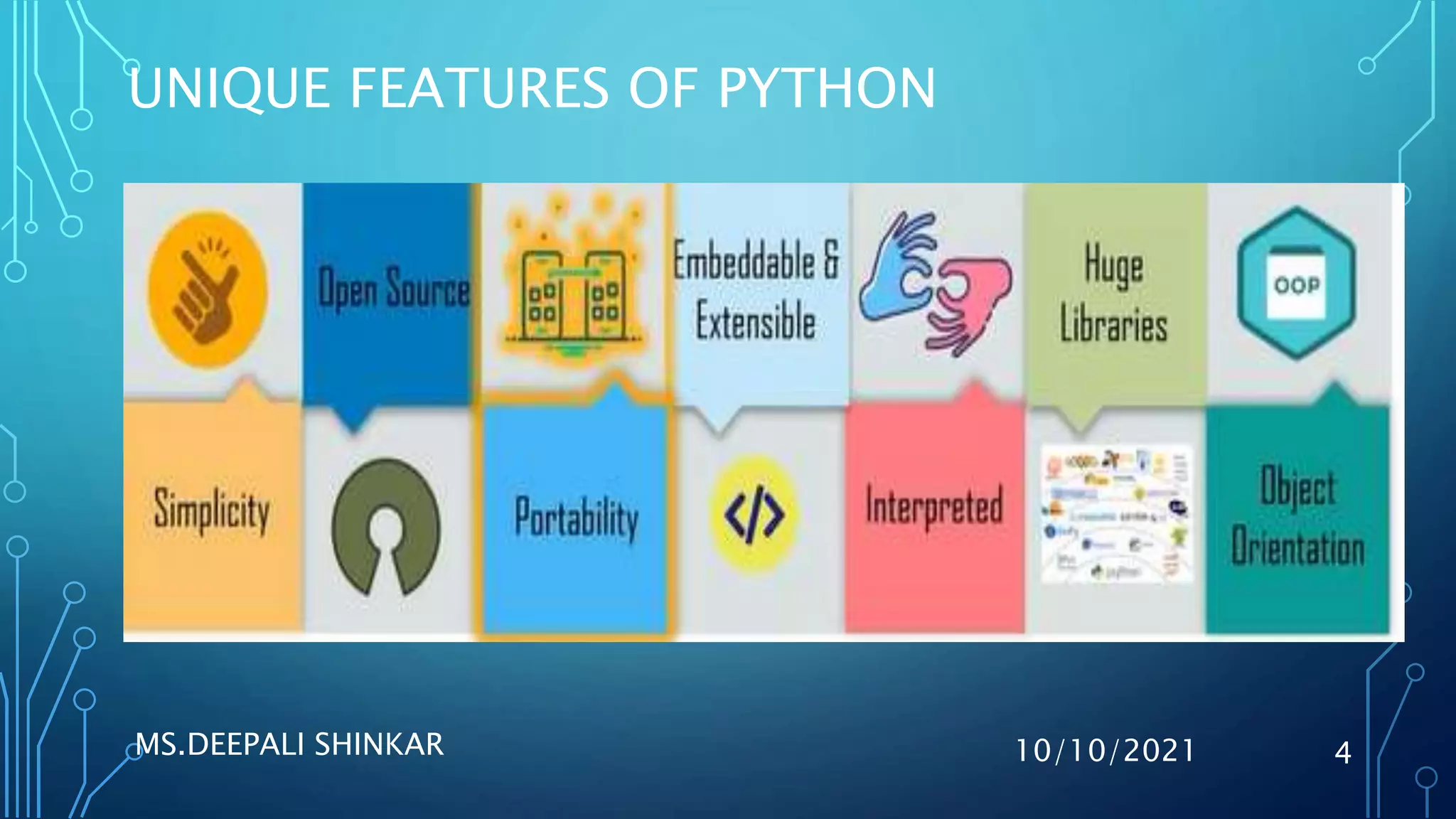
UNIQUE FEATURES OF PYTHON
10/10/2021
MS.DEEPALI SHINKAR 4
HISTORY OF PYTHON
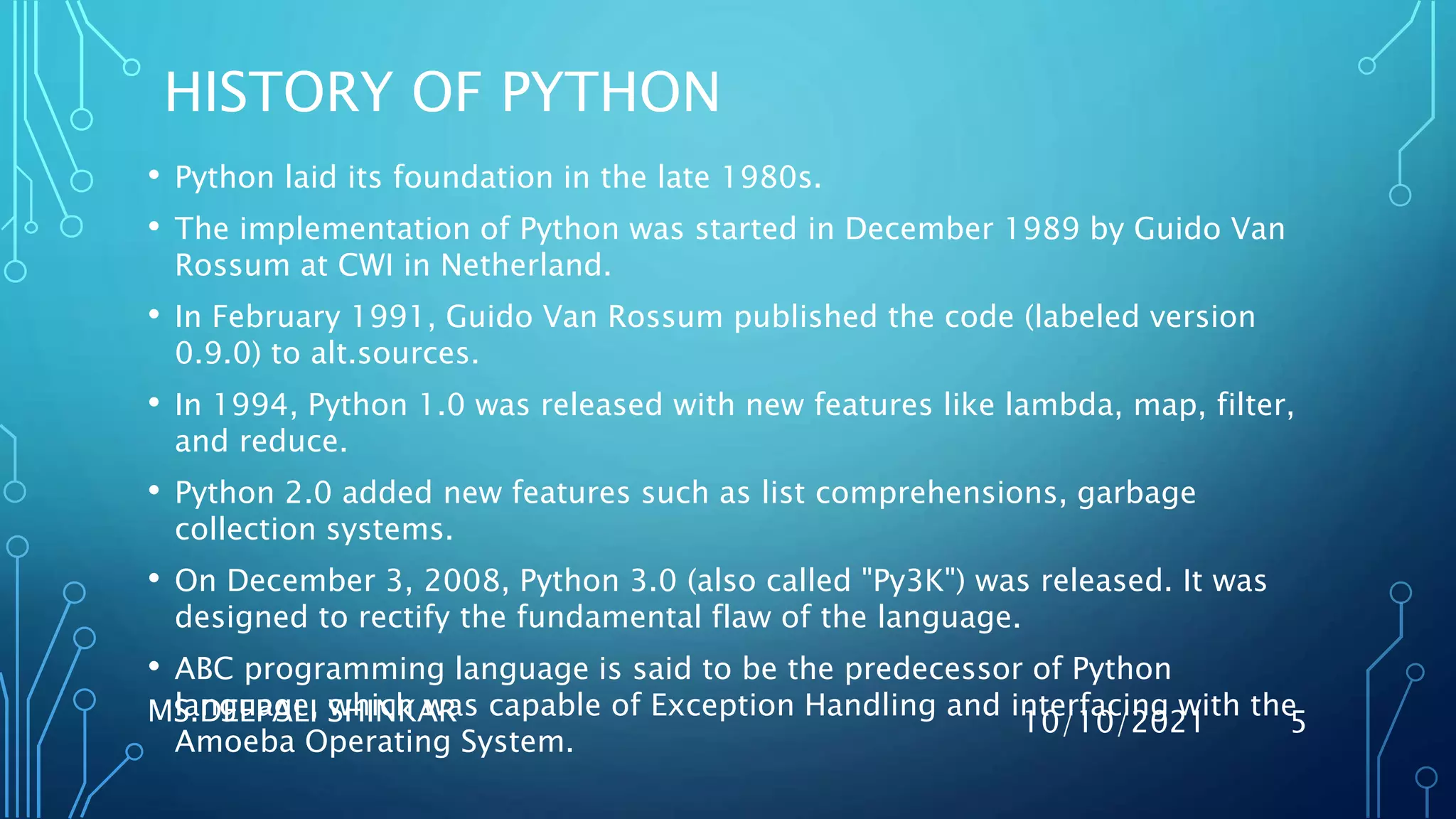
• Python laid its foundation in the late 1980s.
• The implementation of Python was started in December 1989 by Guido Van
Rossum at CWI in Netherland.
• In February 1991, Guido Van Rossum published the code (labeled version
0.9.0) to alt.sources.
• In 1994, Python 1.0 was released with new features like lambda, map, filter,
and reduce.
• Python 2.0 added new features such as list comprehensions, garbage
collection systems.
• On December 3, 2008, Python 3.0 (also called "Py3K") was released. It was
designed to rectify the fundamental flaw of the language.
• ABC programming language is said to be the predecessor of Python
language, which was capable of Exception Handling and interfacing with the
Amoeba Operating System.
10/10/2021
MS.DEEPALI SHINKAR 5
VERSIONS OF PYTHON
10/10/2021
MS.DEEPALI SHINKAR 6
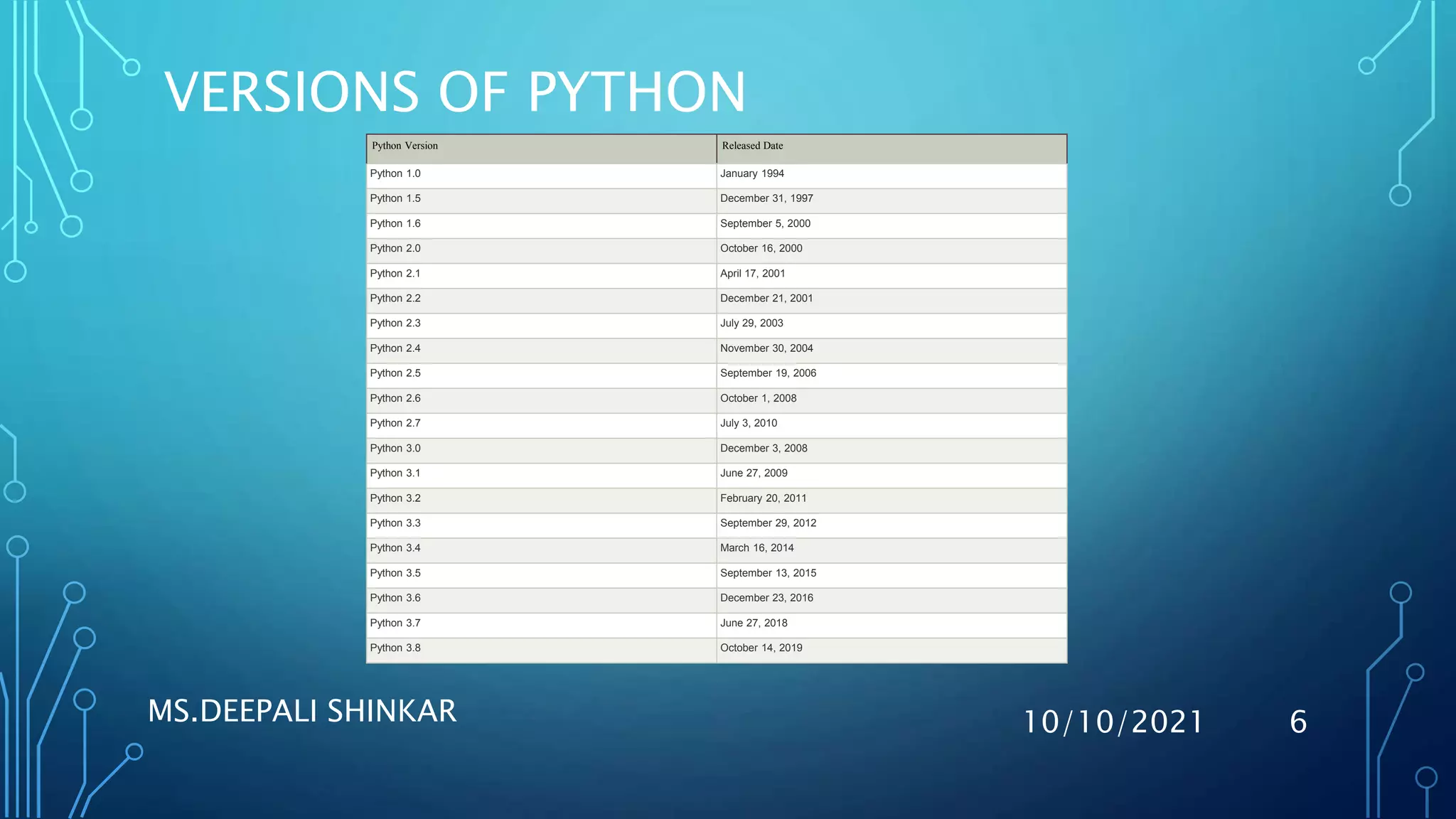
Python Version Released Date
Python 1.0 January 1994
Python 1.5 December 31, 1997
Python 1.6 September 5, 2000
Python 2.0 October 16, 2000
Python 2.1 April 17, 2001
Python 2.2 December 21, 2001
Python 2.3 July 29, 2003
Python 2.4 November 30, 2004
Python 2.5 September 19, 2006
Python 2.6 October 1, 2008
Python 2.7 July 3, 2010
Python 3.0 December 3, 2008
Python 3.1 June 27, 2009
Python 3.2 February 20, 2011
Python 3.3 September 29, 2012
Python 3.4 March 16, 2014
Python 3.5 September 13, 2015
Python 3.6 December 23, 2016
Python 3.7 June 27, 2018
Python 3.8 October 14, 2019
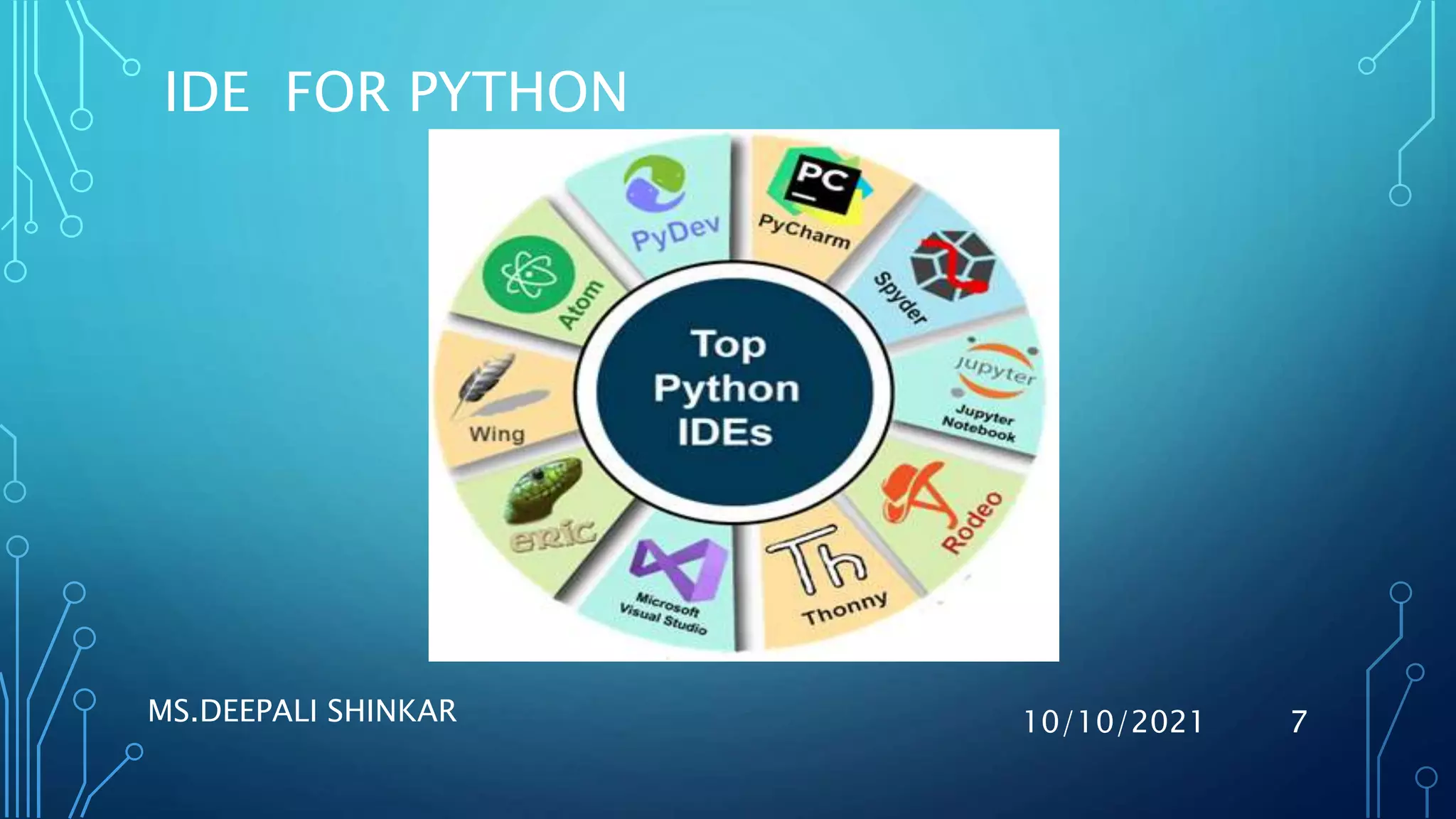
IDE FOR PYTHON
10/10/2021
MS.DEEPALI SHINKAR 7
INSTALL PYTHON
• URL
https://www.python.org/downloads/
Down load as per requirement like:
Operating System 32-bit or 64-bit
10/10/2021
MS.DEEPALI SHINKAR 8
CHECK THE OS IS 32-BIT OR 64-BIT
10/10/2021
MS.DEEPALI SHINKAR 9
CHECK THE OS IS 32-BIT OR 64-BIT
10/10/2021
MS.DEEPALI SHINKAR 10
INSTALLATION STEPS:INSTALL LATEST
VERSION
1. To follow the installation procedure, you need to be connected to the
Internet.
2. Visit https://www.python.org/downloads/release/python-3.9/
3. At the bottom locate Windows x86-64 executable
installer for 64 bits OS and Windows x86 executable
 installer for 32 bits OS
4. Click on the located installer file to download.
5. After download completes, double click on the installer file to start the
installation procedure.
6. Follow the instructions as per the installer.
Note down the installation path 10/10/2021
MS.DEEPALI SHINKAR
11
ENVIRONMENT SET UP
• Select the Start button, then select Control Panel > Appearance and
Personalization.
• Select Folder Options, then select the View tab.
• Under Advanced settings, select Show hidden files, folders, and drives,
and then select OK.
10/10/2021
MS.DEEPALI SHINKAR 12
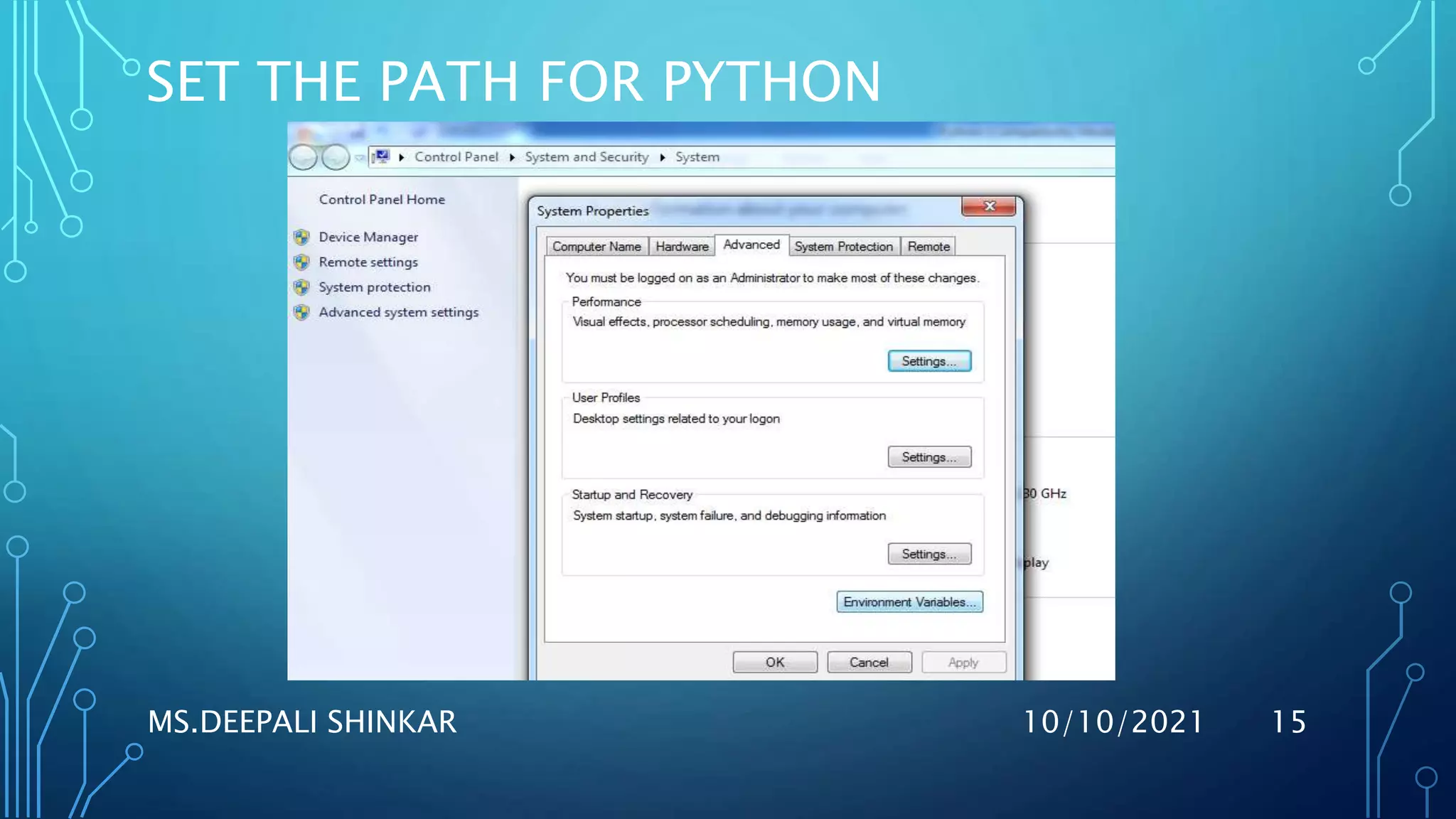
SET THE PATH FOR PYTHON
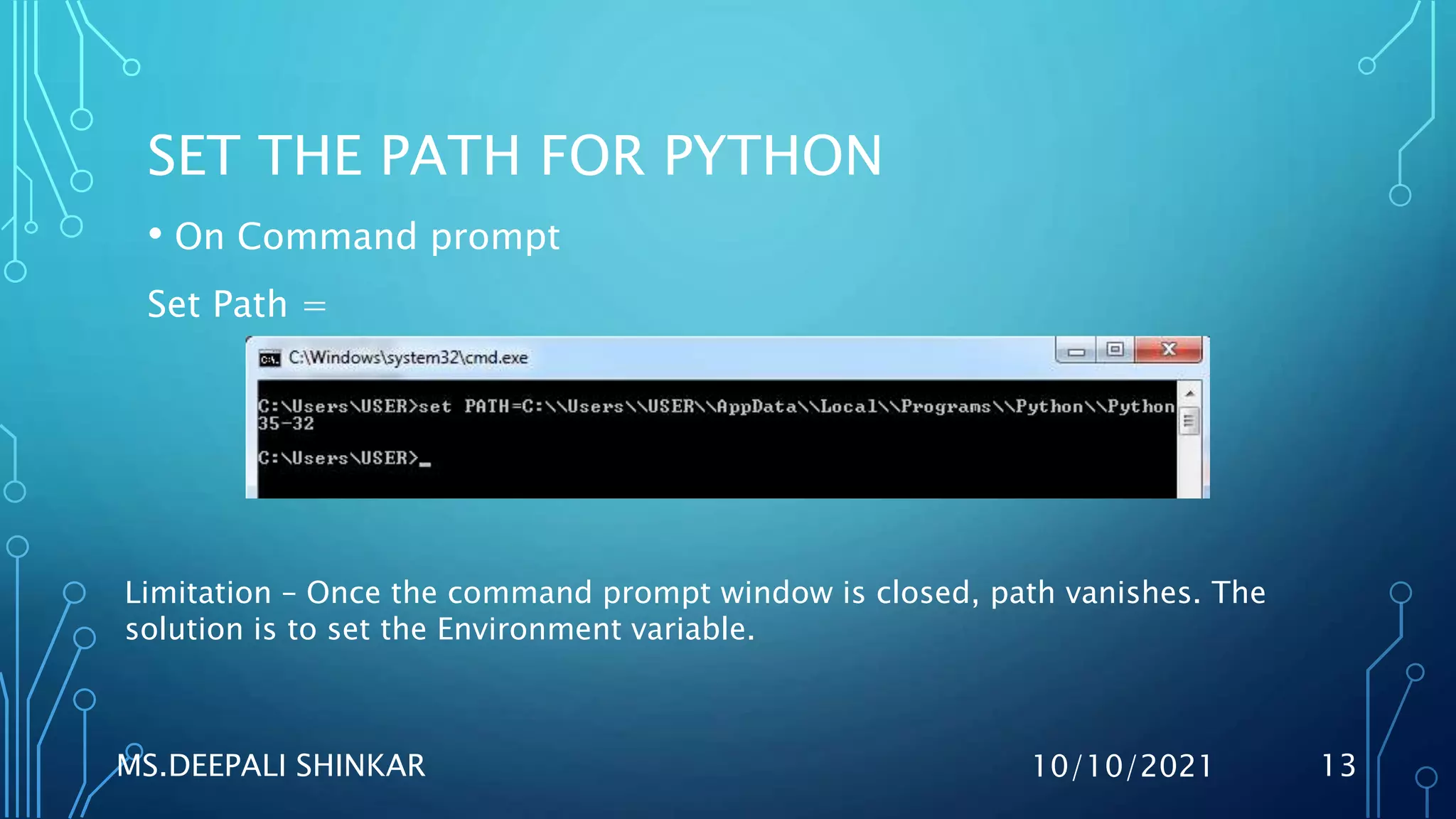
• On Command prompt
Set Path =
10/10/2021
MS.DEEPALI SHINKAR 13
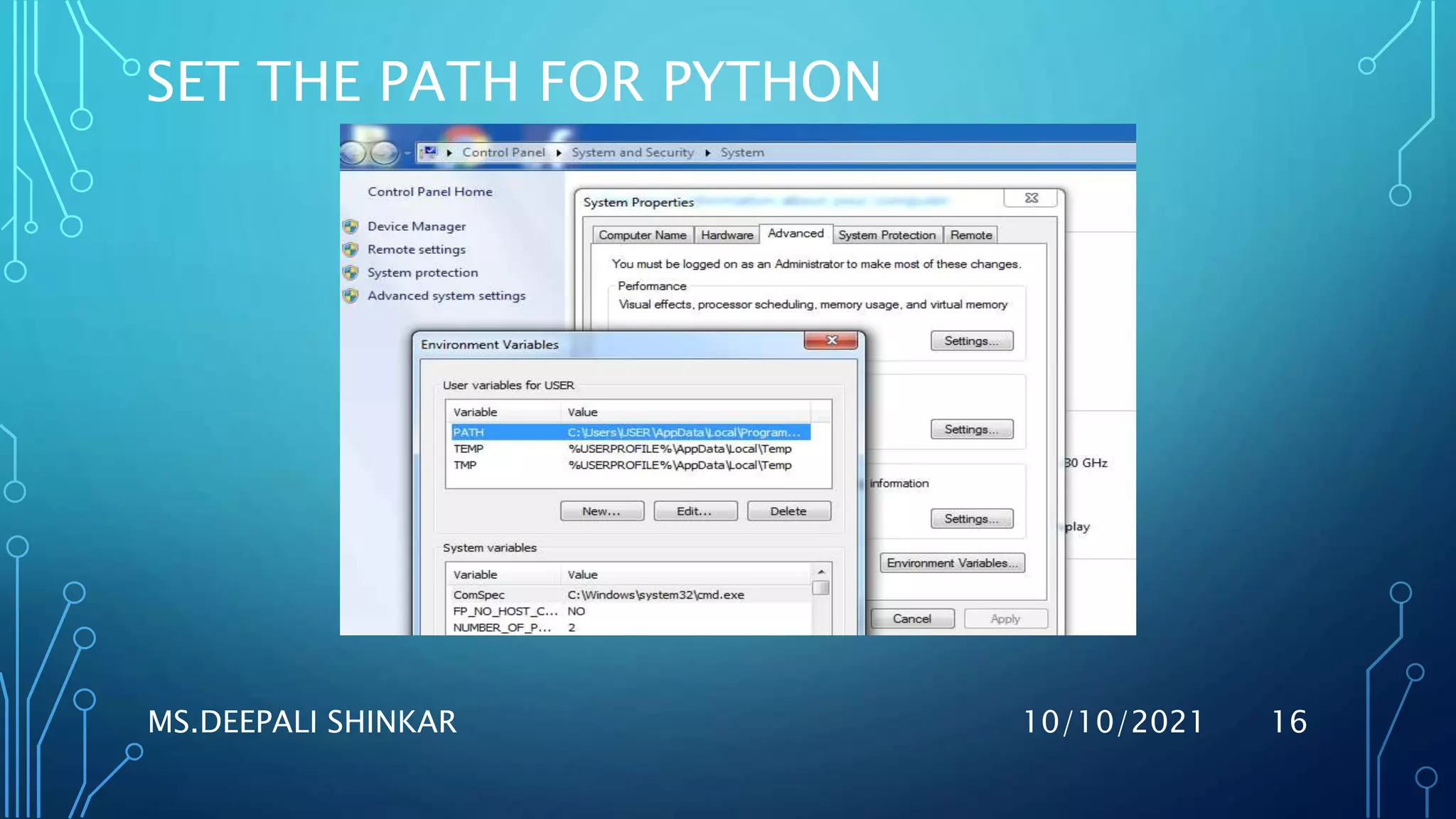
Limitation – Once the command prompt window is closed, path vanishes. The
solution is to set the Environment variable.
SET THE PATH FOR PYTHON
10/10/2021
MS.DEEPALI SHINKAR 14
SET THE PATH FOR PYTHON
10/10/2021
MS.DEEPALI SHINKAR 15
SET THE PATH FOR PYTHON
10/10/2021
MS.DEEPALI SHINKAR 16
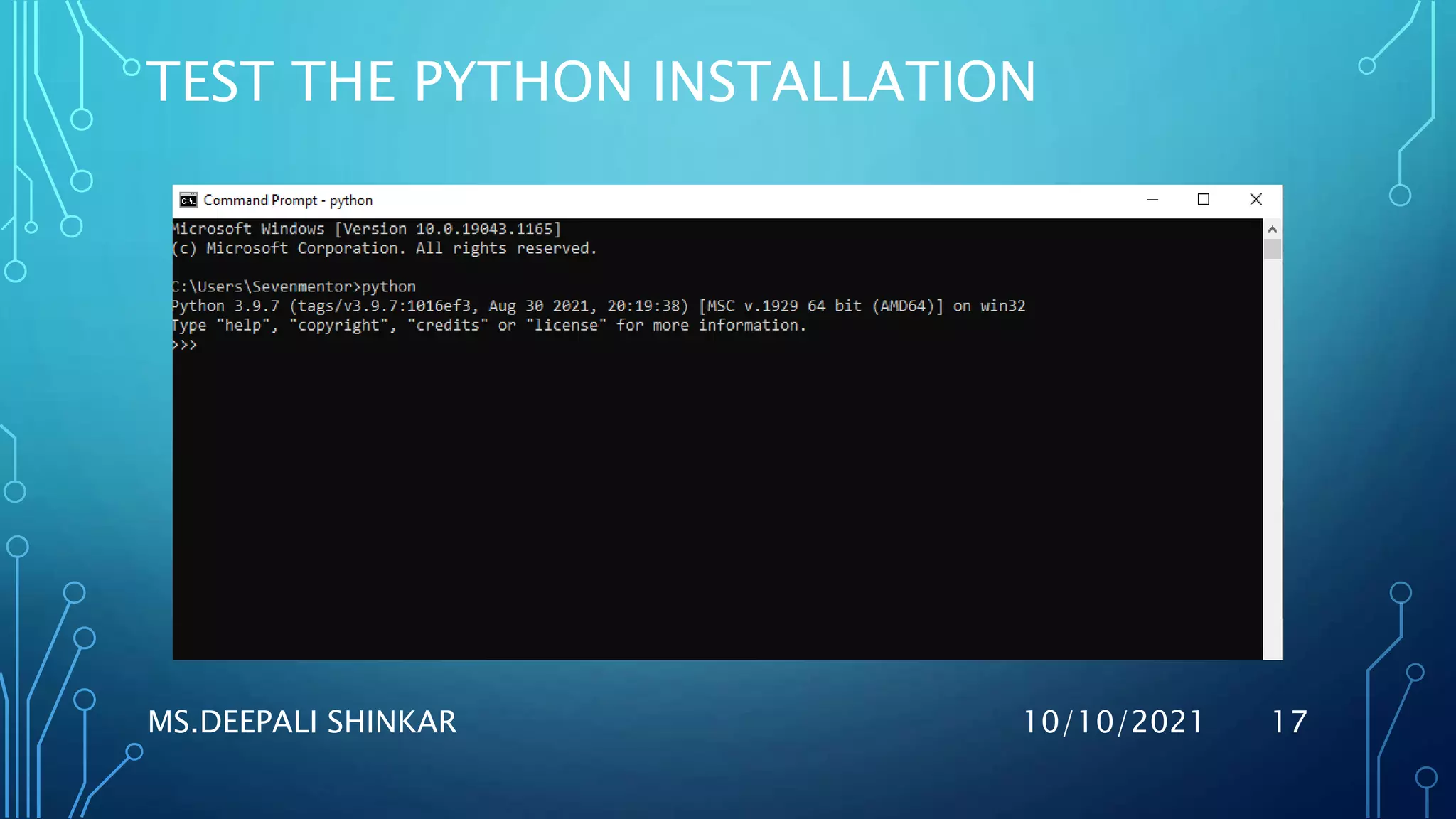
TEST THE PYTHON INSTALLATION
10/10/2021
MS.DEEPALI SHINKAR 17
TEST THE PYTHON INSTALLATION
10/10/2021
MS.DEEPALI SHINKAR
HOW TO FIND PATH FOR PYTHON
INSTALLATION
10/10/2021
MS.DEEPALI SHINKAR 19
Find the installed path for Python (Type one line at a time)
>>> import os
>>> import sys
>>> os.path.dirname(sys.executable)
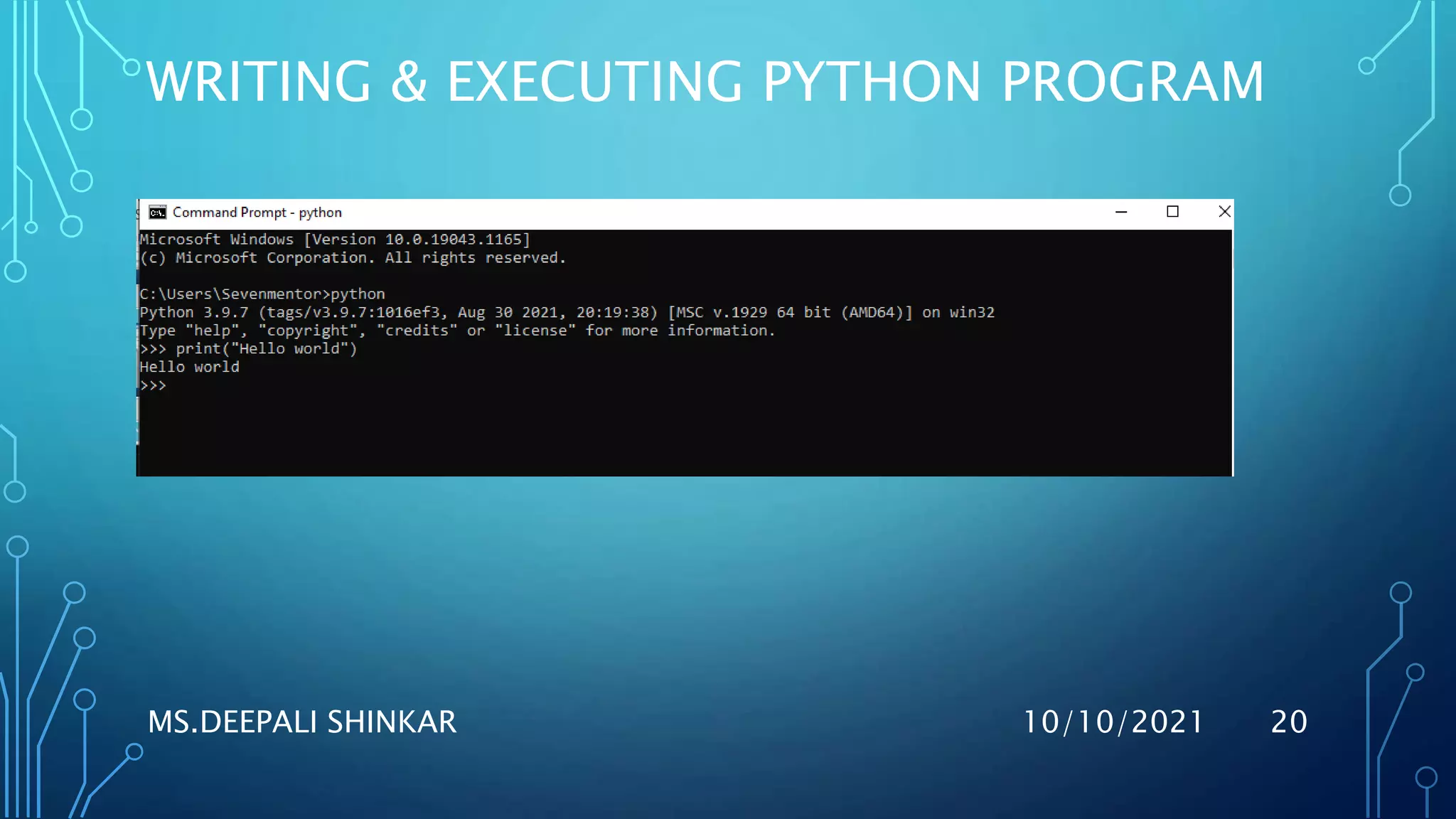
WRITING & EXECUTING PYTHON PROGRAM
10/10/2021
MS.DEEPALI SHINKAR 20
EXIT THE PYTHON COMMAND LINE
10/10/2021
MS.DEEPALI SHINKAR 21

Introduction to python

  • 1.
  • 2.
    WHAT IS PYTHON? •Python is a general purpose ,high level object - oriented,interpreted language with easy syntax and dynamic semantics. • Created by Guido Van Rossum in 1989 and was released in 1991. 10/10/2021 MS.DEEPALI SHINKAR 2
  • 3.
    WHY IS PYTHONPOPULAR? • Python is the language preferred by beginners and pros alike. • Python is open source language which makes it free for everyone to use. • Python is also versatile and widely used in every technical field, such as Machine Leaning,Artificial Intelligence,Web Development, Mobile Application, Desktop Application, Scientific Calculation, etc. • Python has a great community who constantly make libraries and help those in need. 10/10/2021 MS.DEEPALI SHINKAR 3
  • 4.
    UNIQUE FEATURES OFPYTHON 10/10/2021 MS.DEEPALI SHINKAR 4
  • 5.
    HISTORY OF PYTHON •Python laid its foundation in the late 1980s. • The implementation of Python was started in December 1989 by Guido Van Rossum at CWI in Netherland. • In February 1991, Guido Van Rossum published the code (labeled version 0.9.0) to alt.sources. • In 1994, Python 1.0 was released with new features like lambda, map, filter, and reduce. • Python 2.0 added new features such as list comprehensions, garbage collection systems. • On December 3, 2008, Python 3.0 (also called "Py3K") was released. It was designed to rectify the fundamental flaw of the language. • ABC programming language is said to be the predecessor of Python language, which was capable of Exception Handling and interfacing with the Amoeba Operating System. 10/10/2021 MS.DEEPALI SHINKAR 5
  • 6.
    VERSIONS OF PYTHON 10/10/2021 MS.DEEPALISHINKAR 6 Python Version Released Date Python 1.0 January 1994 Python 1.5 December 31, 1997 Python 1.6 September 5, 2000 Python 2.0 October 16, 2000 Python 2.1 April 17, 2001 Python 2.2 December 21, 2001 Python 2.3 July 29, 2003 Python 2.4 November 30, 2004 Python 2.5 September 19, 2006 Python 2.6 October 1, 2008 Python 2.7 July 3, 2010 Python 3.0 December 3, 2008 Python 3.1 June 27, 2009 Python 3.2 February 20, 2011 Python 3.3 September 29, 2012 Python 3.4 March 16, 2014 Python 3.5 September 13, 2015 Python 3.6 December 23, 2016 Python 3.7 June 27, 2018 Python 3.8 October 14, 2019
  • 7.
  • 8.
    INSTALL PYTHON • URL https://www.python.org/downloads/ Download as per requirement like: Operating System 32-bit or 64-bit 10/10/2021 MS.DEEPALI SHINKAR 8
  • 9.
    CHECK THE OSIS 32-BIT OR 64-BIT 10/10/2021 MS.DEEPALI SHINKAR 9
  • 10.
    CHECK THE OSIS 32-BIT OR 64-BIT 10/10/2021 MS.DEEPALI SHINKAR 10
  • 11.
    INSTALLATION STEPS:INSTALL LATEST VERSION 1.To follow the installation procedure, you need to be connected to the Internet. 2. Visit https://www.python.org/downloads/release/python-3.9/ 3. At the bottom locate Windows x86-64 executable installer for 64 bits OS and Windows x86 executable  installer for 32 bits OS 4. Click on the located installer file to download. 5. After download completes, double click on the installer file to start the installation procedure. 6. Follow the instructions as per the installer. Note down the installation path 10/10/2021 MS.DEEPALI SHINKAR 11
  • 12.
    ENVIRONMENT SET UP •Select the Start button, then select Control Panel > Appearance and Personalization. • Select Folder Options, then select the View tab. • Under Advanced settings, select Show hidden files, folders, and drives, and then select OK. 10/10/2021 MS.DEEPALI SHINKAR 12
  • 13.
    SET THE PATHFOR PYTHON • On Command prompt Set Path = 10/10/2021 MS.DEEPALI SHINKAR 13 Limitation – Once the command prompt window is closed, path vanishes. The solution is to set the Environment variable.
  • 14.
    SET THE PATHFOR PYTHON 10/10/2021 MS.DEEPALI SHINKAR 14
  • 15.
    SET THE PATHFOR PYTHON 10/10/2021 MS.DEEPALI SHINKAR 15
  • 16.
    SET THE PATHFOR PYTHON 10/10/2021 MS.DEEPALI SHINKAR 16
  • 17.
    TEST THE PYTHONINSTALLATION 10/10/2021 MS.DEEPALI SHINKAR 17
  • 18.
    TEST THE PYTHONINSTALLATION 10/10/2021 MS.DEEPALI SHINKAR
  • 19.
    HOW TO FINDPATH FOR PYTHON INSTALLATION 10/10/2021 MS.DEEPALI SHINKAR 19 Find the installed path for Python (Type one line at a time) >>> import os >>> import sys >>> os.path.dirname(sys.executable)
  • 20.
    WRITING & EXECUTINGPYTHON PROGRAM 10/10/2021 MS.DEEPALI SHINKAR 20
  • 21.
    EXIT THE PYTHONCOMMAND LINE 10/10/2021 MS.DEEPALI SHINKAR 21