Online Course In this module you will learn the basics to start with this online course.  Introduction to Online Course
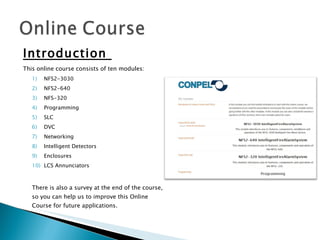
Introduction  This online course consists of ten modules:  NFS2-3030 NFS2-640 NFS-320 Programming SLC DVC Networking Intelligent Detectors Enclosures LCS Annunciators There is also a survey at the end of the course, so you can help us to improve this Online Course for future applications.
Program objective For us it is important to keep you prepared for the installing, programming and operating of ONYX Systems.  Through this online course you will get ready to assist to the 3-day classroom course, which consists of several practices and more specialized topics. It is important that you attend the 10 exams of the online course and you get an average grade equal or higher than 70%. After you have succesfully finished with the whole course (online course + classroom course), the next step will be to assist to the Notifer course, in order to get its  Certification . The course we teach will give you the skills and tools to succed and get the certification.
Course Weighting The whole course (Online Course + Classroom Course) will be weighted as follows: 10% Online Course grade 90% Classroom Course grade 100% Course grade Example: 91  Online Course grade  (91 * .10) 87  Classroom Course grade  (87 * .90) Course grade  Obtained grade Weight 9.1 78.3 87.4 = = Weighted grade Course grade
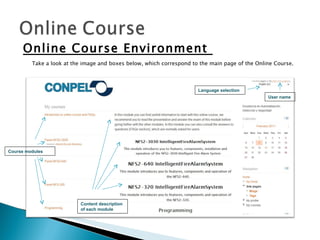
Online Course Environment  Take a look at the image and boxes below, which correspond to the main page of the Online Course. Course modules Content description of each module Language selection User name
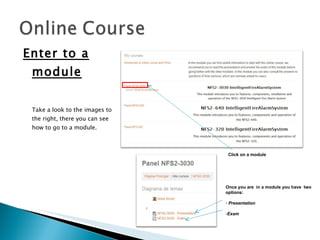
Enter to a module Take a look to the images to the right, there you can see how to go to a module.  Click on a module Once you are  in a module you have  two options: Presentation Exam
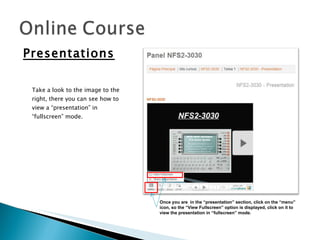
Presentations Take a look to the image to the right, there you can see how to view a “presentation” in “fullscreen” mode.  Once you are  in the “presentation” section, click on the “menu” icon, so the “View Fullscreen” option is displayed, click on it to view the presentation in “fullscreen” mode.
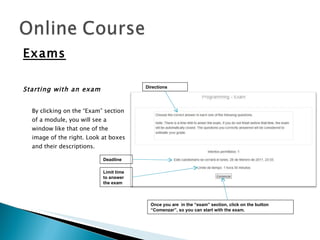
Exams Starting with an exam By clicking on the “Exam” section of a module, you will see a window like that one of the image of the right. Look at boxes and their descriptions. Once you are  in the “exam” section, click on the button “Comenzar”, so you can start with the exam.  Directions Deadline Limit time to answer the exam
Exams Doing an exam The exam window environment is like that one shown in the image below.  Take a look at the boxes and their description.  Once you have answered the question click on the button “Siguiente”, so you can go to the next question.  # of question Options Selected option (in blue color) Total number of questions (10 in this exam) Remaining time (Still 1 hour, 29 minutes and 7 seconds) Points obtained if the question is  correctly answered
Exams Finishing an exam By clicking on the button “Enviar todo y terminar” like that one of the image of the left side, you will see a window like that one of the image of the right. Look at boxes and their descriptions. Click to finish and view your obtained grade Obtained grade
Exams Keep in mind It is important that you complete the 10 exams before the deadline, since after the deadline you will not be allowed to answer the exams. Also consider that every exam has a limit time to answer it, then finish the exam before this limit time, so your grade is not affected.  Closed exam
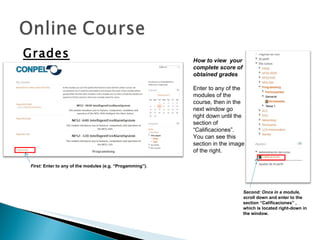
Grades First:  Enter to any of the modules (e.g. “Progamming”).  How to view  your complete score of obtained grades Enter to any of the modules of the course, then in the next window go right down until the section of “Calificaciones”.  You can see this section in the image of the right.  Second: Once in a module, s croll down and enter to the section “Calificaciones” , which is located right-down in the window.
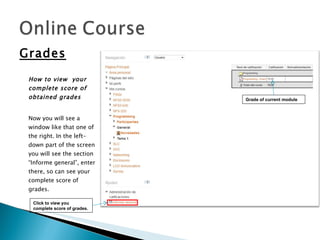
Grades How to view  your complete score of obtained grades Now you will see a window like that one of the right. In the left-down part of the screen you will see the section “Informe general”, enter there, so can see your complete score of grades.  Grade of current module Click to view you complete score of grades.
Grades How to view  your complete score of obtained grades Now your screen will look like the image at the left side.  At the right side of your screen you will see a frame like that one with red outline, there you can see the list with your acummulated grades. Note: Remember that your online course grade is the average of the grades of the 10 modules.
NOW YOU ARE READY TO START WITH  THE MODULES OF THIS  ONLINE COURSE.  GOOD LUCK!

Introduction to Online-Course

  • 1.
    Online Course Inthis module you will learn the basics to start with this online course. Introduction to Online Course
  • 2.
    Introduction Thisonline course consists of ten modules: NFS2-3030 NFS2-640 NFS-320 Programming SLC DVC Networking Intelligent Detectors Enclosures LCS Annunciators There is also a survey at the end of the course, so you can help us to improve this Online Course for future applications.
  • 3.
    Program objective Forus it is important to keep you prepared for the installing, programming and operating of ONYX Systems. Through this online course you will get ready to assist to the 3-day classroom course, which consists of several practices and more specialized topics. It is important that you attend the 10 exams of the online course and you get an average grade equal or higher than 70%. After you have succesfully finished with the whole course (online course + classroom course), the next step will be to assist to the Notifer course, in order to get its Certification . The course we teach will give you the skills and tools to succed and get the certification.
  • 4.
    Course Weighting Thewhole course (Online Course + Classroom Course) will be weighted as follows: 10% Online Course grade 90% Classroom Course grade 100% Course grade Example: 91 Online Course grade (91 * .10) 87 Classroom Course grade (87 * .90) Course grade Obtained grade Weight 9.1 78.3 87.4 = = Weighted grade Course grade
  • 5.
    Online Course Environment Take a look at the image and boxes below, which correspond to the main page of the Online Course. Course modules Content description of each module Language selection User name
  • 6.
    Enter to amodule Take a look to the images to the right, there you can see how to go to a module. Click on a module Once you are in a module you have two options: Presentation Exam
  • 7.
    Presentations Take alook to the image to the right, there you can see how to view a “presentation” in “fullscreen” mode. Once you are in the “presentation” section, click on the “menu” icon, so the “View Fullscreen” option is displayed, click on it to view the presentation in “fullscreen” mode.
  • 8.
    Exams Starting withan exam By clicking on the “Exam” section of a module, you will see a window like that one of the image of the right. Look at boxes and their descriptions. Once you are in the “exam” section, click on the button “Comenzar”, so you can start with the exam. Directions Deadline Limit time to answer the exam
  • 9.
    Exams Doing anexam The exam window environment is like that one shown in the image below. Take a look at the boxes and their description. Once you have answered the question click on the button “Siguiente”, so you can go to the next question. # of question Options Selected option (in blue color) Total number of questions (10 in this exam) Remaining time (Still 1 hour, 29 minutes and 7 seconds) Points obtained if the question is correctly answered
  • 10.
    Exams Finishing anexam By clicking on the button “Enviar todo y terminar” like that one of the image of the left side, you will see a window like that one of the image of the right. Look at boxes and their descriptions. Click to finish and view your obtained grade Obtained grade
  • 11.
    Exams Keep inmind It is important that you complete the 10 exams before the deadline, since after the deadline you will not be allowed to answer the exams. Also consider that every exam has a limit time to answer it, then finish the exam before this limit time, so your grade is not affected. Closed exam
  • 12.
    Grades First: Enter to any of the modules (e.g. “Progamming”). How to view your complete score of obtained grades Enter to any of the modules of the course, then in the next window go right down until the section of “Calificaciones”. You can see this section in the image of the right. Second: Once in a module, s croll down and enter to the section “Calificaciones” , which is located right-down in the window.
  • 13.
    Grades How toview your complete score of obtained grades Now you will see a window like that one of the right. In the left-down part of the screen you will see the section “Informe general”, enter there, so can see your complete score of grades. Grade of current module Click to view you complete score of grades.
  • 14.
    Grades How toview your complete score of obtained grades Now your screen will look like the image at the left side. At the right side of your screen you will see a frame like that one with red outline, there you can see the list with your acummulated grades. Note: Remember that your online course grade is the average of the grades of the 10 modules.
  • 15.
    NOW YOU AREREADY TO START WITH THE MODULES OF THIS ONLINE COURSE. GOOD LUCK!

Editor's Notes