Introduction to
Formulas and
Formula
Functions
Understanding formulas is crucial for effective data analysis. Excel offers
a wide range of formulas to perform calculations and automate tasks.
This presentation will delve into essential functions and formula
manipulations.
Using Sum, Average, IF, Count, Max, Min
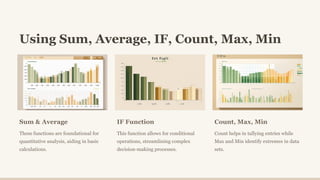
Sum & Average
These functions are foundational for
quantitative analysis, aiding in basic
calculations.
IF Function
This function allows for conditional
operations, streamlining complex
decision-making processes.
Count, Max, Min
Count helps in tallying entries while
Max and Min identify extremes in data
sets.
Using Proper, Upper, Lower,
Concatenate
1 Text Manipulation
Use functions like Proper, Upper, and Lower to format text consistently.
2 Concatenate
This function merges text strings, creating comprehensive labels and data
entries.
3 Example Application
Combining names or addresses for presentations maximizes clarity and
professionalism.
Utilizing V Lookup, H Lookup, Match, Countif
V Lookup
V Lookup searches for a value
vertically in a data range. It's
essential for cross-referencing data.
H Lookup
H Lookup performs a similar
function horizontally, ideal for
summative reports.
Match & Countif
Use Match to find the position of a
value, while Countif counts based on
criteria.
Formatting and Manipulating Text with Trim
1 Text Cleanup
The Trim function removes
unnecessary spaces from text
entries.
2 Data Consistency
Consistent data formatting
enhances usability and
appearance.
3 Efficiency
Using Trim saves time in
preparing data for analysis and
reporting.
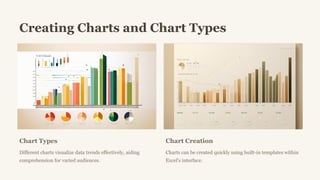
Creating Charts and Chart Types
Chart Types
Different charts visualize data trends effectively, aiding
comprehension for varied audiences.
Chart Creation
Charts can be created quickly using built-in templates within
Excel's interface.
Formatting Chart Objects and
Changing Chart Type
1 Chart Formatting
Customize chart elements like colors, labels, and styles for clarity.
2 Changing Types
Switch between chart types to better represent your data visually.
3 Best Practices
Ensure clarity and simplicity in presentations to effectively communicate
data insights.
Showing and Hiding Legend and Data Table
Legend Management
Control legend visibility to maintain
focus on the data.
Data Table Options
Show or hide data tables based on
audience preferences for better
comprehension.
Presentation Techniques
Adapt chart details based on the
context and clarity needed for the
presentation.

Introduction-to-Formulas-and-Formula-Functions3.pptx

  • 1.
    Introduction to Formulas and Formula Functions Understandingformulas is crucial for effective data analysis. Excel offers a wide range of formulas to perform calculations and automate tasks. This presentation will delve into essential functions and formula manipulations.
  • 2.
    Using Sum, Average,IF, Count, Max, Min Sum & Average These functions are foundational for quantitative analysis, aiding in basic calculations. IF Function This function allows for conditional operations, streamlining complex decision-making processes. Count, Max, Min Count helps in tallying entries while Max and Min identify extremes in data sets.
  • 3.
    Using Proper, Upper,Lower, Concatenate 1 Text Manipulation Use functions like Proper, Upper, and Lower to format text consistently. 2 Concatenate This function merges text strings, creating comprehensive labels and data entries. 3 Example Application Combining names or addresses for presentations maximizes clarity and professionalism.
  • 4.
    Utilizing V Lookup,H Lookup, Match, Countif V Lookup V Lookup searches for a value vertically in a data range. It's essential for cross-referencing data. H Lookup H Lookup performs a similar function horizontally, ideal for summative reports. Match & Countif Use Match to find the position of a value, while Countif counts based on criteria.
  • 5.
    Formatting and ManipulatingText with Trim 1 Text Cleanup The Trim function removes unnecessary spaces from text entries. 2 Data Consistency Consistent data formatting enhances usability and appearance. 3 Efficiency Using Trim saves time in preparing data for analysis and reporting.
  • 6.
    Creating Charts andChart Types Chart Types Different charts visualize data trends effectively, aiding comprehension for varied audiences. Chart Creation Charts can be created quickly using built-in templates within Excel's interface.
  • 7.
    Formatting Chart Objectsand Changing Chart Type 1 Chart Formatting Customize chart elements like colors, labels, and styles for clarity. 2 Changing Types Switch between chart types to better represent your data visually. 3 Best Practices Ensure clarity and simplicity in presentations to effectively communicate data insights.
  • 8.
    Showing and HidingLegend and Data Table Legend Management Control legend visibility to maintain focus on the data. Data Table Options Show or hide data tables based on audience preferences for better comprehension. Presentation Techniques Adapt chart details based on the context and clarity needed for the presentation.