© 2020 Carestream Dental LLC
April 1, 2020
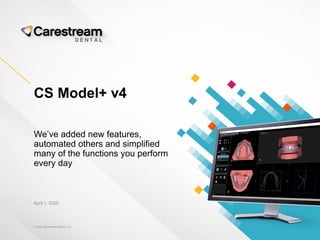
CS Model+ v4
We’ve added new features,
automated others and simplified
many of the functions you perform
every day
© 2020 Carestream Dental LLC
April 1, 2020
Introducing
Patient
Monitoring
A better way to track patient
progress over time
© 2020 Carestream Dental LLC 3
• Educate and engage your patients by presenting and discussing changes
to their dentition over time and demonstrate treatment efficacy.
• Provide superior consultations and convert patients from treatment
inquiry to active treatment.
• Track progress or relapse on your treatment plans to keep patients on
schedule, and pivot where necessary to ensure on-time completion.
• Validate and document diagnosed patient conditions and treatments.
Patient Monitoring
Benefits both your practice and your patients
© 2020 Carestream Dental LLC
• Patient Monitoring allows you to superimpose two 3D datasets for
tracking of treatment changes over time such as progress, relapse,
bruxism or erosion.
• You can also compare any acquisition with a setup to track treatment
progress against the proposed treatment.
Patient Monitoring
Compare treatment over time
© 2020 Carestream Dental LLC 5
CS Model+ uses a
simple four-step
process.
Let’s Get
Started
Open a dataset in
CS Model+
Select an additional
dataset to import
CS Model+ automatically
detects the teeth on the
additional dataset
CS Model+ automatically
superimposes the current
dataset with the additional
dataset
© 2020 Carestream Dental LLC 6
From the Patient Monitoring tab, select the
Import acquisition button from an open dataset.
Monitor Patient Progress
Import an acquisition
© 2020 Carestream Dental LLC 7
Review the datasets and proceed with teeth detection by
clicking the Next button.
Monitor Patient Progress
Preview of current and additional datasets
© 2020 Carestream Dental LLC 8
CS Model+ automatically detects the teeth for detection and segmentation.
Monitor Patient Progress
Automated tooth detection
© 2020 Carestream Dental LLC 9
The teeth are automatically detected and segmented.
Adjust as needed and click the Next button to continue.
Monitor Patient Progress
Teeth segmentation of imported dataset
© 2020 Carestream Dental LLC 10
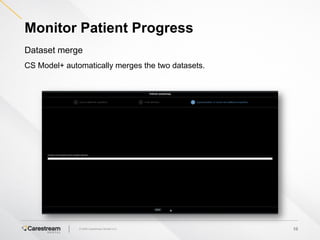
CS Model+ automatically merges the two datasets.
Monitor Patient Progress
Dataset merge
© 2020 Carestream Dental LLC 11
Both datasets are automatically superimposed and displayed in CS Model+
with the current dataset in white and the new dataset in color.
Monitor Patient Progress
Compare current and additional datasets
© 2020 Carestream Dental LLC 12
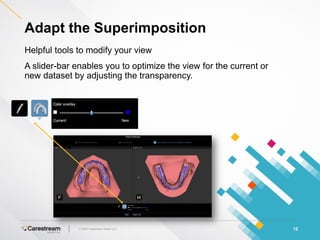
A slider-bar enables you to optimize the view for the current or
new dataset by adjusting the transparency.
Adapt the Superimposition
Helpful tools to modify your view
© 2020 Carestream Dental LLC 13
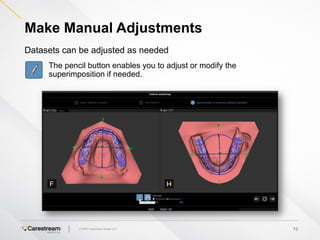
The pencil button enables you to adjust or modify the
superimposition if needed.
Make Manual Adjustments
Datasets can be adjusted as needed
© 2020 Carestream Dental LLC
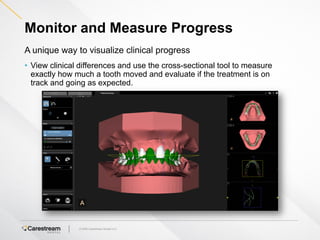
• View clinical differences and use the cross-sectional tool to measure
exactly how much a tooth moved and evaluate if the treatment is on
track and going as expected.
Monitor and Measure Progress
A unique way to visualize clinical progress
© 2020 Carestream Dental LLC
View a heat map of the Superimposition by Move
Distance, which is displayed in millimeters.
Monitor and Measure Progress
Use the distance map for a holistic view
© 2020 Carestream Dental LLC
• New reports empower you to communicate, refer or simply archive the
superimposition so you can collaboratively monitor treatment over time.
Improve Communication
Extended reporting capabilities
© 2020 Carestream Dental LLC 17
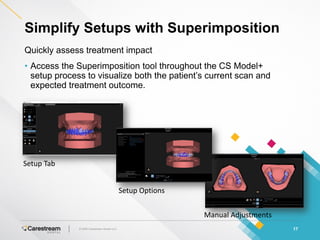
• Access the Superimposition tool throughout the CS Model+
setup process to visualize both the patient’s current scan and
expected treatment outcome.
Simplify Setups with Superimposition
Quickly assess treatment impact
Manual Adjustments
Setup Options
Setup Tab
© 2020 Carestream Dental LLC 18
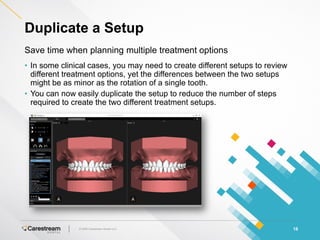
• In some clinical cases, you may need to create different setups to review
different treatment options, yet the differences between the two setups
might be as minor as the rotation of a single tooth.
• You can now easily duplicate the setup to reduce the number of steps
required to create the two different treatment setups.
Duplicate a Setup
Save time when planning multiple treatment options
© 2020 Carestream Dental LLC 19
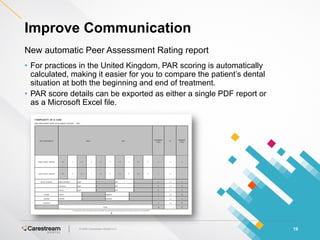
• For practices in the United Kingdom, PAR scoring is automatically
calculated, making it easier for you to compare the patient’s dental
situation at both the beginning and end of treatment.
• PAR score details can be exported as either a single PDF report or
as a Microsoft Excel file.
Improve Communication
New automatic Peer Assessment Rating report
© 2020 Carestream Dental LLC 20
• CS Model+ now offers Optimal, Aligner, Manual, and Relapse treatment
setup simulations.
Simplify Your Setups
Choose the ideal setup computation
© 2020 Carestream Dental LLC 21
• When a patient presents to your practice with a
relapse, there is no need to completely redesign
a full treatment setup.
• Relapse mode directly computes the setup, taking
into account the previously acquired end-of-
treatment acquisition.
• Eliminates the need to plan for an entirely new
treatment result as it leverages the outcome that
has already been clinically accomplished.
• If modifications are required to adapt to his
treatment plan, you will only need to make minor
changes since you are working directly from a
previous clinical result.
Efficiently Manage Relapse Cases
New Relapse option
© 2020 Carestream Dental LLC 22
CS Model+ uses a similar
four-step process to the
one used for Patient
Monitoring.
Easily Manage
Relapses
Select Relapse from
the Setup tab.
Import the end of treatment
scanned dataset.
CS Model+ automatically
detects the teeth on the
end of treatment dataset.
The current and end of
treatment datasets are
automatically superimposed,
allowing you to evaluate and
plan re-treatment.
© 2020 Carestream Dental LLC 23
Efficiently Manage Relapse Cases
Work from your previous final result
Merge the current dataset with the end of treatment scan and
automatically redefine the steps based on the patient’s previous
clinical outcome.
© 2020 Carestream Dental LLC 24
CS Model+ automatically detects the teeth for segmentation.
Efficiently Manage Relapse Cases
Automated tooth detection
© 2020 Carestream Dental LLC 25
Efficiently Manage Relapse Cases
Teeth segmentation of end of treatment scan
The teeth are automatically detected and segmented.
Adjust as needed and click the Next button to continue.
© 2020 Carestream Dental LLC 26
A series of tools help make adjustments simple.
Efficiently Manage Relapse Cases
Adjust segmentation as needed
© 2020 Carestream Dental LLC 27
Click the Next button and CS Model+ automatically merges the
treatment completion dataset with the current one.
Efficiently Manage Relapse Cases
Dataset Merge
© 2020 Carestream Dental LLC 28
A slider-bar enables you to adjust the transparency to optimize the
view for the current or new dataset.
Efficiently Manage Relapse Cases
Helpful tools to modify your superimposition
© 2020 Carestream Dental LLC 29
A heatmap shows the degree of relapse in the superimposed
datasets and a series of tools allow for adjustments as needed.
Efficiently Manage Relapse Cases
View relapse overlap
© 2020 Carestream Dental LLC 30
A heatmap for the relapse setup helps you visualize the distance for
the movement in millimeters.
Efficiently Manage Relapse Cases
Validate the relapse movement
© 2020 Carestream Dental LLC 31
• In some cases, the midline discrepancy is so great that it falls outside the
parameters for a normal midline.
Define More Accurate Midlines
Efficiently address discrepancies
© 2020 Carestream Dental LLC 32
• The Line Up of Midline slider enables you to expand the midline outside of
the current midline.
Define More Accurate Midlines
Efficiently address discrepancies
© 2020 Carestream Dental LLC 33
The bite registration wizard allows you to import multiple bites into
CS Model+ when captured during scanning, and you can toggle
between the various displays.
Manage and View Multiple Bites
Import datasets with multiple bite captures
Bite 2Bite 1
© 2020 Carestream Dental LLC 34
• Thanks to artificial intelligence, undetected teeth no longer take additional
time to select and identify.
• Significant improvements have been made in tooth detection, which is
increased from >80% to >90%.
Enjoy Automation Powered by AI
Artificial intelligence improves your workflow
Version 3
Version 4
© 2020 Carestream Dental LLC 35
• View the base, gingiva or dentition according to your preferences in a
single click from the Adjustment panel.
Visualize Models How You Prefer
One-click model modification
© 2020 Carestream Dental LLC 36
• Export options now include:
• Choosing ABO base, reduced base, no base and
the current acquisition.
• Selecting a full or hollow model and you can also
determine model thickness.
• Adding the patient’s name to the model.
Expand Your 3D Export Capabilities
Choose the export options that best support your needs
ABO Base
Reduced Base
No Base
Hollow Model with Name
© 2020 Carestream Dental LLC 37
Export options can be selected from CS Model+ prior to
sending the models or printing to a third-party printer.
Manage Dataset Conversion
Expanded export options
© 2020 Carestream Dental LLC 38
• When using third-party stereolithography (SLA) printers,
CS Model+ will automatically propose the printing support
for vertical orientation, significantly reducing time.
Save Time Preparing for Print Export
Automate vertical orientation
© 2020 Carestream Dental LLC
Designed With Your
Input
Adapting to your needs is essential
39
• We corrected translation issues and made improvements to the
graphics throughout the software to improve your experience.
• We enabled you to adapt the report date based on your
preferences, whether DD/MM/YY or WW/DD/YY.
• We revamped the setup options to make it easier for you to
quickly understand which parameters can be used to adapt and
play your setups.
• We made it easier to import 3D scanned datasets and other
supporting images like panoramic and cephalometric images.

Introducing CS Model+ v4

  • 1.
    © 2020 CarestreamDental LLC April 1, 2020 CS Model+ v4 We’ve added new features, automated others and simplified many of the functions you perform every day
  • 2.
    © 2020 CarestreamDental LLC April 1, 2020 Introducing Patient Monitoring A better way to track patient progress over time
  • 3.
    © 2020 CarestreamDental LLC 3 • Educate and engage your patients by presenting and discussing changes to their dentition over time and demonstrate treatment efficacy. • Provide superior consultations and convert patients from treatment inquiry to active treatment. • Track progress or relapse on your treatment plans to keep patients on schedule, and pivot where necessary to ensure on-time completion. • Validate and document diagnosed patient conditions and treatments. Patient Monitoring Benefits both your practice and your patients
  • 4.
    © 2020 CarestreamDental LLC • Patient Monitoring allows you to superimpose two 3D datasets for tracking of treatment changes over time such as progress, relapse, bruxism or erosion. • You can also compare any acquisition with a setup to track treatment progress against the proposed treatment. Patient Monitoring Compare treatment over time
  • 5.
    © 2020 CarestreamDental LLC 5 CS Model+ uses a simple four-step process. Let’s Get Started Open a dataset in CS Model+ Select an additional dataset to import CS Model+ automatically detects the teeth on the additional dataset CS Model+ automatically superimposes the current dataset with the additional dataset
  • 6.
    © 2020 CarestreamDental LLC 6 From the Patient Monitoring tab, select the Import acquisition button from an open dataset. Monitor Patient Progress Import an acquisition
  • 7.
    © 2020 CarestreamDental LLC 7 Review the datasets and proceed with teeth detection by clicking the Next button. Monitor Patient Progress Preview of current and additional datasets
  • 8.
    © 2020 CarestreamDental LLC 8 CS Model+ automatically detects the teeth for detection and segmentation. Monitor Patient Progress Automated tooth detection
  • 9.
    © 2020 CarestreamDental LLC 9 The teeth are automatically detected and segmented. Adjust as needed and click the Next button to continue. Monitor Patient Progress Teeth segmentation of imported dataset
  • 10.
    © 2020 CarestreamDental LLC 10 CS Model+ automatically merges the two datasets. Monitor Patient Progress Dataset merge
  • 11.
    © 2020 CarestreamDental LLC 11 Both datasets are automatically superimposed and displayed in CS Model+ with the current dataset in white and the new dataset in color. Monitor Patient Progress Compare current and additional datasets
  • 12.
    © 2020 CarestreamDental LLC 12 A slider-bar enables you to optimize the view for the current or new dataset by adjusting the transparency. Adapt the Superimposition Helpful tools to modify your view
  • 13.
    © 2020 CarestreamDental LLC 13 The pencil button enables you to adjust or modify the superimposition if needed. Make Manual Adjustments Datasets can be adjusted as needed
  • 14.
    © 2020 CarestreamDental LLC • View clinical differences and use the cross-sectional tool to measure exactly how much a tooth moved and evaluate if the treatment is on track and going as expected. Monitor and Measure Progress A unique way to visualize clinical progress
  • 15.
    © 2020 CarestreamDental LLC View a heat map of the Superimposition by Move Distance, which is displayed in millimeters. Monitor and Measure Progress Use the distance map for a holistic view
  • 16.
    © 2020 CarestreamDental LLC • New reports empower you to communicate, refer or simply archive the superimposition so you can collaboratively monitor treatment over time. Improve Communication Extended reporting capabilities
  • 17.
    © 2020 CarestreamDental LLC 17 • Access the Superimposition tool throughout the CS Model+ setup process to visualize both the patient’s current scan and expected treatment outcome. Simplify Setups with Superimposition Quickly assess treatment impact Manual Adjustments Setup Options Setup Tab
  • 18.
    © 2020 CarestreamDental LLC 18 • In some clinical cases, you may need to create different setups to review different treatment options, yet the differences between the two setups might be as minor as the rotation of a single tooth. • You can now easily duplicate the setup to reduce the number of steps required to create the two different treatment setups. Duplicate a Setup Save time when planning multiple treatment options
  • 19.
    © 2020 CarestreamDental LLC 19 • For practices in the United Kingdom, PAR scoring is automatically calculated, making it easier for you to compare the patient’s dental situation at both the beginning and end of treatment. • PAR score details can be exported as either a single PDF report or as a Microsoft Excel file. Improve Communication New automatic Peer Assessment Rating report
  • 20.
    © 2020 CarestreamDental LLC 20 • CS Model+ now offers Optimal, Aligner, Manual, and Relapse treatment setup simulations. Simplify Your Setups Choose the ideal setup computation
  • 21.
    © 2020 CarestreamDental LLC 21 • When a patient presents to your practice with a relapse, there is no need to completely redesign a full treatment setup. • Relapse mode directly computes the setup, taking into account the previously acquired end-of- treatment acquisition. • Eliminates the need to plan for an entirely new treatment result as it leverages the outcome that has already been clinically accomplished. • If modifications are required to adapt to his treatment plan, you will only need to make minor changes since you are working directly from a previous clinical result. Efficiently Manage Relapse Cases New Relapse option
  • 22.
    © 2020 CarestreamDental LLC 22 CS Model+ uses a similar four-step process to the one used for Patient Monitoring. Easily Manage Relapses Select Relapse from the Setup tab. Import the end of treatment scanned dataset. CS Model+ automatically detects the teeth on the end of treatment dataset. The current and end of treatment datasets are automatically superimposed, allowing you to evaluate and plan re-treatment.
  • 23.
    © 2020 CarestreamDental LLC 23 Efficiently Manage Relapse Cases Work from your previous final result Merge the current dataset with the end of treatment scan and automatically redefine the steps based on the patient’s previous clinical outcome.
  • 24.
    © 2020 CarestreamDental LLC 24 CS Model+ automatically detects the teeth for segmentation. Efficiently Manage Relapse Cases Automated tooth detection
  • 25.
    © 2020 CarestreamDental LLC 25 Efficiently Manage Relapse Cases Teeth segmentation of end of treatment scan The teeth are automatically detected and segmented. Adjust as needed and click the Next button to continue.
  • 26.
    © 2020 CarestreamDental LLC 26 A series of tools help make adjustments simple. Efficiently Manage Relapse Cases Adjust segmentation as needed
  • 27.
    © 2020 CarestreamDental LLC 27 Click the Next button and CS Model+ automatically merges the treatment completion dataset with the current one. Efficiently Manage Relapse Cases Dataset Merge
  • 28.
    © 2020 CarestreamDental LLC 28 A slider-bar enables you to adjust the transparency to optimize the view for the current or new dataset. Efficiently Manage Relapse Cases Helpful tools to modify your superimposition
  • 29.
    © 2020 CarestreamDental LLC 29 A heatmap shows the degree of relapse in the superimposed datasets and a series of tools allow for adjustments as needed. Efficiently Manage Relapse Cases View relapse overlap
  • 30.
    © 2020 CarestreamDental LLC 30 A heatmap for the relapse setup helps you visualize the distance for the movement in millimeters. Efficiently Manage Relapse Cases Validate the relapse movement
  • 31.
    © 2020 CarestreamDental LLC 31 • In some cases, the midline discrepancy is so great that it falls outside the parameters for a normal midline. Define More Accurate Midlines Efficiently address discrepancies
  • 32.
    © 2020 CarestreamDental LLC 32 • The Line Up of Midline slider enables you to expand the midline outside of the current midline. Define More Accurate Midlines Efficiently address discrepancies
  • 33.
    © 2020 CarestreamDental LLC 33 The bite registration wizard allows you to import multiple bites into CS Model+ when captured during scanning, and you can toggle between the various displays. Manage and View Multiple Bites Import datasets with multiple bite captures Bite 2Bite 1
  • 34.
    © 2020 CarestreamDental LLC 34 • Thanks to artificial intelligence, undetected teeth no longer take additional time to select and identify. • Significant improvements have been made in tooth detection, which is increased from >80% to >90%. Enjoy Automation Powered by AI Artificial intelligence improves your workflow Version 3 Version 4
  • 35.
    © 2020 CarestreamDental LLC 35 • View the base, gingiva or dentition according to your preferences in a single click from the Adjustment panel. Visualize Models How You Prefer One-click model modification
  • 36.
    © 2020 CarestreamDental LLC 36 • Export options now include: • Choosing ABO base, reduced base, no base and the current acquisition. • Selecting a full or hollow model and you can also determine model thickness. • Adding the patient’s name to the model. Expand Your 3D Export Capabilities Choose the export options that best support your needs ABO Base Reduced Base No Base Hollow Model with Name
  • 37.
    © 2020 CarestreamDental LLC 37 Export options can be selected from CS Model+ prior to sending the models or printing to a third-party printer. Manage Dataset Conversion Expanded export options
  • 38.
    © 2020 CarestreamDental LLC 38 • When using third-party stereolithography (SLA) printers, CS Model+ will automatically propose the printing support for vertical orientation, significantly reducing time. Save Time Preparing for Print Export Automate vertical orientation
  • 39.
    © 2020 CarestreamDental LLC Designed With Your Input Adapting to your needs is essential 39 • We corrected translation issues and made improvements to the graphics throughout the software to improve your experience. • We enabled you to adapt the report date based on your preferences, whether DD/MM/YY or WW/DD/YY. • We revamped the setup options to make it easier for you to quickly understand which parameters can be used to adapt and play your setups. • We made it easier to import 3D scanned datasets and other supporting images like panoramic and cephalometric images.