Chapter 4: Software support
Introduction to Intel®
2012 Desktop
responsiveness technologies
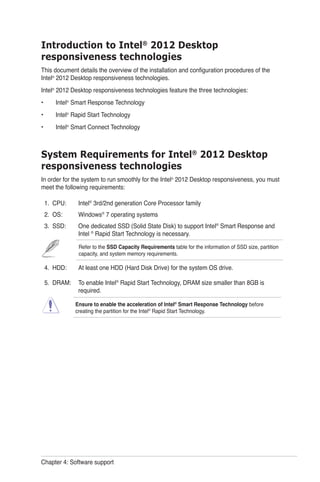
This document details the overview of the installation and configuration procedures of the
Intel®
2012 Desktop responsiveness technologies.
Intel®
2012 Desktop responsiveness technologies feature the three technologies:
Intel®
Smart Response Technology
Intel®
Rapid Start Technology
Intel®
Smart Connect Technology
System Requirements for Intel®
2012 Desktop
responsiveness technologies
In order for the system to run smoothly for the Intel®
2012 Desktop responsiveness, you must
meet the following requirements:
1. CPU: Intel®
3rd/2nd generation Core Processor family
2. OS: Windows®
7 operating systems
3. SSD: One dedicated SSD (Solid State Disk) to support Intel®
Smart Response and
Intel ®
Rapid Start Technology is necessary.
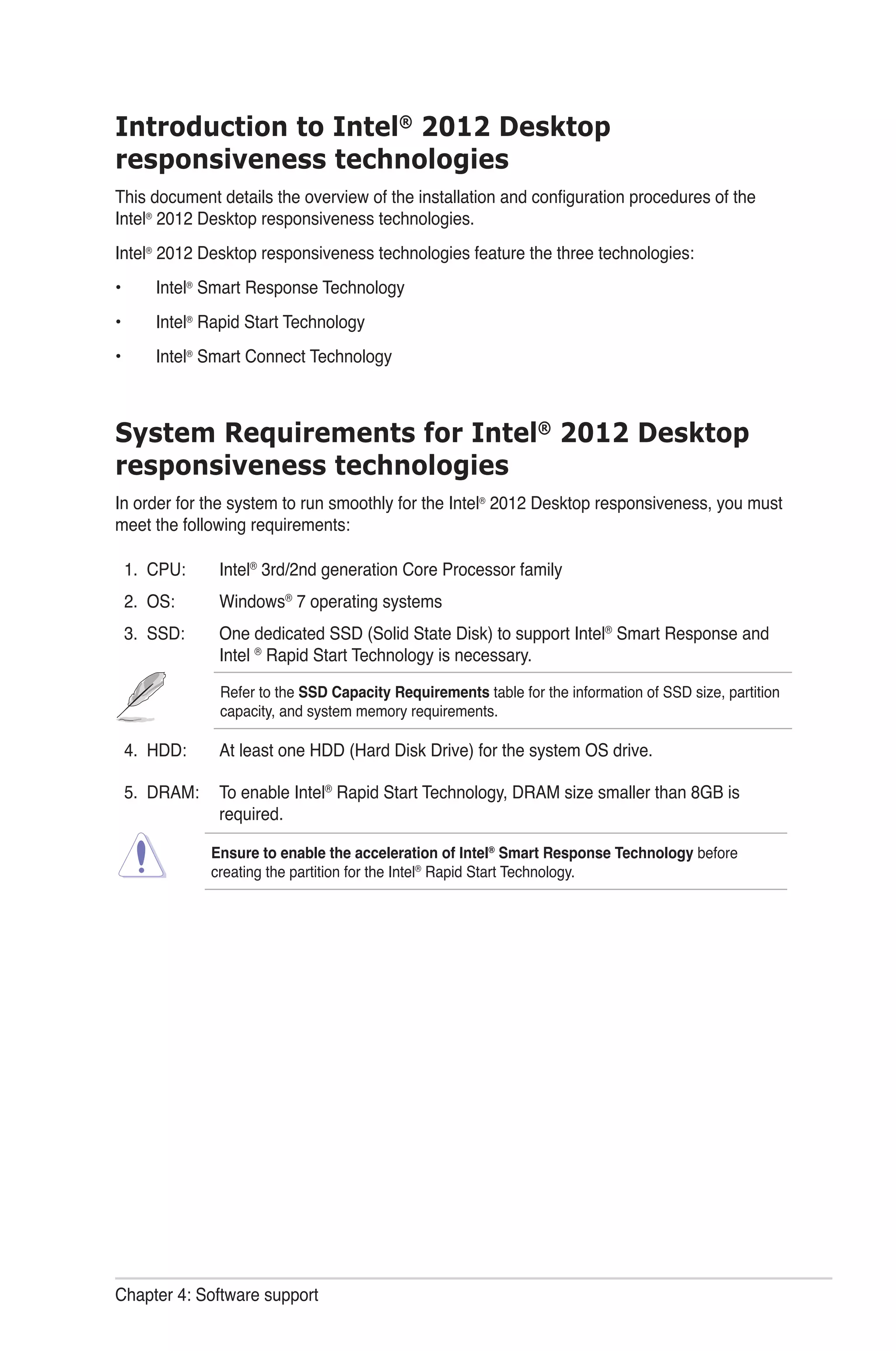
Refer to the SSD Capacity Requirements table for the information of SSD size, partition
capacity, and system memory requirements.
4. HDD: At least one HDD (Hard Disk Drive) for the system OS drive.
5. DRAM: To enable Intel®
Rapid Start Technology, DRAM size smaller than 8GB is
required.
Ensure to enable the acceleration of Intel®
Smart Response Technology before
creating the partition for the Intel®
Rapid Start Technology.
•
•
•
Chapter 4: Software support
SSD Capacity Requirements
SSD Partition Capacity
Requirements
System DRAM
2GB 4GB 8GB
Intel®
storagecombinations
Intel®
Rapid Start 2GB 4GB 8GB
Intel®
Smart Response 20GB 20GB 20GB
Intel®
Smart Response
and
Intel®
Rapid Start
Separate 20GB
and 2GB
partition
(SSD size >
22GB)
Separate
20GB and 4GB
partition
(SSD size >
24GB)
Separate
20GB and 8GB
partition
(SSD size >
28GB)
Intel®
Smart Response,
Intel®
Rapid Start,
and
Intel®
Smart Connect
Separate 20GB
and 2GB partition
(SSD size >
22GB)
Separate
20GB and 4GB
partition
(SSD size >
24GB)
Separate 20GB
and 8GB
partition
(SSD size >
28GB)
•	 The SSD used for Intel®
Rapid Start and Intel®
Smart Response is not allowed for 		
	 creating RAID.
•	 Due to OS behavior, Intel®
Rapid Start Technology works inefficiently with over 4G		
	 system memory under Windows®
7 32-bit operating system.
•	 Only Intel®
internal SATA ports (gray and blue) support Intel®
2012 Desktop 		
	 responsiveness technologies.
•	 The performance of Intel®
Smart Response Technology and Intel®
Rapid Storage 		
	 Technology vary by the installed SSD.
Chapter 4: Software support
Intel®
Smart Response Technology
Intel®
Smart Response Technology boosts overall system performance. It uses an installed
fast SSD (min. 20GB available) as a cache for frequently accessed operations, speeding up
hard drive/main memory interaction. Key benefits are expedited hard drive speeds, reduced
load and wait times, and maximized storage utilization. Power consumption also goes down
by reducing unnecessary hard drive spin.
Before applying Intel®
Smart Response Technology, setting the SATA Mode BIOS item to
[RAID mode] in BIOS setup is necessary. Refer to section 3.5.3 SATA Configuration for
details
Installing Intel®
Smart Response Technology
Place the support DVD to the optical drive. The Drivers installation tab appears if your
computer has enabled the Autorun feature.
Click the Drivers tab, then click Intel®
Rapid Storage Technology Driver software.
Follow the onscreen instructions to complete the installation.
Using the Intel®
Smart Response Technology
Click Accelerate to launch Smart
Response Technology settings.
a. Select the SSD you want to use to 		
accelerate your storage system.
b. Select the size allocated for SSD 		
caching.
c. Select which HDD for caching.
d. Enhanced mode: WRITE THROUGH, 	
write to SSD and HDD at the same 		
time.
Maximized mode: WRITE BACK, write 	
to SSD and write back to HDD in a later 	
time.
1.
2.
3.
1.
2.
Chapter 4: Software support
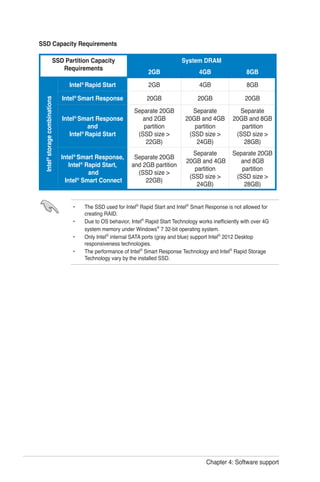
Select Disable Acceleration to disable
this function, and select Change Mode to
switch acceleration mode to Enhanced/
Maximized.
• To enable Intel®
Smart Response Technology, you need at least one SSD ( 20GB) and 	
a HDD, and only one SSD can be assigned for caching.
• If you want to restore the OS, go to BIOS Option ROM > Acceleration Options and 		
remove the Disks/Volume Acceleration to disable Intel®
Smart Response Technology.
Refer to Chapter 4, section Installing Serial ATA hard disk for the entry of BIOS Option 	
ROM.
• The maximum caching size on the SSD is 64GB. If it exceeds, the storage capacity left 	
out for caching can still be identified by the system for normal storage.
Intel®
Rapid Start Technology
Intel®
Rapid Start Technology allows you to quickly resume your computer from sleeping
mode. Saving your computer’s system memory to the configured SSD provides a faster
wake-up response time, but keeps the energy in a low profile.
•	 Before applying Intel®
Rapid Start Technology, go to Advanced Mode > Advanced > 	
	 PCH Configuration in BIOS item, and enable Intel®
Rapid Start Technology.
•	 Ensure to follow the procedure Creating a partition precisely to enable the Intel 		
	 Rapid Start function. Error message appears if you install the Intel®
Rapid Start Utility 	
	 before creating a partition.
Creating a partition
•	 Ensure to backup your data before using the Microsoft partition tool. Incorrect 		
	 partitioning process will result to data loss.
•	 Adjusting the DRAM to a high frequency will result to unstable system performance.
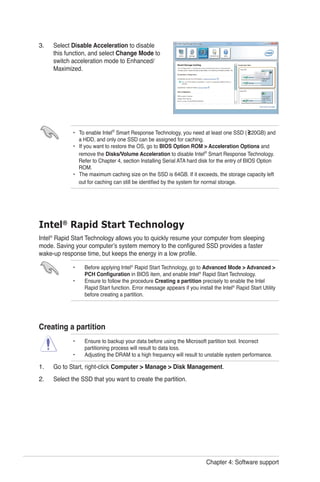
Go to Start, right-click Computer > Manage > Disk Management.
Select the SSD that you want to create the partition.
3.
1.
2.
>=
Chapter 4: Software support
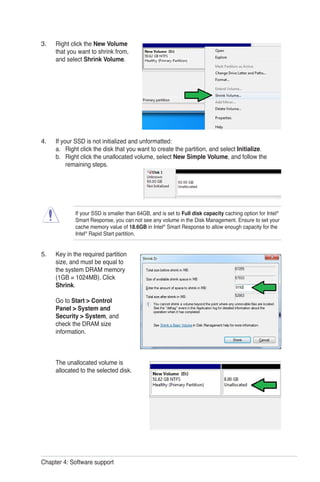
Right click the New Volume
that you want to shrink from,
and select Shrink Volume.
If your SSD is not initialized and unformatted:
a. Right click the disk that you want to create the partition, and select Initialize.
b. Right click the unallocated volume, select New Simple Volume, and follow the
remaining steps.
Key in the required partition
size, and must be equal to
the system DRAM memory
(1GB = 1024MB). Click
Shrink.
Go to Start > Control
Panel > System and
Security > System, and
check the DRAM size
information.
The unallocated volume is
allocated to the selected disk.
3.
4.
5.
If your SSD is smaller than 64GB, and is set to Full disk capacity caching option for Intel®
Smart Response, you can not see any volume in the Disk Management. Ensure to set your
cache memory value of 18.6GB in Intel®
Smart Response to allow enough capacity for the
Intel®
Rapid Start partition.
Chapter 4: Software support
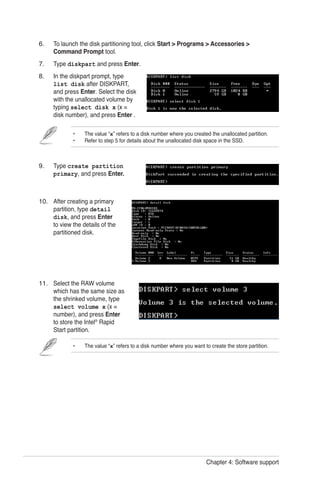
To launch the disk partitioning tool, click Start > Programs > Accessories >
Command Prompt tool.
Type diskpart and press Enter.
In the diskpart prompt, type
list disk after DISKPART,
and press Enter. Select the disk
with the unallocated volume by
typing select disk x (x =
disk number), and press Enter .
Type create partition
primary, and press Enter.
After creating a primary
partition, type detail
disk, and press Enter
to view the details of the
partitioned disk.
Select the RAW volume
which has the same size as
the shrinked volume, type
select volume x (x =
number), and press Enter
to store the Intel®
Rapid
Start partition.
6.
7.
8.
9.
10.
11.
•	 The value “x” refers to a disk number where you want to create the store partition.
•	 The value “x” refers to a disk number where you created the unallocated partition.
•	 Refer to step 5 for details about the unallocated disk space in the SSD.
Chapter 4: Software support
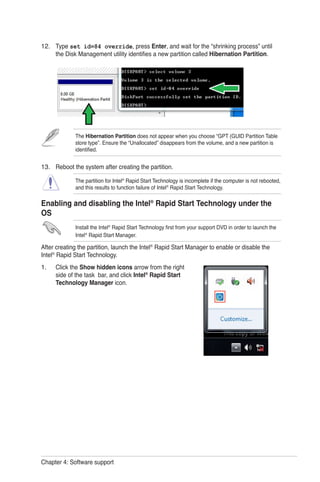
Type set id=84 override, press Enter, and wait for the “shrinking process” until
the Disk Management utility identifies a new partition called Hibernation Partition.
Reboot the system after creating the partition.
The partition for Intel®
Rapid Start Technology is incomplete if the computer is not rebooted,
and this results to function failure of Intel®
Rapid Start Technology.
Enabling and disabling the Intel®
Rapid Start Technology under the
OS
Install the Intel®
Rapid Start Technology first from your support DVD in order to launch the
Intel®
Rapid Start Manager.
After creating the partition, launch the Intel®
Rapid Start Manager to enable or disable the
Intel®
Rapid Start Technology.
Click the Show hidden icons arrow from the right
side of the task bar, and click Intel®
Rapid Start
Technology Manager icon.
12.
13.
1.
The Hibernation Partition does not appear when you choose “GPT (GUID Partition Table
store type”. Ensure the “Unallocated” disappears from the volume, and a new partition is
identified.
Chapter 4: Software support
Recovering the partition
This procedure allows you to delete the Intel®
Rapid Start Technology from your system, and
recover the partition you made for the Intel Rapid®
Start Technology installation.
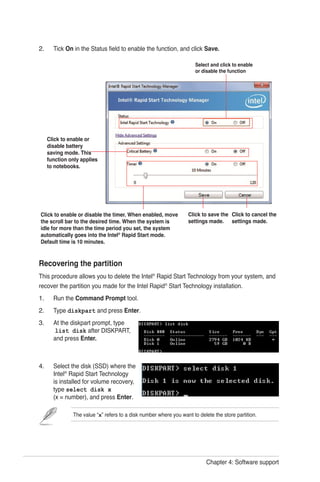
Run the Command Prompt tool.
Type diskpart and press Enter.
At the diskpart prompt, type
list disk after DISKPART,
and press Enter.
Select the disk (SSD) where the
Intel®
Rapid Start Technology
is installed for volume recovery,
type select disk x
(x = number), and press Enter.
1.
2.
3.
4.
The value “x” refers to a disk number where you want to delete the store partition.
Tick On in the Status field to enable the function, and click Save.2.
Click to enable or
disable battery
saving mode. This
function only applies
to notebooks.
Select and click to enable
or disable the function
Click to enable or disable the timer. When enabled, move
the scroll bar to the desired time. When the system is
idle for more than the time period you set, the system
automatically goes into the Intel®
Rapid Start mode.
Default time is 10 minutes.
Click to save the
settings made.
Click to cancel the
settings made.
Chapter 4: Software support
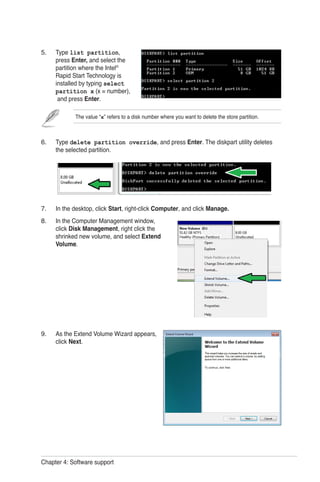
Type list partition,
press Enter, and select the
partition where the Intel®
Rapid Start Technology is
installed by typing select
partition x (x = number),
and press Enter.
Type delete partition override, and press Enter. The diskpart utility deletes
the selected partition.
In the desktop, click Start, right-click Computer, and click Manage.
In the Computer Management window,
click Disk Management, right click the
shrinked new volume, and select Extend
Volume.
As the Extend Volume Wizard appears,
click Next.
5.
6.
7.
8.
9.
The value “x” refers to a disk number where you want to delete the store partition.
Chapter 4: Software support
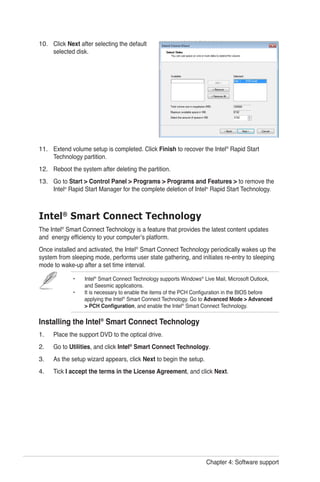
Click Next after selecting the default
selected disk.
Extend volume setup is completed. Click Finish to recover the Intel®
Rapid Start
Technology partition.
Reboot the system after deleting the partition.
Go to Start > Control Panel > Programs > Programs and Features > to remove the
Intel®
Rapid Start Manager for the complete deletion of Intel®
Rapid Start Technology.
10.
11.
12.
13.
Intel®
Smart Connect Technology
The Intel®
Smart Connect Technology is a feature that provides the latest content updates
and energy efficiency to your computer’s platform.
Once installed and activated, the Intel®
Smart Connect Technology periodically wakes up the
system from sleeping mode, performs user state gathering, and initiates re-entry to sleeping
mode to wake-up after a set time interval.
•	 Intel®
Smart Connect Technology supports Windows®
Live Mail, Microsoft Outlook, 		
	 and Seesmic applications.
•	 It is necessary to enable the items of the PCH Configuration in the BIOS before 		
applying the Intel®
Smart Connect Technology. Go to Advanced Mode > Advanced 	
	 > PCH Configuration, and enable the Intel®
Smart Connect Technology.
Installing the Intel®
Smart Connect Technology
Place the support DVD to the optical drive.
Go to Utilities, and click Intel®
Smart Connect Technology.
As the setup wizard appears, click Next to begin the setup.
Tick I accept the terms in the License Agreement, and click Next.
1.
2.
3.
4.
Chapter 4: Software support
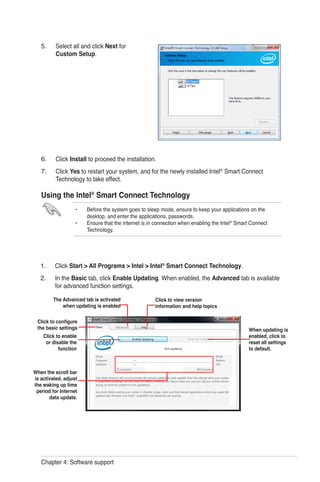
Select all and click Next for
Custom Setup.
Click Install to proceed the installation.
Click Yes to restart your system, and for the newly installed Intel®
Smart Connect
Technology to take effect.
Using the Intel®
Smart Connect Technology
•	 Before the system goes to sleep mode, ensure to keep your applications on the 		
	 desktop, and enter the applications, passwords.
•	 Ensure that the internet is in connection when enabling the Intel®
Smart Connect 		
	 Technology.
5.
6.
7.
Click Start > All Programs > Intel > Intel®
Smart Connect Technology.
In the Basic tab, click Enable Updating. When enabled, the Advanced tab is available
for advanced function settings.
1.
2.
Click to enable
or disable the
function
When the scroll bar
is activated, adjust
the waking up time
period for Internet
data update.
Click to configure
the basic settings
The Advanced tab is activated
when updating is enabled
Click to view version
information and help topics
When updating is
enabled, click to
reset all settings
to default.
Chapter 4: Software support
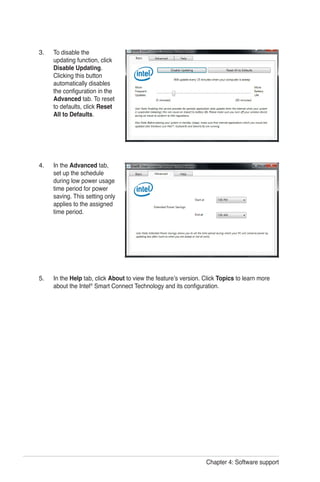
To disable the
updating function, click
Disable Updating.
Clicking this button
automatically disables
the configuration in the
Advanced tab. To reset
to defaults, click Reset
All to Defaults.
In the Advanced tab,
set up the schedule
during low power usage
time period for power
saving. This setting only
applies to the assigned
time period.
In the Help tab, click About to view the feature’s version. Click Topics to learn more
about the Intel®
Smart Connect Technology and its configuration.
3.
4.
5.

Intel technology manual

  • 1.
    Chapter 4: Softwaresupport Introduction to Intel® 2012 Desktop responsiveness technologies This document details the overview of the installation and configuration procedures of the Intel® 2012 Desktop responsiveness technologies. Intel® 2012 Desktop responsiveness technologies feature the three technologies: Intel® Smart Response Technology Intel® Rapid Start Technology Intel® Smart Connect Technology System Requirements for Intel® 2012 Desktop responsiveness technologies In order for the system to run smoothly for the Intel® 2012 Desktop responsiveness, you must meet the following requirements: 1. CPU: Intel® 3rd/2nd generation Core Processor family 2. OS: Windows® 7 operating systems 3. SSD: One dedicated SSD (Solid State Disk) to support Intel® Smart Response and Intel ® Rapid Start Technology is necessary. Refer to the SSD Capacity Requirements table for the information of SSD size, partition capacity, and system memory requirements. 4. HDD: At least one HDD (Hard Disk Drive) for the system OS drive. 5. DRAM: To enable Intel® Rapid Start Technology, DRAM size smaller than 8GB is required. Ensure to enable the acceleration of Intel® Smart Response Technology before creating the partition for the Intel® Rapid Start Technology. • • •
  • 2.
    Chapter 4: Softwaresupport SSD Capacity Requirements SSD Partition Capacity Requirements System DRAM 2GB 4GB 8GB Intel® storagecombinations Intel® Rapid Start 2GB 4GB 8GB Intel® Smart Response 20GB 20GB 20GB Intel® Smart Response and Intel® Rapid Start Separate 20GB and 2GB partition (SSD size > 22GB) Separate 20GB and 4GB partition (SSD size > 24GB) Separate 20GB and 8GB partition (SSD size > 28GB) Intel® Smart Response, Intel® Rapid Start, and Intel® Smart Connect Separate 20GB and 2GB partition (SSD size > 22GB) Separate 20GB and 4GB partition (SSD size > 24GB) Separate 20GB and 8GB partition (SSD size > 28GB) • The SSD used for Intel® Rapid Start and Intel® Smart Response is not allowed for creating RAID. • Due to OS behavior, Intel® Rapid Start Technology works inefficiently with over 4G system memory under Windows® 7 32-bit operating system. • Only Intel® internal SATA ports (gray and blue) support Intel® 2012 Desktop responsiveness technologies. • The performance of Intel® Smart Response Technology and Intel® Rapid Storage Technology vary by the installed SSD.
  • 3.
    Chapter 4: Softwaresupport Intel® Smart Response Technology Intel® Smart Response Technology boosts overall system performance. It uses an installed fast SSD (min. 20GB available) as a cache for frequently accessed operations, speeding up hard drive/main memory interaction. Key benefits are expedited hard drive speeds, reduced load and wait times, and maximized storage utilization. Power consumption also goes down by reducing unnecessary hard drive spin. Before applying Intel® Smart Response Technology, setting the SATA Mode BIOS item to [RAID mode] in BIOS setup is necessary. Refer to section 3.5.3 SATA Configuration for details Installing Intel® Smart Response Technology Place the support DVD to the optical drive. The Drivers installation tab appears if your computer has enabled the Autorun feature. Click the Drivers tab, then click Intel® Rapid Storage Technology Driver software. Follow the onscreen instructions to complete the installation. Using the Intel® Smart Response Technology Click Accelerate to launch Smart Response Technology settings. a. Select the SSD you want to use to accelerate your storage system. b. Select the size allocated for SSD caching. c. Select which HDD for caching. d. Enhanced mode: WRITE THROUGH, write to SSD and HDD at the same time. Maximized mode: WRITE BACK, write to SSD and write back to HDD in a later time. 1. 2. 3. 1. 2.
  • 4.
    Chapter 4: Softwaresupport Select Disable Acceleration to disable this function, and select Change Mode to switch acceleration mode to Enhanced/ Maximized. • To enable Intel® Smart Response Technology, you need at least one SSD ( 20GB) and a HDD, and only one SSD can be assigned for caching. • If you want to restore the OS, go to BIOS Option ROM > Acceleration Options and remove the Disks/Volume Acceleration to disable Intel® Smart Response Technology. Refer to Chapter 4, section Installing Serial ATA hard disk for the entry of BIOS Option ROM. • The maximum caching size on the SSD is 64GB. If it exceeds, the storage capacity left out for caching can still be identified by the system for normal storage. Intel® Rapid Start Technology Intel® Rapid Start Technology allows you to quickly resume your computer from sleeping mode. Saving your computer’s system memory to the configured SSD provides a faster wake-up response time, but keeps the energy in a low profile. • Before applying Intel® Rapid Start Technology, go to Advanced Mode > Advanced > PCH Configuration in BIOS item, and enable Intel® Rapid Start Technology. • Ensure to follow the procedure Creating a partition precisely to enable the Intel Rapid Start function. Error message appears if you install the Intel® Rapid Start Utility before creating a partition. Creating a partition • Ensure to backup your data before using the Microsoft partition tool. Incorrect partitioning process will result to data loss. • Adjusting the DRAM to a high frequency will result to unstable system performance. Go to Start, right-click Computer > Manage > Disk Management. Select the SSD that you want to create the partition. 3. 1. 2. >=
  • 5.
    Chapter 4: Softwaresupport Right click the New Volume that you want to shrink from, and select Shrink Volume. If your SSD is not initialized and unformatted: a. Right click the disk that you want to create the partition, and select Initialize. b. Right click the unallocated volume, select New Simple Volume, and follow the remaining steps. Key in the required partition size, and must be equal to the system DRAM memory (1GB = 1024MB). Click Shrink. Go to Start > Control Panel > System and Security > System, and check the DRAM size information. The unallocated volume is allocated to the selected disk. 3. 4. 5. If your SSD is smaller than 64GB, and is set to Full disk capacity caching option for Intel® Smart Response, you can not see any volume in the Disk Management. Ensure to set your cache memory value of 18.6GB in Intel® Smart Response to allow enough capacity for the Intel® Rapid Start partition.
  • 6.
    Chapter 4: Softwaresupport To launch the disk partitioning tool, click Start > Programs > Accessories > Command Prompt tool. Type diskpart and press Enter. In the diskpart prompt, type list disk after DISKPART, and press Enter. Select the disk with the unallocated volume by typing select disk x (x = disk number), and press Enter . Type create partition primary, and press Enter. After creating a primary partition, type detail disk, and press Enter to view the details of the partitioned disk. Select the RAW volume which has the same size as the shrinked volume, type select volume x (x = number), and press Enter to store the Intel® Rapid Start partition. 6. 7. 8. 9. 10. 11. • The value “x” refers to a disk number where you want to create the store partition. • The value “x” refers to a disk number where you created the unallocated partition. • Refer to step 5 for details about the unallocated disk space in the SSD.
  • 7.
    Chapter 4: Softwaresupport Type set id=84 override, press Enter, and wait for the “shrinking process” until the Disk Management utility identifies a new partition called Hibernation Partition. Reboot the system after creating the partition. The partition for Intel® Rapid Start Technology is incomplete if the computer is not rebooted, and this results to function failure of Intel® Rapid Start Technology. Enabling and disabling the Intel® Rapid Start Technology under the OS Install the Intel® Rapid Start Technology first from your support DVD in order to launch the Intel® Rapid Start Manager. After creating the partition, launch the Intel® Rapid Start Manager to enable or disable the Intel® Rapid Start Technology. Click the Show hidden icons arrow from the right side of the task bar, and click Intel® Rapid Start Technology Manager icon. 12. 13. 1. The Hibernation Partition does not appear when you choose “GPT (GUID Partition Table store type”. Ensure the “Unallocated” disappears from the volume, and a new partition is identified.
  • 8.
    Chapter 4: Softwaresupport Recovering the partition This procedure allows you to delete the Intel® Rapid Start Technology from your system, and recover the partition you made for the Intel Rapid® Start Technology installation. Run the Command Prompt tool. Type diskpart and press Enter. At the diskpart prompt, type list disk after DISKPART, and press Enter. Select the disk (SSD) where the Intel® Rapid Start Technology is installed for volume recovery, type select disk x (x = number), and press Enter. 1. 2. 3. 4. The value “x” refers to a disk number where you want to delete the store partition. Tick On in the Status field to enable the function, and click Save.2. Click to enable or disable battery saving mode. This function only applies to notebooks. Select and click to enable or disable the function Click to enable or disable the timer. When enabled, move the scroll bar to the desired time. When the system is idle for more than the time period you set, the system automatically goes into the Intel® Rapid Start mode. Default time is 10 minutes. Click to save the settings made. Click to cancel the settings made.
  • 9.
    Chapter 4: Softwaresupport Type list partition, press Enter, and select the partition where the Intel® Rapid Start Technology is installed by typing select partition x (x = number), and press Enter. Type delete partition override, and press Enter. The diskpart utility deletes the selected partition. In the desktop, click Start, right-click Computer, and click Manage. In the Computer Management window, click Disk Management, right click the shrinked new volume, and select Extend Volume. As the Extend Volume Wizard appears, click Next. 5. 6. 7. 8. 9. The value “x” refers to a disk number where you want to delete the store partition.
  • 10.
    Chapter 4: Softwaresupport Click Next after selecting the default selected disk. Extend volume setup is completed. Click Finish to recover the Intel® Rapid Start Technology partition. Reboot the system after deleting the partition. Go to Start > Control Panel > Programs > Programs and Features > to remove the Intel® Rapid Start Manager for the complete deletion of Intel® Rapid Start Technology. 10. 11. 12. 13. Intel® Smart Connect Technology The Intel® Smart Connect Technology is a feature that provides the latest content updates and energy efficiency to your computer’s platform. Once installed and activated, the Intel® Smart Connect Technology periodically wakes up the system from sleeping mode, performs user state gathering, and initiates re-entry to sleeping mode to wake-up after a set time interval. • Intel® Smart Connect Technology supports Windows® Live Mail, Microsoft Outlook, and Seesmic applications. • It is necessary to enable the items of the PCH Configuration in the BIOS before applying the Intel® Smart Connect Technology. Go to Advanced Mode > Advanced > PCH Configuration, and enable the Intel® Smart Connect Technology. Installing the Intel® Smart Connect Technology Place the support DVD to the optical drive. Go to Utilities, and click Intel® Smart Connect Technology. As the setup wizard appears, click Next to begin the setup. Tick I accept the terms in the License Agreement, and click Next. 1. 2. 3. 4.
  • 11.
    Chapter 4: Softwaresupport Select all and click Next for Custom Setup. Click Install to proceed the installation. Click Yes to restart your system, and for the newly installed Intel® Smart Connect Technology to take effect. Using the Intel® Smart Connect Technology • Before the system goes to sleep mode, ensure to keep your applications on the desktop, and enter the applications, passwords. • Ensure that the internet is in connection when enabling the Intel® Smart Connect Technology. 5. 6. 7. Click Start > All Programs > Intel > Intel® Smart Connect Technology. In the Basic tab, click Enable Updating. When enabled, the Advanced tab is available for advanced function settings. 1. 2. Click to enable or disable the function When the scroll bar is activated, adjust the waking up time period for Internet data update. Click to configure the basic settings The Advanced tab is activated when updating is enabled Click to view version information and help topics When updating is enabled, click to reset all settings to default.
  • 12.
    Chapter 4: Softwaresupport To disable the updating function, click Disable Updating. Clicking this button automatically disables the configuration in the Advanced tab. To reset to defaults, click Reset All to Defaults. In the Advanced tab, set up the schedule during low power usage time period for power saving. This setting only applies to the assigned time period. In the Help tab, click About to view the feature’s version. Click Topics to learn more about the Intel® Smart Connect Technology and its configuration. 3. 4. 5.