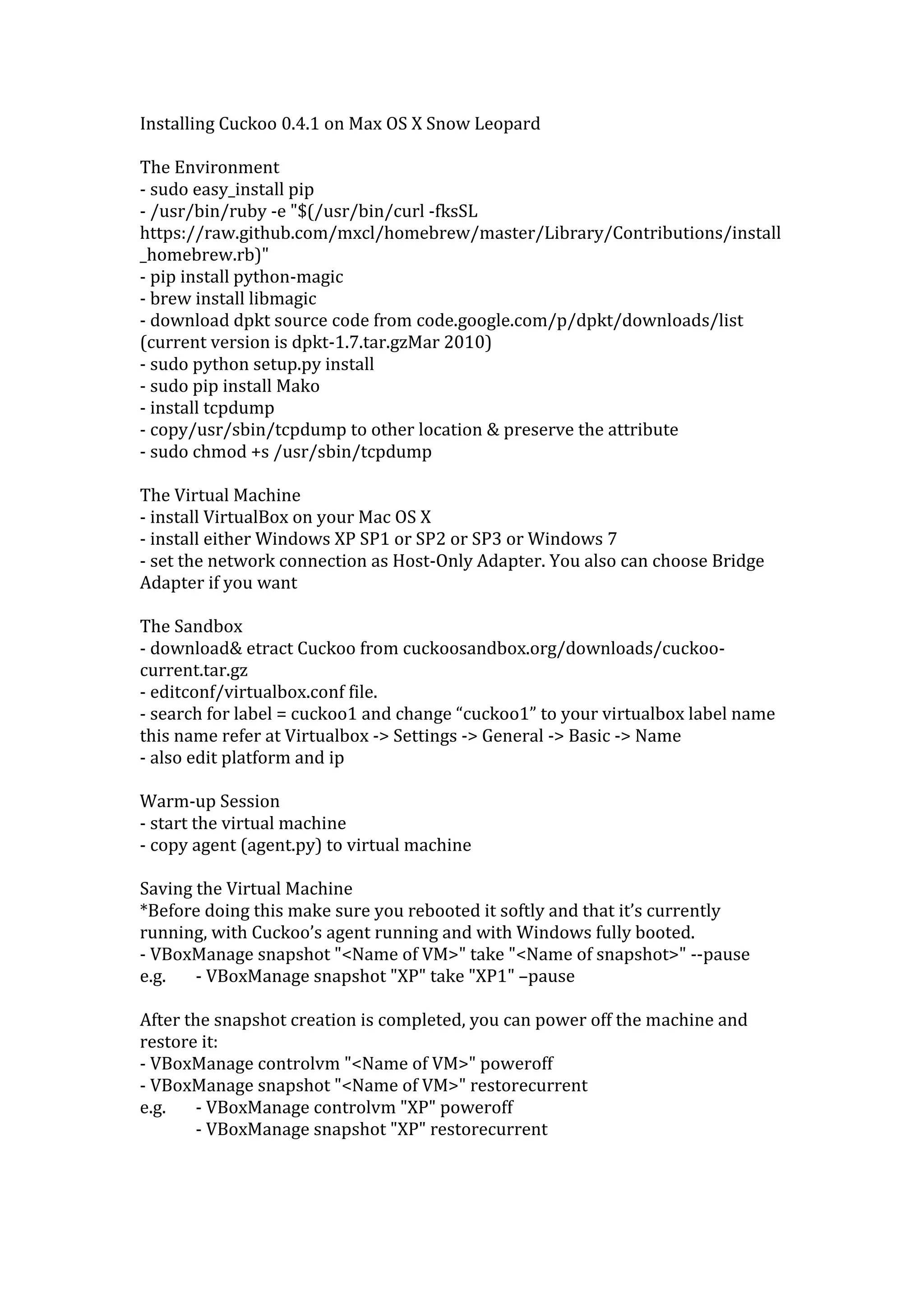
Installing Cuckoo 0.4.1 on Max OS X Snow Leopard
The Environment
- sudo easy_install pip
- /usr/bin/ruby -e "$(/usr/bin/curl -fksSL
https://raw.github.com/mxcl/homebrew/master/Library/Contributions/install
_homebrew.rb)"
- pip install python-magic
- brew install libmagic
- download dpkt source code from code.google.com/p/dpkt/downloads/list
(current version is dpkt-1.7.tar.gzMar 2010)
- sudo python setup.py install
- sudo pip install Mako
- install tcpdump
- copy/usr/sbin/tcpdump to other location & preserve the attribute
- sudo chmod +s /usr/sbin/tcpdump
The Virtual Machine
- install VirtualBox on your Mac OS X
- install either Windows XP SP1 or SP2 or SP3 or Windows 7
- set the network connection as Host-Only Adapter. You also can choose Bridge
Adapter if you want
The Sandbox
- download& etract Cuckoo from cuckoosandbox.org/downloads/cuckoocurrent.tar.gz
- editconf/virtualbox.conf file.
- search for label = cuckoo1 and change “cuckoo1” to your virtualbox label name
this name refer at Virtualbox -> Settings -> General -> Basic -> Name
- also edit platform and ip
Warm-up Session
- start the virtual machine
- copy agent (agent.py) to virtual machine
Saving the Virtual Machine
*Before doing this make sure you rebooted it softly and that it’s currently
running, with Cuckoo’s agent running and with Windows fully booted.
- VBoxManage snapshot "<Name of VM>" take "<Name of snapshot>" --pause
e.g.
- VBoxManage snapshot "XP" take "XP1" –pause
After the snapshot creation is completed, you can power off the machine and
restore it:
- VBoxManage controlvm "<Name of VM>" poweroff
- VBoxManage snapshot "<Name of VM>" restorecurrent
e.g.
- VBoxManage controlvm "XP" poweroff
- VBoxManage snapshot "XP" restorecurrent
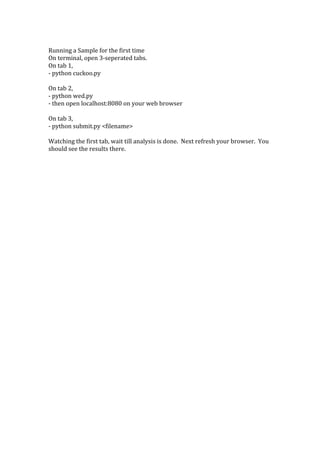
Running a Sample for the first time
On terminal, open 3-seperated tabs.
On tab 1,
- python cuckoo.py
On tab 2,
- python wed.py
- then open localhost:8080 on your web browser
On tab 3,
- python submit.py <filename>
Watching the first tab, wait till analysis is done. Next refresh your browser. You
should see the results there.

Install Cuckoo on Mac OS X

  • 1.
    Installing Cuckoo 0.4.1on Max OS X Snow Leopard The Environment - sudo easy_install pip - /usr/bin/ruby -e "$(/usr/bin/curl -fksSL https://raw.github.com/mxcl/homebrew/master/Library/Contributions/install _homebrew.rb)" - pip install python-magic - brew install libmagic - download dpkt source code from code.google.com/p/dpkt/downloads/list (current version is dpkt-1.7.tar.gzMar 2010) - sudo python setup.py install - sudo pip install Mako - install tcpdump - copy/usr/sbin/tcpdump to other location & preserve the attribute - sudo chmod +s /usr/sbin/tcpdump The Virtual Machine - install VirtualBox on your Mac OS X - install either Windows XP SP1 or SP2 or SP3 or Windows 7 - set the network connection as Host-Only Adapter. You also can choose Bridge Adapter if you want The Sandbox - download& etract Cuckoo from cuckoosandbox.org/downloads/cuckoocurrent.tar.gz - editconf/virtualbox.conf file. - search for label = cuckoo1 and change “cuckoo1” to your virtualbox label name this name refer at Virtualbox -> Settings -> General -> Basic -> Name - also edit platform and ip Warm-up Session - start the virtual machine - copy agent (agent.py) to virtual machine Saving the Virtual Machine *Before doing this make sure you rebooted it softly and that it’s currently running, with Cuckoo’s agent running and with Windows fully booted. - VBoxManage snapshot "<Name of VM>" take "<Name of snapshot>" --pause e.g. - VBoxManage snapshot "XP" take "XP1" –pause After the snapshot creation is completed, you can power off the machine and restore it: - VBoxManage controlvm "<Name of VM>" poweroff - VBoxManage snapshot "<Name of VM>" restorecurrent e.g. - VBoxManage controlvm "XP" poweroff - VBoxManage snapshot "XP" restorecurrent
  • 2.
    Running a Samplefor the first time On terminal, open 3-seperated tabs. On tab 1, - python cuckoo.py On tab 2, - python wed.py - then open localhost:8080 on your web browser On tab 3, - python submit.py <filename> Watching the first tab, wait till analysis is done. Next refresh your browser. You should see the results there.