INFUSIONSOFT
Basics
Sign In Instructions
To sign in
Click here:
https://signin.infusionsoft.com/lo
gin
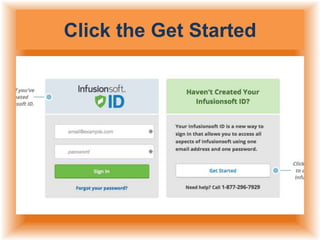
Click the Get Started
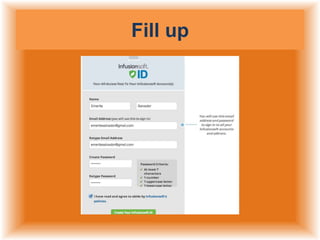
Fill up
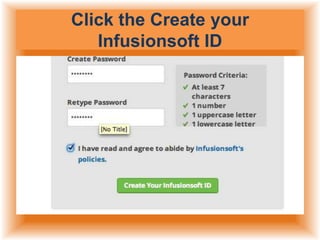
Click the Create your
Infusionsoft ID
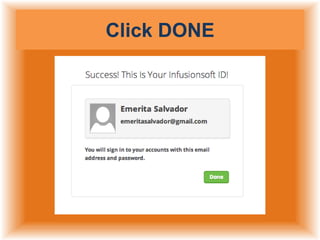
Click DONE
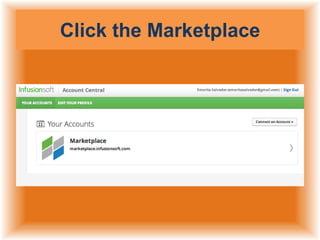
Click the Marketplace
When you sign in to
Infusionsoft, you will see
your home page dashboard.
You can add reports and
activity widgets to create a
custom, user-specific
dashboard.
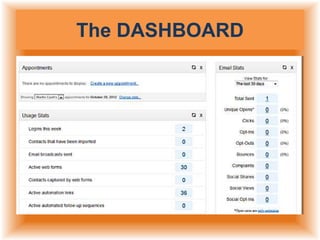
The DASHBOARD
The home page dashboard
should display the information
you need and provide direct
navigation links to specific rolerelated lists and reports.
To Add a Dashboard Widget
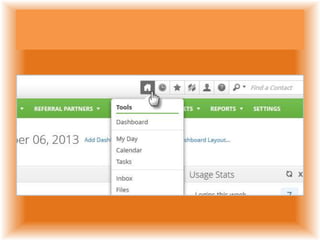
Go to the home page dashboard
by clicking the
Home button or
by clicking the
Dashboard link.
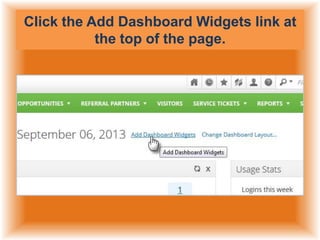
Click the Add Dashboard Widgets link at
the top of the page.
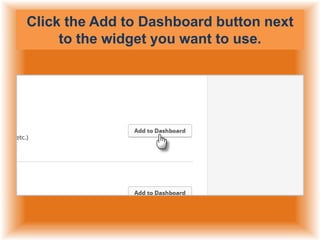
Click the Add to Dashboard button next
to the widget you want to use.
Once a widget has been added
to the dashboard,
you can drag & drop it
in various locations.
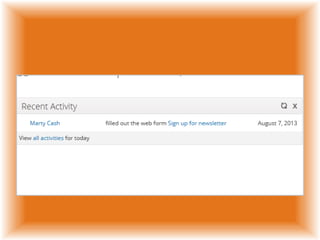
Recent Activity
This widget displays a stream of
activity, similar to popular social
media streams.
It will show you when someone
fills out a web form,
opens an email,
clicks a link,
and more.
Activities are grouped on a perperson basis.
Click on the arrow to expand
the display to view all activities.
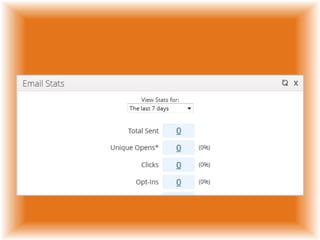
Email Stats
This widget displays summary
statistics for email related
activity.
Click on a statistic to view the
related list of people.
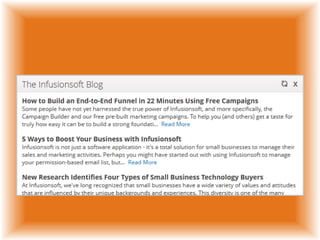
RSS Feed
This widget allows you to
add a RSS Feed to your home
page.
By default, it links to the
InfusionBlog,
but you can Edit the RSS link
to customize the feed.
Add the widget
more than once
if you'd like to see multiple
feeds.
Click on Edit to
change the feed URL.
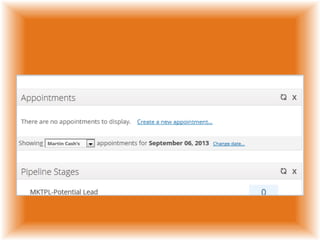
Appointments
This widget displays daily
appointments and provides
access to past and future
appointments.
If your user permissions allow,
you can also
view appointments
assigned to other users.
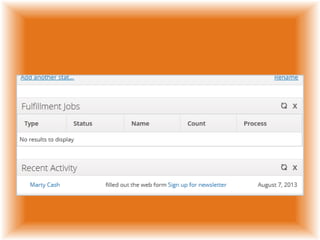
Fulfillment Jobs
This widget displays
all of the
fulfillment jobs
assigned to you:
those generated by a purchase
(fulfillment)
broadcast,
or sequence step
(queued fulfillment list or letter).
Click on a link to
access the job details
and related documents
(spreadsheets, labels, letters,
etc.).
Once viewed,
the fulfillment jobs are
put into
"Processing" status
until you mark them as
complete.
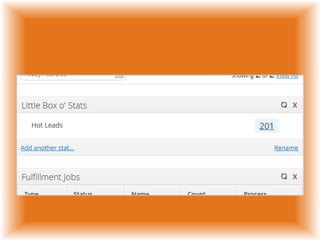
Little Box o' Stats
This widget displays
custom report summaries
on your Home Page.
Display the number of records
in a particular list,
the sum
or average of a column
on a report, and more.
You must create
a saved search
or report before
using this widget.
This widget displays numerical
summaries,
but you can easily click
through to view list
or report details.
Click on Rename
to customize
the box name
(e.g. Lead Lists).
Click on Add another stat
to add another stat
to a widget.
Saved Search
or
Saved Report
This widget displays
the first 20 individual records
on a particular
list or report.
You can click View all
results
to see
the full list or report.
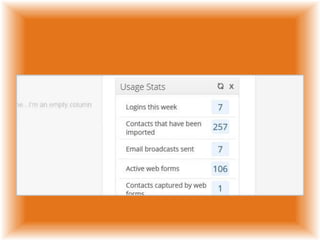
Usage Stats
This widget displays system
activity
so you can see
the total number of user
sign-ons, broadcasts,
active web forms, and more.
Campaign Stats (Legacy)
This widget allows you
to toggle between stat views
for legacy campaigns.
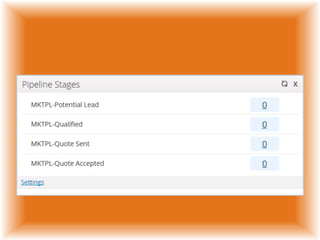
Pipeline Stages
Provides a count
of how many contacts
are currently in each of your

sales stages.
Full list views
are available by
clicking on each stage.
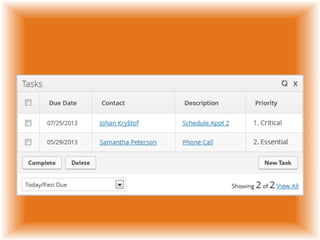
Tasks
Allows quick access
your daily tasks
directly from
your dashboard.
Reference Link
http://help.infusionsoft.com/getti
ng_started/
created by:

Infusionsoft getting started