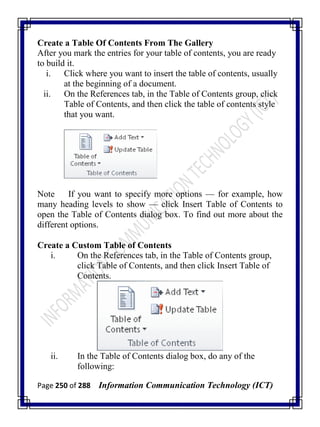
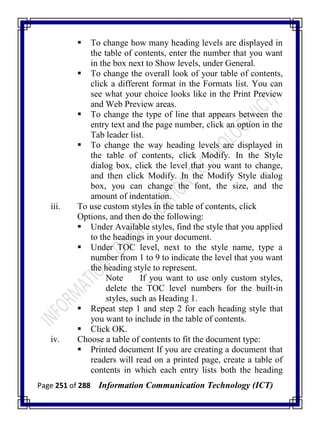
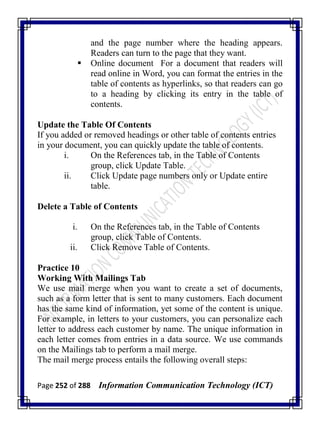
Page i of 288 Information Communication Technology (ICT)
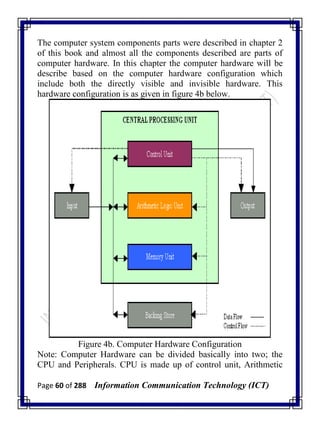
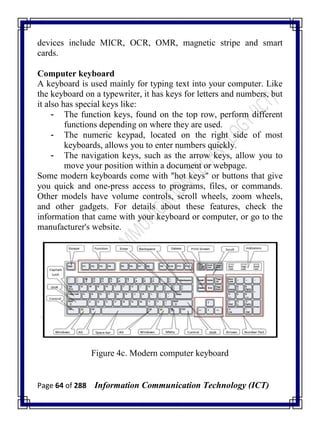
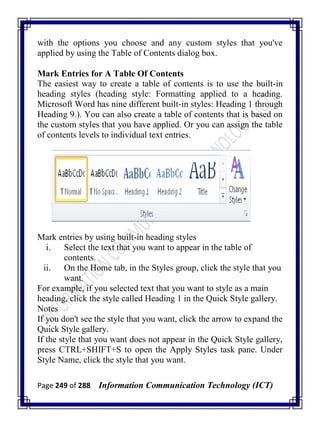
INFORMATION
COMMUNICATION
TECHNOLOGY (ICT)
[Concepts and Application]
Self-Directed & Collaborative Learning Approach
Volume I
By
Yekini Nureni Asafe
Department of Computer Technology
Yaba College of Technology
Page ii of 288 Information Communication Technology (ICT)
Copyright © 2014 by Yekini Nureni Asafe
Printed & Typesetting @ Yeknua ICT & Educational Research-
Publication Centre
No 07, Christ Possibility Street, Sango-Ota,
Ogun State, Nigeria.
All rights reserved. No part of this publication may be reproduced,
stored in a retrieval system or transmitted in any form or by any
means, electronic, mechanical, photocopying, recording or
otherwise, without the prior permission of the copyright holder.
ISBN:
Published in Nigeria by:
Hasfem Publication Center
Shomolu, Lagos,
Nigeria.
Tel: 08023663124, 07038501188
Page iii of 288 Information Communication Technology (ICT)
Foreword
Information Technology Communication is defined as the
convergence of audio-visual, telephone and computer networks
through a link system. It is a combination of all these elements,
capped by a vision on how technology can help an organization to
reach its goals.
The book provides basic theoretical and practical information on
some aspects of Information Communication Technology, data
processing and windows operating system, and their applications.
This book has been written in a simple language that will be easily
comprehended by readers and users of the book. Students and
teachers of computer science at Universities, Polytechnics, Colleges
of Education and Allied Institution will find the book useful and
enlightening.
The book is widespread, while the foundation is based on
Information Technology. One important strength of the book is very
wide applications of principles of data processing techniques. The
author is congratulated for such a thorough work.
Oyeranmi Adigun
Dean School of Technology
Yaba College of Technology
Yaba, Lagos Nigeria
Page iv of 288 Information Communication Technology (ICT)
Preface
The objective of this book is to introduce students of Accountancy &
Finance, Business Administration, Marketing, Banking & Finance, and
Office Technology Management of Nigeria Polytechnics and Colleges
of Technology to modern Information Communication Technology
(ICT), Data Processing and Its Applications.
This book provides basic theoretical and practical information on some
aspects of Information Communication Technology (ICT), Data
Processing and Its Application for the departments mentioned.
The contents of this book are not in contradiction to Curriculum and
Course Specification produced by the National Board for Technical
Education (NBTE) UNESCO – Nigeria Project.
The book will be very useful for the readers of different categories
undergraduate students of University, Polytechnics, Colleges of
Education and Allied institutions in areas of computer science,
management science and other related disciplines.
The book can also be used as course material for introduction to
computer course in other departments. There is no doubt that this book
will be very useful to all categories of readers. In case of any positive
contrary or suggestion for improvement in the next edition of this book
you may call 08094204341 or e-mail engryekini@yahoo.com. You can
visit www.engryekini.com for more detail.
Yekini N.A. 2014
Page v of 288 Information Communication Technology (ICT)
Instruction for the Users of This Book
The users refer to in this page are Students, Instructors and
Lecturers.
The Curriculum and Course Specifications varies from one
Department to another, as a result users are advised to use
Curriculum and Course Specifications for their course as reference
guide to usage of this book as an instructional material for
Information Communication Technology (ICT), Data Processing
and Its Application in school of management and business studies of
Nigeria polytechnics or colleges of technology.
This book is specifically written and covered the syllabus for
Information Communication Technology (ICT), Data Processing
and Its Application in school of management and business studies,
Nigeria polytechnics and colleges of technology, but it is usage is
not limited to that, it can also be used as instructional material for
introduction to computer, computer application in other
departments.
However the users are advised to go through the syllabus for the
courses he or she is taking before start using this book.
Thank you
Page vi of 288 Information Communication Technology (ICT)
Acknowledgement
First of all I am very grateful to Allah (SWT) for his mercy and
wisdom bestow on me to write this book. This book evolved from
my experiences in teaching and research in Computer Science and
Technology and also as ICT service lecturers to some departments
in the school of management and business studies of Yaba College
of Technology.
There are some individuals that contributed to the success of the
research that gave birth to this book. I acknowledged all the staff of
Department of Computer Technology; they are all wonderful to me
during the process of compiling this book.
I acknowledge the contribution of the management of Yaba College
of Technology for providing enabling environment for research and
publication in the college. I also acknowledged members‘ of staff of
Yeknua ICT & Educational Research-Publication Center.
I also acknowledged the contribution of my past students from the
department of accountancy, business administration, and office
technology and computer department of Yaba College of
technology.
Finally, I acknowledged the contribution of my wife and children.
Their prayer and endurance has made this project a reality.
Thank you.
Page vii of 288 Information Communication Technology (ICT)
THIS BOOK BELONGS TO
NAME: ________________________________________
SCHOOL: _____________________________________
DEPARTMENT: ________________________________
SIGNATURE: __________________________________
DATE: _________________________________________
Page viii of 288 Information Communication Technology (ICT)
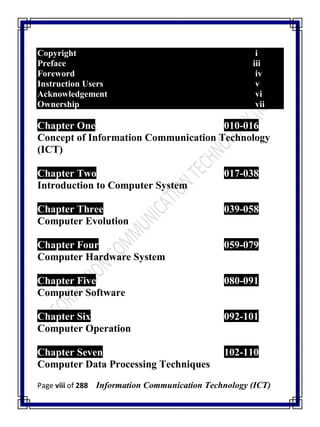
Copyright i
Preface iii
Foreword iv
Instruction Users v
Acknowledgement vi
Ownership vii
Chapter One 010-016
Concept of Information Communication Technology
(ICT)
Chapter Two 017-038
Introduction to Computer System
Chapter Three 039-058
Computer Evolution
Chapter Four 059-079
Computer Hardware System
Chapter Five 080-091
Computer Software
Chapter Six 092-101
Computer Operation
Chapter Seven 102-110
Computer Data Processing Techniques
Page ix of 288 Information Communication Technology (ICT)
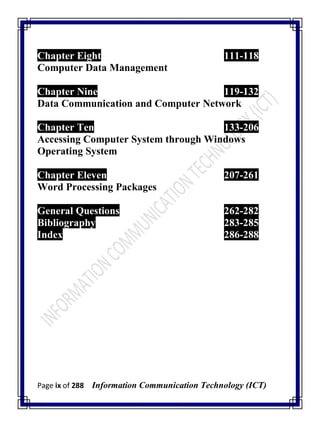
Chapter Eight 111-118
Computer Data Management
Chapter Nine 119-132
Data Communication and Computer Network
Chapter Ten 133-206
Accessing Computer System through Windows
Operating System
Chapter Eleven 207-261
Word Processing Packages
General Questions 262-282
Bibliography 283-285
Index 286-288
Page 10 of 288 Information Communication Technology (ICT)
Chapter One
Concept of Information Communication
Technology
1.1 Information Communication Technology Versus
Information System
information and Communications Technology or (ICT), is often
used as an extended synonym for information technology (IT),
but is a more specific term that stresses the role of unified
communications and the integration of telecommunications
(telephone lines and wireless signals), computers as well as
necessary enterprise software, middleware, storage, and audio-visual
systems, which enable users to access, store, transmit, and
manipulate information. The term ICT is now also used to refer to
the convergence of audio-visual and telephone networks with
computer networks through a single cabling or link system. There
are large economic incentives (huge cost savings due to elimination
of the telephone network) to merge the audio-visual, building
management and telephone network with the computer network
system using a single unified system of cabling, signal distribution
and management.
The term Infocommunications is used in some cases as a shorter
form of information and communication(s) technology. In fact
Infocommunications is the expansion of telecommunications with
information processing and content handling functions on a common
digital technology base.
I
Page 11 of 288 Information Communication Technology (ICT)
Information technology (IT) is the application of computers and
telecommunications equipment to store, retrieve, transmit and
manipulate data, often in the context of a business or other
enterprise. The term is commonly used as a synonym for computers
and computer networks, but it also encompasses other information
distribution technologies such as television and telephones. Several
industries are associated with information technology, such as
computer hardware, software, electronics, semiconductors, internet,
telecom equipment, e-commerce and computer services.
In a business context, the Information Technology Association of
America has defined information technology as "the study, design,
development, application, implementation, support or management
of computer-based information systems". The responsibilities of
those working in the field include network administration, software
development and installation, and the planning and management of
an organization‘s technology life cycle, by which hardware and
software is maintained, upgraded, and replaced.
Yekini and Lawal (2012) Sees ICT as: a powerful collection of
elements which include computer hardware, software,
telecommunication networks, workstations, robotics and smart
chips, which is also at the root of information systems
1.2 Information System (IS)
An information system (IS) is the study of complementary networks
of hardware and software that people and organizations use to
collect, filter, process, create, and distribute data. The study bridges
business and computer science using the theoretical foundations of
information and computation to study various business models and
related algorithmic processes within a computer science discipline.
Computer Information System(s) (CIS) is a field studying
computers and algorithmic processes, including their principles,
Page 12 of 288 Information Communication Technology (ICT)
their software and hardware designs, their applications, and their
impact on society while IS emphasizes functionality over design.
Any specific Information System aims to support operations,
management and decision making. In a broad sense, the term is used
to refer not only to the information and communication technology
(ICT) that an organization uses, but also to the way in which people
interact with this technology in support of business processes.
Some authors make a clear distinction between information systems,
computer systems, and business processes. Information systems
typically include an ICT component but are not purely concerned
with ICT, focusing instead on the end use of information
technology. Information systems are also different from business
processes. Information systems help to control the performance of
business processes.
Information system is a special type of work system. A work
system is a system in which humans and/or machines perform
work using resources to produce specific products and/or
services for customers. An information system is a work system
whose activities are devoted to processing (capturing, transmitting,
storing, retrieving, manipulating and displaying) information.
An information system is a form of communication system in which
data represent and are processed as a form of social memory. An
information system can also be considered a semi-formal language
which supports human decision making and action.
There are various types of information systems, for example:
transaction processing systems, office systems, decision support
systems, knowledge management systems, database management
systems, and office information systems.
Critical to most information systems are information technologies,
which are typically designed to enable humans to perform tasks for
which the human brain is not well suited, such as: handling large
amounts of information, performing complex calculations, and
controlling many simultaneous processes.
Page 13 of 288 Information Communication Technology (ICT)
"Information systems specialists are the people that integrate
information technology solutions and business processes to meet the
information needs of businesses and other enterprises.
Silver et al. (1995) provided two views on IS that includes software,
hardware, data, people, and procedures. A second managerial
view includes people, business processes and Information Systems.
1.3 ICT Literacy
Since we live in information society, everyone is expected to be ICT
literate. The ICT literacy entails.
Awareness: As you study computers, you will become aware of
their importance, versatility, pervasiveness, and their potential for
good and ill in our society.
Knowledge: You will learn what computers are and how they work.
This requires learning some technical jargons that will help you deal
with the computer and with people that work with computers.
Interaction: This implies learning to use a computer to perform
some basic tasks or applications.
1.4 Impact Of ICT On Society
There are both positive and negative impacts of ICT in this modern
society. Some these impact are discussed below:
1.4.1 Positive Impacts
i. Faster Communication Speed: In the past, it took a long
time for any news or messages to be sent. Now with the
Internet, news or messages are sent via e-mail to friends,
business partners or to anyone efficiently. With the
capability of bandwidth, broadband and connection speed on
the Internet, any information can travel fast and at an instant.
It saves time and is inexpensive.
Page 14 of 288 Information Communication Technology (ICT)
ii. Lower Communication Cost: Using the Internet is cost-
effective than the other modes of communication such as
telephone, mailing or courier service. It allows people to
have access to large amounts of data at a very low cost. With
the Internet we do not have to pay for any basic services
provided by the Internet. Furthermore, the cost of connection
to the Internet is relatively cheap.
iii. Reliable Mode of Communication: Computers are reliable.
With the internet, information could be accessed and
retrieved from anywhere and at any time. This makes it a
reliable mode of communication. However, the input to the
computer is contributed by humans. If the data passed to the
computer is faulty, the result will be faulty as well. This is
related to the term GIGO. GIGO is a short form for Garbage
In Garbage Out. It refers to the quality of output produced
according to the input. Normally bad input produces bad
output.
iv. Effective Sharing of Information: With the advancement of
ICT, information can be shared by people all around the
world. People can share and exchange opinions, news and
information through discussion groups, mailing list and
forums on the Internet. This enable knowledge sharing which
will contribute to the development of knowledge based
society.
v. Paperless Environment: ICT technology has created the
term paperless environment. This term means information
can be stored and retrieved through the digital medium
instead of paper. Online communication via emails, online
chat and instant messaging also helps in creating the
paperless environment.
vi. Borderless Communication: Internet offers fast information
retrieval, interactivity, accessibility and versatility. It has
become a borderless source for services and information.
Page 15 of 288 Information Communication Technology (ICT)
Through the Internet, information and communication can be
borderless.
vii. Create Employment: Although many employment areas
have suffered job losses, other areas have grown and jobs
have been created. Some examples of areas where jobs have
been created: IT Technicians: All of the computers in a
business need to be maintained: hardware fixed, software
installed, etc. IT technicians do this work. Computer
Programmers: All of the software that is now used by
businesses has to be created by computer programmers.
Hundreds of thousands of people are now employed in the
'software industry‘ Web Designers: Much of modern
business is conducted on-line, and company websites are
very important. Company websites need to be designed and
built which is the role of web designers.
1.4.2 Negative Effects
i. Individualistic and introvert: Nowadays, people tend to
choose online communication rather than having real time
conversations. People tend to become more individualistic
and introvert.
ii. Moral decedent and threats to the society: Some ICT users
use ICT tools for, fraud, identity theft, Pornography,
Hacking etc. That could result to a moral decedent and
generate threats to the society.
iii. Health Problems: A computer may harm users if they use it
for long hours frequently. Computer users are also exposed
to bad posture, eyestrain, physical and mental stress. In order
to solve the health problems, an ergonomic environment can
be introduced. For example, an ergonomic chair can reduces
back strain and a screen filter is used to minimize eye strain.
iv. Unemployment Situation: Some jobs have been lost as a
result of computers being used to do the same work that
Page 16 of 288 Information Communication Technology (ICT)
people used to do, for examples: Manufacturing: Many
factories now have fully automated production lines. Instead
of using people to build things, computer-controlled robots
are used. Robots can run day and night, never needing a
break, and don‘t need to be paid! (Although the robots cost a
lot to purchase, in the long-term the factory saves money.)
Secretarial Work: Offices used to employee many
secretaries to produce the documents required for the
business to run. Now people have personal computers, they
tend to type and print their own documents. Accounting
Clerks: Companies once had large departments full of
people whose job it was to do calculations (e.g. profit, loss,
billing, etc.) .A personal computer running a spreadsheet can
now do the same work. Newspaper Printing: It used to take
a team of highly skilled printers to typeset (layout) a
newspaper page and to then print thousands of newspapers.
The same task can now be performed far more quickly using
computers with DTP software and computer-controlled
printing presses.
1.5 Review Questions
1. Compare Information Technology and Information
System
2. Discuss Information System as special type of work
system
3. Highlights any 5 examples of Information System
4. Who are the Information System Specialists?
5. What does ICT literacy entails?
6. Discuss any 5 positive and 5 negative impacts of ICT
7. What is the meaning of the acronym GIGO and what
does it imply in computer jargon?
Page 17 of 288 Information Communication Technology (ICT)
Chapter Two
Introduction to Computer System
2.1 Description of Computer System
omputer is a device that is capable of automatically accepting
(i.e. input), storing and processing data into useful
information (i.e. output), at a very high speed, under the
control of stored instructions (i.e. program). A computer
could also be defined as a machine for manipulating data
according to a list of instructions (programs). Computer is
the backbone of ICT.
2.2 Parts of a Computer
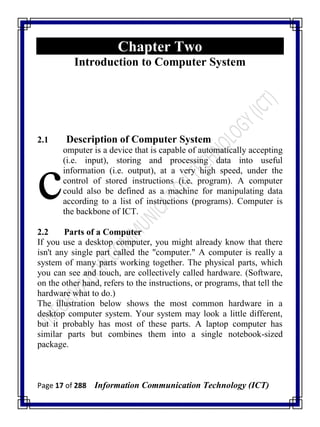
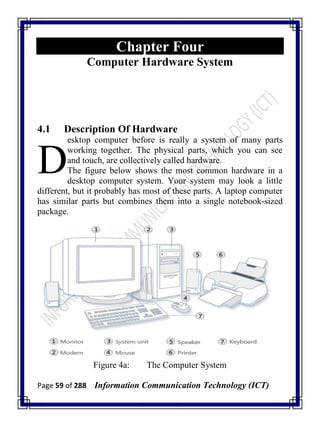
If you use a desktop computer, you might already know that there
isn't any single part called the "computer." A computer is really a
system of many parts working together. The physical parts, which
you can see and touch, are collectively called hardware. (Software,
on the other hand, refers to the instructions, or programs, that tell the
hardware what to do.)
The illustration below shows the most common hardware in a
desktop computer system. Your system may look a little different,
but it probably has most of these parts. A laptop computer has
similar parts but combines them into a single notebook-sized
package.
c
Page 18 of 288 Information Communication Technology (ICT)
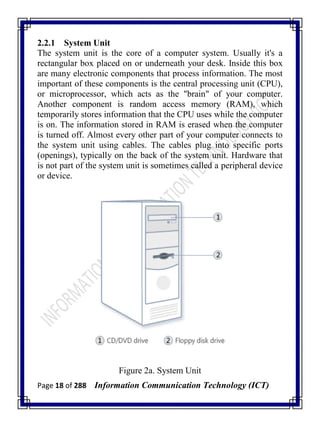
2.2.1 System Unit
The system unit is the core of a computer system. Usually it's a
rectangular box placed on or underneath your desk. Inside this box
are many electronic components that process information. The most
important of these components is the central processing unit (CPU),
or microprocessor, which acts as the "brain" of your computer.
Another component is random access memory (RAM), which
temporarily stores information that the CPU uses while the computer
is on. The information stored in RAM is erased when the computer
is turned off. Almost every other part of your computer connects to
the system unit using cables. The cables plug into specific ports
(openings), typically on the back of the system unit. Hardware that
is not part of the system unit is sometimes called a peripheral device
or device.
Figure 2a. System Unit
Page 19 of 288 Information Communication Technology (ICT)
2.2.2 Storage
Computer has one or more disk drives—devices that store
information on a metal or plastic disk. The disk preserves the
information even when your computer is turned off.
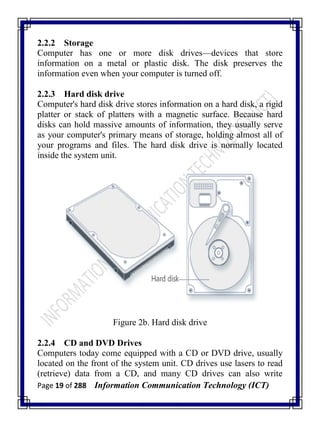
2.2.3 Hard disk drive
Computer's hard disk drive stores information on a hard disk, a rigid
platter or stack of platters with a magnetic surface. Because hard
disks can hold massive amounts of information, they usually serve
as your computer's primary means of storage, holding almost all of
your programs and files. The hard disk drive is normally located
inside the system unit.
Figure 2b. Hard disk drive
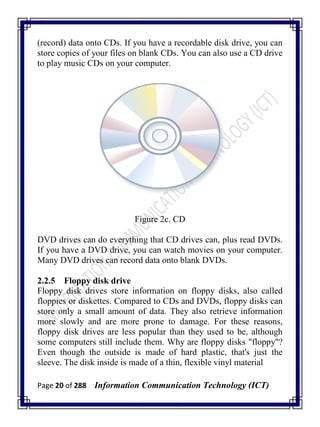
2.2.4 CD and DVD Drives
Computers today come equipped with a CD or DVD drive, usually
located on the front of the system unit. CD drives use lasers to read
(retrieve) data from a CD, and many CD drives can also write
Page 20 of 288 Information Communication Technology (ICT)
(record) data onto CDs. If you have a recordable disk drive, you can
store copies of your files on blank CDs. You can also use a CD drive
to play music CDs on your computer.
Figure 2c. CD
DVD drives can do everything that CD drives can, plus read DVDs.
If you have a DVD drive, you can watch movies on your computer.
Many DVD drives can record data onto blank DVDs.
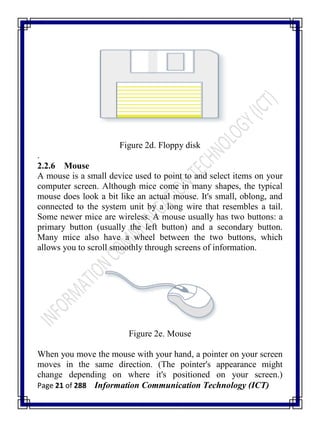
2.2.5 Floppy disk drive
Floppy disk drives store information on floppy disks, also called
floppies or diskettes. Compared to CDs and DVDs, floppy disks can
store only a small amount of data. They also retrieve information
more slowly and are more prone to damage. For these reasons,
floppy disk drives are less popular than they used to be, although
some computers still include them. Why are floppy disks "floppy"?
Even though the outside is made of hard plastic, that's just the
sleeve. The disk inside is made of a thin, flexible vinyl material
Page 21 of 288 Information Communication Technology (ICT)
Figure 2d. Floppy disk
.
2.2.6 Mouse
A mouse is a small device used to point to and select items on your
computer screen. Although mice come in many shapes, the typical
mouse does look a bit like an actual mouse. It's small, oblong, and
connected to the system unit by a long wire that resembles a tail.
Some newer mice are wireless. A mouse usually has two buttons: a
primary button (usually the left button) and a secondary button.
Many mice also have a wheel between the two buttons, which
allows you to scroll smoothly through screens of information.
Figure 2e. Mouse
When you move the mouse with your hand, a pointer on your screen
moves in the same direction. (The pointer's appearance might
change depending on where it's positioned on your screen.)
Page 22 of 288 Information Communication Technology (ICT)
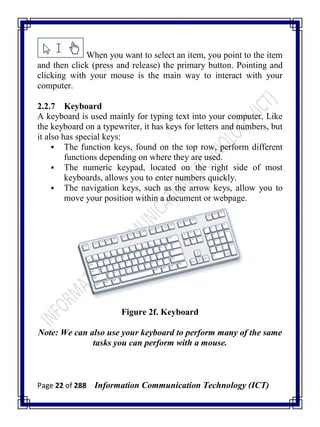
When you want to select an item, you point to the item
and then click (press and release) the primary button. Pointing and
clicking with your mouse is the main way to interact with your
computer.
2.2.7 Keyboard
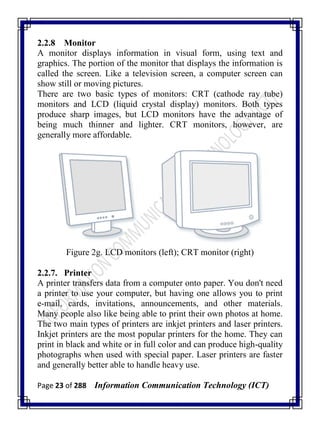
A keyboard is used mainly for typing text into your computer. Like
the keyboard on a typewriter, it has keys for letters and numbers, but
it also has special keys:
 The function keys, found on the top row, perform different
functions depending on where they are used.
 The numeric keypad, located on the right side of most
keyboards, allows you to enter numbers quickly.
 The navigation keys, such as the arrow keys, allow you to
move your position within a document or webpage.
Figure 2f. Keyboard
Note: We can also use your keyboard to perform many of the same
tasks you can perform with a mouse.
Page 23 of 288 Information Communication Technology (ICT)
2.2.8 Monitor
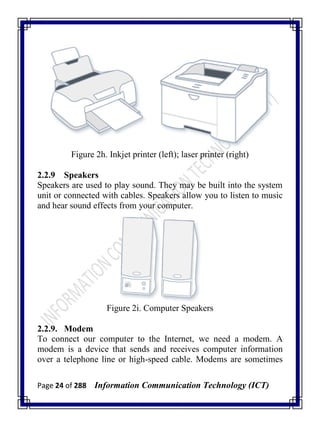
A monitor displays information in visual form, using text and
graphics. The portion of the monitor that displays the information is
called the screen. Like a television screen, a computer screen can
show still or moving pictures.
There are two basic types of monitors: CRT (cathode ray tube)
monitors and LCD (liquid crystal display) monitors. Both types
produce sharp images, but LCD monitors have the advantage of
being much thinner and lighter. CRT monitors, however, are
generally more affordable.
Figure 2g. LCD monitors (left); CRT monitor (right)
2.2.7. Printer
A printer transfers data from a computer onto paper. You don't need
a printer to use your computer, but having one allows you to print
e-mail, cards, invitations, announcements, and other materials.
Many people also like being able to print their own photos at home.
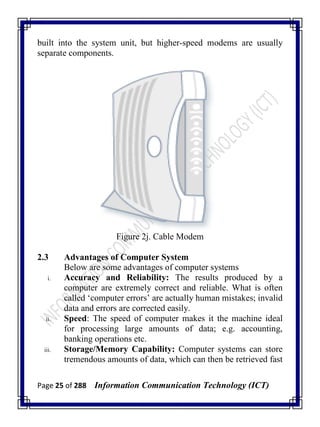
The two main types of printers are inkjet printers and laser printers.
Inkjet printers are the most popular printers for the home. They can
print in black and white or in full color and can produce high-quality
photographs when used with special paper. Laser printers are faster
and generally better able to handle heavy use.
Page 24 of 288 Information Communication Technology (ICT)
Figure 2h. Inkjet printer (left); laser printer (right)
2.2.9 Speakers
Speakers are used to play sound. They may be built into the system
unit or connected with cables. Speakers allow you to listen to music
and hear sound effects from your computer.
Figure 2i. Computer Speakers
2.2.9. Modem
To connect our computer to the Internet, we need a modem. A
modem is a device that sends and receives computer information
over a telephone line or high-speed cable. Modems are sometimes
Page 25 of 288 Information Communication Technology (ICT)
built into the system unit, but higher-speed modems are usually
separate components.
Figure 2j. Cable Modem
2.3 Advantages of Computer System
Below are some advantages of computer systems
i. Accuracy and Reliability: The results produced by a
computer are extremely correct and reliable. What is often
called ‗computer errors‘ are actually human mistakes; invalid
data and errors are corrected easily.
ii. Speed: The speed of computer makes it the machine ideal
for processing large amounts of data; e.g. accounting,
banking operations etc.
iii. Storage/Memory Capability: Computer systems can store
tremendous amounts of data, which can then be retrieved fast
Page 26 of 288 Information Communication Technology (ICT)
and efficiently. The volume of information we deal with
today is far beyond what we can handle manually.
iv. Productivity: Computers are able to perform dangerous,
boring, routine jobs, such as adding long list of numbers,
punching holes in metal or monitoring water levels. Most
workers (e.g. in banks) will appreciate increased productivity
when computers are used to do their jobs.
v. Flexibility: Computer could be used for various purposes
e.g. multiprogramming, batch processing, real-time
processing, data collection, bank transaction processing etc.
vi. Automatic operation: Computer performs data processing
automatically under the control of internally stored
programs.
vii. Configuration and adaptability: Different or suitable
peripherals may be used by business organizations to suit
their business processing requirements.
2.4 Disadvantages of Computer System
Some of the dis-advantages of computers are discussed below
i. Cost of initial setup may be high.
ii. Cost of maintenance may be high.
iii. Inefficient feasibility study before implementation may
hamper business operations.
iv. Lack of skilled personnel may hamper computer operations
and results obtained.
v. Requires regular electrical power supply.
vi. Excessive exposure to computer may result in some health
problem such as poor eye sight, wrist pain, back ache, neck
pain etc.
vii. Computer virus attack may infect and destroy
Data/information, which will automatically affect business
operations.
Page 27 of 288 Information Communication Technology (ICT)
viii. It may lead to unemployment, because one computer can do
the job of about 10 persons.
2.5 Application of Computer in Society
Computers have moved into many facets of our lives. There is
virtually no area of human endeavor that computer usage has not
penetrated. Though we cannot exhaust listing all the areas of
application of computers, the following are some key areas of
computer application:
i. Science: One of the most important advantages of computers
is in the field of science for research and development. The
computers have played a major role in most of what we
know about ourselves and the universe. The satellites, the
telescopes and almost all the research tools make use of
computers in some or the other way. The huge calculations
required for space science, safe communication between
scientists, storage of all the gathered information are some of
the computer uses in science and technology.
ii. Medical: The important use of computers in the medical
field is for research and development. The high end
machines used for diagnosis and cure of many diseases are
nothing but computers. For example, the Magnetic
Resonance Imaging (MRI), CT scan, ultrasound devices, etc
are amongst the uses of computers in hospitals. Even many
surgical procedures, known as laparoscopic surgeries, need
the help of computers. Web conferencing helps doctors treat
people remotely.
iii. Education: Computer uses in the field of education are
infinite. The Internet is a huge source of information. There
are online universities that deliver online degrees and
distance learning is spreading far and wide. Many schools
and colleges have started making use of audio-visual ways of
Page 28 of 288 Information Communication Technology (ICT)
imparting knowledge. A horde of tools that need a computer,
help students in many ways.
iv. Banking: The banking sector has improved on fronts such as
security, ease of use, etc. with the help of computers. Most of
the banking operations can be done online, known as Internet
banking, and you don't have to walk up to the bank for
virtually anything. You can withdraw money from ATMs
and deposit money in any branch, thanks to the networking
affected by the use of computers. The complete banking
experience has also become safer.
v. Crime Investigation: High end computer devices have
ensured that justice is more effective. CCTV cameras and
other computer operated security systems have reduced the
amount of crime. And if it still happens there are many ways
to track down the criminal in no time. Forensic science
employs computers for many of its operations related to
investigations.
vi. Entertainment: The field of entertainment has been
revolutionized by computers. Animation, graphic image
manipulation etc has made the entertainment experience
hundred times better. Computer gaming is achieving new
landmarks in terms of technology. Movie making, editing,
music composition etc everything needs computers. This is
only the tip of the iceberg and the uses of computers in
society are many more. But then the development of
computer technology has also given rise to many vices like
identity theft.
vii. Government: The Government can use computers for the
processing of immigration, tax collection/administration,
keeping tracks of criminals, computing budgets and statutory
allocations, Civil Service Records, computing wages,
salaries, gratuities and pensions etc.
Page 29 of 288 Information Communication Technology (ICT)
viii. Communication: Any computer has any potential to link up
with other computers through communication systems such
as telephone lines or satellite. This link-up facilitates
exchange of memos, reports, letters, data/information, and
even having meetings among people in geographically
dispersed locations.
ix. Robotics: Robots are information machines with the manual
dexterity to perform tasks too unpleasant, too dangerous, or
too critical to assign to human beings. For example, robots
are used in defense to perform underwater military missions;
robots could be used for welding or paint-spraying in
factories, and in car assembling.
x. Business/Commerce: Products are packaged with zebra-
striped symbols (Universal Product Code {UPC}) that can be
read by scanners at supermarket checkout stands to
determine prices of commodities. It has become a
commonplace for companies and consumers to transact
business among themselves with the help of computers. It
could be in form of Business-to-Business {B2B} or
Business-to-Consumer {B2C}. Computers have been found
useful in payroll preparation, inventory control, auditing
operations, personnel records keeping, preparation of
consumer utility bills, financial market transactions etc.
xi. Energy: Energy companies use computers and geological
data to locate oil, coal, natural gas and other mineral
resources. Meter-readers use hand-held computers to record
how much energy is used in a month in homes and
businesses. Computers can analyze the fuel consumption in
our cars.
2.6 Types of Computer System
Classifications of computer vary and also depend on some criterion
as discussed below:
Page 30 of 288 Information Communication Technology (ICT)
Criterion 1: Types by Data Processed
There are three (3) types of computers according to this
classification criterion:
i. Analog Computers: An analog computer measures and
operates on data that are represented in the form of
continuous variables e.g. voltage, pressure, temperature,
distance, speed etc. Examples of analog computers include
car speedometer, multimeter, fuel pump at filling stations
etc.
ii. Digital Computers: A digital computer represents and
processes data in discrete/numerical form, using binary
system. It produces discrete output. Most computer systems
we see around us today are digital computers; they are found
in our homes and business environments. Some wrist
watches today have digital computers embedded in them.
Examples include desk calculators, adding machines,
personal computers etc.
iii. Hybrid Computers: A hybrid computer combines the features
of both analog and digital computers. It can accept
continuous, discrete or both type of input. Its output could be
in the form of discrete or continuous values or the
combination of both. This type of computer is commonly
found in highly scientific environments. Example is the
electronic calculating scale used in food stores.
Criterion 2: Computer Types by physical size
In classifying computer according to physical size, there are four (4)
types, namely and computers in this category are digital in nature:
i. Microcomputers: Microcomputers are the smallest in size;
they are the cheapest; and they have the least operational
speed and memory capacity. They are made for single user
and single-tasking. They are portable (i.e. they can be moved
about easily), easy and simple to learn and use. The
Page 31 of 288 Information Communication Technology (ICT)
microprocessor of a microcomputer is made of integrated
circuits, called chip, mounted a single circuit board. It has
interfaces for input, output and storage devices. Examples
include IBM Personal Computers and compatible systems,
Compaq, Dell etc. Microcomputers come in different shapes
and sizes: Personal Computer (PC) System: is a
microcomputer designed for independent use by an
individual at work or in the home mainly for business
purposes. Some PCs are called Home Computers because
they have limited capability designed for domestic use with
programs that are typically used for computer games and
controlling family finances.
ii. Minicomputers: Minicomputers are medium-sized, general-
purpose digital computers; a bit larger than microcomputers
but smaller than mainframe computers. They are multi-user
(i.e. supports many users at a time) and multi-tasking (i.e.
ability to perform many tasks simultaneously). Compared
with microcomputers, they have larger memory size, higher
processing speed, more numerous and faster input/output
devices; and they are costlier. They are used in small-scale
industries. Examples of mini-computer include: PDP-8,
PDP-11, Honeywell-DPS6, DEC‘s VAX series, Texas
instrument DS990, IBM 8100 etc.
iii. Mainframe computers: Mainframe computers are generally
more powerful in terms of processing speed than
minicomputers. They have larger memory storage
memory/capacity and cost more than minicomputers. They
are multi-user and multi-tasking oriented, supporting full
range of programming languages, used for commercial and
scientific research purposes, with sophisticated devices
attached. They can access numerous terminals/workstations
on a network. They use different types of peripheral devices
such as tapes and disks. They are operated by well-trained
Page 32 of 288 Information Communication Technology (ICT)
experts. Examples of mainframe computers include: NCR
8000, IBM 370,
iv. Super computers: Supercomputers are the largest, fastest and
most expensive computers. They are often referred to as
Maxi-computers. They can be seen as technological
improvement on mainframe computers. They are often used
in scientific environments such as in space studies and
weather forecast. Examples include: CRAY-1, CRAY-2
Criterion 3: Computer Types by Purpose
There are two types of computers according to classification by
purpose:
i. General purpose computers: General purpose computers are
designed to solve wide range of problems such as science,
technology, education, business etc. Complex calculations
are performed within fractions of a second and results
obtained fast. Most Personal Computers (PCs) are general
purpose computers.
ii. Special purpose computers: Special purpose computers are
designed for a particular job/purpose only; to solve problems
of a restricted nature. They are also called dedicated
computers. Most special purpose computers are put within
some other devices or systems, such that the computers are
not accessed directly. These types of computers are called
Embedded Computers. Examples include computers
designed for use in digital watches, micro-wave oven, in
petrol pumps or in weapons guidance systems.
Criterion 4: Computer Types by generations/Technology Age
There are five (5) generations of computers as at date based on this
criterion.
i. First Generation Computers: These are computer systems
manufactured during the 1940s. Their features include:
Page 33 of 288 Information Communication Technology (ICT)
 The CPU was made of vacuum tubes or thermionic valves.
 Primary memory made of magnetic drum.
 The Visual Display Unit (VDU) or monitor used cathode ray
tube.
 Very bulky in size, occupied space, and very costly.
 Used machine language programming.
 Complex and cumbersome to operate.
 Generated a lot of heat.
Examples are: EDSAC, EDVAC, LEO, UNIVAC I and UNIVAC II.
ii. Second Generation Computers: These are computer
systems manufactured during the 1950s. Their features
include:
 The CPU was made of electronic transistors.
 Primary memory made of magnetic core.
 Cost less, faster, smaller and more reliable than first
generation systems.
 Less complex and easier to operate compared with first
generation.
 Generated less heat than first generation.
Examples: LEO Mark III, ATLAS, Honeywell 800, UNIVAC III,
IBM 7000 series, etc.
iii. Third Generation Computers: These are computer systems
manufactured around the 1960s and early 1970s.
Features:
 The CPU was made of Small Scale Integrated (SSI) Circuits,
built on one Silicon Chip.
 The SSI circuits evolved to Medium Scale Integrated (MSI)
circuits.
 The MSI eventually evolved into Large Scale Integrated
(LSI) circuits, leading to greater degrees of integration of
electrical components.
Page 34 of 288 Information Communication Technology (ICT)
 The various evolutions of IC technologies gave rise to
computer systems which were smaller in size, cheaper,
faster, more reliable and durable than first and second
generation systems.
 It was the era of minicomputers and microcomputers,
resulting in higher awareness of computer technology.
 The VDU were in colours.
 Primary memory made of magnetic core and solid state
semi-conductors.
 Less complex and easier to operate compared with first and
second generations.
 Used high level language e.g. COBOL for operation.
Examples: ICL 1900 series, IBM 360 series etc.
iv. Fourth Generation Computers: These are computer
systems manufactured around the late 1970s to 1985.
Features include the following:
 The CPU was made of Very Large Scale Integrated Circuits
(VLSIC), called microchips; i.e. thousands of components in
a very small space.
 There was a thin line demarcation between third and fourth
generations.
 The VLSI circuits gave rise to computer systems which were
more compact, cheaper, faster, more reliable and durable
than first, second and third generation systems.
 It was the era of microcomputers, resulting in higher
awareness of computer technology.
 Invention of microprocessors, which gave birth to pocket
calculators, digital watches and the inclusion of micro hips in
other devices.
 Use of fourth generation query language (4GLs).
 The VDU were in various designs – RGB, EGA, CGA, VGA
colour monitors.
Page 35 of 288 Information Communication Technology (ICT)
 Primary memory made of solid state semi-conductors.
 Less complex and easier to operate compared with first and
second generations.
 Evolution of more application areas of computers.
v. Fifth Generation Computers
The research into the fifth generation computers started about 1985
and continued into 1990. The features are as follows:
 This generation is characterized by the advent of Artificial
intelligence, i.e. the ability of computer system to exhibit
behaviors like an intelligent person.
 Speech recognition/processing
 Parallel architecture/processing – where a computer system
have hundreds of processors that could all be working on
different parts of a single complex problem simultaneously.
 Pattern recognition –
 Expert system – an application program that has the
capability of making judgments and decisions like a human
expert in a particular field of profession. It is an interactive
system that puts users through question-and-answer session
to clarify issues and make recommendations, e.g. in
medicine.
 Multimedia system – PC + Sound Card + Speakers + CD
Drive
 Semi-conductor memory.
2.7 Social Implication Of Computer System
The society in which we live has been so profoundly affected by
computers that historians refer to the present time as the information
age. This is due to the ability to store and manipulate large amounts
of information (data) using computers. As an information society,
we must consider both the social and ethical implications of our use
of computers. By ethical questions we mean asking what are the
Page 36 of 288 Information Communication Technology (ICT)
morally right and wrong ways to use computers and this could be
explain as follows:
Ergonomics: this is the science that studies safe work
environments. Many health-related issues, such as carpal tunnel
syndrome and computer vision syndrome (CVS), are related to
prolonged computer use.
Environmental concern: Power and paper wastes are
environmental concerns associated with computer use. Suggestions
for eliminating these concerns include recycling paper and printer
toner cartridges and turning off monitors and printers when not in
use.
Employee monitoring: Employee monitoring is an issue associated
with computers in the workplace. It is legal for employers to install
software programs that monitor employee computer use. As well, e-
mail messages can be read without employee notification. The
invasion of privacy is a serious problem associated with computers.
Information: Because computers can store vast amounts of data we
must decide what information is proper to store, what is improper,
and who should have access to the information. Every time you use
a credit card, make a phone call, withdraw money, reserve a flight,
or register at school, a computer records the transaction. These
records can be used to learn a great deal about you—where you have
been, when you were there, and how much money was spent.
Should this information be available to everyone?
Computers are also used to store information about your credit
rating, which determines your ability to borrow money. If you want
to buy a car and finance it at a bank, the bank first checks your
credit records on a computer to determine if you have a good credit
rating. If you purchase the car and then apply for automobile
insurance, another computer will check to determine if you have
traffic violations.
Page 37 of 288 Information Communication Technology (ICT)
The Ethical Responsibilities of an IT Professional
IT (information technology) professional has responsibilities that
relate to system reliability. System reliability involves installing and
updating appropriate software, keeping hardware working and up-
to-date and maintaining databases and other forms of data.
Professional ethics helps a professional choose what to do when
faced with a problem at work that raises a moral issue. One can
certainly study what professionals do when faced with such
problems, and confine the enquiry to the description. Our concern
here, however, is to assist with making choices – an approach called
prescriptive professional ethics.
Governments, schools, and employers rely on IT professionals to
maintain their computer systems. In addition to ensuring system
reliability, an IT professional must take responsibility for the ethical
aspects of the career choice. The lists below are the most commonly
reported behaviors IT professional which is unethical;
i. Plagiarism
ii. Failure to protect confidential data
iii. Failure to share credit on a report
iv. Fabrication of data
v. Criticize the ability/integrity of colleague for own gain
vi. Holding back or disguising data
vii. Design of sampling strategy to favor a specific outcome
viii. Destruction of data that contradicts desired outcome
ix. Deliberately not reporting an incident
2.8 Review Question
1. Describe briefly the term computer system
2. Write briefly on the following;
i. System unit
ii. Storage
iii. Hard disk drive
Page 38 of 288 Information Communication Technology (ICT)
iv. Mouse
v. Keyboard
vi. Monitor
vii. Printer
viii. Modem
3. Discuss any 5 major advantages of computer system
4. Discuss any 5 factors that can hindered the application of
computer in business organizations
5. Explain some areas of application of computer in our society
6. Discuss classification of computer system based on types of data
been processed
7. What are the basic features of first generation of computers
8. Identify some ethics expected of IT professionals
9. Discuss social implication of computer based on Ergonomics
and Environmental concern
Page 39 of 288 Information Communication Technology (ICT)
Chapter Three
Computer Evolution
3.1 Computer History And Development
othing epitomizes modern life better than the computer. For
better or worse, computers have infiltrated every aspect of
our society. Today computers do much more than simply
compute: supermarket scanners calculate our grocery bill
while keeping store inventory; computerized telephone
switching centers play traffic cop to millions of calls and keep lines
of communication untangled; and automatic teller machines (ATM)
let us conduct banking transactions from virtually anywhere in the
world. But where did all this technology come from and where is it
heading to? To fully understand and appreciate the impact
computers have on our lives and promises they hold for the future, it
is important to understand their evolution. Some of the events that
lead to the evolution of computer are described as follows.
Early Computing Machines and Inventors
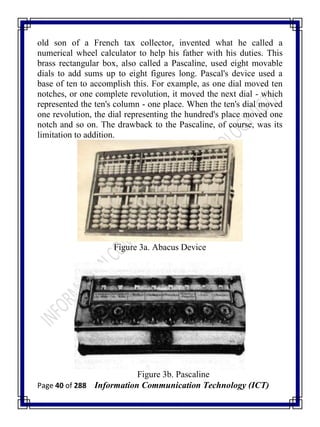
The abacus was emerged about 5,000 years ago in Asia Minor and is
still in use today, may be considered the first computer. This device
allows users to make computations using a system of sliding beads
arranged on a rack. Early merchants used the abacus to keep
trading transactions. But as the use of paper and pencil spread,
particularly in Europe, the abacus lost its importance. It took nearly
12 centuries, however, for the next significant advance in computing
devices to emerge. In 1642, Blaise Pascal (1623-1662), the 18-year-
N
Page 40 of 288 Information Communication Technology (ICT)
old son of a French tax collector, invented what he called a
numerical wheel calculator to help his father with his duties. This
brass rectangular box, also called a Pascaline, used eight movable
dials to add sums up to eight figures long. Pascal's device used a
base of ten to accomplish this. For example, as one dial moved ten
notches, or one complete revolution, it moved the next dial - which
represented the ten's column - one place. When the ten's dial moved
one revolution, the dial representing the hundred's place moved one
notch and so on. The drawback to the Pascaline, of course, was its
limitation to addition.
Figure 3a. Abacus Device
Figure 3b. Pascaline
Page 41 of 288 Information Communication Technology (ICT)
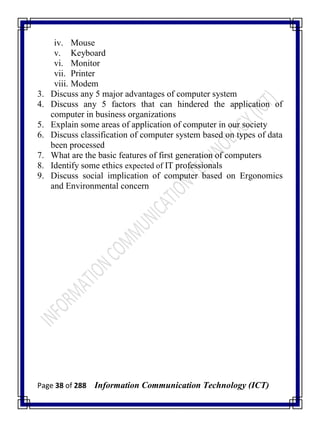
In 1694, a German mathematician and philosopher, Gottfried
Wilhem von Leibniz (1646-1716), improved the Pascaline by
creating a machine that could also multiply. Like its predecessor,
Leibniz's mechanical multiplier worked by a system of gears and
dials. Partly by studying Pascal's original notes and drawings,
Leibniz was able to refine his machine. The centerpiece of the
machine was its stepped-drum gear design, which offered an
elongated version of the simple flat gear. It wasn't until 1820,
however, that mechanical calculators gained widespread use.
Charles Xavier Thomas de Colmar, a Frenchman, invented a
machine that could perform the four basic arithmetic functions.
Colmar's mechanical calculator, the arithometer, presented a more
practical approach to computing because it could add, subtract,
multiply and divide. With its enhanced versatility, the arithometer
was widely used up until the First World War. Although later
inventors refined Colmar's calculator, together with fellow inventors
Pascal and Leibniz, he helped define the age of mechanical
computation.
Figure 3c. Leibniz Machine
Page 42 of 288 Information Communication Technology (ICT)
The real beginnings of computers as we know them today, however,
lay with an English mathematics professor, Charles Babbage (1791-
1871). Frustrated at the many errors he found while examining
calculations for the Royal Astronomical Society, Babbage declared,
"I wish to God these calculations had been performed by steam!"
With those words, the automation of computers had begun. By 1812,
Babbage noticed a natural harmony between machines and
mathematics: machines were best at performing tasks repeatedly
without mistake; while mathematics, particularly the production of
mathematics tables, often required the simple repetition of steps.
The problem centered on applying the ability of machines to the
needs of mathematics. Babbage's first attempt at solving this
problem was in 1822 when he proposed a machine to perform
differential equations, called a Difference Engine. Powered by steam
and large as a locomotive, the machine would have a stored program
and could perform calculations and print the results automatically.
After working on the Difference Engine for 10 years, Babbage was
suddenly inspired to begin work on the first general-purpose
computer, which he called the Analytical Engine. Babbage's
assistant, Augusta Ada King, Countess of Lovelace (1815-1842) and
daughter of English poet Lord Byron, was instrumental in the
machine's design. One of the few people who understood the
Engine's design as well as Babbage, she helped revise plans, secure
funding from the British government, and communicate the specifics
of the Analytical Engine to the public. Also, Lady Lovelace's fine
understanding of the machine allowed her to create the instruction
routines to be fed into the computer, making her the first female
computer programmer. In the 1980's, the U.S. Defense Department
named a programming language ADA in her honor.
Page 43 of 288 Information Communication Technology (ICT)
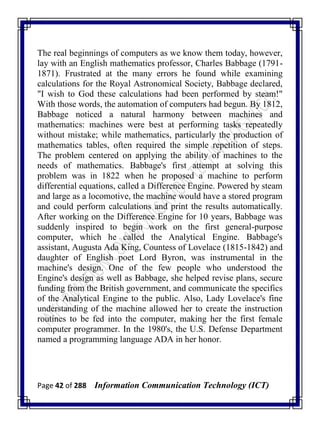
Figure 3d. Babbage Machine
Babbage's steam-powered Engine, although ultimately never
constructed, may seem primitive by today's standards. However, it
outlined the basic elements of a modern general purpose computer
and was a breakthrough concept. Consisting of over 50,000
components, the basic design of the Analytical Engine included
input devices in the form of perforated cards containing operating
instructions and a "store" for memory of 1,000 numbers of up to 50
decimal digits long. It also contained a "mill" with a control unit that
allowed processing instructions in any sequence, and output devices
to produce printed results. Babbage borrowed the idea of punch
cards to encode the machine's instructions from the Jacquard loom.
The loom, produced in 1820 and named after its inventor, Joseph-
Marie Jacquard, used punched boards that controlled the patterns to
be woven.
Page 44 of 288 Information Communication Technology (ICT)
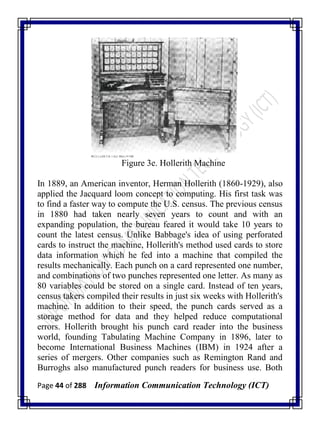
Figure 3e. Hollerith Machine
In 1889, an American inventor, Herman Hollerith (1860-1929), also
applied the Jacquard loom concept to computing. His first task was
to find a faster way to compute the U.S. census. The previous census
in 1880 had taken nearly seven years to count and with an
expanding population, the bureau feared it would take 10 years to
count the latest census. Unlike Babbage's idea of using perforated
cards to instruct the machine, Hollerith's method used cards to store
data information which he fed into a machine that compiled the
results mechanically. Each punch on a card represented one number,
and combinations of two punches represented one letter. As many as
80 variables could be stored on a single card. Instead of ten years,
census takers compiled their results in just six weeks with Hollerith's
machine. In addition to their speed, the punch cards served as a
storage method for data and they helped reduce computational
errors. Hollerith brought his punch card reader into the business
world, founding Tabulating Machine Company in 1896, later to
become International Business Machines (IBM) in 1924 after a
series of mergers. Other companies such as Remington Rand and
Burroghs also manufactured punch readers for business use. Both
Page 45 of 288 Information Communication Technology (ICT)
business and government used punch cards for data processing until
the 1960's.
In the ensuing years, several engineers made other significant
advances. Vannevar Bush (1890-1974) developed a calculator for
solving differential equations in 1931. The machine could solve
complex differential equations that had long left scientists and
mathematicians baffled. The machine was cumbersome because
hundreds of gears and shafts were required to represent numbers and
their various relationships to each other. To eliminate this bulkiness,
John V. Atanasoff (1903), a professor at Iowa State College (now
called Iowa State University) and his graduate student, Clifford
Berry, envisioned an all-electronic computer that applied Boolean
algebra to computer circuitry. This approach was based on the mid-
19th century work of George Boole (1815-1864) who clarified the
binary system of algebra, which stated that any mathematical
equations could be stated simply as either true or false. By extending
this concept to electronic circuits in the form of on or off, Atanasoff
and Berry had developed the first all-electronic computer by 1940.
Their project, however, lost its funding and their work was
overshadowed by similar developments by other scientists.
3.2 Personal Computers History and Development
The personal computer (PC) has revolutionized business and
personal activities and even the way people talk and think; however,
its development has been less of a revolution than an evolution and
convergence of three critical elements - thought, hardware, and
software. Although the PC traces its lineage to the mainframe and
minicomputers of the 1950s and 1960s, the conventional thought
that was prevalent during the first thirty years of the computer age
saw no value in a small computer that could be used by individuals.
A PC is a microcomputer, so named because it is smaller than a
minicomputer, which in turn is smaller than a mainframe computer.
While early mainframes and their peripheral devices often took up
Page 46 of 288 Information Communication Technology (ICT)
the floor space of a house, minicomputers are about the size of a
refrigerator and stove. The microcomputer, whose modern
development traces back to the early 1970s, and fits on a desk, from
the start, the creation of the computer was centered on the concept
that a single unit would be used to perform complex calculations
with greater speed and accuracy than humans could achieve. On
December 23, 1947, one of the most far-reaching technologies of the
20th Century was developed at Bell Laboratories by John Bardeen,
Walter Brattain, and William Shockley - the transistor. But the
transistor wasn't available to U.S. manufacturers until 1956, when a
seven year-old antitrust law suit against AT&T, the owners of Bell
Labs, was settled. The judgment required that AT&T give away
licenses to manufacture the transistor to American companies.
Following this decision, the transistor was used to replace thousands
of vacuum tubes in computers and began the miniaturization of
electronics. Because it drastically reduced the size and heat
considerations of the large vacuum tubes, the transistor enabled the
computer to become a viable tool for business and government.
3.3 The Computer Mystique
From the beginning, computers baffled the populous with their
capability. In corporate and government offices and on university
campuses, information processing departments sprouted up to serve
the computer. The IBM 701, which was introduced in 1952 as a
business computer, was comprised of several units that could be
shipped and connected at a customer's location, rather than the
earlier massive units that had to be assembled on site. In 1953, IBM
began shipping the first mass-produced computer, the IBM 650.
IBM introduced the first solid-state (transistorized) computer in
1959, the IBM 7090. Then in 1964, IBM culminated over $1 billion
in research when it brought out the System/360 series of computers.
Unlike other mainframes, the System/360 computers were
compatible with each other.
Page 47 of 288 Information Communication Technology (ICT)
By 1960, the computer was king. Companies hired armies of
technicians and programmers to write its operating programs and
software, fix it, and allocate the precious computer time. The
capability of the machines was more than a mere mortal could
fathom, but gathering raw data and "keying" it in so the computer
could "crunch the numbers" was a complicated and time-consuming
task.
Frustrations abounded, computer errors were called "glitches," and
the phrases "garbage in/garbage out," "It's a computer mistake," and
"Sorry, the computer's down and we can't do anything," were
introduced into the lexicon.
On college campuses in the 1960s, students carried bundles of
computer cards to and from class, hoping that their share of the
valuable computer time would not be bumped or allocated to
someone else. The term, "Do not fold, spindle or mutilate," was
coined so people wouldn't disable the process of feeding the
punched computer cards into punch card readers, where the intricate
patterns of holes were decoded.
The computer mystique was reinforced in people every time they
heard of some new accomplishment. In 1961, a computer calculated
the value of pi to 100,000 decimal places. A computer could play
checkers, and in 1967 a chess playing computer program was made
an honorary member of the United States Chess Federation. Banks
began printing checks with magnetic ink so they could be processed
by the computers.
3.4 New Technologies And Ideas
Until 1971, nobody even thought of a computer as anything but a
big, fast, electronic brain that resided in a climate-controlled room
and consumed data and electricity in massive quantities. In 1971, an
Intel 4004 chip containing 4004 transistors was programmed to
perform complex mathematical calculations; the hand-held
calculator was born. Suddenly, scientists and engineers could carry
Page 48 of 288 Information Communication Technology (ICT)
the computational power of a computer with them to job sites,
classrooms, and laboratories; but the hand-held calculator, like the
ENIAC before it, was not yet a computer. The microprocessor was
developed by Robert Noyce, the founder of Intel and one of the
inventors of the integrated circuit, and brought with it a change in
the way people worked.
Small, hand-held calculators had provided an idea, or at least a
"what if," to some people. Still, in the early 1970s, computers were
used for number crunching and printing out long streams of green
and white paper. IBM electric typewriters were the top of the line
"word processors" and Xerox copiers churned out photocopies. Most
people never imagined that a computer could process data in real
time, be used to write letters, or fit on a desk.
In 1972, Intel brought out its 8008 chip, capable of processing 8-bits
of data, enough to convey numbers and letters of the alphabet. In
that same year, Xerox began working on a personal computer at
their Palo Alto Research Center. For the next several years, a team
of Xerox scientists worked on the "Alto," a small computer that
would have become the first PC if only the development team had
been able to convince someone of its usefulness.
Likewise, in 1972 Digital Equipment Corporation (DEC), a
minicomputer manufacturing company headed by Kenneth Olsen,
had a group of product engineers developing the DEC Datacenter.
This PC incorporated not only the computer hardware but the desk
as well. The DEC Datacenter could have put tremendous computing
capability in the home or at work, but management saw no value to
the product and halted its development.
In the end, none of the giant companies whose names had been
synonymous with computers would introduce the PC to the world.
There seemed to be no future in an inexpensive product that would
replace the million dollar "Big Iron" that they were selling as fast as
they could make them.
Page 49 of 288 Information Communication Technology (ICT)
The people who eventually introduced the PC were rebels. Many
had spent time in the bowels of the big companies and were
frustrated by the lack of vision they encountered. They retreated into
their own garages and attended meetings with other "computer nuts"
who saw a much different future than the one laid out over the
previous 30 years by the giants of the computer industry.
3.5 The Birth Of Personal Computer
In 1975, Rubik's Cube was put on store shelves and proved to many
that the human brain was incapable of complex problem solving.
But a ray of hope also appeared; the first PC was introduced. Micro
Instrumentation and Telemetry Systems, Inc. (MITS) sold a kit for
the MITS Altair 8800 that enabled computer hobbyists to assemble
their own computers. It had no monitor, no keyboard, no printer, and
couldn't store data, but the demand for it, like Rubik's Cube, was
overwhelming.
The Altair proved that a PC was both possible and popular, but only
with those people who would spend hours in their basements with
soldering irons and wire strippers. The Altair, which looked like a
control panel for a sprinkler system, didn't last, but it helped launch
one of the largest companies in the computer world and gave a
couple of young software programmers a start. In 1974, Bill Gates
and Paul Allen wrote a version of BASIC for the Altair and started a
company called Microsoft Corporation.
In 1976, another computer kit was sold to hobbyists - the Apple I.
Stephen Wozniak sold his Volkswagen and Steve Jobs sold his
programmable calculator to get enough money to start Apple. In
1977, they introduced the Apple II, a pre-assembled PC with a color
monitor, sound, and graphics. It was popular, but everyone knew
that a serious computer didn't need any of this. The kits were just a
hobby and the Apple II was seen as a toy. Even the Apple name
wasn't a serious, corporate sounding name like IBM, Digital
Equipment Corporation, or Control Data.
Page 50 of 288 Information Communication Technology (ICT)
But 1977 also brought competition. The Zilog Z-80 microprocessor,
which had been introduced in 1975, was used in the Tandy Radio
Shack TRS-80, affectionately called the "Trash 80." Apple,
Commodore, and Tandy dominated the PC marketplace. The Apple
II had 16K bytes of RAM and 16K bytes of ROM; Commodore
Business Machines' Personal Electronic Transactor (PET) included
4K RAM and 14K ROM; and the TRS-80 had 4K RAM and 4K
ROM.
Also in 1977, the Central Program for Microprocessors (CP/M)
operating system was developed by Digital Research and Gary
Kildall. From its introduction until 1980, CP/M was used in most
PCs, but even that did not guarantee that a program or document
could be written on one machine and read on another because each
manufacturer used different floppy disk drives.
Apple introduced the floppy disk drive in 1978, allowing Apple II
users to store data on something other than the cumbersome and
unreliable tape cassettes that had been used up to that point. But
despite the popularity of the three PCs, non-computer people still
saw little reason to buy an expensive calculator when there were
other ways to do the same things. In 1979, that all changed.
When VisiCalc was introduced for the Apple II, non-computer
people suddenly saw a reason to buy a computer. VisiCalc, a
spreadsheet program created by Dan Bricklin and Bob Frankston,
allowed people to change one number in a budget and watch the
effect it had on the entire budget. It was something new and valuable
that could only be done with a computer. For thousands of people,
the toy, the computer few could find a use for, had been transformed
into a device that could actually do something worthwhile.
Microprocessors and high-tech gadgets were gradually worming
their way into people's lives. In 1978, Sony introduced the Beta
format video cassette recorder and a year later the VHS video
recorder and the Sony Walkman. And to remind everyone of how
Page 51 of 288 Information Communication Technology (ICT)
far we had to go, Star Trek: The Motion Picture came to theaters in
1979.
The Sinclair ZX-80 PC, which hit the market in 1980, used the same
Z-80 chip as Commodore's PET and the Tandy TRS-80. The ZX-80
had 1K RAM and 4K ROM. Developed by British entrepreneur
Clive Sinclair, the ZX-80 meant that people could enter the
computer revolution for under $200. Its small size and price
attracted people who had never thought about owning a PC.
The Commodore VIC-20, also introduced in 1980, had a color
monitor and would eventually become the first PC to sell more than
one million units. Even with all of the success the early PC
manufacturers had in the late 1970s and early 1980s, the advances in
microprocessor speeds, and the creation of software, the PC was still
not seen as a serious business tool. Unknown to everyone in the
computer industry; however, a huge oak tree was about to drop an
acorn that would fall close to the tree and change everything.
Two events occurred in 1981 that would have a tremendous impact
on the future of the PC. In 1980, IBM had started a secret project in
Boca Raton, Florida called "Acorn." Thirteen months later, in 1981,
IBM introduced the IBM PC, a product that validated the PC as a
legitimate business tool. For many people, even those who prided
themselves on being able to operate the "Big Iron," if IBM was
making PCs then the small desk-top units were worthy of respect.
When the IBM PC hit the market, it was a complete system.
Secretly, IBM had provided software developers with prototypes of
their PC so they could develop an array of programs that would be
available when the machine hit the streets. IBM also developed
printers, monitors, and expansion cards for the PC and made it an
open system so other manufacturers could develop peripherals for it.
The IBM PC used an Intel 8088 microprocessor, had 16K of RAM,
was expandable to 256K, came with one 5.25-inch disk drive and
room for a second, and was available with a choice of operating
Page 52 of 288 Information Communication Technology (ICT)
systems; CP/M-86 or IBM PC-DOS, which had been developed by
Microsoft.
The second major event of 1981 was the introduction of the first
luggable computer, the Osborne 1. This self-contained, suitcase-
sized PC, developed by Adam Osborne, was not only the first
portable PC, but also the first to be sold with software. The Osborne
I came with BASIC, CBASIC, WordStar for word processing, and
the SuperCalc spreadsheet program. Over the next two years, the
Osborne Computing Company would go from nothing to a company
with $70 million in annual revenue and then into bankruptcy.
Prior to 1980, the most common method of storing data was to
connect an audio tape recorder to the PC and dump data to standard
tape cassettes. Large word processors and some PCs had 8-inch disk
drives, but in 1980 Al Shugart introduced the Winchester hard-disk
drive. The microprocessor, an amazing technology when it had
4000 transistors on a single chip, is now even more amazing when it
has over 3 billion transistors on an even smaller chip. In 1982, when
Time magazine made the computer its "Man of the Year," the PC
was still in its infancy. "Big Iron" still dominated the high-tech
environment and having a personal computer was a luxury.
The creation and success of the PC would not have been possible
without the elimination of the concept that a computer was a large,
centralized, data processor and number cruncher. Today the PC is a
communication channel more than it is a computational tool.
Millions of people work in their "electronic cottages," either
operating their own business from home or telecommuting to work.
It is strange that one of the first Intel 4004 microprocessors ever
made continues to operate and lead the world to the outer edges of
time and space. In 1972 one of the small chips was installed in the
Pioneer spacecraft. Today it continues to operate over 5 billion miles
from earth.
3.6 Industrial Contribution To Evolution Of Computer
Page 53 of 288 Information Communication Technology (ICT)
The early 1980s were a time of furious change in the computer
industry. More than 100 companies were manufacturing PCs, each
with its own unique features, each with its own software. When IBM
entered the market in 1981, software companies knew that writing
IBM compatible software would be profitable. Software for the
Apple II had exploded to 16,000 titles and IBM would do the same.
New software in the 1980s included WordStar, Lotus 1-2-3,
Microsoft Word, and Word Perfect.
In 1981, Hayes Micromodem brought the MOdulator/DEModulator
(MODEM) to the market for PCs. The modem had been invented at
AT&T Bell Labs in 1960 to connect mainframes and
minicomputers. Hayes' modem allowed PCs to communicate with
each other and access CompuServe and The Source, the online
services that started up in 1979. CompuServe showed people what to
do with their 300 baud modems by offering them an array of
services and databases to connect with.
In 1982 Compaq introduced the first IBM compatible machine.
Until Compaq, most manufacturers feared IBM and would not bring
out a machine that was compatible with the PC. Later the
compatibles would be termed "clones."
Also in 1982, Tandy brought out the TRS-80 Model 16, which was
based on the Motorola 68000 and Z-80 microprocessors. The Model
16 retailed for $5,000 and included 128K RAM, an 8-inch floppy
disk drive, as well as the Xenix operating system, a derivative of
UNIX.
In January, 1983 Time magazine anointed the PC as the "Man of the
Year," a designation by the editors that the computer had been the
most influential newsmaker of 1982. The magazine estimated 80
million PCs would be in use by the end of the century. Industry
leaders included Texas Instruments, Timex, Commodore, Atari,
Apple, IBM, and Tandy, with Osborne leading the way in the
portable market. The individuals pushing the PC into the future were
John Opel at IBM, Adam Osborne of Osborne Computers, VisiCalc
Page 54 of 288 Information Communication Technology (ICT)
creator Dan Bricklin, Jack Tramiel of Commodore, and Clive
Sinclair who founded Sinclair Research.
The leading products of 1982 and their sales figures included the
Timex/Sinclair 1000 - 600,000; Commodore VIC-20 - over 600,000,
Atari 400 and Atari 800 - 600,000; Texas Instruments 99/4A -
530,000; TRS-80 Model III - 300,000; Apple II Plus - 270,000; IBM
PC - 200,000; and Osborne 1 - 55,000. These computers ranged in
price from the $99 Timex/Sinclair to the Osborne 1 at $1,795 with
bundled software. In the opinion of Time, computers priced over
$2,000 would appeal to a market of "…growing small businesses
and big corporate clients…" Manufacturers of these higher end PCs
included Altos, Corvus, Cromemco, Control Data, Digital
Equipment, Hewlett-Packard, North Star, Olivetti, Tele Video,
Toshiba, Xerox, and Zenith.
In 1983, there was once again a wind of change blowing across the
PC landscape. Apple brought out a machine that failed to sell but
nonetheless showed consumers and manufacturers a new direction
for the PC. The Lisa, an expensive PC with a graphical user
interface (GUI), hit the market with a thud. At $10,000, it had few
friends and even fewer buyers. Also in 1983, IBM introduced IBM
XT with a 10MB hard drive, three additional expansion slots, 128K
RAM, and a 360K floppy drives. To many buyers, the 10MB
storage capacity seemed large enough to last a lifetime.
Immediately after the failure of Lisa, Steven Jobs rethought the
machine and in 1984, out came the Macintosh. The Macintosh was
powered by Motorola's 68000 processor and came with 128K of
RAM. It was so radically different from any other PC that it split the
PC world into two halves that would not be rejoined for another
decade. In addition to the GUI that made the computer an "intuitive"
extension of the user, the "Mac" had its own operating system that
was incompatible with IBM's MS-DOS system. Suddenly PC meant
DOS-based and IBM compatible and Mac meant GUI and mouse.
Page 55 of 288 Information Communication Technology (ICT)
The Mac was introduced to the world in an extravagant television
commercial that was shown only once during half-time of the NFL
Super Bowl. The commercial changed the advertising industry
almost as much as the Mac changed computing. Suffering from the
failure of the Apple III and Lisa, Apple was literally saved by the
Mac. People who hated computers loved the simplicity of Mac. The
GUI allowed the user to click a mouse button on an icon to launch a
program, print a document, or copy a file. No longer did users have
to know combinations of keys or special codes to get the computer
to do what they wanted it to do. The Mac was "user friendly."
When Apple came out with the Apple LaserWriter in 1985 it was
with Adobe Systems Inc.'s PostScript page description language. By
1986, with its what-you-see-is-what-you-get (WYSIWYG) display
and printing, desk-top publishing was born. WYSIWYG meant that
a person could format a document with special fonts and spacing
and be assured that what came out of the printer would look like
what they had created on the screen.
Adobe, founded in 1982 by John Warnock and Charles Geschke,
turned the printed page into a graphic image. The bit map made each
pixel on the screen a definable image that could be moved and
changed without the limitations of a standard text format. PostScript
changed the way people thought about fonts, page layout, and the
visual impact of the documents they produced with their PC.
Printers like the Apple LaserWriter and the Hewlett-Packard HP
LaserJet made every document look like it had been professionally
typeset and printed.
In 1985, the Commodore Amiga 1000, which featured multitasking,
graphics, sound, and video in a windowing operating system,
exposed people to multimedia. At the same time Toshiba came out
with the T1100 laptop, Tandy introduced the Tandy 200 laptop, and
AT&T introduced the UNIX PC. Intel took the microprocessor to a
new level when it brought out the 386 microprocessor in 1985,
Page 56 of 288 Information Communication Technology (ICT)
proving that PCs were not only getting better, they were getting
faster.
The 1980s were very active times for hardware manufacturers and
software producers. Small software companies locked in with either
IBM or Macintosh, but large companies like Microsoft were able to
create new applications for both operating systems. While Aldus
brought out PageMaker, and Lotus introduced Jazz, Microsoft
announced Excel for the Mac, C 3.0, and finally shipped a long-
awaited program called Windows.
Bill Gates, a founder of Microsoft, tried three times to interest IBM
in Windows but was turned down each time. Although the Mac
operating system had changed the interface between users and their
PCs, many DOS users continued to hang on to their command line-
driven MS-DOS operating system, and it would be several more
years until the Windows concept caught on.
With the availability of hundreds of software programs, hard disk
space became valuable real estate. The 10MB hard disk on the IBM
XT began to fill up so hard drive manufacturers started the process
of doubling their capacity.
As modems proliferated and the Hayes Smart modem was accepted
as the standard for modems, just about everyone either knew
someone they could get online with, subscribed to an online service
such as CompuServe, or wanted to access the 1000 host sites on the
Internet. But PCs that were connected to the outside world were also
vulnerable to a new phenomenon called viruses. Once downloaded,
these programs could attach themselves without warning to a PC's
hard drive and gradually or in the blink of an eye destroy or
overwrite files. Virus checkers then became the rage for anyone who
received data over telephone lines.
By 1987 enough people were writing their own software and sharing
it that the Association of Shareware Professionals was formed to
market and protect the inexpensive software. In 1987 a new
Page 57 of 288 Information Communication Technology (ICT)
computer language, C++, stimulated the growth of object-oriented
programming (OOP).
In 1990, Intel's 386 and Motorola's 68030 microprocessors were at
the top, then in 1991 Intel brought out the i486SX 20 MHz chip and
Motorola introduced the 68040. Less than a year later Intel
introduced the 50MHz 486 chip and Tandy brought out its $400 CD-
ROM drive for PCs. Then, just to make everyone wonder what was
going on, in 1991 Apple and IBM agreed to share technology by
integrating the Mac into IBM's systems and using the IBM Power
PC chip.
In 1992, Apple brought out the Apple PowerBook, a laptop that
made everyone wonder just how small a full-function computer
could get. A year later everyone knew the answer when Apple
introduced the Newton Personal Digital Assistant (PDA). The
Newton was supposed to be able to recognize hand-written notes
and Apple sold 50,000 of them in 10 weeks.
In 1993, Intel introduced the 60MHz Pentium chip, the next
generation of chips. The Pentium; however, had a nasty
mathematical bug and its acceptance was slowed. Apple
discontinued the workhorse of its fleet, the Apple II, which, despite
the mind boggling changes in the industry, had lasted 17 years.
From its inception in 1975, the PC has become a focal point of
business, education, and
3.7 Review Questions
1. In not more than 3 sentences, summarize the roles of the
following individual in evolution of computer
i. Abacus
ii. Blaise Pascal
iii. Gottfried Wilhem von Leibniz
iv. Charles Xavier Thomas de Colmar
v. Charles Babbage
Page 58 of 288 Information Communication Technology (ICT)
vi. John V. Atanasoff
vii. Lady Lovelace's
viii. John Bardeen, Walter Brattain, and William Shockley
ix. Robert Noyce
x. Kenneth Olsen
2. What is the basic drawback to Pascaline?
3. Discuss the role of IBM and Intel on modern computer
technology
4. Juxtapose the statement ―The people who eventually introduced
the PC were rebels‖
5. Discuss briefly the features of Osborne 1 computer
Page 59 of 288 Information Communication Technology (ICT)
Chapter Four
Computer Hardware System
4.1 Description Of Hardware
esktop computer before is really a system of many parts
working together. The physical parts, which you can see
and touch, are collectively called hardware.
The figure below shows the most common hardware in a
desktop computer system. Your system may look a little
different, but it probably has most of these parts. A laptop computer
has similar parts but combines them into a single notebook-sized
package.
Figure 4a: The Computer System
D
Page 60 of 288 Information Communication Technology (ICT)
The computer system components parts were described in chapter 2
of this book and almost all the components described are parts of
computer hardware. In this chapter the computer hardware will be
describe based on the computer hardware configuration which
include both the directly visible and invisible hardware. This
hardware configuration is as given in figure 4b below.
Figure 4b. Computer Hardware Configuration
Note: Computer Hardware can be divided basically into two; the
CPU and Peripherals. CPU is made up of control unit, Arithmetic
Page 61 of 288 Information Communication Technology (ICT)
and logic unit and Main memory. While the peripheral is made up of
Input devices, Output devices and Backing storage.
The components of computer hardware based on the diagram in
figure 4b are the CPU and Peripherals (input and output units).
Some of the peripherals were described in chapter two of this book.
4.2 Central Processing Unit
This is an integral part of system unit of computer system that made
up of other components like; the main storage, the control unit and
the arithmetic/logic unit.
Main Storage
The Main Storage contains two types of memory chips, named the
Random-Access Memory (RAM) and Read-Only Memory (ROM).
RAM is a memory that has the same access time for all locations. It
is used to store data and program temporarily whenever they are
needed in main memory. It is constantly being re-used for different
data items or programs as required. Static RAM holds its memory so
long as there is a power supply. Dynamic Ram (DRAM) has to be
refreshed by reading and rewriting the contents very frequently.
RAM is volatile, that is, the con-tents of RAM are lost when the
power supply is switched off. ROM (integrated circuit) is used to
store vital data and programs which need to be held within the main
memory at all times. The contents of ROM are permanently set
during the manufacture of the computer.
However, there are other ways of putting programs and data into
ROM. Programmable Read-Only Memory (PROM) is a type of
ROM that is manufactured as an empty storage array and is later
permanently programmed by the user. Erasable PROM (EPROM) is
a type of PROM whose data can be erased by a special process so
new data can be written as if it were a new PROM.
Arithmetic/Logic Unit (ALU)
Page 62 of 288 Information Communication Technology (ICT)
The Arithmetic/Logic Unit (ALU) consists of adder/subtractor,
electronic circuit and working registers to which operands may be
transferred during an operation. The ALU performs the
- Arithmetic Operations
- Data Handling Operations
- Logical Functions.
The data to be processed are taken from main storage, stored in the
working registers, processed and the results placed back in the main
storage.
Control Unit
The Control Unit examines the individual instructions in the users‘
program one by one, interprets each instruction and causes the
various circuits to be activated to perform the functions specified.
Some of the functions of the control unit are:
i. It co-ordinates the various parts of the computer system to
form a composite integrated data processing system.
ii. It controls the transfer of data between and within the
working stores as required by the program.
iii. It controls input/output. Once the program controller has
initiated a read/write operation, the control unit continues to
monitor the operation to ensure that it is satisfactorily
completed.
iv. In time-sharing or on-line systems, the control unit co-
ordinates the several concurrent peripheral operations while
data is processed internally within the CPU.
Page 63 of 288 Information Communication Technology (ICT)
4.3 Peripherals Input & Output Devices
4.3.1 Input Device
Computer Input is the process of transferring data from computer-
sensible media into the main storage of the computer. The
equipment which converts data been captured on a source
documents into machine sensible form is called an input device. The
following terms are related to inputting data into computer.
- Data Capture is the term used to describe the process of
collecting data in machine sensible form at its source.
- Data Collection is the term used to describe the process of
recording the data on source document and subsequently
converting it into machine sensible form for input to the
computer.
- Data Conversion is the process of transforming the data on
source documents into machine sensible form before
carrying out the input operation.
Type of Input Device
- Direct Input Devices allow data to be input into the
computer without any need for data conversion. Examples
are: keyboard terminals, mouse, trackballs, scanners,
joystick, bar-code readers, touch screens, OCR, OMR and
MICR equipment.
- Indirect Input Devices accept data from source documents
and convert it into computer-sensible form for subsequent
input into the computer. Examples are: magnetic tape,
magnetic disk, compact disk and diskette drives.
Input devices can also be classified as manual or automated.
Manual input devices include keyboard, mouse, trackball, joystick,
bar-code readers, scanners, and touch screens. Automated input
Page 64 of 288 Information Communication Technology (ICT)
devices include MICR, OCR, OMR, magnetic stripe and smart
cards.
Computer keyboard
A keyboard is used mainly for typing text into your computer. Like
the keyboard on a typewriter, it has keys for letters and numbers, but
it also has special keys like:
- The function keys, found on the top row, perform different
functions depending on where they are used.
- The numeric keypad, located on the right side of most
keyboards, allows you to enter numbers quickly.
- The navigation keys, such as the arrow keys, allow you to
move your position within a document or webpage.
Some modern keyboards come with "hot keys" or buttons that give
you quick and one-press access to programs, files, or commands.
Other models have volume controls, scroll wheels, zoom wheels,
and other gadgets. For details about these features, check the
information that came with your keyboard or computer, or go to the
manufacturer's website.
Figure 4c. Modern computer keyboard
Page 65 of 288 Information Communication Technology (ICT)
Three odd keys
So far, we've discussed almost every key you're likely to use. But for
the truly inquisitive, let's explore the three most mysterious keys on
the keyboard: PRINT SCREEN, SCROLL LOCK, and
PAUSE/BREAK.
Print Screen (or PRT SCN)
A long time ago, this key actually did what it says—it sent the
current screen of text to your printer. Nowadays, pressing PRINT
SCREEN captures an image of your entire screen (a "screen shot")
and copies it to the Clipboard in your computer's memory. From
there you can paste it (CTRL+V) into Microsoft Paint or another
program and, if you want, print it from that program. More obscure
is SYS RQ, which shares the key with PRINT SCREEN on some
keyboards. Historically, SYS RQ was designed to be a "system
request," but this command is not enabled in Windows.
Scroll Lock (or SCR LK)
In most programs, pressing SCROLL LOCK has no effect. In a few
programs, pressing SCROLL LOCK changes the behavior of the
arrow keys and the PAGE UP and PAGE DOWN keys; pressing
these keys causes the document to scroll without changing the
position of the cursor or selection. Your keyboard might have a light
indicating whether SCROLL LOCK is on.
Pause/Break
This key is rarely used. In some older programs, pressing this key
pauses the program or, in combination with CTRL, stops it from
running.
Electronic Mouse
A mouse is a small device used to point to and select items on your
computer screen. Although mice come in many shapes, the typical
Page 66 of 288 Information Communication Technology (ICT)
mouse does look a bit like an actual mouse. It's small, oblong, and
connected to the system unit by a long wire that resembles a tail.
Some newer mice are wireless. When you move the mouse with
your hand, a pointer on your screen moves in the same direction.
(The pointer's appearance might change depending on where it's
positioned on your screen.) When you want to select an item, you
point to the item and then click (press and release) the primary
button. Pointing and clicking with your mouse is the main way to
interact with your computer.
A mouse typically has two buttons: a primary button (usually the left
button) and a secondary button (usually the right button). The
primary button is the one you will use most often. Most mice also
include a scroll wheel between the buttons to help you scroll through
documents and webpages more easily. On some mice, the scroll
wheel can be pressed to act as a third button. Advanced mice might
have additional buttons that can perform other functions.
Figure 4d. Parts of a mouse
Holding and Moving the Mouse
Place your mouse beside your keyboard on a clean, smooth surface,
such as a mouse pad. Hold the mouse gently with your index finger
resting on the primary button and your thumb resting on the side. To
move the mouse, slide it slowly in any direction. Don't twist it; keep
Page 67 of 288 Information Communication Technology (ICT)
the front of the mouse aimed away from you. As you move the
mouse, a pointer on your screen moves in the same direction. If you
run out of room to move your mouse on your desk or mouse pad,
just pick up the mouse and bring it back closer to you. Hold the
mouse lightly, keeping your wrist straight. Figure 4d illustrate the
explanation given.
Figure 4d. Mouse holding technique
Pointing, clicking, and dragging: Pointing to an item on the screen
means moving your mouse so the pointer appears to be touching the
item. When you point to something, a small box often appears that
describes the item. For example, when you point to the Recycle Bin
on the desktop, a box appears with this information: "Contains the
files and folders that you have deleted."
Page 68 of 288 Information Communication Technology (ICT)
Figure 4e.Pointing to an object to reveals a descriptive message
about it
The pointer can change depending on what you're pointing to. For
example, when you point to a link in your web browser, the pointer
changes from an arrow to a hand with a pointing finger . Most
mouse actions combine pointing with pressing one of the mouse
buttons. There are four basic ways to use your mouse buttons:
clicking, double-clicking, right-clicking, and dragging.
1. Clicking (single-clicking): To click an item, point to the item
on the screen, and then press and release the primary button
(usually the left button). Clicking is most often used to select
(mark) an item or open a menu. This is sometimes called
single-clicking or left-clicking.
Page 69 of 288 Information Communication Technology (ICT)
2. Double-clicking: To double-click an item, point to the item
on the screen, and then click twice quickly. If the two clicks
are spaced too far apart, they might be interpreted as two
individual clicks rather than as one double-click.
a. Double-clicking is most often used to open items on
your desktop. For example, you can start a program
or open a folder by double-clicking its icon on the
desktop.
3. Right-clicking: To right-click an item, point to the item on
the screen, and then press and release the secondary button
(usually the right button). Right-clicking an item usually
displays a list of things you can do with the item. For
example, when you right-click the Recycle Bin on your
desktop, Windows displays a menu allowing you to open it,
empty it, delete it, or see its properties. If you're ever unsure
of what to do with something, right-click it. Right-clicking
the Recycle Bin opens a menu of related commands
Figure 4f. Right clicking recycle bin
Page 70 of 288 Information Communication Technology (ICT)
4. Dragging: You can move items around your screen by
dragging them. To drag an object, point to the object on the
screen, press and hold the primary button, move the object to
a new location, and then release the primary button.
Dragging (sometimes called dragging and dropping) is most
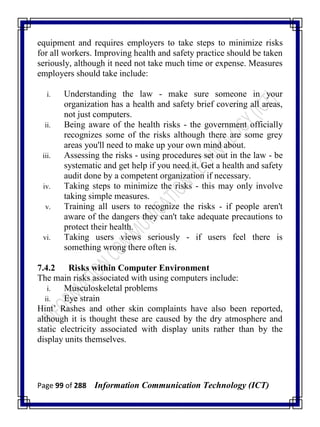
often used to move files and folders to a different location
and to move windows and icons around on your screen.
Using the Scroll Wheel
If your mouse has a scroll wheel, you can use it to scroll through
documents and webpages. To scroll down, roll the wheel backward
(toward you). To scroll up, roll the wheel forward (away from you).
Customizing Your Mouse
You can change your mouse settings to suit your personal
preferences. For example, you can change how fast your mouse
pointer moves around the screen, or change the pointer's appearance.
If you're left-handed, you can switch the primary button to be the
right button.
Trackballs
A trackball is like a mouse turned upside down. It is a stationary
device related to the mouse. It has a roller ball with only its top
exposed outside its case. The cursor on the screen is moved
whenever the roller ball is turned. Pressing buttons on the trackball
activates various activities represented by the icon selected.
(a) A mouse (b) A trackball
Page 71 of 288 Information Communication Technology (ICT)
Touch Screens
Touch screen is a special screen that is able to detect the position on
the screen that a user‘s finger is touching or pointing at. A standard
computer screen is covered by two very thin pieces of plastic.
Embedded into the plastic is a fine wire and that is linked to the
computer. When someone touches the grid, the computer can deduce
exactly where the touch is made.
Joysticks
Joysticks are used more on video games than with PCs. A joystick
has a short vertical handle that can be tilted forwards and
backwards, left and right. A joystick allows the user to point to
objects on the screen in the same way as a mouse, but it is more
convenient for following a moving target. It may have one or more
buttons on it.
Light Pen
A light pen allows the user to point the pen at different parts of a
screen to select an option or draw a graphic, so it is like very
accurate Touch screens. The use of light pens is quite rare.
Optical Scanners
Optical scanning devices read text or graphics and convert them into
digital input for the computer. Thus, optical scanning enables the
direct entry of data from source documents into a computer system.
Optical scanners employ photoelectric devices to scan the characters
being read. Reflected light patterns of the data are converted into
electronic impulses that are then accepted as input into the computer
system. Optical Character Recognition (OCR) is a form of optical
scanning.
Page 72 of 288 Information Communication Technology (ICT)
Voice Recognition
Voice recognition systems analyse and classify speech or vocal tract
patterns and convert them into digital codes for entry into a
computer system. Voice recognition systems with large
vocabularies require training the computer to recognise your voice
in order to achieve a high degree of accuracy
Magnetic Stripe
Swipe and credit cards have black iron oxide coating of magnetic
stripe on the reverse side, and it is this that the computer recognises.
The black stripe holds information, such as customer account
numbers, that can be accessed only by a special magnetic reading
device. The reading device converts the information into computer
usable form, for example, at the automated teller machines found at
banks and at credit card authorization terminals.
Smart Cards
Smart Cards embed a microprocessor chip and several kilobytes of
memory into debit, credit, and other cards. Smart debit cards enable
the user to store a cash balance on the card and electronically
transfer some of it to others to pay for small items and services. The
balance on the card can be replenished in automated teller machines
(ATMs) or other terminals. Smart cards are widely used to make
payments in parking meters, vending machines, pay telephones, and
retail stores.
Digital Cameras
Digital still cameras and digital video cameras (digital camcorders)
enable the user to shoot, store, and download still photos or full
motion video with audio into a PC. Then image-editing software can
be used to edit and enhance the digitised images and include them in
newsletters, reports, multimedia presentations, and web pages.
Page 73 of 288 Information Communication Technology (ICT)
Optical Character Readers
Optical character readers (OCR) are machines capable of reading
printed documents directly into the computer by recognising the
shape of the different characters. Reading of documents prepared in
optical characters is accomplished by the use of a scanning device
that reflects light from the character on to a lens where it is focused
on a photoelectric cell. The cell produces a variable electric current
that is unique for each character read. This process is termed optical
character recognition.
Optical Mark Readers
Optical mark readers (OMR) are machines that use an artificial light
source to scan marks made on OMR documents in order to
determine their values. Marking is done in small horizontal shape on
documents with black media such as a soft pencil. On OMR
documents, predetermined positions are given certain values. The
optical reader converts the mark in a position to the appropriate
value. This is termed optical mark recognition (OMR).
Magnetic Ink Character Readers
Magnetic ink character readers (MICR) are machines capable of
reading magnetic ink characters on MICR documents and passing
the data into a computer. A MICR document has human-readable
characters printed in the normal way with the use of a specially
designed font but using a ferrous-based ink that is capable of
magnetization.
Magnetic Ink Character Recognition (MICR) technology is
employed by the computer systems of the banking industry to read
cheques magnetically.
On-Line Input
This entails data being transmitted directly to the computer by the
use of terminals sited at a distance from the computer and linked to
Page 74 of 288 Information Communication Technology (ICT)
it by communication arrangements. The computers‘ response is
transmitted back to the terminal.
Bar Coding
Bar coding is the representation of code numbers or other data by
bars or lines printed or embossed on a data carrier. The data carrier
may be a tag, ticket, label, plastic card or a packet/can holding
goods.
Universal Product Code
The Universal Product Code (UPC) system was introduced by the
USA to cover the complete range of grocery products. Each product
is given a unique 10-digit code that is represented in bar code form
on every packet or other type of container or on labels. The bars are
in pairs, each of which represents a digit according to their spacing
and thickness. Certain symbols are also represented including those
to indicate the start and finish of the bar coding. The European
equivalent of UPC is the European Article Number (EAN).
Bar Code Readers
A bar code reader functions as follows: The bar code is scanned by a
laser, which measures the thickness of the lines and the distance
between them to decipher the code. Once read, the information can
be transmitted to a computer. These hardware devices are often used
for point-of-sale input systems in supermarkets and other outlets.
Output Devices
Computer output is the process of transferring data and information
from the main storage of the computer onto a human-sensible
medium or a machine-sensible medium. The principal methods of
producing computer output are:
i. Displayed output on a VDU screen
Page 75 of 288 Information Communication Technology (ICT)
ii. Printed output on paper
iii. Computer-sensible output on a magnetic medium
iv. Computer output on microform
v. Plotters
vi. Sound output
Video Output
Video monitors use cathode ray tubes (CRT) technology similar to
the picture tubes used in home TV sets. The clarity of the video
display depends on the type of video monitor and the graphic circuit
board installed in the computer. The information displayed on the
screen is often referred to as soft copy. Monitors can be
monochrome or colour. Monochrome monitors give a display of
varying intensity on a single colour, for example, white on black
background or orange/green on dark background. Colour monitors
give a display with a range of colours determined by the colour
circuitry in the monitor and the computer.
Printers/ Plotters
A printer is a mechanical device used for producing human-readable
information on paper. A printer is connected to a computer for the
sole purpose of transferring the information from the computer to
paper or other media. The version printed out on paper is often
referred to as hard copy. The three main categories of computer
printers are line printers, serial/character printers and laser printers.
A plotter contains a pen that draws lines on paper. Plotters are
devices used for producing hard copies of complex graphics outputs
in the form of graphs, charts, histograms and diagrams. These
devices are much better than ordinary printers at handling diagrams.
The technique has a wide range of use in fields such as scientific
research, engineering and management information systems. They
are commonly used for such tasks as producing technical drawings
and road/rail networks.
Page 76 of 288 Information Communication Technology (ICT)
Magnetically Encoded Output
Computer output, in coded form, are written onto a magnetic
medium usually for the purpose of storing updated records. The
magnetic media used for the purpose include diskette, compact disk,
magnetic tape, and magnetic disks.
Sound Output
A sound output device reproduces previously recorded and stored
sounds. Sound output devices are the output equivalent of sound
input devices. Sound output devices simply convey pre-recorded
information in audio form. Speech synthesis is the production of
sounds resembling human speech by electronic methods. A speech
synthesis output device creates speech output from text. Speech
synthesis output devices are the flipside of automatic speech
recognition input devices. Speech synthesis devices convey
information in audio form.
Backing Storage
Backing storage is an extension to a computer‘s internal storage. It
is used for the off-line mass storage of programs, data and files that
are not currently being used for processing. The types of common
backing storage in use are magnetic tape, magnetic disk, compact
disk, USB flash drive and floppy disk.
Magnetic Tapes
The magnetic tape consists of a strip of plastic tape coated with a
magnetic material deposited in grains, each of which may be
magnetized in one of two directions. A tape is held on a reel. A tape
drive is used for writing data onto magnetic tape from the processor
and for reading data from magnetic tape into the processor. The
reading/writing operations are accomplished by a pair of read/write
heads.
Page 77 of 288 Information Communication Technology (ICT)
Advantages of Magnetic Tape
i. It is relatively inexpensive, compared to the magnetic disk.
ii. It has a large data storage capacity.
iii. It is capable of transferring data to and from the main storage
of the computer at very high speed.
iv. Transaction data can be recorded directly onto the magnetic
tape by means of magnetic tape encoding machines.
v. Old data may be erased and the tape used repeatedly.
Disadvantages Of Magnetic Tape
i. It is only possible to access records serially.
ii. Data can be accidentally erased or overwritten.
iii. It is not possible to read the records on tape visually.
iv. Updated information cannot be written back to the same
location on the same tape.
v. Input data must be sorted into the sequence of the master file
before updating can start.
vi. Stringent environment control is necessary in order to
eliminate dust and static electricity in the atmosphere.
Magnetic Disks
A magnetic disk or hard disk is a flat circular device, which is
similar to a long-playing phonograph record. It is made of metal and
each of the recording surfaces is coated with a thin layer of
magnetisable iron oxide. Usually, six disks are held on a common
axis, one above the other, to form a disk pack. A disk pack is
mounted on a disk drive mechanism. The disk drive is used for
writing data onto magnetic disk from the processor and reading data
from magnetic disk into the processor. The reading/writing
operations are accomplished by using a pair of read/write heads
placed next to each recording surface.
Page 78 of 288 Information Communication Technology (ICT)
Advantages of Magnetic Disk
i. A pack of disks has very high storage capacity.
ii. Data on tracks may be overwritten with new data.
iii. Disks are ideal for storing subroutines, tables and rates.
iv. Disks may be used for real-time remote enquiry systems.
v. The speed of data transfer from the processor and to the
processor is very high.
vi. Data can be input onto a disk without the need for sorting.
vii. Any item of data can be directly addressed, depending upon
the method of the file organisation used.
Disadvantages of Magnetic Disk
i. Disk storage devices are more expensive than many other
storage media.
ii. Data may be accidentally erased or overwritten.
iii. It is more complex to program disk operations than for
magnetic tape.
iv. Disk operations involve the locating of overflow records.
USB Flash Drive
A USB flash drive is a data storage device that includes flash
memory with an integrated Universal Serial Bus (USB) interface.
USB flash drives are typically removable and rewritable, and
physically much smaller than an optical disc. Most weigh less than
30 grams (1.1 oz). As of January 2013, drives of up to 512 gigabytes
(GB) were available. A one-terabyte (TB) drive was unveiled at the
2013 Consumer Electronics Show and became available later that
year. USB flash drives are often used for the same purposes for
which floppy disks or CDs were used, i.e., for storage, back-up and
transfer of computer files.
Page 79 of 288 Information Communication Technology (ICT)
Advantages of USB Flash Drive
They are smaller, faster, have thousands of times more capacity, and
are more durable and reliable because they have no moving parts
4.4 Review Questions
1. Compare CPU and peripherals
2. Draw a diagram to illustrate the computer hardware
configuration
3. Discuss and compare 2 basic components of computer
main storage
4. Compare ALU and Control unit of computer CPU
5. Identify any 5 functions of Control unit of CPU
6. Compare direct input and indirect input device
7. Identify and describe 3 most mysterious keys on the
keyboard
8. What are the functions of mouse in a graphical users
interface
9. Identify any 10 peripherals on a computer system
10. Give 2 examples of peripheral that a computer users can‘t
do without
11. Identify any 5 methods of producing computer output
Page 80 of 288 Information Communication Technology (ICT)
Chapter Five
Computer Software
5.1 Description Of Computer Software
omputer software, or just software, is any set of machine-
readable instructions (most often in the form of a computer
program) that directs a computer's processor to perform
specific operations. Software is a general term. It can refer to all
computer instructions in general or to any specific set of computer
instructions. It is inclusive of both machine instructions (the binary
code that the processor understands) and source code (more human-
understandable instructions that must be rendered into machine code
by compilers or interpreters before being executed). In most
computer platforms, software can be grouped into a few broad
categories:
Figure 5a: Organization of Computer Software
C
Page 81 of 288 Information Communication Technology (ICT)
5.2 System Software
System software is a group of programs that contribute to the control
and performance of the computer system. System software manages
and supports the operations of computer systems and networks.
They are usually provided by the computer manufacturers. System
software is made up of systems management programs and systems
development programs.
- System Management Programs manage the hardware,
software, network, and data resources of the computer
system during its execution of the various information-
processing jobs of users. Examples are operating systems,
network management programs, database management
systems, and system utilities.
- System Development Programs help users develop
information system programs and procedures and prepare
user programs for computer processing. Examples are
programming language translators and editors.
5.3 Operating Systems
An operating system is a collection of programs which takes over
the operation of the computer to the extent of being able to allow a
number of programs to be run on the computer without human
interventions by an operator. Examples of operating systems on
mainframe and minicomputers are IBM-OS/VS, IBM-OS/400 and
ICL-VME. On microcomputers, examples include MS-DOS,
WINDOWS and LINUX.
Functions of Operating Systems
An operating system (OS) performs five basic functions in the
operation of a computer system, namely, providing a user interface,
resource management, task management, file management, as well
as utilities and support services.
Page 82 of 288 Information Communication Technology (ICT)
1. The User Interface: This is the part of the operating system
that allows the user to communicate with it so that the user
can load programs, access files, and accomplish other tasks.
The main types of user interfaces are
2. Resource Management: An operating system uses a variety
of resource management programs to manage the hardware
and networking resources of a computer system, including its
CPU, memory, secondary storage devices,
telecommunications processors, and input/output peripherals.
For example, memory management programs keep track of
where data and programs are stored.
3. File Management: An operating system contains file
management programs that control the creation, deletion, and
access of files of data and programs. File management also
involves keeping track of the physical location of files on
magnetic disks and other secondary storage devices. So,
operating system maintains directories of information about
the location and characteristics of files stored on a computer
systems secondary storage device.
4. Task Management: The task management programs of an
operating system manage the accomplishment of the
computing tasks of end-users. They give each task a slice of
a CPU‘s time and interrupt the CPU operations to substitute
other tasks. Task management may involve a multitasking
capability where several computing tasks can occur at the
same time. Multitasking may take the form of
multiprogramming, where the CPU can process the tasks of
several programs at the same time, or timesharing, where the
computing tasks of several users can be processed at the
same time.
Page 83 of 288 Information Communication Technology (ICT)
5. System Utilities: Utility programs are type of system
management software that are marketed as separate
programs or are included as part of an operating system.
Utilities perform miscellaneous housekeeping and file
conversion functions. Examples include data backup, data
recovery, virus protection, data compression, and file
defragmentation.
5.4 Utilities and Service Programs
These are systems programs that provide facilities for performing
common tasks of routine nature. The main types include.
i. Sort is a program used to arrange records into a
predetermined sequence by reference to a record key.
ii. Editors are used at a terminal and provide facilities for the
creation or amendment of programs.
iii. File Copying is a program that copies data from one
medium to another, for example, from diskettes to hard disk.
iv. File Renaming is a program that changes the name of a file
to another.
v. File Backup is a program that copies data or file from one
medium to another for security purposes.
vi. Disk Formatting is a program that prepares a disk or
diskette for the purpose of receiving and storing data..
vii. Dump is a program that is used to copy the contents of the
main storage onto an output medium such as paper.
viii. File maintenance is a program that carries out the process of
insertion and deletion of records in any file. It can also make
amendments to standing data in records.
ix. Tracing and Debugging is used in conjunction with the
testing of application programs on the computer. Tracing
involves dumping to locate errors. Debugging is the process
of eliminating errors from a program.
Page 84 of 288 Information Communication Technology (ICT)
5.5 Programming Languages
A programming language describes the way in which the
instructions that make up a computer program are written. The three
basic types of programming languages are machine language,
assembly language and high-level language.
5.5.1 Machine Languages
A machine language is a programming language composed of
numeric instructions. It is made up of strings of binary digits
specific to a particular make and model of computer. When
programming in machine language, an appropriate set of storage
locations must be allocated for both the program and the data before
any actual instructions can be written. The interpretation of a
machine language program is a direct function of the computer
hardware circuitry.
Advantages of Machine Languages
i. They are very flexible. They allow programmers to make
efficient use of the computer‘s capabilities.
ii. The concepts of machine language programming involve
simply transferring data into and out of the accumulator.
Disadvantages of Machine Languages
i. Machine language programming is very detailed; therefore,
an actual program can be quite complicated.
ii. Tedious bookkeeping is involved in writing machine
language programs.
iii. Machine language programs are difficult to correct for errors
and difficult to alter.
iv. Every computer model has its own machine language; hence
machine language programs are machine dependent.
Page 85 of 288 Information Communication Technology (ICT)
5.5.2 Assembly Language
An assembly language is a programming language made up of
operation mnemonics and symbolic data locations. The assembly
language programmer makes use of instruction mnemonics and
symbolic names of addresses rather than work with operation codes
and operand addresses.
Advantages of Assembly Language
i. The task of learning and writing the language is easier than
with machine language.
ii. Macroinstructions enable one instruction to be translated into
several machine language instructions.
iii. Assembly languages can be used for programming closed
subroutines.
Disadvantages of Assembly Language
i. Assembly languages are more difficult to learn than high-
level languages.
ii. An assembly language program is more difficult to modify
than corresponding high-level language program.
iii. An assembly language is machine dependent.
5.5.3 High-Level Languages
A high-level computer language is a programming language
composed of instructions written in English words (for business
applications) or in mathematical notations (for scientific
applications).The two main purposes of a high-level language are:
i. To improve the productivity of programmers because high-
level languages are relatively easier to learn and a statement
written in a high-level language would produce several
machine code instructions.
Page 86 of 288 Information Communication Technology (ICT)
ii. To enable programs to be used on different types of
computers without the need to rewrite the programs
completely.
Advantages of High-Level Languages
i. Instructions are more like English (for business applications)
or more like mathematical notations (for scientific
applications), so the languages are easier to learn, easier to
write and easier to understand.
ii. They are developed for use on more than one type of
computer. That is, they are machine independent.
iii. Programs written in a high-level language are easier to
modify and to test.
iv. Programmers trained in the use of a high-level language do
not need to learn an entirely new language to work on a new
computer.
v. Programs can be written by persons not possessing a detailed
knowledge of computers because high-level languages are
problem-oriented.
Disadvantages of High-Level Languages
i. The fact that high-level languages can be used for different
makes of computers does not allow them to take advantage
of specific facilities on individual computers.
ii. Programs written in high-level languages are unlikely to be
as efficient, in terms of processing speed and the use of
internal storage space, as programs written in machine
language or in assembly language.
5.6 Translators
A translator is a systems program that converts statements written in
one programming language into statements in the computer
language. The statements in a programming language are called
Page 87 of 288 Information Communication Technology (ICT)
source program. The statements in the computer language are
called object program. The three types of translators are
Assemblers, Compilers and Interpreters.
5.6.1 Assembler
An assembler (or a symbolic assembly program) is a program
specially developed by the computer manufacturer to assist the
programmer in the preparation of machine-code programs from
programs written in symbolic language.
5.6.2 Compiler
A compiler is a program specially written by the computer
manufacturer for the purpose of translating a program written in
high level language into machine language.
5.6.3 Interpreter
The interpreter is used to translate high-level language programs. It
deals with the source program one instruction at a time, completely
translating and executing each instruction before it goes on to the
next.
The advantage of the Interpreter over a compiler is that it is suitable
for interactive work, where the programmer wishes to modify or test
the program on-line as it is being developed.
5.7 Applications Software & Application Programs
Applications software is a group of programs that are developed to
solve particular problems. They directly provide the processing that
users want to have performed. They may be produced by the
computer manufacturer or supplier, a software house, or the
computer user. They are of two types, application programs and
application packages.
- Application programs are mostly written by the users to
carry out a task, e.g. payroll programs; hence they are also
called user programs or tailor-made programs.
Page 88 of 288 Information Communication Technology (ICT)
- Application packages are ready-made generalised programs
with associated documentations for solving business and
other problems.
Advantages of Application Software
i. The user gets a well-tried and tested program.
ii. Implementation is quicker and possibly cheaper.
iii. Systems design, programming and systems testing are
minimised.
iv. Systems documentation is provided with the packages.
v. Efficiency in terms of speed, storage requirements and
accuracy.
vi. Portability from the existing computer system to another.
Disadvantages of Application Packages
i. It may be inefficient due to the inclusion of irrelevant
features.
ii. It might be used even when it is not completely suitable to
the particular application.
iii. The user is dependent on the supplier for the maintenance of
the package.
iv. No immediate help on site when a serious problem occurs.
v. May not be updated in line with legislation, e.g. VAT rates.
5.8 Application Software Selection
There are various considerations before one select application
software for his or her business organization or individual personal
uses. Some of the considerations are described as follows.
i. Comprehensiveness. The package must satisfy user‘s
requirements.
ii. Cost. It should be affordable to the user.
Page 89 of 288 Information Communication Technology (ICT)
iii. Reliability. The package should have been used by other
organisations for some time with considerable degree of
success.
iv. Flexibility. It should be fairly easy to be amended, modified
and upgraded.
v. Portability. The package should be suitable for use with any
computer system acquired in the future by the user.
vi. Interfacing. The package should link up conveniently with
existing systems and routines.
vii. Peripherals. The input and output hardware devices
required by the package should be compatible with the user‘s
existing devices.
viii. Storage. The package should be able to be accommodated
within the main storage and backing storage existing on the
user‘s system.
ix. Documentation. It must be well documented. The
procedures for input, processing and output should be clearly
documented.
x. Timing. The time required to process a particular
application, such as payroll, should be compared on a
number of similar packages.
5.9 Software Suites
A software suite consists of most widely used productivity packages
bundled together. Examples are Microsoft Office, Lotus Smart
Suite and Corel Word Perfect Office. Each suite typically integrates
software packages for word processing, spreadsheets, presentation
graphics, database management and personal information
management. Each suite may contain other programs such as
programs for Internet access and web publishing.
Page 90 of 288 Information Communication Technology (ICT)
Advantages of Software Suite
i. It costs a lot less than the total cost of buying its individual
packages separately.
ii. All programs use a similar graphical user interface (GUI) of
icons, tool and status bars, menus, and so on, which gives
them the same look and feel, and makes them easier to learn
and use.
iii. All programs share common tools such as spell checkers and
help wizards to increase their efficiency.
iv. The programs are designed to work together seamlessly, and
import each other‘s files easily, no matter which program is
in use at the time. This makes them more efficient and easier
to use than using a variety of individual package versions.
Disadvantages of Software Suite
i. Many software suite features are never used by most end
users.
ii. The suite takes up a lot of disk space.
5.10 Review Questions
1. Describe computer software and draw a diagram to illustrate the
classification of computer software
2. Compare application software and system software
3. Describe the classification system software
4. Discuss any 5 functions of operating system in a computer
5. Of which class is utility program. Hence identify any 5 utilities
program and their function
6. Why program translators
7. Describe 3 major program translator you know
8. There are 3 major programing languages identify them and give
2 advantages and 2 disadvantages of each.
9. Discuss any 5 of various consideration before one select
application software for usage
Page 91 of 288 Information Communication Technology (ICT)
10. Why software suite? Hence give 3 advantages and 3
disadvantages of software suite
Page 92 of 288 Information Communication Technology (ICT)
Chapter Six
Computer Operation
7.1 Computer Users
ser is an agent, either a human agent (end-user) or software
agent, who uses a computer or network service. Users are
also widely characterized as the class of people that use a
system without complete technical expertise required to understand
the system fully. Computer users can be classified into the following
categories based on the way they think about computers.
Application-oriented Users
The vast majority of computer users are application-oriented. They
have training and experience exclusively with commercial software.
They understand concepts peculiar to computers such as files,
folders, saving, and deleting. They live in a WYSIWYG world;
although they may be aware that what they see on the screen is not
an entirely accurate representation of what the computer is actually
doing, they are not interested in understanding hidden
implementations. They have learned how to map their thinking onto
the capabilities of the applications they regularly use, and they
accept whatever limitations that thinking may impose. They are
pragmatic, learning as much as they need to get their work done. A
new problem requires a new piece of software. Spreadsheet
―programmers‖ fall into this category, as may some programmers
who work primarily with application scripting tools such as
Microsoft Visual Basic for Applications. Nearly all commercial
u
Page 93 of 288 Information Communication Technology (ICT)
software is targeted at this group of users, who can be considered
―computer-literate.‖
Goal-oriented users
The second largest group consists of goal-oriented users. These
users focus exclusively on the goals they want to accomplish and
neither understands nor cares about the software they use to
accomplish those goals. This could be called the ―I just want to type
a letter‖ group. They only see the final product. They do not care
about, for example, the difference between a word processor
document and a PDF image of that same document, so they do not
understand why they can make textual edits to one and not the other.
They could be described as ―computer-illiterate,‖ even if they work
with computers on a regular basis. Many very intelligent people,
scientists and scholars, fall into this category. They are frustrated by
the limitations of the software they use because they do not
understand the reasons for those limitations. Though they may use
common terms such as ―files,‖ they typically map those concepts
onto their real-world metaphorical analogues, resulting in confusion.
(―Why can‘t I keep this picture in my email file?‖)
Original Computer Users
The third and smallest group of computer users ironically, the
original computer users is comprised of hackers. Hackers are
computer-oriented computer users. They have learned how to think
like a computer, to understand the processes the computer goes
through. They favor small tools (e.g. the command line, shell
scripts) over large applications because they want to be in precise
control of what the computer is doing at all times. They comfortably
work with data in ―raw‖ formats such as text files. This does not
necessarily mean they are tied down with minutiae of
implementation; often they can work at much higher levels of
abstraction than other users. Hackers tend to seek out the abstract
Page 94 of 288 Information Communication Technology (ICT)
patterns inherent in whatever end result they are working towards,
then implement those patterns in the computer. A new problem
rarely requires new tools, merely a new application of existing tools.
They will create whatever new tools are needed to bring the
computer up to the level of the problem, rather than trying to adapt
the problem to fit the computer. On the other hand, their solutions
tend to be brittle, with a lot of exposed complexity that makes them
unsuitable for non-hacker users.
7.2 System Booting
When we start our Computer, there is an operation which is
performed automatically by the Computer which is also called as
Booting. In the Booting, System will check all the hardware‘s and
Software‘s those are installed or Attached with the System and this
will also load all the Files those are needed for running a system. In
the Booting Process all the Files those are Stored into the ROM
Chip will also be Loaded for Running the System. In the Booting
Process the System will read all the information from the Files those
are Stored into the ROM Chip and the ROM chip will read all the
instructions those are Stored into these Files. After the Booting of
the System this will automatically display all the information on the
System. The Instructions those are necessary to Start the System will
be read at the Time of Booting. There are two Types of Booting.
i. Cold Booting: when the System Starts from the Starting or
from initial State Means when we Starts our System this is
called a cold Booting. In the cold Booting the System will be
started from its beginning State means first of all, the user
will press the Power Button, then this will read all the
instructions from the ROM and the Operating System will be
automatically gets loaded into the System RAM.
Page 95 of 288 Information Communication Technology (ICT)
ii. Warm Booting: The warm Booting is that in which System
Automatically Starts when we are Running the System, For
Example due to Light Fluctuation the system will
Automatically Restarts So that in this Chances Damaging of
system are more, and the System will not be start from its
initial State So May Some Files will be Damaged because
they are not Properly Stored into the System.
7.3 Occupational Health and Safety
7.3.1 Basic Description of Occupational health and safety
Occupational health and safety is a cross-disciplinary area concerned
with protecting the safety, health and welfare of people engaged in
work or employment. The goal of all occupational health and safety
programs is to foster a safe work environment. As a secondary
effect, it may also protect co-workers, family members, employers,
customers, suppliers, nearby communities, and other members of the
public who are impacted by the workplace environment. It may
involve interactions among many subject areas, including
occupational medicine, occupational (or industrial) hygiene, public
health, safety engineering, chemistry, health physics. Occupational
health should aim at:
i. The promotion and maintenance of the highest degree of
physical, mental and social well-being of workers in all
occupations;
ii. The prevention amongst workers of departures from health
caused by their working conditions;
iii. The protection of workers in their employment from risks
resulting from factors adverse to health;
iv. The placing and maintenance of the worker in an
occupational environment adapted to his physiological and
psychological capabilities;
These regulations are concerned with the working environment.
They place a duty on employers to make sure that the workplace is
Page 96 of 288 Information Communication Technology (ICT)
safe and suitable for the tasks being carried out there, and that it
does not present risks to employees and others.
7.3.2 Regulation For Maintaining Health and Safety
The regulations for maintaining health & safety in the working
environment, includes:
i. maintenance of the workplace, equipment, devices
and systems
ii. ventilation
iii. temperature in indoor workplaces
iv. lighting
v. cleanliness and waste materials
vi. room dimensions and space
vii. work stations and seating
viii. condition of floors and traffic routes
ix. falls or falling objects
x. windows and transparent or translucent doors,
gates and walls
xi. windows, skylights and ventilators
xii. ability to clean windows, etc. safely
xiii. doors and gates
xiv. escalators and moving walkways
xv. sanitary conveniences
xvi. washing facilities
xvii. drinking water
xviii. accommodation for clothing
xix. facilities for changing clothing
xx. Facilities for rest and to eat meals.
7.3.3 Why Occupational Health and Safety
Some reason for occupation health and safety are;
i. Occupational health and safety promote health and safety
procedures in organizations.
Page 97 of 288 Information Communication Technology (ICT)
ii. Help to recognize hazards and measure health and safety
risks, set suitable safety controls in place, and give
recommendations on avoiding accidents to management and
employees in an organizations.
iii. An effective training program can reduce the number of
injuries and deaths, property damage, legal liability,
illnesses, workers' compensation claims, and missed time
from work.
iv. Safety training classes help establish a safety culture in
which employees themselves help promote proper safety
procedures while on the job. It is important that new
employees be properly trained and embraces the importance
of workplace safety as it is easy for seasoned workers to
negatively influence the new hires.
7.3.4 Safety and Health Hazards
The terminology used in OSH varies but generally speaking a
hazard is something that can cause harm if not controlled. The
outcome is the harm that results from an uncontrolled hazard. A risk
is a combination of the probability that a particular outcome will
occur and the severity of the harm involved. ―Hazard‖, ―risk‖, and
―outcome‖ are used in other fields to describe e.g. environmental
damage, or damage to equipment. However, in the context of OSH,
―harm‖ generally describes the direct or indirect degradation,
temporary or permanent, of the physical, mental, or social well-
being of workers. For example, repetitively carrying out manual
handling of heavy objects is a hazard. The outcome could be a
musculoskeletal disorder (MSD) or an acute back or joint injury.
7.3.5 Nigerian Occupational Health and Safety Bill
The Bill to enact a law that would take care of the health and safety
of industrial workers passed through second reading on the floor of
the Senate on 25th
February, 2009. The bill sponsored by Senator
Page 98 of 288 Information Communication Technology (ICT)
Chris Anyanwu which was committed to the senate committees on
Labor, Health seeks amongst other things to ensure that employers
of labor are properly protected.
Highlights of Nigerian Occupational Health and Safety Bill
i. To make further provisions for securing the safety, health
and welfare of persons at work
ii. To make provisions for protecting others against risks to
safety or health in connection with the activities of persons at
work
iii. To establish the National Council for Occupational Safety
and Health to create a general framework for the
improvement of working conditions and the working
environment
iv. To prevent accidents and departures from health arising out
of or in the course of work
v. To ensure the provision of occupational safety and health
services to workers in all sectors of economic activity
vi. The bill is also to establish the National Council for
Occupational Safety and Health Hazards and for related
issues with the following functions
vii. To ensure employee safety and health in Nigeria by working
with employers and employees to create better working
environments
viii. To act as a regulatory agency by issuing safety and health
standards that is enforceable under Nigerian safety law.
7.4 Computer Health and Safety
7.4.1 Description Of Computer Health And Safety
The number of computers in the workplace has increased rapidly
over the last few years and it is now quite normal for most staff in
organizations to be exposed to computer usage. The Health and
Safety at Work Act lays down legal standards for computer
Page 99 of 288 Information Communication Technology (ICT)
equipment and requires employers to take steps to minimize risks
for all workers. Improving health and safety practice should be taken
seriously, although it need not take much time or expense. Measures
employers should take include:
i. Understanding the law - make sure someone in your
organization has a health and safety brief covering all areas,
not just computers.
ii. Being aware of the health risks - the government officially
recognizes some of the risks although there are some grey
areas you'll need to make up your own mind about.
iii. Assessing the risks - using procedures set out in the law - be
systematic and get help if you need it. Get a health and safety
audit done by a competent organization if necessary.
iv. Taking steps to minimize the risks - this may only involve
taking simple measures.
v. Training all users to recognize the risks - if people aren't
aware of the dangers they can't take adequate precautions to
protect their health.
vi. Taking users views seriously - if users feel there is
something wrong there often is.
7.4.2 Risks within Computer Environment
The main risks associated with using computers include:
i. Musculoskeletal problems
ii. Eye strain
Hint‘ Rashes and other skin complaints have also been reported,
although it is thought these are caused by the dry atmosphere and
static electricity associated with display units rather than by the
display units themselves.
Page 100 of 288 Information Communication Technology (ICT)
Musculoskeletal problems
These can range from general aches and pains to more serious
problems which include
i. Upper limb disorders such as repetitive strain injury (RSI)
and carpal tunnel syndrome - by far the most important as it
can quickly lead to permanent incapacity
ii. Back and neck pain and discomfort
iii. Tension stress headaches and related ailments
Causes of Musculoskeletal Problems
i. Maintaining an unnatural or unhealthy posture while using
the computer
ii. Inadequate lower back support
iii. Sitting in the same position for an extended period of time
iv. An ergonomically poor workstation set up
Eye Strain
Computer users can experience a number of symptoms related to
vision as follow:
i. Visual fatigue
ii. Blurred or double vision
iii. Burning and watering eyes
iv. Headaches and frequent changes in prescription glasses
Computer work hasn't been proven to cause permanent eye damage,
but the temporary discomfort that may occur can reduce
productivity, cause lost work time and reduce job satisfaction.
Causes of Eye Strain
i. Eye problems are usually the result of visual fatigue
ii. Glare from bright windows or strong light sources
iii. Light reflecting off the display screen
iv. Poor display screen contrast
Page 101 of 288 Information Communication Technology (ICT)
7.4.3 Precaution to Prevent Risk Associated With Computer
Musculoskeletal Problems: General precautions to avoid
musculoskeletal problems include:
i. Taking regular breaks from working at your computer - a
few minutes at least once an hour
ii. Alternating work tasks
iii. Regular stretching to relax your body
iv. Using equipment such as footrests, wrist rests and document
holders if you need to
v. Keeping your mouse and keyboard at the same level
vi. Avoiding gripping your mouse too tightly - hold the mouse
lightly and click gently
vii. Familiarize yourself with keyboard shortcuts for applications
you regularly use (to avoid overusing the mouse)
viii. It is also important to have your workstation set up correctly.
Your workstation includes monitor, keyboard, mouse,
seating, desk, and where appropriate, footrest (to enable you
to put your feet flat if they would otherwise not reach the
floor), wrist rest, and document holder.
Monitors should
i. Swivel, tilt and elevate - if not use an adjustable stand, books
or blocks adjust the height
ii. Be positioned so the top line of the monitor is no higher than
your eyes or no lower than 20° below the horizon of your
eyes or field of vision
iii. Be at the same level and beside the document holder if you
use one
iv. Be between 18 to 24 inches away from your face
Page 102 of 288 Information Communication Technology (ICT)
Keyboards should
i. Be detachable and adjustable (with legs to adjust angle)
ii. Allow your forearms to be parallel to the floor without
raising your elbows
iii. Allow your wrists to be in line with your forearms so your
wrists does not need to be flexed up or down
iv. Include enough space to rest your wrists or should include a
padded detachable wrist rest (or you can use a separate gel
wrist rest which should be at least 50 mm deep)
v. Be placed directly in front of the monitor and at the same
height as the mouse, track ball or touch pad
Chairs should
i. Support the back - and have a vertically adjustable
independent back rest that returns to its original position and
has tilt adjustment to support the lower back
ii. Allow chair height to be adjusted from a sitting position
iii. Be adjusted so the back crease of the knee is slightly higher
than the pan of the chair (use a suitable footrest where
necessary)
iv. Be supported by a five prong caster base
v. Have removable and adjustable armrests
vi. Have a contoured seat with breathable fabric and rounded
edges to distribute the weight and should be adjustable to
allow the seat pan to tilt forward or back
Tables and desks should
i. Provide sufficient leg room and preferably be height
adjustable
ii. Have enough room to support the computer equipment and
space for documents
iii. Be at least 900 mm deep
iv. Have rounded corners and edges
Page 103 of 288 Information Communication Technology (ICT)
Avoiding Eyestrain
Precautions that can be taken to avoid eyestrain include:
i. Exercising the eyes by periodically focusing on objects at
varying distances
ii. Blinking regularly
iii. Keeping the air around you moist - for example using plants,
open pans of water or a humidifier (spider plants are said to
be particularly good for this and removing chemical vapors
from the air)
iv. Adjusting the screen height / seating so that when sitting
comfortably your eyes are in line with the top of the monitor
screen
v. Adjusting the brightness control on your monitor for comfort
vi. Adjusting the contrast on your monitor to make the
characters distinct from the background
vii. Adjusting the refresh rate of your monitor to stop it
flickering
viii. Positioning monitors to avoid glare (e.g. not directly in front
of windows)
ix. Keeping your monitor the screen clean
x. Keeping the screen and document holder (if you use one) at
the same distance from your eyes
xi. Servicing, repairing or replacing monitors that flicker or
have inadequate clarity
xii. Regular eye testing - do this at least once every 2 years and
more frequently if necessary - especially if you are
experiencing eye problems related to using display
equipment. Indicate the distance from your eyes to the
monitor to your optician and talk to them regarding special
lenses or the use of bifocals.
7.5 Review Questions
1. Who are the computer users?
Page 104 of 288 Information Communication Technology (ICT)
2. Discuss computer users based on the way they think about
computers.
3. What do you understand by system booting? Hence identify and
explain briefly 2 types of system booting
4. Describe briefly occupation health and safety
5. What are the basic aim of occupational health and safety?
6. Identify any 5 regulation for maintain health and safety in the
working environments
7. Give the highlights of Nigeria occupational health and safety bill
8. What are the Measures that employers should take to reduce or
minimize occupational health hazard in a business
organizations?
9. Identify and discuss 2 major risks associated with computer
usage
10. Identify any 5 general precautions to minimize each of the risk
mentioned.
11. What is the relation between computer ergonomic and computer
health hazard?
Page 105 of 288 Information Communication Technology (ICT)
Chapter Seven
Data Processing Techniques
7.1 Definition of Data Processing
ata processing is be defined as the methods and procedures
of converting data into information. That is, the
manipulation of data, its retention and subsequent retrieval.
Data processing is the activities involved in the transformation of
data into information.
7.2 Methods of Data Processing
Various methods of data processing are discussed below:
Manual method: This involves the use of pen, pencil, paper, desk
calculator/adding machine and human brain. This mode of data
processing is suitable in a business environment where volume of
data to be processed is small and delivery time is not critical.
Advantages Disadvantages
1. Easy to operate and
understand.
2. Low initial set-up cost.
3. Creates job opportunity.
1. It involves much paper work.
2. Delay in production of
results.
3. Cannot handle large volume
of data.
4. It is tiresome.
5. Prone to error.
Mechanical (or electro-mechanical) method: This involves the
use involves the use of machines that are activated by an operator
e.g. punch cards equipment, Abacus, accounting machine etc. This
method is faster than the manual method of processing data. The
rate of error is less than the error rate in manual mode.
Advantages Disadvantages
D
Page 106 of 288 Information Communication Technology (ICT)
1. Easy to operate and
understand.
2. Faster than manual method.
3. Reduced error rate compared
to manual method.
1. Required skilled
personnel.
2. Susceptible to human
error.
3. Susceptible to mechanical
faults.
Electronic Data Processing Method: This involves the use of
computer to process data. EDP has the highest processing speed
among all the three modes of data processing. Input devices are used
to feed data into the computer; microprocessors are used to process
the data and output devices are used to pass the result of processing
(i.e. output or information) to the user.
Advantages Disadvantages
1. It produces accurate results.
2. It is very fast.
3. It improves efficiency.
4. It handles complex computation.
5. It has large storage facility.
6. Handles large volume of data in
short time.
1. High initial set-up
cost.
2. Requires regular
power supply.
3. Required skilled
personnel.
4. Data is susceptible to
virus attack.
5. Cost of maintenance
may be high.
7.3 Data Processing Stages
Stages of data processing include: origination, input, processing,
storage, output and distribution. The data processing cycle is
depicted in the following diagram.
Page 107 of 288 Information Communication Technology (ICT)
Figure 7a. Data Processing stages
i) Origination: This is the collection of original (primary) data. It
is possible to collect data and store it away in a secondary
storage medium pending the time the data would be required
for processing.
ii) Input: This means feeding the data into the computer. Data is
prepared in a convenient/suitable form for processing. The
form of input device used depends on the data processing
method. e.g. punch cards are used in electromechanical data
processing while magnetic tape, disk, keyboard (terminal) are
used in electronic data processing.
iii) Processing: This is a planned series of actions and operations
performed on data to convert the data to a more meaningful
form called information.
Input
Storage
Distribution
Processing
Output
Origination (data
collection)
Page 108 of 288 Information Communication Technology (ICT)
iv) Storage: storage of data/Information could take place at any
stage for future purposes. The double-headed arrows show the
storage of data/information at one time, and the stored
data/information serving as input for processing at another
time.
v) Output: This is the result of the processed data (information).
At times, the information produced today could be distributed
to the appropriate end-users; at some other times, the
information could be used as input for another data processing
cycle.
vi) Distribution: This is the dissemination of information
produced, to the appropriate quarters for decision-making. The
decision-makers are the end-users of information.
7.4 Data Processing Techniques
Various Data processing techniques available are discussed as
follows.
i. Batch Processing: This is a processing technique whereby
many individual jobs/transactions are collected together (i.e.
batched) and periodically processed against a master file
using a single program loading. For instance, before the
advent of online banking, many banks adopted batch
processing where records of customer deposits made
throughout the day are collected and batched for processing
in the night (nightly processing) against the master file of
account balances. However, if batch processing is used to
process withdrawals, criminals would not have to use guns to
rob banks! Batch processing is also applicable in payroll
system which processes the different employee's payslip
individually in a single continuous operation. It is also
applicable in billing system.
Page 109 of 288 Information Communication Technology (ICT)
ii. Online-Processing: On-line processing: is the technique of
using computer to process data by means of terminals
connected to and controlled by a central processor. On-line
systems involve the receipt of data directly from the point of
origin through a variety of input/output terminal devices with
telecommunication capabilities. On-line processing provides
direct access to information files by terminal users and also
enables them to update files with transaction data.
iii. Time Sharing: Time-sharing: This processing technique
allocates several small equal time slices to terminal users as
their jobs are being processed. For instance, the computer
might allocate 100 milliseconds (ms) to user 1, then 100ms
to user 2, and then 100ms to user 3 and so on. If there are
100 users on the computer, it will allocate 100ms to each
user before it returns to the top of the job queue and gives
each user another round of 100ms. By so doing, the
computer is able to work so quickly that each user feels as if
he/she has exclusive use of the computer system. As new
user jobs are presented to the computer or are finished, they
are respectively added to or deleted from the job queue.
iv. Real-Time processing: Real-time processing: is an on-line
technique which is able to receive input data from various
sources and which is able to process that data sufficiently
rapidly to be capable of influencing the sources of the data.
v. Distributed vs. Centralized Processing: A combination of
local and remote computer terminals in a network connected
to a central computer to divide the workload. A Distributed
data processing facility is one in which computers, usually
smaller computers, are dispersed throughout the
organization. The objective of such disperse is to process
Page 110 of 288 Information Communication Technology (ICT)
information in a way that is most effective based on
operational. Centralized data processing is a Computer data
processing architecture where data processing support is
provided by one or a cluster of computers, generally a large.
Dedicated computers, located in a central data processing
facility. In a centralized architecture, each person is provided
with a local terminal that is connected by a communications
facility to the central data processing facility.
7.5 Review Question
1. Describe briefly the term data processing
2. Compare manual and computer-based data processing
3. What are the advantages and disadvantages of manual data
processing
4. What are the factors that facilitate computer-based data
processing
5. Discuss the stages of data processing. Hence draw a diagram to
illustrate your discussion
6. Write briefly on the following data processing techniques
a. Batch Processing
b. Online-Processing
c. Time Sharing
d. Real-Time processing
e. Distributed vs. Centralized Processing
Page 111 of 288 Information Communication Technology (ICT)
Chapter Eight
Computer Data Management
8.1 Description Of Data
ata is/are collection of raw fact(s) about people, objects,
events and concepts. Data can be used either in the singular
or plural sense. Information is the data that is
analyzed/processed in a meaningful manner, for decision making.
That is, we obtain information when a set of data undergoes
processing. The terms Data, Information and Knowledge are
frequently used for overlapping concepts. The main difference is in
the level of abstraction being considered. Data is the lowest level of
abstraction, information is the next level, and finally, knowledge is
the highest level among all three.
Data is raw, unorganized facts that need to be processed. Data can
be something simple and seemingly random and useless until it is
organized. E.g. each student's test score is one piece of data. Data is
an abstract concept that can be viewed as the lowest level of
abstraction from which information and then knowledge are derived.
Data in themselves are fairly useless. But when these data are
interpreted and processed to determine its true meaning, they
become useful and can be called Information. Data is/are the facts of
the World. For example, take yourself. You may be 6ft tall, have
black hair and yellow eyes. All of this is ―data‖. You have black hair
whether this is written down somewhere or not.
Data can be thought of as a description of the World. We can
perceive this data with our senses, and then the brain can process
D
Page 112 of 288 Information Communication Technology (ICT)
this. Human beings have used data as long as we‘ve existed to form
knowledge of the world. Until we started using information, all we
could use was data directly. If you wanted to know how tall I was,
you would have to come and look at me. Our knowledge was limited
by our direct experiences. Information allows us to expand our
knowledge beyond the range of our senses. We can capture data in
information, and then move it about so that other people can access
it at different times. Information is a critical resource in the
operation and management of organizations. Timely availability of
relevant information is vital for effective performance of managerial
functions such as planning, organizing, leading, and control.
Data information knowledge Decision
Input
Processor
DatainRealWorld
The diagram could be explained further as follows;
i. Data  processing  Information
ii. Information  intelligence  Knowledge
iii. Knowledge  experience  Wisdom
Page 113 of 288 Information Communication Technology (ICT)
Attributes of Data/Information
1. Usability
i. Relevant: Relevance is yet another key attribute of
management information. Information is said to be relevant
if it answers specifically for the recipient what, why,
where, who and why? In other words, the MIS should
serve reports to managers, which are useful, and the
information helps them make decisions.
ii. Simple: good information should not be too voluminous; it
should contain only the relevant facts, without leaving out
any necessary details.
iii. Flexible: Data should able to adapt to new situation: able to
change or be changed according to circumstances.
iv. Economical/cost-effective: Cost-effective: the value to be
derived from the use of good information should surpass
the cost of obtaining such information.
v. Exception based: Top managers need only exception
reports regarding the performance of the organization.
Exception reporting principle states that only those items
of information, which will be of particular interest to a
manager, are reported. This approach results in saving
precious time of the top management and enables the
managers to devote more time in pursuit of alternatives for
the growth of the organization.
vi. Explicitness: A report is said to be of good quality if it
does not require further analysis by the recipient for
decision-making. Thus the reports should be such that a
manager does not waste any time on the processing of the
report, rather he should be able to extract the required
information directly.
2. Quality
i. Accurate: Accuracy is another key-attribute of
management information. It means that information is free
Page 114 of 288 Information Communication Technology (ICT)
from mistakes and errors, is clear and accurately reflects
the meaning of data on which it is based. It conveys an
accurate picture to the recipient, who may require a
presentation in graphical form rather than tabular form.
ii. Verifiable: There must be means to check whether the data
is true either by examination, investigation, or comparison.
iii. Complete: The information, which is provided to a
manager, must be complete and should meet all his needs.
Incomplete information may result in wrong decisions and
thus may prove costly to the organization.
iv. Adequate: Adequacy means information must be sufficient
in quantity. MIS must provide reports containing
information, which is required in deciding processes of
decision-making.
v. Reliable: content of good information should be such that
the user can rely upon. Relevance: good information
should be relevant to the subject it is required for.
3. Delivery
i. Timely: Timeliness means that information must reach the
recipients within the prescribed time frame. Timeliness
refers to the currency of the information presented to the
users. Currency of data or information is the time gap
between the occurrences of an event in the field until its
presentation to the user (decision maker). Timely
information can ensure correct executive action at an early
stage. The characteristic of timeliness, to be effective,
should also include current information.
ii. Accessible: Data must be easily reached i.e. easy to enter
or reach physically, easily understood without specialist
knowledge, and easily available to be obtained, used, or
experienced without difficulty.
Page 115 of 288 Information Communication Technology (ICT)
8.2 Methods Of Data Collection/Gathering
Data collection is a term used to describe a process of preparing and
collecting data - for example as part of a process improvement or
similar project. The purpose of data collection is to obtain
information to keep on record, to make decisions about important
issues, to pass information on to others. Some methods of data
gathering are:
i. Interview
ii. Questionnaire
iii. Observation of the system in operation
iv. Measuring,
v. User workgroup
vi. Background research
vii. Special purpose survey. Etc.
8.3 Methods Of Data Validation
In computer science, data validation is the process of ensuring that a
program operates on clean, correct and useful data. It uses routines,
often called "validation rules" or "check routines", that check for
correctness, meaningfulness, and security of data that are input to
the system. Data validation checks that data are valid, sensible,
reasonable, and secure before they are processed.
Validation methods: There are several means by which data can be
validated; the most popular validation methods are discussed as
follows:
i. Format or picture check: Checks that the data is in a specified
format (template), e.g., dates have to be in the format
DD/MM/YYYY.
ii. Data type checks: Checks the data type of the input and give an
error message if the input data does not match with the chosen
data type, e.g., In an input box accepting numeric data, if the
Page 116 of 288 Information Communication Technology (ICT)
letter 'O' was typed instead of the number zero, an error
message would appear.
iii. Range check: Checks that the data lie within a specified range
of values, e.g., the month of a person's date of birth should lie
between 1 and 12.
iv. Limit check: Unlike range checks, data is checked for one limit
only, upper OR lower, e.g., data should not be greater than 2
(>2). Presence check: Checks that important data are actually
present and have not been missed out, e.g., customers may be
required to have their telephone numbers listed.
v. Check digits: Used for numerical data. An extra digit is added
to a number which is calculated from the digits. The computer
checks this calculation when data are entered, e.g., The ISBN
for a book. The last digit is a check digit calculated using a
modulus 11 method.
vi. Batch totals: Checks for missing records. Numerical fields may
be added together for all records in a batch. The batch total is
entered and the computer checks that the total is correct, e.g.,
add the 'Total Cost' field of a number of transactions together.
8.4 Methods Of Data Storage
The methods of data storage are discussed based on the media usage
as follows:
i. Magnetic: Magnetic storage uses different patterns of
magnetization on a magnetically coated surface to store
information. Magnetic storage is non-volatile. The information
is accessed using one or more read/write heads which may
contain one or more recording transducers.
ii. Optical: Optical storage, the typical Optical disc, stores
information in deformities on the surface of a circular disc and
reads this information by illuminating the surface with a laser
diode and observing the reflection. Optical disc storage is non-
volatile. The deformities may be permanent (read only media),
Page 117 of 288 Information Communication Technology (ICT)
formed once (write once media) or reversible (recordable or
read/write media). The following forms are currently in
common use: CD, CD-ROM, DVD, BD-ROM: Read only
storage, used for mass distribution of digital information
(music, video, computer programs)
iii. Magneto-optical disc storage: Magneto-optical disc storage is
optical disc storage where the magnetic state on a
ferromagnetic surface stores information. The information is
read optically and written by combining magnetic and optical
methods. Magneto-optical disc storage is non-volatile,
sequential access, slow write, fast read storage used for
tertiary and off-line storage.
iv. Paper: Paper data storage, typically in the form of paper tape
or punched cards, has long been used to store information for
automatic processing, particularly before general-purpose
computers existed. Information was recorded by punching
holes into the paper or cardboard medium and was read
mechanically (or later optically) to determine whether a
particular location on the medium was solid or contained a
hole.
v. Optical tape: This is a medium for optical storage generally
consisting of a long and narrow strip of plastic onto which
patterns can be written and from which the patterns can be
read back. It shares some technologies with cinema film stock
and optical discs, but is compatible with neither. The
motivation behind developing this technology was the
possibility of far greater storage capacities than either
magnetic tape or optical discs.
Page 118 of 288 Information Communication Technology (ICT)
8.5 Data Protection Against Viruses & Attacks
Data protection against viruses and attack is very important in the
computer environment. Means of preventing data against Virus &
attacks are:
i. Installation of anti-Virus software on a computer
system
ii. Running of secure operating system
iii. Scanning of system regularly for virus
iv. Avoid programs from unknown source
v. Backup data regularly
vi. Limit the sharing of data storage devices such as: flash
drive, CDs, external hard drive etc
vii. Restricted access
viii. Put computer in a save location
ix. Prevent computer against power fluctuation and surge
x. Segregation of duties
xi. Hire carefully
xii. Frequent audits
xiii. Monitoring transaction
xiv. Encryption
8.6 Review Questions
1. Data is information, information is data. Juxtapose
2. Draw a diagram to illustrate the relationship between data,
information knowledge and decision
3. Discuss the attributes of data based on usability, quality, and
delivery.
4. Identify and 5 means of data gathering
5. What is a data validation method? Hence describe any 5 means
by which data can be validated
6. Describes means of computer data storage
7. Identify any 5 means of protecting data against virus
Page 119 of 288 Information Communication Technology (ICT)
Chapter Nine
Data Communication & Computer Network
9.1 Description Of Data Communication and Transmission
ata Communications is the transfer of data or information
between a source and a receiver. The source transmits the
data and the receiver receives it. The actual generation of
the information is not part of Data Communications nor is the
resulting action of the information at the receiver. Data
Communication is interested in the transfer of data, the method of
transfer and the preservation of the data during the transfer process.
In Local Area Networks, we are interested in "connectivity",
connecting computers together to share resources. Even though the
computers can have different disk operating systems, languages,
cabling and locations, they still can communicate to one another and
share resources. The purpose of Data Communications is to provide
the rules and regulations that allow computers with different disk
operating systems, languages, cabling and locations to share
resources. The rules and regulations are called protocols and
standards in Data Communications. During the process of data
transmission, the data or information flow in any of the following 3
major ways;
Simplex Transmission
In this case data flows in only one direction on the data
communication line (medium). Examples are Radio and Television
broadcasts. They go from the TV station to your home television.
D
Page 120 of 288 Information Communication Technology (ICT)
Figure 9a. Simplex Transmision
Half Duplex Transmission
Data flows in both directions but only one direction at a time on the
data communication line. Example. Conversation on walkie-talkies
is a half-duplex data flow. Each person takes turns talking. If both
talk at once - nothing occurs. Bi-directional but only 1 direction @ a
time.
Figure 9b. Half Duplex Transmission
Page 121 of 288 Information Communication Technology (ICT)
Full Duplex Transmission
Full-Duplex: data flows in both directions simultaneously. Modems
are configured to flow data in both directions. Bi-directional both
directions simultaneously.
Figure 9c. Full Duplex Transmission
9.2 Description Of Computer Network
A computer network is a telecommunications network that connects
a collection of computers to allow communication and data
exchange between systems, software applications, and users. The
computers that are involved in the network that originate, route and
terminate the data are called nodes. The interconnection of
computers is accomplished with a combination of cable or wireless
media and networking hardware.
Two devices are said to be networked when a process in one device
is able to exchange information with a process in another device.
Networks may be classified by various characteristics, such as the
media used to transmit signals, the communications protocols used
to organize network traffic, network scale, network topology and
organizational scope. The best-known computer network is the
Internet.
Page 122 of 288 Information Communication Technology (ICT)
Communication protocols define the rules and data formats for
exchanging information in a computer network. Well-known
communications protocols include Ethernet, a hardware and link
layer standard that is widely used for local area networks, and the
Internet protocol suite (TCP/IP), which defines a set of protocols for
communication between multiple networks, for host-to-host data
transfer, and for application-specific data transmission formats.
Protocols provide the basis for network programming. Computer
networks are created to support many different sorts of services such
as World Wide Web, file servers, email, instant messaging and
printing.
9.3 Computer Network Topology
In computer networking, topology refers to the layout of connected
devices. This article introduces the standard topologies of
networking. Think of a topology as a network's virtual shape or
structure. This shape does not necessarily correspond to the actual
physical layout of the devices on the network. For example, the
computers on a home LAN may be arranged in a circle in a family
room, but it would be highly unlikely to find a ring topology there.
Network topologies are categorized into the following basic types:
9.3.1 Bus Topology
Bus networks (not to be confused with the system bus of a
computer) use a common backbone to connect all devices. A single
cable, the backbone functions as a shared communication medium
that devices attach or tap into with an interface connector. A device
wanting to communicate with another device on the network sends a
broadcast message onto the wire that all other devices see, but only
the intended recipient actually accepts and processes the message.
Ethernet bus topologies are relatively easy to install and don't
require much cabling compared to the alternatives. 10Base-2
("ThinNet") and 10Base-5 ("ThickNet") both were popular Ethernet
Page 123 of 288 Information Communication Technology (ICT)
cabling options many years ago for bus topologies. However, bus
networks work best with a limited number of devices. If more than a
few dozen computers are added to a network bus, performance
problems will likely result. In addition, if the backbone cable fails,
the entire network effectively becomes unusable.
Figure 9d. Bus topology
9.3.2 Ring Topology
In a ring network, every device has exactly two neighbors for
communication purposes. All messages travel through a ring in the
same direction (either "clockwise" or "counterclockwise"). A failure
in any cable or device breaks the loop and can take down the entire
network.
To implement a ring network, one typically uses FDDI, SONET, or
Token Ring technology. Ring topologies are found in some office
buildings or school campuses.
Page 124 of 288 Information Communication Technology (ICT)
Figure 9e. Ring topology
9.3.3 Star Topology
Many home networks use the star topology. A star network features
a central connection point called a "hub node" that may be a network
hub, switch or router. Devices typically connect to the hub with
Unshielded Twisted Pair (UTP) Ethernet.
Compared to the bus topology, a star network generally requires
more cable, but a failure in any star network cable will only take
down one computer's network access and not the entire LAN. (If the
hub fails, however, the entire network also fails.
Page 125 of 288 Information Communication Technology (ICT)
Figure 9f. Star topology
9.3.4 Tree Topology
Tree topologies integrate multiple star topologies together onto a
bus. In its simplest form, only hub devices connect directly to the
tree bus, and each hub functions as the root of a tree of devices. This
bus/star hybrid approach supports future expandability of the
network much better than a bus (limited in the number of devices
due to the broadcast traffic it generates) or a star (limited by the
number of hub connection points) alone.
Figure 9g. Tree topology
Page 126 of 288 Information Communication Technology (ICT)
9.3.5 Mesh Topology
Mesh topologies involve the concept of routes. Unlike each of the
previous topologies, messages sent on a mesh network can take any
of several possible paths from source to destination. (Recall that
even in a ring, although two cable paths exist, messages can only
travel in one direction.) Some WANs, most notably the Internet,
employ mesh routing. A mesh network in which every device
connects to every other is called a full mesh. As shown in the
illustration below, partial mesh networks also exist in which some
devices connect only indirectly to others.
Figure 9h. Mesh topology
9.4 Computer Network Protocol
A communication protocol is a description of the rules that
communication devices must follow to communicate with each
other. In computer networking we have different types of protocols.
The protocols can be divided into two major categories: TCP/IP and
Other Protocols.
Page 127 of 288 Information Communication Technology (ICT)
TCP/IP
TCP/IP is the communication protocol for communication between
computers on the Internet. TCP/IP stands for Transmission Control
Protocol / Internet Protocol. TCP/IP defines how electronic devices
(like computers) should be connected to the Internet, and how data
should be transmitted between them. TCP/IP is the major protocol in
communication network that communication can do without. Inside
the TCP/IP standard there are several protocols for handling data
communication these are:
 TCP (Transmission Control Protocol) communication
between applications
 UDP (User Datagram Protocol) simple communication
between applications
 IP (Internet Protocol) communication between computers
 ICMP (Internet Control Message Protocol) for errors and
statistics
 DHCP (Dynamic Host Configuration Protocol) for dynamic
addressing
TCP Uses a Fixed Connection
TCP takes care of the communication between your application
software (i.e. your browser) and your network software. TCP is
responsible for breaking data down into IP packets before they are
sent, and for assembling the packets when they arrive. TCP is for
communication between applications.
If one application wants to communicate with another via TCP, it
sends a communication request. This request must be sent to an
exact address. After a "handshake" between the two applications,
TCP will set up a "full-duplex" communication between the two
applications. The "full-duplex" communication will occupy the
communication line between the two computers until it is closed by
one of the two applications.
Page 128 of 288 Information Communication Technology (ICT)
Internet Protocol
The Network Layer protocol for TCP/IP is the Internet Protocol (IP).
It uses IP addresses and the subnet mask to determine whether the
datagram is on the local or a remote network. If it is on the remote
network, the datagram is forwarded to the default gateway which is
a router that links to another network. IP keeps track of the number
of transverses through each router that the datagram goes through to
reach its destination. Each transvers is called a hop. If the hop count
exceeds 255 hops, the datagram is removed and the destination
considered unreachable. IP's name for the hop count is called Time
to Live (TTL). IP is for communication between computers. IP is a
"connection-less" communication protocol. IP does not occupy the
communication line between two computers. IP reduces the need for
network lines. Each line can be used for communication between
many different computers at the same time. With IP, messages (or
other data) are broken up into small independent "packets" and sent
between computers via the Internet. IP is responsible for "routing"
each packet to the correct destination.
9.5 Description of Internet
Internet the international networks, is a worldwide "network of
networks" that consists of millions of smaller domestic, academic,
business, and government computer networks, which together carry
various information and services, such as electronic mail, online
chat, file transfer, and the interlinked Web pages and other
documents of the World Wide Web. Major advantages of internet in
business organization is electronic communication in business
which includes, Electronic mail (e-mail), Electronic Commerce (e-
commerce), Electronic Business (e-business), Business-to-Employee
(B2E), Business-to-Business (B2B), Business-to-Government
(B2G).
Page 129 of 288 Information Communication Technology (ICT)
Advantages of Internet
1. Global Audience: Content published on the World Wide
Web is immediately available to a global audience of users.
This makes the World Wide Web a very cost-effective
medium to publish information. Reaching more than 190
countries
2. Operates 24 hours, 7 days a week: You don't need to wait
until resources are available to conduct business. From a
consumer's perspective as well as a provider's business can
be consummated at any time. The fact that the Internet is
operational at all times makes it the most efficient business
machine to date.
3. Relatively Inexpensive: It is relatively inexpensive to
publish information on the Internet. At a fraction of the cost
to publish information by traditional methods, various
organizations and individuals can now distribute information
to millions of users. It costs only a few thousand dollars to
establish an Internet presence and publish content on the
Internet.
4. Immediate Distribution of Information: When information
is added to a Web site, it's immediately available for
browsing by millions of Internet users. The World Wide
Web is an ideal medium of information distribution because
it takes away the time lag associated with publishing content
and actually making it available to users
5. Easy Integration with Internal Information Systems:
Internet information systems deployed on the Internet can be
easily integrated with internal information systems managed
Page 130 of 288 Information Communication Technology (ICT)
with office productivity applications such as Microsoft
Office.
6. Multimedia: The capability to incorporate multimedia into
Web pages is a major advantage of using World Wide Web
to publish information. For example, many Web sites use
sounds and video clips to make the content easier and more
interesting to browse.
7. Formatting Capabilities: Content published on the World
Wide Web can be richly formatted by using various HTML
tags and graphic formats. The capability to do this is a major
reason for the success of the World Wide Web. In addition to
using HTML tags and various multimedia formats in Web
pages, various interactive controls can also be added to a
web page. This capability allows Web site content
developers to create "active" Web sites. For example, before
a user sends some information to a Web server for
processing, a VBScript or JavaScript subroutine can be used
to verify information typed in by the user. Various
formatting capabilities, along with technologies such as Java
and VBScript, make the World Wide Web a richly
interactive medium that you can use to distribute information
to millions of users.
9.6 Electronic Mail In Business Organization
Electronic mail, popular known as e-mail has become sin-qua-non in
business communication. is a method of exchanging digital
messages from an author to one or more recipients. Modern email
operates across the Internet or other computer networks. Some early
email systems required that the author and the recipient both be
online at the same time, in common with instant messaging. Today's
email systems are based on a store-and-forward model. Email
Page 131 of 288 Information Communication Technology (ICT)
servers accept, forward, deliver, and store messages. Neither the
users nor their computers are required to be online simultaneously;
they need connect only briefly, typically to an email server, for as
long as it takes to send or receive messages. Some it advantages and
disadvantages are discussed below.
Advantages of Emails
i. Emails are easy to use. You can organize your daily
correspondence, send and receive electronic messages
and save them on computers.
ii. Emails are fast. They are delivered at once around the
world. No other form of written communication is as fast
as an email.
iii. The language used in emails is simple and informal.
iv. When you reply to an email you can attach the original
message so that when you answer the recipient knows
what you are talking about. This is important if you get
hundreds of emails a day.
v. It is possible to send automated emails with a certain text.
In such a way it is possible to tell the sender that you are
on vacation. These emails are called auto responders.
vi. Emails do not use paper. They are environment friendly
and save a lot of trees from being cut down.
vii. Emails allow audio and visual data to be transmitted.
viii. Products can be advertised with emails. Companies can
reach a lot of people and inform them in a short time.
Disadvantages of Emails
i. Emails may carry viruses. These are small programs that
harm your computer system. They can read out your
email address book and send themselves to a number of
people around the world.
Page 132 of 288 Information Communication Technology (ICT)
ii. Many people send unwanted emails to others. These are
called spam mails. It takes a lot of time to filter out the
unwanted emails from those that are really important.
iii. Emails cannot really be used for official business
documents. They may be lost and you cannot sign them.
iv. Your mailbox may get flooded with emails after a certain
time so you have to empty it from time to time.
9.7 Review Question
1. Define Data Communication. Hence give the major interest of
data communication
2. What is the purpose of Data Communications
3. Describe with example, the 3 major mode of data flow during
data transmission.
4. Explain briefly the following
i. Computer Network
ii. Network Topology
iii.Network Protocol
iv.Network node
5. Identify and explain any 3 network topology you know.
6. Describe the function of TCP/IP
7. Describe any 5 general advantages of Internet
8. Describe e-mail and give any 5 advantages and 5 dis advantages
of email usage.
Page 133 of 288 Information Communication Technology (ICT)
Chapter Ten
Accessing Computer System through
Windows Operating System
10.1 Windows Desktop
esktop is the main screen area that you see after you turn on
your computer and log on to Windows. Like the top of an
actual desk, it serves as a surface for your work. When you
open programs or folders, they appear on the desktop. You can also
put things on the desktop, such as files and folders, and arrange
them in the way you want. Desktop is made up of Desktop icons.
Figure 11a shows a typical window desktop with some icons.
Figure 10a. Windows Desktop
D
Page 134 of 288 Information Communication Technology (ICT)
The desktop is sometimes defined more broadly to include the
taskbar. The taskbar sits at the bottom of your screen. It shows you
which programs are running and allows you to switch between them.
It also contains the Start button , which you can use to access
programs, folders, and computer settings.
10.1.1 Working With Desktop Icons
Icons are small pictures that represent files, folders, programs, and
other items that you have on your system. Double-clicking a desktop
icon starts or opens the item it represents. When you first start
Windows, you'll see some of these icons on your desktop: The
Recycle Bin, my computer etc. Some examples of desktop icons are
shown below.
Figure 10b. Examples of Desktop Icons
Practice 1
Adding and Removing Icons from the Desktop
You can choose which icons appear on the desktop—you can add or
remove an icon at any time. Some people like a clean, uncluttered
desktop with few or no icons. Others place dozens of icons on their
desktop to give them quick access to frequently used programs,
files, and folders.
Page 135 of 288 Information Communication Technology (ICT)
If you want easy access from the desktop to your favorite files or
programs, you can create shortcuts to them. A shortcut is an icon
that represents a link to an item, rather than the item itself. When
you double-click a shortcut, the item opens. If you delete a shortcut,
only the shortcut is removed, not the original item. You can identify
shortcuts by the arrow on their icon. See the diagram in figure 11c.
Figure 10c. File icon (left) and a shortcut icon (right)
Practice 2
Adding a Shortcut to the Desktop
i. Locate the item that you want to create a shortcut for.
ii. Right-click the item, click Send to, and then click Desktop
(create shortcut).
iii. The shortcut icon appears on your desktop.
Practice 3
Moving a file from a folder to the desktop
i. Open the folder that contains the file.
ii. Drag the file to the desktop.
Page 136 of 288 Information Communication Technology (ICT)
Practice 4
Removing an Icon from the Desktop
Right-click the icon, and then click Delete.
If the icon is a shortcut, only the shortcut is removed; the original
item is not deleted.
Practice 4
Moving Icons Around
Windows stacks icons in columns on the left side of the desktop. But
you're not stuck with that arrangement. You can move an icon by
dragging it to a new place on the desktop. You can also have
Windows automatically arrange your icons.
i. Right-click an empty area of the desktop,
ii. Click View, and then click Auto arrange icons.
Windows stacks your icons in the upper-left corner and locks them
in place. To unlock the icons so that you can move them again, click
Auto arrange icons again, clearing the check mark next to it.
By default, Windows spaces icons evenly on an invisible grid. To
place icons closer together or with more precision, turn off the grid.
i. Right-click an empty area of the desktop,
ii. Point to View, and then click Align icons to grid to clear the
check mark.
iii. Repeat the steps to turn the grid back on.
Practice 5
Selecting Multiple Icons
To move or delete a bunch of icons at once, you must first select all
of them. Click an empty area of the desktop and drag the mouse.
Surround the icons that you want to select with the rectangle that
Page 137 of 288 Information Communication Technology (ICT)
appears. Then release the mouse button. Now you can drag the icons
as a group or delete them.
Practice 6
Hiding Desktop Icons
If you want to temporarily hide all of your desktop icons without
actually removing them.
i. Right-click an empty part of the desktop
ii. Click View, and then click Show desktop icons to clear the
check mark from that option.
Now no icons are displayed on the desktop. You can get them back
by clicking Show desktop icons again.
10.1.2 The Recycle Bin
When you delete a file or folder, it doesn't actually get deleted right
away, it goes to the Recycle Bin. That's a good thing, because if you
ever change your mind and decide you need a deleted file, you can
get it back.
Figure 10d. Recycle Bin when empty (left) and full (right)
Page 138 of 288 Information Communication Technology (ICT)
If you're sure that you won't need the deleted items again, you can
empty the Recycle Bin. Doing that will permanently delete the items
and reclaim any disk space they were using.
10.2 The Start Menu
The Start menu is the main gateway to your computer's programs,
folders, and settings. It's called a menu because it provides a list of
choices, just as a restaurant menu does. And as "start" implies, it's
often the place that you'll go to start or open things.
Figure 10e. Start menu
Page 139 of 288 Information Communication Technology (ICT)
Some common activities we use the start menu for are:
i. Start programs
ii. Open commonly used folders
iii. Search for files, folders, and programs
iv. Adjust computer settings
v. Get help with the Windows operating system
vi. Turn off the computer
vii. Log off from Windows or switch to a different user account
Practice 7
Open the Start Menu
Click the Start button in the lower-left corner of your screen. Or,
press the Windows logo key on your keyboard. The Start menu
has three basic parts;
i. The large left pane shows a short list of programs on your
computer. Your computer manufacturer can customize this
list, so its exact appearance will vary. Clicking All Programs
displays a complete list of programs (more on this later).
ii. At the bottom of the left pane is the search box, which allows
you to look for programs and files on your computer by
typing in search terms.
iii. The right pane provides access to commonly used folders,
files, settings, and features. It's also where you go to log off
from Windows or turn off your computer.
Practice 8
Opening Programs from the Start Menu
One of the most common uses of the Start menu is opening
programs installed on your computer. To open a program shown in
the left pane of the Start menu, click it. The program opens and the
Start menu closes.
Page 140 of 288 Information Communication Technology (ICT)
If you don't see the program you want, click All Programs at the
bottom of the left pane. The left pane displays a long list of
programs in alphabetical order, followed by a list of folders.
Clicking the program icons starts the program, and the Start menu
closes. If you're ever unsure what a program does, move the pointer
over its icon or name.
A box appears that often contains a description of the program. For
example, pointing to Calculator displays this message: "Performs
basic arithmetic tasks with an on-screen calculator." This trick
works for items in the right pane of the Start menu, too.
You might notice that over time, the lists of programs in your Start
menu change. This happens for two reasons.
i. When you install new programs, they get added to the All
Programs list.
ii. The Start menu detects which programs you use the most,
and places them in the left pane for quick access.
10.2.1 The Search Box
The search box is one of the most convenient ways to find things on
your computer. The exact location of the items doesn't matter, the
search box will scour your programs and all of the folders in your
personal folder (which includes Documents, Pictures, Music,
Desktop, and other common locations). It will also search your
e-mail messages, saved instant messages, appointments, and
contacts.
Page 141 of 288 Information Communication Technology (ICT)
Figure 10f. Start menu search box
Practice 9
To use the search box
Open the Start menu and typed the name of information you are
looking for. You don't need to click inside the box first. As you type,
the search results appear above the search box in the left pane of the
Start menu.
A program, file, or folder will appear as a search result if:
i. Any word in its title matches or begins with your search
term.
ii. Any text in the actual contents of the file—such as the text in
a word-processing document—matches or begins with your
search term.
iii. Any word in a property of the file, such as the author,
matches or begins with your search term.
Click any search result to open it. Or, click the Clear button to
clear the search results and return to the main programs list. You can
also click See more results to search your entire computer. Besides
searching programs, files and folders, and communications, the
Page 142 of 288 Information Communication Technology (ICT)
search box also looks through your Internet favorites and the history
of websites you've visited. If any of these webpages include the
search term, they appear under a heading called "Files."
10.2.2 Start Menu Right Pane
The right pane of the Start menu contains links to parts of Windows
that you're likely to use frequently. Here they are, from top to
bottom:
i. Personal folder. Opens your personal folder, which is named
for whoever is currently logged on to Windows. For
example, if the current user is Molly Clark, the folder will be
named Molly Clark. This folder, in turn, contains user-
specific files, including the My Documents, My Music, My
Pictures, and My Videos folders.
ii. Documents. Opens the Documents library, where you can
access and open text files, spreadsheets, presentations, and
other kinds of documents.
iii. Pictures. Opens the Pictures library, where you can access
and view digital pictures and graphics files.
iv. Music. Opens the Music library, where you can access and
play music and other audio files.
v. Games. Opens the Games folder, where you can access all of
the games on your computer.
vi. Computer. Opens a window where you can access disk
drives, cameras, printers, scanners, and other hardware
connected to your computer.
vii. Control Panel. Opens Control Panel, where you can
customize the appearance and functionality of your
computer, install or uninstall programs, set up network
connections, and manage user accounts.
viii. Devices and Printers. Opens a window where you can view
information about the printer, mouse, and other devices
installed on your computer.
Page 143 of 288 Information Communication Technology (ICT)
ix. Default Programs. Opens a window where you can choose
which program you want Windows to use for activities such
as web browsing.
x. Help and Support. Opens Windows Help and Support, where
you can browse and search Help topics about using Windows
and your computer. See Getting help.
At the bottom of the right pane is the Shutdown button. Click the
Shutdown button to turn off your computer.
Clicking the arrow next to the Shutdown button displays a menu
with additional options for switching users, logging off, restarting,
or shutting down.
Figure 10g. Shut Down Options in the Start Menu
Page 144 of 288 Information Communication Technology (ICT)
Practice 10
Customize the Start Menu
We can control which items appear in the Start menu. For example,
you can pin icons for your favorite programs to the Start menu for
easy access, or remove programs from the list. You can also hide or
show certain items in the right pane.
To pin a program icon to the Start menu: If you use a program
regularly, you can create a shortcut to it by pinning the program icon
to the Start menu. Pinned program icons appear on the left side of
the Start menu.
i. Right-click the program icon you want to pin to the Start
menu, and then click Pin to Start Menu.
ii. To unpin a program icon, right-click it, and then click Unpin
from Start Menu.
To remove a program icon from the Start menu: Removing a
program icon from the Start menu doesn't remove it from the
All Programs list or uninstall the program.
i. Click the Start button
ii. Right-click the program icon you want to remove from the
Start menu, and then click Remove from this list.
To move the Start button: The Start button is located on the taskbar.
Although you can't remove the Start button from the taskbar, you
can move the taskbar—and the Start button along with it.
i. Right-click an empty space on the taskbar. If Lock the
taskbar has a check mark beside it, click it to remove the
check mark.
ii. Click an empty space on the taskbar, and then hold down the
mouse button as you drag the taskbar to one of the four
edges of the desktop. When the taskbar is where you want it,
release the mouse button.
Page 145 of 288 Information Communication Technology (ICT)
Note: To lock the taskbar into place, right-click an empty space on
the taskbar, and then click Lock the Taskbar so that the check mark
reappears. Locking the taskbar helps prevent it from being moved or
resized accidentally.
Practice 11
Open Taskbar and Start Menu Properties
i. Click the Start button.
ii. Click Control Panel
iii. Click Appearance and Personalization
iv. Click Taskbar and Start Menu
Practice 12
To clear recently opened programs: Clear the Store and display
recently opened programs in the Start menu check box.
To clear recently opened files: Clear the Store and display recently
opened items in the Start menu and the taskbar check box, and then
click OK.
Practice 13
To adjust the number of shortcuts for frequently used programs
The Start menu displays shortcuts for the programs you use most
frequently. You can change the number of program shortcuts
displayed (this can affect the height of the Start menu).
i. Open Taskbar and Start Menu Properties by clicking the
Start button,
ii. Clicking Control Panel,
iii. Clicking Appearance and Personalization, and then clicking
Taskbar and Start Menu.
iv. Click the Start Menu tab, and then click Customize.
Page 146 of 288 Information Communication Technology (ICT)
v. In the Customize Start Menu dialog box, in the Number of
recent programs to display box, enter the number of
programs you want to display on the Start menu,
vi. Click OK
Practice 14
To customize the right pane of the Start menu
We can add or remove items, such as Computer, Control Panel, and
Pictures, that appear on the right side of the Start menu. You can
also change some items so that they appear as links or menus.
i. Open Taskbar and Start Menu Properties
ii. Clicking Control Panel
iii. Clicking Appearance and Personalization
iv. Clicking Taskbar and Start Menu
v. Click the Start Menu tab, and then click Customize.
vi. In the Customize Start Menu dialog box, select the options in
the list that you want, click OK, and then click OK again.
Practice 15
To restore Start menu default settings
We can restore the Start menu to its original, default settings.
i. Open Taskbar and Start Menu Properties
ii. Clicking Control Panel
iii. Clicking Appearance and Personalization
iv. Clicking Taskbar and Start Menu
v. Click the Start Menu tab, and then click Customize.
vi. In the Customize Start Menu dialog box, click Use Default
Settings, click OK, and then click OK again.
Page 147 of 288 Information Communication Technology (ICT)
To search for programs from the Start menu: Click the Start
button Picture of the Start button, and then type a word or phrase in
the search box.
10.3 The Taskbar
The taskbar is the long horizontal bar at the bottom of your screen.
Unlike the desktop, which can get obscured by open windows, the
taskbar is almost always visible. It has three main sections:
i. The Start button , which opens the Start menu.
ii. The middle section, which shows you which programs and
files you have open and allows you to quickly switch
between them.
iii. The notification area, which includes a clock and icons
(small pictures) that communicate the status of certain
programs and computer settings.
If we open more than one program or file at a time, you can quickly
start piling up open windows on your desktop. Because windows
often cover each other or take up the whole screen, it's sometimes
hard to see what else is underneath or remember what you've already
opened. That's where the taskbar comes in handy. Whenever you
open a program, folder, or file, Windows creates a corresponding
button on the taskbar. The button shows an icon that represents the
open program. In the diagram figure10h below, two programs are
open. Calculator and Minesweeper, and each has its own button on
the taskbar.
Page 148 of 288 Information Communication Technology (ICT)
Figure 10h. Program with its own button on the taskbar
Notice how the taskbar button for Minesweeper is highlighted. That
indicates that Minesweeper is the active window, meaning that it's in
front of any other open windows and is ready for you to interact
with. To switch to another window, click its taskbar button. In this
example, clicking the taskbar button for Calculator brings its
window to the front.
Page 149 of 288 Information Communication Technology (ICT)
Figure 10i. Taskbar button shown calculator window active
Practice 14
Minimize and Restore Windows
When a window is active (its taskbar button is highlighted), clicking
its taskbar button minimizes the window. That means that the
window disappears from the desktop. Minimizing a window doesn't
close it or delete its contents, it temporarily removes it from the
desktop. In the figure 10j below, Calculator is minimized, but not
closed. You can tell it's still running because it has a button on the
taskbar.
Page 150 of 288 Information Communication Technology (ICT)
Figure 10j. Minimizing minesweeper leaves only its taskbar button
visible
You can also minimize a window by clicking the minimize button in
the upper-right corner of the window.
Page 151 of 288 Information Communication Technology (ICT)
Figure 10k. Minimize button (left)
To restore a minimized window (make it show up again on the
desktop), click its taskbar button.
Practice 15
To See Previews of Open Windows
When we move our mouse pointer to a taskbar button, a small
picture appears that shows you a miniature version of the
corresponding window. This preview, also called a thumbnail, is
especially useful. And if one of your windows has video or
animation playing, you'll see it playing in the preview. We can see
thumbnails only if Aero can run on your computer and you're
running a Windows 7 theme.
The Notification Area
The notification area, at the far right of the taskbar, includes a clock
and a group of icons. It looks like figure 10l.
Page 152 of 288 Information Communication Technology (ICT)
Figure 10l. The notification area, at the far right of the taskbar
These icons communicate the status of something on your computer
or provide access to certain settings. The set of icons you see
depends on which programs or services you have installed and how
your computer manufacturer set up your computer. When you move
your pointer to a particular icon, you will see that icon's name or the
status of a setting. For example, pointing to the volume icon
shows the current volume level of your computer. Pointing to the
network icon displays information about whether you are
connected to a network, the connection speed, and the signal
strength. Double-clicking an icon in the notification area usually
opens the program or setting associated with it. For example,
double-clicking the volume icon opens the volume controls. Double-
clicking the network icon opens Network and Sharing Center.
Occasionally, an icon in the notification area will display a small
pop-up window (called a notification) to notify you about
something. For example, after adding a new hardware device to your
computer, you might see the diagram in figure 10m.
Page 153 of 288 Information Communication Technology (ICT)
Figure 10m. The notification area displays a message after new
hardware is installed
Click the Close button in the upper-right corner of the notification
to dismiss it. If you don't do anything, the notification will fade
away on its own after a few seconds.
To reduce clutter, Windows hides icons in the notification area when
you haven't used them in a while. If icons become hidden, click the
Show hidden icons button to temporarily display the hidden icons
figure 10n.
Figure11n. Hidden icons button
Page 154 of 288 Information Communication Technology (ICT)
Practice 16
Customize the Taskbar
There are many ways to customize the taskbar to suit your
preferences. For example, you can move the entire taskbar to the
left, right, or top edge of the screen. You can make the taskbar
larger, have Windows automatically hide it when you're not using it,
and add toolbars to it. By default taskbar is located at the bottom
edge of your window desk top but it can be move to left, right, and
top of desktop by following this procedures.
i. Open Taskbar and Start Menu Properties
ii. Clicking Control Panel
iii. Clicking Appearance and Personalization
iv. Clicking Taskbar and Start Menu
v. Click the Start Menu tab.
vi. Select the options from taskbar location on the screen from
the dialog box
10.4 Desktop Gadgets
Windows contains mini-programs called gadgets, which offer
information at a glance and provide easy access to frequently used
tools. For example, you can use gadgets to display a picture slide
show or view continuously updated headlines. Some of the gadgets
that come with Windows 7 are:
i. Calendar
ii. Clock
iii. Weather
iv. Feed Headlines
v. Slide Show
vi. Picture Puzzle.
Page 155 of 288 Information Communication Technology (ICT)
10.4.1 Why Desktop Gadgets
Desktop gadgets can keep information and tools readily available for
you to use. For example, you can display news headlines right next
to your open programs. This way, if you want to keep track of what's
happening in the news while you work, you don't have to stop what
you're doing to switch to a news website.
You can use the Feed Headlines gadget to show the latest news
headlines from sources you choose. You don't have to stop working
on your document, because the headlines are always visible. If you
see a headline that interests you, you can click that headline, and
your web browser will open directly to the story.
Practice 17
Getting Started With Gadgets
To understand how to use gadgets, we will explore the Clock
gadget.
How Does the Clock Work
Right-click the Clock, you'll see a list of things you can do with the
gadget, including closing the Clock, keeping it on top of your open
windows, and changing the Clock's options (such as its name, time
zone, and appearance). Figures 10o illustrate this.
Figure10o. Clock gadget
Page 156 of 288 Information Communication Technology (ICT)
Which Gadgets Do I Have?
Before a gadget can be added, it must be installed on your computer.
To see which gadgets are installed on your computer, do the
following:
i. Right-click the desktop and click Gadgets.
ii. Click the scroll buttons to see all the gadgets.
iii. To see information about a gadget, click the gadget,
and then click Show details.
Adding and Removing Gadgets
We can add any gadget that's installed on our computer to the
desktop. If we want, you can add multiple instances of a gadget. For
example, if you are keeping track of time in two time zones, you can
add two instances of the Clock gadget and set the time of each
accordingly.
To add a gadget
Right-click the desktop and click Gadgets.
Double-click a gadget to add it.
To remove a gadget
Right-click the gadget and then click Close Gadget
10.5 Windows
Whenever we open a program, file, or folder, it appears on our
screen in a box or frame called a window (that's where the Windows
operating system gets its name). It is the platform for which all
window base programs run. Because windows are everywhere in
Windows, it's important to understand how to move them, change
their size, or just make them go away.
Page 157 of 288 Information Communication Technology (ICT)
10.5.1 Windows Components
Although the contents of every window are different, all windows
share some things in common. For one thing, windows always
appear on the desktop i.e. the main work area of your screen. In
addition, most windows have the same basic components as shown
in figure 110p.
Yekini is working with notepad
Figure 10p. Parts of a typical window
i. Title bar. Displays the name of the document and program
(or the folder name if you're working in a folder).
ii. Minimize, Maximize, and Close buttons. These buttons hide
the window, enlarge it to fill the whole screen, and close it,
respectively (more details on these shortly).
Page 158 of 288 Information Communication Technology (ICT)
iii. Menu bar. Contains items that you can click to make choices
in a program. See Using menus, buttons, bars, and boxes.
iv. Scroll bar. for scrolling the contents of the window to see
information that is currently out of view.
v. Borders and corners. You can drag these with your mouse
pointer to change the size of the window.
Other windows might have additional buttons, boxes, or bars. But
they'll usually have the basic parts described.
Practice 18
Moving a Window
To move a window, point to its title bar with the mouse pointer
then drag the window to the location that you want. (Dragging
means pointing to an item, holding down the mouse button, moving
the item with the pointer, and then releasing the mouse button)
Practice 19
Changing the Size of a Window
i. To make a window fill the entire screen, click its Maximize
button or double-click the window's title bar.
ii. To return a maximized window to its former size, click its
Restore button (this appears in place of the Maximize
button). Or, double-click the window's title bar.
iii. To resize a window (make it smaller or bigger), point to any
of the window's borders or corners. When the mouse pointer
changes to a two-headed arrow as in figure 10q drag the
border or corner to shrink or enlarge the window.
Page 159 of 288 Information Communication Technology (ICT)
Figure10q. Drag a window's border or corner to resize it
A window that is maximized cannot be resized. You must restore it
to its previous size first.
Note: Although most windows can be maximized and resized, there
are some windows that are fixed in size, such as dialog boxes.
Practice 20
Hiding a Window
Hiding a window is called minimizing it. If you want to get a
window out of the way temporarily without closing it, minimize it.
To minimize a window, click its Minimize button . The window
disappears from the desktop and is visible only as a button on the
taskbar, the long horizontal bar at the bottom of your screen. To
make a minimized window appear again on the desktop, click its
Page 160 of 288 Information Communication Technology (ICT)
taskbar button. The window appears exactly as it did before you
minimized it.
Practice 21
Closing a Window
Closing a window removes it from the desktop and taskbar. If you're
done with a program or document and don't need to return to it right
away, close it.
To close a window, click its Close button .
Note
 If you close a document without saving any changes you
made, a message appears that gives you the option to save
your changes.
Practice 22
Switching Between Windows
If we open more than one program or document, our desktop can
quickly become cluttered with windows. Keeping track of which
windows you have open isn't always easy, because some windows
might partially or completely cover others.
- Using the Taskbar: The taskbar provides a way to organize
all of our windows. Each window has a corresponding button
on the taskbar. To switch to another window, just click its
taskbar button. The window appears in front of all other
windows, becoming the active window. To easily identify a
window, point to its taskbar button. When you point to a
taskbar button, you'll see a thumbnail-sized preview of the
window, whether the content of the window is a document, a
photo, or even a running video. This preview is especially
useful if you can't identify a window by its title alone.
Page 161 of 288 Information Communication Technology (ICT)
- Using ALT+TAB: We can switch to the previous window
by pressing Alt +Tab, or cycle through all open windows and
the desktop by holding down Alt and repeatedly pressing
Tab. Release Alt to show the selected window.
- Using AERO FLIP 3D: Aero Flip 3D arranges your
windows in a three-dimensional stack that you can quickly
flip through. To use Flip 3D we follow the steps below:
i. Hold down the Windows logo key and press Tab to
open Flip 3D.
ii. While holding down the Windows logo key, press Tab
repeatedly or rotate the mouse wheel to cycle through
open windows. You can also press Right Arrow or
Down Arrow to cycle forward one window, or press
Left Arrow or Up Arrow to cycle backward one
window.
iii. Release the Windows logo key to display the front
most windows in the stack. Or, click any part of any
window in the stack to display that window.
Figure10r. Switching between window with Aero Flip 3D
Page 162 of 288 Information Communication Technology (ICT)
Flip 3D is part of the Aero desktop experience. If
your computer doesn't support Aero, you can view
the open programs and windows on your computer
by pressing Alt+Tab. To cycle through the open
windows, you can press the Tab key, press the
arrow keys, or use your mouse.
10.5.2 Arranging Windows Automatically
Now that you know how to move and resize windows, you can
arrange them however you like on your desktop. You can also have
Windows automatically arrange them in one of three ways:
i. Cascading
ii. Vertically stacked
iii. Side by side
Figure10s. Arrange windows in a cascade (left), vertical stack
(center), or side-by-side pattern (right)
Practice 23
Procedures to Choose One of the Options
i. Open some windows on your desktop
ii. Right-click an empty area of the taskbar
Page 163 of 288 Information Communication Technology (ICT)
iii. Click Cascade windows, Show windows stacked, or Show
windows side by side.
10.5.3 Arranging Windows Using SNAP
Snap is a quick (and fun) new way to resize open windows, simply
by dragging them to the edges of your screen. Depending on where
you drag a window, you can make it expand vertically, take up the
entire screen, or appear side-by-side with another window. Snap
makes reading, organizing, and comparing windows a...well, you get
the picture. Snap will automatically resize your windows when you
move, or snap, them to the edge of the screen. We can use Snap to
arrange windows side by side, expand windows vertically, or
maximize a window.
Practice 24
Arrange Windows Side By Side
i. Drag the title bar of a window to the left or right side of the
screen until an outline of the expanded window appears.
ii. Release the mouse to expand the window.
iii. Repeat steps 1 and 2 with another window to arrange the
windows side by side.
Practice 25
Expand a Window Vertically
i. Point to the top or bottom edge of an open window until the
pointer changes into a double-headed arrow .
ii. Drag the edge of the window to the top or bottom of the
screen to expand the window to the entire height of the
desktop. The width of the window doesn't change. See figure
10t.
Page 164 of 288 Information Communication Technology (ICT)
Figure10t. Drag the top or bottom of a window to expand it
vertically
Practice 26
Maximize a Window
i. Drag the title bar of the window to the top of the screen. The
window's outline expands to fill the screen.
Page 165 of 288 Information Communication Technology (ICT)
ii. Release the window to expand it to fill the entire desktop.
10.6 Dialog Boxes
A dialog box is a special type of window that asks you a question,
allows you to select options to perform a task, or provides you with
information. It is a medium of communication through which the
computer users communicate with computers. We will often see
dialog boxes when a program or Windows needs a response from us
before it can continue see figure 10u for a save dialog box.
Figure10u. Paint save dialog
Unlike regular windows, most dialog boxes can't be maximized,
minimized, or resized. They can, however, be moved.
10.7 Using Menus, Buttons, Bars, and Boxes
Menus, buttons, scroll bars, and check boxes are examples of
controls that you operate with your mouse or keyboard. These
controls allow you to select commands, change settings, or work
Page 166 of 288 Information Communication Technology (ICT)
with windows. This section describes how to recognize and use
controls that you'll encounter frequently while using Windows.
10.7.1 Using Menus
Most programs contain dozens or even hundreds of commands
(actions) that you use to work the program. Many of these
commands are organized under menus. Like a restaurant menu, a
program menu shows you a list of choices. To keep the screen
uncluttered, menus are hidden until you click their titles in the menu
bar, located just underneath the title bar.
To choose one of the commands listed in a menu, click it.
Sometimes a dialog box appears, in which you can select further
options. If a command is unavailable and cannot be clicked, it is
shown in gray.
Some menu items are not commands at all. Instead, they open other
menus. See figure 10v pointing to "New" open a submenu.
Figure10v. Menu commands that open submenus
If you don't see the command you want, try looking at another
menu. Move your mouse pointer along the menu bar and its menus
open automatically; you don't need to click the menu bar again. To
close a menu without selecting any commands, click the menu bar
or any other part of the window.
Page 167 of 288 Information Communication Technology (ICT)
Recognizing menus isn't always easy, because not all menu controls
look alike or even appear on a menu bar. So how can you spot them?
When you see an arrow next to a word or picture, you're probably
looking at a menu control. Here are some examples:
Figure10w. Examples of menu controls
Note:
 If a keyboard shortcut is available for a command, it is
shown next to the command.
 You can operate menus using your keyboard instead of your
mouse.
10.7.2 Scroll Bars
When a document, webpage, or picture exceeds the size of its
window, scroll bars appear to allow you to see the information that
is currently out of view. Figure 11v shows the parts of a scroll bar.
Page 168 of 288 Information Communication Technology (ICT)
Figure10x. Horizontal and vertical scroll bars
Practice 27
To Use s Scroll Bar:
i. Click the up or down scroll arrows to scroll the window's
contents up or down in small steps. Hold down the mouse
button to scroll continuously.
ii. Click an empty area of a scroll bar above or below the scroll
box to scroll up or down one page.
iii. Drag a scroll box up, down, left, or right to scroll the
window in that direction.
Page 169 of 288 Information Communication Technology (ICT)
If your mouse has a scroll wheel, you can use it to
scroll through documents and webpages. To scroll
down, roll the wheel backward (toward you). To
scroll up, roll the wheel forward (away from you).
10.7.3 Using Command Buttons
A command button performs a command (makes something happen)
when you click it. You'll most often see them in dialog boxes, which
are small windows that contain options for completing a task. For
example, if you close a Paint picture without saving it first, you
might see a dialog box as in figure 10u. Save, Don‘t save and Cancel
are command buttons. Clicking Save saves the picture and any
changes you've made, and clicking Don't Save deletes the picture
and discards any changes you've made. Clicking Cancel dismisses
the dialog box and returns you to the program.
Pressing Enter does the same thing as clicking a
command button that is selected (outlined).
Outside of dialog boxes, command buttons vary in appearance, so
it's sometimes difficult to know what a button is and what isn't. For
example, command buttons often appear as small icons (pictures)
without any text or rectangular frame. The most reliable way to
determine if something is a command button is to rest your pointer
on it. If it "lights up" and becomes framed with a rectangle, you've
discovered a button. Most buttons will also display some text about
their function when you point to them.
If a button changes into two parts when you point to it, you've
discovered a split button. Clicking the main part of the button
performs a command, whereas clicking the arrow opens a menu with
more options.
Page 170 of 288 Information Communication Technology (ICT)
10.7.4 Using Option Buttons
Option buttons allow you to make one choice among two or more
options. They frequently appear in dialog boxes. Figure 10y shows
two option buttons. The "Color" option is selected.
Figure10y. Clicking a button selects that option
To select an option, click one of the buttons. Only one option can be
selected.
10.7.5 Using Check Boxes
Check boxes allow you to select one or more independent options.
Unlike option buttons, which restrict you to one choice, check boxes
allow you to choose multiple options at the same time. See figure
10z.
Page 171 of 288 Information Communication Technology (ICT)
Figure10z. Shown check box
Practice 28
To use check boxes
i. Click an empty square to select or "turn on" that option. A
check mark will appear in the square, indicating that the
option is selected.
ii. To turn off an option, clear (remove) its check mark by
clicking it.
iii. Options that currently can't be selected or cleared are shown
in gray.
10.7.6 Sliders
A slider lets you adjust a setting along a range of values. It looks
like this.
Page 172 of 288 Information Communication Technology (ICT)
Figure10za. Slider
A slider along the bar shows the currently selected value. In the
example shown above, the slider is positioned midway between
Slow and Fast, indicating a medium pointer speed. To use a slider,
drag the slider toward the value that you want.
10.7.7 Boxes
A text box allows you to type information, such as a search term or
password. The figure 10zb shows a dialog box containing a text box.
We've entered "bear" into the text box.
Figure10zb. Text box in a dialog box
A blinking vertical line called the cursor indicates where text that
you type will appear. In the example, you can see the cursor after the
Page 173 of 288 Information Communication Technology (ICT)
"r" in "bear." You can easily move the cursor by clicking the new
position. For example, to add a word before "bear," you would first
move the cursor by clicking before the "b."
If you don't see a cursor in the text box, it means the text box isn't
ready for your input. Click the box first, and then start typing. Text
boxes that require you to enter a password will usually hide your
password as you type it, in case someone else is looking at your
screen. See figure 10zc.
Figure10zc. Text boxes for passwords
10.7.8 Drop-Down Lists
Drop-down lists are similar to menus. Instead of clicking a
command, though, you choose an option. When closed, a drop-down
list shows only the currently selected option. The other available
options are hidden until you click the control, as shown below in
figure 10zc.
Page 174 of 288 Information Communication Technology (ICT)
Figure 10zc. A drop-down list shown closed (left), and open (right)
10.7.9 List Boxes
A list box displays a list of options that you can choose from. Unlike
a drop-down list, some or all of the options are visible without
having to open the list see figure 10zc.
Page 175 of 288 Information Communication Technology (ICT)
Figure10zd. List box
To choose an option from the list, click it. If the option you want
isn't visible, use the scroll bar to scroll the list up or down. If the list
box has a text box above it, you can type the name or value of the
option instead.
10.7.10 Tabs
In some dialog boxes, options are divided into two or more tabs.
Only one tab, or set of options, can be viewed at a time. See figure
10ze.
Page 176 of 288 Information Communication Technology (ICT)
Figure10ze. Tabs
The currently selected tab appears in front of the other tabs. To
switch to a different tab, click the tab.
10.8 Programs
Almost everything you do on your computer requires using a
program. For example, if you want to draw a picture, you need to
use a drawing or painting program. To write a letter, you use a word
processing program. To explore the Internet, you use a program
called a web browser. Thousands of programs are available for
Windows.
Practice 29
Opening a Program
The Start menu is the gateway to all of the programs on your
computer. To open the Start menu, click the Start button . The left
pane of the Start menu contains a small list of programs, including
your Internet browser, e-mail program, and recently used programs.
To open a program, click it.
If you don't see the program you want to open, but you know its
name, type all or part of the name into the search box at the bottom
Page 177 of 288 Information Communication Technology (ICT)
of the left pane. Under Programs, click a program to open it. To
browse a complete list of your programs, click the Start button, and
then click All Programs.
You can also open a program by opening a file. Opening
the file automatically opens the program associated with
the file.
Practice 30
Creating a New Document
Many programs allow you to create, edit, save, and print documents.
In general, a document is any type of file that you can edit. For
example, a word processing file is a type of document, as is a
spreadsheet, an e-mail message, and a presentation. However, the
terms document and file are often used interchangeably; pictures,
music clips, and videos that you can edit are usually called files,
even though they are technically documents. Some programs,
including WordPad, Notepad, and Paint, open a blank, untitled
document automatically when you open the program, so that you
can start working right away. You'll see a large white area and a
generic word like "Untitled" or "Document" in the program's title
bar.
If your program doesn't open a new document automatically when it
opens, you can do it yourself:
 Click the File menu in the program you are using, and then
click New. or
Click the menu button , and then click New. If you can
open more than one type of document in the program, you
might also need to select the type from a list.
Page 178 of 288 Information Communication Technology (ICT)
10.8.1 Saving a Document
As you work on a document, your additions and changes are stored
in your computer's random access memory (RAM). Storage of
information in RAM is temporary; if your computer is turned off or
loses power, any information in RAM is erased.
Saving a document allows you to name it and to store it permanently
on your computer's hard disk. That way, the document is preserved
even when your computer is turned off, and you can open it again
later.
Practice 31
To Save a Document
i. Click the File menu, and click Save. Or
Click the Save button .
ii. If this is the first time you are saving the document, you‘ll be
asked to provide a name for it and a location on your
computer to save it to.
Even if you've saved a document once, you need to keep saving it as
you work. That's because any changes you've made since you last
saved the document are stored in RAM, not on the hard disk. To
avoid losing work unexpectedly due to a power failure or other
problem, save your document every few minutes.
Practice 32
Moving Information between Files
Most programs allow you to share text and images between them.
When you copy information, it goes into a temporary storage area
called the Clipboard. From there, you can paste it into a document.
Before you start moving information around, you should understand
how to switch between the open windows on your desktop.
Page 179 of 288 Information Communication Technology (ICT)
10.8.2 Undo Your Last Action
Most programs allow you to undo (reverse) actions you take or
mistakes you make. For example, if you delete a paragraph in a
WordPad document accidentally, you can get it back by using the
Undo command. If you draw a line in Paint that you don't want,
undo your line right away and it vanishes.
Practice 33
To Undo an Action
Click the Edit menu, and click Undo. orv
Click the Undo button .
10.8.3 Getting Help with a Program
Almost every program comes with its own built-in Help system for
those times when you're confused about how the program works.
To access a program's Help system:
Practice 34
Click the Help menu and then click the first item in the list, such as
"View Help," "Help Topics," or similar text. (The name of this item
will vary.)
or
Click the Help button .
You can also access a program's Help system by pressing F1. This
function key opens Help in almost any program. In addition to
program-specific help, some dialog boxes contain links to help
about their specific functions. If you see a question mark inside a
circle or square, or a colored and underlined text link, click it to
open the Help topic. See figure 10zf.
Page 180 of 288 Information Communication Technology (ICT)
Figure10zf. Help links
Practice 35
Exiting a Program
To exit a program, click the Close button in the upper-right
corner of the program window. Or, click the File menu, and click
Exit.
Remember to save your document before exiting a program. If you
have unsaved work and try to exit the program, the program will
ask you whether you want to save the document.
Page 181 of 288 Information Communication Technology (ICT)
10.8.4 Installing or Uninstalling Programs
You're not limited to using the programs that come with your
computer you can buy new programs on CD or DVD or download
programs (either free or for a fee) from the Internet. Installing a
program means adding it to your computer. After a program is
installed, it appears in your Start menu in the All Programs list.
Some programs might also add a shortcut to your desktop.
10.9 Files and Folders
A file is an item that contains information for example, text or
images or music. When opened, a file can look very much like a text
document or a picture that you might find on someone's desk or in a
filing cabinet. On your computer, files are represented with icons;
this makes it easy to recognize a type of file by looking at its icon.
A folder is a container you can use to store files in. If you had
thousands of paper files on your desk, it would be nearly impossible
to find any particular file when you needed it. That's why people
often store paper files in folders inside a filing cabinet. On your
computer, folders work the same way. Here are some typical folder
icons figures 10zg.
Figure10zg. An empty folder (left);
a folder containing files (right)
Page 182 of 288 Information Communication Technology (ICT)
Folders can also store other folders. A folder within a folder is
usually called a subfolder. You can create any number of subfolders,
and each can hold any number of files and additional subfolders.
10.9.1 Using Libraries to Access Files and Folders
When it comes to getting organized, you don't need to start from
scratch. You can use libraries, a feature new to this version of
Windows, to access your files and folders, and arrange them in
different ways. Here's a list of the four default libraries and what
they're typically used for:
i. Documents library. Use this library to organize and arrange
word-processing documents, spreadsheets, presentations, and
other text-related files. By default, files that you move, copy,
or save to the Documents library are stored in the My
Documents folder.
ii. Pictures library. Use this library to organize and arrange
your digital pictures, whether you get them from your
camera, scanner, or in e-mail from other people.
By default, files that you move, copy, or save to the Pictures
library are stored in the My Pictures folder.
iii. Music library. Use this library to organize and arrange your
digital music, such as songs that you rip from an audio CD or
that you download from the Internet. By default, files that
you move, copy, or save to the Music library are stored in
the My Music folder.
iv. Videos library. Use this library to organize and arrange your
videos, such as clips from your digital camera or camcorder,
or video files that you download from the Internet. By
default, files that you move, copy, or save to the Videos
library are stored in the My Videos folder.
Page 183 of 288 Information Communication Technology (ICT)
Practice 36
Viewing and Arranging Files and Folders
When you open a folder or library, you can change how the files
look in the window. For example, you might prefer larger (or
smaller) icons or a view that lets you see different kinds of
information about each file. To make these kinds of changes, use the
Views button in the toolbar.
Each time you click the left side of the Views button, it changes the
way your files and folders are displayed by cycling through five
different views: Large Icons, List, a view called Details that shows
several columns of information about the file, a smaller icon view
called Tiles, and a view called Content that shows some of the
content from within the file.
If you click the arrow on the right side of the Views button, you
have more choices. Move the slider up or down to fine-tune the size
of the file and folder icons. You can see the icons change size as you
move the slider. See figure 10zh.
Figure10zh. The Views options
Page 184 of 288 Information Communication Technology (ICT)
In libraries, you can go a step further by arranging your files in
different ways. For example, assuming you want to arrange the files
in your Music library by genre.
1. Click the Start button , and then click Music.
2. In the library pane (above the file list), click the menu next to
Arrange by, and then click Genre.
Practice 37
Finding Files
Depending on how many files you have and how they are organized,
finding a file might mean browsing through hundreds of files and
subfolders not an easy task. To save time and effort, use the search
box to find your file.
The search box is located at the top of every window and also at the
bottom edge of start button. To find a file, open the folder or library
that makes the most sense as a starting point for your search, click
the search box, and start typing. The search box filters the current
view based on the text that you type. Files are displayed as search
results if your search term matches the file's name, tags or other
properties, or even the text inside a text document.
If you're searching for a file based on a property (such as the file's
type), you can narrow the search before you start typing by clicking
the search box, and then clicking one of the properties just below the
search box. This adds a search filter (such as "type") to your search
text, which will give you more accurate results.
If you aren't seeing the file you're looking for, you can change the
entire scope of a search by clicking one of the options at the bottom
of the search results. For example, if you search for a file in the
Documents library but you can't find it, you can click Libraries to
expand the search to the rest of your libraries.
Page 185 of 288 Information Communication Technology (ICT)
Practice 38
Copying and Moving Files and Folders
Occasionally, you might want to change where files are stored on
your computer. You might want to move files to a different folder,
for example, or copy them to removable media (such as CDs or
memory cards) to share with another person.
Most people copy and move files using a method called drag and
drop. Start by opening the folder that contains the file or folder you
want to move. Then, open the folder where you want to move it to in
a different window. Position the windows side by side on the
desktop so that you can see the contents of both.
Next, drag the file or folder from the first folder to the second folder.
See figure 10zi.
Figure10zi. To copy or move a file,
by drag it from one window to another
Page 186 of 288 Information Communication Technology (ICT)
When using the drag-and-drop method, you might notice that
sometimes the file or folder is copied, and at other times it's moved.
If you're dragging an item between two folders that are stored on the
same hard disk, then the item is moved so that two copies of the
same file or folder aren't created in the same location. If you drag
the item to a folder that's in a different location (such as a network
location) or to removable media like a CD, then the item is copied.
Practice 39
Creating and Deleting Files
The most common way to create new files is by using a program.
For example, you can create a text document in a word-processing
program or a movie file in a video-editing program. Some programs
create a file as soon as you open them. When you open WordPad,
for example, it starts with a blank page. This represents an empty
(and unsaved) file. Start typing, and when you are ready to save
your work, click the Save button . In the dialog box that appears,
type a file name that will help you find the file again in the future,
and then click Save.
By default, most programs save files in common folders like My
Documents and My Pictures, which makes it easy to find the files
again next time.
When you no longer need a file, you can remove it from your
computer to save space and to keep your computer from getting
cluttered with unwanted files.
To delete a file, open the folder or library that contains the file, and
then select the file. Press Delete on your keyboard and then, in the
Delete File dialog box, click Yes.
When you delete a file, it's temporarily stored in the Recycle Bin.
Think of the Recycle Bin as a safety net that allows you to recover
files or folders that you might have accidentally deleted.
Occasionally, you should empty the Recycle Bin to reclaim all of
the hard disk space being used by your unwanted files.
Page 187 of 288 Information Communication Technology (ICT)
Practice 40
Opening an Existing File
To open a file, double click it. The file will usually open in the
program that you used to create or change it. For example, a text file
will open in your word-processing program.
That's not always the case, though. Double-clicking a picture file,
for example, will usually open a picture viewer. To change the
picture, you need to use a different program. Right-click the file,
clicks Open with, and then clicks the name of the program that you
want to use.
10.10 Printing
We can print almost anything with Windows: documents, pictures,
webpages, or e-mail.
10.10.1 What's DPI?
DPI, or dots per inch, is a measure of a printer's resolution. DPI
determines how crisp and detailed your document or picture will
appear. It's an important consideration when buying a new printer.
Practice 41
Connecting Your Printer
Printers are designed to connect to a computer running Windows in
different ways, depending on the model and whether you're using it
at home or work. Here are the most common connections you'll
encounter:
Wired printers
These devices connect using a cable and a port on the computer.
Most home printers have a universal serial bus (USB) connector,
although some older models might connect to the parallel or serial
ports. On a typical PC, the parallel port is often marked "LPT1" or
with a tiny printer-shaped icon.
Page 188 of 288 Information Communication Technology (ICT)
When you plug in a USB printer, Windows automatically attempts
to identify it and install the software (called a driver) needed to
make it work with your PC.
Windows is designed to automatically recognize hundreds of
printers. However, you should always consult the instructions that
came with your printer; with some printers, you'll need to install the
manufacturer's software before you plug it in.
If your printer is older or doesn't use USB, you might have to install
it manually.
Wireless Printers
A wireless printer connects to a computer using radio waves by
using either Bluetooth or Wi-Fi technology.
To connect a Bluetooth printer, you might need to need to add a
Bluetooth adapter to your computer. Most Bluetooth adapters plug
into a USB port.
When you plug in the adapter and turn on the Bluetooth printer,
Windows will try to install it automatically, or prompt you to install
it. If Windows can't detect the printer, you can add it manually.
A Wi-Fi printer typically connects directly to a wireless network as
a stand-alone device.
Local Vs. Network Printers
A printer that connects directly to a PC is called a local printer. One
that connects directly to a network as a stand-alone device is called,
perhaps not surprisingly, a network printer. Network printers are
most often found at the office although that's quickly changing. A
growing number of printer companies now make models with
networking capability for the home. These printers typically connect
to a network with an Ethernet cable or wireless technologies such as
Wi-Fi or Bluetooth.
Page 189 of 288 Information Communication Technology (ICT)
Practice 42
Printing in Windows
Windows offers multiple ways to print. The method you choose
depends on what you're trying to print. Here's a list of common
printing tasks.
i. Print a document or e-mail.
ii. Print your photos.
iii. Print the computer screen.
Choosing Print Options
Double-sided or single-sided. Monochrome or color. Landscape or
portrait orientation. These are just some of the choices you'll have to
make when you print. Most options are located in the Print dialog
box, which you can access from the File menu in most programs.
See figure 10zj.
Figure10zj. The Print dialog box in MS Word 2010
Page 190 of 288 Information Communication Technology (ICT)
What options you have available and how you select them in
Windows depend on the printer model and program you're using.
For specifics, check the documentation that came with your printer
or software application. (To access some options, you might need to
click a "Preferences," "Properties," or "Advanced Options" link or
button within the Print dialog box.)
Here are the most common print options you'll encounter and what
they mean:
i. Printer selection. The list of available printers. Sometimes
you can also choose to send documents as a fax, or save
them as an XPS document.
ii. Page range. Use commas or hyphens to select specific pages
or a range of pages. For example, typing 1, 4, 20-23 prints
pages 1, 4, 20, 21, 22, and 23.
The Selection option prints only the selected text or graphics
in a document. Current Page prints only the currently
displayed page.
iii. Number of copies. Print more than one copy of a document,
picture, or file. Select the Collate check box to print a
document in its entirety before moving to the next copy.
iv. Page orientation. Also called page layout. Choose between a
tall page (Portrait) or wide page (Landscape).
v. Paper size. Select different size paper.
vi. Output or paper source. Also called output destination or
paper tray. Choose a paper tray to use—handy especially if
you load each tray with different sizes of paper.
vii. Double-sided printing. Also called duplex or two-sided
printing. Choose this to print on both sides of a sheet.
viii. Print color. Choose between black-and-white and color
prints.
Page 191 of 288 Information Communication Technology (ICT)
Managing Documents Waiting to be printed
When you print something, it goes to the print queue, where you can
view, pause, or cancel printing, and carry out other management
tasks. The print queue shows you what's printing or waiting to print.
It also displays handy information such as print status, who's
printing what, and how many pages remain.
Figure 10zk.The print queue
Practice 42
Solving Printing Problems
As with any technology, sometimes printers don't always do what
you expect. If your model doesn't work when you plug it into your
PC, or your printed pages start to look faded or funny, you'll have to
figure out what's wrong.
Solving the problem might be as simple as replacing the toner
cartridge. Other times, you might have to download and install a
new driver. Either way, the best source for assistance is the manual
that came with your printer or the manufacturer's website.
Page 192 of 288 Information Communication Technology (ICT)
10.11 Using Email
E-mail (short for electronic mail) is a fast and convenient way to
communicate with others. You can use e-mail to:
i. Send and receive messages. You can send an e-mail message
to any person with an e-mail address. The message arrives in
the recipient's e-mail inbox within seconds or minutes—
despite whether he or she is your next-door neighbor or lives
halfway around the world. You can receive messages from
anyone who knows your e-mail address, and then read and
reply to those messages.
ii. Send and receive files. In addition to typical text-based e-
mail messages, you can send almost any type of file in an
e-mail message, including documents, pictures, and music. A
file sent in an e-mail message is called an attachment.
iii. Send messages to groups of people. You can send an e-mail
message to many people simultaneously. Recipients can
reply to the whole group, allowing for group discussions.
iv. Forward messages. When you receive an e-mail message,
you can forward it to others without retyping it.
10.11.1 What Do I Need Before I can Use E-Mail
To use e-mail, you need three things:
i. An Internet connection. To connect your computer to the
Internet, you must first sign up with an Internet service
provider (ISP). An ISP provides you with access to the
Internet, usually for a monthly fee. You also need a modem.
ii. An e-mail program or web-based e-mail service. You can
download or purchase e-mail programs from Microsoft or
another provider. E-mail programs often have more features
and are faster to search than most web-based e-mail services.
Before you set up an e-mail program, you'll need to get some
information from your ISP: usually your e-mail address,
Page 193 of 288 Information Communication Technology (ICT)
password, the names of your incoming and outgoing e-mail
servers, and certain other details.
If you don't want to download or purchase an e-mail
program, you can instead sign up with a free web-based
e-mail service, such as Gmail, Windows Live Hotmail, or
Yahoo! Mail. These services allow you to check your e-mail
with a web browser from any computer connected to the
Internet.
iii. An e-mail address. You get an e-mail address from your ISP
or web-based e-mail service when you sign up. An e-mail
address consists of a user name (a nickname you choose, not
necessarily your real name), the @ sign, and the name of
your ISP or web-based e-mail provider—for example,
asafe2012@gmail.com
Practice 43
Creating and Sending E-Mail Messages
Figure 10zj shows how to fill the message window in most e-mail
programs. These steps may vary, depending on what e-mail program
or web-based service you are using:
i. In the To box, type the e-mail address of at least one
recipient. If you're sending the message to multiple
recipients, type a semicolon (;) between e-mail addresses. In
the Cc box, you can type the e-mail addresses of any
secondary recipients
ii. In the Subject box, type a title for your message.
iii. In the large blank area, type your message.
To attach a file to the message, click the Attach File button
on the toolbar (located just below the menu bar). Locate
the file, select it, and then click Open. The file now appears
in the Attach box in the message header.
Page 194 of 288 Information Communication Technology (ICT)
Figure10zl. Sample e-mail message
To change the style, font, size, or color of the text, select the text,
and then click one of the buttons or menu items that allow you
to change the text formatting.
Practice 44
Reading and Replying E-Mail Messages
Most e-mail programs and web-based e-mail services have an inbox
where you can read messages you have received. You might have to
click a button labeled Send/Receive, or something similar, to receive
new messages. To see a list of e-mail messages you've received,
click Inbox in the Folders list of your e-mail program. Your e-mail
messages should appear in the message list. The list typically shows
who sent the mail, the subject, and when it was received.
To read a message, click it in the message list. The contents of the
message might appear below the message list in the preview pane. If
so, double-click it in the message list to read the message in a
separate window. See figure 11zk. To reply to a message, click the
Reply button.
Page 195 of 288 Information Communication Technology (ICT)
Figure10zm. Click the inbox to see your e-mail messages
10.11.2 E-mail etiquette
Like telephone and face-to-face conversations, e-mail
communication has certain implied rules of behavior. These rules
are referred to as e-mail etiquette or netiquette (a combination of the
terms Internet and etiquette). For effective communication, follow
these guidelines:
i. Be careful with humor and emotion. E-mail doesn't convey
emotion well, so the recipient might not understand your
intended tone. Sarcastic humor is particularly risky because
the recipient might interpret it literally and take offense. To
convey emotion, consider using emoticons (see "Using
emoticons" in this article below).
Page 196 of 288 Information Communication Technology (ICT)
ii. Think before you send. Writing and sending an e-mail
message is fast and easy—sometimes too easy. Make sure
you've thought out your message first, and avoid writing
when you're angry.
iii. Use a clear and concise subject line. Summarize the contents
of the message in a few words. People who receive a large
amount of e-mail can use the subject to prioritize the
message.
iv. Keep messages short. Although an e-mail message can be of
any length, e-mail is designed for quick communication.
Many people don't have the time or patience to read more
than a few paragraphs.
v. Avoid using ALL CAPITAL LETTERS. Many people
perceive sentences written in all uppercase letters as yelling
and might find it annoying or offensive.
vi. Be careful with sensitive or confidential information. Any
recipient can forward your message to others—either
intentionally or accidentally.
Practice 45
Using emoticons
It's often difficult to convey emotion, intent, or tone through text
alone, early Internet users invented emoticons (a combination of the
terms emotion and icons) sequences of keyboard characters that
symbolize facial expressions. For example, :) looks like a smiling
face when you look at it sideways. Below are some examples of
emoticons.
Emoticon Meaning
:) or :-) Smiling, happy, or joking
:( or :-( Frowning or unhappy
;-) Winking
:-| Indifferent or ambivalent
Page 197 of 288 Information Communication Technology (ICT)
Emoticon Meaning
:-o Surprised or concerned
:-x Not saying anything
:-p Sticking out your tongue (usually in fun)
:-D Laughing
10.11.3 Dealing with Junk E-Mail
We can receive unsolicited advertisements, flyers, and catalogs in
your regular mail, you'll probably receive junk e-mail (often called
spam) in your inbox. Junk e-mail might include advertisements,
fraudulent schemes, pornography, or legitimate offers. Because it's
very inexpensive for marketers to send junk e-mail, it's not
uncommon for people to receive a large amount of it.
Many e-mail programs and web-based e-mail services include a junk
filter, also called a spam filter. These analyze the content of
messages sent to you and move suspicious messages to a special
junk e-mail folder, where you can view or delete them at any time. If
a junk e-mail message slips past the filter into your inbox, many
e-mail programs allow you to specify that any future messages from
that sender be automatically moved to the junk e-mail folder.
Prevention of Junk E-Mail:
i. Use caution in giving out your e-mail address. Avoid
publishing your real e-mail address in newsgroups, on
websites, or in other public areas of the Internet.
ii. Before you give your e-mail address to a website, check the
site's privacy statement to be sure it doesn't permit the
disclosure of your e-mail address to other companies.
iii. Never reply to a junk e-mail message. The sender will know
that your e-mail address is valid and might sell it to other
companies. You're then likely to receive even more junk
e-mail.
Page 198 of 288 Information Communication Technology (ICT)
10.12 Understanding Security and Safer Computing
If you connect to the Internet, allow other people to use your
computer, or share files with others, you should take steps to protect
your computer from harm. Because there are computer criminals
(sometimes called hackers) who attack other people's computers.
These people can attack directly, by breaking into your computer
through the Internet and stealing your personal information, or
indirectly, by creating malicious software to harm your computer.
Fortunately, you can help protect yourself by taking a few simple
precautions.
Practice 46
Protect Computer against Security Threat
These are ways to help protect your computer against potential
security threats:
i. Firewall. A firewall can help protect your computer by
preventing hackers or malicious software from gaining
access to it.
ii. Virus protection. Antivirus software can help protect your
computer against viruses, worms, and other security threats.
iii. Spyware and other malware protection. Antispyware
software can help protect your computer from spyware and
other potentially unwanted software.
iv. Windows Update. Windows can routinely check for updates
for your computer and install them automatically.
v. Install latest version of web browser
vi. Turn on your browser security features
vii. Using standard users account
Page 199 of 288 Information Communication Technology (ICT)
Use a firewall
A firewall is software or hardware that checks information coming
from the Internet or a network and then either turns it away or
allows it to pass through to your computer, depending on your
firewall settings. In this way, a firewall can help prevent hackers and
malicious software from gaining access to your computer. Windows
Firewall is built into Windows and is turned on automatically.
Figure 10zl shows how firewall work.
Figure 11mn .How a firewall works
If you run a program such as an instant messaging program or a
multiplayer network game that needs to receive information from
the Internet or a network, the firewall asks if you want to block or
unblock (allow) the connection. If you choose to unblock the
connection, Windows Firewall creates an exception so that the
firewall won't bother you when that program needs to receive
information in the future.
Use Virus Protection
Viruses, worms, and Trojan horses are programs created by hackers
that use the Internet to infect vulnerable computers. Viruses and
Page 200 of 288 Information Communication Technology (ICT)
worms can replicate themselves from computer to computer, while
Trojan horses enter a computer by hiding inside an apparently
legitimate program, such as a screen saver. Destructive viruses,
worms, and Trojan horses can erase information from your hard disk
or completely disable your computer. Others don't cause direct
damage, but worsen your computer's performance and stability.
Antivirus programs scan e-mail and other files on your computer for
viruses, worms, and Trojan horses. If one is found, the antivirus
program either quarantines (isolates) it or deletes it entirely before it
damages your computer and files.
Windows does not have a built-in antivirus program, but your
computer manufacturer might have installed one. If not, there are
many antivirus programs available. Microsoft offers Microsoft
Security Essentials, a free antivirus program you can download from
the Microsoft Security Essentials website. You can also go to the
Windows 7 security software provider‘s website to find a third-party
antivirus program.
Because new viruses are identified every day, it's important to use
an antivirus program with an automatic update capability. When the
program is updated, it adds new viruses to its list of viruses to check
for, helping to protect your computer from new attacks. If the list of
viruses is out of date, your computer is vulnerable to new threats.
Updates usually require an annual subscription fee. Keep the
subscription current to receive regular updates.
Use Spyware Protection
Spyware is software that can display advertisements, collect
information about you, or change settings on your computer,
generally without appropriately obtaining your consent. For
example, spyware can install unwanted toolbars, links, or favorites
in your web browser, change your default home page, or display
pop-up ads frequently. Some spyware displays no symptoms that
you can detect, but it secretly collects sensitive information, such as
Page 201 of 288 Information Communication Technology (ICT)
the websites you visit or the text you type. Most spyware is installed
through free software that you download, but in some cases simply
visiting a website results in a spyware infection.
To help protect your computer from spyware, use an antispyware
program. This version of Windows has a built-in antispyware
program called Windows Defender, which is turned on by default.
Windows Defender alerts you when spyware tries to install itself on
your computer. It also can scan your computer for existing spyware
and then remove it.
Because new spyware appears every day, Windows Defender must
be regularly updated to detect and guard against the latest spyware
threats. Windows Defender is updated as needed whenever you
update Windows. For the highest level of protection, set Windows to
install updates automatically.
Update Windows Automatically
Microsoft regularly offers important updates to Windows that can
help protect your computer against new viruses and other security
threats. To ensure that you receive these updates as quickly as
possible, turn on automatic updating. That way, you don't have to
worry that critical fixes for Windows might be missing from your
computer.
Updates are downloaded behind the scenes when you're connected
to the Internet. The updates are installed at 3:00 A.M. unless you
specify a different time. If you turn off your computer before then,
you can install updates before shutting down. Otherwise, Windows
will install them the next time you start your computer.
Turn on Automatic Updating
i. Open Windows Update by clicking the Start button . In the
search box, type Update, and then, in the list of results, click
Windows Update.
ii. Click Change settings.
Page 202 of 288 Information Communication Technology (ICT)
iii. Make sure Install updates automatically (recommended) is
selected.
Windows will install important updates for your computer as
they become available. Important updates provide significant
benefits, such as improved security and reliability.
iv. Under Recommended updates, make sure the Give me
recommended updates the same way I receive important
updates check box is selected, and then click OK.
Recommended updates can address non-critical problems
and help enhance your computing experience. If you're
prompted for an administrator password or confirmation,
type the password or provide confirmation.
Install the Latest Version of Web Browser and Keep It Up To
Date
Using the latest version of your web browser and keeping your
browser up to date are two of the best ways to prevent trouble
online. In most cases, the latest version of a web browser contains
security fixes and new features that can help protect your computer
and your privacy while you're online.
Also, many web browsers offer security updates periodically. So be
sure to install updates for your browser whenever they're available.
If you have Internet Explorer, you can get updates for it
automatically using Windows Update. If your computer isn't set up
to automatically receive updates, you can manually request these
updates by using Internet Explorer. Click the Safety button, and then
click Windows Update.
Turn On Your Browser's Security Features
Many web browsers have security features that help you browse the
web safely. So it's a good idea to find out what security features
your browser has and make sure they're enabled.
Page 203 of 288 Information Communication Technology (ICT)
If you have Internet Explorer, here are some of the security features
that are available:
i. Smart Screen Filter, which can help protect you from online
phishing attacks, fraud, and spoofed or malicious websites.
ii. Domain highlighting, which lets you more easily see the real
web address on websites you visit. This helps you avoid
deceptive or phishing websites that use misleading web
addresses to trick you. The true domain you're visiting is
highlighted in the address bar.
iii. Manage Add-ons, which lets you disable or allow web
browser add-ons and delete unwanted ActiveX controls.
iv. Cross site scripting (XSS) filter, which can help prevent
attacks from phishing and fraudulent websites that might
attempt to steal your personal and financial information?
v. A 128-bit secure (SSL) connection for using secure websites.
This helps Internet Explorer create an encrypted connection
with websites run by banks, online stores, medical sites, or
other organizations that handle sensitive customer
information.
Use a Standard User Account
When you log on to your computer, Windows grants you a certain
level of rights and privileges depending on what kind of user
account you have. There are three different types of user accounts:
i. Standard
ii. Administrator
iii. Guest
Although an administrator account provides complete control over a
computer, using a standard account can help make your computer
more secure. That way, if other people (or hackers) gain access to
your computer while you're logged on, they can't tamper with the
Page 204 of 288 Information Communication Technology (ICT)
computer's security settings or change other user accounts. You can
check your account type after you log on by doing the following:
10.12.1 Safely Using Of E-Mail and the Web
i. Use caution when opening e-mail attachments. E-mail
attachments (files attached to e-mail messages) are a primary
source of virus infection. Never open an attachment from
someone you don't know. If you know the sender but weren't
expecting an attachment, verify that the sender actually sent
the attachment before you open it.
ii. Guard your personal information carefully. If a website asks
for a credit card number, bank information, or other personal
information, make sure you trust the website and verify that
its transaction system is secure.
iii. Be careful when clicking hyperlinks in e-mail messages.
Hyperlinks (links that open websites when you click them)
are often used as part of phishing and spyware scams, but
they can also transmit viruses. Only click links in e-mail
messages that you trust.
iv. Only install add-ons from websites that you trust. Web
browser add-ons allow webpages to display things like
toolbars, stock tickers, video, and animation. However, add-
ons can also install spyware or other malicious software. If a
website asks you to install an add-on, make sure that you
trust it before doing so.
10.13 Review Questions
1. What is window desktop
2. Identify any 5 default components of windows desktop
3. Define windows operating system
4. Compare application windows and windows desktop
Page 205 of 288 Information Communication Technology (ICT)
5. Named and give function of any 5 default windows desktop
components
6. Define screen saver and highlights the steps involve selecting
screensaver for your system
7. Describe the steps involve to convert your pictures to window
desktop
8. Compare file, folder and drives
9. Define Icons, Menus, selection, clipboard and Shortcut
10. Compare Checkboxes, Sliders and Spinner
11. Describe any 5 component of start menu right pane
12. Describe the function of search box
13. Describe the procedure to customize start menu
14. Describe the procedure to adjust the number of shortcuts for
frequently used programs
15. Describe the procedure to move desktop taskbar to top of
desktop
16. Describe briefly desktop gadget, and identify 5 gadgets that
come with Windows 7
17. Why desktop gadget
18. Describe the procedure to see which gadgets are installed on
your computer
19. Describe briefly program windows, and identify components
that are common to atypical window
20. Describe switching the windows with AERO FLIP 3D
21. Describe 3 ways of arranging windows on desktop
22. Describe the procedure to arrange windows side by side with
SNAP
23. Describe the use of dialog box, and identify any 5
operation/command that could invoke dialog box when
working on window.
24. Describe 4 default library in window 7
25. What is the advantages of email over the telephone or regular
mail
Page 206 of 288 Information Communication Technology (ICT)
26. What are 3 major things needed to use email
27. What is the basic advantage of emoticon? Hence give any 5
emoticons and their meaning.
28. Why window update. Describe procedure to turn on window
update
29. Describe different types of user account on window 7
Page 207 of 288 Information Communication Technology (ICT)
Chapter Eleven
Word Processing Packages
11.1 Description Of Word Processing Packages
omputer application program that we use to create, edit, and
print documents is refers to as word processing. Of all
computer applications, word processing is the most
common. To perform word processing, you need a computer, a
special program called a word processor, and a printer. A word
processor enables you to create a document, store it electronically on
a disk, display it on a screen, modify it by entering commands and
characters from the keyboard, and print it on a printer.
11.1.1 Word Processing Compared To Using A Typewriter
The great advantage of word processing over using a typewriter is
that you can make changes without retyping the entire document. If
you make a typing mistake, you simply back up the cursor and
correct your mistake. If you want to delete a paragraph, you simply
remove it, without leaving a trace. It is equally easy to insert a word,
sentence, or paragraph in the middle of a document. Word
processors also make it easy to move sections of text from one place
to another within a document, or between documents. When you
have made all the changes you want, you can send the file to a
printer to get a hard copy.
11.1.2 Word Processor Features
C
Page 208 of 288 Information Communication Technology (ICT)
Word processors vary considerably, but all word processors support
the following feature;
Basic Features
i. Insert text: Allows you to insert text anywhere in the
document.
ii. Delete text: Allows you to erase characters, words, lines, or
pages as easily as you can cross them out on paper.
iii. Cut and paste: Allows you to remove (cut) a section of text
from one place in a document and insert (paste) it
somewhere else.
iv. Copy: Allows you to duplicate a section of text.
v. Page size and margins: Allows you to define various page
sizes and margins, and the word processor will automatically
readjust the text so that it fits.
vi. Search and replace: Allows you to direct the word processor
to search for a particular word or phrase. You can also direct
the word processor to replace one group of characters with
another everywhere that the first group appears.
vii. Word wrap: The word processor automatically moves to the
next line when you have filled one line with text, and it will
readjust text if you change the margins.
viii. Print: Allows you to send a document to a printer to get
hardcopy.
Standard Features
Word processors that support only the basic features (and maybe a
few others) are called text editors. Most word processors, however,
support additional features that enable you to manipulate and format
documents in more sophisticated ways. These more advanced word
processors are sometimes called full-featured word processors. Full-
featured word processors usually support the following features:
Page 209 of 288 Information Communication Technology (ICT)
i. File management: Many word processors contain file
management capabilities that allow you to create, delete,
move, and search for files.
ii. Font specifications: Allows you to change fonts within a
document. For example, you can specify bold, italics, and
underlining. Most word processors also let you change the
font size and even the typeface.
iii. Footnotes and cross-references: Automates the numbering
and placement of footnotes and enables you to easily cross-
reference other sections of the document.
iv. Graphics: Allows you to embed illustrations and graphs into
a document. Some word processors let you create the
illustrations within the word processor; others let you insert
an illustration produced by a different program.
v. Headers, footers, and page numbering: Allows you to specify
customized headers and footers that the word processor will
put at the top and bottom of every page. The word processor
automatically keeps track of page numbers so that the correct
number appears on each page.
vi. Layout: Allows you to specify different margins within a
single document and to specify various methods for
indenting paragraphs.
vii. Macros: A macro is a character or word that represents a
series of keystrokes. The keystrokes can represent text or
commands. The ability to define macros allows you to save
yourself a lot of time by replacing common combinations of
keystrokes.
viii. Merges: Allows you to merge text from one file into another
file. This is particularly useful for generating many files that
have the same format but different data. Generating mailing
labels is the classic example of using merges.
Page 210 of 288 Information Communication Technology (ICT)
ix. Spell checker: A utility that allows you to check the spelling
of words. It will highlight any words that it does not
recognize.
x. Tables of contents and indexes: Allows you to automatically
create a table of contents and index based on special codes
that you insert in the document.
xi. Thesaurus: A built-in thesaurus that allows you to search for
synonyms without leaving the word processor.
xii. Windows: Allows you to edit two or more documents at the
same time. Each document appears in a separate window.
This is particularly valuable when working on a large project
that consists of several different files.
xiii. WYSIWYG (what you see is what you get): With
WYSIWYG, a document appears on the display screen
exactly as it will look when printed.
11.2 Area of Application of Word Processor Packages In
Business Organization
Within the business world, word processors are extremely useful
tools. Typical uses include:
i. Letters and letterhead: A letter is a written message
containing information from one party to another. The role
of letters in communication has changed significantly since
the nineteenth century. Historically, letters (in paper form)
were the only reliable means of communication between two
people in different locations. A letterhead is the heading at
the top of a sheet of letter paper (stationery). That heading
usually consists of a name and an address, and a logo or
corporate design, and sometimes a background pattern. The
term "letterhead" is often used to refer to the whole sheet
imprinted with such a heading. The majority of company
letterheads are printed A4 in size (210mm x 297mm)
although occasionally A5 (148mm x 210mm) and other
Page 211 of 288 Information Communication Technology (ICT)
bespoke sizes are sometimes used. These letters and
letterhead are been design with the use of Word processor
packages
ii. Memorandum: A memorandum (abbrev. memo) was from
the Latin verbal phrase memorandum est, the gerundive form
of the verb memoro, "to mention, call to mind, recount,
relate", which means "It must be remembered (that)...". It is
therefore a note, document or other communication that
helps the memory by recording events or observations on a
topic, such as may be used in a business office. This memoro
are been design with the use of Word processor.
iii. Distribution of Multiple Copies: Using a word processing
program instead of plain old pencil and paper means you can
easily distribute copies of your writing to others. While it‘s
true that you can make photocopies of a hand-written
document and physically give them out, using word
processing software means your words can be transmitted to
millions of people anywhere in the world with the touch of a
button -- and no trees need to die for it.
iv. Everyone Can Read Your Writing: It‘s not just doctors who
have handwriting that is challenging to read. Many people
have less-than-perfect penmanship and could benefit greatly
from doing their writing with a word processing program.
Using word processing means your writing will always be
readable. Word processing programs use clear, easy to read
fonts and you can easily increase the size of your text to
benefit those who may have trouble seeing clearly.
11.3 Word Processing With Microsoft Word 2010
11.3.1 Microsoft Word 2010 is a word-processing program,
designed to help you create professional-quality documents. With
the finest document-formatting tools, Word helps you organize and
write your documents more efficiently. Word also includes powerful
Page 212 of 288 Information Communication Technology (ICT)
editing and revising tools so that you can collaborate with others
easily.
11.3.2 Identification Of Microsoft Word 2010 Components
All the components of the MS word 2010 are presents in it its
window component or the graphical user interface shown below.
Figure 11a. MS Word 2010 GUI
The Ribbon
Understanding the Ribbon is a great way to help understand the
changes between Microsoft 2003 to Microsoft 2010. The ribbon
holds all of the information in previous versions of Microsoft Office
in a more visual stream line manner through a series of tabs that
Page 213 of 288 Information Communication Technology (ICT)
include an immense variety of program features. The ribbon is made
up of collection of tabs as listed and discussed below.
Home Tab
This is the most used tab; it incorporates all text formatting features
such as font and paragraph changes.
Figure 11b. Home tab
Insert Tab
This tab allows you to insert a variety of items into a document from
pictures, clip art, tables and headers and footers.
Page 214 of 288 Information Communication Technology (ICT)
Figure 11c. Insert tab
Page Layout Tab
This tab has commands to adjust page elements such as margins,
orientation, inserting columns, page backgrounds and themes.
Figure 11d. Page layout tab
Reference Tab
This tab has commands to use when creating a Table of Contents
and citation page for a paper. It provides you with many simple
solutions to create these typically difficult to produce documents.
Page 215 of 288 Information Communication Technology (ICT)
Figure11e. Reference tab
Mailing Tab
This tab allows you to create documents to help when sending out
mailings such as printing envelopes, labels and processing mail
merges.
Figure11f. Mailing tab
Review Tab
This tab allows you to make any changes to your document due to
spelling and grammar issues. It also holds the track changes feature
which provides people with the ability to make notes and changes to
a document of another person.
Figure11f. Review tab
Page 216 of 288 Information Communication Technology (ICT)
View Tab
This tab allows you to change the view of your document to a
different two page document or zoom.
Figure 11g. View tab
Now that you have an understanding of where things are located,
let‘s move further to romance with computer.
Practice 1
Opening Ms Word 2010
You may have a shortcut to Word on your desktop, if so double
click the icon and Word will open. If not follow the steps below:
i. Click on the Start button
ii. Highlight Programs
iii. Highlight Microsoft Office
iv. Click on Microsoft Word 2010
Page 217 of 288 Information Communication Technology (ICT)
Practice 2
Create a New Document
i. Click the File tab and then click New.
ii. Under Available Templates, click Blank Document.
iii. Click Create.
Practice 3
Using Templates
Word 2010 allows you to apply built-in templates from a wide
selection of popular Word templates, including resumes, agendas,
business cards, and faxes. To find and apply a template in Word, do
the following:
i. On the File tab, click New.
ii. Under Available Templates, do one of the following:
iii. To use one of the built-in templates, click Sample
Templates, click the template that you want, and then
click Create.
iv. To reuse a template that you‘ve recently used, click
Recent Templates, click the template that you want, and
then click Create.
v. To find a template on Office.com, under Office.com
Templates, click the template category that you want,
click the template that you want, and click Download to
download the template from Office.com to your
computer.
vi. Once you have selected your template you can modify it
in any way to create the document you want.
Note: You can also search for templates on Office.com from
within Word. In the Search Office.com for templates box, type
one or more search terms, and then click the arrow button to
search.
Page 218 of 288 Information Communication Technology (ICT)
Practice 4
Opening A Document
i. Click the File tab, and then click Open.
ii. In the left pane of the Open dialog box, click the drive or
folder that contains the document.
iii. In the right pane of the Open dialog box, open the folder that
contains the document that you want.
iv. Click the document and then click Open.
Practice 5
How To Insert Sample Text
To insert sample text in Word 2007 or Word 2010, use any of the
following methods.
Method 1: Use rand()
To insert localized sample text in Word 2007 or Word 2010, type
=rand() in the document where you want the text to appear, and then
press ENTER. The sample text that is inserted for the English
version of Word 2007 or Word 2010 resembles the following text:
On the Insert tab, the galleries include items that are designed to
coordinate with the overall look of your document. You can use
these galleries to insert tables, headers, footers, lists, cover
pages, and other document building blocks. When you create
pictures, charts, or diagrams, they also coordinate with your
current document look.
You can easily change the formatting of selected text in the
document text by choosing a look for the selected text from the
Quick Styles gallery on the Home tab. You can also format text
directly by using the other controls on the Home tab. Most
Page 219 of 288 Information Communication Technology (ICT)
controls offer a choice of using the look from the current theme
or using a format that you specify directly.
To change the overall look of your document, choose new Theme
elements on the Page Layout tab. To change the looks available
in the Quick Style gallery, use the Change Current Quick Style
Set command. Both the Themes gallery and the Quick Styles
gallery provide reset commands so that you can always restore
the look of your document to the original contained in your
current template.
Note This text includes a paragraph symbol (¶) that is displayed
when sample text is inserted.
You can control how many paragraphs and lines appear by adding
numbers inside the parentheses of the rand() function. The =rand()
function has the following syntax:
=rand(p,l)
Note In this function, p is the number of paragraphs, and l is the
number of lines that you want to appear in each paragraph.
The following are some examples that show how the parameters
work:
 =rand(1) inserts one paragraph with three lines of text in the
paragraph.
 =rand(10,10) inserts 10 paragraphs with 10 lines of text in
each paragraph.
The parameters are optional. If you omit the parameters, the default
number of paragraphs is three, and the default number of lines per
paragraph is also three.
Method 2: Use rand.old()
To insert localized sample text that is compatible with Microsoft
Office Word 2003 and earlier versions, type =rand.old() in the
document where you want the text to appear, and then press
Page 220 of 288 Information Communication Technology (ICT)
ENTER. The sample text that is inserted in the English version of
Word 2007 or Word 2010 appears resembles the following:
The quick brown fox jumps over the lazy dog. The quick brown
fox jumps over the lazy dog. The quick brown fox jumps over
the lazy dog. 
The quick brown fox jumps over the lazy dog. The quick brown
fox jumps over the lazy dog. The quick brown fox jumps over
the lazy dog. 
The quick brown fox jumps over the lazy dog. The quick brown
fox jumps over the lazy dog. The quick brown fox jumps over
the lazy dog. 
You can control how many paragraphs and lines appear by adding
numbers inside the parentheses of the rand.old() function. The
=rand.old() function has the following syntax:
=rand.old(p,l)
Note In this function, p is the number of paragraphs, and l is the
number of lines that you want to appear in each paragraph. The
parameters are optional. If you omit the parameters the default
number of paragraphs is three, and the default number of lines
per paragraph is also three.
Method 3: Use lorem()
To insert non-localized, pseudo-Latin sample text in Word 2007 or
Word 2010, type =lorem() in the document where you want the text
to appear, and then press ENTER. The sample text that is inserted
resembles the following text:
Lorem ipsum dolor sit amet, consectetuer adipiscing elit.
Maecenas porttitor congue massa. Fusce posuere, magna sed
Page 221 of 288 Information Communication Technology (ICT)
pulvinar ultricies, purus lectus malesuada libero, sit amet
commodo magna eros quis urna.
Nunc viverra imperdiet enim. Fusce est. Vivamus a tellus.
Pellentesque habitant morbi tristique senectus et netus et
malesuada fames ac turpis egestas. Proin pharetra nonummy
pede. Mauris et orci.
You can control how many paragraphs and lines appear by adding
numbers inside the parentheses of the lorem() function. The
=lorem() function has the following syntax: lorem(p,l)
Note In this function, p is the number of paragraphs, and l is the
number of lines that you want to appear in each paragraph. The
parameters are optional. If you omit the parameters the default
number of paragraphs is three, and the default number of lines per
paragraph is also three.
Practice 6
Working with Home Tab
The home tab are divided into 5 groups which are: clipboard, font,
paragraph, styles and editing. We will work with the menus under
each of the group accordingly.
a) Clipboard Group: this group is made up of the following
menus/commands; Paste, Cut, Copy and Format Painter.
If you would like to remove text from your document you can copy
or cut the text from the document. Simply highlight the text and go
to the Home tab in the Clipboard group and click Cut or Copy.
You can also right click on your mouse and select Cut or Copy. If
you Copy text, you typically need to Paste it somewhere. The Paste
feature in 2010 is much more detailed than in previous versions of
Page 222 of 288 Information Communication Technology (ICT)
Word. When you paste content, the Paste Options button provides
different options, depending on the source of the content. To Paste,
click on the area you want your information to be inserted and either
go to the Home tab in the Clipboard group and click Paste or right
click on your mouse and select Paste.
The Format Painter feature allows you to quickly copy a format that
you have applied to text already in your document.
i. Select the text or graphic that has the formatting that you
want to copy.
ii. On the Home tab, in the Clipboard group, single click
Format Painter. The pointer will change to a paintbrush
icon.
iii. Bring your cursor to the text or graphic that you want to
format and click on the text.
iv. To stop formatting, press ESC or click on the Format
Painter command again.
Note: Double-Click The Format Painter Button If You Want To
Change The Format Of Multiple Selections In your Document.
Figure 11h. Clipboard group
Page 223 of 288 Information Communication Technology (ICT)
Let us practice by typing the following document in our working
area of Microsoft word 2010;
YEKINI NURENI ASAFE IS ONE OF THE Lecturers OF YABA
COLLEGE OF TECHNOLOGY, YABA LAGOS. HE
CONTESTED FOR THE POST OF ASUP PRO OF YABATECH
IN THE YEAR 2013. HE WON WITH 272 VOTES AGAINST HIS
OPPONENT WHO HAD 108 VOTES. SINCE THEN HE HAS
BEEN COMBINING ACADEMIC WORK WITH UNIONISM
WITHOUT ANY HINDERANCES.
To Copy or Cut
i. Highlight the content/s to be copy or cut
ii. Click on cut or copy from the clipboard group
Note: when you cut the content cut will be permanently remove
from it currently location and temporarily stored in the
clipboard. When copy the content will be duplicated with
original copy still remain in it is location and duplicate store
temporarily in the clipboard.
Now do the followings
i- Cut YEKINI NURENI ASAFE from the sentence and
paste it at the end of the document
ii- Use the format painter to format every word with at least
3 letters with format in the word Lecturers
b) Font Group: this group is made up of menus/commands to
edit/format font in the words or sentences. The commands
included are; bold command (Ctrl + B), Italic command (Ctrl
+ I), Underline command (Ctrl + U), strikethrough
Page 224 of 288 Information Communication Technology (ICT)
command, Subscript command, superscript command, Grow
font command (Ctrl + >), shrink font command (Ctrl + <),
Change case command, Text effect menu, Text highlighting
color, font color, font type (Ctrl + Shift + F), font size
command (Ctrl + Shift + P) and clear formatting command.
The dialog box for this group is as follow:
Figure 11h. Font group dialog box
Let us know make use of the commands/menus; refer to the
previous used document in a). Highlight the word OPPONENT
and perform the following activities:
i- Change the font type to albertus extra bold
ii- Font size 72
iii- Font color yellow
iv- Capitalize first letter of the word
v- Underline the word
vi- Invoke the font group dialog box
Page 225 of 288 Information Communication Technology (ICT)
c) Paragraph Group: this group is made of the
commands/menus to execute some tasks like; bullets,
numbering list, align of texts, line and paragraph spacing,
decrease and increase indent, shading, sort, etc. the dialog
box for this group is as follows;
Figure11i. Font group dialog box
Let us try this simple exercise:
i- Generate a sample text with 3 paragraphs and 3 sentences
with MS word 2010
ii- What is the default spacing between the lines and after
each paragraph
iii- Describe the procedure for adjusting line spacing in the
generated sample text
Solution
Page 226 of 288 Information Communication Technology (ICT)
i- To generate the sample text type =ran() and press enter
key
ii- The default spacing is 1.15 line spacing and 10 points
after each paragraph. The default spacing in Office Word
2003 documents is 1.0 between lines and no blank line
between paragraphs.
iii- The easiest way to change the line spacing for an entire
document is to highlight the paragraphs or entire
document that you want to change the line spacing on.
a) On the Home tab, in the Paragraph group, click
Line Spacing.
Figure11j. Line Spacing Dialog Box
b) Do one of the following:
Click the number of line spaces that you want. For
example, click 1.0 to single-space with the spacing
that is used in earlier versions of Word. Click 2.0 to
double-space the selected paragraph. Click 1.15 to
single-space with the spacing that is used in Word
2010.
Page 227 of 288 Information Communication Technology (ICT)
c) Click Remove Space Before Paragraph to remove
any additional lines added after each paragraph as a
default
Note: If a line contains a large text character, graphic, or
formula, Word increases the spacing for that line. To space all
lines evenly within a paragraph, use exact spacing and specify
an amount of space that is large enough to fit the largest
character or graphic in the line. If items appear cut off, increase
the amount of spacing.
Use of Sort, Bullets commands
Type the following lecturer names from department of computer
technology on each line; use any bullet type from the bullet list and
arrange the name in ascending and descending order
Yekini
Lawal
Ojo
Akinwole
Oladosu
Adigun
Alakiri
Ayannuga
Ikotun
Ogundele
Oladiboye
Oludipe
Oyeola
Procedures to Achieve the Set Objectives
Page 228 of 288 Information Communication Technology (ICT)
i- Highlight the names from Yekini to Oludipe on a vertical
line
ii- Click on bullet command to select bullet type you want
iii- Click on sort command in paragraph group: a dialog box
appear
iv- Click on sort type either ascending or descending order.
Figure11k. Sort Text Dialog Box
Here is the result after the
The names after inserting bullet
 Yekini
 Lawal
 Ojo
 Akinwole
 Oladosu
 Adigun
 Alakiri
 Ayannuga
 Ikotun
 Oyeola
 Ogundele
 Oladiboye
 Oludipe
Page 229 of 288 Information Communication Technology (ICT)
The name after arrange in ascending
 Adigun
 Akinwole
 Alakiri
 Ayannuga
 Ikotun
 Lawal
 Ogundele
 Ojo
 Oladiboye
 Oladosu
 Oludipe
 Oyeola
 Yekini
The name after arrange in descending order
 Yekini
 Oyeola
 Oludipe
 Oladosu
 Oladiboye
 Ojo
 Ogundele
 Lawal
 Ikotun
 Ayannuga
 Alakiri
 Akinwole
 Adigun
d) Styles group: Using built-in heading styles is applicable to
heading or subheading of our document. To use heading
style
Page 230 of 288 Information Communication Technology (ICT)
i. Select the text that you want to appear in the heading.
ii. On the Home tab, in the Styles group, click the style that
you want.
e) Editing Group: this group contains the commands to find,
replace and select information in the document.
To use the find and replace command a dialog box will be
invoke as follow; to invoke the find and replace dialog box,
double-click on find or replace icon in editing group or press
F5 on the Keyboard.
Figure 11j. Find and replace dialog box
Let us practice as follow;
Page 231 of 288 Information Communication Technology (ICT)
i- Generate three paragraph and five sentences sample
text
ii- Find the word gallery and replace it YEKINI
iii- How many replacements did you made?
Solution
i- To generate sample text with three paragraph and five
sentences, type =ran(3,5) at exact location where you
want the sample text to appear. Then you have the
following document.
On the Insert tab, the galleries include items that are
designed to coordinate with the overall look of your
document. You can use these galleries to insert tables,
headers, footers, lists, cover pages, and other document
building blocks. When you create pictures, charts, or
diagrams, they also coordinate with your current document
look. You can easily change the formatting of selected text in
the document text by choosing a look for the selected text
from the Quick Styles yekini on the Home tab. You can also
format text directly by using the other controls on the Home
tab.
Most controls offer a choice of using the look from the
current theme or using a format that you specify directly. To
change the overall look of your document, choose new
Theme elements on the Page Layout tab. To change the
looks available in the Quick Style yekini, use the Change
Current Quick Style Set command. Both the Themes yekini
and the Quick Styles yekini provide reset commands so that
you can always restore the look of your document to the
original contained in your current template. On the Insert tab,
the galleries include items that are designed to coordinate
with the overall look of your document.
Page 232 of 288 Information Communication Technology (ICT)
You can use these galleries to insert tables, headers, footers,
lists, cover pages, and other document building blocks.
When you create pictures, charts, or diagrams, they also
coordinate with your current document look. You can easily
change the formatting of selected text in the document text
by choosing a look for the selected text from the Quick
Styles yekini on the Home tab. You can also format text
directly by using the other controls on the Home tab. Most
controls offer a choice of using the look from the current
theme or using a format that you specify directly.
ii- To find the word gallery and replace it Yekini
a) DoubleClick on replace or find command in
editing group or press F5 on a keyboard. Find
replace dialog box appear.
b) In a find what textbox type gallery or copy
gallery from the document and paste it inside the
box
c) In a replace with text box type Yekini
d) Click on replace all
Note: At the end 5 replacement will be made an you have the
following dialog box.
Page 233 of 288 Information Communication Technology (ICT)
Figure 11k. Find and replace dialog box
Practice 7
Working with Insert Tab
Insert tab is divided into 7 main groups which are; pages, tables,
illustrations, links, header and footers, text and symbol.
a) Page group is made up of cover page, plank page and page
break commands, a cover page will enable us to generate
front cover for our document.
To Insert/Remove Cover Page
i- Open the document to insert cover page
ii- DoubleClick on cover page icon in page group and
select the cover page from options available.
iii- To remove the cover page click remove current cover
page
Page 234 of 288 Information Communication Technology (ICT)
Note you can scroll up or down to select cover page
Figure 11l. Insert cover dialog box
To Insert Blank Page
MS Word automatically jumped to another page when the cursor
reaches the bottom margin of the current page. A case may warranty
generation of new page without exhausting the current page. To
insert blank page we follow the procedure below
Page 235 of 288 Information Communication Technology (ICT)
i- Click on insert tab of the ribbon
ii- On page group click on Bank page; the new page is
generated below the current page
Insert Page Break
Word automatically inserts a page break when you reach the end of
a page. If you want the page to break in a different place, you can
insert a manual page break. Or you can set up rules for Word to
follow so that the automatic page breaks are placed where you want
them. This is especially helpful if you are working in a long
document.
i. Click where you want to start a new page.
ii. On the Insert tab, in in the Pages group, click Page
Break.
b) Tables: In Microsoft Word, you can insert a table in three
ways: choosing from a selection of preformatted tables —
complete with sample data — or by selecting the number of
rows and columns that you want. You can insert a table into
a document, or you can insert one table into another table to
create a more complex table.
i. Choose from a gallery of preformatted table
templates.
ii. Use the Table menu to specify the number of rows
and columns that you want.
iii. Use the Insert Table dialog box.
Procedure to Insert Table
i. Click where you want to insert a table.
ii. On the Insert tab, in the Tables group
iii. Click Table a dialog box appear
iv. Key in the number of rows and column
v. Click ok
Page 236 of 288 Information Communication Technology (ICT)
Note you can also use other options like, draw table, excel
spreadsheet table, convert text to table and quick table option.
Figure11m. Insert table dialog box
c) Header and Footers
If you want to add a graphic or text at the top or the bottom of your
document, you need to add a header or footer. You can quickly add
a header or footer from the galleries or you can add a custom header
or footer. You can use these same steps to add a header or footer
without page numbers.
Add a Header or Footer from The Gallery
i. On the Insert tab, in the Header & Footer group, click
Header or Footer.
Page 237 of 288 Information Communication Technology (ICT)
ii. Click the header or footer that you want to add to
your document.
iii. To return to the body of your document, click Close
Header and Footer on the Design tab (under Header
& Footer Tools)
Add a Custom Header Or Footer
i. Double-click in the header area or the footer area
(near the top of the page or near the bottom of the
page). This opens the Design tab under Header &
Footer Tools.
ii. To place information in the center or on the right side
of the page, do any of the following:
 To place information in the center, click
Insert Alignment Tab in the Position group of
the Design tab, click Center, and then click
OK.
 To place information on the right side of the
page, click Insert Alignment Tab in the
Position group of the Design tab, click Right,
and then click OK.
iii. Do one of the following:
 Type the information that you want in your header.
 Add a field code by clicking the Insert tab, clicking
Quick Parts, clicking Field, and then clicking the
field you want in the Field names list.
Examples of information that you can add by using fields include
Page (for page number), NumPages (for the total number of pages in
your document), and FileName (you can include the file path).
iv. If you add a Page field, you can change the
numbering format by clicking Page Number in the
Page 238 of 288 Information Communication Technology (ICT)
Header & Footer group, and then clicking Format
Page Numbers.
v. To return to the body of your document, click Close
Header and Footer on the Design tab (under Header
& Footer Tools).
Add A Page Number Without Any Other Information
If you want a page number on each page, and you don't want to
include any other information, such as the document title or the
location of the file, you can quickly add a page number from the
gallery, or you can create a custom page number or a custom page
number that includes the total number of pages (page X of Y pages).
i. On the Insert tab, in the Header & Footer group, click Page
Number.
ii. Click the page number location that you want.
iii. In the gallery, scroll through the options, and then click the
page number format that you want.
iv. To return to the body of your document, click Close Header
and Footer on the Design tab (under Header & Footer Tools).
Add a Custom Page Number
i. Double-click in the header area or the footer area (near the
top of the page or near the bottom of the page). This opens
the Design tab under Header & Footer Tools.
ii. To place your page number in the center or on the right side
of the page, do the following:
 To place your page number in the center, click Insert
Alignment Tab in the Position group of the Design tab, click
Center, and then click OK.
 To place your page number on the right side of the page,
click Insert Alignment Tab in the Position group of the
Design tab, click Right, and then click OK.
iii. On the Insert tab, in the Text group, click Quick Parts, and
then click Field.
Page 239 of 288 Information Communication Technology (ICT)
iv. In the Field names list, click Page, and then click OK.
v. To change the numbering format, click Page Number in the
Header & Footer group, and then click Format Page
Numbers.
vi. To return to the body of your document, click Close Header
and Footer on the Design tab (under Header & Footer Tools).
d) Text Group: the commands in this group include text box,
quick parts, Wordart, drop cap etc.
To Use Wordart
You can use WordArt to add special text effects to your document.
For example, you can stretch a title, skew text, make text fit a preset
shape, or apply a gradient fill. This WordArt becomes an object that
you can move or position in your document to add decoration or
Page 240 of 288 Information Communication Technology (ICT)
emphasis. You can modify or add to the text in an existing WordArt
object whenever you want.
Adding Wordart
i. On the Insert tab, in the Text group, click WordArt, and then
click the WordArt style that you want.
ii. Enter your text.
Convert Existing Text To Wordart In Powerpoint
i. Select the text that you want to convert to WordArt.
ii. On the Insert tab, in the Text group, click WordArt, and then
click the WordArt that you want.
Inserting Text Boxes
A text box is an object that lets you put and type text anywhere in
your file.
i. On the Insert tab, in the Text group, click Text Box and a
drop down menu will appear.
ii. Click on a text box template or click Draw Text Box at the
bottom of the drop down menu to draw your own text box.
iii. If you elect to draw your own text box you need to click in
the document, and then drag to draw the text box the size
that you want.
iv. To add text to a text box, click inside the text box, and then
type or paste text. To format text in the text box, select the
text, and then use the formatting options in the Font group on
the Home tab. To position the text box, click it, and then
when the pointer becomes a , drag the text box to a new
location.
Note: If you have problems printing text boxes, make sure that
the Print drawing created in Word check box is selected. To do
this, click the File tab, click Options, click Display, and then
Page 241 of 288 Information Communication Technology (ICT)
under Printing Options, select the Print drawings created in
Word check box.
Deleting Text Boxes
To remove a text box just click the border of the text box that you
want to delete, and then press DELETE. Make sure that the pointer
is not inside the text box, but rather on the border of the text box. If
the pointer is not on the border, pressing DELETE will delete the
text inside the text box and not the text box.
Insert Wordart
WordArt can be used to add special text effects to your document.
For example, you can stretch a title, skew text, make text fit a preset
shape, or apply a gradient fill. This WordArt becomes an object that
you can move or position in your document to add decoration or
emphasis. You can modify or add to the text in an existing WordArt
object whenever you want. To add WordArt to text in your
document, complete the following steps:
i. On the Insert tab, in the Text group, click WordArt,
ii. A Drop down menu will appear, click the WordArt style that
you want.
iii. A Text Box will appear with the words‖ Enter your text
here‖, Enter your text.
Insert Picture/Clip Art
Pictures and clip art can be inserted or copied into a document from
many different sources, including downloaded from a clip art Web
site provider, copied from a Web page, or inserted from a folder
where you save pictures.
Insert Clip Art
i. On the Insert tab, in the Illustrations group, click Clip Art.
Page 242 of 288 Information Communication Technology (ICT)
ii. A Clip Art task pane will appear on the right of your screen,
in the Search for box, type a word or phrase that describes
the clip art that you want.
iii. Click Go.
iv. In the list of results, double click on the clip art to insert it
into your document.
Insert Picture from Web
i. Open the document.
ii. From the Web page, drag the picture that you want into the
Word document.
Insert Picture from File
To insert a picture saved in your computer, insert it by following
these steps.
i. Click where you want to insert the picture in your document.
ii. On the Insert tab, in the Illustrations group, click Picture.
iii. Locate the picture that you want to insert. For example, you
might have a picture file located in My Documents.
iv. Double-click the picture that you want to insert and it will
appear in your document. NOTE: To resize a picture, select
the picture you've inserted in the document. To increase or
decrease the size in one or more directions, drag a sizing
handle away from or toward the center, while you do one of
the following:
Cropping a Picture
Cropping reduces the size of a picture by removing vertical or
horizontal edges. Cropping is often used to hide or trim a part of a
picture, either for emphasis or to remove unwanted portions.
i. Click on the picture that you want to crop.
ii. Go to Picture Tools, on the Format tab, in the Size group,
click Crop.
Page 243 of 288 Information Communication Technology (ICT)
iii. Black dotted lines will appear around your picture. Then
drag the center cropping handle on that side inward.
iv. As you drag the cropping handle you will notice the area of
your graphic you want removed will become gray.
v. Once you have cropped out everything you want, click
outside of the graphic for the gray area you want removed to
disappear.
Practice 8
Working With Page Layout Tab
The page layout tab is made up of the following groups; theme, page
setup, page background, paragraph, arrange. We shall discuss page
setup and page background group. The page setup group is made up
of the following commands/menus; margin, orientation, size, line
numbers etc. to execute some of the commands in page setup; it is
advisable to invoke page setup dialog box.
To Invoke Page Setup Dialog box
i. Click on page layout
ii. Click on the arrow by the bottom right hand side of
the page setup
iii. You can now execute any of the commands
Page 244 of 288 Information Communication Technology (ICT)
Figure 11n. Page setup dialog box
Page Background
The page background is made up of 3 commands which are;
watermark, page color, and page border.
To Insert Watermark
i. Activate page layout by click page layout tab
ii. Click on watermark in page background group
iii. Click on the watermark type you want
Page 245 of 288 Information Communication Technology (ICT)
Figure11o. Watermark dialog box
iv. Click on customize watermark to design your own
watermark
Page 246 of 288 Information Communication Technology (ICT)
Figure 11p. Customize watermark dialog box
Note: to remove the water mark, repeat step I – ii, and click on
remove water mark from the dialog box.
To insert page color
i. Activate page layout by click page layout tab
ii. Click on page color in page background group
iii. Click on the color you want
iv. You can also use fill effects by clicking field effect
command in page color dialog box
To Insert Page Border
i. Activate page layout by click page layout tab
ii. Click on page border command in page background
group
The page border dialog box appears as follows;
Page 247 of 288 Information Communication Technology (ICT)
Figure 11q. Border and shading dialog box
iii. Select the page border type from setting or art gallery
iv. Click ok.
Create Columns
Columns can be used in documents such as brochures, newsletters or
to save space when creating lists.
Add columns before entering text:
i. Go to the Page Layout tab, in the Page Setup group, click
Columns.
ii. Click the layout that you want. Your document will be
formatted in columns.
Note: To add a vertical line between the columns, click Columns
again, click More Columns, and then select the Line between
check box. You can also adjust the column width and spacing.
Page 248 of 288 Information Communication Technology (ICT)
Add Columns to Part of a Document
To do that highlight the texts you want formatted in columns, or
place your cursor where you want columns to begin.
i. On the Page Layout tab, in the Page Setup group, click
Columns.
ii. Click More Columns.
iii. Click the number of columns that you want.
iv. In the Apply to list, click selected text or this point forward.
Note: To change the layout again further on in your document,
select text or click where you want to change the layout, and
then follow the same steps. For example, you can change from
one column to a two-column layout, and then you can change
back to the single-column layout on a later page.
Practice 9
Working with Reference Tab
Reference tab is made up of the following groups; table of contents,
footnotes, citation and bibliography, captions, index, and table of
authority.
Table of Contents
We create a table of contents by applying heading styles for
example, Heading 1, Heading 2, and Heading 3 to the text that we
want to include in the table of contents. Microsoft Office Word
searches for those headings and then inserts the table of contents
into your document. When you create a table of contents this way,
you can automatically update it if you make changes in your
document. Microsoft Office Word 2010 provides a gallery of
automatic table of contents styles. Mark the table of contents entries,
and then click the table of contents style that you want from the
gallery of options. You can also create a custom table of contents
Page 249 of 288 Information Communication Technology (ICT)
with the options you choose and any custom styles that you've
applied by using the Table of Contents dialog box.
Mark Entries for A Table Of Contents
The easiest way to create a table of contents is to use the built-in
heading styles (heading style: Formatting applied to a heading.
Microsoft Word has nine different built-in styles: Heading 1 through
Heading 9.). You can also create a table of contents that is based on
the custom styles that you have applied. Or you can assign the table
of contents levels to individual text entries.
Mark entries by using built-in heading styles
i. Select the text that you want to appear in the table of
contents.
ii. On the Home tab, in the Styles group, click the style that you
want.
For example, if you selected text that you want to style as a main
heading, click the style called Heading 1 in the Quick Style gallery.
Notes
If you don't see the style that you want, click the arrow to expand the
Quick Style gallery.
If the style that you want does not appear in the Quick Style gallery,
press CTRL+SHIFT+S to open the Apply Styles task pane. Under
Style Name, click the style that you want.
Page 250 of 288 Information Communication Technology (ICT)
Create a Table Of Contents From The Gallery
After you mark the entries for your table of contents, you are ready
to build it.
i. Click where you want to insert the table of contents, usually
at the beginning of a document.
ii. On the References tab, in the Table of Contents group, click
Table of Contents, and then click the table of contents style
that you want.
Note If you want to specify more options — for example, how
many heading levels to show — click Insert Table of Contents to
open the Table of Contents dialog box. To find out more about the
different options.
Create a Custom Table of Contents
i. On the References tab, in the Table of Contents group,
click Table of Contents, and then click Insert Table of
Contents.
ii. In the Table of Contents dialog box, do any of the
following:
Page 251 of 288 Information Communication Technology (ICT)
 To change how many heading levels are displayed in
the table of contents, enter the number that you want
in the box next to Show levels, under General.
 To change the overall look of your table of contents,
click a different format in the Formats list. You can
see what your choice looks like in the Print Preview
and Web Preview areas.
 To change the type of line that appears between the
entry text and the page number, click an option in the
Tab leader list.
 To change the way heading levels are displayed in
the table of contents, click Modify. In the Style
dialog box, click the level that you want to change,
and then click Modify. In the Modify Style dialog
box, you can change the font, the size, and the
amount of indentation.
iii. To use custom styles in the table of contents, click
Options, and then do the following:
 Under Available styles, find the style that you applied
to the headings in your document.
 Under TOC level, next to the style name, type a
number from 1 to 9 to indicate the level that you want
the heading style to represent.
Note If you want to use only custom styles,
delete the TOC level numbers for the built-in
styles, such as Heading 1.
 Repeat step 1 and step 2 for each heading style that
you want to include in the table of contents.
 Click OK.
iv. Choose a table of contents to fit the document type:
 Printed document If you are creating a document that
readers will read on a printed page, create a table of
contents in which each entry lists both the heading
Page 252 of 288 Information Communication Technology (ICT)
and the page number where the heading appears.
Readers can turn to the page that they want.
 Online document For a document that readers will
read online in Word, you can format the entries in the
table of contents as hyperlinks, so that readers can go
to a heading by clicking its entry in the table of
contents.
Update the Table Of Contents
If you added or removed headings or other table of contents entries
in your document, you can quickly update the table of contents.
i. On the References tab, in the Table of Contents
group, click Update Table.
ii. Click Update page numbers only or Update entire
table.
Delete a Table of Contents
i. On the References tab, in the Table of Contents
group, click Table of Contents.
ii. Click Remove Table of Contents.
Practice 10
Working With Mailings Tab
We use mail merge when you want to create a set of documents,
such as a form letter that is sent to many customers. Each document
has the same kind of information, yet some of the content is unique.
For example, in letters to your customers, you can personalize each
letter to address each customer by name. The unique information in
each letter comes from entries in a data source. We use commands
on the Mailings tab to perform a mail merge.
The mail merge process entails the following overall steps:
Page 253 of 288 Information Communication Technology (ICT)
i. Set up the main document. The main document contains the
text and graphics that are the same for each version of the
merged document — for example, the return address in a
form letter.
ii. Connect the document to a data source. A data source is a
file that contains the information to be merged into a
document. For example, the names and addresses of the
recipients of a letter.
iii. Refine the list of recipients or items. Microsoft Word
generates a copy of the main document for each recipient or
item in your data file. If you want to generate copies for only
certain items in your data file, you can choose which items
(or records) to include.
iv. Add placeholders, called mail merge fields, to the document.
When you perform the mail merge, the mail merge fields are
filled with information from your data file.
v. Preview and complete the merge. You can preview each
copy of the document before you print the whole set.
Procedure for Mail Merge in MS Word 2010
On the Mailings tab, click Start Mail Merge, and then click Step by
Step Mail Merge Wizard.
The Mail Merge task pane appears.
Step 1 of 6: Select document type
Under Select Document Type, click E-mail Messages.
Click Next: Starting Document.
Step 2 of 6: Select starting document
Under Select starting document are three choices: Use the current
document, Start from a template, and Start from existing document.
When you click each option, additional information about the option
appears in the task pane.
Click Next: Select Recipients to continue.
Page 254 of 288 Information Communication Technology (ICT)
Step 3 of 6: Select recipients
If you select Use an existing list, click Browse to locate and
choose your file. Click Edit recipient list to modify the address list
after it is created.
If you select Select from Outlook contacts, click Choose Contacts
Folder. If Outlook is not open, you will be prompted for your
Outlook profile.
If you select Type a new list, you can create a new address list.
Click Next: Write your e-mail message to continue.
Step 4 of 6: Write your e-mail message
At this point, you insert your merge fields. You can use a
combination of items:
Address Block: Use this item to insert fields that will insert a
block of text, such as the name and address.
Greeting Line: Use this item to choose the format that you want
on your greeting line.
Electronic Postage: Use this item if you have electronic postage
software on your computer that is compatible with Word.
More Items: Use this item to enter any other fields that are in your
recipient list.
Click Next: Preview your e-mail messages to continue.
Step 5 of 6: Preview your e-mail message
You can preview just one message of your mail merge, or you can
preview all of them. You also can click Edit recipient list to remove
names or add to your recipient list.
After you preview your message, click Next: Complete the merge to
continue.
Step 6 of 6: Complete the merge
Click Electronic Mail.
Page 255 of 288 Information Communication Technology (ICT)
When the Merge to E-mail dialog box appears, select the field that
you want to use for the to line, type the subject in the Subject line,
and then select the mail format that you want to use.
Click OK to send your messages.
Practice 10
Working With Review Tab
The Review tab is divided into the following groups; proofing,
language, comments, tracking, changes, compare, and protect.
To Use Spelling and Grammar Command
Spelling and grammar command is the fastest way to fix spelling
errors in a document
i. Put your cursor over the misspelled word and right click.
ii. A drop down box will appear with correct spellings of the
word.
iii. Highlight and left click the word you want to replace the
incorrect word with. To complete a more comprehensive
Spelling and Grammar check, you can use the Spelling and
Grammar feature.
 Click on the Review tab
 Click on the Spelling & Grammar command (a blue
check mark with ABC above it).
iv. A Spelling and Grammar box will appear.
v. You can correct any Spelling or Grammar issue within the
box.
Page 256 of 288 Information Communication Technology (ICT)
Figure 11r. Spelling and grammar dialog box
To Use Word count
i. Activate review tab
ii. Click on word count, then you have this result that gives
the statistics of your document
Page 257 of 288 Information Communication Technology (ICT)
Figure 11s. Word count result board
Insert a Comment
You can insert a comment inside balloons that appear in the
document margins. You can also hide comments from view. If you
don't want comments to appear in your document during a review,
you must clear your document of comments by deleting them. To
find out whether comments remain in your document, click Show
Markup on the Review tab in the Tracking group.
i. Select the text or item that you want to comment on, or click
at the end of the text.
ii. On the Review tab, in the Comments group, click New
Comment.
iii. Type the comment text in the comment balloon or in the
Reviewing Pane.
Page 258 of 288 Information Communication Technology (ICT)
Delete a Comment
i. To quickly delete a single comment, right-click the
comment, and then click Delete Comment.
ii. To quickly delete all comments in a document, click a
comment in the document. On the Review tab, in the
Comments group, click the arrow below Delete, and then
click Delete All Comments in Document.
Delete Comments from a Specific Reviewer
i. On the Review tab, in the Tracking group, click the arrow
next to Show Markup.
ii. To clear the check boxes for all reviewers, point to
Reviewers, and then click All Reviewers.
iii. Click the arrow next to Show Markup again, point to
Reviewers, and then click the name of the reviewer whose
comments you want to delete.
iv. In the Comments group, click the arrow below Delete Button
image, and then click Delete All Comments Shown.
Change a Comment
If comments aren't visible on the screen, click Show Markup in the
Tracking group on the Review tab.
i. Click inside the balloon for the comment that you
want to edit.
ii. Make the changes that you want.
Add or Change the Name Used in Comments
i. On the Review tab, in the Tracking group, click the arrow
next to Track Changes, and then click Change User Name.
ii. Under Personalize your copy of Microsoft Office, change the
name or initials that you want to use in your own comments.
Page 259 of 288 Information Communication Technology (ICT)
Practice 11
Print Preview
Print Preview automatically displays when you click on the Print
tab. whenever you make a change to a print-related setting, the
preview is automatically updated.
i. Click the File tab, and then click Print. To go back to your
document, click the File tab.
ii. A preview of your document automatically appears. To view
each page, click the arrows below the preview.
Print
The Print tab is the place to go to make sure you are printing what
you want.
1. Click the File tab.
2. Click the Print command to print a document.
3. Click the Print button to print your document.
4. This dropdown shows the currently selected printer. Clicking
the dropdown will display other available printers.
5. These dropdown menus show currently selected Settings.
Rather than just showing you the name of a feature, these
dropdown menus show you what the status of a feature is
and describes it. This can help you figure out if you want to
change the setting from what you have.
Page 260 of 288 Information Communication Technology (ICT)
Figure 11t. Printing dialog box
Practice 12
Save a Document
To save a document in the format used by Word 2010 and Word
2007, do the following:
i. Click the File tab.
ii. Click Save As.
iii. In the File name box, enter a name for your document.
iv. Click Save.
To save a document so that it is compatible with Word 2003 or
earlier, do the following:
i. Click the File tab.
ii. Click Save As.
Page 261 of 288 Information Communication Technology (ICT)
iii. In the Save as type list, click Word 97-2003 Document. This
changes the file format to .doc.
iv. In the File name box, type a name for the document.
v. Click Save.
11.4 Review Questions
1. Describe word processing packages, and give any 5 example of
word processing package you know.
2. Describe 5 basic and 5 standard features of word processor
packages
3. Discuss area of application of word processor in business
organization
4. Describe the component of MS word 2010 ribbon
5. Why quick access toolbar
6. Describe 3 major commands to generate sample text in MS word
2010
7. Identify the 6 major procedures to mail merge in MS word 2010
8. Define ribbon and give function of components of ribbon in ms-
word 2010
9. Highlights procedure to find and apply a template in word 2010
10. Paste options in ms-2010 provides different option, describe any
5 of the options
11. Explain briefly the term format painter
12. Describe smart graphic and highlights the procedure to create
smart graphic
13. Describe a procedure to save a document so that it is compatible
with Word 2003 or earlier.
14. Describe the function of this command =rand(9,10) in MS-word
Page 262 of 288 Information Communication Technology (ICT)
Multiple Choice Questions (General)
1. All of the following are examples of real security and privacy
risks EXCEPT:
A. hackers. B. spam.
C. viruses. D. identity theft.
2. A process known as ____________ is used by large retailers to
study trends.
A. data mining B. data selection
C. POS D. data conversion
3. ____________terminals (formerly known as cash registers) are
often connected to complex inventory and sales computer systems.
A. Data B. Point-of-sale (POS)
C. Sales D. Query
4. A(n) ____________ system is a small, wireless handheld
computer that scans an items tag and pulls up the current price (and
any special offers) as you shop.
A. PSS B. POS
C. inventory D. data mining
5. The ability to recover and read deleted or damaged files from a
criminal‘s computer is an example of a law enforcement specialty
called:
A. robotics. B. simulation.
C. computer forensics. D. animation.
6. Which of the following is NOT one of the four major data
processing functions of a computer?
A. gathering data B. processing data into
information
C. analyzing the data or
information
D. storing the data or
information
7. ____________ tags, when placed on an animal, can be used to
record and track in a database all of the animals movements.
A. POS B. RFID
Page 263 of 288 Information Communication Technology (ICT)
C. PPS D. GPS
8. Surgeons can perform delicate operations by manipulating
devices through computers instead of manually. This technology is
known as:
A. robotics. B. computer forensics.
C. simulation. D. forecasting.
9. Technology no longer protected by copyright, available to
everyone, is considered to be:
A. proprietary. B. open.
C. experimental. D. in the public domain.
10. ____________ is the study of molecules and structures whose
size ranges from 1 to 100 nanometers.
A. Nanoscience B. Microelectrodes
C. Computer forensics D. Artificial intelligence
11. ____________ is the science that attempts to produce machines
that display the same type of intelligence that humans do.
A. Nanoscience B. Nanotechnology
C. Simulation D. Artificial intelligence (AI)
12. ____________ is data that has been organized or presented in a
meaningful fashion.
A. A process B. Software
C. Storage D. Information
13. The name for the way that computers manipulate data into
information is called:
A. programming. B. processing.
C. storing. D. organizing.
14. Computers gather data, which means that they allow users to
____________ data.
A. present B. input
C. output D. store
Answer: B
15. After a picture has been taken with a digital camera and
processed appropriately, the actual print of the picture is considered:
Page 264 of 288 Information Communication Technology (ICT)
A. data. B. output.
C. input. D. the process.
16. Computers use the ____________ language to process data.
A. processing B. kilobyte
C. binary D. representational
17. Computers process data into information by working exclusively
with:
A. multimedia. B. words.
C. characters. D. numbers.
18. In the binary language each letter of the alphabet, each number
and each special character is made up of a unique combination of:
A. eight bytes. B. eight kilobytes.
C. eight characters. D. eight bits.
19. The term bit is short for:
A. megabyte. B. binary language.
C. binary digit. D. binary number.
20. A string of eight 0s and 1s is called a:
A. megabyte. B. byte.
C. kilobyte. D. gigabyte.
21. A ____________ is approximately one billion bytes.
A. kilobyte B. bit
C. gigabyte D. megabyte
22. A ____________ is approximately a million bytes.
A. gigabyte B. kilobyte
C. megabyte D. terabyte
23. ____________ is any part of the computer that you can
physically touch.
A. Hardware B. A device
C. A peripheral D. An application
24. The components that process data are located in the:
A. input devices. B. output devices.
C. system unit. D. storage component.
25. All of the following are examples of input devices EXCEPT a:
Page 265 of 288 Information Communication Technology (ICT)
A. scanner. B. mouse.
C. keyboard. D. printer.
26. Which of the following is an example of an input device?
A. scanner B. speaker
C. CD D. printer
27. All of the following are examples of storage devices EXCEPT:
A. hard disk drives. B. printers.
C. floppy disk drives. D. CD drives.
28. The ____________, also called the brains of the computer, is
responsible for processing data.
A. motherboard B. memory
C. RAM D. central processing unit (CPU)
29. The CPU and memory are located on the:
A. expansion board. B. motherboard.
C. storage device. D. output device.
30. Word processing, spreadsheet, and photo-editing are examples
of:
A. application software. B. system software.
C. operating system software. D. platform software.
31. ____________ is a set of computer programs used on a
computer to help perform tasks.
A. An instruction B. Software
C. Memory D. A processor
32. System software is the set of programs that enables your
computer’s hardware devices and ____________ software to
work together.
A. management B. processing
C. utility D. application
33. The PC (personal computer) and the Apple Macintosh are
examples of two different:
A. platforms. B. applications.
C. programs. D. storage devices.
Page 266 of 288 Information Communication Technology (ICT)
34. Apple Macintoshes (Macs) and PCs use different ____________
to process data and different operating systems.
A. languages B. methods
C. CPUs D. storage devices
35. Servers are computers that provide resources to other computers
connected to a:
A. network. B. mainframe.
C. supercomputer. D. client.
36. Smaller and less expensive PC-based servers are replacing
____________ in many businesses.
A. supercomputers B. clients
C. laptops D. mainframes
37. ____________ are specially designed computers that perform
complex calculations extremely rapidly.
A. Servers B. Supercomputers
C. Laptops D. Mainframes
38. DSL is an example of a(n) ____________ connection.
A. network B. wireless
C. slow D. broadband
39. The difference between people with access to computers and the
Internet and those without this access is known as the:
A. digital divide. B. Internet divide.
C. Web divide. D. broadband divide.
40. ____________ is the science revolving around the use of
nanostructures to build devices on an extremely small scale.
A. Nanotechnology B. Micro-technology
C. Computer forensics D. Artificial intelligence
41. Which of the following is the correct order of the four major
functions of a computer?
A. Process--Output--Input--
Storage
B. Input--Output--Process--
Storage
C. Process--Storage--Input--
Output
D. Input--Process--Output--
Storage
Page 267 of 288 Information Communication Technology (ICT)
Answer: D
42. ____________ bits equal one byte.
A. Eight B. Two
C. One thousand D. One million
43. The binary language consists of ____________ digit(s).
A. 8 B. 2
C. 1,000 D. 1
44. A byte can hold one ____________ of data.
A. bit B. binary digit
C. character D. kilobyte
45. ____________ controls the way in which the computer system
functions and provides a means by which users can interact with the
computer.
A. The platform B. The operating system
C. Application software D. The motherboard
46. The operating system is the most common type of
____________ software.
A. communication B. application
C. system D. word-processing software
47. ____________ is specially designed computer chips that reside
inside other devices, such as your car or your electronic thermostat.
A. Servers B. Embedded computers
C. Robotic computers D. Mainframes
48. The steps and tasks needed to process data, such as responses to
questions or clicking an icon are called:
A. instructions. B. the operating system.
C. application software. D. the system unit.
49. The two broad categories of software are:
A. word processing and
spreadsheet.
B. transaction and application.
C. Windows and Mac OS. D. system and application.
Page 268 of 288 Information Communication Technology (ICT)
50. The metal or plastic case that holds all the physical parts of the
computer is the:
A. system unit. B. CPU.
C. mainframe. D. platform.
Fill in the Blank:
51. Between PCs and Macs, the ____________ is the platform of
choice for graphic design and animation.
52. The ____________ is the program that manages the hardware of
the computer system, including the CPU, memory, storage devices,
and input/output devices.
53. The type of operating system software you use depends on your
computer___________.
54. ____________software helps you carry out tasks, such as typing
a document or creating a spreadsheet.
55. ____________are the fastest and most expensive computers.
56. A ____________ is approximately 1,000 bytes.
57. Input devices are used to provide the steps and tasks the
computer needs to process data, and these steps and tasks are called
____________.
58. A computer gathers data, processes it, outputs the data or
information, and ____________ the data or information.
59. The binary language consists of two digits: ____________ and
____________.
60. A string of ____________ 0s and 1s is called a byte.
61. The devices you use to enter data into a computer system are
known as ____________ devices.
62. The devices on a computer system that let you see the processed
information are known as ____________ devices.
63. ____________ is the set of computer instructions or programs
that enables the hardware to perform different tasks.
64. When you connect to the ____________, your computer is
communicating with a server at your Internet service provider (ISP).
Page 269 of 288 Information Communication Technology (ICT)
65. ____________ are computers that excel at executing many
different computer programs at the same time.
66. ____________is the application of computer systems and
techniques to gather legal evidence.
67. ____________ is the science that attempts to create machines
that will emulate the human thought process.
68. Macintosh computers use the Macintosh operating system (Mac
OS), whereas PCs generally run ____________ as an operating
system.
69. A process known as ____________ tracks trends and allows
retailers to respond to consumer buying patterns.
70. Hard disk drives and CD drives are examples of ____________
devices.
71. You would use ____________ software to create spreadsheets,
type documents, and edit photos.
72. ____________ are computers that support hundreds or
thousands of users simultaneously.
73. ____________ is the term given to the act of stealing someone‘s
identity and ruining their credit rating.
74. Surgeons are using ____________ to guide robots to perform
delicate surgery.
75. Patient ____________ are life-sized mannequins that have a
pulse and a heartbeat and respond to procedures just like humans.
True and False
76. Currently, the performance of tasks by robots is based on
preprogrammed algorithms.
77. Data can be a number, a word, a picture, or a sound.
78. Strictly defined, a computer is a data processing device.
79. The discrepancy between the haves• and have-nots• with
regard to computer technology is commonly referred to as the
digital society.
Page 270 of 288 Information Communication Technology (ICT)
80. One of the benefits of becoming computer fluent is being a
savvy computer user and consumer and knowing how to avoid
viruses, the programs that pose threats to computer security.
Multiple Choice MS Word (General)
Microsoft Word Practice
Set 01
1. Which of the following is not
valid version of MS Office?
A) Office XP
B) Office Vista
C) Office 2007
D) None of above
2. You cannot close MS Word
application by
A) Choosing File menu then Exit
submenu
B) Press Alt+F4
C) Click X button on title bar
D) From File menu choose Close
submenu
3. The key F12 opens a
A) Save As dialog box
B) Open dialog box
C) Save dialog box
D) Close dialog box
4. What is the short cut key to open
the Open dialog box?
A) F12
B) Shift F12
C) Alt + F12
D) Ctrl + F12
5. A feature of MS Word that saves
the document automatically after
certain interval is available on
A) Save tab on Options dialog box
B) Save As dialog box
C) Both of above
D) None of above
6. Where can you find the horizontal
split bar on MS Word screen?
A) On the left of horizontal scroll
bar
B) On the right of horizontal scroll
bar
C) On the top of vertical scroll bar
D) On the bottom of vertical scroll
bar
7. Which of the following is not
available on the Ruler of MS Word
screen?
A) Tab stop box
B) Left Indent
C) Right Indent
D) Center Indent
E) All of them are available on
ruler
8. What is place to the left of
horizontal scroll bar?
A) Tab stop buttons
B) View buttons
C) Split buttons
D) Indicators
E) None of above
9. Which file starts MS Word?
Page 271 of 288 Information Communication Technology (ICT)
A) Winword.exe
B) Word.exe
C) Msword.exe
D) Word2003.exe
10. How many ways you can save a
document?
A) 3
B) 4
C) 5
D) 6
11. If you want to keep track of
different editions of a document
which features will you use?
A) Editions
B) Versions
C) Track Change
D) All of above
12. Background color or effects
applied on a document is not visible
in
A) Web layout view
B) Print Layout view
C) Reading View
D) Print Preview
13. What is a portion of a document
in which you set certain page
formatting options?
A) Page
B) Document
C) Section
D) Page Setup
14. Borders can be applied to
A) Cells
B) Paragraph
C) Text
D) All of above
15. Which of the following is not a
type of page margin?
A) Left
B) Right
C) Center
D) Top
16. What is the default left margin
in Word 2003 document?
A) 1"
B) 1.25"
C) 1.5"
D) 2"
17. What is gutter margin?
A) Margin that is added to the left
margin when printing
B) Margin that is added to right
margin when printing
C) Margin that is added to the
binding side of page when printing
D) Margin that is added to the
outside of the page when printing
18. Portrait and Landscape are
A) Page Orientation
B) Paper Size
C) Page Layout
D) All of above
19. If you need to change the
typeface of a document, which
menu will you choose?
A) Edit
B) View
C) Format
D) Tools
20. Which of the following is not a
font style?
A) Bold
B) Italics
C) Regular
D) Superscript
Answers
1-B, 2-D, 3-A, 4-D, 5-A, 6-C, 7-D,
8-B, 9-A, 10-A, 11-B, 12-D, 13-C,
Page 272 of 288 Information Communication Technology (ICT)
14-D, 15-C, 16-B, 17-C, 18-A, 19-
C, 20-D,
Microsoft Word Practice
Set 02
1. Pressing F8 key for three times
selects
A) A word
B) A sentence
C) A paragraph
D) Entire document
2. What happens if you press Ctrl +
Shift + F8?
A) It activates extended selection
B) It activates the rectangular
selection
C) It selects the paragraph on which
the insertion line is.
D) None of above
3. How can you disable extended
selection mode?
A) Press F8 again to disable
B) Press Del to disable
C) Press Esc to disable
D) Press Enter to disable
4. What does EXT indicator on
status bar of MS Word indicate?
A) It indicates whether the external
text is pasted on document or not
B) It indicates whether extended
add-ons are installed on MS Word
or not
C) It indicates whether Extended
Selection mode is turned on or off
D) None of above
5. What is the maximum number of
lines you can set for a drop cap?
A) 3
B) 10
C) 15
D) 20
6. What is the default number of
lines to drop for drop cap?
A) 3
B) 10
C) 15
D) 20
7. What is the shortcut key you can
press to create a copyright symbol?
A) Alt+Ctrl+C
B) Alt + C
C) Ctrl + C
D) Ctrl + Shift + C
8. How many columns can you
insert in a word document in
maximum?
A) 35
B) 45
C) 55
D) 65
9. What is the smallest and largest
font size available in Font Size tool
on formatting toolbar?
A) 8 and 72
B) 8 and 64
C) 12 and 72
D) None of above
10. What is the maximum font size
you can apply for any character?
A) 163
B) 1638
C) 16038
D) None of above
11. Which of the following is
graphics solution for Word
Processors?
A) Clipart
B) WordArt
C) Drop Cap
Page 273 of 288 Information Communication Technology (ICT)
D) All of above
12. The keystrokes Ctrl + I is used
to
A) Increase font size
B) Inserts a line break
C) Indicate the text should be bold
D) Applies italic format to selected
text
13. A character that is raised and
smaller above the baseline is known
as
A) Outlined
B) Raised
C) Superscript
D) Subscript
14. What is the purpose of inserting
header and footer in document?
A) To enhance the overall
appearance of the document
B) To mark the starting and ending
of page
C) To make large document more
readable
D) To allow page headers and
footers appear on document when
printed
15. Which of the following function
key activates the speller?
A) F5
B) F7
C) F9
D) Shift + F7
16. The minimum number of rows
and columns in MS Word document
is
A) 1 and 1
B) 2 and 1
C) 2 and 2
D) None of above
17. Thesaurus tool in MS Word is
used for
A) Spelling suggestions
B) Grammar options
C) Synonyms and Antonyms words
D) All of above
18. Why Drop Caps are used in
document?
A) To drop all the capital letters
B) To automatically begin each
paragraph with capital letter
C) To begin a paragraph with a
large dropped initial capital letter
D) None of above
19. A bookmark is an item or
location in document that you
identify as a name for future
reference. Which of the following
task is accomplished by using
bookmarks?
A) To add anchors in web page
B) To mark the ending of a
paragraph of document
C) To quickly jump to specific
location in document
D) To add hyperlinks in webpage
20. A word processor would most
likely be used to do
A) Keep an account of money spent
B) Do a computer search in media
center
C) Maintain an inventory
D) Type a biography
Answers
1-B, 2-B, 3-C, 4-C, 5-B, 6-A, 7-A,
8-B, 9-A, 10-B, 11-A, 12-D, 13-C,
14-D, 15-B, 16-A, 17-C, 18-C, 19-
C, 20-D,
Page 274 of 288 Information Communication Technology (ICT)
Microsoft Word Practice
Set 03
1. What happens when you click on
Insert >> Picture >> Clip Art
A) It inserts a clipart picture into
document
B) It lets you choose clipart to
insert into document
C) It opens Clip Art taskbar
D) None of above
2. Which option is not available in
Insert Table Autofit behavior?
A) Fixed Column Width
B) AutoFit to Contents
C) Autofit to Window
D) Autofit to Column
3. To autofit the width of column
A) Double click the right border of
column
B) Double click the left border of
column
C) Double click the column header
D) All of above
4. From which menu you can insert
Header and Footer?
A) Insert Menu
B) View Menu
C) Format menu
D) Tools Menu
5. After typing header text, how can
you quickly enter footer text?
A) Press PageDown key and type
the text for footer
B) Click on Switch between Heder
& Footer then type the text
C) Both of above
D) None of above
6. When inserting Page number in
footer it appeared 1 but you wish to
show a. How can you do that?
A) From format menu choose
bullets and Numbering and
configure necessary setting
B) From Insert menu choose Page
Number and specify necessary
setting
C) Click on Page Number Format
tool and specify required setting
D) All of above
7. Which of the following statement
is false?
A) You can set different header
footer for even and odd pages
B) You can set different page
number formats for different
sections
C) You can set different header
footer for first page of a section
D) You can set different header and
footer for last page of a section
8. Where can you change the
vertical alignment?
A) Formatting toolbar
B) Paragraph dialog box
C) Page Setup dialog box
D) Standard toolbar
9. To get to the ‗Symbol‘ dialog
box, click on the ______ menu and
choose ‗Symbol‘.
A) Insert
B) Format
C) Tools
D) Table
10. Which of the following symbol
sets would be most likely to contain
a mathematical symbol such as a
Page 275 of 288 Information Communication Technology (ICT)
degree sign, greater than or equal to,
or a Greek letter?
A) Wingdings
B) Wingdings 3
C) Webdings
D) Symbol
11. When assigning a shortcut key
to a symbol, you should always try
to select a key or key combination
that is:
A) unassigned
B) Located on the ten-key pad
section of your keyboard.
C) Assigned to another task.
D) From the same font family as
the symbol.
12. Suppose you wanted to create an
AutoCorrect entry that would type
the words ‗We regret to inform you
that your submission has been
declined‘ Of the following choices,
which would be the best name you
could assign to this entry?
A) Regret
B) Subdual
C) We regret to inform you that
your submission has been declined
D) 11
13. If you want to convert a symbol
or several lines of text into an
AutoCorrect entry, you should:
A) Insert the symbol or type the
text in a Word document first. Then,
select the text or symbol and go to
the AutoCorrect dialog box.
B) Click the Tools menu and
choose AutoCorrect Options. Then,
click the Insert menu and choose
Symbol (or click the Format menu
and choose Paragraph) to add the
symbol or paragraph to
AutoCorrect.
C) AutoCorrect can only
accommodate one line of text. It is
not possible to convert a symbol or
multiple lines of text into an
AutoCorrect entry.
D) Insert the symbol or type the
text in a Word document first. Then,
select the text or symbol and click
the Edit menu followed by Paste
Special. Select New AutoCorrect
Entry and then click OK.
14. AutoCorrect was originally
designed to replace _________
words as you type.
A) Short, repetitive
B) Grammatically incorrect
C) Misspelled
D) None of the above
15. Which of the following is the
second step in creating a macro?
A) Start recording
B) Using your mouse or keyboard,
perform the task you want to
automate
C) Assign a keyboard shortcut to
the macro
D) Give the macro a name
16. If you will be displaying or
printing your document on another
computer, you‘ll want to make sure
and select the _____________
option under the ‗Save‘ tab.
A) Embed Fonts
B) Embed True Type Fonts
C) Save True Type Fonts
D) Save Fonts
17. In Word, the mailing list is
known as the ____________.
Page 276 of 288 Information Communication Technology (ICT)
A) Data sheet
B) Source
C) Data source
D) Sheet
18. Which of the following is not
one of the three ‗Mail Merge
Helper‘ steps?
A) Merge the two files
B) Create the main document
C) Set the mailing list parameters
D) Create the data source
19. Which of the following button
will allow you to add, delete, or
change records in your Data Source?
A) ‗Data Source‘ button
B) ‗Edit‘ button
C) ‗Edit Data Source‘ button
D) ‗Data editing‘ button
20. It is possible to _______ a data
source before performing a merge.
A) Create
B) Modify
C) Sort
D) all of the above
Answers
1-C, 2-D, 3-A, 4-B, 5-B, 6-C, 7-D,
8-C, 9-A, 10-D, 11-A, 12-B, 13-A,
14-C, 15-C, 16-B, 17-C, 18-C, 19-C,
20-D,
Microsoft Word Practice
Set 04
1. What is the default font size of a
new Word document based on
Normal template?
A) 10 pt
B) 12 pt
C) 14 pt
D) None of above
2. What is the default font used in
MS Word document?
A) Times New Roman
B) Arial
C) Algerian
D) Preeti
3. Which tab in Font dialog box
contains options to apply font
effects?
A) Font tab
B) Character Spacing
C) Text Effects
D) Standard Toolbar
4. If you need to double underline a
word, how will you do that?
A) Go to Format menu and then
Font option. Open Underline Style
and choose Double Underline
B) From Format menu choose Font
option and then from Font tab open
Underline Style and select Double
Underline
C) Select the text then choose
Format >> Font and on Font tab
open Underline Style and choose
Double Underline
D) Click double underline tool on
formatting toolbar
5. DropCap means
A) All Caps
B) Small Caps
C) Title case
D) None of above
6. What is the short cut key to open
Font dialog box?
A) Ctrl + F
B) Alt + Ctrl + F
C) Ctrl + D
D) Ctrl + Shift + D
Page 277 of 288 Information Communication Technology (ICT)
7. How can you access the font size
tool on formatting toolbar?
A) Ctrl + S
B) Ctrl + Shift + S
C) Ctrl + P
D) Ctrl + Shift + P
8. How can you make the selected
character superscripted?
A) Ctrl + =
B) Ctrl + Shift + =
C) Alt + Ctrl + Shift + =
D) None of above
9. What does Ctrl + = key effect?
A) Superscript
B) Subscript
C) All Caps
D) Shadow
10. What happens if you mark on
Hidden check box of Font dialog
box after you select some text?
A) The text is deleted from
document and you need to bring
from Recycle Bin if required again.
B) The text is hidden and you need
to bring it by removing the check
box if needed again
C) The text is deleted and cannot be
returned back
D) The text is hidden and cannot be
returned back
11. How can you increase the font
size of selected text by one point
every time?
A) By pressing Ctrl + ]
B) By pressing Ctrl + [
C) By pressing Ctrl + }
D) By pressing Ctrl + {
12. Which of the following line
spacing is invalid?
A) Single
B) Double
C) Triple
D) Multiple
13. How can you apply exactly the
same formatting you did to another
text?
A) Copy the text and paste in new
location. Then type the new text
again.
B) Copy the text and click on Paste
Special tool on new place
C) Select the text then click on
Format Painter and select the new
text
D) All of above
14. What should you do if you
require pasting the same format in
many places?
A) Click the Format painter and go
on pasting in many places holding
Alt Key
B) Double click the format painter
then go on pasting in many places
C) Click the format painter then go
on pasting to many places holding
Ctrl Key
D) All of above
15. On which toolbar can you find
Format Painter tool?
A) Standard toolbar
B) Formatting toolbar
C) Drawing Toolbar
D) Picture Toolbar
16. Which indent marker controls all
the lines except first line?
A) First Line Indent Marker
B) Left Indent Marker
C) Hanging Indent Marker
D) Right Indent Marker
Page 278 of 288 Information Communication Technology (ICT)
17. How can you remove tab stop
markers from ruler?
A) Double click the tab marker and
choose Clear All
B) Drag the tab stop marker out of
the ruler
C) Right click the tab stop marker
and choose remove
D) All of above
18. Which operation you will
perform if you need to move a block
of text?
A) Copy and Paste
B) Cut and Paste
C) Paste and Delete
D) Paste and Cut
19. What is the extension of Word
files?
A) FIL
B) DOT
C) DOC
D) TXT
20. Which of the following option is
not available in Insert >> Picture?
A) Chart
B) Word Art
C) Clip Art
D) Graph
Answers
1-B, 2-A, 3-A, 4-C, 5-D, 6-C, 7-D,
8-B, 9-B, 10-B, 11-A, 12-C, 13-C,
14-B, 15-A, 16-B, 17-B, 18-B, 19-
C, 20-D,
Microsoft Word Practice
Set 05
1. To insert a drop cap in one of the
paragraph you should access
A) Insert Menu
B) Format
C) Tools
D) None of above
2. How many different positions can
you set for drop cap?
A) 1
B) 2
C) 4
D) 6
3. What is the maximum number of
lines you can set for lines to drop
box?
A) 3
B) 5
C) 10
D) 15
4. Which of the following can NOT
be used to create parallel style
column?
A) Format Tabs
B) Table Insert Table
C) Insert Textbox
D) Format Columns
5. Which of the following is used to
create newspaper style columns?
A) Format Tabs
B) Table Insert Table
C) Insert Textbox
D) Format Columns
6. Columns dialog box can be
opened from
A) Format menu Columns submenu
B) Double click on column space in
ruler
C) Press Alt + O + C
D) All of above
7. You can jump to the next column
by
Page 279 of 288 Information Communication Technology (ICT)
A) Clicking with your mouse on the
next column
B) Press Alt + Down-arrow
C) Both of above
D) None of Above
8. How can you break the current
column and start a new column
immediately?
A) Press Ctrl + Shift + Enter
B) Press Alt + Enter
C) Press Ctrl + Enter
D) Press Alt + Shift + Enter
9. What is the smallest width of a
column?
A) 0"
B) 0.5"
C) 1"
D) 1.5"
10. If the number of columns is
selected 1 and the line between
check box is marked, where is the
line drawn?
A) in the left margin
B) in the right margin
C) both in left and right margin
D) None of Above
11. The other Col# are inactive
when you‘ve select 3 columns. How
will you activate those boxes?
A) double click on spacing box
B) double click on inactive Col#
C) Remove mark from Line
between checkbox
D) Remove mark from Equal
Column Width check box
12. How much space in minimum
must be provided between columns?
A) 0"
B) 0.5"
C) 1"
D) 1.5"
13. To open Columns dialog box
quickly
A) double click on the left margin
area of ruler
B) double click the space between
area on ruler
C) double click the right margin in
ruler
D) All of above
14. Which of the following
command is not available in Tools
menu?
A) Auto text
B) Autocorrect
C) Auto summarize
D) Macro
15. To move the cursor page to page
of document
A) Ctrl+PgDn
B) Ctrl+PgUp
C) Both of above
D) None of above
16. Text boundary can be displayed
or hidden from
A) Auto text option from Insert
menu
B) Options from Tools menu
C) Customize from Tools menu
D) All of above
17. Which of the following are word
processing software?
A) WordPerfect
B) Easy Word
C) MS Word
D) All of above
18. MS Office provides help in
many ways, which of these is one of
them?
A) What is this?
Page 280 of 288 Information Communication Technology (ICT)
B) Office Assistant
C) Help menu
D) All of the above
19. You wished to justify text over
the height of paper, which option
will you choose
A) Page Setup from File menu
B) Paragraph from Format menu
C) From formatting toolbar
D) Font from Format menu
20. Which of the following is not of
the merge process?
A) Sort the data source records
B) Format a main document
C) Edit a data source
D) Merge the two files to print or
create a new document
Answers
1-B, 2-B, 3-C, 4-D, 5-D, 6-D, 7-C,
8-A, 9-B, 10-D, 11-D, 12-A, 13-B,
14-A, 15-C, 16-B, 17-D, 18-D, 19-
A, 20-A,
Microsoft Word Practice
Set 06
1. There can be many ways to insert
page number in a document. Which
of the following lets you insert page
number?
A) Page number from Insert menu
B) Page Setup from file menu
C) Footnote from Insert menu
D) Both a & c
2. Which is not a data source
component?
A) mail merge toolbar
B) header row
C) data fields
D) data records
3. Which of the following is not the
part of standard office suite?
A) Word Processor
B) Database
C) Image Editor
D) File manager
4. Where can you find the Draw
Table tool button?
A) Standard toolbar
B) Formatting toolbar
C) Drawing toolbar
D) Tables and Formatting toolbar
5. Which of the following option in
File pull down menu is used to close
a MS Word document?
A) Quit
B) Close
C) Exit
D) New
6. You need to jump to the next
column breaking current column
right at the cursor position. How can
you break column?
A) Pressing Ctrl+Enter
B) Pressing Alt+Shift+Enter
C) Break command from Insert
menu
D) Both b and c
7. Superscript, subscript, outline,
emboss, engrave are known as
A) font styles
B) font effects
C) word art
D) text effects
8. Shimmer, Sparkle text, Blinking
Background etc. are known as
A) font styles
B) font effects
C) word art
Page 281 of 288 Information Communication Technology (ICT)
D) text effects
9. The feature of Word that
automatically adjusts the amount of
space between certain combination
of characters so that an entire word
looks more evenly spaced. What is
that feature called?
A) Spacing
B) Scaling
C) Kerning
D) Positioning
10. Which of the following is not
available in Font Spacing?
A) Normal
B) Loosely
C) Condensed
D) Expanded
11. Which of the following position
is not available for fonts on MS
Word?
A) Normal
B) Raised
C) Lowered
D) Centered
12. What is the maximum scale
percentage available in Scale drop
down box?
A) 500
B) 200
C) 100
D) 90
13. Bold, Italic, Regular are known
as
A) font styles
B) font effects
C) word art
D) text effects
14. Uppercase on Change Case
dialog box and All Caps on Fonts
dialog box both converts selected
text into Capital Letters. What‘s the
difference between the two?
A) Both are same. They are only
two different ways of capitalize text.
B) It is faster to convert from
Change Case than from Font dialog
box
C) Change Case makes conversion
permanent but All Caps on Font can
always be reverted
D) All Caps on Font dialog box
makes the change permanent where
Change Case can be always reverted
15. If you need to hide some
paragraphs, how can you do it?
A) From Paragraph dialog box
B) From Font dialog box
C) From Options Dialog box
D) None of above
16. Which of the following is the
latest version of MS Word?
A) Word 2000
B) Word 2007
C) Word 2010
D) Word 2011
17. Changing the appearance of a
document is called
A) Proofing
B) Editing
C) Formatting
D) All of above
18. In a document what is the
maximum number of columns that
can be inserted in MS Word Table?
A) 35
B) 15
C) 63
D) 65
19. You can detect spelling and
grammar errors by
Page 282 of 288 Information Communication Technology (ICT)
A) Press Shift + F7
B) Press Ctrl + F7
C) Press Alt+ F7
D) Press F7
20. A screen element of MS Word
that is usually located below the title
bar that provides categorized
options is
A) Menu mar
B) Tool Bar
C) Status Bar
D) All of the above
Answers
1-A, 2-A, 3-D, 4-D, 5-B, 6-C, 7-B,
8-D, 9-C, 10-B, 11-D, 12-B, 13-A,
14-C, 15-B, 16-C, 17-C, 18-C, 19-
D, 20-A,
Page 283 of 288 Information Communication Technology (ICT)
Bibliography
Ahituv, N., Neumann, S., & Riley, H. N. (1994). Principles of information
systems for management (4th ed.). Dubuque, IA: Wm. C. Brown
Communications.
Awad, E. M., & Gotterer, M. H. (1992). Database management. Danvers,
MA: Boyd & Fraser.
Ayannuga et al. (2007), computer application packages. Hasfem
publication.
Banerjee, U. K., & Sachdeva, R. K. (1995). Management information
system: A new frame work. New Delhi: Vikas Publishing House.
Broadbent, M, Weill, P, and St. Clair, D (1999) ‗The implications of
information technology infrastructure for business process
redesign,‘ MIS Quarterly, June 159–82.
Burn, J. M., Marshall, P, and Barnett, M. L. (2002). E-Business Strategies
for Virtual Organisations. Butterworth Heinneman.
Davenport, T.H. (1997) Information Ecology: Mastering the Information
and Knowledge Environment, Oxford University Press, New York
Davidow and Malone (1992) The Virtual Corporation: Structuring and
Revitalising the Corporation for the 21st Century, HarperCollins
Publishers, New York
Davis, G.B., & Olson, M. H. (1985). Management information systems:
Conceptual foundations, structure, and development. New York:
McGraw-Hill.
Deise, M. V., Nowikow, C., King, P. and Wright, A. (2001) Executive's
Guide to E-Business from Tactics to Strategy.
PriceWaterhouseCoopers.
Dickson, G, DeSanctis, G. (2000) Information Technology and the Future
Enterprise: New Models for Managers, Prentice Hall New Jersey.
Farmoomand, A. CargoNet Transportation Community Network Limited.
Centre for Asian Business, The University of Hong Kong
Foster, M J (1993) ‗Scenario planning for small businesses,‘ Long Range
Planning, 26(1): 123–29.
Goldman, S.L., Nagel, R.N. and Preiss, K. (1995) Agile Competitors and
Virtual Organisations: Strategies For Enriching the Customer, Van
Nostrand Reinhold, New York, USA
Page 284 of 288 Information Communication Technology (ICT)
Greiner, R. and Metes, G. (1996). Going Virtual: Moving Your
Organisation into the 21st Century. Englewood Cliffs, NJ: Prentice
Hall.
Igbaria, M (1999) ‗The Driving Forces in the Virtual Society,‘
Communications of ACM, 42(12)
Imboden, N. (1980). Managing information for rural development projects.
Paris: Organization for Economic Co-operation and Development.
Kanter, J (1992) ‗Business models and information systems architecture,‘
Managing with Information, Prentice Hall, 50–73.
Kaplan, R. S. and Norton, D. P. (2001). The Strategy Focused
Organisation, Harvard Business School Press.
Kaplan, S. and Sawhney, M. (2000). E-Hubs: The New B2B Marketplaces,
Harvard Business Review, May-June, 97-103.
Kare-Silver, M. de (1998) e-Shock- Electronic Shopping Revolution:
Strategies for Retailers and Manufaturers, American Management
Association (AMACOM), New York Reading, MA: Addison-
Wesley.
Lucas, H. C., Jr. (1990). Information systems concepts for management.
New York: McGraw-Hill.
Marc S. Silver, M. Lynne Markus, Cynthia Mathis Beath (Sept. 1995).
"The Information Technology Interactive Model: A Foundation
for the MBA Core Course". MIS Quarterly: 361–390.
Martin, J. (1990). Telecommunications and the computer (3rd ed.).
Englewood Cliffs, NJ: Prentice-Hall.
Mason, R. D., & Swanson, B. E. (1981). Measurements for management
decision. Reading, MA: Addison-Wesley.
McLeod, R., Jr. (1995). Management information systems: A study of
computer-based information systems (6th ed.). New Delhi:
Prentice Hall of India.
O.C, Akinyokun (1999), Principle and practice of computing technology
Pine, B.J. and Gilmore, J.H. (1998) Welcome to the experience economy.
Harvard Business Review, 76(4): 97-105
T. Mojeed, B. Adetoba, O. Ojo & N. A Yekini, Fundamental of
Computing, Hasfem Publication 2008
Yekini, N. A., Oyeyinka, I. K (2012), Principle & Practice of Management
Information System
Page 285 of 288 Information Communication Technology (ICT)
Yekini, Nureni Asafe & Lawal Olawale, (2012) Information
Communication & Technology ―Modern Perspective‖ (Volume I)
First Edition
Yekini, Nureni Asafe & Lawal Olawale (2009), introduction to ICT &
Data processing
Yekini, Nureni Asafe, principles of information system (2010), Hasfem
publication
Page 286 of 288 Information Communication Technology (ICT)
Index
A
Application packages, 87
Application programs, 87
Applications software, 87
Assembler, 87
Assembly language, 85
B
Backing storage, 76
Bar code reader, 74
Bar coding, 74
C
Compiler, 87
Computer, 110
Computer output, 74
D
Data, 105, 106, 107, 108, 111, 112, 113,
114, 115, 116, 118
Data processing, 105
Data Processing Techniques, 108
Digital cameras, 72
Direct input devices, 63
Disk drive, 77
Disk pack, 77
E
EAN, 74
Electronic Data Processing Method,
106
European Article Number, 74
F
File, 82
File management, 82
Full Duplex Transmission, 121
G
GUI, 90
H
Half Duplex Transmission, 120
High-level language, 85
I
Indirect input devices, 63
Information, 111, 112, 113
Input devices, 63
Internet, 127, 128
Internet Protocol, 127, 128
Interpreter, 87
J
Joystick, 71
Page 287 of 288 Information Communication Technology (ICT)
K
Knowledge, 111, 112
L
Light pen, 71
M
Machine language, 84
Magnetic disk, 77
Magnetic ink character readers, 73
Magnetic stripe, 72
Magnetic tape, 76
management information system, v
MICR, 73
Modems, 121
Multitasking, 82
N
Network, 128
O
Object program, 87
OCR, 71, 73
OMR, 73
On-line processing, 109
Operating system, 81
Optical character readers, 73
Optical mark readers, 73
Optical scanners, 71
P
Plotter, 75
Printer, 75
Programming language, 84
R
Real-time processing, 109
Resource management, 82
S
Simplex Transmission, 119
Smart cards, 72
Software package, 88
Software suite, 89
Sound output, 76
Source program, 87
Speech synthesis, 76
Stages of Data Processing, 106
System software, 81
T
Tailor-made programs, 87
Tape drive, 76
Task management, 82
TCP/IP, 127, 128
Touchscreen, 71
Trackball, 70
Tracks, 78
Translator, 86
U
Universal Product Code, 74
Page 288 of 288 Information Communication Technology (ICT)
UPC, 74
Usability, 113
Utility programs, 83
V
Validation methods, 115
Video display, 75
Voice recognition, 72

INFORMATION COMMUNICATION TECHNOLOGY I

  • 1.
    Page i of288 Information Communication Technology (ICT) INFORMATION COMMUNICATION TECHNOLOGY (ICT) [Concepts and Application] Self-Directed & Collaborative Learning Approach Volume I By Yekini Nureni Asafe Department of Computer Technology Yaba College of Technology
  • 2.
    Page ii of288 Information Communication Technology (ICT) Copyright © 2014 by Yekini Nureni Asafe Printed & Typesetting @ Yeknua ICT & Educational Research- Publication Centre No 07, Christ Possibility Street, Sango-Ota, Ogun State, Nigeria. All rights reserved. No part of this publication may be reproduced, stored in a retrieval system or transmitted in any form or by any means, electronic, mechanical, photocopying, recording or otherwise, without the prior permission of the copyright holder. ISBN: Published in Nigeria by: Hasfem Publication Center Shomolu, Lagos, Nigeria. Tel: 08023663124, 07038501188
  • 3.
    Page iii of288 Information Communication Technology (ICT) Foreword Information Technology Communication is defined as the convergence of audio-visual, telephone and computer networks through a link system. It is a combination of all these elements, capped by a vision on how technology can help an organization to reach its goals. The book provides basic theoretical and practical information on some aspects of Information Communication Technology, data processing and windows operating system, and their applications. This book has been written in a simple language that will be easily comprehended by readers and users of the book. Students and teachers of computer science at Universities, Polytechnics, Colleges of Education and Allied Institution will find the book useful and enlightening. The book is widespread, while the foundation is based on Information Technology. One important strength of the book is very wide applications of principles of data processing techniques. The author is congratulated for such a thorough work. Oyeranmi Adigun Dean School of Technology Yaba College of Technology Yaba, Lagos Nigeria
  • 4.
    Page iv of288 Information Communication Technology (ICT) Preface The objective of this book is to introduce students of Accountancy & Finance, Business Administration, Marketing, Banking & Finance, and Office Technology Management of Nigeria Polytechnics and Colleges of Technology to modern Information Communication Technology (ICT), Data Processing and Its Applications. This book provides basic theoretical and practical information on some aspects of Information Communication Technology (ICT), Data Processing and Its Application for the departments mentioned. The contents of this book are not in contradiction to Curriculum and Course Specification produced by the National Board for Technical Education (NBTE) UNESCO – Nigeria Project. The book will be very useful for the readers of different categories undergraduate students of University, Polytechnics, Colleges of Education and Allied institutions in areas of computer science, management science and other related disciplines. The book can also be used as course material for introduction to computer course in other departments. There is no doubt that this book will be very useful to all categories of readers. In case of any positive contrary or suggestion for improvement in the next edition of this book you may call 08094204341 or e-mail engryekini@yahoo.com. You can visit www.engryekini.com for more detail. Yekini N.A. 2014
  • 5.
    Page v of288 Information Communication Technology (ICT) Instruction for the Users of This Book The users refer to in this page are Students, Instructors and Lecturers. The Curriculum and Course Specifications varies from one Department to another, as a result users are advised to use Curriculum and Course Specifications for their course as reference guide to usage of this book as an instructional material for Information Communication Technology (ICT), Data Processing and Its Application in school of management and business studies of Nigeria polytechnics or colleges of technology. This book is specifically written and covered the syllabus for Information Communication Technology (ICT), Data Processing and Its Application in school of management and business studies, Nigeria polytechnics and colleges of technology, but it is usage is not limited to that, it can also be used as instructional material for introduction to computer, computer application in other departments. However the users are advised to go through the syllabus for the courses he or she is taking before start using this book. Thank you
  • 6.
    Page vi of288 Information Communication Technology (ICT) Acknowledgement First of all I am very grateful to Allah (SWT) for his mercy and wisdom bestow on me to write this book. This book evolved from my experiences in teaching and research in Computer Science and Technology and also as ICT service lecturers to some departments in the school of management and business studies of Yaba College of Technology. There are some individuals that contributed to the success of the research that gave birth to this book. I acknowledged all the staff of Department of Computer Technology; they are all wonderful to me during the process of compiling this book. I acknowledge the contribution of the management of Yaba College of Technology for providing enabling environment for research and publication in the college. I also acknowledged members‘ of staff of Yeknua ICT & Educational Research-Publication Center. I also acknowledged the contribution of my past students from the department of accountancy, business administration, and office technology and computer department of Yaba College of technology. Finally, I acknowledged the contribution of my wife and children. Their prayer and endurance has made this project a reality. Thank you.
  • 7.
    Page vii of288 Information Communication Technology (ICT) THIS BOOK BELONGS TO NAME: ________________________________________ SCHOOL: _____________________________________ DEPARTMENT: ________________________________ SIGNATURE: __________________________________ DATE: _________________________________________
  • 8.
    Page viii of288 Information Communication Technology (ICT) Copyright i Preface iii Foreword iv Instruction Users v Acknowledgement vi Ownership vii Chapter One 010-016 Concept of Information Communication Technology (ICT) Chapter Two 017-038 Introduction to Computer System Chapter Three 039-058 Computer Evolution Chapter Four 059-079 Computer Hardware System Chapter Five 080-091 Computer Software Chapter Six 092-101 Computer Operation Chapter Seven 102-110 Computer Data Processing Techniques
  • 9.
    Page ix of288 Information Communication Technology (ICT) Chapter Eight 111-118 Computer Data Management Chapter Nine 119-132 Data Communication and Computer Network Chapter Ten 133-206 Accessing Computer System through Windows Operating System Chapter Eleven 207-261 Word Processing Packages General Questions 262-282 Bibliography 283-285 Index 286-288
  • 10.
    Page 10 of288 Information Communication Technology (ICT) Chapter One Concept of Information Communication Technology 1.1 Information Communication Technology Versus Information System information and Communications Technology or (ICT), is often used as an extended synonym for information technology (IT), but is a more specific term that stresses the role of unified communications and the integration of telecommunications (telephone lines and wireless signals), computers as well as necessary enterprise software, middleware, storage, and audio-visual systems, which enable users to access, store, transmit, and manipulate information. The term ICT is now also used to refer to the convergence of audio-visual and telephone networks with computer networks through a single cabling or link system. There are large economic incentives (huge cost savings due to elimination of the telephone network) to merge the audio-visual, building management and telephone network with the computer network system using a single unified system of cabling, signal distribution and management. The term Infocommunications is used in some cases as a shorter form of information and communication(s) technology. In fact Infocommunications is the expansion of telecommunications with information processing and content handling functions on a common digital technology base. I
  • 11.
    Page 11 of288 Information Communication Technology (ICT) Information technology (IT) is the application of computers and telecommunications equipment to store, retrieve, transmit and manipulate data, often in the context of a business or other enterprise. The term is commonly used as a synonym for computers and computer networks, but it also encompasses other information distribution technologies such as television and telephones. Several industries are associated with information technology, such as computer hardware, software, electronics, semiconductors, internet, telecom equipment, e-commerce and computer services. In a business context, the Information Technology Association of America has defined information technology as "the study, design, development, application, implementation, support or management of computer-based information systems". The responsibilities of those working in the field include network administration, software development and installation, and the planning and management of an organization‘s technology life cycle, by which hardware and software is maintained, upgraded, and replaced. Yekini and Lawal (2012) Sees ICT as: a powerful collection of elements which include computer hardware, software, telecommunication networks, workstations, robotics and smart chips, which is also at the root of information systems 1.2 Information System (IS) An information system (IS) is the study of complementary networks of hardware and software that people and organizations use to collect, filter, process, create, and distribute data. The study bridges business and computer science using the theoretical foundations of information and computation to study various business models and related algorithmic processes within a computer science discipline. Computer Information System(s) (CIS) is a field studying computers and algorithmic processes, including their principles,
  • 12.
    Page 12 of288 Information Communication Technology (ICT) their software and hardware designs, their applications, and their impact on society while IS emphasizes functionality over design. Any specific Information System aims to support operations, management and decision making. In a broad sense, the term is used to refer not only to the information and communication technology (ICT) that an organization uses, but also to the way in which people interact with this technology in support of business processes. Some authors make a clear distinction between information systems, computer systems, and business processes. Information systems typically include an ICT component but are not purely concerned with ICT, focusing instead on the end use of information technology. Information systems are also different from business processes. Information systems help to control the performance of business processes. Information system is a special type of work system. A work system is a system in which humans and/or machines perform work using resources to produce specific products and/or services for customers. An information system is a work system whose activities are devoted to processing (capturing, transmitting, storing, retrieving, manipulating and displaying) information. An information system is a form of communication system in which data represent and are processed as a form of social memory. An information system can also be considered a semi-formal language which supports human decision making and action. There are various types of information systems, for example: transaction processing systems, office systems, decision support systems, knowledge management systems, database management systems, and office information systems. Critical to most information systems are information technologies, which are typically designed to enable humans to perform tasks for which the human brain is not well suited, such as: handling large amounts of information, performing complex calculations, and controlling many simultaneous processes.
  • 13.
    Page 13 of288 Information Communication Technology (ICT) "Information systems specialists are the people that integrate information technology solutions and business processes to meet the information needs of businesses and other enterprises. Silver et al. (1995) provided two views on IS that includes software, hardware, data, people, and procedures. A second managerial view includes people, business processes and Information Systems. 1.3 ICT Literacy Since we live in information society, everyone is expected to be ICT literate. The ICT literacy entails. Awareness: As you study computers, you will become aware of their importance, versatility, pervasiveness, and their potential for good and ill in our society. Knowledge: You will learn what computers are and how they work. This requires learning some technical jargons that will help you deal with the computer and with people that work with computers. Interaction: This implies learning to use a computer to perform some basic tasks or applications. 1.4 Impact Of ICT On Society There are both positive and negative impacts of ICT in this modern society. Some these impact are discussed below: 1.4.1 Positive Impacts i. Faster Communication Speed: In the past, it took a long time for any news or messages to be sent. Now with the Internet, news or messages are sent via e-mail to friends, business partners or to anyone efficiently. With the capability of bandwidth, broadband and connection speed on the Internet, any information can travel fast and at an instant. It saves time and is inexpensive.
  • 14.
    Page 14 of288 Information Communication Technology (ICT) ii. Lower Communication Cost: Using the Internet is cost- effective than the other modes of communication such as telephone, mailing or courier service. It allows people to have access to large amounts of data at a very low cost. With the Internet we do not have to pay for any basic services provided by the Internet. Furthermore, the cost of connection to the Internet is relatively cheap. iii. Reliable Mode of Communication: Computers are reliable. With the internet, information could be accessed and retrieved from anywhere and at any time. This makes it a reliable mode of communication. However, the input to the computer is contributed by humans. If the data passed to the computer is faulty, the result will be faulty as well. This is related to the term GIGO. GIGO is a short form for Garbage In Garbage Out. It refers to the quality of output produced according to the input. Normally bad input produces bad output. iv. Effective Sharing of Information: With the advancement of ICT, information can be shared by people all around the world. People can share and exchange opinions, news and information through discussion groups, mailing list and forums on the Internet. This enable knowledge sharing which will contribute to the development of knowledge based society. v. Paperless Environment: ICT technology has created the term paperless environment. This term means information can be stored and retrieved through the digital medium instead of paper. Online communication via emails, online chat and instant messaging also helps in creating the paperless environment. vi. Borderless Communication: Internet offers fast information retrieval, interactivity, accessibility and versatility. It has become a borderless source for services and information.
  • 15.
    Page 15 of288 Information Communication Technology (ICT) Through the Internet, information and communication can be borderless. vii. Create Employment: Although many employment areas have suffered job losses, other areas have grown and jobs have been created. Some examples of areas where jobs have been created: IT Technicians: All of the computers in a business need to be maintained: hardware fixed, software installed, etc. IT technicians do this work. Computer Programmers: All of the software that is now used by businesses has to be created by computer programmers. Hundreds of thousands of people are now employed in the 'software industry‘ Web Designers: Much of modern business is conducted on-line, and company websites are very important. Company websites need to be designed and built which is the role of web designers. 1.4.2 Negative Effects i. Individualistic and introvert: Nowadays, people tend to choose online communication rather than having real time conversations. People tend to become more individualistic and introvert. ii. Moral decedent and threats to the society: Some ICT users use ICT tools for, fraud, identity theft, Pornography, Hacking etc. That could result to a moral decedent and generate threats to the society. iii. Health Problems: A computer may harm users if they use it for long hours frequently. Computer users are also exposed to bad posture, eyestrain, physical and mental stress. In order to solve the health problems, an ergonomic environment can be introduced. For example, an ergonomic chair can reduces back strain and a screen filter is used to minimize eye strain. iv. Unemployment Situation: Some jobs have been lost as a result of computers being used to do the same work that
  • 16.
    Page 16 of288 Information Communication Technology (ICT) people used to do, for examples: Manufacturing: Many factories now have fully automated production lines. Instead of using people to build things, computer-controlled robots are used. Robots can run day and night, never needing a break, and don‘t need to be paid! (Although the robots cost a lot to purchase, in the long-term the factory saves money.) Secretarial Work: Offices used to employee many secretaries to produce the documents required for the business to run. Now people have personal computers, they tend to type and print their own documents. Accounting Clerks: Companies once had large departments full of people whose job it was to do calculations (e.g. profit, loss, billing, etc.) .A personal computer running a spreadsheet can now do the same work. Newspaper Printing: It used to take a team of highly skilled printers to typeset (layout) a newspaper page and to then print thousands of newspapers. The same task can now be performed far more quickly using computers with DTP software and computer-controlled printing presses. 1.5 Review Questions 1. Compare Information Technology and Information System 2. Discuss Information System as special type of work system 3. Highlights any 5 examples of Information System 4. Who are the Information System Specialists? 5. What does ICT literacy entails? 6. Discuss any 5 positive and 5 negative impacts of ICT 7. What is the meaning of the acronym GIGO and what does it imply in computer jargon?
  • 17.
    Page 17 of288 Information Communication Technology (ICT) Chapter Two Introduction to Computer System 2.1 Description of Computer System omputer is a device that is capable of automatically accepting (i.e. input), storing and processing data into useful information (i.e. output), at a very high speed, under the control of stored instructions (i.e. program). A computer could also be defined as a machine for manipulating data according to a list of instructions (programs). Computer is the backbone of ICT. 2.2 Parts of a Computer If you use a desktop computer, you might already know that there isn't any single part called the "computer." A computer is really a system of many parts working together. The physical parts, which you can see and touch, are collectively called hardware. (Software, on the other hand, refers to the instructions, or programs, that tell the hardware what to do.) The illustration below shows the most common hardware in a desktop computer system. Your system may look a little different, but it probably has most of these parts. A laptop computer has similar parts but combines them into a single notebook-sized package. c
  • 18.
    Page 18 of288 Information Communication Technology (ICT) 2.2.1 System Unit The system unit is the core of a computer system. Usually it's a rectangular box placed on or underneath your desk. Inside this box are many electronic components that process information. The most important of these components is the central processing unit (CPU), or microprocessor, which acts as the "brain" of your computer. Another component is random access memory (RAM), which temporarily stores information that the CPU uses while the computer is on. The information stored in RAM is erased when the computer is turned off. Almost every other part of your computer connects to the system unit using cables. The cables plug into specific ports (openings), typically on the back of the system unit. Hardware that is not part of the system unit is sometimes called a peripheral device or device. Figure 2a. System Unit
  • 19.
    Page 19 of288 Information Communication Technology (ICT) 2.2.2 Storage Computer has one or more disk drives—devices that store information on a metal or plastic disk. The disk preserves the information even when your computer is turned off. 2.2.3 Hard disk drive Computer's hard disk drive stores information on a hard disk, a rigid platter or stack of platters with a magnetic surface. Because hard disks can hold massive amounts of information, they usually serve as your computer's primary means of storage, holding almost all of your programs and files. The hard disk drive is normally located inside the system unit. Figure 2b. Hard disk drive 2.2.4 CD and DVD Drives Computers today come equipped with a CD or DVD drive, usually located on the front of the system unit. CD drives use lasers to read (retrieve) data from a CD, and many CD drives can also write
  • 20.
    Page 20 of288 Information Communication Technology (ICT) (record) data onto CDs. If you have a recordable disk drive, you can store copies of your files on blank CDs. You can also use a CD drive to play music CDs on your computer. Figure 2c. CD DVD drives can do everything that CD drives can, plus read DVDs. If you have a DVD drive, you can watch movies on your computer. Many DVD drives can record data onto blank DVDs. 2.2.5 Floppy disk drive Floppy disk drives store information on floppy disks, also called floppies or diskettes. Compared to CDs and DVDs, floppy disks can store only a small amount of data. They also retrieve information more slowly and are more prone to damage. For these reasons, floppy disk drives are less popular than they used to be, although some computers still include them. Why are floppy disks "floppy"? Even though the outside is made of hard plastic, that's just the sleeve. The disk inside is made of a thin, flexible vinyl material
  • 21.
    Page 21 of288 Information Communication Technology (ICT) Figure 2d. Floppy disk . 2.2.6 Mouse A mouse is a small device used to point to and select items on your computer screen. Although mice come in many shapes, the typical mouse does look a bit like an actual mouse. It's small, oblong, and connected to the system unit by a long wire that resembles a tail. Some newer mice are wireless. A mouse usually has two buttons: a primary button (usually the left button) and a secondary button. Many mice also have a wheel between the two buttons, which allows you to scroll smoothly through screens of information. Figure 2e. Mouse When you move the mouse with your hand, a pointer on your screen moves in the same direction. (The pointer's appearance might change depending on where it's positioned on your screen.)
  • 22.
    Page 22 of288 Information Communication Technology (ICT) When you want to select an item, you point to the item and then click (press and release) the primary button. Pointing and clicking with your mouse is the main way to interact with your computer. 2.2.7 Keyboard A keyboard is used mainly for typing text into your computer. Like the keyboard on a typewriter, it has keys for letters and numbers, but it also has special keys:  The function keys, found on the top row, perform different functions depending on where they are used.  The numeric keypad, located on the right side of most keyboards, allows you to enter numbers quickly.  The navigation keys, such as the arrow keys, allow you to move your position within a document or webpage. Figure 2f. Keyboard Note: We can also use your keyboard to perform many of the same tasks you can perform with a mouse.
  • 23.
    Page 23 of288 Information Communication Technology (ICT) 2.2.8 Monitor A monitor displays information in visual form, using text and graphics. The portion of the monitor that displays the information is called the screen. Like a television screen, a computer screen can show still or moving pictures. There are two basic types of monitors: CRT (cathode ray tube) monitors and LCD (liquid crystal display) monitors. Both types produce sharp images, but LCD monitors have the advantage of being much thinner and lighter. CRT monitors, however, are generally more affordable. Figure 2g. LCD monitors (left); CRT monitor (right) 2.2.7. Printer A printer transfers data from a computer onto paper. You don't need a printer to use your computer, but having one allows you to print e-mail, cards, invitations, announcements, and other materials. Many people also like being able to print their own photos at home. The two main types of printers are inkjet printers and laser printers. Inkjet printers are the most popular printers for the home. They can print in black and white or in full color and can produce high-quality photographs when used with special paper. Laser printers are faster and generally better able to handle heavy use.
  • 24.
    Page 24 of288 Information Communication Technology (ICT) Figure 2h. Inkjet printer (left); laser printer (right) 2.2.9 Speakers Speakers are used to play sound. They may be built into the system unit or connected with cables. Speakers allow you to listen to music and hear sound effects from your computer. Figure 2i. Computer Speakers 2.2.9. Modem To connect our computer to the Internet, we need a modem. A modem is a device that sends and receives computer information over a telephone line or high-speed cable. Modems are sometimes
  • 25.
    Page 25 of288 Information Communication Technology (ICT) built into the system unit, but higher-speed modems are usually separate components. Figure 2j. Cable Modem 2.3 Advantages of Computer System Below are some advantages of computer systems i. Accuracy and Reliability: The results produced by a computer are extremely correct and reliable. What is often called ‗computer errors‘ are actually human mistakes; invalid data and errors are corrected easily. ii. Speed: The speed of computer makes it the machine ideal for processing large amounts of data; e.g. accounting, banking operations etc. iii. Storage/Memory Capability: Computer systems can store tremendous amounts of data, which can then be retrieved fast
  • 26.
    Page 26 of288 Information Communication Technology (ICT) and efficiently. The volume of information we deal with today is far beyond what we can handle manually. iv. Productivity: Computers are able to perform dangerous, boring, routine jobs, such as adding long list of numbers, punching holes in metal or monitoring water levels. Most workers (e.g. in banks) will appreciate increased productivity when computers are used to do their jobs. v. Flexibility: Computer could be used for various purposes e.g. multiprogramming, batch processing, real-time processing, data collection, bank transaction processing etc. vi. Automatic operation: Computer performs data processing automatically under the control of internally stored programs. vii. Configuration and adaptability: Different or suitable peripherals may be used by business organizations to suit their business processing requirements. 2.4 Disadvantages of Computer System Some of the dis-advantages of computers are discussed below i. Cost of initial setup may be high. ii. Cost of maintenance may be high. iii. Inefficient feasibility study before implementation may hamper business operations. iv. Lack of skilled personnel may hamper computer operations and results obtained. v. Requires regular electrical power supply. vi. Excessive exposure to computer may result in some health problem such as poor eye sight, wrist pain, back ache, neck pain etc. vii. Computer virus attack may infect and destroy Data/information, which will automatically affect business operations.
  • 27.
    Page 27 of288 Information Communication Technology (ICT) viii. It may lead to unemployment, because one computer can do the job of about 10 persons. 2.5 Application of Computer in Society Computers have moved into many facets of our lives. There is virtually no area of human endeavor that computer usage has not penetrated. Though we cannot exhaust listing all the areas of application of computers, the following are some key areas of computer application: i. Science: One of the most important advantages of computers is in the field of science for research and development. The computers have played a major role in most of what we know about ourselves and the universe. The satellites, the telescopes and almost all the research tools make use of computers in some or the other way. The huge calculations required for space science, safe communication between scientists, storage of all the gathered information are some of the computer uses in science and technology. ii. Medical: The important use of computers in the medical field is for research and development. The high end machines used for diagnosis and cure of many diseases are nothing but computers. For example, the Magnetic Resonance Imaging (MRI), CT scan, ultrasound devices, etc are amongst the uses of computers in hospitals. Even many surgical procedures, known as laparoscopic surgeries, need the help of computers. Web conferencing helps doctors treat people remotely. iii. Education: Computer uses in the field of education are infinite. The Internet is a huge source of information. There are online universities that deliver online degrees and distance learning is spreading far and wide. Many schools and colleges have started making use of audio-visual ways of
  • 28.
    Page 28 of288 Information Communication Technology (ICT) imparting knowledge. A horde of tools that need a computer, help students in many ways. iv. Banking: The banking sector has improved on fronts such as security, ease of use, etc. with the help of computers. Most of the banking operations can be done online, known as Internet banking, and you don't have to walk up to the bank for virtually anything. You can withdraw money from ATMs and deposit money in any branch, thanks to the networking affected by the use of computers. The complete banking experience has also become safer. v. Crime Investigation: High end computer devices have ensured that justice is more effective. CCTV cameras and other computer operated security systems have reduced the amount of crime. And if it still happens there are many ways to track down the criminal in no time. Forensic science employs computers for many of its operations related to investigations. vi. Entertainment: The field of entertainment has been revolutionized by computers. Animation, graphic image manipulation etc has made the entertainment experience hundred times better. Computer gaming is achieving new landmarks in terms of technology. Movie making, editing, music composition etc everything needs computers. This is only the tip of the iceberg and the uses of computers in society are many more. But then the development of computer technology has also given rise to many vices like identity theft. vii. Government: The Government can use computers for the processing of immigration, tax collection/administration, keeping tracks of criminals, computing budgets and statutory allocations, Civil Service Records, computing wages, salaries, gratuities and pensions etc.
  • 29.
    Page 29 of288 Information Communication Technology (ICT) viii. Communication: Any computer has any potential to link up with other computers through communication systems such as telephone lines or satellite. This link-up facilitates exchange of memos, reports, letters, data/information, and even having meetings among people in geographically dispersed locations. ix. Robotics: Robots are information machines with the manual dexterity to perform tasks too unpleasant, too dangerous, or too critical to assign to human beings. For example, robots are used in defense to perform underwater military missions; robots could be used for welding or paint-spraying in factories, and in car assembling. x. Business/Commerce: Products are packaged with zebra- striped symbols (Universal Product Code {UPC}) that can be read by scanners at supermarket checkout stands to determine prices of commodities. It has become a commonplace for companies and consumers to transact business among themselves with the help of computers. It could be in form of Business-to-Business {B2B} or Business-to-Consumer {B2C}. Computers have been found useful in payroll preparation, inventory control, auditing operations, personnel records keeping, preparation of consumer utility bills, financial market transactions etc. xi. Energy: Energy companies use computers and geological data to locate oil, coal, natural gas and other mineral resources. Meter-readers use hand-held computers to record how much energy is used in a month in homes and businesses. Computers can analyze the fuel consumption in our cars. 2.6 Types of Computer System Classifications of computer vary and also depend on some criterion as discussed below:
  • 30.
    Page 30 of288 Information Communication Technology (ICT) Criterion 1: Types by Data Processed There are three (3) types of computers according to this classification criterion: i. Analog Computers: An analog computer measures and operates on data that are represented in the form of continuous variables e.g. voltage, pressure, temperature, distance, speed etc. Examples of analog computers include car speedometer, multimeter, fuel pump at filling stations etc. ii. Digital Computers: A digital computer represents and processes data in discrete/numerical form, using binary system. It produces discrete output. Most computer systems we see around us today are digital computers; they are found in our homes and business environments. Some wrist watches today have digital computers embedded in them. Examples include desk calculators, adding machines, personal computers etc. iii. Hybrid Computers: A hybrid computer combines the features of both analog and digital computers. It can accept continuous, discrete or both type of input. Its output could be in the form of discrete or continuous values or the combination of both. This type of computer is commonly found in highly scientific environments. Example is the electronic calculating scale used in food stores. Criterion 2: Computer Types by physical size In classifying computer according to physical size, there are four (4) types, namely and computers in this category are digital in nature: i. Microcomputers: Microcomputers are the smallest in size; they are the cheapest; and they have the least operational speed and memory capacity. They are made for single user and single-tasking. They are portable (i.e. they can be moved about easily), easy and simple to learn and use. The
  • 31.
    Page 31 of288 Information Communication Technology (ICT) microprocessor of a microcomputer is made of integrated circuits, called chip, mounted a single circuit board. It has interfaces for input, output and storage devices. Examples include IBM Personal Computers and compatible systems, Compaq, Dell etc. Microcomputers come in different shapes and sizes: Personal Computer (PC) System: is a microcomputer designed for independent use by an individual at work or in the home mainly for business purposes. Some PCs are called Home Computers because they have limited capability designed for domestic use with programs that are typically used for computer games and controlling family finances. ii. Minicomputers: Minicomputers are medium-sized, general- purpose digital computers; a bit larger than microcomputers but smaller than mainframe computers. They are multi-user (i.e. supports many users at a time) and multi-tasking (i.e. ability to perform many tasks simultaneously). Compared with microcomputers, they have larger memory size, higher processing speed, more numerous and faster input/output devices; and they are costlier. They are used in small-scale industries. Examples of mini-computer include: PDP-8, PDP-11, Honeywell-DPS6, DEC‘s VAX series, Texas instrument DS990, IBM 8100 etc. iii. Mainframe computers: Mainframe computers are generally more powerful in terms of processing speed than minicomputers. They have larger memory storage memory/capacity and cost more than minicomputers. They are multi-user and multi-tasking oriented, supporting full range of programming languages, used for commercial and scientific research purposes, with sophisticated devices attached. They can access numerous terminals/workstations on a network. They use different types of peripheral devices such as tapes and disks. They are operated by well-trained
  • 32.
    Page 32 of288 Information Communication Technology (ICT) experts. Examples of mainframe computers include: NCR 8000, IBM 370, iv. Super computers: Supercomputers are the largest, fastest and most expensive computers. They are often referred to as Maxi-computers. They can be seen as technological improvement on mainframe computers. They are often used in scientific environments such as in space studies and weather forecast. Examples include: CRAY-1, CRAY-2 Criterion 3: Computer Types by Purpose There are two types of computers according to classification by purpose: i. General purpose computers: General purpose computers are designed to solve wide range of problems such as science, technology, education, business etc. Complex calculations are performed within fractions of a second and results obtained fast. Most Personal Computers (PCs) are general purpose computers. ii. Special purpose computers: Special purpose computers are designed for a particular job/purpose only; to solve problems of a restricted nature. They are also called dedicated computers. Most special purpose computers are put within some other devices or systems, such that the computers are not accessed directly. These types of computers are called Embedded Computers. Examples include computers designed for use in digital watches, micro-wave oven, in petrol pumps or in weapons guidance systems. Criterion 4: Computer Types by generations/Technology Age There are five (5) generations of computers as at date based on this criterion. i. First Generation Computers: These are computer systems manufactured during the 1940s. Their features include:
  • 33.
    Page 33 of288 Information Communication Technology (ICT)  The CPU was made of vacuum tubes or thermionic valves.  Primary memory made of magnetic drum.  The Visual Display Unit (VDU) or monitor used cathode ray tube.  Very bulky in size, occupied space, and very costly.  Used machine language programming.  Complex and cumbersome to operate.  Generated a lot of heat. Examples are: EDSAC, EDVAC, LEO, UNIVAC I and UNIVAC II. ii. Second Generation Computers: These are computer systems manufactured during the 1950s. Their features include:  The CPU was made of electronic transistors.  Primary memory made of magnetic core.  Cost less, faster, smaller and more reliable than first generation systems.  Less complex and easier to operate compared with first generation.  Generated less heat than first generation. Examples: LEO Mark III, ATLAS, Honeywell 800, UNIVAC III, IBM 7000 series, etc. iii. Third Generation Computers: These are computer systems manufactured around the 1960s and early 1970s. Features:  The CPU was made of Small Scale Integrated (SSI) Circuits, built on one Silicon Chip.  The SSI circuits evolved to Medium Scale Integrated (MSI) circuits.  The MSI eventually evolved into Large Scale Integrated (LSI) circuits, leading to greater degrees of integration of electrical components.
  • 34.
    Page 34 of288 Information Communication Technology (ICT)  The various evolutions of IC technologies gave rise to computer systems which were smaller in size, cheaper, faster, more reliable and durable than first and second generation systems.  It was the era of minicomputers and microcomputers, resulting in higher awareness of computer technology.  The VDU were in colours.  Primary memory made of magnetic core and solid state semi-conductors.  Less complex and easier to operate compared with first and second generations.  Used high level language e.g. COBOL for operation. Examples: ICL 1900 series, IBM 360 series etc. iv. Fourth Generation Computers: These are computer systems manufactured around the late 1970s to 1985. Features include the following:  The CPU was made of Very Large Scale Integrated Circuits (VLSIC), called microchips; i.e. thousands of components in a very small space.  There was a thin line demarcation between third and fourth generations.  The VLSI circuits gave rise to computer systems which were more compact, cheaper, faster, more reliable and durable than first, second and third generation systems.  It was the era of microcomputers, resulting in higher awareness of computer technology.  Invention of microprocessors, which gave birth to pocket calculators, digital watches and the inclusion of micro hips in other devices.  Use of fourth generation query language (4GLs).  The VDU were in various designs – RGB, EGA, CGA, VGA colour monitors.
  • 35.
    Page 35 of288 Information Communication Technology (ICT)  Primary memory made of solid state semi-conductors.  Less complex and easier to operate compared with first and second generations.  Evolution of more application areas of computers. v. Fifth Generation Computers The research into the fifth generation computers started about 1985 and continued into 1990. The features are as follows:  This generation is characterized by the advent of Artificial intelligence, i.e. the ability of computer system to exhibit behaviors like an intelligent person.  Speech recognition/processing  Parallel architecture/processing – where a computer system have hundreds of processors that could all be working on different parts of a single complex problem simultaneously.  Pattern recognition –  Expert system – an application program that has the capability of making judgments and decisions like a human expert in a particular field of profession. It is an interactive system that puts users through question-and-answer session to clarify issues and make recommendations, e.g. in medicine.  Multimedia system – PC + Sound Card + Speakers + CD Drive  Semi-conductor memory. 2.7 Social Implication Of Computer System The society in which we live has been so profoundly affected by computers that historians refer to the present time as the information age. This is due to the ability to store and manipulate large amounts of information (data) using computers. As an information society, we must consider both the social and ethical implications of our use of computers. By ethical questions we mean asking what are the
  • 36.
    Page 36 of288 Information Communication Technology (ICT) morally right and wrong ways to use computers and this could be explain as follows: Ergonomics: this is the science that studies safe work environments. Many health-related issues, such as carpal tunnel syndrome and computer vision syndrome (CVS), are related to prolonged computer use. Environmental concern: Power and paper wastes are environmental concerns associated with computer use. Suggestions for eliminating these concerns include recycling paper and printer toner cartridges and turning off monitors and printers when not in use. Employee monitoring: Employee monitoring is an issue associated with computers in the workplace. It is legal for employers to install software programs that monitor employee computer use. As well, e- mail messages can be read without employee notification. The invasion of privacy is a serious problem associated with computers. Information: Because computers can store vast amounts of data we must decide what information is proper to store, what is improper, and who should have access to the information. Every time you use a credit card, make a phone call, withdraw money, reserve a flight, or register at school, a computer records the transaction. These records can be used to learn a great deal about you—where you have been, when you were there, and how much money was spent. Should this information be available to everyone? Computers are also used to store information about your credit rating, which determines your ability to borrow money. If you want to buy a car and finance it at a bank, the bank first checks your credit records on a computer to determine if you have a good credit rating. If you purchase the car and then apply for automobile insurance, another computer will check to determine if you have traffic violations.
  • 37.
    Page 37 of288 Information Communication Technology (ICT) The Ethical Responsibilities of an IT Professional IT (information technology) professional has responsibilities that relate to system reliability. System reliability involves installing and updating appropriate software, keeping hardware working and up- to-date and maintaining databases and other forms of data. Professional ethics helps a professional choose what to do when faced with a problem at work that raises a moral issue. One can certainly study what professionals do when faced with such problems, and confine the enquiry to the description. Our concern here, however, is to assist with making choices – an approach called prescriptive professional ethics. Governments, schools, and employers rely on IT professionals to maintain their computer systems. In addition to ensuring system reliability, an IT professional must take responsibility for the ethical aspects of the career choice. The lists below are the most commonly reported behaviors IT professional which is unethical; i. Plagiarism ii. Failure to protect confidential data iii. Failure to share credit on a report iv. Fabrication of data v. Criticize the ability/integrity of colleague for own gain vi. Holding back or disguising data vii. Design of sampling strategy to favor a specific outcome viii. Destruction of data that contradicts desired outcome ix. Deliberately not reporting an incident 2.8 Review Question 1. Describe briefly the term computer system 2. Write briefly on the following; i. System unit ii. Storage iii. Hard disk drive
  • 38.
    Page 38 of288 Information Communication Technology (ICT) iv. Mouse v. Keyboard vi. Monitor vii. Printer viii. Modem 3. Discuss any 5 major advantages of computer system 4. Discuss any 5 factors that can hindered the application of computer in business organizations 5. Explain some areas of application of computer in our society 6. Discuss classification of computer system based on types of data been processed 7. What are the basic features of first generation of computers 8. Identify some ethics expected of IT professionals 9. Discuss social implication of computer based on Ergonomics and Environmental concern
  • 39.
    Page 39 of288 Information Communication Technology (ICT) Chapter Three Computer Evolution 3.1 Computer History And Development othing epitomizes modern life better than the computer. For better or worse, computers have infiltrated every aspect of our society. Today computers do much more than simply compute: supermarket scanners calculate our grocery bill while keeping store inventory; computerized telephone switching centers play traffic cop to millions of calls and keep lines of communication untangled; and automatic teller machines (ATM) let us conduct banking transactions from virtually anywhere in the world. But where did all this technology come from and where is it heading to? To fully understand and appreciate the impact computers have on our lives and promises they hold for the future, it is important to understand their evolution. Some of the events that lead to the evolution of computer are described as follows. Early Computing Machines and Inventors The abacus was emerged about 5,000 years ago in Asia Minor and is still in use today, may be considered the first computer. This device allows users to make computations using a system of sliding beads arranged on a rack. Early merchants used the abacus to keep trading transactions. But as the use of paper and pencil spread, particularly in Europe, the abacus lost its importance. It took nearly 12 centuries, however, for the next significant advance in computing devices to emerge. In 1642, Blaise Pascal (1623-1662), the 18-year- N
  • 40.
    Page 40 of288 Information Communication Technology (ICT) old son of a French tax collector, invented what he called a numerical wheel calculator to help his father with his duties. This brass rectangular box, also called a Pascaline, used eight movable dials to add sums up to eight figures long. Pascal's device used a base of ten to accomplish this. For example, as one dial moved ten notches, or one complete revolution, it moved the next dial - which represented the ten's column - one place. When the ten's dial moved one revolution, the dial representing the hundred's place moved one notch and so on. The drawback to the Pascaline, of course, was its limitation to addition. Figure 3a. Abacus Device Figure 3b. Pascaline
  • 41.
    Page 41 of288 Information Communication Technology (ICT) In 1694, a German mathematician and philosopher, Gottfried Wilhem von Leibniz (1646-1716), improved the Pascaline by creating a machine that could also multiply. Like its predecessor, Leibniz's mechanical multiplier worked by a system of gears and dials. Partly by studying Pascal's original notes and drawings, Leibniz was able to refine his machine. The centerpiece of the machine was its stepped-drum gear design, which offered an elongated version of the simple flat gear. It wasn't until 1820, however, that mechanical calculators gained widespread use. Charles Xavier Thomas de Colmar, a Frenchman, invented a machine that could perform the four basic arithmetic functions. Colmar's mechanical calculator, the arithometer, presented a more practical approach to computing because it could add, subtract, multiply and divide. With its enhanced versatility, the arithometer was widely used up until the First World War. Although later inventors refined Colmar's calculator, together with fellow inventors Pascal and Leibniz, he helped define the age of mechanical computation. Figure 3c. Leibniz Machine
  • 42.
    Page 42 of288 Information Communication Technology (ICT) The real beginnings of computers as we know them today, however, lay with an English mathematics professor, Charles Babbage (1791- 1871). Frustrated at the many errors he found while examining calculations for the Royal Astronomical Society, Babbage declared, "I wish to God these calculations had been performed by steam!" With those words, the automation of computers had begun. By 1812, Babbage noticed a natural harmony between machines and mathematics: machines were best at performing tasks repeatedly without mistake; while mathematics, particularly the production of mathematics tables, often required the simple repetition of steps. The problem centered on applying the ability of machines to the needs of mathematics. Babbage's first attempt at solving this problem was in 1822 when he proposed a machine to perform differential equations, called a Difference Engine. Powered by steam and large as a locomotive, the machine would have a stored program and could perform calculations and print the results automatically. After working on the Difference Engine for 10 years, Babbage was suddenly inspired to begin work on the first general-purpose computer, which he called the Analytical Engine. Babbage's assistant, Augusta Ada King, Countess of Lovelace (1815-1842) and daughter of English poet Lord Byron, was instrumental in the machine's design. One of the few people who understood the Engine's design as well as Babbage, she helped revise plans, secure funding from the British government, and communicate the specifics of the Analytical Engine to the public. Also, Lady Lovelace's fine understanding of the machine allowed her to create the instruction routines to be fed into the computer, making her the first female computer programmer. In the 1980's, the U.S. Defense Department named a programming language ADA in her honor.
  • 43.
    Page 43 of288 Information Communication Technology (ICT) Figure 3d. Babbage Machine Babbage's steam-powered Engine, although ultimately never constructed, may seem primitive by today's standards. However, it outlined the basic elements of a modern general purpose computer and was a breakthrough concept. Consisting of over 50,000 components, the basic design of the Analytical Engine included input devices in the form of perforated cards containing operating instructions and a "store" for memory of 1,000 numbers of up to 50 decimal digits long. It also contained a "mill" with a control unit that allowed processing instructions in any sequence, and output devices to produce printed results. Babbage borrowed the idea of punch cards to encode the machine's instructions from the Jacquard loom. The loom, produced in 1820 and named after its inventor, Joseph- Marie Jacquard, used punched boards that controlled the patterns to be woven.
  • 44.
    Page 44 of288 Information Communication Technology (ICT) Figure 3e. Hollerith Machine In 1889, an American inventor, Herman Hollerith (1860-1929), also applied the Jacquard loom concept to computing. His first task was to find a faster way to compute the U.S. census. The previous census in 1880 had taken nearly seven years to count and with an expanding population, the bureau feared it would take 10 years to count the latest census. Unlike Babbage's idea of using perforated cards to instruct the machine, Hollerith's method used cards to store data information which he fed into a machine that compiled the results mechanically. Each punch on a card represented one number, and combinations of two punches represented one letter. As many as 80 variables could be stored on a single card. Instead of ten years, census takers compiled their results in just six weeks with Hollerith's machine. In addition to their speed, the punch cards served as a storage method for data and they helped reduce computational errors. Hollerith brought his punch card reader into the business world, founding Tabulating Machine Company in 1896, later to become International Business Machines (IBM) in 1924 after a series of mergers. Other companies such as Remington Rand and Burroghs also manufactured punch readers for business use. Both
  • 45.
    Page 45 of288 Information Communication Technology (ICT) business and government used punch cards for data processing until the 1960's. In the ensuing years, several engineers made other significant advances. Vannevar Bush (1890-1974) developed a calculator for solving differential equations in 1931. The machine could solve complex differential equations that had long left scientists and mathematicians baffled. The machine was cumbersome because hundreds of gears and shafts were required to represent numbers and their various relationships to each other. To eliminate this bulkiness, John V. Atanasoff (1903), a professor at Iowa State College (now called Iowa State University) and his graduate student, Clifford Berry, envisioned an all-electronic computer that applied Boolean algebra to computer circuitry. This approach was based on the mid- 19th century work of George Boole (1815-1864) who clarified the binary system of algebra, which stated that any mathematical equations could be stated simply as either true or false. By extending this concept to electronic circuits in the form of on or off, Atanasoff and Berry had developed the first all-electronic computer by 1940. Their project, however, lost its funding and their work was overshadowed by similar developments by other scientists. 3.2 Personal Computers History and Development The personal computer (PC) has revolutionized business and personal activities and even the way people talk and think; however, its development has been less of a revolution than an evolution and convergence of three critical elements - thought, hardware, and software. Although the PC traces its lineage to the mainframe and minicomputers of the 1950s and 1960s, the conventional thought that was prevalent during the first thirty years of the computer age saw no value in a small computer that could be used by individuals. A PC is a microcomputer, so named because it is smaller than a minicomputer, which in turn is smaller than a mainframe computer. While early mainframes and their peripheral devices often took up
  • 46.
    Page 46 of288 Information Communication Technology (ICT) the floor space of a house, minicomputers are about the size of a refrigerator and stove. The microcomputer, whose modern development traces back to the early 1970s, and fits on a desk, from the start, the creation of the computer was centered on the concept that a single unit would be used to perform complex calculations with greater speed and accuracy than humans could achieve. On December 23, 1947, one of the most far-reaching technologies of the 20th Century was developed at Bell Laboratories by John Bardeen, Walter Brattain, and William Shockley - the transistor. But the transistor wasn't available to U.S. manufacturers until 1956, when a seven year-old antitrust law suit against AT&T, the owners of Bell Labs, was settled. The judgment required that AT&T give away licenses to manufacture the transistor to American companies. Following this decision, the transistor was used to replace thousands of vacuum tubes in computers and began the miniaturization of electronics. Because it drastically reduced the size and heat considerations of the large vacuum tubes, the transistor enabled the computer to become a viable tool for business and government. 3.3 The Computer Mystique From the beginning, computers baffled the populous with their capability. In corporate and government offices and on university campuses, information processing departments sprouted up to serve the computer. The IBM 701, which was introduced in 1952 as a business computer, was comprised of several units that could be shipped and connected at a customer's location, rather than the earlier massive units that had to be assembled on site. In 1953, IBM began shipping the first mass-produced computer, the IBM 650. IBM introduced the first solid-state (transistorized) computer in 1959, the IBM 7090. Then in 1964, IBM culminated over $1 billion in research when it brought out the System/360 series of computers. Unlike other mainframes, the System/360 computers were compatible with each other.
  • 47.
    Page 47 of288 Information Communication Technology (ICT) By 1960, the computer was king. Companies hired armies of technicians and programmers to write its operating programs and software, fix it, and allocate the precious computer time. The capability of the machines was more than a mere mortal could fathom, but gathering raw data and "keying" it in so the computer could "crunch the numbers" was a complicated and time-consuming task. Frustrations abounded, computer errors were called "glitches," and the phrases "garbage in/garbage out," "It's a computer mistake," and "Sorry, the computer's down and we can't do anything," were introduced into the lexicon. On college campuses in the 1960s, students carried bundles of computer cards to and from class, hoping that their share of the valuable computer time would not be bumped or allocated to someone else. The term, "Do not fold, spindle or mutilate," was coined so people wouldn't disable the process of feeding the punched computer cards into punch card readers, where the intricate patterns of holes were decoded. The computer mystique was reinforced in people every time they heard of some new accomplishment. In 1961, a computer calculated the value of pi to 100,000 decimal places. A computer could play checkers, and in 1967 a chess playing computer program was made an honorary member of the United States Chess Federation. Banks began printing checks with magnetic ink so they could be processed by the computers. 3.4 New Technologies And Ideas Until 1971, nobody even thought of a computer as anything but a big, fast, electronic brain that resided in a climate-controlled room and consumed data and electricity in massive quantities. In 1971, an Intel 4004 chip containing 4004 transistors was programmed to perform complex mathematical calculations; the hand-held calculator was born. Suddenly, scientists and engineers could carry
  • 48.
    Page 48 of288 Information Communication Technology (ICT) the computational power of a computer with them to job sites, classrooms, and laboratories; but the hand-held calculator, like the ENIAC before it, was not yet a computer. The microprocessor was developed by Robert Noyce, the founder of Intel and one of the inventors of the integrated circuit, and brought with it a change in the way people worked. Small, hand-held calculators had provided an idea, or at least a "what if," to some people. Still, in the early 1970s, computers were used for number crunching and printing out long streams of green and white paper. IBM electric typewriters were the top of the line "word processors" and Xerox copiers churned out photocopies. Most people never imagined that a computer could process data in real time, be used to write letters, or fit on a desk. In 1972, Intel brought out its 8008 chip, capable of processing 8-bits of data, enough to convey numbers and letters of the alphabet. In that same year, Xerox began working on a personal computer at their Palo Alto Research Center. For the next several years, a team of Xerox scientists worked on the "Alto," a small computer that would have become the first PC if only the development team had been able to convince someone of its usefulness. Likewise, in 1972 Digital Equipment Corporation (DEC), a minicomputer manufacturing company headed by Kenneth Olsen, had a group of product engineers developing the DEC Datacenter. This PC incorporated not only the computer hardware but the desk as well. The DEC Datacenter could have put tremendous computing capability in the home or at work, but management saw no value to the product and halted its development. In the end, none of the giant companies whose names had been synonymous with computers would introduce the PC to the world. There seemed to be no future in an inexpensive product that would replace the million dollar "Big Iron" that they were selling as fast as they could make them.
  • 49.
    Page 49 of288 Information Communication Technology (ICT) The people who eventually introduced the PC were rebels. Many had spent time in the bowels of the big companies and were frustrated by the lack of vision they encountered. They retreated into their own garages and attended meetings with other "computer nuts" who saw a much different future than the one laid out over the previous 30 years by the giants of the computer industry. 3.5 The Birth Of Personal Computer In 1975, Rubik's Cube was put on store shelves and proved to many that the human brain was incapable of complex problem solving. But a ray of hope also appeared; the first PC was introduced. Micro Instrumentation and Telemetry Systems, Inc. (MITS) sold a kit for the MITS Altair 8800 that enabled computer hobbyists to assemble their own computers. It had no monitor, no keyboard, no printer, and couldn't store data, but the demand for it, like Rubik's Cube, was overwhelming. The Altair proved that a PC was both possible and popular, but only with those people who would spend hours in their basements with soldering irons and wire strippers. The Altair, which looked like a control panel for a sprinkler system, didn't last, but it helped launch one of the largest companies in the computer world and gave a couple of young software programmers a start. In 1974, Bill Gates and Paul Allen wrote a version of BASIC for the Altair and started a company called Microsoft Corporation. In 1976, another computer kit was sold to hobbyists - the Apple I. Stephen Wozniak sold his Volkswagen and Steve Jobs sold his programmable calculator to get enough money to start Apple. In 1977, they introduced the Apple II, a pre-assembled PC with a color monitor, sound, and graphics. It was popular, but everyone knew that a serious computer didn't need any of this. The kits were just a hobby and the Apple II was seen as a toy. Even the Apple name wasn't a serious, corporate sounding name like IBM, Digital Equipment Corporation, or Control Data.
  • 50.
    Page 50 of288 Information Communication Technology (ICT) But 1977 also brought competition. The Zilog Z-80 microprocessor, which had been introduced in 1975, was used in the Tandy Radio Shack TRS-80, affectionately called the "Trash 80." Apple, Commodore, and Tandy dominated the PC marketplace. The Apple II had 16K bytes of RAM and 16K bytes of ROM; Commodore Business Machines' Personal Electronic Transactor (PET) included 4K RAM and 14K ROM; and the TRS-80 had 4K RAM and 4K ROM. Also in 1977, the Central Program for Microprocessors (CP/M) operating system was developed by Digital Research and Gary Kildall. From its introduction until 1980, CP/M was used in most PCs, but even that did not guarantee that a program or document could be written on one machine and read on another because each manufacturer used different floppy disk drives. Apple introduced the floppy disk drive in 1978, allowing Apple II users to store data on something other than the cumbersome and unreliable tape cassettes that had been used up to that point. But despite the popularity of the three PCs, non-computer people still saw little reason to buy an expensive calculator when there were other ways to do the same things. In 1979, that all changed. When VisiCalc was introduced for the Apple II, non-computer people suddenly saw a reason to buy a computer. VisiCalc, a spreadsheet program created by Dan Bricklin and Bob Frankston, allowed people to change one number in a budget and watch the effect it had on the entire budget. It was something new and valuable that could only be done with a computer. For thousands of people, the toy, the computer few could find a use for, had been transformed into a device that could actually do something worthwhile. Microprocessors and high-tech gadgets were gradually worming their way into people's lives. In 1978, Sony introduced the Beta format video cassette recorder and a year later the VHS video recorder and the Sony Walkman. And to remind everyone of how
  • 51.
    Page 51 of288 Information Communication Technology (ICT) far we had to go, Star Trek: The Motion Picture came to theaters in 1979. The Sinclair ZX-80 PC, which hit the market in 1980, used the same Z-80 chip as Commodore's PET and the Tandy TRS-80. The ZX-80 had 1K RAM and 4K ROM. Developed by British entrepreneur Clive Sinclair, the ZX-80 meant that people could enter the computer revolution for under $200. Its small size and price attracted people who had never thought about owning a PC. The Commodore VIC-20, also introduced in 1980, had a color monitor and would eventually become the first PC to sell more than one million units. Even with all of the success the early PC manufacturers had in the late 1970s and early 1980s, the advances in microprocessor speeds, and the creation of software, the PC was still not seen as a serious business tool. Unknown to everyone in the computer industry; however, a huge oak tree was about to drop an acorn that would fall close to the tree and change everything. Two events occurred in 1981 that would have a tremendous impact on the future of the PC. In 1980, IBM had started a secret project in Boca Raton, Florida called "Acorn." Thirteen months later, in 1981, IBM introduced the IBM PC, a product that validated the PC as a legitimate business tool. For many people, even those who prided themselves on being able to operate the "Big Iron," if IBM was making PCs then the small desk-top units were worthy of respect. When the IBM PC hit the market, it was a complete system. Secretly, IBM had provided software developers with prototypes of their PC so they could develop an array of programs that would be available when the machine hit the streets. IBM also developed printers, monitors, and expansion cards for the PC and made it an open system so other manufacturers could develop peripherals for it. The IBM PC used an Intel 8088 microprocessor, had 16K of RAM, was expandable to 256K, came with one 5.25-inch disk drive and room for a second, and was available with a choice of operating
  • 52.
    Page 52 of288 Information Communication Technology (ICT) systems; CP/M-86 or IBM PC-DOS, which had been developed by Microsoft. The second major event of 1981 was the introduction of the first luggable computer, the Osborne 1. This self-contained, suitcase- sized PC, developed by Adam Osborne, was not only the first portable PC, but also the first to be sold with software. The Osborne I came with BASIC, CBASIC, WordStar for word processing, and the SuperCalc spreadsheet program. Over the next two years, the Osborne Computing Company would go from nothing to a company with $70 million in annual revenue and then into bankruptcy. Prior to 1980, the most common method of storing data was to connect an audio tape recorder to the PC and dump data to standard tape cassettes. Large word processors and some PCs had 8-inch disk drives, but in 1980 Al Shugart introduced the Winchester hard-disk drive. The microprocessor, an amazing technology when it had 4000 transistors on a single chip, is now even more amazing when it has over 3 billion transistors on an even smaller chip. In 1982, when Time magazine made the computer its "Man of the Year," the PC was still in its infancy. "Big Iron" still dominated the high-tech environment and having a personal computer was a luxury. The creation and success of the PC would not have been possible without the elimination of the concept that a computer was a large, centralized, data processor and number cruncher. Today the PC is a communication channel more than it is a computational tool. Millions of people work in their "electronic cottages," either operating their own business from home or telecommuting to work. It is strange that one of the first Intel 4004 microprocessors ever made continues to operate and lead the world to the outer edges of time and space. In 1972 one of the small chips was installed in the Pioneer spacecraft. Today it continues to operate over 5 billion miles from earth. 3.6 Industrial Contribution To Evolution Of Computer
  • 53.
    Page 53 of288 Information Communication Technology (ICT) The early 1980s were a time of furious change in the computer industry. More than 100 companies were manufacturing PCs, each with its own unique features, each with its own software. When IBM entered the market in 1981, software companies knew that writing IBM compatible software would be profitable. Software for the Apple II had exploded to 16,000 titles and IBM would do the same. New software in the 1980s included WordStar, Lotus 1-2-3, Microsoft Word, and Word Perfect. In 1981, Hayes Micromodem brought the MOdulator/DEModulator (MODEM) to the market for PCs. The modem had been invented at AT&T Bell Labs in 1960 to connect mainframes and minicomputers. Hayes' modem allowed PCs to communicate with each other and access CompuServe and The Source, the online services that started up in 1979. CompuServe showed people what to do with their 300 baud modems by offering them an array of services and databases to connect with. In 1982 Compaq introduced the first IBM compatible machine. Until Compaq, most manufacturers feared IBM and would not bring out a machine that was compatible with the PC. Later the compatibles would be termed "clones." Also in 1982, Tandy brought out the TRS-80 Model 16, which was based on the Motorola 68000 and Z-80 microprocessors. The Model 16 retailed for $5,000 and included 128K RAM, an 8-inch floppy disk drive, as well as the Xenix operating system, a derivative of UNIX. In January, 1983 Time magazine anointed the PC as the "Man of the Year," a designation by the editors that the computer had been the most influential newsmaker of 1982. The magazine estimated 80 million PCs would be in use by the end of the century. Industry leaders included Texas Instruments, Timex, Commodore, Atari, Apple, IBM, and Tandy, with Osborne leading the way in the portable market. The individuals pushing the PC into the future were John Opel at IBM, Adam Osborne of Osborne Computers, VisiCalc
  • 54.
    Page 54 of288 Information Communication Technology (ICT) creator Dan Bricklin, Jack Tramiel of Commodore, and Clive Sinclair who founded Sinclair Research. The leading products of 1982 and their sales figures included the Timex/Sinclair 1000 - 600,000; Commodore VIC-20 - over 600,000, Atari 400 and Atari 800 - 600,000; Texas Instruments 99/4A - 530,000; TRS-80 Model III - 300,000; Apple II Plus - 270,000; IBM PC - 200,000; and Osborne 1 - 55,000. These computers ranged in price from the $99 Timex/Sinclair to the Osborne 1 at $1,795 with bundled software. In the opinion of Time, computers priced over $2,000 would appeal to a market of "…growing small businesses and big corporate clients…" Manufacturers of these higher end PCs included Altos, Corvus, Cromemco, Control Data, Digital Equipment, Hewlett-Packard, North Star, Olivetti, Tele Video, Toshiba, Xerox, and Zenith. In 1983, there was once again a wind of change blowing across the PC landscape. Apple brought out a machine that failed to sell but nonetheless showed consumers and manufacturers a new direction for the PC. The Lisa, an expensive PC with a graphical user interface (GUI), hit the market with a thud. At $10,000, it had few friends and even fewer buyers. Also in 1983, IBM introduced IBM XT with a 10MB hard drive, three additional expansion slots, 128K RAM, and a 360K floppy drives. To many buyers, the 10MB storage capacity seemed large enough to last a lifetime. Immediately after the failure of Lisa, Steven Jobs rethought the machine and in 1984, out came the Macintosh. The Macintosh was powered by Motorola's 68000 processor and came with 128K of RAM. It was so radically different from any other PC that it split the PC world into two halves that would not be rejoined for another decade. In addition to the GUI that made the computer an "intuitive" extension of the user, the "Mac" had its own operating system that was incompatible with IBM's MS-DOS system. Suddenly PC meant DOS-based and IBM compatible and Mac meant GUI and mouse.
  • 55.
    Page 55 of288 Information Communication Technology (ICT) The Mac was introduced to the world in an extravagant television commercial that was shown only once during half-time of the NFL Super Bowl. The commercial changed the advertising industry almost as much as the Mac changed computing. Suffering from the failure of the Apple III and Lisa, Apple was literally saved by the Mac. People who hated computers loved the simplicity of Mac. The GUI allowed the user to click a mouse button on an icon to launch a program, print a document, or copy a file. No longer did users have to know combinations of keys or special codes to get the computer to do what they wanted it to do. The Mac was "user friendly." When Apple came out with the Apple LaserWriter in 1985 it was with Adobe Systems Inc.'s PostScript page description language. By 1986, with its what-you-see-is-what-you-get (WYSIWYG) display and printing, desk-top publishing was born. WYSIWYG meant that a person could format a document with special fonts and spacing and be assured that what came out of the printer would look like what they had created on the screen. Adobe, founded in 1982 by John Warnock and Charles Geschke, turned the printed page into a graphic image. The bit map made each pixel on the screen a definable image that could be moved and changed without the limitations of a standard text format. PostScript changed the way people thought about fonts, page layout, and the visual impact of the documents they produced with their PC. Printers like the Apple LaserWriter and the Hewlett-Packard HP LaserJet made every document look like it had been professionally typeset and printed. In 1985, the Commodore Amiga 1000, which featured multitasking, graphics, sound, and video in a windowing operating system, exposed people to multimedia. At the same time Toshiba came out with the T1100 laptop, Tandy introduced the Tandy 200 laptop, and AT&T introduced the UNIX PC. Intel took the microprocessor to a new level when it brought out the 386 microprocessor in 1985,
  • 56.
    Page 56 of288 Information Communication Technology (ICT) proving that PCs were not only getting better, they were getting faster. The 1980s were very active times for hardware manufacturers and software producers. Small software companies locked in with either IBM or Macintosh, but large companies like Microsoft were able to create new applications for both operating systems. While Aldus brought out PageMaker, and Lotus introduced Jazz, Microsoft announced Excel for the Mac, C 3.0, and finally shipped a long- awaited program called Windows. Bill Gates, a founder of Microsoft, tried three times to interest IBM in Windows but was turned down each time. Although the Mac operating system had changed the interface between users and their PCs, many DOS users continued to hang on to their command line- driven MS-DOS operating system, and it would be several more years until the Windows concept caught on. With the availability of hundreds of software programs, hard disk space became valuable real estate. The 10MB hard disk on the IBM XT began to fill up so hard drive manufacturers started the process of doubling their capacity. As modems proliferated and the Hayes Smart modem was accepted as the standard for modems, just about everyone either knew someone they could get online with, subscribed to an online service such as CompuServe, or wanted to access the 1000 host sites on the Internet. But PCs that were connected to the outside world were also vulnerable to a new phenomenon called viruses. Once downloaded, these programs could attach themselves without warning to a PC's hard drive and gradually or in the blink of an eye destroy or overwrite files. Virus checkers then became the rage for anyone who received data over telephone lines. By 1987 enough people were writing their own software and sharing it that the Association of Shareware Professionals was formed to market and protect the inexpensive software. In 1987 a new
  • 57.
    Page 57 of288 Information Communication Technology (ICT) computer language, C++, stimulated the growth of object-oriented programming (OOP). In 1990, Intel's 386 and Motorola's 68030 microprocessors were at the top, then in 1991 Intel brought out the i486SX 20 MHz chip and Motorola introduced the 68040. Less than a year later Intel introduced the 50MHz 486 chip and Tandy brought out its $400 CD- ROM drive for PCs. Then, just to make everyone wonder what was going on, in 1991 Apple and IBM agreed to share technology by integrating the Mac into IBM's systems and using the IBM Power PC chip. In 1992, Apple brought out the Apple PowerBook, a laptop that made everyone wonder just how small a full-function computer could get. A year later everyone knew the answer when Apple introduced the Newton Personal Digital Assistant (PDA). The Newton was supposed to be able to recognize hand-written notes and Apple sold 50,000 of them in 10 weeks. In 1993, Intel introduced the 60MHz Pentium chip, the next generation of chips. The Pentium; however, had a nasty mathematical bug and its acceptance was slowed. Apple discontinued the workhorse of its fleet, the Apple II, which, despite the mind boggling changes in the industry, had lasted 17 years. From its inception in 1975, the PC has become a focal point of business, education, and 3.7 Review Questions 1. In not more than 3 sentences, summarize the roles of the following individual in evolution of computer i. Abacus ii. Blaise Pascal iii. Gottfried Wilhem von Leibniz iv. Charles Xavier Thomas de Colmar v. Charles Babbage
  • 58.
    Page 58 of288 Information Communication Technology (ICT) vi. John V. Atanasoff vii. Lady Lovelace's viii. John Bardeen, Walter Brattain, and William Shockley ix. Robert Noyce x. Kenneth Olsen 2. What is the basic drawback to Pascaline? 3. Discuss the role of IBM and Intel on modern computer technology 4. Juxtapose the statement ―The people who eventually introduced the PC were rebels‖ 5. Discuss briefly the features of Osborne 1 computer
  • 59.
    Page 59 of288 Information Communication Technology (ICT) Chapter Four Computer Hardware System 4.1 Description Of Hardware esktop computer before is really a system of many parts working together. The physical parts, which you can see and touch, are collectively called hardware. The figure below shows the most common hardware in a desktop computer system. Your system may look a little different, but it probably has most of these parts. A laptop computer has similar parts but combines them into a single notebook-sized package. Figure 4a: The Computer System D
  • 60.
    Page 60 of288 Information Communication Technology (ICT) The computer system components parts were described in chapter 2 of this book and almost all the components described are parts of computer hardware. In this chapter the computer hardware will be describe based on the computer hardware configuration which include both the directly visible and invisible hardware. This hardware configuration is as given in figure 4b below. Figure 4b. Computer Hardware Configuration Note: Computer Hardware can be divided basically into two; the CPU and Peripherals. CPU is made up of control unit, Arithmetic
  • 61.
    Page 61 of288 Information Communication Technology (ICT) and logic unit and Main memory. While the peripheral is made up of Input devices, Output devices and Backing storage. The components of computer hardware based on the diagram in figure 4b are the CPU and Peripherals (input and output units). Some of the peripherals were described in chapter two of this book. 4.2 Central Processing Unit This is an integral part of system unit of computer system that made up of other components like; the main storage, the control unit and the arithmetic/logic unit. Main Storage The Main Storage contains two types of memory chips, named the Random-Access Memory (RAM) and Read-Only Memory (ROM). RAM is a memory that has the same access time for all locations. It is used to store data and program temporarily whenever they are needed in main memory. It is constantly being re-used for different data items or programs as required. Static RAM holds its memory so long as there is a power supply. Dynamic Ram (DRAM) has to be refreshed by reading and rewriting the contents very frequently. RAM is volatile, that is, the con-tents of RAM are lost when the power supply is switched off. ROM (integrated circuit) is used to store vital data and programs which need to be held within the main memory at all times. The contents of ROM are permanently set during the manufacture of the computer. However, there are other ways of putting programs and data into ROM. Programmable Read-Only Memory (PROM) is a type of ROM that is manufactured as an empty storage array and is later permanently programmed by the user. Erasable PROM (EPROM) is a type of PROM whose data can be erased by a special process so new data can be written as if it were a new PROM. Arithmetic/Logic Unit (ALU)
  • 62.
    Page 62 of288 Information Communication Technology (ICT) The Arithmetic/Logic Unit (ALU) consists of adder/subtractor, electronic circuit and working registers to which operands may be transferred during an operation. The ALU performs the - Arithmetic Operations - Data Handling Operations - Logical Functions. The data to be processed are taken from main storage, stored in the working registers, processed and the results placed back in the main storage. Control Unit The Control Unit examines the individual instructions in the users‘ program one by one, interprets each instruction and causes the various circuits to be activated to perform the functions specified. Some of the functions of the control unit are: i. It co-ordinates the various parts of the computer system to form a composite integrated data processing system. ii. It controls the transfer of data between and within the working stores as required by the program. iii. It controls input/output. Once the program controller has initiated a read/write operation, the control unit continues to monitor the operation to ensure that it is satisfactorily completed. iv. In time-sharing or on-line systems, the control unit co- ordinates the several concurrent peripheral operations while data is processed internally within the CPU.
  • 63.
    Page 63 of288 Information Communication Technology (ICT) 4.3 Peripherals Input & Output Devices 4.3.1 Input Device Computer Input is the process of transferring data from computer- sensible media into the main storage of the computer. The equipment which converts data been captured on a source documents into machine sensible form is called an input device. The following terms are related to inputting data into computer. - Data Capture is the term used to describe the process of collecting data in machine sensible form at its source. - Data Collection is the term used to describe the process of recording the data on source document and subsequently converting it into machine sensible form for input to the computer. - Data Conversion is the process of transforming the data on source documents into machine sensible form before carrying out the input operation. Type of Input Device - Direct Input Devices allow data to be input into the computer without any need for data conversion. Examples are: keyboard terminals, mouse, trackballs, scanners, joystick, bar-code readers, touch screens, OCR, OMR and MICR equipment. - Indirect Input Devices accept data from source documents and convert it into computer-sensible form for subsequent input into the computer. Examples are: magnetic tape, magnetic disk, compact disk and diskette drives. Input devices can also be classified as manual or automated. Manual input devices include keyboard, mouse, trackball, joystick, bar-code readers, scanners, and touch screens. Automated input
  • 64.
    Page 64 of288 Information Communication Technology (ICT) devices include MICR, OCR, OMR, magnetic stripe and smart cards. Computer keyboard A keyboard is used mainly for typing text into your computer. Like the keyboard on a typewriter, it has keys for letters and numbers, but it also has special keys like: - The function keys, found on the top row, perform different functions depending on where they are used. - The numeric keypad, located on the right side of most keyboards, allows you to enter numbers quickly. - The navigation keys, such as the arrow keys, allow you to move your position within a document or webpage. Some modern keyboards come with "hot keys" or buttons that give you quick and one-press access to programs, files, or commands. Other models have volume controls, scroll wheels, zoom wheels, and other gadgets. For details about these features, check the information that came with your keyboard or computer, or go to the manufacturer's website. Figure 4c. Modern computer keyboard
  • 65.
    Page 65 of288 Information Communication Technology (ICT) Three odd keys So far, we've discussed almost every key you're likely to use. But for the truly inquisitive, let's explore the three most mysterious keys on the keyboard: PRINT SCREEN, SCROLL LOCK, and PAUSE/BREAK. Print Screen (or PRT SCN) A long time ago, this key actually did what it says—it sent the current screen of text to your printer. Nowadays, pressing PRINT SCREEN captures an image of your entire screen (a "screen shot") and copies it to the Clipboard in your computer's memory. From there you can paste it (CTRL+V) into Microsoft Paint or another program and, if you want, print it from that program. More obscure is SYS RQ, which shares the key with PRINT SCREEN on some keyboards. Historically, SYS RQ was designed to be a "system request," but this command is not enabled in Windows. Scroll Lock (or SCR LK) In most programs, pressing SCROLL LOCK has no effect. In a few programs, pressing SCROLL LOCK changes the behavior of the arrow keys and the PAGE UP and PAGE DOWN keys; pressing these keys causes the document to scroll without changing the position of the cursor or selection. Your keyboard might have a light indicating whether SCROLL LOCK is on. Pause/Break This key is rarely used. In some older programs, pressing this key pauses the program or, in combination with CTRL, stops it from running. Electronic Mouse A mouse is a small device used to point to and select items on your computer screen. Although mice come in many shapes, the typical
  • 66.
    Page 66 of288 Information Communication Technology (ICT) mouse does look a bit like an actual mouse. It's small, oblong, and connected to the system unit by a long wire that resembles a tail. Some newer mice are wireless. When you move the mouse with your hand, a pointer on your screen moves in the same direction. (The pointer's appearance might change depending on where it's positioned on your screen.) When you want to select an item, you point to the item and then click (press and release) the primary button. Pointing and clicking with your mouse is the main way to interact with your computer. A mouse typically has two buttons: a primary button (usually the left button) and a secondary button (usually the right button). The primary button is the one you will use most often. Most mice also include a scroll wheel between the buttons to help you scroll through documents and webpages more easily. On some mice, the scroll wheel can be pressed to act as a third button. Advanced mice might have additional buttons that can perform other functions. Figure 4d. Parts of a mouse Holding and Moving the Mouse Place your mouse beside your keyboard on a clean, smooth surface, such as a mouse pad. Hold the mouse gently with your index finger resting on the primary button and your thumb resting on the side. To move the mouse, slide it slowly in any direction. Don't twist it; keep
  • 67.
    Page 67 of288 Information Communication Technology (ICT) the front of the mouse aimed away from you. As you move the mouse, a pointer on your screen moves in the same direction. If you run out of room to move your mouse on your desk or mouse pad, just pick up the mouse and bring it back closer to you. Hold the mouse lightly, keeping your wrist straight. Figure 4d illustrate the explanation given. Figure 4d. Mouse holding technique Pointing, clicking, and dragging: Pointing to an item on the screen means moving your mouse so the pointer appears to be touching the item. When you point to something, a small box often appears that describes the item. For example, when you point to the Recycle Bin on the desktop, a box appears with this information: "Contains the files and folders that you have deleted."
  • 68.
    Page 68 of288 Information Communication Technology (ICT) Figure 4e.Pointing to an object to reveals a descriptive message about it The pointer can change depending on what you're pointing to. For example, when you point to a link in your web browser, the pointer changes from an arrow to a hand with a pointing finger . Most mouse actions combine pointing with pressing one of the mouse buttons. There are four basic ways to use your mouse buttons: clicking, double-clicking, right-clicking, and dragging. 1. Clicking (single-clicking): To click an item, point to the item on the screen, and then press and release the primary button (usually the left button). Clicking is most often used to select (mark) an item or open a menu. This is sometimes called single-clicking or left-clicking.
  • 69.
    Page 69 of288 Information Communication Technology (ICT) 2. Double-clicking: To double-click an item, point to the item on the screen, and then click twice quickly. If the two clicks are spaced too far apart, they might be interpreted as two individual clicks rather than as one double-click. a. Double-clicking is most often used to open items on your desktop. For example, you can start a program or open a folder by double-clicking its icon on the desktop. 3. Right-clicking: To right-click an item, point to the item on the screen, and then press and release the secondary button (usually the right button). Right-clicking an item usually displays a list of things you can do with the item. For example, when you right-click the Recycle Bin on your desktop, Windows displays a menu allowing you to open it, empty it, delete it, or see its properties. If you're ever unsure of what to do with something, right-click it. Right-clicking the Recycle Bin opens a menu of related commands Figure 4f. Right clicking recycle bin
  • 70.
    Page 70 of288 Information Communication Technology (ICT) 4. Dragging: You can move items around your screen by dragging them. To drag an object, point to the object on the screen, press and hold the primary button, move the object to a new location, and then release the primary button. Dragging (sometimes called dragging and dropping) is most often used to move files and folders to a different location and to move windows and icons around on your screen. Using the Scroll Wheel If your mouse has a scroll wheel, you can use it to scroll through documents and webpages. To scroll down, roll the wheel backward (toward you). To scroll up, roll the wheel forward (away from you). Customizing Your Mouse You can change your mouse settings to suit your personal preferences. For example, you can change how fast your mouse pointer moves around the screen, or change the pointer's appearance. If you're left-handed, you can switch the primary button to be the right button. Trackballs A trackball is like a mouse turned upside down. It is a stationary device related to the mouse. It has a roller ball with only its top exposed outside its case. The cursor on the screen is moved whenever the roller ball is turned. Pressing buttons on the trackball activates various activities represented by the icon selected. (a) A mouse (b) A trackball
  • 71.
    Page 71 of288 Information Communication Technology (ICT) Touch Screens Touch screen is a special screen that is able to detect the position on the screen that a user‘s finger is touching or pointing at. A standard computer screen is covered by two very thin pieces of plastic. Embedded into the plastic is a fine wire and that is linked to the computer. When someone touches the grid, the computer can deduce exactly where the touch is made. Joysticks Joysticks are used more on video games than with PCs. A joystick has a short vertical handle that can be tilted forwards and backwards, left and right. A joystick allows the user to point to objects on the screen in the same way as a mouse, but it is more convenient for following a moving target. It may have one or more buttons on it. Light Pen A light pen allows the user to point the pen at different parts of a screen to select an option or draw a graphic, so it is like very accurate Touch screens. The use of light pens is quite rare. Optical Scanners Optical scanning devices read text or graphics and convert them into digital input for the computer. Thus, optical scanning enables the direct entry of data from source documents into a computer system. Optical scanners employ photoelectric devices to scan the characters being read. Reflected light patterns of the data are converted into electronic impulses that are then accepted as input into the computer system. Optical Character Recognition (OCR) is a form of optical scanning.
  • 72.
    Page 72 of288 Information Communication Technology (ICT) Voice Recognition Voice recognition systems analyse and classify speech or vocal tract patterns and convert them into digital codes for entry into a computer system. Voice recognition systems with large vocabularies require training the computer to recognise your voice in order to achieve a high degree of accuracy Magnetic Stripe Swipe and credit cards have black iron oxide coating of magnetic stripe on the reverse side, and it is this that the computer recognises. The black stripe holds information, such as customer account numbers, that can be accessed only by a special magnetic reading device. The reading device converts the information into computer usable form, for example, at the automated teller machines found at banks and at credit card authorization terminals. Smart Cards Smart Cards embed a microprocessor chip and several kilobytes of memory into debit, credit, and other cards. Smart debit cards enable the user to store a cash balance on the card and electronically transfer some of it to others to pay for small items and services. The balance on the card can be replenished in automated teller machines (ATMs) or other terminals. Smart cards are widely used to make payments in parking meters, vending machines, pay telephones, and retail stores. Digital Cameras Digital still cameras and digital video cameras (digital camcorders) enable the user to shoot, store, and download still photos or full motion video with audio into a PC. Then image-editing software can be used to edit and enhance the digitised images and include them in newsletters, reports, multimedia presentations, and web pages.
  • 73.
    Page 73 of288 Information Communication Technology (ICT) Optical Character Readers Optical character readers (OCR) are machines capable of reading printed documents directly into the computer by recognising the shape of the different characters. Reading of documents prepared in optical characters is accomplished by the use of a scanning device that reflects light from the character on to a lens where it is focused on a photoelectric cell. The cell produces a variable electric current that is unique for each character read. This process is termed optical character recognition. Optical Mark Readers Optical mark readers (OMR) are machines that use an artificial light source to scan marks made on OMR documents in order to determine their values. Marking is done in small horizontal shape on documents with black media such as a soft pencil. On OMR documents, predetermined positions are given certain values. The optical reader converts the mark in a position to the appropriate value. This is termed optical mark recognition (OMR). Magnetic Ink Character Readers Magnetic ink character readers (MICR) are machines capable of reading magnetic ink characters on MICR documents and passing the data into a computer. A MICR document has human-readable characters printed in the normal way with the use of a specially designed font but using a ferrous-based ink that is capable of magnetization. Magnetic Ink Character Recognition (MICR) technology is employed by the computer systems of the banking industry to read cheques magnetically. On-Line Input This entails data being transmitted directly to the computer by the use of terminals sited at a distance from the computer and linked to
  • 74.
    Page 74 of288 Information Communication Technology (ICT) it by communication arrangements. The computers‘ response is transmitted back to the terminal. Bar Coding Bar coding is the representation of code numbers or other data by bars or lines printed or embossed on a data carrier. The data carrier may be a tag, ticket, label, plastic card or a packet/can holding goods. Universal Product Code The Universal Product Code (UPC) system was introduced by the USA to cover the complete range of grocery products. Each product is given a unique 10-digit code that is represented in bar code form on every packet or other type of container or on labels. The bars are in pairs, each of which represents a digit according to their spacing and thickness. Certain symbols are also represented including those to indicate the start and finish of the bar coding. The European equivalent of UPC is the European Article Number (EAN). Bar Code Readers A bar code reader functions as follows: The bar code is scanned by a laser, which measures the thickness of the lines and the distance between them to decipher the code. Once read, the information can be transmitted to a computer. These hardware devices are often used for point-of-sale input systems in supermarkets and other outlets. Output Devices Computer output is the process of transferring data and information from the main storage of the computer onto a human-sensible medium or a machine-sensible medium. The principal methods of producing computer output are: i. Displayed output on a VDU screen
  • 75.
    Page 75 of288 Information Communication Technology (ICT) ii. Printed output on paper iii. Computer-sensible output on a magnetic medium iv. Computer output on microform v. Plotters vi. Sound output Video Output Video monitors use cathode ray tubes (CRT) technology similar to the picture tubes used in home TV sets. The clarity of the video display depends on the type of video monitor and the graphic circuit board installed in the computer. The information displayed on the screen is often referred to as soft copy. Monitors can be monochrome or colour. Monochrome monitors give a display of varying intensity on a single colour, for example, white on black background or orange/green on dark background. Colour monitors give a display with a range of colours determined by the colour circuitry in the monitor and the computer. Printers/ Plotters A printer is a mechanical device used for producing human-readable information on paper. A printer is connected to a computer for the sole purpose of transferring the information from the computer to paper or other media. The version printed out on paper is often referred to as hard copy. The three main categories of computer printers are line printers, serial/character printers and laser printers. A plotter contains a pen that draws lines on paper. Plotters are devices used for producing hard copies of complex graphics outputs in the form of graphs, charts, histograms and diagrams. These devices are much better than ordinary printers at handling diagrams. The technique has a wide range of use in fields such as scientific research, engineering and management information systems. They are commonly used for such tasks as producing technical drawings and road/rail networks.
  • 76.
    Page 76 of288 Information Communication Technology (ICT) Magnetically Encoded Output Computer output, in coded form, are written onto a magnetic medium usually for the purpose of storing updated records. The magnetic media used for the purpose include diskette, compact disk, magnetic tape, and magnetic disks. Sound Output A sound output device reproduces previously recorded and stored sounds. Sound output devices are the output equivalent of sound input devices. Sound output devices simply convey pre-recorded information in audio form. Speech synthesis is the production of sounds resembling human speech by electronic methods. A speech synthesis output device creates speech output from text. Speech synthesis output devices are the flipside of automatic speech recognition input devices. Speech synthesis devices convey information in audio form. Backing Storage Backing storage is an extension to a computer‘s internal storage. It is used for the off-line mass storage of programs, data and files that are not currently being used for processing. The types of common backing storage in use are magnetic tape, magnetic disk, compact disk, USB flash drive and floppy disk. Magnetic Tapes The magnetic tape consists of a strip of plastic tape coated with a magnetic material deposited in grains, each of which may be magnetized in one of two directions. A tape is held on a reel. A tape drive is used for writing data onto magnetic tape from the processor and for reading data from magnetic tape into the processor. The reading/writing operations are accomplished by a pair of read/write heads.
  • 77.
    Page 77 of288 Information Communication Technology (ICT) Advantages of Magnetic Tape i. It is relatively inexpensive, compared to the magnetic disk. ii. It has a large data storage capacity. iii. It is capable of transferring data to and from the main storage of the computer at very high speed. iv. Transaction data can be recorded directly onto the magnetic tape by means of magnetic tape encoding machines. v. Old data may be erased and the tape used repeatedly. Disadvantages Of Magnetic Tape i. It is only possible to access records serially. ii. Data can be accidentally erased or overwritten. iii. It is not possible to read the records on tape visually. iv. Updated information cannot be written back to the same location on the same tape. v. Input data must be sorted into the sequence of the master file before updating can start. vi. Stringent environment control is necessary in order to eliminate dust and static electricity in the atmosphere. Magnetic Disks A magnetic disk or hard disk is a flat circular device, which is similar to a long-playing phonograph record. It is made of metal and each of the recording surfaces is coated with a thin layer of magnetisable iron oxide. Usually, six disks are held on a common axis, one above the other, to form a disk pack. A disk pack is mounted on a disk drive mechanism. The disk drive is used for writing data onto magnetic disk from the processor and reading data from magnetic disk into the processor. The reading/writing operations are accomplished by using a pair of read/write heads placed next to each recording surface.
  • 78.
    Page 78 of288 Information Communication Technology (ICT) Advantages of Magnetic Disk i. A pack of disks has very high storage capacity. ii. Data on tracks may be overwritten with new data. iii. Disks are ideal for storing subroutines, tables and rates. iv. Disks may be used for real-time remote enquiry systems. v. The speed of data transfer from the processor and to the processor is very high. vi. Data can be input onto a disk without the need for sorting. vii. Any item of data can be directly addressed, depending upon the method of the file organisation used. Disadvantages of Magnetic Disk i. Disk storage devices are more expensive than many other storage media. ii. Data may be accidentally erased or overwritten. iii. It is more complex to program disk operations than for magnetic tape. iv. Disk operations involve the locating of overflow records. USB Flash Drive A USB flash drive is a data storage device that includes flash memory with an integrated Universal Serial Bus (USB) interface. USB flash drives are typically removable and rewritable, and physically much smaller than an optical disc. Most weigh less than 30 grams (1.1 oz). As of January 2013, drives of up to 512 gigabytes (GB) were available. A one-terabyte (TB) drive was unveiled at the 2013 Consumer Electronics Show and became available later that year. USB flash drives are often used for the same purposes for which floppy disks or CDs were used, i.e., for storage, back-up and transfer of computer files.
  • 79.
    Page 79 of288 Information Communication Technology (ICT) Advantages of USB Flash Drive They are smaller, faster, have thousands of times more capacity, and are more durable and reliable because they have no moving parts 4.4 Review Questions 1. Compare CPU and peripherals 2. Draw a diagram to illustrate the computer hardware configuration 3. Discuss and compare 2 basic components of computer main storage 4. Compare ALU and Control unit of computer CPU 5. Identify any 5 functions of Control unit of CPU 6. Compare direct input and indirect input device 7. Identify and describe 3 most mysterious keys on the keyboard 8. What are the functions of mouse in a graphical users interface 9. Identify any 10 peripherals on a computer system 10. Give 2 examples of peripheral that a computer users can‘t do without 11. Identify any 5 methods of producing computer output
  • 80.
    Page 80 of288 Information Communication Technology (ICT) Chapter Five Computer Software 5.1 Description Of Computer Software omputer software, or just software, is any set of machine- readable instructions (most often in the form of a computer program) that directs a computer's processor to perform specific operations. Software is a general term. It can refer to all computer instructions in general or to any specific set of computer instructions. It is inclusive of both machine instructions (the binary code that the processor understands) and source code (more human- understandable instructions that must be rendered into machine code by compilers or interpreters before being executed). In most computer platforms, software can be grouped into a few broad categories: Figure 5a: Organization of Computer Software C
  • 81.
    Page 81 of288 Information Communication Technology (ICT) 5.2 System Software System software is a group of programs that contribute to the control and performance of the computer system. System software manages and supports the operations of computer systems and networks. They are usually provided by the computer manufacturers. System software is made up of systems management programs and systems development programs. - System Management Programs manage the hardware, software, network, and data resources of the computer system during its execution of the various information- processing jobs of users. Examples are operating systems, network management programs, database management systems, and system utilities. - System Development Programs help users develop information system programs and procedures and prepare user programs for computer processing. Examples are programming language translators and editors. 5.3 Operating Systems An operating system is a collection of programs which takes over the operation of the computer to the extent of being able to allow a number of programs to be run on the computer without human interventions by an operator. Examples of operating systems on mainframe and minicomputers are IBM-OS/VS, IBM-OS/400 and ICL-VME. On microcomputers, examples include MS-DOS, WINDOWS and LINUX. Functions of Operating Systems An operating system (OS) performs five basic functions in the operation of a computer system, namely, providing a user interface, resource management, task management, file management, as well as utilities and support services.
  • 82.
    Page 82 of288 Information Communication Technology (ICT) 1. The User Interface: This is the part of the operating system that allows the user to communicate with it so that the user can load programs, access files, and accomplish other tasks. The main types of user interfaces are 2. Resource Management: An operating system uses a variety of resource management programs to manage the hardware and networking resources of a computer system, including its CPU, memory, secondary storage devices, telecommunications processors, and input/output peripherals. For example, memory management programs keep track of where data and programs are stored. 3. File Management: An operating system contains file management programs that control the creation, deletion, and access of files of data and programs. File management also involves keeping track of the physical location of files on magnetic disks and other secondary storage devices. So, operating system maintains directories of information about the location and characteristics of files stored on a computer systems secondary storage device. 4. Task Management: The task management programs of an operating system manage the accomplishment of the computing tasks of end-users. They give each task a slice of a CPU‘s time and interrupt the CPU operations to substitute other tasks. Task management may involve a multitasking capability where several computing tasks can occur at the same time. Multitasking may take the form of multiprogramming, where the CPU can process the tasks of several programs at the same time, or timesharing, where the computing tasks of several users can be processed at the same time.
  • 83.
    Page 83 of288 Information Communication Technology (ICT) 5. System Utilities: Utility programs are type of system management software that are marketed as separate programs or are included as part of an operating system. Utilities perform miscellaneous housekeeping and file conversion functions. Examples include data backup, data recovery, virus protection, data compression, and file defragmentation. 5.4 Utilities and Service Programs These are systems programs that provide facilities for performing common tasks of routine nature. The main types include. i. Sort is a program used to arrange records into a predetermined sequence by reference to a record key. ii. Editors are used at a terminal and provide facilities for the creation or amendment of programs. iii. File Copying is a program that copies data from one medium to another, for example, from diskettes to hard disk. iv. File Renaming is a program that changes the name of a file to another. v. File Backup is a program that copies data or file from one medium to another for security purposes. vi. Disk Formatting is a program that prepares a disk or diskette for the purpose of receiving and storing data.. vii. Dump is a program that is used to copy the contents of the main storage onto an output medium such as paper. viii. File maintenance is a program that carries out the process of insertion and deletion of records in any file. It can also make amendments to standing data in records. ix. Tracing and Debugging is used in conjunction with the testing of application programs on the computer. Tracing involves dumping to locate errors. Debugging is the process of eliminating errors from a program.
  • 84.
    Page 84 of288 Information Communication Technology (ICT) 5.5 Programming Languages A programming language describes the way in which the instructions that make up a computer program are written. The three basic types of programming languages are machine language, assembly language and high-level language. 5.5.1 Machine Languages A machine language is a programming language composed of numeric instructions. It is made up of strings of binary digits specific to a particular make and model of computer. When programming in machine language, an appropriate set of storage locations must be allocated for both the program and the data before any actual instructions can be written. The interpretation of a machine language program is a direct function of the computer hardware circuitry. Advantages of Machine Languages i. They are very flexible. They allow programmers to make efficient use of the computer‘s capabilities. ii. The concepts of machine language programming involve simply transferring data into and out of the accumulator. Disadvantages of Machine Languages i. Machine language programming is very detailed; therefore, an actual program can be quite complicated. ii. Tedious bookkeeping is involved in writing machine language programs. iii. Machine language programs are difficult to correct for errors and difficult to alter. iv. Every computer model has its own machine language; hence machine language programs are machine dependent.
  • 85.
    Page 85 of288 Information Communication Technology (ICT) 5.5.2 Assembly Language An assembly language is a programming language made up of operation mnemonics and symbolic data locations. The assembly language programmer makes use of instruction mnemonics and symbolic names of addresses rather than work with operation codes and operand addresses. Advantages of Assembly Language i. The task of learning and writing the language is easier than with machine language. ii. Macroinstructions enable one instruction to be translated into several machine language instructions. iii. Assembly languages can be used for programming closed subroutines. Disadvantages of Assembly Language i. Assembly languages are more difficult to learn than high- level languages. ii. An assembly language program is more difficult to modify than corresponding high-level language program. iii. An assembly language is machine dependent. 5.5.3 High-Level Languages A high-level computer language is a programming language composed of instructions written in English words (for business applications) or in mathematical notations (for scientific applications).The two main purposes of a high-level language are: i. To improve the productivity of programmers because high- level languages are relatively easier to learn and a statement written in a high-level language would produce several machine code instructions.
  • 86.
    Page 86 of288 Information Communication Technology (ICT) ii. To enable programs to be used on different types of computers without the need to rewrite the programs completely. Advantages of High-Level Languages i. Instructions are more like English (for business applications) or more like mathematical notations (for scientific applications), so the languages are easier to learn, easier to write and easier to understand. ii. They are developed for use on more than one type of computer. That is, they are machine independent. iii. Programs written in a high-level language are easier to modify and to test. iv. Programmers trained in the use of a high-level language do not need to learn an entirely new language to work on a new computer. v. Programs can be written by persons not possessing a detailed knowledge of computers because high-level languages are problem-oriented. Disadvantages of High-Level Languages i. The fact that high-level languages can be used for different makes of computers does not allow them to take advantage of specific facilities on individual computers. ii. Programs written in high-level languages are unlikely to be as efficient, in terms of processing speed and the use of internal storage space, as programs written in machine language or in assembly language. 5.6 Translators A translator is a systems program that converts statements written in one programming language into statements in the computer language. The statements in a programming language are called
  • 87.
    Page 87 of288 Information Communication Technology (ICT) source program. The statements in the computer language are called object program. The three types of translators are Assemblers, Compilers and Interpreters. 5.6.1 Assembler An assembler (or a symbolic assembly program) is a program specially developed by the computer manufacturer to assist the programmer in the preparation of machine-code programs from programs written in symbolic language. 5.6.2 Compiler A compiler is a program specially written by the computer manufacturer for the purpose of translating a program written in high level language into machine language. 5.6.3 Interpreter The interpreter is used to translate high-level language programs. It deals with the source program one instruction at a time, completely translating and executing each instruction before it goes on to the next. The advantage of the Interpreter over a compiler is that it is suitable for interactive work, where the programmer wishes to modify or test the program on-line as it is being developed. 5.7 Applications Software & Application Programs Applications software is a group of programs that are developed to solve particular problems. They directly provide the processing that users want to have performed. They may be produced by the computer manufacturer or supplier, a software house, or the computer user. They are of two types, application programs and application packages. - Application programs are mostly written by the users to carry out a task, e.g. payroll programs; hence they are also called user programs or tailor-made programs.
  • 88.
    Page 88 of288 Information Communication Technology (ICT) - Application packages are ready-made generalised programs with associated documentations for solving business and other problems. Advantages of Application Software i. The user gets a well-tried and tested program. ii. Implementation is quicker and possibly cheaper. iii. Systems design, programming and systems testing are minimised. iv. Systems documentation is provided with the packages. v. Efficiency in terms of speed, storage requirements and accuracy. vi. Portability from the existing computer system to another. Disadvantages of Application Packages i. It may be inefficient due to the inclusion of irrelevant features. ii. It might be used even when it is not completely suitable to the particular application. iii. The user is dependent on the supplier for the maintenance of the package. iv. No immediate help on site when a serious problem occurs. v. May not be updated in line with legislation, e.g. VAT rates. 5.8 Application Software Selection There are various considerations before one select application software for his or her business organization or individual personal uses. Some of the considerations are described as follows. i. Comprehensiveness. The package must satisfy user‘s requirements. ii. Cost. It should be affordable to the user.
  • 89.
    Page 89 of288 Information Communication Technology (ICT) iii. Reliability. The package should have been used by other organisations for some time with considerable degree of success. iv. Flexibility. It should be fairly easy to be amended, modified and upgraded. v. Portability. The package should be suitable for use with any computer system acquired in the future by the user. vi. Interfacing. The package should link up conveniently with existing systems and routines. vii. Peripherals. The input and output hardware devices required by the package should be compatible with the user‘s existing devices. viii. Storage. The package should be able to be accommodated within the main storage and backing storage existing on the user‘s system. ix. Documentation. It must be well documented. The procedures for input, processing and output should be clearly documented. x. Timing. The time required to process a particular application, such as payroll, should be compared on a number of similar packages. 5.9 Software Suites A software suite consists of most widely used productivity packages bundled together. Examples are Microsoft Office, Lotus Smart Suite and Corel Word Perfect Office. Each suite typically integrates software packages for word processing, spreadsheets, presentation graphics, database management and personal information management. Each suite may contain other programs such as programs for Internet access and web publishing.
  • 90.
    Page 90 of288 Information Communication Technology (ICT) Advantages of Software Suite i. It costs a lot less than the total cost of buying its individual packages separately. ii. All programs use a similar graphical user interface (GUI) of icons, tool and status bars, menus, and so on, which gives them the same look and feel, and makes them easier to learn and use. iii. All programs share common tools such as spell checkers and help wizards to increase their efficiency. iv. The programs are designed to work together seamlessly, and import each other‘s files easily, no matter which program is in use at the time. This makes them more efficient and easier to use than using a variety of individual package versions. Disadvantages of Software Suite i. Many software suite features are never used by most end users. ii. The suite takes up a lot of disk space. 5.10 Review Questions 1. Describe computer software and draw a diagram to illustrate the classification of computer software 2. Compare application software and system software 3. Describe the classification system software 4. Discuss any 5 functions of operating system in a computer 5. Of which class is utility program. Hence identify any 5 utilities program and their function 6. Why program translators 7. Describe 3 major program translator you know 8. There are 3 major programing languages identify them and give 2 advantages and 2 disadvantages of each. 9. Discuss any 5 of various consideration before one select application software for usage
  • 91.
    Page 91 of288 Information Communication Technology (ICT) 10. Why software suite? Hence give 3 advantages and 3 disadvantages of software suite
  • 92.
    Page 92 of288 Information Communication Technology (ICT) Chapter Six Computer Operation 7.1 Computer Users ser is an agent, either a human agent (end-user) or software agent, who uses a computer or network service. Users are also widely characterized as the class of people that use a system without complete technical expertise required to understand the system fully. Computer users can be classified into the following categories based on the way they think about computers. Application-oriented Users The vast majority of computer users are application-oriented. They have training and experience exclusively with commercial software. They understand concepts peculiar to computers such as files, folders, saving, and deleting. They live in a WYSIWYG world; although they may be aware that what they see on the screen is not an entirely accurate representation of what the computer is actually doing, they are not interested in understanding hidden implementations. They have learned how to map their thinking onto the capabilities of the applications they regularly use, and they accept whatever limitations that thinking may impose. They are pragmatic, learning as much as they need to get their work done. A new problem requires a new piece of software. Spreadsheet ―programmers‖ fall into this category, as may some programmers who work primarily with application scripting tools such as Microsoft Visual Basic for Applications. Nearly all commercial u
  • 93.
    Page 93 of288 Information Communication Technology (ICT) software is targeted at this group of users, who can be considered ―computer-literate.‖ Goal-oriented users The second largest group consists of goal-oriented users. These users focus exclusively on the goals they want to accomplish and neither understands nor cares about the software they use to accomplish those goals. This could be called the ―I just want to type a letter‖ group. They only see the final product. They do not care about, for example, the difference between a word processor document and a PDF image of that same document, so they do not understand why they can make textual edits to one and not the other. They could be described as ―computer-illiterate,‖ even if they work with computers on a regular basis. Many very intelligent people, scientists and scholars, fall into this category. They are frustrated by the limitations of the software they use because they do not understand the reasons for those limitations. Though they may use common terms such as ―files,‖ they typically map those concepts onto their real-world metaphorical analogues, resulting in confusion. (―Why can‘t I keep this picture in my email file?‖) Original Computer Users The third and smallest group of computer users ironically, the original computer users is comprised of hackers. Hackers are computer-oriented computer users. They have learned how to think like a computer, to understand the processes the computer goes through. They favor small tools (e.g. the command line, shell scripts) over large applications because they want to be in precise control of what the computer is doing at all times. They comfortably work with data in ―raw‖ formats such as text files. This does not necessarily mean they are tied down with minutiae of implementation; often they can work at much higher levels of abstraction than other users. Hackers tend to seek out the abstract
  • 94.
    Page 94 of288 Information Communication Technology (ICT) patterns inherent in whatever end result they are working towards, then implement those patterns in the computer. A new problem rarely requires new tools, merely a new application of existing tools. They will create whatever new tools are needed to bring the computer up to the level of the problem, rather than trying to adapt the problem to fit the computer. On the other hand, their solutions tend to be brittle, with a lot of exposed complexity that makes them unsuitable for non-hacker users. 7.2 System Booting When we start our Computer, there is an operation which is performed automatically by the Computer which is also called as Booting. In the Booting, System will check all the hardware‘s and Software‘s those are installed or Attached with the System and this will also load all the Files those are needed for running a system. In the Booting Process all the Files those are Stored into the ROM Chip will also be Loaded for Running the System. In the Booting Process the System will read all the information from the Files those are Stored into the ROM Chip and the ROM chip will read all the instructions those are Stored into these Files. After the Booting of the System this will automatically display all the information on the System. The Instructions those are necessary to Start the System will be read at the Time of Booting. There are two Types of Booting. i. Cold Booting: when the System Starts from the Starting or from initial State Means when we Starts our System this is called a cold Booting. In the cold Booting the System will be started from its beginning State means first of all, the user will press the Power Button, then this will read all the instructions from the ROM and the Operating System will be automatically gets loaded into the System RAM.
  • 95.
    Page 95 of288 Information Communication Technology (ICT) ii. Warm Booting: The warm Booting is that in which System Automatically Starts when we are Running the System, For Example due to Light Fluctuation the system will Automatically Restarts So that in this Chances Damaging of system are more, and the System will not be start from its initial State So May Some Files will be Damaged because they are not Properly Stored into the System. 7.3 Occupational Health and Safety 7.3.1 Basic Description of Occupational health and safety Occupational health and safety is a cross-disciplinary area concerned with protecting the safety, health and welfare of people engaged in work or employment. The goal of all occupational health and safety programs is to foster a safe work environment. As a secondary effect, it may also protect co-workers, family members, employers, customers, suppliers, nearby communities, and other members of the public who are impacted by the workplace environment. It may involve interactions among many subject areas, including occupational medicine, occupational (or industrial) hygiene, public health, safety engineering, chemistry, health physics. Occupational health should aim at: i. The promotion and maintenance of the highest degree of physical, mental and social well-being of workers in all occupations; ii. The prevention amongst workers of departures from health caused by their working conditions; iii. The protection of workers in their employment from risks resulting from factors adverse to health; iv. The placing and maintenance of the worker in an occupational environment adapted to his physiological and psychological capabilities; These regulations are concerned with the working environment. They place a duty on employers to make sure that the workplace is
  • 96.
    Page 96 of288 Information Communication Technology (ICT) safe and suitable for the tasks being carried out there, and that it does not present risks to employees and others. 7.3.2 Regulation For Maintaining Health and Safety The regulations for maintaining health & safety in the working environment, includes: i. maintenance of the workplace, equipment, devices and systems ii. ventilation iii. temperature in indoor workplaces iv. lighting v. cleanliness and waste materials vi. room dimensions and space vii. work stations and seating viii. condition of floors and traffic routes ix. falls or falling objects x. windows and transparent or translucent doors, gates and walls xi. windows, skylights and ventilators xii. ability to clean windows, etc. safely xiii. doors and gates xiv. escalators and moving walkways xv. sanitary conveniences xvi. washing facilities xvii. drinking water xviii. accommodation for clothing xix. facilities for changing clothing xx. Facilities for rest and to eat meals. 7.3.3 Why Occupational Health and Safety Some reason for occupation health and safety are; i. Occupational health and safety promote health and safety procedures in organizations.
  • 97.
    Page 97 of288 Information Communication Technology (ICT) ii. Help to recognize hazards and measure health and safety risks, set suitable safety controls in place, and give recommendations on avoiding accidents to management and employees in an organizations. iii. An effective training program can reduce the number of injuries and deaths, property damage, legal liability, illnesses, workers' compensation claims, and missed time from work. iv. Safety training classes help establish a safety culture in which employees themselves help promote proper safety procedures while on the job. It is important that new employees be properly trained and embraces the importance of workplace safety as it is easy for seasoned workers to negatively influence the new hires. 7.3.4 Safety and Health Hazards The terminology used in OSH varies but generally speaking a hazard is something that can cause harm if not controlled. The outcome is the harm that results from an uncontrolled hazard. A risk is a combination of the probability that a particular outcome will occur and the severity of the harm involved. ―Hazard‖, ―risk‖, and ―outcome‖ are used in other fields to describe e.g. environmental damage, or damage to equipment. However, in the context of OSH, ―harm‖ generally describes the direct or indirect degradation, temporary or permanent, of the physical, mental, or social well- being of workers. For example, repetitively carrying out manual handling of heavy objects is a hazard. The outcome could be a musculoskeletal disorder (MSD) or an acute back or joint injury. 7.3.5 Nigerian Occupational Health and Safety Bill The Bill to enact a law that would take care of the health and safety of industrial workers passed through second reading on the floor of the Senate on 25th February, 2009. The bill sponsored by Senator
  • 98.
    Page 98 of288 Information Communication Technology (ICT) Chris Anyanwu which was committed to the senate committees on Labor, Health seeks amongst other things to ensure that employers of labor are properly protected. Highlights of Nigerian Occupational Health and Safety Bill i. To make further provisions for securing the safety, health and welfare of persons at work ii. To make provisions for protecting others against risks to safety or health in connection with the activities of persons at work iii. To establish the National Council for Occupational Safety and Health to create a general framework for the improvement of working conditions and the working environment iv. To prevent accidents and departures from health arising out of or in the course of work v. To ensure the provision of occupational safety and health services to workers in all sectors of economic activity vi. The bill is also to establish the National Council for Occupational Safety and Health Hazards and for related issues with the following functions vii. To ensure employee safety and health in Nigeria by working with employers and employees to create better working environments viii. To act as a regulatory agency by issuing safety and health standards that is enforceable under Nigerian safety law. 7.4 Computer Health and Safety 7.4.1 Description Of Computer Health And Safety The number of computers in the workplace has increased rapidly over the last few years and it is now quite normal for most staff in organizations to be exposed to computer usage. The Health and Safety at Work Act lays down legal standards for computer
  • 99.
    Page 99 of288 Information Communication Technology (ICT) equipment and requires employers to take steps to minimize risks for all workers. Improving health and safety practice should be taken seriously, although it need not take much time or expense. Measures employers should take include: i. Understanding the law - make sure someone in your organization has a health and safety brief covering all areas, not just computers. ii. Being aware of the health risks - the government officially recognizes some of the risks although there are some grey areas you'll need to make up your own mind about. iii. Assessing the risks - using procedures set out in the law - be systematic and get help if you need it. Get a health and safety audit done by a competent organization if necessary. iv. Taking steps to minimize the risks - this may only involve taking simple measures. v. Training all users to recognize the risks - if people aren't aware of the dangers they can't take adequate precautions to protect their health. vi. Taking users views seriously - if users feel there is something wrong there often is. 7.4.2 Risks within Computer Environment The main risks associated with using computers include: i. Musculoskeletal problems ii. Eye strain Hint‘ Rashes and other skin complaints have also been reported, although it is thought these are caused by the dry atmosphere and static electricity associated with display units rather than by the display units themselves.
  • 100.
    Page 100 of288 Information Communication Technology (ICT) Musculoskeletal problems These can range from general aches and pains to more serious problems which include i. Upper limb disorders such as repetitive strain injury (RSI) and carpal tunnel syndrome - by far the most important as it can quickly lead to permanent incapacity ii. Back and neck pain and discomfort iii. Tension stress headaches and related ailments Causes of Musculoskeletal Problems i. Maintaining an unnatural or unhealthy posture while using the computer ii. Inadequate lower back support iii. Sitting in the same position for an extended period of time iv. An ergonomically poor workstation set up Eye Strain Computer users can experience a number of symptoms related to vision as follow: i. Visual fatigue ii. Blurred or double vision iii. Burning and watering eyes iv. Headaches and frequent changes in prescription glasses Computer work hasn't been proven to cause permanent eye damage, but the temporary discomfort that may occur can reduce productivity, cause lost work time and reduce job satisfaction. Causes of Eye Strain i. Eye problems are usually the result of visual fatigue ii. Glare from bright windows or strong light sources iii. Light reflecting off the display screen iv. Poor display screen contrast
  • 101.
    Page 101 of288 Information Communication Technology (ICT) 7.4.3 Precaution to Prevent Risk Associated With Computer Musculoskeletal Problems: General precautions to avoid musculoskeletal problems include: i. Taking regular breaks from working at your computer - a few minutes at least once an hour ii. Alternating work tasks iii. Regular stretching to relax your body iv. Using equipment such as footrests, wrist rests and document holders if you need to v. Keeping your mouse and keyboard at the same level vi. Avoiding gripping your mouse too tightly - hold the mouse lightly and click gently vii. Familiarize yourself with keyboard shortcuts for applications you regularly use (to avoid overusing the mouse) viii. It is also important to have your workstation set up correctly. Your workstation includes monitor, keyboard, mouse, seating, desk, and where appropriate, footrest (to enable you to put your feet flat if they would otherwise not reach the floor), wrist rest, and document holder. Monitors should i. Swivel, tilt and elevate - if not use an adjustable stand, books or blocks adjust the height ii. Be positioned so the top line of the monitor is no higher than your eyes or no lower than 20° below the horizon of your eyes or field of vision iii. Be at the same level and beside the document holder if you use one iv. Be between 18 to 24 inches away from your face
  • 102.
    Page 102 of288 Information Communication Technology (ICT) Keyboards should i. Be detachable and adjustable (with legs to adjust angle) ii. Allow your forearms to be parallel to the floor without raising your elbows iii. Allow your wrists to be in line with your forearms so your wrists does not need to be flexed up or down iv. Include enough space to rest your wrists or should include a padded detachable wrist rest (or you can use a separate gel wrist rest which should be at least 50 mm deep) v. Be placed directly in front of the monitor and at the same height as the mouse, track ball or touch pad Chairs should i. Support the back - and have a vertically adjustable independent back rest that returns to its original position and has tilt adjustment to support the lower back ii. Allow chair height to be adjusted from a sitting position iii. Be adjusted so the back crease of the knee is slightly higher than the pan of the chair (use a suitable footrest where necessary) iv. Be supported by a five prong caster base v. Have removable and adjustable armrests vi. Have a contoured seat with breathable fabric and rounded edges to distribute the weight and should be adjustable to allow the seat pan to tilt forward or back Tables and desks should i. Provide sufficient leg room and preferably be height adjustable ii. Have enough room to support the computer equipment and space for documents iii. Be at least 900 mm deep iv. Have rounded corners and edges
  • 103.
    Page 103 of288 Information Communication Technology (ICT) Avoiding Eyestrain Precautions that can be taken to avoid eyestrain include: i. Exercising the eyes by periodically focusing on objects at varying distances ii. Blinking regularly iii. Keeping the air around you moist - for example using plants, open pans of water or a humidifier (spider plants are said to be particularly good for this and removing chemical vapors from the air) iv. Adjusting the screen height / seating so that when sitting comfortably your eyes are in line with the top of the monitor screen v. Adjusting the brightness control on your monitor for comfort vi. Adjusting the contrast on your monitor to make the characters distinct from the background vii. Adjusting the refresh rate of your monitor to stop it flickering viii. Positioning monitors to avoid glare (e.g. not directly in front of windows) ix. Keeping your monitor the screen clean x. Keeping the screen and document holder (if you use one) at the same distance from your eyes xi. Servicing, repairing or replacing monitors that flicker or have inadequate clarity xii. Regular eye testing - do this at least once every 2 years and more frequently if necessary - especially if you are experiencing eye problems related to using display equipment. Indicate the distance from your eyes to the monitor to your optician and talk to them regarding special lenses or the use of bifocals. 7.5 Review Questions 1. Who are the computer users?
  • 104.
    Page 104 of288 Information Communication Technology (ICT) 2. Discuss computer users based on the way they think about computers. 3. What do you understand by system booting? Hence identify and explain briefly 2 types of system booting 4. Describe briefly occupation health and safety 5. What are the basic aim of occupational health and safety? 6. Identify any 5 regulation for maintain health and safety in the working environments 7. Give the highlights of Nigeria occupational health and safety bill 8. What are the Measures that employers should take to reduce or minimize occupational health hazard in a business organizations? 9. Identify and discuss 2 major risks associated with computer usage 10. Identify any 5 general precautions to minimize each of the risk mentioned. 11. What is the relation between computer ergonomic and computer health hazard?
  • 105.
    Page 105 of288 Information Communication Technology (ICT) Chapter Seven Data Processing Techniques 7.1 Definition of Data Processing ata processing is be defined as the methods and procedures of converting data into information. That is, the manipulation of data, its retention and subsequent retrieval. Data processing is the activities involved in the transformation of data into information. 7.2 Methods of Data Processing Various methods of data processing are discussed below: Manual method: This involves the use of pen, pencil, paper, desk calculator/adding machine and human brain. This mode of data processing is suitable in a business environment where volume of data to be processed is small and delivery time is not critical. Advantages Disadvantages 1. Easy to operate and understand. 2. Low initial set-up cost. 3. Creates job opportunity. 1. It involves much paper work. 2. Delay in production of results. 3. Cannot handle large volume of data. 4. It is tiresome. 5. Prone to error. Mechanical (or electro-mechanical) method: This involves the use involves the use of machines that are activated by an operator e.g. punch cards equipment, Abacus, accounting machine etc. This method is faster than the manual method of processing data. The rate of error is less than the error rate in manual mode. Advantages Disadvantages D
  • 106.
    Page 106 of288 Information Communication Technology (ICT) 1. Easy to operate and understand. 2. Faster than manual method. 3. Reduced error rate compared to manual method. 1. Required skilled personnel. 2. Susceptible to human error. 3. Susceptible to mechanical faults. Electronic Data Processing Method: This involves the use of computer to process data. EDP has the highest processing speed among all the three modes of data processing. Input devices are used to feed data into the computer; microprocessors are used to process the data and output devices are used to pass the result of processing (i.e. output or information) to the user. Advantages Disadvantages 1. It produces accurate results. 2. It is very fast. 3. It improves efficiency. 4. It handles complex computation. 5. It has large storage facility. 6. Handles large volume of data in short time. 1. High initial set-up cost. 2. Requires regular power supply. 3. Required skilled personnel. 4. Data is susceptible to virus attack. 5. Cost of maintenance may be high. 7.3 Data Processing Stages Stages of data processing include: origination, input, processing, storage, output and distribution. The data processing cycle is depicted in the following diagram.
  • 107.
    Page 107 of288 Information Communication Technology (ICT) Figure 7a. Data Processing stages i) Origination: This is the collection of original (primary) data. It is possible to collect data and store it away in a secondary storage medium pending the time the data would be required for processing. ii) Input: This means feeding the data into the computer. Data is prepared in a convenient/suitable form for processing. The form of input device used depends on the data processing method. e.g. punch cards are used in electromechanical data processing while magnetic tape, disk, keyboard (terminal) are used in electronic data processing. iii) Processing: This is a planned series of actions and operations performed on data to convert the data to a more meaningful form called information. Input Storage Distribution Processing Output Origination (data collection)
  • 108.
    Page 108 of288 Information Communication Technology (ICT) iv) Storage: storage of data/Information could take place at any stage for future purposes. The double-headed arrows show the storage of data/information at one time, and the stored data/information serving as input for processing at another time. v) Output: This is the result of the processed data (information). At times, the information produced today could be distributed to the appropriate end-users; at some other times, the information could be used as input for another data processing cycle. vi) Distribution: This is the dissemination of information produced, to the appropriate quarters for decision-making. The decision-makers are the end-users of information. 7.4 Data Processing Techniques Various Data processing techniques available are discussed as follows. i. Batch Processing: This is a processing technique whereby many individual jobs/transactions are collected together (i.e. batched) and periodically processed against a master file using a single program loading. For instance, before the advent of online banking, many banks adopted batch processing where records of customer deposits made throughout the day are collected and batched for processing in the night (nightly processing) against the master file of account balances. However, if batch processing is used to process withdrawals, criminals would not have to use guns to rob banks! Batch processing is also applicable in payroll system which processes the different employee's payslip individually in a single continuous operation. It is also applicable in billing system.
  • 109.
    Page 109 of288 Information Communication Technology (ICT) ii. Online-Processing: On-line processing: is the technique of using computer to process data by means of terminals connected to and controlled by a central processor. On-line systems involve the receipt of data directly from the point of origin through a variety of input/output terminal devices with telecommunication capabilities. On-line processing provides direct access to information files by terminal users and also enables them to update files with transaction data. iii. Time Sharing: Time-sharing: This processing technique allocates several small equal time slices to terminal users as their jobs are being processed. For instance, the computer might allocate 100 milliseconds (ms) to user 1, then 100ms to user 2, and then 100ms to user 3 and so on. If there are 100 users on the computer, it will allocate 100ms to each user before it returns to the top of the job queue and gives each user another round of 100ms. By so doing, the computer is able to work so quickly that each user feels as if he/she has exclusive use of the computer system. As new user jobs are presented to the computer or are finished, they are respectively added to or deleted from the job queue. iv. Real-Time processing: Real-time processing: is an on-line technique which is able to receive input data from various sources and which is able to process that data sufficiently rapidly to be capable of influencing the sources of the data. v. Distributed vs. Centralized Processing: A combination of local and remote computer terminals in a network connected to a central computer to divide the workload. A Distributed data processing facility is one in which computers, usually smaller computers, are dispersed throughout the organization. The objective of such disperse is to process
  • 110.
    Page 110 of288 Information Communication Technology (ICT) information in a way that is most effective based on operational. Centralized data processing is a Computer data processing architecture where data processing support is provided by one or a cluster of computers, generally a large. Dedicated computers, located in a central data processing facility. In a centralized architecture, each person is provided with a local terminal that is connected by a communications facility to the central data processing facility. 7.5 Review Question 1. Describe briefly the term data processing 2. Compare manual and computer-based data processing 3. What are the advantages and disadvantages of manual data processing 4. What are the factors that facilitate computer-based data processing 5. Discuss the stages of data processing. Hence draw a diagram to illustrate your discussion 6. Write briefly on the following data processing techniques a. Batch Processing b. Online-Processing c. Time Sharing d. Real-Time processing e. Distributed vs. Centralized Processing
  • 111.
    Page 111 of288 Information Communication Technology (ICT) Chapter Eight Computer Data Management 8.1 Description Of Data ata is/are collection of raw fact(s) about people, objects, events and concepts. Data can be used either in the singular or plural sense. Information is the data that is analyzed/processed in a meaningful manner, for decision making. That is, we obtain information when a set of data undergoes processing. The terms Data, Information and Knowledge are frequently used for overlapping concepts. The main difference is in the level of abstraction being considered. Data is the lowest level of abstraction, information is the next level, and finally, knowledge is the highest level among all three. Data is raw, unorganized facts that need to be processed. Data can be something simple and seemingly random and useless until it is organized. E.g. each student's test score is one piece of data. Data is an abstract concept that can be viewed as the lowest level of abstraction from which information and then knowledge are derived. Data in themselves are fairly useless. But when these data are interpreted and processed to determine its true meaning, they become useful and can be called Information. Data is/are the facts of the World. For example, take yourself. You may be 6ft tall, have black hair and yellow eyes. All of this is ―data‖. You have black hair whether this is written down somewhere or not. Data can be thought of as a description of the World. We can perceive this data with our senses, and then the brain can process D
  • 112.
    Page 112 of288 Information Communication Technology (ICT) this. Human beings have used data as long as we‘ve existed to form knowledge of the world. Until we started using information, all we could use was data directly. If you wanted to know how tall I was, you would have to come and look at me. Our knowledge was limited by our direct experiences. Information allows us to expand our knowledge beyond the range of our senses. We can capture data in information, and then move it about so that other people can access it at different times. Information is a critical resource in the operation and management of organizations. Timely availability of relevant information is vital for effective performance of managerial functions such as planning, organizing, leading, and control. Data information knowledge Decision Input Processor DatainRealWorld The diagram could be explained further as follows; i. Data  processing  Information ii. Information  intelligence  Knowledge iii. Knowledge  experience  Wisdom
  • 113.
    Page 113 of288 Information Communication Technology (ICT) Attributes of Data/Information 1. Usability i. Relevant: Relevance is yet another key attribute of management information. Information is said to be relevant if it answers specifically for the recipient what, why, where, who and why? In other words, the MIS should serve reports to managers, which are useful, and the information helps them make decisions. ii. Simple: good information should not be too voluminous; it should contain only the relevant facts, without leaving out any necessary details. iii. Flexible: Data should able to adapt to new situation: able to change or be changed according to circumstances. iv. Economical/cost-effective: Cost-effective: the value to be derived from the use of good information should surpass the cost of obtaining such information. v. Exception based: Top managers need only exception reports regarding the performance of the organization. Exception reporting principle states that only those items of information, which will be of particular interest to a manager, are reported. This approach results in saving precious time of the top management and enables the managers to devote more time in pursuit of alternatives for the growth of the organization. vi. Explicitness: A report is said to be of good quality if it does not require further analysis by the recipient for decision-making. Thus the reports should be such that a manager does not waste any time on the processing of the report, rather he should be able to extract the required information directly. 2. Quality i. Accurate: Accuracy is another key-attribute of management information. It means that information is free
  • 114.
    Page 114 of288 Information Communication Technology (ICT) from mistakes and errors, is clear and accurately reflects the meaning of data on which it is based. It conveys an accurate picture to the recipient, who may require a presentation in graphical form rather than tabular form. ii. Verifiable: There must be means to check whether the data is true either by examination, investigation, or comparison. iii. Complete: The information, which is provided to a manager, must be complete and should meet all his needs. Incomplete information may result in wrong decisions and thus may prove costly to the organization. iv. Adequate: Adequacy means information must be sufficient in quantity. MIS must provide reports containing information, which is required in deciding processes of decision-making. v. Reliable: content of good information should be such that the user can rely upon. Relevance: good information should be relevant to the subject it is required for. 3. Delivery i. Timely: Timeliness means that information must reach the recipients within the prescribed time frame. Timeliness refers to the currency of the information presented to the users. Currency of data or information is the time gap between the occurrences of an event in the field until its presentation to the user (decision maker). Timely information can ensure correct executive action at an early stage. The characteristic of timeliness, to be effective, should also include current information. ii. Accessible: Data must be easily reached i.e. easy to enter or reach physically, easily understood without specialist knowledge, and easily available to be obtained, used, or experienced without difficulty.
  • 115.
    Page 115 of288 Information Communication Technology (ICT) 8.2 Methods Of Data Collection/Gathering Data collection is a term used to describe a process of preparing and collecting data - for example as part of a process improvement or similar project. The purpose of data collection is to obtain information to keep on record, to make decisions about important issues, to pass information on to others. Some methods of data gathering are: i. Interview ii. Questionnaire iii. Observation of the system in operation iv. Measuring, v. User workgroup vi. Background research vii. Special purpose survey. Etc. 8.3 Methods Of Data Validation In computer science, data validation is the process of ensuring that a program operates on clean, correct and useful data. It uses routines, often called "validation rules" or "check routines", that check for correctness, meaningfulness, and security of data that are input to the system. Data validation checks that data are valid, sensible, reasonable, and secure before they are processed. Validation methods: There are several means by which data can be validated; the most popular validation methods are discussed as follows: i. Format or picture check: Checks that the data is in a specified format (template), e.g., dates have to be in the format DD/MM/YYYY. ii. Data type checks: Checks the data type of the input and give an error message if the input data does not match with the chosen data type, e.g., In an input box accepting numeric data, if the
  • 116.
    Page 116 of288 Information Communication Technology (ICT) letter 'O' was typed instead of the number zero, an error message would appear. iii. Range check: Checks that the data lie within a specified range of values, e.g., the month of a person's date of birth should lie between 1 and 12. iv. Limit check: Unlike range checks, data is checked for one limit only, upper OR lower, e.g., data should not be greater than 2 (>2). Presence check: Checks that important data are actually present and have not been missed out, e.g., customers may be required to have their telephone numbers listed. v. Check digits: Used for numerical data. An extra digit is added to a number which is calculated from the digits. The computer checks this calculation when data are entered, e.g., The ISBN for a book. The last digit is a check digit calculated using a modulus 11 method. vi. Batch totals: Checks for missing records. Numerical fields may be added together for all records in a batch. The batch total is entered and the computer checks that the total is correct, e.g., add the 'Total Cost' field of a number of transactions together. 8.4 Methods Of Data Storage The methods of data storage are discussed based on the media usage as follows: i. Magnetic: Magnetic storage uses different patterns of magnetization on a magnetically coated surface to store information. Magnetic storage is non-volatile. The information is accessed using one or more read/write heads which may contain one or more recording transducers. ii. Optical: Optical storage, the typical Optical disc, stores information in deformities on the surface of a circular disc and reads this information by illuminating the surface with a laser diode and observing the reflection. Optical disc storage is non- volatile. The deformities may be permanent (read only media),
  • 117.
    Page 117 of288 Information Communication Technology (ICT) formed once (write once media) or reversible (recordable or read/write media). The following forms are currently in common use: CD, CD-ROM, DVD, BD-ROM: Read only storage, used for mass distribution of digital information (music, video, computer programs) iii. Magneto-optical disc storage: Magneto-optical disc storage is optical disc storage where the magnetic state on a ferromagnetic surface stores information. The information is read optically and written by combining magnetic and optical methods. Magneto-optical disc storage is non-volatile, sequential access, slow write, fast read storage used for tertiary and off-line storage. iv. Paper: Paper data storage, typically in the form of paper tape or punched cards, has long been used to store information for automatic processing, particularly before general-purpose computers existed. Information was recorded by punching holes into the paper or cardboard medium and was read mechanically (or later optically) to determine whether a particular location on the medium was solid or contained a hole. v. Optical tape: This is a medium for optical storage generally consisting of a long and narrow strip of plastic onto which patterns can be written and from which the patterns can be read back. It shares some technologies with cinema film stock and optical discs, but is compatible with neither. The motivation behind developing this technology was the possibility of far greater storage capacities than either magnetic tape or optical discs.
  • 118.
    Page 118 of288 Information Communication Technology (ICT) 8.5 Data Protection Against Viruses & Attacks Data protection against viruses and attack is very important in the computer environment. Means of preventing data against Virus & attacks are: i. Installation of anti-Virus software on a computer system ii. Running of secure operating system iii. Scanning of system regularly for virus iv. Avoid programs from unknown source v. Backup data regularly vi. Limit the sharing of data storage devices such as: flash drive, CDs, external hard drive etc vii. Restricted access viii. Put computer in a save location ix. Prevent computer against power fluctuation and surge x. Segregation of duties xi. Hire carefully xii. Frequent audits xiii. Monitoring transaction xiv. Encryption 8.6 Review Questions 1. Data is information, information is data. Juxtapose 2. Draw a diagram to illustrate the relationship between data, information knowledge and decision 3. Discuss the attributes of data based on usability, quality, and delivery. 4. Identify and 5 means of data gathering 5. What is a data validation method? Hence describe any 5 means by which data can be validated 6. Describes means of computer data storage 7. Identify any 5 means of protecting data against virus
  • 119.
    Page 119 of288 Information Communication Technology (ICT) Chapter Nine Data Communication & Computer Network 9.1 Description Of Data Communication and Transmission ata Communications is the transfer of data or information between a source and a receiver. The source transmits the data and the receiver receives it. The actual generation of the information is not part of Data Communications nor is the resulting action of the information at the receiver. Data Communication is interested in the transfer of data, the method of transfer and the preservation of the data during the transfer process. In Local Area Networks, we are interested in "connectivity", connecting computers together to share resources. Even though the computers can have different disk operating systems, languages, cabling and locations, they still can communicate to one another and share resources. The purpose of Data Communications is to provide the rules and regulations that allow computers with different disk operating systems, languages, cabling and locations to share resources. The rules and regulations are called protocols and standards in Data Communications. During the process of data transmission, the data or information flow in any of the following 3 major ways; Simplex Transmission In this case data flows in only one direction on the data communication line (medium). Examples are Radio and Television broadcasts. They go from the TV station to your home television. D
  • 120.
    Page 120 of288 Information Communication Technology (ICT) Figure 9a. Simplex Transmision Half Duplex Transmission Data flows in both directions but only one direction at a time on the data communication line. Example. Conversation on walkie-talkies is a half-duplex data flow. Each person takes turns talking. If both talk at once - nothing occurs. Bi-directional but only 1 direction @ a time. Figure 9b. Half Duplex Transmission
  • 121.
    Page 121 of288 Information Communication Technology (ICT) Full Duplex Transmission Full-Duplex: data flows in both directions simultaneously. Modems are configured to flow data in both directions. Bi-directional both directions simultaneously. Figure 9c. Full Duplex Transmission 9.2 Description Of Computer Network A computer network is a telecommunications network that connects a collection of computers to allow communication and data exchange between systems, software applications, and users. The computers that are involved in the network that originate, route and terminate the data are called nodes. The interconnection of computers is accomplished with a combination of cable or wireless media and networking hardware. Two devices are said to be networked when a process in one device is able to exchange information with a process in another device. Networks may be classified by various characteristics, such as the media used to transmit signals, the communications protocols used to organize network traffic, network scale, network topology and organizational scope. The best-known computer network is the Internet.
  • 122.
    Page 122 of288 Information Communication Technology (ICT) Communication protocols define the rules and data formats for exchanging information in a computer network. Well-known communications protocols include Ethernet, a hardware and link layer standard that is widely used for local area networks, and the Internet protocol suite (TCP/IP), which defines a set of protocols for communication between multiple networks, for host-to-host data transfer, and for application-specific data transmission formats. Protocols provide the basis for network programming. Computer networks are created to support many different sorts of services such as World Wide Web, file servers, email, instant messaging and printing. 9.3 Computer Network Topology In computer networking, topology refers to the layout of connected devices. This article introduces the standard topologies of networking. Think of a topology as a network's virtual shape or structure. This shape does not necessarily correspond to the actual physical layout of the devices on the network. For example, the computers on a home LAN may be arranged in a circle in a family room, but it would be highly unlikely to find a ring topology there. Network topologies are categorized into the following basic types: 9.3.1 Bus Topology Bus networks (not to be confused with the system bus of a computer) use a common backbone to connect all devices. A single cable, the backbone functions as a shared communication medium that devices attach or tap into with an interface connector. A device wanting to communicate with another device on the network sends a broadcast message onto the wire that all other devices see, but only the intended recipient actually accepts and processes the message. Ethernet bus topologies are relatively easy to install and don't require much cabling compared to the alternatives. 10Base-2 ("ThinNet") and 10Base-5 ("ThickNet") both were popular Ethernet
  • 123.
    Page 123 of288 Information Communication Technology (ICT) cabling options many years ago for bus topologies. However, bus networks work best with a limited number of devices. If more than a few dozen computers are added to a network bus, performance problems will likely result. In addition, if the backbone cable fails, the entire network effectively becomes unusable. Figure 9d. Bus topology 9.3.2 Ring Topology In a ring network, every device has exactly two neighbors for communication purposes. All messages travel through a ring in the same direction (either "clockwise" or "counterclockwise"). A failure in any cable or device breaks the loop and can take down the entire network. To implement a ring network, one typically uses FDDI, SONET, or Token Ring technology. Ring topologies are found in some office buildings or school campuses.
  • 124.
    Page 124 of288 Information Communication Technology (ICT) Figure 9e. Ring topology 9.3.3 Star Topology Many home networks use the star topology. A star network features a central connection point called a "hub node" that may be a network hub, switch or router. Devices typically connect to the hub with Unshielded Twisted Pair (UTP) Ethernet. Compared to the bus topology, a star network generally requires more cable, but a failure in any star network cable will only take down one computer's network access and not the entire LAN. (If the hub fails, however, the entire network also fails.
  • 125.
    Page 125 of288 Information Communication Technology (ICT) Figure 9f. Star topology 9.3.4 Tree Topology Tree topologies integrate multiple star topologies together onto a bus. In its simplest form, only hub devices connect directly to the tree bus, and each hub functions as the root of a tree of devices. This bus/star hybrid approach supports future expandability of the network much better than a bus (limited in the number of devices due to the broadcast traffic it generates) or a star (limited by the number of hub connection points) alone. Figure 9g. Tree topology
  • 126.
    Page 126 of288 Information Communication Technology (ICT) 9.3.5 Mesh Topology Mesh topologies involve the concept of routes. Unlike each of the previous topologies, messages sent on a mesh network can take any of several possible paths from source to destination. (Recall that even in a ring, although two cable paths exist, messages can only travel in one direction.) Some WANs, most notably the Internet, employ mesh routing. A mesh network in which every device connects to every other is called a full mesh. As shown in the illustration below, partial mesh networks also exist in which some devices connect only indirectly to others. Figure 9h. Mesh topology 9.4 Computer Network Protocol A communication protocol is a description of the rules that communication devices must follow to communicate with each other. In computer networking we have different types of protocols. The protocols can be divided into two major categories: TCP/IP and Other Protocols.
  • 127.
    Page 127 of288 Information Communication Technology (ICT) TCP/IP TCP/IP is the communication protocol for communication between computers on the Internet. TCP/IP stands for Transmission Control Protocol / Internet Protocol. TCP/IP defines how electronic devices (like computers) should be connected to the Internet, and how data should be transmitted between them. TCP/IP is the major protocol in communication network that communication can do without. Inside the TCP/IP standard there are several protocols for handling data communication these are:  TCP (Transmission Control Protocol) communication between applications  UDP (User Datagram Protocol) simple communication between applications  IP (Internet Protocol) communication between computers  ICMP (Internet Control Message Protocol) for errors and statistics  DHCP (Dynamic Host Configuration Protocol) for dynamic addressing TCP Uses a Fixed Connection TCP takes care of the communication between your application software (i.e. your browser) and your network software. TCP is responsible for breaking data down into IP packets before they are sent, and for assembling the packets when they arrive. TCP is for communication between applications. If one application wants to communicate with another via TCP, it sends a communication request. This request must be sent to an exact address. After a "handshake" between the two applications, TCP will set up a "full-duplex" communication between the two applications. The "full-duplex" communication will occupy the communication line between the two computers until it is closed by one of the two applications.
  • 128.
    Page 128 of288 Information Communication Technology (ICT) Internet Protocol The Network Layer protocol for TCP/IP is the Internet Protocol (IP). It uses IP addresses and the subnet mask to determine whether the datagram is on the local or a remote network. If it is on the remote network, the datagram is forwarded to the default gateway which is a router that links to another network. IP keeps track of the number of transverses through each router that the datagram goes through to reach its destination. Each transvers is called a hop. If the hop count exceeds 255 hops, the datagram is removed and the destination considered unreachable. IP's name for the hop count is called Time to Live (TTL). IP is for communication between computers. IP is a "connection-less" communication protocol. IP does not occupy the communication line between two computers. IP reduces the need for network lines. Each line can be used for communication between many different computers at the same time. With IP, messages (or other data) are broken up into small independent "packets" and sent between computers via the Internet. IP is responsible for "routing" each packet to the correct destination. 9.5 Description of Internet Internet the international networks, is a worldwide "network of networks" that consists of millions of smaller domestic, academic, business, and government computer networks, which together carry various information and services, such as electronic mail, online chat, file transfer, and the interlinked Web pages and other documents of the World Wide Web. Major advantages of internet in business organization is electronic communication in business which includes, Electronic mail (e-mail), Electronic Commerce (e- commerce), Electronic Business (e-business), Business-to-Employee (B2E), Business-to-Business (B2B), Business-to-Government (B2G).
  • 129.
    Page 129 of288 Information Communication Technology (ICT) Advantages of Internet 1. Global Audience: Content published on the World Wide Web is immediately available to a global audience of users. This makes the World Wide Web a very cost-effective medium to publish information. Reaching more than 190 countries 2. Operates 24 hours, 7 days a week: You don't need to wait until resources are available to conduct business. From a consumer's perspective as well as a provider's business can be consummated at any time. The fact that the Internet is operational at all times makes it the most efficient business machine to date. 3. Relatively Inexpensive: It is relatively inexpensive to publish information on the Internet. At a fraction of the cost to publish information by traditional methods, various organizations and individuals can now distribute information to millions of users. It costs only a few thousand dollars to establish an Internet presence and publish content on the Internet. 4. Immediate Distribution of Information: When information is added to a Web site, it's immediately available for browsing by millions of Internet users. The World Wide Web is an ideal medium of information distribution because it takes away the time lag associated with publishing content and actually making it available to users 5. Easy Integration with Internal Information Systems: Internet information systems deployed on the Internet can be easily integrated with internal information systems managed
  • 130.
    Page 130 of288 Information Communication Technology (ICT) with office productivity applications such as Microsoft Office. 6. Multimedia: The capability to incorporate multimedia into Web pages is a major advantage of using World Wide Web to publish information. For example, many Web sites use sounds and video clips to make the content easier and more interesting to browse. 7. Formatting Capabilities: Content published on the World Wide Web can be richly formatted by using various HTML tags and graphic formats. The capability to do this is a major reason for the success of the World Wide Web. In addition to using HTML tags and various multimedia formats in Web pages, various interactive controls can also be added to a web page. This capability allows Web site content developers to create "active" Web sites. For example, before a user sends some information to a Web server for processing, a VBScript or JavaScript subroutine can be used to verify information typed in by the user. Various formatting capabilities, along with technologies such as Java and VBScript, make the World Wide Web a richly interactive medium that you can use to distribute information to millions of users. 9.6 Electronic Mail In Business Organization Electronic mail, popular known as e-mail has become sin-qua-non in business communication. is a method of exchanging digital messages from an author to one or more recipients. Modern email operates across the Internet or other computer networks. Some early email systems required that the author and the recipient both be online at the same time, in common with instant messaging. Today's email systems are based on a store-and-forward model. Email
  • 131.
    Page 131 of288 Information Communication Technology (ICT) servers accept, forward, deliver, and store messages. Neither the users nor their computers are required to be online simultaneously; they need connect only briefly, typically to an email server, for as long as it takes to send or receive messages. Some it advantages and disadvantages are discussed below. Advantages of Emails i. Emails are easy to use. You can organize your daily correspondence, send and receive electronic messages and save them on computers. ii. Emails are fast. They are delivered at once around the world. No other form of written communication is as fast as an email. iii. The language used in emails is simple and informal. iv. When you reply to an email you can attach the original message so that when you answer the recipient knows what you are talking about. This is important if you get hundreds of emails a day. v. It is possible to send automated emails with a certain text. In such a way it is possible to tell the sender that you are on vacation. These emails are called auto responders. vi. Emails do not use paper. They are environment friendly and save a lot of trees from being cut down. vii. Emails allow audio and visual data to be transmitted. viii. Products can be advertised with emails. Companies can reach a lot of people and inform them in a short time. Disadvantages of Emails i. Emails may carry viruses. These are small programs that harm your computer system. They can read out your email address book and send themselves to a number of people around the world.
  • 132.
    Page 132 of288 Information Communication Technology (ICT) ii. Many people send unwanted emails to others. These are called spam mails. It takes a lot of time to filter out the unwanted emails from those that are really important. iii. Emails cannot really be used for official business documents. They may be lost and you cannot sign them. iv. Your mailbox may get flooded with emails after a certain time so you have to empty it from time to time. 9.7 Review Question 1. Define Data Communication. Hence give the major interest of data communication 2. What is the purpose of Data Communications 3. Describe with example, the 3 major mode of data flow during data transmission. 4. Explain briefly the following i. Computer Network ii. Network Topology iii.Network Protocol iv.Network node 5. Identify and explain any 3 network topology you know. 6. Describe the function of TCP/IP 7. Describe any 5 general advantages of Internet 8. Describe e-mail and give any 5 advantages and 5 dis advantages of email usage.
  • 133.
    Page 133 of288 Information Communication Technology (ICT) Chapter Ten Accessing Computer System through Windows Operating System 10.1 Windows Desktop esktop is the main screen area that you see after you turn on your computer and log on to Windows. Like the top of an actual desk, it serves as a surface for your work. When you open programs or folders, they appear on the desktop. You can also put things on the desktop, such as files and folders, and arrange them in the way you want. Desktop is made up of Desktop icons. Figure 11a shows a typical window desktop with some icons. Figure 10a. Windows Desktop D
  • 134.
    Page 134 of288 Information Communication Technology (ICT) The desktop is sometimes defined more broadly to include the taskbar. The taskbar sits at the bottom of your screen. It shows you which programs are running and allows you to switch between them. It also contains the Start button , which you can use to access programs, folders, and computer settings. 10.1.1 Working With Desktop Icons Icons are small pictures that represent files, folders, programs, and other items that you have on your system. Double-clicking a desktop icon starts or opens the item it represents. When you first start Windows, you'll see some of these icons on your desktop: The Recycle Bin, my computer etc. Some examples of desktop icons are shown below. Figure 10b. Examples of Desktop Icons Practice 1 Adding and Removing Icons from the Desktop You can choose which icons appear on the desktop—you can add or remove an icon at any time. Some people like a clean, uncluttered desktop with few or no icons. Others place dozens of icons on their desktop to give them quick access to frequently used programs, files, and folders.
  • 135.
    Page 135 of288 Information Communication Technology (ICT) If you want easy access from the desktop to your favorite files or programs, you can create shortcuts to them. A shortcut is an icon that represents a link to an item, rather than the item itself. When you double-click a shortcut, the item opens. If you delete a shortcut, only the shortcut is removed, not the original item. You can identify shortcuts by the arrow on their icon. See the diagram in figure 11c. Figure 10c. File icon (left) and a shortcut icon (right) Practice 2 Adding a Shortcut to the Desktop i. Locate the item that you want to create a shortcut for. ii. Right-click the item, click Send to, and then click Desktop (create shortcut). iii. The shortcut icon appears on your desktop. Practice 3 Moving a file from a folder to the desktop i. Open the folder that contains the file. ii. Drag the file to the desktop.
  • 136.
    Page 136 of288 Information Communication Technology (ICT) Practice 4 Removing an Icon from the Desktop Right-click the icon, and then click Delete. If the icon is a shortcut, only the shortcut is removed; the original item is not deleted. Practice 4 Moving Icons Around Windows stacks icons in columns on the left side of the desktop. But you're not stuck with that arrangement. You can move an icon by dragging it to a new place on the desktop. You can also have Windows automatically arrange your icons. i. Right-click an empty area of the desktop, ii. Click View, and then click Auto arrange icons. Windows stacks your icons in the upper-left corner and locks them in place. To unlock the icons so that you can move them again, click Auto arrange icons again, clearing the check mark next to it. By default, Windows spaces icons evenly on an invisible grid. To place icons closer together or with more precision, turn off the grid. i. Right-click an empty area of the desktop, ii. Point to View, and then click Align icons to grid to clear the check mark. iii. Repeat the steps to turn the grid back on. Practice 5 Selecting Multiple Icons To move or delete a bunch of icons at once, you must first select all of them. Click an empty area of the desktop and drag the mouse. Surround the icons that you want to select with the rectangle that
  • 137.
    Page 137 of288 Information Communication Technology (ICT) appears. Then release the mouse button. Now you can drag the icons as a group or delete them. Practice 6 Hiding Desktop Icons If you want to temporarily hide all of your desktop icons without actually removing them. i. Right-click an empty part of the desktop ii. Click View, and then click Show desktop icons to clear the check mark from that option. Now no icons are displayed on the desktop. You can get them back by clicking Show desktop icons again. 10.1.2 The Recycle Bin When you delete a file or folder, it doesn't actually get deleted right away, it goes to the Recycle Bin. That's a good thing, because if you ever change your mind and decide you need a deleted file, you can get it back. Figure 10d. Recycle Bin when empty (left) and full (right)
  • 138.
    Page 138 of288 Information Communication Technology (ICT) If you're sure that you won't need the deleted items again, you can empty the Recycle Bin. Doing that will permanently delete the items and reclaim any disk space they were using. 10.2 The Start Menu The Start menu is the main gateway to your computer's programs, folders, and settings. It's called a menu because it provides a list of choices, just as a restaurant menu does. And as "start" implies, it's often the place that you'll go to start or open things. Figure 10e. Start menu
  • 139.
    Page 139 of288 Information Communication Technology (ICT) Some common activities we use the start menu for are: i. Start programs ii. Open commonly used folders iii. Search for files, folders, and programs iv. Adjust computer settings v. Get help with the Windows operating system vi. Turn off the computer vii. Log off from Windows or switch to a different user account Practice 7 Open the Start Menu Click the Start button in the lower-left corner of your screen. Or, press the Windows logo key on your keyboard. The Start menu has three basic parts; i. The large left pane shows a short list of programs on your computer. Your computer manufacturer can customize this list, so its exact appearance will vary. Clicking All Programs displays a complete list of programs (more on this later). ii. At the bottom of the left pane is the search box, which allows you to look for programs and files on your computer by typing in search terms. iii. The right pane provides access to commonly used folders, files, settings, and features. It's also where you go to log off from Windows or turn off your computer. Practice 8 Opening Programs from the Start Menu One of the most common uses of the Start menu is opening programs installed on your computer. To open a program shown in the left pane of the Start menu, click it. The program opens and the Start menu closes.
  • 140.
    Page 140 of288 Information Communication Technology (ICT) If you don't see the program you want, click All Programs at the bottom of the left pane. The left pane displays a long list of programs in alphabetical order, followed by a list of folders. Clicking the program icons starts the program, and the Start menu closes. If you're ever unsure what a program does, move the pointer over its icon or name. A box appears that often contains a description of the program. For example, pointing to Calculator displays this message: "Performs basic arithmetic tasks with an on-screen calculator." This trick works for items in the right pane of the Start menu, too. You might notice that over time, the lists of programs in your Start menu change. This happens for two reasons. i. When you install new programs, they get added to the All Programs list. ii. The Start menu detects which programs you use the most, and places them in the left pane for quick access. 10.2.1 The Search Box The search box is one of the most convenient ways to find things on your computer. The exact location of the items doesn't matter, the search box will scour your programs and all of the folders in your personal folder (which includes Documents, Pictures, Music, Desktop, and other common locations). It will also search your e-mail messages, saved instant messages, appointments, and contacts.
  • 141.
    Page 141 of288 Information Communication Technology (ICT) Figure 10f. Start menu search box Practice 9 To use the search box Open the Start menu and typed the name of information you are looking for. You don't need to click inside the box first. As you type, the search results appear above the search box in the left pane of the Start menu. A program, file, or folder will appear as a search result if: i. Any word in its title matches or begins with your search term. ii. Any text in the actual contents of the file—such as the text in a word-processing document—matches or begins with your search term. iii. Any word in a property of the file, such as the author, matches or begins with your search term. Click any search result to open it. Or, click the Clear button to clear the search results and return to the main programs list. You can also click See more results to search your entire computer. Besides searching programs, files and folders, and communications, the
  • 142.
    Page 142 of288 Information Communication Technology (ICT) search box also looks through your Internet favorites and the history of websites you've visited. If any of these webpages include the search term, they appear under a heading called "Files." 10.2.2 Start Menu Right Pane The right pane of the Start menu contains links to parts of Windows that you're likely to use frequently. Here they are, from top to bottom: i. Personal folder. Opens your personal folder, which is named for whoever is currently logged on to Windows. For example, if the current user is Molly Clark, the folder will be named Molly Clark. This folder, in turn, contains user- specific files, including the My Documents, My Music, My Pictures, and My Videos folders. ii. Documents. Opens the Documents library, where you can access and open text files, spreadsheets, presentations, and other kinds of documents. iii. Pictures. Opens the Pictures library, where you can access and view digital pictures and graphics files. iv. Music. Opens the Music library, where you can access and play music and other audio files. v. Games. Opens the Games folder, where you can access all of the games on your computer. vi. Computer. Opens a window where you can access disk drives, cameras, printers, scanners, and other hardware connected to your computer. vii. Control Panel. Opens Control Panel, where you can customize the appearance and functionality of your computer, install or uninstall programs, set up network connections, and manage user accounts. viii. Devices and Printers. Opens a window where you can view information about the printer, mouse, and other devices installed on your computer.
  • 143.
    Page 143 of288 Information Communication Technology (ICT) ix. Default Programs. Opens a window where you can choose which program you want Windows to use for activities such as web browsing. x. Help and Support. Opens Windows Help and Support, where you can browse and search Help topics about using Windows and your computer. See Getting help. At the bottom of the right pane is the Shutdown button. Click the Shutdown button to turn off your computer. Clicking the arrow next to the Shutdown button displays a menu with additional options for switching users, logging off, restarting, or shutting down. Figure 10g. Shut Down Options in the Start Menu
  • 144.
    Page 144 of288 Information Communication Technology (ICT) Practice 10 Customize the Start Menu We can control which items appear in the Start menu. For example, you can pin icons for your favorite programs to the Start menu for easy access, or remove programs from the list. You can also hide or show certain items in the right pane. To pin a program icon to the Start menu: If you use a program regularly, you can create a shortcut to it by pinning the program icon to the Start menu. Pinned program icons appear on the left side of the Start menu. i. Right-click the program icon you want to pin to the Start menu, and then click Pin to Start Menu. ii. To unpin a program icon, right-click it, and then click Unpin from Start Menu. To remove a program icon from the Start menu: Removing a program icon from the Start menu doesn't remove it from the All Programs list or uninstall the program. i. Click the Start button ii. Right-click the program icon you want to remove from the Start menu, and then click Remove from this list. To move the Start button: The Start button is located on the taskbar. Although you can't remove the Start button from the taskbar, you can move the taskbar—and the Start button along with it. i. Right-click an empty space on the taskbar. If Lock the taskbar has a check mark beside it, click it to remove the check mark. ii. Click an empty space on the taskbar, and then hold down the mouse button as you drag the taskbar to one of the four edges of the desktop. When the taskbar is where you want it, release the mouse button.
  • 145.
    Page 145 of288 Information Communication Technology (ICT) Note: To lock the taskbar into place, right-click an empty space on the taskbar, and then click Lock the Taskbar so that the check mark reappears. Locking the taskbar helps prevent it from being moved or resized accidentally. Practice 11 Open Taskbar and Start Menu Properties i. Click the Start button. ii. Click Control Panel iii. Click Appearance and Personalization iv. Click Taskbar and Start Menu Practice 12 To clear recently opened programs: Clear the Store and display recently opened programs in the Start menu check box. To clear recently opened files: Clear the Store and display recently opened items in the Start menu and the taskbar check box, and then click OK. Practice 13 To adjust the number of shortcuts for frequently used programs The Start menu displays shortcuts for the programs you use most frequently. You can change the number of program shortcuts displayed (this can affect the height of the Start menu). i. Open Taskbar and Start Menu Properties by clicking the Start button, ii. Clicking Control Panel, iii. Clicking Appearance and Personalization, and then clicking Taskbar and Start Menu. iv. Click the Start Menu tab, and then click Customize.
  • 146.
    Page 146 of288 Information Communication Technology (ICT) v. In the Customize Start Menu dialog box, in the Number of recent programs to display box, enter the number of programs you want to display on the Start menu, vi. Click OK Practice 14 To customize the right pane of the Start menu We can add or remove items, such as Computer, Control Panel, and Pictures, that appear on the right side of the Start menu. You can also change some items so that they appear as links or menus. i. Open Taskbar and Start Menu Properties ii. Clicking Control Panel iii. Clicking Appearance and Personalization iv. Clicking Taskbar and Start Menu v. Click the Start Menu tab, and then click Customize. vi. In the Customize Start Menu dialog box, select the options in the list that you want, click OK, and then click OK again. Practice 15 To restore Start menu default settings We can restore the Start menu to its original, default settings. i. Open Taskbar and Start Menu Properties ii. Clicking Control Panel iii. Clicking Appearance and Personalization iv. Clicking Taskbar and Start Menu v. Click the Start Menu tab, and then click Customize. vi. In the Customize Start Menu dialog box, click Use Default Settings, click OK, and then click OK again.
  • 147.
    Page 147 of288 Information Communication Technology (ICT) To search for programs from the Start menu: Click the Start button Picture of the Start button, and then type a word or phrase in the search box. 10.3 The Taskbar The taskbar is the long horizontal bar at the bottom of your screen. Unlike the desktop, which can get obscured by open windows, the taskbar is almost always visible. It has three main sections: i. The Start button , which opens the Start menu. ii. The middle section, which shows you which programs and files you have open and allows you to quickly switch between them. iii. The notification area, which includes a clock and icons (small pictures) that communicate the status of certain programs and computer settings. If we open more than one program or file at a time, you can quickly start piling up open windows on your desktop. Because windows often cover each other or take up the whole screen, it's sometimes hard to see what else is underneath or remember what you've already opened. That's where the taskbar comes in handy. Whenever you open a program, folder, or file, Windows creates a corresponding button on the taskbar. The button shows an icon that represents the open program. In the diagram figure10h below, two programs are open. Calculator and Minesweeper, and each has its own button on the taskbar.
  • 148.
    Page 148 of288 Information Communication Technology (ICT) Figure 10h. Program with its own button on the taskbar Notice how the taskbar button for Minesweeper is highlighted. That indicates that Minesweeper is the active window, meaning that it's in front of any other open windows and is ready for you to interact with. To switch to another window, click its taskbar button. In this example, clicking the taskbar button for Calculator brings its window to the front.
  • 149.
    Page 149 of288 Information Communication Technology (ICT) Figure 10i. Taskbar button shown calculator window active Practice 14 Minimize and Restore Windows When a window is active (its taskbar button is highlighted), clicking its taskbar button minimizes the window. That means that the window disappears from the desktop. Minimizing a window doesn't close it or delete its contents, it temporarily removes it from the desktop. In the figure 10j below, Calculator is minimized, but not closed. You can tell it's still running because it has a button on the taskbar.
  • 150.
    Page 150 of288 Information Communication Technology (ICT) Figure 10j. Minimizing minesweeper leaves only its taskbar button visible You can also minimize a window by clicking the minimize button in the upper-right corner of the window.
  • 151.
    Page 151 of288 Information Communication Technology (ICT) Figure 10k. Minimize button (left) To restore a minimized window (make it show up again on the desktop), click its taskbar button. Practice 15 To See Previews of Open Windows When we move our mouse pointer to a taskbar button, a small picture appears that shows you a miniature version of the corresponding window. This preview, also called a thumbnail, is especially useful. And if one of your windows has video or animation playing, you'll see it playing in the preview. We can see thumbnails only if Aero can run on your computer and you're running a Windows 7 theme. The Notification Area The notification area, at the far right of the taskbar, includes a clock and a group of icons. It looks like figure 10l.
  • 152.
    Page 152 of288 Information Communication Technology (ICT) Figure 10l. The notification area, at the far right of the taskbar These icons communicate the status of something on your computer or provide access to certain settings. The set of icons you see depends on which programs or services you have installed and how your computer manufacturer set up your computer. When you move your pointer to a particular icon, you will see that icon's name or the status of a setting. For example, pointing to the volume icon shows the current volume level of your computer. Pointing to the network icon displays information about whether you are connected to a network, the connection speed, and the signal strength. Double-clicking an icon in the notification area usually opens the program or setting associated with it. For example, double-clicking the volume icon opens the volume controls. Double- clicking the network icon opens Network and Sharing Center. Occasionally, an icon in the notification area will display a small pop-up window (called a notification) to notify you about something. For example, after adding a new hardware device to your computer, you might see the diagram in figure 10m.
  • 153.
    Page 153 of288 Information Communication Technology (ICT) Figure 10m. The notification area displays a message after new hardware is installed Click the Close button in the upper-right corner of the notification to dismiss it. If you don't do anything, the notification will fade away on its own after a few seconds. To reduce clutter, Windows hides icons in the notification area when you haven't used them in a while. If icons become hidden, click the Show hidden icons button to temporarily display the hidden icons figure 10n. Figure11n. Hidden icons button
  • 154.
    Page 154 of288 Information Communication Technology (ICT) Practice 16 Customize the Taskbar There are many ways to customize the taskbar to suit your preferences. For example, you can move the entire taskbar to the left, right, or top edge of the screen. You can make the taskbar larger, have Windows automatically hide it when you're not using it, and add toolbars to it. By default taskbar is located at the bottom edge of your window desk top but it can be move to left, right, and top of desktop by following this procedures. i. Open Taskbar and Start Menu Properties ii. Clicking Control Panel iii. Clicking Appearance and Personalization iv. Clicking Taskbar and Start Menu v. Click the Start Menu tab. vi. Select the options from taskbar location on the screen from the dialog box 10.4 Desktop Gadgets Windows contains mini-programs called gadgets, which offer information at a glance and provide easy access to frequently used tools. For example, you can use gadgets to display a picture slide show or view continuously updated headlines. Some of the gadgets that come with Windows 7 are: i. Calendar ii. Clock iii. Weather iv. Feed Headlines v. Slide Show vi. Picture Puzzle.
  • 155.
    Page 155 of288 Information Communication Technology (ICT) 10.4.1 Why Desktop Gadgets Desktop gadgets can keep information and tools readily available for you to use. For example, you can display news headlines right next to your open programs. This way, if you want to keep track of what's happening in the news while you work, you don't have to stop what you're doing to switch to a news website. You can use the Feed Headlines gadget to show the latest news headlines from sources you choose. You don't have to stop working on your document, because the headlines are always visible. If you see a headline that interests you, you can click that headline, and your web browser will open directly to the story. Practice 17 Getting Started With Gadgets To understand how to use gadgets, we will explore the Clock gadget. How Does the Clock Work Right-click the Clock, you'll see a list of things you can do with the gadget, including closing the Clock, keeping it on top of your open windows, and changing the Clock's options (such as its name, time zone, and appearance). Figures 10o illustrate this. Figure10o. Clock gadget
  • 156.
    Page 156 of288 Information Communication Technology (ICT) Which Gadgets Do I Have? Before a gadget can be added, it must be installed on your computer. To see which gadgets are installed on your computer, do the following: i. Right-click the desktop and click Gadgets. ii. Click the scroll buttons to see all the gadgets. iii. To see information about a gadget, click the gadget, and then click Show details. Adding and Removing Gadgets We can add any gadget that's installed on our computer to the desktop. If we want, you can add multiple instances of a gadget. For example, if you are keeping track of time in two time zones, you can add two instances of the Clock gadget and set the time of each accordingly. To add a gadget Right-click the desktop and click Gadgets. Double-click a gadget to add it. To remove a gadget Right-click the gadget and then click Close Gadget 10.5 Windows Whenever we open a program, file, or folder, it appears on our screen in a box or frame called a window (that's where the Windows operating system gets its name). It is the platform for which all window base programs run. Because windows are everywhere in Windows, it's important to understand how to move them, change their size, or just make them go away.
  • 157.
    Page 157 of288 Information Communication Technology (ICT) 10.5.1 Windows Components Although the contents of every window are different, all windows share some things in common. For one thing, windows always appear on the desktop i.e. the main work area of your screen. In addition, most windows have the same basic components as shown in figure 110p. Yekini is working with notepad Figure 10p. Parts of a typical window i. Title bar. Displays the name of the document and program (or the folder name if you're working in a folder). ii. Minimize, Maximize, and Close buttons. These buttons hide the window, enlarge it to fill the whole screen, and close it, respectively (more details on these shortly).
  • 158.
    Page 158 of288 Information Communication Technology (ICT) iii. Menu bar. Contains items that you can click to make choices in a program. See Using menus, buttons, bars, and boxes. iv. Scroll bar. for scrolling the contents of the window to see information that is currently out of view. v. Borders and corners. You can drag these with your mouse pointer to change the size of the window. Other windows might have additional buttons, boxes, or bars. But they'll usually have the basic parts described. Practice 18 Moving a Window To move a window, point to its title bar with the mouse pointer then drag the window to the location that you want. (Dragging means pointing to an item, holding down the mouse button, moving the item with the pointer, and then releasing the mouse button) Practice 19 Changing the Size of a Window i. To make a window fill the entire screen, click its Maximize button or double-click the window's title bar. ii. To return a maximized window to its former size, click its Restore button (this appears in place of the Maximize button). Or, double-click the window's title bar. iii. To resize a window (make it smaller or bigger), point to any of the window's borders or corners. When the mouse pointer changes to a two-headed arrow as in figure 10q drag the border or corner to shrink or enlarge the window.
  • 159.
    Page 159 of288 Information Communication Technology (ICT) Figure10q. Drag a window's border or corner to resize it A window that is maximized cannot be resized. You must restore it to its previous size first. Note: Although most windows can be maximized and resized, there are some windows that are fixed in size, such as dialog boxes. Practice 20 Hiding a Window Hiding a window is called minimizing it. If you want to get a window out of the way temporarily without closing it, minimize it. To minimize a window, click its Minimize button . The window disappears from the desktop and is visible only as a button on the taskbar, the long horizontal bar at the bottom of your screen. To make a minimized window appear again on the desktop, click its
  • 160.
    Page 160 of288 Information Communication Technology (ICT) taskbar button. The window appears exactly as it did before you minimized it. Practice 21 Closing a Window Closing a window removes it from the desktop and taskbar. If you're done with a program or document and don't need to return to it right away, close it. To close a window, click its Close button . Note  If you close a document without saving any changes you made, a message appears that gives you the option to save your changes. Practice 22 Switching Between Windows If we open more than one program or document, our desktop can quickly become cluttered with windows. Keeping track of which windows you have open isn't always easy, because some windows might partially or completely cover others. - Using the Taskbar: The taskbar provides a way to organize all of our windows. Each window has a corresponding button on the taskbar. To switch to another window, just click its taskbar button. The window appears in front of all other windows, becoming the active window. To easily identify a window, point to its taskbar button. When you point to a taskbar button, you'll see a thumbnail-sized preview of the window, whether the content of the window is a document, a photo, or even a running video. This preview is especially useful if you can't identify a window by its title alone.
  • 161.
    Page 161 of288 Information Communication Technology (ICT) - Using ALT+TAB: We can switch to the previous window by pressing Alt +Tab, or cycle through all open windows and the desktop by holding down Alt and repeatedly pressing Tab. Release Alt to show the selected window. - Using AERO FLIP 3D: Aero Flip 3D arranges your windows in a three-dimensional stack that you can quickly flip through. To use Flip 3D we follow the steps below: i. Hold down the Windows logo key and press Tab to open Flip 3D. ii. While holding down the Windows logo key, press Tab repeatedly or rotate the mouse wheel to cycle through open windows. You can also press Right Arrow or Down Arrow to cycle forward one window, or press Left Arrow or Up Arrow to cycle backward one window. iii. Release the Windows logo key to display the front most windows in the stack. Or, click any part of any window in the stack to display that window. Figure10r. Switching between window with Aero Flip 3D
  • 162.
    Page 162 of288 Information Communication Technology (ICT) Flip 3D is part of the Aero desktop experience. If your computer doesn't support Aero, you can view the open programs and windows on your computer by pressing Alt+Tab. To cycle through the open windows, you can press the Tab key, press the arrow keys, or use your mouse. 10.5.2 Arranging Windows Automatically Now that you know how to move and resize windows, you can arrange them however you like on your desktop. You can also have Windows automatically arrange them in one of three ways: i. Cascading ii. Vertically stacked iii. Side by side Figure10s. Arrange windows in a cascade (left), vertical stack (center), or side-by-side pattern (right) Practice 23 Procedures to Choose One of the Options i. Open some windows on your desktop ii. Right-click an empty area of the taskbar
  • 163.
    Page 163 of288 Information Communication Technology (ICT) iii. Click Cascade windows, Show windows stacked, or Show windows side by side. 10.5.3 Arranging Windows Using SNAP Snap is a quick (and fun) new way to resize open windows, simply by dragging them to the edges of your screen. Depending on where you drag a window, you can make it expand vertically, take up the entire screen, or appear side-by-side with another window. Snap makes reading, organizing, and comparing windows a...well, you get the picture. Snap will automatically resize your windows when you move, or snap, them to the edge of the screen. We can use Snap to arrange windows side by side, expand windows vertically, or maximize a window. Practice 24 Arrange Windows Side By Side i. Drag the title bar of a window to the left or right side of the screen until an outline of the expanded window appears. ii. Release the mouse to expand the window. iii. Repeat steps 1 and 2 with another window to arrange the windows side by side. Practice 25 Expand a Window Vertically i. Point to the top or bottom edge of an open window until the pointer changes into a double-headed arrow . ii. Drag the edge of the window to the top or bottom of the screen to expand the window to the entire height of the desktop. The width of the window doesn't change. See figure 10t.
  • 164.
    Page 164 of288 Information Communication Technology (ICT) Figure10t. Drag the top or bottom of a window to expand it vertically Practice 26 Maximize a Window i. Drag the title bar of the window to the top of the screen. The window's outline expands to fill the screen.
  • 165.
    Page 165 of288 Information Communication Technology (ICT) ii. Release the window to expand it to fill the entire desktop. 10.6 Dialog Boxes A dialog box is a special type of window that asks you a question, allows you to select options to perform a task, or provides you with information. It is a medium of communication through which the computer users communicate with computers. We will often see dialog boxes when a program or Windows needs a response from us before it can continue see figure 10u for a save dialog box. Figure10u. Paint save dialog Unlike regular windows, most dialog boxes can't be maximized, minimized, or resized. They can, however, be moved. 10.7 Using Menus, Buttons, Bars, and Boxes Menus, buttons, scroll bars, and check boxes are examples of controls that you operate with your mouse or keyboard. These controls allow you to select commands, change settings, or work
  • 166.
    Page 166 of288 Information Communication Technology (ICT) with windows. This section describes how to recognize and use controls that you'll encounter frequently while using Windows. 10.7.1 Using Menus Most programs contain dozens or even hundreds of commands (actions) that you use to work the program. Many of these commands are organized under menus. Like a restaurant menu, a program menu shows you a list of choices. To keep the screen uncluttered, menus are hidden until you click their titles in the menu bar, located just underneath the title bar. To choose one of the commands listed in a menu, click it. Sometimes a dialog box appears, in which you can select further options. If a command is unavailable and cannot be clicked, it is shown in gray. Some menu items are not commands at all. Instead, they open other menus. See figure 10v pointing to "New" open a submenu. Figure10v. Menu commands that open submenus If you don't see the command you want, try looking at another menu. Move your mouse pointer along the menu bar and its menus open automatically; you don't need to click the menu bar again. To close a menu without selecting any commands, click the menu bar or any other part of the window.
  • 167.
    Page 167 of288 Information Communication Technology (ICT) Recognizing menus isn't always easy, because not all menu controls look alike or even appear on a menu bar. So how can you spot them? When you see an arrow next to a word or picture, you're probably looking at a menu control. Here are some examples: Figure10w. Examples of menu controls Note:  If a keyboard shortcut is available for a command, it is shown next to the command.  You can operate menus using your keyboard instead of your mouse. 10.7.2 Scroll Bars When a document, webpage, or picture exceeds the size of its window, scroll bars appear to allow you to see the information that is currently out of view. Figure 11v shows the parts of a scroll bar.
  • 168.
    Page 168 of288 Information Communication Technology (ICT) Figure10x. Horizontal and vertical scroll bars Practice 27 To Use s Scroll Bar: i. Click the up or down scroll arrows to scroll the window's contents up or down in small steps. Hold down the mouse button to scroll continuously. ii. Click an empty area of a scroll bar above or below the scroll box to scroll up or down one page. iii. Drag a scroll box up, down, left, or right to scroll the window in that direction.
  • 169.
    Page 169 of288 Information Communication Technology (ICT) If your mouse has a scroll wheel, you can use it to scroll through documents and webpages. To scroll down, roll the wheel backward (toward you). To scroll up, roll the wheel forward (away from you). 10.7.3 Using Command Buttons A command button performs a command (makes something happen) when you click it. You'll most often see them in dialog boxes, which are small windows that contain options for completing a task. For example, if you close a Paint picture without saving it first, you might see a dialog box as in figure 10u. Save, Don‘t save and Cancel are command buttons. Clicking Save saves the picture and any changes you've made, and clicking Don't Save deletes the picture and discards any changes you've made. Clicking Cancel dismisses the dialog box and returns you to the program. Pressing Enter does the same thing as clicking a command button that is selected (outlined). Outside of dialog boxes, command buttons vary in appearance, so it's sometimes difficult to know what a button is and what isn't. For example, command buttons often appear as small icons (pictures) without any text or rectangular frame. The most reliable way to determine if something is a command button is to rest your pointer on it. If it "lights up" and becomes framed with a rectangle, you've discovered a button. Most buttons will also display some text about their function when you point to them. If a button changes into two parts when you point to it, you've discovered a split button. Clicking the main part of the button performs a command, whereas clicking the arrow opens a menu with more options.
  • 170.
    Page 170 of288 Information Communication Technology (ICT) 10.7.4 Using Option Buttons Option buttons allow you to make one choice among two or more options. They frequently appear in dialog boxes. Figure 10y shows two option buttons. The "Color" option is selected. Figure10y. Clicking a button selects that option To select an option, click one of the buttons. Only one option can be selected. 10.7.5 Using Check Boxes Check boxes allow you to select one or more independent options. Unlike option buttons, which restrict you to one choice, check boxes allow you to choose multiple options at the same time. See figure 10z.
  • 171.
    Page 171 of288 Information Communication Technology (ICT) Figure10z. Shown check box Practice 28 To use check boxes i. Click an empty square to select or "turn on" that option. A check mark will appear in the square, indicating that the option is selected. ii. To turn off an option, clear (remove) its check mark by clicking it. iii. Options that currently can't be selected or cleared are shown in gray. 10.7.6 Sliders A slider lets you adjust a setting along a range of values. It looks like this.
  • 172.
    Page 172 of288 Information Communication Technology (ICT) Figure10za. Slider A slider along the bar shows the currently selected value. In the example shown above, the slider is positioned midway between Slow and Fast, indicating a medium pointer speed. To use a slider, drag the slider toward the value that you want. 10.7.7 Boxes A text box allows you to type information, such as a search term or password. The figure 10zb shows a dialog box containing a text box. We've entered "bear" into the text box. Figure10zb. Text box in a dialog box A blinking vertical line called the cursor indicates where text that you type will appear. In the example, you can see the cursor after the
  • 173.
    Page 173 of288 Information Communication Technology (ICT) "r" in "bear." You can easily move the cursor by clicking the new position. For example, to add a word before "bear," you would first move the cursor by clicking before the "b." If you don't see a cursor in the text box, it means the text box isn't ready for your input. Click the box first, and then start typing. Text boxes that require you to enter a password will usually hide your password as you type it, in case someone else is looking at your screen. See figure 10zc. Figure10zc. Text boxes for passwords 10.7.8 Drop-Down Lists Drop-down lists are similar to menus. Instead of clicking a command, though, you choose an option. When closed, a drop-down list shows only the currently selected option. The other available options are hidden until you click the control, as shown below in figure 10zc.
  • 174.
    Page 174 of288 Information Communication Technology (ICT) Figure 10zc. A drop-down list shown closed (left), and open (right) 10.7.9 List Boxes A list box displays a list of options that you can choose from. Unlike a drop-down list, some or all of the options are visible without having to open the list see figure 10zc.
  • 175.
    Page 175 of288 Information Communication Technology (ICT) Figure10zd. List box To choose an option from the list, click it. If the option you want isn't visible, use the scroll bar to scroll the list up or down. If the list box has a text box above it, you can type the name or value of the option instead. 10.7.10 Tabs In some dialog boxes, options are divided into two or more tabs. Only one tab, or set of options, can be viewed at a time. See figure 10ze.
  • 176.
    Page 176 of288 Information Communication Technology (ICT) Figure10ze. Tabs The currently selected tab appears in front of the other tabs. To switch to a different tab, click the tab. 10.8 Programs Almost everything you do on your computer requires using a program. For example, if you want to draw a picture, you need to use a drawing or painting program. To write a letter, you use a word processing program. To explore the Internet, you use a program called a web browser. Thousands of programs are available for Windows. Practice 29 Opening a Program The Start menu is the gateway to all of the programs on your computer. To open the Start menu, click the Start button . The left pane of the Start menu contains a small list of programs, including your Internet browser, e-mail program, and recently used programs. To open a program, click it. If you don't see the program you want to open, but you know its name, type all or part of the name into the search box at the bottom
  • 177.
    Page 177 of288 Information Communication Technology (ICT) of the left pane. Under Programs, click a program to open it. To browse a complete list of your programs, click the Start button, and then click All Programs. You can also open a program by opening a file. Opening the file automatically opens the program associated with the file. Practice 30 Creating a New Document Many programs allow you to create, edit, save, and print documents. In general, a document is any type of file that you can edit. For example, a word processing file is a type of document, as is a spreadsheet, an e-mail message, and a presentation. However, the terms document and file are often used interchangeably; pictures, music clips, and videos that you can edit are usually called files, even though they are technically documents. Some programs, including WordPad, Notepad, and Paint, open a blank, untitled document automatically when you open the program, so that you can start working right away. You'll see a large white area and a generic word like "Untitled" or "Document" in the program's title bar. If your program doesn't open a new document automatically when it opens, you can do it yourself:  Click the File menu in the program you are using, and then click New. or Click the menu button , and then click New. If you can open more than one type of document in the program, you might also need to select the type from a list.
  • 178.
    Page 178 of288 Information Communication Technology (ICT) 10.8.1 Saving a Document As you work on a document, your additions and changes are stored in your computer's random access memory (RAM). Storage of information in RAM is temporary; if your computer is turned off or loses power, any information in RAM is erased. Saving a document allows you to name it and to store it permanently on your computer's hard disk. That way, the document is preserved even when your computer is turned off, and you can open it again later. Practice 31 To Save a Document i. Click the File menu, and click Save. Or Click the Save button . ii. If this is the first time you are saving the document, you‘ll be asked to provide a name for it and a location on your computer to save it to. Even if you've saved a document once, you need to keep saving it as you work. That's because any changes you've made since you last saved the document are stored in RAM, not on the hard disk. To avoid losing work unexpectedly due to a power failure or other problem, save your document every few minutes. Practice 32 Moving Information between Files Most programs allow you to share text and images between them. When you copy information, it goes into a temporary storage area called the Clipboard. From there, you can paste it into a document. Before you start moving information around, you should understand how to switch between the open windows on your desktop.
  • 179.
    Page 179 of288 Information Communication Technology (ICT) 10.8.2 Undo Your Last Action Most programs allow you to undo (reverse) actions you take or mistakes you make. For example, if you delete a paragraph in a WordPad document accidentally, you can get it back by using the Undo command. If you draw a line in Paint that you don't want, undo your line right away and it vanishes. Practice 33 To Undo an Action Click the Edit menu, and click Undo. orv Click the Undo button . 10.8.3 Getting Help with a Program Almost every program comes with its own built-in Help system for those times when you're confused about how the program works. To access a program's Help system: Practice 34 Click the Help menu and then click the first item in the list, such as "View Help," "Help Topics," or similar text. (The name of this item will vary.) or Click the Help button . You can also access a program's Help system by pressing F1. This function key opens Help in almost any program. In addition to program-specific help, some dialog boxes contain links to help about their specific functions. If you see a question mark inside a circle or square, or a colored and underlined text link, click it to open the Help topic. See figure 10zf.
  • 180.
    Page 180 of288 Information Communication Technology (ICT) Figure10zf. Help links Practice 35 Exiting a Program To exit a program, click the Close button in the upper-right corner of the program window. Or, click the File menu, and click Exit. Remember to save your document before exiting a program. If you have unsaved work and try to exit the program, the program will ask you whether you want to save the document.
  • 181.
    Page 181 of288 Information Communication Technology (ICT) 10.8.4 Installing or Uninstalling Programs You're not limited to using the programs that come with your computer you can buy new programs on CD or DVD or download programs (either free or for a fee) from the Internet. Installing a program means adding it to your computer. After a program is installed, it appears in your Start menu in the All Programs list. Some programs might also add a shortcut to your desktop. 10.9 Files and Folders A file is an item that contains information for example, text or images or music. When opened, a file can look very much like a text document or a picture that you might find on someone's desk or in a filing cabinet. On your computer, files are represented with icons; this makes it easy to recognize a type of file by looking at its icon. A folder is a container you can use to store files in. If you had thousands of paper files on your desk, it would be nearly impossible to find any particular file when you needed it. That's why people often store paper files in folders inside a filing cabinet. On your computer, folders work the same way. Here are some typical folder icons figures 10zg. Figure10zg. An empty folder (left); a folder containing files (right)
  • 182.
    Page 182 of288 Information Communication Technology (ICT) Folders can also store other folders. A folder within a folder is usually called a subfolder. You can create any number of subfolders, and each can hold any number of files and additional subfolders. 10.9.1 Using Libraries to Access Files and Folders When it comes to getting organized, you don't need to start from scratch. You can use libraries, a feature new to this version of Windows, to access your files and folders, and arrange them in different ways. Here's a list of the four default libraries and what they're typically used for: i. Documents library. Use this library to organize and arrange word-processing documents, spreadsheets, presentations, and other text-related files. By default, files that you move, copy, or save to the Documents library are stored in the My Documents folder. ii. Pictures library. Use this library to organize and arrange your digital pictures, whether you get them from your camera, scanner, or in e-mail from other people. By default, files that you move, copy, or save to the Pictures library are stored in the My Pictures folder. iii. Music library. Use this library to organize and arrange your digital music, such as songs that you rip from an audio CD or that you download from the Internet. By default, files that you move, copy, or save to the Music library are stored in the My Music folder. iv. Videos library. Use this library to organize and arrange your videos, such as clips from your digital camera or camcorder, or video files that you download from the Internet. By default, files that you move, copy, or save to the Videos library are stored in the My Videos folder.
  • 183.
    Page 183 of288 Information Communication Technology (ICT) Practice 36 Viewing and Arranging Files and Folders When you open a folder or library, you can change how the files look in the window. For example, you might prefer larger (or smaller) icons or a view that lets you see different kinds of information about each file. To make these kinds of changes, use the Views button in the toolbar. Each time you click the left side of the Views button, it changes the way your files and folders are displayed by cycling through five different views: Large Icons, List, a view called Details that shows several columns of information about the file, a smaller icon view called Tiles, and a view called Content that shows some of the content from within the file. If you click the arrow on the right side of the Views button, you have more choices. Move the slider up or down to fine-tune the size of the file and folder icons. You can see the icons change size as you move the slider. See figure 10zh. Figure10zh. The Views options
  • 184.
    Page 184 of288 Information Communication Technology (ICT) In libraries, you can go a step further by arranging your files in different ways. For example, assuming you want to arrange the files in your Music library by genre. 1. Click the Start button , and then click Music. 2. In the library pane (above the file list), click the menu next to Arrange by, and then click Genre. Practice 37 Finding Files Depending on how many files you have and how they are organized, finding a file might mean browsing through hundreds of files and subfolders not an easy task. To save time and effort, use the search box to find your file. The search box is located at the top of every window and also at the bottom edge of start button. To find a file, open the folder or library that makes the most sense as a starting point for your search, click the search box, and start typing. The search box filters the current view based on the text that you type. Files are displayed as search results if your search term matches the file's name, tags or other properties, or even the text inside a text document. If you're searching for a file based on a property (such as the file's type), you can narrow the search before you start typing by clicking the search box, and then clicking one of the properties just below the search box. This adds a search filter (such as "type") to your search text, which will give you more accurate results. If you aren't seeing the file you're looking for, you can change the entire scope of a search by clicking one of the options at the bottom of the search results. For example, if you search for a file in the Documents library but you can't find it, you can click Libraries to expand the search to the rest of your libraries.
  • 185.
    Page 185 of288 Information Communication Technology (ICT) Practice 38 Copying and Moving Files and Folders Occasionally, you might want to change where files are stored on your computer. You might want to move files to a different folder, for example, or copy them to removable media (such as CDs or memory cards) to share with another person. Most people copy and move files using a method called drag and drop. Start by opening the folder that contains the file or folder you want to move. Then, open the folder where you want to move it to in a different window. Position the windows side by side on the desktop so that you can see the contents of both. Next, drag the file or folder from the first folder to the second folder. See figure 10zi. Figure10zi. To copy or move a file, by drag it from one window to another
  • 186.
    Page 186 of288 Information Communication Technology (ICT) When using the drag-and-drop method, you might notice that sometimes the file or folder is copied, and at other times it's moved. If you're dragging an item between two folders that are stored on the same hard disk, then the item is moved so that two copies of the same file or folder aren't created in the same location. If you drag the item to a folder that's in a different location (such as a network location) or to removable media like a CD, then the item is copied. Practice 39 Creating and Deleting Files The most common way to create new files is by using a program. For example, you can create a text document in a word-processing program or a movie file in a video-editing program. Some programs create a file as soon as you open them. When you open WordPad, for example, it starts with a blank page. This represents an empty (and unsaved) file. Start typing, and when you are ready to save your work, click the Save button . In the dialog box that appears, type a file name that will help you find the file again in the future, and then click Save. By default, most programs save files in common folders like My Documents and My Pictures, which makes it easy to find the files again next time. When you no longer need a file, you can remove it from your computer to save space and to keep your computer from getting cluttered with unwanted files. To delete a file, open the folder or library that contains the file, and then select the file. Press Delete on your keyboard and then, in the Delete File dialog box, click Yes. When you delete a file, it's temporarily stored in the Recycle Bin. Think of the Recycle Bin as a safety net that allows you to recover files or folders that you might have accidentally deleted. Occasionally, you should empty the Recycle Bin to reclaim all of the hard disk space being used by your unwanted files.
  • 187.
    Page 187 of288 Information Communication Technology (ICT) Practice 40 Opening an Existing File To open a file, double click it. The file will usually open in the program that you used to create or change it. For example, a text file will open in your word-processing program. That's not always the case, though. Double-clicking a picture file, for example, will usually open a picture viewer. To change the picture, you need to use a different program. Right-click the file, clicks Open with, and then clicks the name of the program that you want to use. 10.10 Printing We can print almost anything with Windows: documents, pictures, webpages, or e-mail. 10.10.1 What's DPI? DPI, or dots per inch, is a measure of a printer's resolution. DPI determines how crisp and detailed your document or picture will appear. It's an important consideration when buying a new printer. Practice 41 Connecting Your Printer Printers are designed to connect to a computer running Windows in different ways, depending on the model and whether you're using it at home or work. Here are the most common connections you'll encounter: Wired printers These devices connect using a cable and a port on the computer. Most home printers have a universal serial bus (USB) connector, although some older models might connect to the parallel or serial ports. On a typical PC, the parallel port is often marked "LPT1" or with a tiny printer-shaped icon.
  • 188.
    Page 188 of288 Information Communication Technology (ICT) When you plug in a USB printer, Windows automatically attempts to identify it and install the software (called a driver) needed to make it work with your PC. Windows is designed to automatically recognize hundreds of printers. However, you should always consult the instructions that came with your printer; with some printers, you'll need to install the manufacturer's software before you plug it in. If your printer is older or doesn't use USB, you might have to install it manually. Wireless Printers A wireless printer connects to a computer using radio waves by using either Bluetooth or Wi-Fi technology. To connect a Bluetooth printer, you might need to need to add a Bluetooth adapter to your computer. Most Bluetooth adapters plug into a USB port. When you plug in the adapter and turn on the Bluetooth printer, Windows will try to install it automatically, or prompt you to install it. If Windows can't detect the printer, you can add it manually. A Wi-Fi printer typically connects directly to a wireless network as a stand-alone device. Local Vs. Network Printers A printer that connects directly to a PC is called a local printer. One that connects directly to a network as a stand-alone device is called, perhaps not surprisingly, a network printer. Network printers are most often found at the office although that's quickly changing. A growing number of printer companies now make models with networking capability for the home. These printers typically connect to a network with an Ethernet cable or wireless technologies such as Wi-Fi or Bluetooth.
  • 189.
    Page 189 of288 Information Communication Technology (ICT) Practice 42 Printing in Windows Windows offers multiple ways to print. The method you choose depends on what you're trying to print. Here's a list of common printing tasks. i. Print a document or e-mail. ii. Print your photos. iii. Print the computer screen. Choosing Print Options Double-sided or single-sided. Monochrome or color. Landscape or portrait orientation. These are just some of the choices you'll have to make when you print. Most options are located in the Print dialog box, which you can access from the File menu in most programs. See figure 10zj. Figure10zj. The Print dialog box in MS Word 2010
  • 190.
    Page 190 of288 Information Communication Technology (ICT) What options you have available and how you select them in Windows depend on the printer model and program you're using. For specifics, check the documentation that came with your printer or software application. (To access some options, you might need to click a "Preferences," "Properties," or "Advanced Options" link or button within the Print dialog box.) Here are the most common print options you'll encounter and what they mean: i. Printer selection. The list of available printers. Sometimes you can also choose to send documents as a fax, or save them as an XPS document. ii. Page range. Use commas or hyphens to select specific pages or a range of pages. For example, typing 1, 4, 20-23 prints pages 1, 4, 20, 21, 22, and 23. The Selection option prints only the selected text or graphics in a document. Current Page prints only the currently displayed page. iii. Number of copies. Print more than one copy of a document, picture, or file. Select the Collate check box to print a document in its entirety before moving to the next copy. iv. Page orientation. Also called page layout. Choose between a tall page (Portrait) or wide page (Landscape). v. Paper size. Select different size paper. vi. Output or paper source. Also called output destination or paper tray. Choose a paper tray to use—handy especially if you load each tray with different sizes of paper. vii. Double-sided printing. Also called duplex or two-sided printing. Choose this to print on both sides of a sheet. viii. Print color. Choose between black-and-white and color prints.
  • 191.
    Page 191 of288 Information Communication Technology (ICT) Managing Documents Waiting to be printed When you print something, it goes to the print queue, where you can view, pause, or cancel printing, and carry out other management tasks. The print queue shows you what's printing or waiting to print. It also displays handy information such as print status, who's printing what, and how many pages remain. Figure 10zk.The print queue Practice 42 Solving Printing Problems As with any technology, sometimes printers don't always do what you expect. If your model doesn't work when you plug it into your PC, or your printed pages start to look faded or funny, you'll have to figure out what's wrong. Solving the problem might be as simple as replacing the toner cartridge. Other times, you might have to download and install a new driver. Either way, the best source for assistance is the manual that came with your printer or the manufacturer's website.
  • 192.
    Page 192 of288 Information Communication Technology (ICT) 10.11 Using Email E-mail (short for electronic mail) is a fast and convenient way to communicate with others. You can use e-mail to: i. Send and receive messages. You can send an e-mail message to any person with an e-mail address. The message arrives in the recipient's e-mail inbox within seconds or minutes— despite whether he or she is your next-door neighbor or lives halfway around the world. You can receive messages from anyone who knows your e-mail address, and then read and reply to those messages. ii. Send and receive files. In addition to typical text-based e- mail messages, you can send almost any type of file in an e-mail message, including documents, pictures, and music. A file sent in an e-mail message is called an attachment. iii. Send messages to groups of people. You can send an e-mail message to many people simultaneously. Recipients can reply to the whole group, allowing for group discussions. iv. Forward messages. When you receive an e-mail message, you can forward it to others without retyping it. 10.11.1 What Do I Need Before I can Use E-Mail To use e-mail, you need three things: i. An Internet connection. To connect your computer to the Internet, you must first sign up with an Internet service provider (ISP). An ISP provides you with access to the Internet, usually for a monthly fee. You also need a modem. ii. An e-mail program or web-based e-mail service. You can download or purchase e-mail programs from Microsoft or another provider. E-mail programs often have more features and are faster to search than most web-based e-mail services. Before you set up an e-mail program, you'll need to get some information from your ISP: usually your e-mail address,
  • 193.
    Page 193 of288 Information Communication Technology (ICT) password, the names of your incoming and outgoing e-mail servers, and certain other details. If you don't want to download or purchase an e-mail program, you can instead sign up with a free web-based e-mail service, such as Gmail, Windows Live Hotmail, or Yahoo! Mail. These services allow you to check your e-mail with a web browser from any computer connected to the Internet. iii. An e-mail address. You get an e-mail address from your ISP or web-based e-mail service when you sign up. An e-mail address consists of a user name (a nickname you choose, not necessarily your real name), the @ sign, and the name of your ISP or web-based e-mail provider—for example, asafe2012@gmail.com Practice 43 Creating and Sending E-Mail Messages Figure 10zj shows how to fill the message window in most e-mail programs. These steps may vary, depending on what e-mail program or web-based service you are using: i. In the To box, type the e-mail address of at least one recipient. If you're sending the message to multiple recipients, type a semicolon (;) between e-mail addresses. In the Cc box, you can type the e-mail addresses of any secondary recipients ii. In the Subject box, type a title for your message. iii. In the large blank area, type your message. To attach a file to the message, click the Attach File button on the toolbar (located just below the menu bar). Locate the file, select it, and then click Open. The file now appears in the Attach box in the message header.
  • 194.
    Page 194 of288 Information Communication Technology (ICT) Figure10zl. Sample e-mail message To change the style, font, size, or color of the text, select the text, and then click one of the buttons or menu items that allow you to change the text formatting. Practice 44 Reading and Replying E-Mail Messages Most e-mail programs and web-based e-mail services have an inbox where you can read messages you have received. You might have to click a button labeled Send/Receive, or something similar, to receive new messages. To see a list of e-mail messages you've received, click Inbox in the Folders list of your e-mail program. Your e-mail messages should appear in the message list. The list typically shows who sent the mail, the subject, and when it was received. To read a message, click it in the message list. The contents of the message might appear below the message list in the preview pane. If so, double-click it in the message list to read the message in a separate window. See figure 11zk. To reply to a message, click the Reply button.
  • 195.
    Page 195 of288 Information Communication Technology (ICT) Figure10zm. Click the inbox to see your e-mail messages 10.11.2 E-mail etiquette Like telephone and face-to-face conversations, e-mail communication has certain implied rules of behavior. These rules are referred to as e-mail etiquette or netiquette (a combination of the terms Internet and etiquette). For effective communication, follow these guidelines: i. Be careful with humor and emotion. E-mail doesn't convey emotion well, so the recipient might not understand your intended tone. Sarcastic humor is particularly risky because the recipient might interpret it literally and take offense. To convey emotion, consider using emoticons (see "Using emoticons" in this article below).
  • 196.
    Page 196 of288 Information Communication Technology (ICT) ii. Think before you send. Writing and sending an e-mail message is fast and easy—sometimes too easy. Make sure you've thought out your message first, and avoid writing when you're angry. iii. Use a clear and concise subject line. Summarize the contents of the message in a few words. People who receive a large amount of e-mail can use the subject to prioritize the message. iv. Keep messages short. Although an e-mail message can be of any length, e-mail is designed for quick communication. Many people don't have the time or patience to read more than a few paragraphs. v. Avoid using ALL CAPITAL LETTERS. Many people perceive sentences written in all uppercase letters as yelling and might find it annoying or offensive. vi. Be careful with sensitive or confidential information. Any recipient can forward your message to others—either intentionally or accidentally. Practice 45 Using emoticons It's often difficult to convey emotion, intent, or tone through text alone, early Internet users invented emoticons (a combination of the terms emotion and icons) sequences of keyboard characters that symbolize facial expressions. For example, :) looks like a smiling face when you look at it sideways. Below are some examples of emoticons. Emoticon Meaning :) or :-) Smiling, happy, or joking :( or :-( Frowning or unhappy ;-) Winking :-| Indifferent or ambivalent
  • 197.
    Page 197 of288 Information Communication Technology (ICT) Emoticon Meaning :-o Surprised or concerned :-x Not saying anything :-p Sticking out your tongue (usually in fun) :-D Laughing 10.11.3 Dealing with Junk E-Mail We can receive unsolicited advertisements, flyers, and catalogs in your regular mail, you'll probably receive junk e-mail (often called spam) in your inbox. Junk e-mail might include advertisements, fraudulent schemes, pornography, or legitimate offers. Because it's very inexpensive for marketers to send junk e-mail, it's not uncommon for people to receive a large amount of it. Many e-mail programs and web-based e-mail services include a junk filter, also called a spam filter. These analyze the content of messages sent to you and move suspicious messages to a special junk e-mail folder, where you can view or delete them at any time. If a junk e-mail message slips past the filter into your inbox, many e-mail programs allow you to specify that any future messages from that sender be automatically moved to the junk e-mail folder. Prevention of Junk E-Mail: i. Use caution in giving out your e-mail address. Avoid publishing your real e-mail address in newsgroups, on websites, or in other public areas of the Internet. ii. Before you give your e-mail address to a website, check the site's privacy statement to be sure it doesn't permit the disclosure of your e-mail address to other companies. iii. Never reply to a junk e-mail message. The sender will know that your e-mail address is valid and might sell it to other companies. You're then likely to receive even more junk e-mail.
  • 198.
    Page 198 of288 Information Communication Technology (ICT) 10.12 Understanding Security and Safer Computing If you connect to the Internet, allow other people to use your computer, or share files with others, you should take steps to protect your computer from harm. Because there are computer criminals (sometimes called hackers) who attack other people's computers. These people can attack directly, by breaking into your computer through the Internet and stealing your personal information, or indirectly, by creating malicious software to harm your computer. Fortunately, you can help protect yourself by taking a few simple precautions. Practice 46 Protect Computer against Security Threat These are ways to help protect your computer against potential security threats: i. Firewall. A firewall can help protect your computer by preventing hackers or malicious software from gaining access to it. ii. Virus protection. Antivirus software can help protect your computer against viruses, worms, and other security threats. iii. Spyware and other malware protection. Antispyware software can help protect your computer from spyware and other potentially unwanted software. iv. Windows Update. Windows can routinely check for updates for your computer and install them automatically. v. Install latest version of web browser vi. Turn on your browser security features vii. Using standard users account
  • 199.
    Page 199 of288 Information Communication Technology (ICT) Use a firewall A firewall is software or hardware that checks information coming from the Internet or a network and then either turns it away or allows it to pass through to your computer, depending on your firewall settings. In this way, a firewall can help prevent hackers and malicious software from gaining access to your computer. Windows Firewall is built into Windows and is turned on automatically. Figure 10zl shows how firewall work. Figure 11mn .How a firewall works If you run a program such as an instant messaging program or a multiplayer network game that needs to receive information from the Internet or a network, the firewall asks if you want to block or unblock (allow) the connection. If you choose to unblock the connection, Windows Firewall creates an exception so that the firewall won't bother you when that program needs to receive information in the future. Use Virus Protection Viruses, worms, and Trojan horses are programs created by hackers that use the Internet to infect vulnerable computers. Viruses and
  • 200.
    Page 200 of288 Information Communication Technology (ICT) worms can replicate themselves from computer to computer, while Trojan horses enter a computer by hiding inside an apparently legitimate program, such as a screen saver. Destructive viruses, worms, and Trojan horses can erase information from your hard disk or completely disable your computer. Others don't cause direct damage, but worsen your computer's performance and stability. Antivirus programs scan e-mail and other files on your computer for viruses, worms, and Trojan horses. If one is found, the antivirus program either quarantines (isolates) it or deletes it entirely before it damages your computer and files. Windows does not have a built-in antivirus program, but your computer manufacturer might have installed one. If not, there are many antivirus programs available. Microsoft offers Microsoft Security Essentials, a free antivirus program you can download from the Microsoft Security Essentials website. You can also go to the Windows 7 security software provider‘s website to find a third-party antivirus program. Because new viruses are identified every day, it's important to use an antivirus program with an automatic update capability. When the program is updated, it adds new viruses to its list of viruses to check for, helping to protect your computer from new attacks. If the list of viruses is out of date, your computer is vulnerable to new threats. Updates usually require an annual subscription fee. Keep the subscription current to receive regular updates. Use Spyware Protection Spyware is software that can display advertisements, collect information about you, or change settings on your computer, generally without appropriately obtaining your consent. For example, spyware can install unwanted toolbars, links, or favorites in your web browser, change your default home page, or display pop-up ads frequently. Some spyware displays no symptoms that you can detect, but it secretly collects sensitive information, such as
  • 201.
    Page 201 of288 Information Communication Technology (ICT) the websites you visit or the text you type. Most spyware is installed through free software that you download, but in some cases simply visiting a website results in a spyware infection. To help protect your computer from spyware, use an antispyware program. This version of Windows has a built-in antispyware program called Windows Defender, which is turned on by default. Windows Defender alerts you when spyware tries to install itself on your computer. It also can scan your computer for existing spyware and then remove it. Because new spyware appears every day, Windows Defender must be regularly updated to detect and guard against the latest spyware threats. Windows Defender is updated as needed whenever you update Windows. For the highest level of protection, set Windows to install updates automatically. Update Windows Automatically Microsoft regularly offers important updates to Windows that can help protect your computer against new viruses and other security threats. To ensure that you receive these updates as quickly as possible, turn on automatic updating. That way, you don't have to worry that critical fixes for Windows might be missing from your computer. Updates are downloaded behind the scenes when you're connected to the Internet. The updates are installed at 3:00 A.M. unless you specify a different time. If you turn off your computer before then, you can install updates before shutting down. Otherwise, Windows will install them the next time you start your computer. Turn on Automatic Updating i. Open Windows Update by clicking the Start button . In the search box, type Update, and then, in the list of results, click Windows Update. ii. Click Change settings.
  • 202.
    Page 202 of288 Information Communication Technology (ICT) iii. Make sure Install updates automatically (recommended) is selected. Windows will install important updates for your computer as they become available. Important updates provide significant benefits, such as improved security and reliability. iv. Under Recommended updates, make sure the Give me recommended updates the same way I receive important updates check box is selected, and then click OK. Recommended updates can address non-critical problems and help enhance your computing experience. If you're prompted for an administrator password or confirmation, type the password or provide confirmation. Install the Latest Version of Web Browser and Keep It Up To Date Using the latest version of your web browser and keeping your browser up to date are two of the best ways to prevent trouble online. In most cases, the latest version of a web browser contains security fixes and new features that can help protect your computer and your privacy while you're online. Also, many web browsers offer security updates periodically. So be sure to install updates for your browser whenever they're available. If you have Internet Explorer, you can get updates for it automatically using Windows Update. If your computer isn't set up to automatically receive updates, you can manually request these updates by using Internet Explorer. Click the Safety button, and then click Windows Update. Turn On Your Browser's Security Features Many web browsers have security features that help you browse the web safely. So it's a good idea to find out what security features your browser has and make sure they're enabled.
  • 203.
    Page 203 of288 Information Communication Technology (ICT) If you have Internet Explorer, here are some of the security features that are available: i. Smart Screen Filter, which can help protect you from online phishing attacks, fraud, and spoofed or malicious websites. ii. Domain highlighting, which lets you more easily see the real web address on websites you visit. This helps you avoid deceptive or phishing websites that use misleading web addresses to trick you. The true domain you're visiting is highlighted in the address bar. iii. Manage Add-ons, which lets you disable or allow web browser add-ons and delete unwanted ActiveX controls. iv. Cross site scripting (XSS) filter, which can help prevent attacks from phishing and fraudulent websites that might attempt to steal your personal and financial information? v. A 128-bit secure (SSL) connection for using secure websites. This helps Internet Explorer create an encrypted connection with websites run by banks, online stores, medical sites, or other organizations that handle sensitive customer information. Use a Standard User Account When you log on to your computer, Windows grants you a certain level of rights and privileges depending on what kind of user account you have. There are three different types of user accounts: i. Standard ii. Administrator iii. Guest Although an administrator account provides complete control over a computer, using a standard account can help make your computer more secure. That way, if other people (or hackers) gain access to your computer while you're logged on, they can't tamper with the
  • 204.
    Page 204 of288 Information Communication Technology (ICT) computer's security settings or change other user accounts. You can check your account type after you log on by doing the following: 10.12.1 Safely Using Of E-Mail and the Web i. Use caution when opening e-mail attachments. E-mail attachments (files attached to e-mail messages) are a primary source of virus infection. Never open an attachment from someone you don't know. If you know the sender but weren't expecting an attachment, verify that the sender actually sent the attachment before you open it. ii. Guard your personal information carefully. If a website asks for a credit card number, bank information, or other personal information, make sure you trust the website and verify that its transaction system is secure. iii. Be careful when clicking hyperlinks in e-mail messages. Hyperlinks (links that open websites when you click them) are often used as part of phishing and spyware scams, but they can also transmit viruses. Only click links in e-mail messages that you trust. iv. Only install add-ons from websites that you trust. Web browser add-ons allow webpages to display things like toolbars, stock tickers, video, and animation. However, add- ons can also install spyware or other malicious software. If a website asks you to install an add-on, make sure that you trust it before doing so. 10.13 Review Questions 1. What is window desktop 2. Identify any 5 default components of windows desktop 3. Define windows operating system 4. Compare application windows and windows desktop
  • 205.
    Page 205 of288 Information Communication Technology (ICT) 5. Named and give function of any 5 default windows desktop components 6. Define screen saver and highlights the steps involve selecting screensaver for your system 7. Describe the steps involve to convert your pictures to window desktop 8. Compare file, folder and drives 9. Define Icons, Menus, selection, clipboard and Shortcut 10. Compare Checkboxes, Sliders and Spinner 11. Describe any 5 component of start menu right pane 12. Describe the function of search box 13. Describe the procedure to customize start menu 14. Describe the procedure to adjust the number of shortcuts for frequently used programs 15. Describe the procedure to move desktop taskbar to top of desktop 16. Describe briefly desktop gadget, and identify 5 gadgets that come with Windows 7 17. Why desktop gadget 18. Describe the procedure to see which gadgets are installed on your computer 19. Describe briefly program windows, and identify components that are common to atypical window 20. Describe switching the windows with AERO FLIP 3D 21. Describe 3 ways of arranging windows on desktop 22. Describe the procedure to arrange windows side by side with SNAP 23. Describe the use of dialog box, and identify any 5 operation/command that could invoke dialog box when working on window. 24. Describe 4 default library in window 7 25. What is the advantages of email over the telephone or regular mail
  • 206.
    Page 206 of288 Information Communication Technology (ICT) 26. What are 3 major things needed to use email 27. What is the basic advantage of emoticon? Hence give any 5 emoticons and their meaning. 28. Why window update. Describe procedure to turn on window update 29. Describe different types of user account on window 7
  • 207.
    Page 207 of288 Information Communication Technology (ICT) Chapter Eleven Word Processing Packages 11.1 Description Of Word Processing Packages omputer application program that we use to create, edit, and print documents is refers to as word processing. Of all computer applications, word processing is the most common. To perform word processing, you need a computer, a special program called a word processor, and a printer. A word processor enables you to create a document, store it electronically on a disk, display it on a screen, modify it by entering commands and characters from the keyboard, and print it on a printer. 11.1.1 Word Processing Compared To Using A Typewriter The great advantage of word processing over using a typewriter is that you can make changes without retyping the entire document. If you make a typing mistake, you simply back up the cursor and correct your mistake. If you want to delete a paragraph, you simply remove it, without leaving a trace. It is equally easy to insert a word, sentence, or paragraph in the middle of a document. Word processors also make it easy to move sections of text from one place to another within a document, or between documents. When you have made all the changes you want, you can send the file to a printer to get a hard copy. 11.1.2 Word Processor Features C
  • 208.
    Page 208 of288 Information Communication Technology (ICT) Word processors vary considerably, but all word processors support the following feature; Basic Features i. Insert text: Allows you to insert text anywhere in the document. ii. Delete text: Allows you to erase characters, words, lines, or pages as easily as you can cross them out on paper. iii. Cut and paste: Allows you to remove (cut) a section of text from one place in a document and insert (paste) it somewhere else. iv. Copy: Allows you to duplicate a section of text. v. Page size and margins: Allows you to define various page sizes and margins, and the word processor will automatically readjust the text so that it fits. vi. Search and replace: Allows you to direct the word processor to search for a particular word or phrase. You can also direct the word processor to replace one group of characters with another everywhere that the first group appears. vii. Word wrap: The word processor automatically moves to the next line when you have filled one line with text, and it will readjust text if you change the margins. viii. Print: Allows you to send a document to a printer to get hardcopy. Standard Features Word processors that support only the basic features (and maybe a few others) are called text editors. Most word processors, however, support additional features that enable you to manipulate and format documents in more sophisticated ways. These more advanced word processors are sometimes called full-featured word processors. Full- featured word processors usually support the following features:
  • 209.
    Page 209 of288 Information Communication Technology (ICT) i. File management: Many word processors contain file management capabilities that allow you to create, delete, move, and search for files. ii. Font specifications: Allows you to change fonts within a document. For example, you can specify bold, italics, and underlining. Most word processors also let you change the font size and even the typeface. iii. Footnotes and cross-references: Automates the numbering and placement of footnotes and enables you to easily cross- reference other sections of the document. iv. Graphics: Allows you to embed illustrations and graphs into a document. Some word processors let you create the illustrations within the word processor; others let you insert an illustration produced by a different program. v. Headers, footers, and page numbering: Allows you to specify customized headers and footers that the word processor will put at the top and bottom of every page. The word processor automatically keeps track of page numbers so that the correct number appears on each page. vi. Layout: Allows you to specify different margins within a single document and to specify various methods for indenting paragraphs. vii. Macros: A macro is a character or word that represents a series of keystrokes. The keystrokes can represent text or commands. The ability to define macros allows you to save yourself a lot of time by replacing common combinations of keystrokes. viii. Merges: Allows you to merge text from one file into another file. This is particularly useful for generating many files that have the same format but different data. Generating mailing labels is the classic example of using merges.
  • 210.
    Page 210 of288 Information Communication Technology (ICT) ix. Spell checker: A utility that allows you to check the spelling of words. It will highlight any words that it does not recognize. x. Tables of contents and indexes: Allows you to automatically create a table of contents and index based on special codes that you insert in the document. xi. Thesaurus: A built-in thesaurus that allows you to search for synonyms without leaving the word processor. xii. Windows: Allows you to edit two or more documents at the same time. Each document appears in a separate window. This is particularly valuable when working on a large project that consists of several different files. xiii. WYSIWYG (what you see is what you get): With WYSIWYG, a document appears on the display screen exactly as it will look when printed. 11.2 Area of Application of Word Processor Packages In Business Organization Within the business world, word processors are extremely useful tools. Typical uses include: i. Letters and letterhead: A letter is a written message containing information from one party to another. The role of letters in communication has changed significantly since the nineteenth century. Historically, letters (in paper form) were the only reliable means of communication between two people in different locations. A letterhead is the heading at the top of a sheet of letter paper (stationery). That heading usually consists of a name and an address, and a logo or corporate design, and sometimes a background pattern. The term "letterhead" is often used to refer to the whole sheet imprinted with such a heading. The majority of company letterheads are printed A4 in size (210mm x 297mm) although occasionally A5 (148mm x 210mm) and other
  • 211.
    Page 211 of288 Information Communication Technology (ICT) bespoke sizes are sometimes used. These letters and letterhead are been design with the use of Word processor packages ii. Memorandum: A memorandum (abbrev. memo) was from the Latin verbal phrase memorandum est, the gerundive form of the verb memoro, "to mention, call to mind, recount, relate", which means "It must be remembered (that)...". It is therefore a note, document or other communication that helps the memory by recording events or observations on a topic, such as may be used in a business office. This memoro are been design with the use of Word processor. iii. Distribution of Multiple Copies: Using a word processing program instead of plain old pencil and paper means you can easily distribute copies of your writing to others. While it‘s true that you can make photocopies of a hand-written document and physically give them out, using word processing software means your words can be transmitted to millions of people anywhere in the world with the touch of a button -- and no trees need to die for it. iv. Everyone Can Read Your Writing: It‘s not just doctors who have handwriting that is challenging to read. Many people have less-than-perfect penmanship and could benefit greatly from doing their writing with a word processing program. Using word processing means your writing will always be readable. Word processing programs use clear, easy to read fonts and you can easily increase the size of your text to benefit those who may have trouble seeing clearly. 11.3 Word Processing With Microsoft Word 2010 11.3.1 Microsoft Word 2010 is a word-processing program, designed to help you create professional-quality documents. With the finest document-formatting tools, Word helps you organize and write your documents more efficiently. Word also includes powerful
  • 212.
    Page 212 of288 Information Communication Technology (ICT) editing and revising tools so that you can collaborate with others easily. 11.3.2 Identification Of Microsoft Word 2010 Components All the components of the MS word 2010 are presents in it its window component or the graphical user interface shown below. Figure 11a. MS Word 2010 GUI The Ribbon Understanding the Ribbon is a great way to help understand the changes between Microsoft 2003 to Microsoft 2010. The ribbon holds all of the information in previous versions of Microsoft Office in a more visual stream line manner through a series of tabs that
  • 213.
    Page 213 of288 Information Communication Technology (ICT) include an immense variety of program features. The ribbon is made up of collection of tabs as listed and discussed below. Home Tab This is the most used tab; it incorporates all text formatting features such as font and paragraph changes. Figure 11b. Home tab Insert Tab This tab allows you to insert a variety of items into a document from pictures, clip art, tables and headers and footers.
  • 214.
    Page 214 of288 Information Communication Technology (ICT) Figure 11c. Insert tab Page Layout Tab This tab has commands to adjust page elements such as margins, orientation, inserting columns, page backgrounds and themes. Figure 11d. Page layout tab Reference Tab This tab has commands to use when creating a Table of Contents and citation page for a paper. It provides you with many simple solutions to create these typically difficult to produce documents.
  • 215.
    Page 215 of288 Information Communication Technology (ICT) Figure11e. Reference tab Mailing Tab This tab allows you to create documents to help when sending out mailings such as printing envelopes, labels and processing mail merges. Figure11f. Mailing tab Review Tab This tab allows you to make any changes to your document due to spelling and grammar issues. It also holds the track changes feature which provides people with the ability to make notes and changes to a document of another person. Figure11f. Review tab
  • 216.
    Page 216 of288 Information Communication Technology (ICT) View Tab This tab allows you to change the view of your document to a different two page document or zoom. Figure 11g. View tab Now that you have an understanding of where things are located, let‘s move further to romance with computer. Practice 1 Opening Ms Word 2010 You may have a shortcut to Word on your desktop, if so double click the icon and Word will open. If not follow the steps below: i. Click on the Start button ii. Highlight Programs iii. Highlight Microsoft Office iv. Click on Microsoft Word 2010
  • 217.
    Page 217 of288 Information Communication Technology (ICT) Practice 2 Create a New Document i. Click the File tab and then click New. ii. Under Available Templates, click Blank Document. iii. Click Create. Practice 3 Using Templates Word 2010 allows you to apply built-in templates from a wide selection of popular Word templates, including resumes, agendas, business cards, and faxes. To find and apply a template in Word, do the following: i. On the File tab, click New. ii. Under Available Templates, do one of the following: iii. To use one of the built-in templates, click Sample Templates, click the template that you want, and then click Create. iv. To reuse a template that you‘ve recently used, click Recent Templates, click the template that you want, and then click Create. v. To find a template on Office.com, under Office.com Templates, click the template category that you want, click the template that you want, and click Download to download the template from Office.com to your computer. vi. Once you have selected your template you can modify it in any way to create the document you want. Note: You can also search for templates on Office.com from within Word. In the Search Office.com for templates box, type one or more search terms, and then click the arrow button to search.
  • 218.
    Page 218 of288 Information Communication Technology (ICT) Practice 4 Opening A Document i. Click the File tab, and then click Open. ii. In the left pane of the Open dialog box, click the drive or folder that contains the document. iii. In the right pane of the Open dialog box, open the folder that contains the document that you want. iv. Click the document and then click Open. Practice 5 How To Insert Sample Text To insert sample text in Word 2007 or Word 2010, use any of the following methods. Method 1: Use rand() To insert localized sample text in Word 2007 or Word 2010, type =rand() in the document where you want the text to appear, and then press ENTER. The sample text that is inserted for the English version of Word 2007 or Word 2010 resembles the following text: On the Insert tab, the galleries include items that are designed to coordinate with the overall look of your document. You can use these galleries to insert tables, headers, footers, lists, cover pages, and other document building blocks. When you create pictures, charts, or diagrams, they also coordinate with your current document look.¶ You can easily change the formatting of selected text in the document text by choosing a look for the selected text from the Quick Styles gallery on the Home tab. You can also format text directly by using the other controls on the Home tab. Most
  • 219.
    Page 219 of288 Information Communication Technology (ICT) controls offer a choice of using the look from the current theme or using a format that you specify directly.¶ To change the overall look of your document, choose new Theme elements on the Page Layout tab. To change the looks available in the Quick Style gallery, use the Change Current Quick Style Set command. Both the Themes gallery and the Quick Styles gallery provide reset commands so that you can always restore the look of your document to the original contained in your current template.¶ Note This text includes a paragraph symbol (¶) that is displayed when sample text is inserted. You can control how many paragraphs and lines appear by adding numbers inside the parentheses of the rand() function. The =rand() function has the following syntax: =rand(p,l) Note In this function, p is the number of paragraphs, and l is the number of lines that you want to appear in each paragraph. The following are some examples that show how the parameters work:  =rand(1) inserts one paragraph with three lines of text in the paragraph.  =rand(10,10) inserts 10 paragraphs with 10 lines of text in each paragraph. The parameters are optional. If you omit the parameters, the default number of paragraphs is three, and the default number of lines per paragraph is also three. Method 2: Use rand.old() To insert localized sample text that is compatible with Microsoft Office Word 2003 and earlier versions, type =rand.old() in the document where you want the text to appear, and then press
  • 220.
    Page 220 of288 Information Communication Technology (ICT) ENTER. The sample text that is inserted in the English version of Word 2007 or Word 2010 appears resembles the following: The quick brown fox jumps over the lazy dog. The quick brown fox jumps over the lazy dog. The quick brown fox jumps over the lazy dog. ¶ The quick brown fox jumps over the lazy dog. The quick brown fox jumps over the lazy dog. The quick brown fox jumps over the lazy dog. ¶ The quick brown fox jumps over the lazy dog. The quick brown fox jumps over the lazy dog. The quick brown fox jumps over the lazy dog. ¶ You can control how many paragraphs and lines appear by adding numbers inside the parentheses of the rand.old() function. The =rand.old() function has the following syntax: =rand.old(p,l) Note In this function, p is the number of paragraphs, and l is the number of lines that you want to appear in each paragraph. The parameters are optional. If you omit the parameters the default number of paragraphs is three, and the default number of lines per paragraph is also three. Method 3: Use lorem() To insert non-localized, pseudo-Latin sample text in Word 2007 or Word 2010, type =lorem() in the document where you want the text to appear, and then press ENTER. The sample text that is inserted resembles the following text: Lorem ipsum dolor sit amet, consectetuer adipiscing elit. Maecenas porttitor congue massa. Fusce posuere, magna sed
  • 221.
    Page 221 of288 Information Communication Technology (ICT) pulvinar ultricies, purus lectus malesuada libero, sit amet commodo magna eros quis urna.¶ Nunc viverra imperdiet enim. Fusce est. Vivamus a tellus.¶ Pellentesque habitant morbi tristique senectus et netus et malesuada fames ac turpis egestas. Proin pharetra nonummy pede. Mauris et orci.¶ You can control how many paragraphs and lines appear by adding numbers inside the parentheses of the lorem() function. The =lorem() function has the following syntax: lorem(p,l) Note In this function, p is the number of paragraphs, and l is the number of lines that you want to appear in each paragraph. The parameters are optional. If you omit the parameters the default number of paragraphs is three, and the default number of lines per paragraph is also three. Practice 6 Working with Home Tab The home tab are divided into 5 groups which are: clipboard, font, paragraph, styles and editing. We will work with the menus under each of the group accordingly. a) Clipboard Group: this group is made up of the following menus/commands; Paste, Cut, Copy and Format Painter. If you would like to remove text from your document you can copy or cut the text from the document. Simply highlight the text and go to the Home tab in the Clipboard group and click Cut or Copy. You can also right click on your mouse and select Cut or Copy. If you Copy text, you typically need to Paste it somewhere. The Paste feature in 2010 is much more detailed than in previous versions of
  • 222.
    Page 222 of288 Information Communication Technology (ICT) Word. When you paste content, the Paste Options button provides different options, depending on the source of the content. To Paste, click on the area you want your information to be inserted and either go to the Home tab in the Clipboard group and click Paste or right click on your mouse and select Paste. The Format Painter feature allows you to quickly copy a format that you have applied to text already in your document. i. Select the text or graphic that has the formatting that you want to copy. ii. On the Home tab, in the Clipboard group, single click Format Painter. The pointer will change to a paintbrush icon. iii. Bring your cursor to the text or graphic that you want to format and click on the text. iv. To stop formatting, press ESC or click on the Format Painter command again. Note: Double-Click The Format Painter Button If You Want To Change The Format Of Multiple Selections In your Document. Figure 11h. Clipboard group
  • 223.
    Page 223 of288 Information Communication Technology (ICT) Let us practice by typing the following document in our working area of Microsoft word 2010; YEKINI NURENI ASAFE IS ONE OF THE Lecturers OF YABA COLLEGE OF TECHNOLOGY, YABA LAGOS. HE CONTESTED FOR THE POST OF ASUP PRO OF YABATECH IN THE YEAR 2013. HE WON WITH 272 VOTES AGAINST HIS OPPONENT WHO HAD 108 VOTES. SINCE THEN HE HAS BEEN COMBINING ACADEMIC WORK WITH UNIONISM WITHOUT ANY HINDERANCES. To Copy or Cut i. Highlight the content/s to be copy or cut ii. Click on cut or copy from the clipboard group Note: when you cut the content cut will be permanently remove from it currently location and temporarily stored in the clipboard. When copy the content will be duplicated with original copy still remain in it is location and duplicate store temporarily in the clipboard. Now do the followings i- Cut YEKINI NURENI ASAFE from the sentence and paste it at the end of the document ii- Use the format painter to format every word with at least 3 letters with format in the word Lecturers b) Font Group: this group is made up of menus/commands to edit/format font in the words or sentences. The commands included are; bold command (Ctrl + B), Italic command (Ctrl + I), Underline command (Ctrl + U), strikethrough
  • 224.
    Page 224 of288 Information Communication Technology (ICT) command, Subscript command, superscript command, Grow font command (Ctrl + >), shrink font command (Ctrl + <), Change case command, Text effect menu, Text highlighting color, font color, font type (Ctrl + Shift + F), font size command (Ctrl + Shift + P) and clear formatting command. The dialog box for this group is as follow: Figure 11h. Font group dialog box Let us know make use of the commands/menus; refer to the previous used document in a). Highlight the word OPPONENT and perform the following activities: i- Change the font type to albertus extra bold ii- Font size 72 iii- Font color yellow iv- Capitalize first letter of the word v- Underline the word vi- Invoke the font group dialog box
  • 225.
    Page 225 of288 Information Communication Technology (ICT) c) Paragraph Group: this group is made of the commands/menus to execute some tasks like; bullets, numbering list, align of texts, line and paragraph spacing, decrease and increase indent, shading, sort, etc. the dialog box for this group is as follows; Figure11i. Font group dialog box Let us try this simple exercise: i- Generate a sample text with 3 paragraphs and 3 sentences with MS word 2010 ii- What is the default spacing between the lines and after each paragraph iii- Describe the procedure for adjusting line spacing in the generated sample text Solution
  • 226.
    Page 226 of288 Information Communication Technology (ICT) i- To generate the sample text type =ran() and press enter key ii- The default spacing is 1.15 line spacing and 10 points after each paragraph. The default spacing in Office Word 2003 documents is 1.0 between lines and no blank line between paragraphs. iii- The easiest way to change the line spacing for an entire document is to highlight the paragraphs or entire document that you want to change the line spacing on. a) On the Home tab, in the Paragraph group, click Line Spacing. Figure11j. Line Spacing Dialog Box b) Do one of the following: Click the number of line spaces that you want. For example, click 1.0 to single-space with the spacing that is used in earlier versions of Word. Click 2.0 to double-space the selected paragraph. Click 1.15 to single-space with the spacing that is used in Word 2010.
  • 227.
    Page 227 of288 Information Communication Technology (ICT) c) Click Remove Space Before Paragraph to remove any additional lines added after each paragraph as a default Note: If a line contains a large text character, graphic, or formula, Word increases the spacing for that line. To space all lines evenly within a paragraph, use exact spacing and specify an amount of space that is large enough to fit the largest character or graphic in the line. If items appear cut off, increase the amount of spacing. Use of Sort, Bullets commands Type the following lecturer names from department of computer technology on each line; use any bullet type from the bullet list and arrange the name in ascending and descending order Yekini Lawal Ojo Akinwole Oladosu Adigun Alakiri Ayannuga Ikotun Ogundele Oladiboye Oludipe Oyeola Procedures to Achieve the Set Objectives
  • 228.
    Page 228 of288 Information Communication Technology (ICT) i- Highlight the names from Yekini to Oludipe on a vertical line ii- Click on bullet command to select bullet type you want iii- Click on sort command in paragraph group: a dialog box appear iv- Click on sort type either ascending or descending order. Figure11k. Sort Text Dialog Box Here is the result after the The names after inserting bullet  Yekini  Lawal  Ojo  Akinwole  Oladosu  Adigun  Alakiri  Ayannuga  Ikotun  Oyeola  Ogundele  Oladiboye  Oludipe
  • 229.
    Page 229 of288 Information Communication Technology (ICT) The name after arrange in ascending  Adigun  Akinwole  Alakiri  Ayannuga  Ikotun  Lawal  Ogundele  Ojo  Oladiboye  Oladosu  Oludipe  Oyeola  Yekini The name after arrange in descending order  Yekini  Oyeola  Oludipe  Oladosu  Oladiboye  Ojo  Ogundele  Lawal  Ikotun  Ayannuga  Alakiri  Akinwole  Adigun d) Styles group: Using built-in heading styles is applicable to heading or subheading of our document. To use heading style
  • 230.
    Page 230 of288 Information Communication Technology (ICT) i. Select the text that you want to appear in the heading. ii. On the Home tab, in the Styles group, click the style that you want. e) Editing Group: this group contains the commands to find, replace and select information in the document. To use the find and replace command a dialog box will be invoke as follow; to invoke the find and replace dialog box, double-click on find or replace icon in editing group or press F5 on the Keyboard. Figure 11j. Find and replace dialog box Let us practice as follow;
  • 231.
    Page 231 of288 Information Communication Technology (ICT) i- Generate three paragraph and five sentences sample text ii- Find the word gallery and replace it YEKINI iii- How many replacements did you made? Solution i- To generate sample text with three paragraph and five sentences, type =ran(3,5) at exact location where you want the sample text to appear. Then you have the following document. On the Insert tab, the galleries include items that are designed to coordinate with the overall look of your document. You can use these galleries to insert tables, headers, footers, lists, cover pages, and other document building blocks. When you create pictures, charts, or diagrams, they also coordinate with your current document look. You can easily change the formatting of selected text in the document text by choosing a look for the selected text from the Quick Styles yekini on the Home tab. You can also format text directly by using the other controls on the Home tab. Most controls offer a choice of using the look from the current theme or using a format that you specify directly. To change the overall look of your document, choose new Theme elements on the Page Layout tab. To change the looks available in the Quick Style yekini, use the Change Current Quick Style Set command. Both the Themes yekini and the Quick Styles yekini provide reset commands so that you can always restore the look of your document to the original contained in your current template. On the Insert tab, the galleries include items that are designed to coordinate with the overall look of your document.
  • 232.
    Page 232 of288 Information Communication Technology (ICT) You can use these galleries to insert tables, headers, footers, lists, cover pages, and other document building blocks. When you create pictures, charts, or diagrams, they also coordinate with your current document look. You can easily change the formatting of selected text in the document text by choosing a look for the selected text from the Quick Styles yekini on the Home tab. You can also format text directly by using the other controls on the Home tab. Most controls offer a choice of using the look from the current theme or using a format that you specify directly. ii- To find the word gallery and replace it Yekini a) DoubleClick on replace or find command in editing group or press F5 on a keyboard. Find replace dialog box appear. b) In a find what textbox type gallery or copy gallery from the document and paste it inside the box c) In a replace with text box type Yekini d) Click on replace all Note: At the end 5 replacement will be made an you have the following dialog box.
  • 233.
    Page 233 of288 Information Communication Technology (ICT) Figure 11k. Find and replace dialog box Practice 7 Working with Insert Tab Insert tab is divided into 7 main groups which are; pages, tables, illustrations, links, header and footers, text and symbol. a) Page group is made up of cover page, plank page and page break commands, a cover page will enable us to generate front cover for our document. To Insert/Remove Cover Page i- Open the document to insert cover page ii- DoubleClick on cover page icon in page group and select the cover page from options available. iii- To remove the cover page click remove current cover page
  • 234.
    Page 234 of288 Information Communication Technology (ICT) Note you can scroll up or down to select cover page Figure 11l. Insert cover dialog box To Insert Blank Page MS Word automatically jumped to another page when the cursor reaches the bottom margin of the current page. A case may warranty generation of new page without exhausting the current page. To insert blank page we follow the procedure below
  • 235.
    Page 235 of288 Information Communication Technology (ICT) i- Click on insert tab of the ribbon ii- On page group click on Bank page; the new page is generated below the current page Insert Page Break Word automatically inserts a page break when you reach the end of a page. If you want the page to break in a different place, you can insert a manual page break. Or you can set up rules for Word to follow so that the automatic page breaks are placed where you want them. This is especially helpful if you are working in a long document. i. Click where you want to start a new page. ii. On the Insert tab, in in the Pages group, click Page Break. b) Tables: In Microsoft Word, you can insert a table in three ways: choosing from a selection of preformatted tables — complete with sample data — or by selecting the number of rows and columns that you want. You can insert a table into a document, or you can insert one table into another table to create a more complex table. i. Choose from a gallery of preformatted table templates. ii. Use the Table menu to specify the number of rows and columns that you want. iii. Use the Insert Table dialog box. Procedure to Insert Table i. Click where you want to insert a table. ii. On the Insert tab, in the Tables group iii. Click Table a dialog box appear iv. Key in the number of rows and column v. Click ok
  • 236.
    Page 236 of288 Information Communication Technology (ICT) Note you can also use other options like, draw table, excel spreadsheet table, convert text to table and quick table option. Figure11m. Insert table dialog box c) Header and Footers If you want to add a graphic or text at the top or the bottom of your document, you need to add a header or footer. You can quickly add a header or footer from the galleries or you can add a custom header or footer. You can use these same steps to add a header or footer without page numbers. Add a Header or Footer from The Gallery i. On the Insert tab, in the Header & Footer group, click Header or Footer.
  • 237.
    Page 237 of288 Information Communication Technology (ICT) ii. Click the header or footer that you want to add to your document. iii. To return to the body of your document, click Close Header and Footer on the Design tab (under Header & Footer Tools) Add a Custom Header Or Footer i. Double-click in the header area or the footer area (near the top of the page or near the bottom of the page). This opens the Design tab under Header & Footer Tools. ii. To place information in the center or on the right side of the page, do any of the following:  To place information in the center, click Insert Alignment Tab in the Position group of the Design tab, click Center, and then click OK.  To place information on the right side of the page, click Insert Alignment Tab in the Position group of the Design tab, click Right, and then click OK. iii. Do one of the following:  Type the information that you want in your header.  Add a field code by clicking the Insert tab, clicking Quick Parts, clicking Field, and then clicking the field you want in the Field names list. Examples of information that you can add by using fields include Page (for page number), NumPages (for the total number of pages in your document), and FileName (you can include the file path). iv. If you add a Page field, you can change the numbering format by clicking Page Number in the
  • 238.
    Page 238 of288 Information Communication Technology (ICT) Header & Footer group, and then clicking Format Page Numbers. v. To return to the body of your document, click Close Header and Footer on the Design tab (under Header & Footer Tools). Add A Page Number Without Any Other Information If you want a page number on each page, and you don't want to include any other information, such as the document title or the location of the file, you can quickly add a page number from the gallery, or you can create a custom page number or a custom page number that includes the total number of pages (page X of Y pages). i. On the Insert tab, in the Header & Footer group, click Page Number. ii. Click the page number location that you want. iii. In the gallery, scroll through the options, and then click the page number format that you want. iv. To return to the body of your document, click Close Header and Footer on the Design tab (under Header & Footer Tools). Add a Custom Page Number i. Double-click in the header area or the footer area (near the top of the page or near the bottom of the page). This opens the Design tab under Header & Footer Tools. ii. To place your page number in the center or on the right side of the page, do the following:  To place your page number in the center, click Insert Alignment Tab in the Position group of the Design tab, click Center, and then click OK.  To place your page number on the right side of the page, click Insert Alignment Tab in the Position group of the Design tab, click Right, and then click OK. iii. On the Insert tab, in the Text group, click Quick Parts, and then click Field.
  • 239.
    Page 239 of288 Information Communication Technology (ICT) iv. In the Field names list, click Page, and then click OK. v. To change the numbering format, click Page Number in the Header & Footer group, and then click Format Page Numbers. vi. To return to the body of your document, click Close Header and Footer on the Design tab (under Header & Footer Tools). d) Text Group: the commands in this group include text box, quick parts, Wordart, drop cap etc. To Use Wordart You can use WordArt to add special text effects to your document. For example, you can stretch a title, skew text, make text fit a preset shape, or apply a gradient fill. This WordArt becomes an object that you can move or position in your document to add decoration or
  • 240.
    Page 240 of288 Information Communication Technology (ICT) emphasis. You can modify or add to the text in an existing WordArt object whenever you want. Adding Wordart i. On the Insert tab, in the Text group, click WordArt, and then click the WordArt style that you want. ii. Enter your text. Convert Existing Text To Wordart In Powerpoint i. Select the text that you want to convert to WordArt. ii. On the Insert tab, in the Text group, click WordArt, and then click the WordArt that you want. Inserting Text Boxes A text box is an object that lets you put and type text anywhere in your file. i. On the Insert tab, in the Text group, click Text Box and a drop down menu will appear. ii. Click on a text box template or click Draw Text Box at the bottom of the drop down menu to draw your own text box. iii. If you elect to draw your own text box you need to click in the document, and then drag to draw the text box the size that you want. iv. To add text to a text box, click inside the text box, and then type or paste text. To format text in the text box, select the text, and then use the formatting options in the Font group on the Home tab. To position the text box, click it, and then when the pointer becomes a , drag the text box to a new location. Note: If you have problems printing text boxes, make sure that the Print drawing created in Word check box is selected. To do this, click the File tab, click Options, click Display, and then
  • 241.
    Page 241 of288 Information Communication Technology (ICT) under Printing Options, select the Print drawings created in Word check box. Deleting Text Boxes To remove a text box just click the border of the text box that you want to delete, and then press DELETE. Make sure that the pointer is not inside the text box, but rather on the border of the text box. If the pointer is not on the border, pressing DELETE will delete the text inside the text box and not the text box. Insert Wordart WordArt can be used to add special text effects to your document. For example, you can stretch a title, skew text, make text fit a preset shape, or apply a gradient fill. This WordArt becomes an object that you can move or position in your document to add decoration or emphasis. You can modify or add to the text in an existing WordArt object whenever you want. To add WordArt to text in your document, complete the following steps: i. On the Insert tab, in the Text group, click WordArt, ii. A Drop down menu will appear, click the WordArt style that you want. iii. A Text Box will appear with the words‖ Enter your text here‖, Enter your text. Insert Picture/Clip Art Pictures and clip art can be inserted or copied into a document from many different sources, including downloaded from a clip art Web site provider, copied from a Web page, or inserted from a folder where you save pictures. Insert Clip Art i. On the Insert tab, in the Illustrations group, click Clip Art.
  • 242.
    Page 242 of288 Information Communication Technology (ICT) ii. A Clip Art task pane will appear on the right of your screen, in the Search for box, type a word or phrase that describes the clip art that you want. iii. Click Go. iv. In the list of results, double click on the clip art to insert it into your document. Insert Picture from Web i. Open the document. ii. From the Web page, drag the picture that you want into the Word document. Insert Picture from File To insert a picture saved in your computer, insert it by following these steps. i. Click where you want to insert the picture in your document. ii. On the Insert tab, in the Illustrations group, click Picture. iii. Locate the picture that you want to insert. For example, you might have a picture file located in My Documents. iv. Double-click the picture that you want to insert and it will appear in your document. NOTE: To resize a picture, select the picture you've inserted in the document. To increase or decrease the size in one or more directions, drag a sizing handle away from or toward the center, while you do one of the following: Cropping a Picture Cropping reduces the size of a picture by removing vertical or horizontal edges. Cropping is often used to hide or trim a part of a picture, either for emphasis or to remove unwanted portions. i. Click on the picture that you want to crop. ii. Go to Picture Tools, on the Format tab, in the Size group, click Crop.
  • 243.
    Page 243 of288 Information Communication Technology (ICT) iii. Black dotted lines will appear around your picture. Then drag the center cropping handle on that side inward. iv. As you drag the cropping handle you will notice the area of your graphic you want removed will become gray. v. Once you have cropped out everything you want, click outside of the graphic for the gray area you want removed to disappear. Practice 8 Working With Page Layout Tab The page layout tab is made up of the following groups; theme, page setup, page background, paragraph, arrange. We shall discuss page setup and page background group. The page setup group is made up of the following commands/menus; margin, orientation, size, line numbers etc. to execute some of the commands in page setup; it is advisable to invoke page setup dialog box. To Invoke Page Setup Dialog box i. Click on page layout ii. Click on the arrow by the bottom right hand side of the page setup iii. You can now execute any of the commands
  • 244.
    Page 244 of288 Information Communication Technology (ICT) Figure 11n. Page setup dialog box Page Background The page background is made up of 3 commands which are; watermark, page color, and page border. To Insert Watermark i. Activate page layout by click page layout tab ii. Click on watermark in page background group iii. Click on the watermark type you want
  • 245.
    Page 245 of288 Information Communication Technology (ICT) Figure11o. Watermark dialog box iv. Click on customize watermark to design your own watermark
  • 246.
    Page 246 of288 Information Communication Technology (ICT) Figure 11p. Customize watermark dialog box Note: to remove the water mark, repeat step I – ii, and click on remove water mark from the dialog box. To insert page color i. Activate page layout by click page layout tab ii. Click on page color in page background group iii. Click on the color you want iv. You can also use fill effects by clicking field effect command in page color dialog box To Insert Page Border i. Activate page layout by click page layout tab ii. Click on page border command in page background group The page border dialog box appears as follows;
  • 247.
    Page 247 of288 Information Communication Technology (ICT) Figure 11q. Border and shading dialog box iii. Select the page border type from setting or art gallery iv. Click ok. Create Columns Columns can be used in documents such as brochures, newsletters or to save space when creating lists. Add columns before entering text: i. Go to the Page Layout tab, in the Page Setup group, click Columns. ii. Click the layout that you want. Your document will be formatted in columns. Note: To add a vertical line between the columns, click Columns again, click More Columns, and then select the Line between check box. You can also adjust the column width and spacing.
  • 248.
    Page 248 of288 Information Communication Technology (ICT) Add Columns to Part of a Document To do that highlight the texts you want formatted in columns, or place your cursor where you want columns to begin. i. On the Page Layout tab, in the Page Setup group, click Columns. ii. Click More Columns. iii. Click the number of columns that you want. iv. In the Apply to list, click selected text or this point forward. Note: To change the layout again further on in your document, select text or click where you want to change the layout, and then follow the same steps. For example, you can change from one column to a two-column layout, and then you can change back to the single-column layout on a later page. Practice 9 Working with Reference Tab Reference tab is made up of the following groups; table of contents, footnotes, citation and bibliography, captions, index, and table of authority. Table of Contents We create a table of contents by applying heading styles for example, Heading 1, Heading 2, and Heading 3 to the text that we want to include in the table of contents. Microsoft Office Word searches for those headings and then inserts the table of contents into your document. When you create a table of contents this way, you can automatically update it if you make changes in your document. Microsoft Office Word 2010 provides a gallery of automatic table of contents styles. Mark the table of contents entries, and then click the table of contents style that you want from the gallery of options. You can also create a custom table of contents
  • 249.
    Page 249 of288 Information Communication Technology (ICT) with the options you choose and any custom styles that you've applied by using the Table of Contents dialog box. Mark Entries for A Table Of Contents The easiest way to create a table of contents is to use the built-in heading styles (heading style: Formatting applied to a heading. Microsoft Word has nine different built-in styles: Heading 1 through Heading 9.). You can also create a table of contents that is based on the custom styles that you have applied. Or you can assign the table of contents levels to individual text entries. Mark entries by using built-in heading styles i. Select the text that you want to appear in the table of contents. ii. On the Home tab, in the Styles group, click the style that you want. For example, if you selected text that you want to style as a main heading, click the style called Heading 1 in the Quick Style gallery. Notes If you don't see the style that you want, click the arrow to expand the Quick Style gallery. If the style that you want does not appear in the Quick Style gallery, press CTRL+SHIFT+S to open the Apply Styles task pane. Under Style Name, click the style that you want.
  • 250.
    Page 250 of288 Information Communication Technology (ICT) Create a Table Of Contents From The Gallery After you mark the entries for your table of contents, you are ready to build it. i. Click where you want to insert the table of contents, usually at the beginning of a document. ii. On the References tab, in the Table of Contents group, click Table of Contents, and then click the table of contents style that you want. Note If you want to specify more options — for example, how many heading levels to show — click Insert Table of Contents to open the Table of Contents dialog box. To find out more about the different options. Create a Custom Table of Contents i. On the References tab, in the Table of Contents group, click Table of Contents, and then click Insert Table of Contents. ii. In the Table of Contents dialog box, do any of the following:
  • 251.
    Page 251 of288 Information Communication Technology (ICT)  To change how many heading levels are displayed in the table of contents, enter the number that you want in the box next to Show levels, under General.  To change the overall look of your table of contents, click a different format in the Formats list. You can see what your choice looks like in the Print Preview and Web Preview areas.  To change the type of line that appears between the entry text and the page number, click an option in the Tab leader list.  To change the way heading levels are displayed in the table of contents, click Modify. In the Style dialog box, click the level that you want to change, and then click Modify. In the Modify Style dialog box, you can change the font, the size, and the amount of indentation. iii. To use custom styles in the table of contents, click Options, and then do the following:  Under Available styles, find the style that you applied to the headings in your document.  Under TOC level, next to the style name, type a number from 1 to 9 to indicate the level that you want the heading style to represent. Note If you want to use only custom styles, delete the TOC level numbers for the built-in styles, such as Heading 1.  Repeat step 1 and step 2 for each heading style that you want to include in the table of contents.  Click OK. iv. Choose a table of contents to fit the document type:  Printed document If you are creating a document that readers will read on a printed page, create a table of contents in which each entry lists both the heading
  • 252.
    Page 252 of288 Information Communication Technology (ICT) and the page number where the heading appears. Readers can turn to the page that they want.  Online document For a document that readers will read online in Word, you can format the entries in the table of contents as hyperlinks, so that readers can go to a heading by clicking its entry in the table of contents. Update the Table Of Contents If you added or removed headings or other table of contents entries in your document, you can quickly update the table of contents. i. On the References tab, in the Table of Contents group, click Update Table. ii. Click Update page numbers only or Update entire table. Delete a Table of Contents i. On the References tab, in the Table of Contents group, click Table of Contents. ii. Click Remove Table of Contents. Practice 10 Working With Mailings Tab We use mail merge when you want to create a set of documents, such as a form letter that is sent to many customers. Each document has the same kind of information, yet some of the content is unique. For example, in letters to your customers, you can personalize each letter to address each customer by name. The unique information in each letter comes from entries in a data source. We use commands on the Mailings tab to perform a mail merge. The mail merge process entails the following overall steps:
  • 253.
    Page 253 of288 Information Communication Technology (ICT) i. Set up the main document. The main document contains the text and graphics that are the same for each version of the merged document — for example, the return address in a form letter. ii. Connect the document to a data source. A data source is a file that contains the information to be merged into a document. For example, the names and addresses of the recipients of a letter. iii. Refine the list of recipients or items. Microsoft Word generates a copy of the main document for each recipient or item in your data file. If you want to generate copies for only certain items in your data file, you can choose which items (or records) to include. iv. Add placeholders, called mail merge fields, to the document. When you perform the mail merge, the mail merge fields are filled with information from your data file. v. Preview and complete the merge. You can preview each copy of the document before you print the whole set. Procedure for Mail Merge in MS Word 2010 On the Mailings tab, click Start Mail Merge, and then click Step by Step Mail Merge Wizard. The Mail Merge task pane appears. Step 1 of 6: Select document type Under Select Document Type, click E-mail Messages. Click Next: Starting Document. Step 2 of 6: Select starting document Under Select starting document are three choices: Use the current document, Start from a template, and Start from existing document. When you click each option, additional information about the option appears in the task pane. Click Next: Select Recipients to continue.
  • 254.
    Page 254 of288 Information Communication Technology (ICT) Step 3 of 6: Select recipients If you select Use an existing list, click Browse to locate and choose your file. Click Edit recipient list to modify the address list after it is created. If you select Select from Outlook contacts, click Choose Contacts Folder. If Outlook is not open, you will be prompted for your Outlook profile. If you select Type a new list, you can create a new address list. Click Next: Write your e-mail message to continue. Step 4 of 6: Write your e-mail message At this point, you insert your merge fields. You can use a combination of items: Address Block: Use this item to insert fields that will insert a block of text, such as the name and address. Greeting Line: Use this item to choose the format that you want on your greeting line. Electronic Postage: Use this item if you have electronic postage software on your computer that is compatible with Word. More Items: Use this item to enter any other fields that are in your recipient list. Click Next: Preview your e-mail messages to continue. Step 5 of 6: Preview your e-mail message You can preview just one message of your mail merge, or you can preview all of them. You also can click Edit recipient list to remove names or add to your recipient list. After you preview your message, click Next: Complete the merge to continue. Step 6 of 6: Complete the merge Click Electronic Mail.
  • 255.
    Page 255 of288 Information Communication Technology (ICT) When the Merge to E-mail dialog box appears, select the field that you want to use for the to line, type the subject in the Subject line, and then select the mail format that you want to use. Click OK to send your messages. Practice 10 Working With Review Tab The Review tab is divided into the following groups; proofing, language, comments, tracking, changes, compare, and protect. To Use Spelling and Grammar Command Spelling and grammar command is the fastest way to fix spelling errors in a document i. Put your cursor over the misspelled word and right click. ii. A drop down box will appear with correct spellings of the word. iii. Highlight and left click the word you want to replace the incorrect word with. To complete a more comprehensive Spelling and Grammar check, you can use the Spelling and Grammar feature.  Click on the Review tab  Click on the Spelling & Grammar command (a blue check mark with ABC above it). iv. A Spelling and Grammar box will appear. v. You can correct any Spelling or Grammar issue within the box.
  • 256.
    Page 256 of288 Information Communication Technology (ICT) Figure 11r. Spelling and grammar dialog box To Use Word count i. Activate review tab ii. Click on word count, then you have this result that gives the statistics of your document
  • 257.
    Page 257 of288 Information Communication Technology (ICT) Figure 11s. Word count result board Insert a Comment You can insert a comment inside balloons that appear in the document margins. You can also hide comments from view. If you don't want comments to appear in your document during a review, you must clear your document of comments by deleting them. To find out whether comments remain in your document, click Show Markup on the Review tab in the Tracking group. i. Select the text or item that you want to comment on, or click at the end of the text. ii. On the Review tab, in the Comments group, click New Comment. iii. Type the comment text in the comment balloon or in the Reviewing Pane.
  • 258.
    Page 258 of288 Information Communication Technology (ICT) Delete a Comment i. To quickly delete a single comment, right-click the comment, and then click Delete Comment. ii. To quickly delete all comments in a document, click a comment in the document. On the Review tab, in the Comments group, click the arrow below Delete, and then click Delete All Comments in Document. Delete Comments from a Specific Reviewer i. On the Review tab, in the Tracking group, click the arrow next to Show Markup. ii. To clear the check boxes for all reviewers, point to Reviewers, and then click All Reviewers. iii. Click the arrow next to Show Markup again, point to Reviewers, and then click the name of the reviewer whose comments you want to delete. iv. In the Comments group, click the arrow below Delete Button image, and then click Delete All Comments Shown. Change a Comment If comments aren't visible on the screen, click Show Markup in the Tracking group on the Review tab. i. Click inside the balloon for the comment that you want to edit. ii. Make the changes that you want. Add or Change the Name Used in Comments i. On the Review tab, in the Tracking group, click the arrow next to Track Changes, and then click Change User Name. ii. Under Personalize your copy of Microsoft Office, change the name or initials that you want to use in your own comments.
  • 259.
    Page 259 of288 Information Communication Technology (ICT) Practice 11 Print Preview Print Preview automatically displays when you click on the Print tab. whenever you make a change to a print-related setting, the preview is automatically updated. i. Click the File tab, and then click Print. To go back to your document, click the File tab. ii. A preview of your document automatically appears. To view each page, click the arrows below the preview. Print The Print tab is the place to go to make sure you are printing what you want. 1. Click the File tab. 2. Click the Print command to print a document. 3. Click the Print button to print your document. 4. This dropdown shows the currently selected printer. Clicking the dropdown will display other available printers. 5. These dropdown menus show currently selected Settings. Rather than just showing you the name of a feature, these dropdown menus show you what the status of a feature is and describes it. This can help you figure out if you want to change the setting from what you have.
  • 260.
    Page 260 of288 Information Communication Technology (ICT) Figure 11t. Printing dialog box Practice 12 Save a Document To save a document in the format used by Word 2010 and Word 2007, do the following: i. Click the File tab. ii. Click Save As. iii. In the File name box, enter a name for your document. iv. Click Save. To save a document so that it is compatible with Word 2003 or earlier, do the following: i. Click the File tab. ii. Click Save As.
  • 261.
    Page 261 of288 Information Communication Technology (ICT) iii. In the Save as type list, click Word 97-2003 Document. This changes the file format to .doc. iv. In the File name box, type a name for the document. v. Click Save. 11.4 Review Questions 1. Describe word processing packages, and give any 5 example of word processing package you know. 2. Describe 5 basic and 5 standard features of word processor packages 3. Discuss area of application of word processor in business organization 4. Describe the component of MS word 2010 ribbon 5. Why quick access toolbar 6. Describe 3 major commands to generate sample text in MS word 2010 7. Identify the 6 major procedures to mail merge in MS word 2010 8. Define ribbon and give function of components of ribbon in ms- word 2010 9. Highlights procedure to find and apply a template in word 2010 10. Paste options in ms-2010 provides different option, describe any 5 of the options 11. Explain briefly the term format painter 12. Describe smart graphic and highlights the procedure to create smart graphic 13. Describe a procedure to save a document so that it is compatible with Word 2003 or earlier. 14. Describe the function of this command =rand(9,10) in MS-word
  • 262.
    Page 262 of288 Information Communication Technology (ICT) Multiple Choice Questions (General) 1. All of the following are examples of real security and privacy risks EXCEPT: A. hackers. B. spam. C. viruses. D. identity theft. 2. A process known as ____________ is used by large retailers to study trends. A. data mining B. data selection C. POS D. data conversion 3. ____________terminals (formerly known as cash registers) are often connected to complex inventory and sales computer systems. A. Data B. Point-of-sale (POS) C. Sales D. Query 4. A(n) ____________ system is a small, wireless handheld computer that scans an items tag and pulls up the current price (and any special offers) as you shop. A. PSS B. POS C. inventory D. data mining 5. The ability to recover and read deleted or damaged files from a criminal‘s computer is an example of a law enforcement specialty called: A. robotics. B. simulation. C. computer forensics. D. animation. 6. Which of the following is NOT one of the four major data processing functions of a computer? A. gathering data B. processing data into information C. analyzing the data or information D. storing the data or information 7. ____________ tags, when placed on an animal, can be used to record and track in a database all of the animals movements. A. POS B. RFID
  • 263.
    Page 263 of288 Information Communication Technology (ICT) C. PPS D. GPS 8. Surgeons can perform delicate operations by manipulating devices through computers instead of manually. This technology is known as: A. robotics. B. computer forensics. C. simulation. D. forecasting. 9. Technology no longer protected by copyright, available to everyone, is considered to be: A. proprietary. B. open. C. experimental. D. in the public domain. 10. ____________ is the study of molecules and structures whose size ranges from 1 to 100 nanometers. A. Nanoscience B. Microelectrodes C. Computer forensics D. Artificial intelligence 11. ____________ is the science that attempts to produce machines that display the same type of intelligence that humans do. A. Nanoscience B. Nanotechnology C. Simulation D. Artificial intelligence (AI) 12. ____________ is data that has been organized or presented in a meaningful fashion. A. A process B. Software C. Storage D. Information 13. The name for the way that computers manipulate data into information is called: A. programming. B. processing. C. storing. D. organizing. 14. Computers gather data, which means that they allow users to ____________ data. A. present B. input C. output D. store Answer: B 15. After a picture has been taken with a digital camera and processed appropriately, the actual print of the picture is considered:
  • 264.
    Page 264 of288 Information Communication Technology (ICT) A. data. B. output. C. input. D. the process. 16. Computers use the ____________ language to process data. A. processing B. kilobyte C. binary D. representational 17. Computers process data into information by working exclusively with: A. multimedia. B. words. C. characters. D. numbers. 18. In the binary language each letter of the alphabet, each number and each special character is made up of a unique combination of: A. eight bytes. B. eight kilobytes. C. eight characters. D. eight bits. 19. The term bit is short for: A. megabyte. B. binary language. C. binary digit. D. binary number. 20. A string of eight 0s and 1s is called a: A. megabyte. B. byte. C. kilobyte. D. gigabyte. 21. A ____________ is approximately one billion bytes. A. kilobyte B. bit C. gigabyte D. megabyte 22. A ____________ is approximately a million bytes. A. gigabyte B. kilobyte C. megabyte D. terabyte 23. ____________ is any part of the computer that you can physically touch. A. Hardware B. A device C. A peripheral D. An application 24. The components that process data are located in the: A. input devices. B. output devices. C. system unit. D. storage component. 25. All of the following are examples of input devices EXCEPT a:
  • 265.
    Page 265 of288 Information Communication Technology (ICT) A. scanner. B. mouse. C. keyboard. D. printer. 26. Which of the following is an example of an input device? A. scanner B. speaker C. CD D. printer 27. All of the following are examples of storage devices EXCEPT: A. hard disk drives. B. printers. C. floppy disk drives. D. CD drives. 28. The ____________, also called the brains of the computer, is responsible for processing data. A. motherboard B. memory C. RAM D. central processing unit (CPU) 29. The CPU and memory are located on the: A. expansion board. B. motherboard. C. storage device. D. output device. 30. Word processing, spreadsheet, and photo-editing are examples of: A. application software. B. system software. C. operating system software. D. platform software. 31. ____________ is a set of computer programs used on a computer to help perform tasks. A. An instruction B. Software C. Memory D. A processor 32. System software is the set of programs that enables your computer’s hardware devices and ____________ software to work together. A. management B. processing C. utility D. application 33. The PC (personal computer) and the Apple Macintosh are examples of two different: A. platforms. B. applications. C. programs. D. storage devices.
  • 266.
    Page 266 of288 Information Communication Technology (ICT) 34. Apple Macintoshes (Macs) and PCs use different ____________ to process data and different operating systems. A. languages B. methods C. CPUs D. storage devices 35. Servers are computers that provide resources to other computers connected to a: A. network. B. mainframe. C. supercomputer. D. client. 36. Smaller and less expensive PC-based servers are replacing ____________ in many businesses. A. supercomputers B. clients C. laptops D. mainframes 37. ____________ are specially designed computers that perform complex calculations extremely rapidly. A. Servers B. Supercomputers C. Laptops D. Mainframes 38. DSL is an example of a(n) ____________ connection. A. network B. wireless C. slow D. broadband 39. The difference between people with access to computers and the Internet and those without this access is known as the: A. digital divide. B. Internet divide. C. Web divide. D. broadband divide. 40. ____________ is the science revolving around the use of nanostructures to build devices on an extremely small scale. A. Nanotechnology B. Micro-technology C. Computer forensics D. Artificial intelligence 41. Which of the following is the correct order of the four major functions of a computer? A. Process--Output--Input-- Storage B. Input--Output--Process-- Storage C. Process--Storage--Input-- Output D. Input--Process--Output-- Storage
  • 267.
    Page 267 of288 Information Communication Technology (ICT) Answer: D 42. ____________ bits equal one byte. A. Eight B. Two C. One thousand D. One million 43. The binary language consists of ____________ digit(s). A. 8 B. 2 C. 1,000 D. 1 44. A byte can hold one ____________ of data. A. bit B. binary digit C. character D. kilobyte 45. ____________ controls the way in which the computer system functions and provides a means by which users can interact with the computer. A. The platform B. The operating system C. Application software D. The motherboard 46. The operating system is the most common type of ____________ software. A. communication B. application C. system D. word-processing software 47. ____________ is specially designed computer chips that reside inside other devices, such as your car or your electronic thermostat. A. Servers B. Embedded computers C. Robotic computers D. Mainframes 48. The steps and tasks needed to process data, such as responses to questions or clicking an icon are called: A. instructions. B. the operating system. C. application software. D. the system unit. 49. The two broad categories of software are: A. word processing and spreadsheet. B. transaction and application. C. Windows and Mac OS. D. system and application.
  • 268.
    Page 268 of288 Information Communication Technology (ICT) 50. The metal or plastic case that holds all the physical parts of the computer is the: A. system unit. B. CPU. C. mainframe. D. platform. Fill in the Blank: 51. Between PCs and Macs, the ____________ is the platform of choice for graphic design and animation. 52. The ____________ is the program that manages the hardware of the computer system, including the CPU, memory, storage devices, and input/output devices. 53. The type of operating system software you use depends on your computer___________. 54. ____________software helps you carry out tasks, such as typing a document or creating a spreadsheet. 55. ____________are the fastest and most expensive computers. 56. A ____________ is approximately 1,000 bytes. 57. Input devices are used to provide the steps and tasks the computer needs to process data, and these steps and tasks are called ____________. 58. A computer gathers data, processes it, outputs the data or information, and ____________ the data or information. 59. The binary language consists of two digits: ____________ and ____________. 60. A string of ____________ 0s and 1s is called a byte. 61. The devices you use to enter data into a computer system are known as ____________ devices. 62. The devices on a computer system that let you see the processed information are known as ____________ devices. 63. ____________ is the set of computer instructions or programs that enables the hardware to perform different tasks. 64. When you connect to the ____________, your computer is communicating with a server at your Internet service provider (ISP).
  • 269.
    Page 269 of288 Information Communication Technology (ICT) 65. ____________ are computers that excel at executing many different computer programs at the same time. 66. ____________is the application of computer systems and techniques to gather legal evidence. 67. ____________ is the science that attempts to create machines that will emulate the human thought process. 68. Macintosh computers use the Macintosh operating system (Mac OS), whereas PCs generally run ____________ as an operating system. 69. A process known as ____________ tracks trends and allows retailers to respond to consumer buying patterns. 70. Hard disk drives and CD drives are examples of ____________ devices. 71. You would use ____________ software to create spreadsheets, type documents, and edit photos. 72. ____________ are computers that support hundreds or thousands of users simultaneously. 73. ____________ is the term given to the act of stealing someone‘s identity and ruining their credit rating. 74. Surgeons are using ____________ to guide robots to perform delicate surgery. 75. Patient ____________ are life-sized mannequins that have a pulse and a heartbeat and respond to procedures just like humans. True and False 76. Currently, the performance of tasks by robots is based on preprogrammed algorithms. 77. Data can be a number, a word, a picture, or a sound. 78. Strictly defined, a computer is a data processing device. 79. The discrepancy between the haves• and have-nots• with regard to computer technology is commonly referred to as the digital society.
  • 270.
    Page 270 of288 Information Communication Technology (ICT) 80. One of the benefits of becoming computer fluent is being a savvy computer user and consumer and knowing how to avoid viruses, the programs that pose threats to computer security. Multiple Choice MS Word (General) Microsoft Word Practice Set 01 1. Which of the following is not valid version of MS Office? A) Office XP B) Office Vista C) Office 2007 D) None of above 2. You cannot close MS Word application by A) Choosing File menu then Exit submenu B) Press Alt+F4 C) Click X button on title bar D) From File menu choose Close submenu 3. The key F12 opens a A) Save As dialog box B) Open dialog box C) Save dialog box D) Close dialog box 4. What is the short cut key to open the Open dialog box? A) F12 B) Shift F12 C) Alt + F12 D) Ctrl + F12 5. A feature of MS Word that saves the document automatically after certain interval is available on A) Save tab on Options dialog box B) Save As dialog box C) Both of above D) None of above 6. Where can you find the horizontal split bar on MS Word screen? A) On the left of horizontal scroll bar B) On the right of horizontal scroll bar C) On the top of vertical scroll bar D) On the bottom of vertical scroll bar 7. Which of the following is not available on the Ruler of MS Word screen? A) Tab stop box B) Left Indent C) Right Indent D) Center Indent E) All of them are available on ruler 8. What is place to the left of horizontal scroll bar? A) Tab stop buttons B) View buttons C) Split buttons D) Indicators E) None of above 9. Which file starts MS Word?
  • 271.
    Page 271 of288 Information Communication Technology (ICT) A) Winword.exe B) Word.exe C) Msword.exe D) Word2003.exe 10. How many ways you can save a document? A) 3 B) 4 C) 5 D) 6 11. If you want to keep track of different editions of a document which features will you use? A) Editions B) Versions C) Track Change D) All of above 12. Background color or effects applied on a document is not visible in A) Web layout view B) Print Layout view C) Reading View D) Print Preview 13. What is a portion of a document in which you set certain page formatting options? A) Page B) Document C) Section D) Page Setup 14. Borders can be applied to A) Cells B) Paragraph C) Text D) All of above 15. Which of the following is not a type of page margin? A) Left B) Right C) Center D) Top 16. What is the default left margin in Word 2003 document? A) 1" B) 1.25" C) 1.5" D) 2" 17. What is gutter margin? A) Margin that is added to the left margin when printing B) Margin that is added to right margin when printing C) Margin that is added to the binding side of page when printing D) Margin that is added to the outside of the page when printing 18. Portrait and Landscape are A) Page Orientation B) Paper Size C) Page Layout D) All of above 19. If you need to change the typeface of a document, which menu will you choose? A) Edit B) View C) Format D) Tools 20. Which of the following is not a font style? A) Bold B) Italics C) Regular D) Superscript Answers 1-B, 2-D, 3-A, 4-D, 5-A, 6-C, 7-D, 8-B, 9-A, 10-A, 11-B, 12-D, 13-C,
  • 272.
    Page 272 of288 Information Communication Technology (ICT) 14-D, 15-C, 16-B, 17-C, 18-A, 19- C, 20-D, Microsoft Word Practice Set 02 1. Pressing F8 key for three times selects A) A word B) A sentence C) A paragraph D) Entire document 2. What happens if you press Ctrl + Shift + F8? A) It activates extended selection B) It activates the rectangular selection C) It selects the paragraph on which the insertion line is. D) None of above 3. How can you disable extended selection mode? A) Press F8 again to disable B) Press Del to disable C) Press Esc to disable D) Press Enter to disable 4. What does EXT indicator on status bar of MS Word indicate? A) It indicates whether the external text is pasted on document or not B) It indicates whether extended add-ons are installed on MS Word or not C) It indicates whether Extended Selection mode is turned on or off D) None of above 5. What is the maximum number of lines you can set for a drop cap? A) 3 B) 10 C) 15 D) 20 6. What is the default number of lines to drop for drop cap? A) 3 B) 10 C) 15 D) 20 7. What is the shortcut key you can press to create a copyright symbol? A) Alt+Ctrl+C B) Alt + C C) Ctrl + C D) Ctrl + Shift + C 8. How many columns can you insert in a word document in maximum? A) 35 B) 45 C) 55 D) 65 9. What is the smallest and largest font size available in Font Size tool on formatting toolbar? A) 8 and 72 B) 8 and 64 C) 12 and 72 D) None of above 10. What is the maximum font size you can apply for any character? A) 163 B) 1638 C) 16038 D) None of above 11. Which of the following is graphics solution for Word Processors? A) Clipart B) WordArt C) Drop Cap
  • 273.
    Page 273 of288 Information Communication Technology (ICT) D) All of above 12. The keystrokes Ctrl + I is used to A) Increase font size B) Inserts a line break C) Indicate the text should be bold D) Applies italic format to selected text 13. A character that is raised and smaller above the baseline is known as A) Outlined B) Raised C) Superscript D) Subscript 14. What is the purpose of inserting header and footer in document? A) To enhance the overall appearance of the document B) To mark the starting and ending of page C) To make large document more readable D) To allow page headers and footers appear on document when printed 15. Which of the following function key activates the speller? A) F5 B) F7 C) F9 D) Shift + F7 16. The minimum number of rows and columns in MS Word document is A) 1 and 1 B) 2 and 1 C) 2 and 2 D) None of above 17. Thesaurus tool in MS Word is used for A) Spelling suggestions B) Grammar options C) Synonyms and Antonyms words D) All of above 18. Why Drop Caps are used in document? A) To drop all the capital letters B) To automatically begin each paragraph with capital letter C) To begin a paragraph with a large dropped initial capital letter D) None of above 19. A bookmark is an item or location in document that you identify as a name for future reference. Which of the following task is accomplished by using bookmarks? A) To add anchors in web page B) To mark the ending of a paragraph of document C) To quickly jump to specific location in document D) To add hyperlinks in webpage 20. A word processor would most likely be used to do A) Keep an account of money spent B) Do a computer search in media center C) Maintain an inventory D) Type a biography Answers 1-B, 2-B, 3-C, 4-C, 5-B, 6-A, 7-A, 8-B, 9-A, 10-B, 11-A, 12-D, 13-C, 14-D, 15-B, 16-A, 17-C, 18-C, 19- C, 20-D,
  • 274.
    Page 274 of288 Information Communication Technology (ICT) Microsoft Word Practice Set 03 1. What happens when you click on Insert >> Picture >> Clip Art A) It inserts a clipart picture into document B) It lets you choose clipart to insert into document C) It opens Clip Art taskbar D) None of above 2. Which option is not available in Insert Table Autofit behavior? A) Fixed Column Width B) AutoFit to Contents C) Autofit to Window D) Autofit to Column 3. To autofit the width of column A) Double click the right border of column B) Double click the left border of column C) Double click the column header D) All of above 4. From which menu you can insert Header and Footer? A) Insert Menu B) View Menu C) Format menu D) Tools Menu 5. After typing header text, how can you quickly enter footer text? A) Press PageDown key and type the text for footer B) Click on Switch between Heder & Footer then type the text C) Both of above D) None of above 6. When inserting Page number in footer it appeared 1 but you wish to show a. How can you do that? A) From format menu choose bullets and Numbering and configure necessary setting B) From Insert menu choose Page Number and specify necessary setting C) Click on Page Number Format tool and specify required setting D) All of above 7. Which of the following statement is false? A) You can set different header footer for even and odd pages B) You can set different page number formats for different sections C) You can set different header footer for first page of a section D) You can set different header and footer for last page of a section 8. Where can you change the vertical alignment? A) Formatting toolbar B) Paragraph dialog box C) Page Setup dialog box D) Standard toolbar 9. To get to the ‗Symbol‘ dialog box, click on the ______ menu and choose ‗Symbol‘. A) Insert B) Format C) Tools D) Table 10. Which of the following symbol sets would be most likely to contain a mathematical symbol such as a
  • 275.
    Page 275 of288 Information Communication Technology (ICT) degree sign, greater than or equal to, or a Greek letter? A) Wingdings B) Wingdings 3 C) Webdings D) Symbol 11. When assigning a shortcut key to a symbol, you should always try to select a key or key combination that is: A) unassigned B) Located on the ten-key pad section of your keyboard. C) Assigned to another task. D) From the same font family as the symbol. 12. Suppose you wanted to create an AutoCorrect entry that would type the words ‗We regret to inform you that your submission has been declined‘ Of the following choices, which would be the best name you could assign to this entry? A) Regret B) Subdual C) We regret to inform you that your submission has been declined D) 11 13. If you want to convert a symbol or several lines of text into an AutoCorrect entry, you should: A) Insert the symbol or type the text in a Word document first. Then, select the text or symbol and go to the AutoCorrect dialog box. B) Click the Tools menu and choose AutoCorrect Options. Then, click the Insert menu and choose Symbol (or click the Format menu and choose Paragraph) to add the symbol or paragraph to AutoCorrect. C) AutoCorrect can only accommodate one line of text. It is not possible to convert a symbol or multiple lines of text into an AutoCorrect entry. D) Insert the symbol or type the text in a Word document first. Then, select the text or symbol and click the Edit menu followed by Paste Special. Select New AutoCorrect Entry and then click OK. 14. AutoCorrect was originally designed to replace _________ words as you type. A) Short, repetitive B) Grammatically incorrect C) Misspelled D) None of the above 15. Which of the following is the second step in creating a macro? A) Start recording B) Using your mouse or keyboard, perform the task you want to automate C) Assign a keyboard shortcut to the macro D) Give the macro a name 16. If you will be displaying or printing your document on another computer, you‘ll want to make sure and select the _____________ option under the ‗Save‘ tab. A) Embed Fonts B) Embed True Type Fonts C) Save True Type Fonts D) Save Fonts 17. In Word, the mailing list is known as the ____________.
  • 276.
    Page 276 of288 Information Communication Technology (ICT) A) Data sheet B) Source C) Data source D) Sheet 18. Which of the following is not one of the three ‗Mail Merge Helper‘ steps? A) Merge the two files B) Create the main document C) Set the mailing list parameters D) Create the data source 19. Which of the following button will allow you to add, delete, or change records in your Data Source? A) ‗Data Source‘ button B) ‗Edit‘ button C) ‗Edit Data Source‘ button D) ‗Data editing‘ button 20. It is possible to _______ a data source before performing a merge. A) Create B) Modify C) Sort D) all of the above Answers 1-C, 2-D, 3-A, 4-B, 5-B, 6-C, 7-D, 8-C, 9-A, 10-D, 11-A, 12-B, 13-A, 14-C, 15-C, 16-B, 17-C, 18-C, 19-C, 20-D, Microsoft Word Practice Set 04 1. What is the default font size of a new Word document based on Normal template? A) 10 pt B) 12 pt C) 14 pt D) None of above 2. What is the default font used in MS Word document? A) Times New Roman B) Arial C) Algerian D) Preeti 3. Which tab in Font dialog box contains options to apply font effects? A) Font tab B) Character Spacing C) Text Effects D) Standard Toolbar 4. If you need to double underline a word, how will you do that? A) Go to Format menu and then Font option. Open Underline Style and choose Double Underline B) From Format menu choose Font option and then from Font tab open Underline Style and select Double Underline C) Select the text then choose Format >> Font and on Font tab open Underline Style and choose Double Underline D) Click double underline tool on formatting toolbar 5. DropCap means A) All Caps B) Small Caps C) Title case D) None of above 6. What is the short cut key to open Font dialog box? A) Ctrl + F B) Alt + Ctrl + F C) Ctrl + D D) Ctrl + Shift + D
  • 277.
    Page 277 of288 Information Communication Technology (ICT) 7. How can you access the font size tool on formatting toolbar? A) Ctrl + S B) Ctrl + Shift + S C) Ctrl + P D) Ctrl + Shift + P 8. How can you make the selected character superscripted? A) Ctrl + = B) Ctrl + Shift + = C) Alt + Ctrl + Shift + = D) None of above 9. What does Ctrl + = key effect? A) Superscript B) Subscript C) All Caps D) Shadow 10. What happens if you mark on Hidden check box of Font dialog box after you select some text? A) The text is deleted from document and you need to bring from Recycle Bin if required again. B) The text is hidden and you need to bring it by removing the check box if needed again C) The text is deleted and cannot be returned back D) The text is hidden and cannot be returned back 11. How can you increase the font size of selected text by one point every time? A) By pressing Ctrl + ] B) By pressing Ctrl + [ C) By pressing Ctrl + } D) By pressing Ctrl + { 12. Which of the following line spacing is invalid? A) Single B) Double C) Triple D) Multiple 13. How can you apply exactly the same formatting you did to another text? A) Copy the text and paste in new location. Then type the new text again. B) Copy the text and click on Paste Special tool on new place C) Select the text then click on Format Painter and select the new text D) All of above 14. What should you do if you require pasting the same format in many places? A) Click the Format painter and go on pasting in many places holding Alt Key B) Double click the format painter then go on pasting in many places C) Click the format painter then go on pasting to many places holding Ctrl Key D) All of above 15. On which toolbar can you find Format Painter tool? A) Standard toolbar B) Formatting toolbar C) Drawing Toolbar D) Picture Toolbar 16. Which indent marker controls all the lines except first line? A) First Line Indent Marker B) Left Indent Marker C) Hanging Indent Marker D) Right Indent Marker
  • 278.
    Page 278 of288 Information Communication Technology (ICT) 17. How can you remove tab stop markers from ruler? A) Double click the tab marker and choose Clear All B) Drag the tab stop marker out of the ruler C) Right click the tab stop marker and choose remove D) All of above 18. Which operation you will perform if you need to move a block of text? A) Copy and Paste B) Cut and Paste C) Paste and Delete D) Paste and Cut 19. What is the extension of Word files? A) FIL B) DOT C) DOC D) TXT 20. Which of the following option is not available in Insert >> Picture? A) Chart B) Word Art C) Clip Art D) Graph Answers 1-B, 2-A, 3-A, 4-C, 5-D, 6-C, 7-D, 8-B, 9-B, 10-B, 11-A, 12-C, 13-C, 14-B, 15-A, 16-B, 17-B, 18-B, 19- C, 20-D, Microsoft Word Practice Set 05 1. To insert a drop cap in one of the paragraph you should access A) Insert Menu B) Format C) Tools D) None of above 2. How many different positions can you set for drop cap? A) 1 B) 2 C) 4 D) 6 3. What is the maximum number of lines you can set for lines to drop box? A) 3 B) 5 C) 10 D) 15 4. Which of the following can NOT be used to create parallel style column? A) Format Tabs B) Table Insert Table C) Insert Textbox D) Format Columns 5. Which of the following is used to create newspaper style columns? A) Format Tabs B) Table Insert Table C) Insert Textbox D) Format Columns 6. Columns dialog box can be opened from A) Format menu Columns submenu B) Double click on column space in ruler C) Press Alt + O + C D) All of above 7. You can jump to the next column by
  • 279.
    Page 279 of288 Information Communication Technology (ICT) A) Clicking with your mouse on the next column B) Press Alt + Down-arrow C) Both of above D) None of Above 8. How can you break the current column and start a new column immediately? A) Press Ctrl + Shift + Enter B) Press Alt + Enter C) Press Ctrl + Enter D) Press Alt + Shift + Enter 9. What is the smallest width of a column? A) 0" B) 0.5" C) 1" D) 1.5" 10. If the number of columns is selected 1 and the line between check box is marked, where is the line drawn? A) in the left margin B) in the right margin C) both in left and right margin D) None of Above 11. The other Col# are inactive when you‘ve select 3 columns. How will you activate those boxes? A) double click on spacing box B) double click on inactive Col# C) Remove mark from Line between checkbox D) Remove mark from Equal Column Width check box 12. How much space in minimum must be provided between columns? A) 0" B) 0.5" C) 1" D) 1.5" 13. To open Columns dialog box quickly A) double click on the left margin area of ruler B) double click the space between area on ruler C) double click the right margin in ruler D) All of above 14. Which of the following command is not available in Tools menu? A) Auto text B) Autocorrect C) Auto summarize D) Macro 15. To move the cursor page to page of document A) Ctrl+PgDn B) Ctrl+PgUp C) Both of above D) None of above 16. Text boundary can be displayed or hidden from A) Auto text option from Insert menu B) Options from Tools menu C) Customize from Tools menu D) All of above 17. Which of the following are word processing software? A) WordPerfect B) Easy Word C) MS Word D) All of above 18. MS Office provides help in many ways, which of these is one of them? A) What is this?
  • 280.
    Page 280 of288 Information Communication Technology (ICT) B) Office Assistant C) Help menu D) All of the above 19. You wished to justify text over the height of paper, which option will you choose A) Page Setup from File menu B) Paragraph from Format menu C) From formatting toolbar D) Font from Format menu 20. Which of the following is not of the merge process? A) Sort the data source records B) Format a main document C) Edit a data source D) Merge the two files to print or create a new document Answers 1-B, 2-B, 3-C, 4-D, 5-D, 6-D, 7-C, 8-A, 9-B, 10-D, 11-D, 12-A, 13-B, 14-A, 15-C, 16-B, 17-D, 18-D, 19- A, 20-A, Microsoft Word Practice Set 06 1. There can be many ways to insert page number in a document. Which of the following lets you insert page number? A) Page number from Insert menu B) Page Setup from file menu C) Footnote from Insert menu D) Both a & c 2. Which is not a data source component? A) mail merge toolbar B) header row C) data fields D) data records 3. Which of the following is not the part of standard office suite? A) Word Processor B) Database C) Image Editor D) File manager 4. Where can you find the Draw Table tool button? A) Standard toolbar B) Formatting toolbar C) Drawing toolbar D) Tables and Formatting toolbar 5. Which of the following option in File pull down menu is used to close a MS Word document? A) Quit B) Close C) Exit D) New 6. You need to jump to the next column breaking current column right at the cursor position. How can you break column? A) Pressing Ctrl+Enter B) Pressing Alt+Shift+Enter C) Break command from Insert menu D) Both b and c 7. Superscript, subscript, outline, emboss, engrave are known as A) font styles B) font effects C) word art D) text effects 8. Shimmer, Sparkle text, Blinking Background etc. are known as A) font styles B) font effects C) word art
  • 281.
    Page 281 of288 Information Communication Technology (ICT) D) text effects 9. The feature of Word that automatically adjusts the amount of space between certain combination of characters so that an entire word looks more evenly spaced. What is that feature called? A) Spacing B) Scaling C) Kerning D) Positioning 10. Which of the following is not available in Font Spacing? A) Normal B) Loosely C) Condensed D) Expanded 11. Which of the following position is not available for fonts on MS Word? A) Normal B) Raised C) Lowered D) Centered 12. What is the maximum scale percentage available in Scale drop down box? A) 500 B) 200 C) 100 D) 90 13. Bold, Italic, Regular are known as A) font styles B) font effects C) word art D) text effects 14. Uppercase on Change Case dialog box and All Caps on Fonts dialog box both converts selected text into Capital Letters. What‘s the difference between the two? A) Both are same. They are only two different ways of capitalize text. B) It is faster to convert from Change Case than from Font dialog box C) Change Case makes conversion permanent but All Caps on Font can always be reverted D) All Caps on Font dialog box makes the change permanent where Change Case can be always reverted 15. If you need to hide some paragraphs, how can you do it? A) From Paragraph dialog box B) From Font dialog box C) From Options Dialog box D) None of above 16. Which of the following is the latest version of MS Word? A) Word 2000 B) Word 2007 C) Word 2010 D) Word 2011 17. Changing the appearance of a document is called A) Proofing B) Editing C) Formatting D) All of above 18. In a document what is the maximum number of columns that can be inserted in MS Word Table? A) 35 B) 15 C) 63 D) 65 19. You can detect spelling and grammar errors by
  • 282.
    Page 282 of288 Information Communication Technology (ICT) A) Press Shift + F7 B) Press Ctrl + F7 C) Press Alt+ F7 D) Press F7 20. A screen element of MS Word that is usually located below the title bar that provides categorized options is A) Menu mar B) Tool Bar C) Status Bar D) All of the above Answers 1-A, 2-A, 3-D, 4-D, 5-B, 6-C, 7-B, 8-D, 9-C, 10-B, 11-D, 12-B, 13-A, 14-C, 15-B, 16-C, 17-C, 18-C, 19- D, 20-A,
  • 283.
    Page 283 of288 Information Communication Technology (ICT) Bibliography Ahituv, N., Neumann, S., & Riley, H. N. (1994). Principles of information systems for management (4th ed.). Dubuque, IA: Wm. C. Brown Communications. Awad, E. M., & Gotterer, M. H. (1992). Database management. Danvers, MA: Boyd & Fraser. Ayannuga et al. (2007), computer application packages. Hasfem publication. Banerjee, U. K., & Sachdeva, R. K. (1995). Management information system: A new frame work. New Delhi: Vikas Publishing House. Broadbent, M, Weill, P, and St. Clair, D (1999) ‗The implications of information technology infrastructure for business process redesign,‘ MIS Quarterly, June 159–82. Burn, J. M., Marshall, P, and Barnett, M. L. (2002). E-Business Strategies for Virtual Organisations. Butterworth Heinneman. Davenport, T.H. (1997) Information Ecology: Mastering the Information and Knowledge Environment, Oxford University Press, New York Davidow and Malone (1992) The Virtual Corporation: Structuring and Revitalising the Corporation for the 21st Century, HarperCollins Publishers, New York Davis, G.B., & Olson, M. H. (1985). Management information systems: Conceptual foundations, structure, and development. New York: McGraw-Hill. Deise, M. V., Nowikow, C., King, P. and Wright, A. (2001) Executive's Guide to E-Business from Tactics to Strategy. PriceWaterhouseCoopers. Dickson, G, DeSanctis, G. (2000) Information Technology and the Future Enterprise: New Models for Managers, Prentice Hall New Jersey. Farmoomand, A. CargoNet Transportation Community Network Limited. Centre for Asian Business, The University of Hong Kong Foster, M J (1993) ‗Scenario planning for small businesses,‘ Long Range Planning, 26(1): 123–29. Goldman, S.L., Nagel, R.N. and Preiss, K. (1995) Agile Competitors and Virtual Organisations: Strategies For Enriching the Customer, Van Nostrand Reinhold, New York, USA
  • 284.
    Page 284 of288 Information Communication Technology (ICT) Greiner, R. and Metes, G. (1996). Going Virtual: Moving Your Organisation into the 21st Century. Englewood Cliffs, NJ: Prentice Hall. Igbaria, M (1999) ‗The Driving Forces in the Virtual Society,‘ Communications of ACM, 42(12) Imboden, N. (1980). Managing information for rural development projects. Paris: Organization for Economic Co-operation and Development. Kanter, J (1992) ‗Business models and information systems architecture,‘ Managing with Information, Prentice Hall, 50–73. Kaplan, R. S. and Norton, D. P. (2001). The Strategy Focused Organisation, Harvard Business School Press. Kaplan, S. and Sawhney, M. (2000). E-Hubs: The New B2B Marketplaces, Harvard Business Review, May-June, 97-103. Kare-Silver, M. de (1998) e-Shock- Electronic Shopping Revolution: Strategies for Retailers and Manufaturers, American Management Association (AMACOM), New York Reading, MA: Addison- Wesley. Lucas, H. C., Jr. (1990). Information systems concepts for management. New York: McGraw-Hill. Marc S. Silver, M. Lynne Markus, Cynthia Mathis Beath (Sept. 1995). "The Information Technology Interactive Model: A Foundation for the MBA Core Course". MIS Quarterly: 361–390. Martin, J. (1990). Telecommunications and the computer (3rd ed.). Englewood Cliffs, NJ: Prentice-Hall. Mason, R. D., & Swanson, B. E. (1981). Measurements for management decision. Reading, MA: Addison-Wesley. McLeod, R., Jr. (1995). Management information systems: A study of computer-based information systems (6th ed.). New Delhi: Prentice Hall of India. O.C, Akinyokun (1999), Principle and practice of computing technology Pine, B.J. and Gilmore, J.H. (1998) Welcome to the experience economy. Harvard Business Review, 76(4): 97-105 T. Mojeed, B. Adetoba, O. Ojo & N. A Yekini, Fundamental of Computing, Hasfem Publication 2008 Yekini, N. A., Oyeyinka, I. K (2012), Principle & Practice of Management Information System
  • 285.
    Page 285 of288 Information Communication Technology (ICT) Yekini, Nureni Asafe & Lawal Olawale, (2012) Information Communication & Technology ―Modern Perspective‖ (Volume I) First Edition Yekini, Nureni Asafe & Lawal Olawale (2009), introduction to ICT & Data processing Yekini, Nureni Asafe, principles of information system (2010), Hasfem publication
  • 286.
    Page 286 of288 Information Communication Technology (ICT) Index A Application packages, 87 Application programs, 87 Applications software, 87 Assembler, 87 Assembly language, 85 B Backing storage, 76 Bar code reader, 74 Bar coding, 74 C Compiler, 87 Computer, 110 Computer output, 74 D Data, 105, 106, 107, 108, 111, 112, 113, 114, 115, 116, 118 Data processing, 105 Data Processing Techniques, 108 Digital cameras, 72 Direct input devices, 63 Disk drive, 77 Disk pack, 77 E EAN, 74 Electronic Data Processing Method, 106 European Article Number, 74 F File, 82 File management, 82 Full Duplex Transmission, 121 G GUI, 90 H Half Duplex Transmission, 120 High-level language, 85 I Indirect input devices, 63 Information, 111, 112, 113 Input devices, 63 Internet, 127, 128 Internet Protocol, 127, 128 Interpreter, 87 J Joystick, 71
  • 287.
    Page 287 of288 Information Communication Technology (ICT) K Knowledge, 111, 112 L Light pen, 71 M Machine language, 84 Magnetic disk, 77 Magnetic ink character readers, 73 Magnetic stripe, 72 Magnetic tape, 76 management information system, v MICR, 73 Modems, 121 Multitasking, 82 N Network, 128 O Object program, 87 OCR, 71, 73 OMR, 73 On-line processing, 109 Operating system, 81 Optical character readers, 73 Optical mark readers, 73 Optical scanners, 71 P Plotter, 75 Printer, 75 Programming language, 84 R Real-time processing, 109 Resource management, 82 S Simplex Transmission, 119 Smart cards, 72 Software package, 88 Software suite, 89 Sound output, 76 Source program, 87 Speech synthesis, 76 Stages of Data Processing, 106 System software, 81 T Tailor-made programs, 87 Tape drive, 76 Task management, 82 TCP/IP, 127, 128 Touchscreen, 71 Trackball, 70 Tracks, 78 Translator, 86 U Universal Product Code, 74
  • 288.
    Page 288 of288 Information Communication Technology (ICT) UPC, 74 Usability, 113 Utility programs, 83 V Validation methods, 115 Video display, 75 Voice recognition, 72