reqview@eccam.com
ReqView
Import of Requirements Document
version 2.0
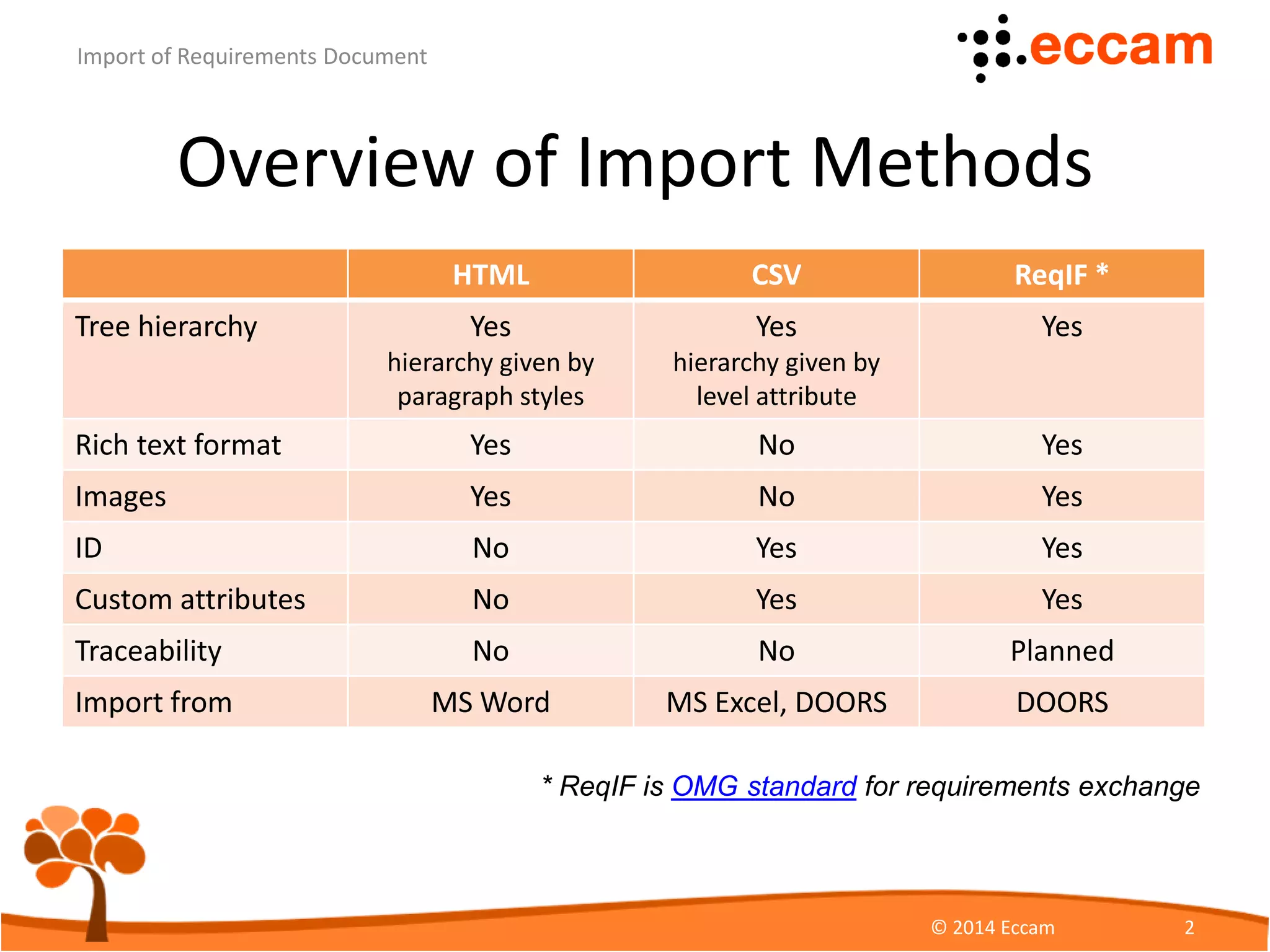
Overview of Import Methods
HTML CSV ReqIF *
Tree hierarchy Yes
hierarchy given by
paragraph styles
Yes
hierarchy given by
level attribute
Yes
Rich text format Yes No Yes
Images Yes No Yes
ID No Yes Yes
Custom attributes No Yes Yes
Traceability No No Planned
Import from MS Word MS Excel, DOORS DOORS
ReqView - Import of Requirements Document
© Eccam 2
* ReqIF is OMG standard for requirements exchange
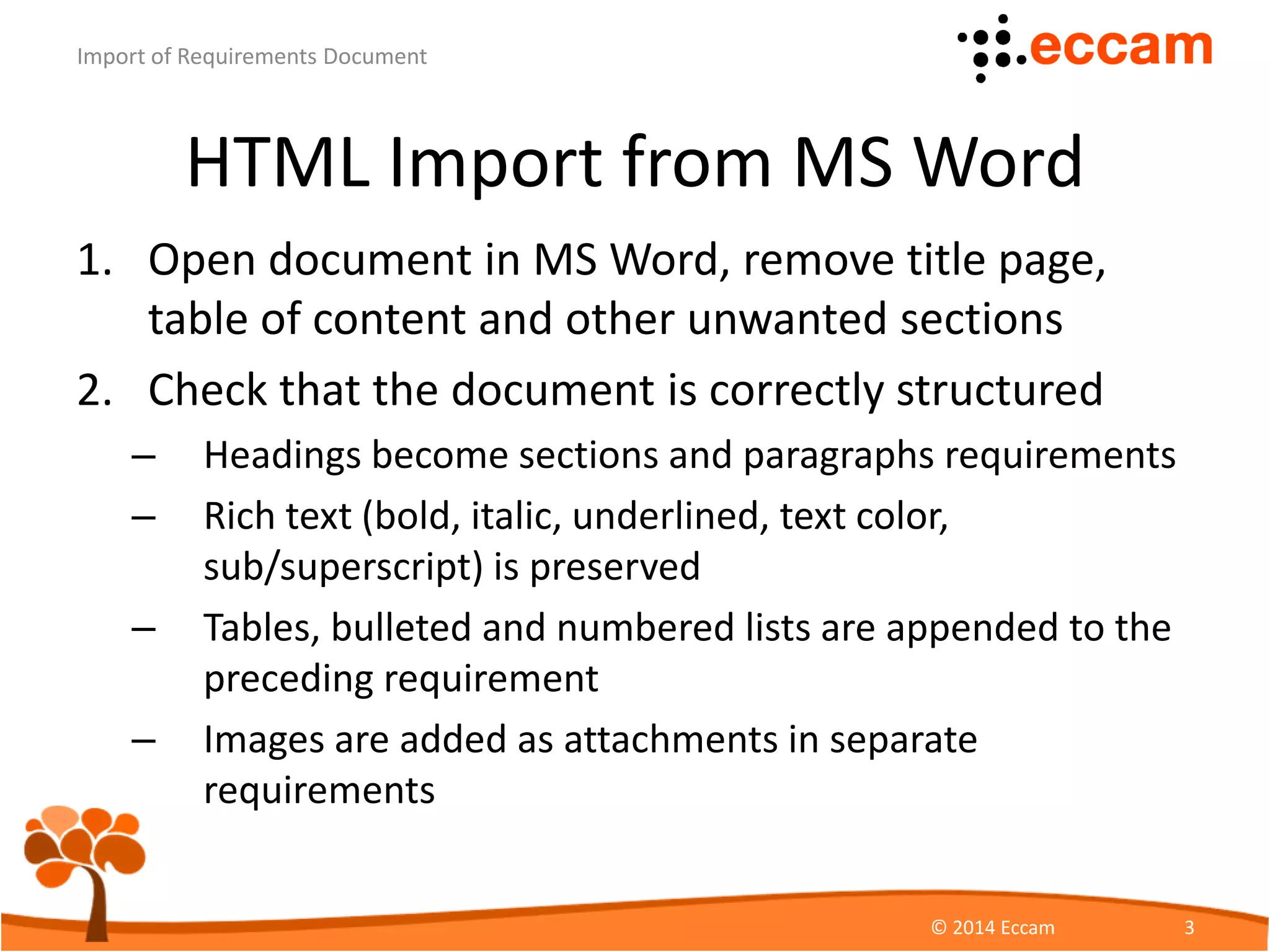
HTML Import from MS Word
1. Open document in MS Word, remove title page,
table of content and other unwanted sections
2. Check that the document is correctly structured
– Headings become sections and paragraphs requirements
– Rich text (bold, italic, underlined, text color,
sub/superscript) is preserved
– Tables, bulleted and numbered lists are appended to the
preceding requirement
– Images are added as attachments in separate
requirements
ReqView - Import of Requirements Document
© Eccam 3
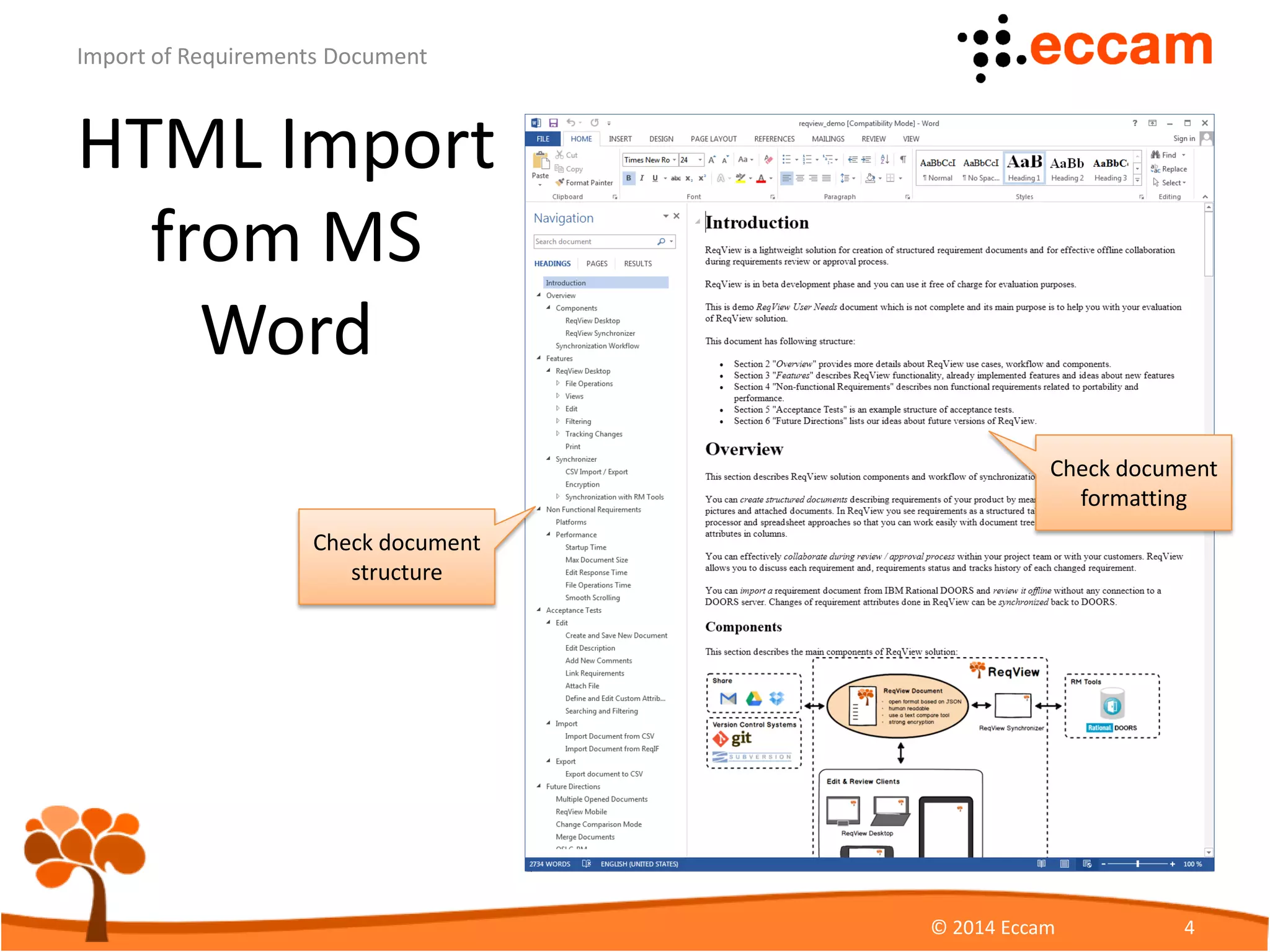
HTML Import
from MS
Word
ReqView - Import of Requirements Document
© Eccam 4
Check document
structure
Check document
formatting
HTML Import from MS Word
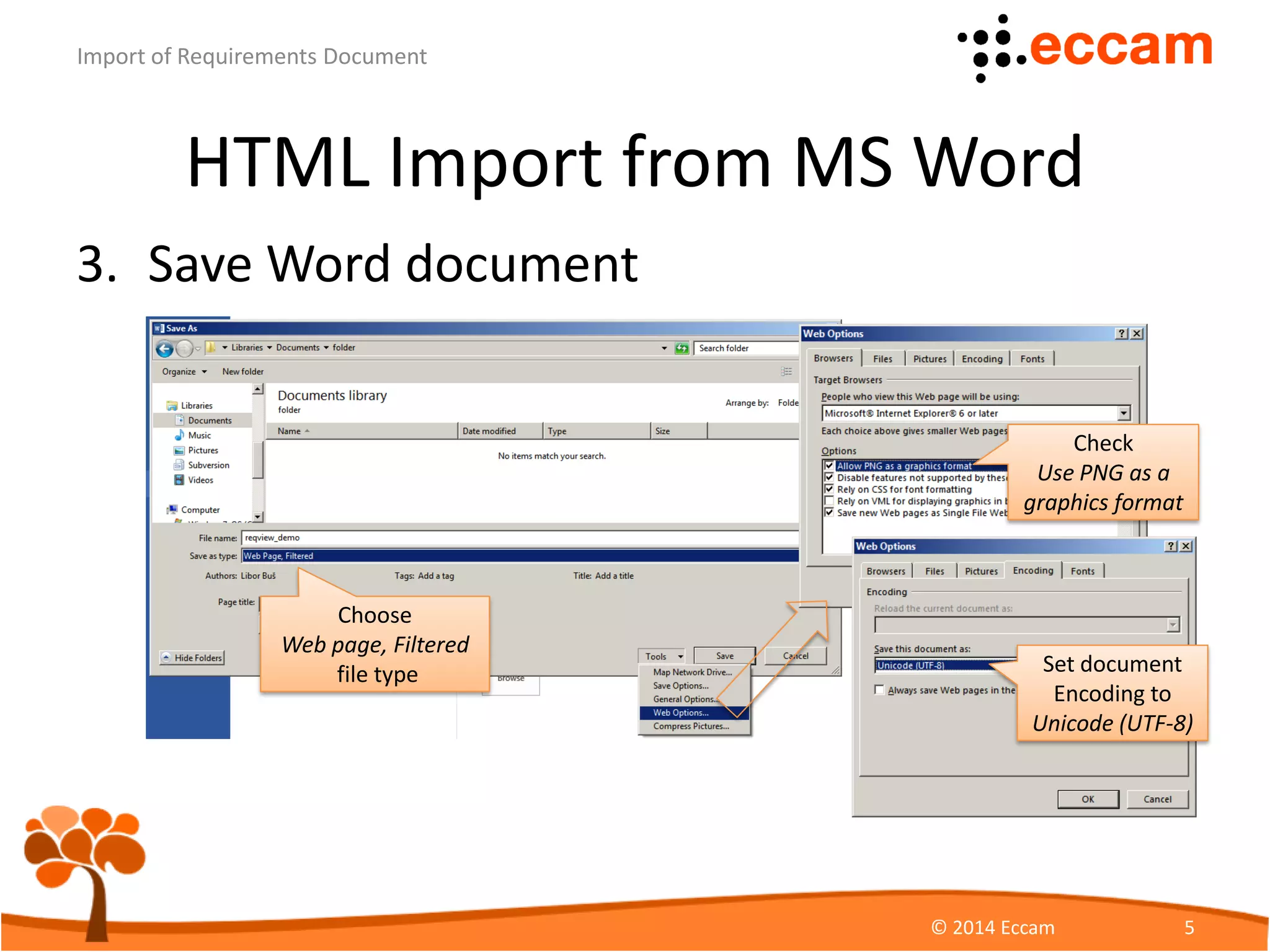
3. Save Word document
ReqView - Import of Requirements Document
© Eccam 5
Choose
Web page, Filtered
file type
Check
Use PNG as a
graphics format
Set document
Encoding to
Unicode (UTF-8)
HTML Import from MS Word
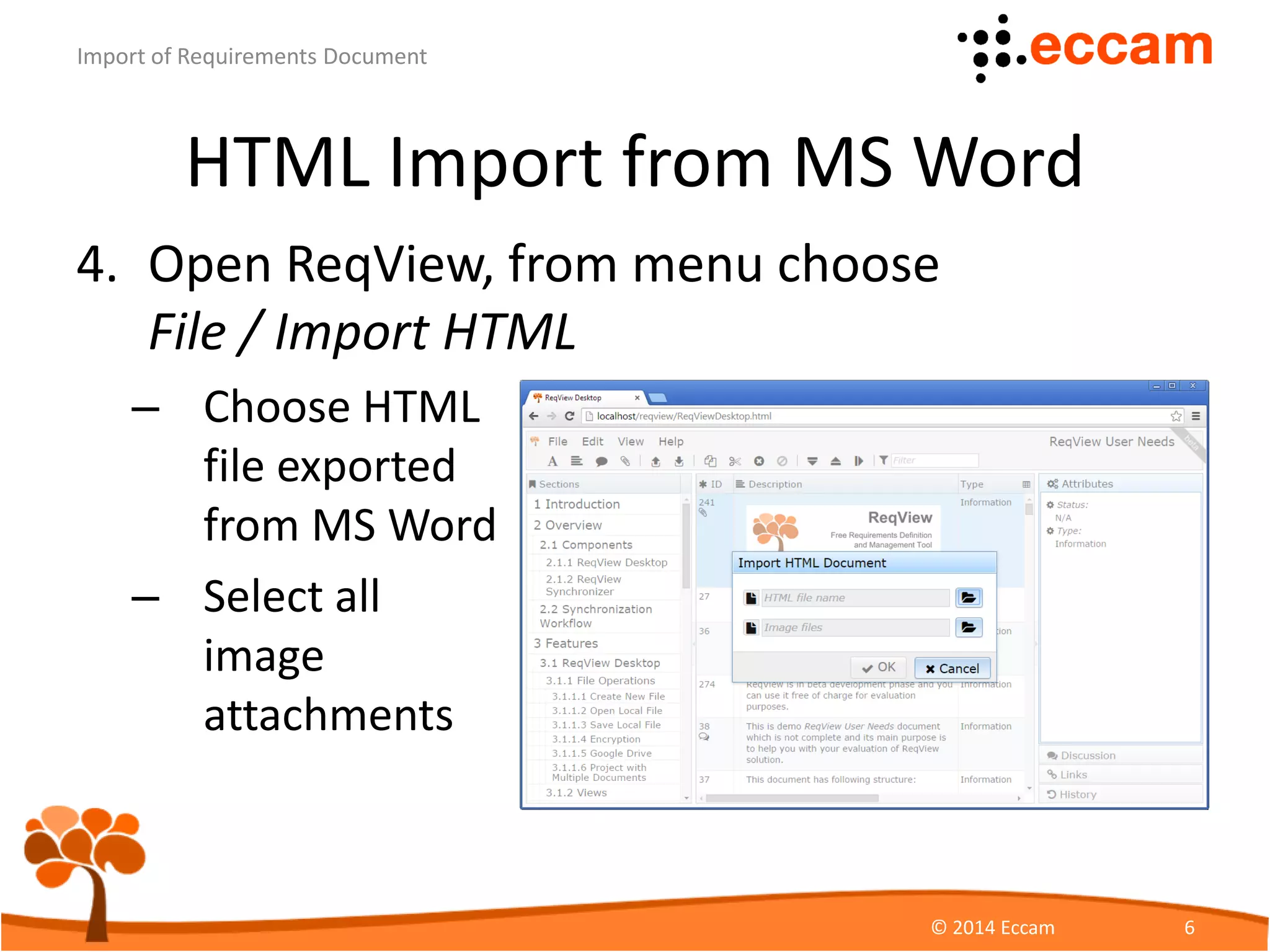
4. Open ReqView and import HTML from File
menu Import HTML
ReqView - Import of Requirements Document
© Eccam 6
Choose HTML
file exported
from MS Word
Choose all
image
attachments
HTML Import from MS Word
ReqView - Import of Requirements Document
© Eccam 7
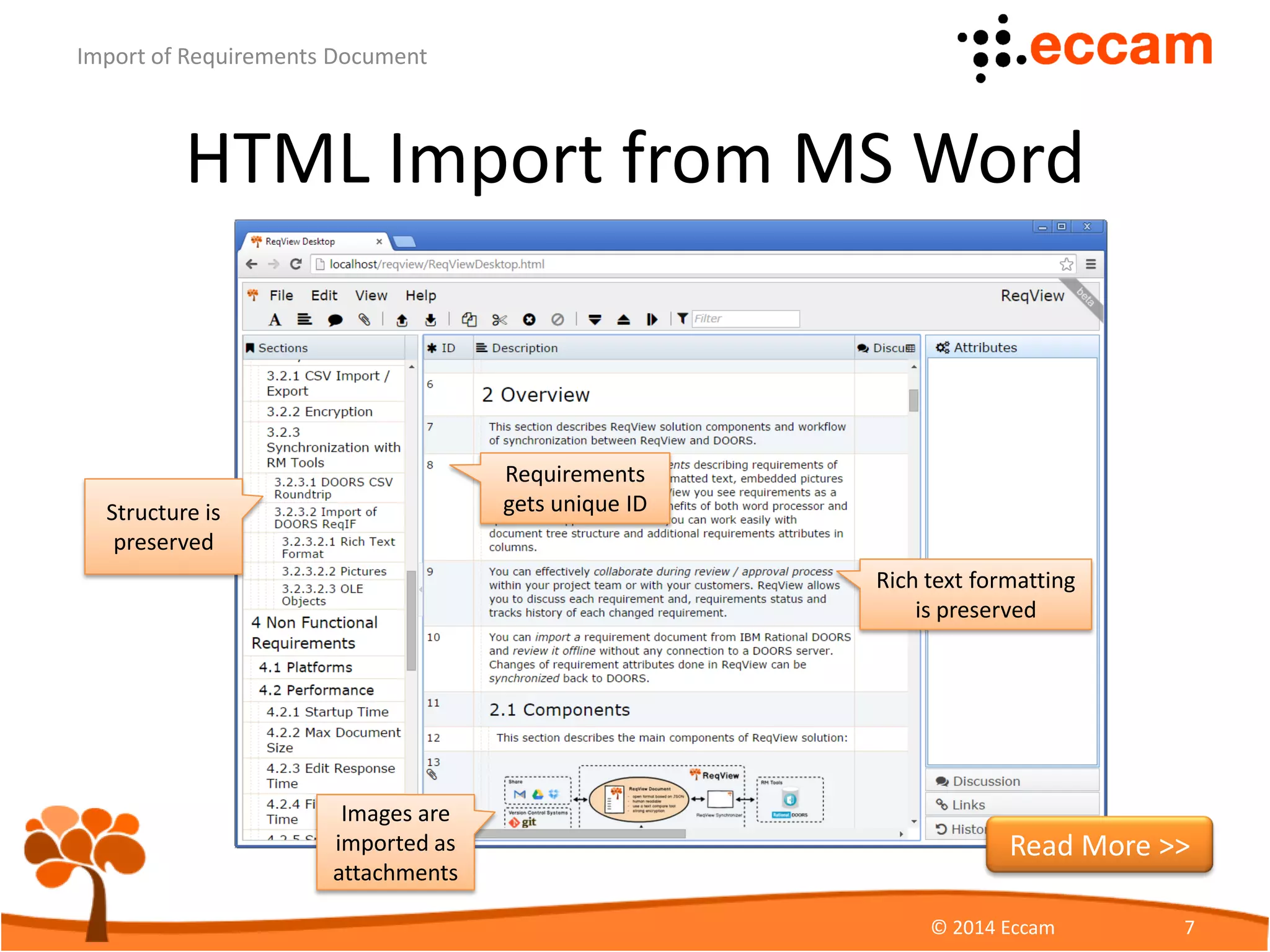
Structure is
preserved
Requirements
gets unique ID
Rich text formatting
is preserved
Read More >>
CSV Import from Excel
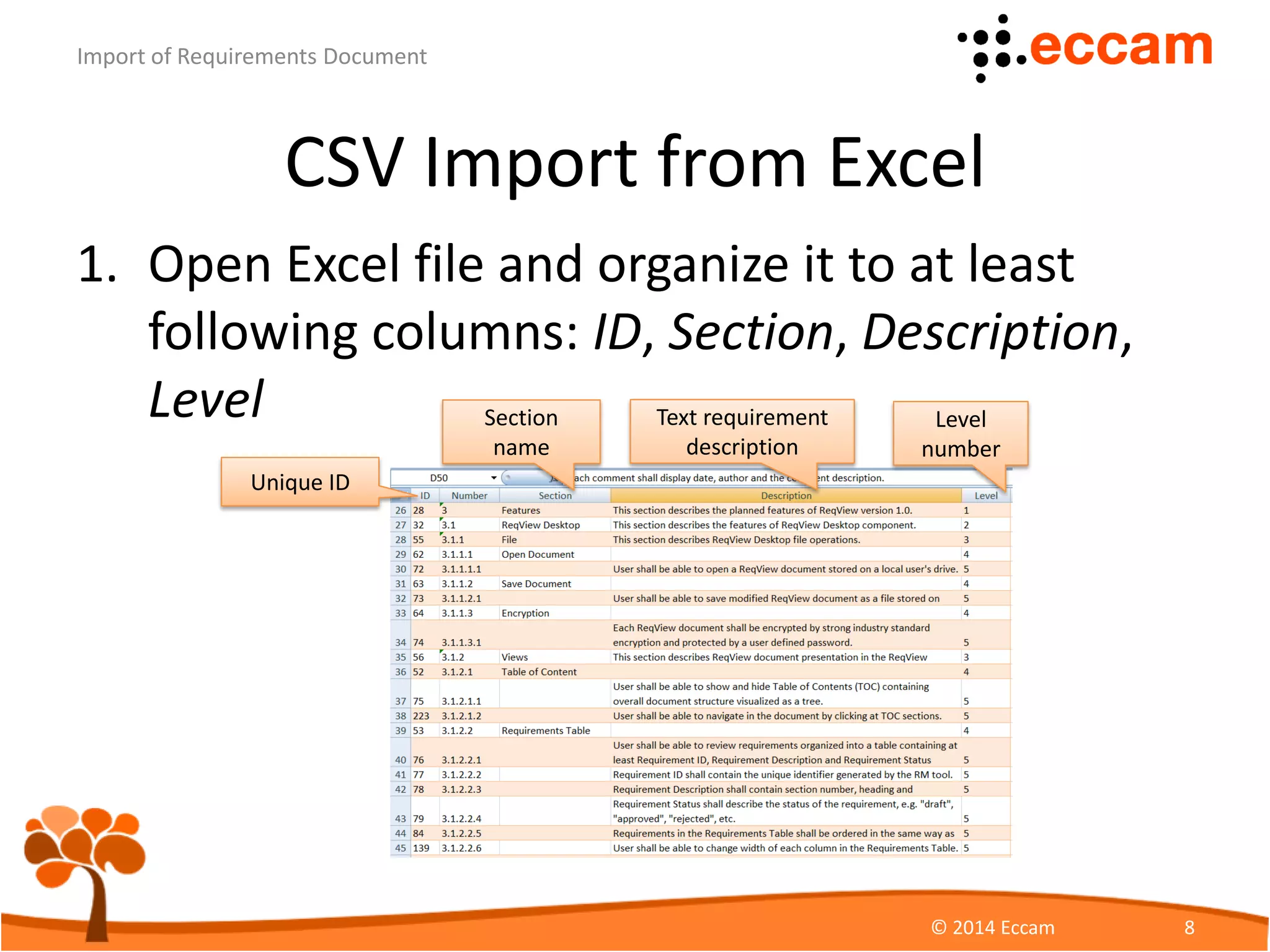
1. Open Excel file and organize it to at least
following columns: ID, Section, Description,
Level
ReqView - Import of Requirements Document
© Eccam 8
Unique ID
Section
name
Text requirement
description
Level
number
CSV Import from Excel
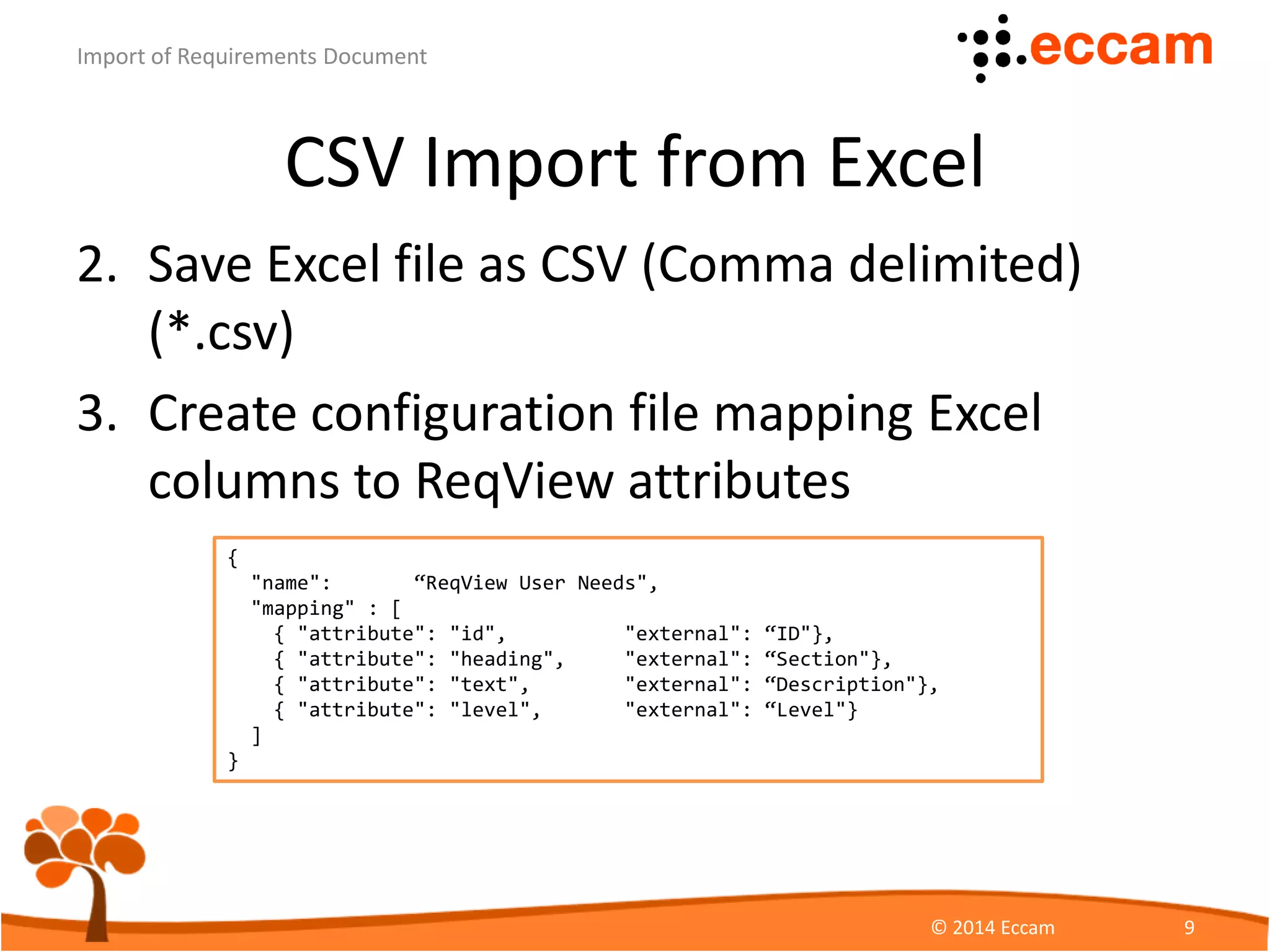
2. Save Excel file as CSV
(Comma delimited) (*.csv)
– Use UTF-8 encoding
(Tools > Web Options > Encoding)
3. In ReqView choose File > Import CSV to import
requirements Before, After or as Children of the
selected object.
ReqView - Import of Requirements Document
© Eccam 9
CSV Import from DOORS
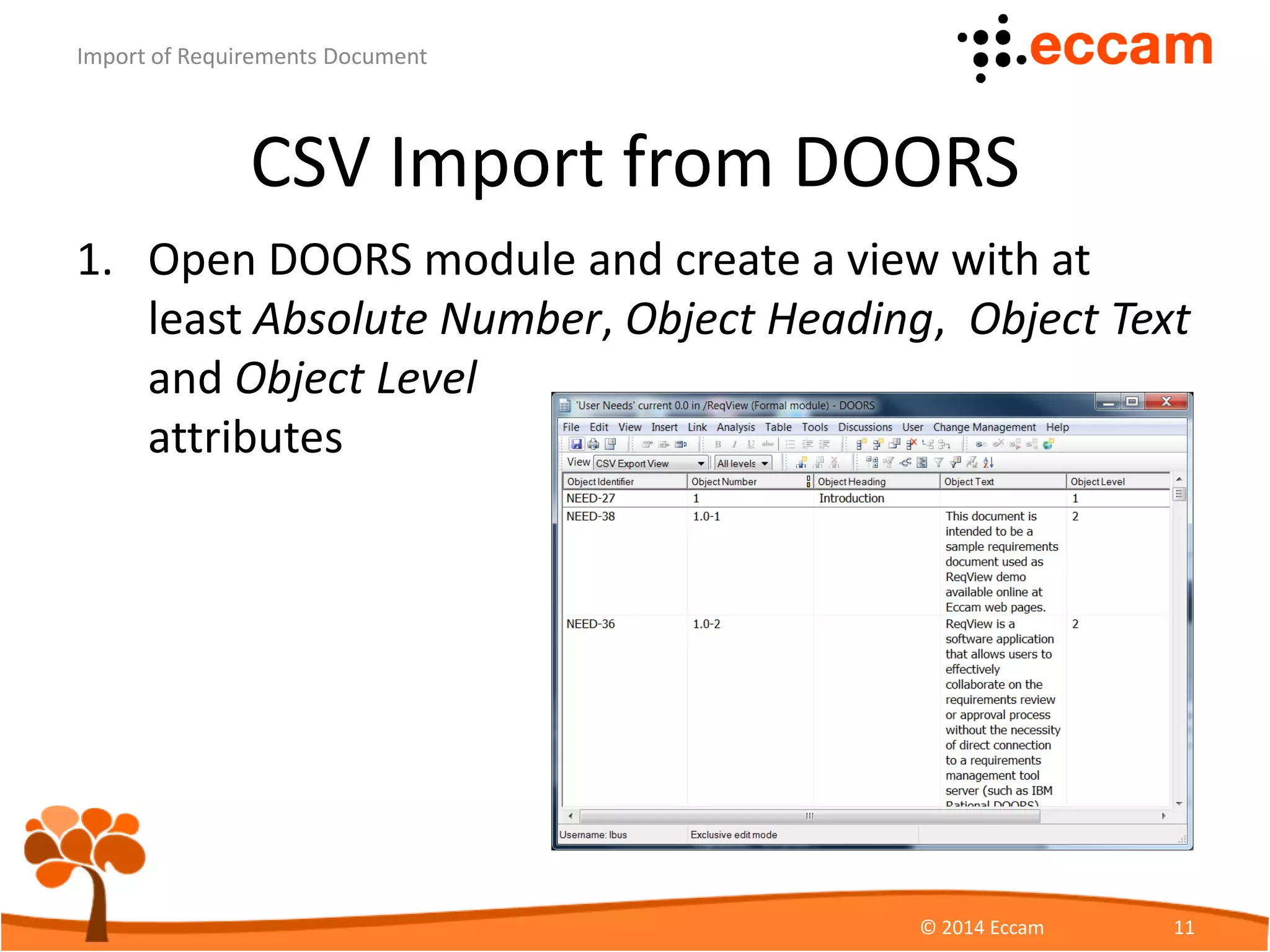
1. Open DOORS module and create a view with at
least Absolute Number, Object Heading, Object Text
and Object Level
attributes
ReqView - Import of Requirements Document
© Eccam 10
CSV Import from DOORS
2. In File / Export / Spreadsheet menu open Export
Spreadsheet dialog
ReqView - Import of Requirements Document
© Eccam 11
Check to export
attribute names
Choose comma as
data separator
Choose UTF-8
encoding
CSV Import from DOORS
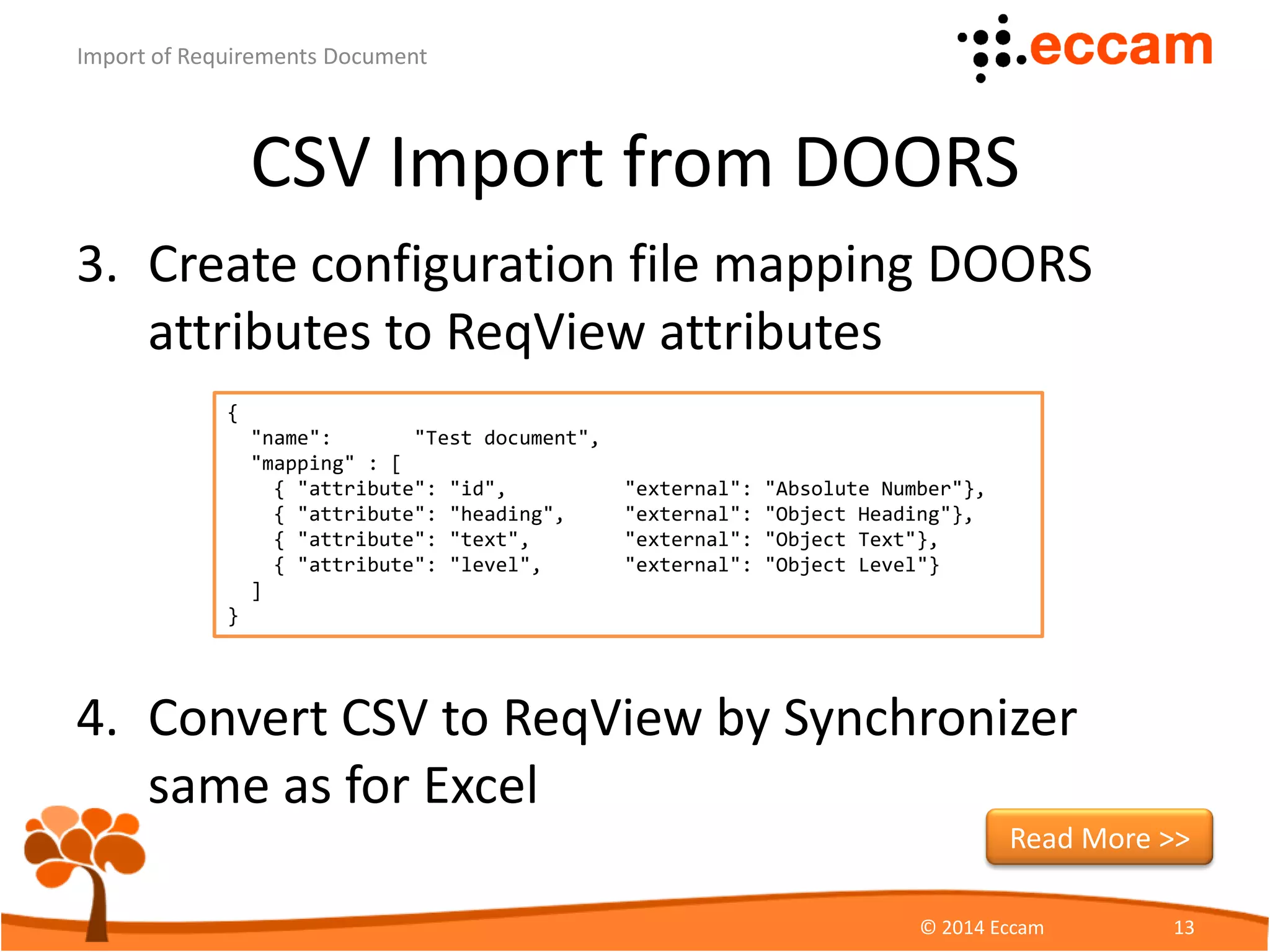
3. Create configuration file mapping DOORS
attributes to ReqView attributes
ReqView - Import of Requirements Document
© Eccam 12
{
"name": "Test document",
"mapping" : [
{ "attribute": "id", "external": "Absolute Number"},
{ "attribute": "heading", "external": "Object Heading"},
{ "attribute": "text", "external": "Object Text"},
{ "attribute": "level", "external": "Object Level"}
]
}
CSV Import from DOORS
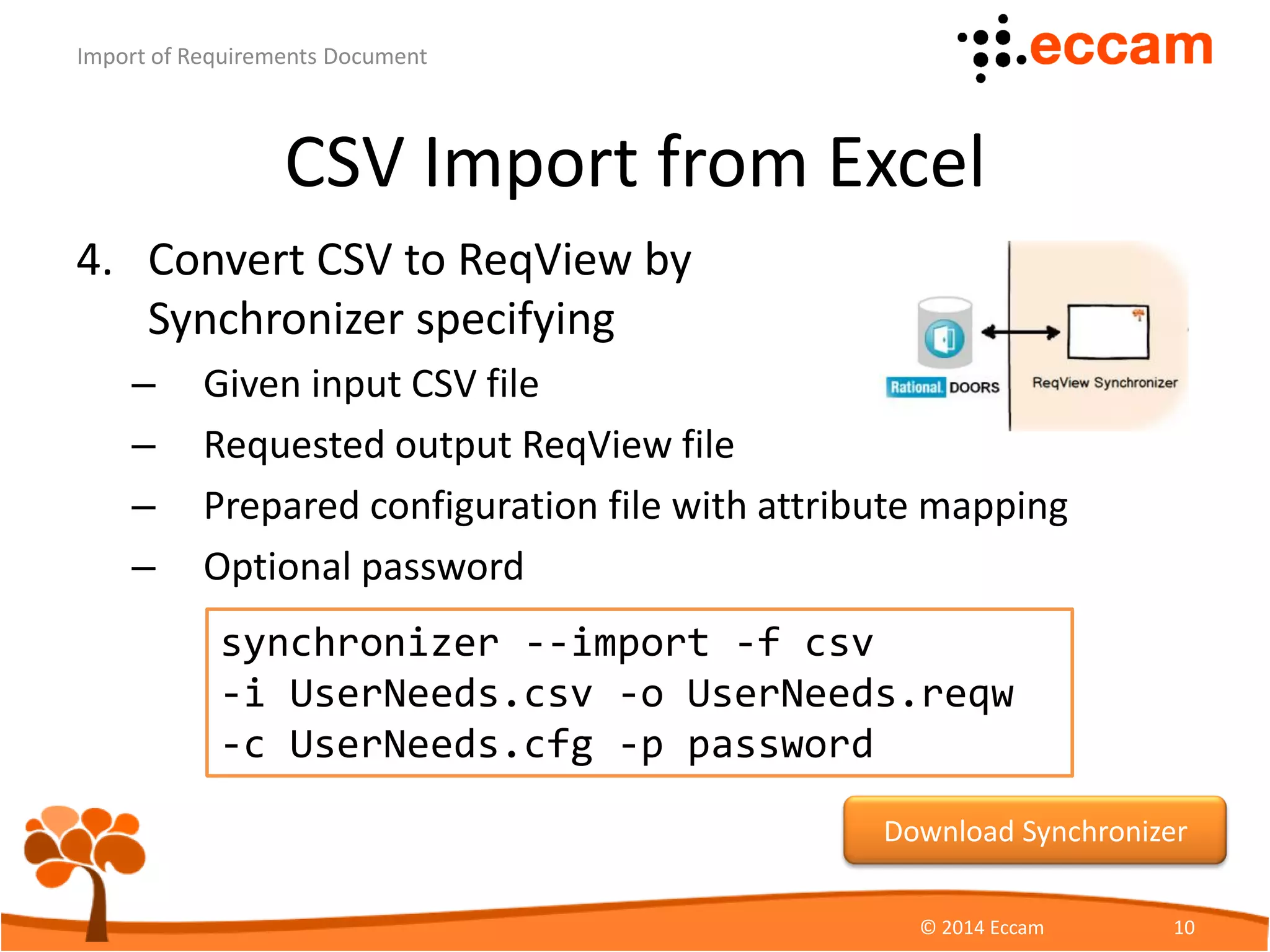
4. Convert CSV to ReqView by
Synchronizer specifying
– Given input CSV file
– Requested output ReqView file
– Prepared configuration file with attribute mapping
– Optional password
ReqView - Import of Requirements Document
© Eccam 13
synchronizer --import -f csv
-i UserNeeds.csv -o UserNeeds.reqw
-c UserNeeds.cfg -p password
Download Synchronizer
ReqIF Import from DOORS
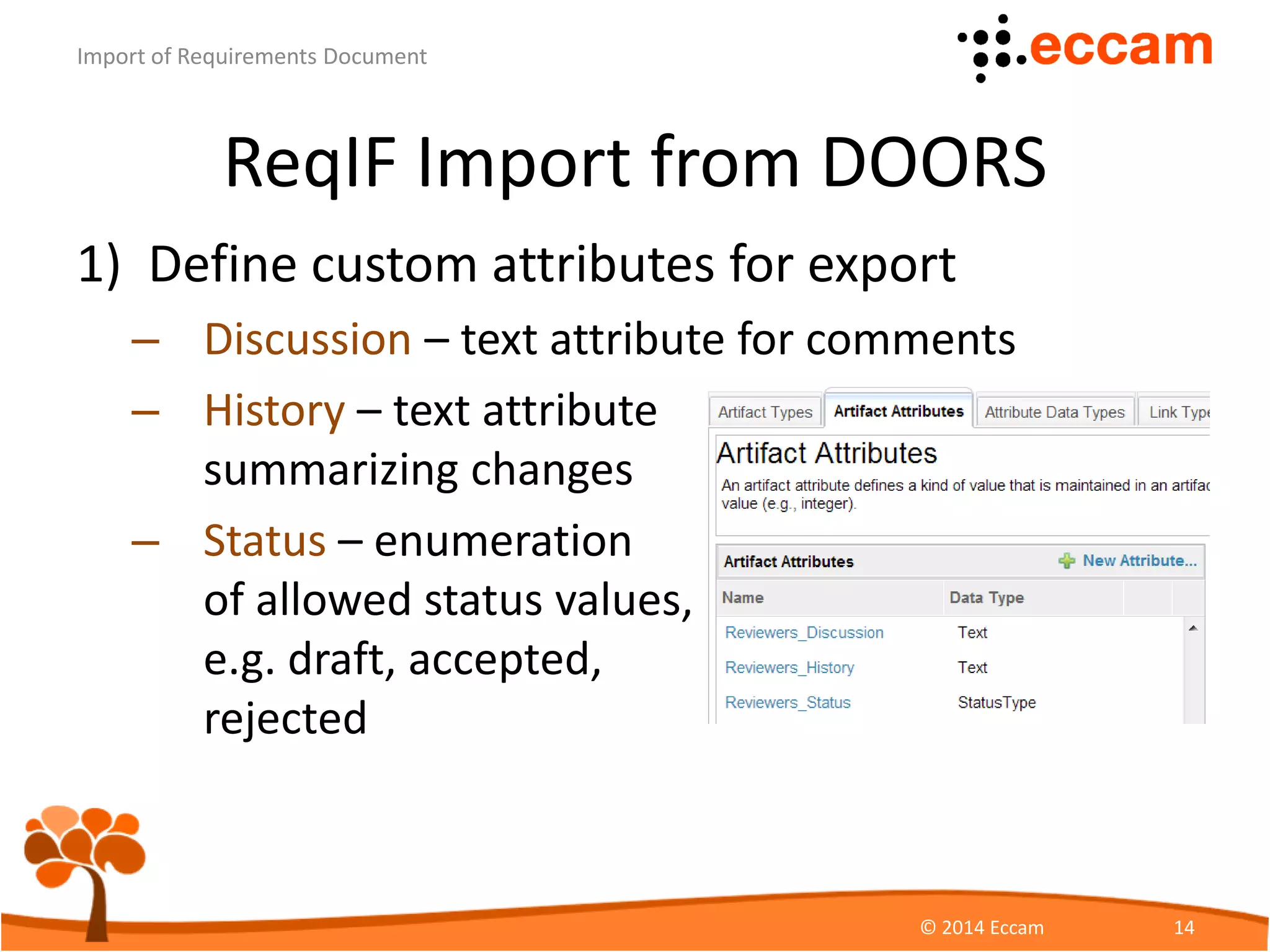
1) Define custom attributes for export
– Discussion – text attribute for comments
– History – text attribute
summarizing changes
– Status – enumeration
of allowed status values,
e.g. draft, accepted,
rejected
ReqView - Import of Requirements Document
© Eccam 14
ReqIF Import from DOORS
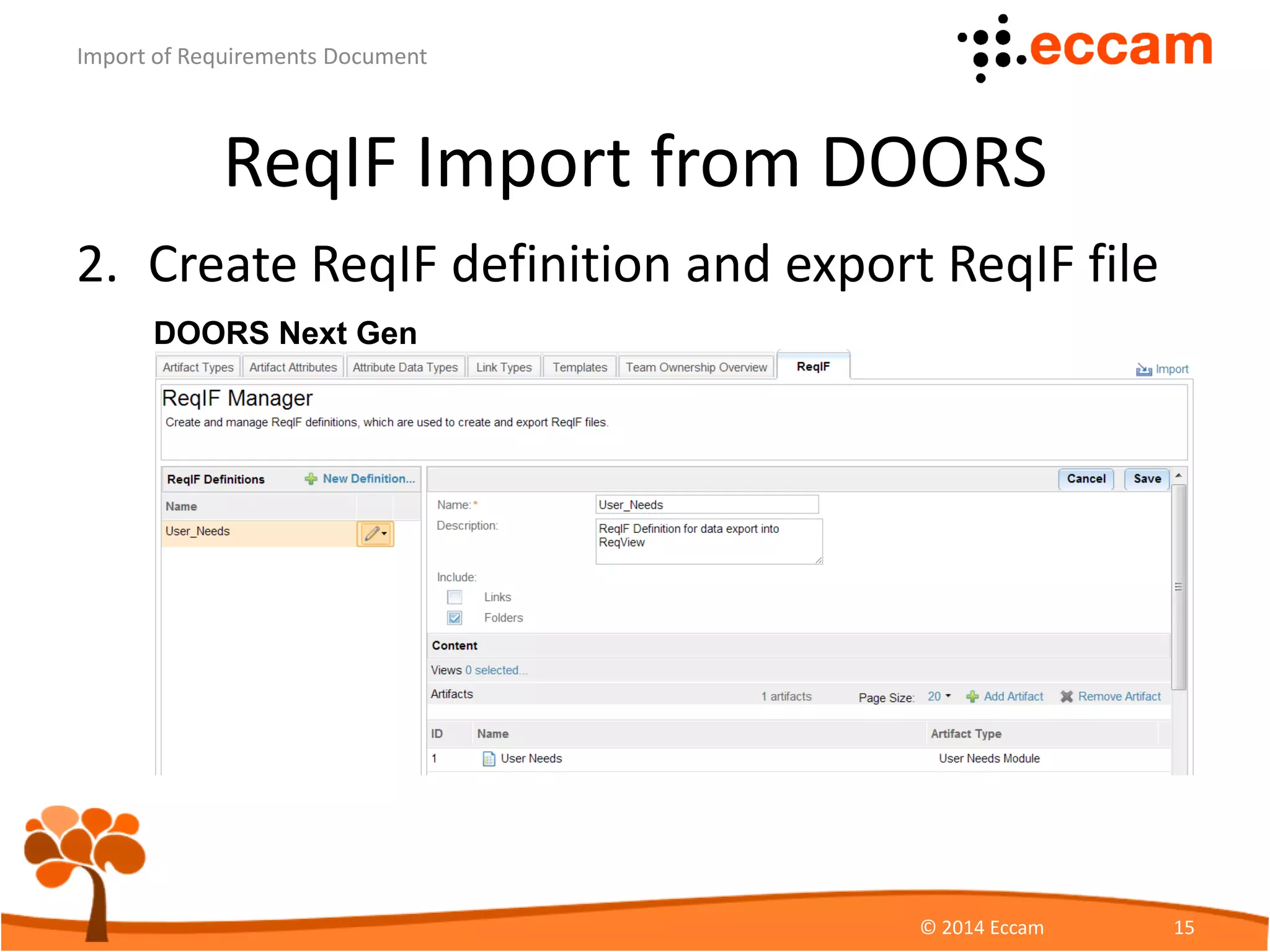
2. Create ReqIF definition and export ReqIF file
ReqView - Import of Requirements Document
© Eccam 15
DOORS Next Gen
ReqIF Import from DOORS
3. Create configuration file mapping DOORS
attributes to ReqView attributes
ReqView - Import of Requirements Document
© Eccam 16
{
"mapping" : [
{ "attribute": "id", "external": "ReqIF.ForeignID"},
{ "attribute": "heading", "external": "ReqIF.ChapterName"},
{ "attribute": "text", "external": "ReqIF.Text"},
{ "attribute": "discussion", "external": "ReqView_Discussion"},
{ "attribute": "history", "external": "ReqView_History"},
{ "attribute": "status", "external": "ReqView_Status"}
]
}
Note: Names of ReqIF external names depends on DOORS version.
ReqIF Import from DOORS
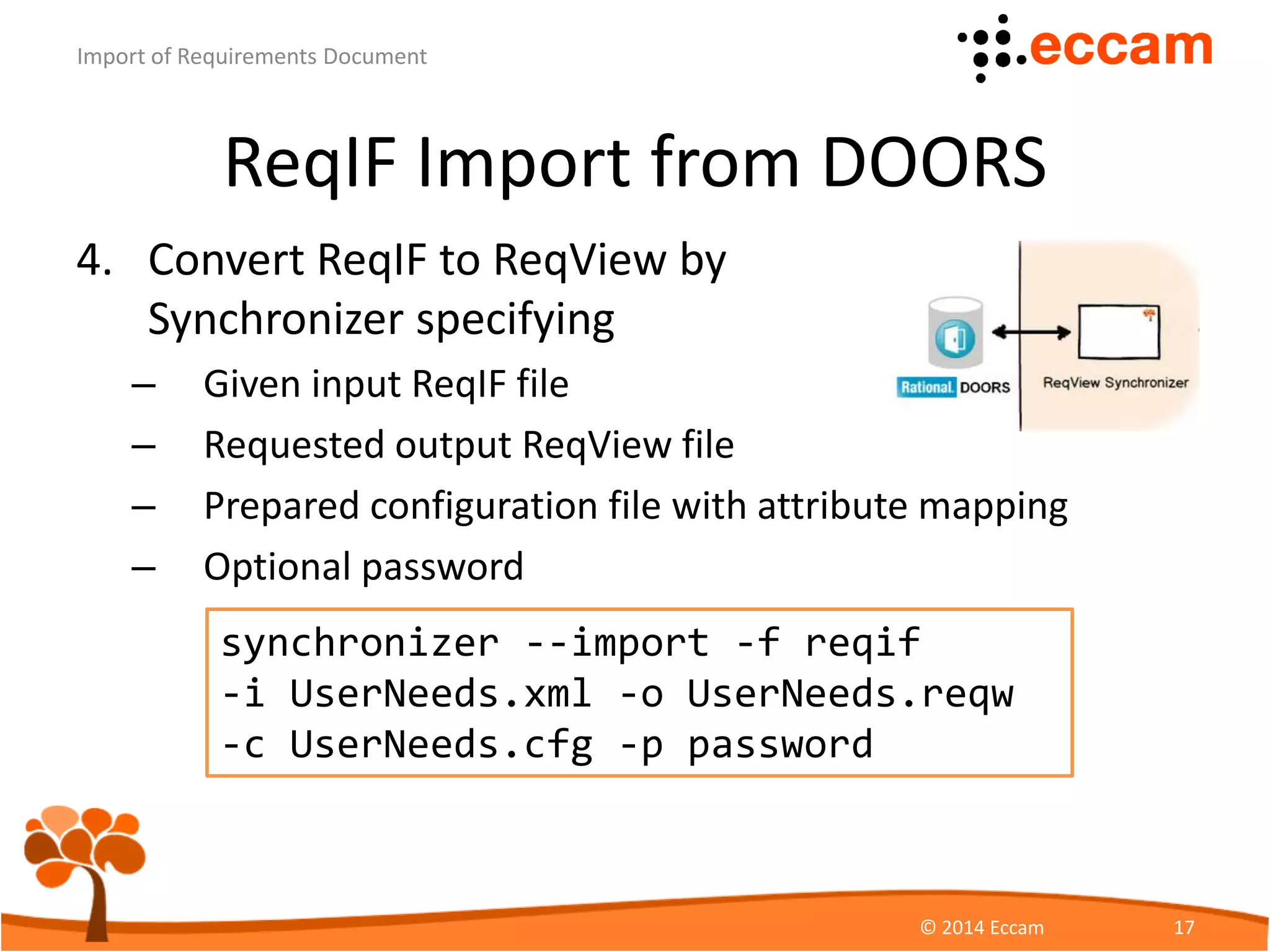
4. Convert ReqIF to ReqView by
Synchronizer specifying
– Given input ReqIF file
– Requested output ReqView file
– Prepared configuration file with attribute mapping
– Optional password
ReqView - Import of Requirements Document
© Eccam 17
synchronizer --import -f reqif
-i UserNeeds.xml -o UserNeeds.reqw
-c UserNeeds.cfg -p password
ReqIF Import from DOORS
ReqView - Import of Requirements Document
© Eccam 18
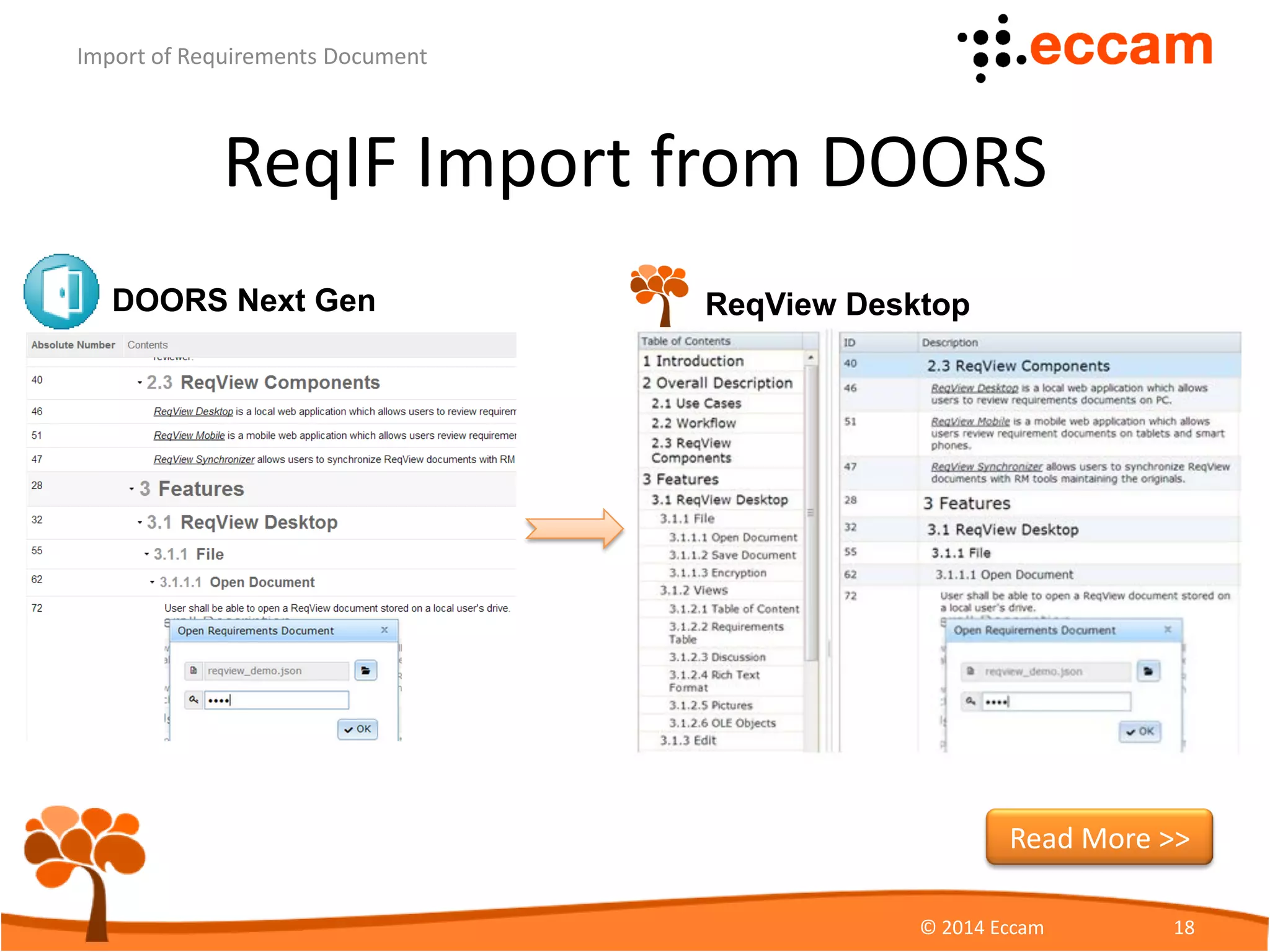
DOORS Next Gen ReqView Desktop
Read More >>
ReqView References
• ReqView Homepage
https://www.reqview.com
• ReqView Desktop Online
https://www.reqview.com/apps/desktop/ReqViewDesktop.html
• ReqView Desktop at Chrome Store
https://chrome.google.com/webstore/detail/reqview-
desktop/cmbnhmeabefpflildnahpbghcejkblin
• Support Site - online help, knowledge base
and discussion forum
http://support.reqview.com/solution/categories
ReqView - Import of Requirements Document
© Eccam 19

Import Requirements Document

  • 1.
  • 2.
    Overview of ImportMethods HTML CSV ReqIF * Tree hierarchy Yes hierarchy given by paragraph styles Yes hierarchy given by level attribute Yes Rich text format Yes No Yes Images Yes No Yes ID No Yes Yes Custom attributes No Yes Yes Traceability No No Planned Import from MS Word MS Excel, DOORS DOORS ReqView - Import of Requirements Document © Eccam 2 * ReqIF is OMG standard for requirements exchange
  • 3.
    HTML Import fromMS Word 1. Open document in MS Word, remove title page, table of content and other unwanted sections 2. Check that the document is correctly structured – Headings become sections and paragraphs requirements – Rich text (bold, italic, underlined, text color, sub/superscript) is preserved – Tables, bulleted and numbered lists are appended to the preceding requirement – Images are added as attachments in separate requirements ReqView - Import of Requirements Document © Eccam 3
  • 4.
    HTML Import from MS Word ReqView- Import of Requirements Document © Eccam 4 Check document structure Check document formatting
  • 5.
    HTML Import fromMS Word 3. Save Word document ReqView - Import of Requirements Document © Eccam 5 Choose Web page, Filtered file type Check Use PNG as a graphics format Set document Encoding to Unicode (UTF-8)
  • 6.
    HTML Import fromMS Word 4. Open ReqView and import HTML from File menu Import HTML ReqView - Import of Requirements Document © Eccam 6 Choose HTML file exported from MS Word Choose all image attachments
  • 7.
    HTML Import fromMS Word ReqView - Import of Requirements Document © Eccam 7 Structure is preserved Requirements gets unique ID Rich text formatting is preserved Read More >>
  • 8.
    CSV Import fromExcel 1. Open Excel file and organize it to at least following columns: ID, Section, Description, Level ReqView - Import of Requirements Document © Eccam 8 Unique ID Section name Text requirement description Level number
  • 9.
    CSV Import fromExcel 2. Save Excel file as CSV (Comma delimited) (*.csv) – Use UTF-8 encoding (Tools > Web Options > Encoding) 3. In ReqView choose File > Import CSV to import requirements Before, After or as Children of the selected object. ReqView - Import of Requirements Document © Eccam 9
  • 10.
    CSV Import fromDOORS 1. Open DOORS module and create a view with at least Absolute Number, Object Heading, Object Text and Object Level attributes ReqView - Import of Requirements Document © Eccam 10
  • 11.
    CSV Import fromDOORS 2. In File / Export / Spreadsheet menu open Export Spreadsheet dialog ReqView - Import of Requirements Document © Eccam 11 Check to export attribute names Choose comma as data separator Choose UTF-8 encoding
  • 12.
    CSV Import fromDOORS 3. Create configuration file mapping DOORS attributes to ReqView attributes ReqView - Import of Requirements Document © Eccam 12 { "name": "Test document", "mapping" : [ { "attribute": "id", "external": "Absolute Number"}, { "attribute": "heading", "external": "Object Heading"}, { "attribute": "text", "external": "Object Text"}, { "attribute": "level", "external": "Object Level"} ] }
  • 13.
    CSV Import fromDOORS 4. Convert CSV to ReqView by Synchronizer specifying – Given input CSV file – Requested output ReqView file – Prepared configuration file with attribute mapping – Optional password ReqView - Import of Requirements Document © Eccam 13 synchronizer --import -f csv -i UserNeeds.csv -o UserNeeds.reqw -c UserNeeds.cfg -p password Download Synchronizer
  • 14.
    ReqIF Import fromDOORS 1) Define custom attributes for export – Discussion – text attribute for comments – History – text attribute summarizing changes – Status – enumeration of allowed status values, e.g. draft, accepted, rejected ReqView - Import of Requirements Document © Eccam 14
  • 15.
    ReqIF Import fromDOORS 2. Create ReqIF definition and export ReqIF file ReqView - Import of Requirements Document © Eccam 15 DOORS Next Gen
  • 16.
    ReqIF Import fromDOORS 3. Create configuration file mapping DOORS attributes to ReqView attributes ReqView - Import of Requirements Document © Eccam 16 { "mapping" : [ { "attribute": "id", "external": "ReqIF.ForeignID"}, { "attribute": "heading", "external": "ReqIF.ChapterName"}, { "attribute": "text", "external": "ReqIF.Text"}, { "attribute": "discussion", "external": "ReqView_Discussion"}, { "attribute": "history", "external": "ReqView_History"}, { "attribute": "status", "external": "ReqView_Status"} ] } Note: Names of ReqIF external names depends on DOORS version.
  • 17.
    ReqIF Import fromDOORS 4. Convert ReqIF to ReqView by Synchronizer specifying – Given input ReqIF file – Requested output ReqView file – Prepared configuration file with attribute mapping – Optional password ReqView - Import of Requirements Document © Eccam 17 synchronizer --import -f reqif -i UserNeeds.xml -o UserNeeds.reqw -c UserNeeds.cfg -p password
  • 18.
    ReqIF Import fromDOORS ReqView - Import of Requirements Document © Eccam 18 DOORS Next Gen ReqView Desktop Read More >>
  • 19.
    ReqView References • ReqViewHomepage https://www.reqview.com • ReqView Desktop Online https://www.reqview.com/apps/desktop/ReqViewDesktop.html • ReqView Desktop at Chrome Store https://chrome.google.com/webstore/detail/reqview- desktop/cmbnhmeabefpflildnahpbghcejkblin • Support Site - online help, knowledge base and discussion forum http://support.reqview.com/solution/categories ReqView - Import of Requirements Document © Eccam 19