Background
and images
Lesson 2

By: Hector Tejada
Objectives
 Learn how to change the background
  color or to an image
 Learn how to add an image to the site
 Learn how to change font color


Requirements:
 Notepad
 images
Step 1


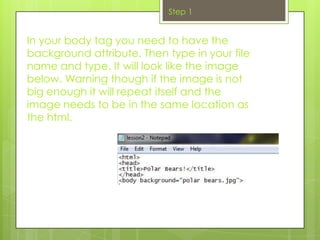
In your body tag you need to have the
background attribute. Then type in your file
name and type. It will look like the image
below. Warning though if the image is not
big enough it will repeat itself and the
image needs to be in the same location as
the html.
Step 2


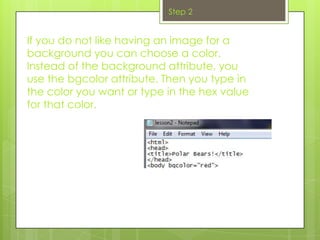
If you do not like having an image for a
background you can choose a color.
Instead of the background attribute, you
use the bgcolor attribute. Then you type in
the color you want or type in the hex value
for that color.
Step 3


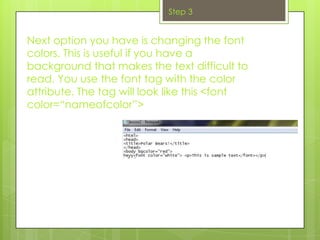
Next option you have is changing the font
colors. This is useful if you have a
background that makes the text difficult to
read. You use the font tag with the color
attribute. The tag will look like this <font
color=“nameofcolor”>
Step 4


You can change the font style. You need to
use the font tag as well as the face
attribute. The tag looks like this <font
face=“name_of_font_style”>You can also
change the font size with the font tag and
size attribute.
Review


You should now how to:
•   Change the background image
•   Change the background color
•   Change the font color
•   Change the font style and size
Assessment

Now that you have learn how to do all of
that I want you to show what you know by
recreating those pages. You can use any
image as the background. It needs to have
a different style of text and color.

HTML Lesson 2

  • 1.
  • 2.
    Objectives  Learn howto change the background color or to an image  Learn how to add an image to the site  Learn how to change font color Requirements:  Notepad  images
  • 3.
    Step 1 In yourbody tag you need to have the background attribute. Then type in your file name and type. It will look like the image below. Warning though if the image is not big enough it will repeat itself and the image needs to be in the same location as the html.
  • 4.
    Step 2 If youdo not like having an image for a background you can choose a color. Instead of the background attribute, you use the bgcolor attribute. Then you type in the color you want or type in the hex value for that color.
  • 5.
    Step 3 Next optionyou have is changing the font colors. This is useful if you have a background that makes the text difficult to read. You use the font tag with the color attribute. The tag will look like this <font color=“nameofcolor”>
  • 6.
    Step 4 You canchange the font style. You need to use the font tag as well as the face attribute. The tag looks like this <font face=“name_of_font_style”>You can also change the font size with the font tag and size attribute.
  • 7.
    Review You should nowhow to: • Change the background image • Change the background color • Change the font color • Change the font style and size
  • 8.
    Assessment Now that youhave learn how to do all of that I want you to show what you know by recreating those pages. You can use any image as the background. It needs to have a different style of text and color.